In your home screen go to menu than click on the HK (house keeping) tab and choose
The “Trade Categories” function
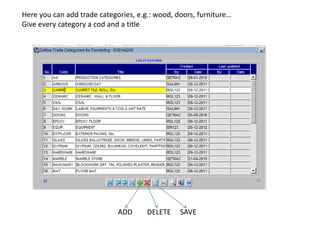
Here you can add trade categories, e.g.: wood, doors, furniture…
Give every category a cod and a title
ADD DELETE SAVE
Then go into your menu to the “Define Trades” function
Every trade is composed from different resources from material, labor and equipment which
Has been defined before making the trade.
NB: Every country and region can have its own Resources and prices and unique trades, so when
You are costing a project the trades used should have the same country and region as the projec
First of all you define basic trades like “Frame” or “Leaf” for doors. Those basic trades can be used
In many types of BOQs because they are the same and repetitive in many types of doors.
They are produced in a cycle that you define in labors and equipments codes.
You can use the same resource code (material , labor or equipment) in the same trade but if there
Is a repetitive resource in a trade , each one should have a different Phase that you define .
After you’ve done basic trades, you can do trades for different types of doors. Those doors trades
Are composed of many basic trades.
To do those “doors trades” for example, first you define a trade for this door and then click on
Copy trade bottom. Choose the trades that you want to copy from and click LOAD
N.B: when you are copying to one trade from many trades, you can not have same resources
With the same phase number in the composite trade ( in our example the door trade)
Example: ph1 carpenter in the basic trade frame in the labor resource exist also in the
Leaf resources.
Go to your menu , to the costing tab and click on “costing Direct” function
Than choose you project and reference (eg :production, installation..)
This screen will open, where you can see the BOQs of the project chosen.
To cost a BOQ , click on “R” for any line chosen
You can click on get trade and choose any trade already defined, than you can change
In the quantities of resources
If you don’t want to choose a trade you can enter the resources that you want for this BOQ
You can delete a trade chosen with the delete bottom
Now you can see the unit cost and total cost of each BOQ line, and the total cost of the project
Save and Quit

Direct costing

  • 2.
    In your homescreen go to menu than click on the HK (house keeping) tab and choose The “Trade Categories” function
  • 3.
    Here you canadd trade categories, e.g.: wood, doors, furniture… Give every category a cod and a title ADD DELETE SAVE
  • 4.
    Then go intoyour menu to the “Define Trades” function Every trade is composed from different resources from material, labor and equipment which Has been defined before making the trade. NB: Every country and region can have its own Resources and prices and unique trades, so when You are costing a project the trades used should have the same country and region as the projec
  • 5.
    First of allyou define basic trades like “Frame” or “Leaf” for doors. Those basic trades can be used In many types of BOQs because they are the same and repetitive in many types of doors. They are produced in a cycle that you define in labors and equipments codes. You can use the same resource code (material , labor or equipment) in the same trade but if there Is a repetitive resource in a trade , each one should have a different Phase that you define .
  • 6.
    After you’ve donebasic trades, you can do trades for different types of doors. Those doors trades Are composed of many basic trades. To do those “doors trades” for example, first you define a trade for this door and then click on Copy trade bottom. Choose the trades that you want to copy from and click LOAD
  • 7.
    N.B: when youare copying to one trade from many trades, you can not have same resources With the same phase number in the composite trade ( in our example the door trade) Example: ph1 carpenter in the basic trade frame in the labor resource exist also in the Leaf resources.
  • 8.
    Go to yourmenu , to the costing tab and click on “costing Direct” function Than choose you project and reference (eg :production, installation..)
  • 9.
    This screen willopen, where you can see the BOQs of the project chosen. To cost a BOQ , click on “R” for any line chosen
  • 10.
    You can clickon get trade and choose any trade already defined, than you can change In the quantities of resources If you don’t want to choose a trade you can enter the resources that you want for this BOQ You can delete a trade chosen with the delete bottom
  • 11.
    Now you cansee the unit cost and total cost of each BOQ line, and the total cost of the project Save and Quit