Last Updated: 5th January 2016 
 
Getting started with Warbler. An Integration Guide 
 
 
This guide presents the following sections to quickly get you up and running with the Warbler 
Loyalty API 
 
● Overview 
● Get Started 
● Sandbox Environment 
● Production Environment 
● Integration 


Overview 
 
The Warbler Loyalty API gives merchants and developers the ability to build applications that 
create and manage Loyalty & Rewards. Using the Warbler API, you can seamlessly award points 
and offer incredible experiences when you want to incentivize or reward specific behavior or 
actions within your applications. 
 
 
Get Started 
 
If you haven’t setup your account yet, please head over to the ‘​Get Started​’ section on our 
website to get up and running ­ it only takes a minute to complete, we promise! You can also 
check out our API documentation for more detailed information about our SDK. 
 
We offer a free Sandbox testing environment to everyone, where you can initiate and watch your 
application interact with the Warbler Loyalty and Rewards platform via Warbler APIs ​without 
touching any live Warbler account​.  
 
Please head over to Warbler Sandbox website ‘​Get Started​’ section and set up one Sandbox 
Account. You can access it by clicking here at ​https://www.warblersandbox.com 
 
 
Sandbox Testing Environment  
 
Sandbox test accounts are virtual Warbler accounts that exist only in our Sandbox environment. 
These accounts represent the end users that you can use in the mock activities & campaigns you 
create as you run your application in the test phase. The activities, rewards, loyalty points and 
campaigns created in the Sandbox environment​ will not exist on live your account​. 


   Warbler integration guides v1.00 
Last Updated: 5th January 2016 
Create a sandbox account (it takes ​less than a minute to complete​) 
 
1. Goto : ​https://www.warblersandbox.com/#register 
2. Fill in your details 
3. Follow the instructions in the email sent to your inbox and complete the 
registration process.  
 
Our Sandbox environment looks really similar to our Production environment so please double 
check on the address bar to ensure you are on the right place. Sandbox testing URL will always 
show as ​https://www.warblersandbox.com 
 
Once your Sandbox account has been set up, you can now follow our ​Warbler API document 
and our ​Sample codes on Github​   to integrate into your applications.  
 
 
Note​: 
 
“Buy Points” on Sandbox account is FREE, you can ‘buy’ as many points as you wish in the 
Sandbox testing environment using the provided ‘fake’ credit and debit card details. It allows you 
to try out our Loyalty & Rewards platform without any hassle.  Please ensure you ‘buy’ some free 
points before getting started. 


   Warbler integration guides v1.00 
Last Updated: 5th January 2016 
Production (live) environment 
 
Once you have finished testing Warbler in the Sandbox environment, you are ready to move your 
application into a Production or Live environment at ​www.warbler.com​ . Please remember to 
recreate all activities and campaigns in your live/production account. They do not copy over 
automatically. 
 
 
Integration Guide 
 
This integration guide aims to get you up and running with the Warbler API in the Production (or 
Live) environment. However, the same process applies if you are using the Warbler Sandbox.  
 
Before getting too deep into Warbler’s API documentation, please first take the following steps to 
obtain essential details such as your ​Merchant portal URL​ and ​authentication token​ etc.. 
 
Step 1​: Create a Merchant account  
Follow the registration link at : ​https://www.warbler.com/#register 


In the example above, we used “Lemon and Herbs” as the company name and 
“​info@lemonandherbs.com​” as the company email.  


   Warbler integration guides v1.00 
Last Updated: 5th January 2016 
You should now have received an email to confirm your unique Merchant website URL to 
complete the registration (​see below​) 


Please keep your Merchant URL safe, as you will obviously need it to login into your Merchant 
Portal. The merchant portal URL (in this example) is : ​https://lemon­and­herbs.warbler.com 


   Warbler integration guides v1.00 
Last Updated: 5th January 2016 
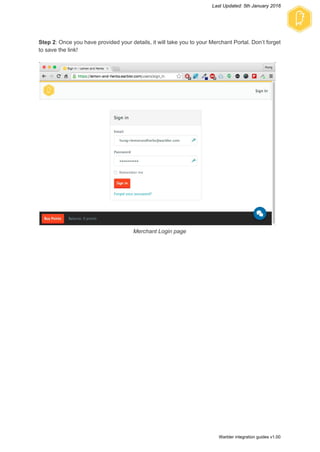
Step 2​: Once you have provided your details, it will take you to your Merchant Portal. Don’t forget 
to save the link! 
 
 
Merchant Login page 


   Warbler integration guides v1.00 
Last Updated: 5th January 2016 
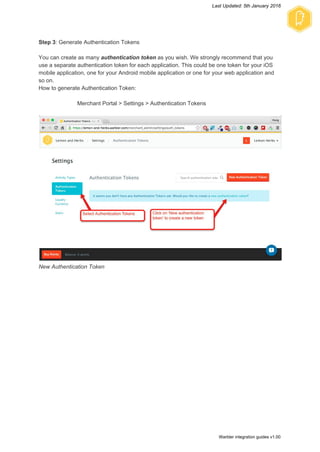
Step 3​: Generate Authentication Tokens  
 
You can create as many ​authentication token​ as you wish. We strongly recommend that you 
use a separate authentication token for each application. This could be one token for your iOS 
mobile application, one for your Android mobile application or one for your web application and 
so on. 
How to generate Authentication Token: 
 
Merchant Portal > Settings > Authentication Tokens 
 
 
New Authentication Token 


   Warbler integration guides v1.00 
Last Updated: 5th January 2016 
 
Save 


Authentication Token generated. 
 
 
Your ​authentication token​ looks like this: ​08d846225af047hdu346a6285b85812ac 


   Warbler integration guides v1.00 
Last Updated: 5th January 2016 
 
 
That’s it !  
 
You can now head over to our ​Warbler API document​ and Warbler’s sample code on ​Github​ for 
more info. 
 
 
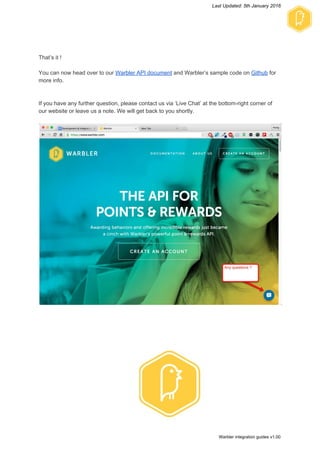
If you have any further question, please contact us via ‘Live Chat’ at the bottom­right corner of 
our website or leave us a note. We will get back to you shortly.  


   Warbler integration guides v1.00 
Last Updated: 5th January 2016 


Version  v1.00 
Created by:  Hung Bui ­ Integration Director 
Email:  hung@warbler.com 


   Warbler integration guides v1.00 

DevelopmentIntegrationGuides-Warbler