Dell EMC Data Domain DD6300 System
Installation Guide
302-005-015 REV 01
Copyright © 2016-2018 Dell Inc. or its subsidiaries. All rights reserved.
Published July 2018
Dell believes the information in this publication is accurate as of its publication date. The information is subject to change without notice.
THE INFORMATION IN THIS PUBLICATION IS PROVIDED “AS-IS.“ DELL MAKES NO REPRESENTATIONS OR WARRANTIES OF ANY KIND
WITH RESPECT TO THE INFORMATION IN THIS PUBLICATION, AND SPECIFICALLY DISCLAIMS IMPLIED WARRANTIES OF
MERCHANTABILITY OR FITNESS FOR A PARTICULAR PURPOSE. USE, COPYING, AND DISTRIBUTION OF ANY DELL SOFTWARE DESCRIBED
IN THIS PUBLICATION REQUIRES AN APPLICABLE SOFTWARE LICENSE.
Dell, EMC, and other trademarks are trademarks of Dell Inc. or its subsidiaries. Other trademarks may be the property of their respective owners.
Published in the USA.
Dell EMC
Hopkinton, Massachusetts 01748-9103
1-508-435-1000 In North America 1-866-464-7381
www.DellEMC.com
2 Data Domain DD6300 System Installation Guide
5
7
Planning and Site Preparation 9
Tools and supplies needed...........................................................................10
Safety information...................................................................................... 10
Field-installed systems vs. factory-racked systems..................................... 11
Install the System in the Rack 13
Unpack the system..................................................................................... 14
Rails and cable management assembly........................................................14
Identify the rack location to install the system............................................15
Install the rails.............................................................................................15
Install the system into a rack.......................................................................17
Installing the cable management assembly..................................................19
Installing the expansion shelves into the racks........................................... 20
Connect Cables and Power On 23
Connecting ES30 shelves........................................................................... 24
DD6300 with ES30 cabling............................................................ 24
Connecting DS60 shelves...........................................................................27
DD6300 with DS60 cabling............................................................27
Installing the front bezel.............................................................................28
Connect data cables...................................................................................29
Power on all systems..................................................................................29
Configure System for Use 31
Enable administrative communication.........................................................32
Accepting the End User License Agreement...............................................33
Run the configuration wizard......................................................................33
Configuring the network................................................................33
Configuring additional system parameters.....................................35
Figures
Tables
Chapter 1
Chapter 2
Chapter 3
Chapter 4
CONTENTS
Data Domain DD6300 System Installation Guide 3
CONTENTS
4 Data Domain DD6300 System Installation Guide
Warning about lifting the system................................................................................. 11
Warning about lifting the system.................................................................................14
Cable management assembly (CMA).......................................................................... 15
Warning about lifting the system.................................................................................17
Service tag (components removed for clarity)............................................................19
Installing the CMA on the rack.................................................................................... 19
Adjusting the CMA depth........................................................................................... 20
DD6300 with ES30 shelves........................................................................................ 26
DD6300 with DS60 shelves........................................................................................ 28
1
2
3
4
5
6
7
8
9
FIGURES
Data Domain DD6300 System Installation Guide 5
FIGURES
6 Data Domain DD6300 System Installation Guide
Cables for primary or single node to ES30 shelf loop..................................................24
ES30 to ES30 cable options....................................................................................... 24
DD6300 with ES30 cabling instructions......................................................................25
DS60 cables................................................................................................................27
DD6300 with DS60 cabling instructions..................................................................... 27
Communications settings........................................................................................... 32
1
2
3
4
5
6
TABLES
Data Domain DD6300 System Installation Guide 7
TABLES
8 Data Domain DD6300 System Installation Guide
CHAPTER 1
Planning and Site Preparation
l Tools and supplies needed.................................................................................. 10
l Safety information..............................................................................................10
l Field-installed systems vs. factory-racked systems.............................................11
Planning and Site Preparation 9
Tools and supplies needed
These tools and supplies may be helpful for the installation and setup tasks for Data
Domain systems.
l Null modem cable (DB-9 female to female), plus spare
l USB-to-DB-9 serial (male connector) converter cable if the laptop does not have a
serial port, plus spare
l Power adapter, C13 to NEMA 5–15 (if based in North America), or a power cord
for your laptop power adapter with a C13 plug, so that you can power your laptop
from a rack PDU
l Antistatic wrist strap and conductive foam pad
l Screwdrivers:
n Phillips #2 with a 12 in. or longer blade
n Phillips #2 (standard-length blade)
n Phillips #1
n Flat head 3/16 in.
n Flat head 1/4 in.
n Torx T10
l Flashlight
l Needle nose pliers
l Diagonal wire cutters (for cutting tie wraps)
l 2 GB or greater USB flash memory drive
l Tie wraps (4 in. and 8 in.)
l (recommended) Roll of 5/8 inch Velcro cable tie material (3M Scotchmate
SJ-3401 or similar)
Safety information
CAUTION
l If the system is used in a manner that is not specified by the manufacturer,
the protection that is provided by the equipment may be impaired.
l The RJ45 sockets on the motherboard, PCI cards, or I/O modules are for
Ethernet connection only and must not be connected to a
telecommunications network.
Review this list of important safety recommendations.
l All plug-in modules and blank plates are part of the fire enclosure and must be
removed only when a replacement can be added immediately. The system must
not be run without all parts in place.
l Operate the system controller from a power supply input voltage range of 100–
240 VAC and 50–60 Hz. The ES30 and FS15 shelves use 100–240 VAC and 50–60
Hz. DS60 shelves use 200–240 VAC and 50–60 Hz.
Planning and Site Preparation
10 Data Domain DD6300 System Installation Guide
l Each component is intended to operate with all working power supplies installed.
l Provide a suitable power source with electrical overload protection.
l A safe electrical earth connection must be provided to each power cord. Check
the grounding of the power sources before applying power.
l The plug on each power supply cord is used as the main device to disconnect
power from the system. Ensure that the socket outlets are located near the
equipment and are easily accessible.
l Permanently unplug the unit if you think it is damaged in any way and before
moving the system. Systems include two power supplies. To remove system power
completely, disconnect both power supplies.
l The power connections must always be disconnected before removal or
replacement of a power supply module from the system.
l A faulty power supply module must be replaced within 24 hours.
l Do not lift system components by yourself. Systems weigh up to 80 lbs (36.29
kg), an ES30 expansion shelf weighs up to 68 lbs (30.8 kg), and a DS60 shelf
weighs up to 225 lbs (102 KG)
CAUTION
Data Domain systems are heavy. Use at least two people or a mechanical lift
to move any system.
l Do not lift an expansion shelf by the front handles on any modules. The handles are
not designed to support the weight of the populated shelf.
l To comply with applicable safety, emission, and thermal requirements, covers
must not be removed and all bays must be fitted with plug-in modules.
l Once removed from the shipping box, it is ok to lift the system or the chassis
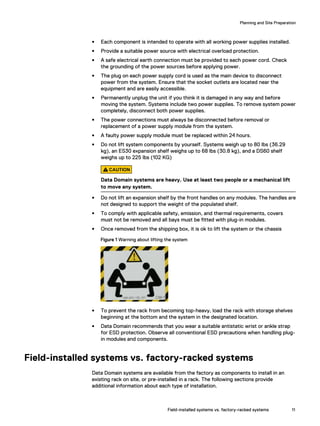
Figure 1 Warning about lifting the system
l To prevent the rack from becoming top-heavy, load the rack with storage shelves
beginning at the bottom and the system in the designated location.
l Data Domain recommends that you wear a suitable antistatic wrist or ankle strap
for ESD protection. Observe all conventional ESD precautions when handling plug-
in modules and components.
Field-installed systems vs. factory-racked systems
Data Domain systems are available from the factory as components to install in an
existing rack on site, or pre-installed in a rack. The following sections provide
additional information about each type of installation.
Planning and Site Preparation
Field-installed systems vs. factory-racked systems 11
Field-installed systems
This installation guide is primarily intended for systems shipped as components to be
installed in an existing rack on site. Follow all the instructions in this document to rack,
cable, and configure the system.
Factory-racked systems
Factory-racked systems are pre-installed in the rack, with the cables already
connected. Follow the instructions in the chapter Configure System For Use to
configure the factory-racked system.
The following documents, available from the Online Support website at https://
support.emc.com, provide additional information about the factory rack:
l Dell EMC 40U-P Cabinet Site Preparation Guide
l Dell EMC 40U-P Cabinet Unpacking and Setup Guide
l Data Domain Rack Service Guide
Planning and Site Preparation
12 Data Domain DD6300 System Installation Guide
CHAPTER 2
Install the System in the Rack
l Unpack the system............................................................................................. 14
l Rails and cable management assembly............................................................... 14
l Identify the rack location to install the system....................................................15
l Install the rails.................................................................................................... 15
l Install the system into a rack...............................................................................17
l Installing the cable management assembly......................................................... 19
l Installing the expansion shelves into the racks................................................... 20
Install the System in the Rack 13
Unpack the system
1. Remove the accessories and rail mount kit from the shipping packages.
2. Remove the controller and the bezels from the shipping packages.
CAUTION
Data Domain systems are heavy. Always use two people or a mechanical lift to
move a system.
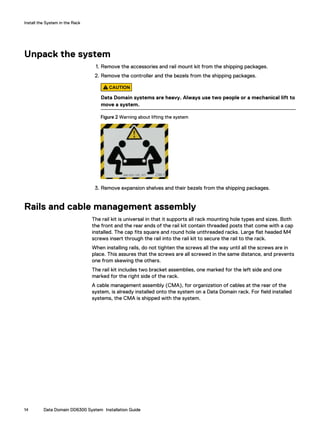
Figure 2 Warning about lifting the system
3. Remove expansion shelves and their bezels from the shipping packages.
Rails and cable management assembly
The rail kit is universal in that it supports all rack mounting hole types and sizes. Both
the front and the rear ends of the rail kit contain threaded posts that come with a cap
installed. The cap fits square and round hole unthreaded racks. Large flat headed M4
screws insert through the rail into the rail kit to secure the rail to the rack.
When installing rails, do not tighten the screws all the way until all the screws are in
place. This assures that the screws are all screwed in the same distance, and prevents
one from skewing the others.
The rail kit includes two bracket assemblies, one marked for the left side and one
marked for the right side of the rack.
A cable management assembly (CMA), for organization of cables at the rear of the
system, is already installed onto the system on a Data Domain rack. For field installed
systems, the CMA is shipped with the system.
Install the System in the Rack
14 Data Domain DD6300 System Installation Guide
Figure 3 Cable management assembly (CMA)
Identify the rack location to install the system
Identify the designated location for the system controller or controllers in the rack.
When using systems with ES30 shelves, the designated location is U13-U14 in rack 1.
When using systems with DS60 shelves, the designated location is U22-U23 in rack 1.
Note
The designated slots in the rack are the recommended location for the systems to
support the cabling described in this document. Other locations may require different
cable lengths for some configurations.
Install the rails
This procedures describes how to install the mounting rails.
Procedure
1. If EIA rail mounting holes of 7.1 MM diameter round, or M5, 12-24, 10-32
threaded, are being used, install the filler using the pin as shown. If not, proceed
to the next step.
Install the System in the Rack
Identify the rack location to install the system 15
Once the filler is installed to the rail, the installation can continue as follows.
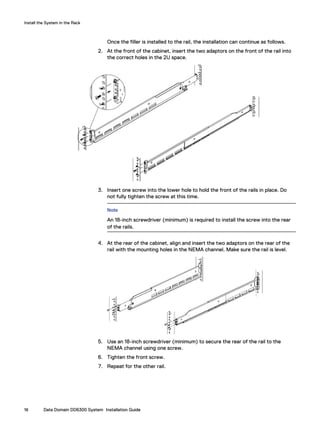
2. At the front of the cabinet, insert the two adaptors on the front of the rail into
the correct holes in the 2U space.
3. Insert one screw into the lower hole to hold the front of the rails in place. Do
not fully tighten the screw at this time.
Note
An 18-inch screwdriver (minimum) is required to install the screw into the rear
of the rails.
4. At the rear of the cabinet, align and insert the two adaptors on the rear of the
rail with the mounting holes in the NEMA channel. Make sure the rail is level.
5. Use an 18-inch screwdriver (minimum) to secure the rear of the rail to the
NEMA channel using one screw.
6. Tighten the front screw.
7. Repeat for the other rail.
Install the System in the Rack
16 Data Domain DD6300 System Installation Guide
Install the system into a rack
CAUTION
Data Domain systems are heavy. Always use two people or a mechanical lift to
move a system.
Figure 4 Warning about lifting the system
CAUTION
l The system controller should be installed in the pre-defined location for the
system controller in the rack to comply with Data Domain rack mounting
guidelines.
l Do not apply AC power to the system controller until all expansion shelves
and cables are installed.
l Ensure the PSNT label, which is in a slot just beneath the power supply on the
rear of the chassis is not damaged or snagged during the installation of the
system into the rack.
Procedure
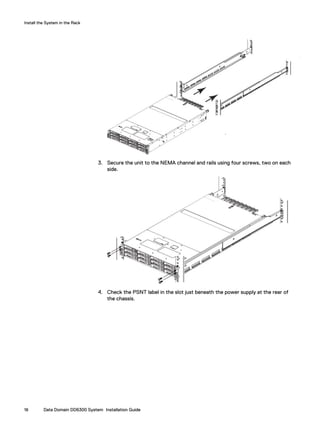
1. From the front of the rack, lift the chassis to install the system in the rack in the
correct location.
2. Slide the unit onto the rails and push it fully into the cabinet until the mounting
holes on the unit are flush with the NEMA channel.
Install the System in the Rack
Install the system into a rack 17
3. Secure the unit to the NEMA channel and rails using four screws, two on each
side.
4. Check the PSNT label in the slot just beneath the power supply at the rear of
the chassis.
Install the System in the Rack
18 Data Domain DD6300 System Installation Guide
Figure 5 Service tag (components removed for clarity)
1. Service tag bracket
2. Locking tab
3. Service tag
Installing the cable management assembly
Installing a cable management assembly (CMA) can help keep the system neat and
organized.
Procedure
1. Align and insert the CMA tabs in the tongues on the rails and align the plunger in
the hole of the mounting rail on both sides.
2. Working one side at a time, pull out the plunger and slide the CMA tabs as
required until the plunger pin snaps into the mounting hole of the rail.
Figure 6 Installing the CMA on the rack
Install the System in the Rack
Installing the cable management assembly 19
3. Open the velcro straps to route cables through the CMA. Secure the cables in
place using the velcro straps.
4. To adjust the CMA position depth (in or out), pull inward on the orange latches
(1) and pull out or push in on the arm simultaneously as needed (2).
Note
The I/O modules, the NVRAM module, the power supply units and the 2.5"
disks can be accessed for removal and replacement with the CMA in place.
Adjust the depth of the CMA arms to access these modules.
Figure 7 Adjusting the CMA depth
Installing the expansion shelves into the racks
CAUTION
l Data Domain systems are heavy. Always use two people or a mechanical lift to
move and install a Data Domain system. Use caution to install the expansion
shelves.
l Ensure that each rack is securely anchored to prevent tipping.
1. From the front of a rack, lift the shelf to the designated rack location.
Install the System in the Rack
20 Data Domain DD6300 System Installation Guide
2. Add shelves to the racks in order, one at a time, from the bottom of a rack to the
top filling each string in that rack before going to the next.
Note
Strings in add-on racks may connect to the same string number in other racks.
Shelves are added in the order V1.1, V1.2, V1.3, V1.4, V2.1, V2.2, and so on. Shelves
are labeled VN.M. VN refers to string "N" and the "M" is the number of the shelf
in the string. For example, V3.2 refers to the second shelf in the third string.
3. Secure each expansion shelf in the rack.
4. When installing an SSD shelf for Data Domain metadata on flash:
l The SSD shelf counts towards the total number of shelves connected to the
system.
l Data Domain recommends installing the SSD shelf in the V1.1 positon, but if
that is not possible, the shelf can be placed in a different location in the rack so
long as cables of sufficient length are available.
Note
V1.1 is recommended for better performance because this will the 1st hop where
data will be written. If the SSD shelf is connected to the last enclosure in a
chain, then each read/write request has to go through many hops, which
introduces latency issues when compared to when the SSD shelf is on the 1st
shelf of a chain.
Install the System in the Rack
Installing the expansion shelves into the racks 21
Install the System in the Rack
22 Data Domain DD6300 System Installation Guide
CHAPTER 3
Connect Cables and Power On
l Connecting ES30 shelves...................................................................................24
l Connecting DS60 shelves...................................................................................27
l Installing the front bezel.....................................................................................28
l Connect data cables...........................................................................................29
l Power on all systems..........................................................................................29
Connect Cables and Power On 23
Connecting ES30 shelves
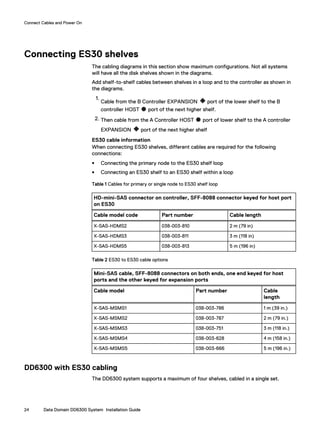
The cabling diagrams in this section show maximum configurations. Not all systems
will have all the disk shelves shown in the diagrams.
Add shelf-to-shelf cables between shelves in a loop and to the controller as shown in
the diagrams.
1.
Cable from the B Controller EXPANSION port of the lower shelf to the B
controller HOST port of the next higher shelf.
2. Then cable from the A Controller HOST port of lower shelf to the A controller
EXPANSION port of the next higher shelf
ES30 cable information
When connecting ES30 shelves, different cables are required for the following
connections:
l Connecting the primary node to the ES30 shelf loop
l Connecting an ES30 shelf to an ES30 shelf within a loop
Table 1 Cables for primary or single node to ES30 shelf loop
HD-mini-SAS connector on controller, SFF-8088 connector keyed for host port
on ES30
Cable model code Part number Cable length
X-SAS-HDMS2 038-003-810 2 m (79 in)
X-SAS-HDMS3 038-003-811 3 m (118 in)
X-SAS-HDMS5 038-003-813 5 m (196 in)
Table 2 ES30 to ES30 cable options
Mini-SAS cable, SFF-8088 connectors on both ends, one end keyed for host
ports and the other keyed for expansion ports
Cable model Part number Cable
length
X-SAS-MSMS1 038-003-786 1 m (39 in.)
X-SAS-MSMS2 038-003-787 2 m (79 in.)
X-SAS-MSMS3 038-003-751 3 m (118 in.)
X-SAS-MSMS4 038-003-628 4 m (158 in.)
X-SAS-MSMS5 038-003-666 5 m (196 in.)
DD6300 with ES30 cabling
The DD6300 system supports a maximum of four shelves, cabled in a single set.
Connect Cables and Power On
24 Data Domain DD6300 System Installation Guide
Table 3 DD6300 with ES30 cabling instructions
String
(Loop)
I/O - Port Shelf Port Length a
1 I/O 7 - Port 0 B controller HOST port of shelf V1.1 2M
1 I/O 7 - Port 2 A controller HOST port of the highest number
shelf in V1
2M
a. Cable lengths shown are designed for Data Domain racks. Longer cables (up to 5M) can be
used.
Connect Cables and Power On
DD6300 with ES30 cabling 25
Figure 8 DD6300 with ES30 shelves
Connect Cables and Power On
26 Data Domain DD6300 System Installation Guide
Connecting DS60 shelves
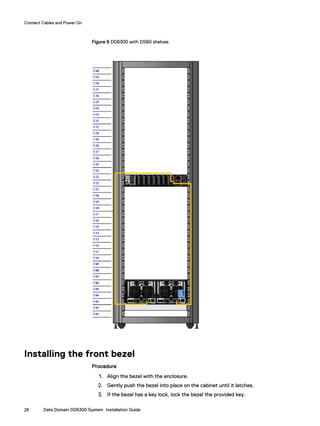
The cabling diagrams in this section show maximum configurations. Not all systems
will have all the disk shelves shown in the diagrams.
Add shelf-to-shelf cables between shelves in a loop and to the controller as shown in
the diagrams.
DS60 cable information
When connecting DS60 shelves, the same cable type connects a controller to a DS60
shelf, or a DS60 shelf to a DS60 shelf.
Table 4 DS60 cables
HD-mini-SAS connector on controller and enclosure
Cable model code Part number Cable length
XC-DS60-SAS-3M 038-004-380-01 3 m (118 in)
XC-DS60-SAS-4M 038-000-212-00 4 m (158 in)
XC-DS60-SAS-5M 038-000-214-00 5 m (196 in)
DD6300 with DS60 cabling
Table 5 DD6300 with DS60 cabling instructions
String
(Loop)
I/O - Port Shelf Port Length a
1 I/O 7 - Port 0 A controller port 0 of the DS60. 2M
1 I/O 7 - Port 1 B controller port 0 of the DS60. 2M
a. Cable lengths shown are designed for Data Domain racks. Longer cables (up to 5M) can be
used.
Connect Cables and Power On
Connecting DS60 shelves 27
Figure 9 DD6300 with DS60 shelves
Installing the front bezel
Procedure
1. Align the bezel with the enclosure.
2. Gently push the bezel into place on the cabinet until it latches.
3. If the bezel has a key lock, lock the bezel the provided key.
Connect Cables and Power On
28 Data Domain DD6300 System Installation Guide
Connect data cables
1. Enable data transfer Ethernet connectivity. Repeat for each connection.
a. If using 1 Gb copper Ethernet, attach a Cat 5e or Cat 6 copper Ethernet cable
to an RJ-45 Ethernet network port (start with ethMa and go up).
b. If using 10 Gb copper Ethernet with an SFP+ connector, use a qualified SFP+
copper cable.
c. If using 1/10 Gb fiber Ethernet, use MMF-850nm cables with LC duplex
connectors.
d. For 10GBaseT connections, use Cat6a S-STP Ethernet cables.
2. Enable data transfer Fibre Channel (FC) connectivity. Repeat for each connection.
a. Attach a Fibre Channel fiber optical cable (LC connector) to an I/O module
port on the controller, and attach the other end (LC connector) to an FC
switch or to an FC port on your server.
Power on all systems
Note
Power on all expansion shelves first before powering on the controller.
1. Connect power cables to each expansion shelf receptacle and attach the retention
clips.
2. Provide power to power on each expansion shelf. The shelves power on when
plugged in. Ensure that each shelf power cable is connected to a different power
source.
Note
Wait approximately 3 minutes after all expansion shelves are powered on before
powering on the controller.
3. Provide power to power on the controller. The system powers on when plugged in.
The first boot may take several minutes to complete.
Note
Connect systems to redundant AC power sources. Redundant power sources allow
one AC source to fail or be serviced without impacting system operation. PSU0
should be attached to one AC source. PSU1 should be attached to the other AC
source.
a. Connect power cables to each receptacle and attach the retention clips.
b. Ensure that each power supply is connected to a different power source.
Connect Cables and Power On
Connect data cables 29
Connect Cables and Power On
30 Data Domain DD6300 System Installation Guide
CHAPTER 4
Configure System for Use
l Enable administrative communication................................................................ 32
l Accepting the End User License Agreement...................................................... 33
l Run the configuration wizard............................................................................. 33
Configure System for Use 31
Enable administrative communication
The administrative interfaces are located on the management module on the rear of
the chassis. These interfaces are for management network traffic only. Do not use
these interfaces for data traffic.
1. Connect an administrative console to the serial port on the back panel of the
system.
2.
Note
You must have 115200 baud rate for the system to work correctly; 9600 baud rate
does not work.
Launch a terminal emulation program from your computer and configure the
following communication settings:
Table 6 Communications settings
Setting Value
Baud rate 115200
Data bits 8
Stop bits 1
Parity None
Flow control None
Emulation VT-100
3. Press Enter to activate the console.
Note
If you do not see the prompt on your terminal to log in, then complete Step 4.
4. Verify the front blue power LED (blue square) is on. If it is not, make sure the
power cables are fully seated at both ends, and both AC sources are on.
5.
Note
The initial username is sysadmin and the initial password is the system serial
number.
Log in to the Data Domain console using the sysadmin username.
localhost.localdomain login: sysadmin
6. Type the default password, which is the system serial number. The Product ID/SN
tag is attached beneath the power supply at the rear of the system. See the rear
panel of the system for the Product ID/SN tag.
Password: system_serial_number
Configure System for Use
32 Data Domain DD6300 System Installation Guide
Note
If you type an incorrect password four consecutive times, the system locks out the
specified username for 120 seconds. The login count and lockout period are
configurable and might be different on your system. See the Data Domain Operating
System Administration Guide and the Data Domain Operating System Command
Reference Guide for setting these values.
Accepting the End User License Agreement
The first time you log in to a Data Domain system, the End User License Agreement
(EULA) is displayed.
At the end of the EULA, you are prompted to accept it:
Press any key then hit enter to acknowledge the receipt of EULA
information
Note
The customer must accept the EULA. A Data Domain representative should not accept
this agreement. If a customer is not present, press Ctrl-C to exit from the EULA
acceptance screen and continue the installation.
The customer can later type the following to redisplay the EULA and accept it:
system show eula
Run the configuration wizard
The CLI configuration wizard starts automatically the first time the system starts. The
wizard prompts you through a series of questions that provide just enough information
for initial system configuration and basic network connectivity.
Note
You can begin the CLI configuration wizard manually by typing config setup.
Configuring the network
Procedure
1. Enter yes to configure the system for network connectivity.
Network Configuration
Configure Network at this time (yes|no) [no]:
yes
2. Enter yes to configure DHCP (Dynamic Host Configuration Protocol) to obtain
network parameters (such as, the host name, domain name, and IP addresses)
dynamically from a DHCP server. Or enter no to configure the parameters
manually.
Use DHCP
Use DHCP for hostname, domainname, default gateway
and DNS servers? (At least one interface needs to
be configured using DHCP) (yes|no|?)
3. Enter a fully qualified domain name (FQDN) for the host name; for example,
str01.yourcompany.com. Or accept the host name, if the system was able to
discover it.
Configure System for Use
Accepting the End User License Agreement 33
Enter the hostname for this system
(fully-qualified domain name)[]:
4. Enter the DNS (Domain Name System) domain name; for example,
yourcompany.com. Or accept the domain name, if the system was able to
discover it.
Domainname
Enter your DNS domainname []:
5. Enable and configure each Ethernet interface. Accept or decline DHCP for each
interface. If the port does not use DHCP to discover network parameters
automatically, enter the information manually.
Ethernet port eth0a
Enable Ethernet port eth0a (yes|no|?) [yes]:
no
Ethernet port eth0b
Enable Ethernet port eth0b (yes|no|?) [no]:
yes
Use DHCP on Ethernet port eth0b (yes|no|?) [no]:
Enter the IP address for eth0b [192.168.10.185]:
Enter the netmask for eth0b [255.255.255.0]:
6. Enter the IP address of the default routing gateway. Or accept the default
gateway, if the system was able to discover it.
Default Gateway
Enter the default gateway IP address:
192.168.10.1
7. Enter the IPv6 address of the default routing gateway. Or accept the IPv6
address of the default gateway, if the system was able to discover it. If IPv6 is
not in use, leave the field empty, and press Enter to continue.
IPV6 Default Gateway
Enter the ipv6 default gateway IP address:
8. Enter up to three DNS servers to use for resolving host names to IP addresses.
Use a comma-separated or space-separated list. Enter a space for no DNS
servers. Or accept the IP addresses of the DNS servers, if the system was able
to discover them.
DNS Servers
Enter the DNS Server list (zero, one, two or three IP
addresses):
192.168.10.1
9. A summary of the network settings is displayed. You can accept the settings
(Save), reject the settings and exit to the CLI (Cancel), or return to the
beginning of the current section and change the settings (Retry). Entering
Retry displays your previous responses for each prompt. Press Return to
accept the displayed value or enter a new one.
Pending Network Settings
Hostname ddbeta1.dallasrdc.com
Domain name dallasrdc.com
Default Gateway 192.168.10.1
DNS Server List 192.168.10.1
Port Enabled Cable DHCP IP Address Netmask or Prefix Length
----- ------- ----- ---- -------------- ------------------------
eth0a no no n/a n/a n/a
eth0b no no n/a n/a n/a
eth0c no no n/a n/a n/a
eth0d no no n/a n/a n/a
ethMa yes yes no 192.168.10.181 255.255.255.0
ethMb no no n/a n/a n/a
Configure System for Use
34 Data Domain DD6300 System Installation Guide
ethMc no no n/a n/a n/a
ethMd no no n/a n/a n/a
ethMe no no n/a n/a n/a
ethMf no no n/a n/a n/a
----- ------- ----- ---- -------------- ------------------------
Do you want to save these settings (Save|Cancel|Retry):
Configuring additional system parameters
Most installations would benefit from the configuration of a few additional system
parameters, provided in this section for convenience.
Note
You can also use the Data Domain (DD) System Manager GUI interface to configure
the system parameters. Open a web browser, and enter your Data Domain system’s IP
address in the browser’s address text box. Log in when the DD System Manager login
screen displays. Use the DD System Manager online help for more information.
Procedure
1. To set up the mail server, enter:
# config set mailserver mail.datadomain.com
The Mail (SMTP) server is: mail.datadomain.com
2. To set up the system location, enter:
# config set location "Dallas Regional Data Center Lab,
5000 Apple Drive Suite #130, Dallas, Tx"
The System Location is: Dallas Regional Data Center Lab,
5000 Apple Drive Suite #130, Dallas, Tx
3. To add one or more time servers, enter:
# ntp add timeserver 192.168.101.1
Remote Time Servers: 192.168.10.1
4. To enable the NTP daemon, enter:
# ntp enable
NTP enabled.
5. To change the system time zone, enter:
# config set timezone US/Central
The Timezone name is: US/Central
*** You made a change to the timezone setting. To fully effect
this change
*** (in currently running processes), you need to reboot the
machine.
6. Reboot the system for the time zone change to take effect:
# system reboot
The 'system reboot' command reboots the system. File access is
interrupted during the reboot.
Are you sure? (yes|no|?) [no]: yes
ok, proceeding.
The system is going down for reboot.
7. After the system completes the reboot, login again as sysadmin using the serial
number as a password. Press Ctrl-C to get through the EULA, sysadmin
password prompt, and config setup wizard.
8. Generate an autosupport sent to yourself to use as ACG input:
# autosupport send your.email@emc.com
OK: Message sent.
Configure System for Use
Configuring additional system parameters 35
Configure System for Use
36 Data Domain DD6300 System Installation Guide

Data EMC Data domain DD6300 System

  • 1.
    Dell EMC DataDomain DD6300 System Installation Guide 302-005-015 REV 01
  • 2.
    Copyright © 2016-2018Dell Inc. or its subsidiaries. All rights reserved. Published July 2018 Dell believes the information in this publication is accurate as of its publication date. The information is subject to change without notice. THE INFORMATION IN THIS PUBLICATION IS PROVIDED “AS-IS.“ DELL MAKES NO REPRESENTATIONS OR WARRANTIES OF ANY KIND WITH RESPECT TO THE INFORMATION IN THIS PUBLICATION, AND SPECIFICALLY DISCLAIMS IMPLIED WARRANTIES OF MERCHANTABILITY OR FITNESS FOR A PARTICULAR PURPOSE. USE, COPYING, AND DISTRIBUTION OF ANY DELL SOFTWARE DESCRIBED IN THIS PUBLICATION REQUIRES AN APPLICABLE SOFTWARE LICENSE. Dell, EMC, and other trademarks are trademarks of Dell Inc. or its subsidiaries. Other trademarks may be the property of their respective owners. Published in the USA. Dell EMC Hopkinton, Massachusetts 01748-9103 1-508-435-1000 In North America 1-866-464-7381 www.DellEMC.com 2 Data Domain DD6300 System Installation Guide
  • 3.
    5 7 Planning and SitePreparation 9 Tools and supplies needed...........................................................................10 Safety information...................................................................................... 10 Field-installed systems vs. factory-racked systems..................................... 11 Install the System in the Rack 13 Unpack the system..................................................................................... 14 Rails and cable management assembly........................................................14 Identify the rack location to install the system............................................15 Install the rails.............................................................................................15 Install the system into a rack.......................................................................17 Installing the cable management assembly..................................................19 Installing the expansion shelves into the racks........................................... 20 Connect Cables and Power On 23 Connecting ES30 shelves........................................................................... 24 DD6300 with ES30 cabling............................................................ 24 Connecting DS60 shelves...........................................................................27 DD6300 with DS60 cabling............................................................27 Installing the front bezel.............................................................................28 Connect data cables...................................................................................29 Power on all systems..................................................................................29 Configure System for Use 31 Enable administrative communication.........................................................32 Accepting the End User License Agreement...............................................33 Run the configuration wizard......................................................................33 Configuring the network................................................................33 Configuring additional system parameters.....................................35 Figures Tables Chapter 1 Chapter 2 Chapter 3 Chapter 4 CONTENTS Data Domain DD6300 System Installation Guide 3
  • 4.
    CONTENTS 4 Data DomainDD6300 System Installation Guide
  • 5.
    Warning about liftingthe system................................................................................. 11 Warning about lifting the system.................................................................................14 Cable management assembly (CMA).......................................................................... 15 Warning about lifting the system.................................................................................17 Service tag (components removed for clarity)............................................................19 Installing the CMA on the rack.................................................................................... 19 Adjusting the CMA depth........................................................................................... 20 DD6300 with ES30 shelves........................................................................................ 26 DD6300 with DS60 shelves........................................................................................ 28 1 2 3 4 5 6 7 8 9 FIGURES Data Domain DD6300 System Installation Guide 5
  • 6.
    FIGURES 6 Data DomainDD6300 System Installation Guide
  • 7.
    Cables for primaryor single node to ES30 shelf loop..................................................24 ES30 to ES30 cable options....................................................................................... 24 DD6300 with ES30 cabling instructions......................................................................25 DS60 cables................................................................................................................27 DD6300 with DS60 cabling instructions..................................................................... 27 Communications settings........................................................................................... 32 1 2 3 4 5 6 TABLES Data Domain DD6300 System Installation Guide 7
  • 8.
    TABLES 8 Data DomainDD6300 System Installation Guide
  • 9.
    CHAPTER 1 Planning andSite Preparation l Tools and supplies needed.................................................................................. 10 l Safety information..............................................................................................10 l Field-installed systems vs. factory-racked systems.............................................11 Planning and Site Preparation 9
  • 10.
    Tools and suppliesneeded These tools and supplies may be helpful for the installation and setup tasks for Data Domain systems. l Null modem cable (DB-9 female to female), plus spare l USB-to-DB-9 serial (male connector) converter cable if the laptop does not have a serial port, plus spare l Power adapter, C13 to NEMA 5–15 (if based in North America), or a power cord for your laptop power adapter with a C13 plug, so that you can power your laptop from a rack PDU l Antistatic wrist strap and conductive foam pad l Screwdrivers: n Phillips #2 with a 12 in. or longer blade n Phillips #2 (standard-length blade) n Phillips #1 n Flat head 3/16 in. n Flat head 1/4 in. n Torx T10 l Flashlight l Needle nose pliers l Diagonal wire cutters (for cutting tie wraps) l 2 GB or greater USB flash memory drive l Tie wraps (4 in. and 8 in.) l (recommended) Roll of 5/8 inch Velcro cable tie material (3M Scotchmate SJ-3401 or similar) Safety information CAUTION l If the system is used in a manner that is not specified by the manufacturer, the protection that is provided by the equipment may be impaired. l The RJ45 sockets on the motherboard, PCI cards, or I/O modules are for Ethernet connection only and must not be connected to a telecommunications network. Review this list of important safety recommendations. l All plug-in modules and blank plates are part of the fire enclosure and must be removed only when a replacement can be added immediately. The system must not be run without all parts in place. l Operate the system controller from a power supply input voltage range of 100– 240 VAC and 50–60 Hz. The ES30 and FS15 shelves use 100–240 VAC and 50–60 Hz. DS60 shelves use 200–240 VAC and 50–60 Hz. Planning and Site Preparation 10 Data Domain DD6300 System Installation Guide
  • 11.
    l Each componentis intended to operate with all working power supplies installed. l Provide a suitable power source with electrical overload protection. l A safe electrical earth connection must be provided to each power cord. Check the grounding of the power sources before applying power. l The plug on each power supply cord is used as the main device to disconnect power from the system. Ensure that the socket outlets are located near the equipment and are easily accessible. l Permanently unplug the unit if you think it is damaged in any way and before moving the system. Systems include two power supplies. To remove system power completely, disconnect both power supplies. l The power connections must always be disconnected before removal or replacement of a power supply module from the system. l A faulty power supply module must be replaced within 24 hours. l Do not lift system components by yourself. Systems weigh up to 80 lbs (36.29 kg), an ES30 expansion shelf weighs up to 68 lbs (30.8 kg), and a DS60 shelf weighs up to 225 lbs (102 KG) CAUTION Data Domain systems are heavy. Use at least two people or a mechanical lift to move any system. l Do not lift an expansion shelf by the front handles on any modules. The handles are not designed to support the weight of the populated shelf. l To comply with applicable safety, emission, and thermal requirements, covers must not be removed and all bays must be fitted with plug-in modules. l Once removed from the shipping box, it is ok to lift the system or the chassis Figure 1 Warning about lifting the system l To prevent the rack from becoming top-heavy, load the rack with storage shelves beginning at the bottom and the system in the designated location. l Data Domain recommends that you wear a suitable antistatic wrist or ankle strap for ESD protection. Observe all conventional ESD precautions when handling plug- in modules and components. Field-installed systems vs. factory-racked systems Data Domain systems are available from the factory as components to install in an existing rack on site, or pre-installed in a rack. The following sections provide additional information about each type of installation. Planning and Site Preparation Field-installed systems vs. factory-racked systems 11
  • 12.
    Field-installed systems This installationguide is primarily intended for systems shipped as components to be installed in an existing rack on site. Follow all the instructions in this document to rack, cable, and configure the system. Factory-racked systems Factory-racked systems are pre-installed in the rack, with the cables already connected. Follow the instructions in the chapter Configure System For Use to configure the factory-racked system. The following documents, available from the Online Support website at https:// support.emc.com, provide additional information about the factory rack: l Dell EMC 40U-P Cabinet Site Preparation Guide l Dell EMC 40U-P Cabinet Unpacking and Setup Guide l Data Domain Rack Service Guide Planning and Site Preparation 12 Data Domain DD6300 System Installation Guide
  • 13.
    CHAPTER 2 Install theSystem in the Rack l Unpack the system............................................................................................. 14 l Rails and cable management assembly............................................................... 14 l Identify the rack location to install the system....................................................15 l Install the rails.................................................................................................... 15 l Install the system into a rack...............................................................................17 l Installing the cable management assembly......................................................... 19 l Installing the expansion shelves into the racks................................................... 20 Install the System in the Rack 13
  • 14.
    Unpack the system 1.Remove the accessories and rail mount kit from the shipping packages. 2. Remove the controller and the bezels from the shipping packages. CAUTION Data Domain systems are heavy. Always use two people or a mechanical lift to move a system. Figure 2 Warning about lifting the system 3. Remove expansion shelves and their bezels from the shipping packages. Rails and cable management assembly The rail kit is universal in that it supports all rack mounting hole types and sizes. Both the front and the rear ends of the rail kit contain threaded posts that come with a cap installed. The cap fits square and round hole unthreaded racks. Large flat headed M4 screws insert through the rail into the rail kit to secure the rail to the rack. When installing rails, do not tighten the screws all the way until all the screws are in place. This assures that the screws are all screwed in the same distance, and prevents one from skewing the others. The rail kit includes two bracket assemblies, one marked for the left side and one marked for the right side of the rack. A cable management assembly (CMA), for organization of cables at the rear of the system, is already installed onto the system on a Data Domain rack. For field installed systems, the CMA is shipped with the system. Install the System in the Rack 14 Data Domain DD6300 System Installation Guide
  • 15.
    Figure 3 Cablemanagement assembly (CMA) Identify the rack location to install the system Identify the designated location for the system controller or controllers in the rack. When using systems with ES30 shelves, the designated location is U13-U14 in rack 1. When using systems with DS60 shelves, the designated location is U22-U23 in rack 1. Note The designated slots in the rack are the recommended location for the systems to support the cabling described in this document. Other locations may require different cable lengths for some configurations. Install the rails This procedures describes how to install the mounting rails. Procedure 1. If EIA rail mounting holes of 7.1 MM diameter round, or M5, 12-24, 10-32 threaded, are being used, install the filler using the pin as shown. If not, proceed to the next step. Install the System in the Rack Identify the rack location to install the system 15
  • 16.
    Once the filleris installed to the rail, the installation can continue as follows. 2. At the front of the cabinet, insert the two adaptors on the front of the rail into the correct holes in the 2U space. 3. Insert one screw into the lower hole to hold the front of the rails in place. Do not fully tighten the screw at this time. Note An 18-inch screwdriver (minimum) is required to install the screw into the rear of the rails. 4. At the rear of the cabinet, align and insert the two adaptors on the rear of the rail with the mounting holes in the NEMA channel. Make sure the rail is level. 5. Use an 18-inch screwdriver (minimum) to secure the rear of the rail to the NEMA channel using one screw. 6. Tighten the front screw. 7. Repeat for the other rail. Install the System in the Rack 16 Data Domain DD6300 System Installation Guide
  • 17.
    Install the systeminto a rack CAUTION Data Domain systems are heavy. Always use two people or a mechanical lift to move a system. Figure 4 Warning about lifting the system CAUTION l The system controller should be installed in the pre-defined location for the system controller in the rack to comply with Data Domain rack mounting guidelines. l Do not apply AC power to the system controller until all expansion shelves and cables are installed. l Ensure the PSNT label, which is in a slot just beneath the power supply on the rear of the chassis is not damaged or snagged during the installation of the system into the rack. Procedure 1. From the front of the rack, lift the chassis to install the system in the rack in the correct location. 2. Slide the unit onto the rails and push it fully into the cabinet until the mounting holes on the unit are flush with the NEMA channel. Install the System in the Rack Install the system into a rack 17
  • 18.
    3. Secure theunit to the NEMA channel and rails using four screws, two on each side. 4. Check the PSNT label in the slot just beneath the power supply at the rear of the chassis. Install the System in the Rack 18 Data Domain DD6300 System Installation Guide
  • 19.
    Figure 5 Servicetag (components removed for clarity) 1. Service tag bracket 2. Locking tab 3. Service tag Installing the cable management assembly Installing a cable management assembly (CMA) can help keep the system neat and organized. Procedure 1. Align and insert the CMA tabs in the tongues on the rails and align the plunger in the hole of the mounting rail on both sides. 2. Working one side at a time, pull out the plunger and slide the CMA tabs as required until the plunger pin snaps into the mounting hole of the rail. Figure 6 Installing the CMA on the rack Install the System in the Rack Installing the cable management assembly 19
  • 20.
    3. Open thevelcro straps to route cables through the CMA. Secure the cables in place using the velcro straps. 4. To adjust the CMA position depth (in or out), pull inward on the orange latches (1) and pull out or push in on the arm simultaneously as needed (2). Note The I/O modules, the NVRAM module, the power supply units and the 2.5" disks can be accessed for removal and replacement with the CMA in place. Adjust the depth of the CMA arms to access these modules. Figure 7 Adjusting the CMA depth Installing the expansion shelves into the racks CAUTION l Data Domain systems are heavy. Always use two people or a mechanical lift to move and install a Data Domain system. Use caution to install the expansion shelves. l Ensure that each rack is securely anchored to prevent tipping. 1. From the front of a rack, lift the shelf to the designated rack location. Install the System in the Rack 20 Data Domain DD6300 System Installation Guide
  • 21.
    2. Add shelvesto the racks in order, one at a time, from the bottom of a rack to the top filling each string in that rack before going to the next. Note Strings in add-on racks may connect to the same string number in other racks. Shelves are added in the order V1.1, V1.2, V1.3, V1.4, V2.1, V2.2, and so on. Shelves are labeled VN.M. VN refers to string "N" and the "M" is the number of the shelf in the string. For example, V3.2 refers to the second shelf in the third string. 3. Secure each expansion shelf in the rack. 4. When installing an SSD shelf for Data Domain metadata on flash: l The SSD shelf counts towards the total number of shelves connected to the system. l Data Domain recommends installing the SSD shelf in the V1.1 positon, but if that is not possible, the shelf can be placed in a different location in the rack so long as cables of sufficient length are available. Note V1.1 is recommended for better performance because this will the 1st hop where data will be written. If the SSD shelf is connected to the last enclosure in a chain, then each read/write request has to go through many hops, which introduces latency issues when compared to when the SSD shelf is on the 1st shelf of a chain. Install the System in the Rack Installing the expansion shelves into the racks 21
  • 22.
    Install the Systemin the Rack 22 Data Domain DD6300 System Installation Guide
  • 23.
    CHAPTER 3 Connect Cablesand Power On l Connecting ES30 shelves...................................................................................24 l Connecting DS60 shelves...................................................................................27 l Installing the front bezel.....................................................................................28 l Connect data cables...........................................................................................29 l Power on all systems..........................................................................................29 Connect Cables and Power On 23
  • 24.
    Connecting ES30 shelves Thecabling diagrams in this section show maximum configurations. Not all systems will have all the disk shelves shown in the diagrams. Add shelf-to-shelf cables between shelves in a loop and to the controller as shown in the diagrams. 1. Cable from the B Controller EXPANSION port of the lower shelf to the B controller HOST port of the next higher shelf. 2. Then cable from the A Controller HOST port of lower shelf to the A controller EXPANSION port of the next higher shelf ES30 cable information When connecting ES30 shelves, different cables are required for the following connections: l Connecting the primary node to the ES30 shelf loop l Connecting an ES30 shelf to an ES30 shelf within a loop Table 1 Cables for primary or single node to ES30 shelf loop HD-mini-SAS connector on controller, SFF-8088 connector keyed for host port on ES30 Cable model code Part number Cable length X-SAS-HDMS2 038-003-810 2 m (79 in) X-SAS-HDMS3 038-003-811 3 m (118 in) X-SAS-HDMS5 038-003-813 5 m (196 in) Table 2 ES30 to ES30 cable options Mini-SAS cable, SFF-8088 connectors on both ends, one end keyed for host ports and the other keyed for expansion ports Cable model Part number Cable length X-SAS-MSMS1 038-003-786 1 m (39 in.) X-SAS-MSMS2 038-003-787 2 m (79 in.) X-SAS-MSMS3 038-003-751 3 m (118 in.) X-SAS-MSMS4 038-003-628 4 m (158 in.) X-SAS-MSMS5 038-003-666 5 m (196 in.) DD6300 with ES30 cabling The DD6300 system supports a maximum of four shelves, cabled in a single set. Connect Cables and Power On 24 Data Domain DD6300 System Installation Guide
  • 25.
    Table 3 DD6300with ES30 cabling instructions String (Loop) I/O - Port Shelf Port Length a 1 I/O 7 - Port 0 B controller HOST port of shelf V1.1 2M 1 I/O 7 - Port 2 A controller HOST port of the highest number shelf in V1 2M a. Cable lengths shown are designed for Data Domain racks. Longer cables (up to 5M) can be used. Connect Cables and Power On DD6300 with ES30 cabling 25
  • 26.
    Figure 8 DD6300with ES30 shelves Connect Cables and Power On 26 Data Domain DD6300 System Installation Guide
  • 27.
    Connecting DS60 shelves Thecabling diagrams in this section show maximum configurations. Not all systems will have all the disk shelves shown in the diagrams. Add shelf-to-shelf cables between shelves in a loop and to the controller as shown in the diagrams. DS60 cable information When connecting DS60 shelves, the same cable type connects a controller to a DS60 shelf, or a DS60 shelf to a DS60 shelf. Table 4 DS60 cables HD-mini-SAS connector on controller and enclosure Cable model code Part number Cable length XC-DS60-SAS-3M 038-004-380-01 3 m (118 in) XC-DS60-SAS-4M 038-000-212-00 4 m (158 in) XC-DS60-SAS-5M 038-000-214-00 5 m (196 in) DD6300 with DS60 cabling Table 5 DD6300 with DS60 cabling instructions String (Loop) I/O - Port Shelf Port Length a 1 I/O 7 - Port 0 A controller port 0 of the DS60. 2M 1 I/O 7 - Port 1 B controller port 0 of the DS60. 2M a. Cable lengths shown are designed for Data Domain racks. Longer cables (up to 5M) can be used. Connect Cables and Power On Connecting DS60 shelves 27
  • 28.
    Figure 9 DD6300with DS60 shelves Installing the front bezel Procedure 1. Align the bezel with the enclosure. 2. Gently push the bezel into place on the cabinet until it latches. 3. If the bezel has a key lock, lock the bezel the provided key. Connect Cables and Power On 28 Data Domain DD6300 System Installation Guide
  • 29.
    Connect data cables 1.Enable data transfer Ethernet connectivity. Repeat for each connection. a. If using 1 Gb copper Ethernet, attach a Cat 5e or Cat 6 copper Ethernet cable to an RJ-45 Ethernet network port (start with ethMa and go up). b. If using 10 Gb copper Ethernet with an SFP+ connector, use a qualified SFP+ copper cable. c. If using 1/10 Gb fiber Ethernet, use MMF-850nm cables with LC duplex connectors. d. For 10GBaseT connections, use Cat6a S-STP Ethernet cables. 2. Enable data transfer Fibre Channel (FC) connectivity. Repeat for each connection. a. Attach a Fibre Channel fiber optical cable (LC connector) to an I/O module port on the controller, and attach the other end (LC connector) to an FC switch or to an FC port on your server. Power on all systems Note Power on all expansion shelves first before powering on the controller. 1. Connect power cables to each expansion shelf receptacle and attach the retention clips. 2. Provide power to power on each expansion shelf. The shelves power on when plugged in. Ensure that each shelf power cable is connected to a different power source. Note Wait approximately 3 minutes after all expansion shelves are powered on before powering on the controller. 3. Provide power to power on the controller. The system powers on when plugged in. The first boot may take several minutes to complete. Note Connect systems to redundant AC power sources. Redundant power sources allow one AC source to fail or be serviced without impacting system operation. PSU0 should be attached to one AC source. PSU1 should be attached to the other AC source. a. Connect power cables to each receptacle and attach the retention clips. b. Ensure that each power supply is connected to a different power source. Connect Cables and Power On Connect data cables 29
  • 30.
    Connect Cables andPower On 30 Data Domain DD6300 System Installation Guide
  • 31.
    CHAPTER 4 Configure Systemfor Use l Enable administrative communication................................................................ 32 l Accepting the End User License Agreement...................................................... 33 l Run the configuration wizard............................................................................. 33 Configure System for Use 31
  • 32.
    Enable administrative communication Theadministrative interfaces are located on the management module on the rear of the chassis. These interfaces are for management network traffic only. Do not use these interfaces for data traffic. 1. Connect an administrative console to the serial port on the back panel of the system. 2. Note You must have 115200 baud rate for the system to work correctly; 9600 baud rate does not work. Launch a terminal emulation program from your computer and configure the following communication settings: Table 6 Communications settings Setting Value Baud rate 115200 Data bits 8 Stop bits 1 Parity None Flow control None Emulation VT-100 3. Press Enter to activate the console. Note If you do not see the prompt on your terminal to log in, then complete Step 4. 4. Verify the front blue power LED (blue square) is on. If it is not, make sure the power cables are fully seated at both ends, and both AC sources are on. 5. Note The initial username is sysadmin and the initial password is the system serial number. Log in to the Data Domain console using the sysadmin username. localhost.localdomain login: sysadmin 6. Type the default password, which is the system serial number. The Product ID/SN tag is attached beneath the power supply at the rear of the system. See the rear panel of the system for the Product ID/SN tag. Password: system_serial_number Configure System for Use 32 Data Domain DD6300 System Installation Guide
  • 33.
    Note If you typean incorrect password four consecutive times, the system locks out the specified username for 120 seconds. The login count and lockout period are configurable and might be different on your system. See the Data Domain Operating System Administration Guide and the Data Domain Operating System Command Reference Guide for setting these values. Accepting the End User License Agreement The first time you log in to a Data Domain system, the End User License Agreement (EULA) is displayed. At the end of the EULA, you are prompted to accept it: Press any key then hit enter to acknowledge the receipt of EULA information Note The customer must accept the EULA. A Data Domain representative should not accept this agreement. If a customer is not present, press Ctrl-C to exit from the EULA acceptance screen and continue the installation. The customer can later type the following to redisplay the EULA and accept it: system show eula Run the configuration wizard The CLI configuration wizard starts automatically the first time the system starts. The wizard prompts you through a series of questions that provide just enough information for initial system configuration and basic network connectivity. Note You can begin the CLI configuration wizard manually by typing config setup. Configuring the network Procedure 1. Enter yes to configure the system for network connectivity. Network Configuration Configure Network at this time (yes|no) [no]: yes 2. Enter yes to configure DHCP (Dynamic Host Configuration Protocol) to obtain network parameters (such as, the host name, domain name, and IP addresses) dynamically from a DHCP server. Or enter no to configure the parameters manually. Use DHCP Use DHCP for hostname, domainname, default gateway and DNS servers? (At least one interface needs to be configured using DHCP) (yes|no|?) 3. Enter a fully qualified domain name (FQDN) for the host name; for example, str01.yourcompany.com. Or accept the host name, if the system was able to discover it. Configure System for Use Accepting the End User License Agreement 33
  • 34.
    Enter the hostnamefor this system (fully-qualified domain name)[]: 4. Enter the DNS (Domain Name System) domain name; for example, yourcompany.com. Or accept the domain name, if the system was able to discover it. Domainname Enter your DNS domainname []: 5. Enable and configure each Ethernet interface. Accept or decline DHCP for each interface. If the port does not use DHCP to discover network parameters automatically, enter the information manually. Ethernet port eth0a Enable Ethernet port eth0a (yes|no|?) [yes]: no Ethernet port eth0b Enable Ethernet port eth0b (yes|no|?) [no]: yes Use DHCP on Ethernet port eth0b (yes|no|?) [no]: Enter the IP address for eth0b [192.168.10.185]: Enter the netmask for eth0b [255.255.255.0]: 6. Enter the IP address of the default routing gateway. Or accept the default gateway, if the system was able to discover it. Default Gateway Enter the default gateway IP address: 192.168.10.1 7. Enter the IPv6 address of the default routing gateway. Or accept the IPv6 address of the default gateway, if the system was able to discover it. If IPv6 is not in use, leave the field empty, and press Enter to continue. IPV6 Default Gateway Enter the ipv6 default gateway IP address: 8. Enter up to three DNS servers to use for resolving host names to IP addresses. Use a comma-separated or space-separated list. Enter a space for no DNS servers. Or accept the IP addresses of the DNS servers, if the system was able to discover them. DNS Servers Enter the DNS Server list (zero, one, two or three IP addresses): 192.168.10.1 9. A summary of the network settings is displayed. You can accept the settings (Save), reject the settings and exit to the CLI (Cancel), or return to the beginning of the current section and change the settings (Retry). Entering Retry displays your previous responses for each prompt. Press Return to accept the displayed value or enter a new one. Pending Network Settings Hostname ddbeta1.dallasrdc.com Domain name dallasrdc.com Default Gateway 192.168.10.1 DNS Server List 192.168.10.1 Port Enabled Cable DHCP IP Address Netmask or Prefix Length ----- ------- ----- ---- -------------- ------------------------ eth0a no no n/a n/a n/a eth0b no no n/a n/a n/a eth0c no no n/a n/a n/a eth0d no no n/a n/a n/a ethMa yes yes no 192.168.10.181 255.255.255.0 ethMb no no n/a n/a n/a Configure System for Use 34 Data Domain DD6300 System Installation Guide
  • 35.
    ethMc no non/a n/a n/a ethMd no no n/a n/a n/a ethMe no no n/a n/a n/a ethMf no no n/a n/a n/a ----- ------- ----- ---- -------------- ------------------------ Do you want to save these settings (Save|Cancel|Retry): Configuring additional system parameters Most installations would benefit from the configuration of a few additional system parameters, provided in this section for convenience. Note You can also use the Data Domain (DD) System Manager GUI interface to configure the system parameters. Open a web browser, and enter your Data Domain system’s IP address in the browser’s address text box. Log in when the DD System Manager login screen displays. Use the DD System Manager online help for more information. Procedure 1. To set up the mail server, enter: # config set mailserver mail.datadomain.com The Mail (SMTP) server is: mail.datadomain.com 2. To set up the system location, enter: # config set location "Dallas Regional Data Center Lab, 5000 Apple Drive Suite #130, Dallas, Tx" The System Location is: Dallas Regional Data Center Lab, 5000 Apple Drive Suite #130, Dallas, Tx 3. To add one or more time servers, enter: # ntp add timeserver 192.168.101.1 Remote Time Servers: 192.168.10.1 4. To enable the NTP daemon, enter: # ntp enable NTP enabled. 5. To change the system time zone, enter: # config set timezone US/Central The Timezone name is: US/Central *** You made a change to the timezone setting. To fully effect this change *** (in currently running processes), you need to reboot the machine. 6. Reboot the system for the time zone change to take effect: # system reboot The 'system reboot' command reboots the system. File access is interrupted during the reboot. Are you sure? (yes|no|?) [no]: yes ok, proceeding. The system is going down for reboot. 7. After the system completes the reboot, login again as sysadmin using the serial number as a password. Press Ctrl-C to get through the EULA, sysadmin password prompt, and config setup wizard. 8. Generate an autosupport sent to yourself to use as ACG input: # autosupport send your.email@emc.com OK: Message sent. Configure System for Use Configuring additional system parameters 35
  • 36.
    Configure System forUse 36 Data Domain DD6300 System Installation Guide