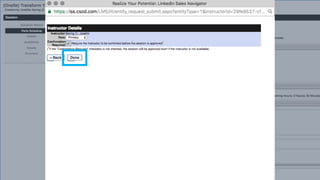
Hover over Instructors
to reveal the submenu
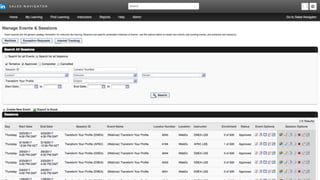
Select Manage
Events & Sessions
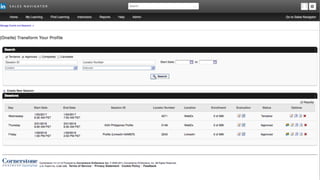
Select Search for all Sessions
Search by Session ID, Location,
Instructor, Event Name, Subject, or
by Start Date and End Date
Click Search
To create a new session click on the
Calendar icon under Event Options
Click on Create New Webcast Session
and follow the Schedule Wizard
Enter the date for the session by
clicking on the Calendar icon
Select the start date
Click Next
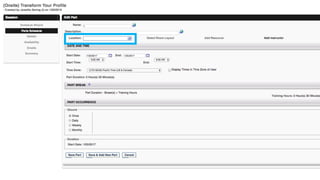
Give the session an accurate Name
Click in the Location input box to
display the options pop-up
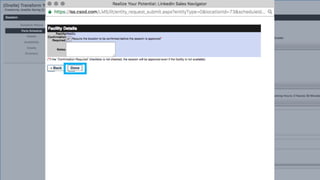
Select Webex
Leave this box unchecked
Click Done
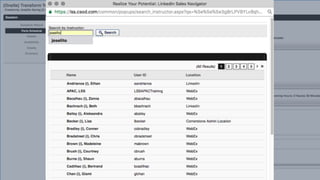
Click Add Instructor to display
the options pop-up
Search for your name
Click on your name
Set Role as Primary and leave the
Confirmation Required box unchecked
Click Done
Review Date and
Time for accuracy
Review Occurrence
and Duration length
for accuracy
Click Save Part
Review details
for accuracy
Click Next
Review details
for accuracy
Review details
for accuracy
Click Next
Set audience Availability by clicking on
the Select Criteria drop down menu
Select All Employees
Click Add
Click Next
Leave it to System Defaults
Click Next
Review details
for accuracy
Review details
for accuracy
Click Save
If you need to cancel or delete a session due
to conflicts or incorrect information, Search
and find the session to be deleted
Click on the Delete icon under Options
A reason must be provided in
order to delete the session
Select a reason most relevant
Click Submit
And there you have it!

Create a session