Day 1: Introduction to Computer
Hardware & Maintenance
Advanced Computer Maintenance
Training
Trainer: Awot Birhanu
What is a Computer?
• A computer is an electronic device that processes data
using a set of instructions (software) to perform tasks.
• It takes input, processes it, and produces an
output.
• Computers are designed to:
✔ Perform calculations quickly
Store and retrieve data
✔
Automate repetitive tasks
✔
Connect to networks (like the internet)
✔
Generation of Computer
• 1st Generation (1940 - 1956) – Vacuum Tube Computers
• 🔹 Used vacuum tubes as the main electronic component.
• An electronic device that controls the flow of electrons in a
vacuum.
🔹 Very large, slow, and expensive.
🔹 Consumed a lot of power and generated heat.
🔹 Example: ENIAC, UNIVAC.
• 🖥 Key Features:
Used machine language (binary).
✔
Required large cooling systems.
✔
Mainly used in military and scientific calculations.
✔
• 2nd Generation (1956 - 1963) – Transistor Computers
• 🔹 Replaced vacuum tubes with transistors.
🔹 Smaller, faster, and more reliable than first-generation
computers.
🔹 Used assembly language instead of pure binary.
🔹 Example: IBM 1401, UNIVAC 1108.
• 🖥 Key Features:
Consumed
✔ less power and generated less heat.
Used punched cards and magnetic tape for input/output.
✔
Faster processing speeds compared to the first
✔
generation.
• 3rd Generation (1964 - 1971) – Integrated Circuit (IC)
Computers
• 🔹 Used Integrated Circuits (ICs), replacing transistors.
🔹 Smaller, faster, and cheaper than previous generations.
🔹 Allowed multitasking and time-sharing.
🔹 Example: IBM System/360, PDP-8.
• 🖥 Key Features:
✔ Keyboards & monitors started replacing punched cards.
✔ More reliable & energy-efficient than previous generations.
Development of
✔ higher-level programming languages (C,
Pascal).
• 4th Generation (1971 - Present) – Microprocessor
Computers
• 🔹 Introduced the microprocessor (CPU on a single chip).
🔹 Led to the rise of personal computers (PCs).
🔹 Developed graphical user interfaces (GUI).
🔹 Example: IBM PC, Apple Macintosh.
• 🖥 Key Features:
Faster processing using
✔ microprocessors (Intel 4004,
Pentium, etc.).
Development of
✔ networking and the internet.
✔ Portable computers like laptops became common.
• 5th Generation (Present & Future) – Artificial Intelligence (AI)
Computers
• 🔹 Focuses on Artificial Intelligence (AI), Quantum Computing,
and IoT.
🔹 Uses neural networks, machine learning, and robotics.
🔹 Example: IBM Watson, Quantum Computers, AI-powered
devices like Siri & Alexa.
• 🖥 Key Features:
✔ AI-based decision making.
Faster processing with
✔ multi-core processors & cloud
computing.
✔ Voice & facial recognition capabilities.
Types of Computers
Computers come in different types based on
size, power, and functionality.
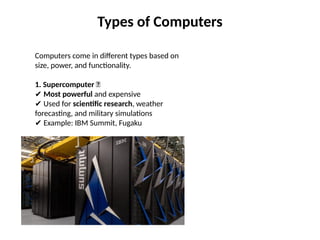
1. Supercomputer 🚀
✔ Most powerful and expensive
Used for
✔ scientific research, weather
forecasting, and military simulations
Example: IBM Summit, Fugaku
✔
Types of Computers
• 2. Mainframe Computer 🏢
• ✔ Handles massive amounts of data
Used by
✔ banks, government agencies, and large corporations
Example: IBM Z-series
✔
Types of Computers
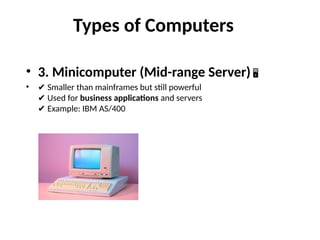
• 3. Minicomputer (Mid-range Server) 🖥
• ✔ Smaller than mainframes but still powerful
Used for
✔ business applications and servers
Example: IBM AS/400
✔
Types of Computers
• 4. Personal Computer (PC) 💻
• ✔ Used for everyday tasks like browsing, gaming, and office work
Includes
✔ Desktops, Laptops, and Workstations
Example: Dell, HP, MacBook
✔
Types of Computers
• 5. Embedded Computer 🤖
• ✔ Small specialized computers built into devices
• They are often integrated into larger systems, such as appliances, vehicles,
medical devices, and industrial machines.
Found in
✔ smartphones, ATMs, cars, medical devices
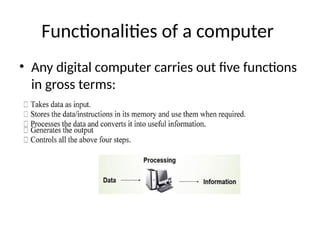
Functionalities of a computer
• Any digital computer carries out five functions
in gross terms:
Top Computer Companies in the World
• Several companies design, manufacture, and
sell computers, software, and related
technologies. Here are some of the most well-
known ones:
1. Computer Hardware Companies️🖥️
• 1. Computer Hardware Companies
️ 🖥️
• 🔹 Apple Inc. 🍏
• ✔ Famous for MacBooks, iMacs, iPhones, and iPads
Known for
✔ high-end, premium devices
Operating System:
✔ macOS
• 🔹 Dell Technologies 💻
• ✔ One of the biggest PC manufacturers
Produces
✔ laptops, desktops, and servers
Popular models:
✔ XPS, Inspiron, Latitude
• 🔹 HP (Hewlett-Packard)
️ 🖨️
• ✔ Known for desktops, laptops, and printers
Popular models:
✔ HP Pavilion, Envy, Spectre
• 🔹 Lenovo 🔴
• ✔ Largest PC manufacturer
Makes
✔ ThinkPad (business) and Legion (gaming) laptops
1. Computer Hardware Companies 🖥️
• 🔹 ASUS 🔵
• ✔ Famous for gaming laptops (ROG series)
Also makes
✔ motherboards and graphics cards
• 🔹 Acer 💠
• ✔ Budget-friendly laptops and desktops
Popular series:
✔ Aspire, Predator (gaming)
• 🔹 Microsoft (Surface) 🟣
• ✔ Develops Windows OS and Surface laptops
Also makes
✔ Xbox gaming consoles
• 🔹 IBM (International Business Machines) 🏢
• ✔ Focuses on business computing, AI, and servers
Once a major PC manufacturer, now focuses on
✔ enterprise solutions
• 🔹 Intel & AMD (Processor Makers) 🖥
• ✔ Intel (Core i3, i5, i7, i9) and AMD (Ryzen) produce CPUs for PCs and laptops
2. Software and Technology Companies️🖥️
• 🔹 Microsoft 🟦
• ✔ Creators of Windows OS, Office 365, Azure Cloud
• 🔹 Google (Alphabet Inc.) 🟢
• ✔ Known for Chrome OS, Android, and AI (Google Assistant, Bard)
• 🔹 Apple 🍏
• ✔ Develops macOS, iOS, and software like Final Cut Pro
• 🔹 Oracle 🟠
• ✔ Famous for databases, cloud computing, and enterprise software
• 🔹 IBM 🏢
• ✔ Works on AI (Watson), Cloud, and business computing
3. Gaming and Graphics Companies 🎮
• ✔ NVIDIA – Famous for graphics cards
(GeForce RTX, AI computing)
✔ AMD – Makes Ryzen processors and
Radeon GPUs
✔ Sony – Creator of PlayStation consoles
✔ Microsoft – Makes Xbox gaming consoles
Computer Components
• Any kind of computers consists of Hardware and Software.
Hardware
Computer hardware is the collection of physical elements that
constitutes a computer system. Computer hardware refers to the
physical parts or components of a computer such as monitor,
mouse, keyboard, computer data storage, hard drive disk
(HDD), system unit (graphic cards, sound cards, memory,
motherboard and chips), etc.
* All of which are physical objects that can be touched.
Computer Components
Computer Components
• Hardware devices can be classified into four
distinct categories:
• a) Input devices: For data input.
• b) Processing devices: For process data to
information.
• c) Output devices: To display data and information.
• d) Storage devices: To store data and information.
Input Devices
• Input device is a hardware or peripheral device used to
send data to a computer. An input device allows users to
communicate and feed instructions and data to computers for
processing, display, storage and/or transmission.
• Input device Translate data from form that humans
understand to one that the computer can work with.
Most common are keyboard and mouse.
Examples of input devices
Processing Devices
• Processing is the core function of a computer. It is the
stage where data is transformed into information. Once
data has been processed, it can be used for useful
purposes.
• The microprocessor is the major device in this
category. It works closely with primary memory
during its operations. Data is stored temporarily in
processor cache and primary memory during the
processing period.
CPU
Central Processing Unit (CPU)
• A CPU is brain of a computer. It is responsible
for all functions and processes. Regarding
computing power, the CPU is the most
important element of a computer system.
• The CPU is subdivided into three important
units, which work together in order to
accomplish its function. The units are:
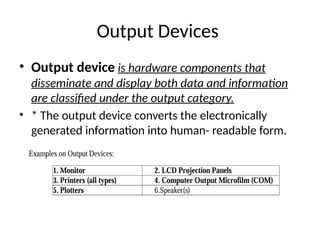
Output Devices
• Output device is hardware components that
disseminate and display both data and information
are classified under the output category.
• * The output device converts the electronically
generated information into human- readable form.
Output Devices
Memory/Storage Devices
• Components that retain/store data are
classified under memory/storage devices.
• Storage is sub-divided under primary and
secondary memory and is either volatile or
nonvolatile.
Memory/Storage Devices
• Primary Memory usually refers to random-access
memory (RAM) but can also refer to all memory that
works in tandem with the processor.
–
• Volatile Memory: RAM (Random Access Memory): Temporary storage used for
active processes and data while the computer is powered on.
• Non-Volatile Memory: ROM (Read-Only Memory): Stores firmware and essential
instructions needed for booting and hardware initialization, retaining data even
when the power is off.
RAM(Random Access Memory)
ROM(READ ONLY MEMORY)
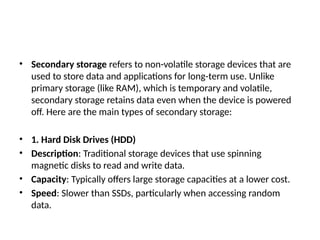
• Secondary storage refers to non-volatile storage devices that are
used to store data and applications for long-term use. Unlike
primary storage (like RAM), which is temporary and volatile,
secondary storage retains data even when the device is powered
off. Here are the main types of secondary storage:
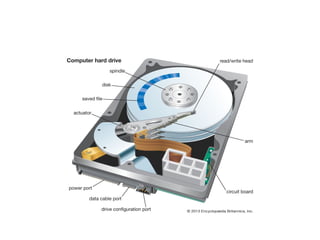
• 1. Hard Disk Drives (HDD)
• Description: Traditional storage devices that use spinning
magnetic disks to read and write data.
• Capacity: Typically offers large storage capacities at a lower cost.
• Speed: Slower than SSDs, particularly when accessing random
data.
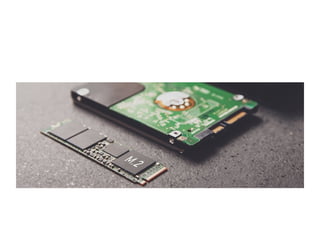
• 2. Solid-State Drives (SSD)
• Description: Storage devices that use flash
memory to store data with no moving parts.
• Speed: Much faster than HDDs in data access
and transfer rates.
• Durability: More resistant to physical shock
since they have no moving parts.
Memory/Storage Devices
• Secondary Memory Stores data and programs
permanently: it’s retained after the power is
turned off.
•  Secondary memory is subdivided into two
categories:
– Internal devices are designed to be placed inside the computer at all times.
Examples include hard disk.
– External devices are plug and play media used to transfer files between
computers. Examples include optical disks, flash disks, and external disk drives.
Con..
3. Hybrid Drives (SSHD)
Description: Combine features of HDDs and SSDs, using a small amount
of SSD storage to cache frequently accessed data.
Performance: Aim to provide a balance between speed and capacity.
4. Optical Discs
Types: Include CDs, DVDs, and Blu-ray discs.
Usage: Often used for media distribution and archival storage.
Capacity: Varies by type, with Blu-ray discs offering the highest capacity.
5. USB Flash Drives
Description: Portable storage devices that use flash memory.
Usage: Commonly used for data transfer and backup due to their small
size and convenience.
COMPUTER SLOTS
A computer slot is a physical connector on a computer motherboard or expansion card that
allows for the insertion of additional components, such as expansion cards or memory modules.
These slots provide a way to expand the functionality or performance of a computer system. Here
are some common types of computer slots:
1. PCI (Peripheral Component Interconnect)
Use: For adding expansion cards like graphics cards, sound cards, and network cards.
Variants: PCI, PCI-X, and PCI Express (PCIe), with PCIe being the most common in modern systems.
2. AGP (Accelerated Graphics Port)
Use: Specifically designed for graphics cards to improve the performance of 3D graphics.
Status: Largely obsolete, replaced by PCIe.
3. DIMM (Dual In-Line Memory Module) Slots
Use: For installing RAM (memory) modules.
Types: Different types such as DDR, DDR2, DDR3, DDR4, and DDR5, depending on the generation of
memory.
Con…
• 4. M.2 Slots
Use: For high-speed storage devices like SSDs and sometimes for Wi-Fi or
Bluetooth cards.
Speed: Supports NVMe (Non-Volatile Memory Express) for faster data
transfer rates.
5. SATA (Serial ATA) Ports
Use: For connecting storage devices like HDDs and SSDs.
Functionality: Allows for data transfer between the motherboard and
storage devices.
6. USB Ports
Use: While not traditional "slots," USB ports allow for the connection of
various peripherals, including keyboards, mice, printers, and external
storage devices.
• 6. Memory Cards
• Description: Small storage devices used in cameras, smartphones, and
tablets.
• Types: Includes SD cards, microSD cards, etc.
• 7. External Hard Drives
• Description: External storage devices that connect via USB or other
interfaces.
• Usage: Used for backups and additional storage capacity.
• 8. Cloud Storage
• Description: Online storage solutions that allow data to be stored on
remote servers accessed via the internet.
• Examples: Services like Google Drive, Dropbox, and OneDrive.
Overview of Computer Components
• - Central Processing Unit (CPU)
• - Random Access Memory (RAM)
• - Hard Drive (HDD/SSD)
• - Motherboard
• - Power Supply Unit (PSU)
• - Cooling Systems
• - Input & Output Devices
• - Graphics processing unit
• - Sound Card
• HDMI: Audio and video signal, best for TV to
PC connections.
• DVI: Video only, perfect for older systems or
for 144Hz at 1080p.
• DisplayPort (DP): The best connector for an
audio and video signal, and can transmit
144Hz up to 4K.
• VGA: Old, legacy video connector.
Motherboard
• A motherboard is the main printed circuit
board (PCB) in a computer that serves as the
central hub for connecting and communicating
between various components. It plays a
crucial role in the functioning of the computer.
Here are the key features and functions of a
motherboard:
Con..
• Key Features
CPU Socket
– Description: A specific socket where the central processing unit (CPU) is installed.
– Types: Different types for different CPU families (e.g., Intel, AMD).
RAM Slots
– Description: Slots for installing RAM (memory) modules, often referred to as
DIMM slots.
– Capacity: Supports varying amounts and types of memory.
Expansion Slots
– Types: Includes PCIe, AGP, and others for adding expansion cards like graphics
cards, sound cards, and network cards.
Chipset
– Description: Manages data flow between the CPU, memory, and other peripherals,
determining the motherboard's capabilities.
Con..
• Storage Connectors
– Types: SATA ports for HDDs and SSDs, and M.2 slots for NVMe drives.
• Power Connectors
– Description: Connectors for the power supply unit (PSU) to provide
power to the motherboard and connected components.
• I/O Ports
– Description: Input/output ports for connecting peripherals, including
USB ports, audio jacks, Ethernet ports, and more.
• BIOS/UEFI Firmware
– Description: Firmware stored on a chip that initializes hardware
during booting and provides runtime services for operating systems.
Con..
• The northbridge is a critical component of a
computer's motherboard architecture. It acts
as a communication hub between the CPU
(central processing unit) and various high-
speed components. Here’s a detailed
overview:
• Key Functions of Northbridge
• CPU Communication: The northbridge connects directly to the CPU,
facilitating fast communication between the processor and other
components.
• Memory Control: It manages the connection to the system memory
(RAM), allowing the CPU to read and write data efficiently.
• Graphics Interface: The northbridge often includes a connection for
the graphics card, typically through a PCI Express (PCIe) slot, enabling
high-speed data transfer for graphics processing.
• High-Speed Buses: It controls high-speed buses that connect to other
critical components, such as:
– AGP (Accelerated Graphics Port): For older graphics cards.
– PCI Express: For modern expansion cards.
Northbridge
Con..
• Functions
Connectivity: Acts as the backbone of the computer,
connecting all components and allowing them to
communicate.
Data Management: Facilitates data transfer between the
CPU, memory, storage devices, and peripherals.
Expansion: Provides slots for additional components,
allowing for system upgrades and customization.
Power Distribution: Distributes power from the PSU to
various components.
cables
• In a computer system, various cables are used to connect components,
provide power, and facilitate data transfer. Here’s an overview of the main
types of cables you might encounter:
• 1. Power Cables
– 24-Pin ATX Power Connector: Main power connector for the motherboard.
• 4/8-Pin CPU Power Connector: Provides power to the CPU.
– SATA Power Cable: Supplies power to SATA drives (HDDs and SSDs).
– Molex Connector: Older power connector used for some HDDs and optical drives.
• 2. Data Cables
– SATA Data Cable: Connects SATA drives to the motherboard for data transfer.
– IDE (PATA) Cable: Older cable used for connecting IDE drives.
– PCIe Power Cable: Supplies additional power to high-performance graphics cards.
– M.2 Cable: Used for connecting M.2 SSDs (if applicable).
• 3. Peripheral Cables
USB Cables: Connect USB devices (e.g., keyboards, mice, external drives) to the computer.
– USB Type-A: Standard USB connector.
– USB Type-B: Commonly used for printers and some external drives.
– USB Type-C: Reversible connector used for various devices, supporting faster data transfer and charging.
– HDMI Cable: Connects monitors and TVs to the computer for video and audio output.
– DisplayPort Cable: Another option for video output, often used for high-resolution displays.
– VGA Cable: Older video connection, primarily for legacy displays.
– DVI Cable: Digital video interface used for connecting monitors.
• 4. Audio Cables
– 3.5mm Audio Cable: Connects speakers, headphones, and microphones to audio jacks.
– Optical Audio Cable: For digital audio output, often used in home theater systems.
– 5. Network Cables
– Ethernet Cable (Cat5e, Cat6, etc.): Connects computers to routers or switches for wired network connections.
• 6. Internal Cables
– Fan Cables: Connect case fans to the motherboard or power supply.
– Front Panel Connectors: Cables that connect power buttons, reset buttons, and LED indicators from the case
to the motherboard.
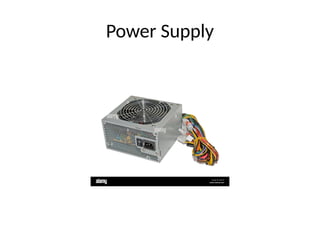
Power Supply
Power Supply
Motherboard
Ports
• Ports are interfaces on a computer or electronic
device that allow for the connection of peripherals
and the transfer of data. They play a crucial role in
expanding functionality and enhancing connectivity.
Here’s a detailed overview:
Types of Ports
1. USB Ports (Universal Serial Bus):
– Function: Commonly used for connecting a wide range of
devices, including keyboards, mice, printers, external storage,
and smartphones.
– Versions: USB 2.0, USB 3.0, USB 3.1, USB-C (which is reversible
and can support higher data transfer rates).
2. Ethernet Ports:
– Function: Used for wired network connections, allowing devices
to connect to local area networks (LAN) or the Internet.
– Standards: Common standards include 10/100/1000 Mbps
(Gigabit Ethernet) and 10 Gbps.
Types of Ports
3. HDMI (High-Definition Multimedia Interface):
• Function: Transmits high-definition audio and
video from a device (like a computer or gaming
console) to a display (like a TV or monitor).
• Versions: Various versions exist (e.g., HDMI 1.4,
2.0, 2.1), supporting different resolutions and
refresh rates
Types of Ports
4. DisplayPort:
• Function: Similar to HDMI, used for video
output to monitors. It can also carry audio and
supports higher resolutions and refresh rates.
• Variants: Mini DisplayPort and standard
DisplayPort.
Types of Ports
5. Audio Jacks:
• Function: Used for connecting audio devices,
such as headphones, microphones, and
speakers.
• Types: Common types include 3.5mm jacks
and optical audio ports.
Types of Ports
6. Thunderbolt:
• Function: A high-speed interface that
combines data, video, and power in a single
connection. It is often used in high-
performance devices like laptops and external
GPUs.
• Versions: Thunderbolt 1, 2, and 3, with
Thunderbolt 3 using USB-C connectors
Types of Ports
7. Serial Ports:
• Function: Older technology used for connecting peripherals like
modems and printers. They transmit data one bit at a time.
•Usage: Mostly found in legacy systems today.
8.Parallel Ports:
•Function: Used for connecting printers and other devices. They transmit
multiple bits of data simultaneously.
•Decline: Largely replaced by USB and network printing.
Types of Ports
9. SD Card Slots:
•Function: Allow for the insertion of SD cards for expanded storage, commonly
found in cameras, smartphones, and some laptops.
10. Power Ports:
•Function: Used to supply power to devices. Common types include barrel
connectors and USB power delivery.
Hands-on: Disassembling a PC
• 1. Power off and unplug the system
• 2. Remove the side panel
• 3. Identify and detach components (RAM,
HDD, PSU, etc.)
• 4. Handle components with care to avoid
static damage
Preventive Maintenance
• - Regular dust cleaning to avoid overheating
• - Proper cable management for airflow
• - Applying thermal paste for CPU cooling
• - Checking power connections and stability
Troubleshooting Common Hardware Issues
• - Computer not powering on: Check PSU and
connections
• - Overheating: Clean dust, check cooling
system
• - No display: Verify RAM and GPU installation
• - Slow performance: Upgrade RAM or switch
to SSD

Computer_Hardware_Maintenance_from_computerpptx

  • 1.
    Day 1: Introductionto Computer Hardware & Maintenance Advanced Computer Maintenance Training Trainer: Awot Birhanu
  • 2.
    What is aComputer? • A computer is an electronic device that processes data using a set of instructions (software) to perform tasks. • It takes input, processes it, and produces an output. • Computers are designed to: ✔ Perform calculations quickly Store and retrieve data ✔ Automate repetitive tasks ✔ Connect to networks (like the internet) ✔
  • 3.
    Generation of Computer •1st Generation (1940 - 1956) – Vacuum Tube Computers • 🔹 Used vacuum tubes as the main electronic component. • An electronic device that controls the flow of electrons in a vacuum. 🔹 Very large, slow, and expensive. 🔹 Consumed a lot of power and generated heat. 🔹 Example: ENIAC, UNIVAC. • 🖥 Key Features: Used machine language (binary). ✔ Required large cooling systems. ✔ Mainly used in military and scientific calculations. ✔
  • 4.
    • 2nd Generation(1956 - 1963) – Transistor Computers • 🔹 Replaced vacuum tubes with transistors. 🔹 Smaller, faster, and more reliable than first-generation computers. 🔹 Used assembly language instead of pure binary. 🔹 Example: IBM 1401, UNIVAC 1108. • 🖥 Key Features: Consumed ✔ less power and generated less heat. Used punched cards and magnetic tape for input/output. ✔ Faster processing speeds compared to the first ✔ generation.
  • 5.
    • 3rd Generation(1964 - 1971) – Integrated Circuit (IC) Computers • 🔹 Used Integrated Circuits (ICs), replacing transistors. 🔹 Smaller, faster, and cheaper than previous generations. 🔹 Allowed multitasking and time-sharing. 🔹 Example: IBM System/360, PDP-8. • 🖥 Key Features: ✔ Keyboards & monitors started replacing punched cards. ✔ More reliable & energy-efficient than previous generations. Development of ✔ higher-level programming languages (C, Pascal).
  • 6.
    • 4th Generation(1971 - Present) – Microprocessor Computers • 🔹 Introduced the microprocessor (CPU on a single chip). 🔹 Led to the rise of personal computers (PCs). 🔹 Developed graphical user interfaces (GUI). 🔹 Example: IBM PC, Apple Macintosh. • 🖥 Key Features: Faster processing using ✔ microprocessors (Intel 4004, Pentium, etc.). Development of ✔ networking and the internet. ✔ Portable computers like laptops became common.
  • 7.
    • 5th Generation(Present & Future) – Artificial Intelligence (AI) Computers • 🔹 Focuses on Artificial Intelligence (AI), Quantum Computing, and IoT. 🔹 Uses neural networks, machine learning, and robotics. 🔹 Example: IBM Watson, Quantum Computers, AI-powered devices like Siri & Alexa. • 🖥 Key Features: ✔ AI-based decision making. Faster processing with ✔ multi-core processors & cloud computing. ✔ Voice & facial recognition capabilities.
  • 8.
    Types of Computers Computerscome in different types based on size, power, and functionality. 1. Supercomputer 🚀 ✔ Most powerful and expensive Used for ✔ scientific research, weather forecasting, and military simulations Example: IBM Summit, Fugaku ✔
  • 9.
    Types of Computers •2. Mainframe Computer 🏢 • ✔ Handles massive amounts of data Used by ✔ banks, government agencies, and large corporations Example: IBM Z-series ✔
  • 10.
    Types of Computers •3. Minicomputer (Mid-range Server) 🖥 • ✔ Smaller than mainframes but still powerful Used for ✔ business applications and servers Example: IBM AS/400 ✔
  • 11.
    Types of Computers •4. Personal Computer (PC) 💻 • ✔ Used for everyday tasks like browsing, gaming, and office work Includes ✔ Desktops, Laptops, and Workstations Example: Dell, HP, MacBook ✔
  • 12.
    Types of Computers •5. Embedded Computer 🤖 • ✔ Small specialized computers built into devices • They are often integrated into larger systems, such as appliances, vehicles, medical devices, and industrial machines. Found in ✔ smartphones, ATMs, cars, medical devices
  • 13.
    Functionalities of acomputer • Any digital computer carries out five functions in gross terms:
  • 14.
    Top Computer Companiesin the World • Several companies design, manufacture, and sell computers, software, and related technologies. Here are some of the most well- known ones:
  • 15.
    1. Computer HardwareCompanies️🖥️ • 1. Computer Hardware Companies ️ 🖥️ • 🔹 Apple Inc. 🍏 • ✔ Famous for MacBooks, iMacs, iPhones, and iPads Known for ✔ high-end, premium devices Operating System: ✔ macOS • 🔹 Dell Technologies 💻 • ✔ One of the biggest PC manufacturers Produces ✔ laptops, desktops, and servers Popular models: ✔ XPS, Inspiron, Latitude • 🔹 HP (Hewlett-Packard) ️ 🖨️ • ✔ Known for desktops, laptops, and printers Popular models: ✔ HP Pavilion, Envy, Spectre • 🔹 Lenovo 🔴 • ✔ Largest PC manufacturer Makes ✔ ThinkPad (business) and Legion (gaming) laptops
  • 16.
    1. Computer HardwareCompanies 🖥️ • 🔹 ASUS 🔵 • ✔ Famous for gaming laptops (ROG series) Also makes ✔ motherboards and graphics cards • 🔹 Acer 💠 • ✔ Budget-friendly laptops and desktops Popular series: ✔ Aspire, Predator (gaming) • 🔹 Microsoft (Surface) 🟣 • ✔ Develops Windows OS and Surface laptops Also makes ✔ Xbox gaming consoles • 🔹 IBM (International Business Machines) 🏢 • ✔ Focuses on business computing, AI, and servers Once a major PC manufacturer, now focuses on ✔ enterprise solutions • 🔹 Intel & AMD (Processor Makers) 🖥 • ✔ Intel (Core i3, i5, i7, i9) and AMD (Ryzen) produce CPUs for PCs and laptops
  • 17.
    2. Software andTechnology Companies️🖥️ • 🔹 Microsoft 🟦 • ✔ Creators of Windows OS, Office 365, Azure Cloud • 🔹 Google (Alphabet Inc.) 🟢 • ✔ Known for Chrome OS, Android, and AI (Google Assistant, Bard) • 🔹 Apple 🍏 • ✔ Develops macOS, iOS, and software like Final Cut Pro • 🔹 Oracle 🟠 • ✔ Famous for databases, cloud computing, and enterprise software • 🔹 IBM 🏢 • ✔ Works on AI (Watson), Cloud, and business computing
  • 18.
    3. Gaming andGraphics Companies 🎮 • ✔ NVIDIA – Famous for graphics cards (GeForce RTX, AI computing) ✔ AMD – Makes Ryzen processors and Radeon GPUs ✔ Sony – Creator of PlayStation consoles ✔ Microsoft – Makes Xbox gaming consoles
  • 19.
    Computer Components • Anykind of computers consists of Hardware and Software. Hardware Computer hardware is the collection of physical elements that constitutes a computer system. Computer hardware refers to the physical parts or components of a computer such as monitor, mouse, keyboard, computer data storage, hard drive disk (HDD), system unit (graphic cards, sound cards, memory, motherboard and chips), etc. * All of which are physical objects that can be touched.
  • 20.
  • 21.
    Computer Components • Hardwaredevices can be classified into four distinct categories: • a) Input devices: For data input. • b) Processing devices: For process data to information. • c) Output devices: To display data and information. • d) Storage devices: To store data and information.
  • 22.
    Input Devices • Inputdevice is a hardware or peripheral device used to send data to a computer. An input device allows users to communicate and feed instructions and data to computers for processing, display, storage and/or transmission. • Input device Translate data from form that humans understand to one that the computer can work with. Most common are keyboard and mouse.
  • 23.
  • 24.
    Processing Devices • Processingis the core function of a computer. It is the stage where data is transformed into information. Once data has been processed, it can be used for useful purposes. • The microprocessor is the major device in this category. It works closely with primary memory during its operations. Data is stored temporarily in processor cache and primary memory during the processing period.
  • 25.
  • 26.
    Central Processing Unit(CPU) • A CPU is brain of a computer. It is responsible for all functions and processes. Regarding computing power, the CPU is the most important element of a computer system. • The CPU is subdivided into three important units, which work together in order to accomplish its function. The units are:
  • 27.
    Output Devices • Outputdevice is hardware components that disseminate and display both data and information are classified under the output category. • * The output device converts the electronically generated information into human- readable form.
  • 28.
  • 29.
    Memory/Storage Devices • Componentsthat retain/store data are classified under memory/storage devices. • Storage is sub-divided under primary and secondary memory and is either volatile or nonvolatile.
  • 30.
    Memory/Storage Devices • PrimaryMemory usually refers to random-access memory (RAM) but can also refer to all memory that works in tandem with the processor. – • Volatile Memory: RAM (Random Access Memory): Temporary storage used for active processes and data while the computer is powered on. • Non-Volatile Memory: ROM (Read-Only Memory): Stores firmware and essential instructions needed for booting and hardware initialization, retaining data even when the power is off.
  • 31.
  • 32.
  • 33.
    • Secondary storagerefers to non-volatile storage devices that are used to store data and applications for long-term use. Unlike primary storage (like RAM), which is temporary and volatile, secondary storage retains data even when the device is powered off. Here are the main types of secondary storage: • 1. Hard Disk Drives (HDD) • Description: Traditional storage devices that use spinning magnetic disks to read and write data. • Capacity: Typically offers large storage capacities at a lower cost. • Speed: Slower than SSDs, particularly when accessing random data.
  • 35.
    • 2. Solid-StateDrives (SSD) • Description: Storage devices that use flash memory to store data with no moving parts. • Speed: Much faster than HDDs in data access and transfer rates. • Durability: More resistant to physical shock since they have no moving parts.
  • 37.
    Memory/Storage Devices • SecondaryMemory Stores data and programs permanently: it’s retained after the power is turned off. •  Secondary memory is subdivided into two categories: – Internal devices are designed to be placed inside the computer at all times. Examples include hard disk. – External devices are plug and play media used to transfer files between computers. Examples include optical disks, flash disks, and external disk drives.
  • 38.
    Con.. 3. Hybrid Drives(SSHD) Description: Combine features of HDDs and SSDs, using a small amount of SSD storage to cache frequently accessed data. Performance: Aim to provide a balance between speed and capacity. 4. Optical Discs Types: Include CDs, DVDs, and Blu-ray discs. Usage: Often used for media distribution and archival storage. Capacity: Varies by type, with Blu-ray discs offering the highest capacity. 5. USB Flash Drives Description: Portable storage devices that use flash memory. Usage: Commonly used for data transfer and backup due to their small size and convenience.
  • 39.
    COMPUTER SLOTS A computerslot is a physical connector on a computer motherboard or expansion card that allows for the insertion of additional components, such as expansion cards or memory modules. These slots provide a way to expand the functionality or performance of a computer system. Here are some common types of computer slots: 1. PCI (Peripheral Component Interconnect) Use: For adding expansion cards like graphics cards, sound cards, and network cards. Variants: PCI, PCI-X, and PCI Express (PCIe), with PCIe being the most common in modern systems. 2. AGP (Accelerated Graphics Port) Use: Specifically designed for graphics cards to improve the performance of 3D graphics. Status: Largely obsolete, replaced by PCIe. 3. DIMM (Dual In-Line Memory Module) Slots Use: For installing RAM (memory) modules. Types: Different types such as DDR, DDR2, DDR3, DDR4, and DDR5, depending on the generation of memory.
  • 42.
    Con… • 4. M.2Slots Use: For high-speed storage devices like SSDs and sometimes for Wi-Fi or Bluetooth cards. Speed: Supports NVMe (Non-Volatile Memory Express) for faster data transfer rates. 5. SATA (Serial ATA) Ports Use: For connecting storage devices like HDDs and SSDs. Functionality: Allows for data transfer between the motherboard and storage devices. 6. USB Ports Use: While not traditional "slots," USB ports allow for the connection of various peripherals, including keyboards, mice, printers, and external storage devices.
  • 43.
    • 6. MemoryCards • Description: Small storage devices used in cameras, smartphones, and tablets. • Types: Includes SD cards, microSD cards, etc. • 7. External Hard Drives • Description: External storage devices that connect via USB or other interfaces. • Usage: Used for backups and additional storage capacity. • 8. Cloud Storage • Description: Online storage solutions that allow data to be stored on remote servers accessed via the internet. • Examples: Services like Google Drive, Dropbox, and OneDrive.
  • 44.
    Overview of ComputerComponents • - Central Processing Unit (CPU) • - Random Access Memory (RAM) • - Hard Drive (HDD/SSD) • - Motherboard • - Power Supply Unit (PSU) • - Cooling Systems • - Input & Output Devices • - Graphics processing unit • - Sound Card
  • 45.
    • HDMI: Audioand video signal, best for TV to PC connections. • DVI: Video only, perfect for older systems or for 144Hz at 1080p. • DisplayPort (DP): The best connector for an audio and video signal, and can transmit 144Hz up to 4K. • VGA: Old, legacy video connector.
  • 47.
    Motherboard • A motherboardis the main printed circuit board (PCB) in a computer that serves as the central hub for connecting and communicating between various components. It plays a crucial role in the functioning of the computer. Here are the key features and functions of a motherboard:
  • 48.
    Con.. • Key Features CPUSocket – Description: A specific socket where the central processing unit (CPU) is installed. – Types: Different types for different CPU families (e.g., Intel, AMD). RAM Slots – Description: Slots for installing RAM (memory) modules, often referred to as DIMM slots. – Capacity: Supports varying amounts and types of memory. Expansion Slots – Types: Includes PCIe, AGP, and others for adding expansion cards like graphics cards, sound cards, and network cards. Chipset – Description: Manages data flow between the CPU, memory, and other peripherals, determining the motherboard's capabilities.
  • 49.
    Con.. • Storage Connectors –Types: SATA ports for HDDs and SSDs, and M.2 slots for NVMe drives. • Power Connectors – Description: Connectors for the power supply unit (PSU) to provide power to the motherboard and connected components. • I/O Ports – Description: Input/output ports for connecting peripherals, including USB ports, audio jacks, Ethernet ports, and more. • BIOS/UEFI Firmware – Description: Firmware stored on a chip that initializes hardware during booting and provides runtime services for operating systems.
  • 50.
    Con.. • The northbridgeis a critical component of a computer's motherboard architecture. It acts as a communication hub between the CPU (central processing unit) and various high- speed components. Here’s a detailed overview:
  • 51.
    • Key Functionsof Northbridge • CPU Communication: The northbridge connects directly to the CPU, facilitating fast communication between the processor and other components. • Memory Control: It manages the connection to the system memory (RAM), allowing the CPU to read and write data efficiently. • Graphics Interface: The northbridge often includes a connection for the graphics card, typically through a PCI Express (PCIe) slot, enabling high-speed data transfer for graphics processing. • High-Speed Buses: It controls high-speed buses that connect to other critical components, such as: – AGP (Accelerated Graphics Port): For older graphics cards. – PCI Express: For modern expansion cards.
  • 52.
  • 54.
    Con.. • Functions Connectivity: Actsas the backbone of the computer, connecting all components and allowing them to communicate. Data Management: Facilitates data transfer between the CPU, memory, storage devices, and peripherals. Expansion: Provides slots for additional components, allowing for system upgrades and customization. Power Distribution: Distributes power from the PSU to various components.
  • 56.
    cables • In acomputer system, various cables are used to connect components, provide power, and facilitate data transfer. Here’s an overview of the main types of cables you might encounter: • 1. Power Cables – 24-Pin ATX Power Connector: Main power connector for the motherboard. • 4/8-Pin CPU Power Connector: Provides power to the CPU. – SATA Power Cable: Supplies power to SATA drives (HDDs and SSDs). – Molex Connector: Older power connector used for some HDDs and optical drives. • 2. Data Cables – SATA Data Cable: Connects SATA drives to the motherboard for data transfer. – IDE (PATA) Cable: Older cable used for connecting IDE drives. – PCIe Power Cable: Supplies additional power to high-performance graphics cards. – M.2 Cable: Used for connecting M.2 SSDs (if applicable).
  • 58.
    • 3. PeripheralCables USB Cables: Connect USB devices (e.g., keyboards, mice, external drives) to the computer. – USB Type-A: Standard USB connector. – USB Type-B: Commonly used for printers and some external drives. – USB Type-C: Reversible connector used for various devices, supporting faster data transfer and charging. – HDMI Cable: Connects monitors and TVs to the computer for video and audio output. – DisplayPort Cable: Another option for video output, often used for high-resolution displays. – VGA Cable: Older video connection, primarily for legacy displays. – DVI Cable: Digital video interface used for connecting monitors. • 4. Audio Cables – 3.5mm Audio Cable: Connects speakers, headphones, and microphones to audio jacks. – Optical Audio Cable: For digital audio output, often used in home theater systems. – 5. Network Cables – Ethernet Cable (Cat5e, Cat6, etc.): Connects computers to routers or switches for wired network connections. • 6. Internal Cables – Fan Cables: Connect case fans to the motherboard or power supply. – Front Panel Connectors: Cables that connect power buttons, reset buttons, and LED indicators from the case to the motherboard.
  • 60.
  • 61.
  • 62.
  • 63.
  • 64.
    • Ports areinterfaces on a computer or electronic device that allow for the connection of peripherals and the transfer of data. They play a crucial role in expanding functionality and enhancing connectivity. Here’s a detailed overview:
  • 65.
    Types of Ports 1.USB Ports (Universal Serial Bus): – Function: Commonly used for connecting a wide range of devices, including keyboards, mice, printers, external storage, and smartphones. – Versions: USB 2.0, USB 3.0, USB 3.1, USB-C (which is reversible and can support higher data transfer rates). 2. Ethernet Ports: – Function: Used for wired network connections, allowing devices to connect to local area networks (LAN) or the Internet. – Standards: Common standards include 10/100/1000 Mbps (Gigabit Ethernet) and 10 Gbps.
  • 66.
    Types of Ports 3.HDMI (High-Definition Multimedia Interface): • Function: Transmits high-definition audio and video from a device (like a computer or gaming console) to a display (like a TV or monitor). • Versions: Various versions exist (e.g., HDMI 1.4, 2.0, 2.1), supporting different resolutions and refresh rates
  • 67.
    Types of Ports 4.DisplayPort: • Function: Similar to HDMI, used for video output to monitors. It can also carry audio and supports higher resolutions and refresh rates. • Variants: Mini DisplayPort and standard DisplayPort.
  • 68.
    Types of Ports 5.Audio Jacks: • Function: Used for connecting audio devices, such as headphones, microphones, and speakers. • Types: Common types include 3.5mm jacks and optical audio ports.
  • 69.
    Types of Ports 6.Thunderbolt: • Function: A high-speed interface that combines data, video, and power in a single connection. It is often used in high- performance devices like laptops and external GPUs. • Versions: Thunderbolt 1, 2, and 3, with Thunderbolt 3 using USB-C connectors
  • 70.
    Types of Ports 7.Serial Ports: • Function: Older technology used for connecting peripherals like modems and printers. They transmit data one bit at a time. •Usage: Mostly found in legacy systems today. 8.Parallel Ports: •Function: Used for connecting printers and other devices. They transmit multiple bits of data simultaneously. •Decline: Largely replaced by USB and network printing.
  • 71.
    Types of Ports 9.SD Card Slots: •Function: Allow for the insertion of SD cards for expanded storage, commonly found in cameras, smartphones, and some laptops. 10. Power Ports: •Function: Used to supply power to devices. Common types include barrel connectors and USB power delivery.
  • 72.
    Hands-on: Disassembling aPC • 1. Power off and unplug the system • 2. Remove the side panel • 3. Identify and detach components (RAM, HDD, PSU, etc.) • 4. Handle components with care to avoid static damage
  • 74.
    Preventive Maintenance • -Regular dust cleaning to avoid overheating • - Proper cable management for airflow • - Applying thermal paste for CPU cooling • - Checking power connections and stability
  • 75.
    Troubleshooting Common HardwareIssues • - Computer not powering on: Check PSU and connections • - Overheating: Clean dust, check cooling system • - No display: Verify RAM and GPU installation • - Slow performance: Upgrade RAM or switch to SSD