ROUNDUP ̶ FALL 2012
         AGENDA
• Selecting correct courses for you
• Quick description of each course
• Time for questions
• Time to talk to individual
  instructors
• Register for classes
SELECTING CORRECT COURSES
         FOR YOU
• SPCC course numbers (0, 1, 2, or 3)
  tell you the “degree of difficulty”
• Do not choose a course for which
  you are under- or over-qualified
  -   For guidance, talk to the instructor before
      signing up
  -   The “wrong” course will just frustrate you
LET’S REVIEW THE 26 COURSES
       BEING OFFERED
• Things to look for
  ̶ Course level (“degree of difficulty”)
   ̶ Day of week course is offered
    ̶ Number of class sessions
      6 Sessions: “Core Curriculum”
      3 or 4 Sessions: Short Courses
      1 or 2 Sessions: Workshops

• Hold questions until the end
LEVEL 0 COURSES

• The most basic computer courses
  ̶ For residents who have never used a
      computer
   ̶ Also very good for those who want to
      go back and review the basics
    ̶ No “Prerequisites” for course entry

• Significant time devoted to assisted
 practice
CC 001: COMPUTER COLLEGE
PREP SCHOOL BASICS (LEVEL 0)
   Alice and Gerry DeBaun – Instructors


 This is a very basic course for residents
who have never used a computer or want
  to review basic computer processes
  Mon AM, Sep 17 thru Oct 22 (6 sessions)
CC 003: COMPUTER COLLEGE
PREP SCHOOL – WINDOWS 7
     LAPTOPS (LEVEL 0)
       Richard Nelson – Instructor


 This is a very basic course for residents
who have a new Windows 7 laptop or who
       are new to laptop computers
    Fri PM, Oct 5 thru Oct 26 (4 sessions)
CC 011: KEYBOARD TYPING
         (LEVEL 0)
         Megs Singer – Instructor


Purpose of this course is to develop basic
keyboard skills in order to use a computer
                 effectively
   Wed AM, Oct 3 thru Oct 10 (2 sessions)
CC 013: COMPUTER COLLEGE
PREP SCHOOL – FLASH DRIVES
          (LEVEL 0)
       Richard Nelson – Instructor


Purpose of this course is to learn how to
use a flash drive effectively and how to
 save files and folders on a flash drive
  Wed PM, Oct 31 thru Nov 14 (3 sessions)
CC 021: INTERNET PREP SCHOOL
        BASICS (LEVEL 0)
       Richard Nelson – Instructor


 This is a very basic course for residents
  who have never used the Internet and
    have a great desire to learn how
  Wed PM, Sep 19 thru Oct 10 (4 sessions)
• For those with some basic knowledge
  or experience with computers
  ̶   Completed Prep School (Level 0) or
      equivalent experience
  ̶   Prerequisites: familiarity with
      computer keyboard, typing skills, and
      use of a mouse
• Goal: improve computer skills or learn
  basics of useful application programs
Joe Cramer – Instructor


For those seeking to build upon basic skills in
using the computer. Course work will include
    Internet, word processing, and e-mail
    Mon PM, Oct 29 thru Dec 3 (6 sessions)
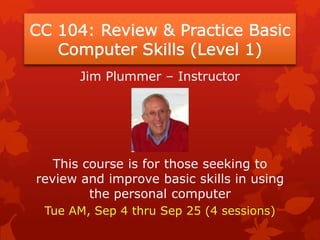
Jim Plummer – Instructor


   This course is for those seeking to
review and improve basic skills in using
         the personal computer
 Tue AM, Sep 4 thru Sep 25 (4 sessions)
Russ Kraay – Instructor


Learn how to create, edit, format, print,
and save text documents. Also learn to
  copy & paste pictures and graphics
 Mon PM, Sep 24 thru Oct 8 (3 sessions)
Dean Traxler – Instructor


    Learn to make folders for storing &
  organ-izing files on your PC or a flash
drive. Copy and save docs or photos from
               the Internet
  Thu AM, Sep 6 thru Sep 20 (3 sessions)
Paul McKean – Instructor


Learn how to search for items you want to
  buy; finding websites and safely buying
 from merchants that sell on the Internet
  Thu PM, Nov 1 thru Nov 15 (3 sessions)
Megs Singer – Instructor


 This class is for those new to Gmail or who
         want to learn more. Learn to
send, read, reply to messages & how to use
                  contact lists
   Tue PM, Oct 16 thru Oct 30 (3 sessions)
Frank DiVesta – Instructor


Learn to prepare and share a professional-
looking slide show, presentation, or album
       with your available materials
  Mon AM, Sep 24 thru Oct 8 (3 sessions)
Jim Plummer – Instructor


Learn to identify equipment & software most
  important to you when buying a laptop.
 Handouts and worksheets will be provided
        Wed AM, Sep 12 (1 session)
Joe Cramer – Instructor


    Learn to install and use this software
 program that allows you to video chat with
family and friends around the world for free
   Fri PM, Nov 2 thru Nov 16 (3 sessions)
Susan Schmitt & Lucille Peterson – Instructors


 Learn to use this word processor and page
layout tool to create personalized letters and
cards; also to create posters and newsletters
    Mon PM, Nov 5 thru Nov 12 (2 sessions)
Lucille Peterson – Instructors


  Learn how to keep a calendar on your
   computer, to track your schedules --
appointments, birthdays, and other events
  Mon PM, Oct 22 thru Oct 29 (2 sessions)
Lucille Peterson & Susan Schmitt – Instructors


        Enjoy organizing your contact
 information, create groups of contacts, and
 learn how to print mailing labels for specific
                    groups
   Mon PM, Nov 19 thru Nov 26 (2 sessions)
• More difficult courses for practiced
  residents who want to increase their skills
• Prerequisites include
  ̶   Completion of After Prep School Basics (Lvl 1)
      course or equivalent experience
  ̶   Basic knowledge of computer keyboard
  ̶   Some typing and mouse skills that include left
      click and right click, as well as drag and drop
  ̶   At least elementary knowledge of word
      processing and the Internet
Jim Plummer – Instructor


 Increase skills in Windows 7 and Office 2010
environ-ment, including programs, format-ting &
 saving documents, use of Internet, and email
Dean Traxler – Instructor


Learn how to be in command of your computer
 by using right clicking ̶ an operation you can
            perform with your mouse
Lucille Peterson & Marty Gibson – Instructors


Learn to write your memoirs on the computer in
 a simple, easy to understand way. We will use
    word processing software & flash drives
Larry Brock – Instructor


This course introduces Picasa, a free photo editing
 and organizing application from Google, and the
         associated Picasa Web Albums
Wayne Wolfert – Instructor


Publisher consists of useful templates for many
 projects ̶ cards, calendars, brochures, news-
 letters, marketing materials, and publications
Floyd Jamison – Instructor


Speech Recognition listens and responds to your
spoken voice. You can use it to run programs and
 interact with the computer; dictate and edit text
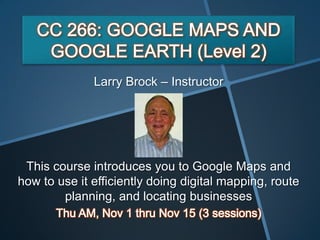
Larry Brock – Instructor


 This course introduces you to Google Maps and
how to use it efficiently doing digital mapping, route
        planning, and locating businesses
• More advanced and complex courses
• Prerequisites
  ̶ Requires considerable basic computer
     understanding
   ̶ Satisfactorily complete some Level 2
     courses or equivalent experience
  ̶   Working knowledge of a Windows OS,
      Internet Explorer, and one or more
      Microsoft Office programs
NEXT STEP
• Consider level of courses that best
  fit your needs and experience level
• Many instructors are here today.
  Talk to them about course content
  and difficulty
COURSE REGISTRATION
• 3 ways to register for classes:
  ̶    eRegister on-line at
       http://registration.spccsc.net
  ̶    3 computers & instructors
       are here today to help you
       “e-register”
  ̶    Use paper form in Academy
       brochure & turn it in at either
       Service Desk
FINAL NOTES
• Try to register before Aug 20
• To add or cancel courses after
  Aug 20, contact either Service Desk
• Class location:
  ̶   Most courses are held in Computer
      Teaching Center ̶ on the Island
  ̶   A limited number may be held in the
      Computer Center/Woodlands
WRAP-UP
• Questions or Comments?
• Visit our “White Elephant” table
• Opportunity to talk with instructors
• Opportunity to “e-register”

Computer College Fall roundup 2013

  • 2.
    ROUNDUP ̶ FALL2012 AGENDA • Selecting correct courses for you • Quick description of each course • Time for questions • Time to talk to individual instructors • Register for classes
  • 3.
    SELECTING CORRECT COURSES FOR YOU • SPCC course numbers (0, 1, 2, or 3) tell you the “degree of difficulty” • Do not choose a course for which you are under- or over-qualified - For guidance, talk to the instructor before signing up - The “wrong” course will just frustrate you
  • 4.
    LET’S REVIEW THE26 COURSES BEING OFFERED • Things to look for ̶ Course level (“degree of difficulty”) ̶ Day of week course is offered ̶ Number of class sessions  6 Sessions: “Core Curriculum”  3 or 4 Sessions: Short Courses  1 or 2 Sessions: Workshops • Hold questions until the end
  • 5.
    LEVEL 0 COURSES •The most basic computer courses ̶ For residents who have never used a computer ̶ Also very good for those who want to go back and review the basics ̶ No “Prerequisites” for course entry • Significant time devoted to assisted practice
  • 6.
    CC 001: COMPUTERCOLLEGE PREP SCHOOL BASICS (LEVEL 0) Alice and Gerry DeBaun – Instructors This is a very basic course for residents who have never used a computer or want to review basic computer processes Mon AM, Sep 17 thru Oct 22 (6 sessions)
  • 7.
    CC 003: COMPUTERCOLLEGE PREP SCHOOL – WINDOWS 7 LAPTOPS (LEVEL 0) Richard Nelson – Instructor This is a very basic course for residents who have a new Windows 7 laptop or who are new to laptop computers Fri PM, Oct 5 thru Oct 26 (4 sessions)
  • 8.
    CC 011: KEYBOARDTYPING (LEVEL 0) Megs Singer – Instructor Purpose of this course is to develop basic keyboard skills in order to use a computer effectively Wed AM, Oct 3 thru Oct 10 (2 sessions)
  • 9.
    CC 013: COMPUTERCOLLEGE PREP SCHOOL – FLASH DRIVES (LEVEL 0) Richard Nelson – Instructor Purpose of this course is to learn how to use a flash drive effectively and how to save files and folders on a flash drive Wed PM, Oct 31 thru Nov 14 (3 sessions)
  • 10.
    CC 021: INTERNETPREP SCHOOL BASICS (LEVEL 0) Richard Nelson – Instructor This is a very basic course for residents who have never used the Internet and have a great desire to learn how Wed PM, Sep 19 thru Oct 10 (4 sessions)
  • 12.
    • For thosewith some basic knowledge or experience with computers ̶ Completed Prep School (Level 0) or equivalent experience ̶ Prerequisites: familiarity with computer keyboard, typing skills, and use of a mouse • Goal: improve computer skills or learn basics of useful application programs
  • 13.
    Joe Cramer –Instructor For those seeking to build upon basic skills in using the computer. Course work will include Internet, word processing, and e-mail Mon PM, Oct 29 thru Dec 3 (6 sessions)
  • 14.
    Jim Plummer –Instructor This course is for those seeking to review and improve basic skills in using the personal computer Tue AM, Sep 4 thru Sep 25 (4 sessions)
  • 15.
    Russ Kraay –Instructor Learn how to create, edit, format, print, and save text documents. Also learn to copy & paste pictures and graphics Mon PM, Sep 24 thru Oct 8 (3 sessions)
  • 16.
    Dean Traxler –Instructor Learn to make folders for storing & organ-izing files on your PC or a flash drive. Copy and save docs or photos from the Internet Thu AM, Sep 6 thru Sep 20 (3 sessions)
  • 17.
    Paul McKean –Instructor Learn how to search for items you want to buy; finding websites and safely buying from merchants that sell on the Internet Thu PM, Nov 1 thru Nov 15 (3 sessions)
  • 18.
    Megs Singer –Instructor This class is for those new to Gmail or who want to learn more. Learn to send, read, reply to messages & how to use contact lists Tue PM, Oct 16 thru Oct 30 (3 sessions)
  • 19.
    Frank DiVesta –Instructor Learn to prepare and share a professional- looking slide show, presentation, or album with your available materials Mon AM, Sep 24 thru Oct 8 (3 sessions)
  • 20.
    Jim Plummer –Instructor Learn to identify equipment & software most important to you when buying a laptop. Handouts and worksheets will be provided Wed AM, Sep 12 (1 session)
  • 21.
    Joe Cramer –Instructor Learn to install and use this software program that allows you to video chat with family and friends around the world for free Fri PM, Nov 2 thru Nov 16 (3 sessions)
  • 22.
    Susan Schmitt &Lucille Peterson – Instructors Learn to use this word processor and page layout tool to create personalized letters and cards; also to create posters and newsletters Mon PM, Nov 5 thru Nov 12 (2 sessions)
  • 23.
    Lucille Peterson –Instructors Learn how to keep a calendar on your computer, to track your schedules -- appointments, birthdays, and other events Mon PM, Oct 22 thru Oct 29 (2 sessions)
  • 24.
    Lucille Peterson &Susan Schmitt – Instructors Enjoy organizing your contact information, create groups of contacts, and learn how to print mailing labels for specific groups Mon PM, Nov 19 thru Nov 26 (2 sessions)
  • 26.
    • More difficultcourses for practiced residents who want to increase their skills • Prerequisites include ̶ Completion of After Prep School Basics (Lvl 1) course or equivalent experience ̶ Basic knowledge of computer keyboard ̶ Some typing and mouse skills that include left click and right click, as well as drag and drop ̶ At least elementary knowledge of word processing and the Internet
  • 27.
    Jim Plummer –Instructor Increase skills in Windows 7 and Office 2010 environ-ment, including programs, format-ting & saving documents, use of Internet, and email
  • 28.
    Dean Traxler –Instructor Learn how to be in command of your computer by using right clicking ̶ an operation you can perform with your mouse
  • 29.
    Lucille Peterson &Marty Gibson – Instructors Learn to write your memoirs on the computer in a simple, easy to understand way. We will use word processing software & flash drives
  • 30.
    Larry Brock –Instructor This course introduces Picasa, a free photo editing and organizing application from Google, and the associated Picasa Web Albums
  • 31.
    Wayne Wolfert –Instructor Publisher consists of useful templates for many projects ̶ cards, calendars, brochures, news- letters, marketing materials, and publications
  • 32.
    Floyd Jamison –Instructor Speech Recognition listens and responds to your spoken voice. You can use it to run programs and interact with the computer; dictate and edit text
  • 33.
    Larry Brock –Instructor This course introduces you to Google Maps and how to use it efficiently doing digital mapping, route planning, and locating businesses
  • 34.
    • More advancedand complex courses • Prerequisites ̶ Requires considerable basic computer understanding ̶ Satisfactorily complete some Level 2 courses or equivalent experience ̶ Working knowledge of a Windows OS, Internet Explorer, and one or more Microsoft Office programs
  • 37.
    NEXT STEP • Considerlevel of courses that best fit your needs and experience level • Many instructors are here today. Talk to them about course content and difficulty
  • 38.
    COURSE REGISTRATION • 3ways to register for classes: ̶ eRegister on-line at http://registration.spccsc.net ̶ 3 computers & instructors are here today to help you “e-register” ̶ Use paper form in Academy brochure & turn it in at either Service Desk
  • 39.
    FINAL NOTES • Tryto register before Aug 20 • To add or cancel courses after Aug 20, contact either Service Desk • Class location: ̶ Most courses are held in Computer Teaching Center ̶ on the Island ̶ A limited number may be held in the Computer Center/Woodlands
  • 40.
    WRAP-UP • Questions orComments? • Visit our “White Elephant” table • Opportunity to talk with instructors • Opportunity to “e-register”