CLASS SCHEDULING SYSTEM
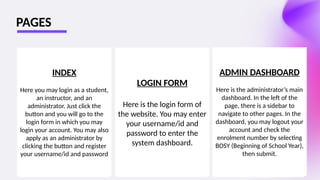
INDEX
Here you may login as a student,
an instructor, and an
administrator. Just click the
button and you will go to the
login form in which you may
login your account. You may also
apply as an administrator by
clicking the button and register
your username/id and password
LOGIN FORM
Here is the login form of
the website. You may enter
your username/id and
password to enter the
system dashboard.
ADMIN DASHBOARD
Here is the administrator’s main
dashboard. In the left of the
page, there is a sidebar to
navigate to other pages. In the
dashboard, you may logout your
account and check the
enrolment number by selecting
BOSY (Beginning of School Year),
then submit.
PAGES
Each of the pages: School Year, Students, Instructors, Year Level and
Section, Departments, Programs, Courses, Enroll Students, Assign
Instructor, Assign Course Schedule have similar page structure. You may
add new data by clicking the Add Button. The added data will be displayed
on the Display Table Information, and you may edit and delete data thru
Actions.
PAGE STRUCTURE
ADDING NEW DATA
You may add new data by
clicking the Add Button. A popup
will show in which you can enter
your inputs in each field. Clicking
the submit button will submit
and save the data you entered
and clicking the close button will
close the pop up.
EDIT AND UPDATE
Edit link will update
existing data. A popup will
open in where you can edit
data in every field. Clicking
the update button will
submit and update the
data you have modified
VIEW AND GENERATE
REPORT
The administrator may view
both student and instructors
schedule in a tabular form. The
administrator may generate a
report regarding to schedules of
each instructor and student that
have been entered.
MORE FEATURES
CLASS SCHEDULING SYSTEM PRESENTATION.pptx

CLASS SCHEDULING SYSTEM PRESENTATION.pptx

  • 1.
  • 4.
    INDEX Here you maylogin as a student, an instructor, and an administrator. Just click the button and you will go to the login form in which you may login your account. You may also apply as an administrator by clicking the button and register your username/id and password LOGIN FORM Here is the login form of the website. You may enter your username/id and password to enter the system dashboard. ADMIN DASHBOARD Here is the administrator’s main dashboard. In the left of the page, there is a sidebar to navigate to other pages. In the dashboard, you may logout your account and check the enrolment number by selecting BOSY (Beginning of School Year), then submit. PAGES
  • 5.
    Each of thepages: School Year, Students, Instructors, Year Level and Section, Departments, Programs, Courses, Enroll Students, Assign Instructor, Assign Course Schedule have similar page structure. You may add new data by clicking the Add Button. The added data will be displayed on the Display Table Information, and you may edit and delete data thru Actions. PAGE STRUCTURE
  • 6.
    ADDING NEW DATA Youmay add new data by clicking the Add Button. A popup will show in which you can enter your inputs in each field. Clicking the submit button will submit and save the data you entered and clicking the close button will close the pop up. EDIT AND UPDATE Edit link will update existing data. A popup will open in where you can edit data in every field. Clicking the update button will submit and update the data you have modified VIEW AND GENERATE REPORT The administrator may view both student and instructors schedule in a tabular form. The administrator may generate a report regarding to schedules of each instructor and student that have been entered. MORE FEATURES