Creating a Character Walkcycle in
Autodesk Maya
(Basic Version)
Created By
Avinash Ravindran
avinzart@gmail.com
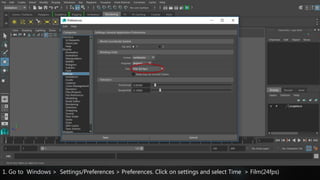
1. Go to Windows > Settings/Preferences > Preferences. Click on settings and select Time > Film(24fps)
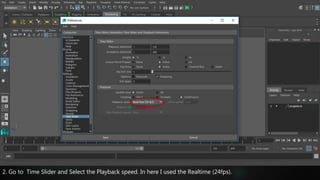
2. Go to Time Slider and Select the Playback speed. In here I used the Realtime (24fps).
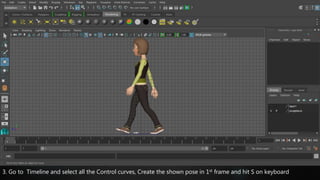
3. Go to Timeline and select all the Control curves, Create the shown pose in 1st frame and hit S on keyboard
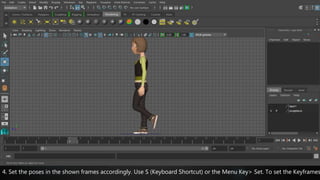
4. Set the poses in the shown frames accordingly. Use S (Keyboard Shortcut) or the Menu Key> Set. To set the Keyframes
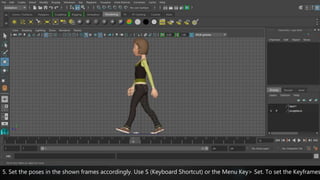
5. Set the poses in the shown frames accordingly. Use S (Keyboard Shortcut) or the Menu Key> Set. To set the Keyframes
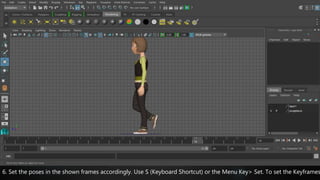
6. Set the poses in the shown frames accordingly. Use S (Keyboard Shortcut) or the Menu Key> Set. To set the Keyframes
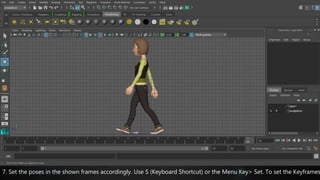
7. Set the poses in the shown frames accordingly. Use S (Keyboard Shortcut) or the Menu Key> Set. To set the Keyframes
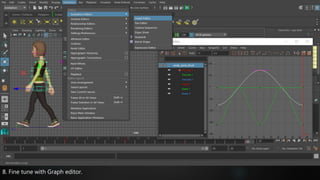
8. Fine tune with Graph editor.
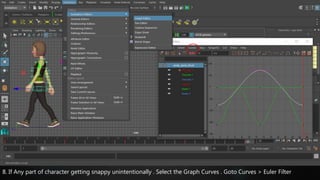
8. If Any part of character getting snappy unintentionally . Select the Graph Curves . Goto Curves > Euler Filter
Click the link below for a sample video
Special Thanks to
John Doublestein (www.johndoublestein.com) for the AndyRig Character.
Autodesk Community
St.Mary’s College, Thrissur
https://youtu.be/2apNE1Mny7k
Thank You
Avinash Ravindran
avinzart@gmail.com

Character walkcycle in Maya (Basic)

  • 1.
    Creating a CharacterWalkcycle in Autodesk Maya (Basic Version) Created By Avinash Ravindran avinzart@gmail.com
  • 2.
    1. Go toWindows > Settings/Preferences > Preferences. Click on settings and select Time > Film(24fps)
  • 3.
    2. Go toTime Slider and Select the Playback speed. In here I used the Realtime (24fps).
  • 4.
    3. Go toTimeline and select all the Control curves, Create the shown pose in 1st frame and hit S on keyboard
  • 5.
    4. Set theposes in the shown frames accordingly. Use S (Keyboard Shortcut) or the Menu Key> Set. To set the Keyframes
  • 6.
    5. Set theposes in the shown frames accordingly. Use S (Keyboard Shortcut) or the Menu Key> Set. To set the Keyframes
  • 7.
    6. Set theposes in the shown frames accordingly. Use S (Keyboard Shortcut) or the Menu Key> Set. To set the Keyframes
  • 8.
    7. Set theposes in the shown frames accordingly. Use S (Keyboard Shortcut) or the Menu Key> Set. To set the Keyframes
  • 9.
    8. Fine tunewith Graph editor.
  • 10.
    8. If Anypart of character getting snappy unintentionally . Select the Graph Curves . Goto Curves > Euler Filter
  • 11.
    Click the linkbelow for a sample video Special Thanks to John Doublestein (www.johndoublestein.com) for the AndyRig Character. Autodesk Community St.Mary’s College, Thrissur https://youtu.be/2apNE1Mny7k
  • 12.