Introduction to Gitand Github
WHAT IS GIT?
— a tool that helps developers track and
manage changes to source code over time.
Git is a version control system (VCS)
2.
It allows youto:
• Keep a history of your code changes.
• Revert to previous versions if something breaks.
• Work with multiple developers on the same project without
overwriting each other’s work.
It works locally on your computer and helps you organize versions
of your project efficiently.
3.
Key Git Concepts
•Repository: A folder where Git tracks your project and its
history.
• Clone: Make a copy of a remote repository on your computer.
• Stage: Tell Git which changes you want to save next.
• Commit: Save a snapshot of your staged changes.
• Branch: Work on different versions or features at the same
time.
• Merge: Combine changes from different branches.
• Pull: Get the latest changes from a remote repository.
• Push: Send your changes to a remote repository.
4.
How to Downloadand Install Git?
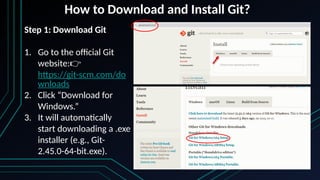
Step 1: Download Git
1. Go to the official Git
website:👉
https://git-scm.com/do
wnloads
2. Click “Download for
Windows.”
3. It will automatically
start downloading a .exe
installer (e.g., Git-
2.45.0-64-bit.exe).
5.
How to Downloadand Install Git?
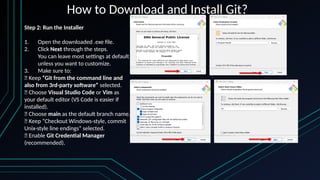
Step 2: Run the Installer
1. Open the downloaded .exe file.
2. Click Next through the steps.
You can leave most settings at default
unless you want to customize.
3. Make sure to:
✅ Keep “Git from the command line and
also from 3rd-party software” selected.
✅ Choose Visual Studio Code or Vim as
your default editor (VS Code is easier if
installed).
✅ Choose main as the default branch name.
✅ Keep “Checkout Windows-style, commit
Unix-style line endings” selected.
✅ Enable Git Credential Manager
(recommended).
6.
How to Downloadand Install Git?
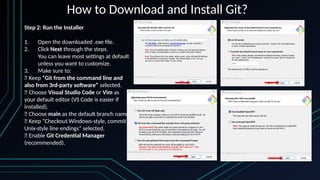
Step 2: Run the Installer
1. Open the downloaded .exe file.
2. Click Next through the steps.
You can leave most settings at default
unless you want to customize.
3. Make sure to:
✅ Keep “Git from the command line and
also from 3rd-party software” selected.
✅ Choose Visual Studio Code or Vim as
your default editor (VS Code is easier if
installed).
✅ Choose main as the default branch name.
✅ Keep “Checkout Windows-style, commit
Unix-style line endings” selected.
✅ Enable Git Credential Manager
(recommended).
7.
How to Downloadand Install Git?
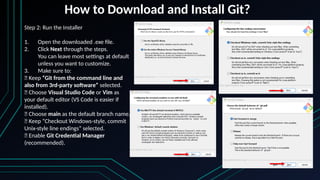
Step 2: Run the Installer
1. Open the downloaded .exe file.
2. Click Next through the steps.
You can leave most settings at default
unless you want to customize.
3. Make sure to:
✅ Keep “Git from the command line and
also from 3rd-party software” selected.
✅ Choose Visual Studio Code or Vim as
your default editor (VS Code is easier if
installed).
✅ Choose main as the default branch name.
✅ Keep “Checkout Windows-style, commit
Unix-style line endings” selected.
✅ Enable Git Credential Manager
(recommended).
8.
How to Downloadand Install Git?
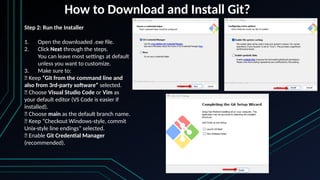
Step 2: Run the Installer
1. Open the downloaded .exe file.
2. Click Next through the steps.
You can leave most settings at default
unless you want to customize.
3. Make sure to:
✅ Keep “Git from the command line and
also from 3rd-party software” selected.
✅ Choose Visual Studio Code or Vim as
your default editor (VS Code is easier if
installed).
✅ Choose main as the default branch name.
✅ Keep “Checkout Windows-style, commit
Unix-style line endings” selected.
✅ Enable Git Credential Manager
(recommended).
9.
How to Downloadand Install Git?
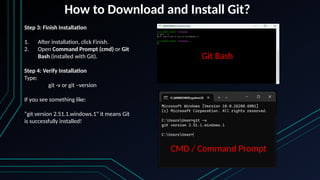
Step 3: Finish Installation
1. After installation, click Finish.
2. Open Command Prompt (cmd) or Git
Bash (installed with Git).
Step 4: Verify Installation
Type:
git -v or git –version
If you see something like:
“git version 2.51.1.windows.1“ it means Git
is successfully installed!
Git Bash
CMD / Command Prompt
10.
Configure Git
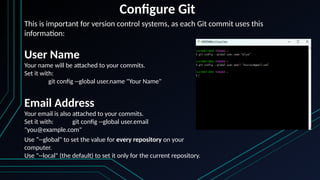
This isimportant for version control systems, as each Git commit uses this
information:
User Name
Your name will be attached to your commits.
Set it with:
git config --global user.name "Your Name"
Email Address
Your email is also attached to your commits.
Set it with: git config --global user.email
"you@example.com"
Use “--global" to set the value for every repository on your
computer.
Use "--local" (the default) to set it only for the current repository.
11.
Why Configure Git?
Gituses your name and email to label your commits.
When you use Git, every time you save your work (make a commit), Git records who
made the change.
That’s why Git needs your:
• Name → to identify the developer who made the commit
• Email → to link your commits to your GitHub account or identity
If you do not set these, Git will prompt you the first time you try to commit.
12.
Viewing Your Configuration
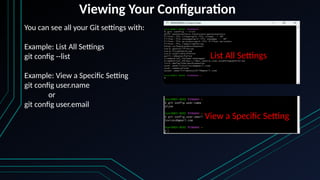
Youcan see all your Git settings with:
Example: List All Settings
git config --list
Example: View a Specific Setting
git config user.name
or
git config user.email
List All Settings
View a Specific Setting
13.
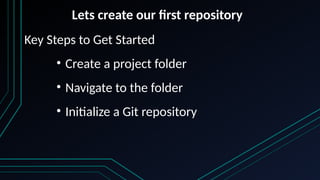
Lets create ourfirst repository
Key Steps to Get Started
• Create a project folder
• Navigate to the folder
• Initialize a Git repository
14.
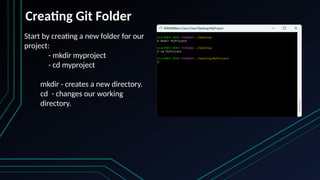
Creating Git Folder
Startby creating a new folder for our
project:
- mkdir myproject
- cd myproject
mkdir - creates a new directory.
cd - changes our working
directory.
15.
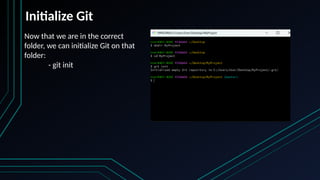
Initialize Git
Now thatwe are in the correct
folder, we can initialize Git on that
folder:
- git init
16.
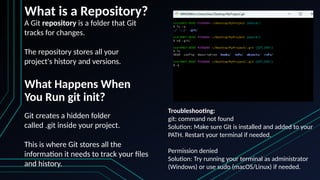
What is aRepository?
A Git repository is a folder that Git
tracks for changes.
The repository stores all your
project's history and versions.
What Happens When
You Run git init?
Git creates a hidden folder
called .git inside your project.
This is where Git stores all the
information it needs to track your files
and history.
Troubleshooting:
git: command not found
Solution: Make sure Git is installed and added to your
PATH. Restart your terminal if needed.
Permission denied
Solution: Try running your terminal as administrator
(Windows) or use sudo (macOS/Linux) if needed.
17.
Git New Files
Whatis a New File?
A new file is a file that you have created or copied into your
project folder, but haven't told Git to watch.
Here are the key things to know:
• Create a new file (with a text editor)
• ls - List files in the folder
• git status - Check which files are tracked
• Understand untracked and tracked files
18.
Create a NewFile?
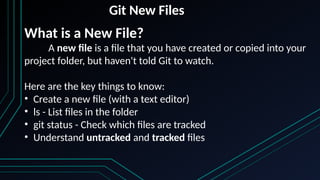
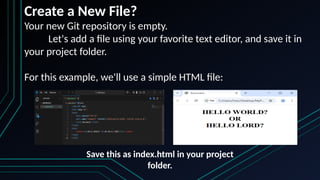
Your new Git repository is empty.
Let's add a file using your favorite text editor, and save it in
your project folder.
For this example, we'll use a simple HTML file:
Save this as index.html in your project
folder.
19.
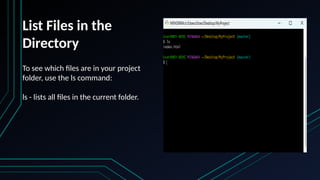
List Files inthe
Directory
To see which files are in your project
folder, use the ls command:
ls - lists all files in the current folder.
20.
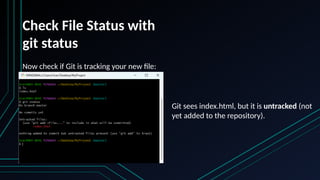
Check File Statuswith
git status
Now check if Git is tracking your new file:
Git sees index.html, but it is untracked (not
yet added to the repository).
21.
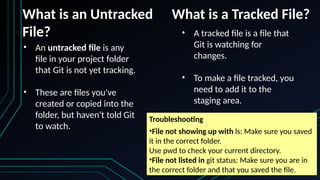
What is anUntracked
File?
• An untracked file is any
file in your project folder
that Git is not yet tracking.
• These are files you've
created or copied into the
folder, but haven't told Git
to watch.
What is a Tracked File?
• A tracked file is a file that
Git is watching for
changes.
• To make a file tracked, you
need to add it to the
staging area.
Troubleshooting
•File not showing up with ls: Make sure you saved
it in the correct folder.
Use pwd to check your current directory.
•File not listed in git status: Make sure you are in
the correct folder and that you saved the file.
22.
Git Staging Environment
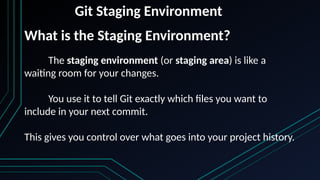
Whatis the Staging Environment?
The staging environment (or staging area) is like a
waiting room for your changes.
You use it to tell Git exactly which files you want to
include in your next commit.
This gives you control over what goes into your project history.
23.
Git Staging Environment
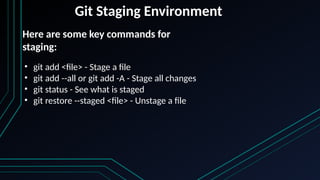
•git add <file> - Stage a file
• git add --all or git add -A - Stage all changes
• git status - See what is staged
• git restore --staged <file> - Unstage a file
Here are some key commands for
staging:
24.
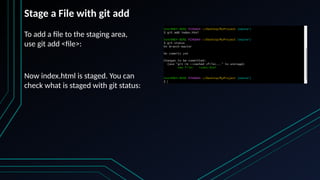
To add afile to the staging area,
use git add <file>:
Now index.html is staged. You can
check what is staged with git status:
Stage a File with git add
25.
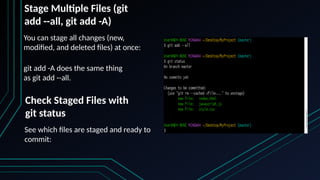
You can stageall changes (new,
modified, and deleted files) at once:
git add -A does the same thing
as git add --all.
Stage Multiple Files (git
add --all, git add -A)
See which files are staged and ready to
commit:
Check Staged Files with
git status
26.
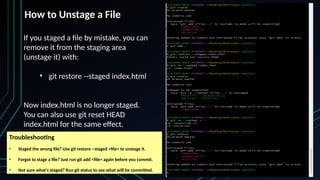
If you stageda file by mistake, you can
remove it from the staging area
(unstage it) with:
• git restore --staged index.html
Now index.html is no longer staged.
You can also use git reset HEAD
index.html for the same effect.
How to Unstage a File
Troubleshooting
• Staged the wrong file? Use git restore --staged <file> to unstage it.
• Forgot to stage a file? Just run git add <file> again before you commit.
• Not sure what's staged? Run git status to see what will be committed.
27.
Git Commit
A commitis like a save point in your
project.
It records a snapshot of your files at a
certain time, with a message
describing what changed.
You can always go back to a previous
commit if you need to.
What is a Commit?
Here are some key commands
for commits:
• git commit -m "message" -
Commit staged changes with a
message
• git commit -a -m "message" -
Commit all tracked changes (skip
staging)
• git log - See commit history
28.
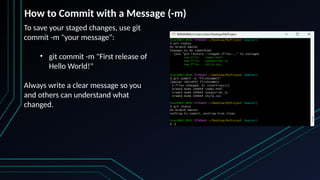
To save yourstaged changes, use git
commit -m "your message":
• git commit -m "First release of
Hello World!"
Always write a clear message so you
and others can understand what
changed.
How to Commit with a Message (-m)
29.
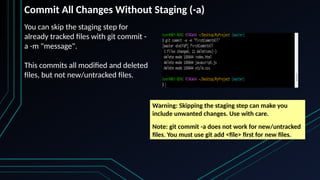
You can skipthe staging step for
already tracked files with git commit -
a -m "message".
This commits all modified and deleted
files, but not new/untracked files.
Commit All Changes Without Staging (-a)
Warning: Skipping the staging step can make you
include unwanted changes. Use with care.
Note: git commit -a does not work for new/untracked
files. You must use git add <file> first for new files.
30.
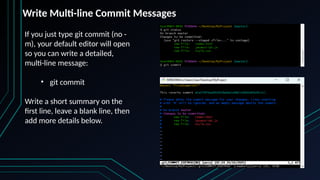
If you justtype git commit (no -
m), your default editor will open
so you can write a detailed,
multi-line message:
• git commit
Write a short summary on the
first line, leave a blank line, then
add more details below.
Write Multi-line Commit Messages
31.
• Keep thefirst line short (50 characters or less).
• Use the imperative mood (e.g., "Add feature" not "Added
feature").
• Leave a blank line after the summary, then add more
details if needed.
• Describe why the change was made, not just what
changed.
Commit Message Best Practices:
32.
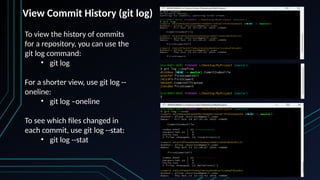
To view thehistory of commits
for a repository, you can use the
git log command:
• git log
For a shorter view, use git log --
oneline:
• git log –oneline
To see which files changed in
each commit, use git log --stat:
• git log --stat
View Commit History (git log)
33.
Git Stash
Sometimes youneed to quickly switch tasks or fix a bug, but you're not ready to commit your work.
git stash lets you save your uncommitted changes and return to a clean working directory.
You can come back and restore your changes later.
Here are some common use cases:
• Switch branches safely: Save your work before changing branches.
• Handle emergencies: Stash your work to fix something urgent, then restore it.
• Keep your work-in-progress safe: Avoid messy commits or losing changes.
What is Git Stash? Why Use It?
34.
• git stash- Stash your changes
• git stash push -m "message" - Stash with a
message
• git stash list - List all stashes
• git stash branch <branchname> - Create a
branch from a stash
Key Commands for Stashing
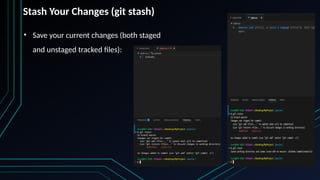
35.
• Save yourcurrent changes (both staged
and unstaged tracked files):
Stash Your Changes (git stash)
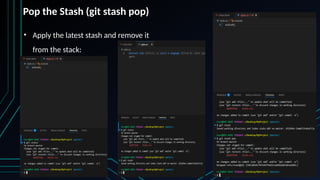
36.
• Apply thelatest stash and remove it
from the stack:
Pop the Stash (git stash pop)
37.
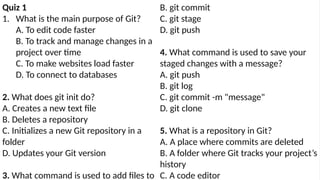
Quiz 1
1. Whatis the main purpose of Git?
A. To edit code faster
B. To track and manage changes in a
project over time
C. To make websites load faster
D. To connect to databases
2. What does git init do?
A. Creates a new text file
B. Deletes a repository
C. Initializes a new Git repository in a
folder
D. Updates your Git version
3. What command is used to add files to
B. git commit
C. git stage
D. git push
4. What command is used to save your
staged changes with a message?
A. git push
B. git log
C. git commit -m "message"
D. git clone
5. What is a repository in Git?
A. A place where commits are deleted
B. A folder where Git tracks your project’s
history
C. A code editor
38.
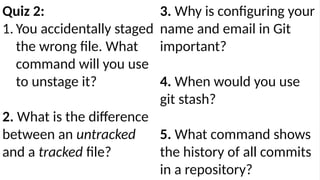
Quiz 2:
1. Youaccidentally staged
the wrong file. What
command will you use
to unstage it?
2. What is the difference
between an untracked
and a tracked file?
3. Why is configuring your
name and email in Git
important?
4. When would you use
git stash?
5. What command shows
the history of all commits
in a repository?
Editor's Notes
#21 pwd – print working directories
It shows the full path of your current folder in the terminal (the directory you are currently working in).
#38 git restore --staged <filename>
An untracked file is not yet added to Git, while a tracked file is already added and monitored for changes.
Because every commit records who made the change; Git uses your name and email to identify you as the author.
When you need to temporarily save unfinished work without committing it, like when switching tasks or fixing urgent bugs.
git log