www.visionslive.com
Document History:
Version 1.0 - 12th December 2008
Version 1.1 - 16th December
Version 1.3 - 9th July 2013
Version 1.4 - 25th September 2013
Version 1.5 - 20th November 2013
Version 1.6 - 28th July 2014
Version 1.7 - 14th August 2014
Prepared by - A. Dixon, D. Sanders, J. Clark
VisionsLive Limited © VisionsLive Ltd 2009-2014
Administrator Quick-Start Guide
to User Management
Prepared for:
Account Administrators
Online Qualitative Research made simple
Page 1 of 8
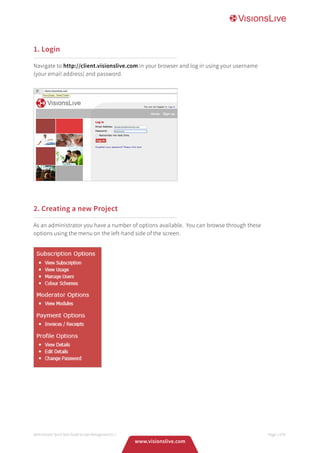
1. Login
Navigate to http://client.visionslive.com in your browser and log in using your username
(your email address) and password.
2. Creating a new Project
As an administrator you have a number of options available. You can browse through these
options using the menu on the left-hand side of the screen.
Administrator Quick Start Guide to User Management V1.7 Page 2 of 8
www.visionslive.com
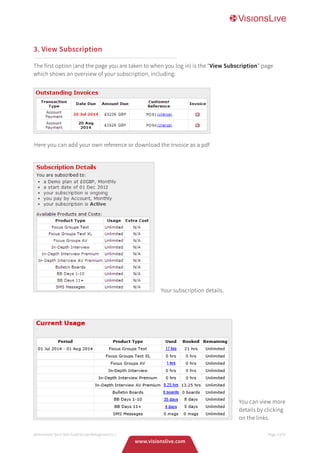
3. View Subscription
The first option (and the page you are taken to when you log in) is the “View Subscription” page
which shows an overview of your subscription, including:
Administrator Quick Start Guide to User Management V1.7 Page 3 of 8
You can view more
details by clicking
on the links.
Here you can add your own reference or download the invoice as a pdf
Your subscription details.
www.visionslive.com
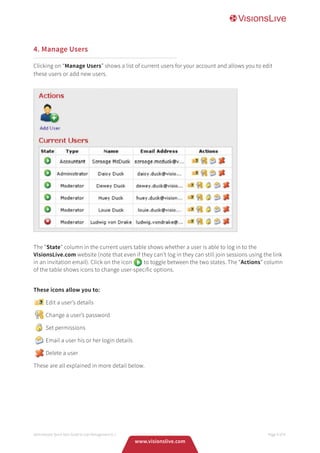
4. Manage Users
Clicking on “Manage Users” shows a list of current users for your account and allows you to edit
these users or add new users.
The “State” column in the current users table shows whether a user is able to log in to the
VisionsLive.com website (note that even if they can’t log in they can still join sessions using the link
in an invitation email). Click on the icon to toggle between the two states. The “Actions” column
of the table shows icons to change user-specific options.
These icons allow you to:
	 Edit a user’s details
	 Change a user’s password
	 Set permissions
	 Email a user his or her login details
	 Delete a user
These are all explained in more detail below.
Administrator Quick Start Guide to User Management V1.7 Page 4 of 8
www.visionslive.com
Administrator Quick Start Guide to User Management V1.7 Page 5 of 8
5. Add User
To add a new user, click the “Add User” button.
From here you can specify all the details for the new user and then create the user by clicking the submit
button. You can choose whether or not to send the user their login details via email (alternatively, you
can do this later on in the process if you do not wish them to be able to log in immediately).
You can create 3 types of user: Moderators, Accountants, and Administrators.
Moderators:
This is the main type of user; when Moderators log into the website they will see a limited number
of options available to them; namely the “Moderator Options” and “Account Options”. Once you
add a new Moderator you are taken directly to the Permissions page for this new Moderator.
IMPORTANT – Moderators cannot be created in the Participants section in each module, they can
only be created at Account level by Account Administrators.
Accountants:
Accountants have access to the “Manage Payments” section and the “Account Options” section.
An Accountant can view, download, and set references in invoices and receipts, and change their
own details and password.
Administrators:
Administrators can do everything that the primary user can do. They see all the options explained
In this article, create users, set permissions, etc.
www.visionslive.com
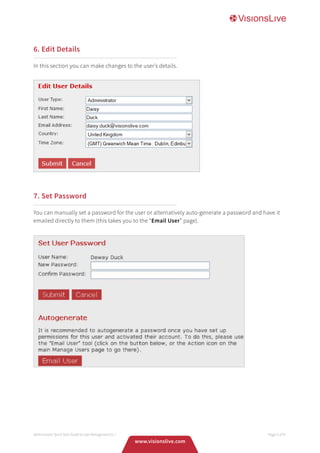
6. Edit Details
In this section you can make changes to the user’s details.
Administrator Quick Start Guide to User Management V1.7 Page 6 of 8
7. Set Password
You can manually set a password for the user or alternatively auto-generate a password and have it
emailed directly to them (this takes you to the “Email User” page).
www.visionslive.com
8. Edit Permissions
In this section you can make changes to the user’s details. You can edit the permissions for a
Moderator, determining which features of the VisionsLive.com Tool each Moderator has access to.
Administrator Quick Start Guide to User Management V1.7 Page 7 of 8
9. Email User
Using this tool you can send the user an email from the VisionsLive.com system that tells the user
how to log into VisionsLive.com. You can also include a personal message (recommended).
www.visionslive.com
10. Delete User
This command will delete a user from the system (it asks for confirmation first).
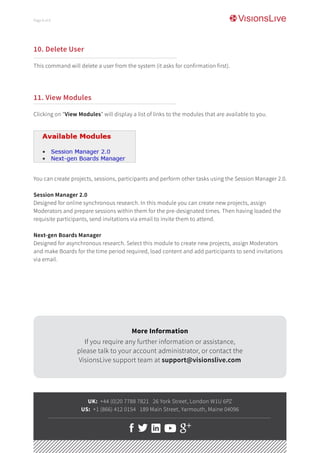
11. View Modules
Clicking on “View Modules” will display a list of links to the modules that are available to you.
You can create projects, sessions, participants and perform other tasks using the Session Manager 2.0.
Session Manager 2.0
Designed for online synchronous research. In this module you can create new projects, assign
Moderators and prepare sessions within them for the pre-designated times. Then having loaded the
requisite participants, send invitations via email to invite them to attend.
Next-gen Boards Manager
Designed for asynchronous research. Select this module to create new projects, assign Moderators
and make Boards for the time period required, load content and add participants to send invitations
via email.
UK: +44 (0)20 7788 7821 26 York Street, London W1U 6PZ
US: +1 (866) 412 0154 189 Main Street, Yarmouth, Maine 04096
More Information
If you require any further information or assistance,
please talk to your account administrator, or contact the
VisionsLive support team at support@visionslive.com
Page 8 of 8

Bulletin Boards - Quick Start Guide To User Management

  • 1.
    www.visionslive.com Document History: Version 1.0- 12th December 2008 Version 1.1 - 16th December Version 1.3 - 9th July 2013 Version 1.4 - 25th September 2013 Version 1.5 - 20th November 2013 Version 1.6 - 28th July 2014 Version 1.7 - 14th August 2014 Prepared by - A. Dixon, D. Sanders, J. Clark VisionsLive Limited © VisionsLive Ltd 2009-2014 Administrator Quick-Start Guide to User Management Prepared for: Account Administrators Online Qualitative Research made simple Page 1 of 8
  • 2.
    1. Login Navigate tohttp://client.visionslive.com in your browser and log in using your username (your email address) and password. 2. Creating a new Project As an administrator you have a number of options available. You can browse through these options using the menu on the left-hand side of the screen. Administrator Quick Start Guide to User Management V1.7 Page 2 of 8 www.visionslive.com
  • 3.
    3. View Subscription Thefirst option (and the page you are taken to when you log in) is the “View Subscription” page which shows an overview of your subscription, including: Administrator Quick Start Guide to User Management V1.7 Page 3 of 8 You can view more details by clicking on the links. Here you can add your own reference or download the invoice as a pdf Your subscription details. www.visionslive.com
  • 4.
    4. Manage Users Clickingon “Manage Users” shows a list of current users for your account and allows you to edit these users or add new users. The “State” column in the current users table shows whether a user is able to log in to the VisionsLive.com website (note that even if they can’t log in they can still join sessions using the link in an invitation email). Click on the icon to toggle between the two states. The “Actions” column of the table shows icons to change user-specific options. These icons allow you to: Edit a user’s details Change a user’s password Set permissions Email a user his or her login details Delete a user These are all explained in more detail below. Administrator Quick Start Guide to User Management V1.7 Page 4 of 8 www.visionslive.com
  • 5.
    Administrator Quick StartGuide to User Management V1.7 Page 5 of 8 5. Add User To add a new user, click the “Add User” button. From here you can specify all the details for the new user and then create the user by clicking the submit button. You can choose whether or not to send the user their login details via email (alternatively, you can do this later on in the process if you do not wish them to be able to log in immediately). You can create 3 types of user: Moderators, Accountants, and Administrators. Moderators: This is the main type of user; when Moderators log into the website they will see a limited number of options available to them; namely the “Moderator Options” and “Account Options”. Once you add a new Moderator you are taken directly to the Permissions page for this new Moderator. IMPORTANT – Moderators cannot be created in the Participants section in each module, they can only be created at Account level by Account Administrators. Accountants: Accountants have access to the “Manage Payments” section and the “Account Options” section. An Accountant can view, download, and set references in invoices and receipts, and change their own details and password. Administrators: Administrators can do everything that the primary user can do. They see all the options explained In this article, create users, set permissions, etc. www.visionslive.com
  • 6.
    6. Edit Details Inthis section you can make changes to the user’s details. Administrator Quick Start Guide to User Management V1.7 Page 6 of 8 7. Set Password You can manually set a password for the user or alternatively auto-generate a password and have it emailed directly to them (this takes you to the “Email User” page). www.visionslive.com
  • 7.
    8. Edit Permissions Inthis section you can make changes to the user’s details. You can edit the permissions for a Moderator, determining which features of the VisionsLive.com Tool each Moderator has access to. Administrator Quick Start Guide to User Management V1.7 Page 7 of 8 9. Email User Using this tool you can send the user an email from the VisionsLive.com system that tells the user how to log into VisionsLive.com. You can also include a personal message (recommended). www.visionslive.com
  • 8.
    10. Delete User Thiscommand will delete a user from the system (it asks for confirmation first). 11. View Modules Clicking on “View Modules” will display a list of links to the modules that are available to you. You can create projects, sessions, participants and perform other tasks using the Session Manager 2.0. Session Manager 2.0 Designed for online synchronous research. In this module you can create new projects, assign Moderators and prepare sessions within them for the pre-designated times. Then having loaded the requisite participants, send invitations via email to invite them to attend. Next-gen Boards Manager Designed for asynchronous research. Select this module to create new projects, assign Moderators and make Boards for the time period required, load content and add participants to send invitations via email. UK: +44 (0)20 7788 7821 26 York Street, London W1U 6PZ US: +1 (866) 412 0154 189 Main Street, Yarmouth, Maine 04096 More Information If you require any further information or assistance, please talk to your account administrator, or contact the VisionsLive support team at support@visionslive.com Page 8 of 8