How does
Awesomehp
act?
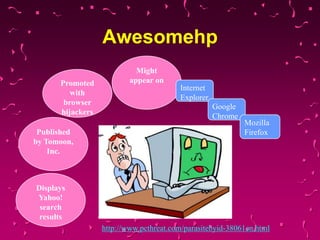
Awesomehp
Promoted
with
browser
hijackers
Published
by Tomoon,
Inc.

Might
appear on
Internet
Explorer
Google
Chrome

Mozilla
Firefox

Displays
Yahoo!
search
results
http://www.pcthreat.com/parasitebyid-38061en.html
The main features of
Awesomehp
Comes bundled with freeware and
shareware
Might replace your homepage and
your default search engine (usually
promoted by a browser hijacker)
http://www.pcthreat.com/parasitebyid-38061en.html
Might lead you to malicious
software
(via advertisements)
http://www.pcthreat.com/parasitebyid-38061en.html
Awesomehp

Collects nonpersonally
identifiable
information

• Search terms
• The time you have
accessed the search
engine
• IP address
• Your overall browsing
history

http://www.pcthreat.com/parasitebyid-38061en.html
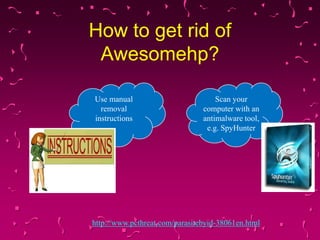
How to get rid of
Awesomehp?
Use manual
removal
instructions

Scan your
computer with an
antimalware tool,
e.g. SpyHunter

http://www.pcthreat.com/parasitebyid-38061en.html
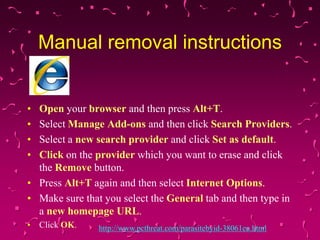
Manual removal instructions

•
•
•
•

Open your browser and then press Alt+T.
Select Manage Add-ons and then click Search Providers.
Select a new search provider and click Set as default.
Click on the provider which you want to erase and click
the Remove button.
• Press Alt+T again and then select Internet Options.
• Make sure that you select the General tab and then type in
a new homepage URL.
• Click OK.

http://www.pcthreat.com/parasitebyid-38061en.html
• Launch your browser and then select a new search
provider by clicking on the item at the upper-right part of
your browser.
• Select on the icon again and then click the Manage
Search Engines… button.
• Select the search provider which you want to remove and
click the Remove button.
• Press Alt+T and then select Options.
• In the box near the Home Page insert the address of your
homepage.
• Click OK.
http://www.pcthreat.com/parasitebyid-38061en.html
• Launch your browser and then tap Alt+F.
• Select Settings from the menu.
• Mark the third option Open a specific page or set of pages in On
startup.
• Select Set pages.
• Add/remove a new page and click OK.
• In the section Appearance, select Show Home button and then select
Change.
• Add/Remove a homepage URL and then click OK.
• Make sure that you select Manage search engines… in the section
Search.
• Select a new search engine and click Make default.
• Remove the unwanted search provider and click X.
• Click Done to close the window.
http://www.pcthreat.com/parasitebyid-38061en.html

Awesomehp

  • 1.
  • 2.
  • 3.
    The main featuresof Awesomehp Comes bundled with freeware and shareware Might replace your homepage and your default search engine (usually promoted by a browser hijacker) http://www.pcthreat.com/parasitebyid-38061en.html
  • 4.
    Might lead youto malicious software (via advertisements) http://www.pcthreat.com/parasitebyid-38061en.html
  • 5.
    Awesomehp Collects nonpersonally identifiable information • Searchterms • The time you have accessed the search engine • IP address • Your overall browsing history http://www.pcthreat.com/parasitebyid-38061en.html
  • 6.
    How to getrid of Awesomehp? Use manual removal instructions Scan your computer with an antimalware tool, e.g. SpyHunter http://www.pcthreat.com/parasitebyid-38061en.html
  • 7.
    Manual removal instructions • • • • Openyour browser and then press Alt+T. Select Manage Add-ons and then click Search Providers. Select a new search provider and click Set as default. Click on the provider which you want to erase and click the Remove button. • Press Alt+T again and then select Internet Options. • Make sure that you select the General tab and then type in a new homepage URL. • Click OK. http://www.pcthreat.com/parasitebyid-38061en.html
  • 8.
    • Launch yourbrowser and then select a new search provider by clicking on the item at the upper-right part of your browser. • Select on the icon again and then click the Manage Search Engines… button. • Select the search provider which you want to remove and click the Remove button. • Press Alt+T and then select Options. • In the box near the Home Page insert the address of your homepage. • Click OK. http://www.pcthreat.com/parasitebyid-38061en.html
  • 9.
    • Launch yourbrowser and then tap Alt+F. • Select Settings from the menu. • Mark the third option Open a specific page or set of pages in On startup. • Select Set pages. • Add/remove a new page and click OK. • In the section Appearance, select Show Home button and then select Change. • Add/Remove a homepage URL and then click OK. • Make sure that you select Manage search engines… in the section Search. • Select a new search engine and click Make default. • Remove the unwanted search provider and click X. • Click Done to close the window. http://www.pcthreat.com/parasitebyid-38061en.html