Automate Studio
Training: How to
Easily Modify
Scripts
October 2023
Maria Ebner, Sr. Sales Engineer
Housekeeping
Webinar Audio
• Today’s webcast audio is streamed through your
computer speakers
• If you need technical assistance with the web interface
or audio, please reach out to us using the Q&A box
Questions Welcome
• Submit your questions at any time during the presentation
using the Q&A box. If we don't get to your question, we will
follow-up via email
Recording and slides
• This webinar is being recorded. You will receive an email
following the webinar with a link to the recording and slides
2
Today’s speaker
Maria Ebner
Senior Sales Engineer
Precisely
4
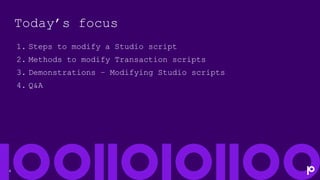
Today’s focus
1. Steps to modify a Studio script
2. Methods to modify Transaction scripts
3. Demonstrations – Modifying Studio scripts
4. Q&A
5
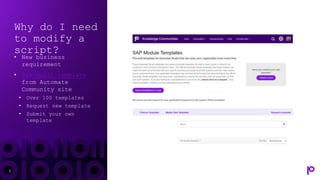
Why do I need
to modify a
script?
• New business
requirement
• Pre-built template
from Automate
Community site
• Over 100 templates
• Request new template
• Submit your own
template
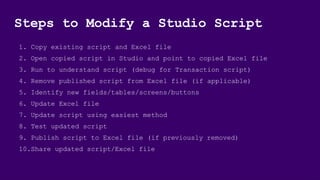
Steps to Modify a Studio Script
1. Copy existing script and Excel file
2. Open copied script in Studio and point to copied Excel file
3. Run to understand script (debug for Transaction script)
4. Remove published script from Excel file (if applicable)
5. Identify new fields/tables/screens/buttons
6. Update Excel file
7. Update script using easiest method
8. Test updated script
9. Publish script to Excel file (if previously removed)
10.Share updated script/Excel file
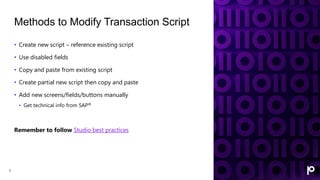
Methods to Modify Transaction Script
7
• Create new script – reference existing script
• Use disabled fields
• Copy and paste from existing script
• Create partial new script then copy and paste
• Add new screens/fields/buttons manually
• Get technical info from SAP®
Remember to follow Studio best practices
Demonstration
Update Transaction script – Disabled
fields
Demonstration
Update Transaction script - Copy and paste from
other script
Demonstration
Update Transaction script – Add
screens/fields/buttons manually
Demonstration
Update Query script
Demonstration
Update Direct script
Questions?
Let’s continue the conversation…
Contact us
Set up a 30-minute
personalized demo
+1-877-700-0970
“Get in touch” on
www.precisely.com
www.precisely.com
Demos
White Papers
Case Studies
Thank you
www.precisely.com

Automate Studio Training: How to Easily Modify Scripts

  • 1.
    Automate Studio Training: Howto Easily Modify Scripts October 2023 Maria Ebner, Sr. Sales Engineer
  • 2.
    Housekeeping Webinar Audio • Today’swebcast audio is streamed through your computer speakers • If you need technical assistance with the web interface or audio, please reach out to us using the Q&A box Questions Welcome • Submit your questions at any time during the presentation using the Q&A box. If we don't get to your question, we will follow-up via email Recording and slides • This webinar is being recorded. You will receive an email following the webinar with a link to the recording and slides 2
  • 3.
    Today’s speaker Maria Ebner SeniorSales Engineer Precisely
  • 4.
    4 Today’s focus 1. Stepsto modify a Studio script 2. Methods to modify Transaction scripts 3. Demonstrations – Modifying Studio scripts 4. Q&A
  • 5.
    5 Why do Ineed to modify a script? • New business requirement • Pre-built template from Automate Community site • Over 100 templates • Request new template • Submit your own template
  • 6.
    Steps to Modifya Studio Script 1. Copy existing script and Excel file 2. Open copied script in Studio and point to copied Excel file 3. Run to understand script (debug for Transaction script) 4. Remove published script from Excel file (if applicable) 5. Identify new fields/tables/screens/buttons 6. Update Excel file 7. Update script using easiest method 8. Test updated script 9. Publish script to Excel file (if previously removed) 10.Share updated script/Excel file
  • 7.
    Methods to ModifyTransaction Script 7 • Create new script – reference existing script • Use disabled fields • Copy and paste from existing script • Create partial new script then copy and paste • Add new screens/fields/buttons manually • Get technical info from SAP® Remember to follow Studio best practices
  • 8.
  • 9.
    Demonstration Update Transaction script- Copy and paste from other script
  • 10.
    Demonstration Update Transaction script– Add screens/fields/buttons manually
  • 11.
  • 12.
  • 13.
  • 14.
    Let’s continue theconversation… Contact us Set up a 30-minute personalized demo +1-877-700-0970 “Get in touch” on www.precisely.com www.precisely.com Demos White Papers Case Studies
  • 15.