LAWO Training – Abe Killian 2016
12
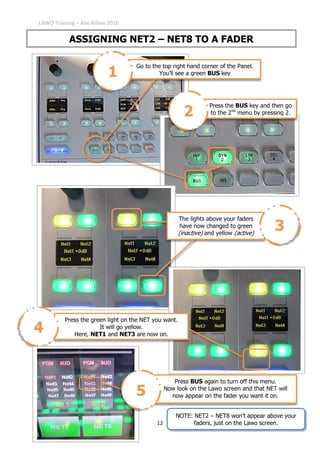
ASSIGNING NET2 – NET8 TO A FADER
Go to the top right hand corner of the Panel.
You’ll see a green BUS key1
Press the BUS key and then go
to the 2nd
menu by pressing 2.2
Press the green light on the NET you want.
It will go yellow.
Here, NET1 and NET3 are now on.
4
Press BUS again to turn off this menu.
Now look on the Lawo screen and that NET will
now appear on the fader you want it on.5
The lights above your faders
have now changed to green
(inactive) and yellow (active)
3
NOTE: NET2 – NET8 won’t appear above your
faders, just on the Lawo screen.

ASSIGNING NET2-NET8

  • 1.
    LAWO Training –Abe Killian 2016 12 ASSIGNING NET2 – NET8 TO A FADER Go to the top right hand corner of the Panel. You’ll see a green BUS key1 Press the BUS key and then go to the 2nd menu by pressing 2.2 Press the green light on the NET you want. It will go yellow. Here, NET1 and NET3 are now on. 4 Press BUS again to turn off this menu. Now look on the Lawo screen and that NET will now appear on the fader you want it on.5 The lights above your faders have now changed to green (inactive) and yellow (active) 3 NOTE: NET2 – NET8 won’t appear above your faders, just on the Lawo screen.