

Approval Process
Presenter name: Ilona Berlin
Title: Approval Process
Date:4/4/2017
Where?
Available in:
• Salesforce Classic
• Lightning Experience
Editions :
• Enterprise
• Performance
• Unlimited Developer
What?
• Salesforce approval process is an automated process that organizations can use to
approve record in Salesforce.
• Approval process is a combination of steps for the record to be approved and
where the user has to approve it each step.
• Specifies each step of approval.
• A step can apply to all records to that object or just a record that meets the
certain criteria.
• An approval process specifies the actions to take when a record is
approved/rejected/recalled/first submitted/
• It allows you specify a sequence of steps that are required to approve a record.
Process Definition
1. Initial Submission Actions: Is the first thing that happens when a
record is submitted for approval .
2. Approval Steps: Assign approval requests to various users and define
the chain of approval for a particular approval process.
3. Final Approval Actions: Occur after a record has received all
necessary approvals.
4. Final Rejection Actions: Occur when a record has been completely
rejected from the approval process.
5. Recall Actions: Occur when a submitted approval request is recalled.
Use Case
Job Candidates:
When your company interviews candidates for a position, you may have several
levels of approval before you can send an offer letter.
This example shows how to create a three-step approval process that requires
approval from multiple management levels.
How?
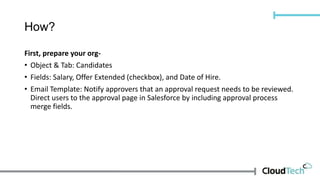
First, prepare your org-
• Object & Tab: Candidates
• Fields: Salary, Offer Extended (checkbox), and Date of Hire.
• Email Template: Notify approvers that an approval request needs to be reviewed.
Direct users to the approval page in Salesforce by including approval process
merge fields.
Create The Approval Process
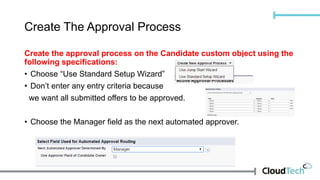
Create the approval process on the Candidate custom object using the
following specifications:
• Choose “Use Standard Setup Wizard”
• Don’t enter any entry criteria because
we want all submitted offers to be approved.
• Choose the Manager field as the next automated approver.
Create The Approval Process
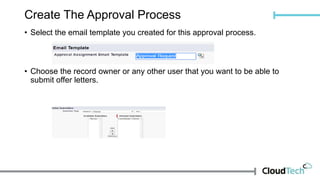
• Select the email template you created for this approval process.
• Choose the record owner or any other user that you want to be able to
submit offer letters.
Approval Steps
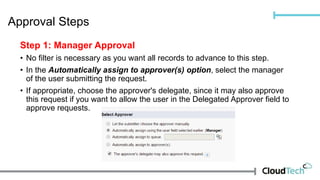
Step 1: Manager Approval
• No filter is necessary as you want all records to advance to this step.
• In the Automatically assign to approver(s) option, select the manager
of the user submitting the request.
• If appropriate, choose the approver's delegate, since it may also approve
this request if you want to allow the user in the Delegated Approver field to
approve requests.
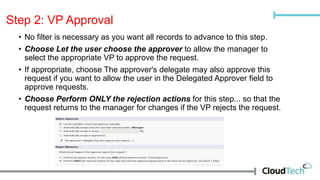
Step 2: VP Approval
• No filter is necessary as you want all records to advance to this step.
• Choose Let the user choose the approver to allow the manager to
select the appropriate VP to approve the request.
• If appropriate, choose The approver's delegate may also approve this
request if you want to allow the user in the Delegated Approver field to
approve requests.
• Choose Perform ONLY the rejection actions for this step... so that the
request returns to the manager for changes if the VP rejects the request.
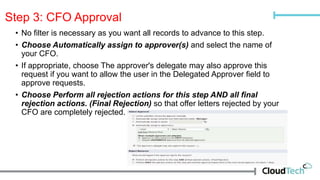
Step 3: CFO Approval
• No filter is necessary as you want all records to advance to this step.
• Choose Automatically assign to approver(s) and select the name of
your CFO.
• If appropriate, choose The approver's delegate may also approve this
request if you want to allow the user in the Delegated Approver field to
approve requests.
• Choose Perform all rejection actions for this step AND all final
rejection actions. (Final Rejection) so that offer letters rejected by your
CFO are completely rejected.
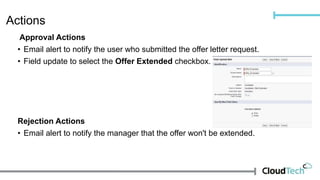
Actions
Approval Actions
• Email alert to notify the user who submitted the offer letter request.
• Field update to select the Offer Extended checkbox.
Rejection Actions
• Email alert to notify the manager that the offer won't be extended.
Questions??
Approval Process in Salesforce

Approval Process in Salesforce

  • 1.
    Approval Process Presenter name:Ilona Berlin Title: Approval Process Date:4/4/2017
  • 2.
    Where? Available in: • SalesforceClassic • Lightning Experience Editions : • Enterprise • Performance • Unlimited Developer
  • 3.
    What? • Salesforce approvalprocess is an automated process that organizations can use to approve record in Salesforce. • Approval process is a combination of steps for the record to be approved and where the user has to approve it each step. • Specifies each step of approval. • A step can apply to all records to that object or just a record that meets the certain criteria. • An approval process specifies the actions to take when a record is approved/rejected/recalled/first submitted/ • It allows you specify a sequence of steps that are required to approve a record.
  • 4.
    Process Definition 1. InitialSubmission Actions: Is the first thing that happens when a record is submitted for approval . 2. Approval Steps: Assign approval requests to various users and define the chain of approval for a particular approval process. 3. Final Approval Actions: Occur after a record has received all necessary approvals. 4. Final Rejection Actions: Occur when a record has been completely rejected from the approval process. 5. Recall Actions: Occur when a submitted approval request is recalled.
  • 5.
    Use Case Job Candidates: Whenyour company interviews candidates for a position, you may have several levels of approval before you can send an offer letter. This example shows how to create a three-step approval process that requires approval from multiple management levels.
  • 6.
    How? First, prepare yourorg- • Object & Tab: Candidates • Fields: Salary, Offer Extended (checkbox), and Date of Hire. • Email Template: Notify approvers that an approval request needs to be reviewed. Direct users to the approval page in Salesforce by including approval process merge fields.
  • 7.
    Create The ApprovalProcess Create the approval process on the Candidate custom object using the following specifications: • Choose “Use Standard Setup Wizard” • Don’t enter any entry criteria because we want all submitted offers to be approved. • Choose the Manager field as the next automated approver.
  • 8.
    Create The ApprovalProcess • Select the email template you created for this approval process. • Choose the record owner or any other user that you want to be able to submit offer letters.
  • 9.
    Approval Steps Step 1:Manager Approval • No filter is necessary as you want all records to advance to this step. • In the Automatically assign to approver(s) option, select the manager of the user submitting the request. • If appropriate, choose the approver's delegate, since it may also approve this request if you want to allow the user in the Delegated Approver field to approve requests.
  • 10.
    Step 2: VPApproval • No filter is necessary as you want all records to advance to this step. • Choose Let the user choose the approver to allow the manager to select the appropriate VP to approve the request. • If appropriate, choose The approver's delegate may also approve this request if you want to allow the user in the Delegated Approver field to approve requests. • Choose Perform ONLY the rejection actions for this step... so that the request returns to the manager for changes if the VP rejects the request.
  • 11.
    Step 3: CFOApproval • No filter is necessary as you want all records to advance to this step. • Choose Automatically assign to approver(s) and select the name of your CFO. • If appropriate, choose The approver's delegate may also approve this request if you want to allow the user in the Delegated Approver field to approve requests. • Choose Perform all rejection actions for this step AND all final rejection actions. (Final Rejection) so that offer letters rejected by your CFO are completely rejected.
  • 12.
    Actions Approval Actions • Emailalert to notify the user who submitted the offer letter request. • Field update to select the Offer Extended checkbox. Rejection Actions • Email alert to notify the manager that the offer won't be extended.
  • 13.