Mobile St Cloud Development with Flashbuilder Burrito, Flex Hero, and ActionScript
Hopefully what I show next, will get you excited about the rest of my presentation If it doesn’t, then I’m sorry I failed you   Can I get your attention?
It has a nice IDE based on eclipse Robust syntax error messaging Code Snippets Ability to have various levels of development between design and coding Debugging and Memory Profiling Many more features which help you create a stunning application Supports creating Flex Mobile, Flex Desktop, and Flex Library Projects There are more types of projects supported, but they will not be addressed in this presentation Why Flashbuilder Burrito?
Flashbuilder Burrito http://labs.adobe.com/technologies/flashbuilder_burrito/   (towards right) Adobe Air http://get.adobe.com/air/   Android Device(optional) To test it is always best to have the actual device, as most Windows computers do not, by default, support all the Android APIs such as CameraRoll, Camera, GeoLocation, Accelerometer Previous knowledge of programming, XML. Prior familiarity with actionscript or javascript will be quite useful. What do you need?
Download the prerequisites previously mentioned Creating a new project Types of projects Project Properties Creating a new library project Linking the two How do I start?
Settings Transparent Visible AutoOrients FullScreen Android Permissions [project]-app.xml - Permissions
Defining Android permissions Internet(android.permission.INTERNET) – added by default File Access Write (android.permission.WRITE_EXTERNAL_STORAGE)  Geo Location(android.permission.ACCESS_FINE_LOCATION) Accelerometer – don’t believe this requires permission [project]-app.xml - Permissions
Now that we’re ready to debug, lets set up a configuration Note you can select your device or desktop Success with attaching debugger to device…please let me know if  you have   Quick Debugging
<s:MobileApplication  Xml Namespaces Referencing custom controls via Namespace Xmlns:controls=“controls.*”, quite similar to an import statement In mobile applications this file defines your first entry point.  The attribute [splashScreen] defined an image which you would like to show while the application loads. The ApplicationMXML File
Defining your First View <s:Navigator firstView=“views.[your first view]” The firstView attribute will point towards the first actionable view that you would like to display. The Application MXML File(cont.)
ViewNavigator Controls what view is currently shown By default back button will move back one view If you popToFirstView you go to the first view popAll will remove all views except the first view pushView([view name], data, transition) TabbedViewNavigator –  (comes by default TabbedMobileApplication) Provides a tabbed view, with multiple ViewNavigators Navigation
<s:View  viewActivate=“[your start point]” currentState=“[state]” – defines states for creating animations, determining the state of your current view etc. Xmlnamespaces for defining what controls can be used in this view <fx:Script – an inline tag which allows you to code directly in the source of your mxml file Important Use viewActivate as it happens after transition Use viewDeactivate to remove event handlers (avoid memory leaks) Your first view
Methods for setting data for your view Prior to pushView After pushView Your first view (cont.)
<fx:Style – defines styles in a way similar to CSS .myControl{ paddingRight:15;} <s:Vgroup styleName=“myControl”/> Formats *|* - apply to all controls s|* - apply to all controls from namespace [s] s|Button – apply to button control from namespace [s] Styling
<fx:Style source=“[path to my css file]” Styling (cont.)
FlashBuilder Burrito includes a number of themes that you can use in your application by default You can also create custom skins which define a totally different view of a control If you create a skin it has optional and required parts to create the control Themes
s:VGroup – any control within will stack vertically s:HGroup – any control within will stack horizontally mx:Spacer – adds space between controls when they do not have paddingRight, paddingLeft, paddingTop, paddingBottom Organization of controls
Adding a databound List – A few ways <fx:ArrayCollection id=“myData”> <fx:Array> <fx:Object [attributes] – any property I need for the object </fx:Array> </fx:ArrayCollection> myList.dataProvider = myData; myList.dataProvider = new ArrayCollection([my array]); myList.dataProvider.addItem([some object]); List Controls
Using Layouts based on screen orientation and states Landscape Portrait List Controls(cont.)
Yes, I know the name is ridiculously long, but it is what it says. So I don’t want a stupid list, I want to jazz it up a bit, why not try a MobileIconItemRenderer Essentially what the MobileIconItemRenderer does is provides an optimized way to show a list item with an icon, label, and message Defining functions to get the various parts of an item Item Renderer and MobileIconItemRenderer
Using the “data” object, which just exists The data object holds the data for the specific item you are rendering. So if I have an object with the properties  img, title, and msg, I can use these to set up my functions Ex. Private function getLabel():String { return data.title;} Item Renderer and MobileIconItemRenderer (cont.)
Item renderers are not mobile optimized Except MobileIconItemRenderer Sometimes they are necessary to create the view in the list you would like. Item Renderer
Use CacheAsBitmap This will store the item as a bitmap which will cause the List to not re-render the control each time it comes into view useVirtualLayout  Stops images from having to reload Very handy when using remote images Otherwise will re-request the image each time Optimization
Make sure if you attach events, to clear them on the viewDeactivate event of the View If you do custom caching, make sure you manage it carefully Images from disk, be careful of size or you will crash your application Create thumbnails or use thumbnails instead, mobile phones still have limited processing and memory Optimization (cont.)
If you do load data inside of a view make sure that you set the “data” object to that value, and don’t call it repeatedly unless necessary Always use a splashScreen on the application tag, cause it gives you time to load data and then push it to the first view Optimization (cont.)
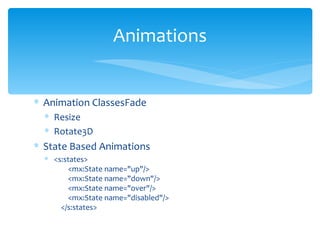
Animation ClassesFade Resize Rotate3D State Based Animations <s:states>         <mx:State name=&quot;up&quot;/>         <mx:State name=&quot;down&quot;/>         <mx:State name=&quot;over&quot;/>         <mx:State name=&quot;disabled&quot;/>     </s:states> Animations
Please give me any feedback you have on my presentation as I’m always looking to make my presentations better. Thanks for coming to our event, have a safe drive home. Questions?

Android Development with Flash Builder Burrito

  • 1.
    Mobile St CloudDevelopment with Flashbuilder Burrito, Flex Hero, and ActionScript
  • 2.
    Hopefully what Ishow next, will get you excited about the rest of my presentation If it doesn’t, then I’m sorry I failed you  Can I get your attention?
  • 3.
    It has anice IDE based on eclipse Robust syntax error messaging Code Snippets Ability to have various levels of development between design and coding Debugging and Memory Profiling Many more features which help you create a stunning application Supports creating Flex Mobile, Flex Desktop, and Flex Library Projects There are more types of projects supported, but they will not be addressed in this presentation Why Flashbuilder Burrito?
  • 4.
    Flashbuilder Burrito http://labs.adobe.com/technologies/flashbuilder_burrito/ (towards right) Adobe Air http://get.adobe.com/air/ Android Device(optional) To test it is always best to have the actual device, as most Windows computers do not, by default, support all the Android APIs such as CameraRoll, Camera, GeoLocation, Accelerometer Previous knowledge of programming, XML. Prior familiarity with actionscript or javascript will be quite useful. What do you need?
  • 5.
    Download the prerequisitespreviously mentioned Creating a new project Types of projects Project Properties Creating a new library project Linking the two How do I start?
  • 6.
    Settings Transparent VisibleAutoOrients FullScreen Android Permissions [project]-app.xml - Permissions
  • 7.
    Defining Android permissionsInternet(android.permission.INTERNET) – added by default File Access Write (android.permission.WRITE_EXTERNAL_STORAGE) Geo Location(android.permission.ACCESS_FINE_LOCATION) Accelerometer – don’t believe this requires permission [project]-app.xml - Permissions
  • 8.
    Now that we’reready to debug, lets set up a configuration Note you can select your device or desktop Success with attaching debugger to device…please let me know if you have  Quick Debugging
  • 9.
    <s:MobileApplication XmlNamespaces Referencing custom controls via Namespace Xmlns:controls=“controls.*”, quite similar to an import statement In mobile applications this file defines your first entry point. The attribute [splashScreen] defined an image which you would like to show while the application loads. The ApplicationMXML File
  • 10.
    Defining your FirstView <s:Navigator firstView=“views.[your first view]” The firstView attribute will point towards the first actionable view that you would like to display. The Application MXML File(cont.)
  • 11.
    ViewNavigator Controls whatview is currently shown By default back button will move back one view If you popToFirstView you go to the first view popAll will remove all views except the first view pushView([view name], data, transition) TabbedViewNavigator – (comes by default TabbedMobileApplication) Provides a tabbed view, with multiple ViewNavigators Navigation
  • 12.
    <s:View viewActivate=“[yourstart point]” currentState=“[state]” – defines states for creating animations, determining the state of your current view etc. Xmlnamespaces for defining what controls can be used in this view <fx:Script – an inline tag which allows you to code directly in the source of your mxml file Important Use viewActivate as it happens after transition Use viewDeactivate to remove event handlers (avoid memory leaks) Your first view
  • 13.
    Methods for settingdata for your view Prior to pushView After pushView Your first view (cont.)
  • 14.
    <fx:Style – definesstyles in a way similar to CSS .myControl{ paddingRight:15;} <s:Vgroup styleName=“myControl”/> Formats *|* - apply to all controls s|* - apply to all controls from namespace [s] s|Button – apply to button control from namespace [s] Styling
  • 15.
    <fx:Style source=“[path tomy css file]” Styling (cont.)
  • 16.
    FlashBuilder Burrito includesa number of themes that you can use in your application by default You can also create custom skins which define a totally different view of a control If you create a skin it has optional and required parts to create the control Themes
  • 17.
    s:VGroup – anycontrol within will stack vertically s:HGroup – any control within will stack horizontally mx:Spacer – adds space between controls when they do not have paddingRight, paddingLeft, paddingTop, paddingBottom Organization of controls
  • 18.
    Adding a databoundList – A few ways <fx:ArrayCollection id=“myData”> <fx:Array> <fx:Object [attributes] – any property I need for the object </fx:Array> </fx:ArrayCollection> myList.dataProvider = myData; myList.dataProvider = new ArrayCollection([my array]); myList.dataProvider.addItem([some object]); List Controls
  • 19.
    Using Layouts basedon screen orientation and states Landscape Portrait List Controls(cont.)
  • 20.
    Yes, I knowthe name is ridiculously long, but it is what it says. So I don’t want a stupid list, I want to jazz it up a bit, why not try a MobileIconItemRenderer Essentially what the MobileIconItemRenderer does is provides an optimized way to show a list item with an icon, label, and message Defining functions to get the various parts of an item Item Renderer and MobileIconItemRenderer
  • 21.
    Using the “data”object, which just exists The data object holds the data for the specific item you are rendering. So if I have an object with the properties img, title, and msg, I can use these to set up my functions Ex. Private function getLabel():String { return data.title;} Item Renderer and MobileIconItemRenderer (cont.)
  • 22.
    Item renderers arenot mobile optimized Except MobileIconItemRenderer Sometimes they are necessary to create the view in the list you would like. Item Renderer
  • 23.
    Use CacheAsBitmap Thiswill store the item as a bitmap which will cause the List to not re-render the control each time it comes into view useVirtualLayout Stops images from having to reload Very handy when using remote images Otherwise will re-request the image each time Optimization
  • 24.
    Make sure ifyou attach events, to clear them on the viewDeactivate event of the View If you do custom caching, make sure you manage it carefully Images from disk, be careful of size or you will crash your application Create thumbnails or use thumbnails instead, mobile phones still have limited processing and memory Optimization (cont.)
  • 25.
    If you doload data inside of a view make sure that you set the “data” object to that value, and don’t call it repeatedly unless necessary Always use a splashScreen on the application tag, cause it gives you time to load data and then push it to the first view Optimization (cont.)
  • 26.
    Animation ClassesFade ResizeRotate3D State Based Animations <s:states>         <mx:State name=&quot;up&quot;/>         <mx:State name=&quot;down&quot;/>         <mx:State name=&quot;over&quot;/>         <mx:State name=&quot;disabled&quot;/>     </s:states> Animations
  • 27.
    Please give meany feedback you have on my presentation as I’m always looking to make my presentations better. Thanks for coming to our event, have a safe drive home. Questions?