Seller Support Ticket
By completing this tutorial, you will be able to:
• Explain the features of seller support ticket
• Create a seller support ticket
• View, manage and respond to support ticket
Learning Objectives
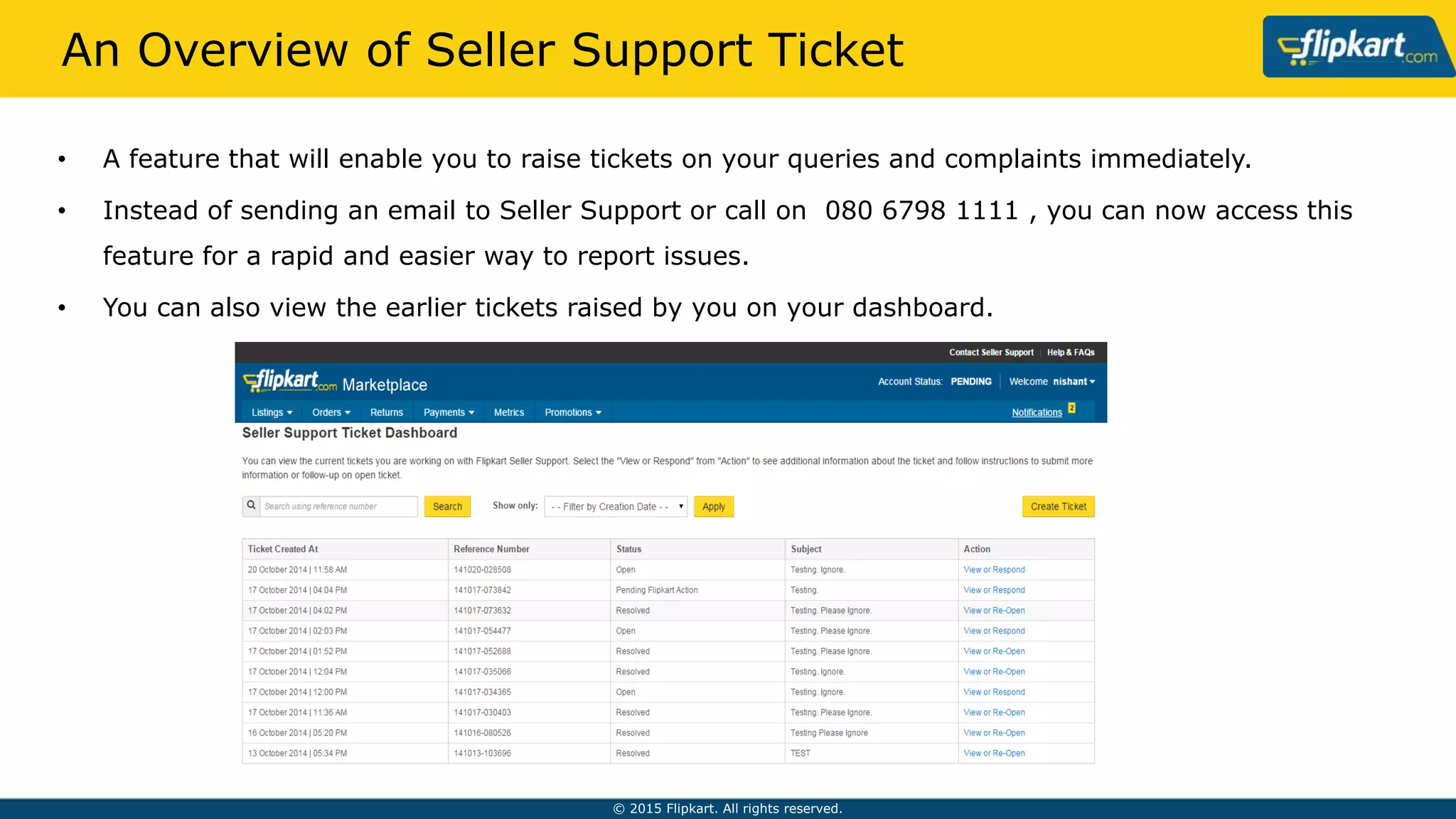
• A feature that will enable you to raise tickets on your queries and complaints immediately.
• Instead of sending an email to Seller Support or call on 080 6798 1111 , you can now access this feature for a
rapid and easier way to report issues.
• You can also view the earlier tickets raised by you on your dashboard.
Overview of Seller Support Ticket
How to Use this Feature
Click on “Contact Seller Support” on upper-
right hand corner to use this feature.
How to Use this Feature
Search any previous ticket by
entering Ticket Reference
Number in the search bar.
You can also filter tickets
based on creation date.
Raise a new ticket by clicking on
“Create Ticket” button on upper-
right hand corner.
Filling a Ticket – Step 1
Your Primary e-mail
Your Contact Number
Note: The mandatory fields to be filled are indicated with an asterisk mark (*). They
include Issue Type, Subject and Issue Description
Creating Support Ticket – Step 2
• Select the issue type from the dropdown list.
• Issue Description will include a brief about the issue and shouldn’t exceed 4000
characters.
Creating Ticket for SPF claim
It is mandatory to fill out these
fields
It is also mandatory to attach the image of
the product while creating ticket for SPF
claim
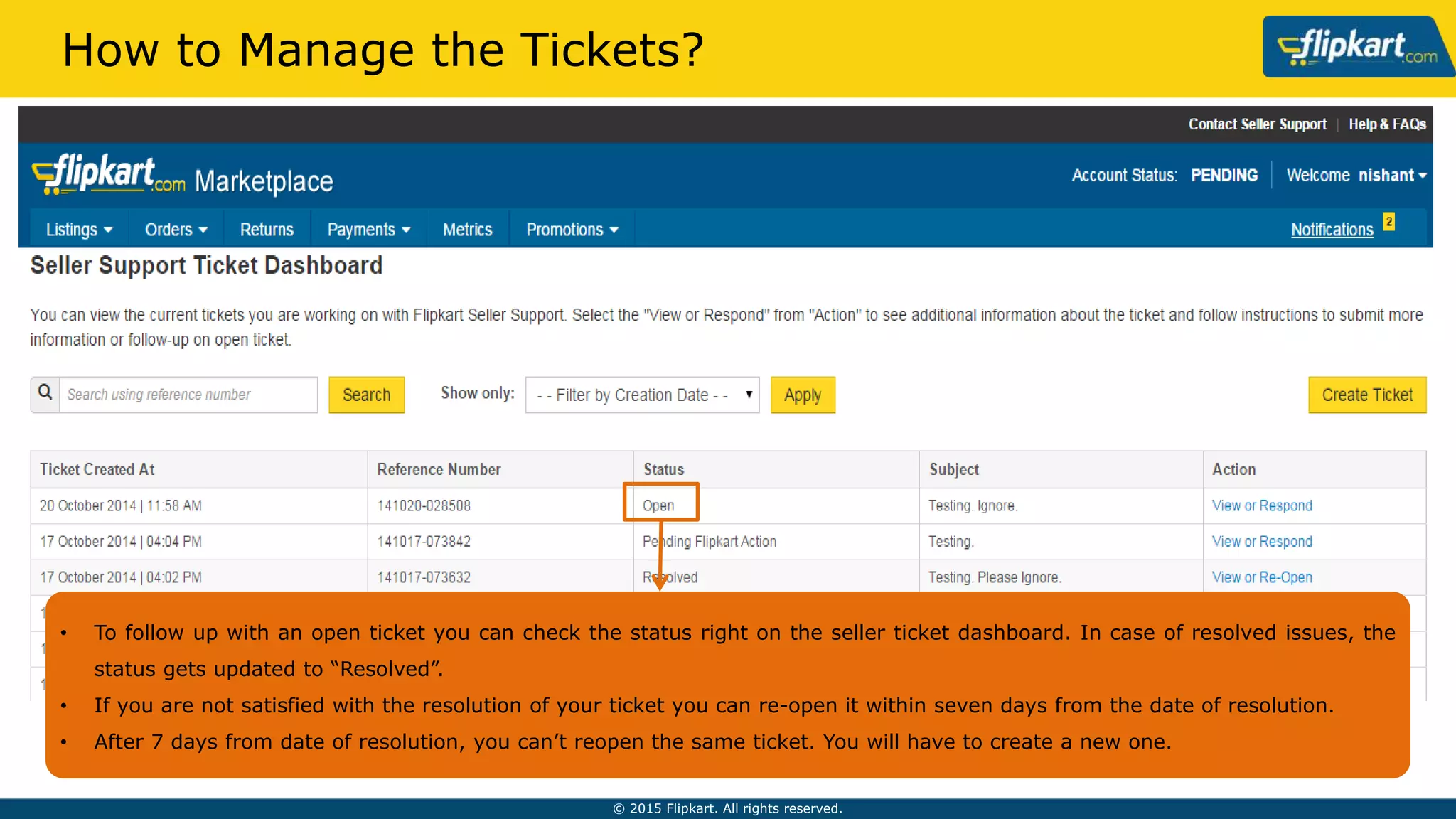
• To follow up with an open ticket you can check the status right on the seller ticket dashboard. In case of resolved issues, the status
gets updated to “Resolved”.
• If you are not satisfied with the resolution of your ticket you can re-open it within seven days from the date of resolution.
• After 7 days from date of resolution, you can’t reopen the same ticket. You will have to create a new one.
How to Manage the Tickets?
You can view any ticket by clicking on “View or Respond”
action tab given on the Seller Support Ticket Dashboard.
How to View a Ticket?
• Reply directly from the ticket window. Once you click on “Reply”
button, a new window will appear with certain fields.
• You can also view earlier communication on the same.
How to Respond?
• You can provide your immediate reply with necessary details in the given space.
• To support your issue, you can attach Documents as well.
• Click on “Submit”after filling in the details.
What are the Fields of Reply?
How do I contact SellerSupport?
Click on ‘Contact Seller Support’, which will appear at the upper-righthand corner of the Seller Support
Dashboard or call on 080 6798 1111 between 9 am and 9 pm.
What are the mandatoryfields to be filled in theSellerSupportself-serve page?
Issue Type, Subject and Issue Description are the mandatoryfields to be filled and are indicated with an asterisk (*)
mark. In case you choose Seller Protection Fund from the drop-down list, it is mandatoryto fill order ID and order
item ID fields and to upload an image as an attachment.
What are the differentissue types?
There are options in the drop-down list for issues pertaining to Seller Registration,Seller Account Settings,
Listing & Catalog, Promotions,Orders & Delivery,Returns, Seller Performance,Payments & Settlements, Flipkart
Advantage,Seller Protection Fund and Others. You may choose the category that best suits your issue from the
drop-down list.
FAQs
Whyis my mobile numbernecessaryon the page?
In case we are unable to resolve your issue via email, we shall call you on your mobile.
What are the supportedformatsof files thatI can upload alongwithmy query?
The following types of formats can be uploaded along with your query: *.doc, *.docx, *.csv, *.xls, *.xlsx, *.pdf, *jpeg,
*.png, *.bmp
On theSellerSupportTicketdashboard, how do I view my currenttickets?
Click on the ‘View or respond’ link under the ‘Action’ category to see additional informationabout your ticket.
How do I act on an open ticket?
Click on the ‘View or respond’ link under the ‘Action’ category to see additional informationabout your ticket.
Follow instructions to submit more informationor follow up with an open ticket.
When can I re-opena ticket?
If you are not satisfied with the way your ticket has been resolved,you can re-open it within seven days of the
date of resolution.
FAQs
What do I do if I wantto re-opena ticketafter sevendays?
You cannot re-open the same ticket after seven days. You will need to create a new ticket.
How do I searchfor a ticket?
You can search for tickets by entering the Ticket Reference Number in the Search bar that appears at the top of
the listed tickets.
How can I filtermy tickets?
You can filter by Creation Date of the ticket or by Statuses.
What is the expected turnaroundtime(TAT) for resolutionof my ticket?
For EKL related issues: 24-48 hours
For all other issues: 3-5 days
For SPF issues: 12 days
FAQs
Congratulations! You have completed the tutorial ‘Seller Support Ticket’.
Now you will be able to:
• Explain the features of seller support ticket
• Create a seller support ticket
• View, manage and respond to support ticket
Summary
Thank You

An introduction to Seller Support Ticket Dashboard

  • 1.
  • 2.
    By completing thistutorial, you will be able to: • Explain the features of seller support ticket • Create a seller support ticket • View, manage and respond to support ticket Learning Objectives
  • 3.
    • A featurethat will enable you to raise tickets on your queries and complaints immediately. • Instead of sending an email to Seller Support or call on 080 6798 1111 , you can now access this feature for a rapid and easier way to report issues. • You can also view the earlier tickets raised by you on your dashboard. Overview of Seller Support Ticket
  • 4.
    How to Usethis Feature Click on “Contact Seller Support” on upper- right hand corner to use this feature.
  • 5.
    How to Usethis Feature Search any previous ticket by entering Ticket Reference Number in the search bar. You can also filter tickets based on creation date. Raise a new ticket by clicking on “Create Ticket” button on upper- right hand corner.
  • 6.
    Filling a Ticket– Step 1 Your Primary e-mail Your Contact Number Note: The mandatory fields to be filled are indicated with an asterisk mark (*). They include Issue Type, Subject and Issue Description
  • 7.
    Creating Support Ticket– Step 2 • Select the issue type from the dropdown list. • Issue Description will include a brief about the issue and shouldn’t exceed 4000 characters.
  • 8.
    Creating Ticket forSPF claim It is mandatory to fill out these fields It is also mandatory to attach the image of the product while creating ticket for SPF claim
  • 9.
    • To followup with an open ticket you can check the status right on the seller ticket dashboard. In case of resolved issues, the status gets updated to “Resolved”. • If you are not satisfied with the resolution of your ticket you can re-open it within seven days from the date of resolution. • After 7 days from date of resolution, you can’t reopen the same ticket. You will have to create a new one. How to Manage the Tickets?
  • 10.
    You can viewany ticket by clicking on “View or Respond” action tab given on the Seller Support Ticket Dashboard. How to View a Ticket?
  • 11.
    • Reply directlyfrom the ticket window. Once you click on “Reply” button, a new window will appear with certain fields. • You can also view earlier communication on the same. How to Respond?
  • 12.
    • You canprovide your immediate reply with necessary details in the given space. • To support your issue, you can attach Documents as well. • Click on “Submit”after filling in the details. What are the Fields of Reply?
  • 13.
    How do Icontact SellerSupport? Click on ‘Contact Seller Support’, which will appear at the upper-righthand corner of the Seller Support Dashboard or call on 080 6798 1111 between 9 am and 9 pm. What are the mandatoryfields to be filled in theSellerSupportself-serve page? Issue Type, Subject and Issue Description are the mandatoryfields to be filled and are indicated with an asterisk (*) mark. In case you choose Seller Protection Fund from the drop-down list, it is mandatoryto fill order ID and order item ID fields and to upload an image as an attachment. What are the differentissue types? There are options in the drop-down list for issues pertaining to Seller Registration,Seller Account Settings, Listing & Catalog, Promotions,Orders & Delivery,Returns, Seller Performance,Payments & Settlements, Flipkart Advantage,Seller Protection Fund and Others. You may choose the category that best suits your issue from the drop-down list. FAQs
  • 14.
    Whyis my mobilenumbernecessaryon the page? In case we are unable to resolve your issue via email, we shall call you on your mobile. What are the supportedformatsof files thatI can upload alongwithmy query? The following types of formats can be uploaded along with your query: *.doc, *.docx, *.csv, *.xls, *.xlsx, *.pdf, *jpeg, *.png, *.bmp On theSellerSupportTicketdashboard, how do I view my currenttickets? Click on the ‘View or respond’ link under the ‘Action’ category to see additional informationabout your ticket. How do I act on an open ticket? Click on the ‘View or respond’ link under the ‘Action’ category to see additional informationabout your ticket. Follow instructions to submit more informationor follow up with an open ticket. When can I re-opena ticket? If you are not satisfied with the way your ticket has been resolved,you can re-open it within seven days of the date of resolution. FAQs
  • 15.
    What do Ido if I wantto re-opena ticketafter sevendays? You cannot re-open the same ticket after seven days. You will need to create a new ticket. How do I searchfor a ticket? You can search for tickets by entering the Ticket Reference Number in the Search bar that appears at the top of the listed tickets. How can I filtermy tickets? You can filter by Creation Date of the ticket or by Statuses. What is the expected turnaroundtime(TAT) for resolutionof my ticket? For EKL related issues: 24-48 hours For all other issues: 3-5 days For SPF issues: 12 days FAQs
  • 16.
    Congratulations! You havecompleted the tutorial ‘Seller Support Ticket’. Now you will be able to: • Explain the features of seller support ticket • Create a seller support ticket • View, manage and respond to support ticket Summary
  • 17.