ADDING A
CUSTOM TAB TO
YOUR FACEBOOK
PAGE
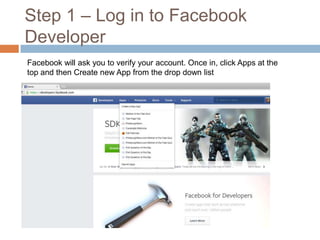
Step 1 – Log in to Facebook
Developer
Facebook will ask you to verify your account. Once in, click Apps at the
top and then Create new App from the drop down list
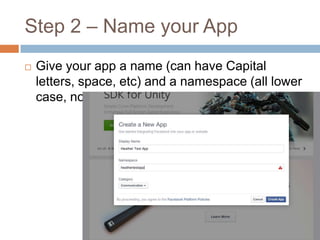
Step 2 – Name your App


Give your app a name (can have Capital
letters, space, etc) and a namespace (all lower
case, no spaces)
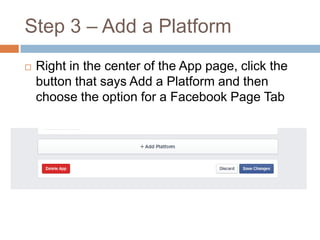
Step 3 – Add a Platform


Right in the center of the App page, click the
button that says Add a Platform and then
choose the option for a Facebook Page Tab
Step 4 - Customize Your App


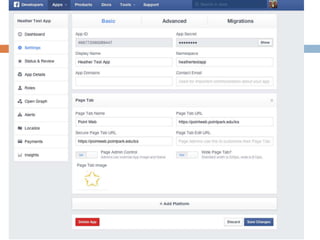
Add a domain address your app will link users
to
(I’m using https://pointweb.pointpark.edu/ics)





Add an HTTPS domain your users will go to
(required) (I’m using the same address as above)
Add a photo for the app. Must be 111w x 74h
(there’s a star photo on the Facebook Multimedia page you can use or your can
create your own)



Click Save Changes
Step 5– Install your App on a
Page


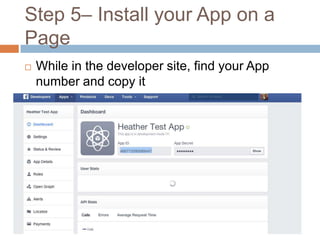
While in the developer site, find your App
number and copy it
Go to app website









Go to the following link and replace two things
http://www.facebook.com/dialog/pagetab?app_
id=YOUR_APP_ID&next=YOUR_URL
Replace YOUR APP ID with your App ID
number you copied
Replace YOUR URL with the URL (the https)
that you typed in the App customize step
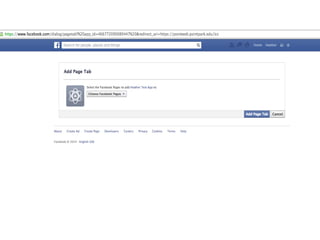
This should bring up a screen that looks like
the next slide
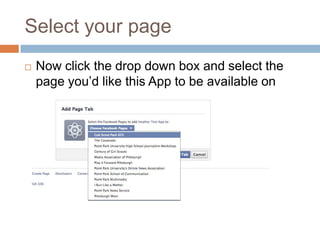
Select your page


Now click the drop down box and select the
page you’d like this App to be available on
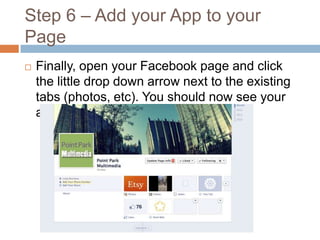
Step 6 – Add your App to your
Page


Finally, open your Facebook page and click
the little drop down arrow next to the existing
tabs (photos, etc). You should now see your
app there!

Adding a custom page tab to your facebook

  • 1.
    ADDING A CUSTOM TABTO YOUR FACEBOOK PAGE
  • 2.
    Step 1 –Log in to Facebook Developer Facebook will ask you to verify your account. Once in, click Apps at the top and then Create new App from the drop down list
  • 3.
    Step 2 –Name your App  Give your app a name (can have Capital letters, space, etc) and a namespace (all lower case, no spaces)
  • 4.
    Step 3 –Add a Platform  Right in the center of the App page, click the button that says Add a Platform and then choose the option for a Facebook Page Tab
  • 5.
    Step 4 -Customize Your App  Add a domain address your app will link users to (I’m using https://pointweb.pointpark.edu/ics)   Add an HTTPS domain your users will go to (required) (I’m using the same address as above) Add a photo for the app. Must be 111w x 74h (there’s a star photo on the Facebook Multimedia page you can use or your can create your own)  Click Save Changes
  • 7.
    Step 5– Installyour App on a Page  While in the developer site, find your App number and copy it
  • 8.
    Go to appwebsite      Go to the following link and replace two things http://www.facebook.com/dialog/pagetab?app_ id=YOUR_APP_ID&next=YOUR_URL Replace YOUR APP ID with your App ID number you copied Replace YOUR URL with the URL (the https) that you typed in the App customize step This should bring up a screen that looks like the next slide
  • 10.
    Select your page  Nowclick the drop down box and select the page you’d like this App to be available on
  • 11.
    Step 6 –Add your App to your Page  Finally, open your Facebook page and click the little drop down arrow next to the existing tabs (photos, etc). You should now see your app there!