2
 Activity & Layout
 Anuchit Chalothorn
 anoochit@gmail.com

Licensed under a Creative Commons Attribution-NonCommercial-ShareAlike 3.0 Unported License.
Quote
 การทําอะไรให ้ถึงขันเทพนัน ไม่เคยง่าย มีแต่ความมุงมัน อดทน
                                                     ่
               อย่างยาวนานเท่านัน ทีจะทําให ้บรรลุได ้
       วิถแห่งเทพนันย่อมเต็มไปด ้วยความยากลําบากเสมอ
          ี
             อันเทพแห่งศาสตร์ใด เริมต ้นต ้องมีความรัก
อย่างงมงายในศาสตร์นัน มีความพากเพียรในการศึกษาจนแตกฉาน
                        ฝึ กหัดอย่างอดทน
    หมันพิจารณาแก ้ไขให ้ศาสตร์แห่งตนย่างเข ้าสูความสมบูรณ์
                                                 ่
 อัจฉริยภาพแค่ชวยลดเวลาแห่งความยากลําบากให ้สันลงเท่านัน
                   ่
แต่หากปราศจากความมุงมันแล ้ว ต่อให ้มีอจฉริยภาพสักเพียงไหน
                        ่                  ั
            ย่อมไม่สามารถถึงซึงความเป็ นเลิศนันได ้เลย

                                  -- ภุชงค์ อุทโยภาศ
Activity
An activity represents the visual representation
of an Android application. activities use views, i.
e. user interface widgets as for example
buttons to create the user interface and to
interact with the user. An Android application
can have several activities.
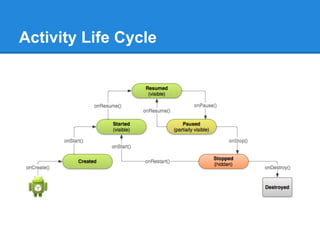
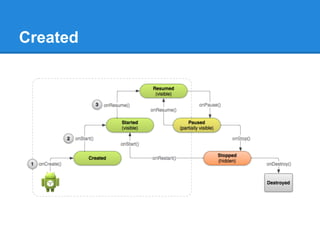
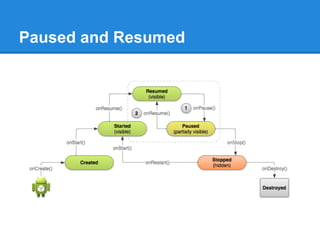
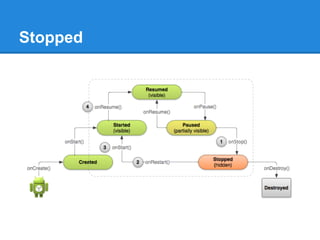
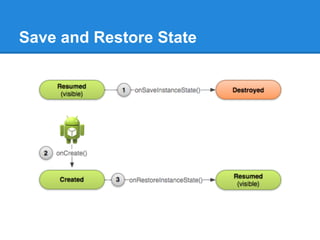
Activity Life Cycle
Created
Paused and Resumed
Stopped
Save and Restore State
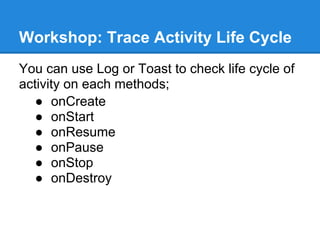
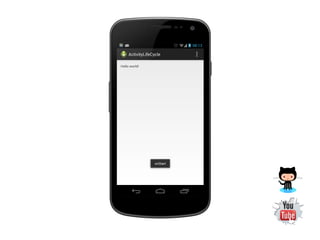
Workshop: Trace Activity Life Cycle
You can use Log or Toast to check life cycle of
activity on each methods;
   ● onCreate
   ● onStart
   ● onResume
   ● onPause
   ● onStop
   ● onDestroy
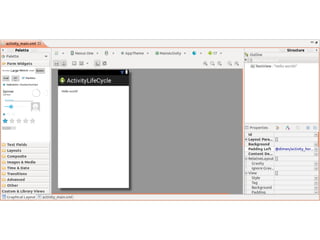
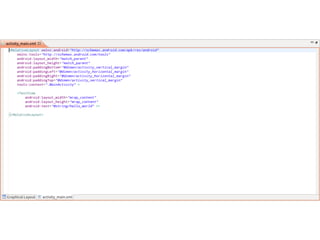
Activity Layout
The user interface for Activities is typically
defined via XML files (layout files).
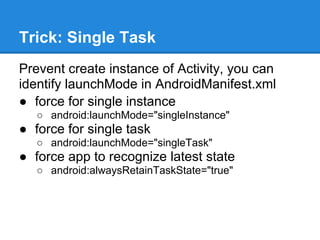
Trick: Single Task
Prevent create instance of Activity, you can
identify launchMode in AndroidManifest.xml
● force for single instance
   ○ android:launchMode="singleInstance"
● force for single task
   ○ android:launchMode="singleTask"
● force app to recognize latest state
   ○ android:alwaysRetainTaskState="true"
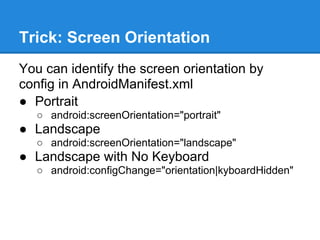
Trick: Screen Orientation
You can identify the screen orientation by
config in AndroidManifest.xml
● Portrait
   ○ android:screenOrientation="portrait"
● Landscape
   ○ android:screenOrientation="landscape"
● Landscape with No Keyboard
   ○ android:configChange="orientation|kyboardHidden"
Multiple Activities
Single App has at least 1 Activity, complex app
has multiple activity. You can call to another
activity using Intent.
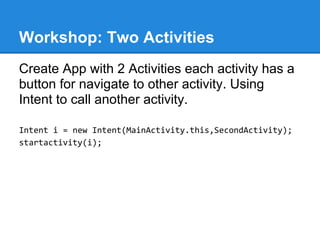
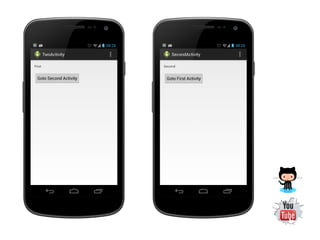
Workshop: Two Activities
Create App with 2 Activities each activity has a
button for navigate to other activity. Using
Intent to call another activity.

Intent i = new Intent(MainActivity.this,SecondActivity);
startactivity(i);
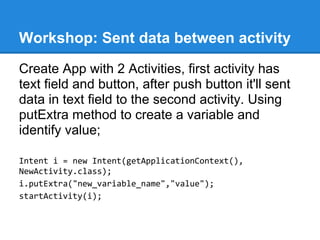
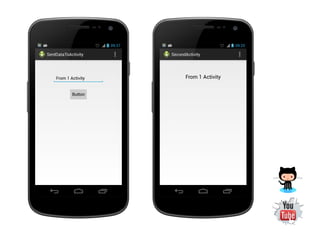
Workshop: Sent data between activity
Create App with 2 Activities, first activity has
text field and button, after push button it'll sent
data in text field to the second activity. Using
putExtra method to create a variable and
identify value;

Intent i = new Intent(getApplicationContext(),
NewActivity.class);
i.putExtra("new_variable_name","value");
startActivity(i);
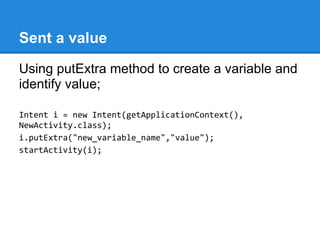
Sent a value
Using putExtra method to create a variable and
identify value;

Intent i = new Intent(getApplicationContext(),
NewActivity.class);
i.putExtra("new_variable_name","value");
startActivity(i);
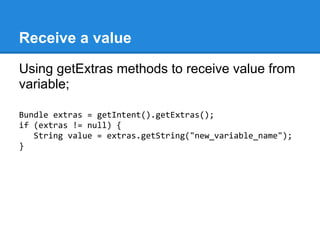
Receive a value
Using getExtras methods to receive value from
variable;

Bundle extras = getIntent().getExtras();
if (extras != null) {
   String value = extras.getString("new_variable_name");
}
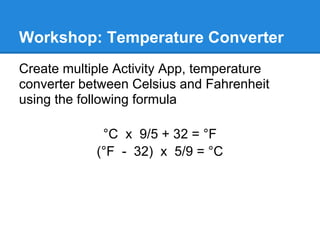
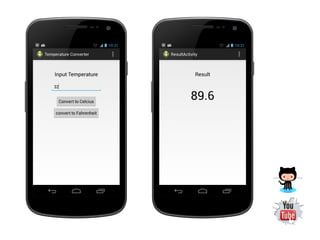
Workshop: Temperature Converter
Create multiple Activity App, temperature
converter between Celsius and Fahrenheit
using the following formula

             °C x 9/5 + 32 = °F
            (°F - 32) x 5/9 = °C
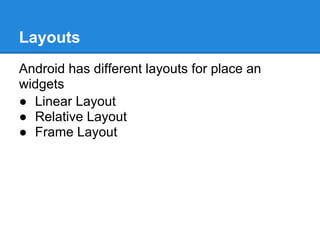
Layouts
Android has different layouts for place an
widgets
● Linear Layout
● Relative Layout
● Frame Layout
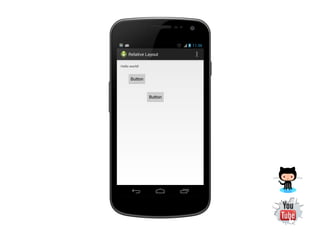
Workshop: App with Relative Layout
Create single Activity App with Label and
Button using Relative Layout and see how
relative layout work.
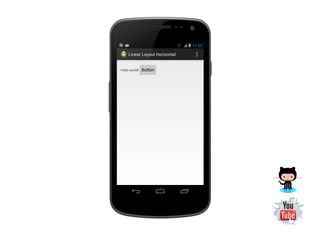
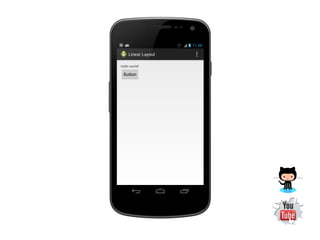
Workshop: App with Linear Layout
Create single Activity App with Label and
Button using Linear Layout and see how the
linear layout work.
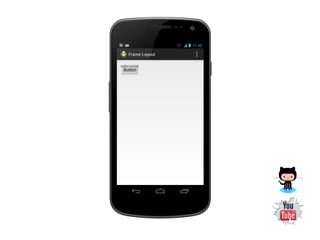
Workshop: App with Frame Layout
Create single Activity App with Label and
Button using Frame Layout and see how the
frame layout work.
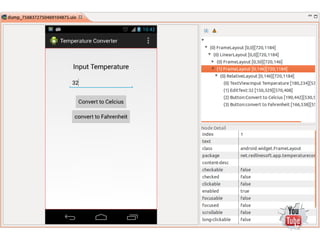
Trick: Dump Layout
You can use DDMS tool to dump screen to see
the layout design and properties
End

Android App Development 02 : Activity & Layout

  • 1.
    2 Activity &Layout Anuchit Chalothorn anoochit@gmail.com Licensed under a Creative Commons Attribution-NonCommercial-ShareAlike 3.0 Unported License.
  • 2.
    Quote การทําอะไรให ้ถึงขันเทพนันไม่เคยง่าย มีแต่ความมุงมัน อดทน ่ อย่างยาวนานเท่านัน ทีจะทําให ้บรรลุได ้ วิถแห่งเทพนันย่อมเต็มไปด ้วยความยากลําบากเสมอ ี อันเทพแห่งศาสตร์ใด เริมต ้นต ้องมีความรัก อย่างงมงายในศาสตร์นัน มีความพากเพียรในการศึกษาจนแตกฉาน ฝึ กหัดอย่างอดทน หมันพิจารณาแก ้ไขให ้ศาสตร์แห่งตนย่างเข ้าสูความสมบูรณ์ ่ อัจฉริยภาพแค่ชวยลดเวลาแห่งความยากลําบากให ้สันลงเท่านัน ่ แต่หากปราศจากความมุงมันแล ้ว ต่อให ้มีอจฉริยภาพสักเพียงไหน ่ ั ย่อมไม่สามารถถึงซึงความเป็ นเลิศนันได ้เลย -- ภุชงค์ อุทโยภาศ
  • 3.
    Activity An activity representsthe visual representation of an Android application. activities use views, i. e. user interface widgets as for example buttons to create the user interface and to interact with the user. An Android application can have several activities.
  • 4.
  • 5.
  • 6.
  • 7.
  • 8.
  • 9.
    Workshop: Trace ActivityLife Cycle You can use Log or Toast to check life cycle of activity on each methods; ● onCreate ● onStart ● onResume ● onPause ● onStop ● onDestroy
  • 11.
    Activity Layout The userinterface for Activities is typically defined via XML files (layout files).
  • 14.
    Trick: Single Task Preventcreate instance of Activity, you can identify launchMode in AndroidManifest.xml ● force for single instance ○ android:launchMode="singleInstance" ● force for single task ○ android:launchMode="singleTask" ● force app to recognize latest state ○ android:alwaysRetainTaskState="true"
  • 15.
    Trick: Screen Orientation Youcan identify the screen orientation by config in AndroidManifest.xml ● Portrait ○ android:screenOrientation="portrait" ● Landscape ○ android:screenOrientation="landscape" ● Landscape with No Keyboard ○ android:configChange="orientation|kyboardHidden"
  • 16.
    Multiple Activities Single Apphas at least 1 Activity, complex app has multiple activity. You can call to another activity using Intent.
  • 17.
    Workshop: Two Activities CreateApp with 2 Activities each activity has a button for navigate to other activity. Using Intent to call another activity. Intent i = new Intent(MainActivity.this,SecondActivity); startactivity(i);
  • 19.
    Workshop: Sent databetween activity Create App with 2 Activities, first activity has text field and button, after push button it'll sent data in text field to the second activity. Using putExtra method to create a variable and identify value; Intent i = new Intent(getApplicationContext(), NewActivity.class); i.putExtra("new_variable_name","value"); startActivity(i);
  • 20.
    Sent a value UsingputExtra method to create a variable and identify value; Intent i = new Intent(getApplicationContext(), NewActivity.class); i.putExtra("new_variable_name","value"); startActivity(i);
  • 21.
    Receive a value UsinggetExtras methods to receive value from variable; Bundle extras = getIntent().getExtras(); if (extras != null) { String value = extras.getString("new_variable_name"); }
  • 23.
    Workshop: Temperature Converter Createmultiple Activity App, temperature converter between Celsius and Fahrenheit using the following formula °C x 9/5 + 32 = °F (°F - 32) x 5/9 = °C
  • 25.
    Layouts Android has differentlayouts for place an widgets ● Linear Layout ● Relative Layout ● Frame Layout
  • 26.
    Workshop: App withRelative Layout Create single Activity App with Label and Button using Relative Layout and see how relative layout work.
  • 28.
    Workshop: App withLinear Layout Create single Activity App with Label and Button using Linear Layout and see how the linear layout work.
  • 31.
    Workshop: App withFrame Layout Create single Activity App with Label and Button using Frame Layout and see how the frame layout work.
  • 33.
    Trick: Dump Layout Youcan use DDMS tool to dump screen to see the layout design and properties
  • 35.