Act-on / SugarCRM Integration: 
1. Integration of SugarCRM with Act-on: 
Step 1: First Sign-In on Act-on using the credential. 
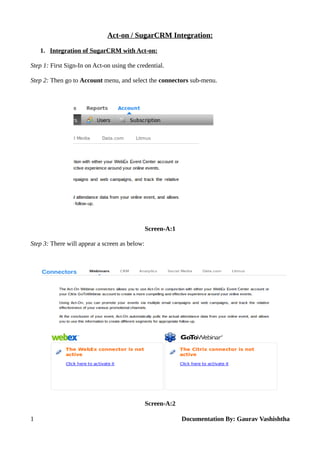
Step 2: Then go to Account menu, and select the connectors sub-menu. 
Screen-A:1 
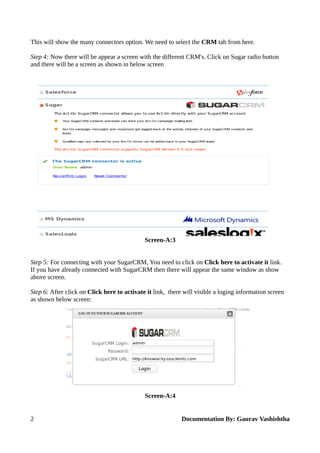
Step 3: There will appear a screen as below: 
Screen-A:2 
1 Documentation By: Gaurav Vashishtha
This will show the many connectors option. We need to select the CRM tab from here. 
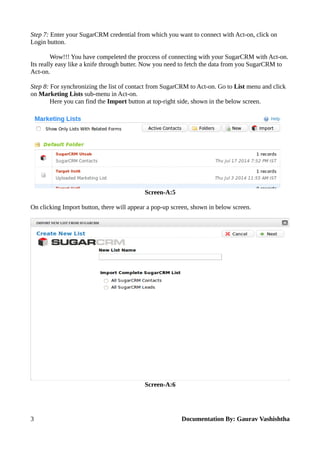
Step 4: Now there will be appear a screen with the different CRM's. Click on Sugar radio button 
and there will be a screen as shown in below screen 
Screen-A:3 
Step 5: For connecting with your SugarCRM, You need to click on Click here to activate it link. 
If you have already connected with SugarCRM then there will appear the same window as show 
above screen. 
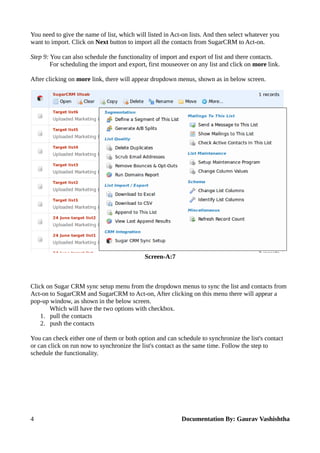
Step 6: After click on Click here to activate it link, there will visible a loging information screen 
as shown below screen: 
Screen-A:4 
2 Documentation By: Gaurav Vashishtha
Step 7: Enter your SugarCRM credential from which you want to connect with Act-on, click on 
Login button. 
Wow!!! You have compeleted the proccess of connecting with your SugarCRM with Act-on. 
Its really easy like a knife through butter. Now you need to fetch the data from you SugarCRM to 
Act-on. 
Step 8: For synchronizing the list of contact from SugarCRM to Act-on. Go to List menu and click 
on Marketing Lists sub-menu in Act-on. 
Here you can find the Import button at top-right side, shown in the below screen. 
Screen-A:5 
On clicking Import button, there will appear a pop-up screen, shown in below screen. 
Screen-A:6 
3 Documentation By: Gaurav Vashishtha
You need to give the name of list, which will listed in Act-on lists. And then select whatever you 
want to import. Click on Next button to import all the contacts from SugarCRM to Act-on. 
Step 9: You can also schedule the functionality of import and export of list and there contacts. 
For scheduling the import and export, first mouseover on any list and click on more link. 
After clicking on more link, there will appear dropdown menus, shown as in below screen. 
Screen-A:7 
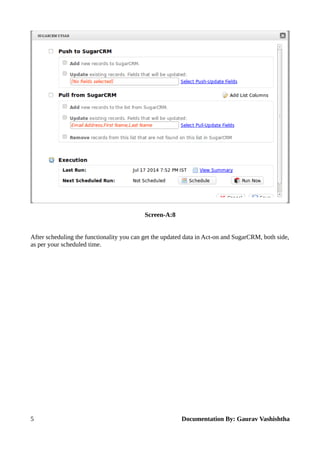
Click on Sugar CRM sync setup menu from the dropdown menus to sync the list and contacts from 
Act-on to SugarCRM and SugarCRM to Act-on, After clicking on this menu there will appear a 
pop-up window, as shown in the below screen. 
Which will have the two options with checkbox. 
1. pull the contacts 
2. push the contacts 
You can check either one of them or both option and can schedule to synchronize the list's contact 
or can click on run now to synchronize the list's contact as the same time. Follow the step to 
schedule the functionality. 
4 Documentation By: Gaurav Vashishtha
Screen-A:8 
After scheduling the functionality you can get the updated data in Act-on and SugarCRM, both side, 
as per your scheduled time. 
5 Documentation By: Gaurav Vashishtha

Act-On Integration With SugarCRM

  • 1.
    Act-on / SugarCRMIntegration: 1. Integration of SugarCRM with Act-on: Step 1: First Sign-In on Act-on using the credential. Step 2: Then go to Account menu, and select the connectors sub-menu. Screen-A:1 Step 3: There will appear a screen as below: Screen-A:2 1 Documentation By: Gaurav Vashishtha
  • 2.
    This will showthe many connectors option. We need to select the CRM tab from here. Step 4: Now there will be appear a screen with the different CRM's. Click on Sugar radio button and there will be a screen as shown in below screen Screen-A:3 Step 5: For connecting with your SugarCRM, You need to click on Click here to activate it link. If you have already connected with SugarCRM then there will appear the same window as show above screen. Step 6: After click on Click here to activate it link, there will visible a loging information screen as shown below screen: Screen-A:4 2 Documentation By: Gaurav Vashishtha
  • 3.
    Step 7: Enteryour SugarCRM credential from which you want to connect with Act-on, click on Login button. Wow!!! You have compeleted the proccess of connecting with your SugarCRM with Act-on. Its really easy like a knife through butter. Now you need to fetch the data from you SugarCRM to Act-on. Step 8: For synchronizing the list of contact from SugarCRM to Act-on. Go to List menu and click on Marketing Lists sub-menu in Act-on. Here you can find the Import button at top-right side, shown in the below screen. Screen-A:5 On clicking Import button, there will appear a pop-up screen, shown in below screen. Screen-A:6 3 Documentation By: Gaurav Vashishtha
  • 4.
    You need togive the name of list, which will listed in Act-on lists. And then select whatever you want to import. Click on Next button to import all the contacts from SugarCRM to Act-on. Step 9: You can also schedule the functionality of import and export of list and there contacts. For scheduling the import and export, first mouseover on any list and click on more link. After clicking on more link, there will appear dropdown menus, shown as in below screen. Screen-A:7 Click on Sugar CRM sync setup menu from the dropdown menus to sync the list and contacts from Act-on to SugarCRM and SugarCRM to Act-on, After clicking on this menu there will appear a pop-up window, as shown in the below screen. Which will have the two options with checkbox. 1. pull the contacts 2. push the contacts You can check either one of them or both option and can schedule to synchronize the list's contact or can click on run now to synchronize the list's contact as the same time. Follow the step to schedule the functionality. 4 Documentation By: Gaurav Vashishtha
  • 5.
    Screen-A:8 After schedulingthe functionality you can get the updated data in Act-on and SugarCRM, both side, as per your scheduled time. 5 Documentation By: Gaurav Vashishtha