1 | Pa g e
Access UBS Accounting,
Inventory & Billing
eInvoicing
Quick Guide v1.3
December 2024
2.
2 | Pa g e
Contents
Contents..................................................................................................................................................2
Introduction ............................................................................................................................................3
Important notes on Test Mode Version .............................................................................................3
Prerequisites .......................................................................................................................................4
Configuring Middleware Service (IAM) with WorkSpace credentials.................................................4
Navigating the system.........................................................................................................................7
Test Mode Version..............................................................................................................................7
eInvoicing Console ..............................................................................................................................7
eInvoicing Console ..................................................................................................................................8
Configurations.....................................................................................................................................8
Company .........................................................................................................................................8
Customers.....................................................................................................................................10
Suppliers........................................................................................................................................12
MISC Code.....................................................................................................................................14
Address Configuration (Shipping Recipient Address) ...................................................................15
Mapping............................................................................................................................................16
Classification .................................................................................................................................16
Currency Code...............................................................................................................................17
Unit of Measurement (UOM)........................................................................................................17
Tax Type ........................................................................................................................................18
eInvoice Type ................................................................................................................................20
Issuing Self-billed ..........................................................................................................................20
Import and Export Information.....................................................................................................21
Outgoing Dashboard.........................................................................................................................22
Regenerate PDF for validated eInvoice.........................................................................................24
Consolidated eInvoice.......................................................................................................................25
Issuing of Consolidated eInvoice...................................................................................................25
Editing of Consolidated eInvoice ..................................................................................................28
Adjusting a Consolidated eInvoice................................................................................................29
eInvoicing User-Defined Menu .........................................................................................................29
Setting (Available Only in Test Mode)...............................................................................................29
Customizing source documents to include eInvoice QR code..........................................................30
3.
3 | Pa g e
Access UBS Einvoicing
Introduction
Welcome to Access UBS Accounting, Inventory, and Billing, featuring our innovative e-invoicing
capabilities! This User Guide provides comprehensive information and guidelines for all users. Your
engagement with Access UBS Accounting, Inventory, and Billing is essential as we aim to deliver a
seamless and efficient user experience. Thank you for choosing our platform and contributing to its
continuous improvement.
Important notes on Test Mode Version
1. If you prefer not to work directly with your live data, you can access the test mode via the
system's Test Mode icon . This will generate a separate folder for your testing environment.
In this environment, you may test the transmission of invoices where the Outgoing Dashboard is
available
2. This Test Mode is still currently limited to the local machine and does not connect to the LHDN
API.
4.
4 | Pa g e
Prerequisites
Configuring Middleware Service (IAM) with WorkSpace credentials
Before transmitting any document to LHDN, please ensure that the following settings are
configured:
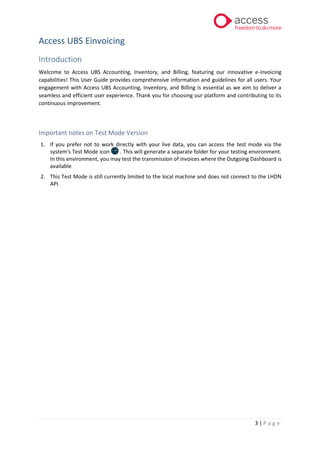
1. IAM
You should be able to see the IAM icon in the bottom right corner of your screen, within the
Hidden Icons area
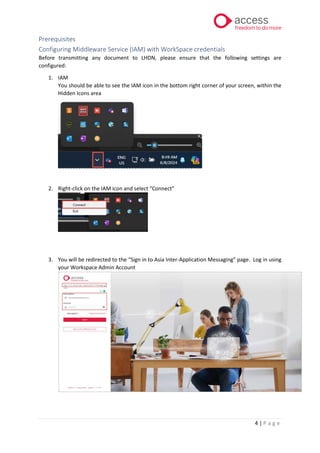
2. Right-click on the IAM icon and select “Connect”
3. You will be redirected to the “Sign in to Asia Inter-Application Messaging” page. Log in using
your Workspace Admin Account
5.
5 | Pa g e
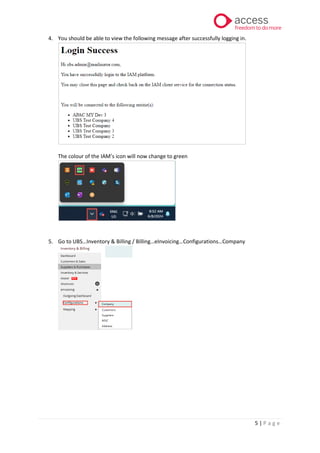
4. You should be able to view the following message after successfully logging in.
The colour of the IAM’s icon will now change to green
5. Go to UBS…Inventory & Billing / Billing…eInvoicing…Configurations…Company
6.
6 | Pa g e
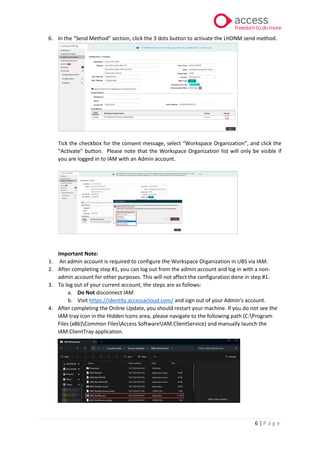
6. In the “Send Method” section, click the 3 dots button to activate the LHDNM send method.
Tick the checkbox for the consent message, select “Workspace Organization”, and click the
“Activate” button. Please note that the Workspace Organization list will only be visible if
you are logged in to IAM with an Admin account.
Important Note:
1. An admin account is required to configure the Workspace Organization in UBS via IAM.
2. After completing step #1, you can log out from the admin account and log in with a non-
admin account for other purposes. This will not affect the configuration done in step #1.
3. To log out of your current account, the steps are as follows:
a. Do Not disconnect IAM
b. Visit https://identity.accessacloud.com/ and sign out of your Admin’s account.
4. After completing the Online Update, you should restart your machine. If you do not see the
IAM tray icon in the Hidden Icons area, please navigate to the following path (C:Program
Files (x86)Common FilesAccess SoftwareIAM.ClientService) and manually launch the
IAM.ClientTray application.
7.
7 | Pa g e
Navigating the system
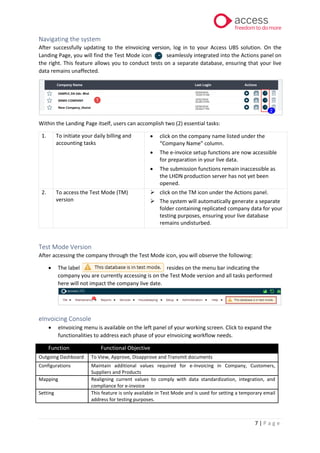
After successfully updating to the eInvoicing version, log in to your Access UBS solution. On the
Landing Page, you will find the Test Mode icon seamlessly integrated into the Actions panel on
the right. This feature allows you to conduct tests on a separate database, ensuring that your live
data remains unaffected.
Within the Landing Page itself, users can accomplish two (2) essential tasks:
1. To initiate your daily billing and
accounting tasks
• click on the company name listed under the
“Company Name” column.
• The e-invoice setup functions are now accessible
for preparation in your live data.
• The submission functions remain inaccessible as
the LHDN production server has not yet been
opened.
2. To access the Test Mode (TM)
version
➢ click on the TM icon under the Actions panel.
➢ The system will automatically generate a separate
folder containing replicated company data for your
testing purposes, ensuring your live database
remains undisturbed.
Test Mode Version
After accessing the company through the Test Mode icon, you will observe the following:
• The label resides on the menu bar indicating the
company you are currently accessing is on the Test Mode version and all tasks performed
here will not impact the company live date.
eInvoicing Console
• eInvoicing menu is available on the left panel of your working screen. Click to expand the
functionalities to address each phase of your eInvoicing workflow needs.
Function Functional Objective
Outgoing Dashboard To View, Approve, Disapprove and Transmit documents
Configurations Maintain additional values required for e-Invoicing in Company, Customers,
Suppliers and Products
Mapping Realigning current values to comply with data standardization, integration, and
compliance for e-invoice
Setting This feature is only available in Test Mode and is used for setting a temporary email
address for testing purposes.
8.
8 | Pa g e
eInvoicing Console
Let us go through each functionality to understand how it aids users in setting up the eInvoicing
requirements accurately.
Configurations
In the Configuration section, you can manage crucial elements required for eInvoice as mandated by
LHDN. This central hub allows you to perform settings and information essential for the smooth
transmission of your e-invoice to the LHDN portal for validation.
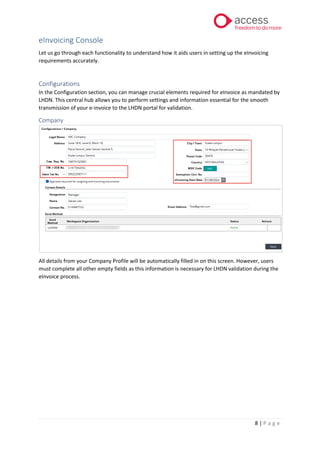
Company
All details from your Company Profile will be automatically filled in on this screen. However, users
must complete all other empty fields as this information is necessary for LHDN validation during the
eInvoice process.
9.
9 | Pa g e
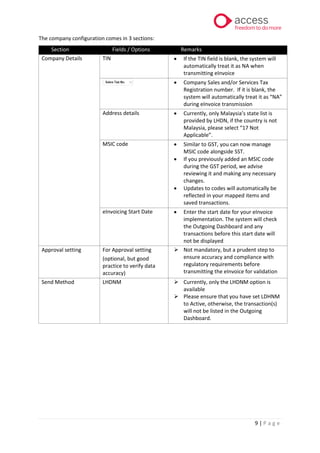
The company configuration comes in 3 sections:
Section Fields / Options Remarks
Company Details TIN • If the TIN field is blank, the system will
automatically treat it as NA when
transmitting eInvoice
• Company Sales and/or Services Tax
Registration number. If it is blank, the
system will automatically treat it as “NA”
during eInvoice transmission
Address details • Currently, only Malaysia’s state list is
provided by LHDN, if the country is not
Malaysia, please select “17 Not
Applicable”.
MSIC code • Similar to GST, you can now manage
MSIC code alongside SST.
• If you previously added an MSIC code
during the GST period, we advise
reviewing it and making any necessary
changes.
• Updates to codes will automatically be
reflected in your mapped items and
saved transactions.
eInvoicing Start Date • Enter the start date for your eInvoice
implementation. The system will check
the Outgoing Dashboard and any
transactions before this start date will
not be displayed
Approval setting For Approval setting
(optional, but good
practice to verify data
accuracy)
➢ Not mandatory, but a prudent step to
ensure accuracy and compliance with
regulatory requirements before
transmitting the eInvoice for validation
Send Method LHDNM ➢ Currently, only the LHDNM option is
available
➢ Please ensure that you have set LDHNM
to Active, otherwise, the transaction(s)
will not be listed in the Outgoing
Dashboard.
10.
10 | Pa g e
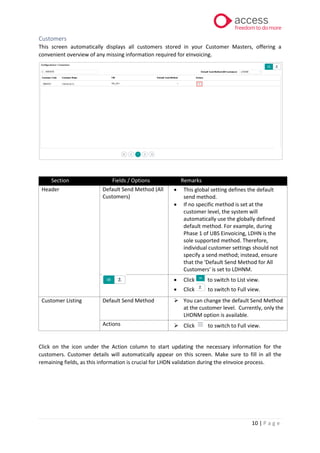
Customers
This screen automatically displays all customers stored in your Customer Masters, offering a
convenient overview of any missing information required for eInvoicing.
Section Fields / Options Remarks
Header Default Send Method (All
Customers)
• This global setting defines the default
send method.
• If no specific method is set at the
customer level, the system will
automatically use the globally defined
default method. For example, during
Phase 1 of UBS Einvoicing, LDHN is the
sole supported method. Therefore,
individual customer settings should not
specify a send method; instead, ensure
that the 'Default Send Method for All
Customers' is set to LDHNM.
• Click to switch to List view.
• Click to switch to Full view.
Customer Listing Default Send Method ➢ You can change the default Send Method
at the customer level. Currently, only the
LHDNM option is available.
Actions ➢ Click to switch to Full view.
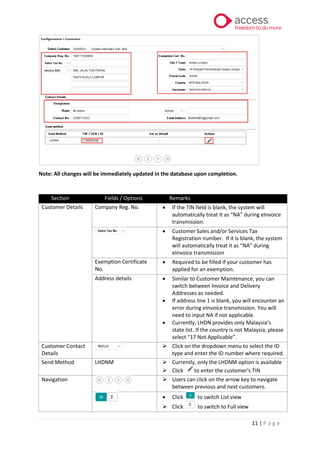
Click on the icon under the Action column to start updating the necessary information for the
customers. Customer details will automatically appear on this screen. Make sure to fill in all the
remaining fields, as this information is crucial for LHDN validation during the eInvoice process.
11.
11 | Pa g e
Note: All changes will be immediately updated in the database upon completion.
Section Fields / Options Remarks
Customer Details Company Reg. No. • If the TIN field is blank, the system will
automatically treat it as “NA” during eInvoice
transmission.
• Customer Sales and/or Services Tax
Registration number. If it is blank, the system
will automatically treat it as “NA” during
eInvoice transmission
Exemption Certificate
No.
• Required to be filled if your customer has
applied for an exemption.
Address details • Similar to Customer Maintenance, you can
switch between Invoice and Delivery
Addresses as needed.
• If address line 1 is blank, you will encounter an
error during eInvoice transmission. You will
need to input NA if not applicable.
• Currently, LHDN provides only Malaysia’s
state list. If the country is not Malaysia, please
select “17 Not Applicable”.
Customer Contact
Details
➢ Click on the dropdown menu to select the ID
type and enter the ID number where required.
Send Method LHDNM ➢ Currently, only the LHDNM option is available
➢ Click to enter the customer's TIN
Navigation ➢ Users can click on the arrow key to navigate
between previous and next customers.
• Click to switch List view
➢ Click to switch to Full view
12.
12 | Pa g e
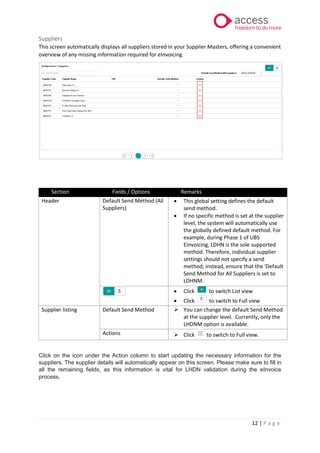
Suppliers
This screen automatically displays all suppliers stored in your Supplier Masters, offering a convenient
overview of any missing information required for eInvoicing
Section Fields / Options Remarks
Header Default Send Method (All
Suppliers)
• This global setting defines the default
send method.
• If no specific method is set at the supplier
level, the system will automatically use
the globally defined default method. For
example, during Phase 1 of UBS
Einvoicing, LDHN is the sole supported
method. Therefore, individual supplier
settings should not specify a send
method; instead, ensure that the 'Default
Send Method for All Suppliers is set to
LDHNM.
• Click to switch List view
• Click to switch to Full view
Supplier listing Default Send Method ➢ You can change the default Send Method
at the supplier level. Currently, only the
LHDNM option is available.
Actions ➢ Click to switch to Full view.
Click on the icon under the Action column to start updating the necessary information for the
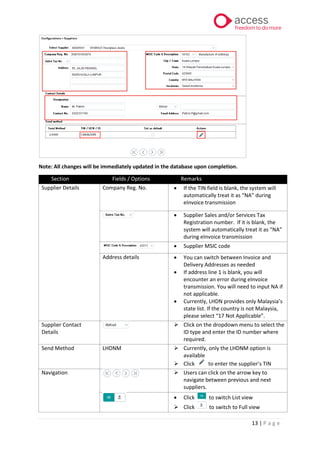
suppliers. The supplier details will automatically appear on this screen. Please make sure to fill in
all the remaining fields, as this information is vital for LHDN validation during the eInvoice
process.
13.
13 | Pa g e
Note: All changes will be immediately updated in the database upon completion.
Section Fields / Options Remarks
Supplier Details Company Reg. No. • If the TIN field is blank, the system will
automatically treat it as “NA” during
eInvoice transmission
• Supplier Sales and/or Services Tax
Registration number. If it is blank, the
system will automatically treat it as “NA”
during eInvoice transmission
• Supplier MSIC code
Address details • You can switch between Invoice and
Delivery Addresses as needed
• If address line 1 is blank, you will
encounter an error during eInvoice
transmission. You will need to input NA if
not applicable.
• Currently, LHDN provides only Malaysia’s
state list. If the country is not Malaysia,
please select “17 Not Applicable”.
Supplier Contact
Details
➢ Click on the dropdown menu to select the
ID type and enter the ID number where
required.
Send Method LHDNM ➢ Currently, only the LHDNM option is
available
➢ Click to enter the supplier’s TIN
Navigation ➢ Users can click on the arrow key to
navigate between previous and next
suppliers.
• Click to switch List view
➢ Click to switch to Full view
14.
14 | Pa g e
MISC Code
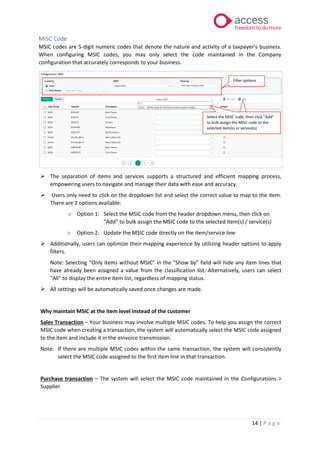
MSIC codes are 5-digit numeric codes that denote the nature and activity of a taxpayer’s business.
When configuring MSIC codes, you may only select the code maintained in the Company
configuration that accurately corresponds to your business.
➢ The separation of items and services supports a structured and efficient mapping process,
empowering users to navigate and manage their data with ease and accuracy.
➢ Users only need to click on the dropdown list and select the correct value to map to the item.
There are 2 options available:
o Option 1: Select the MSIC code from the header dropdown menu, then click on
“Add” to bulk assign the MSIC code to the selected item(s) / service(s)
o Option 2: Update the MSIC code directly on the item/service line
➢ Additionally, users can optimize their mapping experience by utilizing header options to apply
filters.
Note: Selecting “Only items without MSIC” in the “Show by” field will hide any item lines that
have already been assigned a value from the classification list. Alternatively, users can select
"All" to display the entire item list, regardless of mapping status.
➢ All settings will be automatically saved once changes are made.
Why maintain MSIC at the item level instead of the customer
Sales Transaction – Your business may involve multiple MSIC codes. To help you assign the correct
MSIC code when creating a transaction, the system will automatically select the MSIC code assigned
to the item and include it in the eInvoice transmission.
Note: If there are multiple MSIC codes within the same transaction, the system will consistently
select the MSIC code assigned to the first item line in that transaction.
Purchase transaction – The system will select the MSIC code maintained in the Configurations >
Supplier
Select the MISC code, then click “Add”
to bulk assign the MISC code to the
selected item(s) or service(s)
Filter options
15.
15 | Pa g e
Address Configuration (Shipping Recipient Address)
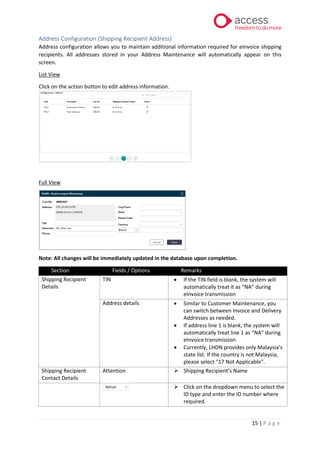
Address configuration allows you to maintain additional information required for eInvoice shipping
recipients. All addresses stored in your Address Maintenance will automatically appear on this
screen.
List View
Click on the action button to edit address information.
Full View
Note: All changes will be immediately updated in the database upon completion.
Section Fields / Options Remarks
Shipping Recipient
Details
TIN • If the TIN field is blank, the system will
automatically treat it as “NA” during
eInvoice transmission
Address details • Similar to Customer Maintenance, you
can switch between Invoice and Delivery
Addresses as needed.
• If address line 1 is blank, the system will
automatically treat line 1 as “NA” during
eInvoice transmission
• Currently, LHDN provides only Malaysia’s
state list. If the country is not Malaysia,
please select “17 Not Applicable”.
Shipping Recipient
Contact Details
Attention ➢ Shipping Recipient’s Name
➢ Click on the dropdown menu to select the
ID type and enter the ID number where
required.
16.
16 | Pa g e
Mapping
Classification
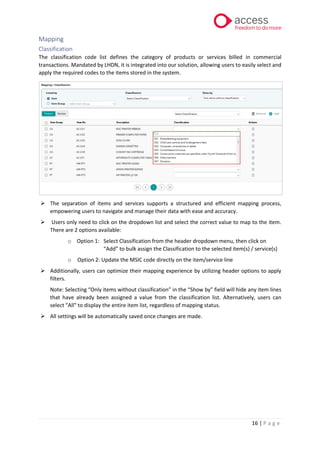
The classification code list defines the category of products or services billed in commercial
transactions. Mandated by LHDN, it is integrated into our solution, allowing users to easily select and
apply the required codes to the items stored in the system.
➢ The separation of items and services supports a structured and efficient mapping process,
empowering users to navigate and manage their data with ease and accuracy.
➢ Users only need to click on the dropdown list and select the correct value to map to the item.
There are 2 options available:
o Option 1: Select Classification from the header dropdown menu, then click on
“Add” to bulk assign the Classification to the selected item(s) / service(s)
o Option 2: Update the MSIC code directly on the item/service line
➢ Additionally, users can optimize their mapping experience by utilizing header options to apply
filters.
Note: Selecting “Only items without classification” in the “Show by” field will hide any item lines
that have already been assigned a value from the classification list. Alternatively, users can
select "All" to display the entire item list, regardless of mapping status.
➢ All settings will be automatically saved once changes are made.
17.
17 | Pa g e
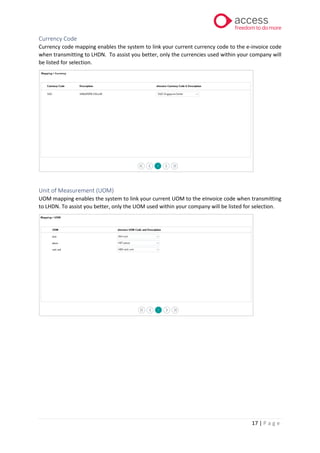
Currency Code
Currency code mapping enables the system to link your current currency code to the e-invoice code
when transmitting to LHDN. To assist you better, only the currencies used within your company will
be listed for selection.
Unit of Measurement (UOM)
UOM mapping enables the system to link your current UOM to the eInvoice code when transmitting
to LHDN. To assist you better, only the UOM used within your company will be listed for selection.
18.
18 | Pa g e
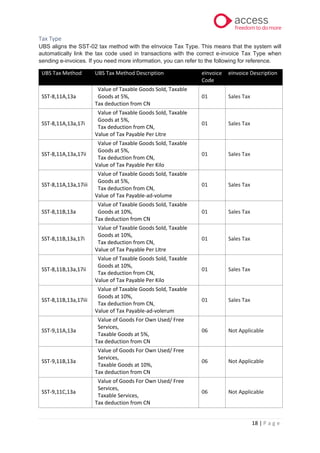
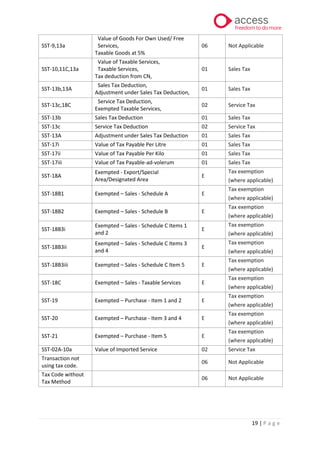
Tax Type
UBS aligns the SST-02 tax method with the eInvoice Tax Type. This means that the system will
automatically link the tax code used in transactions with the correct e-invoice Tax Type when
sending e-invoices. If you need more information, you can refer to the following for reference.
UBS Tax Method UBS Tax Method Description eInvoice
Code
eInvoice Description
SST-8,11A,13a
Value of Taxable Goods Sold, Taxable
Goods at 5%,
Tax deduction from CN
01 Sales Tax
SST-8,11A,13a,17i
Value of Taxable Goods Sold, Taxable
Goods at 5%,
Tax deduction from CN,
Value of Tax Payable Per Litre
01 Sales Tax
SST-8,11A,13a,17ii
Value of Taxable Goods Sold, Taxable
Goods at 5%,
Tax deduction from CN,
Value of Tax Payable Per Kilo
01 Sales Tax
SST-8,11A,13a,17iii
Value of Taxable Goods Sold, Taxable
Goods at 5%,
Tax deduction from CN,
Value of Tax Payable-ad-volume
01 Sales Tax
SST-8,11B,13a
Value of Taxable Goods Sold, Taxable
Goods at 10%,
Tax deduction from CN
01 Sales Tax
SST-8,11B,13a,17i
Value of Taxable Goods Sold, Taxable
Goods at 10%,
Tax deduction from CN,
Value of Tax Payable Per Litre
01 Sales Tax
SST-8,11B,13a,17ii
Value of Taxable Goods Sold, Taxable
Goods at 10%,
Tax deduction from CN,
Value of Tax Payable Per Kilo
01 Sales Tax
SST-8,11B,13a,17iii
Value of Taxable Goods Sold, Taxable
Goods at 10%,
Tax deduction from CN,
Value of Tax Payable-ad-volerum
01 Sales Tax
SST-9,11A,13a
Value of Goods For Own Used/ Free
Services,
Taxable Goods at 5%,
Tax deduction from CN
06 Not Applicable
SST-9,11B,13a
Value of Goods For Own Used/ Free
Services,
Taxable Goods at 10%,
Tax deduction from CN
06 Not Applicable
SST-9,11C,13a
Value of Goods For Own Used/ Free
Services,
Taxable Services,
Tax deduction from CN
06 Not Applicable
19.
19 | Pa g e
SST-9,13a
Value of Goods For Own Used/ Free
Services,
Taxable Goods at 5%
06 Not Applicable
SST-10,11C,13a
Value of Taxable Services,
Taxable Services,
Tax deduction from CN,
01 Sales Tax
SST-13b,13A
Sales Tax Deduction,
Adjustment under Sales Tax Deduction,
01 Sales Tax
SST-13c,18C
Service Tax Deduction,
Exempted Taxable Services,
02 Service Tax
SST-13b Sales Tax Deduction 01 Sales Tax
SST-13c Service Tax Deduction 02 Service Tax
SST-13A Adjustment under Sales Tax Deduction 01 Sales Tax
SST-17i Value of Tax Payable Per Litre 01 Sales Tax
SST-17ii Value of Tax Payable Per Kilo 01 Sales Tax
SST-17iii Value of Tax Payable-ad-volerum 01 Sales Tax
SST-18A
Exempted - Export/Special
Area/Designated Area
E
Tax exemption
(where applicable)
SST-18B1 Exempted – Sales - Schedule A E
Tax exemption
(where applicable)
SST-18B2 Exempted – Sales - Schedule B E
Tax exemption
(where applicable)
SST-18B3i
Exempted – Sales - Schedule C Items 1
and 2
E
Tax exemption
(where applicable)
SST-18B3ii
Exempted – Sales - Schedule C Items 3
and 4
E
Tax exemption
(where applicable)
SST-18B3iii Exempted – Sales - Schedule C Item 5 E
Tax exemption
(where applicable)
SST-18C Exempted – Sales - Taxable Services E
Tax exemption
(where applicable)
SST-19 Exempted – Purchase - Item 1 and 2 E
Tax exemption
(where applicable)
SST-20 Exempted – Purchase - Item 3 and 4 E
Tax exemption
(where applicable)
SST-21 Exempted – Purchase - Item 5 E
Tax exemption
(where applicable)
SST-02A-10a Value of Imported Service 02 Service Tax
Transaction not
using tax code.
06 Not Applicable
Tax Code without
Tax Method
06 Not Applicable
20.
20 | Pa g e
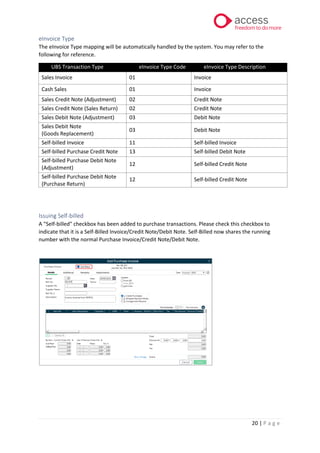
eInvoice Type
The eInvoice Type mapping will be automatically handled by the system. You may refer to the
following for reference.
UBS Transaction Type eInvoice Type Code eInvoice Type Description
Sales Invoice 01 Invoice
Cash Sales 01 Invoice
Sales Credit Note (Adjustment) 02 Credit Note
Sales Credit Note (Sales Return) 02 Credit Note
Sales Debit Note (Adjustment) 03 Debit Note
Sales Debit Note
(Goods Replacement)
03 Debit Note
Self-billed Invoice 11 Self-billed Invoice
Self-billed Purchase Credit Note 13 Self-billed Debit Note
Self-billed Purchase Debit Note
(Adjustment)
12 Self-billed Credit Note
Self-billed Purchase Debit Note
(Purchase Return)
12 Self-billed Credit Note
Issuing Self-billed
A "Self-billed" checkbox has been added to purchase transactions. Please check this checkbox to
indicate that it is a Self-Billed Invoice/Credit Note/Debit Note. Self-Billed now shares the running
number with the normal Purchase Invoice/Credit Note/Debit Note.
21.
21 | Pa g e
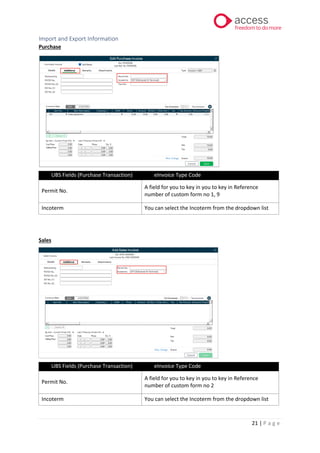
Import and Export Information
Purchase
UBS Fields (Purchase Transaction) eInvoice Type Code
Permit No.
A field for you to key in you to key in Reference
number of custom form no 1, 9
Incoterm You can select the Incoterm from the dropdown list
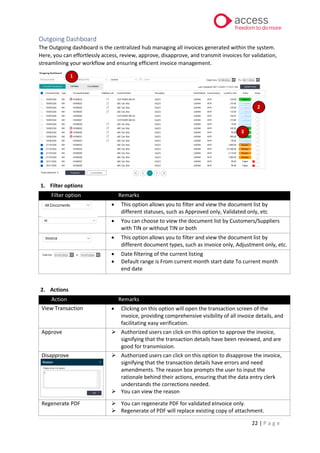
Sales
UBS Fields (Purchase Transaction) eInvoice Type Code
Permit No.
A field for you to key in you to key in Reference
number of custom form no 2
Incoterm You can select the Incoterm from the dropdown list
22.
22 | Pa g e
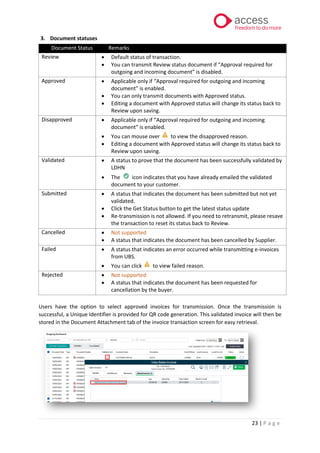
Outgoing Dashboard
The Outgoing dashboard is the centralized hub managing all invoices generated within the system.
Here, you can effortlessly access, review, approve, disapprove, and transmit invoices for validation,
streamlining your workflow and ensuring efficient invoice management.
1. Filter options
Filter option Remarks
• This option allows you to filter and view the document list by
different statuses, such as Approved only, Validated only, etc
• You can choose to view the document list by Customers/Suppliers
with TIN or without TIN or both
• This option allows you to filter and view the document list by
different document types, such as Invoice only, Adjustment only, etc.
• Date filtering of the current listing
• Default range is From current month start date To current month
end date
2. Actions
Action Remarks
View Transaction • Clicking on this option will open the transaction screen of the
invoice, providing comprehensive visibility of all invoice details, and
facilitating easy verification.
Approve ➢ Authorized users can click on this option to approve the invoice,
signifying that the transaction details have been reviewed, and are
good for transmission.
Disapprove ➢ Authorized users can click on this option to disapprove the invoice,
signifying that the transaction details have errors and need
amendments. The reason box prompts the user to input the
rationale behind their actions, ensuring that the data entry clerk
understands the corrections needed.
➢ You can view the reason
Regenerate PDF ➢ You can regenerate PDF for validated eInvoice only.
➢ Regenerate of PDF will replace existing copy of attachment.
1
2
3
23.
23 | Pa g e
3. Document statuses
Document Status Remarks
Review • Default status of transaction.
• You can transmit Review status document if “Approval required for
outgoing and incoming document” is disabled.
Approved • Applicable only if “Approval required for outgoing and incoming
document” is enabled.
• You can only transmit documents with Approved status.
• Editing a document with Approved status will change its status back to
Review upon saving.
Disapproved • Applicable only if “Approval required for outgoing and incoming
document” is enabled.
• You can mouse over to view the disapproved reason.
• Editing a document with Approved status will change its status back to
Review upon saving.
Validated • A status to prove that the document has been successfully validated by
LDHN
• The icon indicates that you have already emailed the validated
document to your customer.
Submitted • A status that indicates the document has been submitted but not yet
validated.
• Click the Get Status button to get the latest status update
• Re-transmission is not allowed. If you need to retransmit, please resave
the transaction to reset its status back to Review.
Cancelled • Not supported
• A status that indicates the document has been cancelled by Supplier.
Failed • A status that indicates an error occurred while transmitting e-invoices
from UBS.
• You can click to view failed reason.
Rejected • Not supported
• A status that indicates the document has been requested for
cancellation by the buyer.
Users have the option to select approved invoices for transmission. Once the transmission is
successful, a Unique Identifier is provided for QR code generation. This validated invoice will then be
stored in the Document Attachment tab of the invoice transaction screen for easy retrieval.
24.
24 | Pa g e
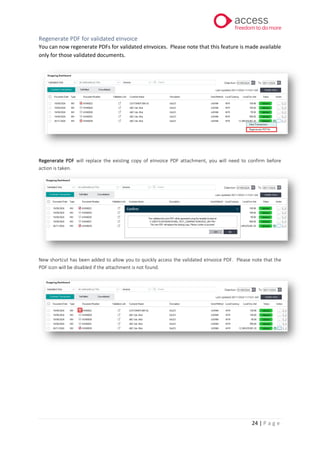
Regenerate PDF for validated eInvoice
You can now regenerate PDFs for validated eInvoices. Please note that this feature is made available
only for those validated documents.
Regenerate PDF will replace the existing copy of eInvoice PDF attachment, you will need to confirm before
action is taken.
New shortcut has been added to allow you to quickly access the validated eInvoice PDF. Please note that the
PDF icon will be disabled if the attachment is not found.
25.
25 | Pa g e
Consolidated eInvoice
Issuing of Consolidated eInvoice
To assist the Suppliers in complying with e-Invoice requirements and to reduce the burden to both
Suppliers and Buyers, the LHDN allows the Suppliers to consolidate the transactions with Buyers
(who do not require an e-Invoice) into a consolidated e-Invoice every month.
In UBS, the consolidated eInvoice function is available in both the Customer Transactions and Self-
billed tabs. Please be aware that adjustments are not permitted during the consolidation process.
Step:
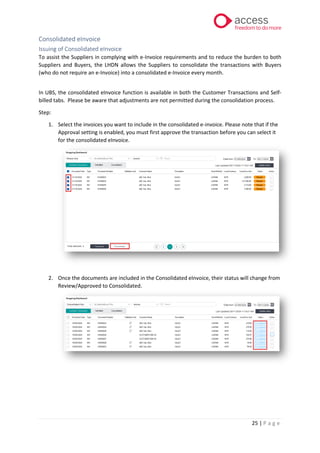
1. Select the invoices you want to include in the consolidated e-invoice. Please note that if the
Approval setting is enabled, you must first approve the transaction before you can select it
for the consolidated eInvoice.
2. Once the documents are included in the Consolidated eInvoice, their status will change from
Review/Approved to Consolidated.
26.
26 | Pa g e
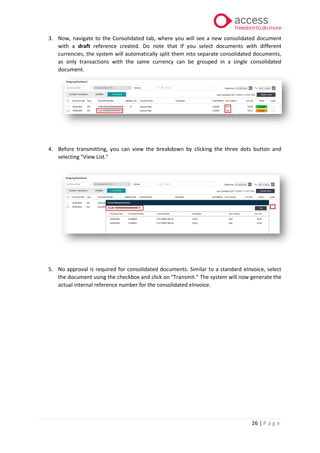
3. Now, navigate to the Consolidated tab, where you will see a new consolidated document
with a draft reference created. Do note that If you select documents with different
currencies, the system will automatically split them into separate consolidated documents,
as only transactions with the same currency can be grouped in a single consolidated
document.
4. Before transmitting, you can view the breakdown by clicking the three dots button and
selecting "View List."
5. No approval is required for consolidated documents. Similar to a standard eInvoice, select
the document using the checkbox and click on "Transmit." The system will now generate the
actual internal reference number for the consolidated eInvoice.
27.
27 | Pa g e
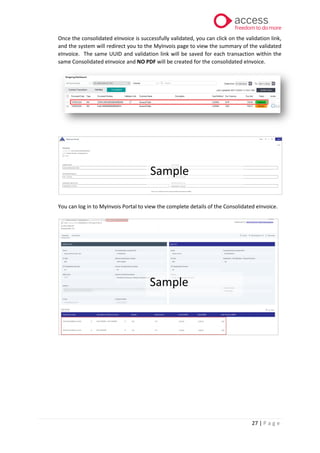
Once the consolidated eInvoice is successfully validated, you can click on the validation link,
and the system will redirect you to the MyInvois page to view the summary of the validated
eInvoice. The same UUID and validation link will be saved for each transaction within the
same Consolidated eInvoice and NO PDF will be created for the consolidated eInvoice.
You can log in to MyInvois Portal to view the complete details of the Consolidated eInvoice.
Sample
Sample
28.
28 | Pa g e
Editing of Consolidated eInvoice
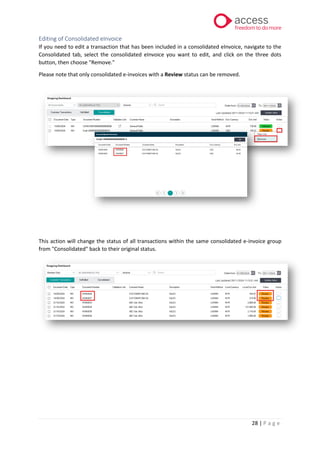
If you need to edit a transaction that has been included in a consolidated eInvoice, navigate to the
Consolidated tab, select the consolidated eInvoice you want to edit, and click on the three dots
button, then choose "Remove."
Please note that only consolidated e-invoices with a Review status can be removed.
This action will change the status of all transactions within the same consolidated e-invoice group
from "Consolidated" back to their original status.
29.
29 | Pa g e
Adjusting a Consolidated eInvoice
In the adjustment screen (e.g., Credit Note or Debit Note), you can select invoices that were
previously grouped under a consolidated eInvoice for adjustment. When transmitting a Credit Note
to LHDN, the system will use the reference number and UUID of the Consolidated eInvoice. Please
note that only invoices from the same consolidated eInvoice can be selected and transmitted to
LHDN at one time.
Note: Adjustment of Cash Sales transactions is currently not supported.
eInvoicing User-Defined Menu
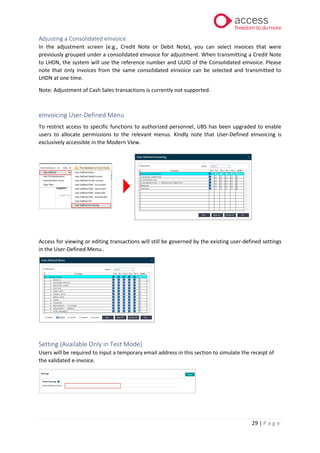
To restrict access to specific functions to authorized personnel, UBS has been upgraded to enable
users to allocate permissions to the relevant menus. Kindly note that User-Defined eInvoicing is
exclusively accessible in the Modern View.
Access for viewing or editing transactions will still be governed by the existing user-defined settings
in the User-Defined Menu..
Setting (Available Only in Test Mode)
Users will be required to input a temporary email address in this section to simulate the receipt of
the validated e-invoice.
30.
30 | Pa g e
Customizing source documents to include eInvoice QR code
If you have customized your source documents, please follow the instructions to add the eInvoice
QR code to your customized template. Please be aware that the QR code will only be printed after
the invoice is validated by LHDN.
Step 1: Please copy a new set of your existing source document template, paste it into the same
folder, and rename it to the following:
UBS Document Type UBS Source Document Template with QR code
Sales Invoice • einvoice_inv
Sales Credit Note • einvoice_cn
Sales Debit Note • einvoice_dn
Cash Sales • einvoice_cs
Purchase Invoice • einvoice_rc
Purchase Credit Note • einvoice_scn
Purchase Debit Note • einvoice_sdn
Purchase Return • einvoice_pr
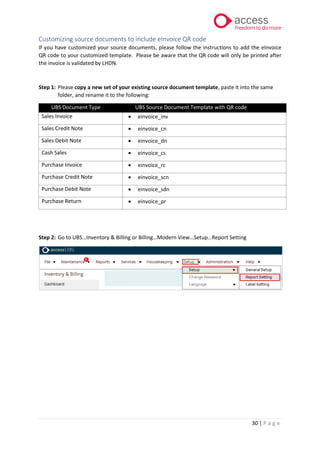
Step 2: Go to UBS…Inventory & Billing or Billing…Modern View…Setup…Report Setting
31.
31 | Pa g e
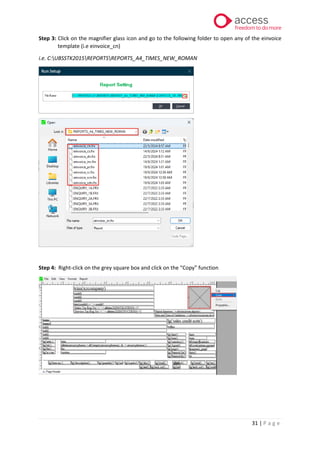
Step 3: Click on the magnifier glass icon and go to the following folder to open any of the einvoice
template (i.e einvoice_cn)
i.e. C:UBSSTK2015REPORTSREPORTS_A4_TIMES_NEW_ROMAN
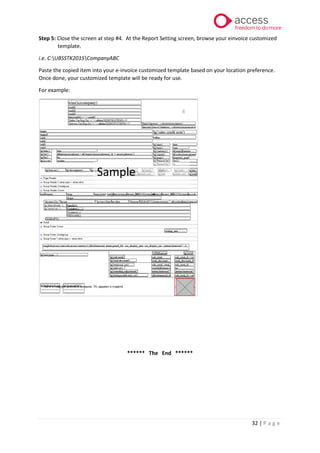
Step 4: Right-click on the grey square box and click on the “Copy” function
32.
32 | Pa g e
Step 5: Close the screen at step #4. At the Report Setting screen, browse your einvoice customized
template.
i.e. C:UBSSTK2015CompanyABC
Paste the copied item into your e-invoice customized template based on your location preference.
Once done, your customized template will be ready for use.
For example:
****** The End ******
Sample


![5G Explained! A High Level Overview [Introduction]](https://cdn.slidesharecdn.com/ss_thumbnails/5gexplainedahighleveloverview-260119165306-cc137a3e-thumbnail.jpg?width=640&height=640&fit=bounds)


