SMARTFIND EXPRESS (SEMS)
ANNE ARUNDEL COUNTY PUBLIC SCHOOLS
TYLER MANCINELLI ISLT 9474, FALL 2017 ASK SYSTEM
BACKGROUND INFORMATION
 Employees of Anne Arundel County Public
Schools (AACPS) will examine the system
necessary for calling off from work, SmartFinder
Express, and the proper steps and information
necessary to complete a submission for a day
off.
 Questions about the job tasks (schedule, length
of time needed, etc.)
 Questions about the proper information needed
to complete a submission (application)
Types of QuestionsObjective
Welcome to Anne Arundel County Public Schools, we are absolutely
delighted to add you as a part of our educational team. Throughout the
year you may find in necessary to take a day off from the typical work
week whether for meetings, personal time, sick leave, and professional
development to name a few.
In order to make your experience more enjoyable during your time off,
you may request the day off as early as you can utilizing our call off
system, SmartFind Express (SEMS). Please take some time to look
through the system and become acquainted with it and have a
wonderful school year.
Where do I find the
link to log in?
How do I log-in?
What if this is my first
time logging in?
SmartFind Express (SEMS)
Where do I find
my ID number?
What if I have
already registered
an account?
Home Screen
 For first time users, you must first register
yourself with the system by calling the
helpdesk to have your account properly set up
and to set your pin.
 You will need to have your ID number and series
of at least 4 numbers to use as a pin number.
 The Help Desk can be contacted at the following
number.
(410) 846-0399
WHAT IF THIS IS MY FIRST TIME LOGGING IN?
What if I don’t
remember my ID?
What if I can’t log
in?
What do I do once I
am logged in?
Home Screen
 Once you have found the proper link, you
should see the following page.
 In the spaces provided, provide your ID number
and pin.
 Type the proper response for the automated
puzzle and click log in.
HOW DO I LOG IN?
Where do I find
my ID number?
What if I have
already registered
an account?
Home Screen
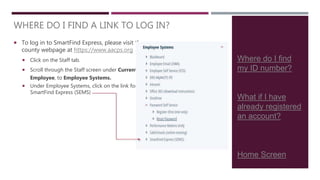
 To log in to SmartFind Express, please visit the
county webpage at https://www.aacps.org
 Click on the Staff tab.
 Scroll through the Staff screen under Current
Employee, to Employee Systems.
 Under Employee Systems, click on the link for
SmartFind Express (SEMS)
WHERE DO I FIND A LINK TO LOG IN?
Why are you logging in to SmartFind Express today?
Once logged in to SmartFind Express, you will notice at the top of your
log in screen you have three options: Create an Absence, Review
Absences, and Absence Approval.
Choose which ever heading best suits your needs for your log in.
What if I want to
know how many
sick/personal days I
have left?
How can I check my
absence approvals?
How can I review my
absences?
How do I create and
absence?
WHAT DO I DO ONCE I’M LOGGED IN?
With all the different systems AACPS uses, it is easy to get confused
with what ID you are using to log it whether it be your email or your ID
number. For the SmartFind Express system, as an employee, you will
use the ID number that is found on your paychecks, your initial
technology release form that was emailed to you after processing (if
you are a new employee), or within the Employee Self Service (ESS)
system.
If you don’t have any of the documents listed above, follow the link
below to the ESS system, where you will log in using the same login as
your email.
Ex: user name: tmancinelli Employee Self Service
password: same as email
How do I log-in?
What if this is my first
time logging in?
What do I do once
I’m logged in?
WHERE DO I FIND MY ID NUMBER?
Every so often, we may forget out log in information whether it is out ID
of our passwords. If you forget your log in for using the system, we can
only hope that is because you have enjoyed your time in class so
much you have not needed a day off.
However, if you have forgotten it, simply click on the, *Trouble Signing
in?, bolded text below the ID and Password areas on the login page.
* You will need your ID number for this portion of troubleshooting your log in.
Where do I find my
ID number?
What do I do once
I’m logged in?
WHAT IF I CANT LOG IN?
What if I don’t know the
specific times?
What is a Meeting
Code? Do I need one?
What if I don’t know the
proper reasoning?
What if I have a specific
substitute I want to use?
What if I don’t need a
substitute?
Return to previous page.
Home Page
Before creating an absence, there are several items you want to make sure
you have on hand.
 The date/dates of your absence/s
 The specific day of the week your absence will occur
 The specific times your substitute would be needed (full vs. half day)
 Your reasoning
 Meeting Code (if applicable)
HOW DO I CREATE AN ABSENCE?
Once you have all of the following details, start filling out your absence
request/report with all the appropriate details.
Throughout the school year we understand that it may be difficult to
keep track of your days off among the many other activities you are
creating and completing on a daily basis.
However, checking your bank balance is easy! Simply log in to the
Employee Self Service System and find your balance in your home
page. Furthermore, you can view how many days you have taken off
and when if needed for any specific legal reasons or for other
documentation.
*Employee Self Service
*Remember: The login for ESS is:
Username: Your AACPS email without @aacps.org
Password: Same as your email.
HOW CAN I CHECK HOW MANY DAYS I HAVE LEFT?
Return to previous
page
How can I create
an absence?
Return to previous
page
HOW CAN I REVIEW MY
ABSENCES?
HOW CAN I VIEW MY
APPROVED ABSENCES?
Once logged in you may check several items regarding your absences such as Reviewing your
absences and viewing your approved future absences.
 At the top of your screen you may choose on either of the given tabs.
 Within either tab, you will find various options that you may alter/configure to choose a
specific time/date range.
 Choose how many results you would like to see on each page, and then hit submit to
review your results.
Another options would be to review your previous absences within the ESS System, which
will break down your absences for each type of absence you have selected, and the amount
of time off you have used within each of the selected reasons.
*Employee Self Service
*Remember: The login for ESS is:
Username: Your AACPS email without @aacps.org
Password: Same as your email.
How can I create
an absence?
It is important that as a teacher your find out the specific times you
need a substitute. These times will not only notify the substitute the
proper time to show up, but also notify the administration/secretary of
substitutes when you will be out of the building.
If you are not sure about your specific times for a full/half-day, take the time to ask the
appropriate administrator for the correct times. This is important as you must manually
correct the times if necessary in your submission.
*Note: You must uncheck all days your are not using for your absence. For example, if you
will be out on a Wednesday, make sure you uncheck Mon., Tues., Thurs., and Fri.
What If I have a
specific substitute I
would like within my
room?
What if I’m ready to
submit my absence?
Back to previous
page.
What if I don’t know the specific times for my
absence?
There may be times when an
employee may not need a
substitute during there absence.
For example:
• Any staff that holds a position of
Administration, Department Chairs,
Specialists, Counselors, etc.
• Other reasons may consist of: taking a
day off during conferences, or times in
which you schedule would not have
children present within your room.
In the case that you do not need a
substitute, make sure on your report
you click no when asked if a substitute
is needed.
If it is for a meeting, such as an
alternate PD location, etc. Under
reasons, choose Meeting, no sub req.
What if I am ready to
submit my absence?
Return to Previous
Page
What if I have a substitute I
prefer to have?
What if I don’t need a
substitute?
If you have a preferred substitute,
you may enter them into the
system by typing in their name, or
searching them if you’re not sure
of their full name.
If you don’t remember either of
those, you may consult your
secretary of administrator for the
substitutes ID number, which can
also be entered in the application.
*If you are submitting an application for a
specific sub, make sure to mark you have
made previous arrangements on the
absence report.
What if I’m ready to
submit my absence?
Return to previous
page.
What if I don’t know the
specific reason code?
What is a meeting code?
Do I need one?
During your time at AACPS, you
may encounter times in which you
are asked to submit a specific
code for a meeting or even you
are attending.
Typically this is because a
specific department may be
paying for a PD or if you are
attending a fieldtrip. These are
the most common as the code
keeps your absence from being
deducted from your personal
bank of days, and instead is put in
as a school “sponsored” absence.
Every absence you submit must have
a reason. Each reason submitted my
correlate with your daily sign-in sheet
as well.
Each code is labeled and numbered
within the system, however, if you are
unsure, talk to your union building
rep., administrator, or secretary in
charge of your daily sign-in sheet.
Before submitting your absence, read through all of the information
you have entered. Make sure you have checked all the necessary
boxes, wrote any specific instructions for the substitute, or attached
any specific documents you would like the substitute to have or review
prior to the day of absence.
If you have reviewed your absence, and everything looks the way you would like it to and
every day/time is correct, you may press continue at the bottom of your screen?
WHAT IF I’M READY TO SUBMIT MY ABSENCE? What do I do once I
press continue?
Is there anything
else I need to
complete after my
absence?
What if I need to
cancel my
absence?
Return to previous page.
Home Page
Once you press continue, you will be
brought to a review screen of your
absence. Please make sure to double
check all the information for the proper
and correct information.
 If you need to change information,
return to the previous page and
alter the necessary information.
 If you need to cancel the current
absence report, you may press
cancel and your report will be
canceled.
 If you are finished and ready to
submit the official report, click
submit.
WHAT DO I DO ONCE I PRESS
CONTINUE?
Return to
previous page
IS THERE ANYTHING ELSE I NEED TO
COMPLETE AFTER MY ABSENCE?
Upon completion of your absence, or
prior to if it is a planned absence, make
sure you have also marked the day of
absence on your daily sign-in sheet
with the proper code.
All codes may be found at the bottom
of your daily sign-in sheet. If you’re
sign-in sheet doesn’t reflect your
school attendance, time may be taken
away from your sick bank, or you could
have pay deducted incorrectly as well.
Always double check your sign-in to
your absence report.
If you find yourself needing to cancel your absence due to a schedule
change, cancelation of appointment/meeting, and so forth, you may do
so anytime prior to several hours prior to the absence.
Each school may have a different set time you have to cancel an absence, so if
you’re not sure, contact your administrator.
WHAT IF I NEED TO CANCEL MY ABSENCE?
Return to
previous page.
To cancel, simply log in to your SmartFinder Express system, and find
your approved absences tab, followed by searching for your upcoming
absence. Once you have found your specific absence, you may cancel
it by simply pressing cancel.

AACPS SEMS Ask System

  • 1.
    SMARTFIND EXPRESS (SEMS) ANNEARUNDEL COUNTY PUBLIC SCHOOLS TYLER MANCINELLI ISLT 9474, FALL 2017 ASK SYSTEM
  • 2.
    BACKGROUND INFORMATION  Employeesof Anne Arundel County Public Schools (AACPS) will examine the system necessary for calling off from work, SmartFinder Express, and the proper steps and information necessary to complete a submission for a day off.  Questions about the job tasks (schedule, length of time needed, etc.)  Questions about the proper information needed to complete a submission (application) Types of QuestionsObjective
  • 3.
    Welcome to AnneArundel County Public Schools, we are absolutely delighted to add you as a part of our educational team. Throughout the year you may find in necessary to take a day off from the typical work week whether for meetings, personal time, sick leave, and professional development to name a few. In order to make your experience more enjoyable during your time off, you may request the day off as early as you can utilizing our call off system, SmartFind Express (SEMS). Please take some time to look through the system and become acquainted with it and have a wonderful school year. Where do I find the link to log in? How do I log-in? What if this is my first time logging in? SmartFind Express (SEMS)
  • 4.
    Where do Ifind my ID number? What if I have already registered an account? Home Screen  For first time users, you must first register yourself with the system by calling the helpdesk to have your account properly set up and to set your pin.  You will need to have your ID number and series of at least 4 numbers to use as a pin number.  The Help Desk can be contacted at the following number. (410) 846-0399 WHAT IF THIS IS MY FIRST TIME LOGGING IN?
  • 5.
    What if Idon’t remember my ID? What if I can’t log in? What do I do once I am logged in? Home Screen  Once you have found the proper link, you should see the following page.  In the spaces provided, provide your ID number and pin.  Type the proper response for the automated puzzle and click log in. HOW DO I LOG IN?
  • 6.
    Where do Ifind my ID number? What if I have already registered an account? Home Screen  To log in to SmartFind Express, please visit the county webpage at https://www.aacps.org  Click on the Staff tab.  Scroll through the Staff screen under Current Employee, to Employee Systems.  Under Employee Systems, click on the link for SmartFind Express (SEMS) WHERE DO I FIND A LINK TO LOG IN?
  • 7.
    Why are youlogging in to SmartFind Express today? Once logged in to SmartFind Express, you will notice at the top of your log in screen you have three options: Create an Absence, Review Absences, and Absence Approval. Choose which ever heading best suits your needs for your log in. What if I want to know how many sick/personal days I have left? How can I check my absence approvals? How can I review my absences? How do I create and absence? WHAT DO I DO ONCE I’M LOGGED IN?
  • 8.
    With all thedifferent systems AACPS uses, it is easy to get confused with what ID you are using to log it whether it be your email or your ID number. For the SmartFind Express system, as an employee, you will use the ID number that is found on your paychecks, your initial technology release form that was emailed to you after processing (if you are a new employee), or within the Employee Self Service (ESS) system. If you don’t have any of the documents listed above, follow the link below to the ESS system, where you will log in using the same login as your email. Ex: user name: tmancinelli Employee Self Service password: same as email How do I log-in? What if this is my first time logging in? What do I do once I’m logged in? WHERE DO I FIND MY ID NUMBER?
  • 9.
    Every so often,we may forget out log in information whether it is out ID of our passwords. If you forget your log in for using the system, we can only hope that is because you have enjoyed your time in class so much you have not needed a day off. However, if you have forgotten it, simply click on the, *Trouble Signing in?, bolded text below the ID and Password areas on the login page. * You will need your ID number for this portion of troubleshooting your log in. Where do I find my ID number? What do I do once I’m logged in? WHAT IF I CANT LOG IN?
  • 10.
    What if Idon’t know the specific times? What is a Meeting Code? Do I need one? What if I don’t know the proper reasoning? What if I have a specific substitute I want to use? What if I don’t need a substitute? Return to previous page. Home Page Before creating an absence, there are several items you want to make sure you have on hand.  The date/dates of your absence/s  The specific day of the week your absence will occur  The specific times your substitute would be needed (full vs. half day)  Your reasoning  Meeting Code (if applicable) HOW DO I CREATE AN ABSENCE? Once you have all of the following details, start filling out your absence request/report with all the appropriate details.
  • 11.
    Throughout the schoolyear we understand that it may be difficult to keep track of your days off among the many other activities you are creating and completing on a daily basis. However, checking your bank balance is easy! Simply log in to the Employee Self Service System and find your balance in your home page. Furthermore, you can view how many days you have taken off and when if needed for any specific legal reasons or for other documentation. *Employee Self Service *Remember: The login for ESS is: Username: Your AACPS email without @aacps.org Password: Same as your email. HOW CAN I CHECK HOW MANY DAYS I HAVE LEFT? Return to previous page How can I create an absence?
  • 12.
    Return to previous page HOWCAN I REVIEW MY ABSENCES? HOW CAN I VIEW MY APPROVED ABSENCES? Once logged in you may check several items regarding your absences such as Reviewing your absences and viewing your approved future absences.  At the top of your screen you may choose on either of the given tabs.  Within either tab, you will find various options that you may alter/configure to choose a specific time/date range.  Choose how many results you would like to see on each page, and then hit submit to review your results. Another options would be to review your previous absences within the ESS System, which will break down your absences for each type of absence you have selected, and the amount of time off you have used within each of the selected reasons. *Employee Self Service *Remember: The login for ESS is: Username: Your AACPS email without @aacps.org Password: Same as your email. How can I create an absence?
  • 13.
    It is importantthat as a teacher your find out the specific times you need a substitute. These times will not only notify the substitute the proper time to show up, but also notify the administration/secretary of substitutes when you will be out of the building. If you are not sure about your specific times for a full/half-day, take the time to ask the appropriate administrator for the correct times. This is important as you must manually correct the times if necessary in your submission. *Note: You must uncheck all days your are not using for your absence. For example, if you will be out on a Wednesday, make sure you uncheck Mon., Tues., Thurs., and Fri. What If I have a specific substitute I would like within my room? What if I’m ready to submit my absence? Back to previous page. What if I don’t know the specific times for my absence?
  • 14.
    There may betimes when an employee may not need a substitute during there absence. For example: • Any staff that holds a position of Administration, Department Chairs, Specialists, Counselors, etc. • Other reasons may consist of: taking a day off during conferences, or times in which you schedule would not have children present within your room. In the case that you do not need a substitute, make sure on your report you click no when asked if a substitute is needed. If it is for a meeting, such as an alternate PD location, etc. Under reasons, choose Meeting, no sub req. What if I am ready to submit my absence? Return to Previous Page What if I have a substitute I prefer to have? What if I don’t need a substitute? If you have a preferred substitute, you may enter them into the system by typing in their name, or searching them if you’re not sure of their full name. If you don’t remember either of those, you may consult your secretary of administrator for the substitutes ID number, which can also be entered in the application. *If you are submitting an application for a specific sub, make sure to mark you have made previous arrangements on the absence report.
  • 15.
    What if I’mready to submit my absence? Return to previous page. What if I don’t know the specific reason code? What is a meeting code? Do I need one? During your time at AACPS, you may encounter times in which you are asked to submit a specific code for a meeting or even you are attending. Typically this is because a specific department may be paying for a PD or if you are attending a fieldtrip. These are the most common as the code keeps your absence from being deducted from your personal bank of days, and instead is put in as a school “sponsored” absence. Every absence you submit must have a reason. Each reason submitted my correlate with your daily sign-in sheet as well. Each code is labeled and numbered within the system, however, if you are unsure, talk to your union building rep., administrator, or secretary in charge of your daily sign-in sheet.
  • 16.
    Before submitting yourabsence, read through all of the information you have entered. Make sure you have checked all the necessary boxes, wrote any specific instructions for the substitute, or attached any specific documents you would like the substitute to have or review prior to the day of absence. If you have reviewed your absence, and everything looks the way you would like it to and every day/time is correct, you may press continue at the bottom of your screen? WHAT IF I’M READY TO SUBMIT MY ABSENCE? What do I do once I press continue? Is there anything else I need to complete after my absence? What if I need to cancel my absence? Return to previous page. Home Page
  • 17.
    Once you presscontinue, you will be brought to a review screen of your absence. Please make sure to double check all the information for the proper and correct information.  If you need to change information, return to the previous page and alter the necessary information.  If you need to cancel the current absence report, you may press cancel and your report will be canceled.  If you are finished and ready to submit the official report, click submit. WHAT DO I DO ONCE I PRESS CONTINUE? Return to previous page IS THERE ANYTHING ELSE I NEED TO COMPLETE AFTER MY ABSENCE? Upon completion of your absence, or prior to if it is a planned absence, make sure you have also marked the day of absence on your daily sign-in sheet with the proper code. All codes may be found at the bottom of your daily sign-in sheet. If you’re sign-in sheet doesn’t reflect your school attendance, time may be taken away from your sick bank, or you could have pay deducted incorrectly as well. Always double check your sign-in to your absence report.
  • 18.
    If you findyourself needing to cancel your absence due to a schedule change, cancelation of appointment/meeting, and so forth, you may do so anytime prior to several hours prior to the absence. Each school may have a different set time you have to cancel an absence, so if you’re not sure, contact your administrator. WHAT IF I NEED TO CANCEL MY ABSENCE? Return to previous page. To cancel, simply log in to your SmartFinder Express system, and find your approved absences tab, followed by searching for your upcoming absence. Once you have found your specific absence, you may cancel it by simply pressing cancel.