Introduction to Computers
and Computing
Introduction and Lesson 1
Dr. Dan Brown
Department of Information Technology, North Carolina
A&T State University
Curiosity killed the cat…
How many of you have your own
computers?
Did you bring it to IU?
How many of you feel comfortable with
computers?
How many of you have used Microsoft
Office before?
Brief Introductions
Name
Major
Something you hope to gain from it
Something you think is interesting about
yourself (interests, hobbies, etc)
What will the first
lesson cover?
Topics
Introduction to the lab
Course Objectives
Grading, Tests, and Assignments
Expectations (for you and for me)
Blackboard Website
CFS (Common File System)
File management
Steel (Web server)
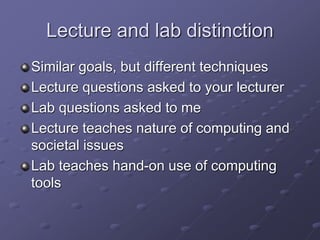
Lecture and lab distinction
Similar goals, but different techniques
Lecture questions asked to your lecturer
Lab questions asked to me
Lecture teaches nature of computing and
societal issues
Lab teaches hand-on use of computing
tools
About the Lab
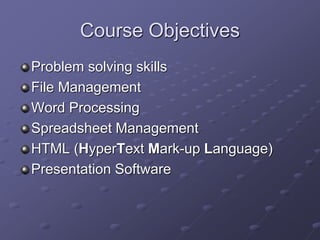
Course Objectives
Problem solving skills
File Management
Word Processing
Spreadsheet Management
HTML (HyperText Mark-up Language)
Presentation Software
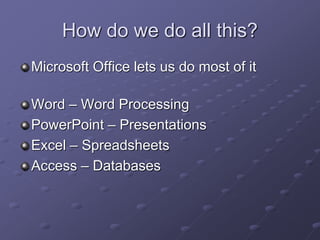
How do we do all this?
Microsoft Office lets us do most of it
Word – Word Processing
PowerPoint – Presentations
Excel – Spreadsheets
Access – Databases
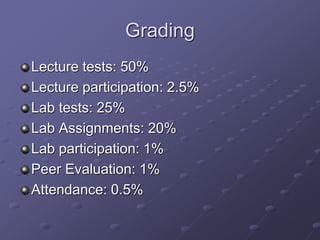
Grading
Lecture tests: 50%
Lecture participation: 2.5%
Lab tests: 25%
Lab Assignments: 20%
Lab participation: 1%
Peer Evaluation: 1%
Attendance: 0.5%
Lab Assignments and Projects
Administered through Blackboard
During lab at regularly schedule
time
Lecture Quizzes
Test 1 Word and Excel
Test 2 Access
Test 3 Powerpoint
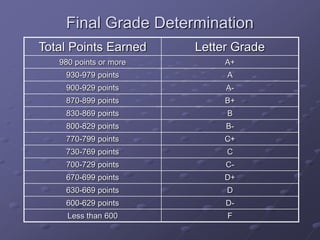
Final Grade Determination
Total Points Earned Letter Grade
980 points or more A+
930-979 points A
900-929 points A-
870-899 points B+
830-869 points B
800-829 points B-
770-799 points C+
730-769 points C
700-729 points C-
670-699 points D+
630-669 points D
600-629 points D-
Less than 600 F
My promises to you…
I will treat you with respect
I will be available for questions via phone,
email, during office hours, and via
Blackboard)
I will try to be engaging and helpful
I will grade you fairly and objectively
University Expectations
Turn in work on-time
Do all work independently (except group
work)
Take responsibility for your own
learning!
My Expectations
Treat each other with respect
Work hard
Ask if you have questions!
Blackboard
What is Blackboard?
A place to see class announcements, the
syllabus, and grades
A method for communicating with the
instructor and the class
The place for taking lecture tests
The location for submitting assignments
A convenient place for storing group
documents
A word about Blackboard
messaging...
Contact me through the site; I’m going to
check it fairly regularly
Use the email professionally – remember,
your name is attached to it
Email the entire class ONLY if the entire
class needs to see it (e.g. need somebody
to take notes, unable to contact group
member, etc)
CFS
(Common File System)
CFS – Three ways to access
World Wide Web (WWW)
Secure File Transfer Protocol (SFTP)
Network drive mapping (this is what we
will do)
CFS – WWW Interface
Via WWW interface –
http://cfs.iu.edu/username
Replace “username” with your username
Drag and drop not possible
CFS – SFTP Method
You need a Secure File Transfer Protocol
client
Two common examples: MacSFTP (for
Macintosh machines) and SSH Secure
Shell (for Windows Machines)
Download from IUware Online:
http://iuware.indiana.edu
CFS – Mapping a drive
Right click on “My Computer” and select
“Map Network Drive”
In the “Drive:” field, choose “Z:” (the choice
is arbitrary, but we should be consistent)
In the “Path:” field, type the following:
cfs.iu.eduusername
Click Finish
A window will open showing you your files
CFS Details
You have just created a network drive
mapping
In that mapping, you’ll see a folder called
“1day-backup”, which is a folder that
contains the files that were backed up a
day ago (in case you delete something
important)
Do not mess with your “1day-backup”
folder!
File Management
File Management
Creating a folder – right click in white
space and choose “New” then choose
“Folder”. Type a name for the folder.
Rename a folder – right click on a folder,
choose “rename”, and enter a new name.
Entering a folder – double click on it
Getting out of a folder – click on the “up”
button in the toolbar
File Management
Deleting files – click on them, then push
the delete key OR right click on them, then
choose “delete”
Deleting folders – done the same way
Where did these things go?
The Recycle bin!
File Management – Recycle Bin
Located on the desktop
Double click on it to enter it
You can restore a file by right clicking on it
and choosing “Restore”
You can permanently delete it by right
clicking on it and choosing “Delete”
Emptying the Recycle bin (under File)
Why is the Recycle bin good? Why is it
bad?
CFS – Unmapping our drive
Used to log out of the drive
Makes it so the machine can’t be used to
get at files
Go to “My Computer”, right click, and
choose “Disconnect Network Drive”
Click on the “Z:” drive. Choose OK.
Steel
(a web server)
Steel – A web server
We use SFTP to access Steel
The lab machines should have the Secure File
Transfer Client and the Secure Shell Client.
We will connect to: steel.ucs.indiana.edu with
our username and password
We will create a “www” folder as your “web root”
Whatever you put in there will be visible at your
http://mypage.iu.edu/~username/ address
Steel – SFTP
Open the Secure File Transfer Protocol
(SFTP) client
Enter “steel.ucs.indiana.edu” as the host
Enter your username. Click connect
Enter you password when prompted
When it logs you in, you’ll need to create a
“www” folder. Right click in the white
space in the right pane and click “New
Folder”. Name it “www”.
Steel – SSH
Open the Secure Shell client
Enter “steel.ucs.indiana.edu” as the host
Enter your username. Click connect
Enter you password when prompted
If asked about your shell preference,
choose “5” for bash. You will then be
disconnected. Reconnect.
Use the “spinweb” command to make your
www folder visible
Aren’t CFS and Steel the same?
Nope. They both let you store files, but
they are distinct
CFS lets you upload and download your
files using www, SFTP, or drive mappings
Steel only lets you use SFTP for
transferring. But, Steel is a public web
server and it lets you login to the shell
CFS and Steel machines
The CFS machine – a seven IBM server
cluster
The Steel machine – a nine Sun Solaris
server cluster
UITS Review
Creating accounts: http://itaccounts.iu.edu/
Oncourse: http://oncourse.iu.edu
Password Resets: https://password.iu.edu/
CFS: cfs.iu.edu
Steel (SSH, SFTP): steel.ucs.indiana.edu
Steel (www viewing):
http://mypage.iu.edu/~username/
What have we done?
Introduction to the lab
Course Objectives
Grading, Tests, and Assignments
Expectations (for you and for me)
OnCourse Website
CFS (Common File System)
File management
Steel (Web server)
Logging Out
It is extremely important that you log out of
your machines before you leave!
You should make sure your password is
hard to guess and make sure that it
remains secure
You can change your password by going
to: https://password.iu.edu/
Questions?

A110intro

  • 1.
    Introduction to Computers andComputing Introduction and Lesson 1 Dr. Dan Brown Department of Information Technology, North Carolina A&T State University
  • 2.
    Curiosity killed thecat… How many of you have your own computers? Did you bring it to IU? How many of you feel comfortable with computers? How many of you have used Microsoft Office before?
  • 3.
    Brief Introductions Name Major Something youhope to gain from it Something you think is interesting about yourself (interests, hobbies, etc)
  • 4.
    What will thefirst lesson cover?
  • 5.
    Topics Introduction to thelab Course Objectives Grading, Tests, and Assignments Expectations (for you and for me) Blackboard Website CFS (Common File System) File management Steel (Web server)
  • 6.
    Lecture and labdistinction Similar goals, but different techniques Lecture questions asked to your lecturer Lab questions asked to me Lecture teaches nature of computing and societal issues Lab teaches hand-on use of computing tools
  • 7.
  • 8.
    Course Objectives Problem solvingskills File Management Word Processing Spreadsheet Management HTML (HyperText Mark-up Language) Presentation Software
  • 9.
    How do wedo all this? Microsoft Office lets us do most of it Word – Word Processing PowerPoint – Presentations Excel – Spreadsheets Access – Databases
  • 10.
    Grading Lecture tests: 50% Lectureparticipation: 2.5% Lab tests: 25% Lab Assignments: 20% Lab participation: 1% Peer Evaluation: 1% Attendance: 0.5%
  • 11.
    Lab Assignments andProjects Administered through Blackboard During lab at regularly schedule time
  • 12.
    Lecture Quizzes Test 1Word and Excel Test 2 Access Test 3 Powerpoint
  • 13.
    Final Grade Determination TotalPoints Earned Letter Grade 980 points or more A+ 930-979 points A 900-929 points A- 870-899 points B+ 830-869 points B 800-829 points B- 770-799 points C+ 730-769 points C 700-729 points C- 670-699 points D+ 630-669 points D 600-629 points D- Less than 600 F
  • 14.
    My promises toyou… I will treat you with respect I will be available for questions via phone, email, during office hours, and via Blackboard) I will try to be engaging and helpful I will grade you fairly and objectively
  • 15.
    University Expectations Turn inwork on-time Do all work independently (except group work) Take responsibility for your own learning!
  • 16.
    My Expectations Treat eachother with respect Work hard Ask if you have questions!
  • 17.
  • 18.
    What is Blackboard? Aplace to see class announcements, the syllabus, and grades A method for communicating with the instructor and the class The place for taking lecture tests The location for submitting assignments A convenient place for storing group documents
  • 19.
    A word aboutBlackboard messaging... Contact me through the site; I’m going to check it fairly regularly Use the email professionally – remember, your name is attached to it Email the entire class ONLY if the entire class needs to see it (e.g. need somebody to take notes, unable to contact group member, etc)
  • 20.
  • 21.
    CFS – Threeways to access World Wide Web (WWW) Secure File Transfer Protocol (SFTP) Network drive mapping (this is what we will do)
  • 22.
    CFS – WWWInterface Via WWW interface – http://cfs.iu.edu/username Replace “username” with your username Drag and drop not possible
  • 23.
    CFS – SFTPMethod You need a Secure File Transfer Protocol client Two common examples: MacSFTP (for Macintosh machines) and SSH Secure Shell (for Windows Machines) Download from IUware Online: http://iuware.indiana.edu
  • 24.
    CFS – Mappinga drive Right click on “My Computer” and select “Map Network Drive” In the “Drive:” field, choose “Z:” (the choice is arbitrary, but we should be consistent) In the “Path:” field, type the following: cfs.iu.eduusername Click Finish A window will open showing you your files
  • 25.
    CFS Details You havejust created a network drive mapping In that mapping, you’ll see a folder called “1day-backup”, which is a folder that contains the files that were backed up a day ago (in case you delete something important) Do not mess with your “1day-backup” folder!
  • 26.
  • 27.
    File Management Creating afolder – right click in white space and choose “New” then choose “Folder”. Type a name for the folder. Rename a folder – right click on a folder, choose “rename”, and enter a new name. Entering a folder – double click on it Getting out of a folder – click on the “up” button in the toolbar
  • 28.
    File Management Deleting files– click on them, then push the delete key OR right click on them, then choose “delete” Deleting folders – done the same way Where did these things go? The Recycle bin!
  • 29.
    File Management –Recycle Bin Located on the desktop Double click on it to enter it You can restore a file by right clicking on it and choosing “Restore” You can permanently delete it by right clicking on it and choosing “Delete” Emptying the Recycle bin (under File) Why is the Recycle bin good? Why is it bad?
  • 30.
    CFS – Unmappingour drive Used to log out of the drive Makes it so the machine can’t be used to get at files Go to “My Computer”, right click, and choose “Disconnect Network Drive” Click on the “Z:” drive. Choose OK.
  • 31.
  • 32.
    Steel – Aweb server We use SFTP to access Steel The lab machines should have the Secure File Transfer Client and the Secure Shell Client. We will connect to: steel.ucs.indiana.edu with our username and password We will create a “www” folder as your “web root” Whatever you put in there will be visible at your http://mypage.iu.edu/~username/ address
  • 33.
    Steel – SFTP Openthe Secure File Transfer Protocol (SFTP) client Enter “steel.ucs.indiana.edu” as the host Enter your username. Click connect Enter you password when prompted When it logs you in, you’ll need to create a “www” folder. Right click in the white space in the right pane and click “New Folder”. Name it “www”.
  • 34.
    Steel – SSH Openthe Secure Shell client Enter “steel.ucs.indiana.edu” as the host Enter your username. Click connect Enter you password when prompted If asked about your shell preference, choose “5” for bash. You will then be disconnected. Reconnect. Use the “spinweb” command to make your www folder visible
  • 35.
    Aren’t CFS andSteel the same? Nope. They both let you store files, but they are distinct CFS lets you upload and download your files using www, SFTP, or drive mappings Steel only lets you use SFTP for transferring. But, Steel is a public web server and it lets you login to the shell
  • 36.
    CFS and Steelmachines The CFS machine – a seven IBM server cluster The Steel machine – a nine Sun Solaris server cluster
  • 37.
    UITS Review Creating accounts:http://itaccounts.iu.edu/ Oncourse: http://oncourse.iu.edu Password Resets: https://password.iu.edu/ CFS: cfs.iu.edu Steel (SSH, SFTP): steel.ucs.indiana.edu Steel (www viewing): http://mypage.iu.edu/~username/
  • 38.
    What have wedone? Introduction to the lab Course Objectives Grading, Tests, and Assignments Expectations (for you and for me) OnCourse Website CFS (Common File System) File management Steel (Web server)
  • 39.
    Logging Out It isextremely important that you log out of your machines before you leave! You should make sure your password is hard to guess and make sure that it remains secure You can change your password by going to: https://password.iu.edu/
  • 40.