PROGRAMMING FOR
PROBLEM SOLVING
COMPUTER SYSTEMS
• A Computer is an electronic device that takes raw data as
input from the user and processes it under the control of a set
of instructions (called program), produces a result (output),
and saves it for future use.
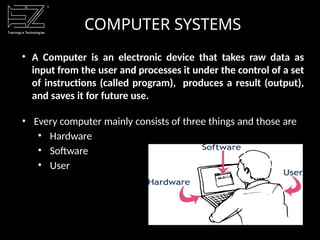
• Every computer mainly consists of three things and those are
• Hardware
• Software
• User
COMPUTER HARDWARE
• All physical components of the computer are called as
computer hardware.
• A user can see, touch and feel every hardware of the computer.
• All hardware components perform any task based on the
instructions given by the computer software.
• The computer hardware components are as follows:
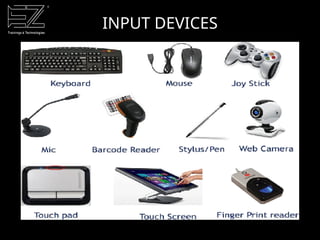
• Input Devices: These are the parts through which a user can
give the data to the computer.
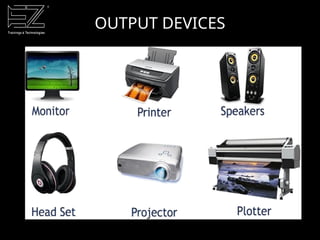
• Output Devices: These are the physical components of a
computer through which the computer gives the result to the
user.
COMPUTER HARDWARE
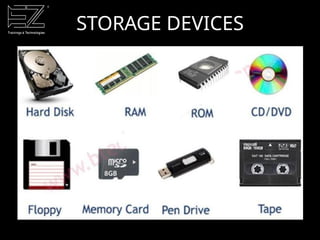
Storage Devices: These are the physical components of a
computer in which the data can be stored.
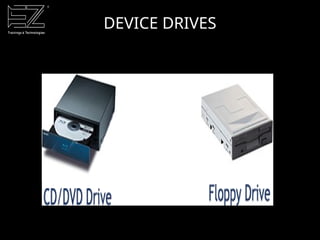
Devices Drives: Using drives, user can read and write data on to
the storage devices like CD, floppy, etc.,
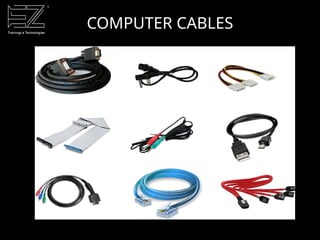
Cables: Various cables (Wires) are used to make connections in a
computer.
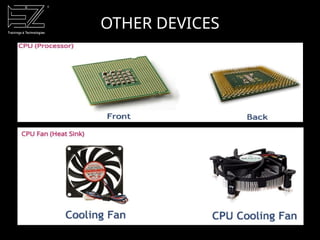
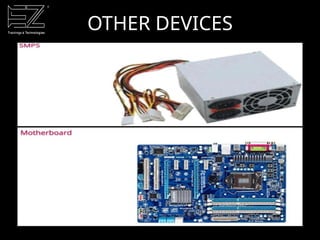
Other Devices: Other than the above hardware components, a
computer also contains components like Motherboard, CPU
(Processor), SMPS, Fans, etc.
INPUT DEVICES
OUTPUT DEVICES
STORAGE DEVICES
DEVICE DRIVES
COMPUTER CABLES
OTHER DEVICES
OTHER DEVICES
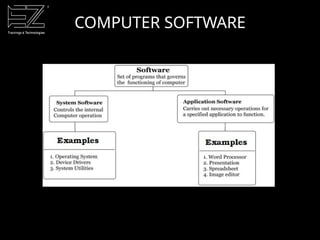
COMPUTER SOFTWARE
• Software isa collection of computer programs and related
data that provide instructions for telling a computer "what to
do and how to do it".
• Software is an interface between user and computer.
• It is a set of instructions, programs that are used to give
command to hardware.
• It is responsible for controlling, integrating and managing
the hardware components of a computer system and for
accomplishing specific tasks.
COMPUTER SOFTWARE
SYSTEM SOFTWARE
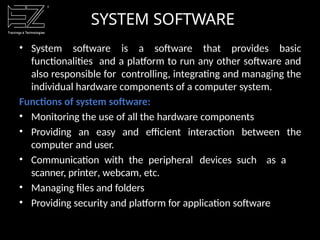
• System software is a software that provides basic
functionalities and a platform to run any other software and
also responsible for controlling, integrating and managing the
individual hardware components of a computer system.
Functions of system software:
• Monitoring the use of all the hardware components
• Providing an easy and efficient interaction between the
computer and user.
• Communication with the peripheral devices such as a
scanner, printer, webcam, etc.
• Managing files and folders
• Providing security and platform for application software
SYSTEM SOFTWARE
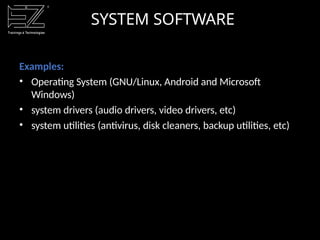
Examples:
• Operating System (GNU/Linux, Android and Microsoft
Windows)
• system drivers (audio drivers, video drivers, etc)
• system utilities (antivirus, disk cleaners, backup utilities, etc)
APPLICATION SOFTWARE
• The application software is computer software designed to
help the user to perform singular or multiple tasks.
• It is a set of instructions or program designed for specific
uses or applications that enable the user to interact with a
computer.
• Application software is also called the end-user programs.
• These programs do the real work for users.
APPLICATION SOFTWARE
Examples:
• Microsoft suite of products (Office, Excel, Word, PowerPoint,
Outlook, etc.)
• Internet browsers like Firefox, Safari, and Chrome
• Mobile pieces of software such as Pandora (for music
appreciation), Skype (for real-time online communication),
and Slack (for team collaboration)
GENERATIONS OF
COMPUTERS
• There are five generations of computers. Each of the
generation has its own characteristics features.
• The history of computer development is often referred to in
reference to the different generations of computing devices.
• Each generation of computer is characterized by a major
technological development that fundamentally changed the
way computers operate, resulting in increasingly smaller,
cheaper, more powerful and more efficient and reliable
devices.
GENERATIONS OF
COMPUTERS
• First Generation (1940-1956): Vacuum Tubes
• Second Generation (1956-1963): Transistors
• Third Generation (1964-1971): Integrated Circuits
• Fourth Generation (1971-Present): Microprocessors
• Fifth Generation (Present and Beyond): Artificial Intelligence
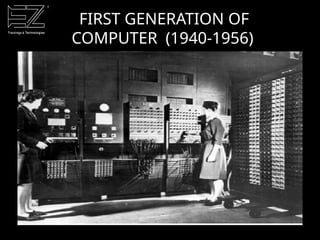
• The first computers used vacuum tubes for circuitry and
magnetic drums for memory.
• Are enormous in size , taking up entire rooms.
• They were very expensive to operate and in addition to using
a great deal of electricity, generated a lot of heat, which was
often the cause of malfunctions.
• First generation computers relied on machine language, the
lowest-level programming language understood by
computers, to perform operations
• They could only solve one problem at a time.
• Input was based on punched cards and paper tape, and
output was displayed on printouts.
• The UNIVAC and ENIAC computers are examples of first-
generation computing devices
FIRST GENERATION OF
COMPUTER (1940-1956)
FIRST GENERATION OF
COMPUTER (1940-1956)
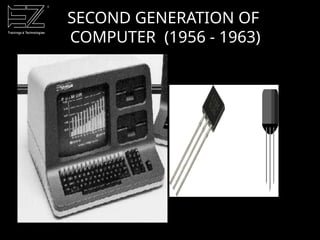
• Transistors replaced vacuum tubes and ushered in the second
generation of computers.
• The transistor was far superior to the vacuum tube, allowing
computers to become smaller, faster, cheaper, more energy-
efficient and more reliable than their first-generation
predecessors.
• Second-generation computers still relied on punched cards
for input and printouts for output.
• Second-generation computers moved from machine language
to symbolic, or assembly, languages, which allowed
programmers to specify instructions in words.
• The first computers of this generation were developed for the
atomic energy industry.
SECOND GENERATION OF
COMPUTER (1956 - 1963)
SECOND GENERATION OF
COMPUTER (1956 - 1963)
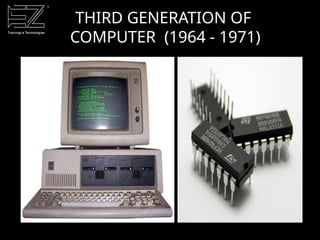
• The third generation computer uses integrated circuits as
their main ingredients.
• Transistors were miniaturized and placed on silicon chips,
called semiconductors, which drastically increased the speed
and efficiency of computers.
• Instead of punched cards and printouts, users interacted with
third generation computers through keyboards and monitors.
• And interfaced with an operating system, which allowed the
device to run many different applications at one time with a
central program that monitored the memory.
• During this generation computers for the first time became
accessible to a mass audience because they were smaller and
cheaper than their predecessors.
THIRD GENERATION OF
COMPUTER (1964 - 1971)
THIRD GENERATION OF
COMPUTER (1964 - 1971)
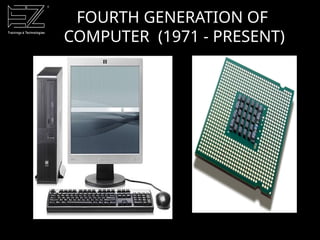
• The microprocessor brought the fourth generation of
computers, as thousands of integrated circuits were built onto
a single silicon chip.
• Now the size became so small that it could now fit in the palm
of the hand.
• The Intel 4004 chip, developed in 1971, located all the
components of the computer—from the central processing
unit and memory to input/output controls—on a single chip.
• Fourth generation computers also saw the development of
GUIs, the mouse and handheld devices.
• In 1981 IBM introduced its first computer for the home user,
and in 1984 Apple introduced the Macintosh.
FOURTH GENERATION OF
COMPUTER (1971 - PRESENT)
FOURTH GENERATION OF
COMPUTER (1971 - PRESENT)
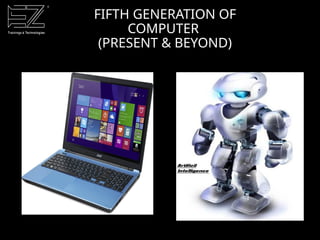
• Fifth generation computing devices are based on artificial
intelligence and are still in development.
• Although there are some applications, such as voice
recognition, that are being used today.
• The use of parallel processing and superconductors is
helping to make artificial intelligence a reality
FIFTH GENERATION OF
COMPUTER
(PRESENT & BEYOND)
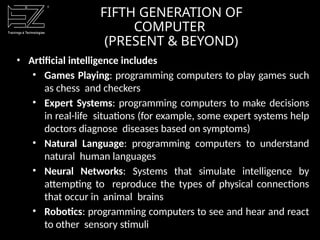
• Artificial intelligence includes
• Games Playing: programming computers to play games such
as chess and checkers
• Expert Systems: programming computers to make decisions
in real-life situations (for example, some expert systems help
doctors diagnose diseases based on symptoms)
• Natural Language: programming computers to understand
natural human languages
• Neural Networks: Systems that simulate intelligence by
attempting to reproduce the types of physical connections
that occur in animal brains
• Robotics: programming computers to see and hear and react
to other sensory stimuli
FIFTH GENERATION OF
COMPUTER
(PRESENT & BEYOND)
FIFTH GENERATION OF
COMPUTER
(PRESENT & BEYOND)
COMPUTING ENVIRONMENTS
• The word computer is used to refer to the process
of converting information to data.
• The advent of several new kinds of computers created a
need to have different computing environments.
• The following are the different kinds of computing
environments available:
1. Personal Computing Environment
2. Time Sharing Computing Environment
3. Client/Server Computing Environment
4. Distributed Computing Environment
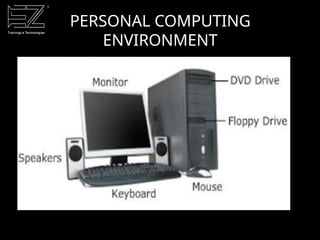
PERSONAL COMPUTING
ENVIRONMENT
• In the personal computing environment, there is a single
computer system and is also called as general purpose
computer.
• The size and capabilities of a personal computer makes
it useful for end-users.
• All the system processes are available on the computer and
executed there.
• In a personal computer, all the hardware components are
tied together, so that it can be used as per our need.
• The different devices that constitute a personal computing
environment are laptops, mobiles, printers, computer systems,
scanners etc.
PERSONAL COMPUTING
ENVIRONMENT
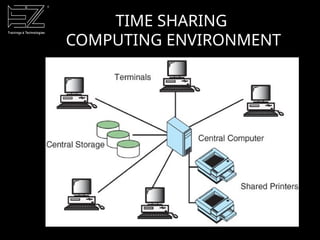
TIME SHARING
COMPUTING ENVIRONMENT
• Employees in large companies often work in a time sharing
environment. In this environment, many users are connected
to one or more computers.
• These are called as minicomputers or central mainframes.
• In the time sharing environment, the output devices and
auxiliary storage are shared by all the users.
• In time sharing environment, each computer must be
operated by the central computer.
• In this type of environment, computing is operated by central
computer. This central computer has many duties which keeps
the computer busy.
TIME SHARING
COMPUTING ENVIRONMENT
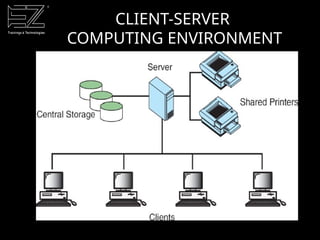
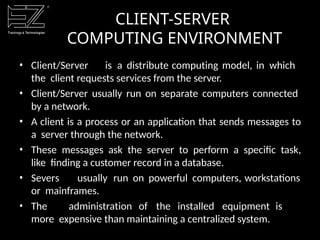
• Client/Server is a distribute computing model, in which
the client requests services from the server.
• Client/Server usually run on separate computers connected
by a network.
• A client is a process or an application that sends messages to
a server through the network.
• These messages ask the server to perform a specific task,
like finding a customer record in a database.
• Severs usually run on powerful computers, workstations
or mainframes.
• The administration of the installed equipment is
more expensive than maintaining a centralized system.
CLIENT-SERVER
COMPUTING ENVIRONMENT
CLIENT-SERVER
COMPUTING ENVIRONMENT
DISTRIBUTED
COMPUTING ENVIRONMENT
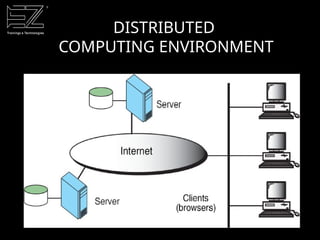
• A distributed computing environment allows smooth
integration of computing functions between different internet
server's clients and provides the connection to different
servers around the world.
• Distributed Computing is used by distributed systems to
solve computational problems.
• In Distributed Computing, each problem is divided
into
several tasks, which are solved by one or more computers.
DISTRIBUTED
COMPUTING ENVIRONMENT
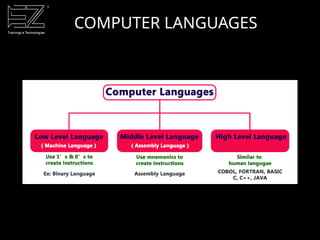
COMPUTER LANGUAGES
• Computer languages are the languages through which the
user can communicate with the computer by writing program
instructions.
• The user interacts with the computer using programs and that
programs are created using computer programming
languages like C, C++, Java, etc.,
• Every computer programming language contains a set of
predefined words and a set of rules (syntax) that are used
to create instructions of a program.
COMPUTER LANGUAGES
LOW-LEVEL LANGUAGE
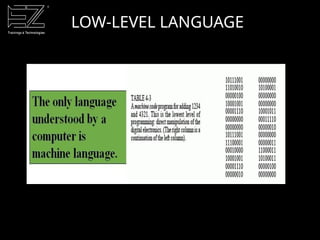
• Low-Level language is the only language which can be
understood by the computer.
• Binary Language is an example of a low-level language. Low-
level language is also known as Machine Language.
• All the instructions of binary language are written in the form
of binary numbers 1's & 0's.
• A computer can directly understand the binary language.
Machine language is also known as the Machine Code.
LOW-LEVEL LANGUAGE
LOW-LEVEL LANGUAGE
Advantages:
• Computer can easily understand
• Instructions are directly executed on the machine without
any translation.
• Low-level language instructions require very less time for
their execution.
Disadvantages:
• Instructions are very difficult to use and understand.
• Low-level language instructions are machine-dependent.
• Frequent hardware failures.
• Even small errors also some times leads to system crash.
• Middle-level language is a computer language in which the
instructions are created using symbols such as letters, digits
and special characters.
• Assembly language is an example of middle-level language.
• In assembly language, we use predefined words called
mnemonics or symbolic notations.
• Binary code instructions in low-levellanguage are replaced
with mnemonics and operands in middle-level language.
• But the computer cannot understand mnemonics, so we
use a translator Called assembler to translate mnemonics
into binary language.
MIDDLE LEVEL LANGUAGE
• That means, the computer cannot understand middle-level
language, so it needs to be translated into a low-level
language to make it understandable by the computer.
• Assembler is used to translate middle-level language into low-
level language.
• Example: assembly language
Example:
MOV A, 10
MOV B, 15
ADD
A, B
MIDDLE LEVEL LANGUAGE
Advantages:
• Learning and writing programs became easy.
• Middle-level language is more readable compared to low-level
language.
• Easy to understand, find errors and modify.
Disadvantages:
• Middle-level is machine-dependent.
• Middle-level language needs to be translated into low-level
language.
• Middle-level language executes slower compared to low-level
language.
• Rare hardware failures.
HIGH-LEVEL LANGUAGE
• A high-level language is a computer language which can be
understood by the users.
• The high-level language is very similar to human languages and
has a set of grammar rules.
• Every high-level language has a set of predefined words
known as Keywords and a set of rules known as Syntax to create
instructions.
• The high-level language is easier to understand for the users
but the computer can not understand it.
• High-level language needs to be converted into the low-level
language to make it understandable by the computer.
• We use Compiler or interpreter to convert high-level language
to low- level language.
• Examples - COBOL, FORTRAN, BASIC, C, C++, JAVA, etc
HIGH-LEVEL LANGUAGE
Advantages:
• Learning and writing instructions is very easier.
• Instructions are more readable and understandable.
• Programs are machine independent.
• Easy to understand, create programs, find errors
and modify.
Disadvantages:
• Needs to be translated into low-level language.
• Programs executes slower compared to middle and
low- level languages.
• Each programming language has its own set of rules.
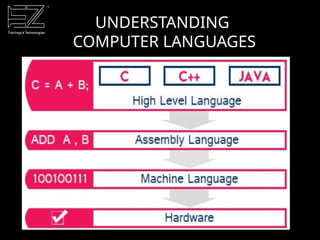
UNDERSTANDING
COMPUTER LANGUAGES
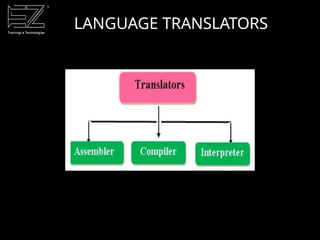
LANGUAGE TRANSLATORS
• A language translator is a program which is used to translate an
input program written in one programming language into
another programming language (output program). Language
processor is also called a language translator.
• A program written in any high-level programming language is
called the Source code or program.
• To convert the source code into machine code is called the
object code or program.
• A Translator translates the source program into the object
program that the computer can understand and execute.
LANGUAGE TRANSLATORS
ASSEMBLER
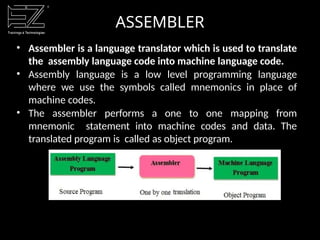
• Assembler is a language translator which is used to translate
the assembly language code into machine language code.
• Assembly language is a low level programming language
where we use the symbols called mnemonics in place of
machine codes.
• The assembler performs a one to one mapping from
mnemonic statement into machine codes and data. The
translated program is called as object program.
ASSEMBLER
Advantages:
• Programs written in machine language are replaceable by
mnemonics which are easier to remember.
• Memory Efficient.
• Faster in speed.
• Easy to make insertions and deletions.
• Hardware Oriented.
Disadvantages:
• It takes lot of time to code or write the program, as it is more
complex in nature.
• Difficult to remember the syntax.
• Lack of portability of program between computers of different
makes.
COMPILER
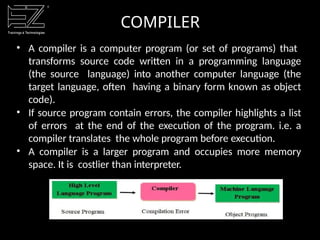
• A compiler is a computer program (or set of programs) that
transforms source code written in a programming language
(the source language) into another computer language (the
target language, often having a binary form known as object
code).
• If source program contain errors, the compiler highlights a list
of errors at the end of the execution of the program. i.e. a
compiler translates the whole program before execution.
• A compiler is a larger program and occupies more memory
space. It is costlier than interpreter.
COMPILER
Advantages:
• Producers and executable file, and therefore the program
can be run without need of the source code.
• Source code is not included therefore compiled code is more
secure than interpreted code.
• Tends to produce faster code than interpreting source code.
Disadvantages:
• Object code needs to be produced before a final
executable file. This can be a slow process.
• It is not easy to debug as errors are shown at the end of
the execution.
INTERPRETER
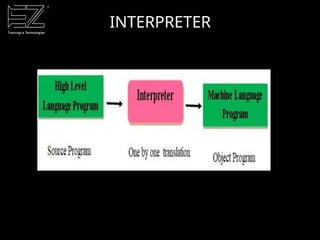
• Interpreter converts the source program written in high level
language into machine languages.
• An interpreter converts each statement of the program line by
line into machine code.
• It means an interpreter translates the one line at a time into
machine language and executes it. Then moves towards the
next line this goes on till the end of the program. If no error
occurs.
• Interpreter stops and highlights the problem and will not move
to next line when any errors are encountered.
• An interpreter requires a less storage space in primary memory
than a compiler.
INTERPRETER
INTERPRETER
Advantages:
•Easier to debug (check errors) than a compiler.
•Easier to create multi-platform code, as each different
platform would have an interpreter to run the same code.
•Useful for prototyping software and testing basic program
logic.
Disadvantages:
• Source code is required for the program to be executed,
and this source code can be read making it insecure.
• Interpreters are generally slower than compiled programs
due to the per-line translation method.
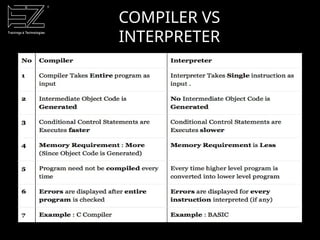
COMPILER VS
INTERPRETER
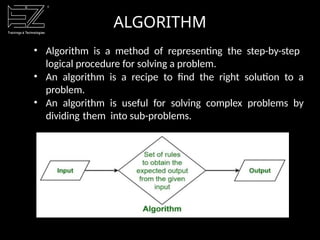
ALGORITHM
• Algorithm is a method of representing the step-by-step
logical procedure for solving a problem.
• An algorithm is a recipe to find the right solution to a
problem.
• An algorithm is useful for solving complex problems by
dividing them into sub-problems.
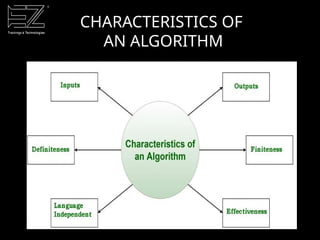
CHARACTERISTICS OF
AN ALGORITHM
CHARACTERISTICS OF
AN ALGORITHM
• Inputs: Every algorithm must take zero or more quantities
as input.
• Outputs: Every algorithm must produce at least one
output value.
• Finiteness: An algorithm must have finite number of
steps i.e. it should terminate.
• Definiteness: Each step of the algorithm must be
precisely and unambiguously stated.
• Effectiveness: Each step of an algorithm must be feasible
i.e. Algorithm must be simple and practical.
• Language Independent: The Algorithm designed must
be language-independent.
EXAMPLE OF
AN ALGORITHM
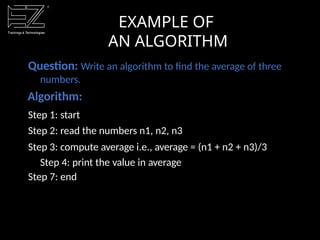
Question: Write an algorithm to find the average of three
numbers.
Algorithm:
Step 1: start
Step 2: read the numbers n1, n2, n3
Step 3: compute average i.e., average = (n1 + n2 + n3)/3
Step 4: print the value in average
Step 7: end
ALGORITHM ADVANTAGES
& DISADVANTAGES
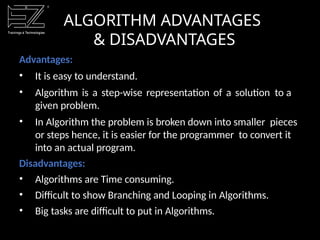
Advantages:
• It is easy to understand.
• Algorithm is a step-wise representation of a solution to a
given problem.
• In Algorithm the problem is broken down into smaller pieces
or steps hence, it is easier for the programmer to convert it
into an actual program.
Disadvantages:
• Algorithms are Time consuming.
• Difficult to show Branching and Looping in Algorithms.
• Big tasks are difficult to put in Algorithms.
FLOWCHART
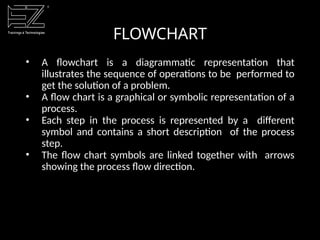
• A flowchart is a diagrammatic representation that
illustrates the sequence of operations to be performed to
get the solution of a problem.
• A flow chart is a graphical or symbolic representation of a
process.
• Each step in the process is represented by a different
symbol and contains a short description of the process
step.
• The flow chart symbols are linked together with arrows
showing the process flow direction.
FLOWCHART
• A flowchart is a diagrammatic representation that
illustrates the sequence of operations to be performed to
get the solution of a problem.
• A flow chart is a graphical or symbolic representation of a
process.
• Each step in the process is represented by a different
symbol and contains a short description of the process
step.
• The flow chart symbols are linked together with arrows
showing the process flow direction.
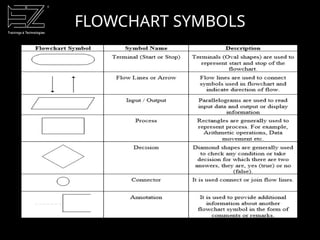
FLOWCHART SYMBOLS
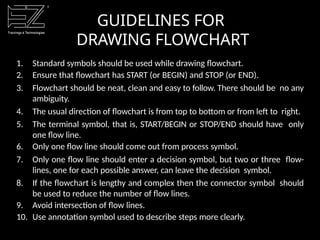
GUIDELINES FOR
DRAWING FLOWCHART
1. Standard symbols should be used while drawing flowchart.
2. Ensure that flowchart has START (or BEGIN) and STOP (or END).
3. Flowchart should be neat, clean and easy to follow. There should be no any
ambiguity.
4. The usual direction of flowchart is from top to bottom or from left to right.
5. The terminal symbol, that is, START/BEGIN or STOP/END should have only
one flow line.
6. Only one flow line should come out from process symbol.
7. Only one flow line should enter a decision symbol, but two or three flow-
lines, one for each possible answer, can leave the decision symbol.
8. If the flowchart is lengthy and complex then the connector symbol should
be used to reduce the number of flow lines.
9. Avoid intersection of flow lines.
10. Use annotation symbol used to describe steps more clearly.
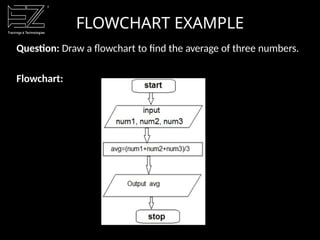
FLOWCHART EXAMPLE
Question: Draw a flowchart to find the average of three numbers.
Flowchart:
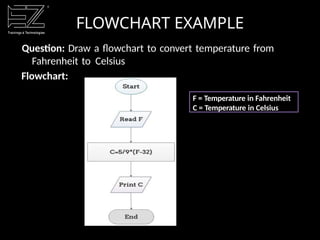
FLOWCHART EXAMPLE
Question: Draw a flowchart to convert temperature from
Fahrenheit to Celsius
Flowchart:
F = Temperature in Fahrenheit
C = Temperature in Celsius
FLOWCHART
ADVANTAGES
Advantages:
• Communication: Flowcharts are the better way of communicating
the logic of a system to all concerned.
• Effective analysis: With the help of flowchart, problem can be
analyzed in more effective way.
• Proper documentation: Program flowcharts serve as a good
program documentation, which is needed for various purposes.
• Efficient Coding: The flowcharts act as a guide or blueprint during
the systems analysis and program development phase.
• Proper Debugging: The flowcharts are more useful in debugging
process.
• Efficient Program Maintenance: The maintenance of operating
program becomes easy with the help of flowchart. It helps the
programmer to put efforts more efficiently on that part.
FLOWCHART
DISADVANTAGES
Disadvantages:
• Complex logic: Sometimes, the program logic is quite
complicated. In that case, flowchart becomes complex and
clumsy.
• Alterations and Modifications: If alterations are required
the flowchart may require re-drawing completely.
• Reproduction: As the flowchart symbols cannot be typed,
reproduction of flowchart becomes a problem.
ALGORITHM
VS
FLOWCHART
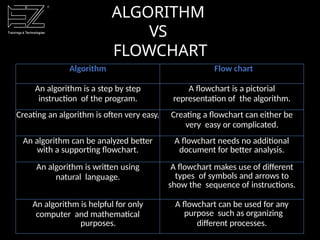
Algorithm Flow chart
An algorithm is a step by step
instruction of the program.
A flowchart is a pictorial
representation of the algorithm.
Creating an algorithm is often very easy. Creating a flowchart can either be
very easy or complicated.
An algorithm can be analyzed better
with a supporting flowchart.
A flowchart needs no additional
document for better analysis.
An algorithm is written using
natural language.
A flowchart makes use of different
types of symbols and arrows to
show the sequence of instructions.
An algorithm is helpful for only
computer and mathematical
purposes.
A flowchart can be used for any
purpose such as organizing
different processes.
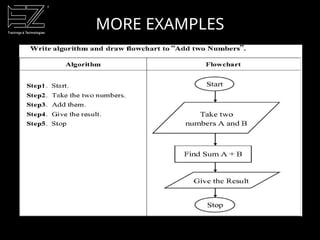
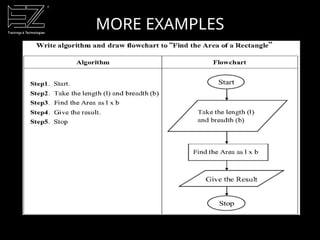
MORE EXAMPLES
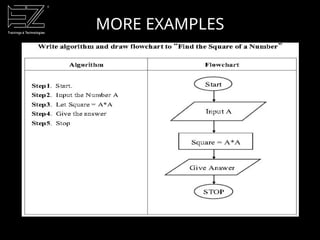
MORE EXAMPLES
MORE EXAMPLES

A comprehensive power point Presentation about the Origin of Programming

  • 1.
  • 2.
    COMPUTER SYSTEMS • AComputer is an electronic device that takes raw data as input from the user and processes it under the control of a set of instructions (called program), produces a result (output), and saves it for future use. • Every computer mainly consists of three things and those are • Hardware • Software • User
  • 3.
    COMPUTER HARDWARE • Allphysical components of the computer are called as computer hardware. • A user can see, touch and feel every hardware of the computer. • All hardware components perform any task based on the instructions given by the computer software. • The computer hardware components are as follows: • Input Devices: These are the parts through which a user can give the data to the computer. • Output Devices: These are the physical components of a computer through which the computer gives the result to the user.
  • 4.
    COMPUTER HARDWARE Storage Devices:These are the physical components of a computer in which the data can be stored. Devices Drives: Using drives, user can read and write data on to the storage devices like CD, floppy, etc., Cables: Various cables (Wires) are used to make connections in a computer. Other Devices: Other than the above hardware components, a computer also contains components like Motherboard, CPU (Processor), SMPS, Fans, etc.
  • 5.
  • 6.
  • 7.
  • 8.
  • 9.
  • 10.
  • 11.
  • 12.
    COMPUTER SOFTWARE • Softwareisa collection of computer programs and related data that provide instructions for telling a computer "what to do and how to do it". • Software is an interface between user and computer. • It is a set of instructions, programs that are used to give command to hardware. • It is responsible for controlling, integrating and managing the hardware components of a computer system and for accomplishing specific tasks.
  • 13.
  • 14.
    SYSTEM SOFTWARE • Systemsoftware is a software that provides basic functionalities and a platform to run any other software and also responsible for controlling, integrating and managing the individual hardware components of a computer system. Functions of system software: • Monitoring the use of all the hardware components • Providing an easy and efficient interaction between the computer and user. • Communication with the peripheral devices such as a scanner, printer, webcam, etc. • Managing files and folders • Providing security and platform for application software
  • 15.
    SYSTEM SOFTWARE Examples: • OperatingSystem (GNU/Linux, Android and Microsoft Windows) • system drivers (audio drivers, video drivers, etc) • system utilities (antivirus, disk cleaners, backup utilities, etc)
  • 16.
    APPLICATION SOFTWARE • Theapplication software is computer software designed to help the user to perform singular or multiple tasks. • It is a set of instructions or program designed for specific uses or applications that enable the user to interact with a computer. • Application software is also called the end-user programs. • These programs do the real work for users.
  • 17.
    APPLICATION SOFTWARE Examples: • Microsoftsuite of products (Office, Excel, Word, PowerPoint, Outlook, etc.) • Internet browsers like Firefox, Safari, and Chrome • Mobile pieces of software such as Pandora (for music appreciation), Skype (for real-time online communication), and Slack (for team collaboration)
  • 18.
    GENERATIONS OF COMPUTERS • Thereare five generations of computers. Each of the generation has its own characteristics features. • The history of computer development is often referred to in reference to the different generations of computing devices. • Each generation of computer is characterized by a major technological development that fundamentally changed the way computers operate, resulting in increasingly smaller, cheaper, more powerful and more efficient and reliable devices.
  • 19.
    GENERATIONS OF COMPUTERS • FirstGeneration (1940-1956): Vacuum Tubes • Second Generation (1956-1963): Transistors • Third Generation (1964-1971): Integrated Circuits • Fourth Generation (1971-Present): Microprocessors • Fifth Generation (Present and Beyond): Artificial Intelligence
  • 20.
    • The firstcomputers used vacuum tubes for circuitry and magnetic drums for memory. • Are enormous in size , taking up entire rooms. • They were very expensive to operate and in addition to using a great deal of electricity, generated a lot of heat, which was often the cause of malfunctions. • First generation computers relied on machine language, the lowest-level programming language understood by computers, to perform operations • They could only solve one problem at a time. • Input was based on punched cards and paper tape, and output was displayed on printouts. • The UNIVAC and ENIAC computers are examples of first- generation computing devices FIRST GENERATION OF COMPUTER (1940-1956)
  • 21.
  • 22.
    • Transistors replacedvacuum tubes and ushered in the second generation of computers. • The transistor was far superior to the vacuum tube, allowing computers to become smaller, faster, cheaper, more energy- efficient and more reliable than their first-generation predecessors. • Second-generation computers still relied on punched cards for input and printouts for output. • Second-generation computers moved from machine language to symbolic, or assembly, languages, which allowed programmers to specify instructions in words. • The first computers of this generation were developed for the atomic energy industry. SECOND GENERATION OF COMPUTER (1956 - 1963)
  • 23.
  • 24.
    • The thirdgeneration computer uses integrated circuits as their main ingredients. • Transistors were miniaturized and placed on silicon chips, called semiconductors, which drastically increased the speed and efficiency of computers. • Instead of punched cards and printouts, users interacted with third generation computers through keyboards and monitors. • And interfaced with an operating system, which allowed the device to run many different applications at one time with a central program that monitored the memory. • During this generation computers for the first time became accessible to a mass audience because they were smaller and cheaper than their predecessors. THIRD GENERATION OF COMPUTER (1964 - 1971)
  • 25.
  • 26.
    • The microprocessorbrought the fourth generation of computers, as thousands of integrated circuits were built onto a single silicon chip. • Now the size became so small that it could now fit in the palm of the hand. • The Intel 4004 chip, developed in 1971, located all the components of the computer—from the central processing unit and memory to input/output controls—on a single chip. • Fourth generation computers also saw the development of GUIs, the mouse and handheld devices. • In 1981 IBM introduced its first computer for the home user, and in 1984 Apple introduced the Macintosh. FOURTH GENERATION OF COMPUTER (1971 - PRESENT)
  • 27.
  • 28.
    • Fifth generationcomputing devices are based on artificial intelligence and are still in development. • Although there are some applications, such as voice recognition, that are being used today. • The use of parallel processing and superconductors is helping to make artificial intelligence a reality FIFTH GENERATION OF COMPUTER (PRESENT & BEYOND)
  • 29.
    • Artificial intelligenceincludes • Games Playing: programming computers to play games such as chess and checkers • Expert Systems: programming computers to make decisions in real-life situations (for example, some expert systems help doctors diagnose diseases based on symptoms) • Natural Language: programming computers to understand natural human languages • Neural Networks: Systems that simulate intelligence by attempting to reproduce the types of physical connections that occur in animal brains • Robotics: programming computers to see and hear and react to other sensory stimuli FIFTH GENERATION OF COMPUTER (PRESENT & BEYOND)
  • 30.
  • 31.
    COMPUTING ENVIRONMENTS • Theword computer is used to refer to the process of converting information to data. • The advent of several new kinds of computers created a need to have different computing environments. • The following are the different kinds of computing environments available: 1. Personal Computing Environment 2. Time Sharing Computing Environment 3. Client/Server Computing Environment 4. Distributed Computing Environment
  • 32.
    PERSONAL COMPUTING ENVIRONMENT • Inthe personal computing environment, there is a single computer system and is also called as general purpose computer. • The size and capabilities of a personal computer makes it useful for end-users. • All the system processes are available on the computer and executed there. • In a personal computer, all the hardware components are tied together, so that it can be used as per our need. • The different devices that constitute a personal computing environment are laptops, mobiles, printers, computer systems, scanners etc.
  • 33.
  • 34.
    TIME SHARING COMPUTING ENVIRONMENT •Employees in large companies often work in a time sharing environment. In this environment, many users are connected to one or more computers. • These are called as minicomputers or central mainframes. • In the time sharing environment, the output devices and auxiliary storage are shared by all the users. • In time sharing environment, each computer must be operated by the central computer. • In this type of environment, computing is operated by central computer. This central computer has many duties which keeps the computer busy.
  • 35.
  • 36.
    • Client/Server isa distribute computing model, in which the client requests services from the server. • Client/Server usually run on separate computers connected by a network. • A client is a process or an application that sends messages to a server through the network. • These messages ask the server to perform a specific task, like finding a customer record in a database. • Severs usually run on powerful computers, workstations or mainframes. • The administration of the installed equipment is more expensive than maintaining a centralized system. CLIENT-SERVER COMPUTING ENVIRONMENT
  • 37.
  • 38.
    DISTRIBUTED COMPUTING ENVIRONMENT • Adistributed computing environment allows smooth integration of computing functions between different internet server's clients and provides the connection to different servers around the world. • Distributed Computing is used by distributed systems to solve computational problems. • In Distributed Computing, each problem is divided into several tasks, which are solved by one or more computers.
  • 39.
  • 40.
    COMPUTER LANGUAGES • Computerlanguages are the languages through which the user can communicate with the computer by writing program instructions. • The user interacts with the computer using programs and that programs are created using computer programming languages like C, C++, Java, etc., • Every computer programming language contains a set of predefined words and a set of rules (syntax) that are used to create instructions of a program.
  • 41.
  • 42.
    LOW-LEVEL LANGUAGE • Low-Levellanguage is the only language which can be understood by the computer. • Binary Language is an example of a low-level language. Low- level language is also known as Machine Language. • All the instructions of binary language are written in the form of binary numbers 1's & 0's. • A computer can directly understand the binary language. Machine language is also known as the Machine Code.
  • 43.
  • 44.
    LOW-LEVEL LANGUAGE Advantages: • Computercan easily understand • Instructions are directly executed on the machine without any translation. • Low-level language instructions require very less time for their execution. Disadvantages: • Instructions are very difficult to use and understand. • Low-level language instructions are machine-dependent. • Frequent hardware failures. • Even small errors also some times leads to system crash.
  • 45.
    • Middle-level languageis a computer language in which the instructions are created using symbols such as letters, digits and special characters. • Assembly language is an example of middle-level language. • In assembly language, we use predefined words called mnemonics or symbolic notations. • Binary code instructions in low-levellanguage are replaced with mnemonics and operands in middle-level language. • But the computer cannot understand mnemonics, so we use a translator Called assembler to translate mnemonics into binary language. MIDDLE LEVEL LANGUAGE
  • 46.
    • That means,the computer cannot understand middle-level language, so it needs to be translated into a low-level language to make it understandable by the computer. • Assembler is used to translate middle-level language into low- level language. • Example: assembly language Example: MOV A, 10 MOV B, 15 ADD A, B MIDDLE LEVEL LANGUAGE
  • 47.
    MIDDLE LEVEL LANGUAGE Advantages: •Learning and writing programs became easy. • Middle-level language is more readable compared to low-level language. • Easy to understand, find errors and modify. Disadvantages: • Middle-level is machine-dependent. • Middle-level language needs to be translated into low-level language. • Middle-level language executes slower compared to low-level language. • Rare hardware failures.
  • 48.
    HIGH-LEVEL LANGUAGE • Ahigh-level language is a computer language which can be understood by the users. • The high-level language is very similar to human languages and has a set of grammar rules. • Every high-level language has a set of predefined words known as Keywords and a set of rules known as Syntax to create instructions. • The high-level language is easier to understand for the users but the computer can not understand it. • High-level language needs to be converted into the low-level language to make it understandable by the computer. • We use Compiler or interpreter to convert high-level language to low- level language. • Examples - COBOL, FORTRAN, BASIC, C, C++, JAVA, etc
  • 49.
    HIGH-LEVEL LANGUAGE Advantages: • Learningand writing instructions is very easier. • Instructions are more readable and understandable. • Programs are machine independent. • Easy to understand, create programs, find errors and modify. Disadvantages: • Needs to be translated into low-level language. • Programs executes slower compared to middle and low- level languages. • Each programming language has its own set of rules.
  • 50.
  • 51.
    LANGUAGE TRANSLATORS • Alanguage translator is a program which is used to translate an input program written in one programming language into another programming language (output program). Language processor is also called a language translator. • A program written in any high-level programming language is called the Source code or program. • To convert the source code into machine code is called the object code or program. • A Translator translates the source program into the object program that the computer can understand and execute.
  • 52.
  • 53.
    ASSEMBLER • Assembler isa language translator which is used to translate the assembly language code into machine language code. • Assembly language is a low level programming language where we use the symbols called mnemonics in place of machine codes. • The assembler performs a one to one mapping from mnemonic statement into machine codes and data. The translated program is called as object program.
  • 54.
    ASSEMBLER Advantages: • Programs writtenin machine language are replaceable by mnemonics which are easier to remember. • Memory Efficient. • Faster in speed. • Easy to make insertions and deletions. • Hardware Oriented. Disadvantages: • It takes lot of time to code or write the program, as it is more complex in nature. • Difficult to remember the syntax. • Lack of portability of program between computers of different makes.
  • 55.
    COMPILER • A compileris a computer program (or set of programs) that transforms source code written in a programming language (the source language) into another computer language (the target language, often having a binary form known as object code). • If source program contain errors, the compiler highlights a list of errors at the end of the execution of the program. i.e. a compiler translates the whole program before execution. • A compiler is a larger program and occupies more memory space. It is costlier than interpreter.
  • 56.
    COMPILER Advantages: • Producers andexecutable file, and therefore the program can be run without need of the source code. • Source code is not included therefore compiled code is more secure than interpreted code. • Tends to produce faster code than interpreting source code. Disadvantages: • Object code needs to be produced before a final executable file. This can be a slow process. • It is not easy to debug as errors are shown at the end of the execution.
  • 57.
    INTERPRETER • Interpreter convertsthe source program written in high level language into machine languages. • An interpreter converts each statement of the program line by line into machine code. • It means an interpreter translates the one line at a time into machine language and executes it. Then moves towards the next line this goes on till the end of the program. If no error occurs. • Interpreter stops and highlights the problem and will not move to next line when any errors are encountered. • An interpreter requires a less storage space in primary memory than a compiler.
  • 58.
  • 59.
    INTERPRETER Advantages: •Easier to debug(check errors) than a compiler. •Easier to create multi-platform code, as each different platform would have an interpreter to run the same code. •Useful for prototyping software and testing basic program logic. Disadvantages: • Source code is required for the program to be executed, and this source code can be read making it insecure. • Interpreters are generally slower than compiled programs due to the per-line translation method.
  • 60.
  • 61.
    ALGORITHM • Algorithm isa method of representing the step-by-step logical procedure for solving a problem. • An algorithm is a recipe to find the right solution to a problem. • An algorithm is useful for solving complex problems by dividing them into sub-problems.
  • 62.
  • 63.
    CHARACTERISTICS OF AN ALGORITHM •Inputs: Every algorithm must take zero or more quantities as input. • Outputs: Every algorithm must produce at least one output value. • Finiteness: An algorithm must have finite number of steps i.e. it should terminate. • Definiteness: Each step of the algorithm must be precisely and unambiguously stated. • Effectiveness: Each step of an algorithm must be feasible i.e. Algorithm must be simple and practical. • Language Independent: The Algorithm designed must be language-independent.
  • 64.
    EXAMPLE OF AN ALGORITHM Question:Write an algorithm to find the average of three numbers. Algorithm: Step 1: start Step 2: read the numbers n1, n2, n3 Step 3: compute average i.e., average = (n1 + n2 + n3)/3 Step 4: print the value in average Step 7: end
  • 65.
    ALGORITHM ADVANTAGES & DISADVANTAGES Advantages: •It is easy to understand. • Algorithm is a step-wise representation of a solution to a given problem. • In Algorithm the problem is broken down into smaller pieces or steps hence, it is easier for the programmer to convert it into an actual program. Disadvantages: • Algorithms are Time consuming. • Difficult to show Branching and Looping in Algorithms. • Big tasks are difficult to put in Algorithms.
  • 66.
    FLOWCHART • A flowchartis a diagrammatic representation that illustrates the sequence of operations to be performed to get the solution of a problem. • A flow chart is a graphical or symbolic representation of a process. • Each step in the process is represented by a different symbol and contains a short description of the process step. • The flow chart symbols are linked together with arrows showing the process flow direction.
  • 67.
    FLOWCHART • A flowchartis a diagrammatic representation that illustrates the sequence of operations to be performed to get the solution of a problem. • A flow chart is a graphical or symbolic representation of a process. • Each step in the process is represented by a different symbol and contains a short description of the process step. • The flow chart symbols are linked together with arrows showing the process flow direction.
  • 68.
  • 69.
    GUIDELINES FOR DRAWING FLOWCHART 1.Standard symbols should be used while drawing flowchart. 2. Ensure that flowchart has START (or BEGIN) and STOP (or END). 3. Flowchart should be neat, clean and easy to follow. There should be no any ambiguity. 4. The usual direction of flowchart is from top to bottom or from left to right. 5. The terminal symbol, that is, START/BEGIN or STOP/END should have only one flow line. 6. Only one flow line should come out from process symbol. 7. Only one flow line should enter a decision symbol, but two or three flow- lines, one for each possible answer, can leave the decision symbol. 8. If the flowchart is lengthy and complex then the connector symbol should be used to reduce the number of flow lines. 9. Avoid intersection of flow lines. 10. Use annotation symbol used to describe steps more clearly.
  • 70.
    FLOWCHART EXAMPLE Question: Drawa flowchart to find the average of three numbers. Flowchart:
  • 71.
    FLOWCHART EXAMPLE Question: Drawa flowchart to convert temperature from Fahrenheit to Celsius Flowchart: F = Temperature in Fahrenheit C = Temperature in Celsius
  • 72.
    FLOWCHART ADVANTAGES Advantages: • Communication: Flowchartsare the better way of communicating the logic of a system to all concerned. • Effective analysis: With the help of flowchart, problem can be analyzed in more effective way. • Proper documentation: Program flowcharts serve as a good program documentation, which is needed for various purposes. • Efficient Coding: The flowcharts act as a guide or blueprint during the systems analysis and program development phase. • Proper Debugging: The flowcharts are more useful in debugging process. • Efficient Program Maintenance: The maintenance of operating program becomes easy with the help of flowchart. It helps the programmer to put efforts more efficiently on that part.
  • 73.
    FLOWCHART DISADVANTAGES Disadvantages: • Complex logic:Sometimes, the program logic is quite complicated. In that case, flowchart becomes complex and clumsy. • Alterations and Modifications: If alterations are required the flowchart may require re-drawing completely. • Reproduction: As the flowchart symbols cannot be typed, reproduction of flowchart becomes a problem.
  • 74.
    ALGORITHM VS FLOWCHART Algorithm Flow chart Analgorithm is a step by step instruction of the program. A flowchart is a pictorial representation of the algorithm. Creating an algorithm is often very easy. Creating a flowchart can either be very easy or complicated. An algorithm can be analyzed better with a supporting flowchart. A flowchart needs no additional document for better analysis. An algorithm is written using natural language. A flowchart makes use of different types of symbols and arrows to show the sequence of instructions. An algorithm is helpful for only computer and mathematical purposes. A flowchart can be used for any purpose such as organizing different processes.
  • 75.
  • 76.
  • 77.