Setting up and Using Flickr – A Moray Heritage Connections Training
                                Event
Why use Flickr?
•   Creates an online, accessible archive
•   Enables you to open up collections
•   Enables others to contribute
•   Engages your audience
•   Encourages sharing
How museums are using Flickr
• Opening up archives to audiences
• Asking visitors/ fans to contribute to
  exhibitions
• Demonstrating visitor experiences
• Help to curate exhibitions
• Engage audiences with games
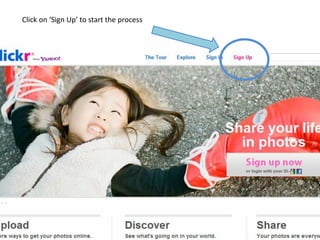
Visit www.flickr.com to create an account
Click on ‘Sign Up’ to start the process
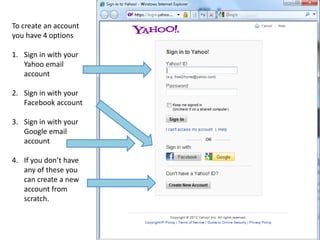
To create an account
you have 4 options

1. Sign in with your
   Yahoo email
   account

2. Sign in with your
   Facebook account

3. Sign in with your
   Google email
   account

4. If you don’t have
   any of these you
   can create a new
   account from
   scratch.
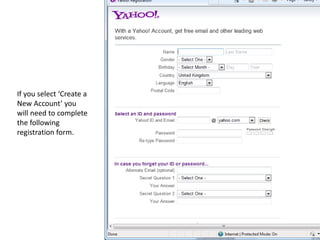
If you select ‘Create a
New Account’ you
will need to complete
the following
registration form.
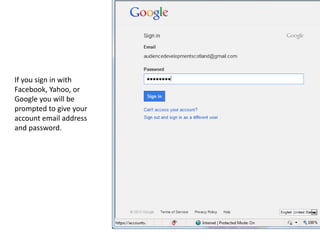
If you sign in with
Facebook, Yahoo, or
Google you will be
prompted to give your
account email address
and password.
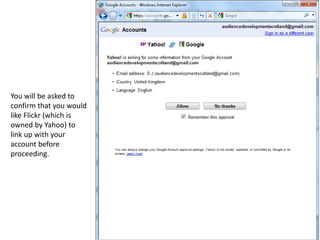
You will be asked to
confirm that you would
like Flickr (which is
owned by Yahoo) to
link up with your
account before
proceeding.
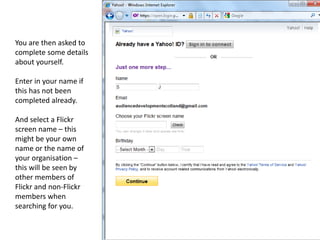
You are then asked to
complete some details
about yourself.

Enter in your name if
this has not been
completed already.

And select a Flickr
screen name – this
might be your own
name or the name of
your organisation –
this will be seen by
other members of
Flickr and non-Flickr
members when
searching for you.
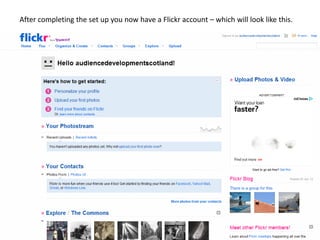
After completing the set up you now have a Flickr account – which will look like this.
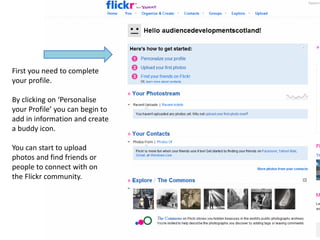
First you need to complete
your profile.

By clicking on ‘Personalise
your Profile’ you can begin to
add in information and create
a buddy icon.

You can start to upload
photos and find friends or
people to connect with on
the Flickr community.
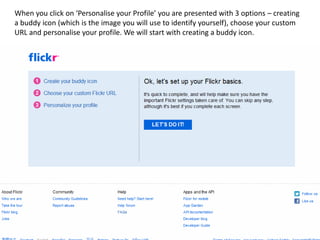
When you click on ‘Personalise your Profile’ you are presented with 3 options – creating
a buddy icon (which is the image you will use to identify yourself), choose your custom
URL and personalise your profile. We will start with creating a buddy icon.
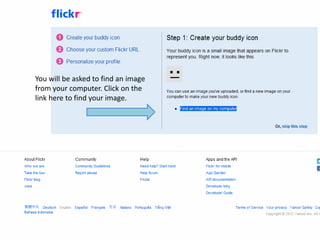
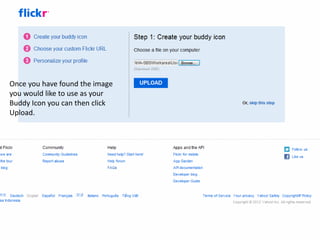
You will be asked to find an image
from your computer. Click on the
link here to find your image.
Once you have found the image
you would like to use as your
Buddy Icon you can then click
Upload.
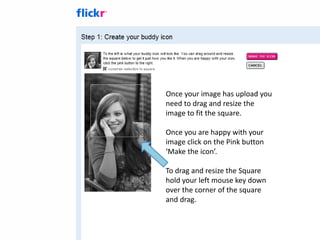
Once your image has upload you
need to drag and resize the
image to fit the square.

Once you are happy with your
image click on the Pink button
‘Make the icon’.

To drag and resize the Square
hold your left mouse key down
over the corner of the square
and drag.
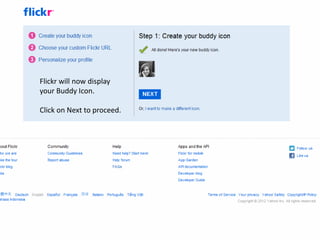
Flickr will now display
your Buddy Icon.

Click on Next to proceed.
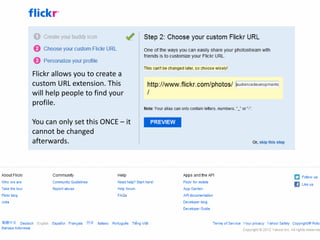
Flickr allows you to create a
custom URL extension. This
will help people to find your
profile.

You can only set this ONCE – it
cannot be changed
afterwards.
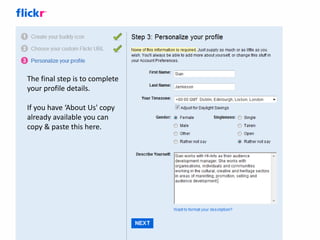
The final step is to complete
your profile details.

If you have ‘About Us' copy
already available you can
copy & paste this here.
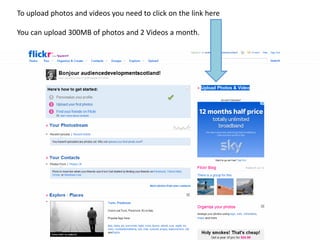
To upload photos and videos you need to click on the link here

You can upload 300MB of photos and 2 Videos a month.
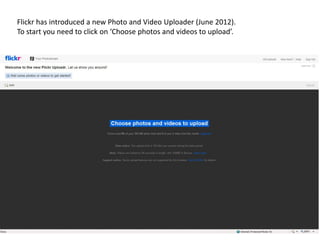
Flickr has introduced a new Photo and Video Uploader (June 2012).
To start you need to click on ‘Choose photos and videos to upload’.
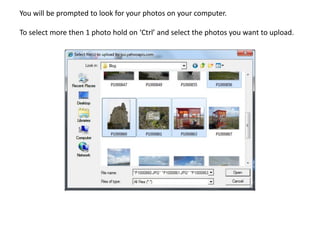
You will be prompted to look for your photos on your computer.

To select more then 1 photo hold on ‘Ctrl’ and select the photos you want to upload.
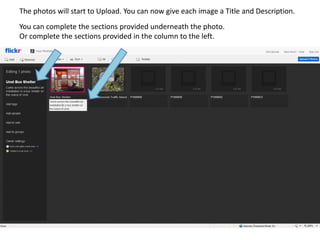
The photos will start to Upload. You can now give each image a Title and Description.
You can complete the sections provided underneath the photo.
Or complete the sections provided in the column to the left.
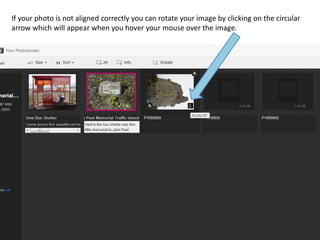
If your photo is not aligned correctly you can rotate your image by clicking on the circular
arrow which will appear when you hover your mouse over the image.
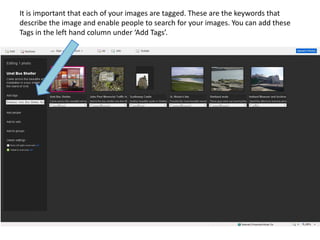
It is important that each of your images are tagged. These are the keywords that
describe the image and enable people to search for your images. You can add these
Tags in the left hand column under ‘Add Tags’.
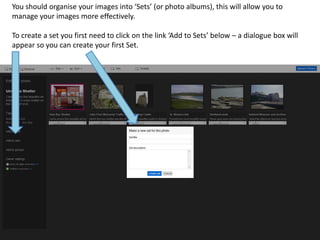
You should organise your images into ‘Sets’ (or photo albums), this will allow you to
manage your images more effectively.

To create a set you first need to click on the link ‘Add to Sets’ below – a dialogue box will
appear so you can create your first Set.
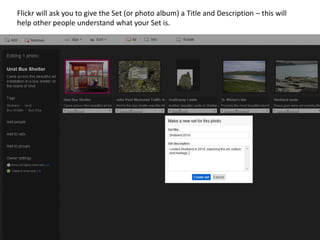
Flickr will ask you to give the Set (or photo album) a Title and Description – this will
help other people understand what your Set is.
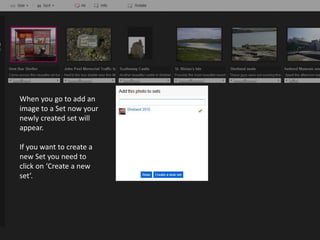
When you go to add an
image to a Set now your
newly created set will
appear.

If you want to create a
new Set you need to
click on ‘Create a new
set’.
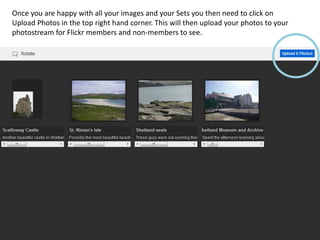
Once you are happy with all your images and your Sets you then need to click on
Upload Photos in the top right hand corner. This will then upload your photos to your
photostream for Flickr members and non-members to see.
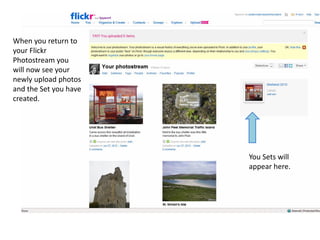
When you return to
your Flickr
Photostream you
will now see your
newly upload photos
and the Set you have
created.


                       You Sets will
                       appear here.
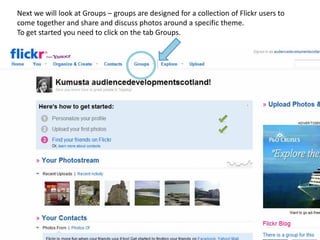
Next we will look at Groups – groups are designed for a collection of Flickr users to
come together and share and discuss photos around a specific theme.
To get started you need to click on the tab Groups.
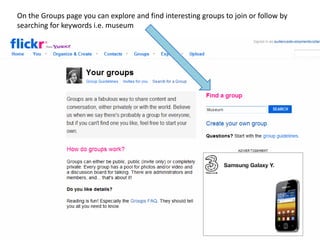
On the Groups page you can explore and find interesting groups to join or follow by
searching for keywords i.e. museum
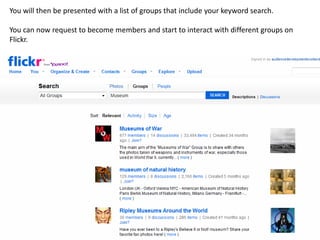
You will then be presented with a list of groups that include your keyword search.

You can now request to become members and start to interact with different groups on
Flickr.
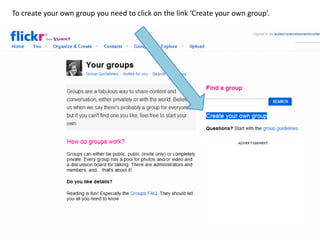
To create your own group you need to click on the link ‘Create your own group’.
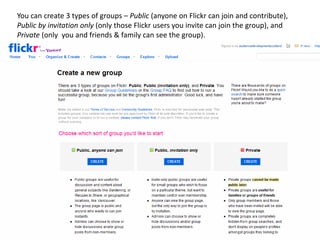
You can create 3 types of groups – Public (anyone on Flickr can join and contribute),
Public by invitation only (only those Flickr users you invite can join the group), and
Private (only you and friends & family can see the group).
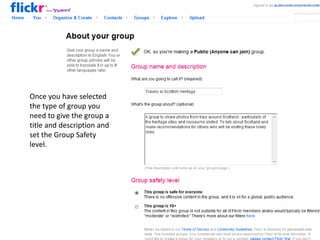
Once you have selected
the type of group you
need to give the group a
title and description and
set the Group Safety
level.
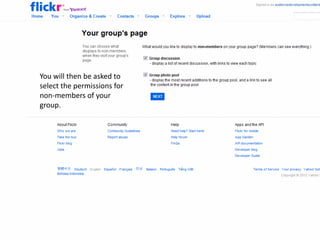
You will then be asked to
select the permissions for
non-members of your
group.
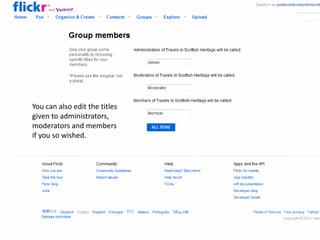
You can also edit the titles
given to administrators,
moderators and members
if you so wished.
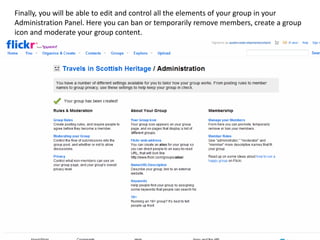
Finally, you will be able to edit and control all the elements of your group in your
Administration Panel. Here you can ban or temporarily remove members, create a group
icon and moderate your group content.
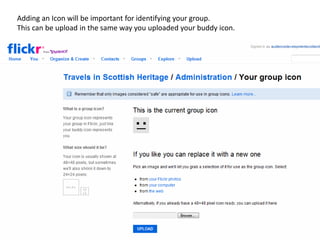
Adding an Icon will be important for identifying your group.
This can be upload in the same way you uploaded your buddy icon.
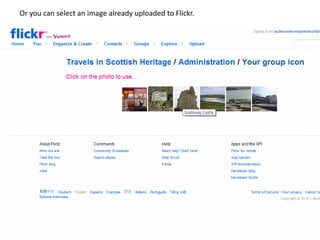
Or you can select an image already uploaded to Flickr.
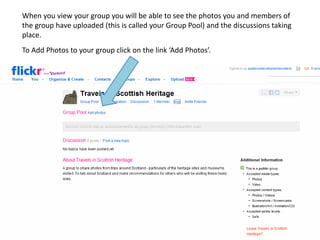
When you view your group you will be able to see the photos you and members of
the group have uploaded (this is called your Group Pool) and the discussions taking
place.
To Add Photos to your group click on the link ‘Add Photos’.
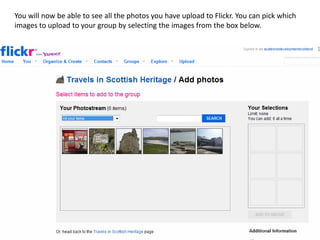
You will now be able to see all the photos you have upload to Flickr. You can pick which
images to upload to your group by selecting the images from the box below.
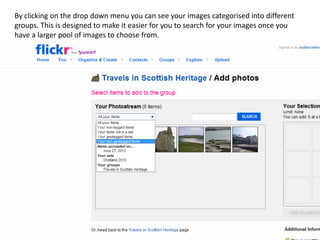
By clicking on the drop down menu you can see your images categorised into different
groups. This is designed to make it easier for you to search for your images once you
have a larger pool of images to choose from.
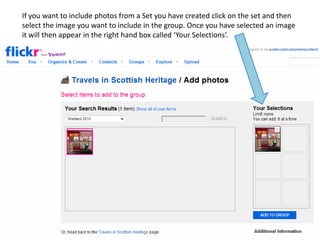
If you want to include photos from a Set you have created click on the set and then
select the image you want to include in the group. Once you have selected an image
it will then appear in the right hand box called ‘Your Selections’.
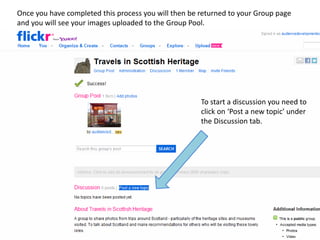
Once you have completed this process you will then be returned to your Group page
and you will see your images uploaded to the Group Pool.


                                                      To start a discussion you need to
                                                      click on ‘Post a new topic’ under
                                                      the Discussion tab.
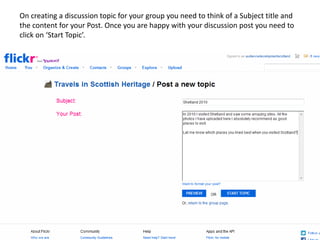
On creating a discussion topic for your group you need to think of a Subject title and
the content for your Post. Once you are happy with your discussion post you need to
click on ‘Start Topic’.
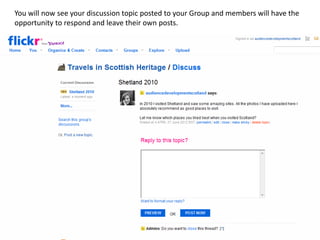
You will now see your discussion topic posted to your Group and members will have the
opportunity to respond and leave their own posts.
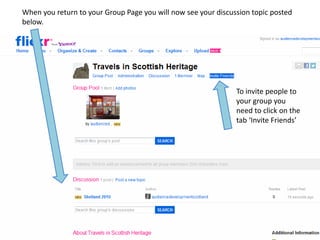
When you return to your Group Page you will now see your discussion topic posted
below.


                                                               To invite people to
                                                               your group you
                                                               need to click on the
                                                               tab ‘Invite Friends’
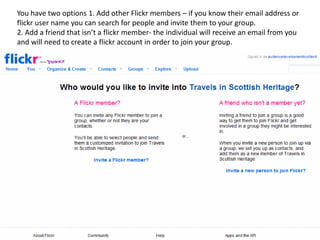
You have two options 1. Add other Flickr members – if you know their email address or
flickr user name you can search for people and invite them to your group.
2. Add a friend that isn’t a flickr member- the individual will receive an email from you
and will need to create a flickr account in order to join your group.
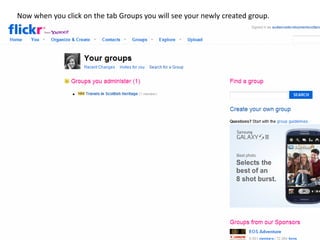
Now when you click on the tab Groups you will see your newly created group.
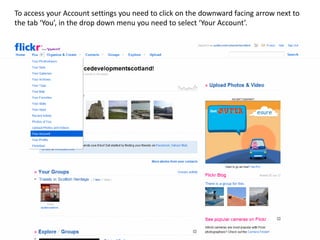
To access your Account settings you need to click on the downward facing arrow next to
the tab ‘You’, in the drop down menu you need to select ‘Your Account’.
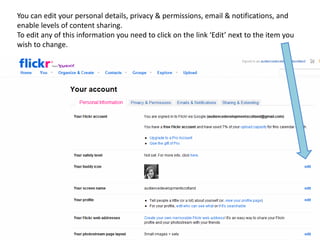
You can edit your personal details, privacy & permissions, email & notifications, and
enable levels of content sharing.
To edit any of this information you need to click on the link ‘Edit’ next to the item you
wish to change.
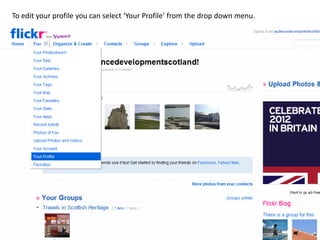
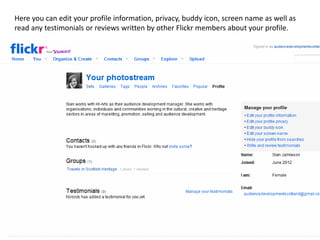
To edit your profile you can select ‘Your Profile’ from the drop down menu.
Here you can edit your profile information, privacy, buddy icon, screen name as well as
read any testimonials or reviews written by other Flickr members about your profile.
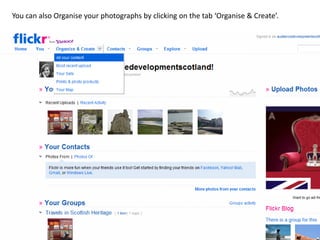
You can also Organise your photographs by clicking on the tab ‘Organise & Create’.
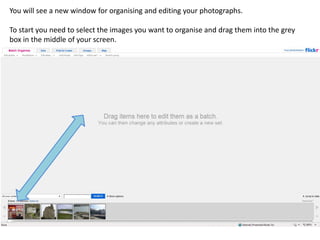
You will see a new window for organising and editing your photographs.

To start you need to select the images you want to organise and drag them into the grey
box in the middle of your screen.
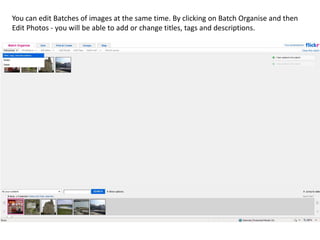
You can edit Batches of images at the same time. By clicking on Batch Organise and then
Edit Photos - you will be able to add or change titles, tags and descriptions.
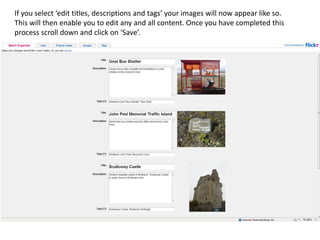
If you select ‘edit titles, descriptions and tags’ your images will now appear like so.
This will then enable you to edit any and all content. Once you have completed this
process scroll down and click on ‘Save’.
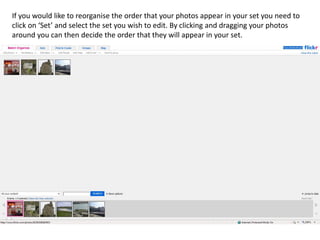
If you would like to reorganise the order that your photos appear in your set you need to
click on ‘Set’ and select the set you wish to edit. By clicking and dragging your photos
around you can then decide the order that they will appear in your set.
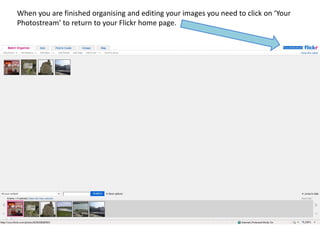
When you are finished organising and editing your images you need to click on ‘Your
Photostream’ to return to your Flickr home page.
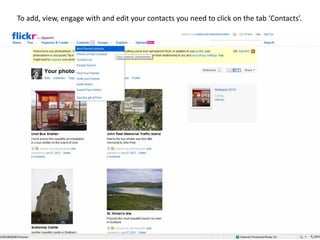
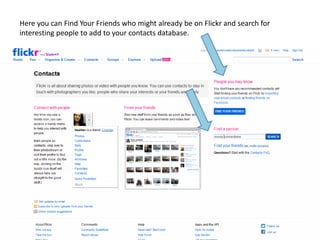
To add, view, engage with and edit your contacts you need to click on the tab ‘Contacts’.
Here you can Find Your Friends who might already be on Flickr and search for
interesting people to add to your contacts database.
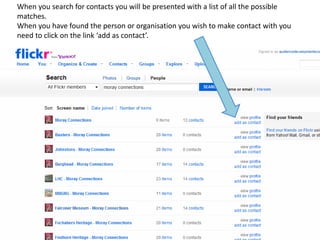
When you search for contacts you will be presented with a list of all the possible
matches.
When you have found the person or organisation you wish to make contact with you
need to click on the link ‘add as contact’.
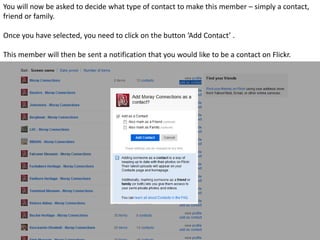
You will now be asked to decide what type of contact to make this member – simply a contact,
friend or family.

Once you have selected, you need to click on the button ‘Add Contact’ .

This member will then be sent a notification that you would like to be a contact on Flickr.
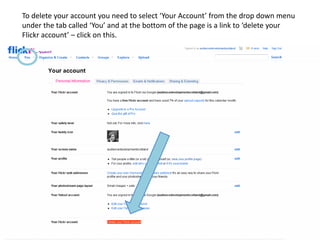
To delete your account you need to select ‘Your Account’ from the drop down menu
under the tab called ‘You’ and at the bottom of the page is a link to ‘delete your
Flickr account’ – click on this.
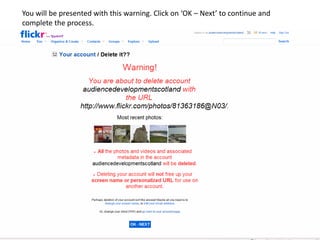
You will be presented with this warning. Click on ‘OK – Next’ to continue and
complete the process.
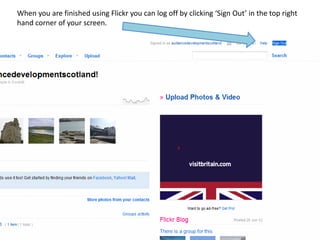
When you are finished using Flickr you can log off by clicking ‘Sign Out’ in the top right
hand corner of your screen.
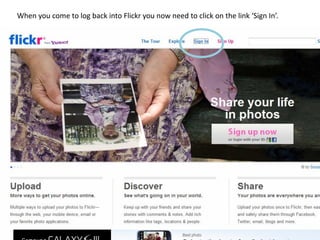
When you come to log back into Flickr you now need to click on the link ‘Sign In’.
This was a basic overview of how to set up and use
        Flickr, Flickr Sets and Flickr Groups.

             Thank you for your time.

 If you liked this presentation please share it with
            your colleagues and friends.

A Basic Guide to Setting Up & Using Flickr

  • 1.
    Setting up andUsing Flickr – A Moray Heritage Connections Training Event
  • 2.
    Why use Flickr? • Creates an online, accessible archive • Enables you to open up collections • Enables others to contribute • Engages your audience • Encourages sharing
  • 3.
    How museums areusing Flickr • Opening up archives to audiences • Asking visitors/ fans to contribute to exhibitions • Demonstrating visitor experiences • Help to curate exhibitions • Engage audiences with games
  • 4.
    Visit www.flickr.com tocreate an account
  • 5.
    Click on ‘SignUp’ to start the process
  • 6.
    To create anaccount you have 4 options 1. Sign in with your Yahoo email account 2. Sign in with your Facebook account 3. Sign in with your Google email account 4. If you don’t have any of these you can create a new account from scratch.
  • 7.
    If you select‘Create a New Account’ you will need to complete the following registration form.
  • 8.
    If you signin with Facebook, Yahoo, or Google you will be prompted to give your account email address and password.
  • 9.
    You will beasked to confirm that you would like Flickr (which is owned by Yahoo) to link up with your account before proceeding.
  • 10.
    You are thenasked to complete some details about yourself. Enter in your name if this has not been completed already. And select a Flickr screen name – this might be your own name or the name of your organisation – this will be seen by other members of Flickr and non-Flickr members when searching for you.
  • 11.
    After completing theset up you now have a Flickr account – which will look like this.
  • 12.
    First you needto complete your profile. By clicking on ‘Personalise your Profile’ you can begin to add in information and create a buddy icon. You can start to upload photos and find friends or people to connect with on the Flickr community.
  • 13.
    When you clickon ‘Personalise your Profile’ you are presented with 3 options – creating a buddy icon (which is the image you will use to identify yourself), choose your custom URL and personalise your profile. We will start with creating a buddy icon.
  • 14.
    You will beasked to find an image from your computer. Click on the link here to find your image.
  • 15.
    Once you havefound the image you would like to use as your Buddy Icon you can then click Upload.
  • 16.
    Once your imagehas upload you need to drag and resize the image to fit the square. Once you are happy with your image click on the Pink button ‘Make the icon’. To drag and resize the Square hold your left mouse key down over the corner of the square and drag.
  • 17.
    Flickr will nowdisplay your Buddy Icon. Click on Next to proceed.
  • 18.
    Flickr allows youto create a custom URL extension. This will help people to find your profile. You can only set this ONCE – it cannot be changed afterwards.
  • 19.
    The final stepis to complete your profile details. If you have ‘About Us' copy already available you can copy & paste this here.
  • 20.
    To upload photosand videos you need to click on the link here You can upload 300MB of photos and 2 Videos a month.
  • 21.
    Flickr has introduceda new Photo and Video Uploader (June 2012). To start you need to click on ‘Choose photos and videos to upload’.
  • 22.
    You will beprompted to look for your photos on your computer. To select more then 1 photo hold on ‘Ctrl’ and select the photos you want to upload.
  • 23.
    The photos willstart to Upload. You can now give each image a Title and Description. You can complete the sections provided underneath the photo. Or complete the sections provided in the column to the left.
  • 24.
    If your photois not aligned correctly you can rotate your image by clicking on the circular arrow which will appear when you hover your mouse over the image.
  • 25.
    It is importantthat each of your images are tagged. These are the keywords that describe the image and enable people to search for your images. You can add these Tags in the left hand column under ‘Add Tags’.
  • 26.
    You should organiseyour images into ‘Sets’ (or photo albums), this will allow you to manage your images more effectively. To create a set you first need to click on the link ‘Add to Sets’ below – a dialogue box will appear so you can create your first Set.
  • 27.
    Flickr will askyou to give the Set (or photo album) a Title and Description – this will help other people understand what your Set is.
  • 28.
    When you goto add an image to a Set now your newly created set will appear. If you want to create a new Set you need to click on ‘Create a new set’.
  • 29.
    Once you arehappy with all your images and your Sets you then need to click on Upload Photos in the top right hand corner. This will then upload your photos to your photostream for Flickr members and non-members to see.
  • 30.
    When you returnto your Flickr Photostream you will now see your newly upload photos and the Set you have created. You Sets will appear here.
  • 31.
    Next we willlook at Groups – groups are designed for a collection of Flickr users to come together and share and discuss photos around a specific theme. To get started you need to click on the tab Groups.
  • 32.
    On the Groupspage you can explore and find interesting groups to join or follow by searching for keywords i.e. museum
  • 33.
    You will thenbe presented with a list of groups that include your keyword search. You can now request to become members and start to interact with different groups on Flickr.
  • 34.
    To create yourown group you need to click on the link ‘Create your own group’.
  • 35.
    You can create3 types of groups – Public (anyone on Flickr can join and contribute), Public by invitation only (only those Flickr users you invite can join the group), and Private (only you and friends & family can see the group).
  • 36.
    Once you haveselected the type of group you need to give the group a title and description and set the Group Safety level.
  • 37.
    You will thenbe asked to select the permissions for non-members of your group.
  • 38.
    You can alsoedit the titles given to administrators, moderators and members if you so wished.
  • 39.
    Finally, you willbe able to edit and control all the elements of your group in your Administration Panel. Here you can ban or temporarily remove members, create a group icon and moderate your group content.
  • 40.
    Adding an Iconwill be important for identifying your group. This can be upload in the same way you uploaded your buddy icon.
  • 41.
    Or you canselect an image already uploaded to Flickr.
  • 42.
    When you viewyour group you will be able to see the photos you and members of the group have uploaded (this is called your Group Pool) and the discussions taking place. To Add Photos to your group click on the link ‘Add Photos’.
  • 43.
    You will nowbe able to see all the photos you have upload to Flickr. You can pick which images to upload to your group by selecting the images from the box below.
  • 44.
    By clicking onthe drop down menu you can see your images categorised into different groups. This is designed to make it easier for you to search for your images once you have a larger pool of images to choose from.
  • 45.
    If you wantto include photos from a Set you have created click on the set and then select the image you want to include in the group. Once you have selected an image it will then appear in the right hand box called ‘Your Selections’.
  • 46.
    Once you havecompleted this process you will then be returned to your Group page and you will see your images uploaded to the Group Pool. To start a discussion you need to click on ‘Post a new topic’ under the Discussion tab.
  • 47.
    On creating adiscussion topic for your group you need to think of a Subject title and the content for your Post. Once you are happy with your discussion post you need to click on ‘Start Topic’.
  • 48.
    You will nowsee your discussion topic posted to your Group and members will have the opportunity to respond and leave their own posts.
  • 49.
    When you returnto your Group Page you will now see your discussion topic posted below. To invite people to your group you need to click on the tab ‘Invite Friends’
  • 50.
    You have twooptions 1. Add other Flickr members – if you know their email address or flickr user name you can search for people and invite them to your group. 2. Add a friend that isn’t a flickr member- the individual will receive an email from you and will need to create a flickr account in order to join your group.
  • 51.
    Now when youclick on the tab Groups you will see your newly created group.
  • 52.
    To access yourAccount settings you need to click on the downward facing arrow next to the tab ‘You’, in the drop down menu you need to select ‘Your Account’.
  • 53.
    You can edityour personal details, privacy & permissions, email & notifications, and enable levels of content sharing. To edit any of this information you need to click on the link ‘Edit’ next to the item you wish to change.
  • 54.
    To edit yourprofile you can select ‘Your Profile’ from the drop down menu.
  • 55.
    Here you canedit your profile information, privacy, buddy icon, screen name as well as read any testimonials or reviews written by other Flickr members about your profile.
  • 56.
    You can alsoOrganise your photographs by clicking on the tab ‘Organise & Create’.
  • 57.
    You will seea new window for organising and editing your photographs. To start you need to select the images you want to organise and drag them into the grey box in the middle of your screen.
  • 58.
    You can editBatches of images at the same time. By clicking on Batch Organise and then Edit Photos - you will be able to add or change titles, tags and descriptions.
  • 59.
    If you select‘edit titles, descriptions and tags’ your images will now appear like so. This will then enable you to edit any and all content. Once you have completed this process scroll down and click on ‘Save’.
  • 60.
    If you wouldlike to reorganise the order that your photos appear in your set you need to click on ‘Set’ and select the set you wish to edit. By clicking and dragging your photos around you can then decide the order that they will appear in your set.
  • 61.
    When you arefinished organising and editing your images you need to click on ‘Your Photostream’ to return to your Flickr home page.
  • 62.
    To add, view,engage with and edit your contacts you need to click on the tab ‘Contacts’.
  • 63.
    Here you canFind Your Friends who might already be on Flickr and search for interesting people to add to your contacts database.
  • 64.
    When you searchfor contacts you will be presented with a list of all the possible matches. When you have found the person or organisation you wish to make contact with you need to click on the link ‘add as contact’.
  • 65.
    You will nowbe asked to decide what type of contact to make this member – simply a contact, friend or family. Once you have selected, you need to click on the button ‘Add Contact’ . This member will then be sent a notification that you would like to be a contact on Flickr.
  • 66.
    To delete youraccount you need to select ‘Your Account’ from the drop down menu under the tab called ‘You’ and at the bottom of the page is a link to ‘delete your Flickr account’ – click on this.
  • 67.
    You will bepresented with this warning. Click on ‘OK – Next’ to continue and complete the process.
  • 68.
    When you arefinished using Flickr you can log off by clicking ‘Sign Out’ in the top right hand corner of your screen.
  • 69.
    When you cometo log back into Flickr you now need to click on the link ‘Sign In’.
  • 70.
    This was abasic overview of how to set up and use Flickr, Flickr Sets and Flickr Groups. Thank you for your time. If you liked this presentation please share it with your colleagues and friends.