Chapter 12 – Adler
Layout

 Functions of supporting material
 Verbal support
   Types
 Visual support
   Types
   Media
   Computer-assisted design
   Rules for using


                               Verbal and Visual Support in Presentations
FUNCTIONS OF SUPPORTING MATERIAL


1. Clarity
   abstract or complicated ideas
1. Interest
   Enliven
   Make main point vivid, meaningful
1. Proof
   convincing
   E.g., survey


                   Verbal and Visual Support in Presentations
TYPES OF VERBAL SUPPORT (5)

1. Examples
  – Brief illustrations
  – most effective when several are given together
1. Stories
  – Hypothetical or factual
  – Guidelines
    • Should suit audience
    • Should support point
    • Be of right length

                    Verbal and Visual Support in Presentations
3. Statistics
    Probably the most common form of support
    Specially strong proof
      Firmly grounded in fact
      Shows that speaker is well informed
    May make mistake of burying the audience
      Provide a few key numbers
      Simply information (64.3% vs. two-thirds)


                    Verbal and Visual Support in Presentations
4. Comparisons
   Figurative = analogies
     Compare unfamiliar with familiar idea
   Literal
   Must have two characteristics
     Well-known, be valid
   Must clearly establish similarity


                   Verbal and Visual Support in Presentations
5. Citations
   More authoritative/articulate source
   Clarity and impact
   Help build persuasive case
   Guidelines
     Cite to add credibility to presentation
     Source must have credibility with audience
     Paraphrase lengthy or confusing citations
     Restate point of long citations

                   Verbal and Visual Support in Presentations
VISUAL AIDS


         Verbal and Visual Support in Presentations
Benefits

 A picture is often worth a thousand words
 Easier to understand than words alone
 Easier to explain complicated statistics
 Easier for listeners to understand
 Make presentations more interesting
 Boost your image as speaker
 Make information more memorable


                 Verbal and Visual Support in Presentations
Functions

 Show how things look
 Show how things work
 Show how things relate to one another
 Emphasize important points


                Verbal and Visual Support in Presentations
Types of Visual Aid (8)

1. Objects and Models
   Used in training, selling
   Hands-on experience/demonstration
   How to operate a piece of equipment
1. Photographs
2. Diagrams
   Two-dimensional
   Floor plan, maps… size, shape, structure


                  Verbal and Visual Support in Presentations
4. Lists and tables
   Key facts and figures, steps, features, comparison,
    etc
   Guidelines
     Keep it simple
     Use numbered or bulleted lists
     Use text sparingly
     Use large type
     Enhance readability through careful layout


                   Verbal and Visual Support in Presentations
5. Pie Charts
  – Percentages, resources, money, etc
  – Guidelines
    • Segment to emphasize on takes top-center
    • Label each segment
    • List percentage for each segment


6. Bar and column charts
  – Guidelines
    • Time on horizontal axis
    • Arrange bars in best-suited sequence
    • Represent numerical values clearly
                        Verbal and Visual Support in Presentations
7. Pictogram
   Artistic variations of bar, column, pie charts
   More interesting (figure 12-11)


8. Graphs
   Correlation between quantities
   Represent large amount of data without clutter


                   Verbal and Visual Support in Presentations
Media for presenting VA(6)

1. Flip charts and poster board
  –   Simple to prepare
  –   Easy to use
  –   Relatively portable
  –   Easy to use

  –   May be too small
  –   Large audience can’t see
  –   Relatively fragile
  –   Clumsy
                    Verbal and Visual Support in Presentations
2. Transparencies
  –   Good for large audience
  –   Produced quickly
  –   Easy to create
  –   Visible in a lighted room
  –   Easy to store, don’t wear out

  – Require a projector
  – Must position in special way

  – Most effective when
    • Use only when discussing, turn off when not using, cover parts
      not discussed, face audience while speaking

                       Verbal and Visual Support in Presentations
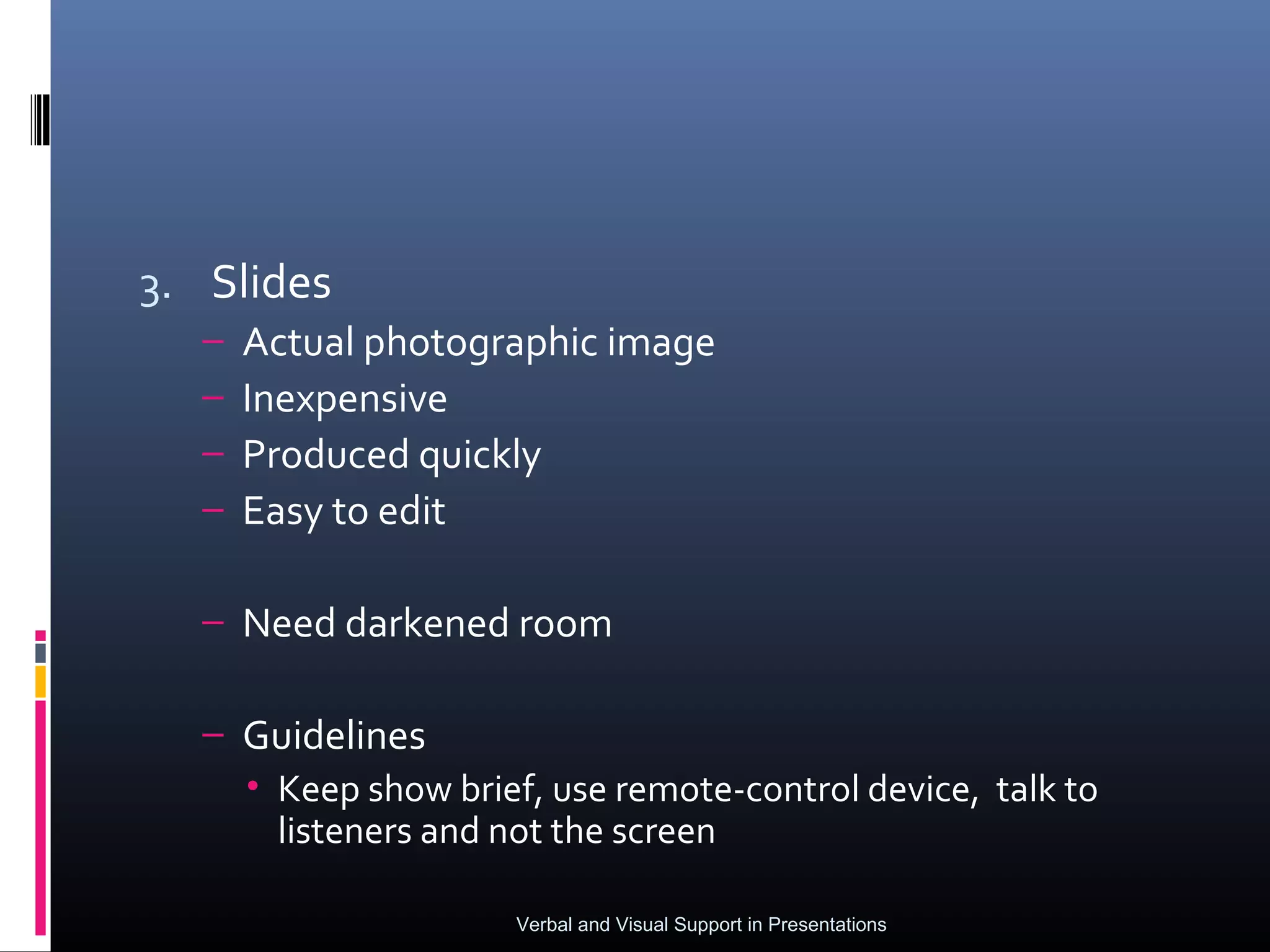
3. Slides
  –   Actual photographic image
  –   Inexpensive
  –   Produced quickly
  –   Easy to edit

  – Need darkened room

  – Guidelines
    • Keep show brief, use remote-control device, talk to
      listeners and not the screen

                     Verbal and Visual Support in Presentations
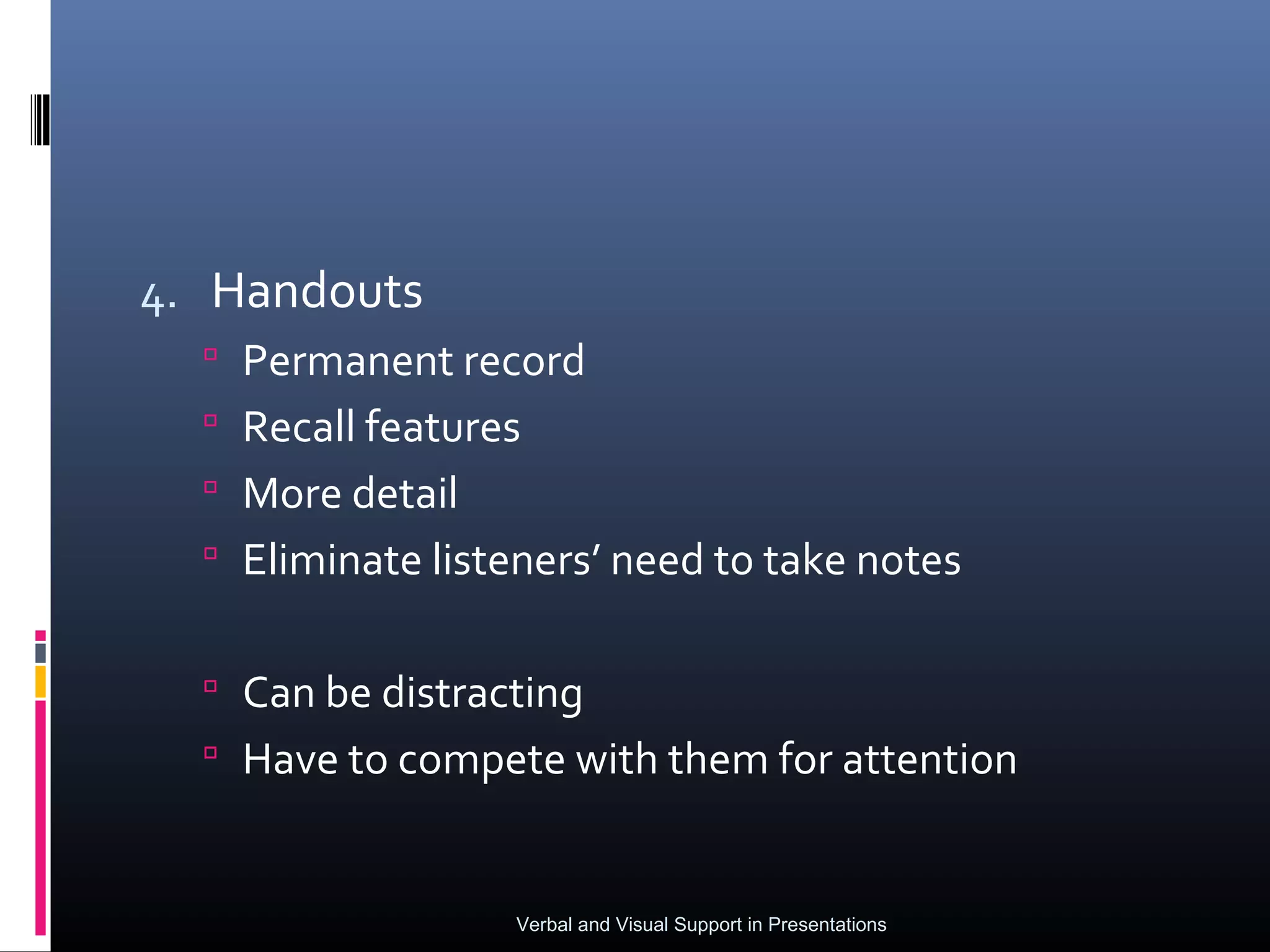
4. Handouts
   Permanent record
   Recall features
   More detail
   Eliminate listeners’ need to take notes


   Can be distracting
   Have to compete with them for attention


                  Verbal and Visual Support in Presentations
5. Computerized displays
6. Videotape


               Verbal and Visual Support in Presentations
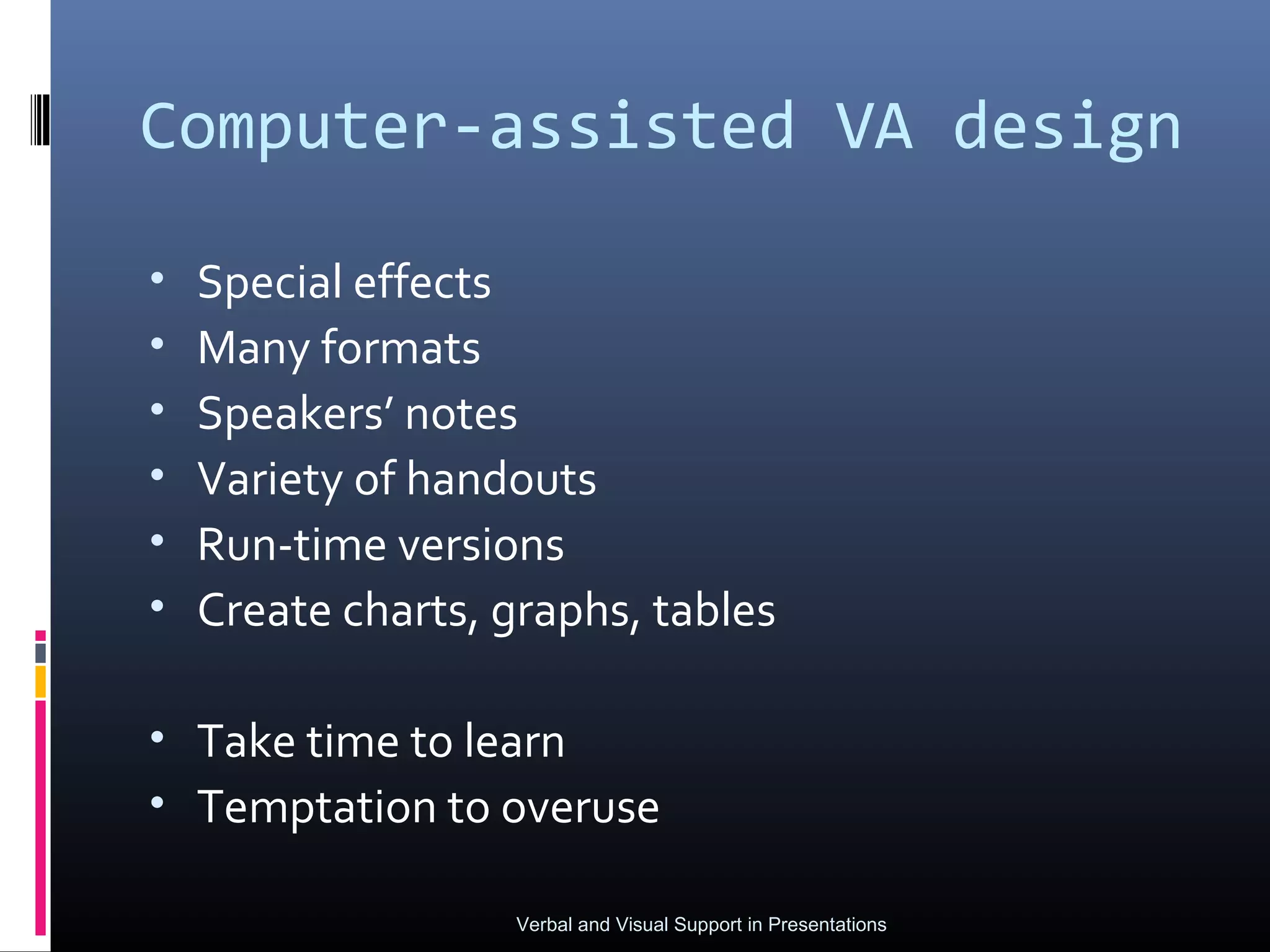
Computer-assisted VA design

•   Special effects
•   Many formats
•   Speakers’ notes
•   Variety of handouts
•   Run-time versions
•   Create charts, graphs, tables

• Take time to learn
• Temptation to overuse

                   Verbal and Visual Support in Presentations
Rules for using visual aids
1.   Selection
     – Have a reason for using
     – Match sophistication of visual aid with audience
1.   Design
     –   Make sure it is large enough to see
     –   Keep design simple
     –   Use few words
     –   Use horizontal printing
     –   Label all items for clear identification
1.   Presentation
     –   Don’t display till ready
     –   Remove after discussing
     –   Make sure it works at presentation location
     –   Practice using your visuals

                             Verbal and Visual Support in Presentations

6. verbal and visual support

  • 1.
  • 2.
    Layout  Functions ofsupporting material  Verbal support  Types  Visual support  Types  Media  Computer-assisted design  Rules for using Verbal and Visual Support in Presentations
  • 3.
    FUNCTIONS OF SUPPORTINGMATERIAL 1. Clarity  abstract or complicated ideas 1. Interest  Enliven  Make main point vivid, meaningful 1. Proof  convincing  E.g., survey Verbal and Visual Support in Presentations
  • 4.
    TYPES OF VERBALSUPPORT (5) 1. Examples – Brief illustrations – most effective when several are given together 1. Stories – Hypothetical or factual – Guidelines • Should suit audience • Should support point • Be of right length Verbal and Visual Support in Presentations
  • 5.
    3. Statistics  Probably the most common form of support  Specially strong proof  Firmly grounded in fact  Shows that speaker is well informed  May make mistake of burying the audience  Provide a few key numbers  Simply information (64.3% vs. two-thirds) Verbal and Visual Support in Presentations
  • 6.
    4. Comparisons  Figurative = analogies  Compare unfamiliar with familiar idea  Literal  Must have two characteristics  Well-known, be valid  Must clearly establish similarity Verbal and Visual Support in Presentations
  • 7.
    5. Citations  More authoritative/articulate source  Clarity and impact  Help build persuasive case  Guidelines  Cite to add credibility to presentation  Source must have credibility with audience  Paraphrase lengthy or confusing citations  Restate point of long citations Verbal and Visual Support in Presentations
  • 8.
    VISUAL AIDS Verbal and Visual Support in Presentations
  • 9.
    Benefits  A pictureis often worth a thousand words  Easier to understand than words alone  Easier to explain complicated statistics  Easier for listeners to understand  Make presentations more interesting  Boost your image as speaker  Make information more memorable Verbal and Visual Support in Presentations
  • 10.
    Functions  Show howthings look  Show how things work  Show how things relate to one another  Emphasize important points Verbal and Visual Support in Presentations
  • 11.
    Types of VisualAid (8) 1. Objects and Models  Used in training, selling  Hands-on experience/demonstration  How to operate a piece of equipment 1. Photographs 2. Diagrams  Two-dimensional  Floor plan, maps… size, shape, structure Verbal and Visual Support in Presentations
  • 12.
    4. Lists andtables  Key facts and figures, steps, features, comparison, etc  Guidelines  Keep it simple  Use numbered or bulleted lists  Use text sparingly  Use large type  Enhance readability through careful layout Verbal and Visual Support in Presentations
  • 13.
    5. Pie Charts – Percentages, resources, money, etc – Guidelines • Segment to emphasize on takes top-center • Label each segment • List percentage for each segment 6. Bar and column charts – Guidelines • Time on horizontal axis • Arrange bars in best-suited sequence • Represent numerical values clearly Verbal and Visual Support in Presentations
  • 14.
    7. Pictogram  Artistic variations of bar, column, pie charts  More interesting (figure 12-11) 8. Graphs  Correlation between quantities  Represent large amount of data without clutter Verbal and Visual Support in Presentations
  • 15.
    Media for presentingVA(6) 1. Flip charts and poster board – Simple to prepare – Easy to use – Relatively portable – Easy to use – May be too small – Large audience can’t see – Relatively fragile – Clumsy Verbal and Visual Support in Presentations
  • 16.
    2. Transparencies – Good for large audience – Produced quickly – Easy to create – Visible in a lighted room – Easy to store, don’t wear out – Require a projector – Must position in special way – Most effective when • Use only when discussing, turn off when not using, cover parts not discussed, face audience while speaking Verbal and Visual Support in Presentations
  • 17.
    3. Slides – Actual photographic image – Inexpensive – Produced quickly – Easy to edit – Need darkened room – Guidelines • Keep show brief, use remote-control device, talk to listeners and not the screen Verbal and Visual Support in Presentations
  • 18.
    4. Handouts  Permanent record  Recall features  More detail  Eliminate listeners’ need to take notes  Can be distracting  Have to compete with them for attention Verbal and Visual Support in Presentations
  • 19.
    5. Computerized displays 6.Videotape Verbal and Visual Support in Presentations
  • 20.
    Computer-assisted VA design • Special effects • Many formats • Speakers’ notes • Variety of handouts • Run-time versions • Create charts, graphs, tables • Take time to learn • Temptation to overuse Verbal and Visual Support in Presentations
  • 21.
    Rules for usingvisual aids 1. Selection – Have a reason for using – Match sophistication of visual aid with audience 1. Design – Make sure it is large enough to see – Keep design simple – Use few words – Use horizontal printing – Label all items for clear identification 1. Presentation – Don’t display till ready – Remove after discussing – Make sure it works at presentation location – Practice using your visuals Verbal and Visual Support in Presentations