2022–23 FAFSA® Form on StudentAid.gov
Preview Presentation
September 2021
TOPICS
• Overview
• Home and Log In Views
• Dependent Student With Parental Data View
• Independent Student View
• My FAFSA® View
• SAR View
• FAFSA® Corrections View
• Auto-Zero EFC (Skipping the Remaining Financial Questions) View
• Special Circumstances View
• Special Circumstance–Unsubsidized Loan Only View
• Homeless Circumstance View
• Additional Resources View
2
OVERVIEW
• The2022–23 FreeApplication forFederalStudentAid (FAFSA®) form preview presentation provides
screenshots that financial aid professionals, mentors, and counselors can use as a guide for the 2022–23 web
application. Thescreenshots and information provided can be used to create/modify presentations for
professional trainings and high school nights.
• Thescreenshots are intended to show the majority of the questions displayed on the FAFSA form; however,
most applicants and/or parents are unlikely to need to answer all the questions when completing the form.
• Thescreenshots used in this presentation show examplesof what the FAFSA® form will look like.
• The2022–23 version ofthe FAFSA® form will be available forapplicants to useonOct. 1,2021.
• The2022–23 web demonstration site will beavailable on Sept. 27, 2021.
3
OVERVIEW (CONTINUED, PART 2)
Thefollowing arekey features of the FAFSA® form on StudentAid.gov:
• Studentsandparentsmaybegin, complete, andsubmita new orrenewal FAFSA formforthe2022–23FAFSA formprocessingcycle.
• Studentsandparentswhoareeligible mayusethe IRSDataRetrievalTool(IRSDRT)toelectronicallytransferfederaltaxreturn
informationinto aFAFSAform.
• Studentsandparentsmaybeeligible totransfertheir FAFSAinformationintoastateaidapplication.ParticipatingstatesincludeIowa,
Minnesota,Mississippi, New Jersey, NewYork,Pennsylvania,andVermont.
• Parentsthathavemultiplestudentswhoneed tofile anapplicationmaybeeligible totransfertheir FAFSAinformationinto anew
applicationfromtheoriginal student’sconfirmationpage.
• Studentswill be abletoview additionalinformationaboutthe schoolstheyselected ontheir FAFSAformforeasycomparisonofschools.
• Studentsandparentscancorrector updateanapplicationonceit is been processed.
• Studentsandparentscansavean applicationandresume wheretheyleft offonthe myStudentAidmobileappandviceversa.
4
5
FAFSA® Home and Log In Views
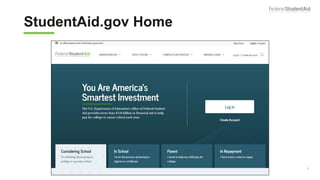
StudentAid.gov Home
6
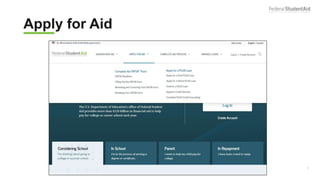
Apply for Aid
7
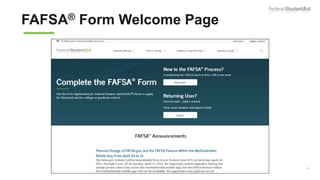
FAFSA® Form Welcome Page
8
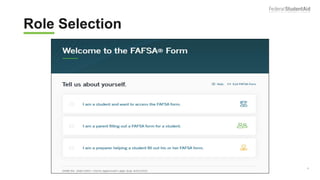
Role Selection
9
Role Selection Dependent
10
Role Selection
11
Log In Page
12
Dependent Student with Parental
Data
13
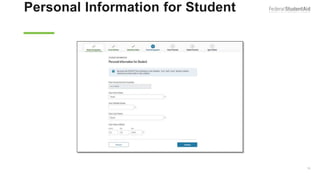
Personal Information for Student
14
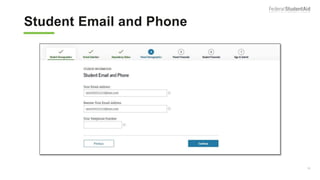
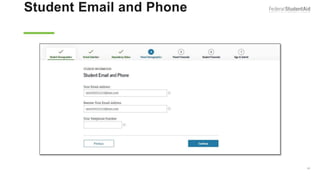
Student Email and Phone
15
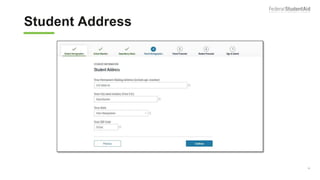
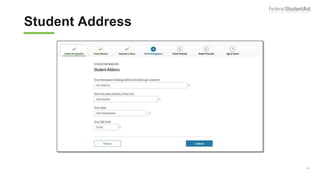
Student Address
16
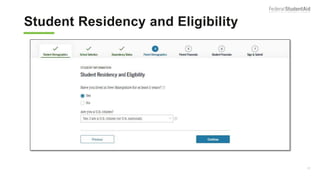
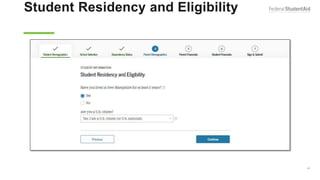
Student Residency and Eligibility
17
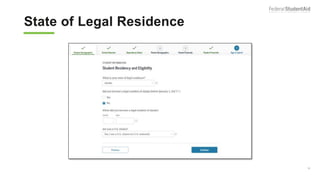
State of Legal Residence
18
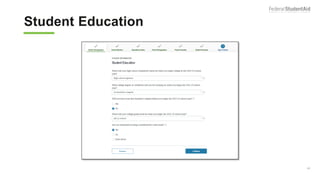
Student Education
19
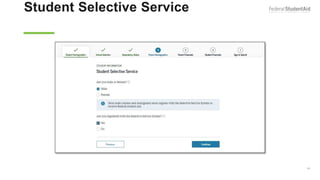
Student Selective Service
20
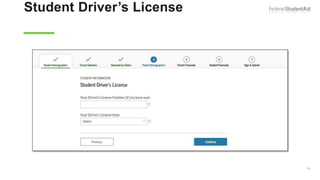
Student Driver’s License
21
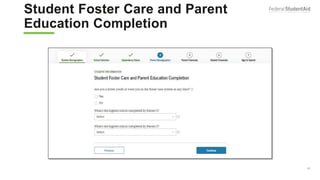
Student Foster Care and Parent
Education Completion
22
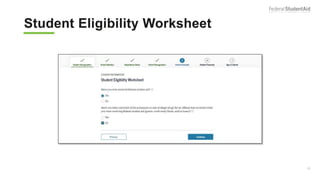
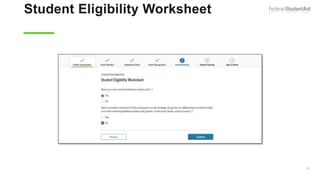
Student Eligibility Worksheet
23
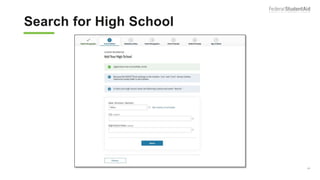
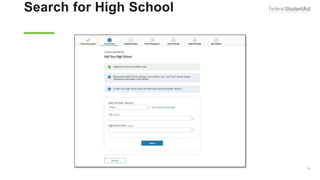
Search for High School
24
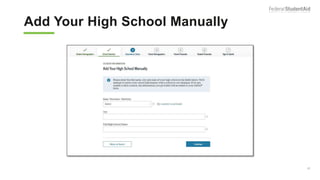
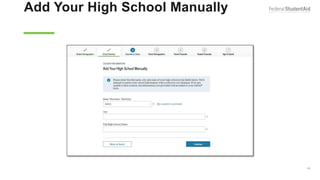
Add Your High School Manually
25
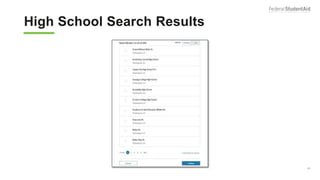
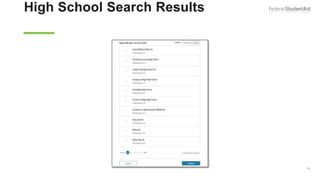
High School Search Results
26
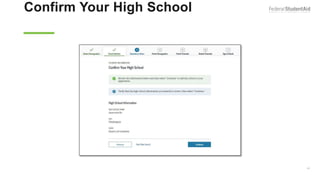
Confirm Your High School
27
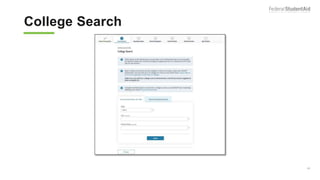
College Search
28
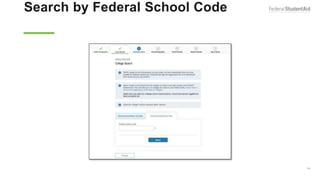
Search by Federal School Code
29
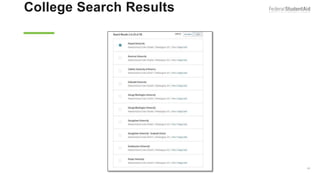
College Search Results
30
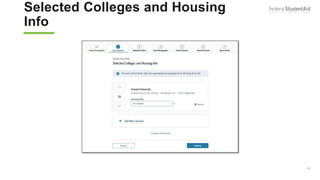
Selected Colleges and Housing
Info
31
Student Marital Status
32
Does the Student Have
Dependents?
33
Student Additional Dependency
Questions
34
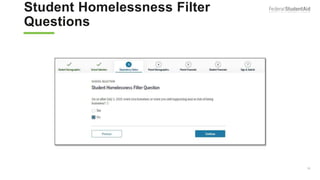
Student Homelessness Filter
Questions
35
Dependent Student Status
36
Whose Information Should I
Provide?
37
Parent Marital Status
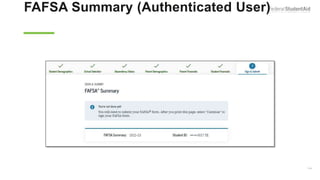
38
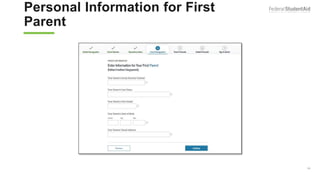
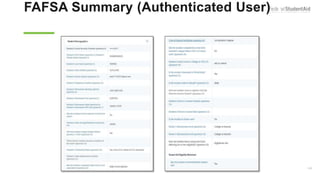
Personal Information for First
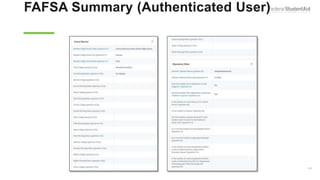
Parent
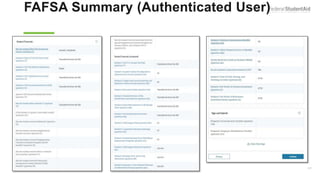
39
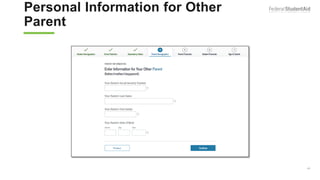
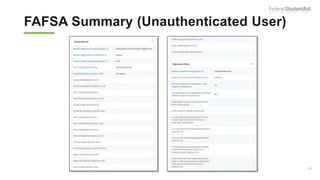
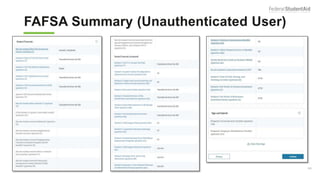
Personal Information for Other
Parent
40
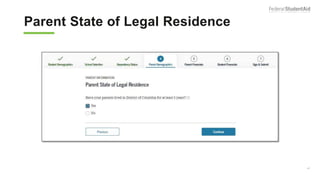
Parent State of Legal Residence
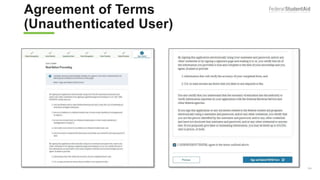
41
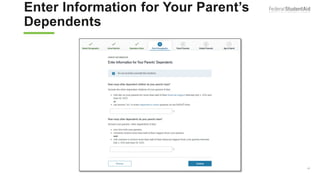
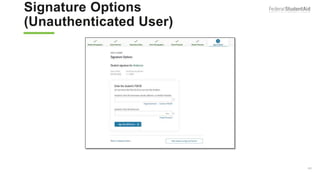
Enter Information for Your Parent’s
Dependents (2 of 2)
42
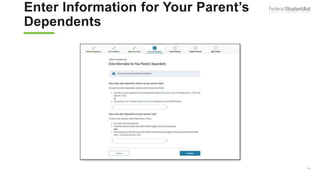
Enter Information for Your Parent’s
Dependents
43
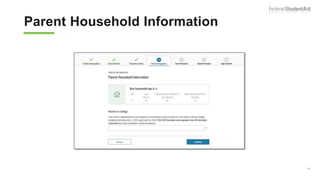
Parent Household Information
44
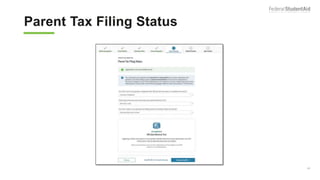
Parent Tax Filing Status
45
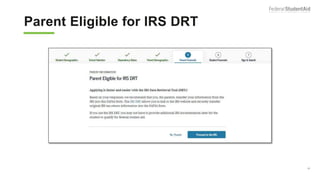
Parent Eligible for IRS DRT
46
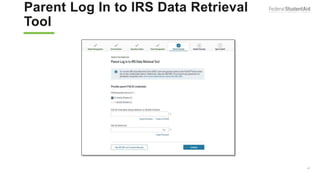
Parent Log In to IRS Data Retrieval
Tool
47
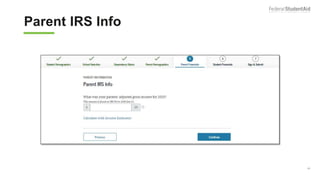
Parent IRS Info
48
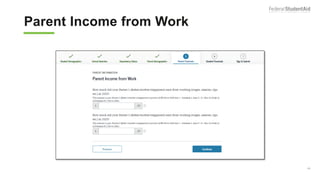
Parent Income from Work
49
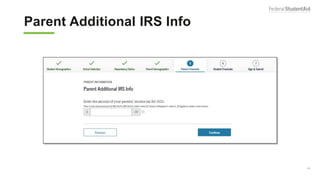
Parent Additional IRS Info
50
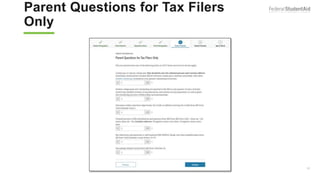
Parent Questions for Tax Filers
Only
51
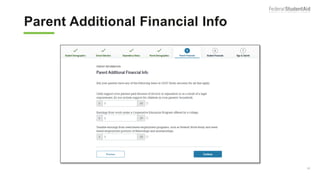
Parent Additional Financial Info
52
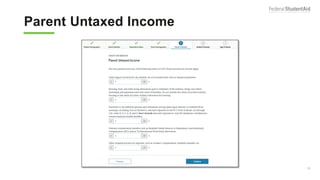
Parent Untaxed Income
53
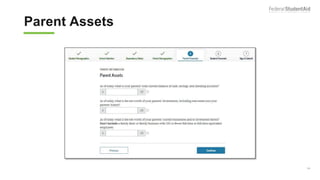
Parent Assets
54
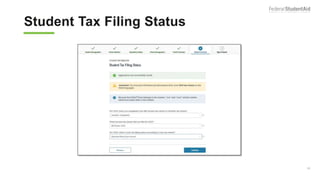
Student Tax Filing Status
55
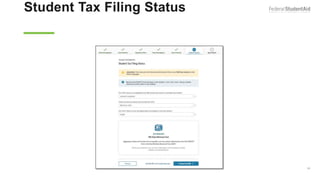
Student Tax Filing Status
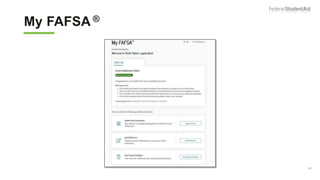
Dependent
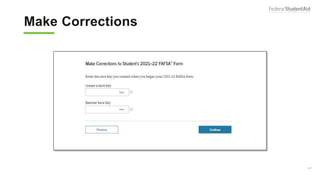
56
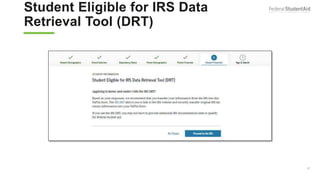
Student Eligible for IRS Data
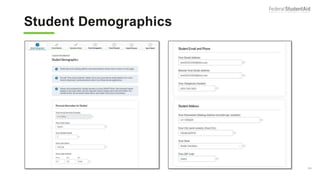
Retrieval Tool (DRT)
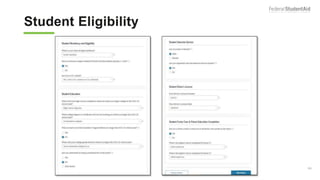
57
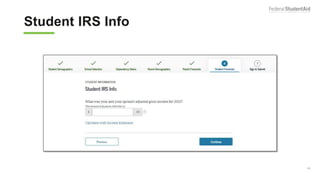
Student IRS Info
58
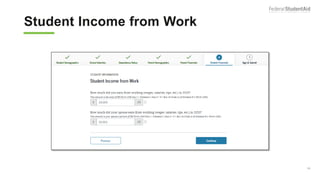
Student Income from Work
59
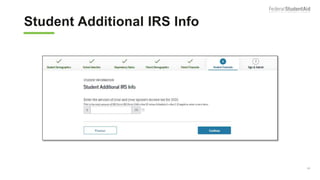
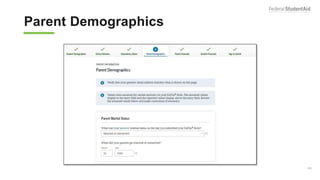
Student Additional IRS Info
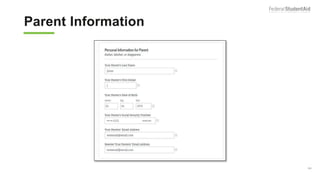
60
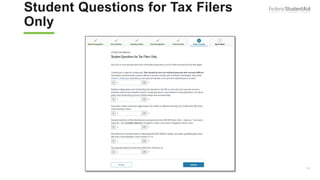
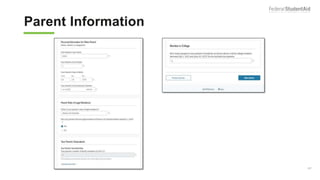
Student Questions for Tax Filers
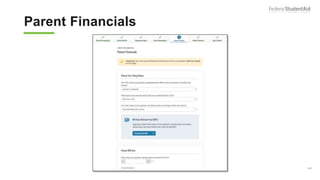
Only
61
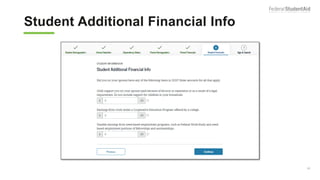
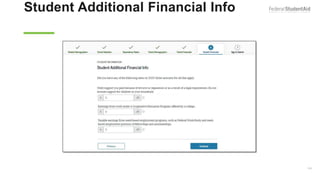
Student Additional Financial Info
62
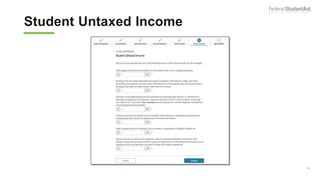
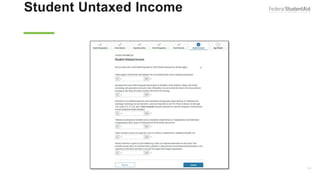
Student Untaxed Income
63
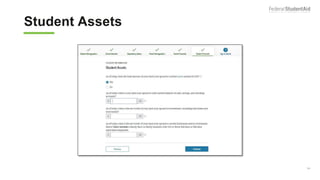
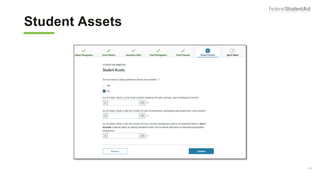
Student Assets
64
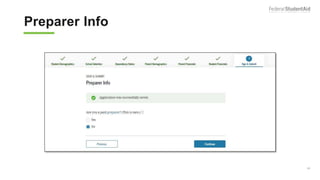
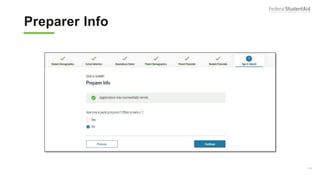
Preparer Info
65
FAFSA Summary
66
FAFSA Summary 1
67
FAFSA Summary 2
68
FAFSA Summary 3
69
FAFSA Summary 4
70
FAFSA Summary 5
71
Agreement of Terms
72
Signature Status
73
Parent Signature Selection
74
Agreement of Terms Dependent
75
Signature Options
76
Confirmation Page
77
Independent Student and IRS DRT
Flow
78
Personal Information for Student
Independent
79
Student Email and Phone
Independent
80
Student Address Independent
81
Student Residency and Eligibility
Independent
82
Student Education Independent
83
Student Selective Service
Independent
84
Student Driver’s License
Independent
85
Student Foster Care and Parent
Education Completion Independent
86
Student Eligibility Worksheet
Independent
87
Search for High School
Independent
88
Add Your High School Manually
Independent
89
High School Search Results
Independent
90
Confirm Your High School
Independent
91
College Search Independent
92
College Search Results
Independent
93
Search by Federal School Code
Independent
94
Selected Colleges and Housing
Info I
95
Student Marital Status Independent
96
Does the Student Have Dependents?
Independent
97
Student Household Info
Independent
98
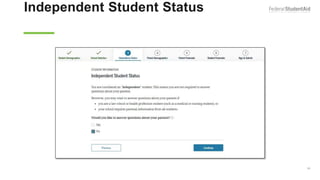
Independent Student Status
Independent
99
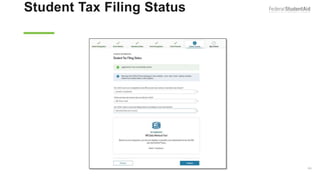
Student Tax Filing Status
Independent
100
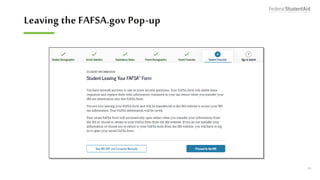
Leaving the FAFSA.gov Pop-up Independent
101
IRS Website Disclaimer Independent
102
Get My Federal Income Tax Information
Independent
103
Federal Income Tax Information Results
Independent
104
Student IRS Info Independent
105
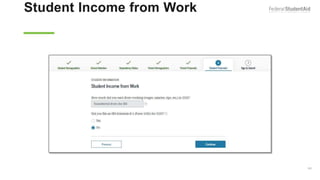
Student Income from Work
Independent
106
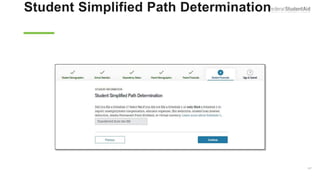
Student Simplified Path Determination
Independent
107
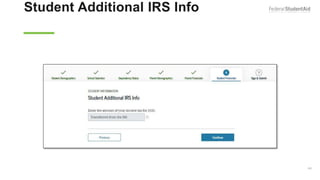
Student Additional IRS Info
Independent
108
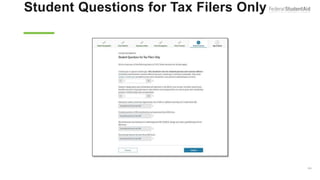
Student Questions for Tax Filers Only
Independent
109
Student Additional Financial Info
Independent
110
Student Untaxed Income
Independent
111
Student Assets Independent
112
Preparer Info Independent
113
FAFSA Summary (Authenticated User)
Independent
114
FAFSA Summary (Authenticated User) 1
Independent
115
FAFSA Summary (Authenticated User)
2Independent
116
FAFSA Summary (Authenticated User)
3Independent
117
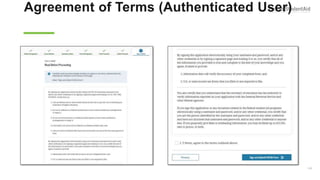
Agreement of Terms (Authenticated User)
Independent
118
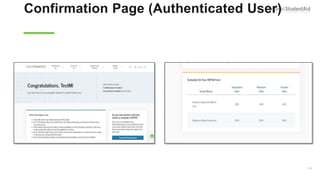
Confirmation Page (Authenticated User)
Independent
119
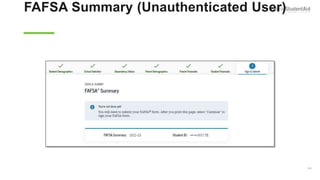
FAFSA Summary (Unauthenticated User)
Independent
120
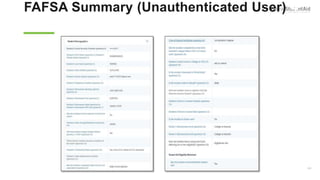
FAFSA Summary (Unauthenticated User) 4
Independent
121
FAFSA Summary (Unauthenticated User) I 3
122
FAFSA Summary (Unauthenticated User) I 2
123
Agreement of Terms
(Unauthenticated User) Independent
124
Signature Options
(Unauthenticated User) Independent
125
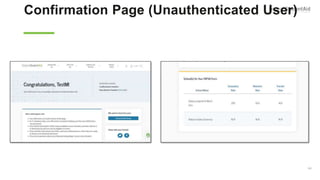
Confirmation Page (Unauthenticated User)
Independent
126
My FAFSA® Views
127
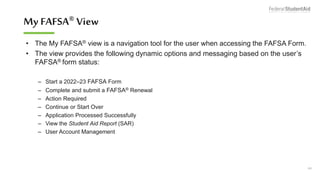
My FAFSA® View
• The My FAFSA® view is a navigation tool for the user when accessing the FAFSA Form.
• The view provides the following dynamic options and messaging based on the user’s
FAFSA® form status:
– Start a 2022–23 FAFSA Form
– Complete and submit a FAFSA® Renewal
– Action Required
– Continue or Start Over
– Application Processed Successfully
– View the Student Aid Report (SAR)
– User Account Management
128
Start a 2022–23 FAFSA® Form
129
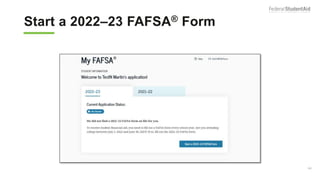
Start a 2022–23 FAFSA® Form
130
Complete and Submit a FAFSA®
Renewal
131
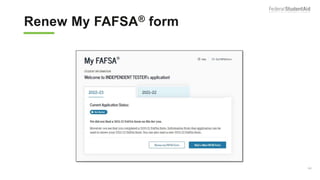
Renew My FAFSA® form
132
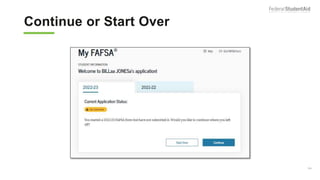
Continue or Start Over
133
Continue or Start Over 2
134
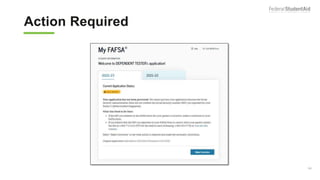
Action Required
135
Action Required 2
136
Application Processed
Successfully
137
Application Processed
Successfully 2
138
View the Student Aid Report
(SAR)
139
View the Student Aid Report (SAR)
2
140
Processing Results Tab
141
FAFSA Data Tab
142
FAFSA Data (1 of 5)
2022-2023
2022-2023:
143
FAFSA Data (2 of 5)
144
FAFSA Data (3 of 5)
145
FAFSA Data (4 of 5)
146
FAFSA Data (5 of 5)
2020 income tax
2020 Tax Form
2020 Tax Return Filing
2020 Adjusted Gross
2020 U.S. Income Tax Paid:
2020 Income Earned from
10/01/2021
147
School Information
148
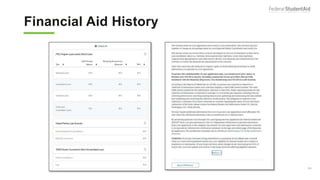
Financial Aid History
149
Financial Aid History 2
150
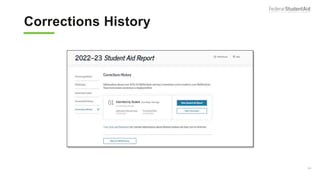
Corrections History
151
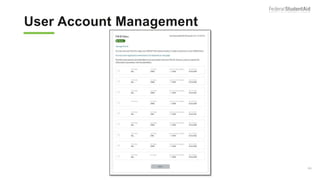
User Account Management
152
User Account Management 2
153
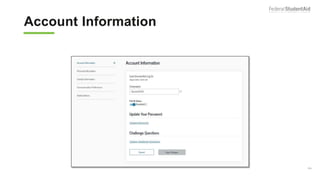
Account Information
154
FAFSA® Corrections
155
My FAFSA ®
156
Make Corrections
157
FAFSA ® Form Sections
158
Student Demographics
159
Student Eligibility
160
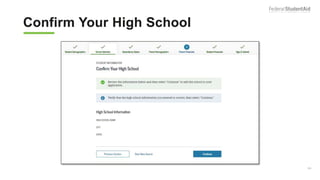
Confirm Your High School
161
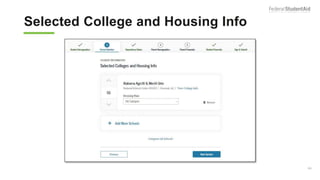
Selected College and Housing Info
162
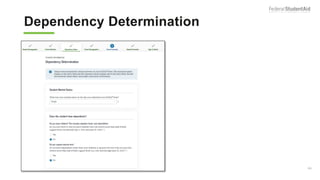
Dependency Determination
163
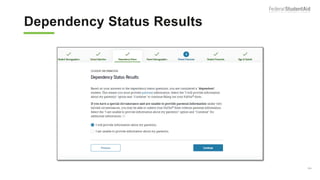
Dependency Status Results
164
Parent Demographics
165
Parent Information
166
Parent Information 2
167
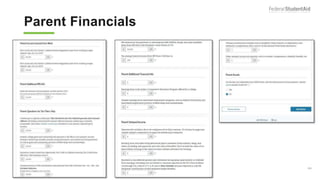
Parent Financials
168
Parent Financials 2
169
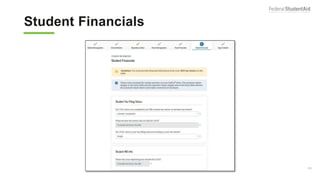
Student Financials
170
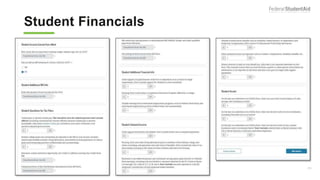
Student Financials 2
171
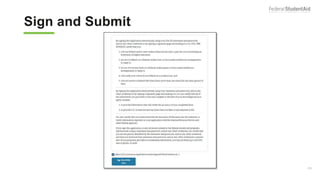
Sign and Submit
172
Confirmation
173
Special Circumstances/Special
Circumstances With Unsubsidized
Loan Only
174
Dependent Student Status View
175
Impact of Not Providing Parent
Information
176
Special Circumstances Qualifications
177
Homelessness Circumstances
178
Student Homelessness Filter Question
179
Student Homelessness Questions
180
Independent Student Status
181
Student Homelessness Questions
View
182
Homeless or At Risk of Being
Homeless
183
Impact of Not Providing Parent
Information 2
184
Homeless or At Risk of Being
Homeless Acknowledgement
185
Additional Resources
186
My Documents
187
Notifications
188
189
Conclusion

2021 FAFSA

Editor's Notes

  • #2 2022–23 FAFSA® Form on StudentAid.gov Preview Presentation title slide
  • #3 2021-22 Topics slide
  • #4 2022-23 Overview slide
  • #5 2022-23 Overview slide (continued, part 2)
  • #6 FAFSA Form Home and Log In Views
  • #7 StudentAid.gov home view
  • #8 Apply for Aid header view If the applicant is navigating to the FAFSA form from the StudentAid.gov home page, he or she can select “Apply for Aid” from the page header, then select “Complete the FAFSA® Form.”
  • #9 FAFSA Form Welcome page view The applicant may have a direct link to the FAFSA form or may arrive from the FAFSA form home page. The “FAFSA Form Welcome” page directs new users to the “Start Here” button and returning users to the “Log In” button. For the purpose of this presentation, the applicant is beginning a new application.
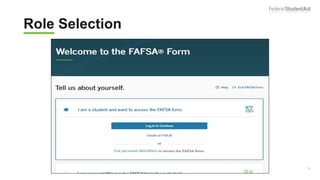
  • #10 Role Selection (1 of 3) view The user will select the applicable role to fill out the FAFSA form: student, parent of a student, or preparer helping a student. For this presentation, the user selects a student role. In the dependent student section, the parent will also log in to sign and submit the FAFSA form.
  • #11 Role Selection (2 of 3) view The form will ask the user to log in or create an FSA ID or start the form with personal identifiers (next slide).
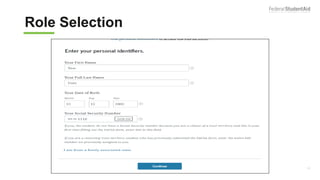
  • #12 Role Selection (3 of 3) view The user may also choose to begin the FAFSA form with personal identifiers: first name, last name, date of birth, and Social Security number. Once the user has entered in his or her personal identifiers, he or she will select “Continue.”
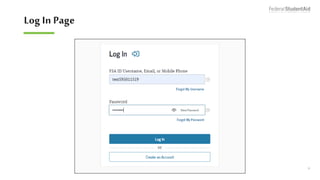
  • #13 Log In Page view If the user has an FSA ID account, he or she will be prompted to log in with his or her credentials. If not, the user can select "Create an Account."
  • #14 Dependent Student with Parental Data
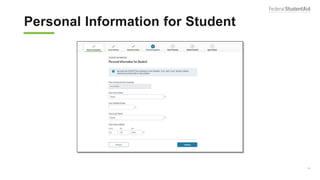
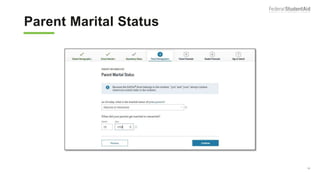
  • #15 Personal Information for Student view This is one of multiple pages on fafsa.gov that explains that “you” and “your” are referencing the student. Other pages where this messaging appears includes the "Search for High School," "Student Marital Status," "Parent Marital Status," and "Student Tax Filing Status." ​ Note: This is the first view for the Student Demographics section.
  • #16 Student Email and Phone view It is beneficial for the student to include an email address on the FAFSA form in order to receive important communications about the student’s financial aid.
  • #17 Student Address view
  • #18 Student Residency and Eligibility view
  • #19 State of Legal Residence view
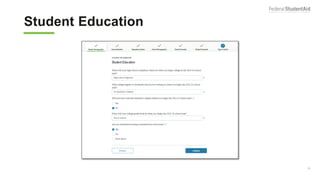
  • #20 Student Education view
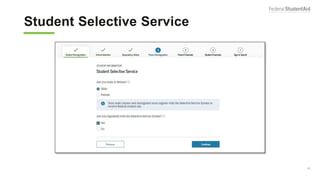
  • #21 Student Selective Service view The response to this question is used to determine if the user needs to register with the Selective Service System. The answer to the Selective Service question will not impact the applicant’s eligibility to receive federal student aid.
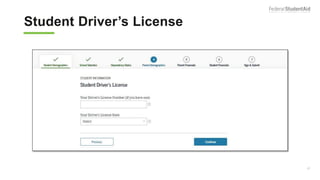
  • #22 Student Driver’s License view
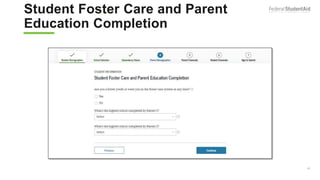
  • #23 Student Foster Care and Parent Education Completion view
  • #24 Student Eligibility Worksheet view The answers to the student eligibility worksheet will not impact the applicant’s eligibility to receive federal student aid.
  • #25 Search for High School view This is the first page for the School Selection section.
  • #26 Add Your High School Manually view New: This functionality has been updated to allow the applicant to enter the full name, city, and state of the high school in the fields on this screen.
  • #27 High School Search Results view
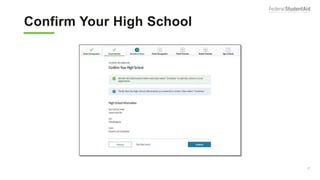
  • #28 Confirm Your High School view
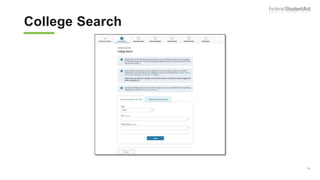
  • #29 College Search view
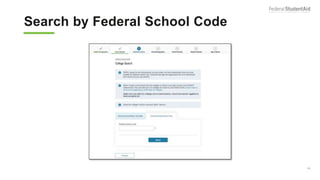
  • #30 Search by Federal School Code view
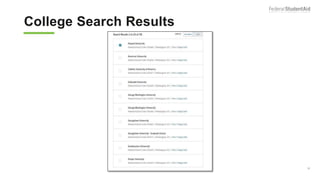
  • #31 College Search Results view
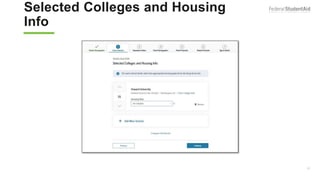
  • #32 Selected Colleges and Housing Info view The applicant can reorder schools on this page which will not affect federal student aid but can affect state/school aid.
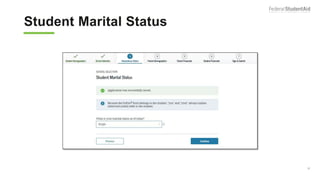
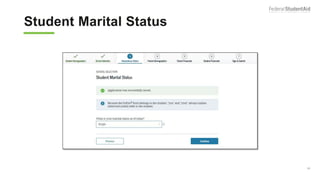
  • #33 Student Marital Status view This is the first page of the Dependency Status section.
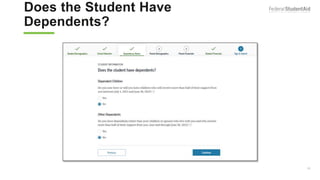
  • #34 Does the Student Have Dependents? view
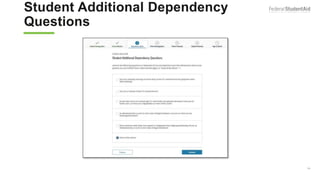
  • #35 Student Additional Dependency Questions view
  • #36 Student Homelessness Filter Question view
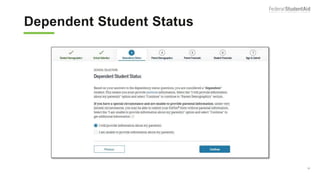
  • #37 Dependent Student Status view This page only displays if it has been determined that the applicant is considered to be a dependent student.
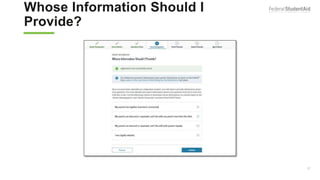
  • #38 Whose Information Should I Provide? View This is first view of the Parent Demographics section.
  • #39 Parent Marital Status view
  • #40 Personal Information for First Parent view
  • #41 Personal Information for Other Parent view
  • #42 Parent State of Legal Residence view
  • #43 Enter Information for Your Parent’s Dependents view.
  • #44 Enter Information for Your Parent’s Dependents view Note: In this view, the parent has additional dependents.
  • #45 Parent Household Information view New: Household size is calculated based on previous answers. The applicant will enter the number of household members in college, including himself or herself.
  • #46 Parent Tax Filing Status view This view is displayed when the parent chooses not to use the IRS Data Retrieval Tool (DRT) on the previous view. An additional opportunity is presented to the parent to determine if he or she would like to link to the IRS for his or her financial information or to continue to enter it manually. This is the first view in the Parent Financials section.
  • #47 Parent Eligible for IRS DRT view
  • #48 Parent Log in to IRS Data Retrieval Tool view This screen only shows if the parent decides to use the IRS Data Retrieval Tool. In this example, the parent has indicated that he or she is married or living together.
  • #49 Parent IRS Info view If the parent is either ineligible or decides not to use the IRS DRT, he or she will be required to enter his or her financial information manually.
  • #50 Parent Income from Work view
  • #51 Parent Additional IRS Info view
  • #52 Parent Questions for Tax Filers Only view
  • #53 Parent Additional Financial Info view
  • #54 Parent Untaxed Income view
  • #55 Parent Assets view
  • #56 Student Tax Filing Status view This is first view in the Student Financials section.
  • #57 Student Tax Filing Status view This view is displayed when the user chooses not to use the IRS Data Retrieval Tool on the previous view. An additional opportunity is presented to the user to determine if he or she would like to link to the IRS for his or her financial information or to continue to enter it manually.
  • #58 Student Eligible for IRS Data Retrieval Tool (DRT) view
  • #59 Student IRS Info view Note: If the user is either ineligible or decides not to use the IRS DRT, he or she will be required to enter his or her financial information manually.
  • #60 Student Income from Work view
  • #61  Student Additional IRS Info view
  • #62 Student Questions for Tax Filers Only view
  • #63 Student Additional Financial Info view
  • #64 Student Untaxed Income view
  • #65 Student Assets view
  • #66 Preparer Info view New: The Preparer view will now only show if someone has logged in under the Preparer role.
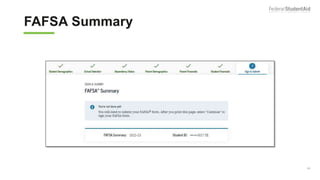
  • #67 FAFSA Summary view
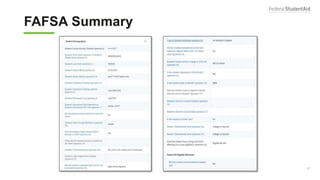
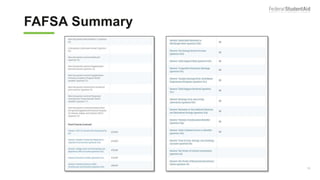
  • #68 FAFSA Summary view – Student Demographics and School Selection Note: Users can use the hyperlinks in the summary to edit any question in the form.
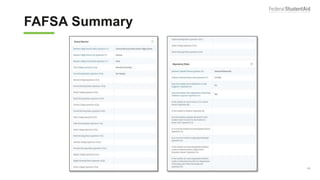
  • #69  FAFSA Summary view (continued) – School Selection and Dependency Status
  • #70 FAFSA Summary view (continued) – Parent Demographics and Parent Financials
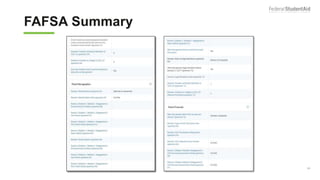
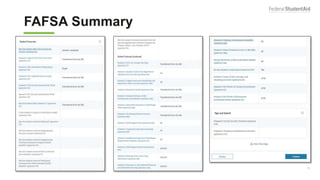
  • #71 FAFSA Summary view (continued) – Parent Financials Continued
  • #72 FAFSA Summary view (continued) –Student Financials and Sign and Submit
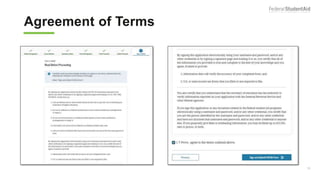
  • #73 Agreement of Terms student view This is where the student acknowledges the Certification Statement.
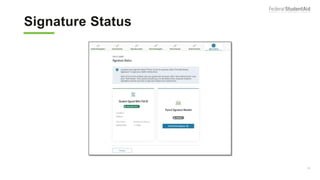
  • #74 Signature Status view The student’s signature was accepted, and now the parent will need to sign.
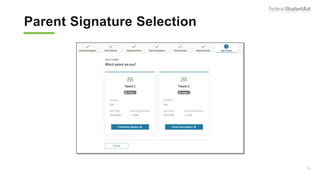
  • #75 Parent Signature Selection view The choice between parents is only present if information was provided for two parents. Otherwise, this view does not display.
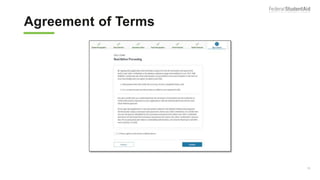
  • #76 Agreement of Terms parent view This is where the parent acknowledges the Certification Statement.
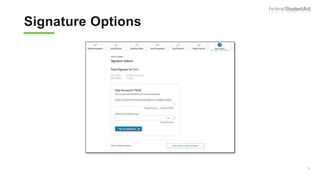
  • #77 Signature Options view
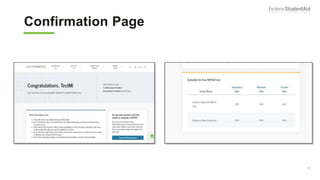
  • #78 Confirmation Page view
  • #79 Independent Student and IRS DRT Flow
  • #80 Personal Information for Student view This is one of multiple pages on fafsa.gov that explains that “you” and “your” are referencing the student. Other pages where this messaging appears includes the "Search for High School," "Student Marital Status," "Parent Marital Status," and "Student Tax Filing Status." Note: This is the first view for the Student Demographics section.
  • #81 Note: It is beneficial for the student to include an email address on the FAFSA form in order to receive important communications about the student’s financial aid.
  • #82 Student Address view
  • #83 Student Residency and Eligibility view
  • #84 Student Education view
  • #85 Note: The response to this question doesn't affect eligibility the applicant’s eligibility for federal student aid.
  • #86 Student Driver’s License view
  • #87 Student Foster Care and Parent Education Completion view
  • #88 Student Eligibility Worksheet view
  • #89 Search for High School view Note: This is the first page for the School Selection section.
  • #90 Add Your High School Manually view
  • #91 High School Search Results view
  • #92 Confirm Your High School view
  • #93 College Search view
  • #94 College Search Results view
  • #95 Search by Federal School Code view
  • #96 Selected Colleges and Housing Info view Note: Users can reorder schools on this page which will not affect federal aid but can affect state/school aid.
  • #97 Student Marital Status view Note: This is the first page of the Dependency Status section.
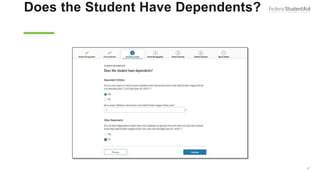
  • #98 Does the Student Have Dependents? view Note: In this view, the student has dependents
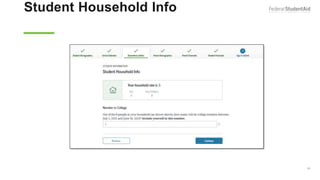
  • #99 Student Household Info view Note: This view is only available if the student has dependents.
  • #100 Independent Student Status view This view only displays if it has been determined that the user is considered to be an independent student. Generally, independent users have the choice of whether to answer questions about their parents; however, some health professions or law schools may require parent information.
  • #101 Student Tax Filing Status view Note: This is the first view of Student Financials section. Parent demographics and financials have been skipped because the user is independent and chose to skip them.
  • #102 Student Leaving the fafsa.gov pop-up view
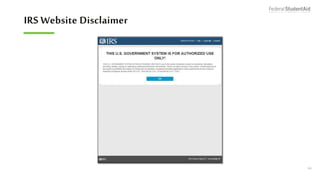
  • #103 IRS Website Disclaimer view
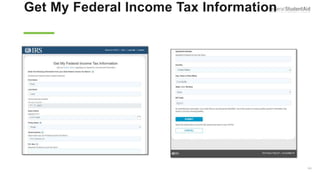
  • #104 Get My Federal Tax Income Information view This is where the user provides tax information exactly as it appears on his or her tax return. Some information will be prefilled from the FAFSA form such as name, Social Security number, date of birth, and tax filing status.
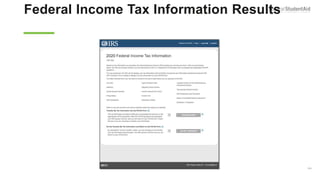
  • #105 Federal Income Tax Information Results view This page gives the user the opportunity to check the box and then transfer his or her federal tax information into the FAFSA form.
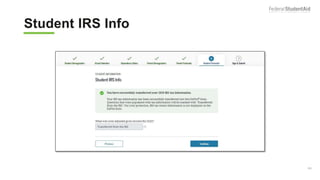
  • #106 Student IRS Info view
  • #107 Student Income from Work view
  • #108 Student Simplified Path Determination view Note: The Schedule 1 question and associated help text have been updated to include all of the exceptions to answering this question.   In addition, the Schedule 1 question is now a field that can be transferred from the IRS DRT.   The Schedule 1 question may be enabled based on previously answered questions.
  • #109 Student Additional IRS Info view
  • #110 Student Questions for Tax Filers Only view
  • #111 Student Additional Financial Info view
  • #112 Student Untaxed Income view
  • #113 Student Assets view
  • #114 Preparer Info view New: The Preparer view will only show if someone has logged in under the Preparer role.
  • #115 “FAFSA Summary” (Authenticated User) view
  • #116 “FAFSA Summary” (Authenticated User) view – Student Demographics and School Selection
  • #117 “FAFSA Summary” (Authenticated User) view (continued) – School Selection and Dependency Status
  • #118 “FAFSA Summary” (Authenticated User) view (continued) – Student Financials and Sign and Submit
  • #119 Agreement of Terms (Authenticated User) student view This is where the user acknowledges the Certification Statement.
  • #120 Confirmation Page (Authenticated User) view
  • #121 FAFSA Summary (Unauthenticated User) view
  • #122 “FAFSA Summary” (Unauthenticated User) view – Student Demographics and School Selection. Note: Users can use the hyperlinks in the summary to edit any question in the form.
  • #123 FAFSA Summary (Unauthenticated User) view (continued) – School Selection and Dependency Status
  • #124 FAFSA Summary (Unauthenticated User) view (continued) – Student Financials and Sign and Submit
  • #125 Agreement of Terms (Unauthenticated User) student view This is where the user acknowledges the Certification Statement.
  • #126 Signature Options (Unauthenticated User) view
  • #127 Confirmation Page (Unauthenticated User) view
  • #128 My FAFSA View My FAFSA view(s) appear when a user or parent logs into the FAFSA landing page and has a transaction is on file.  
  • #129 My FAFSA view Users can also choose between different cycles from the My FAFSA view when both cycles are active
  • #130 Start a 2022–23 FAFSA Form
  • #131 Start a 2022–23 FAFSA® Form view If the applicant does not have any existing FAFSA data on file, he or she can start a new FAFSA form.  If the applicant does have a FAFSA form on file, then he or she will have the option to select "Start Over" to begin a new form.
  • #132 Complete and Submit a FAFSA® Renewal
  • #133 Renew My FAFSA® view An applicant that is starting a new FAFSA for the cycle but had submitted a form the previous cycle will be able to select “Renew my FAFSA Form.” Only students can start a renewal.
  • #134 Continue or Start Over
  • #135 Continue or Start Over view If the applicant does have a FAFSA form on file, he or she will have the option to select "Start Over" to begin a new form or "Continue” to resume completion of an already existing FAFSA Form.
  • #136 Action Required
  • #137 Action Required view If the applicant’s submitted form has not been processed, an "Action Required" screen will notify the applicant of the reason and what to do next.
  • #138 Application Processed Successfully
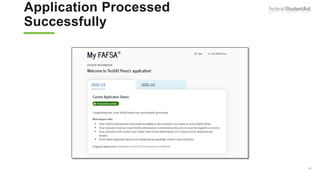
  • #139 Application Processed Successfully view Once the application has been processed successfully, this view will display a "Congratulations" message and information about what happens next.
  • #140 View the Student Aid Report
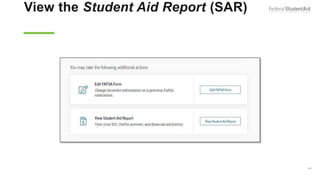
  • #141 View Student Aid Report (SAR) view Once the Student Aid Report has been generated, the applicant may select "View Student Aid Report" on the year selection page. 
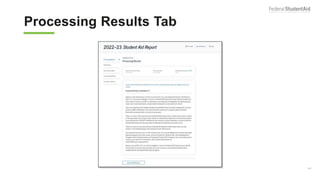
  • #142 Processing Results Tab view Upon selecting “View Student Aid Report,” applicant will be brought to the “Processing Results” view where he or she will see information about the Expected Family Contribution (EFC).
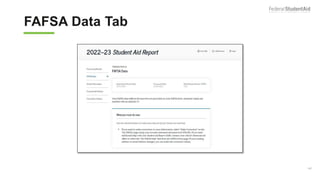
  • #143 FAFSA Data Tab view On the FAFSA Data view, the user will select the FAFSA Data tab, which shows the information provided on the FAFSA form.
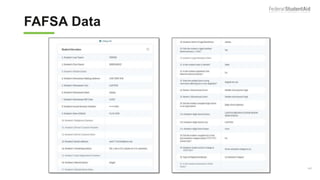
  • #144 FAFSA Data  The "Student Information" view displays how the user answered all relevant questions in this section.
  • #145 FAFSA Data (2 of 5) view – Student’s School Information and Student Dependency Status The user will scroll down to view additional information he or she provided, including the student's school information and student dependency status. 
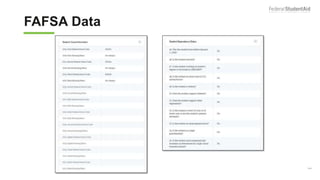
  • #146 FAFSA Data (3 of 5) view The user will continue to scroll to view other sections completed. In this screen, the user provided parent information and parent financial information.
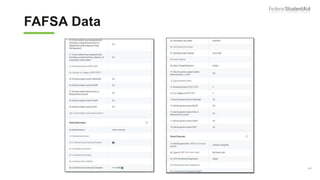
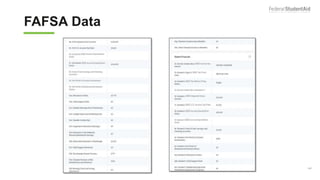
  • #147 FAFSA Data (4 of 5) view The user will continue scrolling to view student financial information. If the parent or student used the IRS DRT, then that information will be masked with "Transferred from the IRS" in the relevant financial fields.
  • #148 FAFSA Data (5 of 5) view The user will scroll to review the remaining sections, including the signature information. It also includes "Back to FAFSA Home" button if the user wishes to return to the FAFSA landing page.
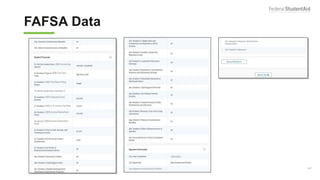
  • #149 School Information view The “School Information” tab provides graduation, retention, and transfer information about all the schools the user selected on the FAFSA form. 
  • #150 Financial Aid History (1 of 2) view In the "Financial Aid History" tab, the user can view the federal student loans to date, including William D. Ford Federal Direct Loans, Federal Family Education Loans (FFEL), and Federal Perkins Loans. It also includes a link to the Aid Summary feature.
  • #151 Financial Aid History (2 of 2) view The user can expand and collapse the financial aid information, which includes loan type, total principal balance, remaining amount to be disbursed, and total.
  • #152 Corrections History view Any corrections the user has made to this cycle year's FAFSA form is included in the “Corrections History” tab. The user can start a new correction directly from this view.
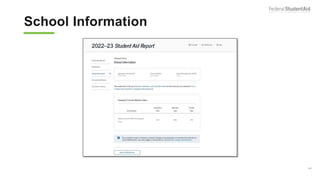
  • #153 User Account Management
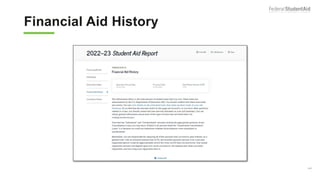
  • #154 User Account Management view The user can view information associated to his or her FSA ID, including the status of the FSA ID  and associated identifiers to the FSA ID. This section is found on the My FAFSA view and will display when a user has multiple sets of historical identifiers.
  • #155 Account Information view The user can update his or her Account Information, along with Personal Information, Contact Information, and Communication Preferences on the "Settings" page.
  • #156 FAFSA Corrections
  • #157 My FAFSA view for corrections Users will select “Update Schools” to add, remove, or change housing plans for schools and select “Edit FAFSA form” to change incorrect information on a previous FAFSA submission. Note: The corrections have been updated with an entirely new look/user experience.
  • #158 Make Corrections view for corrections If an applicant is starting a new correction, he or she will have to create a correction save key.
  • #159 FASA Form Sections view for corrections Note: Users may select “Enter Section” to jump to a specific section where thet would like to make edits. Each section contains editable fields relating to the specific section title.
  • #160 Student Demographics view for corrections
  • #161 Student Eligibility view for corrections
  • #162 Confirm Your High School view for corrections
  • #163 Selected College and Housing Info view for corrections
  • #164 Dependency Determination view for corrections
  • #165 Dependency Status Results view for corrections
  • #166 Parent Demographics view for corrections
  • #167 Parent Information view for corrections
  • #168 Parent Information view for corrections
  • #169 Parent Financials view for corrections
  • #170 Parent Financials (continued) view for corrections
  • #171 Student Financials view for corrections
  • #172 Student Financials (continued) view for corrections.
  • #173 Sign and Submit view for corrections
  • #174 Confirmation view for corrections
  • #175  Special Circumstances/Special Circumstances With Unsubsidized Loan Only
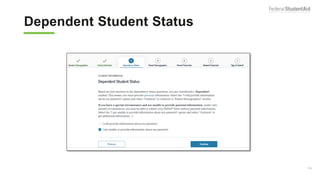
  • #176 Dependent Student Status view If the dependent user is unable to provide parental data on the FAFSA form, he or she should select “I am unable to provide information about my parent(s).” Once the user selects "Continue,“ he or she will go to the “mpact of not Providing Parent Information view. 
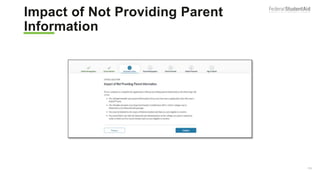
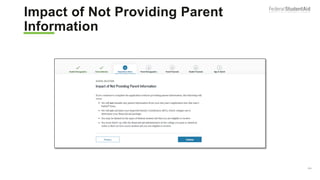
  • #177 Impact of Not Providing Parent Information view This view notifies the user that although he or she is allowed to skip parent information, an EFC will not be generated, and he or she must follow up with the financial aid administrator in order to complete his or her FAFSA form and receive an EFC. Once the user selects “Continue,” he or she will go to the Special Circumstances Qualifications view (only if the user has not confirmed his or her special circumstances).
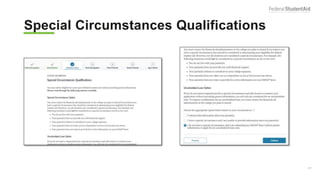
  • #178 Special Circumstances Qualifications view The user will be given examples of what would and wouldn't be considered special circumstances. On the Special Circumstances Qualifications view, the user may either correct his or her response from the previous view and provide parental information; select “I have a special circumstance and I am unable to provide information about my parent(s);" or select “I do not have a special circumstance, and I am submitting my FAFSA form without parent information to apply for an unsubsidized loan only." In this example, the user has selected “I do not have a special circumstance and am unable to provide information about my parent(s).” The user can then select “Continue,” which will bring them to section 6 to provide student information. 
  • #179 Homelessness Circumstances
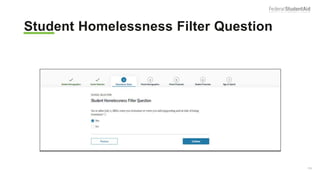
  • #180 Student Homelessness Filter Question view On this view, the user may select "Yes" or "No" to the question if he or she were homeless or self-supporting and at risk on or after July 1, 2021.
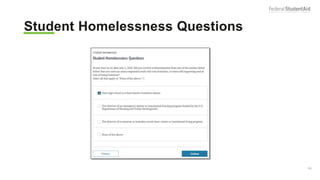
  • #181 Student Homelessness Questions view The user has the option to select which entity made the determination or “None of the above.” In this example, the user choses one of the three entities listed. Once the user selects "Continue," he or she will go to the Independent Student Status view to answer if he or she would like to provide parental information.
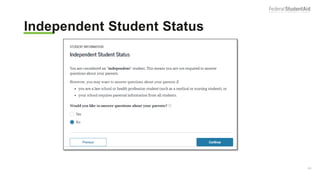
  • #182 Independent Student Status view The user may select "Yes" or "No" to answer questions about his or her parents.
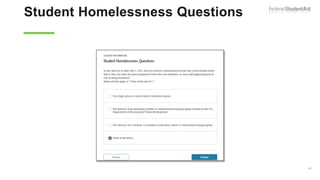
  • #183 Student Homelessness Questions view In this example, the user chose "None of the above." Once the user selects “Continue," he or she will go to the Homeless or At Risk of Being Homeless view.
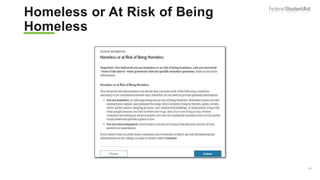
  • #184 Homeless or At Risk of Being Homeless view This view describes the conditions for being homeless or at risk of being homeless. Once the user selects “Continue,” he or she will go to the page that describes the potential impacts of not providing parent information.
  • #185 Impact of Not Providing Parent Information view This view notifies the user that although he or she is allowed to skip parent information, an EFC will not be generated and he or she must follow up with the financial aid administrator in order to complete his or her FAFSA form and receive an EFC.
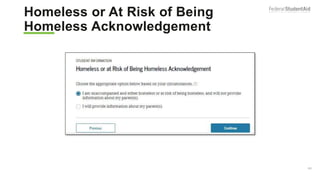
  • #186 Homeless of At Risk of Being Homeless Acknowledgment view Users who are homeless or at risk of being homeless may select whether to provide information about their parents.
  • #187 Additional Resources
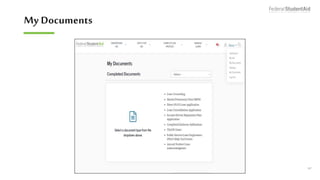
  • #188 My Documents view The user can track the status of a completed FAFSA form within the "My Documents" page. To go to the "My Documents" page, the user must log in, select his or her name from the top right, and select "My Documents."
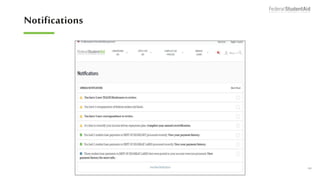
  • #189 Notifications view The user can view any notifications relevant to the FAFSA form in the Notifications Center. The user must be logged in to view any notifications. If there are any notifications, the bell icon in the top right corner will contain a red circle with a number to indicate the number of notifications.
  • #190 Conclusion