Intel®
Technology Journal | Volume 18, Issue 2, 2014
Intel®
Technology Journal | 1
Publisher	 Managing Editor	 Content Architect
Cory Cox	 Stuart Douglas 	 Paul Cohen
Program Manager	 Technical Editor 	 Technical Illustrators
Paul Cohen	 David Clark	 MPS Limited
Technical and Strategic Reviewers
Bruce J Beare
Tracey Erway
Michael Richmond
Judi A Goldstein
Kira C Boyko
Miao Wei
Paul De Carvalho
Ryan Tabrah  
Prakash Iyer
Premanand Sakarda  
Ticky Thakkar
Shelby E Hedrick
Intel Technology Journal
Intel®
Technology Journal | Volume 18, Issue 2, 2014
2 | Intel®
Technology Journal
Copyright © 2014 Intel Corporation. All rights reserved.
ISBN 978-1-934053-63-8, ISSN 1535-864X
Intel Technology Journal
Volume 18, Issue 2
No part of this publication may be reproduced, stored in a retrieval system or transmitted in any form or by any means, electronic, mechanical,
photocopying, recording, scanning or otherwise, except as permitted under Sections 107 or 108 of the 1976 United States Copyright Act, without either
the prior written permission of the Publisher, or authorization through payment of the appropriate per-copy fee to the Copyright Clearance Center,
222 Rosewood Drive, Danvers, MA 01923, (978) 750-8400, fax (978) 750-4744. Requests to the Publisher for permission should be addressed to the
Publisher, Intel Press, Intel Corporation, 2111 NE 25th Avenue, JF3-330, Hillsboro, OR 97124-5961. E-Mail: intelpress@intel.com.
This publication is designed to provide accurate and authoritative information in regard to the subject matter covered. It is sold with the understanding that the
publisher is not engaged in professional services. If professional advice or other expert assistance is required, the services of a competent professional person should
be sought.
Intel Corporation may have patents or pending patent applications, trademarks, copyrights, or other intellectual property rights that relate to the presented
subject matter. The furnishing of documents and other materials and information does not provide any license, express or implied,by estoppel or otherwise, to
any such patents, trademarks, copyrights, or other intellectual property rights.
Intel may make changes to specifications, product descriptions, and plans at any time, without notice.
Fictitious names of companies, products, people, characters, and/or data mentioned herein are not intended to represent any real individual, company, product, or event.
Intel products are not intended for use in medical, life saving, life sustaining, critical control or safety systems, or in nuclear facility applications.
Intel, the Intel logo, Intel Atom, Intel AVX, Intel Battery Life Analyzer, Intel Compiler, Intel Core i3, Intel Core i5, Intel Core i7, Intel DPST, Intel
Energy Checker, Intel Mobile Platform SDK, Intel Intelligent Power Node Manager, Intel QuickPath Interconnect, Intel Rapid Memory Power
Management (Intel RMPM), Intel VTune Amplifier, and Intel Xeon are trademarks or registered trademarks of Intel Corporation or its subsidiaries in
the United States and other countries.
Software and workloads used in performance tests may have been optimized for performance only on Intel microprocessors. Performance tests, such as SYSmark
and MobileMark, are measured using specific computer systems, components, software, operations and functions. Any change to any of those factors may cause
the results to vary. You should consult other information and performance tests to assist you in fully evaluating your contemplated purchases, including the
performance of that product when combined with other products.
For more complete information about performance and benchmark results, visit www.intel.com/benchmarks
†Other names and brands may be claimed as the property of others.
This book is printed on acid-free paper.
Publisher: Cory Cox
Managing Editor: Stuart Douglas
Program manager: Paul Cohen
Library of Congress Cataloging in Publication Data:
Printed in China
10 9 8 7 6 5 4 3 2 1
First printing: April 2014
Intel®
Technology Journal | Volume 18, Issue 2, 2014
Intel®
Technology Journal | 3
Notices and Disclaimers
ALL INFORMATION PROVIDED WITHIN OR OTHERWISE ASSOCIATED WITH THIS PUBLICATION INCLUDING, INTER ALIA, ALL SOFTWARE
CODE, IS PROVIDED “AS IS”, AND FOR EDUCATIONAL PURPOSES ONLY. INTEL RETAINS ALL OWNERSHIP INTEREST IN ANY INTELLECTUAL
PROPERTY RIGHTS ASSOCIATED WITH THIS INFORMATION AND NO LICENSE, EXPRESS OR IMPLIED, BY ESTOPPEL OR OTHERWISE,
TO ANY INTELLECTUAL PROPERTY RIGHT IS GRANTED BY THIS PUBLICATION OR AS A RESULT OF YOUR PURCHASE THEREOF. INTEL
ASSUMES NO LIABILITY WHATSOEVER AND INTEL DISCLAIMS ANY EXPRESS OR IMPLIED WARRANTY RELATING TO THIS INFORMATION
INCLUDING, BY WAY OF EXAMPLE AND NOT LIMITATION, LIABILITY OR WARRANTIES RELATING TO FITNESS FOR A PARTICULAR PURPOSE,
MERCHANTABILITY, OR THE INFRINGEMENT OF ANY INTELLECTUAL PROPERTY RIGHT ANYWHERE IN THE WORLD.
Software and workloads used in performance tests may have been optimized for performance only on Intel microprocessors. Performance tests, such as SYSmark and
MobileMark, are measured using specific computer systems, components, software, operations and functions. Any change to any of those factors may cause the results to vary.
You should consult other information and performance tests to assist you in fully evaluating your contemplated purchases, including the performance of that product when
combined with other products.
For more information go to http://www.intel.com/performance
Intel’s compilers may or may not optimize to the same degree for non-Intel microprocessors for optimizations that are not unique to Intel microprocessors. These optimizations
include SSE2, SSE3, and SSE3 instruction sets and other optimizations. Intel does not guarantee the availability, functionality, or effectiveness of any optimization on
microprocessors not manufactured by Intel. Microprocessor-dependent optimizations in this product are intended for use with Intel microprocessors. Certain optimizations
not specific to Intel microarchitecture are reserved for Intel microprocessors. Please refer to the applicable product User and Reference Guides for more information regarding the
specific instruction sets covered by this notice.
Notice revision #20110804
INFORMATION IN THIS DOCUMENT IS PROVIDED IN CONNECTION WITH INTEL PRODUCTS. NO LICENSE, EXPRESS OR IMPLIED, BY ESTOPPEL
OR OTHERWISE, TO ANY INTELLECTUAL PROPERTY RIGHTS IS GRANTED BY THIS DOCUMENT. EXCEPT AS PROVIDED IN INTEL’S TERMS AND
CONDITIONS OF SALE FOR SUCH PRODUCTS, INTEL ASSUMES NO LIABILITY WHATSOEVER AND INTEL DISCLAIMS ANY EXPRESS OR IMPLIED
WARRANTY, RELATING TO SALE AND/OR USE OF INTEL PRODUCTS INCLUDING LIABILITY OR WARRANTIES RELATING TO FITNESS FOR A
PARTICULAR PURPOSE, MERCHANTABILITY, OR INFRINGEMENT OF ANY PATENT, COPYRIGHT OR OTHER INTELLECTUAL PROPERTY RIGHT.
A “Mission Critical Application” is any application in whichfailure of the Intel Product could result, directly or indirectly, in personal injury or death. SHOULD YOU
PURCHASE OR USE INTEL’S PRODUCTS FOR ANY SUCH MISSION CRITICAL APPLICATION, YOU SHALL INDEMNIFY AND HOLD INTEL AND ITS
SUBSIDIARIES, SUBCONTRACTORS AND AFFILIATES, AND THE DIRECTORS, OFFICERS, AND EMPLOYEES OF EACH, HARMLESS AGAINST ALL CLAIMS
COSTS, DAMAGES, AND EXPENSES AND REASONABLE ATTORNEYS’ FEES ARISING OUT OF, DIRECTLY OR INDIRECTLY, ANY CLAIM OF PRODUCT
LIABILITY, PERSONAL INJURY, OR DEATH ARISING IN ANY WAY OUT OF SUCH MISSION CRITICAL APPLICATION, WHETHER OR NOT INTEL OR ITS
SUBCONTRACTOR WAS NEGLIGENT IN THE DESIGN, MANUFACTURE, OR WARNING OF THE INTEL PRODUCT OR ANY OF ITS PARTS.
Intel may make changes to specifications and product descriptions at any time, without notice. Designers must not rely on the absence or characteristics of any features or
instructions marked “reserved” or “undefined”. Intel reserves these for future definition and shall have no responsibility whatsoever for conflicts or incompatibilities arising from
future changes to them. The information here is subject to change without notice. Do not finalize a design with this information.
The products described in this document may contain design defects or errors known as errata, whichmay cause the product to deviate from published specifications. Current
characterized errata are available on request.
Contact your local Intel sales office or your distributor to obtain the latest specifications and before placing your product order.
Copies of documents whichhave an order number and are referenced in this document, or other Intel literature, may be obtained by calling 1-800-548-4725, or
go to: http://www.intel.com/design/literature.htm
Intel®
Technology Journal | Volume 18, Issue 2, 2014
4 | Intel®
Technology Journal
Table of Contents | 5
Intel®
Technology Journal | Volume 18, Issue 2, 2014
Articles
INTEL®
TECHNOLOGY JOURNAL
Android*
Development for Intel®
Architecture
Foreword................................................................................................................................................................. 7
An Introduction to Android* on Intel Processors...................................................................................................... 8
Android* Security: Issues and Future Directions................................................................................................... 34
Developing Sensor Applications on Intel®
Atom™ Processor-Based Android*
Phones and Tablets............................................................................................................................................... 50
Installing the Android* SDK for Intel®
Architecture................................................................................................. 72
Creating and Porting NDK-based Android* Applications for Intel®
Architecture..................................................... 86
Debugging and Intel®
Hardware Accelerated Execution Manager.......................................................................110
Optimizing Intel®
Architecture Multimedia Applications by Software Tuning
and Hardware Acceleration................................................................................................................................. 148
Introduction to Graphics and Media Resources in Android*................................................................................ 172
Introduction to Intel®
Integrated Performance Primitives for Android* with a Case Study................................... 188
Intel®
Technology Journal | Volume 18, Issue 2, 2014
6 | Intel®
Technology Journal
Intel®
Technology Journal | Volume 18, Issue 2, 2014
Michael S. Richmond,
Intel Open Source Technology Center
Foreword | 7
Foreword Android* for Intel Architecture
This issue of the Intel Technical Journal focuses on the Android* operating system and its use on Intel Architecture.
From its inception, architectural independence has been an important goal for Android. The Linux kernel originated on and has
always been optimized for Intel architecture, but its use within Android certainly has contributed to improvements in the kernel
to better support ARM and other architectures. The kernel project has a long tradition of accommodating optimizations for
multiple architectures and contributions from competing companies that move the kernel forward.
For application developers, architectural independence in Android is delivered through the Dalvik virtual machine, where
Android applications are executed with no knowledge of the underlying CPU architecture.
At least, that’s the theory. In practice, there is wide variance among Android implementations, and plenty of room for
competition. And competition is good for Android. For a fascinating example, go along with Ryan Cohen as he installs Beacon
Mountain, Intel’s development environment for Android. Beacon Mountain allows an application developer to execute Android
applications on a PC or Mac (both powered by Intel architecture) using the standard Android SDK. For years, this kind of
emulation was painfully slow. Beacon Mountain includes Intel® Hardware Accelerated eXecution Manager (Intel® HAXM),
making emulation competitive with execution on a target device. The ironic result: application developers using unique features
in Intel Architecture to develop Android applications intended for (mostly ARM-based) phones while learning just how good
Android is on Intel Architecture. Ryan Cohen also summarizes the major developments that have made Intel Architecture a first-
class platform for Android.
Between the Linux kernel and the Dalvik runtime, there is a wide range of middleware needed to deliver the best Android
experiences. Orion Granatir and Clay Montgomery focus on two of the most important visual middleware elements: OpenGL
3D libraries for both Dalvik and native use, and 2D SVG (Scalable Vector Graphics), the resolution-independent graphics
specification that is part of the World Wide Web consortium’s Open Web Platform initiative. Orion and Clay focus on the use
of a spectacular new tool that helps developers to take their onscreen Android experiences from “should be smooth and fluid” to
“is smooth and fluid.”
Some of the biggest differences between devices and the traditional PC are the sensors embedded in devices to translate a
physical experience into the virtual world of applications. Miao Wei introduces the Android Sensor framework and walks
us through how motion, position, GPS, and more can be used to deliver signal on a phone or tablet platform without
overwhelming the application with environmental noise.
In addition to the interactive experiences enabled by OpenGL, SVG, and sensors, consumers love how devices based on Android
allow them to bring their entertainment with them wherever they go. Yuming Li shows how to map techniques proven over two
decades on Intel architecture directly to today’s Android entertainment and video conferencing experiences when implementing
codecs on Intel architecture. Today’s CPUs might provide an acceptable frame rate on low-end phones even with sloppy codecs,
but the higher resolution phones and tablets of now require state-of-the-art optimization to provide the frame rates consumers
expect with great battery life.
Intel has a commitment to Linux and open source that goes back 15 years. Android depends on open source ways of working
combining collaboration for the common good along with competition that improves everyone’s game. Consumers win, and
because of Moore’s Law, they win more every year.
8 | An Introduction to Android* on Intel Processors
Intel®
Technology Journal | Volume 18, Issue 2, 2014
Contributor
Since the creation of Android* in 2008, it has been considered an ARM-based
platform. It was not until mid-2009, when a group of developers created The
Android-x86 Project to be able to port Android Open Source Project (AOSP)
to the x86 platform, that anyone even considered using x86 processors for
Android devices. Intel got directly involved with Android in 2010 with their
first mobile platform targeted directly at Android, the Moorestown Platform.
In September of 2011, Intel and Google announced a partnership to optimize
future versions of Android for x86 processors. Intel went on to announce the
Medfield Platform in 2012 followed by Bay Trail and Merrifield in 2013. All
three platforms were supported by Android on release.
In this article, we discuss the history of Android on Intel processors from
2009 to today. We also review the first official Android devices to feature Intel
processors, as well as other notable devices that have been released. These
reviews contain fact-based comparisons of hardware and software specifications
as well as benchmarks performed by third-party technical review sites and
benchmarking sites.
Intel and Android, a Brief History
The history of Android running on Intel processors goes back to before Intel
officially started making chips specifically for Android devices. It started,
in 2009, as an unofficial port created by a group of developers who called
it The Android-x86 Project. In 2010 Intel announced the Moorestown
platform to be used in smartphones and tablets. During 2011, several
Android tablets were released with Intel processors. In the fourth quarter of
2011, Intel and Google announced a partnership to optimize future versions
of Android for Intel processors. During 2012, the first Android smartphones
featuring Intel processors were released, starting with the Lava Xolo X900*
in India.
Android-x86 Project
Initially called “patch hosting for Android x86,” the Android-x86 Project
was started by a group of developers in mid-2009. Their goal was to port the
Android Open Source Project (AOSP) to the x86 platform. The project can be
found at www.android-x86.org. Before the Android SDK and NDK officially
supported x86 processors, the Android-x86 project was the go-to source for
porting Android to devices with x86 processors.
“Since the creation of Android* in
2008, it has been considered an
ARM-based platform.”
“…Intel and Google announced a
partnership to optimize future versions
of Android for Intel processors.”
Ryan Cohen
An Introduction to Android* on Intel
Processors
Intel®
Technology Journal | Volume 18, Issue 2, 2014
An Introduction to Android* on Intel Processors | 9
Moorestown Platform
In 2010, Intel Corporation unveiled its newest Intel® Atom™ processor-based
platform, codenamed Moorestown. This platform used significantly less power
than previous Intel Atom processor–based platforms and allowed Intel to start
targeting smartphones, tablets, and other mobile devices.
The new platform supported a range of scalable frequencies, up to 1.5 GHz
for high-end smartphones and up to 1.9 GHz for tablets and other handheld
devices. The chipset also brought support for Wi-Fi*, 3G/HSPA, and WiMAX,
as well as a range of operation systems, including Android, MeeGo*, Moblin*,
and Windows* 7.
Intel and Google Partnership
On September 13, 2011, Intel Corporation and Google Inc. announced that
they would work to enable and optimize future versions of Android for the
Intel Atom family of low power processors. This meant that future versions
of the Android platform would support Intel technology in addition to other
architectures in the software released by Google.
“By optimizing the Android platform for Intel architecture, we bring a powerful
new capability to market that will accelerate more industry adoption and choice,
and bring exciting new products to market that harness the combined potential
of Intel technology and the Android platform,” said Intel President and CEO
at the time, Paul Otellini. “Together we are accelerating Intel architecture and
bringing new levels of innovation to a maturing Android platform.”
“Combining Android with Intel’s low power smartphone roadmap opens up
more opportunity for innovation and choice,” said Andy Rubin, Senior Vice
President of Mobile at Google at the time. “This collaboration will drive the
Android ecosystem forward.”
The announcement built upon the two companies’ recent joint initiatives to
enable Intel architecture on Google products, which include Chrome OS and
Google TV along with the Android Software Development Kit (SDK) and
Native Development Kit (NDK).
International Consumer Electronics Show (CES) 2012
January of 2012, at CES, Intel Corporation announced a number of
advancements in its mobile strategy, including a strategic relationship with
Motorola Mobility, Inc., a subsidiary of Google Inc., and a handset by Lenovo,
the K800*, based on the company’s new Intel Atom processor platform.
The Intel Atom processor Z2460 platform, formerly codenamed Medfield,
was, according to Intel, “specifically designed for smartphones and tablets,
and delivers leading performance with competitive energy efficiency.” The
partnership with Motorola Mobility included smartphones that Motorola
would begin to ship in the second half of 2012 using Intel Atom processors
“…[Moorestown] used significantly
less power than previous Intel Atom
processor–based platforms…”
“…future versions of the Android
platform would support Intel
technology in addition to other
architectures in the software released
by Google.”
Intel®
Technology Journal | Volume 18, Issue 2, 2014
10 | An Introduction to Android* on Intel Processors
and the Android platform. The first product to come of this partnership was
the Razr i* smartphone. The collaboration, which also covers tablets, “combines
Intel’s leadership in silicon technology and computing innovation with
Motorola’s mobile device design expertise” said Intel.
Intel also announced the Intel® Smartphone Reference Design, with the aim
of shrinking device development time and costs for phone OEMs and carriers.
This fully functioning smartphone featured a 4.03-inch high-resolution LCD
touchscreen, and two cameras, front and back, delivering advanced imaging
capabilities, including burst mode that allows individuals to capture 15 pictures
in less than a second with 8-megapixel quality.
International Consumer Electronics Show (CES) 2013
At CES 2013, Intel announced their newest low power Intel Atom processor
based platform aimed at emerging markets. The new value offering includes
many high-end features including the Intel Atom processor Z2420. Intel also
made announcements about their forthcoming Intel Atom Z2580 processor
platform targeted at performance and mainstream smartphones. The platform
included a dual-core Intel Atom processor with Intel® Hyper-Threading
Technology and also featured a dual-core graphics engine. According to
Intel “the new platform [would] deliver up to two times the performance
benefits over our current-generation solution (Intel Atom processor Z2460
platform), while also offering competitive power and battery life.” Finally,
Intel announced a new tablet platform, Bay Trail, which would be Intel’s first
quad-core SoC.
Lenovo* announced the IdeaPhone K900* at CES 2013, which is based on the
Intel Atom processor Z2580. The K900 is 6.9-mm thin and also features the
world’s first 5.5-inch full high-definition 400 + PPI screen. The K900 was the
first product to market based on the Intel Atom processor Z2580.
Mobile World Congress (MWC) 2013
Intel made several announcements at MWC 2013 in Barcelona, Spain. The
announcements included more details about a new dual-core Intel Atom
SoC platform for smartphones and tablets, and the company’s first global,
multimode-multiband LTE solution. Intel also discussed Bay Trail momentum,
mobile device enabling efforts, and continued smartphone momentum in
emerging markets with the Intel Atom Z2420 processor-based platform.
Finally, Intel highlighted its forthcoming 22-nm smartphone Intel Atom SoC
(codename Merrifield). The product is based on Intel’s “leading-edge 22-nm
process and an entirely new Intel Atom microarchitecture that will help enable
increased smartphone performance, power efficiency, and battery life.”
ASUS* announced the FonePad at MWC 2013. The Fonepad combines
features of a smartphone with the versatility of a 7-inch tablet. Powered by a
new Intel Atom Z2420 processor with Android 4.1, the Fonepad includes
3G mobile data and a vibrant HD display with IPS technology for “wide
viewing angles and outstanding clarity.” The Fonepad launched in April of 2013.
“…Intel announced their newest low
power Intel Atom processor based
platform aimed at emerging markets.”
“[Intel announced] the company’s first
global, multimode-multiband LTE
solution”
Intel®
Technology Journal | Volume 18, Issue 2, 2014
An Introduction to Android* on Intel Processors | 11
Intel® Atom™ Platform Z2580
According to Intel, the new Intel Atom processor platform delivers “industry-
leading performance with low-power and long battery life that rivals today’s
most popular Android smartphones.”
The platform’s 32-nm dual core Intel Atom processors—Z2580, Z2560, and
Z2520—are available in speeds up to 2.0 GHz, 1.6 GHz, and 1.2 GHz,
respectively.
Intel provided details on key features of the platform including, “support for
Intel Hyper-Threading Technology, supporting four simultaneous application
threads and further enhancing the overall efficiency of the Intel Atom cores.”
The integrated platform also includes an “Intel® Graphics Media Accelerator
engine with a graphics core supporting up to 533 MHz with boost mode,
and delivering up to three times the graphics performance of the Intel Atom
Z2460 platform for rich 3-D visuals, lifelike gaming, and smooth, full 1080P
hardware-accelerated video encode and decode at 30 FPS.” The new Intel
Atom platform brings “advanced imaging capabilities, including support
for two cameras, with a primary camera sensor up to 16 megapixels.” The
imaging system also enables panorama capture, “a 15 frame-per-second burst
mode for 8 megapixel photos, real-time facial detection and recognition, and
mobile HDR image capture with de-ghosting for clearer pictures in flight.
With WUXGA display support of 1920 × 12003, the platform will also enable
larger-screen Android tablet designs.” The platform also includes support for
Android 4.2 (Jelly Bean), Intel Wireless Display Technology, HSPA + at 42
Mbps with the Intel® XMM 6360 slim modem solution, and the new industry-
standard UltraViolet* Common File Format.
The platform is also equipped with Intel® Identity Protection Technology
(Intel IPT), “helping to enable strong, two-factor authentication for protecting
cloud services such as remote banking, e-commerce, online gaming, and
social networking from unauthorized access. Since Intel IPT is embedded at
chip-level, unlike hardware or phone-based tokens, it can enable more secure
yet user-friendly cloud access protection.” Intel is working with partners
including Feitian, Garanti Bank, MasterCard, McAfee, SecureKey Technologies
Inc., Symantec, Vasco Data Security International Inc., and Visa Inc. to
“incorporate this technology into their services.”
Intel® XMM 7160
According to Intel, the XMM 7160 is “one of the world’s smallest and
lowest-power multimode-multiband LTE solutions (LTE/DC-HSPA+/
EDGE), supporting multiple devices including smartphones, tablets,
and Ultrabooks*.” The 7160 global modem supports 15 LTE bands
simultaneously, “more than any other in-market solution.” It also includes
a “highly configurable RF architecture running real-time algorithms for
envelope tracking and antenna tuning that enables cost-efficient multiband
configurations, extended battery life, and global roaming in a single SKU.”
Intel is currently shipping its single mode and multimode 4G LTE data
“…the new Intel Atom processor
platform delivers “industryleading
performance with low-power and long
battery life that rivals today’s most
popular Android smartphones.””
“…the XMM 7160 is “one of the
world’s smallest and lowest-power
multimode-multiband LTE solutions
(LTE/DC-HSPA+ / EDGE), supporting
multiple devices including smartphones,
tablets, and Ultrabooks*.””
Intel®
Technology Journal | Volume 18, Issue 2, 2014
12 | An Introduction to Android* on Intel Processors
solutions. Intel is also “optimizing its LTE solutions concurrently with its
SoC roadmap to ensure the delivery of leading-edge low-power combined
solutions to the marketplace.”
Intel® Atom™ Platform Z2420
The Intel Atom processor Z2420 with Intel Hyper-Threading Technology can
achieve speeds of 1.2 GHz, features 1080p hardware-accelerated encode/decode,
and support for up to two cameras delivering “advanced imaging capabilities,”
including burst mode that allows users to capture seven pictures in less than
a second in 5-megapixel quality. The platform also includes the Intel XMM
6265 HSPA + modem that offers Dual Sim/Dual Standby capability for cost-
conscious consumers. This platform is targeted at emerging markets.
Since the platform was first announced at CES 2013, Acer (Thailand,
Malaysia), Lava (India), and Safaricom (Kenya) have all announced new
handsets. Etisalat Misr, a leading telecommunications operator based in Egypt
and a subsidiary of Etisalat group UAE, in collaboration with Intel announced
plans for the Etisalat E-20 Smartphone* with Intel Inside®.
Intel® Atom™ Platform Z2760
The first quad-core Intel Atom SoC (formerly codenamed Bay Trail) “will
be the most powerful Intel Atom processor to date, doubling the computing
performance of Intel’s current generation tablet offering and providing the
ecosystem with a strong technology foundation and feature set from which to
innovate.” The Bay Trail platform is already up and running on Android and
will “help enable new experiences in designs as thin as 8 mm that have all-day
battery life and weeks of standby.”
Intel is currently working with Compal, ECS, Pegatron, Quanta, and Wistron
to accelerate Bay Trail tablets to the market. Intel is also “extending its work
with leading OEM partners globally, building on the strong foundation of
Intel Atom processor Z2760-based tablet designs in market from Acer, ASUS,
Dell, Fujitsu, HP, Lenovo, LG Electronics, and Samsung.”
Intel Developer Forum 2013 San Francisco (IDF13)
I had the honor of attending IDF, for the first time, in September of 2013
at the Moscone Convention Center in San Francisco, California. IDF is
described by Intel as “the leading forum for anyone using Intel Architecture
or Intel technologies to change the world.” Android had a large presence
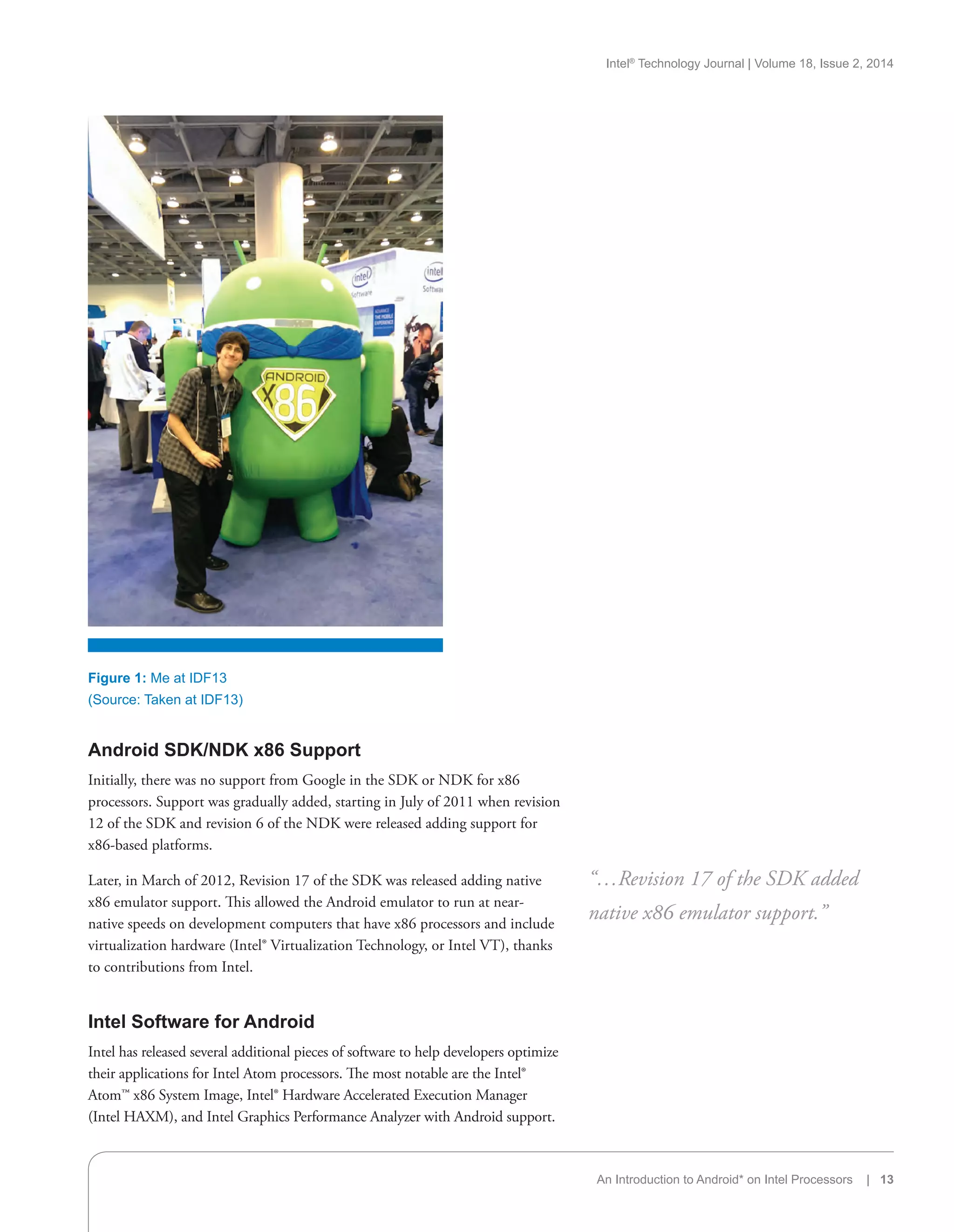
at IDF13 (see Figure 1), including mentions during keynote speeches and
several technical sessions for developers and OEMs/ODMs throughout the
event. During the conference, Intel discussed their newest Bay Trail platform,
Z3XXX, based on Ivy Bridge architecture. The platform features Intel HD
graphics as well as CPU and GPU power sharing. Intel also showed off their
Bay Trail Tablet references design for Android, called FFRD8 (8.9”). I found
IDF to be a very fun and informative event and would recommend that
anyone interested in working with Intel-based Android devices attend next
year’s IDF if possible.
“The Intel Atom processor Z2420 with
Intel Hyper-Threading Technology can
achieve speeds of 1.2 GHz…”
“…Intel discussed their newest Bay
Trail platform, Z3XXX, based on Ivy
Bridge architecture.”
Intel®
Technology Journal | Volume 18, Issue 2, 2014
An Introduction to Android* on Intel Processors | 13
Android SDK/NDK x86 Support
Initially, there was no support from Google in the SDK or NDK for x86
processors. Support was gradually added, starting in July of 2011 when revision
12 of the SDK and revision 6 of the NDK were released adding support for
x86-based platforms.
Later, in March of 2012, Revision 17 of the SDK was released adding native
x86 emulator support. This allowed the Android emulator to run at near-
native speeds on development computers that have x86 processors and include
virtualization hardware (Intel® Virtualization Technology, or Intel VT), thanks
to contributions from Intel.
Intel Software for Android
Intel has released several additional pieces of software to help developers optimize
their applications for Intel Atom processors. The most notable are the Intel®
Atom™ x86 System Image, Intel® Hardware Accelerated Execution Manager
(Intel HAXM), and Intel Graphics Performance Analyzer with Android support.
“…Revision 17 of the SDK added
native x86 emulator support.”
Figure 1: Me at IDF13
(Source: Taken at IDF13)
Intel®
Technology Journal | Volume 18, Issue 2, 2014
14 | An Introduction to Android* on Intel Processors
Intel® Hardware Accelerated Execution Manager (Intel® HAXM)
Released in February of 2012, Intel® HAXM supports Windows, Mac*,
and Linux* platforms. Intel HAXM is a “hardware-assisted virtualization
engine (hypervisor) that uses Intel Virtualization Technology (Intel VT) to
speed up Android application emulation on a host development machine.”
In combination with Android x86 emulator images provided by Intel and
the official Android SDK Manager, Intel HAXM allows for “faster Android
emulation on Intel VT enabled development systems.”
Intel® Graphics Performance Analyzer (Intel® GPA)
The latest version, with support for Android, was introduced in March of 2012
at the Game Developers Conference (GDC) in San Francisco. Intel® GPA is
a “powerful, agile developer tool suite for analyzing and optimizing games,
media, and other graphics-intensive applications. It provides real-time charts
of CPU metrics, graphics API level metrics, GPU hardware metrics, and power
metrics.”
Intel® Atom™ X86 System Image for Android*
In May of 2012, Intel released the Intel® Atom™ X86 System Image of
Android 4.0 (Ice Cream Sandwich). This emulation platform allows developers
without a physical Intel Atom based device to develop and test applications on
their PC at “near-native” speeds. As of this writing, the system image for 4.3,
the latest Jelly Bean release, is available.
Initial Devices
The first Android devices powered by Intel Atom processors were tablets,
starting with the Avaya Flare* in 2010. During 2011, 30 devices powered by
Intel Atom processors were released, all in a tablet form factor. The unique
advantage of using the Intel Atom processors in these tablets is that they
can run both Android and Windows. In the first half of 2012, smartphones
powered by Intel Atom processors came to market, starting with the Lava
Xolo X900, Lenovo K800, and Orange San Diego*. All of these phones were
released outside of the United States.
Avaya Flare*
Released September 26, 2010, the Flare was the first Android tablet featuring
a 1.86-GHz Intel Atom Processor Z540. It ran Android 2.1 (Eclair), and
had some good specifications for the time, such as an 11.6-inch screen and a
5-megapixel front camera. However with a battery life of less than three hours
and a weight of 3.25 pounds, it had about half the battery life and double the
weight of other tablets on the market.
ViewSonic ViewPad 10*
The ViewPad 10* was the first tablet powered by an Intel Atom processor
to run both Windows 7 and Android 2.2 (Froyo). It shipped February 3,
2011 featuring a 1.66-GHz processor (N455) and a 10.1-inch screen. With
“The first Android devices powered by
Intel Atom processors were tablets…”
Intel®
Technology Journal | Volume 18, Issue 2, 2014
An Introduction to Android* on Intel Processors | 15
a 1.3-megapixel front-facing camera, four to six hours of battery life, and a
weight of 1.93 pounds, the ViewPad 10 was on par with other tablets of
the time.
Lava Xolo X900*
The X900 was the first Android smartphone powered by an Intel Atom
processor. It was released April 2012 in India and is based on Intel’s reference
design. It has a 4-inch (1024 × 600) display, 8-megapixel rear camera,
1.3-megapixel front camera, and Near Field Communication (NFC).
NFC allows communication with other devices with NFC technology or
unpowered NFC chips (tags). This technology has several uses, such as
transferring data, making purchases, and changing settings on the phones,
to name a few. The X900 runs on a Z2460 1.6-GHz processor with Intel®
Hyper-Threading Technology (Intel HT Technology). Intel HT Technology
allows one core on the processor to appear like two cores to the operating
system. This doubles the execution resources available to the OS, which
potentially increases the performance of your overall system. This feature
is not available on ARM processors. The device also features a 400-MHz
graphics core, 1 GB of RAM, and 16 GB of internal storage, putting it on
par with the average high-end smartphone of the time. The X900 came
loaded with Android 2.3 (Gingerbread) with no custom UI, like Sense or
TouchWiz, but was updated to Android 4.0 (Ice Cream Sandwich) later in
2012. Unlike many Android phones in existence, the Xolo has no removable
battery or SD card slot. This is seen as a disadvantage to some in the Android
community, but this appears to be the trend for new high-end Android
smartphones, including HTC’s new One series. The reason for the new trend
of nonremovable batteries is that it allows for thinner smartphones. The move
away from SD card slots is an effort to increase smartphone performance,
since internal storage is faster than SD cards.
Lenovo K800*
The K800 was released in China at the end of May 2012. It features many
of the same specifications as the Xolo X900, since it is also based on Intel’s
reference design, including the same 1.6-GHz Intel Atom processor with
Intel HT Technology and a 400-MHz graphics processor. Just like the Xolo,
the K800 has an 8-megapixel rear camera, a 1.3-megapixel front camera, 1
GB of RAM, and 16 GB of internal storage. It came running Android 2.3
(Gingerbread) with a custom Lenovo UI and was later updated to Android 4.0
(Ice Cream Sandwich). It also has no removable battery. There are few notable
differences besides the UI including the larger 4.5-inch screen, larger battery,
and an SD card slot.
Orange San Diego*
The third Intel powered smartphone was released in the United Kingdom in
June of 2012. Also based on the Intel reference design, this phone is almost
identical to the Xolo X900. It has the same 1.6-GHz Intel Atom processor
with Intel HT Technology and a 400-MHz graphics processor, the same
“The X900 was the first Android
smartphone powered by an Intel Atom
processor.”
“[The K800] is also based on Intel’s
reference design…”
Intel®
Technology Journal | Volume 18, Issue 2, 2014
16 | An Introduction to Android* on Intel Processors
cameras, 1 GB of RAM, 16 GB of internal storage, and a 4-inch screen. It ran
Android 2.3 (Gingerbread) with a custom UI by Orange out of the box, which
is different from the custom UI on the K800. The San Diego was later updated
to Android 4.0 (Ice Cream Sandwich). Like the two smartphones before it, the
battery is not removable and there is no SD card slot.
Smartphones and Tablets with Intel Processors
In this section, I analyze several smartphones and tablets released with Intel
processors. These devices are compared with their ARM-based competition
based on price, hardware, software, and benchmarks.
All pricing and release date information is pulled directly from manufacturer
announcements made just prior to device releases.
Details about hardware and software for devices was pulled directly from
the manufacturers’ Web sites whenever possible and supplemented with
information from third-party tech sites when not.
The benchmarks used for device comparisons are listed below, along with
descriptions of the benchmarking tools provided by the respective sites.
AnTuTu Benchmark* is a benchmarking tool for Android smartphones and
tablets. It tests memory performance, CPU integer performance, CPU floating
point performance, 2D and 3D graphics performance, SD card reading/writing
speed, and database I/O performance testing.
Quadrant* is a benchmarking tool for Android smartphones and tablets
made by Aurora Softworks. It measures CPU, Memory, I/O, and graphics
performance using twelve CPU tests, one memory test, four I/O tests, one
2D graphics test, and three 3D graphics tests.
GFX Benchmark*, formerly GL Benchmark*, is a cross-platform
benchmarking tool. It performs graphics and computation capability tests for
OpenGL ES–compliant mobile devices and embedded environments. It can
test planar reflection, advanced shading system, animated water with normal
maps, triangles with vertex shader texture and lighting, and space portioning
and occlusion system with PVS.
Lava Xolo X900*
The Lava Xolo X900, shown in Figure 2, was the first Android smartphone
powered by the Intel Atom processor. It was released April 19, 2012 in India
and based on Intel’s reference design. The phone was priced at 22,000 Rupees
(INR 22,000), which was approximately 420 U.S. Dollars (USD 420) at
the time of release. This is comparable in price to the GSM Samsung Galaxy
Nexus*, which was released at the end of 2011 and was USD 400, or about
INR 20,900, at the time of the X900’s release. The price of the Galaxy Nexus
is artificially low since Google subsidizes the price in the hopes of making more
content sales in Google Play*. It is however still comparable since this is the
price the consumer pays. It is also comparable to the HTC One V*, which was
“These devices are compared with
their ARM-based competition based
on price, hardware, software, and
benchmarks.”
“[The X900] was the first Android
smartphone powered by the Intel Atom
processor.”
Intel®
Technology Journal | Volume 18, Issue 2, 2014
An Introduction to Android* on Intel Processors | 17
released April 2, 2012 in India at a price of INR 19,999 or about USD 382 at
the time of the X900’s release (see Table 1).
X900 Galaxy Nexus One V
Price in USD 420 400 382
Price in INR 22,000 20,900 19,999
Exchange rate at April 19, 2012
Table 1: Price Comparison for X900, Galaxy Nexus, and One V
(Source: Data from respective manufacturers)
Hardware
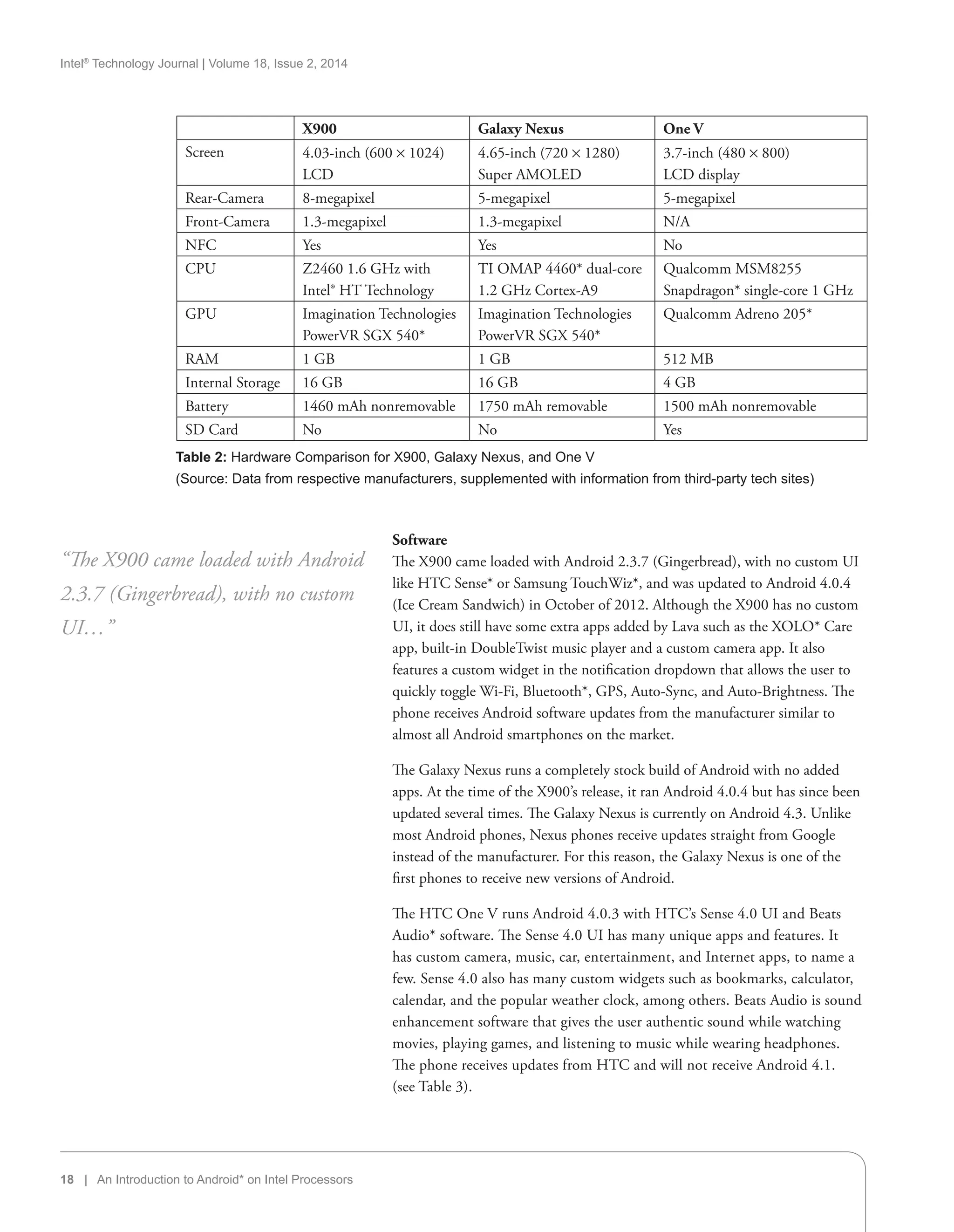
The X900 has a 4.03-inch (600 × 1024) LCD display. The screen is smaller
than the Galaxy Nexus’ 4.65-inch (720 × 1280) Super AMOLED display
but larger than the One V’s 3.7-inch (480 × 800) LCD display. The X900
features an 8-megapixel rear camera with Intel® Burst Mode Technology,
which allows the phone to take up to 10 photos in less than one second.
It also records video in full HD 1080p and has superior image quality in
low light conditions. Intel Burst Mode Technology is similar to HTC’s
Image Sense* technology found in most of their One* series phones. The
Galaxy Nexus and One V both have 5-megapixel rear cameras. The X900
also features a 1.3-megapixel front camera, and Near Field Communication
(NFC), which is the same as the Galaxy Nexus; however, the One V has
no front-facing camera and no NFC. The X900 runs on a Z2460 1.6 GHz
processor with Intel Hyper-Threading Technology (Intel HT Technology).
The Galaxy Nexus runs on a TI OMAP 4460* Dual-core 1.2 GHz Cortex-A9
and the One V runs on a Qualcomm MSM8255 Snapdragon* 1 GHz
processor. The X900 device also features a 400 MHz graphics core, 1 GB of
RAM and 16 GB of internal storage, putting it on par with the Galaxy Nexus
and ahead of the One V, which has 512 MB of RAM and 4 GB of internal
storage. The X900 does not feature a removable battery or SD card slot. The
X900 has a 1460 mAh battery. The Galaxy Nexus has a 1750 mAh removable
battery and no SD card slot while the One V has a 1500 mAh nonremovable
battery and an SD card slot. See Table 2 for a product comparison.
“The X900 features an 8-megapixel
rear camera with Intel® Burst Mode
Technology…”
“The X900 runs on a Z2460 1.6 GHz
processor with Intel Hyper-Threading
Technology…”
Figure 2: The Lave Xolo X900
(Source: Intel Corporation, 2012)
Intel®
Technology Journal | Volume 18, Issue 2, 2014
18 | An Introduction to Android* on Intel Processors
Software
The X900 came loaded with Android 2.3.7 (Gingerbread), with no custom UI
like HTC Sense* or Samsung TouchWiz*, and was updated to Android 4.0.4
(Ice Cream Sandwich) in October of 2012. Although the X900 has no custom
UI, it does still have some extra apps added by Lava such as the XOLO* Care
app, built-in DoubleTwist music player and a custom camera app. It also
features a custom widget in the notification dropdown that allows the user to
quickly toggle Wi-Fi, Bluetooth*, GPS, Auto-Sync, and Auto-Brightness. The
phone receives Android software updates from the manufacturer similar to
almost all Android smartphones on the market.
The Galaxy Nexus runs a completely stock build of Android with no added
apps. At the time of the X900’s release, it ran Android 4.0.4 but has since been
updated several times. The Galaxy Nexus is currently on Android 4.3. Unlike
most Android phones, Nexus phones receive updates straight from Google
instead of the manufacturer. For this reason, the Galaxy Nexus is one of the
first phones to receive new versions of Android.
The HTC One V runs Android 4.0.3 with HTC’s Sense 4.0 UI and Beats
Audio* software. The Sense 4.0 UI has many unique apps and features. It
has custom camera, music, car, entertainment, and Internet apps, to name a
few. Sense 4.0 also has many custom widgets such as bookmarks, calculator,
calendar, and the popular weather clock, among others. Beats Audio is sound
enhancement software that gives the user authentic sound while watching
movies, playing games, and listening to music while wearing headphones.
The phone receives updates from HTC and will not receive Android 4.1.
(see Table 3).
“The X900 came loaded with Android
2.3.7 (Gingerbread), with no custom
UI…”
X900 Galaxy Nexus One V
Screen 4.03-inch (600 × 1024)
LCD
4.65-inch (720 × 1280)
Super AMOLED
3.7-inch (480 × 800)
LCD display
Rear-Camera 8-megapixel 5-megapixel 5-megapixel
Front-Camera 1.3-megapixel 1.3-megapixel N/A
NFC Yes Yes No
CPU Z2460 1.6 GHz with
Intel® HT Technology
TI OMAP 4460* dual-core
1.2 GHz Cortex-A9
Qualcomm MSM8255
Snapdragon* single-core 1 GHz
GPU Imagination Technologies
PowerVR SGX 540*
Imagination Technologies
PowerVR SGX 540*
Qualcomm Adreno 205*
RAM 1 GB 1 GB 512 MB
Internal Storage 16 GB 16 GB 4 GB
Battery 1460 mAh nonremovable 1750 mAh removable 1500 mAh nonremovable
SD Card No No Yes
Table 2: Hardware Comparison for X900, Galaxy Nexus, and One V
(Source: Data from respective manufacturers, supplemented with information from third-party tech sites)
Intel®
Technology Journal | Volume 18, Issue 2, 2014
An Introduction to Android* on Intel Processors | 19
X900 Galaxy Nexus One V
Android OS 4.0.4 4.3 4.0.3
UI Almost Stock Pure Stock Sense 4.0
Updates From Lava Google HTC
As of September 23, 2013
Table 3: Software Comparison for X900, Galaxy Nexus, and One V
(Source: Data from respective manufacturers, supplemented with
information from third-party tech sites)
Benchmarks
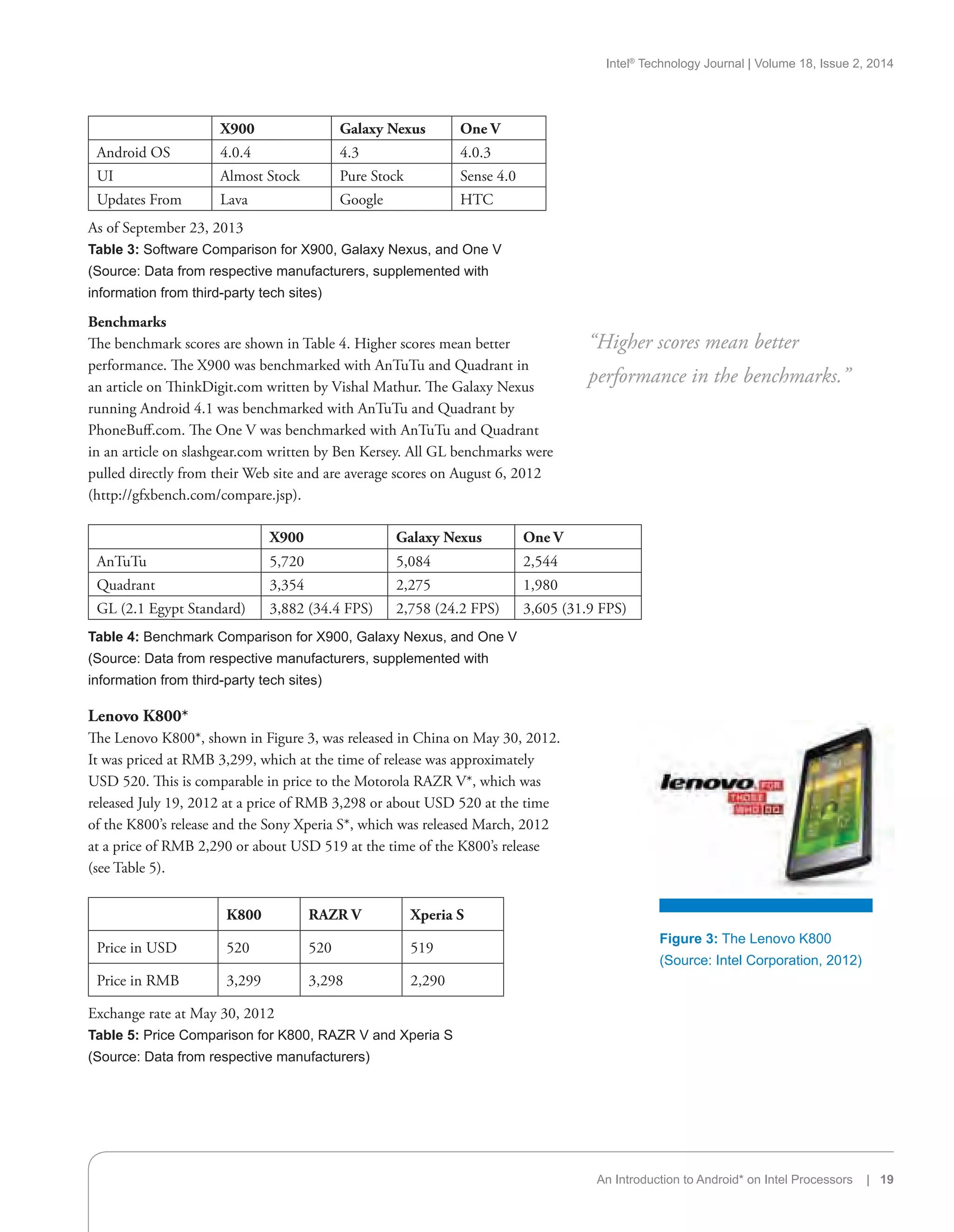
The benchmark scores are shown in Table 4. Higher scores mean better
performance. The X900 was benchmarked with AnTuTu and Quadrant in
an article on ThinkDigit.com written by Vishal Mathur. The Galaxy Nexus
running Android 4.1 was benchmarked with AnTuTu and Quadrant by
PhoneBuff.com. The One V was benchmarked with AnTuTu and Quadrant
in an article on slashgear.com written by Ben Kersey. All GL benchmarks were
pulled directly from their Web site and are average scores on August 6, 2012
(http://gfxbench.com/compare.jsp).
X900 Galaxy Nexus One V
AnTuTu 5,720 5,084 2,544
Quadrant 3,354 2,275 1,980
GL (2.1 Egypt Standard) 3,882 (34.4 FPS) 2,758 (24.2 FPS) 3,605 (31.9 FPS)
Table 4: Benchmark Comparison for X900, Galaxy Nexus, and One V
(Source: Data from respective manufacturers, supplemented with
information from third-party tech sites)
Lenovo K800*
The Lenovo K800*, shown in Figure 3, was released in China on May 30, 2012.
It was priced at RMB 3,299, which at the time of release was approximately
USD 520. This is comparable in price to the Motorola RAZR V*, which was
released July 19, 2012 at a price of RMB 3,298 or about USD 520 at the time
of the K800’s release and the Sony Xperia S*, which was released March, 2012
at a price of RMB 2,290 or about USD 519 at the time of the K800’s release
(see Table 5).
K800 RAZR V Xperia S
Price in USD 520 520 519
Price in RMB 3,299 3,298 2,290
Exchange rate at May 30, 2012
Table 5: Price Comparison for K800, RAZR V and Xperia S
(Source: Data from respective manufacturers)
“Higher scores mean better
performance in the benchmarks.”
Figure 3: The Lenovo K800
(Source: Intel Corporation, 2012)
Intel®
Technology Journal | Volume 18, Issue 2, 2014
20 | An Introduction to Android* on Intel Processors
Hardware
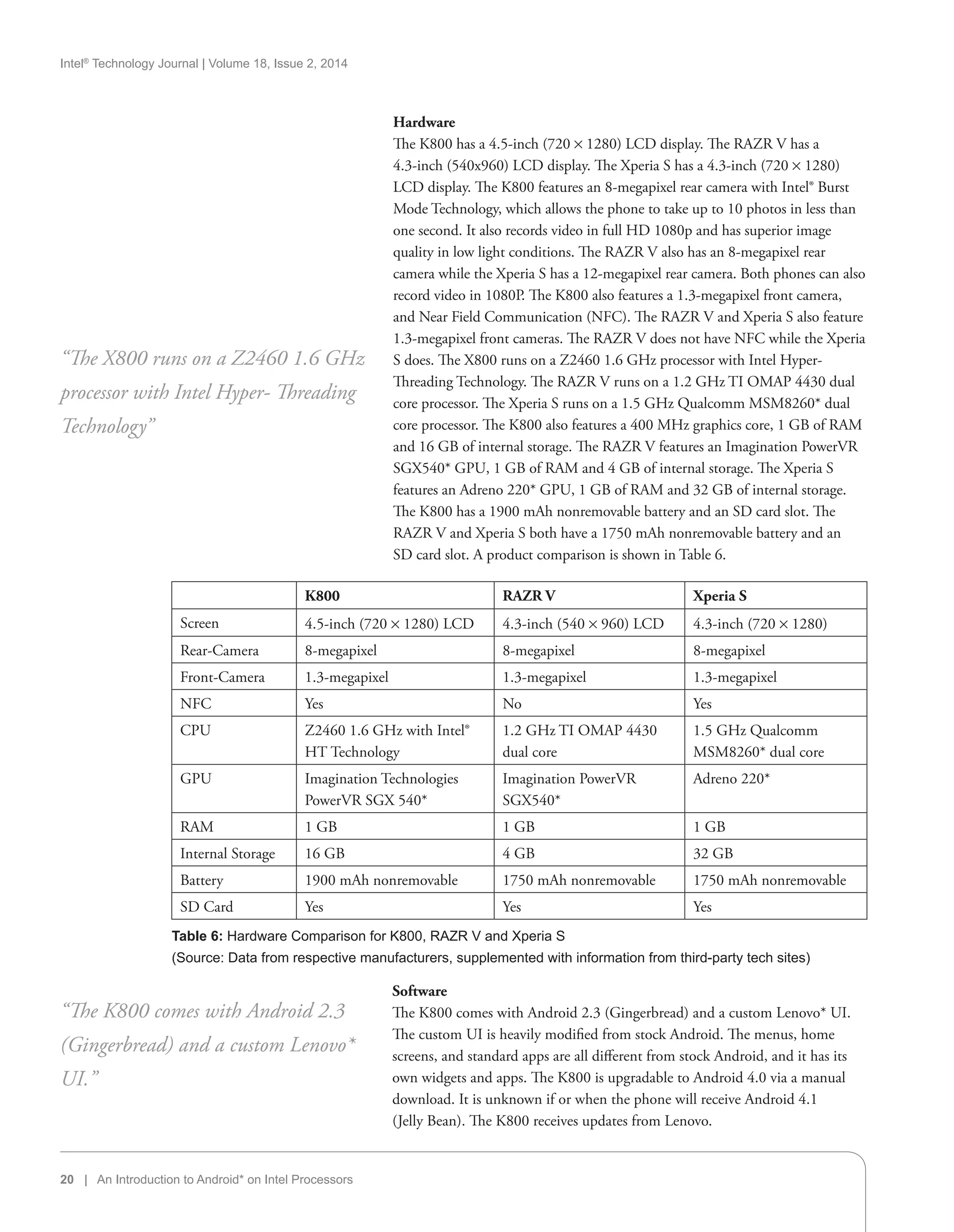
The K800 has a 4.5-inch (720 × 1280) LCD display. The RAZR V has a
4.3-inch (540x960) LCD display. The Xperia S has a 4.3-inch (720 × 1280)
LCD display. The K800 features an 8-megapixel rear camera with Intel® Burst
Mode Technology, which allows the phone to take up to 10 photos in less than
one second. It also records video in full HD 1080p and has superior image
quality in low light conditions. The RAZR V also has an 8-megapixel rear
camera while the Xperia S has a 12-megapixel rear camera. Both phones can also
record video in 1080P. The K800 also features a 1.3-megapixel front camera,
and Near Field Communication (NFC). The RAZR V and Xperia S also feature
1.3-megapixel front cameras. The RAZR V does not have NFC while the Xperia
S does. The X800 runs on a Z2460 1.6 GHz processor with Intel Hyper-
Threading Technology. The RAZR V runs on a 1.2 GHz TI OMAP 4430 dual
core processor. The Xperia S runs on a 1.5 GHz Qualcomm MSM8260* dual
core processor. The K800 also features a 400 MHz graphics core, 1 GB of RAM
and 16 GB of internal storage. The RAZR V features an Imagination PowerVR
SGX540* GPU, 1 GB of RAM and 4 GB of internal storage. The Xperia S
features an Adreno 220* GPU, 1 GB of RAM and 32 GB of internal storage.
The K800 has a 1900 mAh nonremovable battery and an SD card slot. The
RAZR V and Xperia S both have a 1750 mAh nonremovable battery and an
SD card slot. A product comparison is shown in Table 6.
“The X800 runs on a Z2460 1.6 GHz
processor with Intel Hyper- Threading
Technology”
K800 RAZR V Xperia S
Screen 4.5-inch (720 × 1280) LCD 4.3-inch (540 × 960) LCD 4.3-inch (720 × 1280)
Rear-Camera 8-megapixel 8-megapixel 8-megapixel
Front-Camera 1.3-megapixel 1.3-megapixel 1.3-megapixel
NFC Yes No Yes
CPU Z2460 1.6 GHz with Intel®
HT Technology
1.2 GHz TI OMAP 4430
dual core
1.5 GHz Qualcomm
MSM8260* dual core
GPU Imagination Technologies
PowerVR SGX 540*
Imagination PowerVR
SGX540*
Adreno 220*
RAM 1 GB 1 GB 1 GB
Internal Storage 16 GB 4 GB 32 GB
Battery 1900 mAh nonremovable 1750 mAh nonremovable 1750 mAh nonremovable
SD Card Yes Yes Yes
Table 6: Hardware Comparison for K800, RAZR V and Xperia S
(Source: Data from respective manufacturers, supplemented with information from third-party tech sites)
Software
The K800 comes with Android 2.3 (Gingerbread) and a custom Lenovo* UI.
The custom UI is heavily modified from stock Android. The menus, home
screens, and standard apps are all different from stock Android, and it has its
own widgets and apps. The K800 is upgradable to Android 4.0 via a manual
download. It is unknown if or when the phone will receive Android 4.1
(Jelly Bean). The K800 receives updates from Lenovo.
“The K800 comes with Android 2.3
(Gingerbread) and a custom Lenovo*
UI.”
Intel®
Technology Journal | Volume 18, Issue 2, 2014
An Introduction to Android* on Intel Processors | 21
The RAZR V comes with Android 4.0 and Motorola’s custom UI. The rollout
of Android 4.1 started in March of 2013. The Custom UI is much closer to
stock Android than Motorola’s previous UI, MotoBlur*. It has its own custom
icons and widgets and slight changes to the app drawer. The RAZR V receives
updates from Motorola.
The Xperia S launched with Android 2.3, but was updated to Android 4.0
in the second quarter of 2012 and later Android 4.1 in 2013, and has Sony’s
custom UI. The custom UI is close to stock Android but has a few added
features such as Overview Mode*, which allows you to pinch out on the screen
and see all of the active widgets on one screen. It also displays notifications on
the lock-screen such as Facebook* events. There are also many custom Sony
widgets not available in other UIs. See Table 7 for a product comparison.
K800* RAZR V Xperia S
Android OS 4.0.4 4.1.2 4.1.
UI LeOS* Motorola UI Sony UI
Updates From Lenovo Motorola Sony
As of September 23, 2013
Table 7: Software Comparison for K800, RAZR V, and Xperia S
(Source: Data from respective manufacturers, supplemented with
information from third-party tech sites)
Benchmarks
The benchmark scores are shown in Table 8. Higher scores mean better
performance. The K800 was benchmarked with AnTuTu in an article on
netbooknews.com written by Nicole Scott. The Xperia S was benchmarked on
AnTuTu by PhoneArena.com in February while it was still running Android 2.3.
The K800 was benchmarked with Quadrant in an article on Engaget.com written
by Richard Lai. The Xperia S was benchmarked on Quadrant by PhoneArena.
com in February while it was still running Android 2.3. All GL benchmarks were
pulled directly from their Web site and are average scores on September 2, 2012
(http://gfxbench.com/compare.jsp).
K800 RAZR V Xperia S
AnTuTu 5,335 N/A 6,466
Quadrant 3,850 N/A 3,062
GL (2.1 Egypt Standard) 2,913 (25.8 FPS) N/A 3,365 (29.8 FBS)
Table 8: Benchmark Comparison for K800, RAZR V, and Xperia S
(Source: See Above)
Orange San Diego*
The third smartphone powered by Intel technology, the Orange San Diego*,
shown in Figure 4, was released in the United Kingdom on June 6, 2012. Also
based on the Intel reference design, this phone is almost identical to the
Xolo X900. The price at release was 199 British pounds (GBP 199), which at
“The third smartphone powered by
Intel technology [was], the Orange
San Diego*”
Figure 4: The Orange San Diego
(Source: Intel Corporation, 2012)
Intel®
Technology Journal | Volume 18, Issue 2, 2014
22 | An Introduction to Android* on Intel Processors
release was about USD 306. This is comparable in price to the HTC Desire
C*, which was released in early June 2012 and priced at GBP 189.99 or about
USD 292 at June 6, 2012. It is also comparable in price to the Sony Xperia
Go*, released in mid-July 2012 and priced at GBP 229 or about USD 352
using the exchange rate at June 6, 2012 (see Table 9).
San Diego Desire C Xperia Go
Price in USD 306 292 352
Price in GBP 199 189.99 229
Exchange rate at June 6, 2012
Table 9: Price Comparison for San Diego, Desire C, and Xperia Go
(Source: Data from respective manufacturers, supplemented with
information from third-party tech sites)
Hardware
The San Diego has a 4.03-inch (600 × 1024) LCD display. The Desire C
and Xperia Go both have 3.5-inch (320 × 480) screens. The Xperia Go
has a scratch-, dust-, and water-resistant screen. The San Diego features an
8-megapixel rear camera with Intel Burst Mode Technology, which allows the
phone to take up to 10 photos in less than one second. It also records video in
full HD 1080p and has superior image quality in low light conditions. Intel
Burst Mode Technology is similar to HTC’s Image Sense technology found in
most of their One series phones. The San Diego also features a 1.3-megapixel
front camera and Near Field Communication (NFC). The Desire C and
Xperia Go both have 5-megapixel rear cameras and no front-facing cameras.
They also both have NFC. The San Diego runs on a Z2460 1.6 GHz processor
with Intel Hyper-Threading Technology. The Desire C has a 600 MHz
Qualcomm MSM7227A Snapdragon* Cortex-A5 processor. The Xperia Go
has a 1 GHz NovaThor* U8500 Dual-core Cortex A9 processor. The San
Diego also features a 400 MHz graphics core, 1 GB of RAM and 16 GB of
internal storage. The Desire C features an Adreno 200* GPU, 512 MB of
RAM and 4 GB of internal storage. The Xperia Go features a Mali-400* GPU,
512 MB of RAM and 8 GB of internal storage. The San Diego has a 1460
mAh nonremovable battery and there is no SD card slot. The Desire C has a
1230 mAh removable battery and an SD card slot. The Xperia Go has a 1305
mAh nonremovable battery and an SD card slot. See Table 10 for a product
comparison.
Software
The San Diego runs Android 2.3 (Gingerbread) with a custom UI by Orange,
which is different from the custom UI on the K800. It receives updates from
Orange and was updated to Android 4.0.4 (Ice Cream Sandwich) in October
of 2012.
The Desire C runs Android 4.0 (Ice Cream Sandwich) with the Sense 4.0
UI and Beats Audio software. The Sense 4.0 UI has many unique apps and
features. It has custom camera, music, car, entertainment and Internet apps,
“The San Diego runs on a Z2460
1.6 GHz processor with Intel
Hyper-Threading Technology”
“The San Diego runs Android 2.3
(Gingerbread) with a custom UI by
Orange…”
Intel®
Technology Journal | Volume 18, Issue 2, 2014
An Introduction to Android* on Intel Processors | 23
to name a few. Since 4.0, it also has many custom widgets such as bookmarks,
calculator, calendar, and the popular weather clock among others. Beats
Audio is sound enhancement software that gives the user authentic sound
while watching movies, playing games, and listening to music while wearing
headphones. It receives updates from HTC.
The Xperia Go ran Android 2.3.7 with a custom UI by Sony at the time
of the Orange San Diego’s release and has since been updated to Android 4.1.2.
The custom UI is close to stock Android but has a few added features such as
Overview Mode, which allows you to pinch out on the screen and see all of the
actives widgets on one screen. It also displays notifications on the lock-screen
such as Facebook events. There are also many custom Sony widgets not available
in other UIs. It receives updates from Sony. See Table 11 for a summary of this
information.
San Diego Desire C Xperia Go
Android* OS 4.0.4 4.0.3 4.1.2
UI Orange UI Sense 4.0 Sony UI
Updates From Orange HTC Sony
As of September 23, 2013
Table 11: Software Comparison for San Diego, Desire C, and Xperia Go
(Source: Data from respective manufacturers)
Benchmarks
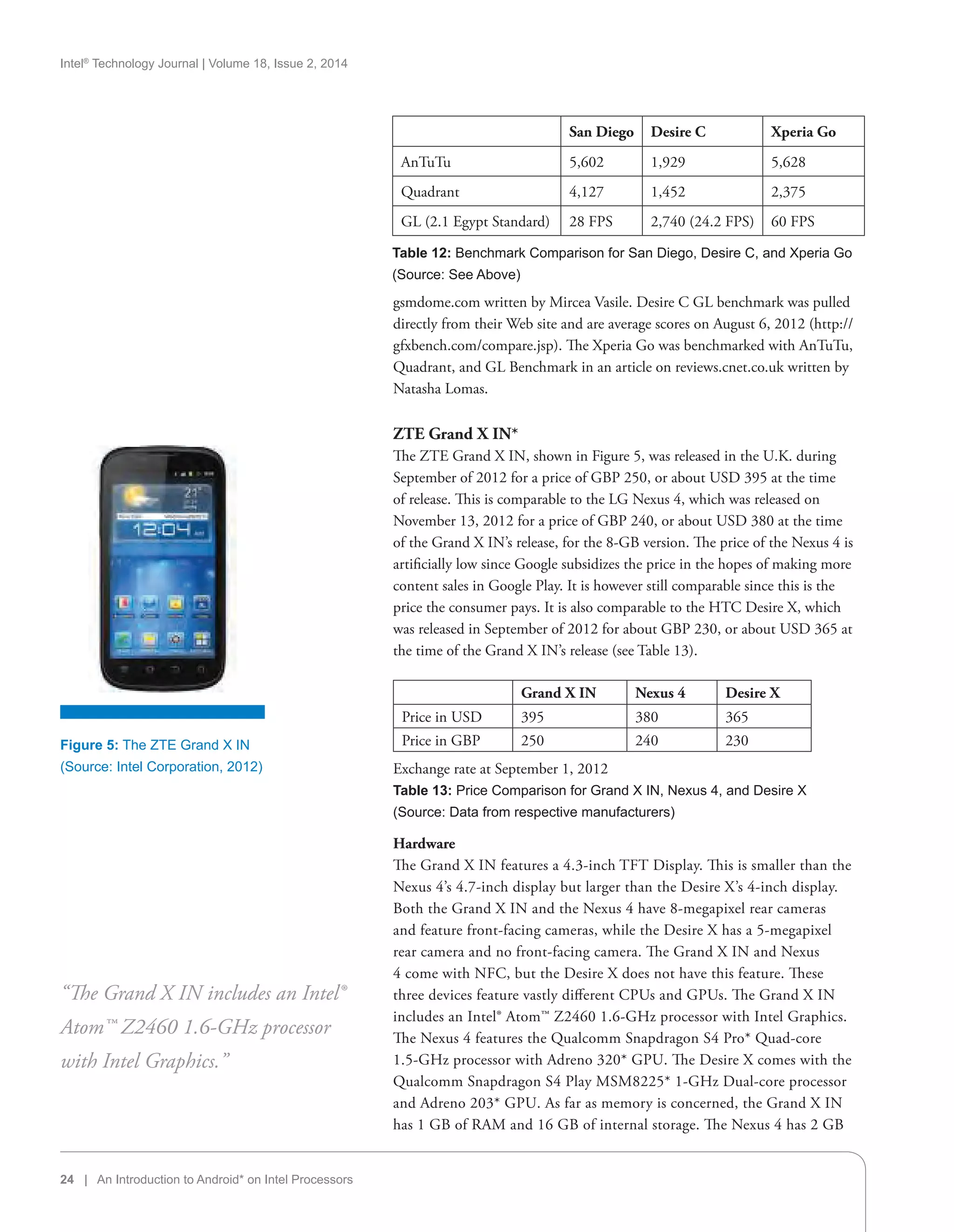
The benchmark scores are shown in Table 12. Higher scores mean better
performance. The San Diego was benchmarked with AnTuTu, Quadrant, and
GL Benchmark in an article on theverge.com written by Aaron Souppouris.
The Desire C was benchmarked with AnTuTu and Quadrant in an article on
“The custom UI is close to stock
Android…”
San Diego Desire C Xperia Go
Screen 4.03-inch (600 × 1024) LCD 3.5-inch (320 × 480) HVGA 3.5-inch (320 × 480) TFT LCD
Video Playback 1080p Not HD Not HD
Rear-Camera 8-megapixel 5-megapixel 5-megapixel
Front-Camera 1.3-megapixel N/A N/A
NFC Yes Yes Yes
CPU Z2460 1.6 GHz with Intel®
HT Technology
Qualcomm MSM7227A Snapdragon*
single-core 600 MHz Cortex-A5
1 GHz NovaThor* U8500 dual-
core Cortex A9
GPU Imagination Technologies
PowerVR SGX 540*
Qualcomm Adreno 200* ARM Holdings Mali-400*
RAM 1 GB 512 MB 512 MB
Internal Storage 16 GB 4 GB 8 GB
Battery 1460 mAh nonremovable 1230 mAh removable 1305 mAh nonremovable
SD Card No Yes Yes
Table 10: Hardware Comparison for San Diego, Desire C, and Xperia Go
(Source: Data from respective manufacturers, supplemented with information from third-party tech sites)
Intel®
Technology Journal | Volume 18, Issue 2, 2014
24 | An Introduction to Android* on Intel Processors
gsmdome.com written by Mircea Vasile. Desire C GL benchmark was pulled
directly from their Web site and are average scores on August 6, 2012 (http://
gfxbench.com/compare.jsp). The Xperia Go was benchmarked with AnTuTu,
Quadrant, and GL Benchmark in an article on reviews.cnet.co.uk written by
Natasha Lomas.
ZTE Grand X IN*
The ZTE Grand X IN, shown in Figure 5, was released in the U.K. during
September of 2012 for a price of GBP 250, or about USD 395 at the time
of release. This is comparable to the LG Nexus 4, which was released on
November 13, 2012 for a price of GBP 240, or about USD 380 at the time
of the Grand X IN’s release, for the 8-GB version. The price of the Nexus 4 is
artificially low since Google subsidizes the price in the hopes of making more
content sales in Google Play. It is however still comparable since this is the
price the consumer pays. It is also comparable to the HTC Desire X, which
was released in September of 2012 for about GBP 230, or about USD 365 at
the time of the Grand X IN’s release (see Table 13).
Grand X IN Nexus 4 Desire X
Price in USD 395 380 365
Price in GBP 250 240 230
Exchange rate at September 1, 2012
Table 13: Price Comparison for Grand X IN, Nexus 4, and Desire X
(Source: Data from respective manufacturers)
Hardware
The Grand X IN features a 4.3-inch TFT Display. This is smaller than the
Nexus 4’s 4.7-inch display but larger than the Desire X’s 4-inch display.
Both the Grand X IN and the Nexus 4 have 8-megapixel rear cameras
and feature front-facing cameras, while the Desire X has a 5-megapixel
rear camera and no front-facing camera. The Grand X IN and Nexus
4 come with NFC, but the Desire X does not have this feature. These
three devices feature vastly different CPUs and GPUs. The Grand X IN
includes an Intel® Atom™ Z2460 1.6-GHz processor with Intel Graphics.
The Nexus 4 features the Qualcomm Snapdragon S4 Pro* Quad-core
1.5-GHz processor with Adreno 320* GPU. The Desire X comes with the
Qualcomm Snapdragon S4 Play MSM8225* 1-GHz Dual-core processor
and Adreno 203* GPU. As far as memory is concerned, the Grand X IN
has 1 GB of RAM and 16 GB of internal storage. The Nexus 4 has 2 GB
“The Grand X IN includes an Intel®
Atom™ Z2460 1.6-GHz processor
with Intel Graphics.”
Figure 5: The ZTE Grand X IN
(Source: Intel Corporation, 2012)
San Diego Desire C Xperia Go
AnTuTu 5,602 1,929 5,628
Quadrant 4,127 1,452 2,375
GL (2.1 Egypt Standard) 28 FPS 2,740 (24.2 FPS) 60 FPS
Table 12: Benchmark Comparison for San Diego, Desire C, and Xperia Go
(Source: See Above)
Intel®
Technology Journal | Volume 18, Issue 2, 2014
An Introduction to Android* on Intel Processors | 25
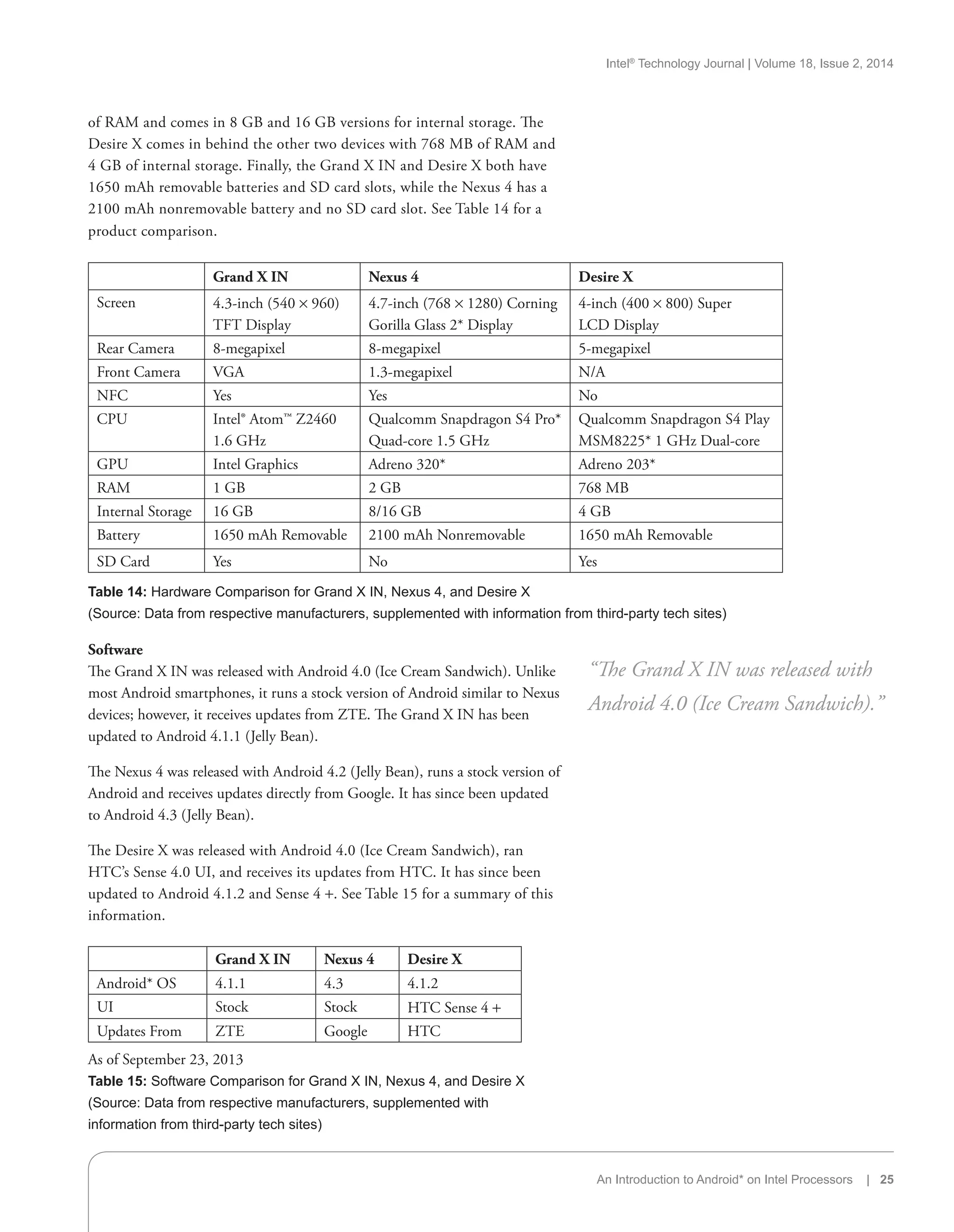
of RAM and comes in 8 GB and 16 GB versions for internal storage. The
Desire X comes in behind the other two devices with 768 MB of RAM and
4 GB of internal storage. Finally, the Grand X IN and Desire X both have
1650 mAh removable batteries and SD card slots, while the Nexus 4 has a
2100 mAh nonremovable battery and no SD card slot. See Table 14 for a
product comparison.
Software
The Grand X IN was released with Android 4.0 (Ice Cream Sandwich). Unlike
most Android smartphones, it runs a stock version of Android similar to Nexus
devices; however, it receives updates from ZTE. The Grand X IN has been
updated to Android 4.1.1 (Jelly Bean).
The Nexus 4 was released with Android 4.2 (Jelly Bean), runs a stock version of
Android and receives updates directly from Google. It has since been updated
to Android 4.3 (Jelly Bean).
The Desire X was released with Android 4.0 (Ice Cream Sandwich), ran
HTC’s Sense 4.0 UI, and receives its updates from HTC. It has since been
updated to Android 4.1.2 and Sense 4 +. See Table 15 for a summary of this
information.
Grand X IN Nexus 4 Desire X
Android* OS 4.1.1 4.3 4.1.2
UI Stock Stock HTC Sense 4 +
Updates From ZTE Google HTC
As of September 23, 2013
Table 15: Software Comparison for Grand X IN, Nexus 4, and Desire X
(Source: Data from respective manufacturers, supplemented with
information from third-party tech sites)
“The Grand X IN was released with
Android 4.0 (Ice Cream Sandwich).”
Grand X IN Nexus 4 Desire X
Screen 4.3-inch (540 × 960)
TFT Display
4.7-inch (768 × 1280) Corning
Gorilla Glass 2* Display
4-inch (400 × 800) Super
LCD Display
Rear Camera 8-megapixel 8-megapixel 5-megapixel
Front Camera VGA 1.3-megapixel N/A
NFC Yes Yes No
CPU Intel® Atom™ Z2460
1.6 GHz
Qualcomm Snapdragon S4 Pro*
Quad-core 1.5 GHz
Qualcomm Snapdragon S4 Play
MSM8225* 1 GHz Dual-core
GPU Intel Graphics Adreno 320* Adreno 203*
RAM 1 GB 2 GB 768 MB
Internal Storage 16 GB 8/16 GB 4 GB
Battery 1650 mAh Removable 2100 mAh Nonremovable 1650 mAh Removable
SD Card Yes No Yes
Table 14: Hardware Comparison for Grand X IN, Nexus 4, and Desire X
(Source: Data from respective manufacturers, supplemented with information from third-party tech sites)
Intel®
Technology Journal | Volume 18, Issue 2, 2014
26 | An Introduction to Android* on Intel Processors
Benchmarks
The benchmark scores are shown in Table 16. Higher scores mean better
performance. The Grand X IN was benchmarked with Quadrant in an article
on engaget.com written by Mat Smith. The Grand X IN was benchmarked
with AnTuTu in an article on insidehw.com written by Zeljko Djuric. The
Nexus 4 was benchmarked with AnTuTu and Quadrant in an article on
gsmarena.com. The Desire X was benchmarked with AnTuTu and Quadrant in
an article on Phonearena.com written by Nick T.
The GL benchmark scores for all of these devices come straight from the
GFXBench Web site and are average scores on January 7, 2013
(http://gfxbench.com/compare.jsp).
Grand X IN Nexus 4 Desire X
AnTuTu 11,281 15,146 4,932
Quadrant 2,710 4,567 2,361
GL (2.1 Egypt Standard) 2202 Frames (19.5 FPS) N/A 4888 Frames (43.3 FPS)
Table 16: Benchmark Comparison for Grand X IN, Nexus 4, and Desire X
(Source: See Above)
Motorola RAZR i*
The Motorola RAZR i*, shown in Figure 6, was released in the UK, France,
Germany, Argentina, Brazil, and Mexico in October of 2012. Its UK release
price was GBP 342 or about USD 550. This phone is comparable to the
Motorola RAZR M*, which is the U.S. version of the RAZR i. The RAZR M
was released on September 13, 2012 on Verizon Wireless* at an unsubsidized
price of USD 549.99. The phone is also comparable to the Galaxy S3*. While
the S3 was released in the UK at the end of May 2012, it is still seen as one of
the top Android smartphones and was priced at around GBP 399 or about USD
642 for the 16-GB version at the time of the RAZR i’s release (see Table 17).
RAZR i RAZR M Galaxy S3
Price in USD 550 550 624
Price in GBP 342 342 399
Exchange rate at October 17, 2012
Table 17: Price Comparison for RAZR i, RAZR M, and Galaxy S3
(Source:  Data from respective manufacturers)
Hardware
The RAZR i and M share the same 4.3 inch Super AMOLED display while the
Galaxy S3 has a larger 4.8-inch Super AMOLED display. While all three phones
have an 8-megapixel rear camera, the S3 has a different front-facing camera from
the RAZRs. The RAZR i and M share the same VGA front-facing camera and
the S3 has a 1.9-megapixel front-facing camera. The three phones have NFC
and an SD card slot. The major difference between these devices is their CPUs
and GPUs. The RAZR i has a Z2460 2.0 GHz with Intel HT Technology and
an Imagination Technologies PowerVR SGX 540, while the RAZR M has a
“The RAZR i has a Z2460 2.0 GHz
with Intel HT Technology…”
Figure 6: The Motorola RAZR i
(Source: Intel Corporation, 2012)
Intel®
Technology Journal | Volume 18, Issue 2, 2014
An Introduction to Android* on Intel Processors | 27
Qualcomm MSM8960 Snapdragon Dual-core 1.5 GHz and a Qualcomm
Adreno 225. The Galaxy S3 has a Exynos 4412* Quad-core 1.4 GHz and a Mali-
400MP. Both RAZRs have 1 GB of RAM, 8 GB of internal storage and a 2000
mAh nonremovable battery. The S3 has 2 GB of RAM, 16 GB of internal storage
and a 2100 mAh removable battery. See Table 18 for a product comparison.
RAZR i RAZR M Galaxy S3
Screen 4.3-inch (540 × 960) Super
AMOLED
4.3-inch (540 × 960) Super
AMOLED
4.8-inch (720 × 1280)
Super AMOLED
Rear Camera 8-megapixel 8-megapixel 8-megapixex
Front Camera VGA VGA 1.9-megapixel
NFC Yes Yes Yes
CPU Z2460 2.0 GHz with Intel®
HT Technology
Qualcomm MSM8960
Snapdragon* Dual-core 1.5 GHz
Exynos 4412* Quad-core
1.4 GHz
GPU Imagination Technologies
PowerVR SGX 540*
Qualcomm Adreno 225* Mali-400MP*
RAM 1 GB 1 GB 2 GB
Internal Storage 8 GB 8 GB 16/32/64 GB
Battery 2000 mAh nonremovable 2000 mAh nonremovable 2100 mAh removable
SD Card Yes Yes Yes
Table 18: Hardware Comparison for RAZR i, RAZR M, and Galaxy S3
(Source: Data from respective manufacturers, supplemented with information from third-party tech sites)
Software
All three devices were released with Android 4.0 (Ice Cream Sandwich), and
have since seen updates to Android 4.1 (Jelly Bean). According to Samsung,
the Galaxy S3 will skip the Android 4.2 (Jelly Bean) update and go directly to
Android 4.3 (Jelly Bean).
Both RAZRs run a custom UI by Motorola that is closer to stock than most
custom UIs, while the S3 runs Samsung’s TouchWiz UI. The Motorola UI has
a few custom features, such as SmartActions*, which allows you to set up rules
to save battery life.
The TouchWiz UI has a lot of added features, such as Smart Stay*, which keeps
the screen bright as long as you are looking at the screen by tracking your eye
movement, and S Voice*, which allows for many custom voice actions not
available in stock Android. See Table 19 for a summary of this information.
RAZR i RAZR M Galaxy S3
Android* OS 4.1.2 4.1.1 4.1.2
UI Motorola UI Motorola UI TouchWiz
Updates From Motorola Motorola Samsung
As of September 23, 2013
Table 19: Software Comparison for RAZR i, RAZR M, and Galaxy S3
(Source: Data from respective manufacturers, supplemented with
information from third-party tech sites)
“All three devices were released with
Android 4.0 (Ice Cream Sandwich),
and have since seen updates to
Android 4.1 (Jelly Bean).”
Intel®
Technology Journal | Volume 18, Issue 2, 2014
28 | An Introduction to Android* on Intel Processors
Benchmarks
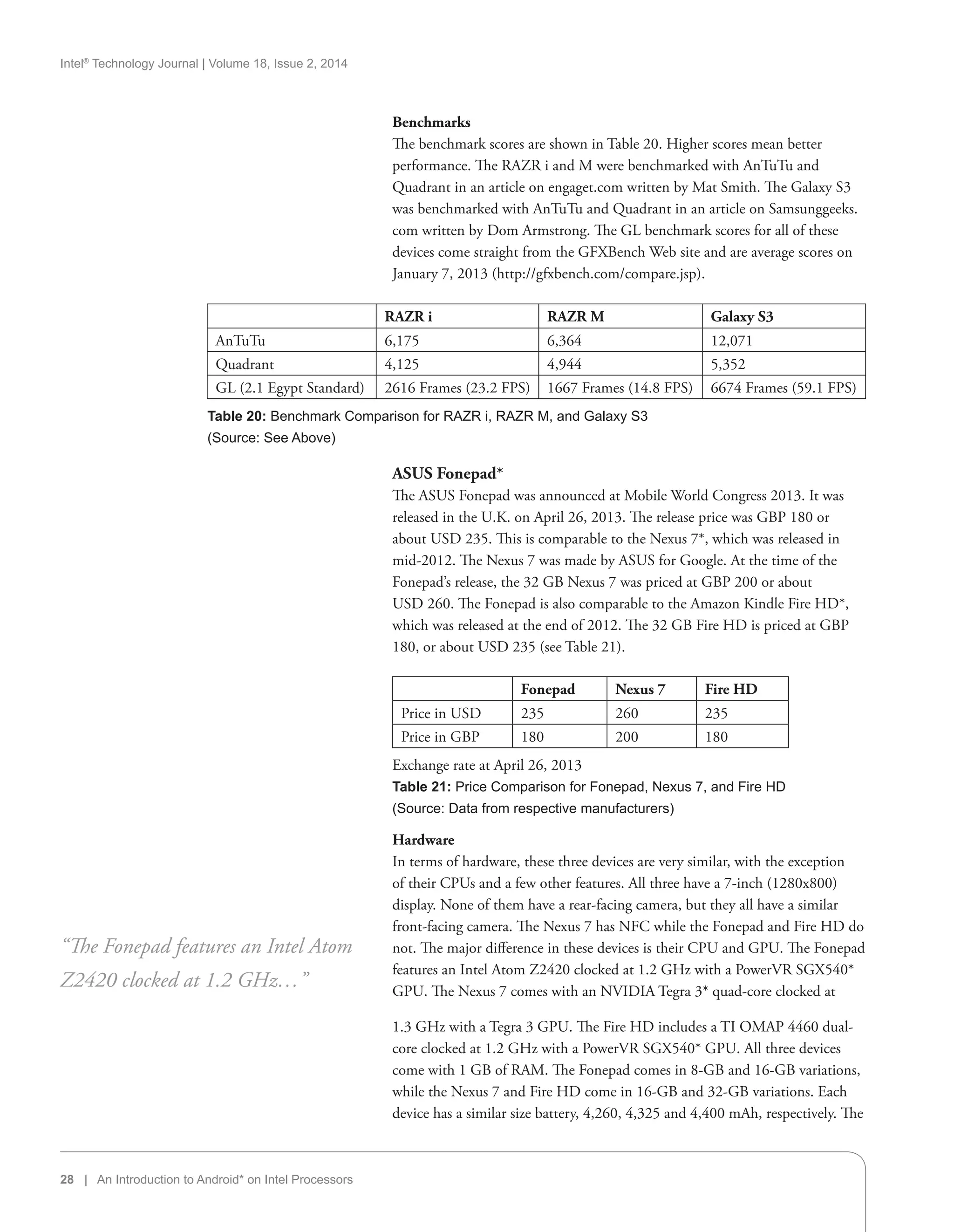
The benchmark scores are shown in Table 20. Higher scores mean better
performance. The RAZR i and M were benchmarked with AnTuTu and
Quadrant in an article on engaget.com written by Mat Smith. The Galaxy S3
was benchmarked with AnTuTu and Quadrant in an article on Samsunggeeks.
com written by Dom Armstrong. The GL benchmark scores for all of these
devices come straight from the GFXBench Web site and are average scores on
January 7, 2013 (http://gfxbench.com/compare.jsp).
RAZR i RAZR M Galaxy S3
AnTuTu 6,175 6,364 12,071
Quadrant 4,125 4,944 5,352
GL (2.1 Egypt Standard) 2616 Frames (23.2 FPS) 1667 Frames (14.8 FPS) 6674 Frames (59.1 FPS)
Table 20: Benchmark Comparison for RAZR i, RAZR M, and Galaxy S3
(Source: See Above)
ASUS Fonepad*
The ASUS Fonepad was announced at Mobile World Congress 2013. It was
released in the U.K. on April 26, 2013. The release price was GBP 180 or
about USD 235. This is comparable to the Nexus 7*, which was released in
mid-2012. The Nexus 7 was made by ASUS for Google. At the time of the
Fonepad’s release, the 32 GB Nexus 7 was priced at GBP 200 or about
USD 260. The Fonepad is also comparable to the Amazon Kindle Fire HD*,
which was released at the end of 2012. The 32 GB Fire HD is priced at GBP
180, or about USD 235 (see Table 21).
Fonepad Nexus 7 Fire HD
Price in USD 235 260 235
Price in GBP 180 200 180
Exchange rate at April 26, 2013
Table 21: Price Comparison for Fonepad, Nexus 7, and Fire HD
(Source: Data from respective manufacturers)
Hardware
In terms of hardware, these three devices are very similar, with the exception
of their CPUs and a few other features. All three have a 7-inch (1280x800)
display. None of them have a rear-facing camera, but they all have a similar
front-facing camera. The Nexus 7 has NFC while the Fonepad and Fire HD do
not. The major difference in these devices is their CPU and GPU. The Fonepad
features an Intel Atom Z2420 clocked at 1.2 GHz with a PowerVR SGX540*
GPU. The Nexus 7 comes with an NVIDIA Tegra 3* quad-core clocked at
1.3 GHz with a Tegra 3 GPU. The Fire HD includes a TI OMAP 4460 dual-
core clocked at 1.2 GHz with a PowerVR SGX540* GPU. All three devices
come with 1 GB of RAM. The Fonepad comes in 8-GB and 16-GB variations,
while the Nexus 7 and Fire HD come in 16-GB and 32-GB variations. Each
device has a similar size battery, 4,260, 4,325 and 4,400 mAh, respectively. The
“The Fonepad features an Intel Atom
Z2420 clocked at 1.2 GHz…”
Intel®
Technology Journal | Volume 18, Issue 2, 2014
An Introduction to Android* on Intel Processors | 29
Fonepad has an SD card slot as well as a SIM card slot. The SIM card slot gives
the Fonepad full phone capabilities as well as 3G data. Both the Nexus 7 and
Fire HD lack a SD or SIM card slot. See Table 22 for a product comparison.
Fonepad Nexus 7 Fire HD
Screen 7-inch LED Backlit IPS
(1280 × 800)
7-inch LED Backlit IPS
display (1280 × 800)
7-inch IPS Display
(1280 × 800)
Rear Camera N/A N/A N/A
Front Camera 1.2-megapixel 1.2-megapixel “HD”
NFC No Yes No
CPU Intel® Atom™ Z2420
1.2 GHz
NVIDIA Tegra 3 quad-core
1.3 GHz
TI OMAP 4460 dual-core
1.2 GHz
GPU PowerVR SGX540 Tegra 3 PowerVR SGX540
RAM 1 GB 1 GB 1 GB
Internal Storage 8 GB/16 GB 16 GB/32 GB 16 GB/32 GB
Battery 4,260 mAh 4,325 mAh 4,400 mAh
SD Card Yes No No
SIM Card Yes No No
Table 22: Hardware Comparison for Fonepad, Nexus 7, and Fire HD
(Source: Data from respective manufacturers, supplemented with information from third-party tech sites)
Software
The Fonepad launched with Android 4.1.2 (Jelly Bean). The device is close to
stock Android. The changes include four constant onscreen buttons instead
of the usual three, floating apps such as a calculator and stopwatch among
others, such as App Locker and ASUS Story. ASUS has stated that the Fonepad
will receive Android 4.2 (Jelly Bean). However at the time of this writing, the
update has not been pushed out.
The Nexus 7 launched with Android 4.1 (Jelly Bean) but has since seen several
updates. At the time of this writing, it was running 4.3 (Jelly Bean). The Nexus 7
runs a completely stock version of Android with updates directly from Google.
The Fire HD runs a forked version of Android 4.0. This means that the UI is
quite different from typical Android devices. There are no Google apps loaded
on this device, so Amazon provides their own version of many Google Apps.
Apps are downloaded from the Amazon App Store instead of Google Play. For
a summary of this information, see Table 23.
Fonepad Nexus 7 Fire HD
OS Version 4.1.2 4.3 4.0
UI Almost stock Stock Kindle Fire
Updates From ASUS Google Amazon
As of September 23, 2013
Table 23: Software Comparison for Fonepad, Nexus 7, and Fire HD
(Source: Data from respective manufacturers, supplemented with
information from third-party tech sites)
“The Fonepad launched with Android
4.1.2 (Jelly Bean).”
Intel®
Technology Journal | Volume 18, Issue 2, 2014
30 | An Introduction to Android* on Intel Processors
Benchmarks
The benchmark scores are shown in Table 24. Higher scores mean better
performance. AnTuTu and Quadrant scores for the Fonepad come from an
article on Pocketnow (http://pocketnow.com/2013/05/02/asus-fonepad-
review). AnTuTu and Quadrant scores for the Nexus 7 and Fire HD come
from an article on MobileTechReview (http://www.mobiletechreview.com/
tablets/Kindle-Fire-HD.htm). The GLbenchmark scores for all of the devices
come straight from the GFXBench Web site on September 23, 2013(http://
gfxbench.com/compare.jsp).
Fonepad Nexus 7 Fire HD
AnTuTu 6,623 10,456 6,749
Quadrant 2,284 3,638 2,174
GL (2.5 Egypt HD
Onscreen)
1330 Frames
(11.8 FPS)
1608 Frames
(14.2 FPS)
1090 Frames
(9.6 FPS)
Table 24: Benchmark Comparison for Fonepad, Nexus 7, and Fire HD
(Source: See Above)
Samsung Galaxy Tab 3 10.1*
The Galaxy Tab 3 10.1 was announced by Samsung at Computex 2013. The
Tab 3 10.1 launched in the United States in July of 2013 at a price of USD
400. This is comparable in price to the Samsung Nexus 10. The Nexus 10
could be purchased in July, 2013 for USD 400 for the 16 GB option.
(see Table 24).
Tab 3 10.1 Nexus 10
Price in USD 400 400
Prices as of July, 2013
Table 24: Hardware Comparison for Tab 3 10.1 and Nexus 10
(Source: Data from respective manufacturers)
Hardware
The Tab 3 10.1’s screen is 10.1 inches and has a resolution of 1280 × 800. The
Nexus 10 has the same size screen but with a considerably higher resolution
of 2560 × 1600. The Tab 3 10.1 features an Intel Atom Z2560 dual-core
processor clocked at 1.6 GHz, 1 GB of RAM, and comes with 16 GB of
storage. The Nexus 10 also has a dual-core processor; however it is clocked
slightly higher at 1.7 GHz, has 2 GB of RAM, and comes with both 16 GB
and 32 GB options. The Tab 3 10.1 has a 3.2-megapixel rear camera and a
1.3-megapixel front-facing camera. The Nexus 10 features a 5-megapixel rear
camera and a 1.9-megapixel front-facing camera. The Tab 3 10.1 also has an
SD card slot, but has no NFC. The Nexus 10 has no SD card slot but does
have an NFC. See Table 25 for a product comparison.
Software
The Tab 3 10.1 launched with Android 4.2.2 (Jelly Bean) and runs Samsung’s
TouchWiz UI. Samsung provides several custom features including Smart Stay,
“The Tab 3 10.1 features an Intel
Atom Z2560 dual-core processor
clocked at 1.6 GHz…”
“The Tab 3 10.1 launched with
Android 4.2.2 (Jelly Bean) and runs
Samsung’s TouchWiz UI.”
Intel®
Technology Journal | Volume 18, Issue 2, 2014
An Introduction to Android* on Intel Processors | 31
which tracks your eyes to see if you are looking at the screen and responds
accordingly. Samsung also includes several apps including Samsung Apps,
Game Hub, S Planner, and Music Hub.
The Nexus 10 launched with Android 4.2 (Jelly Bean) and runs a completely
stock UI. The device has been updated to Android 4.3 (Jelly Bean).
For a summary of this information, see Table 26.
Tab 3 10.1 Nexus 10
OS Version 4.2.2 4.3
UI TouchWiz Stock
Updates From Samsung Google
As of September 23, 2013
Table 26: Software Comparison for Tab 3 10.1 and Nexus 10
(Source: Data from respective manufacturers, supplemented with
information from third-party tech sites)
Benchmarks
The benchmark scores are shown in Table 27. Higher scores mean better
performance. The AnTuTu and Quadrant Benchmarks for the Tab 3 10.1 and
Nexus 10 were pulled from an article written by Taylor Martin on pocketnow.
com (http://pocketnow.com/2013/07/25/galaxy-tab-3-10-1-review). The
GLbenchmark scores for all of the devices come straight from the GFXBench
Web site on September 19, 2013 (http://gfxbench.com/compare.jsp).
Tab 3 10.1 Nexus 10
AnTuTu 20,063 13,509
Quadrant 6,326 4,193
GL (2.5 Egypt HD Onscreen) 3657 (32.4 FPS) 3492 (30.9 FPS)
Table 27: Benchmark Comparison for Tab 3 10.1 and Nexus 10
(Source: Data from respective manufacturers, supplemented with
information from third-party tech sites)
“The Nexus 10 launched with Android
4.2 (Jelly Bean) and runs a completely
stock UI. The device has been updated
to Android 4.3 (Jelly Bean).”
Tab 3 10.1 Nexus 10
Screen 10.1-inch TFT LCD display (1280 × 800) 10.1-inch LCD display (2560 × 1600)
Rear Camera 3.2-megapixel 5-megapixel
Front Camera 1.3-megapixel 1.9-megapixel
NFC No Yes
CPU Intel® Atom™ Z2560 1.6 GHz Eynos 5 Dual-core ARM Cortex-A15
GPU PowerVR SXG544MP2 Mali-T604
RAM 1 GB 2 GB
Internal Storage 16 GB 16 GB/32 GB
SD Card Yes No
Table 25: Hardware Comparison for Tab 3 10.1 and Nexus 10
(Source: Data from respective manufacturers, supplemented with information from third-party tech sites)
Intel®
Technology Journal | Volume 18, Issue 2, 2014
32 | An Introduction to Android* on Intel Processors
Intel’s Future with Android
Android running on x86 architecture has come a long way since 2009 when a
small group of developers starting ported the OS to x86-based devices. Intel’s
partnerships with Google and many Android device OEMs have helped them
go from not participating in the Android market to being a major factor. With
the release of the Bay Trail platform and many new Android devices using Intel
architecture coming to market, Intel has an excellent opportunity to become
a major player in the Android universe. Only time will tell whether or not
their strategy will be successful, but I for one believe things are looking very
promising for Intel right now.
Author Biography
Ryan Cohen is an Android enthusiast and Portland State graduate. Ryan has
been following Android since 2011 when he made the switch from iOS. When
he is not writing about Android, he spends his time researching anything
and everything new in the world of Android. Ryan can be reached at
ryanaosp@gmail.com
“Intel’s partnerships with Google and
many Android device OEMs have
helped them go from not participating
in the Android market to being a
major factor.”
Intel®
Technology Journal | Volume 18, Issue 2, 2014
An Introduction to Android* on Intel Processors | 33
34 | Android* Security: Issues and Future Directions
Intel®
Technology Journal | Volume 18, Issue 2, 2014
Contributor
Any way you look at it, the rise of Android has been a remarkable story
within the mobile device world. At the time of this writing, 75 percent of all
smartphones now run the Android operating system. With more than
1.0 billion smartphones forecast to ship in 2013, that’s a large number of
devices.[1]
Meanwhile, the number of applications (“apps”) available on
Google Play* (formerly Android Market) has continued to balloon. A recent
announcement from Google puts the number of application downloads at 50
billion and counting.[2]
In an environment of such rapid proliferation, questions surrounding Android
security become acute. Is Android’s security model robust enough to handle
the explosion of new application types and device usages? Can millions of new
users understand its permission-based framework for application installation?
Are there pitfalls that developers are beginning to show in their handling
of intra- or inter-application communication? How might the Android
application market better help users to understand the security implications of
a given app?
One way to explore these and other questions is through university research.
In this article, we describe Intel’s participation in a collaborative university
research center for secure computing. We discuss a number of important results
and studies that shed light on three different aspects of Android security: user,
developer, and marketplace. Readers will gain a broader perspective on security
issues in Android devices and think about potential directions for future
frameworks and enhancements.
ISTC for Secure Computing
The Intel Science and Technology Center for Secure Computing was founded in
2011 as an industry-academia collaboration for the purpose of “developing
security technology that preserves the immense value of digital devices by
making them safer.”[3]
The center is located at the University of California,
Berkeley and includes additional researchers from Carnegie Mellon University,
Drexel University, Duke University, and University of Illinois at Urbana-
Champaign in what is described as a “hub and spokes” model of organization.
The center is led jointly by UC Berkeley professor, David Wagner, and Intel
senior principal engineer, John Manferdelli.
A key pillar in the ISTC research agenda is “developing secure mobile
devices that can be used in all facets of our lives.” This includes “dramatically
improving the security of smart phones and other mobile devices” and “making
“In this article, we describe Intel’s
participation in a collaborative
university research center for secure
computing. We discuss a number of
important results and studies that
shed light on three different aspects of
Android security: user, developer, and
marketplace.”
Android* Security: Issues and Future
Directions
David Ott
University Research Office,
Intel Labs
Intel®
Technology Journal | Volume 18, Issue 2, 2014
Android* Security: Issues and Future Directions | 35
third-party applications safe and secure, while supporting a rich market for
these applications.” In particular, researchers see an opportunity to establish
security foundations early on within the evolution of mobile platforms, before
legacy architectures constrain the industry’s ability to make bold changes that
address security shortcomings.[4]
ISTC researchers identify a number of key challenges needed to make mobile
platforms more secure: scalable solutions for screening new applications
introduced into the marketplace, improved permission frameworks that help
users to understand install-time requests and data usage, improved modes of
collective feedback by users across the application ecosystem, safe integration
of mobile applications and cloud computing, and stronger authentication
schemes that better balance tradeoffs between usability and protection against
device loss or theft.
This article describes a number of research results that speak to issues and
possible future directions in Android security. The discussion is organized into
three key areas: users, developers, and marketplace.
Users
Research on security and privacy perceptions[5]
demonstrates that mobile
platform users are less willing to use their device for tasks that involve money
(such as banking and shopping) and sensitive data (such as social security
numbers and health records) when compared to laptop computing devices. On
the other hand, users are more willing to experiment by installing non-brand-
name applications that they discover while browsing or viewing advertisements.
In fact, applications play a key role in defining a user’s experience of their
smartphone device overall.
Understanding user perceptions and behaviors is a key requirement in the
very human world of Android device usage, and in designing effective security
frameworks and enhancements. This section describes research in two key areas
of work: user permissions and user authentication.
User Permissions
Android developers are given considerable freedom to design applications
that make broad use of system resources. This includes both hardware
resources like the device camera, microphone, storage, SMS, or Internet
access, and information resources like user location, calendar, contact
data, and phone state and identity. Application access to these resources is
governed by an install-time permission exchange with the user. During this
exchange, the application lists its requirements and then solicits approval
from the user, who can choose whether or not to grant permission and install
the application.
ISTC research on user permissions in Android has uncovered some surprising
results that suggest the need for a reexamination of this familiar framework.
“Understanding user perceptions and
behaviors is a key requirement in
the very human world of Android
device usage, and in designing
effective security frameworks and
enhancements.”
Intel®
Technology Journal | Volume 18, Issue 2, 2014
36 | Android* Security: Issues and Future Directions
Researchers in one usability study[6]
used both Web surveys and laboratory
interviews to study user interaction with permission prompts during the
application installation sequence. Their results show that only 17 percent of
participants paid attention to permissions during an install and 42 percent
of lab participants were unaware of the existence of permissions at all. Only
3 percent of Web survey participants could correctly answer questions
about Android permissions, and only 24 percent of lab participants could
demonstrate competent comprehension. Finally, while a majority of survey
participants claimed to not have installed an application at least once due to
permission requests, only 20 percent of lab participants could provide any
details to support this claim.
Results would seem to suggest that users do not pay attention or understand
permission requests in the manner intended by Android designers. Researchers
make several suggestions to mitigate the problems they observe. First, they
suggest a review and reorganization of permission categories and a permission
renaming effort to improve clarity for the general user. Current categories are
often overly broad and are ignored as a result since users quickly learn that
almost all applications require dangerous privileges. Second, unnecessary
warnings should be eliminated to avoid user “warning fatigue,” which occurs
when users learn to ignore all warnings due to overly frequent warnings that are
often inconsequential. Third, the total number of permissions used by Android
(currently 100) should be reduced to improve a user’s ability to remember
and reason about the presence and absence of permission types within a given
install context.
Another research team[7]
performed a study of 188,389 Android applications
from the Android Market in order to find patterns in permission requests.
Using data mining techniques, they observed 30 permission request patterns
and then considered whether such patterns could be used as a guide when
considering permission risks for a given application install. Results showed that
low-reputation applications differ from high-reputation applications in how
they request permissions. This result suggests that permission request patterns
could be used as an indicator of application quality and user popularity.
Perhaps more conservatively, they could be used for comparison when
evaluating permission requests for an unfamiliar application.
Another study[8]
considers how permission systems should best be designed and
implemented by the Android UI, especially one where no application review
information is available. Researchers identified two key guiding principles
that follow from previous research on closed-form questions (grant or deny)
and the contrast between “optimizing” and “satisficing” users: conservation
of user attention and avoiding interruptions. To conserve user attention,
permission requests should be reserved for only those permissions with severe
consequences. Failure to observe this guideline risks user habituation in which
users pay less and less attention to the meaning of requests and simply approve
indiscriminately. Interruptions to a user’s primary task likewise promotes
indiscriminate click-through behavior (satisficing) with little attempt to
“…results show only 17 percent
of participants paid attention to
permissions during an install and
42 percent of lab participants were
unaware of the existence of permissions
at all.”
“Researchers identified two key
guiding principles that follow from
previous research on closed-form
questions (grant or deny) and the
contrast between “optimizing” and
“satisficing” users: conservation of user
attention and avoiding interruptions.”
Intel®
Technology Journal | Volume 18, Issue 2, 2014
Android* Security: Issues and Future Directions | 37
understand the consequences. Whenever possible, researchers recommend that
a UI avoid interrupting a user with explicit security decisions.
Researchers go on to consider four permission-granting mechanisms in order
of preference: automatic grant, trusted UI, confirmation dialog, and install-
time warning. For any permission that can easily be undone (revertible) or
whose misconfiguration may be merely annoying, automatic grants can be
used that avoid user involvement entirely. For example, automatic adjustment
of global audio settings or phone vibration behavior in response to Web
alerts can be handled in an automated manner with the option to undo the
permission decision after the fact as needed. To guarantee that users cannot
be tricked in various ways, applications may introduce trusted UI elements
that can be controlled only by the platform itself. Example elements include
choosers, review screens, and embedded buttons. Trusted UI elements are
useful when the user can initiate a request or when an action can be altered
by the user. Confirmation dialogs interrupt the user but are necessary when an
application will not work without immediate user approval. Too many dialogs
are to be avoided because of the potential for satisficing as described above.
Finally, install-time warnings can be used when no other permission-granting
mechanism will suffice.
User Authentication
Even conservative users of mobile devices routinely store and access personal
data on their devices[7]
, for example, photos, email, text messages, GPS
traces, and social media feeds. Furthermore, an attacker who has obtained
physical possession of the device can easily use one account to gain access
to another, for example, using an email account to request a password reset
for another service. Add to this the fact that the small, portable form factor
of mobile devices makes them easily lost, forgotten, or stolen when users
carry them around in the public domain. What better case could there be
for widespread use of user authentication mechanisms on nearly all mobile
Android devices?
Surprisingly, Fischer et al.[9]
note in the literature that 38 percent to 70 percent
of smartphone users do not lock their device with passwords or PINs. It would
appear that users do not see the need, or else that current password input
routines are cumbersome and inconvenient for users who access their device
scores of times on an average day of usage. Could there be alternatives that
are less cumbersome? Could there be a range of protection mechanisms that
offer strong protection in risky environments (such as those encountered when
traveling) while offering less protection in routine environments (such as in the
home)?
Fischer et al.[9]
note that today’s mobile devices offer a variety of sensors
that could be leveraged in various ways to provide authentication security
in smarter, more flexible ways. Some examples of such sensors include GPS
location information, accelerometers, gyroscopes, magnetometers, proximity
sensors, microphones, cameras, and radio antennas (cellular, Bluetooth*,
“Whenever possible, researchers
recommend avoid interrupting a user
with explicit security decisions.”
“Fischer et al. note that today’s mobile
devices offer a variety of sensors that
could be leveraged in various ways
to provide authentication security in
smarter, more flexible ways.”
Intel®
Technology Journal | Volume 18, Issue 2, 2014
38 | Android* Security: Issues and Future Directions
Wi-Fi*, RFID, NFC). Sensors might, for instance, be used to distinguish a
device user by recognizing them biometrically through their gait or face. At
the same time, sensors might be used to recognize the location context of use,
for example, by enabling user authentication when a user leaves home or when
surrounding noise indicates a public context.
ISTC researchers consider several examples of how device context could
enable the dynamic scaling of authentication requirements. Current device
unlock approaches rely on the familiar screenlock, which hides screen
information and blocks user input until the correct password or PIN is
provided. A context-driven approach might examine whether Wi-Fi radio
access points exist, analyze location information, and possibly use image
recognition techniques to evaluate the level of risk in the surroundings
and whether screenlock mechanisms should be activated. Mobile shopping
applications might consider a user’s device and location context to identify
a frequent shopper in addition to conventional passwords. Patterns in
prior shopping behavior and facial recognition may be used to assess risk
and increase or decrease authentication tests accordingly. Mobile banking
could use context information to categorize an environment as high or low
risk. If high risk, two-factor authentication is required and the application
restricts operations that can be performed (for example, adding a new user
to an existing account). If low risk, then device sensor information is used
for additional verification in a transparent manner and operations are not
restricted. Context information is collected as part of a transaction for future
reference.
Another research team[10]
looked more specifically at whether patterns of touch-
screen behavior can be used to authenticate a device user. Researchers propose
a set of 30 behavioral features that can be extracted from touch-screen input
of commodity mobile devices, including metrics describing direction, stroke
length, velocity, acceleration, finger and phone orientation, stroke pressure,
and so on. Multiple strokes were also considered to make estimations of user
authenticity more robust. A classifier framework is proposed that learns the
touch behavior of users during an enrollment phase and then is able to accept
or reject the current user by monitoring interaction with the touch screen.
Median equal error rates are shown to be below 4 percent for various scenarios
comparing touch-screen behavior at different time scales (intra-session, inter-
session, one week later).
While this and other research on biometric authentication may suggest
interesting alternatives to widely used password-based schemes, perhaps
this overlooks an even bigger opportunity to enhance current schemes in
context-intelligent ways. Patterns of touch-screen behavior could be used as
part of a multimodal biometric authentication system that secures a device
from unknown users, even when a screenlock has been bypassed. Even
more powerful, touch analytics may provide an approach to continuous
authentication that could curb the activities of an intruder or be used as an
indicator for further dynamic security mechanisms.
“A context-driven approach might
examine whether Wi-Fi radio
access points exist, analyze location
information, and possibly use image
recognition techniques to evaluate the
level of risk in the surroundings and
whether screenlock mechanisms should
be activated.”
“While this and other research on
biometric authentication may suggest
interesting alternatives to widely used
password-based schemes, perhaps this
overlooks an even bigger opportunity
to enhance current schemes in context-
intelligent ways.”
Intel®
Technology Journal | Volume 18, Issue 2, 2014
Android* Security: Issues and Future Directions | 39
Developers
Another key focus of ISTC research led by UC Berkeley is Android application
development. As the number of developers and applications sharply increases,
there is a need for research to look at common pitfalls and systemic issues that
could be improved in subsequent Android versions. Insights further inform our
understanding of software aspects of mobile security more generally.
Communication Between Apps
Isolation between applications on Android is achieved by requiring each to
run under its own UID. This effectively “sandboxes” execution by creating
a separate resource environment for each. However, Android facilitates
component reuse among applications by supporting a message-passing
mechanism called Intents. By implementing related APIs, applications can
make functionality available to other applications that use the API to invoke
services on demand. A key problem identified by researchers in this scheme[11]
is that of confusion between intra- and inter-application message passing.
Developers may mistakenly expose a component or message unintentionally to
a third-party application by implementing the wrong API type.
More specifically, Intents include fields specifying the action to perform,
the data to act on, and a category or kind of component that should receive
the Intent. Intents can be explicit by naming the receiving component or
application, or implicit by allowing the system to search for a receiving
component or application. An application will use an Android API to dispatch
the Intent message, an action that implicitly specifies the type of destination
component to invoke. Applications implement Intent Filters to specify which
Intents a component will support. A dispatched Intent will be matched to
all Intent Filters using various rules. For example, a Service Intent will be
delivered to one receiver at random while a Broadcast Intent will be delivered
to all matching receivers.
Researchers identified two types of Intent-based attacks by applications not
holding a common signature. The first is unauthorized Intent receipt. In this
attack, an untrusted application implements matching Intent Filters as a
way of eavesdropping on Intent messages intended for other components.
This may occur when an application implements Intents intended for intra-
communication between components implicitly. It also occurs when an
application uses Broadcast Intents. Ordered Broadcast Intents are vulnerable
to both denial-of-service attacks and malicious data injection attacks since
recipients can fail to propagate the message or change the data before
propagating. Activity and Service Intents can be hijacked since a malicious
attacker may start an Activity or Service in place of the intended recipient in a
manner that is difficult to detect.
A second Intent-based attack is that of Intent spoofing. In this attack, a
malicious application sends an Intent to an exposed component that
implements a matching Intent Filter intended for implicit Intents within
the same application. Broadcast recipients are vulnerable to broadcast
“As the number of developers and
applications sharply increases, there is
a need for research to look at common
pitfalls and systemic issues that could
be improved in subsequent Android
versions. Insights further inform our
understanding of software aspects of
mobile security more generally.”
Intel®
Technology Journal | Volume 18, Issue 2, 2014
40 | Android* Security: Issues and Future Directions
injection attacks, for example, when a malicious application causes a victim
component to change its state in response to a spoofed Intent message.
Activities and Services may be invoked in an unauthorized launch or bind
attack.
Researchers propose heuristics that could be used to prevent both types of
attacks. For unauthorized Intent receipt, they propose that any implicit Intent
that does not use a “standard action” (defined in the Android documentation
or used by Android applications bundled with the distribution) should
automatically be treated as application internal when dispatched. For Intent
spoofing, they propose the heuristic that if an Intent Filter is not protected
with a signature, it can only be exported if the “exported” flag is explicitly
set, if the data field has been set, if it is registered to receive system-only or
standard action Intents, or if it is an entry-point Activity (that is, it is an
application starting point). Essentially, the heuristic restricts the circumstance
under which the Intent Filter can be exported. Researchers augment this
scheme with two additional mechanisms: a new “protected” property for
Broadcast receivers that ensures only system-only broadcasts match an
Intent Filter, and the creation of an “exported” flag for each Intent Filter of a
Dynamic receiver.
Researchers evaluated the change for 969 popular applications from the
Android Market, building upon the ComDroid tool (a static analysis tool
identifying message vulnerabilities). Results showed that 99.4 percent of
applications were compatible with the first change, and that 93.0 percent were
compatible with the second change. Furthermore, the approach solves
31.3 percent of the total security flaws uncovered by their previous work using
ComDroid. In general, researchers propose that software systems require
software engineers to make their intentions explicit. Sound system design
principles should assume strict isolation unless a developer makes an explicit
request to the contrary.
Advertising Privileges
Developer handling of advertising is another much-needed area of study in
the Android development ecosystem. Researchers at UC Berkeley[12]
looked
at 964 real-world applications and found that 49 percent contain at least
one advertising networking library. Advertising networks provide libraries
to developers to facilitate the insertion of advertisements in application UIs.
Libraries handle such operations as fetching, rendering, and tracking of
advertisements.
An important security issue with the use of advertisement libraries is that
of permission handling. In Android, application permissions are handled
in a monolithic manner that doesn’t make distinctions between third-party
libraries and a developer’s own code. As such, advertising libraries inherit all
of the permissions requested by their host application. A host application
will, furthermore, be required to request permissions that will be used by the
advertising network library. Common permissions associated with advertising
“In general, researchers propose that
software systems require software
engineers to make their intentions
explicit. Sound system design
principles should assume strict
isolation unless a developer makes an
explicit request to the contrary.”
“Developer handling of advertising is
another much-needed area of study in
the Android development ecosystem.”
Intel®
Technology Journal | Volume 18, Issue 2, 2014
Android* Security: Issues and Future Directions | 41
libraries include INTERNET, ACCESS_NETWORK_STATE (to determine
whether the device has Internet access), LOCATION (for location-specific
advertisements), and READ_PHONE_STATE (to obtain a customer’s IMEI
to serve as a unique identifier).
Researchers identified five threats that follow from overprivileging advertising
libraries in the above manner. In legitimate advertising networks, users are
unable to distinguish between application and advertisement network usage
of granted permissions and sensitive data. Users, furthermore, are unable to
identify whether the application uses advertising network libraries until after
the application has been installed and they are exposed to features of the UI. In
some cases of grayware, a user may trust the reputable advertising network but
not the unbranded application. In this situation, the user once again cannot
distinguish between application and advertisement network usage of granted
permissions and sensitive data. Benign-but-buggy applications may leak private
information intended for a reputable advertising network, allowing an attacker
to track users and violate their privacy in various ways. Malicious advertising
networks may abuse host application permissions to collect and use user
information in an unscrupulous manner and for overtly malicious purposes.
Finally, vulnerable advertising networks may introduce security vulnerabilities
into an application, for example, downloading additional code via HTTP and
executing it in an unsafe manner.
To remedy the situation, researchers propose the use of privilege separation
between components of the same application. Using this scheme, advertising
network libraries could run in a different permission domain than the host
application, thus avoiding the problem of overprivileging either component
as seen in various threat models described above. At installation time, the
application could identify each domain and then request privileges separately
in a way that led to better user understanding of how user permissions and
sensitive data will be used.
The difficulty here is how to implement the scheme within Android.
Researchers note that privilege separation within the same application could
be implemented at the class level within the Java virtual machine. The problem
here is that use of native libraries could circumvent the fine-grained mechanism
entirely as calls are made outside the JVM. Another problem is that the
Dalvik virtual machine does not support isolation between sections of Java
code within an application. In fact, reflection libraries explicitly violate code
encapsulation needed for such a scheme.
Alternatively, privilege separation could be implemented using separate
processes. In this scheme, the host application and advertising application
would run as separate applications and then use inter-application message
passing to communicate. During installation, the host application would
install the advertising application automatically, allowing the user to respond to
permission requests for each independently. Problems with this scheme include
how to keep a user from uninstalling or disabling the advertising process when
“…researchers propose the use
of privilege separation between
components of the same application.
Using this scheme, advertising network
libraries could run in a different
permission domain than the host
application, thus avoiding the problem
of overprivileging either component as
seen in various threat models described
above.”
Intel®
Technology Journal | Volume 18, Issue 2, 2014
42 | Android* Security: Issues and Future Directions
using the application, how to prevent other applications from interacting
with the advertising network application as it is running, how to modify the
Android framework and marketplace to support application dependencies and
co-installation, and how to prevent rogue or imposter advertisement network
libraries that do not, for example, pay the developer properly or handle user
data in a reputable manner.
The option chosen by researchers is to add advertisement support directly to
the Android operating system itself. Known as AdDroid, the solution extends
the Android API to relay advertising metadata from applications to advertising
network servers, to relay advertisements from network servers to applications,
and then to assist with user interface events.
Researchers propose the addition of two new permissions to aid the scheme:
ADVERTISING, and its location-specific counterpart, LOCATION_
ADVERTISING. These permissions would be included in the permission
request list presented to the user at application installation time. Granting
these permissions would provide advertising network libraries with restricted
access to network and location information via the Android API extensions.
The solution addresses the five overprivileging threats described above in
various ways: by informing the user when advertising network libraries
are being used, by allowing the user to understand which non-advertising
permissions are being requested by the host application, by not overprivileging
advertisement libraries with host application privileges, by removing
advertisement library vulnerabilities from host applications, and by not
allowing host applications to abuse information intended only for advertisers.
Researchers suggest that the scheme could help to evolve and directly integrate
advertisements into the Android market in a way that would not only address
security and privacy concerns, but could improve the economic benefits to and
incentives for advertisers, developers, and Android itself.
WebView Vulnerabilities
ISTC researchers Chin and Wagner[13]
, by way of background, explain that
WebViews allow Android application developers to display Web content
within their application in a seamless and integrated manner. In many ways,
WebViews provide application developers with an embedded browser in that
not only can content be displayed, but developers can manage the content of
what is displayed (for example, address bar, browsing history, search behavior)
and the layout (for example, full screen). The framework, furthermore,
allows developers to create HTML content and JavaScript code that will be
downloaded by the application. This provides an easy and powerful mechanism
to update and customize application content, and to extend UI functionality.
More specifically, default WebViews support basic Web document downloads
(http://, https://) and file downloads (file://) but do not allow JavaScript
execution or the interaction of web content with the application. However,
additional capabilities are enabled by API calls like setWebViewClient(),
“The option chosen by researchers is
to add advertisement support directly
to the Android operating system itself.
Known as AdDroid, the solution
extends the Android API to relay
advertising metadata from applications
to advertising network servers, to relay
advertisements from network servers
to applications, and then to assist with
user interface events.”
Intel®
Technology Journal | Volume 18, Issue 2, 2014
Android* Security: Issues and Future Directions | 43
addJavascriptInterface(), setJavascriptEnabled(), setAllowFileAccess(), and so on.
By associating a WebView with a WebViewClient, a developer may create
customized handlers for a range of content and user events. This includes
allowing Web content to access Java code (classes and methods) within the host
application using JavaScript. In this way, WebViews support co-mingling of
Web content and application code in a rich and powerful way.
The problem with all of this, as the researchers point out, is that developers
using this framework can dramatically increase the attack surface of their
applications. In particular, researchers consider two key vulnerabilities: excess
authorization and file-based cross-zone scripting. The excess authorization
vulnerability occurs when registered interfaces enabling application
JavaScript also enable third-party JavaScript loaded in the page. Effectively,
the application has granted authorization to invoke application Java code
beyond what was intended. This can enable a variety of attacks that depend
upon the nature of the registered code interfaces—information leakage or
injection, malformed input parameters, privilege escalation, inter-application
exploitations launched through the application, and so on.
File-based cross-zone scripting occurs when untrusted JavaScript gains the
ability to read files using “file://” URLs. Essentially, if the application loads
untrusted, third-party JavaScript via “http://” or via static content using
“file://”, the JavaScript can gain access to all files on the device that are
accessible to the application using the “file://” mechanism. This includes
private, application-internal files and possibly files stored on the SD card.
One way this might happen is a man-in-the-middle attack from an untrusted
HTTP or HTTPS source that injects the malicious JavaScript.
Researchers propose a tool called Bifocals to automatically identify WebView
vulnerabilities in Android applications using two types of analysis. First,
Bifocals uses static analysis of disassembled Dalvik executable (DEX) files to
analyze WebViews state, WebViewsClient state (if it used), and the state of
any subclasses. Observations are made about whether JavaScript execution has
been enabled, interfaces that have been made accessible to JavaScript, URIs
that are to be loaded, and whether a user can navigate to other pages within
the WebView. Second, Bifocals will analyze the URIs that are being accessed
by the application to determine whether they embed third-party content or
whether they navigate to third-party content that might lead to the execution
of untrusted JavaScript. For example, frames loading external content or
ads that can be supplied by an arbitrary third party are flagged as risks. Any
site within the domain of the primary website being visited is considered
trustworthy.
Researchers use the tool to examine 864 popular applications. They find
that 608 contain WebViews, 351 of which are displayed by an ad library.
One fifth of all applications allow JavaScript code to invoke application code
(“authorized WebView”), and one tenth allow ads to invoke application
code. Sixty-seven applications (11 percent) are vulnerable to at least one of
“The problem with all of this, as the
researchers point out, is that developers
using this framework can dramatically
increase the attack surface of their
applications. In particular, researchers
consider two key vulnerabilities: excess
authorization and file-based cross-
zone scripting.”
“Researchers propose a tool called
Bifocals to automatically identify
WebView vulnerabilities in Android
applications…”
Intel®
Technology Journal | Volume 18, Issue 2, 2014
44 | Android* Security: Issues and Future Directions
the attacks described. Sixty-five of these register interfaces that are vulnerable
to excess authorization attacks. Only two load files with remote JavaScript,
suggesting that the attack is relatively rare.
Recommendations to developers include disabling JavaScript entirely,
restricting WebView navigability, limiting the registration of APIs, and using
recently added Android mechanisms that more explicitly flag accessible
interface methods. Recommendations to Android include the use of policies
that narrow the domain origin of content to be loaded in a particular
WebView.
Marketplace
A third key focus of ISTC research is the Android application marketplace.
Taking a broader view of an exploding software ecosystem, researchers ask
whether comparative studies or consumer information might be leveraged to
address Android security considerations.
Detecting Code Reuse Among Applications
One avenue of ISTC research[14]
asks whether automated code comparisons
between applications could help to identify security vulnerabilities, malware,
and software piracy. Researchers point out that traditional methods for
identifying such issues include review-based approaches in which marketplace
experts manually examine new applications for vulnerabilities or malicious
behavior and reactive approaches where user reports or ratings identify
misbehaving applications which are flagged for manual investigation. Neither
approach is scalable as the number of new applications on the market
continues to explode.
Automated code reuse detection could quickly compare hundreds of
thousands of applications and identify a small, manageable subset for further
investigation during any given time period. The problem, of course, is how
to create such a system in a way that is scalable, resilient to code modification
and obfuscation (which are common in Android), and resistant to false
positives and false negatives. Researchers answer the challenge with a solution
they call Juxtapplication for leveraging k-gram opcode sequences of compiled
applications and feature hashing. Their techniques provide a robust and efficient
representation of applications that can be used to compute pairwise similarities
between applications.
Feature hashing, a popular technique from machine learning, compresses a
large data space into a smaller, randomized feature space. In this technique,
a hash function is applied to each feature under consideration, and then
hash values are used as feature indices into a vector that stores ones and
zeros indicating presence or absence of the feature. Within the Android
application context, feature hashing may be applied to a representation
of DEX files that fully describe the application, including class structure,
function information, and so on. For each application, researchers use XML
“Taking a broader view of an
exploding software ecosystem,
researchers ask whether comparative
studies or consumer information
might be leveraged to address Android
security considerations.”
“Automated code reuse detection
could quickly compare hundreds of
thousands of applications and identify
a small, manageable subset for further
investigation during any given time
period.”
Intel®
Technology Journal | Volume 18, Issue 2, 2014
Android* Security: Issues and Future Directions | 45
to represent each DEX file, extracting each basic block and labeling it by
package. They then process each basic block and retain only opcodes and
some constant data.
Feature extraction is accomplished using the djb2 hash function to construct the
k-gram using a moving window of size k. The result is a bit vector representing the
features present in the data. The similarity of two applications can be computed
using a Jaccard similarity metric and bitwise comparison operations. Two key
parameters must be determined. First is k-gram length k. This governs the
granularity of comparisons and needs to be small enough to detect similarities
but large enough to make them meaningful. An empirical evaluation of various
alternatives leads researchers to choose k = 5. The second parameter is bit vector
size m. The tradeoff here is between computational efficiency and error. If m is
too large, then computing pairwise similarity becomes computationally expensive.
If m is too small, then too many hash collisions compromises the accuracy of the
experiment. Researchers argue that m should be just large enough to exceed the
number of k-grams extracted from an application.
Researchers apply their methodology to more than 58,000 applications,
including 30,000 from what was then called the Android Market and another
28,159 applications from a third-party application market. In addition,
72 malware applications were used from the Contagio malware dump and
other sources to provide samples for code reuse analysis. Results show that
code reuse of Google In-Application Billing (IAB) and License Verification
Library (LVL) example code is common, both of which include vulnerability
caveats in the documentation. Thirty-four instances of malware are detected
in applications from the third-party market, 13 of which are repackaged,
previously unknown variants. Additionally, pirated applications are identified
in third-party markets, illustrating that even significant code variation cannot
prevent the tool from identifying code reuse.
Product Labels
As the Android application market continues to rapidly scale, another
group of ISTC researchers[15]
asks why there isn’t better information
symmetry between application developers and users. That is, application
developers know a great deal about the real quality and features of the
applications they create. Meanwhile, users know relatively little about the
software applications they browse on the market. One consequence for
developers is that they find it hard to differentiate their offerings. This
removes incentive for developers to invest in developing products of high
quality, reliability, and security. Lessons from the world of economics (for
example, automobiles) demonstrate that markets thrive when they reduce
or eliminate information asymmetry. For example, services like CarFax
prevent the used automobile market from becoming a market of lemons by
providing accurate vehicle history to consumers. By eliminating information
asymmetry between the seller and buyer, the size of a market can expand
as both sellers and buyers understand and negotiate product value in a
mutually satisfying way.
“As the Android application market
continues to rapidly scale, another group
of ISTC researchers asks why there isn’t
better information symmetry between
application developers and users.”
“By eliminating information
asymmetry between the seller and
buyer, the size of a market can expand
as both sellers and buyers understand
and negotiate product value in a
mutually satisfying way.”
Intel®
Technology Journal | Volume 18, Issue 2, 2014
46 | Android* Security: Issues and Future Directions
The question, then, is how to improve information asymmetry in the
Android application market. For this, researchers propose the notion of
product labels. A key observation is that today’s Android software market
is highly centralized, providing an easy opportunity for marketplace
modifications. Software labels could easily be inserted within the user’s
decision-making environment, even personalizing them or filtering them in
specialized ways to follow user preferences. But what kind of information
might product labels include?
Researchers offer several suggestions on information types and sources
that could prove meaningful in product labeling. The first is certifications.
Researchers point out that certification is widely used across domains in our
society (for example, fireproofing or professional pilot training) and something
that users can relate to. Certification could be used to verify facts about
program operation (for example, device camera is never used) or program
communication (for example, limited to recognized domain X). Researchers
see the market as the final determiner of which certifications are of interest
to consumers and which properties are important to developers, including
security certification in a variety of spheres.
Another approach is testing and standards. Once again, consumers are familiar
with the notion in the form of independent test providers who certify product
effectiveness with respect to its intended purpose (for example, the American
Dental Association and toothpaste), compliance with government safety
standards (for example, OSHA), or conformance to widely agreed upon
industry practices (for example, Payment Card Industry or PCI). Researchers
envision independent testing providers emerging who test Android applications
in various ways and report on application behavior and functionality with
respect to its stated purpose. Today’s environment includes user comments in
various forums, but it lacks a more rigorous notion of reviewer reputation and
trustworthiness.
Still another approach is that of qualitative analysis. Qualitative metrics
could be created that differentiate between low, medium, or high levels of
sophistication and thoroughness in the way a particular application addresses
an issue. For example, researchers suggest “attack surface” as a security-
focused metric that could help differentiate products in the same competitive
niche. Another example is the extensiveness of “application permissions,”
which could be compared across similar applications. Device makers or
Android designers could collect relevant data to support such analysis, for
example, recording behavior and audit information on communications
with Internet domains, GPS requests, number of contact requests over time,
and so on.
Finally, researchers propose quantitative analysis as another information source
for product labels. Quantitative metrics are widely used, for example, by
the wine industry, which has critics provide ratings and then communicate
them to users with numbers. A simple metric might be “percentage of users
“Researchers envision independent
testing providers emerging who test
Android applications in various ways
and report on application behavior
and functionality with respect to its
stated purpose.”
Intel®
Technology Journal | Volume 18, Issue 2, 2014
Android* Security: Issues and Future Directions | 47
who abort installation after reviewing application permission requests” or
“rate at which users uninstall an application after auditing its usage.” Once
again, a central point of application distribution makes possible the use of
crowdsourcing data as input to metrics.
In general, researchers call for more user studies to evaluate project label
effectiveness and usage.
Summary
In an era of rapid Android proliferation and application development, Intel has
invested in collaborative university research to explore the issues surrounding
mobile security, including Android. The Intel Science and Technology Center for
Secure Computing, led by the University of California, Berkeley, has worked
to produce research “developing secure mobile devices that can be used in all
facets of our lives, dramatically improving the security of smart phones and
other mobile devices,” and “making third-party applications safe and secure,
while supporting a rich market for these applications.” In this article, we
described a number of research results that speak to issues and possible future
directions in Android security. Discussion was organized into three key areas:
users, developers, and marketplace. University research provides a broader
perspective on security issues in Android devices, including potential directions
for future frameworks and enhancements.
References
[1]	 IDC Press Release, September 4, 2013. http://www.idc.com/
getdoc.jsp?containerId=prUS24302813
[2]	 Daily Android activations grow to 1.5 million, Google Play
surpasses 50 billion downloads. Yahoo! News. July 20, 2013.
http://news.yahoo.com/daily-android-activations-grow-1-5-
million-google-041552461.html
[3]	 Introducing the Intel Science and Technology Center for Secure
Computing. The SCRUB Center. 2011.
[4]	 Intel Science and Technology Center for Secure Computing:
Secure Computing Research for User Benefit. The SCRUB
Center. 2012.
[5]	 Erika Chin, Adrienne Porter Felt, Vyas Sekar, and David Wagner.
Measuring User Confidence in Smartphone Security and Privacy.
Symposium on Usable Privacy and Security (SOUPS) 2012.
[6]	 Adrienne Porter Felt, Elizabeth Ha, Serge Egelman, Ariel Haney,
Erika Chin, and David Wagner. Android Permissions: User
Attention, Comprehension, and Behavior. Symposium on Usable
Privacy and Security (SOUPS) 2012.
“In an era of rapid Android
proliferation and application
development, Intel has invested in
collaborative university research to
explore the issues surrounding mobile
security, including Android.”
Intel®
Technology Journal | Volume 18, Issue 2, 2014
48 | Android* Security: Issues and Future Directions
[7]	 Mario Frank, Ben Dong, Adrienne Porter-Felt, Dawn Song.
Mining Permission Request Patterns from Android and Facebook
Applications. IEEE International Conference on Data Mining
(ICDM) 2012.
[8]	 Adrienne Porter Felt, Serge Egelman, Matthew Finifter, Devdatta
Akhawe, and David Wagner. How To Ask For Permission.
USENIX Workshop on Hot Topics in Security 2012.
[9]	 Ian Fischer, Cynthia Kuo, Ling Huang, Mario Frank.
Smartphones: Not Smart Enough? ACM CCS Workshop on
Security and Privacy in Mobile Devices (SPSM 2012).
[10]	 Mario Frank, Ralf Biedert, Eugene Ma, Ivan Martinovic, Dawn
Song. Touchalytics: On the Applicability of Touchscreen Input
as a Behavioral Biometric for Continuous Authentication. IEEE
Transactions on Information Forensics and Security (Vol. 8, No. 1),
pages 136-148.
[11]	 David Kantola, Erika Chin, Warren He, and David Wagner.
Reducing Attack Surfaces for Intra-Application Communication in
Android. ACM Workshop on Security and Privacy in Mobile Devices
(SPSM) 2012
[12]	 Paul Pearce, Adrienne Porter Felt, Gabriel Nunez, David Wagner.
AdDroid: Privilege Separation for Applications and Advertisers
in Android. ACM Symposium on Information, Computer and
Communications Security (ASIACCS) 2012.
[13]	 Erika Chin, David Wagner. Bifocals: Analyzing WebView
Vulnerabilities in Android Applications. Proceedings of the
14th International Workshop on Information Security Applications
(WISA). 2013.
[14]	 Steve Hanna, Ling Huang, Edward Wu, Saung Li, Charles Chen
and Dawn Song. Juxtapp: A Scalable System for Detecting Code
Reuse Among Android Applications. Detection of Intrusions and
Malware & Vulnerability Assessment (DIMVA) 2012.
[15]	 Devdatta Akhawe, Matthew Finifter. Product Labels for Mobile
Application Markets. Mobile Security Technologies Workshop
(MoST) 2012.
Author Biography
David Ott is a research director for the University Research Office in Intel
Labs. His work involves identifying key research challenges and opportunities
for innovative technology development in the areas of computer security and
communications. Such challenges form the basis for collaborative university
Intel®
Technology Journal | Volume 18, Issue 2, 2014
Android* Security: Issues and Future Directions | 49
research programs with recognized experts in the area under investigation.
David Ott joined Intel in 2005 and has worked in a variety of technical roles
over the years focusing on enterprise computing, software aspects of upcoming
Intel platforms, performance analysis, and computer security. David holds MS
and PhD degrees in Computer Science from the University of North Carolina
at Chapel Hill.
Intel®
Technology Journal | Volume 18, Issue 2, 2014
50 | Developing Sensor Applications on Intel®
Atom™ Processor-Based Android* Phones and Tablets
Contributor
This article provides application developers with an introduction to the
Android Sensor framework and discusses how to use some of the generally
available sensors on a typical phone or tablet based on the Intel® Atom™
processor. Among the sensors discussed are motion, position, and environment
sensors, GPS, and NFC sensors. Optimization techniques and methods,
such as filtering and fusing raw sensor data, can be used to improve the
user experience of sensor applications. This article also provides a high level
introduction on how sensors are used in perceptual computing, such as 3D
tracking. This discussion is based on Android 4.2, Jelly Bean.
Sensors on Intel®
Atom™ Processor-Based
Android Phones and Tablets
The Android phones and tablets based on Intel Atom processors can support
a wide range of hardware sensors. These sensors are used to detect the motion
and position changes, and report the ambient environment parameters. The
block diagram in Figure 1 shows a possible sensor configuration on a typical on
Intel® Atom™ processor-based Android device.
Developing Sensor Applications on Intel®
Atom™
Processor-Based Android* Phones and Tablets
Miao Wei
Software and Services Group,
Intel Corporation
Gyro
GPS
Proximity
ALS
Accelerometer
Magnetometer
Barometer
NFC
Intel®
Atom™
Processor
Figure 1: Sensors on a typical Intel®
Atom™–based Android system
(Source: Intel Corporation, 2013)
“The Android phones and tablets
based on Intel Atom processors can
support a wide range of hardware
sensors.”
Intel®
Technology Journal | Volume 18, Issue 2, 2014
Developing Sensor Applications on Intel®
Atom™ Processor-Based Android* Phones and Tablets | 51
Android Sensor Framework
The Android sensor framework provides APIs to access the sensors and sensor
data, with the exception of the GPS, which is accessed through the Android
location services. We will discuss this later in this article. The sensor framework
is part of the android.hardware package. Table 2 lists the main classes and
interfaces of the sensor framework.
“The Android sensor framework
provides APIs to access the sensors and
sensor data…”
Based on the data they report, we can categorize Android sensors into the
classes and types shown in Table 1.
Motion Sensors Accelerometer
(TYPE_ACCELEROMETER)
Measures the device’s
accelerations in m/s2
Motion detection
Gyroscope
(TYPE_GYROSCOPE)
Measures a device’s rates
of rotation
Rotation detection
Position Sensors Magnetometer
(TYPE_MAGNETIC_FIELD)
Measures the Earth geomagnetic
field strengths in µT
Compass
Proximity
(TYPE_PROXIMITY)
Measures the proximity of an
object in cm
Nearby object detection
GPS
(not a type of android.
hardware.Sensor)
Gets the accurate geo- locations
of the device
Accurate geo-location
detection
Near Field Communication
(NFC, not a type of android.
hardware.Sensor)
Shares small payloads of data
between an NFC tag and a
device, or between two devices
Reading NDEF data from an
NFC tag, Beaming NDEF
messages to another device
Environment
Sensors
ALS
(TYPE_LIGHT)
Measures the ambient light level
in lx
Automatic screen brightness
control
Barometer Measures the ambient air
pressure in mbar
Altitude detection
Table 1: Sensor Types Supported by the Android Platform
(Source: Intel Corporation, 2013)
SensorManager Class Used to create an instance of the sensor service. Provides
various methods for accessing sensors, registering and
unregistering sensor event listeners, and so on.
Sensor Class Used to create an instance of a specific sensor.
SensorEvent Class Used by the system to publish sensor data. It includes the
raw sensor data values, the sensor type, the data accuracy,
and a timestamp.
SensorEventListener Interface Provides callback methods to receive notifications from
the SensorManager when the sensor data or the sensor
accuracy has changed.
Table 2: The Android Platform Sensor Framework
(Source: Intel Corporation, 2013)
Obtaining Sensor Configuration
What sensors are available on the device is solely decided by the device
manufacturer. You can use the sensor framework to discover the available
sensors at runtime by invoking the SensorManager getSensorList() method with
“What sensors are available on the
device is solely decided by the device
manufacturer.”
Intel®
Technology Journal | Volume 18, Issue 2, 2014
a parameter “Sensor.TYPE_ALL”. Code Example 1 displays a list of available
sensors and the vendor, power, and accuracy information of each sensor.
package com.intel.deviceinfo;
import java.util.ArrayList;
import java.util.HashMap;
import java.util.List;
import java.util.Map;
import android.app.Fragment;
import android.content.Context;
import android.hardware.Sensor;
import android.hardware.SensorManager;
import android.os.Bundle;
import android.view.LayoutInflater;
import android.view.View;
import android.view.ViewGroup;
import android.widget.AdapterView;
import android.widget.AdapterView
.OnItemClickListener;
import android.widget.ListView;
import android.widget.SimpleAdapter;
public class SensorInfoFragment extends Fragment {
private View mContentView;
privateListViewmSensorInfoList;	
SimpleAdaptermSensorInfoListAdapter;
private List<Sensor>mSensorList;
private SensorManagermSensorManager;
@Override
public void onActivityCreated(Bundle
savedInstanceState) {
super.onActivityCreated(savedInstanceState);
}
@Override
public void onPause() 
    { 
super.onPause();
}
@Override
public void onResume() 
{
super.onResume();
52 | Developing Sensor Applications on Intel®
Atom™ Processor-Based Android* Phones and Tablets
Intel®
Technology Journal | Volume 18, Issue 2, 2014
}
@Override
public View onCreateView(LayoutInflater inflater,
ViewGroup container,
Bundle savedInstanceState) {
mContentView =
inflater.inflate(R.layout.content_sensorinfo_main,
null);
mContentView.setDrawingCacheEnabled(false);
mSensorManager =
(SensorManager)getActivity().
getSystemService(Context.SENSOR_SERVICE);
mSensorInfoList =
(ListView)mContentView.findViewById
(R.id.listSensorInfo);
mSensorInfoList.setOnItemClickListener( new
OnItemClickListener() {
@Override
public void onItemClick(AdapterView<?> arg0, View
view, int index, long arg3) {
	 // with the index, figure out what sensor was
pressed
Sensor sensor = mSensorList.get(index);
	 // pass the sensor to the dialog.
SensorDialog dialog = new SensorDialog(getActivity (),
sensor);
dialog.setContentView(R.layout.sensor_display);
dialog.setTitle(“Sensor Data”);
dialog.show();
  }
  });
returnmContentView;
}
void updateContent(int category, int position) {
mSensorInfoListAdapter = new SimpleAdapter(getActivity
(), 
	getData() , android.R.layout.simple_list_
item_2,
	 new String[] {
“NAME”,
“VALUE”
Developing Sensor Applications on Intel®
Atom™ Processor-Based Android* Phones and Tablets | 53
Intel®
Technology Journal | Volume 18, Issue 2, 2014
	 },
	 new int[] { android.R.id.text1,
android.R.id.text2 });
mSensorInfoList.setAdapter(mSensorInfoListAdap
ter);
}
protected void addItem(ListMapString, String
data, String name, String value) {
	 MapString, String temp = new HashMapString,
String();
temp.put(“NAME”, name);
temp.put(“VALUE”, value);
data.add(temp);
}
private List? extends MapString, ? getData() {
ListMapString, String myData = new
ArrayListMapString, String();
mSensorList =
mSensorManager.getSensorList(Sensor.TYPE_ALL);
for (Sensor sensor : mSensorList ) {
addItem(myData, sensor.getName(),  “Vendor: “ +
sensor.getVendor() + “, min. delay: “ +
sensor.getMinDelay() +”, power while in use: “ +
sensor.getPower() + “mA, maximum range: “ +
sensor.getMaximumRange() + “, resolution: “ +
sensor.getResolution());
}
returnmyData;
}
}
Code Example 1: A Fragment that Displays the List of Sensors**
Source: Intel Corporation, 2013
Sensor Coordinate System
The sensor framework reports sensor data using a standard 3-axis coordinate
system, in which the X, Y, and Z are represented by values[0], values[1], and
values[2] in the SensorEvent object, respectively.
Some sensors, such as the light sensor, the temperature sensor, the proximity
sensor, and the pressure sensor, return only a single value. For these sensors
only values[0] in the SensorEvent object is used.
“The sensor framework reports
sensor data using a standard 3-axis
coordinate system…”
54 | Developing Sensor Applications on Intel®
Atom™ Processor-Based Android* Phones and Tablets
Intel®
Technology Journal | Volume 18, Issue 2, 2014
Other sensors report data in the standard 3-axis sensor coordinate system. The
following is a list of such sensors:
•• Accelerometer
•• Gravity sensor
•• Gyroscope
•• Geomagnetic field sensor
The 3-axis sensor coordinate system is defined relative to the screen of the
device in its natural (default) orientation. For a phone, the default orientation
is portrait; for a tablet, the natural orientation is landscape. When a device is
held in its natural orientation, the x-axis is horizontal and points to the right,
the y-axis is vertical and points up, and the z-axis points outside of the screen
(front) face. Figure 2 shows the sensor coordinate system for a phone, while
Figure 3 shows the sensor coordinate system for a tablet.
The most important point regarding the sensor coordinate system is that the
sensor’s coordinate system never changes when the device moves or changes its
orientation.
Monitoring Sensor Events
The sensor framework reports sensor data with the SensorEvent objects. A class
can monitor a specific sensor’s data by implementing the SensorEventListener
interface and registering with the SensorManager for the specific sensor. The
sensor framework informs the class about the changes in the sensor states
through the following two SensorEventListener callback methods implemented
by the class:
onAccuracyChanged()
and
onSensorChanged()
Code Example 2 implements the SensorDialog used in the SensorInfoFragment
example we discussed in the section “Obtaining Sensor Configuration.”
package com.intel.deviceinfo;
import android.app.Dialog;
import android.content.Context;
import android.hardware.Sensor;
import android.hardware.SensorEvent;
import android.hardware.SensorEventListener;
import android.hardware.SensorManager;
import android.os.Bundle;
import android.widget.TextView;
public class SensorDialog extends Dialog implements
SensorEventListener {
Sensor mSensor;
“For a phone, the default orientation
is portrait; for a tablet, the natural
orientation is landscape.”
“…The sensor’s coordinate system
never changes when the device moves
or changes its orientation.”
Figure 2: The sensor coordinate system for
a phone
(Source: Intel Corporation, 2013)
y
x
z
y
x
z
Figure 3: The sensor coordinate system for
a tablet
(Source: Intel Corporation, 2013)
Developing Sensor Applications on Intel®
Atom™ Processor-Based Android* Phones and Tablets | 55
Intel®
Technology Journal | Volume 18, Issue 2, 2014
TextView mDataTxt;
private SensorManager mSensorManager;
public SensorDialog(Context ctx, Sensor sensor) {
this(ctx);
mSensor = sensor;
}
@Override
protected void onCreate(Bundle savedInstanceState) {
super.onCreate(savedInstanceState);
mDataTxt = (TextView) findViewById
(R.id.sensorDataTxt);
mDataTxt.setText(...);
setTitle(mSensor.getName());
}
@Override
protected void onStart() {
super.onStart();
mSensorManager.registerListener(this, mSensor,
SensorManager.SENSOR_DELAY_FASTEST);
}
@Override
protected void onStop() {
super.onStop();
mSensorManager.unregisterListener(this, mSensor);
}
@Override
public void onAccuracyChanged(Sensor sensor, int
accuracy)
{
}
@Override
public void onSensorChanged(SensorEvent event) {
if (event.sensor.getType() != mSensor.getType()) {
return;
}
StringBuilder dataStrBuilder = new StringBuilder();
if ((event.sensor.getType() = = Sensor.TYPE_
LIGHT)||
(event.sensor.getType() = =
Sensor.TYPE_TEMPERATURE)||
(event.sensor.getType() = =
Sensor.TYPE_PRESSURE)) {
“A class can monitor a specific
sensor’s data by implementing the
SensorEventListener interface and
registering with the SensorManager
for the specific sensor.”
56 | Developing Sensor Applications on Intel®
Atom™ Processor-Based Android* Phones and Tablets
Intel®
Technology Journal | Volume 18, Issue 2, 2014
dataStrBuilder.append(String.format(“Data: %.3fn”,
event.values[0]));
}
else{
dataStrBuilder.append(
String.format(Data: %.3f, %.3f, %.3fn,
event.values[0], event.values[1], event.values[2] ));
}
mDataTxt.setText(dataStrBuilder.toString());
}
}
Code Example 2: A Dialog that Shows the Sensor Values**
Source: Intel Corporation, 2013
Motion Sensors
Motion sensors are used to monitor device movement, such as shake, rotate,
swing, or tilt. The accelerometer and gyroscope are two motion sensors
available on many tablet and phone devices.
Motion sensors report data using the sensor coordinate system, where the three
values in the SensorEvent object, values[0], values[1], and values[2], represent
values for the x-, y-, and z-axis, respectively.
To understand the motion sensors and apply the data in an application, we
need apply some physics formulas related to force, mass, acceleration, Newton’s
laws of motion, and the relationship between several of these entities in time.
To learn more about these formulas and relationships, you may refer to physics
textbooks or public domain sources.
Accelerometer
The accelerometer measures the acceleration applied on the device, and its
properties are summarized in Table 3.
The concept for the accelerometer is derived from Newton’s second law of motion:
“Motion sensors are used to monitor
device movement, such as shake,
rotate, swing, or tilt.”
“The accelerometer measures the
acceleration applied on the device…”
Sensor Type
SensorEvent
Data (m/s2
) Description
Accelerometer TYPE_
ACCELEROMETER
values[0]
values[1]
values[2]
Acceleration along the x-axis
Acceleration along the y-axis
Acceleration along the z-axis
Table 3: The Accelerometer
(Source: Intel Corporation, 2013)
a = F/m
The acceleration of an object is the result of the net external force applied to
the object. The external forces include the one that applied to all objects on
Developing Sensor Applications on Intel®
Atom™ Processor-Based Android* Phones and Tablets | 57
Intel®
Technology Journal | Volume 18, Issue 2, 2014
Earth, the gravity. It is proportional to the net force F applied to the object and
inversely proportional to the object’s mass m.
In our code, instead of directly using the above equation, we usually care about
the result of the acceleration during a period of time on the device’s speed
and position. The following equation describes the relationship of an object’s
velocity v1
, its original velocity v0
, the acceleration a, and the time t:
v1 = v 0 + at
To calculate the object’s position displacement s, we use the following equation:
s = v 0
t + (1/2)at 2
In many cases we start with the condition v0 is 0 (before the device starts
moving), which simplifies the equation as:
s = at2
/2
Because of the gravity, the gravitational acceleration, which is represented
with the symbol g, is applied to any object on Earth. Regardless of the object’s
mass, g only depends on the latitude of the object’s location with a value in the
range of 9.78 to 9.82 (m/s2
). We adopt a conventional standard value for g:
g = 9.80665 (m/s2
)
Because the accelerometer returns the values using a multidimensional device
coordinate system, in our code we can calculate the distances along the x-, y-,
and z-axes using the following equations:
Sx = Ax
T 2
/2
Sy = Ay
T 2
/2
Sz = Az
T 2
/2
Where Sx
, Sy
, and Sz
are the displacements on the x-axis, y-axis, and z-axis,
respectively, and Ax
, Ay
, and Az
are the accelerations on the x-axis, y-axis, and
z-axis, respectively. T is the time of the measurement period.
Code Example 3 shows how to instantiate an accelerometer.
public class SensorDialog extends Dialog implements
SensorEventListener {
. . .
private Sensor mSensor;
private SensorManager mSensorManager;
public SensorDialog(Context context) {
super(context);
mSensorManager =
(SensorManager)context.getSystemService(Context.
58 | Developing Sensor Applications on Intel®
Atom™ Processor-Based Android* Phones and Tablets
Intel®
Technology Journal | Volume 18, Issue 2, 2014
SENSOR_SERVICE);
mSensor =
mSensorManager.getDefaultSensor(Sensor.TYPE_
ACCELEROMETER);
. . .
}
Code Example 3: Instantiation of an Accelerometer **
Source: Intel Corporation, 2013
Sometimes we don’t use all three dimension data values. Sometimes we may also need
to take the device’s orientation into consideration. For example, when we develop a
maze application, we only use the x-axis and the y-axis gravitational acceleration to
calculate the ball’s moving directions and distances based on the orientation of the
device. The following code fragment (Code Example 4) outlines the logic.
@Override
public void onSensorChanged(SensorEvent event) {
if (event.sensor.getType() != Sensor.TYPE_
ACCELEROMETER) {
return;
}
floataccelX, accelY;
. . .
//detect the current rotation currentRotation from
its “natural orientation”
//using the WindowManager
switch (currentRotation) {
case Surface.ROTATION_0:
accelX = event.values[0];
accelY = event.values[1];
break;
case Surface.ROTATION_90:
accelX = -event.values[0];
accelY = event.values[1];
break;
case Surface.ROTATION_180:
accelX = -event.values[0];
accelY = -event.values[1];
break;
case Surface.ROTATION_270:
accelX = event.values[0];
accelY = -event.values[1];
break;
}
//calculate the ball’s moving distances along
x, and y using accelX, accelY and the time delta
Developing Sensor Applications on Intel®
Atom™ Processor-Based Android* Phones and Tablets | 59
Intel®
Technology Journal | Volume 18, Issue 2, 2014
Figure 4: Using the “right-
hand rule” to decide the
positive rotation direction
(Source: Intel Corporation,
2013)
x, y, or z Axis
Positive rotation
Sensor Type
SensorEvent
Data (rad/s) Description
Gyroscope TYPE_
GYROSCOPE
values[0]
values[1]
values[2]
Rotation rate around the x-axis
Rotation rate around the y-axis
Rotation rate around the z-axis
Table 4: The Gyroscope
(Source: Intel Corporation, 2013)
. . .
}
}
Code Example 4: Considering the Device Orientation When Using the
Accelerometer Data in a Maze Game**
Source: Intel Corporation, 2013
Gyroscope
The gyroscope (or simply gyro) measures the device’s rate of rotation around
the x-, y-, and z-axis, as shown in Table 4. The gyroscope data values can be
positive or negative. By looking at the origin from a position along the positive
half of the axis, if the rotation is counterclockwise around the axis, the value is
positive; if the rotation around the axis is clockwise, the value is negative. We
can also determine the direction of a gyroscope value using the “right-hand
rule,” illustrated in Figure 4.
60 | Developing Sensor Applications on Intel®
Atom™ Processor-Based Android* Phones and Tablets
Code Example 5 shows how to instantiate a gyroscope.
public class SensorDialog extends Dialog implements
SensorEventListener {
. . .
private Sensor mGyro;
private SensorManager mSensorManager;
public SensorDialog(Context context) {
super(context);
mSensorManager =
(SensorManager)context.getSystemService(Context.
SENSOR_SERVICE);
mGyro =
mSensorManager.getDefaultSensor(Sensor.TYPE_
GYROSCOPE);
. . .
}
Code Example 5: Instantiation of a Gyroscope**
Source: Intel Corporation, 2013
Position Sensors
Many Android tablets support two position sensors: the magnetometer and
the proximity sensor. The magnetometer measures the strengths of the Earth’s
“The gyroscope measures the device’s
rate of rotation around the x-, y-, and
z-axis…”
“The magnetometer measures the
strengths of the Earth’s magnetic field
along the x-, y-, and z-axis, while the
proximity sensor detects the distance of
the device from another object.”
Intel®
Technology Journal | Volume 18, Issue 2, 2014
magnetic field along the x-, y-, and z-axis, while the proximity sensor detects
the distance of the device from another object.
Magnetometer
The most important usage of the magnetometer (described in Table 5) by the
Android system is to implement the compass.
Sensor Type
SensorEvent
Data (µT) Description
Magnetometer TYPE_
MAGNETIC_
FIELD
values[0]
values[1]
values[2]
Earth magnetic field strength along the x-axis
Earth magnetic field strength along the y-axis
Earth magnetic field strength along the z-axis
Table 5: The Magnetometer
(Source: Intel Corporation, 2013)
Sensor Type SensorEvent Data Description
Proximity TYPE_
PROXIMITY
values[0] Distance from an object in cm.
Some proximity sensors only
report a Boolean value to indicate
if the object is close enough.
Table 6: The Proximity Sensor
(Source: Intel Corporation, 2013)
Code Example 6 shows how to instantiate a magnetometer.
public class SensorDialog extends Dialog implements
SensorEventListener {
. . .
private Sensor mMagnetometer;
private SensorManager mSensorManager;
public SensorDialog(Context context) {
super(context);
mSensorManager =
(SensorManager)context.getSystemService(Context.
SENSOR_SERVICE);
mMagnetometer =
mSensorManager.getDefaultSensor(Sensor.TYPE_
MAGNETIC_FIELD);
. . .
}
Code Example 6: Instantiation of a Magnetometer**
Source: Intel Corporation, 2013
Proximity
The proximity sensor provides the distance between the device and another
object. The device can use it to detect if the device is being held close to the
user (see Table 6), thus determining if the user is making or receiving a phone
call and turning off the display during the period of the phone call.
Developing Sensor Applications on Intel®
Atom™ Processor-Based Android* Phones and Tablets | 61
Intel®
Technology Journal | Volume 18, Issue 2, 2014
Code Example 7 shows how to instantiate a proximity sensor.
public class SensorDialog extends Dialog implements
SensorEventListener {
. . .
private Sensor mProximity;
private SensorManager mSensorManager;
public SensorDialog(Context context) {
super(context);
mSensorManager =
(SensorManager)context.getSystemService(Context.
SENSOR_SERVICE);
mProximity =
mSensorManager.getDefaultSensor(Sensor.TYPE_
PROXIMITY);
. . .
}
Code Example 7: Instantiation of a Proximity Sensor**
Source: Intel Corporation, 2013
Environment Sensors
The environment sensors detect and report the device’s ambient environment
parameters, such as the light, temperature, pressure, or humidity. The
availability of a specific sensor is solely determined by the device manufacturer.
The ambient light sensor (ALS) and the pressure sensor (barometer) are
available on many Android tablets.
Ambient Light Sensor (ALS)
The ambient light sensor, described in Table 7, is used by the system to detect
the illumination of the surrounding environment and automatically adjust the
screen brightness accordingly.
“The environment sensors detect
and report the device’s ambient
environment parameters, such as
the light, temperature, pressure, or
humidity.”
Sensor Type SensorEvent Data (lx) Description
ALS TYPE_LIGHT values[0] The illumination
around the device
Table 7: The Ambient Light Sensor
(Source: Intel Corporation, 2013)
Code Example 8 shows how to instantiate the ALS.
. . .
private Sensor mALS;
private SensorManager mSensorManager;
. . .
mSensorManager =
(SensorManager)context.getSystemService(Context.
SENSOR_SERVICE);
mALS = mSensorManager.getDefaultSensor(Sensor.
62 | Developing Sensor Applications on Intel®
Atom™ Processor-Based Android* Phones and Tablets
Intel®
Technology Journal | Volume 18, Issue 2, 2014
TYPE_LIGHT);
. . .
Code Example 8: Instantiation of an Ambient Light Sensor**
Source: Intel Corporation, 2013
Barometer
The atmosphere pressure sensor (barometer), described in Table 8, can be used
by the applications to calculate the altitude of the device’s current location.
Sensor Type SensorEvent
Data (lx)
Description
Barometer TYPE_PRESSURE values[0] The ambient air
pressure in mbar
Table 8: The Atmosphere Pressure Sensor
(Source: Intel Corporation, 2013)
Developing Sensor Applications on Intel®
Atom™ Processor-Based Android* Phones and Tablets | 63
Code Example 9 shows how to instantiate the barometer.
. . .
private Sensor mBarometer;
private SensorManager mSensorManager;
. . .
mSensorManager =
(SensorManager)context.getSystemService(Context.
SENSOR_SERVICE);
mBarometer =
mSensorManager.getDefaultSensor(Sensor.TYPE_
PRESSURE);
. . .
Code Example 9: Instantiation of a barometer**
Source: Intel Corporation, 2013
Sensor Data Optimization
In developing sensor applications, one thing we should know is the raw data
returned from the sensors may be quite noisy. Sometimes it may include lots
of jitters and interference (Figure 5). To improve the user experience of sensor
applications, sometimes we may use techniques to optimize the sensor data.
Sensor Data Filtering
One way to remove high frequency noise in sensor data is to use a “rolling
average” data value. At a specific data point, the current reading from the
sensor only contributes to a portion of the data value; the rolling average value
contributes to the rest. This can be represented in the following equation, in
which Sxi
,Syi
,and Szi
are the data values to be used at the data point on the x-,
y-, and z-axes, respectively. Xi
, Yi
, and Zi
are the raw sensor readings on the
x-, y-, and z-axes, respectively. Rx
, Ry
, and Rz
are the rolling averages up to the
previous data point, and a is a selected value; in this case we set it to .15 (15
percent).
“…One thing we should know is the
raw data returned from the sensors
may be quite noisy.”
“To improve the user experience of
sensor applications, sometimes we may
use techniques to optimize the sensor
data.”
Intel®
Technology Journal | Volume 18, Issue 2, 2014
Sxi
= a*X i
+ (1 − a)*Rx(i−1)
Syi
= a*Yi
+ (1 − a)*Ry(i−1)
Szi
= a*Zi
+ (1 − a)*Rz(i−1)
a = .15
Code Example 10 shows how to calculate the filtered sensor data value with the
rolling average value and the current raw sensor data input.
. . .
private static float FILTERING_FACTOR = .15f;
private float FilterWithRollingValue(float rawVal,
float prevRollingVal)
{
returnrawVal * FILTERING_FACTOR + prevRollingVal *
(1 - FILTERING_FACTOR);
}
Code Example 10: Filter sensor data with a rolling average value**
Source: Intel Corporation, 2013
After this rolling average data filtering method is applied, we can see the sensor
data becomes smoother than the raw data (Figure 6).
This rolling average method filters out high frequency noise by allowing only
15 percent of the current raw readings affecting the sensor values. The con side
of this filtering technique is that a real dramatic change in the sensor state will
only appear in the filtered values after several sampling readings. The smaller a
value, the longer the lag will be.
“After this rolling average data
filtering method is applied, we can see
the sensor data becomes smoother than
the raw data.”
64 | Developing Sensor Applications on Intel®
Atom™ Processor-Based Android* Phones and Tablets
Figure 5: Raw accelerometer readings depicting the tablet’s
90o
rotation from the landscape position. The ellipse highlights
a “jittering” area.
(Source: Intel Corporation, 2013)
0
–0.2
–0.4
–0.6
–0.8
–1
–1.2
800
Acceleration(g’s)
2800
Time (milliseconds)
4800 6800
0.2 x y z
Intel®
Technology Journal | Volume 18, Issue 2, 2014
Sensor Data Fusion
While sensor data filtering addresses the smoothness and accuracy of a specific
sensor, fusing of sensor data is the combining of the data from multiple sensor
data sources.
A classic example of fusing sensor data is a compass. To implement a
compass we can start with the magnetometer data, which provides the earth
magnetic strength values. Then we use the accelerometer, which detects linear
acceleration, and the gyroscope, which detects angular velocity; with the two
data sources we can produce the device’s accurate orientation status. Now with
magnetometer, accelerometer, and gyroscope data, we can get the accurate
direction of heading. We can also take GPS data, which provides the device’s
accurate location, to get the true north correction on the direction. The final
result is an accurate compass.
Sensor Usage Guidelines
To use sensors in your applications, you should follow the following best
practices:
•• Always check the specific sensor’s availability before using it  The Android
platform does not require the inclusion or exclusion of a specific sensor
on the device. The sensor configuration is solely decided by the device
manufacturer. Before using a sensor in your application, always first check
to see whether it is actually available.
•• Always unregister the sensor listeners  If the activity that implements the
sensor listener is becoming invisible, or the dialog is stopping, unregister
the sensor listener. It can be done via the activity’s onPause() method, or in
the dialog’s onStop() method. Otherwise, the sensor will continue acquiring
data and as a result drain the battery.
“…Fusing of sensor data is the
combining of the data from multiple
sensor data sources.”
“Before using a sensor in your
application, always first check to see
whether it is actually available.”
Figure 6: Filtered accelerometer data after the rolling average
smoothing method is applied, the ellipse area becomes
smoother with high frequency noise filtered out
(Source: Intel Corporation, 2013)
0
–0.2
–0.4
–0.6
–0.8
–1
–1.2
800
Acceleration(g’s)
2800
Time (milliseconds)
4800 6800
0.2 x y z
Developing Sensor Applications on Intel®
Atom™ Processor-Based Android* Phones and Tablets | 65
Intel®
Technology Journal | Volume 18, Issue 2, 2014
•• Don’t block the onSensorChanged() method  The onSensorChanged() method
is frequently called by the system to report the sensor data. There should be
as little logic inside this method as possible. Complicated calculations with
the sensor data should be moved outside of this method.
•• Always test your sensor applications on real devices  All sensors described in
this section are hardware sensors. The Android Emulator may not be good
enough to simulate the sensor’s functions and performance.
Near Field Communication
Near Field Communication (NFC) is a set of standards that enables the
exchange of small data payloads over a short distance (typically, 4 cm or less),
between an NFC tag and a device, or between two devices. The main data
format used in NFC is called NDEF, a standard defined by the NFC Forum
(http://www.nfc-forum.org/home/).
On Android, NFC is not an android.hardware.Sensor type. Instead, the main
APIs supporting NFC are in the package android.nfc.
NFC provides two basic use cases:
•• Reading NDEF data from an NFC tag
•• Sending NDEF messages from one device to another using Android Beam*
Using Android Beam to exchange data between two devices is an easier way
comparing with other methods, such as Bluetooth*. Because it only requires
the two devices to be close enough to each other, or tapping together, no
manual device discovery or pairing is needed.
After an NDEF tag is scanned, Android will try to dispatch it to an application
that can handle it. This process can be done in two ways:
•• Using the Tag Dispatch System
•• Using an Android Application Record (AAR, available in Android 4.0 or later)
The Tag Dispatch System
The Tag Dispatch System first parses the NFC tag to get the MIME type or
a URI that can identify the data type of the payload. Then it constructs an
intent based on the MIME type or URI. Finally, it starts an activity based on
the intent.
In order to access the device’s NFC hardware and handle NFC intents, your
app must request NFC access in the AndroidManifest.xml file:
uses-permission android:name=”android.permission.
NFC” /
uses-sdk android:minSdkVersion=”10”/
uses-feature android:name=”android.hardware.nfc”
android:required=”true” /
Your app can filter for the NFC intents it want to handle; for example, the
ACTION_NDEF_DISCOVERED intent. The following example filters for
“Always test your sensor applications
on real devices.”
“Near Field Communication (NFC)
is a set of standards that enables the
exchange of small data payloads over a
short distance…”
66 | Developing Sensor Applications on Intel®
Atom™ Processor-Based Android* Phones and Tablets
Intel®
Technology Journal | Volume 18, Issue 2, 2014
ACTION_NDEF_DISCOVERED intents with a MIME type of image/jpeg:
intent-filter
action android:name=”android.nfc.action.NDEF
_DISCOVERED”/
category android:name=”android.intent.category.
DEFAULT”/
data android:mimeType=”image/jpeg”/ /intent-
filter
An app started because of an NFC intent can obtain information coded in the
intent extras.
Android Application Records
On Android 4.0 (API level 14) or later releases, an Android Application
Record (AAR) can be included in any NDEF record of an NDEF message to
specify the application’s package name, which will be used to handle the NFC
intent. If Android finds the application, it will launch; otherwise, it will launch
Google Play to download the application.
Advanced NFC Usages
We have discussed the basic concepts and use cases of NFC. NFC has many
other advanced usages that are not covered in details in this article, such as:
•• Supporting various tag technologies
•• Supporting the ACTION_TECH_DISCOVERED and ACTION_TAG_
DISCOVERED intents
•• Reading and writing to tags
GPS and Location
GPS (Global Positioning System) is a satellite-based system that provides accurate
geo-location information around the world. GPS is available on many Android
phones and tablets. From many perspectives GPS behaves like a position sensor.
It can provide accurate location data available for the applications running on
the device. On the Android platform, GPS is not directly managed by the sensor
framework. Instead, the Android location service accesses and transfers GPS data
to an application through the location listener callbacks.
This section only discusses the GPS and location services from a hardware
sensor point of view.
Android Location Services
Using GPS is not the only way to obtain location information on an Android
device. The system may also use Wi-Fi*, cellular networks, or other wireless
networks to get the device’s current location. GPS and wireless networks
(including Wi-Fi and cellular networks) act as “location providers” for Android
location services. Table 9 lists the main classes and interfaces used to access
Android location services:
“GPS is available on many Android
phones and tablets.”
“GPS and wireless networks
(including Wi-Fi and cellular
networks) act as location providers for
Android location services.”
Developing Sensor Applications on Intel®
Atom™ Processor-Based Android* Phones and Tablets | 67
Intel®
Technology Journal | Volume 18, Issue 2, 2014
Obtaining GPS Location Updates
Similar to the mechanism of using the sensor framework to access sensor
data, the application implements several callback methods defined in the
LocationListener interface to receive GPS location updates. The location
manager sends GPS update notifications to the application through these
callbacks (the “Don’t call us, we will call you” rule).
To access GPS location data in the application, you need to request the fine
location access permission in your Android manifest file (Code Example 10).
manifest . . .
. . .
uses-permission android:name= ”android.permission.
ACCESS_FINE_LOCATION” /
. . .
/manifest
Code Example 11: Requesting the Fine Location Access Permission in the
Manifest File**
Source: Intel Corporation, 2013
Code Example 12 shows how to get GPS updates and display the latitude and
longitude coordinates on a dialog text view.
package com.intel.deviceinfo;
importandroid.app.Dialog;
importandroid.content.Context;
importandroid.location.Location;
importandroid.location.LocationListener;
importandroid.location.LocationManager;
importandroid.os.Bundle;
importandroid.widget.TextView;
publicclass GpsDialog extends Dialog implements
LocationListener {
TextView mDataTxt;
68 | Developing Sensor Applications on Intel®
Atom™ Processor-Based Android* Phones and Tablets
Name Type Description
LocationManager Class Used to access location services. Provides various methods for
requesting periodic location updates for an application, or
sending proximity alerts
LocationProvider Abstract class The abstract super class for location providers
Location Class Used by the location providers to encapsulate geographical data
LocationListener Interface Used to receive location notifications from the location manager
Table 9: The Android Platform Location Service
(Source: Intel Corporation, 2013)
Intel®
Technology Journal | Volume 18, Issue 2, 2014
private LocationManager mLocationManager;
publicGpsDialog(Context context) {
super(context);
mLocationManager =
(LocationManager)context.getSystemService(Context.
LOCATION_SERVICE);
	 }
	 @Override
protected void onCreate(Bundle savedInstanceState) {
super.onCreate(savedInstanceState);
mDataTxt = (TextView)
findViewById(R.id.sensorDataTxt);
mDataTxt.setText(“...”);
setTitle(“Gps Data”);
	 }
	 @Override
protected void onStart() {
super.onStart();
mLocationManager.requestLocationUpdates(
LocationManager.GPS_PROVIDER, 0, 0, this);
	 }
	 @Override
protected void onStop() {
super.onStop();
mLocationManager.removeUpdates(this);
	 }
	 @Override
public void onStatusChanged(String provider, int
status,
Bundle extras) {
	 }
	 @Override
public void onProviderEnabled(String provider) {
	 }
	 @Override
public void onProviderDisabled(String provider) {
	 }
	 @Override
public void onLocationChanged(Location location) {
StringBuilderdataStrBuilder = new StringBuilder();
dataStrBuilder.append(String.format(“Latitude: %.3f,
Logitude%.3fn”, location.getLatitude(), location
Developing Sensor Applications on Intel®
Atom™ Processor-Based Android* Phones and Tablets | 69
Intel®
Technology Journal | Volume 18, Issue 2, 2014
.getLongitude()));
mDataTxt.setText(dataStrBuilder.toString());
	 }
}
Code Example 12: A Dialog that Displays the GPS Location Data**
Source: Intel Corporation, 2013
GPS and Location Usage Guidelines
GPS provides the most accurate location information on the device. On the
other hand, as a hardware feature, it consumes extra energy. It also takes time
for the GPS to get the first location fix. Here are some guidelines you should
follow when developing GPS and location aware applications:
•• Consider all available location providers  Besides the GPS_PROVIDER,
there is also NETWORK_PROVIDER. If your applications only need
the coarse location data, you may consider using the NETWORK_
PROVIDER.
•• Use the cached locations  It takes time for the GPS to get the first location
fix. When your application is waiting for the GPS to get an accurate
location update, you can first use the locations provided by the location
manager’s getlastKnownLocation() method to perform part of the work.
•• Minimize the frequency and duration of location update requests  You should
request the location update only when needed and promptly de-register
from the location manager once you no longer need location updates.
Sensors in Perceptual Computing
The objective of perceptual computing is to enable the devices to understand
our intentions in a more natural way. Here are some use cases of perceptual
technologies:
•• Hand and finger tracking and gesture recognition
•• Facial analysis
•• Augmented reality
•• Speech recognition
Depth sensors are based on inferred or other sensing technologies. They play an
important role in perceptual computing. The common uses of depth sensors
include:
•• Finger and hand tracking
•• Full body tracking
•• Face detection
While it is still in its early stages, we believe perceptual computing will be
advancing in the next several years. It will provide a foundation to redefine the
human/device interfaces and user experiences.
“The objective of perceptual computing
is to enable the devices to understand
our intentions in a more natural way.”
“…Perceptual computing will be
advancing in the next several years. It
will provide a foundation to redefine
the human/device interfaces and user
experiences.”
70 | Developing Sensor Applications on Intel®
Atom™ Processor-Based Android* Phones and Tablets
Intel®
Technology Journal | Volume 18, Issue 2, 2014
Summary
The Android platform provides APIs for developers to access the device’s
built-in sensors. These sensors are capable of providing raw data about the
device’s current motion, position, and ambient environment conditions. When
using the sensor data, filtering and fusing methods can be used to improve
user experience. In developing sensor applications, you should follow the best
practices to improve the performance and power efficiency.
Acknowledgment
Nathan Totura contributed sample data and source code for this article.
Author Biography
Miao Wei is a software engineer in Intel Corporation’s Software and Services
Group. He currently works on the Intel Atom Scale Enabling projects, including
tablets and handsets based on Intel architecture running Android and Windows
8. He also provides help and supports for software developers around the world to
develop applications on platforms based on Intel Architecture.
Optimization Notice
Intel’s compilers may or may not optimize to the same degree for non-Intel
microprocessors for optimizations that are not unique to Intel microprocessors.
These optimizations include SSE2, SSE3, and SSE3 instruction sets and
other optimizations. Intel does not guarantee the availability, functionality,
or effectiveness of any optimization on microprocessors not manufactured by
Intel.
Microprocessor-dependent optimizations in this product are intended for
use with Intel microprocessors. Certain optimizations not specific to Intel
microarchitecture are reserved for Intel microprocessors. Please refer to the
applicable product User and Reference Guides for more information regarding
the specific instruction sets covered by this notice.
Notice revision #20110804
* Other names and brands may be claimed as the property of others.
** This sample source code is released under the Intel Sample Source Code
License Agreement
Developing Sensor Applications on Intel®
Atom™ Processor-Based Android* Phones and Tablets | 71
72 | Installing the Android* SDK for Intel®
Architecture
Intel®
Technology Journal | Volume 18, Issue 2, 2014
Contributor
With the recent increase in Android devices featuring Intel processors, it is
important for developers to be able to write applications for Intel Architecture.
With over one million applications available in the Google Play* store, and
only a small percentage of them optimized for Intel architecture, it is important
to provide developers with the proper tools and instructions to optimize their
applications.
This article starts with my experience installing the Android development
tools. Then I develop and test my first Android application for Intel-based
Android devices. The device that was used for testing the application was the
Samsung Galaxy Tab 3 10.1*, which was released in the United States in July
of 2013 and is the first major tablet released in the United States to feature an
Intel processor. Next I cover the development tools provided by Intel to help
developers optimize their applications for Intel Architecture. Finally I talk about
the different options for posting your Android application to Google Play.
Introduction
For this article I start with how to set up the development environment
from scratch. I will be focusing on Intel’s new development application
called Beacon Mountain. Beacon Mountain is a program that installs all
of the applications necessary to start developing for both x86 and ARM*
architectures. However, since this program is still in beta, I have included
instructions for installing everything you need without using Beacon
Mountain. These instructions can be found at the end of this article and start
with the section “Downloading the SDK Bundle from Google and Updating
the SDK.” Before we install Beacon Mountain, we need to install the Oracle*
Java Development Kit (JDK).
Installing the Java Development Kit (JDK)
The JDK can be found at the link below.
http://www.oracle.com/technetwork/java/javase/downloads/index.html
Click the download link for the JDK. Accept the license and select the
operating system you are using on your development machine. In my case, I
selected the download for Microsoft Windows* x64 since I am running a
64-bit version of Windows 8.1 on my development machine. Once the
download is complete, run the program and follow the installation prompts.
Now that we have installed the JDK we can move on to Beacon Mountain.
“With over one million applications
available in the Google Play* store,
and only a small percentage of them
optimized for Intel architecture, it is
important to provide developers with
the proper tools and instructions to
optimize their applications.”
“Beacon Mountain is a program that
installs all of the applications necessary
to start developing for both x86 and
ARM* architectures.”
Ryan Cohen
Installing the Android* SDK for Intel®
Architecture
Intel®
Technology Journal | Volume 18, Issue 2, 2014
Installing the Android* SDK for Intel®
Architecture | 73
Beacon Mountain
When I attended the Intel Developers Forum 2013 in San Francisco, Beacon
Mountain was a major focus at all of the technical sessions on Android
development. At the time of this writing, Beacon Mountain is in beta and
on version 0.6. All statements made about the program going forward are
based on this version and are likely to change as it moves closer to a 1.0
release. Beacon Mountain supports both Apple* OS X (10.8.3) and Microsoft
Windows 7 and 8 (64-bit) operating systems.
At this point, Beacon Mountain includes some Intel tools that only support
Android 4.1 (Jelly Bean) and up. Because of this, I will be focusing on
development on Android 4.1 and up so that you can take advantage of these
tools. If you wish to develop for a lower version of Android, all of the third-
party tools included in Beacon Mountain will work with Android 2.3
(Gingerbread) and up. So Beacon Mountain is still the best way to get
everything you need installed if you wish to develop for any Android version
2.3 and up.
When deciding what version of Android to develop for, there are a few factors
you should consider. First, do you want to use Intel’s provided tools that
require Android 4.1? If you do, then you don’t have much of a choice but to
develop for that version, or above, of Android. Second, what Android features
do you need for your application? If you are not doing anything that requires
a later version of Android, and you don’t want to use Intel’s tools, there is
probably no reason to set the minimum SDK level to higher than 2.3.3.
Finally, you should consider the distribution of Android versions on devices.
Google provides a distribution chart at the developer Website (http://developer.
android.com/about/dashboards/index.html). At the time of this writing,
about 97 percent of devices are running Android 2.3.3 or higher and about
66 percent of devices are running Android 4.0.3 or higher. Ultimately this is
a decision you will need to make after doing your own research, considering
what you want to do with your application and determining the audience you
wish to target.
What Does Beacon Mountain Install?
Beacon Mountain installs several Intel and third-party tools that will allow
you to start developing your Android applications. I have listed these tools
below.
Intel x86 Tools
•• Intel® Hardware Accelerated Execution Manager (Intel HAXM)
•• Intel® Graphics Performance Analyzers System Analyzer (Intel GPA)
•• Intel® Integrated Performance Primitives Preview for Android (Intel IPP)
•• Intel® Threading Building Blocks
•• Intel Software Manager
“…Beacon Mountain was a major
focus [at the Intel Developers Forum].”
“Beacon Mountain installs several
Intel and third-party tools that will
allow you to start developing your
Android applications.”
Intel®
Technology Journal | Volume 18, Issue 2, 2014
74 | Installing the Android* SDK for Intel®
Architecture
Third-Party x86 and ARM Tools
•• Google Android SDK with ADT Bundle
•• Android NDK
•• Eclipse
•• Android Design
•• Cygwin*
Downloading and Installing Beacon Mountain
The product page can be found at (www.intel.com/software/BeaconMountain).
The first thing you will need to do is visit the Web site listed above and select the
download for the operating system of your development machine. Since I am using
a Windows machine, I selected Download for Windows. You will be prompted
to enter your email address and will have the option to agree to help shape the
product by being contacted by Intel.
The download is about 300 MB in size and took me about three minutes to
download. Obviously if you have a slower Internet connection it will take
longer. Once the program is finished downloading, run it. Just follow the
onscreen prompts to install Beacon Mountain. I chose to “participate and
improve Intel Software,” but you are not required to. With a strong Internet
connection, the installation should take approximately 45 minutes. However,
if you do not have a strong connection, the installation can take a very long
time—be patient. Once the installation is complete just hit “Finish”. (Note
that at the time of this writing, the ADT bundle is not compatible with
Windows 8.1. I can only hope that it will be compatible soon. Because of this
you will need to install Beacon Mountain in “Compatibility Troubleshooter”
mode if you are using Windows 8.1 and this problem has not been fixed.)
After going through the steps described above, you will have the necessary tools
available to start developing Android applications for Intel architecture (as well
as ARM). You now have everything you need to write your first app, but it
would probably be best to also set up an x86 Android Virtual Device (AVD) at
this time, so that you can test your app as soon as it is ready. The next section
takes you through the reasons for using the Intel Architecture (x86) Emulator
and how to set up your x86 AVD.
Android Virtual Device Emulation
Android runs on devices in a variety of form factors with different screen sizes,
hardware capabilities, and features. A typical device has a multitude of software
(Android API) and hardware capabilities like sensors, GPS, camera, SD card,
and multitouch screen with specific dimensions.
The emulator is quite flexible and configurable with different software and
hardware configuration options. Developers can customize the emulator using
the emulator configuration called Android Virtual Device (AVD). AVD can be
thought of as a set of configuration files that specify different Android software
“After going through the steps
described above, you will have the
necessary tools available to start
developing Android applications for
Intel architecture (as well as ARM).”
“The emulator is quite flexible and
configurable with different software
and hardware configuration options.”
Intel®
Technology Journal | Volume 18, Issue 2, 2014
Installing the Android* SDK for Intel®
Architecture | 75
and device hardware capabilities. The Android Emulator uses these AVD
configurations to configure and start the appropriate Android virtual image on
the emulator.
As documented on the Android Website (http://developer.android.com/guide/
developing/devices/index.html), a typical AVD configuration has:
•• A hardware profile that specifies all the device capabilities (examples:
camera, sensors).
•• A System image, which will be used by the emulator for this AVD (API
level to target, such as Ice Cream Sandwich or Jelly Bean).
•• A Data image that acts as the dedicated storage space for user’s data,
settings, and SD card.
•• Other options including emulator skin, the screen dimensions, and SD
card size.
Developers are encouraged to target different API levels, screen sizes, and
hardware capabilities (such as camera, sensors, and multitouch). The AVD
configuration can be used to customize the emulator as needed. Developers
can create as many AVDs as desired, each one targeting a different Intel
architecture–based Android device: for example, a developer can create an
Intel architecture–based Ice Cream Sandwich AVD with a built-in skin like
WVGA800, or a custom one manually specifying the screen resolution to
be used.
The Android SDK has supported Intel architecture–based Android Emulation
since Revision 12. The SDK integrates this support into all developer tools
including the Eclipse ADT plugin.
For detailed instructions on how to use the emulator, please refer to the
following Android documentation: http://developer.android.com/guide/
developing/devices/emulator.html.
What Emulator Should You Use?
At the time of this writing, there are five emulator images available for Intel
architecture (x86): one each for Android 2.3.7 (Gingerbread), 4.0.4 (Ice Cream
Sandwich), 4.1.2 (Jelly Bean), 4.2.2 (Jelly Bean), and 4.3 (Jelly Bean).
While there are many advantages to developing for the latest Android
operating system release, many developers prefer to target Android 2.x.
When I started this paper, I was informed that some of Intel’s tools in Beacon
Mountain would only support Android 4.2 and up, so I chose to target
Android 4.2. I later found out that this is not the case, so you can develop for
Android 4.1 and still take advantage of Intel’s tools.
Why Use the Emulator?
First of all, it’s free. The Android SDK and its third-party add-ons cost
absolutely nothing and allow developers to emulate devices that they do not
own and may not have access to. This is important because not all phones
“Developers are encouraged to target
different API levels, screen sizes, and
hardware capabilities (such as camera,
sensors, and multitouch).”
“…[The emulator] allow[s] developers
to emulate devices that they do not
own and may not have access to.”
Intel®
Technology Journal | Volume 18, Issue 2, 2014
76 | Installing the Android* SDK for Intel®
Architecture
acquire the latest Android OS versions via Over The Air (OTA) updates, and it
may not be feasible for developers to purchase every device that is expected to
support their software package(s).
Development and Testing
Developers can use the SDK to create several Android Virtual Device (AVD)
configurations for development and testing purposes. Each AVD can have
varying screen dimensions, SD card sizes, or even versions of the Android SDK
(which is useful for testing backward compatibility with prior Android builds).
Playing with a New Build
The emulator allows developers to just have fun with a new build of Android
and learn more about it.
Setting Up Your x86 Virtual Device (AVD)
Please note that the emulator performance will see drastic improvements if
you use Intel® Hardware Acceleration Execution Manager (Intel® HAXM)
in conjunction with this system image—without it, performance may vary.
(Intel HAXM requires an Intel processor with Intel VT-x support. For more
information about Intel HAXM, visit http://int-software.intel.com/en-us/
android.) If you do not have Intel VT turned on when installing Intel HAXM,
Beacon Mountain will remind you to do so.
It is now time to create the x86 Android Virtual Device running Android 4.2
(Jelly Bean). My physical testing device is the Samsung Galaxy Tab 3 10.1
running Android 4.2.2. However, many of you will not have this physical
device. Therefore the virtual device I decided to create features similar
specifications to the Galaxy Tab 3, and runs Android 4.2.2. You can create a
different AVD for each type of device you want to test your application on.
In Eclipse,
  1.	 Select the Window menu and choose Android Virtual Device Manager.
  2.	 Select New in the upper right of the AVD.
  3.	 Under AVD Name: type the name for your virtual device. I chose “Intel_
Tablet10.1_4.2.2”. However, you can give it any name you want that will
help your remember which virtual device this is.
  4.	 Under Device: select the device that is closest to the device you wish to
emulate. I chose 10.1” WXGA Tablet since that is closest to my target
device. You may need to edit a few things about the device such as
whether it has hardware buttons or not. To do this,
a.	 Select the Device Definitions tab.
b.	 Select the device that is closest to the device you wish to emulate.
c.	 Click the clone button on the right side of the screen.
d.	 Rename the device so that you can identify it later.
e.	 Now you can change around the options so that the device most
closely reflects the device you wish to emulate.
“Developers can use the SDK to create
several Android Virtual Device (AVD)
configurations for development and
testing purposes.”
“…the emulator performance will see
drastic improvements if you use Intel®
Hardware Acceleration Execution
Manager (Intel® HAXM) in
conjunction with this system image…”
Intel®
Technology Journal | Volume 18, Issue 2, 2014
Installing the Android* SDK for Intel®
Architecture | 77
	 I edited the device I chose to have hardware buttons and changed the
name to 10.1” WXGA (Tablet) Intel.
  5.	 The Target: tab lets you select your target Android OS version. I chose
4.2.2 as I explained above.
  6.	 In the CPU/ABI: tab select “Intel Atom (x86)”.
  7.	 The next two options ask if your device has a hardware keyboard and/
or hardware buttons. Check or uncheck the options as they apply to the
device you wish to emulate. Note: you must do this in addition to editing
the device under device definitions. I unchecked “Hardware keyboard
present” and checked “Display a skin with hardware controls”. I did this
because my target device does not have a hardware keyboard, but it does
have hardware buttons for home, menu and back keys.
  8.	 For the front and rear camera options, you need to select if your target
device has them, and if so, whether you wish to emulate them or use
your development machines camera. Since my development machine
has a front facing camera, I chose “Webcam0” for the front camera and
“emulated” for the back camera.
  9.	 Next set how much RAM, in megabytes, your virtual device will have.
If you go over 768, you will get a warning that reads “On Windows,
emulating RAM greater than 768M may fail depending on the system
load. Try progressively smaller values of RAM if the emulator fails to
launch.” This may or may not be completely visible on your screen, which
is why I included it here. I set mine to 512 MB since the device failed to
launch with 1024 MB. I left VM Heap at the default 32.
10.	 Under Internal Storage: set the amount of storage you wish for you
virtual device to have. I recommend using a low number unless you
need a lot of storage for your application. The larger the amount of
storage the longer it takes to load the AVD. I chose 1 GB since
I won’t need much space for my applications and the load time is
pretty quick.
11.	 For SD Card: Set the size of the SD your virtual device will have. Please
note that you must have free disk space greater than the size of the SD
card you wish to emulate. I chose not to have an SD card in my virtual
device because I won’t need it for my application and it adds significant
time to creating the virtual device.
12.	 For the Emulation Options: you can select to use Snapshot or Host
GPU. If you experience long load times on an AVD I would recommend
Snapshot. This allows you to take a snapshot of the AVD and load that
instead of loading the entire device again. The two options cannot be used
together. I chose to use Snapshot for my device.
13.	 Figure 1 shows my completed AVD form.
14.	 Now that you are finished selecting options for your virtual device, select
OK. This could take a long time to complete if you chose to create an SD
card. It may also say the window is not responding, just leave it until it
completes.
“…set the amount of storage you
wish for you virtual device to have.
I recommend using a low number
unless you need a lot of storage for your
application.”
Intel®
Technology Journal | Volume 18, Issue 2, 2014
78 | Installing the Android* SDK for Intel®
Architecture
Figure 1: Completed AVD Form
(Source: Screen Shot by Ryan Cohen)
15.	Test the x86 Jelly Bean AVD by selecting the AVD and clicking Start. If you
want to make sure the Intel HAXM is running before you start emulation,
run the command prompt and type
sc query intelhaxm
The state: should be “4 RUNNING”. If the AVD takes too long to load,
consider lowering the amount of internal storage and size of the SD card.
Creating Your First Android App with Eclipse
Google provides a simple walkthrough for creating your first Android
application on their Android developers Website, http://developer.android.
com/training/index.html. By following the steps to set up an Android project,
I created my first application. Below I list my commentary to supplement the
instructions provided by Google.
“Google provides a simple
walkthrough for creating your first
Android application on their Android
developers Website…”
Intel®
Technology Journal | Volume 18, Issue 2, 2014
Installing the Android* SDK for Intel®
Architecture | 79
•• Minimum Required SDK  I choose to set my minimum required SDK to 4.2.2
since I decided earlier that I would be targeting Android 4.2.2 and newer.
•• Target SDK  I set my target SDK to 4.3 since this is the latest version of
Android that Intel has created a system image for at the time of this writing.
•• Compile With  I chose to set this as Android 4.3 since is it the latest
Android version at the time of this writing.
After following the steps provided by Google, along with my commentary, we
have created our first Android application. Now we can test it on our AVDs
and/or hardware devices.
Testing Your Android Application
Let’s start with testing our application on the AVD we set up earlier.
Testing on an AVD
The first thing we need to do is run the AVD. Open the AVD Manager
and select the AVD you wish to use. Click Start to run the AVD. Once
it has finished booting up, you can test your application on the device by
selecting Run from the toolbar. If a Run As prompt comes up, select Android
Application. Your application should now be running on your AVD. Figure 2
shows the application running on my AVD.
“After following the steps provided by
Google, along with my commentary,
we have created our first Android
application.”
Figure 2: My First App Running on an AVD
(Source: Screen Shot by Ryan Cohen)
Testing on a Hardware Device
Testing the application on a hardware device requires a few more steps than
testing on an AVD. The first thing you need to do is connect the hardware
device to your development machine using the USB cable that came with your
device. If you are using a Windows* machine, it will likely attempt to install the
necessary drivers. This may or may not be successful. In my case it was not, so I
“Testing the application on a
hardware device requires a few more
steps than testing on an AVD.”
Intel®
Technology Journal | Volume 18, Issue 2, 2014
80 | Installing the Android* SDK for Intel®
Architecture
had to hunt down the drivers manually. Google provides a very useful guide for
installing drivers for different devices and different versions of Windows. The
guide can be found at http://developer.android.com/tools/extras/oem-usb.html.
The next paragraph will take you through the steps I took to get my Samsung
Galaxy Tab 3 10.1 connected to my PC. If you are using a different hardware
device for testing, follow the steps in the guide linked to above and find the
support page for the device you are using in order to get the drivers.
At the bottom of the guide, you will find a list of support pages for the
different Android device manufacturers. For Samsung devices, the support
page asks you to select the device you need support for. When you start typing,
a dropdown list of devices is displayed for you to choose from. Select the page
for the Galaxy Tab 3 10.1 (brown or white). The page (http://www.samsung
.com/us/support/owners/product/GT-P5210ZWYXAR) provides a download
link for a program called Kies*. This program does several things for different
Samsung devices. The only thing we need it for in this case is installing the
drivers. Download the program and install it. Once you run it, it should install
the drivers and detect your device. If it does not, then you will have to do some
troubleshooting. Samsung provides a great troubleshooting guide at
http://www.samsung.com/us/support/faq/FAQ00029015/29183.
Now that your hardware device is connected to your development machine
we need to turn on USB debugging. The steps to do this are slightly different
depending on what version of Android your device is running. Since your x86
device should be running Android 4.0.3 or later, you will find the setting under
Settings in the Developer Options. If you are running Android 4.2 or newer, this
tab is hidden from the settings by default. In order to access it, you will need to
go to About Phone/Device on the Settings menu and tap “Build number” seven
times. As you are tapping, it should start to say something like “You are x number
of taps away from being a developer.” Once you are done the developer options
should appear in your settings. In the Developer Options under Debugging there
should be a check box for “USB debugging”. Make sure it is checked.
Now all you have to do is run the application by selecting Run from the
toolbar and selecting Android Application in the Run As window. This should
install the application on the hardware device and run it. You should now be
able to find the application in your apps drawer and run it anytime you wish
just like any other application on your device. Figure 3 shows the application
running on my hardware device.
Testing a Native Android Application
Compiled for x86
Google provides a sample CPU-intensive native app, RSballs, which can be
found in the SDK Manager under Android 4.0.3 (API 15)  Samples for
SDK. Simply check the box next to “Samples for SDK” and then click “Install
Package…”. This application can clearly show the benefits of compiling a
native app for x86 versus ARM. Once you have seen the difference, you will
surely want to compile your native app for x86.
“Google provides a very useful guide
for installing drivers for different
devices and different versions of
Windows.”
“Google provides a sample CPU-
intensive native app, RSballs…”
Intel®
Technology Journal | Volume 18, Issue 2, 2014
Installing the Android* SDK for Intel®
Architecture | 81
Building and Testing the ARM Application
Once you have downloaded the Samples from the SDK as described above,
you will need to use the “New Project Wizard” in Eclipse and select “Import
from existing source.”
In Eclipse, select “File”, “New”, “Project…”.
Double-click “Android” and select “Android Project from Existing Code”. Hit
“Next ”.
Input C:IntelBeaconMountainADTsdksamplesandroid-15 in the “Root
Directory”.
Check the box for “RenderScriptBalls”.
Click “Finish.”
Now you should be able to test this application using the same steps we used
above to test our MyFirstApp application.
Building and Testing the x86 Application
All you will need to do is recompile the application in the NDK for x86.
An Intel employee, Jun Tian, has provided instructions on how to build the
application for x86:
Get into the Android source tree. Before
configuration, you must set the
“All you will need to do is recompile
the application in the NDK for x86.”
Figure 3: My First App Running on a Hardware Device
(Source: Screen Shot by Ryan Cohen)
Intel®
Technology Journal | Volume 18, Issue 2, 2014
82 | Installing the Android* SDK for Intel®
Architecture
“WITH_DEXPREOPT” option to false in
build/target/board/generic_x86/BoardConfig.mk
for x86:
WITH_DEXPREOPT:= false
Configure to build the apps for x86 (if
with native libs):
$ lunch sdk_x86-eng
Get into the aosp/framworks/rs/java/tests
and run the mm command to build the sample
apps.
$ cd aosp/framworks/rs/java/tests
$ mm”
For further information on how to do this, please reference the article
“Creating and Porting NDK-based Android* Applications for Intel®
Architecture” in this issue of the Intel Technical Journal.
Once you do this, you should be able to test the application and see a
noticeable difference from the ARM version.
Intel’s Development Tools
Now that we have all of our development tools set up and know how to test
our applications on both hardware devices and AVDs, we can discuss the tools
that Intel provides us.
Intel® Hardware Accelerated Execution Manager (Intel® HAXM)
Since we have already discussed Intel HAXM above, I will keep this brief.
Intel describes it as “a hardware-assisted virtualization engine (hypervisor) that
uses Intel Virtualization Technology (Intel® VT) to speed up Android app
emulation on a host machine. In combination with Android x86 emulator
images provided by Intel and the official Android SDK Manager, HAXM
allows for faster Android emulation on Intel VT enabled systems.”
The following platforms are supported by Intel HAXM: Windows 8 (32/64-bit),
Windows 7 (32/64-bit), Windows Vista (32/64-bit), and Windows XP (32-bit).
If you use only one of Intel’s development tools, this is the one to use. Trying to
run an x86 virtual device without Intel HAXM is nothing short of a nightmare.
Intel® Graphics Performance Analyzers (Intel® GPA)
Intel describes Intel GPA as a “set of powerful graphics and gaming analysis
tools that are designed to work the way game developers do, saving valuable
optimization time by quickly providing actionable data to help developers find
performance opportunities from the system level down to the individual draw
call.” A key feature of Intel GPA is the ability to profile both performance and
power. This is very useful because an application that runs super-fast but has
horrible battery performance is not very useful. For further information on the
GPA, please refer to the article “Introduction to Graphics and Media Resources
in Android*” in this issue of the Intel Technical Journal.
“In combination with Android x86
emulator images provided by Intel and
the official Android SDK Manager,
HAXM allows for faster Android
emulation on Intel VT enabled
systems.”
“A key feature of Intel GPA is the
ability to profile both performance and
power.”
Intel®
Technology Journal | Volume 18, Issue 2, 2014
Installing the Android* SDK for Intel®
Architecture | 83
Intel® Integrated Performance Preview for Android (Intel® IPP)
Intel® IPP is described as “an extensive library of software functions for
multimedia processing, data processing, and communications applications for
Windows*, Linux*, Android*, and OS X* environments.” Intel IPP is hand-
tuned for specific Intel processors, though it will run on any x86 device. Included
in Beacon Mountain are the libraries that support Android running on an Intel®
architecture processor. Intel IPP includes support for the key domains used in
tablets and smartphones, such as image/frame processing and signal processing.
The goals behind Intel IPP for Android are not just raw performance but also
power efficiency. For further information on how to use Intel IPP for Android,
see the article “Introduction to Intel® Integrated Performance Primitives for
Android* with a Case Study” in this issue of the Intel Technical Journal.
Intel® Threading Building Blocks (Intel® TBB)
Intel® TBB is described by Intel as “a widely used, award-winning C and C++
library for creating high performance, scalable parallel applications.” Intel TBB
allows developers to specify the task they wish to perform instead of dealing
with the minutiae of manipulating threads. Intel TBB maps your logical tasks
into threads that can be hosted on multiple cores. For more information on
Intel TBB, visit the Intel Developer Zone section on Intel TBB
(http://software.intel.com/en-us/intel-tbb/).
Posting Your x86 Application to Google Play
Google provides information on how to post your application on their developer
Website (http://developer.android.com/distribute/googleplay/about/distribution.
html). If you look under the “Multiple APK Support” section, you will see that
you basically have two options for posting your application. You can have one APK
for both x86 and ARM, which will require a large APK file. The other option is to
have two different APKs, one for x86 and one for ARM. You will need to make
your own decision about which option will be best for your application.
Conclusion
You should now have all the tools you need to either develop or port an
application for x86 devices. For further reading, please refer to the other
sections of this ITJ. Also, you can find a lot of useful information at the Intel
Developer Zone (http://software.intel.com/en-us/android). I hope that you
have found the information provided in this article useful and I look forward
to seeing some excellent applications optimized for x86 devices.
Downloading the SDK Bundle from Google
and Updating the SDK
The SDK Bundle can be found at http://developer.android.com/sdk/index.
html. Click the link to download the SDK ADT Bundle for Windows. Once
the download is complete, unzip the file to your C: drive. Next create a
“Intel IPP is handtuned for specific
Intel processors, though it will run on
any x86 device.”
“You can have one APK for both x86
and ARM, which will require a large
APK file.”
“You should now have all the tools
you need to either develop or port an
application for x86 devices.”
Intel®
Technology Journal | Volume 18, Issue 2, 2014
84 | Installing the Android* SDK for Intel®
Architecture
shortcut on your desktop for the Eclipse.exe, which can be found within the
Eclipse folder. Then run Eclipse and select your workspace location. Open the
Android SDK Manager, which can be found under the Window tab. In the
Android SDK manager, select the packages you wish to install by checking
the boxes, and then click Install Packages. I chose to install all of the packages,
except for the deprecated ones, so that I would have anything I needed. Since
we will be developing for an Intel-based device running Android 4.0, there
is no need to download the packages for API 3 through 13. Finally, you can
install the Intel® Hardware Accelerated Execution Manager (Intel® HAXM) if
your development machine supports Intel® Virtualization Technology (Intel®
VT-x). It is located under the extras section of the SDK Manager. Once
installed from the SDK, navigate to the .exe install file, which can be found in
the extracted zip file we downloaded from Google earlier. Within the folder
we extracted, the install file will be under: SDKextrasIntelHardware_
Accelerated_Execution_Manager. Install the IntelHaxm.exe.
Please note: you may see an error message displayed if you attempt to
download from behind a firewall. If this occurs, please try again from outside
the firewall.
If you still see an error message, close the SDK Manager, then right-click it in
the Start menu and select Run as administrator. These two steps will resolve
most error messages you may see when attempting to download.
Manually Installing Intel’s Development Tools
All of Intel’s development tools that are included in Beacon Mountain can be
found as standalone downloads on their developer zone website for Android
(http://software.intel.com/en-us/android). Simply select the tool you wish to
install and find the download instructions included in the product page.
Author Biography
Ryan Cohen is an Android enthusiast and Portland State graduate. Ryan has
been following Android since 2011 when he made the switch from Apple
iOS*. When he is not writing about Android, he spends his time researching
anything and everything new in the world of Android. Ryan can be reached at
ryanaosp@gmail.com
“All of Intel’s development tools that
are included in Beacon Mountain can
be found as standalone downloads
on their developer zone website for
Android…”
Intel®
Technology Journal | Volume 18, Issue 2, 2014
Installing the Android* SDK for Intel®
Architecture | 85
86 | Creating and Porting NDK-based Android* Applications for Intel®
Architecture
Contributors
Android applications can incorporate native code using the Native
Development Kit (NDK) toolset. It allows developers to reuse legacy code,
code to low-level hardware, improve the performance by managing hardware
resources directly, or differentiate their applications by taking advantage of
features otherwise not optimal or possible.
This article is a basic introduction to creating native applications for Intel
architecture from start to finish, and it also provides examples of simple
use cases for porting existing native applications to devices based on Intel
architecture. The authors walk through a simple step-by-step app development
scenario to demonstrate the process. A separate section outlines optimization of
native applications for Android using SIMD extensions, IPO, PGO, and Intel®
Cilk™ Plus.
Introduction to the Native Development Kit
Building a native application should be considered when the performance is an
issue or when platform features are not otherwise accessible. The problem with
developing a native application is that it requires a lot of effort to support the
application on multiple architectures and on different generations of the same
architecture.
This article assumes some familiarity with creating simple Java applications
and assumes that the environment for Java application development is
already in place. Before proceeding further NDK should be installed from
http://developer.android.com.
Building a “Hello, world!” Application with the NDK
The purpose of this section is to build the first sample application from the
NDK for x86 target with both the GNU* compiler and Intel® C++ Compiler.
A few tweaks of the build system to change configuration for the application
are presented.
Prepare and Validate the Environment
To start experimenting with samples from the NDK distribution, one needs
to become familiar with the ndk-build utility and with the syntax of two
makefiles: Application.mk and Android.mk.
The ndk-build utility abstracts out the details of build system; Application.mk
and Android.mk contain variable definitions to configure the build system. The
Android.mk file provides details about modules to the build system: the list of
“Programming native code allows
developers to reuse legacy code, code
to low-level hardware, improve the
performance by managing hardware
resources directly, or differentiate their
applications by taking advantage
of features otherwise not optimal or
possible.”
Creating and Porting NDK-based Android*
Applications for Intel®
Architecture
Intel®
Technology Journal | Volume 18, Issue 2, 2014
Pavel Ozhdikhin
Intel Corporation
Dmitry Shkurko
Intel Corporation
Intel®
Technology Journal | Volume 18, Issue 2, 2014
Creating and Porting NDK-based Android* Applications for Intel®
Architecture | 87
sources to be used in the build of a module, dependencies on other modules,
and so on. Application.mk describes the native application, the modules it uses,
and other configuration parameters for the whole application, such as which
optimization level to use, debug or release; target architecture; path to the
project; and so on.
For convenience it is better to add paths to the ndk-build and android utilities
from NDK and SDK correspondingly to the PATH environment variable:
PATH=NDK:SDK/tools:$PATH
or
PATH=NDK:ADT/sdk/tools:$PATH
if SDK is installed as a part of the “Android Development Tools” (ADT)
bundle.
The easiest way to validate the environment is to rebuild the hello-jni sample
from the NDK. Copy hello-jni somewhere and run ndk-build –B in the new
directory. The –B option forces the rebuild of the native application. It is
advised to use the –B option after each modification of the Android.mk or
Application.mk files. Successful compilation will look like Figure 1.
“The easiest way to validate the
environment is to rebuild the hello-jni
sample from the NDK.”
Figure 1: Successful compilation of the hello-jni application.
(Source: Intel Corporation, 2013)
Only the library libs/armeabi/libhello-jni.so for the default target ARM
hardware is generated.
Building for x86 Hardware
In the previous section the environment was validated and libhello-jni.so was
built in libs/armeabi. The new library can be run on ARM* only, because the
ARM target is the default target for native applications. As the primary interest
is developing for x86, the application should be configured properly.
Create the file hello-jni/jni/Application.mk and add the following definition into
this file:
APP_ABI:=x86
The library is ready to be built for x86; the cross-compiler and other binary
tools are retargeted to x86. This time verbose ndk-build output will be enabled
with the V=1 option to see commands and their parameters as they are invoked
by make. Run ndk-build –B V=1 to rebuild from scratch.
Intel®
Technology Journal | Volume 18, Issue 2, 2014
88 | Creating and Porting NDK-based Android* Applications for Intel®
Architecture
Before creating the application for the x86 target, check that SDK support for
x86 architecture is installed. If there is no x86 system, either phone or tablet,
then an emulator should be installed using the android sdk command. An
example of configuring the x86 system image with the Android SDK Manager
is shown in Figure 2.
When the library is ready, the Android Package (APK) should be created and
installed. The APK contains the library libs/x86/libhello-jni.so, compiled Java*
code in Android-specific DEX format, and other auxiliary data for the Android
OS package manager.
Finalize the creation of the test APK. Run the following commands from the
top-level project directory:
•• android update project 
—target android-18 
—name HelloJni 
—path $PWD 
—subprojects
•• ant debug
“The built APK contains the library
libs/x86/libhello-jni.so, compiled
Java* code in Android-specific DEX
format, and other auxiliary data for
the Android OS package manager.”
Figure 2: The GUI frontend of the Android SDK. An OS image for the x86
target should be installed to experiment with applications.
(Source: Intel Corporation, 2013)
Intel®
Technology Journal | Volume 18, Issue 2, 2014
Creating and Porting NDK-based Android* Applications for Intel®
Architecture | 89
(Note: We did not use the ant release command, because it requires properly
configured package signing.)
The name of the x86 target in the Android NDK release 9 is android-18. One can
always check the list of available targets by using the command android list targets.
At this point there should be an Android device connected to the development
machine, or an emulator should be started. The emulator can be configured
and started from the Android SDK application. The configuration dialog
box is accessible through the main menu, Tools/Manage AVDs . . . . AVD is an
acronym for Android virtual device. See Figure 3.
After the emulator is launched and the ant install command is run, HelloJni
appears in the list of the installed applications on the emulator, as shown in
Figure 4.
There are several important variables from Application.mk that are relevant to
performance optimization.
The first one is APP_OPTIM. It should be set to the value release to obtain
optimized binary. By default the application is built for debugging. To check
which optimization options are enabled by default, update APP_OPTIM and
run ndk-build –B V=1.
If default optimization options are not suitable, there are special variables to
add additional options during compilation. They are APP_CFLAGS and
APP_CPPFLAGS. Options specified in the APP_CFLAGS variable are added
during compilation of both C and C++ files and the APP_CPPFLAGS variable
applies only to C++ files.
To increase optimization level to –O3, add APP_CFLAGS:=-O3 to
Application.mk.
“…APP_OPTIM. It should be set to
the value release to obtain optimized
binary. By default the application is
built for debugging.”
Figure 3: Android Virtual Device (AVD) configuration dialog box of the Android SDK.
(Source: Intel Corporation, 2013)
Intel®
Technology Journal | Volume 18, Issue 2, 2014
90 | Creating and Porting NDK-based Android* Applications for Intel®
Architecture
It is possible to avoid editing the Application.mk file altogether and specify all
options on the command line:
ndk-build -B APP_OPTIM=release APP_ABI=x86 V=1
APP_CFLAGS=-O3
So far the application was compiled by the default GNU* compiler version 4.6.
There are a few other compilers provided with the Android NDK revision 9.
For example, to compile the application using Clang* compiler version 3.3,
one may use the following command:
ndk-build -B NDK_TOOLCHAIN_VERSION=clang3.3
All the provided compilers are compatible with some version of the GNU*
compiler. For backward compatibility, older compilers are preserved while
newer are added. Newer compilers are likely to be faster optimizing for
newer target microarchitecture; they may provide experimental features and
so on. One can add a new compiler from the NDK if it supports Android
OS target.
“It is possible to avoid editing the
Application.mk file altogether and
specify all options on the command
line”
Figure 4: HelloJni appears in the list of the installed
applications on the emulator.
(Source: Intel Corporation, 2013)
Intel®
Technology Journal | Volume 18, Issue 2, 2014
Creating and Porting NDK-based Android* Applications for Intel®
Architecture | 91
More information can be found at http://software.intel.com/en-us/articles/
creating-and-porting-ndk-based-android-apps-for-ia/.
Building with the Intel® C++ Compiler
The Intel C/C++ compiler is not provided as part of the Android NDK and
needs to be installed separately. The Compiler package installer integrates the
Intel compiler into the NDK (see Figure 5).
The Intel compiler provides several libraries containing optimized standard
system functions for:
•• string processing
•• random number generators
•• optimized math functions
By default these libraries are linked statically, but if an application is rather big
and consists of many libraries, then linking with dynamic compiler libraries can
reduce the size of the application’s package. In this case the –shared-intel option
should be added to the APP_LDFLAGS variable in the Application.mk file.
Thanks to special handling of the –shared-intel option in the Intel compiler’s
configuration file, the libraries are packaged automatically with the application.
Using shared libraries has one inconvenience: the Intel compiler’s library
should be loaded from the code. For example, for the hello-jni application,
three additional libraries should be loaded before the libhello-jni.so library:
static {
System.loadLibrary(intlc);
System.loadLibrary(irng);
“By default compiler’s libraries are
linked statically, but if an application
is big and consists of many libraries,
then linking with dynamic compiler
libraries can reduce the size of the
application’s package.”
Figure 5: Intel®
C/C++ compiler package installer.
(Source: Intel Corporation, 2013)
Intel®
Technology Journal | Volume 18, Issue 2, 2014
92 | Creating and Porting NDK-based Android* Applications for Intel®
Architecture
System.loadLibrary(svml);
System.loadLibrary(hello-jni);
}
Lack of dependency checking during library loading from Java Virtual
Machine (JVM) was found inconvenient by developers and reported as a
feature request to Google. The request was implemented in the Android
Open Source Project in December, 2012. The most recent and future
versions of Android OS do not require manual loading of libraries that are
required by libhello-jni.so.
Intel®
C++ Compiler Options
The Intel compiler supports most of the GNU compiler options, but not all.
When the Intel compiler encounters an unknown or unsupported option, it
issues a warning. It is advised to review warnings.
Building fat APK
Packages, which were built in the previous examples, supported single target
architecture: ARM* or Intel IA32*. Although it is possible to provide multiple
packages for the same application in Google Play*, it is not recommended.
The better solution is to pack all the needed native libraries in a single package
known as fat APK.
The following simple example demonstrates building such APK for ARM* and
Intel IA32* architectures. The first command prepares library for ARM* using
GNU* C/C++ compiler version 4.8 and the second command creates library
for Intel IA32* using Intel C/C++ compiler.
ndk-build -B APP_ABI=armeabi NDK_TOOLCHAIN_VERSION=4.8
ndk-build APP_ABI=x86 NDK_TOOLCHAIN_VERSION=icc 
NDK_APP.local.cleaned_binaries=true
There is a notable difference between two commands: the second command
omits –B option and adds the NDK_APP. local. cleaned_binaries=true parameter.
It is needed to avoid cleanup of the ARM* library built by the first command.
Details can be found at http://software.intel.com/en-us/android/articles/
creating-an-x86-and-arm-apk-using-the-intelr-compiler-and-gnu-gcc.
Compatibility Options
There are a number of incompatibilities related to warnings. It is a matter
of much debate just which constructs are dangerous and which are not. In
general, the Intel compiler produces more warnings than the GNU compiler.
It was noticed that the GNU compiler also changed its warning setup between
releases 4.4.3 and 4.6. The Intel compiler tries to support the GNU options
format for warnings, but the support may be incomplete as the GNU compiler
evolves.
“In general, the Intel compiler
produces more warnings than the
GNU compiler.”
Intel®
Technology Journal | Volume 18, Issue 2, 2014
Creating and Porting NDK-based Android* Applications for Intel®
Architecture | 93
The GNU compiler uses various mnemonic names with –Wdiag name 
and –Werror =diag name. The first option enables an additional warning and
the second option makes the GNU compiler treat it as an error. In that case,
the compiler does not generate an output file and produces only diagnostic
data. There is a complementary option –Wno-diag name that suppresses a
corresponding warning. The GNU compiler option -fdiagnostics-show-option
helps to disable options: for each warning emitted there is a hint added, which
explains how to control the warning.
The Intel compiler does not recognize some of these options and they can be
ignored or, even better, fixed. Sometimes all warnings are turned into errors
with the –Werror option. In this case the build with the Intel compiler may
break. This consideration attracted more attention to warning compatibility in
the Intel C++ compiler team. There are two ways to avoid the problem: either
to fix a warning in the source code, or to disable it with –diag-disable id,
where id is the unique number assigned to the warning. This unique id
is a part of warning’s text. Fixing the source code is the preferred way if the
reported language construct is dangerous.
The Android OS build system was modified to use the Intel compiler instead
of GNU* compiler in Android Open Source Project (AOSP). The approach to
implement integration of the Intel compiler is discussed in a later section (we
can provide all the materials for AOSP Android version 4.3 and Intel C/C++
compiler version 14.0. Please contact the authors directly). Several options
were found that are not supported and are not related to warnings. Most of
them can be ignored as explained in Table 1. Equivalent Intel compiler options
were used for the remaining.
Additional details about Intel and GNU compiler compatibility can be found
in the white paper at http://software.intel.com/en-us/articles/intel-c-compiler-
for-linux-compatibility-with-the-gnu-compilers/.
Optimization Options
Work on the performance always incurs a tradeoff. The x86 processors differ by
the microarchitecture; and for optimal performance, microarchitecture-specific
optimizations are required. It should be decided whether the application
is going to be generic and run on any x86 processors or the application
is targeted only for smartphones or tablets. If the application is generic,
then the performance will be suboptimal on specific hardware. Most of the
optimizations in the Intel compiler are tuned for Intel processors.
Most x86 Android devices are based on the following microarchitectures:
•• Fourth generation Intel® Core™ microarchitecture on the 22 nm process,
released in 2013. -xCORE-AVX2 enables all the optimizations for the
processors based on this microarchitecture.
•• Third generation Intel Core microarchitecture on the 22 nm process.
Corresponding option is -xCORE-AVX-I.
“If the application is generic, then the
performance will be suboptimal on
specific hardware.”
Intel®
Technology Journal | Volume 18, Issue 2, 2014
94 | Creating and Porting NDK-based Android* Applications for Intel®
Architecture
•• First generation of Intel® Atom™ microarchitecture. The first single- and
dual-core smartphones are based on this microarchitecture. The processor-
specific option is -xATOM_SSSE3.
•• Next generation of Intel Atom microarchitecture. The corresponding option
is -xATOM_SSE4.2.
GNU compiler option Equivalent option of Intel compiler
-mbionic, makes compiler aware that the target C library
implementation is Bionic
Not needed, it is the default mode of Intel compiler for Android
-mandroid, enables code generation according to Android ABI Not needed, it is the default mode of Intel compiler for Android
-fno-inline-functions-called-once, inline heuristics override Not needed.
-mpreferred-stack-boundary=2, align stack pointer on 4 byte -falign-stack=assume-4-byte
-mstackrealign, align stack to 16 byte in each prologue. Needed
for compatibility between old code assuming 4-byte alignment
and new code with 16-byte stack alignment
-falign-stack=maintain-16-byte
-mfpmath=sse, use SSE instruction for scalar FP arithmetic Not needed. When the target instruction set is to at least SSE2,
Intel compiler generates SSE instructions for FP arithmetic.**
-funwind-tables, turns on the generation of the stack unwinding
tables
Not needed. Intel compiler generates these tables by default.
-funswitch-loops, overrides GNU compiler heuristics and turns
on loop unswitching optimization at –O2 and –O1.
Not needed. Allow Intel compiler to use its own heuristics.
-fconserve-stack, disables optimizations that increase stack size Not needed.
-fno-align-jumps, disables optimization that aligns branch targets. Not needed.
-fprefetch-loop-arrays, enables generation of prefetch instructions.
Prefetching may lead to performance degradation. Use with care.
Not needed, but if you want to experiment use -opt-prefetch
-fwrapv. According to C standard the result of integer arithmetic
is undefined if overflow occurs. This option makes compiler to
assume wrapping on overflow and disables some optimizations.
-fno-strict-overflow
-msoft-float, implements the floating point arithmetic in
software. This option is used during kernel build.
Not implemented. During kernel build the generation of
processor instructions for the floating point operations is
disabled. Intel compiler will generate an error if the code
contains operations on floating point data. We did not
encounter such errors.
-mno-mmx, -mno-3dnow, disable generation of MMX* and
3DNow* instructions
Not needed. Intel compiler does not generate them.
-maccumulate-outgoing-args, enables optimization that allocates
space for calls’ output arguments on the stack in advance.
Not needed.
** Scalar SSE instructions do not perform arithmetic in extended precision. If your application depends on extended precision for
intermediate calculations, use –mp option.
Table 1: Compiler Option Comparison
(Source: Intel Corporation, 2013)
Intel®
Technology Journal | Volume 18, Issue 2, 2014
Creating and Porting NDK-based Android* Applications for Intel®
Architecture | 95
It is assumed that the target is the Intel Atom processor, because this is the
most widespread Intel processor for mobile devices. In this case, for the best
performance one needs to add –xATOM_SSSE3 options during compilation.
The application will run on any Intel processor that supports Intel Atom
instructions. The code compiled with this option will run on any processor
mentioned above, although the performance may be inferior, especially for
processors based on Intel Core microarchitectures. To enable –xATOM_
SSSE3 for all files in “Hello, world!” application, add the following line to
Application.mk:
APP_CFLAGS := –xATOM_SSSE3
After the target processor is chosen, the optimization level can be adjusted. By
default, the build system disables optimizations with –O0 completely in debug
mode and sets default –O2 optimization level in release mode. One may try
aggressive optimizations with –O3, but it may result in increased code size. On
the other hand, if the code size is an important parameter, then it is suggested
to try –Os.
Optimization level for the whole application can be changed by adding
–O0 -- –O3 to APP_CFLAGS:
APP_CFLAGS := –xATOM_SSSE3 –O3
The remaining optimization options are covered in the sections “Vectorization”
and “Interprocedural Optimization.” Parallelization with Intel Cilk technology
will be covered in the section “Intel® Cilk™ Plus Technology.”
Vectorization
Most modern microprocessors provide special instructions allowing them to
process several data elements at a time. For example, four pairs of 32-bit
integers can be added using one instruction on Intel Atom processors.
Operations working on several elements are called vector instructions.
Vector instructions usually improve application performance, because
microprocessors allow for parallel processing of data by vector instructions.
Often the data should be prepared for vector operations and developers
can either prepare the data themselves or rely on the compiler. In the first
case, the developer should take care of the additional burden, like choosing
optimal instruction sequences, learning processor instructions, and so on.
This approach is not forward-scalable and incurs high development costs.
The work should be redone when the new microprocessor with advanced
instruction support is released. For example, early Intel Atom microprocessors
did not benefit from vectorization of loops processing double-precision floating
point while single-precision was processed by SIMD instructions effectively.
The compiler can simplify these tasks and generate vector instructions
automatically. Such automatic generation by a compiler is called auto-
vectorization.
“Manual vectorization is not forward-
scalable and incurs high development
costs”
Intel®
Technology Journal | Volume 18, Issue 2, 2014
96 | Creating and Porting NDK-based Android* Applications for Intel®
Architecture
The Intel C/C++ Compiler supports advanced code generation including auto-
vectorization. The Intel compiler always supports the latest generations of Intel
microprocessors.
The -vec option turns on vectorization at the default optimization level for
microprocessors supporting the IA32 architecture: both Intel and non-Intel.
To improve the quality of vectorization, the target microprocessor should
be specified. The –xATOM_SSSE3, –xATOM_SSSE4. 2 and -xCORE-AVX2
options discussed in the previous section have major impact on the vectorization
quality: modern processors provide more opportunities for the compiler to
vectorize code.
Vectorization is enabled with the Intel C++ Compiler at optimization levels
of –O2 and higher.
Many loops are vectorized automatically and most of the time the compiler
generates optimal code, but sometimes it may require guidance from the
programmer. The biggest problem with efficient vectorization is to make
the compiler estimate data dependencies as precisely as possible. To take full
advantage of Intel compiler vectorization, the following techniques are useful:
•• Generate and understand a vectorization report
•• Improve analysis performed by compiler using pointer disambiguation;
more loops are candidates for vectorization with improved analysis
•• Improve performance using interprocedural optimization
•• Compiler pragmas
Vectorization Report
One of the simplest candidates for vectorization is memory copying, but
it is recognized by the Intel compiler and a call to optimized function is
generated. As a result, copying is a bad candidate for a tutorial. A slightly more
complicated loop will be used in the following example.
The following loop has the structure commonly used in Android sources:
// It is assumed that the memory pointed to by dst
// does not intersect with the memory pointed
// to by src1 and src2
void triad_int(int *dst, int *src1, int *src2, int num)
{
int left = num;
if (left=0) return;
do {
left--;
*dst++ = *src1++ + *src2++;
} while (left  0);
}
Intel®
Technology Journal | Volume 18, Issue 2, 2014
Creating and Porting NDK-based Android* Applications for Intel®
Architecture | 97
The easiest approach to experiment with the compiler is to create new project
from hello-jni. In this case there is no need to configure paths to system header
files and libraries. Code for experiments should be put into an example.cc file
and hello-jni.c should be removed. Simple changes in LOCAL_SRC_FILES
and LOCAL_MODULE in Android.mk are also needed.
LOCAL_MODULE := example
LOCAL_SRC_FILES := example.cc
To enable a detailed vectorization report, add the –vec-report3 option to the
APP_CFLAGS variable in Application.mk:
APP_CFLAGS := -O3 -xATOM_SSSE3 -vec-report3
Several remarks will be generated while the library is rebuilt:
jni/example.cc(4): (col. 5) remark: LOOP WAS
VECTORIZED
jni/example.cc(4): (col. 5) remark: loop skipped:
multiversioned
Unfortunately auto-vectorization failed for all generated loops, because too
little information was available to the compiler. If the vectorization were
successful, then the assignment
*dst++ = *src1++;
would be replaced with
*dst = *src1 + *src2;
*(dst+1) = *(src1+1) + *(src2+1);
*(dst+2) = *(src1+2) + *(src2+2);
*(dst+3) = *(src1+3) + *(src2+3);
dst + = 4; src1 + = 4; src2 + = 4;
and the first four assignments would be performed in parallel by SIMD instructions.
The code for a vectorized loop would look like the one shown in Figure 6.
“Add the –vec-report3 option to
the APP_CFLAGS variable in
Application.mk to enable a detailed
vectorization report”
Figure 6: Vectorized loop from example.cc
(Source: Intel Corporation, 2013)
The movdqu instructions load data from locations pointed by the src1 and
the src2 variables, paddd adds four pairs at a time, and movdqa saves data to
locations pointed to dst variable.
Intel®
Technology Journal | Volume 18, Issue 2, 2014
98 | Creating and Porting NDK-based Android* Applications for Intel®
Architecture
Unfortunately parallel execution of assignments is invalid if the memory
accessed on the left sides is also accessed on the right sides of assignment.
Consider, for example, the case when dst + 1 is equal to src1 + 2; in this case the
final value at dst + 2 address would be incorrect.
To overcome the problem with location ambiguity, the compiler generates
two versions of the loop. One loop is vectorized by the compiler and this
loop is executed only if it is safe to unroll the loop and to execute iterations
simultaneously. The other loop is not vectorized and it is executed if it is not
proved that a vectorized loop produces the same result.
The compiler generates two messages for these two loops: one about successful
vectorization and the other about a failure to vectorize.
The function comment tells us that the author required memory pointed to by
dst and src1 not to overlap. To communicate information to the compiler it is
sufficient to add restrict qualifiers to dst src1, src2 arguments.
The restrict qualifier was added to the C standard published in 1999. The
restrict qualifier tells the compiler that the memory locations accessed using, for
example, dst, are different from locations accessed using any other pointer. This
assumption applies only to the region where the dst pointer is visible, that is to
the body of the triad_int function.
To enable support of C99 one needs to add –std =c99 to options. Alternatively,
the –restrict option enables recognition of the qualifier for C++ and other C
dialects. In the code above the __restrict__ keyword was inserted; this keyword
is always recognized as a synonym for the restrict keyword.
void triad_int(int * __restrict__ dst,
int *__restrict__ src1,
int *__restrict__ src2,
int num)
If the library is rebuilt again, the diagnostic will change:
jni/example.cc(4): (col. 5) remark: LOOP WAS
VECTORIZED
There is single loop generated and it is vectorized.
In the original example, vectorization failed due to compiler conservative
analysis. There are other cases when the loop is not vectorized:
•• The instruction set does not allow for efficient vectorization
•• Compiler heuristics prevent vectorization; vectorization is possible but may
actually lead to slow down
•• The vectorizer’s shortcomings
The amount of information produced by the vectorizer is controlled by –vec-
reportN. Additional details are provided in the compiler documentation.
“Intel C/C++ compiler generates
two versions of the loop. One loop is
vectorized by the compiler and the
other loop is not. Vectorized loop is
executed only when it is safe to execute
several iterations of the original loop
simultaneously.”
Intel®
Technology Journal | Volume 18, Issue 2, 2014
Creating and Porting NDK-based Android* Applications for Intel®
Architecture | 99
Pragmas
The restrict pointer qualifier can be used to avoid conservative assumptions about
data dependencies. But sometimes it might be tricky to insert restrict keywords.
If many arrays are accessed in the loop, it might also be too laborious to annotate
all pointers. To simplify vectorization in these cases, there is an Intel-specific
pragma simd. Pragma simd forces the compiler to vectorize the loop if it can,
ignoring internal heuristics and information from data analysis. It is used to
vectorize inner loops assuming there are no dependencies between iterations.
Pragma simd applies only to for loops operating on native integer and
floating-point types, although there are other minor limitations (please check
references; the compiler will warn if syntax was violated or if the vectorization
with simd pragma failed):
•• The for loop should be countable with the number of iterations known
before loop starts
•• The loop should be innermost
•• All memory references in the loop should not fault (it is important for
masked indirect references)
To vectorize our loop with a pragma, the loop is rewritten into a for loop:
void triad_int(int *dst, int *src1, int *src2, int num)
{
#pragma simd
for (int i = 0; i  num; i++) {
*dst++ = *src1++ + *src2++;
}
}
The compiler produces a special option during recompilation that the loop
with the pragma is vectorized:
jni/example.cc(4): (col. 5) remark: SIMD LOOP WAS
VECTORIZED
Pragma simd was added to OpenMP standard version 4.0 with some
modifications in syntax (see http://www.openmp.org/mp-documents/
OpenMP4.0.0.pdf).
Limitations of Auto-Vectorization
Vectorization cannot be used to speed up the Linux kernel code, because
SIMD instructions are disabled in kernel mode with the –mno-sse option. It
was made intentionally by kernel developers to avoid saving additional process’
context related to processor’s vector unit during system calls.
Improving Data Dependence Analysis
The approaches to improve performance, described in the previous sections,
required good understanding of the code. If there is no expert knowledge
about the code available, then only conservative assumptions are safe. These
“Pragma simd forces the compiler to
vectorize the loop if it can, ignoring
internal heuristics and information
from data analysis.”
Intel®
Technology Journal | Volume 18, Issue 2, 2014
100 | Creating and Porting NDK-based Android* Applications for Intel®
Architecture
assumptions depend on the amount of information available to compiler and
can be relaxed by extending the scope of the compiler analysis. In the example
with summing, the compiler should have taken conservative assumptions
because it knew nothing about the triad_int routine’s parameters. If call
sites were available for analysis then the compiler could try to prove that the
parameters were safe for vectorization.
To extend the scope of the analysis, one needs to enable interprocedural
optimizations. Few of these optimizations are already enabled by default during
single file compilation. Interprocedural optimizations are described in the next
section.
Interprocedural Optimizations
The compiler can perform additional optimizations if it is able to optimize
across function boundaries. For example, if the compiler knows that some
function call argument is constant then it may create special version of the
function specifically tailored for this constant argument. This special version
later can be optimized with knowledge about the parameter value.
Interprocedural optimization within a single file is performed at the default
optimization level –O2 and above. To make optimizations more aggressive,
the –ip option can be added. When optimization does not extend beyond a
single file, the compiler generates an object file. The disadvantage of generating
an object file is almost complete information loss; the compiler does not even
attempt to extract information from the object files.
Single file scope may be insufficient for the analysis in some cases. To expand
the scope beyond a single file, one needs to add the –ipo option. When this
option is given, the compiler compiles files into intermediate representation
that is later processed by special Intel tools: xiar, xild, icc, or icpc.
The xiar tool should be used for creating static libraries instead of the GNU
archiver ar, and xild should be used instead of the GNU linker ld. It is only
required when linker and archiver are called directly. A better approach is to use
compiler drivers icc or icpc for final linking (The NDK tool chain for the Intel
C/C++ Compiler redefines TARGET_AR to point to xiar and TARGET_LD
to point to xild).
The downside of the extended scope is that the advantage of
separate compilation is lost: each modification of the source requires relinking
and relinking causes complete recompilation.
There is an extensive list of advanced optimization techniques that benefit from
global analysis. Some of them are listed in reference documentation. Note
that some optimizations are Intel-specific and are enabled with –x* options
discussed before (See the optimization note at the end).
Symbol Preemption
Unfortunately things are slightly more complicated with respect to shared
libraries on systems with the ELF object file format. Analysis scope cannot
be expanded simply by adding the –ipo option. By default, all global symbols
“To extend the scope of the analysis
and enable more aggressive
optimizations, one needs to enable
interprocedural optimizations.”
“Symbol id() that is defined and
referenced in libtwo.so shared library can
be resolved at run time in libone.so.”
Intel®
Technology Journal | Volume 18, Issue 2, 2014
Creating and Porting NDK-based Android* Applications for Intel®
Architecture | 101
are preemptible. Preemptability is easy to explain by example. Consider two
libraries linked into the same executable
libone.so:
int id(void) {
  return 1;
}
libtwo.so:
int id(void) {
  return 2;
}
int foo(void) {
  return id();
}
If the system dynamic linker loads the library libone.so before the library
libtwo.so, then the call to the function id() from the function foo() is resolved
in the libone.so library.
When the compiler optimizes the function foo(), it cannot use its knowledge
about id() from the libtwo.so library. For example, it cannot inline the id()
function. If the compiler inlined the id() function, it would break the scenario
involving libone.so and libtwo.so.
There is, however, a difference on Android though. GNU* and Intel C/C++
compilers for Android add the –Bsymbolic linker option by default, and the
id() function in the libtwo.so is resolved in the libtwo.so library itself. The –
Bsymbolic option speeds up processing libraries at runtime, but it does not
signal the compiler that certain optimizations are correct. As a consequence,
optimization opportunities may be lost. To get all the possible optimizations
from the compiler, one should carefully specify which functions can be
preempted.
The hello-jni application will be used to demonstrate the impact of symbol
preemptability on compiler optimizations and the approaches to handle
preemptability. Assume string literal “Hello from JNI !” is moved out of the
Java_com_example_hellojni_HelloJni_stringFromJNI function:
const char * message() {
	 return Hello from JNI!;
}
jstring
Java_com_example_hellojni_HelloJni_stringFromJNI
(JNIEnv* env,jobject thiz)
{
	 return (*env)-NewStringUTF(env, message());
}
“If the system dynamic linker loads the
library libone.so before the library
libtwo.so, then the call to the function
id() from the function foo() is resolved
in the libone.so library.”
Intel®
Technology Journal | Volume 18, Issue 2, 2014
102 | Creating and Porting NDK-based Android* Applications for Intel®
Architecture
The libhello-jni.so library should be recompiled with the latest GNU* compiler
version 4.8 as of NDK r9:
ndk-build -B APP_ABI=x86 -B APP_OPTIM=release
NDK_TOOLCHAIN_VERSION=4.8
The libhello-jni.so library’s disassembly can be inspected for calls to message function:
objdump --disassemble libs/x86/libhello-jni.so|
grep call.*message
There are calls to the message() function generated. The compiler cannot inline
the message function due to reasons outlined above. But in this case it is known
that message() is a function internal to the library. (The possibility to make the
message() function local to a file is not considered here for exposition only. In
real life the functions used in the single file should be made local to that file
using the static function specifier.) On the other hand, the JNI method should
be exported, but it is not expected to be preempted.
The safe and portable way to pass the information about preemptability to the
compiler is to specify symbol visibility by function or variable attribute.
•• “default” visibility makes a global symbol visible outside the shared library
and to be preemptible. (A global symbol is a symbol that is visible from
other compilation units. Global functions and variables can be accessed
from any object files that comprise a given shared library. Visibility attributes
specify relations between function and variables in different shared libraries.)
•• “protected” visibility make a symbol visible outside the shared library, but
the symbol cannot be preempted by some external symbol
•• “hidden” visibility makes a global symbol visible only within the shared
library and forbids preemption
The libhello-jni.so library will have hidden visibility by default and the JNI
method will have default visibility. To set default visibility to hidden, the
-fvisibility=hidden option should be added to compiler flags. Then to override
hidden visibility of Java_com_example_hellojni_HelloJni_stringFromJNI, the
attribute to the function definition should be added:
Jstring __attribute__((visibility(default)))
Java_com_example_hellojni_HelloJni_stringFromJNI
(JNIEnv* env, jobject thiz)
Disassembly inspection after rebuild:
ndk-build -B APP_ABI=x86 -B APP_OPTIM=release
NDK_TOOLCHAIN_VERSION=4.8 
APP_CFLAGS=-fvisibility=hidden
shows that there are no calls to the message() function in the libhello-jni.so library.
There is the helper JNIEXPORT macro definition in jni.h. This macro can be
used instead of __attribute__((visibility(default))) in JNI function declarations.
“The safe and portable way to pass
the information about preemptability
to the compiler is to specify symbol
visibility by function or variable
attribute.”
Intel®
Technology Journal | Volume 18, Issue 2, 2014
Creating and Porting NDK-based Android* Applications for Intel®
Architecture | 103
JNI functions can use protected visibility if they are not subject for
preemption.
Parallelization Using Intel® Cilk™ Plus
Modern mobile platforms use multi-core CPUs where each core in its turn
supports vector instructions. Serialized code works well on these CPUs but
to effectively utilize the power of mobile x86 platforms a program may be
parallelized. Intel® Cilk™ Plus technology enables fine-grained parallelism in a
native code. This technology employs both SIMD instructions and multiple
cores of modern CPUs—it provides language extensions to control task and
data parallelism in C and C++ programs.
Task parallelism in Intel Cilk Plus is represented by a set of keywords
(_Cilk_spawn,_Cilk_sync and _Cilk_for)and reducers that eliminate contention
for shared data between the tasks running in parallel. Data parallelism is
represented by array notations that provide parallel work on sub-arrays or on
arrays as whole, elemental functions that can operate on multiple data at once,
and the simd pragma already discussed above. For detailed description of the
Intel Cilk Plus technology refer to compiler documentation or look for the
information on https://www.cilkplus.org/.
Consider the example loop we managed to vectorize when we learned the simd
pragma:
void triad_int(int *dst, int *src1, int *src2, int num)
{
#pragma simd
for (int i = 0; i  num; i++) {
*dst++ = *src1++ + *src2++;
}
}
This loop does simple arithmetic operations. For such operations vectorization
works effectively by employing simd instructions. But what if our code does
something more sophisticated than numeric calculations? For example,
consider that we have a function doing some work on every array element:
void arr_work(int *arr, int num)
{
	 for (int i = 0; i  num; i++) {
do_some_work(arr[num]);
}
}
This work can be effectively parallelized by using _Cilk_for loops:
void arr_work(int* arr, int num) {
int i;
_Cilk_for (i = 0; i  num; i++) {
“Intel® Cilk™ Plus technology enables
fine-grained parallelism in a native
code.”
Intel®
Technology Journal | Volume 18, Issue 2, 2014
104 | Creating and Porting NDK-based Android* Applications for Intel®
Architecture
do_some_work(arr[num]);
}
}
In _Cilk_for loops the compiler converts the loop body to a function that is
called recursively using a divide-and-conquer strategy. Thus the work done on
loop iterations may be distributed on several available threads and finally on
several available cores. This approach gives significantly better performance on
multi-core platforms.
Programming using Intel Cilk Plus on Android is in large part similar to
programming on Linux or Windows*, though some peculiarities still exist. The
Intel Cilk Plus runtime library requires a Standard C++ Library implementation
to work on a target platform. Android has several implementations available
to a user and only some of them may work with Intel Cilk Plus: gnustl_shared,
gnustl_static and stlport_shared. Other implementations do not provide required
functionality and are not supported with Intel Cilk Plus; static linking is not
recommended by Google and we do not specifically support the stlport_static
standard library implementation. If the remaining code of your application does
not require standard C++ library, we recommend using gnustl_static library. In
this case no additional dependency on a shared library is introduced.
There is no static implementation of the Intel Cilk Plus library. If you’re curious
why this is so, the reasons are explained in detail here: https://www
.cilkplus.org/faq/there-version-intel-cilk-plus-provides-statically-linked-
libraries. For Android development with JNI that means the application must
load the Intel Cilk Plus library:
System.loadLibrary(cilkrts);
Since the default system STL implementation in the Android NDK is not
compatible with Intel Cilk Plus, you have to redefine the default STL library
when using Intel Cilk Plus and use it consistently across the program. The STL
implementation that should be used in the program can be specified by the
APP_STL parameter in the Application.mk file:
APP_STL:=gnustl_static
Starting from the Intel Compiler for Android version 14.0, Intel Cilk Plus
libraries are linked automatically if a compatible C++ library implementation is
specified for the application.
The NDK build system does not link C++ libraries for modules written in C;
as a result, the compiler cannot choose the correct Intel Cilk Plus library during
linking and there could be linking errors. Add an empty C++ file to the project
to force standard C++ library linking and rebuild the application.
ndk-build -B APP_OPTIM=release 
NDK_TOOLCHAIN_VERSION=icc V=1 
APP_ABI=x86 APP_STL:=gnustl_static
“Programming using Intel Cilk
Plus on Android is in large part
similar to programming on Linux or
Windows*,…”
“Intel Cilk Plus libraries are linked
automatically if a compatible C++
library implementation is specified for
the application.”
Intel®
Technology Journal | Volume 18, Issue 2, 2014
Creating and Porting NDK-based Android* Applications for Intel®
Architecture | 105
As the last step, you have to make sure the Intel Cilk Plus library is included
into the resulting application package. Intel C/C++ Compiler integration with
the NDK makes sure that the correct Intel Cilk Plus library is packaged with
an application.
Building Android OS Images with the Intel®
C++ Compiler for Android
Google provides access to source code of the Android OS, allowing anyone
to build images for several hardware configurations as well as for a software
emulator. The Android OS build system and NDK build system share the same
core files. Modules in Android OS are configured using the Android.mk files;
parameters in these files are the same as in Android.mk files from the NDK.
Global settings for x86 target are specified build/core/combo/TARGET_linux-x86.mk.
The paths to the compilers and compiler options applicable to all modules
are set in this file. It is easy, for example, to switch to the GNU* compiler for
Android of some other version. If the default compiler is changed, then options
should be updated to match the behavior of the original compiler.
Unfortunately changing the compiler globally is not convenient while enabling
a new compiler. It is safer to enable the compiler gradually, switching more and
more modules to the new compiler.
The compiler can be overridden for a given module by specifying the path
to the compiler in the LOCAL_CC variable of the module’s Android.mk, but
the new compiler should support all the options that set globally in the file
build/core/combo/TARGET_linux-x86.mk.
Google faced these problems when they started enabling the Clang compiler.
In the past, all C and C++ files were compiled by the GNU* compiler, but
today a few modules are configured to be built by Clang*.
To avoid the problem with global options while enabling the Clang* compiler, a
new option LOCAL_CLANG was introduced. If LOCAL_CLANG is set to true
then Clang*-specific global options from the build/core/llvm_config.mk file are
used instead of default options. The implementation of Clang* compiler support
is spread across three files: build/core/llvm_config.mk, build/core/clear_vars.mk,
and build/core/binary.mk. The binary.mk file is a place where the compiler is reset
and options are modified for the Clang* compiler.
Intel C/C++ integration to the Android OS build was also implemented
by hooks in build/core/binary.mk using functions and parameters from
build/core/icc_config.mk. (We can provide all the materials for AOSP Android
version 4.3 and Intel C/C++ Compiler version 14.0. Please contact the
authors directly.)
The Intel C++ Compiler provides several performance and supplemental
libraries. Unless the code is compiled with the –ffrestanding option, the
resulting object files may have references to the functions from these libraries.
“Intel C/C++ integration to the
Android OS build was implemented
by hooks in build/core/binary.mk using
functions…”
Intel®
Technology Journal | Volume 18, Issue 2, 2014
106 | Creating and Porting NDK-based Android* Applications for Intel®
Architecture
The Android OS build system requires that all dependencies are specified
explicitly. To facilitate these dependencies LOCAL_SHARED_LIBRARIES and
LOCAL_STATIC_LIBRARIES are adjusted from build/core/binary.mk.
To save space, supplemental libraries are linked dynamically during system
image build.
The way modules are compiled can be configured: the default compiler can
be the GNU* compiler or the Intel C Compiler, and there are configuration
parameters to specify exceptions. Exceptions can be specified in the
build/core/icc_config.mk file instead of modifying the corresponding Android.mk.
It was more convenient for our experiments.
Figure 7 shows the emulator running an image compiled by the Intel C++
Compiler.
Figure 7: Emulator running the image built completely by the Intel®
C/C++ Compiler.
(Source: Intel Corporation, 2013)
Using PGO to Improve Application Performance
Sometimes performance of the application can be improved if the compiler is
made aware of runtime behavior of the application.
Cache problems, branch mispredictions, and code size may be reduced by
reorganizing code instructions. Profile-guided optimization (PGO) uses runtime
information to change code and data layout. It provides information about areas
of an application that are most frequently executed. By knowing these areas, the
compiler is able to be more selective and specific in optimizing the application.
“Profile-guided optimization (PGO)
uses runtime information to change
code and data layout.”
Intel®
Technology Journal | Volume 18, Issue 2, 2014
Creating and Porting NDK-based Android* Applications for Intel®
Architecture | 107
PGO consists of three phases or steps.
1.	 Instrumentation. In this phase, the compiler creates and links an instrumented
program from your source code and special code from the compiler.
2.	 Running instrumented executable. Each time you execute the instrumented
code, the instrumented program generates a dynamic information file,
which is used in the final compilation.
3.	 Final compilation. During second compilation, the dynamic information
files are merged into a summary file. Using the summary of the profile
information in this file, the compiler attempts to optimize the execution of
the most heavily traveled paths in the program.
For experiments the same hello-jni application will be used.
Instrumentation and Running Phases
First of all, the application should be granted permission to write files with
dynamic information to external storage. The following line should the added
to the AndroidManifest.xml file:
uses-permission
android:name=android.permission.WRITE_EXTERNAL_
STORAGE /
Then the application should be prepared to store files during execution.
By default the files are written when the application calls the system exit()
function. The function exit() can be called from any native method, or directly
from Java code using System.exit(0), but this approach is not convenient for
profiling Android applications.
Another approach is to dump information explicitly. In the following example
dynamic information will be reset when activity is brought to the front and
written to disk when the activity is paused:
@Override
public void onStart() {
super.onStart();
resetProfile();
}
@Override
public void onPause() {
super.onPause();
dumpProfile();
}
public native String resetProfile();
public native String dumpProfile();
The new resetProfile() method resets dynamic information. Similarly the
dumpProfile() method dumps information to disk. These functions are called
from the corresponding Activity callbacks.
“It is convenient to use PGO API
to handle profile information from
the application’s callbacks onPause/
onStart.”
Intel®
Technology Journal | Volume 18, Issue 2, 2014
108 | Creating and Porting NDK-based Android* Applications for Intel®
Architecture
The resetProfile() and dumpProfile() methods are simple wrappers of functions
from the PGO application programming interface:
#include pgouser.h
jstring
Java_com_example_hellojni_HelloJni_resetProfile
(JNIEnv* env,jobject thiz ) {
_PGOPTI_Prof_Reset_All();
}
jstring
Java_com_example_hellojni_HelloJni_dumpProfile
(JNIEnv* env, jobject thiz) {
_PGOPTI_Prof_Dump_All();
}
Finally libhello-jni.so should be recompiled with options -prof-gen -prof-dir /sdcard:
ndk-build -B APP_OPTIM=debug 
NDK_TOOLCHAIN_VERSION=icc 
APP_ABI=x86 
APP_CFLAGS='-prof-gen -prof-dir /sdcard'
The –prof-gen option directs the compiler to instrument a shared library and
the second option tells the name of the directory where dynamic information is
stored.
The Java package should be rebuilt and reinstalled. After the application is run
two times there will be generated two files with the .dyn extension in the /sdcard
directory:
% adb shell ls /sdcard/
..
523a96f9_10912.dyn
523a9b67_11053.dyn
The file names will be different at each application invocation. Information
should be collected during carefully chosen scenarios, otherwise irrelevant
information will be collected and the frequently executed code will not be
optimized with proper diligence.
Final Compilation
The files with dynamic information should be pulled from the device or
emulator:
adb pull /sdcard/523a96f9_10912.dyn jni
adb pull /sdcard/523a9b67_11053.dyn jni
and the application should be rebuilt
“Information should be collected
during carefully chosen scenarios,
otherwise irrelevant information
will be collected and the frequently
executed code will not be optimized
with proper diligence.”
Intel®
Technology Journal | Volume 18, Issue 2, 2014
Creating and Porting NDK-based Android* Applications for Intel®
Architecture | 109
ndk-build -B APP_OPTIM=release 
NDK_TOOLCHAIN_VERSION=icc V=1 
APP_ABI=x86 
APP_CFLAGS=’-prof-use -prof-dir jni -ipo’
The –prof-use option causes the compiler to use files with dynamic information
from the jni directory specified by the -prof-dir jni option.
Note that .dyn files in the jni directory are merged to the new file jni/pgopti.dpi.
All phases of performance-guided optimization should be performed after each
modification to source code to obtain the correct results.
Optimization Notice
Intel’s compilers may or may not optimize to the same degree for non-Intel
microprocessors for optimizations that are not unique to Intel microprocessors.
These optimizations include SSE2, SSE3, and SSSE3 instruction sets and
other optimizations. Intel does not guarantee the availability, functionality,
or effectiveness of any optimization on microprocessors not manufactured by
Intel. Microprocessor-dependent optimizations in this product are intended
for use with Intel microprocessors. Certain optimizations not specific to Intel
microarchitecture are reserved for Intel microprocessors. Please refer to the
applicable product User and Reference Guides for more information regarding
the specific instruction sets covered by this notice.
Notice revision #20110804
Acknowledgments
The authors are grateful to Alexander Weggerle (alexander.weggerle@intel.com) for
feedback. The feedback allowed them to improve the article’s exposition greatly.
Author Biographies
Pavel Ozhdikhin is a software engineering manager in the Embedded
Compilers team. He earned an MSc degree in Computer Science in Physics
from Novosibirsk State University. Pavel joined Intel in 2004 and worked
on Java just-in-time compiler development for the Harmony project.
Since 2007 he has worked on the Intel C/C++ Compilers for embedded
and mobile platforms, as well as on the Bi-Endian Compiler. His email is
pavel.a.ozhdikhin@intel.com.
Dmitry Shkurko received BS and MSc degrees from Novosibirsk State
University in 2004. He started at Intel in 2005 as an application engineer
in the Math Kernel Library team and worked on optimization of numerical
weather simulation and climate cluster applications. Since 2010 he has worked
in the Intel Compiler Group in the embedded compiler team. Before joining
Intel, he worked on testing a binary translator for the Elbrus family of CPUs at
Novosibirsk IT centre UniPro. His e-mail is dmitry.v.shkurko@intel.com.
110 | Debugging and Intel®
Hardware Accelerated Execution Manager
Intel®
Technology Journal | Volume 18, Issue 2, 2014
Contributor
The challenges of identifying runtime issues and possible problem code in an
Android* application or in the Android system software stack is going to be
remarkably similar, regardless of whether the underlying platform architecture
is based on Intel® or ARM* architecture. This article provides an overview
of the available debug methodologies and tools for Android applications on
Intel architecture. The author also touches on the setup and configuration of
application and system software debug environments targeting Android and
Intel architecture. In the process of doing so, the author also points out the
differences of the experience when developing for ARM architecture.
Prerequisites
Before getting into the details of debugging on Android, we’ll cover the
prerequisite USB drivers and Android images needed for the rest of the article.
These will enable remote application debugging on a device based on the
Intel® Atom™ processor running Android OS. If no physical device is available,
having a virtual device based on the Intel Atom processor emulated inside the
Android SDK’s device emulation layer is the next best option.
Intel® USB Driver for Android Devices
The Intel® USB Driver is needed if your development machine is running the
Windows* operating system. Let us first look at the Intel® Android USB Driver
package, which enables the connection of your host development machine to
your Android device that contains an Intel Atom processor inside.
1.	 Download the installer package from http://www.intel.com/software/
android.
2.	 Run the installer and accept the Windows User Account Control (UAC)
prompt, if applicable.
3.	 You will see the screen shown in Figure 1. Click Next to continue. (If the
installer detects an older version of the driver, accept to uninstall it.)
4.	 Read and agree to the Intel Android USB Driver End-User License
Agreement (EULA).
5.	 You will be prompted to select components. Click Next to proceed.
6.	 Choose the path for the installation and click Install.
7.	 The installer installs Android USB drivers. This may take a few minutes to
complete (Figure 2).
8.	 After the driver installation is completed, click OK on the pop-up note and
then click Finish to close the installation program.
Omar A. Rodriguez
Software and Services Group,
Intel Corporation
Debugging and Intel®
Hardware Accelerated
Execution Manager
Intel®
Technology Journal | Volume 18, Issue 2, 2014
Debugging and Intel®
Hardware Accelerated Execution Manager | 111
Figure 1: USB device driver installation start screen
(Source: Intel Corporation, 2013)
Figure 2: USB device driver installation progress screen
(Source: Intel Corporation, 2013)
Intel®
Technology Journal | Volume 18, Issue 2, 2014
112 | Debugging and Intel®
Hardware Accelerated Execution Manager
Installing the Intel® Atom™ x86 System Image
for Android Emulator
Ideally you will debug your Android application on a physical device. As we
mentioned before, the next best option is to set up a virtual device. This section
walks you through the steps of installing the Intel Android x86 System Image.
The Intel Android x86 System Image requires the Android SDK to be installed.
Please refer to the Android developer Web site (http://developer.android.com/
sdk/installing.html) for Android SDK installation instructions. The Android
SDK Manager allows you to download and install the Intel Atom x86 System
Image. Follow the steps below:
  1.	 Start the Android SDK Manager.
  2.	 Under the Android 4.x.x (API 1x) section of Packages, check the box to
select Intel Atom x86 System Image by Intel Corporation.
  3.	 Once selected, click Install Package, as shown in Figure 3. (Note: You may
have more than one package to install, based on other packages that you
or the Android SDK Manager program preselect.)
  4.	 Review the Intel Corporation license agreement. If you accept the terms,
select the Accept option and click Install, as shown in Figure 4.
  5.	 At this point, the Android SDK Manager downloads and installs the
image to your Android SDK system-images folder (sdk/system-
images/). The download and install will take several minutes, depending
on your connection speed.
  6.	 Select Manage AVDs from the Tools menu (Figure 5).
  7.	 The Android Virtual Device Manager window should appear. Click New
(Figure 6).
  8.	 Enter a name for your virtual device in the Name field. Note: spaces are
not allowed in the name.
  9.	 Select Intel Atomx86 System Image (Intel Corporation) — API Level XX
from the dropdown list of the Target field (Figure 7).
10.	 Once you select your configuration settings, click Create AVD.
11.	 The new virtual device should appear on the Android Virtual Device
Manager. Select the new device and click Start, as shown in Figure 8.
12.	 The Launch Options window should appear. Select the screen size and dpi
for your system. Otherwise, the emulator might exceed the dimensions of
your viewing screen. Click Launch (Figure 9).
13.	 After a few moments, the emulator will launch and show you the screen
in Figure 10.
Application Debug using the Android Debug Bridge
Once you have your development machine set up with the prerequisites outlined
above, you will be able to communicate with your device using the Android
Debug Bridge (ADB). The Android Debug Bridge (ADB) is a command-line
Intel®
Technology Journal | Volume 18, Issue 2, 2014
Debugging and Intel®
Hardware Accelerated Execution Manager | 113
Figure 3: Android SDK Manager selection for x86 System Image
(Source: Intel Corporation, 2013)
Intel®
Technology Journal | Volume 18, Issue 2, 2014
114 | Debugging and Intel®
Hardware Accelerated Execution Manager
Figure 4: Android SDK Manager — Accepting licensing terms
(Source: Intel Corporation, 2013)
tool that handles debug communication between a debugger on the host and
an Android image running on the target. The target image could be running on
device emulation or running on a physical device, which you communicate with
via a USB-OTG (On-The-Go) or USB-to-Ethernet connection. In short, ADB
is the glue that makes application debug on Android possible.
Setting Up ADB
First you will need the Android SDK including ADB installed on the
development host. Instructions for this can be found at http://developer.
android.com/sdk/installing.html.
The standard method for remote application debug is to use the existing USB-
OTG interface of most Android devices. The setup is described in quite some
detail at the Android developer Web site: http://developer.android.com/guide/
developing/device.html.
The key steps as outlined there are
1.	 Declare your application as “debuggable” in your Android Manifest.
2.	 Turn on “USB Debugging” on your device.
3.	 On the device, go to Settings  Applications  Development and enable
USB debugging (on an Android 4.x.x device, the setting is located in
Settings  Developer options).
4.	 Set up your system to detect your device.
“The standard method for remote
application debug is to use the existing
USB-OTG interface of most Android
devices.”
Intel®
Technology Journal | Volume 18, Issue 2, 2014
Debugging and Intel®
Hardware Accelerated Execution Manager | 115
Figure 5: Android SDK Manager — Manage Android Virtual Devices
(Source: Intel Corporation, 2013)
Intel®
Technology Journal | Volume 18, Issue 2, 2014
116 | Debugging and Intel®
Hardware Accelerated Execution Manager
Figure 6: Adding new Android* Virtual Device
(Source: Intel Corporation, 2013)
•• If you’re developing on Windows, you need to install a USB driver for
ADB—see prerequisites.
•• If you’re developing on Ubuntu* Linux, you need to add a udev rules file
that contains a USB configuration for each type of device you want to use
for development. In the rules file, each device manufacturer is identified
by a unique vendor ID, as specified by the ATTR{idVendor} property.
For a list of vendor IDs, see http://developer.android.com/tools/device.
html#VendorIds.
•• To set up device detection on Ubuntu Linux, log in as root and create this
file:
   /etc/udev/rules.d/51-android.rules
•• Use this format to add each vendor to the file:
   SUBSYSTEM= =”usb”, ATTR{idVendor}= =”????”,
MODE=”0666”, GROUP=”plugdev”
The MODE assignment specifies read/write permissions, and GROUP
defines which Unix group owns the device node.
Intel®
Technology Journal | Volume 18, Issue 2, 2014
Debugging and Intel®
Hardware Accelerated Execution Manager | 117
Figure 7: The Intel Atom x86 System Image as a Virtual Device Target
(Source: Intel Corporation, 2013)
Intel®
Technology Journal | Volume 18, Issue 2, 2014
118 | Debugging and Intel®
Hardware Accelerated Execution Manager
Figure 8: Starting Android* Virtual Device
(Source: Intel Corporation, 2013)
Figure 9: Virtual Device Launch Options
(Source: Intel Corporation, 2013)
Intel®
Technology Journal | Volume 18, Issue 2, 2014
Debugging and Intel®
Hardware Accelerated Execution Manager | 119
•• Execute:
    chmod a+r /etc/udev/rules.d/51-android.rules
•• When plugged in over USB, you can verify that your device is connected
by executing the command “adb devices” from your SDK platform-tools/
directory. If connected, you’ll see the device name listed as a “device.”
If everything is working you should be able to run the following command to
see the attached device:
    $ adb devices
    * daemon not running. starting it now *
    * daemon started successfully *
    List of devices attached
    0123456789ABCDEF   device
Figure 10: AVD* Emulation of Intel®
Architecture based Android* Device
(Source: Intel Corporation, 2013)
Intel®
Technology Journal | Volume 18, Issue 2, 2014
120 | Debugging and Intel®
Hardware Accelerated Execution Manager
Note: To see which device name is assigned to this connection on the Linux
development host you can look at dmesg to find the address of the “usb-storage:
device found at num” and then do an “ls -l /dev/bus/usb/*” listing to find
that number.
Add ADB to the PATH
An extra step that will make your development life easier is to add the Android
SDK tools path to the system environment PATH. You will most likely end up
executing the Android build tools from your project directory. For Windows,
add these to the PATH in the environment variables. On Linux and Mac* OS X,
append the path to Android tools in your shell configuration/profile script.
ADB Host-Client Communication
Thus far we focused on installing ADB on the development host. In reality it is
a client-server program that includes three components:
•• A client, which runs on your development machine. You can invoke a client
from a shell by issuing an ADB command. Other Android tools such as the
ADT plugin and DDMS also create ADB clients.
•• A server, which runs as a background process on your development
machine. The server manages communication between the client and the
ADB daemon running on an emulator or device.
•• A daemon, which runs as a background process on each emulator or device
instance.
When you start an ADB client, the client first checks whether there is an ADB
server process already running. If there isn’t, it starts the server process. When
the server starts, it binds to local TCP port 5037 and listens for commands
sent from ADB clients—all ADB clients use port 5037 to communicate with
the ADB server.
The server then sets up connections to all running emulator/device instances. It
locates emulator/device instances by scanning odd-numbered ports in the range
5555 to 5585, the range used by emulators/devices. Where the server finds an
ADB daemon, it sets up a connection to that port. Note that each emulator/
device instance acquires a pair of sequential ports—an even-numbered port
for console connections and an odd-numbered port for ADB connections. For
example:
Emulator 1, console: 5554
Emulator 1, adb: 5555
Emulator 2, console: 5556
Emulator 2, adb: 5557 ...
As shown, the emulator instance connected to ADB on port 5555 is the same
as the instance whose console listens on port 5554.
Once the server has set up connections to all emulator instances, you can use
ADB commands to control and access those instances. Because the server
“An extra step that will make your
development life easier is to add the
Android SDK tools path to the system
environment PATH.”
Intel®
Technology Journal | Volume 18, Issue 2, 2014
Debugging and Intel®
Hardware Accelerated Execution Manager | 121
manages connections to emulator/device instances and handles commands
from multiple ADB clients, you can control any emulator/device instance from
any client (or from a script).
Key ADB Device Commands
The commands listed below help to transfer the debug application onto the
target device or emulation from the command line. This can be very helpful,
especially if no ssh terminal connection is available. In the rest of this article,
we will be making use of the following ADB commands:
•• adb install — push APK to device/emulator and install it
•• adb devices — list all connected devices
•• adb pull — copy file/directory from device
•• adb push — copy file/directory to device
•• adb logcat — view device log
•• adb forward — forward socket connections
•• adb shell — run remote shell interactively
More details on ADB setup and usage can be found at http://developer.
android.com/guide/developing/tools/adb.html.
Intel®
Hardware Accelerated Execution Manager
The Intel Hardware Accelerated Execution Manager (Intel® HAXM)
is a hardware-assisted virtualization engine (hypervisor) that uses Intel
Virtualization Technology (Intel® VT) to speed up Android app emulation on
a host machine. In combination with Android x86 emulator images provided
by Intel and the official Android SDK Manager, Intel HAXM allows for faster
Android emulation on Intel VT–enabled systems.
The x86 Android* emulator system image, since version 4.0.4 (Ice Cream
Sandwich), enables you to run an emulation of Android on your development
machine. In combination with the Android SDK, you can test out your
Android applications on a virtual Android device based on Intel architecture
taking full advantage of the underlying Intel architecture and Intel
Virtualization Technology.
In order to install the emulator system image, you can use the Android SDK
Manager. Intel HAXM can be installed through the Android SDK Manager
(Figure 11). Intel HAXM requires the Android SDK to be installed (version
17 or higher). For more information, refer to the Android developer Web site
(http://developer.android.com/sdk/).
Intel HAXM is available for Linux, Windows, and Mac OS X. Below are quick
steps on how to install, enable KVM on Ubuntu host platform, and start
the Intel Android x86 emulator with Intel hardware-assisted virtualization
(hypervisor). Android Virtual Devices (AVD) taking advantage of Intel HAXM
runs significantly faster and smoother than without the hypervisor.
“In combination with Android x86
emulator images provided by Intel and
the official Android SDK Manager,
Intel HAXM allows for faster Android
emulation on Intel VT–enabled
systems.”
Intel®
Technology Journal | Volume 18, Issue 2, 2014
122 | Debugging and Intel®
Hardware Accelerated Execution Manager
Figure 11: Intel®
Hardware Accelerated Execution Manager Download
(Source: Intel Corporation, 2013)
Intel®
Technology Journal | Volume 18, Issue 2, 2014
Debugging and Intel®
Hardware Accelerated Execution Manager | 123
KVM Installation
To see if your processor supports hardware virtualization,
1.	 You can review the output from this command:
    $ egrep -c ‘(vmx|svm)’ /proc/cpuinfo
If this command returns 0, your CPU doesn’t support hardware
virtualization.
2.	 Next install the CPU checker:
    $ sudo apt-get install cpu-checker
3.	 Now you can check to see whether your CPU supports KVM:
    $kvm-ok
If you see:
“INFO: Your CPU supports KVM extensions
INFO: /dev/kvm exists
KVM acceleration can be used”
you can run your virtual machine faster with the KVM extensions.
If you see:
“INFO: KVM is disabled by your BIOS
HINT: Enter your BIOS setup and enable
Virtualization Technology (VT),
and then hard poweroff/poweron your system
KVM acceleration can NOT be used”
you need to go to BIOS setup and enable Intel VT.
Using a 64-Bit Kernel
Running a 64-bit kernel on the host operating system is recommended but
not required. To serve more than 2 GB of RAM for your VMs, you must use
a 64-bit kernel. On a 32-bit kernel install, you’ll be limited to 2 GB RAM at
maximum for a given VM. Also, a 64-bit system can host both 32-bit and
64-bit guests. A 32-bit system can only host 32-bit guests.
1.	 To see if your processor is 64-bit, you can run this command:
    $ egrep -c ‘ lm ‘ /proc/cpuinfo
If 0 is printed, it means that your CPU is not 64-bit. If 1 or higher, it is.
Note: lm stands for Long Mode, which equates to a 64-bit CPU.
2.	 To see whether your running kernel is 64-bit, just issue the following
command:
    $ uname -m
The return value x86_64 indicates a running 64-bit kernel. If you see i386,
i486, i586, or i686, you’re running a 32-bit kernel.
Intel®
Technology Journal | Volume 18, Issue 2, 2014
124 | Debugging and Intel®
Hardware Accelerated Execution Manager
Install KVM
To install KVM, follow these steps.
1.	 For Ubuntu 10.04 or later:
      $ sudo apt-get install qemu-kvm libvirt-bin
ubuntu-vm-builder bridge-utils
You may ignore the Postfix Configuration request shown in Figure 12 by
selecting No configuration.
Figure 12: KVM install Postfix configuration settings
(Source: Intel Corporation, 2012)
2.	 Next, add your username account to the group kvm and libvirtd:
     $ sudo adduser your_user_name kvm
     $ sudo adduser your_user_name libvirtd
After the installation, you need to log in again so that your user account
becomes an active member of the kvm and libvirtd user groups. The
members of this group can run virtual machines.
3.	 To verify installation, you can test whether your install has been successful
with the following command:
     $ sudo virsh -c qemu:///system list
Starting the Android Virtual Device
The Android for x86 Intel Emulator (Figure 13) can be started using the
following command:
Intel®
Technology Journal | Volume 18, Issue 2, 2014
Debugging and Intel®
Hardware Accelerated Execution Manager | 125
$ SDK directory/tools/emulator-x86 -avd Your_AVD_
Name -qemu -m 2047 -enable-kvm
with Your_AVD_Name being a name of your choice; -qemu provides the
options to qemu, and -m specifies the amount of memory for the emulated
Android (that is, guest). If you use too small a value for your memory, it
is possible that performance will suffer because of frequent swapping
activities.
Figure 13: AVD running Android in Intel®
Architecture Emulation layers
(Source: Intel Corporation, 2012)
Using AVD Manager in Eclipse to Launch a Virtual Device
The following steps are recommended by Google to start debugging an
application using AVD from within the Eclipse IDE:
1.	 In Eclipse, click your Android project folder and then select Run  Run
Configurations.
2.	 In the left panel of the Run Configurations dialog, select your Android
project run configuration or create a new configuration.
3.	 Click the Target tab.
4.	 Select the Intel architecture–based AVD you created previously.
5.	 In the Additional Emulator Command Line Options field, enter:
     -qemu -m 2047 -enable-kvm
6.	 Run your Android project using this run configuration.
Intel®
Technology Journal | Volume 18, Issue 2, 2014
126 | Debugging and Intel®
Hardware Accelerated Execution Manager
Debugging with GDB, the GNU Project Debugger
The Android NDK includes the GNU debugger (GDB), which allows you
to start, pause, examine, and alter a program. On Android devices and more
generally on embedded devices, GDB is configured in client/server mode.
The program runs on a device as a server and a remote client. The developer’s
workstation connects to it and sends debugging commands similar to a local
application. GDB itself is a command-line utility. Let us first look at its basic
usage model before looking at the Eclipse CDT integration as well.
When debugging with GDB, gdbserver running on the device is used to
handle debug communication, but you may still be using a an underlying
USB-to-Ethernet dongle driver with ADB to handle to communication
transport layer on which gdbserver communicates via TCP/IP with GDB
running on the development host.
There is a gdbclient application that sets up the debug communication
environment and launches gdbserver on the debuggee device.
usage: gdbclient EXECUTABLE :PORT [PROG_PATH]
EXECUTABLE executable name (default app_process)
PORT connection port (default :1234)
PROG_PATH executable full path on target (ex /
system/bin/mediaserver)
If PROG_PATH is set, gdclient tries to launch gdbserver and attach it to the
running PROG_PATH.
To launch gdbserver explicitly, the following command can be used:
# gdbserver :1234 --attach 269
Attached; pid = 269
Listening on port 1234
The step-by-step debug session launch instructions below illustrate how ADB
is still underlying the debug communication even if GDB and not ADT or
DDMS are used for debug. Let us assume that port 1234 is being used.
Launch process:
gdbserver :1234 /system/bin/executable
or attach to an existing process:
gdbserver :1234 --attach pid
On your workstation, forward port 1234 to the device with adb:
adb forward tcp:1234 tcp:1234
Start a special version of gdb that lives in the “prebuilt” area of the source tree:
prebuilt/Linux/toolchain-eabi-4.x.x/bin/i686-
android-linux-gdb (for Linux)
prebuilt/darwin-x86/toolchain-eabi-4.x.x/bin/i686-
android-linux-gdb (for Darwin)
Intel®
Technology Journal | Volume 18, Issue 2, 2014
Debugging and Intel®
Hardware Accelerated Execution Manager | 127
If you can’t find either special version of GDB, run find prebuilt –name i686-
android-linux-gdbin on your source tree to find and run the latest version.
Make sure to use the copy of the executable in the symbols directory, not the
primary Android directory, because the one in the primary directory has been
stripped of its symbol information.
In GDB, tell GDB where to find the shared libraries that will get loaded:
set solib-absolute-prefix /absolute-source-path/
out/target/product/product-name/symbols
set solib-search-path /absolute-source-path/out/
target/product/product-name/symbols/system/lib
The path to your source tree is absolute-source-path. Make sure you specify the
correct directories—GDB may not tell you if you make a mistake. Connect to
the device by issuing the GDB command:
(gdb) target remote :1234
The :1234 tells GDB to connect to the localhost port 1234, which is bridged
to the device by ADB.
Now you can start debugging native C/C++ code running on Android with
GDB the same way you are used to. If you also have Eclipse installed, which
you probably do if you are using the Android SDK for Dalvik*/Java*-based
application development, Eclipse and the GDB integration of Eclipse can be
used directly to add breakpoints and inspect a program.
Indeed, Eclipse can insert breakpoints easily in Java as well as C/C++ source
files by clicking in the left margin of the text editor. Java breakpoints work out
of the box thanks to the ADT plug-in, which manages debugging through
the Android Debug Bridge. This is not true for CDT, which is, of course,
not Android-aware. Thus, inserting a breakpoint will do nothing unless we
configure CDT to use the NDK’s GDB, which itself needs to be bound to the
native Android application in order to debug it. First, enable debugging mode
in our application by following these steps:
1.	 An important thing to do, but something that is really easy to forget, is
to activate the debugging flag in your Android project. This is done in
the application manifest AndroidManifest.xml. Do not forget to use the
appropriate SDK version for native code:
     ?xml version=”1.0” encoding=”utf-8”? manifest
... uses-sdk android:minSdkVersion=”10”/
application ... android:debuggable=”true” ...
2.	 Enabling the debug flag in the manifest automatically activates debug mode
in native code. However, the APP_OPTIM flag also controls debug mode.
If it has been manually set in Android.mk, then check that its value is set to
debug (and not release) or simply remove it:
     APP_OPTIM := debug
“An important thing to do, but
something that is really easy to forget,
is to activate the debugging flag in
your Android project.”
Intel®
Technology Journal | Volume 18, Issue 2, 2014
128 | Debugging and Intel®
Hardware Accelerated Execution Manager
3.	 Now let’s configure the GDB client that will connect to the device.
Recompile the project and plug your device in or launch the emulator.
Run and leave your application. Ensure the application is loaded and its
PID available. You can check it by listing processes using the following
command (use Cygwin in Windows):
     $ adb shell ps |grep gl2jni
One line should be returned:
     app_75 13178 1378 201108 68672 ffffffff 80118883
S com.android.gl2jni
4.	 Open a terminal window and go to your project directory. Run the ndk-gdb
command (located in the Android NDK folder, for example android-
ndk-r8):
     $ ndk-gdb
This command should not return a message, but will create three files in the
objlocalx86 directory:
•• gdb.setup: This is a configuration file generated for GDB client.
•• app_process: This file is retrieved directly from your device. It is a system
executable file, launched when the system starts up and forked to start
a new application. GBD needs this reference file to find its marks. In
some ways, it is the binary entry point of your app.
•• libc.so: This is also retrieved from your device. It is the Android standard
C library (commonly referred to as bionic) used by GDB to keep track
of all the native threads created during runtime.
5.	 In your project directory, copy objlocalx86gdb.setup and name it gdb2.
setup. Open it and remove the following line that requests the GDB client
to connect to the GDB server running on the device (to be performed by
Eclipse itself):
     gdb) target remote :1234
6.	 In the Eclipse main menu, go to Run  Debug Configurations... and
create a new Debug configuration in the C/C++ application item called
GL2JNIActivityDefault. This configuration will start the GDB client on
your computer and connect to the GDB Server running on the device.
7.	 In the Main tab (Figure 14), set the project to your own project directory
and the C/C+ +application to point to objlocal x86app_process using the
Browse button (you can use either an absolute or a relative path).
8.	 Switch the launcher type to Standard Create Process Launcher (Figure 15)
using the link Select other... at the bottom of the window.
9.	 Go to the debugger file and set the debugger type to gdbserver, set the GDB
debugger to android-ndk-r8toolchainsx86-4.4.3prebuiltwindowsbin
i686-android-linux-gdb.exe. The GDB command file (Figure 16) needs to
point to the gdb2.setup file located in objlocalx86 (you can use either an
absolute or a relative path).
Intel®
Technology Journal | Volume 18, Issue 2, 2014
Debugging and Intel®
Hardware Accelerated Execution Manager | 129
Figure 14: Debug configurations for C/C+ + application
(Source: Intel Corporation, 2012)
Figure 15: Select Preferred Launcher
(Source: Intel Corporation, 2012)
Intel®
Technology Journal | Volume 18, Issue 2, 2014
130 | Debugging and Intel®
Hardware Accelerated Execution Manager
Figure 16: Debugger Options Panel
(Source: Intel Corporation, 2012)
10.	 Go to the Connection tab (Figure 17) and set Type to TCP. Keep the
default values for Host name or IP address and Port number (localhost,
5039).
11.	 Now, let’s configure Eclipse to run the GDB server on the device. Make
a copy of android-ndk-r8ndk-gdb and open it with a text editor. Find the
following line:
    $GDBCLIENT -x ‘native_path $GDBSETUP’
    Comment it out because the GDB client is going to be run by Eclipse itself:
    #$GDBCLIENT -x ‘native_path $GDBSETUP’
12.	 In the Eclipse main menu, go to Run  External Tools  External Tools 
Configurations . . . (Figure 18), and create a new configuration GL2JNIActivity_
GDB. This configuration will launch GDB server on the device.
13.	 On the Main tab, set the Location pointing to our modified ndk-gdb in
android-ndk-r8. Set the working directory to your application directory
location. Optionally, set the Arguments textbox:
•• verbose: To see in detail what happens in the Eclipse console.
•• force: To automatically kill any previous session.
Intel®
Technology Journal | Volume 18, Issue 2, 2014
Debugging and Intel®
Hardware Accelerated Execution Manager | 131
Figure 17: Connection setting on Debugger setting panel
(Source: Intel Corporation, 2012)
Figure 18: External Tools Configurations
(Source: Intel Corporation, 2012)
Intel®
Technology Journal | Volume 18, Issue 2, 2014
132 | Debugging and Intel®
Hardware Accelerated Execution Manager
••   start: To let the GDB server start the application instead of getting
attached to the application after it has been started. This option is
interesting if you debug native code only and not Java.
14.	 Now, launch your application as usual.
15.	 Once the application starts, you could launch ndk-gdb by console directly
or launch the external tool configuration GL2JNIActivity_GDB, which
is going to start the GDB server on the device. The GDB server receives
debug commands sent by the remote GDB client and debugs your
application locally.
16.	 Open jnigl_code.cpp and set a breakpoint (Figure 19) in setupGraphics by
double-clicking the left margin of the text editor (or right-clicking and
selecting Toggle breakpoint).
Figure 19: Setting breakpoints
(Source: Intel Corporation, 2012)
17.	 Finally, launch GL2JNIActivity Default C/C++ application configuration
to start the GDB client. It relays debug commands from Eclipse CDT to
the GDB server over a socket connection. From the developer’s point of
view, this is almost like debugging a local application.
Intel®
Technology Journal | Volume 18, Issue 2, 2014
Debugging and Intel®
Hardware Accelerated Execution Manager | 133
The Intel®
Graphics Performance Analyzer
(Intel®
GPA)
There are also some specific tools for debugging graphics performance.
The Intel® GPA System Analyzer is one of the Intel® Graphics Performance
Analyzers (Intel® GPA) with new support for Intel-based Android devices and
is intended for application and driver engineers to optimize their OpenGL* ES
workloads.
This section provides instructions on how to configure and use Intel GPA with
your Android device over a USB connection. When connected to an Android
device, the Intel GPA System Analyzer provides OpenGL ES API, CPU, and
GPU performance metrics, and also provides multiple graphics pipeline state
overrides to aid with your analysis of OpenGL ES application performance.
To use the Intel GPA System Analyzer on Android x86-based devices, you need
to check the target machine and firmware/version from the document.
To start collecting metrics you need to install the Intel GPA System Analyzer
on the client system and connect it to the target device:
1.	 Install Intel GPA 2012 on the Windows/Linux client machine.
2.	 Launch the Intel GPA System Analyzer.
3.	 Make sure that the Android device(s) is connected to the client system
using a USB cable.
4.	 Wait up to 10 seconds while your client system is detecting the target
device(s). Found devices appear in the dialog window. The list of the target
devices refreshes every 5 to 6 seconds.
5.	 Find the device you want to connect to and click Connect (Figure 20).
The Intel GPA System Analyzer copies required components to the target
device and generates the list of installed applications. You can interrupt the
connection process by clicking Stop.
6.	 Select the desired application from the list of available ones. The
Application List (Figure 21) screen displays all user and system applications
installed on the Android device.
7.	 The application is launched and you will see its data in the Intel GPA
System Analyzer window.
8.	 To switch to a different application, click Back. Note that the running
application will be forced to close.
9.	 To switch to a different target device, click Back. PowerVR graphics
architecture consists of the following core modules that convert the
submitted 3D application data into a rendered image: Tile Accelerator
(TA), Image Synthesis Processor (ISP), and the Texture and Shading
Processor (TSP). Intel GPA metrics in the “GPU” group correspond to
one of these core modules, and the order of metrics in the Metrics List
depends on the order of the core modules in the graphics pipeline
(Figure 22).
Intel®
Technology Journal | Volume 18, Issue 2, 2014
134 | Debugging and Intel®
Hardware Accelerated Execution Manager
Figure 20: Select connected device
(Source: Intel Corporation, 2012)
Figure 21: Applications list
(Source: Intel Corporation, 2012)
Intel®
Technology Journal | Volume 18, Issue 2, 2014
Debugging and Intel®
Hardware Accelerated Execution Manager | 135
System Debug of Android OS Running on
an Intel®
Atom™ Processor
Until now we focused on developing and debugging applications, whether
they use Android’s Java runtime alone or run natively as x86 Intel architecture
binaries and shared objects.
For the system integrator and device manufacturer it may however very well be
necessary to work on the device driver and system software stack layer as well.
This is especially true if additional platform-specific peripheral device support
needs to be implemented or if the first operating system port to a new device
based on the Intel® Atom™ processor is undertaken.
In the following sections we look at IEEE 1149.1 (JTAG) standard–based
debug solutions for this purpose as well as architectural differences between
ARM architecture and Intel architecture that may impact system-level
debugging.
Figure 22: Intel®
GPA System Analyzer window
(Source: Intel Corporation, 2012)
Intel®
Technology Journal | Volume 18, Issue 2, 2014
136 | Debugging and Intel®
Hardware Accelerated Execution Manager
JTAG Debugging
For true firmware, OS level system and device driver debug, using a JTAG
interface is the most commonly used method in the embedded intelligent
systems world. The Joint Test Action Group (JTAG) IEEE 1149.1 standard
defines a “Standard Test Access Port and Boundary-Scan Architecture for test
access ports used for testing printed circuit boards.” This standard is commonly
simply referred to as the JTAG debug interface. From its beginnings as a
standard for circuit board testing it has developed into the de facto interface
standard for OS independent and OS system level platform debug.
More background information on JTAG and its usage in modern system
software stack debugging is available in an article by Randy Johnson and
Stewart Christie.[6]
From the OEM’s perspective and that of their partner application and driver
developers, understanding the interaction between the driver and software
stack components running on the different parts of the system-on-chip (SoC)
integrated intelligent system or smartphone form factor device is critical for
determining platform stability. From a silicon validator’s perspective, the low
level software stack provides the test environment that exposes the kind of
stress factors the platform will be exposed to in real-world use cases. In short,
modern SoCs require understanding the complete package and its complex
real-world interactions, not just positive unit test results for individual
hardware components. This is the level of insight a JTAG-based system
software debug approach can provide. This can be achieved by merging the in-
depth hardware awareness JTAG inherently provides with the ability to export
state information of the Android OS running on the target.
Especially for device driver debug, it is important to understand both the exact
state of the peripheral device on the chipset and the interaction of the device
driver with the OS layer and the rest of the software stack.
If you are looking at Android from the perspective of system debugging,
looking at device drivers and the OS kernel, it is really just a specialized branch
of Linux. Thus it can be treated like any 2.6.3x or higher Linux.
The Intel® Atom™ Processor Z2460 supports IEEE-1149.1 and IEEE-1149.7
(JTAG) Boundary Scan and MPI Parallel Trace Interface (PTI) as well as
Branch Trace Storage (BTS) based instruction tracing through Intel’s JTAG-
compliant eXtended Debug Port (XDP).
Various JTAG vendors offer system debug solutions with Android support
including:
•• Wind River (http://www.windriver.com/products/JTAG-debugging/)
•• Lauterbach (http://www.lauterbach.com)
•• Intel (http://software.intel.com/en-us/articles/embedded-development-
tools/)
“…for device driver debug, it is
important to understand both the
exact state of the peripheral device on
the chipset and the interaction of the
device driver with the OS layer and
the rest of the software stack.”
Intel®
Technology Journal | Volume 18, Issue 2, 2014
Debugging and Intel®
Hardware Accelerated Execution Manager | 137
Android OS Debugging
What complicates debugging an Android-based platform is that Android
usually very aggressively takes advantage of low power idle states and sleep
states to optimize for power consumption. Thus the real challenge becomes
debugging through low power states and
•• either maintaining JTAG functionality through some of the low power
states
•• or, where this is not possible, reattaching JTAG as soon as the chipset
power domain for JTAG is re-enabled.
Many OS level issues on these types of platforms tend to center around power
mode changes and sleep/wakeup sequences.
A system debugger, whether based on a debug agent or a JTAG device
interface, is a very useful tool to help satisfy several of the key objectives of OS
development.
The debugger can be used to validate the boot process and to analyze and
correct stability issues like runtime errors, segmentation faults, or services not
being started correctly during boot.
It can also be used to identify and correct OS configuration issues by providing
detailed access and representations of page tables, descriptor tables, and also
instruction trace. The combination of instruction trace and memory table
access can be a very powerful tool to identify the root causes for stack overflow,
memory leak, or even data abort scenarios.
Figure 23 shows the detailed access to page translation attributes and descriptor
tables as provided by the Intel® JTAG Debugger. With the high level of
flexibility that is available on x86 in defining the depth of translation tables
and granularity of the addressed memory blocks, this level of easy access and
visibility of the memory layout becomes even more important for system
development on the OS level.
This highlights two key differences between developing and configuring the
Android OS software stack on Intel architecture and many other architectures.
The selector base and offset addressing model, combined with the local
descriptor table (LDT) and global descriptor table (GDT) allow for deep,
multilayered address translation from physical to virtual memory with variable
address chunk granularity as well. This is a powerful capability for custom
memory configuration in a compartmentalized environment with protected
isolated memory spaces. If used incorrectly it can, however, also increase
memory access times. Thus the good visibility of memory page translation is
desirable.
One other difference between Intel architecture and others is the handling
of system interrupts. On ARM, for instance, you have a predefined set
of hardware interrupts in the reserved address space from 00 through
“…the real challenge becomes
debugging through low power
states…”
“The combination of instruction trace
and memory table access can be a
very powerful tool to identify the root
causes for stack overflow, memory leak,
or even data abort scenarios.”
Intel®
Technology Journal | Volume 18, Issue 2, 2014
138 | Debugging and Intel®
Hardware Accelerated Execution Manager
020. These locations then contain jump instructions to the interrupt
handler. On Intel architecture a dedicated hardware interrupt controller
is employed. The hardware interrupts are not accessed directly through
memory space, but by accessing the Intel® 8529 interrupt controller. The
advantage of this approach is that the interrupt handler already allows for
direct handling for I/O interrupts for attached devices. In architectures
that don’t use a dedicated interrupt controller, usually the IRQ interrupt
has be overloaded with a more complex interrupt handler routine to
accomplish this.
Device Driver Debugging
A good JTAG debugger solution for OS level debug should furthermore
provide visibility of kernel threads and active kernel modules along with other
information exported by the kernel. To allow for debugging dynamically
loaded services and device drivers, a kernel patch or a kernel module that
exports the memory location of a driver’s initialization method and destruction
method may be used.
Especially for system configuration and device driver debugging, it is also
important to be able to directly access and check the contents of device
configuration registers. The concept of bitfield editors as shown in Figure 24
can be very useful for this. A bitfield editor is a bitwise visualization of SoC
device registers that allows monitoring changes to a device state in real time
while the associated device driver is interacting with it.
Figure 23: Example of debugger views for memory configuration
(Source: Intel Corporation, 2012)
Intel®
Technology Journal | Volume 18, Issue 2, 2014
Debugging and Intel®
Hardware Accelerated Execution Manager | 139
Analyzing the code after the Android compressed zImage kernel image has
been unpacked into memory is possible by simply releasing run control in
the debugger until start_kernel is reached. This implies of course that the
vmlinux file that contains the kernel symbol information has been loaded. At
this point the use of software breakpoints is possible. Prior to this point in the
boot process, only breakpoint-register–based hardware breakpoints should be
used, to avoid the debugger attempting to write breakpoint instructions into
uninitialized memory. The operating system is then successfully booted once
the idle loop mwait_idle has been reached.
Additionally, if your debug solution provides access to Branch Trace Store
(BTS) based instruction trace, this capability can, in conjunction with all the
regular run control features of a JTAG Debugger, be used to force execution
stop at an exception and analyze the execution flow in reverse identifying the
root cause for runtime issues.
Hardware Breakpoints
Just as on ARM architecture, processors based on Intel architecture support
breakpoint instructions for software breakpoints as well as hardware
breakpoints for data as well as code. On ARM architecture you usually have a
set of dedicated registers for breakpoints and data breakpoints (watchpoints).
Figure 24: Device Register Bitfield Editor View
(Source: Intel Corporation, 2012)
Intel®
Technology Journal | Volume 18, Issue 2, 2014
140 | Debugging and Intel®
Hardware Accelerated Execution Manager
The common implementation tends to provide two of each. When these
registers contain a value, the processor checks against accesses to the set
memory address by the program counter register or a memory read/write.
As soon as the access happens, execution is halted. This is different from
software breakpoints in that their execution is halted as soon as a breakpoint
instruction is encountered. Since the breakpoint instruction replaces the
assembly instruction that would normally be at a given memory address, the
execution effectively halts before the instruction that normally would be at the
breakpoint location is executed.
The implementation of hardware breakpoints on Intel architecture is very
similar to that on ARM, although it is a bit more flexible.
On all Intel Atom processor cores, there are four DR registers that store
addresses, which are compared to the fetched address on the memory bus
before (sometimes after) a memory fetch.
You can use all four of these registers to provide addresses that trigger any of
the following debug run control events:
•• 00—break on instruction execution
•• 01—break on data write only
•• 10—Undefined OR (if architecture allows it) break on I/O reads or writes
•• 11—break on data reads or writes but not instruction fetch
Thus, all four hardware breakpoints can be used to be either breakpoints or
watchpoints. Watchpoints can be either Write-Only or Read-Write (or I/O)
watchpoints.
Cross-Debug: Intel®
Atom™ Processor
and ARM Architecture
Many developers targeting the Intel Atom processor may have experience
developing primarily for RISC architectures with fixed instruction length.
MIPS and ARM are prime examples of ISAs with a fixed length. In general,
the cross-debug usage model between an Intel Atom processor and ARM
architecture processor is very similar. Many of the conceptual debug methods
and issues are the same.
Developing on a development host based on Intel architecture for an Intel
Atom processor target does, however, offer two big advantages, especially when
the embedded operating system of choice is a derivative of one of the common
standard operating systems like Linux or Windows. The first advantage is the
rich ecosystem of performance, power analysis, and debug tools available for
the broader software development market on Intel architecture. The second
advantage is that debugging functional correctness and multithreading
behavior of the application may be accomplished locally. This advantage is
discussed later in the article.
“The implementation of hardware
breakpoints on Intel architecture is
very similar to that on ARM, although
it is a bit more flexible.”
“In general, the cross-debug usage
model between an Intel Atom processor
and ARM architecture processor is
very similar.”
Intel®
Technology Journal | Volume 18, Issue 2, 2014
Debugging and Intel®
Hardware Accelerated Execution Manager | 141
There are a few differences between Intel Atom processors and ARM processors
that developers should know. These differences are summarized in the next two
subsections.
Variable Length Instructions
The IA-32 and Intel 64 instruction sets have variable instruction length. The
impact on the debugger is that it cannot just inspect the code in fixed 32-bit
intervals, but must interpret and disassemble the machine instructions of the
application based on the context of these instructions; the location of the next
instruction depends on the location, size, and correct decoding of the previous.
In contrast, on ARM architecture all the debugger needs to monitor is the code
sequence that switches from ARM mode to Thumb mode or enhanced Thumb
mode and back. Once in a specific mode, all instructions and memory addresses
are either 32-bit or 16-bit in size. Firmware developers and device driver
developers who need to precisely align calls to specific device registers and may
want to rely on understanding the debugger’s memory window printout should
understand the potential impact of variable length instructions.
Hardware Interrupts
One other architectural difference that may be relevant when debugging
system code is how hardware interrupts are handled. On ARM architecture
the exception vectors
•• 0 Reset
•• 1 Abort
•• 2 Data Abort
•• 3 Prefetch Abort
•• 4 Undefined Instruction
•• 5 Interrupt (IRQ)
•• 6 Fast Interrupt (FIRQ)
are mapped from address 00 to address 020. This memory area is protected
and cannot normally be remapped. Commonly, all of the vector locations
at 00 through 020 contain jumps to the memory address where the real
exception handler code resides. For the reset vector that implies that at 00 will
be a jump to the location of the firmware or platform boot code. This approach
makes the implementation of hardware interrupts and OS signal handlers less
flexible on ARM architecture, but also more standardized. It is easy to trap
an interrupt in the debugger by simply setting a hardware breakpoint at the
location of the vector in the 00 through 020 address range.
On Intel architecture a dedicated hardware interrupt controller is employed.
The interrupts
•• 0 System timer
•• 1 Keyboard
•• 2 Cascaded second interrupt controller
Intel®
Technology Journal | Volume 18, Issue 2, 2014
142 | Debugging and Intel®
Hardware Accelerated Execution Manager
•• 3 COM2—serial interface
•• 4 COM1—serial interface
•• 5 LPT—parallel interface
•• 6 Floppy disk controller
•• 7 Available
•• 8 CMOS real-time clock
•• 9 Sound card
•• 10 Network adapter
•• 11 Available
•• 12 Available
•• 13 Numeric processor
•• 14 IDE—Hard disk interface
•• 15 IDE—Hard disk interface
cannot be accessed directly through the processor memory address space, but are
handled by accessing the Intel 8259 Interrupt Controller. As can be seen from
the list of interrupts, the controller already allows for direct handling of hardware
I/O interrupts of attached devices, which are handled through the IRQ interrupt
or fast interrupt on an ARM platform. This feature makes the implementation
of proper interrupt handling at the operating system level easier on Intel
architecture, especially for device I/O. The mapping of software exceptions like
data aborts or segmentation faults is more flexible on Intel architecture as well
and corresponds to an interrupt controller port that is addressed via the Interrupt
Descriptor Table (IDT). The mapping of the IDT to the hardware interrupts
definable by the software stack. In addition, trapping these exceptions cannot as
easily be done from a software stack agnostic debug implementation. In order
to trap software events that trigger hardware interrupts on Intel architecture,
some knowledge of the OS layer is required. It is necessary to know how the OS
signals for these exceptions map to the underlying interrupt controller. Most
commonly, even in a system-level debugger a memory-mapped signal table from
the operating system will trap exceptions instead of attempting to trap exceptions
directly on the hardware level.
Single Step
ARM architecture does not have an explicit single-step instruction. On Intel
architecture, an assembly level single step is commonly implemented in the
debugger directly via such an instruction. On ARM, a single instruction step
is implemented as a “run until break” command. The debugger is required to
do some code inspection to ensure that all possible code paths (especially if
stepping away from a branch instruction or such) are covered. From a debugger
implementation standpoint this does generate a slight overhead but is not
excessive, since this “run until break” implementation will be frequently needed
for high level language stepping anyway. Software developers in general should
be aware of this difference since this can lead to slightly different stepping
behavior.
“The mapping of software exceptions
like data aborts or segmentation
faults is more flexible on Intel
architecture…”
Intel®
Technology Journal | Volume 18, Issue 2, 2014
Debugging and Intel®
Hardware Accelerated Execution Manager | 143
Virtual Memory Mapping
The descriptor table and page translation implementation for virtual memory
mapping is surprisingly similar, at least conceptually. On Intel architecture,
the Global Descriptor Table (GDT) and Local Descriptor Table (LDT) enable
nested coarseness adjustments to memory pages are mapped into the virtual
address space. Figure 25 uses the page translation feature of the debugger
to graphically represent the linear to physical address translation on Intel
architecture.
Figure 25: Page Translation on Intel®
Architecture
(Source: Intel Corporation, 2012)
On ARM, the first level and second level page tables define a more direct
and at maximum, a one- or two-level–deep page search for virtual memory.
Figure 26 shows a sample linear address to physical address translation.
Intel architecture offers multiple levels of coarseness for the descriptor tables,
page tables, 32-bit address space access in real mode, and 64-bit addressing in
protected mode that’s dependent on the selector base:offset model. ARM does
not employ base:offset in its various modes. On Intel architecture, the page
table search can implicitly be deeper. On ARM, the defined set is two page
tables. On Intel architecture, the descriptor tables can actually mask nested
tables and thus the true depth of a page table run can easily reach twice or
three times the depth on ARM.
The page translation mechanism on Intel architecture provides for greater
flexibility in the system memory layout and mechanisms used by the OS
layer to allocate specific memory chunks as protected blocks for application
execution. However, it does add challenges for the developer to have a full
Intel®
Technology Journal | Volume 18, Issue 2, 2014
144 | Debugging and Intel®
Hardware Accelerated Execution Manager
overview of the memory virtualization and thus avoid memory leaks and
memory access violations (segmentation faults). On a full-featured OS with
plenty of memory, this issue is less of a concern. Real-time operating systems
with more visibility into memory handling may be more exposed to this issue.
Considerations for Intel®
Hyper-Threading
Technology
From a debugging perspective there is really no practical difference between
a physical processor core and a logical core that has been enabled via Intel
Hyper-Threading Technology. Enabling hyper-threading occurs as part of the
platform initialization process in your BIOS. Therefore, there is no noticeable
difference from the application standpoint between a true physical processor
core and an additional logical processor core. Since this technology enables
concurrent execution of multiple threads, the debugging challenges are similar
to true multicore debug.
SoC and Interaction of Heterogeneous Multi-Core
Dozens of software components and hardware components interacting on
SoCs increase the amount of time it takes to determine the root cause of
issues during debug. Interactions between the different software components
are often timing sensitive. When trying to debug a code base with many
interactions between components single-stepping through one specific
component is usually not a viable option. Traditional printf debugging is also
not effective in this context because the debugging changes can adversely
affect timing behavior and cause even worse problems (also known as
“Heisenbugs”).
“Interactions between the different
software components are often timing
sensitive.”
Figure 26: Page Translation on ARM
(Source: Intel Corporation, 2012)
Intel®
Technology Journal | Volume 18, Issue 2, 2014
Debugging and Intel®
Hardware Accelerated Execution Manager | 145
SVEN (System Visible Event Nexus)
SVEN is a software technology (and API) that collects real-time, full-system
visible software “event traces.” SVEN is currently built into all media/display
drivers and is the primary debug tool for the Intel® Media processor CE3100
and Intel Atom processor CE4100 platforms providing debug, performance
measurement, and regression testing capabilities.
Ultimately, SVEN is simply a list of software events with high-resolution
timestamps. The SVEN API provides developers a method of transmitting
events from any operating system context and firmware. The SVEN Debug
infrastructure consists of a small and fast “event transmit” (SVEN-TX) library
and a verbose capture and analysis (SVEN-RX) capability.
This so called System Visible Event Nexus in the form of the SVEN-TX library
provides an instrumentation API with low and deterministic overhead. It does
not cause any additional timing-dependent effects. There are no changes in
the behavior of the system because of the instrumentation observation. In
other words, there is no software Heisenberg effect. The events to monitor can
be issued by any software component on the entire platform. These can be
interrupt service routines (ISRs), drivers, application, even firmware.
A real-time monitor interface named SVEN-RX provides real-time and offline
analysis of the data exported by the SVEN-TX API. SVEN-RX is an interface
that can monitor an executing system and analyze failures on the executing
application. In addition, it provides detailed information for fine-grained
performance tuning.
Lastly, the SVEN Debug console is a command-line utility that attaches to the
Nexus and observes all events being generated by the SVEN-TX instrumented
code (drivers, user apps, libraries). A scriptable filter dynamically accepts
or rejects any describable event category (for example, “only record events
from MPEG decoder”). Scriptable “triggers” stop recording of events to halt
local capture of events leading up to a failure. A “Reverse Engineer” feature
transfers all register reads/writes from physical address to the unit and External
Architecture Specification (EAS) registers.
The SVEN debug console can save all the recorded events collected from the
entire SoC to a disk file for offline debugging.
Signal Encode/Decode Debug
The SVEN Debug console has a built-in Streaming Media Decoder (SMD) buffer
flow monitor that checks on SMD ports/queues for data flow between drivers. It
also samples the SMD circular buffer utilization over time. Its health monitor is
capable of triggering an execution stop and data capture if, for example, it fails to
detect video flip or an audio decode within a specified period of time.
SVEN Benefits
SVEN enables an accelerated platform debug process providing the developers
with all of the required evidence for problem triage. The included automation
“…SVEN is simply a list of
software events with high-resolution
timestamps.”
“There are no changes in the
behavior of the system because of the
instrumentation observation. In other
words, there is no software Heisenberg
effect.”
Intel®
Technology Journal | Volume 18, Issue 2, 2014
146 | Debugging and Intel®
Hardware Accelerated Execution Manager
tools can diagnose most of the common system failures automatically. In short,
it speeds up the development cycle on complex Intel Atom processor–based
SoC designs by reducing the time it takes the developer to understand issues
that occur in the data exchanges and handshake between all of the system
components.
Summary
In this article we went over the configuration and installation details of the
necessary drivers and debug tools. In addition we highlighted some of the
underlying architectural differences that may impact debug, but usually only for
those developers who are interested in development very close to the system layer.
As we have seen in our overview of available debug solutions and debug
configurations for Android running on systems based on Intel architecture,
there is a full set of debug environments available covering the needs of the
Java application developer, the native C/C++ code developer, and the system
software stack developer.
Debugging on Intel architecture is supported with the standard Android SDK
and Android NDK tool sets provided by Google. In addition Intel as well as
other ecosystem players provide debug solutions that expand on these available
debug tools and provide solutions for system software stack debug as well as
graphics performance debug.
If you are familiar debugging and developing for Android running on ARM
architecture the same debug methods apply for Intel architecture as well.
The available debug tools and development tools infrastructure is based on
the Android SDK and extended by solutions from Intel as well as ecosystem
partners that are often also familiar from ARM. Thus there should be few
surprises debugging software on Android devices based on an Intel Atom
processor versus devices based on ARM.
References
[1]	 Intel® USB Driver for Android* Devices http://software.intel.com/
en-us/articles/installation-instructions-for-intel-android-usb-driver
[2]	 Intel® Hardware Accelerated Execution Manager http://software.
intel.com/en-us/articles/intel-hardware-accelerated-execution-
manager/
[3]	 Android Developers Web site http://developer.android.com
[4]	 Remote Application Debug on Android* OS http://software.intel.
com/en-us/articles/application-debug-android/
[5]	 Debugging Android* OS running on Intel® Atom™ Processor via
JTAG http://software.intel.com/en-us/articles/debugging-android-
atom-jtag/
“…Intel as well as other ecosystem
players provide debug solutions that
expand on these available debug
tools and provide solutions for system
software stack debug as well as
graphics performance debug.”
Intel®
Technology Journal | Volume 18, Issue 2, 2014
Debugging and Intel®
Hardware Accelerated Execution Manager | 147
[6]	 Randy Johnson and Stewart Christie. “JTAG 101; IEEE 1149.x
and Software Debug” (http://download.intel.com/design/intarch/
papers/321095.pdf).
Author Biography
Omar A. Rodriguez is a software engineer in the Intel Software and Services
Group, where he supports mobile games/graphics in the Personal Form Factors
team. He holds a BS in Computer Science from Arizona State University.
Omar is not the lead guitarist for the Mars Volta.
Intel®
Technology Journal | Volume 18, Issue 2, 2014
148 | Optimizing Intel®
Architecture Multimedia Applications by Software Tuning and Hardware Acceleration
Contributor
Multimedia applications are becoming increasingly common in personal
computers. For the reason of data level parallelism for multimedia data, SIMD
(Single Instruction, Multiple Data) has commonly been adapted for multimedia
optimization in general-purpose processors. Because SIMD (MMX and SSE) is
supported by all of the Intel CPUs for mobile and desktop devices, many past
PC code optimizations and technology can be used for Intel architecture–based
Android applications. On the other hand, hardware acceleration is used to
improve performance too. Offloading the compute-intensive multimedia work
from software running on the CPU to dedicated video acceleration hardware
will save a large amount of CPU resources and power.
In this article, an open-source full format player is given as an example to
explain the software and hardware optimization technology. The author
gives a general introduction of SIMD and Intel® Threaded Building Blocks
(Intel® TBB) for Intel architecture. For the hardware acceleration, an unofficial
hardware encoder solution that directly calls Openmax-IL and two official
solutions, Openmax-Al and MediaCodec, which Google provides, are
discussed. MediaCodec should be a very important API after Jelly Bean. In
this article, improvements for MediaCodec are given. With the freeing up of
additional CPU power, some amazing ideas can be realized by using software
optimization and hardware acceleration.
Introduction
Current and next-generation consumer electronics such as mobile and home
entertainment devices must deliver very high-quality audio, video, image, and
graphics performance in order to be competitive. Several different technologies
assist in this: SIMD (Single Instruction Multiple Data) is a technology for
modern CPU designs that improves performance by allowing efficient parallel
processing of vector operations. This is an important software optimization
technology for multimedia applications. Hardware acceleration is the use of
computer hardware to perform some function faster than is possible in software
running on the general-purpose CPU. Normally, processors are sequential, and
instructions are executed one by one. The main difference between hardware
and software is concurrency, allowing hardware to be much faster than software.
Hardware accelerators are designed for computationally intensive software code.
In this article, the author uses an open-source all-format player as an example
to explain several of these software optimization technologies. Examples are
also given to explain how to offload the compute-intensive multimedia work
from software running on the CPU to dedicated video acceleration hardware.
“The complexity and large calculating
quantity of multimedia applications
need giving priority to optimization.”
“Software optimization (SIMD and
TBB) and hardware acceleration
(OpenGL and MediaCodec) can
reduce power dissipation evidently.”
Yuming Li
Software and Services Group,
Intel Corporation
Optimizing Intel®
Architecture Multimedia Applications
by Software Tuning and Hardware Acceleration
Intel®
Technology Journal | Volume 18, Issue 2, 2014
Optimizing Intel®
Architecture Multimedia Applications by Software Tuning and Hardware Acceleration | 149
SIMD Software Optimizations
Off-the-shelf SIMD software optimizations are available in the open source.
Take Tewilove faplayer (a full-format video player) as an example. Integrating
these with Tewilove does require a few tricks:
1.	 Obtaining the source
2.	 Building ffmpeg
3.	 Compiling the optimized SIMD assembly codes with yasm
4.	 Modifying tweilove to use ffmpeg and the optimized assembly code
Instructions on the above may be found in Appendix A.
Note: the Google NDK build script does not support .asm. I have done an
improvement of the Google NDK build script. You can see http://software.
intel.com/en-us/articles/using-yasm-compiler-on-android-ndkbuild for more
detail. If you need to compile .asm on Android source, which will use “mm”,
you can modify the ndk folder on the Android source. The “mm” will use ndk-
build scripts in the ndk folder.
The Result of Using SIMD Optimizations
For 1080p mp4 software decoding, I compare three configurations in Figure 1.
“FFMpeg (a famous cross-platform
software codes open source) is
widely used on android multimedia
applications. Take it as an example for
the research of software optimization.”
YASM: -enable yasm -enable asm
NO-YASM: -disable yasm -enable asm
NO-SIMD: -disable yasm -disable asm
Figure 1: Average Decoding Time for 1080p mp4
Software Decoding
(Source: Intel China Ltd., 2013)
0
10000
20000
30000
40000
50000
60000
YASM NO_YASM NO-SIMD
22761
39501
56821
decode_average_time(us)
Enabling yasm can achievement an improvement in performance of 149.6
percent (149.6 percent: 56821/22761 = 2.496), and not only for FFmpeg.
“Android native build script
(ndk-build) does not support .asm
file, use YASM can get significant
performance gains.”
Intel®
Technology Journal | Volume 18, Issue 2, 2014
150 | Optimizing Intel® Architecture Multimedia Applications by Software Tuning and Hardware Acceleration
Actually, nearly all open source needs Yasm to achieve the best performance,
including, for example, Vp8 and x264. With the help of yasm, a small change
on makefile can get a significant improvement. Yasm is useful when porting
from traditional PC code to Android Intel architecture code.
Use SSE (SIMD Technology) to Optimize Color
Space Transformation
We usually must do color space transformation, because video is generally YUV
format, but an LCD screen is RGB format, and camera output is generally
nv21 format. All these must do color space transformation. FFmpeg provides
the swscale function to do this transformation. But for large size pictures, color
space transformation will consume many more CPU resources, as you can see
in Table 1: SSE optimization can get 6 to 16x performance improvement! It’s
amazing!
“SSE optimization can get 6x to 16x
performance improvement on color
space transformation”
3040*1824 NV21-RGB888 SWS_BILINEAR SWS_FAST_BILINEAR
Not using yasm 425 ms 158 ms
Using yasm 179 ms 155 ms
Using fast SSE NV21-RGB888 27 ms 27 ms
Table 1: SSE Optimization for NV21 to RGB Transformation
(Source: Intel China Ltd., 2013)
SSE (SIMD technology) is the most important optimization technology on
x86 Android (ARM has NEON—it is also an SIMD technology), especially for
multimedia apps.
What Is SIMD?
Single instruction, multiple data (SIMD)[3]
describes a class of computers with
multiple processing elements that perform the same operation on multiple data
points simultaneously. Most modern CPU designs include SIMD instructions
in order to improve the performance of multimedia use. Intel®
Atom™ processor
code name Medfield supports MMX™, MMX2, Intel® SSE, SSE2, SSE3,
SSSE3, but SSE4 and Intel® AVX are not supported. You can also dynamically
check SIMD supporting runtime, reference cpuid on FFmpeg 1.0 (function
ff_get_cpu_flags_x86 on cpu.c).
There are three ways to implement SIMD code:
1.	 C/C++ language-level (intrinsic functions), defined with emmintrin.h.
Few open-source libraries use it as yet, except WEBP. If SIMD code is
implemented in this way, it’s easy adapting to all hardware platforms. (That
is to say, you can change it to NEON code if on the ARM platform.)
2.	 Inline assembler (the most widely used). It doesn’t require separate assembly
and link steps and is more convenient than a separate assembler.
“Single Instruction stream, Multiple
Data streams (SIMD) computing
first entered the personal computing
world in the form of Intel's neglected
addition to the x86 instruction set. ”
Intel®
Technology Journal | Volume 18, Issue 2, 2014
Optimizing Intel®
Architecture Multimedia Applications by Software Tuning and Hardware Acceleration | 151
3.	 Separate assembler. It has many styles (NASM, TASM, MASM…), and the
file extension: .s , .asm. (Assembler with the file extension .asm cannot be
compiled by the Android NDK; you must use the patch that I provided in
the section “How to Use Yasm”).
How the SIMD Works
The core idea of SIMD is to improve the short data parallelism. For example, if
you want to add two 8-bit integer arrays, generic C code looks like this:
Int s[16];
for(int i=0;i16;i++){
S[i]=data1[i]+data2[i]; //ensure s[i] is 0~255
}
But if you use SSE, you just need
movups data1,xmm1
movups data2,xmm2
paddusb xmm1,xmm2
movntq xmm2,S
With the one instruction paddusb, it can do 16 add operations at the same
time. It sounds good, but actually it has limitations. All data must be well
organized, and the algorithm can be vectorized. But even though it has
limitations, it indeed improves the performance, especially for multimedia
applications.
SIMD has five types of instructions:
1.	 Data Movement: such as movd, movq, and movups
2.	 Boolean Logic: psllw, psrlw
3.	 Math: paddb, pmulhw
4.	 Comparisons: pcmpeqb
5.	 Data Packing: packssdw, punpcklbw, and pshufb
Data packing is the most difficult part for SIMD. The data packing
instructions are illustrated in Figure 2, Figure 3, and Figure 4.
“The core idea of SIMD is to improve
the short data parallelism.”
“The limitation is SIMD short data
must be well organized, and the
algorithm can be vectorized, that is
especially suitable for multimedia
applications.”
Figure 2: Punpcklbw
(Source: Intel China Ltd., 2013)
Y7 Y6 Y5 Y4 Y3 Y2 Y1 Y0 X7 X6 X5 X4 X3 X2 X1 X0 DESTSRC
Y3 X3 Y2 X2 Y1 X1 Y0 X0DEST
Intel®
Technology Journal | Volume 18, Issue 2, 2014
152 | Optimizing Intel®
Architecture Multimedia Applications by Software Tuning and Hardware Acceleration
R0 := (mask0  0x80) ? 0 : SELECT(a, mask0  0x07)
R1 := (mask1  0x80) ? 0 : SELECT(a, mask1  0x07)
...
R15 := (mask15  0x80) ? 0 : SELECT(a, mask15  0x0f)
The pshufb instruction can put any 8 bits of data into any place according to a
128-bit mask.
Implementing YUV2RGB SSE Code
FFmpeg yuv2rgb is MMX2 code, so you must first modify it to SSE code;
please reference Appendix B for more detail.
You can find more efficient YUV2RGB color space transformation open source
form the link https://code.google.com/p/libyuv/.
LibYuv is an open source project that includes YUV conversion and scaling
functionality. LibYuv has implemented SSE and AVX code for x86.
Multi-core Application Optimization
with Intel®
Threaded Building Blocks
Android 4.1 has made a big improvement in multi-core optimization. When
running apps that have multi-threading, the operating system can schedule
each thread to each CPU core. But on X86-based Android devices, you
have another choice to implement multi-core optimization, Intel® Threaded
Building Blocks (Intel® TBB).
Intel TBB can be downloaded from http://threadingbuildingblocks.org/
download. You must choose the Linux version. You can get libtbb.so and
libtbbmalloc.so under lib/android.
Using Intel® TBB Together with SSE
As we know, SSE can get amazing performance improvement for Intel
architecture devices. But it only works for single core. Using Intel TBB
together with SSE will get the best performance on multi-core devices. Here I
use the yuv2rgb function as an example.
Yuv2rgb is a color space transform function. You can find this function in many
open-source libraries, such as FFmpeg and OpenCV. Generally it has SSE (or
“Intel® Threading Building Blocks
(Intel® TBB) can take full advantage
of multicore performance. Using
together with SIMD, data and
CPU core parallelism can be released
sufficiently and get best performance.”
Figure 3: Packssdw
(Source: Intel China Ltd., 2013)
64-Bit DEST
64-Bit DEST 64-Bit SRC
D’ C’ B’ A’
D C B A
Figure 4: Powerful and flexible SSSE3 instruction - Pshufb
(Source: Intel China Ltd., 2013)
R0 R1 R2 R3 R4 R5 R6 R7 R8 R9 R10 R11 R12 R13 R14 R15
M0 M1 M2 M3 M4 M5 M6 M7 M8 M9 M10 M11 M12 M13 M14 M15
Intel®
Technology Journal | Volume 18, Issue 2, 2014
Optimizing Intel®
Architecture Multimedia Applications by Software Tuning and Hardware Acceleration | 153
3040*1824 YUV2RGB888 SWS_BILINEAR SWS_FAST_BILINEAR
Using C code 179 ms 155 ms
Using SSE code 27 ms 27 ms
Table 2: Running Time for 3040*1824 YUV2RGB888
(Source: Intel China Ltd., 2013)
MMX2) functions for the x86 platform. SSE optimization can produce nearly
6x performance improvement, as shown in Table 2.
Use SSE code + Intel® TBB 12 ms 12 ms
Table 3: Running Time with TBB for 3040*1824 YUV2RGB888
(Source: Intel China Ltd., 2013)
Optimization Details
For image processing, we apply SSE optimization on the image width. That is
to say, we get approximately 8 to 16 pixels and package them into the XMM
register, and then they are operated on by SSE instruction for the whole width.
Generally, for each width the operation is nearly the same, so parallelism is
possible for the height. A code example for parallelism image processing looks
like this:
#include tbb/task_scheduler_init.h
#include tbb/blocked_range.h
#include tbb/parallel_for.h
using namespace tbb;
class multi_two
{
public:
void operator()(const tbb::blocked_rangesize_t
range) const
{
Log (range.begin(),range.end());
for(int j=range.begin();jrange.
end();j++) {
for(i=0; iImgWidth; i+=8) {
__asm__ volatile(
// do sse
);
On Intel®
Atom™ processor code name Clover Trail+, which has two cores, Intel
TBB can achieve a 2.2X performance improvement, as shown in Table 3. The
score should be better in more CPU cores.
“On Intel® Atom™ processor code name
Clover Trail+, which has two cores,
TBB can achieve a 2.2X performance
improvement.”
Intel®
Technology Journal | Volume 18, Issue 2, 2014
154 | Optimizing Intel®
Architecture Multimedia Applications by Software Tuning and Hardware Acceleration
YUVBuffer+=8;
}
}
//.. the same as UV
}
multi_two(BYTE * _RGBBuffer, BYTE * _YUVBuffer)
{
RGBBuffer = _ RGBBuffer;
YUVBuffer = _ YUVBuffer;
}
private:
	 BYTE * RGBBuffer;
BYTE * YUVBuffer;
};
void YUV2RGB(BYTE * YUVBuffer, BYTE * RGBBuffer)
{
tbb::parallel_for(tbb::blocked_rangesize_t(0,
height/2), multi_two(YUVBuffer , RGBBuffer ));
//if using MMX, remember to add emms after all
parallel computing finish
//__asm__ volatile(emms);	
}
The parallel_for function has the simplest usage for Intel TBB. You must
create a class that has the function name “operator”, and then pass this class
as a parameter. The blocked range is important to Intel TBB. Intel TBB will
split the whole operation into several task ranges from range.begin() to range.
end(). So if you set the range as [0,4], you can get four logs, which may
be [2,3], [0,1], [3,4], and [1,2]. Generally, we set the task range from 0 to
height/2 (for UV, height is Y height/2). Note: the task is not threaded. Intel
TBB will create a thread pool according to the CPU core number and will
distribute these tasks into running threads (from the thread pool). So Intel
TBB will try splitting tasks evenly into each thread (each thread binding
into each CPU core), and get the best performance compared to multi-
thread.
Intel® TBB vs. Multi-Thread
I have done a demo for comparing Intel TBB and multi-thread. I split a single
thread like this:
pthread_create(m_StreamingThread1, NULL,
streamingThreadProc1, NULL);
pthread_create(m_StreamingThread2, NULL,
streamingThreadProc2, NULL);
pthread_create(m_StreamingThread3, NULL,
streamingThreadProc3, NULL);
“TBB lets you easily write parallel
C++ programs that take full
advantage of multicore performance”
“Use TBB or just thread, that is a
question.”
Intel®
Technology Journal | Volume 18, Issue 2, 2014
Optimizing Intel®
Architecture Multimedia Applications by Software Tuning and Hardware Acceleration | 155
pthread_create(m_StreamingThread4, NULL,
streamingThreadProc4, NULL);
void* status;
pthread_join(m_StreamingThread1,status); //
wait thread1 finish
pthread_join(m_StreamingThread2,status); //
wait thread2 finish
pthread_join(m_StreamingThread3,status); //
wait thread3 finish
pthread_join(m_StreamingThread4,status); //
wait thread4 finish
When no other thread is running, the time for Intel TBB and multi-
thread is nearly the same. But when I add some dummy threads that
just wait 200 ms, things change. Multi-thread will be slower even than
a single thread, but Intel TBB is still good. The reason is you assume all
threads will be finished at the same time. But actually some other threads
will block the four threads running, so that the total finish time will be the
slowest.
The test result is shown in Table 4 (each step adds two dummy threads; the
dummy thread is just waiting 10 ms).
“Multi-thread may be slower even
than a single thread in some case
while TBB not. TBB is a good choice
for multi-core optimization”
STEP Multi-Thread Intel® TBB
1 296 ms 272 ms
2 316 ms 280 ms
3 341 ms 292 ms
4 363 ms 298 ms
5 457 ms 310 ms
Table 4: Comparison for Multi-Thread and Intel®
TBB
(Source: Intel China Ltd., 2013)
With the improvement of the x86 SOC, I believe embedded CPUs will
more and more approach the traditional PC CPU. If Intel® Streaming SIMD
Extensions 4 (Intel® SSE4) and Intel® Advanced Vector Extensions (Intel® AVX)
can be included on the SOC, you will be able to achieve a greater performance
improvement when developing multimedia apps.
Using the Integration Layer (IL)
to Do Hardware Encoding
OpenMax[4]
is a multimedia application standard which is launched by
NVIDIA and Khronos* in 2006. It is a free, cross-platform software abstract
layer for multimedia acceleration. It has three layers: the application layer (AL),
the integration layer (IL), and the development layer (DL). The IL has become
Intel®
Technology Journal | Volume 18, Issue 2, 2014
156 | Optimizing Intel®
Architecture Multimedia Applications by Software Tuning and Hardware Acceleration
the de facto standard multimedia framework and also has been accepted as an
Android multimedia framework.
Before Android 4.1, Google had not exposed any hardware codec interface to
developers, so a large number of multimedia apps have had to use FFmpeg,
x264, and vp8 as software video codecs. Especially for video encoding, software
encoding uses most of the CPU resources (640*480 h264 encoding will occupy
nearly 90 percent of the CPU’s resources for an ARM v9 1.2G dual-core). In
fact, developers can use the OpenMax Integration Layer (IL) to get the hardware
encoder interface. Here I must clarify that both ARM and Intel architecture can
use this method to do hardware encoding, but it will meet with compatibility
issues. The OpenMax IL is implemented by various vendors and Google
does not guarantee its compatibility, so it’s hard to ensure working well on all
Android systems. For Android on Intel architecture, with only one vendor, it
would have no compatibility issue.
How to Get the OMX-IL Interface on Android on
Intel Architecture
Libwrs_omxil_core_pvwrapped.so is the OMX-IL interface layer on the Intel
Atom processor code name clover trail. Developers can load this as follows to
get some of the OMX-IL interface.
pf_init = dlsym( dll_handle, OMX_Init );
pf_deinit = dlsym( dll_handle, OMX_Deinit );
pf_get_handle = dlsym( dll_handle, OMX_GetHandle );
pf_free_handle = dlsym( dll_handle, OMX_
“Developers can use the OpenMax
Integration Layer (IL) to get the
hardware codec interface without
compatibility guarantee.”
Figure 5: OpenMax Structure Block[4]
(Source: Khronos* (http://www.khronos.org/openmax), 2006)
Intel®
Technology Journal | Volume 18, Issue 2, 2014
Optimizing Intel®
Architecture Multimedia Applications by Software Tuning and Hardware Acceleration | 157
FreeHandle );
pf_component_enum = dlsym( dll_handle,
OMX_ComponentNameEnum );
pf_get_roles_of_component = dlsym( dll_handle,
OMX_GetRolesOfComponent );
After getting these handles, you can call pf_component_enum and pf_get_roles_
of_component to get the right hardware encoding interface. All of the video
codec interface is listed as follows:
component OMX.Intel.VideoDecoder.AVC
– role: video_decoder.avc
component OMX.Intel.VideoDecoder.H263
– role: video_decoder.h263
component OMX.Intel.VideoDecoder.WMV
– role: video_decoder.wmv
component OMX.Intel.VideoDecoder.MPEG4
– role: video_decoder.mpeg4
component OMX.Intel.VideoDecoder.PAVC
– role: video_decoder.pavc
component OMX.Intel.VideoDecoder.AVC.secure
– role: video_decoder.avc
component OMX.Intel.VideoEncoder.AVC
– role: video_encoder.avc
component OMX.Intel.VideoEncoder.H263
– role: video_encoder.h263
component OMX.Intel.VideoEncoder.MPEG4
– role: video_encoder.mpeg4
You can choose the right component according to your usage. For example, if
you want to do MP4 encoding, you can choose “OMX.Intel.VideoEncoder.
MPEG4”, and call pf_get_handle to get the hardware MP4 encoding handle.
How the OMX-IL Works
As shown in Figure 6, in order to create or configure and connect the OpenMax
components, the application is written as an Integration Layer (IL) client.
This IL client is used to invoke OpenMax APIs for different components. In
this application, components allocate the video buffers in response to OMX
APIs on the IL client. The IL client is responsible for taking the buffers from
one component and passing them to other components. Functions OMX_
GetParameter and OMX_SetParameter are used as parameter/configuration set
and get. OMX_SendCommand is used for port enable and the state following
changing. OMX_EmptyThisBuffer and OMX_FillThisBuffer are used to pass
the buffers to components. OmxEventHandler, OmxEmptyBufferDone, and
OmxFillBufferDone (OMX_CALLBACKTYPE) must be registered when calling
pf_get_handle.
Intel®
Technology Journal | Volume 18, Issue 2, 2014
158 | Optimizing Intel®
Architecture Multimedia Applications by Software Tuning and Hardware Acceleration
After allocating the OMX buffer and calling OMX_SendCommand to set
the OMX_StateExecuting state, you can use FillThisBuffer, EmptyThisBuffer,
and their callback functions to do hardware encoding. Figure 6 is the call
sequence.
Call FillThisBuffer to fill one raw picture into the OMX local buffer and
call EmptyThisBuffer to make the OMX component do the hardware
encoding; when finished encoding or when the local output buffer is full,
the OMX component will call OnEmptyThisBufferDone to tell the client
to do EmptyThisBuffer again. So one FillThisBuffer may make several
OnEmptyThisBufferDone to be called. If the OMX component finds the input
buffer is empty, it will call OnFillThisBufferDone to tell the client to fill more
buffers.
Using Hardware Encoder to Improve a Video Recorder
Now, let us try using a hardware video encoder to implement a special effects
video recorder. The design is to get data from the camera and add a mark
to the camera preview image. When doing recoding, the mark should be
recorded into the video file. It sounds like a simple design, but before Android
4.1, without compatibility issues, you could only choose a software encoder
(FFmpeg or x264), which would waste lots of CPU resources. (Starting
with Android 4.1, a new class MediaCodec has been introduced; it’s the
same as OMX-IL, but implemented by Google, and Google guarantees its
compatibility).
I have tried developing this demo and doing a test. The recorder file format is
MP4 (encoder: MPEG-4).
“Hardware encoder can get best
performance according to software
encoder. Screen projection (4.2 has
Miracst) and self-defined video
recorder can be done by hardware
encoder”
Figure 6: OpenMax IL API Component Architecture[5]
(Source: OpenMAX IL 1.1.2 Specification, 2008)
IL Client
or Other
Component
Port
Callbacks Port
Callbacks
and Calls
Command
Queue
Configuration
Structures
Commands
Parameter/
Configuration
SET/GET
Component
Handle
Port A
Input
Port B
Output
Port A Buffer
Header
Pointer
Queue
Port B Buffer
Header
Pointer
QueueComponent Event
Handler
IL Client
Event
Handler
Buffer Sent
Intel®
Technology Journal | Volume 18, Issue 2, 2014
Optimizing Intel®
Architecture Multimedia Applications by Software Tuning and Hardware Acceleration | 159
1024 ë 576 Video recorder Frequency CPU usage Total Resource
1024 × 576 preview 600 MHz 35% 35% × 600/1600 = 13.125%
Hardware encoder without sound 600 MHz 45% 45% × 600/1600 = 16.875%
Software encoder without sound 1600 MHz 50% 50% × 1600/1600 = 50%
Table 5: Comparison for Software and Hardware Video Recodring
(Source: Intel China Ltd., 2013)
If using a hardware encoder, total CPU resources just need 3.7 percent
(hardware encoding – preview), while a software encoder will need 46.9
percent (the size is just 1024×576). If you want 1080P video recording, the
software solution is impossible! The results of the test are shown in Table 5.
Figure 7: OpenMax Data Flow[5]
(Source: OpenMAX IL 1.1.2 Specification, 2008)
1.0 The application provides an empty
buffer for component A’s output port.
1.1 This is actually a macro.
2.0 The application passes one buffer for
component A’s input port (push model).
2.1 This is a macro, so it gets
called directly to component A.
2.2 When component A has an output
buffer available, it will issue a callback
(pull model).
2.3 When the application is done with
the output buffer, it will send it back to
the component to be filled in again.
2.4 Macro.
2.5 Component A has finished
processing the input buffer and signals
it to the application via callback.
1.0 OMX_FillThisBuffer
(pHandle,1,pBufferOut)
1.1 FillThisBuffer
(pHandle,1,pBufferOut)
2.4 FillThisBuffer
(nPortindex,hComponent,pBuffer)
2.3 OMX_FillThisBuffer
(pHandle,1,pBufferOut)
2.0 OMX_EmptyThisBuffer
(pHandle,0,pBufferIn)
2.2 FillBufferDone
(pBufferOut)
2.5 EmptyBufferDone
(pBufferIn)
2.1 EmptyThisBuffer
(pHandle,0,pBuffer)
ILClient
:OMXCallback
ILCore
A
:OMXComponent
Using a Powerful Media API: MediaCodec
on Jelly Bean
Android has a great media library allowing all sorts of things. Until recently
though, there was no way to encode and decode audio/video, which gives
developers the ability to do almost anything. Fortunately, the Jelly Bean release
Intel®
Technology Journal | Volume 18, Issue 2, 2014
160 | Optimizing Intel®
Architecture Multimedia Applications by Software Tuning and Hardware Acceleration
introduced the android.media.MediaCodec API. The API is designed following
the same principles and architecture of OpenMAX (a well-known standard in
the media industry), transitioning from a pure high level media player to the
encoder/decoder level.
Sample Code: Video Decoder
This sample code shows how to implement a decoder. It uses two classes,
MediaCodec and MediaExtractor. MediaExtractor facilitates extraction of
demuxed, typically encoded, media data from a data source. MediaCodec, of
course, is used as a low level codec.
First, you should use MediaExtractor to get the media format
MediaExtractor extractor = new MediaExtractor();
extractor.setDataSource(sampleFD
.getFileDescriptor (),sampleFD.getStartOffset(),
sampleFD.getLength());
MediaFormat format = extractor.getTrackFormat(0);
Second, you can create MediaCodec and configure it.
MediaCodec codec;
ByteBuffer[] codecInputBuffers;
ByteBuffer[] codecOutputBuffers;
MediaCodec codec = MediaCodec
.createByCodecName(name);
codec.configure(format, null,null,0); //if no
display, set surface to null, otherwise, it better
to set the surface to get best performance.
codec.start();
Finally, do decoding. Like OMX-IL, it has two ports. You should call
dequeueInputBuffer to send decoding buffer to MediaCodec and call
dequeueOutputBuffer to receive the outside buffer.
int inputBufIndex = codec
.dequeueInputBuffer(TIMEOUT_US);
if (inputBufIndex = 0) {
ByteBuffer dstBuf = codecInputBuffers
[inputBufIndex];
int sampleSize = extractor
.readSampleData(dstBuf, 0);
long presentationTimeUs = 0;
if (sampleSize  0) {
sawInputEOS = true; sampleSize = 0;
} else {
presentationTimeUs =
extractor.getSampleTime();
}
“MediaCodec (Android 4.1 new
API) provides a simple way to access
build-in codecs. MediaCodec support
pipeline on Android 4.3, Adaptive
playback (enabling seamless change in
resolution during playback) and image
post processing on Android 4.4.”
Intel®
Technology Journal | Volume 18, Issue 2, 2014
Optimizing Intel®
Architecture Multimedia Applications by Software Tuning and Hardware Acceleration | 161
codec.queueInputBuffer(inputBufIndex, 0,
sampleSize,
presentationTimeUs,
sawInputEOS ?
MediaCodec.BUFFER_FLAG_END_OF_STREAM : 0);
if(!sawInputEOS){
     extractor.advance();
}
}
final int res = codec.dequeueOutputBuffer(info,
TIMEOUT_US);
if(res = 0){
int outputBufIndex = res;
ByteBuffer buf =
codecOutputBuffers[outputBufIndex];
codec.releaseOutputBuffer(outputBufIndex,
false);
//set true ,if need rendering
if((info.flags 
MediaCodec.BUFFER_FLAG_END_OF_STREAM) != 0){
sawOutputEOS = true;
}
} else if(res == MediaCodec.INFO_OUTPUT_BUFFERS_
CHANGED){
codecOutputBuffers = codec.
getOutputBuffers();
} else if(res == MediaCodec.INFO_OUTPUT_FORMAT_
CHANGED){
final MediaFormat offormat =
codec.getOutputFormat();
}
Using MediaCodec in NDK
MediaCodec is a Java layer class, while we must do decoding (or encoding) in
C code, which is in the NDK layer. So it is important to call the Java class in
NDK. This can be done by using the JNI function FindClass.
Sample code for FindClass is shown below:
jclass audio_record_class =
jni_env-FindClass(android/media/AudioRecord);
int size = jni_env-CallStaticIntMethod(audio_
record_class
,jni_env-GetStaticMethodID(audio_record_
class,getMinBufferSize, (III)I)
,prefered_rate
“MediaCodec is low-level codec,
according to Mediaplayer,
synchronization of video and audio is
done by you.”
“You can call MediaCodec from
native layer. This can be done by using
the JNI function FindClass”
Intel®
Technology Journal | Volume 18, Issue 2, 2014
162 | Optimizing Intel®
Architecture Multimedia Applications by Software Tuning and Hardware Acceleration
,2/*CHANNEL_CONFIGURATION_MONO*/
,2/*ENCODING_PCM_16BIT */);
Configuring MediaCodec with a surface will get best performance. And it
would be very poor if configuring without a surface. I have done a test for
the two configurations. The test is decoding an MP4 file with full speed (full
speed means decoding as quickly as possible without sound). Configuring a
surface will perform two or three times faster than without a surface. The CPU
frequency is also quite different. If configuring without a surface, the CPU will
always run at the highest frequency, as shown in Figure 8.
The reason for the poor performance is that the hardware decoder must first
output its raw buffer (a very large buffer; for HD film, the size is larger than
1920 × 1080 × 1.5) into a kernel buffer and then call function MapRawNV12
to change the buffer format from the private to nv12 (the buffer is configured
without memory cache. On the new firmware version, it can be fixed); whereas
if configuring with a surface, the hardware decoder will output its raw buffer
directly into the GFX buffer and no format transform is needed. It is called
“zero copy,” and it will get the best performance.
Unfortunately, now many developers use the slower solution. Most
developers would transfer form FFmpeg software decoding into MediaCodec
hardware decoding. With the inertial thinking, the developer would like to
get the buffer and then swap the buffer into OpenGL (or use surface_lock in
NDK). And some developers indeed have the requirement for getting the
buffer in order to do some color enhancement or computer vision and image
analysis.
There are two solutions to solve these problems. The first solution is to modify the
MediaCodec interface to allow the developer to get the buffer even if they configure
“If surface is not configured in
MediaCodec, performance may be
poor in some platform. That is caused
by memory copy from GPU to CPU
side. ”
“OpenGL is recommended for image
post-processing on MediaCodec,
SurfaceTexture can be used in this
case. ”
Figure 8: CPU Frequency Comparison for two kinds of
MediaCodec configuration
(Source: Intel China Ltd., 2013)
0
500
1000
1500
2000
2500
1 20 39 58 77 96 115 134 153 172 191 210 229 248 267
Without CPU 00
Frequency (MHz)
With Surface CPU 00
Frequency (MHz)
Intel®
Technology Journal | Volume 18, Issue 2, 2014
Optimizing Intel®
Architecture Multimedia Applications by Software Tuning and Hardware Acceleration | 163
with a surface. That can be done by adding GraphicBuffer in ACodec::PortDescription.
ACodec uses class PortDescription to pass the buffer to MediaCodec. The original
design will hide GraphicBuffer so that the MediaCodec can’t get buffer information of
NativeWindow (NativeWindow is the internal call for surface).
The two functions added in NativeMediaCodec are:
status_t LocalMediaCodec::GetOutputInfo(
size_t index,
uint8_t** pbuf,
uint32_t *width,
uint32_t *height,
uint32_t *stride,
int32_t *format,
bool *needunlock) {
BufferInfo *info = mPortBuffers[kPortIndexOutput].editItemAt(index);
if(info-mGraphicBuffer!=NULL){
*width = info-mGraphicBuffer-getWidth();
*height = info-mGraphicBuffer-getHeight();
*stride = info-mGraphicBuffer-getStride();
*format = info-mGraphicBuffer-getPixelFormat();
info-mGraphicBuffer-lock(GraphicBuffer::USAGE_SW_READ_
OFTEN|GraphicBuffer::USAGE_SW_WRITE_OFTEN,(void**)pbuf);
*needunlock = true;
}
else
{
*pbuf = mPortBuffers[kPortIndexOutput].itemAt(index).mData-base();
mOutputFormat-findInt32(“color-format”, format);
mOutputFormat-findInt32(“width”, (int32_t*)width);
mOutputFormat-findInt32(“height”, (int32_t*)height);
*stride = *width;
*needunlock = false;
}
return OK;
}
status_t LocalMediaCodec::UnLockBuffer(size_t index)
{
BufferInfo *info = mPortBuffers[kPortIndexOutput].editItemAt(index);
if(info-mGraphicBuffer!=NULL){
info-mGraphicBuffer-unlock();
}
return OK;
}
“Surface image reader is added on
Android 4.4. It is useful for video
processing with CPU. The author has
implemented a NativeMediaCodec
which has the same function as Surface
image reader on Android 4.2.”
Intel®
Technology Journal | Volume 18, Issue 2, 2014
164 | Optimizing Intel®
Architecture Multimedia Applications by Software Tuning and Hardware Acceleration
A demo has been done by the author to verify the performance for this solution.
It will use the function lock of class GraphicBuffer to get the buffer from the
GFX driver and the function getPixelFormat to get the buffer color format.
It is important to note here: do not directly use the buffer. The GFX buffer is
uncached and the access time is very slow by the CPU. So it is important to
first do a memcopy operation to copy the memory from the GFX to general
user space memory.
The CPU usage for 1080p WMV decoding is shown in Figure 9.
As the graphs show, if the GraphicBuffer and memcopy lock the GFX buffer to
general user space memory, the performance will become a little poor. When
“The chart shows the performance of
using NativeMediaCodec for video
image real-time post-processing.
NativeMediaCodec can’t guarantee
compatibility on all android platform,
so Surface image reader is a good
choice on Android 4.4”
Figure 9: NativeMediaCodec performance comparison (buffer
retrieval vs. no access buffer)
(Source: Intel China Ltd., 2013)
0
500
1000
1500
2000
2500
1 14 27 40 53 66 79 92 105 118 131 144 157 170 183 196
Lockbuffer CPU 00
Frequency (MHz)
Nobuffer CPU 00
Frequency (MHz)
0
10
20
30
40
50
60
70
1 15 29 43 57 71 85 99 113 127 141 155 169 183 197
Lockbuffer Aggregated
CPU Load (%)
Nobuffer Aggregated
CPU Load (%)
Intel®
Technology Journal | Volume 18, Issue 2, 2014
Optimizing Intel®
Architecture Multimedia Applications by Software Tuning and Hardware Acceleration | 165
doing memcopy, CPU frequency will jump to the highest 2 GHz, and CPU
usage will increase. But at least only two memcopy operations occur (one is
from GFX to user space memory, the other is the opposite).
This solution is very simple for the developer. The developer uses MediaCodec
just like FFmpeg. The developer can get the buffer and do the same as
before with a small performance loss. Developers can implement their
special multimedia application even though they do not know OpenGL and
OpenCL.
The second solution will be much more complicated but efficient. Google has
introduced “SurfaceTexture” from ICS. SurfaceTexture will add a mid-layer
between decoder and surface. The decoder now will not render its content
directly onto a surface. The content will now copy into a texture and the
texture can be rendered by OpenGL. So now developers have another choice if
they want to do image post-processing. They can configure MediaCodec with a
SurfaceTexture and use OpenGL to do post-processing and use OpenCL to do
general-purpose computing on graphics processing units. Although it is a little
complicated, “zero copy” will bring out the best performance and for image
processing, the GPU will perform much faster than the CPU.
The key code for this solution is listed here:
1.	use GLES20.glGenTextures to get TextureID
GLES20.glBindTexture(GL_TEXTURE_EXTERNAL_OES,
TextureID);
2.	mSurface = new SurfaceTexture(TextureID);
mSurface.setOnFrameAvailableListener(this);
3.	when onFrameAvailable, call mSurface.
updateTexImage();
4.	Use OpenGL to render SurfaceTexture
Summary
There are only two hardware acceleration technologies that can be used
on the Android app layer: OpenGL and OpenMax. OpenGL includes
GLSurfaceView and OpenGL-ES 1.0 and 2.0 in NDK; it is generally used as
a renderer or for multimedia effects processing. OpenMax includes OpenMax-
AL in NDK, MediaCodec, and OMX-IL (not Google code, it is implemented
by the author). Each technology has a usage scenario and applicable Android
version. Up until now, the popular Android versions have been 2.3 and 4.0, so
I only cover the versions from Android 2.3 through Android 4.1.
OpenGL is complex but the usage scenario is relatively fixed (video effect and
image processing), so I only list a summary of the usage of OpenMax in Table 6.
Android 4.1 MediaCodec is an important update for multimedia apps. It gives
apps the ability to process images before encoding or after decoding. While
on Android on Intel architecture, the greater advantage is that you can get this
Intel®
Technology Journal | Volume 18, Issue 2, 2014
166 | Optimizing Intel®
Architecture Multimedia Applications by Software Tuning and Hardware Acceleration
ability even before Android 4.1, and with hardware improvements, hardware
acceleration can give better and better effects.
References
[1]	 VideoLAN: A project and a non-profit organization composed
of volunteers, developing and promoting free, open-source
multimedia solutions. URL: http://www.videolan.org/vlc/
[2]	 FFMPEG: a complete, cross-platform solution to record, convert
and stream audio and video. URL: http://ffmpeg.org/
[3]	 Intel Architecture Software Developer’s Manual, Volume 2:
Instruction Set Reference Manual, Intel Corporation (Order
Number 243191)
[4]	 OpenMAX: OpenMAX™ is a royalty-free, cross-platform
multimedia API. URL: http://www.khronos.org/openmax/
[5]	 OpenMAX IL 1.1.2 Specification, 2008
Appendix A
How to compile tewilove_faplayer x86 version:
1.	 Modify vlc_fixups.h, delete __cplusplus; it will lead to a compiling
problem.
2.	 Modify jnivlcconfig.h, and add the macro defined as follows:
#define CAN_COMPILE_MMX 1
#define CAN_COMPILE_MMXEXT 1
#define CAN_COMPILE_SSE 1
#define CAN_COMPILE_SSE2 1
#define asm __asm__
Solution by author (app layer) OMX-IL OMX-AL MediaCodec
2.3 audio
2.3 video decode
2.3 video encode Codec(Intel architecture only)
4.0 audio Player (NDK only)
4.0 video decode Player (NDK only)
4.0 video encode Codec (Intel architecture only)
4.1–4.2 audio Codec
4.1–4.2 video decode Codec
4.1–4.2 video encode Codec (Intel architecture only) Codec
Table 6: Summary of the usage of OpenMax
(Source: Intel China Ltd., 2013)
Intel®
Technology Journal | Volume 18, Issue 2, 2014
Optimizing Intel®
Architecture Multimedia Applications by Software Tuning and Hardware Acceleration | 167
#define MODULE_NAME_IS_i422_yuy2_sse2
#define MODULE_NAME_IS_i420_yuy2_sse2
#define MODULE_NAME_IS_i420_rgb_sse2
3.	 Modify libvlcjni.h, delete yuv2rgb; it’s ARM NEON code
4.	 Modify Application.mk:
APP_ABI := x86
BUILD_WITH_NEON := 0
OPT_CPPFLAGS += -frtti –fexceptions
5.	 Delete Android.mk in extffmpeg; we must replace it with the x86 FFmpeg
version.
How to build ffmpeg x86 libs:
#!/bin/bash
NDK=$ANDROID_NDK_ROOT #your ndk root path
PLATFORM=$NDK/platforms/android-14/arch-x86
PREBUILT=$NDK/toolchains/x86-4.4.3/prebuilt/
linux-x86
function build_one
{
./configure --target-os=linux 
—prefix=$PREFIX 
—enable-cross-compile 
—extra-libs=-lgcc 
—arch=x86 
—cc=$PREBUILT/bin/i686-android-linux-gcc 
—cross-prefix=$PREBUILT/bin/i686-android-
linux- 
—nm=$PREBUILT/bin/i686-android-linux-nm 
—sysroot=$PLATFORM 
—extra-cflags= -O3 -fpic -DANDROID -DHAVE_SYS_
UIO_H=1
-Dipv6mr_interface=ipv6mr_ifindex -fasm -Wno-psabi
-fno-short-enums -fno-strict-aliasing -finline-
limit=300 $OPTIMIZE_CFLAGS  
—disable-shared --enable-static 
—extra-ldflags=-Wl,-rpath-link=$PLATFORM/usr/
lib
-L$PLATFORM/usr/lib -nostdlib -lc -lm 
—disable-ffplay --disable-avfilter --disable-
avdevice
—disable-ffprobe
Intel®
Technology Journal | Volume 18, Issue 2, 2014
168 | Optimizing Intel®
Architecture Multimedia Applications by Software Tuning and Hardware Acceleration
—enable-asm 
—enable-yasm 
$ADDITIONAL_CONFIGURE_FLAG
make clean
make -j4 install
}
#x86
CPU=x86
OPTIMIZE_CFLAGS=-march=atom -ffast-math -msse3
-mfpmath=sse
PREFIX=./android/$CPU
ADDITIONAL_CONFIGURE_FLAG=
build_one
After running this script, you can get libavcode.a, libavformat.a, libavutil.a,
and libswscale.a; link these libraries to your project as a prelink static library.
Appendix B
Improve the FFMpeg yuv2rgb function from MMX2 to SSE.
Because MMX is 8-bit aligned and SSE is 16-bit aligned, first you must enlarge
the data to 16 bits:
1.	 Modify swscale_internal.h and yuv2rgb_mmx.c.
DECLARE_ALIGNED(8, uint64_t, redDither);
==
DECLARE_ALIGNED(16, uint64_t, redDither);
DECLARE_ALIGNED(8, uint64_t, redDither1);
DECLARE_ASM_CONST(16, uint64_t, mmx_redmask) =
0xf8f8f8f8f8f8f8f8ULL;
==
DECLARE_ASM_CONST(8, uint64_t, mmx_redmask1) =
0xf8f8f8f8f8f8f8f8ULL;
DECLARE_ASM_CONST(16, uint64_t, mmx_redmask) =
0xf8f8f8f8f8f8f8f8ULL;
2.	 Now redDither and mmx_redmask can be used as 8-bit data or 16-bit data.
3.	 Change the mov and mm instruction.
#if HAVE_SSE2
#define MM1 %xmm
#define MM %%xmm
Intel®
Technology Journal | Volume 18, Issue 2, 2014
Optimizing Intel®
Architecture Multimedia Applications by Software Tuning and Hardware Acceleration | 169
#define MOVD movq
#define MOVQ movups	
#define MOVNTQ movntps
#define SFENCE sfence
#define SIMD8 16
#else
#if HAVE_MMX2
#define MM1 %mm
#define MM %%mm
#define MOVD movd
#define MOVQ movq	
#define MOVNTQ movntq
#define SFENCE sfence
#define SIMD8 8
#endif
4.	 MMX uses the mm register while SSE uses the xmm register. Because SSE
has 128-bit data length (16 bytes), the data offset is 16 when using SSE
(SIMD8 is 16).
5.	 RGB_PACK24 must be rewritten due to the different data length.
DECLARE_ASM_CONST(16, uint8_t, rmask1[16]) =
{0x00,0x80,0x80,0x01,0x80,0x80,0x02,0x80,0x80,0x03,
0x80,0x80,0x04,0x80,0x80,0x05};
. . .
MOVQ MMred, MM5 n	
pshufb	   MANGLE(rmask1),   MM5 n
MOVNTQ MM5, (%1) n
I just copy the key code. Here I use pshufb; the key idea is using pshufb
to put each R, G, and B value to right place, and use por to get RGB888
data.
Appendix C
The following is the code for a cross-compile script:
#!/bin/bash
HOSTCONF=x86
BUILDCONF=i686-pc-linux-gnu
NDK=$ANDROID_NDK_ROOT
TOOLCHAIN=$NDK/toolchains/x86-4.4.3/prebuilt/
linux-x86
PLATFORM=$NDK/platforms/android-14/arch-x86
PREFIX=/home/lym/libjpeg-turbo-1.2.1/android/x86
ELF=$TOOLCHAIN/i686-android-linux/lib/ldscripts/
elf_i386.x
Intel®
Technology Journal | Volume 18, Issue 2, 2014
170 | Optimizing Intel®
Architecture Multimedia Applications by Software Tuning and Hardware Acceleration
export ARCH=x86
export SYSROOT=$PLATFORM
export PATH=$PATH:$TOOLCHAIN/bin:$SYSROOT
export CROSS_COMPILE=i686-android-linux
export CC=${CROSS_COMPILE}-gcc
export CXX=${CROSS_COMPILE}-g++
export AR=${CROSS_COMPILE}-ar
export AS=${CROSS_COMPILE}-as
export LD=${CROSS_COMPILE}-ld
export RANLIB=${CROSS_COMPILE}-ranlib
export NM=${CROSS_COMPILE}-nm
export STRIP=${CROSS_COMPILE}-strip
export CFLAGS=-I$PLATFORM/usr/include -O3
-nostdlib -fpic
-DANDROID -fasm -Wno-psabi -fno-short-enums
-fno-strict-aliasing -finline-limit=300 -fomit-
frame-pointer -march=i686 -msse3 -mfpmath=sse
export CXXFLAGS=$CFLAGS
export LDFLAGS=-Wl,-T,$ELF
-Wl,-rpath-link=$PLATFORM/usr/lib -L$PLATFORM/usr/
lib -nostdlib -lc -lm
./configure --enable-shared --host=$HOSTCONF
—build=$BUILDCONF --with-sysroot=$SYSROOT
—prefix=$PREFIX
make clean
make -j4 install
If an open source has a configure file, generally it can use cross-compiling for
Android. I give a common script for the x86 platform. It’s a script that I use for
libjpeg-turbo. It uses SSE to optimize JPEG encoding and decoding.
Benefitting from the long history of the x86 platform, actually nearly all open
source has done good optimization on the x86 platform, especially in the
multimedia category. A large number of arithmetic functions have been written
to SIMD code (FFmpeg , vp8, x264, OpenCV). What you need is to choose
the right source and use the right compiling script.
Author Biography
Yuming Li (Yuming.li@intel.com) is a software apps engineer in the Software
and Services Group of Intel. He currently focuses on multimedia-related
applications enabling and performance optimization, in particular on Android
mobile platforms.
Intel®
Technology Journal | Volume 18, Issue 2, 2014
Optimizing Intel®
Architecture Multimedia Applications by Software Tuning and Hardware Acceleration | 171
172 | Introduction to Graphics and Media Resources in Android*
Intel®
Technology Journal | Volume 18, Issue 2, 2014
Contributors
Modern mobile apps and operating systems need to take full advantage of
graphics hardware. With smooth animation and rich graphics, mobile apps
are more intuitive and responsive. This article explores mobile GPUs and
provides direction on maximizing graphical acceleration on Android devices. It
covers basic mobile GPU concepts and hardware shipping with Intel® Atom™
processors. Then it examines OpenGL ES support, performance, and features
for use with 3D graphics. Lastly, it shows how to use Scalable Vector Graphics
(SVG) libraries to render resolution-independent 2D graphics. By combining
the techniques and knowledge shared in this article, developers will be able
to create apps that are more graphically rich, scalable, and that maximize the
performance of Android devices.
Understanding Mobile GPUs
It’s important to understand how mobile GPUs are evolving.
Originally, mobile devices used software rasterization to generate the final image
on the screen. However, the CPU was overtaxed performing rasterization and all
the other tasks involved in a modern OS. In Android, the CPU is performing
numerous background tasks, handling I/O, and running applications. Combine
this with Android’s numerous graphical animations and effects used to convey
intuitive UI response, and the need for a GPU is apparent.
The Intel Atom processor is designed to maximize performance and battery life
on a mobile device. Just as the Intel Atom processor’s CPU is specially designed
for mobile devices, so is its GPU. A lot of the initial GPU design came from
OpenGL* ES.
OpenGL was designed to be run on a desktop. It supports numerous features
that are not necessary on a mobile device, such as scientifically accurate
operations and high-bit precision. To support full OpenGL on a device would
require a lot of extra hardware. That extra hardware takes precious space and
power. Enter OpenGL ES. OpenGL ES was designed for mobile devices and
removes a lot of the OpenGL features not needed for mobile devices.
OpenGL ES 1.1 only supports fixed function pipelines. As such, GPU
designers targeting OpenGL ES 1.1 can create very simple special-purpose
GPUs. As mobile devices evolved, this limitation was holding back modern
graphical techniques. OpenGL ES was extended to support a programmable
pipeline (that is, shaders) with OpenGL ES 2.0. This evolution allowed much
more complex visuals included in modern 3D games. However, it also required
GPUs to become much more complex.
“…Android’s numerous graphical
animations and effects used to convey
intuitive UI response, and the need for
a GPU is apparent.”
Orion Granatir
Intel Corporation
Clay D. Montgomery
AMX, LLC
Introduction to Graphics and Media Resources
in Android*
Intel®
Technology Journal | Volume 18, Issue 2, 2014
Introduction to Graphics and Media Resources in Android* | 173
OpenGL ES 2.0 is the predominate graphics API, but the story doesn’t end
here. OpenGL ES 3.0 was just released and it brings the possibility of even
more complex and visually impressive techniques.
Major Mobile GPU Designs
There are currently two major designs being used by mobile GPUs: deferred
and immediate. Deferred mode GPUs wait until all commands for an
individual frame are submitted before processing the work. An immediate
mode GPU starts working on commands as soon as they are ready. Table 1
shows major GPU vendors and their GPU design type.
“There are currently two major designs
being used by mobile GPUs: deferred
and immediate.”
GPU Type
Intel® HD Graphics Immediate
AMD Radeon* Immediate
NVIDIA GeForce* Immediate
NVIDIA Tegra* Immediate
Qualcomm Adreno* Immediate/Deferred
Imagination Technologies PowerVR* Deferred
ARM Mali* Deferred
Table 1: Major GPU Vendors and Their GPU Design Types
(Source: Intel Corporation, 2013)
Advantages of Deferred Mode GPUs
A deferred mode GPU has several major advantages. First, data sent to the
GPU can be better organized. This can result in significantly decreased
memory bandwidth. Memory usage is a major consumer of power, so limiting
memory bandwidth will result in significant power gains.
Since all the data to render the frame is known, the work can be easily divide
into smaller chunks. PowerVR is actually referred to as a deferred tile-based
render. This is because the GPU collects all the commands/data to generate
a frame and then divides the work into small tiles. A tile is just a square
collection of pixels. This collection of pixels is designed to fit into very high-
speed caches. If you want to learn more about all the advantages of PowerVR’s
design, please refer to their documentation.[1]
Deferred rendering does have several limitations. The internal memory and
cache on the GPU can only be so big. If a frame has too much data to be
rendered, the work needs to be divided among multiple rendering passes. This
redundancy results in a lot of overhead and wasted operations. A lot of the
optimization tricks for deferred mode GPUs involve avoiding these “glass jaws.”
A Note about Defining “Deferred”
The term deferred is very overloaded in computer graphics. There are many
terms like deferred mode GPUs, deferred renders, deferred shading, deferred
lighting, and deferred rasterization. To make it even more challenging, the
definitions are not consistent and must be taken in context. Don’t confuse a
Intel®
Technology Journal | Volume 18, Issue 2, 2014
174 | Introduction to Graphics and Media Resources in Android*
deferred mode GPU with deferred rendering techniques. In general, deferred
rendering techniques refer to accumulating scene data into a g-buffer and
applying lighting/shading in screen space.
Advantages of Immediate Mode GPUs
Immediate mode GPUs have been the predominant desktop design for
decades. A lot of rendering techniques, tricks, and optimizations have been
designed around immediate mode rendering. As such, immediate mode GPUs
have become very complex and capable.
Since an immediate mode rendering starts processing commands as soon as
they are ready, simple tasks can be completed more quickly and efficiently on
immediate mode GPUs. Furthermore, they don’t run into as many “glass jaws”
based on the amount of data passed to the GPU.
However, the years of design for immediate mode GPUs targeted desktops
with massive power supplies. This has resulted in designs that maximized
performance at the cost of power. This is why deferred mode renders have
dominated the mobile market. But research and development in immediate
mode GPUs have been driving down power utilization rapidly; this can be seen
in Intel HD Graphics included in Intel® Core™ processors.
The Intel Graphics Developer’s Guide provides the best information for target
Intel® HD Graphics.[2]
Understanding OpenGL ES
The standard API for 3D graphics on Android is OpenGL ES, which is the
most widely used 3D graphics API on all mobile devices today. Android
uses OpenGL ES to accelerate both 2D and 3D graphics. In early releases of
Android, OpenGL ES acceleration was somewhat optional, but as Android has
evolved and screen sizes have grown, accelerated OpenGL ES has become an
essential part of the Android graphics system.
There are several major versions of OpenGL ES. OpenGL ES 1.0 and 1.1 have
always been supported in Android. OpenGL ES 2.0 was added in Android 2.2.
OpenGL ES 3.0 was just recently added with Android 4.3. Today, Android
developers can choose to use any version.
Extensions to OpenGL ES
The OpenGL ES feature set is required to be mostly the same across platforms
by the Khronos standard documents that define OpenGL ES 1.1, 2.0, and
3.0. That is the purpose of a standardized API. However, GPU developers
are permitted to expose special features of their GPU through extensions to
OpenGL ES. Khronos maintains an official online registry for OpenGL ES
extensions.[3]
The most important extensions to OpenGL ES are available on most
Android platforms, such as support for compressed textures and direct texture
“A lot of rendering techniques, tricks,
and optimizations have been designed
around immediate mode rendering.
As such, immediate mode GPUs have
become very complex and capable.”
“…as Android has evolved and screen
sizes have grown, accelerated OpenGL
ES has become an essential part of the
Android graphics system.”
Intel®
Technology Journal | Volume 18, Issue 2, 2014
Introduction to Graphics and Media Resources in Android* | 175
streaming, but many different formats for compressed textures are in use today
with OpenGL ES.
Compressing textures is an important technique for 3D applications to reduce
their memory requirements and improve performance, but the various formats
in use are defined only by extensions and therefore vary for each platform.
The most widely supported format is Ericsson Texture Compression (ETC1_
RGB8), but it only supports 8-bit-per-pixel precision and has no support for
per-pixel alpha.
Android applications should never assume that any particular extension to
OpenGL ES is available on any particular device. Instead, well-behaved apps will
query OpenGL ES for a list of available extensions at runtime. The extension
lists can be obtained from the OpenGL ES and EGL drivers with these calls:
glGetString(GL_EXTENSIONS);
eglQueryString(eglGetCurrentDisplay(), EGL_
EXTENSIONS);
Realtech VR’s OpenGL Extensions Viewer app is a useful tool that will
perform this query and display the returned list for any Android device.[4]
The OpenGL ES extensions that are available for Android vary significantly
based upon the GPU, not because of differences in the CPU architecture. For
example, the PowerVR supports exclusive extensions to OpenGL ES such as:
glFramebufferTexture2DMultisampleIMG()
glRenderbufferStorageMultisampleIMG()
Of course, using these exclusive extensions will limit the portability of your
application to Android devices with PowerVR cores. As extensions become
popular, more and more GPU companies will adopt them. If an extension is
generally supported by most GPUs, it will often be added to the next OpenGL
ES specification.
Accessing OpenGL ES through the Android SDK
The Android SDK offers the easiest way to use OpenGL ES in your Android
application by using the GLSurfaceView class. This class handles most of the
initialization of the EGL, threading, and allocating a surface that OpenGL ES
can render to and that Android can display. OpenGL ES can also render to a
TextureView object that has some additional capabilities, like transformations
and alpha blending, but requires more code to set up and use. The Android
SDK provides support for OpenGL ES through bindings for Java* in these
packages from Google and Khronos:
•• javax.microedition.khronos.egl: The Khronos standard implementation
•• javax.microedition.khronos.opengles: The Khronos standard
implementation
•• android.opengl: Android’s API updated to provide better performance
“Compressing textures is an important
technique for 3D applications to
reduce their memory requirements and
improve performance,…”
“As extensions become popular, more
and more GPU companies will adopt
them.”
Intel®
Technology Journal | Volume 18, Issue 2, 2014
176 | Introduction to Graphics and Media Resources in Android*
The three versions of the OpenGL ES API that can be used today on Android
are: 1.1, 2.0, and 3.0. OpenGL ES 1.0 was superseded by 1.1. OpenGL ES 2.0
offers greater flexibility through shader programming, but is not compatible
with legacy code written for OpenGL ES 1.1. Table 2 summarizes the versions
of the OpenGL ES API that can be used for application development and the
classes that define them for Android.
OpenGL ES 1.0 android.opengl.GLES10
OpenGL ES 1.0 android.opengl.GLES10Ext
OpenGL ES 1.1 android.opengl.GLES11
OpenGL ES 1.1 android.opengl.GLES11Ext
OpenGL ES 2.0 android.opengl.GLES20
OpenGL ES 3.0 android.opengl.GLES30
Table 2: OpenGL ES Support Classes in Android
(Source: Intel Corporation, 2013)
The Intel Atom processor platform for Android provides full support for
applications that use any of these versions of OpenGL ES through either the
SDK or the NDK (OpenGL ES 3.0 requires a device with Android 4.3 or
newer).
Accessing OpenGL ES through the Android NDK
The Native Development Kit (NDK) was developed by Google to help
developers achieve better performance in their Android applications by
bypassing the Dalvik VM and running C/C+ + code natively. Google decided
to make the NDK available to all Android developers because it simplifies the
process of porting existing applications written in C/C+ + and allows the best
possible performance in applications that need it the most, like 3D games.
The Android NDK supports all versions of OpenGL ES and provides several
example apps. Most applications using OpenGL ES are written in C/C+ +, and
the NDK provides a mechanism for combining C/C+ + code with an Android
framework, which is based on Java. This is called the Java Native Interface
(JNI) and it’s becoming the dominate approach for implementing apps that
require fast graphics on Android. The NDK supports the JNI for Intel Atom
processors beginning with release r6b.[5]
Accessing OpenGL ES through RenderScript
RenderScript was first introduced in Android 3.0. It is another technology that
Google developed to help accelerate computationally intensive algorithms,
including graphics, by bypassing the Dalvik VM. But, unlike the NDK,
RenderScript code is compiled at runtime on the Android device. RenderScript
is designed to exploit multiple processors, but it initially only utilizes the
processing cores available on the CPU. As of Android 4.2, RenderScript has
been improved to utilize the GPU in addition to the CPU.
RenderScript abstracts the hardware it runs on so that app developers need
not be concerned about the CPU and GPU architecture or even how many
“The Intel Atom processor platform
for Android provides full support
for applications that use any of these
versions of OpenGL ES through either
the SDK or the NDK…”
“RenderScript is designed to exploit
multiple processors,…”
Intel®
Technology Journal | Volume 18, Issue 2, 2014
Introduction to Graphics and Media Resources in Android* | 177
processors are actually available. RenderScript is a new language based on C99
with support for OpenGL ES built in. RenderScript’s abstraction guarantees
that it will run on any Android device, including Intel Atom processors.[6]
Optimizing for Intel GPUs
As shown in Table 3, Intel Atom processors designed for Android use either
PowerVR GPUs or Intel HD Graphics.
Optimizing for PowerVR
It’s important to refer to Imagination Technologies’ documentation on
PowerVR. General optimization tips and tricks provided by Imagination
Technologies are just as important on Intel platforms as other platforms with
PowerVR.
To get a good understanding of the PowerVR hardware, please review
Imaginations Technologies’ architecture guide.[7]
To get a good understanding of how to optimize for PowerVR hardware, please
review Imaginations Technologies’ developer recommendations.[8]
Pay close attention to the “golden rules.”
Optimizing for Intel® HD Graphics
The Intel Graphics Developer’s Guide provides the best information on
optimizing for Intel HD Graphics.[9]
When targeting mobile GPUs, the optimization advice is very similar between
platforms. In most cases, the optimizations suggests for PowerVR and Intel
HD Graphics are very inclusive.
There are numerous tools, case studies, article, and tech samples for Intel HD
Graphics available on the Visual Computing Source.[10]
Intel® Graphics Performance Analyzer
The Intel® Graphics Performance Analyzers (Intel® GPA) suite is a set
of powerful graphics and gaming analysis tools. It helps save valuable
optimization time by quickly providing actionable data to help developers
find performance opportunities from the system level down to the individual
draw call.
To download a free copy of Intel GPA, browse to the Intel GPA homepage.[11]
“The Intel Graphics Developer’s Guide
provides the best information on
optimizing for Intel HD Graphics.”
Intel® Atom™ Processor Series GPU Core
Z2760 PowerVR SGX 545
Z2560/Z2580 PowerVR SGX 544MP2
Bay Trail Intel® HD Graphics (Gen 7)
Table 3: Intel Atom Processors Designed for Android Use and Their GPUs.
(More details about individual processors can be found at ark.intel.com.)
(Source: Intel Corporation, 2013)
Intel®
Technology Journal | Volume 18, Issue 2, 2014
178 | Introduction to Graphics and Media Resources in Android*
Texture Compression
It’s important to use good texture compression on mobile devices. Proper
texture compression will decrease download sizes, improve visual quality,
increase performance, and decrease impact on memory bandwidth. However,
this is one of the biggest challenges on Android. Since Android supports
a wide range of hardware, there isn’t one texture format that runs well on
all devices. OpenGL ES 2.0 only requires that the hardware supports ETC
texture compression. Sadly, this format doesn’t support an alpha channel. So
developers are forced to support multiple texture formats.
For PowerVR, developers should use PVRTC to compress all textures. For
Intel HD Graphcis, developers should use DXT to compress all textures. To
reach all platforms, it’s best to generate both PVRTC and DXT textures. The
inclusion of two texture formats will increase the overall app size. If this is a
concern, Google Play allows separate APKs to be uploaded based on OpenGL
ES texture formats.
Understanding the Scalable Vector Graphics Library
Scalable Vector Graphics* (SVG) is a family of specifications of an XML-based
file format for two-dimensional vector graphics, both static and dynamic
(that is, interactive or animated), text or embedded raster graphics. The SVG
specification is a royalty-free vendor-neutral open standard that has been under
development by the World Wide Web Consortium* (W3C) since 1999.
SVG images and their behaviors are defined in XML text files. This means that
they can be searched, indexed, scripted and, if required, compressed. As XML
files, SVG images can be created and edited with any text editor.
SVG files are compact and provide high-quality graphics on the Web, in
print, and on resource-limited handheld devices. In addition, SVG supports
scripting and animation, so is ideal for interactive, data-driven, personalized
graphics.
Using SVG has many benefits. First, you don’t need to have pictures in
different resolutions, no need to scale. Second, SVG is an XML file, so its size
is much smaller than the raster size format for the same image. This also helps
to change the picture on the fly.
SVG allows three types of graphic objects: vector graphics, raster graphics,
and text. Graphical objects, including PNG and JPEG raster images, can
be grouped, styled, transformed, and composited into previously rendered
objects.
Native Android applications do not support SVG XML files. But SVG XML
files could be parsed in browsers starting with Android 3.0 (see Figure 1). This
chapter integrates the SVG-Android open source library into codebase and
provides an example application on Intel® architecture Android Ice Cream
Sandwich (ICS).
“Proper texture compression will
decrease download sizes, improve
visual quality, increase performance,
and decrease impact on memory
bandwidth.”
“SVG images and their behaviors are
defined in XML text files. This means
that they can be searched, indexed,
scripted and, if required, compressed.”
Intel®
Technology Journal | Volume 18, Issue 2, 2014
Introduction to Graphics and Media Resources in Android* | 179
SVG Functionality
The SVG 1.1 specification defines 14 functional areas of feature sets, which are:
•• Paths
•• Basic shapes
•• Text
•• Painting
•• Color
•• Gradients and patterns
•• Clipping, masking, and compositing
•• Filter effects
•• Interactivity
•• Linking
•• Scripting
•• Animation
•• Font
•• Metadata
SVG Shapes
SVG’s predefined shape elements are:
•• Rectangle rect
	 svg
Figure 1: SVG Implementation on Android Device
(Source: Intel Corporation, 2013)
Intel®
Technology Journal | Volume 18, Issue 2, 2014
180 | Introduction to Graphics and Media Resources in Android*
	 rect x =50 y =20 width=150 height=150
style =fill: red;
stroke: yellow; stroke-width: 5; opacity: 0.5 /
	 /svg
•• Circle circle
	 svg 
	 circle cx =100 cy =50 r =40 stroke =black
stroke-width =2 fill =red /
	 /svg
•• Ellipse ellipse
•• Line line
•• Polyline polyline
•• Polygon polygon
•• Path path
	 svg xmlns =http://www.w3.org/2000/svg
version =1.1
	 path d =M150 0 L75 200 L225 200 Z /
	 /svg
SVG Library Integration
Create a file named svgandroid.xml to describe svgandroid.jar. Place
svgandroid.jar in /system/framework folder and svgandroid.xml in the /
etc/permissions folder. Applications will discover the svgandroid.jar library
through svgandroid.xml.
Put the following code into the svgandroid.xml:
?xml version =1.0 encoding=utf-8
permissions
libraryname =svgandroid
file =/system/framework/svgandroid.jar/
/permissions
Use the use-library declaration in the AndroidManifest.xml file.
This method loads the svgandroid packages. They will not be loaded
automatically.
uses-library android:name =svgandroid
android:required=true /
Set android:required=“true”. The Android system would not permit an
application on a device without this library.
If this application is installed on Android devices without this library, the
following error message occurs:
Failure [INSTALL_FAILED_MISSING_SHARED_LIBRARY]
Intel®
Technology Journal | Volume 18, Issue 2, 2014
Introduction to Graphics and Media Resources in Android* | 181
This element also affects the availability of the application on Market. The
Android device could not list this application on Market without the library.
Render a File Using Revised SVG
This section shows how to render a file using revised SVG.
What Is SAX?
SAX (Simple API for XML) is an event-based sequential access parser
API generated by the XML-DEV mailing list for XML documents. SAX’s
mechanism for reading data from an XML document is very different than
the one provided by the Document Object Model (DOM). Where the DOM
operates on the document as a whole, SAX parsers operate on each piece of the
XML document.
Benefits of SAX
SAX parsers have certain benefits over DOM-style parsers. A SAX parser
typically uses much less memory than a DOM parser. DOM parsers must
have the entire tree in memory before any processing can begin, so the amount
of memory used by a DOM parser depends entirely on the size of the input
data. The memory footprint of a SAX parser, by contrast, is based only on the
maximum depth of the XML file (the maximum depth of the XML tree) and
the maximum data stored in XML attributes on a single XML element. Both
of these are always smaller than the size of the parsed tree itself.
Because of the event-driven nature of SAX, processing documents can often
be faster than DOM-style parsers. Memory allocation takes time, so the larger
memory footprint of the DOM is also a performance issue.
Due to the nature of DOM, streamed reading from disk is impossible.
Processing XML documents larger than main memory is also impossible with
DOM parsers, but can be done with SAX parsers. However, DOM parsers can
make use of disk space as memory to sidestep this limitation.
Drawbacks
The event-driven model of SAX is useful for XML parsing, but it does have
certain drawbacks.
Certain kinds of XML validation require access to the document in full. For
example, a DTD IDREF attribute requires that there be an element in the
document that uses the given string as a DTD ID attribute. To validate this in
a SAX parser, one would need to keep track of every previously encountered ID
and IDREF attribute to see if any matches are made. Furthermore, if an IDREF
does not match an ID, the user only discovers this after the document has been
parsed. If this linkage was important to building functioning output, then time
has been wasted in processing the entire document only to throw it away.
Additionally, some kinds of XML processing simply require having access to
the entire document. XSLT and XPath, for example, need to be able to access
any node at any time in the parsed XML tree. While a SAX parser could be
used to construct such a tree, the DOM already does so by design.
“Because of the event-driven nature of
SAX, processing documents can often
be faster than DOM-style parsers.”
Intel®
Technology Journal | Volume 18, Issue 2, 2014
182 | Introduction to Graphics and Media Resources in Android*
How to Implement the SAX Parser in Android
When implementing the SAX parser, the class needs to inherit DefaultHandler.
And there are a few methods that need to be overridden when inheriting
the DefaultHandler default base class for SAX2 event handlers in Android.
These methods include startElement, endElement, startDocument, and
endDocument. You can easily see what each function does by its name. For
example, startDocument means when the SAX starts to parse the document, it
will trigger the event and call the startDocument method. Once the SAX parses
any tag of XML file, it will call startElement, so you can get the tag name,
attribute, and some other information relevant to the tag. The other methods,
endDocument, startElement, and endElement, are self-explanatory.
Why Revise the Original SVG Library?
Since the original library can’t render the SVG file with attributes in the group
tag (g), we must add a register to store the style attribute with a g tag. If
there is already a style attribute in the inner render element, the style attribute
will replace the one in the g tag.
We recommend using SAX to parse the SVG file. When we parsing the g
tag, we retrieve the entire attribute into the instance –g_prop, which is an
internal class of the properties.
public void startElement(String namespaceURI,
String localName, String qName, Attributes atts)
throws SAXException
{
……
	 }
	 else if (localName.equals(g))
	 {
		 ……
		 pushTransform(atts);
		 g_prop = new Properties(atts);
	 }
	 ……
}
public void startElement(String namespaceURI,
String localName, String qName, Attributes atts)
throws SAXException
{
	 ……
	 }
	 else if (localName.equals(g))
	 {
		 ……
		 pushTransform(atts);
		 g_prop = new Properties(atts);
Intel®
Technology Journal | Volume 18, Issue 2, 2014
Introduction to Graphics and Media Resources in Android* | 183
	 }
	 ……
}
When we parse the rectangle, path, or any other rendering tags,
we need to check to see whether any style is associated with the tag. If there is,
we need to get the attributes. The methods doFill and doStroke help to initiate
the style of fill and stroke of the canvas. After these methods are invoked, we
can draw the parsed element onto the canvas.
Properties props = new Properties(atts);
if (doFill(props, gradientMap))
{
	 doLimits(p);
	 canvas.drawPath(p, paint);
}
else
{
	 if(g_prop != null)
	 {
		 if(doFill(g_prop, gradientMap))
		 {
			 doLimits(p);
			 canvas.drawPath(p, paint);
		 }
	 }
}
if (doStroke(props))
{
	 canvas.drawPath(p, paint);
}
else
{
	 if(g_prop != null)
	 {
		 if(doStroke(g_prop))
		 {
		 canvas.drawPath(p, paint);
		 }
	 }
	 popTransform();
}
Properties props = new Properties(atts);
if (doFill(props, gradientMap))
{
Intel®
Technology Journal | Volume 18, Issue 2, 2014
184 | Introduction to Graphics and Media Resources in Android*
	 doLimits(p);
	 canvas.drawPath(p, paint);
}
else
{
	 if(g_prop != null)
	 {
		 if(doFill(g_prop, gradientMap))
		 {
			 doLimits(p);
			 canvas.drawPath(p, paint);
		 }
	 }
}
if (doStroke(props))
{
	 canvas.drawPath(p, paint);
}
else
{
	 if(g_prop != null)
	 {
		 if(doStroke(g_prop))
		 {
			 canvas.drawPath(p, paint);
		 }
	 }
	 popTransform();
}
SVG XML File with Attributes in the Rendering Tag
The following is an SVG XML file with attributes in the rendering tag
(see Figure 2).
path display =none fill=#FFFFFF
d=M268.461,471.01c2.526,0,4.575,2.048,4.575,
4.571c0,2.529-2.049,4.576-4.575,4.576
c-2.525,0-4.574-2.047-4.574-4.576C263.887,473.058,
265.936,471.01,268.461,471.01z/
SVG XML File with Attributes in the Group Tag
The following is an SVG XML file with attributes in the group tag
(see Figure 3).
g style=fill: #ffffff; stroke:#000000; stroke-
width:0.172
Figure 2: SVG Implementation on
an Android Device
(Source: Intel Corporation, 2013)
Intel®
Technology Journal | Volume 18, Issue 2, 2014
Introduction to Graphics and Media Resources in Android* | 185
path d=M-122.304 84.285C-122.304 84.285 -122.203
86.179 -123.027 86.16C-123.851 86.141 -140.305
38.066 -160.833 40.309C-160.833 40.309 -143.05
32.956 -122.304 84.285z/
/g
Conclusion
This article provided a brief overview of mobile GPUs and how to best
optimize for GPUs included with Intel Atom processors. To create intuitive,
responsive, and engaging apps, it’s important to understand and master
graphical acceleration on Android.
References
[1]	 http://www.imgtec.com/powervr/insider/docs/POWERVR%20
Series5%20Graphics.SGX%20architecture%20guide%20for%20
developers.1.0.8.External.pdf
[2]	 http://software.intel.com/articles/intel-graphics-developers-guides
[3]	 http://www.khronos.org/registry/gles
[4]	 https://play.google.com/store/apps/details?id=com.realtechvr.
glview
[5]	 http://developer.android.com/sdk/ndk/index.html
[6]	 http://android-developers.blogspot.com/2011/02/introducing-
renderscript.html
[7]	 http://www.imgtec.com/powervr/insider/powervr-login.asp?
doc=PowerVRSeries5SGXArchitectureGuideforDevelopers
[8]	 http://www.imgtec.com/powervr/insider/powervr-login.asp?
doc=PowerVRPerformanceRecommendations
[9]	 http://software.intel.com/articles/intel-graphics-developers-guides
[10]	 http://software.intel.com/vcsource
[11]	 http://www.intel.com/software/gpa/
Author Biographies
Orion Granatir works as a senior software engineer in Intel’s Personal Form
Factor team, a fancy name for “Orion works on mobile video games at Intel.”
Most of his current work focuses on optimizing for the latest Intel technology
(Intel Atom, Intel SSE/AVX, multithreading, processor graphics, and so on).
While in this role, Orion has presented at GDC 2008, Gamefest 2008, GDC
Online 2008, GDC 2009, GDC 2010, GDC 2012, GDC 2013, and IDF.
Figure 3: SVG Implementation
on an Android Device
(Source: Intel Corporation,
2013)
Intel®
Technology Journal | Volume 18, Issue 2, 2014
186 | Introduction to Graphics and Media Resources in Android*
Orion is a content tourist and generally beats four or more video games a
month. Orion holds a BS in Computer Science from Oregon State University.
Clay D. Montgomery is a leading developer of drivers and apps for OpenGL
on embedded systems. His experience includes the design of graphics
accelerator hardware, graphics drivers, APIs, and OpenGL applications across
many platforms at STB Systems, VLSI Technology, Philips Semiconductors,
Nokia, Texas Instruments, AMX, and as an independent consultant. He was
instrumental in the development of some of the first OpenGL ES, OpenVG,
and SVG drivers; applications for the Freescale i.MX and TI OMAP platforms;
and the Vivante, AMD, and PowerVR graphics cores. He has developed and
taught workshops on OpenGL * ES development on embedded Linux and
represented several companies in the Khronos Group. He is currently a Senior
Graphics Firmware Engineer at AMX, LLC.
Intel®
Technology Journal | Volume 18, Issue 2, 2014
Introduction to Graphics and Media Resources in Android* | 187
Intel®
Technology Journal | Volume 18, Issue 2, 2014
188 | Introduction to Intel®
Integrated Performance Primitives for Android* with a Case Study
Contributor
The Intel® Integrated Performance Primitives (Intel® IPP) for Android is a
software library that provides a comprehensive set of application domain-
specific highly optimized functions for the development and optimization
of Android applications. Intel IPP is included both in Intel® System Studio
for Android (ISS-A) and in Intel’s beta development environment for native
Android applications, codenamed Beacon Mountain, supporting application
development for various Intel® architectures. By providing a single cross-
architecture application programmer interface, Intel IPP permits software
application repurposing and enables developers to port to unique features
across Intel processor-based desktop, server, mobile, and handheld platforms.
Use of the Intel IPP functions can help drastically reduce development costs
and accelerate time-to-market by eliminating the need of writing processor-
specific code for computation intensive routines.
This article provides an overview of the architecture of Intel IPP for Android,
containing signal processing, image and video processing, operations on
small matrices, three-dimensional (3D) data processing, and rendering. The
author also discusses Intel IPP for Android as a newly added part of ISS-A and
Beacon Mountain. Several examples are given to show how to use Intel IPP on
Android for applications development and how the performance is improved
by Intel IPP. These examples include not only the traditional Intel IPP samples
but also OpenCV-based applications on Android.
Introduction to Intel®
IPP
Intel Integrated Performance Primitives (Intel IPP) is an extensive library
of software functions to help you develop multimedia, data processing,
and communications applications for Windows*, Linux*, Mac OS* X, and
Android environments. These functions are highly optimized using Intel® SSE
and Intel® AVX instruction sets, which often outperform what an optimized
compiler can produce alone. Because Intel has done the engineering on these
ready-to-use, royalty-free functions, you’ll not only have more time to develop
new features that differentiate your application, but in the long run you’ll also
save development, debug, and maintenance time while knowing that the code
you write today will run optimally on future generations of Intel processors.
The Latest Intel® IPP Version 8.0
Intel IPP 8.0 is the first step toward an updated vision for the product. This
includes GPU support, starting with technology previews (see below). For
more information please see http://software.Intel®.com/en-us/articles/Intel®
-ipp-80-library-whats-new/.
“Intel® IPP for Android is a software
library that provides a comprehensive
set of application domain-specific
highly optimized functions for
Android applications. ”
Zhen Zhou,
Intel Corporation
Introduction to Intel®
Integrated Performance Primitives
for Android* with a Case Study
Intel®
Technology Journal | Volume 18, Issue 2, 2014
Introduction to Intel®
Integrated Performance Primitives for Android* with a Case Study | 189
While use of Intel IPP libraries in Android has been possible since Intel IPP
7.1, we now have alignment with Beacon Mountain (http://www.intel.com
/software/BeaconMountain) and improved documentation on using Intel IPP
with Android (http://software.intel.com/en-us/articles/using-intel-ipp-with
-android-os).
Three Main Parts of Intel® IPP
Intel IPP is a software library that provides a comprehensive set of application
domain-specific highly optimized functions for signal processing, image and
video processing, operations on small matrices, three-dimensional (3D) data
processing and rendering:
•• The Intel IPP signal processing software is a collection of low-overhead,
high-performance operations performed on one-dimensional (1D) data
arrays. Examples of such operations are linear transforms, filtering, and
vector math.
•• The Intel IPP image and video processing software is a collection of low-
overhead, high-performance operations performed on two-dimensional
(2D) arrays of pixels. Examples of such operations are linear transforms,
filtering, and arithmetic on image data.
•• Intel IPP also provides a collection of low-overhead high-performance
functions for small matrices, realistic rendering, and 3D data processing.
Details of Intel® IPP
The Intel IPP software enables you to take advantage of the parallelism of
single-instruction, multiple data (SIMD) instructions, which make the core
of the MMX™ technology and Intel® Streaming SIMD Extensions. These
technologies improve the performance of computation-intensive signal, image,
and video processing applications. Plenty of the Intel IPP functions are tuned
and threaded for multi-core systems.
Intel IPP supports application development for various Intel architectures. By
providing a single cross-architecture application programmer interface, Intel
IPP permits software application repurposing and enables developers to port
to unique features across Intel processor-based desktop, server, mobile, and
handheld platforms. Use of the Intel IPP functions can help drastically reduce
development costs and accelerate time-to-market by eliminating the need of
writing processor-specific code for computation intensive routines.
Cryptography for Intel IPP is an add-on library that offers Intel IPP users a
cross-platform and cross operating system application programming interface
(API) for routines commonly used for cryptographic operations.
It is the goal of this article to enhance this situation on mobile devices. The rest
of the article is organized as follows:
•• Basic features of Intel IPP
•• Intel® System Studio for Android* (ISS-A) and Beacon Mountain
“Intel® IPP is a software library for
signal processing, image and video
processing, operations on small
matrices, three-dimensional (3D) data
processing and rendering. ”
Intel®
Technology Journal | Volume 18, Issue 2, 2014
190 | Introduction to Intel®
Integrated Performance Primitives for Android* with a Case Study
•• How to use Intel IPP on Android for applications development
•• Examples to show Intel IPP fitting with existing C++ developer workflows
simply
•• Case Study: How to combine OpenCV with Intel IPP and get benefits
Basic Features of Intel®
IPP
To sustain a smooth user experience, Intel IPP should be used to fit the
significant demand for performance. Like other members of Intel® Performance
Libraries, Intel Integrated Performance Primitives is a collection of high-
performance code that performs domain-specific operations. It is distinguished
by providing a low-level, stateless interface.
Based on experience in developing and using Intel Performance Libraries, Intel
IPP has the following major distinctive features:
•• Intel IPP functions follow the same interface conventions, including
uniform naming conventions and similar composition of prototypes for
primitives that refer to different application domains.
•• Intel IPP functions use an abstraction level that is best suited to achieve
superior performance figures by the application programs.
To speed up the performance, Intel IPP functions are optimized to use all benefits
of Intel architecture processors. Besides this, most of Intel IPP functions do not
use complicated data structures, which helps reduce overall execution overhead.
Intel IPP is well-suited for cross-platform applications. For example, functions
developed for the IA-32 architecture can be readily ported to the Intel® 64
architecture-based platform. In addition, each Intel IPP function has its
reference code written in ANSI C, which clearly presents the algorithm used
and provides for compatibility with different operating systems.
Intel®
System Studio for Android* (ISS-A) and
Beacon Mountain
Intel® System Studio for Android* (ISS-A) is a paid set of tools targeted at
system developers, available under a nondisclosure agreement. It includes
Intel Integrated Performance Primitives, Intel® C++ Compiler, Intel® Graphics
Performance Analyzers (Intel® GPA), Intel® VTune™ Amplifier, and Intel®
JTAG Debugger. The Intel® C++ Compiler for Android* is a Linux hosted
cross-compiler based on our standard Intel® C++ Compiler version 13.0. The
Intel GPA is a suite of software tools that helps you analyze and optimize your
graphics-intensive applications. The Intel® VTune™ Amplifier for Android* is
for performance and power analysis of native IA-32 architecture ELF binaries
on Android devices. The Intel® JTAG Debugger for Android* OS provides
Windows*-hosted and Linux*-hosted cross-debug solutions for software
developers to debug the Android kernel sources and dynamically loaded drivers
and kernel modules on devices based on the Intel® Atom™ processor.
“Intel® System Studio for Android*
(ISS-A) is a paid set of tools targeted
at system developers, available under a
nondisclosure agreement.”
Intel®
Technology Journal | Volume 18, Issue 2, 2014
Introduction to Intel®
Integrated Performance Primitives for Android* with a Case Study | 191
For native application developers there is a free development framework with a
collection of some ISS-A tools, plus third party tools, codenamed Beacon Mountain.
Beacon Mountain provides productivity-oriented design, coding, and debugging
tools for native apps targeting Android-based ARM and Intel architecture based
devices, including smartphones and tablets. The tools are compatible with Eclipse
and support popular Android SDKs including the Android NDK. The suite
incorporates a number of Intel and third-party development tools such as Intel®
Hardware Accelerated Execution Manager, Intel® Graphics Performance Analyzers
System Analyzer, Intel® Integrated Performance Primitives Preview for Android*,
Intel® Threading Building Blocks, and Intel® Software Manager.
Key features of Beacon Mountain are:
•• Simple, fast installation of popular Intel developer and third-party tools for
creating Android applications
•• Compatibility with and augmentation of existing Android SDK and NDK
toolkits
•• Supports Apple OS X*, Microsoft Windows 7 and 8 host systems
As for Intel IPP, Beacon Mountain has only provided a free preview version
until now. To achieve all functions we need and take advantage of the strength
of IPP, it’s recommended to use the full version of Intel IPP in ISS-A.
How to Use Intel®
IPP on Android Application
Development
This article shows you a basic way to develop an Android application with Intel
IPP. Make sure your development environment is okay and Intel IPP has been
installed successfully first. Then follow these steps:
1.	 Create a new Android Project in Eclipse, as shown in Figure 1.
2.	 Select the project, press Ctrl+N, and then select Convert to a C/C++
Project (see Figure 2).
3.	 Create a new folder named “jni” in the project directory and then do as
following:
a.	 Copy “ipp_android_preview.h”, “libipp_android_preview.a”, and
“ippdes.h”, to the “jni” folder from IPP library.
b.	 Create “ippdemo.cpp” under the “jni” folder.
// ippdemo.cpp
#include jni.h
#include “ipp_android_preview.h”
Jstring Java_com_example_HelloIPP_
getVersion(JNIEnv* env,jobjectthiz)
{
	 IppStatus fm;
	 IppStatus status;
	 status=ippInit();
“Beacon Mountain provides
productivity-oriented design, coding,
and debugging tools for smartphones
and tablets. ”
Intel®
Technology Journal | Volume 18, Issue 2, 2014
192 | Introduction to Intel®
Integrated Performance Primitives for Android* with a Case Study
	 If (status! =ippStsNoErr){
	 return -1;
	 }
	 lib=ippGetLibVersion();
	 Fm=ippGetEnabledCpuFeatures();
	 return (*env) -NewStringUTF (env,lib-Name);
}
c.	 Create “Android.mk” and “Application.mk” under the “jni” folder
#Android.mk
include $(CLEAR_VARS)
LOCAL_MODULE:=ipp_demo
LOCAL_STATIC_LIBRARIES:=ipp_android_preview
LOCAL_C_INCLUDES:=.
LOCAL_SRC_FILES:=ippdemo.c
LOCAL_LDLIBS:=-lm –llog –ljingraphics
LOCAL_ALLOW_UNDEFINED_SYMBOLS:=true
Include $(BULID_SHARED_LIBRARY)
#Application.mk
APP_ABI := x86
Figure 1: Create a New Android Project in Eclipse
(Source: Intel Corporation, 2013)
Intel®
Technology Journal | Volume 18, Issue 2, 2014
Introduction to Intel®
Integrated Performance Primitives for Android* with a Case Study | 193
Figure 2: Convert to a C/C++ Project
(Source: Intel Corporation, 2013)
4.	 Configure project properties as follows:
a.	 Right-click on the project in Eclipse Project Explorer, add the command
“ndk-build V=1 –B” in the Build command field of C/C++ Build for
the NDK build (Figure 3).
b.	 From the Behaviour tab, set the correct options for building an NDK
application (see Figure 4).
c.	 Add “includes” for “GNU C” and “GNU C++” under C/C++ General
in Paths and Symbols to avoid symbol-resolving issues.
5.	 Right-click on the project in Eclipse Project Explorer to select Build
Project; the NDK project will be built and will generate libipp_demo.so.
6.	 Dynamically load the libipp_demo.so in the Java code and call the
getIPPVersion():
//In HelloIPP.java
//Load libipp_demo
Static{
Intel®
Technology Journal | Volume 18, Issue 2, 2014
194 | Introduction to Intel®
Integrated Performance Primitives for Android* with a Case Study
Figure 3: Modify the Build Command
(Source: Intel Corporation, 2013)
System.LoadLibrary(“ipp_demo”);
}
//Declare native function prototypes
public native String getVersion();
7.	 Run the application on Android devices (see Figure 5).
Examples to Show Intel®
IPP Fitting with Existing
C++
Developer Workflows Simply
Intel IPP is a library of highly optimized algorithmic building blocks for media
and data applications. The following two examples show Intel IPP fitting with
existing C++ developer workflows simply. Both examples implement an image-
scaling function. The first example uses the Intel IPP interface in Android and
the other one uses the general Android API. The comparison identifies the
differences between them.
Example 1: Using an Intel® IPP Interface in Android to Implement
an Image-Scaling Function
The code for the first example is shown here:
// initialize ipp module and allocate the memory
“Intel IPP® is a library of highly
optimized algorithmic building blocks
for media and data applications,
fitting with existing C++ developer
workflows simply.”
Intel®
Technology Journal | Volume 18, Issue 2, 2014
Introduction to Intel®
Integrated Performance Primitives for Android* with a Case Study | 195
Status Init(Image* psrc,Image*pdst)
{
	 IppiSizesrcSize = { pSrcImage-m_iWidth,
pSrcImage-m_iHeight};
	 IppiSizedstSize = {pDstImage-m_iWidth,
pDstImage-m_iHeight};
	 ippSts = ippiResizeGetSize_8u(SrcSize,
dstSize,m_interpolation, 0,
	 iSpecSize, iInitSize);
	 m_pSpec = (IppiResizeSpec_32f*)
ippsMalloc_8u(iSpecSize);
	 m_pInitBuffer = ippsMalloc_8u(iInitSize);
	 ippSts = ippiResizeLanczosInit_8u(srcSize,
dstSize, m_iLobes, m_pSpec, m_pInitBuffer);
	 ippSts = ippiResizeGetBorderSize_8u(m_pSpec,
borderSize);
	 m_templ = *pSrcImage;
	 return STS_OK;
}
Figure 4: Set the Behaviour Tab
(Source: Intel Corporation, 2013)
Intel®
Technology Journal | Volume 18, Issue 2, 2014
196 | Introduction to Intel®
Integrated Performance Primitives for Android* with a Case Study
Inside the Init function, according to the sizes of the source and the destination
image, the IppiResizeGetSize_8u function calculates how much memory must
be allocated for the IppResizeSpec structure and initialization work buffer.The
IppsMalloc_8u function allocates the memory. The ippiResizeGetBorderSize_8u
function calculates how much memory must be allocated for the border of the
image.
// Zoom picture according to a selected area
Status ResizeBlock ( Image *pSrcImage, Image
*pDstImage, Rectroi, unsigned char * pExtBuffer = 0)
{
	 if(!dstRoiSize.width)
	 dstRoiSize.width = pDstImage-m_iWidth;
	 if(!dstRoiSize.height)
		 dstRoiSize.height = pDstImage-m_iHeight;
	 status = Init(pSrcImage, pDstImage);
	 ippSts = ippiResizeGetSrcRoi_8u(m_pSpec,
dstRoiOffset,
dstRoiSize, srcRoiOffset,
srcRoiSize);
	 pSrcPtr = pSrcImage-m_pBuffer+srcRoiOffset
.y*pSrcImage-m_iStep + srcRoiOffset.x*pSrcImage-m
_iSamples;
	 pDstPtr = pDstImage-m_pBuffer
+ stRoiOffset.y*pDstImage-m_iStep +
dstRoiOffset.x*pDstImage-m_iSamples;
	 ippSts = ippiResizeGetBufferSize_8u(m_pSpec,
dstRoiSize,
pSrcImage-m_iSamples, iBufferSize);
	 pBuffer = ippsMalloc_8u(iBufferSize);
	 ippSts = ippiResizeLanczos_8u_C1R(pSrcPtr,
pS.rcImage-m_iStep, pDstPtr, pDstImage- m_iStep,
dstRoiOffset, dstRoiSize, border, 0, m_pSpec,
pBuffer); ippsFree(pBuffer);
	 ippsFree(pBuffer);
	 return STS_OK;
}
Inside the ResizeBlock function, the IppiResizeGetSrcRoi_8u function obtains
the source ROI(Rect of Interest) through the defined destination ROI.
// The key function of resize image
Status ReszieImage(Image *pSrcImage, Image
*pDstImage)
{
if(!pSrcImage || !pDstImage)
Figure 5: Demo Screenshot on Android
Devices
(Source: Intel Corporation, 2013)
Intel®
Technology Journal | Volume 18, Issue 2, 2014
Introduction to Intel®
Integrated Performance Primitives for Android* with a Case Study | 197
return STS_ERR_NULL_PTR;
Rectroi = {0, 0, pDstImage-m_iWidth,
pDstImage-m_iHeight};
return ResizeBlock(pSrcImage, pDstImage, roi);
}
Example 2: Using the Traditional Android API to Implement an
Image-Scaling Function
Resizing the size of the image can also be realized through the use of the Android
API. The following code creates a new class called Zoom, which extends from the
class of View, Overriding the onDraw function and setting the bounds of the image.
public class Zoom extends View{
	 private Drawable image;
	 private int zoomControler=20;
	 public Zoom(Context context,int index){
	 super(context);
	 image=context.getResources()
.getDrawable(index);
	 setFocusable(true);
	     }
	 @Override
	 protected void onDraw(Canvas canvas) {
	 // TODO Auto-generated method stub
	 super.onDraw(canvas);
	 image.setBounds((getWidth()/2)-
zoomControler,
(getHeight()/2)-zoomControler,
(getWidth()/2)+zoomControler, (getHeight()/2)+zoom
Controler);
    image.draw(canvas);
	     }
	 @Override
    public boolean onKeyDown(int keyCode,
KeyEvent event) {
	
	 if(keyCode==KeyEvent.KEYCODE_
VOLUME_UP)
	 zoomControler+=10;
	 if(keyCode==KeyEvent.KEYCODE_
VOLUME_DOWN)
	 zoomControler-=10;
	 if(zoomControler10)
	 zoomControer=10;
	 invalidate();
	 return true;
	 }
}
Intel®
Technology Journal | Volume 18, Issue 2, 2014
198 | Introduction to Intel®
Integrated Performance Primitives for Android* with a Case Study
Example Comparison
Run these two examples and the results of the image-scaling effects are almost
the same (see Figure 6).
Performance analysis by Intel GPA renders the following results, illustrated in
Figure 7 and Figure 8.
Summary
Comparing these two screenshots, CPU usage will be smoother when using
Intel IPP, and the average performance is increased slightly. We can see that
Intel IPP fits with existing C++ developer workflows simply, and the result
of using Intel IPP is amazing when compared to the traditional Android
applications. So, it’s recommended to use Intel IPP to simplify and optimize
graphic image processing.
Case Study: How to Benefit from Combining OpenCV*
with Intel®
IPP
The following case study illustrates how combining OpenCV* with Intel IPP
can produce benefits.
Figure 6: Screenshot of the Resizing
Demo
(Source: Intel Corporation, 2013)
Figure 7: Using the Intel® IPP interface in Android
(Source: Intel Corporation, 2013)
Intel®
Technology Journal | Volume 18, Issue 2, 2014
Introduction to Intel®
Integrated Performance Primitives for Android* with a Case Study | 199
What Is OpenCV*?
OpenCV is an acronym for Open Source Computer Vision Library.
The library is a well-known software library in computer vision for both
academic and commercial use. It is free, open-source software that provides
developers an easy way to input, display, and store video and images, and
it also provides over 500 routines for computer vision processing, image
processing, face detection and tracking, machine learning, and so on. More
information about OpenCV can be found at http://opencv.willowgarage.
com/wiki/.
What Is the Relationship between Intel® IPP and OpenCV*?
In early OpenCV* versions, OpenCV was automatically accelerated by taking
advantage of Intel IPP. However, starting with OpenCV version 2.0, OpenCV
doesn’t incorporate Intel IPP by default, thus the performance benefit of Intel
IPP functions that are optimized via the Intel® Streaming SIMD Extensions
(SSE, SSE, SSE2, SSE3, SSSE3, SSE4, SSE4.1, SSE4.2, and Intel® AVX in
the latest versions) instructions cannot be obtained automatically. This article
shows how to use Intel IPP for Android with the latest OpenCV for Android
version.
“OpenCV* is a well-known software
library in computer vision for both
academic and commercial use.”
Figure 8: Using the traditional Android API
(Source: Intel Corporation, 2013)
Intel®
Technology Journal | Volume 18, Issue 2, 2014
200 | Introduction to Intel®
Integrated Performance Primitives for Android* with a Case Study
Using the Intel® IPP Library and OpenCV* Library Independently
OpenCV* is a collection of C functions and a few C++ classes that implement
many popular image processing and computer vision algorithms. Intel IPP is a
collection of highly optimized functions for digital media and data-processing
applications. There is some duplication of functionality between the two
libraries.
Engineers who develop image/video processing may often use the two
libraries in the same application, for example to transpose an image
from horizontal orientation to vertical orientation. In our test case we
implemented face recognition using OpenCV* for Android and Intel IPP
for Android. The following instructions show how to realize that and how
to call Intel IPP functions and OpenCV* functions in the Android NDK
application.
1.	 Because OpenCV* provides a user-friendly API and supports about 80 image
formats, it is easy to use it to read, write, and show an image file. Load a
source image via an OpenCV* function: cvLoadImage().
//Load original image via OpenCV* function
IplImage* pSrcImg = cvLoadImage(“testimg.bmp”, 1)
2.	 Create a destination image via the function cvCreateImage():
//Create Destination image via OpenCV* function
IplImage* pDstImgCV = cvCreateImage( cvSize(TARGET_
WIDTH,TARGET_HEIGHT ), pSrcImg-depth,pSrcImg-
nChannels);
IplImage* pDstImgIPP = cvCreateImage(
cvSize(TARGET_WIDTH,TARGET_HEIGHT ),
pSrcImg-depth,pSrcImg-nChannels;
3.	 Call cvRemap() (an OpenCV* function) to transpose the original image
//Use OpenCV* function
//Resize image via cvResize
cvRemap(pSrcImg, pDstImgCV, pXMap, pYMap, CV_INTER_
LINEAR, cvScalarAll(0));
or call ippiRemap (an Intel IPP function) to
transpose the image:
//Use Intel IPP function
//Resize image via ippiRemap
ippiRemap_8u_C3R( (Ipp8u*)pSrcImg -
imageData,srcSize,
pSrcImg-widthStep, roiRect, pXTable, sizeof
(float) * TARGET_WIDTH, pYTable, sizeof (float) *
“OpenCV* is a collection of C
functions and a few C++ classes that
implement many popular image
processing and computer vision
algorithms. ”
Intel®
Technology Journal | Volume 18, Issue 2, 2014
Introduction to Intel®
Integrated Performance Primitives for Android* with a Case Study | 201
TARGET_HEIGHT, (Ipp8u*) pDstImgIPP - imageData,
pDstImgIPP - widthStep, dstSize, IPPI_INTER_NN);
4.	 Use an ASM algorithm to realize face recognition:
//Implement ASM algorithm via OpenCV function
faceCascade.detectMultiScale(pDstImgIPP,faces,
1.2, 2, CV_HAAR_FIND_BIGGEST_OBJECT|CV_HAAR_DO_
ROUGH_SEARCH|CV_HAAR_SCALE_IMAGE, Size(30, 30));
asmModel.fitAll(pDstImgIPP, faces, 0);
5.	 Link the required static libraries to the Android NDK project in Android.
mk:
OpenCV*
//Link OpenCV* Static library
//Android.mk
OPENCV_LIB_TYPE :=STATIC
include ../../sdk/native/jni/OpenCV.mk
Intel IPP
// Link IPP Static library
// Android.mk
LOCAL_STATIC_LIBRARIES := 
	     lbippi.a 
	     lippcv.a
	     lbipps.a
	     lbippcore.a
6.	 Build and run the face recognition applications; they work well on Android
(see Figure 9).
Summary
Developing image/video processing can easily use both OpenCV* libraries
and Intel IPP libraries in the same Android NDK application. In this face
recognition example, OpenCV* is used to combine with Intel IPP through
several simple APIs. The result is acceptable and brings a slight performance
improvement. It’s easy to take advantage of the strength of Intel IPP in
OpenCV-based applications on Android.
References
[1]	 Intel® Integrated Performance Primitives – Documentation: How
to use IPP to develop the program. URL: http://software.Intel
.com/en-us/articles/Intel-integrated-performance-primitives-
documentation.
[2]	 What’s New in Intel® Integrated Performance Primitives (Intel®
IPP) 8.0. URL:http://software.Intel.com/en-us/articles/Intel-ipp-
80-library-whats-new/
Figure 9: OpenCV Demo Screenshot
on Android
(Source: Intel Corporation, 2013)
Intel®
Technology Journal | Volume 18, Issue 2, 2014
202 | Introduction to Intel®
Integrated Performance Primitives for Android* with a Case Study
[3]	 Beacon Mountain: Beacon Mountain provides productivity-
oriented design, coding, and debugging tools for native apps
targeting Android-based ARM and Intel® architecture -based
devices. URL: www.intel.com/software/BeaconMountain
[4]	 Intel® Integrated Performance Primitives Reference Manual
Document Number: A70805-036US.
[5]	 Using Intel® IPP with OpenCV: This document shows how to
use Intel® IPP with the latest OpenCV as well as how to integrate
Intel® IPP into OpenCV. URL: http://software.Intel.com/en-us/
articles/using-Intel-ipp-with-opencv-21
[6]	 Beginning with the Android NDK: This document shows how to
develop with the Android NDK using C++ (a Chinese blog). URL:
http://www.cnblogs.com/hibraincol/archive/2011/05/30/2063847.
html
Author Biography
Zhen Zhou earned an MSc degree in software engineering from Shanghai
Jiaotong University. He joined Intel in 2011 as an application engineer in
the Developer Relations Division Mobile Enabling Team. He worked with
internal stakeholders and external ISVs, SPs, and carriers in the new usage
model initiative and prototype development on the Intel Atom processor,
traditional Intel architecture and embedded Intel architecture platforms, to
extend the Intel architecture computing power and ecosystem from the PC
screen to mobile in handheld devices, tablets, and consumer devices. Zhen can
be reached at zhen.zhou@intel.com.
Intel®
Technology Journal | Volume 18, Issue 2, 2014
Introduction to Intel®
Integrated Performance Primitives for Android* with a Case Study | 203
Intel®
Technology Journal | Volume 18, Issue 2, 2014
204 | Introduction to Intel®
Integrated Performance Primitives for Android* with a Case Study

2014-vol18-iss-2-intel-technology-journal

  • 1.
    Intel® Technology Journal |Volume 18, Issue 2, 2014 Intel® Technology Journal | 1 Publisher Managing Editor Content Architect Cory Cox Stuart Douglas Paul Cohen Program Manager Technical Editor Technical Illustrators Paul Cohen David Clark MPS Limited Technical and Strategic Reviewers Bruce J Beare Tracey Erway Michael Richmond Judi A Goldstein Kira C Boyko Miao Wei Paul De Carvalho Ryan Tabrah   Prakash Iyer Premanand Sakarda   Ticky Thakkar Shelby E Hedrick
  • 2.
    Intel Technology Journal Intel® TechnologyJournal | Volume 18, Issue 2, 2014 2 | Intel® Technology Journal Copyright © 2014 Intel Corporation. All rights reserved. ISBN 978-1-934053-63-8, ISSN 1535-864X Intel Technology Journal Volume 18, Issue 2 No part of this publication may be reproduced, stored in a retrieval system or transmitted in any form or by any means, electronic, mechanical, photocopying, recording, scanning or otherwise, except as permitted under Sections 107 or 108 of the 1976 United States Copyright Act, without either the prior written permission of the Publisher, or authorization through payment of the appropriate per-copy fee to the Copyright Clearance Center, 222 Rosewood Drive, Danvers, MA 01923, (978) 750-8400, fax (978) 750-4744. Requests to the Publisher for permission should be addressed to the Publisher, Intel Press, Intel Corporation, 2111 NE 25th Avenue, JF3-330, Hillsboro, OR 97124-5961. E-Mail: intelpress@intel.com. This publication is designed to provide accurate and authoritative information in regard to the subject matter covered. It is sold with the understanding that the publisher is not engaged in professional services. If professional advice or other expert assistance is required, the services of a competent professional person should be sought. Intel Corporation may have patents or pending patent applications, trademarks, copyrights, or other intellectual property rights that relate to the presented subject matter. The furnishing of documents and other materials and information does not provide any license, express or implied,by estoppel or otherwise, to any such patents, trademarks, copyrights, or other intellectual property rights. Intel may make changes to specifications, product descriptions, and plans at any time, without notice. Fictitious names of companies, products, people, characters, and/or data mentioned herein are not intended to represent any real individual, company, product, or event. Intel products are not intended for use in medical, life saving, life sustaining, critical control or safety systems, or in nuclear facility applications. Intel, the Intel logo, Intel Atom, Intel AVX, Intel Battery Life Analyzer, Intel Compiler, Intel Core i3, Intel Core i5, Intel Core i7, Intel DPST, Intel Energy Checker, Intel Mobile Platform SDK, Intel Intelligent Power Node Manager, Intel QuickPath Interconnect, Intel Rapid Memory Power Management (Intel RMPM), Intel VTune Amplifier, and Intel Xeon are trademarks or registered trademarks of Intel Corporation or its subsidiaries in the United States and other countries. Software and workloads used in performance tests may have been optimized for performance only on Intel microprocessors. Performance tests, such as SYSmark and MobileMark, are measured using specific computer systems, components, software, operations and functions. Any change to any of those factors may cause the results to vary. You should consult other information and performance tests to assist you in fully evaluating your contemplated purchases, including the performance of that product when combined with other products. For more complete information about performance and benchmark results, visit www.intel.com/benchmarks †Other names and brands may be claimed as the property of others. This book is printed on acid-free paper. Publisher: Cory Cox Managing Editor: Stuart Douglas Program manager: Paul Cohen Library of Congress Cataloging in Publication Data: Printed in China 10 9 8 7 6 5 4 3 2 1 First printing: April 2014
  • 3.
    Intel® Technology Journal |Volume 18, Issue 2, 2014 Intel® Technology Journal | 3 Notices and Disclaimers ALL INFORMATION PROVIDED WITHIN OR OTHERWISE ASSOCIATED WITH THIS PUBLICATION INCLUDING, INTER ALIA, ALL SOFTWARE CODE, IS PROVIDED “AS IS”, AND FOR EDUCATIONAL PURPOSES ONLY. INTEL RETAINS ALL OWNERSHIP INTEREST IN ANY INTELLECTUAL PROPERTY RIGHTS ASSOCIATED WITH THIS INFORMATION AND NO LICENSE, EXPRESS OR IMPLIED, BY ESTOPPEL OR OTHERWISE, TO ANY INTELLECTUAL PROPERTY RIGHT IS GRANTED BY THIS PUBLICATION OR AS A RESULT OF YOUR PURCHASE THEREOF. INTEL ASSUMES NO LIABILITY WHATSOEVER AND INTEL DISCLAIMS ANY EXPRESS OR IMPLIED WARRANTY RELATING TO THIS INFORMATION INCLUDING, BY WAY OF EXAMPLE AND NOT LIMITATION, LIABILITY OR WARRANTIES RELATING TO FITNESS FOR A PARTICULAR PURPOSE, MERCHANTABILITY, OR THE INFRINGEMENT OF ANY INTELLECTUAL PROPERTY RIGHT ANYWHERE IN THE WORLD. Software and workloads used in performance tests may have been optimized for performance only on Intel microprocessors. Performance tests, such as SYSmark and MobileMark, are measured using specific computer systems, components, software, operations and functions. Any change to any of those factors may cause the results to vary. You should consult other information and performance tests to assist you in fully evaluating your contemplated purchases, including the performance of that product when combined with other products. For more information go to http://www.intel.com/performance Intel’s compilers may or may not optimize to the same degree for non-Intel microprocessors for optimizations that are not unique to Intel microprocessors. These optimizations include SSE2, SSE3, and SSE3 instruction sets and other optimizations. Intel does not guarantee the availability, functionality, or effectiveness of any optimization on microprocessors not manufactured by Intel. Microprocessor-dependent optimizations in this product are intended for use with Intel microprocessors. Certain optimizations not specific to Intel microarchitecture are reserved for Intel microprocessors. Please refer to the applicable product User and Reference Guides for more information regarding the specific instruction sets covered by this notice. Notice revision #20110804 INFORMATION IN THIS DOCUMENT IS PROVIDED IN CONNECTION WITH INTEL PRODUCTS. NO LICENSE, EXPRESS OR IMPLIED, BY ESTOPPEL OR OTHERWISE, TO ANY INTELLECTUAL PROPERTY RIGHTS IS GRANTED BY THIS DOCUMENT. EXCEPT AS PROVIDED IN INTEL’S TERMS AND CONDITIONS OF SALE FOR SUCH PRODUCTS, INTEL ASSUMES NO LIABILITY WHATSOEVER AND INTEL DISCLAIMS ANY EXPRESS OR IMPLIED WARRANTY, RELATING TO SALE AND/OR USE OF INTEL PRODUCTS INCLUDING LIABILITY OR WARRANTIES RELATING TO FITNESS FOR A PARTICULAR PURPOSE, MERCHANTABILITY, OR INFRINGEMENT OF ANY PATENT, COPYRIGHT OR OTHER INTELLECTUAL PROPERTY RIGHT. A “Mission Critical Application” is any application in whichfailure of the Intel Product could result, directly or indirectly, in personal injury or death. SHOULD YOU PURCHASE OR USE INTEL’S PRODUCTS FOR ANY SUCH MISSION CRITICAL APPLICATION, YOU SHALL INDEMNIFY AND HOLD INTEL AND ITS SUBSIDIARIES, SUBCONTRACTORS AND AFFILIATES, AND THE DIRECTORS, OFFICERS, AND EMPLOYEES OF EACH, HARMLESS AGAINST ALL CLAIMS COSTS, DAMAGES, AND EXPENSES AND REASONABLE ATTORNEYS’ FEES ARISING OUT OF, DIRECTLY OR INDIRECTLY, ANY CLAIM OF PRODUCT LIABILITY, PERSONAL INJURY, OR DEATH ARISING IN ANY WAY OUT OF SUCH MISSION CRITICAL APPLICATION, WHETHER OR NOT INTEL OR ITS SUBCONTRACTOR WAS NEGLIGENT IN THE DESIGN, MANUFACTURE, OR WARNING OF THE INTEL PRODUCT OR ANY OF ITS PARTS. Intel may make changes to specifications and product descriptions at any time, without notice. Designers must not rely on the absence or characteristics of any features or instructions marked “reserved” or “undefined”. Intel reserves these for future definition and shall have no responsibility whatsoever for conflicts or incompatibilities arising from future changes to them. The information here is subject to change without notice. Do not finalize a design with this information. The products described in this document may contain design defects or errors known as errata, whichmay cause the product to deviate from published specifications. Current characterized errata are available on request. Contact your local Intel sales office or your distributor to obtain the latest specifications and before placing your product order. Copies of documents whichhave an order number and are referenced in this document, or other Intel literature, may be obtained by calling 1-800-548-4725, or go to: http://www.intel.com/design/literature.htm
  • 4.
    Intel® Technology Journal |Volume 18, Issue 2, 2014 4 | Intel® Technology Journal
  • 5.
    Table of Contents| 5 Intel® Technology Journal | Volume 18, Issue 2, 2014 Articles INTEL® TECHNOLOGY JOURNAL Android* Development for Intel® Architecture Foreword................................................................................................................................................................. 7 An Introduction to Android* on Intel Processors...................................................................................................... 8 Android* Security: Issues and Future Directions................................................................................................... 34 Developing Sensor Applications on Intel® Atom™ Processor-Based Android* Phones and Tablets............................................................................................................................................... 50 Installing the Android* SDK for Intel® Architecture................................................................................................. 72 Creating and Porting NDK-based Android* Applications for Intel® Architecture..................................................... 86 Debugging and Intel® Hardware Accelerated Execution Manager.......................................................................110 Optimizing Intel® Architecture Multimedia Applications by Software Tuning and Hardware Acceleration................................................................................................................................. 148 Introduction to Graphics and Media Resources in Android*................................................................................ 172 Introduction to Intel® Integrated Performance Primitives for Android* with a Case Study................................... 188
  • 6.
    Intel® Technology Journal |Volume 18, Issue 2, 2014 6 | Intel® Technology Journal
  • 7.
    Intel® Technology Journal |Volume 18, Issue 2, 2014 Michael S. Richmond, Intel Open Source Technology Center Foreword | 7 Foreword Android* for Intel Architecture This issue of the Intel Technical Journal focuses on the Android* operating system and its use on Intel Architecture. From its inception, architectural independence has been an important goal for Android. The Linux kernel originated on and has always been optimized for Intel architecture, but its use within Android certainly has contributed to improvements in the kernel to better support ARM and other architectures. The kernel project has a long tradition of accommodating optimizations for multiple architectures and contributions from competing companies that move the kernel forward. For application developers, architectural independence in Android is delivered through the Dalvik virtual machine, where Android applications are executed with no knowledge of the underlying CPU architecture. At least, that’s the theory. In practice, there is wide variance among Android implementations, and plenty of room for competition. And competition is good for Android. For a fascinating example, go along with Ryan Cohen as he installs Beacon Mountain, Intel’s development environment for Android. Beacon Mountain allows an application developer to execute Android applications on a PC or Mac (both powered by Intel architecture) using the standard Android SDK. For years, this kind of emulation was painfully slow. Beacon Mountain includes Intel® Hardware Accelerated eXecution Manager (Intel® HAXM), making emulation competitive with execution on a target device. The ironic result: application developers using unique features in Intel Architecture to develop Android applications intended for (mostly ARM-based) phones while learning just how good Android is on Intel Architecture. Ryan Cohen also summarizes the major developments that have made Intel Architecture a first- class platform for Android. Between the Linux kernel and the Dalvik runtime, there is a wide range of middleware needed to deliver the best Android experiences. Orion Granatir and Clay Montgomery focus on two of the most important visual middleware elements: OpenGL 3D libraries for both Dalvik and native use, and 2D SVG (Scalable Vector Graphics), the resolution-independent graphics specification that is part of the World Wide Web consortium’s Open Web Platform initiative. Orion and Clay focus on the use of a spectacular new tool that helps developers to take their onscreen Android experiences from “should be smooth and fluid” to “is smooth and fluid.” Some of the biggest differences between devices and the traditional PC are the sensors embedded in devices to translate a physical experience into the virtual world of applications. Miao Wei introduces the Android Sensor framework and walks us through how motion, position, GPS, and more can be used to deliver signal on a phone or tablet platform without overwhelming the application with environmental noise. In addition to the interactive experiences enabled by OpenGL, SVG, and sensors, consumers love how devices based on Android allow them to bring their entertainment with them wherever they go. Yuming Li shows how to map techniques proven over two decades on Intel architecture directly to today’s Android entertainment and video conferencing experiences when implementing codecs on Intel architecture. Today’s CPUs might provide an acceptable frame rate on low-end phones even with sloppy codecs, but the higher resolution phones and tablets of now require state-of-the-art optimization to provide the frame rates consumers expect with great battery life. Intel has a commitment to Linux and open source that goes back 15 years. Android depends on open source ways of working combining collaboration for the common good along with competition that improves everyone’s game. Consumers win, and because of Moore’s Law, they win more every year.
  • 8.
    8 | AnIntroduction to Android* on Intel Processors Intel® Technology Journal | Volume 18, Issue 2, 2014 Contributor Since the creation of Android* in 2008, it has been considered an ARM-based platform. It was not until mid-2009, when a group of developers created The Android-x86 Project to be able to port Android Open Source Project (AOSP) to the x86 platform, that anyone even considered using x86 processors for Android devices. Intel got directly involved with Android in 2010 with their first mobile platform targeted directly at Android, the Moorestown Platform. In September of 2011, Intel and Google announced a partnership to optimize future versions of Android for x86 processors. Intel went on to announce the Medfield Platform in 2012 followed by Bay Trail and Merrifield in 2013. All three platforms were supported by Android on release. In this article, we discuss the history of Android on Intel processors from 2009 to today. We also review the first official Android devices to feature Intel processors, as well as other notable devices that have been released. These reviews contain fact-based comparisons of hardware and software specifications as well as benchmarks performed by third-party technical review sites and benchmarking sites. Intel and Android, a Brief History The history of Android running on Intel processors goes back to before Intel officially started making chips specifically for Android devices. It started, in 2009, as an unofficial port created by a group of developers who called it The Android-x86 Project. In 2010 Intel announced the Moorestown platform to be used in smartphones and tablets. During 2011, several Android tablets were released with Intel processors. In the fourth quarter of 2011, Intel and Google announced a partnership to optimize future versions of Android for Intel processors. During 2012, the first Android smartphones featuring Intel processors were released, starting with the Lava Xolo X900* in India. Android-x86 Project Initially called “patch hosting for Android x86,” the Android-x86 Project was started by a group of developers in mid-2009. Their goal was to port the Android Open Source Project (AOSP) to the x86 platform. The project can be found at www.android-x86.org. Before the Android SDK and NDK officially supported x86 processors, the Android-x86 project was the go-to source for porting Android to devices with x86 processors. “Since the creation of Android* in 2008, it has been considered an ARM-based platform.” “…Intel and Google announced a partnership to optimize future versions of Android for Intel processors.” Ryan Cohen An Introduction to Android* on Intel Processors
  • 9.
    Intel® Technology Journal |Volume 18, Issue 2, 2014 An Introduction to Android* on Intel Processors | 9 Moorestown Platform In 2010, Intel Corporation unveiled its newest Intel® Atom™ processor-based platform, codenamed Moorestown. This platform used significantly less power than previous Intel Atom processor–based platforms and allowed Intel to start targeting smartphones, tablets, and other mobile devices. The new platform supported a range of scalable frequencies, up to 1.5 GHz for high-end smartphones and up to 1.9 GHz for tablets and other handheld devices. The chipset also brought support for Wi-Fi*, 3G/HSPA, and WiMAX, as well as a range of operation systems, including Android, MeeGo*, Moblin*, and Windows* 7. Intel and Google Partnership On September 13, 2011, Intel Corporation and Google Inc. announced that they would work to enable and optimize future versions of Android for the Intel Atom family of low power processors. This meant that future versions of the Android platform would support Intel technology in addition to other architectures in the software released by Google. “By optimizing the Android platform for Intel architecture, we bring a powerful new capability to market that will accelerate more industry adoption and choice, and bring exciting new products to market that harness the combined potential of Intel technology and the Android platform,” said Intel President and CEO at the time, Paul Otellini. “Together we are accelerating Intel architecture and bringing new levels of innovation to a maturing Android platform.” “Combining Android with Intel’s low power smartphone roadmap opens up more opportunity for innovation and choice,” said Andy Rubin, Senior Vice President of Mobile at Google at the time. “This collaboration will drive the Android ecosystem forward.” The announcement built upon the two companies’ recent joint initiatives to enable Intel architecture on Google products, which include Chrome OS and Google TV along with the Android Software Development Kit (SDK) and Native Development Kit (NDK). International Consumer Electronics Show (CES) 2012 January of 2012, at CES, Intel Corporation announced a number of advancements in its mobile strategy, including a strategic relationship with Motorola Mobility, Inc., a subsidiary of Google Inc., and a handset by Lenovo, the K800*, based on the company’s new Intel Atom processor platform. The Intel Atom processor Z2460 platform, formerly codenamed Medfield, was, according to Intel, “specifically designed for smartphones and tablets, and delivers leading performance with competitive energy efficiency.” The partnership with Motorola Mobility included smartphones that Motorola would begin to ship in the second half of 2012 using Intel Atom processors “…[Moorestown] used significantly less power than previous Intel Atom processor–based platforms…” “…future versions of the Android platform would support Intel technology in addition to other architectures in the software released by Google.”
  • 10.
    Intel® Technology Journal |Volume 18, Issue 2, 2014 10 | An Introduction to Android* on Intel Processors and the Android platform. The first product to come of this partnership was the Razr i* smartphone. The collaboration, which also covers tablets, “combines Intel’s leadership in silicon technology and computing innovation with Motorola’s mobile device design expertise” said Intel. Intel also announced the Intel® Smartphone Reference Design, with the aim of shrinking device development time and costs for phone OEMs and carriers. This fully functioning smartphone featured a 4.03-inch high-resolution LCD touchscreen, and two cameras, front and back, delivering advanced imaging capabilities, including burst mode that allows individuals to capture 15 pictures in less than a second with 8-megapixel quality. International Consumer Electronics Show (CES) 2013 At CES 2013, Intel announced their newest low power Intel Atom processor based platform aimed at emerging markets. The new value offering includes many high-end features including the Intel Atom processor Z2420. Intel also made announcements about their forthcoming Intel Atom Z2580 processor platform targeted at performance and mainstream smartphones. The platform included a dual-core Intel Atom processor with Intel® Hyper-Threading Technology and also featured a dual-core graphics engine. According to Intel “the new platform [would] deliver up to two times the performance benefits over our current-generation solution (Intel Atom processor Z2460 platform), while also offering competitive power and battery life.” Finally, Intel announced a new tablet platform, Bay Trail, which would be Intel’s first quad-core SoC. Lenovo* announced the IdeaPhone K900* at CES 2013, which is based on the Intel Atom processor Z2580. The K900 is 6.9-mm thin and also features the world’s first 5.5-inch full high-definition 400 + PPI screen. The K900 was the first product to market based on the Intel Atom processor Z2580. Mobile World Congress (MWC) 2013 Intel made several announcements at MWC 2013 in Barcelona, Spain. The announcements included more details about a new dual-core Intel Atom SoC platform for smartphones and tablets, and the company’s first global, multimode-multiband LTE solution. Intel also discussed Bay Trail momentum, mobile device enabling efforts, and continued smartphone momentum in emerging markets with the Intel Atom Z2420 processor-based platform. Finally, Intel highlighted its forthcoming 22-nm smartphone Intel Atom SoC (codename Merrifield). The product is based on Intel’s “leading-edge 22-nm process and an entirely new Intel Atom microarchitecture that will help enable increased smartphone performance, power efficiency, and battery life.” ASUS* announced the FonePad at MWC 2013. The Fonepad combines features of a smartphone with the versatility of a 7-inch tablet. Powered by a new Intel Atom Z2420 processor with Android 4.1, the Fonepad includes 3G mobile data and a vibrant HD display with IPS technology for “wide viewing angles and outstanding clarity.” The Fonepad launched in April of 2013. “…Intel announced their newest low power Intel Atom processor based platform aimed at emerging markets.” “[Intel announced] the company’s first global, multimode-multiband LTE solution”
  • 11.
    Intel® Technology Journal |Volume 18, Issue 2, 2014 An Introduction to Android* on Intel Processors | 11 Intel® Atom™ Platform Z2580 According to Intel, the new Intel Atom processor platform delivers “industry- leading performance with low-power and long battery life that rivals today’s most popular Android smartphones.” The platform’s 32-nm dual core Intel Atom processors—Z2580, Z2560, and Z2520—are available in speeds up to 2.0 GHz, 1.6 GHz, and 1.2 GHz, respectively. Intel provided details on key features of the platform including, “support for Intel Hyper-Threading Technology, supporting four simultaneous application threads and further enhancing the overall efficiency of the Intel Atom cores.” The integrated platform also includes an “Intel® Graphics Media Accelerator engine with a graphics core supporting up to 533 MHz with boost mode, and delivering up to three times the graphics performance of the Intel Atom Z2460 platform for rich 3-D visuals, lifelike gaming, and smooth, full 1080P hardware-accelerated video encode and decode at 30 FPS.” The new Intel Atom platform brings “advanced imaging capabilities, including support for two cameras, with a primary camera sensor up to 16 megapixels.” The imaging system also enables panorama capture, “a 15 frame-per-second burst mode for 8 megapixel photos, real-time facial detection and recognition, and mobile HDR image capture with de-ghosting for clearer pictures in flight. With WUXGA display support of 1920 × 12003, the platform will also enable larger-screen Android tablet designs.” The platform also includes support for Android 4.2 (Jelly Bean), Intel Wireless Display Technology, HSPA + at 42 Mbps with the Intel® XMM 6360 slim modem solution, and the new industry- standard UltraViolet* Common File Format. The platform is also equipped with Intel® Identity Protection Technology (Intel IPT), “helping to enable strong, two-factor authentication for protecting cloud services such as remote banking, e-commerce, online gaming, and social networking from unauthorized access. Since Intel IPT is embedded at chip-level, unlike hardware or phone-based tokens, it can enable more secure yet user-friendly cloud access protection.” Intel is working with partners including Feitian, Garanti Bank, MasterCard, McAfee, SecureKey Technologies Inc., Symantec, Vasco Data Security International Inc., and Visa Inc. to “incorporate this technology into their services.” Intel® XMM 7160 According to Intel, the XMM 7160 is “one of the world’s smallest and lowest-power multimode-multiband LTE solutions (LTE/DC-HSPA+/ EDGE), supporting multiple devices including smartphones, tablets, and Ultrabooks*.” The 7160 global modem supports 15 LTE bands simultaneously, “more than any other in-market solution.” It also includes a “highly configurable RF architecture running real-time algorithms for envelope tracking and antenna tuning that enables cost-efficient multiband configurations, extended battery life, and global roaming in a single SKU.” Intel is currently shipping its single mode and multimode 4G LTE data “…the new Intel Atom processor platform delivers “industryleading performance with low-power and long battery life that rivals today’s most popular Android smartphones.”” “…the XMM 7160 is “one of the world’s smallest and lowest-power multimode-multiband LTE solutions (LTE/DC-HSPA+ / EDGE), supporting multiple devices including smartphones, tablets, and Ultrabooks*.””
  • 12.
    Intel® Technology Journal |Volume 18, Issue 2, 2014 12 | An Introduction to Android* on Intel Processors solutions. Intel is also “optimizing its LTE solutions concurrently with its SoC roadmap to ensure the delivery of leading-edge low-power combined solutions to the marketplace.” Intel® Atom™ Platform Z2420 The Intel Atom processor Z2420 with Intel Hyper-Threading Technology can achieve speeds of 1.2 GHz, features 1080p hardware-accelerated encode/decode, and support for up to two cameras delivering “advanced imaging capabilities,” including burst mode that allows users to capture seven pictures in less than a second in 5-megapixel quality. The platform also includes the Intel XMM 6265 HSPA + modem that offers Dual Sim/Dual Standby capability for cost- conscious consumers. This platform is targeted at emerging markets. Since the platform was first announced at CES 2013, Acer (Thailand, Malaysia), Lava (India), and Safaricom (Kenya) have all announced new handsets. Etisalat Misr, a leading telecommunications operator based in Egypt and a subsidiary of Etisalat group UAE, in collaboration with Intel announced plans for the Etisalat E-20 Smartphone* with Intel Inside®. Intel® Atom™ Platform Z2760 The first quad-core Intel Atom SoC (formerly codenamed Bay Trail) “will be the most powerful Intel Atom processor to date, doubling the computing performance of Intel’s current generation tablet offering and providing the ecosystem with a strong technology foundation and feature set from which to innovate.” The Bay Trail platform is already up and running on Android and will “help enable new experiences in designs as thin as 8 mm that have all-day battery life and weeks of standby.” Intel is currently working with Compal, ECS, Pegatron, Quanta, and Wistron to accelerate Bay Trail tablets to the market. Intel is also “extending its work with leading OEM partners globally, building on the strong foundation of Intel Atom processor Z2760-based tablet designs in market from Acer, ASUS, Dell, Fujitsu, HP, Lenovo, LG Electronics, and Samsung.” Intel Developer Forum 2013 San Francisco (IDF13) I had the honor of attending IDF, for the first time, in September of 2013 at the Moscone Convention Center in San Francisco, California. IDF is described by Intel as “the leading forum for anyone using Intel Architecture or Intel technologies to change the world.” Android had a large presence at IDF13 (see Figure 1), including mentions during keynote speeches and several technical sessions for developers and OEMs/ODMs throughout the event. During the conference, Intel discussed their newest Bay Trail platform, Z3XXX, based on Ivy Bridge architecture. The platform features Intel HD graphics as well as CPU and GPU power sharing. Intel also showed off their Bay Trail Tablet references design for Android, called FFRD8 (8.9”). I found IDF to be a very fun and informative event and would recommend that anyone interested in working with Intel-based Android devices attend next year’s IDF if possible. “The Intel Atom processor Z2420 with Intel Hyper-Threading Technology can achieve speeds of 1.2 GHz…” “…Intel discussed their newest Bay Trail platform, Z3XXX, based on Ivy Bridge architecture.”
  • 13.
    Intel® Technology Journal |Volume 18, Issue 2, 2014 An Introduction to Android* on Intel Processors | 13 Android SDK/NDK x86 Support Initially, there was no support from Google in the SDK or NDK for x86 processors. Support was gradually added, starting in July of 2011 when revision 12 of the SDK and revision 6 of the NDK were released adding support for x86-based platforms. Later, in March of 2012, Revision 17 of the SDK was released adding native x86 emulator support. This allowed the Android emulator to run at near- native speeds on development computers that have x86 processors and include virtualization hardware (Intel® Virtualization Technology, or Intel VT), thanks to contributions from Intel. Intel Software for Android Intel has released several additional pieces of software to help developers optimize their applications for Intel Atom processors. The most notable are the Intel® Atom™ x86 System Image, Intel® Hardware Accelerated Execution Manager (Intel HAXM), and Intel Graphics Performance Analyzer with Android support. “…Revision 17 of the SDK added native x86 emulator support.” Figure 1: Me at IDF13 (Source: Taken at IDF13)
  • 14.
    Intel® Technology Journal |Volume 18, Issue 2, 2014 14 | An Introduction to Android* on Intel Processors Intel® Hardware Accelerated Execution Manager (Intel® HAXM) Released in February of 2012, Intel® HAXM supports Windows, Mac*, and Linux* platforms. Intel HAXM is a “hardware-assisted virtualization engine (hypervisor) that uses Intel Virtualization Technology (Intel VT) to speed up Android application emulation on a host development machine.” In combination with Android x86 emulator images provided by Intel and the official Android SDK Manager, Intel HAXM allows for “faster Android emulation on Intel VT enabled development systems.” Intel® Graphics Performance Analyzer (Intel® GPA) The latest version, with support for Android, was introduced in March of 2012 at the Game Developers Conference (GDC) in San Francisco. Intel® GPA is a “powerful, agile developer tool suite for analyzing and optimizing games, media, and other graphics-intensive applications. It provides real-time charts of CPU metrics, graphics API level metrics, GPU hardware metrics, and power metrics.” Intel® Atom™ X86 System Image for Android* In May of 2012, Intel released the Intel® Atom™ X86 System Image of Android 4.0 (Ice Cream Sandwich). This emulation platform allows developers without a physical Intel Atom based device to develop and test applications on their PC at “near-native” speeds. As of this writing, the system image for 4.3, the latest Jelly Bean release, is available. Initial Devices The first Android devices powered by Intel Atom processors were tablets, starting with the Avaya Flare* in 2010. During 2011, 30 devices powered by Intel Atom processors were released, all in a tablet form factor. The unique advantage of using the Intel Atom processors in these tablets is that they can run both Android and Windows. In the first half of 2012, smartphones powered by Intel Atom processors came to market, starting with the Lava Xolo X900, Lenovo K800, and Orange San Diego*. All of these phones were released outside of the United States. Avaya Flare* Released September 26, 2010, the Flare was the first Android tablet featuring a 1.86-GHz Intel Atom Processor Z540. It ran Android 2.1 (Eclair), and had some good specifications for the time, such as an 11.6-inch screen and a 5-megapixel front camera. However with a battery life of less than three hours and a weight of 3.25 pounds, it had about half the battery life and double the weight of other tablets on the market. ViewSonic ViewPad 10* The ViewPad 10* was the first tablet powered by an Intel Atom processor to run both Windows 7 and Android 2.2 (Froyo). It shipped February 3, 2011 featuring a 1.66-GHz processor (N455) and a 10.1-inch screen. With “The first Android devices powered by Intel Atom processors were tablets…”
  • 15.
    Intel® Technology Journal |Volume 18, Issue 2, 2014 An Introduction to Android* on Intel Processors | 15 a 1.3-megapixel front-facing camera, four to six hours of battery life, and a weight of 1.93 pounds, the ViewPad 10 was on par with other tablets of the time. Lava Xolo X900* The X900 was the first Android smartphone powered by an Intel Atom processor. It was released April 2012 in India and is based on Intel’s reference design. It has a 4-inch (1024 × 600) display, 8-megapixel rear camera, 1.3-megapixel front camera, and Near Field Communication (NFC). NFC allows communication with other devices with NFC technology or unpowered NFC chips (tags). This technology has several uses, such as transferring data, making purchases, and changing settings on the phones, to name a few. The X900 runs on a Z2460 1.6-GHz processor with Intel® Hyper-Threading Technology (Intel HT Technology). Intel HT Technology allows one core on the processor to appear like two cores to the operating system. This doubles the execution resources available to the OS, which potentially increases the performance of your overall system. This feature is not available on ARM processors. The device also features a 400-MHz graphics core, 1 GB of RAM, and 16 GB of internal storage, putting it on par with the average high-end smartphone of the time. The X900 came loaded with Android 2.3 (Gingerbread) with no custom UI, like Sense or TouchWiz, but was updated to Android 4.0 (Ice Cream Sandwich) later in 2012. Unlike many Android phones in existence, the Xolo has no removable battery or SD card slot. This is seen as a disadvantage to some in the Android community, but this appears to be the trend for new high-end Android smartphones, including HTC’s new One series. The reason for the new trend of nonremovable batteries is that it allows for thinner smartphones. The move away from SD card slots is an effort to increase smartphone performance, since internal storage is faster than SD cards. Lenovo K800* The K800 was released in China at the end of May 2012. It features many of the same specifications as the Xolo X900, since it is also based on Intel’s reference design, including the same 1.6-GHz Intel Atom processor with Intel HT Technology and a 400-MHz graphics processor. Just like the Xolo, the K800 has an 8-megapixel rear camera, a 1.3-megapixel front camera, 1 GB of RAM, and 16 GB of internal storage. It came running Android 2.3 (Gingerbread) with a custom Lenovo UI and was later updated to Android 4.0 (Ice Cream Sandwich). It also has no removable battery. There are few notable differences besides the UI including the larger 4.5-inch screen, larger battery, and an SD card slot. Orange San Diego* The third Intel powered smartphone was released in the United Kingdom in June of 2012. Also based on the Intel reference design, this phone is almost identical to the Xolo X900. It has the same 1.6-GHz Intel Atom processor with Intel HT Technology and a 400-MHz graphics processor, the same “The X900 was the first Android smartphone powered by an Intel Atom processor.” “[The K800] is also based on Intel’s reference design…”
  • 16.
    Intel® Technology Journal |Volume 18, Issue 2, 2014 16 | An Introduction to Android* on Intel Processors cameras, 1 GB of RAM, 16 GB of internal storage, and a 4-inch screen. It ran Android 2.3 (Gingerbread) with a custom UI by Orange out of the box, which is different from the custom UI on the K800. The San Diego was later updated to Android 4.0 (Ice Cream Sandwich). Like the two smartphones before it, the battery is not removable and there is no SD card slot. Smartphones and Tablets with Intel Processors In this section, I analyze several smartphones and tablets released with Intel processors. These devices are compared with their ARM-based competition based on price, hardware, software, and benchmarks. All pricing and release date information is pulled directly from manufacturer announcements made just prior to device releases. Details about hardware and software for devices was pulled directly from the manufacturers’ Web sites whenever possible and supplemented with information from third-party tech sites when not. The benchmarks used for device comparisons are listed below, along with descriptions of the benchmarking tools provided by the respective sites. AnTuTu Benchmark* is a benchmarking tool for Android smartphones and tablets. It tests memory performance, CPU integer performance, CPU floating point performance, 2D and 3D graphics performance, SD card reading/writing speed, and database I/O performance testing. Quadrant* is a benchmarking tool for Android smartphones and tablets made by Aurora Softworks. It measures CPU, Memory, I/O, and graphics performance using twelve CPU tests, one memory test, four I/O tests, one 2D graphics test, and three 3D graphics tests. GFX Benchmark*, formerly GL Benchmark*, is a cross-platform benchmarking tool. It performs graphics and computation capability tests for OpenGL ES–compliant mobile devices and embedded environments. It can test planar reflection, advanced shading system, animated water with normal maps, triangles with vertex shader texture and lighting, and space portioning and occlusion system with PVS. Lava Xolo X900* The Lava Xolo X900, shown in Figure 2, was the first Android smartphone powered by the Intel Atom processor. It was released April 19, 2012 in India and based on Intel’s reference design. The phone was priced at 22,000 Rupees (INR 22,000), which was approximately 420 U.S. Dollars (USD 420) at the time of release. This is comparable in price to the GSM Samsung Galaxy Nexus*, which was released at the end of 2011 and was USD 400, or about INR 20,900, at the time of the X900’s release. The price of the Galaxy Nexus is artificially low since Google subsidizes the price in the hopes of making more content sales in Google Play*. It is however still comparable since this is the price the consumer pays. It is also comparable to the HTC One V*, which was “These devices are compared with their ARM-based competition based on price, hardware, software, and benchmarks.” “[The X900] was the first Android smartphone powered by the Intel Atom processor.”
  • 17.
    Intel® Technology Journal |Volume 18, Issue 2, 2014 An Introduction to Android* on Intel Processors | 17 released April 2, 2012 in India at a price of INR 19,999 or about USD 382 at the time of the X900’s release (see Table 1). X900 Galaxy Nexus One V Price in USD 420 400 382 Price in INR 22,000 20,900 19,999 Exchange rate at April 19, 2012 Table 1: Price Comparison for X900, Galaxy Nexus, and One V (Source: Data from respective manufacturers) Hardware The X900 has a 4.03-inch (600 × 1024) LCD display. The screen is smaller than the Galaxy Nexus’ 4.65-inch (720 × 1280) Super AMOLED display but larger than the One V’s 3.7-inch (480 × 800) LCD display. The X900 features an 8-megapixel rear camera with Intel® Burst Mode Technology, which allows the phone to take up to 10 photos in less than one second. It also records video in full HD 1080p and has superior image quality in low light conditions. Intel Burst Mode Technology is similar to HTC’s Image Sense* technology found in most of their One* series phones. The Galaxy Nexus and One V both have 5-megapixel rear cameras. The X900 also features a 1.3-megapixel front camera, and Near Field Communication (NFC), which is the same as the Galaxy Nexus; however, the One V has no front-facing camera and no NFC. The X900 runs on a Z2460 1.6 GHz processor with Intel Hyper-Threading Technology (Intel HT Technology). The Galaxy Nexus runs on a TI OMAP 4460* Dual-core 1.2 GHz Cortex-A9 and the One V runs on a Qualcomm MSM8255 Snapdragon* 1 GHz processor. The X900 device also features a 400 MHz graphics core, 1 GB of RAM and 16 GB of internal storage, putting it on par with the Galaxy Nexus and ahead of the One V, which has 512 MB of RAM and 4 GB of internal storage. The X900 does not feature a removable battery or SD card slot. The X900 has a 1460 mAh battery. The Galaxy Nexus has a 1750 mAh removable battery and no SD card slot while the One V has a 1500 mAh nonremovable battery and an SD card slot. See Table 2 for a product comparison. “The X900 features an 8-megapixel rear camera with Intel® Burst Mode Technology…” “The X900 runs on a Z2460 1.6 GHz processor with Intel Hyper-Threading Technology…” Figure 2: The Lave Xolo X900 (Source: Intel Corporation, 2012)
  • 18.
    Intel® Technology Journal |Volume 18, Issue 2, 2014 18 | An Introduction to Android* on Intel Processors Software The X900 came loaded with Android 2.3.7 (Gingerbread), with no custom UI like HTC Sense* or Samsung TouchWiz*, and was updated to Android 4.0.4 (Ice Cream Sandwich) in October of 2012. Although the X900 has no custom UI, it does still have some extra apps added by Lava such as the XOLO* Care app, built-in DoubleTwist music player and a custom camera app. It also features a custom widget in the notification dropdown that allows the user to quickly toggle Wi-Fi, Bluetooth*, GPS, Auto-Sync, and Auto-Brightness. The phone receives Android software updates from the manufacturer similar to almost all Android smartphones on the market. The Galaxy Nexus runs a completely stock build of Android with no added apps. At the time of the X900’s release, it ran Android 4.0.4 but has since been updated several times. The Galaxy Nexus is currently on Android 4.3. Unlike most Android phones, Nexus phones receive updates straight from Google instead of the manufacturer. For this reason, the Galaxy Nexus is one of the first phones to receive new versions of Android. The HTC One V runs Android 4.0.3 with HTC’s Sense 4.0 UI and Beats Audio* software. The Sense 4.0 UI has many unique apps and features. It has custom camera, music, car, entertainment, and Internet apps, to name a few. Sense 4.0 also has many custom widgets such as bookmarks, calculator, calendar, and the popular weather clock, among others. Beats Audio is sound enhancement software that gives the user authentic sound while watching movies, playing games, and listening to music while wearing headphones. The phone receives updates from HTC and will not receive Android 4.1. (see Table 3). “The X900 came loaded with Android 2.3.7 (Gingerbread), with no custom UI…” X900 Galaxy Nexus One V Screen 4.03-inch (600 × 1024) LCD 4.65-inch (720 × 1280) Super AMOLED 3.7-inch (480 × 800) LCD display Rear-Camera 8-megapixel 5-megapixel 5-megapixel Front-Camera 1.3-megapixel 1.3-megapixel N/A NFC Yes Yes No CPU Z2460 1.6 GHz with Intel® HT Technology TI OMAP 4460* dual-core 1.2 GHz Cortex-A9 Qualcomm MSM8255 Snapdragon* single-core 1 GHz GPU Imagination Technologies PowerVR SGX 540* Imagination Technologies PowerVR SGX 540* Qualcomm Adreno 205* RAM 1 GB 1 GB 512 MB Internal Storage 16 GB 16 GB 4 GB Battery 1460 mAh nonremovable 1750 mAh removable 1500 mAh nonremovable SD Card No No Yes Table 2: Hardware Comparison for X900, Galaxy Nexus, and One V (Source: Data from respective manufacturers, supplemented with information from third-party tech sites)
  • 19.
    Intel® Technology Journal |Volume 18, Issue 2, 2014 An Introduction to Android* on Intel Processors | 19 X900 Galaxy Nexus One V Android OS 4.0.4 4.3 4.0.3 UI Almost Stock Pure Stock Sense 4.0 Updates From Lava Google HTC As of September 23, 2013 Table 3: Software Comparison for X900, Galaxy Nexus, and One V (Source: Data from respective manufacturers, supplemented with information from third-party tech sites) Benchmarks The benchmark scores are shown in Table 4. Higher scores mean better performance. The X900 was benchmarked with AnTuTu and Quadrant in an article on ThinkDigit.com written by Vishal Mathur. The Galaxy Nexus running Android 4.1 was benchmarked with AnTuTu and Quadrant by PhoneBuff.com. The One V was benchmarked with AnTuTu and Quadrant in an article on slashgear.com written by Ben Kersey. All GL benchmarks were pulled directly from their Web site and are average scores on August 6, 2012 (http://gfxbench.com/compare.jsp). X900 Galaxy Nexus One V AnTuTu 5,720 5,084 2,544 Quadrant 3,354 2,275 1,980 GL (2.1 Egypt Standard) 3,882 (34.4 FPS) 2,758 (24.2 FPS) 3,605 (31.9 FPS) Table 4: Benchmark Comparison for X900, Galaxy Nexus, and One V (Source: Data from respective manufacturers, supplemented with information from third-party tech sites) Lenovo K800* The Lenovo K800*, shown in Figure 3, was released in China on May 30, 2012. It was priced at RMB 3,299, which at the time of release was approximately USD 520. This is comparable in price to the Motorola RAZR V*, which was released July 19, 2012 at a price of RMB 3,298 or about USD 520 at the time of the K800’s release and the Sony Xperia S*, which was released March, 2012 at a price of RMB 2,290 or about USD 519 at the time of the K800’s release (see Table 5). K800 RAZR V Xperia S Price in USD 520 520 519 Price in RMB 3,299 3,298 2,290 Exchange rate at May 30, 2012 Table 5: Price Comparison for K800, RAZR V and Xperia S (Source: Data from respective manufacturers) “Higher scores mean better performance in the benchmarks.” Figure 3: The Lenovo K800 (Source: Intel Corporation, 2012)
  • 20.
    Intel® Technology Journal |Volume 18, Issue 2, 2014 20 | An Introduction to Android* on Intel Processors Hardware The K800 has a 4.5-inch (720 × 1280) LCD display. The RAZR V has a 4.3-inch (540x960) LCD display. The Xperia S has a 4.3-inch (720 × 1280) LCD display. The K800 features an 8-megapixel rear camera with Intel® Burst Mode Technology, which allows the phone to take up to 10 photos in less than one second. It also records video in full HD 1080p and has superior image quality in low light conditions. The RAZR V also has an 8-megapixel rear camera while the Xperia S has a 12-megapixel rear camera. Both phones can also record video in 1080P. The K800 also features a 1.3-megapixel front camera, and Near Field Communication (NFC). The RAZR V and Xperia S also feature 1.3-megapixel front cameras. The RAZR V does not have NFC while the Xperia S does. The X800 runs on a Z2460 1.6 GHz processor with Intel Hyper- Threading Technology. The RAZR V runs on a 1.2 GHz TI OMAP 4430 dual core processor. The Xperia S runs on a 1.5 GHz Qualcomm MSM8260* dual core processor. The K800 also features a 400 MHz graphics core, 1 GB of RAM and 16 GB of internal storage. The RAZR V features an Imagination PowerVR SGX540* GPU, 1 GB of RAM and 4 GB of internal storage. The Xperia S features an Adreno 220* GPU, 1 GB of RAM and 32 GB of internal storage. The K800 has a 1900 mAh nonremovable battery and an SD card slot. The RAZR V and Xperia S both have a 1750 mAh nonremovable battery and an SD card slot. A product comparison is shown in Table 6. “The X800 runs on a Z2460 1.6 GHz processor with Intel Hyper- Threading Technology” K800 RAZR V Xperia S Screen 4.5-inch (720 × 1280) LCD 4.3-inch (540 × 960) LCD 4.3-inch (720 × 1280) Rear-Camera 8-megapixel 8-megapixel 8-megapixel Front-Camera 1.3-megapixel 1.3-megapixel 1.3-megapixel NFC Yes No Yes CPU Z2460 1.6 GHz with Intel® HT Technology 1.2 GHz TI OMAP 4430 dual core 1.5 GHz Qualcomm MSM8260* dual core GPU Imagination Technologies PowerVR SGX 540* Imagination PowerVR SGX540* Adreno 220* RAM 1 GB 1 GB 1 GB Internal Storage 16 GB 4 GB 32 GB Battery 1900 mAh nonremovable 1750 mAh nonremovable 1750 mAh nonremovable SD Card Yes Yes Yes Table 6: Hardware Comparison for K800, RAZR V and Xperia S (Source: Data from respective manufacturers, supplemented with information from third-party tech sites) Software The K800 comes with Android 2.3 (Gingerbread) and a custom Lenovo* UI. The custom UI is heavily modified from stock Android. The menus, home screens, and standard apps are all different from stock Android, and it has its own widgets and apps. The K800 is upgradable to Android 4.0 via a manual download. It is unknown if or when the phone will receive Android 4.1 (Jelly Bean). The K800 receives updates from Lenovo. “The K800 comes with Android 2.3 (Gingerbread) and a custom Lenovo* UI.”
  • 21.
    Intel® Technology Journal |Volume 18, Issue 2, 2014 An Introduction to Android* on Intel Processors | 21 The RAZR V comes with Android 4.0 and Motorola’s custom UI. The rollout of Android 4.1 started in March of 2013. The Custom UI is much closer to stock Android than Motorola’s previous UI, MotoBlur*. It has its own custom icons and widgets and slight changes to the app drawer. The RAZR V receives updates from Motorola. The Xperia S launched with Android 2.3, but was updated to Android 4.0 in the second quarter of 2012 and later Android 4.1 in 2013, and has Sony’s custom UI. The custom UI is close to stock Android but has a few added features such as Overview Mode*, which allows you to pinch out on the screen and see all of the active widgets on one screen. It also displays notifications on the lock-screen such as Facebook* events. There are also many custom Sony widgets not available in other UIs. See Table 7 for a product comparison. K800* RAZR V Xperia S Android OS 4.0.4 4.1.2 4.1. UI LeOS* Motorola UI Sony UI Updates From Lenovo Motorola Sony As of September 23, 2013 Table 7: Software Comparison for K800, RAZR V, and Xperia S (Source: Data from respective manufacturers, supplemented with information from third-party tech sites) Benchmarks The benchmark scores are shown in Table 8. Higher scores mean better performance. The K800 was benchmarked with AnTuTu in an article on netbooknews.com written by Nicole Scott. The Xperia S was benchmarked on AnTuTu by PhoneArena.com in February while it was still running Android 2.3. The K800 was benchmarked with Quadrant in an article on Engaget.com written by Richard Lai. The Xperia S was benchmarked on Quadrant by PhoneArena. com in February while it was still running Android 2.3. All GL benchmarks were pulled directly from their Web site and are average scores on September 2, 2012 (http://gfxbench.com/compare.jsp). K800 RAZR V Xperia S AnTuTu 5,335 N/A 6,466 Quadrant 3,850 N/A 3,062 GL (2.1 Egypt Standard) 2,913 (25.8 FPS) N/A 3,365 (29.8 FBS) Table 8: Benchmark Comparison for K800, RAZR V, and Xperia S (Source: See Above) Orange San Diego* The third smartphone powered by Intel technology, the Orange San Diego*, shown in Figure 4, was released in the United Kingdom on June 6, 2012. Also based on the Intel reference design, this phone is almost identical to the Xolo X900. The price at release was 199 British pounds (GBP 199), which at “The third smartphone powered by Intel technology [was], the Orange San Diego*” Figure 4: The Orange San Diego (Source: Intel Corporation, 2012)
  • 22.
    Intel® Technology Journal |Volume 18, Issue 2, 2014 22 | An Introduction to Android* on Intel Processors release was about USD 306. This is comparable in price to the HTC Desire C*, which was released in early June 2012 and priced at GBP 189.99 or about USD 292 at June 6, 2012. It is also comparable in price to the Sony Xperia Go*, released in mid-July 2012 and priced at GBP 229 or about USD 352 using the exchange rate at June 6, 2012 (see Table 9). San Diego Desire C Xperia Go Price in USD 306 292 352 Price in GBP 199 189.99 229 Exchange rate at June 6, 2012 Table 9: Price Comparison for San Diego, Desire C, and Xperia Go (Source: Data from respective manufacturers, supplemented with information from third-party tech sites) Hardware The San Diego has a 4.03-inch (600 × 1024) LCD display. The Desire C and Xperia Go both have 3.5-inch (320 × 480) screens. The Xperia Go has a scratch-, dust-, and water-resistant screen. The San Diego features an 8-megapixel rear camera with Intel Burst Mode Technology, which allows the phone to take up to 10 photos in less than one second. It also records video in full HD 1080p and has superior image quality in low light conditions. Intel Burst Mode Technology is similar to HTC’s Image Sense technology found in most of their One series phones. The San Diego also features a 1.3-megapixel front camera and Near Field Communication (NFC). The Desire C and Xperia Go both have 5-megapixel rear cameras and no front-facing cameras. They also both have NFC. The San Diego runs on a Z2460 1.6 GHz processor with Intel Hyper-Threading Technology. The Desire C has a 600 MHz Qualcomm MSM7227A Snapdragon* Cortex-A5 processor. The Xperia Go has a 1 GHz NovaThor* U8500 Dual-core Cortex A9 processor. The San Diego also features a 400 MHz graphics core, 1 GB of RAM and 16 GB of internal storage. The Desire C features an Adreno 200* GPU, 512 MB of RAM and 4 GB of internal storage. The Xperia Go features a Mali-400* GPU, 512 MB of RAM and 8 GB of internal storage. The San Diego has a 1460 mAh nonremovable battery and there is no SD card slot. The Desire C has a 1230 mAh removable battery and an SD card slot. The Xperia Go has a 1305 mAh nonremovable battery and an SD card slot. See Table 10 for a product comparison. Software The San Diego runs Android 2.3 (Gingerbread) with a custom UI by Orange, which is different from the custom UI on the K800. It receives updates from Orange and was updated to Android 4.0.4 (Ice Cream Sandwich) in October of 2012. The Desire C runs Android 4.0 (Ice Cream Sandwich) with the Sense 4.0 UI and Beats Audio software. The Sense 4.0 UI has many unique apps and features. It has custom camera, music, car, entertainment and Internet apps, “The San Diego runs on a Z2460 1.6 GHz processor with Intel Hyper-Threading Technology” “The San Diego runs Android 2.3 (Gingerbread) with a custom UI by Orange…”
  • 23.
    Intel® Technology Journal |Volume 18, Issue 2, 2014 An Introduction to Android* on Intel Processors | 23 to name a few. Since 4.0, it also has many custom widgets such as bookmarks, calculator, calendar, and the popular weather clock among others. Beats Audio is sound enhancement software that gives the user authentic sound while watching movies, playing games, and listening to music while wearing headphones. It receives updates from HTC. The Xperia Go ran Android 2.3.7 with a custom UI by Sony at the time of the Orange San Diego’s release and has since been updated to Android 4.1.2. The custom UI is close to stock Android but has a few added features such as Overview Mode, which allows you to pinch out on the screen and see all of the actives widgets on one screen. It also displays notifications on the lock-screen such as Facebook events. There are also many custom Sony widgets not available in other UIs. It receives updates from Sony. See Table 11 for a summary of this information. San Diego Desire C Xperia Go Android* OS 4.0.4 4.0.3 4.1.2 UI Orange UI Sense 4.0 Sony UI Updates From Orange HTC Sony As of September 23, 2013 Table 11: Software Comparison for San Diego, Desire C, and Xperia Go (Source: Data from respective manufacturers) Benchmarks The benchmark scores are shown in Table 12. Higher scores mean better performance. The San Diego was benchmarked with AnTuTu, Quadrant, and GL Benchmark in an article on theverge.com written by Aaron Souppouris. The Desire C was benchmarked with AnTuTu and Quadrant in an article on “The custom UI is close to stock Android…” San Diego Desire C Xperia Go Screen 4.03-inch (600 × 1024) LCD 3.5-inch (320 × 480) HVGA 3.5-inch (320 × 480) TFT LCD Video Playback 1080p Not HD Not HD Rear-Camera 8-megapixel 5-megapixel 5-megapixel Front-Camera 1.3-megapixel N/A N/A NFC Yes Yes Yes CPU Z2460 1.6 GHz with Intel® HT Technology Qualcomm MSM7227A Snapdragon* single-core 600 MHz Cortex-A5 1 GHz NovaThor* U8500 dual- core Cortex A9 GPU Imagination Technologies PowerVR SGX 540* Qualcomm Adreno 200* ARM Holdings Mali-400* RAM 1 GB 512 MB 512 MB Internal Storage 16 GB 4 GB 8 GB Battery 1460 mAh nonremovable 1230 mAh removable 1305 mAh nonremovable SD Card No Yes Yes Table 10: Hardware Comparison for San Diego, Desire C, and Xperia Go (Source: Data from respective manufacturers, supplemented with information from third-party tech sites)
  • 24.
    Intel® Technology Journal |Volume 18, Issue 2, 2014 24 | An Introduction to Android* on Intel Processors gsmdome.com written by Mircea Vasile. Desire C GL benchmark was pulled directly from their Web site and are average scores on August 6, 2012 (http:// gfxbench.com/compare.jsp). The Xperia Go was benchmarked with AnTuTu, Quadrant, and GL Benchmark in an article on reviews.cnet.co.uk written by Natasha Lomas. ZTE Grand X IN* The ZTE Grand X IN, shown in Figure 5, was released in the U.K. during September of 2012 for a price of GBP 250, or about USD 395 at the time of release. This is comparable to the LG Nexus 4, which was released on November 13, 2012 for a price of GBP 240, or about USD 380 at the time of the Grand X IN’s release, for the 8-GB version. The price of the Nexus 4 is artificially low since Google subsidizes the price in the hopes of making more content sales in Google Play. It is however still comparable since this is the price the consumer pays. It is also comparable to the HTC Desire X, which was released in September of 2012 for about GBP 230, or about USD 365 at the time of the Grand X IN’s release (see Table 13). Grand X IN Nexus 4 Desire X Price in USD 395 380 365 Price in GBP 250 240 230 Exchange rate at September 1, 2012 Table 13: Price Comparison for Grand X IN, Nexus 4, and Desire X (Source: Data from respective manufacturers) Hardware The Grand X IN features a 4.3-inch TFT Display. This is smaller than the Nexus 4’s 4.7-inch display but larger than the Desire X’s 4-inch display. Both the Grand X IN and the Nexus 4 have 8-megapixel rear cameras and feature front-facing cameras, while the Desire X has a 5-megapixel rear camera and no front-facing camera. The Grand X IN and Nexus 4 come with NFC, but the Desire X does not have this feature. These three devices feature vastly different CPUs and GPUs. The Grand X IN includes an Intel® Atom™ Z2460 1.6-GHz processor with Intel Graphics. The Nexus 4 features the Qualcomm Snapdragon S4 Pro* Quad-core 1.5-GHz processor with Adreno 320* GPU. The Desire X comes with the Qualcomm Snapdragon S4 Play MSM8225* 1-GHz Dual-core processor and Adreno 203* GPU. As far as memory is concerned, the Grand X IN has 1 GB of RAM and 16 GB of internal storage. The Nexus 4 has 2 GB “The Grand X IN includes an Intel® Atom™ Z2460 1.6-GHz processor with Intel Graphics.” Figure 5: The ZTE Grand X IN (Source: Intel Corporation, 2012) San Diego Desire C Xperia Go AnTuTu 5,602 1,929 5,628 Quadrant 4,127 1,452 2,375 GL (2.1 Egypt Standard) 28 FPS 2,740 (24.2 FPS) 60 FPS Table 12: Benchmark Comparison for San Diego, Desire C, and Xperia Go (Source: See Above)
  • 25.
    Intel® Technology Journal |Volume 18, Issue 2, 2014 An Introduction to Android* on Intel Processors | 25 of RAM and comes in 8 GB and 16 GB versions for internal storage. The Desire X comes in behind the other two devices with 768 MB of RAM and 4 GB of internal storage. Finally, the Grand X IN and Desire X both have 1650 mAh removable batteries and SD card slots, while the Nexus 4 has a 2100 mAh nonremovable battery and no SD card slot. See Table 14 for a product comparison. Software The Grand X IN was released with Android 4.0 (Ice Cream Sandwich). Unlike most Android smartphones, it runs a stock version of Android similar to Nexus devices; however, it receives updates from ZTE. The Grand X IN has been updated to Android 4.1.1 (Jelly Bean). The Nexus 4 was released with Android 4.2 (Jelly Bean), runs a stock version of Android and receives updates directly from Google. It has since been updated to Android 4.3 (Jelly Bean). The Desire X was released with Android 4.0 (Ice Cream Sandwich), ran HTC’s Sense 4.0 UI, and receives its updates from HTC. It has since been updated to Android 4.1.2 and Sense 4 +. See Table 15 for a summary of this information. Grand X IN Nexus 4 Desire X Android* OS 4.1.1 4.3 4.1.2 UI Stock Stock HTC Sense 4 + Updates From ZTE Google HTC As of September 23, 2013 Table 15: Software Comparison for Grand X IN, Nexus 4, and Desire X (Source: Data from respective manufacturers, supplemented with information from third-party tech sites) “The Grand X IN was released with Android 4.0 (Ice Cream Sandwich).” Grand X IN Nexus 4 Desire X Screen 4.3-inch (540 × 960) TFT Display 4.7-inch (768 × 1280) Corning Gorilla Glass 2* Display 4-inch (400 × 800) Super LCD Display Rear Camera 8-megapixel 8-megapixel 5-megapixel Front Camera VGA 1.3-megapixel N/A NFC Yes Yes No CPU Intel® Atom™ Z2460 1.6 GHz Qualcomm Snapdragon S4 Pro* Quad-core 1.5 GHz Qualcomm Snapdragon S4 Play MSM8225* 1 GHz Dual-core GPU Intel Graphics Adreno 320* Adreno 203* RAM 1 GB 2 GB 768 MB Internal Storage 16 GB 8/16 GB 4 GB Battery 1650 mAh Removable 2100 mAh Nonremovable 1650 mAh Removable SD Card Yes No Yes Table 14: Hardware Comparison for Grand X IN, Nexus 4, and Desire X (Source: Data from respective manufacturers, supplemented with information from third-party tech sites)
  • 26.
    Intel® Technology Journal |Volume 18, Issue 2, 2014 26 | An Introduction to Android* on Intel Processors Benchmarks The benchmark scores are shown in Table 16. Higher scores mean better performance. The Grand X IN was benchmarked with Quadrant in an article on engaget.com written by Mat Smith. The Grand X IN was benchmarked with AnTuTu in an article on insidehw.com written by Zeljko Djuric. The Nexus 4 was benchmarked with AnTuTu and Quadrant in an article on gsmarena.com. The Desire X was benchmarked with AnTuTu and Quadrant in an article on Phonearena.com written by Nick T. The GL benchmark scores for all of these devices come straight from the GFXBench Web site and are average scores on January 7, 2013 (http://gfxbench.com/compare.jsp). Grand X IN Nexus 4 Desire X AnTuTu 11,281 15,146 4,932 Quadrant 2,710 4,567 2,361 GL (2.1 Egypt Standard) 2202 Frames (19.5 FPS) N/A 4888 Frames (43.3 FPS) Table 16: Benchmark Comparison for Grand X IN, Nexus 4, and Desire X (Source: See Above) Motorola RAZR i* The Motorola RAZR i*, shown in Figure 6, was released in the UK, France, Germany, Argentina, Brazil, and Mexico in October of 2012. Its UK release price was GBP 342 or about USD 550. This phone is comparable to the Motorola RAZR M*, which is the U.S. version of the RAZR i. The RAZR M was released on September 13, 2012 on Verizon Wireless* at an unsubsidized price of USD 549.99. The phone is also comparable to the Galaxy S3*. While the S3 was released in the UK at the end of May 2012, it is still seen as one of the top Android smartphones and was priced at around GBP 399 or about USD 642 for the 16-GB version at the time of the RAZR i’s release (see Table 17). RAZR i RAZR M Galaxy S3 Price in USD 550 550 624 Price in GBP 342 342 399 Exchange rate at October 17, 2012 Table 17: Price Comparison for RAZR i, RAZR M, and Galaxy S3 (Source:  Data from respective manufacturers) Hardware The RAZR i and M share the same 4.3 inch Super AMOLED display while the Galaxy S3 has a larger 4.8-inch Super AMOLED display. While all three phones have an 8-megapixel rear camera, the S3 has a different front-facing camera from the RAZRs. The RAZR i and M share the same VGA front-facing camera and the S3 has a 1.9-megapixel front-facing camera. The three phones have NFC and an SD card slot. The major difference between these devices is their CPUs and GPUs. The RAZR i has a Z2460 2.0 GHz with Intel HT Technology and an Imagination Technologies PowerVR SGX 540, while the RAZR M has a “The RAZR i has a Z2460 2.0 GHz with Intel HT Technology…” Figure 6: The Motorola RAZR i (Source: Intel Corporation, 2012)
  • 27.
    Intel® Technology Journal |Volume 18, Issue 2, 2014 An Introduction to Android* on Intel Processors | 27 Qualcomm MSM8960 Snapdragon Dual-core 1.5 GHz and a Qualcomm Adreno 225. The Galaxy S3 has a Exynos 4412* Quad-core 1.4 GHz and a Mali- 400MP. Both RAZRs have 1 GB of RAM, 8 GB of internal storage and a 2000 mAh nonremovable battery. The S3 has 2 GB of RAM, 16 GB of internal storage and a 2100 mAh removable battery. See Table 18 for a product comparison. RAZR i RAZR M Galaxy S3 Screen 4.3-inch (540 × 960) Super AMOLED 4.3-inch (540 × 960) Super AMOLED 4.8-inch (720 × 1280) Super AMOLED Rear Camera 8-megapixel 8-megapixel 8-megapixex Front Camera VGA VGA 1.9-megapixel NFC Yes Yes Yes CPU Z2460 2.0 GHz with Intel® HT Technology Qualcomm MSM8960 Snapdragon* Dual-core 1.5 GHz Exynos 4412* Quad-core 1.4 GHz GPU Imagination Technologies PowerVR SGX 540* Qualcomm Adreno 225* Mali-400MP* RAM 1 GB 1 GB 2 GB Internal Storage 8 GB 8 GB 16/32/64 GB Battery 2000 mAh nonremovable 2000 mAh nonremovable 2100 mAh removable SD Card Yes Yes Yes Table 18: Hardware Comparison for RAZR i, RAZR M, and Galaxy S3 (Source: Data from respective manufacturers, supplemented with information from third-party tech sites) Software All three devices were released with Android 4.0 (Ice Cream Sandwich), and have since seen updates to Android 4.1 (Jelly Bean). According to Samsung, the Galaxy S3 will skip the Android 4.2 (Jelly Bean) update and go directly to Android 4.3 (Jelly Bean). Both RAZRs run a custom UI by Motorola that is closer to stock than most custom UIs, while the S3 runs Samsung’s TouchWiz UI. The Motorola UI has a few custom features, such as SmartActions*, which allows you to set up rules to save battery life. The TouchWiz UI has a lot of added features, such as Smart Stay*, which keeps the screen bright as long as you are looking at the screen by tracking your eye movement, and S Voice*, which allows for many custom voice actions not available in stock Android. See Table 19 for a summary of this information. RAZR i RAZR M Galaxy S3 Android* OS 4.1.2 4.1.1 4.1.2 UI Motorola UI Motorola UI TouchWiz Updates From Motorola Motorola Samsung As of September 23, 2013 Table 19: Software Comparison for RAZR i, RAZR M, and Galaxy S3 (Source: Data from respective manufacturers, supplemented with information from third-party tech sites) “All three devices were released with Android 4.0 (Ice Cream Sandwich), and have since seen updates to Android 4.1 (Jelly Bean).”
  • 28.
    Intel® Technology Journal |Volume 18, Issue 2, 2014 28 | An Introduction to Android* on Intel Processors Benchmarks The benchmark scores are shown in Table 20. Higher scores mean better performance. The RAZR i and M were benchmarked with AnTuTu and Quadrant in an article on engaget.com written by Mat Smith. The Galaxy S3 was benchmarked with AnTuTu and Quadrant in an article on Samsunggeeks. com written by Dom Armstrong. The GL benchmark scores for all of these devices come straight from the GFXBench Web site and are average scores on January 7, 2013 (http://gfxbench.com/compare.jsp). RAZR i RAZR M Galaxy S3 AnTuTu 6,175 6,364 12,071 Quadrant 4,125 4,944 5,352 GL (2.1 Egypt Standard) 2616 Frames (23.2 FPS) 1667 Frames (14.8 FPS) 6674 Frames (59.1 FPS) Table 20: Benchmark Comparison for RAZR i, RAZR M, and Galaxy S3 (Source: See Above) ASUS Fonepad* The ASUS Fonepad was announced at Mobile World Congress 2013. It was released in the U.K. on April 26, 2013. The release price was GBP 180 or about USD 235. This is comparable to the Nexus 7*, which was released in mid-2012. The Nexus 7 was made by ASUS for Google. At the time of the Fonepad’s release, the 32 GB Nexus 7 was priced at GBP 200 or about USD 260. The Fonepad is also comparable to the Amazon Kindle Fire HD*, which was released at the end of 2012. The 32 GB Fire HD is priced at GBP 180, or about USD 235 (see Table 21). Fonepad Nexus 7 Fire HD Price in USD 235 260 235 Price in GBP 180 200 180 Exchange rate at April 26, 2013 Table 21: Price Comparison for Fonepad, Nexus 7, and Fire HD (Source: Data from respective manufacturers) Hardware In terms of hardware, these three devices are very similar, with the exception of their CPUs and a few other features. All three have a 7-inch (1280x800) display. None of them have a rear-facing camera, but they all have a similar front-facing camera. The Nexus 7 has NFC while the Fonepad and Fire HD do not. The major difference in these devices is their CPU and GPU. The Fonepad features an Intel Atom Z2420 clocked at 1.2 GHz with a PowerVR SGX540* GPU. The Nexus 7 comes with an NVIDIA Tegra 3* quad-core clocked at 1.3 GHz with a Tegra 3 GPU. The Fire HD includes a TI OMAP 4460 dual- core clocked at 1.2 GHz with a PowerVR SGX540* GPU. All three devices come with 1 GB of RAM. The Fonepad comes in 8-GB and 16-GB variations, while the Nexus 7 and Fire HD come in 16-GB and 32-GB variations. Each device has a similar size battery, 4,260, 4,325 and 4,400 mAh, respectively. The “The Fonepad features an Intel Atom Z2420 clocked at 1.2 GHz…”
  • 29.
    Intel® Technology Journal |Volume 18, Issue 2, 2014 An Introduction to Android* on Intel Processors | 29 Fonepad has an SD card slot as well as a SIM card slot. The SIM card slot gives the Fonepad full phone capabilities as well as 3G data. Both the Nexus 7 and Fire HD lack a SD or SIM card slot. See Table 22 for a product comparison. Fonepad Nexus 7 Fire HD Screen 7-inch LED Backlit IPS (1280 × 800) 7-inch LED Backlit IPS display (1280 × 800) 7-inch IPS Display (1280 × 800) Rear Camera N/A N/A N/A Front Camera 1.2-megapixel 1.2-megapixel “HD” NFC No Yes No CPU Intel® Atom™ Z2420 1.2 GHz NVIDIA Tegra 3 quad-core 1.3 GHz TI OMAP 4460 dual-core 1.2 GHz GPU PowerVR SGX540 Tegra 3 PowerVR SGX540 RAM 1 GB 1 GB 1 GB Internal Storage 8 GB/16 GB 16 GB/32 GB 16 GB/32 GB Battery 4,260 mAh 4,325 mAh 4,400 mAh SD Card Yes No No SIM Card Yes No No Table 22: Hardware Comparison for Fonepad, Nexus 7, and Fire HD (Source: Data from respective manufacturers, supplemented with information from third-party tech sites) Software The Fonepad launched with Android 4.1.2 (Jelly Bean). The device is close to stock Android. The changes include four constant onscreen buttons instead of the usual three, floating apps such as a calculator and stopwatch among others, such as App Locker and ASUS Story. ASUS has stated that the Fonepad will receive Android 4.2 (Jelly Bean). However at the time of this writing, the update has not been pushed out. The Nexus 7 launched with Android 4.1 (Jelly Bean) but has since seen several updates. At the time of this writing, it was running 4.3 (Jelly Bean). The Nexus 7 runs a completely stock version of Android with updates directly from Google. The Fire HD runs a forked version of Android 4.0. This means that the UI is quite different from typical Android devices. There are no Google apps loaded on this device, so Amazon provides their own version of many Google Apps. Apps are downloaded from the Amazon App Store instead of Google Play. For a summary of this information, see Table 23. Fonepad Nexus 7 Fire HD OS Version 4.1.2 4.3 4.0 UI Almost stock Stock Kindle Fire Updates From ASUS Google Amazon As of September 23, 2013 Table 23: Software Comparison for Fonepad, Nexus 7, and Fire HD (Source: Data from respective manufacturers, supplemented with information from third-party tech sites) “The Fonepad launched with Android 4.1.2 (Jelly Bean).”
  • 30.
    Intel® Technology Journal |Volume 18, Issue 2, 2014 30 | An Introduction to Android* on Intel Processors Benchmarks The benchmark scores are shown in Table 24. Higher scores mean better performance. AnTuTu and Quadrant scores for the Fonepad come from an article on Pocketnow (http://pocketnow.com/2013/05/02/asus-fonepad- review). AnTuTu and Quadrant scores for the Nexus 7 and Fire HD come from an article on MobileTechReview (http://www.mobiletechreview.com/ tablets/Kindle-Fire-HD.htm). The GLbenchmark scores for all of the devices come straight from the GFXBench Web site on September 23, 2013(http:// gfxbench.com/compare.jsp). Fonepad Nexus 7 Fire HD AnTuTu 6,623 10,456 6,749 Quadrant 2,284 3,638 2,174 GL (2.5 Egypt HD Onscreen) 1330 Frames (11.8 FPS) 1608 Frames (14.2 FPS) 1090 Frames (9.6 FPS) Table 24: Benchmark Comparison for Fonepad, Nexus 7, and Fire HD (Source: See Above) Samsung Galaxy Tab 3 10.1* The Galaxy Tab 3 10.1 was announced by Samsung at Computex 2013. The Tab 3 10.1 launched in the United States in July of 2013 at a price of USD 400. This is comparable in price to the Samsung Nexus 10. The Nexus 10 could be purchased in July, 2013 for USD 400 for the 16 GB option. (see Table 24). Tab 3 10.1 Nexus 10 Price in USD 400 400 Prices as of July, 2013 Table 24: Hardware Comparison for Tab 3 10.1 and Nexus 10 (Source: Data from respective manufacturers) Hardware The Tab 3 10.1’s screen is 10.1 inches and has a resolution of 1280 × 800. The Nexus 10 has the same size screen but with a considerably higher resolution of 2560 × 1600. The Tab 3 10.1 features an Intel Atom Z2560 dual-core processor clocked at 1.6 GHz, 1 GB of RAM, and comes with 16 GB of storage. The Nexus 10 also has a dual-core processor; however it is clocked slightly higher at 1.7 GHz, has 2 GB of RAM, and comes with both 16 GB and 32 GB options. The Tab 3 10.1 has a 3.2-megapixel rear camera and a 1.3-megapixel front-facing camera. The Nexus 10 features a 5-megapixel rear camera and a 1.9-megapixel front-facing camera. The Tab 3 10.1 also has an SD card slot, but has no NFC. The Nexus 10 has no SD card slot but does have an NFC. See Table 25 for a product comparison. Software The Tab 3 10.1 launched with Android 4.2.2 (Jelly Bean) and runs Samsung’s TouchWiz UI. Samsung provides several custom features including Smart Stay, “The Tab 3 10.1 features an Intel Atom Z2560 dual-core processor clocked at 1.6 GHz…” “The Tab 3 10.1 launched with Android 4.2.2 (Jelly Bean) and runs Samsung’s TouchWiz UI.”
  • 31.
    Intel® Technology Journal |Volume 18, Issue 2, 2014 An Introduction to Android* on Intel Processors | 31 which tracks your eyes to see if you are looking at the screen and responds accordingly. Samsung also includes several apps including Samsung Apps, Game Hub, S Planner, and Music Hub. The Nexus 10 launched with Android 4.2 (Jelly Bean) and runs a completely stock UI. The device has been updated to Android 4.3 (Jelly Bean). For a summary of this information, see Table 26. Tab 3 10.1 Nexus 10 OS Version 4.2.2 4.3 UI TouchWiz Stock Updates From Samsung Google As of September 23, 2013 Table 26: Software Comparison for Tab 3 10.1 and Nexus 10 (Source: Data from respective manufacturers, supplemented with information from third-party tech sites) Benchmarks The benchmark scores are shown in Table 27. Higher scores mean better performance. The AnTuTu and Quadrant Benchmarks for the Tab 3 10.1 and Nexus 10 were pulled from an article written by Taylor Martin on pocketnow. com (http://pocketnow.com/2013/07/25/galaxy-tab-3-10-1-review). The GLbenchmark scores for all of the devices come straight from the GFXBench Web site on September 19, 2013 (http://gfxbench.com/compare.jsp). Tab 3 10.1 Nexus 10 AnTuTu 20,063 13,509 Quadrant 6,326 4,193 GL (2.5 Egypt HD Onscreen) 3657 (32.4 FPS) 3492 (30.9 FPS) Table 27: Benchmark Comparison for Tab 3 10.1 and Nexus 10 (Source: Data from respective manufacturers, supplemented with information from third-party tech sites) “The Nexus 10 launched with Android 4.2 (Jelly Bean) and runs a completely stock UI. The device has been updated to Android 4.3 (Jelly Bean).” Tab 3 10.1 Nexus 10 Screen 10.1-inch TFT LCD display (1280 × 800) 10.1-inch LCD display (2560 × 1600) Rear Camera 3.2-megapixel 5-megapixel Front Camera 1.3-megapixel 1.9-megapixel NFC No Yes CPU Intel® Atom™ Z2560 1.6 GHz Eynos 5 Dual-core ARM Cortex-A15 GPU PowerVR SXG544MP2 Mali-T604 RAM 1 GB 2 GB Internal Storage 16 GB 16 GB/32 GB SD Card Yes No Table 25: Hardware Comparison for Tab 3 10.1 and Nexus 10 (Source: Data from respective manufacturers, supplemented with information from third-party tech sites)
  • 32.
    Intel® Technology Journal |Volume 18, Issue 2, 2014 32 | An Introduction to Android* on Intel Processors Intel’s Future with Android Android running on x86 architecture has come a long way since 2009 when a small group of developers starting ported the OS to x86-based devices. Intel’s partnerships with Google and many Android device OEMs have helped them go from not participating in the Android market to being a major factor. With the release of the Bay Trail platform and many new Android devices using Intel architecture coming to market, Intel has an excellent opportunity to become a major player in the Android universe. Only time will tell whether or not their strategy will be successful, but I for one believe things are looking very promising for Intel right now. Author Biography Ryan Cohen is an Android enthusiast and Portland State graduate. Ryan has been following Android since 2011 when he made the switch from iOS. When he is not writing about Android, he spends his time researching anything and everything new in the world of Android. Ryan can be reached at ryanaosp@gmail.com “Intel’s partnerships with Google and many Android device OEMs have helped them go from not participating in the Android market to being a major factor.”
  • 33.
    Intel® Technology Journal |Volume 18, Issue 2, 2014 An Introduction to Android* on Intel Processors | 33
  • 34.
    34 | Android*Security: Issues and Future Directions Intel® Technology Journal | Volume 18, Issue 2, 2014 Contributor Any way you look at it, the rise of Android has been a remarkable story within the mobile device world. At the time of this writing, 75 percent of all smartphones now run the Android operating system. With more than 1.0 billion smartphones forecast to ship in 2013, that’s a large number of devices.[1] Meanwhile, the number of applications (“apps”) available on Google Play* (formerly Android Market) has continued to balloon. A recent announcement from Google puts the number of application downloads at 50 billion and counting.[2] In an environment of such rapid proliferation, questions surrounding Android security become acute. Is Android’s security model robust enough to handle the explosion of new application types and device usages? Can millions of new users understand its permission-based framework for application installation? Are there pitfalls that developers are beginning to show in their handling of intra- or inter-application communication? How might the Android application market better help users to understand the security implications of a given app? One way to explore these and other questions is through university research. In this article, we describe Intel’s participation in a collaborative university research center for secure computing. We discuss a number of important results and studies that shed light on three different aspects of Android security: user, developer, and marketplace. Readers will gain a broader perspective on security issues in Android devices and think about potential directions for future frameworks and enhancements. ISTC for Secure Computing The Intel Science and Technology Center for Secure Computing was founded in 2011 as an industry-academia collaboration for the purpose of “developing security technology that preserves the immense value of digital devices by making them safer.”[3] The center is located at the University of California, Berkeley and includes additional researchers from Carnegie Mellon University, Drexel University, Duke University, and University of Illinois at Urbana- Champaign in what is described as a “hub and spokes” model of organization. The center is led jointly by UC Berkeley professor, David Wagner, and Intel senior principal engineer, John Manferdelli. A key pillar in the ISTC research agenda is “developing secure mobile devices that can be used in all facets of our lives.” This includes “dramatically improving the security of smart phones and other mobile devices” and “making “In this article, we describe Intel’s participation in a collaborative university research center for secure computing. We discuss a number of important results and studies that shed light on three different aspects of Android security: user, developer, and marketplace.” Android* Security: Issues and Future Directions David Ott University Research Office, Intel Labs
  • 35.
    Intel® Technology Journal |Volume 18, Issue 2, 2014 Android* Security: Issues and Future Directions | 35 third-party applications safe and secure, while supporting a rich market for these applications.” In particular, researchers see an opportunity to establish security foundations early on within the evolution of mobile platforms, before legacy architectures constrain the industry’s ability to make bold changes that address security shortcomings.[4] ISTC researchers identify a number of key challenges needed to make mobile platforms more secure: scalable solutions for screening new applications introduced into the marketplace, improved permission frameworks that help users to understand install-time requests and data usage, improved modes of collective feedback by users across the application ecosystem, safe integration of mobile applications and cloud computing, and stronger authentication schemes that better balance tradeoffs between usability and protection against device loss or theft. This article describes a number of research results that speak to issues and possible future directions in Android security. The discussion is organized into three key areas: users, developers, and marketplace. Users Research on security and privacy perceptions[5] demonstrates that mobile platform users are less willing to use their device for tasks that involve money (such as banking and shopping) and sensitive data (such as social security numbers and health records) when compared to laptop computing devices. On the other hand, users are more willing to experiment by installing non-brand- name applications that they discover while browsing or viewing advertisements. In fact, applications play a key role in defining a user’s experience of their smartphone device overall. Understanding user perceptions and behaviors is a key requirement in the very human world of Android device usage, and in designing effective security frameworks and enhancements. This section describes research in two key areas of work: user permissions and user authentication. User Permissions Android developers are given considerable freedom to design applications that make broad use of system resources. This includes both hardware resources like the device camera, microphone, storage, SMS, or Internet access, and information resources like user location, calendar, contact data, and phone state and identity. Application access to these resources is governed by an install-time permission exchange with the user. During this exchange, the application lists its requirements and then solicits approval from the user, who can choose whether or not to grant permission and install the application. ISTC research on user permissions in Android has uncovered some surprising results that suggest the need for a reexamination of this familiar framework. “Understanding user perceptions and behaviors is a key requirement in the very human world of Android device usage, and in designing effective security frameworks and enhancements.”
  • 36.
    Intel® Technology Journal |Volume 18, Issue 2, 2014 36 | Android* Security: Issues and Future Directions Researchers in one usability study[6] used both Web surveys and laboratory interviews to study user interaction with permission prompts during the application installation sequence. Their results show that only 17 percent of participants paid attention to permissions during an install and 42 percent of lab participants were unaware of the existence of permissions at all. Only 3 percent of Web survey participants could correctly answer questions about Android permissions, and only 24 percent of lab participants could demonstrate competent comprehension. Finally, while a majority of survey participants claimed to not have installed an application at least once due to permission requests, only 20 percent of lab participants could provide any details to support this claim. Results would seem to suggest that users do not pay attention or understand permission requests in the manner intended by Android designers. Researchers make several suggestions to mitigate the problems they observe. First, they suggest a review and reorganization of permission categories and a permission renaming effort to improve clarity for the general user. Current categories are often overly broad and are ignored as a result since users quickly learn that almost all applications require dangerous privileges. Second, unnecessary warnings should be eliminated to avoid user “warning fatigue,” which occurs when users learn to ignore all warnings due to overly frequent warnings that are often inconsequential. Third, the total number of permissions used by Android (currently 100) should be reduced to improve a user’s ability to remember and reason about the presence and absence of permission types within a given install context. Another research team[7] performed a study of 188,389 Android applications from the Android Market in order to find patterns in permission requests. Using data mining techniques, they observed 30 permission request patterns and then considered whether such patterns could be used as a guide when considering permission risks for a given application install. Results showed that low-reputation applications differ from high-reputation applications in how they request permissions. This result suggests that permission request patterns could be used as an indicator of application quality and user popularity. Perhaps more conservatively, they could be used for comparison when evaluating permission requests for an unfamiliar application. Another study[8] considers how permission systems should best be designed and implemented by the Android UI, especially one where no application review information is available. Researchers identified two key guiding principles that follow from previous research on closed-form questions (grant or deny) and the contrast between “optimizing” and “satisficing” users: conservation of user attention and avoiding interruptions. To conserve user attention, permission requests should be reserved for only those permissions with severe consequences. Failure to observe this guideline risks user habituation in which users pay less and less attention to the meaning of requests and simply approve indiscriminately. Interruptions to a user’s primary task likewise promotes indiscriminate click-through behavior (satisficing) with little attempt to “…results show only 17 percent of participants paid attention to permissions during an install and 42 percent of lab participants were unaware of the existence of permissions at all.” “Researchers identified two key guiding principles that follow from previous research on closed-form questions (grant or deny) and the contrast between “optimizing” and “satisficing” users: conservation of user attention and avoiding interruptions.”
  • 37.
    Intel® Technology Journal |Volume 18, Issue 2, 2014 Android* Security: Issues and Future Directions | 37 understand the consequences. Whenever possible, researchers recommend that a UI avoid interrupting a user with explicit security decisions. Researchers go on to consider four permission-granting mechanisms in order of preference: automatic grant, trusted UI, confirmation dialog, and install- time warning. For any permission that can easily be undone (revertible) or whose misconfiguration may be merely annoying, automatic grants can be used that avoid user involvement entirely. For example, automatic adjustment of global audio settings or phone vibration behavior in response to Web alerts can be handled in an automated manner with the option to undo the permission decision after the fact as needed. To guarantee that users cannot be tricked in various ways, applications may introduce trusted UI elements that can be controlled only by the platform itself. Example elements include choosers, review screens, and embedded buttons. Trusted UI elements are useful when the user can initiate a request or when an action can be altered by the user. Confirmation dialogs interrupt the user but are necessary when an application will not work without immediate user approval. Too many dialogs are to be avoided because of the potential for satisficing as described above. Finally, install-time warnings can be used when no other permission-granting mechanism will suffice. User Authentication Even conservative users of mobile devices routinely store and access personal data on their devices[7] , for example, photos, email, text messages, GPS traces, and social media feeds. Furthermore, an attacker who has obtained physical possession of the device can easily use one account to gain access to another, for example, using an email account to request a password reset for another service. Add to this the fact that the small, portable form factor of mobile devices makes them easily lost, forgotten, or stolen when users carry them around in the public domain. What better case could there be for widespread use of user authentication mechanisms on nearly all mobile Android devices? Surprisingly, Fischer et al.[9] note in the literature that 38 percent to 70 percent of smartphone users do not lock their device with passwords or PINs. It would appear that users do not see the need, or else that current password input routines are cumbersome and inconvenient for users who access their device scores of times on an average day of usage. Could there be alternatives that are less cumbersome? Could there be a range of protection mechanisms that offer strong protection in risky environments (such as those encountered when traveling) while offering less protection in routine environments (such as in the home)? Fischer et al.[9] note that today’s mobile devices offer a variety of sensors that could be leveraged in various ways to provide authentication security in smarter, more flexible ways. Some examples of such sensors include GPS location information, accelerometers, gyroscopes, magnetometers, proximity sensors, microphones, cameras, and radio antennas (cellular, Bluetooth*, “Whenever possible, researchers recommend avoid interrupting a user with explicit security decisions.” “Fischer et al. note that today’s mobile devices offer a variety of sensors that could be leveraged in various ways to provide authentication security in smarter, more flexible ways.”
  • 38.
    Intel® Technology Journal |Volume 18, Issue 2, 2014 38 | Android* Security: Issues and Future Directions Wi-Fi*, RFID, NFC). Sensors might, for instance, be used to distinguish a device user by recognizing them biometrically through their gait or face. At the same time, sensors might be used to recognize the location context of use, for example, by enabling user authentication when a user leaves home or when surrounding noise indicates a public context. ISTC researchers consider several examples of how device context could enable the dynamic scaling of authentication requirements. Current device unlock approaches rely on the familiar screenlock, which hides screen information and blocks user input until the correct password or PIN is provided. A context-driven approach might examine whether Wi-Fi radio access points exist, analyze location information, and possibly use image recognition techniques to evaluate the level of risk in the surroundings and whether screenlock mechanisms should be activated. Mobile shopping applications might consider a user’s device and location context to identify a frequent shopper in addition to conventional passwords. Patterns in prior shopping behavior and facial recognition may be used to assess risk and increase or decrease authentication tests accordingly. Mobile banking could use context information to categorize an environment as high or low risk. If high risk, two-factor authentication is required and the application restricts operations that can be performed (for example, adding a new user to an existing account). If low risk, then device sensor information is used for additional verification in a transparent manner and operations are not restricted. Context information is collected as part of a transaction for future reference. Another research team[10] looked more specifically at whether patterns of touch- screen behavior can be used to authenticate a device user. Researchers propose a set of 30 behavioral features that can be extracted from touch-screen input of commodity mobile devices, including metrics describing direction, stroke length, velocity, acceleration, finger and phone orientation, stroke pressure, and so on. Multiple strokes were also considered to make estimations of user authenticity more robust. A classifier framework is proposed that learns the touch behavior of users during an enrollment phase and then is able to accept or reject the current user by monitoring interaction with the touch screen. Median equal error rates are shown to be below 4 percent for various scenarios comparing touch-screen behavior at different time scales (intra-session, inter- session, one week later). While this and other research on biometric authentication may suggest interesting alternatives to widely used password-based schemes, perhaps this overlooks an even bigger opportunity to enhance current schemes in context-intelligent ways. Patterns of touch-screen behavior could be used as part of a multimodal biometric authentication system that secures a device from unknown users, even when a screenlock has been bypassed. Even more powerful, touch analytics may provide an approach to continuous authentication that could curb the activities of an intruder or be used as an indicator for further dynamic security mechanisms. “A context-driven approach might examine whether Wi-Fi radio access points exist, analyze location information, and possibly use image recognition techniques to evaluate the level of risk in the surroundings and whether screenlock mechanisms should be activated.” “While this and other research on biometric authentication may suggest interesting alternatives to widely used password-based schemes, perhaps this overlooks an even bigger opportunity to enhance current schemes in context- intelligent ways.”
  • 39.
    Intel® Technology Journal |Volume 18, Issue 2, 2014 Android* Security: Issues and Future Directions | 39 Developers Another key focus of ISTC research led by UC Berkeley is Android application development. As the number of developers and applications sharply increases, there is a need for research to look at common pitfalls and systemic issues that could be improved in subsequent Android versions. Insights further inform our understanding of software aspects of mobile security more generally. Communication Between Apps Isolation between applications on Android is achieved by requiring each to run under its own UID. This effectively “sandboxes” execution by creating a separate resource environment for each. However, Android facilitates component reuse among applications by supporting a message-passing mechanism called Intents. By implementing related APIs, applications can make functionality available to other applications that use the API to invoke services on demand. A key problem identified by researchers in this scheme[11] is that of confusion between intra- and inter-application message passing. Developers may mistakenly expose a component or message unintentionally to a third-party application by implementing the wrong API type. More specifically, Intents include fields specifying the action to perform, the data to act on, and a category or kind of component that should receive the Intent. Intents can be explicit by naming the receiving component or application, or implicit by allowing the system to search for a receiving component or application. An application will use an Android API to dispatch the Intent message, an action that implicitly specifies the type of destination component to invoke. Applications implement Intent Filters to specify which Intents a component will support. A dispatched Intent will be matched to all Intent Filters using various rules. For example, a Service Intent will be delivered to one receiver at random while a Broadcast Intent will be delivered to all matching receivers. Researchers identified two types of Intent-based attacks by applications not holding a common signature. The first is unauthorized Intent receipt. In this attack, an untrusted application implements matching Intent Filters as a way of eavesdropping on Intent messages intended for other components. This may occur when an application implements Intents intended for intra- communication between components implicitly. It also occurs when an application uses Broadcast Intents. Ordered Broadcast Intents are vulnerable to both denial-of-service attacks and malicious data injection attacks since recipients can fail to propagate the message or change the data before propagating. Activity and Service Intents can be hijacked since a malicious attacker may start an Activity or Service in place of the intended recipient in a manner that is difficult to detect. A second Intent-based attack is that of Intent spoofing. In this attack, a malicious application sends an Intent to an exposed component that implements a matching Intent Filter intended for implicit Intents within the same application. Broadcast recipients are vulnerable to broadcast “As the number of developers and applications sharply increases, there is a need for research to look at common pitfalls and systemic issues that could be improved in subsequent Android versions. Insights further inform our understanding of software aspects of mobile security more generally.”
  • 40.
    Intel® Technology Journal |Volume 18, Issue 2, 2014 40 | Android* Security: Issues and Future Directions injection attacks, for example, when a malicious application causes a victim component to change its state in response to a spoofed Intent message. Activities and Services may be invoked in an unauthorized launch or bind attack. Researchers propose heuristics that could be used to prevent both types of attacks. For unauthorized Intent receipt, they propose that any implicit Intent that does not use a “standard action” (defined in the Android documentation or used by Android applications bundled with the distribution) should automatically be treated as application internal when dispatched. For Intent spoofing, they propose the heuristic that if an Intent Filter is not protected with a signature, it can only be exported if the “exported” flag is explicitly set, if the data field has been set, if it is registered to receive system-only or standard action Intents, or if it is an entry-point Activity (that is, it is an application starting point). Essentially, the heuristic restricts the circumstance under which the Intent Filter can be exported. Researchers augment this scheme with two additional mechanisms: a new “protected” property for Broadcast receivers that ensures only system-only broadcasts match an Intent Filter, and the creation of an “exported” flag for each Intent Filter of a Dynamic receiver. Researchers evaluated the change for 969 popular applications from the Android Market, building upon the ComDroid tool (a static analysis tool identifying message vulnerabilities). Results showed that 99.4 percent of applications were compatible with the first change, and that 93.0 percent were compatible with the second change. Furthermore, the approach solves 31.3 percent of the total security flaws uncovered by their previous work using ComDroid. In general, researchers propose that software systems require software engineers to make their intentions explicit. Sound system design principles should assume strict isolation unless a developer makes an explicit request to the contrary. Advertising Privileges Developer handling of advertising is another much-needed area of study in the Android development ecosystem. Researchers at UC Berkeley[12] looked at 964 real-world applications and found that 49 percent contain at least one advertising networking library. Advertising networks provide libraries to developers to facilitate the insertion of advertisements in application UIs. Libraries handle such operations as fetching, rendering, and tracking of advertisements. An important security issue with the use of advertisement libraries is that of permission handling. In Android, application permissions are handled in a monolithic manner that doesn’t make distinctions between third-party libraries and a developer’s own code. As such, advertising libraries inherit all of the permissions requested by their host application. A host application will, furthermore, be required to request permissions that will be used by the advertising network library. Common permissions associated with advertising “In general, researchers propose that software systems require software engineers to make their intentions explicit. Sound system design principles should assume strict isolation unless a developer makes an explicit request to the contrary.” “Developer handling of advertising is another much-needed area of study in the Android development ecosystem.”
  • 41.
    Intel® Technology Journal |Volume 18, Issue 2, 2014 Android* Security: Issues and Future Directions | 41 libraries include INTERNET, ACCESS_NETWORK_STATE (to determine whether the device has Internet access), LOCATION (for location-specific advertisements), and READ_PHONE_STATE (to obtain a customer’s IMEI to serve as a unique identifier). Researchers identified five threats that follow from overprivileging advertising libraries in the above manner. In legitimate advertising networks, users are unable to distinguish between application and advertisement network usage of granted permissions and sensitive data. Users, furthermore, are unable to identify whether the application uses advertising network libraries until after the application has been installed and they are exposed to features of the UI. In some cases of grayware, a user may trust the reputable advertising network but not the unbranded application. In this situation, the user once again cannot distinguish between application and advertisement network usage of granted permissions and sensitive data. Benign-but-buggy applications may leak private information intended for a reputable advertising network, allowing an attacker to track users and violate their privacy in various ways. Malicious advertising networks may abuse host application permissions to collect and use user information in an unscrupulous manner and for overtly malicious purposes. Finally, vulnerable advertising networks may introduce security vulnerabilities into an application, for example, downloading additional code via HTTP and executing it in an unsafe manner. To remedy the situation, researchers propose the use of privilege separation between components of the same application. Using this scheme, advertising network libraries could run in a different permission domain than the host application, thus avoiding the problem of overprivileging either component as seen in various threat models described above. At installation time, the application could identify each domain and then request privileges separately in a way that led to better user understanding of how user permissions and sensitive data will be used. The difficulty here is how to implement the scheme within Android. Researchers note that privilege separation within the same application could be implemented at the class level within the Java virtual machine. The problem here is that use of native libraries could circumvent the fine-grained mechanism entirely as calls are made outside the JVM. Another problem is that the Dalvik virtual machine does not support isolation between sections of Java code within an application. In fact, reflection libraries explicitly violate code encapsulation needed for such a scheme. Alternatively, privilege separation could be implemented using separate processes. In this scheme, the host application and advertising application would run as separate applications and then use inter-application message passing to communicate. During installation, the host application would install the advertising application automatically, allowing the user to respond to permission requests for each independently. Problems with this scheme include how to keep a user from uninstalling or disabling the advertising process when “…researchers propose the use of privilege separation between components of the same application. Using this scheme, advertising network libraries could run in a different permission domain than the host application, thus avoiding the problem of overprivileging either component as seen in various threat models described above.”
  • 42.
    Intel® Technology Journal |Volume 18, Issue 2, 2014 42 | Android* Security: Issues and Future Directions using the application, how to prevent other applications from interacting with the advertising network application as it is running, how to modify the Android framework and marketplace to support application dependencies and co-installation, and how to prevent rogue or imposter advertisement network libraries that do not, for example, pay the developer properly or handle user data in a reputable manner. The option chosen by researchers is to add advertisement support directly to the Android operating system itself. Known as AdDroid, the solution extends the Android API to relay advertising metadata from applications to advertising network servers, to relay advertisements from network servers to applications, and then to assist with user interface events. Researchers propose the addition of two new permissions to aid the scheme: ADVERTISING, and its location-specific counterpart, LOCATION_ ADVERTISING. These permissions would be included in the permission request list presented to the user at application installation time. Granting these permissions would provide advertising network libraries with restricted access to network and location information via the Android API extensions. The solution addresses the five overprivileging threats described above in various ways: by informing the user when advertising network libraries are being used, by allowing the user to understand which non-advertising permissions are being requested by the host application, by not overprivileging advertisement libraries with host application privileges, by removing advertisement library vulnerabilities from host applications, and by not allowing host applications to abuse information intended only for advertisers. Researchers suggest that the scheme could help to evolve and directly integrate advertisements into the Android market in a way that would not only address security and privacy concerns, but could improve the economic benefits to and incentives for advertisers, developers, and Android itself. WebView Vulnerabilities ISTC researchers Chin and Wagner[13] , by way of background, explain that WebViews allow Android application developers to display Web content within their application in a seamless and integrated manner. In many ways, WebViews provide application developers with an embedded browser in that not only can content be displayed, but developers can manage the content of what is displayed (for example, address bar, browsing history, search behavior) and the layout (for example, full screen). The framework, furthermore, allows developers to create HTML content and JavaScript code that will be downloaded by the application. This provides an easy and powerful mechanism to update and customize application content, and to extend UI functionality. More specifically, default WebViews support basic Web document downloads (http://, https://) and file downloads (file://) but do not allow JavaScript execution or the interaction of web content with the application. However, additional capabilities are enabled by API calls like setWebViewClient(), “The option chosen by researchers is to add advertisement support directly to the Android operating system itself. Known as AdDroid, the solution extends the Android API to relay advertising metadata from applications to advertising network servers, to relay advertisements from network servers to applications, and then to assist with user interface events.”
  • 43.
    Intel® Technology Journal |Volume 18, Issue 2, 2014 Android* Security: Issues and Future Directions | 43 addJavascriptInterface(), setJavascriptEnabled(), setAllowFileAccess(), and so on. By associating a WebView with a WebViewClient, a developer may create customized handlers for a range of content and user events. This includes allowing Web content to access Java code (classes and methods) within the host application using JavaScript. In this way, WebViews support co-mingling of Web content and application code in a rich and powerful way. The problem with all of this, as the researchers point out, is that developers using this framework can dramatically increase the attack surface of their applications. In particular, researchers consider two key vulnerabilities: excess authorization and file-based cross-zone scripting. The excess authorization vulnerability occurs when registered interfaces enabling application JavaScript also enable third-party JavaScript loaded in the page. Effectively, the application has granted authorization to invoke application Java code beyond what was intended. This can enable a variety of attacks that depend upon the nature of the registered code interfaces—information leakage or injection, malformed input parameters, privilege escalation, inter-application exploitations launched through the application, and so on. File-based cross-zone scripting occurs when untrusted JavaScript gains the ability to read files using “file://” URLs. Essentially, if the application loads untrusted, third-party JavaScript via “http://” or via static content using “file://”, the JavaScript can gain access to all files on the device that are accessible to the application using the “file://” mechanism. This includes private, application-internal files and possibly files stored on the SD card. One way this might happen is a man-in-the-middle attack from an untrusted HTTP or HTTPS source that injects the malicious JavaScript. Researchers propose a tool called Bifocals to automatically identify WebView vulnerabilities in Android applications using two types of analysis. First, Bifocals uses static analysis of disassembled Dalvik executable (DEX) files to analyze WebViews state, WebViewsClient state (if it used), and the state of any subclasses. Observations are made about whether JavaScript execution has been enabled, interfaces that have been made accessible to JavaScript, URIs that are to be loaded, and whether a user can navigate to other pages within the WebView. Second, Bifocals will analyze the URIs that are being accessed by the application to determine whether they embed third-party content or whether they navigate to third-party content that might lead to the execution of untrusted JavaScript. For example, frames loading external content or ads that can be supplied by an arbitrary third party are flagged as risks. Any site within the domain of the primary website being visited is considered trustworthy. Researchers use the tool to examine 864 popular applications. They find that 608 contain WebViews, 351 of which are displayed by an ad library. One fifth of all applications allow JavaScript code to invoke application code (“authorized WebView”), and one tenth allow ads to invoke application code. Sixty-seven applications (11 percent) are vulnerable to at least one of “The problem with all of this, as the researchers point out, is that developers using this framework can dramatically increase the attack surface of their applications. In particular, researchers consider two key vulnerabilities: excess authorization and file-based cross- zone scripting.” “Researchers propose a tool called Bifocals to automatically identify WebView vulnerabilities in Android applications…”
  • 44.
    Intel® Technology Journal |Volume 18, Issue 2, 2014 44 | Android* Security: Issues and Future Directions the attacks described. Sixty-five of these register interfaces that are vulnerable to excess authorization attacks. Only two load files with remote JavaScript, suggesting that the attack is relatively rare. Recommendations to developers include disabling JavaScript entirely, restricting WebView navigability, limiting the registration of APIs, and using recently added Android mechanisms that more explicitly flag accessible interface methods. Recommendations to Android include the use of policies that narrow the domain origin of content to be loaded in a particular WebView. Marketplace A third key focus of ISTC research is the Android application marketplace. Taking a broader view of an exploding software ecosystem, researchers ask whether comparative studies or consumer information might be leveraged to address Android security considerations. Detecting Code Reuse Among Applications One avenue of ISTC research[14] asks whether automated code comparisons between applications could help to identify security vulnerabilities, malware, and software piracy. Researchers point out that traditional methods for identifying such issues include review-based approaches in which marketplace experts manually examine new applications for vulnerabilities or malicious behavior and reactive approaches where user reports or ratings identify misbehaving applications which are flagged for manual investigation. Neither approach is scalable as the number of new applications on the market continues to explode. Automated code reuse detection could quickly compare hundreds of thousands of applications and identify a small, manageable subset for further investigation during any given time period. The problem, of course, is how to create such a system in a way that is scalable, resilient to code modification and obfuscation (which are common in Android), and resistant to false positives and false negatives. Researchers answer the challenge with a solution they call Juxtapplication for leveraging k-gram opcode sequences of compiled applications and feature hashing. Their techniques provide a robust and efficient representation of applications that can be used to compute pairwise similarities between applications. Feature hashing, a popular technique from machine learning, compresses a large data space into a smaller, randomized feature space. In this technique, a hash function is applied to each feature under consideration, and then hash values are used as feature indices into a vector that stores ones and zeros indicating presence or absence of the feature. Within the Android application context, feature hashing may be applied to a representation of DEX files that fully describe the application, including class structure, function information, and so on. For each application, researchers use XML “Taking a broader view of an exploding software ecosystem, researchers ask whether comparative studies or consumer information might be leveraged to address Android security considerations.” “Automated code reuse detection could quickly compare hundreds of thousands of applications and identify a small, manageable subset for further investigation during any given time period.”
  • 45.
    Intel® Technology Journal |Volume 18, Issue 2, 2014 Android* Security: Issues and Future Directions | 45 to represent each DEX file, extracting each basic block and labeling it by package. They then process each basic block and retain only opcodes and some constant data. Feature extraction is accomplished using the djb2 hash function to construct the k-gram using a moving window of size k. The result is a bit vector representing the features present in the data. The similarity of two applications can be computed using a Jaccard similarity metric and bitwise comparison operations. Two key parameters must be determined. First is k-gram length k. This governs the granularity of comparisons and needs to be small enough to detect similarities but large enough to make them meaningful. An empirical evaluation of various alternatives leads researchers to choose k = 5. The second parameter is bit vector size m. The tradeoff here is between computational efficiency and error. If m is too large, then computing pairwise similarity becomes computationally expensive. If m is too small, then too many hash collisions compromises the accuracy of the experiment. Researchers argue that m should be just large enough to exceed the number of k-grams extracted from an application. Researchers apply their methodology to more than 58,000 applications, including 30,000 from what was then called the Android Market and another 28,159 applications from a third-party application market. In addition, 72 malware applications were used from the Contagio malware dump and other sources to provide samples for code reuse analysis. Results show that code reuse of Google In-Application Billing (IAB) and License Verification Library (LVL) example code is common, both of which include vulnerability caveats in the documentation. Thirty-four instances of malware are detected in applications from the third-party market, 13 of which are repackaged, previously unknown variants. Additionally, pirated applications are identified in third-party markets, illustrating that even significant code variation cannot prevent the tool from identifying code reuse. Product Labels As the Android application market continues to rapidly scale, another group of ISTC researchers[15] asks why there isn’t better information symmetry between application developers and users. That is, application developers know a great deal about the real quality and features of the applications they create. Meanwhile, users know relatively little about the software applications they browse on the market. One consequence for developers is that they find it hard to differentiate their offerings. This removes incentive for developers to invest in developing products of high quality, reliability, and security. Lessons from the world of economics (for example, automobiles) demonstrate that markets thrive when they reduce or eliminate information asymmetry. For example, services like CarFax prevent the used automobile market from becoming a market of lemons by providing accurate vehicle history to consumers. By eliminating information asymmetry between the seller and buyer, the size of a market can expand as both sellers and buyers understand and negotiate product value in a mutually satisfying way. “As the Android application market continues to rapidly scale, another group of ISTC researchers asks why there isn’t better information symmetry between application developers and users.” “By eliminating information asymmetry between the seller and buyer, the size of a market can expand as both sellers and buyers understand and negotiate product value in a mutually satisfying way.”
  • 46.
    Intel® Technology Journal |Volume 18, Issue 2, 2014 46 | Android* Security: Issues and Future Directions The question, then, is how to improve information asymmetry in the Android application market. For this, researchers propose the notion of product labels. A key observation is that today’s Android software market is highly centralized, providing an easy opportunity for marketplace modifications. Software labels could easily be inserted within the user’s decision-making environment, even personalizing them or filtering them in specialized ways to follow user preferences. But what kind of information might product labels include? Researchers offer several suggestions on information types and sources that could prove meaningful in product labeling. The first is certifications. Researchers point out that certification is widely used across domains in our society (for example, fireproofing or professional pilot training) and something that users can relate to. Certification could be used to verify facts about program operation (for example, device camera is never used) or program communication (for example, limited to recognized domain X). Researchers see the market as the final determiner of which certifications are of interest to consumers and which properties are important to developers, including security certification in a variety of spheres. Another approach is testing and standards. Once again, consumers are familiar with the notion in the form of independent test providers who certify product effectiveness with respect to its intended purpose (for example, the American Dental Association and toothpaste), compliance with government safety standards (for example, OSHA), or conformance to widely agreed upon industry practices (for example, Payment Card Industry or PCI). Researchers envision independent testing providers emerging who test Android applications in various ways and report on application behavior and functionality with respect to its stated purpose. Today’s environment includes user comments in various forums, but it lacks a more rigorous notion of reviewer reputation and trustworthiness. Still another approach is that of qualitative analysis. Qualitative metrics could be created that differentiate between low, medium, or high levels of sophistication and thoroughness in the way a particular application addresses an issue. For example, researchers suggest “attack surface” as a security- focused metric that could help differentiate products in the same competitive niche. Another example is the extensiveness of “application permissions,” which could be compared across similar applications. Device makers or Android designers could collect relevant data to support such analysis, for example, recording behavior and audit information on communications with Internet domains, GPS requests, number of contact requests over time, and so on. Finally, researchers propose quantitative analysis as another information source for product labels. Quantitative metrics are widely used, for example, by the wine industry, which has critics provide ratings and then communicate them to users with numbers. A simple metric might be “percentage of users “Researchers envision independent testing providers emerging who test Android applications in various ways and report on application behavior and functionality with respect to its stated purpose.”
  • 47.
    Intel® Technology Journal |Volume 18, Issue 2, 2014 Android* Security: Issues and Future Directions | 47 who abort installation after reviewing application permission requests” or “rate at which users uninstall an application after auditing its usage.” Once again, a central point of application distribution makes possible the use of crowdsourcing data as input to metrics. In general, researchers call for more user studies to evaluate project label effectiveness and usage. Summary In an era of rapid Android proliferation and application development, Intel has invested in collaborative university research to explore the issues surrounding mobile security, including Android. The Intel Science and Technology Center for Secure Computing, led by the University of California, Berkeley, has worked to produce research “developing secure mobile devices that can be used in all facets of our lives, dramatically improving the security of smart phones and other mobile devices,” and “making third-party applications safe and secure, while supporting a rich market for these applications.” In this article, we described a number of research results that speak to issues and possible future directions in Android security. Discussion was organized into three key areas: users, developers, and marketplace. University research provides a broader perspective on security issues in Android devices, including potential directions for future frameworks and enhancements. References [1] IDC Press Release, September 4, 2013. http://www.idc.com/ getdoc.jsp?containerId=prUS24302813 [2] Daily Android activations grow to 1.5 million, Google Play surpasses 50 billion downloads. Yahoo! News. July 20, 2013. http://news.yahoo.com/daily-android-activations-grow-1-5- million-google-041552461.html [3] Introducing the Intel Science and Technology Center for Secure Computing. The SCRUB Center. 2011. [4] Intel Science and Technology Center for Secure Computing: Secure Computing Research for User Benefit. The SCRUB Center. 2012. [5] Erika Chin, Adrienne Porter Felt, Vyas Sekar, and David Wagner. Measuring User Confidence in Smartphone Security and Privacy. Symposium on Usable Privacy and Security (SOUPS) 2012. [6] Adrienne Porter Felt, Elizabeth Ha, Serge Egelman, Ariel Haney, Erika Chin, and David Wagner. Android Permissions: User Attention, Comprehension, and Behavior. Symposium on Usable Privacy and Security (SOUPS) 2012. “In an era of rapid Android proliferation and application development, Intel has invested in collaborative university research to explore the issues surrounding mobile security, including Android.”
  • 48.
    Intel® Technology Journal |Volume 18, Issue 2, 2014 48 | Android* Security: Issues and Future Directions [7] Mario Frank, Ben Dong, Adrienne Porter-Felt, Dawn Song. Mining Permission Request Patterns from Android and Facebook Applications. IEEE International Conference on Data Mining (ICDM) 2012. [8] Adrienne Porter Felt, Serge Egelman, Matthew Finifter, Devdatta Akhawe, and David Wagner. How To Ask For Permission. USENIX Workshop on Hot Topics in Security 2012. [9] Ian Fischer, Cynthia Kuo, Ling Huang, Mario Frank. Smartphones: Not Smart Enough? ACM CCS Workshop on Security and Privacy in Mobile Devices (SPSM 2012). [10] Mario Frank, Ralf Biedert, Eugene Ma, Ivan Martinovic, Dawn Song. Touchalytics: On the Applicability of Touchscreen Input as a Behavioral Biometric for Continuous Authentication. IEEE Transactions on Information Forensics and Security (Vol. 8, No. 1), pages 136-148. [11] David Kantola, Erika Chin, Warren He, and David Wagner. Reducing Attack Surfaces for Intra-Application Communication in Android. ACM Workshop on Security and Privacy in Mobile Devices (SPSM) 2012 [12] Paul Pearce, Adrienne Porter Felt, Gabriel Nunez, David Wagner. AdDroid: Privilege Separation for Applications and Advertisers in Android. ACM Symposium on Information, Computer and Communications Security (ASIACCS) 2012. [13] Erika Chin, David Wagner. Bifocals: Analyzing WebView Vulnerabilities in Android Applications. Proceedings of the 14th International Workshop on Information Security Applications (WISA). 2013. [14] Steve Hanna, Ling Huang, Edward Wu, Saung Li, Charles Chen and Dawn Song. Juxtapp: A Scalable System for Detecting Code Reuse Among Android Applications. Detection of Intrusions and Malware & Vulnerability Assessment (DIMVA) 2012. [15] Devdatta Akhawe, Matthew Finifter. Product Labels for Mobile Application Markets. Mobile Security Technologies Workshop (MoST) 2012. Author Biography David Ott is a research director for the University Research Office in Intel Labs. His work involves identifying key research challenges and opportunities for innovative technology development in the areas of computer security and communications. Such challenges form the basis for collaborative university
  • 49.
    Intel® Technology Journal |Volume 18, Issue 2, 2014 Android* Security: Issues and Future Directions | 49 research programs with recognized experts in the area under investigation. David Ott joined Intel in 2005 and has worked in a variety of technical roles over the years focusing on enterprise computing, software aspects of upcoming Intel platforms, performance analysis, and computer security. David holds MS and PhD degrees in Computer Science from the University of North Carolina at Chapel Hill.
  • 50.
    Intel® Technology Journal |Volume 18, Issue 2, 2014 50 | Developing Sensor Applications on Intel® Atom™ Processor-Based Android* Phones and Tablets Contributor This article provides application developers with an introduction to the Android Sensor framework and discusses how to use some of the generally available sensors on a typical phone or tablet based on the Intel® Atom™ processor. Among the sensors discussed are motion, position, and environment sensors, GPS, and NFC sensors. Optimization techniques and methods, such as filtering and fusing raw sensor data, can be used to improve the user experience of sensor applications. This article also provides a high level introduction on how sensors are used in perceptual computing, such as 3D tracking. This discussion is based on Android 4.2, Jelly Bean. Sensors on Intel® Atom™ Processor-Based Android Phones and Tablets The Android phones and tablets based on Intel Atom processors can support a wide range of hardware sensors. These sensors are used to detect the motion and position changes, and report the ambient environment parameters. The block diagram in Figure 1 shows a possible sensor configuration on a typical on Intel® Atom™ processor-based Android device. Developing Sensor Applications on Intel® Atom™ Processor-Based Android* Phones and Tablets Miao Wei Software and Services Group, Intel Corporation Gyro GPS Proximity ALS Accelerometer Magnetometer Barometer NFC Intel® Atom™ Processor Figure 1: Sensors on a typical Intel® Atom™–based Android system (Source: Intel Corporation, 2013) “The Android phones and tablets based on Intel Atom processors can support a wide range of hardware sensors.”
  • 51.
    Intel® Technology Journal |Volume 18, Issue 2, 2014 Developing Sensor Applications on Intel® Atom™ Processor-Based Android* Phones and Tablets | 51 Android Sensor Framework The Android sensor framework provides APIs to access the sensors and sensor data, with the exception of the GPS, which is accessed through the Android location services. We will discuss this later in this article. The sensor framework is part of the android.hardware package. Table 2 lists the main classes and interfaces of the sensor framework. “The Android sensor framework provides APIs to access the sensors and sensor data…” Based on the data they report, we can categorize Android sensors into the classes and types shown in Table 1. Motion Sensors Accelerometer (TYPE_ACCELEROMETER) Measures the device’s accelerations in m/s2 Motion detection Gyroscope (TYPE_GYROSCOPE) Measures a device’s rates of rotation Rotation detection Position Sensors Magnetometer (TYPE_MAGNETIC_FIELD) Measures the Earth geomagnetic field strengths in µT Compass Proximity (TYPE_PROXIMITY) Measures the proximity of an object in cm Nearby object detection GPS (not a type of android. hardware.Sensor) Gets the accurate geo- locations of the device Accurate geo-location detection Near Field Communication (NFC, not a type of android. hardware.Sensor) Shares small payloads of data between an NFC tag and a device, or between two devices Reading NDEF data from an NFC tag, Beaming NDEF messages to another device Environment Sensors ALS (TYPE_LIGHT) Measures the ambient light level in lx Automatic screen brightness control Barometer Measures the ambient air pressure in mbar Altitude detection Table 1: Sensor Types Supported by the Android Platform (Source: Intel Corporation, 2013) SensorManager Class Used to create an instance of the sensor service. Provides various methods for accessing sensors, registering and unregistering sensor event listeners, and so on. Sensor Class Used to create an instance of a specific sensor. SensorEvent Class Used by the system to publish sensor data. It includes the raw sensor data values, the sensor type, the data accuracy, and a timestamp. SensorEventListener Interface Provides callback methods to receive notifications from the SensorManager when the sensor data or the sensor accuracy has changed. Table 2: The Android Platform Sensor Framework (Source: Intel Corporation, 2013) Obtaining Sensor Configuration What sensors are available on the device is solely decided by the device manufacturer. You can use the sensor framework to discover the available sensors at runtime by invoking the SensorManager getSensorList() method with “What sensors are available on the device is solely decided by the device manufacturer.”
  • 52.
    Intel® Technology Journal |Volume 18, Issue 2, 2014 a parameter “Sensor.TYPE_ALL”. Code Example 1 displays a list of available sensors and the vendor, power, and accuracy information of each sensor. package com.intel.deviceinfo; import java.util.ArrayList; import java.util.HashMap; import java.util.List; import java.util.Map; import android.app.Fragment; import android.content.Context; import android.hardware.Sensor; import android.hardware.SensorManager; import android.os.Bundle; import android.view.LayoutInflater; import android.view.View; import android.view.ViewGroup; import android.widget.AdapterView; import android.widget.AdapterView .OnItemClickListener; import android.widget.ListView; import android.widget.SimpleAdapter; public class SensorInfoFragment extends Fragment { private View mContentView; privateListViewmSensorInfoList; SimpleAdaptermSensorInfoListAdapter; private List<Sensor>mSensorList; private SensorManagermSensorManager; @Override public void onActivityCreated(Bundle savedInstanceState) { super.onActivityCreated(savedInstanceState); } @Override public void onPause()      {  super.onPause(); } @Override public void onResume()  { super.onResume(); 52 | Developing Sensor Applications on Intel® Atom™ Processor-Based Android* Phones and Tablets
  • 53.
    Intel® Technology Journal |Volume 18, Issue 2, 2014 } @Override public View onCreateView(LayoutInflater inflater, ViewGroup container, Bundle savedInstanceState) { mContentView = inflater.inflate(R.layout.content_sensorinfo_main, null); mContentView.setDrawingCacheEnabled(false); mSensorManager = (SensorManager)getActivity(). getSystemService(Context.SENSOR_SERVICE); mSensorInfoList = (ListView)mContentView.findViewById (R.id.listSensorInfo); mSensorInfoList.setOnItemClickListener( new OnItemClickListener() { @Override public void onItemClick(AdapterView<?> arg0, View view, int index, long arg3) { // with the index, figure out what sensor was pressed Sensor sensor = mSensorList.get(index); // pass the sensor to the dialog. SensorDialog dialog = new SensorDialog(getActivity (), sensor); dialog.setContentView(R.layout.sensor_display); dialog.setTitle(“Sensor Data”); dialog.show();   }   }); returnmContentView; } void updateContent(int category, int position) { mSensorInfoListAdapter = new SimpleAdapter(getActivity (),  getData() , android.R.layout.simple_list_ item_2, new String[] { “NAME”, “VALUE” Developing Sensor Applications on Intel® Atom™ Processor-Based Android* Phones and Tablets | 53
  • 54.
    Intel® Technology Journal |Volume 18, Issue 2, 2014 }, new int[] { android.R.id.text1, android.R.id.text2 }); mSensorInfoList.setAdapter(mSensorInfoListAdap ter); } protected void addItem(ListMapString, String data, String name, String value) { MapString, String temp = new HashMapString, String(); temp.put(“NAME”, name); temp.put(“VALUE”, value); data.add(temp); } private List? extends MapString, ? getData() { ListMapString, String myData = new ArrayListMapString, String(); mSensorList = mSensorManager.getSensorList(Sensor.TYPE_ALL); for (Sensor sensor : mSensorList ) { addItem(myData, sensor.getName(),  “Vendor: “ + sensor.getVendor() + “, min. delay: “ + sensor.getMinDelay() +”, power while in use: “ + sensor.getPower() + “mA, maximum range: “ + sensor.getMaximumRange() + “, resolution: “ + sensor.getResolution()); } returnmyData; } } Code Example 1: A Fragment that Displays the List of Sensors** Source: Intel Corporation, 2013 Sensor Coordinate System The sensor framework reports sensor data using a standard 3-axis coordinate system, in which the X, Y, and Z are represented by values[0], values[1], and values[2] in the SensorEvent object, respectively. Some sensors, such as the light sensor, the temperature sensor, the proximity sensor, and the pressure sensor, return only a single value. For these sensors only values[0] in the SensorEvent object is used. “The sensor framework reports sensor data using a standard 3-axis coordinate system…” 54 | Developing Sensor Applications on Intel® Atom™ Processor-Based Android* Phones and Tablets
  • 55.
    Intel® Technology Journal |Volume 18, Issue 2, 2014 Other sensors report data in the standard 3-axis sensor coordinate system. The following is a list of such sensors: •• Accelerometer •• Gravity sensor •• Gyroscope •• Geomagnetic field sensor The 3-axis sensor coordinate system is defined relative to the screen of the device in its natural (default) orientation. For a phone, the default orientation is portrait; for a tablet, the natural orientation is landscape. When a device is held in its natural orientation, the x-axis is horizontal and points to the right, the y-axis is vertical and points up, and the z-axis points outside of the screen (front) face. Figure 2 shows the sensor coordinate system for a phone, while Figure 3 shows the sensor coordinate system for a tablet. The most important point regarding the sensor coordinate system is that the sensor’s coordinate system never changes when the device moves or changes its orientation. Monitoring Sensor Events The sensor framework reports sensor data with the SensorEvent objects. A class can monitor a specific sensor’s data by implementing the SensorEventListener interface and registering with the SensorManager for the specific sensor. The sensor framework informs the class about the changes in the sensor states through the following two SensorEventListener callback methods implemented by the class: onAccuracyChanged() and onSensorChanged() Code Example 2 implements the SensorDialog used in the SensorInfoFragment example we discussed in the section “Obtaining Sensor Configuration.” package com.intel.deviceinfo; import android.app.Dialog; import android.content.Context; import android.hardware.Sensor; import android.hardware.SensorEvent; import android.hardware.SensorEventListener; import android.hardware.SensorManager; import android.os.Bundle; import android.widget.TextView; public class SensorDialog extends Dialog implements SensorEventListener { Sensor mSensor; “For a phone, the default orientation is portrait; for a tablet, the natural orientation is landscape.” “…The sensor’s coordinate system never changes when the device moves or changes its orientation.” Figure 2: The sensor coordinate system for a phone (Source: Intel Corporation, 2013) y x z y x z Figure 3: The sensor coordinate system for a tablet (Source: Intel Corporation, 2013) Developing Sensor Applications on Intel® Atom™ Processor-Based Android* Phones and Tablets | 55
  • 56.
    Intel® Technology Journal |Volume 18, Issue 2, 2014 TextView mDataTxt; private SensorManager mSensorManager; public SensorDialog(Context ctx, Sensor sensor) { this(ctx); mSensor = sensor; } @Override protected void onCreate(Bundle savedInstanceState) { super.onCreate(savedInstanceState); mDataTxt = (TextView) findViewById (R.id.sensorDataTxt); mDataTxt.setText(...); setTitle(mSensor.getName()); } @Override protected void onStart() { super.onStart(); mSensorManager.registerListener(this, mSensor, SensorManager.SENSOR_DELAY_FASTEST); } @Override protected void onStop() { super.onStop(); mSensorManager.unregisterListener(this, mSensor); } @Override public void onAccuracyChanged(Sensor sensor, int accuracy) { } @Override public void onSensorChanged(SensorEvent event) { if (event.sensor.getType() != mSensor.getType()) { return; } StringBuilder dataStrBuilder = new StringBuilder(); if ((event.sensor.getType() = = Sensor.TYPE_ LIGHT)|| (event.sensor.getType() = = Sensor.TYPE_TEMPERATURE)|| (event.sensor.getType() = = Sensor.TYPE_PRESSURE)) { “A class can monitor a specific sensor’s data by implementing the SensorEventListener interface and registering with the SensorManager for the specific sensor.” 56 | Developing Sensor Applications on Intel® Atom™ Processor-Based Android* Phones and Tablets
  • 57.
    Intel® Technology Journal |Volume 18, Issue 2, 2014 dataStrBuilder.append(String.format(“Data: %.3fn”, event.values[0])); } else{ dataStrBuilder.append( String.format(Data: %.3f, %.3f, %.3fn, event.values[0], event.values[1], event.values[2] )); } mDataTxt.setText(dataStrBuilder.toString()); } } Code Example 2: A Dialog that Shows the Sensor Values** Source: Intel Corporation, 2013 Motion Sensors Motion sensors are used to monitor device movement, such as shake, rotate, swing, or tilt. The accelerometer and gyroscope are two motion sensors available on many tablet and phone devices. Motion sensors report data using the sensor coordinate system, where the three values in the SensorEvent object, values[0], values[1], and values[2], represent values for the x-, y-, and z-axis, respectively. To understand the motion sensors and apply the data in an application, we need apply some physics formulas related to force, mass, acceleration, Newton’s laws of motion, and the relationship between several of these entities in time. To learn more about these formulas and relationships, you may refer to physics textbooks or public domain sources. Accelerometer The accelerometer measures the acceleration applied on the device, and its properties are summarized in Table 3. The concept for the accelerometer is derived from Newton’s second law of motion: “Motion sensors are used to monitor device movement, such as shake, rotate, swing, or tilt.” “The accelerometer measures the acceleration applied on the device…” Sensor Type SensorEvent Data (m/s2 ) Description Accelerometer TYPE_ ACCELEROMETER values[0] values[1] values[2] Acceleration along the x-axis Acceleration along the y-axis Acceleration along the z-axis Table 3: The Accelerometer (Source: Intel Corporation, 2013) a = F/m The acceleration of an object is the result of the net external force applied to the object. The external forces include the one that applied to all objects on Developing Sensor Applications on Intel® Atom™ Processor-Based Android* Phones and Tablets | 57
  • 58.
    Intel® Technology Journal |Volume 18, Issue 2, 2014 Earth, the gravity. It is proportional to the net force F applied to the object and inversely proportional to the object’s mass m. In our code, instead of directly using the above equation, we usually care about the result of the acceleration during a period of time on the device’s speed and position. The following equation describes the relationship of an object’s velocity v1 , its original velocity v0 , the acceleration a, and the time t: v1 = v 0 + at To calculate the object’s position displacement s, we use the following equation: s = v 0 t + (1/2)at 2 In many cases we start with the condition v0 is 0 (before the device starts moving), which simplifies the equation as: s = at2 /2 Because of the gravity, the gravitational acceleration, which is represented with the symbol g, is applied to any object on Earth. Regardless of the object’s mass, g only depends on the latitude of the object’s location with a value in the range of 9.78 to 9.82 (m/s2 ). We adopt a conventional standard value for g: g = 9.80665 (m/s2 ) Because the accelerometer returns the values using a multidimensional device coordinate system, in our code we can calculate the distances along the x-, y-, and z-axes using the following equations: Sx = Ax T 2 /2 Sy = Ay T 2 /2 Sz = Az T 2 /2 Where Sx , Sy , and Sz are the displacements on the x-axis, y-axis, and z-axis, respectively, and Ax , Ay , and Az are the accelerations on the x-axis, y-axis, and z-axis, respectively. T is the time of the measurement period. Code Example 3 shows how to instantiate an accelerometer. public class SensorDialog extends Dialog implements SensorEventListener { . . . private Sensor mSensor; private SensorManager mSensorManager; public SensorDialog(Context context) { super(context); mSensorManager = (SensorManager)context.getSystemService(Context. 58 | Developing Sensor Applications on Intel® Atom™ Processor-Based Android* Phones and Tablets
  • 59.
    Intel® Technology Journal |Volume 18, Issue 2, 2014 SENSOR_SERVICE); mSensor = mSensorManager.getDefaultSensor(Sensor.TYPE_ ACCELEROMETER); . . . } Code Example 3: Instantiation of an Accelerometer ** Source: Intel Corporation, 2013 Sometimes we don’t use all three dimension data values. Sometimes we may also need to take the device’s orientation into consideration. For example, when we develop a maze application, we only use the x-axis and the y-axis gravitational acceleration to calculate the ball’s moving directions and distances based on the orientation of the device. The following code fragment (Code Example 4) outlines the logic. @Override public void onSensorChanged(SensorEvent event) { if (event.sensor.getType() != Sensor.TYPE_ ACCELEROMETER) { return; } floataccelX, accelY; . . . //detect the current rotation currentRotation from its “natural orientation” //using the WindowManager switch (currentRotation) { case Surface.ROTATION_0: accelX = event.values[0]; accelY = event.values[1]; break; case Surface.ROTATION_90: accelX = -event.values[0]; accelY = event.values[1]; break; case Surface.ROTATION_180: accelX = -event.values[0]; accelY = -event.values[1]; break; case Surface.ROTATION_270: accelX = event.values[0]; accelY = -event.values[1]; break; } //calculate the ball’s moving distances along x, and y using accelX, accelY and the time delta Developing Sensor Applications on Intel® Atom™ Processor-Based Android* Phones and Tablets | 59
  • 60.
    Intel® Technology Journal |Volume 18, Issue 2, 2014 Figure 4: Using the “right- hand rule” to decide the positive rotation direction (Source: Intel Corporation, 2013) x, y, or z Axis Positive rotation Sensor Type SensorEvent Data (rad/s) Description Gyroscope TYPE_ GYROSCOPE values[0] values[1] values[2] Rotation rate around the x-axis Rotation rate around the y-axis Rotation rate around the z-axis Table 4: The Gyroscope (Source: Intel Corporation, 2013) . . . } } Code Example 4: Considering the Device Orientation When Using the Accelerometer Data in a Maze Game** Source: Intel Corporation, 2013 Gyroscope The gyroscope (or simply gyro) measures the device’s rate of rotation around the x-, y-, and z-axis, as shown in Table 4. The gyroscope data values can be positive or negative. By looking at the origin from a position along the positive half of the axis, if the rotation is counterclockwise around the axis, the value is positive; if the rotation around the axis is clockwise, the value is negative. We can also determine the direction of a gyroscope value using the “right-hand rule,” illustrated in Figure 4. 60 | Developing Sensor Applications on Intel® Atom™ Processor-Based Android* Phones and Tablets Code Example 5 shows how to instantiate a gyroscope. public class SensorDialog extends Dialog implements SensorEventListener { . . . private Sensor mGyro; private SensorManager mSensorManager; public SensorDialog(Context context) { super(context); mSensorManager = (SensorManager)context.getSystemService(Context. SENSOR_SERVICE); mGyro = mSensorManager.getDefaultSensor(Sensor.TYPE_ GYROSCOPE); . . . } Code Example 5: Instantiation of a Gyroscope** Source: Intel Corporation, 2013 Position Sensors Many Android tablets support two position sensors: the magnetometer and the proximity sensor. The magnetometer measures the strengths of the Earth’s “The gyroscope measures the device’s rate of rotation around the x-, y-, and z-axis…” “The magnetometer measures the strengths of the Earth’s magnetic field along the x-, y-, and z-axis, while the proximity sensor detects the distance of the device from another object.”
  • 61.
    Intel® Technology Journal |Volume 18, Issue 2, 2014 magnetic field along the x-, y-, and z-axis, while the proximity sensor detects the distance of the device from another object. Magnetometer The most important usage of the magnetometer (described in Table 5) by the Android system is to implement the compass. Sensor Type SensorEvent Data (µT) Description Magnetometer TYPE_ MAGNETIC_ FIELD values[0] values[1] values[2] Earth magnetic field strength along the x-axis Earth magnetic field strength along the y-axis Earth magnetic field strength along the z-axis Table 5: The Magnetometer (Source: Intel Corporation, 2013) Sensor Type SensorEvent Data Description Proximity TYPE_ PROXIMITY values[0] Distance from an object in cm. Some proximity sensors only report a Boolean value to indicate if the object is close enough. Table 6: The Proximity Sensor (Source: Intel Corporation, 2013) Code Example 6 shows how to instantiate a magnetometer. public class SensorDialog extends Dialog implements SensorEventListener { . . . private Sensor mMagnetometer; private SensorManager mSensorManager; public SensorDialog(Context context) { super(context); mSensorManager = (SensorManager)context.getSystemService(Context. SENSOR_SERVICE); mMagnetometer = mSensorManager.getDefaultSensor(Sensor.TYPE_ MAGNETIC_FIELD); . . . } Code Example 6: Instantiation of a Magnetometer** Source: Intel Corporation, 2013 Proximity The proximity sensor provides the distance between the device and another object. The device can use it to detect if the device is being held close to the user (see Table 6), thus determining if the user is making or receiving a phone call and turning off the display during the period of the phone call. Developing Sensor Applications on Intel® Atom™ Processor-Based Android* Phones and Tablets | 61
  • 62.
    Intel® Technology Journal |Volume 18, Issue 2, 2014 Code Example 7 shows how to instantiate a proximity sensor. public class SensorDialog extends Dialog implements SensorEventListener { . . . private Sensor mProximity; private SensorManager mSensorManager; public SensorDialog(Context context) { super(context); mSensorManager = (SensorManager)context.getSystemService(Context. SENSOR_SERVICE); mProximity = mSensorManager.getDefaultSensor(Sensor.TYPE_ PROXIMITY); . . . } Code Example 7: Instantiation of a Proximity Sensor** Source: Intel Corporation, 2013 Environment Sensors The environment sensors detect and report the device’s ambient environment parameters, such as the light, temperature, pressure, or humidity. The availability of a specific sensor is solely determined by the device manufacturer. The ambient light sensor (ALS) and the pressure sensor (barometer) are available on many Android tablets. Ambient Light Sensor (ALS) The ambient light sensor, described in Table 7, is used by the system to detect the illumination of the surrounding environment and automatically adjust the screen brightness accordingly. “The environment sensors detect and report the device’s ambient environment parameters, such as the light, temperature, pressure, or humidity.” Sensor Type SensorEvent Data (lx) Description ALS TYPE_LIGHT values[0] The illumination around the device Table 7: The Ambient Light Sensor (Source: Intel Corporation, 2013) Code Example 8 shows how to instantiate the ALS. . . . private Sensor mALS; private SensorManager mSensorManager; . . . mSensorManager = (SensorManager)context.getSystemService(Context. SENSOR_SERVICE); mALS = mSensorManager.getDefaultSensor(Sensor. 62 | Developing Sensor Applications on Intel® Atom™ Processor-Based Android* Phones and Tablets
  • 63.
    Intel® Technology Journal |Volume 18, Issue 2, 2014 TYPE_LIGHT); . . . Code Example 8: Instantiation of an Ambient Light Sensor** Source: Intel Corporation, 2013 Barometer The atmosphere pressure sensor (barometer), described in Table 8, can be used by the applications to calculate the altitude of the device’s current location. Sensor Type SensorEvent Data (lx) Description Barometer TYPE_PRESSURE values[0] The ambient air pressure in mbar Table 8: The Atmosphere Pressure Sensor (Source: Intel Corporation, 2013) Developing Sensor Applications on Intel® Atom™ Processor-Based Android* Phones and Tablets | 63 Code Example 9 shows how to instantiate the barometer. . . . private Sensor mBarometer; private SensorManager mSensorManager; . . . mSensorManager = (SensorManager)context.getSystemService(Context. SENSOR_SERVICE); mBarometer = mSensorManager.getDefaultSensor(Sensor.TYPE_ PRESSURE); . . . Code Example 9: Instantiation of a barometer** Source: Intel Corporation, 2013 Sensor Data Optimization In developing sensor applications, one thing we should know is the raw data returned from the sensors may be quite noisy. Sometimes it may include lots of jitters and interference (Figure 5). To improve the user experience of sensor applications, sometimes we may use techniques to optimize the sensor data. Sensor Data Filtering One way to remove high frequency noise in sensor data is to use a “rolling average” data value. At a specific data point, the current reading from the sensor only contributes to a portion of the data value; the rolling average value contributes to the rest. This can be represented in the following equation, in which Sxi ,Syi ,and Szi are the data values to be used at the data point on the x-, y-, and z-axes, respectively. Xi , Yi , and Zi are the raw sensor readings on the x-, y-, and z-axes, respectively. Rx , Ry , and Rz are the rolling averages up to the previous data point, and a is a selected value; in this case we set it to .15 (15 percent). “…One thing we should know is the raw data returned from the sensors may be quite noisy.” “To improve the user experience of sensor applications, sometimes we may use techniques to optimize the sensor data.”
  • 64.
    Intel® Technology Journal |Volume 18, Issue 2, 2014 Sxi = a*X i + (1 − a)*Rx(i−1) Syi = a*Yi + (1 − a)*Ry(i−1) Szi = a*Zi + (1 − a)*Rz(i−1) a = .15 Code Example 10 shows how to calculate the filtered sensor data value with the rolling average value and the current raw sensor data input. . . . private static float FILTERING_FACTOR = .15f; private float FilterWithRollingValue(float rawVal, float prevRollingVal) { returnrawVal * FILTERING_FACTOR + prevRollingVal * (1 - FILTERING_FACTOR); } Code Example 10: Filter sensor data with a rolling average value** Source: Intel Corporation, 2013 After this rolling average data filtering method is applied, we can see the sensor data becomes smoother than the raw data (Figure 6). This rolling average method filters out high frequency noise by allowing only 15 percent of the current raw readings affecting the sensor values. The con side of this filtering technique is that a real dramatic change in the sensor state will only appear in the filtered values after several sampling readings. The smaller a value, the longer the lag will be. “After this rolling average data filtering method is applied, we can see the sensor data becomes smoother than the raw data.” 64 | Developing Sensor Applications on Intel® Atom™ Processor-Based Android* Phones and Tablets Figure 5: Raw accelerometer readings depicting the tablet’s 90o rotation from the landscape position. The ellipse highlights a “jittering” area. (Source: Intel Corporation, 2013) 0 –0.2 –0.4 –0.6 –0.8 –1 –1.2 800 Acceleration(g’s) 2800 Time (milliseconds) 4800 6800 0.2 x y z
  • 65.
    Intel® Technology Journal |Volume 18, Issue 2, 2014 Sensor Data Fusion While sensor data filtering addresses the smoothness and accuracy of a specific sensor, fusing of sensor data is the combining of the data from multiple sensor data sources. A classic example of fusing sensor data is a compass. To implement a compass we can start with the magnetometer data, which provides the earth magnetic strength values. Then we use the accelerometer, which detects linear acceleration, and the gyroscope, which detects angular velocity; with the two data sources we can produce the device’s accurate orientation status. Now with magnetometer, accelerometer, and gyroscope data, we can get the accurate direction of heading. We can also take GPS data, which provides the device’s accurate location, to get the true north correction on the direction. The final result is an accurate compass. Sensor Usage Guidelines To use sensors in your applications, you should follow the following best practices: •• Always check the specific sensor’s availability before using it  The Android platform does not require the inclusion or exclusion of a specific sensor on the device. The sensor configuration is solely decided by the device manufacturer. Before using a sensor in your application, always first check to see whether it is actually available. •• Always unregister the sensor listeners  If the activity that implements the sensor listener is becoming invisible, or the dialog is stopping, unregister the sensor listener. It can be done via the activity’s onPause() method, or in the dialog’s onStop() method. Otherwise, the sensor will continue acquiring data and as a result drain the battery. “…Fusing of sensor data is the combining of the data from multiple sensor data sources.” “Before using a sensor in your application, always first check to see whether it is actually available.” Figure 6: Filtered accelerometer data after the rolling average smoothing method is applied, the ellipse area becomes smoother with high frequency noise filtered out (Source: Intel Corporation, 2013) 0 –0.2 –0.4 –0.6 –0.8 –1 –1.2 800 Acceleration(g’s) 2800 Time (milliseconds) 4800 6800 0.2 x y z Developing Sensor Applications on Intel® Atom™ Processor-Based Android* Phones and Tablets | 65
  • 66.
    Intel® Technology Journal |Volume 18, Issue 2, 2014 •• Don’t block the onSensorChanged() method  The onSensorChanged() method is frequently called by the system to report the sensor data. There should be as little logic inside this method as possible. Complicated calculations with the sensor data should be moved outside of this method. •• Always test your sensor applications on real devices  All sensors described in this section are hardware sensors. The Android Emulator may not be good enough to simulate the sensor’s functions and performance. Near Field Communication Near Field Communication (NFC) is a set of standards that enables the exchange of small data payloads over a short distance (typically, 4 cm or less), between an NFC tag and a device, or between two devices. The main data format used in NFC is called NDEF, a standard defined by the NFC Forum (http://www.nfc-forum.org/home/). On Android, NFC is not an android.hardware.Sensor type. Instead, the main APIs supporting NFC are in the package android.nfc. NFC provides two basic use cases: •• Reading NDEF data from an NFC tag •• Sending NDEF messages from one device to another using Android Beam* Using Android Beam to exchange data between two devices is an easier way comparing with other methods, such as Bluetooth*. Because it only requires the two devices to be close enough to each other, or tapping together, no manual device discovery or pairing is needed. After an NDEF tag is scanned, Android will try to dispatch it to an application that can handle it. This process can be done in two ways: •• Using the Tag Dispatch System •• Using an Android Application Record (AAR, available in Android 4.0 or later) The Tag Dispatch System The Tag Dispatch System first parses the NFC tag to get the MIME type or a URI that can identify the data type of the payload. Then it constructs an intent based on the MIME type or URI. Finally, it starts an activity based on the intent. In order to access the device’s NFC hardware and handle NFC intents, your app must request NFC access in the AndroidManifest.xml file: uses-permission android:name=”android.permission. NFC” / uses-sdk android:minSdkVersion=”10”/ uses-feature android:name=”android.hardware.nfc” android:required=”true” / Your app can filter for the NFC intents it want to handle; for example, the ACTION_NDEF_DISCOVERED intent. The following example filters for “Always test your sensor applications on real devices.” “Near Field Communication (NFC) is a set of standards that enables the exchange of small data payloads over a short distance…” 66 | Developing Sensor Applications on Intel® Atom™ Processor-Based Android* Phones and Tablets
  • 67.
    Intel® Technology Journal |Volume 18, Issue 2, 2014 ACTION_NDEF_DISCOVERED intents with a MIME type of image/jpeg: intent-filter action android:name=”android.nfc.action.NDEF _DISCOVERED”/ category android:name=”android.intent.category. DEFAULT”/ data android:mimeType=”image/jpeg”/ /intent- filter An app started because of an NFC intent can obtain information coded in the intent extras. Android Application Records On Android 4.0 (API level 14) or later releases, an Android Application Record (AAR) can be included in any NDEF record of an NDEF message to specify the application’s package name, which will be used to handle the NFC intent. If Android finds the application, it will launch; otherwise, it will launch Google Play to download the application. Advanced NFC Usages We have discussed the basic concepts and use cases of NFC. NFC has many other advanced usages that are not covered in details in this article, such as: •• Supporting various tag technologies •• Supporting the ACTION_TECH_DISCOVERED and ACTION_TAG_ DISCOVERED intents •• Reading and writing to tags GPS and Location GPS (Global Positioning System) is a satellite-based system that provides accurate geo-location information around the world. GPS is available on many Android phones and tablets. From many perspectives GPS behaves like a position sensor. It can provide accurate location data available for the applications running on the device. On the Android platform, GPS is not directly managed by the sensor framework. Instead, the Android location service accesses and transfers GPS data to an application through the location listener callbacks. This section only discusses the GPS and location services from a hardware sensor point of view. Android Location Services Using GPS is not the only way to obtain location information on an Android device. The system may also use Wi-Fi*, cellular networks, or other wireless networks to get the device’s current location. GPS and wireless networks (including Wi-Fi and cellular networks) act as “location providers” for Android location services. Table 9 lists the main classes and interfaces used to access Android location services: “GPS is available on many Android phones and tablets.” “GPS and wireless networks (including Wi-Fi and cellular networks) act as location providers for Android location services.” Developing Sensor Applications on Intel® Atom™ Processor-Based Android* Phones and Tablets | 67
  • 68.
    Intel® Technology Journal |Volume 18, Issue 2, 2014 Obtaining GPS Location Updates Similar to the mechanism of using the sensor framework to access sensor data, the application implements several callback methods defined in the LocationListener interface to receive GPS location updates. The location manager sends GPS update notifications to the application through these callbacks (the “Don’t call us, we will call you” rule). To access GPS location data in the application, you need to request the fine location access permission in your Android manifest file (Code Example 10). manifest . . . . . . uses-permission android:name= ”android.permission. ACCESS_FINE_LOCATION” / . . . /manifest Code Example 11: Requesting the Fine Location Access Permission in the Manifest File** Source: Intel Corporation, 2013 Code Example 12 shows how to get GPS updates and display the latitude and longitude coordinates on a dialog text view. package com.intel.deviceinfo; importandroid.app.Dialog; importandroid.content.Context; importandroid.location.Location; importandroid.location.LocationListener; importandroid.location.LocationManager; importandroid.os.Bundle; importandroid.widget.TextView; publicclass GpsDialog extends Dialog implements LocationListener { TextView mDataTxt; 68 | Developing Sensor Applications on Intel® Atom™ Processor-Based Android* Phones and Tablets Name Type Description LocationManager Class Used to access location services. Provides various methods for requesting periodic location updates for an application, or sending proximity alerts LocationProvider Abstract class The abstract super class for location providers Location Class Used by the location providers to encapsulate geographical data LocationListener Interface Used to receive location notifications from the location manager Table 9: The Android Platform Location Service (Source: Intel Corporation, 2013)
  • 69.
    Intel® Technology Journal |Volume 18, Issue 2, 2014 private LocationManager mLocationManager; publicGpsDialog(Context context) { super(context); mLocationManager = (LocationManager)context.getSystemService(Context. LOCATION_SERVICE); } @Override protected void onCreate(Bundle savedInstanceState) { super.onCreate(savedInstanceState); mDataTxt = (TextView) findViewById(R.id.sensorDataTxt); mDataTxt.setText(“...”); setTitle(“Gps Data”); } @Override protected void onStart() { super.onStart(); mLocationManager.requestLocationUpdates( LocationManager.GPS_PROVIDER, 0, 0, this); } @Override protected void onStop() { super.onStop(); mLocationManager.removeUpdates(this); } @Override public void onStatusChanged(String provider, int status, Bundle extras) { } @Override public void onProviderEnabled(String provider) { } @Override public void onProviderDisabled(String provider) { } @Override public void onLocationChanged(Location location) { StringBuilderdataStrBuilder = new StringBuilder(); dataStrBuilder.append(String.format(“Latitude: %.3f, Logitude%.3fn”, location.getLatitude(), location Developing Sensor Applications on Intel® Atom™ Processor-Based Android* Phones and Tablets | 69
  • 70.
    Intel® Technology Journal |Volume 18, Issue 2, 2014 .getLongitude())); mDataTxt.setText(dataStrBuilder.toString()); } } Code Example 12: A Dialog that Displays the GPS Location Data** Source: Intel Corporation, 2013 GPS and Location Usage Guidelines GPS provides the most accurate location information on the device. On the other hand, as a hardware feature, it consumes extra energy. It also takes time for the GPS to get the first location fix. Here are some guidelines you should follow when developing GPS and location aware applications: •• Consider all available location providers  Besides the GPS_PROVIDER, there is also NETWORK_PROVIDER. If your applications only need the coarse location data, you may consider using the NETWORK_ PROVIDER. •• Use the cached locations  It takes time for the GPS to get the first location fix. When your application is waiting for the GPS to get an accurate location update, you can first use the locations provided by the location manager’s getlastKnownLocation() method to perform part of the work. •• Minimize the frequency and duration of location update requests  You should request the location update only when needed and promptly de-register from the location manager once you no longer need location updates. Sensors in Perceptual Computing The objective of perceptual computing is to enable the devices to understand our intentions in a more natural way. Here are some use cases of perceptual technologies: •• Hand and finger tracking and gesture recognition •• Facial analysis •• Augmented reality •• Speech recognition Depth sensors are based on inferred or other sensing technologies. They play an important role in perceptual computing. The common uses of depth sensors include: •• Finger and hand tracking •• Full body tracking •• Face detection While it is still in its early stages, we believe perceptual computing will be advancing in the next several years. It will provide a foundation to redefine the human/device interfaces and user experiences. “The objective of perceptual computing is to enable the devices to understand our intentions in a more natural way.” “…Perceptual computing will be advancing in the next several years. It will provide a foundation to redefine the human/device interfaces and user experiences.” 70 | Developing Sensor Applications on Intel® Atom™ Processor-Based Android* Phones and Tablets
  • 71.
    Intel® Technology Journal |Volume 18, Issue 2, 2014 Summary The Android platform provides APIs for developers to access the device’s built-in sensors. These sensors are capable of providing raw data about the device’s current motion, position, and ambient environment conditions. When using the sensor data, filtering and fusing methods can be used to improve user experience. In developing sensor applications, you should follow the best practices to improve the performance and power efficiency. Acknowledgment Nathan Totura contributed sample data and source code for this article. Author Biography Miao Wei is a software engineer in Intel Corporation’s Software and Services Group. He currently works on the Intel Atom Scale Enabling projects, including tablets and handsets based on Intel architecture running Android and Windows 8. He also provides help and supports for software developers around the world to develop applications on platforms based on Intel Architecture. Optimization Notice Intel’s compilers may or may not optimize to the same degree for non-Intel microprocessors for optimizations that are not unique to Intel microprocessors. These optimizations include SSE2, SSE3, and SSE3 instruction sets and other optimizations. Intel does not guarantee the availability, functionality, or effectiveness of any optimization on microprocessors not manufactured by Intel. Microprocessor-dependent optimizations in this product are intended for use with Intel microprocessors. Certain optimizations not specific to Intel microarchitecture are reserved for Intel microprocessors. Please refer to the applicable product User and Reference Guides for more information regarding the specific instruction sets covered by this notice. Notice revision #20110804 * Other names and brands may be claimed as the property of others. ** This sample source code is released under the Intel Sample Source Code License Agreement Developing Sensor Applications on Intel® Atom™ Processor-Based Android* Phones and Tablets | 71
  • 72.
    72 | Installingthe Android* SDK for Intel® Architecture Intel® Technology Journal | Volume 18, Issue 2, 2014 Contributor With the recent increase in Android devices featuring Intel processors, it is important for developers to be able to write applications for Intel Architecture. With over one million applications available in the Google Play* store, and only a small percentage of them optimized for Intel architecture, it is important to provide developers with the proper tools and instructions to optimize their applications. This article starts with my experience installing the Android development tools. Then I develop and test my first Android application for Intel-based Android devices. The device that was used for testing the application was the Samsung Galaxy Tab 3 10.1*, which was released in the United States in July of 2013 and is the first major tablet released in the United States to feature an Intel processor. Next I cover the development tools provided by Intel to help developers optimize their applications for Intel Architecture. Finally I talk about the different options for posting your Android application to Google Play. Introduction For this article I start with how to set up the development environment from scratch. I will be focusing on Intel’s new development application called Beacon Mountain. Beacon Mountain is a program that installs all of the applications necessary to start developing for both x86 and ARM* architectures. However, since this program is still in beta, I have included instructions for installing everything you need without using Beacon Mountain. These instructions can be found at the end of this article and start with the section “Downloading the SDK Bundle from Google and Updating the SDK.” Before we install Beacon Mountain, we need to install the Oracle* Java Development Kit (JDK). Installing the Java Development Kit (JDK) The JDK can be found at the link below. http://www.oracle.com/technetwork/java/javase/downloads/index.html Click the download link for the JDK. Accept the license and select the operating system you are using on your development machine. In my case, I selected the download for Microsoft Windows* x64 since I am running a 64-bit version of Windows 8.1 on my development machine. Once the download is complete, run the program and follow the installation prompts. Now that we have installed the JDK we can move on to Beacon Mountain. “With over one million applications available in the Google Play* store, and only a small percentage of them optimized for Intel architecture, it is important to provide developers with the proper tools and instructions to optimize their applications.” “Beacon Mountain is a program that installs all of the applications necessary to start developing for both x86 and ARM* architectures.” Ryan Cohen Installing the Android* SDK for Intel® Architecture
  • 73.
    Intel® Technology Journal |Volume 18, Issue 2, 2014 Installing the Android* SDK for Intel® Architecture | 73 Beacon Mountain When I attended the Intel Developers Forum 2013 in San Francisco, Beacon Mountain was a major focus at all of the technical sessions on Android development. At the time of this writing, Beacon Mountain is in beta and on version 0.6. All statements made about the program going forward are based on this version and are likely to change as it moves closer to a 1.0 release. Beacon Mountain supports both Apple* OS X (10.8.3) and Microsoft Windows 7 and 8 (64-bit) operating systems. At this point, Beacon Mountain includes some Intel tools that only support Android 4.1 (Jelly Bean) and up. Because of this, I will be focusing on development on Android 4.1 and up so that you can take advantage of these tools. If you wish to develop for a lower version of Android, all of the third- party tools included in Beacon Mountain will work with Android 2.3 (Gingerbread) and up. So Beacon Mountain is still the best way to get everything you need installed if you wish to develop for any Android version 2.3 and up. When deciding what version of Android to develop for, there are a few factors you should consider. First, do you want to use Intel’s provided tools that require Android 4.1? If you do, then you don’t have much of a choice but to develop for that version, or above, of Android. Second, what Android features do you need for your application? If you are not doing anything that requires a later version of Android, and you don’t want to use Intel’s tools, there is probably no reason to set the minimum SDK level to higher than 2.3.3. Finally, you should consider the distribution of Android versions on devices. Google provides a distribution chart at the developer Website (http://developer. android.com/about/dashboards/index.html). At the time of this writing, about 97 percent of devices are running Android 2.3.3 or higher and about 66 percent of devices are running Android 4.0.3 or higher. Ultimately this is a decision you will need to make after doing your own research, considering what you want to do with your application and determining the audience you wish to target. What Does Beacon Mountain Install? Beacon Mountain installs several Intel and third-party tools that will allow you to start developing your Android applications. I have listed these tools below. Intel x86 Tools •• Intel® Hardware Accelerated Execution Manager (Intel HAXM) •• Intel® Graphics Performance Analyzers System Analyzer (Intel GPA) •• Intel® Integrated Performance Primitives Preview for Android (Intel IPP) •• Intel® Threading Building Blocks •• Intel Software Manager “…Beacon Mountain was a major focus [at the Intel Developers Forum].” “Beacon Mountain installs several Intel and third-party tools that will allow you to start developing your Android applications.”
  • 74.
    Intel® Technology Journal |Volume 18, Issue 2, 2014 74 | Installing the Android* SDK for Intel® Architecture Third-Party x86 and ARM Tools •• Google Android SDK with ADT Bundle •• Android NDK •• Eclipse •• Android Design •• Cygwin* Downloading and Installing Beacon Mountain The product page can be found at (www.intel.com/software/BeaconMountain). The first thing you will need to do is visit the Web site listed above and select the download for the operating system of your development machine. Since I am using a Windows machine, I selected Download for Windows. You will be prompted to enter your email address and will have the option to agree to help shape the product by being contacted by Intel. The download is about 300 MB in size and took me about three minutes to download. Obviously if you have a slower Internet connection it will take longer. Once the program is finished downloading, run it. Just follow the onscreen prompts to install Beacon Mountain. I chose to “participate and improve Intel Software,” but you are not required to. With a strong Internet connection, the installation should take approximately 45 minutes. However, if you do not have a strong connection, the installation can take a very long time—be patient. Once the installation is complete just hit “Finish”. (Note that at the time of this writing, the ADT bundle is not compatible with Windows 8.1. I can only hope that it will be compatible soon. Because of this you will need to install Beacon Mountain in “Compatibility Troubleshooter” mode if you are using Windows 8.1 and this problem has not been fixed.) After going through the steps described above, you will have the necessary tools available to start developing Android applications for Intel architecture (as well as ARM). You now have everything you need to write your first app, but it would probably be best to also set up an x86 Android Virtual Device (AVD) at this time, so that you can test your app as soon as it is ready. The next section takes you through the reasons for using the Intel Architecture (x86) Emulator and how to set up your x86 AVD. Android Virtual Device Emulation Android runs on devices in a variety of form factors with different screen sizes, hardware capabilities, and features. A typical device has a multitude of software (Android API) and hardware capabilities like sensors, GPS, camera, SD card, and multitouch screen with specific dimensions. The emulator is quite flexible and configurable with different software and hardware configuration options. Developers can customize the emulator using the emulator configuration called Android Virtual Device (AVD). AVD can be thought of as a set of configuration files that specify different Android software “After going through the steps described above, you will have the necessary tools available to start developing Android applications for Intel architecture (as well as ARM).” “The emulator is quite flexible and configurable with different software and hardware configuration options.”
  • 75.
    Intel® Technology Journal |Volume 18, Issue 2, 2014 Installing the Android* SDK for Intel® Architecture | 75 and device hardware capabilities. The Android Emulator uses these AVD configurations to configure and start the appropriate Android virtual image on the emulator. As documented on the Android Website (http://developer.android.com/guide/ developing/devices/index.html), a typical AVD configuration has: •• A hardware profile that specifies all the device capabilities (examples: camera, sensors). •• A System image, which will be used by the emulator for this AVD (API level to target, such as Ice Cream Sandwich or Jelly Bean). •• A Data image that acts as the dedicated storage space for user’s data, settings, and SD card. •• Other options including emulator skin, the screen dimensions, and SD card size. Developers are encouraged to target different API levels, screen sizes, and hardware capabilities (such as camera, sensors, and multitouch). The AVD configuration can be used to customize the emulator as needed. Developers can create as many AVDs as desired, each one targeting a different Intel architecture–based Android device: for example, a developer can create an Intel architecture–based Ice Cream Sandwich AVD with a built-in skin like WVGA800, or a custom one manually specifying the screen resolution to be used. The Android SDK has supported Intel architecture–based Android Emulation since Revision 12. The SDK integrates this support into all developer tools including the Eclipse ADT plugin. For detailed instructions on how to use the emulator, please refer to the following Android documentation: http://developer.android.com/guide/ developing/devices/emulator.html. What Emulator Should You Use? At the time of this writing, there are five emulator images available for Intel architecture (x86): one each for Android 2.3.7 (Gingerbread), 4.0.4 (Ice Cream Sandwich), 4.1.2 (Jelly Bean), 4.2.2 (Jelly Bean), and 4.3 (Jelly Bean). While there are many advantages to developing for the latest Android operating system release, many developers prefer to target Android 2.x. When I started this paper, I was informed that some of Intel’s tools in Beacon Mountain would only support Android 4.2 and up, so I chose to target Android 4.2. I later found out that this is not the case, so you can develop for Android 4.1 and still take advantage of Intel’s tools. Why Use the Emulator? First of all, it’s free. The Android SDK and its third-party add-ons cost absolutely nothing and allow developers to emulate devices that they do not own and may not have access to. This is important because not all phones “Developers are encouraged to target different API levels, screen sizes, and hardware capabilities (such as camera, sensors, and multitouch).” “…[The emulator] allow[s] developers to emulate devices that they do not own and may not have access to.”
  • 76.
    Intel® Technology Journal |Volume 18, Issue 2, 2014 76 | Installing the Android* SDK for Intel® Architecture acquire the latest Android OS versions via Over The Air (OTA) updates, and it may not be feasible for developers to purchase every device that is expected to support their software package(s). Development and Testing Developers can use the SDK to create several Android Virtual Device (AVD) configurations for development and testing purposes. Each AVD can have varying screen dimensions, SD card sizes, or even versions of the Android SDK (which is useful for testing backward compatibility with prior Android builds). Playing with a New Build The emulator allows developers to just have fun with a new build of Android and learn more about it. Setting Up Your x86 Virtual Device (AVD) Please note that the emulator performance will see drastic improvements if you use Intel® Hardware Acceleration Execution Manager (Intel® HAXM) in conjunction with this system image—without it, performance may vary. (Intel HAXM requires an Intel processor with Intel VT-x support. For more information about Intel HAXM, visit http://int-software.intel.com/en-us/ android.) If you do not have Intel VT turned on when installing Intel HAXM, Beacon Mountain will remind you to do so. It is now time to create the x86 Android Virtual Device running Android 4.2 (Jelly Bean). My physical testing device is the Samsung Galaxy Tab 3 10.1 running Android 4.2.2. However, many of you will not have this physical device. Therefore the virtual device I decided to create features similar specifications to the Galaxy Tab 3, and runs Android 4.2.2. You can create a different AVD for each type of device you want to test your application on. In Eclipse,   1. Select the Window menu and choose Android Virtual Device Manager.   2. Select New in the upper right of the AVD.   3. Under AVD Name: type the name for your virtual device. I chose “Intel_ Tablet10.1_4.2.2”. However, you can give it any name you want that will help your remember which virtual device this is.   4. Under Device: select the device that is closest to the device you wish to emulate. I chose 10.1” WXGA Tablet since that is closest to my target device. You may need to edit a few things about the device such as whether it has hardware buttons or not. To do this, a. Select the Device Definitions tab. b. Select the device that is closest to the device you wish to emulate. c. Click the clone button on the right side of the screen. d. Rename the device so that you can identify it later. e. Now you can change around the options so that the device most closely reflects the device you wish to emulate. “Developers can use the SDK to create several Android Virtual Device (AVD) configurations for development and testing purposes.” “…the emulator performance will see drastic improvements if you use Intel® Hardware Acceleration Execution Manager (Intel® HAXM) in conjunction with this system image…”
  • 77.
    Intel® Technology Journal |Volume 18, Issue 2, 2014 Installing the Android* SDK for Intel® Architecture | 77 I edited the device I chose to have hardware buttons and changed the name to 10.1” WXGA (Tablet) Intel.   5. The Target: tab lets you select your target Android OS version. I chose 4.2.2 as I explained above.   6. In the CPU/ABI: tab select “Intel Atom (x86)”.   7. The next two options ask if your device has a hardware keyboard and/ or hardware buttons. Check or uncheck the options as they apply to the device you wish to emulate. Note: you must do this in addition to editing the device under device definitions. I unchecked “Hardware keyboard present” and checked “Display a skin with hardware controls”. I did this because my target device does not have a hardware keyboard, but it does have hardware buttons for home, menu and back keys.   8. For the front and rear camera options, you need to select if your target device has them, and if so, whether you wish to emulate them or use your development machines camera. Since my development machine has a front facing camera, I chose “Webcam0” for the front camera and “emulated” for the back camera.   9. Next set how much RAM, in megabytes, your virtual device will have. If you go over 768, you will get a warning that reads “On Windows, emulating RAM greater than 768M may fail depending on the system load. Try progressively smaller values of RAM if the emulator fails to launch.” This may or may not be completely visible on your screen, which is why I included it here. I set mine to 512 MB since the device failed to launch with 1024 MB. I left VM Heap at the default 32. 10. Under Internal Storage: set the amount of storage you wish for you virtual device to have. I recommend using a low number unless you need a lot of storage for your application. The larger the amount of storage the longer it takes to load the AVD. I chose 1 GB since I won’t need much space for my applications and the load time is pretty quick. 11. For SD Card: Set the size of the SD your virtual device will have. Please note that you must have free disk space greater than the size of the SD card you wish to emulate. I chose not to have an SD card in my virtual device because I won’t need it for my application and it adds significant time to creating the virtual device. 12. For the Emulation Options: you can select to use Snapshot or Host GPU. If you experience long load times on an AVD I would recommend Snapshot. This allows you to take a snapshot of the AVD and load that instead of loading the entire device again. The two options cannot be used together. I chose to use Snapshot for my device. 13. Figure 1 shows my completed AVD form. 14. Now that you are finished selecting options for your virtual device, select OK. This could take a long time to complete if you chose to create an SD card. It may also say the window is not responding, just leave it until it completes. “…set the amount of storage you wish for you virtual device to have. I recommend using a low number unless you need a lot of storage for your application.”
  • 78.
    Intel® Technology Journal |Volume 18, Issue 2, 2014 78 | Installing the Android* SDK for Intel® Architecture Figure 1: Completed AVD Form (Source: Screen Shot by Ryan Cohen) 15. Test the x86 Jelly Bean AVD by selecting the AVD and clicking Start. If you want to make sure the Intel HAXM is running before you start emulation, run the command prompt and type sc query intelhaxm The state: should be “4 RUNNING”. If the AVD takes too long to load, consider lowering the amount of internal storage and size of the SD card. Creating Your First Android App with Eclipse Google provides a simple walkthrough for creating your first Android application on their Android developers Website, http://developer.android. com/training/index.html. By following the steps to set up an Android project, I created my first application. Below I list my commentary to supplement the instructions provided by Google. “Google provides a simple walkthrough for creating your first Android application on their Android developers Website…”
  • 79.
    Intel® Technology Journal |Volume 18, Issue 2, 2014 Installing the Android* SDK for Intel® Architecture | 79 •• Minimum Required SDK  I choose to set my minimum required SDK to 4.2.2 since I decided earlier that I would be targeting Android 4.2.2 and newer. •• Target SDK  I set my target SDK to 4.3 since this is the latest version of Android that Intel has created a system image for at the time of this writing. •• Compile With  I chose to set this as Android 4.3 since is it the latest Android version at the time of this writing. After following the steps provided by Google, along with my commentary, we have created our first Android application. Now we can test it on our AVDs and/or hardware devices. Testing Your Android Application Let’s start with testing our application on the AVD we set up earlier. Testing on an AVD The first thing we need to do is run the AVD. Open the AVD Manager and select the AVD you wish to use. Click Start to run the AVD. Once it has finished booting up, you can test your application on the device by selecting Run from the toolbar. If a Run As prompt comes up, select Android Application. Your application should now be running on your AVD. Figure 2 shows the application running on my AVD. “After following the steps provided by Google, along with my commentary, we have created our first Android application.” Figure 2: My First App Running on an AVD (Source: Screen Shot by Ryan Cohen) Testing on a Hardware Device Testing the application on a hardware device requires a few more steps than testing on an AVD. The first thing you need to do is connect the hardware device to your development machine using the USB cable that came with your device. If you are using a Windows* machine, it will likely attempt to install the necessary drivers. This may or may not be successful. In my case it was not, so I “Testing the application on a hardware device requires a few more steps than testing on an AVD.”
  • 80.
    Intel® Technology Journal |Volume 18, Issue 2, 2014 80 | Installing the Android* SDK for Intel® Architecture had to hunt down the drivers manually. Google provides a very useful guide for installing drivers for different devices and different versions of Windows. The guide can be found at http://developer.android.com/tools/extras/oem-usb.html. The next paragraph will take you through the steps I took to get my Samsung Galaxy Tab 3 10.1 connected to my PC. If you are using a different hardware device for testing, follow the steps in the guide linked to above and find the support page for the device you are using in order to get the drivers. At the bottom of the guide, you will find a list of support pages for the different Android device manufacturers. For Samsung devices, the support page asks you to select the device you need support for. When you start typing, a dropdown list of devices is displayed for you to choose from. Select the page for the Galaxy Tab 3 10.1 (brown or white). The page (http://www.samsung .com/us/support/owners/product/GT-P5210ZWYXAR) provides a download link for a program called Kies*. This program does several things for different Samsung devices. The only thing we need it for in this case is installing the drivers. Download the program and install it. Once you run it, it should install the drivers and detect your device. If it does not, then you will have to do some troubleshooting. Samsung provides a great troubleshooting guide at http://www.samsung.com/us/support/faq/FAQ00029015/29183. Now that your hardware device is connected to your development machine we need to turn on USB debugging. The steps to do this are slightly different depending on what version of Android your device is running. Since your x86 device should be running Android 4.0.3 or later, you will find the setting under Settings in the Developer Options. If you are running Android 4.2 or newer, this tab is hidden from the settings by default. In order to access it, you will need to go to About Phone/Device on the Settings menu and tap “Build number” seven times. As you are tapping, it should start to say something like “You are x number of taps away from being a developer.” Once you are done the developer options should appear in your settings. In the Developer Options under Debugging there should be a check box for “USB debugging”. Make sure it is checked. Now all you have to do is run the application by selecting Run from the toolbar and selecting Android Application in the Run As window. This should install the application on the hardware device and run it. You should now be able to find the application in your apps drawer and run it anytime you wish just like any other application on your device. Figure 3 shows the application running on my hardware device. Testing a Native Android Application Compiled for x86 Google provides a sample CPU-intensive native app, RSballs, which can be found in the SDK Manager under Android 4.0.3 (API 15) Samples for SDK. Simply check the box next to “Samples for SDK” and then click “Install Package…”. This application can clearly show the benefits of compiling a native app for x86 versus ARM. Once you have seen the difference, you will surely want to compile your native app for x86. “Google provides a very useful guide for installing drivers for different devices and different versions of Windows.” “Google provides a sample CPU- intensive native app, RSballs…”
  • 81.
    Intel® Technology Journal |Volume 18, Issue 2, 2014 Installing the Android* SDK for Intel® Architecture | 81 Building and Testing the ARM Application Once you have downloaded the Samples from the SDK as described above, you will need to use the “New Project Wizard” in Eclipse and select “Import from existing source.” In Eclipse, select “File”, “New”, “Project…”. Double-click “Android” and select “Android Project from Existing Code”. Hit “Next ”. Input C:IntelBeaconMountainADTsdksamplesandroid-15 in the “Root Directory”. Check the box for “RenderScriptBalls”. Click “Finish.” Now you should be able to test this application using the same steps we used above to test our MyFirstApp application. Building and Testing the x86 Application All you will need to do is recompile the application in the NDK for x86. An Intel employee, Jun Tian, has provided instructions on how to build the application for x86: Get into the Android source tree. Before configuration, you must set the “All you will need to do is recompile the application in the NDK for x86.” Figure 3: My First App Running on a Hardware Device (Source: Screen Shot by Ryan Cohen)
  • 82.
    Intel® Technology Journal |Volume 18, Issue 2, 2014 82 | Installing the Android* SDK for Intel® Architecture “WITH_DEXPREOPT” option to false in build/target/board/generic_x86/BoardConfig.mk for x86: WITH_DEXPREOPT:= false Configure to build the apps for x86 (if with native libs): $ lunch sdk_x86-eng Get into the aosp/framworks/rs/java/tests and run the mm command to build the sample apps. $ cd aosp/framworks/rs/java/tests $ mm” For further information on how to do this, please reference the article “Creating and Porting NDK-based Android* Applications for Intel® Architecture” in this issue of the Intel Technical Journal. Once you do this, you should be able to test the application and see a noticeable difference from the ARM version. Intel’s Development Tools Now that we have all of our development tools set up and know how to test our applications on both hardware devices and AVDs, we can discuss the tools that Intel provides us. Intel® Hardware Accelerated Execution Manager (Intel® HAXM) Since we have already discussed Intel HAXM above, I will keep this brief. Intel describes it as “a hardware-assisted virtualization engine (hypervisor) that uses Intel Virtualization Technology (Intel® VT) to speed up Android app emulation on a host machine. In combination with Android x86 emulator images provided by Intel and the official Android SDK Manager, HAXM allows for faster Android emulation on Intel VT enabled systems.” The following platforms are supported by Intel HAXM: Windows 8 (32/64-bit), Windows 7 (32/64-bit), Windows Vista (32/64-bit), and Windows XP (32-bit). If you use only one of Intel’s development tools, this is the one to use. Trying to run an x86 virtual device without Intel HAXM is nothing short of a nightmare. Intel® Graphics Performance Analyzers (Intel® GPA) Intel describes Intel GPA as a “set of powerful graphics and gaming analysis tools that are designed to work the way game developers do, saving valuable optimization time by quickly providing actionable data to help developers find performance opportunities from the system level down to the individual draw call.” A key feature of Intel GPA is the ability to profile both performance and power. This is very useful because an application that runs super-fast but has horrible battery performance is not very useful. For further information on the GPA, please refer to the article “Introduction to Graphics and Media Resources in Android*” in this issue of the Intel Technical Journal. “In combination with Android x86 emulator images provided by Intel and the official Android SDK Manager, HAXM allows for faster Android emulation on Intel VT enabled systems.” “A key feature of Intel GPA is the ability to profile both performance and power.”
  • 83.
    Intel® Technology Journal |Volume 18, Issue 2, 2014 Installing the Android* SDK for Intel® Architecture | 83 Intel® Integrated Performance Preview for Android (Intel® IPP) Intel® IPP is described as “an extensive library of software functions for multimedia processing, data processing, and communications applications for Windows*, Linux*, Android*, and OS X* environments.” Intel IPP is hand- tuned for specific Intel processors, though it will run on any x86 device. Included in Beacon Mountain are the libraries that support Android running on an Intel® architecture processor. Intel IPP includes support for the key domains used in tablets and smartphones, such as image/frame processing and signal processing. The goals behind Intel IPP for Android are not just raw performance but also power efficiency. For further information on how to use Intel IPP for Android, see the article “Introduction to Intel® Integrated Performance Primitives for Android* with a Case Study” in this issue of the Intel Technical Journal. Intel® Threading Building Blocks (Intel® TBB) Intel® TBB is described by Intel as “a widely used, award-winning C and C++ library for creating high performance, scalable parallel applications.” Intel TBB allows developers to specify the task they wish to perform instead of dealing with the minutiae of manipulating threads. Intel TBB maps your logical tasks into threads that can be hosted on multiple cores. For more information on Intel TBB, visit the Intel Developer Zone section on Intel TBB (http://software.intel.com/en-us/intel-tbb/). Posting Your x86 Application to Google Play Google provides information on how to post your application on their developer Website (http://developer.android.com/distribute/googleplay/about/distribution. html). If you look under the “Multiple APK Support” section, you will see that you basically have two options for posting your application. You can have one APK for both x86 and ARM, which will require a large APK file. The other option is to have two different APKs, one for x86 and one for ARM. You will need to make your own decision about which option will be best for your application. Conclusion You should now have all the tools you need to either develop or port an application for x86 devices. For further reading, please refer to the other sections of this ITJ. Also, you can find a lot of useful information at the Intel Developer Zone (http://software.intel.com/en-us/android). I hope that you have found the information provided in this article useful and I look forward to seeing some excellent applications optimized for x86 devices. Downloading the SDK Bundle from Google and Updating the SDK The SDK Bundle can be found at http://developer.android.com/sdk/index. html. Click the link to download the SDK ADT Bundle for Windows. Once the download is complete, unzip the file to your C: drive. Next create a “Intel IPP is handtuned for specific Intel processors, though it will run on any x86 device.” “You can have one APK for both x86 and ARM, which will require a large APK file.” “You should now have all the tools you need to either develop or port an application for x86 devices.”
  • 84.
    Intel® Technology Journal |Volume 18, Issue 2, 2014 84 | Installing the Android* SDK for Intel® Architecture shortcut on your desktop for the Eclipse.exe, which can be found within the Eclipse folder. Then run Eclipse and select your workspace location. Open the Android SDK Manager, which can be found under the Window tab. In the Android SDK manager, select the packages you wish to install by checking the boxes, and then click Install Packages. I chose to install all of the packages, except for the deprecated ones, so that I would have anything I needed. Since we will be developing for an Intel-based device running Android 4.0, there is no need to download the packages for API 3 through 13. Finally, you can install the Intel® Hardware Accelerated Execution Manager (Intel® HAXM) if your development machine supports Intel® Virtualization Technology (Intel® VT-x). It is located under the extras section of the SDK Manager. Once installed from the SDK, navigate to the .exe install file, which can be found in the extracted zip file we downloaded from Google earlier. Within the folder we extracted, the install file will be under: SDKextrasIntelHardware_ Accelerated_Execution_Manager. Install the IntelHaxm.exe. Please note: you may see an error message displayed if you attempt to download from behind a firewall. If this occurs, please try again from outside the firewall. If you still see an error message, close the SDK Manager, then right-click it in the Start menu and select Run as administrator. These two steps will resolve most error messages you may see when attempting to download. Manually Installing Intel’s Development Tools All of Intel’s development tools that are included in Beacon Mountain can be found as standalone downloads on their developer zone website for Android (http://software.intel.com/en-us/android). Simply select the tool you wish to install and find the download instructions included in the product page. Author Biography Ryan Cohen is an Android enthusiast and Portland State graduate. Ryan has been following Android since 2011 when he made the switch from Apple iOS*. When he is not writing about Android, he spends his time researching anything and everything new in the world of Android. Ryan can be reached at ryanaosp@gmail.com “All of Intel’s development tools that are included in Beacon Mountain can be found as standalone downloads on their developer zone website for Android…”
  • 85.
    Intel® Technology Journal |Volume 18, Issue 2, 2014 Installing the Android* SDK for Intel® Architecture | 85
  • 86.
    86 | Creatingand Porting NDK-based Android* Applications for Intel® Architecture Contributors Android applications can incorporate native code using the Native Development Kit (NDK) toolset. It allows developers to reuse legacy code, code to low-level hardware, improve the performance by managing hardware resources directly, or differentiate their applications by taking advantage of features otherwise not optimal or possible. This article is a basic introduction to creating native applications for Intel architecture from start to finish, and it also provides examples of simple use cases for porting existing native applications to devices based on Intel architecture. The authors walk through a simple step-by-step app development scenario to demonstrate the process. A separate section outlines optimization of native applications for Android using SIMD extensions, IPO, PGO, and Intel® Cilk™ Plus. Introduction to the Native Development Kit Building a native application should be considered when the performance is an issue or when platform features are not otherwise accessible. The problem with developing a native application is that it requires a lot of effort to support the application on multiple architectures and on different generations of the same architecture. This article assumes some familiarity with creating simple Java applications and assumes that the environment for Java application development is already in place. Before proceeding further NDK should be installed from http://developer.android.com. Building a “Hello, world!” Application with the NDK The purpose of this section is to build the first sample application from the NDK for x86 target with both the GNU* compiler and Intel® C++ Compiler. A few tweaks of the build system to change configuration for the application are presented. Prepare and Validate the Environment To start experimenting with samples from the NDK distribution, one needs to become familiar with the ndk-build utility and with the syntax of two makefiles: Application.mk and Android.mk. The ndk-build utility abstracts out the details of build system; Application.mk and Android.mk contain variable definitions to configure the build system. The Android.mk file provides details about modules to the build system: the list of “Programming native code allows developers to reuse legacy code, code to low-level hardware, improve the performance by managing hardware resources directly, or differentiate their applications by taking advantage of features otherwise not optimal or possible.” Creating and Porting NDK-based Android* Applications for Intel® Architecture Intel® Technology Journal | Volume 18, Issue 2, 2014 Pavel Ozhdikhin Intel Corporation Dmitry Shkurko Intel Corporation
  • 87.
    Intel® Technology Journal |Volume 18, Issue 2, 2014 Creating and Porting NDK-based Android* Applications for Intel® Architecture | 87 sources to be used in the build of a module, dependencies on other modules, and so on. Application.mk describes the native application, the modules it uses, and other configuration parameters for the whole application, such as which optimization level to use, debug or release; target architecture; path to the project; and so on. For convenience it is better to add paths to the ndk-build and android utilities from NDK and SDK correspondingly to the PATH environment variable: PATH=NDK:SDK/tools:$PATH or PATH=NDK:ADT/sdk/tools:$PATH if SDK is installed as a part of the “Android Development Tools” (ADT) bundle. The easiest way to validate the environment is to rebuild the hello-jni sample from the NDK. Copy hello-jni somewhere and run ndk-build –B in the new directory. The –B option forces the rebuild of the native application. It is advised to use the –B option after each modification of the Android.mk or Application.mk files. Successful compilation will look like Figure 1. “The easiest way to validate the environment is to rebuild the hello-jni sample from the NDK.” Figure 1: Successful compilation of the hello-jni application. (Source: Intel Corporation, 2013) Only the library libs/armeabi/libhello-jni.so for the default target ARM hardware is generated. Building for x86 Hardware In the previous section the environment was validated and libhello-jni.so was built in libs/armeabi. The new library can be run on ARM* only, because the ARM target is the default target for native applications. As the primary interest is developing for x86, the application should be configured properly. Create the file hello-jni/jni/Application.mk and add the following definition into this file: APP_ABI:=x86 The library is ready to be built for x86; the cross-compiler and other binary tools are retargeted to x86. This time verbose ndk-build output will be enabled with the V=1 option to see commands and their parameters as they are invoked by make. Run ndk-build –B V=1 to rebuild from scratch.
  • 88.
    Intel® Technology Journal |Volume 18, Issue 2, 2014 88 | Creating and Porting NDK-based Android* Applications for Intel® Architecture Before creating the application for the x86 target, check that SDK support for x86 architecture is installed. If there is no x86 system, either phone or tablet, then an emulator should be installed using the android sdk command. An example of configuring the x86 system image with the Android SDK Manager is shown in Figure 2. When the library is ready, the Android Package (APK) should be created and installed. The APK contains the library libs/x86/libhello-jni.so, compiled Java* code in Android-specific DEX format, and other auxiliary data for the Android OS package manager. Finalize the creation of the test APK. Run the following commands from the top-level project directory: •• android update project —target android-18 —name HelloJni —path $PWD —subprojects •• ant debug “The built APK contains the library libs/x86/libhello-jni.so, compiled Java* code in Android-specific DEX format, and other auxiliary data for the Android OS package manager.” Figure 2: The GUI frontend of the Android SDK. An OS image for the x86 target should be installed to experiment with applications. (Source: Intel Corporation, 2013)
  • 89.
    Intel® Technology Journal |Volume 18, Issue 2, 2014 Creating and Porting NDK-based Android* Applications for Intel® Architecture | 89 (Note: We did not use the ant release command, because it requires properly configured package signing.) The name of the x86 target in the Android NDK release 9 is android-18. One can always check the list of available targets by using the command android list targets. At this point there should be an Android device connected to the development machine, or an emulator should be started. The emulator can be configured and started from the Android SDK application. The configuration dialog box is accessible through the main menu, Tools/Manage AVDs . . . . AVD is an acronym for Android virtual device. See Figure 3. After the emulator is launched and the ant install command is run, HelloJni appears in the list of the installed applications on the emulator, as shown in Figure 4. There are several important variables from Application.mk that are relevant to performance optimization. The first one is APP_OPTIM. It should be set to the value release to obtain optimized binary. By default the application is built for debugging. To check which optimization options are enabled by default, update APP_OPTIM and run ndk-build –B V=1. If default optimization options are not suitable, there are special variables to add additional options during compilation. They are APP_CFLAGS and APP_CPPFLAGS. Options specified in the APP_CFLAGS variable are added during compilation of both C and C++ files and the APP_CPPFLAGS variable applies only to C++ files. To increase optimization level to –O3, add APP_CFLAGS:=-O3 to Application.mk. “…APP_OPTIM. It should be set to the value release to obtain optimized binary. By default the application is built for debugging.” Figure 3: Android Virtual Device (AVD) configuration dialog box of the Android SDK. (Source: Intel Corporation, 2013)
  • 90.
    Intel® Technology Journal |Volume 18, Issue 2, 2014 90 | Creating and Porting NDK-based Android* Applications for Intel® Architecture It is possible to avoid editing the Application.mk file altogether and specify all options on the command line: ndk-build -B APP_OPTIM=release APP_ABI=x86 V=1 APP_CFLAGS=-O3 So far the application was compiled by the default GNU* compiler version 4.6. There are a few other compilers provided with the Android NDK revision 9. For example, to compile the application using Clang* compiler version 3.3, one may use the following command: ndk-build -B NDK_TOOLCHAIN_VERSION=clang3.3 All the provided compilers are compatible with some version of the GNU* compiler. For backward compatibility, older compilers are preserved while newer are added. Newer compilers are likely to be faster optimizing for newer target microarchitecture; they may provide experimental features and so on. One can add a new compiler from the NDK if it supports Android OS target. “It is possible to avoid editing the Application.mk file altogether and specify all options on the command line” Figure 4: HelloJni appears in the list of the installed applications on the emulator. (Source: Intel Corporation, 2013)
  • 91.
    Intel® Technology Journal |Volume 18, Issue 2, 2014 Creating and Porting NDK-based Android* Applications for Intel® Architecture | 91 More information can be found at http://software.intel.com/en-us/articles/ creating-and-porting-ndk-based-android-apps-for-ia/. Building with the Intel® C++ Compiler The Intel C/C++ compiler is not provided as part of the Android NDK and needs to be installed separately. The Compiler package installer integrates the Intel compiler into the NDK (see Figure 5). The Intel compiler provides several libraries containing optimized standard system functions for: •• string processing •• random number generators •• optimized math functions By default these libraries are linked statically, but if an application is rather big and consists of many libraries, then linking with dynamic compiler libraries can reduce the size of the application’s package. In this case the –shared-intel option should be added to the APP_LDFLAGS variable in the Application.mk file. Thanks to special handling of the –shared-intel option in the Intel compiler’s configuration file, the libraries are packaged automatically with the application. Using shared libraries has one inconvenience: the Intel compiler’s library should be loaded from the code. For example, for the hello-jni application, three additional libraries should be loaded before the libhello-jni.so library: static { System.loadLibrary(intlc); System.loadLibrary(irng); “By default compiler’s libraries are linked statically, but if an application is big and consists of many libraries, then linking with dynamic compiler libraries can reduce the size of the application’s package.” Figure 5: Intel® C/C++ compiler package installer. (Source: Intel Corporation, 2013)
  • 92.
    Intel® Technology Journal |Volume 18, Issue 2, 2014 92 | Creating and Porting NDK-based Android* Applications for Intel® Architecture System.loadLibrary(svml); System.loadLibrary(hello-jni); } Lack of dependency checking during library loading from Java Virtual Machine (JVM) was found inconvenient by developers and reported as a feature request to Google. The request was implemented in the Android Open Source Project in December, 2012. The most recent and future versions of Android OS do not require manual loading of libraries that are required by libhello-jni.so. Intel® C++ Compiler Options The Intel compiler supports most of the GNU compiler options, but not all. When the Intel compiler encounters an unknown or unsupported option, it issues a warning. It is advised to review warnings. Building fat APK Packages, which were built in the previous examples, supported single target architecture: ARM* or Intel IA32*. Although it is possible to provide multiple packages for the same application in Google Play*, it is not recommended. The better solution is to pack all the needed native libraries in a single package known as fat APK. The following simple example demonstrates building such APK for ARM* and Intel IA32* architectures. The first command prepares library for ARM* using GNU* C/C++ compiler version 4.8 and the second command creates library for Intel IA32* using Intel C/C++ compiler. ndk-build -B APP_ABI=armeabi NDK_TOOLCHAIN_VERSION=4.8 ndk-build APP_ABI=x86 NDK_TOOLCHAIN_VERSION=icc NDK_APP.local.cleaned_binaries=true There is a notable difference between two commands: the second command omits –B option and adds the NDK_APP. local. cleaned_binaries=true parameter. It is needed to avoid cleanup of the ARM* library built by the first command. Details can be found at http://software.intel.com/en-us/android/articles/ creating-an-x86-and-arm-apk-using-the-intelr-compiler-and-gnu-gcc. Compatibility Options There are a number of incompatibilities related to warnings. It is a matter of much debate just which constructs are dangerous and which are not. In general, the Intel compiler produces more warnings than the GNU compiler. It was noticed that the GNU compiler also changed its warning setup between releases 4.4.3 and 4.6. The Intel compiler tries to support the GNU options format for warnings, but the support may be incomplete as the GNU compiler evolves. “In general, the Intel compiler produces more warnings than the GNU compiler.”
  • 93.
    Intel® Technology Journal |Volume 18, Issue 2, 2014 Creating and Porting NDK-based Android* Applications for Intel® Architecture | 93 The GNU compiler uses various mnemonic names with –Wdiag name and –Werror =diag name. The first option enables an additional warning and the second option makes the GNU compiler treat it as an error. In that case, the compiler does not generate an output file and produces only diagnostic data. There is a complementary option –Wno-diag name that suppresses a corresponding warning. The GNU compiler option -fdiagnostics-show-option helps to disable options: for each warning emitted there is a hint added, which explains how to control the warning. The Intel compiler does not recognize some of these options and they can be ignored or, even better, fixed. Sometimes all warnings are turned into errors with the –Werror option. In this case the build with the Intel compiler may break. This consideration attracted more attention to warning compatibility in the Intel C++ compiler team. There are two ways to avoid the problem: either to fix a warning in the source code, or to disable it with –diag-disable id, where id is the unique number assigned to the warning. This unique id is a part of warning’s text. Fixing the source code is the preferred way if the reported language construct is dangerous. The Android OS build system was modified to use the Intel compiler instead of GNU* compiler in Android Open Source Project (AOSP). The approach to implement integration of the Intel compiler is discussed in a later section (we can provide all the materials for AOSP Android version 4.3 and Intel C/C++ compiler version 14.0. Please contact the authors directly). Several options were found that are not supported and are not related to warnings. Most of them can be ignored as explained in Table 1. Equivalent Intel compiler options were used for the remaining. Additional details about Intel and GNU compiler compatibility can be found in the white paper at http://software.intel.com/en-us/articles/intel-c-compiler- for-linux-compatibility-with-the-gnu-compilers/. Optimization Options Work on the performance always incurs a tradeoff. The x86 processors differ by the microarchitecture; and for optimal performance, microarchitecture-specific optimizations are required. It should be decided whether the application is going to be generic and run on any x86 processors or the application is targeted only for smartphones or tablets. If the application is generic, then the performance will be suboptimal on specific hardware. Most of the optimizations in the Intel compiler are tuned for Intel processors. Most x86 Android devices are based on the following microarchitectures: •• Fourth generation Intel® Core™ microarchitecture on the 22 nm process, released in 2013. -xCORE-AVX2 enables all the optimizations for the processors based on this microarchitecture. •• Third generation Intel Core microarchitecture on the 22 nm process. Corresponding option is -xCORE-AVX-I. “If the application is generic, then the performance will be suboptimal on specific hardware.”
  • 94.
    Intel® Technology Journal |Volume 18, Issue 2, 2014 94 | Creating and Porting NDK-based Android* Applications for Intel® Architecture •• First generation of Intel® Atom™ microarchitecture. The first single- and dual-core smartphones are based on this microarchitecture. The processor- specific option is -xATOM_SSSE3. •• Next generation of Intel Atom microarchitecture. The corresponding option is -xATOM_SSE4.2. GNU compiler option Equivalent option of Intel compiler -mbionic, makes compiler aware that the target C library implementation is Bionic Not needed, it is the default mode of Intel compiler for Android -mandroid, enables code generation according to Android ABI Not needed, it is the default mode of Intel compiler for Android -fno-inline-functions-called-once, inline heuristics override Not needed. -mpreferred-stack-boundary=2, align stack pointer on 4 byte -falign-stack=assume-4-byte -mstackrealign, align stack to 16 byte in each prologue. Needed for compatibility between old code assuming 4-byte alignment and new code with 16-byte stack alignment -falign-stack=maintain-16-byte -mfpmath=sse, use SSE instruction for scalar FP arithmetic Not needed. When the target instruction set is to at least SSE2, Intel compiler generates SSE instructions for FP arithmetic.** -funwind-tables, turns on the generation of the stack unwinding tables Not needed. Intel compiler generates these tables by default. -funswitch-loops, overrides GNU compiler heuristics and turns on loop unswitching optimization at –O2 and –O1. Not needed. Allow Intel compiler to use its own heuristics. -fconserve-stack, disables optimizations that increase stack size Not needed. -fno-align-jumps, disables optimization that aligns branch targets. Not needed. -fprefetch-loop-arrays, enables generation of prefetch instructions. Prefetching may lead to performance degradation. Use with care. Not needed, but if you want to experiment use -opt-prefetch -fwrapv. According to C standard the result of integer arithmetic is undefined if overflow occurs. This option makes compiler to assume wrapping on overflow and disables some optimizations. -fno-strict-overflow -msoft-float, implements the floating point arithmetic in software. This option is used during kernel build. Not implemented. During kernel build the generation of processor instructions for the floating point operations is disabled. Intel compiler will generate an error if the code contains operations on floating point data. We did not encounter such errors. -mno-mmx, -mno-3dnow, disable generation of MMX* and 3DNow* instructions Not needed. Intel compiler does not generate them. -maccumulate-outgoing-args, enables optimization that allocates space for calls’ output arguments on the stack in advance. Not needed. ** Scalar SSE instructions do not perform arithmetic in extended precision. If your application depends on extended precision for intermediate calculations, use –mp option. Table 1: Compiler Option Comparison (Source: Intel Corporation, 2013)
  • 95.
    Intel® Technology Journal |Volume 18, Issue 2, 2014 Creating and Porting NDK-based Android* Applications for Intel® Architecture | 95 It is assumed that the target is the Intel Atom processor, because this is the most widespread Intel processor for mobile devices. In this case, for the best performance one needs to add –xATOM_SSSE3 options during compilation. The application will run on any Intel processor that supports Intel Atom instructions. The code compiled with this option will run on any processor mentioned above, although the performance may be inferior, especially for processors based on Intel Core microarchitectures. To enable –xATOM_ SSSE3 for all files in “Hello, world!” application, add the following line to Application.mk: APP_CFLAGS := –xATOM_SSSE3 After the target processor is chosen, the optimization level can be adjusted. By default, the build system disables optimizations with –O0 completely in debug mode and sets default –O2 optimization level in release mode. One may try aggressive optimizations with –O3, but it may result in increased code size. On the other hand, if the code size is an important parameter, then it is suggested to try –Os. Optimization level for the whole application can be changed by adding –O0 -- –O3 to APP_CFLAGS: APP_CFLAGS := –xATOM_SSSE3 –O3 The remaining optimization options are covered in the sections “Vectorization” and “Interprocedural Optimization.” Parallelization with Intel Cilk technology will be covered in the section “Intel® Cilk™ Plus Technology.” Vectorization Most modern microprocessors provide special instructions allowing them to process several data elements at a time. For example, four pairs of 32-bit integers can be added using one instruction on Intel Atom processors. Operations working on several elements are called vector instructions. Vector instructions usually improve application performance, because microprocessors allow for parallel processing of data by vector instructions. Often the data should be prepared for vector operations and developers can either prepare the data themselves or rely on the compiler. In the first case, the developer should take care of the additional burden, like choosing optimal instruction sequences, learning processor instructions, and so on. This approach is not forward-scalable and incurs high development costs. The work should be redone when the new microprocessor with advanced instruction support is released. For example, early Intel Atom microprocessors did not benefit from vectorization of loops processing double-precision floating point while single-precision was processed by SIMD instructions effectively. The compiler can simplify these tasks and generate vector instructions automatically. Such automatic generation by a compiler is called auto- vectorization. “Manual vectorization is not forward- scalable and incurs high development costs”
  • 96.
    Intel® Technology Journal |Volume 18, Issue 2, 2014 96 | Creating and Porting NDK-based Android* Applications for Intel® Architecture The Intel C/C++ Compiler supports advanced code generation including auto- vectorization. The Intel compiler always supports the latest generations of Intel microprocessors. The -vec option turns on vectorization at the default optimization level for microprocessors supporting the IA32 architecture: both Intel and non-Intel. To improve the quality of vectorization, the target microprocessor should be specified. The –xATOM_SSSE3, –xATOM_SSSE4. 2 and -xCORE-AVX2 options discussed in the previous section have major impact on the vectorization quality: modern processors provide more opportunities for the compiler to vectorize code. Vectorization is enabled with the Intel C++ Compiler at optimization levels of –O2 and higher. Many loops are vectorized automatically and most of the time the compiler generates optimal code, but sometimes it may require guidance from the programmer. The biggest problem with efficient vectorization is to make the compiler estimate data dependencies as precisely as possible. To take full advantage of Intel compiler vectorization, the following techniques are useful: •• Generate and understand a vectorization report •• Improve analysis performed by compiler using pointer disambiguation; more loops are candidates for vectorization with improved analysis •• Improve performance using interprocedural optimization •• Compiler pragmas Vectorization Report One of the simplest candidates for vectorization is memory copying, but it is recognized by the Intel compiler and a call to optimized function is generated. As a result, copying is a bad candidate for a tutorial. A slightly more complicated loop will be used in the following example. The following loop has the structure commonly used in Android sources: // It is assumed that the memory pointed to by dst // does not intersect with the memory pointed // to by src1 and src2 void triad_int(int *dst, int *src1, int *src2, int num) { int left = num; if (left=0) return; do { left--; *dst++ = *src1++ + *src2++; } while (left 0); }
  • 97.
    Intel® Technology Journal |Volume 18, Issue 2, 2014 Creating and Porting NDK-based Android* Applications for Intel® Architecture | 97 The easiest approach to experiment with the compiler is to create new project from hello-jni. In this case there is no need to configure paths to system header files and libraries. Code for experiments should be put into an example.cc file and hello-jni.c should be removed. Simple changes in LOCAL_SRC_FILES and LOCAL_MODULE in Android.mk are also needed. LOCAL_MODULE := example LOCAL_SRC_FILES := example.cc To enable a detailed vectorization report, add the –vec-report3 option to the APP_CFLAGS variable in Application.mk: APP_CFLAGS := -O3 -xATOM_SSSE3 -vec-report3 Several remarks will be generated while the library is rebuilt: jni/example.cc(4): (col. 5) remark: LOOP WAS VECTORIZED jni/example.cc(4): (col. 5) remark: loop skipped: multiversioned Unfortunately auto-vectorization failed for all generated loops, because too little information was available to the compiler. If the vectorization were successful, then the assignment *dst++ = *src1++; would be replaced with *dst = *src1 + *src2; *(dst+1) = *(src1+1) + *(src2+1); *(dst+2) = *(src1+2) + *(src2+2); *(dst+3) = *(src1+3) + *(src2+3); dst + = 4; src1 + = 4; src2 + = 4; and the first four assignments would be performed in parallel by SIMD instructions. The code for a vectorized loop would look like the one shown in Figure 6. “Add the –vec-report3 option to the APP_CFLAGS variable in Application.mk to enable a detailed vectorization report” Figure 6: Vectorized loop from example.cc (Source: Intel Corporation, 2013) The movdqu instructions load data from locations pointed by the src1 and the src2 variables, paddd adds four pairs at a time, and movdqa saves data to locations pointed to dst variable.
  • 98.
    Intel® Technology Journal |Volume 18, Issue 2, 2014 98 | Creating and Porting NDK-based Android* Applications for Intel® Architecture Unfortunately parallel execution of assignments is invalid if the memory accessed on the left sides is also accessed on the right sides of assignment. Consider, for example, the case when dst + 1 is equal to src1 + 2; in this case the final value at dst + 2 address would be incorrect. To overcome the problem with location ambiguity, the compiler generates two versions of the loop. One loop is vectorized by the compiler and this loop is executed only if it is safe to unroll the loop and to execute iterations simultaneously. The other loop is not vectorized and it is executed if it is not proved that a vectorized loop produces the same result. The compiler generates two messages for these two loops: one about successful vectorization and the other about a failure to vectorize. The function comment tells us that the author required memory pointed to by dst and src1 not to overlap. To communicate information to the compiler it is sufficient to add restrict qualifiers to dst src1, src2 arguments. The restrict qualifier was added to the C standard published in 1999. The restrict qualifier tells the compiler that the memory locations accessed using, for example, dst, are different from locations accessed using any other pointer. This assumption applies only to the region where the dst pointer is visible, that is to the body of the triad_int function. To enable support of C99 one needs to add –std =c99 to options. Alternatively, the –restrict option enables recognition of the qualifier for C++ and other C dialects. In the code above the __restrict__ keyword was inserted; this keyword is always recognized as a synonym for the restrict keyword. void triad_int(int * __restrict__ dst, int *__restrict__ src1, int *__restrict__ src2, int num) If the library is rebuilt again, the diagnostic will change: jni/example.cc(4): (col. 5) remark: LOOP WAS VECTORIZED There is single loop generated and it is vectorized. In the original example, vectorization failed due to compiler conservative analysis. There are other cases when the loop is not vectorized: •• The instruction set does not allow for efficient vectorization •• Compiler heuristics prevent vectorization; vectorization is possible but may actually lead to slow down •• The vectorizer’s shortcomings The amount of information produced by the vectorizer is controlled by –vec- reportN. Additional details are provided in the compiler documentation. “Intel C/C++ compiler generates two versions of the loop. One loop is vectorized by the compiler and the other loop is not. Vectorized loop is executed only when it is safe to execute several iterations of the original loop simultaneously.”
  • 99.
    Intel® Technology Journal |Volume 18, Issue 2, 2014 Creating and Porting NDK-based Android* Applications for Intel® Architecture | 99 Pragmas The restrict pointer qualifier can be used to avoid conservative assumptions about data dependencies. But sometimes it might be tricky to insert restrict keywords. If many arrays are accessed in the loop, it might also be too laborious to annotate all pointers. To simplify vectorization in these cases, there is an Intel-specific pragma simd. Pragma simd forces the compiler to vectorize the loop if it can, ignoring internal heuristics and information from data analysis. It is used to vectorize inner loops assuming there are no dependencies between iterations. Pragma simd applies only to for loops operating on native integer and floating-point types, although there are other minor limitations (please check references; the compiler will warn if syntax was violated or if the vectorization with simd pragma failed): •• The for loop should be countable with the number of iterations known before loop starts •• The loop should be innermost •• All memory references in the loop should not fault (it is important for masked indirect references) To vectorize our loop with a pragma, the loop is rewritten into a for loop: void triad_int(int *dst, int *src1, int *src2, int num) { #pragma simd for (int i = 0; i num; i++) { *dst++ = *src1++ + *src2++; } } The compiler produces a special option during recompilation that the loop with the pragma is vectorized: jni/example.cc(4): (col. 5) remark: SIMD LOOP WAS VECTORIZED Pragma simd was added to OpenMP standard version 4.0 with some modifications in syntax (see http://www.openmp.org/mp-documents/ OpenMP4.0.0.pdf). Limitations of Auto-Vectorization Vectorization cannot be used to speed up the Linux kernel code, because SIMD instructions are disabled in kernel mode with the –mno-sse option. It was made intentionally by kernel developers to avoid saving additional process’ context related to processor’s vector unit during system calls. Improving Data Dependence Analysis The approaches to improve performance, described in the previous sections, required good understanding of the code. If there is no expert knowledge about the code available, then only conservative assumptions are safe. These “Pragma simd forces the compiler to vectorize the loop if it can, ignoring internal heuristics and information from data analysis.”
  • 100.
    Intel® Technology Journal |Volume 18, Issue 2, 2014 100 | Creating and Porting NDK-based Android* Applications for Intel® Architecture assumptions depend on the amount of information available to compiler and can be relaxed by extending the scope of the compiler analysis. In the example with summing, the compiler should have taken conservative assumptions because it knew nothing about the triad_int routine’s parameters. If call sites were available for analysis then the compiler could try to prove that the parameters were safe for vectorization. To extend the scope of the analysis, one needs to enable interprocedural optimizations. Few of these optimizations are already enabled by default during single file compilation. Interprocedural optimizations are described in the next section. Interprocedural Optimizations The compiler can perform additional optimizations if it is able to optimize across function boundaries. For example, if the compiler knows that some function call argument is constant then it may create special version of the function specifically tailored for this constant argument. This special version later can be optimized with knowledge about the parameter value. Interprocedural optimization within a single file is performed at the default optimization level –O2 and above. To make optimizations more aggressive, the –ip option can be added. When optimization does not extend beyond a single file, the compiler generates an object file. The disadvantage of generating an object file is almost complete information loss; the compiler does not even attempt to extract information from the object files. Single file scope may be insufficient for the analysis in some cases. To expand the scope beyond a single file, one needs to add the –ipo option. When this option is given, the compiler compiles files into intermediate representation that is later processed by special Intel tools: xiar, xild, icc, or icpc. The xiar tool should be used for creating static libraries instead of the GNU archiver ar, and xild should be used instead of the GNU linker ld. It is only required when linker and archiver are called directly. A better approach is to use compiler drivers icc or icpc for final linking (The NDK tool chain for the Intel C/C++ Compiler redefines TARGET_AR to point to xiar and TARGET_LD to point to xild). The downside of the extended scope is that the advantage of separate compilation is lost: each modification of the source requires relinking and relinking causes complete recompilation. There is an extensive list of advanced optimization techniques that benefit from global analysis. Some of them are listed in reference documentation. Note that some optimizations are Intel-specific and are enabled with –x* options discussed before (See the optimization note at the end). Symbol Preemption Unfortunately things are slightly more complicated with respect to shared libraries on systems with the ELF object file format. Analysis scope cannot be expanded simply by adding the –ipo option. By default, all global symbols “To extend the scope of the analysis and enable more aggressive optimizations, one needs to enable interprocedural optimizations.” “Symbol id() that is defined and referenced in libtwo.so shared library can be resolved at run time in libone.so.”
  • 101.
    Intel® Technology Journal |Volume 18, Issue 2, 2014 Creating and Porting NDK-based Android* Applications for Intel® Architecture | 101 are preemptible. Preemptability is easy to explain by example. Consider two libraries linked into the same executable libone.so: int id(void) {   return 1; } libtwo.so: int id(void) {   return 2; } int foo(void) {   return id(); } If the system dynamic linker loads the library libone.so before the library libtwo.so, then the call to the function id() from the function foo() is resolved in the libone.so library. When the compiler optimizes the function foo(), it cannot use its knowledge about id() from the libtwo.so library. For example, it cannot inline the id() function. If the compiler inlined the id() function, it would break the scenario involving libone.so and libtwo.so. There is, however, a difference on Android though. GNU* and Intel C/C++ compilers for Android add the –Bsymbolic linker option by default, and the id() function in the libtwo.so is resolved in the libtwo.so library itself. The – Bsymbolic option speeds up processing libraries at runtime, but it does not signal the compiler that certain optimizations are correct. As a consequence, optimization opportunities may be lost. To get all the possible optimizations from the compiler, one should carefully specify which functions can be preempted. The hello-jni application will be used to demonstrate the impact of symbol preemptability on compiler optimizations and the approaches to handle preemptability. Assume string literal “Hello from JNI !” is moved out of the Java_com_example_hellojni_HelloJni_stringFromJNI function: const char * message() { return Hello from JNI!; } jstring Java_com_example_hellojni_HelloJni_stringFromJNI (JNIEnv* env,jobject thiz) { return (*env)-NewStringUTF(env, message()); } “If the system dynamic linker loads the library libone.so before the library libtwo.so, then the call to the function id() from the function foo() is resolved in the libone.so library.”
  • 102.
    Intel® Technology Journal |Volume 18, Issue 2, 2014 102 | Creating and Porting NDK-based Android* Applications for Intel® Architecture The libhello-jni.so library should be recompiled with the latest GNU* compiler version 4.8 as of NDK r9: ndk-build -B APP_ABI=x86 -B APP_OPTIM=release NDK_TOOLCHAIN_VERSION=4.8 The libhello-jni.so library’s disassembly can be inspected for calls to message function: objdump --disassemble libs/x86/libhello-jni.so| grep call.*message There are calls to the message() function generated. The compiler cannot inline the message function due to reasons outlined above. But in this case it is known that message() is a function internal to the library. (The possibility to make the message() function local to a file is not considered here for exposition only. In real life the functions used in the single file should be made local to that file using the static function specifier.) On the other hand, the JNI method should be exported, but it is not expected to be preempted. The safe and portable way to pass the information about preemptability to the compiler is to specify symbol visibility by function or variable attribute. •• “default” visibility makes a global symbol visible outside the shared library and to be preemptible. (A global symbol is a symbol that is visible from other compilation units. Global functions and variables can be accessed from any object files that comprise a given shared library. Visibility attributes specify relations between function and variables in different shared libraries.) •• “protected” visibility make a symbol visible outside the shared library, but the symbol cannot be preempted by some external symbol •• “hidden” visibility makes a global symbol visible only within the shared library and forbids preemption The libhello-jni.so library will have hidden visibility by default and the JNI method will have default visibility. To set default visibility to hidden, the -fvisibility=hidden option should be added to compiler flags. Then to override hidden visibility of Java_com_example_hellojni_HelloJni_stringFromJNI, the attribute to the function definition should be added: Jstring __attribute__((visibility(default))) Java_com_example_hellojni_HelloJni_stringFromJNI (JNIEnv* env, jobject thiz) Disassembly inspection after rebuild: ndk-build -B APP_ABI=x86 -B APP_OPTIM=release NDK_TOOLCHAIN_VERSION=4.8 APP_CFLAGS=-fvisibility=hidden shows that there are no calls to the message() function in the libhello-jni.so library. There is the helper JNIEXPORT macro definition in jni.h. This macro can be used instead of __attribute__((visibility(default))) in JNI function declarations. “The safe and portable way to pass the information about preemptability to the compiler is to specify symbol visibility by function or variable attribute.”
  • 103.
    Intel® Technology Journal |Volume 18, Issue 2, 2014 Creating and Porting NDK-based Android* Applications for Intel® Architecture | 103 JNI functions can use protected visibility if they are not subject for preemption. Parallelization Using Intel® Cilk™ Plus Modern mobile platforms use multi-core CPUs where each core in its turn supports vector instructions. Serialized code works well on these CPUs but to effectively utilize the power of mobile x86 platforms a program may be parallelized. Intel® Cilk™ Plus technology enables fine-grained parallelism in a native code. This technology employs both SIMD instructions and multiple cores of modern CPUs—it provides language extensions to control task and data parallelism in C and C++ programs. Task parallelism in Intel Cilk Plus is represented by a set of keywords (_Cilk_spawn,_Cilk_sync and _Cilk_for)and reducers that eliminate contention for shared data between the tasks running in parallel. Data parallelism is represented by array notations that provide parallel work on sub-arrays or on arrays as whole, elemental functions that can operate on multiple data at once, and the simd pragma already discussed above. For detailed description of the Intel Cilk Plus technology refer to compiler documentation or look for the information on https://www.cilkplus.org/. Consider the example loop we managed to vectorize when we learned the simd pragma: void triad_int(int *dst, int *src1, int *src2, int num) { #pragma simd for (int i = 0; i num; i++) { *dst++ = *src1++ + *src2++; } } This loop does simple arithmetic operations. For such operations vectorization works effectively by employing simd instructions. But what if our code does something more sophisticated than numeric calculations? For example, consider that we have a function doing some work on every array element: void arr_work(int *arr, int num) { for (int i = 0; i num; i++) { do_some_work(arr[num]); } } This work can be effectively parallelized by using _Cilk_for loops: void arr_work(int* arr, int num) { int i; _Cilk_for (i = 0; i num; i++) { “Intel® Cilk™ Plus technology enables fine-grained parallelism in a native code.”
  • 104.
    Intel® Technology Journal |Volume 18, Issue 2, 2014 104 | Creating and Porting NDK-based Android* Applications for Intel® Architecture do_some_work(arr[num]); } } In _Cilk_for loops the compiler converts the loop body to a function that is called recursively using a divide-and-conquer strategy. Thus the work done on loop iterations may be distributed on several available threads and finally on several available cores. This approach gives significantly better performance on multi-core platforms. Programming using Intel Cilk Plus on Android is in large part similar to programming on Linux or Windows*, though some peculiarities still exist. The Intel Cilk Plus runtime library requires a Standard C++ Library implementation to work on a target platform. Android has several implementations available to a user and only some of them may work with Intel Cilk Plus: gnustl_shared, gnustl_static and stlport_shared. Other implementations do not provide required functionality and are not supported with Intel Cilk Plus; static linking is not recommended by Google and we do not specifically support the stlport_static standard library implementation. If the remaining code of your application does not require standard C++ library, we recommend using gnustl_static library. In this case no additional dependency on a shared library is introduced. There is no static implementation of the Intel Cilk Plus library. If you’re curious why this is so, the reasons are explained in detail here: https://www .cilkplus.org/faq/there-version-intel-cilk-plus-provides-statically-linked- libraries. For Android development with JNI that means the application must load the Intel Cilk Plus library: System.loadLibrary(cilkrts); Since the default system STL implementation in the Android NDK is not compatible with Intel Cilk Plus, you have to redefine the default STL library when using Intel Cilk Plus and use it consistently across the program. The STL implementation that should be used in the program can be specified by the APP_STL parameter in the Application.mk file: APP_STL:=gnustl_static Starting from the Intel Compiler for Android version 14.0, Intel Cilk Plus libraries are linked automatically if a compatible C++ library implementation is specified for the application. The NDK build system does not link C++ libraries for modules written in C; as a result, the compiler cannot choose the correct Intel Cilk Plus library during linking and there could be linking errors. Add an empty C++ file to the project to force standard C++ library linking and rebuild the application. ndk-build -B APP_OPTIM=release NDK_TOOLCHAIN_VERSION=icc V=1 APP_ABI=x86 APP_STL:=gnustl_static “Programming using Intel Cilk Plus on Android is in large part similar to programming on Linux or Windows*,…” “Intel Cilk Plus libraries are linked automatically if a compatible C++ library implementation is specified for the application.”
  • 105.
    Intel® Technology Journal |Volume 18, Issue 2, 2014 Creating and Porting NDK-based Android* Applications for Intel® Architecture | 105 As the last step, you have to make sure the Intel Cilk Plus library is included into the resulting application package. Intel C/C++ Compiler integration with the NDK makes sure that the correct Intel Cilk Plus library is packaged with an application. Building Android OS Images with the Intel® C++ Compiler for Android Google provides access to source code of the Android OS, allowing anyone to build images for several hardware configurations as well as for a software emulator. The Android OS build system and NDK build system share the same core files. Modules in Android OS are configured using the Android.mk files; parameters in these files are the same as in Android.mk files from the NDK. Global settings for x86 target are specified build/core/combo/TARGET_linux-x86.mk. The paths to the compilers and compiler options applicable to all modules are set in this file. It is easy, for example, to switch to the GNU* compiler for Android of some other version. If the default compiler is changed, then options should be updated to match the behavior of the original compiler. Unfortunately changing the compiler globally is not convenient while enabling a new compiler. It is safer to enable the compiler gradually, switching more and more modules to the new compiler. The compiler can be overridden for a given module by specifying the path to the compiler in the LOCAL_CC variable of the module’s Android.mk, but the new compiler should support all the options that set globally in the file build/core/combo/TARGET_linux-x86.mk. Google faced these problems when they started enabling the Clang compiler. In the past, all C and C++ files were compiled by the GNU* compiler, but today a few modules are configured to be built by Clang*. To avoid the problem with global options while enabling the Clang* compiler, a new option LOCAL_CLANG was introduced. If LOCAL_CLANG is set to true then Clang*-specific global options from the build/core/llvm_config.mk file are used instead of default options. The implementation of Clang* compiler support is spread across three files: build/core/llvm_config.mk, build/core/clear_vars.mk, and build/core/binary.mk. The binary.mk file is a place where the compiler is reset and options are modified for the Clang* compiler. Intel C/C++ integration to the Android OS build was also implemented by hooks in build/core/binary.mk using functions and parameters from build/core/icc_config.mk. (We can provide all the materials for AOSP Android version 4.3 and Intel C/C++ Compiler version 14.0. Please contact the authors directly.) The Intel C++ Compiler provides several performance and supplemental libraries. Unless the code is compiled with the –ffrestanding option, the resulting object files may have references to the functions from these libraries. “Intel C/C++ integration to the Android OS build was implemented by hooks in build/core/binary.mk using functions…”
  • 106.
    Intel® Technology Journal |Volume 18, Issue 2, 2014 106 | Creating and Porting NDK-based Android* Applications for Intel® Architecture The Android OS build system requires that all dependencies are specified explicitly. To facilitate these dependencies LOCAL_SHARED_LIBRARIES and LOCAL_STATIC_LIBRARIES are adjusted from build/core/binary.mk. To save space, supplemental libraries are linked dynamically during system image build. The way modules are compiled can be configured: the default compiler can be the GNU* compiler or the Intel C Compiler, and there are configuration parameters to specify exceptions. Exceptions can be specified in the build/core/icc_config.mk file instead of modifying the corresponding Android.mk. It was more convenient for our experiments. Figure 7 shows the emulator running an image compiled by the Intel C++ Compiler. Figure 7: Emulator running the image built completely by the Intel® C/C++ Compiler. (Source: Intel Corporation, 2013) Using PGO to Improve Application Performance Sometimes performance of the application can be improved if the compiler is made aware of runtime behavior of the application. Cache problems, branch mispredictions, and code size may be reduced by reorganizing code instructions. Profile-guided optimization (PGO) uses runtime information to change code and data layout. It provides information about areas of an application that are most frequently executed. By knowing these areas, the compiler is able to be more selective and specific in optimizing the application. “Profile-guided optimization (PGO) uses runtime information to change code and data layout.”
  • 107.
    Intel® Technology Journal |Volume 18, Issue 2, 2014 Creating and Porting NDK-based Android* Applications for Intel® Architecture | 107 PGO consists of three phases or steps. 1. Instrumentation. In this phase, the compiler creates and links an instrumented program from your source code and special code from the compiler. 2. Running instrumented executable. Each time you execute the instrumented code, the instrumented program generates a dynamic information file, which is used in the final compilation. 3. Final compilation. During second compilation, the dynamic information files are merged into a summary file. Using the summary of the profile information in this file, the compiler attempts to optimize the execution of the most heavily traveled paths in the program. For experiments the same hello-jni application will be used. Instrumentation and Running Phases First of all, the application should be granted permission to write files with dynamic information to external storage. The following line should the added to the AndroidManifest.xml file: uses-permission android:name=android.permission.WRITE_EXTERNAL_ STORAGE / Then the application should be prepared to store files during execution. By default the files are written when the application calls the system exit() function. The function exit() can be called from any native method, or directly from Java code using System.exit(0), but this approach is not convenient for profiling Android applications. Another approach is to dump information explicitly. In the following example dynamic information will be reset when activity is brought to the front and written to disk when the activity is paused: @Override public void onStart() { super.onStart(); resetProfile(); } @Override public void onPause() { super.onPause(); dumpProfile(); } public native String resetProfile(); public native String dumpProfile(); The new resetProfile() method resets dynamic information. Similarly the dumpProfile() method dumps information to disk. These functions are called from the corresponding Activity callbacks. “It is convenient to use PGO API to handle profile information from the application’s callbacks onPause/ onStart.”
  • 108.
    Intel® Technology Journal |Volume 18, Issue 2, 2014 108 | Creating and Porting NDK-based Android* Applications for Intel® Architecture The resetProfile() and dumpProfile() methods are simple wrappers of functions from the PGO application programming interface: #include pgouser.h jstring Java_com_example_hellojni_HelloJni_resetProfile (JNIEnv* env,jobject thiz ) { _PGOPTI_Prof_Reset_All(); } jstring Java_com_example_hellojni_HelloJni_dumpProfile (JNIEnv* env, jobject thiz) { _PGOPTI_Prof_Dump_All(); } Finally libhello-jni.so should be recompiled with options -prof-gen -prof-dir /sdcard: ndk-build -B APP_OPTIM=debug NDK_TOOLCHAIN_VERSION=icc APP_ABI=x86 APP_CFLAGS='-prof-gen -prof-dir /sdcard' The –prof-gen option directs the compiler to instrument a shared library and the second option tells the name of the directory where dynamic information is stored. The Java package should be rebuilt and reinstalled. After the application is run two times there will be generated two files with the .dyn extension in the /sdcard directory: % adb shell ls /sdcard/ .. 523a96f9_10912.dyn 523a9b67_11053.dyn The file names will be different at each application invocation. Information should be collected during carefully chosen scenarios, otherwise irrelevant information will be collected and the frequently executed code will not be optimized with proper diligence. Final Compilation The files with dynamic information should be pulled from the device or emulator: adb pull /sdcard/523a96f9_10912.dyn jni adb pull /sdcard/523a9b67_11053.dyn jni and the application should be rebuilt “Information should be collected during carefully chosen scenarios, otherwise irrelevant information will be collected and the frequently executed code will not be optimized with proper diligence.”
  • 109.
    Intel® Technology Journal |Volume 18, Issue 2, 2014 Creating and Porting NDK-based Android* Applications for Intel® Architecture | 109 ndk-build -B APP_OPTIM=release NDK_TOOLCHAIN_VERSION=icc V=1 APP_ABI=x86 APP_CFLAGS=’-prof-use -prof-dir jni -ipo’ The –prof-use option causes the compiler to use files with dynamic information from the jni directory specified by the -prof-dir jni option. Note that .dyn files in the jni directory are merged to the new file jni/pgopti.dpi. All phases of performance-guided optimization should be performed after each modification to source code to obtain the correct results. Optimization Notice Intel’s compilers may or may not optimize to the same degree for non-Intel microprocessors for optimizations that are not unique to Intel microprocessors. These optimizations include SSE2, SSE3, and SSSE3 instruction sets and other optimizations. Intel does not guarantee the availability, functionality, or effectiveness of any optimization on microprocessors not manufactured by Intel. Microprocessor-dependent optimizations in this product are intended for use with Intel microprocessors. Certain optimizations not specific to Intel microarchitecture are reserved for Intel microprocessors. Please refer to the applicable product User and Reference Guides for more information regarding the specific instruction sets covered by this notice. Notice revision #20110804 Acknowledgments The authors are grateful to Alexander Weggerle (alexander.weggerle@intel.com) for feedback. The feedback allowed them to improve the article’s exposition greatly. Author Biographies Pavel Ozhdikhin is a software engineering manager in the Embedded Compilers team. He earned an MSc degree in Computer Science in Physics from Novosibirsk State University. Pavel joined Intel in 2004 and worked on Java just-in-time compiler development for the Harmony project. Since 2007 he has worked on the Intel C/C++ Compilers for embedded and mobile platforms, as well as on the Bi-Endian Compiler. His email is pavel.a.ozhdikhin@intel.com. Dmitry Shkurko received BS and MSc degrees from Novosibirsk State University in 2004. He started at Intel in 2005 as an application engineer in the Math Kernel Library team and worked on optimization of numerical weather simulation and climate cluster applications. Since 2010 he has worked in the Intel Compiler Group in the embedded compiler team. Before joining Intel, he worked on testing a binary translator for the Elbrus family of CPUs at Novosibirsk IT centre UniPro. His e-mail is dmitry.v.shkurko@intel.com.
  • 110.
    110 | Debuggingand Intel® Hardware Accelerated Execution Manager Intel® Technology Journal | Volume 18, Issue 2, 2014 Contributor The challenges of identifying runtime issues and possible problem code in an Android* application or in the Android system software stack is going to be remarkably similar, regardless of whether the underlying platform architecture is based on Intel® or ARM* architecture. This article provides an overview of the available debug methodologies and tools for Android applications on Intel architecture. The author also touches on the setup and configuration of application and system software debug environments targeting Android and Intel architecture. In the process of doing so, the author also points out the differences of the experience when developing for ARM architecture. Prerequisites Before getting into the details of debugging on Android, we’ll cover the prerequisite USB drivers and Android images needed for the rest of the article. These will enable remote application debugging on a device based on the Intel® Atom™ processor running Android OS. If no physical device is available, having a virtual device based on the Intel Atom processor emulated inside the Android SDK’s device emulation layer is the next best option. Intel® USB Driver for Android Devices The Intel® USB Driver is needed if your development machine is running the Windows* operating system. Let us first look at the Intel® Android USB Driver package, which enables the connection of your host development machine to your Android device that contains an Intel Atom processor inside. 1. Download the installer package from http://www.intel.com/software/ android. 2. Run the installer and accept the Windows User Account Control (UAC) prompt, if applicable. 3. You will see the screen shown in Figure 1. Click Next to continue. (If the installer detects an older version of the driver, accept to uninstall it.) 4. Read and agree to the Intel Android USB Driver End-User License Agreement (EULA). 5. You will be prompted to select components. Click Next to proceed. 6. Choose the path for the installation and click Install. 7. The installer installs Android USB drivers. This may take a few minutes to complete (Figure 2). 8. After the driver installation is completed, click OK on the pop-up note and then click Finish to close the installation program. Omar A. Rodriguez Software and Services Group, Intel Corporation Debugging and Intel® Hardware Accelerated Execution Manager
  • 111.
    Intel® Technology Journal |Volume 18, Issue 2, 2014 Debugging and Intel® Hardware Accelerated Execution Manager | 111 Figure 1: USB device driver installation start screen (Source: Intel Corporation, 2013) Figure 2: USB device driver installation progress screen (Source: Intel Corporation, 2013)
  • 112.
    Intel® Technology Journal |Volume 18, Issue 2, 2014 112 | Debugging and Intel® Hardware Accelerated Execution Manager Installing the Intel® Atom™ x86 System Image for Android Emulator Ideally you will debug your Android application on a physical device. As we mentioned before, the next best option is to set up a virtual device. This section walks you through the steps of installing the Intel Android x86 System Image. The Intel Android x86 System Image requires the Android SDK to be installed. Please refer to the Android developer Web site (http://developer.android.com/ sdk/installing.html) for Android SDK installation instructions. The Android SDK Manager allows you to download and install the Intel Atom x86 System Image. Follow the steps below:   1. Start the Android SDK Manager.   2. Under the Android 4.x.x (API 1x) section of Packages, check the box to select Intel Atom x86 System Image by Intel Corporation.   3. Once selected, click Install Package, as shown in Figure 3. (Note: You may have more than one package to install, based on other packages that you or the Android SDK Manager program preselect.)   4. Review the Intel Corporation license agreement. If you accept the terms, select the Accept option and click Install, as shown in Figure 4.   5. At this point, the Android SDK Manager downloads and installs the image to your Android SDK system-images folder (sdk/system- images/). The download and install will take several minutes, depending on your connection speed.   6. Select Manage AVDs from the Tools menu (Figure 5).   7. The Android Virtual Device Manager window should appear. Click New (Figure 6).   8. Enter a name for your virtual device in the Name field. Note: spaces are not allowed in the name.   9. Select Intel Atomx86 System Image (Intel Corporation) — API Level XX from the dropdown list of the Target field (Figure 7). 10. Once you select your configuration settings, click Create AVD. 11. The new virtual device should appear on the Android Virtual Device Manager. Select the new device and click Start, as shown in Figure 8. 12. The Launch Options window should appear. Select the screen size and dpi for your system. Otherwise, the emulator might exceed the dimensions of your viewing screen. Click Launch (Figure 9). 13. After a few moments, the emulator will launch and show you the screen in Figure 10. Application Debug using the Android Debug Bridge Once you have your development machine set up with the prerequisites outlined above, you will be able to communicate with your device using the Android Debug Bridge (ADB). The Android Debug Bridge (ADB) is a command-line
  • 113.
    Intel® Technology Journal |Volume 18, Issue 2, 2014 Debugging and Intel® Hardware Accelerated Execution Manager | 113 Figure 3: Android SDK Manager selection for x86 System Image (Source: Intel Corporation, 2013)
  • 114.
    Intel® Technology Journal |Volume 18, Issue 2, 2014 114 | Debugging and Intel® Hardware Accelerated Execution Manager Figure 4: Android SDK Manager — Accepting licensing terms (Source: Intel Corporation, 2013) tool that handles debug communication between a debugger on the host and an Android image running on the target. The target image could be running on device emulation or running on a physical device, which you communicate with via a USB-OTG (On-The-Go) or USB-to-Ethernet connection. In short, ADB is the glue that makes application debug on Android possible. Setting Up ADB First you will need the Android SDK including ADB installed on the development host. Instructions for this can be found at http://developer. android.com/sdk/installing.html. The standard method for remote application debug is to use the existing USB- OTG interface of most Android devices. The setup is described in quite some detail at the Android developer Web site: http://developer.android.com/guide/ developing/device.html. The key steps as outlined there are 1. Declare your application as “debuggable” in your Android Manifest. 2. Turn on “USB Debugging” on your device. 3. On the device, go to Settings Applications Development and enable USB debugging (on an Android 4.x.x device, the setting is located in Settings Developer options). 4. Set up your system to detect your device. “The standard method for remote application debug is to use the existing USB-OTG interface of most Android devices.”
  • 115.
    Intel® Technology Journal |Volume 18, Issue 2, 2014 Debugging and Intel® Hardware Accelerated Execution Manager | 115 Figure 5: Android SDK Manager — Manage Android Virtual Devices (Source: Intel Corporation, 2013)
  • 116.
    Intel® Technology Journal |Volume 18, Issue 2, 2014 116 | Debugging and Intel® Hardware Accelerated Execution Manager Figure 6: Adding new Android* Virtual Device (Source: Intel Corporation, 2013) •• If you’re developing on Windows, you need to install a USB driver for ADB—see prerequisites. •• If you’re developing on Ubuntu* Linux, you need to add a udev rules file that contains a USB configuration for each type of device you want to use for development. In the rules file, each device manufacturer is identified by a unique vendor ID, as specified by the ATTR{idVendor} property. For a list of vendor IDs, see http://developer.android.com/tools/device. html#VendorIds. •• To set up device detection on Ubuntu Linux, log in as root and create this file:    /etc/udev/rules.d/51-android.rules •• Use this format to add each vendor to the file:    SUBSYSTEM= =”usb”, ATTR{idVendor}= =”????”, MODE=”0666”, GROUP=”plugdev” The MODE assignment specifies read/write permissions, and GROUP defines which Unix group owns the device node.
  • 117.
    Intel® Technology Journal |Volume 18, Issue 2, 2014 Debugging and Intel® Hardware Accelerated Execution Manager | 117 Figure 7: The Intel Atom x86 System Image as a Virtual Device Target (Source: Intel Corporation, 2013)
  • 118.
    Intel® Technology Journal |Volume 18, Issue 2, 2014 118 | Debugging and Intel® Hardware Accelerated Execution Manager Figure 8: Starting Android* Virtual Device (Source: Intel Corporation, 2013) Figure 9: Virtual Device Launch Options (Source: Intel Corporation, 2013)
  • 119.
    Intel® Technology Journal |Volume 18, Issue 2, 2014 Debugging and Intel® Hardware Accelerated Execution Manager | 119 •• Execute:     chmod a+r /etc/udev/rules.d/51-android.rules •• When plugged in over USB, you can verify that your device is connected by executing the command “adb devices” from your SDK platform-tools/ directory. If connected, you’ll see the device name listed as a “device.” If everything is working you should be able to run the following command to see the attached device:     $ adb devices     * daemon not running. starting it now *     * daemon started successfully *     List of devices attached     0123456789ABCDEF   device Figure 10: AVD* Emulation of Intel® Architecture based Android* Device (Source: Intel Corporation, 2013)
  • 120.
    Intel® Technology Journal |Volume 18, Issue 2, 2014 120 | Debugging and Intel® Hardware Accelerated Execution Manager Note: To see which device name is assigned to this connection on the Linux development host you can look at dmesg to find the address of the “usb-storage: device found at num” and then do an “ls -l /dev/bus/usb/*” listing to find that number. Add ADB to the PATH An extra step that will make your development life easier is to add the Android SDK tools path to the system environment PATH. You will most likely end up executing the Android build tools from your project directory. For Windows, add these to the PATH in the environment variables. On Linux and Mac* OS X, append the path to Android tools in your shell configuration/profile script. ADB Host-Client Communication Thus far we focused on installing ADB on the development host. In reality it is a client-server program that includes three components: •• A client, which runs on your development machine. You can invoke a client from a shell by issuing an ADB command. Other Android tools such as the ADT plugin and DDMS also create ADB clients. •• A server, which runs as a background process on your development machine. The server manages communication between the client and the ADB daemon running on an emulator or device. •• A daemon, which runs as a background process on each emulator or device instance. When you start an ADB client, the client first checks whether there is an ADB server process already running. If there isn’t, it starts the server process. When the server starts, it binds to local TCP port 5037 and listens for commands sent from ADB clients—all ADB clients use port 5037 to communicate with the ADB server. The server then sets up connections to all running emulator/device instances. It locates emulator/device instances by scanning odd-numbered ports in the range 5555 to 5585, the range used by emulators/devices. Where the server finds an ADB daemon, it sets up a connection to that port. Note that each emulator/ device instance acquires a pair of sequential ports—an even-numbered port for console connections and an odd-numbered port for ADB connections. For example: Emulator 1, console: 5554 Emulator 1, adb: 5555 Emulator 2, console: 5556 Emulator 2, adb: 5557 ... As shown, the emulator instance connected to ADB on port 5555 is the same as the instance whose console listens on port 5554. Once the server has set up connections to all emulator instances, you can use ADB commands to control and access those instances. Because the server “An extra step that will make your development life easier is to add the Android SDK tools path to the system environment PATH.”
  • 121.
    Intel® Technology Journal |Volume 18, Issue 2, 2014 Debugging and Intel® Hardware Accelerated Execution Manager | 121 manages connections to emulator/device instances and handles commands from multiple ADB clients, you can control any emulator/device instance from any client (or from a script). Key ADB Device Commands The commands listed below help to transfer the debug application onto the target device or emulation from the command line. This can be very helpful, especially if no ssh terminal connection is available. In the rest of this article, we will be making use of the following ADB commands: •• adb install — push APK to device/emulator and install it •• adb devices — list all connected devices •• adb pull — copy file/directory from device •• adb push — copy file/directory to device •• adb logcat — view device log •• adb forward — forward socket connections •• adb shell — run remote shell interactively More details on ADB setup and usage can be found at http://developer. android.com/guide/developing/tools/adb.html. Intel® Hardware Accelerated Execution Manager The Intel Hardware Accelerated Execution Manager (Intel® HAXM) is a hardware-assisted virtualization engine (hypervisor) that uses Intel Virtualization Technology (Intel® VT) to speed up Android app emulation on a host machine. In combination with Android x86 emulator images provided by Intel and the official Android SDK Manager, Intel HAXM allows for faster Android emulation on Intel VT–enabled systems. The x86 Android* emulator system image, since version 4.0.4 (Ice Cream Sandwich), enables you to run an emulation of Android on your development machine. In combination with the Android SDK, you can test out your Android applications on a virtual Android device based on Intel architecture taking full advantage of the underlying Intel architecture and Intel Virtualization Technology. In order to install the emulator system image, you can use the Android SDK Manager. Intel HAXM can be installed through the Android SDK Manager (Figure 11). Intel HAXM requires the Android SDK to be installed (version 17 or higher). For more information, refer to the Android developer Web site (http://developer.android.com/sdk/). Intel HAXM is available for Linux, Windows, and Mac OS X. Below are quick steps on how to install, enable KVM on Ubuntu host platform, and start the Intel Android x86 emulator with Intel hardware-assisted virtualization (hypervisor). Android Virtual Devices (AVD) taking advantage of Intel HAXM runs significantly faster and smoother than without the hypervisor. “In combination with Android x86 emulator images provided by Intel and the official Android SDK Manager, Intel HAXM allows for faster Android emulation on Intel VT–enabled systems.”
  • 122.
    Intel® Technology Journal |Volume 18, Issue 2, 2014 122 | Debugging and Intel® Hardware Accelerated Execution Manager Figure 11: Intel® Hardware Accelerated Execution Manager Download (Source: Intel Corporation, 2013)
  • 123.
    Intel® Technology Journal |Volume 18, Issue 2, 2014 Debugging and Intel® Hardware Accelerated Execution Manager | 123 KVM Installation To see if your processor supports hardware virtualization, 1. You can review the output from this command:     $ egrep -c ‘(vmx|svm)’ /proc/cpuinfo If this command returns 0, your CPU doesn’t support hardware virtualization. 2. Next install the CPU checker:     $ sudo apt-get install cpu-checker 3. Now you can check to see whether your CPU supports KVM:     $kvm-ok If you see: “INFO: Your CPU supports KVM extensions INFO: /dev/kvm exists KVM acceleration can be used” you can run your virtual machine faster with the KVM extensions. If you see: “INFO: KVM is disabled by your BIOS HINT: Enter your BIOS setup and enable Virtualization Technology (VT), and then hard poweroff/poweron your system KVM acceleration can NOT be used” you need to go to BIOS setup and enable Intel VT. Using a 64-Bit Kernel Running a 64-bit kernel on the host operating system is recommended but not required. To serve more than 2 GB of RAM for your VMs, you must use a 64-bit kernel. On a 32-bit kernel install, you’ll be limited to 2 GB RAM at maximum for a given VM. Also, a 64-bit system can host both 32-bit and 64-bit guests. A 32-bit system can only host 32-bit guests. 1. To see if your processor is 64-bit, you can run this command:     $ egrep -c ‘ lm ‘ /proc/cpuinfo If 0 is printed, it means that your CPU is not 64-bit. If 1 or higher, it is. Note: lm stands for Long Mode, which equates to a 64-bit CPU. 2. To see whether your running kernel is 64-bit, just issue the following command:     $ uname -m The return value x86_64 indicates a running 64-bit kernel. If you see i386, i486, i586, or i686, you’re running a 32-bit kernel.
  • 124.
    Intel® Technology Journal |Volume 18, Issue 2, 2014 124 | Debugging and Intel® Hardware Accelerated Execution Manager Install KVM To install KVM, follow these steps. 1. For Ubuntu 10.04 or later:       $ sudo apt-get install qemu-kvm libvirt-bin ubuntu-vm-builder bridge-utils You may ignore the Postfix Configuration request shown in Figure 12 by selecting No configuration. Figure 12: KVM install Postfix configuration settings (Source: Intel Corporation, 2012) 2. Next, add your username account to the group kvm and libvirtd:      $ sudo adduser your_user_name kvm      $ sudo adduser your_user_name libvirtd After the installation, you need to log in again so that your user account becomes an active member of the kvm and libvirtd user groups. The members of this group can run virtual machines. 3. To verify installation, you can test whether your install has been successful with the following command:      $ sudo virsh -c qemu:///system list Starting the Android Virtual Device The Android for x86 Intel Emulator (Figure 13) can be started using the following command:
  • 125.
    Intel® Technology Journal |Volume 18, Issue 2, 2014 Debugging and Intel® Hardware Accelerated Execution Manager | 125 $ SDK directory/tools/emulator-x86 -avd Your_AVD_ Name -qemu -m 2047 -enable-kvm with Your_AVD_Name being a name of your choice; -qemu provides the options to qemu, and -m specifies the amount of memory for the emulated Android (that is, guest). If you use too small a value for your memory, it is possible that performance will suffer because of frequent swapping activities. Figure 13: AVD running Android in Intel® Architecture Emulation layers (Source: Intel Corporation, 2012) Using AVD Manager in Eclipse to Launch a Virtual Device The following steps are recommended by Google to start debugging an application using AVD from within the Eclipse IDE: 1. In Eclipse, click your Android project folder and then select Run Run Configurations. 2. In the left panel of the Run Configurations dialog, select your Android project run configuration or create a new configuration. 3. Click the Target tab. 4. Select the Intel architecture–based AVD you created previously. 5. In the Additional Emulator Command Line Options field, enter:      -qemu -m 2047 -enable-kvm 6. Run your Android project using this run configuration.
  • 126.
    Intel® Technology Journal |Volume 18, Issue 2, 2014 126 | Debugging and Intel® Hardware Accelerated Execution Manager Debugging with GDB, the GNU Project Debugger The Android NDK includes the GNU debugger (GDB), which allows you to start, pause, examine, and alter a program. On Android devices and more generally on embedded devices, GDB is configured in client/server mode. The program runs on a device as a server and a remote client. The developer’s workstation connects to it and sends debugging commands similar to a local application. GDB itself is a command-line utility. Let us first look at its basic usage model before looking at the Eclipse CDT integration as well. When debugging with GDB, gdbserver running on the device is used to handle debug communication, but you may still be using a an underlying USB-to-Ethernet dongle driver with ADB to handle to communication transport layer on which gdbserver communicates via TCP/IP with GDB running on the development host. There is a gdbclient application that sets up the debug communication environment and launches gdbserver on the debuggee device. usage: gdbclient EXECUTABLE :PORT [PROG_PATH] EXECUTABLE executable name (default app_process) PORT connection port (default :1234) PROG_PATH executable full path on target (ex / system/bin/mediaserver) If PROG_PATH is set, gdclient tries to launch gdbserver and attach it to the running PROG_PATH. To launch gdbserver explicitly, the following command can be used: # gdbserver :1234 --attach 269 Attached; pid = 269 Listening on port 1234 The step-by-step debug session launch instructions below illustrate how ADB is still underlying the debug communication even if GDB and not ADT or DDMS are used for debug. Let us assume that port 1234 is being used. Launch process: gdbserver :1234 /system/bin/executable or attach to an existing process: gdbserver :1234 --attach pid On your workstation, forward port 1234 to the device with adb: adb forward tcp:1234 tcp:1234 Start a special version of gdb that lives in the “prebuilt” area of the source tree: prebuilt/Linux/toolchain-eabi-4.x.x/bin/i686- android-linux-gdb (for Linux) prebuilt/darwin-x86/toolchain-eabi-4.x.x/bin/i686- android-linux-gdb (for Darwin)
  • 127.
    Intel® Technology Journal |Volume 18, Issue 2, 2014 Debugging and Intel® Hardware Accelerated Execution Manager | 127 If you can’t find either special version of GDB, run find prebuilt –name i686- android-linux-gdbin on your source tree to find and run the latest version. Make sure to use the copy of the executable in the symbols directory, not the primary Android directory, because the one in the primary directory has been stripped of its symbol information. In GDB, tell GDB where to find the shared libraries that will get loaded: set solib-absolute-prefix /absolute-source-path/ out/target/product/product-name/symbols set solib-search-path /absolute-source-path/out/ target/product/product-name/symbols/system/lib The path to your source tree is absolute-source-path. Make sure you specify the correct directories—GDB may not tell you if you make a mistake. Connect to the device by issuing the GDB command: (gdb) target remote :1234 The :1234 tells GDB to connect to the localhost port 1234, which is bridged to the device by ADB. Now you can start debugging native C/C++ code running on Android with GDB the same way you are used to. If you also have Eclipse installed, which you probably do if you are using the Android SDK for Dalvik*/Java*-based application development, Eclipse and the GDB integration of Eclipse can be used directly to add breakpoints and inspect a program. Indeed, Eclipse can insert breakpoints easily in Java as well as C/C++ source files by clicking in the left margin of the text editor. Java breakpoints work out of the box thanks to the ADT plug-in, which manages debugging through the Android Debug Bridge. This is not true for CDT, which is, of course, not Android-aware. Thus, inserting a breakpoint will do nothing unless we configure CDT to use the NDK’s GDB, which itself needs to be bound to the native Android application in order to debug it. First, enable debugging mode in our application by following these steps: 1. An important thing to do, but something that is really easy to forget, is to activate the debugging flag in your Android project. This is done in the application manifest AndroidManifest.xml. Do not forget to use the appropriate SDK version for native code:      ?xml version=”1.0” encoding=”utf-8”? manifest ... uses-sdk android:minSdkVersion=”10”/ application ... android:debuggable=”true” ... 2. Enabling the debug flag in the manifest automatically activates debug mode in native code. However, the APP_OPTIM flag also controls debug mode. If it has been manually set in Android.mk, then check that its value is set to debug (and not release) or simply remove it:      APP_OPTIM := debug “An important thing to do, but something that is really easy to forget, is to activate the debugging flag in your Android project.”
  • 128.
    Intel® Technology Journal |Volume 18, Issue 2, 2014 128 | Debugging and Intel® Hardware Accelerated Execution Manager 3. Now let’s configure the GDB client that will connect to the device. Recompile the project and plug your device in or launch the emulator. Run and leave your application. Ensure the application is loaded and its PID available. You can check it by listing processes using the following command (use Cygwin in Windows):      $ adb shell ps |grep gl2jni One line should be returned:      app_75 13178 1378 201108 68672 ffffffff 80118883 S com.android.gl2jni 4. Open a terminal window and go to your project directory. Run the ndk-gdb command (located in the Android NDK folder, for example android- ndk-r8):      $ ndk-gdb This command should not return a message, but will create three files in the objlocalx86 directory: •• gdb.setup: This is a configuration file generated for GDB client. •• app_process: This file is retrieved directly from your device. It is a system executable file, launched when the system starts up and forked to start a new application. GBD needs this reference file to find its marks. In some ways, it is the binary entry point of your app. •• libc.so: This is also retrieved from your device. It is the Android standard C library (commonly referred to as bionic) used by GDB to keep track of all the native threads created during runtime. 5. In your project directory, copy objlocalx86gdb.setup and name it gdb2. setup. Open it and remove the following line that requests the GDB client to connect to the GDB server running on the device (to be performed by Eclipse itself):      gdb) target remote :1234 6. In the Eclipse main menu, go to Run Debug Configurations... and create a new Debug configuration in the C/C++ application item called GL2JNIActivityDefault. This configuration will start the GDB client on your computer and connect to the GDB Server running on the device. 7. In the Main tab (Figure 14), set the project to your own project directory and the C/C+ +application to point to objlocal x86app_process using the Browse button (you can use either an absolute or a relative path). 8. Switch the launcher type to Standard Create Process Launcher (Figure 15) using the link Select other... at the bottom of the window. 9. Go to the debugger file and set the debugger type to gdbserver, set the GDB debugger to android-ndk-r8toolchainsx86-4.4.3prebuiltwindowsbin i686-android-linux-gdb.exe. The GDB command file (Figure 16) needs to point to the gdb2.setup file located in objlocalx86 (you can use either an absolute or a relative path).
  • 129.
    Intel® Technology Journal |Volume 18, Issue 2, 2014 Debugging and Intel® Hardware Accelerated Execution Manager | 129 Figure 14: Debug configurations for C/C+ + application (Source: Intel Corporation, 2012) Figure 15: Select Preferred Launcher (Source: Intel Corporation, 2012)
  • 130.
    Intel® Technology Journal |Volume 18, Issue 2, 2014 130 | Debugging and Intel® Hardware Accelerated Execution Manager Figure 16: Debugger Options Panel (Source: Intel Corporation, 2012) 10. Go to the Connection tab (Figure 17) and set Type to TCP. Keep the default values for Host name or IP address and Port number (localhost, 5039). 11. Now, let’s configure Eclipse to run the GDB server on the device. Make a copy of android-ndk-r8ndk-gdb and open it with a text editor. Find the following line:     $GDBCLIENT -x ‘native_path $GDBSETUP’     Comment it out because the GDB client is going to be run by Eclipse itself:     #$GDBCLIENT -x ‘native_path $GDBSETUP’ 12. In the Eclipse main menu, go to Run External Tools External Tools Configurations . . . (Figure 18), and create a new configuration GL2JNIActivity_ GDB. This configuration will launch GDB server on the device. 13. On the Main tab, set the Location pointing to our modified ndk-gdb in android-ndk-r8. Set the working directory to your application directory location. Optionally, set the Arguments textbox: •• verbose: To see in detail what happens in the Eclipse console. •• force: To automatically kill any previous session.
  • 131.
    Intel® Technology Journal |Volume 18, Issue 2, 2014 Debugging and Intel® Hardware Accelerated Execution Manager | 131 Figure 17: Connection setting on Debugger setting panel (Source: Intel Corporation, 2012) Figure 18: External Tools Configurations (Source: Intel Corporation, 2012)
  • 132.
    Intel® Technology Journal |Volume 18, Issue 2, 2014 132 | Debugging and Intel® Hardware Accelerated Execution Manager ••   start: To let the GDB server start the application instead of getting attached to the application after it has been started. This option is interesting if you debug native code only and not Java. 14. Now, launch your application as usual. 15. Once the application starts, you could launch ndk-gdb by console directly or launch the external tool configuration GL2JNIActivity_GDB, which is going to start the GDB server on the device. The GDB server receives debug commands sent by the remote GDB client and debugs your application locally. 16. Open jnigl_code.cpp and set a breakpoint (Figure 19) in setupGraphics by double-clicking the left margin of the text editor (or right-clicking and selecting Toggle breakpoint). Figure 19: Setting breakpoints (Source: Intel Corporation, 2012) 17. Finally, launch GL2JNIActivity Default C/C++ application configuration to start the GDB client. It relays debug commands from Eclipse CDT to the GDB server over a socket connection. From the developer’s point of view, this is almost like debugging a local application.
  • 133.
    Intel® Technology Journal |Volume 18, Issue 2, 2014 Debugging and Intel® Hardware Accelerated Execution Manager | 133 The Intel® Graphics Performance Analyzer (Intel® GPA) There are also some specific tools for debugging graphics performance. The Intel® GPA System Analyzer is one of the Intel® Graphics Performance Analyzers (Intel® GPA) with new support for Intel-based Android devices and is intended for application and driver engineers to optimize their OpenGL* ES workloads. This section provides instructions on how to configure and use Intel GPA with your Android device over a USB connection. When connected to an Android device, the Intel GPA System Analyzer provides OpenGL ES API, CPU, and GPU performance metrics, and also provides multiple graphics pipeline state overrides to aid with your analysis of OpenGL ES application performance. To use the Intel GPA System Analyzer on Android x86-based devices, you need to check the target machine and firmware/version from the document. To start collecting metrics you need to install the Intel GPA System Analyzer on the client system and connect it to the target device: 1. Install Intel GPA 2012 on the Windows/Linux client machine. 2. Launch the Intel GPA System Analyzer. 3. Make sure that the Android device(s) is connected to the client system using a USB cable. 4. Wait up to 10 seconds while your client system is detecting the target device(s). Found devices appear in the dialog window. The list of the target devices refreshes every 5 to 6 seconds. 5. Find the device you want to connect to and click Connect (Figure 20). The Intel GPA System Analyzer copies required components to the target device and generates the list of installed applications. You can interrupt the connection process by clicking Stop. 6. Select the desired application from the list of available ones. The Application List (Figure 21) screen displays all user and system applications installed on the Android device. 7. The application is launched and you will see its data in the Intel GPA System Analyzer window. 8. To switch to a different application, click Back. Note that the running application will be forced to close. 9. To switch to a different target device, click Back. PowerVR graphics architecture consists of the following core modules that convert the submitted 3D application data into a rendered image: Tile Accelerator (TA), Image Synthesis Processor (ISP), and the Texture and Shading Processor (TSP). Intel GPA metrics in the “GPU” group correspond to one of these core modules, and the order of metrics in the Metrics List depends on the order of the core modules in the graphics pipeline (Figure 22).
  • 134.
    Intel® Technology Journal |Volume 18, Issue 2, 2014 134 | Debugging and Intel® Hardware Accelerated Execution Manager Figure 20: Select connected device (Source: Intel Corporation, 2012) Figure 21: Applications list (Source: Intel Corporation, 2012)
  • 135.
    Intel® Technology Journal |Volume 18, Issue 2, 2014 Debugging and Intel® Hardware Accelerated Execution Manager | 135 System Debug of Android OS Running on an Intel® Atom™ Processor Until now we focused on developing and debugging applications, whether they use Android’s Java runtime alone or run natively as x86 Intel architecture binaries and shared objects. For the system integrator and device manufacturer it may however very well be necessary to work on the device driver and system software stack layer as well. This is especially true if additional platform-specific peripheral device support needs to be implemented or if the first operating system port to a new device based on the Intel® Atom™ processor is undertaken. In the following sections we look at IEEE 1149.1 (JTAG) standard–based debug solutions for this purpose as well as architectural differences between ARM architecture and Intel architecture that may impact system-level debugging. Figure 22: Intel® GPA System Analyzer window (Source: Intel Corporation, 2012)
  • 136.
    Intel® Technology Journal |Volume 18, Issue 2, 2014 136 | Debugging and Intel® Hardware Accelerated Execution Manager JTAG Debugging For true firmware, OS level system and device driver debug, using a JTAG interface is the most commonly used method in the embedded intelligent systems world. The Joint Test Action Group (JTAG) IEEE 1149.1 standard defines a “Standard Test Access Port and Boundary-Scan Architecture for test access ports used for testing printed circuit boards.” This standard is commonly simply referred to as the JTAG debug interface. From its beginnings as a standard for circuit board testing it has developed into the de facto interface standard for OS independent and OS system level platform debug. More background information on JTAG and its usage in modern system software stack debugging is available in an article by Randy Johnson and Stewart Christie.[6] From the OEM’s perspective and that of their partner application and driver developers, understanding the interaction between the driver and software stack components running on the different parts of the system-on-chip (SoC) integrated intelligent system or smartphone form factor device is critical for determining platform stability. From a silicon validator’s perspective, the low level software stack provides the test environment that exposes the kind of stress factors the platform will be exposed to in real-world use cases. In short, modern SoCs require understanding the complete package and its complex real-world interactions, not just positive unit test results for individual hardware components. This is the level of insight a JTAG-based system software debug approach can provide. This can be achieved by merging the in- depth hardware awareness JTAG inherently provides with the ability to export state information of the Android OS running on the target. Especially for device driver debug, it is important to understand both the exact state of the peripheral device on the chipset and the interaction of the device driver with the OS layer and the rest of the software stack. If you are looking at Android from the perspective of system debugging, looking at device drivers and the OS kernel, it is really just a specialized branch of Linux. Thus it can be treated like any 2.6.3x or higher Linux. The Intel® Atom™ Processor Z2460 supports IEEE-1149.1 and IEEE-1149.7 (JTAG) Boundary Scan and MPI Parallel Trace Interface (PTI) as well as Branch Trace Storage (BTS) based instruction tracing through Intel’s JTAG- compliant eXtended Debug Port (XDP). Various JTAG vendors offer system debug solutions with Android support including: •• Wind River (http://www.windriver.com/products/JTAG-debugging/) •• Lauterbach (http://www.lauterbach.com) •• Intel (http://software.intel.com/en-us/articles/embedded-development- tools/) “…for device driver debug, it is important to understand both the exact state of the peripheral device on the chipset and the interaction of the device driver with the OS layer and the rest of the software stack.”
  • 137.
    Intel® Technology Journal |Volume 18, Issue 2, 2014 Debugging and Intel® Hardware Accelerated Execution Manager | 137 Android OS Debugging What complicates debugging an Android-based platform is that Android usually very aggressively takes advantage of low power idle states and sleep states to optimize for power consumption. Thus the real challenge becomes debugging through low power states and •• either maintaining JTAG functionality through some of the low power states •• or, where this is not possible, reattaching JTAG as soon as the chipset power domain for JTAG is re-enabled. Many OS level issues on these types of platforms tend to center around power mode changes and sleep/wakeup sequences. A system debugger, whether based on a debug agent or a JTAG device interface, is a very useful tool to help satisfy several of the key objectives of OS development. The debugger can be used to validate the boot process and to analyze and correct stability issues like runtime errors, segmentation faults, or services not being started correctly during boot. It can also be used to identify and correct OS configuration issues by providing detailed access and representations of page tables, descriptor tables, and also instruction trace. The combination of instruction trace and memory table access can be a very powerful tool to identify the root causes for stack overflow, memory leak, or even data abort scenarios. Figure 23 shows the detailed access to page translation attributes and descriptor tables as provided by the Intel® JTAG Debugger. With the high level of flexibility that is available on x86 in defining the depth of translation tables and granularity of the addressed memory blocks, this level of easy access and visibility of the memory layout becomes even more important for system development on the OS level. This highlights two key differences between developing and configuring the Android OS software stack on Intel architecture and many other architectures. The selector base and offset addressing model, combined with the local descriptor table (LDT) and global descriptor table (GDT) allow for deep, multilayered address translation from physical to virtual memory with variable address chunk granularity as well. This is a powerful capability for custom memory configuration in a compartmentalized environment with protected isolated memory spaces. If used incorrectly it can, however, also increase memory access times. Thus the good visibility of memory page translation is desirable. One other difference between Intel architecture and others is the handling of system interrupts. On ARM, for instance, you have a predefined set of hardware interrupts in the reserved address space from 00 through “…the real challenge becomes debugging through low power states…” “The combination of instruction trace and memory table access can be a very powerful tool to identify the root causes for stack overflow, memory leak, or even data abort scenarios.”
  • 138.
    Intel® Technology Journal |Volume 18, Issue 2, 2014 138 | Debugging and Intel® Hardware Accelerated Execution Manager 020. These locations then contain jump instructions to the interrupt handler. On Intel architecture a dedicated hardware interrupt controller is employed. The hardware interrupts are not accessed directly through memory space, but by accessing the Intel® 8529 interrupt controller. The advantage of this approach is that the interrupt handler already allows for direct handling for I/O interrupts for attached devices. In architectures that don’t use a dedicated interrupt controller, usually the IRQ interrupt has be overloaded with a more complex interrupt handler routine to accomplish this. Device Driver Debugging A good JTAG debugger solution for OS level debug should furthermore provide visibility of kernel threads and active kernel modules along with other information exported by the kernel. To allow for debugging dynamically loaded services and device drivers, a kernel patch or a kernel module that exports the memory location of a driver’s initialization method and destruction method may be used. Especially for system configuration and device driver debugging, it is also important to be able to directly access and check the contents of device configuration registers. The concept of bitfield editors as shown in Figure 24 can be very useful for this. A bitfield editor is a bitwise visualization of SoC device registers that allows monitoring changes to a device state in real time while the associated device driver is interacting with it. Figure 23: Example of debugger views for memory configuration (Source: Intel Corporation, 2012)
  • 139.
    Intel® Technology Journal |Volume 18, Issue 2, 2014 Debugging and Intel® Hardware Accelerated Execution Manager | 139 Analyzing the code after the Android compressed zImage kernel image has been unpacked into memory is possible by simply releasing run control in the debugger until start_kernel is reached. This implies of course that the vmlinux file that contains the kernel symbol information has been loaded. At this point the use of software breakpoints is possible. Prior to this point in the boot process, only breakpoint-register–based hardware breakpoints should be used, to avoid the debugger attempting to write breakpoint instructions into uninitialized memory. The operating system is then successfully booted once the idle loop mwait_idle has been reached. Additionally, if your debug solution provides access to Branch Trace Store (BTS) based instruction trace, this capability can, in conjunction with all the regular run control features of a JTAG Debugger, be used to force execution stop at an exception and analyze the execution flow in reverse identifying the root cause for runtime issues. Hardware Breakpoints Just as on ARM architecture, processors based on Intel architecture support breakpoint instructions for software breakpoints as well as hardware breakpoints for data as well as code. On ARM architecture you usually have a set of dedicated registers for breakpoints and data breakpoints (watchpoints). Figure 24: Device Register Bitfield Editor View (Source: Intel Corporation, 2012)
  • 140.
    Intel® Technology Journal |Volume 18, Issue 2, 2014 140 | Debugging and Intel® Hardware Accelerated Execution Manager The common implementation tends to provide two of each. When these registers contain a value, the processor checks against accesses to the set memory address by the program counter register or a memory read/write. As soon as the access happens, execution is halted. This is different from software breakpoints in that their execution is halted as soon as a breakpoint instruction is encountered. Since the breakpoint instruction replaces the assembly instruction that would normally be at a given memory address, the execution effectively halts before the instruction that normally would be at the breakpoint location is executed. The implementation of hardware breakpoints on Intel architecture is very similar to that on ARM, although it is a bit more flexible. On all Intel Atom processor cores, there are four DR registers that store addresses, which are compared to the fetched address on the memory bus before (sometimes after) a memory fetch. You can use all four of these registers to provide addresses that trigger any of the following debug run control events: •• 00—break on instruction execution •• 01—break on data write only •• 10—Undefined OR (if architecture allows it) break on I/O reads or writes •• 11—break on data reads or writes but not instruction fetch Thus, all four hardware breakpoints can be used to be either breakpoints or watchpoints. Watchpoints can be either Write-Only or Read-Write (or I/O) watchpoints. Cross-Debug: Intel® Atom™ Processor and ARM Architecture Many developers targeting the Intel Atom processor may have experience developing primarily for RISC architectures with fixed instruction length. MIPS and ARM are prime examples of ISAs with a fixed length. In general, the cross-debug usage model between an Intel Atom processor and ARM architecture processor is very similar. Many of the conceptual debug methods and issues are the same. Developing on a development host based on Intel architecture for an Intel Atom processor target does, however, offer two big advantages, especially when the embedded operating system of choice is a derivative of one of the common standard operating systems like Linux or Windows. The first advantage is the rich ecosystem of performance, power analysis, and debug tools available for the broader software development market on Intel architecture. The second advantage is that debugging functional correctness and multithreading behavior of the application may be accomplished locally. This advantage is discussed later in the article. “The implementation of hardware breakpoints on Intel architecture is very similar to that on ARM, although it is a bit more flexible.” “In general, the cross-debug usage model between an Intel Atom processor and ARM architecture processor is very similar.”
  • 141.
    Intel® Technology Journal |Volume 18, Issue 2, 2014 Debugging and Intel® Hardware Accelerated Execution Manager | 141 There are a few differences between Intel Atom processors and ARM processors that developers should know. These differences are summarized in the next two subsections. Variable Length Instructions The IA-32 and Intel 64 instruction sets have variable instruction length. The impact on the debugger is that it cannot just inspect the code in fixed 32-bit intervals, but must interpret and disassemble the machine instructions of the application based on the context of these instructions; the location of the next instruction depends on the location, size, and correct decoding of the previous. In contrast, on ARM architecture all the debugger needs to monitor is the code sequence that switches from ARM mode to Thumb mode or enhanced Thumb mode and back. Once in a specific mode, all instructions and memory addresses are either 32-bit or 16-bit in size. Firmware developers and device driver developers who need to precisely align calls to specific device registers and may want to rely on understanding the debugger’s memory window printout should understand the potential impact of variable length instructions. Hardware Interrupts One other architectural difference that may be relevant when debugging system code is how hardware interrupts are handled. On ARM architecture the exception vectors •• 0 Reset •• 1 Abort •• 2 Data Abort •• 3 Prefetch Abort •• 4 Undefined Instruction •• 5 Interrupt (IRQ) •• 6 Fast Interrupt (FIRQ) are mapped from address 00 to address 020. This memory area is protected and cannot normally be remapped. Commonly, all of the vector locations at 00 through 020 contain jumps to the memory address where the real exception handler code resides. For the reset vector that implies that at 00 will be a jump to the location of the firmware or platform boot code. This approach makes the implementation of hardware interrupts and OS signal handlers less flexible on ARM architecture, but also more standardized. It is easy to trap an interrupt in the debugger by simply setting a hardware breakpoint at the location of the vector in the 00 through 020 address range. On Intel architecture a dedicated hardware interrupt controller is employed. The interrupts •• 0 System timer •• 1 Keyboard •• 2 Cascaded second interrupt controller
  • 142.
    Intel® Technology Journal |Volume 18, Issue 2, 2014 142 | Debugging and Intel® Hardware Accelerated Execution Manager •• 3 COM2—serial interface •• 4 COM1—serial interface •• 5 LPT—parallel interface •• 6 Floppy disk controller •• 7 Available •• 8 CMOS real-time clock •• 9 Sound card •• 10 Network adapter •• 11 Available •• 12 Available •• 13 Numeric processor •• 14 IDE—Hard disk interface •• 15 IDE—Hard disk interface cannot be accessed directly through the processor memory address space, but are handled by accessing the Intel 8259 Interrupt Controller. As can be seen from the list of interrupts, the controller already allows for direct handling of hardware I/O interrupts of attached devices, which are handled through the IRQ interrupt or fast interrupt on an ARM platform. This feature makes the implementation of proper interrupt handling at the operating system level easier on Intel architecture, especially for device I/O. The mapping of software exceptions like data aborts or segmentation faults is more flexible on Intel architecture as well and corresponds to an interrupt controller port that is addressed via the Interrupt Descriptor Table (IDT). The mapping of the IDT to the hardware interrupts definable by the software stack. In addition, trapping these exceptions cannot as easily be done from a software stack agnostic debug implementation. In order to trap software events that trigger hardware interrupts on Intel architecture, some knowledge of the OS layer is required. It is necessary to know how the OS signals for these exceptions map to the underlying interrupt controller. Most commonly, even in a system-level debugger a memory-mapped signal table from the operating system will trap exceptions instead of attempting to trap exceptions directly on the hardware level. Single Step ARM architecture does not have an explicit single-step instruction. On Intel architecture, an assembly level single step is commonly implemented in the debugger directly via such an instruction. On ARM, a single instruction step is implemented as a “run until break” command. The debugger is required to do some code inspection to ensure that all possible code paths (especially if stepping away from a branch instruction or such) are covered. From a debugger implementation standpoint this does generate a slight overhead but is not excessive, since this “run until break” implementation will be frequently needed for high level language stepping anyway. Software developers in general should be aware of this difference since this can lead to slightly different stepping behavior. “The mapping of software exceptions like data aborts or segmentation faults is more flexible on Intel architecture…”
  • 143.
    Intel® Technology Journal |Volume 18, Issue 2, 2014 Debugging and Intel® Hardware Accelerated Execution Manager | 143 Virtual Memory Mapping The descriptor table and page translation implementation for virtual memory mapping is surprisingly similar, at least conceptually. On Intel architecture, the Global Descriptor Table (GDT) and Local Descriptor Table (LDT) enable nested coarseness adjustments to memory pages are mapped into the virtual address space. Figure 25 uses the page translation feature of the debugger to graphically represent the linear to physical address translation on Intel architecture. Figure 25: Page Translation on Intel® Architecture (Source: Intel Corporation, 2012) On ARM, the first level and second level page tables define a more direct and at maximum, a one- or two-level–deep page search for virtual memory. Figure 26 shows a sample linear address to physical address translation. Intel architecture offers multiple levels of coarseness for the descriptor tables, page tables, 32-bit address space access in real mode, and 64-bit addressing in protected mode that’s dependent on the selector base:offset model. ARM does not employ base:offset in its various modes. On Intel architecture, the page table search can implicitly be deeper. On ARM, the defined set is two page tables. On Intel architecture, the descriptor tables can actually mask nested tables and thus the true depth of a page table run can easily reach twice or three times the depth on ARM. The page translation mechanism on Intel architecture provides for greater flexibility in the system memory layout and mechanisms used by the OS layer to allocate specific memory chunks as protected blocks for application execution. However, it does add challenges for the developer to have a full
  • 144.
    Intel® Technology Journal |Volume 18, Issue 2, 2014 144 | Debugging and Intel® Hardware Accelerated Execution Manager overview of the memory virtualization and thus avoid memory leaks and memory access violations (segmentation faults). On a full-featured OS with plenty of memory, this issue is less of a concern. Real-time operating systems with more visibility into memory handling may be more exposed to this issue. Considerations for Intel® Hyper-Threading Technology From a debugging perspective there is really no practical difference between a physical processor core and a logical core that has been enabled via Intel Hyper-Threading Technology. Enabling hyper-threading occurs as part of the platform initialization process in your BIOS. Therefore, there is no noticeable difference from the application standpoint between a true physical processor core and an additional logical processor core. Since this technology enables concurrent execution of multiple threads, the debugging challenges are similar to true multicore debug. SoC and Interaction of Heterogeneous Multi-Core Dozens of software components and hardware components interacting on SoCs increase the amount of time it takes to determine the root cause of issues during debug. Interactions between the different software components are often timing sensitive. When trying to debug a code base with many interactions between components single-stepping through one specific component is usually not a viable option. Traditional printf debugging is also not effective in this context because the debugging changes can adversely affect timing behavior and cause even worse problems (also known as “Heisenbugs”). “Interactions between the different software components are often timing sensitive.” Figure 26: Page Translation on ARM (Source: Intel Corporation, 2012)
  • 145.
    Intel® Technology Journal |Volume 18, Issue 2, 2014 Debugging and Intel® Hardware Accelerated Execution Manager | 145 SVEN (System Visible Event Nexus) SVEN is a software technology (and API) that collects real-time, full-system visible software “event traces.” SVEN is currently built into all media/display drivers and is the primary debug tool for the Intel® Media processor CE3100 and Intel Atom processor CE4100 platforms providing debug, performance measurement, and regression testing capabilities. Ultimately, SVEN is simply a list of software events with high-resolution timestamps. The SVEN API provides developers a method of transmitting events from any operating system context and firmware. The SVEN Debug infrastructure consists of a small and fast “event transmit” (SVEN-TX) library and a verbose capture and analysis (SVEN-RX) capability. This so called System Visible Event Nexus in the form of the SVEN-TX library provides an instrumentation API with low and deterministic overhead. It does not cause any additional timing-dependent effects. There are no changes in the behavior of the system because of the instrumentation observation. In other words, there is no software Heisenberg effect. The events to monitor can be issued by any software component on the entire platform. These can be interrupt service routines (ISRs), drivers, application, even firmware. A real-time monitor interface named SVEN-RX provides real-time and offline analysis of the data exported by the SVEN-TX API. SVEN-RX is an interface that can monitor an executing system and analyze failures on the executing application. In addition, it provides detailed information for fine-grained performance tuning. Lastly, the SVEN Debug console is a command-line utility that attaches to the Nexus and observes all events being generated by the SVEN-TX instrumented code (drivers, user apps, libraries). A scriptable filter dynamically accepts or rejects any describable event category (for example, “only record events from MPEG decoder”). Scriptable “triggers” stop recording of events to halt local capture of events leading up to a failure. A “Reverse Engineer” feature transfers all register reads/writes from physical address to the unit and External Architecture Specification (EAS) registers. The SVEN debug console can save all the recorded events collected from the entire SoC to a disk file for offline debugging. Signal Encode/Decode Debug The SVEN Debug console has a built-in Streaming Media Decoder (SMD) buffer flow monitor that checks on SMD ports/queues for data flow between drivers. It also samples the SMD circular buffer utilization over time. Its health monitor is capable of triggering an execution stop and data capture if, for example, it fails to detect video flip or an audio decode within a specified period of time. SVEN Benefits SVEN enables an accelerated platform debug process providing the developers with all of the required evidence for problem triage. The included automation “…SVEN is simply a list of software events with high-resolution timestamps.” “There are no changes in the behavior of the system because of the instrumentation observation. In other words, there is no software Heisenberg effect.”
  • 146.
    Intel® Technology Journal |Volume 18, Issue 2, 2014 146 | Debugging and Intel® Hardware Accelerated Execution Manager tools can diagnose most of the common system failures automatically. In short, it speeds up the development cycle on complex Intel Atom processor–based SoC designs by reducing the time it takes the developer to understand issues that occur in the data exchanges and handshake between all of the system components. Summary In this article we went over the configuration and installation details of the necessary drivers and debug tools. In addition we highlighted some of the underlying architectural differences that may impact debug, but usually only for those developers who are interested in development very close to the system layer. As we have seen in our overview of available debug solutions and debug configurations for Android running on systems based on Intel architecture, there is a full set of debug environments available covering the needs of the Java application developer, the native C/C++ code developer, and the system software stack developer. Debugging on Intel architecture is supported with the standard Android SDK and Android NDK tool sets provided by Google. In addition Intel as well as other ecosystem players provide debug solutions that expand on these available debug tools and provide solutions for system software stack debug as well as graphics performance debug. If you are familiar debugging and developing for Android running on ARM architecture the same debug methods apply for Intel architecture as well. The available debug tools and development tools infrastructure is based on the Android SDK and extended by solutions from Intel as well as ecosystem partners that are often also familiar from ARM. Thus there should be few surprises debugging software on Android devices based on an Intel Atom processor versus devices based on ARM. References [1] Intel® USB Driver for Android* Devices http://software.intel.com/ en-us/articles/installation-instructions-for-intel-android-usb-driver [2] Intel® Hardware Accelerated Execution Manager http://software. intel.com/en-us/articles/intel-hardware-accelerated-execution- manager/ [3] Android Developers Web site http://developer.android.com [4] Remote Application Debug on Android* OS http://software.intel. com/en-us/articles/application-debug-android/ [5] Debugging Android* OS running on Intel® Atom™ Processor via JTAG http://software.intel.com/en-us/articles/debugging-android- atom-jtag/ “…Intel as well as other ecosystem players provide debug solutions that expand on these available debug tools and provide solutions for system software stack debug as well as graphics performance debug.”
  • 147.
    Intel® Technology Journal |Volume 18, Issue 2, 2014 Debugging and Intel® Hardware Accelerated Execution Manager | 147 [6] Randy Johnson and Stewart Christie. “JTAG 101; IEEE 1149.x and Software Debug” (http://download.intel.com/design/intarch/ papers/321095.pdf). Author Biography Omar A. Rodriguez is a software engineer in the Intel Software and Services Group, where he supports mobile games/graphics in the Personal Form Factors team. He holds a BS in Computer Science from Arizona State University. Omar is not the lead guitarist for the Mars Volta.
  • 148.
    Intel® Technology Journal |Volume 18, Issue 2, 2014 148 | Optimizing Intel® Architecture Multimedia Applications by Software Tuning and Hardware Acceleration Contributor Multimedia applications are becoming increasingly common in personal computers. For the reason of data level parallelism for multimedia data, SIMD (Single Instruction, Multiple Data) has commonly been adapted for multimedia optimization in general-purpose processors. Because SIMD (MMX and SSE) is supported by all of the Intel CPUs for mobile and desktop devices, many past PC code optimizations and technology can be used for Intel architecture–based Android applications. On the other hand, hardware acceleration is used to improve performance too. Offloading the compute-intensive multimedia work from software running on the CPU to dedicated video acceleration hardware will save a large amount of CPU resources and power. In this article, an open-source full format player is given as an example to explain the software and hardware optimization technology. The author gives a general introduction of SIMD and Intel® Threaded Building Blocks (Intel® TBB) for Intel architecture. For the hardware acceleration, an unofficial hardware encoder solution that directly calls Openmax-IL and two official solutions, Openmax-Al and MediaCodec, which Google provides, are discussed. MediaCodec should be a very important API after Jelly Bean. In this article, improvements for MediaCodec are given. With the freeing up of additional CPU power, some amazing ideas can be realized by using software optimization and hardware acceleration. Introduction Current and next-generation consumer electronics such as mobile and home entertainment devices must deliver very high-quality audio, video, image, and graphics performance in order to be competitive. Several different technologies assist in this: SIMD (Single Instruction Multiple Data) is a technology for modern CPU designs that improves performance by allowing efficient parallel processing of vector operations. This is an important software optimization technology for multimedia applications. Hardware acceleration is the use of computer hardware to perform some function faster than is possible in software running on the general-purpose CPU. Normally, processors are sequential, and instructions are executed one by one. The main difference between hardware and software is concurrency, allowing hardware to be much faster than software. Hardware accelerators are designed for computationally intensive software code. In this article, the author uses an open-source all-format player as an example to explain several of these software optimization technologies. Examples are also given to explain how to offload the compute-intensive multimedia work from software running on the CPU to dedicated video acceleration hardware. “The complexity and large calculating quantity of multimedia applications need giving priority to optimization.” “Software optimization (SIMD and TBB) and hardware acceleration (OpenGL and MediaCodec) can reduce power dissipation evidently.” Yuming Li Software and Services Group, Intel Corporation Optimizing Intel® Architecture Multimedia Applications by Software Tuning and Hardware Acceleration
  • 149.
    Intel® Technology Journal |Volume 18, Issue 2, 2014 Optimizing Intel® Architecture Multimedia Applications by Software Tuning and Hardware Acceleration | 149 SIMD Software Optimizations Off-the-shelf SIMD software optimizations are available in the open source. Take Tewilove faplayer (a full-format video player) as an example. Integrating these with Tewilove does require a few tricks: 1. Obtaining the source 2. Building ffmpeg 3. Compiling the optimized SIMD assembly codes with yasm 4. Modifying tweilove to use ffmpeg and the optimized assembly code Instructions on the above may be found in Appendix A. Note: the Google NDK build script does not support .asm. I have done an improvement of the Google NDK build script. You can see http://software. intel.com/en-us/articles/using-yasm-compiler-on-android-ndkbuild for more detail. If you need to compile .asm on Android source, which will use “mm”, you can modify the ndk folder on the Android source. The “mm” will use ndk- build scripts in the ndk folder. The Result of Using SIMD Optimizations For 1080p mp4 software decoding, I compare three configurations in Figure 1. “FFMpeg (a famous cross-platform software codes open source) is widely used on android multimedia applications. Take it as an example for the research of software optimization.” YASM: -enable yasm -enable asm NO-YASM: -disable yasm -enable asm NO-SIMD: -disable yasm -disable asm Figure 1: Average Decoding Time for 1080p mp4 Software Decoding (Source: Intel China Ltd., 2013) 0 10000 20000 30000 40000 50000 60000 YASM NO_YASM NO-SIMD 22761 39501 56821 decode_average_time(us) Enabling yasm can achievement an improvement in performance of 149.6 percent (149.6 percent: 56821/22761 = 2.496), and not only for FFmpeg. “Android native build script (ndk-build) does not support .asm file, use YASM can get significant performance gains.”
  • 150.
    Intel® Technology Journal |Volume 18, Issue 2, 2014 150 | Optimizing Intel® Architecture Multimedia Applications by Software Tuning and Hardware Acceleration Actually, nearly all open source needs Yasm to achieve the best performance, including, for example, Vp8 and x264. With the help of yasm, a small change on makefile can get a significant improvement. Yasm is useful when porting from traditional PC code to Android Intel architecture code. Use SSE (SIMD Technology) to Optimize Color Space Transformation We usually must do color space transformation, because video is generally YUV format, but an LCD screen is RGB format, and camera output is generally nv21 format. All these must do color space transformation. FFmpeg provides the swscale function to do this transformation. But for large size pictures, color space transformation will consume many more CPU resources, as you can see in Table 1: SSE optimization can get 6 to 16x performance improvement! It’s amazing! “SSE optimization can get 6x to 16x performance improvement on color space transformation” 3040*1824 NV21-RGB888 SWS_BILINEAR SWS_FAST_BILINEAR Not using yasm 425 ms 158 ms Using yasm 179 ms 155 ms Using fast SSE NV21-RGB888 27 ms 27 ms Table 1: SSE Optimization for NV21 to RGB Transformation (Source: Intel China Ltd., 2013) SSE (SIMD technology) is the most important optimization technology on x86 Android (ARM has NEON—it is also an SIMD technology), especially for multimedia apps. What Is SIMD? Single instruction, multiple data (SIMD)[3] describes a class of computers with multiple processing elements that perform the same operation on multiple data points simultaneously. Most modern CPU designs include SIMD instructions in order to improve the performance of multimedia use. Intel® Atom™ processor code name Medfield supports MMX™, MMX2, Intel® SSE, SSE2, SSE3, SSSE3, but SSE4 and Intel® AVX are not supported. You can also dynamically check SIMD supporting runtime, reference cpuid on FFmpeg 1.0 (function ff_get_cpu_flags_x86 on cpu.c). There are three ways to implement SIMD code: 1. C/C++ language-level (intrinsic functions), defined with emmintrin.h. Few open-source libraries use it as yet, except WEBP. If SIMD code is implemented in this way, it’s easy adapting to all hardware platforms. (That is to say, you can change it to NEON code if on the ARM platform.) 2. Inline assembler (the most widely used). It doesn’t require separate assembly and link steps and is more convenient than a separate assembler. “Single Instruction stream, Multiple Data streams (SIMD) computing first entered the personal computing world in the form of Intel's neglected addition to the x86 instruction set. ”
  • 151.
    Intel® Technology Journal |Volume 18, Issue 2, 2014 Optimizing Intel® Architecture Multimedia Applications by Software Tuning and Hardware Acceleration | 151 3. Separate assembler. It has many styles (NASM, TASM, MASM…), and the file extension: .s , .asm. (Assembler with the file extension .asm cannot be compiled by the Android NDK; you must use the patch that I provided in the section “How to Use Yasm”). How the SIMD Works The core idea of SIMD is to improve the short data parallelism. For example, if you want to add two 8-bit integer arrays, generic C code looks like this: Int s[16]; for(int i=0;i16;i++){ S[i]=data1[i]+data2[i]; //ensure s[i] is 0~255 } But if you use SSE, you just need movups data1,xmm1 movups data2,xmm2 paddusb xmm1,xmm2 movntq xmm2,S With the one instruction paddusb, it can do 16 add operations at the same time. It sounds good, but actually it has limitations. All data must be well organized, and the algorithm can be vectorized. But even though it has limitations, it indeed improves the performance, especially for multimedia applications. SIMD has five types of instructions: 1. Data Movement: such as movd, movq, and movups 2. Boolean Logic: psllw, psrlw 3. Math: paddb, pmulhw 4. Comparisons: pcmpeqb 5. Data Packing: packssdw, punpcklbw, and pshufb Data packing is the most difficult part for SIMD. The data packing instructions are illustrated in Figure 2, Figure 3, and Figure 4. “The core idea of SIMD is to improve the short data parallelism.” “The limitation is SIMD short data must be well organized, and the algorithm can be vectorized, that is especially suitable for multimedia applications.” Figure 2: Punpcklbw (Source: Intel China Ltd., 2013) Y7 Y6 Y5 Y4 Y3 Y2 Y1 Y0 X7 X6 X5 X4 X3 X2 X1 X0 DESTSRC Y3 X3 Y2 X2 Y1 X1 Y0 X0DEST
  • 152.
    Intel® Technology Journal |Volume 18, Issue 2, 2014 152 | Optimizing Intel® Architecture Multimedia Applications by Software Tuning and Hardware Acceleration R0 := (mask0 0x80) ? 0 : SELECT(a, mask0 0x07) R1 := (mask1 0x80) ? 0 : SELECT(a, mask1 0x07) ... R15 := (mask15 0x80) ? 0 : SELECT(a, mask15 0x0f) The pshufb instruction can put any 8 bits of data into any place according to a 128-bit mask. Implementing YUV2RGB SSE Code FFmpeg yuv2rgb is MMX2 code, so you must first modify it to SSE code; please reference Appendix B for more detail. You can find more efficient YUV2RGB color space transformation open source form the link https://code.google.com/p/libyuv/. LibYuv is an open source project that includes YUV conversion and scaling functionality. LibYuv has implemented SSE and AVX code for x86. Multi-core Application Optimization with Intel® Threaded Building Blocks Android 4.1 has made a big improvement in multi-core optimization. When running apps that have multi-threading, the operating system can schedule each thread to each CPU core. But on X86-based Android devices, you have another choice to implement multi-core optimization, Intel® Threaded Building Blocks (Intel® TBB). Intel TBB can be downloaded from http://threadingbuildingblocks.org/ download. You must choose the Linux version. You can get libtbb.so and libtbbmalloc.so under lib/android. Using Intel® TBB Together with SSE As we know, SSE can get amazing performance improvement for Intel architecture devices. But it only works for single core. Using Intel TBB together with SSE will get the best performance on multi-core devices. Here I use the yuv2rgb function as an example. Yuv2rgb is a color space transform function. You can find this function in many open-source libraries, such as FFmpeg and OpenCV. Generally it has SSE (or “Intel® Threading Building Blocks (Intel® TBB) can take full advantage of multicore performance. Using together with SIMD, data and CPU core parallelism can be released sufficiently and get best performance.” Figure 3: Packssdw (Source: Intel China Ltd., 2013) 64-Bit DEST 64-Bit DEST 64-Bit SRC D’ C’ B’ A’ D C B A Figure 4: Powerful and flexible SSSE3 instruction - Pshufb (Source: Intel China Ltd., 2013) R0 R1 R2 R3 R4 R5 R6 R7 R8 R9 R10 R11 R12 R13 R14 R15 M0 M1 M2 M3 M4 M5 M6 M7 M8 M9 M10 M11 M12 M13 M14 M15
  • 153.
    Intel® Technology Journal |Volume 18, Issue 2, 2014 Optimizing Intel® Architecture Multimedia Applications by Software Tuning and Hardware Acceleration | 153 3040*1824 YUV2RGB888 SWS_BILINEAR SWS_FAST_BILINEAR Using C code 179 ms 155 ms Using SSE code 27 ms 27 ms Table 2: Running Time for 3040*1824 YUV2RGB888 (Source: Intel China Ltd., 2013) MMX2) functions for the x86 platform. SSE optimization can produce nearly 6x performance improvement, as shown in Table 2. Use SSE code + Intel® TBB 12 ms 12 ms Table 3: Running Time with TBB for 3040*1824 YUV2RGB888 (Source: Intel China Ltd., 2013) Optimization Details For image processing, we apply SSE optimization on the image width. That is to say, we get approximately 8 to 16 pixels and package them into the XMM register, and then they are operated on by SSE instruction for the whole width. Generally, for each width the operation is nearly the same, so parallelism is possible for the height. A code example for parallelism image processing looks like this: #include tbb/task_scheduler_init.h #include tbb/blocked_range.h #include tbb/parallel_for.h using namespace tbb; class multi_two { public: void operator()(const tbb::blocked_rangesize_t range) const { Log (range.begin(),range.end()); for(int j=range.begin();jrange. end();j++) { for(i=0; iImgWidth; i+=8) { __asm__ volatile( // do sse ); On Intel® Atom™ processor code name Clover Trail+, which has two cores, Intel TBB can achieve a 2.2X performance improvement, as shown in Table 3. The score should be better in more CPU cores. “On Intel® Atom™ processor code name Clover Trail+, which has two cores, TBB can achieve a 2.2X performance improvement.”
  • 154.
    Intel® Technology Journal |Volume 18, Issue 2, 2014 154 | Optimizing Intel® Architecture Multimedia Applications by Software Tuning and Hardware Acceleration YUVBuffer+=8; } } //.. the same as UV } multi_two(BYTE * _RGBBuffer, BYTE * _YUVBuffer) { RGBBuffer = _ RGBBuffer; YUVBuffer = _ YUVBuffer; } private: BYTE * RGBBuffer; BYTE * YUVBuffer; }; void YUV2RGB(BYTE * YUVBuffer, BYTE * RGBBuffer) { tbb::parallel_for(tbb::blocked_rangesize_t(0, height/2), multi_two(YUVBuffer , RGBBuffer )); //if using MMX, remember to add emms after all parallel computing finish //__asm__ volatile(emms); } The parallel_for function has the simplest usage for Intel TBB. You must create a class that has the function name “operator”, and then pass this class as a parameter. The blocked range is important to Intel TBB. Intel TBB will split the whole operation into several task ranges from range.begin() to range. end(). So if you set the range as [0,4], you can get four logs, which may be [2,3], [0,1], [3,4], and [1,2]. Generally, we set the task range from 0 to height/2 (for UV, height is Y height/2). Note: the task is not threaded. Intel TBB will create a thread pool according to the CPU core number and will distribute these tasks into running threads (from the thread pool). So Intel TBB will try splitting tasks evenly into each thread (each thread binding into each CPU core), and get the best performance compared to multi- thread. Intel® TBB vs. Multi-Thread I have done a demo for comparing Intel TBB and multi-thread. I split a single thread like this: pthread_create(m_StreamingThread1, NULL, streamingThreadProc1, NULL); pthread_create(m_StreamingThread2, NULL, streamingThreadProc2, NULL); pthread_create(m_StreamingThread3, NULL, streamingThreadProc3, NULL); “TBB lets you easily write parallel C++ programs that take full advantage of multicore performance” “Use TBB or just thread, that is a question.”
  • 155.
    Intel® Technology Journal |Volume 18, Issue 2, 2014 Optimizing Intel® Architecture Multimedia Applications by Software Tuning and Hardware Acceleration | 155 pthread_create(m_StreamingThread4, NULL, streamingThreadProc4, NULL); void* status; pthread_join(m_StreamingThread1,status); // wait thread1 finish pthread_join(m_StreamingThread2,status); // wait thread2 finish pthread_join(m_StreamingThread3,status); // wait thread3 finish pthread_join(m_StreamingThread4,status); // wait thread4 finish When no other thread is running, the time for Intel TBB and multi- thread is nearly the same. But when I add some dummy threads that just wait 200 ms, things change. Multi-thread will be slower even than a single thread, but Intel TBB is still good. The reason is you assume all threads will be finished at the same time. But actually some other threads will block the four threads running, so that the total finish time will be the slowest. The test result is shown in Table 4 (each step adds two dummy threads; the dummy thread is just waiting 10 ms). “Multi-thread may be slower even than a single thread in some case while TBB not. TBB is a good choice for multi-core optimization” STEP Multi-Thread Intel® TBB 1 296 ms 272 ms 2 316 ms 280 ms 3 341 ms 292 ms 4 363 ms 298 ms 5 457 ms 310 ms Table 4: Comparison for Multi-Thread and Intel® TBB (Source: Intel China Ltd., 2013) With the improvement of the x86 SOC, I believe embedded CPUs will more and more approach the traditional PC CPU. If Intel® Streaming SIMD Extensions 4 (Intel® SSE4) and Intel® Advanced Vector Extensions (Intel® AVX) can be included on the SOC, you will be able to achieve a greater performance improvement when developing multimedia apps. Using the Integration Layer (IL) to Do Hardware Encoding OpenMax[4] is a multimedia application standard which is launched by NVIDIA and Khronos* in 2006. It is a free, cross-platform software abstract layer for multimedia acceleration. It has three layers: the application layer (AL), the integration layer (IL), and the development layer (DL). The IL has become
  • 156.
    Intel® Technology Journal |Volume 18, Issue 2, 2014 156 | Optimizing Intel® Architecture Multimedia Applications by Software Tuning and Hardware Acceleration the de facto standard multimedia framework and also has been accepted as an Android multimedia framework. Before Android 4.1, Google had not exposed any hardware codec interface to developers, so a large number of multimedia apps have had to use FFmpeg, x264, and vp8 as software video codecs. Especially for video encoding, software encoding uses most of the CPU resources (640*480 h264 encoding will occupy nearly 90 percent of the CPU’s resources for an ARM v9 1.2G dual-core). In fact, developers can use the OpenMax Integration Layer (IL) to get the hardware encoder interface. Here I must clarify that both ARM and Intel architecture can use this method to do hardware encoding, but it will meet with compatibility issues. The OpenMax IL is implemented by various vendors and Google does not guarantee its compatibility, so it’s hard to ensure working well on all Android systems. For Android on Intel architecture, with only one vendor, it would have no compatibility issue. How to Get the OMX-IL Interface on Android on Intel Architecture Libwrs_omxil_core_pvwrapped.so is the OMX-IL interface layer on the Intel Atom processor code name clover trail. Developers can load this as follows to get some of the OMX-IL interface. pf_init = dlsym( dll_handle, OMX_Init ); pf_deinit = dlsym( dll_handle, OMX_Deinit ); pf_get_handle = dlsym( dll_handle, OMX_GetHandle ); pf_free_handle = dlsym( dll_handle, OMX_ “Developers can use the OpenMax Integration Layer (IL) to get the hardware codec interface without compatibility guarantee.” Figure 5: OpenMax Structure Block[4] (Source: Khronos* (http://www.khronos.org/openmax), 2006)
  • 157.
    Intel® Technology Journal |Volume 18, Issue 2, 2014 Optimizing Intel® Architecture Multimedia Applications by Software Tuning and Hardware Acceleration | 157 FreeHandle ); pf_component_enum = dlsym( dll_handle, OMX_ComponentNameEnum ); pf_get_roles_of_component = dlsym( dll_handle, OMX_GetRolesOfComponent ); After getting these handles, you can call pf_component_enum and pf_get_roles_ of_component to get the right hardware encoding interface. All of the video codec interface is listed as follows: component OMX.Intel.VideoDecoder.AVC – role: video_decoder.avc component OMX.Intel.VideoDecoder.H263 – role: video_decoder.h263 component OMX.Intel.VideoDecoder.WMV – role: video_decoder.wmv component OMX.Intel.VideoDecoder.MPEG4 – role: video_decoder.mpeg4 component OMX.Intel.VideoDecoder.PAVC – role: video_decoder.pavc component OMX.Intel.VideoDecoder.AVC.secure – role: video_decoder.avc component OMX.Intel.VideoEncoder.AVC – role: video_encoder.avc component OMX.Intel.VideoEncoder.H263 – role: video_encoder.h263 component OMX.Intel.VideoEncoder.MPEG4 – role: video_encoder.mpeg4 You can choose the right component according to your usage. For example, if you want to do MP4 encoding, you can choose “OMX.Intel.VideoEncoder. MPEG4”, and call pf_get_handle to get the hardware MP4 encoding handle. How the OMX-IL Works As shown in Figure 6, in order to create or configure and connect the OpenMax components, the application is written as an Integration Layer (IL) client. This IL client is used to invoke OpenMax APIs for different components. In this application, components allocate the video buffers in response to OMX APIs on the IL client. The IL client is responsible for taking the buffers from one component and passing them to other components. Functions OMX_ GetParameter and OMX_SetParameter are used as parameter/configuration set and get. OMX_SendCommand is used for port enable and the state following changing. OMX_EmptyThisBuffer and OMX_FillThisBuffer are used to pass the buffers to components. OmxEventHandler, OmxEmptyBufferDone, and OmxFillBufferDone (OMX_CALLBACKTYPE) must be registered when calling pf_get_handle.
  • 158.
    Intel® Technology Journal |Volume 18, Issue 2, 2014 158 | Optimizing Intel® Architecture Multimedia Applications by Software Tuning and Hardware Acceleration After allocating the OMX buffer and calling OMX_SendCommand to set the OMX_StateExecuting state, you can use FillThisBuffer, EmptyThisBuffer, and their callback functions to do hardware encoding. Figure 6 is the call sequence. Call FillThisBuffer to fill one raw picture into the OMX local buffer and call EmptyThisBuffer to make the OMX component do the hardware encoding; when finished encoding or when the local output buffer is full, the OMX component will call OnEmptyThisBufferDone to tell the client to do EmptyThisBuffer again. So one FillThisBuffer may make several OnEmptyThisBufferDone to be called. If the OMX component finds the input buffer is empty, it will call OnFillThisBufferDone to tell the client to fill more buffers. Using Hardware Encoder to Improve a Video Recorder Now, let us try using a hardware video encoder to implement a special effects video recorder. The design is to get data from the camera and add a mark to the camera preview image. When doing recoding, the mark should be recorded into the video file. It sounds like a simple design, but before Android 4.1, without compatibility issues, you could only choose a software encoder (FFmpeg or x264), which would waste lots of CPU resources. (Starting with Android 4.1, a new class MediaCodec has been introduced; it’s the same as OMX-IL, but implemented by Google, and Google guarantees its compatibility). I have tried developing this demo and doing a test. The recorder file format is MP4 (encoder: MPEG-4). “Hardware encoder can get best performance according to software encoder. Screen projection (4.2 has Miracst) and self-defined video recorder can be done by hardware encoder” Figure 6: OpenMax IL API Component Architecture[5] (Source: OpenMAX IL 1.1.2 Specification, 2008) IL Client or Other Component Port Callbacks Port Callbacks and Calls Command Queue Configuration Structures Commands Parameter/ Configuration SET/GET Component Handle Port A Input Port B Output Port A Buffer Header Pointer Queue Port B Buffer Header Pointer QueueComponent Event Handler IL Client Event Handler Buffer Sent
  • 159.
    Intel® Technology Journal |Volume 18, Issue 2, 2014 Optimizing Intel® Architecture Multimedia Applications by Software Tuning and Hardware Acceleration | 159 1024 ë 576 Video recorder Frequency CPU usage Total Resource 1024 × 576 preview 600 MHz 35% 35% × 600/1600 = 13.125% Hardware encoder without sound 600 MHz 45% 45% × 600/1600 = 16.875% Software encoder without sound 1600 MHz 50% 50% × 1600/1600 = 50% Table 5: Comparison for Software and Hardware Video Recodring (Source: Intel China Ltd., 2013) If using a hardware encoder, total CPU resources just need 3.7 percent (hardware encoding – preview), while a software encoder will need 46.9 percent (the size is just 1024×576). If you want 1080P video recording, the software solution is impossible! The results of the test are shown in Table 5. Figure 7: OpenMax Data Flow[5] (Source: OpenMAX IL 1.1.2 Specification, 2008) 1.0 The application provides an empty buffer for component A’s output port. 1.1 This is actually a macro. 2.0 The application passes one buffer for component A’s input port (push model). 2.1 This is a macro, so it gets called directly to component A. 2.2 When component A has an output buffer available, it will issue a callback (pull model). 2.3 When the application is done with the output buffer, it will send it back to the component to be filled in again. 2.4 Macro. 2.5 Component A has finished processing the input buffer and signals it to the application via callback. 1.0 OMX_FillThisBuffer (pHandle,1,pBufferOut) 1.1 FillThisBuffer (pHandle,1,pBufferOut) 2.4 FillThisBuffer (nPortindex,hComponent,pBuffer) 2.3 OMX_FillThisBuffer (pHandle,1,pBufferOut) 2.0 OMX_EmptyThisBuffer (pHandle,0,pBufferIn) 2.2 FillBufferDone (pBufferOut) 2.5 EmptyBufferDone (pBufferIn) 2.1 EmptyThisBuffer (pHandle,0,pBuffer) ILClient :OMXCallback ILCore A :OMXComponent Using a Powerful Media API: MediaCodec on Jelly Bean Android has a great media library allowing all sorts of things. Until recently though, there was no way to encode and decode audio/video, which gives developers the ability to do almost anything. Fortunately, the Jelly Bean release
  • 160.
    Intel® Technology Journal |Volume 18, Issue 2, 2014 160 | Optimizing Intel® Architecture Multimedia Applications by Software Tuning and Hardware Acceleration introduced the android.media.MediaCodec API. The API is designed following the same principles and architecture of OpenMAX (a well-known standard in the media industry), transitioning from a pure high level media player to the encoder/decoder level. Sample Code: Video Decoder This sample code shows how to implement a decoder. It uses two classes, MediaCodec and MediaExtractor. MediaExtractor facilitates extraction of demuxed, typically encoded, media data from a data source. MediaCodec, of course, is used as a low level codec. First, you should use MediaExtractor to get the media format MediaExtractor extractor = new MediaExtractor(); extractor.setDataSource(sampleFD .getFileDescriptor (),sampleFD.getStartOffset(), sampleFD.getLength()); MediaFormat format = extractor.getTrackFormat(0); Second, you can create MediaCodec and configure it. MediaCodec codec; ByteBuffer[] codecInputBuffers; ByteBuffer[] codecOutputBuffers; MediaCodec codec = MediaCodec .createByCodecName(name); codec.configure(format, null,null,0); //if no display, set surface to null, otherwise, it better to set the surface to get best performance. codec.start(); Finally, do decoding. Like OMX-IL, it has two ports. You should call dequeueInputBuffer to send decoding buffer to MediaCodec and call dequeueOutputBuffer to receive the outside buffer. int inputBufIndex = codec .dequeueInputBuffer(TIMEOUT_US); if (inputBufIndex = 0) { ByteBuffer dstBuf = codecInputBuffers [inputBufIndex]; int sampleSize = extractor .readSampleData(dstBuf, 0); long presentationTimeUs = 0; if (sampleSize 0) { sawInputEOS = true; sampleSize = 0; } else { presentationTimeUs = extractor.getSampleTime(); } “MediaCodec (Android 4.1 new API) provides a simple way to access build-in codecs. MediaCodec support pipeline on Android 4.3, Adaptive playback (enabling seamless change in resolution during playback) and image post processing on Android 4.4.”
  • 161.
    Intel® Technology Journal |Volume 18, Issue 2, 2014 Optimizing Intel® Architecture Multimedia Applications by Software Tuning and Hardware Acceleration | 161 codec.queueInputBuffer(inputBufIndex, 0, sampleSize, presentationTimeUs, sawInputEOS ? MediaCodec.BUFFER_FLAG_END_OF_STREAM : 0); if(!sawInputEOS){      extractor.advance(); } } final int res = codec.dequeueOutputBuffer(info, TIMEOUT_US); if(res = 0){ int outputBufIndex = res; ByteBuffer buf = codecOutputBuffers[outputBufIndex]; codec.releaseOutputBuffer(outputBufIndex, false); //set true ,if need rendering if((info.flags MediaCodec.BUFFER_FLAG_END_OF_STREAM) != 0){ sawOutputEOS = true; } } else if(res == MediaCodec.INFO_OUTPUT_BUFFERS_ CHANGED){ codecOutputBuffers = codec. getOutputBuffers(); } else if(res == MediaCodec.INFO_OUTPUT_FORMAT_ CHANGED){ final MediaFormat offormat = codec.getOutputFormat(); } Using MediaCodec in NDK MediaCodec is a Java layer class, while we must do decoding (or encoding) in C code, which is in the NDK layer. So it is important to call the Java class in NDK. This can be done by using the JNI function FindClass. Sample code for FindClass is shown below: jclass audio_record_class = jni_env-FindClass(android/media/AudioRecord); int size = jni_env-CallStaticIntMethod(audio_ record_class ,jni_env-GetStaticMethodID(audio_record_ class,getMinBufferSize, (III)I) ,prefered_rate “MediaCodec is low-level codec, according to Mediaplayer, synchronization of video and audio is done by you.” “You can call MediaCodec from native layer. This can be done by using the JNI function FindClass”
  • 162.
    Intel® Technology Journal |Volume 18, Issue 2, 2014 162 | Optimizing Intel® Architecture Multimedia Applications by Software Tuning and Hardware Acceleration ,2/*CHANNEL_CONFIGURATION_MONO*/ ,2/*ENCODING_PCM_16BIT */); Configuring MediaCodec with a surface will get best performance. And it would be very poor if configuring without a surface. I have done a test for the two configurations. The test is decoding an MP4 file with full speed (full speed means decoding as quickly as possible without sound). Configuring a surface will perform two or three times faster than without a surface. The CPU frequency is also quite different. If configuring without a surface, the CPU will always run at the highest frequency, as shown in Figure 8. The reason for the poor performance is that the hardware decoder must first output its raw buffer (a very large buffer; for HD film, the size is larger than 1920 × 1080 × 1.5) into a kernel buffer and then call function MapRawNV12 to change the buffer format from the private to nv12 (the buffer is configured without memory cache. On the new firmware version, it can be fixed); whereas if configuring with a surface, the hardware decoder will output its raw buffer directly into the GFX buffer and no format transform is needed. It is called “zero copy,” and it will get the best performance. Unfortunately, now many developers use the slower solution. Most developers would transfer form FFmpeg software decoding into MediaCodec hardware decoding. With the inertial thinking, the developer would like to get the buffer and then swap the buffer into OpenGL (or use surface_lock in NDK). And some developers indeed have the requirement for getting the buffer in order to do some color enhancement or computer vision and image analysis. There are two solutions to solve these problems. The first solution is to modify the MediaCodec interface to allow the developer to get the buffer even if they configure “If surface is not configured in MediaCodec, performance may be poor in some platform. That is caused by memory copy from GPU to CPU side. ” “OpenGL is recommended for image post-processing on MediaCodec, SurfaceTexture can be used in this case. ” Figure 8: CPU Frequency Comparison for two kinds of MediaCodec configuration (Source: Intel China Ltd., 2013) 0 500 1000 1500 2000 2500 1 20 39 58 77 96 115 134 153 172 191 210 229 248 267 Without CPU 00 Frequency (MHz) With Surface CPU 00 Frequency (MHz)
  • 163.
    Intel® Technology Journal |Volume 18, Issue 2, 2014 Optimizing Intel® Architecture Multimedia Applications by Software Tuning and Hardware Acceleration | 163 with a surface. That can be done by adding GraphicBuffer in ACodec::PortDescription. ACodec uses class PortDescription to pass the buffer to MediaCodec. The original design will hide GraphicBuffer so that the MediaCodec can’t get buffer information of NativeWindow (NativeWindow is the internal call for surface). The two functions added in NativeMediaCodec are: status_t LocalMediaCodec::GetOutputInfo( size_t index, uint8_t** pbuf, uint32_t *width, uint32_t *height, uint32_t *stride, int32_t *format, bool *needunlock) { BufferInfo *info = mPortBuffers[kPortIndexOutput].editItemAt(index); if(info-mGraphicBuffer!=NULL){ *width = info-mGraphicBuffer-getWidth(); *height = info-mGraphicBuffer-getHeight(); *stride = info-mGraphicBuffer-getStride(); *format = info-mGraphicBuffer-getPixelFormat(); info-mGraphicBuffer-lock(GraphicBuffer::USAGE_SW_READ_ OFTEN|GraphicBuffer::USAGE_SW_WRITE_OFTEN,(void**)pbuf); *needunlock = true; } else { *pbuf = mPortBuffers[kPortIndexOutput].itemAt(index).mData-base(); mOutputFormat-findInt32(“color-format”, format); mOutputFormat-findInt32(“width”, (int32_t*)width); mOutputFormat-findInt32(“height”, (int32_t*)height); *stride = *width; *needunlock = false; } return OK; } status_t LocalMediaCodec::UnLockBuffer(size_t index) { BufferInfo *info = mPortBuffers[kPortIndexOutput].editItemAt(index); if(info-mGraphicBuffer!=NULL){ info-mGraphicBuffer-unlock(); } return OK; } “Surface image reader is added on Android 4.4. It is useful for video processing with CPU. The author has implemented a NativeMediaCodec which has the same function as Surface image reader on Android 4.2.”
  • 164.
    Intel® Technology Journal |Volume 18, Issue 2, 2014 164 | Optimizing Intel® Architecture Multimedia Applications by Software Tuning and Hardware Acceleration A demo has been done by the author to verify the performance for this solution. It will use the function lock of class GraphicBuffer to get the buffer from the GFX driver and the function getPixelFormat to get the buffer color format. It is important to note here: do not directly use the buffer. The GFX buffer is uncached and the access time is very slow by the CPU. So it is important to first do a memcopy operation to copy the memory from the GFX to general user space memory. The CPU usage for 1080p WMV decoding is shown in Figure 9. As the graphs show, if the GraphicBuffer and memcopy lock the GFX buffer to general user space memory, the performance will become a little poor. When “The chart shows the performance of using NativeMediaCodec for video image real-time post-processing. NativeMediaCodec can’t guarantee compatibility on all android platform, so Surface image reader is a good choice on Android 4.4” Figure 9: NativeMediaCodec performance comparison (buffer retrieval vs. no access buffer) (Source: Intel China Ltd., 2013) 0 500 1000 1500 2000 2500 1 14 27 40 53 66 79 92 105 118 131 144 157 170 183 196 Lockbuffer CPU 00 Frequency (MHz) Nobuffer CPU 00 Frequency (MHz) 0 10 20 30 40 50 60 70 1 15 29 43 57 71 85 99 113 127 141 155 169 183 197 Lockbuffer Aggregated CPU Load (%) Nobuffer Aggregated CPU Load (%)
  • 165.
    Intel® Technology Journal |Volume 18, Issue 2, 2014 Optimizing Intel® Architecture Multimedia Applications by Software Tuning and Hardware Acceleration | 165 doing memcopy, CPU frequency will jump to the highest 2 GHz, and CPU usage will increase. But at least only two memcopy operations occur (one is from GFX to user space memory, the other is the opposite). This solution is very simple for the developer. The developer uses MediaCodec just like FFmpeg. The developer can get the buffer and do the same as before with a small performance loss. Developers can implement their special multimedia application even though they do not know OpenGL and OpenCL. The second solution will be much more complicated but efficient. Google has introduced “SurfaceTexture” from ICS. SurfaceTexture will add a mid-layer between decoder and surface. The decoder now will not render its content directly onto a surface. The content will now copy into a texture and the texture can be rendered by OpenGL. So now developers have another choice if they want to do image post-processing. They can configure MediaCodec with a SurfaceTexture and use OpenGL to do post-processing and use OpenCL to do general-purpose computing on graphics processing units. Although it is a little complicated, “zero copy” will bring out the best performance and for image processing, the GPU will perform much faster than the CPU. The key code for this solution is listed here: 1. use GLES20.glGenTextures to get TextureID GLES20.glBindTexture(GL_TEXTURE_EXTERNAL_OES, TextureID); 2. mSurface = new SurfaceTexture(TextureID); mSurface.setOnFrameAvailableListener(this); 3. when onFrameAvailable, call mSurface. updateTexImage(); 4. Use OpenGL to render SurfaceTexture Summary There are only two hardware acceleration technologies that can be used on the Android app layer: OpenGL and OpenMax. OpenGL includes GLSurfaceView and OpenGL-ES 1.0 and 2.0 in NDK; it is generally used as a renderer or for multimedia effects processing. OpenMax includes OpenMax- AL in NDK, MediaCodec, and OMX-IL (not Google code, it is implemented by the author). Each technology has a usage scenario and applicable Android version. Up until now, the popular Android versions have been 2.3 and 4.0, so I only cover the versions from Android 2.3 through Android 4.1. OpenGL is complex but the usage scenario is relatively fixed (video effect and image processing), so I only list a summary of the usage of OpenMax in Table 6. Android 4.1 MediaCodec is an important update for multimedia apps. It gives apps the ability to process images before encoding or after decoding. While on Android on Intel architecture, the greater advantage is that you can get this
  • 166.
    Intel® Technology Journal |Volume 18, Issue 2, 2014 166 | Optimizing Intel® Architecture Multimedia Applications by Software Tuning and Hardware Acceleration ability even before Android 4.1, and with hardware improvements, hardware acceleration can give better and better effects. References [1] VideoLAN: A project and a non-profit organization composed of volunteers, developing and promoting free, open-source multimedia solutions. URL: http://www.videolan.org/vlc/ [2] FFMPEG: a complete, cross-platform solution to record, convert and stream audio and video. URL: http://ffmpeg.org/ [3] Intel Architecture Software Developer’s Manual, Volume 2: Instruction Set Reference Manual, Intel Corporation (Order Number 243191) [4] OpenMAX: OpenMAX™ is a royalty-free, cross-platform multimedia API. URL: http://www.khronos.org/openmax/ [5] OpenMAX IL 1.1.2 Specification, 2008 Appendix A How to compile tewilove_faplayer x86 version: 1. Modify vlc_fixups.h, delete __cplusplus; it will lead to a compiling problem. 2. Modify jnivlcconfig.h, and add the macro defined as follows: #define CAN_COMPILE_MMX 1 #define CAN_COMPILE_MMXEXT 1 #define CAN_COMPILE_SSE 1 #define CAN_COMPILE_SSE2 1 #define asm __asm__ Solution by author (app layer) OMX-IL OMX-AL MediaCodec 2.3 audio 2.3 video decode 2.3 video encode Codec(Intel architecture only) 4.0 audio Player (NDK only) 4.0 video decode Player (NDK only) 4.0 video encode Codec (Intel architecture only) 4.1–4.2 audio Codec 4.1–4.2 video decode Codec 4.1–4.2 video encode Codec (Intel architecture only) Codec Table 6: Summary of the usage of OpenMax (Source: Intel China Ltd., 2013)
  • 167.
    Intel® Technology Journal |Volume 18, Issue 2, 2014 Optimizing Intel® Architecture Multimedia Applications by Software Tuning and Hardware Acceleration | 167 #define MODULE_NAME_IS_i422_yuy2_sse2 #define MODULE_NAME_IS_i420_yuy2_sse2 #define MODULE_NAME_IS_i420_rgb_sse2 3. Modify libvlcjni.h, delete yuv2rgb; it’s ARM NEON code 4. Modify Application.mk: APP_ABI := x86 BUILD_WITH_NEON := 0 OPT_CPPFLAGS += -frtti –fexceptions 5. Delete Android.mk in extffmpeg; we must replace it with the x86 FFmpeg version. How to build ffmpeg x86 libs: #!/bin/bash NDK=$ANDROID_NDK_ROOT #your ndk root path PLATFORM=$NDK/platforms/android-14/arch-x86 PREBUILT=$NDK/toolchains/x86-4.4.3/prebuilt/ linux-x86 function build_one { ./configure --target-os=linux —prefix=$PREFIX —enable-cross-compile —extra-libs=-lgcc —arch=x86 —cc=$PREBUILT/bin/i686-android-linux-gcc —cross-prefix=$PREBUILT/bin/i686-android- linux- —nm=$PREBUILT/bin/i686-android-linux-nm —sysroot=$PLATFORM —extra-cflags= -O3 -fpic -DANDROID -DHAVE_SYS_ UIO_H=1 -Dipv6mr_interface=ipv6mr_ifindex -fasm -Wno-psabi -fno-short-enums -fno-strict-aliasing -finline- limit=300 $OPTIMIZE_CFLAGS —disable-shared --enable-static —extra-ldflags=-Wl,-rpath-link=$PLATFORM/usr/ lib -L$PLATFORM/usr/lib -nostdlib -lc -lm —disable-ffplay --disable-avfilter --disable- avdevice —disable-ffprobe
  • 168.
    Intel® Technology Journal |Volume 18, Issue 2, 2014 168 | Optimizing Intel® Architecture Multimedia Applications by Software Tuning and Hardware Acceleration —enable-asm —enable-yasm $ADDITIONAL_CONFIGURE_FLAG make clean make -j4 install } #x86 CPU=x86 OPTIMIZE_CFLAGS=-march=atom -ffast-math -msse3 -mfpmath=sse PREFIX=./android/$CPU ADDITIONAL_CONFIGURE_FLAG= build_one After running this script, you can get libavcode.a, libavformat.a, libavutil.a, and libswscale.a; link these libraries to your project as a prelink static library. Appendix B Improve the FFMpeg yuv2rgb function from MMX2 to SSE. Because MMX is 8-bit aligned and SSE is 16-bit aligned, first you must enlarge the data to 16 bits: 1. Modify swscale_internal.h and yuv2rgb_mmx.c. DECLARE_ALIGNED(8, uint64_t, redDither); == DECLARE_ALIGNED(16, uint64_t, redDither); DECLARE_ALIGNED(8, uint64_t, redDither1); DECLARE_ASM_CONST(16, uint64_t, mmx_redmask) = 0xf8f8f8f8f8f8f8f8ULL; == DECLARE_ASM_CONST(8, uint64_t, mmx_redmask1) = 0xf8f8f8f8f8f8f8f8ULL; DECLARE_ASM_CONST(16, uint64_t, mmx_redmask) = 0xf8f8f8f8f8f8f8f8ULL; 2. Now redDither and mmx_redmask can be used as 8-bit data or 16-bit data. 3. Change the mov and mm instruction. #if HAVE_SSE2 #define MM1 %xmm #define MM %%xmm
  • 169.
    Intel® Technology Journal |Volume 18, Issue 2, 2014 Optimizing Intel® Architecture Multimedia Applications by Software Tuning and Hardware Acceleration | 169 #define MOVD movq #define MOVQ movups #define MOVNTQ movntps #define SFENCE sfence #define SIMD8 16 #else #if HAVE_MMX2 #define MM1 %mm #define MM %%mm #define MOVD movd #define MOVQ movq #define MOVNTQ movntq #define SFENCE sfence #define SIMD8 8 #endif 4. MMX uses the mm register while SSE uses the xmm register. Because SSE has 128-bit data length (16 bytes), the data offset is 16 when using SSE (SIMD8 is 16). 5. RGB_PACK24 must be rewritten due to the different data length. DECLARE_ASM_CONST(16, uint8_t, rmask1[16]) = {0x00,0x80,0x80,0x01,0x80,0x80,0x02,0x80,0x80,0x03, 0x80,0x80,0x04,0x80,0x80,0x05}; . . . MOVQ MMred, MM5 n pshufb    MANGLE(rmask1),   MM5 n MOVNTQ MM5, (%1) n I just copy the key code. Here I use pshufb; the key idea is using pshufb to put each R, G, and B value to right place, and use por to get RGB888 data. Appendix C The following is the code for a cross-compile script: #!/bin/bash HOSTCONF=x86 BUILDCONF=i686-pc-linux-gnu NDK=$ANDROID_NDK_ROOT TOOLCHAIN=$NDK/toolchains/x86-4.4.3/prebuilt/ linux-x86 PLATFORM=$NDK/platforms/android-14/arch-x86 PREFIX=/home/lym/libjpeg-turbo-1.2.1/android/x86 ELF=$TOOLCHAIN/i686-android-linux/lib/ldscripts/ elf_i386.x
  • 170.
    Intel® Technology Journal |Volume 18, Issue 2, 2014 170 | Optimizing Intel® Architecture Multimedia Applications by Software Tuning and Hardware Acceleration export ARCH=x86 export SYSROOT=$PLATFORM export PATH=$PATH:$TOOLCHAIN/bin:$SYSROOT export CROSS_COMPILE=i686-android-linux export CC=${CROSS_COMPILE}-gcc export CXX=${CROSS_COMPILE}-g++ export AR=${CROSS_COMPILE}-ar export AS=${CROSS_COMPILE}-as export LD=${CROSS_COMPILE}-ld export RANLIB=${CROSS_COMPILE}-ranlib export NM=${CROSS_COMPILE}-nm export STRIP=${CROSS_COMPILE}-strip export CFLAGS=-I$PLATFORM/usr/include -O3 -nostdlib -fpic -DANDROID -fasm -Wno-psabi -fno-short-enums -fno-strict-aliasing -finline-limit=300 -fomit- frame-pointer -march=i686 -msse3 -mfpmath=sse export CXXFLAGS=$CFLAGS export LDFLAGS=-Wl,-T,$ELF -Wl,-rpath-link=$PLATFORM/usr/lib -L$PLATFORM/usr/ lib -nostdlib -lc -lm ./configure --enable-shared --host=$HOSTCONF —build=$BUILDCONF --with-sysroot=$SYSROOT —prefix=$PREFIX make clean make -j4 install If an open source has a configure file, generally it can use cross-compiling for Android. I give a common script for the x86 platform. It’s a script that I use for libjpeg-turbo. It uses SSE to optimize JPEG encoding and decoding. Benefitting from the long history of the x86 platform, actually nearly all open source has done good optimization on the x86 platform, especially in the multimedia category. A large number of arithmetic functions have been written to SIMD code (FFmpeg , vp8, x264, OpenCV). What you need is to choose the right source and use the right compiling script. Author Biography Yuming Li (Yuming.li@intel.com) is a software apps engineer in the Software and Services Group of Intel. He currently focuses on multimedia-related applications enabling and performance optimization, in particular on Android mobile platforms.
  • 171.
    Intel® Technology Journal |Volume 18, Issue 2, 2014 Optimizing Intel® Architecture Multimedia Applications by Software Tuning and Hardware Acceleration | 171
  • 172.
    172 | Introductionto Graphics and Media Resources in Android* Intel® Technology Journal | Volume 18, Issue 2, 2014 Contributors Modern mobile apps and operating systems need to take full advantage of graphics hardware. With smooth animation and rich graphics, mobile apps are more intuitive and responsive. This article explores mobile GPUs and provides direction on maximizing graphical acceleration on Android devices. It covers basic mobile GPU concepts and hardware shipping with Intel® Atom™ processors. Then it examines OpenGL ES support, performance, and features for use with 3D graphics. Lastly, it shows how to use Scalable Vector Graphics (SVG) libraries to render resolution-independent 2D graphics. By combining the techniques and knowledge shared in this article, developers will be able to create apps that are more graphically rich, scalable, and that maximize the performance of Android devices. Understanding Mobile GPUs It’s important to understand how mobile GPUs are evolving. Originally, mobile devices used software rasterization to generate the final image on the screen. However, the CPU was overtaxed performing rasterization and all the other tasks involved in a modern OS. In Android, the CPU is performing numerous background tasks, handling I/O, and running applications. Combine this with Android’s numerous graphical animations and effects used to convey intuitive UI response, and the need for a GPU is apparent. The Intel Atom processor is designed to maximize performance and battery life on a mobile device. Just as the Intel Atom processor’s CPU is specially designed for mobile devices, so is its GPU. A lot of the initial GPU design came from OpenGL* ES. OpenGL was designed to be run on a desktop. It supports numerous features that are not necessary on a mobile device, such as scientifically accurate operations and high-bit precision. To support full OpenGL on a device would require a lot of extra hardware. That extra hardware takes precious space and power. Enter OpenGL ES. OpenGL ES was designed for mobile devices and removes a lot of the OpenGL features not needed for mobile devices. OpenGL ES 1.1 only supports fixed function pipelines. As such, GPU designers targeting OpenGL ES 1.1 can create very simple special-purpose GPUs. As mobile devices evolved, this limitation was holding back modern graphical techniques. OpenGL ES was extended to support a programmable pipeline (that is, shaders) with OpenGL ES 2.0. This evolution allowed much more complex visuals included in modern 3D games. However, it also required GPUs to become much more complex. “…Android’s numerous graphical animations and effects used to convey intuitive UI response, and the need for a GPU is apparent.” Orion Granatir Intel Corporation Clay D. Montgomery AMX, LLC Introduction to Graphics and Media Resources in Android*
  • 173.
    Intel® Technology Journal |Volume 18, Issue 2, 2014 Introduction to Graphics and Media Resources in Android* | 173 OpenGL ES 2.0 is the predominate graphics API, but the story doesn’t end here. OpenGL ES 3.0 was just released and it brings the possibility of even more complex and visually impressive techniques. Major Mobile GPU Designs There are currently two major designs being used by mobile GPUs: deferred and immediate. Deferred mode GPUs wait until all commands for an individual frame are submitted before processing the work. An immediate mode GPU starts working on commands as soon as they are ready. Table 1 shows major GPU vendors and their GPU design type. “There are currently two major designs being used by mobile GPUs: deferred and immediate.” GPU Type Intel® HD Graphics Immediate AMD Radeon* Immediate NVIDIA GeForce* Immediate NVIDIA Tegra* Immediate Qualcomm Adreno* Immediate/Deferred Imagination Technologies PowerVR* Deferred ARM Mali* Deferred Table 1: Major GPU Vendors and Their GPU Design Types (Source: Intel Corporation, 2013) Advantages of Deferred Mode GPUs A deferred mode GPU has several major advantages. First, data sent to the GPU can be better organized. This can result in significantly decreased memory bandwidth. Memory usage is a major consumer of power, so limiting memory bandwidth will result in significant power gains. Since all the data to render the frame is known, the work can be easily divide into smaller chunks. PowerVR is actually referred to as a deferred tile-based render. This is because the GPU collects all the commands/data to generate a frame and then divides the work into small tiles. A tile is just a square collection of pixels. This collection of pixels is designed to fit into very high- speed caches. If you want to learn more about all the advantages of PowerVR’s design, please refer to their documentation.[1] Deferred rendering does have several limitations. The internal memory and cache on the GPU can only be so big. If a frame has too much data to be rendered, the work needs to be divided among multiple rendering passes. This redundancy results in a lot of overhead and wasted operations. A lot of the optimization tricks for deferred mode GPUs involve avoiding these “glass jaws.” A Note about Defining “Deferred” The term deferred is very overloaded in computer graphics. There are many terms like deferred mode GPUs, deferred renders, deferred shading, deferred lighting, and deferred rasterization. To make it even more challenging, the definitions are not consistent and must be taken in context. Don’t confuse a
  • 174.
    Intel® Technology Journal |Volume 18, Issue 2, 2014 174 | Introduction to Graphics and Media Resources in Android* deferred mode GPU with deferred rendering techniques. In general, deferred rendering techniques refer to accumulating scene data into a g-buffer and applying lighting/shading in screen space. Advantages of Immediate Mode GPUs Immediate mode GPUs have been the predominant desktop design for decades. A lot of rendering techniques, tricks, and optimizations have been designed around immediate mode rendering. As such, immediate mode GPUs have become very complex and capable. Since an immediate mode rendering starts processing commands as soon as they are ready, simple tasks can be completed more quickly and efficiently on immediate mode GPUs. Furthermore, they don’t run into as many “glass jaws” based on the amount of data passed to the GPU. However, the years of design for immediate mode GPUs targeted desktops with massive power supplies. This has resulted in designs that maximized performance at the cost of power. This is why deferred mode renders have dominated the mobile market. But research and development in immediate mode GPUs have been driving down power utilization rapidly; this can be seen in Intel HD Graphics included in Intel® Core™ processors. The Intel Graphics Developer’s Guide provides the best information for target Intel® HD Graphics.[2] Understanding OpenGL ES The standard API for 3D graphics on Android is OpenGL ES, which is the most widely used 3D graphics API on all mobile devices today. Android uses OpenGL ES to accelerate both 2D and 3D graphics. In early releases of Android, OpenGL ES acceleration was somewhat optional, but as Android has evolved and screen sizes have grown, accelerated OpenGL ES has become an essential part of the Android graphics system. There are several major versions of OpenGL ES. OpenGL ES 1.0 and 1.1 have always been supported in Android. OpenGL ES 2.0 was added in Android 2.2. OpenGL ES 3.0 was just recently added with Android 4.3. Today, Android developers can choose to use any version. Extensions to OpenGL ES The OpenGL ES feature set is required to be mostly the same across platforms by the Khronos standard documents that define OpenGL ES 1.1, 2.0, and 3.0. That is the purpose of a standardized API. However, GPU developers are permitted to expose special features of their GPU through extensions to OpenGL ES. Khronos maintains an official online registry for OpenGL ES extensions.[3] The most important extensions to OpenGL ES are available on most Android platforms, such as support for compressed textures and direct texture “A lot of rendering techniques, tricks, and optimizations have been designed around immediate mode rendering. As such, immediate mode GPUs have become very complex and capable.” “…as Android has evolved and screen sizes have grown, accelerated OpenGL ES has become an essential part of the Android graphics system.”
  • 175.
    Intel® Technology Journal |Volume 18, Issue 2, 2014 Introduction to Graphics and Media Resources in Android* | 175 streaming, but many different formats for compressed textures are in use today with OpenGL ES. Compressing textures is an important technique for 3D applications to reduce their memory requirements and improve performance, but the various formats in use are defined only by extensions and therefore vary for each platform. The most widely supported format is Ericsson Texture Compression (ETC1_ RGB8), but it only supports 8-bit-per-pixel precision and has no support for per-pixel alpha. Android applications should never assume that any particular extension to OpenGL ES is available on any particular device. Instead, well-behaved apps will query OpenGL ES for a list of available extensions at runtime. The extension lists can be obtained from the OpenGL ES and EGL drivers with these calls: glGetString(GL_EXTENSIONS); eglQueryString(eglGetCurrentDisplay(), EGL_ EXTENSIONS); Realtech VR’s OpenGL Extensions Viewer app is a useful tool that will perform this query and display the returned list for any Android device.[4] The OpenGL ES extensions that are available for Android vary significantly based upon the GPU, not because of differences in the CPU architecture. For example, the PowerVR supports exclusive extensions to OpenGL ES such as: glFramebufferTexture2DMultisampleIMG() glRenderbufferStorageMultisampleIMG() Of course, using these exclusive extensions will limit the portability of your application to Android devices with PowerVR cores. As extensions become popular, more and more GPU companies will adopt them. If an extension is generally supported by most GPUs, it will often be added to the next OpenGL ES specification. Accessing OpenGL ES through the Android SDK The Android SDK offers the easiest way to use OpenGL ES in your Android application by using the GLSurfaceView class. This class handles most of the initialization of the EGL, threading, and allocating a surface that OpenGL ES can render to and that Android can display. OpenGL ES can also render to a TextureView object that has some additional capabilities, like transformations and alpha blending, but requires more code to set up and use. The Android SDK provides support for OpenGL ES through bindings for Java* in these packages from Google and Khronos: •• javax.microedition.khronos.egl: The Khronos standard implementation •• javax.microedition.khronos.opengles: The Khronos standard implementation •• android.opengl: Android’s API updated to provide better performance “Compressing textures is an important technique for 3D applications to reduce their memory requirements and improve performance,…” “As extensions become popular, more and more GPU companies will adopt them.”
  • 176.
    Intel® Technology Journal |Volume 18, Issue 2, 2014 176 | Introduction to Graphics and Media Resources in Android* The three versions of the OpenGL ES API that can be used today on Android are: 1.1, 2.0, and 3.0. OpenGL ES 1.0 was superseded by 1.1. OpenGL ES 2.0 offers greater flexibility through shader programming, but is not compatible with legacy code written for OpenGL ES 1.1. Table 2 summarizes the versions of the OpenGL ES API that can be used for application development and the classes that define them for Android. OpenGL ES 1.0 android.opengl.GLES10 OpenGL ES 1.0 android.opengl.GLES10Ext OpenGL ES 1.1 android.opengl.GLES11 OpenGL ES 1.1 android.opengl.GLES11Ext OpenGL ES 2.0 android.opengl.GLES20 OpenGL ES 3.0 android.opengl.GLES30 Table 2: OpenGL ES Support Classes in Android (Source: Intel Corporation, 2013) The Intel Atom processor platform for Android provides full support for applications that use any of these versions of OpenGL ES through either the SDK or the NDK (OpenGL ES 3.0 requires a device with Android 4.3 or newer). Accessing OpenGL ES through the Android NDK The Native Development Kit (NDK) was developed by Google to help developers achieve better performance in their Android applications by bypassing the Dalvik VM and running C/C+ + code natively. Google decided to make the NDK available to all Android developers because it simplifies the process of porting existing applications written in C/C+ + and allows the best possible performance in applications that need it the most, like 3D games. The Android NDK supports all versions of OpenGL ES and provides several example apps. Most applications using OpenGL ES are written in C/C+ +, and the NDK provides a mechanism for combining C/C+ + code with an Android framework, which is based on Java. This is called the Java Native Interface (JNI) and it’s becoming the dominate approach for implementing apps that require fast graphics on Android. The NDK supports the JNI for Intel Atom processors beginning with release r6b.[5] Accessing OpenGL ES through RenderScript RenderScript was first introduced in Android 3.0. It is another technology that Google developed to help accelerate computationally intensive algorithms, including graphics, by bypassing the Dalvik VM. But, unlike the NDK, RenderScript code is compiled at runtime on the Android device. RenderScript is designed to exploit multiple processors, but it initially only utilizes the processing cores available on the CPU. As of Android 4.2, RenderScript has been improved to utilize the GPU in addition to the CPU. RenderScript abstracts the hardware it runs on so that app developers need not be concerned about the CPU and GPU architecture or even how many “The Intel Atom processor platform for Android provides full support for applications that use any of these versions of OpenGL ES through either the SDK or the NDK…” “RenderScript is designed to exploit multiple processors,…”
  • 177.
    Intel® Technology Journal |Volume 18, Issue 2, 2014 Introduction to Graphics and Media Resources in Android* | 177 processors are actually available. RenderScript is a new language based on C99 with support for OpenGL ES built in. RenderScript’s abstraction guarantees that it will run on any Android device, including Intel Atom processors.[6] Optimizing for Intel GPUs As shown in Table 3, Intel Atom processors designed for Android use either PowerVR GPUs or Intel HD Graphics. Optimizing for PowerVR It’s important to refer to Imagination Technologies’ documentation on PowerVR. General optimization tips and tricks provided by Imagination Technologies are just as important on Intel platforms as other platforms with PowerVR. To get a good understanding of the PowerVR hardware, please review Imaginations Technologies’ architecture guide.[7] To get a good understanding of how to optimize for PowerVR hardware, please review Imaginations Technologies’ developer recommendations.[8] Pay close attention to the “golden rules.” Optimizing for Intel® HD Graphics The Intel Graphics Developer’s Guide provides the best information on optimizing for Intel HD Graphics.[9] When targeting mobile GPUs, the optimization advice is very similar between platforms. In most cases, the optimizations suggests for PowerVR and Intel HD Graphics are very inclusive. There are numerous tools, case studies, article, and tech samples for Intel HD Graphics available on the Visual Computing Source.[10] Intel® Graphics Performance Analyzer The Intel® Graphics Performance Analyzers (Intel® GPA) suite is a set of powerful graphics and gaming analysis tools. It helps save valuable optimization time by quickly providing actionable data to help developers find performance opportunities from the system level down to the individual draw call. To download a free copy of Intel GPA, browse to the Intel GPA homepage.[11] “The Intel Graphics Developer’s Guide provides the best information on optimizing for Intel HD Graphics.” Intel® Atom™ Processor Series GPU Core Z2760 PowerVR SGX 545 Z2560/Z2580 PowerVR SGX 544MP2 Bay Trail Intel® HD Graphics (Gen 7) Table 3: Intel Atom Processors Designed for Android Use and Their GPUs. (More details about individual processors can be found at ark.intel.com.) (Source: Intel Corporation, 2013)
  • 178.
    Intel® Technology Journal |Volume 18, Issue 2, 2014 178 | Introduction to Graphics and Media Resources in Android* Texture Compression It’s important to use good texture compression on mobile devices. Proper texture compression will decrease download sizes, improve visual quality, increase performance, and decrease impact on memory bandwidth. However, this is one of the biggest challenges on Android. Since Android supports a wide range of hardware, there isn’t one texture format that runs well on all devices. OpenGL ES 2.0 only requires that the hardware supports ETC texture compression. Sadly, this format doesn’t support an alpha channel. So developers are forced to support multiple texture formats. For PowerVR, developers should use PVRTC to compress all textures. For Intel HD Graphcis, developers should use DXT to compress all textures. To reach all platforms, it’s best to generate both PVRTC and DXT textures. The inclusion of two texture formats will increase the overall app size. If this is a concern, Google Play allows separate APKs to be uploaded based on OpenGL ES texture formats. Understanding the Scalable Vector Graphics Library Scalable Vector Graphics* (SVG) is a family of specifications of an XML-based file format for two-dimensional vector graphics, both static and dynamic (that is, interactive or animated), text or embedded raster graphics. The SVG specification is a royalty-free vendor-neutral open standard that has been under development by the World Wide Web Consortium* (W3C) since 1999. SVG images and their behaviors are defined in XML text files. This means that they can be searched, indexed, scripted and, if required, compressed. As XML files, SVG images can be created and edited with any text editor. SVG files are compact and provide high-quality graphics on the Web, in print, and on resource-limited handheld devices. In addition, SVG supports scripting and animation, so is ideal for interactive, data-driven, personalized graphics. Using SVG has many benefits. First, you don’t need to have pictures in different resolutions, no need to scale. Second, SVG is an XML file, so its size is much smaller than the raster size format for the same image. This also helps to change the picture on the fly. SVG allows three types of graphic objects: vector graphics, raster graphics, and text. Graphical objects, including PNG and JPEG raster images, can be grouped, styled, transformed, and composited into previously rendered objects. Native Android applications do not support SVG XML files. But SVG XML files could be parsed in browsers starting with Android 3.0 (see Figure 1). This chapter integrates the SVG-Android open source library into codebase and provides an example application on Intel® architecture Android Ice Cream Sandwich (ICS). “Proper texture compression will decrease download sizes, improve visual quality, increase performance, and decrease impact on memory bandwidth.” “SVG images and their behaviors are defined in XML text files. This means that they can be searched, indexed, scripted and, if required, compressed.”
  • 179.
    Intel® Technology Journal |Volume 18, Issue 2, 2014 Introduction to Graphics and Media Resources in Android* | 179 SVG Functionality The SVG 1.1 specification defines 14 functional areas of feature sets, which are: •• Paths •• Basic shapes •• Text •• Painting •• Color •• Gradients and patterns •• Clipping, masking, and compositing •• Filter effects •• Interactivity •• Linking •• Scripting •• Animation •• Font •• Metadata SVG Shapes SVG’s predefined shape elements are: •• Rectangle rect svg Figure 1: SVG Implementation on Android Device (Source: Intel Corporation, 2013)
  • 180.
    Intel® Technology Journal |Volume 18, Issue 2, 2014 180 | Introduction to Graphics and Media Resources in Android* rect x =50 y =20 width=150 height=150 style =fill: red; stroke: yellow; stroke-width: 5; opacity: 0.5 / /svg •• Circle circle svg circle cx =100 cy =50 r =40 stroke =black stroke-width =2 fill =red / /svg •• Ellipse ellipse •• Line line •• Polyline polyline •• Polygon polygon •• Path path svg xmlns =http://www.w3.org/2000/svg version =1.1 path d =M150 0 L75 200 L225 200 Z / /svg SVG Library Integration Create a file named svgandroid.xml to describe svgandroid.jar. Place svgandroid.jar in /system/framework folder and svgandroid.xml in the / etc/permissions folder. Applications will discover the svgandroid.jar library through svgandroid.xml. Put the following code into the svgandroid.xml: ?xml version =1.0 encoding=utf-8 permissions libraryname =svgandroid file =/system/framework/svgandroid.jar/ /permissions Use the use-library declaration in the AndroidManifest.xml file. This method loads the svgandroid packages. They will not be loaded automatically. uses-library android:name =svgandroid android:required=true / Set android:required=“true”. The Android system would not permit an application on a device without this library. If this application is installed on Android devices without this library, the following error message occurs: Failure [INSTALL_FAILED_MISSING_SHARED_LIBRARY]
  • 181.
    Intel® Technology Journal |Volume 18, Issue 2, 2014 Introduction to Graphics and Media Resources in Android* | 181 This element also affects the availability of the application on Market. The Android device could not list this application on Market without the library. Render a File Using Revised SVG This section shows how to render a file using revised SVG. What Is SAX? SAX (Simple API for XML) is an event-based sequential access parser API generated by the XML-DEV mailing list for XML documents. SAX’s mechanism for reading data from an XML document is very different than the one provided by the Document Object Model (DOM). Where the DOM operates on the document as a whole, SAX parsers operate on each piece of the XML document. Benefits of SAX SAX parsers have certain benefits over DOM-style parsers. A SAX parser typically uses much less memory than a DOM parser. DOM parsers must have the entire tree in memory before any processing can begin, so the amount of memory used by a DOM parser depends entirely on the size of the input data. The memory footprint of a SAX parser, by contrast, is based only on the maximum depth of the XML file (the maximum depth of the XML tree) and the maximum data stored in XML attributes on a single XML element. Both of these are always smaller than the size of the parsed tree itself. Because of the event-driven nature of SAX, processing documents can often be faster than DOM-style parsers. Memory allocation takes time, so the larger memory footprint of the DOM is also a performance issue. Due to the nature of DOM, streamed reading from disk is impossible. Processing XML documents larger than main memory is also impossible with DOM parsers, but can be done with SAX parsers. However, DOM parsers can make use of disk space as memory to sidestep this limitation. Drawbacks The event-driven model of SAX is useful for XML parsing, but it does have certain drawbacks. Certain kinds of XML validation require access to the document in full. For example, a DTD IDREF attribute requires that there be an element in the document that uses the given string as a DTD ID attribute. To validate this in a SAX parser, one would need to keep track of every previously encountered ID and IDREF attribute to see if any matches are made. Furthermore, if an IDREF does not match an ID, the user only discovers this after the document has been parsed. If this linkage was important to building functioning output, then time has been wasted in processing the entire document only to throw it away. Additionally, some kinds of XML processing simply require having access to the entire document. XSLT and XPath, for example, need to be able to access any node at any time in the parsed XML tree. While a SAX parser could be used to construct such a tree, the DOM already does so by design. “Because of the event-driven nature of SAX, processing documents can often be faster than DOM-style parsers.”
  • 182.
    Intel® Technology Journal |Volume 18, Issue 2, 2014 182 | Introduction to Graphics and Media Resources in Android* How to Implement the SAX Parser in Android When implementing the SAX parser, the class needs to inherit DefaultHandler. And there are a few methods that need to be overridden when inheriting the DefaultHandler default base class for SAX2 event handlers in Android. These methods include startElement, endElement, startDocument, and endDocument. You can easily see what each function does by its name. For example, startDocument means when the SAX starts to parse the document, it will trigger the event and call the startDocument method. Once the SAX parses any tag of XML file, it will call startElement, so you can get the tag name, attribute, and some other information relevant to the tag. The other methods, endDocument, startElement, and endElement, are self-explanatory. Why Revise the Original SVG Library? Since the original library can’t render the SVG file with attributes in the group tag (g), we must add a register to store the style attribute with a g tag. If there is already a style attribute in the inner render element, the style attribute will replace the one in the g tag. We recommend using SAX to parse the SVG file. When we parsing the g tag, we retrieve the entire attribute into the instance –g_prop, which is an internal class of the properties. public void startElement(String namespaceURI, String localName, String qName, Attributes atts) throws SAXException { …… } else if (localName.equals(g)) { …… pushTransform(atts); g_prop = new Properties(atts); } …… } public void startElement(String namespaceURI, String localName, String qName, Attributes atts) throws SAXException { …… } else if (localName.equals(g)) { …… pushTransform(atts); g_prop = new Properties(atts);
  • 183.
    Intel® Technology Journal |Volume 18, Issue 2, 2014 Introduction to Graphics and Media Resources in Android* | 183 } …… } When we parse the rectangle, path, or any other rendering tags, we need to check to see whether any style is associated with the tag. If there is, we need to get the attributes. The methods doFill and doStroke help to initiate the style of fill and stroke of the canvas. After these methods are invoked, we can draw the parsed element onto the canvas. Properties props = new Properties(atts); if (doFill(props, gradientMap)) { doLimits(p); canvas.drawPath(p, paint); } else { if(g_prop != null) { if(doFill(g_prop, gradientMap)) { doLimits(p); canvas.drawPath(p, paint); } } } if (doStroke(props)) { canvas.drawPath(p, paint); } else { if(g_prop != null) { if(doStroke(g_prop)) { canvas.drawPath(p, paint); } } popTransform(); } Properties props = new Properties(atts); if (doFill(props, gradientMap)) {
  • 184.
    Intel® Technology Journal |Volume 18, Issue 2, 2014 184 | Introduction to Graphics and Media Resources in Android* doLimits(p); canvas.drawPath(p, paint); } else { if(g_prop != null) { if(doFill(g_prop, gradientMap)) { doLimits(p); canvas.drawPath(p, paint); } } } if (doStroke(props)) { canvas.drawPath(p, paint); } else { if(g_prop != null) { if(doStroke(g_prop)) { canvas.drawPath(p, paint); } } popTransform(); } SVG XML File with Attributes in the Rendering Tag The following is an SVG XML file with attributes in the rendering tag (see Figure 2). path display =none fill=#FFFFFF d=M268.461,471.01c2.526,0,4.575,2.048,4.575, 4.571c0,2.529-2.049,4.576-4.575,4.576 c-2.525,0-4.574-2.047-4.574-4.576C263.887,473.058, 265.936,471.01,268.461,471.01z/ SVG XML File with Attributes in the Group Tag The following is an SVG XML file with attributes in the group tag (see Figure 3). g style=fill: #ffffff; stroke:#000000; stroke- width:0.172 Figure 2: SVG Implementation on an Android Device (Source: Intel Corporation, 2013)
  • 185.
    Intel® Technology Journal |Volume 18, Issue 2, 2014 Introduction to Graphics and Media Resources in Android* | 185 path d=M-122.304 84.285C-122.304 84.285 -122.203 86.179 -123.027 86.16C-123.851 86.141 -140.305 38.066 -160.833 40.309C-160.833 40.309 -143.05 32.956 -122.304 84.285z/ /g Conclusion This article provided a brief overview of mobile GPUs and how to best optimize for GPUs included with Intel Atom processors. To create intuitive, responsive, and engaging apps, it’s important to understand and master graphical acceleration on Android. References [1] http://www.imgtec.com/powervr/insider/docs/POWERVR%20 Series5%20Graphics.SGX%20architecture%20guide%20for%20 developers.1.0.8.External.pdf [2] http://software.intel.com/articles/intel-graphics-developers-guides [3] http://www.khronos.org/registry/gles [4] https://play.google.com/store/apps/details?id=com.realtechvr. glview [5] http://developer.android.com/sdk/ndk/index.html [6] http://android-developers.blogspot.com/2011/02/introducing- renderscript.html [7] http://www.imgtec.com/powervr/insider/powervr-login.asp? doc=PowerVRSeries5SGXArchitectureGuideforDevelopers [8] http://www.imgtec.com/powervr/insider/powervr-login.asp? doc=PowerVRPerformanceRecommendations [9] http://software.intel.com/articles/intel-graphics-developers-guides [10] http://software.intel.com/vcsource [11] http://www.intel.com/software/gpa/ Author Biographies Orion Granatir works as a senior software engineer in Intel’s Personal Form Factor team, a fancy name for “Orion works on mobile video games at Intel.” Most of his current work focuses on optimizing for the latest Intel technology (Intel Atom, Intel SSE/AVX, multithreading, processor graphics, and so on). While in this role, Orion has presented at GDC 2008, Gamefest 2008, GDC Online 2008, GDC 2009, GDC 2010, GDC 2012, GDC 2013, and IDF. Figure 3: SVG Implementation on an Android Device (Source: Intel Corporation, 2013)
  • 186.
    Intel® Technology Journal |Volume 18, Issue 2, 2014 186 | Introduction to Graphics and Media Resources in Android* Orion is a content tourist and generally beats four or more video games a month. Orion holds a BS in Computer Science from Oregon State University. Clay D. Montgomery is a leading developer of drivers and apps for OpenGL on embedded systems. His experience includes the design of graphics accelerator hardware, graphics drivers, APIs, and OpenGL applications across many platforms at STB Systems, VLSI Technology, Philips Semiconductors, Nokia, Texas Instruments, AMX, and as an independent consultant. He was instrumental in the development of some of the first OpenGL ES, OpenVG, and SVG drivers; applications for the Freescale i.MX and TI OMAP platforms; and the Vivante, AMD, and PowerVR graphics cores. He has developed and taught workshops on OpenGL * ES development on embedded Linux and represented several companies in the Khronos Group. He is currently a Senior Graphics Firmware Engineer at AMX, LLC.
  • 187.
    Intel® Technology Journal |Volume 18, Issue 2, 2014 Introduction to Graphics and Media Resources in Android* | 187
  • 188.
    Intel® Technology Journal |Volume 18, Issue 2, 2014 188 | Introduction to Intel® Integrated Performance Primitives for Android* with a Case Study Contributor The Intel® Integrated Performance Primitives (Intel® IPP) for Android is a software library that provides a comprehensive set of application domain- specific highly optimized functions for the development and optimization of Android applications. Intel IPP is included both in Intel® System Studio for Android (ISS-A) and in Intel’s beta development environment for native Android applications, codenamed Beacon Mountain, supporting application development for various Intel® architectures. By providing a single cross- architecture application programmer interface, Intel IPP permits software application repurposing and enables developers to port to unique features across Intel processor-based desktop, server, mobile, and handheld platforms. Use of the Intel IPP functions can help drastically reduce development costs and accelerate time-to-market by eliminating the need of writing processor- specific code for computation intensive routines. This article provides an overview of the architecture of Intel IPP for Android, containing signal processing, image and video processing, operations on small matrices, three-dimensional (3D) data processing, and rendering. The author also discusses Intel IPP for Android as a newly added part of ISS-A and Beacon Mountain. Several examples are given to show how to use Intel IPP on Android for applications development and how the performance is improved by Intel IPP. These examples include not only the traditional Intel IPP samples but also OpenCV-based applications on Android. Introduction to Intel® IPP Intel Integrated Performance Primitives (Intel IPP) is an extensive library of software functions to help you develop multimedia, data processing, and communications applications for Windows*, Linux*, Mac OS* X, and Android environments. These functions are highly optimized using Intel® SSE and Intel® AVX instruction sets, which often outperform what an optimized compiler can produce alone. Because Intel has done the engineering on these ready-to-use, royalty-free functions, you’ll not only have more time to develop new features that differentiate your application, but in the long run you’ll also save development, debug, and maintenance time while knowing that the code you write today will run optimally on future generations of Intel processors. The Latest Intel® IPP Version 8.0 Intel IPP 8.0 is the first step toward an updated vision for the product. This includes GPU support, starting with technology previews (see below). For more information please see http://software.Intel®.com/en-us/articles/Intel® -ipp-80-library-whats-new/. “Intel® IPP for Android is a software library that provides a comprehensive set of application domain-specific highly optimized functions for Android applications. ” Zhen Zhou, Intel Corporation Introduction to Intel® Integrated Performance Primitives for Android* with a Case Study
  • 189.
    Intel® Technology Journal |Volume 18, Issue 2, 2014 Introduction to Intel® Integrated Performance Primitives for Android* with a Case Study | 189 While use of Intel IPP libraries in Android has been possible since Intel IPP 7.1, we now have alignment with Beacon Mountain (http://www.intel.com /software/BeaconMountain) and improved documentation on using Intel IPP with Android (http://software.intel.com/en-us/articles/using-intel-ipp-with -android-os). Three Main Parts of Intel® IPP Intel IPP is a software library that provides a comprehensive set of application domain-specific highly optimized functions for signal processing, image and video processing, operations on small matrices, three-dimensional (3D) data processing and rendering: •• The Intel IPP signal processing software is a collection of low-overhead, high-performance operations performed on one-dimensional (1D) data arrays. Examples of such operations are linear transforms, filtering, and vector math. •• The Intel IPP image and video processing software is a collection of low- overhead, high-performance operations performed on two-dimensional (2D) arrays of pixels. Examples of such operations are linear transforms, filtering, and arithmetic on image data. •• Intel IPP also provides a collection of low-overhead high-performance functions for small matrices, realistic rendering, and 3D data processing. Details of Intel® IPP The Intel IPP software enables you to take advantage of the parallelism of single-instruction, multiple data (SIMD) instructions, which make the core of the MMX™ technology and Intel® Streaming SIMD Extensions. These technologies improve the performance of computation-intensive signal, image, and video processing applications. Plenty of the Intel IPP functions are tuned and threaded for multi-core systems. Intel IPP supports application development for various Intel architectures. By providing a single cross-architecture application programmer interface, Intel IPP permits software application repurposing and enables developers to port to unique features across Intel processor-based desktop, server, mobile, and handheld platforms. Use of the Intel IPP functions can help drastically reduce development costs and accelerate time-to-market by eliminating the need of writing processor-specific code for computation intensive routines. Cryptography for Intel IPP is an add-on library that offers Intel IPP users a cross-platform and cross operating system application programming interface (API) for routines commonly used for cryptographic operations. It is the goal of this article to enhance this situation on mobile devices. The rest of the article is organized as follows: •• Basic features of Intel IPP •• Intel® System Studio for Android* (ISS-A) and Beacon Mountain “Intel® IPP is a software library for signal processing, image and video processing, operations on small matrices, three-dimensional (3D) data processing and rendering. ”
  • 190.
    Intel® Technology Journal |Volume 18, Issue 2, 2014 190 | Introduction to Intel® Integrated Performance Primitives for Android* with a Case Study •• How to use Intel IPP on Android for applications development •• Examples to show Intel IPP fitting with existing C++ developer workflows simply •• Case Study: How to combine OpenCV with Intel IPP and get benefits Basic Features of Intel® IPP To sustain a smooth user experience, Intel IPP should be used to fit the significant demand for performance. Like other members of Intel® Performance Libraries, Intel Integrated Performance Primitives is a collection of high- performance code that performs domain-specific operations. It is distinguished by providing a low-level, stateless interface. Based on experience in developing and using Intel Performance Libraries, Intel IPP has the following major distinctive features: •• Intel IPP functions follow the same interface conventions, including uniform naming conventions and similar composition of prototypes for primitives that refer to different application domains. •• Intel IPP functions use an abstraction level that is best suited to achieve superior performance figures by the application programs. To speed up the performance, Intel IPP functions are optimized to use all benefits of Intel architecture processors. Besides this, most of Intel IPP functions do not use complicated data structures, which helps reduce overall execution overhead. Intel IPP is well-suited for cross-platform applications. For example, functions developed for the IA-32 architecture can be readily ported to the Intel® 64 architecture-based platform. In addition, each Intel IPP function has its reference code written in ANSI C, which clearly presents the algorithm used and provides for compatibility with different operating systems. Intel® System Studio for Android* (ISS-A) and Beacon Mountain Intel® System Studio for Android* (ISS-A) is a paid set of tools targeted at system developers, available under a nondisclosure agreement. It includes Intel Integrated Performance Primitives, Intel® C++ Compiler, Intel® Graphics Performance Analyzers (Intel® GPA), Intel® VTune™ Amplifier, and Intel® JTAG Debugger. The Intel® C++ Compiler for Android* is a Linux hosted cross-compiler based on our standard Intel® C++ Compiler version 13.0. The Intel GPA is a suite of software tools that helps you analyze and optimize your graphics-intensive applications. The Intel® VTune™ Amplifier for Android* is for performance and power analysis of native IA-32 architecture ELF binaries on Android devices. The Intel® JTAG Debugger for Android* OS provides Windows*-hosted and Linux*-hosted cross-debug solutions for software developers to debug the Android kernel sources and dynamically loaded drivers and kernel modules on devices based on the Intel® Atom™ processor. “Intel® System Studio for Android* (ISS-A) is a paid set of tools targeted at system developers, available under a nondisclosure agreement.”
  • 191.
    Intel® Technology Journal |Volume 18, Issue 2, 2014 Introduction to Intel® Integrated Performance Primitives for Android* with a Case Study | 191 For native application developers there is a free development framework with a collection of some ISS-A tools, plus third party tools, codenamed Beacon Mountain. Beacon Mountain provides productivity-oriented design, coding, and debugging tools for native apps targeting Android-based ARM and Intel architecture based devices, including smartphones and tablets. The tools are compatible with Eclipse and support popular Android SDKs including the Android NDK. The suite incorporates a number of Intel and third-party development tools such as Intel® Hardware Accelerated Execution Manager, Intel® Graphics Performance Analyzers System Analyzer, Intel® Integrated Performance Primitives Preview for Android*, Intel® Threading Building Blocks, and Intel® Software Manager. Key features of Beacon Mountain are: •• Simple, fast installation of popular Intel developer and third-party tools for creating Android applications •• Compatibility with and augmentation of existing Android SDK and NDK toolkits •• Supports Apple OS X*, Microsoft Windows 7 and 8 host systems As for Intel IPP, Beacon Mountain has only provided a free preview version until now. To achieve all functions we need and take advantage of the strength of IPP, it’s recommended to use the full version of Intel IPP in ISS-A. How to Use Intel® IPP on Android Application Development This article shows you a basic way to develop an Android application with Intel IPP. Make sure your development environment is okay and Intel IPP has been installed successfully first. Then follow these steps: 1. Create a new Android Project in Eclipse, as shown in Figure 1. 2. Select the project, press Ctrl+N, and then select Convert to a C/C++ Project (see Figure 2). 3. Create a new folder named “jni” in the project directory and then do as following: a. Copy “ipp_android_preview.h”, “libipp_android_preview.a”, and “ippdes.h”, to the “jni” folder from IPP library. b. Create “ippdemo.cpp” under the “jni” folder. // ippdemo.cpp #include jni.h #include “ipp_android_preview.h” Jstring Java_com_example_HelloIPP_ getVersion(JNIEnv* env,jobjectthiz) { IppStatus fm; IppStatus status; status=ippInit(); “Beacon Mountain provides productivity-oriented design, coding, and debugging tools for smartphones and tablets. ”
  • 192.
    Intel® Technology Journal |Volume 18, Issue 2, 2014 192 | Introduction to Intel® Integrated Performance Primitives for Android* with a Case Study If (status! =ippStsNoErr){ return -1; } lib=ippGetLibVersion(); Fm=ippGetEnabledCpuFeatures(); return (*env) -NewStringUTF (env,lib-Name); } c. Create “Android.mk” and “Application.mk” under the “jni” folder #Android.mk include $(CLEAR_VARS) LOCAL_MODULE:=ipp_demo LOCAL_STATIC_LIBRARIES:=ipp_android_preview LOCAL_C_INCLUDES:=. LOCAL_SRC_FILES:=ippdemo.c LOCAL_LDLIBS:=-lm –llog –ljingraphics LOCAL_ALLOW_UNDEFINED_SYMBOLS:=true Include $(BULID_SHARED_LIBRARY) #Application.mk APP_ABI := x86 Figure 1: Create a New Android Project in Eclipse (Source: Intel Corporation, 2013)
  • 193.
    Intel® Technology Journal |Volume 18, Issue 2, 2014 Introduction to Intel® Integrated Performance Primitives for Android* with a Case Study | 193 Figure 2: Convert to a C/C++ Project (Source: Intel Corporation, 2013) 4. Configure project properties as follows: a. Right-click on the project in Eclipse Project Explorer, add the command “ndk-build V=1 –B” in the Build command field of C/C++ Build for the NDK build (Figure 3). b. From the Behaviour tab, set the correct options for building an NDK application (see Figure 4). c. Add “includes” for “GNU C” and “GNU C++” under C/C++ General in Paths and Symbols to avoid symbol-resolving issues. 5. Right-click on the project in Eclipse Project Explorer to select Build Project; the NDK project will be built and will generate libipp_demo.so. 6. Dynamically load the libipp_demo.so in the Java code and call the getIPPVersion(): //In HelloIPP.java //Load libipp_demo Static{
  • 194.
    Intel® Technology Journal |Volume 18, Issue 2, 2014 194 | Introduction to Intel® Integrated Performance Primitives for Android* with a Case Study Figure 3: Modify the Build Command (Source: Intel Corporation, 2013) System.LoadLibrary(“ipp_demo”); } //Declare native function prototypes public native String getVersion(); 7. Run the application on Android devices (see Figure 5). Examples to Show Intel® IPP Fitting with Existing C++ Developer Workflows Simply Intel IPP is a library of highly optimized algorithmic building blocks for media and data applications. The following two examples show Intel IPP fitting with existing C++ developer workflows simply. Both examples implement an image- scaling function. The first example uses the Intel IPP interface in Android and the other one uses the general Android API. The comparison identifies the differences between them. Example 1: Using an Intel® IPP Interface in Android to Implement an Image-Scaling Function The code for the first example is shown here: // initialize ipp module and allocate the memory “Intel IPP® is a library of highly optimized algorithmic building blocks for media and data applications, fitting with existing C++ developer workflows simply.”
  • 195.
    Intel® Technology Journal |Volume 18, Issue 2, 2014 Introduction to Intel® Integrated Performance Primitives for Android* with a Case Study | 195 Status Init(Image* psrc,Image*pdst) { IppiSizesrcSize = { pSrcImage-m_iWidth, pSrcImage-m_iHeight}; IppiSizedstSize = {pDstImage-m_iWidth, pDstImage-m_iHeight}; ippSts = ippiResizeGetSize_8u(SrcSize, dstSize,m_interpolation, 0, iSpecSize, iInitSize); m_pSpec = (IppiResizeSpec_32f*) ippsMalloc_8u(iSpecSize); m_pInitBuffer = ippsMalloc_8u(iInitSize); ippSts = ippiResizeLanczosInit_8u(srcSize, dstSize, m_iLobes, m_pSpec, m_pInitBuffer); ippSts = ippiResizeGetBorderSize_8u(m_pSpec, borderSize); m_templ = *pSrcImage; return STS_OK; } Figure 4: Set the Behaviour Tab (Source: Intel Corporation, 2013)
  • 196.
    Intel® Technology Journal |Volume 18, Issue 2, 2014 196 | Introduction to Intel® Integrated Performance Primitives for Android* with a Case Study Inside the Init function, according to the sizes of the source and the destination image, the IppiResizeGetSize_8u function calculates how much memory must be allocated for the IppResizeSpec structure and initialization work buffer.The IppsMalloc_8u function allocates the memory. The ippiResizeGetBorderSize_8u function calculates how much memory must be allocated for the border of the image. // Zoom picture according to a selected area Status ResizeBlock ( Image *pSrcImage, Image *pDstImage, Rectroi, unsigned char * pExtBuffer = 0) { if(!dstRoiSize.width) dstRoiSize.width = pDstImage-m_iWidth; if(!dstRoiSize.height) dstRoiSize.height = pDstImage-m_iHeight; status = Init(pSrcImage, pDstImage); ippSts = ippiResizeGetSrcRoi_8u(m_pSpec, dstRoiOffset, dstRoiSize, srcRoiOffset, srcRoiSize); pSrcPtr = pSrcImage-m_pBuffer+srcRoiOffset .y*pSrcImage-m_iStep + srcRoiOffset.x*pSrcImage-m _iSamples; pDstPtr = pDstImage-m_pBuffer + stRoiOffset.y*pDstImage-m_iStep + dstRoiOffset.x*pDstImage-m_iSamples; ippSts = ippiResizeGetBufferSize_8u(m_pSpec, dstRoiSize, pSrcImage-m_iSamples, iBufferSize); pBuffer = ippsMalloc_8u(iBufferSize); ippSts = ippiResizeLanczos_8u_C1R(pSrcPtr, pS.rcImage-m_iStep, pDstPtr, pDstImage- m_iStep, dstRoiOffset, dstRoiSize, border, 0, m_pSpec, pBuffer); ippsFree(pBuffer); ippsFree(pBuffer); return STS_OK; } Inside the ResizeBlock function, the IppiResizeGetSrcRoi_8u function obtains the source ROI(Rect of Interest) through the defined destination ROI. // The key function of resize image Status ReszieImage(Image *pSrcImage, Image *pDstImage) { if(!pSrcImage || !pDstImage) Figure 5: Demo Screenshot on Android Devices (Source: Intel Corporation, 2013)
  • 197.
    Intel® Technology Journal |Volume 18, Issue 2, 2014 Introduction to Intel® Integrated Performance Primitives for Android* with a Case Study | 197 return STS_ERR_NULL_PTR; Rectroi = {0, 0, pDstImage-m_iWidth, pDstImage-m_iHeight}; return ResizeBlock(pSrcImage, pDstImage, roi); } Example 2: Using the Traditional Android API to Implement an Image-Scaling Function Resizing the size of the image can also be realized through the use of the Android API. The following code creates a new class called Zoom, which extends from the class of View, Overriding the onDraw function and setting the bounds of the image. public class Zoom extends View{ private Drawable image; private int zoomControler=20; public Zoom(Context context,int index){ super(context); image=context.getResources() .getDrawable(index); setFocusable(true);     } @Override protected void onDraw(Canvas canvas) { // TODO Auto-generated method stub super.onDraw(canvas); image.setBounds((getWidth()/2)- zoomControler, (getHeight()/2)-zoomControler, (getWidth()/2)+zoomControler, (getHeight()/2)+zoom Controler);     image.draw(canvas);     } @Override     public boolean onKeyDown(int keyCode, KeyEvent event) { if(keyCode==KeyEvent.KEYCODE_ VOLUME_UP) zoomControler+=10; if(keyCode==KeyEvent.KEYCODE_ VOLUME_DOWN) zoomControler-=10; if(zoomControler10) zoomControer=10; invalidate(); return true; } }
  • 198.
    Intel® Technology Journal |Volume 18, Issue 2, 2014 198 | Introduction to Intel® Integrated Performance Primitives for Android* with a Case Study Example Comparison Run these two examples and the results of the image-scaling effects are almost the same (see Figure 6). Performance analysis by Intel GPA renders the following results, illustrated in Figure 7 and Figure 8. Summary Comparing these two screenshots, CPU usage will be smoother when using Intel IPP, and the average performance is increased slightly. We can see that Intel IPP fits with existing C++ developer workflows simply, and the result of using Intel IPP is amazing when compared to the traditional Android applications. So, it’s recommended to use Intel IPP to simplify and optimize graphic image processing. Case Study: How to Benefit from Combining OpenCV* with Intel® IPP The following case study illustrates how combining OpenCV* with Intel IPP can produce benefits. Figure 6: Screenshot of the Resizing Demo (Source: Intel Corporation, 2013) Figure 7: Using the Intel® IPP interface in Android (Source: Intel Corporation, 2013)
  • 199.
    Intel® Technology Journal |Volume 18, Issue 2, 2014 Introduction to Intel® Integrated Performance Primitives for Android* with a Case Study | 199 What Is OpenCV*? OpenCV is an acronym for Open Source Computer Vision Library. The library is a well-known software library in computer vision for both academic and commercial use. It is free, open-source software that provides developers an easy way to input, display, and store video and images, and it also provides over 500 routines for computer vision processing, image processing, face detection and tracking, machine learning, and so on. More information about OpenCV can be found at http://opencv.willowgarage. com/wiki/. What Is the Relationship between Intel® IPP and OpenCV*? In early OpenCV* versions, OpenCV was automatically accelerated by taking advantage of Intel IPP. However, starting with OpenCV version 2.0, OpenCV doesn’t incorporate Intel IPP by default, thus the performance benefit of Intel IPP functions that are optimized via the Intel® Streaming SIMD Extensions (SSE, SSE, SSE2, SSE3, SSSE3, SSE4, SSE4.1, SSE4.2, and Intel® AVX in the latest versions) instructions cannot be obtained automatically. This article shows how to use Intel IPP for Android with the latest OpenCV for Android version. “OpenCV* is a well-known software library in computer vision for both academic and commercial use.” Figure 8: Using the traditional Android API (Source: Intel Corporation, 2013)
  • 200.
    Intel® Technology Journal |Volume 18, Issue 2, 2014 200 | Introduction to Intel® Integrated Performance Primitives for Android* with a Case Study Using the Intel® IPP Library and OpenCV* Library Independently OpenCV* is a collection of C functions and a few C++ classes that implement many popular image processing and computer vision algorithms. Intel IPP is a collection of highly optimized functions for digital media and data-processing applications. There is some duplication of functionality between the two libraries. Engineers who develop image/video processing may often use the two libraries in the same application, for example to transpose an image from horizontal orientation to vertical orientation. In our test case we implemented face recognition using OpenCV* for Android and Intel IPP for Android. The following instructions show how to realize that and how to call Intel IPP functions and OpenCV* functions in the Android NDK application. 1. Because OpenCV* provides a user-friendly API and supports about 80 image formats, it is easy to use it to read, write, and show an image file. Load a source image via an OpenCV* function: cvLoadImage(). //Load original image via OpenCV* function IplImage* pSrcImg = cvLoadImage(“testimg.bmp”, 1) 2. Create a destination image via the function cvCreateImage(): //Create Destination image via OpenCV* function IplImage* pDstImgCV = cvCreateImage( cvSize(TARGET_ WIDTH,TARGET_HEIGHT ), pSrcImg-depth,pSrcImg- nChannels); IplImage* pDstImgIPP = cvCreateImage( cvSize(TARGET_WIDTH,TARGET_HEIGHT ), pSrcImg-depth,pSrcImg-nChannels; 3. Call cvRemap() (an OpenCV* function) to transpose the original image //Use OpenCV* function //Resize image via cvResize cvRemap(pSrcImg, pDstImgCV, pXMap, pYMap, CV_INTER_ LINEAR, cvScalarAll(0)); or call ippiRemap (an Intel IPP function) to transpose the image: //Use Intel IPP function //Resize image via ippiRemap ippiRemap_8u_C3R( (Ipp8u*)pSrcImg - imageData,srcSize, pSrcImg-widthStep, roiRect, pXTable, sizeof (float) * TARGET_WIDTH, pYTable, sizeof (float) * “OpenCV* is a collection of C functions and a few C++ classes that implement many popular image processing and computer vision algorithms. ”
  • 201.
    Intel® Technology Journal |Volume 18, Issue 2, 2014 Introduction to Intel® Integrated Performance Primitives for Android* with a Case Study | 201 TARGET_HEIGHT, (Ipp8u*) pDstImgIPP - imageData, pDstImgIPP - widthStep, dstSize, IPPI_INTER_NN); 4. Use an ASM algorithm to realize face recognition: //Implement ASM algorithm via OpenCV function faceCascade.detectMultiScale(pDstImgIPP,faces, 1.2, 2, CV_HAAR_FIND_BIGGEST_OBJECT|CV_HAAR_DO_ ROUGH_SEARCH|CV_HAAR_SCALE_IMAGE, Size(30, 30)); asmModel.fitAll(pDstImgIPP, faces, 0); 5. Link the required static libraries to the Android NDK project in Android. mk: OpenCV* //Link OpenCV* Static library //Android.mk OPENCV_LIB_TYPE :=STATIC include ../../sdk/native/jni/OpenCV.mk Intel IPP // Link IPP Static library // Android.mk LOCAL_STATIC_LIBRARIES :=      lbippi.a      lippcv.a      lbipps.a      lbippcore.a 6. Build and run the face recognition applications; they work well on Android (see Figure 9). Summary Developing image/video processing can easily use both OpenCV* libraries and Intel IPP libraries in the same Android NDK application. In this face recognition example, OpenCV* is used to combine with Intel IPP through several simple APIs. The result is acceptable and brings a slight performance improvement. It’s easy to take advantage of the strength of Intel IPP in OpenCV-based applications on Android. References [1] Intel® Integrated Performance Primitives – Documentation: How to use IPP to develop the program. URL: http://software.Intel .com/en-us/articles/Intel-integrated-performance-primitives- documentation. [2] What’s New in Intel® Integrated Performance Primitives (Intel® IPP) 8.0. URL:http://software.Intel.com/en-us/articles/Intel-ipp- 80-library-whats-new/ Figure 9: OpenCV Demo Screenshot on Android (Source: Intel Corporation, 2013)
  • 202.
    Intel® Technology Journal |Volume 18, Issue 2, 2014 202 | Introduction to Intel® Integrated Performance Primitives for Android* with a Case Study [3] Beacon Mountain: Beacon Mountain provides productivity- oriented design, coding, and debugging tools for native apps targeting Android-based ARM and Intel® architecture -based devices. URL: www.intel.com/software/BeaconMountain [4] Intel® Integrated Performance Primitives Reference Manual Document Number: A70805-036US. [5] Using Intel® IPP with OpenCV: This document shows how to use Intel® IPP with the latest OpenCV as well as how to integrate Intel® IPP into OpenCV. URL: http://software.Intel.com/en-us/ articles/using-Intel-ipp-with-opencv-21 [6] Beginning with the Android NDK: This document shows how to develop with the Android NDK using C++ (a Chinese blog). URL: http://www.cnblogs.com/hibraincol/archive/2011/05/30/2063847. html Author Biography Zhen Zhou earned an MSc degree in software engineering from Shanghai Jiaotong University. He joined Intel in 2011 as an application engineer in the Developer Relations Division Mobile Enabling Team. He worked with internal stakeholders and external ISVs, SPs, and carriers in the new usage model initiative and prototype development on the Intel Atom processor, traditional Intel architecture and embedded Intel architecture platforms, to extend the Intel architecture computing power and ecosystem from the PC screen to mobile in handheld devices, tablets, and consumer devices. Zhen can be reached at zhen.zhou@intel.com.
  • 203.
    Intel® Technology Journal |Volume 18, Issue 2, 2014 Introduction to Intel® Integrated Performance Primitives for Android* with a Case Study | 203
  • 204.
    Intel® Technology Journal |Volume 18, Issue 2, 2014 204 | Introduction to Intel® Integrated Performance Primitives for Android* with a Case Study