การประยุกต์ใช้  SlideShare.net  กับงานทางวิชาการ ศตพล  ยศกรกุล 16  มกราคม  2553 สำนักวิทยบริการ มหาวิทยาลัยขอนแก่น
Agenda Why you should use  SlideShare.net? Quick Intro. What is  SlideShare.net ? Features Overview Signup Now! Upload Your Slide GoGoGo….
Introduction Present Ourself Allows upload, favorite, bookmark, tag, and comment on slide shows Join groups, download slideshows,  and embed or link to slideshows  on blog or website
Why you should use SlideShare?
Share your presentations with the world.  Upload Powerpoint, OpenOffice or PDF presentations.  Share publicly to reach millions of global viewers.  Share privately with colleagues, clients and on intranets, private websites.
Find thousands of interesting presentations. Download, favorite or search presentations.
Create SlideCasts.  Sync audio with your slides.  Create webinars, musical presentations, slidetoons and more!
Find friends or make professional contacts. Find people with interesting content. Grow your professional network.
Join Groups about interesting topics or create your own collections of presentations using groups.
Check out talks from Events you missed or create your own event to spread the buzz, invite registrations, archive presentations, etc.
Participate and vote in Contests.
Add SlideShare widgets to blogs or websites.
Share on social networks, blogs and bookmarking sites.
If you are a developer use the SlideShare API to create cool mashups and your own custom applications.
It’s free. Sign-up now, if you are not already on SlideShare!
1.  เข้าเว็บไซต์  www.slideshare.net
Homepage User Login New User  More about Slideshare PREV -->>
2.  คลิกปุ่ม  Signup
3.  กรอกรายละเอียดของ  Username, Email Address, Password, Confirm Password  ในส่วนของ  Get a free SlideShare account
4.  กรอกรายละเอียดเพิ่มเติมในส่วนของชื่อ ,  ประเทศ ,  เมือง ,  ยืนยันโค้ดเพื่อตรวจสอบว่ามีการสมัครจริงๆ  และคลิก  I agree with Slideshare's …  คลิกปุ่ม  Sign Up  เป็นอันเสร็จสิ้นการสมัคร
5.  ระบบจะ  login  ให้อัตโนมัติ หากขึ้น  user  ตนเองแล้วแสดงว่าการสมัครสมบูรณ์
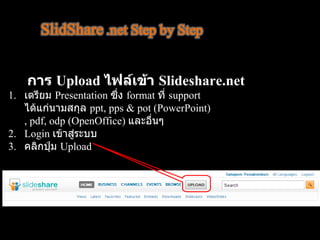
การ  Upload  ไฟล์เข้า  Slideshare . net เตรียม  Presentation  ซึ่ง  format  ที่  support  ได้แก่นามสกุล  ppt, pps & pot (PowerPoint) , pdf, odp (OpenOffice)  และอื่นๆ Login  เข้าสู่ระบบ  คลิกปุ่ม  Upload
4.  คลิกปุ่ม  Browse and select files…
5.  เลือกไฟล์  Presentation  ที่เตรียมไว้ แล้วคลิกปุ่ม  Open
6.  เมื่อคลิกปุ่ม  Open  เรียบร้อยแล้วทางเว็บจะโหลด  Presentation  ที่เราเลือกเข้าไปที่ระบบ รอจนกว่าครบ  100   เปอร์เซ็นต์
7.  พอครบ  100   เปอร์เซ็นต์ แล้วระบบจะให้กรอกรายละเอียดของ  Slide  เช่น  Title, Tags, Description , Category, Privacy 8.  คลิกปุ่ม  Publish  All   เพื่อเผยแพร่และรอจนเสร็จ
9.  เมื่อ  Upload  สำเร็จจะขึ้นข้อความ ดังรูป คลิก  here  เพื่อชม  Slide
10.  กรณีที่ต้องการเข้าชมเอกสารทั้งหมดของตนเองให้ คลิกที่ชื่อ  Username  ของตนเอง
 
ในส่วนของการแสดงผลสามารถเลือกชมหรือ  Download  ได้ตามใจชอบครับ
การประยุกต์ใช้โดยสร้าง  SlideShow  บน   website  หรือ   blog   ในส่วนของ  Post to  ให้เลือก  logo  ของ  website  หรือ   blog  แล้ว  copy code  ดังกล่าว ไปวางใน  website  หรือ   blog   ตามต้องการ  การแสดงผลจะอยูในรูปแบบ  flash display
source http://www.slideshare.net/AmitRanjan/quick-tour http://www.stks.or.th/wiki

20100313 slideshare-100314092144-phpapp01