Introduction to Rational Rose 98i Module 11: RoseScript
Objectives:  RoseScript You will be able to: Understand RoseScript concepts Use RoseScript to: Obtain information from a Rose model Add information to a Rose model Update a Rose model Integrate with third-party products
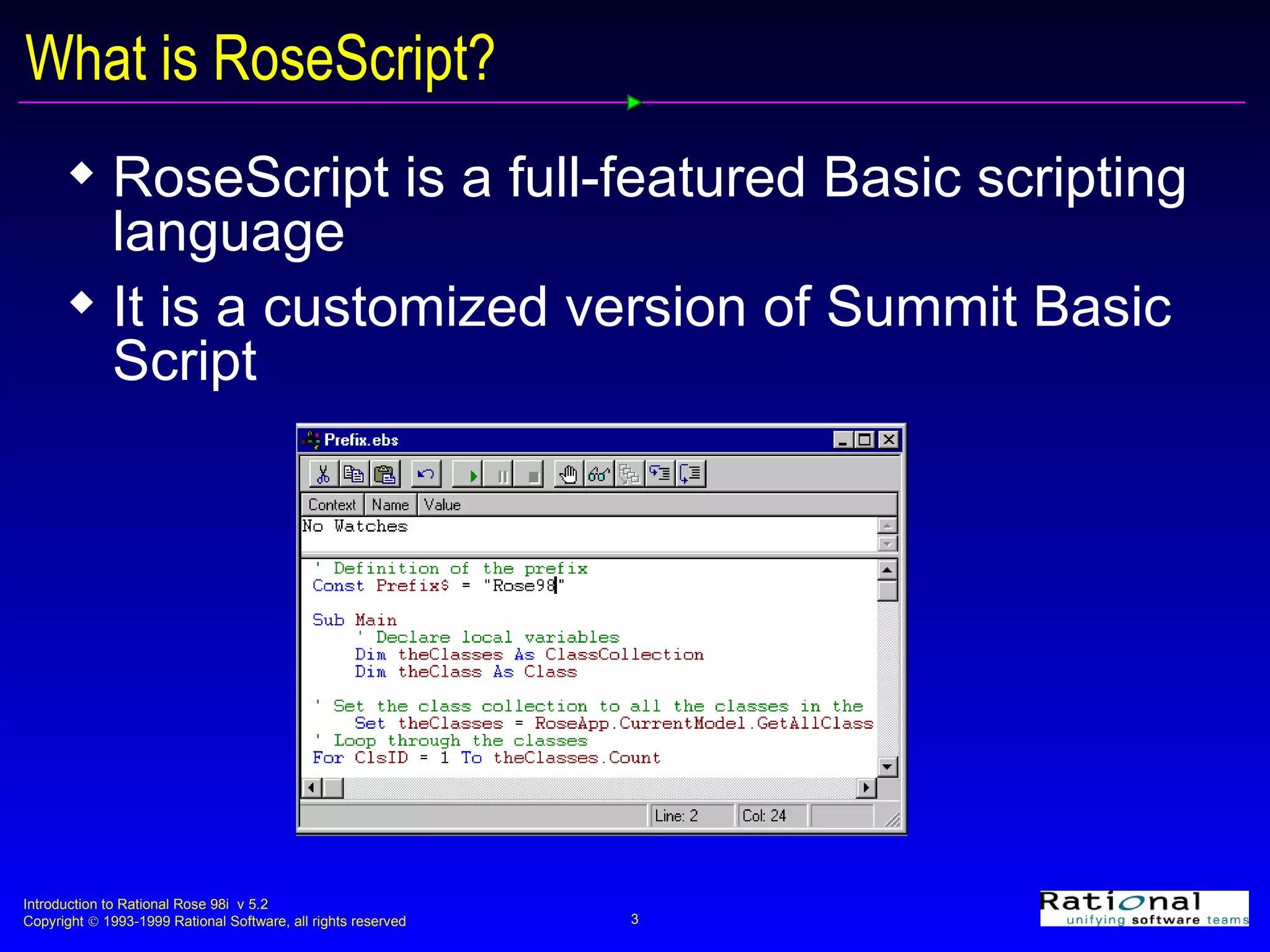
What is RoseScript? RoseScript is a full-featured Basic scripting language It is a customized version of Summit Basic Script
Uses of RoseScript Get information out of a model Extract all or a portion to export  Generate custom reports Perform checks on the model Enforce project/enterprise semantic check Print to a log window Create information to model Add and/or update model components  Create and/or update interaction diagrams and/or class diagrams Integrate with third-party tools
How are Scripts Executed? Interactive Executed via the Start button on the Scripting Window toolbar Compiled Saved as a file (.ebx) that may be executed Rose menu may be updated to include any compiled script
How are RoseScript Classes Used? Each RoseScript class has a defined interface Properties and methods that are used to access information in the Rose model Example Application class property Visible Controls whether the Rose application is visible on the screen Application class method OpenModel Opens a Rose model
RoseApp RoseApp is a global application object All RoseScript programs have access to this object Example RoseApp.CurrentModel is the currently open model in Rose It is an instance of the Model class RoseApp.Height is the height of the main window RoseApp.CurrentModel.Save will save the current open model
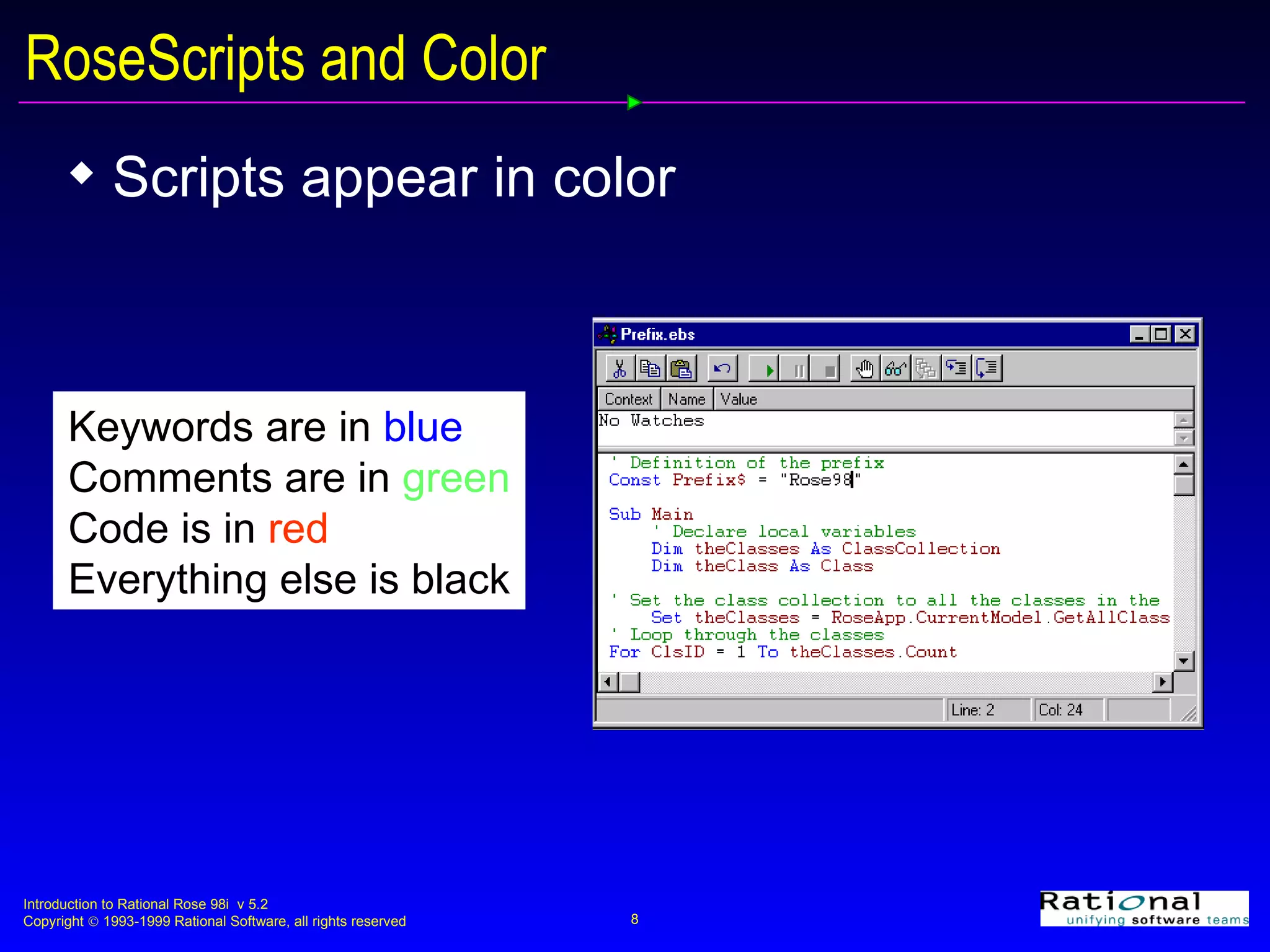
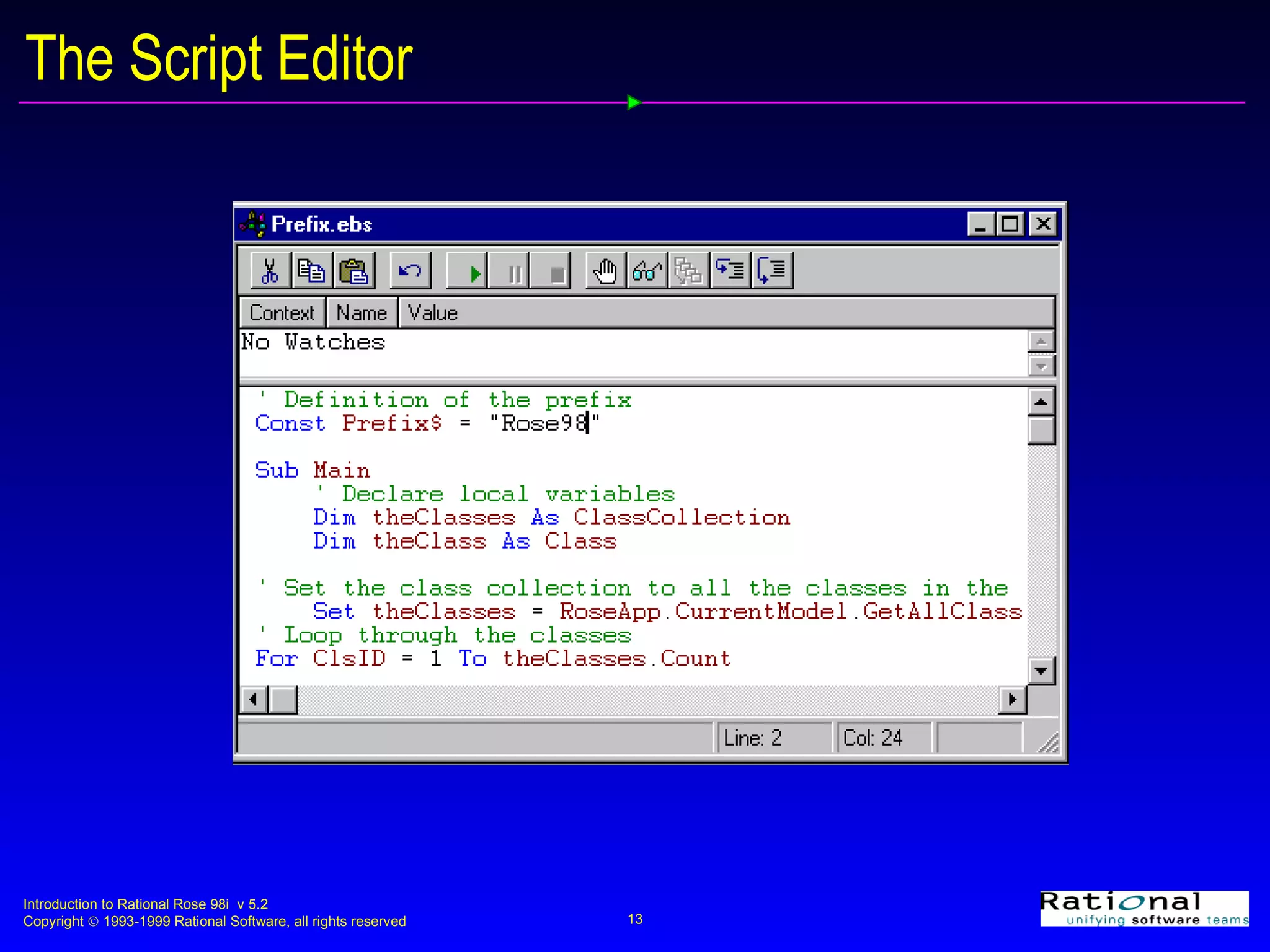
RoseScripts and Color Scripts appear in color Keywords are in  blue Comments are in  green Code is in  red Everything else is black
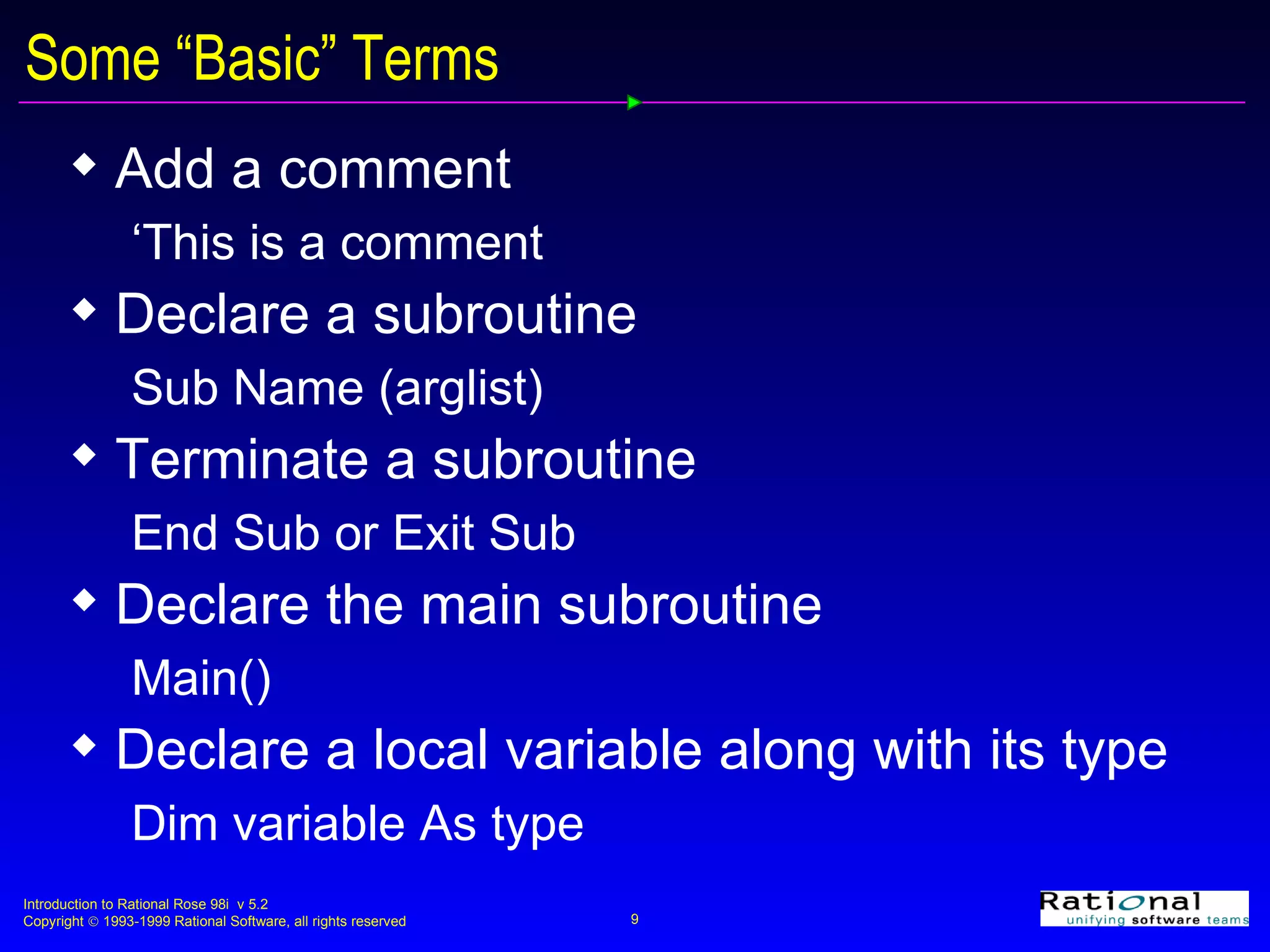
Some “Basic” Terms Add a comment  ‘This is a comment Declare a subroutine Sub Name (arglist)  Terminate a subroutine End Sub or Exit Sub Declare the main subroutine  Main() Declare a local variable along with its type Dim variable As type
Some “Basic” Terms Print data to an output device Print Repeat a block of statements for each element in a collection or array For Each member in group [statements] [Exit For] [statements] Next [member]
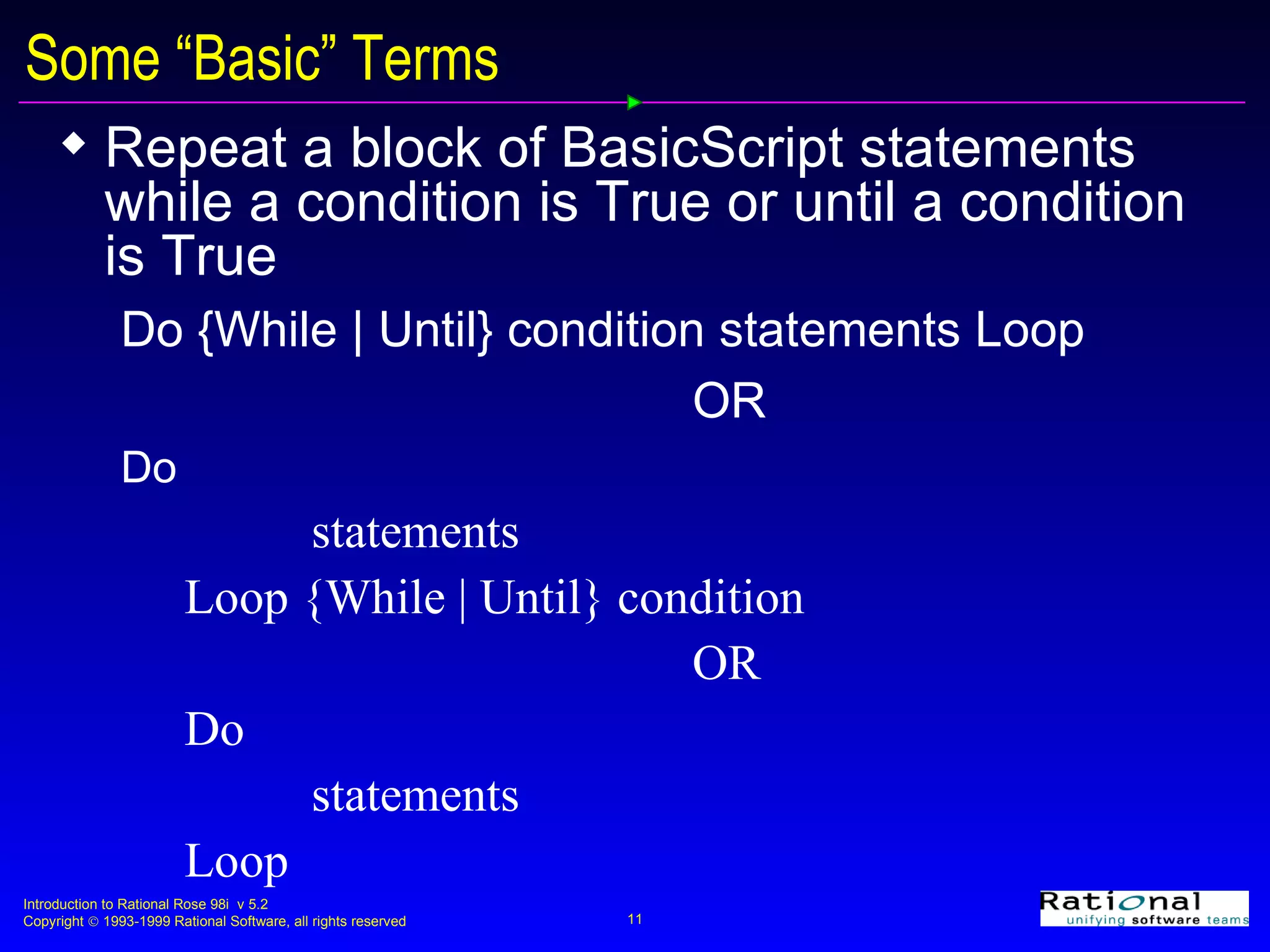
Some “Basic” Terms Repeat a block of BasicScript statements while a condition is True or until a condition is True Do {While | Until} condition statements Loop OR Do statements Loop {While | Until} condition OR Do statements Loop
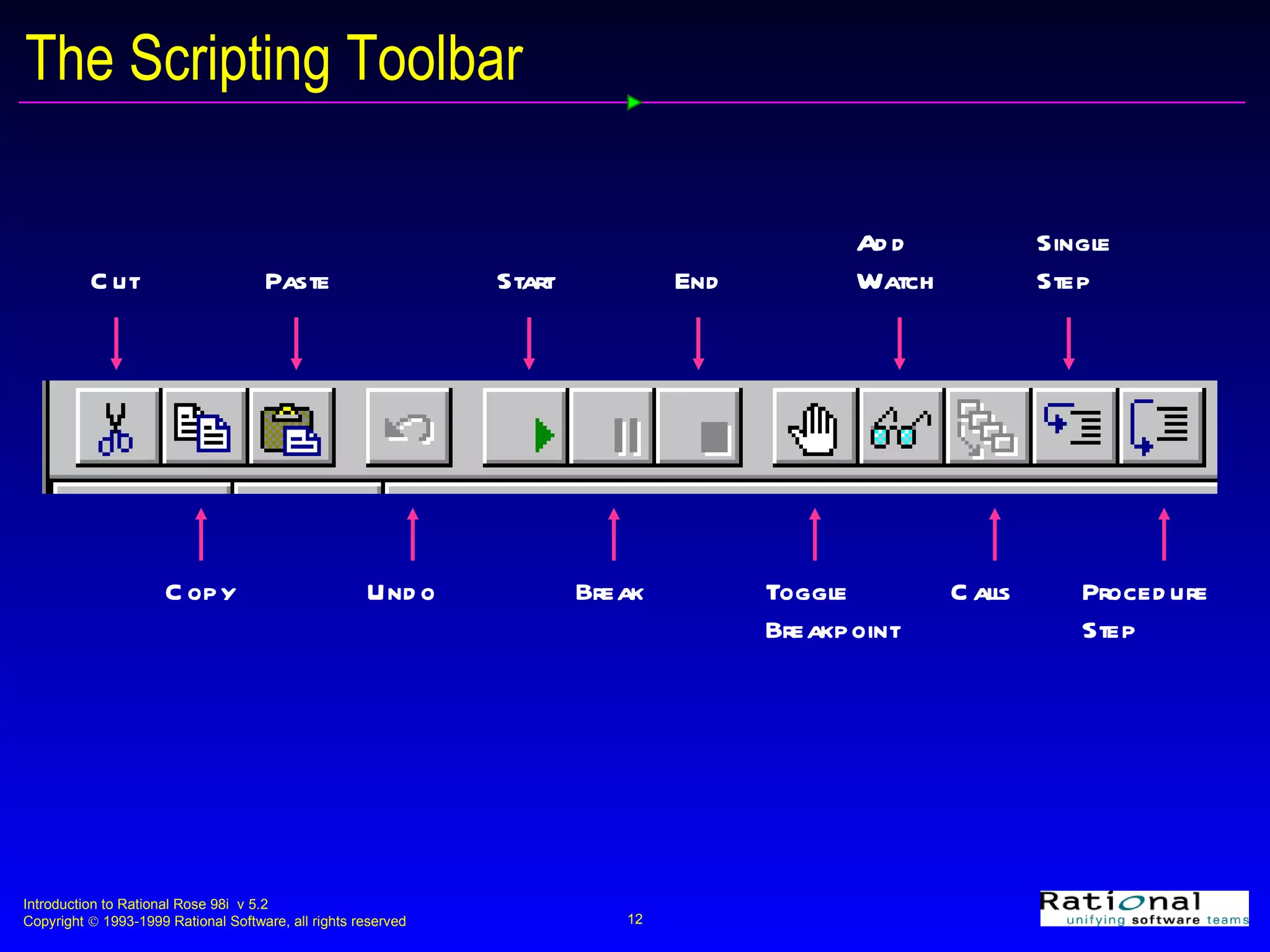
The Scripting Toolbar Cut Add Watch End Start Paste Procedure Step Calls Toggle Breakpoint Break Undo Copy Single Step
The Script Editor
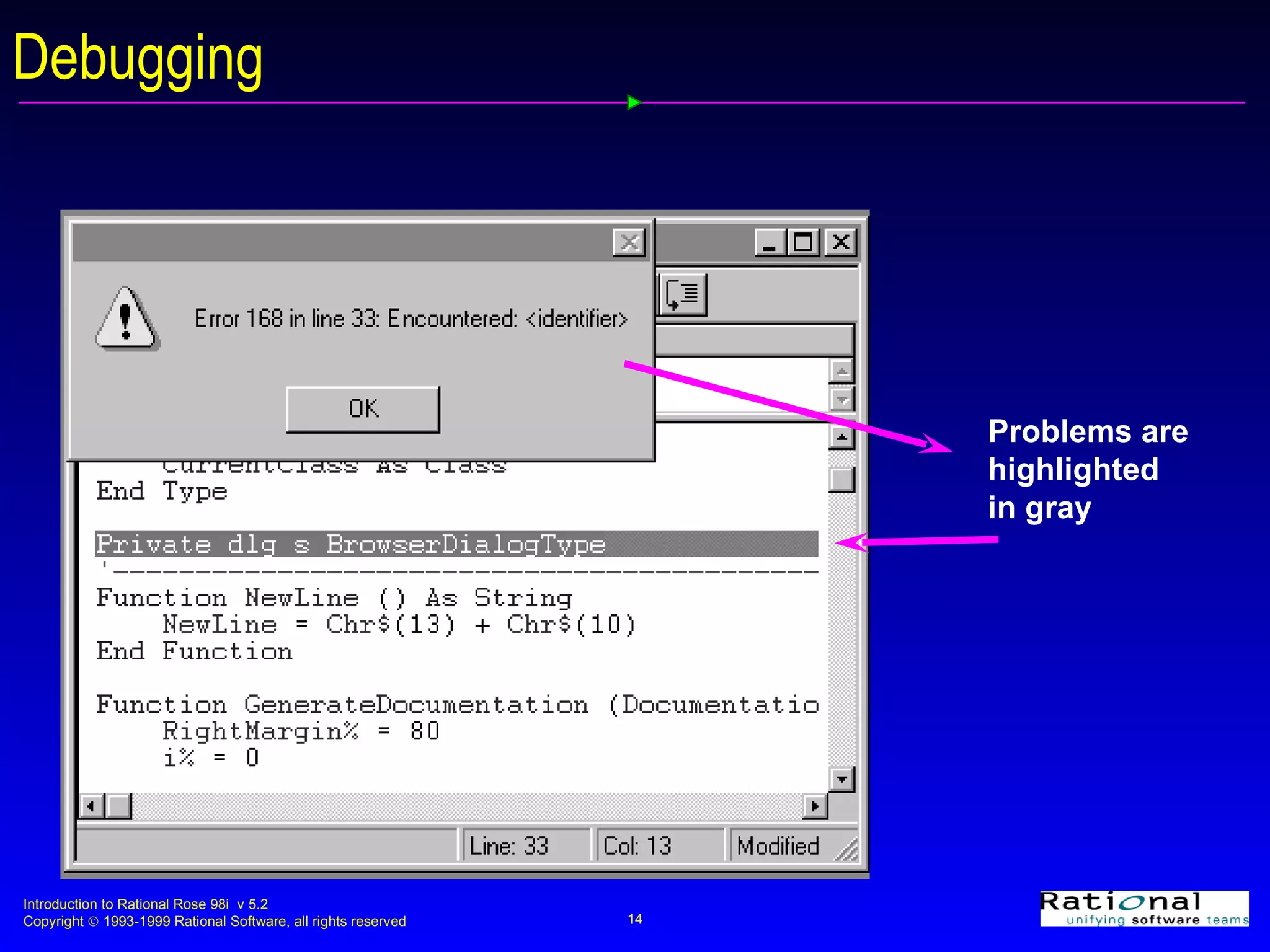
Debugging Problems are highlighted in gray
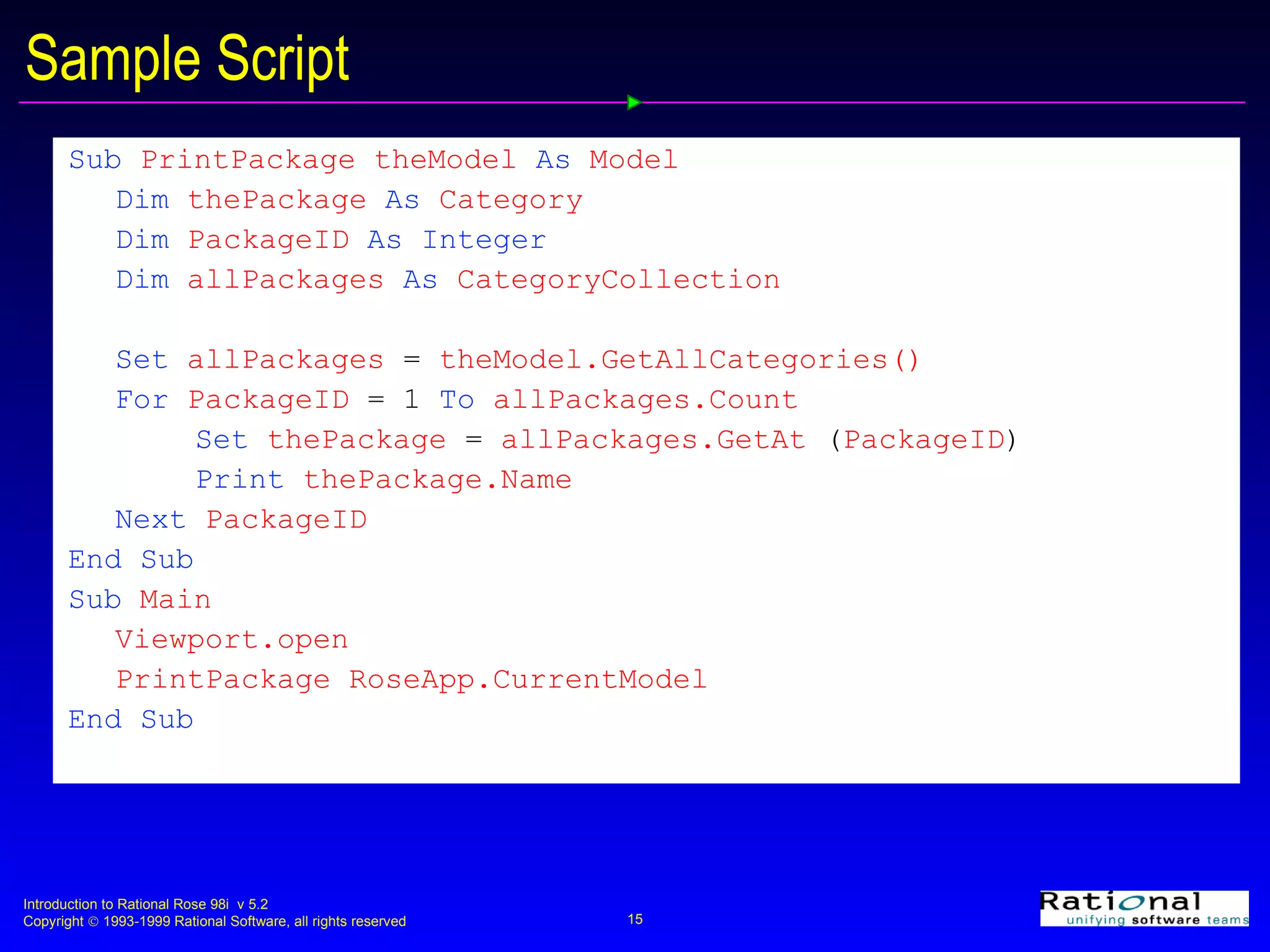
Sample Script Sub   PrintPackage ( theModel   As   Model )  Dim   thePackage   As   Category Dim   PackageID   As Integer Dim   allPackages  As  CategoryCollection Set   allPackages   =   theModel.GetAllCategories() For   PackageID   =   1   To   allPackages.Count Set   thePackage   =   allPackages.GetAt  ( PackageID ) Print   thePackage.Name Next   PackageID End Sub Sub   Main Viewport.open PrintPackage RoseApp.CurrentModel End Sub
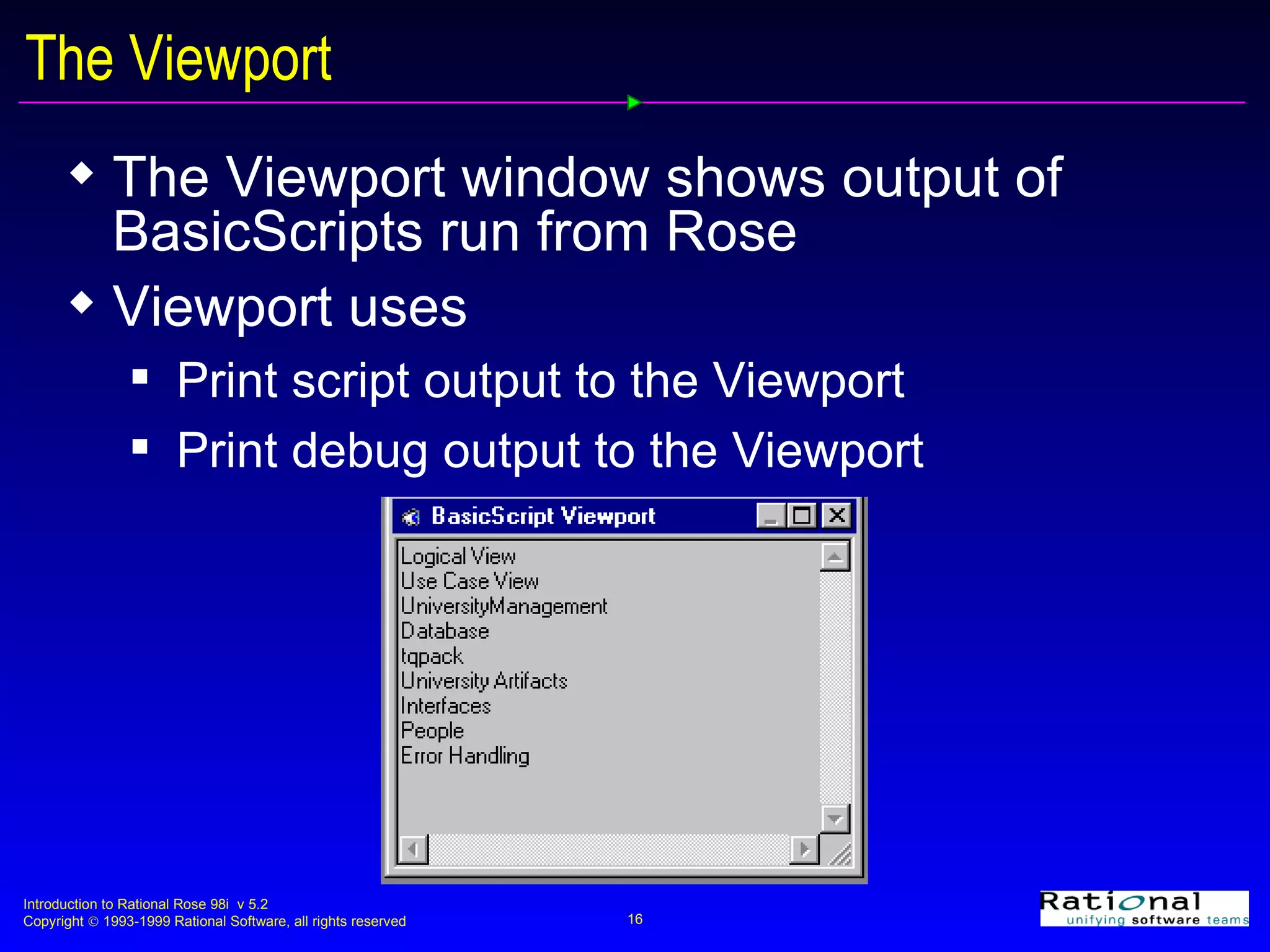
The Viewport The Viewport window shows output of BasicScripts run from Rose Viewport uses Print script output to the Viewport Print debug output to the Viewport
Viewport Methods Viewport.Clear  Clear the open Viewport window Viewport.Close  Close an open Viewport window Viewport.Open  Opens a new Viewport window or switches the focus to the existing Viewport window
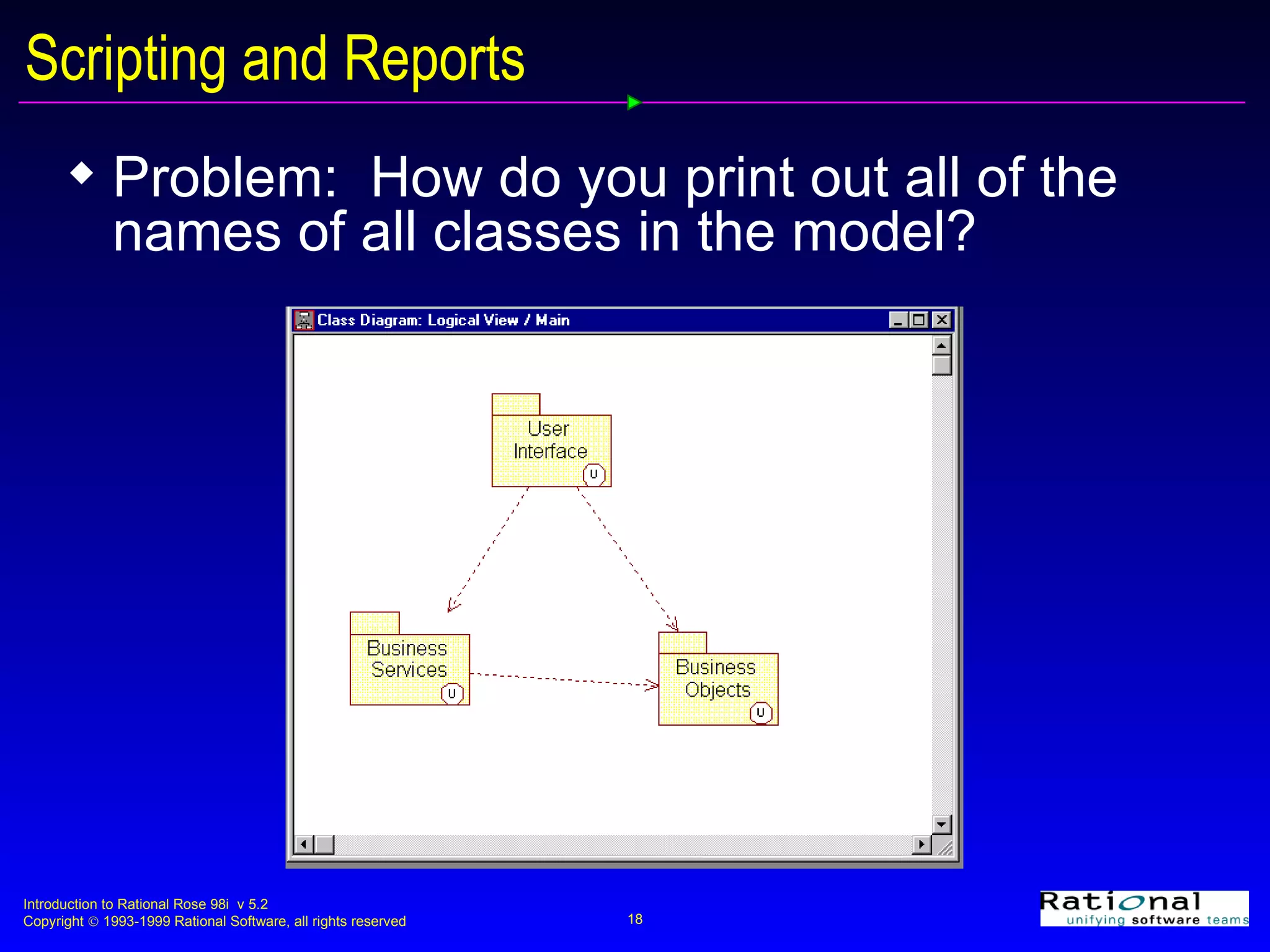
Scripting and Reports Problem:  How do you print out all of the names of all classes in the model?
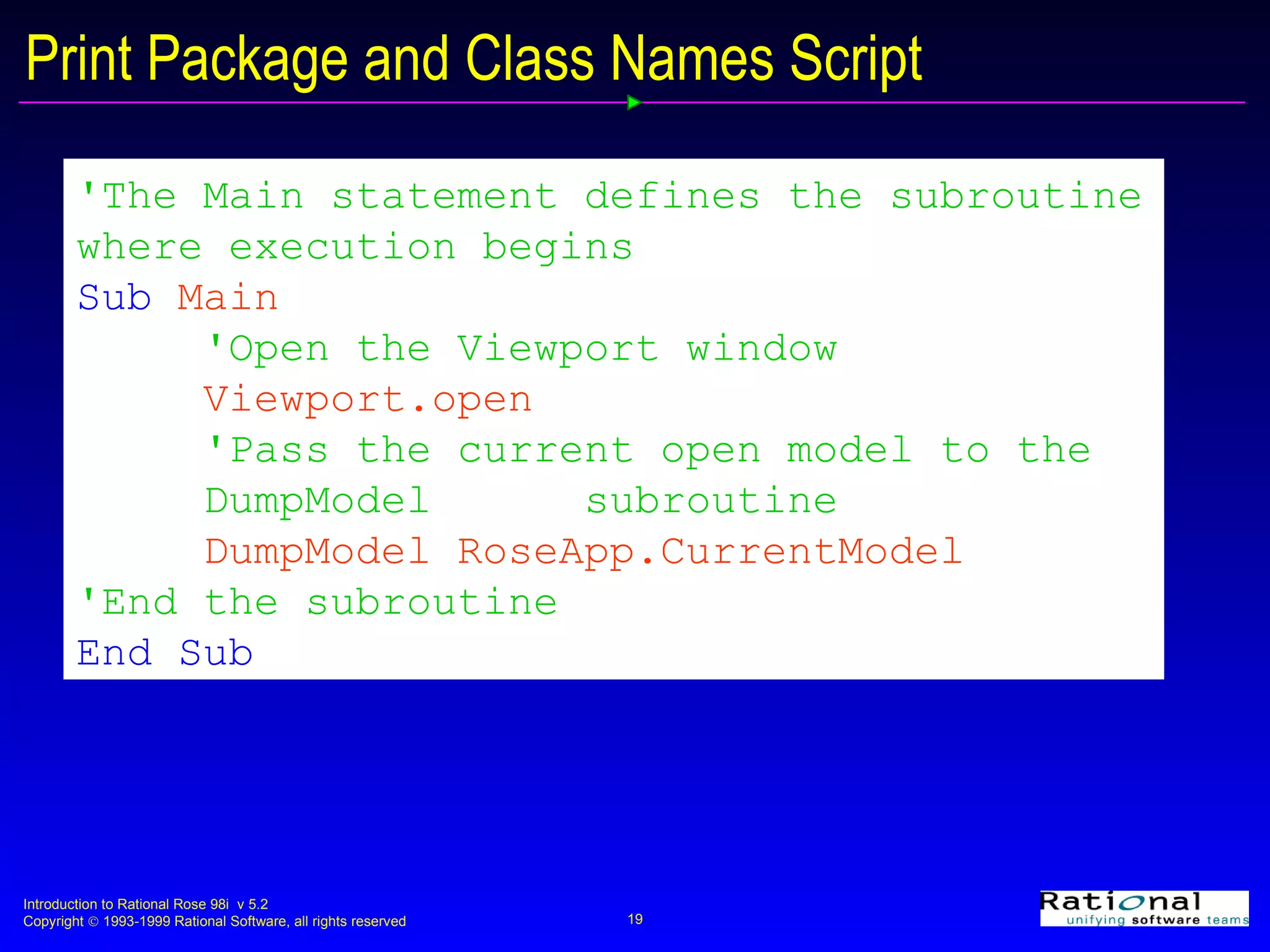
Print Package and Class Names Script 'The Main statement defines the subroutine where execution begins   Sub  Main  'Open the Viewport window Viewport.open 'Pass the current open model to the  DumpModel  subroutine  DumpModel RoseApp.CurrentModel 'End the subroutine End Sub
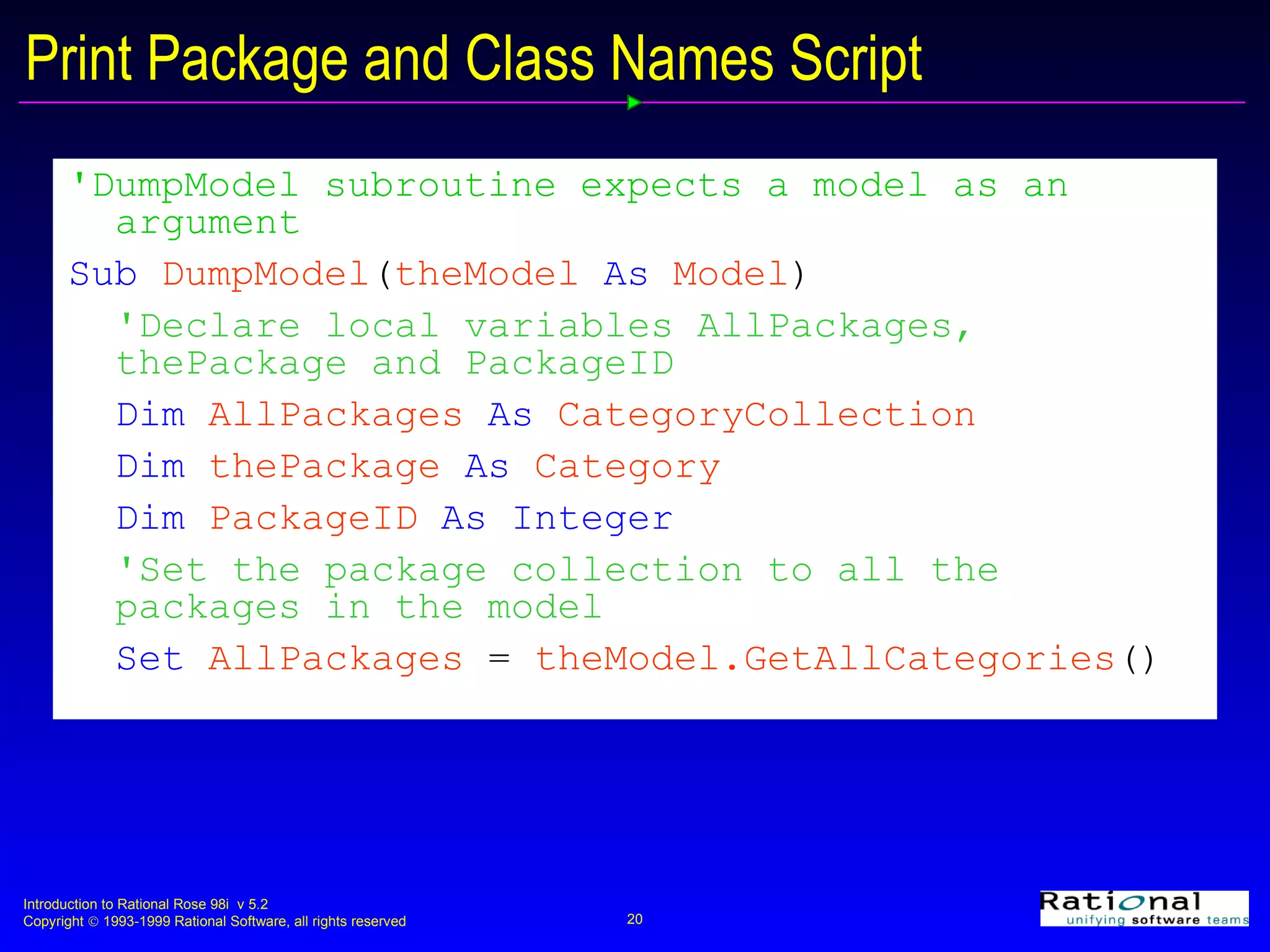
Print Package and Class Names Script 'DumpModel subroutine expects a model as an argument  Sub  DumpModel ( theModel  As  Model ) 'Declare local variables AllPackages, thePackage and PackageID Dim  AllPackages  As  CategoryCollection   Dim  thePackage  As  Category Dim  PackageID  As Integer 'Set the package collection to all the packages in the model Set  AllPackages   =   theModel.GetAllCategories ()
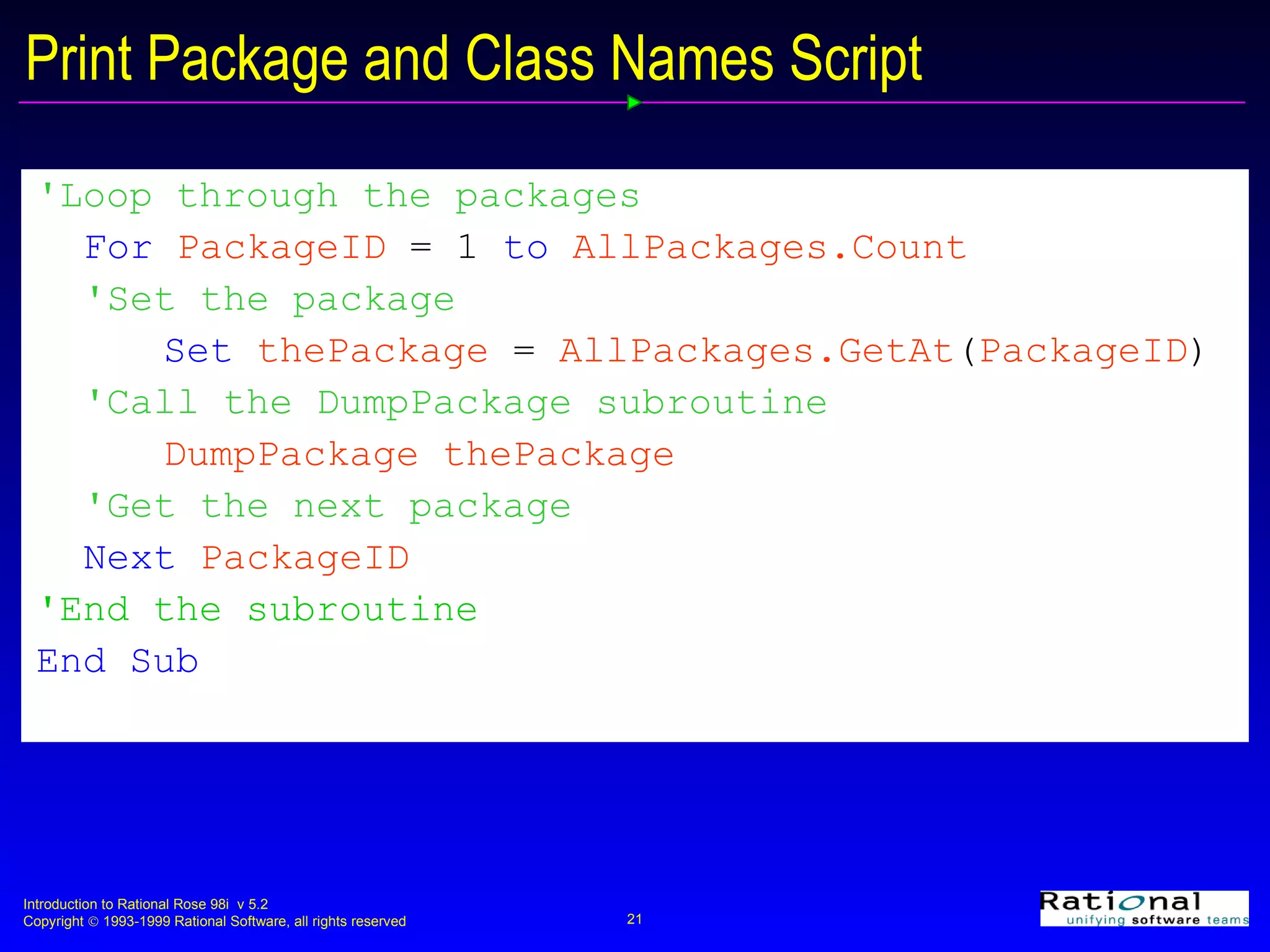
Print Package and Class Names Script 'Loop through the packages For  PackageID   =   1  to  AllPackages.Count 'Set the package  Set  thePackage   =   AllPackages.GetAt ( PackageID ) 'Call the DumpPackage subroutine DumpPackage thePackage 'Get the next package Next  PackageID 'End the subroutine End Sub
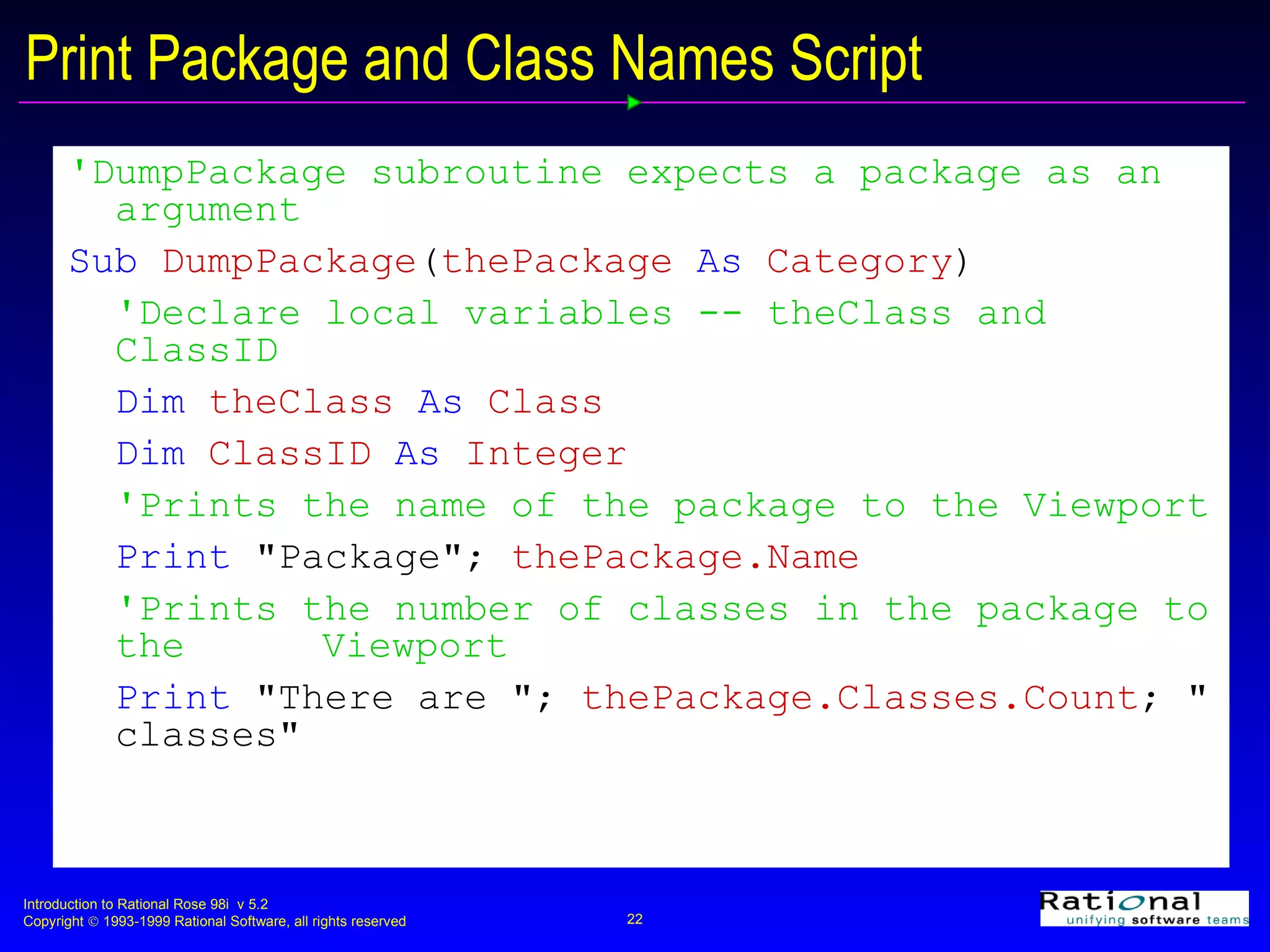
Print Package and Class Names Script 'DumpPackage subroutine expects a package as an argument   Sub  DumpPackage ( thePackage  As  Category ) 'Declare local variables -- theClass and ClassID  Dim  theClass  As  Class Dim  ClassID  As  Integer 'Prints the name of the package to the Viewport Print  "Package";   thePackage.Name 'Prints the number of classes in the package to the  Viewport Print  "There are ";   thePackage.Classes.Count ; "   classes"
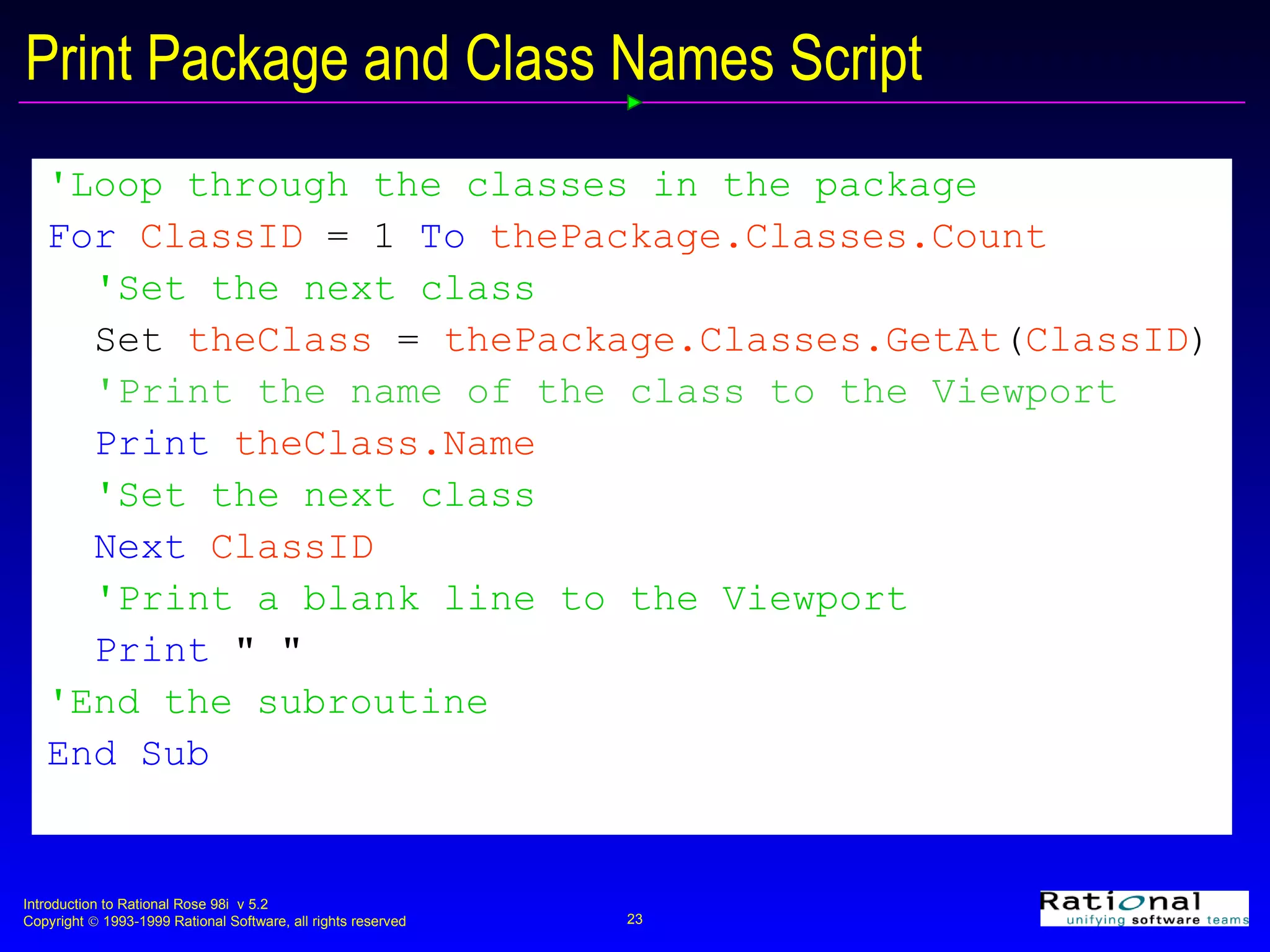
Print Package and Class Names Script 'Loop through the classes in the package For  ClassID  =   1   To  thePackage.Classes.Count 'Set the next class Set  theClass  =  thePackage.Classes.GetAt ( ClassID ) 'Print the name of the class to the Viewport Print  theClass.Name 'Set the next class Next  ClassID 'Print a blank line to the Viewport Print   " " 'End the subroutine End Sub
Scripting and Business Problem Solutions Problem:  How can class names be changed?  Enforce naming conventions Resolve name clashes  Annotate classes to show distribution strategy A script can be written to change the names of all classes in the model to enforce naming conventions
Creating the Script Starting point Browse existing scripts as opposed to creating a new one from scratch Getting help Rose Extensibility How to Start Scripting from Rose Rose Scripting Online Reference Basic Script Reference
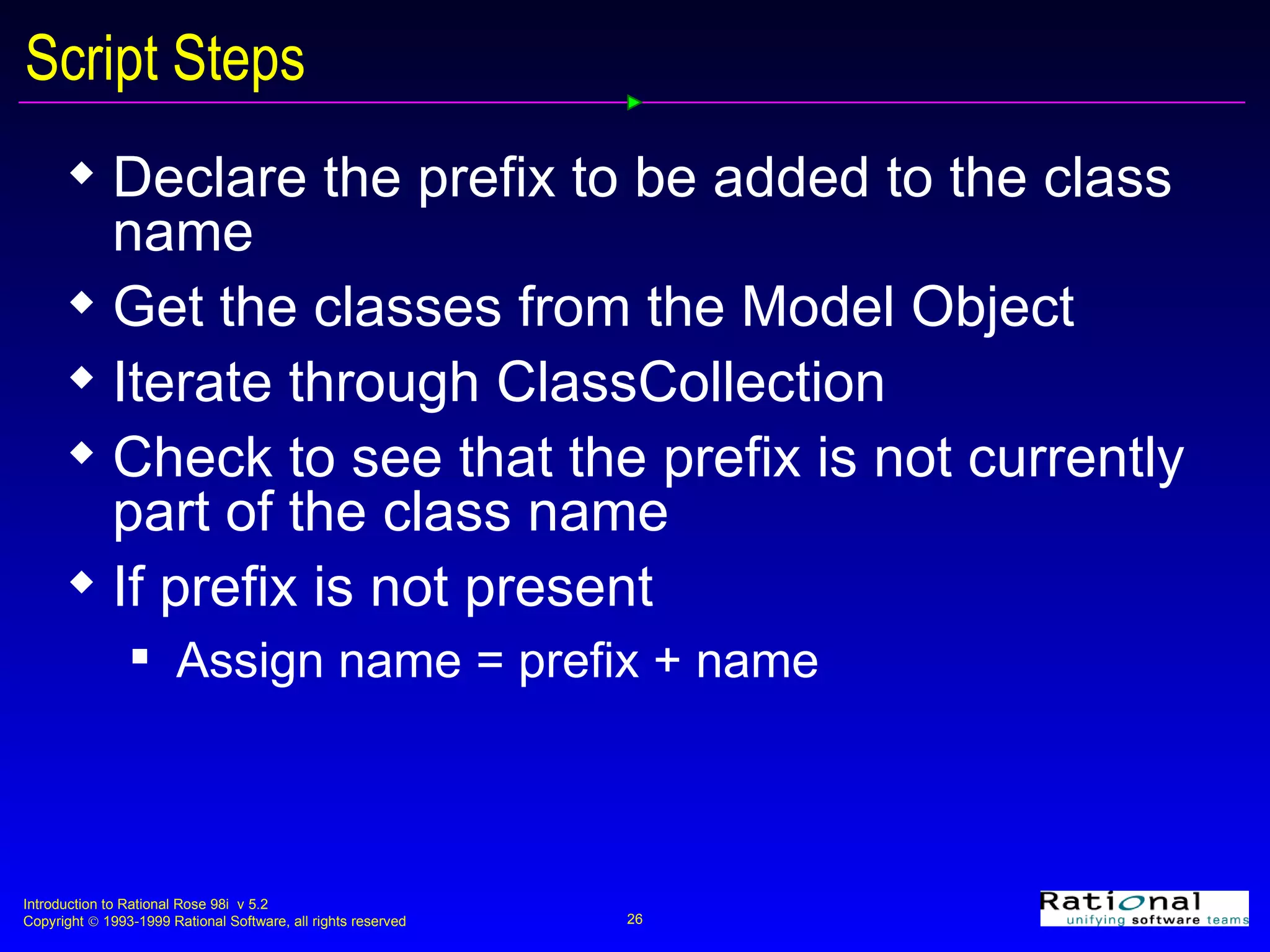
Script Steps Declare the prefix to be added to the class name Get the classes from the Model Object Iterate through ClassCollection  Check to see that the prefix is not currently part of the class name If prefix is not present Assign name = prefix + name
Needed Script Functions  Const Name [As type or type] = expression A statement that declares a constant for use within the current script Const prefix$ As String = “Rose98” Set prefix$ to the string “Rose98” Left$ (string, length) A function that returns a string that contains the leftmost NumChars characters contained in the input string Left$(string,1)  Return the leftmost character in string
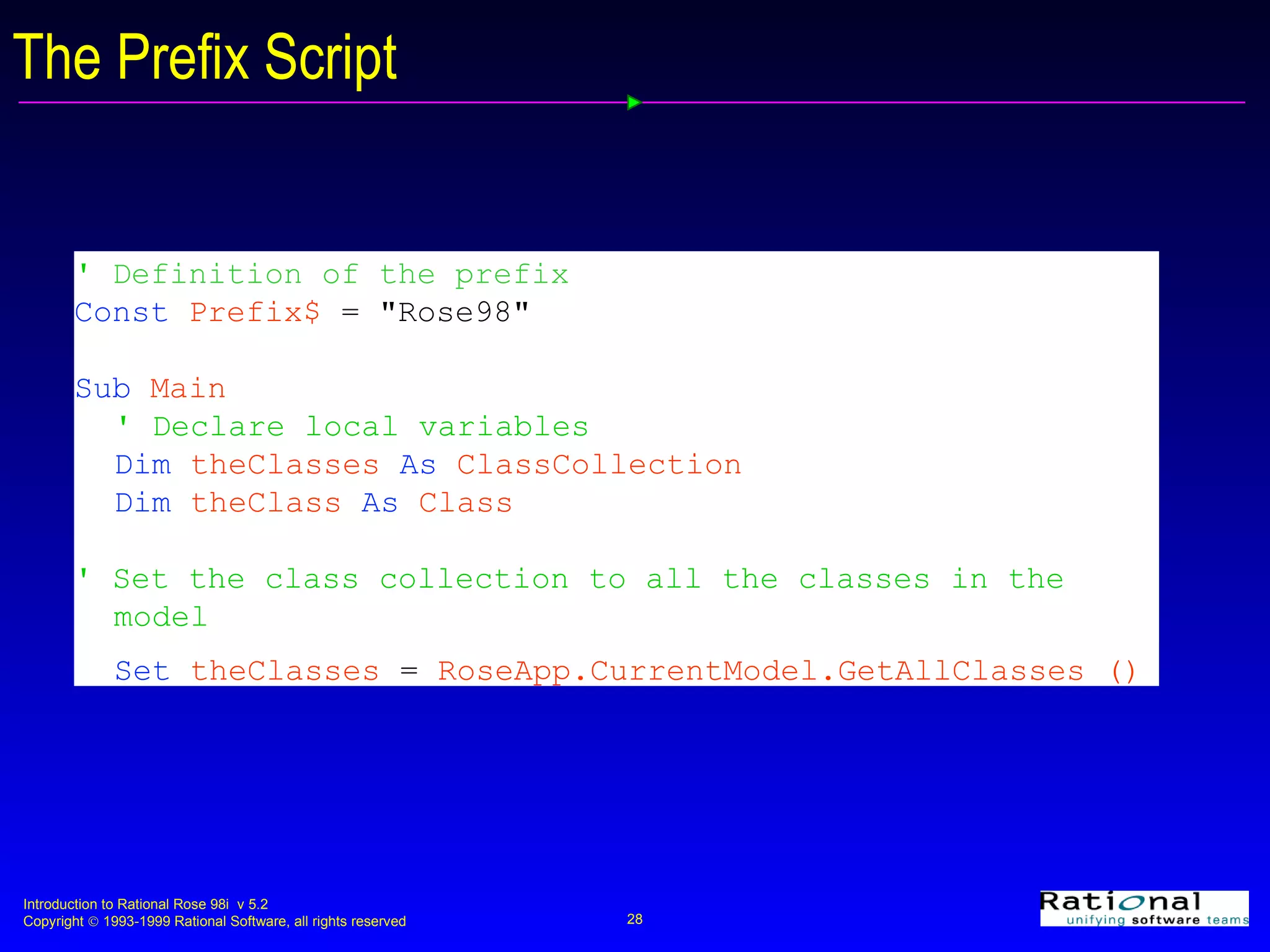
The Prefix Script '  Definition of the prefix Const   Prefix$   = "Rose98" Sub   Main ' Declare local variables Dim   theClasses   As   ClassCollection Dim  theClass  As  Class ' Set the class collection to all the classes in the  model Set   theClasses   =   RoseApp.CurrentModel.GetAllClasses ()
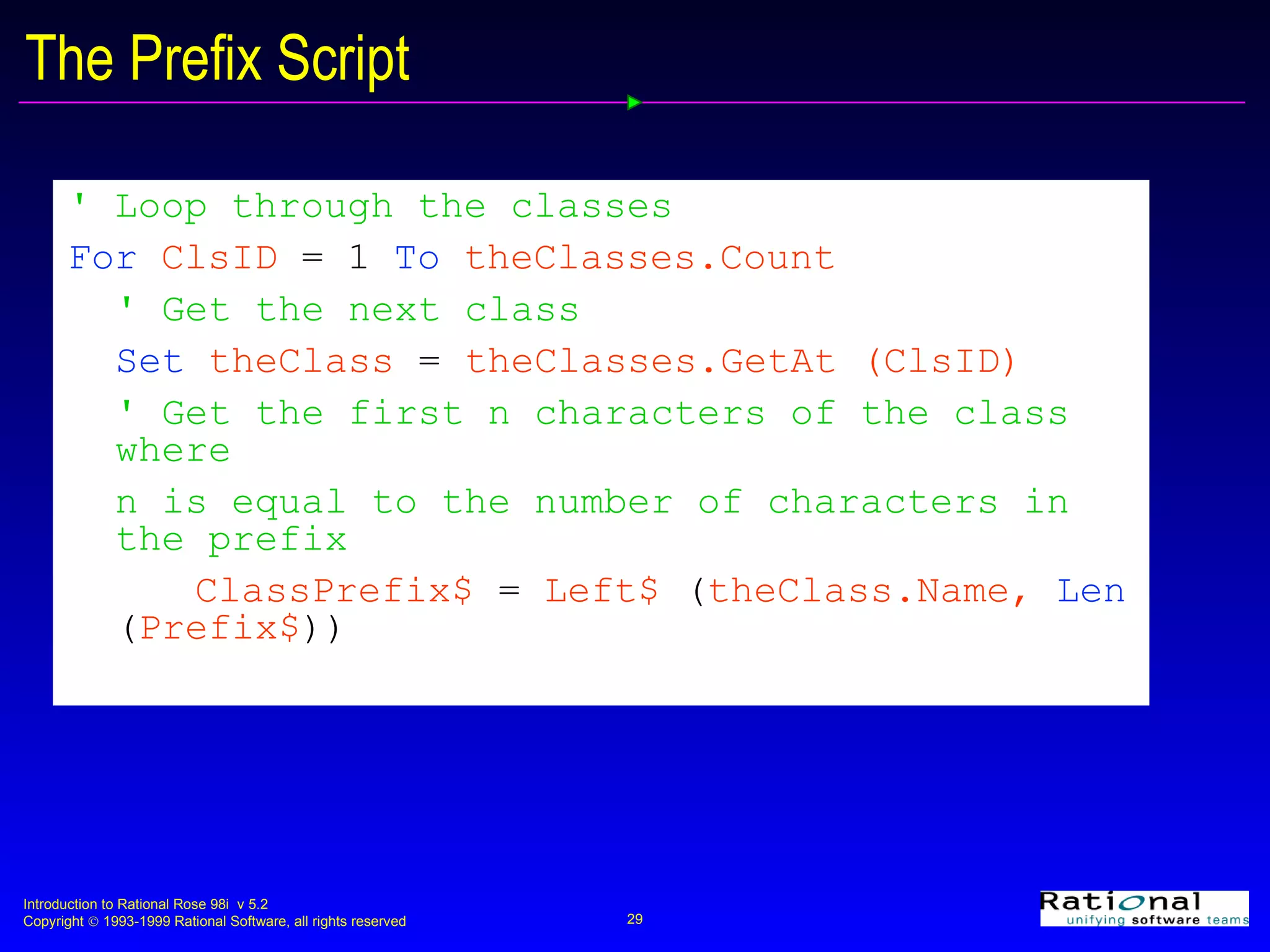
The Prefix Script ' Loop through the classes For  ClsID  = 1   To  theClasses.Count ' Get the next class Set  theClass  =  theClasses.GetAt (ClsID) ' Get the first n characters of the class where  n is equal to the number of characters in the prefix ClassPrefix$  =  Left$  ( theClass.Name,  Len   ( Prefix$ ))
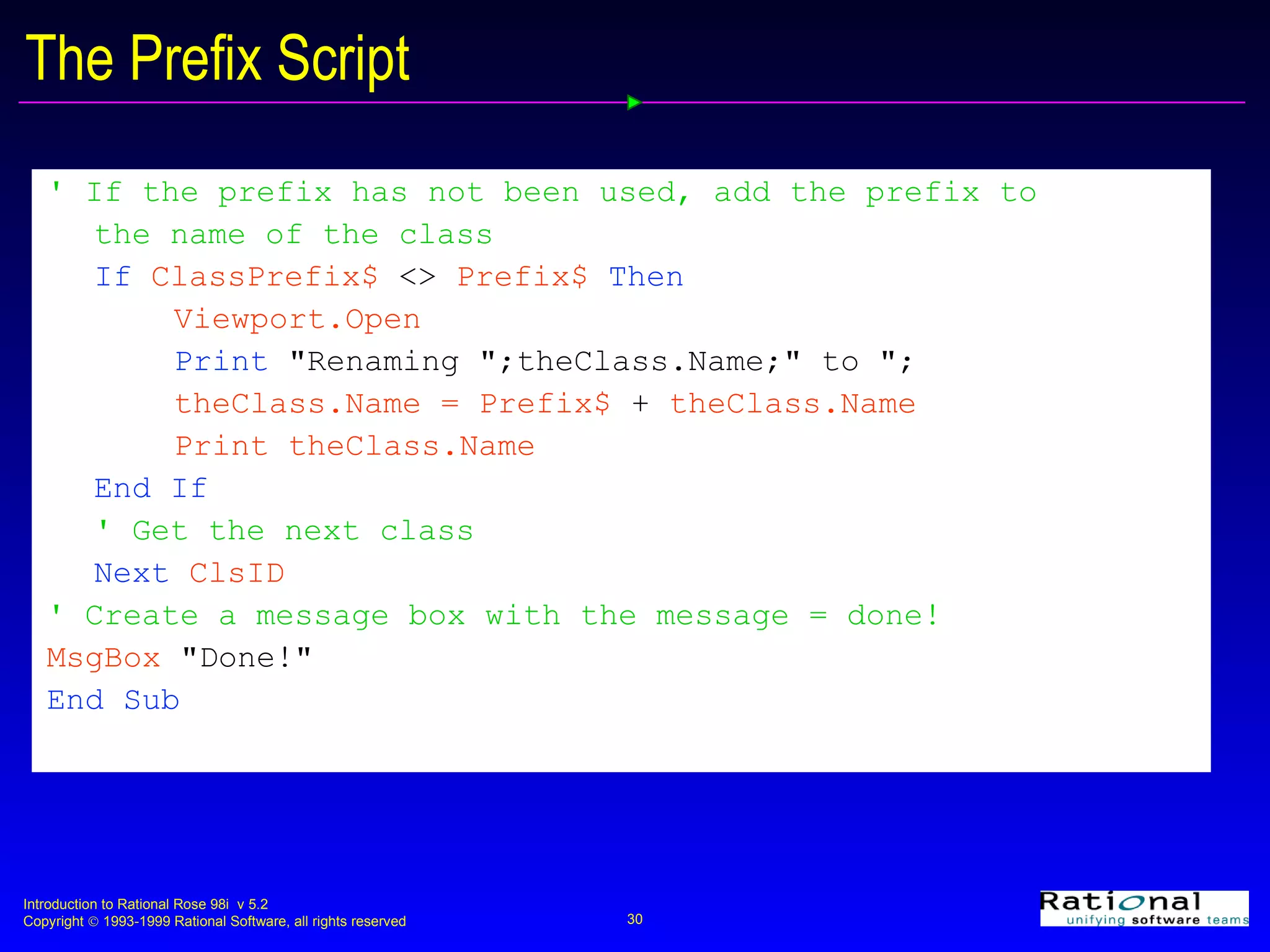
The Prefix Script ' If the prefix has not been used, add the prefix to the name of the class   If  ClassPrefix$  <>  Prefix$  Then Viewport.Open Print   &quot;Renaming &quot;;theClass.Name;&quot; to &quot;; theClass.Name = Prefix$  +  theClass.Name Print theClass.Name End If ' Get the next class Next  ClsID ' Create a message box with the message = done! MsgBox  &quot;Done!&quot; End Sub
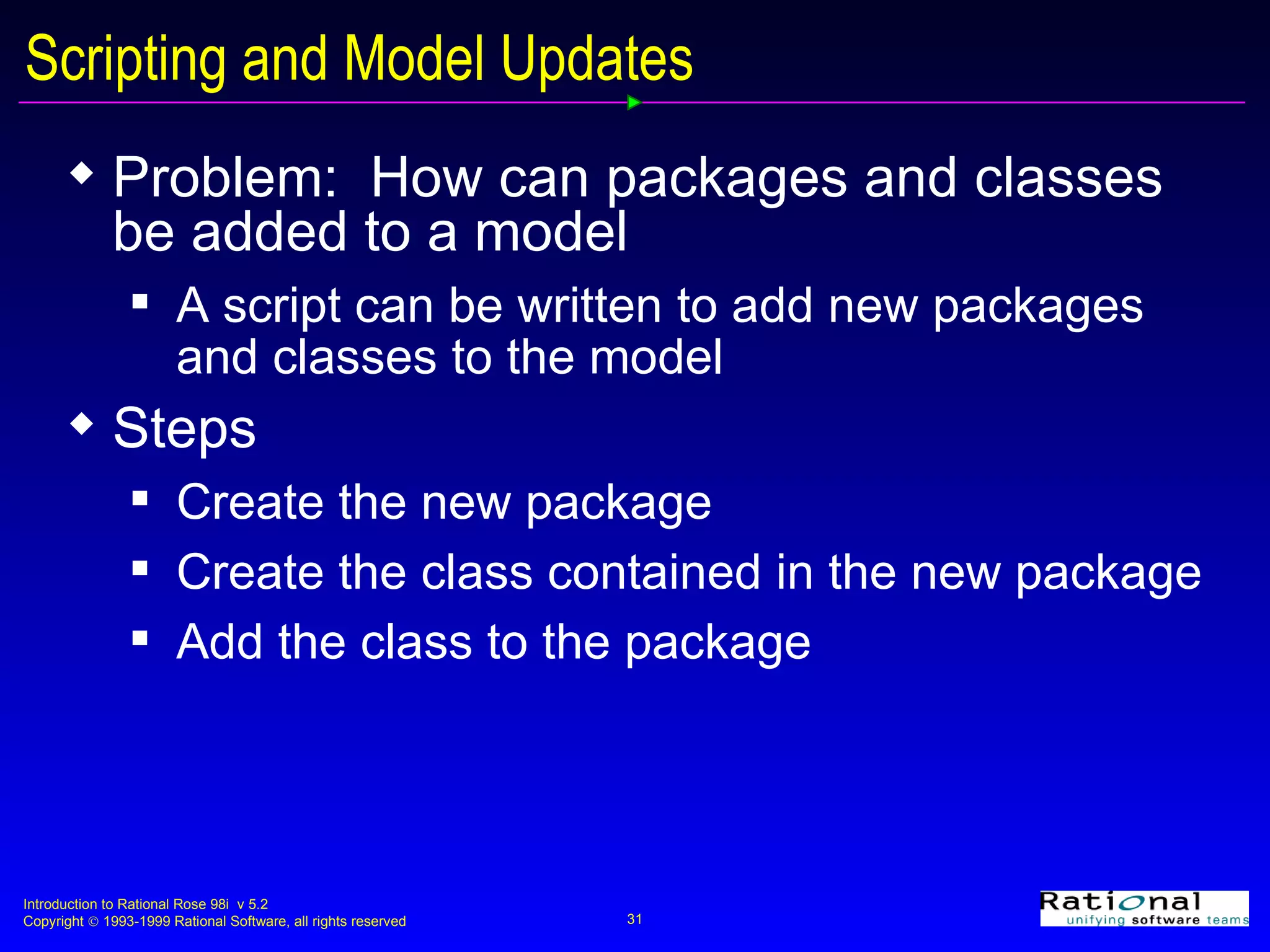
Scripting and Model Updates Problem:  How can packages and classes be added to a model A script can be written to add new packages and classes to the model Steps Create the new package Create the class contained in the new package Add the class to the package
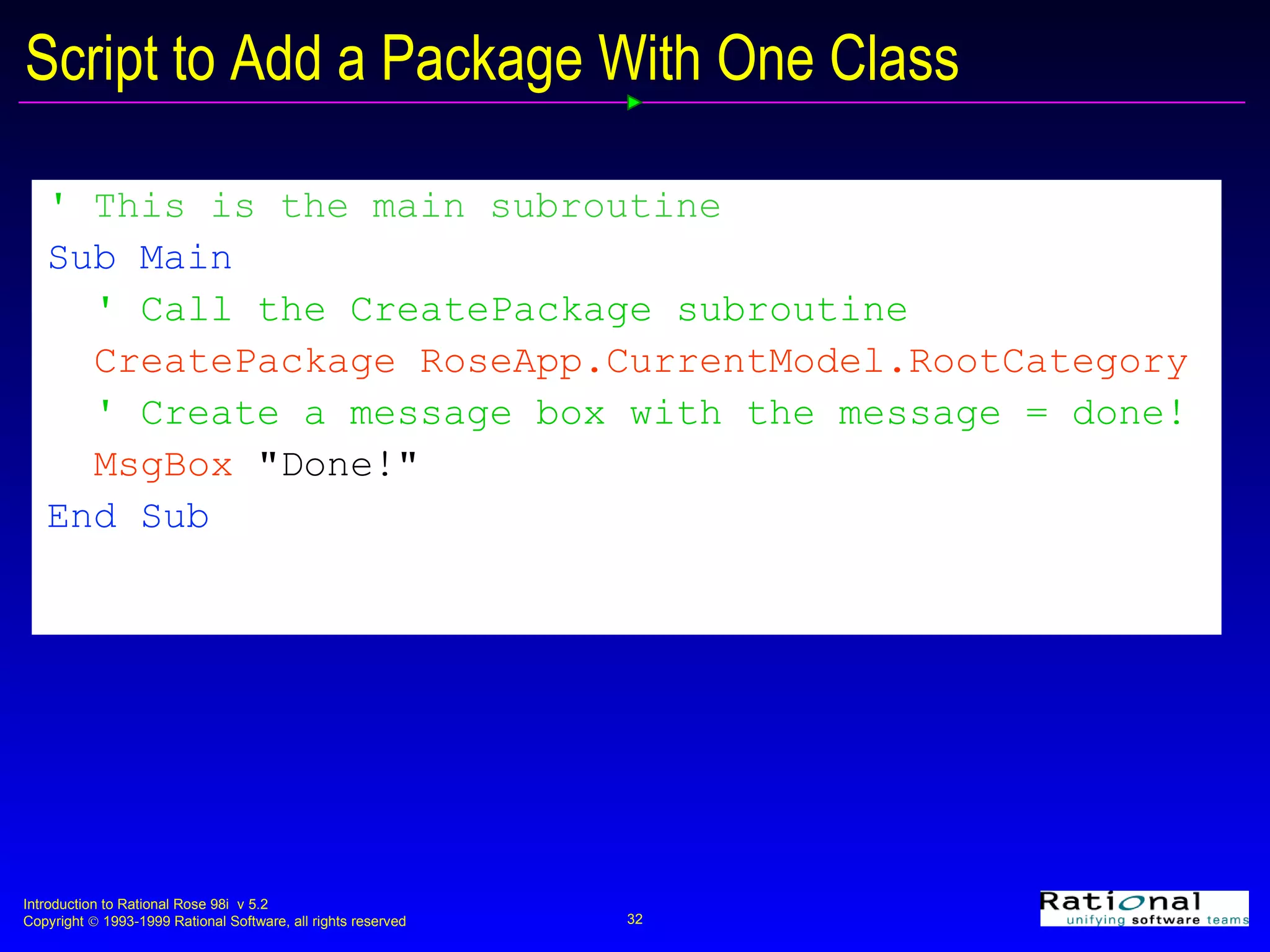
'  This is the main subroutine Sub Main ' Call the CreatePackage subroutine CreatePackage RoseApp.CurrentModel.RootCategory ' Create a message box with the message = done! MsgBox  &quot;Done!&quot; End Sub   Script to Add a Package With One Class
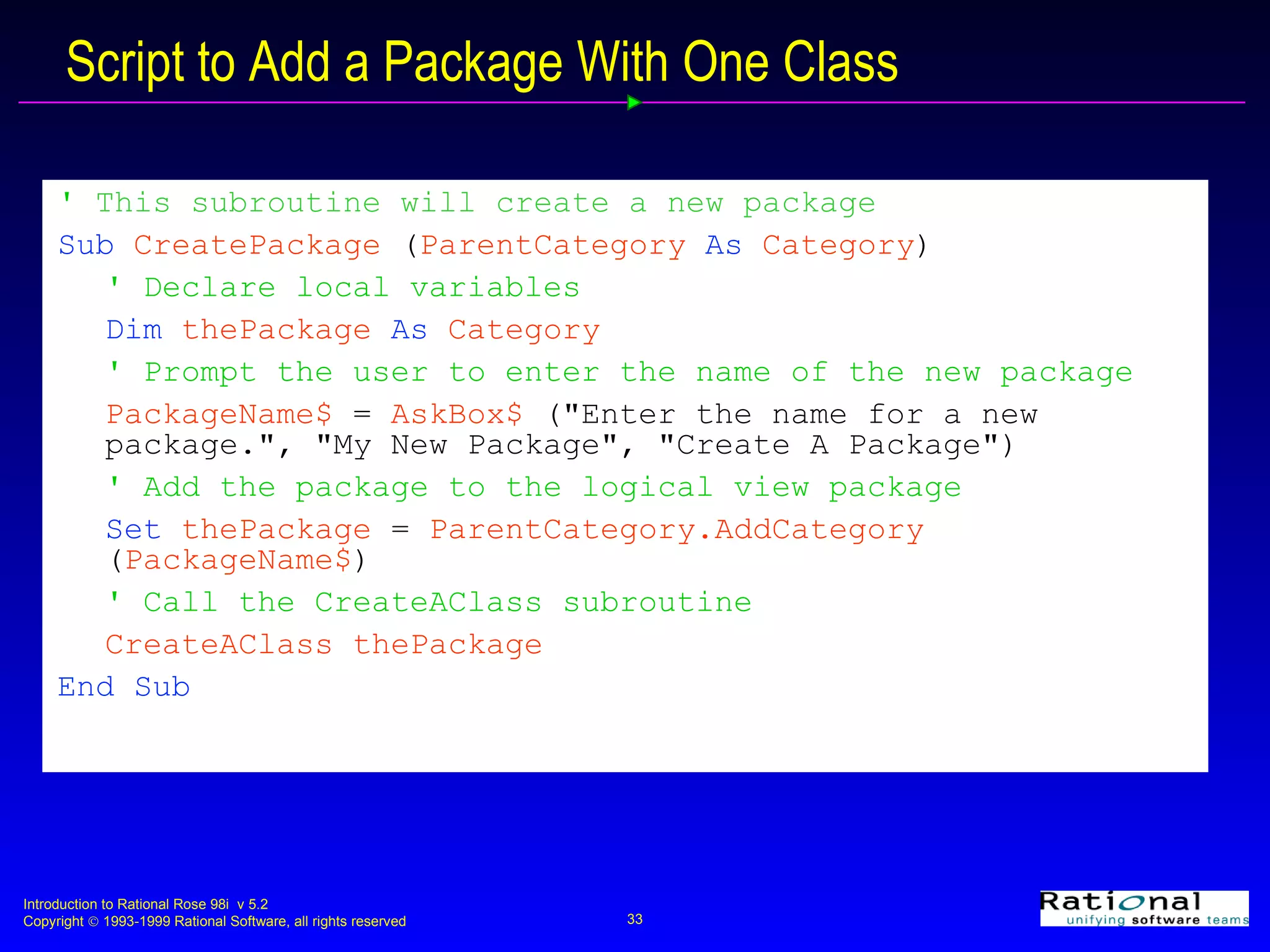
Script to Add a Package With One Class '  This subroutine will create a new package Sub  CreatePackage  ( ParentCategory  As  Category ) ' Declare local variables Dim  thePackage  As  Category ' Prompt the user to enter the name of the new package PackageName$  =  AskBox$  (&quot;Enter the name for a new  package.&quot;, &quot;My New Package&quot;, &quot;Create A Package&quot;) ' Add the package to the logical view package Set  thePackage  =  ParentCategory.AddCategory  ( PackageName$ ) ' Call the CreateAClass subroutine CreateAClass   thePackage   End Sub
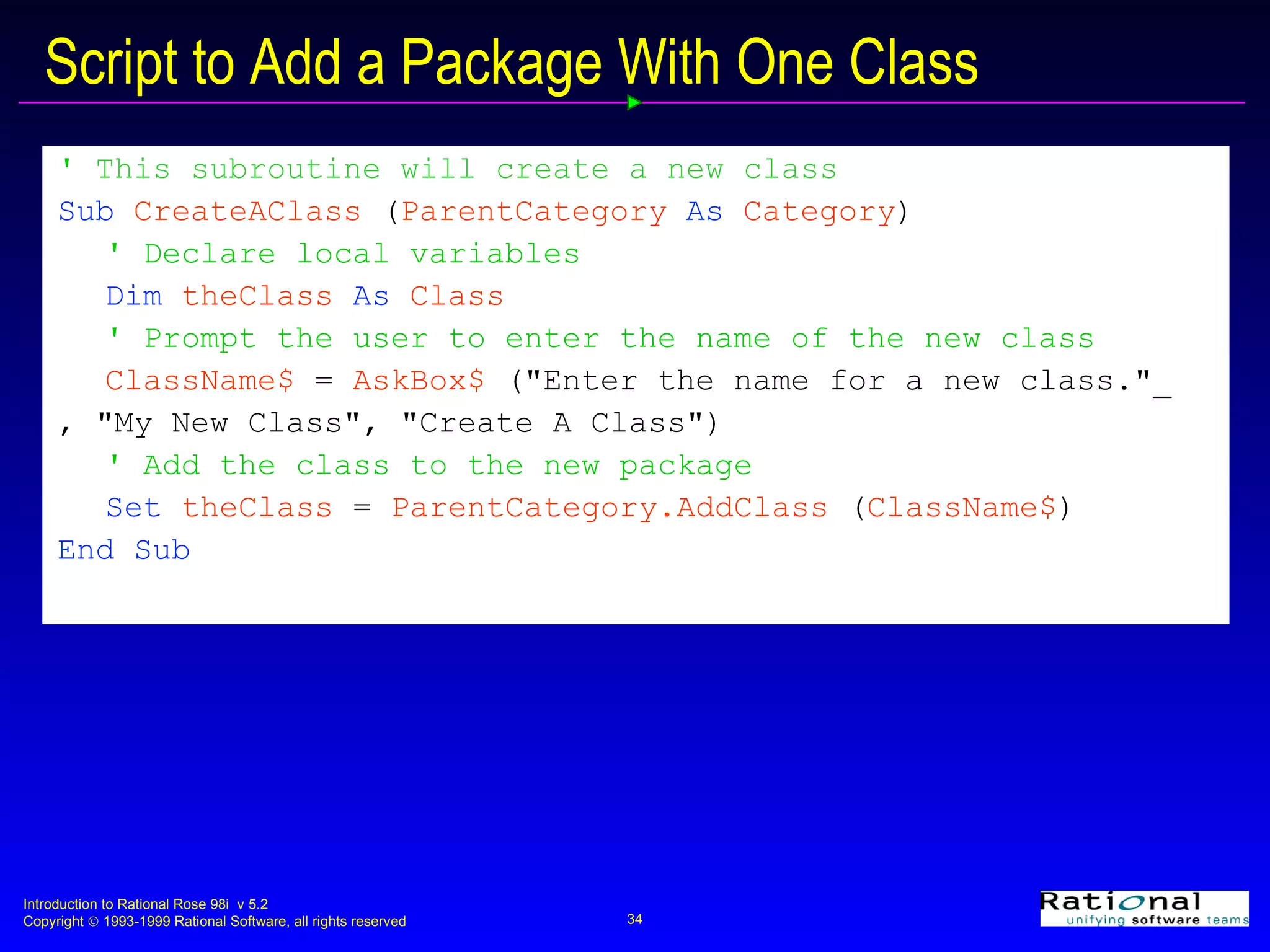
Script to Add a Package With One Class '  This subroutine will create a new class Sub  CreateAClass  ( ParentCategory  As  Category ) ' Declare local variables Dim  theClass  As  Class ' Prompt the user to enter the name of the new class ClassName$  =  AskBox$  (&quot;Enter the name for a new class.&quot;_ , &quot;My New Class&quot;, &quot;Create A Class&quot;) ' Add the class to the new package Set  theClass  =  ParentCategory.AddClass  ( ClassName$ ) End Sub
Exercise Open the Registration model Run some of the scripts provided with Rose 98 i Modify the Add a Package With One Class script to create a package with a user defined number of classes Hint:  Use an AskBox to determine the number of classes and the name of the classes

11script

  • 1.
    Introduction to RationalRose 98i Module 11: RoseScript
  • 2.
    Objectives: RoseScriptYou will be able to: Understand RoseScript concepts Use RoseScript to: Obtain information from a Rose model Add information to a Rose model Update a Rose model Integrate with third-party products
  • 3.
    What is RoseScript?RoseScript is a full-featured Basic scripting language It is a customized version of Summit Basic Script
  • 4.
    Uses of RoseScriptGet information out of a model Extract all or a portion to export Generate custom reports Perform checks on the model Enforce project/enterprise semantic check Print to a log window Create information to model Add and/or update model components Create and/or update interaction diagrams and/or class diagrams Integrate with third-party tools
  • 5.
    How are ScriptsExecuted? Interactive Executed via the Start button on the Scripting Window toolbar Compiled Saved as a file (.ebx) that may be executed Rose menu may be updated to include any compiled script
  • 6.
    How are RoseScriptClasses Used? Each RoseScript class has a defined interface Properties and methods that are used to access information in the Rose model Example Application class property Visible Controls whether the Rose application is visible on the screen Application class method OpenModel Opens a Rose model
  • 7.
    RoseApp RoseApp isa global application object All RoseScript programs have access to this object Example RoseApp.CurrentModel is the currently open model in Rose It is an instance of the Model class RoseApp.Height is the height of the main window RoseApp.CurrentModel.Save will save the current open model
  • 8.
    RoseScripts and ColorScripts appear in color Keywords are in blue Comments are in green Code is in red Everything else is black
  • 9.
    Some “Basic” TermsAdd a comment ‘This is a comment Declare a subroutine Sub Name (arglist) Terminate a subroutine End Sub or Exit Sub Declare the main subroutine Main() Declare a local variable along with its type Dim variable As type
  • 10.
    Some “Basic” TermsPrint data to an output device Print Repeat a block of statements for each element in a collection or array For Each member in group [statements] [Exit For] [statements] Next [member]
  • 11.
    Some “Basic” TermsRepeat a block of BasicScript statements while a condition is True or until a condition is True Do {While | Until} condition statements Loop OR Do statements Loop {While | Until} condition OR Do statements Loop
  • 12.
    The Scripting ToolbarCut Add Watch End Start Paste Procedure Step Calls Toggle Breakpoint Break Undo Copy Single Step
  • 13.
  • 14.
    Debugging Problems arehighlighted in gray
  • 15.
    Sample Script Sub PrintPackage ( theModel As Model ) Dim thePackage As Category Dim PackageID As Integer Dim allPackages As CategoryCollection Set allPackages = theModel.GetAllCategories() For PackageID = 1 To allPackages.Count Set thePackage = allPackages.GetAt ( PackageID ) Print thePackage.Name Next PackageID End Sub Sub Main Viewport.open PrintPackage RoseApp.CurrentModel End Sub
  • 16.
    The Viewport TheViewport window shows output of BasicScripts run from Rose Viewport uses Print script output to the Viewport Print debug output to the Viewport
  • 17.
    Viewport Methods Viewport.Clear Clear the open Viewport window Viewport.Close Close an open Viewport window Viewport.Open Opens a new Viewport window or switches the focus to the existing Viewport window
  • 18.
    Scripting and ReportsProblem: How do you print out all of the names of all classes in the model?
  • 19.
    Print Package andClass Names Script 'The Main statement defines the subroutine where execution begins Sub Main 'Open the Viewport window Viewport.open 'Pass the current open model to the DumpModel subroutine DumpModel RoseApp.CurrentModel 'End the subroutine End Sub
  • 20.
    Print Package andClass Names Script 'DumpModel subroutine expects a model as an argument Sub DumpModel ( theModel As Model ) 'Declare local variables AllPackages, thePackage and PackageID Dim AllPackages As CategoryCollection Dim thePackage As Category Dim PackageID As Integer 'Set the package collection to all the packages in the model Set AllPackages = theModel.GetAllCategories ()
  • 21.
    Print Package andClass Names Script 'Loop through the packages For PackageID = 1 to AllPackages.Count 'Set the package Set thePackage = AllPackages.GetAt ( PackageID ) 'Call the DumpPackage subroutine DumpPackage thePackage 'Get the next package Next PackageID 'End the subroutine End Sub
  • 22.
    Print Package andClass Names Script 'DumpPackage subroutine expects a package as an argument Sub DumpPackage ( thePackage As Category ) 'Declare local variables -- theClass and ClassID Dim theClass As Class Dim ClassID As Integer 'Prints the name of the package to the Viewport Print &quot;Package&quot;; thePackage.Name 'Prints the number of classes in the package to the Viewport Print &quot;There are &quot;; thePackage.Classes.Count ; &quot; classes&quot;
  • 23.
    Print Package andClass Names Script 'Loop through the classes in the package For ClassID = 1 To thePackage.Classes.Count 'Set the next class Set theClass = thePackage.Classes.GetAt ( ClassID ) 'Print the name of the class to the Viewport Print theClass.Name 'Set the next class Next ClassID 'Print a blank line to the Viewport Print &quot; &quot; 'End the subroutine End Sub
  • 24.
    Scripting and BusinessProblem Solutions Problem: How can class names be changed? Enforce naming conventions Resolve name clashes Annotate classes to show distribution strategy A script can be written to change the names of all classes in the model to enforce naming conventions
  • 25.
    Creating the ScriptStarting point Browse existing scripts as opposed to creating a new one from scratch Getting help Rose Extensibility How to Start Scripting from Rose Rose Scripting Online Reference Basic Script Reference
  • 26.
    Script Steps Declarethe prefix to be added to the class name Get the classes from the Model Object Iterate through ClassCollection Check to see that the prefix is not currently part of the class name If prefix is not present Assign name = prefix + name
  • 27.
    Needed Script Functions Const Name [As type or type] = expression A statement that declares a constant for use within the current script Const prefix$ As String = “Rose98” Set prefix$ to the string “Rose98” Left$ (string, length) A function that returns a string that contains the leftmost NumChars characters contained in the input string Left$(string,1) Return the leftmost character in string
  • 28.
    The Prefix Script' Definition of the prefix Const Prefix$ = &quot;Rose98&quot; Sub Main ' Declare local variables Dim theClasses As ClassCollection Dim theClass As Class ' Set the class collection to all the classes in the model Set theClasses = RoseApp.CurrentModel.GetAllClasses ()
  • 29.
    The Prefix Script' Loop through the classes For ClsID = 1 To theClasses.Count ' Get the next class Set theClass = theClasses.GetAt (ClsID) ' Get the first n characters of the class where n is equal to the number of characters in the prefix ClassPrefix$ = Left$ ( theClass.Name, Len ( Prefix$ ))
  • 30.
    The Prefix Script' If the prefix has not been used, add the prefix to the name of the class If ClassPrefix$ <> Prefix$ Then Viewport.Open Print &quot;Renaming &quot;;theClass.Name;&quot; to &quot;; theClass.Name = Prefix$ + theClass.Name Print theClass.Name End If ' Get the next class Next ClsID ' Create a message box with the message = done! MsgBox &quot;Done!&quot; End Sub
  • 31.
    Scripting and ModelUpdates Problem: How can packages and classes be added to a model A script can be written to add new packages and classes to the model Steps Create the new package Create the class contained in the new package Add the class to the package
  • 32.
    ' Thisis the main subroutine Sub Main ' Call the CreatePackage subroutine CreatePackage RoseApp.CurrentModel.RootCategory ' Create a message box with the message = done! MsgBox &quot;Done!&quot; End Sub Script to Add a Package With One Class
  • 33.
    Script to Adda Package With One Class ' This subroutine will create a new package Sub CreatePackage ( ParentCategory As Category ) ' Declare local variables Dim thePackage As Category ' Prompt the user to enter the name of the new package PackageName$ = AskBox$ (&quot;Enter the name for a new package.&quot;, &quot;My New Package&quot;, &quot;Create A Package&quot;) ' Add the package to the logical view package Set thePackage = ParentCategory.AddCategory ( PackageName$ ) ' Call the CreateAClass subroutine CreateAClass thePackage End Sub
  • 34.
    Script to Adda Package With One Class ' This subroutine will create a new class Sub CreateAClass ( ParentCategory As Category ) ' Declare local variables Dim theClass As Class ' Prompt the user to enter the name of the new class ClassName$ = AskBox$ (&quot;Enter the name for a new class.&quot;_ , &quot;My New Class&quot;, &quot;Create A Class&quot;) ' Add the class to the new package Set theClass = ParentCategory.AddClass ( ClassName$ ) End Sub
  • 35.
    Exercise Open theRegistration model Run some of the scripts provided with Rose 98 i Modify the Add a Package With One Class script to create a package with a user defined number of classes Hint: Use an AskBox to determine the number of classes and the name of the classes

Editor's Notes

  • #4 To open an existing script Select the Tools:Open Script menu command. Click to select the name of the script. Click the Open button. To create a new script Select the Tools:New Script menu command.
  • #6 To run a script interactively Create a new script or open an existing script. Click the Start button (green triangle). To save a script in compiled form Create a new script or open an existing script. Select the Debugger:Compile menu command. Enter the name of the compiled script. Click the Save button.
  • #10 Main() is the first procedure to execute no matter where it is located in the script.
  • #20 This script may be found on your Course Exercise Models disk. It is called “Print Packages and Class Names.ebs”.
  • #25 A script can be written to change the names of all classes in the model to enforce naming conventions.
  • #29 This script may be found on your Course Exercise Models disk. It is called “Prefix.ebs”.
  • #33 This script may be found on your Course Exercise Models disk. It is called “Add Package with One Class.ebs”.
  • #36 The solution script may be found on your Course Exercise Models disk. It is called “Add Package with Multiple Classes.ebs”.