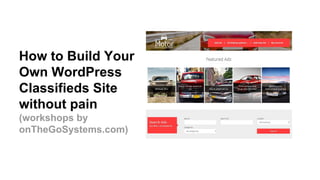
How to Build Your
Own WordPress
Classifieds Site
without pain
(workshops by
onTheGoSystems.com)
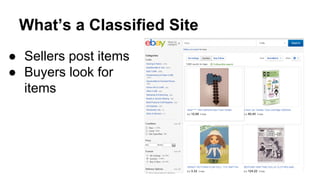
What’s a Classified Site
● Sellers post items
● Buyers look for
items
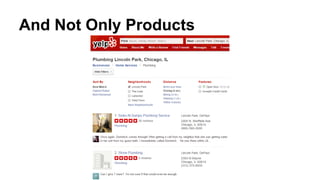
Not Only E-Commerce
And Not Only Products
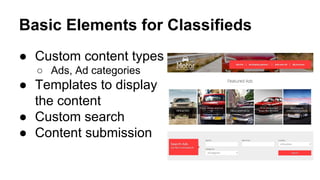
Basic Elements for Classifieds
● Custom content types
○ Ads, Ad categories
● Templates to display
the content
● Custom search
● Content submission
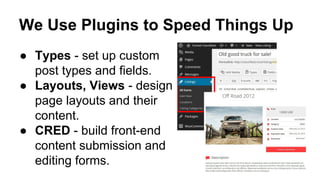
We Use Plugins to Speed Things Up
● Types - set up custom
post types and fields.
● Layouts, Views - design
page layouts and their
content.
● CRED - build front-end
content submission and
editing forms.
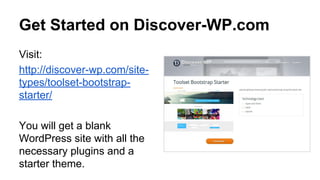
Get Started on Discover-WP.com
Visit:
http://discover-wp.com/site-
types/toolset-bootstrap-
starter/
You will get a blank
WordPress site with all the
necessary plugins and a
starter theme.
Part 1
Adding custom content for Listings
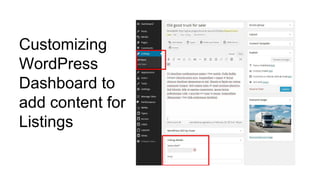
Customizing
WordPress
Dashboard to
add content for
Listings
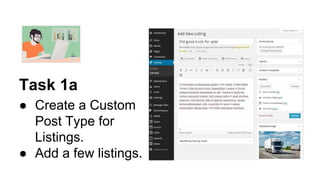
Task 1a
● Create a Custom
Post Type for
Listings.
● Add a few listings.
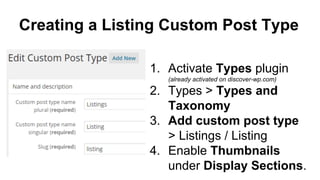
Creating a Listing Custom Post Type
1. Activate Types plugin
(already activated on discover-wp.com)
2. Types > Types and
Taxonomy
3. Add custom post type
> Listings / Listing
4. Enable Thumbnails
under Display Sections.
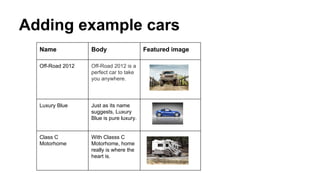
Adding example cars
Name Body Featured image
Off-Road 2012 Off-Road 2012 is a
perfect car to take
you anywhere.
Luxury Blue Just as its name
suggests, Luxury
Blue is pure luxury.
Class C
Motorhome
With Classs C
Motorhome, home
really is where the
heart is.
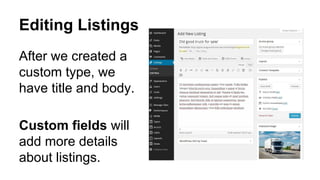
Editing Listings
After we created a
custom type, we
have title and body.
Custom fields will
add more details
about listings.
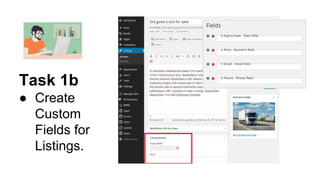
Task 1b
● Create
Custom
Fields for
Listings.
Custom Fields
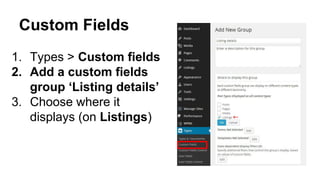
1. Types > Custom fields
2. Add a custom fields
group ‘Listing details’
3. Choose where it
displays (on Listings)
Custom Fields
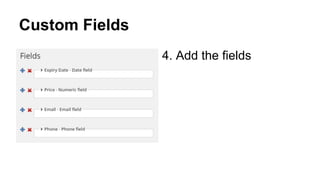
4. Add the fields
Listings
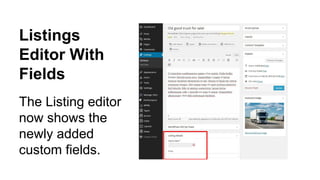
Editor With
Fields
The Listing editor
now shows the
newly added
custom fields.
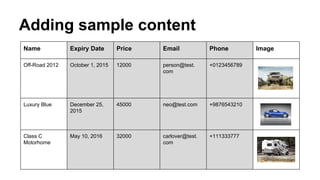
Adding sample content
Name Expiry Date Price Email Phone Image
Off-Road 2012 October 1, 2015 12000 person@test.
com
+0123456789
Luxury Blue December 25,
2015
45000 neo@test.com +9876543210
Class C
Motorhome
May 10, 2016 32000 carlover@test.
com
+111333777
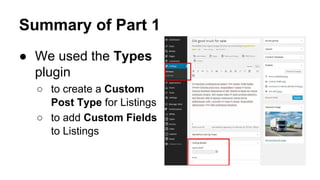
Summary of Part 1
● We used the Types
plugin
○ to create a Custom
Post Type for Listings
○ to add Custom Fields
to Listings
Part 2
Displaying a single listing
How WordPress Displays Content
Database >> PHP Templates >> HTML
Our Stack for Rapid Development
● Reference Sites theme
○ Grid system for easy content positioning
● Layouts plugin
○ Drag-and-drop editor for page layouts
● Views plugin
○ Content display engine
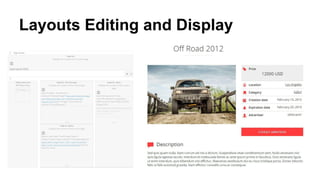
Layouts Editing and Display
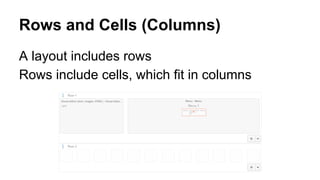
Rows and Cells (Columns)
A layout includes rows
Rows include cells, which fit in columns
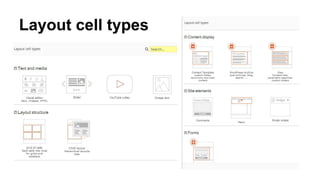
Layout cell types
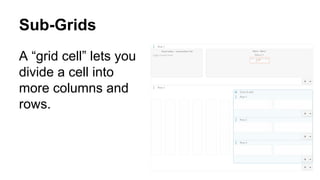
Sub-Grids
A “grid cell” lets you
divide a cell into
more columns and
rows.
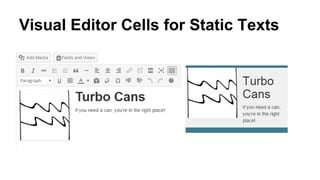
Visual Editor Cells for Static Texts
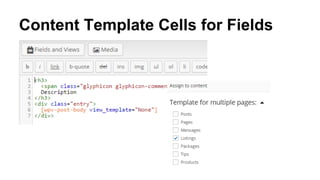
Content Template Cells for Fields
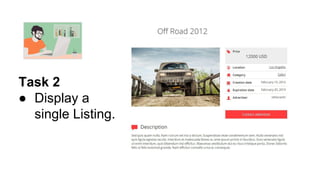
Task 2
● Display a
single Listing.
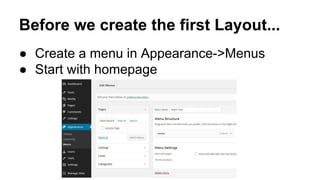
Before we create the first Layout...
● Create a menu in Appearance->Menus
● Start with homepage
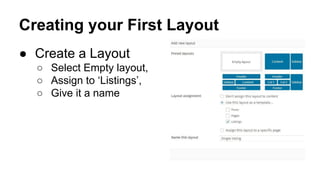
Creating your First Layout
● Create a Layout
○ Select Empty layout,
○ Assign to ‘Listings’,
○ Give it a name
Your First Layout
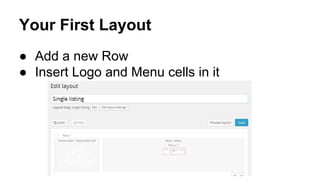
● Add a new Row
● Insert Logo and Menu cells in it
Your First Layout
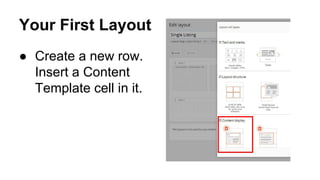
● Create a new row.
Insert a Content
Template cell in it.
Your First Layout
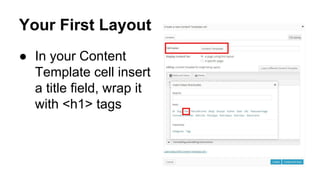
● In your Content
Template cell insert
a title field, wrap it
with <h1> tags
Your First Layout
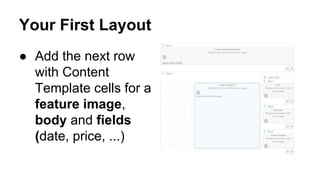
● Add the next row
with Content
Template cells for a
feature image,
body and fields
(date, price, ...)
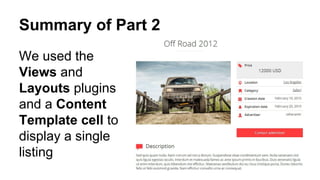
Summary of Part 2
We used the
Views and
Layouts plugins
and a Content
Template cell to
display a single
listing
Part 3
Organizing listings using categories
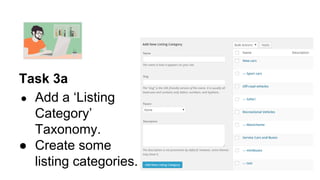
Task 3a
● Add a ‘Listing
Category’
Taxonomy.
● Create some
listing categories.
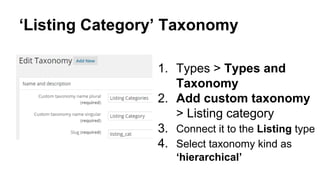
‘Listing Category’ Taxonomy
1. Types > Types and
Taxonomy
2. Add custom taxonomy
> Listing category
3. Connect it to the Listing type
4. Select taxonomy kind as
‘hierarchical’
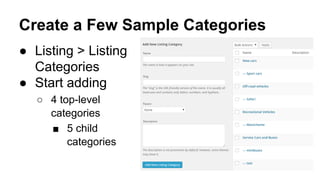
Create a Few Sample Categories
● Listing > Listing
Categories
● Start adding
○ 4 top-level
categories
■ 5 child
categories
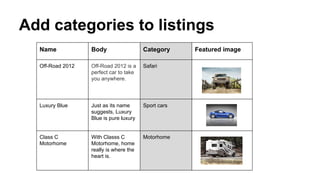
Add categories to listings
Name Body Category Featured image
Off-Road 2012 Off-Road 2012 is a
perfect car to take
you anywhere.
Safari
Luxury Blue Just as its name
suggests, Luxury
Blue is pure luxury
Sport cars
Class C
Motorhome
With Classs C
Motorhome, home
really is where the
heart is.
Motorhome
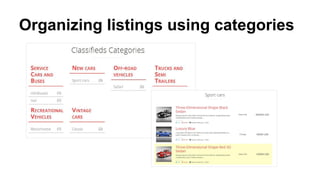
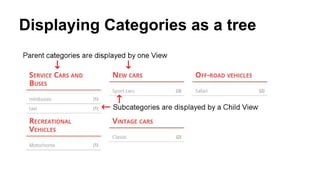
Displaying Categories as a tree
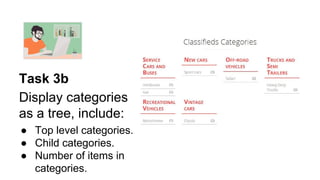
Task 3b
Display categories
as a tree, include:
● Top level categories.
● Child categories.
● Number of items in
categories.
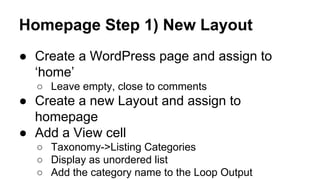
Homepage Step 1) New Layout
● Create a WordPress page and assign to
‘home’
○ Leave empty, close to comments
● Create a new Layout and assign to
homepage
● Add a View cell
○ Taxonomy->Listing Categories
○ Display as unordered list
○ Add the category name to the Loop Output
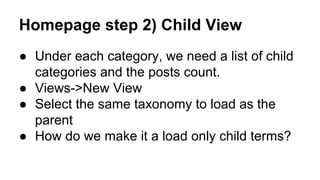
Homepage step 2) Child View
● Under each category, we need a list of child
categories and the posts count.
● Views->New View
● Select the same taxonomy to load as the
parent
● How do we make it a load only child terms?
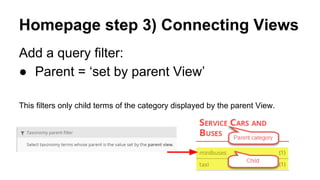
Homepage step 3) Connecting Views
Add a query filter:
● Parent = ‘set by parent View’
This filters only child terms of the category displayed by the parent View.
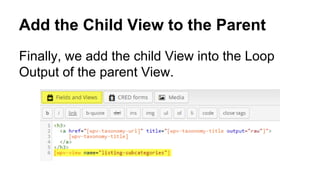
Add the Child View to the Parent
Finally, we add the child View into the Loop
Output of the parent View.
Categories Tree - Summary
1. Create a View for the top-level categories
2. Create a View for the child categories
3. Filter the query of the child-View, so that it
displays only child categories
4. Insert the child View into the Loop Output of
the parent View
5. Create a Layout for the category page
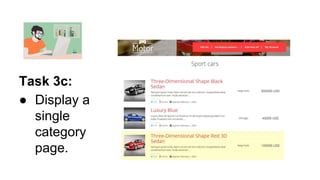
Task 3c:
● Display a
single
category
page.
Displaying Category Pages
● Create a new Layout
● Insert a ‘WordPress Archive’ cell
● Customize the appearance in the Template
● Assign to Taxonomy Archive > Listing
Categories.
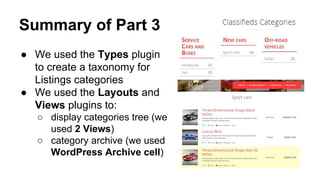
Summary of Part 3
● We used the Types plugin
to create a taxonomy for
Listings categories
● We used the Layouts and
Views plugins to:
○ display categories tree (we
used 2 Views)
○ category archive (we used
WordPress Archive cell)
Part 4
Creating a custom search
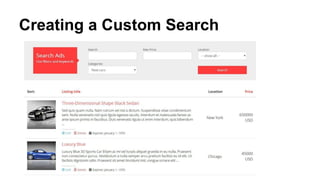
Creating a Custom Search
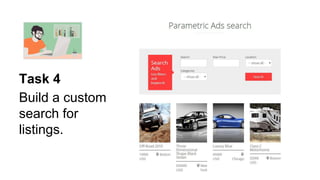
Task 4
Build a custom
search for
listings.
Add the Search to a Page
● Create a page for the search
● Create a layout for that page
● Insert a View cell
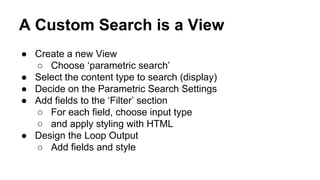
A Custom Search is a View
● Create a new View
○ Choose ‘parametric search’
● Select the content type to search (display)
● Decide on the Parametric Search Settings
● Add fields to the ‘Filter’ section
○ For each field, choose input type
○ and apply styling with HTML
● Design the Loop Output
○ Add fields and style
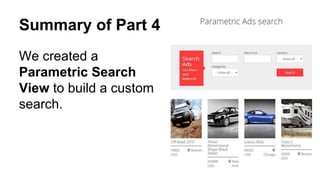
Summary of Part 4
We created a
Parametric Search
View to build a custom
search.
Part 5
Creating a front-end form for adding a new
listing
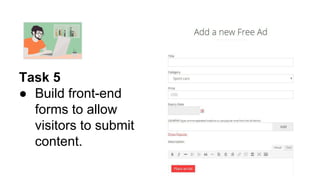
Task 5
● Build front-end
forms to allow
visitors to submit
content.
Allowing Visitors to Submit Content
● Create a new page for Submit Listings
● Create a Layout and Insert the CRED form
to it
● Create a CRED form cell
○ Submit Listing, Create content, Display the content,
Publish
○ Use the Scaffold
○ Add a notification email to yourself
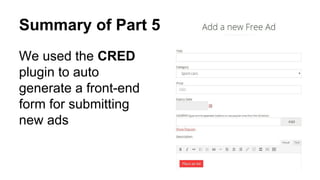
Summary of Part 5
We used the CRED
plugin to auto
generate a front-end
form for submitting
new ads
Free Toolset Classifieds demo site
discover-wp.com/site-templates/
Plugins available at wp-types.com

How to Build Your Own WordPress Classifieds Site without pain

  • 1.
    How to BuildYour Own WordPress Classifieds Site without pain (workshops by onTheGoSystems.com)
  • 2.
    What’s a ClassifiedSite ● Sellers post items ● Buyers look for items
  • 3.
  • 4.
    And Not OnlyProducts
  • 5.
    Basic Elements forClassifieds ● Custom content types ○ Ads, Ad categories ● Templates to display the content ● Custom search ● Content submission
  • 6.
    We Use Pluginsto Speed Things Up ● Types - set up custom post types and fields. ● Layouts, Views - design page layouts and their content. ● CRED - build front-end content submission and editing forms.
  • 7.
    Get Started onDiscover-WP.com Visit: http://discover-wp.com/site- types/toolset-bootstrap- starter/ You will get a blank WordPress site with all the necessary plugins and a starter theme.
  • 8.
    Part 1 Adding customcontent for Listings
  • 9.
  • 10.
    Task 1a ● Createa Custom Post Type for Listings. ● Add a few listings.
  • 11.
    Creating a ListingCustom Post Type 1. Activate Types plugin (already activated on discover-wp.com) 2. Types > Types and Taxonomy 3. Add custom post type > Listings / Listing 4. Enable Thumbnails under Display Sections.
  • 12.
    Adding example cars NameBody Featured image Off-Road 2012 Off-Road 2012 is a perfect car to take you anywhere. Luxury Blue Just as its name suggests, Luxury Blue is pure luxury. Class C Motorhome With Classs C Motorhome, home really is where the heart is.
  • 13.
    Editing Listings After wecreated a custom type, we have title and body. Custom fields will add more details about listings.
  • 14.
  • 15.
    Custom Fields 1. Types> Custom fields 2. Add a custom fields group ‘Listing details’ 3. Choose where it displays (on Listings)
  • 16.
  • 17.
    Listings Editor With Fields The Listingeditor now shows the newly added custom fields.
  • 18.
    Adding sample content NameExpiry Date Price Email Phone Image Off-Road 2012 October 1, 2015 12000 person@test. com +0123456789 Luxury Blue December 25, 2015 45000 neo@test.com +9876543210 Class C Motorhome May 10, 2016 32000 carlover@test. com +111333777
  • 19.
    Summary of Part1 ● We used the Types plugin ○ to create a Custom Post Type for Listings ○ to add Custom Fields to Listings
  • 20.
    Part 2 Displaying asingle listing
  • 21.
    How WordPress DisplaysContent Database >> PHP Templates >> HTML
  • 22.
    Our Stack forRapid Development ● Reference Sites theme ○ Grid system for easy content positioning ● Layouts plugin ○ Drag-and-drop editor for page layouts ● Views plugin ○ Content display engine
  • 23.
  • 24.
    Rows and Cells(Columns) A layout includes rows Rows include cells, which fit in columns
  • 25.
  • 26.
    Sub-Grids A “grid cell”lets you divide a cell into more columns and rows.
  • 27.
    Visual Editor Cellsfor Static Texts
  • 28.
  • 29.
    Task 2 ● Displaya single Listing.
  • 30.
    Before we createthe first Layout... ● Create a menu in Appearance->Menus ● Start with homepage
  • 31.
    Creating your FirstLayout ● Create a Layout ○ Select Empty layout, ○ Assign to ‘Listings’, ○ Give it a name
  • 32.
    Your First Layout ●Add a new Row ● Insert Logo and Menu cells in it
  • 33.
    Your First Layout ●Create a new row. Insert a Content Template cell in it.
  • 34.
    Your First Layout ●In your Content Template cell insert a title field, wrap it with <h1> tags
  • 35.
    Your First Layout ●Add the next row with Content Template cells for a feature image, body and fields (date, price, ...)
  • 36.
    Summary of Part2 We used the Views and Layouts plugins and a Content Template cell to display a single listing
  • 37.
  • 38.
  • 39.
    Task 3a ● Adda ‘Listing Category’ Taxonomy. ● Create some listing categories.
  • 40.
    ‘Listing Category’ Taxonomy 1.Types > Types and Taxonomy 2. Add custom taxonomy > Listing category 3. Connect it to the Listing type 4. Select taxonomy kind as ‘hierarchical’
  • 41.
    Create a FewSample Categories ● Listing > Listing Categories ● Start adding ○ 4 top-level categories ■ 5 child categories
  • 42.
    Add categories tolistings Name Body Category Featured image Off-Road 2012 Off-Road 2012 is a perfect car to take you anywhere. Safari Luxury Blue Just as its name suggests, Luxury Blue is pure luxury Sport cars Class C Motorhome With Classs C Motorhome, home really is where the heart is. Motorhome
  • 43.
  • 44.
    Task 3b Display categories asa tree, include: ● Top level categories. ● Child categories. ● Number of items in categories.
  • 45.
    Homepage Step 1)New Layout ● Create a WordPress page and assign to ‘home’ ○ Leave empty, close to comments ● Create a new Layout and assign to homepage ● Add a View cell ○ Taxonomy->Listing Categories ○ Display as unordered list ○ Add the category name to the Loop Output
  • 46.
    Homepage step 2)Child View ● Under each category, we need a list of child categories and the posts count. ● Views->New View ● Select the same taxonomy to load as the parent ● How do we make it a load only child terms?
  • 47.
    Homepage step 3)Connecting Views Add a query filter: ● Parent = ‘set by parent View’ This filters only child terms of the category displayed by the parent View.
  • 48.
    Add the ChildView to the Parent Finally, we add the child View into the Loop Output of the parent View.
  • 49.
    Categories Tree -Summary 1. Create a View for the top-level categories 2. Create a View for the child categories 3. Filter the query of the child-View, so that it displays only child categories 4. Insert the child View into the Loop Output of the parent View 5. Create a Layout for the category page
  • 50.
    Task 3c: ● Displaya single category page.
  • 51.
    Displaying Category Pages ●Create a new Layout ● Insert a ‘WordPress Archive’ cell ● Customize the appearance in the Template ● Assign to Taxonomy Archive > Listing Categories.
  • 52.
    Summary of Part3 ● We used the Types plugin to create a taxonomy for Listings categories ● We used the Layouts and Views plugins to: ○ display categories tree (we used 2 Views) ○ category archive (we used WordPress Archive cell)
  • 53.
    Part 4 Creating acustom search
  • 54.
  • 55.
    Task 4 Build acustom search for listings.
  • 56.
    Add the Searchto a Page ● Create a page for the search ● Create a layout for that page ● Insert a View cell
  • 57.
    A Custom Searchis a View ● Create a new View ○ Choose ‘parametric search’ ● Select the content type to search (display) ● Decide on the Parametric Search Settings ● Add fields to the ‘Filter’ section ○ For each field, choose input type ○ and apply styling with HTML ● Design the Loop Output ○ Add fields and style
  • 58.
    Summary of Part4 We created a Parametric Search View to build a custom search.
  • 59.
    Part 5 Creating afront-end form for adding a new listing
  • 60.
    Task 5 ● Buildfront-end forms to allow visitors to submit content.
  • 61.
    Allowing Visitors toSubmit Content ● Create a new page for Submit Listings ● Create a Layout and Insert the CRED form to it ● Create a CRED form cell ○ Submit Listing, Create content, Display the content, Publish ○ Use the Scaffold ○ Add a notification email to yourself
  • 62.
    Summary of Part5 We used the CRED plugin to auto generate a front-end form for submitting new ads
  • 63.
    Free Toolset Classifiedsdemo site discover-wp.com/site-templates/
  • 64.