What is Sage Mobile Payments?
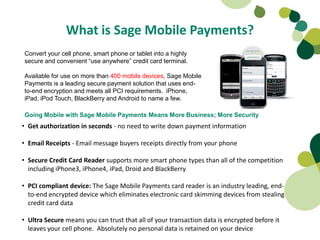
Convert your cell phone, smart phone or tablet into a highly
secure and convenient “use anywhere” credit card terminal.

Available for use on more than 400 mobile devices, Sage Mobile
Payments is a leading secure payment solution that uses end-
to-end encryption and meets all PCI requirements. iPhone,
iPad, iPod Touch, BlackBerry and Android to name a few.

Going Mobile with Sage Mobile Payments Means More Business; More Security
• Get authorization in seconds - no need to write down payment information

• Email Receipts - Email message buyers receipts directly from your phone

• Secure Credit Card Reader supports more smart phone types than all of the competition
  including iPhone3, iPhone4, iPad, Droid and BlackBerry

• PCI compliant device: The Sage Mobile Payments card reader is an industry leading, end-
  to-end encrypted device which eliminates electronic card skimming devices from stealing
  credit card data

• Ultra Secure means you can trust that all of your transaction data is encrypted before it
  leaves your cell phone. Absolutely no personal data is retained on your device
Requirements to use Sage Mobile Payments

1.Sage Mobile Payments Account
2.Compatible mobile phone or tablet
  • Downloadable ROAMPay application
    available in the iTunes app store and
    Android Marketplace
3. Data plan for your mobile device
4.Credit Card Reader “Swiper” Optional
Step by Step setup process
The steps are as follows:
•   Master Troop User - Sign up via online reservation form.
•   SPS sends a mobile welcome email that includes a link, click or copy/paste into
    url.
•   Register the phone number, user info, click send
•   User will receive another email from RoamData with activation code within 5
    minutes
•   Download RoamPay app (free) from ITunes app store (this requires login to ITunes
    account) or the Android Marketplace or with Blackberry, the text string comes in
    the registration email.
•   Click/select the RoamPay icon on the phone, then enter activation code from
    RoamPay, enter your user/password for RoamPay and start accepting cc.
•   SPS Mobile Support 8am-8pm est 7 days/week
    1-888-477-8570 or email mobilesupport@sagepayments.com

    NOTE: if at any time, you are prompted for last 4 digits of social security or tax id,
    input 1111 OR 9999
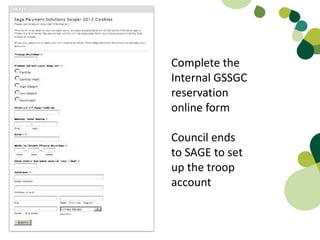
Complete the
Internal GSSGC
reservation
online form

Council ends
to SAGE to set
up the troop
account
Sage sends an email to complete troop
           account sign up.


          When asked for last 4 of social, use 1111 or 9999
Main troop user
receives a
second email
with their log-in
info and
activation code
for the app.
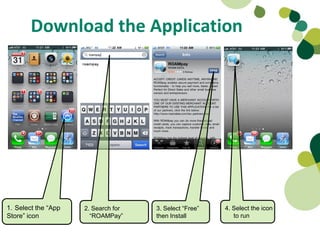
Download the Application


1. Select the “App   2. Search for   3. Select “Free”   4. Select the icon
Store” icon            “ROAMPay”     then Install          to run
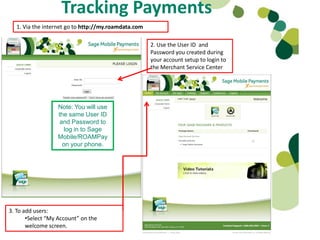
Tracking Payments
  1. Via the internet go to http://my.roamdata.com

                                                     2. Use the User ID and
                                                     Password you created during
                                                     your account setup to login to
                                                     the Merchant Service Center


                  Note: You will use
                  the same User ID
                   and Password to
                    log in to Sage
                  Mobile/ROAMPay
                    on your phone.


3. To add users:
       •Select “My Account” on the
       welcome screen.
Who is
Nancy?
Nancy is our
Main Merchant
Account holder,
so her name is
on everything!
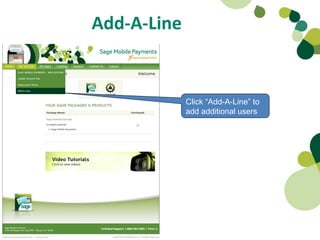
Add-A-Line


             Click “Add-A-Line” to
             add additional users
Add-A-Line
      Fill out the User Form and
      click “Create Subline”


               You will see the lines that are active
               on your account in this menu
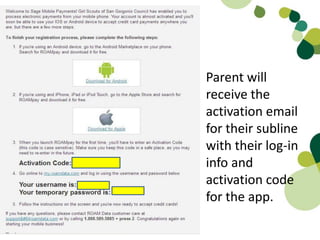
Parent will
receive the
activation email
for their subline
with their log-in
info and
activation code
for the app.
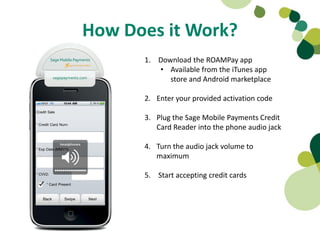
How Does it Work?
      1. Download the ROAMPay app
         • Available from the iTunes app
            store and Android marketplace

      2. Enter your provided activation code

      3. Plug the Sage Mobile Payments Credit
         Card Reader into the phone audio jack

      4. Turn the audio jack volume to
         maximum

      5. Start accepting credit cards
Processing a Transaction –
                          iPhone, iPad, Android & Blackberry
  REMINDER: Since the device runs through the audio jack, please remember to set
  volume to MAXIMUM level when using


Select “Credit Sale”                   Enter the amount                       Here you or select “Swipe” to use the provided
                                                                              Swiper or you can key the card number

               NOTE: As mentioned above, the card reader must be plugged in to the audio
               jack before logging in to ROAMPay.
Sending Electronic Receipt from any phone

              •Email your cookie/nut customer an electronic
              receipt with notes of the transaction.

                   •You can aslo use he notes to distinguish
                   between different girls or booth sales

              •With every sale you will be sent a copy of the
              transaction electronically to the email address
              on file.
FAQs
• How does Sage Mobile work?
Sage Mobile works the same way any credit card processing
system would; your customer gives you a credit card number,
you key it in or swipe the card. If the sale is authorized, the
funds are transmitted electronically from your customer’s bank
to Council’s bank and you email a receipt to your customer
• What credit card can I accept with Sage Mobile
You can take all major card brands; Visa, MasterCard, and
Discover
• Can I accept debit cards?
If your customer has what is called a “signature debit card” or a
check card, you have everything you need to process. PIN based
debit cards/transactions are not supported.
FAQs cont.
• Can more than one person use a single Sage Mobile User ID
  at the same time?
No, but you will be able to add additional users through your
online portal as necessary. Each user has separate access to
payment processing.

•    Can How much data does a credit card transaction use?
Less than one email size.

  NOTE: IF you have devices without phone numbers such as
  IPOD touch and IPAD, please fill in phone number with all 9s
  during setup.
FAQs cont.
• What if I have more than one girl in different troops?
You will need two separate devices with a separate subline created
in each troop. You cannot activate the same device with different
accounts. However, if your girls are in the same troop, you can use
the “notes” section on the receipt to distinguish their sales. You will
need to provide that information to your troop coordinator to
accurately record girl payments in SNAP.
• How much does it cost the troop to use Sage Mobile Payments?
The cost is $10 per troop to set up a master account. That fee will be
included in the troop’s first Swoop and Sweep.
Council will cover all fees associated with the transactions.
However, please be aware that there is an additional fee that
Council is charged associated with keyed vs. swiped transactions. If
the swiper works with your device, PLEASE use it!
FAQs cont.
• Is there a fee for the swiper?
There is no fee for checking out swipers. However, there is a $50 fee
per swiper if it is lost, damaged or not returned at by paper push.
That fee is paid by whoever had last contracted responsibility of it,
and will be included in the troop’s last Swoop and Sweep.
•How does the troop receive payment credit?
Before the last Swoop and Sweep, Council will upload each troop’s
total payment into SNAP. Thus, decreasing the final payment due
amount.
NOTE: If the troop does not have enough cash funds available for
each sweep, DUE TO and abundance of credit card transactions,
they will be able to request an adjustment to me made to their
area’s Financial Coordinator.
***This is still a pilot, so procedures are subject to change.
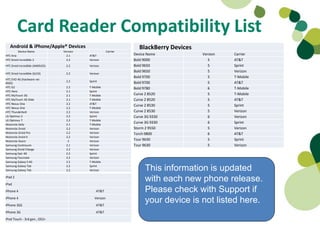
Card Reader Compatibility List
   Android & iPhone/Apple® Devices                                   BlackBerry Devices
         Device Name            Version                 Carrier
HTC Aria                          2.1     AT&T                    Device Name             Version   Carrier
HTC Droid Incredible 2            2.2     Verizon                 Bold 9000                  5      AT&T
HTC Droid Incredible (AMOLED)     2.2     Verizon                 Bold 9650                  5      Sprint
                                                                  Bold 9650                  5      Verizon
HTC Droid Incredible (SLCD)       2.2     Verizon
                                                                  Bold 9700                  5      T-Mobile
HTC EVO 4G (hardware ver.
                                  2.2     Sprint                  Bold 9700                  5      AT&T
0002)
HTC G2                            2.2     T-Mobile                Bold 9780                  6      T-Mobile
HTC Hero                          2.1     Sprint
HTC MyTouch 3G                    2.1     T-Mobile                Curve 2 8520               5      T-Mobile
HTC MyTouch 3G Slide              2.1     T-Mobile                Curve 2 8520               5      AT&T
HTC Nexus One                     2.2     AT&T
                                                                  Curve 2 8530               5      Sprint
HTC Nexus One                     2.2     T-Mobile
HTC Thunderbolt                   2.2     Verizon                 Curve 2 8530               5      Verizon
LG Optimus S                      2.2     Sprint                  Curve 3G 9330              6      Verizon
LG Optimus T                      2.2     T-Mobile
Motorola Defy                     2.1     T-Mobile
                                                                  Curve 3G 9330              6      Sprint
Motorola Droid                    2.2     Verizon                 Storm 2 9550               5      Verizon
Motorola Droid Pro                2.2     Verizon                 Torch 9800                 6      AT&T
Motorola Droid X                  2.2     Verizon
Motorola Xoom                      3      Verizon                 Tour 9630                  5      Sprint
Samsung Continuum                 2.1     Verizon                 Tour 9630                  5      Verizon
Samsung Droid Charge              2.2     Verizon
Samsung Epic 4G                   2.2     Sprint
Samsung Fascinate                 2.2     Verizon
Samsung Galaxy S 4G               2.2     T-Mobile
Samsung Galaxy Tab
Samsung Galaxy Tab
                                  2.2
                                  2.2
                                          Sprint
                                          Verizon                       This information is updated
iPad 2
iPad
                                                                        with each new phone release.
iPhone 4                                       AT&T                     Please check with Support if
iPhone 4
iPhone 3GS
                                              Verizon
                                               AT&T
                                                                        your device is not listed here.
iPhone 3G                                      AT&T
iPod Touch - 3rd gen., OS3+
BlackBerry
      • BlackBerry and feature phone setup is done VIA a text after your online registration

      • If text not received within 5 minutes, contact SPS Mobile support 1-888-477-8570 or
        mobilesupport@sagepayments.com and request to have the text resent manually-many
        Blackberry devices have premium/automated messaging blocked.

  BlackBerry Setup


  New SMS message from                                 Open the message and then the URL provided to download the application
  ROAMdata


Once the download has been completed the ROAMPay application will be in your BlackBerry
downloads folder
Additional Resources
•     Online via my.roamdata.com

•     By phone-SPS Mobile Support 8am-8pm est.
      7 days/week 1-888-477-8570

•     Email – mobilesupport@sagepayments.com

•     Sage Mobile Swipe supported device list:

    http://devices.roamdata.com/device-center/index2.php

Sage Swiper Instructions

  • 2.
    What is SageMobile Payments? Convert your cell phone, smart phone or tablet into a highly secure and convenient “use anywhere” credit card terminal. Available for use on more than 400 mobile devices, Sage Mobile Payments is a leading secure payment solution that uses end- to-end encryption and meets all PCI requirements. iPhone, iPad, iPod Touch, BlackBerry and Android to name a few. Going Mobile with Sage Mobile Payments Means More Business; More Security • Get authorization in seconds - no need to write down payment information • Email Receipts - Email message buyers receipts directly from your phone • Secure Credit Card Reader supports more smart phone types than all of the competition including iPhone3, iPhone4, iPad, Droid and BlackBerry • PCI compliant device: The Sage Mobile Payments card reader is an industry leading, end- to-end encrypted device which eliminates electronic card skimming devices from stealing credit card data • Ultra Secure means you can trust that all of your transaction data is encrypted before it leaves your cell phone. Absolutely no personal data is retained on your device
  • 3.
    Requirements to useSage Mobile Payments 1.Sage Mobile Payments Account 2.Compatible mobile phone or tablet • Downloadable ROAMPay application available in the iTunes app store and Android Marketplace 3. Data plan for your mobile device 4.Credit Card Reader “Swiper” Optional
  • 4.
    Step by Stepsetup process The steps are as follows: • Master Troop User - Sign up via online reservation form. • SPS sends a mobile welcome email that includes a link, click or copy/paste into url. • Register the phone number, user info, click send • User will receive another email from RoamData with activation code within 5 minutes • Download RoamPay app (free) from ITunes app store (this requires login to ITunes account) or the Android Marketplace or with Blackberry, the text string comes in the registration email. • Click/select the RoamPay icon on the phone, then enter activation code from RoamPay, enter your user/password for RoamPay and start accepting cc. • SPS Mobile Support 8am-8pm est 7 days/week 1-888-477-8570 or email mobilesupport@sagepayments.com NOTE: if at any time, you are prompted for last 4 digits of social security or tax id, input 1111 OR 9999
  • 5.
    Complete the Internal GSSGC reservation onlineform Council ends to SAGE to set up the troop account
  • 6.
    Sage sends anemail to complete troop account sign up. When asked for last 4 of social, use 1111 or 9999
  • 7.
    Main troop user receivesa second email with their log-in info and activation code for the app.
  • 8.
    Download the Application 1.Select the “App 2. Search for 3. Select “Free” 4. Select the icon Store” icon “ROAMPay” then Install to run
  • 9.
    Tracking Payments 1. Via the internet go to http://my.roamdata.com 2. Use the User ID and Password you created during your account setup to login to the Merchant Service Center Note: You will use the same User ID and Password to log in to Sage Mobile/ROAMPay on your phone. 3. To add users: •Select “My Account” on the welcome screen.
  • 10.
  • 11.
    Nancy is our MainMerchant Account holder, so her name is on everything!
  • 12.
    Add-A-Line Click “Add-A-Line” to add additional users
  • 13.
    Add-A-Line Fill out the User Form and click “Create Subline” You will see the lines that are active on your account in this menu
  • 14.
    Parent will receive the activationemail for their subline with their log-in info and activation code for the app.
  • 15.
    How Does itWork? 1. Download the ROAMPay app • Available from the iTunes app store and Android marketplace 2. Enter your provided activation code 3. Plug the Sage Mobile Payments Credit Card Reader into the phone audio jack 4. Turn the audio jack volume to maximum 5. Start accepting credit cards
  • 16.
    Processing a Transaction– iPhone, iPad, Android & Blackberry REMINDER: Since the device runs through the audio jack, please remember to set volume to MAXIMUM level when using Select “Credit Sale” Enter the amount Here you or select “Swipe” to use the provided Swiper or you can key the card number NOTE: As mentioned above, the card reader must be plugged in to the audio jack before logging in to ROAMPay.
  • 17.
    Sending Electronic Receiptfrom any phone •Email your cookie/nut customer an electronic receipt with notes of the transaction. •You can aslo use he notes to distinguish between different girls or booth sales •With every sale you will be sent a copy of the transaction electronically to the email address on file.
  • 18.
    FAQs • How doesSage Mobile work? Sage Mobile works the same way any credit card processing system would; your customer gives you a credit card number, you key it in or swipe the card. If the sale is authorized, the funds are transmitted electronically from your customer’s bank to Council’s bank and you email a receipt to your customer • What credit card can I accept with Sage Mobile You can take all major card brands; Visa, MasterCard, and Discover • Can I accept debit cards? If your customer has what is called a “signature debit card” or a check card, you have everything you need to process. PIN based debit cards/transactions are not supported.
  • 19.
    FAQs cont. • Canmore than one person use a single Sage Mobile User ID at the same time? No, but you will be able to add additional users through your online portal as necessary. Each user has separate access to payment processing. • Can How much data does a credit card transaction use? Less than one email size. NOTE: IF you have devices without phone numbers such as IPOD touch and IPAD, please fill in phone number with all 9s during setup.
  • 20.
    FAQs cont. • Whatif I have more than one girl in different troops? You will need two separate devices with a separate subline created in each troop. You cannot activate the same device with different accounts. However, if your girls are in the same troop, you can use the “notes” section on the receipt to distinguish their sales. You will need to provide that information to your troop coordinator to accurately record girl payments in SNAP. • How much does it cost the troop to use Sage Mobile Payments? The cost is $10 per troop to set up a master account. That fee will be included in the troop’s first Swoop and Sweep. Council will cover all fees associated with the transactions. However, please be aware that there is an additional fee that Council is charged associated with keyed vs. swiped transactions. If the swiper works with your device, PLEASE use it!
  • 21.
    FAQs cont. • Isthere a fee for the swiper? There is no fee for checking out swipers. However, there is a $50 fee per swiper if it is lost, damaged or not returned at by paper push. That fee is paid by whoever had last contracted responsibility of it, and will be included in the troop’s last Swoop and Sweep. •How does the troop receive payment credit? Before the last Swoop and Sweep, Council will upload each troop’s total payment into SNAP. Thus, decreasing the final payment due amount. NOTE: If the troop does not have enough cash funds available for each sweep, DUE TO and abundance of credit card transactions, they will be able to request an adjustment to me made to their area’s Financial Coordinator. ***This is still a pilot, so procedures are subject to change.
  • 22.
    Card Reader CompatibilityList Android & iPhone/Apple® Devices BlackBerry Devices Device Name Version Carrier HTC Aria 2.1 AT&T Device Name Version Carrier HTC Droid Incredible 2 2.2 Verizon Bold 9000 5 AT&T HTC Droid Incredible (AMOLED) 2.2 Verizon Bold 9650 5 Sprint Bold 9650 5 Verizon HTC Droid Incredible (SLCD) 2.2 Verizon Bold 9700 5 T-Mobile HTC EVO 4G (hardware ver. 2.2 Sprint Bold 9700 5 AT&T 0002) HTC G2 2.2 T-Mobile Bold 9780 6 T-Mobile HTC Hero 2.1 Sprint HTC MyTouch 3G 2.1 T-Mobile Curve 2 8520 5 T-Mobile HTC MyTouch 3G Slide 2.1 T-Mobile Curve 2 8520 5 AT&T HTC Nexus One 2.2 AT&T Curve 2 8530 5 Sprint HTC Nexus One 2.2 T-Mobile HTC Thunderbolt 2.2 Verizon Curve 2 8530 5 Verizon LG Optimus S 2.2 Sprint Curve 3G 9330 6 Verizon LG Optimus T 2.2 T-Mobile Motorola Defy 2.1 T-Mobile Curve 3G 9330 6 Sprint Motorola Droid 2.2 Verizon Storm 2 9550 5 Verizon Motorola Droid Pro 2.2 Verizon Torch 9800 6 AT&T Motorola Droid X 2.2 Verizon Motorola Xoom 3 Verizon Tour 9630 5 Sprint Samsung Continuum 2.1 Verizon Tour 9630 5 Verizon Samsung Droid Charge 2.2 Verizon Samsung Epic 4G 2.2 Sprint Samsung Fascinate 2.2 Verizon Samsung Galaxy S 4G 2.2 T-Mobile Samsung Galaxy Tab Samsung Galaxy Tab 2.2 2.2 Sprint Verizon This information is updated iPad 2 iPad with each new phone release. iPhone 4 AT&T Please check with Support if iPhone 4 iPhone 3GS Verizon AT&T your device is not listed here. iPhone 3G AT&T iPod Touch - 3rd gen., OS3+
  • 23.
    BlackBerry • BlackBerry and feature phone setup is done VIA a text after your online registration • If text not received within 5 minutes, contact SPS Mobile support 1-888-477-8570 or mobilesupport@sagepayments.com and request to have the text resent manually-many Blackberry devices have premium/automated messaging blocked. BlackBerry Setup New SMS message from Open the message and then the URL provided to download the application ROAMdata Once the download has been completed the ROAMPay application will be in your BlackBerry downloads folder
  • 24.
    Additional Resources • Online via my.roamdata.com • By phone-SPS Mobile Support 8am-8pm est. 7 days/week 1-888-477-8570 • Email – mobilesupport@sagepayments.com • Sage Mobile Swipe supported device list: http://devices.roamdata.com/device-center/index2.php