EOSC Portal End-User Component Tutorial
v1.00 – 30/09/2020
Bartosz Wilk, ACC Cyfronet, Dr. Jorge-A. Sanchez, JNP
2
Accessing the EOSC Portal
End-Users from all over
the World can enjoy
reliable, fast and seamless
access to all onboarded
EOSC Resources at the
ease of their fingertips at
the EOSC Portal [1] .
[1] www.eosc-portal.eu
Registering with the EOSC Portal
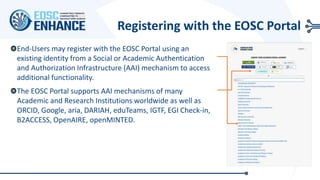
End-Users may register with the EOSC Portal using an
existing identity from a Social or Academic Authentication
and Authorization Infrastructure (AAI) mechanism to access
additional functionality.
The EOSC Portal supports AAI mechanisms of many
Academic and Research Institutions worldwide as well as
ORCID, Google, aria, DARIAH, eduTeams, IGTF, EGI Check-in,
B2ACCESS, OpenAIRE, openMINTED.
4
EOSC Portal End-User Component
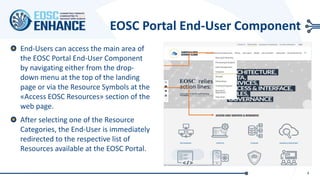
End-Users can access the main area of
the EOSC Portal End-User Component
by navigating either from the drop-
down menu at the top of the landing
page or via the Resource Symbols at the
«Access EOSC Resources» section of the
web page.
After selecting one of the Resource
Categories, the End-User is immediately
redirected to the respective list of
Resources available at the EOSC Portal.
5
Searching the EOSC Portal Catalogue
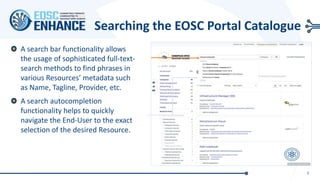
A search bar functionality allows
the usage of sophisticated full-text-
search methods to find phrases in
various Resources’ metadata such
as Name, Tagline, Provider, etc.
A search autocompletion
functionality helps to quickly
navigate the End-User to the exact
selection of the desired Resource.
6
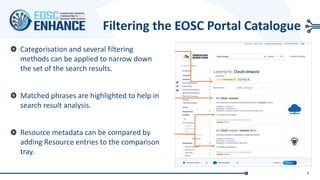
Filtering the EOSC Portal Catalogue
Categorisation and several filtering
methods can be applied to narrow down
the set of the search results.
Matched phrases are highlighted to help in
search result analysis.
Resource metadata can be compared by
adding Resource entries to the comparison
tray.
7
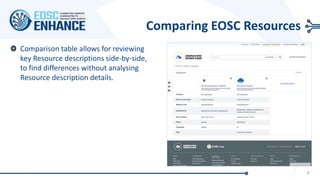
Comparing EOSC Resources
Comparison table allows for reviewing
key Resource descriptions side-by-side,
to find differences without analysing
Resource description details.
8
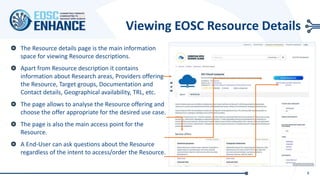
Viewing EOSC Resource Details
The Resource details page is the main information
space for viewing Resource descriptions.
Apart from Resource description it contains
information about Research areas, Providers offering
the Resource, Target groups, Documentation and
Contact details, Geographical availability, TRL, etc.
The page allows to analyse the Resource offering and
choose the offer appropriate for the desired use case.
The page is also the main access point for the
Resource.
A End-User can ask questions about the Resource
regardless of the intent to access/order the Resource.
9
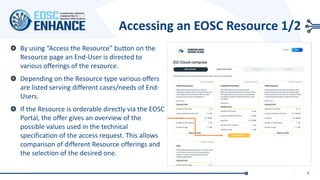
Accessing an EOSC Resource 1/2
By using “Access the Resource” button on the
Resource page an End-User is directed to
various offerings of the resource.
Depending on the Resource type various offers
are listed serving different cases/needs of End-
Users.
If the Resource is orderable directly via the EOSC
Portal, the offer gives an overview of the
possible values used in the technical
specification of the access request. This allows
comparison of different Resource offerings and
the selection of the desired one.
10
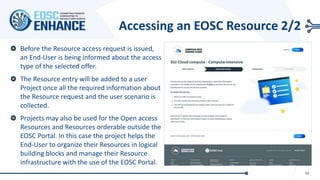
Accessing an EOSC Resource 2/2
Before the Resource access request is issued,
an End-User is being informed about the access
type of the selected offer.
The Resource entry will be added to a user
Project once all the required information about
the Resource request and the user scenario is
collected.
Projects may also be used for the Open access
Resources and Resources orderable outside the
EOSC Portal. In this case the project helps the
End-User to organize their Resources in logical
building blocks and manage their Resource
infrastructure with the use of the EOSC Portal.
11
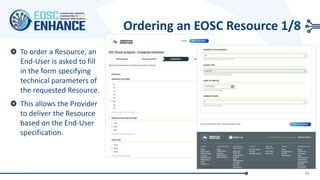
Ordering an EOSC Resource 1/8
To order a Resource, an
End-User is asked to fill
in the form specifying
technical parameters of
the requested Resource.
This allows the Provider
to deliver the Resource
based on the End-User
specification.
12
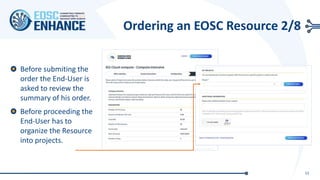
Ordering an EOSC Resource 2/8
Before submiting the
order the End-User is
asked to review the
summary of his order.
Before proceeding the
End-User has to
organize the Resource
into projects.
13
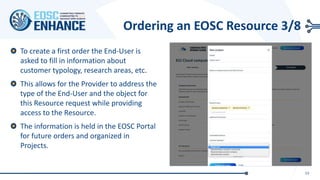
Ordering an EOSC Resource 3/8
To create a first order the End-User is
asked to fill in information about
customer typology, research areas, etc.
This allows for the Provider to address the
type of the End-User and the object for
this Resource request while providing
access to the Resource.
The information is held in the EOSC Portal
for future orders and organized in
Projects.
14
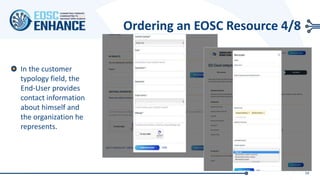
Ordering an EOSC Resource 4/8
In the customer
typology field, the
End-User provides
contact information
about himself and
the organization he
represents.
15
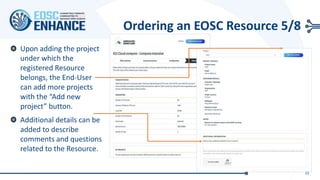
Ordering an EOSC Resource 5/8
Upon adding the project
under which the
registered Resource
belongs, the End-User
can add more projects
with the “Add new
project” button.
Additional details can be
added to describe
comments and questions
related to the Resource.
16
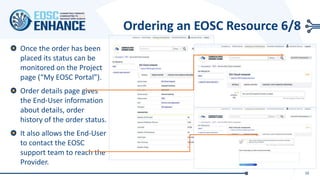
Ordering an EOSC Resource 6/8
Once the order has been
placed its status can be
monitored on the Project
page (“My EOSC Portal”).
Order details page gives
the End-User information
about details, order
history of the order status.
It also allows the End-User
to contact the EOSC
support team to reach the
Provider.
17
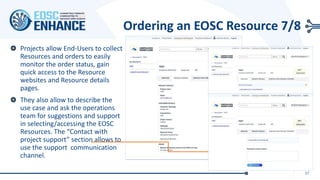
Ordering an EOSC Resource 7/8
Projects allow End-Users to collect
Resources and orders to easily
monitor the order status, gain
quick access to the Resource
websites and Resource details
pages.
They also allow to describe the
use case and ask the operations
team for suggestions and support
in selecting/accessing the EOSC
Resources. The “Contact with
project support” section allows to
use the support communication
channel.
18
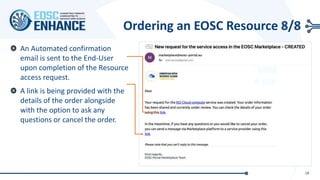
Ordering an EOSC Resource 8/8
An Automated confirmation
email is sent to the End-User
upon completion of the Resource
access request.
A link is being provided with the
details of the order alongside
with the option to ask any
questions or cancel the order.
11/11/2020 19
Disclaimer
The information contained in this document is provided by the copyright holders "as is" and any express or
implied warranties, including, but not limited to, the implied warranties of merchantability and fitness for a
particular purpose are disclaimed. In no event shall the authors or the European Commission be liable for
any direct, indirect, incidental, special, exemplary, or consequential damages (including, but not limited to,
procurement of substitute goods or services; loss of use, data, or profits; or business interruption) however
caused and on any theory of liability, whether in contract, strict liability, or tort (including negligence or
otherwise) arising in any way out of the use of the information contained in this document, even if advised
of the possibility of such damage. The sole responsibility for the content of this publication lies with the
authors. It does not necessarily reflect the opinion of the European Commission. The European Commission
is not responsible for any use that may be made of the information contained therein.
Copyright
This work by JNP, NKUA and CYFRONET is licensed under a Creative Commons Attribution 4.0 International
License (http://creativecommons.org/licenses/by/4.0/).
https://www.eosc-portal.eu/
info@eosc-portal.eu
https://twitter.com/eoscportal
11/11/2020

EOSC Portal End-User Component Tutorial

  • 1.
    EOSC Portal End-UserComponent Tutorial v1.00 – 30/09/2020 Bartosz Wilk, ACC Cyfronet, Dr. Jorge-A. Sanchez, JNP
  • 2.
    2 Accessing the EOSCPortal End-Users from all over the World can enjoy reliable, fast and seamless access to all onboarded EOSC Resources at the ease of their fingertips at the EOSC Portal [1] . [1] www.eosc-portal.eu
  • 3.
    Registering with theEOSC Portal End-Users may register with the EOSC Portal using an existing identity from a Social or Academic Authentication and Authorization Infrastructure (AAI) mechanism to access additional functionality. The EOSC Portal supports AAI mechanisms of many Academic and Research Institutions worldwide as well as ORCID, Google, aria, DARIAH, eduTeams, IGTF, EGI Check-in, B2ACCESS, OpenAIRE, openMINTED.
  • 4.
    4 EOSC Portal End-UserComponent End-Users can access the main area of the EOSC Portal End-User Component by navigating either from the drop- down menu at the top of the landing page or via the Resource Symbols at the «Access EOSC Resources» section of the web page. After selecting one of the Resource Categories, the End-User is immediately redirected to the respective list of Resources available at the EOSC Portal.
  • 5.
    5 Searching the EOSCPortal Catalogue A search bar functionality allows the usage of sophisticated full-text- search methods to find phrases in various Resources’ metadata such as Name, Tagline, Provider, etc. A search autocompletion functionality helps to quickly navigate the End-User to the exact selection of the desired Resource.
  • 6.
    6 Filtering the EOSCPortal Catalogue Categorisation and several filtering methods can be applied to narrow down the set of the search results. Matched phrases are highlighted to help in search result analysis. Resource metadata can be compared by adding Resource entries to the comparison tray.
  • 7.
    7 Comparing EOSC Resources Comparisontable allows for reviewing key Resource descriptions side-by-side, to find differences without analysing Resource description details.
  • 8.
    8 Viewing EOSC ResourceDetails The Resource details page is the main information space for viewing Resource descriptions. Apart from Resource description it contains information about Research areas, Providers offering the Resource, Target groups, Documentation and Contact details, Geographical availability, TRL, etc. The page allows to analyse the Resource offering and choose the offer appropriate for the desired use case. The page is also the main access point for the Resource. A End-User can ask questions about the Resource regardless of the intent to access/order the Resource.
  • 9.
    9 Accessing an EOSCResource 1/2 By using “Access the Resource” button on the Resource page an End-User is directed to various offerings of the resource. Depending on the Resource type various offers are listed serving different cases/needs of End- Users. If the Resource is orderable directly via the EOSC Portal, the offer gives an overview of the possible values used in the technical specification of the access request. This allows comparison of different Resource offerings and the selection of the desired one.
  • 10.
    10 Accessing an EOSCResource 2/2 Before the Resource access request is issued, an End-User is being informed about the access type of the selected offer. The Resource entry will be added to a user Project once all the required information about the Resource request and the user scenario is collected. Projects may also be used for the Open access Resources and Resources orderable outside the EOSC Portal. In this case the project helps the End-User to organize their Resources in logical building blocks and manage their Resource infrastructure with the use of the EOSC Portal.
  • 11.
    11 Ordering an EOSCResource 1/8 To order a Resource, an End-User is asked to fill in the form specifying technical parameters of the requested Resource. This allows the Provider to deliver the Resource based on the End-User specification.
  • 12.
    12 Ordering an EOSCResource 2/8 Before submiting the order the End-User is asked to review the summary of his order. Before proceeding the End-User has to organize the Resource into projects.
  • 13.
    13 Ordering an EOSCResource 3/8 To create a first order the End-User is asked to fill in information about customer typology, research areas, etc. This allows for the Provider to address the type of the End-User and the object for this Resource request while providing access to the Resource. The information is held in the EOSC Portal for future orders and organized in Projects.
  • 14.
    14 Ordering an EOSCResource 4/8 In the customer typology field, the End-User provides contact information about himself and the organization he represents.
  • 15.
    15 Ordering an EOSCResource 5/8 Upon adding the project under which the registered Resource belongs, the End-User can add more projects with the “Add new project” button. Additional details can be added to describe comments and questions related to the Resource.
  • 16.
    16 Ordering an EOSCResource 6/8 Once the order has been placed its status can be monitored on the Project page (“My EOSC Portal”). Order details page gives the End-User information about details, order history of the order status. It also allows the End-User to contact the EOSC support team to reach the Provider.
  • 17.
    17 Ordering an EOSCResource 7/8 Projects allow End-Users to collect Resources and orders to easily monitor the order status, gain quick access to the Resource websites and Resource details pages. They also allow to describe the use case and ask the operations team for suggestions and support in selecting/accessing the EOSC Resources. The “Contact with project support” section allows to use the support communication channel.
  • 18.
    18 Ordering an EOSCResource 8/8 An Automated confirmation email is sent to the End-User upon completion of the Resource access request. A link is being provided with the details of the order alongside with the option to ask any questions or cancel the order.
  • 19.
    11/11/2020 19 Disclaimer The informationcontained in this document is provided by the copyright holders "as is" and any express or implied warranties, including, but not limited to, the implied warranties of merchantability and fitness for a particular purpose are disclaimed. In no event shall the authors or the European Commission be liable for any direct, indirect, incidental, special, exemplary, or consequential damages (including, but not limited to, procurement of substitute goods or services; loss of use, data, or profits; or business interruption) however caused and on any theory of liability, whether in contract, strict liability, or tort (including negligence or otherwise) arising in any way out of the use of the information contained in this document, even if advised of the possibility of such damage. The sole responsibility for the content of this publication lies with the authors. It does not necessarily reflect the opinion of the European Commission. The European Commission is not responsible for any use that may be made of the information contained therein. Copyright This work by JNP, NKUA and CYFRONET is licensed under a Creative Commons Attribution 4.0 International License (http://creativecommons.org/licenses/by/4.0/).
  • 20.
  • 21.