Today’s Lesson #2
How To Setup W3 Total
Cache Properly on
WordPress?
Step 1
Install W3 Total Cache plugin and
activate it on your WordPress.
Very easy!
Step 2
Click on the Performance Tab on
your WordPress side bar to start
configuring.
This is what it looks it:
Step 3
Scroll down the page and search for
Page Cache
Settings as below:
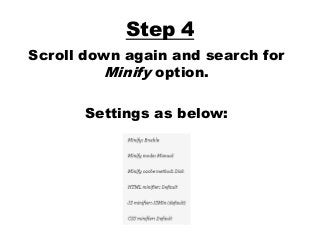
Step 4
Scroll down again and search for
Minify option.
Settings as below:
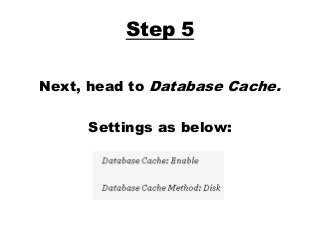
Step 5
Next, head to Database Cache.
Settings as below:
Step 6
Head over to Object Cache.
Settings as below:
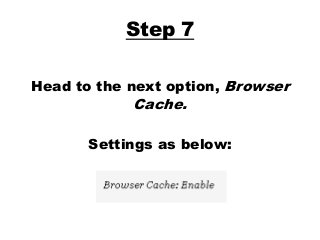
Step 7
Head to the next option, Browser
Cache.
Settings as below:
Step 8
Ignore the rest and press Save.
Phew! That was easy right?
That was only warm up!
A few more steps to go!
Step 9
Select Page Cache on the left of
the screen.
Settings below and press Save:
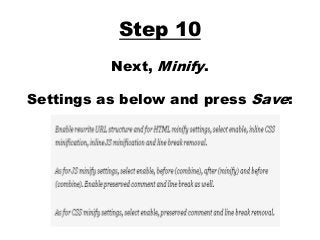
Step 10
Next, Minify.
Settings as below and press Save:
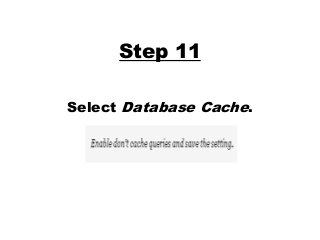
Step 11
Select Database Cache.
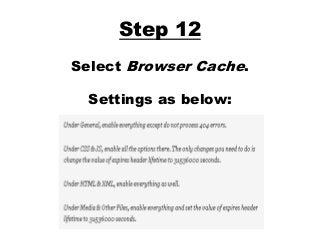
Step 12
Select Browser Cache.
Settings as below:
Step 13
Yes this is the last step.
Press Save for the last time and
remember to clear cache.
Congratulations!
There you go. You have completed
setting up your W3 Total Cache
perfectly!
And yes, you should be enjoying
some speed boost right now!
Thank You
You may find the original article
here: http://www.reginaldchan.net/guide-for-
dummies-how-to-setup-your-wordpress-w3-
total-cache-correctly/
Please share if you find this useful!

The Best Settings For W3 Total Cache WordPress Plugin