Using Android App Inventor to Introduce
     App Development Concepts
                  Presented by Abigail Bornstein
     Professor, Computer Networking & Information Technology
                  City College of San Francisco
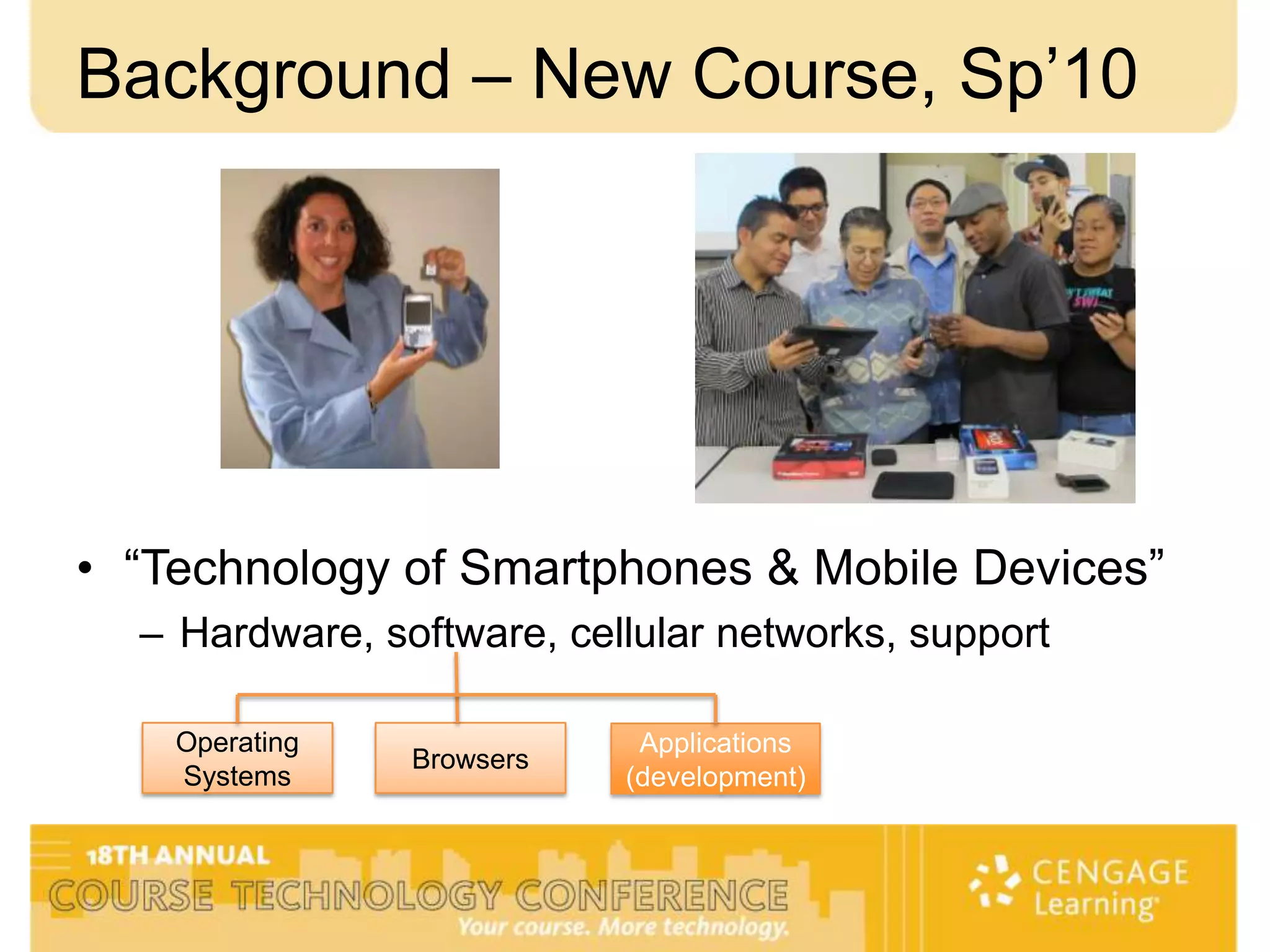
Background – New Course, Sp’10


• “Technology of Smartphones & Mobile Devices”
  – Hardware, software, cellular networks, support

    Operating               Applications
                Browsers
    Systems                (development)
Objective

• Learn how to build a basic application using
  MIT App Inventor
• Provide MIT App Inventor resources that
  are freely available to educators
• Consider ways that MIT App Inventor can
  be added into your school’s curriculum
What is App Inventor?

• A drag and drop programming tool that
  enables you to create applications for
  Android devices
  – No programming knowledge necessary
  – Teaches programming concepts, if that is your
    objective
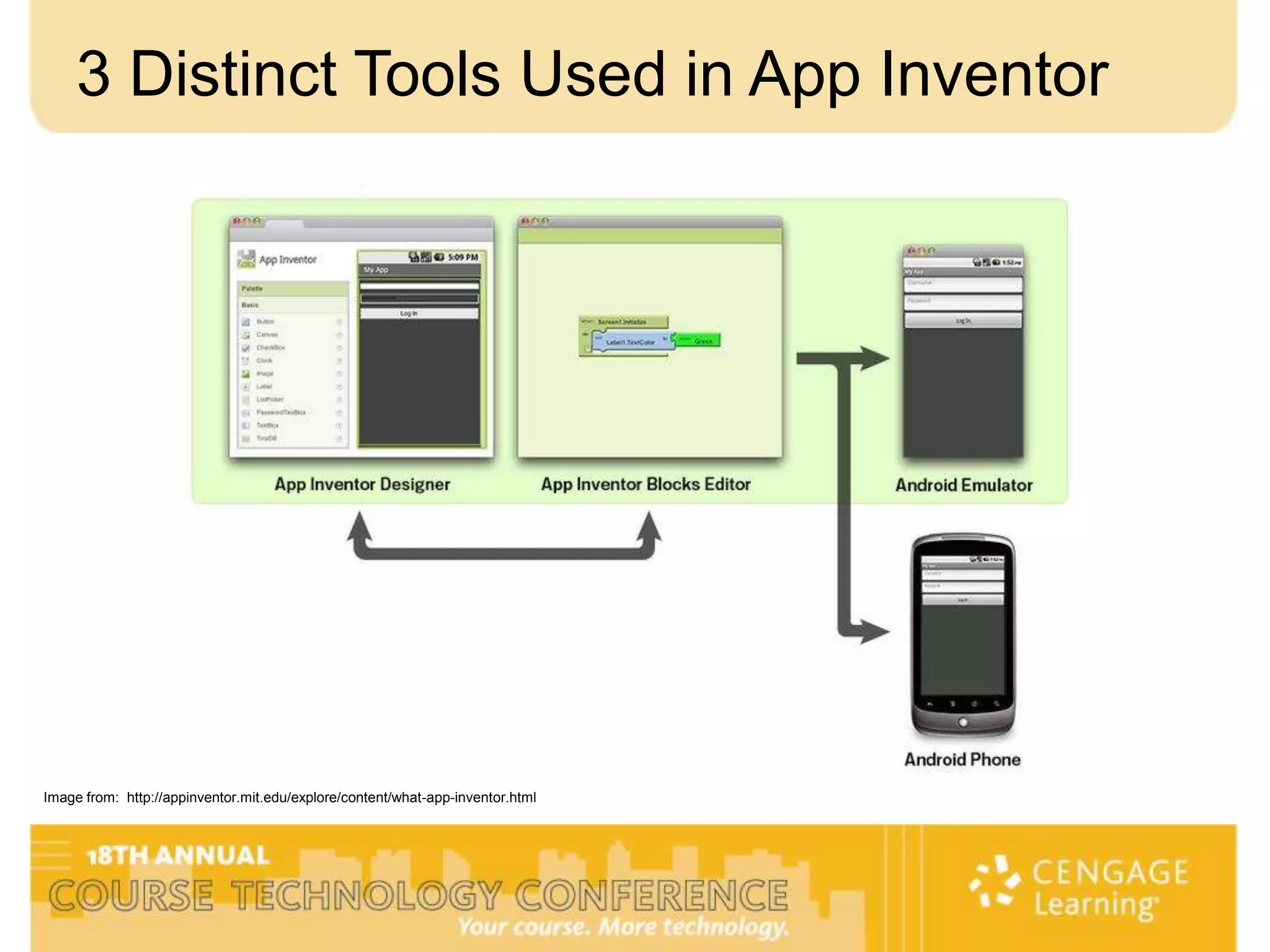
3 Distinct Tools Used in App Inventor


Image from: http://appinventor.mit.edu/explore/content/what-app-inventor.html
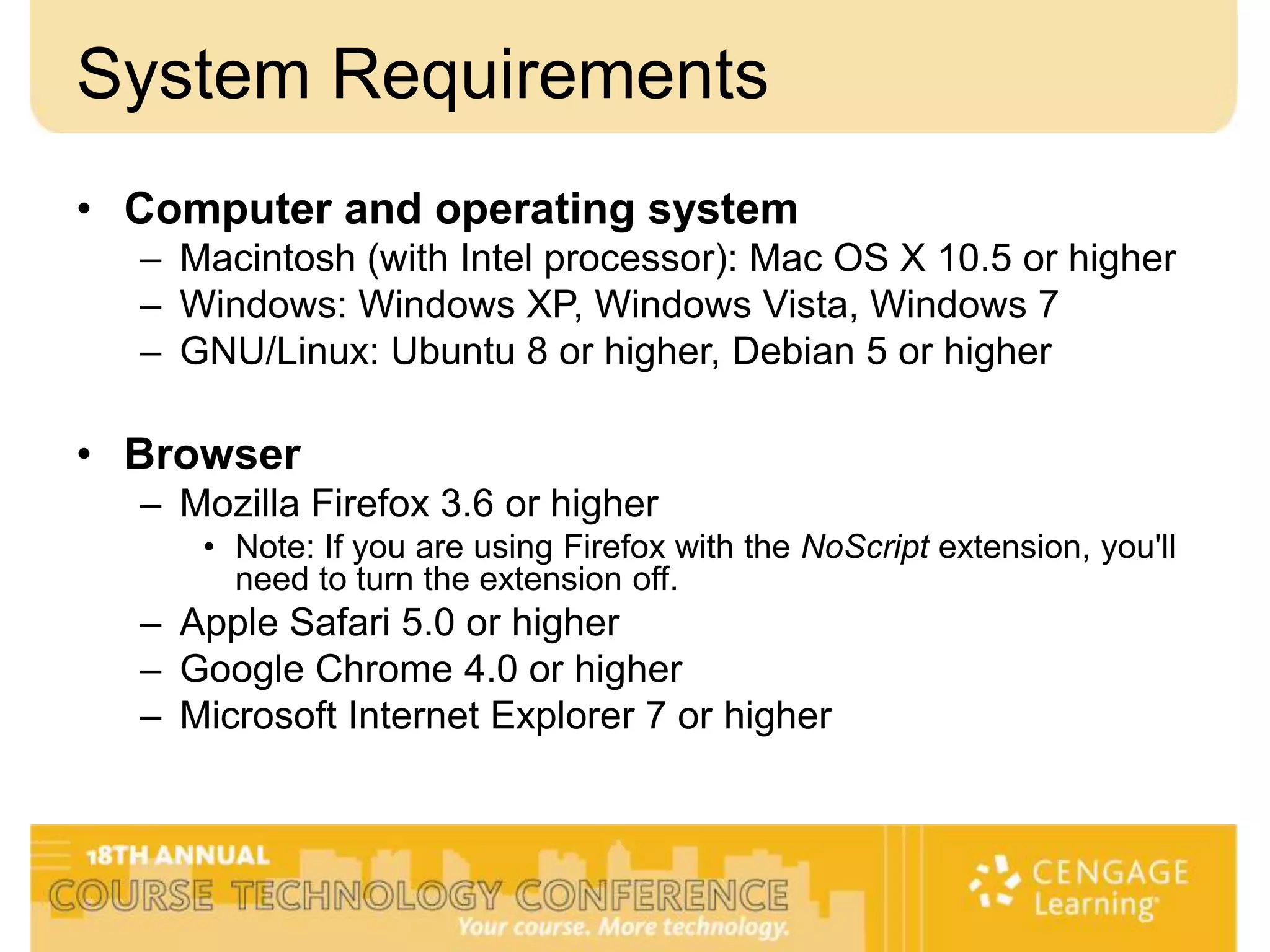
System Requirements
• Computer and operating system
  – Macintosh (with Intel processor): Mac OS X 10.5 or higher
  – Windows: Windows XP, Windows Vista, Windows 7
  – GNU/Linux: Ubuntu 8 or higher, Debian 5 or higher

• Browser
  – Mozilla Firefox 3.6 or higher
     • Note: If you are using Firefox with the NoScript extension, you'll
       need to turn the extension off.
  – Apple Safari 5.0 or higher
  – Google Chrome 4.0 or higher
  – Microsoft Internet Explorer 7 or higher
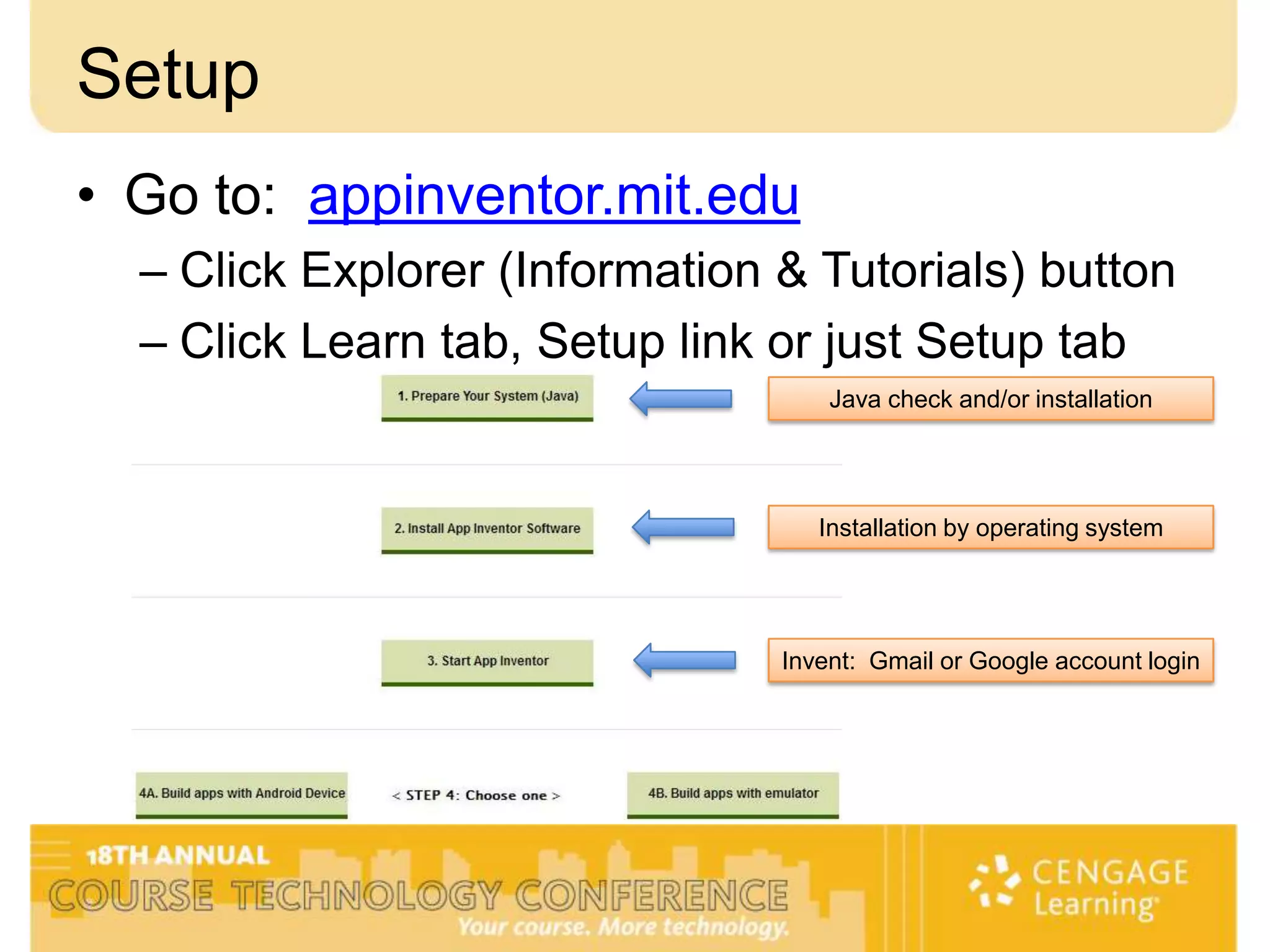
Setup
• Go to: appinventor.mit.edu
  – Click Explorer (Information & Tutorials) button
  – Click Learn tab, Setup link or just Setup tab
                                    Java check and/or installation


                                   Installation by operating system


                                Invent: Gmail or Google account login
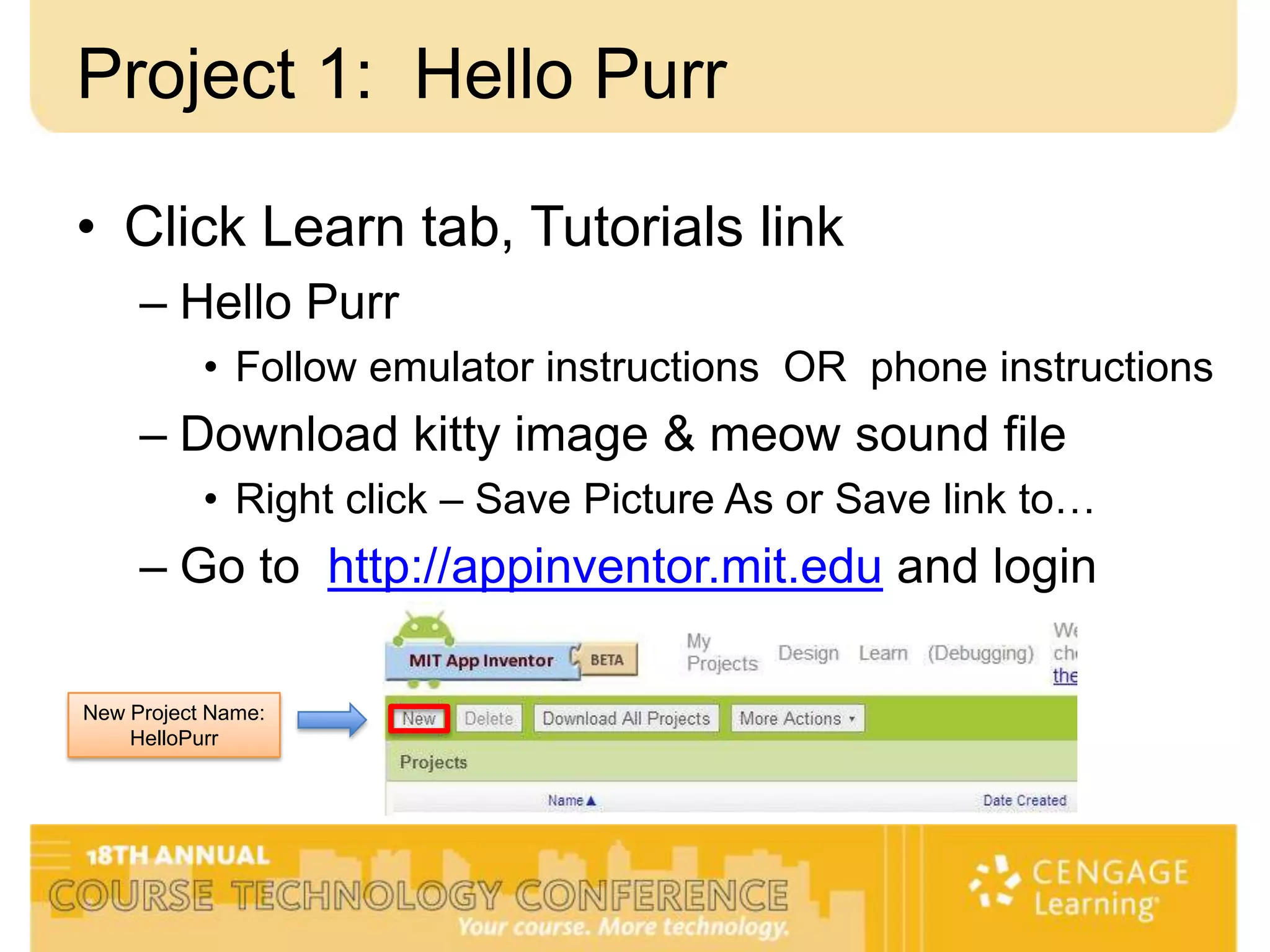
Project 1: Hello Purr

• Click Learn tab, Tutorials link
     – Hello Purr
           • Follow emulator instructions OR phone instructions
     – Download kitty image & meow sound file
           • Right click – Save Picture As or Save link to…
     – Go to http://appinventor.mit.edu and login

New Project Name:
    HelloPurr
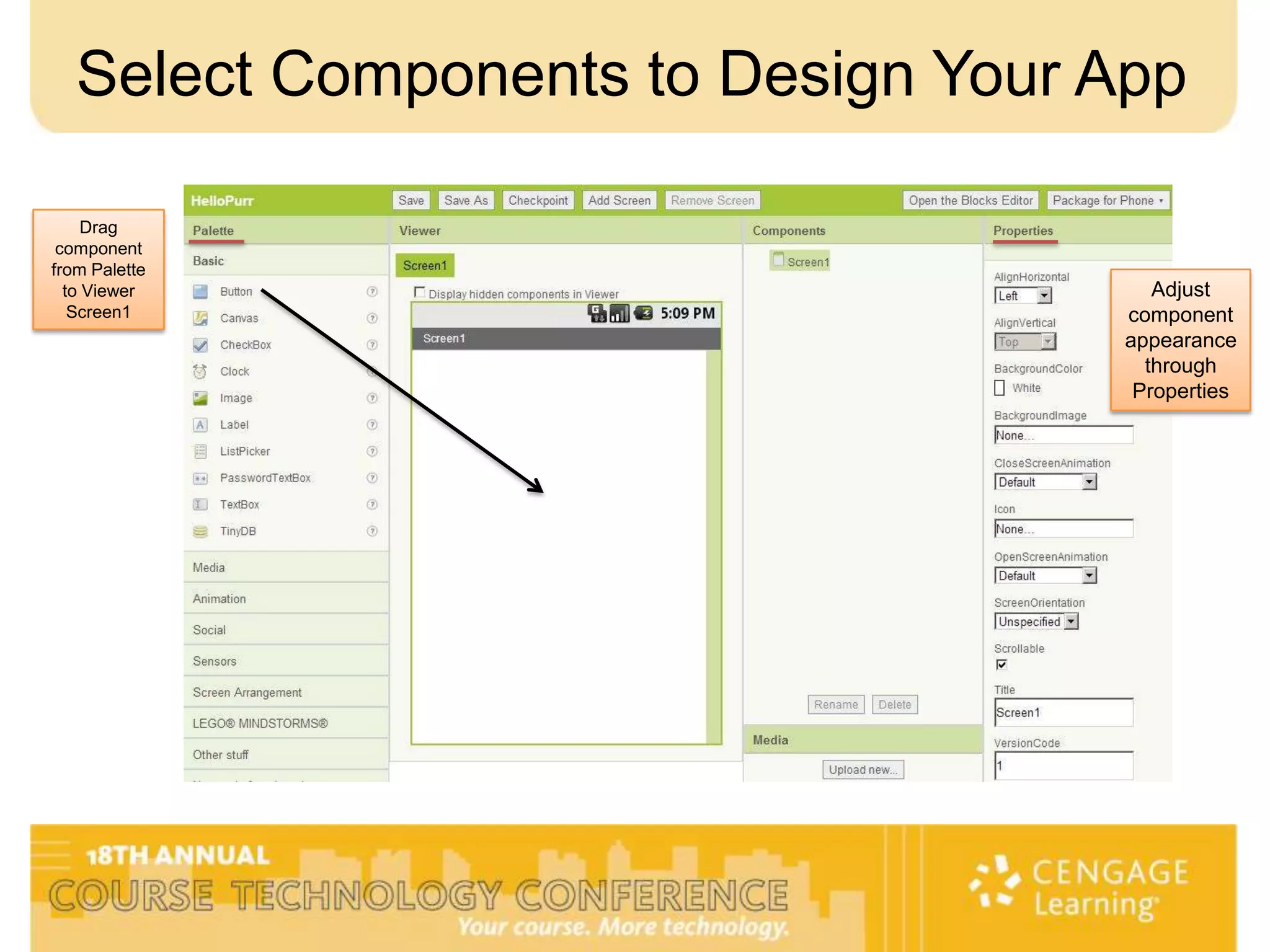
Select Components to Design Your App

     Drag
 component
from Palette
  to Viewer                            Adjust
   Screen1                          component
                                    appearance
                                      through
                                     Properties
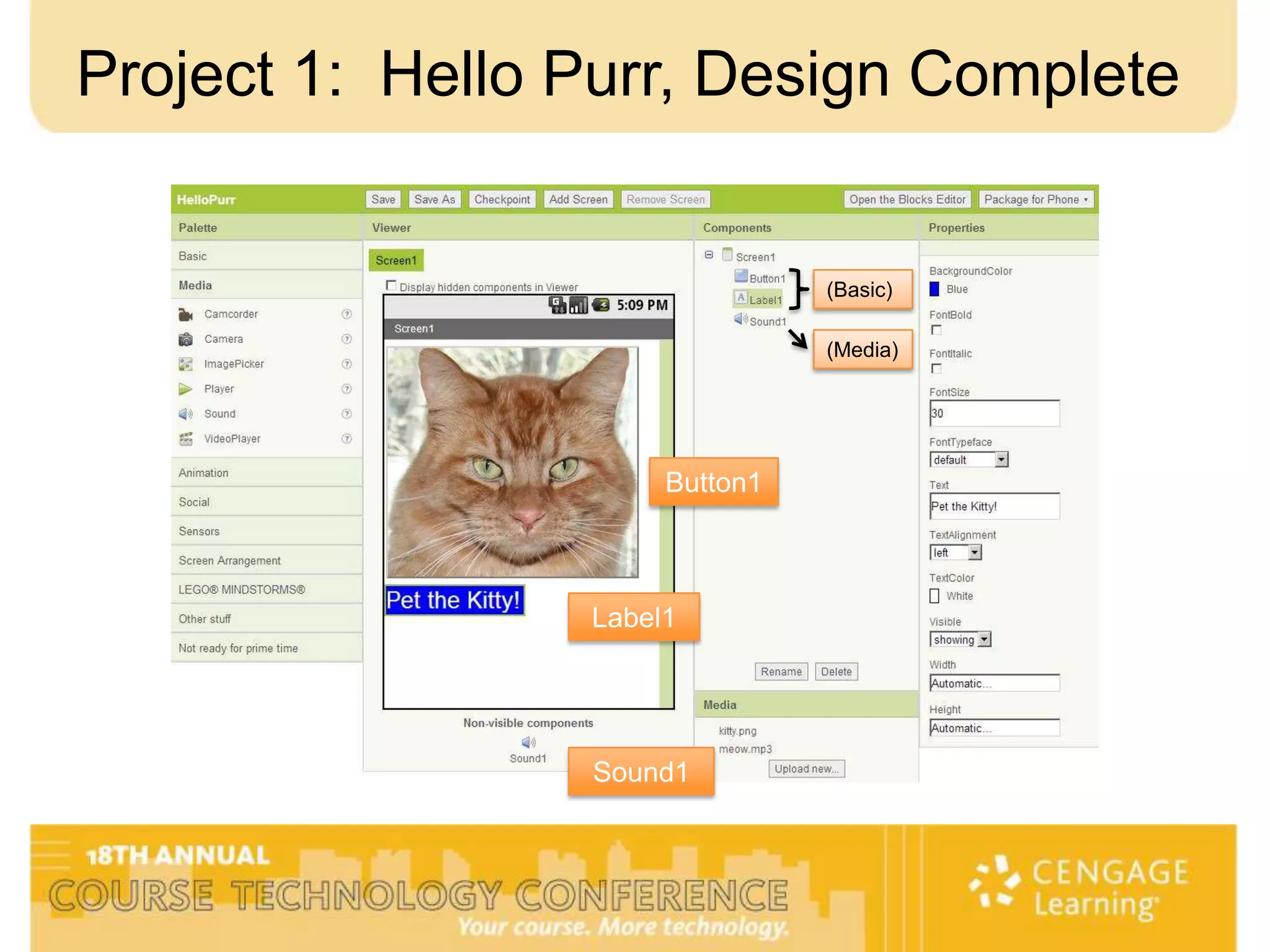
Project 1: Hello Purr, Design Complete


                                (Basic)

                                (Media)


                      Button1


                 Label1


                 Sound1
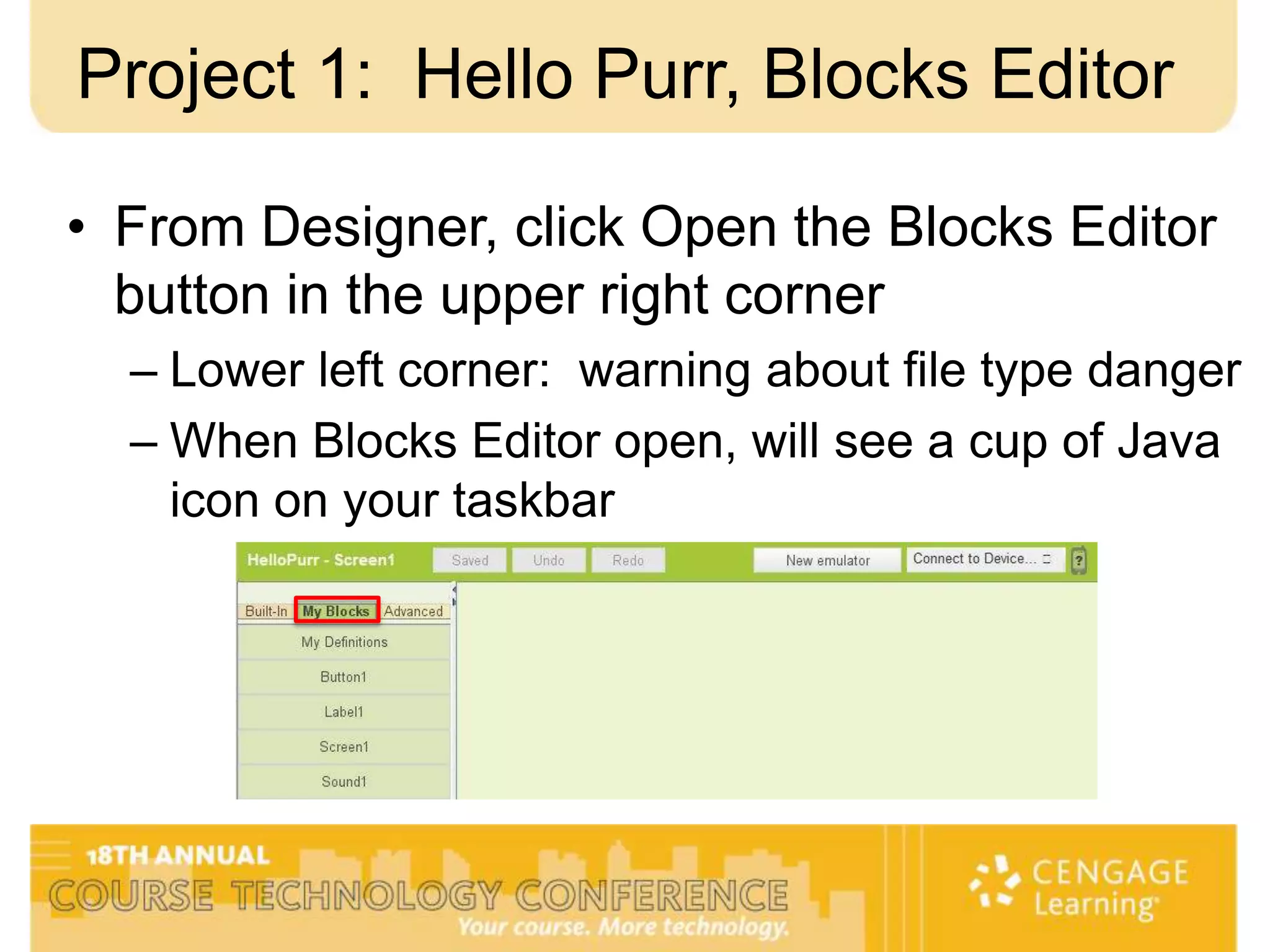
Project 1: Hello Purr, Blocks Editor

• From Designer, click Open the Blocks Editor
  button in the upper right corner
  – Lower left corner: warning about file type danger
  – When Blocks Editor open, will see a cup of Java
    icon on your taskbar
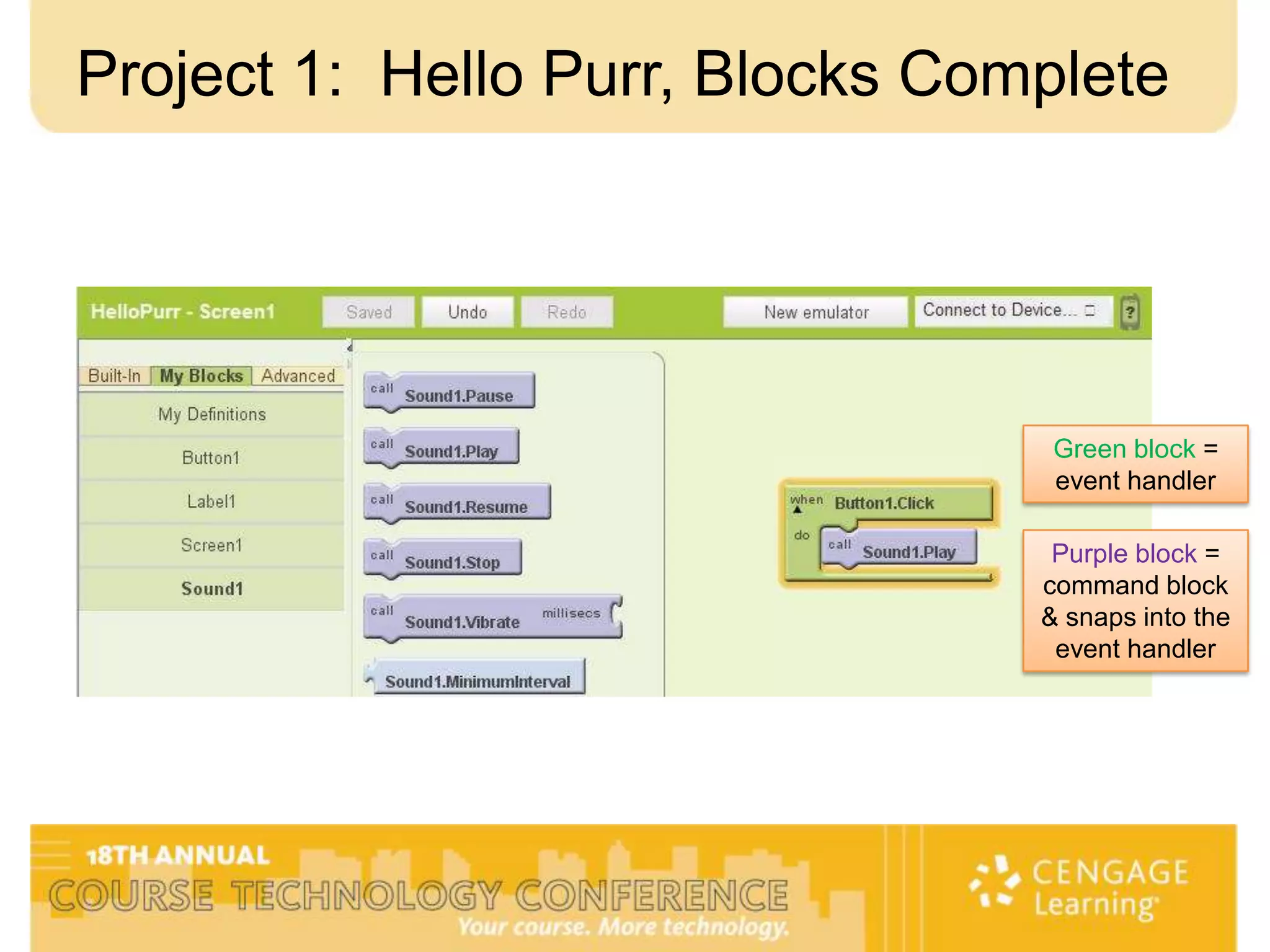
Project 1: Hello Purr, Blocks Complete


                                  Green block =
                                  event handler

                                  Purple block =
                                 command block
                                 & snaps into the
                                  event handler
Project 1: Hello Purr, Emulator

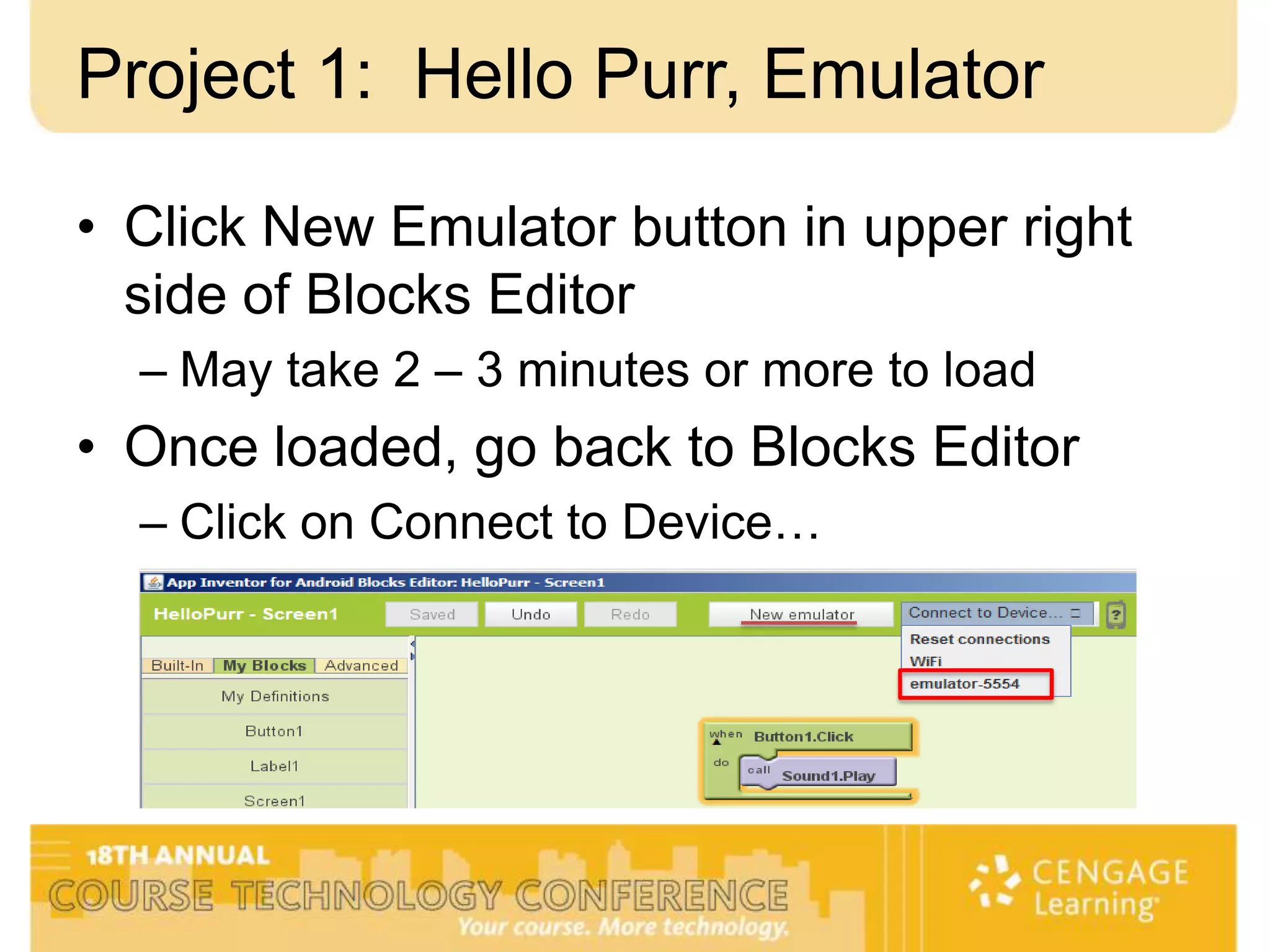
• Click New Emulator button in upper right
  side of Blocks Editor
  – May take 2 – 3 minutes or more to load
• Once loaded, go back to Blocks Editor
  – Click on Connect to Device…
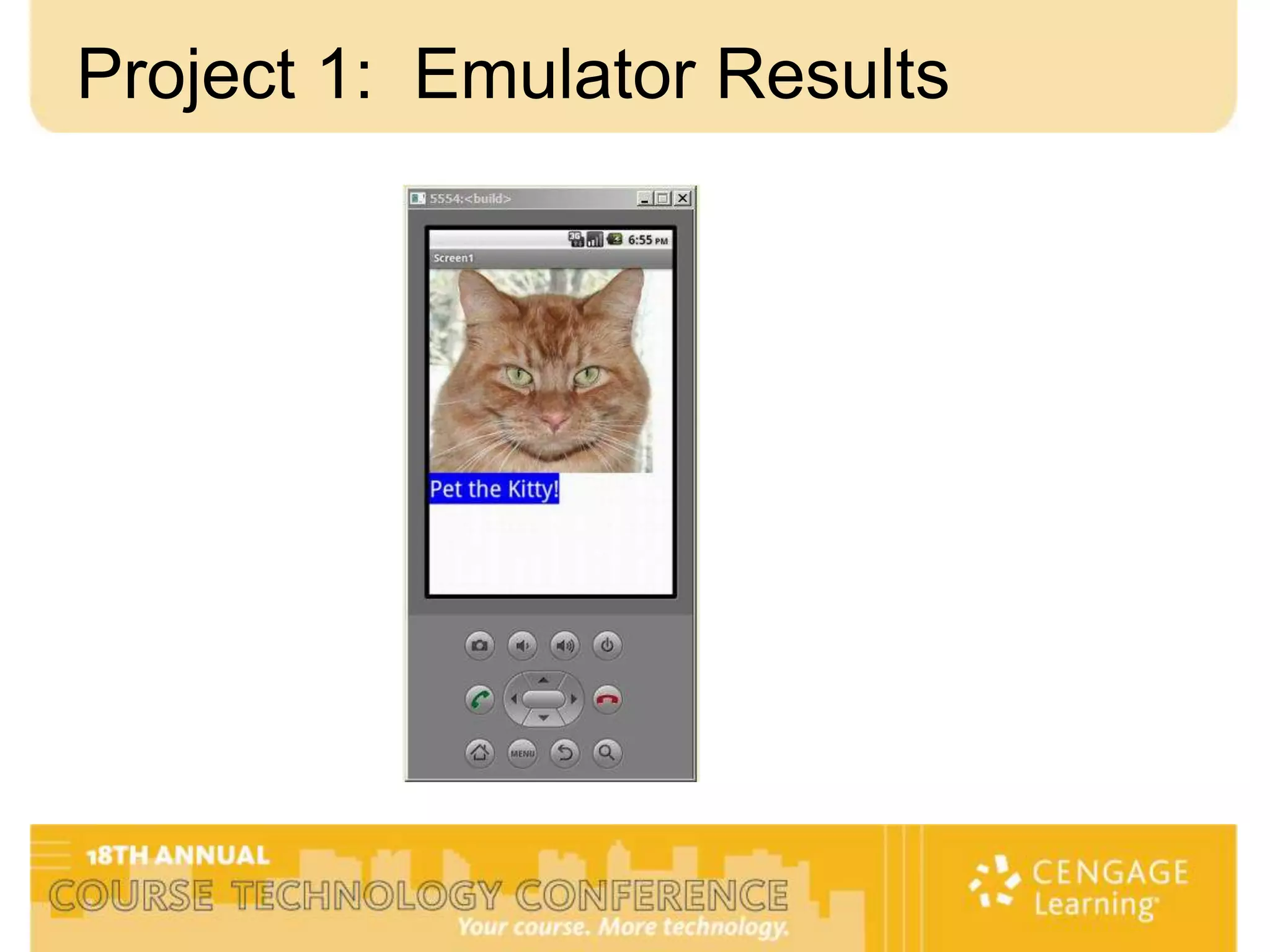
Project 1: Emulator Results
Project 1: Hello Purr, Android Device

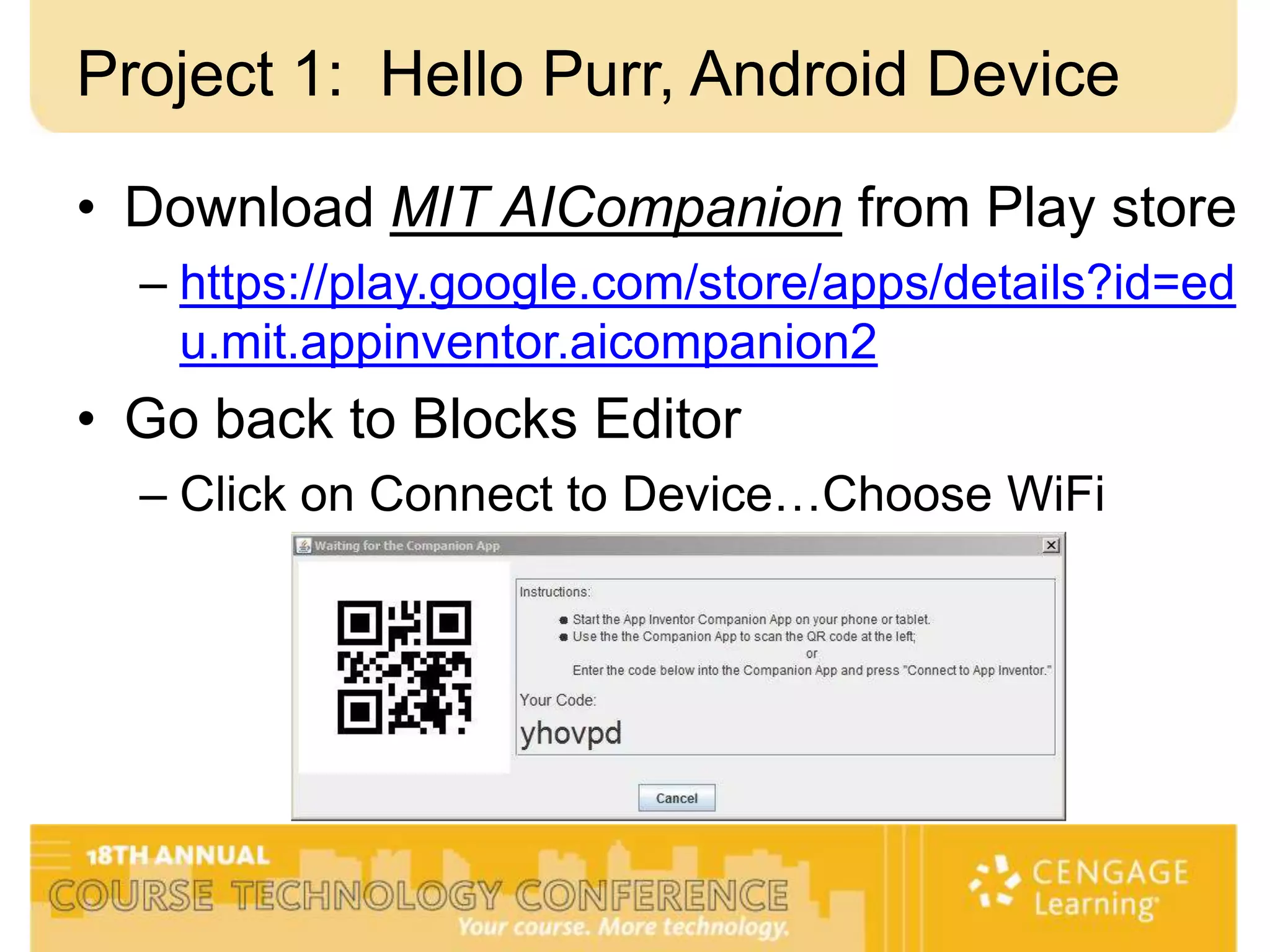
• Download MIT AICompanion from Play store
  – https://play.google.com/store/apps/details?id=ed
    u.mit.appinventor.aicompanion2
• Go back to Blocks Editor
  – Click on Connect to Device…Choose WiFi
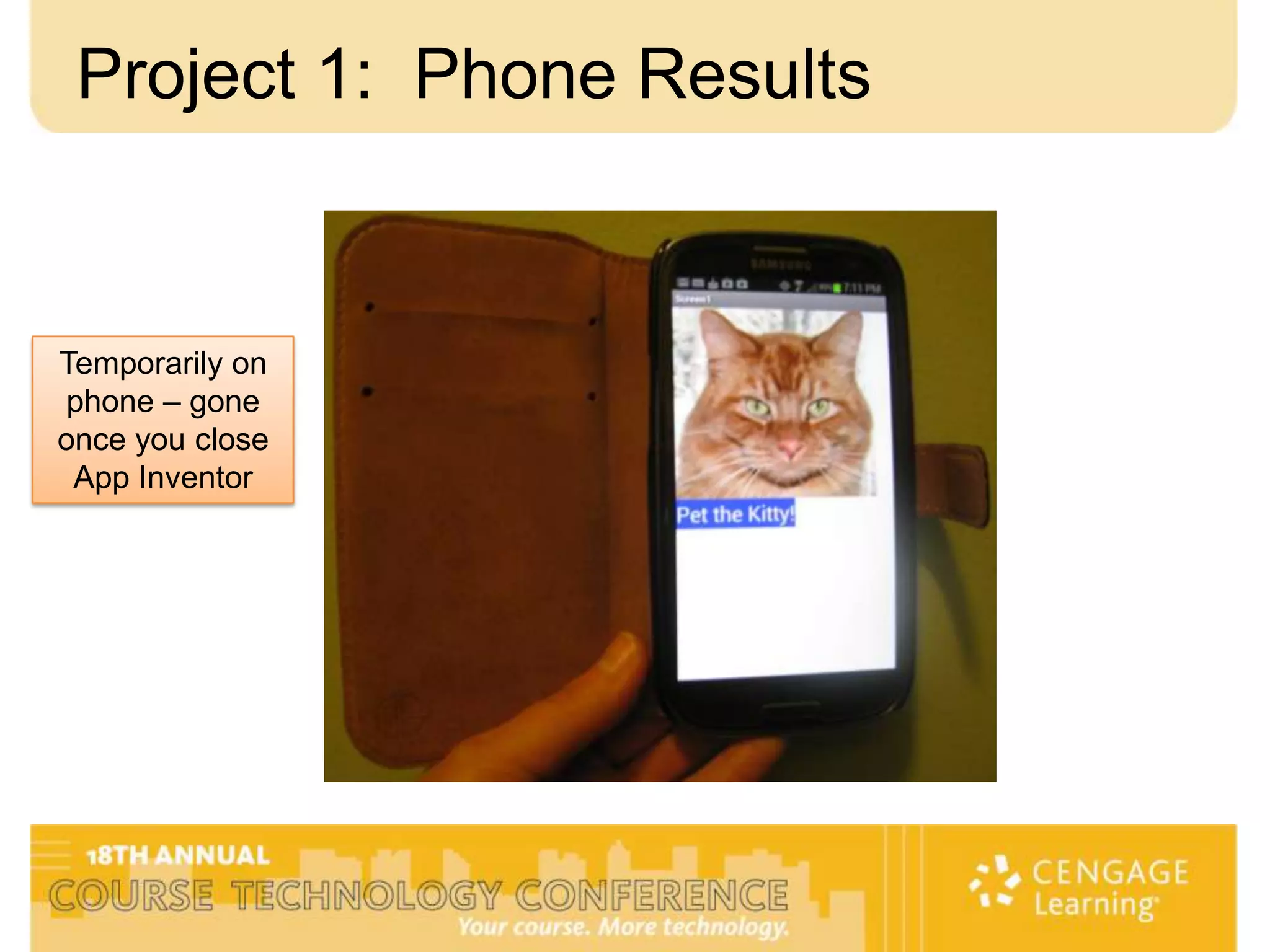
Project 1: Phone Results


Temporarily on
 phone – gone
once you close
 App Inventor
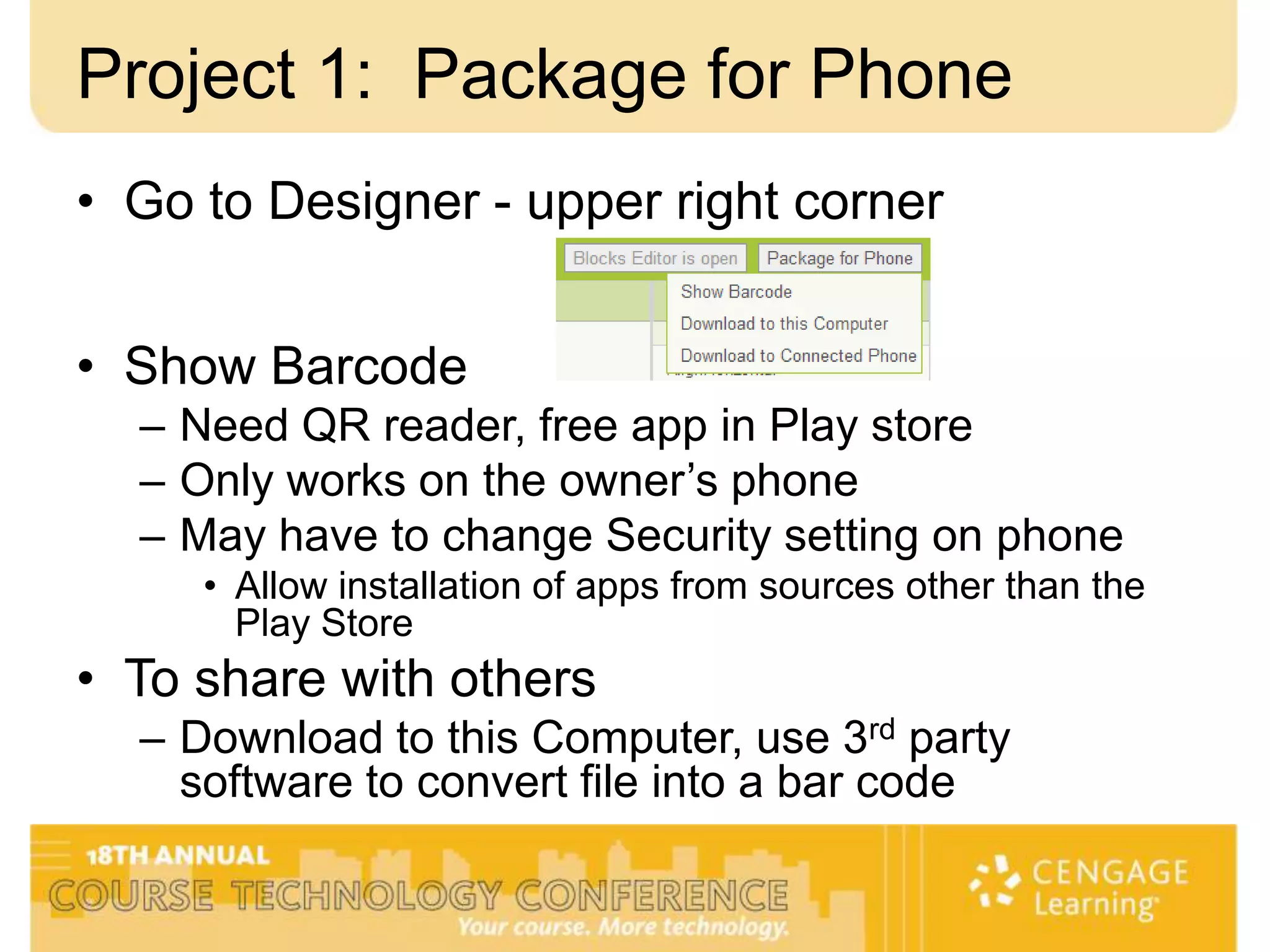
Project 1: Package for Phone
• Go to Designer - upper right corner


• Show Barcode
  – Need QR reader, free app in Play store
  – Only works on the owner’s phone
  – May have to change Security setting on phone
     • Allow installation of apps from sources other than the
       Play Store
• To share with others
  – Download to this Computer, use 3rd party
    software to convert file into a bar code
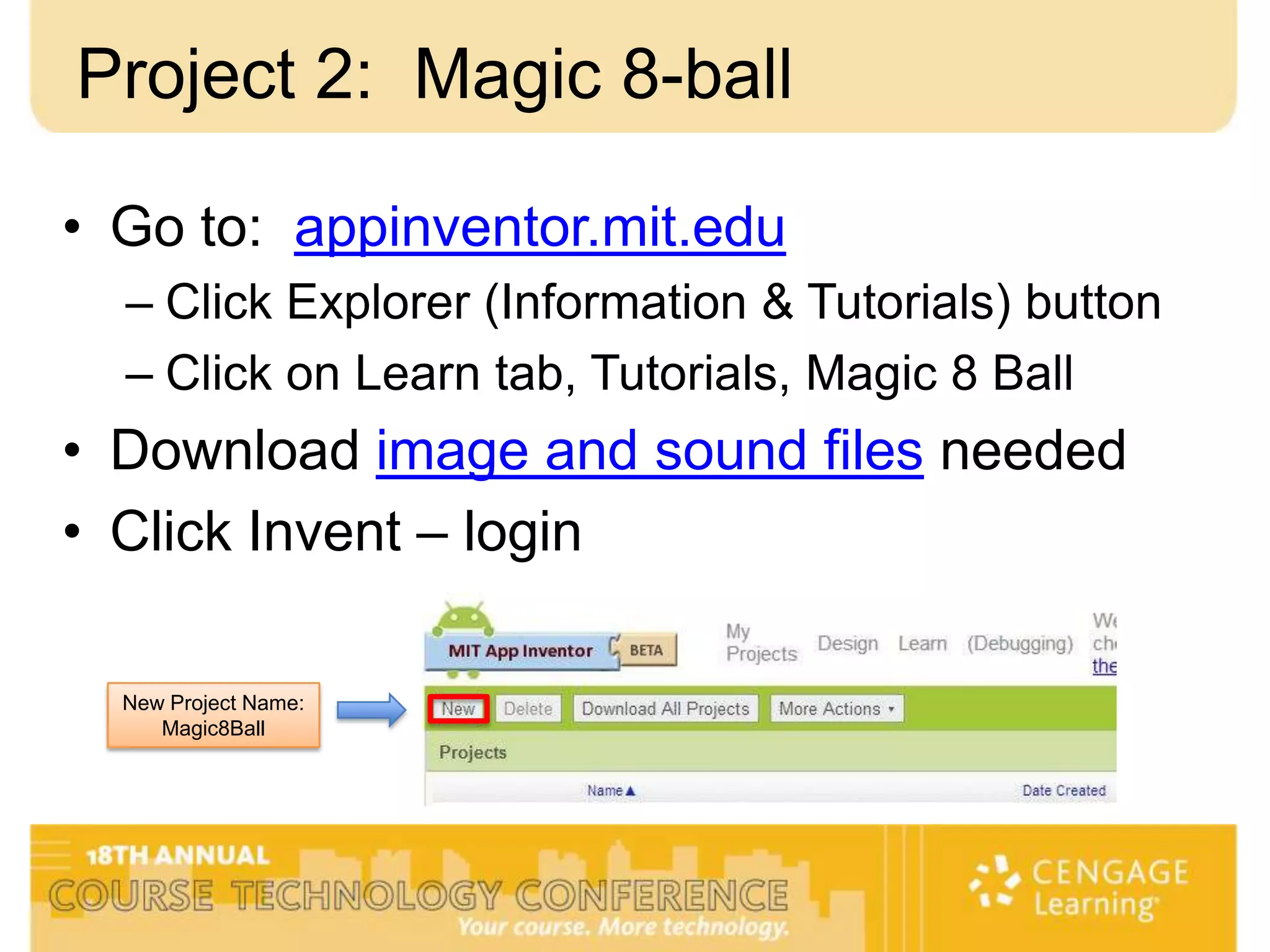
Project 2: Magic 8-ball

• Go to: appinventor.mit.edu
  – Click Explorer (Information & Tutorials) button
  – Click on Learn tab, Tutorials, Magic 8 Ball
• Download image and sound files needed
• Click Invent – login

  New Project Name:
     Magic8Ball
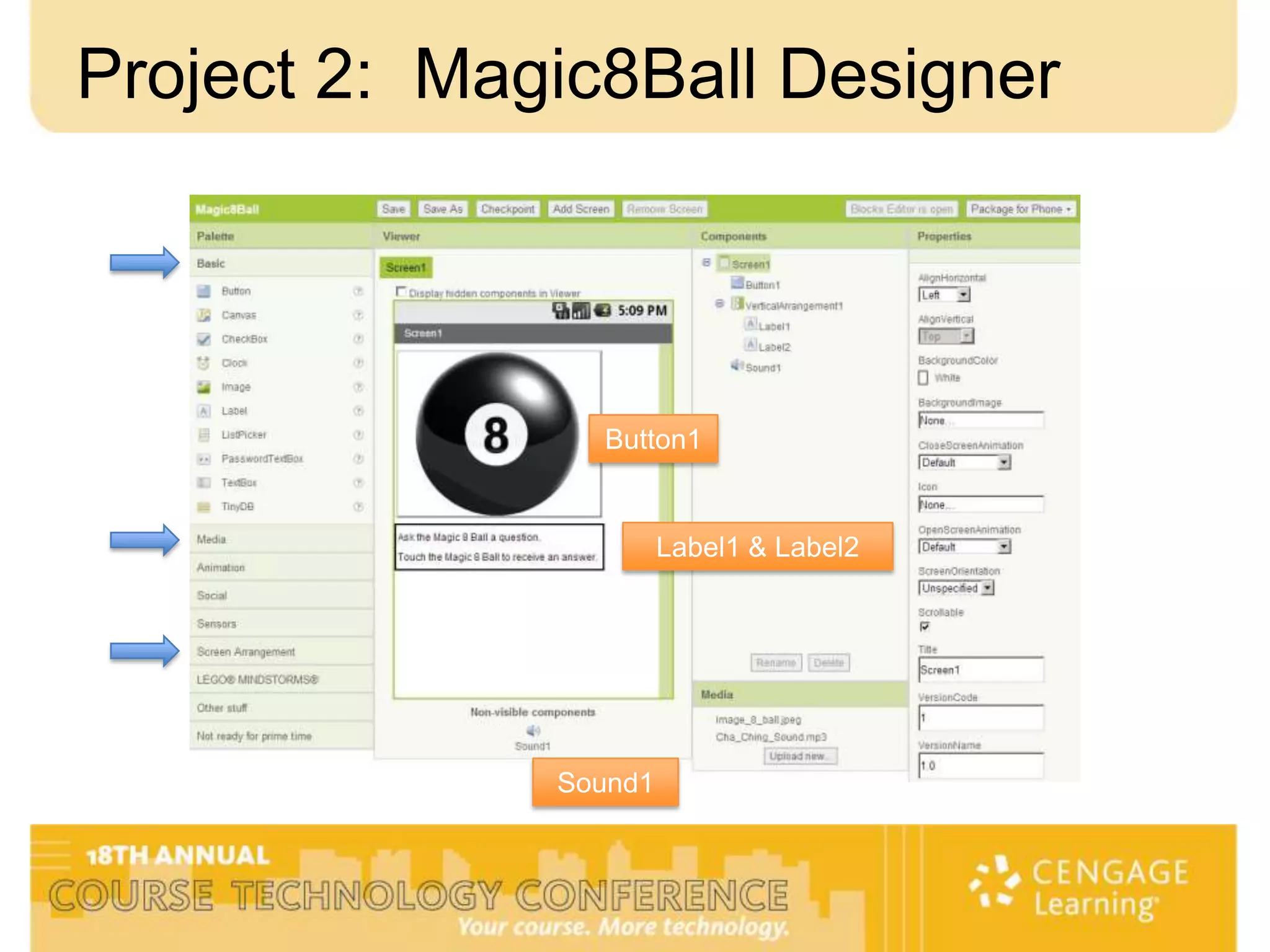
Project 2: Magic8Ball Designer


                Button1


                       Label1 & Label2


              Sound1
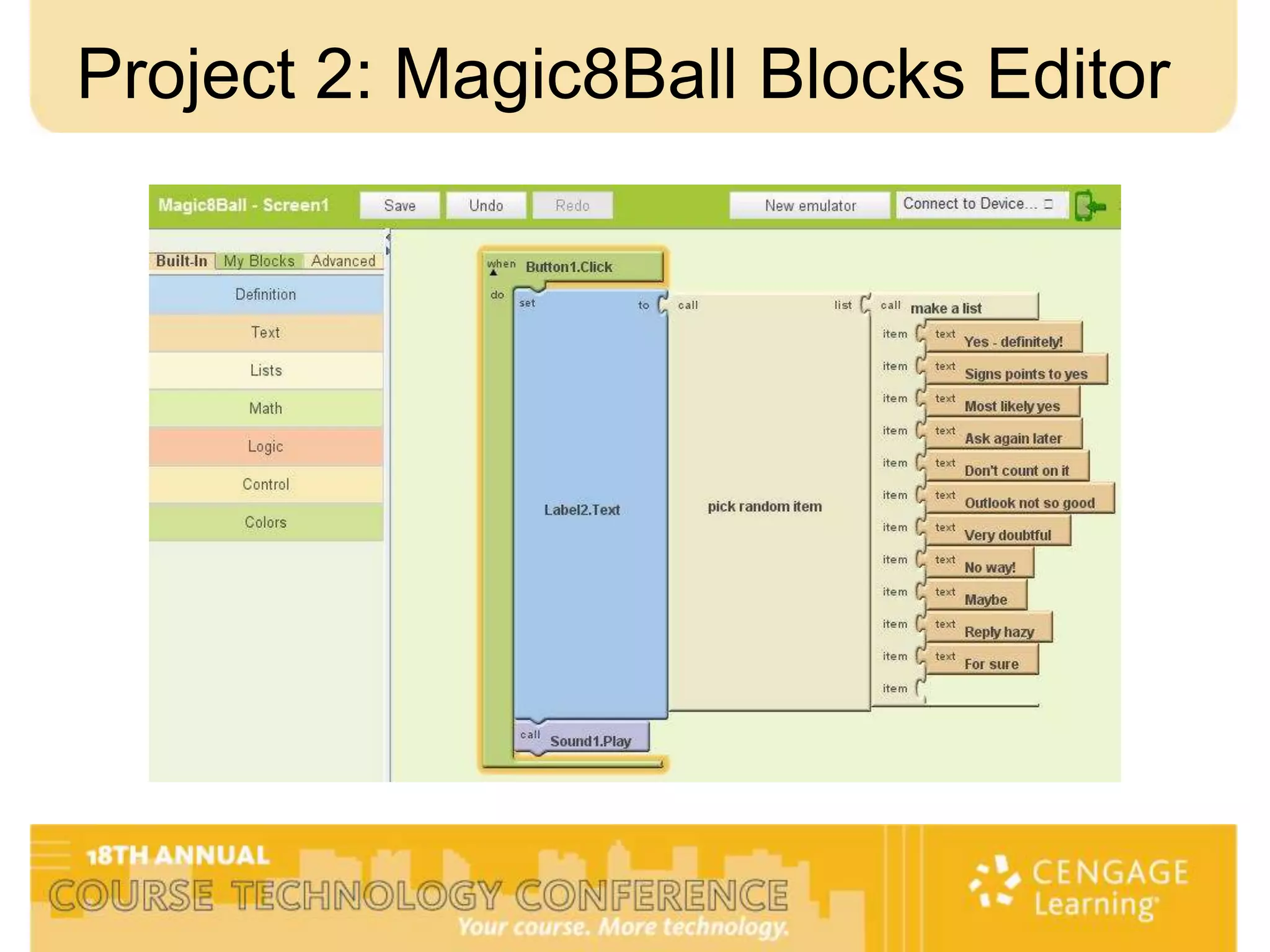
Project 2: Magic8Ball Blocks Editor
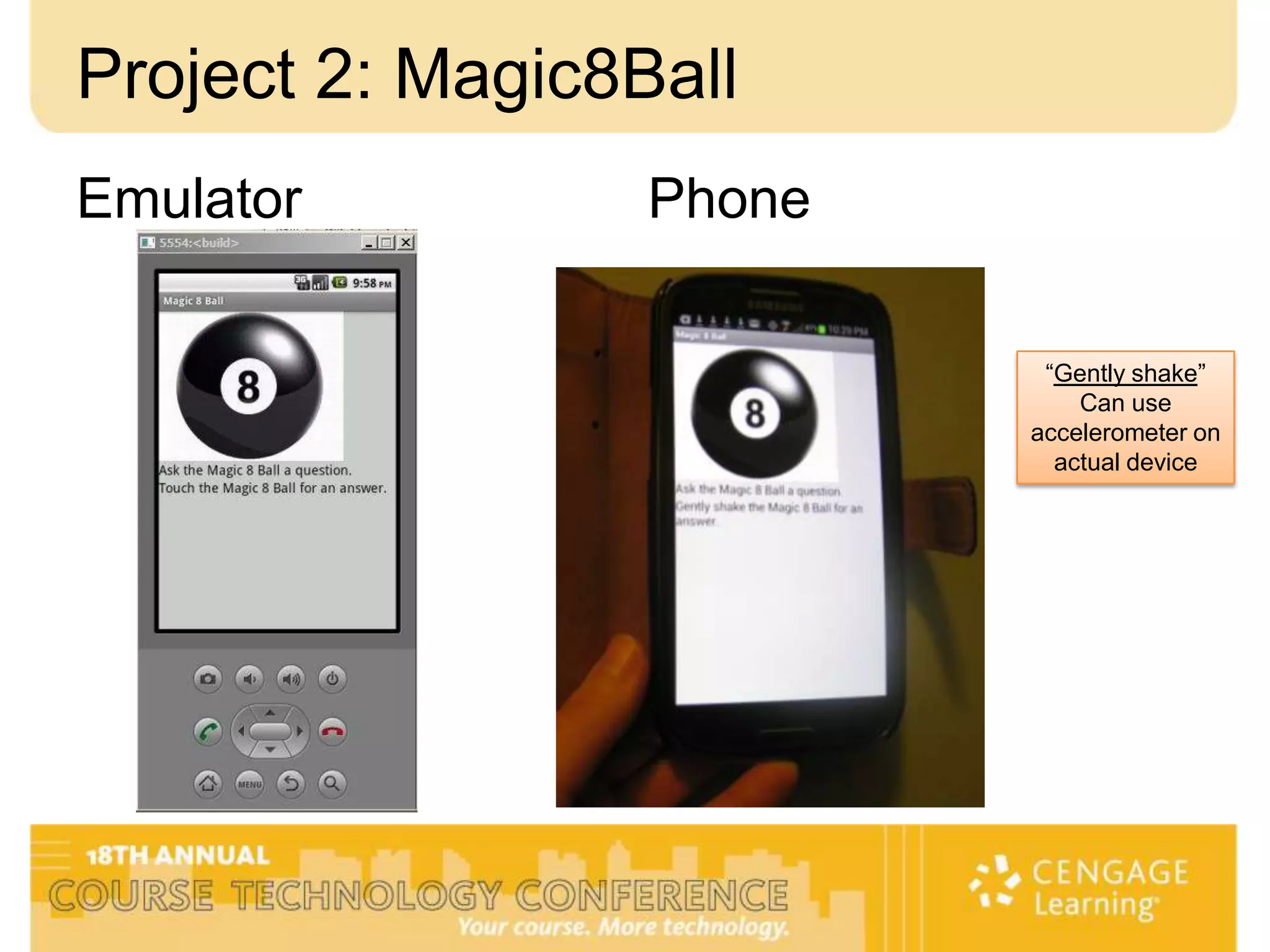
Project 2: Magic8Ball
Emulator          Phone

                           “Gently shake”
                              Can use
                          accelerometer on
                            actual device
Other Projects

• Basic Projects
  – PaintPot, MoleMash, Pong, PicCall
• Advanced Projects
  – Mini Golf, Pizza Party, Quiz Me, Map Tour
• Additional Projects
  – SMS, GPS, Video

  Lots to learn…from beginner to advanced
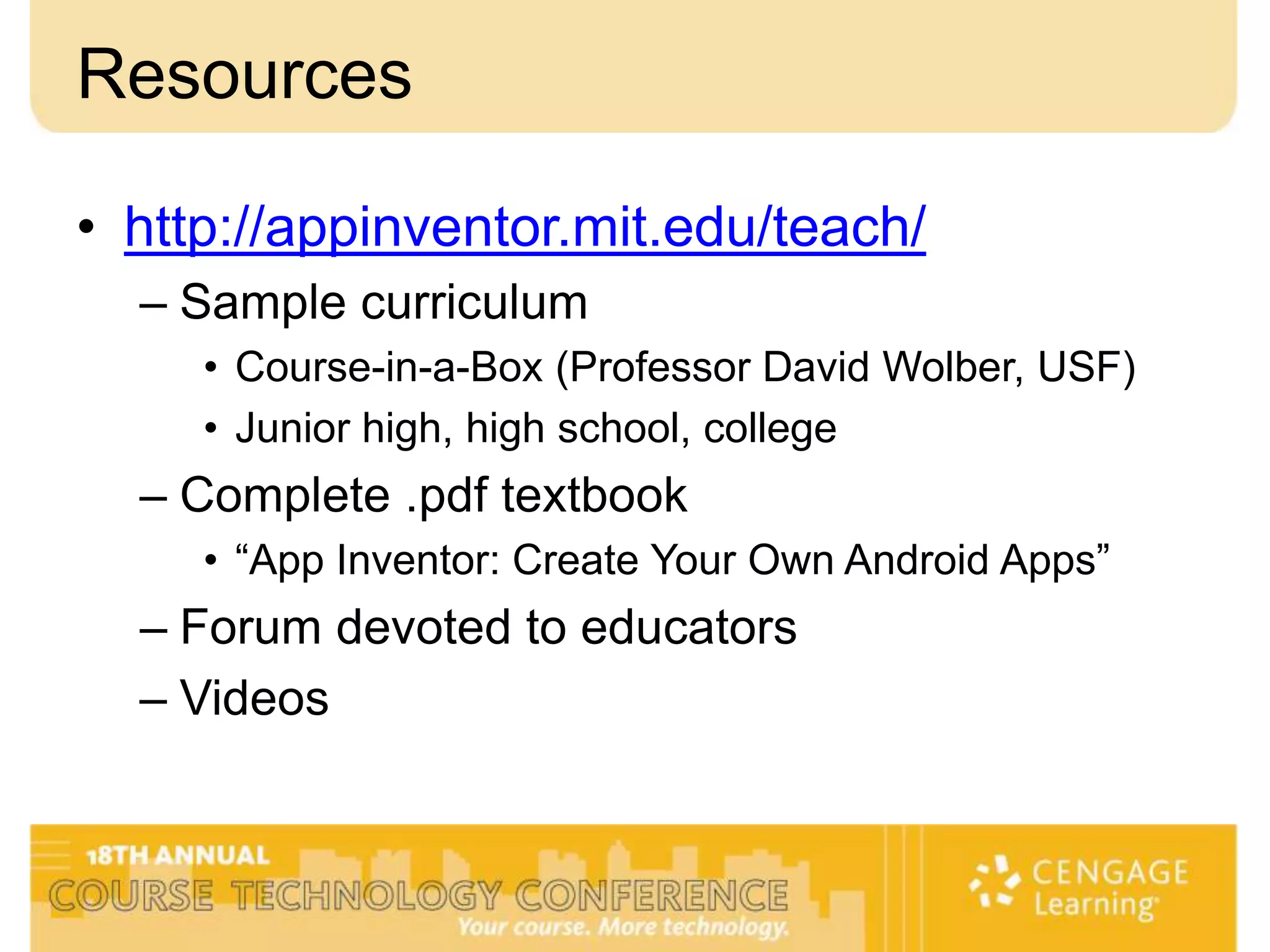
Resources

• http://appinventor.mit.edu/teach/
  – Sample curriculum
     • Course-in-a-Box (Professor David Wolber, USF)
     • Junior high, high school, college
  – Complete .pdf textbook
     • “App Inventor: Create Your Own Android Apps”
  – Forum devoted to educators
  – Videos
School Curriculum Options
• Multiple age groups and levels
  – Junior high, high school, college


• Full course devoted to App Inventor
  – Introductory CS course for non-CS majors
  – CS101 for CS majors

• 1 – 4 lectures/labs devoted to App Inventor
  – Add chapter on app development to an existing course
  – “Technology of Smartphones & Mobile Devices” course
My Contact Information

Abigail Bornstein
Professor, Computer Networking & Information Technology
City College of San Francisco


E-mail: abornste@ccsf.edu
Website: http://fog.ccsf.edu/~abornste

                  THANK YOU!!!

Course Tech 2013, Abigail Bornstein,Using Adroid App Inventor to Introduce App Development Concepts

  • 1.
    Using Android AppInventor to Introduce App Development Concepts Presented by Abigail Bornstein Professor, Computer Networking & Information Technology City College of San Francisco
  • 2.
    Background – NewCourse, Sp’10 • “Technology of Smartphones & Mobile Devices” – Hardware, software, cellular networks, support Operating Applications Browsers Systems (development)
  • 3.
    Objective • Learn howto build a basic application using MIT App Inventor • Provide MIT App Inventor resources that are freely available to educators • Consider ways that MIT App Inventor can be added into your school’s curriculum
  • 4.
    What is AppInventor? • A drag and drop programming tool that enables you to create applications for Android devices – No programming knowledge necessary – Teaches programming concepts, if that is your objective
  • 5.
    3 Distinct ToolsUsed in App Inventor Image from: http://appinventor.mit.edu/explore/content/what-app-inventor.html
  • 6.
    System Requirements • Computerand operating system – Macintosh (with Intel processor): Mac OS X 10.5 or higher – Windows: Windows XP, Windows Vista, Windows 7 – GNU/Linux: Ubuntu 8 or higher, Debian 5 or higher • Browser – Mozilla Firefox 3.6 or higher • Note: If you are using Firefox with the NoScript extension, you'll need to turn the extension off. – Apple Safari 5.0 or higher – Google Chrome 4.0 or higher – Microsoft Internet Explorer 7 or higher
  • 7.
    Setup • Go to:appinventor.mit.edu – Click Explorer (Information & Tutorials) button – Click Learn tab, Setup link or just Setup tab Java check and/or installation Installation by operating system Invent: Gmail or Google account login
  • 8.
    Project 1: HelloPurr • Click Learn tab, Tutorials link – Hello Purr • Follow emulator instructions OR phone instructions – Download kitty image & meow sound file • Right click – Save Picture As or Save link to… – Go to http://appinventor.mit.edu and login New Project Name: HelloPurr
  • 9.
    Select Components toDesign Your App Drag component from Palette to Viewer Adjust Screen1 component appearance through Properties
  • 10.
    Project 1: HelloPurr, Design Complete (Basic) (Media) Button1 Label1 Sound1
  • 11.
    Project 1: HelloPurr, Blocks Editor • From Designer, click Open the Blocks Editor button in the upper right corner – Lower left corner: warning about file type danger – When Blocks Editor open, will see a cup of Java icon on your taskbar
  • 12.
    Project 1: HelloPurr, Blocks Complete Green block = event handler Purple block = command block & snaps into the event handler
  • 13.
    Project 1: HelloPurr, Emulator • Click New Emulator button in upper right side of Blocks Editor – May take 2 – 3 minutes or more to load • Once loaded, go back to Blocks Editor – Click on Connect to Device…
  • 14.
  • 15.
    Project 1: HelloPurr, Android Device • Download MIT AICompanion from Play store – https://play.google.com/store/apps/details?id=ed u.mit.appinventor.aicompanion2 • Go back to Blocks Editor – Click on Connect to Device…Choose WiFi
  • 16.
    Project 1: PhoneResults Temporarily on phone – gone once you close App Inventor
  • 17.
    Project 1: Packagefor Phone • Go to Designer - upper right corner • Show Barcode – Need QR reader, free app in Play store – Only works on the owner’s phone – May have to change Security setting on phone • Allow installation of apps from sources other than the Play Store • To share with others – Download to this Computer, use 3rd party software to convert file into a bar code
  • 18.
    Project 2: Magic8-ball • Go to: appinventor.mit.edu – Click Explorer (Information & Tutorials) button – Click on Learn tab, Tutorials, Magic 8 Ball • Download image and sound files needed • Click Invent – login New Project Name: Magic8Ball
  • 19.
    Project 2: Magic8BallDesigner Button1 Label1 & Label2 Sound1
  • 20.
    Project 2: Magic8BallBlocks Editor
  • 21.
    Project 2: Magic8Ball Emulator Phone “Gently shake” Can use accelerometer on actual device
  • 22.
    Other Projects • BasicProjects – PaintPot, MoleMash, Pong, PicCall • Advanced Projects – Mini Golf, Pizza Party, Quiz Me, Map Tour • Additional Projects – SMS, GPS, Video Lots to learn…from beginner to advanced
  • 23.
    Resources • http://appinventor.mit.edu/teach/ – Sample curriculum • Course-in-a-Box (Professor David Wolber, USF) • Junior high, high school, college – Complete .pdf textbook • “App Inventor: Create Your Own Android Apps” – Forum devoted to educators – Videos
  • 24.
    School Curriculum Options •Multiple age groups and levels – Junior high, high school, college • Full course devoted to App Inventor – Introductory CS course for non-CS majors – CS101 for CS majors • 1 – 4 lectures/labs devoted to App Inventor – Add chapter on app development to an existing course – “Technology of Smartphones & Mobile Devices” course
  • 25.
    My Contact Information AbigailBornstein Professor, Computer Networking & Information Technology City College of San Francisco E-mail: abornste@ccsf.edu Website: http://fog.ccsf.edu/~abornste THANK YOU!!!

Editor's Notes

  • #5 Similar to Lego Mindstorms, Scratch, Alice
  • #17 Note: video of nephew, live demo of my phone
  • #23 Note: video of student