How to bind Cuda and
OpenCV on Jetson Nano
Yoshinobu Tanno
https://ytanno.sakura.ne.jp/
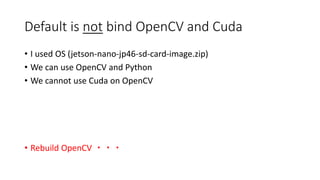
Default is not bind OpenCV and Cuda
• I used OS (jetson-nano-jp46-sd-card-image.zip)
• We can use OpenCV and Python
• We cannot use Cuda on OpenCV
• Rebuild OpenCV ・・・
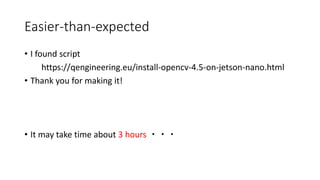
Easier-than-expected
• I found script
https://qengineering.eu/install-opencv-4.5-on-jetson-nano.html
• Thank you for making it!
• It may take time about 3 hours ・・・
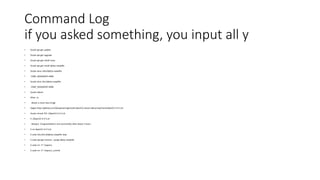
Command Log
if you asked something, you input all y
• $sudo apt-get update
• $sudo apt-get upgrade
• $sudo apt-get install nano
• $sudo apt-get install dphys-swapfile
• $sudo nano /sbin/dphys-swapfile
• CONF_MAXSWAP=4096
• $sudo nano /etc/dphys-swapfile
• CONF_MAXSWAP=4096
• $sudo reboot
• $free -m
• #total is more than 8.5gb
• $wget https://github.com/Qengineering/Install-OpenCV-Jetson-Nano/raw/main/OpenCV-4-5-5.sh
• $sudo chmod 755 ./OpenCV-4-5-5.sh
• $ ./OpenCV-4-5-5.sh
• #output Congratulations! and successfully after about 3 hours
• $ rm OpenCV-4-5-5.sh
• $ sudo /etc/init.d/dphys-swapfile stop
• $ sudo apt-get remove --purge dphys-swapfile
• $ sudo rm -rf ~/opencv
• $ sudo rm -rf ~/opencv_contrib
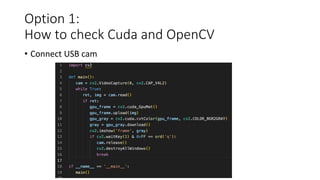
Option 1:
How to check Cuda and OpenCV
• Connect USB cam
Option 2:
How to set wifi dongle. Easy to setup
• If you cannot use ethernet on working place ・・・
• Edimax 2-in-1 WiFi and Bluetooth 4.0 Adapter
• https://learn.sparkfun.com/tutorials/adding-wifi-to-the-nvidia-
jetson/all
Option2: command Log
• $sudo apt install dkms
• $git clone https://github.com/lwfinger/rtl8723bu.git
• $cd rtl8723bu
• $source dkms.conf
• $sudo mkdir /usr/src/$PACKAGE_NAME-$PACKAGE_VERSION
• $sudo cp -r core hal include os_dep platform dkms.conf Makefile rtl8723b_fw.bin
/usr/src/$PACKAGE_NAME-$PACKAGE_VERSION
• $sudo dkms add $PACKAGE_NAME/$PACKAGE_VERSION
• $sudo dkms autoinstall $PACKAGE_NAME/$PACKAGE_VERSION
• $sudo reboot now
• ----
• right icon click
• connect wifi

How To Bind Cuda And OpenCV

  • 1.
    How to bindCuda and OpenCV on Jetson Nano Yoshinobu Tanno https://ytanno.sakura.ne.jp/
  • 2.
    Default is notbind OpenCV and Cuda • I used OS (jetson-nano-jp46-sd-card-image.zip) • We can use OpenCV and Python • We cannot use Cuda on OpenCV • Rebuild OpenCV ・・・
  • 3.
    Easier-than-expected • I foundscript https://qengineering.eu/install-opencv-4.5-on-jetson-nano.html • Thank you for making it! • It may take time about 3 hours ・・・
  • 4.
    Command Log if youasked something, you input all y • $sudo apt-get update • $sudo apt-get upgrade • $sudo apt-get install nano • $sudo apt-get install dphys-swapfile • $sudo nano /sbin/dphys-swapfile • CONF_MAXSWAP=4096 • $sudo nano /etc/dphys-swapfile • CONF_MAXSWAP=4096 • $sudo reboot • $free -m • #total is more than 8.5gb • $wget https://github.com/Qengineering/Install-OpenCV-Jetson-Nano/raw/main/OpenCV-4-5-5.sh • $sudo chmod 755 ./OpenCV-4-5-5.sh • $ ./OpenCV-4-5-5.sh • #output Congratulations! and successfully after about 3 hours • $ rm OpenCV-4-5-5.sh • $ sudo /etc/init.d/dphys-swapfile stop • $ sudo apt-get remove --purge dphys-swapfile • $ sudo rm -rf ~/opencv • $ sudo rm -rf ~/opencv_contrib
  • 5.
    Option 1: How tocheck Cuda and OpenCV • Connect USB cam
  • 6.
    Option 2: How toset wifi dongle. Easy to setup • If you cannot use ethernet on working place ・・・ • Edimax 2-in-1 WiFi and Bluetooth 4.0 Adapter • https://learn.sparkfun.com/tutorials/adding-wifi-to-the-nvidia- jetson/all
  • 7.
    Option2: command Log •$sudo apt install dkms • $git clone https://github.com/lwfinger/rtl8723bu.git • $cd rtl8723bu • $source dkms.conf • $sudo mkdir /usr/src/$PACKAGE_NAME-$PACKAGE_VERSION • $sudo cp -r core hal include os_dep platform dkms.conf Makefile rtl8723b_fw.bin /usr/src/$PACKAGE_NAME-$PACKAGE_VERSION • $sudo dkms add $PACKAGE_NAME/$PACKAGE_VERSION • $sudo dkms autoinstall $PACKAGE_NAME/$PACKAGE_VERSION • $sudo reboot now • ---- • right icon click • connect wifi