Sustainability Studies Registration guide
Specialization: Environmental Protection
Level of education: grade II (MA)
Form of study: full-time
Duration: 2 years (4 semesters)
Language: English
How to register?
ABrief IRK System Registration Guide
(On-line Candidate's Registration)
https://irk.uksw.edu.pl/index.php?lang=en
1
2.
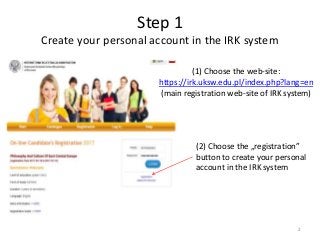
Step 1
Create yourpersonal account in the IRK system
(1) Choose the web-site:
https://irk.uksw.edu.pl/index.php?lang=en
(main registration web-site of IRK system)
(2) Choose the „registration”
button to create your personal
account in the IRK system
2
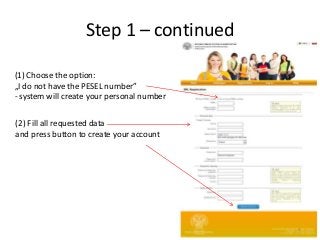
Step 1 –continued
(2) Fill all requested data
and press button to create your account
(1) Choose the option:
„I do not have the PESEL number”
- system will create your personal number
4
5.
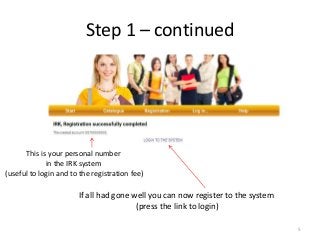
Step 1 –continued
If all had gone well you can now register to the system
(press the link to login)
This is your personal number
in the IRK system
(useful to login and to the registration fee)
5
6.
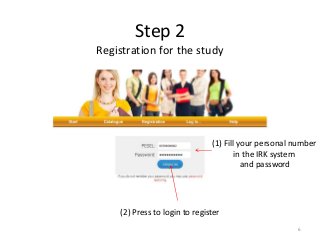
Step 2
Registration forthe study
(2) Press to login to register
(1) Fill your personal number
in the IRK system
and password
6
7.
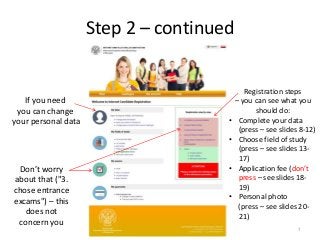
Step 2 –continued
If you need
you can change
your personal data
Registration steps
– you can see what you
should do:
• Complete your data
(press – see slides 8-12)
• Choose field of study
(press – see slides 13-
17)
• Application fee (don’t
press – see slides 18-
19)
• Personal photo
(press – see slides 20-
21)
Don’t worry
about that ("3.
chose entrance
excams") – this
does not
concern you
7
8.
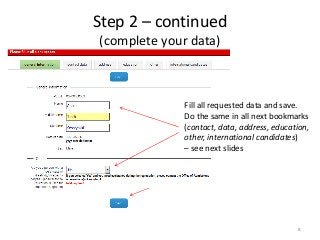
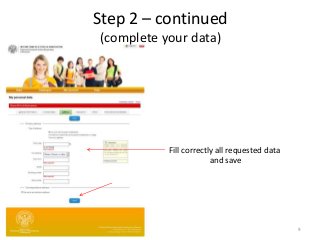
Step 2 –continued
(complete your data)
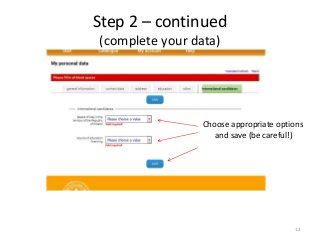
Fill all requested data and save.
Do the same in all next bookmarks
(contact, data, address, education,
other, international candidates)
– see next slides
8
9.
Fill correctly allrequested data
and save
9
Step 2 – continued
(complete your data)
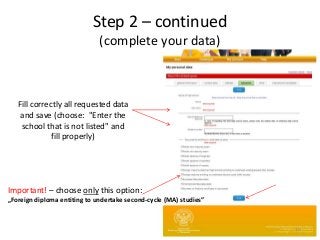
10.
Fill correctly allrequested data
and save (choose: "Enter the
school that is not listed" and
fill properly)
Important! – choose only this option:
„Foreign diploma entiting to undertake second-cycle (MA) studies”
10
Step 2 – continued
(complete your data)
11.
11
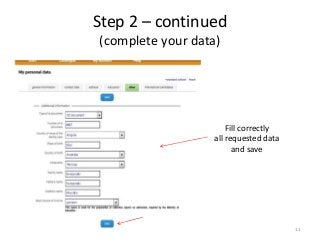
Step 2 –continued
(complete your data)
Fill correctly
all requested data
and save
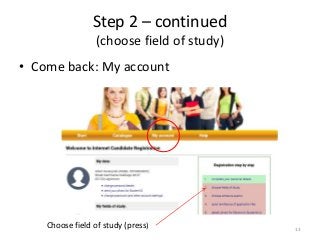
• Come back:My account
13
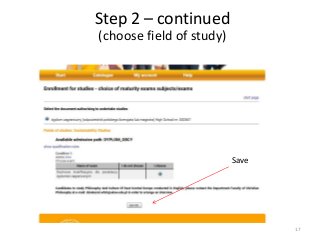
Step 2 – continued
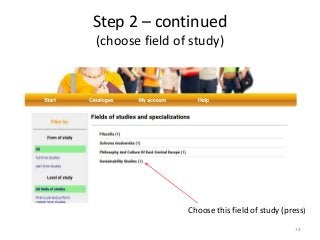
(choose field of study)
Choose field of study (press)
14.
Choose this fieldof study (press)
14
Step 2 – continued
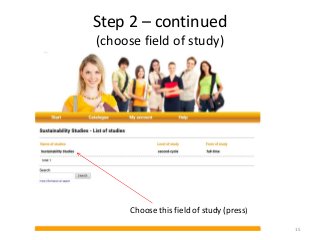
(choose field of study)
15.
Choose this fieldof study (press)
15
Step 2 – continued
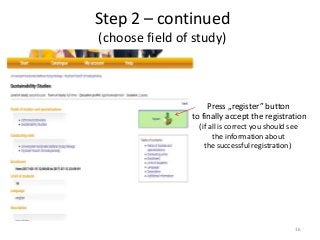
(choose field of study)
16.
Press „register” button
tofinally accept the registration
(if all is correct you should see
the information about
the successful registration)
16
Step 2 – continued
(choose field of study)
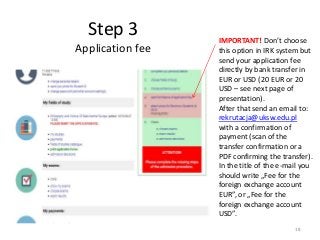
Step 3
Application fee
IMPORTANT!Don’t choose
this option in IRK system but
send your application fee
directly by bank transfer in
EUR or USD (20 EUR or 20
USD – see next page of
presentation).
After that send an email to:
rekrutacja@uksw.edu.pl
with a confirmation of
payment (scan of the
transfer confirmation or a
PDF confirming the transfer).
In the title of the e-mail you
should write „Fee for the
foreign exchange account
EUR”, or „Fee for the
foreign exchange account
USD”.
18
19.
Step 3 –continued
Application fee
19
for EUR:
• Payments: my remmitance list EUR
• Recipient’s name: Uniwersytet Kardynała Stefana Wyszynskiego w Warszawie, ul. Dewajtis 5,
Warszawa, Poland
• Recipient’s bank account number: 07109010140000000132730145
• Fee (in EUR): 20
• Sender’s name: personal number received during registration in IRK system (e.g. 00700000001)
• Title of payment: personal number received during registration in IRK system (e.g. 00700000001) +
„Application fee 2017”
for USD:
• Payments: my remmitance list USD
• Recipient’s name: Uniwersytet Kardynała Stefana Wyszynskiego w Warszawie, ul. Dewajtis 5,
Warszawa, Poland
• Recipient’s bank account number: 83109010140000000132992908
• Fee (in USD): 20
• Sender’s name: personal number received during registration in IRK system (e.g. 00700000001)
• Title of payment: personal number received during registration in IRK system (e.g. 00700000001) +
„Application fee 2017”
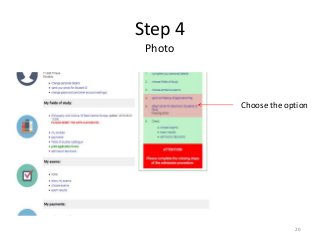
Step 4 –continued
Download your
personal photo
and send.
Before that check
requirements of
the photo
21
22.
Final
After successful endingall process you should receive on your e-mail address
the information on accepting your registration from the IRK system:
Witaj your name!
Ten list został wygenerowany automatycznie jako potwierdzenie zapisania na studia:
Studia: Sustainability Studies [ID: WF-FI-PAC-2]
Kierunek: Sustainability Studies
Data: data of your application
Osoba: Your Name
Operacja wykonana poprawnie!
--
Uniwersytet Kardynała Stefana Wyszyńskiego w Warszawie
ul. Dewajtis 5, Warszawa
This sentence
means that your
registration is
made correct
22
23.
… if somethinggoes wrong or if you have any
problems with registration in IRK system –
please, let us know, as soon as possible:
dziekanat.wfch@uksw.edu.pl
We will help you with all application procedure.
We hope it was helpful, but …
23
24.
WHAT’S NEXT AFTERSUCCESSFUL
REGISTRATION?
Please, wait for the information
from us by your e-mail
24



![Final
After successful ending all process you should receive on your e-mail address
the information on accepting your registration from the IRK system:
Witaj your name!
Ten list został wygenerowany automatycznie jako potwierdzenie zapisania na studia:
Studia: Sustainability Studies [ID: WF-FI-PAC-2]
Kierunek: Sustainability Studies
Data: data of your application
Osoba: Your Name
Operacja wykonana poprawnie!
--
Uniwersytet Kardynała Stefana Wyszyńskiego w Warszawie
ul. Dewajtis 5, Warszawa
This sentence
means that your
registration is
made correct
22](https://image.slidesharecdn.com/registrationguidesust-170516145905/85/Sustainability-Studies-Registration-Guide-22-320.jpg?cb=1494946989)