How to install with Packaging Utility
and Installation Manager
www.strongback.us 2
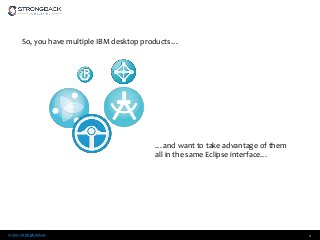
So, you have multiple IBM desktop products…
…and want to take advantage of them
all in the same Eclipse interface…
www.strongback.us
Example combinations:
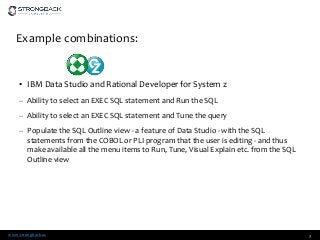
• IBM Data Studio and Rational Developer for System z
– Ability to select an EXEC SQL statement and Run the SQL
– Ability to select an EXEC SQL statement and Tune the query
– Populate the SQL Outline view - a feature of Data Studio - with the SQL
statements from the COBOL or PLI program that the user is editing - and thus
make available all the menu items to Run, Tune, Visual Explain etc. from the SQL
Outline view
3
www.strongback.us
Example Combination
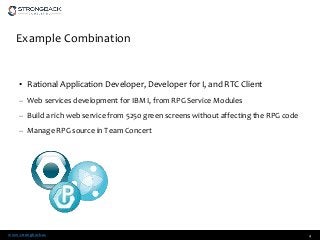
• Rational Application Developer, Developer for I, and RTC Client
– Web services development for IBM I, from RPG Service Modules
– Build a rich web service from 5250 green screens without affecting the RPG code
– Manage RPG source in Team Concert
4
www.strongback.us
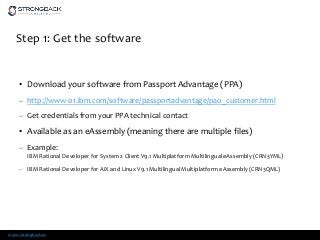
Step 1: Get the software
• Download your software from Passport Advantage (PPA)
– http://www-01.ibm.com/software/passportadvantage/pao_customer.html
– Get credentials from your PPA technical contact
• Available as an eAssembly (meaning there are multiple files)
– Example:
IBM Rational Developer for System z Client V9.1 Multiplatform Multilingual eAssembly (CRN3YML)
– IBM Rational Developer for AIX and Linux V9.1 Multilingual Multiplatform eAssembly (CRN3QML)
www.strongback.us
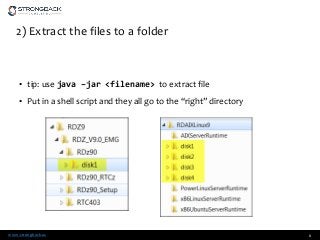
2) Extract the files to a folder
• tip: use java –jar <filename> to extract file
• Put in a shell script and they all go to the “right” directory
6
www.strongback.us
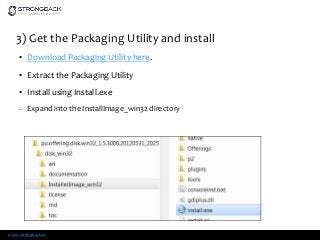
3) Get the Packaging Utility and install
• Download Packaging Utility here.
• Extract the Packaging Utility
• Install using Install.exe
– Expand into the InstallImage_win32 directory
www.strongback.us
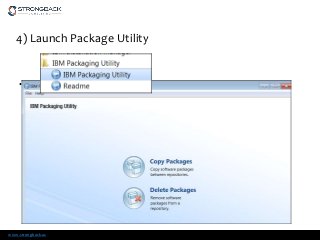
4) Launch Package Utility
• click copy packages and point to your extracts
www.strongback.us
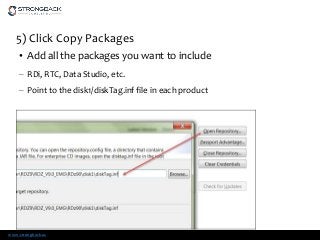
5) Click Copy Packages
• Add all the packages you want to include
– RDi, RTC, Data Studio, etc.
– Point to the disk1/diskTag.inf file in each product
www.strongback.us
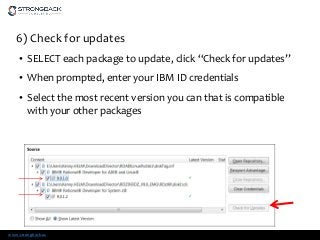
6) Check for updates
• SELECT each package to update, click “Check for updates”
• When prompted, enter your IBM ID credentials
• Select the most recent version you can that is compatible
with your other packages
www.strongback.us
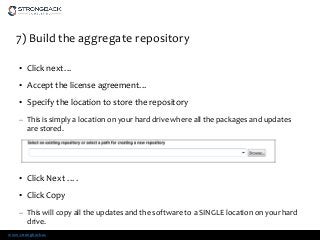
7) Build the aggregate repository
• Click next…
• Accept the license agreement…
• Specify the location to store the repository
– This is simply a location on your hard drive where all the packages and updates
are stored.
• Click Next ….
• Click Copy
– This will copy all the updates and the software to a SINGLE location on your hard
drive.
www.strongback.us
8) Record a response file
• Response file allows us to install exactly the correct options of the product
• Install to the exactly correct directory
• Installs silently
• Place in the same folder that the repositories are located in
• NOTE: This has already been done for you
• Example:
• “C:IBMInstallation ManagereclipseIBMIM.exe" -record install-response.xml
accessRights admin -skipInstall C:tmpiimdata
www.strongback.us
9) Create the Installation manager batch script
• Create a shell script to run Installation Manager and feed it the response
files you just created.
• Note: This has already been done for you
– Make sure that the batch file points to the correct response file
• example:
– C:Program FilesIBMInstallation Mangereclipsetoolsimcl.exe –input install-
response.xml –log c:tmpinstall.log –acceptLicense -accessRights admin
www.strongback.us
10) Test your scripts
• Create a VM Ware image (or Virtual Box image) of the OS you are
deploying to
– Hook it into your Active Directory or LDAP to ensure it can run network login
scripts.
– Take an initial snapshot of the VM BEFORE you run the script
• Run the script
– Check the logs, and validate it installed successfully
– If not, roll back to the snapshot, edit the script and try again
14
www.strongback.us
11) Call your scripts from
• Basic method: network login script
– Make sure it does not run twice
• Better method: Tivoli Endpoint Manager
– Push to the desktop
– No user intervention required
– Centralized view of installation logs
– Can use TEM to manage nearly all software on the desktop (including licenses)
15
www.strongback.us
Reference Material
• How to use Passport Advantage Online
• How to use scripting with IBM Installation Manager
• Record a response file with IIM
www.strongback.us
Socialize with us on Facebook & LinkedIn
http://www.facebook.com/StrongbackConsulting
http://www.linkedin.com/company/290754
Subscribe to us at
http://feeds.feedburner.com/StrongbackConsulting
Discover us at:
http://www.strongback.us
Watch Us at Youtube http://www.youtube.com/user/strongbackconsulting
https://vimeo.com/user7519232
Call us at: 386-232-8746

Creating installations-with-packaging-utility

  • 1.
    How to installwith Packaging Utility and Installation Manager
  • 2.
    www.strongback.us 2 So, youhave multiple IBM desktop products… …and want to take advantage of them all in the same Eclipse interface…
  • 3.
    www.strongback.us Example combinations: • IBMData Studio and Rational Developer for System z – Ability to select an EXEC SQL statement and Run the SQL – Ability to select an EXEC SQL statement and Tune the query – Populate the SQL Outline view - a feature of Data Studio - with the SQL statements from the COBOL or PLI program that the user is editing - and thus make available all the menu items to Run, Tune, Visual Explain etc. from the SQL Outline view 3
  • 4.
    www.strongback.us Example Combination • RationalApplication Developer, Developer for I, and RTC Client – Web services development for IBM I, from RPG Service Modules – Build a rich web service from 5250 green screens without affecting the RPG code – Manage RPG source in Team Concert 4
  • 5.
    www.strongback.us Step 1: Getthe software • Download your software from Passport Advantage (PPA) – http://www-01.ibm.com/software/passportadvantage/pao_customer.html – Get credentials from your PPA technical contact • Available as an eAssembly (meaning there are multiple files) – Example: IBM Rational Developer for System z Client V9.1 Multiplatform Multilingual eAssembly (CRN3YML) – IBM Rational Developer for AIX and Linux V9.1 Multilingual Multiplatform eAssembly (CRN3QML)
  • 6.
    www.strongback.us 2) Extract thefiles to a folder • tip: use java –jar <filename> to extract file • Put in a shell script and they all go to the “right” directory 6
  • 7.
    www.strongback.us 3) Get thePackaging Utility and install • Download Packaging Utility here. • Extract the Packaging Utility • Install using Install.exe – Expand into the InstallImage_win32 directory
  • 8.
    www.strongback.us 4) Launch PackageUtility • click copy packages and point to your extracts
  • 9.
    www.strongback.us 5) Click CopyPackages • Add all the packages you want to include – RDi, RTC, Data Studio, etc. – Point to the disk1/diskTag.inf file in each product
  • 10.
    www.strongback.us 6) Check forupdates • SELECT each package to update, click “Check for updates” • When prompted, enter your IBM ID credentials • Select the most recent version you can that is compatible with your other packages
  • 11.
    www.strongback.us 7) Build theaggregate repository • Click next… • Accept the license agreement… • Specify the location to store the repository – This is simply a location on your hard drive where all the packages and updates are stored. • Click Next …. • Click Copy – This will copy all the updates and the software to a SINGLE location on your hard drive.
  • 12.
    www.strongback.us 8) Record aresponse file • Response file allows us to install exactly the correct options of the product • Install to the exactly correct directory • Installs silently • Place in the same folder that the repositories are located in • NOTE: This has already been done for you • Example: • “C:IBMInstallation ManagereclipseIBMIM.exe" -record install-response.xml accessRights admin -skipInstall C:tmpiimdata
  • 13.
    www.strongback.us 9) Create theInstallation manager batch script • Create a shell script to run Installation Manager and feed it the response files you just created. • Note: This has already been done for you – Make sure that the batch file points to the correct response file • example: – C:Program FilesIBMInstallation Mangereclipsetoolsimcl.exe –input install- response.xml –log c:tmpinstall.log –acceptLicense -accessRights admin
  • 14.
    www.strongback.us 10) Test yourscripts • Create a VM Ware image (or Virtual Box image) of the OS you are deploying to – Hook it into your Active Directory or LDAP to ensure it can run network login scripts. – Take an initial snapshot of the VM BEFORE you run the script • Run the script – Check the logs, and validate it installed successfully – If not, roll back to the snapshot, edit the script and try again 14
  • 15.
    www.strongback.us 11) Call yourscripts from • Basic method: network login script – Make sure it does not run twice • Better method: Tivoli Endpoint Manager – Push to the desktop – No user intervention required – Centralized view of installation logs – Can use TEM to manage nearly all software on the desktop (including licenses) 15
  • 16.
    www.strongback.us Reference Material • Howto use Passport Advantage Online • How to use scripting with IBM Installation Manager • Record a response file with IIM
  • 17.
    www.strongback.us Socialize with uson Facebook & LinkedIn http://www.facebook.com/StrongbackConsulting http://www.linkedin.com/company/290754 Subscribe to us at http://feeds.feedburner.com/StrongbackConsulting Discover us at: http://www.strongback.us Watch Us at Youtube http://www.youtube.com/user/strongbackconsulting https://vimeo.com/user7519232 Call us at: 386-232-8746