Artem Livshits
CEO OblakSoft
 Sign up for Google Compute Engine
 Sign up for Google Cloud Storage
 Configure storage
 Launch ready-to-run WordPress
 Create your own Website in Google Cloud
 Appendix: how to stop instance
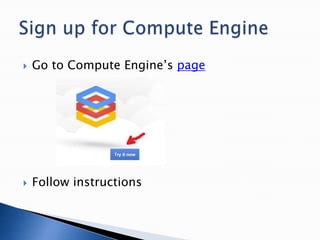
 Go to Compute Engine’s page
 Follow instructions
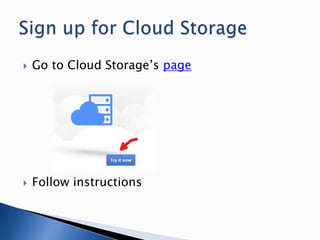
 Go to Cloud Storage’s page
 Follow instructions
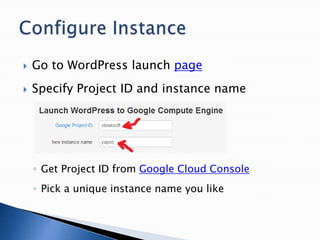
 Go to WordPress launch page
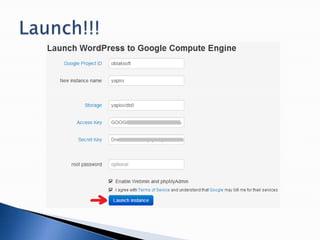
 Specify Project ID and instance name
◦ Get Project ID from Google Cloud Console
◦ Pick a unique instance name you like
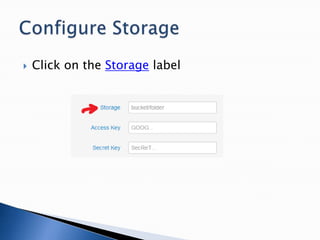
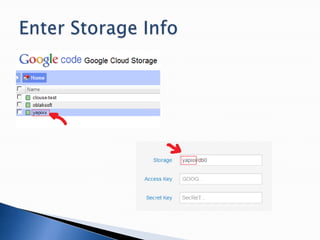
 Click on the Storage label
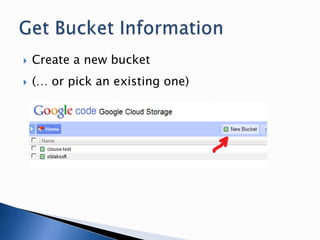
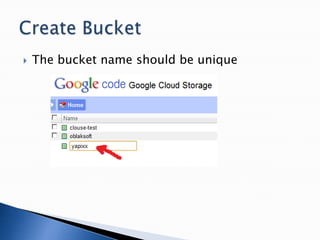
 Create a new bucket
 (… or pick an existing one)
 The bucket name should be unique
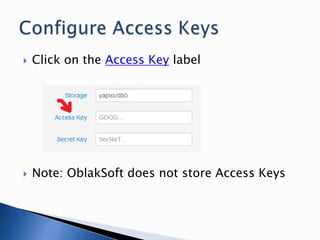
 Click on the Access Key label
 Note: OblakSoft does not store Access Keys
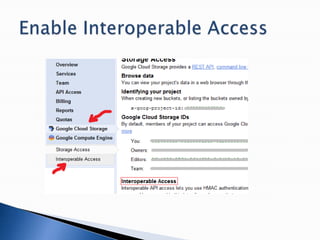
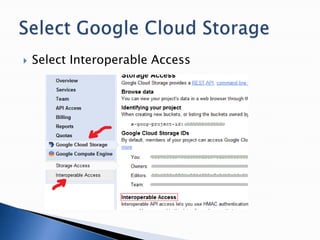
 Select Interoperable Access
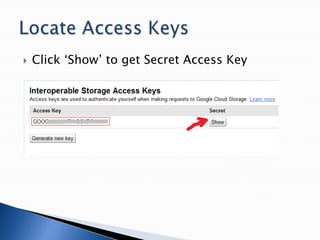
 Click ‘Show’ to get Secret Access Key
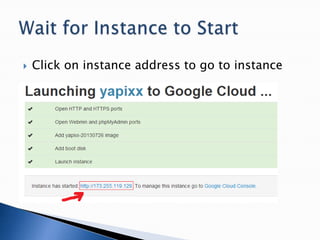
 Click on instance address to go to instance
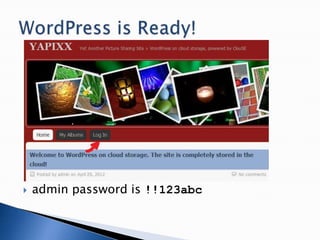
 admin password is !!123abc
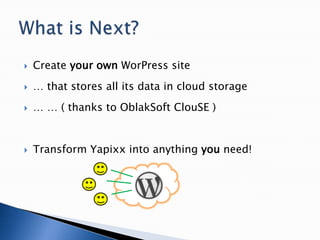
 Create your own WorPress site
 … that stores all its data in cloud storage
 … … ( thanks to OblakSoft ClouSE )
 Transform Yapixx into anything you need!
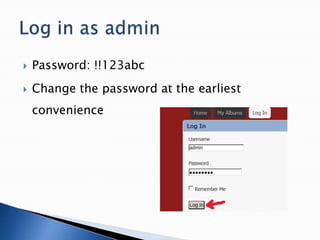
 Password: !!123abc
 Change the password at the earliest
convenience
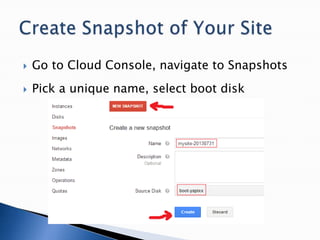
 Go to Cloud Console, navigate to Snapshots
 Pick a unique name, select boot disk
 Your website is running in Google Cloud
 Google may bill you for their services
 If you don’t need the website any more
 … you’d want to stop it to avoid charges
 You can stop instance from Cloud Console
 Follow instructions on the next 2 slides
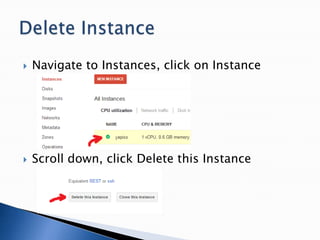
 Navigate to Instances, click on Instance
 Scroll down, click Delete this Instance
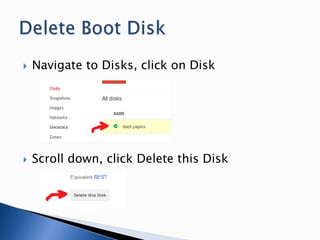
 Navigate to Disks, click on Disk
 Scroll down, click Delete this Disk
 www.oblaksoft.com/wordpress-to-google-
cloud/
 artem@oblaksoft.com
 www.oblaksoft.com
OblakSoft
YOUR WAY TO THE CLOUD

WordPress to Google Cloud: step-by-step

  • 1.
  • 2.
     Sign upfor Google Compute Engine  Sign up for Google Cloud Storage  Configure storage  Launch ready-to-run WordPress  Create your own Website in Google Cloud  Appendix: how to stop instance
  • 3.
     Go toCompute Engine’s page  Follow instructions
  • 4.
     Go toCloud Storage’s page  Follow instructions
  • 6.
     Go toWordPress launch page  Specify Project ID and instance name ◦ Get Project ID from Google Cloud Console ◦ Pick a unique instance name you like
  • 7.
     Click onthe Storage label
  • 8.
     Create anew bucket  (… or pick an existing one)
  • 9.
     The bucketname should be unique
  • 11.
     Click onthe Access Key label  Note: OblakSoft does not store Access Keys
  • 12.
  • 13.
     Click ‘Show’to get Secret Access Key
  • 17.
     Click oninstance address to go to instance
  • 18.
     admin passwordis !!123abc
  • 19.
     Create yourown WorPress site  … that stores all its data in cloud storage  … … ( thanks to OblakSoft ClouSE )  Transform Yapixx into anything you need!
  • 20.
     Password: !!123abc Change the password at the earliest convenience
  • 22.
     Go toCloud Console, navigate to Snapshots  Pick a unique name, select boot disk
  • 23.
     Your websiteis running in Google Cloud  Google may bill you for their services  If you don’t need the website any more  … you’d want to stop it to avoid charges  You can stop instance from Cloud Console  Follow instructions on the next 2 slides
  • 24.
     Navigate toInstances, click on Instance  Scroll down, click Delete this Instance
  • 25.
     Navigate toDisks, click on Disk  Scroll down, click Delete this Disk
  • 26.

Editor's Notes

  • #4 Go to https://cloud.google.com/products/compute-engineClick Try it nowFollow the signup instructions
  • #5 Go to https://cloud.google.com/products/cloud-storageClick Try it nowFollow the signup instructions
  • #6 To authenticate with Google Cloud Storage, ClouSE needs Interoperable Access.
  • #7 YAPIXX stands for Yet AnotherPICture Sharing SiteYapixx is a ready-to-run WordPress on Cloud Storage, configured as a picture sharing site
  • #9 If you have an existing bucket, you can use it to store Yapixx data.If you don’t have any buckets, you can create one.
  • #10 Type in a unique name and hit enter.
  • #11 Use the bucket name you’ve just created in the storage information.The storage information can contain an arbitrary folder name that allows creating multiple databases in one bucket.
  • #12 Note that any information that you enter is only used to launch the instance
  • #13 To authenticate with Google Cloud Storage, ClouSE needs Interoperable Access.
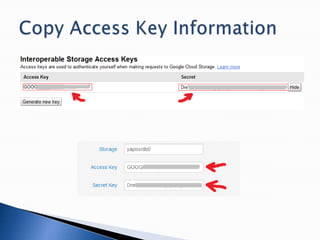
  • #15 Copy and paste the access keys.
  • #19 Yapixx is fully configured now.Please change the admin password as soon as possibleEnjoy!
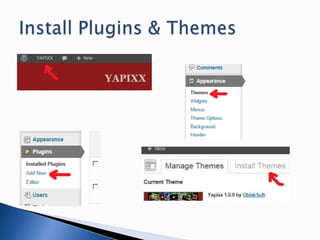
  • #22 Go to the WordPress dashboardSelect Add new plugin and follow the instructionsSelect Install Themes and follow the instructionsGet more at http://wordpress.org/
  • #23 After you’ve customized and configured your site, create a snapshotThe snapshot will contain your customizations and can be used as an image to launch your website