V.D1508
Wireless Laser Barcode
Scanner User Manual
7 1 2 2 1 0 0 0 0 1
Housing Design Description
Technical Parameters
How to Use
Bluetooth Adapter Installation Guide-Windows XP
Bluetooth Adapter Installation Guide-Windows 7
Bluetooth Adapter Installation Guide-Windows 8
Paired with Android/IOS/MAC Devices
Charging
Reading Angle
Wired and Wireless Mode Switchover
LED Indicator & Beeper
Scanning Mode Setup
User ID Settings
Sleep Time Settings (for wireless & Bluetooth)
Language Settings
Bluetooth RF Reliability
Bluetooth Transmit Speed Control (only for Bluetooth)
Beep1: “Scan bar code successfully” (default as on)
Beep2: “RF upload successfully” (default as on)
Shutdown/Initialization/Version information
Function Settings
Trigger Mode
IMAGE
Add Bar Code ID(Bar Code identifying Code)
Language Setting
Capital and Lower-case
Bar Code Termination Characters Settings
Barcode Setting
Code 11
Code 93
Code 39
Code 128
Interleaved/ITF25
Industrial 25
MSI/PLESSEY
UPC-A
UPC-E
EAN-13
EAN-8
UPC/EAN
ISBN
CODABAR
Code32
Appendix
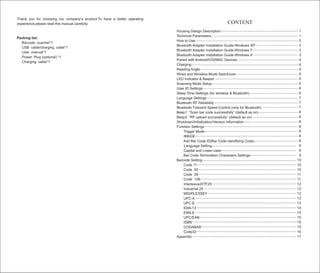
Thank you for choosing our company’s product.To have a better operating
experience,please read this manual carefully.
Packing list:
Barcode scanner*1
USB cable/charging cable*1
User manual*1
Power Plug (optional) *1
Charging cable*1
1
1
2
3
3
3
4
4
4
5
5
5
6
6
7
7
7
8
8
8
8
8
8
8
9
9
9
10
10
10
11
11
12
12
12
13
13
14
14
15
15
15
16
17
CONTENT
2
Press the button. The scanner will have two short beep sounds and the
indicator light will blink .The scanner is power on.
How to Use
Power On
Power Off
The default shutdown time is 20 seconds. If there is no operation within 20
seconds, the buzzer will have a long beep sound and then enter into sleep
mode with the indicator light off.
Enter into Paring Mode
1.Press the button continuously for 10 seconds.
( )
one-key paring
2.Scan “one-key pairing” bar code
1
shock resistance cover
trigger button
indicator light
Housing Design Description
Technical Parameters
USB adapter
Physical Parameters
Material
Size
Power supply
Power
Battery
Charging time
Weight
ABS+PC+PVC
L*W*H:93mm*88mm*160mm
DC 5V ±5%
180mw(operating); 25mw(standby); 360mw(MAX)
3.7V 750mAH Lithium polymer battery
2 hours
136g (without cable)
Environment Parameters
IP Grade
Operating Temp.
Storage Temp.
Operating Humidity
Storage Humidity
ESD protection
Shock resistance
IP 54
0 to 50 ºC / 32 to 122 ºF
20 - 85% (non-condensing)
15KV air discharge
1.2m free fall on concrete surface
Performance Parameters
USB wired/wireless
2.4G 30M / Bluetooth 10M
Laser LED 650± 20nm (National laser safety standard
class 1)
64K(About 3500 14b id barcodes)(the memory capacity
can be customized)
UPC-A,UPC-E,EAN-13,EAN-8,ISBN/ISSN code 39,
Codabar,Interleave 25,Industrial 25,Matrix 25,Code 128,
Code 93,Code 11,MSI/PIESSEY,UK/PLESSEY,
UCC/EAN128,etc.
Minimum 0.1mm (4mils)
3—9cm(0.1mm bar width);3.5—45cm(0.3mm bar width)
200scans/sec
1/5 million
Manual trigger;auto continuous scanning;Infrared auto
scanning,stand auto scanning(optional)
25cm (250cm2) 20cm(100cm2) 5cm(small area)
2sec/time
100times/sec
60mm at30mm (from objects);
98mm at100mm (from objects)
10-600mm reading pitch 60º reading dip angle 45º
Interface
Transmission Distance
Light Source
Storage
Decoding
capability
Resolution
Depth of field
Decoding speed
Error rate
Trigger mode
Sensing distance
Sensing delay
Sensing speed
Reading width
Reading distance
Scanning width
Prompt mode
5cm―30cm
Buzzer, indicator light
30%
Roll30°、Pitch75°、Yaw65°
Diameter 35mm
Contrast
Scan angles
Cylinder Horizontal
Note:
1. For Bluetooth scanner, please keep pressing the button for 10 seconds, or
scan ‘one-key paring’ bar code, then the scanner will enter into pairing mode.
4
3
Bluetooth Adapter Installation Guide-Windows XP
Bluetooth Adapter Installation Guide-Windows 7
Bluetooth Adapter Installation Guide-Windows 8
1. Plug in the Bluetooth adapter. Bluetooth device icon will show on the system
tray.
2. Double click the Bluetooth icon then the Bluetooth device dialog box will
show. (User can also click the Bluetooth device from the control panel.)
3. Click ‘add’ and the Bluetooth device wizard will show.
4. Scan the setup code ‘scan and match’ or press the trigger button for 10
seconds in order to let the Bluetooth scanner get into matching condition.The
LED light flashes quickly. Select ‘My device is set up and ready to be found’
and click ‘next’.
5. There will be a Bluetooth device wizard dialog box that shows ‘Barcode
Scanner’ icon. If not, click ‘search again’.
6. Double click ‘Barcode Scanner’ icon and see the passkey dialog box.
7. Select ‘don’t use a passkey’ and click ‘next’ to start installing the driver.
8. After installation, there will be an extra Barcode Scanner in the Bluetooth
device and an extra HID Keyboard Device in the device manager. The
Bluetooth adapter installation is finished now.
9. Now open any edit box like notepad to start reading and uploading bar
codes.
1. Plug in the Bluetooth adapter then the Bluetooth icon will show.
2. Double click the Bluetooth icon and then the ‘Devices and Printers’ will show.
3. Activate the scanner and scan the setup code ‘scan and match’ or press the
trigger button for 10 seconds, then LED light flashes quickly and the
Bluetooth scanner enters to the matching condition.
4. Click ‘add a device’ and there comes a dialog box that shows ‘Barcode
Scanner’.
5. Right click the device icon and right click again to select the properties.
6. Select ‘Drivers for keyboard, mice, etc [HID]’ in the properties dialog box and
click yes.
7. After installation there will be a balloon to show installation success. The
device manager has a new HID keyboard device.
8. Now the Bluetooth installation finished. Open any edit box like notepad to
start reading and uploading bar codes.
Paired with Android/IOS/MAC Devices
1. Please confirm the scanner is in paring mode. Otherwise, the device can’t
search the scanner.
2. Click the searched Bluetooth device directly. It can finish the pairing
automatically.
Charging
Please connect the RJ45 interface of the charging cable to the bottom of the
scanner and the USB interface to the computer. Or, connect the 5V 500mA
power adapter to the power socket. Charging time will be 2-3 hours. After fully
charged, the scanner can work 8-12 hours continuously
Reading Angle
1. Maintain a bevel between the scanner and the bar code to make a best
reading.
2. Do not keep the scanner in 90° with the bar code, otherwise the scanner
can’t read.
3. The scanner must aim at the bar code and the beam must cover the whole
bar code. If not, error may occur.
correct way of reading correct way of reading
incorrect way of reading incorrect way of reading
Notice:
1. The barcode scanner has been set well before delivery. It can be used
directly. Please do not scan the bar codes in the manual optionally to test the
scanner. In case of scanning the setting bar codes and abnormal condition
occurs, please scan ‘Initialization Setting’ bar code and ‘Serial Mode’ bar
code as below to reset factory defaults.
2. The wireless adapter should be connected to the fixed computer USB
interface. Do not plug in or pull out the adapter frequently in order to help
improving the working efficiency and avoid man-made damage.
1. Plug in the Bluetooth adapter.
2. Open ‘control panel’ and click ‘add a device’.
3. Activate the scanner and scan the setup code ‘scan and match’ or press the
trigger button for 10 seconds, then LED light flashes quickly and the
Bluetooth scanner enters to the matching condition.
4. Click ‘add a device’ and there comes a dialog box that shows ‘Barcode
Scanner’. Select the device and click ‘next’.
5. Now the Bluetooth installation finished. Open any edit box like notepad to
start reading and uploading bar codes.
2. For 2.4G wireless scanner, please plug the adapter to the computer and scan
‘one-key paring’ bar code within 10 seconds. Otherwise, the scanner won’t
pair to the computer. If fail to pair, please pull out the adapter and plug in
again, then repeat the same step.
Initialization Setting Serial Mode
6
6 7 8
9
User ID Settings
ID Settings
ID Display ID Hidden
0 1 2
3 4 5
Sleep Time Settings (for wireless & Bluetooth)
Sleep Time
5
Wired and Wireless Mode Switchover
If need to switch to wired mode, please scan ‘Initialization Setting’ setup bar
code as below.
Initialization Setting
Serial Mode
If need to switch back to wireless mode, please scan ‘Serial Mode’ bar code as
below.
LED Indicator & Beeper
Indicator Light Color Instruction
Green light and will
be off soon
Reading successfully and comes a short beep
Red light always on Charging (red light will be off when fully charged)
Blue light blinking
(Bluetooth)
Press the button for 10 seconds. The blue light
blinks and scanner enters into pairing mode.
After pairing successfully, the blue light is on
always.
Beep Sound Instruction
A short beep Reading successfully
A long beep Auto shutdown and enter into sleep mode
Two short beep Power on
Three short beep Fail to upload data. Please pair again
Three long beep Low power, please charge.
Scanning Mode Setup
Setup Instruction:
1. Normal mode means real-time transmission. Scan ‘Normal Mode’ bar code,
the scanner will be in real-time transmission.
2. In inventory mode, the scanner will save the bar code it reads. When need to
upload the data to computer, scan ‘Data Upload’ bar code.
3. Scan ‘Total Number of Data’ bar code, the computer will show how many bar
codes the scanner reads under inventory mode.
4. Scan ‘clear data’ bar code means clear all the bar codes being read under
inventory mode.
Normal Mode
Inventory Mode Non-volatile Mode
Upload Data Total Number of Data
Clear Data
Setting Instruction:
1. Scan ‘ID Settings’ 2. Scan the ID numbers which need to be set
Note: ID Setting is only for wireless, not for Bluetooth temporarily.
8
Function Settings
Trigger Mode
Multiscan
Anto continuous scan
IMAGE
Add Bar Code ID(Bar Code identifying Code)
Add ID code in front-enable
7
Bluetooth RF Reliability
on off (default)
20 minutes no sleep
Language Settings
American English (default) German
French Italian
Spanish Russian
Bluetooth Transmit Speed Control (only for Bluetooth)
Low Speed High Speed (default)
Software Version Hardware Version
Setup Instruction:
20 seconds (Default) 30 seconds
60 seconds 2 minutes
5 minutes 10 minutes
1. Scan ‘Sleep Time’ bar code
2. Scan the time you want to set.(If set the sleep time 60 seconds, the scanner
will be power off after 60seconds)
Shutdown/Initialization/Version information
Shutdown Initialization
Beep1: “Scan bar code successfully” (default as on)
On Off
Beep2: “RF upload successfully” (default as on)
On Off
DECODE OPTIONS REVERSE
IMAGE-ENABLE
Default Mode Single scan no trigger
Multiscan no trigger
Pulse
DECODE OPTIONS REVERSE
IMAGE-DISABLE
Add ID code in front-disable
10
All codes preamble-STX
All codes postamble-ETX
Hide the first character
Hide the last character
Code 11 /on Code 11/ off
Code 11
ID Character“m” ID Character“z”
Code 11 redundancy enable Code 11 redundancy disable
Code 93
Code 93 /on Code 93 /off
Barcode Setting
9
Capital and Lower-case
Capital
Lower-case
Reset
Bar Code Termination Characters Settings
Cancel Suffix
Termination-CHAR-CR
Termination CHAR-space
Termination CHAR-TAB
Termination CHAR-TAB/CR
Termination CHAR-CR+CR
Add ID code behind-enable Add ID code behind-disable
Language Setting
American English German
French Reset
12
Code 128 redundancy enable Code 128 redundancy disable
Interleaved/ITF25
Interleaved/ITF25-on Interleaved/ITF25-off
ID Character“I” ID Character“z”
ITF25 redundancy enable ITF25 redundancy disable
Industrial 25
Industrial 25/on Industrial 25/off
ID Character“k” ID Character“z”
Industrial 25
redundancy enable
Industrial 25
redundancy disable
MSI/PLESSEY
MSI-on MSI-off
ID Character“f” ID Character“z”
11
Code 93 redundancy enable Code 93 redundancy disable
Code 39
Code 39/on Code 39/off
Code 39 ALL ASCLL-on Code 39 ALL ASCLL-off
Guide character-None Guide character“+”
Send start/stop
CHARS-enable
Send start/stop
CHARS-disable
ID Character“a” ID Character“z”
Code 39 redundancy enable Code 39 redundancy disable
Code 128
Code 128 /on Code 128/off
ID Character“g” ID Character“z”
ID Character“h” ID Character“z”
14
Transmit check digit enable Transmit check digit disable
ID Character“C” ID Character“z”
EAN-13
EAN-13 /on EAN-13/off
Convert EAN-13
into ISBN enable
Convert EAN-13
into ISBN disable
Transmit system bit enable Transmit system bit disable
Transmit check digit enable Transmit check digit disable
ID Character“e” ID Character“z”
EAN-8
EAN-8/on EAN-8/off
Transmit system bit enable Transmit system bit disable
13
MSI redundancy enable MSI redundancy disable
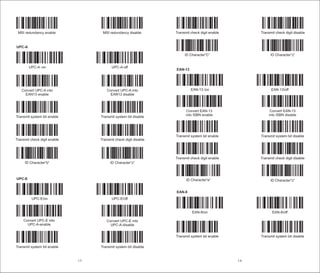
UPC-A
UPC-A -on UPC-A-off
Convert UPC-A into
EAN13 enable
Convert UPC-A into
EAN13 disable
Transmit system bit enable Transmit system bit disable
Transmit check digit enable Transmit check digit disable
ID Character“b” ID Character“z”
UPC-E
UPC-E/on UPC-E/off
Convert UPC-E into
UPC-A-enable
Convert UPC-E into
UPC-A-disable
Transmit system bit enable Transmit system bit disable
16
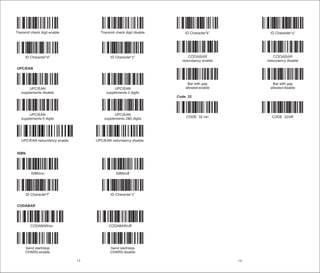
ID Character“k” ID Character“z”
CODABAR
redundancy enable
CODABAR
redundancy disable
Bar with gap
allowed-enable
Bar with gap
allowed-disable
Code 32
CODE 32 /on CODE 32/off
15
Transmit check digit enable Transmit check digit disable
ID Character“d” ID Character“z”
UPC/EAN
UPC/EAN
supplements disable
UPC/EAN
supplements-2 digits
UPC/EAN
supplements-5 digits
UPC/EAN
supplements 2&5 digits
UPC/EAN redundancy enable UPC/EAN redundancy disable
ISBN
ISBN/on ISBN/off
ID Character“f” ID Character“z”
CODABAR
CODABAR/on CODABAR/off
Send start/stop
CHARS-enable
Send start/stop
CHARS-disable
18
17
20
19
22
21
24
23

Wireless leaser Barcode operating manual.pdf

  • 1.
    V.D1508 Wireless Laser Barcode ScannerUser Manual 7 1 2 2 1 0 0 0 0 1
  • 2.
    Housing Design Description TechnicalParameters How to Use Bluetooth Adapter Installation Guide-Windows XP Bluetooth Adapter Installation Guide-Windows 7 Bluetooth Adapter Installation Guide-Windows 8 Paired with Android/IOS/MAC Devices Charging Reading Angle Wired and Wireless Mode Switchover LED Indicator & Beeper Scanning Mode Setup User ID Settings Sleep Time Settings (for wireless & Bluetooth) Language Settings Bluetooth RF Reliability Bluetooth Transmit Speed Control (only for Bluetooth) Beep1: “Scan bar code successfully” (default as on) Beep2: “RF upload successfully” (default as on) Shutdown/Initialization/Version information Function Settings Trigger Mode IMAGE Add Bar Code ID(Bar Code identifying Code) Language Setting Capital and Lower-case Bar Code Termination Characters Settings Barcode Setting Code 11 Code 93 Code 39 Code 128 Interleaved/ITF25 Industrial 25 MSI/PLESSEY UPC-A UPC-E EAN-13 EAN-8 UPC/EAN ISBN CODABAR Code32 Appendix Thank you for choosing our company’s product.To have a better operating experience,please read this manual carefully. Packing list: Barcode scanner*1 USB cable/charging cable*1 User manual*1 Power Plug (optional) *1 Charging cable*1 1 1 2 3 3 3 4 4 4 5 5 5 6 6 7 7 7 8 8 8 8 8 8 8 9 9 9 10 10 10 11 11 12 12 12 13 13 14 14 15 15 15 16 17 CONTENT
  • 3.
    2 Press the button.The scanner will have two short beep sounds and the indicator light will blink .The scanner is power on. How to Use Power On Power Off The default shutdown time is 20 seconds. If there is no operation within 20 seconds, the buzzer will have a long beep sound and then enter into sleep mode with the indicator light off. Enter into Paring Mode 1.Press the button continuously for 10 seconds. ( ) one-key paring 2.Scan “one-key pairing” bar code 1 shock resistance cover trigger button indicator light Housing Design Description Technical Parameters USB adapter Physical Parameters Material Size Power supply Power Battery Charging time Weight ABS+PC+PVC L*W*H:93mm*88mm*160mm DC 5V ±5% 180mw(operating); 25mw(standby); 360mw(MAX) 3.7V 750mAH Lithium polymer battery 2 hours 136g (without cable) Environment Parameters IP Grade Operating Temp. Storage Temp. Operating Humidity Storage Humidity ESD protection Shock resistance IP 54 0 to 50 ºC / 32 to 122 ºF 0 to 50 ºC / 32 to 122 ºF 20 - 85% (non-condensing) 20 - 85% (non-condensing) 15KV air discharge 1.2m free fall on concrete surface Performance Parameters USB wired/wireless 2.4G 30M / Bluetooth 10M Laser LED 650± 20nm (National laser safety standard class 1) 64K(About 3500 14b id barcodes)(the memory capacity can be customized) UPC-A,UPC-E,EAN-13,EAN-8,ISBN/ISSN code 39, Codabar,Interleave 25,Industrial 25,Matrix 25,Code 128, Code 93,Code 11,MSI/PIESSEY,UK/PLESSEY, UCC/EAN128,etc. Minimum 0.1mm (4mils) 3—9cm(0.1mm bar width);3.5—45cm(0.3mm bar width) 200scans/sec 1/5 million Manual trigger;auto continuous scanning;Infrared auto scanning,stand auto scanning(optional) 25cm (250cm2) 20cm(100cm2) 5cm(small area) 2sec/time 100times/sec 60mm at30mm (from objects); 98mm at100mm (from objects) 10-600mm reading pitch 60º reading dip angle 45º Interface Transmission Distance Light Source Storage Decoding capability Resolution Depth of field Decoding speed Error rate Trigger mode Sensing distance Sensing delay Sensing speed Reading width Reading distance Scanning width Prompt mode 5cm―30cm Buzzer, indicator light 30% Roll30°、Pitch75°、Yaw65° Diameter 35mm Contrast Scan angles Cylinder Horizontal Note: 1. For Bluetooth scanner, please keep pressing the button for 10 seconds, or scan ‘one-key paring’ bar code, then the scanner will enter into pairing mode.
  • 4.
    4 3 Bluetooth Adapter InstallationGuide-Windows XP Bluetooth Adapter Installation Guide-Windows 7 Bluetooth Adapter Installation Guide-Windows 8 1. Plug in the Bluetooth adapter. Bluetooth device icon will show on the system tray. 2. Double click the Bluetooth icon then the Bluetooth device dialog box will show. (User can also click the Bluetooth device from the control panel.) 3. Click ‘add’ and the Bluetooth device wizard will show. 4. Scan the setup code ‘scan and match’ or press the trigger button for 10 seconds in order to let the Bluetooth scanner get into matching condition.The LED light flashes quickly. Select ‘My device is set up and ready to be found’ and click ‘next’. 5. There will be a Bluetooth device wizard dialog box that shows ‘Barcode Scanner’ icon. If not, click ‘search again’. 6. Double click ‘Barcode Scanner’ icon and see the passkey dialog box. 7. Select ‘don’t use a passkey’ and click ‘next’ to start installing the driver. 8. After installation, there will be an extra Barcode Scanner in the Bluetooth device and an extra HID Keyboard Device in the device manager. The Bluetooth adapter installation is finished now. 9. Now open any edit box like notepad to start reading and uploading bar codes. 1. Plug in the Bluetooth adapter then the Bluetooth icon will show. 2. Double click the Bluetooth icon and then the ‘Devices and Printers’ will show. 3. Activate the scanner and scan the setup code ‘scan and match’ or press the trigger button for 10 seconds, then LED light flashes quickly and the Bluetooth scanner enters to the matching condition. 4. Click ‘add a device’ and there comes a dialog box that shows ‘Barcode Scanner’. 5. Right click the device icon and right click again to select the properties. 6. Select ‘Drivers for keyboard, mice, etc [HID]’ in the properties dialog box and click yes. 7. After installation there will be a balloon to show installation success. The device manager has a new HID keyboard device. 8. Now the Bluetooth installation finished. Open any edit box like notepad to start reading and uploading bar codes. Paired with Android/IOS/MAC Devices 1. Please confirm the scanner is in paring mode. Otherwise, the device can’t search the scanner. 2. Click the searched Bluetooth device directly. It can finish the pairing automatically. Charging Please connect the RJ45 interface of the charging cable to the bottom of the scanner and the USB interface to the computer. Or, connect the 5V 500mA power adapter to the power socket. Charging time will be 2-3 hours. After fully charged, the scanner can work 8-12 hours continuously Reading Angle 1. Maintain a bevel between the scanner and the bar code to make a best reading. 2. Do not keep the scanner in 90° with the bar code, otherwise the scanner can’t read. 3. The scanner must aim at the bar code and the beam must cover the whole bar code. If not, error may occur. correct way of reading correct way of reading incorrect way of reading incorrect way of reading Notice: 1. The barcode scanner has been set well before delivery. It can be used directly. Please do not scan the bar codes in the manual optionally to test the scanner. In case of scanning the setting bar codes and abnormal condition occurs, please scan ‘Initialization Setting’ bar code and ‘Serial Mode’ bar code as below to reset factory defaults. 2. The wireless adapter should be connected to the fixed computer USB interface. Do not plug in or pull out the adapter frequently in order to help improving the working efficiency and avoid man-made damage. 1. Plug in the Bluetooth adapter. 2. Open ‘control panel’ and click ‘add a device’. 3. Activate the scanner and scan the setup code ‘scan and match’ or press the trigger button for 10 seconds, then LED light flashes quickly and the Bluetooth scanner enters to the matching condition. 4. Click ‘add a device’ and there comes a dialog box that shows ‘Barcode Scanner’. Select the device and click ‘next’. 5. Now the Bluetooth installation finished. Open any edit box like notepad to start reading and uploading bar codes. 2. For 2.4G wireless scanner, please plug the adapter to the computer and scan ‘one-key paring’ bar code within 10 seconds. Otherwise, the scanner won’t pair to the computer. If fail to pair, please pull out the adapter and plug in again, then repeat the same step. Initialization Setting Serial Mode
  • 5.
    6 6 7 8 9 UserID Settings ID Settings ID Display ID Hidden 0 1 2 3 4 5 Sleep Time Settings (for wireless & Bluetooth) Sleep Time 5 Wired and Wireless Mode Switchover If need to switch to wired mode, please scan ‘Initialization Setting’ setup bar code as below. Initialization Setting Serial Mode If need to switch back to wireless mode, please scan ‘Serial Mode’ bar code as below. LED Indicator & Beeper Indicator Light Color Instruction Green light and will be off soon Reading successfully and comes a short beep Red light always on Charging (red light will be off when fully charged) Blue light blinking (Bluetooth) Press the button for 10 seconds. The blue light blinks and scanner enters into pairing mode. After pairing successfully, the blue light is on always. Beep Sound Instruction A short beep Reading successfully A long beep Auto shutdown and enter into sleep mode Two short beep Power on Three short beep Fail to upload data. Please pair again Three long beep Low power, please charge. Scanning Mode Setup Setup Instruction: 1. Normal mode means real-time transmission. Scan ‘Normal Mode’ bar code, the scanner will be in real-time transmission. 2. In inventory mode, the scanner will save the bar code it reads. When need to upload the data to computer, scan ‘Data Upload’ bar code. 3. Scan ‘Total Number of Data’ bar code, the computer will show how many bar codes the scanner reads under inventory mode. 4. Scan ‘clear data’ bar code means clear all the bar codes being read under inventory mode. Normal Mode Inventory Mode Non-volatile Mode Upload Data Total Number of Data Clear Data Setting Instruction: 1. Scan ‘ID Settings’ 2. Scan the ID numbers which need to be set Note: ID Setting is only for wireless, not for Bluetooth temporarily.
  • 6.
    8 Function Settings Trigger Mode Multiscan Antocontinuous scan IMAGE Add Bar Code ID(Bar Code identifying Code) Add ID code in front-enable 7 Bluetooth RF Reliability on off (default) 20 minutes no sleep Language Settings American English (default) German French Italian Spanish Russian Bluetooth Transmit Speed Control (only for Bluetooth) Low Speed High Speed (default) Software Version Hardware Version Setup Instruction: 20 seconds (Default) 30 seconds 60 seconds 2 minutes 5 minutes 10 minutes 1. Scan ‘Sleep Time’ bar code 2. Scan the time you want to set.(If set the sleep time 60 seconds, the scanner will be power off after 60seconds) Shutdown/Initialization/Version information Shutdown Initialization Beep1: “Scan bar code successfully” (default as on) On Off Beep2: “RF upload successfully” (default as on) On Off DECODE OPTIONS REVERSE IMAGE-ENABLE Default Mode Single scan no trigger Multiscan no trigger Pulse DECODE OPTIONS REVERSE IMAGE-DISABLE Add ID code in front-disable
  • 7.
    10 All codes preamble-STX Allcodes postamble-ETX Hide the first character Hide the last character Code 11 /on Code 11/ off Code 11 ID Character“m” ID Character“z” Code 11 redundancy enable Code 11 redundancy disable Code 93 Code 93 /on Code 93 /off Barcode Setting 9 Capital and Lower-case Capital Lower-case Reset Bar Code Termination Characters Settings Cancel Suffix Termination-CHAR-CR Termination CHAR-space Termination CHAR-TAB Termination CHAR-TAB/CR Termination CHAR-CR+CR Add ID code behind-enable Add ID code behind-disable Language Setting American English German French Reset
  • 8.
    12 Code 128 redundancyenable Code 128 redundancy disable Interleaved/ITF25 Interleaved/ITF25-on Interleaved/ITF25-off ID Character“I” ID Character“z” ITF25 redundancy enable ITF25 redundancy disable Industrial 25 Industrial 25/on Industrial 25/off ID Character“k” ID Character“z” Industrial 25 redundancy enable Industrial 25 redundancy disable MSI/PLESSEY MSI-on MSI-off ID Character“f” ID Character“z” 11 Code 93 redundancy enable Code 93 redundancy disable Code 39 Code 39/on Code 39/off Code 39 ALL ASCLL-on Code 39 ALL ASCLL-off Guide character-None Guide character“+” Send start/stop CHARS-enable Send start/stop CHARS-disable ID Character“a” ID Character“z” Code 39 redundancy enable Code 39 redundancy disable Code 128 Code 128 /on Code 128/off ID Character“g” ID Character“z” ID Character“h” ID Character“z”
  • 9.
    14 Transmit check digitenable Transmit check digit disable ID Character“C” ID Character“z” EAN-13 EAN-13 /on EAN-13/off Convert EAN-13 into ISBN enable Convert EAN-13 into ISBN disable Transmit system bit enable Transmit system bit disable Transmit check digit enable Transmit check digit disable ID Character“e” ID Character“z” EAN-8 EAN-8/on EAN-8/off Transmit system bit enable Transmit system bit disable 13 MSI redundancy enable MSI redundancy disable UPC-A UPC-A -on UPC-A-off Convert UPC-A into EAN13 enable Convert UPC-A into EAN13 disable Transmit system bit enable Transmit system bit disable Transmit check digit enable Transmit check digit disable ID Character“b” ID Character“z” UPC-E UPC-E/on UPC-E/off Convert UPC-E into UPC-A-enable Convert UPC-E into UPC-A-disable Transmit system bit enable Transmit system bit disable
  • 10.
    16 ID Character“k” IDCharacter“z” CODABAR redundancy enable CODABAR redundancy disable Bar with gap allowed-enable Bar with gap allowed-disable Code 32 CODE 32 /on CODE 32/off 15 Transmit check digit enable Transmit check digit disable ID Character“d” ID Character“z” UPC/EAN UPC/EAN supplements disable UPC/EAN supplements-2 digits UPC/EAN supplements-5 digits UPC/EAN supplements 2&5 digits UPC/EAN redundancy enable UPC/EAN redundancy disable ISBN ISBN/on ISBN/off ID Character“f” ID Character“z” CODABAR CODABAR/on CODABAR/off Send start/stop CHARS-enable Send start/stop CHARS-disable
  • 11.
  • 12.
  • 13.
  • 14.