Effective AI inMicrosoft Office
Word, Excel, and PowerPoint | Step-
by-Step Guide
2.
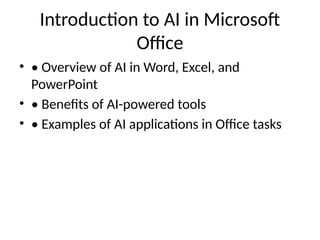
Introduction to AIin Microsoft
Office
• • Overview of AI in Word, Excel, and
PowerPoint
• • Benefits of AI-powered tools
• • Examples of AI applications in Office tasks
3.
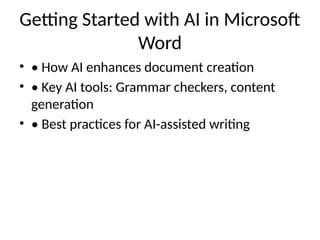
Getting Started withAI in Microsoft
Word
• • How AI enhances document creation
• • Key AI tools: Grammar checkers, content
generation
• • Best practices for AI-assisted writing
4.
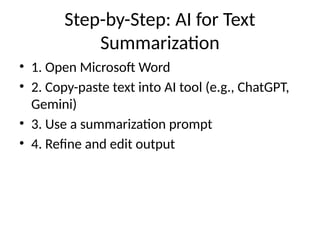
Step-by-Step: AI forText
Summarization
• 1. Open Microsoft Word
• 2. Copy-paste text into AI tool (e.g., ChatGPT,
Gemini)
• 3. Use a summarization prompt
• 4. Refine and edit output
5.
Step-by-Step: AI forGrammar &
Style
• 1. Enable AI-based tools like Grammarly or MS
Editor
• 2. Review and accept suggestions
• 3. Customize tone and readability settings
6.
AI in MicrosoftExcel - Data Analysis
& Automation
• • How AI simplifies data processing
• • AI-powered add-ins for automation
• • Example use cases: Cleaning and sorting
data
7.
Step-by-Step: AI forData Cleaning
& Formatting
• 1. Open Excel and load dataset
• 2. Use 'Ideas' or AI add-ins to detect errors
• 3. Apply automatic data cleanup suggestions
8.
Using AI forPivot Tables & Charts
• • AI-assisted data visualization
• • Automating pivot table creation
• • Using AI for trend analysis
9.
Step-by-Step: Creating PivotTables
with AI
• 1. Select dataset and go to 'Insert' tab
• 2. Click on 'PivotTable' and choose AI
recommendations
• 3. Customize fields and filters
10.
Step-by-Step: Generating AI-Based
Charts
•1. Select data and go to 'Insert' tab
• 2. Choose recommended AI-generated charts
• 3. Modify design and layout for better clarity
11.
AI in PowerPoint- Smart
Presentation Creation
• • AI-generated slide layouts and themes
• • Using AI for content structuring
• • Example tools: Designer, ChatGPT, Canva AI
12.
Step-by-Step: Using AIto Generate
Slides
• 1. Open PowerPoint and select 'Design Ideas'
• 2. Type key points and let AI generate layouts
• 3. Customize with AI-powered design options
13.
Enhancing Visual Storytellingwith
AI
• • AI-powered infographics and SmartArt
• • Auto-generated icons and visuals
• • Using AI for engaging presentations
Adding AI Voiceovers& Subtitles
• • AI-generated narration and captions
• • Using PowerPoint’s built-in subtitle feature
• • Benefits of accessibility with AI
16.
Step-by-Step: Adding AIVoiceovers
• 1. Go to 'Record' tab in PowerPoint
• 2. Use AI-generated narration from Text-to-
Speech tools
• 3. Export slides with voiceovers
17.
Exploring AI Tools& External
Integrations
• • Overview of ChatGPT, Gemini, and Microsoft
AI
• • Best AI add-ins for Office applications
• • Comparing different AI-powered tools
18.
Step-by-Step: Using AIAdd-ins in
Excel
• 1. Open Excel and go to 'Insert' tab
• 2. Click 'Get Add-ins' and search for AI-
powered tools
• 3. Install and apply AI-based functions
19.
Mastering Effective AIPrompt
Writing
• • How to structure AI prompts effectively
• • Improving accuracy of AI-generated content
• • Examples of good vs. bad prompts
20.
Step-by-Step: Crafting AI-Powered
Prompts
•1. Identify the task (e.g., generate summary,
data analysis)
• 2. Provide clear and structured instructions
• 3. Refine responses for better accuracy
21.
Best Practices forAI in Office
Applications
• • Ethical use of AI tools
• • Balancing AI automation with human input
• • Avoiding over-reliance on AI-generated
content
22.
AI in Real-WorldOffice Workflows
• • Case studies of AI in document automation
• • Success stories from businesses using AI
• • Future trends in AI-powered office work
23.
Common AI Mistakes& How to
Avoid Them
• • Misusing AI-generated content
• • Not verifying AI-suggested data insights
• • Ignoring ethical and security concerns
24.
Final Reflection &Practical
Application
• • How to apply AI in daily work tasks
• • Choosing the right AI tool for specific needs
• • Continuous learning and AI skill
improvement
25.
Q&A Session
• •Ask any questions related to AI in MS Office
• • Share experiences using AI tools
• • Discuss future learning opportunities


![gen AI [Autosaved] Evida smokes Enid which](https://cdn.slidesharecdn.com/ss_thumbnails/genaiautosaved-260112055659-2315977e-thumbnail.jpg?width=640&height=640&fit=bounds)


![5G Explained! A High Level Overview [Introduction]](https://cdn.slidesharecdn.com/ss_thumbnails/5gexplainedahighleveloverview-260119165306-cc137a3e-thumbnail.jpg?width=640&height=640&fit=bounds)


