Pro
422,
M: +
E-M
Web
Web
Web
© 201
ompt Solut
Phoenix Co
+91 9227555
Mail : prompt
b Page: www
Page: www.v
Page: www.f
11 Prompt Soluti
S
Auth
tions.
omplex, Nr.
5918, + 91 9
.solutions@
w.promptsolu
vikramtallytip
facebook.com
ions All rights re
Vou
Step by S
horized Ta
Suraj Plaza,
879271260
yahoo.in
utionstally.b
ps.blogspot.in
mpromptsolut
eserved.
ucher Da
Add-On
Step Im
ally Sales &
Sayajigunj,
+91 740505
logspot.in
n
tions
 
 
ate as Sys
n Number
plement
 
& Service P


Vadodara-3
7779
stem Dat
r : 07
tation &
 
Partner (TP
390005, Guja
e
& Help
P‐TSP‐TI‐TE
arat.
E) 
Voucher Date as System Date 
 
With the help of this add on following features would be add in your Tally.ERP 9. Voucher default saves in current date 
only, for which voucher type you set this features. No one can change date even company admin also.  
 
Paste Customize File in Tally Folder 
Select customize file > Right click > Click to “Copy” Option  
Right click to Tally icon on desktop > Right click 


Left click the option “Properties” 
Now click the button “Find Target” or “Open File Location” 
Now right click on blank space and click the “Paste” option 
Now close all open window 
 
Activation of Customize Solutions 
Start the Tally program 
Press F12 key at “Company Info” Menu or “Gateway of Tally” Menu 
Now press “T” > Now Press F4 Key 
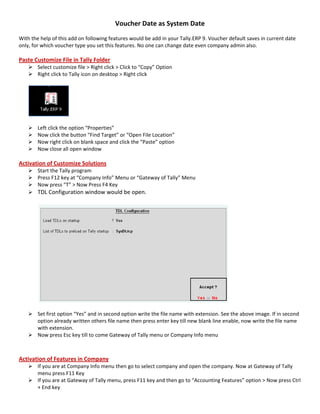
TDL Configuration window would be open. 


Set first option “Yes” and in second option write the file name with extension. See the above image. If in second 
option already written others file name then press enter key till new blank line enable, now write the file name 
with extension. 
Now press Esc key till to come Gateway of Tally menu or Company Info menu 
 
 
Activation of Features in Company 
If you are at Company Info menu then go to select company and open the company. Now at Gateway of Tally 
menu press F11 Key 
If you are at Gateway of Tally menu, press F11 key and then go to “Accounting Features” option > Now press Ctrl 
+ End key  
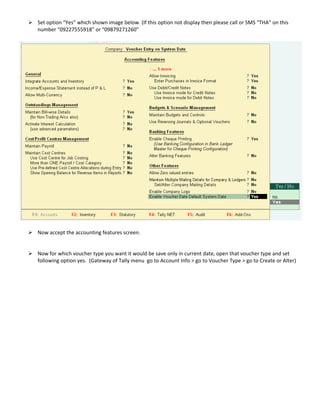
Set option “Yes” which shown image below. (If this option not display then please call or SMS “THA” on this 
number “09227555918” or “09879271260” 
Now accept the accounting features screen.
 
 
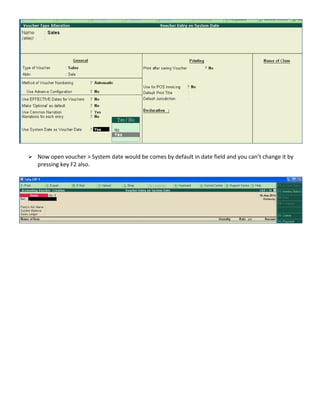
Now for which voucher type you want it would be save only in current date, open that voucher type and set 
following option yes.  (Gateway of Tally menu  go to Account Info > go to Voucher Type > go to Create or Alter) 
Now open voucher > System date would be comes by default in date field and you can’t change it by 
pressing key F2 also. 

Set Voucher Type wise Current (System) Date to Save Voucher (English)