Troubleshooting
Using HTTP/REST response status codes
and headers to diagnose and troubleshoot
requests.
This module will reference troubleshooting
in the context of all Azure Cosmos DB
modules and APIs.
Troubleshooting
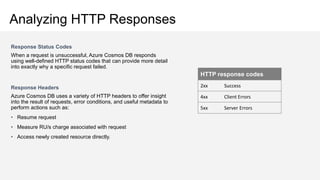
Analyzing HTTP Responses
Response Status Codes
When a request is unsuccessful, Azure Cosmos DB responds
using well-defined HTTP status codes that can provide more detail
into exactly why a specific request failed.
Response Headers
Azure Cosmos DB uses a variety of HTTP headers to offer insight
into the result of requests, error conditions, and useful metadata to
perform actions such as:
• Resume request
• Measure RU/s charge associated with request
• Access newly created resource directly.
HTTP response codes
2xx Success
4xx Client Errors
5xx Server Errors
Errors- Exceptions handling
SQL API
* Retry all < 400 errors
* For mutation(Write/update) - ensure idempotency is taken
care of – example 449
* For 503 error or Transport error(socket closed/channel is
closed/service unavailable) – please have a loop of retry
with exponential back-off and random jitter.
* if inserting/updating data in constraint of time (say from
azure function/stream job – ensure you have dead letter
queue or retry queue)
* Create alerts in Azure Monitor to get faster notification
Other API
* Use Native error handling
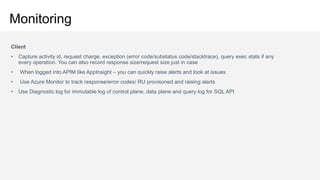
Monitoring
Client
• Capture activity id, request charge, exception (error code/substatus code/stacktrace), query exec stats if any
every operation. You can also record response size/request size just in case
• When logged into APIM like AppInsight – you can quickly raise alerts and look at issues
• Use Azure Monitor to track response/error codes/ RU provisoned and raising alerts
• Use Diagnostic log for immutable log of control plane, data plane and query log for SQL API
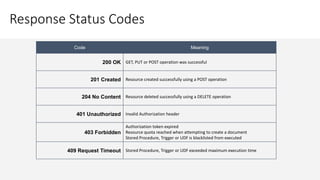
Response Status Codes
Code Meaning
200 OK GET, PUT or POST operation was successful
201 Created Resource created successfully using a POST operation
204 No Content Resource deleted successfully using a DELETE operation
401 Unauthorized Invalid Authorization header
403 Forbidden
Authorization token expired
Resource quota reached when attempting to create a document
Stored Procedure, Trigger or UDF is blacklisted from executed
409 Request Timeout Stored Procedure, Trigger or UDF exceeded maximum execution time
Response Status Codes
Header Value
409 Conflict The item Id for a PUT or POST operation conflicts with an existing item
412 Precondition Failure
The specified eTag is different from the version on the server (optimistic
concurrency error)
413 Entity Too Large The item size exceeds maximum allowable document size of 2MB
429 Too Many Requests Container has exceeded provisioned throughput limit
449 Retry With Transient error has occurred, safe to retry
50x Server-side error. If effort persists, contact support
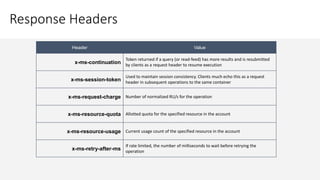
Response Headers
Header Value
x-ms-activity-id Unique identifier for the operation
x-ms-serviceversion Service Version used for request/response
x-ms-schemaversion Schema Version used for request/response
x-ms-item-count In a query (or read-feed), the number of items returned
x-ms-alt-content-path REST URI to access resource using user-supplied IDs
etag The same value as the _etag property of the requested item
Header Value
x-ms-continuation
Token returned if a query (or read-feed) has more results and is resubmitted
by clients as a request header to resume execution
x-ms-session-token
Used to maintain session consistency. Clients much echo this as a request
header in subsequent operations to the same container
x-ms-request-charge Number of normalized RU/s for the operation
x-ms-resource-quota Allotted quota for the specified resource in the account
x-ms-resource-usage Current usage count of the specified resource in the account
x-ms-retry-after-ms
If rate limited, the number of milliseconds to wait before retrying the
operation
Response Headers
D E M O
Identifying Rate Limiting
HTTP Response Status Code
A rate limited request will return a HTTP status code of 429 (Too Many
Requests). This response indicates that the container has exceeded
provisioned throughput limit.
HTTP Response HEader
A rate limited request will also have a x-ms-retry-after-ms header. This
header gives the number of milliseconds your application should wait before
retrying the current request.
Automatic Retry On Throttle
The SDK automatically retries any throttled requests. This can potentially
create a long-running client-side method that is attempting to retry
throttled requests.
What Is Logged By Azure
Diagnostic Logs:
All Authenticated Backend Requests
Across All Protocols and API’s
• Includes Failed Requests
Database Operations
• Includes CRUD Operations On All
Resources
Account Key Operations
Unauthenticated Requests
• Requests That Result In A 401
Response
Logging
Viewing Logs in Log Analytics
Enable Logging
Diagnostic Logs for Azure Services are opt-in. You should first enable logging (using the Portal, CLI or PowerShell).
Logs take, on average, about two hours to be made available.
Log Analytics
If you selected the Send to Log Analytics option when you turned on diagnostic logging, diagnostic data from your collection is
forwarded to Log Analytics.
From within the Log Analytics portal experience, you can:
• Search logs using the expanded Log Analytics query language
• Visualize the results of a query as a graph
• Pin a graph visualization of a query to your Azure portal dashboard
D E M O
H A N D S - O N
E X E R C I S E
T R O U B L E S H O O T I N G
F A I L E D A N D R A T E
L I M I T E D R E Q U E S T S
Tasks:
1. Simulate a Usage Spike
in Requests
2. View Response
Metadata
3. Third exercise task

Troubleshooting.pptx

  • 1.
  • 2.
    Using HTTP/REST responsestatus codes and headers to diagnose and troubleshoot requests. This module will reference troubleshooting in the context of all Azure Cosmos DB modules and APIs. Troubleshooting
  • 3.
    Analyzing HTTP Responses ResponseStatus Codes When a request is unsuccessful, Azure Cosmos DB responds using well-defined HTTP status codes that can provide more detail into exactly why a specific request failed. Response Headers Azure Cosmos DB uses a variety of HTTP headers to offer insight into the result of requests, error conditions, and useful metadata to perform actions such as: • Resume request • Measure RU/s charge associated with request • Access newly created resource directly. HTTP response codes 2xx Success 4xx Client Errors 5xx Server Errors
  • 4.
    Errors- Exceptions handling SQLAPI * Retry all < 400 errors * For mutation(Write/update) - ensure idempotency is taken care of – example 449 * For 503 error or Transport error(socket closed/channel is closed/service unavailable) – please have a loop of retry with exponential back-off and random jitter. * if inserting/updating data in constraint of time (say from azure function/stream job – ensure you have dead letter queue or retry queue) * Create alerts in Azure Monitor to get faster notification Other API * Use Native error handling
  • 5.
    Monitoring Client • Capture activityid, request charge, exception (error code/substatus code/stacktrace), query exec stats if any every operation. You can also record response size/request size just in case • When logged into APIM like AppInsight – you can quickly raise alerts and look at issues • Use Azure Monitor to track response/error codes/ RU provisoned and raising alerts • Use Diagnostic log for immutable log of control plane, data plane and query log for SQL API
  • 6.
    Response Status Codes CodeMeaning 200 OK GET, PUT or POST operation was successful 201 Created Resource created successfully using a POST operation 204 No Content Resource deleted successfully using a DELETE operation 401 Unauthorized Invalid Authorization header 403 Forbidden Authorization token expired Resource quota reached when attempting to create a document Stored Procedure, Trigger or UDF is blacklisted from executed 409 Request Timeout Stored Procedure, Trigger or UDF exceeded maximum execution time
  • 7.
    Response Status Codes HeaderValue 409 Conflict The item Id for a PUT or POST operation conflicts with an existing item 412 Precondition Failure The specified eTag is different from the version on the server (optimistic concurrency error) 413 Entity Too Large The item size exceeds maximum allowable document size of 2MB 429 Too Many Requests Container has exceeded provisioned throughput limit 449 Retry With Transient error has occurred, safe to retry 50x Server-side error. If effort persists, contact support
  • 8.
    Response Headers Header Value x-ms-activity-idUnique identifier for the operation x-ms-serviceversion Service Version used for request/response x-ms-schemaversion Schema Version used for request/response x-ms-item-count In a query (or read-feed), the number of items returned x-ms-alt-content-path REST URI to access resource using user-supplied IDs etag The same value as the _etag property of the requested item
  • 9.
    Header Value x-ms-continuation Token returnedif a query (or read-feed) has more results and is resubmitted by clients as a request header to resume execution x-ms-session-token Used to maintain session consistency. Clients much echo this as a request header in subsequent operations to the same container x-ms-request-charge Number of normalized RU/s for the operation x-ms-resource-quota Allotted quota for the specified resource in the account x-ms-resource-usage Current usage count of the specified resource in the account x-ms-retry-after-ms If rate limited, the number of milliseconds to wait before retrying the operation Response Headers
  • 10.
  • 11.
    Identifying Rate Limiting HTTPResponse Status Code A rate limited request will return a HTTP status code of 429 (Too Many Requests). This response indicates that the container has exceeded provisioned throughput limit. HTTP Response HEader A rate limited request will also have a x-ms-retry-after-ms header. This header gives the number of milliseconds your application should wait before retrying the current request. Automatic Retry On Throttle The SDK automatically retries any throttled requests. This can potentially create a long-running client-side method that is attempting to retry throttled requests.
  • 12.
    What Is LoggedBy Azure Diagnostic Logs: All Authenticated Backend Requests Across All Protocols and API’s • Includes Failed Requests Database Operations • Includes CRUD Operations On All Resources Account Key Operations Unauthenticated Requests • Requests That Result In A 401 Response Logging
  • 13.
    Viewing Logs inLog Analytics Enable Logging Diagnostic Logs for Azure Services are opt-in. You should first enable logging (using the Portal, CLI or PowerShell). Logs take, on average, about two hours to be made available. Log Analytics If you selected the Send to Log Analytics option when you turned on diagnostic logging, diagnostic data from your collection is forwarded to Log Analytics. From within the Log Analytics portal experience, you can: • Search logs using the expanded Log Analytics query language • Visualize the results of a query as a graph • Pin a graph visualization of a query to your Azure portal dashboard
  • 14.
  • 15.
    H A ND S - O N E X E R C I S E T R O U B L E S H O O T I N G F A I L E D A N D R A T E L I M I T E D R E Q U E S T S Tasks: 1. Simulate a Usage Spike in Requests 2. View Response Metadata 3. Third exercise task

Editor's Notes

  • #10 Per Andrew, need to include “intro the standard HTTP response code convention of 2xx is success, 4xx is client error, 5xx is server error.”
  • #12 https://httpstatuses.com/429