Copyright © 2014 Trust Builders, Inc.
The Retirement Analysis Kit Help File
Ask TRAK
Answers for healthier retirements.
by Trust Builders, Inc.
The Retirement Analysis Kit is about educating the
participant about their scenario. It allows them to see their
retirement planning scenarios quickly and vividly.
When they become educated, they will appreciate the
information the advisor has given them. They will trust them.
TRAK is the leading edge education tool for working with
clients.
All rights reserved. No parts of this work may be reproduced in any form or by any means - graphic, electronic, or
mechanical, including photocopying, recording, taping, or information storage and retrieval systems - without the
written permission of the publisher.
Products that are referred to in this document may be either trademarks and/or registered trademarks of the
respective owners. The publisher and the author make no claim to these trademarks.
While every precaution has been taken in the preparation of this document, the publisher and the author assume no
responsibility for errors or omissions, or for damages resulting from the use of information contained in this document
or from the use of programs and source code that may accompany it. In no event shall the publisher and the author be
liable for any loss of profit or any other commercial damage caused or alleged to have been caused directly or
indirectly by this document.
Printed: May 2014 in Dallas, Oregon.
The Retirement Analysis Kit Help File
Copyright © 2014 Trust Builders, Inc.
Publisher
Special thanks to:
You. Our users are the key to our success. Here is a hearty
"THANK YOU!" from us to you.
Trust Builders, Inc. exists today because of you. Without your
faithful patronage, including renewing, promoting and
recommending new features, we would not be where we are today.
We appreciate the hard work and effort your job is. We strive to
help you be more successful in educating your clients and be
efficient in providing them meaningful information.
So keep on using TRAK, telling others about us, and letting us
know what features you want We will do our best to keep you
enjoying the product you are using.
Sincerely,
Edward Dressel
Dressel@AskTRAK.com
President
Trust Builders Inc.
Managing Editor
General Editor
Cover Designer
Trust Builders, Inc.
PO Box 1088
Dallas, Oregon 97338
p: 503-831-1111
f: 877-718-2693
Edward Dressel
Suzanne Evers
Justin Martin
The Retirement Analysis Kit Help File4
Copyright © 2014 Trust Builders, Inc.
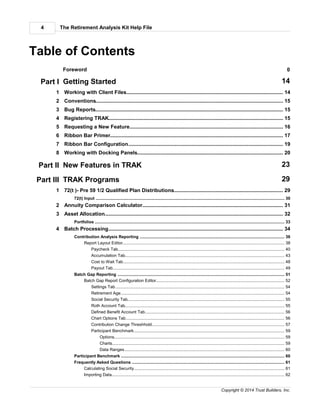
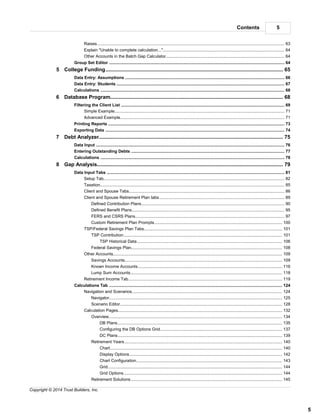
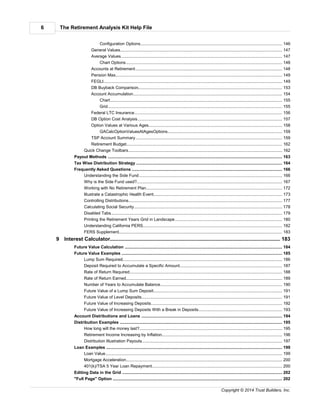
Table of Contents
Foreword 0
Part I Getting Started 14
............................................................................................................................................ 141 Working with Client Files
............................................................................................................................................ 152 Conventions
............................................................................................................................................ 153 Bug Reports
............................................................................................................................................ 154 Registering TRAK
............................................................................................................................................ 165 Requesting a New Feature
............................................................................................................................................ 176 Ribbon Bar Primer
............................................................................................................................................ 197 Ribbon Bar Configuration
............................................................................................................................................ 208 Working with Docking Panels
Part II New Features in TRAK 23
Part III TRAK Programs 29
............................................................................................................................................ 291 72(t )- Pre 59 1/2 Qualified Plan Distributions
............................................................................................................................................................................ 3072(t) Input
............................................................................................................................................ 312 Annuity Comparison Calculator
............................................................................................................................................ 323 Asset Allocation
............................................................................................................................................................................ 33Portfolios
............................................................................................................................................ 344 Batch Processing
............................................................................................................................................................................ 36Contribution Analysis Reporting
.............................................................................................................................................................. 38Report Layout Editor
........................................................................................................................................................... 40Paycheck Tab
........................................................................................................................................................... 43Accumulation Tab
........................................................................................................................................................... 48Cost to Wait Tab
........................................................................................................................................................... 49Payout Tab
............................................................................................................................................................................ 51Batch Gap Reporting
.............................................................................................................................................................. 52Batch Gap Report Configuration Editor
........................................................................................................................................................... 54Settings Tab
........................................................................................................................................................... 54Retirement Age
........................................................................................................................................................... 55Social Security Tab
........................................................................................................................................................... 55Roth Account Tab
........................................................................................................................................................... 56Defined Benefit Account Tab
........................................................................................................................................................... 56Chart Options Tab
........................................................................................................................................................... 57Contribution Change Threshhold
........................................................................................................................................................... 59Participant Benchmark
........................................................................................................................................................ 59Options
........................................................................................................................................................ 59Charts
........................................................................................................................................................ 60Data Ranges
............................................................................................................................................................................ 60Participant Benchmark
............................................................................................................................................................................ 61Frequently Asked Questions
.............................................................................................................................................................. 61Calculating Social Security
.............................................................................................................................................................. 62Importing Data
5Contents
5
Copyright © 2014 Trust Builders, Inc.
.............................................................................................................................................................. 63Raises
.............................................................................................................................................................. 64Explain "Unable to complete calculation..."
.............................................................................................................................................................. 64Other Accounts in the Batch Gap Calculator
............................................................................................................................................................................ 64Group Set Editor
............................................................................................................................................ 655 College Funding
............................................................................................................................................................................ 66Data Entry: Assumptions
............................................................................................................................................................................ 67Data Entry: Students
............................................................................................................................................................................ 68Calculations
............................................................................................................................................ 686 Database Program
............................................................................................................................................................................ 69Filtering the Client List
.............................................................................................................................................................. 71Simple Example
.............................................................................................................................................................. 71Advanced Example
............................................................................................................................................................................ 73Printing Reports
............................................................................................................................................................................ 74Exporting Data
............................................................................................................................................ 757 Debt Analyzer
............................................................................................................................................................................ 76Data Input
............................................................................................................................................................................ 77Entering Outstanding Debts
............................................................................................................................................................................ 78Calculations
............................................................................................................................................ 798 Gap Analysis
............................................................................................................................................................................ 81Data Input Tabs
.............................................................................................................................................................. 82Setup Tab
.............................................................................................................................................................. 85Taxation
.............................................................................................................................................................. 86Client and Spouse Tabs
.............................................................................................................................................................. 89Client and Spouse Retirement Plan tabs
........................................................................................................................................................... 90Defined Contribution Plans
........................................................................................................................................................... 95Defined Benefit Plans
........................................................................................................................................................... 97FERS and CSRS Plans
........................................................................................................................................................... 100Custom Retirement Plan Prompts
.............................................................................................................................................................. 101TSP/Federal Savings Plan Tabs
........................................................................................................................................................... 101TSP Contribution
........................................................................................................................................................ 106TSP Historical Data
........................................................................................................................................................... 108Federal Savings Plan
.............................................................................................................................................................. 109Other Accounts
........................................................................................................................................................... 109Savings Accounts
........................................................................................................................................................... 116Known Income Accounts
........................................................................................................................................................... 118Lump Sum Accounts
.............................................................................................................................................................. 119Retirement Income Tab
............................................................................................................................................................................ 124Calculations Tab
.............................................................................................................................................................. 124Navigation and Scenarios
........................................................................................................................................................... 125Navigator
........................................................................................................................................................... 128Scenario Editor
.............................................................................................................................................................. 132Calculation Pages
........................................................................................................................................................... 134Overview
........................................................................................................................................................ 135DB Plans
........................................................................................................................................................ 137Configuring the DB Options Grid
........................................................................................................................................................ 139DC Plans
........................................................................................................................................................... 140Retirement Years
........................................................................................................................................................ 140Chart
........................................................................................................................................................ 142Display Options
........................................................................................................................................................ 143Chart Configuration
........................................................................................................................................................ 144Grid
........................................................................................................................................................ 144Grid Options
........................................................................................................................................................... 145Retirement Solutions
The Retirement Analysis Kit Help File6
Copyright © 2014 Trust Builders, Inc.
........................................................................................................................................................ 146Configuration Options
........................................................................................................................................................... 147General Values
........................................................................................................................................................... 147Average Values
........................................................................................................................................................ 148Chart Options
........................................................................................................................................................... 148Accounts at Retirement
........................................................................................................................................................... 149Pension Max
........................................................................................................................................................... 149FEGLI
........................................................................................................................................................... 153DB Buyback Comparison
........................................................................................................................................................... 154Account Accumulation
........................................................................................................................................................ 155Chart
........................................................................................................................................................ 155Grid
........................................................................................................................................................... 156Federal LTC Insurance
........................................................................................................................................................... 157DB Option Cost Analysis
........................................................................................................................................................... 158Option Values at Various Ages
........................................................................................................................................................ 159GACalcOptionValuesAtAgesOptions
........................................................................................................................................................... 159TSP Account Summary
........................................................................................................................................................... 162Retirement Budget
.............................................................................................................................................................. 162Quick Change Toolbars
............................................................................................................................................................................ 163Payout Methods
............................................................................................................................................................................ 164Tax Wise Distribution Strategy
............................................................................................................................................................................ 166Frequently Asked Questions
.............................................................................................................................................................. 166Understanding the Side Fund
.............................................................................................................................................................. 167Why is the Side Fund used?
.............................................................................................................................................................. 172Working with No Retirement Plan
.............................................................................................................................................................. 173Illustrate a Catastrophic Health Event
.............................................................................................................................................................. 177Controlling Distributions
.............................................................................................................................................................. 178Calculating Social Security
.............................................................................................................................................................. 179Disabled Tabs
.............................................................................................................................................................. 180Printing the Retirement Years Grid in Landscape
.............................................................................................................................................................. 182Understanding California PERS
.............................................................................................................................................................. 183FERS Supplement
............................................................................................................................................ 1839 Interest Calculator
............................................................................................................................................................................ 184Future Value Calculation
............................................................................................................................................................................ 185Future Value Examples
.............................................................................................................................................................. 186Lump Sum Required
.............................................................................................................................................................. 187Deposit Required to Accumulate a Specific Amount
.............................................................................................................................................................. 188Rate of Return Required
.............................................................................................................................................................. 189Rate of Return Earned
.............................................................................................................................................................. 190Number of Years to Accumulate Balance
.............................................................................................................................................................. 191Future Value of a Lump Sum Deposit
.............................................................................................................................................................. 191Future Value of Level Deposits
.............................................................................................................................................................. 192Future Value of Increasing Deposits
.............................................................................................................................................................. 193Future Value of Increasing Deposits With a Break in Deposits
............................................................................................................................................................................ 194Account Distributions and Loans
............................................................................................................................................................................ 195Distribution Examples
.............................................................................................................................................................. 195How long will the money last?
.............................................................................................................................................................. 196Retirement Income Increasing by Inflation
.............................................................................................................................................................. 197Distribution Illustration Payouts
............................................................................................................................................................................ 199Loan Examples
.............................................................................................................................................................. 199Loan Value
.............................................................................................................................................................. 200Mortgage Acceleration
.............................................................................................................................................................. 200401(k)/TSA 5 Year Loan Repayment
............................................................................................................................................................................ 202Editing Data in the Grid
............................................................................................................................................................................ 202"Full Page" Option
7Contents
7
Copyright © 2014 Trust Builders, Inc.
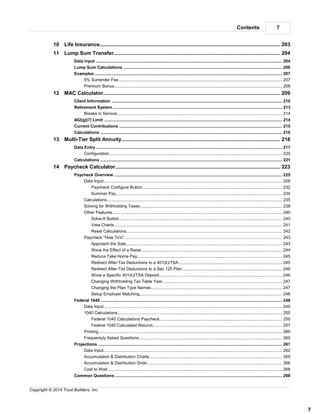
............................................................................................................................................ 20310 Life Insurance
............................................................................................................................................ 20411 Lump Sum Transfer
............................................................................................................................................................................ 204Data Input
............................................................................................................................................................................ 206Lump Sum Calculations
............................................................................................................................................................................ 207Examples
.............................................................................................................................................................. 2075% Surrender Fee
.............................................................................................................................................................. 208Premium Bonus
............................................................................................................................................ 20912 MAC Calculator
............................................................................................................................................................................ 210Client Information
............................................................................................................................................................................ 213Retirement System
.............................................................................................................................................................. 214Breaks in Service
............................................................................................................................................................................ 214402(g)(7) Limit
............................................................................................................................................................................ 215Current Contributions
............................................................................................................................................................................ 216Calculations
............................................................................................................................................ 21613 Multi-Tier Split Annuity
............................................................................................................................................................................ 217Data Entry
.............................................................................................................................................................. 220Configuration
............................................................................................................................................................................ 221Calculations
............................................................................................................................................ 22314 Paycheck Calculator
............................................................................................................................................................................ 225Paycheck Overview
.............................................................................................................................................................. 228Data Input
........................................................................................................................................................... 232Paycheck Configure Button
........................................................................................................................................................... 234Summer Pay
.............................................................................................................................................................. 235Calculations
.............................................................................................................................................................. 238Solving for Withholding Taxes
.............................................................................................................................................................. 240Other Features
........................................................................................................................................................... 240Solve-It Button
........................................................................................................................................................... 241View Charts
........................................................................................................................................................... 242Reset Calculations
.............................................................................................................................................................. 243Paycheck "How To's"
........................................................................................................................................................... 243Approach the Sale
........................................................................................................................................................... 244Show the Effect of a Raise
........................................................................................................................................................... 245Reduce Take Home Pay
........................................................................................................................................................... 245Redirect After-Tax Deductions to a 401(k)/TSA
........................................................................................................................................................... 246Redirect After-Tax Deductions to a Sec 125 Plan
........................................................................................................................................................... 246Show a Specific 401(k)/TSA Deposit
........................................................................................................................................................... 247Changing Withholding Tax Table Year
........................................................................................................................................................... 247Changing the Plan Type Names
........................................................................................................................................................... 248Setup Employer Matching
............................................................................................................................................................................ 248Federal 1040
.............................................................................................................................................................. 249Data Input
.............................................................................................................................................................. 2551040 Calculations
........................................................................................................................................................... 255Federal 1040 Calculations Paycheck
........................................................................................................................................................... 257Federal 1040 Calculated Returns
.............................................................................................................................................................. 260Printing
.............................................................................................................................................................. 260Frequentyly Asked Questions
............................................................................................................................................................................ 261Projections
.............................................................................................................................................................. 262Data Input
.............................................................................................................................................................. 265Accumulation & Distribution Charts
.............................................................................................................................................................. 266Accumulation & Distribution Grids
.............................................................................................................................................................. 268Cost to Wait
............................................................................................................................................................................ 268Common Questions
The Retirement Analysis Kit Help File8
Copyright © 2014 Trust Builders, Inc.
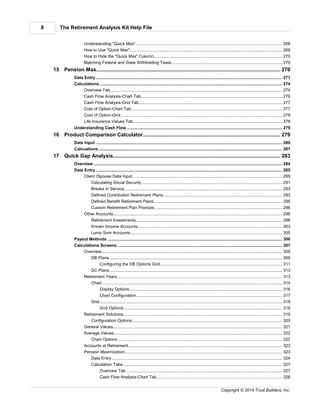
.............................................................................................................................................................. 268Understanding "Quick Max"
.............................................................................................................................................................. 269How to Use "Quick Max"
.............................................................................................................................................................. 270How to Hide the "Quick Max" Column
.............................................................................................................................................................. 270Matching Federal and State Withholding Taxes
............................................................................................................................................ 27015 Pension Max
............................................................................................................................................................................ 271Data Entry
............................................................................................................................................................................ 274Calculations
.............................................................................................................................................................. 274Overivew Tab
.............................................................................................................................................................. 276Cash Flow Analysis-Chart Tab
.............................................................................................................................................................. 277Cash Flow Analysis-Grid Tab
.............................................................................................................................................................. 277Cost of Option-Chart Tab
.............................................................................................................................................................. 278Cost of Option-Grid
.............................................................................................................................................................. 278Life Insurance Values Tab
............................................................................................................................................................................ 279Understanding Cash Flow
............................................................................................................................................ 27916 Product Comparison Calculator
............................................................................................................................................................................ 280Data Input
............................................................................................................................................................................ 281Calcuations
............................................................................................................................................ 28317 Quick Gap Analysis
............................................................................................................................................................................ 284Overview
............................................................................................................................................................................ 285Data Entry
.............................................................................................................................................................. 285Client /Spouse Data Input
........................................................................................................................................................... 291Calculating Social Security
........................................................................................................................................................... 293Breaks in Service
........................................................................................................................................................... 293Defined Contribution Retirement Plans
........................................................................................................................................................... 295Defined Benefit Retirement Plans
........................................................................................................................................................... 296Custom Retirement Plan Prompts
.............................................................................................................................................................. 296Other Accounts
........................................................................................................................................................... 298Retirement Investments
........................................................................................................................................................... 303Known Income Accounts
........................................................................................................................................................... 305Lump Sum Accounts
............................................................................................................................................................................ 306Payout Methods
............................................................................................................................................................................ 307Calculations Screens
.............................................................................................................................................................. 308Overview
........................................................................................................................................................... 309DB Plans
........................................................................................................................................................ 311Configuring the DB Options Grid
........................................................................................................................................................... 313DC Plans
.............................................................................................................................................................. 313Retirement Years
........................................................................................................................................................... 314Chart
........................................................................................................................................................ 316Display Options
........................................................................................................................................................ 317Chart Configuration
........................................................................................................................................................... 318Grid
........................................................................................................................................................ 318Grid Options
.............................................................................................................................................................. 319Retirement Solutions
........................................................................................................................................................... 320Configuration Options
.............................................................................................................................................................. 321General Values
.............................................................................................................................................................. 322Average Values
........................................................................................................................................................... 322Chart Options
.............................................................................................................................................................. 323Accounts at Retirement
.............................................................................................................................................................. 323Pension Maximization
........................................................................................................................................................... 324Data Entry
........................................................................................................................................................... 327Calculation Tabs
........................................................................................................................................................ 327Overivew Tab
........................................................................................................................................................ 328Cash Flow Analysis-Chart Tab
9Contents
9
Copyright © 2014 Trust Builders, Inc.
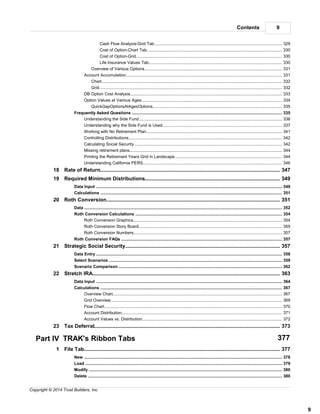
........................................................................................................................................................ 329Cash Flow Analysis-Grid Tab
........................................................................................................................................................ 330Cost of Option-Chart Tab
........................................................................................................................................................ 330Cost of Option-Grid
........................................................................................................................................................ 330Life Insurance Values Tab
........................................................................................................................................................... 331Overview of Various Options
.............................................................................................................................................................. 331Account Accumulation
........................................................................................................................................................... 332Chart
........................................................................................................................................................... 332Grid
.............................................................................................................................................................. 333DB Option Cost Analysis
.............................................................................................................................................................. 334Option Values at Various Ages
........................................................................................................................................................... 335QuickGapOptionsAtAgesOptions
............................................................................................................................................................................ 335Frequently Asked Questions
.............................................................................................................................................................. 336Understanding the Side Fund
.............................................................................................................................................................. 337Understanding why the Side Fund is Used
.............................................................................................................................................................. 341Working with No Retirement Plan
.............................................................................................................................................................. 342Controlling Distributions
.............................................................................................................................................................. 342Calculating Social Security
.............................................................................................................................................................. 344Missing retirement plans
.............................................................................................................................................................. 344Printing the Retirement Years Grid in Landscape
.............................................................................................................................................................. 346Understanding California PERS
............................................................................................................................................ 34718 Rate of Return
............................................................................................................................................ 34919 Required Minimum Distributions
............................................................................................................................................................................ 349Data Input
............................................................................................................................................................................ 351Calculations
............................................................................................................................................ 35120 Roth Conversion
............................................................................................................................................................................ 352Data
............................................................................................................................................................................ 354Roth Conversion Calculations
.............................................................................................................................................................. 354Roth Conversion Graphics
.............................................................................................................................................................. 355Roth Conversion Story Board
.............................................................................................................................................................. 357Roth Conversion Numbers
............................................................................................................................................................................ 357Roth Conversion FAQs
............................................................................................................................................ 35721 Strategic Social Security
............................................................................................................................................................................ 358Data Entry
............................................................................................................................................................................ 359Select Scenarios
............................................................................................................................................................................ 362Scenario Comparison
............................................................................................................................................ 36322 Stretch IRA
............................................................................................................................................................................ 364Data Input
............................................................................................................................................................................ 367Calculations
.............................................................................................................................................................. 367Overview Chart
.............................................................................................................................................................. 369Grid Overview
.............................................................................................................................................................. 370Flow Chart
.............................................................................................................................................................. 371Account Distribution
.............................................................................................................................................................. 372Account Values vs. Distribution
............................................................................................................................................ 37323 Tax Deferral
Part IV TRAK's Ribbon Tabs 377
............................................................................................................................................ 3771 File Tab
............................................................................................................................................................................ 378New
............................................................................................................................................................................ 379Load
............................................................................................................................................................................ 380Modify
............................................................................................................................................................................ 380Delete
The Retirement Analysis Kit Help File10
Copyright © 2014 Trust Builders, Inc.
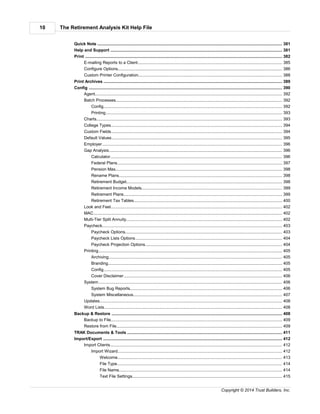
............................................................................................................................................................................ 381Quick Note
............................................................................................................................................................................ 381Help and Support
............................................................................................................................................................................ 382Print
.............................................................................................................................................................. 385E-mailing Reports to a Client
.............................................................................................................................................................. 386Configure Options
.............................................................................................................................................................. 388Custom Printer Configuration
............................................................................................................................................................................ 389Print Archives
............................................................................................................................................................................ 390Config
.............................................................................................................................................................. 392Agent
.............................................................................................................................................................. 392Batch Processes
........................................................................................................................................................... 392Config
........................................................................................................................................................... 393Printing
.............................................................................................................................................................. 393Charts
.............................................................................................................................................................. 394College Types
.............................................................................................................................................................. 394Custom Fields
.............................................................................................................................................................. 395Default Values
.............................................................................................................................................................. 396Employer
.............................................................................................................................................................. 396Gap Analysis
........................................................................................................................................................... 396Calculator
........................................................................................................................................................... 397Federal Plans
........................................................................................................................................................... 398Pension Max
........................................................................................................................................................... 398Rename Plans
........................................................................................................................................................... 398Retirement Budget
........................................................................................................................................................... 399Retirement Income Models
........................................................................................................................................................... 399Retirement Plans
........................................................................................................................................................... 400Retirement Tax Tables
.............................................................................................................................................................. 402Look and Feel
.............................................................................................................................................................. 402MAC
.............................................................................................................................................................. 402Multi-Tier Split Annuity
.............................................................................................................................................................. 403Paycheck
........................................................................................................................................................... 403Paycheck Options
........................................................................................................................................................... 404Paycheck Lists Options
........................................................................................................................................................... 404Paycheck Projection Options
.............................................................................................................................................................. 405Printing
........................................................................................................................................................... 405Archiving
........................................................................................................................................................... 405Branding
........................................................................................................................................................... 405Config
........................................................................................................................................................... 406Cover Disclaimer
.............................................................................................................................................................. 406System
........................................................................................................................................................... 406System Bug Reports
........................................................................................................................................................... 407System Miscellaneous
.............................................................................................................................................................. 408Updates
.............................................................................................................................................................. 408Word Lists
............................................................................................................................................................................ 408Backup & Restore
.............................................................................................................................................................. 409Backup to File
.............................................................................................................................................................. 409Restore from File
............................................................................................................................................................................ 411TRAK Documents & Tools
............................................................................................................................................................................ 412Import/Export
.............................................................................................................................................................. 412Import Clients
........................................................................................................................................................... 412Import Wizard
........................................................................................................................................................ 413Welcome
........................................................................................................................................................ 414File Type
........................................................................................................................................................ 414File Name
........................................................................................................................................................ 415Text File Settings
11Contents
11
Copyright © 2014 Trust Builders, Inc.
........................................................................................................................................................ 417Data Formats
........................................................................................................................................................ 419Employer File
........................................................................................................................................................ 419Column Settings
........................................................................................................................................................ 420Field Associations
........................................................................................................................................................ 423Data Conversion
........................................................................................................................................................ 424Default Values
........................................................................................................................................................ 425Preview Data
........................................................................................................................................................ 426Group Name
........................................................................................................................................................ 427Import Action
........................................................................................................................................................ 427Data Merge Config
........................................................................................................................................................ 429Finshed
........................................................................................................................................................... 430Import Terminology
........................................................................................................................................................... 431Common Questions
........................................................................................................................................................ 431Fields to Import
........................................................................................................................................................ 432Editing Client Data
........................................................................................................................................................ 432Merging Data
........................................................................................................................................................ 433Excel Template
.............................................................................................................................................................. 433Import from TRAK Database
........................................................................................................................................................... 434Database to Load From
........................................................................................................................................................... 434Client List
........................................................................................................................................................... 435Employer Files
........................................................................................................................................................... 436Group Data
........................................................................................................................................................... 437Import Data
............................................................................................................................................ 4382 Home Tab
............................................................................................................................................ 4393 Setup Tab
............................................................................................................................................................................ 439Employer File Editor
.............................................................................................................................................................. 440Visible Fields Tab
.............................................................................................................................................................. 442Retirement Plans Tab
.............................................................................................................................................................. 445Taxation Tab
........................................................................................................................................................... 447FICA and Medicare Tax
........................................................................................................................................................... 447Additional Income
........................................................................................................................................................... 448State Witholding Tax
........................................................................................................................................................... 449Local Taxes
.............................................................................................................................................................. 451Miscellaneous Tab
........................................................................................................................................................... 452Summer Pay
............................................................................................................................................................................ 454Custom Retirement Plans
.............................................................................................................................................................. 456Contribution Limits
.............................................................................................................................................................. 457Employer Contributions
.............................................................................................................................................................. 461Roth Account
.............................................................................................................................................................. 462Account Configuration
............................................................................................................................................................................ 462Configuration Wizard
............................................................................................................................................................................ 463Group Editing
............................................................................................................................................................................ 464Check for Update
............................................................................................................................................................................ 465Database
............................................................................................................................................ 4654 Quick Tool Menu
............................................................................................................................................ 4655 Appearance
Part V Frequently Asked Questions 469
............................................................................................................................................ 4691 Transfer Client Data to a New Computer
............................................................................................................................................ 4702 Reload the Software after a Hard Drive Crash or Virus
............................................................................................................................................ 4703 Configuring Toolbars
The Retirement Analysis Kit Help File12
Copyright © 2014 Trust Builders, Inc.
............................................................................................................................................ 4704 Brand Reports
............................................................................................................................................ 4705 Request New Features
............................................................................................................................................ 4716 Export Client Data
............................................................................................................................................ 4717 Using a Database Server
............................................................................................................................................ 4718 Copy client data
............................................................................................................................................ 4719 Calculating Social Security
............................................................................................................................................ 47310 Print Button Disabled
............................................................................................................................................ 47311 Missing Pension Plans
Index 474
Part
I
Getting Started
The Retirement Analysis Kit Help File14
Copyright © 2014 Trust Builders, Inc.For advisor use only.
1 Getting Started
Congratulations! You now own the most powerful tools available for demonstrating the benefits of
proper retirement planning. Education is the heart of TRAK -- quickly and vividly showing the client how
their financial scenario relates to retirement, both their assets and needs.
Below are a few links for getting started (e.g. how to register TRAK), then jump right to the program
you want to learn.
Note that you do not need to know how to use all of TRAK features before getting started. TRAK users
only need proficiency in the features that encompass the needs of their client base.
Getting Started
The Retirement Analysis Kit is designed with ease of use in mind! The following links send you
directly to explanations of all the different tools available.
Registering TRAK
Working with Client Files
What's New
TRAK Programs
Entering Agent Information
Walking through TRAK's Menu
Working with Dock Panels
1.1 Working with Client Files
TRAK is an illustration tool for working with clients (plan participants). As such, it stores data for each
client. The ribbon bar's File menu:
has the options for working with the client files. Proficient knowledge about how TRAK works with the
client data files is important to using it successfully.
15
14
23
29
392
377
20
Getting Started 15
Copyright © 2014 Trust Builders, Inc. For advisor use only.
The TRAK calculators (such as the Paycheck and Quick Gap calculators) share client data
between calculators. For example, after entering the client's date of birth (DOB) in one calculator, the
DOB will be carried to other calculators that require the data. This simplifies data entry and reduces the
risk of data-entry errors.
1.2 Conventions
Several labeling conventions are followed in this help file.
Prompts appear in italic underline.
Data input (either selectable or entered data) appears in italic bold-blue.
Ribbon bar items and menu items (items that appear in pop-up menus) appear in bold-blue.
1.3 Bug Reports
On rare occasions, an error may present itself in a TRAK application.
If this unlikely incident occurs, and you have an internet connection, please click on the Upload Bug
Report button
found at the bottom left of the dialog box. Or, you may choose to print the bug report and fax the first
two pages to 1-877-718-2693.
What information does the bug report provide Trust Builders?
When the bug report is uploaded, it sends Trust Builders a print screen (if the report was uploaded) of
all that was happening when the bug occurred; and provides technical information (such as call stack,
program up time, program date, etc.). This information can often assist in pinpointing the cause of the
problem and speed the solution process.
1.4 Registering TRAK
To continue using TRAK after installing the software, it must be registered. Installation of the software
to two (2) systems is allowed using the Reference Number provided by email.
Note: Each system must be registered separately.
You may access your reference number by clicking here.
TRAK must be registered within thirty days or it will no longer operate. To register TRAK:
223 283
The Retirement Analysis Kit Help File16
Copyright © 2014 Trust Builders, Inc.For advisor use only.
1. From the ribbon bar select Setup/Register TRAK."
2. Click the Register button. If TRAK is not registered, a dialog similar to what is below will be
displayed.
If TRAK is registered, a dialog with text similar to what is below will be displayed.
3. To register TRAK, or to extend the registration, click the "Register" button. (The registration will only
be extended when the account server settings are extended).
4. Enter the information requested.
Note: The reference number is provided via email once the software is purchased. To
request that your reference number be emailed, click here.
5. Enter the required data on the screen.
6. Click the Internet Register button.
7. The Registration Code line will auto-fill.
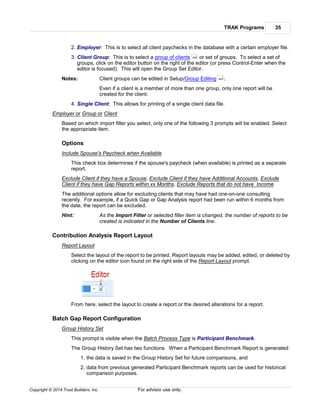
8. A message will appear stating the successful completion of your registration. Click the "ok" button.
1.5 Requesting a New Feature
Many new features in TRAK were developed from ideas generated by advisors from all across the
country.
If you desire a new feature in TRAK (whether you saw it elsewhere, just heard of it, or even thought of
it yourself), let us know! Our program team is always up for a new challenge.
Email your idea to Support@AskTRAK.com. Helpful information to include:
Where it would fit in TRAK;
Why it would be a useful feature; and
How it might be implemented.
Our goal is to equip TRAK users for success. Thus, all requests submitted by our current user base
receive serious consideration.
Getting Started 17
Copyright © 2014 Trust Builders, Inc. For advisor use only.
1.6 Ribbon Bar Primer
While the ribbon may take a short time to learn, we believe it provides an easier, clearer and more
modern menu system for navigating TRAK. If you are new to the ribbon bar, a primer is below.
Parts of the Ribbon Bar
The most common pars of the ribbon bar are shown above. Some notes on each aspect below:
1. The items in the Quick Access Toolbar can be customized for those features that are most
commonly used. Right click over any button in a ribbon tab and select "Add to Quick Access
Toolbar".
The button will then appear in the Quick Access Toolbar. (Similarly, to remove a button, right
click over the button in the Quick Access Toolbar and select the "Remove from Quick Access
Toolbar").
2. The Content Tab will be displayed only for calculators that require this item.
3. A "Dialog box launcher" button is displayed for those groups that have customizable features
related to the groups of icons.
The Retirement Analysis Kit Help File18
Copyright © 2014 Trust Builders, Inc.For advisor use only.
4. Enhanced tooltips will be displayed for many items in the ribbon by holding the mouse over the
various buttons.
5. On the far right of the ribbon bar, the option to minimize (or expand) the ribbon and to open
TRAK's help file is also available.
Getting Started 19
Copyright © 2014 Trust Builders, Inc. For advisor use only.
Navigating the Ribbon Bar with the Keyboard
The ribbon bar can be navigated with incredible simplicity using the keyboard. When TRAK is the
focused application, tap the "Alt" key. This will make the ribbon bar focused and show the key tips for
the top level. (Once keytips are learned, the "Alt" key can be held down and the corresponding
keyboard character pressed. For example, pressing "Alt" and "1" will activate the first item in the Quick
Access Toolbar).
Pressing the character associated keytip will activate that item.
1.7 Ribbon Bar Configuration
TRAK's ribbon bar can be configured with personal settings.
1. Minimizing the ribbon bar
The ribbon bar can be minimized to only display when a ribbon bar is displayed. In the image below
the ribbon bar is displayed normally.
In the image below, the ribbon bar is minimized. (The ribbon bar is displayed when a specific tab
is selected).
The Retirement Analysis Kit Help File20
Copyright © 2014 Trust Builders, Inc.For advisor use only.
The later reduces screen clutter and allows to maximize screen space when a TRAK calculator is
open. (The ribbon bar tabs will expand when they are focused).
To configure this, right click over the ribbon bar and select "Minimized Ribbon Bar". (This option is
also available on the "Appearance" tab, and in addition on the far right of the ribbon bar, the up or
down arrow may be clicked to change the current setting).
2. The order of the "Client Programs" on the "Home" tab can be configured
The order of the "Client Programs" (programs for working with clients one-on-one) can be
configured. Additionally, which calculators use large buttons (verses small buttons) may also be
configured, and if the Quick Access Toolbar is visible.
To configure this, select "File"/"Configure" from the ribbon bar (or press the dialog launch button at
the bottom-right of the "Programs" ribbon group on the "Home" ribbon tab) and select "Ribbon" in
the navigator.
1.8 Working with Docking Panels
Throughout TRAK docking panels can be found. The panel tabs are located either on the right side of
the window, or for some calculators may be located at the bottom of the window.
Typically these contain configuration options for the calculator.
They can be accessed by moving the mouse over the tab. The docking panel will automatically be
displayed.
Getting Started 21
Copyright © 2014 Trust Builders, Inc. For advisor use only.
Typically, the panel will automatically hide when focus is brought to some other part of TRAK (normally
by clicking outside the dock panel).
To pin the dock pane so that it will not hide when focus is taken away from the panel, click on the pin
button on the right side of the dock panel's header.
Conversely, clicking on the pin of a pinned dock panel will unpin it so that it will hide when focus is
elsewhere.
Part
II
New Features in TRAK
New Features in TRAK 23
Copyright © 2014 Trust Builders, Inc. For advisor use only.
2 New Features in TRAK
There are a significant number of new features in TRAK. Below is a summary of the new features.
(More details, include updates to specific pension plans, are available in the Readme.txt file found in
the application directory).
January 2014
Batch Gap
Report can be printed in Spanish or English.
Gap Analysis
Easily create multiple scenarios for printing.
Quick Change tool for changing scenario values easily within the Calculation tab..
Gap Analysis and Quick Gap
Known income accounts can be jointly owned.
General
Significant improvements throughout TRAK in quality and depth of features.
Multi-Tier Calculator
Significant increase in flexibility and features.
April 2013
Gap Analysis
Ability to create (and print) multiple scenarios easily and quickly.
Added budgeting reports.
Printing
Reports can now be printed in various color schemes (Deluxe version only).
Cover page can be selected (Deluxe version only)
January 2013
Printing
Most reports now include a print-preview visible by pausing the mouse over the name of the
specific report.
November 2102
Multiple Groups in Batch Processing
Multiple groups can be selected in the Batch Processing tool.
128
The Retirement Analysis Kit Help File24
Copyright © 2014 Trust Builders, Inc.For advisor use only.
Printing
Reports can be previewed by moving the mouse over the report name. Additionally, the
configuration panel on the left can be hidden/displayed when a report is being viewed.
Federal 1040
Including/excluding year-to-date values can be easily configured for the 1040 calculator.
Added Participant Benchmark Charts
Numerous charts have been added to the Participant Benchmark report.
Roth Conversion
A grid report showing annual values is now available in the Roth Conversion calculator.
Custom Retirement Plans
Employer contributions can include a specific dollar for each paycheck, or at the end of a month,
quarter or year.
August 2012
TSP Roth Account for Federal Retirement Plans
A TSP Roth account is now included in the Gap Analysis calculator when working with federal
pension plans.
Contribution Analysis
Several options are available to include the Roth account for increased deferrals.
June 2012
New Ribbon Tool
Navigation is easier and more graphical than before with the new, improved ribbon tool. The
ribbon tool includes context tabs (tabs added for specific calculators, e.g. when the Paycheck
calculator is open a new tab is also available).
Pension Max
Added a brand new Pension Maximization calculator. It includes the ability to have multiple term
insurance policies in addition to the whole life policy.
Participant Benchmark Report
A Participant Benchmark Report was added to the Batch Processing tool. Report includes over 10
pages of charts and graphs.
Data Sync
New Features in TRAK 25
Copyright © 2014 Trust Builders, Inc. For advisor use only.
Data Sync was added to TRAK to sync data between various computers using TRAK.
Public Pension Plans
We continue to work hard at improving the breath and depth of our pension plans. We have more
pension plans than ever and is more details implemented in the plans, including cash balance
options, updated COLA values, DB Plan reports, etc.
January 2012
Public Pension Plans
A pension plan overview report is now available for printing out with most of the public DB pension
plans in the Quick Gap and Gap Analysis calculators.
TRAK now includes over 450 public pension plans from across the country that can be used in our
Quick Gap and Gap Analysis calculators. We work hard at including options within the pension
plans, including cash balance options (viz. DROP, PLOP, PLS, etc) and matching the cost of living
models specified in plan documents.
Importing
The client import tool now provides a log for viewing after the data has been imported.
User Interface Improvements
General user interface improvements have been made in various TRAK calculators.
Paycheck
The withholding and 1040 tax tables have been updated for 2012.
October 2011
Paycheck, Projection and 1040
Most of the user-interface has been updated for easier use. Features include:
Can hide details on withholding taxes;
Not all paychecks have to be shown;
Local taxes and pension contributions can be named;
Animation between tools;
Easier to work with spouse's income;
and many, many more improvements.
Quick Gap
Now supports working with Roth accounts or custom DC retirement plans.
Gap Analysis and Quick Gap
The Retirement Analysis Kit Help File26
Copyright © 2014 Trust Builders, Inc.For advisor use only.
Added pension plan overview report for many state defined benefit plans.
May 2011
Gap Analysis and Quick Gap
Updated many pension plans. Added a number of cash balance options to state defined benefit
pension plans.
Quick Gap
Reworked user interface, specifically the data input fields.
January 2011
Gap Analysis
For most defined benefit plans, the retirement COLA can be overridden.
For the federal retirement plans:
Added three reports for the Federal Thrift Savings Plan (TSP) account.
Added calculation page for getting details on the TSP account.
Quick Gap
Redesigned the input on the left side of the screen to work with smaller screens.
Gap Analysis and Quick Gap
The horizontal labels in the Retirement Years chart can now appear red if a shortfall occurs during
the calendar year.
Many updates and additions to various retirement plans.
Custom Retirement Plans
"Years of Service Percent Matching" was added for the employer tiered matching options .
Employer file
FICA and Medicare rates now have system default values that can be configured in File/Config/
Employer and overridden in an employer file.
July 2010
Batch Gap
The Batch Gap report can now include values for the Roth account.
Batch Paycheck (Contribution Analysis)
The Batch Paycheck allows contribution values entered to be relative to the current contribution.
Printing
Specific reports can have customized printer settings.
Gap Analysis
Updated the Federal Long Term Care Insurance calculations.
460
New Features in TRAK 27
Copyright © 2014 Trust Builders, Inc. For advisor use only.
Quick Gap and Gap Analysis
The Quick Gap and Gap Analysis calculators now include the accumulation values.
Allow for removing solution illustrations from the Retirement Solutions report.
Added the Windfall Elimination Provision option for calculating Social Security.
Roth Conversion
New Roth Conversion calculator for effectively illustrating a Roth conversion.
Tax Deferral
Allow for Roth accounts, and only showing the type of accounts that are required.
January 2010
Multi-Tier Split Annuity Calculator
A new Multi-Tier Annuity calculator has been added to TRAK.
Printing
The Print Dialog now supports default report selection and the report order may be configured.
Batch Gap
Scenarios can automatically be altered when illustrations are over funded (e.g. the participant's
retirement age can be reduced) or have significant increases in contributions that are not realistic
(e.g. retirement age can be increased).
Quick Gap and Gap Analysis
The calculations in the Quick Gap and Gap Analysis calculators have speed improvements
when working with certain retirement plans (specifically, plans with custom prompts and/or custom
scripting).
283 79
351
216
382
57
283 79
Part
III
TRAK Programs
TRAK Programs 29
Copyright © 2014 Trust Builders, Inc. For advisor use only.
3 TRAK Programs
TRAK programs are tools for illustrating to clients their various financial options. Following is a list of
TRAK's programs. Click on the specific tool for more information.
72(t)
Annuity Comparison
Asset Allocation
Batch Processing
College Funding
Database
Debt Analysis
Gap Analysis
Interest Calculator
Lump Sum Transfer (Rollover)
Maximum Allowable Contribution
Multi-Tier Split Annuity
Paycheck
Pension Max
Product Comparison
Quick Gap Analysis
Rate of Return
Required Minimum Distribution
Roth Conversion
Strategic Social Security
Stretch IRA
Tax Deferral Comparison
3.1 72(t )- Pre 59 1/2 Qualified Plan Distributions
Purpose
The 72(t) Calculator illustrates the various methods for taking penalty-free withdrawals from a
qualified plan.
How to withdraw funds from an IRA before 59 ½ without a tax penalty:
Use the IRS Code Section 72(t)(2)(a)(iv). You can avoid the 10% penalty if you take "substantially
equal periodic payments." To take a series of "substantially equal" payments from your IRA
without a tax penalty you must withdraw money at least once a year, and withdrawals must
29
31
32
34
65
68
75
79
183
204
209
216
223
270
279
283
347
349
351
357
363
373
The Retirement Analysis Kit Help File30
Copyright © 2014 Trust Builders, Inc.For advisor use only.
continue for at least five years or until the client reaches age 59½, whichever is later.
Example:
A 45 year old must take withdraws for 14½ years, a 51 year old must take them for 8½ (to at least
59½). A 57 year old would have to take withdrawals for 5 years, until age 62.
Note: The amount of withdrawal is calculated based on the account balance of the
retirement account on December 31st of the preceding year for the year the
withdrawals are to begin.
72(t) Distribution Methods
The amount of the penalty free withdrawal varies considerably, depending on which of the three
IRS approved methods are used to calculate the withdrawals. The three methods are explained as
follows:
1. The life expectancy method is calculated by dividing the balance of any or all of the client's IRAs
on 12/31 of the previous year by their life expectancy. This amount would have to be continued
for 5 years, or until age 59½, whichever is later.
2. The amortization method allows one to amortize the balance of any or all of the client's IRAs on
12/31 of the previous year over their life expectancy, using a "reasonable" interest rate
assumption for earnings on their account. The IRS has ruled that a reasonable interest rate is
up to 120% of the "Long Term Applicable Federal Rate," which the IRS publishes monthly. For
example: In October 2012, this rate was 0.93%. Therefore, in this case, an interest rate of
1.12% could "reasonably" (by definition) be used in the amortization calculation. This amount
would have to be continued for 5 years or until age 59 ½, whichever is later.
3. The annuity factor method results in the highest withdrawal amounts. This calculation involves
dividing the IRA balance by an "annuity factor" -- the present value of a payment of $1.00 per
year for the client's life expectancy, based on "reasonable" mortality tables and a "reasonable"
interest rate at the time the payments begin.
3.1.1 72(t) Input
The 72(t) calculator can calculate both the amount of income an account can produce using 72(t) and
the cash balance needed to produce a required income. The data inputs are explained below:
Date of Birth
Enter the account owner's date of birth.
Interest Rate During Payout
Enter the applicable IRS interest rate for the current month.
Note: Current historical rates can be downloaded from Trust Builders, Inc. by clicking the
'Get Current Rate' button. This value may be verified by clicking on the "Link to
Applicable Interest Rate" to open IRS web documents.
Calculation
TRAK can calculate either the annual incomes that an account can provide under 72(t) regulation
or the balances required for a required income. Select the desired calculation.
The following two prompts will be enabled if the selected calculation method is Known Balance,
Calculate Income.
Current Account Value
TRAK Programs 31
Copyright © 2014 Trust Builders, Inc. For advisor use only.
Enter the current account value as of December 31st of last year.
Amount to be Distributed
Enter the amount to be used for the 72(t) calculation.
The following prompt will be enabled if the selected calculation method is Known Income, Calculate
Balance.
Enter the Required Income
Enter the income the client requires.
Calculations
The calculations will be updated as data is entered.
Historical Rates Tab
This tab shows the historical 72(t) interest rates.
3.2 Annuity Comparison Calculator
The Annuity Comparison Calculator compares the pay out performance of two annuities and
converts their payout rates to an effective annual yield. This is especially helpful when dealing with two-
tier annuities that have an annuity value and a significant market adjustment to the account if any other
option is taken.
The calculator can be used in conjunction with the 90-24 Roll Over Calculator. This allows for the
creation of a "What-If" scenario that shows the projected pay out of the accumulated balances if the
individual were to stay where they are or to move the money.
The prompts are described below, followed by the calculations:
Prompts
Fund #1 - Name
Enter the name of Fund #1.
Fund #1 - Value
Enter the current value or the annuitization value of Fund #1.
Type Of Fund - Annuitization or Interest Rate Pay Out
Select the method for distribution of the account.
Annuity Rate or Interest Rate
This prompt will change depending upon the selection of the previous prompt. Enter the payout
rate for the account.
To calculate the annuitization value, enter an annuity rate for the term of the annuity being
purchased. Contact the company for the exact annuity rate, as these rates are interest sensitive
and change frequently.
To calculate payout based on an interest rate assumption, enter the interest rate assumption to
use over the term of payments.
The Retirement Analysis Kit Help File32
Copyright © 2014 Trust Builders, Inc.For advisor use only.
Term
Enter the term of the pay out.
Final Value
When calculating using an annuity rate, the final value for annuities should always be "0." The
principal is relinquished for a guaranteed payment.
When calculating for an interest rate payout, the final value should be set to the amount desired to
be left at the end of the term.
Calculations
Annuity Rate / Interest Rate
This is the corresponding value for each shown. If an annuity rate and term are entered, the
calculated interest rate is the annuity rate stated as the annual rate of return.
Monthly Payout
The amount of income to be paid each month.
Total Payout
The total amount paid over the term requested.
3.3 Asset Allocation
The Asset Allocation program is provided to determine the risk tolerance of a client. Risk tolerance
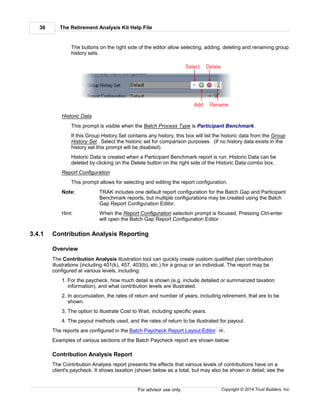
profiles are generated by having the individual answer a number of questions about their investment
experience and their views on investing.
TRAK has a generic risk tolerance profile. There are some company specific profiles available as well.
Each question must be answered before the Next button is enabled.
Hints: The red to the left of the question and answers indicates an unanswered question.
Questions may be answered either by clicking on them or pressing the letter that
corresponds to the answer (i.e. A, B, or C in the image above, not case sensitive).
The name of the asset allocation questionnaire being used appears in the status bar of the screen.
TRAK Programs 33
Copyright © 2014 Trust Builders, Inc. For advisor use only.
Changing Questionnaire
To load a different questionnaire than the one selected when the Asset Allocation program starts:
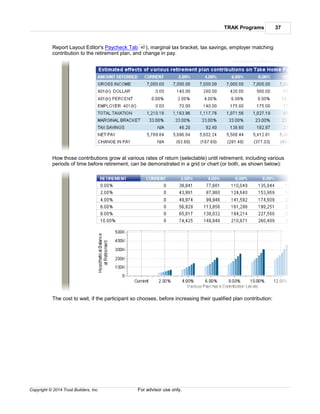
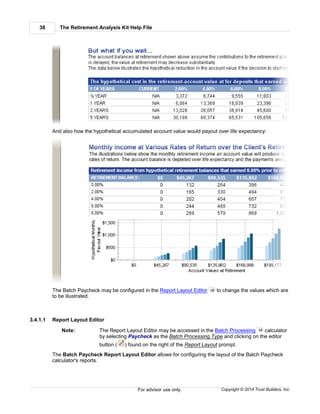
1. Click on the questionnaire name at the bottom of the questionnaire screen.
2. Click the name of the questionnaire to be used.
3.3.1 Portfolios
The following is an example of how a portfolio may appear when all of the questions are completed.
Note When multiple portfolios are available, a combo box will appear that allows for a
selection from the various portfolios.
Hint All portfolios may be printed by selecting the appropriate setting in the print dialog
(see the 'Options' tab).
The Retirement Analysis Kit Help File34
Copyright © 2014 Trust Builders, Inc.For advisor use only.
3.4 Batch Processing
The Batch Processing allows for processing multiple client reports for both Batch Paycheck and
Batch Gap reports. Batch reports may be created for groups or individuals.
Following are the various options in the calculator:
Batch Process Type
This determines which type of report is created: Contribution Analysis , Batch Gap or
Participant Benchmark .
Import Filter
This is the method for determining which client records are to be printed. There are four options:
1. All Paychecks: This will print all paychecks entered in The Retirement Analysis Kit
database.
36 51
60
TRAK Programs 35
Copyright © 2014 Trust Builders, Inc. For advisor use only.
2. Employer: This is to select all client paychecks in the database with a certain employer file.
3. Client Group: This is to select a group of clients or set of groups. To select a set of
groups, click on the editor button on the right of the editor (or press Control-Enter when the
editor is focused). This will open the Group Set Editor.
Notes: Client groups can be edited in Setup/Group Editing .
Even if a client is a member of more than one group, only one report will be
created for the client.
4. Single Client: This allows for printing of a single client data file.
Employer or Group or Client
Based on which import filter you select, only one of the following 3 prompts will be enabled. Select
the appropriate item.
Options
Include Spouse's Paycheck when Available
This check box determines if the spouse's paycheck (when available) is printed as a separate
report.
Exclude Client if they have a Spouse, Exclude Client if they have Additional Accounts, Exclude
Client if they have Gap Reports within xx Months, Exclude Reports that do not have Income
The additional options allow for excluding clients that may have had one-on-one consulting
recently. For example, if a Quick Gap or Gap Analysis report had been run within 6 months from
the date, the report can be excluded.
Hint: As the Import Filter or selected filter item is changed, the number of reports to be
created is indicated in the Number of Clients line.
Contribution Analysis Report Layout
Report Layout
Select the layout of the report to be printed. Report layouts may be added, edited, or deleted by
clicking on the editor icon found on the right side of the Report Layout prompt.
From here, select the layout to create a report or the desired alterations for a report.
Batch Gap Report Configuration
Group History Set
This prompt is visible when the Batch Process Type is Participant Benchmark.
The Group History Set has two functions. When a Participant Benchmark Report is generated:
1. the data is saved in the Group History Set for future comparisons, and
2. data from previous generated Participant Benchmark reports can be used for historical
comparison purposes.
426
463
The Retirement Analysis Kit Help File36
Copyright © 2014 Trust Builders, Inc.For advisor use only.
The buttons on the right side of the editor allow selecting, adding, deleting and renaming group
history sets.
Historic Data
This prompt is visible when the Batch Process Type is Participant Benchmark.
If this Group History Set contains any history, this box will list the historic data from the Group
History Set. Select the historic set for comparison purposes. (If no history data exists in the
history set this prompt will be disabled).
Historic Data is created when a Participant Benchmark report is run. Historic Data can be
deleted by clicking on the Delete button on the right side of the Historic Data combo box.
Report Configuration
This prompt allows for selecting and editing the report configuration.
Note: TRAK includes one default report configuration for the Batch Gap and Participant
Benchmark reports, but multiple configurations may be created using the Batch
Gap Report Configuration Editor.
Hint: When the Report Configuration selection prompt is focused, Pressing Ctrl-enter
will open the Batch Gap Report Configuration Editor
3.4.1 Contribution Analysis Reporting
Overview
The Contribution Analysis illustration tool can quickly create custom qualified plan contribution
illustrations (including 401(k), 457, 403(b), etc.) for a group or an individual. The report may be
configured at various levels, including:
1. For the paycheck, how much detail is shown (e.g. include detailed or summarized taxation
information), and what contribution levels are illustrated.
2. In accumulation, the rates of return and number of years, including retirement, that are to be
shown.
3. The option to illustrate Cost to Wait, including specific years.
4. The payout methods used, and the rates of return to be illustrated for payout.
The reports are configured in the Batch Paycheck Report Layout Editor .
Examples of various sections of the Batch Paycheck report are shown below:
Contribution Analysis Report
The Contribution Analysis report presents the effects that various levels of contributions have on a
client's paycheck. It shows taxation (shown below as a total, but may also be shown in detail; see the
38
TRAK Programs 37
Copyright © 2014 Trust Builders, Inc. For advisor use only.
Report Layout Editor's Paycheck Tab ), marginal tax bracket, tax savings, employer matching
contribution to the retirement plan, and change in pay.
How those contributions grow at various rates of return (selectable) until retirement, including various
periods of time before retirement, can be demonstrated in a grid or chart (or both, as shown below):
The cost to wait, if the participant so chooses, before increasing their qualified plan contribution:
40
The Retirement Analysis Kit Help File38
Copyright © 2014 Trust Builders, Inc.For advisor use only.
And also how the hypothetical accumulated account value would payout over life expectancy:
The Batch Paycheck may be configured in the Report Layout Editor to change the values which are
to be illustrated.
3.4.1.1 Report Layout Editor
Note: The Report Layout Editor may be accessed in the Batch Processing calculator
by selecting Paycheck as the Batch Processing Type and clicking on the editor
button ( ) found on the right of the Report Layout prompt.
The Batch Paycheck Report Layout Editor allows for configuring the layout of the Batch Paycheck
calculator's reports.
38
34
TRAK Programs 39
Copyright © 2014 Trust Builders, Inc. For advisor use only.
Report layouts may be selected, added, deleted, and renamed by clicking on the respective button
found on the right side of the Report Configuration combo box.
.
Editor Tabs
The editor has four tabs; each tab configures its respective part of the report. Click on the items
below for more information about the specific tab.
Paycheck Display
Qualified Plan Contributions
Accumulation
Cost to Wait
Payout
Setting Defaults
Defaults may be set for the active Report Configuration by clicking on the Apply Default Settings
button found on the bottom left of the editor. Then select from the pop up menu.
40
43
48
49
The Retirement Analysis Kit Help File40
Copyright © 2014 Trust Builders, Inc.For advisor use only.
3.4.1.1.1 Paycheck Tab
The Paycheck section of the Batch Paycheck Report shows how various levels of contributions effect
a client's paycheck. It includes employer match, effect on taxation, and change in pay.
The Paycheck section of the report (shown above) is configured in the Report Layout Editor's
Paycheck tab shown below:
TRAK Programs 41
Copyright © 2014 Trust Builders, Inc. For advisor use only.
Paycheck Tab Options
Each of the prompts on the Paycheck tab is discussed in the following:
Show Current Contribution Column
This determines if the client's current contribution should be illustrated in the report.
Show theoretical maximum contribution ("Quick Max") column
Determines if the quick maximum (i.e. for 2014 the value is $17,500, plus an additional $5,500
for those who are age 50 by the end of the year) should be illustrated in the report. No catch-
up provisions for 403(b) or 457 are taken into account.
Hide contributions above "Quick Max"
Hides columns with contributions above the Quick Max column.
Hide Paycheck fields with values of zero...
Checking this box will hide a field if the field's value is zero, even if it is checked as visible in
the employer file editor .440
The Retirement Analysis Kit Help File42
Copyright © 2014 Trust Builders, Inc.For advisor use only.
Withholding Tax Options
The Withholding Tax Options configures how the report displays taxation withholdings.
Paycheck withholding taxes
Three options are available for Paycheck Withholding Taxes:
1. Show Details: Shows individual values for federal, state, and local taxes (when
applicable).
2. Total Withholding Only: Shows a total of all withholding taxes (as shown above).
3. None: Withholding taxes are not printed in the report.
Print tax bracket
This determines if the marginal withholding tax bracket is printed in the report.
Print Tax Savings
This determines if the withholding tax savings, in comparison to the current situation, is
printed.
Roth Account
Include Roth in Contribution Comparison (Must be Correctly Configured in the Employer File)
This determines if a Roth account is included in the comparison. To include a Roth
account, the employer file must be configured correctly. This includes:
1. The Roth account for the primary qualified plan (on the Visible fields tab ) must be
checked.
2. If the primary retirement plan's Qualified Plan Type is Custom Retirement Plan, the
selected custom retirement plan must be configured with a Roth Account in the Custom
Retirement Plan Editor .
Option for Contribution Values
This determines how the values for the Contribution Offset are used for the pretax and
Roth account. There are two options:
1. Split Contribution between Accounts: The contribution offset is split between the
pretax account and Roth account values.
2. Use Offset on Both Accounts: The offset is added to both the pretax and Roth
account.
For example: If an offset value of 2% is used, the first method (Split Contribution between
Accounts) would add 1% to the pretax account and Roth account; the later method
(Use Offset on Both Accounts) would be added to both the pretax and Roth
account.
Notes: The same configuration may be used with client files that include Roth accounts
and ones that do not include Roth accounts. This allows the preferred
configuration with both scenarios.
Retirement Contribution Values Displayed as
Options are Percent and Dollar. This will determine how the values are entered on the grid to
440
443
461
TRAK Programs 43
Copyright © 2014 Trust Builders, Inc. For advisor use only.
the right of the editor.
Contribution Value Type
This is only available if there is not a Roth account. Determines if the contribution levels enter
in the grid are absolute (e.g. "2%" would illustrate 2% of the client's paycheck) or relative ("2%"
would illustrate 2% more than the client's current contribution). If a Roth account is included,
the Relative Values method is used.
When offsetting contribution value
Determines how the offset value is added when using Relative values for the Contribution
value type. There are three options:
Add Offset, do not Round: Adds the offsets values to the current contribution level. For
example, if the current contribution is 2.4%, a 2% offset would illustrate a 4.4%
contribution.
Round Value: Adds the offsets values and rounds to the nearest whole percent. For
example, if the current contribution is 2.4%, a 2% offset would illustrate a 4% contribution.
Round Value Up: Adds the offsets values and rounds up to the next whole percent. For
example, if the current contribution is 2.4%, a 2% offset would illustrate a 5% contribution.
Hide Illustrations less than the current contribution value
This is only available if the Contribution Value Type is Absolute Values. If current
contributions are being illustrated, this prompt is enabled. It determines if contribution values
less than the current contribution should be illustrated. (This prompt is only available if the
Contribution value type is Absolute values)
# of Contributions to Illustrate
Up to eight different contribution columns can be illustrated in the report. If Show current
contribution column and/or the Show theoretical maximum contribution column (discussed
above), then the maximum value will be appropriately reduced.
3.4.1.1.2 Accumulation Tab
The projection section of the report (shown below) displays how various contribution levels grow over
time at differing rates of return.
The Retirement Analysis Kit Help File44
Copyright © 2014 Trust Builders, Inc.For advisor use only.
The Batch Paycheck projection section (shown above) is configured in the Accumulation tab (shown
below).
TRAK Programs 45
Copyright © 2014 Trust Builders, Inc. For advisor use only.
Accumulation Tab Prompts
Each of the prompts on the Accumulation tab is discussed below:
Start on New Page
Determines if the Projections section of the report starts on a new page.
Show Retirement Year
Determines if the retirement year should be shown in the report. Note that "Cost to Wait" and
"Payout" are only available if Show retirement year is checked.
Use Value for Raises Configured in the Employer File
Determines if employer raises will be used for projecting increases in contributions to the
retirement plan. If not checked, the value entered for Annual raise will be used.
Annual raise
This prompt is only available if the raise from the employer file is not used.
Method to Display Projected Values
The Retirement Analysis Kit Help File46
Copyright © 2014 Trust Builders, Inc.For advisor use only.
Determines how the projections are displayed in the report: Chart (shows graphically), Grid
(shows actual values), or Both (shows both the chart and grid).
At Retirement, Show Both Grid and Chart
Allows for displaying both the grid and chart at retirement, thereby highlighting the retirement
year. Only enabled if Both is not selected for Method to Display Projected Values prompt.
Roth Account Balance
If a Roth account is included in the illustration (on the Paycheck tab) it determines how the
Roth account balance is displayed in the report. The following image is a sample of how the
accumulations values are shown if Include with Pretax is selected.
If Show Below Pretax is selected, a sample of the accumulation grid that includes illustrates a
Roth account is shown below.
Note: While having the values separated may be profitable, this may add unwanted
length to the printed report.
When displaying charts, the chart will either display a chart with only one bar, or with a stacked bar
having a blue line for the pretax account and a green bar for the Roth account (see image below).
TRAK Programs 47
Copyright © 2014 Trust Builders, Inc. For advisor use only.
Hide Years Within 'X' Years of Retirement
Allows for removing accumulation years that are close to retirement. For example, if the client
is retiring in 10.5 years, and 10 years is entered as a projection year, a value of '1' here will
hide the 10th year (i.e. it is one year within retirement).
Number of Interest Rates
Enter the number of interest rates to display in the projection grid. This will determine the
number of records (rows) displayed in the Years grid.
Show Accumulation Years in Addition to the Retirement Year
Determines if additional years are displayed with the retirement year. Note that this is only
enabled if the 'Show retirement year' checkbox is marked.
Number of Accumulation Years to Show
Determines the number of sections for years. For example, to display accumulation years 5
and 10, enter the value '2' here, then in the Years tab (to the right), enter the value '5' and '10.'
Rates
This grid configures which interest rates are displayed in each accumulation year. Also
configurable are which rates of return in the accumulation are used to display Cost to Wait
and Payout illustration sections.
Note: Selecting to illustrate the Cost To Wait or Payout for many or all of the Cost to
Wait and/or years may significantly increase the length of the report.
Years
This grid configures which years are printed in the report for accumulation periods. Depending
upon the configuration, some years may be hidden if they are beyond retirement.
48
49
The Retirement Analysis Kit Help File48
Copyright © 2014 Trust Builders, Inc.For advisor use only.
3.4.1.1.3 Cost to Wait Tab
The Cost to Wait section of the Batch Paycheck report illustrates the loss in account value if the client
delays before increasing their contribution to the qualified plan.
The Batch Paycheck cost to wait section (shown above) is configured in the Batch Paycheck Cost to
Wait tab (shown below).
Note: This tab is not visible if the Show retirement year checkbox is unchecked on the
Projections tab. Also, to illustrate the cost to wait, be sure that at least one of
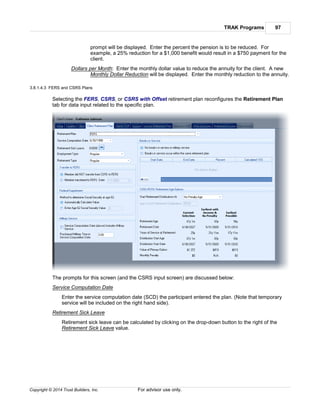
the check boxes in the 'Cost to Wait' column, associated with the accumulation
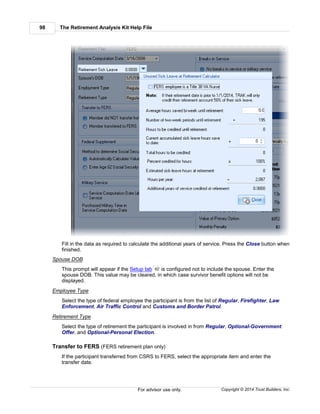
rates of return (shown in the Projections tab), is checked.
43
43
TRAK Programs 49
Copyright © 2014 Trust Builders, Inc. For advisor use only.
Cost to Wait Tab Prompts
In the following, each of the prompts on the Cost to Wait tab is discussed:
Illustrate Cost to Wait
Determines if the Cost to Wait section is printed in the report.
Illustrate Cost to Wait in
Options are Dollars and Percent. This determines if the dollar loss in account value or the
percent loss in account value is displayed in the reports.
# of Cost to Wait years
Number of records to show in the Cost to Wait section.
Years grid
Enter the years to be represented in the Cost to Wait section (e.g. wait half a year, 1 year, 2
years, and 5 years, as shown above).
3.4.1.1.4 Payout Tab
The Payout tab of the Batch Paycheck Report Layout editor configures how the payout section of the
report is illustrated.
The section of the report shown above is configured by the Payout tab shown below.
The Retirement Analysis Kit Help File50
Copyright © 2014 Trust Builders, Inc.For advisor use only.
Note: This tab is not visible if the Show retirement year checkbox is not checked on the
Projections tab. Also, to illustrate the account payout values, at least one of the
check boxes in the 'Cost to Wait' column, associated with the accumulation rates
of return (shown in the Projections tab), is checked.
Payout Tab Prompts
Each of the prompts on the Payout Tab is discussed below:
Show payout detail for retirement year
Check this box to illustrate the monthly payout of the account value.
Start on new page
Check this box to start the Payout distributions on a new page.
Life Expectancy
Life expectancy method
Select the method. Note that IRA tables are relative to the client's retirement age.
Life expectancy years
43
43
TRAK Programs 51
Copyright © 2014 Trust Builders, Inc. For advisor use only.
Enabled if the Life expectancy method is Number of Years and is the number of years a
client will live after retirement.
Life expectancy age
Enabled if the Life expectancy method is Specific Age and is the age the client will live to.
Payout Methods
Deplete the Account Principal over the Life Expectancy with No Annual Increase in Payment
The account balance will be paid out using the assumed interest rate over the individual's
life expectancy using the IRS life expectancy tables. The payments will not be adjusted for
inflation.
Deplete the Account Principal over the Life Expectancy with Annual Inflation Adjusted Payment
The payments will increase annually by the assumed inflation rate and interest rate over
the individual's life expectancy using the client's life expectancy. The account balance will
be depleted over the life expectancy.
Retain the Account Principal over the Life Expectancy with No Annual Increase in Payment
The payments will consist of level monthly payments based on the interest rate
assumptions. The principal will not be used.
Retain the Account Principal over the Life Expectancy with Annual Inflation Adjusted Payments
The payments will increase annually by the assumed inflation rate and interest rate over
the individual's life expectancy using the client's life expectancy. The account balance will
be retained at life expectancy.
Cost of living adjustment (COLA)
Enter the inflation rate to use during retirement. This is only enabled if a payout method
(above) is selected that takes life expectancy into account.
Display Method
The values may be displayed in a Grid, Chart, or Both.
# of payout rates
Enter the number of payout interest rates to be illustrated.
Payout Rates
Enter the rates for use in the projections table.
3.4.2 Batch Gap Reporting
Overview
The Batch Gap illustration tool can quickly create retirement gap illustrations for an individual or a
group.
The report defaults are configured in the Batch Gap Report Configuration Editor .
The following image is an example of the Batch Gap report, as well as direction for its configuration:
52
The Retirement Analysis Kit Help File52
Copyright © 2014 Trust Builders, Inc.For advisor use only.
3.4.2.1 Batch Gap Report Configuration Editor
The Gap Report Configuration Editor allows for the configuration of default values and various
TRAK Programs 53
Copyright © 2014 Trust Builders, Inc. For advisor use only.
settings within the Batch Gap report.
Select the report configuration in the combo box.
Report configurations may be selected, added, deleted, or renamed by clicking on the respective
button found to the right of the Report Configuration combo box.
( )
Note: The delete button will be disabled if only one report configuration is available.
Note: The Report Layout Editor may be accessed in the Batch Processing calculator
by selecting Gap Analysis as the Batch Processing Type and clicking on the
editor button ( ) found to the right of the Report Configuration prompt.
Editor Tabs
The editor has seven tabs. Each is discussed in the relevant link below.
1. Settings
2. Retirement Age
3. Social Security
4. Roth Account
5. Defined Benefit Account
6. Chart Options
7. Contribution Change Thresholds
8. Participant Benchmark
a) Options
b) Charts
34
54
54
55
55
56
56
57
59
59
The Retirement Analysis Kit Help File54
Copyright © 2014 Trust Builders, Inc.For advisor use only.
3.4.2.1.1 Settings Tab
Each of the prompts on the Settings screen is discussed below:
Percent of Income needed in retirement
Enter the percent of income for TRAK to calculate for the client's retirement income. Note that the
client's income is increased annually using the values from the employer file's raises section (on
the Miscellaneous tab). Click here for more information.
Retirement Inflation
Enter the expected annual inflation during retirement.
Rates of Return
Prior to Retirement & During Retirement
Enter the hypothetical rate of return that will be illustrated in the account prior to and during
retirement.
Life Expectancy
These settings determine how the life expectancy is calculated for each calculation.
Paycheck Options
Determines which optional lines are displayed in the paycheck comparison section of the report.
Note that the employer contribution items and "Total Contribution" lines will not display unless the
employer is making a contribution.
3.4.2.1.2 Retirement Age
This allows for configuring the retirement age of the group(s) being processed.
Retirement Age
Retirement Age for Client:
Select one of the three methods below for working with a group of clients:
Client Data: The client age that was imported will be used.
Social Security Normal Retire Age: The Social Security's normal retirement age, based
on the client's date of birth, will be used.
Retirement Custom Age: Allows for selecting the retirement age to be used for the whole
group.
Clients Close To/Already Retired
This group box allows for configuring how to handle clients in the group that are close to or already
retired.
Skip Reports for Clients that are Already Retired
Check this box If reports for client's whose retirement age is already past. If they are not
skipped, they will be retired at the end of this month.
For Clients that Are Close to Retirement, or Already Retired
451
TRAK Programs 55
Copyright © 2014 Trust Builders, Inc. For advisor use only.
Select the appropriate action for clients that are close to, or are already retired.
3.4.2.1.3 Social Security Tab
The settings here determine if and how Social Security is included in the analysis.
Include Social Security
Determines if Social Security is included in the illustration. (See the FAQ entry for Social Security
for more information on how Social Security is calculated).
Social Security Starts
Select the method (either Retirement Age or No Penalty Age) for starting Social Security. Social
Security will not start before age 62.
Note: The following prompts allow for the software to be conservative in estimating the
Social Security value.
Percent of Inflation that Social Security Increases (pre-retirement)
TRAK calculates Social Security income at retirement for each client by trending Social Security
values for the last 20 years. A 100% value here will use the historical average. Decreasing this
percentage (e.g. 90%) will result in a significant reduction in Social Security income at retirement
for younger clients.
Percent of the Calculated Social Security Value to Use (at Retirement)
Enter the percent of the calculated Social Security to use for the projections. This allows for being
conservative in the amount of income the client will receive from Social Security.
Maximum Inflation for Social Security During Retirement
Enter the maximum inflation that Social Security can have in retirement.
3.4.2.1.4 Roth Account Tab
A Roth account may also be included in the illustration, and increasing contributions to the Roth
account can optionally be included to resolve the potential shortfall. The following options are used to
configure how the Roth contributions are used for calculating any shortfall.
Include increased deferrals to Roth account for solving shortfall
Checking this box will also illustrate funding the shortfall with increase deferrals to the Roth
account.
Notes: The Batch Gap calculator does not consider taxation when calculating income
needed during retirement.
To include a Roth account for retirement income, the following conditions must be
met:
1. The employer file must be configured with a visible Roth account.
2. If the employer file is configured with a custom retirement plan , the plan
must be configured with a Roth account.
Funding Shortfall Option
When increased funding is required and the Roth account is selected as part of the solution, two
methods can be used for determining the allocation of increased contributions between the two
accounts:
61
440
443
The Retirement Analysis Kit Help File56
Copyright © 2014 Trust Builders, Inc.For advisor use only.
1. Contributions to each account are increased proportionally. For example, if the client is
contributing 10% to the pretax account and 5% to the Roth account, and their contribution
needs to increase by 6%, the pretax account would increase to 14% and the Roth account
would increase to 7%.
2. Contributions are increased equally to each account. In the above example, the
contributions would increase to 13% for the pretax account and 8% for the Roth account.
Note: Distributions from the pretax and Roth accounts will be proportionally based on
their balances.
3.4.2.1.5 Defined Benefit Account Tab
TRAK allows for including a known Defined Benefit value.
Note: The value for the known defined benefit must be imported and can not be edited
inside of TRAK.
The prompts for this tab are discussed as follows:
Include Defined Benefit Account in Illustration
Check this box to include the known defined benefit account value for retirement.
Header for Defined Benefit Account
Enter the name of the defined benefit account. This will be displayed in the Retirement Years
chart.
Cost of Living Adjustment (COLA)
COLA prior to retirement
If the imported value has a cost-of-living adjustment (COLA) prior to retirement, enter the
COLA value here.
COLA during retirement
If the imported value has a cost-of-living adjustment (COLA) during retirement, enter the COLA
value here.
Compound annual increase
If the retirement COLA is compounded, check this box.
3.4.2.1.6 Chart Options Tab
The Chart Options tab is used to configure the colors used in the Batch Gap report. Select the
respective colors.
Shortfall Transparency
The Shortfall Transparency allows for configuring transparency in the Shortfall account. Creating
the appearance of semi-transparency for a shortfall in retirement produces the powerful visual
effect of the shortfall being "empty." (Notice on the chart below where the lines can be seen during
the shortfall period, but where no income occurs.)
A value of zero ('0') has no transparency, while a value of one hundred ('100') is fully transparent
(i.e. no color will appear). As an example, the chart below used 60% transparency.
TRAK Programs 57
Copyright © 2014 Trust Builders, Inc. For advisor use only.
3.4.2.1.7 Contribution Change Threshhold
The Contribution Change Threshold allows for automatically changing the assumptions for an
illustration when the funding change falls outside of specific limits.
Note: The Contribution Change Threshold options only impacts the Batch Gap
For example: An illustration requires a participant to increase their deferrals from their current
4% contribution to 27% contribution. A dramatic increase in the participant's
contribution typically will alienate the participant and disengage them from any
further conversation. This problem may be overcome by using the Contribution
Change Threshold. TRAK can automatically alter the client's assumptions to
reduce the significant increase to a more reasonable value. (Similarly if a client is
over-funded, the illustration can alter the assumptions so that they can show a
minimum increase in deferrals).
The changes to the scenario can be any of the following items
1. Change reliance on Social Security
Especially relevant for over-funded participants, this will alter the percent of the estimated
Social Security the client will receive.
2. Change retirement age
The illustrated retirement age can be altered by the client. For example, for an under-funded
client
3. Change percent of income needed in retirement
The illustrated percent of income needed can be altered
Data Input
Modify client scenarios that illustrate construction increases outside of the threshold limits
Determines if the funding threshold option(s) are active.
The Retirement Analysis Kit Help File58
Copyright © 2014 Trust Builders, Inc.For advisor use only.
Minimum Increase Threshold
The minimum change in funding before the steps in the "Changes to over funded scenarios"
are taken.
For example: A value of 1% would require that the illustration at least increase the client's
contribution by 1%, i.e. if a client was current contributing 4%, the proposed
scenario would have to at least be 5%.
Note: To use the Minimum Increase Threshold a value greater than zero must be
entered otherwise over funded clients will not have their data changed.
Maximum Increase Threshold
The maximum change in funding before the steps in the "Changes to under funded scenarios"
are taken.
For example: A 10% value would require that the illustration be altered if the proposed scenario
increased the current contribution by more than 10%. I.E. if a client's contribution
was currently 4%, the proposed contribution could not exceed 14% without the
under funding changes to be implemented.
Changes to over funding scenarios and Changes to under funded scenarios
If an illustration falls outside of the funding threshold, the data will be changed per the steps shown
in the relevant grid. Each step is taken in order. For example, in the following over funded grid:
the scenario will be altered first by reducing the current illustrated retirement age by one year. The
scenario will be re-run to check if the minimum funding threshold is met. If it is not, the process is
repeated until the client's age is 60. If at age 60, the minimum funding threshold is not met, the
second step, and if required, the third step are taken. (Note: that additional steps may be added.
For example, after the above three steps, if the scenario still has not met the funding requirements,
an additional reduction in the retirement age may be illustrated).
The under funding grid below shows the steps taken when a client's proposed scenario exceed the
maximum increase threshold.
TRAK Programs 59
Copyright © 2014 Trust Builders, Inc. For advisor use only.
Technical Note: Altering a client's scenario may result in the scenario falling outside of the
other funding threshold limit. If this should occur, the other threshold will not
be checked.
For example, when a client's retirement age is increased from 65 to 66
because of underfunding, and the change results in the client being outside of
the over funded scenario, the over funding threshold is not checked.
3.4.2.1.8 Participant Benchmark
The Participant Benchmark tab allows for configuring the corresponding report. There are three tabs
that contain information for configuration:
1. Options ,
2. Charts , and
3. Data Ranges
3.4.2.1.8.1 Options
Date Format
Select the format for the date format. The date format will be used in date-related chart series
when historical data is used.
Highly Compensated Income Level
Enter the income level that defines a highly compensated employee.
Chart Color
Use the editor to customize the colors for the series in the charts.
3.4.2.1.8.2 Charts
The Participant Benchmark Contents tab configures which charts are displayed in the report and the
ranges for breaking the analysis.
Charts
Select which chart(s) to display in the report, and the order they are displayed in the report. Report
order may be changed by either:
59
59
60
The Retirement Analysis Kit Help File60
Copyright © 2014 Trust Builders, Inc.For advisor use only.
1. Clicking on the specific report and holding the mouse down and dragging it to the desired
location), or
2. Selecting the specific report and clicking on the up or down arrows to the right of the list box.
Summary Grids
This check box appears below the list of optional charts to select . These are grids at the end
of the report that do not have corresponding charts.
3D Charts
Determines if the charts in the report are displayed three dimensionally.
The Configure button allows for selecting a set of charts for "Qualified Participants" and
"Participant" charts.
Data Ranges
The data ranges can be configured for how the data is broken out for comparison.This tab
configures the options on for the Participant Benchmark report options.
3.4.2.1.8.3 Data Ranges
The grids display the break down of ages, income, years of service, contribution rates and replacement
incomes used in the grids.
The "Tab Defaults" button will assign the default values to the current tab. The "All Defaults" button will
assign default values to all of the tabs.
3.4.3 Participant Benchmark
The Participant Benchmark report provides an overview of the participation and estimated retirement
success of the members of the group. Participation levels and projected retirement success can be
evaluated by various criteria, including:
1. Age,
2. Income,
3. Years of Service,
4. Contribution Levels, and
5. Retirement Replacement Income.
60
TRAK Programs 61
Copyright © 2014 Trust Builders, Inc. For advisor use only.
The specific criteria for each be configured in the Batch Gap Report Layout Editor's Participant
Benchmark tab
3.4.4 Frequently Asked Questions
The following is a list of the most frequently asked questions for the Batch Processing tool:
1. How is Social Security calculated?
2. How can client data be imported into The Retirement Analysis Kit?
3. My plan sponsor's employees are not getting raises. Why does TRAK require a raise be
entered?
4. Why does the Batch Gap report show "Unable to complete calculation..." for some reports?
5. Can the Batch Gap report include other accounts from the Paycheck or Quick Gap (Gap
Analysis) calculators?
3.4.4.1 Calculating Social Security
A common question addressed by Trust Builders, Inc. is how TRAK calculates Social Security.
Occasionally someone will object to a value used, stating that the Social Security amount is too high.
(Most often this occurs when retirement is more than 10 or 15 years in the future). The method for
calculating Social Security is documented below.
The Social Security Administration (SSA) does not provide a "best method" for calculating Social
Security. Nor does the SSA allow for automated access to their website so TRAK could get client
information from the website. Therefore, TRAK has an internal formula for estimating a client's Social
Security benefit.
How Social Security is Calculated
Before explaining how TRAK calculates Social Security, it is best to have an understanding how Social
Security is calculated by the Social Security Administration (SSA). The formula for calculating the
Social Security for a person requires a number of steps:
1. The income from each calendar year (not to exceed the Social Security Integration Level, SSIL,
each calendar year) is entered into a chart. This value is multiplied by a index factor to provide
an indexed earning value for the calendar year. (The index factor is based on the product of
the Average Wage Indexes from the calendar year until age 62).
2. The highest 35 values from the indexed earnings are added together and divided by 420 (the
number of months in 35 years). This provides the Average Index Monthly Earnings (AIME).
3. An annual adjusted formula is applied to the AIME to determine the Primary Insurance Amount
(PIA). For individuals turning 62 in 2010, the formula is:
Tier 1: 90% of the AIME at or below $761, plus
Tier 2: 32% of the AIME between $761 and $4,586
Tier 3: 15% of the AIME above $4,586
Social Security Administration's Worksheets
Obviously TRAK does not ask enough historical information from the client to use the SSA's
worksheets. Additionally, SSA worksheets to estimate a PIA are typically only available for the current
year and possible next year.
59
62 62
63
64
64
The Retirement Analysis Kit Help File62
Copyright © 2014 Trust Builders, Inc.For advisor use only.
Thus, to calculate the value for Social Security, TRAK makes a number of assumptions. Historical
income trends, as well as future predictions, are considered in the method for Social Security
calculations. The following assumptions are made to calculate the estimated PIA for a client:
1. For the client's income, their raise is considered to be consistent, both historically and looking
forward.
2. To calculate future SSIL (step 1 above) at age 62, the historical 20 year-average1 COLA is
applied to future years.
3. The historical 20 year-average1 wage index at age 62 (used in step 1 to provide indexed
earnings) is used to calculate future wage index values.
4. The 20 year-average1 COLA for the two tiers at age 62 (step 3 above) is calculated and applied
to the dollar values for forward looking values.
Note: The historical COLA applied to the first two tiers of the formula (step 3 shown
above) is historically different then the COLA applied to the SSIL.
5. The three tier formula shown above is used to estimate the client's PIA.
6. If the client is retiring after or starting age is after 62, the COLA is applied to the value for the
respective number of years.
7. If the client is retiring prior to their normal retirement age, a penalty is applied based on the
number of months early.
8. If the client delays Social Security beyond normal retirement age, a credit is applied based on
their year of birth.
9. If a client has less than 35 years of eligible Social Security years of income, this will reduce their
income.
10.If a client is affected by Windfall Elimination Provision, this can also be included to reduce the
Social Security benefit.
Social Security Windfall Elimination Provision
The Windfall Elimination Provision (WEP) reduces an individual's Social Security benefit due to
insufficient years (less than 30) of substantial earnings (as defined by the provision). This provision
reduces the percent of income credited from the first tier (normally 90%) to a lower percentage based
on the number of years the client had substantial earnings (5% per year less than 30 years, but not
lower than 40% crediting).
For more detailed information about WEP, please visit SSA web site.
Footnote
1 Average rates of return are technically average compounded rates of return. Note that when looking
at the historical average values, the data from the latest years from the SSA's website is used. This
does not always include current information. For example, at the time of writing this document (May
2014), the wage increase for Average Wage Indexing Series is updated through 2012.
3.4.4.2 Importing Data
Data can be imported from an Excel or text file by using the Import/Export tool found under the
"File" menu.
412
TRAK Programs 63
Copyright © 2014 Trust Builders, Inc. For advisor use only.
3.4.4.3 Raises
Given the economic environment, many advisors have often indicated that many plan sponsors are not
providing raises to their employees, and want no raises configure in the reports. But TRAK requires
raises be included.
The reason for this is what happens to purchasing power of the participants who have a number of
years until retirement: their real-dollar income can be reduced significantly.
For Example The grid below illustrates the buying power If inflation is 3%. So, for a person 20
years from retirement and a inflation rate of 3%, with no raises until retirement, the
purchasing power is reduced to 55% of their current income level.
Years Until
Retirement
Annual Raise
0% 1% 2%
5 86% 91% 95%
10 74% 82% 91%
20 55% 68% 82%
30 41% 56% 75%
The grid below illustrates the buying power of $1,000 with an inflation rate of 3%. So,
for a person 20 years from retirement, if the inflation is 3%, with no raises until
retirement, the purchasing power is reduced to 55% of their current income level.
Years Until
Retirement
Annual Raise
0% 1% 2%
5 $863 $907 $952
10 $744 $822 $907
20 $554 $676 $823
30 $412 $555 $746
Not having any raises over a significant period of time will result in a a much lower income at
retirement. TRAK calculates the income needed in retirement as a percentage of the income at
retirement. Therefore not having any raises until retirement can significantly reduce the savings
needed for retirement.
The Retirement Analysis Kit Help File64
Copyright © 2014 Trust Builders, Inc.For advisor use only.
3.4.4.4 Explain "Unable to complete calculation..."
For some clients, the Batch Gap report may show the "Unable to complete calculation..." shown below.
This is caused when TRAK cannot fund the projected retirement shortfall, even with the maximum
contribution level (the maximum contribution level for 2014 is $17,500 per year plus an additional
$5,500 for individuals 50 and over).
Note: This may be a opportunity! The client may have switched jobs, joined the new
employer and has other retirement accounts with a previous employer.
3.4.4.5 Other Accounts in the Batch Gap Calculator
The Batch Gap report does not include the additional accounts from the Paycheck or Quick Gap (or
Gap Analysis) calculators. This is by design. The Batch Gap report is a simple one page report. To
include additional accounts either the Quick Gap or Gap Analysis calculators must be used.
3.4.5 Group Set Editor
The Group Set Editor allows for selecting multiple groups of clients to be processed in the Batch
Processing calculator.
TRAK Programs 65
Copyright © 2014 Trust Builders, Inc. For advisor use only.
All unselected groups are displayed in the list on the left, and conversely, selected groups are
displayed in the list on the right.
Hints: Groups can be multi-selected in either by holding down the Control key and
clicking on individual items.
Mutliple groups can be selected by clicking on the first item and then holding down
the Shift key and clicking on the last item to be selected.
The items can be dragged from one list to the other by selecting the appropriate
items and then holding down the mouse and dragging them to the other list.
3.5 College Funding
The College Funding calculator can help a client plan additional savings for their children's college
savings. The College Funding Calculator includes the following features/highlights:
1. Quick, easy calculations.
2. Allows clients to evaluate their current savings plan with a proposed savings and determine the best
course of action.
3. And will illustrate the cost of waiting before increasing deferrals.
Design
The College Funding calculator is designed with two tabs seen at the top-left of the calculator: the
"Data" tab and the "Calcs."
The Retirement Analysis Kit Help File66
Copyright © 2014 Trust Builders, Inc.For advisor use only.
After the assumptions and student's data are entered on the first tab, the calculations can be
illustrated by clicking on the respective tab.
3.5.1 Data Entry: Assumptions
The data entry for the College Funding calculator is divided into two sections: the assumptions, (shown
below), and the student and college information , shown below the assumptions.
Assumptions Data
These fields build the assumptions for making the calculations. Each one is discussed below.
Annual increase in college expenses
Enter the estimated annual increase in costs for college expenses.
Rate of return on college investments
Enter the annual rate of return that will be earned on the current and additional college
savings.
College payment frequency
This determines how frequently college is paid for. All options start college payments the first
month that college starts. The detail of the various options are described below.
Annually: Payments are made annually on the first of the month.
Bi-Annually: Payments are made with two equal payments per year.
Quarterly-first 3 quarters: Three equal payments are made per year the first three
quarters after college starts.
Quarterly: Four equal payments are made over the calendar year.
Monthly over 9 months: College costs are divided into 9 equal payments.
Monthly: College costs are made monthly over the calendar year after college starts.
College cost method
This selects how to determine the costs for the college education. The three methods are
described below.
Average values: This uses the average values for the colleges. The average values, and
the list for the various types of colleges, can be configured by selecting "File/Config "
from the ribbon bar and selecting "College Types " in the navigator on the left.
Manual values: The cost of the individual college for each student can be entered
manually.
Configure for each student: Each college added below can be configured to use either
"Average values" or "Manual values."
Current college savings balance
This is the total current college savings balance.
Current monthly savings
Enter the total monthly savings for all college students.
Annual increase in savings
66 67 68
67
390
394
TRAK Programs 67
Copyright © 2014 Trust Builders, Inc. For advisor use only.
Enter the increase in savings a client will make each year.
Month to increase additional savings
Select the month that the client will increase their monthly savings (both current and any
calculated additional college savings required).
3.5.2 Data Entry: Students
The College Student(s) section of the College Funding calculator allows as many college students
to be added as needed.
Working with Students
The "Add Student" and "Delete Student" buttons can be used to add and remove college students.
Note that the "Delete Student" button will be disabled if there is only one college student.
The names of the students will appear in the list to the left of the data. The name of the selected
student can be edited in the "Student Name" editor at the right.
Editing Students
The prompts for each student is discussed briefly below:
Personal Information
Name
Enter the name of the student. This will modify the name of the student in the list on the
right. Note that no two students can have the same name.
Date of birth
Enter the date of birth of the student. After exiting the fields, confirm the current age of the
student and years until college starts.
College Entry
Date
Enter the date the student anticipates to enter college. After entering the data and exiting
the editor, the 'Age of entry' and 'Years from now' prompts will be updated. Confirm that
the values are correct.
# of years enrolled
Enter the number of years the student plans to attend the college.
College Cost
How data is entered in this section is determined by which method is selected in the
Assumption's "College cost method" prompt above.
Estimated cost method
This prompt is enabled only if Configured for each student is selected as the College
cost method prompt in the Assumptions section. It allows for either Average Values or
Manual Entry to be selected as the college cost method. The appropriate prompt below
will be enabled based on which item is selected.
Type of college
65
The Retirement Analysis Kit Help File68
Copyright © 2014 Trust Builders, Inc.For advisor use only.
This prompt is enabled only if the "Average values" method is selected in the Assumption's
"College cost method" or in the "Estimated cost method" above. This allows you to select
which type of college the student will attend.
Current annual cost
This prompt is enabled only if the Manual values method is selected in the Assumption's
College Cost Method or in the "Estimated cost method" above.
Enter the current annual cost of the college the student plans to attend.
Percent of tuition to pay
Enter the percent of the costs that client will pay for the student.
Hint: If the student will attend different colleges (e.g. a community college for the first
two years followed by two years of a private college), create two different students
and name them appropriately (e.g. the first student could be "Jo Ann: Community
College" and the second would be "Jo Ann: Private College").
3.5.3 Calculations
The College Funding calculations is displayed on three different calculation tabs: Overview, Chart and
Grid.
A couple notes about the calculations:
1. TRAK will attempt to calculate the cost to wait for increased savings up to a year. If there are
any expenses before a year, TRAK will calculate the cost to wait until the first expense.
2. In certain situations, TRAK will change the amount of monthly savings a client needs for the
additional monthly savings at some point in the future. This occurs because the immediate
monthly savings the client needs is greater than the savings needed over the long term. An
example of this would occur if a client had little or no current college savings with two students:
the older planning on a more expensive college, and the younger planning on a less expensive
education. After the college for the more expensive student was paid for, the required monthly
savings would decrease.
3.6 Database Program
The Database program is used to store and display client data. And by keeping this information
readily accessible, the Database program makes the tracking of clients easy.
TRAK Programs 69
Copyright © 2014 Trust Builders, Inc. For advisor use only.
Noteworthy features include:
1. Custom Fields can be added to the grid by clicking on File/Config and selecting Custom
Fields from the navigation menu on the left.
2. A pop up menu for the grid is accessible by right clicking. It gives the ability to:
1. Add/remove columns from the grid. Column order may be changed after they are added by
dragging column headers to the desired location.
2. Toggle whether to allow records (rows) to use multiple lines.
3. Auto-size columns.
4. Apply proper case to a record (row).
5. Edit within the grid.
The client's Quick Notes may be edited in the "Quicik Notes" tab. They may also be added in the File/
Quick Note in the ribbon bar.
Note: Quick Note types may be edited in File/Config by selecting Word Lists
from the navigation menu on the left.
3.6.1 Filtering the Client List
There are two methods for filtering client data: group based filtering and data based filtering.
Group Based Filtering
The list of clients in the grid may be filtered by the group the client is in. To filter by group, select the
Filter by Group button found on the Database context ribbon tab (only available when the Database
tool is opened).
394 390
390 408
The Retirement Analysis Kit Help File70
Copyright © 2014 Trust Builders, Inc.For advisor use only.
Groups in TRAK
In TRAK, Groups are sets of client files which can be processed together as a group (in the Batch
Processing tool), and/or can also be filtered as a set in the Database tool. These Groups
may be created when client files are imported or in the Group Editor (found in the Setup
tab). Clients may also be deleted as members of a group using the Group Editor.
Data Based Filtering
Data in the grid may be filtered by clicking on a column header's filter drop down list, and then selecting
the condition that must be met. This may be done for multiple columns.
Filter conditions are shown at the bottom of the grid.
34 68
412 463
380
TRAK Programs 71
Copyright © 2014 Trust Builders, Inc. For advisor use only.
A 'Customize' button is shown to the far left of the grid and may be used to configure complex filtering.
Notes: Filtering may be done on multiple columns.
Filtering and sorting the data in the grid will affect which clients are printed in the
reports and the order in which the clients are listed.
3.6.1.1 Simple Example
Simple Database filter example
Use the following steps to create a list of clients from specific cities:
1. If the 'City' column is not displayed in the grid, right click over the grid. Select Columns from the
pop up menu, and check the City menu item to show the column.
2. Move the mouse over the "City" column header. A filter icon will be displayed on the right side of
the column header. Click on the icon, and check the desired cities in the drop down list.
3.6.1.2 Advanced Example
Advanced example of a Database filter
The Retirement Analysis Kit Help File72
Copyright © 2014 Trust Builders, Inc.For advisor use only.
A helpful data based filter is a list of clients in the database that are retiring within the next year (or
have already retired), and also have not been modified in TRAK for the last year. To create this filter,
use the following steps:
1. Check that the 'Date Updated' and 'Client's Years until Retirement' columns are both visible.
(Right click over the grid and select these categories under the Columns menu).
2. Click on the filter drop down for the 'Date Updated' column and select 'Custom.'
3. In the Custom Filter dialog, select the 'is less than" comparison and enter the date of one year
ago. Click on the 'OK' button.
4. For the 'Client's Years until Retirement' column, add a custom filter where the years until
retirement is less than 1. Press the 'OK' button.
TRAK Programs 73
Copyright © 2014 Trust Builders, Inc. For advisor use only.
5. Confirm that the text in the grid's filter is correct.
Hint: If multiple filters have been created, a drop down arrow to the left of the text will
allow for quickly switching to previously created filters.
For more complex filtering, such as modifying the filter so that it would be the client's last update to a
prior date or those retiring the next year, click on the next year. then click on the 'Customize' filter
button found at the bottom-right of the grid.
3.6.2 Printing Reports
There are a number of reports (accessed by selecting File/Print from the ribbon bar) for the Database
program, including those shown in the image below.
The Retirement Analysis Kit Help File74
Copyright © 2014 Trust Builders, Inc.For advisor use only.
Note: If a filter is active in the database program, only the clients who meet the criteria
will be shown in the printed report. For example, to create Avery labels for clients
from specific zip codes:
1. Create a filter for the specific zip codes and/or city, and use the following steps
(click here for an example).
2. Select the 'Avery...' report (shown above), and click on the 'Print' button.
3.6.3 Exporting Data
Client data may be exported using TRAK's Database tool. Data can be exported as it appears in the
grid, including column order and filtering.
71
TRAK Programs 75
Copyright © 2014 Trust Builders, Inc. For advisor use only.
To export client data, right click over the grid and click on the 'Save to File...' menu item from the pop
up menu. There are several export formats available from the 'Save as type' combo box at the bottom
of the dialog.
3.7 Debt Analyzer
The Debt Analyzer tool illustrates the moving of debt from various high interest loans (such as credit
cards) to a client's 401(k) or 403(b) account. It shows the client the advantages of borrowing against
their qualified plan. Clear instructions are also presented as to how the client should proceed.
Overview
The calculator has two tab pages, Data and Calculations.
Note: The Calculations tab will not be enabled in the following conditions:
1. The 401(k) account does not have a balance or deposits.
2. There are no outstanding debts.
3. Any outstanding debts can not be calculated (i.e. the # of Monthly Payments Left
The Retirement Analysis Kit Help File76
Copyright © 2014 Trust Builders, Inc.For advisor use only.
column shows N/A).
Note: If the qualified plan type is not the type of account you wish to illustrate, from the
ribbon bar, select File/Config . Then select Debt Analyzer from the navigation
panel at the left. Finally, select the desired plan type. (The options are 403(b), TSA
or 401(k)).
After entering the information on the Data tab, click on the Calculations tab to see the effects of
moving the debt to the qualified plan.
For more information, click on the desired link below:
1. Entering data in the left hand column
2. Entering outstanding debts
3. Debt Analyzer's calculations
3.7.1 Data Input
The information below discusses the data input in the left hand column:
Note: For information about entering accounts, click here .
For information about the calculations, click here .
Left Hand Data Input
Income Tax Bracket
Enter the marginal income tax bracket for the client.
401(k) Account Information
Account Balance
Enter the current account balance of the 401(k) account.
# of Paychecks per Year
Enter the number of paychecks the client receives per year.
# of 401(k) Deposits per Year
Enter the number of times per year the client makes a 401(k) account deposit.
401(k) Deposit Value
Enter the dollar value the client is contributing to their 401(k).
Rate of Return
Enter the hypothetical rate of return that the account will earn.
401(k) Loan Information
Annual Percentage Rate
Enter the percent rate charged by the account for the loan.
Percent of Cash Value that is Loan-able
390
76
77
78
77
78
TRAK Programs 77
Copyright © 2014 Trust Builders, Inc. For advisor use only.
If the account restricts the amount that is loan-able, enter the percent here. If the account does
not make any further restrictions than the IRS restrictions, enter 100%.
Note: TRAK will limit the total loan amount to the lesser of the loan-able percent entered
above, or to the IRS limit which is the higher of 100% of the first $10,000 or 50%
of the cash balance, not to exceed $50,000.
Base Rate of Return Earned on Borrowed Monies
Enter the rate of return earned on the monies when they are borrowed.
Account currently has an open loan
Check this box if the account currently has an open loan.
Current Loan Balance
Enter the balance on the current loan.
Payment to Service Loan
Enter the payment on the current loan.
Consolidating consumer debt...
When moving money from a high interest credit card to a low interest qualified account, a lower
payment will often be required. This additional cash can be used for increased contribution to the
qualified account, as additional income, or some combination of the two. Enter the percent of the
difference to contribute to the qualified plan.
For Example
If moving the money from a high interest loan payment of $100 to a qualified plan loan
payment of $80, there is a decrease in loan payment of $20 (in after-tax dollars). This is an
effective increase in pay.
If the client wants all of the increase for their disposable income, enter 0%.
If the client would like to contribute it to their qualified plan, enter 100%. TRAK will net their
income up by the amount.
A 50% value would keep $10 for the client's disposable income and use the other $10, netted
up by their tax bracket, for their qualified plan.
3.7.2 Entering Outstanding Debts
Debt Analyzer's Outstanding Debts are those high interest loans that will be transferred to a 401(k).
The Retirement Analysis Kit Help File78
Copyright © 2014 Trust Builders, Inc.For advisor use only.
The accounts are created by clicking in the 'Click here to add a new row' area, entering the data, and
then pressing the tab key. The number of accounts is virtually unlimited.
Only the columns in white may be edited. The blue columns are calculated fields.
If an account's payment is not high enough to cover the interest rate, the Calculations tab will be
disabled and the # of Monthly Payments Left will show 'N/A'--meaning a higher monthly payment is
needed. (The Calculations tab may also be disabled if the qualified plan has no cash balance or
ongoing contributions.)
The columns for the Outstanding Debts are as follows:
Type of Account
When the editor is focused, you may select from a list of accounts to be used.
Current Balance
Enter the current account balance.
Monthly Payment
Enter the current monthly payment.
APR
Enter the rate of return (annual percentage rate) for the account.
# of Monthly Payments Left (calculated, not editable)
This is the calculated number of monthly payments left on the account.
Interest Paid (calculated, not editable)
This is the calculated interest that will be paid to the account when the account is paid in full.
3.7.3 Calculations
The Debt Analyzer calculations are viewable after clicking on the Calculations tab.
(If the 'Calculations' tab is not enabled, read the first note on this page .)75
TRAK Programs 79
Copyright © 2014 Trust Builders, Inc. For advisor use only.
The top half of the Calculations tab overviews the client's Current Situation, and then compares the
results of utilizing the two different methods.
The grid on the lower section gives instructions on how to payoff the various loans.
3.8 Gap Analysis
The Gap Analysis calculator gives a quick visual illustration of retirement income sources, needs
analysis, and shortfall analysis. A comparison can quickly be made between projected income sources
and income needed; and, if there is a projected shortfall, the required savings.
The Gap Analysis Calculator extends the functionality of the Quick Gap calculator by adding the
following features:
1. The Tax Wise Distribution Strategy , a strategy designed to reduce a client's income tax in
retirement.
2. Custom lump sum or monthly cash distributions, such as a one year vacation expense at
retirement or a long term care event.
3. Income modeling in retirement can be entered as:
a) a percent of income,
b) a specific dollar value, or
c) a categorized and itemized budget.
For all models, income needs can be adjust in retirement.
4. Easy illustrations for federal retirement plans (CSRS, CSRS with Offset and FERS, as well as
FEGLI).
5. Additional calculation screens are available, including a DB Buy-Back Comparison and FEGLI
(related to the federal retirement plans).
283
164
The Retirement Analysis Kit Help File80
Copyright © 2014 Trust Builders, Inc.For advisor use only.
6. Ability to change the distribution order of accounts after retirement starts.
7. Create multiple scenarios that can be easily printed for comparing changes in options.
Income sources can include:
1. The client's and, optionally, the spouse's retirement plans (including defined benefit plans).
2. Social Security.
3. Savings accounts (such as an IRA or retirement plans from previous employers).
4. Known cash flows (such as rental income or part time work).
5. Known lump sums (such as the sale of an asset or a life insurance settlement).
After the data entry, the projected retirement income is then compared to the client's retirement income
need to determine if additional savings is required. If savings are needed, various solutions for
retirement are calculated and displayed.
The data entry for the calculator is divided into tabs:
Note: Depending on configuration options and features, the tabs in TRAK may be
different than shown above.
The tabs may be put into two categories: data input and calculations. Each category is discussed in its
relevant link below:
Data Input Tabs
Calculations Tabs
Disabled Tabs
If there is a data entry problem on a page, the tab(s) to the right of the tab with the data entry problem
will be disabled. For example, in the image below, a data entry problem exists on the Retirement
Income tab.
To determine what the data entry problem is, select the last available tab (the tab farthest right that is
enabled). There will be a "View Error Messages" button at the top-right of the page.
A message will be displayed about the problem with the data on the current tab.
81
124
TRAK Programs 81
Copyright © 2014 Trust Builders, Inc. For advisor use only.
3.8.1 Data Input Tabs
The Gap Analysis calculator's data input is divided into seven separate main tabs:
Note: Not all tabs are available in every version of the software.
Data Errors
Note that tabs may be disabled if data on prior tabs is not entered correctly. If this is the case, a
button will appear on the top-right of the tab that has the problem data (the right-most enabled
tab).
For Example: In the image above, the tabs to the right of the Taxation are disabled. This
indicates that there is a data error on the taxation tab.
Clicking on the button will drop down a dialog showing where the data error occurs:
Data Input
On each tab, data is entered for the indicated topic. Click on the link below for more information
about a specific tab:
1. Setup
2. Taxation
3. Client & Spouse
82
85
86
The Retirement Analysis Kit Help File82
Copyright © 2014 Trust Builders, Inc.For advisor use only.
4. Client & Spouse Retirement Plan
5. TSP/Federal Savings Plan Tabs
6. Other Accounts
7. Retirement Income
Calculation Data
Click here for information about the Calculations tab.
3.8.1.1 Setup Tab
The Gap Analysis Setup tab allows for the quick configuration of a few of the general setup features.
Configuration for Spouse
Including a spouse in the retirement gap illustration is optional and is configured by selecting the
desired setting. Note that if a spouse is not considered, both the Spouse and the Spouse
Retirement Plan tabs will be disabled (as shown below).
Model for Retirement Income
This selection determines if taxation, and distributions based on a client's taxation, should be taken
89
101
109
119
124
TRAK Programs 83
Copyright © 2014 Trust Builders, Inc. For advisor use only.
into account for the client. Click here for a discussion of the Tax Wise Distribution Strategy.
Cash Balance Accounts
Default accumulation rates, distribution methods, and distribution rates of return can be assigned
for the cash accounts. This includes 401(k) plans, TSP/Federal Savings Plan Tabs accounts
(optional, configured in File/Config/Gap Analysis/Federal Plans ) and Retirement Investments.
This allows for easily changing the rates of return associated with the various cash balance
accounts.
Use the same Accumulation Rate of Return for all Cash Balance Accounts
Check this box to use the same rate of return until retirement for all cash balance accounts.
Accumulation Rate of Return
Enter the rate of return earned by the cash balance account until retirement.
Use the same Distribution Method for all Cash Balance Accounts
Check this box to use the same account distribution method for all cash balance accounts.
Distribution Method
Select the account distribution method to be used by the cash balance accounts.
Use the same Distribution Values for all Cash Balance Accounts
This prompt is only visible if the Use the same Distribution Method for all Cash Balance
Accounts is checked.
Check this box to use the same distribution values for all accounts.
Payout Rate of Return, Payout Percent, and/or Annuity Rate
The visible prompts will depend upon the distribution method. Enter the appropriate values for
the various inputs.
164
397
The Retirement Analysis Kit Help File84
Copyright © 2014 Trust Builders, Inc.For advisor use only.
Side Fund / Additional Savings
TRAK will calculate the additional savings needed for a client to meet their retirement goals. Any
income distributed in retirement that is above the client's determined need is automatically
deposited into the Side Fund account. This "extra" income may occur due to the sale of an asset,
excess RMDs, etc.
Interest rate prior to retirement and Interest rate in retirement
The rates of return entered here relate to interest rates the additional savings would earn.
Annually increase additional monthly savings with client's raise
When additional monthly savings are needed to solve a retirement gap, check this box if the
monthly savings increases the same month the client's raise occurs.
Tax Tier Inclusion
This prompt is used for the Tax Wise Distribution Strategy (not shown above). It clarifies the
income tax tiers to which the account may be distributed during retirement. The options
include:
1. All Tiers: The account may be distributed in all tax tiers.
2. Highest Tax Tier: The account may only be distributed in the highest tax tier.
3. Highest Tax Tiers: The account may only be distributed in the highest (x) tax tiers,
where (x) is the value entered in the Tax Inclusion Value prompt (next input).
4. Tax Tiers At or Above Value: The account may be distributed in tax tiers at or above
the tax rate entered in Tax Inclusion Value prompt (next input).
5. Lower Tax Tiers: The account is distributed in the lowest (x) tax tiers, where (x) is the
value as entered in the Tax Inclusion Value prompt (next input).
6. Tax Tiers At or Below Value: The account may be distributed in tax tiers at or below
the tax rate entered in the Tax Inclusion Value prompt (next input).
Tax Inclusion Value
TRAK Programs 85
Copyright © 2014 Trust Builders, Inc. For advisor use only.
This prompt is used for the Tax Wise Distribution Strategy (not shown above). This selection
is enabled depending upon the chosen option in the prior prompt (Tax Tier Inclusion) and is
the value corresponding to that option.
Restricted Distributions
These options determine if funds distributed from an account can be accessed when a shortfall
would otherwise occur. For example:
With retirement savings accounts that have cash balances during retirement, a number of
payout methods may be selected that restrict distribution to the account (e.g. "Amortize with
Inflation"). If this box is checked, and there is an income shortfall, TRAK will override the
restricted distribution and take money from the account.
3.8.1.2 Taxation
This tab configures the client's taxation during retirement.
TRAK Tax Wise Distribution Strategy works by strategizing a client's distribution in retirement to a
specific set of tax tiers. The "Taxation" tab configures the client's tax tables for retirement.
Federal Taxation & State Taxation
163
The Retirement Analysis Kit Help File86
Copyright © 2014 Trust Builders, Inc.For advisor use only.
These inputs allow for configuring the tax tables. For creating custom tax tables, select the custom
option. The custom table editor may be configured by clicking on the editor button on the right side
of the custom tax table selection box.
The editor may also be accessed by selecting File/Config from the ribbon bar and selecting "Gap
Analysis/Retirement Tax Tables" in the navigator on the left).
Marginal Tax Bracket
The Marginal Tax Bracket will be used to make recommendations where additional savings should
be deposited.
3.8.1.3 Client and Spouse Tabs
The Gap Analysis Client and Spouse tabs are used for data input about the respective person.
The data entry is identical in both tabs and is discussed in detail below. Prompts below discuss the
400
390
TRAK Programs 87
Copyright © 2014 Trust Builders, Inc. For advisor use only.
prompts as if they were for the client. Substitute the word "spouse" for "client" when relevant.
Note: The Spouse and Spouse Retirement Plan tabs are disabled if the illustration is
configured in the Setup tab to not include the spouse in the illustration.
Data Input
Date of Birth
Enter the client's (or spouse's) date of birth.
Income
Pay per Year
Enter the number of times the client is paid per year.
Current Monthly Income or Income per Pay Period
If the client is paid 12 times per year, the prompt will appear as Current Monthly Income;
otherwise, it will show as Income per Pay Period. Enter the income per pay period.
Note: If the retirement income is entered as a percent of retirement income (on the
Retirement Incomes tab), the configuration of the following prompts can have a
significant impact on how much income the client needs in retirement, especially
for younger clients: the smaller the raise or the less frequent the raise, the less the
income the client will need in retirement, and therefore they may need less
additional savings.
Anticipated Annual Raises
Enter the value of the anticipated annual raises until retirement.
Raise Check # or Month Raise Occurs
Prompt will change depending upon the value entered for Pay per Year (the later prompt
showing up when the client is paid 12 times per year).
Enter/select the check number on which the raise occurs.
Raise configuration
The raise can be configured to occur Every Year, Every Other Year, Every Third Year, or
Wait Until Date (no raises occur until a future date, as entered in the next prompt).
Delay next raise until
This prompt is available if Wait until date is selected for the Raise configuration. Enter the
date to delay the next raise until on or after.
Retirement
Retirement Age
Enter the age the client will be at retirement.
End of Month to Retire
Enter the end of the month on which the client will retire.
Example: If a client is born on March 15, 1960, and plans to retire at age 60, their 60th
birthday would be March 15, 2020. If March is selected as the Retirement month,
82
The Retirement Analysis Kit Help File88
Copyright © 2014 Trust Builders, Inc.For advisor use only.
their retirement date would be 16 days after turning 60 (March 31, 2020). If
February is selected, their retirement date would fall in the following year
(February 28th, 2021), 15 days before they turn 61 years old.
Life Expectancy Method
Three possible methods are used to determine the life expectancy of the client (or spouse) at
retirement:
IRS Life Expectancy Tables
This is the life expectancy of the client at retirement. Note that if the retirement age changes,
the life expectancy date of the client will also change.
IRS Life Expectancy Tables plus Additional Years
This is the same as IRS tables, plus a number of years. Enter the number of years in the
prompt to the right. Again, if the retirement age changes, the life expectancy date of the client
will change.
Enter Life Expectancy Age
Enter the age of the life expectancy of the client.
Enter Life Expectancy Percentile
Enter the percentile of life expectancy will live to. For example, a value of "90" for percentile
would indicate that at retirement they expect to outlive 90 percent of the population.
Social Security
Start Payments
There are five methods for determining the start of Social Security:
1. Do Not Calculate
Social Security will not be considered as an income during retirement.
2. Retirement or 62 (later of)
Social Security will start at the later of retirement or age 62.
3. Age no Penalty Occurs
TRAK will start Social Security at the age when no penalty occurs.
4. Specific Age
When this is selected, a box to the right will appear. Enter the age that Social Security
will start. (Social Security will not start before age 62, even if the age entered is less
than 62).
5. Selected Maximum Models
This method allows using selected scenarios from the the Strategic Social Security
calculator.
Note This option is only available if there are selected scenarios Strategic
Social Security calculator.
Age to Start Payments
If the Social Security Start Payments method is Specific Age, this prompt will be enabled. Enter
TRAK Programs 89
Copyright © 2014 Trust Builders, Inc. For advisor use only.
the age to start Social Security.
Calculation Method
If the Social Security Start Payments is Do not calculate, this prompt will be disabled.
Otherwise, select from one of the methods listed below.
Calculate
TRAK will estimate the Social Security income. Click here for information on how TRAK
calculates Social Security. Additional prompts are available when calculating Social
Security:
Income Years for Social Security
Select the number of years the client has income subject to Social Security
taxation. The minimum to qualify for Social Security is 10 years, the maximum
used to calculate Social Security is 35.
Subject to Windfall Elimination Provision
If a client has less than 30 years of substantial income (as defined by Social
Security), check this box and select the number of years in the Number of years
of substantial earnings at retirement prompt.
Enter Values at Retirement
Enter the values of Social Security at retirement.
Enter in Today's Value
Enter the value of Social Security in today's dollar values. TRAK will increase the value
until retirement.
Monthly Value
If the Calculation Method above is Specify Value, enter the monthly value for Social Security.
Otherwise, this prompt will be disabled.
Percent of Calculated Value
If the Calculation Method above is Calculate, this prompt allows for setting Social Security to a
percent of the calculated value. This may be desired when working with younger clients who
want to reduce their dependence on Social Security. For example, if TRAK calculates Social
Security to be $4,000 at retirement, and the value for Percent of Calculated Value is 60%,
Social Security would start as $2,400 at retirement.
3.8.1.4 Client and Spouse Retirement Plan tabs
The data on this screen configures the retirement plan for the client or spouse.
The only prompt on this screen that is consistent across various retirement plan types (defined
contribution or defined benefit) is the first one: Retirement Plan.
471
The Retirement Analysis Kit Help File90
Copyright © 2014 Trust Builders, Inc.For advisor use only.
The list of retirement plans may be filtered by clicking on the editor button to the right (or selecting File/
Config from the ribbon bar and selecting Gap Analysis/Retirement Plans in the navigator on the
right).
Retirement plans fall into several categories:
1. Defined Contribution Plans
Click here for more information about working with defined contribution plans.
2. Defined Benefit Plans
a. State Pension Plans
TRAK includes many state defined benefit plans.
b. Federal Plans
The CSRS (and CSRS with offset) and FERS systems are available as a selection. Click here
for information about working with the federal retirement systems.
c. Private Pension Plans
Private defined benefit plans (such as hospital pension plans) may be added to the system.
Contact support@AskTRAK.com for information. (A plan document describing how to perform
the plan calculations must be provided).
Some retirement plans may require custom input. Click here for more information about additional
prompts.
3.8.1.4.1 Defined Contribution Plans
TRAK supports a number of different types of defined contribution plans:
1. State Plans
TRAK includes many of the state defined contribution plans (such as 'Texas ORP'). These
plans may be selected from the list. (If you are working with a state retirement plan that is not
listed, it can be added to the system by providing Trust Builders, Inc. with the plan document.
Contact us at support@AskTRAK.com for more information.)
2. Custom Plans
Custom defined contribution retirement plans may be added to the list of plans by clicking on
Setup/Custom Retirement Plans from the ribbon bar. Custom plans allow for safe harbor
matching with multiple tiers, and the plan to be named and displayed in reports.
3. Pre-defined Plans
There are a few pre-defined contribution plans. To view a filtered list, type "401" in the
Retirement Plan list. If 401(k) plans are not listed, they may have been filtered out of the list.
390 399
90
97
100
454
TRAK Programs 91
Copyright © 2014 Trust Builders, Inc. For advisor use only.
(Click here for more information about filtering retirement plan lists.) Additionally, selecting
'401(k) - Custom' from the list allows for configuring a defined contribution plan with an
employer match.
Data Input
Depending upon which defined contribution plan is selected, the data input may change. Following is a
list of the inputs that may be visible:
Custom Plan Name
This is asked if the 401(k) - Custom plan is selected as the retirement plan. It allows for
naming the retirement plan for use in the calculation pages. (This allows for the data to be less
generic and more personalized for the client).
Date Entered Plan
This is the date that the client entered the retirement plan. It is only visible when the plan uses
years of service as part of the employer contribution value.
Account Balance
Enter the current balance of the account.
Pre-retirement rate of return
Enter the hypothetical rate of return for the account.
Employee Class
This prompt will be displayed for custom defined contribution plans (defined in Setup/
Retirement Plans ) with Employee Class method of profit sharing. Select the class of
employee for the applicable profit sharing rate.
Contributions
Contribution Method
Select Percent of Pay, Dollar or Maximum for the contribution method.
Note: The Maximum method limits contributions based on the retirement plan type
(e.g. for 2014 the 401(k) participant contributions are limited to $17,500) but is
not limited by earnings.
The Maximum method is indexed to inflation (which can be configured in File/
Config/Gap Analysis/Calculator ).
Contributions per Year
Enter the number of times a contribution is made per year. Note that if Percent of Pay is
selected as the Contribution Method, this prompt will not be available.
Contribution value
Enter the value of each contribution: for the deposit type "Dollar," enter the dollar contribution.
For the deposit type "Percent of Pay," enter the percent of pay that the employee contributes.
Annual increase method
Select the method for increasing the client's contribution in future years. Each method is
discussed below.
No Increase
399
454
396
The Retirement Analysis Kit Help File92
Copyright © 2014 Trust Builders, Inc.For advisor use only.
Select this method if there is to be no future increase in the contribution value. Note if
the Contribution method for the client is Percent of Pay and the client (spouse) has a
raise, the dollar value of the contribution will increase when the client receives a raise,
but the percent of the client's (or spouse's) pay will remain the same.
Increase in Value
This method will increase the value of the client's contribution as a value. If the
Contribution method is Dollar then the increase value will be in a dollar value, and will
be per contribution. If the method is Percent of pay then the contribution will be an
increase in the contribution percent. Contribution increases occur when the client
receives a raise.
Examples: If a client is currently contributing $100 monthly and selects Increase in
value with a $25 increase, the future contributions will increase to $125
per contribution the first year, $150 the second year, $175 the third year,
etc.
If a client is currently contributing 5% per paycheck and selects Increase
in value with a 1% increase, the future contributions will increase to 6%
the first year, 7% the second year, 8% the third year, etc.
Percentage Increase
This method will increase the contribution as a percentage. Contribution increases
occur when the client receives a raise.
Examples: If a client is currently contributing $100 monthly and selects
Percentage increase with a 10% increase in percentage, the future
contributions will increase to $110 per contribution the first year, $121
the second year, $133.10 the third year, etc.
Detail Customization
This allows customizing the future changes in contribution in as much detail as
desired.
If Annual increase method is either Increase in value or Percentage increase, the following
prompts will be enabled
Annual increase in percent, Annual dollar increase in each deposit or Annual percentage
increase
Enter the value to increase the contribution. This field is not available if Detail
customization is selected for the Annual increase method.
Number of years to increase contributions
Enter the number of years to increase contributions. This field is not available if Detail
customization is selected for the Annual increase method.
If Annual increase method is Detail customization, the following box will appear.
TRAK Programs 93
Copyright © 2014 Trust Builders, Inc. For advisor use only.
This dialog allows customizing when the contributions will change (either increase or decrease) at
any point in the future. The prompts are discussed below.
Event types for changes in contribution
The events for increasing contributions are Age, Year and Date.
The columns in the grid are:
Age, Year or Date
The column type here corresponds to the method selected in the previous prompt and is
when the change in contribution occurs.
Contribution type
Select if the contribution is a Specific Value or the Maximum Allowed. (For Maximum
Allowed, see notes above under Contribution Method about Maximum).
Dollar Contrib or Percent Contrib
The value here corresponds to the Contribution method selected previously. If the
Contribution type is a Specific value, enter the value the contribution will change to.
Employer Contribution
These prompts allow for quickly configuring a simple employer match.
Employer Matching
Employer Percent Match
Enter the percent of the employee's contribution that the employer matches.
Maximum Percent Match
Enter the maximum percent of the paycheck that the employer will match.
Percent of Paycheck
If the employer contributes a percent of the employees paycheck, regardless of the employees
contribution, enter the value here.
Account Distributions
The Retirement Analysis Kit Help File94
Copyright © 2014 Trust Builders, Inc.For advisor use only.
Method for Distribution
Select the method for distribution. For more information about payout methods, click here
.
Interest Rate or Annuity Rate
This prompt corresponds to the payout method, and is the value in retirement for the
account.
Annual Percent to Distribute
If the Method for Distribution is Percent Of Account, enter the percent of the account to
payout each year.
For the Tax Wise Distribution Strategy, the following prompts will be included. Click here for
information about the Tax Wise Distribution Strategy.
Tax-Wise Inclusion
Select which tax tiers to include the account distribution.
Note: Pretax accounts are typically distributed in the lower income tax tiers.
Tax Inclusion Value
Enter a value that corresponds to the selection in the previous prompt.
Tax-Tier Priority
For fixed incomes, select which tax tiers to distribute this income for.
End of Year Transfer Funds Options
The Tax Wise Distribution Strategy allows clients to move monies out of taxable accounts into after-tax
accounts over retirement. This can reduce taxation on the client's estate at life expectancy.
306
164
TRAK Programs 95
Copyright © 2014 Trust Builders, Inc. For advisor use only.
Note: Transfers are only available for non-annuitized taxable accounts.
Transfer funds to a different account
Check this box to illustrate a transfer.
Transfer start age
Enter the age to start the transfer. The age should be after retirement.
Years to make transfer
Enter the number of years to make the transfer.
Transfer method
TRAK supports 3 types of transfer methods:
Dollar value per year
Enter the amount to transfer per year.
Tax bracket limit
This method will keep all transfers at or below a specific tax bracket.
Annual minimum distribution
This method will require a minimum amount of distribution from the account during the
transfer period.
Annual transfer value or Maximum tax bracket or Annual min. distribution
Enter the value corresponding to the transfer method
Increase in transfer: Before transfer and During transfer
If the transfer method is either Dollar value per year or Annual minimum distribution, enter
the annual increase in the value both prior to and during the transfer.
Target account
Select the target account for the transfer. If the account does not yet exist, it can be created
and then return to this tab.
Roth Account
Custom defined contribution plans can have Roth accounts included with them. Roth
contributions can have matching employer contributions, with the matching contributions deposited
to the employees pretax account.
The prompts here are similar to what was discussed previously, except for the ability to increase
contributions in future years.
3.8.1.4.2 Defined Benefit Plans
Note: For information about working with the federal CSRS and FERS retirement plans,
click here .
The following prompts appear for defined benefit retirement plans:
Additional Funds
Enter additional funds to be added to the Final Average Salary. This may include items such as
unused sick leave or unused vacation time. See the plan handbook for specific information.
90
97
The Retirement Analysis Kit Help File96
Copyright © 2014 Trust Builders, Inc.For advisor use only.
Additional YOS
Enter additional years of service for the retirement plan. This may include military service
creditable under the plan.
Spouses DOB
This prompt will display in the Client's Retirement Plan tab if the illustration does not include the
spouse.
Note: Clearing the spouse's date of birth will remove the survivor benefit options for the
defined benefit plan.
Customized Cost of Living Adjustments
This group of prompts will be displayed for defined benefit plans that do not have specific COLA
options configured in the retirement system.
Warning: The COLA configuration may have a significant impact on additional savings
required for a successful retirement. A incorrectly configured COLA can result in a
significant difference of under-funding or over funding retirement.
Override internally configured COLA
Check this box to override the internally configured COLA.
Increase method
There are three methods to configure the DB plan's COLA:
Tied to inflation: Select this to tie the COLA to the retirement inflation rate (entered in the
"Retirement Income" tab). Limits on the COLA can be configured below.
Compounded Fixed Rate: Select this if the COLA is a fixed compounded rate. The
COLA is entered below and can occur irregularly (e.g. every other year) .
Simple Fixed Rate: Select this if the COLA is a simple COLA (not compounded). The
COLA is entered below and can occur irregularly (e.g. every other year) .
Increase Frequency
Select the frequency the COLA occurs: Every Year, Every Other Year or Every Third Year.
Percent of inflation
This prompt is available if the Increase method is Tied to inflation. Enter the percent of
inflation that the COLA matches.
Maximum COLA
This prompt is available if the Increase method is Tied to inflation. Enter the maximum
COLA rate.
Fixed COLA rate
This prompt is available if the Increase method is either of the fixed methods. Enter the fixed
compounding or simple (as selected) COLA rate.
Divorce Reduction Method
This allows for configuring a reduction to the pension due to a divorce. The options are:
None: No reduction occurs.
Percent: The method for reducing the pension is by a percentage. A new Percent Reduction
TRAK Programs 97
Copyright © 2014 Trust Builders, Inc. For advisor use only.
prompt will be displayed. Enter the percent the pension is to be reduced. For
example, a 25% reduction for a $1,000 benefit would result in a $750 payment for the
client.
Dollars per Month: Enter the monthly dollar value to reduce the annuity for the client. A new
Monthly Dollar Reduction will be displayed. Enter the monthly reduction to the annuity.
3.8.1.4.3 FERS and CSRS Plans
Selecting the FERS, CSRS, or CSRS with Offset retirement plan reconfigures the Retirement Plan
tab for data input related to the specific plan.
The prompts for this screen (and the CSRS input screen) are discussed below:
Service Computation Date
Enter the service computation date (SCD) the participant entered the plan. (Note that temporary
service will be included on the right hand side).
Retirement Sick Leave
Retirement sick leave can be calculated by clicking on the drop-down button to the right of the
Retirement Sick Leave value.
The Retirement Analysis Kit Help File98
Copyright © 2014 Trust Builders, Inc.For advisor use only.
Fill in the data as required to calculate the additional years of service. Press the Close button when
finished.
Spouse DOB
This prompt will appear if the Setup tab is configured not to include the spouse. Enter the
spouse DOB. This value may be cleared, in which case survivor benefit options will not be
displayed.
Employee Type
Select the type of federal employee the participant is from the list of Regular, Firefighter, Law
Enforcement, Air Traffic Control and Customs and Border Patrol.
Retirement Type
Select the type of retirement the participant is involved in from Regular, Optional-Government
Offer, and Optional-Personal Election.
Transfer to FERS (FERS retirement plan only)
If the participant transferred from CSRS to FERS, select the appropriate item and enter the
transfer date.
82
TRAK Programs 99
Copyright © 2014 Trust Builders, Inc. For advisor use only.
Federal Supplement
If the participant is retiring prior to age 62 and is eligible for the Federal Supplement, it will
automatically be included. (If they are retiring prior to age 62 and are not eligible for the Federal
Supplement, a note will be displayed below the option grid indicating why they are not eligible).
The Federal Supplement is calculated based on the Social Security income at age 62. TRAK can
calculate this value, but the best method to get a correct Federal Supplement value is to enter the
correct age 62 benefit from Social Security benefit.
Supplement has Annual COLA
In certain situations, the Federal Supplement has a COLA. If the client qualifies, check this
box.
Military Service
If the participant has military service, select the method for entering the service. The date method does
not have to be used as long as all military service was on or after 1/1/1957.
Service Computation Date (above) includes Military Service
If the SCD includes military service, check this box. When this box is checked, an additional
prompt, Unpurchased Military Time in Service Computation Date, will be displayed. Enter the
correct value.
Purchased Military Time in Service Computation Date
Member will have 40 quarters in Social Security by age 62 (CSRS Only)
If the participant will have 40 quarters of Social Security, check this box.
Divorce Reduction Method
This allows for configuring a reduction to the pension due to a divorce. The options are:
None: No reduction occurs.
Percent: The method for reducing the pension is by a percentage. A new Percent Reduction
prompt will be displayed. Enter the percent the pension is to be reduced. For
example, a 25% reduction for a $1,000 benefit would result in a $750 payment for the
client.
Dollars per Month: Enter the monthly dollar value to reduce the annuity for the client. A new
Monthly Dollar Reduction will be displayed. Enter the monthly reduction to the annuity.
Breaks in Service/Part-Time Service
This includes breaks in service, part time service, and temporary service.
Note: For federal plans, breaks-in-service and part-time service should always be future.
Prior breaks and part-time work are accounted for in the Service Computation
Date.
The Retirement Analysis Kit Help File100
Copyright © 2014 Trust Builders, Inc.For advisor use only.
To add a line, click on the add button found at the bottom left of the grid.
Add an entry for each break in service. Note: the blue columns are read only columns and
may not be edited.
If the buy back cost for the temporary service is known, enter the value in the respective
column. TRAK will be able to calculate the current cost for the buy back from the historic
interest rate.
CSRS Offset Values
When working with CSRS Offset, specific values need to be entered to calculate the offset.
Most of the inputs are self explanatory. The value for "Social Security at age 62 attributed to
Offset" is not a value that can be obtained from the Social Security Administration (SSA). (The
federal Office of Personnel Management contacts SSA directly to obtain the value when the
employee turns 62) .Therefore, if the value is unknown, a conservative value should be used. The
lower the value, the more it impacts the offset. Therefore a value of zero could be used for the
most conservative impact.
3.8.1.4.4 Custom Retirement Plan Prompts
Custom Prompts for Specific Retirement Plans
TRAK Programs 101
Copyright © 2014 Trust Builders, Inc. For advisor use only.
Some retirement plans may have prompts specific to the plan. For example, California STRS has a
defined benefit supplement account that is included in the pension system which requires additional
data entry to be made. TRAK will display the prompts below the other pension plan prompts. For
prompts that may not be self explanatory additional help may be provided when a a small help icon (
) is displayed to the right of the editor.
Placing the cursor over the help icon will display additional information about the prompt.
3.8.1.5 TSP/Federal Savings Plan Tabs
The TSP account data can be entered and calculated in one of two ways:
1. Use the TSP Life Cycle Funds and specific funds (G, F, C, S and I). This method does not
comply with FINRA regulations.
2. Using generically named accounts ("Federal Savings Plan") for enter data and balances. A
report was filed with FINRA and a clean letter was returned.
To change the selected method, go to File/Config/Gap Analysis/Calculator and toggle "Calculate
TSP Using TSP Account Details".
3.8.1.5.1 TSP Contribution
The Thrift Savings Plan (TSP) tab allows editing a federal employee's cash balance plan. It is only
enabled if the retirement account for the individual is CSRS, CSRS Offset, or FERS.
Notes: In the system configuration (under File/Config/Gap Analysis/Calculator ), the
Client's (and spouse's) TSP tab may either be disabled (default) or hidden when a
federal retirement plan is not selected.
To edit the default rates of return for the TSP funds, select File/Config from the
ribbon bar and select Default Values in the navigator on the left.
101
108
396
396
390
395
The Retirement Analysis Kit Help File102
Copyright © 2014 Trust Builders, Inc.For advisor use only.
Thrift Savings Plan Data
Each prompt is discussed below:
Allocation Method
Select the life cycle fund in which the participant is enrolled. There are the normal life cycle
funds (Income, L2020, L2030, L2040 and the L2050) and there are two custom funds:
1. If the client has funds in multiple life cycle accounts (e.g. L2020 and L2030), or one-or-
more life cycle accounts and some customized allocation, select Mixed. Values must
be entered in the columns for the Custom Allocation and Life Cycle Funds Allocation
grids:
A. For the Custom Allocation grid, values must be entered in the Percent Allocated
and Balance columns.
B. For the Life Cycle Funds Allocation grid, values must be entered for the Current
Balance and Percent of Income (or Dollar Contribution, depending upon which
column is showing) columns.
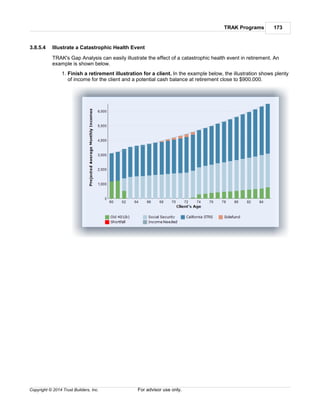
2. If the client has elected to custom allocate their contribution, select Custom GFCSI. (If
Custom GFCSI is selected, values for the Percent Allocated and Balance columns in
the grid must also be entered).
3. Select Mixed if the client has an allocation mixed between various Life Cycle funds and/
or the custom GFCSI allocation.
Example: The Percent Allocated column refers to the percent of the contribution to the
custom plan. In the example below:
G
TRAK Programs 103
Copyright © 2014 Trust Builders, Inc. For advisor use only.
The client is contributing 5% to the GFCSI account to the Roth account and 3% of
their income to the pre-tax account. For the Roth account,
1. 20% of the 5% contribution (or 1% of their income) is being
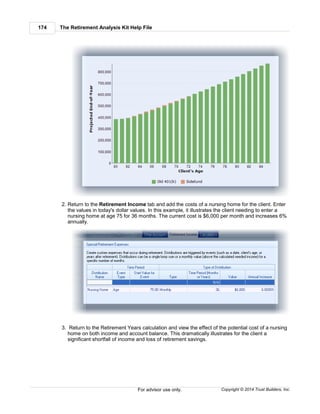
contributed to the G fund,
2. 45% of the 5% (or 2.25% of their income) is deposited to the F
fund,and
3. the remaining 35% of the 5% (or 1.75 of their income) is being
contributed to the C fund.
The total current Roth account balance is $10,000.
Their 3% pre-tax contribution for the custom allocation is divided between the C
and F funds:
1. 75% of the 3% pre-tax contribution (or 2.25% of income) is deposited
to the G fund, and
2. 25% of the 3% pre-tax contribution (or 0.75% of income) is deposited
to the F fund.
Note: If the total percent allocated contribution to the Roth account or pre-tax
account is not equal to 100%, TRAK will weigh the contribution. In the example
below:
The total Percent Allocated is 50%. TRAK will weight-base the allocation. The
total allocation is 50%. TRAK will
1. Deposit $5 out of every $50 dollars (i.e. 10% of the deposit) in the G
fund,
2. $15 of every $50 dollars (i.e. 30% of the deposit) into the F fund,
3. and $30 out of $50 (i.e. 60% of the deposit) to the C fund.
Contribution Method
Select the method for entering the client's contribution
1. Percent of income, e.g. 5%.
2. Dollar, increase with raise. Contribution value will be entered as a dollar value, e.g. $100, and
will increase when the client receives a raise by the same percentage of the clients raise.
The Retirement Analysis Kit Help File104
Copyright © 2014 Trust Builders, Inc.For advisor use only.
3. Dollar, no increases. Contribution will be a constant value and will not increase.
Include Roth Account
Check this box to include a Roth account. Prompts will be displayed both for the pretax and Roth
accounts.
The following prompts are only available if a life cycle fund is selected for the Allocation Method.
Current Balance (only enabled if a normal life cycle fund is selected for the Allocation Method).
Enter the current balance of the TSP account.
Percent of Income or Dollar Contrib. per Paycheck
Enter the value for the client's TSP contribution.
The following prompt will only be enabled if the Allocation Method is Mixed or Custom GFCSI.
Custom Plan Contrib. or Custom Plan Contrib per Paycheck
Enter the contribution to the custom GFCSI allocation. Do not include values for any specific
life cycle fund contributions here.
Note: The L2010 fund was closed the end of 2010. Balance in the fund were moved to
the L Income fund. If a previous entry had a balance for the L 2010 fund, a button
will show up to the right of the grid that allows for quick-and-easy transfer of funds
from the L 2010 fund to the L Income fund.
Rates of Return Column
The rates of return for each of the GFCSI funds must be entered in the Rates of Return column on
the Allocation or Custom Allocation tab (caption changes depending upon the Allocation Method
selected). By clicking on the TSP Rates of Return button below the grid a number of actions can
be taken:
TRAK Programs 105
Copyright © 2014 Trust Builders, Inc. For advisor use only.
1. Assign Default Rates of Return
Assigns the default rates of return configured in the File/Config/Defaults .
2. Assign Historical 10 Year Average
Assigns the last 10 year average of historical data.
Note: Historical data is only available after data has been downloaded from the
internet. Click on "Update Historical Rates of Return" (with an internet
connection) to download data.
3. Assign Historical Average
Assigns historical rates of return for all years of the TSP accounts.
4. View Historical Data...
Allows for viewing historical TSP rates of return.
5. Update Historical Rates of Return
Updates the TSP historical data. An internet connection is required for this to occur. TSP
rates of return are updated by the 5th of each month.
TSP Distribution Options
The distribution options for the Roth and pretax accounts are identical. Each prompt is discussed
below.
Distribution Method
Select the distribution method for the account.
Distribution Rate of Return
Enter the rate of return during retirement.
Percent to Distribute
If the distribution method is Percent Of Account, enter the percent of the account to distribute
each year.
Start Distributions
395
106
163
The Retirement Analysis Kit Help File106
Copyright © 2014 Trust Builders, Inc.For advisor use only.
If distributions for the account are to be delayed beyond retirement, select the method for
starting distributions.
Start Value
Enter the starting value corresponding to the Start Distributions method.
For additional control over distributions, read the Controlling Distributions entry in the Frequently
Asked Questions for the Gap Analysis calculator.
3.8.1.5.1.1 TSP Historical Data
Note: This TSP Historical Values dialog can be accessed in the "Client (or Spouse) TSP
" tab in the Gap Analysis calculator by clicking on the "TSP Rates of Return"
button and selecting "View Historical Data..." from the drop down menu.
This dialog displays the historical data for the TSP's G, F, C, S, and I funds.
Note: The G, F and C funds started in January 1988, The S and I funds did not start until
May, 2001. Data is displayed for only the time period the funds were in existence.
177
166 79
101
TRAK Programs 107
Copyright © 2014 Trust Builders, Inc. For advisor use only.
The display has several options:
1. Data to view
Determines if the Historical Values chart displays the monthly or annual rates of return.
2. Data to display
Selects how far back the data in the Historical Values chart will display.
3. Select specific series
By clicking on the check boxes in the legend, specific series can be hidden or displayed. For
example, by un-checking all of the funds except the G fund, the chart below shows only the
annual historical rate of return of the G fund.'
4. Historical Values vs. Historical Averages
This Historical Values chart (shown in the images above) shows the month or annual values.
The Historical Average Values (shown below) shows the average rates-of-returns for the
various time periods.
5. Historical Values Grid
The month historical values for the TSP funds is shown, with totals in the footer. Any column
can be filtered by moving the mouse's cursor over the column header and clicking on the down
The Retirement Analysis Kit Help File108
Copyright © 2014 Trust Builders, Inc.For advisor use only.
arrow button on the right side.
The totals shown at the bottom are for the filtered data. For example, to see the average rates
of return for the various funds from 2000 through the present, click on the "Custom..." option in
the filter drop down dialog box for the year and create a filter for all years being greater than or
equal to 2000 (see image below):
Pressing the "OK" button will update the grid to appear similar to what is shown below.
3.8.1.5.2 Federal Savings Plan
The "Federal Savings Plan Contributions" allow for entering information about the client's and/or
spouse's TSP account. Additionally, the Roth account can be illustrated. The prompts are discussed
below.
Contribution Method
Select the method for entering the client's contribution
1. Percent of income, e.g. 5%.
2. Dollar, increase with raise. Contribution value will be entered as a dollar value, e.g. $100, and
will increase when the client receives a raise by the same percentage of the clients raise.
3. Dollar, no increases. Contribution will be a constant value and will not increase.
TRAK Programs 109
Copyright © 2014 Trust Builders, Inc. For advisor use only.
Include Roth Account
Check this box to include a Roth account. Prompts will be displayed both for the pretax and Roth
accounts.
The prompts for the Roth and pretax account are identical. They are discussed below.
Accumulation Prompts
Current Balance
Enter the current balance of the TSP account.
Percent of Income or Contribution per Paycheck
Enter the value for the client's contribution to the (Roth or pretax) account.
Rate of Return
Enter the projected rate of return the account will earn until retirement.
Distribution Prompts
Distribution Method
Select the distribution method for the account.
Distribution Rate of Return
Enter the rate of return during retirement.
Percent to Distribute
If the distribution method is Percent Of Account, enter the percent of the account to distribute
each year.
Start Distributions
If distributions for the account are to be delayed beyond retirement, select the method for
starting distributions.
Start Value
Enter the starting value corresponding to the Start Distributions method.
For additional control over distributions, read the Controlling Distributions entry in the Frequently
Asked Questions for the Gap Analysis calculator.
3.8.1.6 Other Accounts
TRAK's Gap Analysis calculator supports three types of retirement accounts:
1. Savings Accounts
2. Known Income Accounts
3. Lump Sum Accounts
3.8.1.6.1 Savings Accounts
An unlimited number of additional savings accounts, such as IRAs or 401(k) plans with previous
employers, may be entered here.
163
177
166 79
109
118
The Retirement Analysis Kit Help File110
Copyright © 2014 Trust Builders, Inc.For advisor use only.
New accounts are added by clicking the "Add Account" button.
The prompts are briefly discussed in the following. Note that prompts that are not relevant are not
displayed.
Account Name
Enter the name of the account. (The account name must be unique).
Owner
Select either the Client or Spouse. (This prompt only appears if there is a spouse configured.)
Account Information
Current Balance
Enter the current balance of the account. The account balance is assumed to be from the
calculated date the last deposit occurred, but not more than 30 days old. If there are no
deposits the account balance is assumed to be 30 days old.
Pre-Retirement Rate of Return
Enter the expected pre-retirement rate of return.
Note: For non-qualified accounts, enter the net (after-tax) rate of return for the account.
RMD Method
Select from one of three methods for the account:
TRAK Programs 111
Copyright © 2014 Trust Builders, Inc. For advisor use only.
1. None: The account is not subject too RMDs (Required Minimum Distributions).
2. RMD at Age 70½: The account is subject to RMDs when the owner is age 70½.
3. Inherited RMD: The account is inherited qualified account and is subject to inherited
RMDs.
Year Inherited
If the account is subject to Inherited RMDs, enter the year the account was inherited.
Note: For Inherited RMDs accounts, the RMD will not be taken out for the current year.
The Current Balance entered value should be reduced by the RMD value for the
current year.
Contributions
Account type for contribution limits
If the account has contribution limits to be taken into consideration, select the type of account.
If no limits are to be taken into consideration, select "(None)."
Notes: If "Maximum" is selected as a contribution method (below), the "(None)"
option will not be available.
For "Retirement Investments" the limits for the account are the combined employee and
employer contribution limits.
Limits are index to inflation in $500 increments.
Contribution Method
Select Percent of Pay, Dollar or Maximum for the contribution method.
Note: The Maximum method limits contributions based on the retirement plan type
(e.g. for 2014 the 401(k) participant contributions are limited to $17,500) but is
not limited by earnings.
The Maximum method is indexed to inflation (which can be configured in File/
Config/Gap Analysis/Calculator ).
Contributions per Year
Enter the number of times a contribution is made per year. Note that if Percent of Pay is
selected as the Contribution Method, this prompt will not be available.
Contribution value
Enter the value of each contribution: for the deposit type "Dollar," enter the dollar contribution.
For the deposit type "Percent of Pay," enter the percent of pay that the employee contributes.
Annual increase method
Select the method for increasing the client's contribution in future years. Each method is
discussed below.
No Increase
Select this method if there is to be no future increase in the contribution value. Note if
the Contribution method for the client is Percent of Pay and the client (spouse) has a
raise, the dollar value of the contribution will increase when the client receives a raise,
but the percent of the client's (or spouse's) pay will remain the same.
396
The Retirement Analysis Kit Help File112
Copyright © 2014 Trust Builders, Inc.For advisor use only.
Increase in Value
This method will increase the value of the client's contribution as a value. If the
Contribution method is Dollar then the increase value will be in a dollar value, and will
be per contribution. If the method is Percent of pay then the contribution will be an
increase in the contribution percent. Contribution increases occur when the client
receives a raise.
Examples: If a client is currently contributing $100 monthly and selects Increase in
value with a $25 increase, the future contributions will increase to $125
per contribution the first year, $150 the second year, $175 the third year,
etc.
If a client is currently contributing 5% per paycheck and selects Increase
in value with a 1% increase, the future contributions will increase to 6%
the first year, 7% the second year, 8% the third year, etc.
Percentage Increase
This method will increase the contribution as a percentage. Contribution increases
occur when the client receives a raise.
Examples: If a client is currently contributing $100 monthly and selects
Percentage increase with a 10% increase in percentage, the future
contributions will increase to $110 per contribution the first year, $121
the second year, $133.10 the third year, etc.
Detail Customization
This allows customizing the future changes in contribution in as much detail as
desired.
If Annual increase method is either Increase in value or Percentage increase, the following
prompts will be enabled
Annual increase in percent, Annual dollar increase in each deposit or Annual percentage
increase
Enter the value to increase the contribution. This field is not available if Detail
customization is selected for the Annual increase method.
Number of years to increase contributions
Enter the number of years to increase contributions. This field is not available if Detail
customization is selected for the Annual increase method.
If Annual increase method is Detail customization, the following box will appear.
TRAK Programs 113
Copyright © 2014 Trust Builders, Inc. For advisor use only.
This dialog allows customizing when the contributions will change (either increase or decrease) at
any point in the future. The prompts are discussed below.
Event types for changes in contribution
The events for increasing contributions are Age, Year and Date.
The columns in the grid are:
Age, Year or Date
The column type here corresponds to the method selected in the previous prompt and is
when the change in contribution occurs.
Contribution type
Select if the contribution is a Specific Value or the Maximum Allowed. (For Maximum
Allowed, see notes above under Contribution Method about Maximum).
Dollar Contrib or Percent Contrib
The value here corresponds to the Contribution method selected previously. If the
Contribution type is a Specific value, enter the value the contribution will change to.
Distribution Start
Distribution Start Method
If distributions from the account are to start after retirement, select the method to start the
retirement benefits. Note that all qualified accounts will be subject to required minimum
distributions on the last distribution of the year.
Starting Value
This corresponds with the prior prompt and is the value for starting the account distributions.
During Retirement
Estimated Value at Retirement
This is a calculated field and may not be edited. It calculates the estimated value at
retirement.
Distribution method
The Retirement Analysis Kit Help File114
Copyright © 2014 Trust Builders, Inc.For advisor use only.
This is the method for distributing the account.
Rate of Return
Enter the retirement rate of return. For annuitized accounts, enter the annuity rate.
Annual Percent to Distribute
For Percent of Account payout method, enter the percent of the account to payout on an
annual basis.
For additional control over distributions, read the Controlling Distributions entry in the Frequently
Asked Questions for Gap the Gap Analysis calculator.
If the Tax Wise Distribution Strategy is selected in the Setup tab, the following prompts will be required.
Taxation
Tax Method
Select the tax method of the account. The options are Tax free, Above cost basis, Above
cost basis and deposits, Fully taxable.
Taxed As
If the account is taxable, select how the money is taxed--either as ordinary income or capital
gains.
Cost basis
If the Tax method indicated the account had a cost basis, enter the cost basis for the account.
End of Year Transfer Funds Options
The Tax Wise Distribution Strategy allows clients to move monies out of taxable accounts into after-tax
accounts over retirement. This can reduce taxation on the client's estate at life expectancy.
306
177
166 79
TRAK Programs 115
Copyright © 2014 Trust Builders, Inc. For advisor use only.
Note: Transfers are only available for non-annuitized taxable accounts.
Transfer funds to a different account
Check this box to illustrate a transfer.
Transfer start age
Enter the age to start the transfer. The age should be after retirement.
Years to make transfer
Enter the number of years to make the transfer.
Transfer method
TRAK supports 3 types of transfer methods:
Dollar value per year
Enter the amount to transfer per year.
Tax bracket limit
This method will keep all transfers at or below a specific tax bracket.
Annual minimum distribution
This method will require a minimum amount of distribution from the account during the
transfer period.
Annual transfer value or Maximum tax bracket or Annual min. distribution
Enter the value corresponding to the transfer method
Increase in transfer: Before transfer and During transfer
If the transfer method is either Dollar value per year or Annual minimum distribution, enter
the annual increase in the value both prior to and during the transfer.
The Retirement Analysis Kit Help File116
Copyright © 2014 Trust Builders, Inc.For advisor use only.
Target account
Select the target account for the transfer. If the account does not yet exist, it can be created
and then return to this tab.
3.8.1.6.2 Known Income Accounts
Known Incomes are known cash flows during retirement that will be used for retirement income. They
may include rental property income, annuities, part-time work, or other forms of such income.
Payments may occur between one or twelve times per year.
The prompts are briefly discussed below:
Account Information
Account Name
Enter the name of the account.
Owner
Select the owner of the account. (This prompt only appears if there is a spouse configured.)
Payments
# per Year
Select the number of payments per year. Note that the number of payments must either be 1,
2, 3, 4, 6, or 12.
TRAK Programs 117
Copyright © 2014 Trust Builders, Inc. For advisor use only.
Income Stream Value
Enter the value of each payment.
Compound increases
Determines if annual increases in the distribution are compounded.
Rate of Growth
Before Retirement
If the payment grows between now and retirement, enter the annual growth in the payment.
After Retirement
If the payment grows during retirement, enter the annual rate of growth.
Income Period
Starting Method
Select the method for starting the known income:
Owner's Retirement: The income stream will start at the owner's retirement date.
Today: The income stream is current income.
First retirement: The income stream starts at the first retirement of the client or spouse.
Both retired: The income stream starts once both the client and spouse are retired.
First Death: Income starts at the earliest life expectancy of either the client and/or spouse.
Owner's Age: Income starts at a specific age. Enter the value in the Starting Value
prompt.
Date: Income starts at a specific date. Enter the value in the Starting Value prompt.
Starting Value
If the Starting Method requires data input (i.e. if the Starting Method is either 'Age' or 'Date'),
enter the corresponding value here.
Ending Method
Select the method for ending the known income payments:
Owner's Death: Payment ends at the account owner's life expectancy.
Both Deceased: Payment ends when both parties are deceased.
Second Retirement: Payment ends at the retirement of the second individual.
First Deceased: Payment ends upon the first death (does not depend on ownership).
# of Years: Payment ends after a specific number of years.
Specific Date: Payment ends at a specific date in the future.
Ending Value
If the Ending Method requires data input (i.e. if Ending Method is either "# of Years" or
"Specific Date"), enter the corresponding value here.
The Retirement Analysis Kit Help File118
Copyright © 2014 Trust Builders, Inc.For advisor use only.
Pre-Retirement Distribution Method
If the known income stream starts before retirement, this determines what happens with the
funds prior to retirement. One of two options may be selected:
Ignore: If the income starts before the stated retirement age, and is not being
accumulated for retirement, select ignore. The payments will be considered as a source of
retirement income based on the starting period selected.
Save for retirement: The current cash flow is saved for retirement. The cash will be
saved in the "Additional Savings" account (with the rates of return listed on the top of the
"Other Accounts" page) and distributions will occur as funds are needed.
3.8.1.6.3 Lump Sum Accounts
Lump Sum accounts are cash lump sums, including sale of property or a life insurance settlement.
Accounts may be added or deleted by pressing the corresponding button at the top of the editor.
The prompts are discussed below:
Account
Account Name
Enter the name associated with the account.
Distribution Event
Values entered here relate to the distribution of the account.
Type of Event
TRAK Programs 119
Copyright © 2014 Trust Builders, Inc. For advisor use only.
Select the type of event. The values include:
Client's Age
Date
Years after Client's Retirement
Client Life Expectancy
Spouse Life Expectancy
Event Value
Based on the value selected for Type of Event, enter the corresponding value. If a value does
not need to be entered (such as Client's Life Expectancy), the field is not selectable and an N/
A appears.
Warning: If the event does not occur during retirement, the lump sum distribution will not be
accounted for. For example, if a client retires at 65 years old (but after their
birthdate), and an age value of "65" is entered (which would be their birthday),
because the event occurs before their retirement date, the lump sum will not be
credited to their income in retirement.
Value
Current Value
Enter the current value of the lump sum payment.
Annual Increase
Enter the annual increase, if any, in account value.
3.8.1.7 Retirement Income Tab
The Retirement Income tab configures what the client and spouse require for incomes during their
retirement years.
The prompts for this screen are discussed below:
Method for Calculating Retirement Income
The income need method can be either
1. Percent of Income when the Individual(s) Retire(s)
Uses a percent of income of the client's and spouse's income at the time of their
retirement.
2. Values expressed in Today's Dollars
Enter the retirement income for the client's income and spouse's income (when relevant)
needed in today's dollars. The value will be inflated by the pre-retirement COLA value.
3. Retirement Budget.
The Retirement Budget allows for itemization of retirement needs, with optionally
customizing the specific COLA, start date and end date, and expense frequency per
expense. For example, a client may have a mortgage payment with no COLA and ends at
a specific age. These types of expenses could easily be addressed in the retirement
budget method.
The Retirement Analysis Kit Help File120
Copyright © 2014 Trust Builders, Inc.For advisor use only.
"Percent of Income" and "Values Express in Today's Dollars" Method
Cost of Living Adjustments (COLA)
Enter the anticipated inflation both prior to and during retirement.
Minimum balance of all cash accounts at life expectancy...
If a cash value is desired at life expectancy (e.g., for inheritance or risk reduction of a longer
life expectancy) enter the value here.
"Percent of Income" Method
If the Percent of Income.. method is selected for the Method for Calculating Income Needed... the
following prompts will be visible.
Percent of income when the individual retires
This is the percent of income that the client needs at retirement. If a spouse is included in
the illustration, there are three time periods:
1. Percent of income when only one person is retired (first retirement).
2. When both are retired (a percentage of the combined income at retirement, with inflation applied to
the first retiree's retirement income).
3. When there is one surviving spouse (a percentage of the survivor's income at retirement, with
retirement inflation applied).
Note: If there is a significant difference in the client's and spouse's incomes, a higher
percentage (e.g. 200%) may be needed for the lower income.
Use predefined model
A predefined model may also be selected. This allows for income needs to change over
retirement (e.g. 90% of income until age 70, 80% of income until age 80, and then 70% of
income onward). Select the pre-defined model. The model may also be edited by
selecting File/Config from the ribbon bar (or pressing the editor button on the
Retirement Income Model prompt), then selecting Gap Analysis/Retirement Income
Models from the navigator on the left. Click here for more information about editing
retirement income models.
Create custom model with various levels of income
This allows for creating a custom retirement income model, similar to what is available in the
pre-defined models, but custom to the participant's particular needs. Model must contain a
First Retirement event.
390
399
TRAK Programs 121
Copyright © 2014 Trust Builders, Inc. For advisor use only.
Hint: Click the 'Copy Model' button, and select a model from the drop down list to start
with a pre-configured model.
"Values Express in Today's Dollars" Retirement Income Method
If the Values Express in Today's Dollars method is selected for retirement income, the following
prompts will be visible.
When a spouse is included in the illustration, there are three income time-periods considered (as
shown above).
Note: For the income between the first retirement and when they are both retired, the
income sources does not include the income for the working person, only the
The Retirement Analysis Kit Help File122
Copyright © 2014 Trust Builders, Inc.For advisor use only.
income the non-working person needs for retirement.
The grid below the entered incomes allows for modifying the income as they mature in retirement.
In the chart above, the income need decreases by ten percent when the client reaches age
seventy, and another ten percent when the client reaches age eighty.
Special Retirement Distributions
This table allows for creating special retirement distributions. They can be for single events, such
as vacations; or they can cover monthly, long term care type events.
Note: This is only visible if "Retirement Budget" is not the method for the retirement
income method.
Sales Idea: This can be very effective in showing a client the need for long term care
insurance. In the data above, the nursing home expense could be added first for
36 months. The Retirement Years chart could then be displayed showing the
significant impact a nursing home could have on the client's retirement account(s).
Then, returning to this tab, add the long term care policy and reduce the nursing
home time to 3 months (or whatever waiting period the long term care policy
requires). And then return to the Retirement Years chart.
"Retirement Budget" Retirement Income Method
Cost of Living Adjustments (COLA)
Enter the default inflation both prior to and during retirement. These will be the default COLA
values for each budget item, but can be overridden on any item.
Retirement Budget
TRAK breaks the retirement budget into two categories: Essential and Discretionary and each
of these are broken into multiple categories before the budget items are listed.
TRAK Programs 123
Copyright © 2014 Trust Builders, Inc. For advisor use only.
The Config button above the grid allows for the following options:
1. How data is entered for starting and ending an expense
Expenses can start and end by a person's age (default) or by a entering a specific date.
2. What information is displayed in the grid
All of the items can be listed (default) or only budget items that contain values (typically for
reviewing the list).
Note: Budget items with the name "Other" can be renamed by entering the cell. Other
names cannot be overridden.
Each budget item can have the following features.
Customized COLA
By default, the budget item uses the default COLA. To use a custom COLA both prior to
and during retirement, click on the Customize COLA check-box and enter the custom
values for selected budget item.
Examples: A mortgage expense may not have a COLA associated with it, and zeros can be
entered for both Pre-Retirement and Retirement COLAs.
Medical insurance typically has a higher COLA than other items. A higher COLA
can be entered for expense items such as these.
Frequency of Expense
By default, each budget item occurs each month. The Frequency of Expens can be
The Retirement Analysis Kit Help File124
Copyright © 2014 Trust Builders, Inc.For advisor use only.
configured.
The following selected values for Expense Frequency have additional prompts.
Bi-Monthly, Quarterly, Semi-Annually
The additional prompt Expense Schedule will be displayed. Select when the
expenses occur. Note that if At Retirement is selected the expense is assumed
to occur the first month of retirement.
Annually
The additional prompt Expense Month will be displayed. Select the month the
expense occurs.
Customized
A list of check boxes representing each month of the year will be displayed.
Check the boxes that the expense occurs.
One Time
The additional prompt Client's Age at Event will appear. Enter the client's age the
expense occurs.
Start and End of Expense
Some expense, such as a mortgage, may not occur throughout retirement. Enter the
starting and ending values (age or date, as configured under the Config button) associated
with the expense.
3.8.2 Calculations Tab
The Gap Analysis' Calculations tab allows for quickly viewing the retirement calculations in various
formats. Navigation and scenarios can be edited in the panel on the left and the calculations are
displayed on the right.
Navigation and Scenario Panel
Gap Analysis Calculations
Client and Spouse
When the illustration includes a retirement plan for both a client and spouse, because some calculation
pages provide a view on either the client or spouse (such as the Overview tab), a box will appear below
the navigation panel that allows for selecting whose values to be displayed.
3.8.2.1 Navigation and Scenarios
In the Gap Analysis Calculation tab a navigation panel on the left hand side allows for both easy
navigation between the various calculation pages and creating various scenarios for illustrating
different options for your client.
125
128
TRAK Programs 125
Copyright © 2014 Trust Builders, Inc. For advisor use only.
To switch between the Calculation Pages navigator and the Scenario Editor, click on the appropriate
button at the bottom of the navigation panel.
Note: The panels on the bottom-left can be resized by clicking and dragging the slider
(located above the panel selector) down, thereby reducing the room the panel
selector takes.
Navigating the Calculation Pages
Using the Scenario Editor
3.8.2.1.1 Navigator
Options for Navigating the Calculation Pages
The Calculation Page navigator allows for selecting which calculation page is selected.
125
128
The Retirement Analysis Kit Help File126
Copyright © 2014 Trust Builders, Inc.For advisor use only.
To navigate to a specific page, simply click on the link for the calculation page. If there is not enough
room to display the whole list of calculation pages, an arrow may appear at the top-right and/or bottom-
right of the panel (as shown above).
The navigation panel can display small icons (as shown above) or large icons (shown below). To
modify the icon size, right click over the navigator and select the the icon size.
TRAK Programs 127
Copyright © 2014 Trust Builders, Inc. For advisor use only.
Calculation pages can be reordered by clicking on a specific page, holding the mouse down and
dragging it to a new location. Releasing the mouse will place reorder that specific calculation page.
The customized page order will be remembered next time TRAK is started.
The Retirement Analysis Kit Help File128
Copyright © 2014 Trust Builders, Inc.For advisor use only.
Working with a Client and Spouse
If a calculation includes both a client and a spouse, in some circumstances, the available list for the
specific individual will be different.
For Example: If one's retirement plan is a defined contribution plan and the other's is a federal
retirement plan. In that situation, the Federal Employee Group Life Insurance
calculation page is only applicable to the individual with the federal plan and will
only be available when they are selected.
When a spouse with a retirement plan is included in the illustration a group box is displayed below the
navigation panel that allows for selecting whose values to view.
3.8.2.1.2 Scenario Editor
The Gap Analysis Scenario Editor allows for quickly creating different scenarios for a client (and
spouse). This allows for changing specific options, including a client's retirement date, contribution
level and income levels.
To access the Scenario Editor open the Calculation tab in the Gap Analysis calculator and click on the
Scenario Editor located at the bottom left of the window.
This will display the Scenario Editor.
149
TRAK Programs 129
Copyright © 2014 Trust Builders, Inc. For advisor use only.
At the top of the editor, the calculation page that is displayed on the right hand side is selected. This
page can be changed by using the combo-box.
Below the Calculation Page selector is the Scenario Editor. When it is first opened, the Current
Scenario is displayed. This Current Scenario includes the values entered in the data entry tabs.
A scenario allows you to modify specific data about the illustration (such as the retirement age, income
needed, selected option from the defined benefit plan, etc.) and easily compare the values against the
current scenario.
To create a new scenario, click on the add button located to the right of the edior. If there is only the
"Current Scenario", this is located to the right of such text or on the right of the selection dialog when
there is more then one scenario.
The Retirement Analysis Kit Help File130
Copyright © 2014 Trust Builders, Inc.For advisor use only.
Additionally, when there is more than one scenario, a delete and rename button are also displayed.
(Note that these last two buttons are disabled when the "Current Scenario" is selected).
When the "Current Scenario" is selected, the values for the current scenario are displayed below in
labels. These values cannot be modified in this panel (but may be able to be modified accessing the
Quick Change Toolbars ).
When any scenario is selected, the data is presented in editors. The data can be changed to illustrate
an alternative option for the client.
162
TRAK Programs 131
Copyright © 2014 Trust Builders, Inc. For advisor use only.
Changing the data only effects the illustrated scenario and does not impact the data originally entered
in the data input tabs. This allows for quick comparisons of different options for the client and/or
spouse.
If a data field is changed, a reset icon will be displayed to the right of the right of the editor.
Clicking this button will reset the value in the editor to the Current Scenario value.
To make a proposed scenario the current scenario, click on the "Make Current Scenario" button found
below the editors.
Printing Scenarios
When various scenarios have been created, the print window will include an option to print all of the
scenarios.
The Retirement Analysis Kit Help File132
Copyright © 2014 Trust Builders, Inc.For advisor use only.
Checking this box will create a set of reports for each scenario. Additionally, if the cover page is
selected, the scenario name will print on the cover page as a subtitle.
3.8.2.2 Calculation Pages
Calculation Pages
The calculation pages appear by clicking on the desired title in the navigator displayed on the left-
hand side of the Calculation tab.
124
TRAK Programs 133
Copyright © 2014 Trust Builders, Inc. For advisor use only.
The options for calculation pages are:
Overview
Retirement Years
General Values
Average Values
Retirement Solutions
Accounts at Retirement (requires cash balance accounts at retirement)
Account Accumulation
The following pages are available when a defined benefit (DB) plan is selected for the active
person (client or spouse)
Option Values at Various Ages
DB Buyback Comparison
Pension Max (may require purchase of upgrade ~ please call 503.831.1111)
147
148
154
158
153
149
The Retirement Analysis Kit Help File134
Copyright © 2014 Trust Builders, Inc.For advisor use only.
DB Option Cost Analysis
The following pages are available when working when the active person in a federal retirement
system:
FEGLI
Federal LTC Insurance
TSP Account Summary
The following page is available if Retirement Budget is selected as the method for retirement
income needed.
Retirement Budget
3.8.2.2.1 Overview
The Overview screen provides a quick overview of the calculations for the client or spouse.
The overview screen can be divided into two areas: the top, which shows calculated values relating to
the client or spouse, and the bottom, the appearance of which will change depending upon the type of
retirement plan selected (defined contribution or defined benefit). Each is discussed below:
Top of the Overview Calculation Screen
The top of the overview screen shows calculations relating to the client's age, work history, and other
information.
Hint: The values should be checked for accuracy before moving on to other screens--if
the values appear incorrect, confirm that the data has been entered correctly.
Months to Wait Before Starting Savings
The calculator will estimate the savings shortfall (retirement gap) of the client, based on their
projected sources of income and their needs. The savings needed assumes that the client begins
saving today. This prompt determines the number of months before increased deferrals are made
to estimate the cost of waiting.
157
149
156
159
162
TRAK Programs 135
Copyright © 2014 Trust Builders, Inc. For advisor use only.
Lower Section of the Overview Calculation Screen
The lower part of the calculation tab changes based on the type of retirement plan that is selected.
Click on the links below for help with each item:
Defined Benefit
Defined Contribution
3.8.2.2.1.1 DB Plans
When a defined benefit plan is selected for the retirement plan, the lower section of the screen will
appear similar to what appears below:
Note: When working with defined benefit plans that integrate with Social Security, the
Primary Option Calculation group box will appear differently; illustrating how the
integration with the Social Security calculation was performed.
The areas on this screen are discussed below:
Primary Option Calculation
This illustrates how the retirement plan's primary option is calculated showing:
1. the Final Average Salary,
2. the Percent Crediting,
3. possibly the Years of Service (shown if the same crediting rate is used for all years of service,
and
4. the Primary Option Value.
TRAK allows for three different methods for arriving at the Final Average Salary (Exact [default],
Rounding, and Manual). Additionally, it allows for the calculation to be offset by a year either way. This
is done by clicking on the drop down box to the right of the final average salary value, which brings up
the following pop-up window:
135
139
The Retirement Analysis Kit Help File136
Copyright © 2014 Trust Builders, Inc.For advisor use only.
If the client has been provided a projection by their retirement system, you may want to select the final
average salary (FAS) method that most closely matches it. You may also select manual and enter the
value.
Note: When Manual is selected, the FAS value can be edited in the main screen. When
this is the case, click on the button to the right of the editor to change the FAS
method.
When Manual is selected, some of the comparison options on the Savings
Analysis calculation page will no longer be available because the calculations on
the page require changing the retirement date.
FAS Methods: Rounding, Exact and Manual
TRAK has three different methods for determining the FAS:
TRAK Programs 137
Copyright © 2014 Trust Builders, Inc. For advisor use only.
1. Rounding: This method is most typical of projections provided by pension systems. The FAS
is calculated by annualizing the current income and not paying close attention to when the client
receives a raise.
2. Exact: This method pays more attention to when the raise occurs and may provide a better
method for determining what the FAS will be.
3. Manual: This method allows for overriding the calculated FAS value and entering the value
manually.
DB Options Grid
The DB Options Grid displays the values for the various options for the member. The columns visible
in the grid (and other options) can be configured in the DB Grid Display Options configuration panel
discussed below.
Plan Notes
For certain retirement plans, calculation notes may be provided. The notes will normally appear below
the options grid (similar to what is shown here).
Note: If the member does not have enough years of service at retirement to qualify for
retirement (including both normal retirement and early retirement) the income for
the primary option value will be zero and none of the alternative options will be
displayed. A plan note will be displayed indicating that the member did not have
enough years of service.
The DB Grid Display Options configuration panel is available when a defined benefit plan is selected
for the active person (client or spouse). It can be opened by clicking on the DB Grid Display Options
button on the right-top side of the Overview calculation window.
The Retirement Analysis Kit Help File138
Copyright © 2014 Trust Builders, Inc.For advisor use only.
DB Grid Column Visibility
Select which columns are visible in the DB Options grid.
DB Grid Options
Each of the options is discussed below.
Allow Customization of Values
This option allows overriding the calculated values in the grid. If this is checked, for all options
the Month Values can be edited and for alternative options (other than the primary option) the
following columns can be modified: Percent of Primary, and the Client's and Spouse's Monthly
Income and Percent of Primary. If a value has been modified, it is displayed in bold:
Notes Either the Monthly Income or Percent Primary/Percent of Option column can
be customized. If one column is edited, the other column will be calculated.
If values have been customized, un-checking this box will disable the ability to edit
the values in the grid but not reset the customized values. To reset the
customized values, click on the Reset Customization button.
TRAK Programs 139
Copyright © 2014 Trust Builders, Inc. For advisor use only.
Reset Customization
Clicking on this button clears any customization of the monthly values grid.
Show Grid Full Width
Checking this box will display the DB Option Grid at the maximum width.
Allow Grid Horizontal Sizing
If this is checked, a slider bar will be displayed to the right of the grid that can be dragged to
set the grid to a custom width.
Auto-Size Columns
Check this button to resize the columns in the grid. This does not change the size of the DB
Option Grid.
3.8.2.2.1.2 DC Plans
When a defined contribution plan is selected for the retirement plan, the lower section of the screen will
appear similar to what appears below:
The Retirement Analysis Kit Help File140
Copyright © 2014 Trust Builders, Inc.For advisor use only.
3.8.2.2.2 Retirement Years
The Retirement Years screen displays the various forms of retirement income during the retirement
years in both a chart and in a grid .
3.8.2.2.2.1 Chart
A sample retirement years chart is displayed below.
Clicking on any bar will display the values for the specific year. For example, clicking on the bar for
2041 above would result in the following display.
140 144
TRAK Programs 141
Copyright © 2014 Trust Builders, Inc. For advisor use only.
To return to the multi-year chart, click on the "Multi-Year" button at the top-left of the pie-chart.
When viewing a single year, several options are available.
Calendar Year
Below the pie chart a track-bar is available for sliding between the calendar years in retirement.
Account Distribution Priority
The priority of distribution from non-annuitized cash accounts is shown to the right of the chart
(above). Drag-and-drop accounts in the desired order of distribution.
Note: The Apply Order Changes... option is only available in the Gap Analysis calculator
and allows changes in priority during retirement. Otherwise the priority affects
distributions starting at retirement.
Configuration Options
The Retirement Analysis Kit Help File142
Copyright © 2014 Trust Builders, Inc.For advisor use only.
Configuration options for the chart can be found in the Display Options and Chart Configuration
docking panels tabs located to the right of the chart.
The Retirement Years chart's Display Options represent settings for the chart that are more typically
changed (verses the Chart Config docking panel). Each setting is discussed below.
Include Income From Accounts Above the Client's Need
When income exceeds need, by default the income is not displayed in the Retirement Years chart
(it will be displayed in the grid). The reasons is that large lump sum distributions (such as the sale
of an asset) can make this chart meaningless. For example, if the box is checked and there is a
large sale (as the chart below shows the Sale of Farm at at 70), the chart becomes meaningless.
142
143
TRAK Programs 143
Copyright © 2014 Trust Builders, Inc. For advisor use only.
Checking this box will display the excess incomes, otherwise incomes above the need is not
included in the chart.
Display Values
Select the values to be included in the grid: Incomes, Balances or Both (the later displaying two
charts)
Display Mode
Select either Income by Account or Simplified. Simplified shows income verses shortfall,
simplifying what the chart displays.
Chart Type
Select Multi-Year or Single Year. Single Year will shows a pie chart of a specific year and a
scroll bar at the bottom can be used to scroll through the various years. Note that a specifc year
can be selected in the multi-year chart by clicking on a specific bar.
Income (Vertical) Axis
Select if the chart is to display Average Monthly Values or Annual Income for income in the
visible chart.
The Retirement Years chart's Chart Configurations represent settings for the chart that are more
typically set once and left alone (verses the Display Options docking panel). Each setting is discussed
below.
Options
The Retirement Analysis Kit Help File144
Copyright © 2014 Trust Builders, Inc.For advisor use only.
View 3-D
Check this box for the chart to be displayed three dimensionally.
Anti-Aliasing
Check this box to turn anti-aliasing on. This option may not affect all output.
Time Horizon
Select the time horizon to be displayed on the bottom axis of the chart.
For Years with Shortfall show Captions in Red
If this is checked, in the Multi-Year grid, captions at the bottom of the grid will be displayed in
red for years with shortfall.
Legend Location
Select the location that the account legend is to be display.
3.8.2.2.2.2 Grid
A sample Retirement Years Grid is displayed below.
The options for the Retirement Years Grid are discussed below.
The Options for the Retirement Years Grid are discussed below.
Include Income for Accounts Above the Client's Need
This prompt allows the grid to include income above the clients needs. By default it is checked.
Note: This check-box only enabled if the illustration includes income that does exceed a
monthly income need.
Display Values
Select which values are displayed in the grid.
Note: Selecting Monthly will result in the corresponding report displaying monthly values,
TRAK Programs 145
Copyright © 2014 Trust Builders, Inc. For advisor use only.
which may result in a much longer report.
Columns
Select which column type(s) are displayed in the grid. This setting does not impact the printed
report.
Export Grid
The grid can be exported (saved to) to an Excel file.
Apply Best Fit
This will re-size the width of each of the the columns.
3.8.2.2.3 Retirement Solutions
The Retirement Solutions screen allows for instant comparison between variables at retirement. This
includes both variables over which the client may have control over (e.g. retirement age) and variables
that they may have very little control (e.g. inflation).
The comparison can be easily changed by selecting an item from the combo-box found above the
chart.
The current situation is always the center bar (except when comparing either cost to wait or the options
for a defined benefit retirement plan).
Hints: Most of the options for this chart allows for quick and easy changing of the comparison
by clicking on the bar in the chart. This will change the client data (or spouse's data,
The Retirement Analysis Kit Help File146
Copyright © 2014 Trust Builders, Inc.For advisor use only.
whichever is focused). The data will be recalculated, and that bar will become the
center bar (except when working with defined benefit options).
Clients who have little or no additional savings require may want to consider the
following reasons for additional savings: earlier retirement dates, higher income level,
and hedging against higher rates of inflation.
3.8.2.2.3.1 Configuration Options
The configuration options for the Retirement Solution calculation page are discussed below.
Chart Options
View 3-D
Check this box for the chart to be displayed three dimensionally.
View Each Bar a Different Color
Check this box to display each bar in the chart a unique color.
Comparisons to Print
Select which Retirement Solutions options to include when the Solutions, All Charts report is
selected.
Defined Benefit Plan Options Chart
The DB plan option chart may display a large number of options. For example, for the state of
New York, many of the plans will illustrate eight options. When printing the Savings Solutions,
All Charts report, the chart may appear cluttered because it's smaller size and for having so many
options. Here is an example of what may appear:
For many, this chart is meaningless. To avoid charts like this, the DB option charts that have more
options than the "Max Options" value (unless the "Max Options" value is zero, in which case it will
always be printed).
TRAK Programs 147
Copyright © 2014 Trust Builders, Inc. For advisor use only.
Note: This chart can still be printed using the Savings Solutions report (which only
prints the current chart).
3.8.2.2.4 General Values
The General Values screen displays the average values of all incomes over all retirement years as
well as any additional savings needed to account for a shortfall. It displays a stacked bar graph
showing the percentage of savings reached in retirement. This display provides a quick summary of
the retirement incomes in graphical format.
Note: These are average values during all retirement years. If an account that pays out
during retirement changes during retirement, or if there is a spouse and the
income is not paid out all retirement months, the value may vary from the monthly
payout made by the account.
3.8.2.2.5 Average Values
The Average Values screen graphically displays the client and spouse's retirement needs, incomes
and shortfall. The bars on the chart vary according to what accounts the client and spouse have.
Note: These are average values during all retirement years. If an account that pays out
during retirement changes during retirement, or if there is a spouse and the
The Retirement Analysis Kit Help File148
Copyright © 2014 Trust Builders, Inc.For advisor use only.
income is not paid out all retirement months, the value may vary from the monthly
payout made by the account.
3.8.2.2.5.1 Chart Options
The configuration options for the Retirement Solution calculation page are discussed below.
Include Income from Accounts Above the Client's Need
This prompt allows the grid to include income above the clients needs. By default it is not checked.
Chart Type
Select if the data is to be displayed in a Bar Chart or Pie Chart.
View 3-D
Check this box for the chart to be displayed three dimensionally.
Legend Location
Select the location that the account legend is to be display.
3.8.2.2.6 Accounts at Retirement
The Accounts at Retirement screen displays the cash balances of all of the accounts at retirement,
including:
1. Defined contribution plans,
TRAK Programs 149
Copyright © 2014 Trust Builders, Inc. For advisor use only.
2. Cash accounts of defined benefit plans,
3. Federal Savings Accounts (i.e. Thrift Savings Plan), and
4. Retirement Investment accounts.
3.8.2.2.7 Pension Max
This topic is discussed in detail in the Pension Max section of the Quick Gap calculator.
3.8.2.2.8 FEGLI
Note: This calculation page is only available when working with a federal retirement
system. (FEGLI stands for Federal Employer Group Life Insurance, an option for
federal employees).
323
The Retirement Analysis Kit Help File150
Copyright © 2014 Trust Builders, Inc.For advisor use only.
The FEGLI calculation screen illustrates the cost of insurance through the federal government. The
options are listed on the top part of the page, and the calculations are on the bottom part of the page.
Data Input
# of Years After Retirement
Enter the number of years to show after retirement. This will affect the number of records
shown in the details grid.
FEGLI Insurance Coverage
Select the options for the client's FEGLI account. If you know the client's FEGLI code, click the
button and enter the code. The FEGLI options will automatically be
configured.
Calculations
The calculations appear at the bottom of the page in various presentations on three different tabs:
Summary, Details, and Chart. Information for each one is provided below.
Summary Tab
The summary tab displays the projected current FEGLI premiums,
TRAK Programs 151
Copyright © 2014 Trust Builders, Inc. For advisor use only.
and the estimated average premiums until retirement.
The Retirement Analysis Kit Help File152
Copyright © 2014 Trust Builders, Inc.For advisor use only.
Details Tab
This details tab provides a year by year, or per paycheck, cost breakdown of FEGLI.
Charts
The Chart tab can display the Annual Premium by age, Accumulated Premium by age, or
the Life Insurance Coverage by age in a graphic chart.
TRAK Programs 153
Copyright © 2014 Trust Builders, Inc. For advisor use only.
3.8.2.2.9 DB Buyback Comparison
The DB Buyback Comparison page performs a quick cost analysis on purchasing back years of
service from a retirement plan.
The Retirement Analysis Kit Help File154
Copyright © 2014 Trust Builders, Inc.For advisor use only.
The prompts are discussed below:
Years of service to buyback
Enter the years of service to purchase back.
Additional life expectancy years
This prompt allows for illustrating the effects of longer life expectancy.
Payment Method
Select the method of payment, and enter the value associated with the required payment.
Calculations
The calculations will appear at the bottom of the screen.
3.8.2.2.10 Account Accumulation
The Account Accumulation screen displays the accumulation of retirement accounts prior to
TRAK Programs 155
Copyright © 2014 Trust Builders, Inc. For advisor use only.
retirement in both a chart and in a grid. Account balances for defined benefit plans that have cash
balance options are typically not included.
The Account Accumulation screen displays the values of the account until the account owner's
retirement.
Notes: Account Accumulation page only displays the values until retirement. Account
values during retirement are displayed in the Retirement Years calculation page.
Cash accounts included with defined benefit plans are typically not included in the
chart or grid.
3.8.2.2.10.1 Chart
3.8.2.2.10.2 Grid
When viewing the accumulation values in the grid, the contributions can be displayed annually or
itemized per deposit. Also, columns can show accumulations of the various parts of the account (e.g.
columns for employee and employer deposit accumulation and current balance accumulation) by
checking the Show detail account balance columns check box. For federal TSP accounts with mixed
allocations , a grid will have the totals for all life cycle funds and a grid for each life cycle fund will
also be displayed.
Note: When printing the TSP account accumulation values, the report will
only include the summary information for the TSP account, and not a breakout of
each life-cycle or the custom allocation funds.
155
102
The Retirement Analysis Kit Help File156
Copyright © 2014 Trust Builders, Inc.For advisor use only.
Warning: When printing, the reports will use the same method for displaying the
accumulation. Creating reports with Itemized Values selected could result in
account accumulation values requiring a large number of pages for printing.
3.8.2.2.11 Federal LTC Insurance
This calculator allows for quickly comparing various options available to a federal employee through
their Long Term Care Insurance program. It operates similarly to the federal web page for running
illustrations.
TRAK Programs 157
Copyright © 2014 Trust Builders, Inc. For advisor use only.
3.8.2.2.12 DB Option Cost Analysis
The DB Option Cost Analysis provides a quick comparison between the incomes provided to the
primary beneficiary between two options. For this screen to be available, the current client must have a
defined benefit plan with at least two options visible.
The Retirement Analysis Kit Help File158
Copyright © 2014 Trust Builders, Inc.For advisor use only.
The prompts are discussed below.
Primary Option
The Primary Option is the option with a higher income than the Secondary Option. The Primary
Option may not be the primary option of the DB plan (often named "Option 1"), but rather the
option with an greater income compared to the alternative option.
Note: The option with the lowest initial monthly income will not be available in drop down
list.
Secondary option
This is the option with the lower initial income for the client. The option with the highest income will
not be shown in the drop down list.
Include accumulated difference with interest
The grid shows the accumulated difference in income. To include an additional column that applies
a rate of return to the difference, check this box.
Rate of return
Enter the rate of return to be applied to the "Accumulated Difference with Interest" column.
3.8.2.2.13 Option Values at Various Ages
The "Option Values at Various Ages" shows the effect on a defined benefit plan of delaying retirement
for a selected number of years. The controls at the top of the calculation page configure what data is
displayed in the grid below (and also determines what appears in the report that corresponds to this
TRAK Programs 159
Copyright © 2014 Trust Builders, Inc. For advisor use only.
calculation page).
The grid can be configured using the Display Options docking panel found to the right of the grid.
3.8.2.2.13.1 GACalcOptionValuesAtAgesOptions
The Display Options for the Option Values at Various Ages grid are described below.
Values to View in Grid
Click on the button (Monthly and Annual, Annual or Monthly) to select which data is displayed in
the grid.
# of Years to Show After Retirement
This configures how many additional retirement ages, after the current retirement age, are to be
displayed.
Show Option Calculation Values
This determines if the values for calculating the primary option (including final average salary, pre-
penalty value and penalty) are displayed in the grid.
Show Values for Alternative Options
This prompt determines if the alternative options (or only the primary option) is displayed in the
grid.
3.8.2.2.14 TSP Account Summary
The TSP Account Summary page provides information about the client's current TSP allocation. The
information is provided on three tab pages:
1. Contribution Overview
The Contribution Overview will display how the client is allocating their contribution between
the various funds (G, F, C, S & I) and the Life Cycle funds, and how each part of their
contribution would grow to retirement.
The Retirement Analysis Kit Help File160
Copyright © 2014 Trust Builders, Inc.For advisor use only.
2. Life Cycle Fund Overview
The Life Cycle Fund Overview tab provides an overview of how the Life Cycle accounts
allocate their balance between the G, F, C, S, and I funds, and how it changes over time.
TRAK Programs 161
Copyright © 2014 Trust Builders, Inc. For advisor use only.
Note: This chart provides an analysis for the client to understand how the allocations
move between the various funds and can help them understand why allocating
between different Life Cycle funds is not a good asset allocation strategy.
3. Account Allocation
The Account Allocation tab displays the client's current allocation of all TSP investments
between the G, F, C, S and I fund, and allow for comparing it against a Life Cycle account.
The Retirement Analysis Kit Help File162
Copyright © 2014 Trust Builders, Inc.For advisor use only.
3.8.2.2.15 Retirement Budget
The Retirement Budget calculation screen is available if Retirement Budget is selected as the Method
for Calculating Income Needed During Retirement on the Retirement Income tab.
3.8.2.3 Quick Change Toolbars
The Quick Change tool-bars are displayed below the active calculation page.
The Quick Change tabs allow for easily changing the data for the active scenario . For example, to
change the client's retirement age, click on the "Client" tab, and drag the slider bar to the desired
position. As the slider bar is being moved, a balloon will be displayed showing the new value.
119
128
TRAK Programs 163
Copyright © 2014 Trust Builders, Inc. For advisor use only.
Note: The specific tabs visible in the Quick Change tools will be dependent upon a
number of factors, including:
1. if a spouse is included,
2. configuration on the "Setup " tab, and
3. what types of accounts are included in the illustration.
3.8.3 Payout Methods
There are various distribution methods for accounts with cash balances at retirement. The following is
a list of the methods and brief descriptions. Note that all payout methods (except 'Annuitize') are
subject to RMD, which may affect the goal of the selected method.
Annuitize: This annuitizes the account over the life expectancy of the owner. The value entered is
the payout in dollars per thousand per month.
Use Funds as Needed: Funds are distributed as needed.
The following distribution methods are categorized as restrictive distribution methods. This means
that funds are not available for distribution if the restrictions on distribution have already been met.
For Example: If the distribution method is Retain Principal, the distributions are limited to
reducing the cash balance of the account to the value it was at retirement. In the
Gap Analysis calculator's Setup tab, this may be configured to allow
distributions from an account as a last priority in the Restricted Distribution
dialog box.
Retain Principal: This attempts to retain the principal of the account over the life expectancy of
the client and spouse.
Amortize, no inflation: Equal payments are made over retirement years.
Amortize, with inflation: Equal, inflation adjusted payments are made over retirement years.
Percent of Account: A specific percent of the account is paid out each year during retirement.
RMD Only: Only Required Minimum Distributions are made from the account. Note that these are
made on the last payment of the calendar year.
Summary of Retirement Payout Methods
82
82
85
The Retirement Analysis Kit Help File164
Copyright © 2014 Trust Builders, Inc.For advisor use only.
Payout Method
Has Cash
Balance
Restricted
Distributions
Annuitize N/A
Use funds as needed
Retain principal
Amortize, no inflation
Amortize, with inflation
Percent of account
RMD only
3.8.4 Tax Wise Distribution Strategy
The Tax Wise Distribution Strategy focuses on reducing a client's taxation in retirement. This can have
a number of results:
1. It may extend the duration of their income
2. It may reduce the amount of savings a client must have for retirement
3. It may increase the after-tax value of the estate left to their heirs
It does this by paying close attention in a tax year to how the money is being taxed. But before moving
forward, a clear distinction must be made between the accumulation years and the distribution years.
How accumulation is different than distribution
During the accumulation years, as a client is receiving income, typically their withholding tax at the
beginning of a calendar year will have a similar value to the withholding tax at the end of the year. This
is because the employer will use a withholding table that corresponds to the frequency they are paid
and the taxation is averaged per paycheck. But this is not how taxation really works.
If a client were to use actual tax tables, because of their deductions, they would pay little (if any) taxes
at the beginning of the year. As they moved through the year their tax rate would increase and they
would have more tax withheld. This would significantly reduce the size of their paychecks later in the
year compared to earlier in the year.
An Example
Suppose a married client has combined pre-tax earnings of $8,000 per month in income in
2009.Their effective federal tax brackets, including the $11,400 married tax deduction, would be as
follows:
Effective Tax Bracket for 2009
Income Level Tax Bracket
$11,400 0%
$28,100 10%
$79,300 15%
$96,000 25%
TRAK Programs 165
Copyright © 2014 Trust Builders, Inc. For advisor use only.
In January, the client would pay no tax on their first $8,000 of income.
In February, they would pay 10% ($460) on $4,600 of income.
In April, $32,000 of income year-to-date, their tax rate would increase to 15%.
In October, their marginal tax bracket would increase to 25%. This would be their top marginal
tax bracket.
A few observations
Doing a little math, we can determine how much tax and income the client would have from each
tax bracket.
Taxation and Income by Bracket
Taxation After-Tax Income
Tax Bracket Dollar Value
Percent of
Taxation
Dollar Value
Percent of After-
Tax Income
0% $0 0% $11,400 13.8%
10% $1,670 12.3% $15,030 18.2%
15% $7,680 56.8% $43,520 52.8%
25% $4,125 30.9% $12,525 15.2%
A few observations about the client's after-tax income and taxation:
1. The key observation is that as a client's income increases, so does their marginal tax bracket.
Note: Most people do not think of it this way. That is because when people are paid
during a tax year, their taxation is averaged per paycheck for the given tax year--
the taxes withheld at the beginning of the tax year is essentially the same as the
taxes withheld at the end of a tax year. But that is not the way the tax tables work.
2. The first $11,400 is earned tax-free.
3. When this client moves from the 15% to the 25% tax bracket, they experience a 66% increase
in taxation.
4. The last 15.2% of after-tax income ($12,525) in the 25% tax bracket resulted in almost 31% of
the client taxation.
The key difference
To explain the key significant difference between the accumulation phase and distribution phase, a
hypothetical situation with a client will help. Imagine in October, when the client illustrated here
moves from the 15% to the 25% tax bracket, and they ask their employer for a meeting. They sit
down and the client shows the employer that based on their year-to-date income and the tax
brackets, that they would be facing a 66% increase in taxes. The employer acknowledges what the
client states. Then the client states that they do not want to pay the higher taxes and asks that the
employer start paying them under the table. Preposterous you say, and if, the client is serious, they
may end up looking for a different job. You are right on both counts.
But that is because the client is in the accumulation phase. In the distribution phase, where the
client can control the distributions, the client can have control: they can decide which account to
take distributions from.
To do this:
The Retirement Analysis Kit Help File166
Copyright © 2014 Trust Builders, Inc.For advisor use only.
1. Determine what a client's tax bracket looks like during a calendar year.
2. Next, add up all of their fixed incomes a client will receive during a tax year.
3. Finally, prioritize distribution from the accounts by tax bracket:
a. Distribute the income needed for the lower tax brackets from the pre-tax accounts.
b. Distribute the income from their higher or highest tax brackets from capital gain and/or
after-tax accounts.
This results in a reduction of taxes paid by the client during retirement, and extending their income and
money left to their heirs.
Summary
The Tax Wise Distribution Method considers the client's after tax income needed during retirement.
Where applicable, it combines the federal and state tax tables into one progressive tax table. The
strategy then distributes income by tax bracket: it focuses on taking income for the lower income tax
brackets from pre-tax accounts and income from the higher (or highest) tax brackets from after-tax or
Roth accounts. Then the client can leverage the advantages of each type of tax account.
3.8.5 Frequently Asked Questions
1. What does the "Side Fund" refer to?
2. When the client has a defined contribution account (such as a 401(k) account), why does TRAK
use the Side Fund for additional savings and not the client's account?
3. Can TRAK run illustrations for a client (or spouse) that does not have a retirement plan?
4. How can the effect of catastrophic health event be illustrated?
5. How can distributions from various cash accounts be controlled?
6. How is Social Security calculated in TRAK?
7. Why are tab(s) disabled?
8. Can I print the "Retirement Years - Grid" in landscape?
9. Why are there so may California PERS pension plans?
10.Why doesn't TRAK calculate the FERS Supplement?
3.8.5.1 Understanding the Side Fund
What does the "Side Fund" refer to?
An account named "Side Fund" may appear in a number of the Gap Analysis and Quick Gap
calculators' calculation screens. This account serves two purposes:
1. It is the account that is used for calculating any additional savings needed.
2. If there is excess income in retirement for any reason, this income is put into the "Side Fund" to
be used for later years. This may occur due to the RMD (Required Minimum Distribution) or a
sale of an asset.
Side Fund Distribution Method
Because the side fund is used to fund shortfalls any time in retirement, its distribution method is
166
167
172
173
177
178
179
180
182
183
306
TRAK Programs 167
Copyright © 2014 Trust Builders, Inc. For advisor use only.
pre-configured to "Use funds as needed."
Example: If an illustration has a temporary shortfall prior to Social Security payments starting
but sufficient income after the payments start, any other distribution method than
"Use funds as needed" would result in a significant increase in savings.
In the Quick Gap calculator, the interest rates for the Side Fund (before and during retirement) are set
in the "Other Accounts" tab (far left of the screen):
In the Gap Analysis calculator, the interest rates can be set in the "Setup" tab:
3.8.5.2 Why is the Side Fund used?
When the client has a defined contribution account (such as a 401(k)), why does
TRAK use the Side Fund for additional savings and not the client's account?
When TRAK determines there is a shortfall in the client's retirement savings, TRAK will use the Side
Fund account; this automatically happens even if the client has a defined contribution account. The
reason: if the client does have a defined contribution account, the payout method of the account
may restrict distribution of monies from the account.
A few examples...
Example 1
Suppose a client wants to retire at age 65 and has only two retirement accounts: Social Security
(starting at age 67) and a 401(k) account. The selected payout method for the 401(k) account is
"Amortize with inflation." For this example, the Retirement Years chart appears below:
306
313
The Retirement Analysis Kit Help File168
Copyright © 2014 Trust Builders, Inc.For advisor use only.
Items to note about the image above:
1. Starting at age 67 the client has plenty of income (due to the payout method of the "401(k) -
Custom" account).
2. Because of the restricted distribution method for the 401(k) account, there is a shortfall for the
years prior to age 67.
In this example, if TRAK used the client's retirement account for calculating additional savings, the
additional savings would have to be excessive to get the amortized distribution of the account to fund
the early retirement years.
To avoid this problem, either change the distribution method of the account to "Use Funds as Needed,"
or, if using the Gap Analysis calculator, on the Setup tab check the box to allow access to restricted
funds.
.
Example 2
Suppose a client, retiring in June in 2015 at age 60, has two sources of income in retirement: a $3,000
85
TRAK Programs 169
Copyright © 2014 Trust Builders, Inc. For advisor use only.
monthly benefit from Cal STRS and an annual $30,000 benefit from a lifetime income rider paid out in
September. A 3% inflation rate is used for retirement COLA. Their monthly need in retirement is
$5,000. The Retirement Years chart appears as follows:
The chart displays a shortfall the first year and additional shortfall starting at age 73. Several questions
could be asked about this:
1. Why isn't there more income from the guaranteed income rider?
2. And why so much income from the side fund and so little from the known income rider?
3. And, why does the shortfall happen in later years in retirement?
4. Why the shortfall the first year?
To determine what is happening, several areas could be looked at:
1. First, clicking on the "Include income from accounts above the client's need" could be checked
to see where all of the income is needed for the year. This shows a significant increase in the
known income rider, but also displays the side fund providing a sizable income as well. In step 3
below, we will examine this in more detail.
The Retirement Analysis Kit Help File170
Copyright © 2014 Trust Builders, Inc.For advisor use only.
This shows the guaranteed income rider (answering question #1), but does not address the
other questions. That will require looking at a few more views.
2. First, a look at the balance grid may provide some clues. To view account balances in the chart,
click on the "Balances" button in the Display Options docking panel. This will provide an
overview of what is happening with the account balances during the retirement.
The retirement years balance chart above shows the increasing balances in the early years of
retirement, but displays what may be unexpected results during the later years of retirement. So
what is happening in the later part of retirement?
3. Under the hood, TRAK handles the retirement cash flow on a monthly basis. When the charts
display what might be unusual or unanticipated results, often viewing the values on a monthly
basis will answer most questions.
To do this, click on "Grid" tab near the top of the "Retirement Years" page. Next click on the
"Monthly" button to display the monthly cash flow grid. For this example, a grid similar to what is
shown below should be display.
TRAK Programs 171
Copyright © 2014 Trust Builders, Inc. For advisor use only.
The first bar of the retirement years income chart averages the values for the first calendar year
(highlighted above). The grid above provides the solution to why the shortfall is displayed the
first year: the income from the pension is insufficient for the clients need, and they must rely on
the guaranteed income rider. But the income rider does not provide revenue until September.
This causes the shortfall for the first two months of retirement. After September, the income
from the income rider account provides enough cash balance to last from year to year--and a
little extra left over as retirement and will help fund the COLA. (Scrolling down through the grid
will show the fluctuating balance of the Side Fund).
4. Finally, what is happening in the balance chart at the end of retirement? To see these values,
scroll to the bottom of the Retirement Years grid. The grid below shows the values for this
example.
The Retirement Analysis Kit Help File172
Copyright © 2014 Trust Builders, Inc.For advisor use only.
This answers the final question: what is happening with the account balance at the end of
retirement. In the chart above, we can see how the September cash flow is deposited into the
Side Fund and accounts for about six months of income. This provides a little balance at the
end of each calendar year, but a shortfall also occurs shortly thereafter.
Summary
Occasionally retirement cash flow can be confusing. When this occurs clarity is often provided by
looking at the monthly values in the grid in the Retirement Years calculation page.
3.8.5.3 Working with No Retirement Plan
Can TRAK run illustrations for a client (or spouse) that does not have a retirement
plan?
Yes, TRAK can easily provide illustrations when a client or spouse does not have a retirement plan.
Simply select the (No Plan) (including parenthesis) from the list of retirement plans.
TRAK Programs 173
Copyright © 2014 Trust Builders, Inc. For advisor use only.
3.8.5.4 Illustrate a Catastrophic Health Event
TRAK's Gap Analysis can easily illustrate the effect of a catastrophic health event in retirement. An
example is shown below.
1. Finish a retirement illustration for a client. In the example below, the illustration shows plenty
of income for the client and a potential cash balance at retirement close to $900,000.
The Retirement Analysis Kit Help File174
Copyright © 2014 Trust Builders, Inc.For advisor use only.
2. Return to the Retirement Income tab and add the costs of a nursing home for the client. Enter
the values in today's dollar values. In this example, it illustrates the client needing to enter a
nursing home at age 75 for 36 months. The current cost is $6,000 per month and increases 6%
annually.
3. Return to the Retirement Years calculation and view the effect of the potential cost of a nursing
home on both income and account balance. This dramatically illustrates for the client a
significant shortfall of income and loss of retirement savings.
TRAK Programs 175
Copyright © 2014 Trust Builders, Inc. For advisor use only.
4. Return to the Retirement Income tab and add the costs of a long term care insurance policy.
The Retirement Analysis Kit Help File176
Copyright © 2014 Trust Builders, Inc.For advisor use only.
Then change the cost of the nursing home to a 90 day waiting period (3 months). Next, add a
long term care policy and include any COLA in the policy. Also be sure the payments are
required throughout retirement. The image below illustrates a policy costing $250 per month with
a 3% COLA. (An early age is entered and a large number of months illustrates it lasting
throughout retirement).
5. Finally, return to the Retirement Years chart and show how the cost of the policy affects the
illustration. In this illustration, the client's income is sufficient. The impact of the 90 day waiting
period can be seen in the income chart.
The estimated account balance at life expectancy is a bit more than $400,000.
TRAK Programs 177
Copyright © 2014 Trust Builders, Inc. For advisor use only.
3.8.5.5 Controlling Distributions
Distributions from various cash accounts in the Gap Analysis calculator can be controlled two different
ways:
1. Payout method
Each cash account (except the Side Fund ) has a payout method that can control how
each account is distributed.
2. Distribution priority
In the Retirement Years chart, the distribution priority of each cash account (compared to
the other cash accounts) can be set. The priority is displayed to the right of the chart when
viewing a single year. (A single year can be displayed by clicking on a bar in the multi-year grid
or clicking on the "Single Year" button in the Chart Type group box located in the Display
Options docking panel).
166 163
313
The Retirement Analysis Kit Help File178
Copyright © 2014 Trust Builders, Inc.For advisor use only.
The chart shows the order in which the accounts will distribute income. Account order can be
changed by clicking on an account name and dragging the name to the preferred location.
Notes: In any calendar year, RMD will have priority prior to non-RMD. RMDs will be taken
out of accounts in the order shown in the grid.
3. Allowing distribution from restrictive distribution accounts
In the Gap Analysis calculator, in the Setup tab , accounts with restrictive payout methods
can be configured either to not allow distributions even if a shortfall would occur, or only as
a last priority allow distributions from an account.
3.8.5.6 Calculating Social Security
A common question addressed by Trust Builders, Inc. is how TRAK calculates Social Security.
Occasionally someone will object to a value used, stating that the Social Security amount is too high.
(Most often this occurs when retirement is more than 10 or 15 years in the future). The method for
calculating Social Security is documented below.
The Social Security Administration (SSA) does not provide a "best method" for calculating Social
Security. Nor does the SSA allow for automated access to their website so TRAK could get client
information from the website. Therefore, TRAK has an internal formula for estimating a client's Social
Security benefit.
How Social Security is Calculated
Before explaining how TRAK calculates Social Security, it is best to have an understanding how Social
Security is calculated by the Social Security Administration (SSA). The formula for calculating the
Social Security for a person requires a number of steps:
1. The income from each calendar year (not to exceed the Social Security Integration Level, SSIL,
each calendar year) is entered into a chart. This value is multiplied by a index factor to provide
an indexed earning value for the calendar year. (The index factor is based on the product of
the Average Wage Indexes from the calendar year until age 62).
2. The highest 35 values from the indexed earnings are added together and divided by 420 (the
number of months in 35 years). This provides the Average Index Monthly Earnings (AIME).
3. An annual adjusted formula is applied to the AIME to determine the Primary Insurance Amount
(PIA). For individuals turning 62 in 2010, the formula is:
Tier 1: 90% of the AIME at or below $761, plus
Tier 2: 32% of the AIME between $761 and $4,586
Tier 3: 15% of the AIME above $4,586
Social Security Administration's Worksheets
Obviously TRAK does not ask enough historical information from the client to use the SSA's
worksheets. Additionally, SSA worksheets to estimate a PIA are typically only available for the current
year and possible next year.
Thus, to calculate the value for Social Security, TRAK makes a number of assumptions. Historical
income trends, as well as future predictions, are considered in the method for Social Security
calculations. The following assumptions are made to calculate the estimated PIA for a client:
1. For the client's income, their raise is considered to be consistent, both historically and looking
forward.
85
163
TRAK Programs 179
Copyright © 2014 Trust Builders, Inc. For advisor use only.
2. To calculate future SSIL (step 1 above) at age 62, the historical 20 year-average1 COLA is
applied to future years.
3. The historical 20 year-average1 wage index at age 62 (used in step 1 to provide indexed
earnings) is used to calculate future wage index values.
4. The 20 year-average1 COLA for the two tiers at age 62 (step 3 above) is calculated and applied
to the dollar values for forward looking values.
Note: The historical COLA applied to the first two tiers of the formula (step 3 shown
above) is historically different then the COLA applied to the SSIL.
5. The three tier formula shown above is used to estimate the client's PIA.
6. If the client is retiring after or starting age is after 62, the COLA is applied to the value for the
respective number of years.
7. If the client is retiring prior to their normal retirement age, a penalty is applied based on the
number of months early.
8. If the client delays Social Security beyond normal retirement age, a credit is applied based on
their year of birth.
9. If a client has less than 35 years of eligible Social Security years of income, this will reduce their
income.
10.If a client is affected by Windfall Elimination Provision, this can also be included to reduce the
Social Security benefit.
Social Security Windfall Elimination Provision
The Windfall Elimination Provision (WEP) reduces an individual's Social Security benefit due to
insufficient years (less than 30) of substantial earnings (as defined by the provision). This provision
reduces the percent of income credited from the first tier (normally 90%) to a lower percentage based
on the number of years the client had substantial earnings (5% per year less than 30 years, but not
lower than 40% crediting).
For more detailed information about WEP, please visit SSA web site.
Footnote
1 Average rates of return are technically average compounded rates of return. Note that when looking
at the historical average values, the data from the latest years from the SSA's website is used. This
does not always include current information. For example, at the time of writing this document (May
2014), the wage increase for Average Wage Indexing Series is updated through 2012.
3.8.5.7 Disabled Tabs
If there is a data entry problem on a page, the tab(s) to the right of the tab with the data entry problem
will be disabled. For example, in the image below, a data entry problem exists on the Retirement
Income tab.
To determine what the data entry problem is, select the last available tab (the tab farthest right that is
enabled). There will be a "View Error Messages" button at the top-right of the page.
The Retirement Analysis Kit Help File180
Copyright © 2014 Trust Builders, Inc.For advisor use only.
A message will be displayed about the problem with the data on the current tab.
3.8.5.8 Printing the Retirement Years Grid in Landscape
The Retirement Years - Grid report can be printed in either portrait or landscape orientations.
Additionally, it can be printed using legal size paper (It is the the only report in TRAK that allows these
specific changes). This may reduce the number of pages required to print the report, and make it
easier to read.
For example, here is a view of the report in portrait mode:
The columns on the far right will be wrapped to the next page. This can be fixed by printing the report
in landscape orientation:
Use the following steps to achieve this:
TRAK Programs 181
Copyright © 2014 Trust Builders, Inc. For advisor use only.
1. Right click over the report in the printer dialog and select "Custom Printer Settings..." from the
pop-up window.
This will open the Printer Setup dialog.
2. In the Printer Setup dialog, select "Landscape" from the "Orientation" group box.
3. Click the "OK" button.
4. To the right of the "Retirement Years - Grid" report, there will be a printer icon indicating the
report is using custom printer settings.
5. Note that the settings can be cleared by right clicking over the report and selecting "Clear Printer
Settings".
The Retirement Analysis Kit Help File182
Copyright © 2014 Trust Builders, Inc.For advisor use only.
3.8.5.9 Understanding California PERS
California PERS (a.k.a. CalPERS) is a complex system of 2,044 separate retirement plans involving
1,573 public agencies that have been categorized into 31 different pension plans in TRAK (as of this
writing). Below is an overview of how the pension system is divided and a brief introduction on a few
key parts of the plans.
CalPERS is divided into 3 categories of plans:
1. School (excluding California STRS members)
2. State
3. Local
The later two categories (State and Local) have subcategories (discussed below). To know what
pension plan your client is in, first know what category, and which subcategory of employment they are
in.
Additionally, the CalPERS plans typically have specific crediting values associated with the plan at a
specific age.
Within each CalPERS plan "Survivor Continuance" must be configured, which may or may not be
offered by a specific employer. This is an additional benefit provided to the employees that provides
survivor benefits no matter what retirement option a participant selects.
Finally, participants in a CalPERS pension plan may or may not have Social Security which can be
configured when the plan is selected.
Each CalPERS pension plan in TRAK is listed below in its category and (where applicable)
subcategory.
1. School: Classified employees
California PERS School Employees, 2% at 55
California PERS School Employees, 2% at 62
2. State
a) Miscellaneous/Industrial
California PERS State Misc., 1.25% at 65
California PERS State Misc., 1.25% at 67
California PERS State Misc., 2% at 55
California PERS State Misc., 2% at 60
California PERS State Misc., 2% at 62
b) Safety
California PERS State Safety, 2% at 50
California PERS State Safety, 2% at 55
California PERS State Safety, 2% at 57
California PERS State Safety, 2.5% at 55
California PERS State Safety, 2.5% at 57
California PERS State Safety, 2.5% at 60
California PERS State Safety, 2.7% at 57
California PERS State Safety, 3% at 50
California PERS State Safety, 3% at 55
California PERS Peace Officers and Firefighters, 2.5% at 55
TRAK Programs 183
Copyright © 2014 Trust Builders, Inc. For advisor use only.
3. Local
a) Miscellaneous
California PERS Local Misc., 2% at 55
California PERS Local Misc., 2% at 60
California PERS Local Misc., 2% at 62
California PERS Local Misc., 2.5% at 55
California PERS Local Misc., 2.7% at 55
California PERS Local Misc., 3% at 60
b) Safety
California PERS Local Safety, 2% at 50
California PERS Local Safety, 2% at 55
California PERS Local Safety, 2% at 57
California PERS Local Safety, 2.5% at 55
California PERS Local Safety, 2.5% at 57
California PERS Local Safety, 2.7% at 57
California PERS Local Safety, 3% at 50
California PERS Local Safety, 3% at 55
3.8.5.10 FERS Supplement
TRAK will automatically calculate the income for the FERS (Federal Employee Retirement System)
Supplement when an individual is qualified to receive the income. The requirements for the FERS
supplement to be calcualted (in addition to being qualified for retirement) are:
1. Their Employment Type is not regular, or
2. They are retiring at their Minimum Retirement Age (MRA) and have at least 30 years of service,
or
3. They are 60 years old at retirement and have at least 20 years of service.
3.9 Interest Calculator
The Interest Calculator is a simple calculator to use but provides the power and functionality for
complex calculations. It will calculate unknown values for future value (accumulation), distributions and
loan values, and cost to wait. It is often compared to an HP-11c in its features, but much easier in its
functionality.
Getting Started
To use the Interest Calculator,
1) Select the type of calculation desired:
98
The Retirement Analysis Kit Help File184
Copyright © 2014 Trust Builders, Inc.For advisor use only.
This selection will change the prompts.
2) Enter the values for the prompts on the left hand side, except the one to be calculated.
3) Finally, place the cursor on the field to be calculated, and click on the 'Calculate Cursor Line' button
(or press Ctrl-F10). (Note that if the button is disabled, the field cannot be calculated.)
Additional Information
More detail can be found in the links below:
1. Future Value Calculations
Explanation of the calculator/prompts
Examples
2. Account Distributions and Loans
Explanation of the calculator/prompts
Distribution Examples
Loan Examples
3. Editing Data in the Grid
4. "Full Page" Option
3.9.1 Future Value Calculation
The Interest calculator's Future Value illustrator can calculate any of the following items:
1. Current Account Value (present value)
2. Amount of each deposit
3. Number of years
4. Rate of return
5. Future value
Simply enter the other known values, place the cursor on the field to be calculated, and click on the
'Calculate Cursor Line' button found below the data input:
,
or press Control-F10.
Notes: After calculating a prompt, it will be highlighted with a red background. While a
prompt is highlighted, changing the value in any other prompt (besides the
Calculation Type) will update the calculated prompt.
If the value in the calculated prompt is modified, it will no longer be calculated.
Each of the data inputs will be discussed below. One (and only one) may be
calculated as an unknown value. Enter all other values except the unknown
prompt. Then place the cursor on the unknown value line and press the 'Calculate
Cursor Line' button.
Prompts shown below with an asterisk beside them may be calculated.
184
185
194
195
199
202
202
TRAK Programs 185
Copyright © 2014 Trust Builders, Inc. For advisor use only.
Type of Fund
For future value calculations, select Future Value.
Current Account Value*
Enter the current account balance.
Type of Deposits
Click on the down arrow and select the type of deposits. The selections include:
Level Deposits: Deposits to the account are the same for all years.
Annually Increase by a %: Deposits increase by a percent each year.
Annually Increase by a $: Deposits increase by a dollar value each year.
% of Paycheck: This will change the prompts below to ask for the current paycheck value and
the annual raises.
Note: When the 'Percent of Paycheck' method is selected as Type of Deposits, the
prompts will appear differently than what is discussed below. However, the
calculation is similar in nature, and the prompts are self explanatory.
# of Deposits/Year*
Enter the number of deposits per year.
Amount of Each Deposit*
Enter the initial value of the deposit. If a Type of Deposit method was selected other then 'Level
Deposits' then the deposits will increase after the first year.
Deposits Made at
Select whether deposits are made at the beginning or end of a period. For example, on a 12 pay,
are the deposits made at the beginning or ending of the month.
Interest Rate*
Enter the effective annual interest rate.
Note: Interest rates may be changed in future years after a calculation is made by editing
the values displayed in the grid.
The interest rate can not exceed 12.0000%.
Future Value*
Enter the hypothetical future value of the account.
Calculating the Unknown Value
After entering values for each of the prompts, place the cursor on the prompt to be calculated and click
on the 'Calculate Cursor Line' button.
* Prompts with asterisks may be calculated.
3.9.2 Future Value Examples
The Future Value Calculator is a function of TRAK's Interest Calculator. There are several common
calculations for account accumulations. Examples for each calculation are available by clicking on the
The Retirement Analysis Kit Help File186
Copyright © 2014 Trust Builders, Inc.For advisor use only.
links under each prompt that can be calculated:
1. Current Account Value
Calculate the Lump Sum Deposit Required to Achieve a Certain Value
2. Amount of Each Deposit
Deposit Required for Specific Account Value
3. Interest Rate
Rate of Return Required to Achieve a Specific Value
Rate of Return Earned during a Specific Time Period
4. Number of Years
Number of Years to Accumulate Balance
5. Future Value (most common)
Future value of a lump sum deposit
Future value of a series of ongoing level deposits
Future value of a series of increasing deposits
Future value of a series of increasing deposits with a break in deposits
3.9.2.1 Lump Sum Required
Example #1
What is the lump sum deposit required today for an account to grow to $1,000,000 in 25 years, growing
at 7% with no additional deposits.
Data Entry
Use the following values for the prompts:
Prompt Value
Type of Fund Future Value
Current Account Value Do not enter value
Type of Deposits Level Deposits
# of Deposits/Year 1
Amount of Each Deposit 0
Deposits Made at End of Period
Interest Rate 7
# of Years 25
Future Value 1000000
Place the cursor on the Current Account Value prompt and click on the 'Calculate Cursor Line'
186
187
188
189
190
191
191
192
193
TRAK Programs 187
Copyright © 2014 Trust Builders, Inc. For advisor use only.
button.
Result
The current account balance is 184,249.18
Example #2
If the interest rate was 8%, how much would the lump sum deposit be?
Data Entry
Enter '8' for the rate of return and press tab.
Result
The present value re-calculates to $146,017.88
Example #3
What is the lump sum deposit required today if the client were to deposit $250 per month, increasing
by 3% per year?
Data Entry
Change the following prompts to the values shown:
Prompt
Type of Deposits
Value
Annual Increase by a %
# of Deposits/Year 12
Amount of Each Deposit 250
Annual Increase in Deposit 3
Results
The lump sum deposit recalculates to $102,577.01
3.9.2.2 Deposit Required to Accumulate a Specific Amount
Example
What is the monthly savings required to accumulate $20,000 in 15 years at 6% interest?
Data Entry
Use the following values for the prompts:
Prompt Value
Type of Fund Future Value
The Retirement Analysis Kit Help File188
Copyright © 2014 Trust Builders, Inc.For advisor use only.
Current Account Value 0
Type of Deposits Level Deposits
# of Deposits/Year 12
Amount of Each Deposit Do not enter value
Deposits Made at End of Period
Rate of Return 6
# of Years 15
Future Value 20000
Place the cursor on the Amount of Each Deposit prompt and click on the 'Calculate Cursor Line'
button.
Result
The deposit required is $69.71
3.9.2.3 Rate of Return Required
Example
What is the interest rate required to have $10,000 in 10 years with monthly deposits of $50.00 per
month?
Data Entry
Use the following values for the prompts:
Prompt Value
Type of Fund Future Value
Current Account Value 0
Type of Deposits Level Deposits
# of Deposits/Year 12
Amount of Each Deposit 50
Deposits Made at End of Period
Interest Rate Do not enter value
# of Years 10
Future Value 10000
Place the cursor on the Interest Rate prompt and click on the 'Calculate Cursor Line' button.
Result
The required rate of return is 10.0130%.
TRAK Programs 189
Copyright © 2014 Trust Builders, Inc. For advisor use only.
3.9.2.4 Rate of Return Earned
Example #1
An account grew from $14,000 to $15,000 during the last quarter. Monthly deposits of $250 were made
at the end of each month. What was the rate of return during this period?
Data Entry
Use the following values for the prompts:
Prompt Value
Type of Fund Future Value
Current Account Value 14000
Type of Deposits Level Deposits
# of Deposits/Year 12
Amount of Each Deposit 250
Deposits Made at End of Period
Interest Rate Do not enter value
# of Years 0.25
Future Value 15000
Place the cursor on the Interest Rate prompt and click on the 'Calculate Cursor Line' button.
Result
The account had a rate of return of 7.2048%.
Example #2
For 3 years your client has been making $250 monthly deposits. The account balance is now $10,500.
What has been the client's average annual rate of return?
Data Entry
Use the following values for the prompts:
Prompt Value
Type of Fund Future Value
Current Account Value 0
Type of Deposits Level Deposits
# of Deposits/Year 12
Amount of Each Deposit 250
The Retirement Analysis Kit Help File190
Copyright © 2014 Trust Builders, Inc.For advisor use only.
Deposits Made at End of Period
Interest Rate Do not enter value
# of Years 3
Future Value 10500
Place the cursor on the Interest Rate prompt and click on the 'Calculate Cursor Line' button.
Result
The average annual rate of return has been 10.8471%.
3.9.2.5 Number of Years to Accumulate Balance
Example #1
A client currently has $100,000 in their account and is making monthly deposits of $500, increasing by
2.5% per year. They are earning 7% per year. How many years will it take for the account to grow to
$1,000,000?
Data Entry
Use the following values for the prompts:
Prompt Value
Type of Fund Future Value
Current Account Value 100000
Type of Deposits Annual Increasing by a %
# of Deposits/Year 12
Amount of Each Deposit 500
Deposits Made at End of Period
Annual Increase in Deposit 2.5
Interest Rate 7
# of Years Do not enter value
Future Value 1000000
Place the cursor on the # of Years prompt and click on the 'Calculate Cursor Line' button.
Result
The account will grow to one million dollars in 24.5409 years.
Example #2
How many years would it take if they quit making deposits today?
TRAK Programs 191
Copyright © 2014 Trust Builders, Inc. For advisor use only.
Data Entry
Enter a zero ('0') for Amount of Each Deposit.
Results
The # of Years recalculates to 34.0322 years.
3.9.2.6 Future Value of a Lump Sum Deposit
Example
A client has accumulated $50,000 in retirement funds. What will their account balance be in 15 years if
they had a 6.5% average annual rate of return?
Data Entry
Use the following values for the prompts:
Prompt Value
Type of Fund Future Value
Current Account Value 50000
Type of Deposits Level Deposits
# of Deposits/Year 1
Amount of Each Deposit 0
Deposits Made at End of Period
Interest Rate 6.5
# of Years 15
Future Value Do not enter value
Place the cursor on the Future Value prompt and click on the 'Calculate Cursor Line' button.
Result
The account will grow to $128,592.05.
3.9.2.7 Future Value of Level Deposits
Example
Calculate the accumulated value (future value) of monthly deposits of $100, starting today for 25 years
with an 8% rate of return.
Data Entry
Use the following values for the prompts:
The Retirement Analysis Kit Help File192
Copyright © 2014 Trust Builders, Inc.For advisor use only.
Prompt Value
Type of Fund Future Value
Current Account Value 0
Type of Deposits Level Deposits
# of Deposits/Year 12
Amount of Each Deposit 100.00
Deposits Made at Beginning of Period
Interest Rate 8
# of Years 25
Future Value Do not enter value
Place the cursor on the Future Value prompt and click on the 'Calculate Cursor Line' button.
Result
Future Value calculates $91,483.95.
3.9.2.8 Future Value of Increasing Deposits
Example #1
Calculate the account value in 20 years of a monthly deposit of $100 starting today, increasing by 2%
per year. Assume a 6% rate of return.
Data Entry
Use the following values for the prompts:
Prompt Value
Type of Fund Future Value
Current Account Value 0
Type of Deposits Annual Increase by a %
# of Deposits/Year 12
Amount of Each Deposit 100
Deposits Made at Beginning of Period
Annual Increase in Deposit 2
Interest Rate 6
# of Years 20
Future Value Do not enter value
Place the cursor on the Future Value prompt and click on the 'Calculate Cursor Line' button.
TRAK Programs 193
Copyright © 2014 Trust Builders, Inc. For advisor use only.
Result
The account will grow to $53,297.73.
Example #2
What would the account value be if deposits were increased annually by 3%?
Data Entry
Change the Annual Increase in Deposit to '3'
Result
The account will grow to $57,864.01.
3.9.2.9 Future Value of Increasing Deposits With a Break in Deposits
Example
Calculate the account value in 20 years with monthly deposits of $100 occurring during the first 10
years, increasing annually by 2% per year. Assume a 6% rate of return.
Data Entry
Use the following values for the prompts:
Prompt Value
Type of Fund Future Value
Current Account Value 0
Type of Deposits Annual Increase by a %
# of Deposits/Year 12
Amount of Each Deposit 100
Deposits Made at Beginning of Period
Annual Increase in Deposit 2
Interest Rate 6
# of Years 20
Future Value Do not enter value
Place the cursor on the Future Value prompt and click on the 'Calculate Cursor Line' button.
Then in the grid enter zeros ('0') in the Annual Deposits column for years 11 through 20.
Note: If the check box Carry Values Down Column is marked (found below the grid),
after editing the value for year 11, the entered value (zero) will be carried down for
all subsequent years.
The Retirement Analysis Kit Help File194
Copyright © 2014 Trust Builders, Inc.For advisor use only.
Result
Future Value calculates $31,711.60.
3.9.3 Account Distributions and Loans
Account Distributions can calculate any of the following items for an account:
1. Current Account Value
2. Amount of each Distribution
3. Number of Years
4. Rate of Return
5. Final Account Value
Simply enter the known values, place the cursor on the editor listed above to be calculated, and click
on the 'Calculate Cursor Line' button found below the data input( , or press Control-
F10) .
Notes: After calculating a prompt, it will be highlighted with a red background. While a
prompt is highlighted, changing the value in any other prompt (except the
Calculation Type) will update the calculated prompt.
If the value in the calculated prompt (highlighted) is modified, it will no longer be
calculated.
The Loan calculator uses the same calculations as the Account Distribution
calculator but uses different terminology in prompts and reports. For example, for
distributions the first prompt is 'Current Account Value', for loans it is 'Loan Value'.
Prompts in the Interest Calculator's Future Value Calculator
Note: Prompts shown below with an asterisk beside them may be calculated.
Type of Fund
For future value calculations, select either Account Distributions or Loan.
Current Account Value/Loan Value*
Enter the current account balance (or loan value).
Type of Distribution/Type of Payment
If the distributions or payments increase annually, select the method that they change by.
# of Distributions per Year/# of Payments per Year*
Enter the number of distributions or payments per year.
Amount of Each Deposit*
Enter the initial value of the deposit. If a Type of Distribution/Type of Payment method was
selected other than 'Level...' then the deposits will increase after the first year.
Distributions Made at/Payments Made at
TRAK Programs 195
Copyright © 2014 Trust Builders, Inc. For advisor use only.
Select whether deposits are made at the beginning or end of a period. For example, on a 12 pay,
select whether the distributions/payments are made at the beginning or end of the month.
Interest Rate*
Enter the effective annual interest rate.
Note: Interest rates may be changed in future years after a calculation is made by editing
the values displayed in the grid.
The interest rate can not exceed 12.0000%.
Final Account Value/Balloon Payment*
Enter the hypothetical account value at the end of the term.
Calculating the Unknown Value
After entering values for each of the known prompts, place the cursor on the prompt to be calculated
and click on the button.
3.9.4 Distribution Examples
The Account Distribution calculator is a function of TRAK's Interest calculator. Several examples of
calculations are below:
How long will the money last ?
Retirement Income increasing by inflation
Distribution Illustration Payouts
3.9.4.1 How long will the money last?
Example #1
A client has accumulated $100,000 at retirement and wants to start taking payments of $1,000 per
month. They feel they can safely earn a 4.5% rate of return. How long will the money last?
Data Entry
Use the following values for the prompts:
Prompt Value
Type of Fund Account Distributions
Current Account Value 100,000
Type of Distribution Level Withdrawals
# of Deposits/Year 12
Amount of Each Distribution 1,000
Distributions Made at End of Period
Interest Rate 4.5
195
196
197
The Retirement Analysis Kit Help File196
Copyright © 2014 Trust Builders, Inc.For advisor use only.
$ of Years Do not enter value
Final Account Value 0
Place the cursor on the # of Years prompt and click on the Calculate Cursor Line button.
Result
The account will last 10.4166 years.
Example #2
How long will the money last if the payments increase by 2% per year?
Data Entry
Change Type of Distributions to 'Annually Increase by a %' and set Annual Increase in Distribution
to 2%.
Place the cursor on the # of Years prompt and click on the Calculate Cursor Line button.
Result
The account will now last 9.4999 years.
Example #3
How long will the money last if the payments increase by 3% per year?
Data Entry
Change the Annual Increase in Distribution to 3%.
Results
The money will last 9.0832 years.
3.9.4.2 Retirement Income Increasing by Inflation
Example #1
A client has been faithfully saving $200 per month for 25 years and earned a 6% rate of return. Their
account balance is now $135,257. How much monthly income can the client receive if they anticipate a
5% rate of return over their life expectancy of 25 years?
Data Entry
Prompt Value
Type of Fund Account Distributions
Current Account Value 135257
Type of Distribution Level Withdrawals
TRAK Programs 197
Copyright © 2014 Trust Builders, Inc. For advisor use only.
# of Deposits/Year 12
Amount of Each Distribution Do not enter a value
Distributions Made at End of Period
Interest Rate 5
# of Years 25
Final Account Value 0
Place the cursor on the Amount of Each Distribution prompt and click on the Calculate Cursor
Line button.
Result
The account will generate $781.97 per month. (Not too bad for $200 per month savings over the
same period of time.)
Example #2
How much income will the account produce if the payments increase by 2.5% annually?
Data Entry
Change Type of Distributions to 'Annually Increase by a %' and set Annual Increase in Distribution
to 2.5%.
Place the cursor on the Amount of Each Distribution prompt and click on the Calculate Cursor
Line button.
Result
The account will produce $608.97 of monthly income (the first year, increasing by 2.5% each
subsequent year).
Example #3
How much income will the account produce if the payments increase by 3% per year?
Data Entry
Change the Annual Increase in Distribution to 3%.
Results
The account will now produce $577.55 of monthly income (the first year, increasing by 3% each
subsequent year).
3.9.4.3 Distribution Illustration Payouts
Example #1
A client wants to know how much money to deposit into an account that has a fixed rate of return of
4.5%. They need a monthly income of $1,200 over 25 years.
The Retirement Analysis Kit Help File198
Copyright © 2014 Trust Builders, Inc.For advisor use only.
Data Entry
Prompt Value
Type of Fund Account Distributions
Current Account Value Do not enter a value
Type of Distribution Level Withdrawals
# of Deposits/Year 12
Amount of Each Distribution $1,200
Distributions Made at End of Period
Interest Rate 4.5
# of Years 25
Final Account Value 0
Place the cursor on the Current Account Value prompt and click on the Calculate Cursor Line
button.
Result
The deposit will need to be $217,895.21.
Example #2
What would the account balance need to be if they wanted $1,500 per month?
Data Entry
Change the Amount of Each Deposit prompt to $1,500.
Results
The deposit would need to be $272,368.98.
Example #3
What would the account balance need to be if they wanted to increase the payment by 3% per year?
Data Entry
Change the Type of Distributions to 'Annual Increase by %', enter '3' for the Annual Increase in
Distribution prompt. Place the cursor on the Current Account Value prompt and click on the
Calculate Cursor Line button.
Results
The deposit would need to be $371,429.50.
TRAK Programs 199
Copyright © 2014 Trust Builders, Inc. For advisor use only.
3.9.5 Loan Examples
The Loan calculator is a function of the TRAK's Interest calculator. It provides the ability to illustrate
loan payments. Several examples are below:
1. Calculate the amount that may be borrowed based on a known payment
2. Calculate the effects of accelerating mortgage payments
3. Calculate quarterly and monthly payments to a 401(k) or TSA loan
3.9.5.1 Loan Value
Example #1
A client is looking at purchasing a house. They feel they can afford monthly interest and principal
payments of $1,100. They anticipate a 30 year loan with an interest rate of 7%. How much can they
borrow?
Data Entry
Use the following values for the prompts:
Prompt Value
Type of Fund Loan
Loan Value Do not enter value
Type of Payment Level Payments
# of Payments/Year 12
Amount of Each Payment 1100
Payments Made At End of Period
Interest Rate 7
# of Years 30
Balloon Payment 0
Place the cursor on the Loan Value prompt and click on the 'Calculate Cursor Line' button.
Result
The client can borrow $168,990.35 over 30 years at 7%.
Example #2
If they went with a 15 year loan at 6.5%, how much would they be able to borrow?
Data Entry
Change the Interest Rate from 7% to 6.5%, and then change the # of Years from 30 to 15.
Result
199
200
200
The Retirement Analysis Kit Help File200
Copyright © 2014 Trust Builders, Inc.For advisor use only.
The client can borrow 127,770.77 over 15 years at 6.5%.
3.9.5.2 Mortgage Acceleration
Example
A client is making monthly payments of $741 on a mortgage of $100,000 at 7.5%. How much time
would the term be reduced if they added one additional payment per year?
Data Entry
Step 1: Solve the current term.
Use the following values for the prompts:
Prompt Value
Type of Fund Loan
Loan Value 100,000
Type of Payment Level Payments
# of Payments/Year 12
Amount of Each Payment 741
Annual Increase in Payment End of Period
Interest Rate 7.5
# of Years Do not enter value.
Balloon Payment 0
Place the cursor on the # of Years prompt and click on the 'Calculate Cursor Line' button.
Result
The client currently has 23.4166 years left to pay.
Step 2: Increase the number of payments.
Change the # of Payments/Year to 13
Result
The # of Years calculates to be 19.3845, a reduction of over 4 years.
Note: This is only an estimation of the effects of an additional payment. Because the
payments by TRAK are calculated by equally spreading out each payment
throughout the year, and this will most likely not be what occurs by the client, the
actual results may vary.
3.9.5.3 401(k)/TSA 5 Year Loan Repayment
Example #1
TRAK Programs 201
Copyright © 2014 Trust Builders, Inc. For advisor use only.
A client wants to borrow $10,000 from their retirement account. The loan rate is 5% and must be paid
off in five years. What are the quarterly payments?
Data Entry
Step 1: Solve the current term.
Use the following values for the prompts:
Prompt Value
Type of Fund Loan
Loan Value 10,000
Type of Payment Level Payments
# of Payments/Year 4
Amount of Each Payment Do not enter value
Payments Made At End of Period
Interest Rate 5
# of Years 5
Balloon Payment 0
Place the cursor on the Amount of Each Payment prompt and click on the 'Calculate Cursor Line'
button.
Result
The quarterly payments would be $566.92.
Example #2
In the same example, what would the monthly payments be?
Data Entry
Change the # of Payments/Year from 4 to 12.
Result
The amount of each payment would be $188.21.
Example #3
What would the monthly payments start at if the payments increased by 3% per year?
Data Entry
Change Type of Payment from Level Payments to Annual Increase by a %. Then enter 3% for
the Annual Increase in Payment.
Finally, place the cursor on the Amount of Each Payment line and click the 'Calculate Cursor Line'
The Retirement Analysis Kit Help File202
Copyright © 2014 Trust Builders, Inc.For advisor use only.
button.
Results
The monthly payments start at $177.78.
3.9.6 Editing Data in the Grid
The white colored columns in the grid on the right hand side may be edited. This allows for easily
changing the interest rate or deposit value for future years.
Note: Editing these values does not change the calculation on the left hand side.
The two check boxes at the bottom of the grid are described below.
Carry Values Down Column Check Box
When checked, this will apply any editing in the current cell to all subsequent rows in the grid. For
example, when checked and an interest rate is changed from 5% to 7% in year 10, all years after
10 are also changed. If it is not checked, then the change only applies to the selected year.
Full Page Check Box
This makes the grid the full width of the calculator, and allows for comparing two accounts side by
side. For more information, click here .
3.9.7 "Full Page" Option
If the Full Page checkbox at the bottom of the window is checked, the grid appears with two separate
accounts.
202
TRAK Programs 203
Copyright © 2014 Trust Builders, Inc. For advisor use only.
This feature allows for several comparisons:
1. What is the cost of waiting? In the image above, the annual deposits were removed from the
first two years of Account 2. This allows for a quick comparison of what happens if the client
waits to start making deposits.
2. How does a differing interest rate affect the account value? Changing one interest rate up or
down will show the impact of differing interest rates.
3.10 Life Insurance
This calculator provides a quick estimation for a client of their need for additional life
insurance.
Working with Categories
Individual categories (e.g. "Final Expenses", "Current debt", etc) can be minimized by clicking on
the minus button to the left of the category name.
Conversely, if a category is minimized and it needs to be expanded, click on the Expand button to
the left of the category name:
Life Insurance Need
The Life Insurance Need calculator divides the need into various categories. Each category discussed
below.
The Retirement Analysis Kit Help File204
Copyright © 2014 Trust Builders, Inc.For advisor use only.
Options
This contains the after-tax rate of return earned by the life insurance. It is used for items listed
below that are not needed immediately should the client pass away, e..g income for future
years. A conservative rate of return should be used.
Final Expenses
These are expenses at the client's death (including funeral costs, memorial service) final
expenses (such as unpaid medical expenses) and taxes due.,
Current Debt
List all debts the client has remaining.
College Funding
Enter funding for colleges for various children. Each child is itemized in the list.
Income Needed
Enter income needed by the spouse and/or children after the client has passed away.
Current Assets
Current assets reduce the need for estate. If liquid assets include taxable assets (e.g.
retirement accounts), include only the after-tax value of the assets.
3.11 Lump Sum Transfer
The Lump Sum Transfer quickly illustrates the length of time it would take to earn back a surrender
fee if a client were to move money from one account to another and incur a surrender fee in so doing.
In addition, the following illustrations can be made:
1. Show account accumulations of two different accounts, taking into consideration differing rates of
return and annual maintenance fees.
2. Illustrate the effects of different types of bonus products.
Click on the item below for help on the specific item.
Data Entry
Lump Sum Calculations
Lump Sum Examples
3.11.1 Data Input
Below is a description of the various inputs for the Lump Sum Transfer calculator:
# of Years
Enter the number of years to illustrate.
# of Deposits/Year
204
206
207
TRAK Programs 205
Copyright © 2014 Trust Builders, Inc. For advisor use only.
Enter the number of ongoing deposits made per year.
Amount of Deposit
Enter the amount of each ongoing deposit.
The inputs for Account 1 and Account 2 are exactly the same, with the exception of the
surrender fee prompts for Account 1. Each input will only be discussed once.
Name
Enter the name of the account.
Note: It is strongly suggested that you do NOT use specific company, product, or
account names when creating an illustrative projection.
Initial Value
Enter the account balance of the current product. The value for Account 2 will initially be calculated
from the balance of Account 1 and the surrender fee; it may, however, be overridden.
Interest Rate
Enter the current interest rate or historic interest rate.
Bonus Type
Select the bonus type for the account. There are four options:
No Bonus: The account does not have any bonus. Bonus term prompts will be disabled.
Premium: The account pays a percentage of the contributions received for a specific period
of time.
Interest: The account pays an additional interest rate for a specific period of time (e.g. 1%).
Dollar: The account offers a specific dollar amount upon transfer. The amount of the
bonus is often the amount of the surrender charge paid. Bonus term prompts are
not relevant and will be disabled.
Notes: Bonus products may require the client to annuitize the contract, rather than
surrender it as a lump sum, in order to receive the bonus monies.
Bonus products may not credit the bonus as earned unless the client has the
contract for a specific period of time. If the client makes a full or partial withdrawal
from the account, they may not receive the bonus.
Bonus Value and Term of Bonus
Values are enabled depending on the selection of the prior prompt.
Annual $ Fee and Annual % Fee
Enter the annual fee charged by the product.
If the fee is charged as a percent of assets, enter the annual percentage fee here. Do not enter
account maintenance fees as a % of assets.
Surrender Fees
If there is a surrender fee involved in moving to a subsequent product, enter the fee either as a
percent (%) or specific dollar ($) amount.
Note: If moving from a two tier product, enter the annuity value as the account balance
The Retirement Analysis Kit Help File206
Copyright © 2014 Trust Builders, Inc.For advisor use only.
and the difference between the annuity value and the cash (or surrender value) as
the surrender fee on the $ Surrender Fee line.
3.11.2 Lump Sum Calculations
The calculations are displayed on the right, in both grid and graphical forms (See the two examples
below.):
Note: The yellow bar in the grid shows the year that Account 2 is greater than Account 1.
TRAK Programs 207
Copyright © 2014 Trust Builders, Inc. For advisor use only.
3.11.3 Examples
Below are links to several 90-24 examples:
5% Surrender Fee
Transfer with a 3% Interest Bonus
3.11.3.1 5% Surrender Fee
The client must pay a 5% surrender fee, but they can move the money to an account with a 4.5% rate
of return. They have 20 years until the money will be needed. Should the client move their funds?
Data Entry
Prompt Value
# of Years 20
# of Deposits/Year 0
Amount of Deposit 0.00
Account 1 Account 2
Name Current Proposed
Initial Value $100,000 $95,000
Interest Rate 3% 4.5%
207
208
The Retirement Analysis Kit Help File208
Copyright © 2014 Trust Builders, Inc.For advisor use only.
Bonus Type No Bonus No Bonus
Bonus Value N/A N/A
Term of Bonus N/A N/A
Annual $ Fee 0 0
Annual % Fee 0 0
% Surrender Fee 5%
$ Surrender Fee 0
Calculations
The Proposed account's value will exceed the Current account value in year 6, and in 20 years will be
$26,647 ahead.
3.11.3.2 Premium Bonus
The client has a $100,000 account with monthly deposits of $250, and earning a 3% fixed rate of
return. To roll the money out will require they pay a 5% surrender fee, but the new account will earn
3.5% and pays a 3% Interest Bonus. They have 10 years until the money will be needed. Should the
client move their funds?
Data Entry
TRAK Programs 209
Copyright © 2014 Trust Builders, Inc. For advisor use only.
Prompt
Value
# of Years 10
# of Deposits/Year 12
Amount of Deposit 250
Account 1 Account 2
Name Current Proposed
Initial Value $100,000 $95,000
Interest Rate 3% 3.5%
Bonus Type No Bonus Interest
Bonus Value N/A 3%
Term of Bonus N/A 3
Annual $ Fee 0 0
Annual % Fee 0 0
% Surrender Fee 5%
$ Surrender Fee 0
Calculations
The Proposed account's value will exceed the Current account value in year 2, and in 10 years will be
$4,471 ahead.
3.12 MAC Calculator
The Maximum Allowable Contribution (MAC) Calculator calculates the maximum annual
contribution for 403(b) (including the 402(g)(7) Limit) and 457 plans (including the Double-Up Option).
The Retirement Analysis Kit Help File210
Copyright © 2014 Trust Builders, Inc.For advisor use only.
403(b) Overview
415(c) Limit
Under most circumstances, an individual and their employer may contribute a combined amount
that can not exceed 100% of includable compensation up to the 415(c) limit ($52,000 for 2014).
The voluntary employee portion of the $52,000 can't exceed the 402(g)(7) limit on voluntary
contributions ($17,500 for 2014, and is indexed for inflation in future years).
402(g)(7) Limit on Voluntary Contributions
If an individual works for a qualifying employer (e.g. educational, hospital, or health/welfare
agency), and has 15 years of service with the same employer, they may be able to increase the
amount of the 402(g)(7) limit by up to $3,000 per year, for a total amount of $20,599.
457 Limit Overview
The standard 457 limit is $17,500 for 2014 and is indexed for inflation in future years. If the
employee is within 3 years of normal retirement age, they may be eligible to double the limit,
depending upon their unused contributions.
Calculator Overview
The data for the MAC Calculator is divided into 4 tabs. Click on the respective link for more
information:
1. Client Information
2. Retirement System
3. 402(g)(7) Limit
4. Current Contributions
After the data is entered on the four input screens, press the calculation button (
) found at the top-right of the calculator.
To print the reports, use the print button in the calculation screen.
3.12.1 Client Information
Below is the list of data inputs for the Client Information tab:
Date of Birth
Enter the client's date of birth.
Normal Retirement Age
Default retirement age is 65. The IRS states in its audit guidelines that you should use the normal
retirement date stated in the retirement plan document.
Notes: Using a retirement age lower than 65 may reduce the amount the client can defer
into a retirement plan.
As data is entered on the left, the values in the Date and Age Calculations box
are updated. Confirm that the values are correct to insure that the data entry and
system date are correct.
210
213
214
215
216
TRAK Programs 211
Copyright © 2014 Trust Builders, Inc. For advisor use only.
Contributions (column)
Enter the annual contribution for the client in the respective year.
Note: Pressing the 'Cancel' button will cause any changes to the data to be lost.
For information about the other tabs, click on the respective item below:
1. Client Information
Month of Retirement
Select the month in which the client plans to retire.
MAC Calculation Year
Enter the calculation year for the MAC. The default is the current calendar year.
Gross Annual Income
Enter the gross pay to be received from this employer this year that qualifies for retirement system
contributions.
Note: Do NOT exclude TSA, mandatory retirement plan contributions (e.g. STRS,
PERS, TRS, SERS, ORP, etc.), or Section 125 salary deferrals.
Income a client receives from an employer that does not qualify for inclusion in the retirement
system benefit calculation should be entered on the next line as Additional Taxable Compensation
from this employer.
Additional Taxable Compensation
This includes any income paid by the employer but not considered when calculating your
retirement income.
Section 125
Enter the annual amount the individual will contribute to a Section 125 (pre-tax flexible benefits
account).
Employer is a non profit 501(c)3...
Check this box if the employer matches this condition. This determines if the employee is eligible
for the 403(b)'s 402(g)(7) Catch Up.
A 457 Plan is Available to the Client
If a 457 plan is available to the client, check this box.
Employee participates in the Double Up 457 option...
This will only appear if the prior box is checked.
210
The Retirement Analysis Kit Help File212
Copyright © 2014 Trust Builders, Inc.For advisor use only.
If the employee is within three years of normal retirement age, and is participating in the Double Up
option, check this box.
Prior unused 457 Contributions...
This will only appear if the prior two 457-related check boxes are checked.
Enter the total unused 457 contributions for prior years. A calculator may be opened (by clicking on
the icon to the right or pressing Ctrl-Enter) to calculate the unused 457 contribution value. This
calculator is purely optional, and the value returned by it may be overridden by simply entering a
value into the editor.
The calculator appears below:
Unused 457 Contribution
By entering prior year 457 contributions, TRAK will calculate the Double Up option available
to the client.
First year client qualified for a 457
Enter the first year the client was allowed to make 457 contributions to the 457 plan.
Annual Contributions (column)
Enter the annual contribution for the client in the respective year.
Note: Pressing the 'Cancel' button will cause any changes to the data to be lost.
For information about the other tabs, click on the respective item below:
1. Client Information
2. Retirement System
3. 402(g)(7) Limit
210
213
214
TRAK Programs 213
Copyright © 2014 Trust Builders, Inc. For advisor use only.
4. Current Contributions
To return to the main MAC help page, click here .
3.12.2 Retirement System
Below is the list of data inputs on the Retirement System tab:
Retirement System
Select the client's retirement plan. After the plan is selected, press the tab key. The values in the
Retirement Contrib Info box to the right will be updated.
Work Status
Select whether the client is Full-time or Part-Time. If they are part-time, enter the percent they are
employed. For example, if the client is employed half-time, enter 50 (TRAK will add the percentage
sign).
Years of Service group box.
Calculate YOS
Check this box if you would like TRAK to calculate the years of service.
Client's initial date of employment with current employer
Enabled if the Calculate YOS prompt is checked.
Enter the client's initial date of employment with the current employer. Note that if the client
changed school districts, enter the date for the new school district.
If the client has breaks in service, or part-time service, TRAK can calculate for the various time
periods. Press the white page. (The icon is white ( ) to indicate that the YOS value being
calculated does not have any part-time or breaks in service. If there are breaks of service and/
or part-time service, the icon will change ( ) to indicate the data being used.) Pressing this
button will open the MAC Years of Service Calculator.
Years of service at the end of the current year
This value will be calculated if the Calculate YOS prompt is checked. If it is not checked, enter the
years of service.
Pre Tax dollars used to buy back Years of Service
Some retirement plans may allow an employee to purchase years of service with pre-tax dollars.
Enter the total amount the client will pay during the MAC calculation year.
Value of Benefit Package (only Missouri state retirement plans)
If the client is in the Missouri state retirement system, the amount of their health insurance benefit
package is considered when calculating their retirement benefit. Enter the annual amount on the
line.
If an employee is a 5% or more control owner...
Individuals, who are a 5% owner in an outside corporation other than the one they are currently
employed by, must aggregate the retirement contributions they are making to the other retirement
system, if there is one. Enter the contribution amount on this line.
215
209
The Retirement Analysis Kit Help File214
Copyright © 2014 Trust Builders, Inc.For advisor use only.
3.12.2.1 Breaks in Service
This screen allows for entering breaks in service or part-time employment for the retirement
assumptions. (Click the button to the right of the Initial date of employment with your current employer
prompt to access the screen).
The items in blue are not editable (being the date range).
To add a row, press the Insert key while the grid is focused or the 'Insert' button ( ) at the
bottom of the history grid.
To change the assumptions:
Enter a new Ending Date for the period, and press the Tab key to record the change.
Enter the correct % Crediting factor, and press the Tab key to record the change.
To enter additional years:
Continue to add additional years as required until the client's employment history is reflected
accurately.
Note: Dates shown in red indicate overlapping dates.
3.12.3 402(g)(7) Limit
402(g)(7) Limit Eligibility
Employer Qualifications for the 402(g)(7) Limit
The 402(g)(7) limit is only available to employees of the following types of organizations:
Educational organizations
Hospitals
TRAK Programs 215
Copyright © 2014 Trust Builders, Inc. For advisor use only.
Home health service agencies
Health and welfare service agencies
Churches, including a convention or association of churches
Employee Qualifications for the 402(g)(7) Limit
Eligible employees may be able to contribute an amount in excess of the 402(g)(7) limit if they
meet both of the following conditions:
They must have 15 or more years of service with the same employer.
The amount of all previous voluntary deferrals does not exceed the individual's years of
service with the employer times $5,000.
402(g)(7) Limit Data Input
Below is the list of data inputs on the 402(g)(7) Limit tab.
402(g)(7) Limit: Total prior years made in excess...
Enter the total contributions made in excess of the respective years' limits.
Note: In April 2007, the IRS clarified that the "prior contributions" included all prior Roth
403(b) and Roth 401(k) contributions.
Does the client's employer contribute excess fringe benefit money to the TSA?
If yes, enter the amount the employer will deposit (e.g. the employer contributes excess Section
125 monies to the qualified plan).
Why is this important?
The MAC calculation requires that the calculation include all employer contributions; therefore,
this value is needed.
Total Prior Years' Contributions
Enter the prior years' contributions to the various types of retirement plans.
3.12.4 Current Contributions
Below is the list of data inputs on the Current Contributions tab:
Employee Contributions
Enter the dollar amount or percent of pay the individual is currently contributing to the various
qualified plans on a voluntary basis. The other field for each plan will be calculated.
Employer Pre-Tax Contribution to the Retirement Plan
There is a standard set of questions associated with each plan type. Each prompt is discussed
below.
Is the employer contribution calculated on a matching basis?
Select Yes if the employer is matching the contribution, and enter the matching contribution.
Otherwise, select No, and enter the employer's contribution (if any).
The Retirement Analysis Kit Help File216
Copyright © 2014 Trust Builders, Inc.For advisor use only.
For Example: If the employer matches 50% of each dollar the employee
contributes, up to 5% of pay, enter 50% for % Matching and 5% for Max %.
If the client's employer makes contributions, but they are not matching, enter either the Percent of
gross pay or the Dollar Amount the employer contributes.
3.12.5 Calculations
The calculation screen displays after pressing the MAC calculation button ( )
found on the top-right of the MAC screen.
It displays the calculated amounts of allowable voluntary contributions based on the data provided.
To print the reports associated with the MAC calculator, press the 'Print' ( ) button.
3.13 Multi-Tier Split Annuity
Purpose
The Multi-Tier Split Annuity calculator allows for illustrating a 2 to 5 tier split annuity. It provides the
TRAK Programs 217
Copyright © 2014 Trust Builders, Inc. For advisor use only.
flexibility of either a quick and simple illustration, or if more detailed information is required, the
calculator can be configured to have additional fields for importing data.
Features in the Multi-Tier Split Annuity calculator include:
Tiers can include names.
Each tier can include a premium bonus.
Inflation can be configured for the period of time, or customized for each time period.
The final tier can include a typical account balance, can be a defined ending balance, or a
income rider account.
Process
After entering the data for the annuity products , the calculations screen can be viewed by
clicking on the Calculation tab.
Note: The Calculation tab will be disabled if the information is insufficient on the Data tab
(e.g. no account value has been entered). If the tab is disabled, an error message
will appear in the "Data Error" below the data entry fields.
3.13.1 Data Entry
Data Input
The Multi-Tier Split Annuity data entry screen allows for the data for the various products to be entered
on one screen.
If the Calculation tab is not enabled, a message will appear below the grid indicating the problem with
the data.
The information below describes the data entry fields for the Multi-Tier Split Annuity calculator.
Personal Information
Date of Birth
Enter the client's date of birth.
Account Setup
Solve for
Select how the calculation for the final tier is determined. The options include:
1. Monthly income with return of principal: the final tier's principal will return to the
original value.
2. Defined ending balance: the final tier's principal will calculate
217 221
216
The Retirement Analysis Kit Help File218
Copyright © 2014 Trust Builders, Inc.For advisor use only.
3. Lifetime income rider: the final tier's balance will be calculated to provide income from
a lifetime income rider account. The income will be equal to the income from the other
tiers, adjusted by inflation.
4. Final tier balance, declared initial income allows the initial tier's income to be
entered. The income for the other tiers will be calculated using the inflation rate(s) (as
setup in the configuration option ). Inflation will be applied to incomes for non-
immediate annuities.
5. Final tier balance, all incomes declared allows the income for each tier to be entered
in the grid near the bottom of the page. When this option is selected, a Required
Income column will be displayed in the grid. Inflation is not applied to the value entered
for in Required Income column.
Principal Amount
Enter the total principal amount for the multi-tier annuity illustration.
Principal Type
Select if the Principal Amount is either Non-qualified or Qualified money.
Tax Rate
Enter the average tax rate for the illustration.
Inflation
Enter the inflation for the whole time period. (This prompt is disabled if the inflation is
configured per time period ).
Number of Tiers
Select the total number of tiers (options are between 2 and 5 tiers).
Initial Tier Configuration
Type of initial annuity
Select the type of the initial annuity: either an immediate annuity or a deferred annuity.
Number of years for the deferred annuity
If the initial annuity is a deferred annuity, enter the number of years to defer the annuity
Final Tier Configuration
The fields below configure the values for the final tier (the other tiers are configured in the grid
below).
Tier name1
Enter the name of the final tier.
Rate of return
Enter the rate of return for the final tier.
Guaranteed rate of return
Check this box if the rate of return is guaranteed.
Premium bonus1
220
220
TRAK Programs 219
Copyright © 2014 Trust Builders, Inc. For advisor use only.
Enter the premium bonus for the final tier.
Ending balance
Enter the desired balance for the final tier. (This prompt is only enabled if Defined ending
balance is selected for the Solve For method above).
Annuity payout rate
Enter the annuity payout rate value. (This prompt is only enabled if Lifetime income rider is
selected for the Solve For method above).
1 Fields will be enabled only if the configuration options are set appropriate.
Tier Information
The grid at the bottom allows for data entry for the tiers prior to the final tier. The data entry
columns are described below. (Additional columns may appear that are not data entry columns.
The specific list of columns is determined by the configuration settings).
Notes: The final tier is not displayed in the grid as it is configured in the Final Tier
Configuration group box discussed above.
All tiers before the last tier are term-certain annuities.
Tier
Name
Enter the name of the tier.
Note: This column is only visible if turned on in the Configuration option .
Time Period
Number of Years
Enter the number of years for the specific tier.
Tier Information
Required Income
Enter the income required for the tier.
Note: This column is only visible if Final tier balance, all incomes declared is see
selected in the Solve For prompt. No inflation will be applied to the value
entered.
Premium Bonus
Enter the premium bonus for the tier.
Note: This column is only visible if Allow for premium bonus in tiers is selected in
the Configuration options.
Accumulation Rate of Return
Enter the accumulation rate of return.
Guaranteed Rate of Return
Check this box if the accumulation rate of return is guaranteed. The report will display the
data.
220
220
220
The Retirement Analysis Kit Help File220
Copyright © 2014 Trust Builders, Inc.For advisor use only.
Estimated Inflation
Enter the estimated inflation to be illustrated during this time period.
Note: This column is visible only if
1. in the Configuration option Allow editing inflation per tier is checked, and
2. If the selected value for the Solve For prompt is not Final tier balance, all
incomes declared
Also, it will not be available for the last row in the grid unless the Final Tier's Solve
For method is Lifetime Income Rider.
Interest Rate or Annuity Rate
Enter the payout rate (either annuity rate or interest rate, as set in the Configuration
options ).
3.13.1.1 Configuration
Note: The configuration dialog box can be accessed by clicking on the
Configuration button ( ) at the top of the Multi-Tier Split
Annuity Data Input screen. It is also available by selecting File/Config in
the ribbon bar and in the navigator on the left selecting "Multi-Tier Split Annuity".
The fields below are used to configure the Multi-Tier Split Annuity calculator's Data Entry screen in
TRAK.
Payout method
Select the payout method for the various tiers, either an Annuity Rate (dollar per thousand per
month) or Interest Rate.
Allow editing tier name
Check this box to enter a name for each tier. If this is not checked, the tiers will be named
"Period 1," "Period 2"... and "Final Period."
Allow for premium bonus per tier
If any time period has a premium bonus, check this option.
Allow editing inflation per tier
Inflation can be estimated for all time periods, or configured per tier. To configure per tier,
check this box.
Show start/end year in grid
Checking this shows the start and end year of each tier in the tier grid.
Show start/end age in grid
Checking this shows the start and end age of the client for each tier in the tier grid.
Setting Defaults
Clicking on the Set as Default ( ) button will save the settings in the
Configuration dialog as the default settings for new illustrations. It will not alter settings for existing
illustrations.
220
220
217 390
216
TRAK Programs 221
Copyright © 2014 Trust Builders, Inc. For advisor use only.
3.13.2 Calculations
The Multi-Tier Split Annuity has three calculation screens:
1. Flow Chart
2. Graphical Chart
The Retirement Analysis Kit Help File222
Copyright © 2014 Trust Builders, Inc.For advisor use only.
3. Grid Overview
TRAK Programs 223
Copyright © 2014 Trust Builders, Inc. For advisor use only.
Each tab/screen represents the data in a unique way for helping a client understand the multi-tier
strategy.
3.14 Paycheck Calculator
The Paycheck Calculator is a tool that can help make the abstract world of retirement planning more
concrete. It helps clients connect with what is being communicated by starting with their take home
pay — something most everyone can connect to. This provides a gateway for discussing with the client
the need for increased deferrals and help them manage their other assets.
The Paycheck Calculator is really a suite of three tools working together to help you educate your
clients about retirement.
1. The Paycheck Calculator is the base tool for which other analysis is provided. It helps you
connect with your clients and provide a quick analysis for them on the effects of increasing the
deferral on their take home pay. It is the key for working with either of the other calculators.
2. The 1040 Analysis Calculator can help clients increase their contributions by quickly
illustrating for them how to move some or all of the projected federal refund into their qualified
plan. It may also help you determine if the client has money in low interest CDs or bonds that
may otherwise be invested in retirement.
3. The Paycheck Projection Calculator can help a client see the effects of the deferrals
accumulating to retirement and distribution in retirement, illustrate the cost-to-wait and help you,
as an advisor, find out through education if the client has any unmanaged retirement monies
that they may need additional assistance with.
249
261
The Retirement Analysis Kit Help File224
Copyright © 2014 Trust Builders, Inc.For advisor use only.
Quickly and easily illustrates the effects of various qualified plan contributions on take-home pay. It
allows for quick analysis of hypothetical growth projections into retirement and payout values during
retirement. It also allows for automatically moving a Federal 1040 return into a qualified plan with no
change in take-home pay.
Notes: The Paycheck calculator can work with different types of qualified plans (e.g.
401(k), 403(b), and 457) and may be configured to work with multiple plans (e.g.
the client may have a 403(b) plan, a 457 plan, and a state sponsored retirement
plan). This help file interchanges the usage of the various plan types.
Following are a few enlightening scenarios of what the Paycheck Calculator is well equipped to do:
Present the changes in a qualified plan contribution by setting specific values to take home pay.
Portray the effect a client's next raise may make on take home pay.
Demonstrate the effect of changes in filing status and/or withholding allowances.
Create additional investment dollars by showing how Section 125 deferrals can increase the client's
spendable income.
Calculate the reduction in the client's take home pay that results from putting a specific amount into
their 403(b) account.
Move savings deposited into a credit union to a qualified plan.
Paycheck Help
Below are links to several topics that can help you use this powerful tool efficiently.
TRAK Programs 225
Copyright © 2014 Trust Builders, Inc. For advisor use only.
Paycheck Overview
Employer File Editor
Paycheck 1040
Paycheck Projections
3.14.1 Paycheck Overview
The Paycheck Calculator is divided into two main sections: the main data entry is on the left side and
the calculations with the proposed scenarios are on the right side.
When the Paycheck Calculator is opened, a context tab is displayed to navigate between the
Paycheck, 1040 Analysis and Projections calculator.
1. The 1040 Analysis can illustrate moving a Federal 1040 return into a qualified plan by changing
the withholding allowances.
Note: This button is disabled if the current paycheck does not have a value entered for
the income.
2. The accumulation and distribution of the retirement plan contributions (including the Roth
account contributions and assets from outside accounts) may be illustrated in the Projections
calculator.
Getting Started with the Paycheck Calculator
To get started, use the following steps:
1. The first step is to properly configure an employer file . This will make working in the
paycheck calculator quicker and easier.
2. The second step is to enter the client data in the left-most column.
3. Finally, work with the calculation data on the right hand side to show various scenarios.
Notes: A properly configured employer file is essential to a correctly calculated
paycheck.
To help your clients better connect with what is being communicated in the
paycheck calculator, create a custom employer file for each employer. For
225
439
248
261
439
439
The Retirement Analysis Kit Help File226
Copyright © 2014 Trust Builders, Inc.For advisor use only.
example, if you are working in "Morrison School District", create an employer file
named "Morrison School District". (See the Employer File Editor for
information on how to create a custom employer file).
The main input data on the left:
Notes: The screen prompts will vary depending on settings in the employer file.
Additional paychecks may also be added by clicking on the button
above and selecting which prompts are visible in the "Visible Employer Prompts".
A spouse's paycheck may be included in the illustration by clicking on the
button on the far left.
On the left side of the screen there are seven categories of prompts:
Employer File selector (Click here for more information about employer files.)
Income fields (gross income per paycheck and, optionally, additional income)
Summer Pay (optional)
Pre-tax qualified withdrawals (Section 125, and up to 3 qualified plans, optional except for the
439
439
TRAK Programs 227
Copyright © 2014 Trust Builders, Inc. For advisor use only.
main qualified plan)
Taxation (state and local fields are optional)
After-Tax Deductions (optional)
Roth accounts (optional)
The calculations are displayed on the right:
Notes: On new installations, there is only one paycheck displayed (for old systems, to
maintain backward consistency, three paychecks are displayed). Click on the
button at the top of the Paycheck calculations column to
add an additional paycheck (or press Ctrl-Right arrow). Conversely, if more than
The Retirement Analysis Kit Help File228
Copyright © 2014 Trust Builders, Inc.For advisor use only.
one paycheck is displayed, a button will be available to
remove the illustrated column (or press Ctrl-Left arrow).
After configuring an employer file and entering the fields on the left side of the Paycheck Calculator,
TRAK will show the client's paycheck values in the right hand column(s).
The right side of the screen shows up to three calculated paychecks that let you compare current
paycheck values (always visible as the left-most paycheck) against two proposed client scenarios. The
calculations are divided into:
a. The Current column. When the employer file is configured correctly, and the data is correctly
entered on the left side the Current column should closely match a client's paycheck stub.
b. The Quick Max (or Proposed #1, depending upon the selection) column. The Quick Max
column displays a quick maximum-allowable-contribution calculation to the retirement plan.
c. The second column (either Proposed #1 Proposed #2) column allows for quick 'what-if'
scenarios, illustrating the difference between plan contributions and take-home pay, how a raise
affects the take-home-pay, etc.
Notes: A correct paycheck depends on a properly configured employer file .
Press "Alt-1" and "Alt-2" to navigate between the two alternative paychecks shown
above.
Sales Tips Two areas to focus on when working with the Paycheck Calculator are the
employer matching contributions (only displayed if the employer file's retirement
plan is configured with an employer contribution) and the total tax savings.
3.14.1.1 Data Input
The data input appears on the left hand side of the screen. Some fields may not be present, depending
on how the employer file is configured, and are noted as optional. The prompts are discussed
below.
Add Spouse, or Client and Spouse buttons
The allows for adding a spouse's paycheck if not already available. If there is
a spouses paycheck already available, a and a will appear to select which
paycheck to illustrate. The down-arrow on the right side of the button drops down a menu
allowing the spouse's paycheck to be deleted.
439
442
439
TRAK Programs 229
Copyright © 2014 Trust Builders, Inc. For advisor use only.
Config
The button (to the right of the button(s) above) allows for quickly configuring options for
the paycheck and will be discussed in more detail in the next section .
Employer
Select the employer file. If the employer file is not listed, it may be configured by clicking on the
employer file editor button (show below).
For more information on the employer file editor, click here .
Notes: A properly configured employer file is essential to a correctly calculated paycheck.
Creating a custom employer file (e.g. Morrison School District verses using a
generic employer file such as 12-Pay Monthly) can help your clients better
connect to the illustration being presented.
DOB
This is the date of birth for the client or spouse. This may affect the Quick Max illustration, and will
be used in the Projections calculations.
Gross Income per Paycheck
Enter the gross income per paycheck.
Additional Income (optional)
Additional income may be from coaching or other sources, and may be taxed differently, as
configured in the Employer File Editor .
Summer Pay (optional)
Summer pay (or deferred pay) is normally associated with school districts, and is money withheld
from a normal paycheck to be distributed during the summer months when school employees are
not working. There are three options to select from:
None: Do not calculate summer pay.
Use Employer Values: Use the settings from the employer file .
Use Custom Values: Create custom settings. The button to the right of the editor will become
enabled (as shown below), and the summer pay may be configured for this client.
For more information about configuring the summer pay editor, click here.
Pre-Tax Withdrawals
232
439
447
452
The Retirement Analysis Kit Help File230
Copyright © 2014 Trust Builders, Inc.For advisor use only.
Pre-Tax 125 (optional)
Enter the value for a pre-tax 125 (cafeteria) plan. The total pre-tax 125 value may be entered, or
an itemized list may be entered by clicking on the down arrow button to the right of the editor.
Notes: If the Section 125 value is a total and it is not itemized, the After-Tax items can not
be automatically transferred to the Section 125 value.
The Section 125 items default list may be modified by selecting File/Config
from the ribbon bar and selecting Paycheck/Lists in the navigator.
Not all states allow section 125 contributions to be paid before tax. This may be
configured in the Employer File Editor's Taxation tab.
403(b)/401(k) (configurable) and 457 (configurable, optional)
This prompt may appear differently, and the default input will be either a percent or a dollar value,
depending upon the configuration in the employer file's Retirement Plan tab. The contribution
method (percent or dollar) may be altered for the specific client by clicking on the down arrow on
the right side of the editor and selecting the preferred method (see image below).
246
390
404
445
442
TRAK Programs 231
Copyright © 2014 Trust Builders, Inc. For advisor use only.
The secondary plan (shown as 457 here) may be hidden by configuring the employer file editor's
Visible Field tab.
Pension Plan (optional; configurable)
This is a retirement plan that the advisor is normally not involved with, such as a state sponsored
retirement plan. It is configured in the employer file editor .
Withholding Taxes
Federal Status
Select the federal withholding status for the client.
Federal Allow
Select the number of federal withholding allowances for the client.
Add. Federal Tax
Enter any additional federal tax the client is having withheld.
State Withholding Options
The state withholding options (which are optional and may be removed) typically will include State
Status, State Allowance, and Additional Tax as required by the current state withholding
documents (if relevant). A number of states may include an Additional Allowances prompt (which
may change from one calendar year to another). Other states may use completely different state
withholding options. Please see the respective state withholding documents for further information.
Previous state withholding tables may be available using the Config button above.
Local Taxes
Multiple local taxes may be defined in the Employer File Editor . Each local tax may be given a
custom name and optionally have a value associated with the tax (e.g. percent of gross) that is
editable. If this is the case, an editor will be displayed for each configured local tax.
Roth Accounts
403(b) Roth and/or 401(k) Roth (configurable, optional)
Both prompts may or may not appear. They are configured in the employer file editor.
After-Tax Deductions (optional)
Enter the value for the after tax deductions. The editor button to the right of the input will allow for
440
442
233
449
The Retirement Analysis Kit Help File232
Copyright © 2014 Trust Builders, Inc.For advisor use only.
the value to be entered by using an itemized list.
Note: Similar to the Section 125 items, the default After Tax items may be modified by
selecting File/Config from the ribbon bar and selecting Paycheck/Lists in
the navigator.
3.14.1.1.1 Paycheck Configure Button
The Paycheck input button allows for quickly modifying a few options in the current
illustrated paycheck and for the selected employer file. More options for the Paycheck calculator can
be found in the System's Setup and selecting Paycheck/Calculator in the navigator.
Federal Withholding Year
The federal withholding tax tables are typically updated annually, sometimes more than that. TRAK
always defaults to the current withholding table. Previous withholding tables can be selected by
selecting the withholding table from the pop-up menu (as shown below).
390 404
403
TRAK Programs 233
Copyright © 2014 Trust Builders, Inc. For advisor use only.
State Withholding Table
State withholding options are only enabled if it is not hidden in the employer file. This is configured in
the Employer File Editor Visible Fields tab, or int the Employer Settings Visible Employer Prompts
section of this pop-up menu, discussed below).
Select State (Current State:....)....
This option allows for setting the withholding table for the employer file or selecting a different state for
this particular client file.
State Withholding Year
Some states regularly update their withholding table. TRAK always defaults to the current withholding
table. Previous withholding tables can be selected by selecting the withholding table from the popup
menu (similar to how the federal withholding year is selected show above).
Note: When the Paycheck calculator is closed and re-opened, it will revert back to the
current federal and state withholding tables.
Employer Settings
Selecting options here will modify the current selected employer file. As such, it will modify the
illustration for each paycheck that also uses the current selected employer file.
Employer Primary Fund Type and Employer Secondary Fund Type (optional)
This will modify the retirement fund type for the Employer Files specific retirement account. (These
may also be configured in the Retirement Plans tab in the Employer File Editor).
440
234
442
The Retirement Analysis Kit Help File234
Copyright © 2014 Trust Builders, Inc.For advisor use only.
Note: The Secondary Fund Type is only enabled if it is visible in the Employer File Editor
.
Visible Employer Prompts
This allows for quickly selecting which prompts are visible for the selected employer file
3.14.1.1.2 Summer Pay
Summer pay defaults may be configured from the Employer File's Miscellaneous tab ; they may also
be customized in the Paycheck calculator by selecting 'Use Custom Values.'
What is "Summer Pay?"
Summer Pay, also referred to as deferred pay, is income normally associated with teachers. It is not
paychecks for teaching summer school. It is paid out to teachers from money that is withheld from
regular paychecks during the school year.
Under a summer pay (or deferred pay) arrangement, a portion of the money a teacher receives goes
into a separate account during the regular paycheck schedule (often ten paychecks a year). They are
then paid the withheld monies during the summer (often in two checks).
Summer Pay Dialog
The following dialog is used to configure Summer Pay:
The prompts are discussed below:
Note: Talking to the payroll department may help understand how summer pay should
be configured. Some questions to ask include:
440
451
229
TRAK Programs 235
Copyright © 2014 Trust Builders, Inc. For advisor use only.
1. What is subtracted before calculating a summer paycheck?
2. How are federal and state withholdings, FICA and Medicare taxes handled?
3. Are retirement system contributions withheld from summer pay? Section 125?
Summer/Deferred Pay
Determines if the summer pay is enabled. (Prompt is disabled when the summer pay dialog is
accessed from the Paycheck calculator.)
Number of Summer Paychecks:
Enter the number of summer paychecks your client receives.
Note: If an employer has ten normal paychecks, the number of special summer
paychecks is usually two.
Summer Pay paid after Check #:
Enter the pay period number of the last regular paycheck before the first summer paycheck.
Note: For a ten pay employer, this would normally be six, where regular checks are paid
January through June and September through December.
Method of Subtracting Summer Pay:
Select the method for subtracting summer pay, either % of Paycheck or Constant $.
Amount Subtracted from Paycheck:
Enter the amount (either as a percent or dollar, depending upon the prior prompt configuration) to be
subtracted from the regular paycheck.
Note: In typical ten pay periods with two summer paychecks, the normal percent
withheld is 16.6667%.
Additional Income Subject to Summer Pay?
If a client receives additional compensation for coaching or extended responsibilities, is a portion of this
amount withheld and paid as part of summer pay?
Are the Following Withheld from Summer Pay?
Check the appropriate boxes for items withheld from summer paychecks.
Summer Pay Calculated/Subtracted After...
Check the appropriate pre-tax deductions that are taken by this employer before summer pay is
subtracted.
3.14.1.2 Calculations
The right side of the Paycheck calculator display shows between one and three calculated paychecks:
the Current and two alternative scenarios.
After entering a client's information, confirm with them that the values in the Current column closely
match the client's paycheck. If the values are significantly different, review the Solving for Withholding
Taxes topic.
When the Paycheck calculator is first opened, one, two or three paychecks are displayed (as
configured in the System's Setup Paycheck/Calculator settings). Paychecks can be added or
removed by selecting the add paycheck
238
403
The Retirement Analysis Kit Help File236
Copyright © 2014 Trust Builders, Inc.For advisor use only.
or remove paycheck
buttons shown above the paychecks. (The "Remove" button is not displayed when one paycheck is
displayed and the "Add" button is not displayed when three paychecks are displayed).
Sales Idea: When first sitting down with a client, it may be easier to show just the current
paycheck as not to distract them with the additional information on the screen.
When the Current paycheck column is close to matching their pay-stub, add
additional paycheck(s).
By default, the second calculation column displays the Quick Max value. (The default column may be
changed to Proposed #1 in File/Config/Paycheck ). This calculates the client's annualized
maximum calculation to the qualified plan, including the mature saver catch up. (It does not include the
402(g)(7) catch up for 403(b) plans, or double up option for 457 plans. These may be calculated in the
MAC calculator.)
Note: For more understanding of why to use the Quick Max column, please review the
Common Questions section.
The Quick Max column may be changed to Proposed #1 or Proposed #2 by selecting it from the
combo box at the top of the column:
Hint: To configure the default value, select File/Config from the ribbon bar and then
select Paycheck/Calculator from the navigator on the left.
If the second column is configured as Quick Max, the third column may be configured to be either
Proposed #1 or Proposed #2. Otherwise, the third column will only display the proposal not shown in
the second column.
403
268
390
TRAK Programs 237
Copyright © 2014 Trust Builders, Inc. For advisor use only.
Qualified Plan Contributions
The qualified plan contributions may be entered either as a percent or a specific dollar value,
depending on how the Employer File's Retirement Plans tab is configured (which may be
overridden in the drop down dialog for the initial data input value ).
Note: Here lies one of the key strengths of TRAK . The qualified plan contribution value
is easily determined by setting the participant's take home pay (at the bottom of
the column) and allowing TRAK to calculate the pre-tax contribution. (Click here
for more information).
The Employer Matching line is only displayed when the employer file includes an
employer contribution.
Warnings when Over Funding the Qualified Plan
If the annualized qualified plan contribution value is above the standard annual contribution limit, it will
be shown in yellow.
If the annualized value is above the annual limit, plus the mature saver catch up, the value will be
displayed in red.
These contributions may be allowed on a partial year basis but are above the contribution limit for the
whole year.
Note Occasionally a TRAK user will inquire why TRAK allows contributions to exceed
annual limits. This is because clients may opt to increase their contributions in the
middle of a year after making lower or no contributions in earlier paychecks.
Therefore TRAK will visually indicate if the contributions are above specific
442
230
243
The Retirement Analysis Kit Help File238
Copyright © 2014 Trust Builders, Inc.For advisor use only.
thresholds, but not enforce annual limits.
What's next?
What illustrations should be run after the Paycheck illustration? Trust Builders recommends several
approaches, depending upon the client's needs:
1. If the client needs to find additional savings, use the 1040 Analysis calculator.
2. To evaluate the client's current contribution levels and its value at retirement (in terms of
percentage of income it will produce), click on the Projections button found at the top of the
screen.
3.14.1.3 Solving for Withholding Taxes
Occasionally, TRAK's Paycheck Calculator tax withholding calculations may not match a client's
paycheck stub. Trust Builders, Inc. receives support calls about issues such as these. However, due to
the nature of the business, we are usually quick to recognize and correct any inconsistencies in federal
or state tax calculations.
If calculations do not match, use the following steps to check the withholding calculations:
FICA and/or Medicare are Incorrect:
The only deduction before calculating FICA and Medicare is Section 125 (Cafeteria ) contributions.
Be sure these match. Otherwise, check that the FICA and Medicare rates were entered correctly in
the employer file .
Federal and/or State withholdings are incorrect
Note: If both federal and state calculations are incorrect, it is very likely that the problem
exists due to one of the items listed below:
1. Check the tax year.
There are times when the withholding calculations are from a previous year, either because the
paycheck stub is from last year or an employer has not updated their withholding tax tables. Click
on the 'State' button below the employer (if state withholding taxes are visible, as set in the
Employer File ), or right click over the Paycheck calculator and select the tax year for the federal
and/or state withholding table.
2. Check that TRAK is up to date.
Tax tables are updated as changes occur. Updates are posted to the website.
3. Confirm that the right status and allowances are selected.
4. Check the withholding tax table in the Employer File Editor .
If the employee is not paid using a standard withholding table (specifically weekly [52], bi-weekly
[26], semi-monthly [24], quad-weekly [13], monthly [12], or annually [1]), the employer may elect
one of two options
a) Annualize the current income by multiplying it by the number of pay periods (selected in the
Employer File Withholding Tax Table as Payroll Periods).
b) Select the closest withholding table.
An example of this would be when employees are paid 11 times per year. The employer may elect
248
261
445
440
445
TRAK Programs 239
Copyright © 2014 Trust Builders, Inc. For advisor use only.
to use the Monthly tables or the Payroll Periods. Try the various settings in the Employer File to
see if it fixes the withholding tax calculations.
5. If only state tax withholding calculations are incorrect, the employer files Taxation tab may be
incorrectly configured. Check that the State Taxes Calculated After Subtracting... group box is
properly configured
A few states require qualified plan contributions to be taxed. In that case, uncheck the relevant
boxes shown above.
6. Confirm the numbers in the paycheck match that of a third party. For example, you may want to
compare the values with Paycheck City's calculator using the link below:
http://www.paycheckcity.com/netpaycalc/netpaycalculator.asp
7. If none of the items above fix the problem, contact the client's payroll department. Request
information on how they customarily calculate the withholding tax.
Reporting Wrong Withholding Calculations to Trust Builders, Inc.
On rare occasion TRAK's calculations are truly incorrect. Prior to reporting such an occurrence,
however, please check the federal or state withholding documents (easily found by a Google search,
using the state name and "withholding tax"), and confirm that the calculation was correctly executed by
the employer.
In a situation where it appears that TRAK is incorrect, please report by fax (877-718-2693) to Trust
Builders, Inc. Include the following:
1. TRAK's paycheck report with the wrong values circled.
2. The paycheck stub from the employee (blocking out any identifying information on the stub).
3. Information about the employer file, including withholding table, state, pay per year, and if qualified
plan contributions are withheld prior to taxation.
4. How the calculation is suppose to be done. (Not just the value from the client's check, but how the
payroll department arrived at the value.)
5. Information from the payroll department on how the withholding tax is calculated, or a third party
calculation showing TRAK's calculation is incorrect.
6. Contact information.
The Retirement Analysis Kit Help File240
Copyright © 2014 Trust Builders, Inc.For advisor use only.
After sending a fax, it is best to send an email to support@AskTRAK.com for follow up.
3.14.1.4 Other Features
There are a number of Paycheck features on the screen:
1. Solve-It , for quick solutions to paycheck contributions.
2. View Charts , to see the paychecks graphically.
3. Reset Calculations , for resetting the values of the Proposed #1 and Proposed #2 paychecks.
4. Configuration Options
3.14.1.4.1 Solve-It Button
Solve-It is accessible in the Paycheck calculator by selecting Solve-It! under the Paycheck context tab
(on the ribbon bar, only available when the Paycheck calculator is active).
Note: The Solve-It button is enabled when either the Proposed #1 or Proposed #2
paycheck is selected; it will perform the action on the selected paycheck.
Solve-It allows for quickly solving several calculations:
1. Calculate a quick maximum allowable contribution, including the mature saver catch up.
Note: The Quick Maximum does not take into consideration the 402(g)(7) catch-up for
403(b) plans.
2. Deposit a specific percent of the gross pay to the qualified plan.
3. Deposit a specific dollar value to the qualified plan.
240
241
242
TRAK Programs 241
Copyright © 2014 Trust Builders, Inc. For advisor use only.
3.14.1.4.2 View Charts
View Charts is accessible in the Paycheck calculator by selecting "View Charts" under the Paycheck
ribbon bar context tab(available when the Paycheck calculator is active).
Clicking on the menu toggles the visibility of the chart display, representing the values in the Paycheck
calculator.
The Retirement Analysis Kit Help File242
Copyright © 2014 Trust Builders, Inc.For advisor use only.
Some features about the chart:
The chart may be moved by holding down the mouse anywhere over the chart and moving the
cursor.
Right clicking over the charts provides the following features:
Charts display in 2-D or 3-D.
The chart window can be displayed as 'normal' or in 'maximized' mode (taking up the whole
window),
Chart type can be selected. Display may appear as a pie chart, stacked vertical chart, or stacked
horizontal chart.
Notes: If the pie chart is selected, pie slices under a certain percent of the paycheck may
be grouped together.
The configuration of the chart in the Paycheck calculator will determine how it is
printed in the reports.
3.14.1.4.3 Reset Calculations
The Reset Calculations button (found above the Current paycheck when either Propose #1 or
Proposed #2 paychecks are focused) allows for re-setting the changes to the Proposed #1 and
TRAK Programs 243
Copyright © 2014 Trust Builders, Inc. For advisor use only.
Proposed #2 screens.
This allows for clearing any changes to the proposed calculations.
Note: Changing any of the data on the left hand column will also reset both paychecks
as well.
3.14.1.5 Paycheck "How To's"
The Paycheck Calculator has numerous features that increase the flexibility of approaching the sale:
How to approach the sale
How to show the effect of a raise
How to show a specific change in take home pay
How to illustrate moving after tax deductions to a 401(k)/TSA deposit
How to illustrate moving after tax deductions to 125 accounts
How to show a specific 401(k)/TSA deposit amount or the effect of increasing current TSA
deposits
How to change the withholding tax table year
How to configure the type of qualified plan
How to setup Employer Matching
3.14.1.5.1 Approach the Sale
Qualified plan contributions are pre-tax. Traditionally a qualified plan participant thinks of the pre-tax
contribution they will be contributing to the plan, whether it is a percent of income (as often done in
401(k) plans) or a specific dollar value (as often done with 403(b) plans).
But what does that specific plan contribution mean to the participant in after tax values?
With TRAK, the approach can be different: the participant can be asked in terms of their take home
pay, or more specifically, how much take home pay do they need. This value can then be entered as
their take home pay, and TRAK will calculate the pre-tax retirement contribution value.
243
244
245
245
246
246
247
247
248
The Retirement Analysis Kit Help File244
Copyright © 2014 Trust Builders, Inc.For advisor use only.
In the example above, the Net Pay for Proposed #1 was set to $4,000. For Proposed #2 the Change
in Take-Home Pay was set to -250. TRAK automatically calculates the qualified plan contribution.
Sales Tip: In other words, ask the client, "How much can you afford to reduce your spendable
income without it affecting your lifestyle?" or "How much take home pay do you
need?" (the number they are familiar with). Do not ask "How much do you want to
put into your 401(k)?"
When the value has been entered, it will show the pre-tax contribution, the employer match (if any),
and also the total tax savings—all potential key selling aspects of qualified plan contributions.
3.14.1.5.2 Show the Effect of a Raise
A raise may be illustrated by entering the new paycheck income in the Gross Income field of either the
Proposed #1 or Proposed #2 paycheck. After exiting the field (by pressing the tab key), the column's
values will be updated.
TRAK Programs 245
Copyright © 2014 Trust Builders, Inc. For advisor use only.
Sales Tip: Discuss with the client the possibilities of redirecting some, or all, of the increase
in take home pay to their qualified plan.
To move part of the increase in pay, change the take home or increase in pay to the required value.
3.14.1.5.3 Reduce Take Home Pay
The take home pay may be set to a specific value in either the Proposed #1 or Proposed #2
paychecks. Enter the desired take home pay and press the tab key. TRAK will calculate the new pre-
tax qualified plan contribution.
For Example: The Net Pay was set to $3,200. The change in pay affected the primary qualified
plan contribution.
3.14.1.5.4 Redirect After-Tax Deductions to a 401(k)/TSA
A client saving money in an after-tax credit union may consider the option of putting the money in a
pre-tax qualified plan. To illustrate how much more they could put in the qualified plan, in either the
Proposed #1 or Proposed #2 paychecks:
1. Reduce the After-Tax Deductions by the amount they are putting into the credit union (e.g.
$250). This will increase their Net Pay by the same value.
2. Next, reduce the Net Pay by the amount it was increased.
TRAK will calculate the increase in income.
The Retirement Analysis Kit Help File246
Copyright © 2014 Trust Builders, Inc.For advisor use only.
3.14.1.5.5 Redirect After-Tax Deductions to a Sec 125 Plan
If a client is contributing money in after tax contributions that are eligible for Section 125 contributions
(for example, in child care contributions), it may be illustrated by using the following steps:
1. Be sure the value is entered in the After-Tax Deductions on the left and that if the Section 125
contribution has a value it is itemized .
2. In either Proposed #1 or Proposed #2, reduce the After-Tax Deduction value by the value
eligible for the Section 125 contribution.
3. In the same column, enter the value reduced in the After-Tax Deductions field into the Pre-Tax
125 field.
4. Finally, move the increase in pay to the qualified plan by entering a '0' in the Change in Pay line.
3.14.1.5.6 Show a Specific 401(k)/TSA Deposit
Note: Percent method is similar to the method described below. Simply choose the
respective item in the Solve-It window.
To show a specific 401(k)/TSA deposit:
1. If the contribution method configured in the employer file is Dollar Value (click here for more
information on configuring retirement plans in the Employer File editor), simply enter the value in the
corresponding input field:
2. If the contribution method configured in the employer file is Percent Value:
a. Place the cursor in an editor in the column on which to run the illustration (this brings focus to the
column).
b. Click the Solve-It button found in the ribbon bar's Paycheck context tab.
c. Select "Deposit a Specific Dollar Amount to the 401(k)."
d. Enter the specific dollar value to contribute to the 401(k) (see below).
e. Press the 'OK' button to apply and close the dialog.
230
442
TRAK Programs 247
Copyright © 2014 Trust Builders, Inc. For advisor use only.
3.14.1.5.7 Changing Withholding Tax Table Year
To change the current federal and/or state withholding tax table to a previous year, click on the
"Config" button and select "Federal Withholding Year" or "State Withholding Year" from the drop-down
menu.
Notes: State Withholding Year will be disabled if the employer file is configured to
not show the state withholding taxes.
Some states may not have prior years available for selection.
TRAK will always default to the current tax year when the Paycheck calculator is
opened.
3.14.1.5.8 Changing the Plan Type Names
The qualified plan type may be easily changed. Use one of the following options:
Use the Employer File Editor
1. Open the Employer File Editor (by either clicking on the Employer File Editor button found to the
right of the employer file name, or by selecting Setup/Employer File Editor from the ribbon
bar).
2. Select the Retirement Plans tab and select the appropriate qualified plan type.
3. Click on the Save button, and then the Close button.
Use the Pop Up Menu
1. Right click over the screen.
2. Select which plan type (primary or secondary, if available) to change.
440
396
The Retirement Analysis Kit Help File248
Copyright © 2014 Trust Builders, Inc.For advisor use only.
3. Click on the new plan type.
Note: This will update the selected employer file and will change each paycheck
associated with the employer file.
3.14.1.5.9 Setup Employer Matching
Many 401(k) plans, and some 403(b) plans, may have matching employer contributions. The matching
contributions must be set up in the Employer File editor's Retirement Plan tab.
3.14.2 Federal 1040
TRAK's Paycheck Federal 1040 calculator provides a method for increased deferrals to a qualified
plan without any change in take home pay. It illustrates money moving from an anticipated federal
1040 return to the qualified plan without any change in take home pay. This allows:
1. Satisfying or reducing a possible shortfall in retirement.
2. Increase in sales.
The Federal 1040 calculator illustrates how to increase deferrals by:
1. Increasing the number of withholding allowances being claimed; the federal return is then
decreased.
2. The increase in pay is then reduced to the original value by increasing the qualified plan
contributions.
442
TRAK Programs 249
Copyright © 2014 Trust Builders, Inc. For advisor use only.
Sales Note: Before moving to the 1040 calculator, have the client commit to a salary reduction.
The 1040 calculator can be used to increase this reduction by moving their federal
1040 refund to their qualified plan.
Additional Features
1. Determine what can be done to maximize voluntary retirement deposits at any date through the
end of the year.
2. Change any paycheck variable and instantly see the effects on the paycheck and projected
Federal 1040 calculations.
3. Evaluate a client's tax bracket information for better strategic planning of Roth contributions.
4. Calculate balloon contributions for the balance of the year, or level TSA contributions for the
entire year.
Note: A spouse's paycheck, when relevant, should be included in the illustration. Click
here for directions to add a spouse's paycheck.
Each section is discussed below
Data Input
Calculations
Printing
Frequently Asked Questions
3.14.2.1 Data Input
The 1040 Analysis is available in TRAK's Paycheck calculator. After the Paycheck calculator is
opened, click on the 1040 Analysis button found on the Paycheck context tab on the ribbon bar.
The screen will appear similar to what is shown below.
226
249
255
260
260
The Retirement Analysis Kit Help File250
Copyright © 2014 Trust Builders, Inc.For advisor use only.
The input for the Paycheck 1040 window is discussed below:
Paycheck Year-to-Date Information
Year-to-date information allows for manual data entry for income and contributions made year-to-date.
TRAK makes its best attempt, based on the data entered, to calculate the correct values. However,
changes in income or contribution values may have a significant effect on projections, especially later
in the calendar year.
Client's and Spouse's Year-to-Date Values
Note: The box for the spouse's year-to-date values is only displayed if a spouse's
paycheck was created for the Paycheck Calculator.
Through Check #
Enter the last check number that has been paid. TRAK automatically calculates taxes withheld so
far based on the information entered. TRAK makes calculations to change the withholding
allowances both for the remainder of this year and for whole year purposes.
Manual Year-To-Date Data
If the calculated year-to-date data does not match that listed on the paycheck (shown in gray),
check the Manual Year-To-Date check-box. This allows the exact values to be entered directly
from the paycheck stub.
Notes: The accuracy of the year-to-date values may significantly affect the accuracy of
the 1040 projections for this year. If year-to-date values are manually entered, the
program does not have to make assumptions about the values.
There will be year-to-date values for the spouse if a spouse's paycheck was
created in the Paycheck Calculator.
Year-to-date prompts
The prompts will be enabled if the Manual Year-To-Date Data check box is checked. The list of
prompts will depend upon the configuration of the Employer File Visible Fields tab.440
TRAK Programs 251
Copyright © 2014 Trust Builders, Inc. For advisor use only.
Reset button
This button will restore the values to the calculated values.
Annual Values
If the client (or spouse) has income outside of the illustrated paycheck, or if the spouse's paycheck
was not ente3red, the values can be entered in "Annual Values" data entry section.
Federal 1040 Information
This section allows data entry of 1040 tax information.
Note: Having the client's prior year 1040 tax return will help in the accuracy of calculating
this year's federal values. Also, asking the client if they expect to have any
significant changes in their taxes this year will provide a more accurate calculation.
The prompts are discussed below:
Filing Status
Select the federal 1040 filing status.
Federal Exemptions
Enter the number of exemptions the client will claim on their federal 1040 this year.
Additional Income
Accessed by clicking on the calculator button to the right of the value.
The Retirement Analysis Kit Help File252
Copyright © 2014 Trust Builders, Inc.For advisor use only.
Enter the values according to the prompt.
Selling Opportunity: If values are entered for the Taxable Interest Income and Dividend Income,
there may be an opportunity to help clients better invest their monies.
Notes: Be sure to include business income from part time work in the home (e.g. child
care) where taxes were not withheld.
Business Income is subject to additional FICA taxes. TRAK computes the Self
Employment Tax value and adds it to the tax due amount.
Adjustments to Income
Accessed by clicking on the calculator button to the right of the value. Enter the values as required.
TRAK Programs 253
Copyright © 2014 Trust Builders, Inc. For advisor use only.
Schedule A
Accessed by clicking on the calculator button to the right of the value.
The Retirement Analysis Kit Help File254
Copyright © 2014 Trust Builders, Inc.For advisor use only.
Enter the values as indicated.
Notes: TRAK automatically displays the standard deduction for the Filing Status
previously selected.
If the client files the 1040 short form, there is no need to enter the data for the
Schedule A values.
Because TRAK changes the state allowances, it will calculate the value for the
state and local income taxes. The value will be displayed in the 1040 calculations
.
Tax Credit
There are two types of tax credits: one limited by taxation (nonrefundable tax credit), the other not
limited by taxation (refundable tax credits). Enter the values accordingly. For more information
visit http://www.1040.com/federal-taxes/credits. (We do not make any guarantees to the accuracy
of the information provided on third party website).
Total Quarterly Payments
Enter the total quarterly federal tax payments that will be made.
Note: The 1040 Analysis values are shown below the input fields. The values are
updated as data is changed on the input fields.
To focus on the 1040 Analysis click on the Show 1040 Calculations button found below the input
255
TRAK Programs 255
Copyright © 2014 Trust Builders, Inc. For advisor use only.
or the click on the Calculations button in Paycheck ribbon bar.
3.14.2.2 1040 Calculations
The 1040 Calculations screen is divided into two sections:
1. The paychecks (on the left), and
2. The federal returns (on the right).
3.14.2.2.1 Federal 1040 Calculations Paycheck
The 1040 Calculation screen presents the paycheck information (showing the current paycheck and
one other scenario) and federal 1040 calculation (showing the current 1040 return and another
scenario associated with the alternative paycheck scenario).
Paycheck Data
255
255
The Retirement Analysis Kit Help File256
Copyright © 2014 Trust Builders, Inc.For advisor use only.
The paycheck information on the left is very similar to what is shown in the opening paycheck
calculator, and only the difference (initial Scenario prompt) will be discussed.
Scenario
This allows for selecting which paycheck to illustrate the effects of. There are five options for
selecting:
Quick Max This illustrates the maximum allowable contribution over the whole year. It
does not take into consideration year to date information.
Proposed #1 and Proposed #2: Illustrates alternative paychecks and federal returns for the
client (and spouse).
Whole Year Illustrate how changes to the paycheck may effect the federal return over the
whole calendar year.
Partial Year
TRAK Programs 257
Copyright © 2014 Trust Builders, Inc. For advisor use only.
The first three items (Quick Max, Proposed #1, and Proposed #2) are the same paycheck
calculations from the front screen.
The last two scenarios (Whole Year and Partial Year) automatically illustrate factoring of the
federal refund over the whole year or remainder of the year (when year-to-date data was entered),
by increasing the number of allowances. (In the example above, the federal and state allowances
were increased from 0 to 9.) The increase in pay is automatically deposited to their qualified plan.
Note: The initial Take Home Pay calculated for the Whole Year and Partial Year
paychecks will be taken from the active paycheck when the 1040 data input
screen was opened.
Whole Year and Partial Year
The Whole Year scenario factors the projected federal refund to the qualified plan over all of the
paychecks in the calendar year. If the changes the client will make to their paycheck withholding
options are not early in the year, and year-to-date information was entered, TRAK also calculates
what the allowances may be changed to for the remainder of the year (Partial Year). Partial Year is
a more aggressive approach.
Warning: If a client elects to use a more aggressive Partial Year election, they will need to
change their W-4 filing at the end of the current calendar year. Otherwise, they
may have a severe tax bill due at the end of the following year.
Because of the problems that could be created when working with the Partial Year election, the
following steps are strongly recommended:
1. Have the client fill out a salary reduction agreement and a new W-4 to increase the number
of withholding allowances to the Partial Year values. Send this to the payroll department.
2. Also, have the client fill out a salary reduction agreement and W-4 that goes into effect
January 1st of the following tax year, reducing the qualified plan contribution to the Whole
Year recommended values.
3. Set up a file for the forms to be mailed in January.
4. Depending on the cutoff date for payroll, send the January forms (salary reduction
agreement and new W-4) to the payroll office to be processed.
5. Send a letter to the client, along with a business reply envelope, asking them to check the
first paycheck in January to confirm that the payroll office correctly processed the
paperwork. Request that a copy of the paycheck stub be sent to you.
6. If you do not receive a copy of the paycheck stub by the next payroll cycle, call the client to
confirm that the change has taken place.
3.14.2.2.2 Federal 1040 Calculated Returns
1040 Calculations
The 1040 Calculations show a detailed breakdown of the current and proposed 1040 federal
calculations. The Current column should be similar to the client's projected federal values.
The Retirement Analysis Kit Help File258
Copyright © 2014 Trust Builders, Inc.For advisor use only.
The input dialog for Refund/(Payment) allows you to enter the desired refund the client would like to
receive. TRAK will adjust the client's allowances and additional federal tax to match the projected
refund.
Using Year-to-Date
If data for the client or spouse year-to-date values is entered, the values are always included in the
Partial Year scenarios. The values may also included in the Quick Max, Proposed #1 and
Proposed #2 return illustration by checking the Use YTD Values in 1040 the Calculations check box at
the top of the Federal 1040 Calculations box (only visible if year-to-date data is entered and the
respective scenario is selected).
250
257
TRAK Programs 259
Copyright © 2014 Trust Builders, Inc. For advisor use only.
The Current scenario uses year to date information when the illustrated paycheck includes year-to-
date information. When printing, the Current scenario will use year-to date information when the
aforementioned check-box is checked.
Federal 1040 Net Income Values
The Net income values for the client and spouse are calculated implementing the included in the
employer file. For an itemized list of values used to derive the Net Income values, click on the help
button to the right of each value.
A dialog will appear showing how the Net Income value was calculated.
Federal Brackets
Below the Federal 1040 Calculations TRAK displays the Federal 1040 bracket information and how the
income falls in each tax bracket.
The Retirement Analysis Kit Help File260
Copyright © 2014 Trust Builders, Inc.For advisor use only.
3.14.2.3 Printing
When printing from the Federal 1040 calculator, several options exist to include/exclude various
aspects from the report. These options are visible when the Print window is open.
1. Print 1040 Data: Includes the 1040 input data in the report.
2. Print 1040 Overview: Includes an overview block of the 1040 analysis.
3. Print 1040 Brackets: Prints the tax brackets for a client (and spouse)/
3.14.2.4 Frequentyly Asked Questions
Is it legal to do increase withholding allowances ?
TRAK Programs 261
Copyright © 2014 Trust Builders, Inc. For advisor use only.
Yes, Form W-4 (2014) under Purpose states:
Complete Form W-4 so that your employer can withhold the correct federal income tax from
your pay.
A person who claims fewer deductions than they should is effectively giving the government an
interest free loan.
I've heard that it is illegal to claim more than 10 allowances. Is that true?
Note that it is legal to claim more than 10 withholding allowances, but the IRS does require that
employers notify them of employees who claim more than 10 withholding allowances on their W-4.
Note: We have heard of one client contacted by the Oregon Department of Revenue.
They were asked to justify the number of allowances they were claiming. A copy of
the printout was sufficient for the explanation.
3.14.3 Projections
The Paycheck Projections module is built on top of the Paycheck Calculator and works with the
Paycheck 1040 Calculator. It quickly illustrates hypothetical account accumulations to retirement and
distributions during retirement. It provides the ability to quickly educate a client about how their
contributions to effect their retirement, and the benefits of increasing distributions today.
Opening the Paycheck Projection module
The Paycheck Projections module may be accessed in both the Paycheck Calculator, through the
button on the top right of the screen:
The Paycheck Projections module provides a highly visual way to help a client connect with the need
for increasing deferrals today.
The Retirement Analysis Kit Help File262
Copyright © 2014 Trust Builders, Inc.For advisor use only.
Additional Help
Additional help on the Paycheck Projections screen may be found by clicking on the relevant item
below:
Data Input
Calculations and Distribution Chart
Calculations and Distribution Grid
Accumulation vs Distribution
Configuration Options
Several options for the Paycheck Projection calculator can be configured (including chart colors and
chart annotation), by selecting File/Config from the ribbon bar and navigating to Paycheck/
Projections on the left hand side.
3.14.3.1 Data Input
The data input for the Paycheck Projection module is divided into two time periods: Accumulation
Values and Distribution Values. Each section is described below:
Accumulation Values
The values entered here deal with the time period from now until retirement. Each is explained in more
detail below:
Scenario
This is the scenario to illustrate from the Paycheck or 1040 Analysis calculators.
262
265
266
268
390
404
TRAK Programs 263
Copyright © 2014 Trust Builders, Inc. For advisor use only.
Notes: If the Projections calculator was opened right after working in the 1040 Analysis
calculator, the Whole Year and Partial Year scenarios will be available in the drop
down dialog.
Not all values are editable when working with the Current or Quick Max
scenarios.
Personal
Date of Birth
This is for display only and to confirm the value entered in the Paycheck calculator.
Retirement Age
Enter the age that the client expects to retire.
Retirement Month
Select the month in which the client expects to retire. The retirement date will be the end of the
month following the date they turn their retirement age.
Example: If a client is born on March 15th, 1960, and plans to retire at age 60, their 60th
birthday would be March 15th, 2020. If March is selected as the Retirement
Month, then the retirement date would be 16 days after turning 60 (March 31st,
2020). If February is selected as the retirement month, then their retirement date
would fall in the following year (February 28th, 2021), when they are 60 and 15
days before they turned 61.
Paycheck Income
Gross Income per Paycheck
This amount comes from the previous paycheck screen. Changing this value will change the
illustrated column in the Paycheck calculator.
Annual Raise
Enter the projected annual raise the client anticipates receiving
Net Take-Home Pay
This is for display only and displays the take-home pay for the client.
Retirement Accounts
401(k) Balance or TSA Balance
Enter the balance for the client's retirement account. (The account type is configured in the
Employer File Editor's Retirement Plans tab).
Deposit
Enter the deposit value. The data will be either a percentage or a dollar value (the deposit method
depends upon the employer file and paycheck configuration ).
401(k) Roth Balance, Deposit
If the retirement account in the Employer File was configured to have a Roth account, the input
fields will be listed here. Additionally, if a secondary qualified plan is visible in the Employer File
Editor, the input fields associated with that retirement account will be displayed here.
442
230
440
The Retirement Analysis Kit Help File264
Copyright © 2014 Trust Builders, Inc.For advisor use only.
Balances from Other Accounts
This prompt displays the total balances from other retirement accounts the client may have in
addition to their current retirement savings. To edit the account values, click on the down-arrow
button to the right of the displayed balance.
The following dialog will appear.
Notes: The accounts entered here will also be shown in the Quick Gap calculator.
Sales Talk: A client will be included to share about other retirement savings accounts they
have because they are being educated about how it impacts their retirement. A
question like "What additional retirement savings do you have that I need to
include in this calculation?" may help them open up and share about their other
retirement accounts.
Retirement
Rate of Return
This is the rate of return on the various accounts during retirement.
Cost of Living Adjustments
This is the projected inflation for the client during retirement.
Quick Change Toolbar
TRAK Programs 265
Copyright © 2014 Trust Builders, Inc. For advisor use only.
The Quick Change toolbar editors allow for speedily changing the contribution level and interest rates
for both accumulation and distribution. The illustration is updated as the slider bar is moved. This is
extremely effective for demonstrating how contribution levels or rates of return change the account
accumulation and distribution.
3.14.3.2 Accumulation & Distribution Charts
The Calculations tab shows the values for the accumulation and distribution of the account.
The chart has several configuration options available by clicking on the button located to
top-right of the chart.
Show One Chart
The chart can be displayed as one chart (as shown above) or the accumulation and distribution time
The Retirement Analysis Kit Help File266
Copyright © 2014 Trust Builders, Inc.For advisor use only.
periods can be shown in separate charts.
Group Other Savings Accounts
This option allows other savings accounts to be displayed individually or to be shown as in one series
(as shown above).
Group Distribution Years in One Series
This allows showing the distributions in one series (as shown above) or each account can be
separated.
Hint: Remember to keep the illustration simple. While TRAK provides the ability to
show more detail, it may be more information than is required for helping the client
get a handle on what is happening.
Horizontal Axis
The horizontal axis values can be Year Number (as shown above), Client's Age or Calendar Year.
Select the preferred value to display.
3.14.3.3 Accumulation & Distribution Grids
The Accumulation and Distribution Grids tab is shown below.
TRAK Programs 267
Copyright © 2014 Trust Builders, Inc. For advisor use only.
There are several configuration options available in the button located to the top-right of
the grid.
Notes: The first record of the accumulation grid is today's values and does not include
any (additional) contributions.
Similarly, the first record of the distribution is the projected values at retirement,
prior to any distributions, and does not include
Show Grid Footers
This allows for displaying a calculation footer for each grid. The accumulation chart will display total
contributions to the various accounts and the distribution chart will likewise show total distributions from
the various accounts.
Data View
The records in the grids can show data every 5th year (as shown above, which often provides enough
information for the client to understand the values) or every year.
Show Employee and Employer Contributions Separately
If the retirement account has an employer contribution, this option will be enabled. It allows for
separating the employee and employer contributions in the grid.
The Retirement Analysis Kit Help File268
Copyright © 2014 Trust Builders, Inc.For advisor use only.
3.14.3.4 Cost to Wait
The Cost to Wait tab is shown below.
The allows for selecting which column from the grid below is displayed in the chart above.
3.14.4 Common Questions
Below is a list of common questions for the Paycheck Calculator:
1. What is the "Quick Max" column?
2. How can the "Quick Max" column be used?
3. How can I hide the "Quick Max" column?
4. Why don't the federal and/or state withholding taxes match?
3.14.4.1 Understanding "Quick Max"
What is "Quick Max?"
"Quick Max" is the theoretical maximum contribution a client can make on a per paycheck basis.
268
269
270
270
TRAK Programs 269
Copyright © 2014 Trust Builders, Inc. For advisor use only.
Note: Image modified for clarity.
If the client is eligible (i.e. at least 50 years old), it includes the Mature Saver Catch Up, but does not
take the following issues into consideration:
1. Year to date contributions.
2. The 402(g)(7) Catch Up provision for a 403(b) accounts.
3. The Double Up option for a 457 accounts.
3.14.4.2 How to Use "Quick Max"
How can the "Quick Max" calculation be used?
One common question about TRAK's Paycheck calculator is how to use the Quick Max tool.
Quick Max allows a client to see how much they are allowed to contribute per paycheck on an
annualized basis. Rather than focusing with the client on decreasing their current take home pay the
focus can be on how much the client needs to increase the take home pay from the Quick Max
column. For example, the question could be posed to the client, "If you contributed the maximum
amount per year, your take home pay would be $X. How much more income per paycheck do you
The Retirement Analysis Kit Help File270
Copyright © 2014 Trust Builders, Inc.For advisor use only.
need than that?"
The difference may be subtle but significant: rather than taking money away from their current take
home pay, the approach is to increase their take home pay from the Quick Max column. This allows
the client to think about options they might otherwise not have considered.
3.14.4.3 How to Hide the "Quick Max" Column
Note: Before removing Quick Max column as the default option, be sure to understand
how to use it to increase deferrals .
The "Quick Max" column can be hidden by selecting "Proposed #1" in the combo box on the column
header.
"Proposed #1" may be configured as the default option to be displayed when the Paycheck calculator is
opened in the System's Setup and navigate to Paycheck/Calculator .
3.14.4.4 Matching Federal and State Withholding Taxes
Why the federal and/or state withholding taxes do not match.
The withholding taxes are calculated using the federal and respective state withholding tables. Click
here for detailed information about how to solve.
3.15 Pension Max
The Pension Maximization calculator provides a powerful illustration for client taking a higher income
option from a defined benefit plan and purchasing life insurance. The life insurance proceeds are used
to provide their spouse (or other beneficiary) an income, in lieu of selecting a lower income option for
the client that provides the spouse an income. The steps for Pension Max are:
Today
1. A client takes a higher income option, and
2. The client purchases life insurance to provide income for a surviving spouse.
When the client passes away:
3. The spouse invests the life insurance proceeds conservatively to provide them with an income
stream over their life.
If the retirement plan has additional benefits to the spouse besides income (such as health insurance),
TRAK allows for the client to take the second highest income option (having a smaller spouse benefit).
Thus, providing a higher level of income to the spouse than the option would have otherwise provided.
The Pension Max calculation assumes two things:
1. The client dies soon after retiring, and
269
403
238
TRAK Programs 271
Copyright © 2014 Trust Builders, Inc. For advisor use only.
2. The life insurance proceeds are used to provide income to the spouse.
The Pension Max stand alone calculator extends the functionality of the integrated Pension Max
tool (in the Quick Gap and Gap Analysis calculators) by allowing for term insurance to be
purchased (in addition to a whole life policy) thereby potentially reducing the cost of the Pension Max
option. Additionally, the Pension Max calculator allows for setting the spouse's life expectancy.
The Pension Max calculator can be divided into Data Entry and Calculations . This is followed by
an explanation of how the cash flow works.
Note: The Calculations tab will be enabled only when there are multiple options for the
defined benefit plan that have income that can be calculated for a pension max
illustration.
3.15.1 Data Entry
The data entry prompts the Pension Maximization calculator are detailed below.
Note: If there is an error in the data entry, the calculation tab will be disabled.
If this is the case, then a "View Error Message(s)" button will appear at the top-
right of the data input. Clicking on the button will display the error messages.
Personal Information
Date of Birth
323
283 79
274 271
279
The Retirement Analysis Kit Help File272
Copyright © 2014 Trust Builders, Inc.For advisor use only.
Enter the client's date of birth.
Retirement Age
Enter the age the client anticipates retiring.
Retirement Month
Select the month in which the client expects to retire. The retirement date will be the end of the
month following the date they turn their retirement age.
Example: If a client is born on 2/15/1960 and plans to retire at age 60, their 60th birthday
would be 2/15/2020. If February is selected as the Month to Retire, then the
retirement date would be shortly after turning 60 (2/29/2020). If January is
selected as the retirement month, then their retirement date would fall in the
following year (1/31/2021).
Client's Life Expectancy Method
There are four methods to calculate life expectancy of the client (or spouse) at retirement. They
are:
1. IRS Tables
This is the life expectancy of the client at retirement. (If the retirement age changes, the life
expectancy date of the client will also change.)
2. IRS Tables plus Years
This is the same as IRS Tables plus a number of years. Enter the number of years to add to
the IRS life expectancy.
3. Specified Age
Enter the age of the life expectancy of the client.
4. Percentile
Allows entering the percentile of life expectancy will live to. For example, a value of "90" for
percentile would indicate that at retirement they expect to outlive 90 percent of the population.
Note: Be aware that the first two methods (IRS Tables and IRS Tables plus Years) are
relative to the person's retirement age. This means that with different retirement
ages, the life expectancy will be recalculated. (The software recalculates it at
retirement because it is assumed they will reach retirement age. To calculate it
prior to retirement could significantly reduce a persons retirement years thereby
reducing the amount they need to save).
Spouse's DOB
Enter the spouse's date of birth.
Spouse's Life Expectancy Method
Select the life expectancy method for the spouse (see the explanation above for the Client's
Life Expectancy Method).
Current Income
Income per Pay Period
Enter the gross income per pay period for the client.
Pay per Year
TRAK Programs 273
Copyright © 2014 Trust Builders, Inc. For advisor use only.
Enter the number of paychecks the client receives per year.
Annual Raise
Enter the projected annual raise for the client.
Retirement Top-Marginal Tax Bracket
Enter the top marginal tax rate in retirement.
Note: This is used to compare the after-tax income from the pension plan to the
after-tax income from the life insurance proceeds. Because the life insurance
is not taxable,
Annual COLA
Enter the annual cost of living adjustment (COLA) during retirement.
Note: This may or may not affect the illustration. The pension plans in TRAK have
their COLA configured per the plan document. Some plans are sensitive to
COLA, while other plans are not affected by COLA.
Retirement Plan
Retirement Plan
Select the retirement plan from the list. Note that only defined benefit plans are listed.
Entered Plan Date
Enter the date the client entered the retirement plan.
Additional Funds
Enter any additional funds a
Additional YOS
Other Prompts
Insurance Information
Use Term Policies
Check this box if term policies are to be used in conjunction with a whole life (or universal life)
policy. This may allow for reducing the monthly premium required by the client. If term policies
are used, the Payout Method (selected below) will use Interest Bearing.
Term Policies
# of Term life Insurance Policies
Enter the number of term policies to illustrate for the client.
Term Policies Start
Select when the term policies are started.
Policy Grid
Enter the name and number of years for each term policy.
Payout Method
The Retirement Analysis Kit Help File274
Copyright © 2014 Trust Builders, Inc.For advisor use only.
Select the payout method (either Annuitize or Interest) for handling the insurance proceeds.
Note: This prompt is only available when not using term policies.
Annuity Rate at Age [X]
Enter the annuity rate for the life insurance proceeds at the specified age.
Insurance Rate on Side Fund
Enter the interest rate received on the side fund.
Whole/Universal Life Policy Name
Enter the name of the life insurance policy.
Account Balance at Spouse's Life Expectancy
Enter the desired account balance at the spouse's life expectancy on the side account.
3.15.2 Calculations
The calculation tab provides the ability to select which primary and alternative option the client wishes
to select, and various ways of viewing the calculated data. The input and calculation tabs are each
discussed below.
Data Input
Option to Take
Select the option the client will select. Typically this is the primary option for the plan. For
some pension plans that provide other benefits (e.g. medical insurance) a client may want to
select an option that provides their spouse with the least amount of income and provide the
other benefits.
Option to Replace Income From
Select the option to replace the income from. If the option previously selected provides an
income, TRAK will calculate the insurance needed to replace the difference in income.
Calculation Tabs
There are five different calculation tabs, and a data-entry tab, that can be selected from:
1. Overview
2. Cash Flow Analysis-Chart
3. Cash Flow Analysis-Grid
4. Cost of Option-Chart
5. Cost of Option-Grid
6. Life Insurance Values (data entry)
3.15.2.1 Overivew Tab
The Overview tab displays the income both monthly and annual from the selected option at the top
(for both the client and the spouse) and also displays the options that provide lower client income
levels below.
274
276
277
277
278
278
TRAK Programs 275
Copyright © 2014 Trust Builders, Inc. For advisor use only.
The grid displays the life insurance needed to replace the spouse's income for each of the alternative
options.
The grid's columns are discussed below:
Option Name
The option name from the plan document.
Both Alive
Monthly Income
The monthly income of the option at retirement.
Initial Monthly Cost of Option
The monthly cost at retirement of taking the alternative option.
Life Cost
The life time cost of taking the option, including the cost of living adjustment in the retirement
plan.
Spouse
Income
The monthly income of the option at retirement if the client is deceased.
Life Insurance Needed
The life insurance needed is the value required to provide the spouse with the monthly income
the defined benefit plan's option would have provided the spouse as a survivor.
The Retirement Analysis Kit Help File276
Copyright © 2014 Trust Builders, Inc.For advisor use only.
3.15.2.2 Cash Flow Analysis-Chart Tab
The chart represents graphically how Pension Max is calculated.
Note: Colors may differ based on configuration.
An explanation of the chart follows:
1. The light blue line represents the after-tax income the spouse would receive if they selected to
take the pension plan's alternative option. The income may increase as the spouse ages
because of the retirement plan's COLA.
2. The orange is the income the spouse would receive if the client passed away at retirement, and
the life insurance account was annuitized.
Note: In the early years, the income from the annuity will exceed what the retirement
plan option would have provided. The excess income should be put in a side fund
for later years.
3. The green line is the side fund. Its monies are deposited from the annuity in the early years, to
be withdrawn in later years as the cost of living increases.
Note: Often there is a drop in the final year of the chart (as shown above). This is
because the last year is not a full year, and therefore the monies decrease.
Right clicking over the grid allows for configuring the chart. The options are:
View 3D
Toggles if the chart is viewed in 3D or 2D.
Note: If the pension plan does not include a COLA, the annuity after tax income line will
hide the pension income after tax income line. Viewing the chart in three
dimensions will allow seeing both series.
TRAK Programs 277
Copyright © 2014 Trust Builders, Inc. For advisor use only.
Visible Series
Allows for selecting which series are displayed in the chart. Any changes made will also be
reflected in the chart in the printed report.
Chart Left Axis
Determines if the chart displays monthly or annual values.
Bottom Axis
Selects which is displayed for the bottom axis: Retirement Year, Spouse's Age, or Date.
3.15.2.3 Cash Flow Analysis-Grid Tab
The Pension Max Cash Flow Analysis-Grid displays the year-by-year values for the Pension Max
calculation.
3.15.2.4 Cost of Option-Chart Tab
The Pension Max Cost of Option-Chart graphically compares the higher and lower incomes of both
optoins on an annual basis, and on an accumulative basis.
The Retirement Analysis Kit Help File278
Copyright © 2014 Trust Builders, Inc.For advisor use only.
3.15.2.5 Cost of Option-Grid
The Pension Max Cash Flow Analysis-Grid displays the year-by-year values for the Pension Max
calculation.
3.15.2.6 Life Insurance Values Tab
This screen is used to input values taken from the client's insurance company ledger sheet. Run a life
insurance ledger with the client's insurance company software, and use that ledger sheet as the source
for the values on this screen. The values transcribed will appear in the reports
TRAK Programs 279
Copyright © 2014 Trust Builders, Inc. For advisor use only.
Note: If Print Life Insurance Values in Report is not checked, the report will print lines in
place of the data to be filled in.
3.15.3 Understanding Cash Flow
The Pension Max illustration has two methods for calculating the life insurance needed in retirement:
interest bearing and annuitization. Both are explained below.
Interest Bearing
This method is simpler to understand. On the client's death, the proceeds of the life insurance are
deposited into an account (called a Side Fund in TRAK). This fund earns interest. Each month
interest is earned and distributions are made from the account. The balance at the spouse's life
expectancy is configured.
Annuitized Account
The annuitization method is a little more complex than the interest bearing method. A life time
annuity does not have a cost of living adjustment (COLA) during retirement: it is a fixed income
over a person's life time. Many public pension systems include a COLA during retirement. The
Side Fund is used in TRAK to get the two after-tax incomes to match. Here is how it works:
1. In the early years, the annuity will produce more after-tax income than the pension plan.
2. That annuity income that is above the projected pension is deposited into the side fund.
3. The side fund earns interest each month.
4. Each year the pension plan income will increase a little more. Eventually the pension will
exceed the annuity.
5. At that point deposits are no longer made to the side fund, but rather withdrawals are taken
to supplement the annuity—so that the annuity income plus the side fund withdrawals match
the pension.
Note that the annuity is not fully taxable--it has an exclusion ratio associated. (Additional
information on exclusion ratio can be found through Google).
3.16 Product Comparison Calculator
The Production Comparison calculator compares different financial products against one another on
an accumulation basis. It allows for comparing pre-tax vs. after tax accounts, as well as the
accumulation and distribution of the accounts.
The Retirement Analysis Kit Help File280
Copyright © 2014 Trust Builders, Inc.For advisor use only.
Select the item below for more information:
Data Input
Calculations
3.16.1 Data Input
The data input for the Product Comparison calculator is shown below:
# of Years
Enter the number of years to run the illustration.
# of Deposits per Year
Enter the number of deposits made per year.
Tax Rate
Enter the marginal tax rate, including federal, state, and local taxation.
Deposits At
Select when deposits are made, at the beginning or ending of the period. For example, if it is
monthly deposits made at the end of the month, select End of Period.
Product Information
Fund type
Select the type of fund from the list.
Initial Value
280
281
TRAK Programs 281
Copyright © 2014 Trust Builders, Inc. For advisor use only.
Enter the initial value in the account. (Note that if the fund types are taxed differently, the
initial value for both products will not be the same.)
Ongoing Dep.
Enter the amount of each of the ongoing deposits to the fund.
Interest Rate
Enter the interest rate used for each type of product.
Bonus Type
Select the bonus type for the account. There are four options:
No Bonus: The account does not have any bonus. Bonus term prompts will be disabled.
Premium: The account pays a percentage of the contributions received for a specific period
of time.
Interest: The account pays an additional interest rate for a specific period of time (e.g. 1%).
Dollar: The account offers a specific dollar amount upon transfer. The amount of the
bonus is often the amount of the surrender charge paid. Bonus term prompts are
not relevant and will be disabled.
Notes: Bonus products may require the client to annuitize the contract, rather than
surrender it as a lump sum, in order to receive the bonus monies.
Bonus products may not credit the bonus as earned unless the client has the
contract for a specific period of time. If the client makes a full or partial withdrawal
from the account, they may not receive the bonus.
Bonus Value and Bonus Term
Enter the values associated with the bonus type.
Annual % Fee and Annual $ Fee
Enter the annual fees associate with the account.
3.16.2 Calcuations
The Production Comparison calculations may be displayed in both grid or chart formats (see 2
examples below):
The Retirement Analysis Kit Help File282
Copyright © 2014 Trust Builders, Inc.For advisor use only.
TRAK Programs 283
Copyright © 2014 Trust Builders, Inc. For advisor use only.
Note: Checking Full Screen, found below the calculations grid, will hide the input data so
that the calculations may become the focal point.
3.17 Quick Gap Analysis
The Quick Gap Analysis calculator gives a rapid visual presentation of retirement income sources,
needs analysis, and shortfall analysis. A comparison between projected income sources and income
necessity is easily demonstrated, including projected insufficiencies and savings requirements to fill
any gaps.
Income sources can include:
1. The client's and spouse's (optional) retirement plan(s), including defined benefit plans,
2. Social Security,
3. Savings accounts (such as IRAs or retirement plans from previous employers) ,
4. Known cash flows (such as rental income or part time work), and
5. Lump sum accounts (such as an inheritance or sale of a property).
After the data entry, the projected retirement income is compared to the client's retirement income
need; thus, determining additional savings requirements. If necessary, various scenarios are then
calculated and displayed as solutions for reaching the desired financial goals for the client's retirement.
Select the item below for help in a particular area:
1. Overview 284
The Retirement Analysis Kit Help File284
Copyright © 2014 Trust Builders, Inc.For advisor use only.
2. Data Entry
3. Calculations Screens (tabs)
4. Payout Methods
Click here for a list of answers to frequently asked questions.
3.17.1 Overview
A Quick Gap analysis can be done using the following steps:
1. Create a new client file by selecting File/New from the ribbon bar.
2. Enter the data on the far left hand column for the client--include the spouse if needed. (For more
information about the data entry, click here .)
3. If the client has additional accounts (such as an IRA, or income from a rental house), enter the
data on the Other Accounts tab. (For more information about other accounts, click here .)
285
307
306
335
285
296
TRAK Programs 285
Copyright © 2014 Trust Builders, Inc. For advisor use only.
4. View the calculations on the right hand side of the Retirement Info tab. (For more information
about the calculation pages, click here .)
5. The splitter bar found between the left hand side data entry and the right hand side calculations
(shown in the image under item 2 above) may be clicked (or hold down the mouse button and
drag it to the desired position) to hide or show the input data. This allows for focusing on the
calculations.
3.17.2 Data Entry
There are two basic areas for entering data:
1. The client and spouse data , including their Social Security and retirement accounts, found in
the left hand column.
2. Any additional accounts , found on the Other Accounts tab on the far left of the screen.
3.17.2.1 Client /Spouse Data Input
The client and spouse income data is entered on the top-left hand side of the calculator. Each prompt
is discussed below:
307
285
296
The Retirement Analysis Kit Help File286
Copyright © 2014 Trust Builders, Inc.For advisor use only.
Inflation
Enter the rate of inflation before retirement years.
Note: Different inflation rates can be used for the accumulation and distribution years.
See the Gap Analysis Setup for more information.
Illustrate Spouse Needs
If the illustration is to include a spouse, check this box. When this is checked, two tabs appear
below the next prompt, one for the client and one for the spouse.
Percent of income needed in retirement or Retirement monthly income needed in today's dollars
This prompt input will change depending upon (1) whether a spouse is being included in
considerations, and (2) whether the income need method is percent of income or dollar value. The
percent of income is calculated as a percent of their income at retirement (current income with
raises applied). The dollar value method applies inflation to the value entered between now and
retirement to determine how much income is needed at retirement.
Working with only a Client (no Spouse)
The value can be either a percentage of retirement income or a current dollar value that is
inflated (using pre-retirement inflation) to retirement. The method can be by clicking on the
down arrow on the right side of the editor.
396
TRAK Programs 287
Copyright © 2014 Trust Builders, Inc. For advisor use only.
Working with a client and spouse
When working with a client and spouse there are three time periods that retirement income
level must be configured for:
1. When the first person retires.
2. When both are retired.
3. When there is one surviving spouse.
The Retirement Income Need Method for entering as a percentage of income or as a dollar
value.
Some details to be aware of when an illustration has both a client and spouse and using Percent of
Income method:
1. The percentage is of the respective person's income:
First Retirement is the percentage of income of the first retiree,
Both Retired is a percentage of their combined incomes (if the retirements occur at
different times, inflation applied to the income of the first retiree for the period of time
leading up to both retirements) to;
and Survivor is the income of the survivor at their retirement (with inflation applied to
The Retirement Analysis Kit Help File288
Copyright © 2014 Trust Builders, Inc.For advisor use only.
the need for the interim years).
2. The percent income for the Survivor may need to exceed 100% as it would otherwise be a
percent of their respective income.
3. If there is a significant discrepancy between the income of the client and the spouse, and
the person with the lower income is the first to retire or the survivor, the percent of income
for those time periods (that time period) may need to be significantly higher, as it is a
percent of their lower income.
# Pay per Year
Enter the number of paychecks the client is paid per year.
Current Monthly Income or Income per Paycheck
This prompt will change depending upon the configuration of the number of paychecks per year.
This is the gross income per paycheck.
Check # Raise Occurs On or Month Raise Occurs
Enter the check number on which the raise occurs during the calendar year, or select the month
the raise occurs in , depending upon how often the client is paid.
Expected Average Raises
This is the average raise anticipated until retirement.
Note: Different values here may dramatically affect the income needed at retirement.
TRAK uses a percent of the income at retirement to determine the income
needed during retirement. The higher the raises, the more the monthly income
need will be during all retirement years.
DOB
Enter the date of birth of the client (or spouse).
Age to Retire
This is the age (in years).
Month to Retire
Select the month in which the client expects to retire. The retirement date will be the end of the
month following the date they turn their retirement age.
Example: If a client is born on 2/15/1960 and plans to retire at age 60, their 60th birthday
would be 2/15/2020. If February is selected as the Month to Retire, then the
retirement date would be shortly after turning 60 (2/29/2020). If January is
selected as the retirement month, then their retirement date would fall in the
following year (1/31/2021).
Life Expect. Method
TRAK Programs 289
Copyright © 2014 Trust Builders, Inc. For advisor use only.
There are four methods to calculate life expectancy of the client (or spouse) at retirement. They
are:
1. IRS Tables
This is the life expectancy of the client at retirement. (If the retirement age changes, the life
expectancy date of the client will also change.)
2. IRS Tables plus Years
This is the same as IRS Tables plus a number of years. Enter the number of years to add to
the IRS life expectancy.
3. Specified Age
Enter the age of the life expectancy of the client.
4. Percentile
Allows entering the percentile of life expectancy will live to. For example, a value of "90" for
percentile would indicate that at retirement they expect to outlive 90 percent of the population.
Note: Be aware that the first two methods (IRS Tables and IRS Tables plus Years) are
relative to the person's retirement age. This means that with different retirement
ages, the life expectancy will be recalculated. (The software recalculates it at
retirement because it is assumed they will reach retirement age. To calculate it
prior to retirement could significantly reduce a persons retirement years thereby
reducing the amount they need to save).
Social Security
Start Payments
There are five methods for determining the start of Social Security:
1. Do Not Calculate
Social Security will not be considered as an income during retirement.
2. Retirement or 62 (later of)
Social Security will start at the later of retirement or age 62.
3. Age no Penalty Occurs
TRAK will start Social Security at the age when no penalty occurs.
4. Specific Age
When this is selected, a box to the right will appear. Enter the age that Social Security
will start. (Social Security will not start before age 62, even if the age entered is less
than 62).
5. Selected Maximum Models
This method allows using selected scenarios from the the Strategic Social Security
calculator.
Note This option is only available if there are selected scenarios Strategic
Social Security calculator.
Age to Start Payments
If the Social Security Start Payments method is Specific Age, this prompt will be enabled. Enter
The Retirement Analysis Kit Help File290
Copyright © 2014 Trust Builders, Inc.For advisor use only.
the age to start Social Security.
Calculation Method
If the Social Security Start Payments is Do not calculate, this prompt will be disabled.
Otherwise, select from one of the methods listed below.
Calculate
TRAK will estimate the Social Security income. Click here for information on how TRAK
calculates Social Security. Additional prompts are available when calculating Social
Security:
Income Years for Social Security
Select the number of years the client has income subject to Social Security
taxation. The minimum to qualify for Social Security is 10 years, the maximum
used to calculate Social Security is 35.
Subject to Windfall Elimination Provision
If a client has less than 30 years of substantial income (as defined by Social
Security), check this box and select the number of years in the Number of years
of substantial earnings at retirement prompt.
Enter Values at Retirement
Enter the values of Social Security at retirement.
Enter in Today's Value
Enter the value of Social Security in today's dollar values. TRAK will increase the value
until retirement.
Monthly Value
If the Calculation Method above is Specify Value, enter the monthly value for Social Security.
Otherwise, this prompt will be disabled.
Retirement Plan Information
Retirement Plan
Notes: Information in the Retirement Plan Information box may change, depending
upon the retirement plan selected.
Select the retirement plan from the list of plans. Some notes on retirement plans:
1. The list of retirement plans may be reduced. Select File/Config from the ribbon bar and
select Gap Calculators/Retirement Plans from the navigator on the left hand side.
2. When working with a defined contribution plan that is not listed, there are a couple of
options:
a. Select the 401(k) - Custom retirement plan. This will allow for configuring the
Employer Matching group for this client.
b. When working with a number of people in a retirement plan, or a more complex
contribution by the employer (e.g. a tiered safe harbor match), a custom defined
contribution retirement plan can be created. Select Setup/Custom Retirement
Plans... from the ribbon bar. Click here for more information about custom
retirement plans.
471
390
399
454
TRAK Programs 291
Copyright © 2014 Trust Builders, Inc. For advisor use only.
3. Private retirement plans can be added to TRAK. Contact support@AskTRAK.com for more
information.
Entered Plan
Enter the date the participant entered the plan. If the employee has breaks in service, or partial
years of service, click on the icon ( ) to the right of the box and enter the breaks in service.
Notes: When there are no breaks in service, the icon appears as a blank page (shown
above). If there are breaks in service and/or partial years of service are entered,
then the icon will appear with a pencil in it, i.e.:
For information about editing breaks in service, click here .
The prompts after this will change, depending on whether you have a defined
contribution or a defined benefit plan selected.
Retirement Plan Prompts
The prompts that follow are based on the retirement plan type (i.e. Defined Contribution or Defined
Benefit). Click on the link below for help with the particular prompts:
Defined Contribution Plan prompts
Defined Benefit Plan prompts
3.17.2.1.1 Calculating Social Security
A common question addressed by Trust Builders, Inc. is how TRAK calculates Social Security.
Occasionally someone will object to a value used, stating that the Social Security amount is too high.
(Most often this occurs when retirement is more than 10 or 15 years in the future). The method for
calculating Social Security is documented below.
The Social Security Administration (SSA) does not provide a "best method" for calculating Social
Security. Nor does the SSA allow for automated access to their website so TRAK could get client
information from the website. Therefore, TRAK has an internal formula for estimating a client's Social
Security benefit.
How Social Security is Calculated
Before explaining how TRAK calculates Social Security, it is best to have an understanding how Social
Security is calculated by the Social Security Administration (SSA). The formula for calculating the
Social Security for a person requires a number of steps:
1. The income from each calendar year (not to exceed the Social Security Integration Level, SSIL,
each calendar year) is entered into a chart. This value is multiplied by a index factor to provide
an indexed earning value for the calendar year. (The index factor is based on the product of
the Average Wage Indexes from the calendar year until age 62).
2. The highest 35 values from the indexed earnings are added together and divided by 420 (the
number of months in 35 years). This provides the Average Index Monthly Earnings (AIME).
3. An annual adjusted formula is applied to the AIME to determine the Primary Insurance Amount
(PIA). For individuals turning 62 in 2010, the formula is:
Tier 1: 90% of the AIME at or below $761, plus
293
293
295
The Retirement Analysis Kit Help File292
Copyright © 2014 Trust Builders, Inc.For advisor use only.
Tier 2: 32% of the AIME between $761 and $4,586
Tier 3: 15% of the AIME above $4,586
Social Security Administration's Worksheets
Obviously TRAK does not ask enough historical information from the client to use the SSA's
worksheets. Additionally, SSA worksheets to estimate a PIA are typically only available for the current
year and possible next year.
Thus, to calculate the value for Social Security, TRAK makes a number of assumptions. Historical
income trends, as well as future predictions, are considered in the method for Social Security
calculations. The following assumptions are made to calculate the estimated PIA for a client:
1. For the client's income, their raise is considered to be consistent, both historically and looking
forward.
2. To calculate future SSIL (step 1 above) at age 62, the historical 20 year-average1 COLA is
applied to future years.
3. The historical 20 year-average1 wage index at age 62 (used in step 1 to provide indexed
earnings) is used to calculate future wage index values.
4. The 20 year-average1 COLA for the two tiers at age 62 (step 3 above) is calculated and applied
to the dollar values for forward looking values.
Note: The historical COLA applied to the first two tiers of the formula (step 3 shown
above) is historically different then the COLA applied to the SSIL.
5. The three tier formula shown above is used to estimate the client's PIA.
6. If the client is retiring after or starting age is after 62, the COLA is applied to the value for the
respective number of years.
7. If the client is retiring prior to their normal retirement age, a penalty is applied based on the
number of months early.
8. If the client delays Social Security beyond normal retirement age, a credit is applied based on
their year of birth.
9. If a client has less than 35 years of eligible Social Security years of income, this will reduce their
income.
10.If a client is affected by Windfall Elimination Provision, this can also be included to reduce the
Social Security benefit.
Social Security Windfall Elimination Provision
The Windfall Elimination Provision (WEP) reduces an individual's Social Security benefit due to
insufficient years (less than 30) of substantial earnings (as defined by the provision). This provision
reduces the percent of income credited from the first tier (normally 90%) to a lower percentage based
on the number of years the client had substantial earnings (5% per year less than 30 years, but not
lower than 40% crediting).
For more detailed information about WEP, please visit SSA web site.
Footnote
1 Average rates of return are technically average compounded rates of return. Note that when looking
at the historical average values, the data from the latest years from the SSA's website is used. This
does not always include current information. For example, at the time of writing this document (May
TRAK Programs 293
Copyright © 2014 Trust Builders, Inc. For advisor use only.
2014), the wage increase for Average Wage Indexing Series is updated through 2012.
3.17.2.1.2 Breaks in Service
This screen allows for entering breaks in service or part time employment for the retirement
assumptions. (Click the button to the right of the Entered Plan prompt to access the screen.)
The items in blue are not available to edit (being the date range).
To add a row, press the 'Insert' key while the grid is focused or the 'Insert' button ( ) at the
bottom of the history grid.
To change the assumptions:
Enter a new Ending Date for the period, and press the 'Tab' key to record the change.
Enter the correct % Crediting factor, and press the 'Tab' key to record the change.
To enter additional years:
Continue to add additional years as required until the client's employment history is reflected
accurately.
Note: Dates shown in red indicate overlapping dates.
3.17.2.1.3 Defined Contribution Retirement Plans
The prompts that appear may be different than listed below, depending on the properties of the
selected retirement plan:
Pre-Tax Account Balance
Enter the current retirement plan account balance.
Pre-Tax Elective Contribution
The Retirement Analysis Kit Help File294
Copyright © 2014 Trust Builders, Inc.For advisor use only.
Enter the employee's elective percent of retirement contribution to the retirement plan.
Note: This prompt is only displayed if the selected Retirement Plan allows for participant
elective contributions.
Pre-Retirement Rate of Return
Enter the hypothetical rate of return earned on the money until retirement.
Note: The following prompts may or may not appear on the screen depending upon
which retirement plan is selected.
Employer's Contrib
This prompt will display for certain DC plans setup to allow the employer contribution to be
configured. This may be edited by clicking on the down arrow to the right of the edit window (or
pressing any key while the editor is focused). The following prompts are displayed:
The following two prompts are in the employer matching group:
Employer Percent Match
Enter the percent of the employee's contribution that the employer matches.
Maximum Percent Match
Enter the maximum percent of the paycheck that the employer will match.
Employer % of Paycheck
Enter the percent of paycheck amount the employer contributes.
Employee Class
This prompt will be displayed for custom defined contribution plans (defined in Setup/
Retirement Plans ) with Employee Class method of profit sharing. Select the class of
employee for the applicable profit sharing rate.
Payout Method
There are various distribution methods for accounts with cash balances at retirement. The following is
a list of the methods and brief descriptions. Note that all payout methods (except 'Annuitize') are
subject to RMD, which may affect the goal of the selected method.
Annuitize: This annuitizes the account over the life expectancy of the owner. The value entered is
the payout in dollars per thousand per month.
454
TRAK Programs 295
Copyright © 2014 Trust Builders, Inc. For advisor use only.
Use Funds as Needed: Funds are distributed as needed.
The following distribution methods are categorized as restrictive distribution methods. This means
that funds are not available for distribution if the restrictions on distribution have already been met.
For Example: If the distribution method is Retain Principal, the distributions are limited to
reducing the cash balance of the account to the value it was at retirement. In the
Gap Analysis calculator's Setup tab, this may be configured to allow
distributions from an account as a last priority in the Restricted Distribution
dialog box.
Retain Principal: This attempts to retain the principal of the account over the life expectancy of
the client and spouse.
Amortize, no inflation: Equal payments are made over retirement years.
Amortize, with inflation: Equal, inflation adjusted payments are made over retirement years.
Percent of Account: A specific percent of the account is paid out each year during retirement.
RMD Only: Only Required Minimum Distributions are made from the account. Note that these are
made on the last payment of the calendar year.
Summary of Retirement Payout Methods
Payout Method
Has Cash
Balance
Restricted
Distributions
Annuitize N/A
Use funds as needed
Retain principal
Amortize, no inflation
Amortize, with inflation
Percent of account
RMD only
Rate of Return or Annuity Rate
Enter the Rate of Return (or Annuity Rate, depending upon the Payout Method selected) during
retirement.
Annual Percent to Distribute
If the Payout Method is Percent Of Account, enter the percent of the account to payout each
year.
3.17.2.1.4 Defined Benefit Retirement Plans
The following prompts appear for defined benefit retirement plans:
Spouse's DOB
Enter the spouse's date of birth.
82
85
The Retirement Analysis Kit Help File296
Copyright © 2014 Trust Builders, Inc.For advisor use only.
Notes: 1. This prompt will not show up if the Illustrate Spouse Needs is checked above
(the spouse's DOB will be entered on the 'Spouse' tab).
2. If there is no spouse, the value may be cleared. To clear the spouse's DOB
value, press the "Backspace" key when the value is highlighted (or when the
cursor is on the right side of the value).
Additional Funds
Enter additional funds to be added to the Final Average Salary. This may include items such as
unused sick leave or unused vacation time. See the plan handbook for specific information.
Additional YOS
Enter additional years of service for the retirement plan. This may include military service
creditable under the plan.
3.17.2.1.5 Custom Retirement Plan Prompts
Custom Prompts for Specific Retirement Plans
Some retirement plans may have prompts specific to the plan. For example, California STRS has a
defined benefit supplement account that is included in the pension system which requires additional
data entry to be made. TRAK will display the prompts below the other pension plan prompts. For
prompts that may not be self explanatory additional help may be provided when a a small help icon (
) is displayed to the right of the editor.
Placing the cursor over the help icon will display additional information about the prompt.
3.17.2.2 Other Accounts
The Other Accounts tab is available on the far left of the screen and allows for entering the
information on additional accounts, including additional savings accounts and known income accounts.
Side Fund / Additional Savings
TRAK Programs 297
Copyright © 2014 Trust Builders, Inc. For advisor use only.
At the top of the screen, the interest rates on additional savings must be entered. TRAK will calculate if
there will be an income shortfall during retirement. These values are the rates of return on additional
savings, before and after retirement.
Also, money will be deposited into this account any time there is excess income during retirement (i.e.
when the client's needs are less than the income distributed from their accounts, the excess money will
be deposited into this account.). This may occur due to RMD requirements, or when the client has a
distribution from a Lump Sum account.
Other Accounts
On the lower part of the screen, incomes from the different accounts may be entered. There are three
types of accounts:
1. Retirement Investments : These are cash accounts used for investment, including old 401(k)
305
298
The Retirement Analysis Kit Help File298
Copyright © 2014 Trust Builders, Inc.For advisor use only.
s, IRAs, etc.
2. Known Income Accounts : These are known incomes/cash flows, such as a rental house, an
annuity, or part time work.
3. Lump Sum Accounts : These are lump sum distributions.
Working with accounts
Some features of the account type list:
1. Each account list can have as many accounts as required.
2. The "Retirement Investments" list will update the "Current Total Balance" and "Total Est. Retire
Balance" as accounts are edited.
3. Each account editor may be reduced or expanded by clicking on the arrow buttons found to the
right of the account type (see image below).
3.17.2.2.1 Retirement Investments
An unlimited number of additional savings accounts, such as IRAs or 401(k) plans with previous
employers, may be entered here.
New accounts are added by clicking the "Add Account" button.
303
305
TRAK Programs 299
Copyright © 2014 Trust Builders, Inc. For advisor use only.
The prompts are briefly discussed in the following. Note that prompts that are not relevant are not
displayed.
Account Name
Enter the name of the account. (The account name must be unique).
Owner
Select either the Client or Spouse. (This prompt only appears if there is a spouse configured.)
Account Information
Current Balance
Enter the current balance of the account. The account balance is assumed to be from the
calculated date the last deposit occurred, but not more than 30 days old. If there are no
deposits the account balance is assumed to be 30 days old.
Pre-Retirement Rate of Return
Enter the expected pre-retirement rate of return.
Note: For non-qualified accounts, enter the net (after-tax) rate of return for the account.
RMD Method
Select from one of three methods for the account:
1. None: The account is not subject too RMDs (Required Minimum Distributions).
The Retirement Analysis Kit Help File300
Copyright © 2014 Trust Builders, Inc.For advisor use only.
2. RMD at Age 70½: The account is subject to RMDs when the owner is age 70½.
3. Inherited RMD: The account is inherited qualified account and is subject to inherited
RMDs.
Year Inherited
If the account is subject to Inherited RMDs, enter the year the account was inherited.
Note: For Inherited RMDs accounts, the RMD will not be taken out for the current year.
The Current Balance entered value should be reduced by the RMD value for the
current year.
Contributions
Account type for contribution limits
If the account has contribution limits to be taken into consideration, select the type of account.
If no limits are to be taken into consideration, select "(None)."
Notes: If "Maximum" is selected as a contribution method (below), the "(None)"
option will not be available.
For "Retirement Investments" the limits for the account are the combined employee and
employer contribution limits.
Limits are index to inflation in $500 increments.
Contribution Method
Select Percent of Pay, Dollar or Maximum for the contribution method.
Note: The Maximum method limits contributions based on the retirement plan type
(e.g. for 2014 the 401(k) participant contributions are limited to $17,500) but is
not limited by earnings.
The Maximum method is indexed to inflation (which can be configured in File/
Config/Gap Analysis/Calculator ).
Contributions per Year
Enter the number of times a contribution is made per year. Note that if Percent of Pay is
selected as the Contribution Method, this prompt will not be available.
Contribution value
Enter the value of each contribution: for the deposit type "Dollar," enter the dollar contribution.
For the deposit type "Percent of Pay," enter the percent of pay that the employee contributes.
Annual increase method
Select the method for increasing the client's contribution in future years. Each method is
discussed below.
No Increase
Select this method if there is to be no future increase in the contribution value. Note if
the Contribution method for the client is Percent of Pay and the client (spouse) has a
raise, the dollar value of the contribution will increase when the client receives a raise,
but the percent of the client's (or spouse's) pay will remain the same.
Increase in Value
396
TRAK Programs 301
Copyright © 2014 Trust Builders, Inc. For advisor use only.
This method will increase the value of the client's contribution as a value. If the
Contribution method is Dollar then the increase value will be in a dollar value, and will
be per contribution. If the method is Percent of pay then the contribution will be an
increase in the contribution percent. Contribution increases occur when the client
receives a raise.
Examples: If a client is currently contributing $100 monthly and selects Increase in
value with a $25 increase, the future contributions will increase to $125
per contribution the first year, $150 the second year, $175 the third year,
etc.
If a client is currently contributing 5% per paycheck and selects Increase
in value with a 1% increase, the future contributions will increase to 6%
the first year, 7% the second year, 8% the third year, etc.
Percentage Increase
This method will increase the contribution as a percentage. Contribution increases
occur when the client receives a raise.
Examples: If a client is currently contributing $100 monthly and selects
Percentage increase with a 10% increase in percentage, the future
contributions will increase to $110 per contribution the first year, $121
the second year, $133.10 the third year, etc.
Detail Customization
This allows customizing the future changes in contribution in as much detail as
desired.
If Annual increase method is either Increase in value or Percentage increase, the following
prompts will be enabled
Annual increase in percent, Annual dollar increase in each deposit or Annual percentage
increase
Enter the value to increase the contribution. This field is not available if Detail
customization is selected for the Annual increase method.
Number of years to increase contributions
Enter the number of years to increase contributions. This field is not available if Detail
customization is selected for the Annual increase method.
If Annual increase method is Detail customization, the following box will appear.
The Retirement Analysis Kit Help File302
Copyright © 2014 Trust Builders, Inc.For advisor use only.
This dialog allows customizing when the contributions will change (either increase or decrease) at
any point in the future. The prompts are discussed below.
Event types for changes in contribution
The events for increasing contributions are Age, Year and Date.
The columns in the grid are:
Age, Year or Date
The column type here corresponds to the method selected in the previous prompt and is
when the change in contribution occurs.
Contribution type
Select if the contribution is a Specific Value or the Maximum Allowed. (For Maximum
Allowed, see notes above under Contribution Method about Maximum).
Dollar Contrib or Percent Contrib
The value here corresponds to the Contribution method selected previously. If the
Contribution type is a Specific value, enter the value the contribution will change to.
Distribution Start
Distribution Start Method
If distributions from the account are to start after retirement, select the method to start the
retirement benefits. Note that all qualified accounts will be subject to required minimum
distributions on the last distribution of the year.
Starting Value
This corresponds with the prior prompt and is the value for starting the account distributions.
During Retirement
Estimated Value at Retirement
This is a calculated field and may not be edited. It calculates the estimated value at
retirement.
Distribution method
TRAK Programs 303
Copyright © 2014 Trust Builders, Inc. For advisor use only.
This is the method for distributing the account.
Rate of Return
Enter the retirement rate of return. For annuitized accounts, enter the annuity rate.
Annual Percent to Distribute
For Percent of Account payout method, enter the percent of the account to payout on an
annual basis.
3.17.2.2.2 Known Income Accounts
Known Incomes are known cash flows during retirement that will be used for retirement income. They
may include rental property income, annuities, part-time work, or other forms of such income.
Payments may occur between one or twelve times per year.
The prompts are briefly discussed below:
Account Information
Account Name
Enter the name of the account.
Owner
Select the owner of the account. (This prompt only appears if there is a spouse configured.)
306
The Retirement Analysis Kit Help File304
Copyright © 2014 Trust Builders, Inc.For advisor use only.
Payments
# per Year
Select the number of payments per year. Note that the number of payments must either be 1,
2, 3, 4, 6, or 12.
Income Stream Value
Enter the value of each payment.
Compound increases
Determines if annual increases in the distribution are compounded.
Rate of Growth
Before Retirement
If the payment grows between now and retirement, enter the annual growth in the payment.
After Retirement
If the payment grows during retirement, enter the annual rate of growth.
Income Period
Starting Method
Select the method for starting the known income:
Owner's Retirement: The income stream will start at the owner's retirement date.
Today: The income stream is current income.
First retirement: The income stream starts at the first retirement of the client or spouse.
Both retired: The income stream starts once both the client and spouse are retired.
First Death: Income starts at the earliest life expectancy of either the client and/or spouse.
Owner's Age: Income starts at a specific age. Enter the value in the Starting Value
prompt.
Date: Income starts at a specific date. Enter the value in the Starting Value prompt.
Starting Value
If the Starting Method requires data input (i.e. if the Starting Method is either 'Age' or 'Date'),
enter the corresponding value here.
Ending Method
Select the method for ending the known income payments:
Owner's Death: Payment ends at the account owner's life expectancy.
Both Deceased: Payment ends when both parties are deceased.
Second Retirement: Payment ends at the retirement of the second individual.
First Deceased: Payment ends upon the first death (does not depend on ownership).
# of Years: Payment ends after a specific number of years.
TRAK Programs 305
Copyright © 2014 Trust Builders, Inc. For advisor use only.
Specific Date: Payment ends at a specific date in the future.
Ending Value
If the Ending Method requires data input (i.e. if Ending Method is either "# of Years" or
"Specific Date"), enter the corresponding value here.
Pre-Retirement Distribution Method
If the known income stream starts before retirement, this determines what happens with the
funds prior to retirement. One of two options may be selected:
Ignore: If the income starts before the stated retirement age, and is not being
accumulated for retirement, select ignore. The payments will be considered as a source of
retirement income based on the starting period selected.
Save for retirement: The current cash flow is saved for retirement. The cash will be
saved in the "Additional Savings" account (with the rates of return listed on the top of the
"Other Accounts" page) and distributions will occur as funds are needed.
3.17.2.2.3 Lump Sum Accounts
Lump Sum accounts are cash lump sums, including sale of property or a life insurance settlement.
Accounts may be added or deleted by pressing the corresponding button at the top of the editor.
The prompts are discussed below:
Account
Account Name
The Retirement Analysis Kit Help File306
Copyright © 2014 Trust Builders, Inc.For advisor use only.
Enter the name associated with the account.
Distribution Event
Values entered here relate to the distribution of the account.
Type of Event
Select the type of event. The values include:
Client's Age
Date
Years after Client's Retirement
Client Life Expectancy
Spouse Life Expectancy
Event Value
Based on the value selected for Type of Event, enter the corresponding value. If a value does
not need to be entered (such as Client's Life Expectancy), the field is not selectable and an N/
A appears.
Warning: If the event does not occur during retirement, the lump sum distribution will not be
accounted for. For example, if a client retires at 65 years old (but after their
birthdate), and an age value of "65" is entered (which would be their birthday),
because the event occurs before their retirement date, the lump sum will not be
credited to their income in retirement.
Value
Current Value
Enter the current value of the lump sum payment.
Annual Increase
Enter the annual increase, if any, in account value.
3.17.3 Payout Methods
There are various distribution methods for accounts with cash balances at retirement. The following is
a list of the methods and brief descriptions. Note that all payout methods (except 'Annuitize') are
subject to RMD, which may affect the goal of the selected method.
Annuitize: This annuitizes the account over the life expectancy of the owner. The value entered is
the payout in dollars per thousand per month.
Use Funds as Needed: Funds are distributed as needed.
The following distribution methods are categorized as restrictive distribution methods. This means
that funds are not available for distribution if the restrictions on distribution have already been met.
For Example: If the distribution method is Retain Principal, the distributions are limited to
reducing the cash balance of the account to the value it was at retirement. In the
Gap Analysis calculator's Setup tab, this may be configured to allow
distributions from an account as a last priority in the Restricted Distribution
dialog box.
82
85
TRAK Programs 307
Copyright © 2014 Trust Builders, Inc. For advisor use only.
Retain Principal: This attempts to retain the principal of the account over the life expectancy of
the client and spouse.
Amortize, no inflation: Equal payments are made over retirement years.
Amortize, with inflation: Equal, inflation adjusted payments are made over retirement years.
Percent of Account: A specific percent of the account is paid out each year during retirement.
RMD Only: Only Required Minimum Distributions are made from the account. Note that these are
made on the last payment of the calendar year.
Summary of Retirement Payout Methods
Payout Method
Has Cash
Balance
Restricted
Distributions
Annuitize N/A
Use funds as needed
Retain principal
Amortize, no inflation
Amortize, with inflation
Percent of account
RMD only
3.17.4 Calculations Screens
The Quick Gap calculator has the following calculation screens that may be viewed on the right hand
side:
1. Overview (required)
2. Retirement Years
3. General Values
4. Average Values
5. Retirement Solutions
6. Accounts at Retirement
7. Pension Max (Optional; must be purchased. Only shown when purchased and with DB plans that
have multiple options.)
8. Account Accumulation
9. DB Option Cost Analysis
Hint: Screens may be easily added or removed by right clicking over the tab captions
and selecting which screens should be viewed. Note that the "Overview" tab
cannot be removed.
Screen order can be changed by dragging them to their preferred location.
308
313
321
322
319
323
323
331
333
The Retirement Analysis Kit Help File308
Copyright © 2014 Trust Builders, Inc.For advisor use only.
3.17.4.1 Overview
The Overview screen provides a quick overview of the calculations for the client or spouse.
The overview screen can be divided into two areas: the top, which shows calculated values relating to
the client or spouse, and the bottom, the appearance of which will change depending upon the type of
retirement plan selected (defined contribution or defined benefit). Each is discussed below:
Top of the Overview Calculation Screen
The top of the overview screen shows calculations relating to the client's age, work history, and other
information.
Hint: The values should be checked for accuracy before moving on to other screens--if
the values appear incorrect, confirm that the data has been entered correctly.
Months to Wait Before Starting Savings
The calculator will estimate the savings shortfall (retirement gap) of the client, based on their
TRAK Programs 309
Copyright © 2014 Trust Builders, Inc. For advisor use only.
projected sources of income and their needs. The savings needed assumes that the client begins
saving today. This prompt determines the number of months before increased deferrals are made
to estimate the cost of waiting.
Lower Section of the Overview Calculation Screen
The lower part of the calculation tab changes based on the type of retirement plan that is selected.
Click on the links below for help with each item:
Defined Benefit
Defined Contribution
3.17.4.1.1 DB Plans
When a defined benefit plan is selected for the retirement plan, the lower section of the screen will
appear similar to what appears below:
Note: When working with defined benefit plans that integrate with Social Security, the
Primary Option Calculation group box will appear differently; illustrating how the
integration with the Social Security calculation was performed.
The areas on this screen are discussed below:
Primary Option Calculation
This illustrates how the retirement plan's primary option is calculated showing:
1. the Final Average Salary,
2. the Percent Crediting,
3. possibly the Years of Service (shown if the same crediting rate is used for all years of service,
and
4. the Primary Option Value.
TRAK allows for three different methods for arriving at the Final Average Salary (Exact [default],
Rounding, and Manual). Additionally, it allows for the calculation to be offset by a year either way. This
309
313
The Retirement Analysis Kit Help File310
Copyright © 2014 Trust Builders, Inc.For advisor use only.
is done by clicking on the drop down box to the right of the final average salary value, which brings up
the following pop-up window:
If the client has been provided a projection by their retirement system, you may want to select the final
average salary (FAS) method that most closely matches it. You may also select manual and enter the
value.
Note: When Manual is selected, the FAS value can be edited in the main screen. When
this is the case, click on the button to the right of the editor to change the FAS
method.
When Manual is selected, some of the comparison options on the Savings
Analysis calculation page will no longer be available because the calculations on
the page require changing the retirement date.
FAS Methods: Rounding, Exact and Manual
TRAK Programs 311
Copyright © 2014 Trust Builders, Inc. For advisor use only.
TRAK has three different methods for determining the FAS:
1. Rounding: This method is most typical of projections provided by pension systems. The FAS
is calculated by annualizing the current income and not paying close attention to when the client
receives a raise.
2. Exact: This method pays more attention to when the raise occurs and may provide a better
method for determining what the FAS will be.
3. Manual: This method allows for overriding the calculated FAS value and entering the value
manually.
DB Options Grid
The DB Options Grid displays the values for the various options for the member. The columns visible
in the grid (and other options) can be configured in the DB Grid Display Options configuration panel
discussed below.
Plan Notes
For certain retirement plans, calculation notes may be provided. The notes will normally appear below
the options grid (similar to what is shown here).
Note: If the member does not have enough years of service at retirement to qualify for
retirement (including both normal retirement and early retirement) the income for
the primary option value will be zero and none of the alternative options will be
displayed. A plan note will be displayed indicating that the member did not have
enough years of service.
3.17.4.1.1.1 Configuring the DB Options Grid
The DB Grid Display Options configuration panel is available when a defined benefit plan is selected
for the active person (client or spouse). It can be opened by clicking on the DB Grid Display Options
button on the right-top side of the Overview calculation window.
The Retirement Analysis Kit Help File312
Copyright © 2014 Trust Builders, Inc.For advisor use only.
DB Grid Column Visibility
Select which columns are visible in the DB Options grid.
DB Grid Options
Each of the options is discussed below.
Allow Customization of Values
This option allows overriding the calculated values in the grid. If this is checked, for all options
the Month Values can be edited and for alternative options (other than the primary option) the
following columns can be modified: Percent of Primary, and the Client's and Spouse's Monthly
Income and Percent of Primary. If a value has been modified, it is displayed in bold:
Notes Either the Monthly Income or Percent Primary/Percent of Option column can
be customized. If one column is edited, the other column will be calculated.
If values have been customized, un-checking this box will disable the ability to edit
the values in the grid but not reset the customized values. To reset the
customized values, click on the Reset Customization button.
TRAK Programs 313
Copyright © 2014 Trust Builders, Inc. For advisor use only.
Reset Customization
Clicking on this button clears any customization of the monthly values grid.
Show Grid Full Width
Checking this box will display the DB Option Grid at the maximum width.
Allow Grid Horizontal Sizing
If this is checked, a slider bar will be displayed to the right of the grid that can be dragged to
set the grid to a custom width.
Auto-Size Columns
Check this button to resize the columns in the grid. This does not change the size of the DB
Option Grid.
3.17.4.1.2 DC Plans
When a defined contribution plan is selected for the retirement plan, the lower section of the screen will
appear similar to what appears below:
3.17.4.2 Retirement Years
The Retirement Years screen displays the various forms of retirement income during the retirement
years in both a chart and in a grid .314 318
The Retirement Analysis Kit Help File314
Copyright © 2014 Trust Builders, Inc.For advisor use only.
3.17.4.2.1 Chart
A sample retirement years chart is displayed below.
Clicking on any bar will display the values for the specific year. For example, clicking on the bar for
2041 above would result in the following display.
TRAK Programs 315
Copyright © 2014 Trust Builders, Inc. For advisor use only.
To return to the multi-year chart, click on the "Multi-Year" button at the top-left of the pie-chart.
When viewing a single year, several options are available.
Calendar Year
Below the pie chart a track-bar is available for sliding between the calendar years in retirement.
Account Distribution Priority
The priority of distribution from non-annuitized cash accounts is shown to the right of the chart
(above). Drag-and-drop accounts in the desired order of distribution.
Note: The Apply Order Changes... option is only available in the Gap Analysis calculator
and allows changes in priority during retirement. Otherwise the priority affects
distributions starting at retirement.
Configuration Options
The Retirement Analysis Kit Help File316
Copyright © 2014 Trust Builders, Inc.For advisor use only.
Configuration options for the chart can be found in the Display Options and Chart Configuration
docking panels tabs located the right of the chart.
3.17.4.2.1.1 Display Options
The Retirement Years chart's Display Options represent settings for the chart that are more typically
changed (verses the Chart Config docking panel). Each setting is discussed below.
Include Income From Accounts Above the Client's Need
When income exceeds need, by default the income is not displayed in the Retirement Years chart
(it will be displayed in the grid). The reasons is that large lump sum distributions (such as the sale
of an asset) can make this chart meaningless. For example, if the box is checked and there is a
large sale (as the chart below shows the Sale of Farm at at 70), the chart becomes meaningless.
316
317
TRAK Programs 317
Copyright © 2014 Trust Builders, Inc. For advisor use only.
Checking this box will display the excess incomes, otherwise incomes above the need is not
included in the chart.
Display Values
Select the values to be included in the grid: Incomes, Balances or Both (the later displaying two
charts)
Display Mode
Select either Income by Account or Simplified. Simplified shows income verses shortfall,
simplifying what the chart displays.
Chart Type
Select Multi-Year or Single Year. Single Year will shows a pie chart of a specific year and a
scroll bar at the bottom can be used to scroll through the various years. Note that a specifc year
can be selected in the multi-year chart by clicking on a specific bar.
Income (Vertical) Axis
Select if the chart is to display Average Monthly Values or Annual Income for income in the
visible chart.
3.17.4.2.1.2 Chart Configuration
The Retirement Years chart's Chart Configurations represent settings for the chart that are more
typically set once and left alone (verses the Display Options docking panel). Each setting is discussed
below.
The Retirement Analysis Kit Help File318
Copyright © 2014 Trust Builders, Inc.For advisor use only.
Options
View 3-D
Check this box for the chart to be displayed three dimensionally.
Anti-Aliasing
Check this box to turn anti-aliasing on. This option may not affect all output.
Time Horizon
Select the time horizon to be displayed on the bottom axis of the chart.
For Years with Shortfall show Captions in Red
If this is checked, in the Multi-Year grid, captions at the bottom of the grid will be displayed in
red for years with shortfall.
Legend Location
Select the location that the account legend is to be display.
3.17.4.2.2 Grid
A sample Retirement Years Grid is displayed below.
The options for the Retirement Years Grid are discussed below.
3.17.4.2.2.1 Grid Options
The Options for the Retirement Years Grid are discussed below.
Include Income for Accounts Above the Client's Need
This prompt allows the grid to include income above the clients needs. By default it is checked.
Note: This check-box only enabled if the illustration includes income that does exceed a
monthly income need.
TRAK Programs 319
Copyright © 2014 Trust Builders, Inc. For advisor use only.
Display Values
Select which values are displayed in the grid.
Note: Selecting Monthly will result in the corresponding report displaying monthly values,
which may result in a much longer report.
Columns
Select which column type(s) are displayed in the grid. This setting does not impact the printed
report.
Export Grid
The grid can be exported (saved to) to an Excel file.
Apply Best Fit
This will re-size the width of each of the the columns.
3.17.4.3 Retirement Solutions
The Retirement Solutions screen allows for instant comparison between variables at retirement. This
includes both variables over which the client may have control over (e.g. retirement age) and variables
that they may have very little control (e.g. inflation).
The comparison can be easily changed by selecting an item from the combo-box found above the
chart.
The Retirement Analysis Kit Help File320
Copyright © 2014 Trust Builders, Inc.For advisor use only.
The current situation is always the center bar (except when comparing either cost to wait or the options
for a defined benefit retirement plan).
Hints: Most of the options for this chart allows for quick and easy changing of the comparison
by clicking on the bar in the chart. This will change the client data (or spouse's data,
whichever is focused). The data will be recalculated, and that bar will become the
center bar (except when working with defined benefit options).
Clients who have little or no additional savings require may want to consider the
following reasons for additional savings: earlier retirement dates, higher income level,
and hedging against higher rates of inflation.
3.17.4.3.1 Configuration Options
The configuration options for the Retirement Solution calculation page are discussed below.
Chart Options
View 3-D
Check this box for the chart to be displayed three dimensionally.
View Each Bar a Different Color
Check this box to display each bar in the chart a unique color.
Comparisons to Print
Select which Retirement Solutions options to include when the Solutions, All Charts report is
selected.
Defined Benefit Plan Options Chart
The DB plan option chart may display a large number of options. For example, for the state of
New York, many of the plans will illustrate eight options. When printing the Savings Solutions,
All Charts report, the chart may appear cluttered because it's smaller size and for having so many
options. Here is an example of what may appear:
TRAK Programs 321
Copyright © 2014 Trust Builders, Inc. For advisor use only.
For many, this chart is meaningless. To avoid charts like this, the DB option charts that have more
options than the "Max Options" value (unless the "Max Options" value is zero, in which case it will
always be printed).
Note: This chart can still be printed using the Savings Solutions report (which only
prints the current chart).
3.17.4.4 General Values
The General Values screen displays the average values of all incomes over all retirement years as
well as any additional savings needed to account for a shortfall. It displays a stacked bar graph
showing the percentage of savings reached in retirement. This display provides a quick summary of
the retirement incomes in graphical format.
Note: These are average values during all retirement years. If an account that pays out
during retirement changes during retirement, or if there is a spouse and the
income is not paid out all retirement months, the value may vary from the monthly
payout made by the account.
The Retirement Analysis Kit Help File322
Copyright © 2014 Trust Builders, Inc.For advisor use only.
3.17.4.5 Average Values
The Average Values screen graphically displays the client and spouse's retirement needs, incomes
and shortfall. The bars on the chart vary according to what accounts the client and spouse have.
Note: These are average values during all retirement years. If an account that pays out
during retirement changes during retirement, or if there is a spouse and the
income is not paid out all retirement months, the value may vary from the monthly
payout made by the account.
3.17.4.5.1 Chart Options
The configuration options for the Retirement Solution calculation page are discussed below.
Include Income from Accounts Above the Client's Need
This prompt allows the grid to include income above the clients needs. By default it is not checked.
Chart Type
Select if the data is to be displayed in a Bar Chart or Pie Chart.
View 3-D
Check this box for the chart to be displayed three dimensionally.
Legend Location
Select the location that the account legend is to be display.
TRAK Programs 323
Copyright © 2014 Trust Builders, Inc. For advisor use only.
3.17.4.6 Accounts at Retirement
The Accounts at Retirement screen displays the cash balances of all of the accounts at retirement,
including:
1. Defined contribution plans,
2. Cash accounts of defined benefit plans,
3. Federal Savings Accounts (i.e. Thrift Savings Plan), and
4. Retirement Investment accounts.
3.17.4.7 Pension Maximization
The Pension Maximization calculator provides a powerful illustration for client taking a higher income
option from a defined benefit plan and purchasing life insurance. The life insurance proceeds are used
to provide their spouse (or other beneficiary) an income, in lieu of selecting a lower income option for
the client that provides the spouse an income. The steps for Pension Max are:
Today
1. A client takes a higher income option, and
2. The client purchases life insurance to provide income for a surviving spouse.
When the client passes away:
3. The spouse invests the life insurance proceeds conservatively to provide them with an income
stream over their life.
The Retirement Analysis Kit Help File324
Copyright © 2014 Trust Builders, Inc.For advisor use only.
If the retirement plan has additional benefits to the spouse besides income (such as health insurance),
TRAK allows for the client to take the second highest income option (having a smaller spouse benefit).
Thus, providing a higher level of income to the spouse than the option would have otherwise provided.
The Pension Max calculation assumes two things:
1. The client dies soon after retiring, and
2. The life insurance proceeds are used to provide income to the spouse.
TRAK will calculate the amount of insurance required for each alternative option. The grid below shows
the insurance needed to replace the income from the various options:
The various aspects of Pension Max are discussed in the links below:
1. Data Entry
2. Calculation Tabs
3.17.4.7.1 Data Entry
The data entry for Pension Max occurs on the top of the Pension Max screen. Each item is discussed
below:
324
327
TRAK Programs 325
Copyright © 2014 Trust Builders, Inc. For advisor use only.
Primary Option
This is the option that the client will take in place of the alternative option. It will have a higher
income than the options shown in the Overview of Various Options grid (below).
Why would an illustration be run against an option different than the primary option?
1. It replaces a smaller income difference, therefore requiring less life insurance; it also costs less
to fund.
2. The spouse may still receive benefits from the retirement system; such as health insurance.
Option to be Replaced
Select the option to show the desired detailed analysis in the calculation pages.
Payout Method
This pertains to how the life insurance money is paid when the client passes away. The options
are Annuitize and Interest Bearing.
Annuity Rate
If the client opts to annuitize the funds, enter the annuity rate. To determine the rate to use:
1. Contact the insurance company with whom you are placing the policy.
2. Ask them for the rate of their 10 year/life annuity.
3. To be conservative, consider reducing their 10year/life annuity rate by 15% to 20%.
Side Fund Rate
This is the interest rate on the side fund.
Understanding the Function of the Side Fund
The purpose of the side fund must be understood to determine what rate of return will be used. It is
used slightly different, depending upon the payout method of the life insurance proceeds. Each is
explained below.
Interest Bearing
If an interest bearing payment is chosen, the life insurance proceeds are deposited into the
"side fund", earning at the entered interest rate. Payments from the account may be increased
each year to match the retirement plan's COLA.
Annuitize
The Retirement Analysis Kit Help File326
Copyright © 2014 Trust Builders, Inc.For advisor use only.
If the client opts to annuitize the money, the side fund plays a key role.
Many defined benefit plans have an annual cost of living adjustment (COLA). This COLA must
be duplicated when the money from the life insurance is paid out to determine the life
insurance needed.
Annuities typically do not include a COLA. If the account is annuitized, the side fund acts as an
investment fund so that the income from the annuity and side fund will match the pension plan
proceeds, including any COLA included in the pension plan. In other words, the side fund
makes up the difference between the ever increasing pension plan benefit and the level
annuity payment.
Additionally, the side fund balance at the spouse's life expectancy can act as a buffer if the
spouse out-live's their life expectancy.
This calculation can be performed one of two ways:
1. Over-funding the annuity. In the early years the income of the annuity will have a
greater after-tax income than the pension plan. This income is deposited in to the "Side
Fund". Then in later years, distribution can occur from the side fund investment to
make up the shortfall in income because of the pension plan's COLA.
2. Excess life insurance. Not all of the distributions from the life insurance will be
annuitized. Rather, a part of the life insurance proceeds are deposited into the "side
fund". This balance will grow to the desired value at the spouse's life expectancy
TRAK will calculate both methods and use the method with the lower life insurance required.
In either case, (Interest Bearing or Annuitize) the interest rate on the side fund should be
conservative. The higher the side fund rate, the less insurance is needed; but, higher investment
results come with increased risk.
Side Fund's Final Balance
This is the balance of the side fund at the spouse's life expectancy. This allows for the side fund to
still have a balance at the spouse's life expectancy--the retirement fund would continue to pay past
life expectancy.
Why should the side fund have a final account balance?
The final account balance is the amount of money the client will theoretically have in their account at
the end of their spouse's life expectancy. It provides a cushion if the spouse lives past their life
expectancy; i.e. the money does not run out. The larger the amount the client wants to have available,
the more insurance it will take.
Tax Bracket
Enter the marginal tax bracket that will be used to illustrate during the years the spouse is the
survivor.
Some issues to keep in mind:
It may seem like a good idea to invest the proceeds rather than annuitize them. If, however, the
individual lives past normal life expectancy, they will be out of money.
The investment return is not guaranteed. If the investment does not perform as expected, the client
might not have enough money to last to life expectancy.
TRAK Programs 327
Copyright © 2014 Trust Builders, Inc. For advisor use only.
3.17.4.7.2 Calculation Tabs
The Cash Flow Analysis displays a detailed analysis of the cash flow for the spouse.
Analysis Pages
There are three analysis pages. Click on the respective link below for more information:
1. Overview
2. Cash Flow Analysis-Chart
3. Cash Flow Analysis-Grid
4. Cost of Option-Chart
5. Cost of Option-Grid
6. Life Insurance Values (data entry)
3.17.4.7.2.1 Overivew Tab
The Overview tab displays the income both monthly and annual from the selected option at the top
(for both the client and the spouse) and also displays the options that provide lower client income
levels below.
The grid displays the life insurance needed to replace the spouse's income for each of the alternative
options.
The grid's columns are discussed below:
Option Name
The option name from the plan document.
327
328
329
330
330
330
The Retirement Analysis Kit Help File328
Copyright © 2014 Trust Builders, Inc.For advisor use only.
Both Alive
Monthly Income
The monthly income of the option at retirement.
Initial Monthly Cost of Option
The monthly cost at retirement of taking the alternative option.
Life Cost
The life time cost of taking the option, including the cost of living adjustment in the retirement
plan.
Spouse
Income
The monthly income of the option at retirement if the client is deceased.
Life Insurance Needed
The life insurance needed is the value required to provide the spouse with the monthly income
the defined benefit plan's option would have provided the spouse as a survivor.
3.17.4.7.2.2 Cash Flow Analysis-Chart Tab
The chart represents graphically how Pension Max is calculated.
Note: Colors may differ based on configuration.
TRAK Programs 329
Copyright © 2014 Trust Builders, Inc. For advisor use only.
An explanation of the chart follows:
1. The light blue line represents the after-tax income the spouse would receive if they selected to
take the pension plan's alternative option. The income may increase as the spouse ages
because of the retirement plan's COLA.
2. The orange is the income the spouse would receive if the client passed away at retirement, and
the life insurance account was annuitized.
Note: In the early years, the income from the annuity will exceed what the retirement
plan option would have provided. The excess income should be put in a side fund
for later years.
3. The green line is the side fund. Its monies are deposited from the annuity in the early years, to
be withdrawn in later years as the cost of living increases.
Note: Often there is a drop in the final year of the chart (as shown above). This is
because the last year is not a full year, and therefore the monies decrease.
Right clicking over the grid allows for configuring the chart. The options are:
View 3D
Toggles if the chart is viewed in 3D or 2D.
Note: If the pension plan does not include a COLA, the annuity after tax income line will
hide the pension income after tax income line. Viewing the chart in three
dimensions will allow seeing both series.
Visible Series
Allows for selecting which series are displayed in the chart. Any changes made will also be
reflected in the chart in the printed report.
Chart Left Axis
Determines if the chart displays monthly or annual values.
Bottom Axis
Selects which is displayed for the bottom axis: Retirement Year, Spouse's Age, or Date.
3.17.4.7.2.3 Cash Flow Analysis-Grid Tab
The Pension Max Cash Flow Analysis-Grid displays the year-by-year values for the Pension Max
calculation.
The Retirement Analysis Kit Help File330
Copyright © 2014 Trust Builders, Inc.For advisor use only.
3.17.4.7.2.4 Cost of Option-Chart Tab
The Pension Max Cost of Option-Chart graphically compares the higher and lower incomes of both
optoins on an annual basis, and on an accumulative basis.
3.17.4.7.2.5 Cost of Option-Grid
The Pension Max Cash Flow Analysis-Grid displays the year-by-year values for the Pension Max
calculation.
3.17.4.7.2.6 Life Insurance Values Tab
This screen is used to input values taken from the client's insurance company ledger sheet. Run a life
insurance ledger with the client's insurance company software, and use that ledger sheet as the source
for the values on this screen. The values transcribed will appear in the reports
TRAK Programs 331
Copyright © 2014 Trust Builders, Inc. For advisor use only.
Note: If Print Life Insurance Values in Report is not checked, the report will print lines in
place of the data to be filled in.
3.17.4.7.3 Overview of Various Options
The Overview of Various Options tab provides a quick summary of the calculations in one spot.
3.17.4.8 Account Accumulation
The Account Accumulation screen displays the accumulation of retirement accounts prior to
retirement in both a chart and in a grid . Account balances for defined benefit plans that have
cash balance options are typically not included.
The Account Accumulation screen displays the values of the account until the account owner's
retirement.
Notes: Account Accumulation page only displays the values until retirement. Account
values during retirement are displayed in the Retirement Years calculation page.
Cash accounts included with defined benefit plans are typically not included in the
chart or grid.
332 332
The Retirement Analysis Kit Help File332
Copyright © 2014 Trust Builders, Inc.For advisor use only.
3.17.4.8.1 Chart
3.17.4.8.2 Grid
When viewing the accumulation values in the grid, the contributions can be displayed annually or
itemized per deposit. Also, columns can show accumulations of the various parts of the account (e.g.
columns for employee and employer deposit accumulation and current balance accumulation) by
checking the Show detail account balance columns check box. For federal TSP accounts with mixed
allocations , a grid will have the totals for all life cycle funds and a grid for each life cycle fund will
also be displayed.
Note: When printing the TSP account accumulation values, the report will
only include the summary information for the TSP account, and not a breakout of
each life-cycle or the custom allocation funds.
102
TRAK Programs 333
Copyright © 2014 Trust Builders, Inc. For advisor use only.
Warning: When printing, the reports will use the same method for displaying the
accumulation. Creating reports with Itemized Values selected could result in
account accumulation values requiring a large number of pages for printing.
3.17.4.9 DB Option Cost Analysis
The DB Option Cost Analysis provides a quick comparison between the incomes provided to the
primary beneficiary between two options. For this screen to be available, the current client must have a
defined benefit plan with at least two options visible.
The Retirement Analysis Kit Help File334
Copyright © 2014 Trust Builders, Inc.For advisor use only.
The prompts are discussed below.
Primary Option
The Primary Option is the option with a higher income than the Secondary Option. The Primary
Option may not be the primary option of the DB plan (often named "Option 1"), but rather the
option with an greater income compared to the alternative option.
Note: The option with the lowest initial monthly income will not be available in drop down
list.
Secondary option
This is the option with the lower initial income for the client. The option with the highest income will
not be shown in the drop down list.
Include accumulated difference with interest
The grid shows the accumulated difference in income. To include an additional column that applies
a rate of return to the difference, check this box.
Rate of return
Enter the rate of return to be applied to the "Accumulated Difference with Interest" column.
3.17.4.10 Option Values at Various Ages
The "Option Values at Various Ages" shows the effect on a defined benefit plan of delaying retirement
for a selected number of years. The controls at the top of the calculation page configure what data is
displayed in the grid below (and also determines what appears in the report that corresponds to this
TRAK Programs 335
Copyright © 2014 Trust Builders, Inc. For advisor use only.
calculation page).
The grid can be configured using the Display Options docking panel found to the right of the grid.
3.17.4.10.1 QuickGapOptionsAtAgesOptions
The Display Options for the Option Values at Various Ages grid are described below.
Values to View in Grid
Click on the button (Monthly and Annual, Annual or Monthly) to select which data is displayed in
the grid.
# of Years to Show After Retirement
This configures how many additional retirement ages, after the current retirement age, are to be
displayed.
Show Option Calculation Values
This determines if the values for calculating the primary option (including final average salary, pre-
penalty value and penalty) are displayed in the grid.
Show Values for Alternative Options
This prompt determines if the alternative options (or only the primary option) is displayed in the
grid.
3.17.5 Frequently Asked Questions
1. What does the "Side Fund" refer to?
2. When the client has a defined contribution account (such as a 401(k)), why does TRAK use the
Side Fund for additional savings and not the client's account?
3. Can TRAK run illustrations for a client (or spouse) that does not have a retirement plan?
4. How can distributions from various accounts be controlled?
5. How is Social Security calculated in TRAK?
6. Why aren't there missing retirement plans?
7. Can I print the "Retirement Years - Grid" in landscape?
336
337
341
342
342
344
344
The Retirement Analysis Kit Help File336
Copyright © 2014 Trust Builders, Inc.For advisor use only.
8. Why are there so many California PERS pension plans?
3.17.5.1 Understanding the Side Fund
What does the "Side Fund" refer to?
An account named "Side Fund" may appear in a number of the Gap Analysis and Quick Gap
calculators' calculation screens. This account serves two purposes:
1. It is the account that is used for calculating any additional savings needed.
2. If there is excess income in retirement for any reason, this income is put into the "Side Fund" to
be used for later years. This may occur due to the RMD (Required Minimum Distribution) or a
sale of an asset.
Side Fund Distribution Method
Because the side fund is used to fund shortfalls any time in retirement, its distribution method is
pre-configured to "Use funds as needed."
Example: If an illustration has a temporary shortfall prior to Social Security payments starting
but sufficient income after the payments start, any other distribution method than
"Use funds as needed" would result in a significant increase in savings.
In the Quick Gap calculator, the interest rates for the Side Fund (before and during retirement) are set
in the "Other Accounts" tab (far left of the screen):
In the Gap Analysis calculator, the interest rates can be set in the "Setup" tab:
346
306
TRAK Programs 337
Copyright © 2014 Trust Builders, Inc. For advisor use only.
3.17.5.2 Understanding why the Side Fund is Used
When the client has a defined contribution account (such as a 401(k)), why does
TRAK use the Side Fund for additional savings and not the client's account?
When TRAK determines there is a shortfall in the client's retirement savings, TRAK will use the Side
Fund account; this automatically happens even if the client has a defined contribution account. The
reason: if the client does have a defined contribution account, the payout method of the account
may restrict distribution of monies from the account.
A few examples...
Example 1
Suppose a client wants to retire at age 65 and has only two retirement accounts: Social Security
(starting at age 67) and a 401(k) account. The selected payout method for the 401(k) account is
"Amortize with inflation." For this example, the Retirement Years chart appears below:
Items to note about the image above:
1. Starting at age 67 the client has plenty of income (due to the payout method of the "401(k) -
Custom" account).
2. Because of the restricted distribution method for the 401(k) account, there is a shortfall for the
years prior to age 67.
In this example, if TRAK used the client's retirement account for calculating additional savings, the
additional savings would have to be excessive to get the amortized distribution of the account to fund
306
313
The Retirement Analysis Kit Help File338
Copyright © 2014 Trust Builders, Inc.For advisor use only.
the early retirement years.
To avoid this problem, either change the distribution method of the account to "Use Funds as Needed,"
or, if using the Gap Analysis calculator, on the Setup tab check the box to allow access to restricted
funds.
.
Example 2
Suppose a client, retiring in June in 2015 at age 60, has two sources of income in retirement: a $3,000
monthly benefit from Cal STRS and an annual $30,000 benefit from a lifetime income rider paid out in
September. A 3% inflation rate is used for retirement COLA. Their monthly need in retirement is
$5,000. The Retirement Years chart appears as follows:
The chart displays a shortfall the first year and additional shortfall starting at age 73. Several questions
could be asked about this:
1. Why isn't there more income from the guaranteed income rider?
2. And why so much income from the side fund and so little from the known income rider?
85
TRAK Programs 339
Copyright © 2014 Trust Builders, Inc. For advisor use only.
3. And, why does the shortfall happen in later years in retirement?
4. Why the shortfall the first year?
To determine what is happening, several areas could be looked at:
1. First, clicking on the "Include income from accounts above the client's need" could be checked
to see where all of the income is needed for the year. This shows a significant increase in the
known income rider, but also displays the side fund providing a sizable income as well. In step 3
below, we will examine this in more detail.
This shows the guaranteed income rider (answering question #1), but does not address the
other questions. That will require looking at a few more views.
2. First, a look at the balance grid may provide some clues. To view account balances in the chart,
click on the "Balances" button in the Display Options docking panel. This will provide an
overview of what is happening with the account balances during the retirement.
The retirement years balance chart above shows the increasing balances in the early years of
retirement, but displays what may be unexpected results during the later years of retirement. So
what is happening in the later part of retirement?
3. Under the hood, TRAK handles the retirement cash flow on a monthly basis. When the charts
display what might be unusual or unanticipated results, often viewing the values on a monthly
basis will answer most questions.
To do this, click on "Grid" tab near the top of the "Retirement Years" page. Next click on the
"Monthly" button to display the monthly cash flow grid. For this example, a grid similar to what is
The Retirement Analysis Kit Help File340
Copyright © 2014 Trust Builders, Inc.For advisor use only.
shown below should be display.
The first bar of the retirement years income chart averages the values for the first calendar year
(highlighted above). The grid above provides the solution to why the shortfall is displayed the
first year: the income from the pension is insufficient for the clients need, and they must rely on
the guaranteed income rider. But the income rider does not provide revenue until September.
This causes the shortfall for the first two months of retirement. After September, the income
from the income rider account provides enough cash balance to last from year to year--and a
little extra left over as retirement and will help fund the COLA. (Scrolling down through the grid
will show the fluctuating balance of the Side Fund).
4. Finally, what is happening in the balance chart at the end of retirement? To see these values,
scroll to the bottom of the Retirement Years grid. The grid below shows the values for this
example.
TRAK Programs 341
Copyright © 2014 Trust Builders, Inc. For advisor use only.
This answers the final question: what is happening with the account balance at the end of
retirement. In the chart above, we can see how the September cash flow is deposited into the
Side Fund and accounts for about six months of income. This provides a little balance at the
end of each calendar year, but a shortfall also occurs shortly thereafter.
Summary
Occasionally retirement cash flow can be confusing. When this occurs clarity is often provided by
looking at the monthly values in the grid in the Retirement Years calculation page.
3.17.5.3 Working with No Retirement Plan
Can TRAK run illustrations for a client (or spouse) that does not have a retirement
plan?
Yes, TRAK can easily provide illustrations when a client or spouse does not have a retirement plan.
Simply select the (No Plan) (including parenthesis) from the list of retirement plans.
The Retirement Analysis Kit Help File342
Copyright © 2014 Trust Builders, Inc.For advisor use only.
3.17.5.4 Controlling Distributions
Distributions from various cash accounts in the Quick Gap calculator can be controlled two different
ways:
1. Payout Method
Each cash account (except the Side Fund ) has a payout method that can control how
each account is distributed.
2. Distribution Priority
In the Retirement Years chart, the distribution priority of each cash account (compared to
the other cash accounts) can be set. The priority is displayed to the right of the chart when
viewing a single year. (A single year can be displayed by clicking on a bar in the multi-year grid
or clicking on the "Single Year" button in the Chart Type group box).
The chart shows the order in which the accounts will distribute income. Account order can be
changed by clicking on an account name and dragging the name to the preferred location.
Distribution priority is set for all retirement years.
Notes: In any calendar year, RMD will have priority prior to non-RMD. RMDs will
be taken out of accounts in the order shown in the grid.
3.17.5.5 Calculating Social Security
A common question addressed by Trust Builders, Inc. is how TRAK calculates Social Security.
Occasionally someone will object to a value used, stating that the Social Security amount is too high.
(Most often this occurs when retirement is more than 10 or 15 years in the future). The method for
calculating Social Security is documented below.
The Social Security Administration (SSA) does not provide a "best method" for calculating Social
Security. Nor does the SSA allow for automated access to their website so TRAK could get client
information from the website. Therefore, TRAK has an internal formula for estimating a client's Social
336 306
313
TRAK Programs 343
Copyright © 2014 Trust Builders, Inc. For advisor use only.
Security benefit.
How Social Security is Calculated
Before explaining how TRAK calculates Social Security, it is best to have an understanding how Social
Security is calculated by the Social Security Administration (SSA). The formula for calculating the
Social Security for a person requires a number of steps:
1. The income from each calendar year (not to exceed the Social Security Integration Level, SSIL,
each calendar year) is entered into a chart. This value is multiplied by a index factor to provide
an indexed earning value for the calendar year. (The index factor is based on the product of
the Average Wage Indexes from the calendar year until age 62).
2. The highest 35 values from the indexed earnings are added together and divided by 420 (the
number of months in 35 years). This provides the Average Index Monthly Earnings (AIME).
3. An annual adjusted formula is applied to the AIME to determine the Primary Insurance Amount
(PIA). For individuals turning 62 in 2010, the formula is:
Tier 1: 90% of the AIME at or below $761, plus
Tier 2: 32% of the AIME between $761 and $4,586
Tier 3: 15% of the AIME above $4,586
Social Security Administration's Worksheets
Obviously TRAK does not ask enough historical information from the client to use the SSA's
worksheets. Additionally, SSA worksheets to estimate a PIA are typically only available for the current
year and possible next year.
Thus, to calculate the value for Social Security, TRAK makes a number of assumptions. Historical
income trends, as well as future predictions, are considered in the method for Social Security
calculations. The following assumptions are made to calculate the estimated PIA for a client:
1. For the client's income, their raise is considered to be consistent, both historically and looking
forward.
2. To calculate future SSIL (step 1 above) at age 62, the historical 20 year-average1 COLA is
applied to future years.
3. The historical 20 year-average1 wage index at age 62 (used in step 1 to provide indexed
earnings) is used to calculate future wage index values.
4. The 20 year-average1 COLA for the two tiers at age 62 (step 3 above) is calculated and applied
to the dollar values for forward looking values.
Note: The historical COLA applied to the first two tiers of the formula (step 3 shown
above) is historically different then the COLA applied to the SSIL.
5. The three tier formula shown above is used to estimate the client's PIA.
6. If the client is retiring after or starting age is after 62, the COLA is applied to the value for the
respective number of years.
7. If the client is retiring prior to their normal retirement age, a penalty is applied based on the
number of months early.
8. If the client delays Social Security beyond normal retirement age, a credit is applied based on
their year of birth.
The Retirement Analysis Kit Help File344
Copyright © 2014 Trust Builders, Inc.For advisor use only.
9. If a client has less than 35 years of eligible Social Security years of income, this will reduce their
income.
10.If a client is affected by Windfall Elimination Provision, this can also be included to reduce the
Social Security benefit.
Social Security Windfall Elimination Provision
The Windfall Elimination Provision (WEP) reduces an individual's Social Security benefit due to
insufficient years (less than 30) of substantial earnings (as defined by the provision). This provision
reduces the percent of income credited from the first tier (normally 90%) to a lower percentage based
on the number of years the client had substantial earnings (5% per year less than 30 years, but not
lower than 40% crediting).
For more detailed information about WEP, please visit SSA web site.
Footnote
1 Average rates of return are technically average compounded rates of return. Note that when looking
at the historical average values, the data from the latest years from the SSA's website is used. This
does not always include current information. For example, at the time of writing this document (May
2014), the wage increase for Average Wage Indexing Series is updated through 2012.
3.17.5.6 Missing retirement plans
The pension plan list can be filtered so that not all state pension plans are visible. If the pension plan
list is reduced (e.g. pension plans from certain states are not shown), it is because the list has been
filtered in File/Config/Gap Calculators/Retirement Plans .
3.17.5.7 Printing the Retirement Years Grid in Landscape
The Retirement Years - Grid report can be printed in either portrait or landscape orientations.
Additionally, it can be printed using legal size paper (It is the the only report in TRAK that allows these
specific changes). This may reduce the number of pages required to print the report, and make it
easier to read.
For example, here is a view of the report in portrait mode:
The columns on the far right will be wrapped to the next page. This can be fixed by printing the report
in landscape orientation:
399
TRAK Programs 345
Copyright © 2014 Trust Builders, Inc. For advisor use only.
Use the following steps to achieve this:
1. Right click over the report in the printer dialog and select "Custom Printer Settings..." from the
pop-up window.
This will open the Printer Setup dialog.
2. In the Printer Setup dialog, select "Landscape" from the "Orientation" group box.
The Retirement Analysis Kit Help File346
Copyright © 2014 Trust Builders, Inc.For advisor use only.
3. Click the "OK" button.
4. To the right of the "Retirement Years - Grid" report, there will be a printer icon indicating the
report is using custom printer settings.
5. Note that the settings can be cleared by right clicking over the report and selecting "Clear Printer
Settings".
3.17.5.8 Understanding California PERS
California PERS (a.k.a. CalPERS) is a complex system of 2,044 separate retirement plans involving
1,573 public agencies that have been categorized into 31 different pension plans in TRAK (as of this
writing). Below is an overview of how the pension system is divided and a brief introduction on a few
key parts of the plans.
CalPERS is divided into 3 categories of plans:
1. School (excluding California STRS members)
2. State
3. Local
The later two categories (State and Local) have subcategories (discussed below). To know what
pension plan your client is in, first know what category, and which subcategory of employment they are
in.
Additionally, the CalPERS plans typically have specific crediting values associated with the plan at a
specific age.
Within each CalPERS plan "Survivor Continuance" must be configured, which may or may not be
offered by a specific employer. This is an additional benefit provided to the employees that provides
survivor benefits no matter what retirement option a participant selects.
Finally, participants in a CalPERS pension plan may or may not have Social Security which can be
configured when the plan is selected.
Each CalPERS pension plan in TRAK is listed below in its category and (where applicable)
subcategory.
1. School: Classified employees
California PERS School Employees, 2% at 55
California PERS School Employees, 2% at 62
2. State
a) Miscellaneous/Industrial
California PERS State Misc., 1.25% at 65
California PERS State Misc., 1.25% at 67
California PERS State Misc., 2% at 55
California PERS State Misc., 2% at 60
California PERS State Misc., 2% at 62
TRAK Programs 347
Copyright © 2014 Trust Builders, Inc. For advisor use only.
b) Safety
California PERS State Safety, 2% at 50
California PERS State Safety, 2% at 55
California PERS State Safety, 2% at 57
California PERS State Safety, 2.5% at 55
California PERS State Safety, 2.5% at 57
California PERS State Safety, 2.5% at 60
California PERS State Safety, 2.7% at 57
California PERS State Safety, 3% at 50
California PERS State Safety, 3% at 55
California PERS Peace Officers and Firefighters, 2.5% at 55
3. Local
a) Miscellaneous
California PERS Local Misc., 2% at 55
California PERS Local Misc., 2% at 60
California PERS Local Misc., 2% at 62
California PERS Local Misc., 2.5% at 55
California PERS Local Misc., 2.7% at 55
California PERS Local Misc., 3% at 60
b) Safety
California PERS Local Safety, 2% at 50
California PERS Local Safety, 2% at 55
California PERS Local Safety, 2% at 57
California PERS Local Safety, 2.5% at 55
California PERS Local Safety, 2.5% at 57
California PERS Local Safety, 2.7% at 57
California PERS Local Safety, 3% at 50
California PERS Local Safety, 3% at 55
3.18 Rate of Return
The Rate of Return calculator will determine an account's effective rate of return over a given period
of time with certain deposits and withdrawals.
The Retirement Analysis Kit Help File348
Copyright © 2014 Trust Builders, Inc.For advisor use only.
The prompts are discussed below:
Fund
Shows the fund name. Funds may be added, renamed, and deleted by accessing the respective
buttons ( ) on the right side of the Fund combo box.
Starting Values
Date
Enter the date of the initial deposit.
Initial Deposit
Enter the value of the initial deposit.
Ending Values
Date
Enter the ending date.
Balance
Enter the ending or existing balance.
TRAK Programs 349
Copyright © 2014 Trust Builders, Inc. For advisor use only.
Deposits and Withdrawals
Enter the account deposits and withdrawals that occurred between the initial deposit and the
ending or existing balance.
Hints: When editing data in the grid, to add an additional record, press the "Tab" key
after entering the value, and a new record will be added.
If you prefer to use the keyboard instead of the mouse, press the 'Insert' key when
the grid is focused, and a new record will be added.
Example
In the example above, the client opened on 1/1/1990 an account with $1,500, and made 12 $100
deposits at the end of each month in 1991. As of 12/31/2006, the value of the account was
$10,000. The effective rate of return over the time period was 8.3376%.
3.19 Required Minimum Distributions
Note: Starting in 2006, changes in the IRS code requiring the "Actuarial Value of death
and living benefits" associated with annuity contracts are to be included in
calculating the RMD payment. This requires that the calculations involving such
annuities must be provided by the company providing the annuity product, as the
actuarial values of the benefits vary by company and by benefits included in the
specific annuity contract. Therefore, the TRAK calculations should only be
used for illustration purposes.
Note: Once an individual reaches the age of 70.5, this calculation must be done each
year. And since the RMD must be done on a yearly basis, the client should not rely
on the RMD numbers projected after Year One. All calculations after Year One
are purely hypothetical and are for cash flow illustrations only.
The Required Minimum Distribution calculator allows for quick and easy calculation of the current
RMD, along with illustrating the hypothetical account value in future years.
Click on the links below for help on a specific item:
Data Input
Calculations
3.19.1 Data Input
RMD data input prompts are each discussed below:
Client's DOB
Enter the client's date of birth.
Retirement Age
This data is used for the hypothetical cash flow analysis. If your client is younger than the
proposed retirement date, the client's proposed retirement date is needed.
Life Expectancy (years)
The default value is from the IRS life expectancy tables. If a 'Reset' button ( ) appears on
the right of the editor, a manual value was entered. To reset it to the IRS tables, click on the
'Reset' button.
349
351
The Retirement Analysis Kit Help File350
Copyright © 2014 Trust Builders, Inc.For advisor use only.
Has Beneficiary
Used for illustrating the hypothetical cash flow analysis to the beneficiary.
Beneficiary's DOB
Enter the date of birth of the named beneficiary.
Beneficiary is Spouse
Check if the beneficiary is the spouse.
Show Bene's RMD Values
Determines if the beneficiary is included in the illustration.
Beneficiary's Life Expectancy (years)
Similar to the client's life expectancy prompt: the default value is from the IRS life expectancy
tables. If a 'Reset' button ( ) appears on the right of the editor, a manual value was entered.
To reset it to the IRS tables, click on the 'Reset' button.
Account Information
Account is a 403(b) Qualified Plan
Check if the account is a 403(b) account, and then the 12/31/1986 balance can be
documented.
Account Balance as of 12/31/1986
Enabled if the prior input Account is a 403(b) Qualified Plan is checked.
Balances as of 12/31/[Last Year]
Enter the balance on the last day of the previous year.
Total Year to Date Distributions
Enter the total year to date distributions.
# of Deposits per Year (until the year turning 70½)
If deposits are ongoing, enter the ongoing deposits.
Deposit Value
Enter the value of the ongoing deposits, if any.
Pre-Retirement Interest Rate
Enter the pre-retirement interest rate.
Post-Retirement Interest Rate
Enter the interest rate after retirement.
Deposit Increase Method
Enter the method for increasing deposits. The options are None, Annually by %, and
Annually by $.
Deposit Increase
Enter the value corresponding to the Deposit Increase Method selected.
TRAK Programs 351
Copyright © 2014 Trust Builders, Inc. For advisor use only.
3.19.2 Calculations
The columns for the grid are explained below:
Owner
The owner of the account for that year. The account owner will either be Client or Beneficiary.
Year
The year for the hypothetical calculation.
Client's Age
The client's age at the end of the year. It will be blank after the client's life expectancy.
Beneficiary's Age
The beneficiary's age at the end of the year.
Balance at Start of Year
The balance at the beginning of the year.
Annual Deposit
The total annual deposits, if any.
RMD
The required annual minimum distribution.
RMD Factor
The RMD factor for year.
Interest Earned
The interest earned at the end of the year.
End of Year Balance
The balance at the end of the year.
3.20 Roth Conversion
Overview
The Roth Conversion calculator provides an efficient and effective method for illustrating Roth
conversions for a client. The Roth Conversion calculator features include:
The illustration provides for easy data entry, and the calculations are instantly updated as
data is changed.
Easily solve for multiple tax brackets when a Roth conversion may increase the client's
The Retirement Analysis Kit Help File352
Copyright © 2014 Trust Builders, Inc.For advisor use only.
current marginal federal tax bracket.
Ability to include Roth conversion bonus values when needed (otherwise prompt will be
hidden).
Ability to illustrate the payment of the taxes from either a non-qualified account or from an
IRA distribution.
Data presented graphically , numerically and also in a story board format.
Getting started
The calculator is very similar to many TRAK calculators, having its data on the left side and the
calculations on the right side. After data is entered on the left side, the calculations will
automatically be updated
Click on the link below for more information about the specific item
Date Entry
Calculations
Roth Conversion FAQs
3.20.1 Data
Each of the features prompts for the Roth Conversion data entry are discussed below
Quick Config
The Quick Config button found above the editors allows for configuring the options in the Roth
Conversion program.
By default these two options are turned off. This reduces the number of prompts on the screen.
Personal
Client's date of birth
This is used for calculating any RMDs from the IRA account.
Roth Conversion Options
Amount for Roth conversion
Enter the value of the pre-tax qualified plan. If the client is required to take a RMD this year
and has yet to take the distribution, reduce the account value by this value.
Non-deductible IRA balance
Enter the non-deductible balance (non-taxable balance) of the IRA account.
354 357 355
352
354
357
TRAK Programs 353
Copyright © 2014 Trust Builders, Inc. For advisor use only.
Number of years until distribution
Enter the number of years until distribution of the funds, i.e. number of years to run the
illustration.
Roth conversion bonus
Enter the bonus value for the Roth account.
Note: This is available if the "Show Roth Conversion Bonus" option is checked in the Quick
Config option above.
Federal and State Marginal Tax Bracket
Taxes paid by
Select if the taxes are to be paid by a Non-qualified account or from an IRA Account
Distribution.
Note: This prompt and the next prompt are only available if the "Allow taxes to be
paid by Roth" option is checked in the Quick Config option above.
Account owners is at least 59½ at conversion and is not subject to a 10% penalty.
Check this box if the client is not subject to a 10% for pre-59½ distribution.
This prompt is only enabled if the taxes for distribution are being paid by the IRA Account
distribution.
Client's federal adjusted gross income (AGI) for tax year is known
If the client's adjusted gross income is known for the conversion year, check this box.
Hint: A Roth conversion may increase a client's marginal tax bracket from their current
bracket into a higher bracket. If the client's AGI is known, the software will
automatically calculate the taxes in the higher bracket(s).
Note: The next two prompts are only enable if the Client's federal adjusted gross income
(AGI) for tax year is known prompt is checked.
Federal tax table
Select the federal tax table for the client.
Current calendar year adjusted gross income (AGI)
Marginal state tax bracket
Enter the marginal state tax bracket for conversion. Note that if the state uses a progressive
tax table, a conversion may push a client into a higher tax bracket. This must be considered
when entering the Marginal State Tax Bracket.
Federal and state marginal tax bracket for conversion
If the Client's federal adjusted gross income (AGI) for tax year is not checked, this prompt will
be enabled. Enter the combined average marginal federal and state tax bracket for a Roth
conversion. Note that a conversion may increase a client's immediate tax bracket, and this
should be taken into consideration.
Marginal federal and state tax bracket for distribution
Enter the combined marginal federal and state tax bracket at distribution. This is used for
comparing the future Roth account balance with the future IRA after-tax balance. Note that in
the case of an IRA account, the distribution may be made over any number of years and may
The Retirement Analysis Kit Help File354
Copyright © 2014 Trust Builders, Inc.For advisor use only.
not increase the client's marginal tax bracket.
Rates of Return
Qualified plan rate of return
Enter the rate of return for pre-tax plan.
Roth IRA rate of return
Enter the rate of return for the Roth IRA. Normally this would be similar to the qualified plan
rate of return.
Non-qualified after-tax rate of return
Enter the rate of return of the non-qualified after-tax account. This is often significantly less
than a qualified plan.
3.20.2 Roth Conversion Calculations
The Roth Conversion calculator illustrates the conversion in three different ways:
1. Graphically
2. Numerically
3. Story Board
Note: Pressing the Full Screen icon ( )at the top-right of either the Comparison or
Storyboard tab will cause the calculation screen to be maximized. Clicking on the
Normal Screen icon ( ) will return the display to its normal position.
3.20.2.1 Roth Conversion Graphics
The Roth Conversion graphic (on the top of the Comparison tab) compares the current and future
values for both the IRA and Roth account graphically.
The notation on the account will change depending on how the taxes for the conversion are paid.
354
357
355
TRAK Programs 355
Copyright © 2014 Trust Builders, Inc. For advisor use only.
3.20.2.2 Roth Conversion Story Board
The Storyboard tab illustrates the Roth conversion in storyboard form.
The Retirement Analysis Kit Help File356
Copyright © 2014 Trust Builders, Inc.For advisor use only.
Note the screen requires at least a 650 width by 450 height screen size. If the space is not available, a
message similar to what is shown below will replace the storyboard page. Pressing the Full Screen
icon ( ) at the top right of the page may fix the issue.
TRAK Programs 357
Copyright © 2014 Trust Builders, Inc. For advisor use only.
3.20.2.3 Roth Conversion Numbers
The Roth Conversion numeric analysis is found at the bottom of the "Comparison" tab.
3.20.3 Roth Conversion FAQs
Frequently Asked Questions can be displayed on the FAQ tab (near the top-center of the page). These
FAQs can also be printed in a report.
3.21 Strategic Social Security
Overview
The Strategic Social Security calculator provides an efficient and effective method for determining the
best alternatives for planning a client, and their spouses, options for starting their income from Social
Security . Features include:
Quickly determine the total income received from various filing options.
Optionally include the current lump-sum real-dollar-value or investment needed for the estimated
cash flow.
Easily filter out options that do not work for your client's situation.
Provide a comprehensive report for your client to take home.
Integrate any selected illustrations with a retirement needs analysis (in the Quick Gap or Gap
Analysis calculators).
With an amazing few data entry points, TRAK may provide literally thousands of scenarios for a client
and spouse, quickly providing for them their options for taking income from Social Security.
Process
Three are three steps in the process for using TRAK's Strategic Social Security calculator:
The Retirement Analysis Kit Help File358
Copyright © 2014 Trust Builders, Inc.For advisor use only.
1. Enter the data. Use the Data Entry tab to enter the information provided by the client from
the Social Security Administration.
2. Review and the various scenarios and select the desired ones for comparison. When the Select
Scenarios tab is opened, TRAK will generate the various scenarios. This may take a few
moments. When they are calcuated, they specific scenarios can selected for comparison, and
inclusion in the Quick Gap and Gap Analysis calculators.
3. Compare the selected scenarios. Use the Scenario Comparisons tab to compare the
scenarios selected in the Scenario Review tab. (Note that this tab will be disabled until at
least one scenario is selected in the Scenario Review tab).
Note: The longer the client (and, if relevant, their spouse) has until retirement increases
the changes of legislative changes that may affect the projected Social Security
income or the rules that this illustration is base on.
3.21.1 Data Entry
The Strategic Social Security calculator will be based on the data entered, understanding of regulations
and various assumptions (e.g. cost of living adjustments (COLA) used to project income from Social
Security). The data required for the analysis is discussed below.
Setup
Include Spouse
If the spouse's projected Social Security benefit is to be included in the analysis, check this box.
Notes: The strategy for Social Security significantly changes with or without a spouse.
To use a selected strategy for a retirement income needs analysis in the the Quick
Gap or Gap Analysis calculators the inclusion/exclusion of a spouse must match.
Social Security Cost of Living Adjustment
COLA Method
This determines the what value is used for projecting growth in Social Security benefits.
The options include historical averages (30, 20 and 10 years) and Custom.
Custom COLA
This prompt is available if Custom is selected as the COLA Method in the previous
prompt. Enter the custom COLA to use for future Social Security benefits.
Generating Scenarios
By default TRAK will step through every month for both the client and the spouse (i.e.
Scenario Frequency of Monthly). This means the analysis the start the client's income at the
358
359
283 79
362
359
TRAK Programs 359
Copyright © 2014 Trust Builders, Inc. For advisor use only.
earliest age, and run through every spouse scenario on a monthly basis. This can generate a
significant number of scenarios and may take a short while to generate. If generating
scenarios Quarterly, Semiannually, or Annually is sufficient, select the appropriate item.
Additional Calculation Analysis
TRAK will calculate the total cash flow for each scenario. Additionally, TRAK can calculate an
additional value.
Time Value of Money is what value of income in today's dollars. When this is selected, a
COLA prompt will be displayed
Lump Sum Investment determines the lump sum required today for the illustrated cash flow.
When this is selected, a Rate of Return will also be displayed.
Reports
To always include the scenario with the highest income in the reports, check this box.
Client and Spouse values (first names will be displayed in box headers)
Date of Birth
Enter the date of birth for the respective individual.
Life Expectancy Age
Enter the anticipated life expectancy age for the individual. The life expectancy will impact the
analysis.
Social Security Benefits
Have the client provide you the projected benefits from Social Security (either their published
document or from their website).
Warning: As stated on the SSA website, it is not legal for anyone other than the individual to
access the projection from the Social Security website. More information available
on the Social Security Administration's (SSA) website. See the note on their
website:
https://secure.ssa.gov/RIL/SiView.do
Note: The Social Security benefit values should be provided by SSA's estimates to
provide the best estimates and strategies.
3.21.2 Select Scenarios
The Scenario Review page allows for reviewing the various generated scenarios, and selecting specific
scenarios of interest.
Viewing Scenarios
When the tab is first opened, the scenarios are created by first generating the scenarios and then
calculating the scenarios. If this is a significant number of scenarios, the following progress bar will be
displayed while this is occurring.
The Retirement Analysis Kit Help File360
Copyright © 2014 Trust Builders, Inc.For advisor use only.
After the scenarios have been calculated, all of them are listed in the grid on the left hand side.
The displayed columns may include the Time Value of Money column (shown above) or the Lump
Sum Investment column based on the Additional Calculation Analysis settings selected on the
Data tab.
When a scenarios is focused (as the top one is in the image above) the details for the scenario will be
displayed on the right (including a description at the top, and a chart and grid below the description).
Filtering Scenarios
For various reasons, specific scenarios can be filtered from the scenario list and not be viewed. To
turn on the filter, open the "Scenario Filter" group box by clicking on the down arrows to the right side
of the caption.
Selecting Scenarios
Scenarios are selected for comparing side by side with other scenarios and can selected in theQuick
Gap and Gap Analysis calculators. Up to 3 scenarios can be selected for comparison purposes.
359
358
283 79
TRAK Programs 361
Copyright © 2014 Trust Builders, Inc. For advisor use only.
There are two ways a scenario can be selected:
1. In the grid, Click on the check box to the left of the scenario information.
2. Use the Quick Select pop-up menu to select scenarios based on common criteria. Click on
the Quick Selected button to display the menu.
Notes:
1. The items in the pop-up menu will vary based on the Additional Calculation Analysis
settings selected on the Data tab.
2. A scenario may match more than one criteria, meaning that clicking on one item may result
in more than one item being checked. For example, if Latest Start and Highest Total
Income match the same criteria, if the user checks the first criteria (Latest Start) the
second criteria will also be checked (Highest Total Income), but it will only count as one
scenario item.
3. When the maximum number of scenarios is selected the additional scenario menu buttons
will be disabled.
4. If the filter is active, the criteria pertains to the items in the filtered list. Items that are not
included in the list because of the filter cannot be selected.
Each selected scenario will be named. If it matches a criteria displayed in the Quick Select menu, the
359
358
The Retirement Analysis Kit Help File362
Copyright © 2014 Trust Builders, Inc.For advisor use only.
name will be used. For those scenarios that do not match any item in the list, the scenarios will be
named "Scenario 1", "Scenario 2"... etc.
After selecting the specific scenarios for review they may be compared in the Scenario Comparison
tab.
3.21.3 Scenario Comparison
The Scenario Comparison tab allows for comparing scenarios chosen in the Select Scenarios tab.
There are three areas to focus on in this tab:
1. The Scenario Descriptions (top-left)
This provides descriptions of the selected scenarios. Each description can be displayed by
clicking on the down arrows to the right of the scenario name(s).
2. Grid Comparison (bottom-left)
The grid at the bottom-left compares the annual income from each of the scenarios.
The specific columns displayed in the grid can be changed by accessing the Grid Options
docking panel on the right right of the tab.
362
359
TRAK Programs 363
Copyright © 2014 Trust Builders, Inc. For advisor use only.
Columns can include:
1. Client's and Spouse's Ages
2. Client's and Spouse's Incomes
3. Total Income
4. Accumulated income
If all four items are selected there may not be enough room to view the values.
Additional, incomes can be displayed annually or monthly.
3. Chart Comparison (right side)
The comparison chart allows for comparing the Total Incomes or Cash Flow from the
selected scenarios over time.
The Cash Flow charts has a number of options that can be configured in the Chart Options
docking panel.
1. The value for the income (monthly, annual or accumulated),
2. The horizontal (time) axis (age or calendar year), and
3. If the line type-changes (solid, dashes, dots) for the chart (this may be done always, only
when printing, or never).
3.22 Stretch IRA
The Stretch IRA calculator illustrates the stretching of an IRA account from a client to a spouse
(optional), to the children, and to the grandchildren. The calculator graphically presents how the
stretch works, with an extensive report for the client.
TRAK's Stretch IRA calculator has two basic parts:
The Retirement Analysis Kit Help File364
Copyright © 2014 Trust Builders, Inc.For advisor use only.
1. The data input , which is configured on the Client Info and Account Setup tabs.
2. The calculations found on the Calculations tab.
3.22.1 Data Input
The data input is categorized by tab. Below is a description of the required data:
Client Info
Client
DOB
Enter the client's date of birth.
Retire Age
Enter the client's retirement age.
Retire Month
Enter the end of the month the client will retire.
Note: The Retire Age and Retire Month input is used for clients who have not yet retired
and may change their ongoing deposits to the account.
Life Expectancy
Enter the life expectancy of the client. Note that by clicking on the calculator button on the
right, TRAK will assign the life expectancy from the IRS tables.
Spouse
Spouse is Initial Beneficiary
If the spouse is the initial beneficiary of the account, check this box. Note that the spouse's
life expectancy must be greater than the client's for the illustration to show the spouse as
the initial beneficiary.
The spouse has similar prompts as the client.
Estate Values
Enter the values of various estate items. Enter an item where the 'Click here to add new row'
text appears. After entering a record, a new item may be added by pressing the tab key in the
last column.
Note: Estate items are used to determine the tax due at the latter of the client's or
spouse's life expectancy.
Account Setup
General
Account Owner
Signify the owner of the IRA account. The Client or Spouse may be selected.
364
367
TRAK Programs 365
Copyright © 2014 Trust Builders, Inc. For advisor use only.
Current Balance
Enter the account balance.
Balance as of
Enter when the account balance is taken. The options are Current Date, End of Last
Year, and End of This Year.
Include 3rd Generation
To include the 3rd generation (client's grandchildren) in the illustration, check this box.
This is a 403(b) Account
If this is a 403(b) account, check this box.
Start RMD withdrawals on full account balance starting at 70½
If the 12/31/1986 balance on the 403(b) account can be documented, RMD withdrawals
may be lower until the client reaches age 75. Check this box if the client wishes to take
RMDs on the full account balance.
Balance as of 12/31/1986
Enter the balance of the account at the date indicated.
Incomes
Account is needed for incomes other than RMD
If incomes additional to, or above, RMD are needed, check this box.
Note: Incomes in addition to, or above, RMD will decrease the payout to children and
grandchildren.
Client's Minimum Income at Retirement
Enter the minimum income in today's dollars for the client to receive. (The inflation factor
will be applied from today to the time that the income starts.)
Client's Minimum Income after turning 70½
Enter the minimum income when the client turns 70½ in today's dollars for the client to
receive. (The inflation factor will be applied from today to the time that the income starts.)
Distribute income to the Spouse based on Life Expectancy, regardless of Age
Check this box if the spouse is to receive income based on their life expectancy, meaning
the account balance is divided by their life expectancy.
Spouse's Minimum Income after Client's Death (not less than the value based on life
expectancy)
Enter the minimum income in today's dollars the spouse is to receive when the client
reaches their life expectancy.
Inflation factor for Incomes
Enter any inflation factor for the income. The inflation factor affects all incomes starting
next year, even if the income has not started.
Deposits and Interest
The Retirement Analysis Kit Help File366
Copyright © 2014 Trust Builders, Inc.For advisor use only.
Projected Deposits
If the client has not yet reached age 70½, deposits may still be occurring. Otherwise the
editor will be disabled.
# of Deposits per Year
Enter the number of ongoing deposits into the IRA per year.
Pre-Retirement Deposit
Enter the pre-retirement deposit to the account. This prompt will be disabled if the
client has already reached retirement age.
Pre-70½ Deposit
Enter the pre-70½ deposit to the account. This prompt will be disabled if the client has
already reached retirement age.
Hypothetical Interest Rates
Different interest rates may be used for different time periods. If the client is older than the
time period indicated, the interest rate prompt will be disabled.
Enter the interest rate for the time period indicated.
Beneficiaries
Enter as many beneficiaries as desired. Additional beneficiaries may be added after pressing
theTab key from the last column for data entry. The columns are described below:
Name
Enter the name of the designated beneficiary.
Weighting
Rather than entering the percent the beneficiary is to receive, enter the proportional
weighting that the beneficiary is to receive. Beneficiaries that have equal weighting will
receive equal percents. A higher value than other beneficiaries will result in a higher
percent of the account.
Note: We are occasionally asked why we chose to have a user enter the
"weighting" for the distribution rather than the percentage. Bottom line is
that once a person becomes accustomed to the idea, it is much easier
and more accurate. For example, when adding an additional beneficiary,
if the distribution is even with the other beneficiary(ies), the same value is
used in the weighting column, and there is no need return to other
beneficiaries to modify their distribution value. If one beneficiary is to
receive a higher proportion than other beneficiaries, it can easily be taken
into account by having a higher weighting value.
Percent (calculated)
This calculates the percent of the account that the client will receive based on their
Weighting.
Types
Select the type of beneficiary the client is. The options are Child, Spouse, or Other.
Date of Birth
TRAK Programs 367
Copyright © 2014 Trust Builders, Inc. For advisor use only.
Enter the date the beneficiary was born.
Current Age (calculated)
This displays the beneficiary's calculated age based upon their DOB and the system's
current date.
Life Expectancy
Years
Enter the beneficiary's life expectancy in years. When the column is focused, a
calculator button ( ) will appear on the right hand side. Pressing this will use the IRS
life expectancy table values.
Age (calculated)
Displays the calculated age of the beneficiary's life expectancy.
Date (calculated)
Displays the calculated date of the beneficiary's life expectancy.
Click here to find more help for the calculation tab.
3.22.2 Calculations
The Stretch IRA's Calculations section consists of five (5) analysis screens to illustrate the Stretch
concept to the client. Click on the links below to view each calculation page:
Overview Chart
Grid Overview
Flow Chart
Account Distribution Chart
Account Values vs. Distribution Chart
3.22.2.1 Overview Chart
The Overview Chart shows overall account balance and cash flow to the client, spouse, children
(beneficiaries), and grandchildren (other beneficiaries). If there is a need for life insurance to pay
projected inheritance taxes, it is shown as well.
367
367
369
370
371
372
The Retirement Analysis Kit Help File368
Copyright © 2014 Trust Builders, Inc.For advisor use only.
By clicking on the Show Accumulated Distributions, (at the bottom right) the accumulated distributions
of the account are shown (see below).
Additionally, by clicking on the "RMD Chart" or "Both Charts", the displayed chart can be changed. If
TRAK Programs 369
Copyright © 2014 Trust Builders, Inc. For advisor use only.
"Both Charts" is checked, right clicking over either of the charts allows for the charts to be displayed
side-by-side or above-below each other.
3.22.2.2 Grid Overview
The Grid Overview tab shows the cash flow to each beneficiary on a year by year basis, with totals to
the client, spouse, children, and grandchildren shown at the bottom of each respective column.
The Retirement Analysis Kit Help File370
Copyright © 2014 Trust Builders, Inc.For advisor use only.
3.22.2.3 Flow Chart
The Flow Chart shows how the cash flows from the client to the spouse, to the children, and then to
the grandchildren.
TRAK Programs 371
Copyright © 2014 Trust Builders, Inc. For advisor use only.
3.22.2.4 Account Distribution
The Account Distribution Chart shows how the overall account is distributed between the client,
spouse, children, and grandchildren.
The Retirement Analysis Kit Help File372
Copyright © 2014 Trust Builders, Inc.For advisor use only.
3.22.2.5 Account Values vs. Distribution
The Account Values vs. Distribution chart compares the current account value verses the total
distribution of the account over all generations.
TRAK Programs 373
Copyright © 2014 Trust Builders, Inc. For advisor use only.
3.23 Tax Deferral
The Tax Deferral calculator demonstrates the effect of tax deferral savings on four different savings
methods.
Note: This calculator does not consider product fees, product expenses, or product
withdrawal charges that might impact the final results. It assumes the same
hypothetical interest rate for each account. Therefore, the final result is based only
on the effect of taxation as it is applied to each account.
The Quick Config button at the top of the input ( ) determines which tax account
types are visible. The options include:
1. After tax investment and tax deferred growth
2. After tax investment (such as a CD)
3. After tax investment and tax free growth (such as a Roth IRA)
4. Pre-tax investment and tax deferred growth (such as a 401(k) or 403(b))
Each of the prompts are discussed below:
Type of Deposits
Select from the menu by clicking the down arrow.
# of Years
Enter how many years you want to illustrate.
The Retirement Analysis Kit Help File374
Copyright © 2014 Trust Builders, Inc.For advisor use only.
The next prompt will depend upon the type of deposits chosen:
# of Deposits per Year or Paychecks per Year
Choose the number of deposits per year for level deposits or annually increasing deposits.
Choose the number of paychecks per year if % of Paycheck is the type of deposits.
Amount of Each Deposit
Enter the after-tax deposit/paycheck amount per period.
Deposits made at
Choose Beginning of Period or End of Period.
Annual Increase in Deposit
If the type of deposits chosen is Annually Increase, then the Annual Increase in Deposit prompt
will be visible. Choose the dollar amount or percent by which the deposits will annually increase.
Annual Increase in Pay
This prompt is only visible if % of Paycheck is chosen for Type of Deposits. Choose the percent
that the pay will increase annually.
% of Income to Deposit
This prompt is only visible if % of Paycheck is chosen for Type of Deposits. Choose the percent
of each paycheck to be invested.
Marginal Tax Rate
Enter the tax rate for the individual.
Interest Rate
The maximum rate you can enter is 12% for a hypothetical illustration.
Calculations
There are three types of accounts illustrated in the Tax Deferral calculator shown on the right.
TRAK Programs 375
Copyright © 2014 Trust Builders, Inc. For advisor use only.
Each type of account is discussed below:
After Tax Account
The interest is taxed at the marginal tax rate just like a savings account or CD.
After Tax Investment & Tax Deferred Growth
The tax on the interest is deferred until money is taken out of the account. For illustration
purposes, a 100% surrender is assumed in order to illustrate the difference in account buildup
and the resulting taxation.
Pre-Tax Investment & Tax Deferred Growth
The value for Amount of Each Deposit is considered an after tax contribution, and therefore, is
grossed up by the tax bracket. (The effect on spendable income is the same as saving after
tax, but the individual receives the added benefit of interest earnings on the taxes that would
have been paid earlier.) In addition, the interest earned is not taxed until the account is
surrendered. This further compounds the effect of tax deferral.
Part
IV
TRAK's Ribbon Tabs
TRAK's Ribbon Tabs 377
Copyright © 2014 Trust Builders, Inc. For advisor use only.
4 TRAK's Ribbon Tabs
The ribbon bar is TRAK's menu system that appears across the top of the main window.
Click on the ribbon bar item below in order to access help for that specific item.
1. File Menu
2. Home
3. Quick Tools
4. Setup
5. Appearance
4.1 File Tab
TRAK's application menu is located on the far left of the ribbon bar.
Each of the items in the application menu are discussed below.
Client Actions
New...
Load
Modify...
Save
If any changes have been made to the current client file, this prompt will be enabled. Click to
save the client data.
Delete...
Quick Note
Help and Support
Print
Print Archives
Import/Exportt
Backup and Restore
Backup Data
377
29
465
439
465
378
379
380
380
381
381
382
389
412
409
The Retirement Analysis Kit Help File378
Copyright © 2014 Trust Builders, Inc.For advisor use only.
Restore Data
TRAK Documents and Tools
Config...
4.1.1 New
This dialog allows for the creation of a new client file.
Enter the information as requested. Press the 'OK' button to create the new client file.
Notes: A new client file may be created without including a Social Security number or
spouse name.
A spouse may be automatically added in a calculator when data is required (e.g. in
409
390
TRAK's Ribbon Tabs 379
Copyright © 2014 Trust Builders, Inc. For advisor use only.
the Quick Gap, if the "Include Spouse in Illustration" check box is checked, the
spouses data is automatically added).
4.1.2 Load
File/Load is used to load an existing client.
Note: A client file must exist before it can be loaded. Use File/New to create a new client file.
Working with Filters
Lists of names can be filtered to match certain criteria. Proceed by selecting a group or an employer, or
by entering part of the client's first name, last name, or Social Security number.
Pressing the up or down arrow key will change the selected client.
TRAK will filter the client lists based on the Filter data entered. Pressing the "OK" button (or the Enter
key) will load the selected client(s) .
Hints: Clicking on the asterisks ( ) at the top-left of the grid will allow changing
the visible columns.
Clicking on a column header will sort by the values in the column. Holding down
the "Shift" key and clicking on a header will sub-sort on that column.
The Retirement Analysis Kit Help File380
Copyright © 2014 Trust Builders, Inc.For advisor use only.
4.1.3 Modify
This allows for modifying client data file.
Hint: Un-checking the "Show Laser App fields" check box a the bottom of the dialog will
hide fields in the dialog only associated with integration with Laser Apps.
4.1.4 Delete
Client/Delete is used to delete one or more client files that are no longer needed.
Note: The active client file can not be deleted.
Warning: After a client has been deleted, it can not be recovered.
1. Select File/Delete from the ribbon bar.
2. Select whether to delete files by name or by group.
Note: Clients may be associated in groups when importing data. Groups are used for
batch processing, such as in the Batch Paycheck calculator.
When deleting client file(s) by name:
1. Check that Client Name is selected in the Delete By combo box.
2. Select which client file(s) you wish to delete.
Hints: Holding down the Control key when clicking the left mouse button on client names
will allow for selecting multiple names.
Holding down the Shift key when clicking the left mouse button will select all
clients between the currently selected name to the one that was newly clicked on.
3. Press the 'OK' button and confirm that the client file(s) is (are) to be deleted.
When deleting by groups:
1. Select Group Name in the Delete By combo box.
TRAK's Ribbon Tabs 381
Copyright © 2014 Trust Builders, Inc. For advisor use only.
2. Check Delete all clients in a group to delete all clients associated with the group. Otherwise,
only the group label will be deleted.
Note: There are two options in deleting a group: just the group label may be deleted
(leaving all of the client files in the group), or the group label and all of the clients
in the group may be deleted.
3. Select the appropriate group.
4. Click on the 'OK' button.
5. A confirmation box will appear explaining what will be deleted. Select the appropriate button.
4.1.5 Quick Note
Use this section to save notes on conversations and transactions to keep on record about a client.
A log of quick notes is viewable in the Database program.
Note: To edit the type of notes, select File/Config and navigate to Word Lists.
4.1.6 Help and Support
Trust Builders, Inc. is committed to provide the highest quality support in the industry. Included in that
support is a
Help file
User's manual (this document)
E-mail support (support@AskTRAK.com)
Online forums
Weekly training classes
390
The Retirement Analysis Kit Help File382
Copyright © 2014 Trust Builders, Inc.For advisor use only.
Online videos
Technical questions (verses training) can be answered via email.
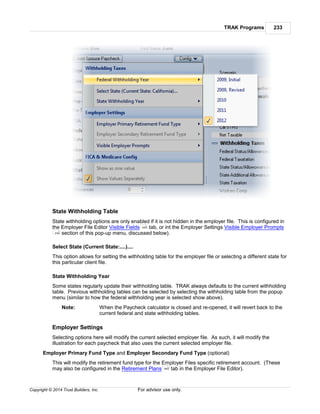
Additionally one-on-one training (at an hourly rate) can be provided. Please contact Trust Builders at
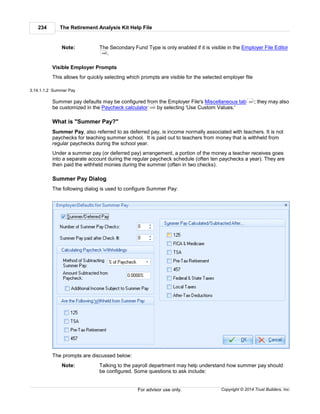
503-831-1111.
4.1.7 Print
To print reports select File/Print from the ribbon bar.
Notes: This only works if there is a current calculator, and the calculator is prepared to
print.
In certain calculators (such as the MAC calculator) the ribbon bar is not available;
however, a print button will appear in a calculation window.
By default, the Print button does not display on the toolbar. Click here for help
to configure the toolbar.
The print window (similar to that which is below, possibly with different reports listed) will appear:
470
TRAK's Ribbon Tabs 383
Copyright © 2014 Trust Builders, Inc. For advisor use only.
Reports from the active TRAK calculator will appear in the dialog box.
Select the report(s) from the list to preview or print by checking the box on the left hand side.
Reports can be previewed by moving the mouse over the selected report and pausing. The preview
options can be turned off and the delay for the preview can be configured in File/Config/Printing/Config
The Select All and Clear All buttons may be used to quickly select all or clear all of the selected
reports. (The Select All button will be disabled if not all reports can be selected at the same time).
Notes: The Generate Preview and Print buttons will be disabled if no reports are
406
The Retirement Analysis Kit Help File384
Copyright © 2014 Trust Builders, Inc.For advisor use only.
selected.
By default all non-batch printed and/or previewed reports associated with a client
are saved in the report archive (stored with the client data). This option may be
configured in File/Config/Printing/Archiving .
The Configure button allows for selecting which reports are selected when the
dialog box is initially opened and for setting the report order.
Each button and option is described below.
Configure
Allows for configuring various report options.
Include Cover Page
This determines if a cover page is printed with the selected report(s). A disclaimer can be
configured in the File/Config/Printing/Cover Page . If this check-box is checked and
disabled, that indicates that the cover page is required.
Print/Preview/PDF
This will print the selected reports to the selected output. This is only enabled if a report is
selected. The output option is selected using the "Output:..." button right below it.
Number of Copies
Enter the number of copies to print. This is only visible if the output is to a printer.
When printing to a file, the following options are available:
Setup Printer
This will allow selecting and configuring the printer for all of the reports. The printer may be
configured for individual reports by right clicking over the specific printer. This is only visible
if the output is to a printer.
Output: Printer/Preview/PDF
Click this button to select the report output. Options include a printer, previewing the report
and saving the report as a PDF.
When saving the report to a PDF, the following option is available
Open PDF File After it is Created
Check this box to open PDF files after they have been created.
Show/Hide Configuration Panel
When the preview window is displaying a report, a hide-configuration button will be displayed at the
bottom-right of the configuration panel. This button can be used to hide the report configuration
panel (the left side of the dialog).
When the configuration panel is hidden, a display-configuration button will be displayed at the
bottom-left of the viewer.
389
405
386
386
406
388
TRAK's Ribbon Tabs 385
Copyright © 2014 Trust Builders, Inc. For advisor use only.
Clicking this button will re-display the configuration panel.
4.1.7.1 E-mailing Reports to a Client
To e-mail a report to a client:
1. Select the output to be PDF.
2. Select Adobe Acrobat Document from the file type (dialog may appear differently depending upon
the version of Windows).
3. Select a directory and enter a file name to save the report to. The default directory is:
My DocumentsTrust BuildersReports.
4. Click Save.
5. Next locate the file you just saved.
6. Right mouse click on the PDF file icon and select Send To from the menu.
7. From the Send To menu select Mail Recipient.
8. Your email browser should start.
9. Address the email to the individual and send it. The PDF will be attached.
The Retirement Analysis Kit Help File386
Copyright © 2014 Trust Builders, Inc.For advisor use only.
4.1.7.2 Configure Options
Below the list of reports is a button for configuring the print window.
This allows for configuring various options, including:
Selected Reports
Set Current Selected Reports as the Default Selection
When this is clicked, the list of selected reports will be remembered the next time the print
window is opened.
Select Default Reports
This will restore the selected reports to the default list. It is disabled if no reports are selected
in the default list.
Report Order
Re-order Reports...
Reports can be re-ordered for printing. This setting will be saved.
Clear Custom Sort Order
Clicking this will clear the custom sort order for the reports. This is only enabled if the current
report order has been customized.
Custom Report Settings
TRAK allows for report settings (the order of the reports and which reports are selected) to be
saved by name. This allows for quickly selecting which reports to print out for a client. (For
example, setting for the Quick Gap could be "First Meeting", "Follow Up Meeting"). The following
three menu items relate configuring the custom report settings.
Custom Report Settings
This is enable if there are custom report settings saved for the current calculator. If there
are custom report settings, clicking on this item will pop-up a menu showing a list of
TRAK's Ribbon Tabs 387
Copyright © 2014 Trust Builders, Inc. For advisor use only.
custom report settings.
Delete Custom Report Settings...
This allows for deleting custom report settings.
Save Report Settings...
The current report settings can be saved with a name. They will then be available in the
Custom Report Settings menu item (above).
Printer Setting
Remember Main Printer Setting
The default printer settings for TRAK can be remembered between settings. Check this to
remember the settings. This will affect printing in all TRAK calculators.
Remember Individual Printer Settings
If this is checked, printer settings for each report will be remembered. Printer settings can be
customized for individual reports by right clicking over the specific report. This will only be
enabled if an individual report's printer settings has been customized.
Clear All Custom Printer Settings
This will clear the custom printer settings for the main printer and any custom report printer
settings for current calculator.
Miscellaneous
Auto-Generate Preview on Open
If this is checked, and there are preselected reports (see item 1 above), the reports will be
auto-generated when the Print window is opened.
Save Report to Archive
If this is checked, a copy of all generated reports will be saved with the client's data. It can be
previewed in the Report Archive viewer. (For batch processing reports, the Archive
Reports for Each Participant check box in Config/Batch Processes/Printing must also be
checked).
Show Report Preview
If this is checked, when the cursor is held over a report, a preview of the report will be
displayed to the right of the report name. Note that the previewed image is loaded from a
database (it is not generated with the client's data) and may appear differently than the preview
image that is displayed.
388
389
393
The Retirement Analysis Kit Help File388
Copyright © 2014 Trust Builders, Inc.For advisor use only.
4.1.7.3 Custom Printer Configuration
Printer configuration may be customized per report (including the cover page). This allows for certain
pages to be printed in color (e.g. the cover page can be in color), from different printer trays or from
different printers.
After configuring the default printer settings (if desired), right click over a report name for custom
printer settings. The pop-up menu below will appear.
Note that the Clear Printer Settings will be disabled when there are no custom printer settings for the
selected report.
Click the Custom Printer Settings... menu options. This will customize the specific printer settings for
the report.
Note: Report printer settings generally cannot be changed between portrait and
landscape. Additionally, changing page settings between letter and legal size may
not work properly for all reports. One exception to this is the Quick Gap's and Gap
Analysis' Retirement Years - Grid report. The settings for this report can be
changed between landscape and portrait, and letter and legal size paper.
After a report has been assigned a custom printer setting, an icon will appear to the right of the report
name to indicate that it has custom settings assigned to the report.
384
TRAK's Ribbon Tabs 389
Copyright © 2014 Trust Builders, Inc. For advisor use only.
To clear custom settings for any report, right click over the report and select Clear Printer Settings.
Custom printer settings will always remain while TRAK is open, even if the Print dialog is closed. Click
here for more information about how to keep printer settings between TRAK sessions.
4.1.8 Print Archives
To view a print archive file, select File/Print Archive from the ribbon bar.
By default, TRAK saves a copy of all generated reports with each client file (include batch processing
reports).
Print Archives provides a way to review and print reports that have been previously produced orto the
Print Archives file. (See the Print dialog for more information.)
A file must first be saved as a print archive file before it can be printed from the archives. It can be
saved as a print archive file when the file is being viewed or printed.
387
382
The Retirement Analysis Kit Help File390
Copyright © 2014 Trust Builders, Inc.For advisor use only.
Navigate on the left hand side for the client and the archived report. When a report is selected, it will
be automatically viewed in the previewer (on the right).
4.1.9 Config
Note: To access the TRAK Configuration Editor, select File/Config from the ribbon bar.
This provides a single place to configure TRAK. Most settings (except database configuration) are
stored in the database. The navigation bar on the left side allows for quick selection of the item to be
configured:
Note: Items in the navigator may differ depending upon the version of the application
being used.
When the navigator is focused, an item in the navigator may be located by typing
it's name. For example for ribbon configuration, start typing "ribbon" (not case
sensitive). The Ribbon configuration editor will be opened when the first "b" for
ribbon is clicked.
These navigation items provide direct links to information about their configuration:
Agent 392
TRAK's Ribbon Tabs 391
Copyright © 2014 Trust Builders, Inc. For advisor use only.
Asset Allocation: Determines if the questionnaire has one question on the screen or multiple
questions shown per screen. Changes take place the next time the Asset Allocation program is
opened.
Backup/Restore: Configures the frequency of automatic backups.
Batch Processes:
Config & Disclaimers
Printing
Batch Processes
Charts
Chart Gap
Calculator Chart Colors
College Types
Custom Fields
Database
Debt Analyzer: Configures the type of qualified plan (401(k) or 403(b)) to illustrate in the Debt
Analyzer calculator.
Default Values
Employer
Gap Analysis Calculator
Gap Analysis Retirement Plans
Look and Feel: Configures how the application (including tool bar, grids, tabs and editors)
appear.
MAC
Multi-Tier Split Annuity
Paycheck
Printing
Qualified Plans: Allows hiding qualified plan types not used by the agent.
System
Updates
Word Lists
Hint: To quickly navigate to an item, simply start typing the name of the item as soon as
the window is open (or when the Navigator has focus). The Navigator will find the
next item in the list with the matching text.
For Example: To quickly navigate to Printing/Branding, press the "b" (Backup/Restore will take
focus) then press "r"and the Branding item under Printing will have focus.
392
393
393
394
394
465
395
396
396
399
402
402
403
405
406
408
408
The Retirement Analysis Kit Help File392
Copyright © 2014 Trust Builders, Inc.For advisor use only.
4.1.9.1 Agent
Note: To access the Agent Information, select File/Config from the ribbon bar and select
Agent from the navigator on the left.
The Agent configuration dialog allows for configuring information about the agent. This information
shows up on the bottom of some reports and in the initial screen when starting TRAK.
The agent's first name and last name are set when registering TRAK.
4.1.9.2 Batch Processes
There are three configurable sections in the Batch Processes section. Each is explained in the links
below:
Config
Printing
4.1.9.2.1 Config
There are three tabs to configure on the Batch Processing/Printing section. Each item is discussed
below:
Batch Paycheck
Use branding...on Batch Paycheck Reports
Branding (feature found only in TRAK Deluxe, and configured in Printing/Branding section of
the Setup window) may be turned off for the Batch Paycheck reports.
390
392
393
405
TRAK's Ribbon Tabs 393
Copyright © 2014 Trust Builders, Inc. For advisor use only.
Show Methodology
Determines if the methodology section of the report is printed.
Disclaimer/End note
Configures options with the disclaimer printed at the end of the report. When enabled, right
clicking over the disclaimer editor gives access to simple font controls.
Batch Gap Config
Footer Config
Allows for determining how the footer is printed in the report.
Disclaimer/End Note
Allows for configuration of the disclaimer printed on the Batch Gap report.
Batch Gap Branding
Allows for configuration of branding in the Batch Gap report. The branding image is printed toward
the bottom of the report, below the advisor's name.
4.1.9.2.2 Printing
These options configure the printing of the Batch Processing calculator.
Print Batch Reports to Files
This configures the default directory that PDF reports are saved.
Report File Naming
When printing batch participant reports to individual PDF files, this configures the file name used to
save each report.
Archiving Reports
TRAK allows for saving an archive (copy) of the batch processing reports with the participant's
data.
Note: A large number of archived reports may significantly add to the size of the
database, the size of the backups files, and the time it takes to generate the
backups.
4.1.9.3 Charts
Note: To access the Chart Information, select File/Config from the ribbon bar and
select the appropriate sub-item under Charts from the left hand menu.
Appearance/Theme
Charts may be assigned an appearance/theme to provide a consistent look.
389
390
The Retirement Analysis Kit Help File394
Copyright © 2014 Trust Builders, Inc.For advisor use only.
Gap Analysis Chart Colors
This allows for configuring the colors used for accounts in both the Quick Gap and Gap
calculators.
4.1.9.4 College Types
The College Types configuration editor allows for configuring the list of college types shown in TRAK's
College Funding calculator.
Data Entry
Base year of default values
This is the year that the Annual Cost values in the year are based on.
Grid Data
There are two types of colleges that may be edited in the list:
1. Colleges defined internally in TRAK. These rows are shown in blue in the grid and only the
visibility of the record is configurable.
2. Custom colleges/universities. These are shown in white and may be edited, added and deleted.
To add or delete a college type, click on the '+' or '-' button at the bottom (or press the down
arrow on the last record, or Ctrl-Insert, to add a record, and Ctrl-Delete to delete a record).
4.1.9.5 Custom Fields
Note: To access the Custom Fields Information, select File/Config from the ribbon
bar and select Custom Fields from the left hand menu.
390
TRAK's Ribbon Tabs 395
Copyright © 2014 Trust Builders, Inc. For advisor use only.
Custom Fields are associated with the Database program of the software. Three custom fields can
be setup. To enable/disable a custom field, check the Visible property, and enter a value for the
Caption.
Note: Custom fields are available in the Database program by right clicking over the grid
and selecting them to be visible.
4.1.9.6 Default Values
Note: To access the Default Values Information, select File/Config from the
ribbon bar and select Default Values from the left hand menu.
Choose the default values to be used when a new client is created.
Note: "Federal TSP Account" refers to the Thrift Savings Plan available to federal
employees in the CSRS or FERS retirement systems.
68
390
The Retirement Analysis Kit Help File396
Copyright © 2014 Trust Builders, Inc.For advisor use only.
4.1.9.7 Employer
Note: To access the Employer Information, select File/Config from the ribbon bar
and select Employer from the left hand menu.
Default Employer
Use this value to select which employer file is selected when a new paycheck file is created.
Employer State
To change the selected state for paycheck withholding for all employer files, select the state and
click on the 'Set State' button.
Use FICA and Medicare Rates
TRAK has the FICA and Medicare rates built in (the current rates show in the editors). If you wish
to override the default rates, check the Use Standard FICA and Medicare Rates box and enter the
desired default rates.
4.1.9.8 Gap Analysis
Note: To access the Gap Analysis Information, select File/Config from the ribbon
bar and select Gap Analysis from the navigation window on the left.
There are four configurable areas in the Gap Analysis section. Each is explained in the respective links
below:
Calculator
Pension Max
Rename Plans
Retirement Budget
Retirement Plans
Retirement Income Models
Retirement Tax Tables
4.1.9.8.1 Calculator
Note: To access the Gap Analysis Calculator Information, select File/Config from the
ribbon bar and select Gap Analysis/Calculator from the navigator on the left.
Maximum Inflation on Social Security
After the individual retires, this limits annual increases in future Social Security payments to a
specific percentage. (Social Security will inflate to the least of the maximum or retirement inflation.)
Title on Reports
Select the title for the Quick Gap and Gap Analysis reports.
Order for "Client Data & Calculation Overview" Report
The "Client Data & Calculation Overview" report can start with the client data and then show the
390
390
396
398
398
398
399
399
400
390
TRAK's Ribbon Tabs 397
Copyright © 2014 Trust Builders, Inc. For advisor use only.
calculations, or visa verse.
"Client Data & Calculation Overview" report vertical layout
Determines the vertical spacing for the respective report.
Maximum Contribution Limits
Select if the contribution limits for retirement plans is indexed for future years.
Retirement Years Chart
Select if the Retirement Years Chart report displays the income and balance charts on one page
(one report) or as separate pages (two separate reports).
Retirement Years Gird
Configure which columns are visible in the Retirement Years Grid screen and report.
Quick Gap Calculator: Allow Different COLA Rates Prior to and During Retirement
Allows for entering different COLA rates in the Quick Gap calculator for the accumulation and
distribution years.
Federal Retirement Systems
4.1.9.8.2 Federal Plans
TSP Options
Always Display the TSP/Federal Savings Plan tab
In the Gap Analysis calculator, a "Client TSP" and "Spouse TSP" tabs are displayed, even if
the respective account is not a federal retirement plan. Uncheck this box to hide the tabs if a
federal retirement plan is not selected.
Calculate TSP Using TSP Account Details
This determines if the TSP account is entered using Life Cycle Funds and G, F, C, S and I
funds (if it is checked) or using the current balance and single projected rate of return.
Apply Default Accumulation and/or Distribution Values... to TSP Accounts
In the Gap Analysis Setup tab, accumulatio
Charts in the FEGLI Report
Print Annual Premium Chart, Print Accumulated Premium Chart, and Print Life Insurance
Coverage Chart
This determines which chart(s) (if any) are included in the FEGLI report.
Colors for FEGLI Charts in Report
If any charts are included in the report, the color scheme can be selected. Select either Use
Color Theme or Use Contrasting Colors.
The Retirement Analysis Kit Help File398
Copyright © 2014 Trust Builders, Inc.For advisor use only.
4.1.9.8.3 Pension Max
Items in reports comparing the advantages and disadvantages of pension maximization and the
retirement plan can be configured here.
4.1.9.8.4 Rename Plans
TRAK allows for renaming the built-in retirement plans. For example, California STRS can be
renamed CalSTRS. This allows advisors to use the common name of the plan that a client may be
more familiar with.
4.1.9.8.5 Retirement Budget
This configures the Retirement Budget found in the Gap Analysis' Retirement Income and Calculation
tab.
Report Options
Include Budget Items without Values
If this is checked, budget items that have a zero value are included in the report.
Only Print Details for Items with Values
This is only enabled if the previous prompt is checked and determines if details are printed for
budget items even if they have a zero value.
Default Method for Starting and/or Ending Custom Retirement Expenses
Select the default method (Age or Date) to be used with new clients.
Properties, Categories and Items tabs
These tabs allow the colors for the corresponding items to be selected. Additionally, on the Items
TRAK's Ribbon Tabs 399
Copyright © 2014 Trust Builders, Inc. For advisor use only.
tab, the default value and visibility of specific budget items can be configured.
4.1.9.8.6 Retirement Income Models
The Retirement Income Model Editor allows for creating, deleting, and configuring retirement income
models for the Gap Analysis calculator.
Use the toolbar at the top to save, create a new model, rename the existing model, or delete a
retirement income model. (Note that more than one retirement income model must exist before a
model may be deleted.)
4.1.9.8.7 Retirement Plans
Note: To access the Gap Analysis Retirement Plans Information, select File/Config
from the ribbon bar and select Gap Calculator/Retirement Plans from the
navigator on the left.
390
The Retirement Analysis Kit Help File400
Copyright © 2014 Trust Builders, Inc.For advisor use only.
The Gap Analysis: Retirement Plans allows retirement plans (pension plans) to be shown or hidden
by state (e.g. the grid below illustrates showing California retirement plans) or by individual plan (by
clicking on the "Retirement Plans" tab in TRAK and selecting which plan(s) are visible). This allows
removing plans from the list that may never be needed.
Show All Retirement Plans
This will show all retirement plans in the software.
Note: The list of retirement plans and states is not editable if Show All Retirement Plans
is checked.
Default Retirement Plan
This is the retirement plan that will be selected when a new client file is created.
States and Retirement Plans grids
If Show All Retirement Plans is not checked, the plans listed in TRAK may be selected by state
(lists all plans associated with the particular state), or by selecting the particular retirement plan on
the Retirement Plans tab.)
4.1.9.8.8 Retirement Tax Tables
The Gap Analysis calculator allows for calculating a client's retirement income needed on an after tax
basis. TRAK comes with built in federal tax tables. Custom federal and state withholding tax tables
may also be used.
TRAK's Ribbon Tabs 401
Copyright © 2014 Trust Builders, Inc. For advisor use only.
To create a new table, select which tax table type to create ("Federal" or "State") and click the "New"
button at the top of the dialog.
Enter the tax tier information in the grid below.
Note: Be sure the highest tax tier has a very high income level (e.g. $999,999,999)
otherwise high income levels will not be taxed when the tax table is used.
The Retirement Analysis Kit Help File402
Copyright © 2014 Trust Builders, Inc.For advisor use only.
4.1.9.9 Look and Feel
This configures the application's appearance.
Note: On some machines with older graphic cards, using skinning may cause the
application to be especially slow. In this situation, uncheck the 'Use 'Blue' skin'.
4.1.9.10 MAC
Note: To access the MAC Information, select File/Config from the ribbon bar and
select MAC from the navigator on the left.
The only setting available here determines how the MAC tables are to be read. The default selection is
"Truncate ages for table values," and is the accepted method at the time of this documentation.
4.1.9.11 Multi-Tier Split Annuity
Note: The configuration dialog box can be accessed by clicking on the
Configuration button ( ) at the top of the Multi-Tier Split
Annuity Data Input screen. It is also available by selecting File/Config in
the ribbon bar and in the navigator on the left selecting "Multi-Tier Split Annuity".
The fields below are used to configure the Multi-Tier Split Annuity calculator's Data Entry screen in
TRAK.
Payout method
Select the payout method for the various tiers, either an Annuity Rate (dollar per thousand per
month) or Interest Rate.
Allow editing tier name
Check this box to enter a name for each tier. If this is not checked, the tiers will be named
"Period 1," "Period 2"... and "Final Period."
390
217 390
216
TRAK's Ribbon Tabs 403
Copyright © 2014 Trust Builders, Inc. For advisor use only.
Allow for premium bonus per tier
If any time period has a premium bonus, check this option.
Allow editing inflation per tier
Inflation can be estimated for all time periods, or configured per tier. To configure per tier,
check this box.
Show start/end year in grid
Checking this shows the start and end year of each tier in the tier grid.
Show start/end age in grid
Checking this shows the start and end age of the client for each tier in the tier grid.
4.1.9.12 Paycheck
The Paycheck setup has three categories that may be configured.
1. Paycheck Calculator
2. Lists
3. Projection's Chart Options
4.1.9.12.1 Paycheck Options
Note: To access the Paycheck Calculator setup screen, select File/Config from the
ribbon bar and select Paycheck/Calculator from the navigator on the left.
Each prompt for the Paycheck Calculation Setup is discussed briefly below.
Displayed Paychecks
Initial Number of Paychecks Visible when the Calculator is Opened
This determines how many paychecks are initially visible when the Paycheck calculator is
opened.
Initial Scenario for the Paycheck Calculator's Second Column
Select either Quick Max or Proposed #1. This will be the paycheck displayed in the second
column (just to the right of the "Current" column)
Initial Second Paycheck for the Paycheck in the 1040 Calculator
Select the initial active paycheck for the 1040 Analysis calculator. If "Active Paycheck", the
active paycheck from the initial paycheck calculator will be focused.
Charting
Value to Highlight in Paycheck Charts
In the Paycheck charts, you can select to highlight taxes, retirement plan contributions or
nothing.
Taxation
Default FICA and Medicare Method
403
404
404
390
The Retirement Analysis Kit Help File404
Copyright © 2014 Trust Builders, Inc.For advisor use only.
Default method can be to display values separately or as a single value.
Default Taxation Display
Withholding taxes can be itemized or only show the total value.
Highlight State Withholding Taxes
This will display the state withholding taxes in bold. Note that this feature is used internally
when updating state withholding taxes.
Reporting
Paycheck Withholding Taxes in Reports
Select how to display the taxes in the report. If Same as User Interface is selected, the
reports will be configured the same way as the user interface is configured in the active
calculator (either the Paycheck or 1040 Analysis calculator).
Employer Contribution Description in Reports
Allows displaying or hiding the employer contribution to the retirement plan. Three methods
are available to select from
Always: Displays a description of the employer contribution even if the employer is not
making contributions. (If the employer is not making contributions the message will state,
"The employer does not contribute to the retirement plan.").
When Employer Contributes: Only displays a description of the employer contribution if
the employer is making contributions.
Never: Never displays contributions in the report.
4.1.9.12.2 Paycheck Lists Options
Note: To access the Paycheck Lists setup screen, select File/Config from the ribbon
bar and select Paycheck/Lists from the navigator on the left.
This screen allows you to configure the Paycheck's Section 125 and the After-Tax itemizations.
4.1.9.12.3 Paycheck Projection Options
Note: To access the Paycheck/Projection's Chart Options setup screen, select File/
Config from the ribbon bar and select Paycheck/Projection's Chart Options
from the navigator on the left.
This screen allows for configuring the charts for the Paycheck Projection calculator.
Show Annotation in Chart Displaying the Percent of Income the Savings will Produce During
Retirement
Determines if the retirement income distribution values include an annotation displaying what
percentage of retirement income the accounts will provide.
390
390
261
TRAK's Ribbon Tabs 405
Copyright © 2014 Trust Builders, Inc. For advisor use only.
Account Colors
This section allows for configuring the colors used in the accounts. Configure the accounts as
needed.
4.1.9.13 Printing
Configure print options for TRAK.
Branding
Config
Cover Disclaimer
4.1.9.13.1 Archiving
Report archives are copies of reports saved with the client file when reports are previewed or printed.
A copy of every report can be saved with the client file (and are viewable in the File/Report Archives
or in the Database tool).
To turn off archive, un-check the "Always Create a Duplicate Archive Report".
Note: If the auto-archive is turned off, an archive can still be created in the print
configuration by selecting "Archive Report" from the Output options. "Archive
Report" is only available if auto-archive is disabled.
4.1.9.13.2 Branding
Note: To access the Branding Configuration Screen Information, select File/Config
from the ribbon bar and select Printing/Branding from the left hand menu.
This configures the branding options for TRAK. Branding is only available in the Deluxe version of
TRAK.
Branding allows for placing an image on the top left or the top right of a report (image may be 2 inches
wide by 0.5 inches high). An optional line may appear below the image.
Also, a watermark may appear in the middle of the report.
Note: TRAK does not perform any processing on the images.
4.1.9.13.3 Config
Note: To access the Printing Configuration Screen Information, select File/Config
from the ribbon bar and select Printing/Config from the left hand menu.
General Settings
Auto-name Reports when Printing to File
Check this box if reports are to be given a name when the save dialog is opened. The default
file name will be based on the clients name.
Default Report Director for Printing to File
405
405
406
389
68
390
390
The Retirement Analysis Kit Help File406
Copyright © 2014 Trust Builders, Inc.For advisor use only.
Select which directory and sub-directory to which the reports are saved when printing batch
paycheck reports to a file.
Include "Calculation Method" page in report list
Check this box if the "Calculation Method"" report is to be printed with the report.
"Calculation Method" Page must be Printed when a Report is Printed
Check this box if the "Calculation Method" page is mandatory. If this is checked, the report
cannot be inadvertently unchecked.
Preview Options
Preview Report
Check this box to display a preview of a report when the mouse pauses over the name of a
report.
Preview Display Time
This prompt is only enabled if the Preview Report is checked. Select the amount of time
required to display the preview of the report.
Printing Images
Force Direct Draw Images to Printer
This option prints images directly to the printer. Check this box if images are printed poorly. It
may reduce printing performance.
Allow images to be transparent
This option is not supported by all printer drivers. It may improve watermark images.
4.1.9.13.4 Cover Disclaimer
Note: To access the Cover Disclaimer Configuration Screen Information, select File/
Config from the ribbon bar and select Printing/Cover Disclaimer from the left
hand menu.
An optional disclaimer may be printed on the cover page. (The cover page may be selected in the Print
dialog.)
4.1.9.14 System
Note: To access the System Information, select File/Config from the ribbon bar and
select System from the left hand menu.
There are two sections to the system setup.
Bug Reports
Miscellaneous Settings
4.1.9.14.1 System Bug Reports
Note: To access the System Miscellaneous setup, select File/Config from the ribbon
bar and select System/Bug Reporting from the navigator on the left.
390
382
390
406
407
390
TRAK's Ribbon Tabs 407
Copyright © 2014 Trust Builders, Inc. For advisor use only.
Very occasionally (we hope no more than that) TRAK users may see an unexpected exception, similar
to the image below.
These bug reports are saved to your computer and may be used for technical support. The settings on
this tab determine if the bug reports are saved and how long the files remain on the hard drive. (To
view the contents of the bug reports, after seeing an Unexpected Exception dialog show above, open
this window and click on the View Bug Report Log button).
4.1.9.14.2 System Miscellaneous
Note: To access the System Miscellaneous setup, select File/Config from the ribbon
bar and select System/Miscellaneous from the navigator on the left.
This dialog contains miscellaneous system settings for various parts of TRAK.
Status Bar
Show Status Bar
Determines if the status bar (at the bottom of the main window) is visible
Show Date in Status Bar
Determines if the current date is displayed in the status bar.
Show Time in Status Bar
Determines if the current time is displayed in the status bar.
Miscellaneous
Enter key is equivalent to Tab key
The Enter key behaves like a Tab key in stand alone editors (i.e. goes to next control).
Turn on Num Lock key when program starts
This turns on the Numlock key when the program starts. This option is not recommended for
laptop computers.
Print Pie Charts in 2D (maintains aspect ratio)
This prints pie charts in a 2D format to maintain aspect ratio. Otherwise, the pie charts may
appear skewed.
Show Fractional Months when Displaying Descriptive Age or Years of Service
Displays the fractional months for ages and years of service in software.
390
The Retirement Analysis Kit Help File408
Copyright © 2014 Trust Builders, Inc.For advisor use only.
4.1.9.15 Updates
This allows for configuring TRAK automatically checking for updates.
Also, for updates related to specific states (including both pension plans and state withholding tables),
check the box related to the state(s) (e.g. if Wyoming Retirement System is updated most TRAK users
would not want to be notified).
Manual Updates verses Automatic Updates
There is a difference between TRAK's automatic and manual updates.
A TRAK update may be only for a specific state, or set of states.
For Example: If a pension plan is updated for the state of Wyoming, an update may be posted
for just that state. While updates to Wyoming state pension plans may be
important to some advisors, for most, it is not relevant. In File/Configure/Updates
, TRAK can be configured not only how frequently it automatically checks for
updates, but also for which state(s) are checked. TRAK will check for an update
as regularly as configured shortly after it is started.
Manual updates only check if an update is available, and does not filter to see if the update is only
for specific states. Manual updates can be performed by clicking on the "Check for Update" button
on the "Setup" ribbon.
Note that TRAK must have access to the internet and be started to check for, and download, any
updates.
4.1.9.16 Word Lists
This section allows for the editing of word lists used in TRAK.
The various word lists are used in the Database program.
4.1.10 Backup & Restore
There are several options to back up and restore data:
Backup to File
Restore from File
408
68
409
409
TRAK's Ribbon Tabs 409
Copyright © 2014 Trust Builders, Inc. For advisor use only.
4.1.10.1 Backup to File
Warning: Having a backup policy in place that has data backed up offsite is highly
recommended. Regularly backing up data to a hard drive or other media that
is not offsite may result in data loss.
For your convenience, we have provided a simple way to backup your data.
Click File/Backup & Restore/Backup to File... The dialog below will appear.
1. Select the location for the backup file.
2. If the data is to be encrypted, enter the password two times.
3. Select Backup.
If the data was backed up to the local hard drive, it is highly recommend that a copy also be made on
a different media and kept off site.
Warnings: Backing up data to the same hard drive on which the database is located is not a
safe practice, especially in the event of a hard drive failure.
It is impossible to recover data if the password is lost.
4.1.10.2 Restore from File
Warning: Restoring data may overwrite your current client data files and result in a complete
loss of the current data. Please be careful.
Select File/Backup & Restore/Restore from File... from the ribbon bar. A dialog similar to what is
below will appear:
The Retirement Analysis Kit Help File410
Copyright © 2014 Trust Builders, Inc.For advisor use only.
Source File
Enter the path and file name of the backup file.
Hints: Clicking on the down-arrow to the right of the box (or pressing Control-Down
Arrow) will show a list of files that were recently backed up.
Clicking on the file selector icon on the far right of the editor will allow the file to be
selected.
Database Action
Select to either Overwrite the Existing Database or Change Database Name.
If overwriting an existing database the following prompt must be checked:
Notes: The current database will be backed up.
Overwrite existing data
Check the box to confirm overwriting the existing database.
If changing the database name, the following prompt will appear:
New Database Name
Enter the new database name to restore to. The file must not exist in the data directory.
Notes: Changing the "New Database Name" will change the current client database file and
leave the existing client database file.
The restored database will be located in the same directory as the current
database.
Password
If the file is encrypted, enter the password.
Once the data has been correctly entered, click on the Restore button.
TRAK's Ribbon Tabs 411
Copyright © 2014 Trust Builders, Inc. For advisor use only.
4.1.11 TRAK Documents & Tools
The TRAK Documents & Tools menu contains customizable links to additional programs and
resources.
In addition to containing links to TRAK reference materials, it allows the user to incorporate additional
links to PDF reports, PowerPoint, or other programs. These may be used in association with TRAK
without having to exit TRAK in order to start the other program.
Configuring the Tools Menu
The Tools/Configure menu opens a dialog box that allows for configuring the Tools menu.
Possible tools could be a newly created PowerPoint presentation, a spread sheet that has been
formatted, or a link to another executable program to run from TRAK.
Folders may be added to categorize various tools if a large number of them are to be added.
Notes: A red X to the left of the tool indicates that the document or program cannot be
found and will be disabled in the Tools menu.
The settings for the Tools menu are saved in the client database file.
To add a program, click on the Add Program button. The screen displayed below will appear:
The various inputs are discussed below:
Title
This is the text to appear in the menu bar that describes the document.
Program
This is the document or program to be run when the menu bar is clicked.
The Retirement Analysis Kit Help File412
Copyright © 2014 Trust Builders, Inc.For advisor use only.
Working Dir
This may be required by the program or document, and is normally set to the directory in which the
document or program is located.
4.1.12 Import/Export
TRAK allows for importing client data from two sources:
1. Census files , including both an Excel and text file.
2. Other TRAK database files .
4.1.12.1 Import Clients
The File Import utilities are used to import client data from a data file (e.g. an employer census file)
into the TRAK database.
Data File Contents
The data file fields (e.g. columns), should contain the following information:
(See Import Terminology for more detailed explanations of the definitions of words.)
1. First Name
2. Last Name
Note: First Name and Last Name must be in separate columns.
3. Date of birth
4. Current account balance, and any values used to calculate the paycheck.
Note: TRAK will calculate federal and state withholding taxes (where applicable), so only
the status and allowances need to be imported, not the value(s) themselves.
Click here to view a list of common questions about importing client data.
4.1.12.1.1 Import Wizard
The Import Wizard allows for the importing of data into the TRAK database from various formats. It is
accessed from the File/Import Clients from the ribbon bar.
The import utility utilizes a wizard to move you through the configuration of importing data
Notes: The selections made may change which pages are available as progress is made
through the import wizard.
This data may be associated as a group for batch processing by the Batch
Processing calculator. This will be discussed in the Name Group page.
The import wizard is made up of the following 15 pages:
1. Welcome Screen
2. File Type
3. File Name
4. Text File Settings
412
433
430
431
34 426
413
414
414
415
TRAK's Ribbon Tabs 413
Copyright © 2014 Trust Builders, Inc. For advisor use only.
5. Data Formats
6. Employer File
7. Column Settings
8. Field Associations
9. Data Conversion
10.Default Values
11.Preview Data
12.Group Name
13.Import Action
14.Data Merge Config
15.Finished Page
Click on the link above to get more details on the specific page of the wizard.
Press the Next button to move forward through the wizard.
4.1.12.1.1.1 Welcome
This is the first page of the file Import Wizard.
If settings from a previous import were saved, they may be selected in the combo box (as shown
above). Otherwise, the page will be blank.
417
419
419
420
423
424
425
426
427
427
429
The Retirement Analysis Kit Help File414
Copyright © 2014 Trust Builders, Inc.For advisor use only.
4.1.12.1.1.2 File Type
The File Type page allows you to select the format of your current data. TRAK supports importing
data from Excel and text file formats.
Depending upon the format selected, the list of required import pages changes. The information
required on each page may also change, depending upon the import format selected.
Note: Because text files contain less information about the data than Excel files, text files
will require more configuration than Excel files.
4.1.12.1.1.3 File Name
The File Name page is required by all data formats for selecting the location of the data file for
importing.
TRAK's Ribbon Tabs 415
Copyright © 2014 Trust Builders, Inc. For advisor use only.
Enter the file name, including path, where the data file is located.
Hints: To open a file selection window, click on the ellipses ( '…') or press Ctrl-Enter
while the File Name prompt is active.
The import wizard must be able to find the file before moving forward. If it can not,
the text of the file name will appear in red.
4.1.12.1.1.4 Text File Settings
The Text File Settings page is only required for importing data from text files.
Note: Text files (commonly called ASCII files or CSV files) require the highest level of
configuration to import data. The reason being, text files have the least internal
definition of the data (e.g. how a date is formatted, what type of data is in each
field, etc.).
The Retirement Analysis Kit Help File416
Copyright © 2014 Trust Builders, Inc.For advisor use only.
Delimited or Fixed Width
Text files separate their field values one of two ways: using fixed width columns or using
delimiters. If delimiter (a character that separates fields, such as a comma or a tab) is selected,
the type of delimiter must be selected.
Field Delimiter
Select the delimiter between the field values. Normally this would be a comma.
Record Separator
Select what defines the end of a record.
CR is a 'carriage return' and is ACSII character #13.
LF is a 'line feed' and is ASCII character #10
Text Qualifier
If text fields in the input file are qualified with quote marks, select which type of quotes are used.
Note: Other settings on this page will most likely be correct. Only change settings if they
are incorrect.
Character Set
Normally this will be an ANSI Windows character set. If the source file was from a file generated in
a MS DOS program, choose ANSI MS DO.
Trim Spaces
Select if the text is to be trimmed (leading and/or trailing spaces).
430
430
TRAK's Ribbon Tabs 417
Copyright © 2014 Trust Builders, Inc. For advisor use only.
4.1.12.1.1.5 Data Formats
The Data Formats page is used for configuring text, XML, and Excel file formats; in addition, it is used
to define how the data is formatted in the file. Each item is dealt with below:
First Row of Data
When importing a file, the first record(s) may be header information or field names. If this is the
case, enter the row number on which the data starts.
Last Row (use '0' for all)
If you want to limit the number of rows imported for various reasons (e.g. for a test), enter the last
row number from which to import data.
Field Name Row (use '0' for none)
If the data file includes field names, enter the row number of the field names. (Normally, if field
names are included, it would be in the first record ( i.e. use '1').
Note: This prompt is enabled only if the First Row of Data prompt has a value greater
than one, and its value must be less than the First Row of Data value.
Number of Additional Accounts
Additional accounts besides the primary and secondary qualified plan can be imported. For each
additional account, four additional fields will be added to the Field Association Calculation fields:
1. Act #n Name
2. Act #n Balance
3. Act #n Contribution
4. Act #n Contribs. per Year
The Retirement Analysis Kit Help File418
Copyright © 2014 Trust Builders, Inc.For advisor use only.
where "#n" corresponds to the account number (e.g. "Act #1 Name").
Note: Note that these additional accounts are not taken into consideration in the Batch
Processing reports, but are available in the Quick Gap and Gap Analysis
calculators.
Date, Times, and Numbers
Note: When importing from an Excel file, only the "Currency Symbol" will be display and
is the only item below that must be configured
Date Format
Enter the order in which the day, month, and year are listed in the file being imported. The Custom
Format prompt is enabled only if 'Custom' is selected from the Date Format editor.
Four Digit Years
If the data being imported uses four digits for years, check this; otherwise, two digits are assumed.
Leading Zeros in Dates
If months and days that are below ten include zeros before them (e.g. 01/05/1945 includes zeroes,
whereas 1/5/1945 does not), check this box.
Decimal Symbol
Select the decimal symbol that the import data is using. (This is usually a decimal, but in some
cases may be a comma.)
Thousand Separator
Select the thousand separator that the import data is using. (This is normally a comma, but in
some cases may be a decimal.)
Currency Symbol
If currency symbols are in the import file, enter the character used as the currency symbol.
Date Delimiter
Enter the separator between the day, month, and year in a date value.
TRAK's Ribbon Tabs 419
Copyright © 2014 Trust Builders, Inc. For advisor use only.
4.1.12.1.1.6 Employer File
The Employer File page is used to select the employer file to be associated with the imported data.
Hints: To configure a new employer file, click on the employer file editor button ( ) to
the right of the prompt.
The employer file configuration will determine which fields are imported.
Specifically:
1. Fields not visible in the employer file will not be listed (e.g. in the Employer File
Editor's "Visible Field" tab, if the "Section 125" is not checked, it will not be listed
in the Column Association page). Click here for more information about
visible fields.
2. The configuration of the method for contribution (i.e. Percent of Paycheck or
Dollar Value) will determine which field is visible. Click here for more
information.
4.1.12.1.1.7 Column Settings
The Column Settings page is only used for text files that have fixed width columns.
The vertical blue lines are added by clicking the left mouse button over the grid, and are used to
separate fields (such as first name, last name, city, etc.). Double clicking results in the removal of
the line. Lines can also be dragged by holding the left mouse button down and moving the mouse.
Hints: Pay extra attention to the location of column breaks when working with fixed width
columns that have field names in the first row (see Field Name Row in the Data
Formats page). The location of the column breaks may need to vary, depending
440
443
419
The Retirement Analysis Kit Help File420
Copyright © 2014 Trust Builders, Inc.For advisor use only.
on length of field names in the first row. If this is the case, the easiest way to work
with them is as follows:
1. Go back to the Data Formats page and set the First Row Data value to '1'.
2. Return to this page and set the column breaks.
3. Return to the Data Formats page and reset the First Row Data value.
4.1.12.1.1.8 Field Associations
The Field Associations page is used by all import formats to associate the columns in the data that is
being imported with the columns inside TRAK.
Note: Note that only part of the data will be imported for preview purposes only.
Hints: Before continuing, confirm that the data in the grid is formatted correctly. The
scroll bars may be used to confirm that the columns are formatted correctly and to
edit the associations.
If the columns do not appear correctly, reconfigure the previous pages so the data
does appear correctly.
Overview of the page
This page has several different areas:
1. The light blue area of the grid is non-editable data.
2. The white area shows which TRAK fields must be associated with the imported data.
3. The list to the far right shows fields that may be imported. These categories include Required,
TRAK's Ribbon Tabs 421
Copyright © 2014 Trust Builders, Inc. For advisor use only.
Calculation, and Information.
List of fields
Below is a categorized list of fields that may be imported from the client data file:
Note: The maximum size for each field is shown only when relevant.
Field Name Description Max
size
Required Fields
The following two fields are required for importing client data.
First Name First name of the client. 25
Last Name Last name of the client 25
Calculation Fields
The following fields are used for paycheck calculations. Depending upon the configuration of the
Employer File, fields may not be listed (e.g. second qualified plan contributions).
Income Per paycheck income for the client. If the income from the
data file represents more then one paycheck, it may be
manipulated on the next page.
Add Income Any additional income that the client receives. See the
Paycheck help for information regarding this field.
Federal Status The client's federal filing status. Should be either
'Married' ('M') or 'Single' ('S').
Federal Allow Number of federal allowances the client is filing.
Add Federal Tax Any additional federal tax that the client is paying per
paycheck.
State Status The client's state filing status. Should correspond to the
filing status in the Paycheck calculator (either the full name
selected on the left of the Paycheck Calculator abbreviation
or the right).
State Allow Number of state allowances the client is claiming.
Add State Tax Any additional state tax paid by the client per paycheck.
Local Tax Local tax values can be imported if, in the employer file, the
local tax is configured to prompt for the value . If local
taxes are to be imported, the field name will be the name of
the local tax entered in the employer file editor with
"[LOCAL TAX]" added as a suffix.
Sec 125 Value for the client's total Section 125 contributions.
QualifiedPlan_1_Dollar or
QualifiedPlan_1_Percent
Contributions to the primary qualified plan as a dollar or
percent value. Only one field will be visible, depending upon
449
The Retirement Analysis Kit Help File422
Copyright © 2014 Trust Builders, Inc.For advisor use only.
the configuration of the employer file.
Qualified Plan_2_Dollar or
Qualified Plan_2_Percent
Contributions to the secondary qualified plan as a dollar or
percent value. Only one field will be visible, depending upon
the configuration of the secondary retirement plan in the
employer file.
Pension Plan Dollar and/or
Pension Plan Percent
Used when the employer file is set to enter pension plan
contributions as a dollar or percent.
Employee Class For custom retirement plans with Employee Class
selected as the Profit Sharing Method, this column should
match the name of the employee class. This will associate
the participant with the class related to the profit sharing
rate.
After Tax Deduct Paycheck reductions on an after tax deduction basis.
Current Balance Current balance of the participant's qualified plan.
DOB Client's date of birth.
DOE Client's date of employment.
Retire Date or Retire Age Only one may be configured. A default value for retire age
may be set on the Defaults page. (Click here to see an
example in the Defaults Values page).
DBValue
QualifiedPlan_1_RothDollar
or
QualifiedPlan_1_RothPercent
Contribution to the Roth account.
RothActBalance Balance for the Roth account.
Gender Gender of person. First letter of value should be a "F" or
"M" (for "female" or "male", respectively). Value is not case
sensitive.
UseSS Determines if Social Security is to be included in the
illustration for this individual.
Act #n Name,
Act #n Balance
Act #n Contribution
Act #n Contribs. per Year
Imports fields for additional accounts. The number of
additional accounts is configured on the Data Formats
tab.
Note that these additional accounts are not taken into
consideration in the Batch Processing reports, but are
available in the Quick Gap and Gap Analysis calculators.
Information Fields
SSN Social Security Number. May be used to identify client to
merge imported data.
11
Address Client's address.
City Client's city. 25
State Client's state. Note that this is their state of residence, and
note the state for state tax withholding calculations (that is
2
454
424
417
TRAK's Ribbon Tabs 423
Copyright © 2014 Trust Builders, Inc. For advisor use only.
configured in the employer file).
Zip Client's zip code. 10
Home Phone Client's home phone number. 20
Mobile Phone Client's cell phone number. 20
Fax Client's fax number. 20
Work Phone Client's work phone number. 20
Email Client's email address. 30
Spouse Name Client's spouse's name. 20
4.1.12.1.1.9 Data Conversion
The Data Conversion page allows for converting the client's income and the qualified plan percent
into the values required by TRAK.
Income Conversion
If the value for the participant's income in the imported data represents more than the income from
a single paycheck, enter the number of paychecks that it represents. (This is only enabled if the
income field is selected in the Field Association page)/
Converting Section 125 and Qualified Plan Contribution
The Retirement Analysis Kit Help File424
Copyright © 2014 Trust Builders, Inc.For advisor use only.
The Configuration button (at the top right of the window) allows for converting Section 125 and
Qualified Plan contributions Because these are untypical, they are hidden by default, To turn
these on and check the respective item. The Section 125 conversion is similar to the conversion
of income. The Qualified Plan contribution converts the qualified plan contribution as a percent. If
the contribution value is imported as a fraction (for example, 5% is imported as 0.05), then it
must be converted.
4.1.12.1.1.10 Default Values
The Default Values page allows you to assign values to all fields that are not assigned in the Field
Associations page.
To assign a default value, check the box associated with a field and enter the default value.
For Example: In the configuration above, the "SSA Normal Retirement Age" default for
retirement age above was assigned
TRAK's Ribbon Tabs 425
Copyright © 2014 Trust Builders, Inc. For advisor use only.
4.1.12.1.1.11 Preview Data
The Preview Data page allows for the data to be previewed before it is imported.
Confirm that the data appears correctly before moving forward.
The Retirement Analysis Kit Help File426
Copyright © 2014 Trust Builders, Inc.For advisor use only.
4.1.12.1.1.12 Group Name
The Group Name page allows for the imported names to be associated as a group.
Groups have several uses in TRAK:
1. Use the Batch Processing calculator to process each imported file in a group.
2. The group can be deleted in the File/Delete dialog by selecting "Group" in the "Delete by"
combo box.
3. Client files can be loaded by group selection.
Note: Groups are not required to have a distinct name; they have a date and time stamp
associated with each one. There can be multiple groups with the same name.
TRAK's Ribbon Tabs 427
Copyright © 2014 Trust Builders, Inc. For advisor use only.
4.1.12.1.1.13 Import Action
The Import Action page defines how the imported list is added to the TRAK database.
Select from three options for how the data is to be imported:
Add data to TRAK's client data file.
1. If the client exists, update the record. Otherwise, add as a new client.
2. If the client exists, do not update the record. Otherwise, add the record.
Note: When selecting item #2 or #3, the conditions for defining if the client exists are
enabled. Select the appropriate item from the list below. If the Social Security
Number was not selected as an imported field, it will be disabled.
4.1.12.1.1.14 Data Merge Config
The Data Merge Config tab controls which fields in the TRAK database are to be updated if client data
is found in the database.
The Retirement Analysis Kit Help File428
Copyright © 2014 Trust Builders, Inc.For advisor use only.
Note: This page is available only if the configuration of the Import Action page is to
update existing records .
Merge all fields when data is imported
If the client is found, all fields that are selected to be imported will be updated.
Merge only selected fields when record exists
If the client is found, only the selected (checked) fields in the list will be updated.
TRAK's Ribbon Tabs 429
Copyright © 2014 Trust Builders, Inc. For advisor use only.
4.1.12.1.1.15 Finshed
The Finished page announces when the configuration for importing the data is finished.
If the previous pages in the Wizard were configured correctly, the 'Import Data' button will be enabled.
The settings for importing data may be saved for later use by clicking 'Save Settings' and entering a
name for the settings (which can later be selected on the 'Welcome' page of the Import Wizard).
Press the 'Import Data' button to import data as it is configured. The following import progress dialog
will be displayed as the data is imported:
After the import progress is finished, the import log file will be displayed>
413
The Retirement Analysis Kit Help File430
Copyright © 2014 Trust Builders, Inc.For advisor use only.
If any error(s) occurred when the data was imported, they can be viewed here.
The data will be in the TRAK client database. TRAK may take a few moments to import the data. The
progress will be displayed right below the Active Client File name at the top-left of the main window.
The data is available within TRAK, but TRAK is still saving the data to the database.
4.1.12.1.2 Import Terminology
Records, Fields, Delimiters, and Fixed Width
Below is an example of how data may look when in an application:
First Name Last Name Address City State
#1 Joe Smith 123 Main St. Atlanta GA
#2 Bob Blue 244 2nd St. New York TX
#3 Mary Jones 456 Adams St. Dallas OR
Records
The data shown above has 3 records and 5 fields. Records are any row of data that contain
information related to a specific item (in this case, each person). The following image highlights record
#2 of the above dataset:
First Name Last Name Address City State
#1 Joe Smith 123 Main St. Atlanta GA
#2 Bob Blue 244 2nd St. New York TX
#3 Mary Jones 456 Adams St. Dallas OR
TRAK's Ribbon Tabs 431
Copyright © 2014 Trust Builders, Inc. For advisor use only.
Fields
Fields are the columns with the same type of information about various items. For example, the
following image highlights the last name, which is a field of this dataset:
First Name Last Name Address City State
#1 Joe Smith 123 Main St. Atlanta GA
#2 Bob Blue 244 2nd St. New York TX
#3 Mary Jones 456 Adams St. Dallas OR
Text files can be formatted in one of two ways: delimited or fixed width. Definitions and examples of
each are below:
Delimiters
Delimiter marks are characters that separate the fields when data is stored in a file. They are
commonly tab characters, semi-colons, or commas. In the following data, commas are used as
delimiters:
,First Name, Last Name, Address, City, State
#1, Joe, Smith, 123 Main St. Atlanta, GA
#2, Bob, Blue, 244 2nd St., New York, TX
#3, Mary, Jones, 456 Adams St. Dallas, OR
Fixed Width
When using a mono spaced font (such as Courier New), a fixed width text file will appear to be in
columns. The data below is fixed width:
First Name Last Name Address City State
#1 Joe Smith 123 Main St. Atlanta GA
#2 Bob Blue 244 2nd St. New York TX
#3 Mary Jones 456 Adams St. Dallas OR
4.1.12.1.3 Common Questions
Below is a list of the common questions about the Batch Processing calculator.
1. Which fields need to be imported for a calculation?
2. The client's values were changed in the Quick Gap (or Gap Analysis) calculator. Why did it not
update the Batch Gap report?
3. How can data from two different sources be merged?
4. Is there an Excel template I can give an employer?
4.1.12.1.3.1 Fields to Import
"Which fields should be imported?" is a common question when importing data. The specific fields for
importing data will vary from employer.
431
432
432
433
The Retirement Analysis Kit Help File432
Copyright © 2014 Trust Builders, Inc.For advisor use only.
The following grid shows a categorized list of fields needed for importing data and the typical source
from which the data normally comes.
Data Category
Typical
Source
Typical List of
Fields Notes
Participant Identity TPA and
Payroll
First Name
Last Name
Social Security
Number
Employee Class
Fields are used to identify client and may
be used to merge data from different
sources.
Social Security Number is not required,
but may be used when data is merged
from two different sources (e.g. a Excel
file from the payroll and from the TPA).
Account Balance TPA Current Balance
Paycheck
Information
Payroll Date of birth
(DOB)
Federal and state
withholding fields
(status,
allowances and
additional tax)
Total Cafeteria
(Section 125)
Contributions
401(k) (or other
pre-tax account)
contribution
Total After-Tax
Deductions
There may be other fields to calculate the
paycheck value (e.g. including local tax)
that are not included in this list. They are
less common. But depending upon the
state and the way in which payroll is done,
they may need to be taken into account.
The 401(k) contribution may be either a
dollar value or a percent, but must be
separate columns.
4.1.12.1.3.2 Editing Client Data
"How does one update client data in the Batch Processing calculator?" is another common question.
The data is tied directly to the Paycheck calculator. To modify a client's data, simply load the client and
open the Paycheck calculator. To modify the current account balance, open the Projection calculator.
4.1.12.1.3.3 Merging Data
The import utility can merge data from two different sources, such as information from payroll and from
a TPA (which normally contains the paycheck data).
Both datasets must be able to uniquely identify each client, based on their first and last name or Social
Security Number.
Hint: If a field other than the Social Security Number is common between the two
datasets, simply assign the value for the column to the Social Security field.
To merge the data from the two datasets, use the following steps:
1. Import the participants from the first dataset.
2. Start the import wizard again, now using the second dataset. When configuring the Import
TRAK's Ribbon Tabs 433
Copyright © 2014 Trust Builders, Inc. For advisor use only.
Action tab, select the second option (see image below), and configure the option to correctly
identify the existing client record.
Note: The "Social Security numbers match" option for identifying an existing client record
is only enabled if the field was selected in the Field Association tab.
3. Finish configuring the wizard. The fields assigned from the second dataset will be updated.
4.1.12.1.3.4 Excel Template
An Excel template that provides the typical columns required for importing data can be downloaded
from our website. Note that this template does not contain all of the fields (columns) that can be
imported (such as phone, address, a defined benefit value, etc), but provides a typical list of fields.
4.1.12.2 Import from TRAK Database
Importing from TRAK Database allows for importing some, or all, client data from either a different
TRAK database or a backup of a database.
There is a five step process to load the list of clients:
1. Select the database or backup from which to import the client files.
2. Select which client files to import.
3. Determine the employer setting .
4. Enter a name for the group of data to be imported.
5. Click the 'Import' button .
427
420
434
434
435
436
437
The Retirement Analysis Kit Help File434
Copyright © 2014 Trust Builders, Inc.For advisor use only.
4.1.12.2.1 Database to Load From
The data may be restored from either a TRAK database (normally having an 'FDB' file extension) or a
backup of a database (normally having a 'ZIP' file extension).
Select the type of file to be imported, and enter the file name editor (or select by clicking the file
selection button ( ) to the right of the editor).
If importing from a backup file, and the backup has a password, enter the password.
4.1.12.2.2 Client List
Choose the list of clients to import by selecting the second item ('Select which clients to import') and
removing the check mark next to any clients not to be imported.
TRAK's Ribbon Tabs 435
Copyright © 2014 Trust Builders, Inc. For advisor use only.
4.1.12.2.3 Employer Files
The employer files may also be imported.
Note: If the client files have paycheck data, the configuration of employer files in each database may
not match. Accordingly, different calculations may result.
The Retirement Analysis Kit Help File436
Copyright © 2014 Trust Builders, Inc.For advisor use only.
4.1.12.2.4 Group Data
The client files to be imported may be given a group name.
Groups have several uses in TRAK:
1. Use the Batch Processing calculator to process each imported file in a group.
2. The group can be deleted in the File/Delete dialog by selecting "Group" in the "Delete by"
combo box.
3. Client files can be loaded by group selection.
Note: Groups are not required to have a distinct name; they have a date and time stamp
associated with each one. There can be multiple groups with the same name.
TRAK's Ribbon Tabs 437
Copyright © 2014 Trust Builders, Inc. For advisor use only.
4.1.12.2.5 Import Data
The data may now be imported by clicking on the 'Import Data' button.
When data is being imported, a progress dialog is shown on the bottom of the dialog box.
The Retirement Analysis Kit Help File438
Copyright © 2014 Trust Builders, Inc.For advisor use only.
4.2 Home Tab
The Home tab gives access to the various illustration tools and calculators in TRAK.
(The actual contents of the "Home" tab will vary based on what version of TRAK you have).
TRAK programs are tools for illustrating to clients their various financial options. Following is a list of
TRAK's programs. Click on the specific tool for more information.
72(t)
Annuity Comparison
Asset Allocation
Batch Processing
College Funding
Database
Debt Analysis
Gap Analysis
Interest Calculator
Lump Sum Transfer (Rollover)
Maximum Allowable Contribution
Multi-Tier Split Annuity
Paycheck
Pension Max
Product Comparison
Quick Gap Analysis
Rate of Return
Required Minimum Distribution
Roth Conversion
Strategic Social Security
Stretch IRA
Tax Deferral Comparison
29
31
32
34
65
68
75
79
183
204
209
216
223
270
279
283
347
349
351
357
363
373
TRAK's Ribbon Tabs 439
Copyright © 2014 Trust Builders, Inc. For advisor use only.
4.3 Setup Tab
The Setup tab allows configuration (setup) features related to client files and the TRAK program.
Select the specific action below for more information.
Employer File Editor : This opens the Employer File Editor, used by the Paycheck and Batch
Processing calculators.
Retirement Plans
Config Wizard...
Group Editing
Check for Update
DB Connection
Register TRAK
4.3.1 Employer File Editor
The Employer File is at the heart of correctly calculating a paycheck. The Employer File contains the
information about a specific employer that is needed to calculate the various aspects of a paycheck,
1040 federal values, and hypothetical projections.
Normally one Employer File per employer will exist and be selected when working with a client's
paycheck. It is used with the Paycheck Calculator so that data entry is quick and reduces data entry
errors.
Editing an Employer File
The Employer File Editor may be accessed by selecting Setup/Employer File... from the ribbon bar
or pressing the editor button to the right of the employer file selector in the Paycheck Calculator (shown
below).
Note: After an employer file has been created, it may be selected in the Paycheck
Calculator:
439
399
462
463
464
465
15
223
The Retirement Analysis Kit Help File440
Copyright © 2014 Trust Builders, Inc.For advisor use only.
In situations where employees are paid differently, more than one employer file may need to be
created per employer. This would include when employees have different numbers of pay periods, or
when some employees may pay FICA while others may not, etc..
The Employer File toolbar (shown below) buttons (Load, Save, New, Rename, and Delete) each
performing their respective action with an employer file.
Warning: Once an employer file has been deleted, it can not be restored.
Note: It is recommended that a custom employer file be created for each employer. This
provides several advantages: if an employer file is changed, it effects only the
client files associated with that employer file. Additionally it will help the client
connect to the illustration.
If not, changes have been made to the current employer file, the Save button will
be disabled (as shown above).
An employer file that is currently being used by any client files paycheck can not
be deleted (and will not be listed) or if it is the employer file current in the Employer
File Editor.
Below the toolbar bar is the currently loaded employer file. There are 4 tabs for configuring the
employer file: Visible Fields , Taxation , Retirement Plans and Miscellaneous .
Each tab is discussed in the respective section below.
1. Visible Fields Tab
2. Retirement Plans Tab
3. Taxation Tab
4. Miscellaneous Tab
4.3.1.1 Visible Fields Tab
The Visible Fields tab allows for configuring the employer file's fields that are visible. All fields may or
may not be used by all employers. For example, many employers will not have Summer Pay. Un-
checking 'Summer Pay' and other fields has two benefits:
1) It reduces the amount of configuration in the employer file editor (the prompts will appear disabled in
the editor).
440 445 442 451
440
442
445
451
TRAK's Ribbon Tabs 441
Copyright © 2014 Trust Builders, Inc. For advisor use only.
2) It removes the prompts from the following areas:
a) the Paycheck calculator data input, calculations, and reports
b) Batch Paycheck reports
c) the import wizard's list of fields for importing
Note: For more information on the Primary Qualified Plan (e.g. a 401(k), or TSA),
Secondary Qualified Plan (e.g. a 457 plan), and Employer Sponsored Retirement
Plan (i.e. state defined benefit plan, e.g. "California STRS") see the help on
Retirement Plans .442
The Retirement Analysis Kit Help File442
Copyright © 2014 Trust Builders, Inc.For advisor use only.
4.3.1.2 Retirement Plans Tab
The Retirement Plans tab is where information about the employers' retirement plans are configured.
TRAK allows for up to 3 different retirement plans. They are:
1. The primary retirement plan is the plan an agent is illustrating to a client. This is the account that the
advisor typically works with (e.g. 401(k), TSA or 457).
2. The secondary retirement plan is an alternative retirement plan an agent is illustrating to a client. For
example, if the primary plan is a 403(b) plan, the client may have an option to make additional
contributions to a 457 plan.
3. The third retirement plan would be an employer sponsored retirement plan (such as a state defined
benefit retirement plan) that the agent is not involved in.
Hint: Configuring the Visible Fields tab first may simplify the input by reducing the440
TRAK's Ribbon Tabs 443
Copyright © 2014 Trust Builders, Inc. For advisor use only.
number of inputs that must be configured. For example, in the image above the
Secondary retirement plan prompts are disabled because on the Visible Fields
tab the Secondary Qualified Plan was not checked.
The input data is discussed below:
Primary and Secondary Plans
There are two employer plans an advisor may work with that may be configured, the second one being
optional (configured in the Visible Fields tab). Each prompt is discussed below:
Qualified Plan Type
Select the type of qualified plan. To choose a custom retirement plan (which allows for more
complex defined contributions plans), select Custom Plan from the drop down list. Then select the
plan from the next prompt. (See the Custom Retirement Plan prompt for more information on
custom plans).
Custom Retirement Plan
Custom Retirement Plans are configured in Setup/Custom Retirement Plans, and may be
preferred for several reasons:
1. They allow for more complex employer contributions (tiered, conditional contributions, profit
sharing, Roth matching, etc.) than the employer file editor provides.
2. They are selectable in the Quick Gap and Gap-Analysis calculators.
3. They only need to be configured once when used with different employer or client files.
The Custom Retirement Plan editor is enabled when Custom is selected in the Qualified Plan
Type selection prompt. The Custom Retirement Plan editor can be accessed by clicking on the
editor button on the right side of the Custom Retirement Plan selection box
or pressing Ctrl-Enter when the editor is focused.
Employee Contributions Entered As
Enter the default method by which the employee's contributions are made: Percent of Paycheck
or Dollar Value. This will control the method for how the contribution is entered in the Paycheck
calculator.
440
440
454
The Retirement Analysis Kit Help File444
Copyright © 2014 Trust Builders, Inc.For advisor use only.
Note: Normally, 401(k) plans would use the Percent of Paycheck method and 403(b)/
TSA plans would use Dollar Value.
The selected method can be overridden in the Paycheck calculator .
Employer Matching
Notes: The following prompts are enabled if Custom Plan was not selected as the
Qualified Plan Type.
The employer matching contribution only match the the pretax contribution. It
does not match any Roth contributions. If the employer matching contributions
include matching the employee's Roth contribution, a custom retirement plan
must be used
Matching (%)
Enter the percent that the employer matches of the employee's pretax contribution.
Maximum Percent Match
Enter the maximum percent of the employee's contribution that the employer's matching is
calculated.
Example: An employee earns $1,000 per paycheck, and the employer matches 50% of
the client's contribution, up to 5% of pay. How much will the employer
contribute?
Contribution Contribution Contribution Contribution
Employee
Contribution:
(Percent/Dollars per
Paycheck)
3%/$30 5%/$50 6%/$60 10%/$100
Employer Match: 50% of $30
$15 per paycheck
50% of $50
$25 per paycheck
50% of $50
$25 per
paycheck
50% of $50
$25 per paycheck
Maximum Dollar per Paycheck
Enter the maximum dollar per paycheck that the employer will contribute.
Employer Contributions (regardless of employee's contributions)
Dollar Contribution
Enter the per paycheck dollar contribution made by the employer.
Percent Contribution
Enter the percent of the employee contribution that the employer contributes to the retirement plan.
Roth Contributions
Employer Contributions Method
This is the default contribution method for Roth contributions (either Dollar Value or Percent of
Paycheck).
Note: This prompt will be enabled if the Roth account option is checked in the Visible
Fields tab.
230
443
440
TRAK's Ribbon Tabs 445
Copyright © 2014 Trust Builders, Inc. For advisor use only.
Employer Sponsored (Pre-defined) Retirement Plan
This qualified plan would be an employer sponsored retirement plan of which the advisor is not an
active participant by making recommendations to the client (for example, an employer sponsored
defined benefit plan).
Note: If the employer does not have an employer sponsored retirement plan, uncheck
the Employer Sponsored (Pre-defined) Retirement Plan checkbox on the Visible
Fields tab.
Contributions Based On
Select the method that the employee contributions are based on. The options are:
% of Paycheck
Specific Dollar
$ then Percent
Retirement Plan
None
Retirement Plan
If Retirement Plan is selected in the prior prompt, select the retirement plan to use for the
contributions. If the plan makes contributions as a percent of pay, the value will be displayed here
and in the Paycheck Calculator; but it will not be available to edit.
Notes: The pre-defined retirement plans included with TRAK are usually up to date.
Invariably, however, there is a lag between the occasional changes made in a plan
and TRAK being updated. In this rare instance, if the employee makes
contributions as a percent of their paycheck, you may want to select % of
Paycheck in place of using the retirement plan.
If the retirement plan you are working with is not listed, and you would like it
added, contact Trust Builders, Inc. at support@AskTRAK.com.
Dollar Contribution
If the employee's contributions are a specific dollar value, enter the value here. It will be used as a
default, but may be edited in the Paycheck Calculator.
Percent Contribution
If the employee's contributions are a percent of pay, enter the percent value here. It will be used as
a default, but may be edited in the Paycheck Calculator.
Prompt for Value in Main Paycheck Data Entry
If the contributions are based on a percent of paycheck or specific dollar value, by default a prompt
will display in the Paycheck Calculator. If the value does not need to be modified for each
paycheck (e.g. California STRS is 8% of pay), uncheck this box and no prompt will be displayed.
4.3.1.3 Taxation Tab
Configuration of the employer file editor's Taxation tab determines how the paycheck values are
taxed.
The Retirement Analysis Kit Help File446
Copyright © 2014 Trust Builders, Inc.For advisor use only.
Hint: Configuring the Visible Fields tab first may simplify the input by reducing the
number of inputs that must be configured.
Each of the inputs are discussed below:
# of Paychecks/Year
Enter the number of regular paychecks the employer pays per year. If an employer has summer
pay (or deferred pay), do not include the summer paychecks in this number.
Withholding Tax Table
Enter the withholding table used by the employer. Normally this will correspond with the # of
Paychecks/Year; but in some cases it may be different. For example, an employer paying 13
times per year may use monthly tables (select Monthly), or they may annualize the 13 pay periods
(select Payroll Periods).
Number of Local Taxes
If local taxes are visible, this prompt will be enabled. Enter the number of local withholding taxes
(e.g. county tax, worker's comp, etc.). A local tax will show in the Tax Configuration list for each
local tax item.
There are four types of tax editors that can be configured. Each item is discussed below.
1. FICA and Medicare Tax
2. Additional Income
3. State Withholding Tax
4. Local Taxes
440
447
447
448
449
TRAK's Ribbon Tabs 447
Copyright © 2014 Trust Builders, Inc. For advisor use only.
4.3.1.3.1 FICA and Medicare Tax
This allows for configuring the FICA and Medicare rates for the current employer.
Note: The FICA and Medicare rates have default system values. To access them close
the Employer File Editor and select File/Config from the ribbon bar and select
Employer in the navigator on the left.
The best method for employers whose employees do not pay life insurance is to
uncheck the FICA taxation in the Visible Fields tab rather than override the
FICA value. When it is not visible, the FICA field will not be displayed for the
Paycheck values.
4.3.1.3.2 Additional Income
Additional income may be handled differently than standard income. Enter how the additional pay is
taxed.
390
396
440
The Retirement Analysis Kit Help File448
Copyright © 2014 Trust Builders, Inc.For advisor use only.
Note: For efficiency, if the employer does not have additional income, uncheck the
Additional Pay box in the Visible Fields tab.
4.3.1.3.3 State Witholding Tax
Configure the State Withholding Tax in this screen. The prompts in the Paycheck calculator will be
configured to the states withholding tax options.
440
TRAK's Ribbon Tabs 449
Copyright © 2014 Trust Builders, Inc. For advisor use only.
Notes: Some states qualified plan contributions are taxable (this includes both
Pennsylvania and New Jersey at the time of this writing). In such states, uncheck
the qualified plans so that the state withholding tax can be calculated properly.
For efficiency, if the employer does not have additional income, uncheck the State
Withholding Tax box in the Visible Fields tab.
4.3.1.3.4 Local Taxes
Up to nine local taxes can be added to the Paycheck illustration.
440
The Retirement Analysis Kit Help File450
Copyright © 2014 Trust Builders, Inc.For advisor use only.
Name of Tax
Enter the name of the tax that is to appear in the Paycheck calculator.
Method of Local Tax and Default Local Tax
Enter the method for local tax. Enter the default rate that corresponds to the local tax method.
Note: New York City and Yonkers taxes are selectable when 'New York' is the selected
withholding tax table state.
Prompt User for Value
If each paycheck needs to override the default rate, check this box. An input field will appear in the
Paycheck calculator.
Round Taxes to Nearest Dollar Value
If the taxation is rounded, check this boxes.
Include Local Tax in State Tax Value
If this specific local tax is to be included in the state withholding tax value rather than stand on its
own (this is typically done in the State of Maryland).
Local Taxes Calculated After Subtracting...
If the Method of Local Taxes is Percent of Gross, these options will be available. Check the
appropriate boxes.
TRAK's Ribbon Tabs 451
Copyright © 2014 Trust Builders, Inc. For advisor use only.
4.3.1.4 Miscellaneous Tab
Hint: Configuring the Visible Fields tab first may simplify the input by reducing the
number of inputs that must be configured.
Pay Schedule: Reductions per Year
Notes: The 401(k) label may appear depending upon how the Retirement Plans tab is
configured.
The items in this area affect the Federal 1040 , Paycheck Projection , and
Batch Paycheck calculators.
If the items listed in this section (Additional Income, Section 125, TSA, 457, and Employer
Sponsored Retirement Plan) are not part of each paycheck during the year, then click on the
respective button to configure the pay schedule for the respective item. A window, similar to what is
shown below, will appear:
440
442
248 261
34
The Retirement Analysis Kit Help File452
Copyright © 2014 Trust Builders, Inc.For advisor use only.
The Carry Values button (at the bottom-left) will copy the value (checked or unchecked) of the
selected check-box to the other check boxes, for the remainder of the year.
Raises
Note: The Raises inputs affect the Federal 1040 (when a raise occurs later than the
current paycheck), Paycheck Projection , and Batch Paycheck calculators.
Salary Increase
Enter the increase in pay that the client receives as a percent of income.
Check # for Salary Increase
Enter the check number in the calendar year in which the raise typically occurs. For example, when
working with a 12 pay employer, if the raise occurs in September, enter '9'.
Summer/Deferred Pay
If an employer has deferred pay, check this box and click on the 'Edit' button to change the
configuration for summer pay. For more information about configuration of summer paychecks, click
here.
4.3.1.4.1 Summer Pay
To access Summer Pay, check the Summer/Deferred Pay checkbox on the Miscellaneous tab of the
Employer File Editor, then click on the 'Edit' button.
Note: If the Summer/Deferred Pay checkbox is disabled, be sure it is checked on the
Employer File's Visible Fields tab.
Summer pay defaults may be configured from the Employer File's Miscellaneous tab ; they may also
be customized in the Paycheck calculator by selecting 'Use Custom Values.'
What is "Summer Pay?"
Summer Pay, also referred to as deferred pay, is income normally associated with teachers. It is not
paychecks for teaching summer school. It is paid out to teachers from money that is withheld from
regular paychecks during the school year.
Under a summer pay (or deferred pay) arrangement, a portion of the money a teacher receives goes
into a separate account during the regular paycheck schedule (often ten paychecks a year). They are
then paid the withheld monies during the summer (often in two checks).
248
261 34
440
451
229
TRAK's Ribbon Tabs 453
Copyright © 2014 Trust Builders, Inc. For advisor use only.
Summer Pay Dialog
The following dialog is used to configure Summer Pay:
The prompts are discussed below:
Note: Talking to the payroll department may help understand how summer pay should
be configured. Some questions to ask include:
1. What is subtracted before calculating a summer paycheck?
2. How are federal and state withholdings, FICA and Medicare taxes handled?
3. Are retirement system contributions withheld from summer pay? Section 125?
Summer/Deferred Pay
Determines if the summer pay is enabled. (Prompt is disabled when the summer pay dialog is
accessed from the Paycheck calculator.)
Number of Summer Paychecks:
Enter the number of summer paychecks your client receives.
Note: If an employer has ten normal paychecks, the number of special summer
paychecks is usually two.
Summer Pay paid after Check #:
Enter the pay period number of the last regular paycheck before the first summer paycheck.
Note: For a ten pay employer, this would normally be six, where regular checks are paid
January through June and September through December.
The Retirement Analysis Kit Help File454
Copyright © 2014 Trust Builders, Inc.For advisor use only.
Method of Subtracting Summer Pay:
Select the method for subtracting summer pay, either % of Paycheck or Constant $.
Amount Subtracted from Paycheck:
Enter the amount (either as a percent or dollar, depending upon the prior prompt configuration) to be
subtracted from the regular paycheck.
Note: In typical ten pay periods with two summer paychecks, the normal percent
withheld is 16.6667%.
Additional Income Subject to Summer Pay?
If a client receives additional compensation for coaching or extended responsibilities, is a portion of this
amount withheld and paid as part of summer pay?
Are the Following Withheld from Summer Pay?
Check the appropriate boxes for items withheld from summer paychecks.
Summer Pay Calculated/Subtracted After...
Check the appropriate pre-tax deductions that are taken by this employer before summer pay is
subtracted.
4.3.2 Custom Retirement Plans
The Custom Retirement Plan Editor may be accessed in the Setup/Custom Retirement Plans from
the ribbon bar.
Custom Retirement Plan allows for creating a retirement plan that may be selected in the Quick Gap
and MAC calculators, as well as in the Employer File editor.
Menu Bar
Use the menu bar on the top to create, save, rename, and delete.
The input for the screen is discussed below:
General Input
Name
TRAK's Ribbon Tabs 455
Copyright © 2014 Trust Builders, Inc. For advisor use only.
Select the name of the custom plan to work with. To create a new plan, or rename the selected
plan, use the menu bar.
Plan is Visible
This determines if the plan shows up in the retirement plan list in the TRAK calculators and
employer file.
DC Plan Type
Select the type of qualified plan. This will configure the default contribution limits for the plan.
Config
The Config button has two options that affect the "Employer Contributions" and "Roth Account and
"Employer Matching" tabs.
Allow Collapse
This allows for group-boxes inside the two mentioned tabs to be collapsed.
Collapsing groups allows for minimizing employer contribution methods that are not used
by the employer.
When "Allow Collapse" is true Individual groups can be expanded or collapsed by clicking
on the button at the top-right of the group box.
Auto-Collapse Unused Groups
The Retirement Analysis Kit Help File456
Copyright © 2014 Trust Builders, Inc.For advisor use only.
When the data is loaded (or an Instant Safe Harbor option is selected in the Employer
Contribution s tab
The data entry for other aspects is configured on the following four tabs:
1. Contribution Limits
2. Employer Contributions
3. Roth Account
4. Account Configuration
4.3.2.1 Contribution Limits
By default, the limits will be set by selecting the DC type in the header part of the dialog. The limits are
indexed by inflation in $500 increments.
If custom limits are needed (e.g. the employer limits their own contributions less than the regulations),
uncheck the Use standard limits for plan and enter the custom contribution limits for the plan.
Calendar year for limits
Future contribution limits are indexed by inflation in $500 increments starting on the calendar
year.
Allow employee contributions
Check this box if employee contributions are allowed. (While most plans allow for employee
contributions, a few, such as SEP retirement plans, do not).
Employee contribution limits
Enter the annual employee contribution limit for the retirement plan.
Catch-up provision for age 50 & above
If the plan has a catch up provision allowing for employee contributions to increase at age 50,
enter the additional contribution value.
459
457
456
457
461
462
TRAK's Ribbon Tabs 457
Copyright © 2014 Trust Builders, Inc. For advisor use only.
Allows employer contributions
If the plan allows employer contributions, check this box. (IRA and Simple IRA plans do not
allow employer contributions).
Employer contribution has annual limit
Enter the annual employer contribution limit.
Combined employee & employer contribution limit
Enter the annual contribution limit for both employee and employer contributions.
4.3.2.2 Employer Contributions
This tab will allow for configuring various employer contributions options, including matching employee
pre-tax contributions.
The prompts for each group are discussed below.
Percent Matching
Percent of Employee Contribution
Enter the percent of the employees contribution that the employer will match.
Maximum Percent of Salary
Enter the maximum percent that the employer will match.
Maximum Dollar per Paycheck
If applicable, enter the maximum dollar per paycheck the employer will contribute to the
retirement plan. If there is no maximum dollar limit, leave the value as zero ("$0.00").
Percent of Salary
Percent of Salary
Enter the percent the employer contributes, regardless of the employee contributions.
YOS to Qualify for Percent of Salary
Enter the number of years of service (YOS) required to qualify for the employer's Percent of
The Retirement Analysis Kit Help File458
Copyright © 2014 Trust Builders, Inc.For advisor use only.
Salary contribution.
Profit Sharing
Method
There are three options to select from: None (no profit sharing), Flat Rate (the same rate for
all participants in the plan) and Employee Class (profit sharing is allocated differently to
different classes of employees). If None is selected, no other profit sharing prompts will be
visible.
End of Year Profit Sharing (Percent of Salary)
This prompt is visible if Flat Rate is selected in the Profit Sharing Method prompt. Enter the
end of year profit sharing for the employer contributes to the retirement plan participants. (To
add a record, tab through the last line or press the Insert button. Note that new records are not
saved until a change has been made to the data. To delete a record, press Control-Delete).
Employee Class and Profit Sharing
The employee class grid is displayed when Employee Class is selected in the Profit Sharing
Method prompt. Enter a record for each class of employee with their corresponding profit
sharing percent.
YOS to Qualify for Profit Sharing
Enter the number of years of service required to qualify for the employer's profit sharing
contribution.
Maximum Profit Sharing
If applicable, enter the maximum dollar value of the employer's profit sharing. If the employer
does not have a maximum value, leave the value as zero ("$0.00").
Dollar Contribution
Use this option if the employer contributes a specific dollar amount on a per-paycheck, monthly,
quarterly or annual basis.
Frequency of Contribution
Select the frequency of the employer dollar contribution to the retirement plan.
TRAK's Ribbon Tabs 459
Copyright © 2014 Trust Builders, Inc. For advisor use only.
YOS to Qualify for Dollar Contribution
Enter the number of years of service required to qualify for the employer's dollar contribution.
Percent Matching
Enter the percent matching with a maximum percent of salary and/or a maximum dollar per
month. (Leave the maximum dollar per month at zero (0%) to have no maximum.)
If the employer contributes a certain percent of salary when the employee contributes a certain
value, enter the values here.
Conditional Matching
The Conditional Matching method allows for the employer to contribute a specific percent to the
retirement plan if a participant's contribution reaches a certain threshold.
For example, if the employer will contribute 4% and the employee contributes 3%, enter 3% for the
Minimum Employee Contribution and 4% for the Employer Contribution.
Minimum Employee Contribution
Enter the minimum participant's contribution required to received the employer's contribution.
Employer Contribution (Percent of Pay)
Enter the employer contribution to the retirement plan (as a percent of pay) if the participant
reaches the Minimum Employee Contribution threshold.
Instant Safe Harbor
Instant Safe Harbor button
This button brings up a pop-up menu that allows for quickly configuring the contribution options
to a Safe Harbor option.
When an item is clicked, contribution options not associated with the Safe Harbor option will be
cleared.
Contribution Tiers
The Retirement Analysis Kit Help File460
Copyright © 2014 Trust Builders, Inc.For advisor use only.
Tiered Method
TRAK allows for various methods of tiered matching:
Salary
Employer contribution is dependent upon the salary of the client. For example, the
employer may contribute 5% of the first $20,000, and 2.5% until the income is $50,000.
Age
Use this method when the employer contributions are dependent upon the employee's
age.
YOS
Use this method when the employer contributions are dependent upon the employee's
years of service with the employer.
Tiered Matching
Use this method when the employer contributions are dependent upon the employee's
contribution, but is tiered.
Years of Service Percent Matching
This allows for the employer's matching to be based on the participant's years of service.
For Example: If an employer contributes 100% of the first 1%, and 50% of the next 5%, the grid
should appear similar to what is shown in the table below (also similar to the
screen shot above).
Starting Employer
Contribution
Ending Employer
Contribution Percent
0% 1% 100%
1% 6% 50%
YOS Tiered Matching
Use this method when the employer matches a percentage of the employee's contribution
in tiers (e.g. 50% of the first 3% and 25% of the next 3%) and the tiers are tied to the
number of years of service the employee has.
TRAK's Ribbon Tabs 461
Copyright © 2014 Trust Builders, Inc. For advisor use only.
Note: If a matching system other than those listed is encountered, and you would like to
see it added to TRAK, send an e-mail to Support@AskTRAK.com. Include
information about the method, and the TRAK program team will prioritize efforts to
incorporate it into a future build. (Obviously, there are no guarantees, as the
complexity of the matching will determine the reality of inclusion and time tables
for such.)
Aggregate Contribution Limit
The aggregate limit (expressed as a percent of paycheck) provides the ability to cap the employers
total contribution to the pre-tax plan. This includes all contributions made by the employer except
(pre-tax matching, Roth matching, percent of salary, etc.) end of year profit sharing.
4.3.2.3 Roth Account
If the retirement plan includes a Roth account, it may be configured on this tab. Additionally, employer
matching Roth contributions (that are deposited to the pre-tax account) may be configured on this tab.
If the matching configured on the Employer Contributions tab is used for both pre-tax and Roth
contributions, click the Employer's Matching Contribution includes Employee's Contribution to the Roth
Account check box. In this case, no additional configuration is required for the employer's matching.
457
The Retirement Analysis Kit Help File462
Copyright © 2014 Trust Builders, Inc.For advisor use only.
4.3.2.4 Account Configuration
Years of Service Required for Plan Participation
Enter the number of years of service required for an employee to be a participant in the retirement
plan. Note that this only affects the Participant Benchmark report in the Batch Processing
calculator.
Allow elective contributions as a percent of income
Some DC plans may have mandatory contribution levels. If so, un-check this box.
Mandatory employee contributions as a percent of pay
This input is only enabled if the prior box is unchecked. Enter the percent of pay that the
employees contribute
Contributions are mandatory
Select this prompt if the employee's contributions are mandatory.
Contributions are pretax
Select this prompt if the contributions are pre-tax.
4.3.3 Configuration Wizard
The Configuration Wizard is shown the first time TRAK is started, or by clicking on Setup/
Configuration Wizard from the ribbon bar.
The Configuration Wizard configures some of the more common settings for TRAK, making it quicker
for users to be up and running.
34
TRAK's Ribbon Tabs 463
Copyright © 2014 Trust Builders, Inc. For advisor use only.
4.3.4 Group Editing
The Group Editor (in the Deluxe version of TRAK) allows for manipulating client groups; this includes
creating, deleting, renaming, and modifying which clients are to be in which group.
Groups in TRAK
In TRAK, Groups are sets of client files which can be processed together as a group (in the Batch
Processing tool), and/or can also be filtered as a set in the Database tool. These Groups
may be created when client files are imported or in the Group Editor (found in the Setup
tab). Clients may also be deleted as members of a group using the Group Editor.
34 68
412 463
380
The Retirement Analysis Kit Help File464
Copyright © 2014 Trust Builders, Inc.For advisor use only.
The toolbar at the top of the page allows for the respective action.
Client files on the right are members of the group name shown at the top. Client lists may be filtered by
clicking on the column header and selecting the criteria for filtering the data.
4.3.5 Check for Update
"Check for Update" manually checks for an update to TRAK.
Manual Updates verses Automatic Updates
There is a difference between TRAK's automatic and manual updates.
A TRAK update may be only for a specific state, or set of states.
For Example: If a pension plan is updated for the state of Wyoming, an update may be posted
for just that state. While updates to Wyoming state pension plans may be
important to some advisors, for most, it is not relevant. In File/Configure/Updates
, TRAK can be configured not only how frequently it automatically checks for
updates, but also for which state(s) are checked. TRAK will check for an update
as regularly as configured shortly after it is started.
Manual updates only check if an update is available, and does not filter to see if the update is only
for specific states. Manual updates can be performed by clicking on the "Check for Update" button
on the "Setup" ribbon.
Note that TRAK must have access to the internet and be started to check for, and download, any
updates.
408
TRAK's Ribbon Tabs 465
Copyright © 2014 Trust Builders, Inc. For advisor use only.
4.3.6 Database
These options are to configure the location of the TRAK database files. This includes the directory for
support files. (Support files include the pension plans database, the tax files database, and the annuity
products database.)
By default these files are located in C:Documents and SettingsAll UsersApplication DataTrust
BuildersData.
Note: These settings are stored in the registry under HKEY_CURRENT_USER
SoftwareTrust Builders, Inc.DatabaseLocal.
4.4 Quick Tool Menu
Quick Tools allow for quick calculations. Data is not saved with the client. Review the menu for a list
of available quick calculators.
4.5 Appearance
The Appearance ribbon tab controls TRAK's appearance.
The following options are available:
Skins
Use Skins: Determines if the application is skinned. Skins provide user interface appearance,
color and deisng.
Skins: If "Use Skin" is selected, select the skin to use. Note that clicking on the down arrow
button to the bottom-right of the skins selector will display a larger pop-up window displaying the
name of each skin available
The Retirement Analysis Kit Help File466
Copyright © 2014 Trust Builders, Inc.For advisor use only.
Ribbon Options
Minimize Ribbon Bar
Determines if the ribbon bar is minimized or displayed normally.
Quick Access Toolbar
Determines if the Quick Access Toolbar is visible. The Quick Access Toolbar is displayed on
the top-left of the application.
Buttons on the tabs of the ribbon bar may be added to the Quick Access Toolbar by right
clicking over the desired button and selecting "Add Quick Access Toolbar".
Buttons on the Quick Access Toolbar can be quickly accessed by pressing the "Alt" key and
the numeric key automatically associated with the button.
TRAK's Ribbon Tabs 467
Copyright © 2014 Trust Builders, Inc. For advisor use only.
Buttons can be removed by right clicking over the respective button and selecting "Remove
from Quick Access Toolbar".
Other Options
The other options ("Minimize Ribbon" and "Show Status Bar") determine the state of the respective
controls. The options below "Show Status Bar" determine the content of the status bar (if visible).
Part
V
Frequently Asked Questions
Frequently Asked Questions 469
Copyright © 2014 Trust Builders, Inc. For advisor use only.
5 Frequently Asked Questions
The most common for TRAK are found below. (Note that a number of the specific calculators in TRAK
have their own FAQ section).
1. How do I transfer my client data to a new computer ?
2. How do I reload the software after a hard drive crash or virus ?
3. How do I configure the ribbon bar ?
4. How do I brand reports ?
5. How do I get a new feature in TRAK ?
6. How do I export client data ?
7. How do I use a database server ?
8. How do I copy a client from one database to another computer?
9. How does TRAK calculate Social Security?
10.Why is the Print button disabled?
11.Why isn't my pension plan listed?
5.1 Transfer Client Data to a New Computer
If client files need to be transferred to a new computer, on which TRAK is already installed, the method
is as follows:
Using TRAK to Backup and Restore Data
Step 1: Backup TRAK on the old system
1. Start TRAK on the old PC.
2. Click on File/Backup and Restore/Backup to File.
3. Click on Backup to File.
4. Write down the path and file name of the file you are backing up.
5. Click on Backup.
6. Copy the backup file from your hard drive to a transportable location, such as a CD, thumb
drive, or shared network location.
Step 2: Restoring the client data on the new PC.
1. Locate the backup file.
2. Start TRAK on the new PC.
3. Click on File/Backup and Restore.
4. Click on Restore from File.
5. Enter the location and name of the Source File (the backup of the client data)
6. Configure the Database Action option for either overwriting or renaming the client database
469
470
470
470
470
471
471
471
471
473
473
The Retirement Analysis Kit Help File470
Copyright © 2014 Trust Builders, Inc.For advisor use only.
option.
Note: The "Restore" button will only be enabled when: (a) the Source File exists, and (2)
if overwriting the existing database, check the "Overwrite Existing Database" file.
7. Click Restore.
Manually Copying the Data File
If the process needs to be done manually, the file to transfer is TRAKClientData.FDB (the file that
contains all client related data and some configuration data). The location of the file will be
different based on your operating system.
Windows XP
C:Documents and SettingsAll UsersApplication DataTrust BuildersData
Windows Vista, Windows 7
C:ProgramDataTrust BuildersData
5.2 Reload the Software after a Hard Drive Crash or Virus
Go to www.AskTRAK.com and download the 30 day demo. Install the demo and register your software.
If a backup of the data is available, install the backup before creating new client data files.
5.3 Configuring Toolbars
To configure the ribbon bar, review the Ribbon Bar Configuration in the Getting Started section
of this document. (See the Ribbon Bar Primer for an explanation of the various parts of the ribbon
bar).
5.4 Brand Reports
Branding Reports is a function available in the Deluxe version of TRAK. Images may be shown at the
top right or top left of a report and as a water mark.
From the ribbon bar select File/Config to open the The Retirement Analysis Kit Setup tool and
then select Printing/Branding in the navigator on the left of the Setup editor. This allows for branding
of all reports except the Batch Gap report. The Batch Gap report may be branded by selecting Batch
Processing/Printing in the The Retirement Analysis Kit Setup tool.
Click here for more information on branding reports.
5.5 Request New Features
Many new features in TRAK were developed from ideas generated by advisors from all across the
country.
If you desire a new feature in TRAK (whether you saw it elsewhere, just heard of it, or even thought of
it yourself), let us know! Our program team is always up for a new challenge.
Email your idea to Support@AskTRAK.com. Helpful information to include:
Where it would fit in TRAK;
19 14
17
390
405
Frequently Asked Questions 471
Copyright © 2014 Trust Builders, Inc. For advisor use only.
Why it would be a useful feature; and
How it might be implemented.
Our goal is to equip TRAK users for success. Thus, all requests submitted by our current user base
receive serious consideration.
5.6 Export Client Data
Client data can be exported using the Database program. Click here for more information.
5.7 Using a Database Server
TRAK supports accessing the client database file on a server where multiple individuals in the same
office can access the data at the same time. An additional document on how to configure TRAK to
work in this environment is available from Trust Builders, Inc.
5.8 Copy client data
Client data can be copied from one TRAK database to another database using the Import TRAK Data
tool.
5.9 Calculating Social Security
A common question addressed by Trust Builders, Inc. is how TRAK calculates Social Security.
Occasionally someone will object to a value used, stating that the Social Security amount is too high.
(Most often this occurs when retirement is more than 10 or 15 years in the future). The method for
calculating Social Security is documented below.
The Social Security Administration (SSA) does not provide a "best method" for calculating Social
Security. Nor does the SSA allow for automated access to their website so TRAK could get client
information from the website. Therefore, TRAK has an internal formula for estimating a client's Social
Security benefit.
How Social Security is Calculated
Before explaining how TRAK calculates Social Security, it is best to have an understanding how Social
Security is calculated by the Social Security Administration (SSA). The formula for calculating the
Social Security for a person requires a number of steps:
1. The income from each calendar year (not to exceed the Social Security Integration Level, SSIL,
each calendar year) is entered into a chart. This value is multiplied by a index factor to provide
an indexed earning value for the calendar year. (The index factor is based on the product of
the Average Wage Indexes from the calendar year until age 62).
2. The highest 35 values from the indexed earnings are added together and divided by 420 (the
number of months in 35 years). This provides the Average Index Monthly Earnings (AIME).
3. An annual adjusted formula is applied to the AIME to determine the Primary Insurance Amount
(PIA). For individuals turning 62 in 2010, the formula is:
Tier 1: 90% of the AIME at or below $761, plus
Tier 2: 32% of the AIME between $761 and $4,586
Tier 3: 15% of the AIME above $4,586
74
433
The Retirement Analysis Kit Help File472
Copyright © 2014 Trust Builders, Inc.For advisor use only.
Social Security Administration's Worksheets
Obviously TRAK does not ask enough historical information from the client to use the SSA's
worksheets. Additionally, SSA worksheets to estimate a PIA are typically only available for the current
year and possible next year.
Thus, to calculate the value for Social Security, TRAK makes a number of assumptions. Historical
income trends, as well as future predictions, are considered in the method for Social Security
calculations. The following assumptions are made to calculate the estimated PIA for a client:
1. For the client's income, their raise is considered to be consistent, both historically and looking
forward.
2. To calculate future SSIL (step 1 above) at age 62, the historical 20 year-average1 COLA is
applied to future years.
3. The historical 20 year-average1 wage index at age 62 (used in step 1 to provide indexed
earnings) is used to calculate future wage index values.
4. The 20 year-average1 COLA for the two tiers at age 62 (step 3 above) is calculated and applied
to the dollar values for forward looking values.
Note: The historical COLA applied to the first two tiers of the formula (step 3 shown
above) is historically different then the COLA applied to the SSIL.
5. The three tier formula shown above is used to estimate the client's PIA.
6. If the client is retiring after or starting age is after 62, the COLA is applied to the value for the
respective number of years.
7. If the client is retiring prior to their normal retirement age, a penalty is applied based on the
number of months early.
8. If the client delays Social Security beyond normal retirement age, a credit is applied based on
their year of birth.
9. If a client has less than 35 years of eligible Social Security years of income, this will reduce their
income.
10.If a client is affected by Windfall Elimination Provision, this can also be included to reduce the
Social Security benefit.
Social Security Windfall Elimination Provision
The Windfall Elimination Provision (WEP) reduces an individual's Social Security benefit due to
insufficient years (less than 30) of substantial earnings (as defined by the provision). This provision
reduces the percent of income credited from the first tier (normally 90%) to a lower percentage based
on the number of years the client had substantial earnings (5% per year less than 30 years, but not
lower than 40% crediting).
For more detailed information about WEP, please visit SSA web site.
Footnote
1 Average rates of return are technically average compounded rates of return. Note that when looking
at the historical average values, the data from the latest years from the SSA's website is used. This
does not always include current information. For example, at the time of writing this document (May
2014), the wage increase for Average Wage Indexing Series is updated through 2012.
Frequently Asked Questions 473
Copyright © 2014 Trust Builders, Inc. For advisor use only.
5.10 Print Button Disabled
TRAK;s print button is always disabled (shown in gray) when no calculators are opened.
Additionally, in the active calculator (the one that is visible), the calculations must be visible. This may
require clicking on a "Calculation" tab (e.g. in the Gap Analysis an Multi-Tier Annuity Calculator) or
clicking on the "Calculate" button (e.g. in the Maximum Allowable Contribution calculator).
5.11 Missing Pension Plans
In a calculator, If a pension a pension plan from a state that should be listed, the pension plan may be
hidden. This can be configured in File/Config/Gap Analysis/Retirement Plans .399
The Retirement Analysis Kit Help File474
Copyright © 2014 Trust Builders, Inc.
Index
- 1 -
1040 Calculation Screen 255
1040 Tax Analysis 249
- 4 -
401(k) 36, 109, 167, 200
402(g) Limit 209
403(b) 36, 200
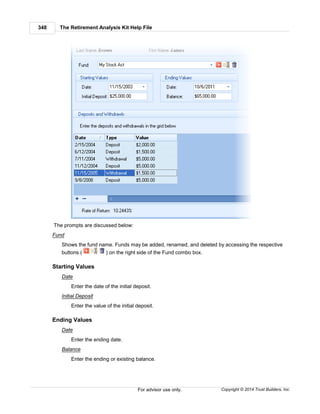
457 36
- 7 -
72(t) 29, 30
- 9 -
90-24 31
9024 Lump Sum Transfer 204
- A -
Account Balance 189
Account Distributions 194
account principal 49
Account Value 194
Accounts 148
Accounts at retirement 148
accumulate balance 190
Accumulation 164, 268
Add account 109
Additional Funds 95
additional savings 82
Additional Years of Service 95
Amortization 29
Analysis Accounts at Retirement 323
Analysis Average Values 322
Analysis General Values 321
Analysis Retirement Years 313
Analysis Savings Analysis 319
Annual Increase 49, 200
Annual Minimum distribution 109
Annuitize 163
Annuity 29
Annuity Comparison Calculator 31
annuity illustration 216
Annuity Rate 31
Applicable Interest Rate 30
Approach the sale 243
Archives 389
Asset Allocation 32
Assumptions 66
Average Values 147
- B -
Batch gap 34
Batch Gap report 52, 56
Batch Gap Reporting 51
Batch Paycheck 34, 48
Batch Paycheck report 40, 49
Batch Paycheck Reporting 36
Batch Process 38
Batch Processing 392
Branding Reports 405, 470
Breaks in service 214
Bug Reports 15
- C -
Calculate 186, 188, 191, 194
Calculate Income 30
Calculate Social Security 471
Calculation 134, 140, 153
Calculation method 86
Calculations 124, 163, 207, 208, 216, 241, 291,
307
Calculator 29, 34, 65, 68, 184, 209, 265
Calculators 242
cash accounts 148, 166
catastrophic health event 166
Change in pay 40
Chart 140, 367, 369, 370, 371, 372
Chart Options 56
Client 86, 377, 378, 379, 380, 381
client and spouse 81
Client and Spouse Data Input 285
Client and Spouse Data Input 2 293, 295
Client and spouse retirement plan 89
Index 475
Copyright © 2014 Trust Builders, Inc.
client data 68
Client information 209, 210
Client Menu 439
Client Primary Option Calculated Values 313
Client reports 34
Client Various Options Values 309
client/quick note 68
COLA 56
College cost 67
College cost method 66
College expenses 66
College funding 65, 67, 68
College funding Calculator 66
college investments 66
College savings balance 66
Common Questions 268, 469, 470, 471
Company logo 405
compounding 56
configuration 52
Configure 470
Configuring Social Security 285
contribution 40, 43
Contribution Method 109
Contributions 36, 210, 214, 215
Copy Client data 471
cost method 67
cost to wait 38, 48, 65
cost-of-living 56
Create 378
CSRS 79, 95, 97, 101
CSRS Offset 101
Current account value 185, 207, 208
Current Contributions 209
custom fields 68
Custom Plans 90
Custom Retirement Plans 454
- D -
Data 409
Data Entry 67, 247
Data Errors 81
Data input 81, 82, 90, 97, 262
Database 69, 434
Database Program 68
Database server 471
Date entered plan 90
DB Buyback comparison 153
DB Buy-Back Comparison 79
DB Plans 135
DC plan 139
Debt Analyzer 75
Calculations 78
Data Input 76, 77
Defined benefit 134, 135, 153
Defined benefit account tab 56
Defined benefit plans 95
Defined contribution 134, 139, 148, 167
Defined contribution plan 89
Defined Contribution Plans 90
Defined pensions Client Ret History Screen 214,
293
Delete 380
Deposit 184, 185, 190, 191, 193
Deposit Required to Accumulate 187
difined contribution 166
Disclaimer 406
Distribution 164, 195, 196, 268
Distribution Illust Payouts 197
Distributions 119, 177
- E -
Editing 202
editor 52
Employee contributions 215
Employer 228
Employer contributions 90
Employer File 439, 440
Employer File Retirement Plan Information 442
employer match 40
Employer Matching 248
Employer rates 43
Employer Roth Matching 461
entry 262
Explanation of the calculator/prompts 183
Export Client data 471
Exporting Client Data 74
- F -
FAQ 166, 335
Federal 1040 248
Federal Long Term Care Insurance 156
Federal LTC 156
Federal Plans 89, 149
The Retirement Analysis Kit Help File476
Copyright © 2014 Trust Builders, Inc.
Federal taxation 85
Federal Withholding 238, 270
FEGLI 79, 149
FERS 79, 95, 97, 101
File Backup 409
File Import Terminology 430
Filtering Clients 69, 71
Frequently Asked Questions 166
1040 260
Full Page Option 202
fund 191
funding 57
Funding threshold 57
Future Value 193
Future Value Calculate the Payment 187
Future Value Calculations 195
Future Value Data Input 184
Future Value Examples 185
Future Value Interest Rate Required 188
Future Value Level Deposits 191, 192
Future Value Of A Lump Sum 191
Future Value Overview 183
Future Value Rate Of Return Between Periods 189
- G -
Gap Analaysis 166
Gap Analysis 79, 81, 82, 85, 86, 89, 124, 177, 396,
398, 399, 400, 402, 403
Gap Analysis Calculator 109
Generagl Values 147
General Values 147
Getting Started 14
Grid 202
Group 34
group based filtering 69
- H -
Historical Rates 30
historical values 106
How to change the withholding tax year 243
- I -
Illustrate catastrphic health care event 173
Illustration 29, 33, 36, 40, 48, 49, 51, 56, 57, 68,
101, 140, 206, 208, 214, 266, 367, 369, 370, 371,
372
Illustrations 166, 241
Import 34, 412, 414, 415, 417, 419, 420, 423, 424,
425, 426, 427, 429, 434, 435, 436, 437
Income 36
Income increase 196
Inflation 54, 145, 196
Interest Rate 31, 184, 185, 189, 194, 199
IRA 29
- K -
Known Balance 30
Known Income 303
Known Income Accounts 109, 116
- L -
lattered annuity illustrations 216
life expectancy 29, 49
Life Insurance Needs calcualtor 203
Life Insurance Needs Illsustratoin 203
Life Insurance Needs Software 203
Limit eligibility 214
Limit on Voluntary Contribution 209
Load 379
Loan 200
Loan Repayment 200
Loan Values 199
Loans 194, 199
LTC Insurance 156
Lump Sum 186, 305
Lump Sum Accounts 109, 118
Lump Sum calculations 206
- M -
MAC Calculations Button 216
MAC Calculator 209
MAC Calculator Screen 1 210
MAC Calculator Screen 2 402g limit 214
MAC Calculator Screen 4 Employer Matching 215
MAC Retirement System 213
Maximum increase threshold 57
Medicare 238
Menu Bar 377
Index 477
Copyright © 2014 Trust Builders, Inc.
Method for calculating need 119
Money 195
Mortgage Acceleration 200
multi tier split annuity 216
Multi-Tier Split Annuity 402
- N -
New 378
number of years 185, 190, 194, 199
- O -
Other Accounts 81, 109, 116, 118, 296
over funding 57
Overview 134
- P -
Paycheck 34, 36, 38, 248, 403
Paycheck Calculator 223, 234, 235, 238, 240, 247,
452
Paycheck Data Input 228
Paycheck Illustration 125 Account 246
Paycheck Illustration Net vs Gross 243
Paycheck Illustration Raise in Take Home Pay 244
Paycheck Illustration Redirect After-Tax Deductions
to a TSA 245
Paycheck Illustration Reduce Take Home Pay 245
Paycheck Illustration Show a specific TSA deposit
246
Paycheck Introduction to Paycheck Program 240
Paycheck Overview 225
Paycheck Projections 261
Paycheck Solve-It 240
Paycheck Summer Pay 234, 452
Paycheck Tab 40
Paycheck What-Ifs 243
Payment 200
payment frequency 66
Payments 195
Payout 38, 49
Payout method 177
Payout Methods 49, 163, 306
Pension Data Input 1 283
Pension Max 149
Pension Maximization 323
Percent of calculated value 86
percent of income needed 57
Percent of Paycheck 184
Periodic Payments 29
Plan Type Names 247
Portfolio 33
Pre-defined plan 90
Premium Bonus 208
Pre-tax contributions 215
Primary Option Calculation 135
Print 73, 389
Printing 405
Printing reports 382
Private pension plans 89
Product Comparison Calculator 279
Projection 43, 48, 49, 266
Projections 38
- Q -
Questionnaire 32
questions 166
Quick Gap 79
Quick Gap Calculator 149, 166
Quick Max 40, 235, 240, 268, 269, 270
Quick Note 381
- R -
rate of inflation 49
Rate of Return 188, 194, 347
Rates 43
Rates of Return 43, 49, 54, 106
Reload Software 470
report 34, 36, 51
Report Configuration 38
Report Layout 38
reports 73
Request new features 470
Required Minimum Distributions 349
Reset Calculations 242
Restore 409
Retirement 54, 285
retirement age 57
Retirement contribution 213
Retirement Income 81, 119
Retirement investment accounts 148
Retirement Investments 298
The Retirement Analysis Kit Help File478
Copyright © 2014 Trust Builders, Inc.
Retirement plan 81, 89, 97
Retirement Software 101
Retirement System 209
Retirement Years 140, 342
Risk tolerance 32
Rollover Lump Sum Transfer 204
Roth Account 461
Roth Conversion 351
Roth Conversion Calculations 354, 355, 357
Roth Conversion Graphic Illustrations 354
Roth Conversion Illustrations 354
Roth Conversion Illustratoin 351
Roth Conversion Numerical Analysis Illustrations
357
Roth Conversion Software 351
Roth Conversion Story BoardIllustrations 355
Roth IRA Conversion 351
Roth IRA Conversion Data 352
Roth IRA Conversion Software 352
- S -
savings 65, 187
savings accounts 109, 148
Savings Solutions 145
Settings 52, 54
Setup 82
Setup Database 465
Setup Employer 396
Setup MAC 402
Setup Pension 396, 399
Setup System 390
Shortfall 145
Shortfall transparency 56
Side Fund 82, 166, 167, 336, 337
Social Security 54, 57, 86, 166, 178, 291
Social Security Calculation 61, 178, 291, 342, 471
split annuity 217
split annuity calculation 217
split annuity calculator 216
split annuity illustration 217
Spouse 86
State pension plans 89
State Plans 90
state taxation 85
State Withholding 238, 270
stepped annuity illustratoin 217
Stretch IRA 363
Student 65
students 67
Summer Pay 234, 452
Surrender Fee 207
- T -
Tax Deferral 373
tax tier 82
Tax Wise Distribution Strategy 79, 85, 164
Taxation 40, 81, 85, 164, 445
Terminology 419
Thrift Savings Plan 101
tiered annuity illustration 217
TRAK Programs 29
Transer Client Data 469
TSP 101, 106
tuition 67
- U -
Unknown Value 184
- V -
Value 195, 196
Values 216
Various Rates of Inflation 145
View Charts 241
Visible Fields 440
- W -
What ifs 124
What-If 31
Windfall Elimination Calculation 61, 178, 291, 342,
471
Withdrawals 195
Withholding Tax 40
Withholding Tax Table Year 247
Withholding Taxes 235, 238
- Y -
Years 43, 48
Years of Service 213
Endnotes 2... (after index)
479
Copyright © 2014 Trust Builders, Inc.
Back Cover

TRAK (The Retirement Analysis Kit) Users Manual

  • 1.
    Copyright © 2014Trust Builders, Inc. The Retirement Analysis Kit Help File
  • 2.
    Ask TRAK Answers forhealthier retirements. by Trust Builders, Inc. The Retirement Analysis Kit is about educating the participant about their scenario. It allows them to see their retirement planning scenarios quickly and vividly. When they become educated, they will appreciate the information the advisor has given them. They will trust them. TRAK is the leading edge education tool for working with clients.
  • 3.
    All rights reserved.No parts of this work may be reproduced in any form or by any means - graphic, electronic, or mechanical, including photocopying, recording, taping, or information storage and retrieval systems - without the written permission of the publisher. Products that are referred to in this document may be either trademarks and/or registered trademarks of the respective owners. The publisher and the author make no claim to these trademarks. While every precaution has been taken in the preparation of this document, the publisher and the author assume no responsibility for errors or omissions, or for damages resulting from the use of information contained in this document or from the use of programs and source code that may accompany it. In no event shall the publisher and the author be liable for any loss of profit or any other commercial damage caused or alleged to have been caused directly or indirectly by this document. Printed: May 2014 in Dallas, Oregon. The Retirement Analysis Kit Help File Copyright © 2014 Trust Builders, Inc. Publisher Special thanks to: You. Our users are the key to our success. Here is a hearty "THANK YOU!" from us to you. Trust Builders, Inc. exists today because of you. Without your faithful patronage, including renewing, promoting and recommending new features, we would not be where we are today. We appreciate the hard work and effort your job is. We strive to help you be more successful in educating your clients and be efficient in providing them meaningful information. So keep on using TRAK, telling others about us, and letting us know what features you want We will do our best to keep you enjoying the product you are using. Sincerely, Edward Dressel Dressel@AskTRAK.com President Trust Builders Inc. Managing Editor General Editor Cover Designer Trust Builders, Inc. PO Box 1088 Dallas, Oregon 97338 p: 503-831-1111 f: 877-718-2693 Edward Dressel Suzanne Evers Justin Martin
  • 4.
    The Retirement AnalysisKit Help File4 Copyright © 2014 Trust Builders, Inc. Table of Contents Foreword 0 Part I Getting Started 14 ............................................................................................................................................ 141 Working with Client Files ............................................................................................................................................ 152 Conventions ............................................................................................................................................ 153 Bug Reports ............................................................................................................................................ 154 Registering TRAK ............................................................................................................................................ 165 Requesting a New Feature ............................................................................................................................................ 176 Ribbon Bar Primer ............................................................................................................................................ 197 Ribbon Bar Configuration ............................................................................................................................................ 208 Working with Docking Panels Part II New Features in TRAK 23 Part III TRAK Programs 29 ............................................................................................................................................ 291 72(t )- Pre 59 1/2 Qualified Plan Distributions ............................................................................................................................................................................ 3072(t) Input ............................................................................................................................................ 312 Annuity Comparison Calculator ............................................................................................................................................ 323 Asset Allocation ............................................................................................................................................................................ 33Portfolios ............................................................................................................................................ 344 Batch Processing ............................................................................................................................................................................ 36Contribution Analysis Reporting .............................................................................................................................................................. 38Report Layout Editor ........................................................................................................................................................... 40Paycheck Tab ........................................................................................................................................................... 43Accumulation Tab ........................................................................................................................................................... 48Cost to Wait Tab ........................................................................................................................................................... 49Payout Tab ............................................................................................................................................................................ 51Batch Gap Reporting .............................................................................................................................................................. 52Batch Gap Report Configuration Editor ........................................................................................................................................................... 54Settings Tab ........................................................................................................................................................... 54Retirement Age ........................................................................................................................................................... 55Social Security Tab ........................................................................................................................................................... 55Roth Account Tab ........................................................................................................................................................... 56Defined Benefit Account Tab ........................................................................................................................................................... 56Chart Options Tab ........................................................................................................................................................... 57Contribution Change Threshhold ........................................................................................................................................................... 59Participant Benchmark ........................................................................................................................................................ 59Options ........................................................................................................................................................ 59Charts ........................................................................................................................................................ 60Data Ranges ............................................................................................................................................................................ 60Participant Benchmark ............................................................................................................................................................................ 61Frequently Asked Questions .............................................................................................................................................................. 61Calculating Social Security .............................................................................................................................................................. 62Importing Data
  • 5.
    5Contents 5 Copyright © 2014Trust Builders, Inc. .............................................................................................................................................................. 63Raises .............................................................................................................................................................. 64Explain "Unable to complete calculation..." .............................................................................................................................................................. 64Other Accounts in the Batch Gap Calculator ............................................................................................................................................................................ 64Group Set Editor ............................................................................................................................................ 655 College Funding ............................................................................................................................................................................ 66Data Entry: Assumptions ............................................................................................................................................................................ 67Data Entry: Students ............................................................................................................................................................................ 68Calculations ............................................................................................................................................ 686 Database Program ............................................................................................................................................................................ 69Filtering the Client List .............................................................................................................................................................. 71Simple Example .............................................................................................................................................................. 71Advanced Example ............................................................................................................................................................................ 73Printing Reports ............................................................................................................................................................................ 74Exporting Data ............................................................................................................................................ 757 Debt Analyzer ............................................................................................................................................................................ 76Data Input ............................................................................................................................................................................ 77Entering Outstanding Debts ............................................................................................................................................................................ 78Calculations ............................................................................................................................................ 798 Gap Analysis ............................................................................................................................................................................ 81Data Input Tabs .............................................................................................................................................................. 82Setup Tab .............................................................................................................................................................. 85Taxation .............................................................................................................................................................. 86Client and Spouse Tabs .............................................................................................................................................................. 89Client and Spouse Retirement Plan tabs ........................................................................................................................................................... 90Defined Contribution Plans ........................................................................................................................................................... 95Defined Benefit Plans ........................................................................................................................................................... 97FERS and CSRS Plans ........................................................................................................................................................... 100Custom Retirement Plan Prompts .............................................................................................................................................................. 101TSP/Federal Savings Plan Tabs ........................................................................................................................................................... 101TSP Contribution ........................................................................................................................................................ 106TSP Historical Data ........................................................................................................................................................... 108Federal Savings Plan .............................................................................................................................................................. 109Other Accounts ........................................................................................................................................................... 109Savings Accounts ........................................................................................................................................................... 116Known Income Accounts ........................................................................................................................................................... 118Lump Sum Accounts .............................................................................................................................................................. 119Retirement Income Tab ............................................................................................................................................................................ 124Calculations Tab .............................................................................................................................................................. 124Navigation and Scenarios ........................................................................................................................................................... 125Navigator ........................................................................................................................................................... 128Scenario Editor .............................................................................................................................................................. 132Calculation Pages ........................................................................................................................................................... 134Overview ........................................................................................................................................................ 135DB Plans ........................................................................................................................................................ 137Configuring the DB Options Grid ........................................................................................................................................................ 139DC Plans ........................................................................................................................................................... 140Retirement Years ........................................................................................................................................................ 140Chart ........................................................................................................................................................ 142Display Options ........................................................................................................................................................ 143Chart Configuration ........................................................................................................................................................ 144Grid ........................................................................................................................................................ 144Grid Options ........................................................................................................................................................... 145Retirement Solutions
  • 6.
    The Retirement AnalysisKit Help File6 Copyright © 2014 Trust Builders, Inc. ........................................................................................................................................................ 146Configuration Options ........................................................................................................................................................... 147General Values ........................................................................................................................................................... 147Average Values ........................................................................................................................................................ 148Chart Options ........................................................................................................................................................... 148Accounts at Retirement ........................................................................................................................................................... 149Pension Max ........................................................................................................................................................... 149FEGLI ........................................................................................................................................................... 153DB Buyback Comparison ........................................................................................................................................................... 154Account Accumulation ........................................................................................................................................................ 155Chart ........................................................................................................................................................ 155Grid ........................................................................................................................................................... 156Federal LTC Insurance ........................................................................................................................................................... 157DB Option Cost Analysis ........................................................................................................................................................... 158Option Values at Various Ages ........................................................................................................................................................ 159GACalcOptionValuesAtAgesOptions ........................................................................................................................................................... 159TSP Account Summary ........................................................................................................................................................... 162Retirement Budget .............................................................................................................................................................. 162Quick Change Toolbars ............................................................................................................................................................................ 163Payout Methods ............................................................................................................................................................................ 164Tax Wise Distribution Strategy ............................................................................................................................................................................ 166Frequently Asked Questions .............................................................................................................................................................. 166Understanding the Side Fund .............................................................................................................................................................. 167Why is the Side Fund used? .............................................................................................................................................................. 172Working with No Retirement Plan .............................................................................................................................................................. 173Illustrate a Catastrophic Health Event .............................................................................................................................................................. 177Controlling Distributions .............................................................................................................................................................. 178Calculating Social Security .............................................................................................................................................................. 179Disabled Tabs .............................................................................................................................................................. 180Printing the Retirement Years Grid in Landscape .............................................................................................................................................................. 182Understanding California PERS .............................................................................................................................................................. 183FERS Supplement ............................................................................................................................................ 1839 Interest Calculator ............................................................................................................................................................................ 184Future Value Calculation ............................................................................................................................................................................ 185Future Value Examples .............................................................................................................................................................. 186Lump Sum Required .............................................................................................................................................................. 187Deposit Required to Accumulate a Specific Amount .............................................................................................................................................................. 188Rate of Return Required .............................................................................................................................................................. 189Rate of Return Earned .............................................................................................................................................................. 190Number of Years to Accumulate Balance .............................................................................................................................................................. 191Future Value of a Lump Sum Deposit .............................................................................................................................................................. 191Future Value of Level Deposits .............................................................................................................................................................. 192Future Value of Increasing Deposits .............................................................................................................................................................. 193Future Value of Increasing Deposits With a Break in Deposits ............................................................................................................................................................................ 194Account Distributions and Loans ............................................................................................................................................................................ 195Distribution Examples .............................................................................................................................................................. 195How long will the money last? .............................................................................................................................................................. 196Retirement Income Increasing by Inflation .............................................................................................................................................................. 197Distribution Illustration Payouts ............................................................................................................................................................................ 199Loan Examples .............................................................................................................................................................. 199Loan Value .............................................................................................................................................................. 200Mortgage Acceleration .............................................................................................................................................................. 200401(k)/TSA 5 Year Loan Repayment ............................................................................................................................................................................ 202Editing Data in the Grid ............................................................................................................................................................................ 202"Full Page" Option
  • 7.
    7Contents 7 Copyright © 2014Trust Builders, Inc. ............................................................................................................................................ 20310 Life Insurance ............................................................................................................................................ 20411 Lump Sum Transfer ............................................................................................................................................................................ 204Data Input ............................................................................................................................................................................ 206Lump Sum Calculations ............................................................................................................................................................................ 207Examples .............................................................................................................................................................. 2075% Surrender Fee .............................................................................................................................................................. 208Premium Bonus ............................................................................................................................................ 20912 MAC Calculator ............................................................................................................................................................................ 210Client Information ............................................................................................................................................................................ 213Retirement System .............................................................................................................................................................. 214Breaks in Service ............................................................................................................................................................................ 214402(g)(7) Limit ............................................................................................................................................................................ 215Current Contributions ............................................................................................................................................................................ 216Calculations ............................................................................................................................................ 21613 Multi-Tier Split Annuity ............................................................................................................................................................................ 217Data Entry .............................................................................................................................................................. 220Configuration ............................................................................................................................................................................ 221Calculations ............................................................................................................................................ 22314 Paycheck Calculator ............................................................................................................................................................................ 225Paycheck Overview .............................................................................................................................................................. 228Data Input ........................................................................................................................................................... 232Paycheck Configure Button ........................................................................................................................................................... 234Summer Pay .............................................................................................................................................................. 235Calculations .............................................................................................................................................................. 238Solving for Withholding Taxes .............................................................................................................................................................. 240Other Features ........................................................................................................................................................... 240Solve-It Button ........................................................................................................................................................... 241View Charts ........................................................................................................................................................... 242Reset Calculations .............................................................................................................................................................. 243Paycheck "How To's" ........................................................................................................................................................... 243Approach the Sale ........................................................................................................................................................... 244Show the Effect of a Raise ........................................................................................................................................................... 245Reduce Take Home Pay ........................................................................................................................................................... 245Redirect After-Tax Deductions to a 401(k)/TSA ........................................................................................................................................................... 246Redirect After-Tax Deductions to a Sec 125 Plan ........................................................................................................................................................... 246Show a Specific 401(k)/TSA Deposit ........................................................................................................................................................... 247Changing Withholding Tax Table Year ........................................................................................................................................................... 247Changing the Plan Type Names ........................................................................................................................................................... 248Setup Employer Matching ............................................................................................................................................................................ 248Federal 1040 .............................................................................................................................................................. 249Data Input .............................................................................................................................................................. 2551040 Calculations ........................................................................................................................................................... 255Federal 1040 Calculations Paycheck ........................................................................................................................................................... 257Federal 1040 Calculated Returns .............................................................................................................................................................. 260Printing .............................................................................................................................................................. 260Frequentyly Asked Questions ............................................................................................................................................................................ 261Projections .............................................................................................................................................................. 262Data Input .............................................................................................................................................................. 265Accumulation & Distribution Charts .............................................................................................................................................................. 266Accumulation & Distribution Grids .............................................................................................................................................................. 268Cost to Wait ............................................................................................................................................................................ 268Common Questions
  • 8.
    The Retirement AnalysisKit Help File8 Copyright © 2014 Trust Builders, Inc. .............................................................................................................................................................. 268Understanding "Quick Max" .............................................................................................................................................................. 269How to Use "Quick Max" .............................................................................................................................................................. 270How to Hide the "Quick Max" Column .............................................................................................................................................................. 270Matching Federal and State Withholding Taxes ............................................................................................................................................ 27015 Pension Max ............................................................................................................................................................................ 271Data Entry ............................................................................................................................................................................ 274Calculations .............................................................................................................................................................. 274Overivew Tab .............................................................................................................................................................. 276Cash Flow Analysis-Chart Tab .............................................................................................................................................................. 277Cash Flow Analysis-Grid Tab .............................................................................................................................................................. 277Cost of Option-Chart Tab .............................................................................................................................................................. 278Cost of Option-Grid .............................................................................................................................................................. 278Life Insurance Values Tab ............................................................................................................................................................................ 279Understanding Cash Flow ............................................................................................................................................ 27916 Product Comparison Calculator ............................................................................................................................................................................ 280Data Input ............................................................................................................................................................................ 281Calcuations ............................................................................................................................................ 28317 Quick Gap Analysis ............................................................................................................................................................................ 284Overview ............................................................................................................................................................................ 285Data Entry .............................................................................................................................................................. 285Client /Spouse Data Input ........................................................................................................................................................... 291Calculating Social Security ........................................................................................................................................................... 293Breaks in Service ........................................................................................................................................................... 293Defined Contribution Retirement Plans ........................................................................................................................................................... 295Defined Benefit Retirement Plans ........................................................................................................................................................... 296Custom Retirement Plan Prompts .............................................................................................................................................................. 296Other Accounts ........................................................................................................................................................... 298Retirement Investments ........................................................................................................................................................... 303Known Income Accounts ........................................................................................................................................................... 305Lump Sum Accounts ............................................................................................................................................................................ 306Payout Methods ............................................................................................................................................................................ 307Calculations Screens .............................................................................................................................................................. 308Overview ........................................................................................................................................................... 309DB Plans ........................................................................................................................................................ 311Configuring the DB Options Grid ........................................................................................................................................................... 313DC Plans .............................................................................................................................................................. 313Retirement Years ........................................................................................................................................................... 314Chart ........................................................................................................................................................ 316Display Options ........................................................................................................................................................ 317Chart Configuration ........................................................................................................................................................... 318Grid ........................................................................................................................................................ 318Grid Options .............................................................................................................................................................. 319Retirement Solutions ........................................................................................................................................................... 320Configuration Options .............................................................................................................................................................. 321General Values .............................................................................................................................................................. 322Average Values ........................................................................................................................................................... 322Chart Options .............................................................................................................................................................. 323Accounts at Retirement .............................................................................................................................................................. 323Pension Maximization ........................................................................................................................................................... 324Data Entry ........................................................................................................................................................... 327Calculation Tabs ........................................................................................................................................................ 327Overivew Tab ........................................................................................................................................................ 328Cash Flow Analysis-Chart Tab
  • 9.
    9Contents 9 Copyright © 2014Trust Builders, Inc. ........................................................................................................................................................ 329Cash Flow Analysis-Grid Tab ........................................................................................................................................................ 330Cost of Option-Chart Tab ........................................................................................................................................................ 330Cost of Option-Grid ........................................................................................................................................................ 330Life Insurance Values Tab ........................................................................................................................................................... 331Overview of Various Options .............................................................................................................................................................. 331Account Accumulation ........................................................................................................................................................... 332Chart ........................................................................................................................................................... 332Grid .............................................................................................................................................................. 333DB Option Cost Analysis .............................................................................................................................................................. 334Option Values at Various Ages ........................................................................................................................................................... 335QuickGapOptionsAtAgesOptions ............................................................................................................................................................................ 335Frequently Asked Questions .............................................................................................................................................................. 336Understanding the Side Fund .............................................................................................................................................................. 337Understanding why the Side Fund is Used .............................................................................................................................................................. 341Working with No Retirement Plan .............................................................................................................................................................. 342Controlling Distributions .............................................................................................................................................................. 342Calculating Social Security .............................................................................................................................................................. 344Missing retirement plans .............................................................................................................................................................. 344Printing the Retirement Years Grid in Landscape .............................................................................................................................................................. 346Understanding California PERS ............................................................................................................................................ 34718 Rate of Return ............................................................................................................................................ 34919 Required Minimum Distributions ............................................................................................................................................................................ 349Data Input ............................................................................................................................................................................ 351Calculations ............................................................................................................................................ 35120 Roth Conversion ............................................................................................................................................................................ 352Data ............................................................................................................................................................................ 354Roth Conversion Calculations .............................................................................................................................................................. 354Roth Conversion Graphics .............................................................................................................................................................. 355Roth Conversion Story Board .............................................................................................................................................................. 357Roth Conversion Numbers ............................................................................................................................................................................ 357Roth Conversion FAQs ............................................................................................................................................ 35721 Strategic Social Security ............................................................................................................................................................................ 358Data Entry ............................................................................................................................................................................ 359Select Scenarios ............................................................................................................................................................................ 362Scenario Comparison ............................................................................................................................................ 36322 Stretch IRA ............................................................................................................................................................................ 364Data Input ............................................................................................................................................................................ 367Calculations .............................................................................................................................................................. 367Overview Chart .............................................................................................................................................................. 369Grid Overview .............................................................................................................................................................. 370Flow Chart .............................................................................................................................................................. 371Account Distribution .............................................................................................................................................................. 372Account Values vs. Distribution ............................................................................................................................................ 37323 Tax Deferral Part IV TRAK's Ribbon Tabs 377 ............................................................................................................................................ 3771 File Tab ............................................................................................................................................................................ 378New ............................................................................................................................................................................ 379Load ............................................................................................................................................................................ 380Modify ............................................................................................................................................................................ 380Delete
  • 10.
    The Retirement AnalysisKit Help File10 Copyright © 2014 Trust Builders, Inc. ............................................................................................................................................................................ 381Quick Note ............................................................................................................................................................................ 381Help and Support ............................................................................................................................................................................ 382Print .............................................................................................................................................................. 385E-mailing Reports to a Client .............................................................................................................................................................. 386Configure Options .............................................................................................................................................................. 388Custom Printer Configuration ............................................................................................................................................................................ 389Print Archives ............................................................................................................................................................................ 390Config .............................................................................................................................................................. 392Agent .............................................................................................................................................................. 392Batch Processes ........................................................................................................................................................... 392Config ........................................................................................................................................................... 393Printing .............................................................................................................................................................. 393Charts .............................................................................................................................................................. 394College Types .............................................................................................................................................................. 394Custom Fields .............................................................................................................................................................. 395Default Values .............................................................................................................................................................. 396Employer .............................................................................................................................................................. 396Gap Analysis ........................................................................................................................................................... 396Calculator ........................................................................................................................................................... 397Federal Plans ........................................................................................................................................................... 398Pension Max ........................................................................................................................................................... 398Rename Plans ........................................................................................................................................................... 398Retirement Budget ........................................................................................................................................................... 399Retirement Income Models ........................................................................................................................................................... 399Retirement Plans ........................................................................................................................................................... 400Retirement Tax Tables .............................................................................................................................................................. 402Look and Feel .............................................................................................................................................................. 402MAC .............................................................................................................................................................. 402Multi-Tier Split Annuity .............................................................................................................................................................. 403Paycheck ........................................................................................................................................................... 403Paycheck Options ........................................................................................................................................................... 404Paycheck Lists Options ........................................................................................................................................................... 404Paycheck Projection Options .............................................................................................................................................................. 405Printing ........................................................................................................................................................... 405Archiving ........................................................................................................................................................... 405Branding ........................................................................................................................................................... 405Config ........................................................................................................................................................... 406Cover Disclaimer .............................................................................................................................................................. 406System ........................................................................................................................................................... 406System Bug Reports ........................................................................................................................................................... 407System Miscellaneous .............................................................................................................................................................. 408Updates .............................................................................................................................................................. 408Word Lists ............................................................................................................................................................................ 408Backup & Restore .............................................................................................................................................................. 409Backup to File .............................................................................................................................................................. 409Restore from File ............................................................................................................................................................................ 411TRAK Documents & Tools ............................................................................................................................................................................ 412Import/Export .............................................................................................................................................................. 412Import Clients ........................................................................................................................................................... 412Import Wizard ........................................................................................................................................................ 413Welcome ........................................................................................................................................................ 414File Type ........................................................................................................................................................ 414File Name ........................................................................................................................................................ 415Text File Settings
  • 11.
    11Contents 11 Copyright © 2014Trust Builders, Inc. ........................................................................................................................................................ 417Data Formats ........................................................................................................................................................ 419Employer File ........................................................................................................................................................ 419Column Settings ........................................................................................................................................................ 420Field Associations ........................................................................................................................................................ 423Data Conversion ........................................................................................................................................................ 424Default Values ........................................................................................................................................................ 425Preview Data ........................................................................................................................................................ 426Group Name ........................................................................................................................................................ 427Import Action ........................................................................................................................................................ 427Data Merge Config ........................................................................................................................................................ 429Finshed ........................................................................................................................................................... 430Import Terminology ........................................................................................................................................................... 431Common Questions ........................................................................................................................................................ 431Fields to Import ........................................................................................................................................................ 432Editing Client Data ........................................................................................................................................................ 432Merging Data ........................................................................................................................................................ 433Excel Template .............................................................................................................................................................. 433Import from TRAK Database ........................................................................................................................................................... 434Database to Load From ........................................................................................................................................................... 434Client List ........................................................................................................................................................... 435Employer Files ........................................................................................................................................................... 436Group Data ........................................................................................................................................................... 437Import Data ............................................................................................................................................ 4382 Home Tab ............................................................................................................................................ 4393 Setup Tab ............................................................................................................................................................................ 439Employer File Editor .............................................................................................................................................................. 440Visible Fields Tab .............................................................................................................................................................. 442Retirement Plans Tab .............................................................................................................................................................. 445Taxation Tab ........................................................................................................................................................... 447FICA and Medicare Tax ........................................................................................................................................................... 447Additional Income ........................................................................................................................................................... 448State Witholding Tax ........................................................................................................................................................... 449Local Taxes .............................................................................................................................................................. 451Miscellaneous Tab ........................................................................................................................................................... 452Summer Pay ............................................................................................................................................................................ 454Custom Retirement Plans .............................................................................................................................................................. 456Contribution Limits .............................................................................................................................................................. 457Employer Contributions .............................................................................................................................................................. 461Roth Account .............................................................................................................................................................. 462Account Configuration ............................................................................................................................................................................ 462Configuration Wizard ............................................................................................................................................................................ 463Group Editing ............................................................................................................................................................................ 464Check for Update ............................................................................................................................................................................ 465Database ............................................................................................................................................ 4654 Quick Tool Menu ............................................................................................................................................ 4655 Appearance Part V Frequently Asked Questions 469 ............................................................................................................................................ 4691 Transfer Client Data to a New Computer ............................................................................................................................................ 4702 Reload the Software after a Hard Drive Crash or Virus ............................................................................................................................................ 4703 Configuring Toolbars
  • 12.
    The Retirement AnalysisKit Help File12 Copyright © 2014 Trust Builders, Inc. ............................................................................................................................................ 4704 Brand Reports ............................................................................................................................................ 4705 Request New Features ............................................................................................................................................ 4716 Export Client Data ............................................................................................................................................ 4717 Using a Database Server ............................................................................................................................................ 4718 Copy client data ............................................................................................................................................ 4719 Calculating Social Security ............................................................................................................................................ 47310 Print Button Disabled ............................................................................................................................................ 47311 Missing Pension Plans Index 474
  • 13.
  • 14.
    The Retirement AnalysisKit Help File14 Copyright © 2014 Trust Builders, Inc.For advisor use only. 1 Getting Started Congratulations! You now own the most powerful tools available for demonstrating the benefits of proper retirement planning. Education is the heart of TRAK -- quickly and vividly showing the client how their financial scenario relates to retirement, both their assets and needs. Below are a few links for getting started (e.g. how to register TRAK), then jump right to the program you want to learn. Note that you do not need to know how to use all of TRAK features before getting started. TRAK users only need proficiency in the features that encompass the needs of their client base. Getting Started The Retirement Analysis Kit is designed with ease of use in mind! The following links send you directly to explanations of all the different tools available. Registering TRAK Working with Client Files What's New TRAK Programs Entering Agent Information Walking through TRAK's Menu Working with Dock Panels 1.1 Working with Client Files TRAK is an illustration tool for working with clients (plan participants). As such, it stores data for each client. The ribbon bar's File menu: has the options for working with the client files. Proficient knowledge about how TRAK works with the client data files is important to using it successfully. 15 14 23 29 392 377 20
  • 15.
    Getting Started 15 Copyright© 2014 Trust Builders, Inc. For advisor use only. The TRAK calculators (such as the Paycheck and Quick Gap calculators) share client data between calculators. For example, after entering the client's date of birth (DOB) in one calculator, the DOB will be carried to other calculators that require the data. This simplifies data entry and reduces the risk of data-entry errors. 1.2 Conventions Several labeling conventions are followed in this help file. Prompts appear in italic underline. Data input (either selectable or entered data) appears in italic bold-blue. Ribbon bar items and menu items (items that appear in pop-up menus) appear in bold-blue. 1.3 Bug Reports On rare occasions, an error may present itself in a TRAK application. If this unlikely incident occurs, and you have an internet connection, please click on the Upload Bug Report button found at the bottom left of the dialog box. Or, you may choose to print the bug report and fax the first two pages to 1-877-718-2693. What information does the bug report provide Trust Builders? When the bug report is uploaded, it sends Trust Builders a print screen (if the report was uploaded) of all that was happening when the bug occurred; and provides technical information (such as call stack, program up time, program date, etc.). This information can often assist in pinpointing the cause of the problem and speed the solution process. 1.4 Registering TRAK To continue using TRAK after installing the software, it must be registered. Installation of the software to two (2) systems is allowed using the Reference Number provided by email. Note: Each system must be registered separately. You may access your reference number by clicking here. TRAK must be registered within thirty days or it will no longer operate. To register TRAK: 223 283
  • 16.
    The Retirement AnalysisKit Help File16 Copyright © 2014 Trust Builders, Inc.For advisor use only. 1. From the ribbon bar select Setup/Register TRAK." 2. Click the Register button. If TRAK is not registered, a dialog similar to what is below will be displayed. If TRAK is registered, a dialog with text similar to what is below will be displayed. 3. To register TRAK, or to extend the registration, click the "Register" button. (The registration will only be extended when the account server settings are extended). 4. Enter the information requested. Note: The reference number is provided via email once the software is purchased. To request that your reference number be emailed, click here. 5. Enter the required data on the screen. 6. Click the Internet Register button. 7. The Registration Code line will auto-fill. 8. A message will appear stating the successful completion of your registration. Click the "ok" button. 1.5 Requesting a New Feature Many new features in TRAK were developed from ideas generated by advisors from all across the country. If you desire a new feature in TRAK (whether you saw it elsewhere, just heard of it, or even thought of it yourself), let us know! Our program team is always up for a new challenge. Email your idea to Support@AskTRAK.com. Helpful information to include: Where it would fit in TRAK; Why it would be a useful feature; and How it might be implemented. Our goal is to equip TRAK users for success. Thus, all requests submitted by our current user base receive serious consideration.
  • 17.
    Getting Started 17 Copyright© 2014 Trust Builders, Inc. For advisor use only. 1.6 Ribbon Bar Primer While the ribbon may take a short time to learn, we believe it provides an easier, clearer and more modern menu system for navigating TRAK. If you are new to the ribbon bar, a primer is below. Parts of the Ribbon Bar The most common pars of the ribbon bar are shown above. Some notes on each aspect below: 1. The items in the Quick Access Toolbar can be customized for those features that are most commonly used. Right click over any button in a ribbon tab and select "Add to Quick Access Toolbar". The button will then appear in the Quick Access Toolbar. (Similarly, to remove a button, right click over the button in the Quick Access Toolbar and select the "Remove from Quick Access Toolbar"). 2. The Content Tab will be displayed only for calculators that require this item. 3. A "Dialog box launcher" button is displayed for those groups that have customizable features related to the groups of icons.
  • 18.
    The Retirement AnalysisKit Help File18 Copyright © 2014 Trust Builders, Inc.For advisor use only. 4. Enhanced tooltips will be displayed for many items in the ribbon by holding the mouse over the various buttons. 5. On the far right of the ribbon bar, the option to minimize (or expand) the ribbon and to open TRAK's help file is also available.
  • 19.
    Getting Started 19 Copyright© 2014 Trust Builders, Inc. For advisor use only. Navigating the Ribbon Bar with the Keyboard The ribbon bar can be navigated with incredible simplicity using the keyboard. When TRAK is the focused application, tap the "Alt" key. This will make the ribbon bar focused and show the key tips for the top level. (Once keytips are learned, the "Alt" key can be held down and the corresponding keyboard character pressed. For example, pressing "Alt" and "1" will activate the first item in the Quick Access Toolbar). Pressing the character associated keytip will activate that item. 1.7 Ribbon Bar Configuration TRAK's ribbon bar can be configured with personal settings. 1. Minimizing the ribbon bar The ribbon bar can be minimized to only display when a ribbon bar is displayed. In the image below the ribbon bar is displayed normally. In the image below, the ribbon bar is minimized. (The ribbon bar is displayed when a specific tab is selected).
  • 20.
    The Retirement AnalysisKit Help File20 Copyright © 2014 Trust Builders, Inc.For advisor use only. The later reduces screen clutter and allows to maximize screen space when a TRAK calculator is open. (The ribbon bar tabs will expand when they are focused). To configure this, right click over the ribbon bar and select "Minimized Ribbon Bar". (This option is also available on the "Appearance" tab, and in addition on the far right of the ribbon bar, the up or down arrow may be clicked to change the current setting). 2. The order of the "Client Programs" on the "Home" tab can be configured The order of the "Client Programs" (programs for working with clients one-on-one) can be configured. Additionally, which calculators use large buttons (verses small buttons) may also be configured, and if the Quick Access Toolbar is visible. To configure this, select "File"/"Configure" from the ribbon bar (or press the dialog launch button at the bottom-right of the "Programs" ribbon group on the "Home" ribbon tab) and select "Ribbon" in the navigator. 1.8 Working with Docking Panels Throughout TRAK docking panels can be found. The panel tabs are located either on the right side of the window, or for some calculators may be located at the bottom of the window. Typically these contain configuration options for the calculator. They can be accessed by moving the mouse over the tab. The docking panel will automatically be displayed.
  • 21.
    Getting Started 21 Copyright© 2014 Trust Builders, Inc. For advisor use only. Typically, the panel will automatically hide when focus is brought to some other part of TRAK (normally by clicking outside the dock panel). To pin the dock pane so that it will not hide when focus is taken away from the panel, click on the pin button on the right side of the dock panel's header. Conversely, clicking on the pin of a pinned dock panel will unpin it so that it will hide when focus is elsewhere.
  • 22.
  • 23.
    New Features inTRAK 23 Copyright © 2014 Trust Builders, Inc. For advisor use only. 2 New Features in TRAK There are a significant number of new features in TRAK. Below is a summary of the new features. (More details, include updates to specific pension plans, are available in the Readme.txt file found in the application directory). January 2014 Batch Gap Report can be printed in Spanish or English. Gap Analysis Easily create multiple scenarios for printing. Quick Change tool for changing scenario values easily within the Calculation tab.. Gap Analysis and Quick Gap Known income accounts can be jointly owned. General Significant improvements throughout TRAK in quality and depth of features. Multi-Tier Calculator Significant increase in flexibility and features. April 2013 Gap Analysis Ability to create (and print) multiple scenarios easily and quickly. Added budgeting reports. Printing Reports can now be printed in various color schemes (Deluxe version only). Cover page can be selected (Deluxe version only) January 2013 Printing Most reports now include a print-preview visible by pausing the mouse over the name of the specific report. November 2102 Multiple Groups in Batch Processing Multiple groups can be selected in the Batch Processing tool. 128
  • 24.
    The Retirement AnalysisKit Help File24 Copyright © 2014 Trust Builders, Inc.For advisor use only. Printing Reports can be previewed by moving the mouse over the report name. Additionally, the configuration panel on the left can be hidden/displayed when a report is being viewed. Federal 1040 Including/excluding year-to-date values can be easily configured for the 1040 calculator. Added Participant Benchmark Charts Numerous charts have been added to the Participant Benchmark report. Roth Conversion A grid report showing annual values is now available in the Roth Conversion calculator. Custom Retirement Plans Employer contributions can include a specific dollar for each paycheck, or at the end of a month, quarter or year. August 2012 TSP Roth Account for Federal Retirement Plans A TSP Roth account is now included in the Gap Analysis calculator when working with federal pension plans. Contribution Analysis Several options are available to include the Roth account for increased deferrals. June 2012 New Ribbon Tool Navigation is easier and more graphical than before with the new, improved ribbon tool. The ribbon tool includes context tabs (tabs added for specific calculators, e.g. when the Paycheck calculator is open a new tab is also available). Pension Max Added a brand new Pension Maximization calculator. It includes the ability to have multiple term insurance policies in addition to the whole life policy. Participant Benchmark Report A Participant Benchmark Report was added to the Batch Processing tool. Report includes over 10 pages of charts and graphs. Data Sync
  • 25.
    New Features inTRAK 25 Copyright © 2014 Trust Builders, Inc. For advisor use only. Data Sync was added to TRAK to sync data between various computers using TRAK. Public Pension Plans We continue to work hard at improving the breath and depth of our pension plans. We have more pension plans than ever and is more details implemented in the plans, including cash balance options, updated COLA values, DB Plan reports, etc. January 2012 Public Pension Plans A pension plan overview report is now available for printing out with most of the public DB pension plans in the Quick Gap and Gap Analysis calculators. TRAK now includes over 450 public pension plans from across the country that can be used in our Quick Gap and Gap Analysis calculators. We work hard at including options within the pension plans, including cash balance options (viz. DROP, PLOP, PLS, etc) and matching the cost of living models specified in plan documents. Importing The client import tool now provides a log for viewing after the data has been imported. User Interface Improvements General user interface improvements have been made in various TRAK calculators. Paycheck The withholding and 1040 tax tables have been updated for 2012. October 2011 Paycheck, Projection and 1040 Most of the user-interface has been updated for easier use. Features include: Can hide details on withholding taxes; Not all paychecks have to be shown; Local taxes and pension contributions can be named; Animation between tools; Easier to work with spouse's income; and many, many more improvements. Quick Gap Now supports working with Roth accounts or custom DC retirement plans. Gap Analysis and Quick Gap
  • 26.
    The Retirement AnalysisKit Help File26 Copyright © 2014 Trust Builders, Inc.For advisor use only. Added pension plan overview report for many state defined benefit plans. May 2011 Gap Analysis and Quick Gap Updated many pension plans. Added a number of cash balance options to state defined benefit pension plans. Quick Gap Reworked user interface, specifically the data input fields. January 2011 Gap Analysis For most defined benefit plans, the retirement COLA can be overridden. For the federal retirement plans: Added three reports for the Federal Thrift Savings Plan (TSP) account. Added calculation page for getting details on the TSP account. Quick Gap Redesigned the input on the left side of the screen to work with smaller screens. Gap Analysis and Quick Gap The horizontal labels in the Retirement Years chart can now appear red if a shortfall occurs during the calendar year. Many updates and additions to various retirement plans. Custom Retirement Plans "Years of Service Percent Matching" was added for the employer tiered matching options . Employer file FICA and Medicare rates now have system default values that can be configured in File/Config/ Employer and overridden in an employer file. July 2010 Batch Gap The Batch Gap report can now include values for the Roth account. Batch Paycheck (Contribution Analysis) The Batch Paycheck allows contribution values entered to be relative to the current contribution. Printing Specific reports can have customized printer settings. Gap Analysis Updated the Federal Long Term Care Insurance calculations. 460
  • 27.
    New Features inTRAK 27 Copyright © 2014 Trust Builders, Inc. For advisor use only. Quick Gap and Gap Analysis The Quick Gap and Gap Analysis calculators now include the accumulation values. Allow for removing solution illustrations from the Retirement Solutions report. Added the Windfall Elimination Provision option for calculating Social Security. Roth Conversion New Roth Conversion calculator for effectively illustrating a Roth conversion. Tax Deferral Allow for Roth accounts, and only showing the type of accounts that are required. January 2010 Multi-Tier Split Annuity Calculator A new Multi-Tier Annuity calculator has been added to TRAK. Printing The Print Dialog now supports default report selection and the report order may be configured. Batch Gap Scenarios can automatically be altered when illustrations are over funded (e.g. the participant's retirement age can be reduced) or have significant increases in contributions that are not realistic (e.g. retirement age can be increased). Quick Gap and Gap Analysis The calculations in the Quick Gap and Gap Analysis calculators have speed improvements when working with certain retirement plans (specifically, plans with custom prompts and/or custom scripting). 283 79 351 216 382 57 283 79
  • 28.
  • 29.
    TRAK Programs 29 Copyright© 2014 Trust Builders, Inc. For advisor use only. 3 TRAK Programs TRAK programs are tools for illustrating to clients their various financial options. Following is a list of TRAK's programs. Click on the specific tool for more information. 72(t) Annuity Comparison Asset Allocation Batch Processing College Funding Database Debt Analysis Gap Analysis Interest Calculator Lump Sum Transfer (Rollover) Maximum Allowable Contribution Multi-Tier Split Annuity Paycheck Pension Max Product Comparison Quick Gap Analysis Rate of Return Required Minimum Distribution Roth Conversion Strategic Social Security Stretch IRA Tax Deferral Comparison 3.1 72(t )- Pre 59 1/2 Qualified Plan Distributions Purpose The 72(t) Calculator illustrates the various methods for taking penalty-free withdrawals from a qualified plan. How to withdraw funds from an IRA before 59 ½ without a tax penalty: Use the IRS Code Section 72(t)(2)(a)(iv). You can avoid the 10% penalty if you take "substantially equal periodic payments." To take a series of "substantially equal" payments from your IRA without a tax penalty you must withdraw money at least once a year, and withdrawals must 29 31 32 34 65 68 75 79 183 204 209 216 223 270 279 283 347 349 351 357 363 373
  • 30.
    The Retirement AnalysisKit Help File30 Copyright © 2014 Trust Builders, Inc.For advisor use only. continue for at least five years or until the client reaches age 59½, whichever is later. Example: A 45 year old must take withdraws for 14½ years, a 51 year old must take them for 8½ (to at least 59½). A 57 year old would have to take withdrawals for 5 years, until age 62. Note: The amount of withdrawal is calculated based on the account balance of the retirement account on December 31st of the preceding year for the year the withdrawals are to begin. 72(t) Distribution Methods The amount of the penalty free withdrawal varies considerably, depending on which of the three IRS approved methods are used to calculate the withdrawals. The three methods are explained as follows: 1. The life expectancy method is calculated by dividing the balance of any or all of the client's IRAs on 12/31 of the previous year by their life expectancy. This amount would have to be continued for 5 years, or until age 59½, whichever is later. 2. The amortization method allows one to amortize the balance of any or all of the client's IRAs on 12/31 of the previous year over their life expectancy, using a "reasonable" interest rate assumption for earnings on their account. The IRS has ruled that a reasonable interest rate is up to 120% of the "Long Term Applicable Federal Rate," which the IRS publishes monthly. For example: In October 2012, this rate was 0.93%. Therefore, in this case, an interest rate of 1.12% could "reasonably" (by definition) be used in the amortization calculation. This amount would have to be continued for 5 years or until age 59 ½, whichever is later. 3. The annuity factor method results in the highest withdrawal amounts. This calculation involves dividing the IRA balance by an "annuity factor" -- the present value of a payment of $1.00 per year for the client's life expectancy, based on "reasonable" mortality tables and a "reasonable" interest rate at the time the payments begin. 3.1.1 72(t) Input The 72(t) calculator can calculate both the amount of income an account can produce using 72(t) and the cash balance needed to produce a required income. The data inputs are explained below: Date of Birth Enter the account owner's date of birth. Interest Rate During Payout Enter the applicable IRS interest rate for the current month. Note: Current historical rates can be downloaded from Trust Builders, Inc. by clicking the 'Get Current Rate' button. This value may be verified by clicking on the "Link to Applicable Interest Rate" to open IRS web documents. Calculation TRAK can calculate either the annual incomes that an account can provide under 72(t) regulation or the balances required for a required income. Select the desired calculation. The following two prompts will be enabled if the selected calculation method is Known Balance, Calculate Income. Current Account Value
  • 31.
    TRAK Programs 31 Copyright© 2014 Trust Builders, Inc. For advisor use only. Enter the current account value as of December 31st of last year. Amount to be Distributed Enter the amount to be used for the 72(t) calculation. The following prompt will be enabled if the selected calculation method is Known Income, Calculate Balance. Enter the Required Income Enter the income the client requires. Calculations The calculations will be updated as data is entered. Historical Rates Tab This tab shows the historical 72(t) interest rates. 3.2 Annuity Comparison Calculator The Annuity Comparison Calculator compares the pay out performance of two annuities and converts their payout rates to an effective annual yield. This is especially helpful when dealing with two- tier annuities that have an annuity value and a significant market adjustment to the account if any other option is taken. The calculator can be used in conjunction with the 90-24 Roll Over Calculator. This allows for the creation of a "What-If" scenario that shows the projected pay out of the accumulated balances if the individual were to stay where they are or to move the money. The prompts are described below, followed by the calculations: Prompts Fund #1 - Name Enter the name of Fund #1. Fund #1 - Value Enter the current value or the annuitization value of Fund #1. Type Of Fund - Annuitization or Interest Rate Pay Out Select the method for distribution of the account. Annuity Rate or Interest Rate This prompt will change depending upon the selection of the previous prompt. Enter the payout rate for the account. To calculate the annuitization value, enter an annuity rate for the term of the annuity being purchased. Contact the company for the exact annuity rate, as these rates are interest sensitive and change frequently. To calculate payout based on an interest rate assumption, enter the interest rate assumption to use over the term of payments.
  • 32.
    The Retirement AnalysisKit Help File32 Copyright © 2014 Trust Builders, Inc.For advisor use only. Term Enter the term of the pay out. Final Value When calculating using an annuity rate, the final value for annuities should always be "0." The principal is relinquished for a guaranteed payment. When calculating for an interest rate payout, the final value should be set to the amount desired to be left at the end of the term. Calculations Annuity Rate / Interest Rate This is the corresponding value for each shown. If an annuity rate and term are entered, the calculated interest rate is the annuity rate stated as the annual rate of return. Monthly Payout The amount of income to be paid each month. Total Payout The total amount paid over the term requested. 3.3 Asset Allocation The Asset Allocation program is provided to determine the risk tolerance of a client. Risk tolerance profiles are generated by having the individual answer a number of questions about their investment experience and their views on investing. TRAK has a generic risk tolerance profile. There are some company specific profiles available as well. Each question must be answered before the Next button is enabled. Hints: The red to the left of the question and answers indicates an unanswered question. Questions may be answered either by clicking on them or pressing the letter that corresponds to the answer (i.e. A, B, or C in the image above, not case sensitive). The name of the asset allocation questionnaire being used appears in the status bar of the screen.
  • 33.
    TRAK Programs 33 Copyright© 2014 Trust Builders, Inc. For advisor use only. Changing Questionnaire To load a different questionnaire than the one selected when the Asset Allocation program starts: 1. Click on the questionnaire name at the bottom of the questionnaire screen. 2. Click the name of the questionnaire to be used. 3.3.1 Portfolios The following is an example of how a portfolio may appear when all of the questions are completed. Note When multiple portfolios are available, a combo box will appear that allows for a selection from the various portfolios. Hint All portfolios may be printed by selecting the appropriate setting in the print dialog (see the 'Options' tab).
  • 34.
    The Retirement AnalysisKit Help File34 Copyright © 2014 Trust Builders, Inc.For advisor use only. 3.4 Batch Processing The Batch Processing allows for processing multiple client reports for both Batch Paycheck and Batch Gap reports. Batch reports may be created for groups or individuals. Following are the various options in the calculator: Batch Process Type This determines which type of report is created: Contribution Analysis , Batch Gap or Participant Benchmark . Import Filter This is the method for determining which client records are to be printed. There are four options: 1. All Paychecks: This will print all paychecks entered in The Retirement Analysis Kit database. 36 51 60
  • 35.
    TRAK Programs 35 Copyright© 2014 Trust Builders, Inc. For advisor use only. 2. Employer: This is to select all client paychecks in the database with a certain employer file. 3. Client Group: This is to select a group of clients or set of groups. To select a set of groups, click on the editor button on the right of the editor (or press Control-Enter when the editor is focused). This will open the Group Set Editor. Notes: Client groups can be edited in Setup/Group Editing . Even if a client is a member of more than one group, only one report will be created for the client. 4. Single Client: This allows for printing of a single client data file. Employer or Group or Client Based on which import filter you select, only one of the following 3 prompts will be enabled. Select the appropriate item. Options Include Spouse's Paycheck when Available This check box determines if the spouse's paycheck (when available) is printed as a separate report. Exclude Client if they have a Spouse, Exclude Client if they have Additional Accounts, Exclude Client if they have Gap Reports within xx Months, Exclude Reports that do not have Income The additional options allow for excluding clients that may have had one-on-one consulting recently. For example, if a Quick Gap or Gap Analysis report had been run within 6 months from the date, the report can be excluded. Hint: As the Import Filter or selected filter item is changed, the number of reports to be created is indicated in the Number of Clients line. Contribution Analysis Report Layout Report Layout Select the layout of the report to be printed. Report layouts may be added, edited, or deleted by clicking on the editor icon found on the right side of the Report Layout prompt. From here, select the layout to create a report or the desired alterations for a report. Batch Gap Report Configuration Group History Set This prompt is visible when the Batch Process Type is Participant Benchmark. The Group History Set has two functions. When a Participant Benchmark Report is generated: 1. the data is saved in the Group History Set for future comparisons, and 2. data from previous generated Participant Benchmark reports can be used for historical comparison purposes. 426 463
  • 36.
    The Retirement AnalysisKit Help File36 Copyright © 2014 Trust Builders, Inc.For advisor use only. The buttons on the right side of the editor allow selecting, adding, deleting and renaming group history sets. Historic Data This prompt is visible when the Batch Process Type is Participant Benchmark. If this Group History Set contains any history, this box will list the historic data from the Group History Set. Select the historic set for comparison purposes. (If no history data exists in the history set this prompt will be disabled). Historic Data is created when a Participant Benchmark report is run. Historic Data can be deleted by clicking on the Delete button on the right side of the Historic Data combo box. Report Configuration This prompt allows for selecting and editing the report configuration. Note: TRAK includes one default report configuration for the Batch Gap and Participant Benchmark reports, but multiple configurations may be created using the Batch Gap Report Configuration Editor. Hint: When the Report Configuration selection prompt is focused, Pressing Ctrl-enter will open the Batch Gap Report Configuration Editor 3.4.1 Contribution Analysis Reporting Overview The Contribution Analysis illustration tool can quickly create custom qualified plan contribution illustrations (including 401(k), 457, 403(b), etc.) for a group or an individual. The report may be configured at various levels, including: 1. For the paycheck, how much detail is shown (e.g. include detailed or summarized taxation information), and what contribution levels are illustrated. 2. In accumulation, the rates of return and number of years, including retirement, that are to be shown. 3. The option to illustrate Cost to Wait, including specific years. 4. The payout methods used, and the rates of return to be illustrated for payout. The reports are configured in the Batch Paycheck Report Layout Editor . Examples of various sections of the Batch Paycheck report are shown below: Contribution Analysis Report The Contribution Analysis report presents the effects that various levels of contributions have on a client's paycheck. It shows taxation (shown below as a total, but may also be shown in detail; see the 38
  • 37.
    TRAK Programs 37 Copyright© 2014 Trust Builders, Inc. For advisor use only. Report Layout Editor's Paycheck Tab ), marginal tax bracket, tax savings, employer matching contribution to the retirement plan, and change in pay. How those contributions grow at various rates of return (selectable) until retirement, including various periods of time before retirement, can be demonstrated in a grid or chart (or both, as shown below): The cost to wait, if the participant so chooses, before increasing their qualified plan contribution: 40
  • 38.
    The Retirement AnalysisKit Help File38 Copyright © 2014 Trust Builders, Inc.For advisor use only. And also how the hypothetical accumulated account value would payout over life expectancy: The Batch Paycheck may be configured in the Report Layout Editor to change the values which are to be illustrated. 3.4.1.1 Report Layout Editor Note: The Report Layout Editor may be accessed in the Batch Processing calculator by selecting Paycheck as the Batch Processing Type and clicking on the editor button ( ) found on the right of the Report Layout prompt. The Batch Paycheck Report Layout Editor allows for configuring the layout of the Batch Paycheck calculator's reports. 38 34
  • 39.
    TRAK Programs 39 Copyright© 2014 Trust Builders, Inc. For advisor use only. Report layouts may be selected, added, deleted, and renamed by clicking on the respective button found on the right side of the Report Configuration combo box. . Editor Tabs The editor has four tabs; each tab configures its respective part of the report. Click on the items below for more information about the specific tab. Paycheck Display Qualified Plan Contributions Accumulation Cost to Wait Payout Setting Defaults Defaults may be set for the active Report Configuration by clicking on the Apply Default Settings button found on the bottom left of the editor. Then select from the pop up menu. 40 43 48 49
  • 40.
    The Retirement AnalysisKit Help File40 Copyright © 2014 Trust Builders, Inc.For advisor use only. 3.4.1.1.1 Paycheck Tab The Paycheck section of the Batch Paycheck Report shows how various levels of contributions effect a client's paycheck. It includes employer match, effect on taxation, and change in pay. The Paycheck section of the report (shown above) is configured in the Report Layout Editor's Paycheck tab shown below:
  • 41.
    TRAK Programs 41 Copyright© 2014 Trust Builders, Inc. For advisor use only. Paycheck Tab Options Each of the prompts on the Paycheck tab is discussed in the following: Show Current Contribution Column This determines if the client's current contribution should be illustrated in the report. Show theoretical maximum contribution ("Quick Max") column Determines if the quick maximum (i.e. for 2014 the value is $17,500, plus an additional $5,500 for those who are age 50 by the end of the year) should be illustrated in the report. No catch- up provisions for 403(b) or 457 are taken into account. Hide contributions above "Quick Max" Hides columns with contributions above the Quick Max column. Hide Paycheck fields with values of zero... Checking this box will hide a field if the field's value is zero, even if it is checked as visible in the employer file editor .440
  • 42.
    The Retirement AnalysisKit Help File42 Copyright © 2014 Trust Builders, Inc.For advisor use only. Withholding Tax Options The Withholding Tax Options configures how the report displays taxation withholdings. Paycheck withholding taxes Three options are available for Paycheck Withholding Taxes: 1. Show Details: Shows individual values for federal, state, and local taxes (when applicable). 2. Total Withholding Only: Shows a total of all withholding taxes (as shown above). 3. None: Withholding taxes are not printed in the report. Print tax bracket This determines if the marginal withholding tax bracket is printed in the report. Print Tax Savings This determines if the withholding tax savings, in comparison to the current situation, is printed. Roth Account Include Roth in Contribution Comparison (Must be Correctly Configured in the Employer File) This determines if a Roth account is included in the comparison. To include a Roth account, the employer file must be configured correctly. This includes: 1. The Roth account for the primary qualified plan (on the Visible fields tab ) must be checked. 2. If the primary retirement plan's Qualified Plan Type is Custom Retirement Plan, the selected custom retirement plan must be configured with a Roth Account in the Custom Retirement Plan Editor . Option for Contribution Values This determines how the values for the Contribution Offset are used for the pretax and Roth account. There are two options: 1. Split Contribution between Accounts: The contribution offset is split between the pretax account and Roth account values. 2. Use Offset on Both Accounts: The offset is added to both the pretax and Roth account. For example: If an offset value of 2% is used, the first method (Split Contribution between Accounts) would add 1% to the pretax account and Roth account; the later method (Use Offset on Both Accounts) would be added to both the pretax and Roth account. Notes: The same configuration may be used with client files that include Roth accounts and ones that do not include Roth accounts. This allows the preferred configuration with both scenarios. Retirement Contribution Values Displayed as Options are Percent and Dollar. This will determine how the values are entered on the grid to 440 443 461
  • 43.
    TRAK Programs 43 Copyright© 2014 Trust Builders, Inc. For advisor use only. the right of the editor. Contribution Value Type This is only available if there is not a Roth account. Determines if the contribution levels enter in the grid are absolute (e.g. "2%" would illustrate 2% of the client's paycheck) or relative ("2%" would illustrate 2% more than the client's current contribution). If a Roth account is included, the Relative Values method is used. When offsetting contribution value Determines how the offset value is added when using Relative values for the Contribution value type. There are three options: Add Offset, do not Round: Adds the offsets values to the current contribution level. For example, if the current contribution is 2.4%, a 2% offset would illustrate a 4.4% contribution. Round Value: Adds the offsets values and rounds to the nearest whole percent. For example, if the current contribution is 2.4%, a 2% offset would illustrate a 4% contribution. Round Value Up: Adds the offsets values and rounds up to the next whole percent. For example, if the current contribution is 2.4%, a 2% offset would illustrate a 5% contribution. Hide Illustrations less than the current contribution value This is only available if the Contribution Value Type is Absolute Values. If current contributions are being illustrated, this prompt is enabled. It determines if contribution values less than the current contribution should be illustrated. (This prompt is only available if the Contribution value type is Absolute values) # of Contributions to Illustrate Up to eight different contribution columns can be illustrated in the report. If Show current contribution column and/or the Show theoretical maximum contribution column (discussed above), then the maximum value will be appropriately reduced. 3.4.1.1.2 Accumulation Tab The projection section of the report (shown below) displays how various contribution levels grow over time at differing rates of return.
  • 44.
    The Retirement AnalysisKit Help File44 Copyright © 2014 Trust Builders, Inc.For advisor use only. The Batch Paycheck projection section (shown above) is configured in the Accumulation tab (shown below).
  • 45.
    TRAK Programs 45 Copyright© 2014 Trust Builders, Inc. For advisor use only. Accumulation Tab Prompts Each of the prompts on the Accumulation tab is discussed below: Start on New Page Determines if the Projections section of the report starts on a new page. Show Retirement Year Determines if the retirement year should be shown in the report. Note that "Cost to Wait" and "Payout" are only available if Show retirement year is checked. Use Value for Raises Configured in the Employer File Determines if employer raises will be used for projecting increases in contributions to the retirement plan. If not checked, the value entered for Annual raise will be used. Annual raise This prompt is only available if the raise from the employer file is not used. Method to Display Projected Values
  • 46.
    The Retirement AnalysisKit Help File46 Copyright © 2014 Trust Builders, Inc.For advisor use only. Determines how the projections are displayed in the report: Chart (shows graphically), Grid (shows actual values), or Both (shows both the chart and grid). At Retirement, Show Both Grid and Chart Allows for displaying both the grid and chart at retirement, thereby highlighting the retirement year. Only enabled if Both is not selected for Method to Display Projected Values prompt. Roth Account Balance If a Roth account is included in the illustration (on the Paycheck tab) it determines how the Roth account balance is displayed in the report. The following image is a sample of how the accumulations values are shown if Include with Pretax is selected. If Show Below Pretax is selected, a sample of the accumulation grid that includes illustrates a Roth account is shown below. Note: While having the values separated may be profitable, this may add unwanted length to the printed report. When displaying charts, the chart will either display a chart with only one bar, or with a stacked bar having a blue line for the pretax account and a green bar for the Roth account (see image below).
  • 47.
    TRAK Programs 47 Copyright© 2014 Trust Builders, Inc. For advisor use only. Hide Years Within 'X' Years of Retirement Allows for removing accumulation years that are close to retirement. For example, if the client is retiring in 10.5 years, and 10 years is entered as a projection year, a value of '1' here will hide the 10th year (i.e. it is one year within retirement). Number of Interest Rates Enter the number of interest rates to display in the projection grid. This will determine the number of records (rows) displayed in the Years grid. Show Accumulation Years in Addition to the Retirement Year Determines if additional years are displayed with the retirement year. Note that this is only enabled if the 'Show retirement year' checkbox is marked. Number of Accumulation Years to Show Determines the number of sections for years. For example, to display accumulation years 5 and 10, enter the value '2' here, then in the Years tab (to the right), enter the value '5' and '10.' Rates This grid configures which interest rates are displayed in each accumulation year. Also configurable are which rates of return in the accumulation are used to display Cost to Wait and Payout illustration sections. Note: Selecting to illustrate the Cost To Wait or Payout for many or all of the Cost to Wait and/or years may significantly increase the length of the report. Years This grid configures which years are printed in the report for accumulation periods. Depending upon the configuration, some years may be hidden if they are beyond retirement. 48 49
  • 48.
    The Retirement AnalysisKit Help File48 Copyright © 2014 Trust Builders, Inc.For advisor use only. 3.4.1.1.3 Cost to Wait Tab The Cost to Wait section of the Batch Paycheck report illustrates the loss in account value if the client delays before increasing their contribution to the qualified plan. The Batch Paycheck cost to wait section (shown above) is configured in the Batch Paycheck Cost to Wait tab (shown below). Note: This tab is not visible if the Show retirement year checkbox is unchecked on the Projections tab. Also, to illustrate the cost to wait, be sure that at least one of the check boxes in the 'Cost to Wait' column, associated with the accumulation rates of return (shown in the Projections tab), is checked. 43 43
  • 49.
    TRAK Programs 49 Copyright© 2014 Trust Builders, Inc. For advisor use only. Cost to Wait Tab Prompts In the following, each of the prompts on the Cost to Wait tab is discussed: Illustrate Cost to Wait Determines if the Cost to Wait section is printed in the report. Illustrate Cost to Wait in Options are Dollars and Percent. This determines if the dollar loss in account value or the percent loss in account value is displayed in the reports. # of Cost to Wait years Number of records to show in the Cost to Wait section. Years grid Enter the years to be represented in the Cost to Wait section (e.g. wait half a year, 1 year, 2 years, and 5 years, as shown above). 3.4.1.1.4 Payout Tab The Payout tab of the Batch Paycheck Report Layout editor configures how the payout section of the report is illustrated. The section of the report shown above is configured by the Payout tab shown below.
  • 50.
    The Retirement AnalysisKit Help File50 Copyright © 2014 Trust Builders, Inc.For advisor use only. Note: This tab is not visible if the Show retirement year checkbox is not checked on the Projections tab. Also, to illustrate the account payout values, at least one of the check boxes in the 'Cost to Wait' column, associated with the accumulation rates of return (shown in the Projections tab), is checked. Payout Tab Prompts Each of the prompts on the Payout Tab is discussed below: Show payout detail for retirement year Check this box to illustrate the monthly payout of the account value. Start on new page Check this box to start the Payout distributions on a new page. Life Expectancy Life expectancy method Select the method. Note that IRA tables are relative to the client's retirement age. Life expectancy years 43 43
  • 51.
    TRAK Programs 51 Copyright© 2014 Trust Builders, Inc. For advisor use only. Enabled if the Life expectancy method is Number of Years and is the number of years a client will live after retirement. Life expectancy age Enabled if the Life expectancy method is Specific Age and is the age the client will live to. Payout Methods Deplete the Account Principal over the Life Expectancy with No Annual Increase in Payment The account balance will be paid out using the assumed interest rate over the individual's life expectancy using the IRS life expectancy tables. The payments will not be adjusted for inflation. Deplete the Account Principal over the Life Expectancy with Annual Inflation Adjusted Payment The payments will increase annually by the assumed inflation rate and interest rate over the individual's life expectancy using the client's life expectancy. The account balance will be depleted over the life expectancy. Retain the Account Principal over the Life Expectancy with No Annual Increase in Payment The payments will consist of level monthly payments based on the interest rate assumptions. The principal will not be used. Retain the Account Principal over the Life Expectancy with Annual Inflation Adjusted Payments The payments will increase annually by the assumed inflation rate and interest rate over the individual's life expectancy using the client's life expectancy. The account balance will be retained at life expectancy. Cost of living adjustment (COLA) Enter the inflation rate to use during retirement. This is only enabled if a payout method (above) is selected that takes life expectancy into account. Display Method The values may be displayed in a Grid, Chart, or Both. # of payout rates Enter the number of payout interest rates to be illustrated. Payout Rates Enter the rates for use in the projections table. 3.4.2 Batch Gap Reporting Overview The Batch Gap illustration tool can quickly create retirement gap illustrations for an individual or a group. The report defaults are configured in the Batch Gap Report Configuration Editor . The following image is an example of the Batch Gap report, as well as direction for its configuration: 52
  • 52.
    The Retirement AnalysisKit Help File52 Copyright © 2014 Trust Builders, Inc.For advisor use only. 3.4.2.1 Batch Gap Report Configuration Editor The Gap Report Configuration Editor allows for the configuration of default values and various
  • 53.
    TRAK Programs 53 Copyright© 2014 Trust Builders, Inc. For advisor use only. settings within the Batch Gap report. Select the report configuration in the combo box. Report configurations may be selected, added, deleted, or renamed by clicking on the respective button found to the right of the Report Configuration combo box. ( ) Note: The delete button will be disabled if only one report configuration is available. Note: The Report Layout Editor may be accessed in the Batch Processing calculator by selecting Gap Analysis as the Batch Processing Type and clicking on the editor button ( ) found to the right of the Report Configuration prompt. Editor Tabs The editor has seven tabs. Each is discussed in the relevant link below. 1. Settings 2. Retirement Age 3. Social Security 4. Roth Account 5. Defined Benefit Account 6. Chart Options 7. Contribution Change Thresholds 8. Participant Benchmark a) Options b) Charts 34 54 54 55 55 56 56 57 59 59
  • 54.
    The Retirement AnalysisKit Help File54 Copyright © 2014 Trust Builders, Inc.For advisor use only. 3.4.2.1.1 Settings Tab Each of the prompts on the Settings screen is discussed below: Percent of Income needed in retirement Enter the percent of income for TRAK to calculate for the client's retirement income. Note that the client's income is increased annually using the values from the employer file's raises section (on the Miscellaneous tab). Click here for more information. Retirement Inflation Enter the expected annual inflation during retirement. Rates of Return Prior to Retirement & During Retirement Enter the hypothetical rate of return that will be illustrated in the account prior to and during retirement. Life Expectancy These settings determine how the life expectancy is calculated for each calculation. Paycheck Options Determines which optional lines are displayed in the paycheck comparison section of the report. Note that the employer contribution items and "Total Contribution" lines will not display unless the employer is making a contribution. 3.4.2.1.2 Retirement Age This allows for configuring the retirement age of the group(s) being processed. Retirement Age Retirement Age for Client: Select one of the three methods below for working with a group of clients: Client Data: The client age that was imported will be used. Social Security Normal Retire Age: The Social Security's normal retirement age, based on the client's date of birth, will be used. Retirement Custom Age: Allows for selecting the retirement age to be used for the whole group. Clients Close To/Already Retired This group box allows for configuring how to handle clients in the group that are close to or already retired. Skip Reports for Clients that are Already Retired Check this box If reports for client's whose retirement age is already past. If they are not skipped, they will be retired at the end of this month. For Clients that Are Close to Retirement, or Already Retired 451
  • 55.
    TRAK Programs 55 Copyright© 2014 Trust Builders, Inc. For advisor use only. Select the appropriate action for clients that are close to, or are already retired. 3.4.2.1.3 Social Security Tab The settings here determine if and how Social Security is included in the analysis. Include Social Security Determines if Social Security is included in the illustration. (See the FAQ entry for Social Security for more information on how Social Security is calculated). Social Security Starts Select the method (either Retirement Age or No Penalty Age) for starting Social Security. Social Security will not start before age 62. Note: The following prompts allow for the software to be conservative in estimating the Social Security value. Percent of Inflation that Social Security Increases (pre-retirement) TRAK calculates Social Security income at retirement for each client by trending Social Security values for the last 20 years. A 100% value here will use the historical average. Decreasing this percentage (e.g. 90%) will result in a significant reduction in Social Security income at retirement for younger clients. Percent of the Calculated Social Security Value to Use (at Retirement) Enter the percent of the calculated Social Security to use for the projections. This allows for being conservative in the amount of income the client will receive from Social Security. Maximum Inflation for Social Security During Retirement Enter the maximum inflation that Social Security can have in retirement. 3.4.2.1.4 Roth Account Tab A Roth account may also be included in the illustration, and increasing contributions to the Roth account can optionally be included to resolve the potential shortfall. The following options are used to configure how the Roth contributions are used for calculating any shortfall. Include increased deferrals to Roth account for solving shortfall Checking this box will also illustrate funding the shortfall with increase deferrals to the Roth account. Notes: The Batch Gap calculator does not consider taxation when calculating income needed during retirement. To include a Roth account for retirement income, the following conditions must be met: 1. The employer file must be configured with a visible Roth account. 2. If the employer file is configured with a custom retirement plan , the plan must be configured with a Roth account. Funding Shortfall Option When increased funding is required and the Roth account is selected as part of the solution, two methods can be used for determining the allocation of increased contributions between the two accounts: 61 440 443
  • 56.
    The Retirement AnalysisKit Help File56 Copyright © 2014 Trust Builders, Inc.For advisor use only. 1. Contributions to each account are increased proportionally. For example, if the client is contributing 10% to the pretax account and 5% to the Roth account, and their contribution needs to increase by 6%, the pretax account would increase to 14% and the Roth account would increase to 7%. 2. Contributions are increased equally to each account. In the above example, the contributions would increase to 13% for the pretax account and 8% for the Roth account. Note: Distributions from the pretax and Roth accounts will be proportionally based on their balances. 3.4.2.1.5 Defined Benefit Account Tab TRAK allows for including a known Defined Benefit value. Note: The value for the known defined benefit must be imported and can not be edited inside of TRAK. The prompts for this tab are discussed as follows: Include Defined Benefit Account in Illustration Check this box to include the known defined benefit account value for retirement. Header for Defined Benefit Account Enter the name of the defined benefit account. This will be displayed in the Retirement Years chart. Cost of Living Adjustment (COLA) COLA prior to retirement If the imported value has a cost-of-living adjustment (COLA) prior to retirement, enter the COLA value here. COLA during retirement If the imported value has a cost-of-living adjustment (COLA) during retirement, enter the COLA value here. Compound annual increase If the retirement COLA is compounded, check this box. 3.4.2.1.6 Chart Options Tab The Chart Options tab is used to configure the colors used in the Batch Gap report. Select the respective colors. Shortfall Transparency The Shortfall Transparency allows for configuring transparency in the Shortfall account. Creating the appearance of semi-transparency for a shortfall in retirement produces the powerful visual effect of the shortfall being "empty." (Notice on the chart below where the lines can be seen during the shortfall period, but where no income occurs.) A value of zero ('0') has no transparency, while a value of one hundred ('100') is fully transparent (i.e. no color will appear). As an example, the chart below used 60% transparency.
  • 57.
    TRAK Programs 57 Copyright© 2014 Trust Builders, Inc. For advisor use only. 3.4.2.1.7 Contribution Change Threshhold The Contribution Change Threshold allows for automatically changing the assumptions for an illustration when the funding change falls outside of specific limits. Note: The Contribution Change Threshold options only impacts the Batch Gap For example: An illustration requires a participant to increase their deferrals from their current 4% contribution to 27% contribution. A dramatic increase in the participant's contribution typically will alienate the participant and disengage them from any further conversation. This problem may be overcome by using the Contribution Change Threshold. TRAK can automatically alter the client's assumptions to reduce the significant increase to a more reasonable value. (Similarly if a client is over-funded, the illustration can alter the assumptions so that they can show a minimum increase in deferrals). The changes to the scenario can be any of the following items 1. Change reliance on Social Security Especially relevant for over-funded participants, this will alter the percent of the estimated Social Security the client will receive. 2. Change retirement age The illustrated retirement age can be altered by the client. For example, for an under-funded client 3. Change percent of income needed in retirement The illustrated percent of income needed can be altered Data Input Modify client scenarios that illustrate construction increases outside of the threshold limits Determines if the funding threshold option(s) are active.
  • 58.
    The Retirement AnalysisKit Help File58 Copyright © 2014 Trust Builders, Inc.For advisor use only. Minimum Increase Threshold The minimum change in funding before the steps in the "Changes to over funded scenarios" are taken. For example: A value of 1% would require that the illustration at least increase the client's contribution by 1%, i.e. if a client was current contributing 4%, the proposed scenario would have to at least be 5%. Note: To use the Minimum Increase Threshold a value greater than zero must be entered otherwise over funded clients will not have their data changed. Maximum Increase Threshold The maximum change in funding before the steps in the "Changes to under funded scenarios" are taken. For example: A 10% value would require that the illustration be altered if the proposed scenario increased the current contribution by more than 10%. I.E. if a client's contribution was currently 4%, the proposed contribution could not exceed 14% without the under funding changes to be implemented. Changes to over funding scenarios and Changes to under funded scenarios If an illustration falls outside of the funding threshold, the data will be changed per the steps shown in the relevant grid. Each step is taken in order. For example, in the following over funded grid: the scenario will be altered first by reducing the current illustrated retirement age by one year. The scenario will be re-run to check if the minimum funding threshold is met. If it is not, the process is repeated until the client's age is 60. If at age 60, the minimum funding threshold is not met, the second step, and if required, the third step are taken. (Note: that additional steps may be added. For example, after the above three steps, if the scenario still has not met the funding requirements, an additional reduction in the retirement age may be illustrated). The under funding grid below shows the steps taken when a client's proposed scenario exceed the maximum increase threshold.
  • 59.
    TRAK Programs 59 Copyright© 2014 Trust Builders, Inc. For advisor use only. Technical Note: Altering a client's scenario may result in the scenario falling outside of the other funding threshold limit. If this should occur, the other threshold will not be checked. For example, when a client's retirement age is increased from 65 to 66 because of underfunding, and the change results in the client being outside of the over funded scenario, the over funding threshold is not checked. 3.4.2.1.8 Participant Benchmark The Participant Benchmark tab allows for configuring the corresponding report. There are three tabs that contain information for configuration: 1. Options , 2. Charts , and 3. Data Ranges 3.4.2.1.8.1 Options Date Format Select the format for the date format. The date format will be used in date-related chart series when historical data is used. Highly Compensated Income Level Enter the income level that defines a highly compensated employee. Chart Color Use the editor to customize the colors for the series in the charts. 3.4.2.1.8.2 Charts The Participant Benchmark Contents tab configures which charts are displayed in the report and the ranges for breaking the analysis. Charts Select which chart(s) to display in the report, and the order they are displayed in the report. Report order may be changed by either: 59 59 60
  • 60.
    The Retirement AnalysisKit Help File60 Copyright © 2014 Trust Builders, Inc.For advisor use only. 1. Clicking on the specific report and holding the mouse down and dragging it to the desired location), or 2. Selecting the specific report and clicking on the up or down arrows to the right of the list box. Summary Grids This check box appears below the list of optional charts to select . These are grids at the end of the report that do not have corresponding charts. 3D Charts Determines if the charts in the report are displayed three dimensionally. The Configure button allows for selecting a set of charts for "Qualified Participants" and "Participant" charts. Data Ranges The data ranges can be configured for how the data is broken out for comparison.This tab configures the options on for the Participant Benchmark report options. 3.4.2.1.8.3 Data Ranges The grids display the break down of ages, income, years of service, contribution rates and replacement incomes used in the grids. The "Tab Defaults" button will assign the default values to the current tab. The "All Defaults" button will assign default values to all of the tabs. 3.4.3 Participant Benchmark The Participant Benchmark report provides an overview of the participation and estimated retirement success of the members of the group. Participation levels and projected retirement success can be evaluated by various criteria, including: 1. Age, 2. Income, 3. Years of Service, 4. Contribution Levels, and 5. Retirement Replacement Income. 60
  • 61.
    TRAK Programs 61 Copyright© 2014 Trust Builders, Inc. For advisor use only. The specific criteria for each be configured in the Batch Gap Report Layout Editor's Participant Benchmark tab 3.4.4 Frequently Asked Questions The following is a list of the most frequently asked questions for the Batch Processing tool: 1. How is Social Security calculated? 2. How can client data be imported into The Retirement Analysis Kit? 3. My plan sponsor's employees are not getting raises. Why does TRAK require a raise be entered? 4. Why does the Batch Gap report show "Unable to complete calculation..." for some reports? 5. Can the Batch Gap report include other accounts from the Paycheck or Quick Gap (Gap Analysis) calculators? 3.4.4.1 Calculating Social Security A common question addressed by Trust Builders, Inc. is how TRAK calculates Social Security. Occasionally someone will object to a value used, stating that the Social Security amount is too high. (Most often this occurs when retirement is more than 10 or 15 years in the future). The method for calculating Social Security is documented below. The Social Security Administration (SSA) does not provide a "best method" for calculating Social Security. Nor does the SSA allow for automated access to their website so TRAK could get client information from the website. Therefore, TRAK has an internal formula for estimating a client's Social Security benefit. How Social Security is Calculated Before explaining how TRAK calculates Social Security, it is best to have an understanding how Social Security is calculated by the Social Security Administration (SSA). The formula for calculating the Social Security for a person requires a number of steps: 1. The income from each calendar year (not to exceed the Social Security Integration Level, SSIL, each calendar year) is entered into a chart. This value is multiplied by a index factor to provide an indexed earning value for the calendar year. (The index factor is based on the product of the Average Wage Indexes from the calendar year until age 62). 2. The highest 35 values from the indexed earnings are added together and divided by 420 (the number of months in 35 years). This provides the Average Index Monthly Earnings (AIME). 3. An annual adjusted formula is applied to the AIME to determine the Primary Insurance Amount (PIA). For individuals turning 62 in 2010, the formula is: Tier 1: 90% of the AIME at or below $761, plus Tier 2: 32% of the AIME between $761 and $4,586 Tier 3: 15% of the AIME above $4,586 Social Security Administration's Worksheets Obviously TRAK does not ask enough historical information from the client to use the SSA's worksheets. Additionally, SSA worksheets to estimate a PIA are typically only available for the current year and possible next year. 59 62 62 63 64 64
  • 62.
    The Retirement AnalysisKit Help File62 Copyright © 2014 Trust Builders, Inc.For advisor use only. Thus, to calculate the value for Social Security, TRAK makes a number of assumptions. Historical income trends, as well as future predictions, are considered in the method for Social Security calculations. The following assumptions are made to calculate the estimated PIA for a client: 1. For the client's income, their raise is considered to be consistent, both historically and looking forward. 2. To calculate future SSIL (step 1 above) at age 62, the historical 20 year-average1 COLA is applied to future years. 3. The historical 20 year-average1 wage index at age 62 (used in step 1 to provide indexed earnings) is used to calculate future wage index values. 4. The 20 year-average1 COLA for the two tiers at age 62 (step 3 above) is calculated and applied to the dollar values for forward looking values. Note: The historical COLA applied to the first two tiers of the formula (step 3 shown above) is historically different then the COLA applied to the SSIL. 5. The three tier formula shown above is used to estimate the client's PIA. 6. If the client is retiring after or starting age is after 62, the COLA is applied to the value for the respective number of years. 7. If the client is retiring prior to their normal retirement age, a penalty is applied based on the number of months early. 8. If the client delays Social Security beyond normal retirement age, a credit is applied based on their year of birth. 9. If a client has less than 35 years of eligible Social Security years of income, this will reduce their income. 10.If a client is affected by Windfall Elimination Provision, this can also be included to reduce the Social Security benefit. Social Security Windfall Elimination Provision The Windfall Elimination Provision (WEP) reduces an individual's Social Security benefit due to insufficient years (less than 30) of substantial earnings (as defined by the provision). This provision reduces the percent of income credited from the first tier (normally 90%) to a lower percentage based on the number of years the client had substantial earnings (5% per year less than 30 years, but not lower than 40% crediting). For more detailed information about WEP, please visit SSA web site. Footnote 1 Average rates of return are technically average compounded rates of return. Note that when looking at the historical average values, the data from the latest years from the SSA's website is used. This does not always include current information. For example, at the time of writing this document (May 2014), the wage increase for Average Wage Indexing Series is updated through 2012. 3.4.4.2 Importing Data Data can be imported from an Excel or text file by using the Import/Export tool found under the "File" menu. 412
  • 63.
    TRAK Programs 63 Copyright© 2014 Trust Builders, Inc. For advisor use only. 3.4.4.3 Raises Given the economic environment, many advisors have often indicated that many plan sponsors are not providing raises to their employees, and want no raises configure in the reports. But TRAK requires raises be included. The reason for this is what happens to purchasing power of the participants who have a number of years until retirement: their real-dollar income can be reduced significantly. For Example The grid below illustrates the buying power If inflation is 3%. So, for a person 20 years from retirement and a inflation rate of 3%, with no raises until retirement, the purchasing power is reduced to 55% of their current income level. Years Until Retirement Annual Raise 0% 1% 2% 5 86% 91% 95% 10 74% 82% 91% 20 55% 68% 82% 30 41% 56% 75% The grid below illustrates the buying power of $1,000 with an inflation rate of 3%. So, for a person 20 years from retirement, if the inflation is 3%, with no raises until retirement, the purchasing power is reduced to 55% of their current income level. Years Until Retirement Annual Raise 0% 1% 2% 5 $863 $907 $952 10 $744 $822 $907 20 $554 $676 $823 30 $412 $555 $746 Not having any raises over a significant period of time will result in a a much lower income at retirement. TRAK calculates the income needed in retirement as a percentage of the income at retirement. Therefore not having any raises until retirement can significantly reduce the savings needed for retirement.
  • 64.
    The Retirement AnalysisKit Help File64 Copyright © 2014 Trust Builders, Inc.For advisor use only. 3.4.4.4 Explain "Unable to complete calculation..." For some clients, the Batch Gap report may show the "Unable to complete calculation..." shown below. This is caused when TRAK cannot fund the projected retirement shortfall, even with the maximum contribution level (the maximum contribution level for 2014 is $17,500 per year plus an additional $5,500 for individuals 50 and over). Note: This may be a opportunity! The client may have switched jobs, joined the new employer and has other retirement accounts with a previous employer. 3.4.4.5 Other Accounts in the Batch Gap Calculator The Batch Gap report does not include the additional accounts from the Paycheck or Quick Gap (or Gap Analysis) calculators. This is by design. The Batch Gap report is a simple one page report. To include additional accounts either the Quick Gap or Gap Analysis calculators must be used. 3.4.5 Group Set Editor The Group Set Editor allows for selecting multiple groups of clients to be processed in the Batch Processing calculator.
  • 65.
    TRAK Programs 65 Copyright© 2014 Trust Builders, Inc. For advisor use only. All unselected groups are displayed in the list on the left, and conversely, selected groups are displayed in the list on the right. Hints: Groups can be multi-selected in either by holding down the Control key and clicking on individual items. Mutliple groups can be selected by clicking on the first item and then holding down the Shift key and clicking on the last item to be selected. The items can be dragged from one list to the other by selecting the appropriate items and then holding down the mouse and dragging them to the other list. 3.5 College Funding The College Funding calculator can help a client plan additional savings for their children's college savings. The College Funding Calculator includes the following features/highlights: 1. Quick, easy calculations. 2. Allows clients to evaluate their current savings plan with a proposed savings and determine the best course of action. 3. And will illustrate the cost of waiting before increasing deferrals. Design The College Funding calculator is designed with two tabs seen at the top-left of the calculator: the "Data" tab and the "Calcs."
  • 66.
    The Retirement AnalysisKit Help File66 Copyright © 2014 Trust Builders, Inc.For advisor use only. After the assumptions and student's data are entered on the first tab, the calculations can be illustrated by clicking on the respective tab. 3.5.1 Data Entry: Assumptions The data entry for the College Funding calculator is divided into two sections: the assumptions, (shown below), and the student and college information , shown below the assumptions. Assumptions Data These fields build the assumptions for making the calculations. Each one is discussed below. Annual increase in college expenses Enter the estimated annual increase in costs for college expenses. Rate of return on college investments Enter the annual rate of return that will be earned on the current and additional college savings. College payment frequency This determines how frequently college is paid for. All options start college payments the first month that college starts. The detail of the various options are described below. Annually: Payments are made annually on the first of the month. Bi-Annually: Payments are made with two equal payments per year. Quarterly-first 3 quarters: Three equal payments are made per year the first three quarters after college starts. Quarterly: Four equal payments are made over the calendar year. Monthly over 9 months: College costs are divided into 9 equal payments. Monthly: College costs are made monthly over the calendar year after college starts. College cost method This selects how to determine the costs for the college education. The three methods are described below. Average values: This uses the average values for the colleges. The average values, and the list for the various types of colleges, can be configured by selecting "File/Config " from the ribbon bar and selecting "College Types " in the navigator on the left. Manual values: The cost of the individual college for each student can be entered manually. Configure for each student: Each college added below can be configured to use either "Average values" or "Manual values." Current college savings balance This is the total current college savings balance. Current monthly savings Enter the total monthly savings for all college students. Annual increase in savings 66 67 68 67 390 394
  • 67.
    TRAK Programs 67 Copyright© 2014 Trust Builders, Inc. For advisor use only. Enter the increase in savings a client will make each year. Month to increase additional savings Select the month that the client will increase their monthly savings (both current and any calculated additional college savings required). 3.5.2 Data Entry: Students The College Student(s) section of the College Funding calculator allows as many college students to be added as needed. Working with Students The "Add Student" and "Delete Student" buttons can be used to add and remove college students. Note that the "Delete Student" button will be disabled if there is only one college student. The names of the students will appear in the list to the left of the data. The name of the selected student can be edited in the "Student Name" editor at the right. Editing Students The prompts for each student is discussed briefly below: Personal Information Name Enter the name of the student. This will modify the name of the student in the list on the right. Note that no two students can have the same name. Date of birth Enter the date of birth of the student. After exiting the fields, confirm the current age of the student and years until college starts. College Entry Date Enter the date the student anticipates to enter college. After entering the data and exiting the editor, the 'Age of entry' and 'Years from now' prompts will be updated. Confirm that the values are correct. # of years enrolled Enter the number of years the student plans to attend the college. College Cost How data is entered in this section is determined by which method is selected in the Assumption's "College cost method" prompt above. Estimated cost method This prompt is enabled only if Configured for each student is selected as the College cost method prompt in the Assumptions section. It allows for either Average Values or Manual Entry to be selected as the college cost method. The appropriate prompt below will be enabled based on which item is selected. Type of college 65
  • 68.
    The Retirement AnalysisKit Help File68 Copyright © 2014 Trust Builders, Inc.For advisor use only. This prompt is enabled only if the "Average values" method is selected in the Assumption's "College cost method" or in the "Estimated cost method" above. This allows you to select which type of college the student will attend. Current annual cost This prompt is enabled only if the Manual values method is selected in the Assumption's College Cost Method or in the "Estimated cost method" above. Enter the current annual cost of the college the student plans to attend. Percent of tuition to pay Enter the percent of the costs that client will pay for the student. Hint: If the student will attend different colleges (e.g. a community college for the first two years followed by two years of a private college), create two different students and name them appropriately (e.g. the first student could be "Jo Ann: Community College" and the second would be "Jo Ann: Private College"). 3.5.3 Calculations The College Funding calculations is displayed on three different calculation tabs: Overview, Chart and Grid. A couple notes about the calculations: 1. TRAK will attempt to calculate the cost to wait for increased savings up to a year. If there are any expenses before a year, TRAK will calculate the cost to wait until the first expense. 2. In certain situations, TRAK will change the amount of monthly savings a client needs for the additional monthly savings at some point in the future. This occurs because the immediate monthly savings the client needs is greater than the savings needed over the long term. An example of this would occur if a client had little or no current college savings with two students: the older planning on a more expensive college, and the younger planning on a less expensive education. After the college for the more expensive student was paid for, the required monthly savings would decrease. 3.6 Database Program The Database program is used to store and display client data. And by keeping this information readily accessible, the Database program makes the tracking of clients easy.
  • 69.
    TRAK Programs 69 Copyright© 2014 Trust Builders, Inc. For advisor use only. Noteworthy features include: 1. Custom Fields can be added to the grid by clicking on File/Config and selecting Custom Fields from the navigation menu on the left. 2. A pop up menu for the grid is accessible by right clicking. It gives the ability to: 1. Add/remove columns from the grid. Column order may be changed after they are added by dragging column headers to the desired location. 2. Toggle whether to allow records (rows) to use multiple lines. 3. Auto-size columns. 4. Apply proper case to a record (row). 5. Edit within the grid. The client's Quick Notes may be edited in the "Quicik Notes" tab. They may also be added in the File/ Quick Note in the ribbon bar. Note: Quick Note types may be edited in File/Config by selecting Word Lists from the navigation menu on the left. 3.6.1 Filtering the Client List There are two methods for filtering client data: group based filtering and data based filtering. Group Based Filtering The list of clients in the grid may be filtered by the group the client is in. To filter by group, select the Filter by Group button found on the Database context ribbon tab (only available when the Database tool is opened). 394 390 390 408
  • 70.
    The Retirement AnalysisKit Help File70 Copyright © 2014 Trust Builders, Inc.For advisor use only. Groups in TRAK In TRAK, Groups are sets of client files which can be processed together as a group (in the Batch Processing tool), and/or can also be filtered as a set in the Database tool. These Groups may be created when client files are imported or in the Group Editor (found in the Setup tab). Clients may also be deleted as members of a group using the Group Editor. Data Based Filtering Data in the grid may be filtered by clicking on a column header's filter drop down list, and then selecting the condition that must be met. This may be done for multiple columns. Filter conditions are shown at the bottom of the grid. 34 68 412 463 380
  • 71.
    TRAK Programs 71 Copyright© 2014 Trust Builders, Inc. For advisor use only. A 'Customize' button is shown to the far left of the grid and may be used to configure complex filtering. Notes: Filtering may be done on multiple columns. Filtering and sorting the data in the grid will affect which clients are printed in the reports and the order in which the clients are listed. 3.6.1.1 Simple Example Simple Database filter example Use the following steps to create a list of clients from specific cities: 1. If the 'City' column is not displayed in the grid, right click over the grid. Select Columns from the pop up menu, and check the City menu item to show the column. 2. Move the mouse over the "City" column header. A filter icon will be displayed on the right side of the column header. Click on the icon, and check the desired cities in the drop down list. 3.6.1.2 Advanced Example Advanced example of a Database filter
  • 72.
    The Retirement AnalysisKit Help File72 Copyright © 2014 Trust Builders, Inc.For advisor use only. A helpful data based filter is a list of clients in the database that are retiring within the next year (or have already retired), and also have not been modified in TRAK for the last year. To create this filter, use the following steps: 1. Check that the 'Date Updated' and 'Client's Years until Retirement' columns are both visible. (Right click over the grid and select these categories under the Columns menu). 2. Click on the filter drop down for the 'Date Updated' column and select 'Custom.' 3. In the Custom Filter dialog, select the 'is less than" comparison and enter the date of one year ago. Click on the 'OK' button. 4. For the 'Client's Years until Retirement' column, add a custom filter where the years until retirement is less than 1. Press the 'OK' button.
  • 73.
    TRAK Programs 73 Copyright© 2014 Trust Builders, Inc. For advisor use only. 5. Confirm that the text in the grid's filter is correct. Hint: If multiple filters have been created, a drop down arrow to the left of the text will allow for quickly switching to previously created filters. For more complex filtering, such as modifying the filter so that it would be the client's last update to a prior date or those retiring the next year, click on the next year. then click on the 'Customize' filter button found at the bottom-right of the grid. 3.6.2 Printing Reports There are a number of reports (accessed by selecting File/Print from the ribbon bar) for the Database program, including those shown in the image below.
  • 74.
    The Retirement AnalysisKit Help File74 Copyright © 2014 Trust Builders, Inc.For advisor use only. Note: If a filter is active in the database program, only the clients who meet the criteria will be shown in the printed report. For example, to create Avery labels for clients from specific zip codes: 1. Create a filter for the specific zip codes and/or city, and use the following steps (click here for an example). 2. Select the 'Avery...' report (shown above), and click on the 'Print' button. 3.6.3 Exporting Data Client data may be exported using TRAK's Database tool. Data can be exported as it appears in the grid, including column order and filtering. 71
  • 75.
    TRAK Programs 75 Copyright© 2014 Trust Builders, Inc. For advisor use only. To export client data, right click over the grid and click on the 'Save to File...' menu item from the pop up menu. There are several export formats available from the 'Save as type' combo box at the bottom of the dialog. 3.7 Debt Analyzer The Debt Analyzer tool illustrates the moving of debt from various high interest loans (such as credit cards) to a client's 401(k) or 403(b) account. It shows the client the advantages of borrowing against their qualified plan. Clear instructions are also presented as to how the client should proceed. Overview The calculator has two tab pages, Data and Calculations. Note: The Calculations tab will not be enabled in the following conditions: 1. The 401(k) account does not have a balance or deposits. 2. There are no outstanding debts. 3. Any outstanding debts can not be calculated (i.e. the # of Monthly Payments Left
  • 76.
    The Retirement AnalysisKit Help File76 Copyright © 2014 Trust Builders, Inc.For advisor use only. column shows N/A). Note: If the qualified plan type is not the type of account you wish to illustrate, from the ribbon bar, select File/Config . Then select Debt Analyzer from the navigation panel at the left. Finally, select the desired plan type. (The options are 403(b), TSA or 401(k)). After entering the information on the Data tab, click on the Calculations tab to see the effects of moving the debt to the qualified plan. For more information, click on the desired link below: 1. Entering data in the left hand column 2. Entering outstanding debts 3. Debt Analyzer's calculations 3.7.1 Data Input The information below discusses the data input in the left hand column: Note: For information about entering accounts, click here . For information about the calculations, click here . Left Hand Data Input Income Tax Bracket Enter the marginal income tax bracket for the client. 401(k) Account Information Account Balance Enter the current account balance of the 401(k) account. # of Paychecks per Year Enter the number of paychecks the client receives per year. # of 401(k) Deposits per Year Enter the number of times per year the client makes a 401(k) account deposit. 401(k) Deposit Value Enter the dollar value the client is contributing to their 401(k). Rate of Return Enter the hypothetical rate of return that the account will earn. 401(k) Loan Information Annual Percentage Rate Enter the percent rate charged by the account for the loan. Percent of Cash Value that is Loan-able 390 76 77 78 77 78
  • 77.
    TRAK Programs 77 Copyright© 2014 Trust Builders, Inc. For advisor use only. If the account restricts the amount that is loan-able, enter the percent here. If the account does not make any further restrictions than the IRS restrictions, enter 100%. Note: TRAK will limit the total loan amount to the lesser of the loan-able percent entered above, or to the IRS limit which is the higher of 100% of the first $10,000 or 50% of the cash balance, not to exceed $50,000. Base Rate of Return Earned on Borrowed Monies Enter the rate of return earned on the monies when they are borrowed. Account currently has an open loan Check this box if the account currently has an open loan. Current Loan Balance Enter the balance on the current loan. Payment to Service Loan Enter the payment on the current loan. Consolidating consumer debt... When moving money from a high interest credit card to a low interest qualified account, a lower payment will often be required. This additional cash can be used for increased contribution to the qualified account, as additional income, or some combination of the two. Enter the percent of the difference to contribute to the qualified plan. For Example If moving the money from a high interest loan payment of $100 to a qualified plan loan payment of $80, there is a decrease in loan payment of $20 (in after-tax dollars). This is an effective increase in pay. If the client wants all of the increase for their disposable income, enter 0%. If the client would like to contribute it to their qualified plan, enter 100%. TRAK will net their income up by the amount. A 50% value would keep $10 for the client's disposable income and use the other $10, netted up by their tax bracket, for their qualified plan. 3.7.2 Entering Outstanding Debts Debt Analyzer's Outstanding Debts are those high interest loans that will be transferred to a 401(k).
  • 78.
    The Retirement AnalysisKit Help File78 Copyright © 2014 Trust Builders, Inc.For advisor use only. The accounts are created by clicking in the 'Click here to add a new row' area, entering the data, and then pressing the tab key. The number of accounts is virtually unlimited. Only the columns in white may be edited. The blue columns are calculated fields. If an account's payment is not high enough to cover the interest rate, the Calculations tab will be disabled and the # of Monthly Payments Left will show 'N/A'--meaning a higher monthly payment is needed. (The Calculations tab may also be disabled if the qualified plan has no cash balance or ongoing contributions.) The columns for the Outstanding Debts are as follows: Type of Account When the editor is focused, you may select from a list of accounts to be used. Current Balance Enter the current account balance. Monthly Payment Enter the current monthly payment. APR Enter the rate of return (annual percentage rate) for the account. # of Monthly Payments Left (calculated, not editable) This is the calculated number of monthly payments left on the account. Interest Paid (calculated, not editable) This is the calculated interest that will be paid to the account when the account is paid in full. 3.7.3 Calculations The Debt Analyzer calculations are viewable after clicking on the Calculations tab. (If the 'Calculations' tab is not enabled, read the first note on this page .)75
  • 79.
    TRAK Programs 79 Copyright© 2014 Trust Builders, Inc. For advisor use only. The top half of the Calculations tab overviews the client's Current Situation, and then compares the results of utilizing the two different methods. The grid on the lower section gives instructions on how to payoff the various loans. 3.8 Gap Analysis The Gap Analysis calculator gives a quick visual illustration of retirement income sources, needs analysis, and shortfall analysis. A comparison can quickly be made between projected income sources and income needed; and, if there is a projected shortfall, the required savings. The Gap Analysis Calculator extends the functionality of the Quick Gap calculator by adding the following features: 1. The Tax Wise Distribution Strategy , a strategy designed to reduce a client's income tax in retirement. 2. Custom lump sum or monthly cash distributions, such as a one year vacation expense at retirement or a long term care event. 3. Income modeling in retirement can be entered as: a) a percent of income, b) a specific dollar value, or c) a categorized and itemized budget. For all models, income needs can be adjust in retirement. 4. Easy illustrations for federal retirement plans (CSRS, CSRS with Offset and FERS, as well as FEGLI). 5. Additional calculation screens are available, including a DB Buy-Back Comparison and FEGLI (related to the federal retirement plans). 283 164
  • 80.
    The Retirement AnalysisKit Help File80 Copyright © 2014 Trust Builders, Inc.For advisor use only. 6. Ability to change the distribution order of accounts after retirement starts. 7. Create multiple scenarios that can be easily printed for comparing changes in options. Income sources can include: 1. The client's and, optionally, the spouse's retirement plans (including defined benefit plans). 2. Social Security. 3. Savings accounts (such as an IRA or retirement plans from previous employers). 4. Known cash flows (such as rental income or part time work). 5. Known lump sums (such as the sale of an asset or a life insurance settlement). After the data entry, the projected retirement income is then compared to the client's retirement income need to determine if additional savings is required. If savings are needed, various solutions for retirement are calculated and displayed. The data entry for the calculator is divided into tabs: Note: Depending on configuration options and features, the tabs in TRAK may be different than shown above. The tabs may be put into two categories: data input and calculations. Each category is discussed in its relevant link below: Data Input Tabs Calculations Tabs Disabled Tabs If there is a data entry problem on a page, the tab(s) to the right of the tab with the data entry problem will be disabled. For example, in the image below, a data entry problem exists on the Retirement Income tab. To determine what the data entry problem is, select the last available tab (the tab farthest right that is enabled). There will be a "View Error Messages" button at the top-right of the page. A message will be displayed about the problem with the data on the current tab. 81 124
  • 81.
    TRAK Programs 81 Copyright© 2014 Trust Builders, Inc. For advisor use only. 3.8.1 Data Input Tabs The Gap Analysis calculator's data input is divided into seven separate main tabs: Note: Not all tabs are available in every version of the software. Data Errors Note that tabs may be disabled if data on prior tabs is not entered correctly. If this is the case, a button will appear on the top-right of the tab that has the problem data (the right-most enabled tab). For Example: In the image above, the tabs to the right of the Taxation are disabled. This indicates that there is a data error on the taxation tab. Clicking on the button will drop down a dialog showing where the data error occurs: Data Input On each tab, data is entered for the indicated topic. Click on the link below for more information about a specific tab: 1. Setup 2. Taxation 3. Client & Spouse 82 85 86
  • 82.
    The Retirement AnalysisKit Help File82 Copyright © 2014 Trust Builders, Inc.For advisor use only. 4. Client & Spouse Retirement Plan 5. TSP/Federal Savings Plan Tabs 6. Other Accounts 7. Retirement Income Calculation Data Click here for information about the Calculations tab. 3.8.1.1 Setup Tab The Gap Analysis Setup tab allows for the quick configuration of a few of the general setup features. Configuration for Spouse Including a spouse in the retirement gap illustration is optional and is configured by selecting the desired setting. Note that if a spouse is not considered, both the Spouse and the Spouse Retirement Plan tabs will be disabled (as shown below). Model for Retirement Income This selection determines if taxation, and distributions based on a client's taxation, should be taken 89 101 109 119 124
  • 83.
    TRAK Programs 83 Copyright© 2014 Trust Builders, Inc. For advisor use only. into account for the client. Click here for a discussion of the Tax Wise Distribution Strategy. Cash Balance Accounts Default accumulation rates, distribution methods, and distribution rates of return can be assigned for the cash accounts. This includes 401(k) plans, TSP/Federal Savings Plan Tabs accounts (optional, configured in File/Config/Gap Analysis/Federal Plans ) and Retirement Investments. This allows for easily changing the rates of return associated with the various cash balance accounts. Use the same Accumulation Rate of Return for all Cash Balance Accounts Check this box to use the same rate of return until retirement for all cash balance accounts. Accumulation Rate of Return Enter the rate of return earned by the cash balance account until retirement. Use the same Distribution Method for all Cash Balance Accounts Check this box to use the same account distribution method for all cash balance accounts. Distribution Method Select the account distribution method to be used by the cash balance accounts. Use the same Distribution Values for all Cash Balance Accounts This prompt is only visible if the Use the same Distribution Method for all Cash Balance Accounts is checked. Check this box to use the same distribution values for all accounts. Payout Rate of Return, Payout Percent, and/or Annuity Rate The visible prompts will depend upon the distribution method. Enter the appropriate values for the various inputs. 164 397
  • 84.
    The Retirement AnalysisKit Help File84 Copyright © 2014 Trust Builders, Inc.For advisor use only. Side Fund / Additional Savings TRAK will calculate the additional savings needed for a client to meet their retirement goals. Any income distributed in retirement that is above the client's determined need is automatically deposited into the Side Fund account. This "extra" income may occur due to the sale of an asset, excess RMDs, etc. Interest rate prior to retirement and Interest rate in retirement The rates of return entered here relate to interest rates the additional savings would earn. Annually increase additional monthly savings with client's raise When additional monthly savings are needed to solve a retirement gap, check this box if the monthly savings increases the same month the client's raise occurs. Tax Tier Inclusion This prompt is used for the Tax Wise Distribution Strategy (not shown above). It clarifies the income tax tiers to which the account may be distributed during retirement. The options include: 1. All Tiers: The account may be distributed in all tax tiers. 2. Highest Tax Tier: The account may only be distributed in the highest tax tier. 3. Highest Tax Tiers: The account may only be distributed in the highest (x) tax tiers, where (x) is the value entered in the Tax Inclusion Value prompt (next input). 4. Tax Tiers At or Above Value: The account may be distributed in tax tiers at or above the tax rate entered in Tax Inclusion Value prompt (next input). 5. Lower Tax Tiers: The account is distributed in the lowest (x) tax tiers, where (x) is the value as entered in the Tax Inclusion Value prompt (next input). 6. Tax Tiers At or Below Value: The account may be distributed in tax tiers at or below the tax rate entered in the Tax Inclusion Value prompt (next input). Tax Inclusion Value
  • 85.
    TRAK Programs 85 Copyright© 2014 Trust Builders, Inc. For advisor use only. This prompt is used for the Tax Wise Distribution Strategy (not shown above). This selection is enabled depending upon the chosen option in the prior prompt (Tax Tier Inclusion) and is the value corresponding to that option. Restricted Distributions These options determine if funds distributed from an account can be accessed when a shortfall would otherwise occur. For example: With retirement savings accounts that have cash balances during retirement, a number of payout methods may be selected that restrict distribution to the account (e.g. "Amortize with Inflation"). If this box is checked, and there is an income shortfall, TRAK will override the restricted distribution and take money from the account. 3.8.1.2 Taxation This tab configures the client's taxation during retirement. TRAK Tax Wise Distribution Strategy works by strategizing a client's distribution in retirement to a specific set of tax tiers. The "Taxation" tab configures the client's tax tables for retirement. Federal Taxation & State Taxation 163
  • 86.
    The Retirement AnalysisKit Help File86 Copyright © 2014 Trust Builders, Inc.For advisor use only. These inputs allow for configuring the tax tables. For creating custom tax tables, select the custom option. The custom table editor may be configured by clicking on the editor button on the right side of the custom tax table selection box. The editor may also be accessed by selecting File/Config from the ribbon bar and selecting "Gap Analysis/Retirement Tax Tables" in the navigator on the left). Marginal Tax Bracket The Marginal Tax Bracket will be used to make recommendations where additional savings should be deposited. 3.8.1.3 Client and Spouse Tabs The Gap Analysis Client and Spouse tabs are used for data input about the respective person. The data entry is identical in both tabs and is discussed in detail below. Prompts below discuss the 400 390
  • 87.
    TRAK Programs 87 Copyright© 2014 Trust Builders, Inc. For advisor use only. prompts as if they were for the client. Substitute the word "spouse" for "client" when relevant. Note: The Spouse and Spouse Retirement Plan tabs are disabled if the illustration is configured in the Setup tab to not include the spouse in the illustration. Data Input Date of Birth Enter the client's (or spouse's) date of birth. Income Pay per Year Enter the number of times the client is paid per year. Current Monthly Income or Income per Pay Period If the client is paid 12 times per year, the prompt will appear as Current Monthly Income; otherwise, it will show as Income per Pay Period. Enter the income per pay period. Note: If the retirement income is entered as a percent of retirement income (on the Retirement Incomes tab), the configuration of the following prompts can have a significant impact on how much income the client needs in retirement, especially for younger clients: the smaller the raise or the less frequent the raise, the less the income the client will need in retirement, and therefore they may need less additional savings. Anticipated Annual Raises Enter the value of the anticipated annual raises until retirement. Raise Check # or Month Raise Occurs Prompt will change depending upon the value entered for Pay per Year (the later prompt showing up when the client is paid 12 times per year). Enter/select the check number on which the raise occurs. Raise configuration The raise can be configured to occur Every Year, Every Other Year, Every Third Year, or Wait Until Date (no raises occur until a future date, as entered in the next prompt). Delay next raise until This prompt is available if Wait until date is selected for the Raise configuration. Enter the date to delay the next raise until on or after. Retirement Retirement Age Enter the age the client will be at retirement. End of Month to Retire Enter the end of the month on which the client will retire. Example: If a client is born on March 15, 1960, and plans to retire at age 60, their 60th birthday would be March 15, 2020. If March is selected as the Retirement month, 82
  • 88.
    The Retirement AnalysisKit Help File88 Copyright © 2014 Trust Builders, Inc.For advisor use only. their retirement date would be 16 days after turning 60 (March 31, 2020). If February is selected, their retirement date would fall in the following year (February 28th, 2021), 15 days before they turn 61 years old. Life Expectancy Method Three possible methods are used to determine the life expectancy of the client (or spouse) at retirement: IRS Life Expectancy Tables This is the life expectancy of the client at retirement. Note that if the retirement age changes, the life expectancy date of the client will also change. IRS Life Expectancy Tables plus Additional Years This is the same as IRS tables, plus a number of years. Enter the number of years in the prompt to the right. Again, if the retirement age changes, the life expectancy date of the client will change. Enter Life Expectancy Age Enter the age of the life expectancy of the client. Enter Life Expectancy Percentile Enter the percentile of life expectancy will live to. For example, a value of "90" for percentile would indicate that at retirement they expect to outlive 90 percent of the population. Social Security Start Payments There are five methods for determining the start of Social Security: 1. Do Not Calculate Social Security will not be considered as an income during retirement. 2. Retirement or 62 (later of) Social Security will start at the later of retirement or age 62. 3. Age no Penalty Occurs TRAK will start Social Security at the age when no penalty occurs. 4. Specific Age When this is selected, a box to the right will appear. Enter the age that Social Security will start. (Social Security will not start before age 62, even if the age entered is less than 62). 5. Selected Maximum Models This method allows using selected scenarios from the the Strategic Social Security calculator. Note This option is only available if there are selected scenarios Strategic Social Security calculator. Age to Start Payments If the Social Security Start Payments method is Specific Age, this prompt will be enabled. Enter
  • 89.
    TRAK Programs 89 Copyright© 2014 Trust Builders, Inc. For advisor use only. the age to start Social Security. Calculation Method If the Social Security Start Payments is Do not calculate, this prompt will be disabled. Otherwise, select from one of the methods listed below. Calculate TRAK will estimate the Social Security income. Click here for information on how TRAK calculates Social Security. Additional prompts are available when calculating Social Security: Income Years for Social Security Select the number of years the client has income subject to Social Security taxation. The minimum to qualify for Social Security is 10 years, the maximum used to calculate Social Security is 35. Subject to Windfall Elimination Provision If a client has less than 30 years of substantial income (as defined by Social Security), check this box and select the number of years in the Number of years of substantial earnings at retirement prompt. Enter Values at Retirement Enter the values of Social Security at retirement. Enter in Today's Value Enter the value of Social Security in today's dollar values. TRAK will increase the value until retirement. Monthly Value If the Calculation Method above is Specify Value, enter the monthly value for Social Security. Otherwise, this prompt will be disabled. Percent of Calculated Value If the Calculation Method above is Calculate, this prompt allows for setting Social Security to a percent of the calculated value. This may be desired when working with younger clients who want to reduce their dependence on Social Security. For example, if TRAK calculates Social Security to be $4,000 at retirement, and the value for Percent of Calculated Value is 60%, Social Security would start as $2,400 at retirement. 3.8.1.4 Client and Spouse Retirement Plan tabs The data on this screen configures the retirement plan for the client or spouse. The only prompt on this screen that is consistent across various retirement plan types (defined contribution or defined benefit) is the first one: Retirement Plan. 471
  • 90.
    The Retirement AnalysisKit Help File90 Copyright © 2014 Trust Builders, Inc.For advisor use only. The list of retirement plans may be filtered by clicking on the editor button to the right (or selecting File/ Config from the ribbon bar and selecting Gap Analysis/Retirement Plans in the navigator on the right). Retirement plans fall into several categories: 1. Defined Contribution Plans Click here for more information about working with defined contribution plans. 2. Defined Benefit Plans a. State Pension Plans TRAK includes many state defined benefit plans. b. Federal Plans The CSRS (and CSRS with offset) and FERS systems are available as a selection. Click here for information about working with the federal retirement systems. c. Private Pension Plans Private defined benefit plans (such as hospital pension plans) may be added to the system. Contact support@AskTRAK.com for information. (A plan document describing how to perform the plan calculations must be provided). Some retirement plans may require custom input. Click here for more information about additional prompts. 3.8.1.4.1 Defined Contribution Plans TRAK supports a number of different types of defined contribution plans: 1. State Plans TRAK includes many of the state defined contribution plans (such as 'Texas ORP'). These plans may be selected from the list. (If you are working with a state retirement plan that is not listed, it can be added to the system by providing Trust Builders, Inc. with the plan document. Contact us at support@AskTRAK.com for more information.) 2. Custom Plans Custom defined contribution retirement plans may be added to the list of plans by clicking on Setup/Custom Retirement Plans from the ribbon bar. Custom plans allow for safe harbor matching with multiple tiers, and the plan to be named and displayed in reports. 3. Pre-defined Plans There are a few pre-defined contribution plans. To view a filtered list, type "401" in the Retirement Plan list. If 401(k) plans are not listed, they may have been filtered out of the list. 390 399 90 97 100 454
  • 91.
    TRAK Programs 91 Copyright© 2014 Trust Builders, Inc. For advisor use only. (Click here for more information about filtering retirement plan lists.) Additionally, selecting '401(k) - Custom' from the list allows for configuring a defined contribution plan with an employer match. Data Input Depending upon which defined contribution plan is selected, the data input may change. Following is a list of the inputs that may be visible: Custom Plan Name This is asked if the 401(k) - Custom plan is selected as the retirement plan. It allows for naming the retirement plan for use in the calculation pages. (This allows for the data to be less generic and more personalized for the client). Date Entered Plan This is the date that the client entered the retirement plan. It is only visible when the plan uses years of service as part of the employer contribution value. Account Balance Enter the current balance of the account. Pre-retirement rate of return Enter the hypothetical rate of return for the account. Employee Class This prompt will be displayed for custom defined contribution plans (defined in Setup/ Retirement Plans ) with Employee Class method of profit sharing. Select the class of employee for the applicable profit sharing rate. Contributions Contribution Method Select Percent of Pay, Dollar or Maximum for the contribution method. Note: The Maximum method limits contributions based on the retirement plan type (e.g. for 2014 the 401(k) participant contributions are limited to $17,500) but is not limited by earnings. The Maximum method is indexed to inflation (which can be configured in File/ Config/Gap Analysis/Calculator ). Contributions per Year Enter the number of times a contribution is made per year. Note that if Percent of Pay is selected as the Contribution Method, this prompt will not be available. Contribution value Enter the value of each contribution: for the deposit type "Dollar," enter the dollar contribution. For the deposit type "Percent of Pay," enter the percent of pay that the employee contributes. Annual increase method Select the method for increasing the client's contribution in future years. Each method is discussed below. No Increase 399 454 396
  • 92.
    The Retirement AnalysisKit Help File92 Copyright © 2014 Trust Builders, Inc.For advisor use only. Select this method if there is to be no future increase in the contribution value. Note if the Contribution method for the client is Percent of Pay and the client (spouse) has a raise, the dollar value of the contribution will increase when the client receives a raise, but the percent of the client's (or spouse's) pay will remain the same. Increase in Value This method will increase the value of the client's contribution as a value. If the Contribution method is Dollar then the increase value will be in a dollar value, and will be per contribution. If the method is Percent of pay then the contribution will be an increase in the contribution percent. Contribution increases occur when the client receives a raise. Examples: If a client is currently contributing $100 monthly and selects Increase in value with a $25 increase, the future contributions will increase to $125 per contribution the first year, $150 the second year, $175 the third year, etc. If a client is currently contributing 5% per paycheck and selects Increase in value with a 1% increase, the future contributions will increase to 6% the first year, 7% the second year, 8% the third year, etc. Percentage Increase This method will increase the contribution as a percentage. Contribution increases occur when the client receives a raise. Examples: If a client is currently contributing $100 monthly and selects Percentage increase with a 10% increase in percentage, the future contributions will increase to $110 per contribution the first year, $121 the second year, $133.10 the third year, etc. Detail Customization This allows customizing the future changes in contribution in as much detail as desired. If Annual increase method is either Increase in value or Percentage increase, the following prompts will be enabled Annual increase in percent, Annual dollar increase in each deposit or Annual percentage increase Enter the value to increase the contribution. This field is not available if Detail customization is selected for the Annual increase method. Number of years to increase contributions Enter the number of years to increase contributions. This field is not available if Detail customization is selected for the Annual increase method. If Annual increase method is Detail customization, the following box will appear.
  • 93.
    TRAK Programs 93 Copyright© 2014 Trust Builders, Inc. For advisor use only. This dialog allows customizing when the contributions will change (either increase or decrease) at any point in the future. The prompts are discussed below. Event types for changes in contribution The events for increasing contributions are Age, Year and Date. The columns in the grid are: Age, Year or Date The column type here corresponds to the method selected in the previous prompt and is when the change in contribution occurs. Contribution type Select if the contribution is a Specific Value or the Maximum Allowed. (For Maximum Allowed, see notes above under Contribution Method about Maximum). Dollar Contrib or Percent Contrib The value here corresponds to the Contribution method selected previously. If the Contribution type is a Specific value, enter the value the contribution will change to. Employer Contribution These prompts allow for quickly configuring a simple employer match. Employer Matching Employer Percent Match Enter the percent of the employee's contribution that the employer matches. Maximum Percent Match Enter the maximum percent of the paycheck that the employer will match. Percent of Paycheck If the employer contributes a percent of the employees paycheck, regardless of the employees contribution, enter the value here. Account Distributions
  • 94.
    The Retirement AnalysisKit Help File94 Copyright © 2014 Trust Builders, Inc.For advisor use only. Method for Distribution Select the method for distribution. For more information about payout methods, click here . Interest Rate or Annuity Rate This prompt corresponds to the payout method, and is the value in retirement for the account. Annual Percent to Distribute If the Method for Distribution is Percent Of Account, enter the percent of the account to payout each year. For the Tax Wise Distribution Strategy, the following prompts will be included. Click here for information about the Tax Wise Distribution Strategy. Tax-Wise Inclusion Select which tax tiers to include the account distribution. Note: Pretax accounts are typically distributed in the lower income tax tiers. Tax Inclusion Value Enter a value that corresponds to the selection in the previous prompt. Tax-Tier Priority For fixed incomes, select which tax tiers to distribute this income for. End of Year Transfer Funds Options The Tax Wise Distribution Strategy allows clients to move monies out of taxable accounts into after-tax accounts over retirement. This can reduce taxation on the client's estate at life expectancy. 306 164
  • 95.
    TRAK Programs 95 Copyright© 2014 Trust Builders, Inc. For advisor use only. Note: Transfers are only available for non-annuitized taxable accounts. Transfer funds to a different account Check this box to illustrate a transfer. Transfer start age Enter the age to start the transfer. The age should be after retirement. Years to make transfer Enter the number of years to make the transfer. Transfer method TRAK supports 3 types of transfer methods: Dollar value per year Enter the amount to transfer per year. Tax bracket limit This method will keep all transfers at or below a specific tax bracket. Annual minimum distribution This method will require a minimum amount of distribution from the account during the transfer period. Annual transfer value or Maximum tax bracket or Annual min. distribution Enter the value corresponding to the transfer method Increase in transfer: Before transfer and During transfer If the transfer method is either Dollar value per year or Annual minimum distribution, enter the annual increase in the value both prior to and during the transfer. Target account Select the target account for the transfer. If the account does not yet exist, it can be created and then return to this tab. Roth Account Custom defined contribution plans can have Roth accounts included with them. Roth contributions can have matching employer contributions, with the matching contributions deposited to the employees pretax account. The prompts here are similar to what was discussed previously, except for the ability to increase contributions in future years. 3.8.1.4.2 Defined Benefit Plans Note: For information about working with the federal CSRS and FERS retirement plans, click here . The following prompts appear for defined benefit retirement plans: Additional Funds Enter additional funds to be added to the Final Average Salary. This may include items such as unused sick leave or unused vacation time. See the plan handbook for specific information. 90 97
  • 96.
    The Retirement AnalysisKit Help File96 Copyright © 2014 Trust Builders, Inc.For advisor use only. Additional YOS Enter additional years of service for the retirement plan. This may include military service creditable under the plan. Spouses DOB This prompt will display in the Client's Retirement Plan tab if the illustration does not include the spouse. Note: Clearing the spouse's date of birth will remove the survivor benefit options for the defined benefit plan. Customized Cost of Living Adjustments This group of prompts will be displayed for defined benefit plans that do not have specific COLA options configured in the retirement system. Warning: The COLA configuration may have a significant impact on additional savings required for a successful retirement. A incorrectly configured COLA can result in a significant difference of under-funding or over funding retirement. Override internally configured COLA Check this box to override the internally configured COLA. Increase method There are three methods to configure the DB plan's COLA: Tied to inflation: Select this to tie the COLA to the retirement inflation rate (entered in the "Retirement Income" tab). Limits on the COLA can be configured below. Compounded Fixed Rate: Select this if the COLA is a fixed compounded rate. The COLA is entered below and can occur irregularly (e.g. every other year) . Simple Fixed Rate: Select this if the COLA is a simple COLA (not compounded). The COLA is entered below and can occur irregularly (e.g. every other year) . Increase Frequency Select the frequency the COLA occurs: Every Year, Every Other Year or Every Third Year. Percent of inflation This prompt is available if the Increase method is Tied to inflation. Enter the percent of inflation that the COLA matches. Maximum COLA This prompt is available if the Increase method is Tied to inflation. Enter the maximum COLA rate. Fixed COLA rate This prompt is available if the Increase method is either of the fixed methods. Enter the fixed compounding or simple (as selected) COLA rate. Divorce Reduction Method This allows for configuring a reduction to the pension due to a divorce. The options are: None: No reduction occurs. Percent: The method for reducing the pension is by a percentage. A new Percent Reduction
  • 97.
    TRAK Programs 97 Copyright© 2014 Trust Builders, Inc. For advisor use only. prompt will be displayed. Enter the percent the pension is to be reduced. For example, a 25% reduction for a $1,000 benefit would result in a $750 payment for the client. Dollars per Month: Enter the monthly dollar value to reduce the annuity for the client. A new Monthly Dollar Reduction will be displayed. Enter the monthly reduction to the annuity. 3.8.1.4.3 FERS and CSRS Plans Selecting the FERS, CSRS, or CSRS with Offset retirement plan reconfigures the Retirement Plan tab for data input related to the specific plan. The prompts for this screen (and the CSRS input screen) are discussed below: Service Computation Date Enter the service computation date (SCD) the participant entered the plan. (Note that temporary service will be included on the right hand side). Retirement Sick Leave Retirement sick leave can be calculated by clicking on the drop-down button to the right of the Retirement Sick Leave value.
  • 98.
    The Retirement AnalysisKit Help File98 Copyright © 2014 Trust Builders, Inc.For advisor use only. Fill in the data as required to calculate the additional years of service. Press the Close button when finished. Spouse DOB This prompt will appear if the Setup tab is configured not to include the spouse. Enter the spouse DOB. This value may be cleared, in which case survivor benefit options will not be displayed. Employee Type Select the type of federal employee the participant is from the list of Regular, Firefighter, Law Enforcement, Air Traffic Control and Customs and Border Patrol. Retirement Type Select the type of retirement the participant is involved in from Regular, Optional-Government Offer, and Optional-Personal Election. Transfer to FERS (FERS retirement plan only) If the participant transferred from CSRS to FERS, select the appropriate item and enter the transfer date. 82
  • 99.
    TRAK Programs 99 Copyright© 2014 Trust Builders, Inc. For advisor use only. Federal Supplement If the participant is retiring prior to age 62 and is eligible for the Federal Supplement, it will automatically be included. (If they are retiring prior to age 62 and are not eligible for the Federal Supplement, a note will be displayed below the option grid indicating why they are not eligible). The Federal Supplement is calculated based on the Social Security income at age 62. TRAK can calculate this value, but the best method to get a correct Federal Supplement value is to enter the correct age 62 benefit from Social Security benefit. Supplement has Annual COLA In certain situations, the Federal Supplement has a COLA. If the client qualifies, check this box. Military Service If the participant has military service, select the method for entering the service. The date method does not have to be used as long as all military service was on or after 1/1/1957. Service Computation Date (above) includes Military Service If the SCD includes military service, check this box. When this box is checked, an additional prompt, Unpurchased Military Time in Service Computation Date, will be displayed. Enter the correct value. Purchased Military Time in Service Computation Date Member will have 40 quarters in Social Security by age 62 (CSRS Only) If the participant will have 40 quarters of Social Security, check this box. Divorce Reduction Method This allows for configuring a reduction to the pension due to a divorce. The options are: None: No reduction occurs. Percent: The method for reducing the pension is by a percentage. A new Percent Reduction prompt will be displayed. Enter the percent the pension is to be reduced. For example, a 25% reduction for a $1,000 benefit would result in a $750 payment for the client. Dollars per Month: Enter the monthly dollar value to reduce the annuity for the client. A new Monthly Dollar Reduction will be displayed. Enter the monthly reduction to the annuity. Breaks in Service/Part-Time Service This includes breaks in service, part time service, and temporary service. Note: For federal plans, breaks-in-service and part-time service should always be future. Prior breaks and part-time work are accounted for in the Service Computation Date.
  • 100.
    The Retirement AnalysisKit Help File100 Copyright © 2014 Trust Builders, Inc.For advisor use only. To add a line, click on the add button found at the bottom left of the grid. Add an entry for each break in service. Note: the blue columns are read only columns and may not be edited. If the buy back cost for the temporary service is known, enter the value in the respective column. TRAK will be able to calculate the current cost for the buy back from the historic interest rate. CSRS Offset Values When working with CSRS Offset, specific values need to be entered to calculate the offset. Most of the inputs are self explanatory. The value for "Social Security at age 62 attributed to Offset" is not a value that can be obtained from the Social Security Administration (SSA). (The federal Office of Personnel Management contacts SSA directly to obtain the value when the employee turns 62) .Therefore, if the value is unknown, a conservative value should be used. The lower the value, the more it impacts the offset. Therefore a value of zero could be used for the most conservative impact. 3.8.1.4.4 Custom Retirement Plan Prompts Custom Prompts for Specific Retirement Plans
  • 101.
    TRAK Programs 101 Copyright© 2014 Trust Builders, Inc. For advisor use only. Some retirement plans may have prompts specific to the plan. For example, California STRS has a defined benefit supplement account that is included in the pension system which requires additional data entry to be made. TRAK will display the prompts below the other pension plan prompts. For prompts that may not be self explanatory additional help may be provided when a a small help icon ( ) is displayed to the right of the editor. Placing the cursor over the help icon will display additional information about the prompt. 3.8.1.5 TSP/Federal Savings Plan Tabs The TSP account data can be entered and calculated in one of two ways: 1. Use the TSP Life Cycle Funds and specific funds (G, F, C, S and I). This method does not comply with FINRA regulations. 2. Using generically named accounts ("Federal Savings Plan") for enter data and balances. A report was filed with FINRA and a clean letter was returned. To change the selected method, go to File/Config/Gap Analysis/Calculator and toggle "Calculate TSP Using TSP Account Details". 3.8.1.5.1 TSP Contribution The Thrift Savings Plan (TSP) tab allows editing a federal employee's cash balance plan. It is only enabled if the retirement account for the individual is CSRS, CSRS Offset, or FERS. Notes: In the system configuration (under File/Config/Gap Analysis/Calculator ), the Client's (and spouse's) TSP tab may either be disabled (default) or hidden when a federal retirement plan is not selected. To edit the default rates of return for the TSP funds, select File/Config from the ribbon bar and select Default Values in the navigator on the left. 101 108 396 396 390 395
  • 102.
    The Retirement AnalysisKit Help File102 Copyright © 2014 Trust Builders, Inc.For advisor use only. Thrift Savings Plan Data Each prompt is discussed below: Allocation Method Select the life cycle fund in which the participant is enrolled. There are the normal life cycle funds (Income, L2020, L2030, L2040 and the L2050) and there are two custom funds: 1. If the client has funds in multiple life cycle accounts (e.g. L2020 and L2030), or one-or- more life cycle accounts and some customized allocation, select Mixed. Values must be entered in the columns for the Custom Allocation and Life Cycle Funds Allocation grids: A. For the Custom Allocation grid, values must be entered in the Percent Allocated and Balance columns. B. For the Life Cycle Funds Allocation grid, values must be entered for the Current Balance and Percent of Income (or Dollar Contribution, depending upon which column is showing) columns. 2. If the client has elected to custom allocate their contribution, select Custom GFCSI. (If Custom GFCSI is selected, values for the Percent Allocated and Balance columns in the grid must also be entered). 3. Select Mixed if the client has an allocation mixed between various Life Cycle funds and/ or the custom GFCSI allocation. Example: The Percent Allocated column refers to the percent of the contribution to the custom plan. In the example below: G
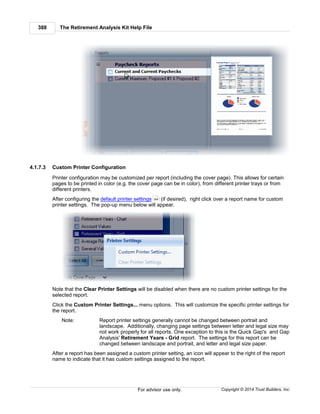
  • 103.
    TRAK Programs 103 Copyright© 2014 Trust Builders, Inc. For advisor use only. The client is contributing 5% to the GFCSI account to the Roth account and 3% of their income to the pre-tax account. For the Roth account, 1. 20% of the 5% contribution (or 1% of their income) is being contributed to the G fund, 2. 45% of the 5% (or 2.25% of their income) is deposited to the F fund,and 3. the remaining 35% of the 5% (or 1.75 of their income) is being contributed to the C fund. The total current Roth account balance is $10,000. Their 3% pre-tax contribution for the custom allocation is divided between the C and F funds: 1. 75% of the 3% pre-tax contribution (or 2.25% of income) is deposited to the G fund, and 2. 25% of the 3% pre-tax contribution (or 0.75% of income) is deposited to the F fund. Note: If the total percent allocated contribution to the Roth account or pre-tax account is not equal to 100%, TRAK will weigh the contribution. In the example below: The total Percent Allocated is 50%. TRAK will weight-base the allocation. The total allocation is 50%. TRAK will 1. Deposit $5 out of every $50 dollars (i.e. 10% of the deposit) in the G fund, 2. $15 of every $50 dollars (i.e. 30% of the deposit) into the F fund, 3. and $30 out of $50 (i.e. 60% of the deposit) to the C fund. Contribution Method Select the method for entering the client's contribution 1. Percent of income, e.g. 5%. 2. Dollar, increase with raise. Contribution value will be entered as a dollar value, e.g. $100, and will increase when the client receives a raise by the same percentage of the clients raise.
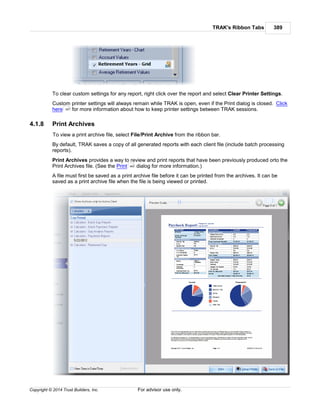
  • 104.
    The Retirement AnalysisKit Help File104 Copyright © 2014 Trust Builders, Inc.For advisor use only. 3. Dollar, no increases. Contribution will be a constant value and will not increase. Include Roth Account Check this box to include a Roth account. Prompts will be displayed both for the pretax and Roth accounts. The following prompts are only available if a life cycle fund is selected for the Allocation Method. Current Balance (only enabled if a normal life cycle fund is selected for the Allocation Method). Enter the current balance of the TSP account. Percent of Income or Dollar Contrib. per Paycheck Enter the value for the client's TSP contribution. The following prompt will only be enabled if the Allocation Method is Mixed or Custom GFCSI. Custom Plan Contrib. or Custom Plan Contrib per Paycheck Enter the contribution to the custom GFCSI allocation. Do not include values for any specific life cycle fund contributions here. Note: The L2010 fund was closed the end of 2010. Balance in the fund were moved to the L Income fund. If a previous entry had a balance for the L 2010 fund, a button will show up to the right of the grid that allows for quick-and-easy transfer of funds from the L 2010 fund to the L Income fund. Rates of Return Column The rates of return for each of the GFCSI funds must be entered in the Rates of Return column on the Allocation or Custom Allocation tab (caption changes depending upon the Allocation Method selected). By clicking on the TSP Rates of Return button below the grid a number of actions can be taken:
  • 105.
    TRAK Programs 105 Copyright© 2014 Trust Builders, Inc. For advisor use only. 1. Assign Default Rates of Return Assigns the default rates of return configured in the File/Config/Defaults . 2. Assign Historical 10 Year Average Assigns the last 10 year average of historical data. Note: Historical data is only available after data has been downloaded from the internet. Click on "Update Historical Rates of Return" (with an internet connection) to download data. 3. Assign Historical Average Assigns historical rates of return for all years of the TSP accounts. 4. View Historical Data... Allows for viewing historical TSP rates of return. 5. Update Historical Rates of Return Updates the TSP historical data. An internet connection is required for this to occur. TSP rates of return are updated by the 5th of each month. TSP Distribution Options The distribution options for the Roth and pretax accounts are identical. Each prompt is discussed below. Distribution Method Select the distribution method for the account. Distribution Rate of Return Enter the rate of return during retirement. Percent to Distribute If the distribution method is Percent Of Account, enter the percent of the account to distribute each year. Start Distributions 395 106 163
  • 106.
    The Retirement AnalysisKit Help File106 Copyright © 2014 Trust Builders, Inc.For advisor use only. If distributions for the account are to be delayed beyond retirement, select the method for starting distributions. Start Value Enter the starting value corresponding to the Start Distributions method. For additional control over distributions, read the Controlling Distributions entry in the Frequently Asked Questions for the Gap Analysis calculator. 3.8.1.5.1.1 TSP Historical Data Note: This TSP Historical Values dialog can be accessed in the "Client (or Spouse) TSP " tab in the Gap Analysis calculator by clicking on the "TSP Rates of Return" button and selecting "View Historical Data..." from the drop down menu. This dialog displays the historical data for the TSP's G, F, C, S, and I funds. Note: The G, F and C funds started in January 1988, The S and I funds did not start until May, 2001. Data is displayed for only the time period the funds were in existence. 177 166 79 101
  • 107.
    TRAK Programs 107 Copyright© 2014 Trust Builders, Inc. For advisor use only. The display has several options: 1. Data to view Determines if the Historical Values chart displays the monthly or annual rates of return. 2. Data to display Selects how far back the data in the Historical Values chart will display. 3. Select specific series By clicking on the check boxes in the legend, specific series can be hidden or displayed. For example, by un-checking all of the funds except the G fund, the chart below shows only the annual historical rate of return of the G fund.' 4. Historical Values vs. Historical Averages This Historical Values chart (shown in the images above) shows the month or annual values. The Historical Average Values (shown below) shows the average rates-of-returns for the various time periods. 5. Historical Values Grid The month historical values for the TSP funds is shown, with totals in the footer. Any column can be filtered by moving the mouse's cursor over the column header and clicking on the down
  • 108.
    The Retirement AnalysisKit Help File108 Copyright © 2014 Trust Builders, Inc.For advisor use only. arrow button on the right side. The totals shown at the bottom are for the filtered data. For example, to see the average rates of return for the various funds from 2000 through the present, click on the "Custom..." option in the filter drop down dialog box for the year and create a filter for all years being greater than or equal to 2000 (see image below): Pressing the "OK" button will update the grid to appear similar to what is shown below. 3.8.1.5.2 Federal Savings Plan The "Federal Savings Plan Contributions" allow for entering information about the client's and/or spouse's TSP account. Additionally, the Roth account can be illustrated. The prompts are discussed below. Contribution Method Select the method for entering the client's contribution 1. Percent of income, e.g. 5%. 2. Dollar, increase with raise. Contribution value will be entered as a dollar value, e.g. $100, and will increase when the client receives a raise by the same percentage of the clients raise. 3. Dollar, no increases. Contribution will be a constant value and will not increase.
  • 109.
    TRAK Programs 109 Copyright© 2014 Trust Builders, Inc. For advisor use only. Include Roth Account Check this box to include a Roth account. Prompts will be displayed both for the pretax and Roth accounts. The prompts for the Roth and pretax account are identical. They are discussed below. Accumulation Prompts Current Balance Enter the current balance of the TSP account. Percent of Income or Contribution per Paycheck Enter the value for the client's contribution to the (Roth or pretax) account. Rate of Return Enter the projected rate of return the account will earn until retirement. Distribution Prompts Distribution Method Select the distribution method for the account. Distribution Rate of Return Enter the rate of return during retirement. Percent to Distribute If the distribution method is Percent Of Account, enter the percent of the account to distribute each year. Start Distributions If distributions for the account are to be delayed beyond retirement, select the method for starting distributions. Start Value Enter the starting value corresponding to the Start Distributions method. For additional control over distributions, read the Controlling Distributions entry in the Frequently Asked Questions for the Gap Analysis calculator. 3.8.1.6 Other Accounts TRAK's Gap Analysis calculator supports three types of retirement accounts: 1. Savings Accounts 2. Known Income Accounts 3. Lump Sum Accounts 3.8.1.6.1 Savings Accounts An unlimited number of additional savings accounts, such as IRAs or 401(k) plans with previous employers, may be entered here. 163 177 166 79 109 118
  • 110.
    The Retirement AnalysisKit Help File110 Copyright © 2014 Trust Builders, Inc.For advisor use only. New accounts are added by clicking the "Add Account" button. The prompts are briefly discussed in the following. Note that prompts that are not relevant are not displayed. Account Name Enter the name of the account. (The account name must be unique). Owner Select either the Client or Spouse. (This prompt only appears if there is a spouse configured.) Account Information Current Balance Enter the current balance of the account. The account balance is assumed to be from the calculated date the last deposit occurred, but not more than 30 days old. If there are no deposits the account balance is assumed to be 30 days old. Pre-Retirement Rate of Return Enter the expected pre-retirement rate of return. Note: For non-qualified accounts, enter the net (after-tax) rate of return for the account. RMD Method Select from one of three methods for the account:
  • 111.
    TRAK Programs 111 Copyright© 2014 Trust Builders, Inc. For advisor use only. 1. None: The account is not subject too RMDs (Required Minimum Distributions). 2. RMD at Age 70½: The account is subject to RMDs when the owner is age 70½. 3. Inherited RMD: The account is inherited qualified account and is subject to inherited RMDs. Year Inherited If the account is subject to Inherited RMDs, enter the year the account was inherited. Note: For Inherited RMDs accounts, the RMD will not be taken out for the current year. The Current Balance entered value should be reduced by the RMD value for the current year. Contributions Account type for contribution limits If the account has contribution limits to be taken into consideration, select the type of account. If no limits are to be taken into consideration, select "(None)." Notes: If "Maximum" is selected as a contribution method (below), the "(None)" option will not be available. For "Retirement Investments" the limits for the account are the combined employee and employer contribution limits. Limits are index to inflation in $500 increments. Contribution Method Select Percent of Pay, Dollar or Maximum for the contribution method. Note: The Maximum method limits contributions based on the retirement plan type (e.g. for 2014 the 401(k) participant contributions are limited to $17,500) but is not limited by earnings. The Maximum method is indexed to inflation (which can be configured in File/ Config/Gap Analysis/Calculator ). Contributions per Year Enter the number of times a contribution is made per year. Note that if Percent of Pay is selected as the Contribution Method, this prompt will not be available. Contribution value Enter the value of each contribution: for the deposit type "Dollar," enter the dollar contribution. For the deposit type "Percent of Pay," enter the percent of pay that the employee contributes. Annual increase method Select the method for increasing the client's contribution in future years. Each method is discussed below. No Increase Select this method if there is to be no future increase in the contribution value. Note if the Contribution method for the client is Percent of Pay and the client (spouse) has a raise, the dollar value of the contribution will increase when the client receives a raise, but the percent of the client's (or spouse's) pay will remain the same. 396
  • 112.
    The Retirement AnalysisKit Help File112 Copyright © 2014 Trust Builders, Inc.For advisor use only. Increase in Value This method will increase the value of the client's contribution as a value. If the Contribution method is Dollar then the increase value will be in a dollar value, and will be per contribution. If the method is Percent of pay then the contribution will be an increase in the contribution percent. Contribution increases occur when the client receives a raise. Examples: If a client is currently contributing $100 monthly and selects Increase in value with a $25 increase, the future contributions will increase to $125 per contribution the first year, $150 the second year, $175 the third year, etc. If a client is currently contributing 5% per paycheck and selects Increase in value with a 1% increase, the future contributions will increase to 6% the first year, 7% the second year, 8% the third year, etc. Percentage Increase This method will increase the contribution as a percentage. Contribution increases occur when the client receives a raise. Examples: If a client is currently contributing $100 monthly and selects Percentage increase with a 10% increase in percentage, the future contributions will increase to $110 per contribution the first year, $121 the second year, $133.10 the third year, etc. Detail Customization This allows customizing the future changes in contribution in as much detail as desired. If Annual increase method is either Increase in value or Percentage increase, the following prompts will be enabled Annual increase in percent, Annual dollar increase in each deposit or Annual percentage increase Enter the value to increase the contribution. This field is not available if Detail customization is selected for the Annual increase method. Number of years to increase contributions Enter the number of years to increase contributions. This field is not available if Detail customization is selected for the Annual increase method. If Annual increase method is Detail customization, the following box will appear.
  • 113.
    TRAK Programs 113 Copyright© 2014 Trust Builders, Inc. For advisor use only. This dialog allows customizing when the contributions will change (either increase or decrease) at any point in the future. The prompts are discussed below. Event types for changes in contribution The events for increasing contributions are Age, Year and Date. The columns in the grid are: Age, Year or Date The column type here corresponds to the method selected in the previous prompt and is when the change in contribution occurs. Contribution type Select if the contribution is a Specific Value or the Maximum Allowed. (For Maximum Allowed, see notes above under Contribution Method about Maximum). Dollar Contrib or Percent Contrib The value here corresponds to the Contribution method selected previously. If the Contribution type is a Specific value, enter the value the contribution will change to. Distribution Start Distribution Start Method If distributions from the account are to start after retirement, select the method to start the retirement benefits. Note that all qualified accounts will be subject to required minimum distributions on the last distribution of the year. Starting Value This corresponds with the prior prompt and is the value for starting the account distributions. During Retirement Estimated Value at Retirement This is a calculated field and may not be edited. It calculates the estimated value at retirement. Distribution method
  • 114.
    The Retirement AnalysisKit Help File114 Copyright © 2014 Trust Builders, Inc.For advisor use only. This is the method for distributing the account. Rate of Return Enter the retirement rate of return. For annuitized accounts, enter the annuity rate. Annual Percent to Distribute For Percent of Account payout method, enter the percent of the account to payout on an annual basis. For additional control over distributions, read the Controlling Distributions entry in the Frequently Asked Questions for Gap the Gap Analysis calculator. If the Tax Wise Distribution Strategy is selected in the Setup tab, the following prompts will be required. Taxation Tax Method Select the tax method of the account. The options are Tax free, Above cost basis, Above cost basis and deposits, Fully taxable. Taxed As If the account is taxable, select how the money is taxed--either as ordinary income or capital gains. Cost basis If the Tax method indicated the account had a cost basis, enter the cost basis for the account. End of Year Transfer Funds Options The Tax Wise Distribution Strategy allows clients to move monies out of taxable accounts into after-tax accounts over retirement. This can reduce taxation on the client's estate at life expectancy. 306 177 166 79
  • 115.
    TRAK Programs 115 Copyright© 2014 Trust Builders, Inc. For advisor use only. Note: Transfers are only available for non-annuitized taxable accounts. Transfer funds to a different account Check this box to illustrate a transfer. Transfer start age Enter the age to start the transfer. The age should be after retirement. Years to make transfer Enter the number of years to make the transfer. Transfer method TRAK supports 3 types of transfer methods: Dollar value per year Enter the amount to transfer per year. Tax bracket limit This method will keep all transfers at or below a specific tax bracket. Annual minimum distribution This method will require a minimum amount of distribution from the account during the transfer period. Annual transfer value or Maximum tax bracket or Annual min. distribution Enter the value corresponding to the transfer method Increase in transfer: Before transfer and During transfer If the transfer method is either Dollar value per year or Annual minimum distribution, enter the annual increase in the value both prior to and during the transfer.
  • 116.
    The Retirement AnalysisKit Help File116 Copyright © 2014 Trust Builders, Inc.For advisor use only. Target account Select the target account for the transfer. If the account does not yet exist, it can be created and then return to this tab. 3.8.1.6.2 Known Income Accounts Known Incomes are known cash flows during retirement that will be used for retirement income. They may include rental property income, annuities, part-time work, or other forms of such income. Payments may occur between one or twelve times per year. The prompts are briefly discussed below: Account Information Account Name Enter the name of the account. Owner Select the owner of the account. (This prompt only appears if there is a spouse configured.) Payments # per Year Select the number of payments per year. Note that the number of payments must either be 1, 2, 3, 4, 6, or 12.
  • 117.
    TRAK Programs 117 Copyright© 2014 Trust Builders, Inc. For advisor use only. Income Stream Value Enter the value of each payment. Compound increases Determines if annual increases in the distribution are compounded. Rate of Growth Before Retirement If the payment grows between now and retirement, enter the annual growth in the payment. After Retirement If the payment grows during retirement, enter the annual rate of growth. Income Period Starting Method Select the method for starting the known income: Owner's Retirement: The income stream will start at the owner's retirement date. Today: The income stream is current income. First retirement: The income stream starts at the first retirement of the client or spouse. Both retired: The income stream starts once both the client and spouse are retired. First Death: Income starts at the earliest life expectancy of either the client and/or spouse. Owner's Age: Income starts at a specific age. Enter the value in the Starting Value prompt. Date: Income starts at a specific date. Enter the value in the Starting Value prompt. Starting Value If the Starting Method requires data input (i.e. if the Starting Method is either 'Age' or 'Date'), enter the corresponding value here. Ending Method Select the method for ending the known income payments: Owner's Death: Payment ends at the account owner's life expectancy. Both Deceased: Payment ends when both parties are deceased. Second Retirement: Payment ends at the retirement of the second individual. First Deceased: Payment ends upon the first death (does not depend on ownership). # of Years: Payment ends after a specific number of years. Specific Date: Payment ends at a specific date in the future. Ending Value If the Ending Method requires data input (i.e. if Ending Method is either "# of Years" or "Specific Date"), enter the corresponding value here.
  • 118.
    The Retirement AnalysisKit Help File118 Copyright © 2014 Trust Builders, Inc.For advisor use only. Pre-Retirement Distribution Method If the known income stream starts before retirement, this determines what happens with the funds prior to retirement. One of two options may be selected: Ignore: If the income starts before the stated retirement age, and is not being accumulated for retirement, select ignore. The payments will be considered as a source of retirement income based on the starting period selected. Save for retirement: The current cash flow is saved for retirement. The cash will be saved in the "Additional Savings" account (with the rates of return listed on the top of the "Other Accounts" page) and distributions will occur as funds are needed. 3.8.1.6.3 Lump Sum Accounts Lump Sum accounts are cash lump sums, including sale of property or a life insurance settlement. Accounts may be added or deleted by pressing the corresponding button at the top of the editor. The prompts are discussed below: Account Account Name Enter the name associated with the account. Distribution Event Values entered here relate to the distribution of the account. Type of Event
  • 119.
    TRAK Programs 119 Copyright© 2014 Trust Builders, Inc. For advisor use only. Select the type of event. The values include: Client's Age Date Years after Client's Retirement Client Life Expectancy Spouse Life Expectancy Event Value Based on the value selected for Type of Event, enter the corresponding value. If a value does not need to be entered (such as Client's Life Expectancy), the field is not selectable and an N/ A appears. Warning: If the event does not occur during retirement, the lump sum distribution will not be accounted for. For example, if a client retires at 65 years old (but after their birthdate), and an age value of "65" is entered (which would be their birthday), because the event occurs before their retirement date, the lump sum will not be credited to their income in retirement. Value Current Value Enter the current value of the lump sum payment. Annual Increase Enter the annual increase, if any, in account value. 3.8.1.7 Retirement Income Tab The Retirement Income tab configures what the client and spouse require for incomes during their retirement years. The prompts for this screen are discussed below: Method for Calculating Retirement Income The income need method can be either 1. Percent of Income when the Individual(s) Retire(s) Uses a percent of income of the client's and spouse's income at the time of their retirement. 2. Values expressed in Today's Dollars Enter the retirement income for the client's income and spouse's income (when relevant) needed in today's dollars. The value will be inflated by the pre-retirement COLA value. 3. Retirement Budget. The Retirement Budget allows for itemization of retirement needs, with optionally customizing the specific COLA, start date and end date, and expense frequency per expense. For example, a client may have a mortgage payment with no COLA and ends at a specific age. These types of expenses could easily be addressed in the retirement budget method.
  • 120.
    The Retirement AnalysisKit Help File120 Copyright © 2014 Trust Builders, Inc.For advisor use only. "Percent of Income" and "Values Express in Today's Dollars" Method Cost of Living Adjustments (COLA) Enter the anticipated inflation both prior to and during retirement. Minimum balance of all cash accounts at life expectancy... If a cash value is desired at life expectancy (e.g., for inheritance or risk reduction of a longer life expectancy) enter the value here. "Percent of Income" Method If the Percent of Income.. method is selected for the Method for Calculating Income Needed... the following prompts will be visible. Percent of income when the individual retires This is the percent of income that the client needs at retirement. If a spouse is included in the illustration, there are three time periods: 1. Percent of income when only one person is retired (first retirement). 2. When both are retired (a percentage of the combined income at retirement, with inflation applied to the first retiree's retirement income). 3. When there is one surviving spouse (a percentage of the survivor's income at retirement, with retirement inflation applied). Note: If there is a significant difference in the client's and spouse's incomes, a higher percentage (e.g. 200%) may be needed for the lower income. Use predefined model A predefined model may also be selected. This allows for income needs to change over retirement (e.g. 90% of income until age 70, 80% of income until age 80, and then 70% of income onward). Select the pre-defined model. The model may also be edited by selecting File/Config from the ribbon bar (or pressing the editor button on the Retirement Income Model prompt), then selecting Gap Analysis/Retirement Income Models from the navigator on the left. Click here for more information about editing retirement income models. Create custom model with various levels of income This allows for creating a custom retirement income model, similar to what is available in the pre-defined models, but custom to the participant's particular needs. Model must contain a First Retirement event. 390 399
  • 121.
    TRAK Programs 121 Copyright© 2014 Trust Builders, Inc. For advisor use only. Hint: Click the 'Copy Model' button, and select a model from the drop down list to start with a pre-configured model. "Values Express in Today's Dollars" Retirement Income Method If the Values Express in Today's Dollars method is selected for retirement income, the following prompts will be visible. When a spouse is included in the illustration, there are three income time-periods considered (as shown above). Note: For the income between the first retirement and when they are both retired, the income sources does not include the income for the working person, only the
  • 122.
    The Retirement AnalysisKit Help File122 Copyright © 2014 Trust Builders, Inc.For advisor use only. income the non-working person needs for retirement. The grid below the entered incomes allows for modifying the income as they mature in retirement. In the chart above, the income need decreases by ten percent when the client reaches age seventy, and another ten percent when the client reaches age eighty. Special Retirement Distributions This table allows for creating special retirement distributions. They can be for single events, such as vacations; or they can cover monthly, long term care type events. Note: This is only visible if "Retirement Budget" is not the method for the retirement income method. Sales Idea: This can be very effective in showing a client the need for long term care insurance. In the data above, the nursing home expense could be added first for 36 months. The Retirement Years chart could then be displayed showing the significant impact a nursing home could have on the client's retirement account(s). Then, returning to this tab, add the long term care policy and reduce the nursing home time to 3 months (or whatever waiting period the long term care policy requires). And then return to the Retirement Years chart. "Retirement Budget" Retirement Income Method Cost of Living Adjustments (COLA) Enter the default inflation both prior to and during retirement. These will be the default COLA values for each budget item, but can be overridden on any item. Retirement Budget TRAK breaks the retirement budget into two categories: Essential and Discretionary and each of these are broken into multiple categories before the budget items are listed.
  • 123.
    TRAK Programs 123 Copyright© 2014 Trust Builders, Inc. For advisor use only. The Config button above the grid allows for the following options: 1. How data is entered for starting and ending an expense Expenses can start and end by a person's age (default) or by a entering a specific date. 2. What information is displayed in the grid All of the items can be listed (default) or only budget items that contain values (typically for reviewing the list). Note: Budget items with the name "Other" can be renamed by entering the cell. Other names cannot be overridden. Each budget item can have the following features. Customized COLA By default, the budget item uses the default COLA. To use a custom COLA both prior to and during retirement, click on the Customize COLA check-box and enter the custom values for selected budget item. Examples: A mortgage expense may not have a COLA associated with it, and zeros can be entered for both Pre-Retirement and Retirement COLAs. Medical insurance typically has a higher COLA than other items. A higher COLA can be entered for expense items such as these. Frequency of Expense By default, each budget item occurs each month. The Frequency of Expens can be
  • 124.
    The Retirement AnalysisKit Help File124 Copyright © 2014 Trust Builders, Inc.For advisor use only. configured. The following selected values for Expense Frequency have additional prompts. Bi-Monthly, Quarterly, Semi-Annually The additional prompt Expense Schedule will be displayed. Select when the expenses occur. Note that if At Retirement is selected the expense is assumed to occur the first month of retirement. Annually The additional prompt Expense Month will be displayed. Select the month the expense occurs. Customized A list of check boxes representing each month of the year will be displayed. Check the boxes that the expense occurs. One Time The additional prompt Client's Age at Event will appear. Enter the client's age the expense occurs. Start and End of Expense Some expense, such as a mortgage, may not occur throughout retirement. Enter the starting and ending values (age or date, as configured under the Config button) associated with the expense. 3.8.2 Calculations Tab The Gap Analysis' Calculations tab allows for quickly viewing the retirement calculations in various formats. Navigation and scenarios can be edited in the panel on the left and the calculations are displayed on the right. Navigation and Scenario Panel Gap Analysis Calculations Client and Spouse When the illustration includes a retirement plan for both a client and spouse, because some calculation pages provide a view on either the client or spouse (such as the Overview tab), a box will appear below the navigation panel that allows for selecting whose values to be displayed. 3.8.2.1 Navigation and Scenarios In the Gap Analysis Calculation tab a navigation panel on the left hand side allows for both easy navigation between the various calculation pages and creating various scenarios for illustrating different options for your client. 125 128
  • 125.
    TRAK Programs 125 Copyright© 2014 Trust Builders, Inc. For advisor use only. To switch between the Calculation Pages navigator and the Scenario Editor, click on the appropriate button at the bottom of the navigation panel. Note: The panels on the bottom-left can be resized by clicking and dragging the slider (located above the panel selector) down, thereby reducing the room the panel selector takes. Navigating the Calculation Pages Using the Scenario Editor 3.8.2.1.1 Navigator Options for Navigating the Calculation Pages The Calculation Page navigator allows for selecting which calculation page is selected. 125 128
  • 126.
    The Retirement AnalysisKit Help File126 Copyright © 2014 Trust Builders, Inc.For advisor use only. To navigate to a specific page, simply click on the link for the calculation page. If there is not enough room to display the whole list of calculation pages, an arrow may appear at the top-right and/or bottom- right of the panel (as shown above). The navigation panel can display small icons (as shown above) or large icons (shown below). To modify the icon size, right click over the navigator and select the the icon size.
  • 127.
    TRAK Programs 127 Copyright© 2014 Trust Builders, Inc. For advisor use only. Calculation pages can be reordered by clicking on a specific page, holding the mouse down and dragging it to a new location. Releasing the mouse will place reorder that specific calculation page. The customized page order will be remembered next time TRAK is started.
  • 128.
    The Retirement AnalysisKit Help File128 Copyright © 2014 Trust Builders, Inc.For advisor use only. Working with a Client and Spouse If a calculation includes both a client and a spouse, in some circumstances, the available list for the specific individual will be different. For Example: If one's retirement plan is a defined contribution plan and the other's is a federal retirement plan. In that situation, the Federal Employee Group Life Insurance calculation page is only applicable to the individual with the federal plan and will only be available when they are selected. When a spouse with a retirement plan is included in the illustration a group box is displayed below the navigation panel that allows for selecting whose values to view. 3.8.2.1.2 Scenario Editor The Gap Analysis Scenario Editor allows for quickly creating different scenarios for a client (and spouse). This allows for changing specific options, including a client's retirement date, contribution level and income levels. To access the Scenario Editor open the Calculation tab in the Gap Analysis calculator and click on the Scenario Editor located at the bottom left of the window. This will display the Scenario Editor. 149
  • 129.
    TRAK Programs 129 Copyright© 2014 Trust Builders, Inc. For advisor use only. At the top of the editor, the calculation page that is displayed on the right hand side is selected. This page can be changed by using the combo-box. Below the Calculation Page selector is the Scenario Editor. When it is first opened, the Current Scenario is displayed. This Current Scenario includes the values entered in the data entry tabs. A scenario allows you to modify specific data about the illustration (such as the retirement age, income needed, selected option from the defined benefit plan, etc.) and easily compare the values against the current scenario. To create a new scenario, click on the add button located to the right of the edior. If there is only the "Current Scenario", this is located to the right of such text or on the right of the selection dialog when there is more then one scenario.
  • 130.
    The Retirement AnalysisKit Help File130 Copyright © 2014 Trust Builders, Inc.For advisor use only. Additionally, when there is more than one scenario, a delete and rename button are also displayed. (Note that these last two buttons are disabled when the "Current Scenario" is selected). When the "Current Scenario" is selected, the values for the current scenario are displayed below in labels. These values cannot be modified in this panel (but may be able to be modified accessing the Quick Change Toolbars ). When any scenario is selected, the data is presented in editors. The data can be changed to illustrate an alternative option for the client. 162
  • 131.
    TRAK Programs 131 Copyright© 2014 Trust Builders, Inc. For advisor use only. Changing the data only effects the illustrated scenario and does not impact the data originally entered in the data input tabs. This allows for quick comparisons of different options for the client and/or spouse. If a data field is changed, a reset icon will be displayed to the right of the right of the editor. Clicking this button will reset the value in the editor to the Current Scenario value. To make a proposed scenario the current scenario, click on the "Make Current Scenario" button found below the editors. Printing Scenarios When various scenarios have been created, the print window will include an option to print all of the scenarios.
  • 132.
    The Retirement AnalysisKit Help File132 Copyright © 2014 Trust Builders, Inc.For advisor use only. Checking this box will create a set of reports for each scenario. Additionally, if the cover page is selected, the scenario name will print on the cover page as a subtitle. 3.8.2.2 Calculation Pages Calculation Pages The calculation pages appear by clicking on the desired title in the navigator displayed on the left- hand side of the Calculation tab. 124
  • 133.
    TRAK Programs 133 Copyright© 2014 Trust Builders, Inc. For advisor use only. The options for calculation pages are: Overview Retirement Years General Values Average Values Retirement Solutions Accounts at Retirement (requires cash balance accounts at retirement) Account Accumulation The following pages are available when a defined benefit (DB) plan is selected for the active person (client or spouse) Option Values at Various Ages DB Buyback Comparison Pension Max (may require purchase of upgrade ~ please call 503.831.1111) 147 148 154 158 153 149
  • 134.
    The Retirement AnalysisKit Help File134 Copyright © 2014 Trust Builders, Inc.For advisor use only. DB Option Cost Analysis The following pages are available when working when the active person in a federal retirement system: FEGLI Federal LTC Insurance TSP Account Summary The following page is available if Retirement Budget is selected as the method for retirement income needed. Retirement Budget 3.8.2.2.1 Overview The Overview screen provides a quick overview of the calculations for the client or spouse. The overview screen can be divided into two areas: the top, which shows calculated values relating to the client or spouse, and the bottom, the appearance of which will change depending upon the type of retirement plan selected (defined contribution or defined benefit). Each is discussed below: Top of the Overview Calculation Screen The top of the overview screen shows calculations relating to the client's age, work history, and other information. Hint: The values should be checked for accuracy before moving on to other screens--if the values appear incorrect, confirm that the data has been entered correctly. Months to Wait Before Starting Savings The calculator will estimate the savings shortfall (retirement gap) of the client, based on their projected sources of income and their needs. The savings needed assumes that the client begins saving today. This prompt determines the number of months before increased deferrals are made to estimate the cost of waiting. 157 149 156 159 162
  • 135.
    TRAK Programs 135 Copyright© 2014 Trust Builders, Inc. For advisor use only. Lower Section of the Overview Calculation Screen The lower part of the calculation tab changes based on the type of retirement plan that is selected. Click on the links below for help with each item: Defined Benefit Defined Contribution 3.8.2.2.1.1 DB Plans When a defined benefit plan is selected for the retirement plan, the lower section of the screen will appear similar to what appears below: Note: When working with defined benefit plans that integrate with Social Security, the Primary Option Calculation group box will appear differently; illustrating how the integration with the Social Security calculation was performed. The areas on this screen are discussed below: Primary Option Calculation This illustrates how the retirement plan's primary option is calculated showing: 1. the Final Average Salary, 2. the Percent Crediting, 3. possibly the Years of Service (shown if the same crediting rate is used for all years of service, and 4. the Primary Option Value. TRAK allows for three different methods for arriving at the Final Average Salary (Exact [default], Rounding, and Manual). Additionally, it allows for the calculation to be offset by a year either way. This is done by clicking on the drop down box to the right of the final average salary value, which brings up the following pop-up window: 135 139
  • 136.
    The Retirement AnalysisKit Help File136 Copyright © 2014 Trust Builders, Inc.For advisor use only. If the client has been provided a projection by their retirement system, you may want to select the final average salary (FAS) method that most closely matches it. You may also select manual and enter the value. Note: When Manual is selected, the FAS value can be edited in the main screen. When this is the case, click on the button to the right of the editor to change the FAS method. When Manual is selected, some of the comparison options on the Savings Analysis calculation page will no longer be available because the calculations on the page require changing the retirement date. FAS Methods: Rounding, Exact and Manual TRAK has three different methods for determining the FAS:
  • 137.
    TRAK Programs 137 Copyright© 2014 Trust Builders, Inc. For advisor use only. 1. Rounding: This method is most typical of projections provided by pension systems. The FAS is calculated by annualizing the current income and not paying close attention to when the client receives a raise. 2. Exact: This method pays more attention to when the raise occurs and may provide a better method for determining what the FAS will be. 3. Manual: This method allows for overriding the calculated FAS value and entering the value manually. DB Options Grid The DB Options Grid displays the values for the various options for the member. The columns visible in the grid (and other options) can be configured in the DB Grid Display Options configuration panel discussed below. Plan Notes For certain retirement plans, calculation notes may be provided. The notes will normally appear below the options grid (similar to what is shown here). Note: If the member does not have enough years of service at retirement to qualify for retirement (including both normal retirement and early retirement) the income for the primary option value will be zero and none of the alternative options will be displayed. A plan note will be displayed indicating that the member did not have enough years of service. The DB Grid Display Options configuration panel is available when a defined benefit plan is selected for the active person (client or spouse). It can be opened by clicking on the DB Grid Display Options button on the right-top side of the Overview calculation window.
  • 138.
    The Retirement AnalysisKit Help File138 Copyright © 2014 Trust Builders, Inc.For advisor use only. DB Grid Column Visibility Select which columns are visible in the DB Options grid. DB Grid Options Each of the options is discussed below. Allow Customization of Values This option allows overriding the calculated values in the grid. If this is checked, for all options the Month Values can be edited and for alternative options (other than the primary option) the following columns can be modified: Percent of Primary, and the Client's and Spouse's Monthly Income and Percent of Primary. If a value has been modified, it is displayed in bold: Notes Either the Monthly Income or Percent Primary/Percent of Option column can be customized. If one column is edited, the other column will be calculated. If values have been customized, un-checking this box will disable the ability to edit the values in the grid but not reset the customized values. To reset the customized values, click on the Reset Customization button.
  • 139.
    TRAK Programs 139 Copyright© 2014 Trust Builders, Inc. For advisor use only. Reset Customization Clicking on this button clears any customization of the monthly values grid. Show Grid Full Width Checking this box will display the DB Option Grid at the maximum width. Allow Grid Horizontal Sizing If this is checked, a slider bar will be displayed to the right of the grid that can be dragged to set the grid to a custom width. Auto-Size Columns Check this button to resize the columns in the grid. This does not change the size of the DB Option Grid. 3.8.2.2.1.2 DC Plans When a defined contribution plan is selected for the retirement plan, the lower section of the screen will appear similar to what appears below:
  • 140.
    The Retirement AnalysisKit Help File140 Copyright © 2014 Trust Builders, Inc.For advisor use only. 3.8.2.2.2 Retirement Years The Retirement Years screen displays the various forms of retirement income during the retirement years in both a chart and in a grid . 3.8.2.2.2.1 Chart A sample retirement years chart is displayed below. Clicking on any bar will display the values for the specific year. For example, clicking on the bar for 2041 above would result in the following display. 140 144
  • 141.
    TRAK Programs 141 Copyright© 2014 Trust Builders, Inc. For advisor use only. To return to the multi-year chart, click on the "Multi-Year" button at the top-left of the pie-chart. When viewing a single year, several options are available. Calendar Year Below the pie chart a track-bar is available for sliding between the calendar years in retirement. Account Distribution Priority The priority of distribution from non-annuitized cash accounts is shown to the right of the chart (above). Drag-and-drop accounts in the desired order of distribution. Note: The Apply Order Changes... option is only available in the Gap Analysis calculator and allows changes in priority during retirement. Otherwise the priority affects distributions starting at retirement. Configuration Options
  • 142.
    The Retirement AnalysisKit Help File142 Copyright © 2014 Trust Builders, Inc.For advisor use only. Configuration options for the chart can be found in the Display Options and Chart Configuration docking panels tabs located to the right of the chart. The Retirement Years chart's Display Options represent settings for the chart that are more typically changed (verses the Chart Config docking panel). Each setting is discussed below. Include Income From Accounts Above the Client's Need When income exceeds need, by default the income is not displayed in the Retirement Years chart (it will be displayed in the grid). The reasons is that large lump sum distributions (such as the sale of an asset) can make this chart meaningless. For example, if the box is checked and there is a large sale (as the chart below shows the Sale of Farm at at 70), the chart becomes meaningless. 142 143
  • 143.
    TRAK Programs 143 Copyright© 2014 Trust Builders, Inc. For advisor use only. Checking this box will display the excess incomes, otherwise incomes above the need is not included in the chart. Display Values Select the values to be included in the grid: Incomes, Balances or Both (the later displaying two charts) Display Mode Select either Income by Account or Simplified. Simplified shows income verses shortfall, simplifying what the chart displays. Chart Type Select Multi-Year or Single Year. Single Year will shows a pie chart of a specific year and a scroll bar at the bottom can be used to scroll through the various years. Note that a specifc year can be selected in the multi-year chart by clicking on a specific bar. Income (Vertical) Axis Select if the chart is to display Average Monthly Values or Annual Income for income in the visible chart. The Retirement Years chart's Chart Configurations represent settings for the chart that are more typically set once and left alone (verses the Display Options docking panel). Each setting is discussed below. Options
  • 144.
    The Retirement AnalysisKit Help File144 Copyright © 2014 Trust Builders, Inc.For advisor use only. View 3-D Check this box for the chart to be displayed three dimensionally. Anti-Aliasing Check this box to turn anti-aliasing on. This option may not affect all output. Time Horizon Select the time horizon to be displayed on the bottom axis of the chart. For Years with Shortfall show Captions in Red If this is checked, in the Multi-Year grid, captions at the bottom of the grid will be displayed in red for years with shortfall. Legend Location Select the location that the account legend is to be display. 3.8.2.2.2.2 Grid A sample Retirement Years Grid is displayed below. The options for the Retirement Years Grid are discussed below. The Options for the Retirement Years Grid are discussed below. Include Income for Accounts Above the Client's Need This prompt allows the grid to include income above the clients needs. By default it is checked. Note: This check-box only enabled if the illustration includes income that does exceed a monthly income need. Display Values Select which values are displayed in the grid. Note: Selecting Monthly will result in the corresponding report displaying monthly values,
  • 145.
    TRAK Programs 145 Copyright© 2014 Trust Builders, Inc. For advisor use only. which may result in a much longer report. Columns Select which column type(s) are displayed in the grid. This setting does not impact the printed report. Export Grid The grid can be exported (saved to) to an Excel file. Apply Best Fit This will re-size the width of each of the the columns. 3.8.2.2.3 Retirement Solutions The Retirement Solutions screen allows for instant comparison between variables at retirement. This includes both variables over which the client may have control over (e.g. retirement age) and variables that they may have very little control (e.g. inflation). The comparison can be easily changed by selecting an item from the combo-box found above the chart. The current situation is always the center bar (except when comparing either cost to wait or the options for a defined benefit retirement plan). Hints: Most of the options for this chart allows for quick and easy changing of the comparison by clicking on the bar in the chart. This will change the client data (or spouse's data,
  • 146.
    The Retirement AnalysisKit Help File146 Copyright © 2014 Trust Builders, Inc.For advisor use only. whichever is focused). The data will be recalculated, and that bar will become the center bar (except when working with defined benefit options). Clients who have little or no additional savings require may want to consider the following reasons for additional savings: earlier retirement dates, higher income level, and hedging against higher rates of inflation. 3.8.2.2.3.1 Configuration Options The configuration options for the Retirement Solution calculation page are discussed below. Chart Options View 3-D Check this box for the chart to be displayed three dimensionally. View Each Bar a Different Color Check this box to display each bar in the chart a unique color. Comparisons to Print Select which Retirement Solutions options to include when the Solutions, All Charts report is selected. Defined Benefit Plan Options Chart The DB plan option chart may display a large number of options. For example, for the state of New York, many of the plans will illustrate eight options. When printing the Savings Solutions, All Charts report, the chart may appear cluttered because it's smaller size and for having so many options. Here is an example of what may appear: For many, this chart is meaningless. To avoid charts like this, the DB option charts that have more options than the "Max Options" value (unless the "Max Options" value is zero, in which case it will always be printed).
  • 147.
    TRAK Programs 147 Copyright© 2014 Trust Builders, Inc. For advisor use only. Note: This chart can still be printed using the Savings Solutions report (which only prints the current chart). 3.8.2.2.4 General Values The General Values screen displays the average values of all incomes over all retirement years as well as any additional savings needed to account for a shortfall. It displays a stacked bar graph showing the percentage of savings reached in retirement. This display provides a quick summary of the retirement incomes in graphical format. Note: These are average values during all retirement years. If an account that pays out during retirement changes during retirement, or if there is a spouse and the income is not paid out all retirement months, the value may vary from the monthly payout made by the account. 3.8.2.2.5 Average Values The Average Values screen graphically displays the client and spouse's retirement needs, incomes and shortfall. The bars on the chart vary according to what accounts the client and spouse have. Note: These are average values during all retirement years. If an account that pays out during retirement changes during retirement, or if there is a spouse and the
  • 148.
    The Retirement AnalysisKit Help File148 Copyright © 2014 Trust Builders, Inc.For advisor use only. income is not paid out all retirement months, the value may vary from the monthly payout made by the account. 3.8.2.2.5.1 Chart Options The configuration options for the Retirement Solution calculation page are discussed below. Include Income from Accounts Above the Client's Need This prompt allows the grid to include income above the clients needs. By default it is not checked. Chart Type Select if the data is to be displayed in a Bar Chart or Pie Chart. View 3-D Check this box for the chart to be displayed three dimensionally. Legend Location Select the location that the account legend is to be display. 3.8.2.2.6 Accounts at Retirement The Accounts at Retirement screen displays the cash balances of all of the accounts at retirement, including: 1. Defined contribution plans,
  • 149.
    TRAK Programs 149 Copyright© 2014 Trust Builders, Inc. For advisor use only. 2. Cash accounts of defined benefit plans, 3. Federal Savings Accounts (i.e. Thrift Savings Plan), and 4. Retirement Investment accounts. 3.8.2.2.7 Pension Max This topic is discussed in detail in the Pension Max section of the Quick Gap calculator. 3.8.2.2.8 FEGLI Note: This calculation page is only available when working with a federal retirement system. (FEGLI stands for Federal Employer Group Life Insurance, an option for federal employees). 323
  • 150.
    The Retirement AnalysisKit Help File150 Copyright © 2014 Trust Builders, Inc.For advisor use only. The FEGLI calculation screen illustrates the cost of insurance through the federal government. The options are listed on the top part of the page, and the calculations are on the bottom part of the page. Data Input # of Years After Retirement Enter the number of years to show after retirement. This will affect the number of records shown in the details grid. FEGLI Insurance Coverage Select the options for the client's FEGLI account. If you know the client's FEGLI code, click the button and enter the code. The FEGLI options will automatically be configured. Calculations The calculations appear at the bottom of the page in various presentations on three different tabs: Summary, Details, and Chart. Information for each one is provided below. Summary Tab The summary tab displays the projected current FEGLI premiums,
  • 151.
    TRAK Programs 151 Copyright© 2014 Trust Builders, Inc. For advisor use only. and the estimated average premiums until retirement.
  • 152.
    The Retirement AnalysisKit Help File152 Copyright © 2014 Trust Builders, Inc.For advisor use only. Details Tab This details tab provides a year by year, or per paycheck, cost breakdown of FEGLI. Charts The Chart tab can display the Annual Premium by age, Accumulated Premium by age, or the Life Insurance Coverage by age in a graphic chart.
  • 153.
    TRAK Programs 153 Copyright© 2014 Trust Builders, Inc. For advisor use only. 3.8.2.2.9 DB Buyback Comparison The DB Buyback Comparison page performs a quick cost analysis on purchasing back years of service from a retirement plan.
  • 154.
    The Retirement AnalysisKit Help File154 Copyright © 2014 Trust Builders, Inc.For advisor use only. The prompts are discussed below: Years of service to buyback Enter the years of service to purchase back. Additional life expectancy years This prompt allows for illustrating the effects of longer life expectancy. Payment Method Select the method of payment, and enter the value associated with the required payment. Calculations The calculations will appear at the bottom of the screen. 3.8.2.2.10 Account Accumulation The Account Accumulation screen displays the accumulation of retirement accounts prior to
  • 155.
    TRAK Programs 155 Copyright© 2014 Trust Builders, Inc. For advisor use only. retirement in both a chart and in a grid. Account balances for defined benefit plans that have cash balance options are typically not included. The Account Accumulation screen displays the values of the account until the account owner's retirement. Notes: Account Accumulation page only displays the values until retirement. Account values during retirement are displayed in the Retirement Years calculation page. Cash accounts included with defined benefit plans are typically not included in the chart or grid. 3.8.2.2.10.1 Chart 3.8.2.2.10.2 Grid When viewing the accumulation values in the grid, the contributions can be displayed annually or itemized per deposit. Also, columns can show accumulations of the various parts of the account (e.g. columns for employee and employer deposit accumulation and current balance accumulation) by checking the Show detail account balance columns check box. For federal TSP accounts with mixed allocations , a grid will have the totals for all life cycle funds and a grid for each life cycle fund will also be displayed. Note: When printing the TSP account accumulation values, the report will only include the summary information for the TSP account, and not a breakout of each life-cycle or the custom allocation funds. 155 102
  • 156.
    The Retirement AnalysisKit Help File156 Copyright © 2014 Trust Builders, Inc.For advisor use only. Warning: When printing, the reports will use the same method for displaying the accumulation. Creating reports with Itemized Values selected could result in account accumulation values requiring a large number of pages for printing. 3.8.2.2.11 Federal LTC Insurance This calculator allows for quickly comparing various options available to a federal employee through their Long Term Care Insurance program. It operates similarly to the federal web page for running illustrations.
  • 157.
    TRAK Programs 157 Copyright© 2014 Trust Builders, Inc. For advisor use only. 3.8.2.2.12 DB Option Cost Analysis The DB Option Cost Analysis provides a quick comparison between the incomes provided to the primary beneficiary between two options. For this screen to be available, the current client must have a defined benefit plan with at least two options visible.
  • 158.
    The Retirement AnalysisKit Help File158 Copyright © 2014 Trust Builders, Inc.For advisor use only. The prompts are discussed below. Primary Option The Primary Option is the option with a higher income than the Secondary Option. The Primary Option may not be the primary option of the DB plan (often named "Option 1"), but rather the option with an greater income compared to the alternative option. Note: The option with the lowest initial monthly income will not be available in drop down list. Secondary option This is the option with the lower initial income for the client. The option with the highest income will not be shown in the drop down list. Include accumulated difference with interest The grid shows the accumulated difference in income. To include an additional column that applies a rate of return to the difference, check this box. Rate of return Enter the rate of return to be applied to the "Accumulated Difference with Interest" column. 3.8.2.2.13 Option Values at Various Ages The "Option Values at Various Ages" shows the effect on a defined benefit plan of delaying retirement for a selected number of years. The controls at the top of the calculation page configure what data is displayed in the grid below (and also determines what appears in the report that corresponds to this
  • 159.
    TRAK Programs 159 Copyright© 2014 Trust Builders, Inc. For advisor use only. calculation page). The grid can be configured using the Display Options docking panel found to the right of the grid. 3.8.2.2.13.1 GACalcOptionValuesAtAgesOptions The Display Options for the Option Values at Various Ages grid are described below. Values to View in Grid Click on the button (Monthly and Annual, Annual or Monthly) to select which data is displayed in the grid. # of Years to Show After Retirement This configures how many additional retirement ages, after the current retirement age, are to be displayed. Show Option Calculation Values This determines if the values for calculating the primary option (including final average salary, pre- penalty value and penalty) are displayed in the grid. Show Values for Alternative Options This prompt determines if the alternative options (or only the primary option) is displayed in the grid. 3.8.2.2.14 TSP Account Summary The TSP Account Summary page provides information about the client's current TSP allocation. The information is provided on three tab pages: 1. Contribution Overview The Contribution Overview will display how the client is allocating their contribution between the various funds (G, F, C, S & I) and the Life Cycle funds, and how each part of their contribution would grow to retirement.
  • 160.
    The Retirement AnalysisKit Help File160 Copyright © 2014 Trust Builders, Inc.For advisor use only. 2. Life Cycle Fund Overview The Life Cycle Fund Overview tab provides an overview of how the Life Cycle accounts allocate their balance between the G, F, C, S, and I funds, and how it changes over time.
  • 161.
    TRAK Programs 161 Copyright© 2014 Trust Builders, Inc. For advisor use only. Note: This chart provides an analysis for the client to understand how the allocations move between the various funds and can help them understand why allocating between different Life Cycle funds is not a good asset allocation strategy. 3. Account Allocation The Account Allocation tab displays the client's current allocation of all TSP investments between the G, F, C, S and I fund, and allow for comparing it against a Life Cycle account.
  • 162.
    The Retirement AnalysisKit Help File162 Copyright © 2014 Trust Builders, Inc.For advisor use only. 3.8.2.2.15 Retirement Budget The Retirement Budget calculation screen is available if Retirement Budget is selected as the Method for Calculating Income Needed During Retirement on the Retirement Income tab. 3.8.2.3 Quick Change Toolbars The Quick Change tool-bars are displayed below the active calculation page. The Quick Change tabs allow for easily changing the data for the active scenario . For example, to change the client's retirement age, click on the "Client" tab, and drag the slider bar to the desired position. As the slider bar is being moved, a balloon will be displayed showing the new value. 119 128
  • 163.
    TRAK Programs 163 Copyright© 2014 Trust Builders, Inc. For advisor use only. Note: The specific tabs visible in the Quick Change tools will be dependent upon a number of factors, including: 1. if a spouse is included, 2. configuration on the "Setup " tab, and 3. what types of accounts are included in the illustration. 3.8.3 Payout Methods There are various distribution methods for accounts with cash balances at retirement. The following is a list of the methods and brief descriptions. Note that all payout methods (except 'Annuitize') are subject to RMD, which may affect the goal of the selected method. Annuitize: This annuitizes the account over the life expectancy of the owner. The value entered is the payout in dollars per thousand per month. Use Funds as Needed: Funds are distributed as needed. The following distribution methods are categorized as restrictive distribution methods. This means that funds are not available for distribution if the restrictions on distribution have already been met. For Example: If the distribution method is Retain Principal, the distributions are limited to reducing the cash balance of the account to the value it was at retirement. In the Gap Analysis calculator's Setup tab, this may be configured to allow distributions from an account as a last priority in the Restricted Distribution dialog box. Retain Principal: This attempts to retain the principal of the account over the life expectancy of the client and spouse. Amortize, no inflation: Equal payments are made over retirement years. Amortize, with inflation: Equal, inflation adjusted payments are made over retirement years. Percent of Account: A specific percent of the account is paid out each year during retirement. RMD Only: Only Required Minimum Distributions are made from the account. Note that these are made on the last payment of the calendar year. Summary of Retirement Payout Methods 82 82 85
  • 164.
    The Retirement AnalysisKit Help File164 Copyright © 2014 Trust Builders, Inc.For advisor use only. Payout Method Has Cash Balance Restricted Distributions Annuitize N/A Use funds as needed Retain principal Amortize, no inflation Amortize, with inflation Percent of account RMD only 3.8.4 Tax Wise Distribution Strategy The Tax Wise Distribution Strategy focuses on reducing a client's taxation in retirement. This can have a number of results: 1. It may extend the duration of their income 2. It may reduce the amount of savings a client must have for retirement 3. It may increase the after-tax value of the estate left to their heirs It does this by paying close attention in a tax year to how the money is being taxed. But before moving forward, a clear distinction must be made between the accumulation years and the distribution years. How accumulation is different than distribution During the accumulation years, as a client is receiving income, typically their withholding tax at the beginning of a calendar year will have a similar value to the withholding tax at the end of the year. This is because the employer will use a withholding table that corresponds to the frequency they are paid and the taxation is averaged per paycheck. But this is not how taxation really works. If a client were to use actual tax tables, because of their deductions, they would pay little (if any) taxes at the beginning of the year. As they moved through the year their tax rate would increase and they would have more tax withheld. This would significantly reduce the size of their paychecks later in the year compared to earlier in the year. An Example Suppose a married client has combined pre-tax earnings of $8,000 per month in income in 2009.Their effective federal tax brackets, including the $11,400 married tax deduction, would be as follows: Effective Tax Bracket for 2009 Income Level Tax Bracket $11,400 0% $28,100 10% $79,300 15% $96,000 25%
  • 165.
    TRAK Programs 165 Copyright© 2014 Trust Builders, Inc. For advisor use only. In January, the client would pay no tax on their first $8,000 of income. In February, they would pay 10% ($460) on $4,600 of income. In April, $32,000 of income year-to-date, their tax rate would increase to 15%. In October, their marginal tax bracket would increase to 25%. This would be their top marginal tax bracket. A few observations Doing a little math, we can determine how much tax and income the client would have from each tax bracket. Taxation and Income by Bracket Taxation After-Tax Income Tax Bracket Dollar Value Percent of Taxation Dollar Value Percent of After- Tax Income 0% $0 0% $11,400 13.8% 10% $1,670 12.3% $15,030 18.2% 15% $7,680 56.8% $43,520 52.8% 25% $4,125 30.9% $12,525 15.2% A few observations about the client's after-tax income and taxation: 1. The key observation is that as a client's income increases, so does their marginal tax bracket. Note: Most people do not think of it this way. That is because when people are paid during a tax year, their taxation is averaged per paycheck for the given tax year-- the taxes withheld at the beginning of the tax year is essentially the same as the taxes withheld at the end of a tax year. But that is not the way the tax tables work. 2. The first $11,400 is earned tax-free. 3. When this client moves from the 15% to the 25% tax bracket, they experience a 66% increase in taxation. 4. The last 15.2% of after-tax income ($12,525) in the 25% tax bracket resulted in almost 31% of the client taxation. The key difference To explain the key significant difference between the accumulation phase and distribution phase, a hypothetical situation with a client will help. Imagine in October, when the client illustrated here moves from the 15% to the 25% tax bracket, and they ask their employer for a meeting. They sit down and the client shows the employer that based on their year-to-date income and the tax brackets, that they would be facing a 66% increase in taxes. The employer acknowledges what the client states. Then the client states that they do not want to pay the higher taxes and asks that the employer start paying them under the table. Preposterous you say, and if, the client is serious, they may end up looking for a different job. You are right on both counts. But that is because the client is in the accumulation phase. In the distribution phase, where the client can control the distributions, the client can have control: they can decide which account to take distributions from. To do this:
  • 166.
    The Retirement AnalysisKit Help File166 Copyright © 2014 Trust Builders, Inc.For advisor use only. 1. Determine what a client's tax bracket looks like during a calendar year. 2. Next, add up all of their fixed incomes a client will receive during a tax year. 3. Finally, prioritize distribution from the accounts by tax bracket: a. Distribute the income needed for the lower tax brackets from the pre-tax accounts. b. Distribute the income from their higher or highest tax brackets from capital gain and/or after-tax accounts. This results in a reduction of taxes paid by the client during retirement, and extending their income and money left to their heirs. Summary The Tax Wise Distribution Method considers the client's after tax income needed during retirement. Where applicable, it combines the federal and state tax tables into one progressive tax table. The strategy then distributes income by tax bracket: it focuses on taking income for the lower income tax brackets from pre-tax accounts and income from the higher (or highest) tax brackets from after-tax or Roth accounts. Then the client can leverage the advantages of each type of tax account. 3.8.5 Frequently Asked Questions 1. What does the "Side Fund" refer to? 2. When the client has a defined contribution account (such as a 401(k) account), why does TRAK use the Side Fund for additional savings and not the client's account? 3. Can TRAK run illustrations for a client (or spouse) that does not have a retirement plan? 4. How can the effect of catastrophic health event be illustrated? 5. How can distributions from various cash accounts be controlled? 6. How is Social Security calculated in TRAK? 7. Why are tab(s) disabled? 8. Can I print the "Retirement Years - Grid" in landscape? 9. Why are there so may California PERS pension plans? 10.Why doesn't TRAK calculate the FERS Supplement? 3.8.5.1 Understanding the Side Fund What does the "Side Fund" refer to? An account named "Side Fund" may appear in a number of the Gap Analysis and Quick Gap calculators' calculation screens. This account serves two purposes: 1. It is the account that is used for calculating any additional savings needed. 2. If there is excess income in retirement for any reason, this income is put into the "Side Fund" to be used for later years. This may occur due to the RMD (Required Minimum Distribution) or a sale of an asset. Side Fund Distribution Method Because the side fund is used to fund shortfalls any time in retirement, its distribution method is 166 167 172 173 177 178 179 180 182 183 306
  • 167.
    TRAK Programs 167 Copyright© 2014 Trust Builders, Inc. For advisor use only. pre-configured to "Use funds as needed." Example: If an illustration has a temporary shortfall prior to Social Security payments starting but sufficient income after the payments start, any other distribution method than "Use funds as needed" would result in a significant increase in savings. In the Quick Gap calculator, the interest rates for the Side Fund (before and during retirement) are set in the "Other Accounts" tab (far left of the screen): In the Gap Analysis calculator, the interest rates can be set in the "Setup" tab: 3.8.5.2 Why is the Side Fund used? When the client has a defined contribution account (such as a 401(k)), why does TRAK use the Side Fund for additional savings and not the client's account? When TRAK determines there is a shortfall in the client's retirement savings, TRAK will use the Side Fund account; this automatically happens even if the client has a defined contribution account. The reason: if the client does have a defined contribution account, the payout method of the account may restrict distribution of monies from the account. A few examples... Example 1 Suppose a client wants to retire at age 65 and has only two retirement accounts: Social Security (starting at age 67) and a 401(k) account. The selected payout method for the 401(k) account is "Amortize with inflation." For this example, the Retirement Years chart appears below: 306 313
  • 168.
    The Retirement AnalysisKit Help File168 Copyright © 2014 Trust Builders, Inc.For advisor use only. Items to note about the image above: 1. Starting at age 67 the client has plenty of income (due to the payout method of the "401(k) - Custom" account). 2. Because of the restricted distribution method for the 401(k) account, there is a shortfall for the years prior to age 67. In this example, if TRAK used the client's retirement account for calculating additional savings, the additional savings would have to be excessive to get the amortized distribution of the account to fund the early retirement years. To avoid this problem, either change the distribution method of the account to "Use Funds as Needed," or, if using the Gap Analysis calculator, on the Setup tab check the box to allow access to restricted funds. . Example 2 Suppose a client, retiring in June in 2015 at age 60, has two sources of income in retirement: a $3,000 85
  • 169.
    TRAK Programs 169 Copyright© 2014 Trust Builders, Inc. For advisor use only. monthly benefit from Cal STRS and an annual $30,000 benefit from a lifetime income rider paid out in September. A 3% inflation rate is used for retirement COLA. Their monthly need in retirement is $5,000. The Retirement Years chart appears as follows: The chart displays a shortfall the first year and additional shortfall starting at age 73. Several questions could be asked about this: 1. Why isn't there more income from the guaranteed income rider? 2. And why so much income from the side fund and so little from the known income rider? 3. And, why does the shortfall happen in later years in retirement? 4. Why the shortfall the first year? To determine what is happening, several areas could be looked at: 1. First, clicking on the "Include income from accounts above the client's need" could be checked to see where all of the income is needed for the year. This shows a significant increase in the known income rider, but also displays the side fund providing a sizable income as well. In step 3 below, we will examine this in more detail.
  • 170.
    The Retirement AnalysisKit Help File170 Copyright © 2014 Trust Builders, Inc.For advisor use only. This shows the guaranteed income rider (answering question #1), but does not address the other questions. That will require looking at a few more views. 2. First, a look at the balance grid may provide some clues. To view account balances in the chart, click on the "Balances" button in the Display Options docking panel. This will provide an overview of what is happening with the account balances during the retirement. The retirement years balance chart above shows the increasing balances in the early years of retirement, but displays what may be unexpected results during the later years of retirement. So what is happening in the later part of retirement? 3. Under the hood, TRAK handles the retirement cash flow on a monthly basis. When the charts display what might be unusual or unanticipated results, often viewing the values on a monthly basis will answer most questions. To do this, click on "Grid" tab near the top of the "Retirement Years" page. Next click on the "Monthly" button to display the monthly cash flow grid. For this example, a grid similar to what is shown below should be display.
  • 171.
    TRAK Programs 171 Copyright© 2014 Trust Builders, Inc. For advisor use only. The first bar of the retirement years income chart averages the values for the first calendar year (highlighted above). The grid above provides the solution to why the shortfall is displayed the first year: the income from the pension is insufficient for the clients need, and they must rely on the guaranteed income rider. But the income rider does not provide revenue until September. This causes the shortfall for the first two months of retirement. After September, the income from the income rider account provides enough cash balance to last from year to year--and a little extra left over as retirement and will help fund the COLA. (Scrolling down through the grid will show the fluctuating balance of the Side Fund). 4. Finally, what is happening in the balance chart at the end of retirement? To see these values, scroll to the bottom of the Retirement Years grid. The grid below shows the values for this example.
  • 172.
    The Retirement AnalysisKit Help File172 Copyright © 2014 Trust Builders, Inc.For advisor use only. This answers the final question: what is happening with the account balance at the end of retirement. In the chart above, we can see how the September cash flow is deposited into the Side Fund and accounts for about six months of income. This provides a little balance at the end of each calendar year, but a shortfall also occurs shortly thereafter. Summary Occasionally retirement cash flow can be confusing. When this occurs clarity is often provided by looking at the monthly values in the grid in the Retirement Years calculation page. 3.8.5.3 Working with No Retirement Plan Can TRAK run illustrations for a client (or spouse) that does not have a retirement plan? Yes, TRAK can easily provide illustrations when a client or spouse does not have a retirement plan. Simply select the (No Plan) (including parenthesis) from the list of retirement plans.
  • 173.
    TRAK Programs 173 Copyright© 2014 Trust Builders, Inc. For advisor use only. 3.8.5.4 Illustrate a Catastrophic Health Event TRAK's Gap Analysis can easily illustrate the effect of a catastrophic health event in retirement. An example is shown below. 1. Finish a retirement illustration for a client. In the example below, the illustration shows plenty of income for the client and a potential cash balance at retirement close to $900,000.
  • 174.
    The Retirement AnalysisKit Help File174 Copyright © 2014 Trust Builders, Inc.For advisor use only. 2. Return to the Retirement Income tab and add the costs of a nursing home for the client. Enter the values in today's dollar values. In this example, it illustrates the client needing to enter a nursing home at age 75 for 36 months. The current cost is $6,000 per month and increases 6% annually. 3. Return to the Retirement Years calculation and view the effect of the potential cost of a nursing home on both income and account balance. This dramatically illustrates for the client a significant shortfall of income and loss of retirement savings.
  • 175.
    TRAK Programs 175 Copyright© 2014 Trust Builders, Inc. For advisor use only. 4. Return to the Retirement Income tab and add the costs of a long term care insurance policy.
  • 176.
    The Retirement AnalysisKit Help File176 Copyright © 2014 Trust Builders, Inc.For advisor use only. Then change the cost of the nursing home to a 90 day waiting period (3 months). Next, add a long term care policy and include any COLA in the policy. Also be sure the payments are required throughout retirement. The image below illustrates a policy costing $250 per month with a 3% COLA. (An early age is entered and a large number of months illustrates it lasting throughout retirement). 5. Finally, return to the Retirement Years chart and show how the cost of the policy affects the illustration. In this illustration, the client's income is sufficient. The impact of the 90 day waiting period can be seen in the income chart. The estimated account balance at life expectancy is a bit more than $400,000.
  • 177.
    TRAK Programs 177 Copyright© 2014 Trust Builders, Inc. For advisor use only. 3.8.5.5 Controlling Distributions Distributions from various cash accounts in the Gap Analysis calculator can be controlled two different ways: 1. Payout method Each cash account (except the Side Fund ) has a payout method that can control how each account is distributed. 2. Distribution priority In the Retirement Years chart, the distribution priority of each cash account (compared to the other cash accounts) can be set. The priority is displayed to the right of the chart when viewing a single year. (A single year can be displayed by clicking on a bar in the multi-year grid or clicking on the "Single Year" button in the Chart Type group box located in the Display Options docking panel). 166 163 313
  • 178.
    The Retirement AnalysisKit Help File178 Copyright © 2014 Trust Builders, Inc.For advisor use only. The chart shows the order in which the accounts will distribute income. Account order can be changed by clicking on an account name and dragging the name to the preferred location. Notes: In any calendar year, RMD will have priority prior to non-RMD. RMDs will be taken out of accounts in the order shown in the grid. 3. Allowing distribution from restrictive distribution accounts In the Gap Analysis calculator, in the Setup tab , accounts with restrictive payout methods can be configured either to not allow distributions even if a shortfall would occur, or only as a last priority allow distributions from an account. 3.8.5.6 Calculating Social Security A common question addressed by Trust Builders, Inc. is how TRAK calculates Social Security. Occasionally someone will object to a value used, stating that the Social Security amount is too high. (Most often this occurs when retirement is more than 10 or 15 years in the future). The method for calculating Social Security is documented below. The Social Security Administration (SSA) does not provide a "best method" for calculating Social Security. Nor does the SSA allow for automated access to their website so TRAK could get client information from the website. Therefore, TRAK has an internal formula for estimating a client's Social Security benefit. How Social Security is Calculated Before explaining how TRAK calculates Social Security, it is best to have an understanding how Social Security is calculated by the Social Security Administration (SSA). The formula for calculating the Social Security for a person requires a number of steps: 1. The income from each calendar year (not to exceed the Social Security Integration Level, SSIL, each calendar year) is entered into a chart. This value is multiplied by a index factor to provide an indexed earning value for the calendar year. (The index factor is based on the product of the Average Wage Indexes from the calendar year until age 62). 2. The highest 35 values from the indexed earnings are added together and divided by 420 (the number of months in 35 years). This provides the Average Index Monthly Earnings (AIME). 3. An annual adjusted formula is applied to the AIME to determine the Primary Insurance Amount (PIA). For individuals turning 62 in 2010, the formula is: Tier 1: 90% of the AIME at or below $761, plus Tier 2: 32% of the AIME between $761 and $4,586 Tier 3: 15% of the AIME above $4,586 Social Security Administration's Worksheets Obviously TRAK does not ask enough historical information from the client to use the SSA's worksheets. Additionally, SSA worksheets to estimate a PIA are typically only available for the current year and possible next year. Thus, to calculate the value for Social Security, TRAK makes a number of assumptions. Historical income trends, as well as future predictions, are considered in the method for Social Security calculations. The following assumptions are made to calculate the estimated PIA for a client: 1. For the client's income, their raise is considered to be consistent, both historically and looking forward. 85 163
  • 179.
    TRAK Programs 179 Copyright© 2014 Trust Builders, Inc. For advisor use only. 2. To calculate future SSIL (step 1 above) at age 62, the historical 20 year-average1 COLA is applied to future years. 3. The historical 20 year-average1 wage index at age 62 (used in step 1 to provide indexed earnings) is used to calculate future wage index values. 4. The 20 year-average1 COLA for the two tiers at age 62 (step 3 above) is calculated and applied to the dollar values for forward looking values. Note: The historical COLA applied to the first two tiers of the formula (step 3 shown above) is historically different then the COLA applied to the SSIL. 5. The three tier formula shown above is used to estimate the client's PIA. 6. If the client is retiring after or starting age is after 62, the COLA is applied to the value for the respective number of years. 7. If the client is retiring prior to their normal retirement age, a penalty is applied based on the number of months early. 8. If the client delays Social Security beyond normal retirement age, a credit is applied based on their year of birth. 9. If a client has less than 35 years of eligible Social Security years of income, this will reduce their income. 10.If a client is affected by Windfall Elimination Provision, this can also be included to reduce the Social Security benefit. Social Security Windfall Elimination Provision The Windfall Elimination Provision (WEP) reduces an individual's Social Security benefit due to insufficient years (less than 30) of substantial earnings (as defined by the provision). This provision reduces the percent of income credited from the first tier (normally 90%) to a lower percentage based on the number of years the client had substantial earnings (5% per year less than 30 years, but not lower than 40% crediting). For more detailed information about WEP, please visit SSA web site. Footnote 1 Average rates of return are technically average compounded rates of return. Note that when looking at the historical average values, the data from the latest years from the SSA's website is used. This does not always include current information. For example, at the time of writing this document (May 2014), the wage increase for Average Wage Indexing Series is updated through 2012. 3.8.5.7 Disabled Tabs If there is a data entry problem on a page, the tab(s) to the right of the tab with the data entry problem will be disabled. For example, in the image below, a data entry problem exists on the Retirement Income tab. To determine what the data entry problem is, select the last available tab (the tab farthest right that is enabled). There will be a "View Error Messages" button at the top-right of the page.
  • 180.
    The Retirement AnalysisKit Help File180 Copyright © 2014 Trust Builders, Inc.For advisor use only. A message will be displayed about the problem with the data on the current tab. 3.8.5.8 Printing the Retirement Years Grid in Landscape The Retirement Years - Grid report can be printed in either portrait or landscape orientations. Additionally, it can be printed using legal size paper (It is the the only report in TRAK that allows these specific changes). This may reduce the number of pages required to print the report, and make it easier to read. For example, here is a view of the report in portrait mode: The columns on the far right will be wrapped to the next page. This can be fixed by printing the report in landscape orientation: Use the following steps to achieve this:
  • 181.
    TRAK Programs 181 Copyright© 2014 Trust Builders, Inc. For advisor use only. 1. Right click over the report in the printer dialog and select "Custom Printer Settings..." from the pop-up window. This will open the Printer Setup dialog. 2. In the Printer Setup dialog, select "Landscape" from the "Orientation" group box. 3. Click the "OK" button. 4. To the right of the "Retirement Years - Grid" report, there will be a printer icon indicating the report is using custom printer settings. 5. Note that the settings can be cleared by right clicking over the report and selecting "Clear Printer Settings".
  • 182.
    The Retirement AnalysisKit Help File182 Copyright © 2014 Trust Builders, Inc.For advisor use only. 3.8.5.9 Understanding California PERS California PERS (a.k.a. CalPERS) is a complex system of 2,044 separate retirement plans involving 1,573 public agencies that have been categorized into 31 different pension plans in TRAK (as of this writing). Below is an overview of how the pension system is divided and a brief introduction on a few key parts of the plans. CalPERS is divided into 3 categories of plans: 1. School (excluding California STRS members) 2. State 3. Local The later two categories (State and Local) have subcategories (discussed below). To know what pension plan your client is in, first know what category, and which subcategory of employment they are in. Additionally, the CalPERS plans typically have specific crediting values associated with the plan at a specific age. Within each CalPERS plan "Survivor Continuance" must be configured, which may or may not be offered by a specific employer. This is an additional benefit provided to the employees that provides survivor benefits no matter what retirement option a participant selects. Finally, participants in a CalPERS pension plan may or may not have Social Security which can be configured when the plan is selected. Each CalPERS pension plan in TRAK is listed below in its category and (where applicable) subcategory. 1. School: Classified employees California PERS School Employees, 2% at 55 California PERS School Employees, 2% at 62 2. State a) Miscellaneous/Industrial California PERS State Misc., 1.25% at 65 California PERS State Misc., 1.25% at 67 California PERS State Misc., 2% at 55 California PERS State Misc., 2% at 60 California PERS State Misc., 2% at 62 b) Safety California PERS State Safety, 2% at 50 California PERS State Safety, 2% at 55 California PERS State Safety, 2% at 57 California PERS State Safety, 2.5% at 55 California PERS State Safety, 2.5% at 57 California PERS State Safety, 2.5% at 60 California PERS State Safety, 2.7% at 57 California PERS State Safety, 3% at 50 California PERS State Safety, 3% at 55 California PERS Peace Officers and Firefighters, 2.5% at 55
  • 183.
    TRAK Programs 183 Copyright© 2014 Trust Builders, Inc. For advisor use only. 3. Local a) Miscellaneous California PERS Local Misc., 2% at 55 California PERS Local Misc., 2% at 60 California PERS Local Misc., 2% at 62 California PERS Local Misc., 2.5% at 55 California PERS Local Misc., 2.7% at 55 California PERS Local Misc., 3% at 60 b) Safety California PERS Local Safety, 2% at 50 California PERS Local Safety, 2% at 55 California PERS Local Safety, 2% at 57 California PERS Local Safety, 2.5% at 55 California PERS Local Safety, 2.5% at 57 California PERS Local Safety, 2.7% at 57 California PERS Local Safety, 3% at 50 California PERS Local Safety, 3% at 55 3.8.5.10 FERS Supplement TRAK will automatically calculate the income for the FERS (Federal Employee Retirement System) Supplement when an individual is qualified to receive the income. The requirements for the FERS supplement to be calcualted (in addition to being qualified for retirement) are: 1. Their Employment Type is not regular, or 2. They are retiring at their Minimum Retirement Age (MRA) and have at least 30 years of service, or 3. They are 60 years old at retirement and have at least 20 years of service. 3.9 Interest Calculator The Interest Calculator is a simple calculator to use but provides the power and functionality for complex calculations. It will calculate unknown values for future value (accumulation), distributions and loan values, and cost to wait. It is often compared to an HP-11c in its features, but much easier in its functionality. Getting Started To use the Interest Calculator, 1) Select the type of calculation desired: 98
  • 184.
    The Retirement AnalysisKit Help File184 Copyright © 2014 Trust Builders, Inc.For advisor use only. This selection will change the prompts. 2) Enter the values for the prompts on the left hand side, except the one to be calculated. 3) Finally, place the cursor on the field to be calculated, and click on the 'Calculate Cursor Line' button (or press Ctrl-F10). (Note that if the button is disabled, the field cannot be calculated.) Additional Information More detail can be found in the links below: 1. Future Value Calculations Explanation of the calculator/prompts Examples 2. Account Distributions and Loans Explanation of the calculator/prompts Distribution Examples Loan Examples 3. Editing Data in the Grid 4. "Full Page" Option 3.9.1 Future Value Calculation The Interest calculator's Future Value illustrator can calculate any of the following items: 1. Current Account Value (present value) 2. Amount of each deposit 3. Number of years 4. Rate of return 5. Future value Simply enter the other known values, place the cursor on the field to be calculated, and click on the 'Calculate Cursor Line' button found below the data input: , or press Control-F10. Notes: After calculating a prompt, it will be highlighted with a red background. While a prompt is highlighted, changing the value in any other prompt (besides the Calculation Type) will update the calculated prompt. If the value in the calculated prompt is modified, it will no longer be calculated. Each of the data inputs will be discussed below. One (and only one) may be calculated as an unknown value. Enter all other values except the unknown prompt. Then place the cursor on the unknown value line and press the 'Calculate Cursor Line' button. Prompts shown below with an asterisk beside them may be calculated. 184 185 194 195 199 202 202
  • 185.
    TRAK Programs 185 Copyright© 2014 Trust Builders, Inc. For advisor use only. Type of Fund For future value calculations, select Future Value. Current Account Value* Enter the current account balance. Type of Deposits Click on the down arrow and select the type of deposits. The selections include: Level Deposits: Deposits to the account are the same for all years. Annually Increase by a %: Deposits increase by a percent each year. Annually Increase by a $: Deposits increase by a dollar value each year. % of Paycheck: This will change the prompts below to ask for the current paycheck value and the annual raises. Note: When the 'Percent of Paycheck' method is selected as Type of Deposits, the prompts will appear differently than what is discussed below. However, the calculation is similar in nature, and the prompts are self explanatory. # of Deposits/Year* Enter the number of deposits per year. Amount of Each Deposit* Enter the initial value of the deposit. If a Type of Deposit method was selected other then 'Level Deposits' then the deposits will increase after the first year. Deposits Made at Select whether deposits are made at the beginning or end of a period. For example, on a 12 pay, are the deposits made at the beginning or ending of the month. Interest Rate* Enter the effective annual interest rate. Note: Interest rates may be changed in future years after a calculation is made by editing the values displayed in the grid. The interest rate can not exceed 12.0000%. Future Value* Enter the hypothetical future value of the account. Calculating the Unknown Value After entering values for each of the prompts, place the cursor on the prompt to be calculated and click on the 'Calculate Cursor Line' button. * Prompts with asterisks may be calculated. 3.9.2 Future Value Examples The Future Value Calculator is a function of TRAK's Interest Calculator. There are several common calculations for account accumulations. Examples for each calculation are available by clicking on the
  • 186.
    The Retirement AnalysisKit Help File186 Copyright © 2014 Trust Builders, Inc.For advisor use only. links under each prompt that can be calculated: 1. Current Account Value Calculate the Lump Sum Deposit Required to Achieve a Certain Value 2. Amount of Each Deposit Deposit Required for Specific Account Value 3. Interest Rate Rate of Return Required to Achieve a Specific Value Rate of Return Earned during a Specific Time Period 4. Number of Years Number of Years to Accumulate Balance 5. Future Value (most common) Future value of a lump sum deposit Future value of a series of ongoing level deposits Future value of a series of increasing deposits Future value of a series of increasing deposits with a break in deposits 3.9.2.1 Lump Sum Required Example #1 What is the lump sum deposit required today for an account to grow to $1,000,000 in 25 years, growing at 7% with no additional deposits. Data Entry Use the following values for the prompts: Prompt Value Type of Fund Future Value Current Account Value Do not enter value Type of Deposits Level Deposits # of Deposits/Year 1 Amount of Each Deposit 0 Deposits Made at End of Period Interest Rate 7 # of Years 25 Future Value 1000000 Place the cursor on the Current Account Value prompt and click on the 'Calculate Cursor Line' 186 187 188 189 190 191 191 192 193
  • 187.
    TRAK Programs 187 Copyright© 2014 Trust Builders, Inc. For advisor use only. button. Result The current account balance is 184,249.18 Example #2 If the interest rate was 8%, how much would the lump sum deposit be? Data Entry Enter '8' for the rate of return and press tab. Result The present value re-calculates to $146,017.88 Example #3 What is the lump sum deposit required today if the client were to deposit $250 per month, increasing by 3% per year? Data Entry Change the following prompts to the values shown: Prompt Type of Deposits Value Annual Increase by a % # of Deposits/Year 12 Amount of Each Deposit 250 Annual Increase in Deposit 3 Results The lump sum deposit recalculates to $102,577.01 3.9.2.2 Deposit Required to Accumulate a Specific Amount Example What is the monthly savings required to accumulate $20,000 in 15 years at 6% interest? Data Entry Use the following values for the prompts: Prompt Value Type of Fund Future Value
  • 188.
    The Retirement AnalysisKit Help File188 Copyright © 2014 Trust Builders, Inc.For advisor use only. Current Account Value 0 Type of Deposits Level Deposits # of Deposits/Year 12 Amount of Each Deposit Do not enter value Deposits Made at End of Period Rate of Return 6 # of Years 15 Future Value 20000 Place the cursor on the Amount of Each Deposit prompt and click on the 'Calculate Cursor Line' button. Result The deposit required is $69.71 3.9.2.3 Rate of Return Required Example What is the interest rate required to have $10,000 in 10 years with monthly deposits of $50.00 per month? Data Entry Use the following values for the prompts: Prompt Value Type of Fund Future Value Current Account Value 0 Type of Deposits Level Deposits # of Deposits/Year 12 Amount of Each Deposit 50 Deposits Made at End of Period Interest Rate Do not enter value # of Years 10 Future Value 10000 Place the cursor on the Interest Rate prompt and click on the 'Calculate Cursor Line' button. Result The required rate of return is 10.0130%.
  • 189.
    TRAK Programs 189 Copyright© 2014 Trust Builders, Inc. For advisor use only. 3.9.2.4 Rate of Return Earned Example #1 An account grew from $14,000 to $15,000 during the last quarter. Monthly deposits of $250 were made at the end of each month. What was the rate of return during this period? Data Entry Use the following values for the prompts: Prompt Value Type of Fund Future Value Current Account Value 14000 Type of Deposits Level Deposits # of Deposits/Year 12 Amount of Each Deposit 250 Deposits Made at End of Period Interest Rate Do not enter value # of Years 0.25 Future Value 15000 Place the cursor on the Interest Rate prompt and click on the 'Calculate Cursor Line' button. Result The account had a rate of return of 7.2048%. Example #2 For 3 years your client has been making $250 monthly deposits. The account balance is now $10,500. What has been the client's average annual rate of return? Data Entry Use the following values for the prompts: Prompt Value Type of Fund Future Value Current Account Value 0 Type of Deposits Level Deposits # of Deposits/Year 12 Amount of Each Deposit 250
  • 190.
    The Retirement AnalysisKit Help File190 Copyright © 2014 Trust Builders, Inc.For advisor use only. Deposits Made at End of Period Interest Rate Do not enter value # of Years 3 Future Value 10500 Place the cursor on the Interest Rate prompt and click on the 'Calculate Cursor Line' button. Result The average annual rate of return has been 10.8471%. 3.9.2.5 Number of Years to Accumulate Balance Example #1 A client currently has $100,000 in their account and is making monthly deposits of $500, increasing by 2.5% per year. They are earning 7% per year. How many years will it take for the account to grow to $1,000,000? Data Entry Use the following values for the prompts: Prompt Value Type of Fund Future Value Current Account Value 100000 Type of Deposits Annual Increasing by a % # of Deposits/Year 12 Amount of Each Deposit 500 Deposits Made at End of Period Annual Increase in Deposit 2.5 Interest Rate 7 # of Years Do not enter value Future Value 1000000 Place the cursor on the # of Years prompt and click on the 'Calculate Cursor Line' button. Result The account will grow to one million dollars in 24.5409 years. Example #2 How many years would it take if they quit making deposits today?
  • 191.
    TRAK Programs 191 Copyright© 2014 Trust Builders, Inc. For advisor use only. Data Entry Enter a zero ('0') for Amount of Each Deposit. Results The # of Years recalculates to 34.0322 years. 3.9.2.6 Future Value of a Lump Sum Deposit Example A client has accumulated $50,000 in retirement funds. What will their account balance be in 15 years if they had a 6.5% average annual rate of return? Data Entry Use the following values for the prompts: Prompt Value Type of Fund Future Value Current Account Value 50000 Type of Deposits Level Deposits # of Deposits/Year 1 Amount of Each Deposit 0 Deposits Made at End of Period Interest Rate 6.5 # of Years 15 Future Value Do not enter value Place the cursor on the Future Value prompt and click on the 'Calculate Cursor Line' button. Result The account will grow to $128,592.05. 3.9.2.7 Future Value of Level Deposits Example Calculate the accumulated value (future value) of monthly deposits of $100, starting today for 25 years with an 8% rate of return. Data Entry Use the following values for the prompts:
  • 192.
    The Retirement AnalysisKit Help File192 Copyright © 2014 Trust Builders, Inc.For advisor use only. Prompt Value Type of Fund Future Value Current Account Value 0 Type of Deposits Level Deposits # of Deposits/Year 12 Amount of Each Deposit 100.00 Deposits Made at Beginning of Period Interest Rate 8 # of Years 25 Future Value Do not enter value Place the cursor on the Future Value prompt and click on the 'Calculate Cursor Line' button. Result Future Value calculates $91,483.95. 3.9.2.8 Future Value of Increasing Deposits Example #1 Calculate the account value in 20 years of a monthly deposit of $100 starting today, increasing by 2% per year. Assume a 6% rate of return. Data Entry Use the following values for the prompts: Prompt Value Type of Fund Future Value Current Account Value 0 Type of Deposits Annual Increase by a % # of Deposits/Year 12 Amount of Each Deposit 100 Deposits Made at Beginning of Period Annual Increase in Deposit 2 Interest Rate 6 # of Years 20 Future Value Do not enter value Place the cursor on the Future Value prompt and click on the 'Calculate Cursor Line' button.
  • 193.
    TRAK Programs 193 Copyright© 2014 Trust Builders, Inc. For advisor use only. Result The account will grow to $53,297.73. Example #2 What would the account value be if deposits were increased annually by 3%? Data Entry Change the Annual Increase in Deposit to '3' Result The account will grow to $57,864.01. 3.9.2.9 Future Value of Increasing Deposits With a Break in Deposits Example Calculate the account value in 20 years with monthly deposits of $100 occurring during the first 10 years, increasing annually by 2% per year. Assume a 6% rate of return. Data Entry Use the following values for the prompts: Prompt Value Type of Fund Future Value Current Account Value 0 Type of Deposits Annual Increase by a % # of Deposits/Year 12 Amount of Each Deposit 100 Deposits Made at Beginning of Period Annual Increase in Deposit 2 Interest Rate 6 # of Years 20 Future Value Do not enter value Place the cursor on the Future Value prompt and click on the 'Calculate Cursor Line' button. Then in the grid enter zeros ('0') in the Annual Deposits column for years 11 through 20. Note: If the check box Carry Values Down Column is marked (found below the grid), after editing the value for year 11, the entered value (zero) will be carried down for all subsequent years.
  • 194.
    The Retirement AnalysisKit Help File194 Copyright © 2014 Trust Builders, Inc.For advisor use only. Result Future Value calculates $31,711.60. 3.9.3 Account Distributions and Loans Account Distributions can calculate any of the following items for an account: 1. Current Account Value 2. Amount of each Distribution 3. Number of Years 4. Rate of Return 5. Final Account Value Simply enter the known values, place the cursor on the editor listed above to be calculated, and click on the 'Calculate Cursor Line' button found below the data input( , or press Control- F10) . Notes: After calculating a prompt, it will be highlighted with a red background. While a prompt is highlighted, changing the value in any other prompt (except the Calculation Type) will update the calculated prompt. If the value in the calculated prompt (highlighted) is modified, it will no longer be calculated. The Loan calculator uses the same calculations as the Account Distribution calculator but uses different terminology in prompts and reports. For example, for distributions the first prompt is 'Current Account Value', for loans it is 'Loan Value'. Prompts in the Interest Calculator's Future Value Calculator Note: Prompts shown below with an asterisk beside them may be calculated. Type of Fund For future value calculations, select either Account Distributions or Loan. Current Account Value/Loan Value* Enter the current account balance (or loan value). Type of Distribution/Type of Payment If the distributions or payments increase annually, select the method that they change by. # of Distributions per Year/# of Payments per Year* Enter the number of distributions or payments per year. Amount of Each Deposit* Enter the initial value of the deposit. If a Type of Distribution/Type of Payment method was selected other than 'Level...' then the deposits will increase after the first year. Distributions Made at/Payments Made at
  • 195.
    TRAK Programs 195 Copyright© 2014 Trust Builders, Inc. For advisor use only. Select whether deposits are made at the beginning or end of a period. For example, on a 12 pay, select whether the distributions/payments are made at the beginning or end of the month. Interest Rate* Enter the effective annual interest rate. Note: Interest rates may be changed in future years after a calculation is made by editing the values displayed in the grid. The interest rate can not exceed 12.0000%. Final Account Value/Balloon Payment* Enter the hypothetical account value at the end of the term. Calculating the Unknown Value After entering values for each of the known prompts, place the cursor on the prompt to be calculated and click on the button. 3.9.4 Distribution Examples The Account Distribution calculator is a function of TRAK's Interest calculator. Several examples of calculations are below: How long will the money last ? Retirement Income increasing by inflation Distribution Illustration Payouts 3.9.4.1 How long will the money last? Example #1 A client has accumulated $100,000 at retirement and wants to start taking payments of $1,000 per month. They feel they can safely earn a 4.5% rate of return. How long will the money last? Data Entry Use the following values for the prompts: Prompt Value Type of Fund Account Distributions Current Account Value 100,000 Type of Distribution Level Withdrawals # of Deposits/Year 12 Amount of Each Distribution 1,000 Distributions Made at End of Period Interest Rate 4.5 195 196 197
  • 196.
    The Retirement AnalysisKit Help File196 Copyright © 2014 Trust Builders, Inc.For advisor use only. $ of Years Do not enter value Final Account Value 0 Place the cursor on the # of Years prompt and click on the Calculate Cursor Line button. Result The account will last 10.4166 years. Example #2 How long will the money last if the payments increase by 2% per year? Data Entry Change Type of Distributions to 'Annually Increase by a %' and set Annual Increase in Distribution to 2%. Place the cursor on the # of Years prompt and click on the Calculate Cursor Line button. Result The account will now last 9.4999 years. Example #3 How long will the money last if the payments increase by 3% per year? Data Entry Change the Annual Increase in Distribution to 3%. Results The money will last 9.0832 years. 3.9.4.2 Retirement Income Increasing by Inflation Example #1 A client has been faithfully saving $200 per month for 25 years and earned a 6% rate of return. Their account balance is now $135,257. How much monthly income can the client receive if they anticipate a 5% rate of return over their life expectancy of 25 years? Data Entry Prompt Value Type of Fund Account Distributions Current Account Value 135257 Type of Distribution Level Withdrawals
  • 197.
    TRAK Programs 197 Copyright© 2014 Trust Builders, Inc. For advisor use only. # of Deposits/Year 12 Amount of Each Distribution Do not enter a value Distributions Made at End of Period Interest Rate 5 # of Years 25 Final Account Value 0 Place the cursor on the Amount of Each Distribution prompt and click on the Calculate Cursor Line button. Result The account will generate $781.97 per month. (Not too bad for $200 per month savings over the same period of time.) Example #2 How much income will the account produce if the payments increase by 2.5% annually? Data Entry Change Type of Distributions to 'Annually Increase by a %' and set Annual Increase in Distribution to 2.5%. Place the cursor on the Amount of Each Distribution prompt and click on the Calculate Cursor Line button. Result The account will produce $608.97 of monthly income (the first year, increasing by 2.5% each subsequent year). Example #3 How much income will the account produce if the payments increase by 3% per year? Data Entry Change the Annual Increase in Distribution to 3%. Results The account will now produce $577.55 of monthly income (the first year, increasing by 3% each subsequent year). 3.9.4.3 Distribution Illustration Payouts Example #1 A client wants to know how much money to deposit into an account that has a fixed rate of return of 4.5%. They need a monthly income of $1,200 over 25 years.
  • 198.
    The Retirement AnalysisKit Help File198 Copyright © 2014 Trust Builders, Inc.For advisor use only. Data Entry Prompt Value Type of Fund Account Distributions Current Account Value Do not enter a value Type of Distribution Level Withdrawals # of Deposits/Year 12 Amount of Each Distribution $1,200 Distributions Made at End of Period Interest Rate 4.5 # of Years 25 Final Account Value 0 Place the cursor on the Current Account Value prompt and click on the Calculate Cursor Line button. Result The deposit will need to be $217,895.21. Example #2 What would the account balance need to be if they wanted $1,500 per month? Data Entry Change the Amount of Each Deposit prompt to $1,500. Results The deposit would need to be $272,368.98. Example #3 What would the account balance need to be if they wanted to increase the payment by 3% per year? Data Entry Change the Type of Distributions to 'Annual Increase by %', enter '3' for the Annual Increase in Distribution prompt. Place the cursor on the Current Account Value prompt and click on the Calculate Cursor Line button. Results The deposit would need to be $371,429.50.
  • 199.
    TRAK Programs 199 Copyright© 2014 Trust Builders, Inc. For advisor use only. 3.9.5 Loan Examples The Loan calculator is a function of the TRAK's Interest calculator. It provides the ability to illustrate loan payments. Several examples are below: 1. Calculate the amount that may be borrowed based on a known payment 2. Calculate the effects of accelerating mortgage payments 3. Calculate quarterly and monthly payments to a 401(k) or TSA loan 3.9.5.1 Loan Value Example #1 A client is looking at purchasing a house. They feel they can afford monthly interest and principal payments of $1,100. They anticipate a 30 year loan with an interest rate of 7%. How much can they borrow? Data Entry Use the following values for the prompts: Prompt Value Type of Fund Loan Loan Value Do not enter value Type of Payment Level Payments # of Payments/Year 12 Amount of Each Payment 1100 Payments Made At End of Period Interest Rate 7 # of Years 30 Balloon Payment 0 Place the cursor on the Loan Value prompt and click on the 'Calculate Cursor Line' button. Result The client can borrow $168,990.35 over 30 years at 7%. Example #2 If they went with a 15 year loan at 6.5%, how much would they be able to borrow? Data Entry Change the Interest Rate from 7% to 6.5%, and then change the # of Years from 30 to 15. Result 199 200 200
  • 200.
    The Retirement AnalysisKit Help File200 Copyright © 2014 Trust Builders, Inc.For advisor use only. The client can borrow 127,770.77 over 15 years at 6.5%. 3.9.5.2 Mortgage Acceleration Example A client is making monthly payments of $741 on a mortgage of $100,000 at 7.5%. How much time would the term be reduced if they added one additional payment per year? Data Entry Step 1: Solve the current term. Use the following values for the prompts: Prompt Value Type of Fund Loan Loan Value 100,000 Type of Payment Level Payments # of Payments/Year 12 Amount of Each Payment 741 Annual Increase in Payment End of Period Interest Rate 7.5 # of Years Do not enter value. Balloon Payment 0 Place the cursor on the # of Years prompt and click on the 'Calculate Cursor Line' button. Result The client currently has 23.4166 years left to pay. Step 2: Increase the number of payments. Change the # of Payments/Year to 13 Result The # of Years calculates to be 19.3845, a reduction of over 4 years. Note: This is only an estimation of the effects of an additional payment. Because the payments by TRAK are calculated by equally spreading out each payment throughout the year, and this will most likely not be what occurs by the client, the actual results may vary. 3.9.5.3 401(k)/TSA 5 Year Loan Repayment Example #1
  • 201.
    TRAK Programs 201 Copyright© 2014 Trust Builders, Inc. For advisor use only. A client wants to borrow $10,000 from their retirement account. The loan rate is 5% and must be paid off in five years. What are the quarterly payments? Data Entry Step 1: Solve the current term. Use the following values for the prompts: Prompt Value Type of Fund Loan Loan Value 10,000 Type of Payment Level Payments # of Payments/Year 4 Amount of Each Payment Do not enter value Payments Made At End of Period Interest Rate 5 # of Years 5 Balloon Payment 0 Place the cursor on the Amount of Each Payment prompt and click on the 'Calculate Cursor Line' button. Result The quarterly payments would be $566.92. Example #2 In the same example, what would the monthly payments be? Data Entry Change the # of Payments/Year from 4 to 12. Result The amount of each payment would be $188.21. Example #3 What would the monthly payments start at if the payments increased by 3% per year? Data Entry Change Type of Payment from Level Payments to Annual Increase by a %. Then enter 3% for the Annual Increase in Payment. Finally, place the cursor on the Amount of Each Payment line and click the 'Calculate Cursor Line'
  • 202.
    The Retirement AnalysisKit Help File202 Copyright © 2014 Trust Builders, Inc.For advisor use only. button. Results The monthly payments start at $177.78. 3.9.6 Editing Data in the Grid The white colored columns in the grid on the right hand side may be edited. This allows for easily changing the interest rate or deposit value for future years. Note: Editing these values does not change the calculation on the left hand side. The two check boxes at the bottom of the grid are described below. Carry Values Down Column Check Box When checked, this will apply any editing in the current cell to all subsequent rows in the grid. For example, when checked and an interest rate is changed from 5% to 7% in year 10, all years after 10 are also changed. If it is not checked, then the change only applies to the selected year. Full Page Check Box This makes the grid the full width of the calculator, and allows for comparing two accounts side by side. For more information, click here . 3.9.7 "Full Page" Option If the Full Page checkbox at the bottom of the window is checked, the grid appears with two separate accounts. 202
  • 203.
    TRAK Programs 203 Copyright© 2014 Trust Builders, Inc. For advisor use only. This feature allows for several comparisons: 1. What is the cost of waiting? In the image above, the annual deposits were removed from the first two years of Account 2. This allows for a quick comparison of what happens if the client waits to start making deposits. 2. How does a differing interest rate affect the account value? Changing one interest rate up or down will show the impact of differing interest rates. 3.10 Life Insurance This calculator provides a quick estimation for a client of their need for additional life insurance. Working with Categories Individual categories (e.g. "Final Expenses", "Current debt", etc) can be minimized by clicking on the minus button to the left of the category name. Conversely, if a category is minimized and it needs to be expanded, click on the Expand button to the left of the category name: Life Insurance Need The Life Insurance Need calculator divides the need into various categories. Each category discussed below.
  • 204.
    The Retirement AnalysisKit Help File204 Copyright © 2014 Trust Builders, Inc.For advisor use only. Options This contains the after-tax rate of return earned by the life insurance. It is used for items listed below that are not needed immediately should the client pass away, e..g income for future years. A conservative rate of return should be used. Final Expenses These are expenses at the client's death (including funeral costs, memorial service) final expenses (such as unpaid medical expenses) and taxes due., Current Debt List all debts the client has remaining. College Funding Enter funding for colleges for various children. Each child is itemized in the list. Income Needed Enter income needed by the spouse and/or children after the client has passed away. Current Assets Current assets reduce the need for estate. If liquid assets include taxable assets (e.g. retirement accounts), include only the after-tax value of the assets. 3.11 Lump Sum Transfer The Lump Sum Transfer quickly illustrates the length of time it would take to earn back a surrender fee if a client were to move money from one account to another and incur a surrender fee in so doing. In addition, the following illustrations can be made: 1. Show account accumulations of two different accounts, taking into consideration differing rates of return and annual maintenance fees. 2. Illustrate the effects of different types of bonus products. Click on the item below for help on the specific item. Data Entry Lump Sum Calculations Lump Sum Examples 3.11.1 Data Input Below is a description of the various inputs for the Lump Sum Transfer calculator: # of Years Enter the number of years to illustrate. # of Deposits/Year 204 206 207
  • 205.
    TRAK Programs 205 Copyright© 2014 Trust Builders, Inc. For advisor use only. Enter the number of ongoing deposits made per year. Amount of Deposit Enter the amount of each ongoing deposit. The inputs for Account 1 and Account 2 are exactly the same, with the exception of the surrender fee prompts for Account 1. Each input will only be discussed once. Name Enter the name of the account. Note: It is strongly suggested that you do NOT use specific company, product, or account names when creating an illustrative projection. Initial Value Enter the account balance of the current product. The value for Account 2 will initially be calculated from the balance of Account 1 and the surrender fee; it may, however, be overridden. Interest Rate Enter the current interest rate or historic interest rate. Bonus Type Select the bonus type for the account. There are four options: No Bonus: The account does not have any bonus. Bonus term prompts will be disabled. Premium: The account pays a percentage of the contributions received for a specific period of time. Interest: The account pays an additional interest rate for a specific period of time (e.g. 1%). Dollar: The account offers a specific dollar amount upon transfer. The amount of the bonus is often the amount of the surrender charge paid. Bonus term prompts are not relevant and will be disabled. Notes: Bonus products may require the client to annuitize the contract, rather than surrender it as a lump sum, in order to receive the bonus monies. Bonus products may not credit the bonus as earned unless the client has the contract for a specific period of time. If the client makes a full or partial withdrawal from the account, they may not receive the bonus. Bonus Value and Term of Bonus Values are enabled depending on the selection of the prior prompt. Annual $ Fee and Annual % Fee Enter the annual fee charged by the product. If the fee is charged as a percent of assets, enter the annual percentage fee here. Do not enter account maintenance fees as a % of assets. Surrender Fees If there is a surrender fee involved in moving to a subsequent product, enter the fee either as a percent (%) or specific dollar ($) amount. Note: If moving from a two tier product, enter the annuity value as the account balance
  • 206.
    The Retirement AnalysisKit Help File206 Copyright © 2014 Trust Builders, Inc.For advisor use only. and the difference between the annuity value and the cash (or surrender value) as the surrender fee on the $ Surrender Fee line. 3.11.2 Lump Sum Calculations The calculations are displayed on the right, in both grid and graphical forms (See the two examples below.): Note: The yellow bar in the grid shows the year that Account 2 is greater than Account 1.
  • 207.
    TRAK Programs 207 Copyright© 2014 Trust Builders, Inc. For advisor use only. 3.11.3 Examples Below are links to several 90-24 examples: 5% Surrender Fee Transfer with a 3% Interest Bonus 3.11.3.1 5% Surrender Fee The client must pay a 5% surrender fee, but they can move the money to an account with a 4.5% rate of return. They have 20 years until the money will be needed. Should the client move their funds? Data Entry Prompt Value # of Years 20 # of Deposits/Year 0 Amount of Deposit 0.00 Account 1 Account 2 Name Current Proposed Initial Value $100,000 $95,000 Interest Rate 3% 4.5% 207 208
  • 208.
    The Retirement AnalysisKit Help File208 Copyright © 2014 Trust Builders, Inc.For advisor use only. Bonus Type No Bonus No Bonus Bonus Value N/A N/A Term of Bonus N/A N/A Annual $ Fee 0 0 Annual % Fee 0 0 % Surrender Fee 5% $ Surrender Fee 0 Calculations The Proposed account's value will exceed the Current account value in year 6, and in 20 years will be $26,647 ahead. 3.11.3.2 Premium Bonus The client has a $100,000 account with monthly deposits of $250, and earning a 3% fixed rate of return. To roll the money out will require they pay a 5% surrender fee, but the new account will earn 3.5% and pays a 3% Interest Bonus. They have 10 years until the money will be needed. Should the client move their funds? Data Entry
  • 209.
    TRAK Programs 209 Copyright© 2014 Trust Builders, Inc. For advisor use only. Prompt Value # of Years 10 # of Deposits/Year 12 Amount of Deposit 250 Account 1 Account 2 Name Current Proposed Initial Value $100,000 $95,000 Interest Rate 3% 3.5% Bonus Type No Bonus Interest Bonus Value N/A 3% Term of Bonus N/A 3 Annual $ Fee 0 0 Annual % Fee 0 0 % Surrender Fee 5% $ Surrender Fee 0 Calculations The Proposed account's value will exceed the Current account value in year 2, and in 10 years will be $4,471 ahead. 3.12 MAC Calculator The Maximum Allowable Contribution (MAC) Calculator calculates the maximum annual contribution for 403(b) (including the 402(g)(7) Limit) and 457 plans (including the Double-Up Option).
  • 210.
    The Retirement AnalysisKit Help File210 Copyright © 2014 Trust Builders, Inc.For advisor use only. 403(b) Overview 415(c) Limit Under most circumstances, an individual and their employer may contribute a combined amount that can not exceed 100% of includable compensation up to the 415(c) limit ($52,000 for 2014). The voluntary employee portion of the $52,000 can't exceed the 402(g)(7) limit on voluntary contributions ($17,500 for 2014, and is indexed for inflation in future years). 402(g)(7) Limit on Voluntary Contributions If an individual works for a qualifying employer (e.g. educational, hospital, or health/welfare agency), and has 15 years of service with the same employer, they may be able to increase the amount of the 402(g)(7) limit by up to $3,000 per year, for a total amount of $20,599. 457 Limit Overview The standard 457 limit is $17,500 for 2014 and is indexed for inflation in future years. If the employee is within 3 years of normal retirement age, they may be eligible to double the limit, depending upon their unused contributions. Calculator Overview The data for the MAC Calculator is divided into 4 tabs. Click on the respective link for more information: 1. Client Information 2. Retirement System 3. 402(g)(7) Limit 4. Current Contributions After the data is entered on the four input screens, press the calculation button ( ) found at the top-right of the calculator. To print the reports, use the print button in the calculation screen. 3.12.1 Client Information Below is the list of data inputs for the Client Information tab: Date of Birth Enter the client's date of birth. Normal Retirement Age Default retirement age is 65. The IRS states in its audit guidelines that you should use the normal retirement date stated in the retirement plan document. Notes: Using a retirement age lower than 65 may reduce the amount the client can defer into a retirement plan. As data is entered on the left, the values in the Date and Age Calculations box are updated. Confirm that the values are correct to insure that the data entry and system date are correct. 210 213 214 215 216
  • 211.
    TRAK Programs 211 Copyright© 2014 Trust Builders, Inc. For advisor use only. Contributions (column) Enter the annual contribution for the client in the respective year. Note: Pressing the 'Cancel' button will cause any changes to the data to be lost. For information about the other tabs, click on the respective item below: 1. Client Information Month of Retirement Select the month in which the client plans to retire. MAC Calculation Year Enter the calculation year for the MAC. The default is the current calendar year. Gross Annual Income Enter the gross pay to be received from this employer this year that qualifies for retirement system contributions. Note: Do NOT exclude TSA, mandatory retirement plan contributions (e.g. STRS, PERS, TRS, SERS, ORP, etc.), or Section 125 salary deferrals. Income a client receives from an employer that does not qualify for inclusion in the retirement system benefit calculation should be entered on the next line as Additional Taxable Compensation from this employer. Additional Taxable Compensation This includes any income paid by the employer but not considered when calculating your retirement income. Section 125 Enter the annual amount the individual will contribute to a Section 125 (pre-tax flexible benefits account). Employer is a non profit 501(c)3... Check this box if the employer matches this condition. This determines if the employee is eligible for the 403(b)'s 402(g)(7) Catch Up. A 457 Plan is Available to the Client If a 457 plan is available to the client, check this box. Employee participates in the Double Up 457 option... This will only appear if the prior box is checked. 210
  • 212.
    The Retirement AnalysisKit Help File212 Copyright © 2014 Trust Builders, Inc.For advisor use only. If the employee is within three years of normal retirement age, and is participating in the Double Up option, check this box. Prior unused 457 Contributions... This will only appear if the prior two 457-related check boxes are checked. Enter the total unused 457 contributions for prior years. A calculator may be opened (by clicking on the icon to the right or pressing Ctrl-Enter) to calculate the unused 457 contribution value. This calculator is purely optional, and the value returned by it may be overridden by simply entering a value into the editor. The calculator appears below: Unused 457 Contribution By entering prior year 457 contributions, TRAK will calculate the Double Up option available to the client. First year client qualified for a 457 Enter the first year the client was allowed to make 457 contributions to the 457 plan. Annual Contributions (column) Enter the annual contribution for the client in the respective year. Note: Pressing the 'Cancel' button will cause any changes to the data to be lost. For information about the other tabs, click on the respective item below: 1. Client Information 2. Retirement System 3. 402(g)(7) Limit 210 213 214
  • 213.
    TRAK Programs 213 Copyright© 2014 Trust Builders, Inc. For advisor use only. 4. Current Contributions To return to the main MAC help page, click here . 3.12.2 Retirement System Below is the list of data inputs on the Retirement System tab: Retirement System Select the client's retirement plan. After the plan is selected, press the tab key. The values in the Retirement Contrib Info box to the right will be updated. Work Status Select whether the client is Full-time or Part-Time. If they are part-time, enter the percent they are employed. For example, if the client is employed half-time, enter 50 (TRAK will add the percentage sign). Years of Service group box. Calculate YOS Check this box if you would like TRAK to calculate the years of service. Client's initial date of employment with current employer Enabled if the Calculate YOS prompt is checked. Enter the client's initial date of employment with the current employer. Note that if the client changed school districts, enter the date for the new school district. If the client has breaks in service, or part-time service, TRAK can calculate for the various time periods. Press the white page. (The icon is white ( ) to indicate that the YOS value being calculated does not have any part-time or breaks in service. If there are breaks of service and/ or part-time service, the icon will change ( ) to indicate the data being used.) Pressing this button will open the MAC Years of Service Calculator. Years of service at the end of the current year This value will be calculated if the Calculate YOS prompt is checked. If it is not checked, enter the years of service. Pre Tax dollars used to buy back Years of Service Some retirement plans may allow an employee to purchase years of service with pre-tax dollars. Enter the total amount the client will pay during the MAC calculation year. Value of Benefit Package (only Missouri state retirement plans) If the client is in the Missouri state retirement system, the amount of their health insurance benefit package is considered when calculating their retirement benefit. Enter the annual amount on the line. If an employee is a 5% or more control owner... Individuals, who are a 5% owner in an outside corporation other than the one they are currently employed by, must aggregate the retirement contributions they are making to the other retirement system, if there is one. Enter the contribution amount on this line. 215 209
  • 214.
    The Retirement AnalysisKit Help File214 Copyright © 2014 Trust Builders, Inc.For advisor use only. 3.12.2.1 Breaks in Service This screen allows for entering breaks in service or part-time employment for the retirement assumptions. (Click the button to the right of the Initial date of employment with your current employer prompt to access the screen). The items in blue are not editable (being the date range). To add a row, press the Insert key while the grid is focused or the 'Insert' button ( ) at the bottom of the history grid. To change the assumptions: Enter a new Ending Date for the period, and press the Tab key to record the change. Enter the correct % Crediting factor, and press the Tab key to record the change. To enter additional years: Continue to add additional years as required until the client's employment history is reflected accurately. Note: Dates shown in red indicate overlapping dates. 3.12.3 402(g)(7) Limit 402(g)(7) Limit Eligibility Employer Qualifications for the 402(g)(7) Limit The 402(g)(7) limit is only available to employees of the following types of organizations: Educational organizations Hospitals
  • 215.
    TRAK Programs 215 Copyright© 2014 Trust Builders, Inc. For advisor use only. Home health service agencies Health and welfare service agencies Churches, including a convention or association of churches Employee Qualifications for the 402(g)(7) Limit Eligible employees may be able to contribute an amount in excess of the 402(g)(7) limit if they meet both of the following conditions: They must have 15 or more years of service with the same employer. The amount of all previous voluntary deferrals does not exceed the individual's years of service with the employer times $5,000. 402(g)(7) Limit Data Input Below is the list of data inputs on the 402(g)(7) Limit tab. 402(g)(7) Limit: Total prior years made in excess... Enter the total contributions made in excess of the respective years' limits. Note: In April 2007, the IRS clarified that the "prior contributions" included all prior Roth 403(b) and Roth 401(k) contributions. Does the client's employer contribute excess fringe benefit money to the TSA? If yes, enter the amount the employer will deposit (e.g. the employer contributes excess Section 125 monies to the qualified plan). Why is this important? The MAC calculation requires that the calculation include all employer contributions; therefore, this value is needed. Total Prior Years' Contributions Enter the prior years' contributions to the various types of retirement plans. 3.12.4 Current Contributions Below is the list of data inputs on the Current Contributions tab: Employee Contributions Enter the dollar amount or percent of pay the individual is currently contributing to the various qualified plans on a voluntary basis. The other field for each plan will be calculated. Employer Pre-Tax Contribution to the Retirement Plan There is a standard set of questions associated with each plan type. Each prompt is discussed below. Is the employer contribution calculated on a matching basis? Select Yes if the employer is matching the contribution, and enter the matching contribution. Otherwise, select No, and enter the employer's contribution (if any).
  • 216.
    The Retirement AnalysisKit Help File216 Copyright © 2014 Trust Builders, Inc.For advisor use only. For Example: If the employer matches 50% of each dollar the employee contributes, up to 5% of pay, enter 50% for % Matching and 5% for Max %. If the client's employer makes contributions, but they are not matching, enter either the Percent of gross pay or the Dollar Amount the employer contributes. 3.12.5 Calculations The calculation screen displays after pressing the MAC calculation button ( ) found on the top-right of the MAC screen. It displays the calculated amounts of allowable voluntary contributions based on the data provided. To print the reports associated with the MAC calculator, press the 'Print' ( ) button. 3.13 Multi-Tier Split Annuity Purpose The Multi-Tier Split Annuity calculator allows for illustrating a 2 to 5 tier split annuity. It provides the
  • 217.
    TRAK Programs 217 Copyright© 2014 Trust Builders, Inc. For advisor use only. flexibility of either a quick and simple illustration, or if more detailed information is required, the calculator can be configured to have additional fields for importing data. Features in the Multi-Tier Split Annuity calculator include: Tiers can include names. Each tier can include a premium bonus. Inflation can be configured for the period of time, or customized for each time period. The final tier can include a typical account balance, can be a defined ending balance, or a income rider account. Process After entering the data for the annuity products , the calculations screen can be viewed by clicking on the Calculation tab. Note: The Calculation tab will be disabled if the information is insufficient on the Data tab (e.g. no account value has been entered). If the tab is disabled, an error message will appear in the "Data Error" below the data entry fields. 3.13.1 Data Entry Data Input The Multi-Tier Split Annuity data entry screen allows for the data for the various products to be entered on one screen. If the Calculation tab is not enabled, a message will appear below the grid indicating the problem with the data. The information below describes the data entry fields for the Multi-Tier Split Annuity calculator. Personal Information Date of Birth Enter the client's date of birth. Account Setup Solve for Select how the calculation for the final tier is determined. The options include: 1. Monthly income with return of principal: the final tier's principal will return to the original value. 2. Defined ending balance: the final tier's principal will calculate 217 221 216
  • 218.
    The Retirement AnalysisKit Help File218 Copyright © 2014 Trust Builders, Inc.For advisor use only. 3. Lifetime income rider: the final tier's balance will be calculated to provide income from a lifetime income rider account. The income will be equal to the income from the other tiers, adjusted by inflation. 4. Final tier balance, declared initial income allows the initial tier's income to be entered. The income for the other tiers will be calculated using the inflation rate(s) (as setup in the configuration option ). Inflation will be applied to incomes for non- immediate annuities. 5. Final tier balance, all incomes declared allows the income for each tier to be entered in the grid near the bottom of the page. When this option is selected, a Required Income column will be displayed in the grid. Inflation is not applied to the value entered for in Required Income column. Principal Amount Enter the total principal amount for the multi-tier annuity illustration. Principal Type Select if the Principal Amount is either Non-qualified or Qualified money. Tax Rate Enter the average tax rate for the illustration. Inflation Enter the inflation for the whole time period. (This prompt is disabled if the inflation is configured per time period ). Number of Tiers Select the total number of tiers (options are between 2 and 5 tiers). Initial Tier Configuration Type of initial annuity Select the type of the initial annuity: either an immediate annuity or a deferred annuity. Number of years for the deferred annuity If the initial annuity is a deferred annuity, enter the number of years to defer the annuity Final Tier Configuration The fields below configure the values for the final tier (the other tiers are configured in the grid below). Tier name1 Enter the name of the final tier. Rate of return Enter the rate of return for the final tier. Guaranteed rate of return Check this box if the rate of return is guaranteed. Premium bonus1 220 220
  • 219.
    TRAK Programs 219 Copyright© 2014 Trust Builders, Inc. For advisor use only. Enter the premium bonus for the final tier. Ending balance Enter the desired balance for the final tier. (This prompt is only enabled if Defined ending balance is selected for the Solve For method above). Annuity payout rate Enter the annuity payout rate value. (This prompt is only enabled if Lifetime income rider is selected for the Solve For method above). 1 Fields will be enabled only if the configuration options are set appropriate. Tier Information The grid at the bottom allows for data entry for the tiers prior to the final tier. The data entry columns are described below. (Additional columns may appear that are not data entry columns. The specific list of columns is determined by the configuration settings). Notes: The final tier is not displayed in the grid as it is configured in the Final Tier Configuration group box discussed above. All tiers before the last tier are term-certain annuities. Tier Name Enter the name of the tier. Note: This column is only visible if turned on in the Configuration option . Time Period Number of Years Enter the number of years for the specific tier. Tier Information Required Income Enter the income required for the tier. Note: This column is only visible if Final tier balance, all incomes declared is see selected in the Solve For prompt. No inflation will be applied to the value entered. Premium Bonus Enter the premium bonus for the tier. Note: This column is only visible if Allow for premium bonus in tiers is selected in the Configuration options. Accumulation Rate of Return Enter the accumulation rate of return. Guaranteed Rate of Return Check this box if the accumulation rate of return is guaranteed. The report will display the data. 220 220 220
  • 220.
    The Retirement AnalysisKit Help File220 Copyright © 2014 Trust Builders, Inc.For advisor use only. Estimated Inflation Enter the estimated inflation to be illustrated during this time period. Note: This column is visible only if 1. in the Configuration option Allow editing inflation per tier is checked, and 2. If the selected value for the Solve For prompt is not Final tier balance, all incomes declared Also, it will not be available for the last row in the grid unless the Final Tier's Solve For method is Lifetime Income Rider. Interest Rate or Annuity Rate Enter the payout rate (either annuity rate or interest rate, as set in the Configuration options ). 3.13.1.1 Configuration Note: The configuration dialog box can be accessed by clicking on the Configuration button ( ) at the top of the Multi-Tier Split Annuity Data Input screen. It is also available by selecting File/Config in the ribbon bar and in the navigator on the left selecting "Multi-Tier Split Annuity". The fields below are used to configure the Multi-Tier Split Annuity calculator's Data Entry screen in TRAK. Payout method Select the payout method for the various tiers, either an Annuity Rate (dollar per thousand per month) or Interest Rate. Allow editing tier name Check this box to enter a name for each tier. If this is not checked, the tiers will be named "Period 1," "Period 2"... and "Final Period." Allow for premium bonus per tier If any time period has a premium bonus, check this option. Allow editing inflation per tier Inflation can be estimated for all time periods, or configured per tier. To configure per tier, check this box. Show start/end year in grid Checking this shows the start and end year of each tier in the tier grid. Show start/end age in grid Checking this shows the start and end age of the client for each tier in the tier grid. Setting Defaults Clicking on the Set as Default ( ) button will save the settings in the Configuration dialog as the default settings for new illustrations. It will not alter settings for existing illustrations. 220 220 217 390 216
  • 221.
    TRAK Programs 221 Copyright© 2014 Trust Builders, Inc. For advisor use only. 3.13.2 Calculations The Multi-Tier Split Annuity has three calculation screens: 1. Flow Chart 2. Graphical Chart
  • 222.
    The Retirement AnalysisKit Help File222 Copyright © 2014 Trust Builders, Inc.For advisor use only. 3. Grid Overview
  • 223.
    TRAK Programs 223 Copyright© 2014 Trust Builders, Inc. For advisor use only. Each tab/screen represents the data in a unique way for helping a client understand the multi-tier strategy. 3.14 Paycheck Calculator The Paycheck Calculator is a tool that can help make the abstract world of retirement planning more concrete. It helps clients connect with what is being communicated by starting with their take home pay — something most everyone can connect to. This provides a gateway for discussing with the client the need for increased deferrals and help them manage their other assets. The Paycheck Calculator is really a suite of three tools working together to help you educate your clients about retirement. 1. The Paycheck Calculator is the base tool for which other analysis is provided. It helps you connect with your clients and provide a quick analysis for them on the effects of increasing the deferral on their take home pay. It is the key for working with either of the other calculators. 2. The 1040 Analysis Calculator can help clients increase their contributions by quickly illustrating for them how to move some or all of the projected federal refund into their qualified plan. It may also help you determine if the client has money in low interest CDs or bonds that may otherwise be invested in retirement. 3. The Paycheck Projection Calculator can help a client see the effects of the deferrals accumulating to retirement and distribution in retirement, illustrate the cost-to-wait and help you, as an advisor, find out through education if the client has any unmanaged retirement monies that they may need additional assistance with. 249 261
  • 224.
    The Retirement AnalysisKit Help File224 Copyright © 2014 Trust Builders, Inc.For advisor use only. Quickly and easily illustrates the effects of various qualified plan contributions on take-home pay. It allows for quick analysis of hypothetical growth projections into retirement and payout values during retirement. It also allows for automatically moving a Federal 1040 return into a qualified plan with no change in take-home pay. Notes: The Paycheck calculator can work with different types of qualified plans (e.g. 401(k), 403(b), and 457) and may be configured to work with multiple plans (e.g. the client may have a 403(b) plan, a 457 plan, and a state sponsored retirement plan). This help file interchanges the usage of the various plan types. Following are a few enlightening scenarios of what the Paycheck Calculator is well equipped to do: Present the changes in a qualified plan contribution by setting specific values to take home pay. Portray the effect a client's next raise may make on take home pay. Demonstrate the effect of changes in filing status and/or withholding allowances. Create additional investment dollars by showing how Section 125 deferrals can increase the client's spendable income. Calculate the reduction in the client's take home pay that results from putting a specific amount into their 403(b) account. Move savings deposited into a credit union to a qualified plan. Paycheck Help Below are links to several topics that can help you use this powerful tool efficiently.
  • 225.
    TRAK Programs 225 Copyright© 2014 Trust Builders, Inc. For advisor use only. Paycheck Overview Employer File Editor Paycheck 1040 Paycheck Projections 3.14.1 Paycheck Overview The Paycheck Calculator is divided into two main sections: the main data entry is on the left side and the calculations with the proposed scenarios are on the right side. When the Paycheck Calculator is opened, a context tab is displayed to navigate between the Paycheck, 1040 Analysis and Projections calculator. 1. The 1040 Analysis can illustrate moving a Federal 1040 return into a qualified plan by changing the withholding allowances. Note: This button is disabled if the current paycheck does not have a value entered for the income. 2. The accumulation and distribution of the retirement plan contributions (including the Roth account contributions and assets from outside accounts) may be illustrated in the Projections calculator. Getting Started with the Paycheck Calculator To get started, use the following steps: 1. The first step is to properly configure an employer file . This will make working in the paycheck calculator quicker and easier. 2. The second step is to enter the client data in the left-most column. 3. Finally, work with the calculation data on the right hand side to show various scenarios. Notes: A properly configured employer file is essential to a correctly calculated paycheck. To help your clients better connect with what is being communicated in the paycheck calculator, create a custom employer file for each employer. For 225 439 248 261 439 439
  • 226.
    The Retirement AnalysisKit Help File226 Copyright © 2014 Trust Builders, Inc.For advisor use only. example, if you are working in "Morrison School District", create an employer file named "Morrison School District". (See the Employer File Editor for information on how to create a custom employer file). The main input data on the left: Notes: The screen prompts will vary depending on settings in the employer file. Additional paychecks may also be added by clicking on the button above and selecting which prompts are visible in the "Visible Employer Prompts". A spouse's paycheck may be included in the illustration by clicking on the button on the far left. On the left side of the screen there are seven categories of prompts: Employer File selector (Click here for more information about employer files.) Income fields (gross income per paycheck and, optionally, additional income) Summer Pay (optional) Pre-tax qualified withdrawals (Section 125, and up to 3 qualified plans, optional except for the 439 439
  • 227.
    TRAK Programs 227 Copyright© 2014 Trust Builders, Inc. For advisor use only. main qualified plan) Taxation (state and local fields are optional) After-Tax Deductions (optional) Roth accounts (optional) The calculations are displayed on the right: Notes: On new installations, there is only one paycheck displayed (for old systems, to maintain backward consistency, three paychecks are displayed). Click on the button at the top of the Paycheck calculations column to add an additional paycheck (or press Ctrl-Right arrow). Conversely, if more than
  • 228.
    The Retirement AnalysisKit Help File228 Copyright © 2014 Trust Builders, Inc.For advisor use only. one paycheck is displayed, a button will be available to remove the illustrated column (or press Ctrl-Left arrow). After configuring an employer file and entering the fields on the left side of the Paycheck Calculator, TRAK will show the client's paycheck values in the right hand column(s). The right side of the screen shows up to three calculated paychecks that let you compare current paycheck values (always visible as the left-most paycheck) against two proposed client scenarios. The calculations are divided into: a. The Current column. When the employer file is configured correctly, and the data is correctly entered on the left side the Current column should closely match a client's paycheck stub. b. The Quick Max (or Proposed #1, depending upon the selection) column. The Quick Max column displays a quick maximum-allowable-contribution calculation to the retirement plan. c. The second column (either Proposed #1 Proposed #2) column allows for quick 'what-if' scenarios, illustrating the difference between plan contributions and take-home pay, how a raise affects the take-home-pay, etc. Notes: A correct paycheck depends on a properly configured employer file . Press "Alt-1" and "Alt-2" to navigate between the two alternative paychecks shown above. Sales Tips Two areas to focus on when working with the Paycheck Calculator are the employer matching contributions (only displayed if the employer file's retirement plan is configured with an employer contribution) and the total tax savings. 3.14.1.1 Data Input The data input appears on the left hand side of the screen. Some fields may not be present, depending on how the employer file is configured, and are noted as optional. The prompts are discussed below. Add Spouse, or Client and Spouse buttons The allows for adding a spouse's paycheck if not already available. If there is a spouses paycheck already available, a and a will appear to select which paycheck to illustrate. The down-arrow on the right side of the button drops down a menu allowing the spouse's paycheck to be deleted. 439 442 439
  • 229.
    TRAK Programs 229 Copyright© 2014 Trust Builders, Inc. For advisor use only. Config The button (to the right of the button(s) above) allows for quickly configuring options for the paycheck and will be discussed in more detail in the next section . Employer Select the employer file. If the employer file is not listed, it may be configured by clicking on the employer file editor button (show below). For more information on the employer file editor, click here . Notes: A properly configured employer file is essential to a correctly calculated paycheck. Creating a custom employer file (e.g. Morrison School District verses using a generic employer file such as 12-Pay Monthly) can help your clients better connect to the illustration being presented. DOB This is the date of birth for the client or spouse. This may affect the Quick Max illustration, and will be used in the Projections calculations. Gross Income per Paycheck Enter the gross income per paycheck. Additional Income (optional) Additional income may be from coaching or other sources, and may be taxed differently, as configured in the Employer File Editor . Summer Pay (optional) Summer pay (or deferred pay) is normally associated with school districts, and is money withheld from a normal paycheck to be distributed during the summer months when school employees are not working. There are three options to select from: None: Do not calculate summer pay. Use Employer Values: Use the settings from the employer file . Use Custom Values: Create custom settings. The button to the right of the editor will become enabled (as shown below), and the summer pay may be configured for this client. For more information about configuring the summer pay editor, click here. Pre-Tax Withdrawals 232 439 447 452
  • 230.
    The Retirement AnalysisKit Help File230 Copyright © 2014 Trust Builders, Inc.For advisor use only. Pre-Tax 125 (optional) Enter the value for a pre-tax 125 (cafeteria) plan. The total pre-tax 125 value may be entered, or an itemized list may be entered by clicking on the down arrow button to the right of the editor. Notes: If the Section 125 value is a total and it is not itemized, the After-Tax items can not be automatically transferred to the Section 125 value. The Section 125 items default list may be modified by selecting File/Config from the ribbon bar and selecting Paycheck/Lists in the navigator. Not all states allow section 125 contributions to be paid before tax. This may be configured in the Employer File Editor's Taxation tab. 403(b)/401(k) (configurable) and 457 (configurable, optional) This prompt may appear differently, and the default input will be either a percent or a dollar value, depending upon the configuration in the employer file's Retirement Plan tab. The contribution method (percent or dollar) may be altered for the specific client by clicking on the down arrow on the right side of the editor and selecting the preferred method (see image below). 246 390 404 445 442
  • 231.
    TRAK Programs 231 Copyright© 2014 Trust Builders, Inc. For advisor use only. The secondary plan (shown as 457 here) may be hidden by configuring the employer file editor's Visible Field tab. Pension Plan (optional; configurable) This is a retirement plan that the advisor is normally not involved with, such as a state sponsored retirement plan. It is configured in the employer file editor . Withholding Taxes Federal Status Select the federal withholding status for the client. Federal Allow Select the number of federal withholding allowances for the client. Add. Federal Tax Enter any additional federal tax the client is having withheld. State Withholding Options The state withholding options (which are optional and may be removed) typically will include State Status, State Allowance, and Additional Tax as required by the current state withholding documents (if relevant). A number of states may include an Additional Allowances prompt (which may change from one calendar year to another). Other states may use completely different state withholding options. Please see the respective state withholding documents for further information. Previous state withholding tables may be available using the Config button above. Local Taxes Multiple local taxes may be defined in the Employer File Editor . Each local tax may be given a custom name and optionally have a value associated with the tax (e.g. percent of gross) that is editable. If this is the case, an editor will be displayed for each configured local tax. Roth Accounts 403(b) Roth and/or 401(k) Roth (configurable, optional) Both prompts may or may not appear. They are configured in the employer file editor. After-Tax Deductions (optional) Enter the value for the after tax deductions. The editor button to the right of the input will allow for 440 442 233 449
  • 232.
    The Retirement AnalysisKit Help File232 Copyright © 2014 Trust Builders, Inc.For advisor use only. the value to be entered by using an itemized list. Note: Similar to the Section 125 items, the default After Tax items may be modified by selecting File/Config from the ribbon bar and selecting Paycheck/Lists in the navigator. 3.14.1.1.1 Paycheck Configure Button The Paycheck input button allows for quickly modifying a few options in the current illustrated paycheck and for the selected employer file. More options for the Paycheck calculator can be found in the System's Setup and selecting Paycheck/Calculator in the navigator. Federal Withholding Year The federal withholding tax tables are typically updated annually, sometimes more than that. TRAK always defaults to the current withholding table. Previous withholding tables can be selected by selecting the withholding table from the pop-up menu (as shown below). 390 404 403
  • 233.
    TRAK Programs 233 Copyright© 2014 Trust Builders, Inc. For advisor use only. State Withholding Table State withholding options are only enabled if it is not hidden in the employer file. This is configured in the Employer File Editor Visible Fields tab, or int the Employer Settings Visible Employer Prompts section of this pop-up menu, discussed below). Select State (Current State:....).... This option allows for setting the withholding table for the employer file or selecting a different state for this particular client file. State Withholding Year Some states regularly update their withholding table. TRAK always defaults to the current withholding table. Previous withholding tables can be selected by selecting the withholding table from the popup menu (similar to how the federal withholding year is selected show above). Note: When the Paycheck calculator is closed and re-opened, it will revert back to the current federal and state withholding tables. Employer Settings Selecting options here will modify the current selected employer file. As such, it will modify the illustration for each paycheck that also uses the current selected employer file. Employer Primary Fund Type and Employer Secondary Fund Type (optional) This will modify the retirement fund type for the Employer Files specific retirement account. (These may also be configured in the Retirement Plans tab in the Employer File Editor). 440 234 442
  • 234.
    The Retirement AnalysisKit Help File234 Copyright © 2014 Trust Builders, Inc.For advisor use only. Note: The Secondary Fund Type is only enabled if it is visible in the Employer File Editor . Visible Employer Prompts This allows for quickly selecting which prompts are visible for the selected employer file 3.14.1.1.2 Summer Pay Summer pay defaults may be configured from the Employer File's Miscellaneous tab ; they may also be customized in the Paycheck calculator by selecting 'Use Custom Values.' What is "Summer Pay?" Summer Pay, also referred to as deferred pay, is income normally associated with teachers. It is not paychecks for teaching summer school. It is paid out to teachers from money that is withheld from regular paychecks during the school year. Under a summer pay (or deferred pay) arrangement, a portion of the money a teacher receives goes into a separate account during the regular paycheck schedule (often ten paychecks a year). They are then paid the withheld monies during the summer (often in two checks). Summer Pay Dialog The following dialog is used to configure Summer Pay: The prompts are discussed below: Note: Talking to the payroll department may help understand how summer pay should be configured. Some questions to ask include: 440 451 229
  • 235.
    TRAK Programs 235 Copyright© 2014 Trust Builders, Inc. For advisor use only. 1. What is subtracted before calculating a summer paycheck? 2. How are federal and state withholdings, FICA and Medicare taxes handled? 3. Are retirement system contributions withheld from summer pay? Section 125? Summer/Deferred Pay Determines if the summer pay is enabled. (Prompt is disabled when the summer pay dialog is accessed from the Paycheck calculator.) Number of Summer Paychecks: Enter the number of summer paychecks your client receives. Note: If an employer has ten normal paychecks, the number of special summer paychecks is usually two. Summer Pay paid after Check #: Enter the pay period number of the last regular paycheck before the first summer paycheck. Note: For a ten pay employer, this would normally be six, where regular checks are paid January through June and September through December. Method of Subtracting Summer Pay: Select the method for subtracting summer pay, either % of Paycheck or Constant $. Amount Subtracted from Paycheck: Enter the amount (either as a percent or dollar, depending upon the prior prompt configuration) to be subtracted from the regular paycheck. Note: In typical ten pay periods with two summer paychecks, the normal percent withheld is 16.6667%. Additional Income Subject to Summer Pay? If a client receives additional compensation for coaching or extended responsibilities, is a portion of this amount withheld and paid as part of summer pay? Are the Following Withheld from Summer Pay? Check the appropriate boxes for items withheld from summer paychecks. Summer Pay Calculated/Subtracted After... Check the appropriate pre-tax deductions that are taken by this employer before summer pay is subtracted. 3.14.1.2 Calculations The right side of the Paycheck calculator display shows between one and three calculated paychecks: the Current and two alternative scenarios. After entering a client's information, confirm with them that the values in the Current column closely match the client's paycheck. If the values are significantly different, review the Solving for Withholding Taxes topic. When the Paycheck calculator is first opened, one, two or three paychecks are displayed (as configured in the System's Setup Paycheck/Calculator settings). Paychecks can be added or removed by selecting the add paycheck 238 403
  • 236.
    The Retirement AnalysisKit Help File236 Copyright © 2014 Trust Builders, Inc.For advisor use only. or remove paycheck buttons shown above the paychecks. (The "Remove" button is not displayed when one paycheck is displayed and the "Add" button is not displayed when three paychecks are displayed). Sales Idea: When first sitting down with a client, it may be easier to show just the current paycheck as not to distract them with the additional information on the screen. When the Current paycheck column is close to matching their pay-stub, add additional paycheck(s). By default, the second calculation column displays the Quick Max value. (The default column may be changed to Proposed #1 in File/Config/Paycheck ). This calculates the client's annualized maximum calculation to the qualified plan, including the mature saver catch up. (It does not include the 402(g)(7) catch up for 403(b) plans, or double up option for 457 plans. These may be calculated in the MAC calculator.) Note: For more understanding of why to use the Quick Max column, please review the Common Questions section. The Quick Max column may be changed to Proposed #1 or Proposed #2 by selecting it from the combo box at the top of the column: Hint: To configure the default value, select File/Config from the ribbon bar and then select Paycheck/Calculator from the navigator on the left. If the second column is configured as Quick Max, the third column may be configured to be either Proposed #1 or Proposed #2. Otherwise, the third column will only display the proposal not shown in the second column. 403 268 390
  • 237.
    TRAK Programs 237 Copyright© 2014 Trust Builders, Inc. For advisor use only. Qualified Plan Contributions The qualified plan contributions may be entered either as a percent or a specific dollar value, depending on how the Employer File's Retirement Plans tab is configured (which may be overridden in the drop down dialog for the initial data input value ). Note: Here lies one of the key strengths of TRAK . The qualified plan contribution value is easily determined by setting the participant's take home pay (at the bottom of the column) and allowing TRAK to calculate the pre-tax contribution. (Click here for more information). The Employer Matching line is only displayed when the employer file includes an employer contribution. Warnings when Over Funding the Qualified Plan If the annualized qualified plan contribution value is above the standard annual contribution limit, it will be shown in yellow. If the annualized value is above the annual limit, plus the mature saver catch up, the value will be displayed in red. These contributions may be allowed on a partial year basis but are above the contribution limit for the whole year. Note Occasionally a TRAK user will inquire why TRAK allows contributions to exceed annual limits. This is because clients may opt to increase their contributions in the middle of a year after making lower or no contributions in earlier paychecks. Therefore TRAK will visually indicate if the contributions are above specific 442 230 243
  • 238.
    The Retirement AnalysisKit Help File238 Copyright © 2014 Trust Builders, Inc.For advisor use only. thresholds, but not enforce annual limits. What's next? What illustrations should be run after the Paycheck illustration? Trust Builders recommends several approaches, depending upon the client's needs: 1. If the client needs to find additional savings, use the 1040 Analysis calculator. 2. To evaluate the client's current contribution levels and its value at retirement (in terms of percentage of income it will produce), click on the Projections button found at the top of the screen. 3.14.1.3 Solving for Withholding Taxes Occasionally, TRAK's Paycheck Calculator tax withholding calculations may not match a client's paycheck stub. Trust Builders, Inc. receives support calls about issues such as these. However, due to the nature of the business, we are usually quick to recognize and correct any inconsistencies in federal or state tax calculations. If calculations do not match, use the following steps to check the withholding calculations: FICA and/or Medicare are Incorrect: The only deduction before calculating FICA and Medicare is Section 125 (Cafeteria ) contributions. Be sure these match. Otherwise, check that the FICA and Medicare rates were entered correctly in the employer file . Federal and/or State withholdings are incorrect Note: If both federal and state calculations are incorrect, it is very likely that the problem exists due to one of the items listed below: 1. Check the tax year. There are times when the withholding calculations are from a previous year, either because the paycheck stub is from last year or an employer has not updated their withholding tax tables. Click on the 'State' button below the employer (if state withholding taxes are visible, as set in the Employer File ), or right click over the Paycheck calculator and select the tax year for the federal and/or state withholding table. 2. Check that TRAK is up to date. Tax tables are updated as changes occur. Updates are posted to the website. 3. Confirm that the right status and allowances are selected. 4. Check the withholding tax table in the Employer File Editor . If the employee is not paid using a standard withholding table (specifically weekly [52], bi-weekly [26], semi-monthly [24], quad-weekly [13], monthly [12], or annually [1]), the employer may elect one of two options a) Annualize the current income by multiplying it by the number of pay periods (selected in the Employer File Withholding Tax Table as Payroll Periods). b) Select the closest withholding table. An example of this would be when employees are paid 11 times per year. The employer may elect 248 261 445 440 445
  • 239.
    TRAK Programs 239 Copyright© 2014 Trust Builders, Inc. For advisor use only. to use the Monthly tables or the Payroll Periods. Try the various settings in the Employer File to see if it fixes the withholding tax calculations. 5. If only state tax withholding calculations are incorrect, the employer files Taxation tab may be incorrectly configured. Check that the State Taxes Calculated After Subtracting... group box is properly configured A few states require qualified plan contributions to be taxed. In that case, uncheck the relevant boxes shown above. 6. Confirm the numbers in the paycheck match that of a third party. For example, you may want to compare the values with Paycheck City's calculator using the link below: http://www.paycheckcity.com/netpaycalc/netpaycalculator.asp 7. If none of the items above fix the problem, contact the client's payroll department. Request information on how they customarily calculate the withholding tax. Reporting Wrong Withholding Calculations to Trust Builders, Inc. On rare occasion TRAK's calculations are truly incorrect. Prior to reporting such an occurrence, however, please check the federal or state withholding documents (easily found by a Google search, using the state name and "withholding tax"), and confirm that the calculation was correctly executed by the employer. In a situation where it appears that TRAK is incorrect, please report by fax (877-718-2693) to Trust Builders, Inc. Include the following: 1. TRAK's paycheck report with the wrong values circled. 2. The paycheck stub from the employee (blocking out any identifying information on the stub). 3. Information about the employer file, including withholding table, state, pay per year, and if qualified plan contributions are withheld prior to taxation. 4. How the calculation is suppose to be done. (Not just the value from the client's check, but how the payroll department arrived at the value.) 5. Information from the payroll department on how the withholding tax is calculated, or a third party calculation showing TRAK's calculation is incorrect. 6. Contact information.
  • 240.
    The Retirement AnalysisKit Help File240 Copyright © 2014 Trust Builders, Inc.For advisor use only. After sending a fax, it is best to send an email to support@AskTRAK.com for follow up. 3.14.1.4 Other Features There are a number of Paycheck features on the screen: 1. Solve-It , for quick solutions to paycheck contributions. 2. View Charts , to see the paychecks graphically. 3. Reset Calculations , for resetting the values of the Proposed #1 and Proposed #2 paychecks. 4. Configuration Options 3.14.1.4.1 Solve-It Button Solve-It is accessible in the Paycheck calculator by selecting Solve-It! under the Paycheck context tab (on the ribbon bar, only available when the Paycheck calculator is active). Note: The Solve-It button is enabled when either the Proposed #1 or Proposed #2 paycheck is selected; it will perform the action on the selected paycheck. Solve-It allows for quickly solving several calculations: 1. Calculate a quick maximum allowable contribution, including the mature saver catch up. Note: The Quick Maximum does not take into consideration the 402(g)(7) catch-up for 403(b) plans. 2. Deposit a specific percent of the gross pay to the qualified plan. 3. Deposit a specific dollar value to the qualified plan. 240 241 242
  • 241.
    TRAK Programs 241 Copyright© 2014 Trust Builders, Inc. For advisor use only. 3.14.1.4.2 View Charts View Charts is accessible in the Paycheck calculator by selecting "View Charts" under the Paycheck ribbon bar context tab(available when the Paycheck calculator is active). Clicking on the menu toggles the visibility of the chart display, representing the values in the Paycheck calculator.
  • 242.
    The Retirement AnalysisKit Help File242 Copyright © 2014 Trust Builders, Inc.For advisor use only. Some features about the chart: The chart may be moved by holding down the mouse anywhere over the chart and moving the cursor. Right clicking over the charts provides the following features: Charts display in 2-D or 3-D. The chart window can be displayed as 'normal' or in 'maximized' mode (taking up the whole window), Chart type can be selected. Display may appear as a pie chart, stacked vertical chart, or stacked horizontal chart. Notes: If the pie chart is selected, pie slices under a certain percent of the paycheck may be grouped together. The configuration of the chart in the Paycheck calculator will determine how it is printed in the reports. 3.14.1.4.3 Reset Calculations The Reset Calculations button (found above the Current paycheck when either Propose #1 or Proposed #2 paychecks are focused) allows for re-setting the changes to the Proposed #1 and
  • 243.
    TRAK Programs 243 Copyright© 2014 Trust Builders, Inc. For advisor use only. Proposed #2 screens. This allows for clearing any changes to the proposed calculations. Note: Changing any of the data on the left hand column will also reset both paychecks as well. 3.14.1.5 Paycheck "How To's" The Paycheck Calculator has numerous features that increase the flexibility of approaching the sale: How to approach the sale How to show the effect of a raise How to show a specific change in take home pay How to illustrate moving after tax deductions to a 401(k)/TSA deposit How to illustrate moving after tax deductions to 125 accounts How to show a specific 401(k)/TSA deposit amount or the effect of increasing current TSA deposits How to change the withholding tax table year How to configure the type of qualified plan How to setup Employer Matching 3.14.1.5.1 Approach the Sale Qualified plan contributions are pre-tax. Traditionally a qualified plan participant thinks of the pre-tax contribution they will be contributing to the plan, whether it is a percent of income (as often done in 401(k) plans) or a specific dollar value (as often done with 403(b) plans). But what does that specific plan contribution mean to the participant in after tax values? With TRAK, the approach can be different: the participant can be asked in terms of their take home pay, or more specifically, how much take home pay do they need. This value can then be entered as their take home pay, and TRAK will calculate the pre-tax retirement contribution value. 243 244 245 245 246 246 247 247 248
  • 244.
    The Retirement AnalysisKit Help File244 Copyright © 2014 Trust Builders, Inc.For advisor use only. In the example above, the Net Pay for Proposed #1 was set to $4,000. For Proposed #2 the Change in Take-Home Pay was set to -250. TRAK automatically calculates the qualified plan contribution. Sales Tip: In other words, ask the client, "How much can you afford to reduce your spendable income without it affecting your lifestyle?" or "How much take home pay do you need?" (the number they are familiar with). Do not ask "How much do you want to put into your 401(k)?" When the value has been entered, it will show the pre-tax contribution, the employer match (if any), and also the total tax savings—all potential key selling aspects of qualified plan contributions. 3.14.1.5.2 Show the Effect of a Raise A raise may be illustrated by entering the new paycheck income in the Gross Income field of either the Proposed #1 or Proposed #2 paycheck. After exiting the field (by pressing the tab key), the column's values will be updated.
  • 245.
    TRAK Programs 245 Copyright© 2014 Trust Builders, Inc. For advisor use only. Sales Tip: Discuss with the client the possibilities of redirecting some, or all, of the increase in take home pay to their qualified plan. To move part of the increase in pay, change the take home or increase in pay to the required value. 3.14.1.5.3 Reduce Take Home Pay The take home pay may be set to a specific value in either the Proposed #1 or Proposed #2 paychecks. Enter the desired take home pay and press the tab key. TRAK will calculate the new pre- tax qualified plan contribution. For Example: The Net Pay was set to $3,200. The change in pay affected the primary qualified plan contribution. 3.14.1.5.4 Redirect After-Tax Deductions to a 401(k)/TSA A client saving money in an after-tax credit union may consider the option of putting the money in a pre-tax qualified plan. To illustrate how much more they could put in the qualified plan, in either the Proposed #1 or Proposed #2 paychecks: 1. Reduce the After-Tax Deductions by the amount they are putting into the credit union (e.g. $250). This will increase their Net Pay by the same value. 2. Next, reduce the Net Pay by the amount it was increased. TRAK will calculate the increase in income.
  • 246.
    The Retirement AnalysisKit Help File246 Copyright © 2014 Trust Builders, Inc.For advisor use only. 3.14.1.5.5 Redirect After-Tax Deductions to a Sec 125 Plan If a client is contributing money in after tax contributions that are eligible for Section 125 contributions (for example, in child care contributions), it may be illustrated by using the following steps: 1. Be sure the value is entered in the After-Tax Deductions on the left and that if the Section 125 contribution has a value it is itemized . 2. In either Proposed #1 or Proposed #2, reduce the After-Tax Deduction value by the value eligible for the Section 125 contribution. 3. In the same column, enter the value reduced in the After-Tax Deductions field into the Pre-Tax 125 field. 4. Finally, move the increase in pay to the qualified plan by entering a '0' in the Change in Pay line. 3.14.1.5.6 Show a Specific 401(k)/TSA Deposit Note: Percent method is similar to the method described below. Simply choose the respective item in the Solve-It window. To show a specific 401(k)/TSA deposit: 1. If the contribution method configured in the employer file is Dollar Value (click here for more information on configuring retirement plans in the Employer File editor), simply enter the value in the corresponding input field: 2. If the contribution method configured in the employer file is Percent Value: a. Place the cursor in an editor in the column on which to run the illustration (this brings focus to the column). b. Click the Solve-It button found in the ribbon bar's Paycheck context tab. c. Select "Deposit a Specific Dollar Amount to the 401(k)." d. Enter the specific dollar value to contribute to the 401(k) (see below). e. Press the 'OK' button to apply and close the dialog. 230 442
  • 247.
    TRAK Programs 247 Copyright© 2014 Trust Builders, Inc. For advisor use only. 3.14.1.5.7 Changing Withholding Tax Table Year To change the current federal and/or state withholding tax table to a previous year, click on the "Config" button and select "Federal Withholding Year" or "State Withholding Year" from the drop-down menu. Notes: State Withholding Year will be disabled if the employer file is configured to not show the state withholding taxes. Some states may not have prior years available for selection. TRAK will always default to the current tax year when the Paycheck calculator is opened. 3.14.1.5.8 Changing the Plan Type Names The qualified plan type may be easily changed. Use one of the following options: Use the Employer File Editor 1. Open the Employer File Editor (by either clicking on the Employer File Editor button found to the right of the employer file name, or by selecting Setup/Employer File Editor from the ribbon bar). 2. Select the Retirement Plans tab and select the appropriate qualified plan type. 3. Click on the Save button, and then the Close button. Use the Pop Up Menu 1. Right click over the screen. 2. Select which plan type (primary or secondary, if available) to change. 440 396
  • 248.
    The Retirement AnalysisKit Help File248 Copyright © 2014 Trust Builders, Inc.For advisor use only. 3. Click on the new plan type. Note: This will update the selected employer file and will change each paycheck associated with the employer file. 3.14.1.5.9 Setup Employer Matching Many 401(k) plans, and some 403(b) plans, may have matching employer contributions. The matching contributions must be set up in the Employer File editor's Retirement Plan tab. 3.14.2 Federal 1040 TRAK's Paycheck Federal 1040 calculator provides a method for increased deferrals to a qualified plan without any change in take home pay. It illustrates money moving from an anticipated federal 1040 return to the qualified plan without any change in take home pay. This allows: 1. Satisfying or reducing a possible shortfall in retirement. 2. Increase in sales. The Federal 1040 calculator illustrates how to increase deferrals by: 1. Increasing the number of withholding allowances being claimed; the federal return is then decreased. 2. The increase in pay is then reduced to the original value by increasing the qualified plan contributions. 442
  • 249.
    TRAK Programs 249 Copyright© 2014 Trust Builders, Inc. For advisor use only. Sales Note: Before moving to the 1040 calculator, have the client commit to a salary reduction. The 1040 calculator can be used to increase this reduction by moving their federal 1040 refund to their qualified plan. Additional Features 1. Determine what can be done to maximize voluntary retirement deposits at any date through the end of the year. 2. Change any paycheck variable and instantly see the effects on the paycheck and projected Federal 1040 calculations. 3. Evaluate a client's tax bracket information for better strategic planning of Roth contributions. 4. Calculate balloon contributions for the balance of the year, or level TSA contributions for the entire year. Note: A spouse's paycheck, when relevant, should be included in the illustration. Click here for directions to add a spouse's paycheck. Each section is discussed below Data Input Calculations Printing Frequently Asked Questions 3.14.2.1 Data Input The 1040 Analysis is available in TRAK's Paycheck calculator. After the Paycheck calculator is opened, click on the 1040 Analysis button found on the Paycheck context tab on the ribbon bar. The screen will appear similar to what is shown below. 226 249 255 260 260
  • 250.
    The Retirement AnalysisKit Help File250 Copyright © 2014 Trust Builders, Inc.For advisor use only. The input for the Paycheck 1040 window is discussed below: Paycheck Year-to-Date Information Year-to-date information allows for manual data entry for income and contributions made year-to-date. TRAK makes its best attempt, based on the data entered, to calculate the correct values. However, changes in income or contribution values may have a significant effect on projections, especially later in the calendar year. Client's and Spouse's Year-to-Date Values Note: The box for the spouse's year-to-date values is only displayed if a spouse's paycheck was created for the Paycheck Calculator. Through Check # Enter the last check number that has been paid. TRAK automatically calculates taxes withheld so far based on the information entered. TRAK makes calculations to change the withholding allowances both for the remainder of this year and for whole year purposes. Manual Year-To-Date Data If the calculated year-to-date data does not match that listed on the paycheck (shown in gray), check the Manual Year-To-Date check-box. This allows the exact values to be entered directly from the paycheck stub. Notes: The accuracy of the year-to-date values may significantly affect the accuracy of the 1040 projections for this year. If year-to-date values are manually entered, the program does not have to make assumptions about the values. There will be year-to-date values for the spouse if a spouse's paycheck was created in the Paycheck Calculator. Year-to-date prompts The prompts will be enabled if the Manual Year-To-Date Data check box is checked. The list of prompts will depend upon the configuration of the Employer File Visible Fields tab.440
  • 251.
    TRAK Programs 251 Copyright© 2014 Trust Builders, Inc. For advisor use only. Reset button This button will restore the values to the calculated values. Annual Values If the client (or spouse) has income outside of the illustrated paycheck, or if the spouse's paycheck was not ente3red, the values can be entered in "Annual Values" data entry section. Federal 1040 Information This section allows data entry of 1040 tax information. Note: Having the client's prior year 1040 tax return will help in the accuracy of calculating this year's federal values. Also, asking the client if they expect to have any significant changes in their taxes this year will provide a more accurate calculation. The prompts are discussed below: Filing Status Select the federal 1040 filing status. Federal Exemptions Enter the number of exemptions the client will claim on their federal 1040 this year. Additional Income Accessed by clicking on the calculator button to the right of the value.
  • 252.
    The Retirement AnalysisKit Help File252 Copyright © 2014 Trust Builders, Inc.For advisor use only. Enter the values according to the prompt. Selling Opportunity: If values are entered for the Taxable Interest Income and Dividend Income, there may be an opportunity to help clients better invest their monies. Notes: Be sure to include business income from part time work in the home (e.g. child care) where taxes were not withheld. Business Income is subject to additional FICA taxes. TRAK computes the Self Employment Tax value and adds it to the tax due amount. Adjustments to Income Accessed by clicking on the calculator button to the right of the value. Enter the values as required.
  • 253.
    TRAK Programs 253 Copyright© 2014 Trust Builders, Inc. For advisor use only. Schedule A Accessed by clicking on the calculator button to the right of the value.
  • 254.
    The Retirement AnalysisKit Help File254 Copyright © 2014 Trust Builders, Inc.For advisor use only. Enter the values as indicated. Notes: TRAK automatically displays the standard deduction for the Filing Status previously selected. If the client files the 1040 short form, there is no need to enter the data for the Schedule A values. Because TRAK changes the state allowances, it will calculate the value for the state and local income taxes. The value will be displayed in the 1040 calculations . Tax Credit There are two types of tax credits: one limited by taxation (nonrefundable tax credit), the other not limited by taxation (refundable tax credits). Enter the values accordingly. For more information visit http://www.1040.com/federal-taxes/credits. (We do not make any guarantees to the accuracy of the information provided on third party website). Total Quarterly Payments Enter the total quarterly federal tax payments that will be made. Note: The 1040 Analysis values are shown below the input fields. The values are updated as data is changed on the input fields. To focus on the 1040 Analysis click on the Show 1040 Calculations button found below the input 255
  • 255.
    TRAK Programs 255 Copyright© 2014 Trust Builders, Inc. For advisor use only. or the click on the Calculations button in Paycheck ribbon bar. 3.14.2.2 1040 Calculations The 1040 Calculations screen is divided into two sections: 1. The paychecks (on the left), and 2. The federal returns (on the right). 3.14.2.2.1 Federal 1040 Calculations Paycheck The 1040 Calculation screen presents the paycheck information (showing the current paycheck and one other scenario) and federal 1040 calculation (showing the current 1040 return and another scenario associated with the alternative paycheck scenario). Paycheck Data 255 255
  • 256.
    The Retirement AnalysisKit Help File256 Copyright © 2014 Trust Builders, Inc.For advisor use only. The paycheck information on the left is very similar to what is shown in the opening paycheck calculator, and only the difference (initial Scenario prompt) will be discussed. Scenario This allows for selecting which paycheck to illustrate the effects of. There are five options for selecting: Quick Max This illustrates the maximum allowable contribution over the whole year. It does not take into consideration year to date information. Proposed #1 and Proposed #2: Illustrates alternative paychecks and federal returns for the client (and spouse). Whole Year Illustrate how changes to the paycheck may effect the federal return over the whole calendar year. Partial Year
  • 257.
    TRAK Programs 257 Copyright© 2014 Trust Builders, Inc. For advisor use only. The first three items (Quick Max, Proposed #1, and Proposed #2) are the same paycheck calculations from the front screen. The last two scenarios (Whole Year and Partial Year) automatically illustrate factoring of the federal refund over the whole year or remainder of the year (when year-to-date data was entered), by increasing the number of allowances. (In the example above, the federal and state allowances were increased from 0 to 9.) The increase in pay is automatically deposited to their qualified plan. Note: The initial Take Home Pay calculated for the Whole Year and Partial Year paychecks will be taken from the active paycheck when the 1040 data input screen was opened. Whole Year and Partial Year The Whole Year scenario factors the projected federal refund to the qualified plan over all of the paychecks in the calendar year. If the changes the client will make to their paycheck withholding options are not early in the year, and year-to-date information was entered, TRAK also calculates what the allowances may be changed to for the remainder of the year (Partial Year). Partial Year is a more aggressive approach. Warning: If a client elects to use a more aggressive Partial Year election, they will need to change their W-4 filing at the end of the current calendar year. Otherwise, they may have a severe tax bill due at the end of the following year. Because of the problems that could be created when working with the Partial Year election, the following steps are strongly recommended: 1. Have the client fill out a salary reduction agreement and a new W-4 to increase the number of withholding allowances to the Partial Year values. Send this to the payroll department. 2. Also, have the client fill out a salary reduction agreement and W-4 that goes into effect January 1st of the following tax year, reducing the qualified plan contribution to the Whole Year recommended values. 3. Set up a file for the forms to be mailed in January. 4. Depending on the cutoff date for payroll, send the January forms (salary reduction agreement and new W-4) to the payroll office to be processed. 5. Send a letter to the client, along with a business reply envelope, asking them to check the first paycheck in January to confirm that the payroll office correctly processed the paperwork. Request that a copy of the paycheck stub be sent to you. 6. If you do not receive a copy of the paycheck stub by the next payroll cycle, call the client to confirm that the change has taken place. 3.14.2.2.2 Federal 1040 Calculated Returns 1040 Calculations The 1040 Calculations show a detailed breakdown of the current and proposed 1040 federal calculations. The Current column should be similar to the client's projected federal values.
  • 258.
    The Retirement AnalysisKit Help File258 Copyright © 2014 Trust Builders, Inc.For advisor use only. The input dialog for Refund/(Payment) allows you to enter the desired refund the client would like to receive. TRAK will adjust the client's allowances and additional federal tax to match the projected refund. Using Year-to-Date If data for the client or spouse year-to-date values is entered, the values are always included in the Partial Year scenarios. The values may also included in the Quick Max, Proposed #1 and Proposed #2 return illustration by checking the Use YTD Values in 1040 the Calculations check box at the top of the Federal 1040 Calculations box (only visible if year-to-date data is entered and the respective scenario is selected). 250 257
  • 259.
    TRAK Programs 259 Copyright© 2014 Trust Builders, Inc. For advisor use only. The Current scenario uses year to date information when the illustrated paycheck includes year-to- date information. When printing, the Current scenario will use year-to date information when the aforementioned check-box is checked. Federal 1040 Net Income Values The Net income values for the client and spouse are calculated implementing the included in the employer file. For an itemized list of values used to derive the Net Income values, click on the help button to the right of each value. A dialog will appear showing how the Net Income value was calculated. Federal Brackets Below the Federal 1040 Calculations TRAK displays the Federal 1040 bracket information and how the income falls in each tax bracket.
  • 260.
    The Retirement AnalysisKit Help File260 Copyright © 2014 Trust Builders, Inc.For advisor use only. 3.14.2.3 Printing When printing from the Federal 1040 calculator, several options exist to include/exclude various aspects from the report. These options are visible when the Print window is open. 1. Print 1040 Data: Includes the 1040 input data in the report. 2. Print 1040 Overview: Includes an overview block of the 1040 analysis. 3. Print 1040 Brackets: Prints the tax brackets for a client (and spouse)/ 3.14.2.4 Frequentyly Asked Questions Is it legal to do increase withholding allowances ?
  • 261.
    TRAK Programs 261 Copyright© 2014 Trust Builders, Inc. For advisor use only. Yes, Form W-4 (2014) under Purpose states: Complete Form W-4 so that your employer can withhold the correct federal income tax from your pay. A person who claims fewer deductions than they should is effectively giving the government an interest free loan. I've heard that it is illegal to claim more than 10 allowances. Is that true? Note that it is legal to claim more than 10 withholding allowances, but the IRS does require that employers notify them of employees who claim more than 10 withholding allowances on their W-4. Note: We have heard of one client contacted by the Oregon Department of Revenue. They were asked to justify the number of allowances they were claiming. A copy of the printout was sufficient for the explanation. 3.14.3 Projections The Paycheck Projections module is built on top of the Paycheck Calculator and works with the Paycheck 1040 Calculator. It quickly illustrates hypothetical account accumulations to retirement and distributions during retirement. It provides the ability to quickly educate a client about how their contributions to effect their retirement, and the benefits of increasing distributions today. Opening the Paycheck Projection module The Paycheck Projections module may be accessed in both the Paycheck Calculator, through the button on the top right of the screen: The Paycheck Projections module provides a highly visual way to help a client connect with the need for increasing deferrals today.
  • 262.
    The Retirement AnalysisKit Help File262 Copyright © 2014 Trust Builders, Inc.For advisor use only. Additional Help Additional help on the Paycheck Projections screen may be found by clicking on the relevant item below: Data Input Calculations and Distribution Chart Calculations and Distribution Grid Accumulation vs Distribution Configuration Options Several options for the Paycheck Projection calculator can be configured (including chart colors and chart annotation), by selecting File/Config from the ribbon bar and navigating to Paycheck/ Projections on the left hand side. 3.14.3.1 Data Input The data input for the Paycheck Projection module is divided into two time periods: Accumulation Values and Distribution Values. Each section is described below: Accumulation Values The values entered here deal with the time period from now until retirement. Each is explained in more detail below: Scenario This is the scenario to illustrate from the Paycheck or 1040 Analysis calculators. 262 265 266 268 390 404
  • 263.
    TRAK Programs 263 Copyright© 2014 Trust Builders, Inc. For advisor use only. Notes: If the Projections calculator was opened right after working in the 1040 Analysis calculator, the Whole Year and Partial Year scenarios will be available in the drop down dialog. Not all values are editable when working with the Current or Quick Max scenarios. Personal Date of Birth This is for display only and to confirm the value entered in the Paycheck calculator. Retirement Age Enter the age that the client expects to retire. Retirement Month Select the month in which the client expects to retire. The retirement date will be the end of the month following the date they turn their retirement age. Example: If a client is born on March 15th, 1960, and plans to retire at age 60, their 60th birthday would be March 15th, 2020. If March is selected as the Retirement Month, then the retirement date would be 16 days after turning 60 (March 31st, 2020). If February is selected as the retirement month, then their retirement date would fall in the following year (February 28th, 2021), when they are 60 and 15 days before they turned 61. Paycheck Income Gross Income per Paycheck This amount comes from the previous paycheck screen. Changing this value will change the illustrated column in the Paycheck calculator. Annual Raise Enter the projected annual raise the client anticipates receiving Net Take-Home Pay This is for display only and displays the take-home pay for the client. Retirement Accounts 401(k) Balance or TSA Balance Enter the balance for the client's retirement account. (The account type is configured in the Employer File Editor's Retirement Plans tab). Deposit Enter the deposit value. The data will be either a percentage or a dollar value (the deposit method depends upon the employer file and paycheck configuration ). 401(k) Roth Balance, Deposit If the retirement account in the Employer File was configured to have a Roth account, the input fields will be listed here. Additionally, if a secondary qualified plan is visible in the Employer File Editor, the input fields associated with that retirement account will be displayed here. 442 230 440
  • 264.
    The Retirement AnalysisKit Help File264 Copyright © 2014 Trust Builders, Inc.For advisor use only. Balances from Other Accounts This prompt displays the total balances from other retirement accounts the client may have in addition to their current retirement savings. To edit the account values, click on the down-arrow button to the right of the displayed balance. The following dialog will appear. Notes: The accounts entered here will also be shown in the Quick Gap calculator. Sales Talk: A client will be included to share about other retirement savings accounts they have because they are being educated about how it impacts their retirement. A question like "What additional retirement savings do you have that I need to include in this calculation?" may help them open up and share about their other retirement accounts. Retirement Rate of Return This is the rate of return on the various accounts during retirement. Cost of Living Adjustments This is the projected inflation for the client during retirement. Quick Change Toolbar
  • 265.
    TRAK Programs 265 Copyright© 2014 Trust Builders, Inc. For advisor use only. The Quick Change toolbar editors allow for speedily changing the contribution level and interest rates for both accumulation and distribution. The illustration is updated as the slider bar is moved. This is extremely effective for demonstrating how contribution levels or rates of return change the account accumulation and distribution. 3.14.3.2 Accumulation & Distribution Charts The Calculations tab shows the values for the accumulation and distribution of the account. The chart has several configuration options available by clicking on the button located to top-right of the chart. Show One Chart The chart can be displayed as one chart (as shown above) or the accumulation and distribution time
  • 266.
    The Retirement AnalysisKit Help File266 Copyright © 2014 Trust Builders, Inc.For advisor use only. periods can be shown in separate charts. Group Other Savings Accounts This option allows other savings accounts to be displayed individually or to be shown as in one series (as shown above). Group Distribution Years in One Series This allows showing the distributions in one series (as shown above) or each account can be separated. Hint: Remember to keep the illustration simple. While TRAK provides the ability to show more detail, it may be more information than is required for helping the client get a handle on what is happening. Horizontal Axis The horizontal axis values can be Year Number (as shown above), Client's Age or Calendar Year. Select the preferred value to display. 3.14.3.3 Accumulation & Distribution Grids The Accumulation and Distribution Grids tab is shown below.
  • 267.
    TRAK Programs 267 Copyright© 2014 Trust Builders, Inc. For advisor use only. There are several configuration options available in the button located to the top-right of the grid. Notes: The first record of the accumulation grid is today's values and does not include any (additional) contributions. Similarly, the first record of the distribution is the projected values at retirement, prior to any distributions, and does not include Show Grid Footers This allows for displaying a calculation footer for each grid. The accumulation chart will display total contributions to the various accounts and the distribution chart will likewise show total distributions from the various accounts. Data View The records in the grids can show data every 5th year (as shown above, which often provides enough information for the client to understand the values) or every year. Show Employee and Employer Contributions Separately If the retirement account has an employer contribution, this option will be enabled. It allows for separating the employee and employer contributions in the grid.
  • 268.
    The Retirement AnalysisKit Help File268 Copyright © 2014 Trust Builders, Inc.For advisor use only. 3.14.3.4 Cost to Wait The Cost to Wait tab is shown below. The allows for selecting which column from the grid below is displayed in the chart above. 3.14.4 Common Questions Below is a list of common questions for the Paycheck Calculator: 1. What is the "Quick Max" column? 2. How can the "Quick Max" column be used? 3. How can I hide the "Quick Max" column? 4. Why don't the federal and/or state withholding taxes match? 3.14.4.1 Understanding "Quick Max" What is "Quick Max?" "Quick Max" is the theoretical maximum contribution a client can make on a per paycheck basis. 268 269 270 270
  • 269.
    TRAK Programs 269 Copyright© 2014 Trust Builders, Inc. For advisor use only. Note: Image modified for clarity. If the client is eligible (i.e. at least 50 years old), it includes the Mature Saver Catch Up, but does not take the following issues into consideration: 1. Year to date contributions. 2. The 402(g)(7) Catch Up provision for a 403(b) accounts. 3. The Double Up option for a 457 accounts. 3.14.4.2 How to Use "Quick Max" How can the "Quick Max" calculation be used? One common question about TRAK's Paycheck calculator is how to use the Quick Max tool. Quick Max allows a client to see how much they are allowed to contribute per paycheck on an annualized basis. Rather than focusing with the client on decreasing their current take home pay the focus can be on how much the client needs to increase the take home pay from the Quick Max column. For example, the question could be posed to the client, "If you contributed the maximum amount per year, your take home pay would be $X. How much more income per paycheck do you
  • 270.
    The Retirement AnalysisKit Help File270 Copyright © 2014 Trust Builders, Inc.For advisor use only. need than that?" The difference may be subtle but significant: rather than taking money away from their current take home pay, the approach is to increase their take home pay from the Quick Max column. This allows the client to think about options they might otherwise not have considered. 3.14.4.3 How to Hide the "Quick Max" Column Note: Before removing Quick Max column as the default option, be sure to understand how to use it to increase deferrals . The "Quick Max" column can be hidden by selecting "Proposed #1" in the combo box on the column header. "Proposed #1" may be configured as the default option to be displayed when the Paycheck calculator is opened in the System's Setup and navigate to Paycheck/Calculator . 3.14.4.4 Matching Federal and State Withholding Taxes Why the federal and/or state withholding taxes do not match. The withholding taxes are calculated using the federal and respective state withholding tables. Click here for detailed information about how to solve. 3.15 Pension Max The Pension Maximization calculator provides a powerful illustration for client taking a higher income option from a defined benefit plan and purchasing life insurance. The life insurance proceeds are used to provide their spouse (or other beneficiary) an income, in lieu of selecting a lower income option for the client that provides the spouse an income. The steps for Pension Max are: Today 1. A client takes a higher income option, and 2. The client purchases life insurance to provide income for a surviving spouse. When the client passes away: 3. The spouse invests the life insurance proceeds conservatively to provide them with an income stream over their life. If the retirement plan has additional benefits to the spouse besides income (such as health insurance), TRAK allows for the client to take the second highest income option (having a smaller spouse benefit). Thus, providing a higher level of income to the spouse than the option would have otherwise provided. The Pension Max calculation assumes two things: 1. The client dies soon after retiring, and 269 403 238
  • 271.
    TRAK Programs 271 Copyright© 2014 Trust Builders, Inc. For advisor use only. 2. The life insurance proceeds are used to provide income to the spouse. The Pension Max stand alone calculator extends the functionality of the integrated Pension Max tool (in the Quick Gap and Gap Analysis calculators) by allowing for term insurance to be purchased (in addition to a whole life policy) thereby potentially reducing the cost of the Pension Max option. Additionally, the Pension Max calculator allows for setting the spouse's life expectancy. The Pension Max calculator can be divided into Data Entry and Calculations . This is followed by an explanation of how the cash flow works. Note: The Calculations tab will be enabled only when there are multiple options for the defined benefit plan that have income that can be calculated for a pension max illustration. 3.15.1 Data Entry The data entry prompts the Pension Maximization calculator are detailed below. Note: If there is an error in the data entry, the calculation tab will be disabled. If this is the case, then a "View Error Message(s)" button will appear at the top- right of the data input. Clicking on the button will display the error messages. Personal Information Date of Birth 323 283 79 274 271 279
  • 272.
    The Retirement AnalysisKit Help File272 Copyright © 2014 Trust Builders, Inc.For advisor use only. Enter the client's date of birth. Retirement Age Enter the age the client anticipates retiring. Retirement Month Select the month in which the client expects to retire. The retirement date will be the end of the month following the date they turn their retirement age. Example: If a client is born on 2/15/1960 and plans to retire at age 60, their 60th birthday would be 2/15/2020. If February is selected as the Month to Retire, then the retirement date would be shortly after turning 60 (2/29/2020). If January is selected as the retirement month, then their retirement date would fall in the following year (1/31/2021). Client's Life Expectancy Method There are four methods to calculate life expectancy of the client (or spouse) at retirement. They are: 1. IRS Tables This is the life expectancy of the client at retirement. (If the retirement age changes, the life expectancy date of the client will also change.) 2. IRS Tables plus Years This is the same as IRS Tables plus a number of years. Enter the number of years to add to the IRS life expectancy. 3. Specified Age Enter the age of the life expectancy of the client. 4. Percentile Allows entering the percentile of life expectancy will live to. For example, a value of "90" for percentile would indicate that at retirement they expect to outlive 90 percent of the population. Note: Be aware that the first two methods (IRS Tables and IRS Tables plus Years) are relative to the person's retirement age. This means that with different retirement ages, the life expectancy will be recalculated. (The software recalculates it at retirement because it is assumed they will reach retirement age. To calculate it prior to retirement could significantly reduce a persons retirement years thereby reducing the amount they need to save). Spouse's DOB Enter the spouse's date of birth. Spouse's Life Expectancy Method Select the life expectancy method for the spouse (see the explanation above for the Client's Life Expectancy Method). Current Income Income per Pay Period Enter the gross income per pay period for the client. Pay per Year
  • 273.
    TRAK Programs 273 Copyright© 2014 Trust Builders, Inc. For advisor use only. Enter the number of paychecks the client receives per year. Annual Raise Enter the projected annual raise for the client. Retirement Top-Marginal Tax Bracket Enter the top marginal tax rate in retirement. Note: This is used to compare the after-tax income from the pension plan to the after-tax income from the life insurance proceeds. Because the life insurance is not taxable, Annual COLA Enter the annual cost of living adjustment (COLA) during retirement. Note: This may or may not affect the illustration. The pension plans in TRAK have their COLA configured per the plan document. Some plans are sensitive to COLA, while other plans are not affected by COLA. Retirement Plan Retirement Plan Select the retirement plan from the list. Note that only defined benefit plans are listed. Entered Plan Date Enter the date the client entered the retirement plan. Additional Funds Enter any additional funds a Additional YOS Other Prompts Insurance Information Use Term Policies Check this box if term policies are to be used in conjunction with a whole life (or universal life) policy. This may allow for reducing the monthly premium required by the client. If term policies are used, the Payout Method (selected below) will use Interest Bearing. Term Policies # of Term life Insurance Policies Enter the number of term policies to illustrate for the client. Term Policies Start Select when the term policies are started. Policy Grid Enter the name and number of years for each term policy. Payout Method
  • 274.
    The Retirement AnalysisKit Help File274 Copyright © 2014 Trust Builders, Inc.For advisor use only. Select the payout method (either Annuitize or Interest) for handling the insurance proceeds. Note: This prompt is only available when not using term policies. Annuity Rate at Age [X] Enter the annuity rate for the life insurance proceeds at the specified age. Insurance Rate on Side Fund Enter the interest rate received on the side fund. Whole/Universal Life Policy Name Enter the name of the life insurance policy. Account Balance at Spouse's Life Expectancy Enter the desired account balance at the spouse's life expectancy on the side account. 3.15.2 Calculations The calculation tab provides the ability to select which primary and alternative option the client wishes to select, and various ways of viewing the calculated data. The input and calculation tabs are each discussed below. Data Input Option to Take Select the option the client will select. Typically this is the primary option for the plan. For some pension plans that provide other benefits (e.g. medical insurance) a client may want to select an option that provides their spouse with the least amount of income and provide the other benefits. Option to Replace Income From Select the option to replace the income from. If the option previously selected provides an income, TRAK will calculate the insurance needed to replace the difference in income. Calculation Tabs There are five different calculation tabs, and a data-entry tab, that can be selected from: 1. Overview 2. Cash Flow Analysis-Chart 3. Cash Flow Analysis-Grid 4. Cost of Option-Chart 5. Cost of Option-Grid 6. Life Insurance Values (data entry) 3.15.2.1 Overivew Tab The Overview tab displays the income both monthly and annual from the selected option at the top (for both the client and the spouse) and also displays the options that provide lower client income levels below. 274 276 277 277 278 278
  • 275.
    TRAK Programs 275 Copyright© 2014 Trust Builders, Inc. For advisor use only. The grid displays the life insurance needed to replace the spouse's income for each of the alternative options. The grid's columns are discussed below: Option Name The option name from the plan document. Both Alive Monthly Income The monthly income of the option at retirement. Initial Monthly Cost of Option The monthly cost at retirement of taking the alternative option. Life Cost The life time cost of taking the option, including the cost of living adjustment in the retirement plan. Spouse Income The monthly income of the option at retirement if the client is deceased. Life Insurance Needed The life insurance needed is the value required to provide the spouse with the monthly income the defined benefit plan's option would have provided the spouse as a survivor.
  • 276.
    The Retirement AnalysisKit Help File276 Copyright © 2014 Trust Builders, Inc.For advisor use only. 3.15.2.2 Cash Flow Analysis-Chart Tab The chart represents graphically how Pension Max is calculated. Note: Colors may differ based on configuration. An explanation of the chart follows: 1. The light blue line represents the after-tax income the spouse would receive if they selected to take the pension plan's alternative option. The income may increase as the spouse ages because of the retirement plan's COLA. 2. The orange is the income the spouse would receive if the client passed away at retirement, and the life insurance account was annuitized. Note: In the early years, the income from the annuity will exceed what the retirement plan option would have provided. The excess income should be put in a side fund for later years. 3. The green line is the side fund. Its monies are deposited from the annuity in the early years, to be withdrawn in later years as the cost of living increases. Note: Often there is a drop in the final year of the chart (as shown above). This is because the last year is not a full year, and therefore the monies decrease. Right clicking over the grid allows for configuring the chart. The options are: View 3D Toggles if the chart is viewed in 3D or 2D. Note: If the pension plan does not include a COLA, the annuity after tax income line will hide the pension income after tax income line. Viewing the chart in three dimensions will allow seeing both series.
  • 277.
    TRAK Programs 277 Copyright© 2014 Trust Builders, Inc. For advisor use only. Visible Series Allows for selecting which series are displayed in the chart. Any changes made will also be reflected in the chart in the printed report. Chart Left Axis Determines if the chart displays monthly or annual values. Bottom Axis Selects which is displayed for the bottom axis: Retirement Year, Spouse's Age, or Date. 3.15.2.3 Cash Flow Analysis-Grid Tab The Pension Max Cash Flow Analysis-Grid displays the year-by-year values for the Pension Max calculation. 3.15.2.4 Cost of Option-Chart Tab The Pension Max Cost of Option-Chart graphically compares the higher and lower incomes of both optoins on an annual basis, and on an accumulative basis.
  • 278.
    The Retirement AnalysisKit Help File278 Copyright © 2014 Trust Builders, Inc.For advisor use only. 3.15.2.5 Cost of Option-Grid The Pension Max Cash Flow Analysis-Grid displays the year-by-year values for the Pension Max calculation. 3.15.2.6 Life Insurance Values Tab This screen is used to input values taken from the client's insurance company ledger sheet. Run a life insurance ledger with the client's insurance company software, and use that ledger sheet as the source for the values on this screen. The values transcribed will appear in the reports
  • 279.
    TRAK Programs 279 Copyright© 2014 Trust Builders, Inc. For advisor use only. Note: If Print Life Insurance Values in Report is not checked, the report will print lines in place of the data to be filled in. 3.15.3 Understanding Cash Flow The Pension Max illustration has two methods for calculating the life insurance needed in retirement: interest bearing and annuitization. Both are explained below. Interest Bearing This method is simpler to understand. On the client's death, the proceeds of the life insurance are deposited into an account (called a Side Fund in TRAK). This fund earns interest. Each month interest is earned and distributions are made from the account. The balance at the spouse's life expectancy is configured. Annuitized Account The annuitization method is a little more complex than the interest bearing method. A life time annuity does not have a cost of living adjustment (COLA) during retirement: it is a fixed income over a person's life time. Many public pension systems include a COLA during retirement. The Side Fund is used in TRAK to get the two after-tax incomes to match. Here is how it works: 1. In the early years, the annuity will produce more after-tax income than the pension plan. 2. That annuity income that is above the projected pension is deposited into the side fund. 3. The side fund earns interest each month. 4. Each year the pension plan income will increase a little more. Eventually the pension will exceed the annuity. 5. At that point deposits are no longer made to the side fund, but rather withdrawals are taken to supplement the annuity—so that the annuity income plus the side fund withdrawals match the pension. Note that the annuity is not fully taxable--it has an exclusion ratio associated. (Additional information on exclusion ratio can be found through Google). 3.16 Product Comparison Calculator The Production Comparison calculator compares different financial products against one another on an accumulation basis. It allows for comparing pre-tax vs. after tax accounts, as well as the accumulation and distribution of the accounts.
  • 280.
    The Retirement AnalysisKit Help File280 Copyright © 2014 Trust Builders, Inc.For advisor use only. Select the item below for more information: Data Input Calculations 3.16.1 Data Input The data input for the Product Comparison calculator is shown below: # of Years Enter the number of years to run the illustration. # of Deposits per Year Enter the number of deposits made per year. Tax Rate Enter the marginal tax rate, including federal, state, and local taxation. Deposits At Select when deposits are made, at the beginning or ending of the period. For example, if it is monthly deposits made at the end of the month, select End of Period. Product Information Fund type Select the type of fund from the list. Initial Value 280 281
  • 281.
    TRAK Programs 281 Copyright© 2014 Trust Builders, Inc. For advisor use only. Enter the initial value in the account. (Note that if the fund types are taxed differently, the initial value for both products will not be the same.) Ongoing Dep. Enter the amount of each of the ongoing deposits to the fund. Interest Rate Enter the interest rate used for each type of product. Bonus Type Select the bonus type for the account. There are four options: No Bonus: The account does not have any bonus. Bonus term prompts will be disabled. Premium: The account pays a percentage of the contributions received for a specific period of time. Interest: The account pays an additional interest rate for a specific period of time (e.g. 1%). Dollar: The account offers a specific dollar amount upon transfer. The amount of the bonus is often the amount of the surrender charge paid. Bonus term prompts are not relevant and will be disabled. Notes: Bonus products may require the client to annuitize the contract, rather than surrender it as a lump sum, in order to receive the bonus monies. Bonus products may not credit the bonus as earned unless the client has the contract for a specific period of time. If the client makes a full or partial withdrawal from the account, they may not receive the bonus. Bonus Value and Bonus Term Enter the values associated with the bonus type. Annual % Fee and Annual $ Fee Enter the annual fees associate with the account. 3.16.2 Calcuations The Production Comparison calculations may be displayed in both grid or chart formats (see 2 examples below):
  • 282.
    The Retirement AnalysisKit Help File282 Copyright © 2014 Trust Builders, Inc.For advisor use only.
  • 283.
    TRAK Programs 283 Copyright© 2014 Trust Builders, Inc. For advisor use only. Note: Checking Full Screen, found below the calculations grid, will hide the input data so that the calculations may become the focal point. 3.17 Quick Gap Analysis The Quick Gap Analysis calculator gives a rapid visual presentation of retirement income sources, needs analysis, and shortfall analysis. A comparison between projected income sources and income necessity is easily demonstrated, including projected insufficiencies and savings requirements to fill any gaps. Income sources can include: 1. The client's and spouse's (optional) retirement plan(s), including defined benefit plans, 2. Social Security, 3. Savings accounts (such as IRAs or retirement plans from previous employers) , 4. Known cash flows (such as rental income or part time work), and 5. Lump sum accounts (such as an inheritance or sale of a property). After the data entry, the projected retirement income is compared to the client's retirement income need; thus, determining additional savings requirements. If necessary, various scenarios are then calculated and displayed as solutions for reaching the desired financial goals for the client's retirement. Select the item below for help in a particular area: 1. Overview 284
  • 284.
    The Retirement AnalysisKit Help File284 Copyright © 2014 Trust Builders, Inc.For advisor use only. 2. Data Entry 3. Calculations Screens (tabs) 4. Payout Methods Click here for a list of answers to frequently asked questions. 3.17.1 Overview A Quick Gap analysis can be done using the following steps: 1. Create a new client file by selecting File/New from the ribbon bar. 2. Enter the data on the far left hand column for the client--include the spouse if needed. (For more information about the data entry, click here .) 3. If the client has additional accounts (such as an IRA, or income from a rental house), enter the data on the Other Accounts tab. (For more information about other accounts, click here .) 285 307 306 335 285 296
  • 285.
    TRAK Programs 285 Copyright© 2014 Trust Builders, Inc. For advisor use only. 4. View the calculations on the right hand side of the Retirement Info tab. (For more information about the calculation pages, click here .) 5. The splitter bar found between the left hand side data entry and the right hand side calculations (shown in the image under item 2 above) may be clicked (or hold down the mouse button and drag it to the desired position) to hide or show the input data. This allows for focusing on the calculations. 3.17.2 Data Entry There are two basic areas for entering data: 1. The client and spouse data , including their Social Security and retirement accounts, found in the left hand column. 2. Any additional accounts , found on the Other Accounts tab on the far left of the screen. 3.17.2.1 Client /Spouse Data Input The client and spouse income data is entered on the top-left hand side of the calculator. Each prompt is discussed below: 307 285 296
  • 286.
    The Retirement AnalysisKit Help File286 Copyright © 2014 Trust Builders, Inc.For advisor use only. Inflation Enter the rate of inflation before retirement years. Note: Different inflation rates can be used for the accumulation and distribution years. See the Gap Analysis Setup for more information. Illustrate Spouse Needs If the illustration is to include a spouse, check this box. When this is checked, two tabs appear below the next prompt, one for the client and one for the spouse. Percent of income needed in retirement or Retirement monthly income needed in today's dollars This prompt input will change depending upon (1) whether a spouse is being included in considerations, and (2) whether the income need method is percent of income or dollar value. The percent of income is calculated as a percent of their income at retirement (current income with raises applied). The dollar value method applies inflation to the value entered between now and retirement to determine how much income is needed at retirement. Working with only a Client (no Spouse) The value can be either a percentage of retirement income or a current dollar value that is inflated (using pre-retirement inflation) to retirement. The method can be by clicking on the down arrow on the right side of the editor. 396
  • 287.
    TRAK Programs 287 Copyright© 2014 Trust Builders, Inc. For advisor use only. Working with a client and spouse When working with a client and spouse there are three time periods that retirement income level must be configured for: 1. When the first person retires. 2. When both are retired. 3. When there is one surviving spouse. The Retirement Income Need Method for entering as a percentage of income or as a dollar value. Some details to be aware of when an illustration has both a client and spouse and using Percent of Income method: 1. The percentage is of the respective person's income: First Retirement is the percentage of income of the first retiree, Both Retired is a percentage of their combined incomes (if the retirements occur at different times, inflation applied to the income of the first retiree for the period of time leading up to both retirements) to; and Survivor is the income of the survivor at their retirement (with inflation applied to
  • 288.
    The Retirement AnalysisKit Help File288 Copyright © 2014 Trust Builders, Inc.For advisor use only. the need for the interim years). 2. The percent income for the Survivor may need to exceed 100% as it would otherwise be a percent of their respective income. 3. If there is a significant discrepancy between the income of the client and the spouse, and the person with the lower income is the first to retire or the survivor, the percent of income for those time periods (that time period) may need to be significantly higher, as it is a percent of their lower income. # Pay per Year Enter the number of paychecks the client is paid per year. Current Monthly Income or Income per Paycheck This prompt will change depending upon the configuration of the number of paychecks per year. This is the gross income per paycheck. Check # Raise Occurs On or Month Raise Occurs Enter the check number on which the raise occurs during the calendar year, or select the month the raise occurs in , depending upon how often the client is paid. Expected Average Raises This is the average raise anticipated until retirement. Note: Different values here may dramatically affect the income needed at retirement. TRAK uses a percent of the income at retirement to determine the income needed during retirement. The higher the raises, the more the monthly income need will be during all retirement years. DOB Enter the date of birth of the client (or spouse). Age to Retire This is the age (in years). Month to Retire Select the month in which the client expects to retire. The retirement date will be the end of the month following the date they turn their retirement age. Example: If a client is born on 2/15/1960 and plans to retire at age 60, their 60th birthday would be 2/15/2020. If February is selected as the Month to Retire, then the retirement date would be shortly after turning 60 (2/29/2020). If January is selected as the retirement month, then their retirement date would fall in the following year (1/31/2021). Life Expect. Method
  • 289.
    TRAK Programs 289 Copyright© 2014 Trust Builders, Inc. For advisor use only. There are four methods to calculate life expectancy of the client (or spouse) at retirement. They are: 1. IRS Tables This is the life expectancy of the client at retirement. (If the retirement age changes, the life expectancy date of the client will also change.) 2. IRS Tables plus Years This is the same as IRS Tables plus a number of years. Enter the number of years to add to the IRS life expectancy. 3. Specified Age Enter the age of the life expectancy of the client. 4. Percentile Allows entering the percentile of life expectancy will live to. For example, a value of "90" for percentile would indicate that at retirement they expect to outlive 90 percent of the population. Note: Be aware that the first two methods (IRS Tables and IRS Tables plus Years) are relative to the person's retirement age. This means that with different retirement ages, the life expectancy will be recalculated. (The software recalculates it at retirement because it is assumed they will reach retirement age. To calculate it prior to retirement could significantly reduce a persons retirement years thereby reducing the amount they need to save). Social Security Start Payments There are five methods for determining the start of Social Security: 1. Do Not Calculate Social Security will not be considered as an income during retirement. 2. Retirement or 62 (later of) Social Security will start at the later of retirement or age 62. 3. Age no Penalty Occurs TRAK will start Social Security at the age when no penalty occurs. 4. Specific Age When this is selected, a box to the right will appear. Enter the age that Social Security will start. (Social Security will not start before age 62, even if the age entered is less than 62). 5. Selected Maximum Models This method allows using selected scenarios from the the Strategic Social Security calculator. Note This option is only available if there are selected scenarios Strategic Social Security calculator. Age to Start Payments If the Social Security Start Payments method is Specific Age, this prompt will be enabled. Enter
  • 290.
    The Retirement AnalysisKit Help File290 Copyright © 2014 Trust Builders, Inc.For advisor use only. the age to start Social Security. Calculation Method If the Social Security Start Payments is Do not calculate, this prompt will be disabled. Otherwise, select from one of the methods listed below. Calculate TRAK will estimate the Social Security income. Click here for information on how TRAK calculates Social Security. Additional prompts are available when calculating Social Security: Income Years for Social Security Select the number of years the client has income subject to Social Security taxation. The minimum to qualify for Social Security is 10 years, the maximum used to calculate Social Security is 35. Subject to Windfall Elimination Provision If a client has less than 30 years of substantial income (as defined by Social Security), check this box and select the number of years in the Number of years of substantial earnings at retirement prompt. Enter Values at Retirement Enter the values of Social Security at retirement. Enter in Today's Value Enter the value of Social Security in today's dollar values. TRAK will increase the value until retirement. Monthly Value If the Calculation Method above is Specify Value, enter the monthly value for Social Security. Otherwise, this prompt will be disabled. Retirement Plan Information Retirement Plan Notes: Information in the Retirement Plan Information box may change, depending upon the retirement plan selected. Select the retirement plan from the list of plans. Some notes on retirement plans: 1. The list of retirement plans may be reduced. Select File/Config from the ribbon bar and select Gap Calculators/Retirement Plans from the navigator on the left hand side. 2. When working with a defined contribution plan that is not listed, there are a couple of options: a. Select the 401(k) - Custom retirement plan. This will allow for configuring the Employer Matching group for this client. b. When working with a number of people in a retirement plan, or a more complex contribution by the employer (e.g. a tiered safe harbor match), a custom defined contribution retirement plan can be created. Select Setup/Custom Retirement Plans... from the ribbon bar. Click here for more information about custom retirement plans. 471 390 399 454
  • 291.
    TRAK Programs 291 Copyright© 2014 Trust Builders, Inc. For advisor use only. 3. Private retirement plans can be added to TRAK. Contact support@AskTRAK.com for more information. Entered Plan Enter the date the participant entered the plan. If the employee has breaks in service, or partial years of service, click on the icon ( ) to the right of the box and enter the breaks in service. Notes: When there are no breaks in service, the icon appears as a blank page (shown above). If there are breaks in service and/or partial years of service are entered, then the icon will appear with a pencil in it, i.e.: For information about editing breaks in service, click here . The prompts after this will change, depending on whether you have a defined contribution or a defined benefit plan selected. Retirement Plan Prompts The prompts that follow are based on the retirement plan type (i.e. Defined Contribution or Defined Benefit). Click on the link below for help with the particular prompts: Defined Contribution Plan prompts Defined Benefit Plan prompts 3.17.2.1.1 Calculating Social Security A common question addressed by Trust Builders, Inc. is how TRAK calculates Social Security. Occasionally someone will object to a value used, stating that the Social Security amount is too high. (Most often this occurs when retirement is more than 10 or 15 years in the future). The method for calculating Social Security is documented below. The Social Security Administration (SSA) does not provide a "best method" for calculating Social Security. Nor does the SSA allow for automated access to their website so TRAK could get client information from the website. Therefore, TRAK has an internal formula for estimating a client's Social Security benefit. How Social Security is Calculated Before explaining how TRAK calculates Social Security, it is best to have an understanding how Social Security is calculated by the Social Security Administration (SSA). The formula for calculating the Social Security for a person requires a number of steps: 1. The income from each calendar year (not to exceed the Social Security Integration Level, SSIL, each calendar year) is entered into a chart. This value is multiplied by a index factor to provide an indexed earning value for the calendar year. (The index factor is based on the product of the Average Wage Indexes from the calendar year until age 62). 2. The highest 35 values from the indexed earnings are added together and divided by 420 (the number of months in 35 years). This provides the Average Index Monthly Earnings (AIME). 3. An annual adjusted formula is applied to the AIME to determine the Primary Insurance Amount (PIA). For individuals turning 62 in 2010, the formula is: Tier 1: 90% of the AIME at or below $761, plus 293 293 295
  • 292.
    The Retirement AnalysisKit Help File292 Copyright © 2014 Trust Builders, Inc.For advisor use only. Tier 2: 32% of the AIME between $761 and $4,586 Tier 3: 15% of the AIME above $4,586 Social Security Administration's Worksheets Obviously TRAK does not ask enough historical information from the client to use the SSA's worksheets. Additionally, SSA worksheets to estimate a PIA are typically only available for the current year and possible next year. Thus, to calculate the value for Social Security, TRAK makes a number of assumptions. Historical income trends, as well as future predictions, are considered in the method for Social Security calculations. The following assumptions are made to calculate the estimated PIA for a client: 1. For the client's income, their raise is considered to be consistent, both historically and looking forward. 2. To calculate future SSIL (step 1 above) at age 62, the historical 20 year-average1 COLA is applied to future years. 3. The historical 20 year-average1 wage index at age 62 (used in step 1 to provide indexed earnings) is used to calculate future wage index values. 4. The 20 year-average1 COLA for the two tiers at age 62 (step 3 above) is calculated and applied to the dollar values for forward looking values. Note: The historical COLA applied to the first two tiers of the formula (step 3 shown above) is historically different then the COLA applied to the SSIL. 5. The three tier formula shown above is used to estimate the client's PIA. 6. If the client is retiring after or starting age is after 62, the COLA is applied to the value for the respective number of years. 7. If the client is retiring prior to their normal retirement age, a penalty is applied based on the number of months early. 8. If the client delays Social Security beyond normal retirement age, a credit is applied based on their year of birth. 9. If a client has less than 35 years of eligible Social Security years of income, this will reduce their income. 10.If a client is affected by Windfall Elimination Provision, this can also be included to reduce the Social Security benefit. Social Security Windfall Elimination Provision The Windfall Elimination Provision (WEP) reduces an individual's Social Security benefit due to insufficient years (less than 30) of substantial earnings (as defined by the provision). This provision reduces the percent of income credited from the first tier (normally 90%) to a lower percentage based on the number of years the client had substantial earnings (5% per year less than 30 years, but not lower than 40% crediting). For more detailed information about WEP, please visit SSA web site. Footnote 1 Average rates of return are technically average compounded rates of return. Note that when looking at the historical average values, the data from the latest years from the SSA's website is used. This does not always include current information. For example, at the time of writing this document (May
  • 293.
    TRAK Programs 293 Copyright© 2014 Trust Builders, Inc. For advisor use only. 2014), the wage increase for Average Wage Indexing Series is updated through 2012. 3.17.2.1.2 Breaks in Service This screen allows for entering breaks in service or part time employment for the retirement assumptions. (Click the button to the right of the Entered Plan prompt to access the screen.) The items in blue are not available to edit (being the date range). To add a row, press the 'Insert' key while the grid is focused or the 'Insert' button ( ) at the bottom of the history grid. To change the assumptions: Enter a new Ending Date for the period, and press the 'Tab' key to record the change. Enter the correct % Crediting factor, and press the 'Tab' key to record the change. To enter additional years: Continue to add additional years as required until the client's employment history is reflected accurately. Note: Dates shown in red indicate overlapping dates. 3.17.2.1.3 Defined Contribution Retirement Plans The prompts that appear may be different than listed below, depending on the properties of the selected retirement plan: Pre-Tax Account Balance Enter the current retirement plan account balance. Pre-Tax Elective Contribution
  • 294.
    The Retirement AnalysisKit Help File294 Copyright © 2014 Trust Builders, Inc.For advisor use only. Enter the employee's elective percent of retirement contribution to the retirement plan. Note: This prompt is only displayed if the selected Retirement Plan allows for participant elective contributions. Pre-Retirement Rate of Return Enter the hypothetical rate of return earned on the money until retirement. Note: The following prompts may or may not appear on the screen depending upon which retirement plan is selected. Employer's Contrib This prompt will display for certain DC plans setup to allow the employer contribution to be configured. This may be edited by clicking on the down arrow to the right of the edit window (or pressing any key while the editor is focused). The following prompts are displayed: The following two prompts are in the employer matching group: Employer Percent Match Enter the percent of the employee's contribution that the employer matches. Maximum Percent Match Enter the maximum percent of the paycheck that the employer will match. Employer % of Paycheck Enter the percent of paycheck amount the employer contributes. Employee Class This prompt will be displayed for custom defined contribution plans (defined in Setup/ Retirement Plans ) with Employee Class method of profit sharing. Select the class of employee for the applicable profit sharing rate. Payout Method There are various distribution methods for accounts with cash balances at retirement. The following is a list of the methods and brief descriptions. Note that all payout methods (except 'Annuitize') are subject to RMD, which may affect the goal of the selected method. Annuitize: This annuitizes the account over the life expectancy of the owner. The value entered is the payout in dollars per thousand per month. 454
  • 295.
    TRAK Programs 295 Copyright© 2014 Trust Builders, Inc. For advisor use only. Use Funds as Needed: Funds are distributed as needed. The following distribution methods are categorized as restrictive distribution methods. This means that funds are not available for distribution if the restrictions on distribution have already been met. For Example: If the distribution method is Retain Principal, the distributions are limited to reducing the cash balance of the account to the value it was at retirement. In the Gap Analysis calculator's Setup tab, this may be configured to allow distributions from an account as a last priority in the Restricted Distribution dialog box. Retain Principal: This attempts to retain the principal of the account over the life expectancy of the client and spouse. Amortize, no inflation: Equal payments are made over retirement years. Amortize, with inflation: Equal, inflation adjusted payments are made over retirement years. Percent of Account: A specific percent of the account is paid out each year during retirement. RMD Only: Only Required Minimum Distributions are made from the account. Note that these are made on the last payment of the calendar year. Summary of Retirement Payout Methods Payout Method Has Cash Balance Restricted Distributions Annuitize N/A Use funds as needed Retain principal Amortize, no inflation Amortize, with inflation Percent of account RMD only Rate of Return or Annuity Rate Enter the Rate of Return (or Annuity Rate, depending upon the Payout Method selected) during retirement. Annual Percent to Distribute If the Payout Method is Percent Of Account, enter the percent of the account to payout each year. 3.17.2.1.4 Defined Benefit Retirement Plans The following prompts appear for defined benefit retirement plans: Spouse's DOB Enter the spouse's date of birth. 82 85
  • 296.
    The Retirement AnalysisKit Help File296 Copyright © 2014 Trust Builders, Inc.For advisor use only. Notes: 1. This prompt will not show up if the Illustrate Spouse Needs is checked above (the spouse's DOB will be entered on the 'Spouse' tab). 2. If there is no spouse, the value may be cleared. To clear the spouse's DOB value, press the "Backspace" key when the value is highlighted (or when the cursor is on the right side of the value). Additional Funds Enter additional funds to be added to the Final Average Salary. This may include items such as unused sick leave or unused vacation time. See the plan handbook for specific information. Additional YOS Enter additional years of service for the retirement plan. This may include military service creditable under the plan. 3.17.2.1.5 Custom Retirement Plan Prompts Custom Prompts for Specific Retirement Plans Some retirement plans may have prompts specific to the plan. For example, California STRS has a defined benefit supplement account that is included in the pension system which requires additional data entry to be made. TRAK will display the prompts below the other pension plan prompts. For prompts that may not be self explanatory additional help may be provided when a a small help icon ( ) is displayed to the right of the editor. Placing the cursor over the help icon will display additional information about the prompt. 3.17.2.2 Other Accounts The Other Accounts tab is available on the far left of the screen and allows for entering the information on additional accounts, including additional savings accounts and known income accounts. Side Fund / Additional Savings
  • 297.
    TRAK Programs 297 Copyright© 2014 Trust Builders, Inc. For advisor use only. At the top of the screen, the interest rates on additional savings must be entered. TRAK will calculate if there will be an income shortfall during retirement. These values are the rates of return on additional savings, before and after retirement. Also, money will be deposited into this account any time there is excess income during retirement (i.e. when the client's needs are less than the income distributed from their accounts, the excess money will be deposited into this account.). This may occur due to RMD requirements, or when the client has a distribution from a Lump Sum account. Other Accounts On the lower part of the screen, incomes from the different accounts may be entered. There are three types of accounts: 1. Retirement Investments : These are cash accounts used for investment, including old 401(k) 305 298
  • 298.
    The Retirement AnalysisKit Help File298 Copyright © 2014 Trust Builders, Inc.For advisor use only. s, IRAs, etc. 2. Known Income Accounts : These are known incomes/cash flows, such as a rental house, an annuity, or part time work. 3. Lump Sum Accounts : These are lump sum distributions. Working with accounts Some features of the account type list: 1. Each account list can have as many accounts as required. 2. The "Retirement Investments" list will update the "Current Total Balance" and "Total Est. Retire Balance" as accounts are edited. 3. Each account editor may be reduced or expanded by clicking on the arrow buttons found to the right of the account type (see image below). 3.17.2.2.1 Retirement Investments An unlimited number of additional savings accounts, such as IRAs or 401(k) plans with previous employers, may be entered here. New accounts are added by clicking the "Add Account" button. 303 305
  • 299.
    TRAK Programs 299 Copyright© 2014 Trust Builders, Inc. For advisor use only. The prompts are briefly discussed in the following. Note that prompts that are not relevant are not displayed. Account Name Enter the name of the account. (The account name must be unique). Owner Select either the Client or Spouse. (This prompt only appears if there is a spouse configured.) Account Information Current Balance Enter the current balance of the account. The account balance is assumed to be from the calculated date the last deposit occurred, but not more than 30 days old. If there are no deposits the account balance is assumed to be 30 days old. Pre-Retirement Rate of Return Enter the expected pre-retirement rate of return. Note: For non-qualified accounts, enter the net (after-tax) rate of return for the account. RMD Method Select from one of three methods for the account: 1. None: The account is not subject too RMDs (Required Minimum Distributions).
  • 300.
    The Retirement AnalysisKit Help File300 Copyright © 2014 Trust Builders, Inc.For advisor use only. 2. RMD at Age 70½: The account is subject to RMDs when the owner is age 70½. 3. Inherited RMD: The account is inherited qualified account and is subject to inherited RMDs. Year Inherited If the account is subject to Inherited RMDs, enter the year the account was inherited. Note: For Inherited RMDs accounts, the RMD will not be taken out for the current year. The Current Balance entered value should be reduced by the RMD value for the current year. Contributions Account type for contribution limits If the account has contribution limits to be taken into consideration, select the type of account. If no limits are to be taken into consideration, select "(None)." Notes: If "Maximum" is selected as a contribution method (below), the "(None)" option will not be available. For "Retirement Investments" the limits for the account are the combined employee and employer contribution limits. Limits are index to inflation in $500 increments. Contribution Method Select Percent of Pay, Dollar or Maximum for the contribution method. Note: The Maximum method limits contributions based on the retirement plan type (e.g. for 2014 the 401(k) participant contributions are limited to $17,500) but is not limited by earnings. The Maximum method is indexed to inflation (which can be configured in File/ Config/Gap Analysis/Calculator ). Contributions per Year Enter the number of times a contribution is made per year. Note that if Percent of Pay is selected as the Contribution Method, this prompt will not be available. Contribution value Enter the value of each contribution: for the deposit type "Dollar," enter the dollar contribution. For the deposit type "Percent of Pay," enter the percent of pay that the employee contributes. Annual increase method Select the method for increasing the client's contribution in future years. Each method is discussed below. No Increase Select this method if there is to be no future increase in the contribution value. Note if the Contribution method for the client is Percent of Pay and the client (spouse) has a raise, the dollar value of the contribution will increase when the client receives a raise, but the percent of the client's (or spouse's) pay will remain the same. Increase in Value 396
  • 301.
    TRAK Programs 301 Copyright© 2014 Trust Builders, Inc. For advisor use only. This method will increase the value of the client's contribution as a value. If the Contribution method is Dollar then the increase value will be in a dollar value, and will be per contribution. If the method is Percent of pay then the contribution will be an increase in the contribution percent. Contribution increases occur when the client receives a raise. Examples: If a client is currently contributing $100 monthly and selects Increase in value with a $25 increase, the future contributions will increase to $125 per contribution the first year, $150 the second year, $175 the third year, etc. If a client is currently contributing 5% per paycheck and selects Increase in value with a 1% increase, the future contributions will increase to 6% the first year, 7% the second year, 8% the third year, etc. Percentage Increase This method will increase the contribution as a percentage. Contribution increases occur when the client receives a raise. Examples: If a client is currently contributing $100 monthly and selects Percentage increase with a 10% increase in percentage, the future contributions will increase to $110 per contribution the first year, $121 the second year, $133.10 the third year, etc. Detail Customization This allows customizing the future changes in contribution in as much detail as desired. If Annual increase method is either Increase in value or Percentage increase, the following prompts will be enabled Annual increase in percent, Annual dollar increase in each deposit or Annual percentage increase Enter the value to increase the contribution. This field is not available if Detail customization is selected for the Annual increase method. Number of years to increase contributions Enter the number of years to increase contributions. This field is not available if Detail customization is selected for the Annual increase method. If Annual increase method is Detail customization, the following box will appear.
  • 302.
    The Retirement AnalysisKit Help File302 Copyright © 2014 Trust Builders, Inc.For advisor use only. This dialog allows customizing when the contributions will change (either increase or decrease) at any point in the future. The prompts are discussed below. Event types for changes in contribution The events for increasing contributions are Age, Year and Date. The columns in the grid are: Age, Year or Date The column type here corresponds to the method selected in the previous prompt and is when the change in contribution occurs. Contribution type Select if the contribution is a Specific Value or the Maximum Allowed. (For Maximum Allowed, see notes above under Contribution Method about Maximum). Dollar Contrib or Percent Contrib The value here corresponds to the Contribution method selected previously. If the Contribution type is a Specific value, enter the value the contribution will change to. Distribution Start Distribution Start Method If distributions from the account are to start after retirement, select the method to start the retirement benefits. Note that all qualified accounts will be subject to required minimum distributions on the last distribution of the year. Starting Value This corresponds with the prior prompt and is the value for starting the account distributions. During Retirement Estimated Value at Retirement This is a calculated field and may not be edited. It calculates the estimated value at retirement. Distribution method
  • 303.
    TRAK Programs 303 Copyright© 2014 Trust Builders, Inc. For advisor use only. This is the method for distributing the account. Rate of Return Enter the retirement rate of return. For annuitized accounts, enter the annuity rate. Annual Percent to Distribute For Percent of Account payout method, enter the percent of the account to payout on an annual basis. 3.17.2.2.2 Known Income Accounts Known Incomes are known cash flows during retirement that will be used for retirement income. They may include rental property income, annuities, part-time work, or other forms of such income. Payments may occur between one or twelve times per year. The prompts are briefly discussed below: Account Information Account Name Enter the name of the account. Owner Select the owner of the account. (This prompt only appears if there is a spouse configured.) 306
  • 304.
    The Retirement AnalysisKit Help File304 Copyright © 2014 Trust Builders, Inc.For advisor use only. Payments # per Year Select the number of payments per year. Note that the number of payments must either be 1, 2, 3, 4, 6, or 12. Income Stream Value Enter the value of each payment. Compound increases Determines if annual increases in the distribution are compounded. Rate of Growth Before Retirement If the payment grows between now and retirement, enter the annual growth in the payment. After Retirement If the payment grows during retirement, enter the annual rate of growth. Income Period Starting Method Select the method for starting the known income: Owner's Retirement: The income stream will start at the owner's retirement date. Today: The income stream is current income. First retirement: The income stream starts at the first retirement of the client or spouse. Both retired: The income stream starts once both the client and spouse are retired. First Death: Income starts at the earliest life expectancy of either the client and/or spouse. Owner's Age: Income starts at a specific age. Enter the value in the Starting Value prompt. Date: Income starts at a specific date. Enter the value in the Starting Value prompt. Starting Value If the Starting Method requires data input (i.e. if the Starting Method is either 'Age' or 'Date'), enter the corresponding value here. Ending Method Select the method for ending the known income payments: Owner's Death: Payment ends at the account owner's life expectancy. Both Deceased: Payment ends when both parties are deceased. Second Retirement: Payment ends at the retirement of the second individual. First Deceased: Payment ends upon the first death (does not depend on ownership). # of Years: Payment ends after a specific number of years.
  • 305.
    TRAK Programs 305 Copyright© 2014 Trust Builders, Inc. For advisor use only. Specific Date: Payment ends at a specific date in the future. Ending Value If the Ending Method requires data input (i.e. if Ending Method is either "# of Years" or "Specific Date"), enter the corresponding value here. Pre-Retirement Distribution Method If the known income stream starts before retirement, this determines what happens with the funds prior to retirement. One of two options may be selected: Ignore: If the income starts before the stated retirement age, and is not being accumulated for retirement, select ignore. The payments will be considered as a source of retirement income based on the starting period selected. Save for retirement: The current cash flow is saved for retirement. The cash will be saved in the "Additional Savings" account (with the rates of return listed on the top of the "Other Accounts" page) and distributions will occur as funds are needed. 3.17.2.2.3 Lump Sum Accounts Lump Sum accounts are cash lump sums, including sale of property or a life insurance settlement. Accounts may be added or deleted by pressing the corresponding button at the top of the editor. The prompts are discussed below: Account Account Name
  • 306.
    The Retirement AnalysisKit Help File306 Copyright © 2014 Trust Builders, Inc.For advisor use only. Enter the name associated with the account. Distribution Event Values entered here relate to the distribution of the account. Type of Event Select the type of event. The values include: Client's Age Date Years after Client's Retirement Client Life Expectancy Spouse Life Expectancy Event Value Based on the value selected for Type of Event, enter the corresponding value. If a value does not need to be entered (such as Client's Life Expectancy), the field is not selectable and an N/ A appears. Warning: If the event does not occur during retirement, the lump sum distribution will not be accounted for. For example, if a client retires at 65 years old (but after their birthdate), and an age value of "65" is entered (which would be their birthday), because the event occurs before their retirement date, the lump sum will not be credited to their income in retirement. Value Current Value Enter the current value of the lump sum payment. Annual Increase Enter the annual increase, if any, in account value. 3.17.3 Payout Methods There are various distribution methods for accounts with cash balances at retirement. The following is a list of the methods and brief descriptions. Note that all payout methods (except 'Annuitize') are subject to RMD, which may affect the goal of the selected method. Annuitize: This annuitizes the account over the life expectancy of the owner. The value entered is the payout in dollars per thousand per month. Use Funds as Needed: Funds are distributed as needed. The following distribution methods are categorized as restrictive distribution methods. This means that funds are not available for distribution if the restrictions on distribution have already been met. For Example: If the distribution method is Retain Principal, the distributions are limited to reducing the cash balance of the account to the value it was at retirement. In the Gap Analysis calculator's Setup tab, this may be configured to allow distributions from an account as a last priority in the Restricted Distribution dialog box. 82 85
  • 307.
    TRAK Programs 307 Copyright© 2014 Trust Builders, Inc. For advisor use only. Retain Principal: This attempts to retain the principal of the account over the life expectancy of the client and spouse. Amortize, no inflation: Equal payments are made over retirement years. Amortize, with inflation: Equal, inflation adjusted payments are made over retirement years. Percent of Account: A specific percent of the account is paid out each year during retirement. RMD Only: Only Required Minimum Distributions are made from the account. Note that these are made on the last payment of the calendar year. Summary of Retirement Payout Methods Payout Method Has Cash Balance Restricted Distributions Annuitize N/A Use funds as needed Retain principal Amortize, no inflation Amortize, with inflation Percent of account RMD only 3.17.4 Calculations Screens The Quick Gap calculator has the following calculation screens that may be viewed on the right hand side: 1. Overview (required) 2. Retirement Years 3. General Values 4. Average Values 5. Retirement Solutions 6. Accounts at Retirement 7. Pension Max (Optional; must be purchased. Only shown when purchased and with DB plans that have multiple options.) 8. Account Accumulation 9. DB Option Cost Analysis Hint: Screens may be easily added or removed by right clicking over the tab captions and selecting which screens should be viewed. Note that the "Overview" tab cannot be removed. Screen order can be changed by dragging them to their preferred location. 308 313 321 322 319 323 323 331 333
  • 308.
    The Retirement AnalysisKit Help File308 Copyright © 2014 Trust Builders, Inc.For advisor use only. 3.17.4.1 Overview The Overview screen provides a quick overview of the calculations for the client or spouse. The overview screen can be divided into two areas: the top, which shows calculated values relating to the client or spouse, and the bottom, the appearance of which will change depending upon the type of retirement plan selected (defined contribution or defined benefit). Each is discussed below: Top of the Overview Calculation Screen The top of the overview screen shows calculations relating to the client's age, work history, and other information. Hint: The values should be checked for accuracy before moving on to other screens--if the values appear incorrect, confirm that the data has been entered correctly. Months to Wait Before Starting Savings The calculator will estimate the savings shortfall (retirement gap) of the client, based on their
  • 309.
    TRAK Programs 309 Copyright© 2014 Trust Builders, Inc. For advisor use only. projected sources of income and their needs. The savings needed assumes that the client begins saving today. This prompt determines the number of months before increased deferrals are made to estimate the cost of waiting. Lower Section of the Overview Calculation Screen The lower part of the calculation tab changes based on the type of retirement plan that is selected. Click on the links below for help with each item: Defined Benefit Defined Contribution 3.17.4.1.1 DB Plans When a defined benefit plan is selected for the retirement plan, the lower section of the screen will appear similar to what appears below: Note: When working with defined benefit plans that integrate with Social Security, the Primary Option Calculation group box will appear differently; illustrating how the integration with the Social Security calculation was performed. The areas on this screen are discussed below: Primary Option Calculation This illustrates how the retirement plan's primary option is calculated showing: 1. the Final Average Salary, 2. the Percent Crediting, 3. possibly the Years of Service (shown if the same crediting rate is used for all years of service, and 4. the Primary Option Value. TRAK allows for three different methods for arriving at the Final Average Salary (Exact [default], Rounding, and Manual). Additionally, it allows for the calculation to be offset by a year either way. This 309 313
  • 310.
    The Retirement AnalysisKit Help File310 Copyright © 2014 Trust Builders, Inc.For advisor use only. is done by clicking on the drop down box to the right of the final average salary value, which brings up the following pop-up window: If the client has been provided a projection by their retirement system, you may want to select the final average salary (FAS) method that most closely matches it. You may also select manual and enter the value. Note: When Manual is selected, the FAS value can be edited in the main screen. When this is the case, click on the button to the right of the editor to change the FAS method. When Manual is selected, some of the comparison options on the Savings Analysis calculation page will no longer be available because the calculations on the page require changing the retirement date. FAS Methods: Rounding, Exact and Manual
  • 311.
    TRAK Programs 311 Copyright© 2014 Trust Builders, Inc. For advisor use only. TRAK has three different methods for determining the FAS: 1. Rounding: This method is most typical of projections provided by pension systems. The FAS is calculated by annualizing the current income and not paying close attention to when the client receives a raise. 2. Exact: This method pays more attention to when the raise occurs and may provide a better method for determining what the FAS will be. 3. Manual: This method allows for overriding the calculated FAS value and entering the value manually. DB Options Grid The DB Options Grid displays the values for the various options for the member. The columns visible in the grid (and other options) can be configured in the DB Grid Display Options configuration panel discussed below. Plan Notes For certain retirement plans, calculation notes may be provided. The notes will normally appear below the options grid (similar to what is shown here). Note: If the member does not have enough years of service at retirement to qualify for retirement (including both normal retirement and early retirement) the income for the primary option value will be zero and none of the alternative options will be displayed. A plan note will be displayed indicating that the member did not have enough years of service. 3.17.4.1.1.1 Configuring the DB Options Grid The DB Grid Display Options configuration panel is available when a defined benefit plan is selected for the active person (client or spouse). It can be opened by clicking on the DB Grid Display Options button on the right-top side of the Overview calculation window.
  • 312.
    The Retirement AnalysisKit Help File312 Copyright © 2014 Trust Builders, Inc.For advisor use only. DB Grid Column Visibility Select which columns are visible in the DB Options grid. DB Grid Options Each of the options is discussed below. Allow Customization of Values This option allows overriding the calculated values in the grid. If this is checked, for all options the Month Values can be edited and for alternative options (other than the primary option) the following columns can be modified: Percent of Primary, and the Client's and Spouse's Monthly Income and Percent of Primary. If a value has been modified, it is displayed in bold: Notes Either the Monthly Income or Percent Primary/Percent of Option column can be customized. If one column is edited, the other column will be calculated. If values have been customized, un-checking this box will disable the ability to edit the values in the grid but not reset the customized values. To reset the customized values, click on the Reset Customization button.
  • 313.
    TRAK Programs 313 Copyright© 2014 Trust Builders, Inc. For advisor use only. Reset Customization Clicking on this button clears any customization of the monthly values grid. Show Grid Full Width Checking this box will display the DB Option Grid at the maximum width. Allow Grid Horizontal Sizing If this is checked, a slider bar will be displayed to the right of the grid that can be dragged to set the grid to a custom width. Auto-Size Columns Check this button to resize the columns in the grid. This does not change the size of the DB Option Grid. 3.17.4.1.2 DC Plans When a defined contribution plan is selected for the retirement plan, the lower section of the screen will appear similar to what appears below: 3.17.4.2 Retirement Years The Retirement Years screen displays the various forms of retirement income during the retirement years in both a chart and in a grid .314 318
  • 314.
    The Retirement AnalysisKit Help File314 Copyright © 2014 Trust Builders, Inc.For advisor use only. 3.17.4.2.1 Chart A sample retirement years chart is displayed below. Clicking on any bar will display the values for the specific year. For example, clicking on the bar for 2041 above would result in the following display.
  • 315.
    TRAK Programs 315 Copyright© 2014 Trust Builders, Inc. For advisor use only. To return to the multi-year chart, click on the "Multi-Year" button at the top-left of the pie-chart. When viewing a single year, several options are available. Calendar Year Below the pie chart a track-bar is available for sliding between the calendar years in retirement. Account Distribution Priority The priority of distribution from non-annuitized cash accounts is shown to the right of the chart (above). Drag-and-drop accounts in the desired order of distribution. Note: The Apply Order Changes... option is only available in the Gap Analysis calculator and allows changes in priority during retirement. Otherwise the priority affects distributions starting at retirement. Configuration Options
  • 316.
    The Retirement AnalysisKit Help File316 Copyright © 2014 Trust Builders, Inc.For advisor use only. Configuration options for the chart can be found in the Display Options and Chart Configuration docking panels tabs located the right of the chart. 3.17.4.2.1.1 Display Options The Retirement Years chart's Display Options represent settings for the chart that are more typically changed (verses the Chart Config docking panel). Each setting is discussed below. Include Income From Accounts Above the Client's Need When income exceeds need, by default the income is not displayed in the Retirement Years chart (it will be displayed in the grid). The reasons is that large lump sum distributions (such as the sale of an asset) can make this chart meaningless. For example, if the box is checked and there is a large sale (as the chart below shows the Sale of Farm at at 70), the chart becomes meaningless. 316 317
  • 317.
    TRAK Programs 317 Copyright© 2014 Trust Builders, Inc. For advisor use only. Checking this box will display the excess incomes, otherwise incomes above the need is not included in the chart. Display Values Select the values to be included in the grid: Incomes, Balances or Both (the later displaying two charts) Display Mode Select either Income by Account or Simplified. Simplified shows income verses shortfall, simplifying what the chart displays. Chart Type Select Multi-Year or Single Year. Single Year will shows a pie chart of a specific year and a scroll bar at the bottom can be used to scroll through the various years. Note that a specifc year can be selected in the multi-year chart by clicking on a specific bar. Income (Vertical) Axis Select if the chart is to display Average Monthly Values or Annual Income for income in the visible chart. 3.17.4.2.1.2 Chart Configuration The Retirement Years chart's Chart Configurations represent settings for the chart that are more typically set once and left alone (verses the Display Options docking panel). Each setting is discussed below.
  • 318.
    The Retirement AnalysisKit Help File318 Copyright © 2014 Trust Builders, Inc.For advisor use only. Options View 3-D Check this box for the chart to be displayed three dimensionally. Anti-Aliasing Check this box to turn anti-aliasing on. This option may not affect all output. Time Horizon Select the time horizon to be displayed on the bottom axis of the chart. For Years with Shortfall show Captions in Red If this is checked, in the Multi-Year grid, captions at the bottom of the grid will be displayed in red for years with shortfall. Legend Location Select the location that the account legend is to be display. 3.17.4.2.2 Grid A sample Retirement Years Grid is displayed below. The options for the Retirement Years Grid are discussed below. 3.17.4.2.2.1 Grid Options The Options for the Retirement Years Grid are discussed below. Include Income for Accounts Above the Client's Need This prompt allows the grid to include income above the clients needs. By default it is checked. Note: This check-box only enabled if the illustration includes income that does exceed a monthly income need.
  • 319.
    TRAK Programs 319 Copyright© 2014 Trust Builders, Inc. For advisor use only. Display Values Select which values are displayed in the grid. Note: Selecting Monthly will result in the corresponding report displaying monthly values, which may result in a much longer report. Columns Select which column type(s) are displayed in the grid. This setting does not impact the printed report. Export Grid The grid can be exported (saved to) to an Excel file. Apply Best Fit This will re-size the width of each of the the columns. 3.17.4.3 Retirement Solutions The Retirement Solutions screen allows for instant comparison between variables at retirement. This includes both variables over which the client may have control over (e.g. retirement age) and variables that they may have very little control (e.g. inflation). The comparison can be easily changed by selecting an item from the combo-box found above the chart.
  • 320.
    The Retirement AnalysisKit Help File320 Copyright © 2014 Trust Builders, Inc.For advisor use only. The current situation is always the center bar (except when comparing either cost to wait or the options for a defined benefit retirement plan). Hints: Most of the options for this chart allows for quick and easy changing of the comparison by clicking on the bar in the chart. This will change the client data (or spouse's data, whichever is focused). The data will be recalculated, and that bar will become the center bar (except when working with defined benefit options). Clients who have little or no additional savings require may want to consider the following reasons for additional savings: earlier retirement dates, higher income level, and hedging against higher rates of inflation. 3.17.4.3.1 Configuration Options The configuration options for the Retirement Solution calculation page are discussed below. Chart Options View 3-D Check this box for the chart to be displayed three dimensionally. View Each Bar a Different Color Check this box to display each bar in the chart a unique color. Comparisons to Print Select which Retirement Solutions options to include when the Solutions, All Charts report is selected. Defined Benefit Plan Options Chart The DB plan option chart may display a large number of options. For example, for the state of New York, many of the plans will illustrate eight options. When printing the Savings Solutions, All Charts report, the chart may appear cluttered because it's smaller size and for having so many options. Here is an example of what may appear:
  • 321.
    TRAK Programs 321 Copyright© 2014 Trust Builders, Inc. For advisor use only. For many, this chart is meaningless. To avoid charts like this, the DB option charts that have more options than the "Max Options" value (unless the "Max Options" value is zero, in which case it will always be printed). Note: This chart can still be printed using the Savings Solutions report (which only prints the current chart). 3.17.4.4 General Values The General Values screen displays the average values of all incomes over all retirement years as well as any additional savings needed to account for a shortfall. It displays a stacked bar graph showing the percentage of savings reached in retirement. This display provides a quick summary of the retirement incomes in graphical format. Note: These are average values during all retirement years. If an account that pays out during retirement changes during retirement, or if there is a spouse and the income is not paid out all retirement months, the value may vary from the monthly payout made by the account.
  • 322.
    The Retirement AnalysisKit Help File322 Copyright © 2014 Trust Builders, Inc.For advisor use only. 3.17.4.5 Average Values The Average Values screen graphically displays the client and spouse's retirement needs, incomes and shortfall. The bars on the chart vary according to what accounts the client and spouse have. Note: These are average values during all retirement years. If an account that pays out during retirement changes during retirement, or if there is a spouse and the income is not paid out all retirement months, the value may vary from the monthly payout made by the account. 3.17.4.5.1 Chart Options The configuration options for the Retirement Solution calculation page are discussed below. Include Income from Accounts Above the Client's Need This prompt allows the grid to include income above the clients needs. By default it is not checked. Chart Type Select if the data is to be displayed in a Bar Chart or Pie Chart. View 3-D Check this box for the chart to be displayed three dimensionally. Legend Location Select the location that the account legend is to be display.
  • 323.
    TRAK Programs 323 Copyright© 2014 Trust Builders, Inc. For advisor use only. 3.17.4.6 Accounts at Retirement The Accounts at Retirement screen displays the cash balances of all of the accounts at retirement, including: 1. Defined contribution plans, 2. Cash accounts of defined benefit plans, 3. Federal Savings Accounts (i.e. Thrift Savings Plan), and 4. Retirement Investment accounts. 3.17.4.7 Pension Maximization The Pension Maximization calculator provides a powerful illustration for client taking a higher income option from a defined benefit plan and purchasing life insurance. The life insurance proceeds are used to provide their spouse (or other beneficiary) an income, in lieu of selecting a lower income option for the client that provides the spouse an income. The steps for Pension Max are: Today 1. A client takes a higher income option, and 2. The client purchases life insurance to provide income for a surviving spouse. When the client passes away: 3. The spouse invests the life insurance proceeds conservatively to provide them with an income stream over their life.
  • 324.
    The Retirement AnalysisKit Help File324 Copyright © 2014 Trust Builders, Inc.For advisor use only. If the retirement plan has additional benefits to the spouse besides income (such as health insurance), TRAK allows for the client to take the second highest income option (having a smaller spouse benefit). Thus, providing a higher level of income to the spouse than the option would have otherwise provided. The Pension Max calculation assumes two things: 1. The client dies soon after retiring, and 2. The life insurance proceeds are used to provide income to the spouse. TRAK will calculate the amount of insurance required for each alternative option. The grid below shows the insurance needed to replace the income from the various options: The various aspects of Pension Max are discussed in the links below: 1. Data Entry 2. Calculation Tabs 3.17.4.7.1 Data Entry The data entry for Pension Max occurs on the top of the Pension Max screen. Each item is discussed below: 324 327
  • 325.
    TRAK Programs 325 Copyright© 2014 Trust Builders, Inc. For advisor use only. Primary Option This is the option that the client will take in place of the alternative option. It will have a higher income than the options shown in the Overview of Various Options grid (below). Why would an illustration be run against an option different than the primary option? 1. It replaces a smaller income difference, therefore requiring less life insurance; it also costs less to fund. 2. The spouse may still receive benefits from the retirement system; such as health insurance. Option to be Replaced Select the option to show the desired detailed analysis in the calculation pages. Payout Method This pertains to how the life insurance money is paid when the client passes away. The options are Annuitize and Interest Bearing. Annuity Rate If the client opts to annuitize the funds, enter the annuity rate. To determine the rate to use: 1. Contact the insurance company with whom you are placing the policy. 2. Ask them for the rate of their 10 year/life annuity. 3. To be conservative, consider reducing their 10year/life annuity rate by 15% to 20%. Side Fund Rate This is the interest rate on the side fund. Understanding the Function of the Side Fund The purpose of the side fund must be understood to determine what rate of return will be used. It is used slightly different, depending upon the payout method of the life insurance proceeds. Each is explained below. Interest Bearing If an interest bearing payment is chosen, the life insurance proceeds are deposited into the "side fund", earning at the entered interest rate. Payments from the account may be increased each year to match the retirement plan's COLA. Annuitize
  • 326.
    The Retirement AnalysisKit Help File326 Copyright © 2014 Trust Builders, Inc.For advisor use only. If the client opts to annuitize the money, the side fund plays a key role. Many defined benefit plans have an annual cost of living adjustment (COLA). This COLA must be duplicated when the money from the life insurance is paid out to determine the life insurance needed. Annuities typically do not include a COLA. If the account is annuitized, the side fund acts as an investment fund so that the income from the annuity and side fund will match the pension plan proceeds, including any COLA included in the pension plan. In other words, the side fund makes up the difference between the ever increasing pension plan benefit and the level annuity payment. Additionally, the side fund balance at the spouse's life expectancy can act as a buffer if the spouse out-live's their life expectancy. This calculation can be performed one of two ways: 1. Over-funding the annuity. In the early years the income of the annuity will have a greater after-tax income than the pension plan. This income is deposited in to the "Side Fund". Then in later years, distribution can occur from the side fund investment to make up the shortfall in income because of the pension plan's COLA. 2. Excess life insurance. Not all of the distributions from the life insurance will be annuitized. Rather, a part of the life insurance proceeds are deposited into the "side fund". This balance will grow to the desired value at the spouse's life expectancy TRAK will calculate both methods and use the method with the lower life insurance required. In either case, (Interest Bearing or Annuitize) the interest rate on the side fund should be conservative. The higher the side fund rate, the less insurance is needed; but, higher investment results come with increased risk. Side Fund's Final Balance This is the balance of the side fund at the spouse's life expectancy. This allows for the side fund to still have a balance at the spouse's life expectancy--the retirement fund would continue to pay past life expectancy. Why should the side fund have a final account balance? The final account balance is the amount of money the client will theoretically have in their account at the end of their spouse's life expectancy. It provides a cushion if the spouse lives past their life expectancy; i.e. the money does not run out. The larger the amount the client wants to have available, the more insurance it will take. Tax Bracket Enter the marginal tax bracket that will be used to illustrate during the years the spouse is the survivor. Some issues to keep in mind: It may seem like a good idea to invest the proceeds rather than annuitize them. If, however, the individual lives past normal life expectancy, they will be out of money. The investment return is not guaranteed. If the investment does not perform as expected, the client might not have enough money to last to life expectancy.
  • 327.
    TRAK Programs 327 Copyright© 2014 Trust Builders, Inc. For advisor use only. 3.17.4.7.2 Calculation Tabs The Cash Flow Analysis displays a detailed analysis of the cash flow for the spouse. Analysis Pages There are three analysis pages. Click on the respective link below for more information: 1. Overview 2. Cash Flow Analysis-Chart 3. Cash Flow Analysis-Grid 4. Cost of Option-Chart 5. Cost of Option-Grid 6. Life Insurance Values (data entry) 3.17.4.7.2.1 Overivew Tab The Overview tab displays the income both monthly and annual from the selected option at the top (for both the client and the spouse) and also displays the options that provide lower client income levels below. The grid displays the life insurance needed to replace the spouse's income for each of the alternative options. The grid's columns are discussed below: Option Name The option name from the plan document. 327 328 329 330 330 330
  • 328.
    The Retirement AnalysisKit Help File328 Copyright © 2014 Trust Builders, Inc.For advisor use only. Both Alive Monthly Income The monthly income of the option at retirement. Initial Monthly Cost of Option The monthly cost at retirement of taking the alternative option. Life Cost The life time cost of taking the option, including the cost of living adjustment in the retirement plan. Spouse Income The monthly income of the option at retirement if the client is deceased. Life Insurance Needed The life insurance needed is the value required to provide the spouse with the monthly income the defined benefit plan's option would have provided the spouse as a survivor. 3.17.4.7.2.2 Cash Flow Analysis-Chart Tab The chart represents graphically how Pension Max is calculated. Note: Colors may differ based on configuration.
  • 329.
    TRAK Programs 329 Copyright© 2014 Trust Builders, Inc. For advisor use only. An explanation of the chart follows: 1. The light blue line represents the after-tax income the spouse would receive if they selected to take the pension plan's alternative option. The income may increase as the spouse ages because of the retirement plan's COLA. 2. The orange is the income the spouse would receive if the client passed away at retirement, and the life insurance account was annuitized. Note: In the early years, the income from the annuity will exceed what the retirement plan option would have provided. The excess income should be put in a side fund for later years. 3. The green line is the side fund. Its monies are deposited from the annuity in the early years, to be withdrawn in later years as the cost of living increases. Note: Often there is a drop in the final year of the chart (as shown above). This is because the last year is not a full year, and therefore the monies decrease. Right clicking over the grid allows for configuring the chart. The options are: View 3D Toggles if the chart is viewed in 3D or 2D. Note: If the pension plan does not include a COLA, the annuity after tax income line will hide the pension income after tax income line. Viewing the chart in three dimensions will allow seeing both series. Visible Series Allows for selecting which series are displayed in the chart. Any changes made will also be reflected in the chart in the printed report. Chart Left Axis Determines if the chart displays monthly or annual values. Bottom Axis Selects which is displayed for the bottom axis: Retirement Year, Spouse's Age, or Date. 3.17.4.7.2.3 Cash Flow Analysis-Grid Tab The Pension Max Cash Flow Analysis-Grid displays the year-by-year values for the Pension Max calculation.
  • 330.
    The Retirement AnalysisKit Help File330 Copyright © 2014 Trust Builders, Inc.For advisor use only. 3.17.4.7.2.4 Cost of Option-Chart Tab The Pension Max Cost of Option-Chart graphically compares the higher and lower incomes of both optoins on an annual basis, and on an accumulative basis. 3.17.4.7.2.5 Cost of Option-Grid The Pension Max Cash Flow Analysis-Grid displays the year-by-year values for the Pension Max calculation. 3.17.4.7.2.6 Life Insurance Values Tab This screen is used to input values taken from the client's insurance company ledger sheet. Run a life insurance ledger with the client's insurance company software, and use that ledger sheet as the source for the values on this screen. The values transcribed will appear in the reports
  • 331.
    TRAK Programs 331 Copyright© 2014 Trust Builders, Inc. For advisor use only. Note: If Print Life Insurance Values in Report is not checked, the report will print lines in place of the data to be filled in. 3.17.4.7.3 Overview of Various Options The Overview of Various Options tab provides a quick summary of the calculations in one spot. 3.17.4.8 Account Accumulation The Account Accumulation screen displays the accumulation of retirement accounts prior to retirement in both a chart and in a grid . Account balances for defined benefit plans that have cash balance options are typically not included. The Account Accumulation screen displays the values of the account until the account owner's retirement. Notes: Account Accumulation page only displays the values until retirement. Account values during retirement are displayed in the Retirement Years calculation page. Cash accounts included with defined benefit plans are typically not included in the chart or grid. 332 332
  • 332.
    The Retirement AnalysisKit Help File332 Copyright © 2014 Trust Builders, Inc.For advisor use only. 3.17.4.8.1 Chart 3.17.4.8.2 Grid When viewing the accumulation values in the grid, the contributions can be displayed annually or itemized per deposit. Also, columns can show accumulations of the various parts of the account (e.g. columns for employee and employer deposit accumulation and current balance accumulation) by checking the Show detail account balance columns check box. For federal TSP accounts with mixed allocations , a grid will have the totals for all life cycle funds and a grid for each life cycle fund will also be displayed. Note: When printing the TSP account accumulation values, the report will only include the summary information for the TSP account, and not a breakout of each life-cycle or the custom allocation funds. 102
  • 333.
    TRAK Programs 333 Copyright© 2014 Trust Builders, Inc. For advisor use only. Warning: When printing, the reports will use the same method for displaying the accumulation. Creating reports with Itemized Values selected could result in account accumulation values requiring a large number of pages for printing. 3.17.4.9 DB Option Cost Analysis The DB Option Cost Analysis provides a quick comparison between the incomes provided to the primary beneficiary between two options. For this screen to be available, the current client must have a defined benefit plan with at least two options visible.
  • 334.
    The Retirement AnalysisKit Help File334 Copyright © 2014 Trust Builders, Inc.For advisor use only. The prompts are discussed below. Primary Option The Primary Option is the option with a higher income than the Secondary Option. The Primary Option may not be the primary option of the DB plan (often named "Option 1"), but rather the option with an greater income compared to the alternative option. Note: The option with the lowest initial monthly income will not be available in drop down list. Secondary option This is the option with the lower initial income for the client. The option with the highest income will not be shown in the drop down list. Include accumulated difference with interest The grid shows the accumulated difference in income. To include an additional column that applies a rate of return to the difference, check this box. Rate of return Enter the rate of return to be applied to the "Accumulated Difference with Interest" column. 3.17.4.10 Option Values at Various Ages The "Option Values at Various Ages" shows the effect on a defined benefit plan of delaying retirement for a selected number of years. The controls at the top of the calculation page configure what data is displayed in the grid below (and also determines what appears in the report that corresponds to this
  • 335.
    TRAK Programs 335 Copyright© 2014 Trust Builders, Inc. For advisor use only. calculation page). The grid can be configured using the Display Options docking panel found to the right of the grid. 3.17.4.10.1 QuickGapOptionsAtAgesOptions The Display Options for the Option Values at Various Ages grid are described below. Values to View in Grid Click on the button (Monthly and Annual, Annual or Monthly) to select which data is displayed in the grid. # of Years to Show After Retirement This configures how many additional retirement ages, after the current retirement age, are to be displayed. Show Option Calculation Values This determines if the values for calculating the primary option (including final average salary, pre- penalty value and penalty) are displayed in the grid. Show Values for Alternative Options This prompt determines if the alternative options (or only the primary option) is displayed in the grid. 3.17.5 Frequently Asked Questions 1. What does the "Side Fund" refer to? 2. When the client has a defined contribution account (such as a 401(k)), why does TRAK use the Side Fund for additional savings and not the client's account? 3. Can TRAK run illustrations for a client (or spouse) that does not have a retirement plan? 4. How can distributions from various accounts be controlled? 5. How is Social Security calculated in TRAK? 6. Why aren't there missing retirement plans? 7. Can I print the "Retirement Years - Grid" in landscape? 336 337 341 342 342 344 344
  • 336.
    The Retirement AnalysisKit Help File336 Copyright © 2014 Trust Builders, Inc.For advisor use only. 8. Why are there so many California PERS pension plans? 3.17.5.1 Understanding the Side Fund What does the "Side Fund" refer to? An account named "Side Fund" may appear in a number of the Gap Analysis and Quick Gap calculators' calculation screens. This account serves two purposes: 1. It is the account that is used for calculating any additional savings needed. 2. If there is excess income in retirement for any reason, this income is put into the "Side Fund" to be used for later years. This may occur due to the RMD (Required Minimum Distribution) or a sale of an asset. Side Fund Distribution Method Because the side fund is used to fund shortfalls any time in retirement, its distribution method is pre-configured to "Use funds as needed." Example: If an illustration has a temporary shortfall prior to Social Security payments starting but sufficient income after the payments start, any other distribution method than "Use funds as needed" would result in a significant increase in savings. In the Quick Gap calculator, the interest rates for the Side Fund (before and during retirement) are set in the "Other Accounts" tab (far left of the screen): In the Gap Analysis calculator, the interest rates can be set in the "Setup" tab: 346 306
  • 337.
    TRAK Programs 337 Copyright© 2014 Trust Builders, Inc. For advisor use only. 3.17.5.2 Understanding why the Side Fund is Used When the client has a defined contribution account (such as a 401(k)), why does TRAK use the Side Fund for additional savings and not the client's account? When TRAK determines there is a shortfall in the client's retirement savings, TRAK will use the Side Fund account; this automatically happens even if the client has a defined contribution account. The reason: if the client does have a defined contribution account, the payout method of the account may restrict distribution of monies from the account. A few examples... Example 1 Suppose a client wants to retire at age 65 and has only two retirement accounts: Social Security (starting at age 67) and a 401(k) account. The selected payout method for the 401(k) account is "Amortize with inflation." For this example, the Retirement Years chart appears below: Items to note about the image above: 1. Starting at age 67 the client has plenty of income (due to the payout method of the "401(k) - Custom" account). 2. Because of the restricted distribution method for the 401(k) account, there is a shortfall for the years prior to age 67. In this example, if TRAK used the client's retirement account for calculating additional savings, the additional savings would have to be excessive to get the amortized distribution of the account to fund 306 313
  • 338.
    The Retirement AnalysisKit Help File338 Copyright © 2014 Trust Builders, Inc.For advisor use only. the early retirement years. To avoid this problem, either change the distribution method of the account to "Use Funds as Needed," or, if using the Gap Analysis calculator, on the Setup tab check the box to allow access to restricted funds. . Example 2 Suppose a client, retiring in June in 2015 at age 60, has two sources of income in retirement: a $3,000 monthly benefit from Cal STRS and an annual $30,000 benefit from a lifetime income rider paid out in September. A 3% inflation rate is used for retirement COLA. Their monthly need in retirement is $5,000. The Retirement Years chart appears as follows: The chart displays a shortfall the first year and additional shortfall starting at age 73. Several questions could be asked about this: 1. Why isn't there more income from the guaranteed income rider? 2. And why so much income from the side fund and so little from the known income rider? 85
  • 339.
    TRAK Programs 339 Copyright© 2014 Trust Builders, Inc. For advisor use only. 3. And, why does the shortfall happen in later years in retirement? 4. Why the shortfall the first year? To determine what is happening, several areas could be looked at: 1. First, clicking on the "Include income from accounts above the client's need" could be checked to see where all of the income is needed for the year. This shows a significant increase in the known income rider, but also displays the side fund providing a sizable income as well. In step 3 below, we will examine this in more detail. This shows the guaranteed income rider (answering question #1), but does not address the other questions. That will require looking at a few more views. 2. First, a look at the balance grid may provide some clues. To view account balances in the chart, click on the "Balances" button in the Display Options docking panel. This will provide an overview of what is happening with the account balances during the retirement. The retirement years balance chart above shows the increasing balances in the early years of retirement, but displays what may be unexpected results during the later years of retirement. So what is happening in the later part of retirement? 3. Under the hood, TRAK handles the retirement cash flow on a monthly basis. When the charts display what might be unusual or unanticipated results, often viewing the values on a monthly basis will answer most questions. To do this, click on "Grid" tab near the top of the "Retirement Years" page. Next click on the "Monthly" button to display the monthly cash flow grid. For this example, a grid similar to what is
  • 340.
    The Retirement AnalysisKit Help File340 Copyright © 2014 Trust Builders, Inc.For advisor use only. shown below should be display. The first bar of the retirement years income chart averages the values for the first calendar year (highlighted above). The grid above provides the solution to why the shortfall is displayed the first year: the income from the pension is insufficient for the clients need, and they must rely on the guaranteed income rider. But the income rider does not provide revenue until September. This causes the shortfall for the first two months of retirement. After September, the income from the income rider account provides enough cash balance to last from year to year--and a little extra left over as retirement and will help fund the COLA. (Scrolling down through the grid will show the fluctuating balance of the Side Fund). 4. Finally, what is happening in the balance chart at the end of retirement? To see these values, scroll to the bottom of the Retirement Years grid. The grid below shows the values for this example.
  • 341.
    TRAK Programs 341 Copyright© 2014 Trust Builders, Inc. For advisor use only. This answers the final question: what is happening with the account balance at the end of retirement. In the chart above, we can see how the September cash flow is deposited into the Side Fund and accounts for about six months of income. This provides a little balance at the end of each calendar year, but a shortfall also occurs shortly thereafter. Summary Occasionally retirement cash flow can be confusing. When this occurs clarity is often provided by looking at the monthly values in the grid in the Retirement Years calculation page. 3.17.5.3 Working with No Retirement Plan Can TRAK run illustrations for a client (or spouse) that does not have a retirement plan? Yes, TRAK can easily provide illustrations when a client or spouse does not have a retirement plan. Simply select the (No Plan) (including parenthesis) from the list of retirement plans.
  • 342.
    The Retirement AnalysisKit Help File342 Copyright © 2014 Trust Builders, Inc.For advisor use only. 3.17.5.4 Controlling Distributions Distributions from various cash accounts in the Quick Gap calculator can be controlled two different ways: 1. Payout Method Each cash account (except the Side Fund ) has a payout method that can control how each account is distributed. 2. Distribution Priority In the Retirement Years chart, the distribution priority of each cash account (compared to the other cash accounts) can be set. The priority is displayed to the right of the chart when viewing a single year. (A single year can be displayed by clicking on a bar in the multi-year grid or clicking on the "Single Year" button in the Chart Type group box). The chart shows the order in which the accounts will distribute income. Account order can be changed by clicking on an account name and dragging the name to the preferred location. Distribution priority is set for all retirement years. Notes: In any calendar year, RMD will have priority prior to non-RMD. RMDs will be taken out of accounts in the order shown in the grid. 3.17.5.5 Calculating Social Security A common question addressed by Trust Builders, Inc. is how TRAK calculates Social Security. Occasionally someone will object to a value used, stating that the Social Security amount is too high. (Most often this occurs when retirement is more than 10 or 15 years in the future). The method for calculating Social Security is documented below. The Social Security Administration (SSA) does not provide a "best method" for calculating Social Security. Nor does the SSA allow for automated access to their website so TRAK could get client information from the website. Therefore, TRAK has an internal formula for estimating a client's Social 336 306 313
  • 343.
    TRAK Programs 343 Copyright© 2014 Trust Builders, Inc. For advisor use only. Security benefit. How Social Security is Calculated Before explaining how TRAK calculates Social Security, it is best to have an understanding how Social Security is calculated by the Social Security Administration (SSA). The formula for calculating the Social Security for a person requires a number of steps: 1. The income from each calendar year (not to exceed the Social Security Integration Level, SSIL, each calendar year) is entered into a chart. This value is multiplied by a index factor to provide an indexed earning value for the calendar year. (The index factor is based on the product of the Average Wage Indexes from the calendar year until age 62). 2. The highest 35 values from the indexed earnings are added together and divided by 420 (the number of months in 35 years). This provides the Average Index Monthly Earnings (AIME). 3. An annual adjusted formula is applied to the AIME to determine the Primary Insurance Amount (PIA). For individuals turning 62 in 2010, the formula is: Tier 1: 90% of the AIME at or below $761, plus Tier 2: 32% of the AIME between $761 and $4,586 Tier 3: 15% of the AIME above $4,586 Social Security Administration's Worksheets Obviously TRAK does not ask enough historical information from the client to use the SSA's worksheets. Additionally, SSA worksheets to estimate a PIA are typically only available for the current year and possible next year. Thus, to calculate the value for Social Security, TRAK makes a number of assumptions. Historical income trends, as well as future predictions, are considered in the method for Social Security calculations. The following assumptions are made to calculate the estimated PIA for a client: 1. For the client's income, their raise is considered to be consistent, both historically and looking forward. 2. To calculate future SSIL (step 1 above) at age 62, the historical 20 year-average1 COLA is applied to future years. 3. The historical 20 year-average1 wage index at age 62 (used in step 1 to provide indexed earnings) is used to calculate future wage index values. 4. The 20 year-average1 COLA for the two tiers at age 62 (step 3 above) is calculated and applied to the dollar values for forward looking values. Note: The historical COLA applied to the first two tiers of the formula (step 3 shown above) is historically different then the COLA applied to the SSIL. 5. The three tier formula shown above is used to estimate the client's PIA. 6. If the client is retiring after or starting age is after 62, the COLA is applied to the value for the respective number of years. 7. If the client is retiring prior to their normal retirement age, a penalty is applied based on the number of months early. 8. If the client delays Social Security beyond normal retirement age, a credit is applied based on their year of birth.
  • 344.
    The Retirement AnalysisKit Help File344 Copyright © 2014 Trust Builders, Inc.For advisor use only. 9. If a client has less than 35 years of eligible Social Security years of income, this will reduce their income. 10.If a client is affected by Windfall Elimination Provision, this can also be included to reduce the Social Security benefit. Social Security Windfall Elimination Provision The Windfall Elimination Provision (WEP) reduces an individual's Social Security benefit due to insufficient years (less than 30) of substantial earnings (as defined by the provision). This provision reduces the percent of income credited from the first tier (normally 90%) to a lower percentage based on the number of years the client had substantial earnings (5% per year less than 30 years, but not lower than 40% crediting). For more detailed information about WEP, please visit SSA web site. Footnote 1 Average rates of return are technically average compounded rates of return. Note that when looking at the historical average values, the data from the latest years from the SSA's website is used. This does not always include current information. For example, at the time of writing this document (May 2014), the wage increase for Average Wage Indexing Series is updated through 2012. 3.17.5.6 Missing retirement plans The pension plan list can be filtered so that not all state pension plans are visible. If the pension plan list is reduced (e.g. pension plans from certain states are not shown), it is because the list has been filtered in File/Config/Gap Calculators/Retirement Plans . 3.17.5.7 Printing the Retirement Years Grid in Landscape The Retirement Years - Grid report can be printed in either portrait or landscape orientations. Additionally, it can be printed using legal size paper (It is the the only report in TRAK that allows these specific changes). This may reduce the number of pages required to print the report, and make it easier to read. For example, here is a view of the report in portrait mode: The columns on the far right will be wrapped to the next page. This can be fixed by printing the report in landscape orientation: 399
  • 345.
    TRAK Programs 345 Copyright© 2014 Trust Builders, Inc. For advisor use only. Use the following steps to achieve this: 1. Right click over the report in the printer dialog and select "Custom Printer Settings..." from the pop-up window. This will open the Printer Setup dialog. 2. In the Printer Setup dialog, select "Landscape" from the "Orientation" group box.
  • 346.
    The Retirement AnalysisKit Help File346 Copyright © 2014 Trust Builders, Inc.For advisor use only. 3. Click the "OK" button. 4. To the right of the "Retirement Years - Grid" report, there will be a printer icon indicating the report is using custom printer settings. 5. Note that the settings can be cleared by right clicking over the report and selecting "Clear Printer Settings". 3.17.5.8 Understanding California PERS California PERS (a.k.a. CalPERS) is a complex system of 2,044 separate retirement plans involving 1,573 public agencies that have been categorized into 31 different pension plans in TRAK (as of this writing). Below is an overview of how the pension system is divided and a brief introduction on a few key parts of the plans. CalPERS is divided into 3 categories of plans: 1. School (excluding California STRS members) 2. State 3. Local The later two categories (State and Local) have subcategories (discussed below). To know what pension plan your client is in, first know what category, and which subcategory of employment they are in. Additionally, the CalPERS plans typically have specific crediting values associated with the plan at a specific age. Within each CalPERS plan "Survivor Continuance" must be configured, which may or may not be offered by a specific employer. This is an additional benefit provided to the employees that provides survivor benefits no matter what retirement option a participant selects. Finally, participants in a CalPERS pension plan may or may not have Social Security which can be configured when the plan is selected. Each CalPERS pension plan in TRAK is listed below in its category and (where applicable) subcategory. 1. School: Classified employees California PERS School Employees, 2% at 55 California PERS School Employees, 2% at 62 2. State a) Miscellaneous/Industrial California PERS State Misc., 1.25% at 65 California PERS State Misc., 1.25% at 67 California PERS State Misc., 2% at 55 California PERS State Misc., 2% at 60 California PERS State Misc., 2% at 62
  • 347.
    TRAK Programs 347 Copyright© 2014 Trust Builders, Inc. For advisor use only. b) Safety California PERS State Safety, 2% at 50 California PERS State Safety, 2% at 55 California PERS State Safety, 2% at 57 California PERS State Safety, 2.5% at 55 California PERS State Safety, 2.5% at 57 California PERS State Safety, 2.5% at 60 California PERS State Safety, 2.7% at 57 California PERS State Safety, 3% at 50 California PERS State Safety, 3% at 55 California PERS Peace Officers and Firefighters, 2.5% at 55 3. Local a) Miscellaneous California PERS Local Misc., 2% at 55 California PERS Local Misc., 2% at 60 California PERS Local Misc., 2% at 62 California PERS Local Misc., 2.5% at 55 California PERS Local Misc., 2.7% at 55 California PERS Local Misc., 3% at 60 b) Safety California PERS Local Safety, 2% at 50 California PERS Local Safety, 2% at 55 California PERS Local Safety, 2% at 57 California PERS Local Safety, 2.5% at 55 California PERS Local Safety, 2.5% at 57 California PERS Local Safety, 2.7% at 57 California PERS Local Safety, 3% at 50 California PERS Local Safety, 3% at 55 3.18 Rate of Return The Rate of Return calculator will determine an account's effective rate of return over a given period of time with certain deposits and withdrawals.
  • 348.
    The Retirement AnalysisKit Help File348 Copyright © 2014 Trust Builders, Inc.For advisor use only. The prompts are discussed below: Fund Shows the fund name. Funds may be added, renamed, and deleted by accessing the respective buttons ( ) on the right side of the Fund combo box. Starting Values Date Enter the date of the initial deposit. Initial Deposit Enter the value of the initial deposit. Ending Values Date Enter the ending date. Balance Enter the ending or existing balance.
  • 349.
    TRAK Programs 349 Copyright© 2014 Trust Builders, Inc. For advisor use only. Deposits and Withdrawals Enter the account deposits and withdrawals that occurred between the initial deposit and the ending or existing balance. Hints: When editing data in the grid, to add an additional record, press the "Tab" key after entering the value, and a new record will be added. If you prefer to use the keyboard instead of the mouse, press the 'Insert' key when the grid is focused, and a new record will be added. Example In the example above, the client opened on 1/1/1990 an account with $1,500, and made 12 $100 deposits at the end of each month in 1991. As of 12/31/2006, the value of the account was $10,000. The effective rate of return over the time period was 8.3376%. 3.19 Required Minimum Distributions Note: Starting in 2006, changes in the IRS code requiring the "Actuarial Value of death and living benefits" associated with annuity contracts are to be included in calculating the RMD payment. This requires that the calculations involving such annuities must be provided by the company providing the annuity product, as the actuarial values of the benefits vary by company and by benefits included in the specific annuity contract. Therefore, the TRAK calculations should only be used for illustration purposes. Note: Once an individual reaches the age of 70.5, this calculation must be done each year. And since the RMD must be done on a yearly basis, the client should not rely on the RMD numbers projected after Year One. All calculations after Year One are purely hypothetical and are for cash flow illustrations only. The Required Minimum Distribution calculator allows for quick and easy calculation of the current RMD, along with illustrating the hypothetical account value in future years. Click on the links below for help on a specific item: Data Input Calculations 3.19.1 Data Input RMD data input prompts are each discussed below: Client's DOB Enter the client's date of birth. Retirement Age This data is used for the hypothetical cash flow analysis. If your client is younger than the proposed retirement date, the client's proposed retirement date is needed. Life Expectancy (years) The default value is from the IRS life expectancy tables. If a 'Reset' button ( ) appears on the right of the editor, a manual value was entered. To reset it to the IRS tables, click on the 'Reset' button. 349 351
  • 350.
    The Retirement AnalysisKit Help File350 Copyright © 2014 Trust Builders, Inc.For advisor use only. Has Beneficiary Used for illustrating the hypothetical cash flow analysis to the beneficiary. Beneficiary's DOB Enter the date of birth of the named beneficiary. Beneficiary is Spouse Check if the beneficiary is the spouse. Show Bene's RMD Values Determines if the beneficiary is included in the illustration. Beneficiary's Life Expectancy (years) Similar to the client's life expectancy prompt: the default value is from the IRS life expectancy tables. If a 'Reset' button ( ) appears on the right of the editor, a manual value was entered. To reset it to the IRS tables, click on the 'Reset' button. Account Information Account is a 403(b) Qualified Plan Check if the account is a 403(b) account, and then the 12/31/1986 balance can be documented. Account Balance as of 12/31/1986 Enabled if the prior input Account is a 403(b) Qualified Plan is checked. Balances as of 12/31/[Last Year] Enter the balance on the last day of the previous year. Total Year to Date Distributions Enter the total year to date distributions. # of Deposits per Year (until the year turning 70½) If deposits are ongoing, enter the ongoing deposits. Deposit Value Enter the value of the ongoing deposits, if any. Pre-Retirement Interest Rate Enter the pre-retirement interest rate. Post-Retirement Interest Rate Enter the interest rate after retirement. Deposit Increase Method Enter the method for increasing deposits. The options are None, Annually by %, and Annually by $. Deposit Increase Enter the value corresponding to the Deposit Increase Method selected.
  • 351.
    TRAK Programs 351 Copyright© 2014 Trust Builders, Inc. For advisor use only. 3.19.2 Calculations The columns for the grid are explained below: Owner The owner of the account for that year. The account owner will either be Client or Beneficiary. Year The year for the hypothetical calculation. Client's Age The client's age at the end of the year. It will be blank after the client's life expectancy. Beneficiary's Age The beneficiary's age at the end of the year. Balance at Start of Year The balance at the beginning of the year. Annual Deposit The total annual deposits, if any. RMD The required annual minimum distribution. RMD Factor The RMD factor for year. Interest Earned The interest earned at the end of the year. End of Year Balance The balance at the end of the year. 3.20 Roth Conversion Overview The Roth Conversion calculator provides an efficient and effective method for illustrating Roth conversions for a client. The Roth Conversion calculator features include: The illustration provides for easy data entry, and the calculations are instantly updated as data is changed. Easily solve for multiple tax brackets when a Roth conversion may increase the client's
  • 352.
    The Retirement AnalysisKit Help File352 Copyright © 2014 Trust Builders, Inc.For advisor use only. current marginal federal tax bracket. Ability to include Roth conversion bonus values when needed (otherwise prompt will be hidden). Ability to illustrate the payment of the taxes from either a non-qualified account or from an IRA distribution. Data presented graphically , numerically and also in a story board format. Getting started The calculator is very similar to many TRAK calculators, having its data on the left side and the calculations on the right side. After data is entered on the left side, the calculations will automatically be updated Click on the link below for more information about the specific item Date Entry Calculations Roth Conversion FAQs 3.20.1 Data Each of the features prompts for the Roth Conversion data entry are discussed below Quick Config The Quick Config button found above the editors allows for configuring the options in the Roth Conversion program. By default these two options are turned off. This reduces the number of prompts on the screen. Personal Client's date of birth This is used for calculating any RMDs from the IRA account. Roth Conversion Options Amount for Roth conversion Enter the value of the pre-tax qualified plan. If the client is required to take a RMD this year and has yet to take the distribution, reduce the account value by this value. Non-deductible IRA balance Enter the non-deductible balance (non-taxable balance) of the IRA account. 354 357 355 352 354 357
  • 353.
    TRAK Programs 353 Copyright© 2014 Trust Builders, Inc. For advisor use only. Number of years until distribution Enter the number of years until distribution of the funds, i.e. number of years to run the illustration. Roth conversion bonus Enter the bonus value for the Roth account. Note: This is available if the "Show Roth Conversion Bonus" option is checked in the Quick Config option above. Federal and State Marginal Tax Bracket Taxes paid by Select if the taxes are to be paid by a Non-qualified account or from an IRA Account Distribution. Note: This prompt and the next prompt are only available if the "Allow taxes to be paid by Roth" option is checked in the Quick Config option above. Account owners is at least 59½ at conversion and is not subject to a 10% penalty. Check this box if the client is not subject to a 10% for pre-59½ distribution. This prompt is only enabled if the taxes for distribution are being paid by the IRA Account distribution. Client's federal adjusted gross income (AGI) for tax year is known If the client's adjusted gross income is known for the conversion year, check this box. Hint: A Roth conversion may increase a client's marginal tax bracket from their current bracket into a higher bracket. If the client's AGI is known, the software will automatically calculate the taxes in the higher bracket(s). Note: The next two prompts are only enable if the Client's federal adjusted gross income (AGI) for tax year is known prompt is checked. Federal tax table Select the federal tax table for the client. Current calendar year adjusted gross income (AGI) Marginal state tax bracket Enter the marginal state tax bracket for conversion. Note that if the state uses a progressive tax table, a conversion may push a client into a higher tax bracket. This must be considered when entering the Marginal State Tax Bracket. Federal and state marginal tax bracket for conversion If the Client's federal adjusted gross income (AGI) for tax year is not checked, this prompt will be enabled. Enter the combined average marginal federal and state tax bracket for a Roth conversion. Note that a conversion may increase a client's immediate tax bracket, and this should be taken into consideration. Marginal federal and state tax bracket for distribution Enter the combined marginal federal and state tax bracket at distribution. This is used for comparing the future Roth account balance with the future IRA after-tax balance. Note that in the case of an IRA account, the distribution may be made over any number of years and may
  • 354.
    The Retirement AnalysisKit Help File354 Copyright © 2014 Trust Builders, Inc.For advisor use only. not increase the client's marginal tax bracket. Rates of Return Qualified plan rate of return Enter the rate of return for pre-tax plan. Roth IRA rate of return Enter the rate of return for the Roth IRA. Normally this would be similar to the qualified plan rate of return. Non-qualified after-tax rate of return Enter the rate of return of the non-qualified after-tax account. This is often significantly less than a qualified plan. 3.20.2 Roth Conversion Calculations The Roth Conversion calculator illustrates the conversion in three different ways: 1. Graphically 2. Numerically 3. Story Board Note: Pressing the Full Screen icon ( )at the top-right of either the Comparison or Storyboard tab will cause the calculation screen to be maximized. Clicking on the Normal Screen icon ( ) will return the display to its normal position. 3.20.2.1 Roth Conversion Graphics The Roth Conversion graphic (on the top of the Comparison tab) compares the current and future values for both the IRA and Roth account graphically. The notation on the account will change depending on how the taxes for the conversion are paid. 354 357 355
  • 355.
    TRAK Programs 355 Copyright© 2014 Trust Builders, Inc. For advisor use only. 3.20.2.2 Roth Conversion Story Board The Storyboard tab illustrates the Roth conversion in storyboard form.
  • 356.
    The Retirement AnalysisKit Help File356 Copyright © 2014 Trust Builders, Inc.For advisor use only. Note the screen requires at least a 650 width by 450 height screen size. If the space is not available, a message similar to what is shown below will replace the storyboard page. Pressing the Full Screen icon ( ) at the top right of the page may fix the issue.
  • 357.
    TRAK Programs 357 Copyright© 2014 Trust Builders, Inc. For advisor use only. 3.20.2.3 Roth Conversion Numbers The Roth Conversion numeric analysis is found at the bottom of the "Comparison" tab. 3.20.3 Roth Conversion FAQs Frequently Asked Questions can be displayed on the FAQ tab (near the top-center of the page). These FAQs can also be printed in a report. 3.21 Strategic Social Security Overview The Strategic Social Security calculator provides an efficient and effective method for determining the best alternatives for planning a client, and their spouses, options for starting their income from Social Security . Features include: Quickly determine the total income received from various filing options. Optionally include the current lump-sum real-dollar-value or investment needed for the estimated cash flow. Easily filter out options that do not work for your client's situation. Provide a comprehensive report for your client to take home. Integrate any selected illustrations with a retirement needs analysis (in the Quick Gap or Gap Analysis calculators). With an amazing few data entry points, TRAK may provide literally thousands of scenarios for a client and spouse, quickly providing for them their options for taking income from Social Security. Process Three are three steps in the process for using TRAK's Strategic Social Security calculator:
  • 358.
    The Retirement AnalysisKit Help File358 Copyright © 2014 Trust Builders, Inc.For advisor use only. 1. Enter the data. Use the Data Entry tab to enter the information provided by the client from the Social Security Administration. 2. Review and the various scenarios and select the desired ones for comparison. When the Select Scenarios tab is opened, TRAK will generate the various scenarios. This may take a few moments. When they are calcuated, they specific scenarios can selected for comparison, and inclusion in the Quick Gap and Gap Analysis calculators. 3. Compare the selected scenarios. Use the Scenario Comparisons tab to compare the scenarios selected in the Scenario Review tab. (Note that this tab will be disabled until at least one scenario is selected in the Scenario Review tab). Note: The longer the client (and, if relevant, their spouse) has until retirement increases the changes of legislative changes that may affect the projected Social Security income or the rules that this illustration is base on. 3.21.1 Data Entry The Strategic Social Security calculator will be based on the data entered, understanding of regulations and various assumptions (e.g. cost of living adjustments (COLA) used to project income from Social Security). The data required for the analysis is discussed below. Setup Include Spouse If the spouse's projected Social Security benefit is to be included in the analysis, check this box. Notes: The strategy for Social Security significantly changes with or without a spouse. To use a selected strategy for a retirement income needs analysis in the the Quick Gap or Gap Analysis calculators the inclusion/exclusion of a spouse must match. Social Security Cost of Living Adjustment COLA Method This determines the what value is used for projecting growth in Social Security benefits. The options include historical averages (30, 20 and 10 years) and Custom. Custom COLA This prompt is available if Custom is selected as the COLA Method in the previous prompt. Enter the custom COLA to use for future Social Security benefits. Generating Scenarios By default TRAK will step through every month for both the client and the spouse (i.e. Scenario Frequency of Monthly). This means the analysis the start the client's income at the 358 359 283 79 362 359
  • 359.
    TRAK Programs 359 Copyright© 2014 Trust Builders, Inc. For advisor use only. earliest age, and run through every spouse scenario on a monthly basis. This can generate a significant number of scenarios and may take a short while to generate. If generating scenarios Quarterly, Semiannually, or Annually is sufficient, select the appropriate item. Additional Calculation Analysis TRAK will calculate the total cash flow for each scenario. Additionally, TRAK can calculate an additional value. Time Value of Money is what value of income in today's dollars. When this is selected, a COLA prompt will be displayed Lump Sum Investment determines the lump sum required today for the illustrated cash flow. When this is selected, a Rate of Return will also be displayed. Reports To always include the scenario with the highest income in the reports, check this box. Client and Spouse values (first names will be displayed in box headers) Date of Birth Enter the date of birth for the respective individual. Life Expectancy Age Enter the anticipated life expectancy age for the individual. The life expectancy will impact the analysis. Social Security Benefits Have the client provide you the projected benefits from Social Security (either their published document or from their website). Warning: As stated on the SSA website, it is not legal for anyone other than the individual to access the projection from the Social Security website. More information available on the Social Security Administration's (SSA) website. See the note on their website: https://secure.ssa.gov/RIL/SiView.do Note: The Social Security benefit values should be provided by SSA's estimates to provide the best estimates and strategies. 3.21.2 Select Scenarios The Scenario Review page allows for reviewing the various generated scenarios, and selecting specific scenarios of interest. Viewing Scenarios When the tab is first opened, the scenarios are created by first generating the scenarios and then calculating the scenarios. If this is a significant number of scenarios, the following progress bar will be displayed while this is occurring.
  • 360.
    The Retirement AnalysisKit Help File360 Copyright © 2014 Trust Builders, Inc.For advisor use only. After the scenarios have been calculated, all of them are listed in the grid on the left hand side. The displayed columns may include the Time Value of Money column (shown above) or the Lump Sum Investment column based on the Additional Calculation Analysis settings selected on the Data tab. When a scenarios is focused (as the top one is in the image above) the details for the scenario will be displayed on the right (including a description at the top, and a chart and grid below the description). Filtering Scenarios For various reasons, specific scenarios can be filtered from the scenario list and not be viewed. To turn on the filter, open the "Scenario Filter" group box by clicking on the down arrows to the right side of the caption. Selecting Scenarios Scenarios are selected for comparing side by side with other scenarios and can selected in theQuick Gap and Gap Analysis calculators. Up to 3 scenarios can be selected for comparison purposes. 359 358 283 79
  • 361.
    TRAK Programs 361 Copyright© 2014 Trust Builders, Inc. For advisor use only. There are two ways a scenario can be selected: 1. In the grid, Click on the check box to the left of the scenario information. 2. Use the Quick Select pop-up menu to select scenarios based on common criteria. Click on the Quick Selected button to display the menu. Notes: 1. The items in the pop-up menu will vary based on the Additional Calculation Analysis settings selected on the Data tab. 2. A scenario may match more than one criteria, meaning that clicking on one item may result in more than one item being checked. For example, if Latest Start and Highest Total Income match the same criteria, if the user checks the first criteria (Latest Start) the second criteria will also be checked (Highest Total Income), but it will only count as one scenario item. 3. When the maximum number of scenarios is selected the additional scenario menu buttons will be disabled. 4. If the filter is active, the criteria pertains to the items in the filtered list. Items that are not included in the list because of the filter cannot be selected. Each selected scenario will be named. If it matches a criteria displayed in the Quick Select menu, the 359 358
  • 362.
    The Retirement AnalysisKit Help File362 Copyright © 2014 Trust Builders, Inc.For advisor use only. name will be used. For those scenarios that do not match any item in the list, the scenarios will be named "Scenario 1", "Scenario 2"... etc. After selecting the specific scenarios for review they may be compared in the Scenario Comparison tab. 3.21.3 Scenario Comparison The Scenario Comparison tab allows for comparing scenarios chosen in the Select Scenarios tab. There are three areas to focus on in this tab: 1. The Scenario Descriptions (top-left) This provides descriptions of the selected scenarios. Each description can be displayed by clicking on the down arrows to the right of the scenario name(s). 2. Grid Comparison (bottom-left) The grid at the bottom-left compares the annual income from each of the scenarios. The specific columns displayed in the grid can be changed by accessing the Grid Options docking panel on the right right of the tab. 362 359
  • 363.
    TRAK Programs 363 Copyright© 2014 Trust Builders, Inc. For advisor use only. Columns can include: 1. Client's and Spouse's Ages 2. Client's and Spouse's Incomes 3. Total Income 4. Accumulated income If all four items are selected there may not be enough room to view the values. Additional, incomes can be displayed annually or monthly. 3. Chart Comparison (right side) The comparison chart allows for comparing the Total Incomes or Cash Flow from the selected scenarios over time. The Cash Flow charts has a number of options that can be configured in the Chart Options docking panel. 1. The value for the income (monthly, annual or accumulated), 2. The horizontal (time) axis (age or calendar year), and 3. If the line type-changes (solid, dashes, dots) for the chart (this may be done always, only when printing, or never). 3.22 Stretch IRA The Stretch IRA calculator illustrates the stretching of an IRA account from a client to a spouse (optional), to the children, and to the grandchildren. The calculator graphically presents how the stretch works, with an extensive report for the client. TRAK's Stretch IRA calculator has two basic parts:
  • 364.
    The Retirement AnalysisKit Help File364 Copyright © 2014 Trust Builders, Inc.For advisor use only. 1. The data input , which is configured on the Client Info and Account Setup tabs. 2. The calculations found on the Calculations tab. 3.22.1 Data Input The data input is categorized by tab. Below is a description of the required data: Client Info Client DOB Enter the client's date of birth. Retire Age Enter the client's retirement age. Retire Month Enter the end of the month the client will retire. Note: The Retire Age and Retire Month input is used for clients who have not yet retired and may change their ongoing deposits to the account. Life Expectancy Enter the life expectancy of the client. Note that by clicking on the calculator button on the right, TRAK will assign the life expectancy from the IRS tables. Spouse Spouse is Initial Beneficiary If the spouse is the initial beneficiary of the account, check this box. Note that the spouse's life expectancy must be greater than the client's for the illustration to show the spouse as the initial beneficiary. The spouse has similar prompts as the client. Estate Values Enter the values of various estate items. Enter an item where the 'Click here to add new row' text appears. After entering a record, a new item may be added by pressing the tab key in the last column. Note: Estate items are used to determine the tax due at the latter of the client's or spouse's life expectancy. Account Setup General Account Owner Signify the owner of the IRA account. The Client or Spouse may be selected. 364 367
  • 365.
    TRAK Programs 365 Copyright© 2014 Trust Builders, Inc. For advisor use only. Current Balance Enter the account balance. Balance as of Enter when the account balance is taken. The options are Current Date, End of Last Year, and End of This Year. Include 3rd Generation To include the 3rd generation (client's grandchildren) in the illustration, check this box. This is a 403(b) Account If this is a 403(b) account, check this box. Start RMD withdrawals on full account balance starting at 70½ If the 12/31/1986 balance on the 403(b) account can be documented, RMD withdrawals may be lower until the client reaches age 75. Check this box if the client wishes to take RMDs on the full account balance. Balance as of 12/31/1986 Enter the balance of the account at the date indicated. Incomes Account is needed for incomes other than RMD If incomes additional to, or above, RMD are needed, check this box. Note: Incomes in addition to, or above, RMD will decrease the payout to children and grandchildren. Client's Minimum Income at Retirement Enter the minimum income in today's dollars for the client to receive. (The inflation factor will be applied from today to the time that the income starts.) Client's Minimum Income after turning 70½ Enter the minimum income when the client turns 70½ in today's dollars for the client to receive. (The inflation factor will be applied from today to the time that the income starts.) Distribute income to the Spouse based on Life Expectancy, regardless of Age Check this box if the spouse is to receive income based on their life expectancy, meaning the account balance is divided by their life expectancy. Spouse's Minimum Income after Client's Death (not less than the value based on life expectancy) Enter the minimum income in today's dollars the spouse is to receive when the client reaches their life expectancy. Inflation factor for Incomes Enter any inflation factor for the income. The inflation factor affects all incomes starting next year, even if the income has not started. Deposits and Interest
  • 366.
    The Retirement AnalysisKit Help File366 Copyright © 2014 Trust Builders, Inc.For advisor use only. Projected Deposits If the client has not yet reached age 70½, deposits may still be occurring. Otherwise the editor will be disabled. # of Deposits per Year Enter the number of ongoing deposits into the IRA per year. Pre-Retirement Deposit Enter the pre-retirement deposit to the account. This prompt will be disabled if the client has already reached retirement age. Pre-70½ Deposit Enter the pre-70½ deposit to the account. This prompt will be disabled if the client has already reached retirement age. Hypothetical Interest Rates Different interest rates may be used for different time periods. If the client is older than the time period indicated, the interest rate prompt will be disabled. Enter the interest rate for the time period indicated. Beneficiaries Enter as many beneficiaries as desired. Additional beneficiaries may be added after pressing theTab key from the last column for data entry. The columns are described below: Name Enter the name of the designated beneficiary. Weighting Rather than entering the percent the beneficiary is to receive, enter the proportional weighting that the beneficiary is to receive. Beneficiaries that have equal weighting will receive equal percents. A higher value than other beneficiaries will result in a higher percent of the account. Note: We are occasionally asked why we chose to have a user enter the "weighting" for the distribution rather than the percentage. Bottom line is that once a person becomes accustomed to the idea, it is much easier and more accurate. For example, when adding an additional beneficiary, if the distribution is even with the other beneficiary(ies), the same value is used in the weighting column, and there is no need return to other beneficiaries to modify their distribution value. If one beneficiary is to receive a higher proportion than other beneficiaries, it can easily be taken into account by having a higher weighting value. Percent (calculated) This calculates the percent of the account that the client will receive based on their Weighting. Types Select the type of beneficiary the client is. The options are Child, Spouse, or Other. Date of Birth
  • 367.
    TRAK Programs 367 Copyright© 2014 Trust Builders, Inc. For advisor use only. Enter the date the beneficiary was born. Current Age (calculated) This displays the beneficiary's calculated age based upon their DOB and the system's current date. Life Expectancy Years Enter the beneficiary's life expectancy in years. When the column is focused, a calculator button ( ) will appear on the right hand side. Pressing this will use the IRS life expectancy table values. Age (calculated) Displays the calculated age of the beneficiary's life expectancy. Date (calculated) Displays the calculated date of the beneficiary's life expectancy. Click here to find more help for the calculation tab. 3.22.2 Calculations The Stretch IRA's Calculations section consists of five (5) analysis screens to illustrate the Stretch concept to the client. Click on the links below to view each calculation page: Overview Chart Grid Overview Flow Chart Account Distribution Chart Account Values vs. Distribution Chart 3.22.2.1 Overview Chart The Overview Chart shows overall account balance and cash flow to the client, spouse, children (beneficiaries), and grandchildren (other beneficiaries). If there is a need for life insurance to pay projected inheritance taxes, it is shown as well. 367 367 369 370 371 372
  • 368.
    The Retirement AnalysisKit Help File368 Copyright © 2014 Trust Builders, Inc.For advisor use only. By clicking on the Show Accumulated Distributions, (at the bottom right) the accumulated distributions of the account are shown (see below). Additionally, by clicking on the "RMD Chart" or "Both Charts", the displayed chart can be changed. If
  • 369.
    TRAK Programs 369 Copyright© 2014 Trust Builders, Inc. For advisor use only. "Both Charts" is checked, right clicking over either of the charts allows for the charts to be displayed side-by-side or above-below each other. 3.22.2.2 Grid Overview The Grid Overview tab shows the cash flow to each beneficiary on a year by year basis, with totals to the client, spouse, children, and grandchildren shown at the bottom of each respective column.
  • 370.
    The Retirement AnalysisKit Help File370 Copyright © 2014 Trust Builders, Inc.For advisor use only. 3.22.2.3 Flow Chart The Flow Chart shows how the cash flows from the client to the spouse, to the children, and then to the grandchildren.
  • 371.
    TRAK Programs 371 Copyright© 2014 Trust Builders, Inc. For advisor use only. 3.22.2.4 Account Distribution The Account Distribution Chart shows how the overall account is distributed between the client, spouse, children, and grandchildren.
  • 372.
    The Retirement AnalysisKit Help File372 Copyright © 2014 Trust Builders, Inc.For advisor use only. 3.22.2.5 Account Values vs. Distribution The Account Values vs. Distribution chart compares the current account value verses the total distribution of the account over all generations.
  • 373.
    TRAK Programs 373 Copyright© 2014 Trust Builders, Inc. For advisor use only. 3.23 Tax Deferral The Tax Deferral calculator demonstrates the effect of tax deferral savings on four different savings methods. Note: This calculator does not consider product fees, product expenses, or product withdrawal charges that might impact the final results. It assumes the same hypothetical interest rate for each account. Therefore, the final result is based only on the effect of taxation as it is applied to each account. The Quick Config button at the top of the input ( ) determines which tax account types are visible. The options include: 1. After tax investment and tax deferred growth 2. After tax investment (such as a CD) 3. After tax investment and tax free growth (such as a Roth IRA) 4. Pre-tax investment and tax deferred growth (such as a 401(k) or 403(b)) Each of the prompts are discussed below: Type of Deposits Select from the menu by clicking the down arrow. # of Years Enter how many years you want to illustrate.
  • 374.
    The Retirement AnalysisKit Help File374 Copyright © 2014 Trust Builders, Inc.For advisor use only. The next prompt will depend upon the type of deposits chosen: # of Deposits per Year or Paychecks per Year Choose the number of deposits per year for level deposits or annually increasing deposits. Choose the number of paychecks per year if % of Paycheck is the type of deposits. Amount of Each Deposit Enter the after-tax deposit/paycheck amount per period. Deposits made at Choose Beginning of Period or End of Period. Annual Increase in Deposit If the type of deposits chosen is Annually Increase, then the Annual Increase in Deposit prompt will be visible. Choose the dollar amount or percent by which the deposits will annually increase. Annual Increase in Pay This prompt is only visible if % of Paycheck is chosen for Type of Deposits. Choose the percent that the pay will increase annually. % of Income to Deposit This prompt is only visible if % of Paycheck is chosen for Type of Deposits. Choose the percent of each paycheck to be invested. Marginal Tax Rate Enter the tax rate for the individual. Interest Rate The maximum rate you can enter is 12% for a hypothetical illustration. Calculations There are three types of accounts illustrated in the Tax Deferral calculator shown on the right.
  • 375.
    TRAK Programs 375 Copyright© 2014 Trust Builders, Inc. For advisor use only. Each type of account is discussed below: After Tax Account The interest is taxed at the marginal tax rate just like a savings account or CD. After Tax Investment & Tax Deferred Growth The tax on the interest is deferred until money is taken out of the account. For illustration purposes, a 100% surrender is assumed in order to illustrate the difference in account buildup and the resulting taxation. Pre-Tax Investment & Tax Deferred Growth The value for Amount of Each Deposit is considered an after tax contribution, and therefore, is grossed up by the tax bracket. (The effect on spendable income is the same as saving after tax, but the individual receives the added benefit of interest earnings on the taxes that would have been paid earlier.) In addition, the interest earned is not taxed until the account is surrendered. This further compounds the effect of tax deferral.
  • 376.
  • 377.
    TRAK's Ribbon Tabs377 Copyright © 2014 Trust Builders, Inc. For advisor use only. 4 TRAK's Ribbon Tabs The ribbon bar is TRAK's menu system that appears across the top of the main window. Click on the ribbon bar item below in order to access help for that specific item. 1. File Menu 2. Home 3. Quick Tools 4. Setup 5. Appearance 4.1 File Tab TRAK's application menu is located on the far left of the ribbon bar. Each of the items in the application menu are discussed below. Client Actions New... Load Modify... Save If any changes have been made to the current client file, this prompt will be enabled. Click to save the client data. Delete... Quick Note Help and Support Print Print Archives Import/Exportt Backup and Restore Backup Data 377 29 465 439 465 378 379 380 380 381 381 382 389 412 409
  • 378.
    The Retirement AnalysisKit Help File378 Copyright © 2014 Trust Builders, Inc.For advisor use only. Restore Data TRAK Documents and Tools Config... 4.1.1 New This dialog allows for the creation of a new client file. Enter the information as requested. Press the 'OK' button to create the new client file. Notes: A new client file may be created without including a Social Security number or spouse name. A spouse may be automatically added in a calculator when data is required (e.g. in 409 390
  • 379.
    TRAK's Ribbon Tabs379 Copyright © 2014 Trust Builders, Inc. For advisor use only. the Quick Gap, if the "Include Spouse in Illustration" check box is checked, the spouses data is automatically added). 4.1.2 Load File/Load is used to load an existing client. Note: A client file must exist before it can be loaded. Use File/New to create a new client file. Working with Filters Lists of names can be filtered to match certain criteria. Proceed by selecting a group or an employer, or by entering part of the client's first name, last name, or Social Security number. Pressing the up or down arrow key will change the selected client. TRAK will filter the client lists based on the Filter data entered. Pressing the "OK" button (or the Enter key) will load the selected client(s) . Hints: Clicking on the asterisks ( ) at the top-left of the grid will allow changing the visible columns. Clicking on a column header will sort by the values in the column. Holding down the "Shift" key and clicking on a header will sub-sort on that column.
  • 380.
    The Retirement AnalysisKit Help File380 Copyright © 2014 Trust Builders, Inc.For advisor use only. 4.1.3 Modify This allows for modifying client data file. Hint: Un-checking the "Show Laser App fields" check box a the bottom of the dialog will hide fields in the dialog only associated with integration with Laser Apps. 4.1.4 Delete Client/Delete is used to delete one or more client files that are no longer needed. Note: The active client file can not be deleted. Warning: After a client has been deleted, it can not be recovered. 1. Select File/Delete from the ribbon bar. 2. Select whether to delete files by name or by group. Note: Clients may be associated in groups when importing data. Groups are used for batch processing, such as in the Batch Paycheck calculator. When deleting client file(s) by name: 1. Check that Client Name is selected in the Delete By combo box. 2. Select which client file(s) you wish to delete. Hints: Holding down the Control key when clicking the left mouse button on client names will allow for selecting multiple names. Holding down the Shift key when clicking the left mouse button will select all clients between the currently selected name to the one that was newly clicked on. 3. Press the 'OK' button and confirm that the client file(s) is (are) to be deleted. When deleting by groups: 1. Select Group Name in the Delete By combo box.
  • 381.
    TRAK's Ribbon Tabs381 Copyright © 2014 Trust Builders, Inc. For advisor use only. 2. Check Delete all clients in a group to delete all clients associated with the group. Otherwise, only the group label will be deleted. Note: There are two options in deleting a group: just the group label may be deleted (leaving all of the client files in the group), or the group label and all of the clients in the group may be deleted. 3. Select the appropriate group. 4. Click on the 'OK' button. 5. A confirmation box will appear explaining what will be deleted. Select the appropriate button. 4.1.5 Quick Note Use this section to save notes on conversations and transactions to keep on record about a client. A log of quick notes is viewable in the Database program. Note: To edit the type of notes, select File/Config and navigate to Word Lists. 4.1.6 Help and Support Trust Builders, Inc. is committed to provide the highest quality support in the industry. Included in that support is a Help file User's manual (this document) E-mail support (support@AskTRAK.com) Online forums Weekly training classes 390
  • 382.
    The Retirement AnalysisKit Help File382 Copyright © 2014 Trust Builders, Inc.For advisor use only. Online videos Technical questions (verses training) can be answered via email. Additionally one-on-one training (at an hourly rate) can be provided. Please contact Trust Builders at 503-831-1111. 4.1.7 Print To print reports select File/Print from the ribbon bar. Notes: This only works if there is a current calculator, and the calculator is prepared to print. In certain calculators (such as the MAC calculator) the ribbon bar is not available; however, a print button will appear in a calculation window. By default, the Print button does not display on the toolbar. Click here for help to configure the toolbar. The print window (similar to that which is below, possibly with different reports listed) will appear: 470
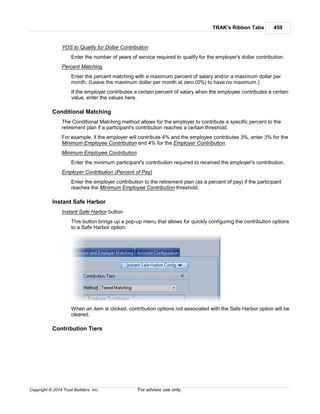
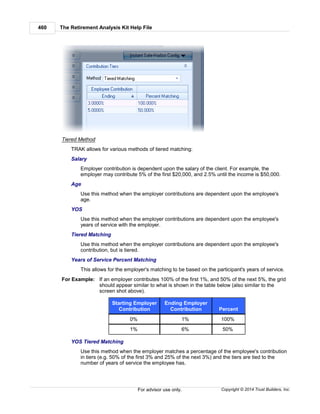
  • 383.
    TRAK's Ribbon Tabs383 Copyright © 2014 Trust Builders, Inc. For advisor use only. Reports from the active TRAK calculator will appear in the dialog box. Select the report(s) from the list to preview or print by checking the box on the left hand side. Reports can be previewed by moving the mouse over the selected report and pausing. The preview options can be turned off and the delay for the preview can be configured in File/Config/Printing/Config The Select All and Clear All buttons may be used to quickly select all or clear all of the selected reports. (The Select All button will be disabled if not all reports can be selected at the same time). Notes: The Generate Preview and Print buttons will be disabled if no reports are 406
  • 384.
    The Retirement AnalysisKit Help File384 Copyright © 2014 Trust Builders, Inc.For advisor use only. selected. By default all non-batch printed and/or previewed reports associated with a client are saved in the report archive (stored with the client data). This option may be configured in File/Config/Printing/Archiving . The Configure button allows for selecting which reports are selected when the dialog box is initially opened and for setting the report order. Each button and option is described below. Configure Allows for configuring various report options. Include Cover Page This determines if a cover page is printed with the selected report(s). A disclaimer can be configured in the File/Config/Printing/Cover Page . If this check-box is checked and disabled, that indicates that the cover page is required. Print/Preview/PDF This will print the selected reports to the selected output. This is only enabled if a report is selected. The output option is selected using the "Output:..." button right below it. Number of Copies Enter the number of copies to print. This is only visible if the output is to a printer. When printing to a file, the following options are available: Setup Printer This will allow selecting and configuring the printer for all of the reports. The printer may be configured for individual reports by right clicking over the specific printer. This is only visible if the output is to a printer. Output: Printer/Preview/PDF Click this button to select the report output. Options include a printer, previewing the report and saving the report as a PDF. When saving the report to a PDF, the following option is available Open PDF File After it is Created Check this box to open PDF files after they have been created. Show/Hide Configuration Panel When the preview window is displaying a report, a hide-configuration button will be displayed at the bottom-right of the configuration panel. This button can be used to hide the report configuration panel (the left side of the dialog). When the configuration panel is hidden, a display-configuration button will be displayed at the bottom-left of the viewer. 389 405 386 386 406 388
  • 385.
    TRAK's Ribbon Tabs385 Copyright © 2014 Trust Builders, Inc. For advisor use only. Clicking this button will re-display the configuration panel. 4.1.7.1 E-mailing Reports to a Client To e-mail a report to a client: 1. Select the output to be PDF. 2. Select Adobe Acrobat Document from the file type (dialog may appear differently depending upon the version of Windows). 3. Select a directory and enter a file name to save the report to. The default directory is: My DocumentsTrust BuildersReports. 4. Click Save. 5. Next locate the file you just saved. 6. Right mouse click on the PDF file icon and select Send To from the menu. 7. From the Send To menu select Mail Recipient. 8. Your email browser should start. 9. Address the email to the individual and send it. The PDF will be attached.
  • 386.
    The Retirement AnalysisKit Help File386 Copyright © 2014 Trust Builders, Inc.For advisor use only. 4.1.7.2 Configure Options Below the list of reports is a button for configuring the print window. This allows for configuring various options, including: Selected Reports Set Current Selected Reports as the Default Selection When this is clicked, the list of selected reports will be remembered the next time the print window is opened. Select Default Reports This will restore the selected reports to the default list. It is disabled if no reports are selected in the default list. Report Order Re-order Reports... Reports can be re-ordered for printing. This setting will be saved. Clear Custom Sort Order Clicking this will clear the custom sort order for the reports. This is only enabled if the current report order has been customized. Custom Report Settings TRAK allows for report settings (the order of the reports and which reports are selected) to be saved by name. This allows for quickly selecting which reports to print out for a client. (For example, setting for the Quick Gap could be "First Meeting", "Follow Up Meeting"). The following three menu items relate configuring the custom report settings. Custom Report Settings This is enable if there are custom report settings saved for the current calculator. If there are custom report settings, clicking on this item will pop-up a menu showing a list of
  • 387.
    TRAK's Ribbon Tabs387 Copyright © 2014 Trust Builders, Inc. For advisor use only. custom report settings. Delete Custom Report Settings... This allows for deleting custom report settings. Save Report Settings... The current report settings can be saved with a name. They will then be available in the Custom Report Settings menu item (above). Printer Setting Remember Main Printer Setting The default printer settings for TRAK can be remembered between settings. Check this to remember the settings. This will affect printing in all TRAK calculators. Remember Individual Printer Settings If this is checked, printer settings for each report will be remembered. Printer settings can be customized for individual reports by right clicking over the specific report. This will only be enabled if an individual report's printer settings has been customized. Clear All Custom Printer Settings This will clear the custom printer settings for the main printer and any custom report printer settings for current calculator. Miscellaneous Auto-Generate Preview on Open If this is checked, and there are preselected reports (see item 1 above), the reports will be auto-generated when the Print window is opened. Save Report to Archive If this is checked, a copy of all generated reports will be saved with the client's data. It can be previewed in the Report Archive viewer. (For batch processing reports, the Archive Reports for Each Participant check box in Config/Batch Processes/Printing must also be checked). Show Report Preview If this is checked, when the cursor is held over a report, a preview of the report will be displayed to the right of the report name. Note that the previewed image is loaded from a database (it is not generated with the client's data) and may appear differently than the preview image that is displayed. 388 389 393
  • 388.
    The Retirement AnalysisKit Help File388 Copyright © 2014 Trust Builders, Inc.For advisor use only. 4.1.7.3 Custom Printer Configuration Printer configuration may be customized per report (including the cover page). This allows for certain pages to be printed in color (e.g. the cover page can be in color), from different printer trays or from different printers. After configuring the default printer settings (if desired), right click over a report name for custom printer settings. The pop-up menu below will appear. Note that the Clear Printer Settings will be disabled when there are no custom printer settings for the selected report. Click the Custom Printer Settings... menu options. This will customize the specific printer settings for the report. Note: Report printer settings generally cannot be changed between portrait and landscape. Additionally, changing page settings between letter and legal size may not work properly for all reports. One exception to this is the Quick Gap's and Gap Analysis' Retirement Years - Grid report. The settings for this report can be changed between landscape and portrait, and letter and legal size paper. After a report has been assigned a custom printer setting, an icon will appear to the right of the report name to indicate that it has custom settings assigned to the report. 384
  • 389.
    TRAK's Ribbon Tabs389 Copyright © 2014 Trust Builders, Inc. For advisor use only. To clear custom settings for any report, right click over the report and select Clear Printer Settings. Custom printer settings will always remain while TRAK is open, even if the Print dialog is closed. Click here for more information about how to keep printer settings between TRAK sessions. 4.1.8 Print Archives To view a print archive file, select File/Print Archive from the ribbon bar. By default, TRAK saves a copy of all generated reports with each client file (include batch processing reports). Print Archives provides a way to review and print reports that have been previously produced orto the Print Archives file. (See the Print dialog for more information.) A file must first be saved as a print archive file before it can be printed from the archives. It can be saved as a print archive file when the file is being viewed or printed. 387 382
  • 390.
    The Retirement AnalysisKit Help File390 Copyright © 2014 Trust Builders, Inc.For advisor use only. Navigate on the left hand side for the client and the archived report. When a report is selected, it will be automatically viewed in the previewer (on the right). 4.1.9 Config Note: To access the TRAK Configuration Editor, select File/Config from the ribbon bar. This provides a single place to configure TRAK. Most settings (except database configuration) are stored in the database. The navigation bar on the left side allows for quick selection of the item to be configured: Note: Items in the navigator may differ depending upon the version of the application being used. When the navigator is focused, an item in the navigator may be located by typing it's name. For example for ribbon configuration, start typing "ribbon" (not case sensitive). The Ribbon configuration editor will be opened when the first "b" for ribbon is clicked. These navigation items provide direct links to information about their configuration: Agent 392
  • 391.
    TRAK's Ribbon Tabs391 Copyright © 2014 Trust Builders, Inc. For advisor use only. Asset Allocation: Determines if the questionnaire has one question on the screen or multiple questions shown per screen. Changes take place the next time the Asset Allocation program is opened. Backup/Restore: Configures the frequency of automatic backups. Batch Processes: Config & Disclaimers Printing Batch Processes Charts Chart Gap Calculator Chart Colors College Types Custom Fields Database Debt Analyzer: Configures the type of qualified plan (401(k) or 403(b)) to illustrate in the Debt Analyzer calculator. Default Values Employer Gap Analysis Calculator Gap Analysis Retirement Plans Look and Feel: Configures how the application (including tool bar, grids, tabs and editors) appear. MAC Multi-Tier Split Annuity Paycheck Printing Qualified Plans: Allows hiding qualified plan types not used by the agent. System Updates Word Lists Hint: To quickly navigate to an item, simply start typing the name of the item as soon as the window is open (or when the Navigator has focus). The Navigator will find the next item in the list with the matching text. For Example: To quickly navigate to Printing/Branding, press the "b" (Backup/Restore will take focus) then press "r"and the Branding item under Printing will have focus. 392 393 393 394 394 465 395 396 396 399 402 402 403 405 406 408 408
  • 392.
    The Retirement AnalysisKit Help File392 Copyright © 2014 Trust Builders, Inc.For advisor use only. 4.1.9.1 Agent Note: To access the Agent Information, select File/Config from the ribbon bar and select Agent from the navigator on the left. The Agent configuration dialog allows for configuring information about the agent. This information shows up on the bottom of some reports and in the initial screen when starting TRAK. The agent's first name and last name are set when registering TRAK. 4.1.9.2 Batch Processes There are three configurable sections in the Batch Processes section. Each is explained in the links below: Config Printing 4.1.9.2.1 Config There are three tabs to configure on the Batch Processing/Printing section. Each item is discussed below: Batch Paycheck Use branding...on Batch Paycheck Reports Branding (feature found only in TRAK Deluxe, and configured in Printing/Branding section of the Setup window) may be turned off for the Batch Paycheck reports. 390 392 393 405
  • 393.
    TRAK's Ribbon Tabs393 Copyright © 2014 Trust Builders, Inc. For advisor use only. Show Methodology Determines if the methodology section of the report is printed. Disclaimer/End note Configures options with the disclaimer printed at the end of the report. When enabled, right clicking over the disclaimer editor gives access to simple font controls. Batch Gap Config Footer Config Allows for determining how the footer is printed in the report. Disclaimer/End Note Allows for configuration of the disclaimer printed on the Batch Gap report. Batch Gap Branding Allows for configuration of branding in the Batch Gap report. The branding image is printed toward the bottom of the report, below the advisor's name. 4.1.9.2.2 Printing These options configure the printing of the Batch Processing calculator. Print Batch Reports to Files This configures the default directory that PDF reports are saved. Report File Naming When printing batch participant reports to individual PDF files, this configures the file name used to save each report. Archiving Reports TRAK allows for saving an archive (copy) of the batch processing reports with the participant's data. Note: A large number of archived reports may significantly add to the size of the database, the size of the backups files, and the time it takes to generate the backups. 4.1.9.3 Charts Note: To access the Chart Information, select File/Config from the ribbon bar and select the appropriate sub-item under Charts from the left hand menu. Appearance/Theme Charts may be assigned an appearance/theme to provide a consistent look. 389 390
  • 394.
    The Retirement AnalysisKit Help File394 Copyright © 2014 Trust Builders, Inc.For advisor use only. Gap Analysis Chart Colors This allows for configuring the colors used for accounts in both the Quick Gap and Gap calculators. 4.1.9.4 College Types The College Types configuration editor allows for configuring the list of college types shown in TRAK's College Funding calculator. Data Entry Base year of default values This is the year that the Annual Cost values in the year are based on. Grid Data There are two types of colleges that may be edited in the list: 1. Colleges defined internally in TRAK. These rows are shown in blue in the grid and only the visibility of the record is configurable. 2. Custom colleges/universities. These are shown in white and may be edited, added and deleted. To add or delete a college type, click on the '+' or '-' button at the bottom (or press the down arrow on the last record, or Ctrl-Insert, to add a record, and Ctrl-Delete to delete a record). 4.1.9.5 Custom Fields Note: To access the Custom Fields Information, select File/Config from the ribbon bar and select Custom Fields from the left hand menu. 390
  • 395.
    TRAK's Ribbon Tabs395 Copyright © 2014 Trust Builders, Inc. For advisor use only. Custom Fields are associated with the Database program of the software. Three custom fields can be setup. To enable/disable a custom field, check the Visible property, and enter a value for the Caption. Note: Custom fields are available in the Database program by right clicking over the grid and selecting them to be visible. 4.1.9.6 Default Values Note: To access the Default Values Information, select File/Config from the ribbon bar and select Default Values from the left hand menu. Choose the default values to be used when a new client is created. Note: "Federal TSP Account" refers to the Thrift Savings Plan available to federal employees in the CSRS or FERS retirement systems. 68 390
  • 396.
    The Retirement AnalysisKit Help File396 Copyright © 2014 Trust Builders, Inc.For advisor use only. 4.1.9.7 Employer Note: To access the Employer Information, select File/Config from the ribbon bar and select Employer from the left hand menu. Default Employer Use this value to select which employer file is selected when a new paycheck file is created. Employer State To change the selected state for paycheck withholding for all employer files, select the state and click on the 'Set State' button. Use FICA and Medicare Rates TRAK has the FICA and Medicare rates built in (the current rates show in the editors). If you wish to override the default rates, check the Use Standard FICA and Medicare Rates box and enter the desired default rates. 4.1.9.8 Gap Analysis Note: To access the Gap Analysis Information, select File/Config from the ribbon bar and select Gap Analysis from the navigation window on the left. There are four configurable areas in the Gap Analysis section. Each is explained in the respective links below: Calculator Pension Max Rename Plans Retirement Budget Retirement Plans Retirement Income Models Retirement Tax Tables 4.1.9.8.1 Calculator Note: To access the Gap Analysis Calculator Information, select File/Config from the ribbon bar and select Gap Analysis/Calculator from the navigator on the left. Maximum Inflation on Social Security After the individual retires, this limits annual increases in future Social Security payments to a specific percentage. (Social Security will inflate to the least of the maximum or retirement inflation.) Title on Reports Select the title for the Quick Gap and Gap Analysis reports. Order for "Client Data & Calculation Overview" Report The "Client Data & Calculation Overview" report can start with the client data and then show the 390 390 396 398 398 398 399 399 400 390
  • 397.
    TRAK's Ribbon Tabs397 Copyright © 2014 Trust Builders, Inc. For advisor use only. calculations, or visa verse. "Client Data & Calculation Overview" report vertical layout Determines the vertical spacing for the respective report. Maximum Contribution Limits Select if the contribution limits for retirement plans is indexed for future years. Retirement Years Chart Select if the Retirement Years Chart report displays the income and balance charts on one page (one report) or as separate pages (two separate reports). Retirement Years Gird Configure which columns are visible in the Retirement Years Grid screen and report. Quick Gap Calculator: Allow Different COLA Rates Prior to and During Retirement Allows for entering different COLA rates in the Quick Gap calculator for the accumulation and distribution years. Federal Retirement Systems 4.1.9.8.2 Federal Plans TSP Options Always Display the TSP/Federal Savings Plan tab In the Gap Analysis calculator, a "Client TSP" and "Spouse TSP" tabs are displayed, even if the respective account is not a federal retirement plan. Uncheck this box to hide the tabs if a federal retirement plan is not selected. Calculate TSP Using TSP Account Details This determines if the TSP account is entered using Life Cycle Funds and G, F, C, S and I funds (if it is checked) or using the current balance and single projected rate of return. Apply Default Accumulation and/or Distribution Values... to TSP Accounts In the Gap Analysis Setup tab, accumulatio Charts in the FEGLI Report Print Annual Premium Chart, Print Accumulated Premium Chart, and Print Life Insurance Coverage Chart This determines which chart(s) (if any) are included in the FEGLI report. Colors for FEGLI Charts in Report If any charts are included in the report, the color scheme can be selected. Select either Use Color Theme or Use Contrasting Colors.
  • 398.
    The Retirement AnalysisKit Help File398 Copyright © 2014 Trust Builders, Inc.For advisor use only. 4.1.9.8.3 Pension Max Items in reports comparing the advantages and disadvantages of pension maximization and the retirement plan can be configured here. 4.1.9.8.4 Rename Plans TRAK allows for renaming the built-in retirement plans. For example, California STRS can be renamed CalSTRS. This allows advisors to use the common name of the plan that a client may be more familiar with. 4.1.9.8.5 Retirement Budget This configures the Retirement Budget found in the Gap Analysis' Retirement Income and Calculation tab. Report Options Include Budget Items without Values If this is checked, budget items that have a zero value are included in the report. Only Print Details for Items with Values This is only enabled if the previous prompt is checked and determines if details are printed for budget items even if they have a zero value. Default Method for Starting and/or Ending Custom Retirement Expenses Select the default method (Age or Date) to be used with new clients. Properties, Categories and Items tabs These tabs allow the colors for the corresponding items to be selected. Additionally, on the Items
  • 399.
    TRAK's Ribbon Tabs399 Copyright © 2014 Trust Builders, Inc. For advisor use only. tab, the default value and visibility of specific budget items can be configured. 4.1.9.8.6 Retirement Income Models The Retirement Income Model Editor allows for creating, deleting, and configuring retirement income models for the Gap Analysis calculator. Use the toolbar at the top to save, create a new model, rename the existing model, or delete a retirement income model. (Note that more than one retirement income model must exist before a model may be deleted.) 4.1.9.8.7 Retirement Plans Note: To access the Gap Analysis Retirement Plans Information, select File/Config from the ribbon bar and select Gap Calculator/Retirement Plans from the navigator on the left. 390
  • 400.
    The Retirement AnalysisKit Help File400 Copyright © 2014 Trust Builders, Inc.For advisor use only. The Gap Analysis: Retirement Plans allows retirement plans (pension plans) to be shown or hidden by state (e.g. the grid below illustrates showing California retirement plans) or by individual plan (by clicking on the "Retirement Plans" tab in TRAK and selecting which plan(s) are visible). This allows removing plans from the list that may never be needed. Show All Retirement Plans This will show all retirement plans in the software. Note: The list of retirement plans and states is not editable if Show All Retirement Plans is checked. Default Retirement Plan This is the retirement plan that will be selected when a new client file is created. States and Retirement Plans grids If Show All Retirement Plans is not checked, the plans listed in TRAK may be selected by state (lists all plans associated with the particular state), or by selecting the particular retirement plan on the Retirement Plans tab.) 4.1.9.8.8 Retirement Tax Tables The Gap Analysis calculator allows for calculating a client's retirement income needed on an after tax basis. TRAK comes with built in federal tax tables. Custom federal and state withholding tax tables may also be used.
  • 401.
    TRAK's Ribbon Tabs401 Copyright © 2014 Trust Builders, Inc. For advisor use only. To create a new table, select which tax table type to create ("Federal" or "State") and click the "New" button at the top of the dialog. Enter the tax tier information in the grid below. Note: Be sure the highest tax tier has a very high income level (e.g. $999,999,999) otherwise high income levels will not be taxed when the tax table is used.
  • 402.
    The Retirement AnalysisKit Help File402 Copyright © 2014 Trust Builders, Inc.For advisor use only. 4.1.9.9 Look and Feel This configures the application's appearance. Note: On some machines with older graphic cards, using skinning may cause the application to be especially slow. In this situation, uncheck the 'Use 'Blue' skin'. 4.1.9.10 MAC Note: To access the MAC Information, select File/Config from the ribbon bar and select MAC from the navigator on the left. The only setting available here determines how the MAC tables are to be read. The default selection is "Truncate ages for table values," and is the accepted method at the time of this documentation. 4.1.9.11 Multi-Tier Split Annuity Note: The configuration dialog box can be accessed by clicking on the Configuration button ( ) at the top of the Multi-Tier Split Annuity Data Input screen. It is also available by selecting File/Config in the ribbon bar and in the navigator on the left selecting "Multi-Tier Split Annuity". The fields below are used to configure the Multi-Tier Split Annuity calculator's Data Entry screen in TRAK. Payout method Select the payout method for the various tiers, either an Annuity Rate (dollar per thousand per month) or Interest Rate. Allow editing tier name Check this box to enter a name for each tier. If this is not checked, the tiers will be named "Period 1," "Period 2"... and "Final Period." 390 217 390 216
  • 403.
    TRAK's Ribbon Tabs403 Copyright © 2014 Trust Builders, Inc. For advisor use only. Allow for premium bonus per tier If any time period has a premium bonus, check this option. Allow editing inflation per tier Inflation can be estimated for all time periods, or configured per tier. To configure per tier, check this box. Show start/end year in grid Checking this shows the start and end year of each tier in the tier grid. Show start/end age in grid Checking this shows the start and end age of the client for each tier in the tier grid. 4.1.9.12 Paycheck The Paycheck setup has three categories that may be configured. 1. Paycheck Calculator 2. Lists 3. Projection's Chart Options 4.1.9.12.1 Paycheck Options Note: To access the Paycheck Calculator setup screen, select File/Config from the ribbon bar and select Paycheck/Calculator from the navigator on the left. Each prompt for the Paycheck Calculation Setup is discussed briefly below. Displayed Paychecks Initial Number of Paychecks Visible when the Calculator is Opened This determines how many paychecks are initially visible when the Paycheck calculator is opened. Initial Scenario for the Paycheck Calculator's Second Column Select either Quick Max or Proposed #1. This will be the paycheck displayed in the second column (just to the right of the "Current" column) Initial Second Paycheck for the Paycheck in the 1040 Calculator Select the initial active paycheck for the 1040 Analysis calculator. If "Active Paycheck", the active paycheck from the initial paycheck calculator will be focused. Charting Value to Highlight in Paycheck Charts In the Paycheck charts, you can select to highlight taxes, retirement plan contributions or nothing. Taxation Default FICA and Medicare Method 403 404 404 390
  • 404.
    The Retirement AnalysisKit Help File404 Copyright © 2014 Trust Builders, Inc.For advisor use only. Default method can be to display values separately or as a single value. Default Taxation Display Withholding taxes can be itemized or only show the total value. Highlight State Withholding Taxes This will display the state withholding taxes in bold. Note that this feature is used internally when updating state withholding taxes. Reporting Paycheck Withholding Taxes in Reports Select how to display the taxes in the report. If Same as User Interface is selected, the reports will be configured the same way as the user interface is configured in the active calculator (either the Paycheck or 1040 Analysis calculator). Employer Contribution Description in Reports Allows displaying or hiding the employer contribution to the retirement plan. Three methods are available to select from Always: Displays a description of the employer contribution even if the employer is not making contributions. (If the employer is not making contributions the message will state, "The employer does not contribute to the retirement plan."). When Employer Contributes: Only displays a description of the employer contribution if the employer is making contributions. Never: Never displays contributions in the report. 4.1.9.12.2 Paycheck Lists Options Note: To access the Paycheck Lists setup screen, select File/Config from the ribbon bar and select Paycheck/Lists from the navigator on the left. This screen allows you to configure the Paycheck's Section 125 and the After-Tax itemizations. 4.1.9.12.3 Paycheck Projection Options Note: To access the Paycheck/Projection's Chart Options setup screen, select File/ Config from the ribbon bar and select Paycheck/Projection's Chart Options from the navigator on the left. This screen allows for configuring the charts for the Paycheck Projection calculator. Show Annotation in Chart Displaying the Percent of Income the Savings will Produce During Retirement Determines if the retirement income distribution values include an annotation displaying what percentage of retirement income the accounts will provide. 390 390 261
  • 405.
    TRAK's Ribbon Tabs405 Copyright © 2014 Trust Builders, Inc. For advisor use only. Account Colors This section allows for configuring the colors used in the accounts. Configure the accounts as needed. 4.1.9.13 Printing Configure print options for TRAK. Branding Config Cover Disclaimer 4.1.9.13.1 Archiving Report archives are copies of reports saved with the client file when reports are previewed or printed. A copy of every report can be saved with the client file (and are viewable in the File/Report Archives or in the Database tool). To turn off archive, un-check the "Always Create a Duplicate Archive Report". Note: If the auto-archive is turned off, an archive can still be created in the print configuration by selecting "Archive Report" from the Output options. "Archive Report" is only available if auto-archive is disabled. 4.1.9.13.2 Branding Note: To access the Branding Configuration Screen Information, select File/Config from the ribbon bar and select Printing/Branding from the left hand menu. This configures the branding options for TRAK. Branding is only available in the Deluxe version of TRAK. Branding allows for placing an image on the top left or the top right of a report (image may be 2 inches wide by 0.5 inches high). An optional line may appear below the image. Also, a watermark may appear in the middle of the report. Note: TRAK does not perform any processing on the images. 4.1.9.13.3 Config Note: To access the Printing Configuration Screen Information, select File/Config from the ribbon bar and select Printing/Config from the left hand menu. General Settings Auto-name Reports when Printing to File Check this box if reports are to be given a name when the save dialog is opened. The default file name will be based on the clients name. Default Report Director for Printing to File 405 405 406 389 68 390 390
  • 406.
    The Retirement AnalysisKit Help File406 Copyright © 2014 Trust Builders, Inc.For advisor use only. Select which directory and sub-directory to which the reports are saved when printing batch paycheck reports to a file. Include "Calculation Method" page in report list Check this box if the "Calculation Method"" report is to be printed with the report. "Calculation Method" Page must be Printed when a Report is Printed Check this box if the "Calculation Method" page is mandatory. If this is checked, the report cannot be inadvertently unchecked. Preview Options Preview Report Check this box to display a preview of a report when the mouse pauses over the name of a report. Preview Display Time This prompt is only enabled if the Preview Report is checked. Select the amount of time required to display the preview of the report. Printing Images Force Direct Draw Images to Printer This option prints images directly to the printer. Check this box if images are printed poorly. It may reduce printing performance. Allow images to be transparent This option is not supported by all printer drivers. It may improve watermark images. 4.1.9.13.4 Cover Disclaimer Note: To access the Cover Disclaimer Configuration Screen Information, select File/ Config from the ribbon bar and select Printing/Cover Disclaimer from the left hand menu. An optional disclaimer may be printed on the cover page. (The cover page may be selected in the Print dialog.) 4.1.9.14 System Note: To access the System Information, select File/Config from the ribbon bar and select System from the left hand menu. There are two sections to the system setup. Bug Reports Miscellaneous Settings 4.1.9.14.1 System Bug Reports Note: To access the System Miscellaneous setup, select File/Config from the ribbon bar and select System/Bug Reporting from the navigator on the left. 390 382 390 406 407 390
  • 407.
    TRAK's Ribbon Tabs407 Copyright © 2014 Trust Builders, Inc. For advisor use only. Very occasionally (we hope no more than that) TRAK users may see an unexpected exception, similar to the image below. These bug reports are saved to your computer and may be used for technical support. The settings on this tab determine if the bug reports are saved and how long the files remain on the hard drive. (To view the contents of the bug reports, after seeing an Unexpected Exception dialog show above, open this window and click on the View Bug Report Log button). 4.1.9.14.2 System Miscellaneous Note: To access the System Miscellaneous setup, select File/Config from the ribbon bar and select System/Miscellaneous from the navigator on the left. This dialog contains miscellaneous system settings for various parts of TRAK. Status Bar Show Status Bar Determines if the status bar (at the bottom of the main window) is visible Show Date in Status Bar Determines if the current date is displayed in the status bar. Show Time in Status Bar Determines if the current time is displayed in the status bar. Miscellaneous Enter key is equivalent to Tab key The Enter key behaves like a Tab key in stand alone editors (i.e. goes to next control). Turn on Num Lock key when program starts This turns on the Numlock key when the program starts. This option is not recommended for laptop computers. Print Pie Charts in 2D (maintains aspect ratio) This prints pie charts in a 2D format to maintain aspect ratio. Otherwise, the pie charts may appear skewed. Show Fractional Months when Displaying Descriptive Age or Years of Service Displays the fractional months for ages and years of service in software. 390
  • 408.
    The Retirement AnalysisKit Help File408 Copyright © 2014 Trust Builders, Inc.For advisor use only. 4.1.9.15 Updates This allows for configuring TRAK automatically checking for updates. Also, for updates related to specific states (including both pension plans and state withholding tables), check the box related to the state(s) (e.g. if Wyoming Retirement System is updated most TRAK users would not want to be notified). Manual Updates verses Automatic Updates There is a difference between TRAK's automatic and manual updates. A TRAK update may be only for a specific state, or set of states. For Example: If a pension plan is updated for the state of Wyoming, an update may be posted for just that state. While updates to Wyoming state pension plans may be important to some advisors, for most, it is not relevant. In File/Configure/Updates , TRAK can be configured not only how frequently it automatically checks for updates, but also for which state(s) are checked. TRAK will check for an update as regularly as configured shortly after it is started. Manual updates only check if an update is available, and does not filter to see if the update is only for specific states. Manual updates can be performed by clicking on the "Check for Update" button on the "Setup" ribbon. Note that TRAK must have access to the internet and be started to check for, and download, any updates. 4.1.9.16 Word Lists This section allows for the editing of word lists used in TRAK. The various word lists are used in the Database program. 4.1.10 Backup & Restore There are several options to back up and restore data: Backup to File Restore from File 408 68 409 409
  • 409.
    TRAK's Ribbon Tabs409 Copyright © 2014 Trust Builders, Inc. For advisor use only. 4.1.10.1 Backup to File Warning: Having a backup policy in place that has data backed up offsite is highly recommended. Regularly backing up data to a hard drive or other media that is not offsite may result in data loss. For your convenience, we have provided a simple way to backup your data. Click File/Backup & Restore/Backup to File... The dialog below will appear. 1. Select the location for the backup file. 2. If the data is to be encrypted, enter the password two times. 3. Select Backup. If the data was backed up to the local hard drive, it is highly recommend that a copy also be made on a different media and kept off site. Warnings: Backing up data to the same hard drive on which the database is located is not a safe practice, especially in the event of a hard drive failure. It is impossible to recover data if the password is lost. 4.1.10.2 Restore from File Warning: Restoring data may overwrite your current client data files and result in a complete loss of the current data. Please be careful. Select File/Backup & Restore/Restore from File... from the ribbon bar. A dialog similar to what is below will appear:
  • 410.
    The Retirement AnalysisKit Help File410 Copyright © 2014 Trust Builders, Inc.For advisor use only. Source File Enter the path and file name of the backup file. Hints: Clicking on the down-arrow to the right of the box (or pressing Control-Down Arrow) will show a list of files that were recently backed up. Clicking on the file selector icon on the far right of the editor will allow the file to be selected. Database Action Select to either Overwrite the Existing Database or Change Database Name. If overwriting an existing database the following prompt must be checked: Notes: The current database will be backed up. Overwrite existing data Check the box to confirm overwriting the existing database. If changing the database name, the following prompt will appear: New Database Name Enter the new database name to restore to. The file must not exist in the data directory. Notes: Changing the "New Database Name" will change the current client database file and leave the existing client database file. The restored database will be located in the same directory as the current database. Password If the file is encrypted, enter the password. Once the data has been correctly entered, click on the Restore button.
  • 411.
    TRAK's Ribbon Tabs411 Copyright © 2014 Trust Builders, Inc. For advisor use only. 4.1.11 TRAK Documents & Tools The TRAK Documents & Tools menu contains customizable links to additional programs and resources. In addition to containing links to TRAK reference materials, it allows the user to incorporate additional links to PDF reports, PowerPoint, or other programs. These may be used in association with TRAK without having to exit TRAK in order to start the other program. Configuring the Tools Menu The Tools/Configure menu opens a dialog box that allows for configuring the Tools menu. Possible tools could be a newly created PowerPoint presentation, a spread sheet that has been formatted, or a link to another executable program to run from TRAK. Folders may be added to categorize various tools if a large number of them are to be added. Notes: A red X to the left of the tool indicates that the document or program cannot be found and will be disabled in the Tools menu. The settings for the Tools menu are saved in the client database file. To add a program, click on the Add Program button. The screen displayed below will appear: The various inputs are discussed below: Title This is the text to appear in the menu bar that describes the document. Program This is the document or program to be run when the menu bar is clicked.
  • 412.
    The Retirement AnalysisKit Help File412 Copyright © 2014 Trust Builders, Inc.For advisor use only. Working Dir This may be required by the program or document, and is normally set to the directory in which the document or program is located. 4.1.12 Import/Export TRAK allows for importing client data from two sources: 1. Census files , including both an Excel and text file. 2. Other TRAK database files . 4.1.12.1 Import Clients The File Import utilities are used to import client data from a data file (e.g. an employer census file) into the TRAK database. Data File Contents The data file fields (e.g. columns), should contain the following information: (See Import Terminology for more detailed explanations of the definitions of words.) 1. First Name 2. Last Name Note: First Name and Last Name must be in separate columns. 3. Date of birth 4. Current account balance, and any values used to calculate the paycheck. Note: TRAK will calculate federal and state withholding taxes (where applicable), so only the status and allowances need to be imported, not the value(s) themselves. Click here to view a list of common questions about importing client data. 4.1.12.1.1 Import Wizard The Import Wizard allows for the importing of data into the TRAK database from various formats. It is accessed from the File/Import Clients from the ribbon bar. The import utility utilizes a wizard to move you through the configuration of importing data Notes: The selections made may change which pages are available as progress is made through the import wizard. This data may be associated as a group for batch processing by the Batch Processing calculator. This will be discussed in the Name Group page. The import wizard is made up of the following 15 pages: 1. Welcome Screen 2. File Type 3. File Name 4. Text File Settings 412 433 430 431 34 426 413 414 414 415
  • 413.
    TRAK's Ribbon Tabs413 Copyright © 2014 Trust Builders, Inc. For advisor use only. 5. Data Formats 6. Employer File 7. Column Settings 8. Field Associations 9. Data Conversion 10.Default Values 11.Preview Data 12.Group Name 13.Import Action 14.Data Merge Config 15.Finished Page Click on the link above to get more details on the specific page of the wizard. Press the Next button to move forward through the wizard. 4.1.12.1.1.1 Welcome This is the first page of the file Import Wizard. If settings from a previous import were saved, they may be selected in the combo box (as shown above). Otherwise, the page will be blank. 417 419 419 420 423 424 425 426 427 427 429
  • 414.
    The Retirement AnalysisKit Help File414 Copyright © 2014 Trust Builders, Inc.For advisor use only. 4.1.12.1.1.2 File Type The File Type page allows you to select the format of your current data. TRAK supports importing data from Excel and text file formats. Depending upon the format selected, the list of required import pages changes. The information required on each page may also change, depending upon the import format selected. Note: Because text files contain less information about the data than Excel files, text files will require more configuration than Excel files. 4.1.12.1.1.3 File Name The File Name page is required by all data formats for selecting the location of the data file for importing.
  • 415.
    TRAK's Ribbon Tabs415 Copyright © 2014 Trust Builders, Inc. For advisor use only. Enter the file name, including path, where the data file is located. Hints: To open a file selection window, click on the ellipses ( '…') or press Ctrl-Enter while the File Name prompt is active. The import wizard must be able to find the file before moving forward. If it can not, the text of the file name will appear in red. 4.1.12.1.1.4 Text File Settings The Text File Settings page is only required for importing data from text files. Note: Text files (commonly called ASCII files or CSV files) require the highest level of configuration to import data. The reason being, text files have the least internal definition of the data (e.g. how a date is formatted, what type of data is in each field, etc.).
  • 416.
    The Retirement AnalysisKit Help File416 Copyright © 2014 Trust Builders, Inc.For advisor use only. Delimited or Fixed Width Text files separate their field values one of two ways: using fixed width columns or using delimiters. If delimiter (a character that separates fields, such as a comma or a tab) is selected, the type of delimiter must be selected. Field Delimiter Select the delimiter between the field values. Normally this would be a comma. Record Separator Select what defines the end of a record. CR is a 'carriage return' and is ACSII character #13. LF is a 'line feed' and is ASCII character #10 Text Qualifier If text fields in the input file are qualified with quote marks, select which type of quotes are used. Note: Other settings on this page will most likely be correct. Only change settings if they are incorrect. Character Set Normally this will be an ANSI Windows character set. If the source file was from a file generated in a MS DOS program, choose ANSI MS DO. Trim Spaces Select if the text is to be trimmed (leading and/or trailing spaces). 430 430
  • 417.
    TRAK's Ribbon Tabs417 Copyright © 2014 Trust Builders, Inc. For advisor use only. 4.1.12.1.1.5 Data Formats The Data Formats page is used for configuring text, XML, and Excel file formats; in addition, it is used to define how the data is formatted in the file. Each item is dealt with below: First Row of Data When importing a file, the first record(s) may be header information or field names. If this is the case, enter the row number on which the data starts. Last Row (use '0' for all) If you want to limit the number of rows imported for various reasons (e.g. for a test), enter the last row number from which to import data. Field Name Row (use '0' for none) If the data file includes field names, enter the row number of the field names. (Normally, if field names are included, it would be in the first record ( i.e. use '1'). Note: This prompt is enabled only if the First Row of Data prompt has a value greater than one, and its value must be less than the First Row of Data value. Number of Additional Accounts Additional accounts besides the primary and secondary qualified plan can be imported. For each additional account, four additional fields will be added to the Field Association Calculation fields: 1. Act #n Name 2. Act #n Balance 3. Act #n Contribution 4. Act #n Contribs. per Year
  • 418.
    The Retirement AnalysisKit Help File418 Copyright © 2014 Trust Builders, Inc.For advisor use only. where "#n" corresponds to the account number (e.g. "Act #1 Name"). Note: Note that these additional accounts are not taken into consideration in the Batch Processing reports, but are available in the Quick Gap and Gap Analysis calculators. Date, Times, and Numbers Note: When importing from an Excel file, only the "Currency Symbol" will be display and is the only item below that must be configured Date Format Enter the order in which the day, month, and year are listed in the file being imported. The Custom Format prompt is enabled only if 'Custom' is selected from the Date Format editor. Four Digit Years If the data being imported uses four digits for years, check this; otherwise, two digits are assumed. Leading Zeros in Dates If months and days that are below ten include zeros before them (e.g. 01/05/1945 includes zeroes, whereas 1/5/1945 does not), check this box. Decimal Symbol Select the decimal symbol that the import data is using. (This is usually a decimal, but in some cases may be a comma.) Thousand Separator Select the thousand separator that the import data is using. (This is normally a comma, but in some cases may be a decimal.) Currency Symbol If currency symbols are in the import file, enter the character used as the currency symbol. Date Delimiter Enter the separator between the day, month, and year in a date value.
  • 419.
    TRAK's Ribbon Tabs419 Copyright © 2014 Trust Builders, Inc. For advisor use only. 4.1.12.1.1.6 Employer File The Employer File page is used to select the employer file to be associated with the imported data. Hints: To configure a new employer file, click on the employer file editor button ( ) to the right of the prompt. The employer file configuration will determine which fields are imported. Specifically: 1. Fields not visible in the employer file will not be listed (e.g. in the Employer File Editor's "Visible Field" tab, if the "Section 125" is not checked, it will not be listed in the Column Association page). Click here for more information about visible fields. 2. The configuration of the method for contribution (i.e. Percent of Paycheck or Dollar Value) will determine which field is visible. Click here for more information. 4.1.12.1.1.7 Column Settings The Column Settings page is only used for text files that have fixed width columns. The vertical blue lines are added by clicking the left mouse button over the grid, and are used to separate fields (such as first name, last name, city, etc.). Double clicking results in the removal of the line. Lines can also be dragged by holding the left mouse button down and moving the mouse. Hints: Pay extra attention to the location of column breaks when working with fixed width columns that have field names in the first row (see Field Name Row in the Data Formats page). The location of the column breaks may need to vary, depending 440 443 419
  • 420.
    The Retirement AnalysisKit Help File420 Copyright © 2014 Trust Builders, Inc.For advisor use only. on length of field names in the first row. If this is the case, the easiest way to work with them is as follows: 1. Go back to the Data Formats page and set the First Row Data value to '1'. 2. Return to this page and set the column breaks. 3. Return to the Data Formats page and reset the First Row Data value. 4.1.12.1.1.8 Field Associations The Field Associations page is used by all import formats to associate the columns in the data that is being imported with the columns inside TRAK. Note: Note that only part of the data will be imported for preview purposes only. Hints: Before continuing, confirm that the data in the grid is formatted correctly. The scroll bars may be used to confirm that the columns are formatted correctly and to edit the associations. If the columns do not appear correctly, reconfigure the previous pages so the data does appear correctly. Overview of the page This page has several different areas: 1. The light blue area of the grid is non-editable data. 2. The white area shows which TRAK fields must be associated with the imported data. 3. The list to the far right shows fields that may be imported. These categories include Required,
  • 421.
    TRAK's Ribbon Tabs421 Copyright © 2014 Trust Builders, Inc. For advisor use only. Calculation, and Information. List of fields Below is a categorized list of fields that may be imported from the client data file: Note: The maximum size for each field is shown only when relevant. Field Name Description Max size Required Fields The following two fields are required for importing client data. First Name First name of the client. 25 Last Name Last name of the client 25 Calculation Fields The following fields are used for paycheck calculations. Depending upon the configuration of the Employer File, fields may not be listed (e.g. second qualified plan contributions). Income Per paycheck income for the client. If the income from the data file represents more then one paycheck, it may be manipulated on the next page. Add Income Any additional income that the client receives. See the Paycheck help for information regarding this field. Federal Status The client's federal filing status. Should be either 'Married' ('M') or 'Single' ('S'). Federal Allow Number of federal allowances the client is filing. Add Federal Tax Any additional federal tax that the client is paying per paycheck. State Status The client's state filing status. Should correspond to the filing status in the Paycheck calculator (either the full name selected on the left of the Paycheck Calculator abbreviation or the right). State Allow Number of state allowances the client is claiming. Add State Tax Any additional state tax paid by the client per paycheck. Local Tax Local tax values can be imported if, in the employer file, the local tax is configured to prompt for the value . If local taxes are to be imported, the field name will be the name of the local tax entered in the employer file editor with "[LOCAL TAX]" added as a suffix. Sec 125 Value for the client's total Section 125 contributions. QualifiedPlan_1_Dollar or QualifiedPlan_1_Percent Contributions to the primary qualified plan as a dollar or percent value. Only one field will be visible, depending upon 449
  • 422.
    The Retirement AnalysisKit Help File422 Copyright © 2014 Trust Builders, Inc.For advisor use only. the configuration of the employer file. Qualified Plan_2_Dollar or Qualified Plan_2_Percent Contributions to the secondary qualified plan as a dollar or percent value. Only one field will be visible, depending upon the configuration of the secondary retirement plan in the employer file. Pension Plan Dollar and/or Pension Plan Percent Used when the employer file is set to enter pension plan contributions as a dollar or percent. Employee Class For custom retirement plans with Employee Class selected as the Profit Sharing Method, this column should match the name of the employee class. This will associate the participant with the class related to the profit sharing rate. After Tax Deduct Paycheck reductions on an after tax deduction basis. Current Balance Current balance of the participant's qualified plan. DOB Client's date of birth. DOE Client's date of employment. Retire Date or Retire Age Only one may be configured. A default value for retire age may be set on the Defaults page. (Click here to see an example in the Defaults Values page). DBValue QualifiedPlan_1_RothDollar or QualifiedPlan_1_RothPercent Contribution to the Roth account. RothActBalance Balance for the Roth account. Gender Gender of person. First letter of value should be a "F" or "M" (for "female" or "male", respectively). Value is not case sensitive. UseSS Determines if Social Security is to be included in the illustration for this individual. Act #n Name, Act #n Balance Act #n Contribution Act #n Contribs. per Year Imports fields for additional accounts. The number of additional accounts is configured on the Data Formats tab. Note that these additional accounts are not taken into consideration in the Batch Processing reports, but are available in the Quick Gap and Gap Analysis calculators. Information Fields SSN Social Security Number. May be used to identify client to merge imported data. 11 Address Client's address. City Client's city. 25 State Client's state. Note that this is their state of residence, and note the state for state tax withholding calculations (that is 2 454 424 417
  • 423.
    TRAK's Ribbon Tabs423 Copyright © 2014 Trust Builders, Inc. For advisor use only. configured in the employer file). Zip Client's zip code. 10 Home Phone Client's home phone number. 20 Mobile Phone Client's cell phone number. 20 Fax Client's fax number. 20 Work Phone Client's work phone number. 20 Email Client's email address. 30 Spouse Name Client's spouse's name. 20 4.1.12.1.1.9 Data Conversion The Data Conversion page allows for converting the client's income and the qualified plan percent into the values required by TRAK. Income Conversion If the value for the participant's income in the imported data represents more than the income from a single paycheck, enter the number of paychecks that it represents. (This is only enabled if the income field is selected in the Field Association page)/ Converting Section 125 and Qualified Plan Contribution
  • 424.
    The Retirement AnalysisKit Help File424 Copyright © 2014 Trust Builders, Inc.For advisor use only. The Configuration button (at the top right of the window) allows for converting Section 125 and Qualified Plan contributions Because these are untypical, they are hidden by default, To turn these on and check the respective item. The Section 125 conversion is similar to the conversion of income. The Qualified Plan contribution converts the qualified plan contribution as a percent. If the contribution value is imported as a fraction (for example, 5% is imported as 0.05), then it must be converted. 4.1.12.1.1.10 Default Values The Default Values page allows you to assign values to all fields that are not assigned in the Field Associations page. To assign a default value, check the box associated with a field and enter the default value. For Example: In the configuration above, the "SSA Normal Retirement Age" default for retirement age above was assigned
  • 425.
    TRAK's Ribbon Tabs425 Copyright © 2014 Trust Builders, Inc. For advisor use only. 4.1.12.1.1.11 Preview Data The Preview Data page allows for the data to be previewed before it is imported. Confirm that the data appears correctly before moving forward.
  • 426.
    The Retirement AnalysisKit Help File426 Copyright © 2014 Trust Builders, Inc.For advisor use only. 4.1.12.1.1.12 Group Name The Group Name page allows for the imported names to be associated as a group. Groups have several uses in TRAK: 1. Use the Batch Processing calculator to process each imported file in a group. 2. The group can be deleted in the File/Delete dialog by selecting "Group" in the "Delete by" combo box. 3. Client files can be loaded by group selection. Note: Groups are not required to have a distinct name; they have a date and time stamp associated with each one. There can be multiple groups with the same name.
  • 427.
    TRAK's Ribbon Tabs427 Copyright © 2014 Trust Builders, Inc. For advisor use only. 4.1.12.1.1.13 Import Action The Import Action page defines how the imported list is added to the TRAK database. Select from three options for how the data is to be imported: Add data to TRAK's client data file. 1. If the client exists, update the record. Otherwise, add as a new client. 2. If the client exists, do not update the record. Otherwise, add the record. Note: When selecting item #2 or #3, the conditions for defining if the client exists are enabled. Select the appropriate item from the list below. If the Social Security Number was not selected as an imported field, it will be disabled. 4.1.12.1.1.14 Data Merge Config The Data Merge Config tab controls which fields in the TRAK database are to be updated if client data is found in the database.
  • 428.
    The Retirement AnalysisKit Help File428 Copyright © 2014 Trust Builders, Inc.For advisor use only. Note: This page is available only if the configuration of the Import Action page is to update existing records . Merge all fields when data is imported If the client is found, all fields that are selected to be imported will be updated. Merge only selected fields when record exists If the client is found, only the selected (checked) fields in the list will be updated.
  • 429.
    TRAK's Ribbon Tabs429 Copyright © 2014 Trust Builders, Inc. For advisor use only. 4.1.12.1.1.15 Finshed The Finished page announces when the configuration for importing the data is finished. If the previous pages in the Wizard were configured correctly, the 'Import Data' button will be enabled. The settings for importing data may be saved for later use by clicking 'Save Settings' and entering a name for the settings (which can later be selected on the 'Welcome' page of the Import Wizard). Press the 'Import Data' button to import data as it is configured. The following import progress dialog will be displayed as the data is imported: After the import progress is finished, the import log file will be displayed> 413
  • 430.
    The Retirement AnalysisKit Help File430 Copyright © 2014 Trust Builders, Inc.For advisor use only. If any error(s) occurred when the data was imported, they can be viewed here. The data will be in the TRAK client database. TRAK may take a few moments to import the data. The progress will be displayed right below the Active Client File name at the top-left of the main window. The data is available within TRAK, but TRAK is still saving the data to the database. 4.1.12.1.2 Import Terminology Records, Fields, Delimiters, and Fixed Width Below is an example of how data may look when in an application: First Name Last Name Address City State #1 Joe Smith 123 Main St. Atlanta GA #2 Bob Blue 244 2nd St. New York TX #3 Mary Jones 456 Adams St. Dallas OR Records The data shown above has 3 records and 5 fields. Records are any row of data that contain information related to a specific item (in this case, each person). The following image highlights record #2 of the above dataset: First Name Last Name Address City State #1 Joe Smith 123 Main St. Atlanta GA #2 Bob Blue 244 2nd St. New York TX #3 Mary Jones 456 Adams St. Dallas OR
  • 431.
    TRAK's Ribbon Tabs431 Copyright © 2014 Trust Builders, Inc. For advisor use only. Fields Fields are the columns with the same type of information about various items. For example, the following image highlights the last name, which is a field of this dataset: First Name Last Name Address City State #1 Joe Smith 123 Main St. Atlanta GA #2 Bob Blue 244 2nd St. New York TX #3 Mary Jones 456 Adams St. Dallas OR Text files can be formatted in one of two ways: delimited or fixed width. Definitions and examples of each are below: Delimiters Delimiter marks are characters that separate the fields when data is stored in a file. They are commonly tab characters, semi-colons, or commas. In the following data, commas are used as delimiters: ,First Name, Last Name, Address, City, State #1, Joe, Smith, 123 Main St. Atlanta, GA #2, Bob, Blue, 244 2nd St., New York, TX #3, Mary, Jones, 456 Adams St. Dallas, OR Fixed Width When using a mono spaced font (such as Courier New), a fixed width text file will appear to be in columns. The data below is fixed width: First Name Last Name Address City State #1 Joe Smith 123 Main St. Atlanta GA #2 Bob Blue 244 2nd St. New York TX #3 Mary Jones 456 Adams St. Dallas OR 4.1.12.1.3 Common Questions Below is a list of the common questions about the Batch Processing calculator. 1. Which fields need to be imported for a calculation? 2. The client's values were changed in the Quick Gap (or Gap Analysis) calculator. Why did it not update the Batch Gap report? 3. How can data from two different sources be merged? 4. Is there an Excel template I can give an employer? 4.1.12.1.3.1 Fields to Import "Which fields should be imported?" is a common question when importing data. The specific fields for importing data will vary from employer. 431 432 432 433
  • 432.
    The Retirement AnalysisKit Help File432 Copyright © 2014 Trust Builders, Inc.For advisor use only. The following grid shows a categorized list of fields needed for importing data and the typical source from which the data normally comes. Data Category Typical Source Typical List of Fields Notes Participant Identity TPA and Payroll First Name Last Name Social Security Number Employee Class Fields are used to identify client and may be used to merge data from different sources. Social Security Number is not required, but may be used when data is merged from two different sources (e.g. a Excel file from the payroll and from the TPA). Account Balance TPA Current Balance Paycheck Information Payroll Date of birth (DOB) Federal and state withholding fields (status, allowances and additional tax) Total Cafeteria (Section 125) Contributions 401(k) (or other pre-tax account) contribution Total After-Tax Deductions There may be other fields to calculate the paycheck value (e.g. including local tax) that are not included in this list. They are less common. But depending upon the state and the way in which payroll is done, they may need to be taken into account. The 401(k) contribution may be either a dollar value or a percent, but must be separate columns. 4.1.12.1.3.2 Editing Client Data "How does one update client data in the Batch Processing calculator?" is another common question. The data is tied directly to the Paycheck calculator. To modify a client's data, simply load the client and open the Paycheck calculator. To modify the current account balance, open the Projection calculator. 4.1.12.1.3.3 Merging Data The import utility can merge data from two different sources, such as information from payroll and from a TPA (which normally contains the paycheck data). Both datasets must be able to uniquely identify each client, based on their first and last name or Social Security Number. Hint: If a field other than the Social Security Number is common between the two datasets, simply assign the value for the column to the Social Security field. To merge the data from the two datasets, use the following steps: 1. Import the participants from the first dataset. 2. Start the import wizard again, now using the second dataset. When configuring the Import
  • 433.
    TRAK's Ribbon Tabs433 Copyright © 2014 Trust Builders, Inc. For advisor use only. Action tab, select the second option (see image below), and configure the option to correctly identify the existing client record. Note: The "Social Security numbers match" option for identifying an existing client record is only enabled if the field was selected in the Field Association tab. 3. Finish configuring the wizard. The fields assigned from the second dataset will be updated. 4.1.12.1.3.4 Excel Template An Excel template that provides the typical columns required for importing data can be downloaded from our website. Note that this template does not contain all of the fields (columns) that can be imported (such as phone, address, a defined benefit value, etc), but provides a typical list of fields. 4.1.12.2 Import from TRAK Database Importing from TRAK Database allows for importing some, or all, client data from either a different TRAK database or a backup of a database. There is a five step process to load the list of clients: 1. Select the database or backup from which to import the client files. 2. Select which client files to import. 3. Determine the employer setting . 4. Enter a name for the group of data to be imported. 5. Click the 'Import' button . 427 420 434 434 435 436 437
  • 434.
    The Retirement AnalysisKit Help File434 Copyright © 2014 Trust Builders, Inc.For advisor use only. 4.1.12.2.1 Database to Load From The data may be restored from either a TRAK database (normally having an 'FDB' file extension) or a backup of a database (normally having a 'ZIP' file extension). Select the type of file to be imported, and enter the file name editor (or select by clicking the file selection button ( ) to the right of the editor). If importing from a backup file, and the backup has a password, enter the password. 4.1.12.2.2 Client List Choose the list of clients to import by selecting the second item ('Select which clients to import') and removing the check mark next to any clients not to be imported.
  • 435.
    TRAK's Ribbon Tabs435 Copyright © 2014 Trust Builders, Inc. For advisor use only. 4.1.12.2.3 Employer Files The employer files may also be imported. Note: If the client files have paycheck data, the configuration of employer files in each database may not match. Accordingly, different calculations may result.
  • 436.
    The Retirement AnalysisKit Help File436 Copyright © 2014 Trust Builders, Inc.For advisor use only. 4.1.12.2.4 Group Data The client files to be imported may be given a group name. Groups have several uses in TRAK: 1. Use the Batch Processing calculator to process each imported file in a group. 2. The group can be deleted in the File/Delete dialog by selecting "Group" in the "Delete by" combo box. 3. Client files can be loaded by group selection. Note: Groups are not required to have a distinct name; they have a date and time stamp associated with each one. There can be multiple groups with the same name.
  • 437.
    TRAK's Ribbon Tabs437 Copyright © 2014 Trust Builders, Inc. For advisor use only. 4.1.12.2.5 Import Data The data may now be imported by clicking on the 'Import Data' button. When data is being imported, a progress dialog is shown on the bottom of the dialog box.
  • 438.
    The Retirement AnalysisKit Help File438 Copyright © 2014 Trust Builders, Inc.For advisor use only. 4.2 Home Tab The Home tab gives access to the various illustration tools and calculators in TRAK. (The actual contents of the "Home" tab will vary based on what version of TRAK you have). TRAK programs are tools for illustrating to clients their various financial options. Following is a list of TRAK's programs. Click on the specific tool for more information. 72(t) Annuity Comparison Asset Allocation Batch Processing College Funding Database Debt Analysis Gap Analysis Interest Calculator Lump Sum Transfer (Rollover) Maximum Allowable Contribution Multi-Tier Split Annuity Paycheck Pension Max Product Comparison Quick Gap Analysis Rate of Return Required Minimum Distribution Roth Conversion Strategic Social Security Stretch IRA Tax Deferral Comparison 29 31 32 34 65 68 75 79 183 204 209 216 223 270 279 283 347 349 351 357 363 373
  • 439.
    TRAK's Ribbon Tabs439 Copyright © 2014 Trust Builders, Inc. For advisor use only. 4.3 Setup Tab The Setup tab allows configuration (setup) features related to client files and the TRAK program. Select the specific action below for more information. Employer File Editor : This opens the Employer File Editor, used by the Paycheck and Batch Processing calculators. Retirement Plans Config Wizard... Group Editing Check for Update DB Connection Register TRAK 4.3.1 Employer File Editor The Employer File is at the heart of correctly calculating a paycheck. The Employer File contains the information about a specific employer that is needed to calculate the various aspects of a paycheck, 1040 federal values, and hypothetical projections. Normally one Employer File per employer will exist and be selected when working with a client's paycheck. It is used with the Paycheck Calculator so that data entry is quick and reduces data entry errors. Editing an Employer File The Employer File Editor may be accessed by selecting Setup/Employer File... from the ribbon bar or pressing the editor button to the right of the employer file selector in the Paycheck Calculator (shown below). Note: After an employer file has been created, it may be selected in the Paycheck Calculator: 439 399 462 463 464 465 15 223
  • 440.
    The Retirement AnalysisKit Help File440 Copyright © 2014 Trust Builders, Inc.For advisor use only. In situations where employees are paid differently, more than one employer file may need to be created per employer. This would include when employees have different numbers of pay periods, or when some employees may pay FICA while others may not, etc.. The Employer File toolbar (shown below) buttons (Load, Save, New, Rename, and Delete) each performing their respective action with an employer file. Warning: Once an employer file has been deleted, it can not be restored. Note: It is recommended that a custom employer file be created for each employer. This provides several advantages: if an employer file is changed, it effects only the client files associated with that employer file. Additionally it will help the client connect to the illustration. If not, changes have been made to the current employer file, the Save button will be disabled (as shown above). An employer file that is currently being used by any client files paycheck can not be deleted (and will not be listed) or if it is the employer file current in the Employer File Editor. Below the toolbar bar is the currently loaded employer file. There are 4 tabs for configuring the employer file: Visible Fields , Taxation , Retirement Plans and Miscellaneous . Each tab is discussed in the respective section below. 1. Visible Fields Tab 2. Retirement Plans Tab 3. Taxation Tab 4. Miscellaneous Tab 4.3.1.1 Visible Fields Tab The Visible Fields tab allows for configuring the employer file's fields that are visible. All fields may or may not be used by all employers. For example, many employers will not have Summer Pay. Un- checking 'Summer Pay' and other fields has two benefits: 1) It reduces the amount of configuration in the employer file editor (the prompts will appear disabled in the editor). 440 445 442 451 440 442 445 451
  • 441.
    TRAK's Ribbon Tabs441 Copyright © 2014 Trust Builders, Inc. For advisor use only. 2) It removes the prompts from the following areas: a) the Paycheck calculator data input, calculations, and reports b) Batch Paycheck reports c) the import wizard's list of fields for importing Note: For more information on the Primary Qualified Plan (e.g. a 401(k), or TSA), Secondary Qualified Plan (e.g. a 457 plan), and Employer Sponsored Retirement Plan (i.e. state defined benefit plan, e.g. "California STRS") see the help on Retirement Plans .442
  • 442.
    The Retirement AnalysisKit Help File442 Copyright © 2014 Trust Builders, Inc.For advisor use only. 4.3.1.2 Retirement Plans Tab The Retirement Plans tab is where information about the employers' retirement plans are configured. TRAK allows for up to 3 different retirement plans. They are: 1. The primary retirement plan is the plan an agent is illustrating to a client. This is the account that the advisor typically works with (e.g. 401(k), TSA or 457). 2. The secondary retirement plan is an alternative retirement plan an agent is illustrating to a client. For example, if the primary plan is a 403(b) plan, the client may have an option to make additional contributions to a 457 plan. 3. The third retirement plan would be an employer sponsored retirement plan (such as a state defined benefit retirement plan) that the agent is not involved in. Hint: Configuring the Visible Fields tab first may simplify the input by reducing the440
  • 443.
    TRAK's Ribbon Tabs443 Copyright © 2014 Trust Builders, Inc. For advisor use only. number of inputs that must be configured. For example, in the image above the Secondary retirement plan prompts are disabled because on the Visible Fields tab the Secondary Qualified Plan was not checked. The input data is discussed below: Primary and Secondary Plans There are two employer plans an advisor may work with that may be configured, the second one being optional (configured in the Visible Fields tab). Each prompt is discussed below: Qualified Plan Type Select the type of qualified plan. To choose a custom retirement plan (which allows for more complex defined contributions plans), select Custom Plan from the drop down list. Then select the plan from the next prompt. (See the Custom Retirement Plan prompt for more information on custom plans). Custom Retirement Plan Custom Retirement Plans are configured in Setup/Custom Retirement Plans, and may be preferred for several reasons: 1. They allow for more complex employer contributions (tiered, conditional contributions, profit sharing, Roth matching, etc.) than the employer file editor provides. 2. They are selectable in the Quick Gap and Gap-Analysis calculators. 3. They only need to be configured once when used with different employer or client files. The Custom Retirement Plan editor is enabled when Custom is selected in the Qualified Plan Type selection prompt. The Custom Retirement Plan editor can be accessed by clicking on the editor button on the right side of the Custom Retirement Plan selection box or pressing Ctrl-Enter when the editor is focused. Employee Contributions Entered As Enter the default method by which the employee's contributions are made: Percent of Paycheck or Dollar Value. This will control the method for how the contribution is entered in the Paycheck calculator. 440 440 454
  • 444.
    The Retirement AnalysisKit Help File444 Copyright © 2014 Trust Builders, Inc.For advisor use only. Note: Normally, 401(k) plans would use the Percent of Paycheck method and 403(b)/ TSA plans would use Dollar Value. The selected method can be overridden in the Paycheck calculator . Employer Matching Notes: The following prompts are enabled if Custom Plan was not selected as the Qualified Plan Type. The employer matching contribution only match the the pretax contribution. It does not match any Roth contributions. If the employer matching contributions include matching the employee's Roth contribution, a custom retirement plan must be used Matching (%) Enter the percent that the employer matches of the employee's pretax contribution. Maximum Percent Match Enter the maximum percent of the employee's contribution that the employer's matching is calculated. Example: An employee earns $1,000 per paycheck, and the employer matches 50% of the client's contribution, up to 5% of pay. How much will the employer contribute? Contribution Contribution Contribution Contribution Employee Contribution: (Percent/Dollars per Paycheck) 3%/$30 5%/$50 6%/$60 10%/$100 Employer Match: 50% of $30 $15 per paycheck 50% of $50 $25 per paycheck 50% of $50 $25 per paycheck 50% of $50 $25 per paycheck Maximum Dollar per Paycheck Enter the maximum dollar per paycheck that the employer will contribute. Employer Contributions (regardless of employee's contributions) Dollar Contribution Enter the per paycheck dollar contribution made by the employer. Percent Contribution Enter the percent of the employee contribution that the employer contributes to the retirement plan. Roth Contributions Employer Contributions Method This is the default contribution method for Roth contributions (either Dollar Value or Percent of Paycheck). Note: This prompt will be enabled if the Roth account option is checked in the Visible Fields tab. 230 443 440
  • 445.
    TRAK's Ribbon Tabs445 Copyright © 2014 Trust Builders, Inc. For advisor use only. Employer Sponsored (Pre-defined) Retirement Plan This qualified plan would be an employer sponsored retirement plan of which the advisor is not an active participant by making recommendations to the client (for example, an employer sponsored defined benefit plan). Note: If the employer does not have an employer sponsored retirement plan, uncheck the Employer Sponsored (Pre-defined) Retirement Plan checkbox on the Visible Fields tab. Contributions Based On Select the method that the employee contributions are based on. The options are: % of Paycheck Specific Dollar $ then Percent Retirement Plan None Retirement Plan If Retirement Plan is selected in the prior prompt, select the retirement plan to use for the contributions. If the plan makes contributions as a percent of pay, the value will be displayed here and in the Paycheck Calculator; but it will not be available to edit. Notes: The pre-defined retirement plans included with TRAK are usually up to date. Invariably, however, there is a lag between the occasional changes made in a plan and TRAK being updated. In this rare instance, if the employee makes contributions as a percent of their paycheck, you may want to select % of Paycheck in place of using the retirement plan. If the retirement plan you are working with is not listed, and you would like it added, contact Trust Builders, Inc. at support@AskTRAK.com. Dollar Contribution If the employee's contributions are a specific dollar value, enter the value here. It will be used as a default, but may be edited in the Paycheck Calculator. Percent Contribution If the employee's contributions are a percent of pay, enter the percent value here. It will be used as a default, but may be edited in the Paycheck Calculator. Prompt for Value in Main Paycheck Data Entry If the contributions are based on a percent of paycheck or specific dollar value, by default a prompt will display in the Paycheck Calculator. If the value does not need to be modified for each paycheck (e.g. California STRS is 8% of pay), uncheck this box and no prompt will be displayed. 4.3.1.3 Taxation Tab Configuration of the employer file editor's Taxation tab determines how the paycheck values are taxed.
  • 446.
    The Retirement AnalysisKit Help File446 Copyright © 2014 Trust Builders, Inc.For advisor use only. Hint: Configuring the Visible Fields tab first may simplify the input by reducing the number of inputs that must be configured. Each of the inputs are discussed below: # of Paychecks/Year Enter the number of regular paychecks the employer pays per year. If an employer has summer pay (or deferred pay), do not include the summer paychecks in this number. Withholding Tax Table Enter the withholding table used by the employer. Normally this will correspond with the # of Paychecks/Year; but in some cases it may be different. For example, an employer paying 13 times per year may use monthly tables (select Monthly), or they may annualize the 13 pay periods (select Payroll Periods). Number of Local Taxes If local taxes are visible, this prompt will be enabled. Enter the number of local withholding taxes (e.g. county tax, worker's comp, etc.). A local tax will show in the Tax Configuration list for each local tax item. There are four types of tax editors that can be configured. Each item is discussed below. 1. FICA and Medicare Tax 2. Additional Income 3. State Withholding Tax 4. Local Taxes 440 447 447 448 449
  • 447.
    TRAK's Ribbon Tabs447 Copyright © 2014 Trust Builders, Inc. For advisor use only. 4.3.1.3.1 FICA and Medicare Tax This allows for configuring the FICA and Medicare rates for the current employer. Note: The FICA and Medicare rates have default system values. To access them close the Employer File Editor and select File/Config from the ribbon bar and select Employer in the navigator on the left. The best method for employers whose employees do not pay life insurance is to uncheck the FICA taxation in the Visible Fields tab rather than override the FICA value. When it is not visible, the FICA field will not be displayed for the Paycheck values. 4.3.1.3.2 Additional Income Additional income may be handled differently than standard income. Enter how the additional pay is taxed. 390 396 440
  • 448.
    The Retirement AnalysisKit Help File448 Copyright © 2014 Trust Builders, Inc.For advisor use only. Note: For efficiency, if the employer does not have additional income, uncheck the Additional Pay box in the Visible Fields tab. 4.3.1.3.3 State Witholding Tax Configure the State Withholding Tax in this screen. The prompts in the Paycheck calculator will be configured to the states withholding tax options. 440
  • 449.
    TRAK's Ribbon Tabs449 Copyright © 2014 Trust Builders, Inc. For advisor use only. Notes: Some states qualified plan contributions are taxable (this includes both Pennsylvania and New Jersey at the time of this writing). In such states, uncheck the qualified plans so that the state withholding tax can be calculated properly. For efficiency, if the employer does not have additional income, uncheck the State Withholding Tax box in the Visible Fields tab. 4.3.1.3.4 Local Taxes Up to nine local taxes can be added to the Paycheck illustration. 440
  • 450.
    The Retirement AnalysisKit Help File450 Copyright © 2014 Trust Builders, Inc.For advisor use only. Name of Tax Enter the name of the tax that is to appear in the Paycheck calculator. Method of Local Tax and Default Local Tax Enter the method for local tax. Enter the default rate that corresponds to the local tax method. Note: New York City and Yonkers taxes are selectable when 'New York' is the selected withholding tax table state. Prompt User for Value If each paycheck needs to override the default rate, check this box. An input field will appear in the Paycheck calculator. Round Taxes to Nearest Dollar Value If the taxation is rounded, check this boxes. Include Local Tax in State Tax Value If this specific local tax is to be included in the state withholding tax value rather than stand on its own (this is typically done in the State of Maryland). Local Taxes Calculated After Subtracting... If the Method of Local Taxes is Percent of Gross, these options will be available. Check the appropriate boxes.
  • 451.
    TRAK's Ribbon Tabs451 Copyright © 2014 Trust Builders, Inc. For advisor use only. 4.3.1.4 Miscellaneous Tab Hint: Configuring the Visible Fields tab first may simplify the input by reducing the number of inputs that must be configured. Pay Schedule: Reductions per Year Notes: The 401(k) label may appear depending upon how the Retirement Plans tab is configured. The items in this area affect the Federal 1040 , Paycheck Projection , and Batch Paycheck calculators. If the items listed in this section (Additional Income, Section 125, TSA, 457, and Employer Sponsored Retirement Plan) are not part of each paycheck during the year, then click on the respective button to configure the pay schedule for the respective item. A window, similar to what is shown below, will appear: 440 442 248 261 34
  • 452.
    The Retirement AnalysisKit Help File452 Copyright © 2014 Trust Builders, Inc.For advisor use only. The Carry Values button (at the bottom-left) will copy the value (checked or unchecked) of the selected check-box to the other check boxes, for the remainder of the year. Raises Note: The Raises inputs affect the Federal 1040 (when a raise occurs later than the current paycheck), Paycheck Projection , and Batch Paycheck calculators. Salary Increase Enter the increase in pay that the client receives as a percent of income. Check # for Salary Increase Enter the check number in the calendar year in which the raise typically occurs. For example, when working with a 12 pay employer, if the raise occurs in September, enter '9'. Summer/Deferred Pay If an employer has deferred pay, check this box and click on the 'Edit' button to change the configuration for summer pay. For more information about configuration of summer paychecks, click here. 4.3.1.4.1 Summer Pay To access Summer Pay, check the Summer/Deferred Pay checkbox on the Miscellaneous tab of the Employer File Editor, then click on the 'Edit' button. Note: If the Summer/Deferred Pay checkbox is disabled, be sure it is checked on the Employer File's Visible Fields tab. Summer pay defaults may be configured from the Employer File's Miscellaneous tab ; they may also be customized in the Paycheck calculator by selecting 'Use Custom Values.' What is "Summer Pay?" Summer Pay, also referred to as deferred pay, is income normally associated with teachers. It is not paychecks for teaching summer school. It is paid out to teachers from money that is withheld from regular paychecks during the school year. Under a summer pay (or deferred pay) arrangement, a portion of the money a teacher receives goes into a separate account during the regular paycheck schedule (often ten paychecks a year). They are then paid the withheld monies during the summer (often in two checks). 248 261 34 440 451 229
  • 453.
    TRAK's Ribbon Tabs453 Copyright © 2014 Trust Builders, Inc. For advisor use only. Summer Pay Dialog The following dialog is used to configure Summer Pay: The prompts are discussed below: Note: Talking to the payroll department may help understand how summer pay should be configured. Some questions to ask include: 1. What is subtracted before calculating a summer paycheck? 2. How are federal and state withholdings, FICA and Medicare taxes handled? 3. Are retirement system contributions withheld from summer pay? Section 125? Summer/Deferred Pay Determines if the summer pay is enabled. (Prompt is disabled when the summer pay dialog is accessed from the Paycheck calculator.) Number of Summer Paychecks: Enter the number of summer paychecks your client receives. Note: If an employer has ten normal paychecks, the number of special summer paychecks is usually two. Summer Pay paid after Check #: Enter the pay period number of the last regular paycheck before the first summer paycheck. Note: For a ten pay employer, this would normally be six, where regular checks are paid January through June and September through December.
  • 454.
    The Retirement AnalysisKit Help File454 Copyright © 2014 Trust Builders, Inc.For advisor use only. Method of Subtracting Summer Pay: Select the method for subtracting summer pay, either % of Paycheck or Constant $. Amount Subtracted from Paycheck: Enter the amount (either as a percent or dollar, depending upon the prior prompt configuration) to be subtracted from the regular paycheck. Note: In typical ten pay periods with two summer paychecks, the normal percent withheld is 16.6667%. Additional Income Subject to Summer Pay? If a client receives additional compensation for coaching or extended responsibilities, is a portion of this amount withheld and paid as part of summer pay? Are the Following Withheld from Summer Pay? Check the appropriate boxes for items withheld from summer paychecks. Summer Pay Calculated/Subtracted After... Check the appropriate pre-tax deductions that are taken by this employer before summer pay is subtracted. 4.3.2 Custom Retirement Plans The Custom Retirement Plan Editor may be accessed in the Setup/Custom Retirement Plans from the ribbon bar. Custom Retirement Plan allows for creating a retirement plan that may be selected in the Quick Gap and MAC calculators, as well as in the Employer File editor. Menu Bar Use the menu bar on the top to create, save, rename, and delete. The input for the screen is discussed below: General Input Name
  • 455.
    TRAK's Ribbon Tabs455 Copyright © 2014 Trust Builders, Inc. For advisor use only. Select the name of the custom plan to work with. To create a new plan, or rename the selected plan, use the menu bar. Plan is Visible This determines if the plan shows up in the retirement plan list in the TRAK calculators and employer file. DC Plan Type Select the type of qualified plan. This will configure the default contribution limits for the plan. Config The Config button has two options that affect the "Employer Contributions" and "Roth Account and "Employer Matching" tabs. Allow Collapse This allows for group-boxes inside the two mentioned tabs to be collapsed. Collapsing groups allows for minimizing employer contribution methods that are not used by the employer. When "Allow Collapse" is true Individual groups can be expanded or collapsed by clicking on the button at the top-right of the group box. Auto-Collapse Unused Groups
  • 456.
    The Retirement AnalysisKit Help File456 Copyright © 2014 Trust Builders, Inc.For advisor use only. When the data is loaded (or an Instant Safe Harbor option is selected in the Employer Contribution s tab The data entry for other aspects is configured on the following four tabs: 1. Contribution Limits 2. Employer Contributions 3. Roth Account 4. Account Configuration 4.3.2.1 Contribution Limits By default, the limits will be set by selecting the DC type in the header part of the dialog. The limits are indexed by inflation in $500 increments. If custom limits are needed (e.g. the employer limits their own contributions less than the regulations), uncheck the Use standard limits for plan and enter the custom contribution limits for the plan. Calendar year for limits Future contribution limits are indexed by inflation in $500 increments starting on the calendar year. Allow employee contributions Check this box if employee contributions are allowed. (While most plans allow for employee contributions, a few, such as SEP retirement plans, do not). Employee contribution limits Enter the annual employee contribution limit for the retirement plan. Catch-up provision for age 50 & above If the plan has a catch up provision allowing for employee contributions to increase at age 50, enter the additional contribution value. 459 457 456 457 461 462
  • 457.
    TRAK's Ribbon Tabs457 Copyright © 2014 Trust Builders, Inc. For advisor use only. Allows employer contributions If the plan allows employer contributions, check this box. (IRA and Simple IRA plans do not allow employer contributions). Employer contribution has annual limit Enter the annual employer contribution limit. Combined employee & employer contribution limit Enter the annual contribution limit for both employee and employer contributions. 4.3.2.2 Employer Contributions This tab will allow for configuring various employer contributions options, including matching employee pre-tax contributions. The prompts for each group are discussed below. Percent Matching Percent of Employee Contribution Enter the percent of the employees contribution that the employer will match. Maximum Percent of Salary Enter the maximum percent that the employer will match. Maximum Dollar per Paycheck If applicable, enter the maximum dollar per paycheck the employer will contribute to the retirement plan. If there is no maximum dollar limit, leave the value as zero ("$0.00"). Percent of Salary Percent of Salary Enter the percent the employer contributes, regardless of the employee contributions. YOS to Qualify for Percent of Salary Enter the number of years of service (YOS) required to qualify for the employer's Percent of
  • 458.
    The Retirement AnalysisKit Help File458 Copyright © 2014 Trust Builders, Inc.For advisor use only. Salary contribution. Profit Sharing Method There are three options to select from: None (no profit sharing), Flat Rate (the same rate for all participants in the plan) and Employee Class (profit sharing is allocated differently to different classes of employees). If None is selected, no other profit sharing prompts will be visible. End of Year Profit Sharing (Percent of Salary) This prompt is visible if Flat Rate is selected in the Profit Sharing Method prompt. Enter the end of year profit sharing for the employer contributes to the retirement plan participants. (To add a record, tab through the last line or press the Insert button. Note that new records are not saved until a change has been made to the data. To delete a record, press Control-Delete). Employee Class and Profit Sharing The employee class grid is displayed when Employee Class is selected in the Profit Sharing Method prompt. Enter a record for each class of employee with their corresponding profit sharing percent. YOS to Qualify for Profit Sharing Enter the number of years of service required to qualify for the employer's profit sharing contribution. Maximum Profit Sharing If applicable, enter the maximum dollar value of the employer's profit sharing. If the employer does not have a maximum value, leave the value as zero ("$0.00"). Dollar Contribution Use this option if the employer contributes a specific dollar amount on a per-paycheck, monthly, quarterly or annual basis. Frequency of Contribution Select the frequency of the employer dollar contribution to the retirement plan.
  • 459.
    TRAK's Ribbon Tabs459 Copyright © 2014 Trust Builders, Inc. For advisor use only. YOS to Qualify for Dollar Contribution Enter the number of years of service required to qualify for the employer's dollar contribution. Percent Matching Enter the percent matching with a maximum percent of salary and/or a maximum dollar per month. (Leave the maximum dollar per month at zero (0%) to have no maximum.) If the employer contributes a certain percent of salary when the employee contributes a certain value, enter the values here. Conditional Matching The Conditional Matching method allows for the employer to contribute a specific percent to the retirement plan if a participant's contribution reaches a certain threshold. For example, if the employer will contribute 4% and the employee contributes 3%, enter 3% for the Minimum Employee Contribution and 4% for the Employer Contribution. Minimum Employee Contribution Enter the minimum participant's contribution required to received the employer's contribution. Employer Contribution (Percent of Pay) Enter the employer contribution to the retirement plan (as a percent of pay) if the participant reaches the Minimum Employee Contribution threshold. Instant Safe Harbor Instant Safe Harbor button This button brings up a pop-up menu that allows for quickly configuring the contribution options to a Safe Harbor option. When an item is clicked, contribution options not associated with the Safe Harbor option will be cleared. Contribution Tiers
  • 460.
    The Retirement AnalysisKit Help File460 Copyright © 2014 Trust Builders, Inc.For advisor use only. Tiered Method TRAK allows for various methods of tiered matching: Salary Employer contribution is dependent upon the salary of the client. For example, the employer may contribute 5% of the first $20,000, and 2.5% until the income is $50,000. Age Use this method when the employer contributions are dependent upon the employee's age. YOS Use this method when the employer contributions are dependent upon the employee's years of service with the employer. Tiered Matching Use this method when the employer contributions are dependent upon the employee's contribution, but is tiered. Years of Service Percent Matching This allows for the employer's matching to be based on the participant's years of service. For Example: If an employer contributes 100% of the first 1%, and 50% of the next 5%, the grid should appear similar to what is shown in the table below (also similar to the screen shot above). Starting Employer Contribution Ending Employer Contribution Percent 0% 1% 100% 1% 6% 50% YOS Tiered Matching Use this method when the employer matches a percentage of the employee's contribution in tiers (e.g. 50% of the first 3% and 25% of the next 3%) and the tiers are tied to the number of years of service the employee has.
  • 461.
    TRAK's Ribbon Tabs461 Copyright © 2014 Trust Builders, Inc. For advisor use only. Note: If a matching system other than those listed is encountered, and you would like to see it added to TRAK, send an e-mail to Support@AskTRAK.com. Include information about the method, and the TRAK program team will prioritize efforts to incorporate it into a future build. (Obviously, there are no guarantees, as the complexity of the matching will determine the reality of inclusion and time tables for such.) Aggregate Contribution Limit The aggregate limit (expressed as a percent of paycheck) provides the ability to cap the employers total contribution to the pre-tax plan. This includes all contributions made by the employer except (pre-tax matching, Roth matching, percent of salary, etc.) end of year profit sharing. 4.3.2.3 Roth Account If the retirement plan includes a Roth account, it may be configured on this tab. Additionally, employer matching Roth contributions (that are deposited to the pre-tax account) may be configured on this tab. If the matching configured on the Employer Contributions tab is used for both pre-tax and Roth contributions, click the Employer's Matching Contribution includes Employee's Contribution to the Roth Account check box. In this case, no additional configuration is required for the employer's matching. 457
  • 462.
    The Retirement AnalysisKit Help File462 Copyright © 2014 Trust Builders, Inc.For advisor use only. 4.3.2.4 Account Configuration Years of Service Required for Plan Participation Enter the number of years of service required for an employee to be a participant in the retirement plan. Note that this only affects the Participant Benchmark report in the Batch Processing calculator. Allow elective contributions as a percent of income Some DC plans may have mandatory contribution levels. If so, un-check this box. Mandatory employee contributions as a percent of pay This input is only enabled if the prior box is unchecked. Enter the percent of pay that the employees contribute Contributions are mandatory Select this prompt if the employee's contributions are mandatory. Contributions are pretax Select this prompt if the contributions are pre-tax. 4.3.3 Configuration Wizard The Configuration Wizard is shown the first time TRAK is started, or by clicking on Setup/ Configuration Wizard from the ribbon bar. The Configuration Wizard configures some of the more common settings for TRAK, making it quicker for users to be up and running. 34
  • 463.
    TRAK's Ribbon Tabs463 Copyright © 2014 Trust Builders, Inc. For advisor use only. 4.3.4 Group Editing The Group Editor (in the Deluxe version of TRAK) allows for manipulating client groups; this includes creating, deleting, renaming, and modifying which clients are to be in which group. Groups in TRAK In TRAK, Groups are sets of client files which can be processed together as a group (in the Batch Processing tool), and/or can also be filtered as a set in the Database tool. These Groups may be created when client files are imported or in the Group Editor (found in the Setup tab). Clients may also be deleted as members of a group using the Group Editor. 34 68 412 463 380
  • 464.
    The Retirement AnalysisKit Help File464 Copyright © 2014 Trust Builders, Inc.For advisor use only. The toolbar at the top of the page allows for the respective action. Client files on the right are members of the group name shown at the top. Client lists may be filtered by clicking on the column header and selecting the criteria for filtering the data. 4.3.5 Check for Update "Check for Update" manually checks for an update to TRAK. Manual Updates verses Automatic Updates There is a difference between TRAK's automatic and manual updates. A TRAK update may be only for a specific state, or set of states. For Example: If a pension plan is updated for the state of Wyoming, an update may be posted for just that state. While updates to Wyoming state pension plans may be important to some advisors, for most, it is not relevant. In File/Configure/Updates , TRAK can be configured not only how frequently it automatically checks for updates, but also for which state(s) are checked. TRAK will check for an update as regularly as configured shortly after it is started. Manual updates only check if an update is available, and does not filter to see if the update is only for specific states. Manual updates can be performed by clicking on the "Check for Update" button on the "Setup" ribbon. Note that TRAK must have access to the internet and be started to check for, and download, any updates. 408
  • 465.
    TRAK's Ribbon Tabs465 Copyright © 2014 Trust Builders, Inc. For advisor use only. 4.3.6 Database These options are to configure the location of the TRAK database files. This includes the directory for support files. (Support files include the pension plans database, the tax files database, and the annuity products database.) By default these files are located in C:Documents and SettingsAll UsersApplication DataTrust BuildersData. Note: These settings are stored in the registry under HKEY_CURRENT_USER SoftwareTrust Builders, Inc.DatabaseLocal. 4.4 Quick Tool Menu Quick Tools allow for quick calculations. Data is not saved with the client. Review the menu for a list of available quick calculators. 4.5 Appearance The Appearance ribbon tab controls TRAK's appearance. The following options are available: Skins Use Skins: Determines if the application is skinned. Skins provide user interface appearance, color and deisng. Skins: If "Use Skin" is selected, select the skin to use. Note that clicking on the down arrow button to the bottom-right of the skins selector will display a larger pop-up window displaying the name of each skin available
  • 466.
    The Retirement AnalysisKit Help File466 Copyright © 2014 Trust Builders, Inc.For advisor use only. Ribbon Options Minimize Ribbon Bar Determines if the ribbon bar is minimized or displayed normally. Quick Access Toolbar Determines if the Quick Access Toolbar is visible. The Quick Access Toolbar is displayed on the top-left of the application. Buttons on the tabs of the ribbon bar may be added to the Quick Access Toolbar by right clicking over the desired button and selecting "Add Quick Access Toolbar". Buttons on the Quick Access Toolbar can be quickly accessed by pressing the "Alt" key and the numeric key automatically associated with the button.
  • 467.
    TRAK's Ribbon Tabs467 Copyright © 2014 Trust Builders, Inc. For advisor use only. Buttons can be removed by right clicking over the respective button and selecting "Remove from Quick Access Toolbar". Other Options The other options ("Minimize Ribbon" and "Show Status Bar") determine the state of the respective controls. The options below "Show Status Bar" determine the content of the status bar (if visible).
  • 468.
  • 469.
    Frequently Asked Questions469 Copyright © 2014 Trust Builders, Inc. For advisor use only. 5 Frequently Asked Questions The most common for TRAK are found below. (Note that a number of the specific calculators in TRAK have their own FAQ section). 1. How do I transfer my client data to a new computer ? 2. How do I reload the software after a hard drive crash or virus ? 3. How do I configure the ribbon bar ? 4. How do I brand reports ? 5. How do I get a new feature in TRAK ? 6. How do I export client data ? 7. How do I use a database server ? 8. How do I copy a client from one database to another computer? 9. How does TRAK calculate Social Security? 10.Why is the Print button disabled? 11.Why isn't my pension plan listed? 5.1 Transfer Client Data to a New Computer If client files need to be transferred to a new computer, on which TRAK is already installed, the method is as follows: Using TRAK to Backup and Restore Data Step 1: Backup TRAK on the old system 1. Start TRAK on the old PC. 2. Click on File/Backup and Restore/Backup to File. 3. Click on Backup to File. 4. Write down the path and file name of the file you are backing up. 5. Click on Backup. 6. Copy the backup file from your hard drive to a transportable location, such as a CD, thumb drive, or shared network location. Step 2: Restoring the client data on the new PC. 1. Locate the backup file. 2. Start TRAK on the new PC. 3. Click on File/Backup and Restore. 4. Click on Restore from File. 5. Enter the location and name of the Source File (the backup of the client data) 6. Configure the Database Action option for either overwriting or renaming the client database 469 470 470 470 470 471 471 471 471 473 473
  • 470.
    The Retirement AnalysisKit Help File470 Copyright © 2014 Trust Builders, Inc.For advisor use only. option. Note: The "Restore" button will only be enabled when: (a) the Source File exists, and (2) if overwriting the existing database, check the "Overwrite Existing Database" file. 7. Click Restore. Manually Copying the Data File If the process needs to be done manually, the file to transfer is TRAKClientData.FDB (the file that contains all client related data and some configuration data). The location of the file will be different based on your operating system. Windows XP C:Documents and SettingsAll UsersApplication DataTrust BuildersData Windows Vista, Windows 7 C:ProgramDataTrust BuildersData 5.2 Reload the Software after a Hard Drive Crash or Virus Go to www.AskTRAK.com and download the 30 day demo. Install the demo and register your software. If a backup of the data is available, install the backup before creating new client data files. 5.3 Configuring Toolbars To configure the ribbon bar, review the Ribbon Bar Configuration in the Getting Started section of this document. (See the Ribbon Bar Primer for an explanation of the various parts of the ribbon bar). 5.4 Brand Reports Branding Reports is a function available in the Deluxe version of TRAK. Images may be shown at the top right or top left of a report and as a water mark. From the ribbon bar select File/Config to open the The Retirement Analysis Kit Setup tool and then select Printing/Branding in the navigator on the left of the Setup editor. This allows for branding of all reports except the Batch Gap report. The Batch Gap report may be branded by selecting Batch Processing/Printing in the The Retirement Analysis Kit Setup tool. Click here for more information on branding reports. 5.5 Request New Features Many new features in TRAK were developed from ideas generated by advisors from all across the country. If you desire a new feature in TRAK (whether you saw it elsewhere, just heard of it, or even thought of it yourself), let us know! Our program team is always up for a new challenge. Email your idea to Support@AskTRAK.com. Helpful information to include: Where it would fit in TRAK; 19 14 17 390 405
  • 471.
    Frequently Asked Questions471 Copyright © 2014 Trust Builders, Inc. For advisor use only. Why it would be a useful feature; and How it might be implemented. Our goal is to equip TRAK users for success. Thus, all requests submitted by our current user base receive serious consideration. 5.6 Export Client Data Client data can be exported using the Database program. Click here for more information. 5.7 Using a Database Server TRAK supports accessing the client database file on a server where multiple individuals in the same office can access the data at the same time. An additional document on how to configure TRAK to work in this environment is available from Trust Builders, Inc. 5.8 Copy client data Client data can be copied from one TRAK database to another database using the Import TRAK Data tool. 5.9 Calculating Social Security A common question addressed by Trust Builders, Inc. is how TRAK calculates Social Security. Occasionally someone will object to a value used, stating that the Social Security amount is too high. (Most often this occurs when retirement is more than 10 or 15 years in the future). The method for calculating Social Security is documented below. The Social Security Administration (SSA) does not provide a "best method" for calculating Social Security. Nor does the SSA allow for automated access to their website so TRAK could get client information from the website. Therefore, TRAK has an internal formula for estimating a client's Social Security benefit. How Social Security is Calculated Before explaining how TRAK calculates Social Security, it is best to have an understanding how Social Security is calculated by the Social Security Administration (SSA). The formula for calculating the Social Security for a person requires a number of steps: 1. The income from each calendar year (not to exceed the Social Security Integration Level, SSIL, each calendar year) is entered into a chart. This value is multiplied by a index factor to provide an indexed earning value for the calendar year. (The index factor is based on the product of the Average Wage Indexes from the calendar year until age 62). 2. The highest 35 values from the indexed earnings are added together and divided by 420 (the number of months in 35 years). This provides the Average Index Monthly Earnings (AIME). 3. An annual adjusted formula is applied to the AIME to determine the Primary Insurance Amount (PIA). For individuals turning 62 in 2010, the formula is: Tier 1: 90% of the AIME at or below $761, plus Tier 2: 32% of the AIME between $761 and $4,586 Tier 3: 15% of the AIME above $4,586 74 433
  • 472.
    The Retirement AnalysisKit Help File472 Copyright © 2014 Trust Builders, Inc.For advisor use only. Social Security Administration's Worksheets Obviously TRAK does not ask enough historical information from the client to use the SSA's worksheets. Additionally, SSA worksheets to estimate a PIA are typically only available for the current year and possible next year. Thus, to calculate the value for Social Security, TRAK makes a number of assumptions. Historical income trends, as well as future predictions, are considered in the method for Social Security calculations. The following assumptions are made to calculate the estimated PIA for a client: 1. For the client's income, their raise is considered to be consistent, both historically and looking forward. 2. To calculate future SSIL (step 1 above) at age 62, the historical 20 year-average1 COLA is applied to future years. 3. The historical 20 year-average1 wage index at age 62 (used in step 1 to provide indexed earnings) is used to calculate future wage index values. 4. The 20 year-average1 COLA for the two tiers at age 62 (step 3 above) is calculated and applied to the dollar values for forward looking values. Note: The historical COLA applied to the first two tiers of the formula (step 3 shown above) is historically different then the COLA applied to the SSIL. 5. The three tier formula shown above is used to estimate the client's PIA. 6. If the client is retiring after or starting age is after 62, the COLA is applied to the value for the respective number of years. 7. If the client is retiring prior to their normal retirement age, a penalty is applied based on the number of months early. 8. If the client delays Social Security beyond normal retirement age, a credit is applied based on their year of birth. 9. If a client has less than 35 years of eligible Social Security years of income, this will reduce their income. 10.If a client is affected by Windfall Elimination Provision, this can also be included to reduce the Social Security benefit. Social Security Windfall Elimination Provision The Windfall Elimination Provision (WEP) reduces an individual's Social Security benefit due to insufficient years (less than 30) of substantial earnings (as defined by the provision). This provision reduces the percent of income credited from the first tier (normally 90%) to a lower percentage based on the number of years the client had substantial earnings (5% per year less than 30 years, but not lower than 40% crediting). For more detailed information about WEP, please visit SSA web site. Footnote 1 Average rates of return are technically average compounded rates of return. Note that when looking at the historical average values, the data from the latest years from the SSA's website is used. This does not always include current information. For example, at the time of writing this document (May 2014), the wage increase for Average Wage Indexing Series is updated through 2012.
  • 473.
    Frequently Asked Questions473 Copyright © 2014 Trust Builders, Inc. For advisor use only. 5.10 Print Button Disabled TRAK;s print button is always disabled (shown in gray) when no calculators are opened. Additionally, in the active calculator (the one that is visible), the calculations must be visible. This may require clicking on a "Calculation" tab (e.g. in the Gap Analysis an Multi-Tier Annuity Calculator) or clicking on the "Calculate" button (e.g. in the Maximum Allowable Contribution calculator). 5.11 Missing Pension Plans In a calculator, If a pension a pension plan from a state that should be listed, the pension plan may be hidden. This can be configured in File/Config/Gap Analysis/Retirement Plans .399
  • 474.
    The Retirement AnalysisKit Help File474 Copyright © 2014 Trust Builders, Inc. Index - 1 - 1040 Calculation Screen 255 1040 Tax Analysis 249 - 4 - 401(k) 36, 109, 167, 200 402(g) Limit 209 403(b) 36, 200 457 36 - 7 - 72(t) 29, 30 - 9 - 90-24 31 9024 Lump Sum Transfer 204 - A - Account Balance 189 Account Distributions 194 account principal 49 Account Value 194 Accounts 148 Accounts at retirement 148 accumulate balance 190 Accumulation 164, 268 Add account 109 Additional Funds 95 additional savings 82 Additional Years of Service 95 Amortization 29 Analysis Accounts at Retirement 323 Analysis Average Values 322 Analysis General Values 321 Analysis Retirement Years 313 Analysis Savings Analysis 319 Annual Increase 49, 200 Annual Minimum distribution 109 Annuitize 163 Annuity 29 Annuity Comparison Calculator 31 annuity illustration 216 Annuity Rate 31 Applicable Interest Rate 30 Approach the sale 243 Archives 389 Asset Allocation 32 Assumptions 66 Average Values 147 - B - Batch gap 34 Batch Gap report 52, 56 Batch Gap Reporting 51 Batch Paycheck 34, 48 Batch Paycheck report 40, 49 Batch Paycheck Reporting 36 Batch Process 38 Batch Processing 392 Branding Reports 405, 470 Breaks in service 214 Bug Reports 15 - C - Calculate 186, 188, 191, 194 Calculate Income 30 Calculate Social Security 471 Calculation 134, 140, 153 Calculation method 86 Calculations 124, 163, 207, 208, 216, 241, 291, 307 Calculator 29, 34, 65, 68, 184, 209, 265 Calculators 242 cash accounts 148, 166 catastrophic health event 166 Change in pay 40 Chart 140, 367, 369, 370, 371, 372 Chart Options 56 Client 86, 377, 378, 379, 380, 381 client and spouse 81 Client and Spouse Data Input 285 Client and Spouse Data Input 2 293, 295 Client and spouse retirement plan 89
  • 475.
    Index 475 Copyright ©2014 Trust Builders, Inc. client data 68 Client information 209, 210 Client Menu 439 Client Primary Option Calculated Values 313 Client reports 34 Client Various Options Values 309 client/quick note 68 COLA 56 College cost 67 College cost method 66 College expenses 66 College funding 65, 67, 68 College funding Calculator 66 college investments 66 College savings balance 66 Common Questions 268, 469, 470, 471 Company logo 405 compounding 56 configuration 52 Configure 470 Configuring Social Security 285 contribution 40, 43 Contribution Method 109 Contributions 36, 210, 214, 215 Copy Client data 471 cost method 67 cost to wait 38, 48, 65 cost-of-living 56 Create 378 CSRS 79, 95, 97, 101 CSRS Offset 101 Current account value 185, 207, 208 Current Contributions 209 custom fields 68 Custom Plans 90 Custom Retirement Plans 454 - D - Data 409 Data Entry 67, 247 Data Errors 81 Data input 81, 82, 90, 97, 262 Database 69, 434 Database Program 68 Database server 471 Date entered plan 90 DB Buyback comparison 153 DB Buy-Back Comparison 79 DB Plans 135 DC plan 139 Debt Analyzer 75 Calculations 78 Data Input 76, 77 Defined benefit 134, 135, 153 Defined benefit account tab 56 Defined benefit plans 95 Defined contribution 134, 139, 148, 167 Defined contribution plan 89 Defined Contribution Plans 90 Defined pensions Client Ret History Screen 214, 293 Delete 380 Deposit 184, 185, 190, 191, 193 Deposit Required to Accumulate 187 difined contribution 166 Disclaimer 406 Distribution 164, 195, 196, 268 Distribution Illust Payouts 197 Distributions 119, 177 - E - Editing 202 editor 52 Employee contributions 215 Employer 228 Employer contributions 90 Employer File 439, 440 Employer File Retirement Plan Information 442 employer match 40 Employer Matching 248 Employer rates 43 Employer Roth Matching 461 entry 262 Explanation of the calculator/prompts 183 Export Client data 471 Exporting Client Data 74 - F - FAQ 166, 335 Federal 1040 248 Federal Long Term Care Insurance 156 Federal LTC 156 Federal Plans 89, 149
  • 476.
    The Retirement AnalysisKit Help File476 Copyright © 2014 Trust Builders, Inc. Federal taxation 85 Federal Withholding 238, 270 FEGLI 79, 149 FERS 79, 95, 97, 101 File Backup 409 File Import Terminology 430 Filtering Clients 69, 71 Frequently Asked Questions 166 1040 260 Full Page Option 202 fund 191 funding 57 Funding threshold 57 Future Value 193 Future Value Calculate the Payment 187 Future Value Calculations 195 Future Value Data Input 184 Future Value Examples 185 Future Value Interest Rate Required 188 Future Value Level Deposits 191, 192 Future Value Of A Lump Sum 191 Future Value Overview 183 Future Value Rate Of Return Between Periods 189 - G - Gap Analaysis 166 Gap Analysis 79, 81, 82, 85, 86, 89, 124, 177, 396, 398, 399, 400, 402, 403 Gap Analysis Calculator 109 Generagl Values 147 General Values 147 Getting Started 14 Grid 202 Group 34 group based filtering 69 - H - Historical Rates 30 historical values 106 How to change the withholding tax year 243 - I - Illustrate catastrphic health care event 173 Illustration 29, 33, 36, 40, 48, 49, 51, 56, 57, 68, 101, 140, 206, 208, 214, 266, 367, 369, 370, 371, 372 Illustrations 166, 241 Import 34, 412, 414, 415, 417, 419, 420, 423, 424, 425, 426, 427, 429, 434, 435, 436, 437 Income 36 Income increase 196 Inflation 54, 145, 196 Interest Rate 31, 184, 185, 189, 194, 199 IRA 29 - K - Known Balance 30 Known Income 303 Known Income Accounts 109, 116 - L - lattered annuity illustrations 216 life expectancy 29, 49 Life Insurance Needs calcualtor 203 Life Insurance Needs Illsustratoin 203 Life Insurance Needs Software 203 Limit eligibility 214 Limit on Voluntary Contribution 209 Load 379 Loan 200 Loan Repayment 200 Loan Values 199 Loans 194, 199 LTC Insurance 156 Lump Sum 186, 305 Lump Sum Accounts 109, 118 Lump Sum calculations 206 - M - MAC Calculations Button 216 MAC Calculator 209 MAC Calculator Screen 1 210 MAC Calculator Screen 2 402g limit 214 MAC Calculator Screen 4 Employer Matching 215 MAC Retirement System 213 Maximum increase threshold 57 Medicare 238 Menu Bar 377
  • 477.
    Index 477 Copyright ©2014 Trust Builders, Inc. Method for calculating need 119 Money 195 Mortgage Acceleration 200 multi tier split annuity 216 Multi-Tier Split Annuity 402 - N - New 378 number of years 185, 190, 194, 199 - O - Other Accounts 81, 109, 116, 118, 296 over funding 57 Overview 134 - P - Paycheck 34, 36, 38, 248, 403 Paycheck Calculator 223, 234, 235, 238, 240, 247, 452 Paycheck Data Input 228 Paycheck Illustration 125 Account 246 Paycheck Illustration Net vs Gross 243 Paycheck Illustration Raise in Take Home Pay 244 Paycheck Illustration Redirect After-Tax Deductions to a TSA 245 Paycheck Illustration Reduce Take Home Pay 245 Paycheck Illustration Show a specific TSA deposit 246 Paycheck Introduction to Paycheck Program 240 Paycheck Overview 225 Paycheck Projections 261 Paycheck Solve-It 240 Paycheck Summer Pay 234, 452 Paycheck Tab 40 Paycheck What-Ifs 243 Payment 200 payment frequency 66 Payments 195 Payout 38, 49 Payout method 177 Payout Methods 49, 163, 306 Pension Data Input 1 283 Pension Max 149 Pension Maximization 323 Percent of calculated value 86 percent of income needed 57 Percent of Paycheck 184 Periodic Payments 29 Plan Type Names 247 Portfolio 33 Pre-defined plan 90 Premium Bonus 208 Pre-tax contributions 215 Primary Option Calculation 135 Print 73, 389 Printing 405 Printing reports 382 Private pension plans 89 Product Comparison Calculator 279 Projection 43, 48, 49, 266 Projections 38 - Q - Questionnaire 32 questions 166 Quick Gap 79 Quick Gap Calculator 149, 166 Quick Max 40, 235, 240, 268, 269, 270 Quick Note 381 - R - rate of inflation 49 Rate of Return 188, 194, 347 Rates 43 Rates of Return 43, 49, 54, 106 Reload Software 470 report 34, 36, 51 Report Configuration 38 Report Layout 38 reports 73 Request new features 470 Required Minimum Distributions 349 Reset Calculations 242 Restore 409 Retirement 54, 285 retirement age 57 Retirement contribution 213 Retirement Income 81, 119 Retirement investment accounts 148 Retirement Investments 298
  • 478.
    The Retirement AnalysisKit Help File478 Copyright © 2014 Trust Builders, Inc. Retirement plan 81, 89, 97 Retirement Software 101 Retirement System 209 Retirement Years 140, 342 Risk tolerance 32 Rollover Lump Sum Transfer 204 Roth Account 461 Roth Conversion 351 Roth Conversion Calculations 354, 355, 357 Roth Conversion Graphic Illustrations 354 Roth Conversion Illustrations 354 Roth Conversion Illustratoin 351 Roth Conversion Numerical Analysis Illustrations 357 Roth Conversion Software 351 Roth Conversion Story BoardIllustrations 355 Roth IRA Conversion 351 Roth IRA Conversion Data 352 Roth IRA Conversion Software 352 - S - savings 65, 187 savings accounts 109, 148 Savings Solutions 145 Settings 52, 54 Setup 82 Setup Database 465 Setup Employer 396 Setup MAC 402 Setup Pension 396, 399 Setup System 390 Shortfall 145 Shortfall transparency 56 Side Fund 82, 166, 167, 336, 337 Social Security 54, 57, 86, 166, 178, 291 Social Security Calculation 61, 178, 291, 342, 471 split annuity 217 split annuity calculation 217 split annuity calculator 216 split annuity illustration 217 Spouse 86 State pension plans 89 State Plans 90 state taxation 85 State Withholding 238, 270 stepped annuity illustratoin 217 Stretch IRA 363 Student 65 students 67 Summer Pay 234, 452 Surrender Fee 207 - T - Tax Deferral 373 tax tier 82 Tax Wise Distribution Strategy 79, 85, 164 Taxation 40, 81, 85, 164, 445 Terminology 419 Thrift Savings Plan 101 tiered annuity illustration 217 TRAK Programs 29 Transer Client Data 469 TSP 101, 106 tuition 67 - U - Unknown Value 184 - V - Value 195, 196 Values 216 Various Rates of Inflation 145 View Charts 241 Visible Fields 440 - W - What ifs 124 What-If 31 Windfall Elimination Calculation 61, 178, 291, 342, 471 Withdrawals 195 Withholding Tax 40 Withholding Tax Table Year 247 Withholding Taxes 235, 238 - Y - Years 43, 48 Years of Service 213
  • 479.
    Endnotes 2... (afterindex) 479 Copyright © 2014 Trust Builders, Inc.
  • 480.