1
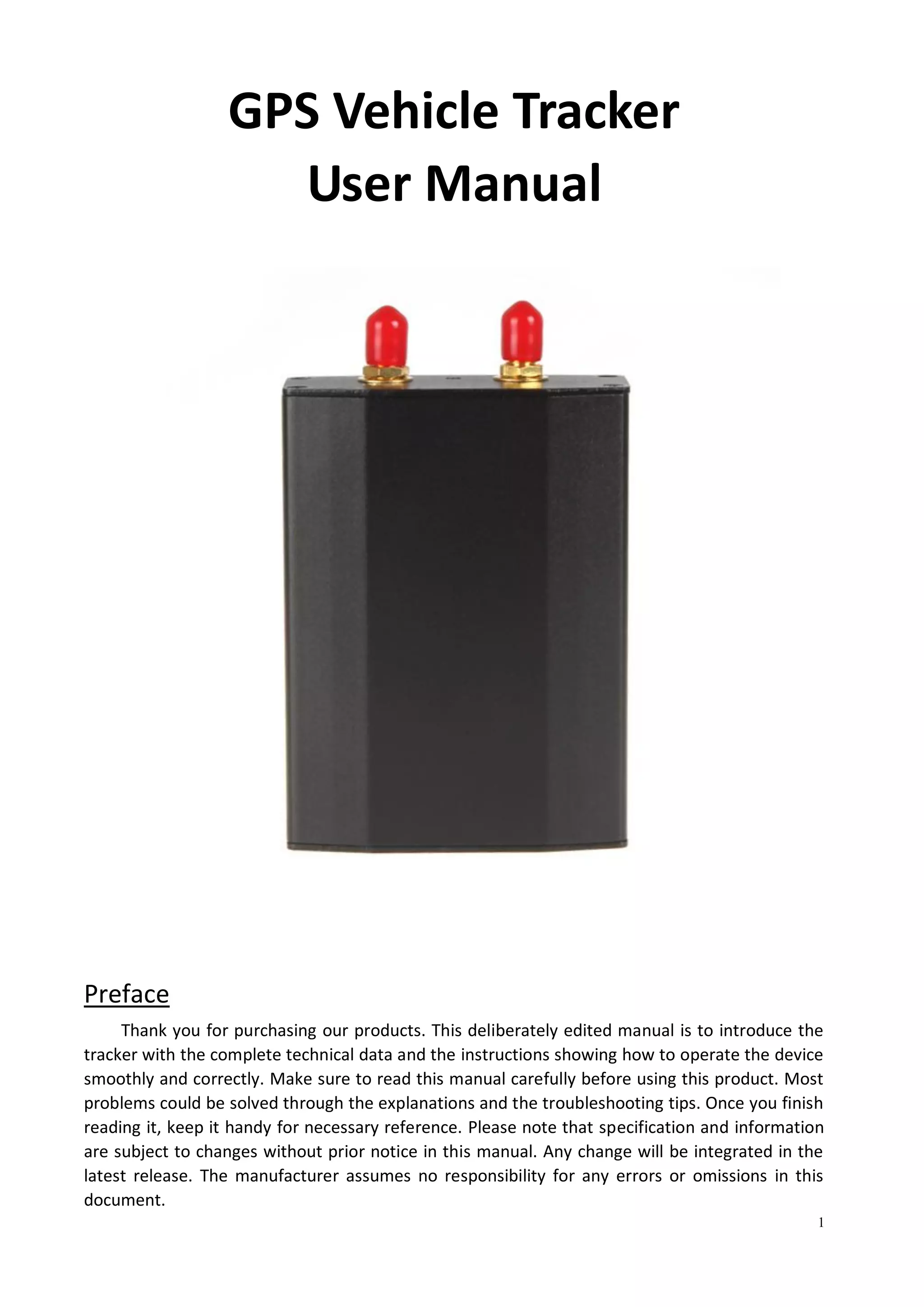
GPS Vehicle Tracker
User Manual
Preface
Thank you for purchasing our products. This deliberately edited manual is to introduce the
tracker with the complete technical data and the instructions showing how to operate the device
smoothly and correctly. Make sure to read this manual carefully before using this product. Most
problems could be solved through the explanations and the troubleshooting tips. Once you finish
reading it, keep it handy for necessary reference. Please note that specification and information
are subject to changes without prior notice in this manual. Any change will be integrated in the
latest release. The manufacturer assumes no responsibility for any errors or omissions in this
document.
2
Content
Ⅰ. Preface……………………………………………………………………………..……………….…………..…….…. 1
Ⅱ. Content………………………………………………………………………….……………………….….………..... 2
Ⅲ. Attentions……………………………………………………………….…………………….…………..……........ 3
Ⅳ. Hardware description…..…………………………………………………………….……….……………..….. 4
Ⅴ. Main function …….……………………………………………………………….…………….………..….…..... 4
Ⅵ. Set up…………………………………………………………………………….………………………...………...... 5
1.Initialization……………………………………………………………………………………………….……………………………..5
2. Add authorized number…………………………………………………………………………………….………………………………5
3. Delete authorized number…………………………………………………………………………………….……………………………… 5
4. Change the Password…………………………………………………………………………………………………………………………….. 5
5. Resume the initial password…………………………………………………………………………….…….………….………………….. 6
6. Control Oil……………………….……………………………………………….…..……………………………….………….………………….. 6
7. Control Circuit………………..……………………………………………………………………..…………….…………….………………….. 6
8. Monitor mode…………………………………………………………………………………………….….………………….………………….. 6
9. Movement alert……………. ……………………………………………………………………..………………………….………………….. 6
10. Overspeed alert……………………………………………………………………………………………………………….………………….. 6
11. Geo-fence…………………………………………………………………………………………………….………………….………………….. 6
12 . Restart the tracker………………………………………………………………………………………………………….………………….. 7
13. Enquiry Positioning………………………………………………………………………………………………………….………………….. 7
14. Auto track…….. …………………………………………………………………………………………………………………..……………….. 7
15. Modes switch between “track” and “monitor” ………………………………………………………………….……………….. 7
16. Modes switch between “telephone” and “web” ………………………….…………………………………….……………….. 7
17. Modify IP address and port ………………………………………………………………………………...…………….……………….. 7
18. Set Device ID number…………………………………………………………………………………………...………….….…………….. 8
19. Set APN ………………………………………………………………….……………………………………………….………………………….. 8
20. Set GPRS user name and password….……………………………………………………………………….……………..………….. 8
21. Set country time zone….……………………………………………………………………………………………………………….…….. 8
22. Set ACC open and close send data interval….………………………………………………………………………………..…….. 8
23. Set ACC open and close send SMS notify….……………………………………………………………………………..………….. 8
24. Get GPS Info with Google Format ….………………………………………………………………………………………..………….. 8
25. Set call reply SMS format….…………………………………………………………………………………………………………..…….. 9
Ⅶ. Installation diagram………………………………………………………………………………………………...…….…..... 9
Ⅷ. Installation……………………………………………………………………………………………………….….…..…….…….. 9
Ⅸ.Application………………………………………………………………………………………………..………….…………..… 10
Ⅹ. Specification………………………………............……………………………………………………………………………. 10
Ⅺ. Command set………………………………………………………………………………………………………….….…..….. 11
3
Attention
1. Make sure to read this manual carefully before using this product.
2. Please insert the SIM card before installing, and make sure the SIM card has no password,
otherwise the tracker will not work normally.
3. Please make sure that all the cables of the tracker has been connected rightly, and then
connect the tracker to host power. Must not install or take down the tracker when it is power
on. If you found any troubles or omissions about the connections of cables, please cut off
power first, otherwise you will easily damage the tracker.
4. The tracker works in wireless communications, so please cut off the host power before your
vehicles entering fuel depot and dangerous material place.
5. The tracker’s work voltage is 9V-30V. Please use the tracker in the scope of work voltage.
6. The host of GPS tracker is a low-power wireless transmitter and receiver. It receives and sends
radio frequency signal when it is working.
7. To avoid electromagnetic interference or uncompatible configuration, please stop using your
tracker in the noticed place.
4
GPS Vehicle Tracker
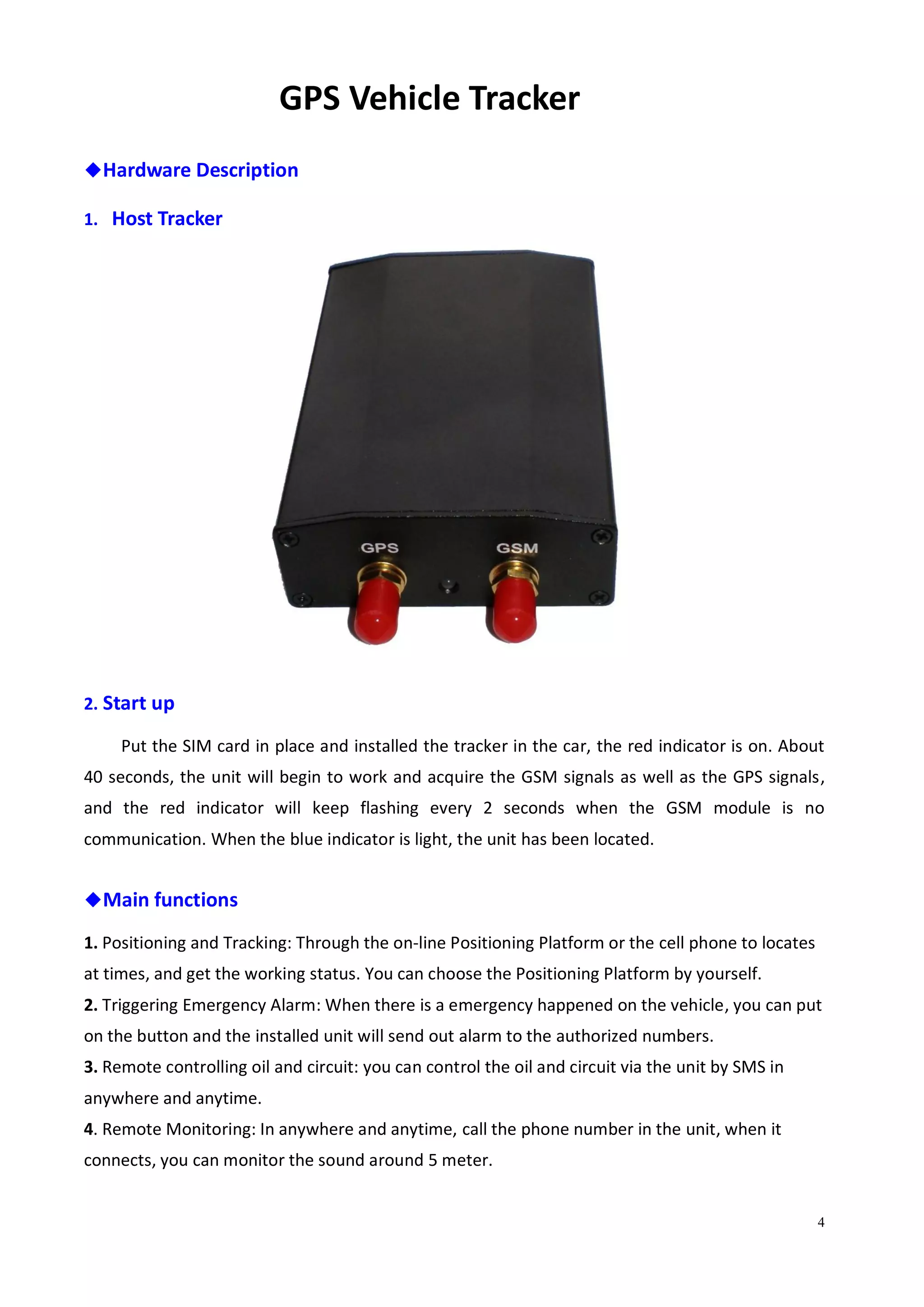
◆Hardware Description
1. Host Tracker
2. Start up
Put the SIM card in place and installed the tracker in the car, the red indicator is on. About
40 seconds, the unit will begin to work and acquire the GSM signals as well as the GPS signals,
and the red indicator will keep flashing every 2 seconds when the GSM module is no
communication. When the blue indicator is light, the unit has been located.
◆Main functions
1. Positioning and Tracking: Through the on-line Positioning Platform or the cell phone to locates
at times, and get the working status. You can choose the Positioning Platform by yourself.
2. Triggering Emergency Alarm: When there is a emergency happened on the vehicle, you can put
on the button and the installed unit will send out alarm to the authorized numbers.
3. Remote controlling oil and circuit: you can control the oil and circuit via the unit by SMS in
anywhere and anytime.
4. Remote Monitoring: In anywhere and anytime, call the phone number in the unit, when it
connects, you can monitor the sound around 5 meter.
5
5. Movement Alert: Send SMS to the unit to start the movement alert function. When the vehicle
is moving, the unit will send the movement alert to all authorized numbers.
6. Overspeed Alert: Send SMS to the unit to start the movement alert function. When the vehicle
is overspeed, the unit will send the overspeed alert to all authorized numbers.
7. Geo-fence: Set up a geo-fence for the unit to restrict its movements within a district. The unit
will send the message to all authorized numbers when it breaches the district.
8. Restart the unit: send SMS to resume the default of unit.
9. Auto Track: You can set up auto track by SMS or on-line positioning platform.
10. Mileage statistics; ACC checking; cutting off power and alarm.
11.Compatible with the original anti-theft alarm: It will send SMS alarm after the original
anti-theft alarm warning.
12.Modify the IP and Port of Communication Protocol for different on-line positioning platform
◆Set up
1.Initialization
Send “begin + password” in SMS to the unit, it will reply “begin ok” and initialize all the
settings. (Default password: 123456)
2. Add authorized number
Send SMS “admin123456 13612345678”. "admin" as instruction, "123456" as password,
"13612345678" as authorized number. It will reply “admin ok!”.
3. Delete authorized number
Send SMS “noadmin123456 13612345678”. "noadmin" as instruction, "123456" as password,
"13612345678" as deleted number. It will reply “noadmin ok!”.
4. Change the Password
Send SMS: “password + old password + space + new password” to change the password.
For example: Send SMS “Password123456 138138”. "password" as instruction, "123456"as
old password, "138138" as new password. Password must be six digits. Tracker’s initial
password is 123456.
5. Resume the initial password
If you forget your password, you can resume the initial password 123456.
Send “resumepassword” to the tracker, the tracker will resume the initial password. If there is no
authorized numbers, all numbers can resume initial password. If there is already authorized
numbers, only the authorized numbers can resume initial password.
6. Control Oil
Send SMS “stopoil+password” to control oil. For example send SMS: stopoil123456
"stopoil" as instruction, "123456"as password.
6
To supply the oil again, send SMS “supplyoil+password” to the unit. For example, send
SMS “Supplyoil123456” to the tracker. "Supplyoil" as instruction, "123456" as the password.
7. Control Circuit
Send SMS “stopelec+password” to control circuit. For example send SMS: “stopelec123456”.
"stopoil" as instructions, "123456" as the password.
To supply the circuit again, send SMS “supplyelec+password” to the unit. For example, send
SMS “Supplyelec123456” to the tracker. "Supplyelec" as instruction, "123456" as password.
8. Monitor mode
There are three modes for monitor.
1) All Monitor Mode: Send SMS “AllMonitor” to the unit, the unit will return to this mode. In this
mode, any number can monitor this unit.
2) Restrict Monitor Mode: Send SMS “RestrictMonitor” to the unit, the unit will return to this
mode. In this mode, authorized number can monitor this unit.
3) Close Monitor Mode: Send SMS “CloseMonitor” to the unit, the unit will return to this mode.
In this mode, all numbers can not monitor this unit.
9. Movement alert
Set up: The user can send SMS “Move + password” to the unit, then the unit will reply “move
ok!” .In case of such a movement, it will send SMS “Move” along with a Geo-info to the number.
For example, send SMS “Move123456” to the unit. "Move" as instructions, “123456”as password.
Cancel: Send SMS “nomove+password” to deactivate the movement alert.
10. Overspeed alert
Set up: Send SMS “speed+password+space+080” to the unit (support the speed is 80km/h).
For example, send SMS “speed123456 080”. "speed" as instruction, "80" as limit speed,
“123456”as password.
Cancel: Send SMS “nospeed+password” to deactivate the overspeed alert.
11. Geo-fence
Set up a geo-fence for the unit to restrict its movements within a district. The unit will send the
message to the authorized numbers when it breaches the district.
Set up: The user can Send SMS “stockade + password + space + MinLatitude, MinLongitude;
MaxLatitude, MaxLongitude” to unit to set the restricted district. In case of breach, it will send
SMS “stockade! + geo-info” to the authorized numbers.
For example send SMS “stockade123456 22.548123, 114.081234; 22.549123, 114.082234” to the
unit.
Remark: The first latitude & longitude is coordinate of min of the Geo-fence, while the second
latitude & longitude is the coordinate of the max. It will alarm one time in each setting.
Cancel: Send SMS “nostockade + password” to deactivate this function.
7
This function will be out of effect after the unit moves outside the district.
12 . Restart the tracker
Send SMS “reboot+password” to the tracker. For example“reboot123456”.The tracker will be
restarted. It will reply “system will reboot...”.
13. Enquiry Positioning
Send SMS “position” to the unit, then the unit will send SMS with real-time longitude and
latitude to the cell phone.
14. Auto track
Send SMS “at30sum5” to the unit, it will reply “Auto track set ok.” and report a Geo-info at 30
seconds intervals for 5 times: The max intervals is 65535 seconds. You can send “at30sum0” for
heaps of times.
Send“noat123456” to the tracker, it will reply “Cancel auto track ok.”. And the tracker will stop
send messages.
15. Modes switch between “track” and “monitor”
The default mode is “track”. Send SMS “monitor + password” to the unit, and it will reply
“monitor ok!” and switch to “monitor” mode. For example send SMS: “monitor123456”. In this
mode, you can monitor tracker by call tracker card number.
Send SMS “tracker + password” to the unit, it will reply “tracker ok!” and restore to “track”
mode. For example send SMS “tracker123456”. In this mode, you can get position SMS by call
tracker.
16. Modes switch between “telephone” and “web”
Set up: Send SMS “web + password” to device. For example, the password is 123456. Send SMS
“web123456” to the device, the device will reply SMS “set web ok”. After this, the tracker will
report the GPS data to IP address.
If you want to send GPS data to telephone, you can send SMS “telephone + password” to
device, the device will reply “set telephone ok”. And then, the device will send GPS data to your
telephone by SMS. (The default is sending the GPS data to the telephone)
17. Modify IP address and port
The IP address and port of the tracker can be modified and transferred data to other platform.
Send SMS “ IP + ip address + PORT + port value” to the unit. If the platform’s IP address and port
is 123.67.87.9 and 344, send SMS “ip 123.67.87.9port344” to the tracker. It will reply “set IP
address and PORT ok.”. After this, device will send GPS data to this IP and Port.
18. Set Device ID number
This command uses only for GPRS communication. Default device ID is the same. In order to
identify device for platform, must set device ID for every device. Send SMS “number + tracker
ID number” to the tracker. For example “number13612345678”.
8
19. Set APN
In order to send GPS data to IP address, you still must set mobile network Access Point Name
(APN). If you don’t know the APN, you can consult local network service supplier. The format of
set APN is “APN + password +space + apn value”. For example you send SMS “apn123456 cmnet”
to the device. The device will reply SMS “Set APN ok.” .
20. Set GPRS user name and password
Some country must be set GPRS user name and password for GPRS communication. The
format of set GPRS user name and password is “user + space + GPRS user name + space + GPRS
password”. For example, “user name 123456”, “user” is command, “name” is GPRS user name,
“123456” is GPRS password. After send SMS, tracker will reply “Set GPRS User and Password
ok . ” .
21. Set country time zone
In the default, tracker reply position SMS time is UTC time. After you can set zone time,
tracker will reply the time of your country. The format is “zone + password + space + time zone
value”. For example, “zone123456 8” is set east 8 time zone. Time zone value ranges from -12 to
12. One time zone stands for one hour. “zone123456 -8” is set west 8 time zone. After send SMS,
tracker will reply “Set Time Zone OK.”.
22. Set ACC open and close send data interval
You can set the interval of send data when ACC open and close. The format of set ACC open
interval is “accon + time interval”. For example “accon 30” stand for when ACC open send data
for every 30 seconds. The format of set ACC close interval is “accoff + time interval”. For
example “accoff 60” stand for when ACC close send data for every 60 seconds.
23. Set ACC open and close send SMS notify
You can set the SMS notify of when ACC on and off. The format of set is “accnotify + 1 or 0”. For
example “accnotify 1” stand for when ACC on and off send SMS to authorized numbers. “accnotify
0” stand for close send SMS notify. In order to use this function, you must set authorized
numbers.
24. Get GPS Info with Google Format
You can get latitude and longitude with Google website format. So you can open map directly by
mobile. The format of SMS is “google”. After you send SMS, tracker will reply GPS info with
google website format.
25. Set call reply SMS format
You can set reply SMS format after you call tracker. The format of SMS is “geosms + value”. The
SMS of “geosms 1” set reply SMS format as “position”. The SMS of “geosms 2” set reply SMS
format as “google”.
9
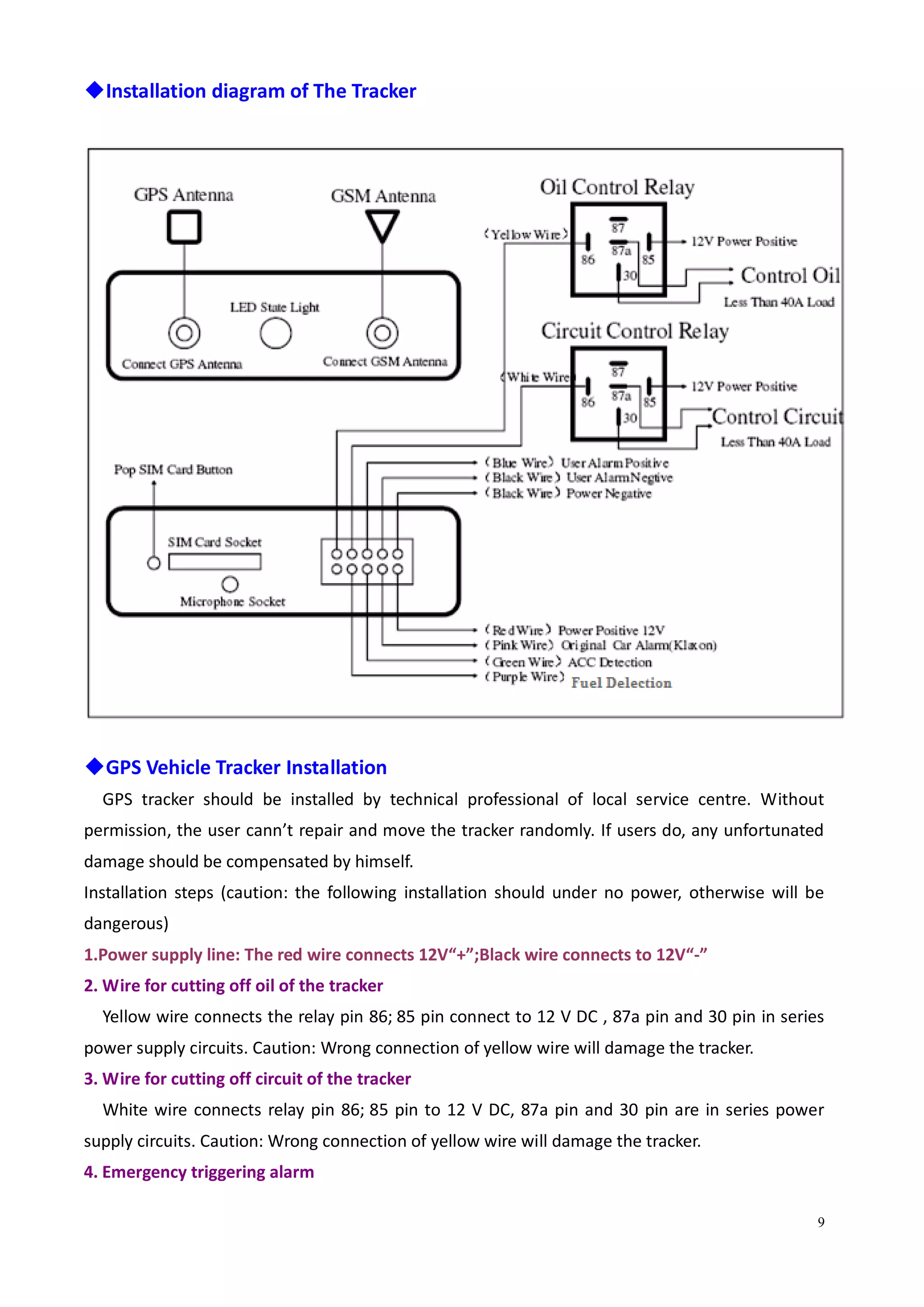
◆Installation diagram of The Tracker
◆GPS Vehicle Tracker Installation
GPS tracker should be installed by technical professional of local service centre. Without
permission, the user cann’t repair and move the tracker randomly. If users do, any unfortunated
damage should be compensated by himself.
Installation steps (caution: the following installation should under no power, otherwise will be
dangerous)
1.Power supply line: The red wire connects 12V“+”;Black wire connects to 12V“-”
2. Wire for cutting off oil of the tracker
Yellow wire connects the relay pin 86; 85 pin connect to 12 V DC , 87a pin and 30 pin in series
power supply circuits. Caution: Wrong connection of yellow wire will damage the tracker.
3. Wire for cutting off circuit of the tracker
White wire connects relay pin 86; 85 pin to 12 V DC, 87a pin and 30 pin are in series power
supply circuits. Caution: Wrong connection of yellow wire will damage the tracker.
4. Emergency triggering alarm
10
The blue wire connects the positive of the alarm button, and the black wire connects the
negative of the alarm button.
◆Application
1. Vehicle Rental/Special Tracking System
2. Finance and Insurance Business Tracking System
3. Car Commanding and Dispatching System
4. Heavy Construction Vehicles Tracking Device
5. Shipping Cargoes Tracking
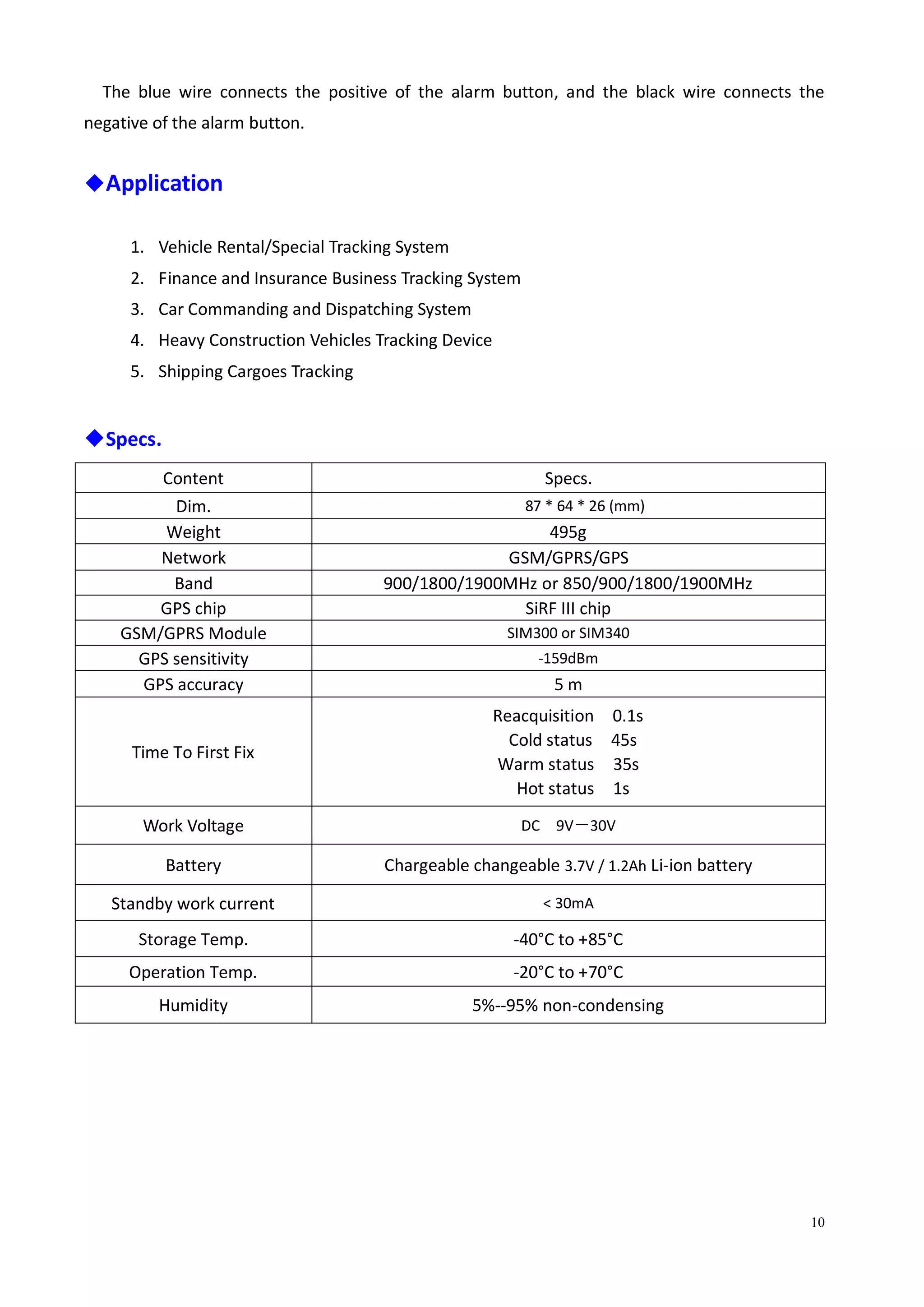
◆Specs.
Content Specs.
Dim. 87 * 64 * 26 (mm)
Weight 495g
Network GSM/GPRS/GPS
Band 900/1800/1900MHz or 850/900/1800/1900MHz
GPS chip SiRF III chip
GSM/GPRS Module SIM300 or SIM340
GPS sensitivity -159dBm
GPS accuracy 5 m
Time To First Fix
Reacquisition 0.1s
Cold status 45s
Warm status 35s
Hot status 1s
Work Voltage DC 9V-30V
Battery Chargeable changeable 3.7V / 1.2Ah Li-ion battery
Standby work current < 30mA
Storage Temp. -40°C to +85°C
Operation Temp. -20°C to +70°C
Humidity 5%--95% non-condensing
11
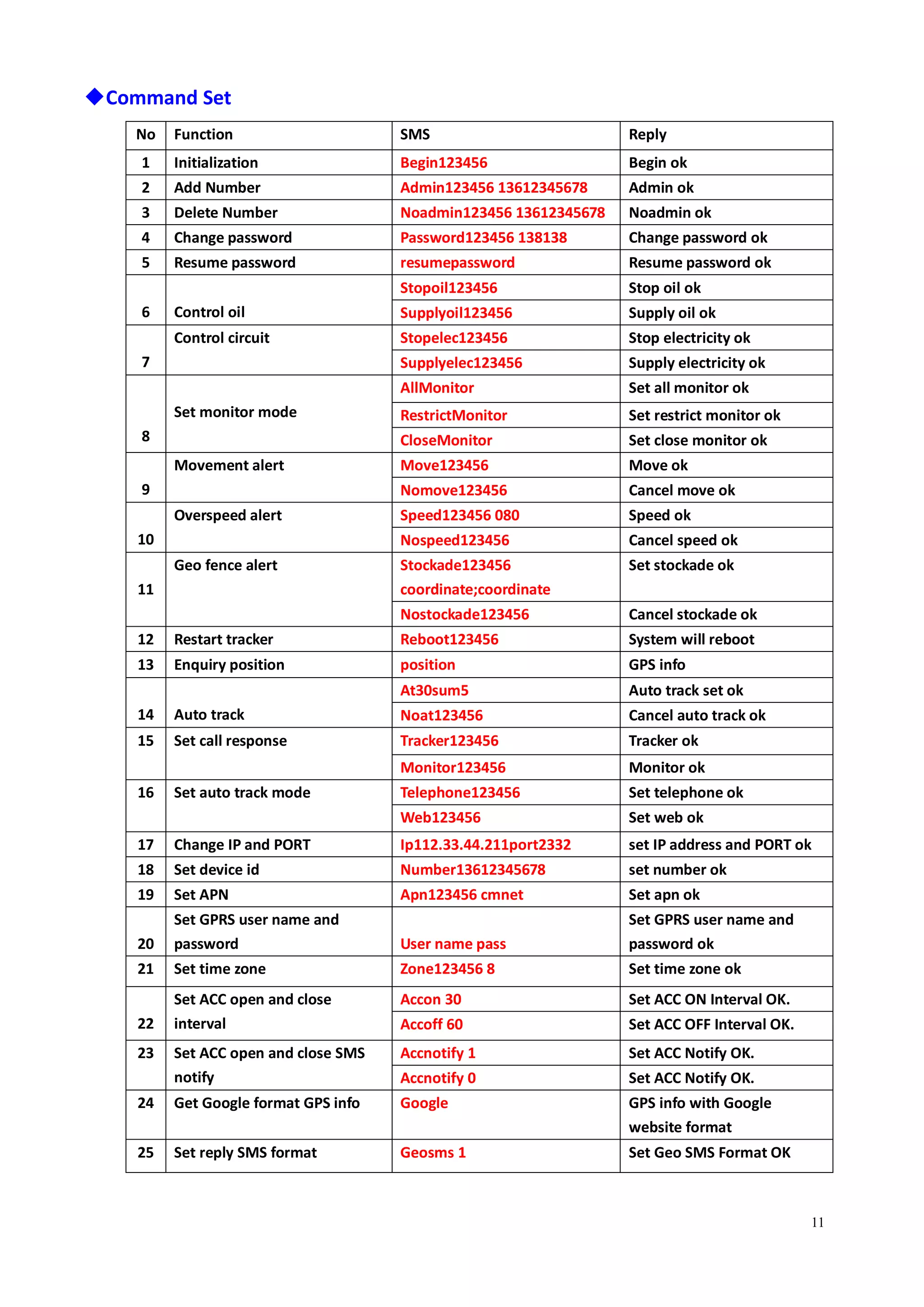
◆Command Set
No Function SMS Reply
1 Initialization Begin123456 Begin ok
2 Add Number Admin123456 13612345678 Admin ok
3 Delete Number Noadmin123456 13612345678 Noadmin ok
4 Change password Password123456 138138 Change password ok
5 Resume password resumepassword Resume password ok
6 Control oil
Stopoil123456 Stop oil ok
Supplyoil123456 Supply oil ok
7
Control circuit Stopelec123456 Stop electricity ok
Supplyelec123456 Supply electricity ok
8
Set monitor mode
AllMonitor Set all monitor ok
RestrictMonitor Set restrict monitor ok
CloseMonitor Set close monitor ok
9
Movement alert Move123456 Move ok
Nomove123456 Cancel move ok
10
Overspeed alert Speed123456 080 Speed ok
Nospeed123456 Cancel speed ok
11
Geo fence alert Stockade123456
coordinate;coordinate
Set stockade ok
Nostockade123456 Cancel stockade ok
12 Restart tracker Reboot123456 System will reboot
13 Enquiry position position GPS info
14 Auto track
At30sum5 Auto track set ok
Noat123456 Cancel auto track ok
15 Set call response Tracker123456 Tracker ok
Monitor123456 Monitor ok
16 Set auto track mode Telephone123456 Set telephone ok
Web123456 Set web ok
17 Change IP and PORT Ip112.33.44.211port2332 set IP address and PORT ok
18 Set device id Number13612345678 set number ok
19 Set APN Apn123456 cmnet Set apn ok
20
Set GPRS user name and
password User name pass
Set GPRS user name and
password ok
21 Set time zone Zone123456 8 Set time zone ok
22
Set ACC open and close
interval
Accon 30 Set ACC ON Interval OK.
Accoff 60 Set ACC OFF Interval OK.
23 Set ACC open and close SMS
notify
Accnotify 1 Set ACC Notify OK.
Accnotify 0 Set ACC Notify OK.
24 Get Google format GPS info Google GPS info with Google
website format
25 Set reply SMS format Geosms 1 Set Geo SMS Format OK

Top Peak Electronics Co.,limited hot gps tracker user manual

  • 1.
    1 GPS Vehicle Tracker UserManual Preface Thank you for purchasing our products. This deliberately edited manual is to introduce the tracker with the complete technical data and the instructions showing how to operate the device smoothly and correctly. Make sure to read this manual carefully before using this product. Most problems could be solved through the explanations and the troubleshooting tips. Once you finish reading it, keep it handy for necessary reference. Please note that specification and information are subject to changes without prior notice in this manual. Any change will be integrated in the latest release. The manufacturer assumes no responsibility for any errors or omissions in this document.
  • 2.
    2 Content Ⅰ. Preface……………………………………………………………………………..……………….…………..…….…. 1 Ⅱ.Content………………………………………………………………………….……………………….….………..... 2 Ⅲ. Attentions……………………………………………………………….…………………….…………..……........ 3 Ⅳ. Hardware description…..…………………………………………………………….……….……………..….. 4 Ⅴ. Main function …….……………………………………………………………….…………….………..….…..... 4 Ⅵ. Set up…………………………………………………………………………….………………………...………...... 5 1.Initialization……………………………………………………………………………………………….……………………………..5 2. Add authorized number…………………………………………………………………………………….………………………………5 3. Delete authorized number…………………………………………………………………………………….……………………………… 5 4. Change the Password…………………………………………………………………………………………………………………………….. 5 5. Resume the initial password…………………………………………………………………………….…….………….………………….. 6 6. Control Oil……………………….……………………………………………….…..……………………………….………….………………….. 6 7. Control Circuit………………..……………………………………………………………………..…………….…………….………………….. 6 8. Monitor mode…………………………………………………………………………………………….….………………….………………….. 6 9. Movement alert……………. ……………………………………………………………………..………………………….………………….. 6 10. Overspeed alert……………………………………………………………………………………………………………….………………….. 6 11. Geo-fence…………………………………………………………………………………………………….………………….………………….. 6 12 . Restart the tracker………………………………………………………………………………………………………….………………….. 7 13. Enquiry Positioning………………………………………………………………………………………………………….………………….. 7 14. Auto track…….. …………………………………………………………………………………………………………………..……………….. 7 15. Modes switch between “track” and “monitor” ………………………………………………………………….……………….. 7 16. Modes switch between “telephone” and “web” ………………………….…………………………………….……………….. 7 17. Modify IP address and port ………………………………………………………………………………...…………….……………….. 7 18. Set Device ID number…………………………………………………………………………………………...………….….…………….. 8 19. Set APN ………………………………………………………………….……………………………………………….………………………….. 8 20. Set GPRS user name and password….……………………………………………………………………….……………..………….. 8 21. Set country time zone….……………………………………………………………………………………………………………….…….. 8 22. Set ACC open and close send data interval….………………………………………………………………………………..…….. 8 23. Set ACC open and close send SMS notify….……………………………………………………………………………..………….. 8 24. Get GPS Info with Google Format ….………………………………………………………………………………………..………….. 8 25. Set call reply SMS format….…………………………………………………………………………………………………………..…….. 9 Ⅶ. Installation diagram………………………………………………………………………………………………...…….…..... 9 Ⅷ. Installation……………………………………………………………………………………………………….….…..…….…….. 9 Ⅸ.Application………………………………………………………………………………………………..………….…………..… 10 Ⅹ. Specification………………………………............……………………………………………………………………………. 10 Ⅺ. Command set………………………………………………………………………………………………………….….…..….. 11
  • 3.
    3 Attention 1. Make sureto read this manual carefully before using this product. 2. Please insert the SIM card before installing, and make sure the SIM card has no password, otherwise the tracker will not work normally. 3. Please make sure that all the cables of the tracker has been connected rightly, and then connect the tracker to host power. Must not install or take down the tracker when it is power on. If you found any troubles or omissions about the connections of cables, please cut off power first, otherwise you will easily damage the tracker. 4. The tracker works in wireless communications, so please cut off the host power before your vehicles entering fuel depot and dangerous material place. 5. The tracker’s work voltage is 9V-30V. Please use the tracker in the scope of work voltage. 6. The host of GPS tracker is a low-power wireless transmitter and receiver. It receives and sends radio frequency signal when it is working. 7. To avoid electromagnetic interference or uncompatible configuration, please stop using your tracker in the noticed place.
  • 4.
    4 GPS Vehicle Tracker ◆HardwareDescription 1. Host Tracker 2. Start up Put the SIM card in place and installed the tracker in the car, the red indicator is on. About 40 seconds, the unit will begin to work and acquire the GSM signals as well as the GPS signals, and the red indicator will keep flashing every 2 seconds when the GSM module is no communication. When the blue indicator is light, the unit has been located. ◆Main functions 1. Positioning and Tracking: Through the on-line Positioning Platform or the cell phone to locates at times, and get the working status. You can choose the Positioning Platform by yourself. 2. Triggering Emergency Alarm: When there is a emergency happened on the vehicle, you can put on the button and the installed unit will send out alarm to the authorized numbers. 3. Remote controlling oil and circuit: you can control the oil and circuit via the unit by SMS in anywhere and anytime. 4. Remote Monitoring: In anywhere and anytime, call the phone number in the unit, when it connects, you can monitor the sound around 5 meter.
  • 5.
    5 5. Movement Alert:Send SMS to the unit to start the movement alert function. When the vehicle is moving, the unit will send the movement alert to all authorized numbers. 6. Overspeed Alert: Send SMS to the unit to start the movement alert function. When the vehicle is overspeed, the unit will send the overspeed alert to all authorized numbers. 7. Geo-fence: Set up a geo-fence for the unit to restrict its movements within a district. The unit will send the message to all authorized numbers when it breaches the district. 8. Restart the unit: send SMS to resume the default of unit. 9. Auto Track: You can set up auto track by SMS or on-line positioning platform. 10. Mileage statistics; ACC checking; cutting off power and alarm. 11.Compatible with the original anti-theft alarm: It will send SMS alarm after the original anti-theft alarm warning. 12.Modify the IP and Port of Communication Protocol for different on-line positioning platform ◆Set up 1.Initialization Send “begin + password” in SMS to the unit, it will reply “begin ok” and initialize all the settings. (Default password: 123456) 2. Add authorized number Send SMS “admin123456 13612345678”. "admin" as instruction, "123456" as password, "13612345678" as authorized number. It will reply “admin ok!”. 3. Delete authorized number Send SMS “noadmin123456 13612345678”. "noadmin" as instruction, "123456" as password, "13612345678" as deleted number. It will reply “noadmin ok!”. 4. Change the Password Send SMS: “password + old password + space + new password” to change the password. For example: Send SMS “Password123456 138138”. "password" as instruction, "123456"as old password, "138138" as new password. Password must be six digits. Tracker’s initial password is 123456. 5. Resume the initial password If you forget your password, you can resume the initial password 123456. Send “resumepassword” to the tracker, the tracker will resume the initial password. If there is no authorized numbers, all numbers can resume initial password. If there is already authorized numbers, only the authorized numbers can resume initial password. 6. Control Oil Send SMS “stopoil+password” to control oil. For example send SMS: stopoil123456 "stopoil" as instruction, "123456"as password.
  • 6.
    6 To supply theoil again, send SMS “supplyoil+password” to the unit. For example, send SMS “Supplyoil123456” to the tracker. "Supplyoil" as instruction, "123456" as the password. 7. Control Circuit Send SMS “stopelec+password” to control circuit. For example send SMS: “stopelec123456”. "stopoil" as instructions, "123456" as the password. To supply the circuit again, send SMS “supplyelec+password” to the unit. For example, send SMS “Supplyelec123456” to the tracker. "Supplyelec" as instruction, "123456" as password. 8. Monitor mode There are three modes for monitor. 1) All Monitor Mode: Send SMS “AllMonitor” to the unit, the unit will return to this mode. In this mode, any number can monitor this unit. 2) Restrict Monitor Mode: Send SMS “RestrictMonitor” to the unit, the unit will return to this mode. In this mode, authorized number can monitor this unit. 3) Close Monitor Mode: Send SMS “CloseMonitor” to the unit, the unit will return to this mode. In this mode, all numbers can not monitor this unit. 9. Movement alert Set up: The user can send SMS “Move + password” to the unit, then the unit will reply “move ok!” .In case of such a movement, it will send SMS “Move” along with a Geo-info to the number. For example, send SMS “Move123456” to the unit. "Move" as instructions, “123456”as password. Cancel: Send SMS “nomove+password” to deactivate the movement alert. 10. Overspeed alert Set up: Send SMS “speed+password+space+080” to the unit (support the speed is 80km/h). For example, send SMS “speed123456 080”. "speed" as instruction, "80" as limit speed, “123456”as password. Cancel: Send SMS “nospeed+password” to deactivate the overspeed alert. 11. Geo-fence Set up a geo-fence for the unit to restrict its movements within a district. The unit will send the message to the authorized numbers when it breaches the district. Set up: The user can Send SMS “stockade + password + space + MinLatitude, MinLongitude; MaxLatitude, MaxLongitude” to unit to set the restricted district. In case of breach, it will send SMS “stockade! + geo-info” to the authorized numbers. For example send SMS “stockade123456 22.548123, 114.081234; 22.549123, 114.082234” to the unit. Remark: The first latitude & longitude is coordinate of min of the Geo-fence, while the second latitude & longitude is the coordinate of the max. It will alarm one time in each setting. Cancel: Send SMS “nostockade + password” to deactivate this function.
  • 7.
    7 This function willbe out of effect after the unit moves outside the district. 12 . Restart the tracker Send SMS “reboot+password” to the tracker. For example“reboot123456”.The tracker will be restarted. It will reply “system will reboot...”. 13. Enquiry Positioning Send SMS “position” to the unit, then the unit will send SMS with real-time longitude and latitude to the cell phone. 14. Auto track Send SMS “at30sum5” to the unit, it will reply “Auto track set ok.” and report a Geo-info at 30 seconds intervals for 5 times: The max intervals is 65535 seconds. You can send “at30sum0” for heaps of times. Send“noat123456” to the tracker, it will reply “Cancel auto track ok.”. And the tracker will stop send messages. 15. Modes switch between “track” and “monitor” The default mode is “track”. Send SMS “monitor + password” to the unit, and it will reply “monitor ok!” and switch to “monitor” mode. For example send SMS: “monitor123456”. In this mode, you can monitor tracker by call tracker card number. Send SMS “tracker + password” to the unit, it will reply “tracker ok!” and restore to “track” mode. For example send SMS “tracker123456”. In this mode, you can get position SMS by call tracker. 16. Modes switch between “telephone” and “web” Set up: Send SMS “web + password” to device. For example, the password is 123456. Send SMS “web123456” to the device, the device will reply SMS “set web ok”. After this, the tracker will report the GPS data to IP address. If you want to send GPS data to telephone, you can send SMS “telephone + password” to device, the device will reply “set telephone ok”. And then, the device will send GPS data to your telephone by SMS. (The default is sending the GPS data to the telephone) 17. Modify IP address and port The IP address and port of the tracker can be modified and transferred data to other platform. Send SMS “ IP + ip address + PORT + port value” to the unit. If the platform’s IP address and port is 123.67.87.9 and 344, send SMS “ip 123.67.87.9port344” to the tracker. It will reply “set IP address and PORT ok.”. After this, device will send GPS data to this IP and Port. 18. Set Device ID number This command uses only for GPRS communication. Default device ID is the same. In order to identify device for platform, must set device ID for every device. Send SMS “number + tracker ID number” to the tracker. For example “number13612345678”.
  • 8.
    8 19. Set APN Inorder to send GPS data to IP address, you still must set mobile network Access Point Name (APN). If you don’t know the APN, you can consult local network service supplier. The format of set APN is “APN + password +space + apn value”. For example you send SMS “apn123456 cmnet” to the device. The device will reply SMS “Set APN ok.” . 20. Set GPRS user name and password Some country must be set GPRS user name and password for GPRS communication. The format of set GPRS user name and password is “user + space + GPRS user name + space + GPRS password”. For example, “user name 123456”, “user” is command, “name” is GPRS user name, “123456” is GPRS password. After send SMS, tracker will reply “Set GPRS User and Password ok . ” . 21. Set country time zone In the default, tracker reply position SMS time is UTC time. After you can set zone time, tracker will reply the time of your country. The format is “zone + password + space + time zone value”. For example, “zone123456 8” is set east 8 time zone. Time zone value ranges from -12 to 12. One time zone stands for one hour. “zone123456 -8” is set west 8 time zone. After send SMS, tracker will reply “Set Time Zone OK.”. 22. Set ACC open and close send data interval You can set the interval of send data when ACC open and close. The format of set ACC open interval is “accon + time interval”. For example “accon 30” stand for when ACC open send data for every 30 seconds. The format of set ACC close interval is “accoff + time interval”. For example “accoff 60” stand for when ACC close send data for every 60 seconds. 23. Set ACC open and close send SMS notify You can set the SMS notify of when ACC on and off. The format of set is “accnotify + 1 or 0”. For example “accnotify 1” stand for when ACC on and off send SMS to authorized numbers. “accnotify 0” stand for close send SMS notify. In order to use this function, you must set authorized numbers. 24. Get GPS Info with Google Format You can get latitude and longitude with Google website format. So you can open map directly by mobile. The format of SMS is “google”. After you send SMS, tracker will reply GPS info with google website format. 25. Set call reply SMS format You can set reply SMS format after you call tracker. The format of SMS is “geosms + value”. The SMS of “geosms 1” set reply SMS format as “position”. The SMS of “geosms 2” set reply SMS format as “google”.
  • 9.
    9 ◆Installation diagram ofThe Tracker ◆GPS Vehicle Tracker Installation GPS tracker should be installed by technical professional of local service centre. Without permission, the user cann’t repair and move the tracker randomly. If users do, any unfortunated damage should be compensated by himself. Installation steps (caution: the following installation should under no power, otherwise will be dangerous) 1.Power supply line: The red wire connects 12V“+”;Black wire connects to 12V“-” 2. Wire for cutting off oil of the tracker Yellow wire connects the relay pin 86; 85 pin connect to 12 V DC , 87a pin and 30 pin in series power supply circuits. Caution: Wrong connection of yellow wire will damage the tracker. 3. Wire for cutting off circuit of the tracker White wire connects relay pin 86; 85 pin to 12 V DC, 87a pin and 30 pin are in series power supply circuits. Caution: Wrong connection of yellow wire will damage the tracker. 4. Emergency triggering alarm
  • 10.
    10 The blue wireconnects the positive of the alarm button, and the black wire connects the negative of the alarm button. ◆Application 1. Vehicle Rental/Special Tracking System 2. Finance and Insurance Business Tracking System 3. Car Commanding and Dispatching System 4. Heavy Construction Vehicles Tracking Device 5. Shipping Cargoes Tracking ◆Specs. Content Specs. Dim. 87 * 64 * 26 (mm) Weight 495g Network GSM/GPRS/GPS Band 900/1800/1900MHz or 850/900/1800/1900MHz GPS chip SiRF III chip GSM/GPRS Module SIM300 or SIM340 GPS sensitivity -159dBm GPS accuracy 5 m Time To First Fix Reacquisition 0.1s Cold status 45s Warm status 35s Hot status 1s Work Voltage DC 9V-30V Battery Chargeable changeable 3.7V / 1.2Ah Li-ion battery Standby work current < 30mA Storage Temp. -40°C to +85°C Operation Temp. -20°C to +70°C Humidity 5%--95% non-condensing
  • 11.
    11 ◆Command Set No FunctionSMS Reply 1 Initialization Begin123456 Begin ok 2 Add Number Admin123456 13612345678 Admin ok 3 Delete Number Noadmin123456 13612345678 Noadmin ok 4 Change password Password123456 138138 Change password ok 5 Resume password resumepassword Resume password ok 6 Control oil Stopoil123456 Stop oil ok Supplyoil123456 Supply oil ok 7 Control circuit Stopelec123456 Stop electricity ok Supplyelec123456 Supply electricity ok 8 Set monitor mode AllMonitor Set all monitor ok RestrictMonitor Set restrict monitor ok CloseMonitor Set close monitor ok 9 Movement alert Move123456 Move ok Nomove123456 Cancel move ok 10 Overspeed alert Speed123456 080 Speed ok Nospeed123456 Cancel speed ok 11 Geo fence alert Stockade123456 coordinate;coordinate Set stockade ok Nostockade123456 Cancel stockade ok 12 Restart tracker Reboot123456 System will reboot 13 Enquiry position position GPS info 14 Auto track At30sum5 Auto track set ok Noat123456 Cancel auto track ok 15 Set call response Tracker123456 Tracker ok Monitor123456 Monitor ok 16 Set auto track mode Telephone123456 Set telephone ok Web123456 Set web ok 17 Change IP and PORT Ip112.33.44.211port2332 set IP address and PORT ok 18 Set device id Number13612345678 set number ok 19 Set APN Apn123456 cmnet Set apn ok 20 Set GPRS user name and password User name pass Set GPRS user name and password ok 21 Set time zone Zone123456 8 Set time zone ok 22 Set ACC open and close interval Accon 30 Set ACC ON Interval OK. Accoff 60 Set ACC OFF Interval OK. 23 Set ACC open and close SMS notify Accnotify 1 Set ACC Notify OK. Accnotify 0 Set ACC Notify OK. 24 Get Google format GPS info Google GPS info with Google website format 25 Set reply SMS format Geosms 1 Set Geo SMS Format OK