Payroll in Tally.ERP 9 Payroll in Tally.ERP 9
Payroll Features of Tally.ERP 9 Tally.ERP 9 Payroll is fully integrated with Accounting. Tally.ERP 9 Payroll enables users to set up, implement and process Payroll,  as per the organization’s requirements.  Tally.ERP 9 Payroll also provides management related Information reports and statutory Forms and reports in the prescribed formats viz.,  Payslip, Payroll statements, Attendance and Overtime Registers, Gratuity, Expat Reports and so on.
Payroll Features of Tally.ERP 9 Unlimited grouping of Payroll Masters. User-defined production units i.e., attendance/ production/ time based remuneration units. Flexible payroll processing period.
Payroll Features of Tally.ERP 9 Comprehensive cost centre as well as employee-wise costing reports. Accurate & timely Salary processing. Employee Statutory Deductions & Employer Statutory Contributions with the help of predefined processes Auto-fill facility to expedite the Attendance, Payroll & employer contributions processes. Facilitates an accurate computation and deduction of  ESI, EPF, Professional Tax, Gratuity  etc.
Payroll Features of Tally.ERP 9 Generation of Statutory Forms & Challans for EPF & ESI,  as prescribed by the Govt . Drill-down facility to voucher level for any kind of alteration. Facilitates computation of arrears pertaining to prior period(s). Helps in tracking employee loan details.
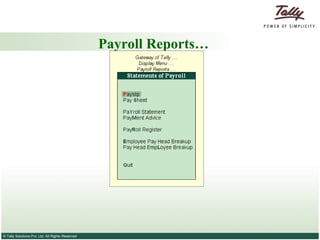
Payroll Reports…
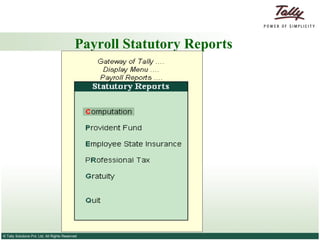
Payroll Statutory Reports
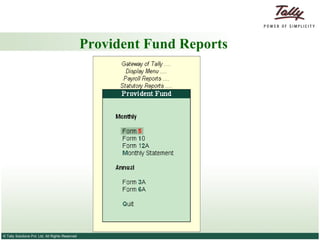
Provident Fund Reports
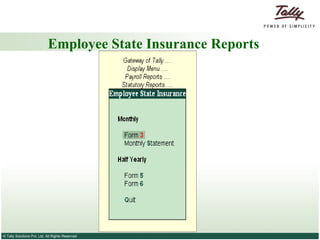
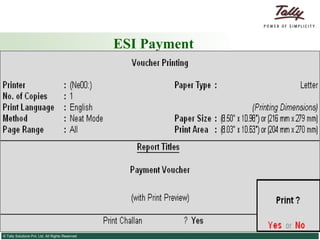
Employee State Insurance Reports
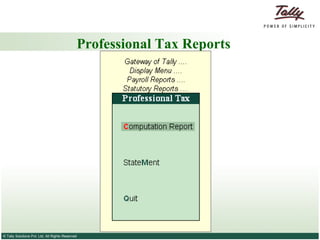
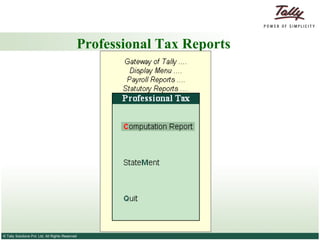
Professional Tax Reports
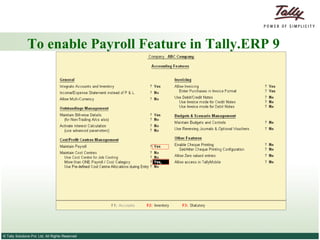
To enable Payroll Feature in Tally.ERP 9
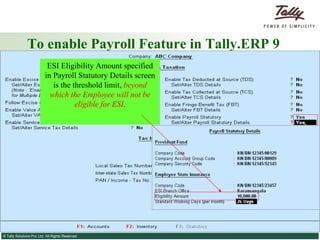
To enable Payroll Feature in Tally.ERP 9 ESI Eligibility Amount specified in Payroll Statutory Details screen is the threshold limit,  beyond which the Employee will not be   eligible for ESI .
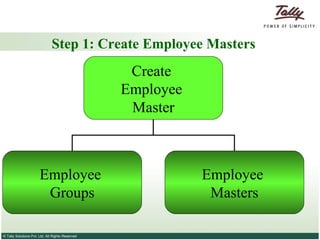
Step 1: Create Employee Masters Create  Employee  Master Employee  Groups Employee  Masters
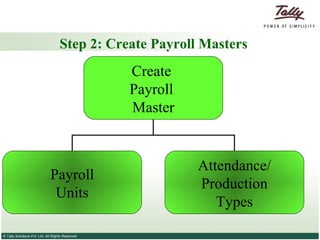
Step 2: Create Payroll Masters Create  Payroll  Master Payroll Units Attendance/ Production Types
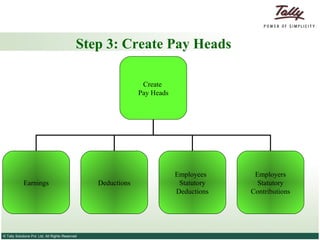
Step 3: Create Pay Heads Create  Pay Heads Earnings Deductions Employees  Statutory Deductions Employers Statutory Contributions
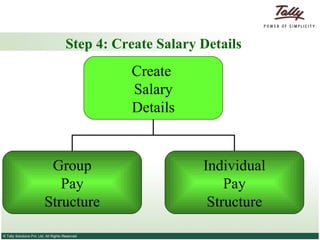
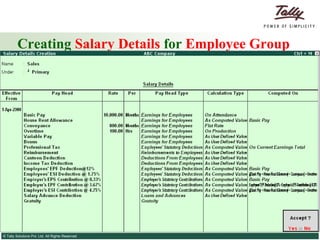
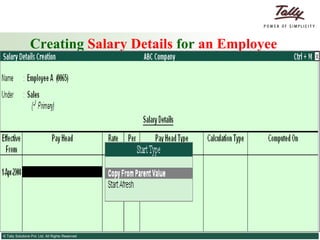
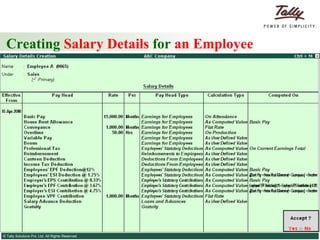
Step 4: Create Salary Details Create  Salary Details Group Pay Structure Individual Pay Structure
Step 5: Process Payroll and Generate Payslip Pass a Payroll Voucher to enter all Earnings and Deductions in payroll transactions that are paid along with the Salary Payslip for all employees. Generate the Payslip with the following details each component of the employee’s  earnings and deductions, displays the  net amount paid  to him for a given pay period.
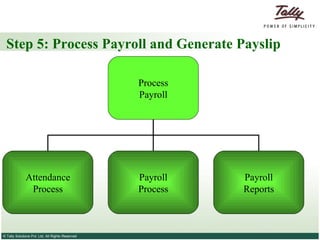
Step 5: Process Payroll and Generate Payslip Process Payroll Attendance Process Payroll Process Payroll Reports
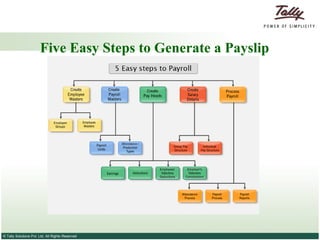
Five Easy Steps to Generate a Payslip
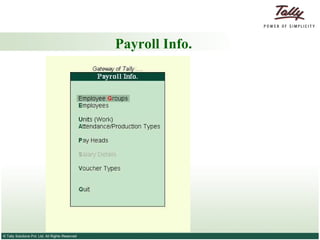
Payroll Info.
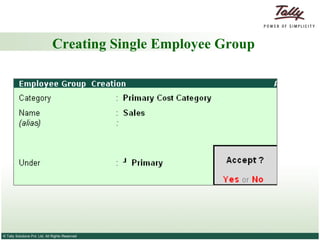
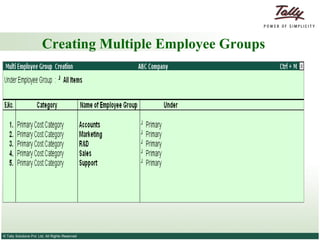
Creating Employee Group An Employee Group allows you to group employees in a logical manner as required. The Salary structure can be defined at the Employee Group level.  For example, you can create the  Salary structure based on the department or function such as Production, Sales, Administration and so on,  or  by designation such as Managers, Supervisors, Workers and so on.
Creating Single Employee Group
Creating Multiple Employee Groups
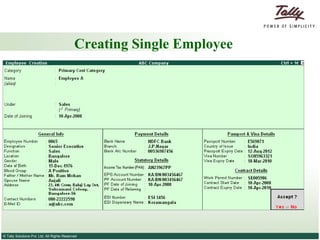
Creating Employees Employee Master records the relevant information about the employee.  Tally.ERP also allows you to enter the Statutory, Expat and Contract details of the employees.
Creating Single Employee
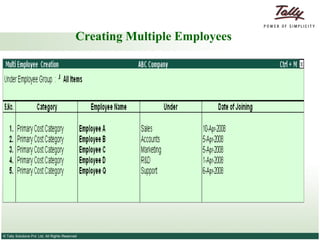
Creating Multiple Employees
Creating Payroll Unit A  Payroll Unit  is  similar  to  Unit of Measure  used in the Inventory module.  In Payroll, on the basis of Payroll Units, Pay components are calculated for a given period.  We can create  Simple as well as Compound Payroll   Units  measured on  Attendance / Production Types such as Time, Work or Quantity.
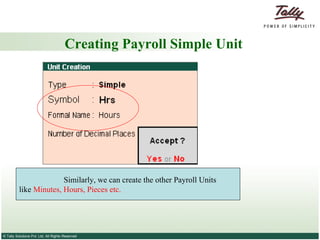
Creating Payroll Simple Unit 1.  Select Type as Simple 2.  Enter the Symbol for the Unit 3.  Enter the Formal Name 4.  Provide the Number of Decimal Places for the Unit if you want to use the Unit in fractions
Creating Payroll Simple Unit Similarly, we can create the other Payroll Units  like  Minutes, Hours, Pieces etc.
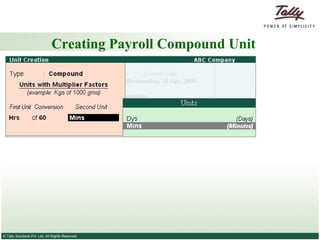
Creating Payroll Compound Unit Compound Units for Payroll, comprising of two payroll Units can be created.  Example  Box of 10 Nos ,  Dozen of 12 Pcs ,  Hr of 60 Mins etc.
Creating Payroll Compound Unit
Creating Attendance/Production Types The Attendance/ Production type is used to record the attendance and production data.  Examples for attendance/ production types  are  No. of days present or conversely, No. of days Absent  and  production based such as Hours worked, Number of Pieces produced .
Creating Attendance/Production Types Attendance/Production Type is associated with the Pay Head in employee’s Pay structure.  The variable data is entered in the Attendance voucher for the payroll period. Attendance/Production Types may also be defined in hierarchical groups whereby Types having a common Unit are combined under logical groups.
Creating Attendance/Production Types The Attendance/Production Type may be  Attendance/leave with pay,  Leave without Pay and  Production type which can be based on Piece Production, Overtime Hours, and so on.
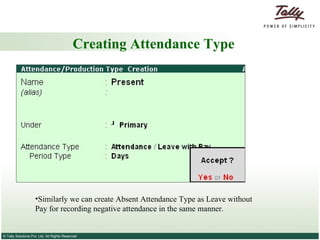
Creating Attendance Type Similarly we can create Absent Attendance Type as Leave without Pay for recording negative attendance in the same manner.
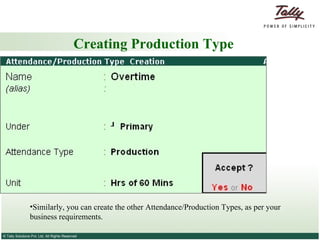
Creating Production Type Similarly, you can create the other Attendance/Production Types, as per your business requirements.
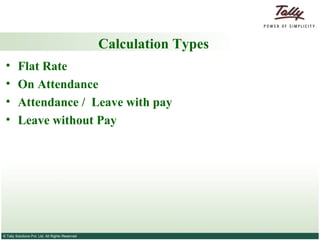
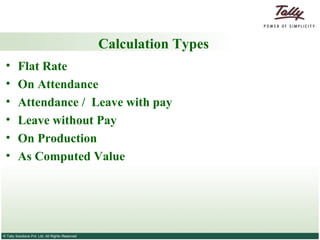
Calculation Types
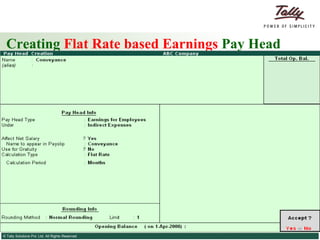
Flat Rate Where the value of the Pay head is a fixed amount for a period . ( Pro-rata will not happen in this type of the component). Examples of Flat Rate Calculation Type: Conveyance Allowance  of Rs. 800.00 per month is exempt from tax and followed by many organisation. Fixed Loan Installment  deduction amount.
Calculation Types Flat Rate On Attendance
On Attendance Based on the attendance data where the component will  get pro-rated .  In Tally.ERP 9 the attendance can be recorded as positive days (Present) or loss of pay (Absent) type. Example:  Basic Salary  is calculated on Attendance.
Calculation Types Flat Rate On Attendance Attendance /  Leave with pay
Attendance /  Leave with pay If you want to calculate the Pay Head Value using the  Positive Attendance (Present)
Calculation Types Flat Rate On Attendance Attendance /  Leave with pay Leave without Pay
Leave without Pay To calculate the Pay Head Value using the  Negative Attendance  (Absent).
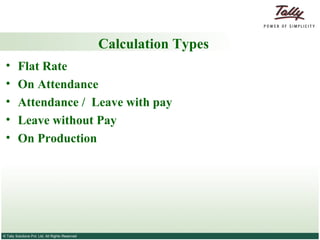
Calculation Types Flat Rate On Attendance Attendance /  Leave with pay Leave without Pay On Production
On Production On Production Calculation Type is used to calculate the pay value based on the Production/Work down.
Calculation Types Flat Rate On Attendance Attendance /  Leave with pay Leave without Pay On Production As Computed Value
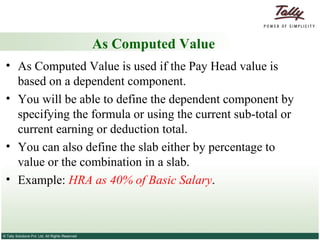
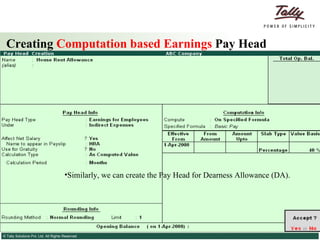
As Computed Value As Computed Value is used if the Pay Head value is based on a dependent component.  You will be able to define the dependent component by specifying the formula or using the current sub-total or current earning or deduction total.  You can also define the slab either by percentage to value or the combination in a slab. Example:  HRA as 40% of Basic Salary .
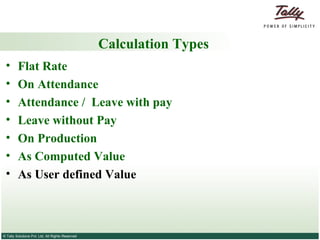
Calculation Types Flat Rate On Attendance Attendance /  Leave with pay Leave without Pay On Production As Computed Value As User defined Value
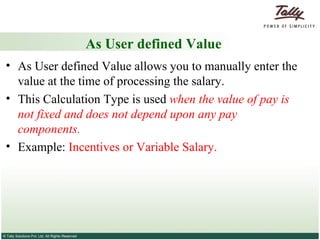
As User defined Value As User defined Value allows you to manually enter the value at the time of processing the salary.  This Calculation Type is used  when the value of pay is not fixed and does not depend upon any pay components. Example:  Incentives or Variable Salary.
Compute -  On Current Deductions Total  – This Calculation Type is used  when the value of a Pay Head depends upon the total of the deductions  pay heads previously defined.
Compute -  On Current Earnings Total When the  value of a Pay Head depends upon the total earnings  pay heads previously defined.
Compute  On Current Sub Total   When the  value of a Pay Head depends upon the net totals of earnings and deductions  previously defined.
Compute  On Specified Formula  Tally.ERP 9 allows the addition and subtraction of pay heads already defined in the pay structure and multiplication and divisions using Attendance Types.  For example, HRA is computed as 40% of the basic salary.
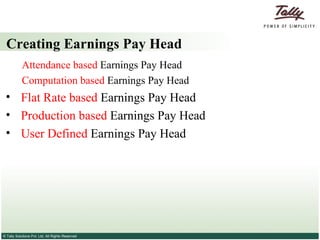
Creating Earnings Pay Head Attendance based  Earnings Pay Head Computation based  Earnings Pay Head Flat Rate based  Earnings Pay Head Production based  Earnings Pay Head User Defined  Earnings Pay Head
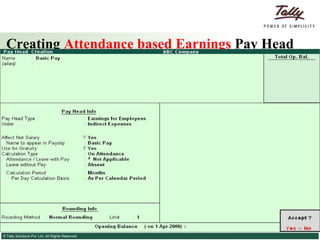
Creating  Attendance based Earnings  Pay Head
Creating  Computation based Earnings  Pay Head Similarly, we can create the Pay Head for Dearness Allowance (DA).
Creating  Flat Rate based Earnings  Pay Head
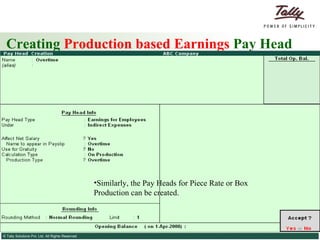
Creating  Production based Earnings  Pay Head Similarly, the Pay Heads for Piece Rate or Box Production can be created.
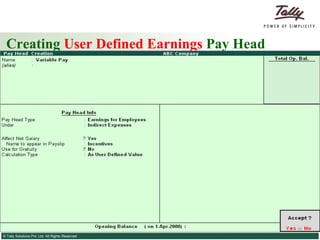
Creating  User Defined Earnings  Pay Head
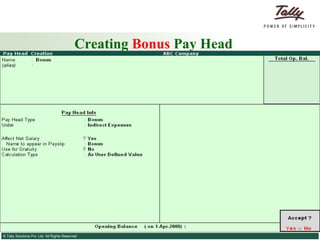
Creating  Bonus  Pay Head
Creating Employee Deductions Pay Head General Deductions  (e.g. Canteen Deductions) Salary Advance Deduction Pay Head Income Tax Deduction Pay Head
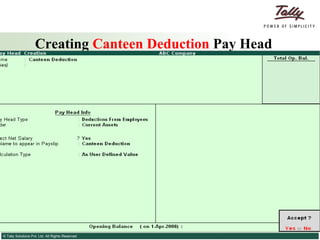
Creating  Canteen Deduction  Pay Head
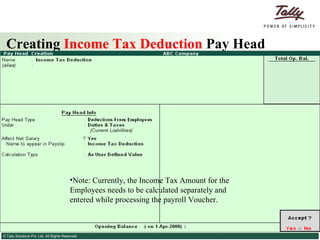
Creating  Income Tax Deduction  Pay Head Note: Currently, the Income Tax Amount for the Employees needs to be calculated separately and entered while processing the payroll Voucher.
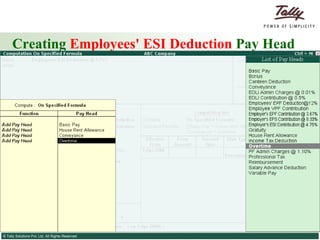
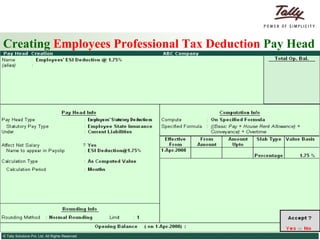
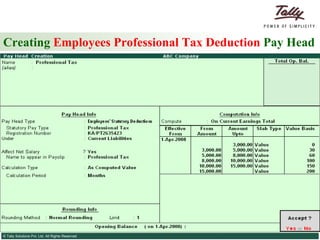
Creating  Employees' Statutory Deductions  Pay Heads Employees'  PF Deduction  Pay Head Employees'  ESI Deduction  Pay Head Professional Tax  Pay Head
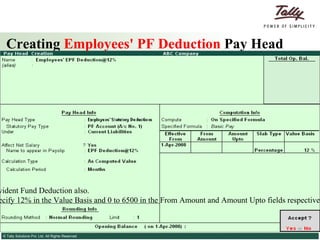
Creating  Employees' PF Deduction  Pay Head Similarly, you can create the Pay Head for Voluntary Provident Fund Deduction also. Note: To restrict the PF Deduction to Rs. 780, you can specify 12% in the Value Basis and 0 to 6500 in the From Amount and Amount Upto fields respectively. For amount beyond 6500 the specify 780 in the Value Basis field.
Creating  Employees' ESI Deduction  Pay Head
Creating  Employees Professional Tax Deduction  Pay Head
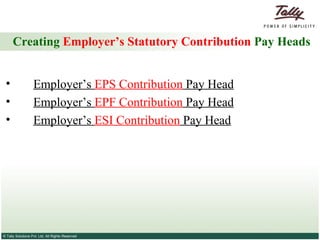
Creating  Employer’s Statutory Contribution  Pay Heads Employer’s  EPS Contribution  Pay Head Employer’s  EPF Contribution  Pay Head Employer’s  ESI Contribution  Pay Head
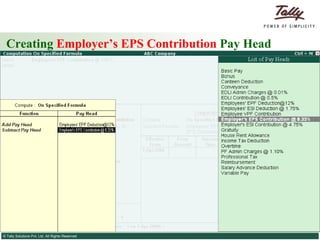
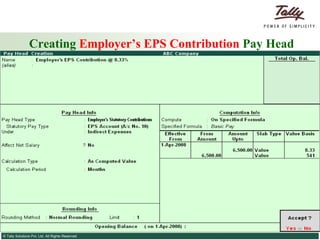
Creating  Employer’s EPS Contribution  Pay Head
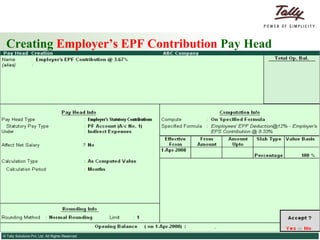
Creating  Employer’s EPF Contribution  Pay Head
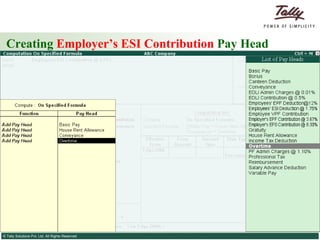
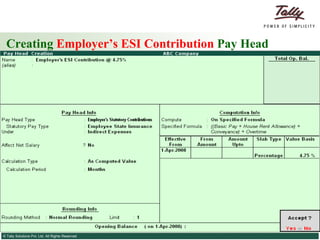
Creating  Employer’s ESI Contribution  Pay Head
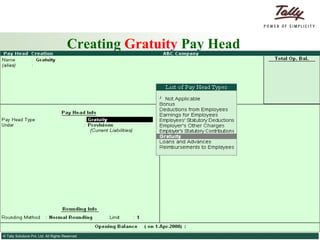
Creating  Gratuity  Pay Head
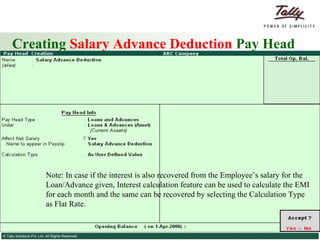
Creating  Salary Advance Deduction  Pay Head Note: In case if the interest is also recovered from the Employee’s salary for the Loan/Advance given, Interest calculation feature can be used to calculate the EMI for each month and the same can be recovered by selecting the Calculation Type as Flat Rate.
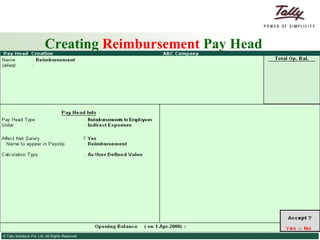
Creating  Reimbursement  Pay Head
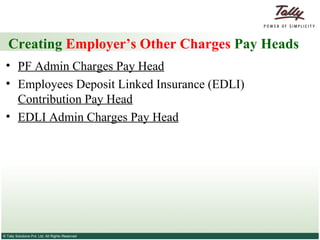
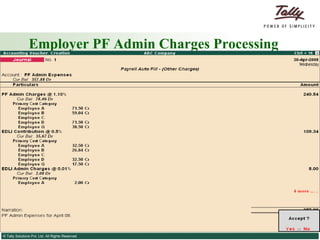
Creating  Employer’s Other Charges  Pay Heads PF Admin Charges Pay Head Employees Deposit Linked Insurance (EDLI)  Contribution Pay Head EDLI Admin Charges Pay Head
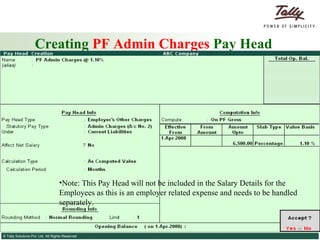
Creating  PF Admin Charges  Pay Head Note: This Pay Head will not be included in the Salary Details for the Employees as this is an employer related expense and needs to be handled separately.
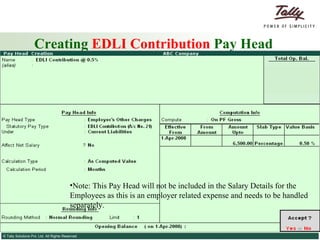
Creating  EDLI Contribution  Pay Head Note: This Pay Head will not be included in the Salary Details for the Employees as this is an employer related expense and needs to be handled separately.
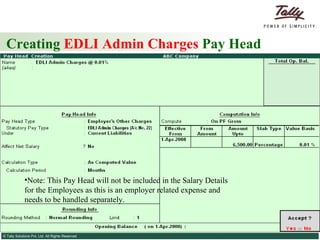
Creating  EDLI Admin Charges  Pay Head Note: This Pay Head will not be included in the Salary Details for the Employees as this is an employer related expense and needs to be handled separately.
Defining Salary Structure
Creating  Salary Details  for  Employee Group
Creating  Salary Details  for  an Employee
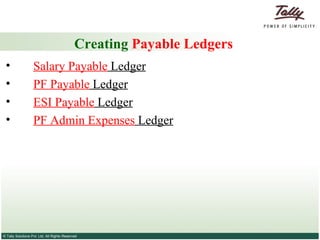
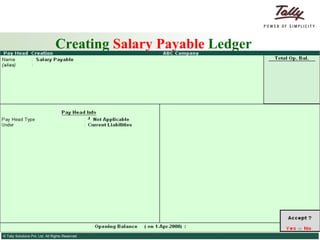
Creating  Payable Ledgers Salary Payable  Ledger PF Payable  Ledger ESI Payable  Ledger PF Admin Expenses  Ledger
Creating  Salary Payable  Ledger
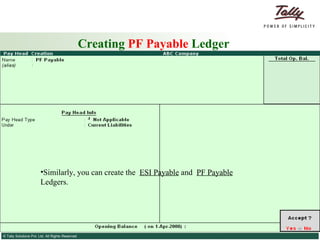
Creating  PF Payable  Ledger Similarly, you can create the  ESI Payable  and  PF Payable  Ledgers.
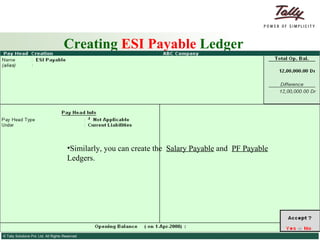
Creating  ESI Payable  Ledger Similarly, you can create the  Salary Payable  and  PF Payable  Ledgers.
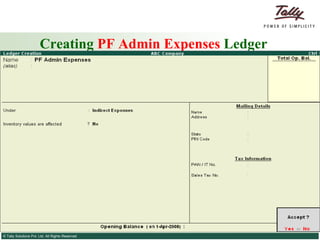
Creating  PF Admin Expenses  Ledger
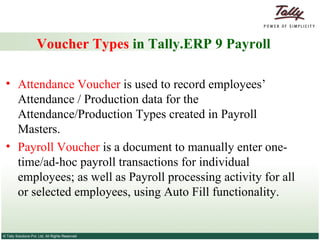
Voucher Types  in Tally.ERP 9 Payroll Attendance Voucher  is used to record employees’ Attendance / Production data for the Attendance/Production Types created in Payroll Masters.  Payroll Voucher  is a document to manually enter one-time/ad-hoc payroll transactions for individual employees; as well as Payroll processing activity for all or selected employees, using Auto Fill functionality.
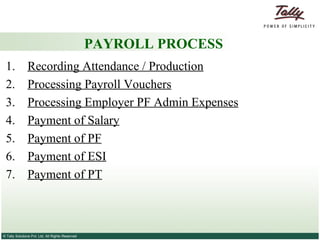
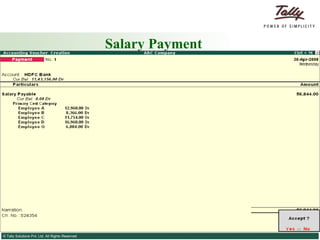
PAYROLL PROCESS 1.  Recording Attendance / Production 2.  Processing Payroll Vouchers 3.  Processing Employer PF Admin Expenses 4.  Payment of Salary 5.  Payment of PF 6.  Payment of ESI 7.  Payment of PT
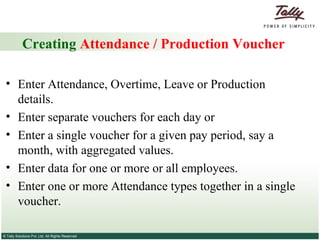
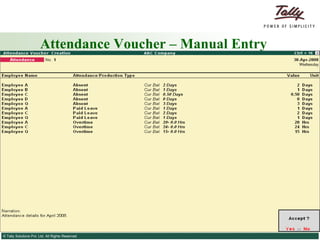
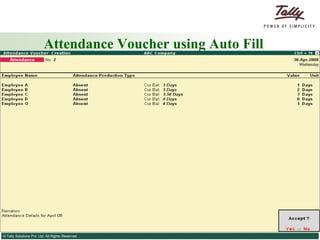
Creating  Attendance / Production Voucher Enter Attendance, Overtime, Leave or Production details.  Enter separate vouchers for each day or  Enter a single voucher for a given pay period, say a month, with aggregated values.  Enter data for one or more or all employees.  Enter one or more Attendance types together in a single voucher.
Attendance Voucher – Manual Entry
Attendance Voucher using Auto Fill
Creating  Payroll Vouchers Record the Payroll related data for Employees’ and Employer’s contribution.  Enter separate vouchers for each day or Enter a single voucher for a given pay period, say a month, with aggregated values.  Enter data for one or more or all employees.
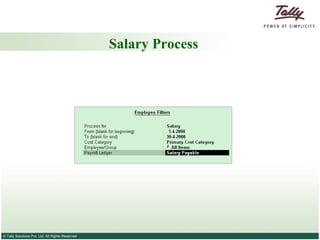
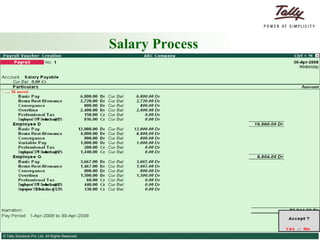
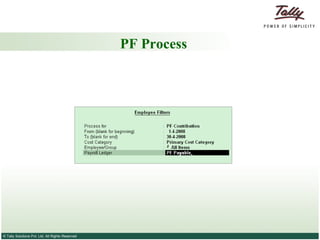
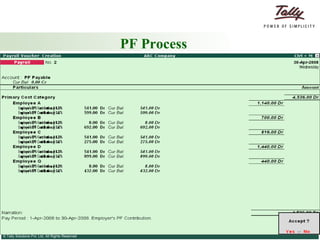
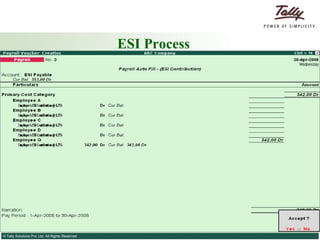
Creating  Payroll Vouchers Employees PF, ESI and PT contributions are processed along with Salary Process during Payroll.  Payment in respect of PF, ESI and PT has to be made separately.
Salary Process
Salary Process
PF Process
PF Process
ESI Process
Employer PF Admin Charges Processing
Salary Payment
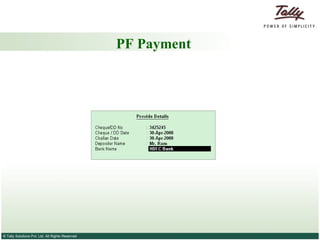
PF Payment
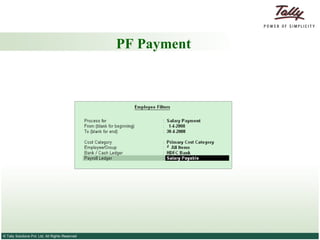
PF Payment
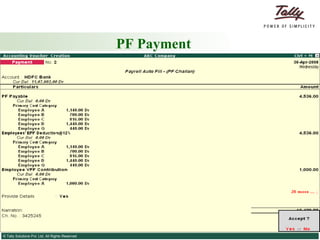
PF Payment
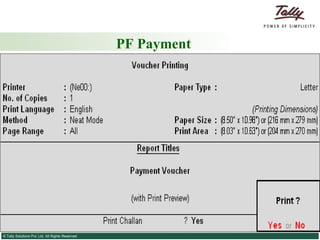
PF Payment
 
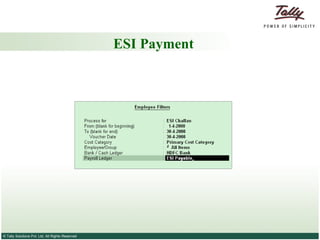
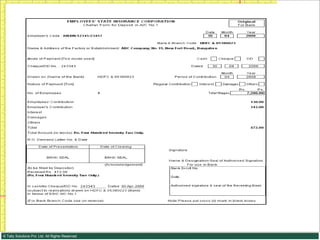
ESI Payment
ESI Payment
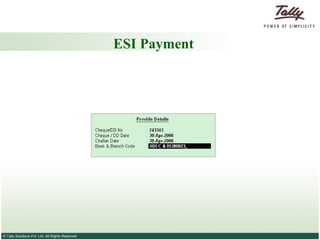
ESI Payment
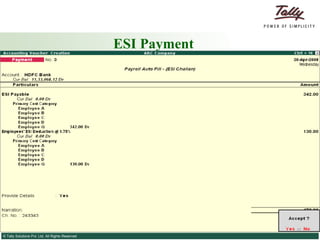
ESI Payment
 
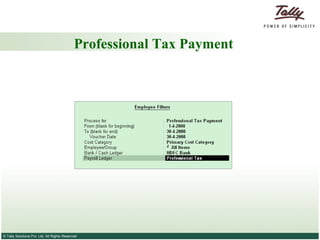
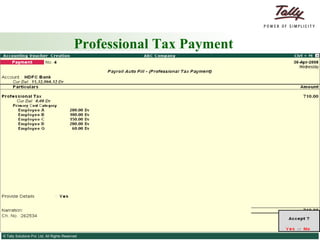
Professional Tax Payment
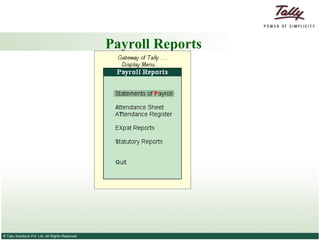
Payroll Reports
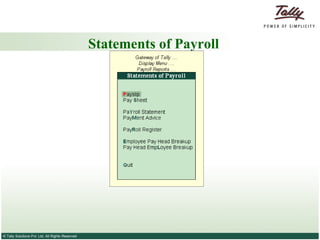
Statements of Payroll
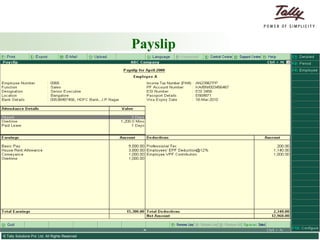
Payslip
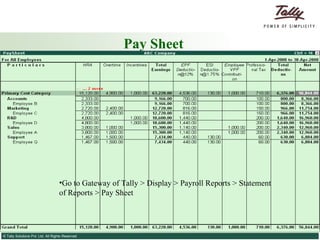
Pay Sheet Pay Sheet  is a matrix report with category, groups and employees cascading in rows, and Pay Heads appears as columns. The default report contains all earnings and deduction details for a given month or period with a number of options to reconfigure the appearance of rows and columns.  Format of the pay sheet report may be configured  to serve as a Salary/Wage register as required by the organization.  The selection of data can be filtered  based on a given category or group of employees.
Pay Sheet Go to Gateway of Tally > Display > Payroll Reports > Statement of Reports > Pay Sheet
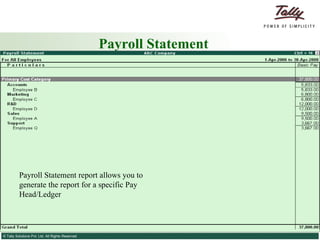
Payroll Statement . Payroll Statement report allows you to generate the report for a specific Pay Head/Ledger
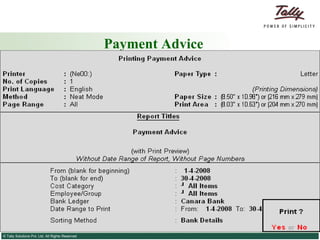
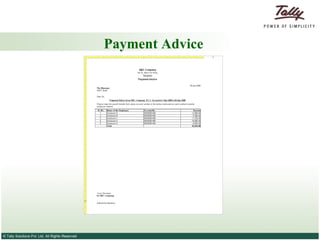
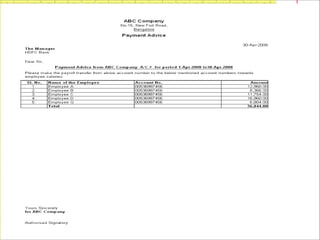
Payment Advice The Payment Advice report is used to generate Payment Advice / Bank Transfer letters to transfer Salary Amount from a specific bank account to the respective bank accounts of the employees based on the Salary Payment voucher.
Payment Advice
Payment Advice
Payment Advice
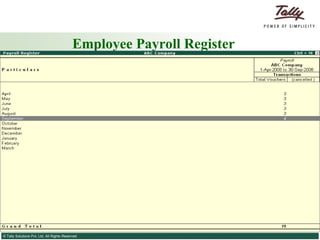
Payroll Register Payroll register is a month-wise transaction summary report displaying Payroll vouchers, similar to Display Statistics in the accounting module.  Though the register primarily displays Payroll vouchers, you can however add new columns for any other voucher type.
Payroll Register Go to Gateway of Tally > Display > Payroll Reports > Statement of Reports > Payroll Register
Employee Payroll Register
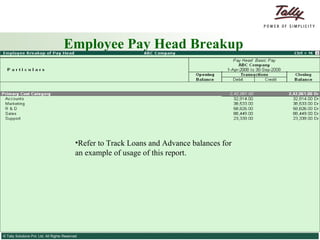
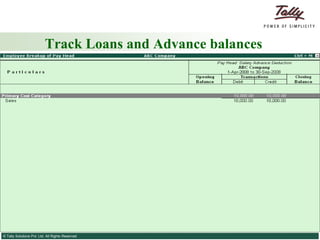
Employee Pay Head Breakup Refer to Track Loans and Advance balances for an example of usage of this report.
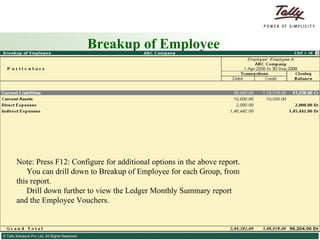
Breakup of Employee This report displays a group wise summary of the transactions and Closing balance for the selected Employee.  Drill down to specific ledger of the group, to the month wise summary and up to voucher, is available in this report. Select the Employee from the list, to view the Pay Head Breakup for that employee.
Breakup of Employee Note: Press F12: Configure for additional options in the above report. You can drill down to Breakup of Employee for each Group, from this report. Drill down further to view the Ledger Monthly Summary report and the Employee Vouchers.
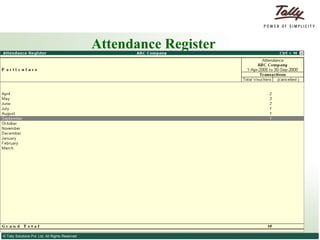
Attendance Reports Attendance Sheet Attendance Register
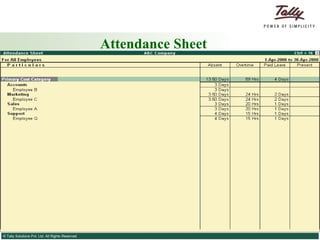
Attendance Sheet The Attendance Sheet  report is similar to Pay Sheet report, and displays a pre-formatted report with columns, related to your Attendance/Production data.
Attendance Sheet
Attendance Register This report is similar to Payroll Register and displays the summary report of the Attendance vouchers.
Attendance Register
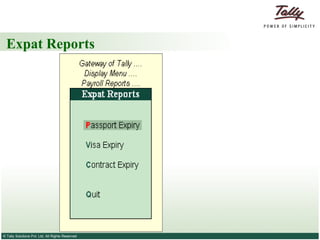
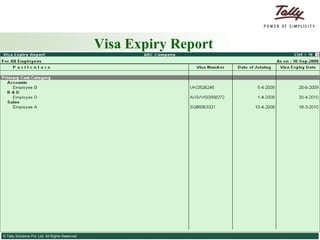
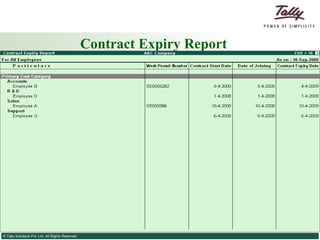
Expat Reports The Expat reports provide comprehensive information about foreign nationals who are employed (as both regular as well as contract employees) on short/long work assignments in your company.  It displays all the relevant information such as Passport/Visa/Contract Expiry dates along with the date of joining with respective Passport/Visa numbers and so on... both at an individual employee level as well as at the group level.
Expat Reports
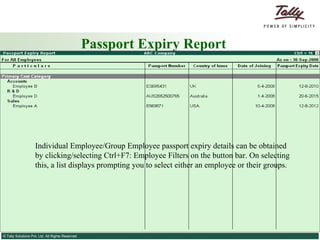
Passport Expiry Report Individual Employee/Group Employee passport expiry details can be obtained by clicking/selecting Ctrl+F7: Employee Filters on the button bar. On selecting this, a list displays prompting you to select either an employee or their groups.
Visa Expiry Report
Contract Expiry Report
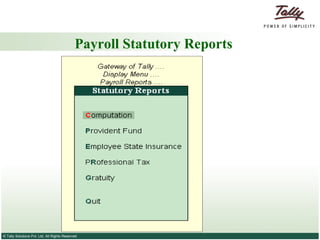
Payroll Statutory Reports
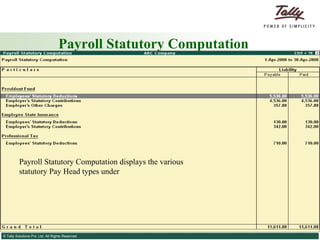
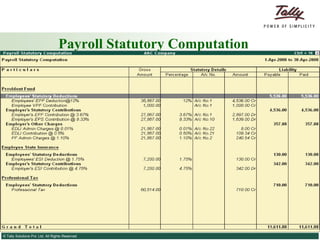
Payroll Statutory Computation Payroll Statutory Computation displays the various statutory Pay Head types under
Payroll Statutory Computation
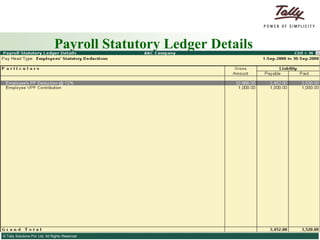
Payroll Statutory Ledger Details
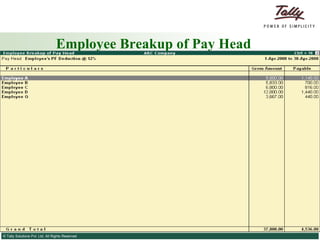
Employee Breakup of Pay Head
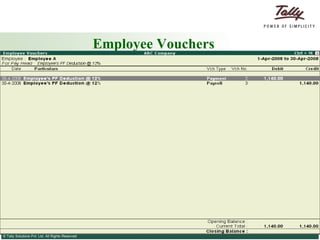
Employee Vouchers
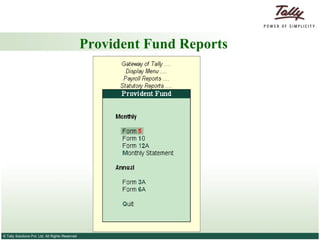
Provident Fund Reports
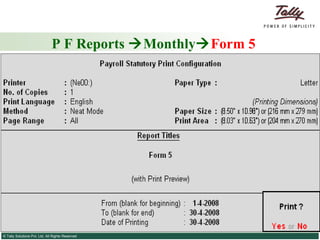
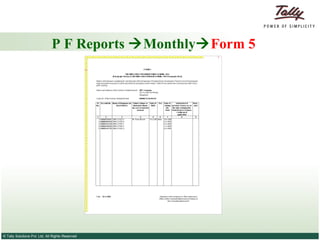
P F Reports   Monthly  Form 5 PF Form 5 is a monthly report which provides the details of the employees newly joining the Provident Fund scheme during the given month.
P F Reports   Monthly  Form 5
Provident Fund Reports   Monthly  Form 5
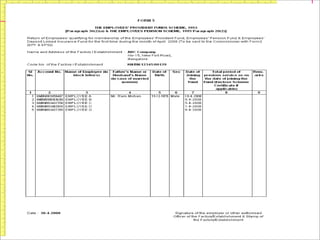
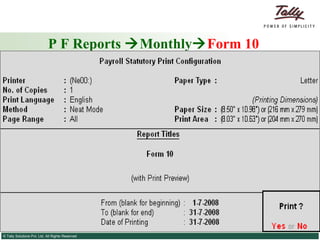
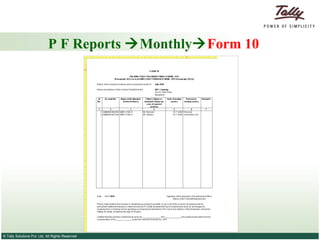
P F Reports   Monthly  Form 10 PF Form 10 is a monthly report that provides the details of the employees exiting from the Provident Fund scheme during the given month.
P F Reports   Monthly  Form 10
Provident Fund Reports   Monthly  Form 10
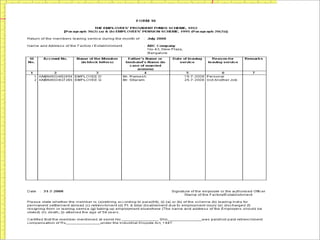
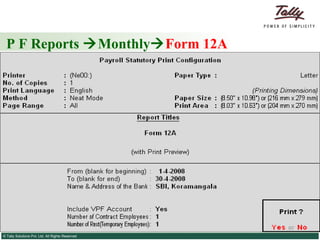
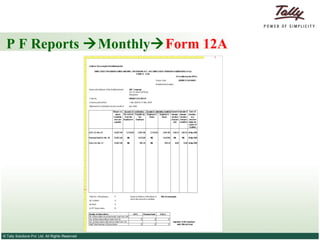
P F Reports   Monthly  Form 12A PF Form 12A monthly report that provides the details of the PF Payments made to the respective PF Accounts of the Employees during the given month.
P F Reports   Monthly  Form 12A
Provident Fund Reports   Monthly  Form 12A
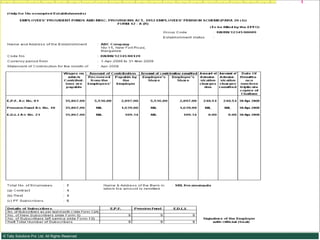
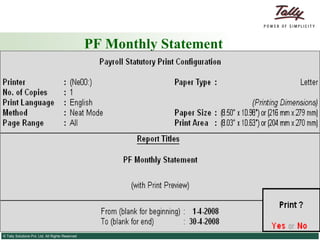
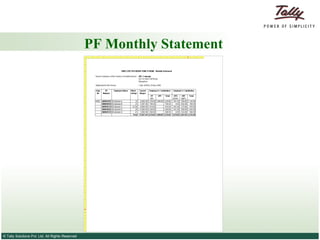
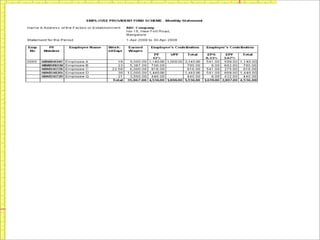
PF Monthly Statement PF Monthly Statement is an MIS report which provides the details of the Amounts contributed by the Employees and Employer towards the PF Accounts during the given month/period.
PF Monthly Statement
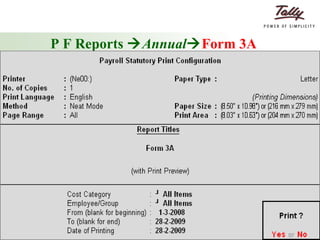
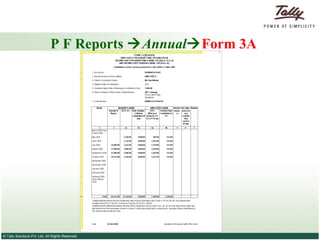
P F Reports   Annual  Form 3A PF Form 3A is an Employee wise Annual report for the Amounts deducted/contributed by the Employee and the Employer towards the EPF, VPF and EPS Accounts.
P F Reports   Annual  Form 3A
Provident Fund Reports   Annual  Form 3A
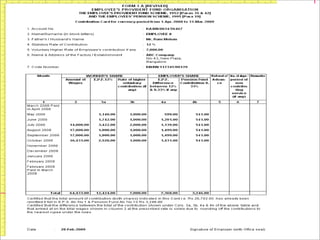
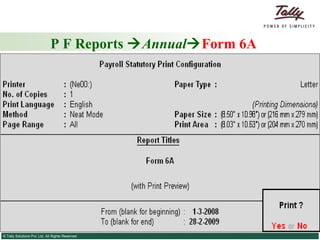
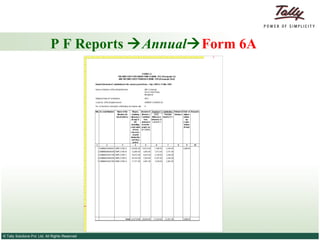
P F Reports   Annual  Form 6A PF Form 6A is the detailed Annual Statement of contribution towards the different PF Accounts for the given currency period.
P F Reports   Annual  Form 6A
Provident Fund Reports   Annual  Form 6A
 
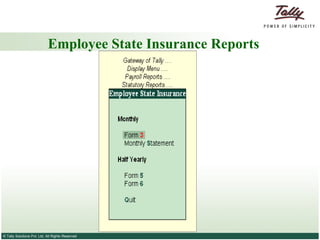
Employee State Insurance Reports
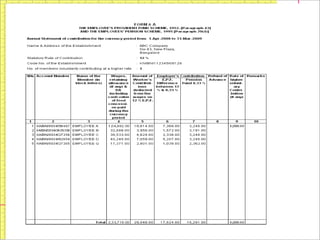
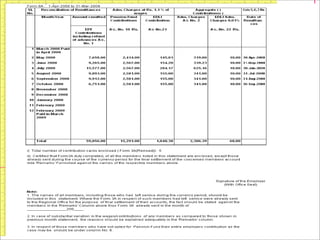
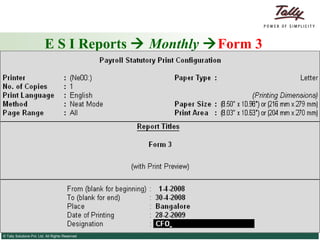
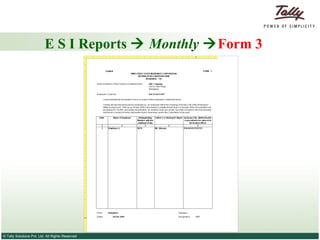
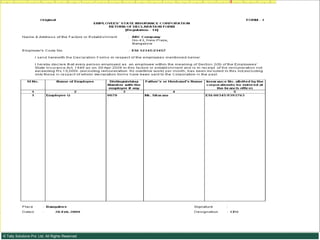
E S I Reports     Monthly    Form 3 ESI Form 3 is a Return of Declaration form to be submitted during each month with the details of the Employees falling in the purview of ESI during the given month.
E S I Reports     Monthly    Form 3
E S I Reports    Monthly   Form 3
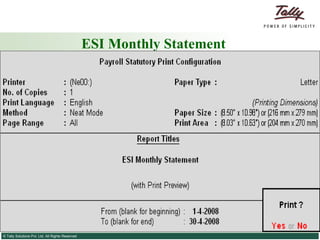
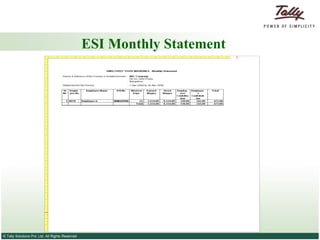
ESI Monthly Statement ESI Monthly Statement is an MIS report which provides the details of the Amounts contributed by Employees’ and Employer towards the ESI Account during the given month.
ESI Monthly Statement
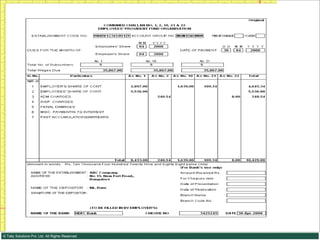
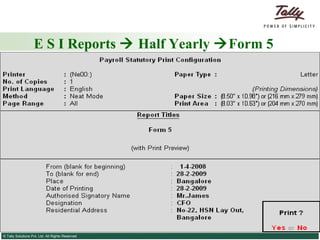
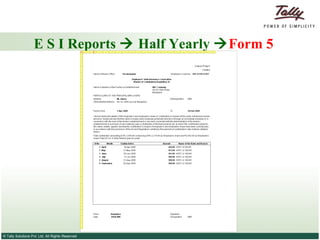
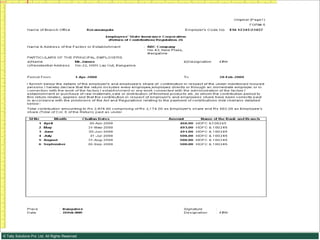
E S I Reports    Half Yearly   Form 5 ESI Form 5 is a Return of Contribution form to be submitted half yearly with details of employee wise ESI contribution made on a monthly basis.
E S I Reports    Half Yearly   Form 5
 
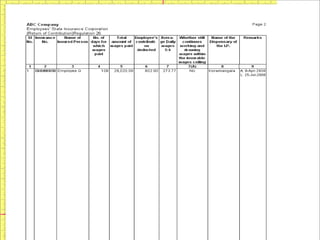
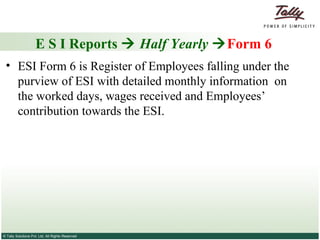
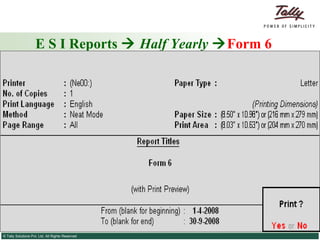
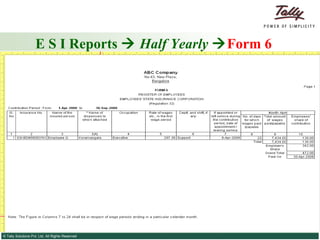
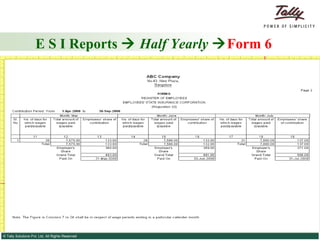
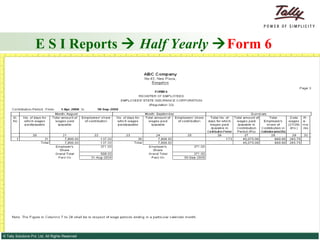
E S I Reports     Half Yearly    Form 6 ESI Form 6 is Register of Employees falling under the purview of ESI with detailed monthly information  on the worked days, wages received and Employees’ contribution towards the ESI.
E S I Reports     Half Yearly    Form 6
Professional Tax Reports
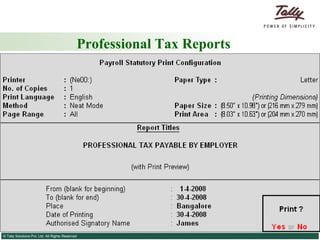
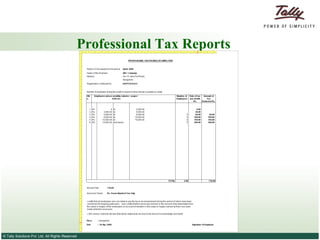
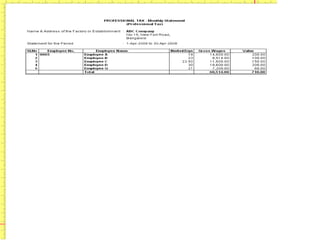
Professional Tax Computation Report Professional Tax (PT) Computation Report is monthly which provides the details of the PT amount that the employer is liable to pay to the professional Tax department during the given month.
Professional Tax Reports
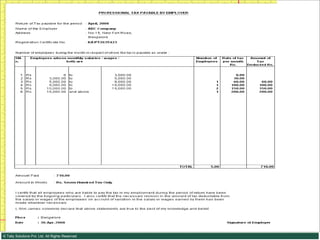
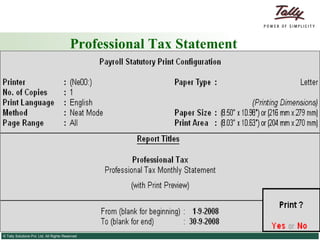
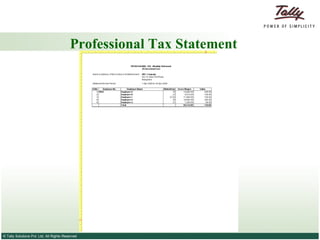
Professional Tax Statement Professional Tax (PT) Monthly Statement is MIS report showing the PT employee wise PT contribution details for the given month.
Professional Tax Statement
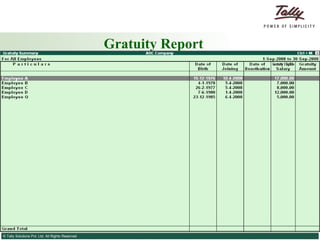
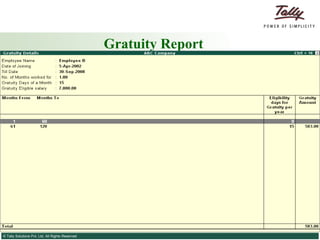
Gratuity Report Gratuity is a statutory benefit provided to the employees who have rendered continuous service for at least five years.  The gratuity benefit is payable on cessation of employment either by resignation, death, retirement or termination.  The last drawn basic salary is taken as the basis for the calculation.
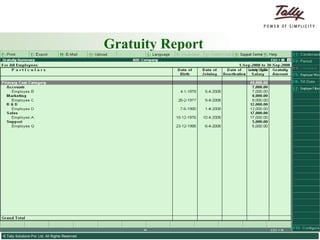
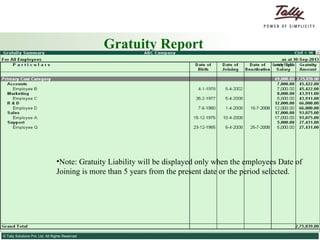
Gratuity Report In India, as per statute, the employee is eligible for 15 days pay for each completed year of service after completion of five continuous years of service. The Gratuity Summary report provides comprehensive information on the  Gratuity Eligible Salary  and the  Total Gratuity amount that is liable to be given to the employees.
Gratuity Report
Gratuity Report
Gratuity Report Note: Gratuity Liability will be displayed only when the employees Date of Joining is more than 5 years from the present date or the period selected.
Gratuity Report
TRACKING LOANS AND ADVACES Tally.ERP 9 Payroll facilitates tracking of loans and advances paid to employees and allow defining simple to complex criteria for recovery of such advances.  The Loan/Advances can be recovered in complete or a number of installments from Employee’s salary.
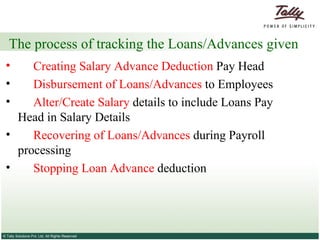
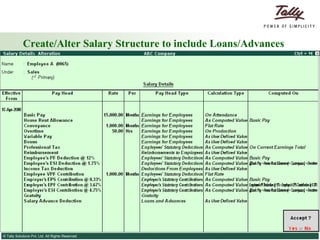
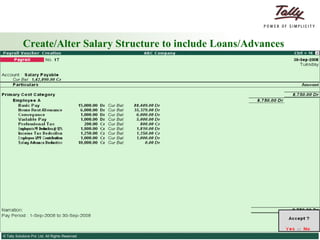
The process of tracking the Loans/Advances given Creating Salary Advance Deduction  Pay Head Disbursement of Loans/Advances  to Employees Alter/Create Salary  details to include Loans Pay  Head in Salary Details Recovering of Loans/Advances  during Payroll  processing Stopping Loan Advance  deduction
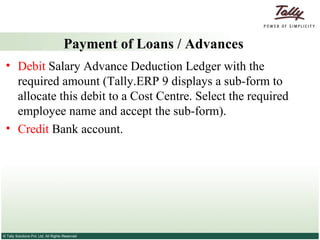
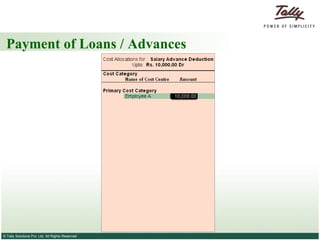
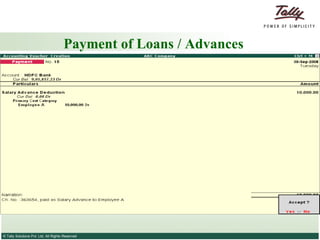
Payment of Loans / Advances Debit  Salary Advance Deduction Ledger with the required amount (Tally.ERP 9 displays a sub-form to allocate this debit to a Cost Centre. Select the required employee name and accept the sub-form). Credit  Bank account.
Payment of Loans / Advances
Create/Alter Salary Structure to include Loans/Advances
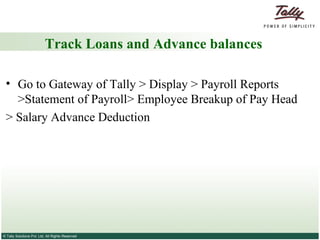
Track Loans and Advance balances Go to Gateway of Tally > Display > Payroll Reports >Statement of Payroll> Employee Breakup of Pay Head > Salary Advance Deduction
Track Loans and Advance balances
Once the loan amount is repaid, we can  remove the Salary Advance deduction Pay head  from the Salary Details of the relevant employee to avoid erroneous deduction of Salary Advance during the Payroll Voucher.
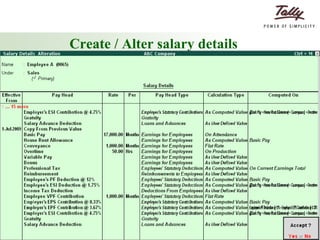
Salary Increments and Arrears Calculation Salary of employees that get revised periodically to a higher salary is known as Increment.  When such increment is given retrospectively, it amounts to calculation and payment of arrears. Tally Payroll supports such revision both as prospective change and also as retrospective change.
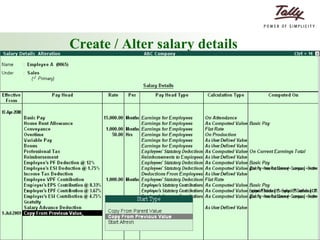
Salary Increments and Arrears Calculation Consider a scenario where ABC Company revises the salary of Employee A on 1-10-2008 with effect from 1-7-2008.
Create / Alter salary details
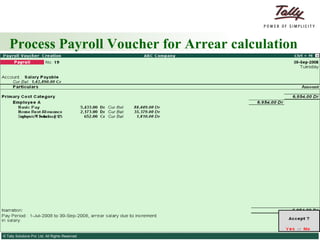
Process Payroll Voucher for Arrear calculation Create a Payroll Voucher for Employee A for the period 1-7-2008 to 30-9-2008.
Process Payroll Voucher for Arrear calculation
Thank You THANK YOU! BY WWW.VIPINSINGLA.CO.CC

Tally 9.0

  • 1.
    Payroll in Tally.ERP9 Payroll in Tally.ERP 9
  • 2.
    Payroll Features ofTally.ERP 9 Tally.ERP 9 Payroll is fully integrated with Accounting. Tally.ERP 9 Payroll enables users to set up, implement and process Payroll, as per the organization’s requirements. Tally.ERP 9 Payroll also provides management related Information reports and statutory Forms and reports in the prescribed formats viz., Payslip, Payroll statements, Attendance and Overtime Registers, Gratuity, Expat Reports and so on.
  • 3.
    Payroll Features ofTally.ERP 9 Unlimited grouping of Payroll Masters. User-defined production units i.e., attendance/ production/ time based remuneration units. Flexible payroll processing period.
  • 4.
    Payroll Features ofTally.ERP 9 Comprehensive cost centre as well as employee-wise costing reports. Accurate & timely Salary processing. Employee Statutory Deductions & Employer Statutory Contributions with the help of predefined processes Auto-fill facility to expedite the Attendance, Payroll & employer contributions processes. Facilitates an accurate computation and deduction of ESI, EPF, Professional Tax, Gratuity etc.
  • 5.
    Payroll Features ofTally.ERP 9 Generation of Statutory Forms & Challans for EPF & ESI, as prescribed by the Govt . Drill-down facility to voucher level for any kind of alteration. Facilitates computation of arrears pertaining to prior period(s). Helps in tracking employee loan details.
  • 6.
  • 7.
  • 8.
  • 9.
  • 10.
  • 11.
    To enable PayrollFeature in Tally.ERP 9
  • 12.
    To enable PayrollFeature in Tally.ERP 9 ESI Eligibility Amount specified in Payroll Statutory Details screen is the threshold limit, beyond which the Employee will not be eligible for ESI .
  • 13.
    Step 1: CreateEmployee Masters Create Employee Master Employee Groups Employee Masters
  • 14.
    Step 2: CreatePayroll Masters Create Payroll Master Payroll Units Attendance/ Production Types
  • 15.
    Step 3: CreatePay Heads Create Pay Heads Earnings Deductions Employees Statutory Deductions Employers Statutory Contributions
  • 16.
    Step 4: CreateSalary Details Create Salary Details Group Pay Structure Individual Pay Structure
  • 17.
    Step 5: ProcessPayroll and Generate Payslip Pass a Payroll Voucher to enter all Earnings and Deductions in payroll transactions that are paid along with the Salary Payslip for all employees. Generate the Payslip with the following details each component of the employee’s earnings and deductions, displays the net amount paid to him for a given pay period.
  • 18.
    Step 5: ProcessPayroll and Generate Payslip Process Payroll Attendance Process Payroll Process Payroll Reports
  • 19.
    Five Easy Stepsto Generate a Payslip
  • 20.
  • 21.
    Creating Employee GroupAn Employee Group allows you to group employees in a logical manner as required. The Salary structure can be defined at the Employee Group level. For example, you can create the Salary structure based on the department or function such as Production, Sales, Administration and so on, or by designation such as Managers, Supervisors, Workers and so on.
  • 22.
  • 23.
  • 24.
    Creating Employees EmployeeMaster records the relevant information about the employee. Tally.ERP also allows you to enter the Statutory, Expat and Contract details of the employees.
  • 25.
  • 26.
  • 27.
    Creating Payroll UnitA Payroll Unit is similar to Unit of Measure used in the Inventory module. In Payroll, on the basis of Payroll Units, Pay components are calculated for a given period. We can create Simple as well as Compound Payroll Units measured on Attendance / Production Types such as Time, Work or Quantity.
  • 28.
    Creating Payroll SimpleUnit 1. Select Type as Simple 2. Enter the Symbol for the Unit 3. Enter the Formal Name 4. Provide the Number of Decimal Places for the Unit if you want to use the Unit in fractions
  • 29.
    Creating Payroll SimpleUnit Similarly, we can create the other Payroll Units like Minutes, Hours, Pieces etc.
  • 30.
    Creating Payroll CompoundUnit Compound Units for Payroll, comprising of two payroll Units can be created. Example Box of 10 Nos , Dozen of 12 Pcs , Hr of 60 Mins etc.
  • 31.
  • 32.
    Creating Attendance/Production TypesThe Attendance/ Production type is used to record the attendance and production data. Examples for attendance/ production types are No. of days present or conversely, No. of days Absent and production based such as Hours worked, Number of Pieces produced .
  • 33.
    Creating Attendance/Production TypesAttendance/Production Type is associated with the Pay Head in employee’s Pay structure. The variable data is entered in the Attendance voucher for the payroll period. Attendance/Production Types may also be defined in hierarchical groups whereby Types having a common Unit are combined under logical groups.
  • 34.
    Creating Attendance/Production TypesThe Attendance/Production Type may be Attendance/leave with pay, Leave without Pay and Production type which can be based on Piece Production, Overtime Hours, and so on.
  • 35.
    Creating Attendance TypeSimilarly we can create Absent Attendance Type as Leave without Pay for recording negative attendance in the same manner.
  • 36.
    Creating Production TypeSimilarly, you can create the other Attendance/Production Types, as per your business requirements.
  • 37.
  • 38.
    Flat Rate Wherethe value of the Pay head is a fixed amount for a period . ( Pro-rata will not happen in this type of the component). Examples of Flat Rate Calculation Type: Conveyance Allowance of Rs. 800.00 per month is exempt from tax and followed by many organisation. Fixed Loan Installment deduction amount.
  • 39.
    Calculation Types FlatRate On Attendance
  • 40.
    On Attendance Basedon the attendance data where the component will get pro-rated . In Tally.ERP 9 the attendance can be recorded as positive days (Present) or loss of pay (Absent) type. Example: Basic Salary is calculated on Attendance.
  • 41.
    Calculation Types FlatRate On Attendance Attendance / Leave with pay
  • 42.
    Attendance / Leave with pay If you want to calculate the Pay Head Value using the Positive Attendance (Present)
  • 43.
    Calculation Types FlatRate On Attendance Attendance / Leave with pay Leave without Pay
  • 44.
    Leave without PayTo calculate the Pay Head Value using the Negative Attendance (Absent).
  • 45.
    Calculation Types FlatRate On Attendance Attendance / Leave with pay Leave without Pay On Production
  • 46.
    On Production OnProduction Calculation Type is used to calculate the pay value based on the Production/Work down.
  • 47.
    Calculation Types FlatRate On Attendance Attendance / Leave with pay Leave without Pay On Production As Computed Value
  • 48.
    As Computed ValueAs Computed Value is used if the Pay Head value is based on a dependent component. You will be able to define the dependent component by specifying the formula or using the current sub-total or current earning or deduction total. You can also define the slab either by percentage to value or the combination in a slab. Example: HRA as 40% of Basic Salary .
  • 49.
    Calculation Types FlatRate On Attendance Attendance / Leave with pay Leave without Pay On Production As Computed Value As User defined Value
  • 50.
    As User definedValue As User defined Value allows you to manually enter the value at the time of processing the salary. This Calculation Type is used when the value of pay is not fixed and does not depend upon any pay components. Example: Incentives or Variable Salary.
  • 51.
    Compute - On Current Deductions Total – This Calculation Type is used when the value of a Pay Head depends upon the total of the deductions pay heads previously defined.
  • 52.
    Compute - On Current Earnings Total When the value of a Pay Head depends upon the total earnings pay heads previously defined.
  • 53.
    Compute OnCurrent Sub Total When the value of a Pay Head depends upon the net totals of earnings and deductions previously defined.
  • 54.
    Compute OnSpecified Formula Tally.ERP 9 allows the addition and subtraction of pay heads already defined in the pay structure and multiplication and divisions using Attendance Types. For example, HRA is computed as 40% of the basic salary.
  • 55.
    Creating Earnings PayHead Attendance based Earnings Pay Head Computation based Earnings Pay Head Flat Rate based Earnings Pay Head Production based Earnings Pay Head User Defined Earnings Pay Head
  • 56.
    Creating Attendancebased Earnings Pay Head
  • 57.
    Creating Computationbased Earnings Pay Head Similarly, we can create the Pay Head for Dearness Allowance (DA).
  • 58.
    Creating FlatRate based Earnings Pay Head
  • 59.
    Creating Productionbased Earnings Pay Head Similarly, the Pay Heads for Piece Rate or Box Production can be created.
  • 60.
    Creating UserDefined Earnings Pay Head
  • 61.
    Creating Bonus Pay Head
  • 62.
    Creating Employee DeductionsPay Head General Deductions (e.g. Canteen Deductions) Salary Advance Deduction Pay Head Income Tax Deduction Pay Head
  • 63.
    Creating CanteenDeduction Pay Head
  • 64.
    Creating IncomeTax Deduction Pay Head Note: Currently, the Income Tax Amount for the Employees needs to be calculated separately and entered while processing the payroll Voucher.
  • 65.
    Creating Employees'Statutory Deductions Pay Heads Employees' PF Deduction Pay Head Employees' ESI Deduction Pay Head Professional Tax Pay Head
  • 66.
    Creating Employees'PF Deduction Pay Head Similarly, you can create the Pay Head for Voluntary Provident Fund Deduction also. Note: To restrict the PF Deduction to Rs. 780, you can specify 12% in the Value Basis and 0 to 6500 in the From Amount and Amount Upto fields respectively. For amount beyond 6500 the specify 780 in the Value Basis field.
  • 67.
    Creating Employees'ESI Deduction Pay Head
  • 68.
    Creating EmployeesProfessional Tax Deduction Pay Head
  • 69.
    Creating EmployeesProfessional Tax Deduction Pay Head
  • 70.
    Creating Employer’sStatutory Contribution Pay Heads Employer’s EPS Contribution Pay Head Employer’s EPF Contribution Pay Head Employer’s ESI Contribution Pay Head
  • 71.
    Creating Employer’sEPS Contribution Pay Head
  • 72.
    Creating Employer’sEPS Contribution Pay Head
  • 73.
    Creating Employer’sEPF Contribution Pay Head
  • 74.
    Creating Employer’sESI Contribution Pay Head
  • 75.
    Creating Employer’sESI Contribution Pay Head
  • 76.
  • 77.
    Creating SalaryAdvance Deduction Pay Head Note: In case if the interest is also recovered from the Employee’s salary for the Loan/Advance given, Interest calculation feature can be used to calculate the EMI for each month and the same can be recovered by selecting the Calculation Type as Flat Rate.
  • 78.
  • 79.
    Creating Employer’sOther Charges Pay Heads PF Admin Charges Pay Head Employees Deposit Linked Insurance (EDLI) Contribution Pay Head EDLI Admin Charges Pay Head
  • 80.
    Creating PFAdmin Charges Pay Head Note: This Pay Head will not be included in the Salary Details for the Employees as this is an employer related expense and needs to be handled separately.
  • 81.
    Creating EDLIContribution Pay Head Note: This Pay Head will not be included in the Salary Details for the Employees as this is an employer related expense and needs to be handled separately.
  • 82.
    Creating EDLIAdmin Charges Pay Head Note: This Pay Head will not be included in the Salary Details for the Employees as this is an employer related expense and needs to be handled separately.
  • 83.
  • 84.
    Creating SalaryDetails for Employee Group
  • 85.
    Creating SalaryDetails for an Employee
  • 86.
    Creating SalaryDetails for an Employee
  • 87.
    Creating PayableLedgers Salary Payable Ledger PF Payable Ledger ESI Payable Ledger PF Admin Expenses Ledger
  • 88.
    Creating SalaryPayable Ledger
  • 89.
    Creating PFPayable Ledger Similarly, you can create the ESI Payable and PF Payable Ledgers.
  • 90.
    Creating ESIPayable Ledger Similarly, you can create the Salary Payable and PF Payable Ledgers.
  • 91.
    Creating PFAdmin Expenses Ledger
  • 92.
    Voucher Types in Tally.ERP 9 Payroll Attendance Voucher is used to record employees’ Attendance / Production data for the Attendance/Production Types created in Payroll Masters. Payroll Voucher is a document to manually enter one-time/ad-hoc payroll transactions for individual employees; as well as Payroll processing activity for all or selected employees, using Auto Fill functionality.
  • 93.
    PAYROLL PROCESS 1. Recording Attendance / Production 2. Processing Payroll Vouchers 3. Processing Employer PF Admin Expenses 4. Payment of Salary 5. Payment of PF 6. Payment of ESI 7. Payment of PT
  • 94.
    Creating Attendance/ Production Voucher Enter Attendance, Overtime, Leave or Production details. Enter separate vouchers for each day or Enter a single voucher for a given pay period, say a month, with aggregated values. Enter data for one or more or all employees. Enter one or more Attendance types together in a single voucher.
  • 95.
  • 96.
  • 97.
    Creating PayrollVouchers Record the Payroll related data for Employees’ and Employer’s contribution. Enter separate vouchers for each day or Enter a single voucher for a given pay period, say a month, with aggregated values. Enter data for one or more or all employees.
  • 98.
    Creating PayrollVouchers Employees PF, ESI and PT contributions are processed along with Salary Process during Payroll. Payment in respect of PF, ESI and PT has to be made separately.
  • 99.
  • 100.
  • 101.
  • 102.
  • 103.
  • 104.
    Employer PF AdminCharges Processing
  • 105.
  • 106.
  • 107.
  • 108.
  • 109.
  • 110.
  • 111.
  • 112.
  • 113.
  • 114.
  • 115.
  • 116.
  • 117.
  • 118.
  • 119.
  • 120.
  • 121.
    Pay Sheet PaySheet is a matrix report with category, groups and employees cascading in rows, and Pay Heads appears as columns. The default report contains all earnings and deduction details for a given month or period with a number of options to reconfigure the appearance of rows and columns. Format of the pay sheet report may be configured to serve as a Salary/Wage register as required by the organization. The selection of data can be filtered based on a given category or group of employees.
  • 122.
    Pay Sheet Goto Gateway of Tally > Display > Payroll Reports > Statement of Reports > Pay Sheet
  • 123.
    Payroll Statement .Payroll Statement report allows you to generate the report for a specific Pay Head/Ledger
  • 124.
    Payment Advice ThePayment Advice report is used to generate Payment Advice / Bank Transfer letters to transfer Salary Amount from a specific bank account to the respective bank accounts of the employees based on the Salary Payment voucher.
  • 125.
  • 126.
  • 127.
  • 128.
    Payroll Register Payrollregister is a month-wise transaction summary report displaying Payroll vouchers, similar to Display Statistics in the accounting module. Though the register primarily displays Payroll vouchers, you can however add new columns for any other voucher type.
  • 129.
    Payroll Register Goto Gateway of Tally > Display > Payroll Reports > Statement of Reports > Payroll Register
  • 130.
  • 131.
    Employee Pay HeadBreakup Refer to Track Loans and Advance balances for an example of usage of this report.
  • 132.
    Breakup of EmployeeThis report displays a group wise summary of the transactions and Closing balance for the selected Employee. Drill down to specific ledger of the group, to the month wise summary and up to voucher, is available in this report. Select the Employee from the list, to view the Pay Head Breakup for that employee.
  • 133.
    Breakup of EmployeeNote: Press F12: Configure for additional options in the above report. You can drill down to Breakup of Employee for each Group, from this report. Drill down further to view the Ledger Monthly Summary report and the Employee Vouchers.
  • 134.
    Attendance Reports AttendanceSheet Attendance Register
  • 135.
    Attendance Sheet TheAttendance Sheet report is similar to Pay Sheet report, and displays a pre-formatted report with columns, related to your Attendance/Production data.
  • 136.
  • 137.
    Attendance Register Thisreport is similar to Payroll Register and displays the summary report of the Attendance vouchers.
  • 138.
  • 139.
    Expat Reports TheExpat reports provide comprehensive information about foreign nationals who are employed (as both regular as well as contract employees) on short/long work assignments in your company. It displays all the relevant information such as Passport/Visa/Contract Expiry dates along with the date of joining with respective Passport/Visa numbers and so on... both at an individual employee level as well as at the group level.
  • 140.
  • 141.
    Passport Expiry ReportIndividual Employee/Group Employee passport expiry details can be obtained by clicking/selecting Ctrl+F7: Employee Filters on the button bar. On selecting this, a list displays prompting you to select either an employee or their groups.
  • 142.
  • 143.
  • 144.
  • 145.
    Payroll Statutory ComputationPayroll Statutory Computation displays the various statutory Pay Head types under
  • 146.
  • 147.
  • 148.
  • 149.
  • 150.
  • 151.
    P F Reports  Monthly  Form 5 PF Form 5 is a monthly report which provides the details of the employees newly joining the Provident Fund scheme during the given month.
  • 152.
    P F Reports  Monthly  Form 5
  • 153.
    P F Reports  Monthly  Form 5
  • 154.
    Provident Fund Reports  Monthly  Form 5
  • 155.
    P F Reports  Monthly  Form 10 PF Form 10 is a monthly report that provides the details of the employees exiting from the Provident Fund scheme during the given month.
  • 156.
    P F Reports  Monthly  Form 10
  • 157.
    P F Reports  Monthly  Form 10
  • 158.
    Provident Fund Reports  Monthly  Form 10
  • 159.
    P F Reports  Monthly  Form 12A PF Form 12A monthly report that provides the details of the PF Payments made to the respective PF Accounts of the Employees during the given month.
  • 160.
    P F Reports  Monthly  Form 12A
  • 161.
    P F Reports  Monthly  Form 12A
  • 162.
    Provident Fund Reports  Monthly  Form 12A
  • 163.
    PF Monthly StatementPF Monthly Statement is an MIS report which provides the details of the Amounts contributed by the Employees and Employer towards the PF Accounts during the given month/period.
  • 164.
  • 165.
  • 166.
  • 167.
    P F Reports  Annual  Form 3A PF Form 3A is an Employee wise Annual report for the Amounts deducted/contributed by the Employee and the Employer towards the EPF, VPF and EPS Accounts.
  • 168.
    P F Reports  Annual  Form 3A
  • 169.
    P F Reports  Annual  Form 3A
  • 170.
    Provident Fund Reports  Annual  Form 3A
  • 171.
    P F Reports  Annual  Form 6A PF Form 6A is the detailed Annual Statement of contribution towards the different PF Accounts for the given currency period.
  • 172.
    P F Reports  Annual  Form 6A
  • 173.
    P F Reports  Annual  Form 6A
  • 174.
    Provident Fund Reports  Annual  Form 6A
  • 175.
  • 176.
  • 177.
    E S IReports  Monthly  Form 3 ESI Form 3 is a Return of Declaration form to be submitted during each month with the details of the Employees falling in the purview of ESI during the given month.
  • 178.
    E S IReports  Monthly  Form 3
  • 179.
    E S IReports  Monthly  Form 3
  • 180.
    E S IReports  Monthly  Form 3
  • 181.
    ESI Monthly StatementESI Monthly Statement is an MIS report which provides the details of the Amounts contributed by Employees’ and Employer towards the ESI Account during the given month.
  • 182.
  • 183.
  • 184.
    E S IReports  Half Yearly  Form 5 ESI Form 5 is a Return of Contribution form to be submitted half yearly with details of employee wise ESI contribution made on a monthly basis.
  • 185.
    E S IReports  Half Yearly  Form 5
  • 186.
    E S IReports  Half Yearly  Form 5
  • 187.
    E S IReports  Half Yearly  Form 5
  • 188.
  • 189.
    E S IReports  Half Yearly  Form 6 ESI Form 6 is Register of Employees falling under the purview of ESI with detailed monthly information on the worked days, wages received and Employees’ contribution towards the ESI.
  • 190.
    E S IReports  Half Yearly  Form 6
  • 191.
    E S IReports  Half Yearly  Form 6
  • 192.
    E S IReports  Half Yearly  Form 6
  • 193.
    E S IReports  Half Yearly  Form 6
  • 194.
  • 195.
    Professional Tax ComputationReport Professional Tax (PT) Computation Report is monthly which provides the details of the PT amount that the employer is liable to pay to the professional Tax department during the given month.
  • 196.
  • 197.
  • 198.
  • 199.
    Professional Tax StatementProfessional Tax (PT) Monthly Statement is MIS report showing the PT employee wise PT contribution details for the given month.
  • 200.
  • 201.
  • 202.
  • 203.
    Gratuity Report Gratuityis a statutory benefit provided to the employees who have rendered continuous service for at least five years. The gratuity benefit is payable on cessation of employment either by resignation, death, retirement or termination. The last drawn basic salary is taken as the basis for the calculation.
  • 204.
    Gratuity Report InIndia, as per statute, the employee is eligible for 15 days pay for each completed year of service after completion of five continuous years of service. The Gratuity Summary report provides comprehensive information on the Gratuity Eligible Salary and the Total Gratuity amount that is liable to be given to the employees.
  • 205.
  • 206.
  • 207.
    Gratuity Report Note:Gratuity Liability will be displayed only when the employees Date of Joining is more than 5 years from the present date or the period selected.
  • 208.
  • 209.
    TRACKING LOANS ANDADVACES Tally.ERP 9 Payroll facilitates tracking of loans and advances paid to employees and allow defining simple to complex criteria for recovery of such advances. The Loan/Advances can be recovered in complete or a number of installments from Employee’s salary.
  • 210.
    The process oftracking the Loans/Advances given Creating Salary Advance Deduction Pay Head Disbursement of Loans/Advances to Employees Alter/Create Salary details to include Loans Pay Head in Salary Details Recovering of Loans/Advances during Payroll processing Stopping Loan Advance deduction
  • 211.
    Payment of Loans/ Advances Debit Salary Advance Deduction Ledger with the required amount (Tally.ERP 9 displays a sub-form to allocate this debit to a Cost Centre. Select the required employee name and accept the sub-form). Credit Bank account.
  • 212.
    Payment of Loans/ Advances
  • 213.
    Payment of Loans/ Advances
  • 214.
    Create/Alter Salary Structureto include Loans/Advances
  • 215.
    Create/Alter Salary Structureto include Loans/Advances
  • 216.
    Track Loans andAdvance balances Go to Gateway of Tally > Display > Payroll Reports >Statement of Payroll> Employee Breakup of Pay Head > Salary Advance Deduction
  • 217.
    Track Loans andAdvance balances
  • 218.
    Once the loanamount is repaid, we can remove the Salary Advance deduction Pay head from the Salary Details of the relevant employee to avoid erroneous deduction of Salary Advance during the Payroll Voucher.
  • 219.
    Salary Increments andArrears Calculation Salary of employees that get revised periodically to a higher salary is known as Increment. When such increment is given retrospectively, it amounts to calculation and payment of arrears. Tally Payroll supports such revision both as prospective change and also as retrospective change.
  • 220.
    Salary Increments andArrears Calculation Consider a scenario where ABC Company revises the salary of Employee A on 1-10-2008 with effect from 1-7-2008.
  • 221.
    Create / Altersalary details
  • 222.
    Create / Altersalary details
  • 223.
    Process Payroll Voucherfor Arrear calculation Create a Payroll Voucher for Employee A for the period 1-7-2008 to 30-9-2008.
  • 224.
    Process Payroll Voucherfor Arrear calculation
  • 225.
    Thank You THANKYOU! BY WWW.VIPINSINGLA.CO.CC