HTML CSS
& Links
North Eastern Mindanao State University
College of Information Technology Education
Department of Computer Studies
JHON MARK C. PALEN
Prepared by:
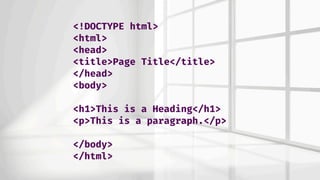
<!DOCTYPE html>
<html>
<head>
<title>Page Title</title>
</head>
<body>
<h1>This is a Heading</h1>
<p>This is a paragraph.</p>
</body>
</html>
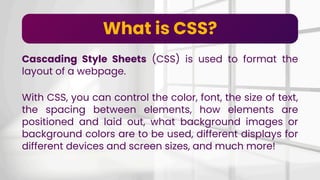
What is CSS?
What is CSS?
Cascading Style Sheets (CSS) is used to format the
layout of a webpage.
With CSS, you can control the color, font, the size of text,
the spacing between elements, how elements are
positioned and laid out, what background images or
background colors are to be used, different displays for
different devices and screen sizes, and much more!
Different ways of applying CSS styles
Inline CSS
Internal CSS External
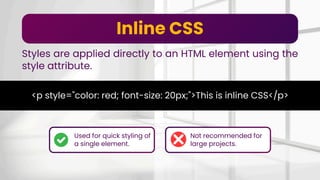
Styles are applied directly to an HTML element using the
style attribute.
Inline CSS
<p style="color: red; font-size: 20px;">This is inline CSS</p>
Used for quick styling of
a single element.
Not recommended for
large projects.
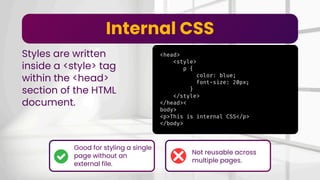
Styles are written
inside a <style> tag
within the <head>
section of the HTML
document.
Internal CSS
<head>
<style>
p {
color: blue;
font-size: 20px;
}
</style>
</head><
body>
<p>This is internal CSS</p>
</body>
Good for styling a single
page without an
external file.
Not reusable across
multiple pages.
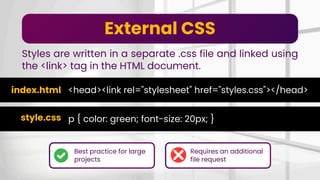
Styles are written in a separate .css file and linked using
the <link> tag in the HTML document.
External CSS
<head><link rel="stylesheet" href="styles.css"></head>
Best practice for large
projects
Requires an additional
file request
p { color: green; font-size: 20px; }
index.html
style.css
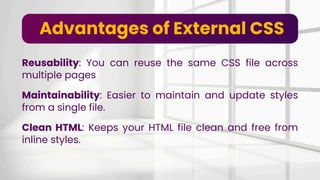
Reusability: You can reuse the same CSS file across
multiple pages
Advantages of External CSS
Maintainability: Easier to maintain and update styles
from a single file.
Clean HTML: Keeps your HTML file clean and free from
inline styles.
External CSS Structure
index.html
firstProject
css style.css
External CSS Structure
<!DOCTYPE html>
<html>
<head>
<link rel="stylesheet" href="styles.css">
</head>
<body>
<h1>This is a heading</h1>
<p>This is a paragraph.</p>
</body>
</html>
body {
background-color: powderblue;
}
h1 {
color: blue;
}
p {
color: red;
}
index.html styles.css
HTML Links
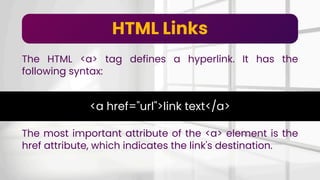
The HTML <a> tag defines a hyperlink. It has the
following syntax:
<a href="url">link text</a>
The most important attribute of the <a> element is the
href attribute, which indicates the link's destination.
<a> (anchor) tag
Defines the destination of a hyperlink.
Clicking the link will take you to the page or resource
defined by href.
<a href="https://www.google.com">Visit Google</a>
The target Attribute
The target attribute specifies where to open the linked
document.
_self
_blank
_parent
_top
Default. Opens the document in the same
window/tab as it was clicked
Opens the document in a new window or tab
Opens the document in the parent frame
Opens the document in the full body of the
window
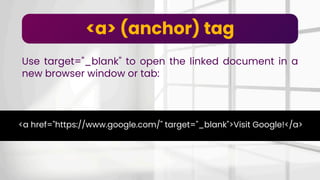
<a> (anchor) tag
Use target="_blank" to open the linked document in a
new browser window or tab:
<a href="https://www.google.com/" target="_blank">Visit Google!</a>
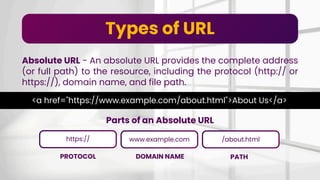
Types of URL
Absolute URL - An absolute URL provides the complete address
(or full path) to the resource, including the protocol (http:// or
https://), domain name, and file path.
<a href="https://www.example.com/about.html">About Us</a>
Parts of an Absolute URL
www.example.com
https:// /about.html
PROTOCOL DOMAIN NAME PATH
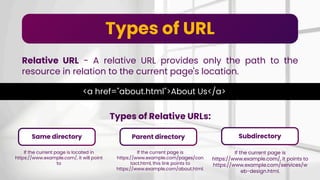
Types of URL
Relative URL - A relative URL provides only the path to the
resource in relation to the current page's location.
<a href="about.html">About Us</a>
Types of Relative URLs:
Parent directory
Same directory
If the current page is located in
https://www.example.com/, it will point
to
Subdirectory
If the current page is
https://www.example.com/pages/con
tact.html, this link points to
https://www.example.com/about.html.
If the current page is
https://www.example.com/, it points to
https://www.example.com/services/w
eb-design.html.
For your attention and participation
Thank You!
JHON MARK C. PALEN
Instructor I

Styling and Navigation with HTML and CSS

  • 1.
    HTML CSS & Links NorthEastern Mindanao State University College of Information Technology Education Department of Computer Studies JHON MARK C. PALEN Prepared by:
  • 2.
    <!DOCTYPE html> <html> <head> <title>Page Title</title> </head> <body> <h1>Thisis a Heading</h1> <p>This is a paragraph.</p> </body> </html>
  • 3.
  • 4.
    What is CSS? CascadingStyle Sheets (CSS) is used to format the layout of a webpage. With CSS, you can control the color, font, the size of text, the spacing between elements, how elements are positioned and laid out, what background images or background colors are to be used, different displays for different devices and screen sizes, and much more!
  • 5.
    Different ways ofapplying CSS styles Inline CSS Internal CSS External
  • 6.
    Styles are applieddirectly to an HTML element using the style attribute. Inline CSS <p style="color: red; font-size: 20px;">This is inline CSS</p> Used for quick styling of a single element. Not recommended for large projects.
  • 7.
    Styles are written insidea <style> tag within the <head> section of the HTML document. Internal CSS <head> <style> p { color: blue; font-size: 20px; } </style> </head>< body> <p>This is internal CSS</p> </body> Good for styling a single page without an external file. Not reusable across multiple pages.
  • 8.
    Styles are writtenin a separate .css file and linked using the <link> tag in the HTML document. External CSS <head><link rel="stylesheet" href="styles.css"></head> Best practice for large projects Requires an additional file request p { color: green; font-size: 20px; } index.html style.css
  • 9.
    Reusability: You canreuse the same CSS file across multiple pages Advantages of External CSS Maintainability: Easier to maintain and update styles from a single file. Clean HTML: Keeps your HTML file clean and free from inline styles.
  • 10.
  • 11.
    External CSS Structure <!DOCTYPEhtml> <html> <head> <link rel="stylesheet" href="styles.css"> </head> <body> <h1>This is a heading</h1> <p>This is a paragraph.</p> </body> </html> body { background-color: powderblue; } h1 { color: blue; } p { color: red; } index.html styles.css
  • 12.
    HTML Links The HTML<a> tag defines a hyperlink. It has the following syntax: <a href="url">link text</a> The most important attribute of the <a> element is the href attribute, which indicates the link's destination.
  • 13.
    <a> (anchor) tag Definesthe destination of a hyperlink. Clicking the link will take you to the page or resource defined by href. <a href="https://www.google.com">Visit Google</a>
  • 14.
    The target Attribute Thetarget attribute specifies where to open the linked document. _self _blank _parent _top Default. Opens the document in the same window/tab as it was clicked Opens the document in a new window or tab Opens the document in the parent frame Opens the document in the full body of the window
  • 15.
    <a> (anchor) tag Usetarget="_blank" to open the linked document in a new browser window or tab: <a href="https://www.google.com/" target="_blank">Visit Google!</a>
  • 16.
    Types of URL AbsoluteURL - An absolute URL provides the complete address (or full path) to the resource, including the protocol (http:// or https://), domain name, and file path. <a href="https://www.example.com/about.html">About Us</a> Parts of an Absolute URL www.example.com https:// /about.html PROTOCOL DOMAIN NAME PATH
  • 17.
    Types of URL RelativeURL - A relative URL provides only the path to the resource in relation to the current page's location. <a href="about.html">About Us</a> Types of Relative URLs: Parent directory Same directory If the current page is located in https://www.example.com/, it will point to Subdirectory If the current page is https://www.example.com/pages/con tact.html, this link points to https://www.example.com/about.html. If the current page is https://www.example.com/, it points to https://www.example.com/services/w eb-design.html.
  • 18.
    For your attentionand participation Thank You! JHON MARK C. PALEN Instructor I