Accessing Your Class
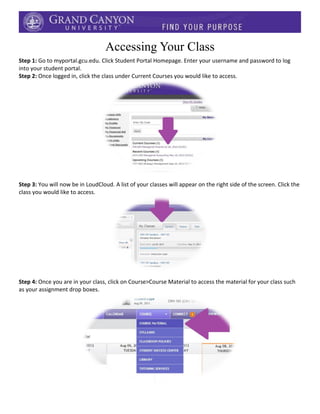
Step 1: Go to myportal.gcu.edu. Click Student Portal Homepage. Enter your username and password to log
into your student portal.
Step 2: Once logged in, click the class under Current Courses you would like to access.
Step 3: You will now be in LoudCloud. A list of your classes will appear on the right side of the screen. Click the
class you would like to access.
Step 4: Once you are in your class, click on Course>Course Material to access the material for your class such
as your assignment drop boxes.
Follow LoudCloud on our social channels!
blogs.gcu.edu/blog/category/eye-on-loudcloud/
Facebook/GCUTechSupport
Twitter/GCUTechSupport
LoudCloud Student Success Webinars
For even more LoudCloud resources, visit the LoudCloud Resource Center at
www.gcu.edu/Learning-Resources/LoudCloud.php

Student handout

  • 1.
    Accessing Your Class Step1: Go to myportal.gcu.edu. Click Student Portal Homepage. Enter your username and password to log into your student portal. Step 2: Once logged in, click the class under Current Courses you would like to access. Step 3: You will now be in LoudCloud. A list of your classes will appear on the right side of the screen. Click the class you would like to access. Step 4: Once you are in your class, click on Course>Course Material to access the material for your class such as your assignment drop boxes.
  • 2.
    Follow LoudCloud onour social channels! blogs.gcu.edu/blog/category/eye-on-loudcloud/ Facebook/GCUTechSupport Twitter/GCUTechSupport LoudCloud Student Success Webinars For even more LoudCloud resources, visit the LoudCloud Resource Center at www.gcu.edu/Learning-Resources/LoudCloud.php