User Guide
Legal Notices 
Published by Toon Boom Animation Inc. 
Corporate Headquarters 
5530 St. Patrick 
Suite 2210 
Montreal, Quebec 
Canada H4E 1A8 
Tel: (514) 278-8666 
Fax: (514) 278-2666 
toonboom.com 
Disclaimer 
The content of this manual is covered by a specific limited warranty and exclusions and limit of liability under the applicable License Agreement as supplemented by the special terms and conditions for Adobe® Flash® File Format (SWF). Please refer to the License Agreement and to those special terms and conditions for details. 
The content of this manual is the property of Toon Boom Animation Inc. and is copyrighted. Any reproduction in whole or in part is strictly prohibited. 
For additional copies of this manual, please contact Toon Boom Animation Inc. at the Corporate Headquarters address. 
Copyright © 2011 by Toon Boom Animation Inc. All rights reserved. 
Trademarks 
Toon Boom Storyboard Pro is a trademark owned by Toon Boom Animation Inc. All other trademarks are the property of their respective owners. 
Credits 
Documentation Development: Peter Cawthorne 
Content Development: Marie-Eve Chartrand, Anouk Whissell, Shabana Ali, Lindsay Brown 
Art Development: Marie-Eve Chartrand, Anouk Whissell, Shabana Ali, Tania Gray, Annie Rodrigue 
Publication Date 
May 2011
1 
Contents 
Chapter 1: Introduction ..........................................................................................................................................11 
About Storyboarding ................................................................................................................................................12 
How to Prepare for Storyboarding .......................................................................................................................12 
First Steps .........................................................................................................................................................12 
Storyboard Basics - Recommended Steps ...........................................................................................................13 
Script Analysis and Breakdown .........................................................................................................................13 
Scene Evaluation ...............................................................................................................................................13 
Creating Scene Lists .........................................................................................................................................13 
Visual Markers ...........................................................................................................................................................14 
Information Icons ..................................................................................................................................................14 
Reference ..........................................................................................................................................................14 
Important Note .................................................................................................................................................14 
Tip .....................................................................................................................................................................14 
Tool ...................................................................................................................................................................14 
Chapter 2: Getting Started ...................................................................................................................................15 
Launching Toon Boom Storyboard Pro ....................................................................................................................16 
The Welcome Screen ................................................................................................................................................17 
Accessing the Documentation ..............................................................................................................................17 
Creating and Opening a Project ...............................................................................................................................18 
Using the Welcome Screen ..................................................................................................................................18 
Using the File Menu ..............................................................................................................................................20 
Using a Final Draft Script to Create a New Project ..............................................................................................22 
Creating a New Project From a Final Draft Script. ...........................................................................................22 
Creating a New Project from a Final Draft 7 Script ..........................................................................................24 
Final Draft Import Settings ...............................................................................................................................25 
Creating a Scene .......................................................................................................................................................26 
Project Properties .....................................................................................................................................................27 
Settings Tab ..........................................................................................................................................................27 
Resolution Tab ......................................................................................................................................................28 
Naming Tab ..........................................................................................................................................................30 
Project Optimization .................................................................................................................................................31 
Optimizing Your Project .......................................................................................................................................31 
Create Optimized Drawings .................................................................................................................................31 
Other Optimization Suggestions ..........................................................................................................................33 
Texture vs. Plain Vector Brush ..........................................................................................................................33 
Flattening Your Drawings .................................................................................................................................33 
Bitmap Integration ............................................................................................................................................33 
Regenerate All Thumbnails .......................................................................................................................................34 
Backing Up Projects ..................................................................................................................................................35 
Backup Storyboard ...............................................................................................................................................35 
Restore and Open Backup ....................................................................................................................................35 
Basic Commands ......................................................................................................................................................36 
Chapter 3: Discovering the Interface ................................................................................................................39 
User Interface ............................................................................................................................................................40 
Views and Toolbars ...............................................................................................................................................40 
Interface Highlights ...............................................................................................................................................41 
Camera View .....................................................................................................................................................42 
Thumbnails View ..............................................................................................................................................46 
Tools Toolbar ....................................................................................................................................................47 
Storyboard Toolbar ..........................................................................................................................................47 
Playback Toolbar ..............................................................................................................................................48 
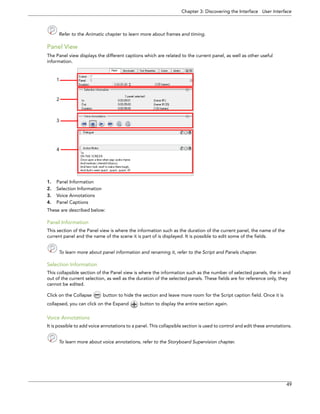
Panel View ........................................................................................................................................................49 
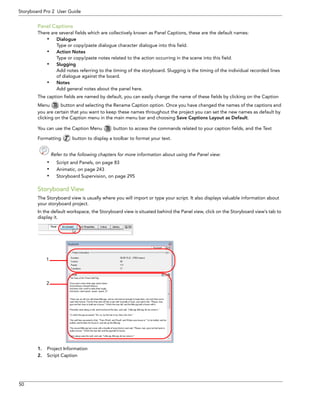
Storyboard View ..............................................................................................................................................50 
Tool Properties View ........................................................................................................................................51
2 
Storyboard Pro 2 User Guide 
Colour View ......................................................................................................................................................52 
Menus ...............................................................................................................................................................54 
Managing the Views .................................................................................................................................................56 
Adding a New View ..............................................................................................................................................56 
Renaming a View ..................................................................................................................................................57 
Closing a View ......................................................................................................................................................57 
Swapping Views ....................................................................................................................................................58 
Resizing a View .....................................................................................................................................................58 
Collapsing and Expanding Views .........................................................................................................................59 
Managing the Toolbars ............................................................................................................................................60 
Showing or Hiding Toolbars .................................................................................................................................60 
Moving Toolbars ...................................................................................................................................................60 
Toolbar Manager ..................................................................................................................................................61 
Managing the Workspace .........................................................................................................................................63 
Storyboard Pro Workspaces .................................................................................................................................63 
Drawing ...........................................................................................................................................................63 
Timeline ...........................................................................................................................................................63 
Overview ..........................................................................................................................................................63 
Horizontal ........................................................................................................................................................63 
Vertical .............................................................................................................................................................63 
PDF View .........................................................................................................................................................63 
Loading a Workspace ...........................................................................................................................................64 
Workspace Manager ............................................................................................................................................64 
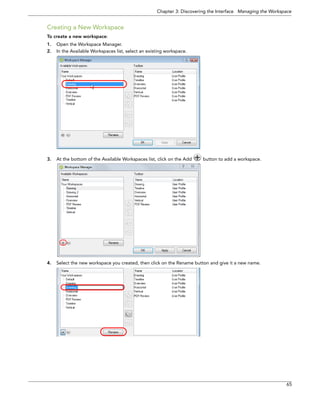
Creating a New Workspace ..............................................................................................................................65 
Renaming a Workspace ....................................................................................................................................66 
Saving a Workspace .........................................................................................................................................66 
Deleting a Workspace ......................................................................................................................................67 
Showing and Hiding a Workspace ...................................................................................................................67 
Reordering the Workspace List ........................................................................................................................68 
Restoring the Default Workspaces .......................................................................................................................68 
Interface Navigation .................................................................................................................................................69 
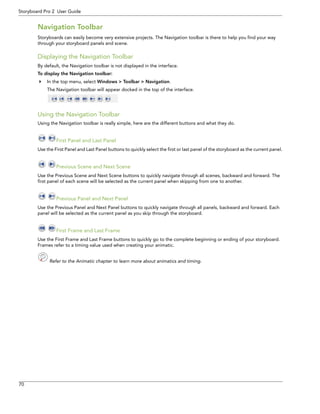
Navigation Toolbar ...............................................................................................................................................70 
Displaying the Navigation Toolbar ...................................................................................................................70 
Using the Navigation Toolbar ..........................................................................................................................70 
Preferences ...............................................................................................................................................................71 
Preference Highlights ...........................................................................................................................................71 
Accessing the Preferences Panel ......................................................................................................................71 
User Interface Preferences - General Tab ........................................................................................................72 
User Interface Preferences - Advanced Tab .....................................................................................................74 
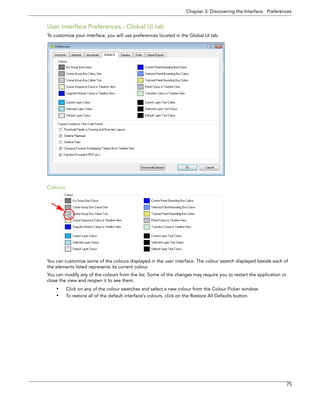
User Interface Preferences - Global UI tab .......................................................................................................75 
User Interface Preferences - Camera Tab ........................................................................................................76 
Keyboard Shortcuts ..............................................................................................................................................80 
Selecting a Keyboard Shortcut Set ..................................................................................................................80 
Customizing a Keyboard Shortcut ....................................................................................................................80 
Chapter 4: Script and Panels................................................................................................................................ 83 
Importing a Script .....................................................................................................................................................84 
Storyboard View ...................................................................................................................................................84 
Project Information ...........................................................................................................................................84 
Script Caption ...................................................................................................................................................84 
Import Caption .....................................................................................................................................................85 
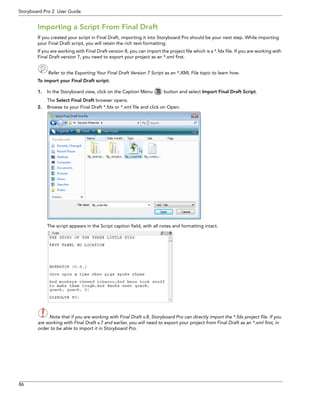
Importing a Script From Final Draft ......................................................................................................................86 
Exporting Your Final Draft Version 7 Script as an *.XML File ..........................................................................87 
Captions ....................................................................................................................................................................88 
Panel View ............................................................................................................................................................88 
Panel Information .............................................................................................................................................88 
Selection Information .......................................................................................................................................88 
Voice Annotations ............................................................................................................................................88 
Panel Captions ..................................................................................................................................................89 
Adding Text to the Panel Captions ......................................................................................................................89
Contents 
3 
Drag and Drop Text ..........................................................................................................................................89 
Typing Text .......................................................................................................................................................90 
Formatting Text ................................................................................................................................................90 
Find Text in Captions ........................................................................................................................................91 
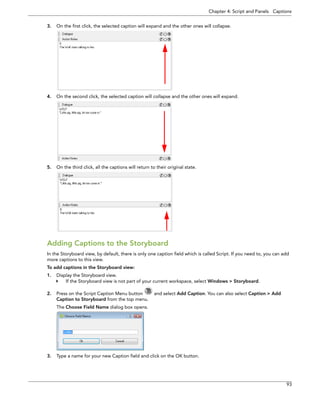
Expanding and Collapsing Captions ....................................................................................................................92 
Adding Captions to the Storyboard .....................................................................................................................93 
Adding Captions to the Panels .............................................................................................................................94 
Adding a Sketch Caption to a Panel ....................................................................................................................95 
Deleting Captions .................................................................................................................................................96 
Renaming Captions ...............................................................................................................................................96 
Saving the Caption Layout as Default ..................................................................................................................96 
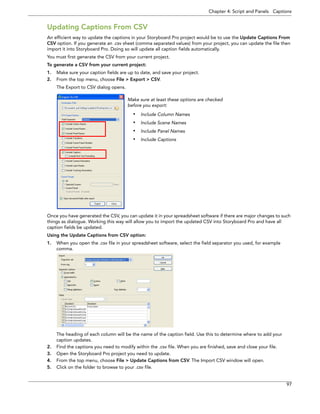
Updating Captions From CSV ..............................................................................................................................97 
Scenes and Panels ....................................................................................................................................................99 
What are the Differences Between Scenes, Panels and Acts? .............................................................................99 
Scenes .................................................................................................................................................................100 
Creating Scenes ..............................................................................................................................................100 
Create Scene Before .......................................................................................................................................100 
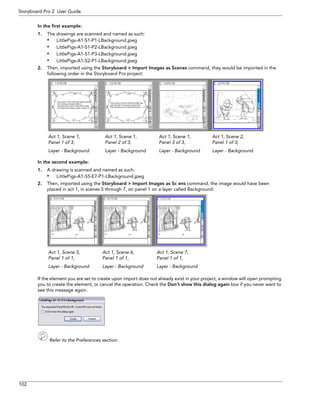
Import Images as Scenes ................................................................................................................................100 
Automatic Insertion ........................................................................................................................................101 
Deleting Scenes ..............................................................................................................................................103 
Renaming Scenes ............................................................................................................................................104 
Locking and Unlocking Scene and Panel Names ...........................................................................................106 
Split or Break Current Scene ..........................................................................................................................106 
Panels ..................................................................................................................................................................108 
Creating Panels ...............................................................................................................................................108 
Create Panel Before .......................................................................................................................................109 
Smart Add Panel .............................................................................................................................................109 
Renaming Panels ............................................................................................................................................110 
Locking and Unlocking Scene and Panel Names ...........................................................................................113 
Deleting Panels ...............................................................................................................................................113 
Duplicating Panels ..........................................................................................................................................114 
Moving Panels Around ...................................................................................................................................114 
Acts .....................................................................................................................................................................117 
Enabling Acts ..................................................................................................................................................117 
Starting New Acts ...........................................................................................................................................117 
Joining Selected Acts .....................................................................................................................................118 
Navigation Toolbar .................................................................................................................................................119 
Displaying the Navigation Toolbar .....................................................................................................................119 
Using the Navigation Toolbar .............................................................................................................................119 
First Panel and Last Panel ..............................................................................................................................119 
Previous Scene and Next Scene ....................................................................................................................119 
Previous Panel and Next Panel ......................................................................................................................119 
First Frame and Last Frame ...........................................................................................................................119 
Preferences .............................................................................................................................................................120 
General Tab ........................................................................................................................................................120 
Show Rename Dialog Automatically ..............................................................................................................120 
Automatically Add Leading Zeros to Scene Names .......................................................................................121 
Minimum Number of Characters ....................................................................................................................121 
Allow Custom Panel Names ...........................................................................................................................121 
Panel Name Auto-increment Rule ..................................................................................................................121 
Display Total Number of Panels in Panel Name .............................................................................................122 
Enable Acts .....................................................................................................................................................122 
Break Scene when performing Split Current Scene command ......................................................................122 
Import/Export Tab ..............................................................................................................................................123 
Auto Premultiply Imported Image by Alpha Channel ....................................................................................123 
Ask Before Creating Panels when Using Automatic Insertion .......................................................................123 
Ask Before Removing Existing Layer when Using Automatic Insertion .........................................................123 
Chapter 5: Drawing ................................................................................................................................................125 
How to Draw ...........................................................................................................................................................126 
Tool Properties View ...............................................................................................................................................127
4 
Storyboard Pro 2 User Guide 
Options ...............................................................................................................................................................127 
Operations ..........................................................................................................................................................127 
Shape ..................................................................................................................................................................127 
Manipulators .......................................................................................................................................................127 
Drawing with the Brush or the Pencil .....................................................................................................................128 
Viewing the Final Lines as you Draw ......................................................................................................................129 
Full Scene Antialiasing .......................................................................................................................................129 
Drawing with the Brush Tool ..................................................................................................................................130 
Brush Tool Options .............................................................................................................................................131 
Regular Brush Mode .......................................................................................................................................131 
Draw Behind Mode ........................................................................................................................................131 
Auto Flatten Mode .........................................................................................................................................132 
Brush Styles ....................................................................................................................................................132 
Minimum and Maximum Size .........................................................................................................................135 
Smoothness and Contour Optimization .........................................................................................................136 
Brush Tips .......................................................................................................................................................136 
Preview ...........................................................................................................................................................136 
Line Texture ...................................................................................................................................................136 
Brush Presets .....................................................................................................................................................137 
Managing Brush Presets .................................................................................................................................139 
Layer Selection Lock Setting ..........................................................................................................................140 
Drawing with Line Texture ......................................................................................................................................141 
How to Draw with Texture .................................................................................................................................142 
Adjusting the Line Texture Parameters ..............................................................................................................143 
Creating Texture Brushes ...................................................................................................................................144 
Drawing using the Pencil Tool ................................................................................................................................145 
Pencil Tool Options ............................................................................................................................................146 
Draw Behind ...................................................................................................................................................146 
Auto-Close Gap .............................................................................................................................................146 
Auto Flatten Mode .........................................................................................................................................147 
Pen Styles .......................................................................................................................................................147 
Pen Size ..........................................................................................................................................................148 
Smoothness ....................................................................................................................................................148 
Drawing using Invisible Lines ..................................................................................................................................149 
Pencil Tool .........................................................................................................................................................149 
Erasing Parts of a Drawing .....................................................................................................................................150 
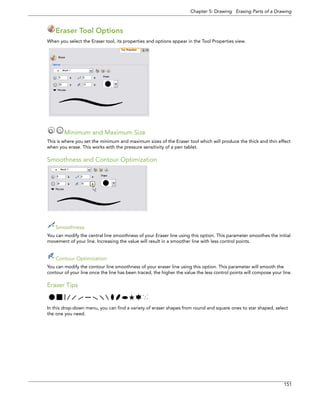
Eraser Tool Options ............................................................................................................................................151 
Minimum and Maximum Size .........................................................................................................................151 
Smoothness and Contour Optimization .........................................................................................................151 
Eraser Tips ......................................................................................................................................................151 
Preview ...........................................................................................................................................................152 
Eraser Styles ...................................................................................................................................................152 
Reshaping a Drawing Using the Contour Editor Tool ............................................................................................154 
Contour Editor Tool Properties ..........................................................................................................................156 
Lasso and Marquee ........................................................................................................................................156 
Snap to Contour ............................................................................................................................................156 
Selecting Drawing Objects .....................................................................................................................................157 
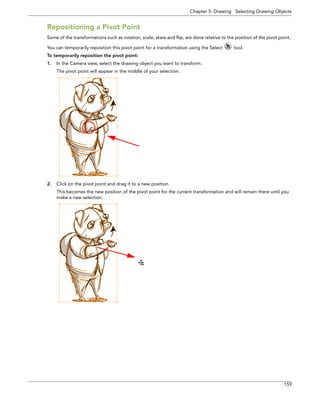
Repositioning a Pivot Point ................................................................................................................................159 
Select Tool Properties ........................................................................................................................................160 
Lasso and Marquee ........................................................................................................................................160 
Snap Options ..................................................................................................................................................160 
Select by Colour ...........................................................................................................................................160 
Flip Horizontal and Vertical ............................................................................................................................160 
Rotate 90 Degrees CW and CCW ..................................................................................................................161 
Smooth ...........................................................................................................................................................161 
Flatten .............................................................................................................................................................161 
Drawing With Shapes .............................................................................................................................................163 
Shape Tool Options ............................................................................................................................................164 
Line, Rectangle and Ellipse ............................................................................................................................164 
Draw Behind ...................................................................................................................................................164 
Snap options ...................................................................................................................................................164
Contents 
5 
Automatic Filling .............................................................................................................................................165 
Auto Flatten Mode .........................................................................................................................................165 
Auto-Close Gap .............................................................................................................................................165 
Keep Proportion .............................................................................................................................................165 
Pen Styles .......................................................................................................................................................165 
Size Adjustment ..............................................................................................................................................166 
Deforming a Drawing Using the Perspective Tool .................................................................................................167 
Perspective Tool Properties ................................................................................................................................167 
Lasso and Marquee ........................................................................................................................................167 
Flip Horizontal and Vertical ............................................................................................................................168 
Rotate 90 Degrees CW and CCW ..................................................................................................................168 
Cutting Drawing Parts ............................................................................................................................................169 
Cutter Tool Options ............................................................................................................................................170 
Lasso and Marquee ........................................................................................................................................170 
Working With Text ..................................................................................................................................................171 
Creating Text ......................................................................................................................................................171 
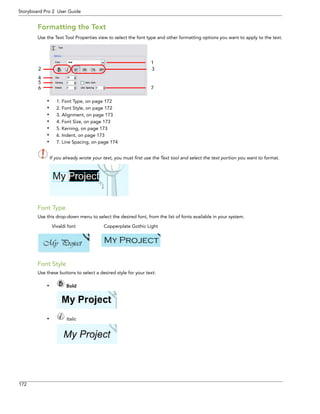
Formatting the Text ...........................................................................................................................................172 
Font Type .......................................................................................................................................................172 
Font Style .......................................................................................................................................................172 
Alignment ......................................................................................................................................................173 
Font Size .........................................................................................................................................................173 
Kerning ..........................................................................................................................................................173 
Indent .............................................................................................................................................................173 
Line Spacing ...................................................................................................................................................174 
Resizing the Text Box ........................................................................................................................................174 
Converting Text into Separate Objects .............................................................................................................175 
Override Tool ..........................................................................................................................................................176 
Onion Skin ..............................................................................................................................................................177 
Onion Skin Flipbook feature ...............................................................................................................................178 
Expand Onion Skin .............................................................................................................................................178 
Light Table ..............................................................................................................................................................179 
More Drawing Tools ...............................................................................................................................................180 
Convert ...............................................................................................................................................................180 
Brush Strokes to Pencil Lines ..........................................................................................................................180 
Pencil Lines to Brush Strokes ..........................................................................................................................180 
Strokes to Pencil Lines ....................................................................................................................................180 
Show Grid ...........................................................................................................................................................181 
Group/Ungroup ..................................................................................................................................................181 
Hand ...................................................................................................................................................................181 
Rotate View .........................................................................................................................................................182 
Zoom ...................................................................................................................................................................183 
Zoom Tool Properties .....................................................................................................................................183 
Drawing Preferences ...............................................................................................................................................184 
Advanced Preferences Tab ................................................................................................................................184 
Memory ...........................................................................................................................................................184 
Drawing ..........................................................................................................................................................185 
Open GL ........................................................................................................................................................185 
Full Scene Antialiasing ....................................................................................................................................185 
Tablet Support ................................................................................................................................................185 
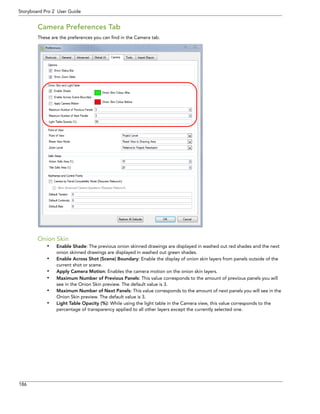
Camera Preferences Tab ...................................................................................................................................186 
Onion Skin ......................................................................................................................................................186 
Tools ..................................................................................................................................................................187 
Drawing .........................................................................................................................................................187 
Chapter 6: Adding Colour...................................................................................................................................189 
How to Paint ..........................................................................................................................................................190 
Colours ....................................................................................................................................................................191 
Adding a Colour Swatch ....................................................................................................................................192 
Solid Colour Swatch ......................................................................................................................................192 
Gradient Colour Swatch ................................................................................................................................195
6 
Storyboard Pro 2 User Guide 
Bitmap Texture Swatch ..................................................................................................................................197 
Deleting a Colour Swatch ...................................................................................................................................198 
Copying and Pasting Colours .............................................................................................................................198 
Colour Display Modes ............................................................................................................................................199 
Switching Between Swatch and List Display modes ..........................................................................................199 
Selecting the Current Colour of a Tool ..................................................................................................................200 
Painting Using the Paint Tool .................................................................................................................................202 
Paint Tool Properties ..........................................................................................................................................203 
Lasso and Marquee ........................................................................................................................................203 
Painting Mode ................................................................................................................................................203 
Automatic Close Gap ....................................................................................................................................204 
Selecting a Colour in a Drawing ...................................................................................................................205 
Editing Gradients and Textures ..............................................................................................................................207 
Closing Gaps Manually ..........................................................................................................................................208 
Preferences ............................................................................................................................................................209 
Tools ...................................................................................................................................................................209 
Auto Gap Closing ..........................................................................................................................................209 
Chapter 7: Layers ....................................................................................................................................................211 
What Are Layers? ....................................................................................................................................................212 
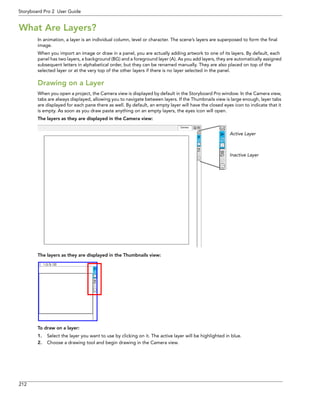
Drawing on a Layer .............................................................................................................................................212 
Managing Layers .....................................................................................................................................................213 
Adding Layers to a Panel ....................................................................................................................................213 
Copying Layers ...................................................................................................................................................213 
Renaming Layers .................................................................................................................................................214 
Deleting Layers ...................................................................................................................................................214 
Locking and Unlocking Layers ............................................................................................................................215 
Showing and Hiding Layers ................................................................................................................................215 
Layer Thumbnails ................................................................................................................................................216 
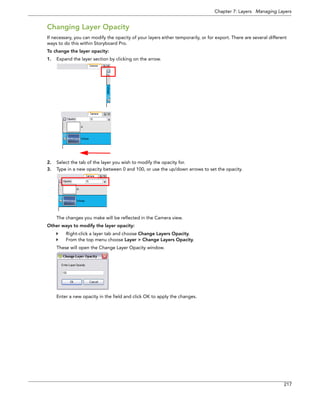
Changing Layer Opacity .....................................................................................................................................217 
Ordering Layers ..................................................................................................................................................218 
Reordering Layers via the Layers menu ..........................................................................................................218 
Reorder Layers by Dragging ..........................................................................................................................219 
Toggle Background Layers .................................................................................................................................219 
Setting a Layer Layout as Default .......................................................................................................................219 
Importing Images as Layers ....................................................................................................................................220 
Merging Layers .......................................................................................................................................................221 
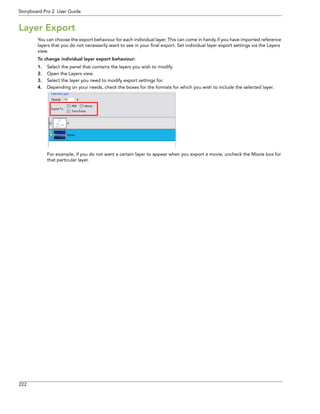
Layer Export ............................................................................................................................................................222 
Preferences .............................................................................................................................................................223 
Chapter 8: Libraries................................................................................................................................................225 
Understanding the Library Concept .......................................................................................................................226 
What is a Library? ...............................................................................................................................................226 
What is a Template? ...........................................................................................................................................226 
Library View ...........................................................................................................................................................227 
Preview ..............................................................................................................................................................228 
Quick Search .......................................................................................................................................................229 
Library List .........................................................................................................................................................230 
Templates List ....................................................................................................................................................230 
Structuring the Library ............................................................................................................................................231 
Creating a Library ...............................................................................................................................................231 
Opening a Library ...............................................................................................................................................232 
Closing a Library .................................................................................................................................................232 
Creating a Folder ................................................................................................................................................232 
Renaming a Folder .........................................................................................................................................233 
Deleting a Folder ............................................................................................................................................233 
Refreshing the Library ........................................................................................................................................234 
Generating Thumbnails ......................................................................................................................................234
Contents 
7 
Deleting Thumbnails .......................................................................................................................................234 
Templates ...............................................................................................................................................................235 
Creating a Template ...........................................................................................................................................235 
Creating a Template from the Camera view ..................................................................................................235 
Creating a Template from the Thumbnails view ............................................................................................236 
Creating a Template from the Timeline view .................................................................................................237 
Deleting a Template ..........................................................................................................................................237 
Importing Files as Templates Using the Library View ............................................................................................238 
Importing Image Files ........................................................................................................................................238 
Importing Audio Files ........................................................................................................................................238 
Importing Adobe Flash Movie Files ....................................................................................................................238 
Importing Templates .............................................................................................................................................239 
Importing a Template in the Camera view ........................................................................................................239 
Importing a Template in the Thumbnails View ..................................................................................................239 
Importing a Template in the Timeline View .......................................................................................................240 
Opening a Template as a Folder .......................................................................................................................240 
Preferences ............................................................................................................................................................241 
General Tab ........................................................................................................................................................241 
Automatically Generate Thumbnails in Library ..............................................................................................241 
Chapter 9: Animatic..............................................................................................................................................243 
Timeline View ..........................................................................................................................................................244 
Panel Duration ........................................................................................................................................................245 
Setting the Panel Duration Visually ....................................................................................................................245 
Resizing a Panel in the Timeline and Shifting all Other Panels Down ............................................................245 
Resizing a Panel While Only Affecting the Next Panel ..................................................................................245 
Setting the Panel Duration in the Panel View .....................................................................................................246 
Setting the Panel Duration from the Top Menu .................................................................................................246 
Split Panel at Current Frame ..............................................................................................................................247 
Camera ....................................................................................................................................................................248 
Camera Status Bar ..............................................................................................................................................249 
Camera Tool .......................................................................................................................................................249 
Static Camera ......................................................................................................................................................249 
Setting the Static Camera ...............................................................................................................................249 
Copying the Static Camera from one Scene to Another ...............................................................................251 
Resetting the Static Camera ...........................................................................................................................251 
Animating the Camera ............................................................................................................................................252 
Camera Tool Properties ......................................................................................................................................252 
Add Keyframe at the Beginning of Current Panel ..........................................................................................252 
Add Keyframe .................................................................................................................................................252 
Add Keyframe at the End of Current Panel ....................................................................................................252 
Reset Camera .................................................................................................................................................253 
Copy Camera from Selected Panel ................................................................................................................253 
Paste and Fit Camera in Selected Panel .........................................................................................................253 
Ease In/Ease Out ............................................................................................................................................253 
Reset Selected Keyframe ................................................................................................................................253 
Delete Selected Keyframe ..............................................................................................................................253 
Scene Duration ...............................................................................................................................................253 
Panel Duration ................................................................................................................................................253 
Camera Keyframes ..............................................................................................................................................254 
Keyframes in the Timeline View ......................................................................................................................254 
Keyframes in the Camera view .......................................................................................................................255 
Creating Camera Keyframes ...........................................................................................................................255 
Moving Keyframes in the Camera View ..........................................................................................................258 
Modifying the Trajectory With Control Points ...............................................................................................260 
Moving Keyframes in the Timeline .................................................................................................................261 
Keyframe Synching .........................................................................................................................................265 
Easing .............................................................................................................................................................267 
Deleting Keyframes ........................................................................................................................................268 
Resetting the Camera Animation ...................................................................................................................268
8 
Storyboard Pro 2 User Guide 
Camera by Panel Compatibility Mode Preferences ...........................................................................................269 
Enabling the Camera by Panel Compatibility Mode option ..........................................................................269 
Camera Tool Properties in Panel Compatibility Mode ..................................................................................270 
Static Camera Tool ........................................................................................................................................270 
Allow Advanced Camera Operations Option ................................................................................................271 
Animating Layers ....................................................................................................................................................272 
Pivot Tool ............................................................................................................................................................272 
Snap to Contour .............................................................................................................................................272 
Snap and Align ...............................................................................................................................................272 
Reset Pivot ......................................................................................................................................................272 
Setting the Pivot for a Layer ...............................................................................................................................273 
First Frame Transformation and Last Frame Transformation Tools ...................................................................274 
Flip Horizontal and Flip Vertical .....................................................................................................................274 
Rotate 90 degrees CW and Rotate 90 degrees CCW ...................................................................................274 
Ease In and Ease Out ......................................................................................................................................274 
Hold Start and Hold End ................................................................................................................................274 
Set First and Last Frame Positions ......................................................................................................................275 
Adjust First and Last Frame Transformation Positions .......................................................................................277 
Ease In and Ease Out ......................................................................................................................................277 
Hold ................................................................................................................................................................277 
Copy End Position from Start Position ...........................................................................................................278 
Copy Start Position from End Position ...........................................................................................................278 
Spread Layer Motion ......................................................................................................................................278 
Reset Transformation .....................................................................................................................................278 
Sound ......................................................................................................................................................................279 
Managing Sound Tracks .....................................................................................................................................279 
Adding a Sound Track ....................................................................................................................................279 
Muting a Sound Track ....................................................................................................................................280 
Linking a Sound Track ....................................................................................................................................280 
Linking and Unlinking All Sound Tracks .........................................................................................................281 
Deleting a Sound Track ..................................................................................................................................281 
Adding and Deleting Sound Sequences ............................................................................................................282 
Importing a Sound Sequence .........................................................................................................................282 
Deleting a Sound Sequence ...........................................................................................................................282 
Sound Display .....................................................................................................................................................283 
Show Waveform .............................................................................................................................................283 
Show Volume Envelope ..................................................................................................................................283 
Sound Scrubbing ................................................................................................................................................284 
Adjusting the Sound Length ...............................................................................................................................284 
Shortening and Extending Sound Sequences ................................................................................................284 
Split Sound Sequence at Current Frame ........................................................................................................285 
Transitions between scenes ....................................................................................................................................286 
Creating Transitions ............................................................................................................................................286 
Modifying a Transition ........................................................................................................................................288 
Change Transition Type .................................................................................................................................288 
Change Transition Duration ...........................................................................................................................288 
Deleting a Transition ..........................................................................................................................................288 
Playing Back Your Animatic ....................................................................................................................................289 
Preferences .............................................................................................................................................................290 
Global UI .............................................................................................................................................................290 
Display Duration in Time Code Format ..........................................................................................................290 
Camera ...............................................................................................................................................................291 
Options ...........................................................................................................................................................291 
Point of View ..................................................................................................................................................291 
Keyframes and Control Points ........................................................................................................................292 
Tools ...................................................................................................................................................................292 
Transform ........................................................................................................................................................292 
Import/Export .....................................................................................................................................................293 
Import Sound ..................................................................................................................................................293
Contents 
9 
Chapter 10: Storyboard Supervision ...............................................................................................................295 
Tracking Changes ...................................................................................................................................................296 
Auto Tracking Mode ...........................................................................................................................................296 
Track Changes By Date ......................................................................................................................................297 
Validating Changes .............................................................................................................................................298 
Voice Annotations ...................................................................................................................................................300 
Recording Voice Annotations .............................................................................................................................300 
Listening to Voice Annotations ...........................................................................................................................301 
Deleting Voice Annotations ................................................................................................................................301 
Chapter 11: Exporting Your Storyboard........................................................................................................303 
Exporting to PDF ...................................................................................................................................................304 
Setting Up a PDF Export ...................................................................................................................................304 
Adding Security to Your PDF .............................................................................................................................306 
Creating a Custom Layout .................................................................................................................................307 
PDF Options Panel ............................................................................................................................................314 
Analyse and Export to PDF ................................................................................................................................315 
Adding Snapshot Markers to a Panel ................................................................................................................318 
Deleting Snapshot Markers from a Panel ..........................................................................................................318 
Export to CSV ........................................................................................................................................................319 
Export Bitmap ........................................................................................................................................................320 
File Name Patterns When Exporting ..................................................................................................................320 
Exporting the Current Image .............................................................................................................................321 
Exporting Your Storyboard to Bitmap ................................................................................................................322 
Exporting a Movie .................................................................................................................................................324 
Exporting a QuickTime Movie ...........................................................................................................................324 
QuickTime Movie Settings .............................................................................................................................326 
Exporting a QuickTime Movie with Transparency .........................................................................................328 
Exporting an SWF Movie (Flash) ........................................................................................................................329 
Exporting an Image Sequence ..........................................................................................................................331 
Export to EDL/AAF/XML ........................................................................................................................................333 
File Name Patterns When Exporting ..................................................................................................................333 
Export to Animate/Animate Pro .............................................................................................................................337 
Conformation ..........................................................................................................................................................339 
Export Project .....................................................................................................................................................339 
Export Selected Panels ......................................................................................................................................340 
Export Tracked Panels ........................................................................................................................................340 
Import Animatic .................................................................................................................................................341 
Preferences ............................................................................................................................................................342 
Storyboard Pro Export Preferences ...................................................................................................................342 
Export to Movie .............................................................................................................................................342 
Export to Bitmap ...........................................................................................................................................343 
INDEX ..........................................................................................................................................................................345
10 
Storyboard Pro 2 User Guide
11 
Chapter 1 Introduction 
Toon Boom Storyboard Pro is a complete storyboarding software with advanced features for all your project’s needs. 
Whether you are planning an animation, a live action production or an event, Storyboard Pro takes care of your entire storyboard and animatic project. From importing your script and images, drawing, editing captions, all the way to layer and camera movements and sound editing. 
Storyboard Pro features an extensive drawing tools set and exporting options which goes from PDF, images, movie files and even third party editing software to fit all of your sharing and production needs. 
To learn all about the features available in Storyboard Pro and how to use them in a production context, read the following chapters: 
•Getting Started, on page 15 
•Discovering the Interface, on page 39 
•Script and Panels, on page 83+ 
•Drawing, on page 125 
•Adding Colour, on page 189 
•Layers, on page 211 
•Libraries, on page 225 
•Animatic, on page 243 
•Storyboard Supervision, on page 295 
•Exporting Your Storyboard, on page 303 
A comprehensive index is also included to enhance your learning experience: 
•INDEX, on page 327
12 
Storyboard Pro 2 User Guide 
About Storyboarding 
Storyboarding is one of the most crucial steps in any production. It is when you plan and build your scenes in accordance with the script, actions and limitations. The storyboard is like the blueprint of your production. 
How to Prepare for Storyboarding 
Planning ahead can save you time and effort. While storyboarding will save you considerable time during production, some additional planning of your storyboard project will further streamline your workflow. 
Including storyboarding in your project planning will allow you to meet a number of production goals, such as: 
•Providing a common visual road map to which a team can refer 
•Reducing overall production time 
•Reducing the likelihood that production resources are not used on scenes that will eventually be deleted 
Using the same logic, taking steps to plan how you will storyboard also eases this early part of production. 
First Steps 
Before you begin storyboarding, consider the factors that will affect your storyboard project and your final production. 
•The Script 
•The Structure 
•The Delivery 
The Script 
Create a complete or well-developed script. The more complete your screenplay is, the easier your ideas will be to storyboard. Storyboarding is also beneficial for completing a script that is in the last stages of development, as it can often help to resolve remaining storytelling issues. For example, storyboarding can highlight the need for modifications to transitions between scenes, or for scenes you did not realize were missing but need to be inserted to enhance the flow of action. 
The Structure 
Consult your script, try to visualize it as a series of scenes and decide which ones can be placed into panels in your future storyboard. You still do not need to draw anything at this point; you just want to assess if there is a smooth, logical visual flow to the story, and get an idea of the type of scenes that will work in your production. 
Breaking down your script into smaller components produces a more manageable structure to work with. 
The Delivery 
How will your final production be broadcast? Is it designed for television, HDTV or widescreen film? Will it be watched on an iPod, PDA or mobile phone? All of these factors determine the aspect ratio of the final production. The size and dimensions of your production will determine the level of detail and how your scenes are composed. 
Assume the viewer’s role for a moment, and try to determine how your project will be best viewed in its final 
medium.
Chapter 1: Introduction About Storyboarding 
13 
Storyboard Basics - Recommended Steps 
There are three recommended steps when preparing your storyboard project: 
•Script Analysis and Breakdown 
•Scene Evaluation 
•Creating Scene Lists 
Following these steps will help you to develop a clear vision of how you want your production to look, feel and flow. Anyone viewing your storyboard should be able to follow its story in a clear, logical manner by looking at the visual and textual information. 
Script Analysis and Breakdown 
Break down your script into a series of scenes. The action in a panel is usually composed of the action, dialogue, and effects that occur between a camera being turned on until it is turned off. Typically, a scene can be expressed in a single panel, but more elaborate or complex scenes may require multiple panels. 
Before beginning your storyboard, you should analyse your script to find out if it is possible to produce a storyboard using the current structure. You will already have an idea of some of the scenes you will want to use based on the script, structure and delivery requirements. 
Taking into consideration these factors early on will make this step even easier and more productive. Using the information from your analysis, determine the scenes that you will require for the production. At this stage, you may not necessarily have information on every detail of the scene, like the camera angle, composition, lighting or type of scene, but if you have some of this information, you can include it. What is more important is the development of the sequence of the scenes. Create a unique panel or write notes for each scene that you intend to use in your production. 
Dividing your script into smaller parts will make the job of determining scenes easier. 
Scene Evaluation 
Determine the important elements of each scene. 
The elements you need to determine are: 
•Camera angles and movements 
•The direction of movement of objects within a scene 
•The mood you want to create 
Now that you have broken down your script into separate scenes and have laid out the sequence of scenes in separate storyboard panels, you are ready to determine the most effective scene to use in each panel to convey the type of story you are trying to tell. Your storyboard panel should convey the most important aspects of the scene and you should create each scene to maximize its intended impact. You will need to make a number of decisions, independently or with a partner or team. 
Some of the issues to determine are: 
•Which characters are in the scene and their position 
•Which props are in the scene and their position 
•Whether or not you need to include certain elements to maintain continuity between other scenes 
•How objects and characters move during the scene 
•Where the camera is positioned and expected changes in camera movement during the scene 
•What type of lighting is required for the scene 
•What type of special effects may be required for the scene 
•How accompanying dialogue or narration will be integrated into the scene 
Creating Scene Lists 
Create an itemized list of each scene used in key sequences or your entire story. With a clearer idea of the sequence and composition of your scenes, you can plan how much you want to storyboard. You can storyboard your entire production. Alternatively, you can storyboard scenes that are pivotal to the emotional impact of the story or that may require a more complex setup. Create a scene list for your production, which, for each scene, details the important elements you worked out during your evaluation of the scenes. You should include the scene’s type and angle, camera effects, lighting, and accompanying dialogue. Entries in the scene list can then be used to complete storyboard panels. These provide you with a guideline to create an informative visual narrative for your production.
14 
Storyboard Pro 2 User Guide 
Visual Markers 
In this guide, you will find several icons which focus your attention on certain sections and notes: 
Information Icons 
Reference 
The Reference icon indicates that another section in this guide provides more information regarding the current topic. If you are reading the digital version of this guide, you can click on the link to go directly to that section. 
Important Note 
The Important Note icon is placed before crucial information that you should know, this information will help you to avoid issues and use the software more efficiently. 
Tip 
The Tip icon is placed before a short bit of information which will help you improve your work technique. 
Tool 
The Tool icon is placed beside a list of tools you should become familiar with before starting a hands-on step-by-step procedure.
15 
Chapter 2 Getting Started 
Once the software is installed, you are ready to launch the application and start storyboard. 
In this chapter, you will learn about: 
•Launching Toon Boom Storyboard Pro, on page 16 
•The Welcome Screen, on page 17 
•Creating and Opening a Project, on page 18 
•Project Properties, on page 27 
•Project Optimization, on page 31 
•Backing Up Projects, on page 35 
•Basic Commands, on page 36
16 
Storyboard Pro 2 User Guide 
Launching Toon Boom Storyboard Pro 
You can run the software on Mac OS X or Windows operating systems. 
To open Toon Boom Storyboard Pro, do one of the following: 
Mac OS X: Double-click on the Toon Boom Storyboard Pro icon or select 
Applications > Toon Boom Storyboard Pro 2 > Storyboard Pro. 
Windows: Double-click on the Toon Boom Storyboard Pro icon or select 
Start > Programs > Toon Boom Animation > Toon Boom Storyboard Pro 2 > Storyboard Pro. 
Toon Boom Storyboard Pro opens, displaying the The Welcome Screen.
Chapter 2: Getting Started The Welcome Screen 
17 
The Welcome Screen 
When you open Toon Boom Storyboard Pro, the Welcome Screen appears. If a scene is already open, you can display the Welcome Screen by selecting Help > Show Welcome Screen. 
The Welcome Screen allows you to: 
1.Create and name projects 
2.Choose the project resolution 
3.Add or Delete a custom project resolution 
4.Open recent projects from a list 
5.Open projects by browsing 
6.Open the help documentation 
7.Click the Create button to create and open your new project. 
Accessing the Documentation 
To access the documentation: 
From the Welcome Screen, in the Documentation section, click on the desired document. 
OR 
Directly in the software, from the top menu, by selecting Help > Help. 
OR 
Mac OS X: Applications > Toon Boom Storyboard Pro 2 > Documentation. 
OR 
Windows: Start > Programs > Toon Boom Animation > Toon Boom Storyboard Pro 2 > Documentation. 
1 
2 
4 
6 
3 
5 
7
18 
Storyboard Pro 2 User Guide 
Creating and Opening a Project 
All projects created via Storyboard Pro are independent and local to the computer. 
There are three ways to create a new project: 
•Using the Welcome Screen, on page 18 
•Using the File Menu, on page 20 
•Using a Final Draft Script to Create a New Project, on page 22 
Using the Welcome Screen 
To create a project from the Welcome Screen: 
1.Select a project directory by clicking on the Choose button. 
2.In the Project Name field, type the name of the project. This name will appear as the file name. 
3.In the Project Title field, type the name of the project title. It can be a good idea to use the Project Name for the Project Title. You can also type in the name of the Project Subtitle, but it is not mandatory. These titles will appear on the appropriate pages of PDF exports. 
4.In the Resolution section, choose the project’s resolution, or continue to step 5 to add a new resolution to the list.
Chapter 2: Getting Started Creating and Opening a Project 
19 
5.You can click on the Add button to add a new resolution to the list. 
The New Resolution dialog box opens. 
In the Resolution Name field, name your new resolution. 
In the Width field, type the resolution width in pixels. 
In the Height field, type the resolution height in pixels. 
In the Frame Rate field, type the scene’s frame rate per second. 
Click on the Create button to confirm creation of the new resolution preset. 
You can delete a custom resolution from the Resolution List by selecting it and clicking on the Delete button 
under the Resolution window. 
6.Click on the Create button to create your project. 
To open a project from the Welcome Screen: 
1.In the Recent Projects section, click on the Open Project option. 
The Open Project browser opens. 
2.Browse and select the desired *.sboard file. 
3.Click on the Open button to open the project. 
To open a recent project from the Welcome Screen: 
1.In the Recent Projects section, select a scene from the list.
20 
Storyboard Pro 2 User Guide 
Using the File Menu 
If a project is already open and you want to create a new one, you can use the File menu. 
To create a project from the File menu: 
1.Select File > New. You can also click on the New button in the File toolbar or use the default keyboard shortcut [Ctrl]+[N] (Windows) or []+[N] (Mac OS X). 
The New Project dialog box opens. 
2.Select a project directory by clicking on the Choose button. 
3.In the Project Name field, type the name of the project. This name will appear as the file name. 
4.In the Project Title field, type the name of the project title. It can be a good idea to use the Project Name for the Project Title. You can also type in the name of the Project Subtitle, but it is not mandatory. These titles will appear on the appropriate pages of PDF renders. 
5.In the Resolution section, choose the project’s resolution, or click on the Add button to add a new resolution to the list.
Chapter 2: Getting Started Creating and Opening a Project 
21 
6.You can click on the Add button to add a new resolution to the list. 
The New Resolution dialog box opens. 
In the Resolution Name field, name your new resolution. 
In the Width field, type the resolution width in pixels. 
In the Height field, type the resolution height in pixels. 
In the Frame Rate field, type the scene’s frame rate per second. 
Click on the Create button to confirm creation of the new resolution preset. 
You can delete a custom resolution from the Resolution List by selecting it and clicking on the Delete button 
under the Resolution window. 
7.Click on the Create button to create your project. 
To open a project from the File menu: 
1.Select File > Open. You can also click on the Open button in the File toolbar or use the default keyboard shortcut [Ctrl]+[O] (Windows) or []+[O] (Mac OS X). 
The Open Scene browser opens. 
2.Browse and select the desired *.sboard file. 
3.Click on the Open button to open the scene.
22 
Storyboard Pro 2 User Guide 
Using a Final Draft Script to Create a New Project 
Storyboarding and script writing go hand-in-hand. Toon Boom Storyboard Pro allows you to use your Final Draft script to create a new Storyboard Pro project. This feature is an amazing time saver as it handles the creation of scenes and panels as well as inserting all the text in the proper captions automatically. 
There will be 3 topics in this section: 
•Creating a New Project From a Final Draft Script., on page 22 
•Creating a New Project from a Final Draft 7 Script, on page 24 
•Final Draft Import Settings, on page 25 
Creating a New Project From a Final Draft Script. 
To import a Final Draft script: 
1.In the Top menu, select File > New From Final Draft Script. 
The Import from Final Draft window opens. 
2.Use the Browser button to search for a *.fdx or *.xml file exported from Final Draft. After making a file selection the other options in the window become active. 
3.Select a tag on the left, then choose an item from the Action drop-down menu to assign this action to the selected tag. In the screen shot below, Action is the selected tag. By assigning this tag the action of New Scene, you are asking Storyboard Pro to create a new scene every time it crosses this tag in the *.fdx or *xml script. 
4.For the selected tag, decide whether you would like to enable the following two options: 
Combine successive elements: This option will combine the selected tag with an identical tag if it occurs successively in the script. For example, you might choose to create a New Panel for every Dialogue tag that
Chapter 2: Getting Started Creating and Opening a Project 
23 
appears in the Final Draft script. However, if there are three Dialogue tags in a row, say without a break due to an Action tag, then checking this option will put these three lines of dialogue together in the same Panel. 
Include Element Number when available: In a Final Draft script, there are numbers along the right and left margins of the document that indicate a change in scene. By checking this option, you can choose to import these into your Storyboard Pro project. 
5.From the Destination caption field drop-down menu, select the location in the Panel window where you would like the text associated with the selected tag to go. 
In the example above, Storyboard Pro will take all the text associated with the Action tag in the Final Draft file and put it in the Action Notes section in the Panel window for each new scene that it creates in this project. 
6.When you have finished setting up your import parameters, click on the Import button. 
7.Now, you will be asked to create your new project. You will be prompted to save changes to your current scene, before it’s closed and your new project, generated from your script, is opened. 
Refer to the Using the Welcome Screen for help on how to create a new Storyboard Pro project.
24 
Storyboard Pro 2 User Guide 
Creating a New Project from a Final Draft 7 Script 
If you’re still working with version 7 of Final Draft, you will have to use the Final Draft Tagger to generate the *.xml file needed to use this feature. After you have produced your export, follow the steps detailed in the section above: Creating a New Project From a Final Draft Script., and proceed with the import. 
Note: Final Draft 8 uses a new file format, an *.fdx, which can be imported directly into the software, as opposed 
to the older *.fdr, which needs to be exported from Final Draft Tagger to generate an *.xml file. 
To export your script as an XML: 
1.Launch the Final Draft Tagger software. 
2.Select File > Import Script, the keyboard shortcut is [Ctrl]+[I]. The Import dialog box opens. 
3.In the browser, select your script file and click on the Open button. Your script will appear in Final Draft Tagger. 
4.Select File > Export to XML. 
5.Close the Final Draft Tagger application and proceed to import the *.xml file as in the previous section.
Chapter 2: Getting Started Creating and Opening a Project 
25 
Final Draft Import Settings 
For the Import from Final Draft dialog box, below is a list of some sample settings for the most common tags: 
Action 
•Action: New Panel 
•Destination caption field: Action Notes 
Character 
•Action: none 
•Destination caption field: Dialogue 
Dialogue 
•Action: none 
•Enable the Combine successive elements option 
•Destination caption field: Dialogue 
Scene Heading 
•Action: New Shot 
•Enable the Combine successive elements option 
•Destination caption field: Slugging 
Transition 
•Action: New Transition 
•Destination caption field: Notes 
Parenthetical 
•Action: none 
•Destination caption field: none 
Try different settings with your style of script and see what works best for you. Remember to check the Save as default rules check box once you have your settings just right, so that these settings are used as the default for the next time you create your Storyboard Pro project from a Final Draft script.
26 
Storyboard Pro 2 User Guide 
Creating a Scene 
In live-action productions, scene changes occur when the location of the action changes, such as from the bedroom to the living room, from the living room to outside, from outside to across town. In traditional animation, every time a painted background has to be changed a “scene” change is required, even if the characters are in the same location. For example, two characters could be talking face-to-face in a forest, however the trees behind each individual character would be different as the shot cuts from one character to another. Each of these shots would require a new scene. A sequence of these scenes taking place in the same location could be referred to as an Act. 
In Storyboard Pro, panels in the same scene are grouped together by a dark gray bounding box. 
To create a new scene: 
1.Do one of the following: 
In the Storyboard toolbar, click on the Add Scene button. 
From the Top menu, select Storyboard > Create Scene. 
A new panel is created in the Timeline immediately after the current shot. The new panel is contained in a separate grey box. 
DrawingWorkspaceTimelineWorkspaceNew SceneNew SceneNew Scene
Chapter 2: Getting Started Project Properties 
27 
Project Properties 
When you created your new project, you chose the name and resolution. However, if you want to change these initial settings later on, you can. To do this, just go to the top menu and select Storyboard > Properties. 
The Project Properties dialog box opens. 
The different Project Properties are separated into three tabs: 
•Settings Tab 
•Resolution Tab 
•Naming Tab 
Settings Tab 
In this tab you will find all information related to the name of the current project: 
1.Project Title: By default, the Project Name already appears is this field if no Project Title was entered during the creation of this project. The Project Name is the name of the Storyboard Pro project file. The Project Title is the title that will appear in all PDF renders. They can, and often should, be the same. 
2.Project Subtitle: In this field, type the name of the project subtitle. This subtitle will appear in the proper places in all PDF renders. 
3.Project Episode: Type the episode number in this field. If you want the word “Episode” to appear next to the number, you must include it in the field as well. The information entered into this field will appear after the Project Subtitle in all PDF renders. 
4.Project Copyright: In this field, enter in the copyright date. This can be the month and year or just the year. This information will appear at the bottom of the page in all PDF renders. 
1 
2 
3 
4
28 
Storyboard Pro 2 User Guide 
This sample .pdf export, demonstrates and refers to the labels mentioned previously: 
Resolution Tab 
1.Project Resolution Type: You can select your project’s resolution type from this area. Take into consideration the intended format of the production you are storyboarding for. Your project’s resolution should match. 
HDTV - High definition television delivers a higher quality image than standard television does, because it has twice the standard number of scanning lines per frame. To take advantage of the superior quality your output device must be compatible with HDTV technology to make this resolution setting useful. 
HDTV_Vertical - The "vertical resolution" of HDTV_Vertical refers to the total number of lines scanned from left to right across the screen that are counted vertically (from top to bottom). The resolution of HDTV_Vertical is essentially the same as HDTV, with the exception that its vertical resolution number is static - it doesn't change. In the case of HDTV this number is 1080. Other resolution types are dependent upon the quality of the video signal's source. The Vertical resolution, however, is the same for all TV's manufactured to meet a specified Standard. 
film-1.33 - Use this resolution setting for the wide screen film format that conforms to the standard 4:3 pixel aspect ratio. 
film-1.66 - Use this resolution setting for the wide screen film format that conforms to the 16:9 pixel aspect ratio, (where the pixel's width is greater than its height). 
film-1.66_Vertical - This resolution is essentially the same as film-1.66, with the exception that its vertical resolution number is static - it doesn't change. Other resolution types are dependent upon the quality of the video signal's source. The Vertical resolution, however, is the same for all TV's manufactured to meet a specified Standard. 
123 4 1. Project Title2. Project Subtitle3. Project Episode4. Project Copyright 
2 5 
3 
1 
6 
4 7
Chapter 2: Getting Started Project Properties 
29 
NTSC - This is the standard analog television broadcasting system used in most of the Americas, Japan, South Korea, Taiwan, Burma, and some Pacific island nations and territories. It conforms to the North American standards on how rectangular pixels are displayed for computer and television screens. 
PAL - This is an analog television encoding system used in broadcast television systems in large parts of the world (i.e. western Europe, Asia, Australia, most of Africa and some North American countries). This resolution works best with the European format for television and computer screens, as the rectangular pixels are displayed at a different orientation. 
low - This format is ideal for videos destined for the web, where size and fast download of a video file might take precedence over quality. 
2.Scene Resolution Setting: Displays the scene resolution setting selection. 
3.Pixel Dimensions: Displays the pixel dimensions for your resolution selection. If you decide to type in the pixel dimensions, or use the up and down arrows to change the pixel increments, you will have to save your custom selection in order to make it active (6). It will then appear in the resolution selection list (1). 
4.Project Frame Rate: Select the frame rate for your project. The higher the frame rate, for example 30 fps, the smoother your animation will look, but the heavier it will be. The lower the frame rate, for example 12 fps, the choppier your animation may look, but the lighter it will be. 
5.Aspect Ratio: The aspect ratio describes the shape of the pixel. A square pixel would have the ratio 1:1, where as a pixel of aspect ratio 4:3 is a unit with one side 1.33 times as big as the other side. Each resolution setting has a preset aspect ratio that can not be changed. 
6.Save Custom Resolution: Click on the Save button to save and create your custom resolution as a setting. This button becomes active when you create a custom resolution type (3). 
7.Field of View: This information defines the FOV of the camera. 
When changing the FOV value of a project, a dialog box will appear asking if you wish to adjust the cameras to 
preserve the framing in your project.
30 
Storyboard Pro 2 User Guide 
Naming Tab 
All the options in the Naming tab will affect the Panel window. Changes you make in this window will override your Storyboard Pro preferences, and will affect the current project only. Your default preferences will not be affected for new projects. 
1.Override naming preference for this project: Enable this object when you would like to override current preferences for this project. Once enabled, all options below become active. 
2.Automatic Leading Zeros for Shot Name: Selecting this option will automatically add a zero before the Shot (or Scene) number. 
3.Allow Custom Panel Name: Selecting this option will activate the Panel field so that you can enter in a custom name for all panels. 
4.Display Total Number of Panels in Panel Name: Selecting this option will display a counter at the end of the Panel field which will indicate the total number of panels in the selected panel’s scene. 
5.Enable Acts: Selecting this option will display the Act field, along with the Act number. 
6.Minimum Number of Characters: This field will determine the minimum number of characters the scene names will contain, when using leading zeros. 
7.Panel Name Auto-Increment Rule: By default, panel names are named numerically. Using this preference, you can select from three other alphabetical increment rules. The difference between each of them is the behaviour once you reach panel Z. 
1 
2 3 
4 5 
6 
7
Chapter 2: Getting Started Project Optimization 
31 
Project Optimization 
If file size and speed of use are concerns, there are a few things you can do to optimize your project. 
Optimizing Your Project 
To optimize your current project: 
1.In the top menu, select File > Optimize Project. 
The Optimize project dialog box opens. 
2.Check one or more of the following options: 
Remove unused elements from the project: As you create a storyboard you will delete panels or layers, update drawings, unlink sounds, etc. The software keeps some of these files for backup purposes. All of these unused files take up space and increase the size of your project on your hard drive. This option will look in your project file and remove these unwanted elements. 
Flatten drawings in the project: This option will fatten all the brush or pencil line strokes of all the drawings in your project. This means that all overlapping strokes will no longer be editable as single strokes, but only as whole, drawn objects. 
Reduce texture resolution of all drawings in the project: This option will reduce the texture resolution and consequently make the project file size smaller. The resolution is set so it cannot go below 72 dpi. Warning, this cannot be reversed once you have reduced the resolution. 
NOTE: These operations cannot be undone, and will empty the undo list. 
3.Click on the OK button to optimize the project based on the options which you just selected. A dialog will appear confirming that the operation was completed successfully. 
. 
4.Click on OK to close the dialog. 
Create Optimized Drawings 
When using any of the playback options in Storyboard Pro, the software has to calculate the positioning of all the *.tvgs (Toon Boom vector graphics), the file format that is created from all your drawing strokes. This calculation tends to slow down the rate of playback. There is, however, a way to circumvent this problem. 
The programmers at Toon Boom have created a second file format. the *.tvgo (Toon Boom vector graphic optimized) that has all the pixel position information precalculated. Using these drawings should significantly speed up the playback process. 
To use the Create Optimized Drawing feature: 
1.In the top menu, select Edit > Preferences.
32 
Storyboard Pro 2 User Guide 
The Preferences window opens 
2.In the Advanced tab, under the Optimized Playback heading, check the Use Optimized Drawings option. 
3.Decide whether to enable the Preload Drawings option. This is optional. If you decide to enable this option, you must also decide on: 
Number of Frames to Preload: Divide this number by your project’s frame rate to see how many seconds of your live playback will be pre loaded. For example, if your project’s frame rate is 30 fps and you have entered 120 frames to preload, then you are essentially pre loading 4 seconds of your live playback. 
Number of Panels to Preload: This option is also time dependant. If each of your panels have a duration of 5 seconds, then pre loading 2 panels will give your live playback a 10 second head start. 
4.Click on the OK button. 
5.In the top menu, select File > Create Optimized Drawings. 
A progress bar appears as the software creates the cache. Another message box will appear to let you know when the process has been successfully completed.
Chapter 2: Getting Started Project Optimization 
33 
Other Optimization Suggestions 
•Texture vs. Plain Vector Brush 
•Flattening Your Drawings 
•Bitmap Integration 
Texture vs. Plain Vector Brush 
In Toon Boom Storyboard Pro, all the strokes that you create with the Brush tool are vector elements. There are basically two kinds of brushes: 
•Plain Brushes: By default, the brush tool creates vector strokes filled with either a colour or a gradient. Vector strokes use a very small amount of memory and can be used rapidly because they don’t contain any pixel information, only mathematical functions. 
•Texture Brushes: This type of brush also produces a vector contour for its strokes, but is filled with a bitmap texture. These textures allows you to produce drawings that have natural looking brush strokes that resemble lines drawn using a crayon or airbrush. 
Because they are using a bitmap image mapped inside vector strokes, texture brushes use much more memory and processing time than brush strokes filled with colour. Therefore it you wish to make your file size lighter and your drawing speed faster, use only regular brushes to draw your scenes. If you do choose to use texture brushes, is it important to use a reasonable size bitmap for your texture brush. 
Flattening Your Drawings 
In Storyboard Pro, strokes inside a layer are independent. You are able to select a specific stroke and edit its position, scale, rotation, skew, colour and so on, whenever you want. However, this flexibility increases the amount of memory and resources used by the software, especially when you have a lot of strokes in your drawing (which frequently happens when you sketch). 
In the Project Optimization introduction, you learned that you could flatten all your drawings in one go. However, you can retain partial flexibility and still minimize file size and resources needed by consciously flattening certain drawings as you draw, or even by selecting them after they have been drawn. The Flatten option takes all strokes of the same colour with overlapping areas on the same layer and flattens them to create a single drawing with a vector contour. 
To flatten strokes as you draw: 
1.In the Tools toolbar, select the Brush tool . 
2.In the Tool Properties panel, enable the Auto-Flatten button . 
3.In the Camera view, sketch your first drawing. The drawing strokes will automatically be flattened. 
To flatten an existing drawing: 
1.In the Camera view, use the Select tool to select a group of strokes. 
If you do not select a group of strokes, the whole layer will be flattened. 
You can also select multiple layers so that they are flattened individually. 
2.From the top menu, select Tools > Flatten, or use the keyboard shortcut [Alt]+[Shift]+[L] (Windows) or [Alt]+[Shift]+[F] (Mac). 
Crop Texture on Flatten 
When you use the Flatten option in the Tools menu, Storyboard Pro automatically crops all textures, this reduces the drawing size by removing the texture area which is not visible. 
Bitmap Integration 
Toon Boom Storyboard Pro allows you to create storyboards by importing scanned images or bitmaps drawn in another software. During the import process, images are vectorized and placed in a new scene in a vector bounding box as a bitmap fill. The bitmap image’s resolution can affect your project’s file size and the speed at which the software functions while handling your project. When importing bitmaps into storyboard there is rarely need to use a high resolution. This will not increase the quality of your PDF or animatic. You should import bitmaps with a resolution close to the project resolution. For example, in an NTSC project, using a bitmap with a 720x480 resolution or a 72dpi quality will be fine.
34 
Storyboard Pro 2 User Guide 
Regenerate All Thumbnails 
This option allows you to flush all cached thumbnails in the Thumbnails view and the Timeline view and forces new thumbnails to be regenerated. Using this feature provides you with up-to-date thumbnails in the Thumbnails view. As you draw, the system generates a series of small images (thumbnails) for you. The system will automatically refresh these thumbnails based on the refresh duration you set in Edit > Preferences > Advanced > Delay Before Updating Thumbnails. Using the Regenerate All Thumbnails option updates the thumbnails immediately. 
To regenerate all thumbnails: 
1.In the Top menu, select, File > Regenerate All Thumbnails. A dialog appears asking you if you want to proceed with the regeneration. 
This cannot be undone and will flush all existing thumbnail images in the Library. 
2.To proceed with the regeneration, click on the Yes button. 
All thumbnails are flushed and replaced with the regenerated ones.
Chapter 2: Getting Started Backing Up Projects 
35 
Backing Up Projects 
As you work on your storyboard project, it is always a good idea to save continuously. At the end of each workday, it is even better to backup your work. The difference between backing-up and saving is that a backup is a compressed version of your project. Backing-up your work provides a safety net against corrupted files and allows you to have several versions of your project at different stages, in case you ever want to go back and work from an earlier point in the production. 
Backup Storyboard 
To backup the current version of your Storyboard Pro project: 
1.In the Top menu, select File > Backup Storyboard. 
The Create Storyboard Backup window opens. 
2.Browse for a location on your computer to save this backup file. You can also rename it with a date or version number. 
3.Click on the Save button. 
A *.sbbkp file is created and saved in the assigned location. 
NOTE: The place where you save your backup file (*sbbkp) does not necessarily have to be the same place where 
you have your current project file saved. For example, you can save the backup on your company’s server, even though 
the current version is saved somewhere on your computer. 
Restore and Open Backup 
To restore and open a backup file: 
1. Do one of the following actions: 
In Storyboard Pro, from the top menu select File > Restore And Open Backup. 
The Open Storyboard Backup browser window appears. In the browser window, locate and select the *.sbbkp file and click on the OK button. 
OR 
On your computer, go to the location where you saved the *.sbbkp file and double-click on its icon. In the browser window, select a place to save the restored file and then click OK. 
2.The project opens in Storyboard Pro. 
NOTE: The place where you saved your backup (*sbbkp) does not necessarily have to be the same place where 
you save your restored file. For example, you may open the backup from a location on your company’s server, but save 
the restored version somewhere on your computer.
36 
Storyboard Pro 2 User Guide 
Basic Commands 
This table lists the most common commands used in Storyboard Pro 
Command 
Action 
Access Methods 
New 
Starts a new scene while closing any scene already open. The New Scene dialog box appears, asking for directory, name and resolution information. 
File > New 
[Ctrl]+[N] (Windows) 
[]+[N] (Mac OS X) 
Open 
Use the Open command to bring up the Open Scene file dialog. Browse your file system for a scene file. 
The Open command is not disabled when a scene is opened. You can open a new scene from the current one and the previous scene will be closed. 
File > Open 
[Ctrl]+[O] (Windows) 
[]+[O] (Mac OS X) 
Open Recent 
Displays a quick access list to view and open recently used Storyboard Pro files. 
File > Open Recent 
Close 
Use the Close command to close the scene that is currently opened, but does not close the Storyboard Pro application. 
File > Close 
Save 
Use the Save command to save all changes made to the opened scene, drawings, palettes, and palette lists. 
File > Save 
[Ctrl]+[S] (Windows) 
[]+[S] (Mac OS X) 
Save As 
Use the Save As command to save the current state of a scene as another scene. The Save As window prompts you to give a new name and choose a different location to this scene before saving it. This will create a complete scene directory for the new scene. 
File > Save As 
Quit 
Use the Quit command to close Storyboard Pro. If the current scene has changes, it asks if you want to save them before closing. 
Windows: File > Quit 
Mac OS X: Animate > Quit Toon Boom Animate 
Cut 
Use the Cut command to remove selected objects. You can then paste the object or its properties to another object. 
Edit > Cut 
[Ctrl]+[X] (Windows) 
[]+[X] (Mac OS X) 
Copy 
Use the Copy command to copy selected objects and properties. 
Edit > Copy 
[Ctrl]+[C] (Windows) 
[]+[C] (Mac OS X) 
Paste 
Use the Paste command to place an object you cut or copied into the location you select in the Camera and Timeline View. 
Edit > Paste 
[Ctrl]+[V] (Windows) 
[]+[V] (Mac OS X) 
Delete 
Use the Delete command to remove selected objects. 
Edit > Delete 
[Delete]
Chapter 2: Getting Started Basic Commands 
37 
Select All 
Use the Select All command to select all drawing objects in the current drawing window in the Timeline and Camera View. This helps you manage the objects as one body when moving them. 
Edit > Select All 
[Ctrl]+[A] (Windows) 
[]+[A] (Mac OS X) 
Deselect All 
Use the Deselect All command to remove the selection from the selected objects in the Drawing and Camera View. 
Edit > Deselect All 
[Esc] 
Select Panels in Current Act 
Use the Select Panels in Current Act command to select all the panels in the current act. 
Edit > Select Panels in Current Act 
Select Panels in Current Scene 
Use the Select Panels in Current Scene command to select all the panels in the currently selected scene. 
Edit > Select Panels in Current Scene 
Undo 
Use the Undo command to remove the last change made to your animation project. Storyboard Pro supports multiple undo, so you can revert changes you have made in the order you made them. 
Edit > Undo 
[Ctrl]+[Z] (Windows) 
[]+[Z] (Mac OS X) 
Redo 
Use the Redo command when you have undone an operation that you decide to keep. The Redo command becomes active only after you use the Undo command. 
Edit > Redo 
[Ctrl]+[Y] (Windows) 
[]+[Y] (Mac OS X) 
Help 
Launches the Storyboard Pro Help System PDF, complete with instructions on how to use the system. 
Help > Help 
[F1] 
Toon Boom Storyboard Pro on the Web 
Launches the Storyboard Pro web site, which features a Support and Community > Forum section. 
Help > Toon Boom Storyboard Pro on the Web 
Show End User License Agreement 
This command opens the License dialog box which displays the End User License Agreement. 
Help > Show End User License Agreement 
About 
Use the About command to access general information about the software. 
Windows: Help > About 
Mac OS X: Storyboard Pro > About Toon Boom Storyboard Pro 
Command Action Access Methods
38 
Storyboard Pro 2 User Guide
39 
Chapter 3 Discovering the Interface 
Understanding how to manage the Storyboard Pro interface helps you to work efficiently and organize your workspace conveniently. There are a series of views and toolbars you can use as you perform different operations. Each user has a preferred way of working in the interface and which views and toolbars they will use. In this chapter, you will learn about the main elements of the interface and how to manage them. 
In this chapter, you will learn about the following topics: 
•User Interface, on page 40 
•Managing the Views, on page 56 
•Managing the Toolbars, on page 60 
•Managing the Workspace, on page 63 
•Interface Navigation, on page 69 
•Preferences, on page 71
40 
Storyboard Pro 2 User Guide 
User Interface 
This section takes you through the most common elements of the User Interface. Throughout the user guide, you will learn about each view and toolbar, and how to use them. 
Views and Toolbars 
Storyboard Pro has several views and toolbars. The Top toolbars are available at the top of the interface and the different toolbars are in individual windows. 
This is a complete list of the views and toolbars available in Storyboard Pro. 
Views 
Toolbars 
Camera View 
Edit 
Colour View 
File 
Layers View 
Layer 
Library View 
Navigation 
Panel Views 
Sound 
Panel PDF Options View 
Storyboard 
PDF Export View 
Tools 
Storyboard View 
View 
Thumbnails View 
Workspace 
Timeline View 
Brush Preset 
Tool Properties View 
Keyframes and Control Points 
Onion Skin 
Playback
Chapter 3: Discovering the Interface User Interface 
41 
Interface Highlights 
It is important that you become familiar with the following elements of the user interface, this will help you to start using Storyboard Pro. You can learn more about the highlights described here, and how to use them in a production context, throughout this guide. 
When you start Storyboard Pro for the first time, the default workspace is displayed. It contains all of the main elements you need to use. 
To learn how to modify the workspace and add more views and toolbars, refer to the following sections: 
•Managing the Workspace, on page 63 
•Managing the Views, on page 56 
12610347895 
1.Camera View2.Thumbnails View3.Tools Toolbar4.Storyboard Toolbar5.Playback Toolbar6.Panel View7.Storyboard View8.Tool Properties View9.Colour View10.Menus
42 
Storyboard Pro 2 User Guide 
Camera View 
The Camera view is the centre of operations in Storyboard Pro. It is in this view that you will build, draw, paint, animate the camera, create layer paths and see your results. 
The Camera view has an optional status bar at the bottom. This toolbar is not displayed by default, you can display it through the preferences panel. 
To display the Status Bar: 
1.Open the Preferences Panel: 
Select File > Preferences (Windows) or Storyboard Pro > Preferences (Mac OS X). 
You can also use the default keyboard shortcut [Ctrl]+[U] (Windows) or []+[U] (Mac OS X). 
2.In the Preferences Panel, click on the Camera tab, to display the camera options. 
3.In the Options section, enable the Show Status Bar option. 
123456781791011141513181612 
1.Thumbnail Mode2.Grid3.Safety4.4:3 Safety5.4:3 Area6.Camera Mask7.Camera Label8.Complete Camera Path9.Reset View10.Reset Rotation11.Point of View Drop-down Menu12.Zoom13.Zoom Slider14.Layer Name15.Tool Name16.Color Picker17.Camera Space18.Layer Tabs
Chapter 3: Discovering the Interface User Interface 
43 
Thumbnail Mode 
The Thumbnail mode switches the Camera view display to the same view mode as in the Thumbnails view. When the Camera view display is set to Thumbnail mode, it is not possible to draw or edit the drawing in any way. 
Grid 
You can choose to display a grid that appears in the Camera view. The default grid will be a standard 12 field animation grid, but you can choose another. 
You can also access this feature from the top menu by selecting View > Grid > Show Grid, the default keyboard shortcut is [Ctrl]+[G] (Windows) or []+[G] (Mac OS X). 
Refer to the Drawing chapter to learn more about the grid options. 
Safety 
The Safe Area button shows or hides the TV safety zone and the centre of the camera frame. The Safe Area will adapt to the scene resolution as well as the safety zone and frame’s centre. 
You can also access this feature from the top menu by selecting View > Grid > Show Safe Area. 
You can define your own safety limits in the Preferences Panel. 
Refer to the User Interface Preferences - Camera Tab section to learn how. 
4:3 Safety 
The 4:3 Safety button shows or hides the TV safety zone and the centre of the camera frame for a regular 4:3 resolution. This way, if you are working on a widescreen project, for example, you can easily plan in advance the conversion of your project to a tv format. This way, you can create your project so that it fits both resolutions. 
You can also access this feature from the top menu by selecting View > Grid > Show 4:3 Safety. 
4:3 Area 
The 4:3 Area button shows or hides the 4:3 resolution zone without the centre of the camera frame and TV safety zone. 
You can also access this feature from the top menu by selecting View > Grid > Show 4:3 Area. 
Camera Mask 
The Camera Mask button shows or hides a black mask around the scene’s frame to avoid seeing anything outside the Camera frame. This option is handy when you are setting up the scene. It allows you to see your scene’s composition better. You can also access this feature from the top menu by selecting Play > Camera Mask.
44 
Storyboard Pro 2 User Guide 
Camera Label 
The Camera Label button shows or hides the IN and OUT indications in the top left corner of the camera frames, on the start and end position of a camera move for the current panel. When the camera tool is selected, the labels switch to alphabetical labels, that clearly show the different camera keyframes. 
Refer to the Animatic chapter to learn more about camera moves. 
Complete Camera Path 
The Complete Camera Path button displays all of the related camera keyframes and paths in a scene. When this button is deactivated, the Camera view only displays keyframes that are contained in a panel. 
This option is not available in Camera by Panel Compatibility mode. 
Reset View 
The Reset View button will reset any panning, zooming or rotation done in the Camera view and return the display to the initial settings. This option is also available from the top menu, select View > Reset View or use the default keyboard shortcut [Shift]+[M]. 
This option works in conjunction with the Point of View Drop-down Menu. Refer to this section to learn more. 
Reset Rotation 
The Reset Rotation button will reset any rotation done in the Camera view and return the display to the initial rotation settings. This option is also available from the top menu, select View > Reset Rotation or use the default keyboard shortcut [Shift]+[X]. 
This option works in conjunction with the Point of View Drop-down Menu. Refer to this section to learn more.
Chapter 3: Discovering the Interface User Interface 
45 
Point of View Drop-down Menu 
The Point of View Drop-down menu is used to change the Point of View behaviour. This determines at which level the current position of the Camera view (zoom, pan and rotation) is remembered when you are flipping through your panels. 
•Project: When this option is selected, the same zoom, pan and rotation value of the Camera view is kept for all the panels of the project. 
•Scene: When this option is selected, the same zoom, pan and rotation value of the Camera view is kept only for the panels that are part of the current scene. 
•Panel: When this option is selected, every panel of the project has its own zoom, pan and rotation value. 
These options are also available from the top menu. Select View > Point of View Mode > Project Level, Scene Level or Panel Level. 
The current Point of View mode will also affect the different Reset View commands’ behaviour as they will reset 
following the Point of View mode. 
Zoom Drop-down Menu 
The Zoom Drop-down menu is used to enlarge or reduce the Camera view display. If you want the camera frame size to always match the size of your Camera view, select the Fit to View option. Click on the drop-down arrow and select a zoom level. 
You can also use the default keyboard shortcuts [1] to zoom out and [2] to zoom in. 
Zoom Slider 
The Zoom Slider enlarges or reduces the Camera view display. Drag the slider to the left to zoom out or to the right to zoom in the Camera view. 
Drawing Name 
The Layer Name field displays the name of the selected layer of the current panel. 
Tool Name 
The Tool Name field displays the name of the selected tool. If you override a tool using an overriding keyboard shortcut, the tool’s name will be highlighted in red letters. 
Refer to the Drawing chapter to learn how to temporarily override a tool. 
Coordinates 
The Coordinates field shows the coordinates of the cursor while in the Camera view. 
Colour Picker 
The Colour Picker square displays the name of the current selected colour in the colour view as well as the colour itself. You can double-click in the colour to open the Colour Picker window and select a new colour for this colour pot. 
Refer to the Adding Colour chapter to learn more about colours and colour pots.
46 
Storyboard Pro 2 User Guide 
Camera Space 
This is where you will draw, animate layers and camera moves, as well as preview your storyboard. It is the main space of the default Drawing workspace. 
Refer to the following chapters to learn more about the camera space: 
•Drawing, on page 125 
•Adding Colour, on page 189 
•Animatic, on page 243 
Thumbnails View 
In the default workspace, the Thumbnails view is situated in the bottom part of the user interface. The Thumbnails View displays all the panels of your project in chronological order. You can use this view to navigate through your storyboard, rearrange panels and scenes, and select the panel of your choice as the current panel to be displayed in the Camera view. 
By default, as to avoid unwanted changes that could occur with the panel manipulation, it is not possible to draw in the Thumbnails view. You can change this behaviour in the Preferences panel. 
To enable drawing in the Thumbnails view: 
1.Select Edit > Preferences (Windows) or Storyboard Pro > Preferences (Mac OS X) to open the Preferences panel. You can also use the default keyboard shortcut [Ctrl]+[U] (Windows) or []+[U] (Mac OS X). 
2.In the Preferences panel, select the General tab. 
3.Under General, disable the Forbid drawing on panel thumbnails option. 
By default, the Thumbnail view doesn’t have browsing buttons. But you can change this setting in the Preferences panel. 
To display next and previous buttons in the Thumbnail view: 
1.Select Edit > Preferences (Windows) or Storyboard Pro > Preferences (Mac OS X) to open the Preferences panel. You can also use the default keyboard shortcut [Ctrl]+[U] (Windows) or []+[U] (Mac OS X). 
2.In the Preferences panel, select the Global UI tab.
Chapter 3: Discovering the Interface User Interface 
47 
3.Under the Global UI, enable the Display Next and Previous Buttons. 
Once this option is activated, your Thumbnails view will have two new buttons on each side. 
A second browsing option available is the Keep Current Panel Centred, which centres the current panel in the thumbnail view when it is selected. 
To activate the Keep Current Panel Centred option: 
1.Select Edit > Preferences (Windows) or Storyboard Pro > Preferences (Mac OS X) to open the Preferences panel. You can also use the default keyboard shortcut [Ctrl]+[U] (Windows) or []+[U] (Mac OS X). 
2.In the Preferences panel, select the Global UI tab. 
3.Under the Global UI, enable the Keep Current Panel Centred option. 
Refer to the Drawing chapter to learn more about drawing your storyboard panels. 
Tools Toolbar 
The Tools toolbar contains all of the main tools you will use while working in Storyboard Pro. In the default workspace, you will find this toolbar on the left-most side of the interface. 
Each tool is explained in detail in the following chapters: 
•Drawing, on page 125 
•Adding Colour, on page 189 
•Animatic, on page 243 
Storyboard Toolbar 
The Storyboard toolbar contains all of the basic commands related to adding and deleting panels, scenes and transitions. 
Each commands is explained in detail in the following chapters: 
•Getting Started, on page 15 
•Script and Panels, on page 83 
•Animatic, on page 243
48 
Storyboard Pro 2 User Guide 
Playback Toolbar 
Use it to play back your storyboard. When you create an animatic with transitions and sound, you can play it back in real-time in the Camera view to check the timing. 
•Click on the Go to First Frame of Selection button to automatically place the playback marker to the beginning of the panel selection. This selection can be one or many panels. In the Timeline view, you can see the red marker positioning itself at the first frame of the first panel of the selection. 
•Click on the Play Selection button to play back only a selection of panels. You can also do this from the top menu by selecting Play > Play Selection, or use the default keyboard shortcut [Shift]+[Enter]. 
•Click on the Play button to start and stop the playback of the storyboard. You can also do this from the top menu by selecting Play > Play. 
•Click on the Loop button to repeat your playback. You can also do this from the top menu by selecting Play > Loop. 
•Click on the Sound button to enable sound in the playback. You can also do this from the top menu by selecting Play > Play Sound. 
•Click on the Camera Preview button to enable dynamic camera movements during playback. You can also do this from the top menu by selecting Play > Camera Preview. 
Refer to the Animatic chapter to learn more about timing, camera movements and creating an animatic. 
Play Menu 41 
Select any of the following from the top menu Play heading: 
•First Panel 
Use this to select the first storyboard panel and place the playback marker at the beginning of this panel. 
•Previous Scene 
Use this to select the scene preceding the current one and place the playback marker at the beginning of that scene. 
•Previous Panel 
Use this to select the panel preceding the current one and place the playback marker at the beginning of this panel. You can also use the keyboard shortcut [A] 
•First Frame 
Use this to place to playback marker at the first frame and select the first panel of the storyboard. You can also use the keyboard shortcut [Home] 
•Previous Frame 
Use this to go to the previous frame of the storyboard. You can also use the keyboard shortcut [,] 
•Next Frame 
Use this to go to the next frame of the storyboard. You can also use the keyboard shortcut [.] 
•Last Frame 
Use this to place the playback marker at the last frame and select the last panel of the storyboard. You can also use the keyboard shortcut [End] 
•Next Panel 
Use this to select the panel next to the current one and place the playback marker at the beginning of that panel. You can also use the keyboard shortcut [F] 
•Next Scene 
Use this to select the scene next to the current one and place the playback marker at the beginning of that scene. 
•Last Panel 
Use this to select the last panel of the storyboard and place the playback marker at the last frame.
Chapter 3: Discovering the Interface User Interface 
49 
Refer to the Animatic chapter to learn more about frames and timing. 
Panel View 
The Panel view displays the different captions which are related to the current panel, as well as other useful information. 
1.Panel Information 
2.Selection Information 
3.Voice Annotations 
4.Panel Captions 
These are described below: 
Panel Information 
This section of the Panel view is where the information such as the duration of the current panel, the name of the current panel and the name of the scene it is part of is displayed. It is possible to edit some of the fields. 
To learn more about panel information and renaming it, refer to the Script and Panels chapter. 
Selection Information 
This collapsible section of the Panel view is where the information such as the number of selected panels, the in and out of the current selection, as well as the duration of the selected panels. These fields are for reference only, they cannot be edited. 
Click on the Collapse button to hide the section and leave more room for the Script caption field. Once it is collapsed, you can click on the Expand button to display the entire section again. 
Voice Annotations 
It is possible to add voice annotations to a panel. This collapsible section is used to control and edit these annotations. 
To learn more about voice annotations, refer to the Storyboard Supervision chapter. 
4 
1 
2 
3
50 
Storyboard Pro 2 User Guide 
Panel Captions 
There are several fields which are collectively known as Panel Captions, these are the default names: 
•Dialogue 
Type or copy/paste dialogue character dialogue into this field. 
•Action Notes 
Type or copy/paste notes related to the action occurring in the scene into this field. 
•Slugging 
Add notes referring to the timing of the storyboard. Slugging is the timing of the individual recorded lines of dialogue against the board. 
•Notes 
Add general notes about the panel here. 
The caption fields are named by default, you can easily change the name of these fields by clicking on the Caption Menu button and selecting the Rename Caption option. Once you have changed the names of the captions and you are certain that you want to keep these names throughout the project you can set the new names as default by clicking on the Caption menu in the main menu bar and choosing Save Captions Layout as Default. 
You can use the Caption Menu button to access the commands related to your caption fields, and the Text 
Formatting button to display a toolbar to format your text. 
Refer to the following chapters for more information about using the Panel view: 
•Script and Panels, on page 83 
•Animatic, on page 243 
•Storyboard Supervision, on page 295 
Storyboard View 
The Storyboard view is usually where you will import or type your script. It also displays valuable information about your storyboard project. 
In the default workspace, the Storyboard view is situated behind the Panel view, click on the Storyboard view’s tab to display it. 
1.Project Information 
2.Script Caption 
12
Chapter 3: Discovering the Interface User Interface 
51 
Project Information 
This collapsible section of the Storyboard view is where the information such as the duration, number of scenes and panels is displayed. If you like, you can click on the Collapse button to hide the section and leave more room for the Script caption field. Once it is collapsed, you can click on the Expand button to display the entire section again. 
Script Caption 
This default caption field is specifically there for your script. You can use the Caption Menu button to access the import commands and the Text Formatting button to display a toolbar to format your text. 
Refer to the Script and Panels chapter for more information about using the Storyboard view. 
Tool Properties View 
The Tool Properties View contains the most common options and operations 
related to the currently selected tool. As soon as you select a tool from the Tools 
toolbar, the Tool Properties view will be updated. 
For example, if you choose the Select tool in the Tools toolbar, the Tool Properties view will display the options and operations related to the Select tool. 
The content of the Tool Properties view is explained in detail in the following chapters: 
•Getting Started, on page 15 
•Drawing, on page 125 
•Adding Colour, on page 189 
•Animatic, on page 243
52 
Storyboard Pro 2 User Guide 
Colour View 
In the default workspace, the Colour view is situated behind the Panel view. Click on the Colour view’s tab to display it. 
The Colour View is where you create colours. The Colour View is also necessary for drawing and painting. 
The Colour View has two display modes: 
•Swatch Mode 
•List Mode 
To toggle between the display modes: 
1.In the Colour View menu, select Swatch Mode. 
Enable the option to display the swatches. When it’s disabled, the colour list will be displayed. 
The Colour View has its own toolbar. Refer to the list below to learn more about its basic functionality. 
Refer to Adding Colour chapter to get more information about the Colour view and its advanced features. 
Add Colour 
The Add Colour button is used to add a colour swatch to your palette. Click on the Add Colour button to add a new swatch to the bottom of your colour list or swatches. 
Delete Colour 
The Delete Colour button is used to deleted a selected colour swatch from the Colour view. 
Add Texture 
The Add Texture button is used to add a bitmap colour swatch to your palette. Use this to load photos and textures and paint your drawings with them. The bitmap image must be a TGA or PSD file format. 
123456789Swatch ModeList Mode10 
1. Add Colour 
2. Delete Colour 
3. Add Texture 
4. Set Current Brush Colour 
5. Set Current Pencil Colour 
6. Set Current Paint Colour 
7. Link/Unlink Three Colours 
8. Colour View Menu 
9. Colour Swatch 
10. Colour Swatch Name 
These are described later in this section.
Chapter 3: Discovering the Interface User Interface 
53 
Set Current Brush Colour 
The Set Current Brush Colour button is used to set the currently selected colour swatch as the colour used by the Brush tool. If you select a new colour in the Colour view while using the Brush tool, the Set Current Brush Colour swatch will be updated. 
Set Current Pencil Colour 
The Set Current Pencil Colour button is used to set the currently selected colour swatch as the colour used by the Pencil , Ellipse , Rectangle and Line tools. If you select a new colour in the Colour view while using any of these tools, the Set Current Pencil Colour swatch will be updated. 
Set Current Paint Colour 
The Set Current Paint Colour button is used to set the currently selected colour swatch as the colour used by the Paint tool. If you select a new colour in the Colour view while using the Paint tool, the Set Current Paint Colour swatch will be updated. 
Link/Unlink Three Colours 
The Link/Unlink Three Colours button is used to link the Set Current Brush Colour, Set Current Pencil Colour and Set Current Paint Colour swatches to the currently selected colour swatches in the Colour view. 
Colour View Menu 
The Colour View menu allows you to access commands that are specifically related to the Colour view such as creating, copying and deleting colour swatches and changing the display mode. 
Colour Swatch 
A colour swatch is a specific colour used to paint a certain zone of a character or background. Colour palettes are comprised of colour swatches. They can also be called colour pots. 
Colour Swatch Name 
Each colour swatch available in the Colour view can have its own name, making it easy to identify which colour is used to paint what part of your character or background. 
NOTE: Two colours can have the same name.
54 
Storyboard Pro 2 User Guide 
Menus 
In Storyboard Pro, you can access the commands from the following three menus: 
•Top Menu, on page 54 
•View Menu, on page 54 
•Quick Access Menu, on page 55 
Top Menu 
Windows 
Mac 
The top menu contains most of the commands. Depending on the view you are working in and the selected element, some commands are available and others not. The top menu is always located at the very top of the user interface. 
The top menu contains the following categories: 
•File 
•Edit 
•View 
•Play 
•Storyboard 
•Layer 
•Sound 
•Caption 
•Tools 
•Windows 
•Help 
In the Mac OS X version, there is a Storyboard Pro category containing the following commands: 
•Preferences 
•About Storyboard Pro 
•Quit Toon Boom Storyboard Pro2 
View Menu 
Some views have their own menu containing commands specifically related to that view. 
You can find View and Caption Menus in the following views: 
•Panel view 
•Storyboard view 
•Colour view 
To access the view menu, click on the Menu button in the view’s or caption’s top right corner.
Chapter 3: Discovering the Interface User Interface 
55 
Quick Access Menu 
Each view has a Quick Access Menu containing recurring actions. This menu is accessed by right-clicking (Windows) or [Ctrl]+click (Mac OS X) anywhere in the view.
56 
Storyboard Pro 2 User Guide 
Managing the Views 
The Storyboard Pro user interface is comprised of different views, each one designed for a specific purpose. This section explains how you can modify the location and accessibility of the views by adding a new view as a tab or as a window. You can also swap the view locations around. 
This section covers the following topics: 
•Adding a New View, on page 56 
•Closing a View, on page 57 
•Swapping Views, on page 58 
•Resizing a View, on page 58 
Workspace modifications are automatically saved when you exit the application. But you can restore the default 
workspaces by selecting Windows > Restore Default Workspace from the top menu. 
Adding a New View 
To add a view: 
 Select the view you want to add from Windows > The desired view. 
 You can also use the Window drop-down menu button included in each view already available in the 
workspace. Click on the button and select a view from the list. You can only open one instance of the same view. 
For example, you cannot have two Camera views open at the same time. 
 To dock a floating window in your workspace, drag the window’s tab onto one of the workspace views docked 
tabs. 
Depending on the view you choose and the current workspace, the view will appear as either docked or floating. FloatingDocked
Chapter 3: Discovering the Interface Managing the Views 
57 
Renaming a View 
You can rename a view’s tab temporarily. The new name will remain as long as the views stays open. Once closed and reopened, the tab will display the default name of the selected view. 
To rename a view: 
1.In the view to rename, click on the Drop-Down View Menu button. 
2.Select Rename Tab from the list. 
The Rename View Tab dialog box opens. 
3.Type a new name for the tab you want to rename in the active text field. 
4.Click on OK. 
The view tab is renamed. 
Closing a View 
To close a view: 
1.In the view to close, click on the Close View button. 
2.If you have several tabs in the same window, hold [Shift] down and click on the Close View button to close all tabs together.
58 
Storyboard Pro 2 User Guide 
Swapping Views 
To swap views around: 
1.Select the view tab and drag it onto one of the view’s separators, top area or onto another view’s tab. 
2.When a rectangle outline appears showing an available location for the view, release the mouse button and drop the view tab into position. One of three things will happen: 
1. The view becomes a tabbed window. 
2. The view becomes a floating window. 
3. The view becomes a new docked window. 
Resizing a View 
To change the width and height of the views in the workspace, drag the side of the view. 
To resize a view: 
1.In the interface, position your cursor on the edge of the view you want to resize. 
2.When you see the Resizing cursor, click and drag the side of the window to the desired width or height. 
123
Chapter 3: Discovering the Interface Managing the Views 
59 
Collapsing and Expanding Views 
You can also temporarily hide a view to get more working space. 
To temporarily hide a view: 
1.On the edge of the window you want to hide, click on the Collapse/Expand button. 
The view is compressed and only the Collapse/Expand button is visible. 
2.Click on the same Collapse/Expand button to display the view again.
60 
Storyboard Pro 2 User Guide 
Managing the Toolbars 
The Storyboard Pro user interface contains several useful toolbars. These toolbars can be moved around. You can reposition the toolbars to suit your work style or hide unused ones. 
This section covers the following topics: 
•Showing or Hiding Toolbars, on page 60 
•Moving Toolbars, on page 60 
•Toolbar Manager, on page 61 
Showing or Hiding Toolbars 
To show or hide a toolbar: 
1.Select Windows > Toolbars > the desired toolbar. 
2.Select Windows > Toolbars > Line Up to align all of your toolbars. 
Moving Toolbars 
To move a toolbar: 
1.Select the toolbar you want to move by clicking on its anchor point and dragging it into a view toolbar area or another position in the top or side interface toolbar area. 
2.When a rectangle outline appears showing an available location for the toolbar, release the mouse button and drop the toolbar into position. 
4132
Chapter 3: Discovering the Interface Managing the Toolbars 
61 
Toolbar Manager 
Some of the toolbars can be customized to contain your favourite tools and options. Use the Toolbar Manager window to organize your different toolbars to suit your working preferences. 
These are the toolbars that can be customized: 
•Layer toolbar 
•Storyboard toolbar 
•Navigation toolbar 
•Sound toolbar 
•Tools toolbar 
To customize your toolbars: 
1.Right-click (Windows) or [Ctrl]+click (Mac OS X) on any button in the toolbar where you wish to add or subtract a button. 
2.From the pop-up menu select Customize. 
The Toolbar Manager window opens 
3.To add a new icon to your toolbar, select the tool or command from the Available Tools list and click on the Right Arrow button to move it to the Toolbar list. 
4.To remove an icon from your toolbar, select the tool or command in the Toolbar list and click on the Left Arrow button to move it to the Available Tools list.
62 
Storyboard Pro 2 User Guide 
5.To reorder your icons in your Toolbar, select the command to be moved in the Toolbar list and click on the Up or Down Arrow buttons to move it to the correct location. 
6.Click on the OK button when you are finished. 
The Tools toolbar can only be customized by changing particular settings in the Preferences. 
To enable customizing of the tools toolbar: 
1.Open the Preferences Panel: 
Select File > Preferences (Windows) or Storyboard Pro > Preferences (Mac OS X). 
You can also use the default keyboard shortcut [Ctrl]+[U] (Windows) or []+[U] (Mac OS X). 
2.In the Preferences Panel, click the Global UI tab. 
3.In the Toolbars section, enable the Flat Tool Toolbar. 
4.Click the OK button. 
5.To be functional, this option requires a relaunch of Storyboard Pro. Make sure to do so. Once the software is relaunched, you will be able to customize the tools toolbar. You can then follow the previous instructions about customizing toolbars to do the same with the tools toolbar.
Chapter 3: Discovering the Interface Managing the Workspace 
63 
Managing the Workspace 
Storyboard Pro’s user interface is comprised of several views. You can customize your workspace to suit your working preferences, save it as a new workspace, and load it from the Workspace toolbar. 
This section covers the following topics: 
•Storyboard Pro Workspaces, on page 63 
•Loading a Workspace, on page 64 
•Workspace Manager, on page 64 
•Restoring the Default Workspaces, on page 68 
Storyboard Pro Workspaces 
The first time you open Storyboard Pro, the default Drawing workspace is loaded. There are a total of six ready-made workspaces. 
Drawing 
This workspace is designed to enable you to draw your storyboard efficiently. The main space is the large Camera view and the Thumbnails view is at the bottom. This workspace also gives you quick and easy access to all your tools as well as the Panel and Storyboard views. 
Timeline 
This workspace is designed with the process of animatic creation in mind. The main space is the large Camera view and the Timeline view is at the bottom, where you can easily edit the timing of your panels, transitions and sounds. This workspace also gives you quick and easy access to all your tools as well as the Panel and Storyboard views. 
Overview 
This workspace is designed to provide a well organized overview of your project. The main space is the Thumbnails view where you can efficiently reorganize the order of your panels. 
Horizontal 
This workspace displays your project as a classic horizontal paper storyboard layout. The main space displays three panels at-a-time, with the panel information shown below each one. 
Vertical 
This workspace displays your project as a classic vertical paper storyboard layout. The main space displays two panels at-a-time, with the panel information shown at the side of each. 
PDF View 
This workspace displays your project with the views required to quickly setup your pdf export.
64 
Storyboard Pro 2 User Guide 
Loading a Workspace 
There are four ways to load a workspace in Storyboard Pro 
To load a workspace: 
•From the View toolbar, click on the button representing the workspace of your choice. 
In the View toolbar, you also have a quick access to Zoom In and Zoom Out buttons. 
OR 
•From the top menu, select Windows > Workspace > Workspace > The desired workspace. 
OR 
•From the Workspace toolbar, click on the drop-down button and select a workspace from the list. 
OR 
•Using the keyboard shortcuts [3] to [8] will open the corresponding workspaces, the only exception being PDF Review (there is no shortcut for this option, you must click directly on the menu item). 
Workspace Manager 
The Workspace Manager allows you to modify, create, delete, rename and reorder you workspaces. 
To open the Workspace Manager: 
1.In the Workspace toolbar, click on the Workspace Manager button. 
2.In the top menu select Windows > Workspace > Workspace Manager. 
The Workspace toolbar is not displayed in the default workspace. Before using it, you need to display it. 
To display the Workspace toolbar: 
 Select Windows > Toolbars > Workspace from the top menu.
Chapter 3: Discovering the Interface Managing the Workspace 
65 
Creating a New Workspace 
To create a new workspace: 
1.Open the Workspace Manager. 
2.In the Available Workspaces list, select an existing workspace. 
3.At the bottom of the Available Workspaces list, click on the Add button to add a workspace. 
4.Select the new workspace you created, then click on the Rename button and give it a new name.
66 
Storyboard Pro 2 User Guide 
5.Select the new workspace and click on the Right Arrow button to send it to the Workspace toolbar. 
6.Click on the OK button. 
Renaming a Workspace 
To rename a workspace: 
1.Open the Workspace Manager. 
2.Choose the workspace to be renamed from the list. 
3.Click on the Rename button. This allows you to edit the name. 
4.Type in the new name of the workspace. 
5.Press the [Return] key to validate the name. 
6.Click on the OK button. 
Saving a Workspace 
Storyboard Pro automatically saves the changes made to a workspace. This means that when you resize, move around, add or delete views, your workspace will be automatically saved at its current state. 
You may also save a workspace manually. 
To save a workspace manually: 
Select Windows > Workspace > Save Workspace from the top menu. 
Save your workspace as a new version to avoid over-writing the current one. 
To save your workspace as a new version: 
1.Select Windows > Workspace > Save Workspace As. 
The Save Workspace As dialog box opens. 
2.In the text field, enter the new workspace name. 
3.Click on the OK button to validate.
Chapter 3: Discovering the Interface Managing the Workspace 
67 
Deleting a Workspace 
To delete a workspace: 
1.Open the Workspace Manager. 
2.In the Workspace Manager, select the workspace to be deleted and click on the Left Arrow button to send it to the Available Workspaces list. 
3.Select the workspace in the Available Workspaces list then click on the Delete button to delete the workspace. 
4.Click on the OK button. 
Showing and Hiding a Workspace 
You can show and hide selected workspaces from the Workspace toolbar’s drop-down menu. 
To show a workspace: 
1.Open the Workspace Manager. 
2.In the Available Workspaces list, select the workspace to be displayed. Click on the Right Arrow button to send it to the Workspace Toolbar. 
3.Click on the OK button. 
To hide a workspace: 
1.Open the Workspace Manager. 
2.In the Workspace Manager, select the workspace to be hidden.Click on the Left Arrow button to send it to the Available Workspaces List. 
3.Click on the OK button.
68 
Storyboard Pro 2 User Guide 
Reordering the Workspace List 
You can edit the order that the available workspaces are listed in the Workspace toolbar’s drop-down menu. 
To reorder workspaces: 
1.Open the Workspace Manager. 
2.In the Toolbar section, select the workspace to be reordered and click on the Up or Down Arrow buttons to move it up or down. 
3.Click on the OK button. 
Restoring the Default Workspaces 
You can restore the modified workspaces to their original default layout. 
To restore the default workspaces: 
 In the top menu select Windows > Restore Default Workspace.
Chapter 3: Discovering the Interface Interface Navigation 
69 
Interface Navigation 
Storyboard Pro supports Zoom In, Zoom Out, Rotate, Pan and Reset View Position for easy interface navigation. 
•Zoom In: Zooms into the view. Use the keyboard shortcut [2] or from the top menu, 
select View > Zoom In. 
•Zoom Out: Zooms out of the view. Use the keyboard shortcut [1] or from the top menu, 
select View > Zoom Out. 
•To Zoom In and Zoom Out: Hold down [Spacebar] and your middle mouse button while moving the mouse up or down. 
•To Pan the view: Hold down the keyboard shortcut [Spacebar] and drag your mouse in the direction you want to pan the view. 
•Reset View: Resets the view to its default position. Use the keyboard shortcut [Shift]+[M] or from the top menu, select View > Reset View. 
•Reset View to Default Drawing Area: Resets the Camera view to show the default drawing area, which is the space situated inside the default camera frame (before the camera is modified). 
Select View > Reset > Reset View to Default Drawing Area. 
•Reset View to Camera Overview: Resets the Camera view to show an overview of the Camera frames. If a Camera movement was created in the selected panel, it will show the entire space within the camera movement. 
Select View > Reset > Reset View to Camera Overview. 
This option is only available when the Point of View Mode is set to the Scene or Panel level. Refer to the Point of 
View Drop-down Menu to learn how to set the Point of View Mode. 
•Reset View to Start Camera: Resets the Camera view to focus on the starting camera position of the camera movement on the current panel. 
Select View > Reset > Reset View to Start Camera. This option is only available when the Point of View Mode is set to the Scene or Panel level. Refer to the Point of 
View Drop-down Menu to learn how to set the Point of View Mode. 
•Reset View to End Camera: Resets the Camera view to focus on the ending camera position of the camera movement on the current panel. 
Select View > Reset > Reset View to End Camera. 
This option is only available when the Point of View Mode is set to the Scene or Panel level. Refer to the Point of 
View Drop-down Menu to learn how to set the Point of View Mode. 
•Reset Rotation: Resets the view’s rotation to its default position. Use the keyboard shortcut [Shift]+[X] or from the top menu, select View > Reset Rotation. 
•Reset Pan: Resets the view’s pan to its default position. Use the keyboard shortcut [Shift]+[N] or from the top menu, select View > Reset Pan. 
•Reset Zoom: Resets the view’s zoom to its default position. Use the keyboard shortcut [Shift]+[Z] or from the top menu, select View > Reset Zoom. 
•Rotate CW: Rotates the Camera View clockwise, like an animation table. Use the keyboard shortcut [V] or from the top menu, select View > Rotate View CW. 
•Rotate CCW: Rotates the Camera View counter-clockwise, like an animation table. Use the keyboard shortcut [C] or from the top menu, select View > Rotate View CCW. 
•Toggle Full Screen: Maximizes the application on your screen space. Use the keyboard shortcut [Ctrl]+[F] (Windows) or []+[F] (Mac OS X) once to make the application go full screen, click again to resolve to normal view. You can also use View > Toggle Full Screen from the top menu.
70 
Storyboard Pro 2 User Guide 
Navigation Toolbar 
Storyboards can easily become very extensive projects. The Navigation toolbar is there to help you find your way through your storyboard panels and scene. 
Displaying the Navigation Toolbar 
By default, the Navigation toolbar is not displayed in the interface. 
To display the Navigation toolbar: 
 In the top menu, select Windows > Toolbar > Navigation. 
The Navigation toolbar will appear docked in the top of the interface. 
Using the Navigation Toolbar 
Using the Navigation toolbar is really simple, here are the different buttons and what they do. 
First Panel and Last Panel 
Use the First Panel and Last Panel buttons to quickly select the first or last panel of the storyboard as the current panel. 
Previous Scene and Next Scene 
Use the Previous Scene and Next Scene buttons to quickly navigate through all scenes, backward and forward. The first panel of each scene will be selected as the current panel when skipping from one to another. 
Previous Panel and Next Panel 
Use the Previous Panel and Next Panel buttons to quickly navigate through all panels, backward and forward. Each panel will be selected as the current panel as you skip through the storyboard. 
First Frame and Last Frame 
Use the First Frame and Last Frame buttons to quickly go to the complete beginning or ending of your storyboard. Frames refer to a timing value used when creating your animatic. 
Refer to the Animatic chapter to learn more about animatics and timing.
Chapter 3: Discovering the Interface Preferences 
71 
Preferences 
An important feature of Toon Boom Storyboard Pro is the Preferences panel. From here you can customize your interface, tools behaviour and shortcuts. Throughout this guide, you are often required to go to the Preferences panel to set parameters and options. 
In this section you will learn how to access the Preferences panel and also find a general description of its functionality. 
To learn about the different preferences available, refer to the next chapters: 
This section covers the following topics: 
•Preference Highlights, on page 71 
•Keyboard Shortcuts, on page 80 
Preference Highlights 
You can set up your preferences in the Preferences panel. You will learn about them as you read through this guide. 
The Preferences panel is divided into the following tabbed sections: 
•Shortcuts 
•General 
•Advanced 
•Global UI 
•Camera 
•Tools 
•Import/Export 
Some preferences require you to exit and restart the application or to close a view and reopen it before changes 
are applied. 
Accessing the Preferences Panel 
To access the Preferences panel: 
1.In the top menu, select Edit > Preferences (Windows) or Storyboard Pro > Preferences (Mac OS X). You can also use the default keyboard shortcut [Ctrl]+[U] (Windows) or []+[U] (Mac OS X).
72 
Storyboard Pro 2 User Guide 
User Interface Preferences - General Tab 
To customize your interface, you will use some of the preferences located in the General as well as the Terminology Style categories. 
Forbid drawing on panel thumbnails 
By default, this preference is enabled, meaning that it is not possible to draw in the panels in the Thumbnails view. You can disable this preferences to make it possible to use all of the Drawing tools directly in the Thumbnails view. 
Refer to the Drawing chapter to learn more about drawing tools.
Chapter 3: Discovering the Interface Preferences 
73 
Focus On Mouse Enter 
The Focus On Mouse Enter preference is disabled by default. 
In Storyboard Pro, for the operations or keyboard shortcuts to work in the view in which you are working, the focus must be in that view. When the focus is on a particular view, a red rectangle appears around its frame. You must click in the view or on the view’s header for the focus to be done. 
If you enable the Focus on Mouse Enter preference, you will not need to click in the view to get the focus. It will be done as soon as your mouse enters the view. 
This preference does not require you to restart the application. 
NOTE: 
If you enable the Focus On Mouse Enter preference, certain operations from the top menu may not be available since the view focus may change as you make your way to the top menu. In this case use keyboard shortcuts and quick access menus (right-click menus (Windows) or [Ctrl]+click menus (Mac OS X)). 
Terminology Style 
By default, Storyboard Pro is set on Animation terminology style. This means it will use the word Scene as opposed to Shot which is more commonly used in Live-Action projects. You can change this preference so that the project and interface uses Live-Action terminology. 
To switch between terminology styles: 
Enable Live-Action to use Shot. 
Enable Animation to use Scene. 
This guide is written using the Animation terminology style. Some command names will differ when using Live 
Action terminology, as the user interface will use the concept of Shots rather than Scenes.
74 
Storyboard Pro 2 User Guide 
User Interface Preferences - Advanced Tab 
To customize your interface, you will use some of the preferences located in the Memory category. 
Levels of Undo 
The Levels of Undo preference determines the number of actions retained by the Undo List. By default, the system stores 50 actions in the list. You can alter the number if you want to. 
This preference requires you to restart the application. 
Auto-save (minutes) 
By default the Auto-save preferences is disabled, it will never auto-save your work. You can enable the Auto-save preference by using the slider. The value you choose represents minutes and will determine at which time range your work will be automatically saved.
Chapter 3: Discovering the Interface Preferences 
75 
User Interface Preferences - Global UI tab 
To customize your interface, you will use preferences located in the Global UI tab. 
Colours 
You can customize some of the colours displayed in the user interface. The colour swatch displayed beside each of the elements listed represents its current colour. 
You can modify any of the colours from the list. Some of the changes may require you to restart the application or close the view and reopen it to see them. 
•Click on any of the colour swatches and select a new colour from the Colour Picker window. 
•To restore all of the default interface’s colours, click on the Restore All Defaults button.
76 
Storyboard Pro 2 User Guide 
Display Duration in Time Code Format 
In the user interface, the durations are either displayed in Time Code format or Frames. You can use this section of the Preferences Panel to decide when to use which format. 
•Enabled options use Time Code as the duration format. 
•Disabled options use Frame as the duration format. 
User Interface Preferences - Camera Tab 
To customize your interface, use the preferences located in these sections: 
•Options 
•Point of View 
•Safe Areas
Chapter 3: Discovering the Interface Preferences 
77 
Show Status Bar 
To display the status bar at the bottom of the Camera view enable it in the Preferences Panel > Camera options section. This status bar is not displayed by default. 
•Enable the Show Status Bar option to make the Status Bar visible in the Camera view. 
•Enable the Show Zoom Slider option to add the zoom slider to the status bar in the Camera view. 
Refer to the Camera View topic to learn more about the options available in the Status Bar. 
Point of View Drop-down Menu 
Use the Point of View drop-down menu to define the Point of View behaviour. This determines at which level the current position of the Camera view (zoom, pan and rotation) is remembered when you are flipping through your panels. 
•Project: When this option is selected, the same zoom, pan and rotation value of the Camera view is kept for all the panels of the project. 
•Scene: When this option is selected, the same zoom, pan and rotation value of the Camera view is kept only for the panels that are part of the current scene. 
•Panel: When this option is selected, every panel of the project has its own zoom, pan and rotation value. 
You can also set the Point of View mode using the top menu or the Status Bar options. Select View > Point of View Mode > Project Level, Scene Level or Panel Level. 
The current Point of View mode will also affect the different Reset View commands behaviour. 
Refer to the Resetting Point of View Drop-down Menu section to learn how to set it using the Status Bar.
78 
Storyboard Pro 2 User Guide 
Reset View Mode Drop-down Menu 
Use the Reset View Mode drop-down menu to define the behaviour of the Reset View command. By default it is set to Reset View to Drawing Area. 
The three other options will only work when the Point of View Mode is set to the Scene or Panel level. When the 
Point of View Mode is set to Project level, the Reset View command will reset the view to the default Drawing Area. 
•Reset View to Drawing Area: Resets the Camera view to show the default drawing area, which is the space situated inside the default camera frame (before the camera is modified). 
•Reset View to Camera Overview: Resets the Camera view to show an overview of the Camera frames. If a Camera movement was created in the selected panel, it will show the entire space within the camera movement. 
•Reset View to Start Camera: Resets the Camera view to focus on the starting camera position of the camera movement on the current panel. 
•Reset View to End Camera: Resets the Camera view to focus on the ending camera position of the camera movement on the current panel. 
You can also use similar commands from the top menu to reset the view to the desired behaviour once, without modifying the default behaviour of the Reset View command. Select View > Reset View to > the desired option. 
Refer to the Interface Navigation topic to learn more. 
Zoom Level Drop-down Menu 
Use the Zoom Level drop-down menu to set the behaviour of the zoom in the Camera view. 
•Relative to Project Resolution: Enabling this makes the zoom information and settings dependant on the project resolution. 
•Relative to View: Enabling this makes the zoom information and settings adjust relative to the size of the Camera view on your screen.
Chapter 3: Discovering the Interface Preferences 
79 
Safety Areas 
You can set your own Camera view safety area limits using these two fields. These two values are expressed using a percentage of the view. 
You can display the Safety Area in the Camera view using the Safety Area button from the Status Bar. 
Refer to the Camera View topic to learn how to show the Status Bar. 
Action Safe AreaTitle Safe Area
80 
Storyboard Pro 2 User Guide 
Keyboard Shortcuts 
To speed up your work, all of Toon Boom Storyboard Pro’s keyboard shortcuts can be customized and you can even choose other software keyboard shortcut sets. 
This section covers the following topics: 
•Selecting a Keyboard Shortcut Set, on page 80 
•Customizing a Keyboard Shortcut, on page 80 
Selecting a Keyboard Shortcut Set 
In Storyboard Pro, you can choose a set of default keyboard shortcuts you are familiar with. You can choose between the following: 
•Toon Boom Storyboard Pro (Default) 
•Toon Boom Harmony 
To switch keyboard shortcut sets: 
1.Open the Preferences panel. 
Use the default keyboard shortcut [Ctrl]+[U] (Windows) or []+[U] (Mac OS X). 
2.In the Preferences panel, go to the Shortcuts tab. 
3.In the Shortcut Set drop-down menu, select the desired set. 
Customizing a Keyboard Shortcut 
You can also customize most of the shortcuts by opening the Preferences panel and going to the Shortcuts tab. 
To set a shortcut: 
1.Open the Preferences panel. 
Use the default keyboard shortcut [Ctrl]+[U] (Windows) or []+[U] (Mac OS X). 
2.In the Preferences panel, go to the Shortcuts tab. 
3.In the left window, select the command to modify. 
4.Click on the shortcut rectangle (above the right window). 
5.On your keyboard, click on the desired shortcut. 
To reset a command’s default keyboard shortcut, click on the Default button. 
To remove any keyboard shortcut associated to a command, click on the Clear button. 
Clears the current keyboard shortcut. Current keyboard shortcut. Resets the keyboard shortcut to its default value.
Chapter 3: Discovering the Interface Preferences 
81 
6.Click on the OK button. 
NOTE: 
If a keyboard shortcut is already in use, the Conflict Detected dialog box will appear notifying you of the command to which the shortcut is already associated. You can continue to associate the shortcut or cancel the operation and choose another command. 
The Replace button associates the selected keyboard shortcut and removes it from any commands already using it. The Duplicate button associates the selected keyboard shortcut with the command and allows other commands in the list to use the same one. The Cancel button stops the operation and lets you select another keyboard shortcut.
82 
Storyboard Pro 2 User Guide
83 
Chapter 4 Script and Panels 
A complete storyboard is not only made of drawing panels, but also valuable written directions and information, such as action notes, dialogue and more. In Toon Boom Storyboard Pro, the editing of these text fields, called captions, is as easy as a drag and drop. You can also reorder, rearrange and modify your panels and scenes very easily, without having to go back to the photocopy machine, scissors and tape. 
This chapter is divided as follows: 
•Importing a Script, on page 84 
•Captions, on page 88 
•Scenes and Panels, on page 99 
•Navigation Toolbar, on page 119 
•Preferences, on page 120
84 
Storyboard Pro 2 User Guide 
Importing a Script 
A complete storyboard is not only made of drawings, but also dialogue, actions and valuable indications. In Toon Boom Storyboard Pro, you can easily import a script into your storyboard project to facilitate the editing of captions. 
This topic is divided as follows: 
•Storyboard View 
•Import Caption 
•Importing a Script From Final Draft 
Storyboard View 
To be able to import your script into your project, you will be using the Storyboard view. By default, this view already has a caption field specifically for the script. 
To display the Storyboard view: 
 Select Windows > Storyboard. 
1.Project Information 
2.Script Caption 
Project Information 
This collapsible section of the Storyboard view is where information, such as the duration and number of scenes and panels are displayed. You can click on the Collapse button to hide the section and leave more room for the Script caption field. Once it is collapsed, you can click on the Expand button to display the entire section again. 
Script Caption 
This default caption field is specifically there for your script. You can use the Caption Menu button to access the import commands and the Text Formatting button to display a handy toolbar to format your text. 
Refer to the Formatting Text topic to learn more about it. 
Once a script is imported into the Script caption field, you can drag and drop the text to other caption fields. 
Refer to the Drag and Drop Text topic to learn more. 
12
Chapter 4: Script and Panels Importing a Script 
85 
Import Caption 
If your script is in a *.txt or *.rtf file format, you can use the Import Caption command to import it into the Script caption. 
To use the Import Caption command to import your script: 
1.In the Storyboard view, click on the Caption Menu button and select Import Caption. 
The Import Caption browser opens. 
2.Browse to your *.txt or *.rtf file and press Open. 
The script appears in the Script caption field.
86 
Storyboard Pro 2 User Guide 
Importing a Script From Final Draft 
If you created your script in Final Draft, importing it into Storyboard Pro should be your next step. While importing your Final Draft script, you will retain the rich text formatting. 
If you are working with Final Draft version 8, you can import the project file which is a *.fdx file. If you are working with Final Draft version 7, you need to export your project as an *.xml first. 
Refer to the Exporting Your Final Draft Version 7 Script as an *.XML File topic to learn how. 
To import your Final Draft script: 
1.In the Storyboard view, click on the Caption Menu button and select Import Final Draft Script. 
The Select Final Draft browser opens. 
2.Browse to your Final Draft *.fdx or *.xml file and click on Open. 
The script appears in the Script caption field, with all notes and formatting intact. 
Note that if you are working with Final Draft v.8, Storyboard Pro can directly import the *.fdx project file. If you 
are working with Final Draft v.7 and earlier, you will need to export your project from Final Draft as an *.xml first, in 
order to be able to import it in Storyboard Pro.
Chapter 4: Script and Panels Importing a Script 
87 
Exporting Your Final Draft Version 7 Script as an *.XML File 
Here is a simple step by step to help you export your Final Draft *.fdr project to an *.xml file using Final Draft Tagger in version 7. 
To export a Final Draft version 7 script as an *.xml file: 
1.Start the Final Draft Tagger software. 
2.Select File > Import Script, the keyboard shortcut is [Ctrl]+[I]. 
The Import dialog box opens. 
3.In the browser, select your script file and click on the Open button. 
Your script will appear in Final Draft Tagger. 
4.Select File > Export to XML. 
5.Close the Final Draft Tagger application.
88 
Storyboard Pro 2 User Guide 
Captions 
Captions are text fields you can edit to include special indications and notes specific to a panel in your Storyboard. These texts indications can be dialogue, action notes, sound effects, etc. 
Panel View 
To add information to a particular panel, you will use the Panel view. This view displays the different captions related to a panel, as well as other useful information. 
1.Panel Information 
2.Selection Information 
3.Voice Annotations 
4.Captions 
Panel Information 
This section of the Panel view is where you will find information such as the duration of the current panel, its name and the name of the scene it is part of. You can use the Scene and Panel fields to rename the current selection. 
Refer to the Renaming Scenes and Renaming Panels sections to learn more. 
You can also use the Duration field to edit the panel’s duration. 
Refer to the Animatic chapter to learn more about timing your panels. 
Selection Information 
This collapsible section of the Panel view is where to find information such as the number of panels selected, the timing and frame number where the selection starts and ends, as well as the total duration of the selected panels. These fields are for reference only as they are not editable. You can click on the Collapse button to hide the section and leave more for the Script caption field. Once it is collapsed, you can click on the Expand button to display the entire section again. 
Voice Annotations 
It is possible to add voice annotations to a panel. This collapsible section is used to control and edit these annotations. 
Refer to the Storyboard Supervision chapter to learn more about voice annotations. 
4123
Chapter 4: Script and Panels Captions 
89 
Panel Captions 
There are several fields which are collectively known as Panel Captions, these are the default names: 
•Dialogue 
Type or copy/paste dialogue character dialogue into this field. 
•Action Notes 
Type or copy/paste notes related to the action occurring in the scene into this field. 
•Slugging 
Add notes referring to the timing of the storyboard. Slugging is the timing of the individual recorded lines of dialogue against the board. 
•Notes 
Add general notes about the panel here. 
The caption fields are named by default, you can easily change the name of these fields by clicking on the Caption Menu button and selecting the Rename Caption option. Once you have changed the names of the captions and you are certain that you want to keep these names throughout the project you can set the new names as default by clicking on the Caption menu in the main menu bar and choosing Save Captions Layout as Default. 
You can use the Caption Menu button to access the commands related to your caption fields, and the Text 
Formatting button to display a toolbar to format your text. 
NOTE: When you are editing in the Panel View, pressing the keyboard shortcut [ESC] will bring the focus back on the last view used in the Drawing Workspace. This shortcut might work in other views also. 
Refer to the Adding Text to the Panel Captions to learn more. 
Adding Text to the Panel Captions 
There are several ways to add text to a Caption field, and editing it is very easy. 
•Drag and Drop Text 
•Typing Text 
•Formatting Text 
•Find Text in Captions 
Drag and Drop Text 
The quickest and easiest way to add text to your caption fields is to drag and drop it from another one. For example, if you imported your script into the Storyboard view’s Script caption field, you can select the text you need and drop it in the desired panel’s caption field. 
To drag and drop text from your imported script: 
1.Switch to the Vertical Workspace, click on the Vertical Workspace button or select Windows > Workspace > Workspace > Vertical. This is not mandatary but it provides a good layout for the next steps. 
2.In the Thumbnails view, select the panel to which you want to add text to a caption. 
3.Display the Storyboard view: 
In the Vertical Workspace, the Storyboard view is situated on the right of the screen under the Panel view. Simply click on the Storyboard tab to switch to this view. 
If the Storyboard view is not displayed in your workspace, select Windows > Storyboard.
90 
Storyboard Pro 2 User Guide 
4.In the Script caption field, highlight the part of the text you want to drag and drop. (Note that you can drag and drop text from any caption field to another; it does not absolutely have to be from the Script caption.) 
5.In the Script caption, click and drag your selected text and drop it in the destination caption of your panel. 
6.Repeat this until you have copied all the necessary text into your project’s caption fields. 
Typing Text 
If you did not import a script, or if you want to add more text, you can simply type in the needed indications and information into the caption field of your choice. 
To type text in a caption field: 
1.In the Thumbnails view, select the panel of your choice. 
2.In the Panel view, click in the caption field of your choice to activate text edit, and type the information, dialogue or notes you need. 
In the default workspace, the Panel view is displayed on the right of the Camera view. 
If the Panel view is not in your current workspace, select Windows > Panel. 
Formatting Text 
Once you have imported, dragged and dropped, or typed some text into your storyboard captions, you can use the Text Formatting toolbar to enhance it. 
To apply Rich Text formatting to caption text: 
1.In the Panel or Storyboard view, click on one of the captions’ Text Formatting button.
Chapter 4: Script and Panels Captions 
91 
2.In the caption of your choice, select the text you want to format. 
3.Use the Text Formatting toolbar buttons and options to edit the text. 
 Font Type: 
Choose the font type of your choice from this drop-down menu. 
 Font Size: 
Change the size of the text using this drop-down menu. 
 Bold: 
Click on this button to change the text to bold. 
 Italic: 
Click on this button to change your text to italic. 
 Underline: 
Click on this button to underline your text. 
 Align Left: 
Click on this button to align your text to the left. 
 Center: 
Click on this button to center your text. 
 Align Right: 
Click on this button to align your text to the right. 
 Justify: 
Click on this button to justify your text. 
 Colour: 
Click on this button to open the Select Colour dialog box and choose a new colour for your text. 
Find Text in Captions 
You can search captions to find a specific part of your text. This can become very handy when you have a large amount of captions and text in your project. 
To find text in captions: 
1.In the Panel or Storyboard view, select any caption field. 
2.Click on the Caption Menu button and select Find Text in Captions. You can also select Caption > Find Text in Captions from the top menu or use the default keyboard shortcut [Ctrl]+[Shift]+[F] (Windows) or []+[Shift]+[F] (Mac OS X). 
The Find Text in Captions dialog box opens.
92 
Storyboard Pro 2 User Guide 
3.Edit the search options: 
Type in the word you are looking for in the Find field. 
Enable the Case sensitive option if you want the search to consider case. 
Enable Forward or Backward for the search direction. 
4.Press on the Find button. 
5.The caption containing the first word fitting your search options will be displayed in either the Storyboard or Panel view, and the word will be highlighted in yellow. The Find Text in Caption dialog box will display information about the caption where the word was found. 
6.Click on Find to display the next results. 
7.When you are done, click on the Close button. 
Expanding and Collapsing Captions 
When you have more than one caption field in a panel, you can use the Expand and Collapse button to expand and collapse them. 
To expand and collapse captions: 
1.Display the Panel or Storyboard view. Note that there must be more than one caption field in a panel in order to be able to collapse or expand one. 
2.Click on the Expand and Collapse button of the desired caption.
Chapter 4: Script and Panels Captions 
93 
3.On the first click, the selected caption will expand and the other ones will collapse. 
4.On the second click, the selected caption will collapse and the other ones will expand. 
5.On the third click, all the captions will return to their original state. 
Adding Captions to the Storyboard 
In the Storyboard view, by default, there is only one caption field which is called Script. If you need to, you can add more captions to this view. 
To add captions in the Storyboard view: 
1.Display the Storyboard view. 
If the Storyboard view is not part of your current workspace, select Windows > Storyboard. 
2.Press on the Script Caption Menu button and select Add Caption. You can also select Caption > Add Caption to Storyboard from the top menu. 
The Choose Field Name dialog box opens. 
3.Type a name for your new Caption field and click on the OK button.
94 
Storyboard Pro 2 User Guide 
The new caption appears below the Script caption. This one is named Director Notes, for example. 
Adding Captions to the Panels 
By default, in each panel, there are two caption fields: Dialogue and Action Notes. If you need to enter more information, you can always add a new caption for your panels. 
To add captions to a panel: 
1.In the Thumbnails view, select a panel. 
2.Display the Panel view. 
If the Panel view is not part of your current workspace, select Windows > Panel. 
3.In the Panel view, click on one of the Caption Menu buttons and select Add Caption. You can also select Caption > Add Caption to Panels from the top menu. 
The Choose Field Name dialog box opens. 
4.Type a name for your new Caption field and press on the OK button. 
The new caption appears below the existing ones, and is available for every panel of your storyboard.
Chapter 4: Script and Panels Captions 
95 
Adding a Sketch Caption to a Panel 
Just like in a traditional storyboard, you can add drawn indications to a panel’s caption. For this, you need to add a Sketch Caption to your panel. 
Note that you can not add a sketch caption to the Storyboard view. 
To add a sketch to a panel: 
1.In the Thumbnails view, select the panel to which you want to add a sketch. 
2.Display the Panel view. 
If the Panel view is not part of your current workspace, select Windows > Panel. 
3.In the Panel view, click on one of the Caption Menu buttons and select Add Sketch. You can also select Caption > Add Sketch to Current Panel from the top menu. 
The Choose Field Name dialog box opens. 
4.Type a name for your Sketch field and click on OK. 
5.The Sketch field appears below the existing captions for this panel only. 
6.Once you added a sketch caption field, you can use any drawing tool to sketch in it! 
Refer to the Drawing chapter and the Adding Colour chapter to learn more about the drawing tools.
96 
Storyboard Pro 2 User Guide 
Deleting Captions 
If you have a caption that is no longer needed, you can delete it. But be careful, if you remove a caption that has been filled with text or a sketch, they will both be removed permanently. 
To delete captions: 
1.Display the Panel or Storyboard view, depending on whether it is a panel caption or storyboard caption you want to delete. 
If the Panel or Storyboard view is not part of your current workspace, select Windows > Panel or Storyboard. 
2.In the Panel or Storyboard view, click on the Caption Menu button for the caption you want to delete and select Delete Caption. 
You can also use the top menu to delete captions. Select Caption > Delete Caption > select the caption you want to delete from the list. 
A warning message opens. 
If you are sure you want to delete the caption, click Yes. 
If you want to cancel the process, click No. 
Renaming Captions 
You can easily rename a caption. 
To rename a caption: 
1.Display the Panel view or Storyboard view, depending on whether it is a panel caption or a storyboard caption you want to rename. 
If the Panel or Storyboard view is not part of your current workspace, select Windows > Panel or Storyboard. 
2.In the Panel or Storyboard view, click on the Caption Menu buttons for the caption you want to rename and select Rename Caption. 
You can also use the top menu to rename captions. Select Caption > Rename Caption > select the caption you want to rename from the list. 
The Renaming a Field dialog box opens. 
3.Type a new name for your caption field and press OK. 
4.The selected caption field will be renamed. 
Saving the Caption Layout as Default 
When you are satisfied with your current caption combination and layout, you can save it as the default caption layout for any future Storyboard Pro projects. The next projects you will create will automatically have this captions layout by default. 
To save the caption layout as default: 
1.In the top menu, select Caption > Save Captions Layout as Default.
Chapter 4: Script and Panels Captions 
97 
Updating Captions From CSV 
An efficient way to update the captions in your Storyboard Pro project would be to use the Update Captions From CSV option. If you generate an .csv sheet (comma separated values) from your project, you can update the file then import it into Storyboard Pro. Doing so will update all caption fields automatically. 
You must first generate the CSV from your current project. 
To generate a CSV from your current project: 
1.Make sure your caption fields are up to date, and save your project. 
2.From the top menu, choose File > Export > CSV. 
The Export to CSV dialog opens. 
Once you have generated the CSV, you can update it in your spreadsheet software if there are major changes to such things as dialogue. Working this way will allow you to import the updated CSV into Storyboard Pro and have all caption fields be updated. 
Using the Update Captions from CSV option: 
1.When you open the .csv file in your spreadsheet software, select the field separator you used, for example comma. 
The heading of each column will be the name of the caption field. Use this to determine where to add your caption updates. 
2.Find the captions you need to modify within the .csv file. When you are finished, save and close your file. 
3.Open the Storyboard Pro project you need to update. 
4.From the top menu, choose File > Update Captions from CSV. The Import CSV window will open. 
5.Click on the folder to browse to your .csv file. 
Make sure at least these options are checked before you export: •Include Column Names•Include Scene Names•Include Panel Names•Include Captions
98 
Storyboard Pro 2 User Guide 
6.Once you’ve selected the correct .csv, hit Import. 
7.In the Report section, notice which caption fields have been updated. 
In your Storyboard Pro project, any modifications you made to captions in the .csv file, will be updated in the caption fields. 
Note: CSV files exported from Storyboard Pro are UTF-8. CSV files can be modified in Excel if all the characters are part of the latin character set. If non latin characters are used, the CSV files can be edited using Open Office. 
CSV files exported from Storyboard Pro can be edited in either Microsoft Excel or OpenOffice. 
WARNING: Excel does not display non-English characters properly and will not be recognize them when importing to Storyboard Pro.
Chapter 4: Script and Panels Scenes and Panels 
99 
Scenes and Panels 
To build and organize your storyboard project, you will use Panels, Scenes and Acts. You have many options to customize these project elements in order to keep things clear and organized. 
This section is divided in the following topics: 
•What are the Differences Between Scenes, Panels and Acts?, on page 99 
•Scenes, on page 100 
•Panels, on page 108 
•Acts, on page 117 
What are the Differences Between Scenes, Panels and Acts? 
1.A Panel represents an action and is the smallest element of the three. It is the white rectangle representing the camera view. An action can be drawn over several panels. By default the current panel will be highlighted in dark blue in the Thumbnails view. 
2.A Scene is composed of one or several panels. In animation, a scene is comprised of the panels of an action happening within the same background, straight without cuts. By default in Storyboard Pro, a grey rectangle connects the panels of a scene. 
3.An Act is composed of one or several scenes. An act is a certain time lapse in the story, perhaps all action taking place within a specific location. A storyboard can be created without having acts. In Storyboard Pro, a dark grey rectangle connects the all the scenes of the same act. 
123 
123The difference between Scenes, Panels and Acts, as seen in the Timeline view.
100 
Storyboard Pro 2 User Guide 
Scenes 
In Toon Boom Storyboard Pro, you can easily create, import, rename, split and delete scenes. 
This section contains the following topics: 
•Creating Scenes, on page 100 
•Create Scene Before, on page 100 
•Import Images as Scenes, on page 100 
•Deleting Scenes, on page 103 
•Renaming Scenes, on page 104 
•Locking and Unlocking Scene and Panel Names, on page 106 
•Split or Break Current Scene, on page 106 
Creating Scenes 
To create a scene: 
 In the Storyboard toolbar, click on the Create Scene button. You can also select Storyboard > Create 
Scene from the top menu. 
A new scene, containing one blank panel, will be added after the current scene. 
Create Scene Before 
You can also create a scene that will appear before the current scene. 
To create a scene before current scene: 
 Select Storyboard > Create Scene Before from the top menu. 
A new scene, containing a blank panel will be added before the current scene. 
Import Images as Scenes 
You can quickly import one or several images and have Storyboard Pro automatically create a new scene for each one. Use this option if you have a series of bitmap images that you need to bring in, such as backgrounds or scanned storyboards. 
The supported image formats are: *.bmp, *.jpg, *.omf, *.opt, *.pal, *.png, *.psd, *.scan, *.sgi, *.tga, *.tif, *.tvg, and *.yuv. 
To import images as Scenes: 
1.Select Storyboard > Import Images as Scenes from the top menu. 
The Chose Image Files browser opens. 
2.Browse to the desired image(s).
Chapter 4: Script and Panels Scenes and Panels 
101 
3.Select one or more images and click on Open. 
The images will be imported and a new scene created for each of them. 
Automatic Insertion 
When using the Import Images as Scenes function, you can save a little time by using the following naming convention for your bitmap images when you scan. Having your bitmap images named in the following manner, will allow acts, scenes, panels and layers to be created upon import into Storyboard Pro. 
To use Automatic Insertion: 
1.When scanning your images, name them according to the following example: 
<name>-A#-S#-E#-P#-L<layer name>.<extension> 
•Name - This is the name of the project. This string will not be inserted into the Storyboard Pro project, but it is mandatory. 
•A - This attribute indicates which act the image will be placed in. Replace the # with the number of the act. 
•S - This attribute indicates the first (or only) scene the image will be placed in. Replace the # with the number of the first scene this image will be used in. 
•E - (Optional attribute) Use this attribute along with the S attribute if you would like the image to be included in multiple scenes. Replace the # with the number of the last scene this image will be used in. 
•P - (Optional attribute) This attribute is to indicate which panel the image will be placed in. Replace the # with the number of the panel in the scene. 
•L - (Optional string) This string is to indicate the name of the layer where the image will be placed. Replace the # with the number of the layer in the scene. 
2.From the top menu choose Storyboard > Import Images as Scenes, and browse to the location on your computer where your images are saved. 
The following are two examples of how the Automatic Insertion could be used:
102 
Storyboard Pro 2 User Guide 
In the first example: 
1.The drawings are scanned and named as such: 
•LittlePigs-A1-S1-P1-LBackground.jpeg 
•LittlePigs-A1-S1-P2-LBackground.jpeg 
•LittlePigs-A1-S1-P3-LBackground.jpeg 
•LittlePigs-A1-S2-P1-LBackground.jpeg 
2.Then, imported using the Storyboard > Import Images as Scenes command, they would be imported in the following order in the Storyboard Pro project: 
In the second example: 
1.A drawing is scanned and named as such: 
•LittlePigs-A1-S5-E7-P1-LBackground.jpeg 
2.Then, imported using the Storyboard > Import Images as Sc ens command, the image would have been placed in act 1, in scenes 5 through 7, on panel 1 on a layer called Background: 
If the element you are set to create upon import does not already exist in your project, a window will open prompting you to create the element, or cancel the operation. Check the Don’t show this dialog again box if you never want to see this message again. 
Refer to the Preferences section. 
Act 1, Scene 1, Panel 1 of 3, Layer - BackgroundAct 1, Scene 1, Panel 2 of 3, Layer - BackgroundAct 1, Scene 1, Panel 3 of 3, Layer - BackgroundAct 1, Scene 2, Panel 1 of 3, Layer - Background 
Act 1, Scene 5, Panel 1 of 1, Layer - BackgroundAct 1, Scene 6, Panel 1 of 1, Layer - BackgroundAct 1, Scene 7, Panel 1 of 1, Layer - Background
Chapter 4: Script and Panels Scenes and Panels 
103 
If the element you are set to create upon import does already exist in your project, a window will open prompting you to remove the original element, or keep it. Check off the Don’t show this dialog again box if you never want to see this message again. 
Refer to the Preferences section for more information regarding this. 
Deleting Scenes 
If you have one or more scenes that you need to remove, you can easily do so. 
To delete one scene: 
1.In the Thumbnails view, select the scene you need to delete. 
2.Select Storyboard > Delete Scene from the top menu or use the default keyboard shortcut [Delete]. 
The selected scene is deleted from your storyboard. 
The Delete Scene command will only delete one scene at a time. 
Note: When a scene is deleted, or a new scene is inserted between two pre-existing scenes, you will notice the 
numbering of the scenes will be out of order. By default, there is no automatic renaming of scenes. You can change 
this behaviour in the Preferences Panel. 
Refer to the Preferences section to learn more. You can also simply rename the scenes you need to, refer to the 
Renaming Scenes section to learn how. 
To delete more than one scene at once, you can use the Delete Panel command, or the [Delete] key. 
To delete many scenes: 
1.In the Thumbnails view, [Shift]+click to select the scenes you need to delete.
104 
Storyboard Pro 2 User Guide 
2.In the Storyboard toolbar, click on the Delete Panel button. You can also select Storyboard > Delete Panel from the top menu or use the default keyboard shortcut [Delete]. 
Renaming Scenes 
When you start moving scenes and panels around, you will notice the Rename Scene dialog box automatically opens and prompts you to rename every time. You can also rename selected scenes as needed, using the Rename Scene command or the Panel view. 
Renaming Scenes Using the Rename Scene Command 
This command will let you rename a selected scene, as well as all the other scenes following it to make sure they are in order. 
To rename scenes with the Rename Scene command: 
1.In the Thumbnails view, select the scene you want to rename. 
2.Select Storyboard > Rename Scene from the top menu. 
The Rename Scene dialog box opens. 
3.In the New name field, type the new name for the selected scene. You can type either a number or a name. If you type a name or a number that is already used by another scene, a warning message will appear. 
1234
Chapter 4: Script and Panels Scenes and Panels 
105 
4.You can use the Renaming Rule for Subsequent Scene drop-down menu and choose if the next scenes should be renamed and how to proceed. The Renumbered Scene Names section will display the current and new names for all the scenes that will be affected by the renaming process. 
•Current Scene Only: 
Choose this option if you want only the selected scene to be renamed. 
•Renumber Scenes: 
Choose this option if you want the current scene to be renumbered, as well as all the scenes that follow. 
•Renumber Selected Scenes: 
Choose this option if you want the first selected scene of a multi selection to be renumbered as well as all the following scenes that are part of the multi selection. 
•Renumber Prefix Only: 
Choose this option to renumber the scenes numerical prefixes beginning at the selected scene. Note that the new name must be a numerical value. 
5.Enable the Reset Panel Name option to reset all panel names according to the current panel time automatic increment rule. 
Refer to the Preferences section to learn how to define the auto-increment rule. 
6.Enable the Do not show this dialog automatically to prevent it from automatically opening every time you move scenes around. 
Refer to Show Rename Dialog Automatically in the Preferences section to learn more. 
7.Click on the OK button when you are done. 
Rename a Scene Using the Panel view 
You can rename scenes one at a time using the Panel view. 
To rename a scene using the Panel view: 
1.In the Thumbnails view, select the scene you want to rename. 
2.Display the Panel view. If the Panel view is not part of your current workspace, select Windows > Panel. 
3.In the Scene field, type the new name or number for your scene. 
4.Press [Enter] to validate. 
A warning message appears if the name is invalid or already used by another scene. If this happens, it is recommended to use the rename command and rename all subsequent scenes. 
Refer to the Panel Information section to learn more about the Panel view.
106 
Storyboard Pro 2 User Guide 
Locking and Unlocking Scene and Panel Names 
It is possible to lock scene and panel names to prevent any unwanted modification. 
Locking Scene and Panel Names 
To lock scene and panel names: 
1.Select Storyboard > Lock Scene and Panel Names from the top menu. 
The Scene and Panel fields become deactivated. 
The Thumbnail view will display a locked icon in the header. 
Unlock Scene and Panel Names 
To unlock scene and panel names: 
1.Select Storyboard > Unlock Scene and Panel Names from the top menu. 
The names will be unlocked and can be edited if necessary. 
Split or Break Current Scene 
Using Storyboard Pro, you can split the current scene in two or break it into three parts. By default, the preferences are set so that the Split Current Scene command divides the scene before the current panel. You can change the preferences so that the same command breaks the scene into three parts by isolating the selected panel. 
To split the current scene: 
1.In the Thumbnails view, select the scene you need to split. In order to use the split command, the current scene must contain two or more panels. The split will occur before the current panel. 
2.Select Storyboard > Split Current Scene from the top menu. 
The scene has been split into two scenes. 
Example: A single scene of three panels before splitting. 
Example: The same scene after dividing into two scenes, one has a single panel, the other scene has two panels.
Chapter 4: Script and Panels Scenes and Panels 
107 
To break the current scene: 
1.In the Preferences panel, under the General tab, enable the Break Scene when performing the “Split Current Scene” command. 
2.In the Thumbnails view, select the scene you need to break. In order to use the split command, the current scene must contain two or more panels. 
3.Select Storyboard > Split Current Scene from the top menu. 
The scene is divided in three. 
Example: A single scene of three panels before splitting. 
Example: The same scene after breaking into three 
scenes.
108 
Storyboard Pro 2 User Guide 
Panels 
Your scenes should comprise as many panels as needed to show the actions taking place. With Storyboard Pro, you can easily create different panels for your project. 
By default, you can find this information on the top of each panel: 
This section contains the following information: 
•Creating Panels 
•Create Panel Before 
•Smart Add Panel 
•Renaming Panels 
•Deleting Panels 
•Duplicating Panels 
•Moving Panels Around 
Creating Panels 
When you are creating a panel, the new panel is added after the current panel. 
To create panels: 
1.In the Thumbnail view, select a panel of the scene you want to add a panel to. 
2.In the Storyboard toolbar, click on the Create Panel button. You can also select Storyboard > Create Panel or use the default keyboard shortcut [P]. 
A new panel is added to the storyboard, and will be part of the same scene as the current panel. 
ABC•A. Scene number. •B. Panel number/Total number of panels in the scene. •C. Duration of the panel in frames. You can also access all of this information in the Panel view.
Chapter 4: Script and Panels Scenes and Panels 
109 
Create Panel Before 
You can also create a new panel to be added before the current panel. 
To create a panel before: 
1.In the Thumbnails view, select a panel. 
2.Select Storyboard > Create Panel Before from the top menu. 
A new panel is added before the current panel and inside the same scene. 
Smart Add Panel 
Use the Smart Add Panel function to create a new panel that contains elements from another panel. 
To smart add a panel: 
1.In the Thumbnails view, select the panel containing the elements you want to be duplicated into your new panel. 
2.In the Storyboard toolbar, click on the Smart Add Panel button. You can also select Storyboard > Smart Add Panel from the top menu. 
3.The Smart Add Panel dialog box opens. 
Select the layers that contain material you need to have copied into the new panel. 
Enable the Add default layer if missing option to create the default layers of the new panel if they are not part of the Smart Add Panel selection list.
110 
Storyboard Pro 2 User Guide 
4.Click on the OK button. 
A new panel will be created next to the selected panel. All layers are copied into the new panel, but only the layers you chose will contain artwork. 
Renaming Panels 
By default, the rename panels option is locked. You can unlock this option in the preferences panel and allow custom panel name. 
Note, unless you enable this preference, you cannot rename panels. 
To enable the Allow Custom Panel Name preferences: 
1.Open the Preferences Panel: 
Select File > Preferences (Windows) or Storyboard Pro > Preferences (Mac OS X). 
You can also use the default keyboard shortcut [Ctrl]+[U] (Windows) or []+[U] (Mac OS X). 
2.In the Preferences Panel, click on the General tab. 
3.In the Naming section, enable the Allow Custom Panel Name option. 
4.Click on the OK button. 
Once you enable this preference, the Panel name field in the Panel view can be edited.
Chapter 4: Script and Panels Scenes and Panels 
111 
Renaming Panels Using the Panel View 
You can rename one panel at a time using the Panel view. 
Refer to the Panel Information section to learn more about the Panel view. 
To rename a panel from the Panel view: 
1.In the Thumbnails view, select the panel you want to rename. 
2.Display the Panel view. 
If the Panel view is not part of your current workspace, select Windows > Panel. 
3.In the Panel view, type a new name in the Panel field and press [Enter] to validate. 
The panel will be renamed. 
You can rename one or more panels simultaneously using the Rename Panel command. 
Renaming Panels Using the Rename Panels Command 
To rename panels using the Rename Panels command: 
1.In the Thumbnails view, select the panel you want to rename. 
2.Select Storyboard > Rename Panel from the top menu. 
The Rename Panel dialog box opens. 
3.Type a new name in the New name field.
112 
Storyboard Pro 2 User Guide 
4.You can use the Renaming Rule for Subsequent Panel drop-down menu and choose if the next scenes should be renamed and how to proceed: 
•Current Panel Only: 
Choose this option if you want only the selected panel to be renamed. 
•Renumber Panels: 
Choose this option if you want the current panel to be renumbered, as well as all panels that follow. 
•Renumber Selected Panels: 
Choose this option if you want the first selected panel of a multi-selection to be renumbered as well as all following panels that are part of the multi-selection. 
•Renumber Prefix Only: 
Choose this option to renumber the panels’ numerical prefixes beginning at the selected scene. Note that the new name must be a numerical value. 
The Renumbered Panel Names section displays a list of the panels that will be renamed, their old names and the new names. 
•If you are trying to rename a panel with a name already taken by another one in the same scene, a warning message will appear in the dialog box. 
5.When you are done renaming your panels, press OK to validate.
Chapter 4: Script and Panels Scenes and Panels 
113 
Locking and Unlocking Scene and Panel Names 
It is possible to lock scene and panel names to prevent any unwanted modification. 
Locking Scene and Panel Names 
To lock scene and panel names: 
1.Select Storyboard > Lock Scene and Panel Names from the top menu. 
The Scene and Panel fields become deactivated. 
The Thumbnail view will display a Locked icon in the header. 
Unlock Scene and Panel Names 
To unlock scene and panel names: 
1.Select Storyboard > Unlock Scene and Panel Names from the top menu. 
The names will be unlocked and can be edited if necessary. 
Deleting Panels 
Once you started adding panels, you can also delete some. Note that it is impossible to have an empty project, there is a minimum of one panel. 
To delete panels: 
1.In the Thumbnails view, select one or more panels you want to delete. 
2.In the Storyboard toolbar, click on the Delete Selected Panels button. You can also select 
Storyboard > Delete Selected Panels from the top menu or use the default keyboard shortcut [Delete]. 
The selected panels are deleted from your storyboard.
114 
Storyboard Pro 2 User Guide 
Duplicating Panels 
You can duplicate panels when you need to create an exact copy of an already existing one. 
To duplicate panels: 
1.In the Thumbnails view, select the panel or range of panels you want to duplicate. 
2.In the Storyboard toolbar, click on the Duplicate Selected Panels button. You can also select 
Storyboard > Duplicate Selected Panels from the top menu. 
3.The duplicated panels are added at the end of the current scene. If the selection included panels from different scenes, new scenes are created for them. 
Moving Panels Around 
You can easily move panels around in the Thumbnail view using drag and drop. You can use drag and drop to reorder, separate or join selected panels. Joining selected panels will make them part of the same scene. 
Selecting Panels 
To drag and drop panels: 
1.In the Thumbnail view, select one or more panels that you want to move around. 
2.Click on the header of the current panel and drag it to the new location. 
When you move your cursor around, you will notice a smaller version of the first selected panel with a number in it. The number represents how many panels are selected and being moved around. 
A straight blue line or a blue bracket represents what the movement will do.
Chapter 4: Script and Panels Scenes and Panels 
115 
Reordering Panels 
To reorder panels, drag and drop your selection when you see a blue straight line. You can drop your selection between 2 scenes or in the middle of a scene. Dropping a panel in the middle of a scene will include it in the scene, it will not split it. Remember that if you select more than one panel to move, you must drag them by clicking on the current panel in the selection. Clicking any other panels in the selection will deselect the rest. 
Separating Panels 
You can drag and drop a selection to remove it from a scene. Just drag the selection out and drop it between two scenes when you see a straight blue line appear. 
Joining Panels 
You can drag and drop a selection so it joins another scene. Just drag the panel onto the edge of the scene you want it to attach to, and drop it when you see a right-facing or left-facing bracket appear.
116 
Storyboard Pro 2 User Guide 
Joining Selected Panels Using the Top Menu 
You can also use the top menu to join panels together. 
To join selected panels: 
1.In the Thumbnails view, select two or more panels that are not part of the same scene. 
2.Select Storyboard > Join Selected Panels from the top menu. 
The selected panels will be joined in the same scene.
Chapter 4: Script and Panels Scenes and Panels 
117 
Acts 
An act is a particular section of the story delimited by a particular event or mood. 
For example, a story could be constructed in three acts: 
•Act 1: The initial situation, character introduction. 
•Act 2: The journey. 
•Act 3: The resolution. 
Like scenes and panels, you can manipulate acts when building your storyboard. In order to be able to add acts to your storyboard, you must first enable the option. 
•Enabling Acts 
•Starting New Acts 
•Joining Selected Acts 
Enabling Acts 
By default, the acts are disabled, you need to enable them in the Preferences Panel. 
To enable acts: 
1.Open the Preferences Panel: 
Select File > Preferences (Windows) or Storyboard Pro > Preferences (Mac OS X). 
You can also use the default keyboard shortcut [Ctrl]+[U] (Windows) or []+[U] (Mac OS X). 
2.In the Preferences Panel, click on the General tab. 
3.In the Naming section, enable the Enable Acts check box. 
4.Click on the OK button. 
Once you enabled the preference, you may notice that there is a dark grey rectangle behind all of your panels. An act has been created, encompassing all scenes and panels. 
Starting New Acts 
Once you have enabled acts in your storyboard project, it indicates that your storyboard is made of a single long act. You need to break it in several smaller acts. To split your project into acts, you need to define the starting panel for each act in your story. 
To start new acts: 
1.In the Thumbnails view, click on the panel where you want to create a new act.
118 
Storyboard Pro 2 User Guide 
2.Select Storyboard > Start New Act from the top menu. 
The act will then be divided in two at the point you selected. 
Joining Selected Acts 
Once an act has been split, it is possible to join acts at any time. 
To join selected acts: 
1.In the Thumbnails view, select the last panel and first panel of the acts you want to join. 
You can also join more than two sections, by selecting the last panel of the first section until the first panel of the last section you want to join. 
2.Select Storyboard > Join Selected Acts from the top menu. 
The selected acts will be joined.
Chapter 4: Script and Panels Navigation Toolbar 
119 
Navigation Toolbar 
Storyboards can easily become very extensive projects. The Navigation toolbar is there to help you find your way through your storyboard panels and scenes. 
Displaying the Navigation Toolbar 
By default, the Navigation toolbar is not displayed in the interface. 
To display the Navigation toolbar: 
 In the top menu, select Windows > Toolbar > Navigation. 
The Navigation toolbar will appear in a docked position at the top of the interface. 
Using the Navigation Toolbar 
Using the Navigation toolbar is really simple, here are the different buttons and what they do. 
First Panel and Last Panel 
Use the First Panel and Last Panel buttons to quickly select the first or last panel of the storyboard as the current panel. 
Previous Scene and Next Scene 
Use the Previous Scene and Next Scene buttons to quickly navigate through each scene backward and forward. The first panel of each scene will be selected as the current panel when skipping for one to another. 
Previous Panel and Next Panel 
Use the Previous Panel and Next Panel buttons to quickly navigate through each panel, backward and forward. Each panel will be selected as the current panel as you skip through the storyboard. 
First Frame and Last Frame 
Use the First Frame and Last Frame buttons to quickly go to the complete beginning or end of your storyboard. Frames refer to a timing value used when creating your animatic. 
Refer to the Animatic chapter to learn more about animatic and timing.
120 
Storyboard Pro 2 User Guide 
Preferences 
In Toon Boom Storyboard Pro, there are a series of preferences that are available to customize behaviour and help you set up an efficient workflow. 
To open the Preferences Panel: 
Windows: Select File > Preferences. You can also use the default keyboard shortcut [Ctrl]+[U]. 
Mac OS X: Select Storyboard Pro > Preferences. You can also use the default keyboard shortcut []+[U]. 
General Tab 
The preferences related to script and panels editing are principally grouped under the General tab, in the General and Naming sections. 
Show Rename Dialog Automatically 
This preference is enabled by default. Every time you move scenes around, the Rename Scene dialog box opens prompting you to rename the scenes. To disable this preference and change the behaviour so that existing scenes keep their original name and new scenes will automatically be named, without the Rename Scene dialog box opening. 
Refer to the Renaming Scenes topic to learn more about the settings and options of this dialog box.
Chapter 4: Script and Panels Preferences 
121 
Automatically Add Leading Zeros to Scene Names 
By default, new added scenes are named without a leading zero: 1, 2, 3, 4, 5, etc... You can change the default behaviour so that new scenes have leading zeros in their name: 01, 02, 03, 04, 05, etc... When this preference is enabled, the Minimum Number Characters option become available. 
Note that enabling this preference will not add leading zeros to already existing scenes in your project. 
Minimum Number of Characters 
By default this preference is disabled. You need to enable the Automatically Add Leading Zeros to Scene Names option before, because they work in conjunction. This field will determine what is the minimum number of characters the scene names will contain, using leading zeros. 
•For example, the default value is “2”: 01, 02, 03, 04, 05, 06, 07, 08, 09, 10, etc... 
•If you type “4”: 0001, 0002, 0003, 0004, 0005, 0006, 0007, 0008, 0009, 0010, etc... 
Allow Custom Panel Names 
By default, it is not possible to rename panels in Storyboard Pro, but you can change this behaviour if you need to. Once you enable this preference, the Storyboard > Rename Panel command as well as the Panel name field in the Panel view become active. 
Refer to the Renaming Panels section to learn more. 
Panel Name Auto-increment Rule 
By default, panel names are named numerically. Using this preference, you can select from three other alphabetical increment rules. The difference between each of them is the behaviour once you reach panel Z. 
•Default: 1, 2, 3 etc. •A to Z, then AA, AB, to AZ, etc. •A to Z, then ZA, ZB, to ZZ, etc. •A to Z, ZA to ZZ, then ZZA, ZZB, to ZZZ, etc.
122 
Storyboard Pro 2 User Guide 
Display Total Number of Panels in Panel Name 
By default, the total number of panels is displayed with the panel name. You can change this default behaviour by disabling this preference. 
Enabled 
Disabled 
Enable Acts 
In Storyboard Pro, you can organize your panels in scenes but also in acts. By default, acts are not available, because it is not relevant to every script. If you have a story divided in acts, you can easily enable this preferences in order to be able to display and manipulate these sections. 
Refer to the Acts section to learn more about acts. 
Break Scene when performing Split Current Scene command 
By default this option is disabled, this means that when using the Edit > Split Current Scene command, the current scene will be split in two before the selected panel. When enabled, the scene will be broken in three, isolating the selected panel in the middle. 
If you select multiple panels and use the Split Current Scene command, each selected panel will break into a separate scene 
Refer to Split or Break Current Scene to learn more about splitting and breaking a scene.
Chapter 4: Script and Panels Preferences 
123 
Import/Export Tab 
You will find some more preferences related to panels and script under the Import/Export tab of the Preferences panel. 
Auto Premultiply Imported Image by Alpha Channel 
•Enable this preference to premultiply the channels with the alpha value of the layer, resulting in an opaque layer. This is helpful when creating layers used by other effects, or in certain compositing situations. Use this option if you’re importing a semi-transparent image. 
•Disable this option if you’re importing a PSD image. 
Ask Before Creating Panels when Using Automatic Insertion 
This preference refers to the behaviour when using Storyboard > Import Images as Scenes function. If the element you are set to create upon import does not already exist in your project, a window will open prompting you to create the element, or cancel the operation. Use this preference to enable or disable the window that opens. 
Ask Before Removing Existing Layer when Using Automatic Insertion 
This preference refers to the behaviour when using Storyboard > Import Images as Scenes function. If the element you are set to create upon import does already exist in your project, a window will open prompting you to remove the original element, or keep it. Check the Don’t show this dialog again box if you never want to see this message again.
124 
Storyboard Pro 2 User Guide
125 
Chapter 5 Drawing 
In Toon Boom Storyboard Pro, many powerful tools, views and features are available so you sketch and draw with ease. This chapter explains the main assets needed when drawing and animating in the software as well as tips on how to start and use these tools efficiently. 
In this chapter, you will learn about the following: 
•How to Draw, on page 126 
•Tool Properties View, on page 127 
•Drawing with the Brush or the Pencil, on page 128 
•Viewing the Final Lines as you Draw, on page 129 
•Drawing with the Brush Tool, on page 130 
•Drawing with Line Texture, on page 141 
•Drawing using the Pencil Tool, on page 145 
•Drawing using Invisible Lines, on page 149 
•Erasing Parts of a Drawing, on page 150 
•Reshaping a Drawing Using the Contour Editor Tool, on page 154 
•Selecting Drawing Objects, on page 157 
•Drawing With Shapes, on page 163 
•Deforming a Drawing Using the Perspective Tool, on page 167 
•Cutting Drawing Parts, on page 169 
•Working With Text, on page 171 
•Override Tool, on page 176 
•Onion Skin, on page 177 
•Light Table, on page 179 
•More Drawing Tools, on page 180 
•Drawing Preferences, on page 184
126 
Storyboard Pro 2 User Guide 
How to Draw 
As soon as Storyboard Pro is launched, you can start to draw straight away using the default panel. 
How to draw: 
1.In the Tools toolbar, select the Brush tool, you can also use the default keyboard shortcut [Alt]+[B]. 
2.In the Timeline or Thumbnails view, click in the first panel. 
3.In the Camera view, start drawing. 
4.You can change the colour of the Brush in the Colour view, using the default colour palette swatches. Click on the desired colour. 
Refer to Adding Colour > Adding a Colour Swatch, on page 192 if you want to use more colours.
Chapter 5: Drawing Tool Properties View 
127 
Tool Properties View 
The Tool Properties view is where you can customize the currently selected tool. The options and operations displayed change according to each tool you select. 
1.The icon displayed here shows the currently selected tool. 
2.The Options section contains the possible options for the current tool. 
3.The Operations section contains the possible operations for the current tool. 
4.The Shape section becomes available when you can choose different shapes for the selected tool. 
5.The Manipulators section contains shortcuts to similar tools. 
Options 
Options are different modes you can apply to a selected tool to modify its behaviour to fit the current task’s needs. 
Operations 
Operations are actual actions you can perform while using the selected tool. 
Shape 
This is available for certain tools, such as the Shape tools, and will let you switch quickly between different available shapes. 
Manipulators 
Manipulators are buttons which let you switch quickly between similar tools such as the Select tool and the Transform tool or the Line, Rectangle and Ellipse tools. 
23145
128 
Storyboard Pro 2 User Guide 
Drawing with the Brush or the Pencil 
The Brush and Pencil tools are used to draw and sketch with. 
The Brush tool has pressure sensitivity, allowing you to create lines with variable thicknesses. The Pencil and Shape tools produce a uniform thickness as they use a central vector. 
To adjust the thickness, use the Contour Editor tool. 
Refer to the Reshaping a Drawing Using the Contour Editor Tool topic to learn more about adjusting the Brush 
line’s thickness. 
Refer to the Selecting Drawing Objects topic to learn more about the Brush line to Pencil Line option.
Chapter 5: Drawing Viewing the Final Lines as you Draw 
129 
Viewing the Final Lines as you Draw 
Everything you draw in Storyboard Pro is vector-based. Although, when you draw in the Camera view, you will notice that your lines may be jagged. This is the fast, real-time display called OpenGL. If you prefer to see smooth lines as you draw, you can enable the antialiasing. 
Full Scene Antialiasing 
The Full Scene antialiasing is generated by your computer’s graphic card. Full Scene Antialiasing is a preference you can turn on and off. By default, the Full Scene Antialiasing preference is disabled. 
NOTE: Full Scene Antialiasing parameters are only valid while you work in your scene. The scene will be rendered out to 100% of its resolution regardless of your settings in the Preferences or graphic card panel. 
To customize the Full Scene Antialiasing parameters: 
NOTE: This procedure requires that if you have a Mac OS you must restart Toon Boom Storyboard Pro AFTER YOU HAVE CHANGED THE PARAMETERS. 
1.If you are using Windows, you must enable your graphic card’s antialiasing parameter. Refer to your graphic card manufacturer’s user guide to learn how to do so. 
For example, the parameters for an NVIDIA GeForce card may look like this: 
2.In Storyboard Pro, select Edit > Preferences (Windows) or Storyboard Pro > Preferences (Mac OS X). 
You can also use the default keyboard shortcut [Ctrl]+[U] (Windows) or []+[U] (Mac OS X). 
The Preferences dialog box opens. 
3.In the Advanced tab, go to the Full Scene Antialiasing section. 
Enable check box: Click on the Enable check box to enable or disable the Full Scene Antialiasing. 
Number or samples (For Mac OS): If you are using a Mac computer; 
You must enter the number of samples you want to be used for the antialiasing process. 
The number of samples is basically equivalent to the number of times a pixel will be enlarged to calculate the antialiasing. This technique is called supersampling. 
The higher the number of samples, the better the antialiasing quality will be, but the longer it will take to calculate. 
Once done, you must restart Toon Boom Storyboard Pro.
130 
Storyboard Pro 2 User Guide 
Drawing with the Brush Tool 
The Brush tool is pressure sensitive and can create a contour shape which gives a thick and thin line effect, as if the drawing was made with a brush. 
To draw with the Brush tool: 
1.In the Thumbnails or Timeline view, select the panel where you want to draw. 
2.In the Thumbnails or the Camera view, click to select the layer you wish to draw on. 
3.In the Tools toolbar, select the Brush tool. You can also use the default keyboard shortcut [Alt]+[B]. 
4.In the Colour View, click on a colour swatch to select a colour.
Chapter 5: Drawing Drawing with the Brush Tool 
131 
5.In the Camera view, start drawing. 
Hold [Ctrl] (Windows) or [] (Mac OS X) to force a line to join the end and start of your shape while drawing. 
Hold [Shift] to force the brush to draw a straight line at any angle. 
Hold [Shift]+[Alt] to force the brush to draw a straight line in 15 degree increments. 
NOTE: The last colour you select while using the Brush tool is recalled the next time you select the Brush tool. 
Brush Tool Options 
When you select the Brush tool, its properties and options appear in the Tool Properties view. 
Regular Brush Mode 
The Regular Brush tool creates contour lines as you draw, adding each brush lines on top of the last ones. 
Draw Behind Mode 
The Draw Behind mode is used to paint behind the existing art. By default, when you use this mode, the brush stroke will appear over your work until you release the brush. But if you want to have live preview of your brush stroke in draw behind mode, you need to activate the Realistic Preview option. 
The name of the mode will be highlighted in the status bar and the cursor will change, indicating that you are in Draw Behind Mode. 
You can create a keyboard shortcut for this feature in the Edit > Preferences > Shortcuts 
To activate Realistic Preview: 
In the Top Menu, go to View, then selection Realistic Preview. 
[Ctrl] (Windows) 
[] (Mac OS X)
132 
Storyboard Pro 2 User Guide 
Auto Flatten Mode 
When enabled, the Auto Flatten mode will automatically flatten the new brush lines created with the existing artwork as you draw in the Camera view. 
Brush Styles 
A variety of brush styles are provided allowing you to create and save your own. This way you can create brushes with precise sizes and parameters and save them so you can draw and design. 
Selecting a Brush Style 
To select a brush style: 
1.Click on the arrow button to get the Brush Style drop-down menu. 
2.Select a brush style from the list. 
Adding a Brush Style 
To add a Brush Style: 
 Click on the Add Brush Style button. 
The new brush style will appear at the end of the Brush Styles drop-down menu list.
Chapter 5: Drawing Drawing with the Brush Tool 
133 
Adding a Dynamic Brush 
The Dynamic Brush can be created to enable drawing with patterns created from your artwork. Create a new Dynamic Brush to copy a pattern you have drawn to reproduce it quickly. 
To create a new Dynamic Brush: 
1.Use the drawing tools to create a small swatch. 
2.With the Select tool, choose the parts of the drawing you want to repeat. 
3.Click the Add Dynamic Brush button. 
4.Use the new Dynamic Brush to quickly repeat a pattern.
134 
Storyboard Pro 2 User Guide 
To create a Dynamic Brush with multiple drawings: 
1.Create drawings on the same layer of multiple panels or multiple layers of the same panel. 
2.In the Thumbnails, Timeline or Camera view, [Shift]+click to create a multiple selection of all the layers you want to use to create the Dynamic Brush. If you are creating your brush with panels, [Ctrl]+[Shift]+click (Windows) or [Command]+[Shift]+click (Mac OS) the panels to use to create the Dynamic brush. 
3.Click the Add Dynamic Brush button. 
4.In the Tool Properties view, move the slider left or right to see the properties of the Dynamic Brush. 
Now your new Dynamic Brush will contain all the selected drawings. When you use this brush, you will cycle through the drawings.
Chapter 5: Drawing Drawing with the Brush Tool 
135 
Renaming a Brush Style 
To rename a Brush Style: 
1.Click on the arrow button of the Brush Style drop-down menu. 
2.Select the brush style you want to rename. 
3.Click on the Rename Brush Style button. 
The Rename Pen dialog box opens. 
4.Type in a name for the selected Brush Style. 
5.Click on the OK button. 
Deleting a Brush Style 
To delete a Brush Style: 
1.Click on the arrow button of the Brush Style drop-down menu. 
2.Select the brush style you want to delete from the Brush Style list. 
3.Click on the Delete Brush Style button. 
Minimum and Maximum Size 
This is where you set the minimum and maximum sizes of the Brush tool which will produce the thick and thin effect on your brush line. This works with the pressure sensitivity of a pen tablet. You can see a preview of this effect in the Preview space. 
1. Minimum Size field: Type a value in this field to set the minimum width of the brush. 
2. Maximum Size field: Type a value in this field to set the maximum width of the brush. 
3. Up/Down arrows: Use the up and down arrows to set the minimum size value. 
4. Up/Down arrows: Use the up and down arrows to set the maximum size value. 
1 
2 
3 
4
136 
Storyboard Pro 2 User Guide 
Smoothness and Contour Optimization 
Smoothness 
You can modify the central line smoothness of your line using this option. This parameter smoothes the initial movement of your line. Increasing the value will result in a smoother line with less control points. 
Contour Optimization 
You can optimize the contour line smoothness of your brush line using this option. This parameter will smooth the contour of your line once the line has been traced, the higher the value the less control points will compose your line. 
1. Smoothness field: Type a value to set the smoothness of the line. 
2. Contour Optimization field: Type a value to set the contour optimization of the line. 
3. Up/Down arrows: Use the up and down arrows to set smoothness value. 
4. Up/Down arrows: Use the up and down arrows to set the contour optimization value. 
Brush Tips 
In this drop-down menu, you can find a variety of brush shapes; round, square, oval, star-shaped and many more. Select the tip you need. 
Preview 
The Preview field lets you see a preview of the brush line that will be produced after you customize the different parameters in the Tool Properties view. 
1.The Arrow button lets you show or hide the Preview. 
2.The Preview field is where the brush line is displayed. 
Line Texture 
In Storyboard Pro, you can draw with a textured line. Textured lines are a mixed bitmap image contained in a vector frame. This allows you to sketch as if you are drawing on paper. 
Refer to the Drawing with Line Texture topic to learn everything about line texture and its parameters. 
1 
2 
3 
4 
21
Chapter 5: Drawing Drawing with the Brush Tool 
137 
Brush Presets 
Brush Presets will allow you to create predefined brushes with specific parameters, and reuse them for repeated tasks. 
There are two ways to access the Brush Presets: 
•From the Brush Presets toolbar. To show the Brush Presets toolbar, from the top menu choose 
Windows > Toolbars > Brush Presets. 
•From the Brush Presets view. To show the Brush Presets view, from the top menu choose 
Windows > Brush Presets. 
You can create as many brush presets as you need. There are also 4 default brush presets you can choose from. 
To switch the brush preset preview mode: 
1.From the Brush Preset view menu , choose either one of the three modes: Swatch Mode, Swatch Mode (small) or Stroke Mode. 
The small swatch mode is the very similar to the regular swatch mode, only smaller 
The stroke mode shows an horizontal preview of the brush, giving an idea of its texture and thickness.
138 
Storyboard Pro 2 User Guide 
To create a brush preset: 
1.Make sure that your current brush settings match what you would like to have as a preset. 
2.To create a new brush preset from the current settings, do one of the following: 
From the Brush Presets toolbar, click the Add Preset button. 
OR 
In the Brush Preset view, click the Add Preset button . 
OR 
From the Brush Preset view menu , choose New Brush Preset. 
3.In the Add Brush Preset window, change your settings: 
1. Name: Type a name for your new Brush Preset. 
2. Show in Toolbar: If this box is unchecked, this Brush Preset will only be available via the Brush Preset view, and not the toolbar. In this case, you will not be able to specify an icon. 
3. Icon: Click on the brush icon to choose one of the default icons, or browse yo use your own. 
4. Brush: These values will be set by your current brush settings and selected colour. 
5. Layer: Select a layer to apply this preset brush to. Choose No Layer if you do not wish the preset be associated with a particular layer. 
If you draw on a panel that does not have the specified layer, the layer will be created for you. 
4.Click OK to confirm the new preset, or Cancel to close the window without applying changes. 
To update a Brush Preset: 
1.Select the Brush Preset you wish to update. 
2.Using the Tool Properties view, change the current brush options. 
3.To apply changes to the preset, do one of the following: 
In the Brush Preset view, click the Update Brush Preset button. 
OR 
From the Brush Preset view menu , choose Update Preset. 
To delete a Brush Preset: 
1.Select the Brush Preset you wish to delete. 
2.To delete the selected preset, do one of the following: 
In the Brush Preset view, click the Delete Brush Preset button . 
OR 
From the Brush Preset view menu , choose Delete Preset. 
OR 
Open the Manage Presets window to delete a brush preset. See the following section to learn how to do this. 
31542
Chapter 5: Drawing Drawing with the Brush Tool 
139 
Managing Brush Presets 
Once you have created Brush Presets, it is possible to make adjustments. 
To Manage Brush Presets: 
1.In the Brush Preset view, from the menu choose Manage Presets, or click the Manage Presets button in the Brush Presets toolbar . 
The Manage Brush Preset window opens. 
2.Choose a Brush Preset from the list on the left. 
In the Manage Preset window you can: 
•Modify the settings for the selected preset. 
•Click on Update to apply current brush parameters to the selected preset. 
•Click on Delete to remove the current preset from the list. 
•Click OK to apply the changes, or Cancel to close the window with applying changes.
140 
Storyboard Pro 2 User Guide 
Layer Selection Lock Setting 
When using brush presets, it is possible to lock layers so that a brush only works in a specifically assigned layer. For example, if you are using the Rough brush, the brush will only work if a rough layer is included in the panel. 
To activate the Enable Brush Preset Layer Selection Lock option: 
1.Open the Preferences Panel: 
Select File > Preferences (Windows) or Storyboard Pro > Preferences (Mac OS X). 
You can also use the default keyboard shortcut [Ctrl]+[U] (Windows) or []+[U] (Mac OS X). 
2.In the Preferences Panel, click on the General tab. 
3.In the Layers section, enable the Enable Brush Preset Layer Selection Lock option. 
4.Click on OK.
Chapter 5: Drawing Drawing with Line Texture 
141 
Drawing with Line Texture 
In Storyboard Pro, using the Brush tool, you can enable the texture option and draw with bitmap textured lines. 
In the Brush Tool Properties view, you will find a series of default textured brushes but you can also create your own collection by importing either PSD or TGA files in the Pen list. 
NOTE: The textured brush only works with the Brush tool. It does not work with the Pencil, Line, Ellipse or 
Rectangle tools. 
This topic is divided as follows: 
•How to Draw with Texture, on page 142 
•Adjusting the Line Texture Parameters, on page 143 
•Creating Texture Brushes, on page 144
142 
Storyboard Pro 2 User Guide 
How to Draw with Texture 
To draw with textured lines, use the Brush tool and the correct pen in the list. 
To draw with textured lines: 
1.In the Tools toolbar, select the Brush tool. The default keyboard shortcut is [Alt]+[B]. 
2.In the Tool Properties view, select a textured brush from the Pen drop-down list. 
3.Select the panel and layer you wish to draw in. 
4.In the Camera view, start drawing 
Refer to the Drawing with the Brush Tool section to learn more about drawing with the Brush tool.
Chapter 5: Drawing Drawing with Line Texture 
143 
Adjusting the Line Texture Parameters 
In the Brush Tool Properties view, there are a number of parameters you can use to adjust the look and feel of your textured brush. 
•1. Enable Texture: 
Enable this option to allow your brush to draw with texture. If you disable this option, the brush will trace fully vector based lines. 
•2. Minimum Opacity: 
This value corresponds to the opacity of the brush when the pressure is very light. The closer to zero the value is, the more transparent the line will be. 
. 
•3. Maximum Opacity: 
This value corresponds to the opacity of the brush when the pressure is heavy. The closer to 1 the value is the more opaque the line will be. 
•4. Hardness: 
The hardness value corresponds to the smoothness of the line edge. The lower the value, the more blurry and smooth the line edge will be. The higher the value, the sharper the line edge will be. 
•5. Texture File: 
The Texture File button displays the texture currently in use or allows you to browse for a texture file to import. Browsing for a texture file in a brush already using texture will replace the file currently in use, although it will not replace the texture in the lines already drawn. 
123456
144 
Storyboard Pro 2 User Guide 
•6. Texture Scale: 
The Texture Scale value changes the size of the texture file in the line. If you are using a plaid texture, the squares will be larger if you increase the value and smaller if you decrease it. 
Creating Texture Brushes 
To create your own texture brush, you must prepare your texture file in a third-party software such as Adobe® Photoshop®. If your image has transparency in it, it will be supported. The texture file must be either a PSD or TGA file. 
It is recommended that you maintain your texture resolution between 100 x 100 pixels and 400 x 400 pixels. 
To create your own texture brush: 
1.In the Tools toolbar, select the Brush tool. The default keyboard shortcut is [Alt]+[B]. 
2.In the Tool Properties view, click on the New Brush button to add a new brush to your list. 
3.In the Texture section, check the Enable Texture option. 
4.Click on the Texture File button and browse for your bitmap texture file. 
Note: the image colour will not be used, only the pattern in it. 
5.In the Camera view, draw some lines and adjust the parameters to fit the style you are looking for. 
Note: your pen list will be automatically saved.
Chapter 5: Drawing Drawing using the Pencil Tool 
145 
Drawing using the Pencil Tool 
The Pencil tool creates a centreline shape of constant width, making a clean line. 
To draw with the Pencil tool: 
1.In the Thumbnails or Timeline view, select the panel where you want to draw. 
2.In the Thumbnails or Camera view, click to select the layer you wish to draw on. 
3.In the Tools toolbar, select the Pencil tool, you can also use the default keyboard shortcut [Alt]+[9]. 
4.In the Colour View, click on a colour swatch to select a colour.
146 
Storyboard Pro 2 User Guide 
5.In the Camera view, start drawing. 
Hold [Alt] to draw a straight line. 
Hold [Ctrl] (Windows) or [] (Mac OS X) to keep a line joining the end and start of your shape while drawing. 
NOTE: The last colour which you selected while using the Pencil tool will be remembered the next time you select it. 
Pencil Tool Options 
When you select the Pencil tool, its properties and options appear in the Tool Properties view. 
Draw Behind 
The Draw Behind mode is used to paint behind the existing art. By default, when you use this mode, the pencil stroke will appear over your work until you release the brush. But if you want to have live preview of your pencil stroke in draw behind mode, you need to activate the Realistic Preview option. 
You can create a keyboard shortcut for this feature in the Edit > Preferences > Shortcuts 
To activate Realistic Preview: 
In the Top Menu, go to View, then selection Realistic Preview. 
Auto-Close Gap 
When enabled, the Auto-Close Gap mode will automatically connect with an invisible stroke, the pencil lines you draw close to each other in the Camera view. 
[Ctrl] (Windows) 
[] (Mac OS X)
Chapter 5: Drawing Drawing using the Pencil Tool 
147 
Auto Flatten Mode 
When enabled, the Auto Flatten mode will automatically flatten the pencil lines created with the existing ones as you draw in the Camera view. 
Using the Select tool, you can select a segment of flattened pencil line. Use this technique to create a nice finish to lines and corners in your artwork. 
Pen Styles 
Storyboard Pro provides a variety of pen styles and also lets you create and save your own. It is a good idea to create and save pencils with precise sizes and parameters when you draw and design. 
Selecting a Pen Style 
To select a pen style: 
1.Click on the arrow button of the Pen Style drop-down menu. 
2.Select a pen style from the list. 
Adding a Pen Style 
To add a Pen Style: 
 Click on the Add Pen Style button. The new pen style will appear in the Pen Styles drop-down menu list.
148 
Storyboard Pro 2 User Guide 
Renaming a Pen Style 
To rename a pen style: 
1.Click on the arrow button of the Pen Style drop-down menu. 
2.Select the pen style you want to rename. 
3.Click on the Rename Pen Style button. The Rename Pen dialog box opens. 
4.Type in a name for the selected pen style. 
5.Click on the OK button. 
Deleting a Pen Style 
To delete a pen style: 
1.Click on the arrow button of the Pen Style drop-down menu. 
2.Select the pen style you want to delete from the Pen Style list. 
3.Click on the Delete Pen Style button. 
Pen Size 
This is where you set the pencil size value. The Pencil tool is not pressure sensitive, it creates a line of constant width with no thick and thin effect. 
1. Size: Type a value in this field to set the Shape’s line size. 
2. Up/Down arrows: Use the up and down arrows to modify the value contained in the Thickness value field. 
Smoothness 
You can modify the central line smoothness of your line using this option. This parameter smoothes the initial movement of your line. Increasing the value will result in a smoother line with less control points. 
1. Size: Type a value in this field to set the smoothness of the line. 
2. Up/Down arrows: Use the up and down arrows to modify the value in the Smoothness value field. 
12 
12
Chapter 5: Drawing Drawing using Invisible Lines 
149 
Drawing using Invisible Lines 
Pencil Tool 
Using the Pencil tool, you can draw invisible lines. This can be useful to draw tones and highlights directly on the character. 
To draw invisible lines with the Pencil tool: 
1.Select the panel and layer where you want to draw. 
2.In the Tools toolbar, select the Pencil tool; you can also use the default keyboard shortcut [Alt]+[9]. 
3.In the Top menu, select View > Show Strokes. The default keyboard shortcut is [K]. 
4.In the Tool Properties view, set the Pen Style size to “0”. You can also adjust the smoothness. 
5.In the Camera view, start drawing. 
If you forgot to enable the Show Strokes option before drawing, as soon as you draw a first stroke, a Message dialog box opens. 
Enable the Don’t Show This Message Again check box if you don’t want the dialog box to pop up and notify you about the Show Strokes option. 
Click on the OK button to close the dialog box. 
6.You can modify the stroke shape with the Contour Editor tool.
150 
Storyboard Pro 2 User Guide 
Erasing Parts of a Drawing 
The Eraser tool is pressure sensitive, like the Brush tool, giving you more precision when erasing parts of a drawing. 
To erase with the Eraser tool: 
1.In the Thumbnails or Timeline view, select the panel where you want to erase. 
2.In the Thumbnails or Camera view, click to select the layer you wish to draw on. 
3.In the Tools toolbar, select the Eraser tool, you can also use the default keyboard shortcut [Alt]+[E]. 
4.In the Camera view, start erasing. 
You can also use the select tool to select drawing objects and delete them instead of erasing.
Chapter 5: Drawing Erasing Parts of a Drawing 
151 
Eraser Tool Options 
When you select the Eraser tool, its properties and options appear in the Tool Properties view. 
Minimum and Maximum Size 
This is where you set the minimum and maximum sizes of the Eraser tool which will produce the thick and thin effect when you erase. This works with the pressure sensitivity of a pen tablet. 
Smoothness and Contour Optimization 
Smoothness 
You can modify the central line smoothness of your Eraser line using this option. This parameter smoothes the initial movement of your line. Increasing the value will result in a smoother line with less control points. 
Contour Optimization 
You can modify the contour line smoothness of your eraser line using this option. This parameter will smooth the contour of your line once the line has been traced, the higher the value the less control points will compose your line. 
Eraser Tips 
In this drop-down menu, you can find a variety of eraser shapes from round and square ones to star shaped, select the one you need.
152 
Storyboard Pro 2 User Guide 
Preview 
The Preview field lets you see a preview of the eraser line that will be produced after you customized the different parameters in the Tool Properties view. 
•1. The Arrow button lets you show or hide the Preview. 
•2. The Preview field displays the eraser style. 
Eraser Styles 
The Eraser tool uses the same Brush Styles as the Brush tool. Storyboard Pro provides a variety of eraser styles and allows you to create and save your own. It is a good idea to create and save eraser brushes with precise sizes and parameters to draw and design. 
Selecting a Brush Style 
To select a brush style: 
1.Click on the arrow button of the Brush Style drop-down menu. 
2.Select a brush style from the list. 
Adding a Brush Style 
To add a Brush Style: 
 Click on the Add Brush Style button. 
The new brush style will appear at the end of the Brush Styles drop-down menu list. 
21
Chapter 5: Drawing Erasing Parts of a Drawing 
153 
Renaming a Brush Style 
To rename a brush style: 
1.Click on the arrow button of the Brush Style drop-down menu. 
2.Select the brush style you want to rename. 
3.Click on the Rename Brush Style button. 
The Rename Pen dialog box opens. 
4.Type in a name for the selected Brush Style. 
5.Click on the OK button. 
Deleting a Brush Style 
To delete a brush style: 
1.Click on the arrow button of the Brush Style drop-down menu. 
2.Select the brush style you want to delete from the Brush Style list. 
3.Click on the Delete Brush Style button.
154 
Storyboard Pro 2 User Guide 
Reshaping a Drawing Using the Contour Editor Tool 
The Contour Editor Tool is powerful, it allows you to add, remove or modify points on a vector line and to control them with Bezier handles. It is used to correct line shapes and to modify a single part of a colour zone. If a line is too thin or has a gap in it, you can modify and correct it with the Contour Editor tool. This tool can also be used to create elaborate shapes. 
The Contour Editor displays vector points around a shape and the central vector points in a pencil line. Pulling or pushing on these points adjusts the brush’s line thickness. Points can be selected and deleted. Each point has two Bezier handles used to correct the curves between two points. Shapes can be modified by pulling and pushing directly on the segment between the points. You can use it to perfect a central shape pencil line, a contour shape brush line or even create an elaborate shape from a basic ellipse, or square. 
To reshape with the Contour Editor tool: 
1.In the Timeline or Thumbnails view, select the cell and layer into which you want to draw. 
2.In the Tools toolbar, select a Shape tool. 
3.In the Tool Properties view, click on the Ellipse mode button, click on the Auto Fill mode button and set the pencil size to 0. 
4.In the Camera view, draw a circle. 
5.In the Tools toolbar, select the Contour Editor tool. 
6.In the Camera view, click on the line to reshape it. 
7.Select one or several points by clicking on them or circling around.
Chapter 5: Drawing Reshaping a Drawing Using the Contour Editor Tool 
155 
8.To modify the shape, you can: 
Pull on the Bezier handle. Both point’s handles will move as one. 
Hold [Alt] down and pull on one of the Bezier handles. The point’s handle will move independently from the other one. 
Move the selected points to a new area. 
Pull directly on the line in-between two points. No selection is necessary. Holding down the [Shift] key will limit the contour modification to the curve between the two first points. 
If an anchor point has no visible bezier, hold down the [Alt] key to get them.
156 
Storyboard Pro 2 User Guide 
Contour Editor Tool Properties 
When you select the Contour Editor tool, its properties and options appear in the Tool Properties view. 
Lasso and Marquee 
Choose between the Lasso and the Marquee, to change the style of the Select tool. 
•Click and hold [Alt] to temporarily switch from the current mode to the other. 
Snap to Contour 
The Snap to Contour option will snap the selected anchor point to any line you position it on. 
To snap two shapes together: 
1.In the Tools toolbar, select the Contour Editor tool. 
2.In the Contour Editor Tool Properties view, click on the Snap to Contour button. 
3.In the Camera view, click on an anchor point you want to snap to the other shape, drag it on top of the contour line area and release it. 
Smooth Selection 
The Smooth Selection operation is used to smooth out selected drawing strokes and remove extra points. Smoothing is applied to the entire stroke.
Chapter 5: Drawing Selecting Drawing Objects 
157 
Selecting Drawing Objects 
The Select tool is used to select drawing strokes in the Camera view, and apply basic transformations such as repositioning, rotating, scaling or skewing, using the different handles of the bounding box. 
To select with the Select tool: 
1.In the Timeline or Thumbnails view, select the panel and layer where you want to select drawing objects. 
2.In the Tools toolbar, select the Select tool, you can also use the default keyboard shortcut [Alt]+[S]. 
3.In the Camera view, select the drawing objects. 
You can select all the drawing objects in a drawing by using the default keyboard shortcut [Ctrl]+[A] on (Windows) or []+[A] on (Mac OS X). 
4.To deform or reposition a selection: 
To reposition, click on the selected drawing object and drag the selection to a new area. 
Holding the [Shift] key while moving the selected drawing object will force the bounding box to move in 15 degree increments. 
SkewScaleRotateSkewScalePivot Point
158 
Storyboard Pro 2 User Guide 
To rotate the bounding box, rotate the box handle. 
To scale, pull or push either on the top, side, bottom or corner control point. Hold down the [Shift] key to lock the selection’s ratio. 
To skew, drag sideway or up and down the sides or top and bottom segments, between the control points.
Chapter 5: Drawing Selecting Drawing Objects 
159 
Repositioning a Pivot Point 
Some of the transformations such as rotation, scale, skew and flip, are done relative to the position of the pivot point. You can temporarily reposition this pivot point for a transformation using the Select tool. 
To temporarily reposition the pivot point: 
1.In the Camera view, select the drawing object you want to transform. 
The pivot point will appear in the middle of your selection. 
2.Click on the pivot point and drag it to a new position. 
This becomes the new position of the pivot point for the current transformation and will remain there until you make a new selection.
160 
Storyboard Pro 2 User Guide 
Select Tool Properties 
When you choose the Select tool, its properties and options appear in the Tool Properties view. 
Lasso and Marquee 
Choose between the Lasso and the Marquee, to change the style of the Select tool. 
•Click and hold [Alt] to temporarily switch from the current mode to the other. 
Snap Options 
You can enable different snapping modes to help you when repositioning your drawings using the Select tool. 
Snap to Contour 
The Snap to Contour option will snap your selection to any line you position it on. 
Snap and Align 
The Snap and Align option lets you snap the selected anchor point to any existing line while displaying temporary rulers as a guide that you can also snap your anchor point to. 
Refer to the Reshaping a Drawing Using the Contour Editor Tool topic to learn more about the Snap Options 
utility. 
Select by Colour 
Use this option to turn on Select By Colour, which will allow you to rapidly select all drawing parts painted or drawn with the colour you have selected in the Colour view. 
Flip Horizontal and Vertical 
The Flip Horizontal and Flip Vertical operations flip the current selection Horizontally or Vertically. If no strokes are selected, the layer will be flipped. If you select more than one layer, they will all be flipped individually. You can also
Chapter 5: Drawing Selecting Drawing Objects 
161 
use the top menu to flip a selection, select Tools > Flip Selection Horizontally or Flip Selection Vertically or use the default keyboard shortcuts [Alt]+[H] and [Alt]+[V]. 
Rotate 90 Degrees CW and CCW 
Rotate 90 Degrees CW and Rotate 90 Degrees CCW operations rotate the current selection 90 degrees clockwise or counter-clockwise. 
Smooth 
The Smooth operation is used to smooth out selected drawing strokes and remove extra points. 
Flatten 
The Flatten operation is used to merge drawing objects and brush strokes into a single layer. If you draw new lines to fix a drawing or a line with many brush strokes, it can be useful to flatten them all into a single shape. By default, lines are drawn one on top of each other, if you intend repainting the lines or modifying their shape, it will be easier if they are flattened. 
You can also access this feature through the top menu, by selecting Tools > Flatten or by using the default keyboard shortcut [Alt]+[Shift]+[F]. 
If you have selected strokes while using the flatten command, only these strokes will be flattened. If no strokes are selected, the entire current layer will be flattened. If you have selected multiple layers, they will all be flattened individually. 
Crop Texture on Flatten 
When you use the Flatten option in the Tools menu, Storyboard Pro automatically crops all textures, this reduces the drawing size by removing the texture area which is not visible.
162 
Storyboard Pro 2 User Guide 
Pencil Selection 
Use the Pencil Selection field to resize the selected centreline strokes. This operation is not permitted on contour line shapes such as brush strokes or shape fills. 
1.Thickness: Type a value in this field to increase or decrease the thickness of the selected centreline stroke. 
2.Up/Down arrows: Use the up and down arrows to modify the value contained in the Thickness value field. 
Note that when you select text with the Select tool, the Select Tool Properties will display the Text tool options 
on the bottom of the view. You can also use the Text tool keyboard shortcut [Ctrl]+[Shift]+[T] (Windows) or 
[]+[Shift]+[T] (Mac OS X). 
Refer to Working With Text > Formatting the Text to learn more about the Text Tool Properties. 
12
Chapter 5: Drawing Drawing With Shapes 
163 
Drawing With Shapes 
In Storyboard Pro, you can use the Shape tool to draw with circles, lines and squares. You can also easily reshape a square or circle into a much more complex drawing such as these butterfly wings. 
Refer to Reshaping a Drawing Using the Contour Editor Tool topic to learn more about the Contour Editor tool. 
To draw with a Shape tool: 
1.In the Timeline or Thumbnails view, select the panel and layer where you want to draw. 
2.In the Tools toolbar, select a Shape tool. 
3.In the Shape Tool Properties view, you can switch between the different shapes mode. Select either the Ellipse or Square tool. 
4.In the Camera view, click and drag your mouse to draw the shape. 
Hold down [Shift] to lock the rectangle or the ellipse ratio to 1:1. 
Hold down [Alt] to draw the rectangle or ellipse from its centre. 
Hold down [Shift] to snap the line every 15 degrees. 
Hold down [Alt] to snap the starting or end point of the line to a close by stroke. 
5.Use the Contour Editor tool to deform your shape and create your drawing. 
Refer to the Reshaping a Drawing Using the Contour Editor Tool topic to learn more about using the Contour 
Editor to deform a shape.
164 
Storyboard Pro 2 User Guide 
Shape Tool Options 
When you select the Shape tool, its properties and options appear in the Tool Properties view. 
Line, Rectangle and Ellipse 
Click on the button corresponding to the shape you want. Click and drag your mouse to draw the selected shape. The Shape tool creates centre lines. 
Using the Ellipse or Rectangle option, press [Shift] to create a perfect round or a perfect square and press [Alt] to create the shape from its centre. 
Using the Line option, press [Shift] to create a line which snaps-to every 15 degrees and then press [Alt] to connect the start or end point of that line to another nearby line. 
Draw Behind 
The Draw Behind mode is used to paint behind the existing art. By default, when you use this mode, the shapes will appear over your work until you release the brush. But if you want to have live preview of your shape in draw behind mode, you need to activate the Realistic Preview option. 
You can create a keyboard shortcut for this feature in the Edit > Preferences > Shortcuts 
To activate Realistic Preview: 
In the Top Menu, go to View, then selection Realistic Preview. 
Snap options 
When drawing a shape, you can enable different snap modes to help you create your shape. 
Snap to Contour 
The Snap to Contour option snaps your shape to any line you position it on. 
Snap and Align 
The Snap and Align option snaps the selected anchor point to any existing line, while displaying temporary rulers as a guide that you can also snap your anchor point to. 
Refer to the Show Grid topic to learn more about the Grid feature. 
Refer to the Reshaping a Drawing Using the Contour Editor Tool topic to learn more about the Snapping options utilities.
Chapter 5: Drawing Drawing With Shapes 
165 
Automatic Filling 
Use the Automatic Filling option to automatically fill your shape with the selected colour as you draw it. By default the Shape tool creates the contour of an empty shape that you can later fill using the Paint tool. 
Refer to Adding Colour > Selecting the Current Colour of a Tool, on page 200 to learn more about selecting a 
fill colour. 
Auto Flatten Mode 
When enabled, the Auto Flatten mode automatically flattens the created shape with the existing artwork in the Drawing or Camera view. 
Auto-Close Gap 
When enabled, the Auto-Close Gap mode will automatically connect with an invisible stroke, the lines you draw close to each other in the Camera or Drawing view. 
Refer to Selecting Drawing Objects to learn how to use the Store Colour Gradient option. 
Keep Proportion 
When the Ellipse or Square mode is enabled in the Shape tool’s Tool Properties view, the Draw Circle or Draw Square check box appears. When enabling these check boxes, the shape produced will either be a circle or a square. Holding down the [Shift] key as you create your shape will maintain proportion. 
Pen Styles 
Storyboard Pro provides a variety of pencil styles and allows you to create and save your own. This way, you can create and save pencils with precise sizes and parameters to draw and design. The Pen Styles of the Pen and Shape tools are interconnected. 
Selecting a Pen Style 
To select a pen style: 
1.Click on the arrow button of the Pen Style drop-down menu. 
2.Select a pen style from the list.
166 
Storyboard Pro 2 User Guide 
Adding a Pen Style 
To add a Pen Style: 
 Click on the Add Pen Style button. The new pen style will appear in the Pen Styles drop-down menu list. 
Renaming a Pen Style 
To rename a pen style: 
1.Click on the arrow button of the Pen Style drop-down menu. 
2.Select the pen style you want to rename. 
3.Click on the Rename Pen Style button. 
The Rename Pen dialog box opens. 
4.Type in a name for the selected pen style. 
5.Click on the OK button. 
Deleting a Pen Style 
To delete a pen style: 
1.Click on the arrow button of the Pen Style drop-down menu. 
2.Select the pen style you want to delete from the Pen Style list. 
3.Click on the Delete Pen Style button. 
Size Adjustment 
Use the Size Adjustment field to set the size of the shape’s line. 
1. Size: Type a value in this field to set the Shape’s line size. 
2. Up/Down arrows: Use the up and down arrows to modify the value contained in the Thickness value field. 
12
Chapter 5: Drawing Deforming a Drawing Using the Perspective Tool 
167 
Deforming a Drawing Using the Perspective Tool 
The Perspective tool is used to deform a drawing selection and alter its perspective. 
To deform a drawing with the Perspective tool: 
1.In the Tools toolbar, select the Perspective tool. 
2.In the Camera view, select the drawing you want to deform. 
3.Click and drag the different anchor points to deform the shape. 
Perspective Tool Properties 
Selecting the Perspective tool, displays its properties and options in the Tool Properties view. 
Lasso and Marquee 
Select the desired mode between the Lasso and the Marquee, to change the selection style of the Perspective tool. 
•Click and hold [Alt] to temporarily switch from the current selected mode to the other.
168 
Storyboard Pro 2 User Guide 
Flip Horizontal and Vertical 
The Flip Horizontal and Flip Vertical operations flips the current selection Horizontally or Vertically. If no strokes are selected, the layer will be flipped. If you select more than one layer, they will all be flipped individually. You can also use the top menu to flip a selection, select Tools > Flip Selection Horizontally or Flip Selection Vertically or use the default keyboard shortcuts [Alt]+[H] and [Alt]+[V]. 
Rotate 90 Degrees CW and CCW 
The Rotate 90 Degrees CW and Rotate 90 Degrees CCW operations rotate the current selection 90 degrees clockwise or counter-clockwise.
Chapter 5: Drawing Cutting Drawing Parts 
169 
Cutting Drawing Parts 
The Cutter tool is used to cut a drawing area to move, copy, cut or delete it. 
To cut with the Cutter tool: 
1.In the Tools toolbar, select the Cutter tool. 
2.In the Camera view, trace a selection around the part to cut away. 
To delete the selected zone, press [Delete]. 
To move the selection, click on the selection and drag it to a new area. 
Use the bounding box controls to scale, skew or rotate the cut piece. 
Resize 
Rotate 
Skew
170 
Storyboard Pro 2 User Guide 
Cutter Tool Options 
When you select the Cutter tool, its properties and options appear in the Tool Properties view. 
Lasso and Marquee 
Select Lasso or Marquee mode to change the selection style of the Cutter tool. 
•Click and hold [Alt] to temporarily switch from the selected mode to the other.
Chapter 5: Drawing Working With Text 
171 
Working With Text 
With the Text tool, you can type text in your project, using various fonts and texts attributes. Text objects are part of a drawing, so you can manipulate them the same way. 
This topic is divided as follows: 
•Creating Text, on page 171 
•Formatting the Text, on page 172 
•Resizing the Text Box, on page 174 
•Converting Text into Separate Objects, on page 175 
Creating Text 
To add text to your drawings: 
1.In the Tools toolbar, select the Text tool or use the keyboard shortcut [Ctrl]+[Shift]+[T] (Windows) or 
[]+[Shift]+[T] (Mac OS X). You can also select it in the top menu under Tools > Text. 
2.In the Timeline or Thumbnails view, select the panel and layer containing the drawing you want to add text to. 
3.In the Camera view, click on the location you want your text to begin. 
4.You can use the Text view to select the font, font size and format the text you will type. To learn more see the next topic Formatting the Text, on page 172. 
5.Type in the desired text. 
6.Click outside the text box to exit the typing mode. 
If you want to create another text object, click outside the currently active text box. You can always return to edit the text by selecting the Text tool and clicking in the text.
172 
Storyboard Pro 2 User Guide 
Formatting the Text 
Use the Text Tool Properties view to select the font type and other formatting options you want to apply to the text. 
•1. Font Type, on page 172 
•2. Font Style, on page 172 
•3. Alignment, on page 173 
•4. Font Size, on page 173 
•5. Kerning, on page 173 
•6. Indent, on page 173 
•7. Line Spacing, on page 174 
If you already wrote your text, you must first use the Text tool and select the text portion you want to format. 
Font Type 
Use this drop-down menu to select the desired font, from the list of fonts available in your system. 
Font Style 
Use these buttons to select a desired style for your text: 
• Bold 
• Italic 
1 
2 
7 
3 
456 
Vivaldi font Copperplate Gothic Light
Chapter 5: Drawing Working With Text 
173 
Alignment 
Use these buttons to align the paragraph. 
Font Size 
Type the desired size for the text in this field. You can also use the up and down arrow buttons to set the desired value. 
Kerning 
Use the kerning field to modify the spacing between letters and characters. You can select the Auto Kern option to set the kerning automatically, based on the font’s predefined standard. A negative value decreases spacing between each character creating a letter overlap and a positive value increases it. 
Indent 
Enter a value in the Indent field to increase or decrease the indentation on the first line of your text. A positive value sets the first line of your paragraph farther to the right and a negative value sets it farther to the left. 
Left 
Centred 
Right 
Justified
174 
Storyboard Pro 2 User Guide 
Line Spacing 
Enter a value in the Line Spacing field to decrease or increase the space between each line of text. 
Resizing the Text Box 
You can resize the text box by selecting your text box with the Text tool and moving the anchor point right or left. 
Using the Select tool will distort and scale your text itself rather than changing the width and height of your text box.
Chapter 5: Drawing Working With Text 
175 
Converting Text into Separate Objects 
Text contained in a text field is treated as a single drawing object. You can easily separate the text so that each character becomes an individual drawing object that you can select and modify independently. 
To break a text object: 
1.In the Tools toolbar, click on the Select tool. You can also use the default keyboard shortcut [Alt]+[S]. 
2.In the Camera view, select the text object you want to break. 
3.Right-click on the text and choose Convert > Break Apart Text Layers. 
Each character is now surrounded by its own bounding box that you can modify, they remain text objects that you can edit. 
4.If you want to convert your independent letter to a complete vector object that you can deform, using the Select tool, select the letters to convert. 
5.Right-click on the text and choose Convert > Break Apart Text Layers to break the selection into a regular drawing object, with no more text attributes.
176 
Storyboard Pro 2 User Guide 
Override Tool 
The Override Tool feature allows you to increase productivity by rapidly switching between tools used for short tasks and your previous tool. 
Most drawing tool shortcuts are accessed using the [Alt] key followed by another key, such as the Eraser tool which is accessed by pressing [Alt]+[E]. If you are drawing with the Brush tool and need to briefly switch to the Eraser before continuing, hold down the [E] key while you are erasing. Once done, release [E] to return to the previous tool, in this case, the Brush. 
You can do the same for most drawing tools that have a shortcut comprised of [Alt] followed by another key. 
Selected tool 
Override tool
Chapter 5: Drawing Onion Skin 
177 
Onion Skin 
With onion skinning in Storyboard Pro, you can display the drawings from previous panels in the current panel so you can see where to place the drawings for the next panel. You can also display drawings from next panels in the current panel so you can see where to place the drawings for the previous panel. You can use these drawings as a reference to determine the size, angle or position of the drawing in the current panel. 
By default, the previous drawings will appear with a shade of red and the next drawings will be displayed with a shade of green but you can change the display options in the Preferences panel. 
Refer to the Drawing Preferences topic to learn about the Onion Skin preferences. 
To use the Onion Skin feature: 
1.Enable the Onion Skin feature: 
In the Onion Skin toolbar, click on the Show Onion Skin button. 
In the Camera view, right-click and choose Onion Skin > Show Onion Skin 
You can also use the default keyboard shortcut [Alt]+[O] (Windows) or []+[Alt]+[O] (Mac OS X) or from the top menu, select View > Onion Skin > Show Onion Skin. 
2.By default, the Onion Skin settings are set to 1 previous and 1 next drawing, but it is possible to select the number of previous and next drawings you want to show: 
 Select View > Onion Skin > No Previous Drawing 
 Select View > Onion Skin > Previous Drawing 
 Select View > Onion Skin > Previous Two Drawings 
 Select View > Onion Skin > Previous Three Drawings 
 Select View > Onion Skin > No Next Drawing 
 Select View > Onion Skin > Next Drawing 
 Select View > Onion Skin > Next Two Drawings 
 Select View > Onion Skin > Next Three Drawings 
3.The previous and next drawings will appear in the Camera view.
178 
Storyboard Pro 2 User Guide 
Onion Skin Flipbook feature 
Storyboard Pro makes use of a flipbook feature allowing you to rapidly move between onion-skinned drawings. 
 In the Onion Skin toolbar, click and drag the flipbook slider to flip between the drawings you 
have already selected with the onion skin tool. This is an extremely useful and time saving feature. To 
automatically play the onion-skinned drawings as a flipbook, click on the play button in the flipbook slider. 
Expand Onion Skin 
You can expand your Onion Skin to show more than the default of three previous and three next drawings. Using the Expand Onion Skin option, you can see some or all of the 15 previous or next drawings. 
To open the Expand Onion Skin feature, click the button located in the Onion Skin toolbar. 
You can also set the default number of available Onion Skin levels in the Storyboard Pro preferences.
Chapter 5: Drawing Light Table 
179 
Light Table 
The Light Table is used to preview the previous and subsequent active layers in washed-out colours. It is useful to be able to see the other layers when designing or cleaning up your storyboard. 
In the Camera view, when the Light Table is activated all layers apart from the currently selected one are shown washed-out. The display returns to the normal mode when the Camera and Layer tools are selected. 
To use the Light Table feature: 
1.Enable the Light Table feature: 
In the top menu, select View > Light Table. 
The drawings for the other layers are displayed as washed-out colours in the Camera view. 
Light Table - OFF 
Light Table - ON
180 
Storyboard Pro 2 User Guide 
More Drawing Tools 
•Convert 
•Show Grid 
•Group/Ungroup 
•Hand 
•Rotate View 
•Zoom 
Convert 
Brush Strokes to Pencil Lines 
The Brushes Strokes to Pencil Lines operation converts the selected contour strokes into centreline pencil strokes. 
• Select the art you wish to convert. 
• In the Camera view, Right-click > Convert > Brush Strokes to Pencil 
Lines. 
Pencil Lines to Brush Strokes 
The Pencil Lines to Brush Strokes operation converts the selected centreline pencil strokes into contour strokes brush lines. 
• Select the art you wish to convert. 
• In the Camera view, Right-click > Convert > Pencil Lines to Brush Strokes. 
Strokes to Pencil Lines 
The Strokes to Pencil Lines operation converts the selected invisible line to a Pencil Line. 
• Select the art you wish to convert. 
• In the Camera view, Right-click > Convert > Strokes to Pencil Lines.
Chapter 5: Drawing More Drawing Tools 
181 
Show Grid 
Use the Show Grid option to display a grid in the Camera view. 
• Select View > Grid > Show Grid. You can also press the keyboard shortcut [Ctrl]+[G] (Windows) or []+[G] (Mac OS X). 
• Select View > Grid > Square to display a standard square grid. 
• Select View > Grid > 12 Field Grid to display a 12 field size grid. 
• Select View > Grid > 16 Field Grid to display a 16 field size grid. 
• Select View > Grid > Underlay to display the grid behind the drawing elements. 
• Select View > Grid > Overlay to display the grid over the drawing elements. 
•Select View > Grid > Grid Outline Only to display only the contour of the grid. 
You can also turn on the Grid via the Camera view Status Bar. 
Group/Ungroup 
Use the Group option to group selected drawing objects. This can help in the selection, repositioning, re-scaling and other transformations to be applied to multiple objects of a drawing. 
•With your drawing elements selected, in the Camera view choose Right-click > Group > Group 
or Right-click > Group > Ungroup. 
Hand 
Use the Hand tool to pan through the Camera view. 
•In the Tools toolbar, select the Hand tool, click in the Camera view and drag your cursor. You can also select the Hand tool from the top menu, select Tools > Pan. 
•You can also Hold down the keyboard shortcut [Spacebar], click in the Camera view and move your mouse in the direction you want to pan the view.
182 
Storyboard Pro 2 User Guide 
Rotate View 
Use the Rotate View tool to rotate the Camera view, the same way as you would do with a real animation disc. 
•From the Tools toolbar select Rotate View. 
•You can also hold down the keyboard shortcut [Ctrl]+[Alt] (Windows) 
or []+[Alt] (Mac OS X). 
You can also use the menu options to rotate the Camera view in 90 degree increments. 
1.From the top menu choose View > Rotate view CW for Clockwise or View > Rotate view CCW for counterclockwise.
Chapter 5: Drawing More Drawing Tools 
183 
Zoom 
Use the Zoom tool to zoom in and zoom out in the Camera view. 
•The default keyboard shortcut is [1] for zoom in and [2] for zoom out. 
•When the Zoom In mode is selected, hold [Alt] as you click to zoom out. 
Zoom Tool Properties 
When you select the Zoom tool, its properties are displayed in the Tool Properties view. 
Zoom In 
Enable the Zoom In mode in the Options field to zoom in when using the Zoom tool. 
Zoom Out 
Enable the Zoom Out mode in the Options field to zoom out when using the Zoom tool. 
Perform Zoom In 
Use the Zoom In operation to perform a Zoom in the Camera. 
•The default keyboard shortcut is [1]. 
Perform Zoom Out 
Use the Zoom Out operation to perform a Zoom out in the Camera or Drawing view. 
•The default keyboard shortcut is [2]. 
Reset Zoom 
Use the Reset Zoom operation to restore the current zoom level to 100%. 
•You can also use the default keyboard shortcut [Shift]+[Z]. 
Reset View 
The Reset View restores the original display by resetting pan, rotation or zoom actions.
184 
Storyboard Pro 2 User Guide 
Drawing Preferences 
When drawing or animating traditionally in Storyboard Pro, there are preferences you can set to help you work more efficiently. 
To open the Preferences panel: 
Windows: Select Edit > Preferences. 
Mac OS X: Select Storyboard Pro > Preferences. 
You can also use the default keyboard shortcut [Ctrl]+[U] (Windows) or []+[U] (Mac OS X). 
This topic is divided as follows: 
•Advanced Preferences Tab, on page 184 
•Camera Preferences Tab, on page 186 
•Tools, on page 187 
Advanced Preferences Tab 
These are the preferences you will find in the Advanced tab: 
Memory 
•Loaded Drawing Limit: When you work with Toon Boom Storyboard Pro, the OpenGL drawing are loaded in the cache to optimize the display and playback. If you want to reduce or increase the amount of drawings loaded in your cache, you can change the value in the field. The default value is 50.
Chapter 5: Drawing Drawing Preferences 
185 
Drawing 
•Delay Before Drawing Vectorized Strokes (ms): When you draw in Toon Boom Storyboard Pro, the strokes are vectorized as you go. As soon as you release the pen, you lines are vectorized. When you sketch really quickly a numerous series of lines, it may happen that the vectorization process interferes with your drawing action. To avoid this conflict, you can delay the vectorization process by moving the slider to the right to increase the delay value. 
•Delay Before Updating Thumbnails (ms): When you modify a drawing, the thumbnail shown in the Thumbnail and Timeline views are updated. By default, the update process is delayed so that it does not slow down the application while you draw. You can reduce the delay by sliding the cursor to the left so that the thumbnails get updated faster or to the right so that they get updated later. 
Open GL 
•Smooth Textures: When turned on, improves the appearance of bitmaps. 
•Support Transparency in Pencil Lines: When the option is enabled, the pencil lines are displayed normally. The lines will be opaque (unless there are transparencies). Disabling this option will reduce rendering times, but will display additive opacities for overlapping pencil lines and unevenly filled curved pencil lines. 
•Realistic Preview while Drawing: You need to activate the Realistic Preview option if you want to have live preview of your shape in draw behind mode. The Draw Behind mode is used to paint behind the existing art. By default, when you use the Draw Behind mode, the shapes will appear over your work until you release the brush. The name of the mode will be highlighted in the status bar and the cursor will change, indicating that you are in Draw Behind Mode. 
Full Scene Antialiasing 
By default, the Full Scene Antialiasing preference is disabled. This option lets you see smooth lines as you draw as well as an antialiased drawing area. You can change the value of the Full Scene Antialiasing using the Preferences dialog box to fit the current level used in the Camera view. 
Refer to the Viewing the Final Lines as you Draw to learn more about the Full Scene Antialiasing, on page 129. 
Tablet Support 
•Use QT Wintab Tablet Support: Use Qt Build in Wintab API (Application Programing Interface) to support the tablet, instead of the Windows Realtime stylus API. If your Pen Tablet is not responding as expected, you can disable this function to use the Windows Realtime stylus API. This preference is enabled by default.
186 
Storyboard Pro 2 User Guide 
Camera Preferences Tab 
These are the preferences you can find in the Camera tab. 
Onion Skin 
•Enable Shade: The previous onion skinned drawings are displayed in washed out red shades and the next onion skinned drawings are displayed in washed out green shades. 
•Enable Across Shot (Scene) Boundary: Enable the display of onion skin layers from panels outside of the current shot or scene. 
•Apply Camera Motion: Enables the camera motion on the onion skin layers. 
•Maximum Number of Previous Panels: This value corresponds to the amount of previous panels you will see in the Onion Skin preview. The default value is 3. 
•Maximum Number of Next Panels: This value corresponds to the amount of next panels you will see in the Onion Skin preview. The default value is 3. 
•Light Table Opacity (%): While using the light table in the Camera view, this value corresponds to the percentage of transparency applied to all other layers except the currently selected one.
Chapter 5: Drawing Drawing Preferences 
187 
Tools 
These are the preferences you can find in the Tools tab. 
Drawing 
•Stroke Texture Quality: Specify a texture quality value between very low and very high for the brush stroke, or accept the default value of low. 
•Use Lasso Selection as Default: When turned on, the selection tool is a lasso and a rectangular marquee when [Alt] is pressed. When turned off, the selection tool is a rectangular marquee and a lasso when [Alt] is pressed. 
•Synchronize Eraser and Brush Selection: When turned on, this option syncs the brush and eraser so they are the same size. This option is set to on by default. 
•Auto-Gap Closing: Specify the initial default setting for automatically closing gaps as you paint. Select from the following tolerance levels: 
0 - disabled 
1 - small gap 
2 - medium gap 
3 - large gap
188 
Storyboard Pro 2 User Guide
189 
Chapter 6 Adding Colour 
With Storyboard Pro, you can add colour to your projects. 
In this chapter, you will learn about the following: 
•How to Paint, on page 190 
•Colours, on page 191 
•Colour Display Modes, on page 199 
•Selecting the Current Colour of a Tool, on page 200 
•Painting Using the Paint Tool, on page 202 
•Selecting a Colour in a Drawing, on page 205 
•Editing Gradients and Textures, on page 207 
•Closing Gaps Manually, on page 208 
•Preferences, on page 209
190 
Storyboard Pro 2 User Guide 
How to Paint 
Learn how to paint your drawings by following these instructions. 
To paint your drawings: 
1.In the Tools toolbar, select the Paint tool. The default keyboard shortcut is [Alt]+[I]. You can also select the Paint tool using Tools > Paint in the top menu. 
2.In the Colour view, select a colour from the palette. 
3.In the Camera view, start painting the colours on your drawing by clicking in the area to be painted.
Chapter 6: Adding Colour Colours 
191 
Colours 
To paint your drawings you will use different colour swatches, unlike some paint programs where you modify one swatch each time you want to paint with a different colour. 
In the Colour view, you choose a different colour swatch for each colour you want to paint in your drawing. You can add as many swatches as you want. You can also rename them and modify existing ones. 
This topic is divided as follows: 
•Adding a Colour Swatch, on page 192 
•Deleting a Colour Swatch, on page 198
192 
Storyboard Pro 2 User Guide 
Adding a Colour Swatch 
You can use three different types of colour swatches, these are described in the following sections: 
•Solid Colour Swatch, on page 192 
•Gradient Colour Swatch, on page 195 
•Bitmap Texture Swatch, on page 197 
Solid Colour Swatch 
To add or modify a solid colour swatch: 
1.In the Colour view, click on the New Colour button, or from the Colour View menu select New to create a new colour swatch.
Chapter 6: Adding Colour Colours 
193 
2.Double-click on your new colour to open the Colour Picker window. 
3.To set your colour: 
In the colour picker, select the desired colour. 
OR 
Type in the HSV or RGB values in the corresponding fields. Click on the R,G,B or the H,S,V radio buttons to change the look of the colour picking area. 
OR 
Click on the Dropper button to select any colour on your screen. It can be from the Storyboard Pro interface, your Operating System or any other open application.
194 
Storyboard Pro 2 User Guide 
You can also click on the Multi Wheel Mode button to open the Multiwheel Colour dialog box. This displays all the picking area styles together and also contains a picking undo list. Click on the Single Wheel Mode button to go back to the regular Colour Picker window. 
4.If needed, click on the Shade Scale’s swatches to modify the shade of the selected colour. 
5.If necessary, adjust the desired level of transparency with the Alpha slider, or type the value directly in the Alpha field. 
6.If necessary, click on the Add button to add the current selected colour to the Colour Storage Library, so you can quickly access it later. 
7.You can rename the colour swatch in the Colour Picker window or directly in the colour list by double-clicking on its name. 
Picking AreasPicking Undo ListDisplayOptions
Chapter 6: Adding Colour Colours 
195 
Gradient Colour Swatch 
To create a gradient colour swatch: 
1.In the Colour View, select the colour to be modified. 
2.In the Colour View menu, choose Edit. You can also double-click on the colour swatch. 
The Colour Picker window opens.
196 
Storyboard Pro 2 User Guide 
3.Enable the Gradient option. 
4.Select the Linear or Radial option. 
5.Select the Gradient arrows to modify the colours. 
Click between the arrows to add extra colours. 
Pull down the arrows to remove them. 
Move the arrows left and right to modify the gradient distance. 
Refer to the Editing Gradients and Textures topic to learn how to reposition your gradient zones in your 
drawings.
Chapter 6: Adding Colour Colours 
197 
Bitmap Texture Swatch 
To create a texture colour: 
1.In the Colour View menu, select New Texture or click on the New Texture button. 
The Browser window opens. 
2.Browse for a PSD or TGA bitmap file created in a third party software. 
3.Click on the Open button to create the colour swatch. 
To edit a texture swatch: 
1.In the Colour view, select the colour swatch to edit. 
2.From the Colour view menu, select Edit Texture. You can also double-click on the Colour swatch. 
The Browser window opens. 
3.Browse for a PSD or TGA bitmap file created in a third party software. 
Once you choose a new texture, the colour swatch will be updated. 
Refer to the Editing Gradients and Textures topic to learn how to reposition your textured zones in your 
drawings.
198 
Storyboard Pro 2 User Guide 
Deleting a Colour Swatch 
To delete a colour swatch: 
1.In the Colour view, select the colour swatches to delete. 
2.In the Colour View menu, select Delete. You can also click on the Delete Colour button. The default keyboard shortcut is [Delete]. 
Copying and Pasting Colours 
When you are painting your storyboards, you may want to copy colour swatches to save time. 
To copy and paste colours: 
1.In the Colour view, click to select the colour to copy. 
2.In the Colour View menu, select Copy. The default keyboard shortcut is [Ctrl]+[C] (Windows) or []+[C] (Mac OS X). 
3.In the Colour View menu, select Paste as New Colours. The default keyboard shortcut is 
[Ctrl]+[V] (Windows) or []+[V] (Mac OS X). 
If you want to paste the colour values of the copied swatch over an existing colour swatch, 
select Paste Colour Values.
Chapter 6: Adding Colour Colour Display Modes 
199 
Colour Display Modes 
Switching Between Swatch and List Display modes 
The Colour view has two display modes: 
•Swatch Mode 
•List Mode 
To toggle between the display modes: 
1.In the Colour View menu, select Swatch Mode. 
Enable the option to display the swatches. 
Disable the option to display the colour list. 
List Mode 
Swatch Mode
200 
Storyboard Pro 2 User Guide 
Selecting the Current Colour of a Tool 
While drawing and painting, you can let Storyboard Pro retain the last colour you selected for each one of the following tools: 
•Brush 
•Paint 
•Pencil, Ellipse, Line, Rectangle 
The Colour view has three swatches where you can set a colour for the Brush , Paint and Pencil tools. 
To unlink the storage swatches: 
1.In the Colour view, if the storage swatches are linked, click on the Linking button to unlink them. 
2.Click on the Brush storage swatch. 
3.In the Colour list, select the desired colour. 
4.Click on the Pencil storage swatch. 
5.In the Colour list, select the desired colour. 
6.Click on the Paint storage swatch. 
7.In the Colour list, select the desired colour.
Chapter 6: Adding Colour Selecting the Current Colour of a Tool 
201 
If you prefer not to use this behaviour and have Storyboard Pro use the same colour swatches regardless of the selected tool, you can link the three swatches together. 
To link the storage swatches: 
1.In the Tools toolbar, select one of the following tool: 
Pencil tools: 
 Pencil tool 
 Line tool 
 Ellipse tool 
 Rectangle tool 
 Brush tool 
 Paint tool 
2.In the Colour view, if the storage swatches are linked, click on the Linking button to link them. 
Each time you select a new colour for your current tool, all the storage swatches are updated.
202 
Storyboard Pro 2 User Guide 
Painting Using the Paint Tool 
The main tool you will use to paint your drawings is the Paint tool. The Paint tool can be used in several different modes, these can be customized in the Tool Properties view. 
The Paint tool only paints closed zones. If you have gaps in your lines, you will have to close them using either the Brush, Pencil, or Close Gap tools. 
To paint with the Paint tool: 
1.In the Timeline or Thumbnails view, select the panel and layer where you want to paint. 
2.In the Tools toolbar, click on the Paint tool. The default keyboard shortcut is [Alt]+[I]. You can also select the Paint tool in the top menu under Tools > Paint. 
3.In the Colour view, select a colour. 
4.In the Camera view, start painting. You can either point and click to paint a zone or trace a lasso or marquee selection to paint several zones at once. 
NOTE: 
The last colour you select while using the Paint tool will be remembered the next time you select the Paint tool.
Chapter 6: Adding Colour Painting Using the Paint Tool 
203 
Paint Tool Properties 
When you select the Paint tool, its properties and options appear in the Tools Properties view. 
Lasso and Marquee 
The Lasso and Marquee options let you choose what type of selection the Paint tool will do when you will click and drag your cursor to paint your drawings. The default selection mode is Lasso. 
The Marquee option makes a rectangle selection box. Everything inside the selection will be painted according to the painting mode you selected. 
The Lasso option lets you draw a custom selection box around the zones to be painted. Everything inside the selection will be painted according to the painting mode you selected. 
Hold down the [Alt] key to switch to the opposite mode of your selection. 
Painting Mode 
The Paint tool has three different modes available: 
Paint Mode 
Paint Unpainted Mode 
Unpaint Mode 
You can also find these tools directly in the Tools toolbar and in the Tools menu. 
Paint Mode 
The Paint mode paints everything it touches, including empty and filled zones.
204 
Storyboard Pro 2 User Guide 
Paint Unpainted Mode 
The Paint Unpainted mode paints only empty zones. Any line or filled zone will remain unchanged. 
Unpaint Mode 
The Unpaint mode unpaints everything it touches, including empty and filled zones. 
Automatic Close Gap 
The Automatic Close Gap option has four modes available: 
No Close Gap 
Close Small Gap 
Close Medium Gap 
Close Large Gap
Chapter 6: Adding Colour Painting Using the Paint Tool 
205 
The Automatic Close Gap option is used while painting drawings with small gaps. Instead of having to close them manually either with the Brush tool or Close Gap tool, Storyboard Pro will analyse the drawing and close the gaps while you paint according to the selected mode. 
The automated gap closing should be done using the zoom function setting of your Camera view. If your eye does not see the gap, Storyboard Pro won’t either. 
Selecting a Colour in a Drawing 
While working in your Camera view, you can use the Dropper tool to pick a colour from your drawing without going to the Colour view. 
To use the Dropper tool: 
1.In the Tools toolbar, select the Dropper tool. The default keyboard shortcut is [Alt]+[D]. You can also select the Dropper tool from Tools > Dropper in the top menu. 
2.In the Camera view, click on the desired colour. 
If you are using another drawing tool such as the Paint tool, you can temporarily hold down the [D] key and click in your drawing before releasing the key to pick your colour. Once you let go of the hot key, Storyboard Pro will go back to your previous tool. 
If the colour you pick is not already in your Colour view, you may get the following warning, prompting you to either add the new colour or not.
206 
Storyboard Pro 2 User Guide 
You may also want to select the zones painted with the colour currently selected in the Colour view. This can be useful to remove rough lines from a clean drawing. 
To select the zones painted with the current colour: 
1.In the Colour view, select the colour you want to select the corresponding zones from. 
2.Right-click and choose Select Strokes with Current Colour.
Chapter 6: Adding Colour Editing Gradients and Textures 
207 
Editing Gradients and Textures 
If you paint a zone with a gradient or texture colour you can use the Edit Gradient/Texture tool to modify its position in the zone. You can move, scale, rotate and skew your texture. 
To use Edit Gradient/Texture tool: 
1.In the Tools toolbar, select the Edit Gradient/Texture tool. You can also select this tool from the top menu under Tools > Edit Gradient/Texture. 
2.Click on the Gradient or Texture zone to be modified. 
If you want to modify several areas at once, hold down the [Shift] key and click in the zones to be modified. 
3.Move the edit texture’s anchor points to the desired result. 
If the same modification needs to be applied to another gradient in another drawing or texture zone, you can select the modified zone and select Edit > Copy. Select the zone to be modified in the other drawing and select Edit > Paste. 
Linear GradientRadial Gradient 
1 
2
208 
Storyboard Pro 2 User Guide 
Closing Gaps Manually 
When painting, you will notice that some of your drawing areas are not closed. To close the zone you can either draw the missing line with the Brush or Pencil tool, but you can also close the gap with an invisible line. To do so, you will use the Close Gap tool. 
The Close Gap tool is used to close small gaps in a drawing. The Paint tool only paints closed areas. The Close Gap tool will create a small, invisible stroke between the two closest points to close the colour zone. You do not need to trace directly over the gap. You can draw it a few millimetres away and the Close Gap will automatically choose the two closest points and close the gap. 
To use the Close Gap tool: 
1.In the Tools toolbar, select the Close Gap tool. You can also select the Close Gap tool from the top menu under Tools > Close Gap. 
Enable the Auto Flatten option in the Tool Properties view if you want the stroke you will draw to be flattened in your drawing instead of being on top. 
You can display the invisible lines with the Show Strokes option under View > Show Strokes. The default shortcut is [K]. 
If you do not display the strokes, a Message dialog box will appear. 
Enabling the Don’t Show This Message Again option prevents this Message from appearing. 
2.In the Camera view, trace an invisible line near to the gap to be closed. The gap will automatically close.
Chapter 6: Adding Colour Preferences 
209 
Preferences 
Adjusting preferences to suit your techniques allows you to paint your drawings more efficiently. 
To open the Preferences panel: 
Windows: Select Edit > Preferences. 
Mac OS X: Select Storyboard Pro > Preferences. 
You can also use the default keyboard shortcut 
[Ctrl]+[U] (Windows) or []+[U] (Mac OS X). 
In the Preferences panel, you will find the following preferences that are related to adding colours to your project. 
Tools 
Auto Gap Closing 
The values for automatic gap closing while painting drawings are: 
•0 = Disabled 
•1 = Small 
•2 = Medium 
•3 = Big
210 
Storyboard Pro 2 User Guide
211 
Chapter 7 Layers 
Storyboard Pro allows you to work with layers within your individual storyboard panels. Working with layers helps to keep your artwork organized and permits advanced editing of individual components. 
Working on multiple layers increases the reusability of your drawing as you move from shot- to-shot or scene-to-scene. Each layer or part of a layer can be dragged from the selected shot into any other shot reducing drawing time. 
In this chapter, you will learn about the following: 
•Drawing on a Layer, on page 212 
•Adding Layers to a Panel, on page 213 
•Copying Layers, on page 213 
•Renaming Layers, on page 214 
•Deleting Layers, on page 214 
•Locking and Unlocking Layers, on page 215 
•Showing and Hiding Layers, on page 215 
•Layer Thumbnails, on page 216 
•Changing Layer Opacity, on page 217 
•Ordering Layers, on page 218 
•Toggle Background Layers, on page 219 
•Importing Images as Layers, on page 220 
•Merging Layers, on page 221 
•Preferences, on page 223
212 
Storyboard Pro 2 User Guide 
What Are Layers? 
In animation, a layer is an individual column, level or character. The scene’s layers are superposed to form the final image. 
When you import an image or draw in a panel, you are actually adding artwork to one of its layers. By default, each panel has two layers, a background (BG) and a foreground layer (A). As you add layers, they are automatically assigned subsequent letters in alphabetical order, but they can be renamed manually. They are also placed on top of the selected layer or at the very top of the other layers if there is no layer selected in the panel. 
Drawing on a Layer 
When you open a project, the Camera view is displayed by default in the Storyboard Pro window. In the Camera view, tabs are always displayed, allowing you to navigate between layers. If the Thumbnails view is large enough, layer tabs are displayed for each pane there as well. By default, an empty layer will have the closed eyes icon to indicate that it is empty. As soon as you draw paste anything on an empty layers, the eyes icon will open. 
The layers as they are displayed in the Camera view: 
The layers as they are displayed in the Thumbnails view: 
To draw on a layer: 
1.Select the layer you want to use by clicking on it. The active layer will be highlighted in blue. 
2.Choose a drawing tool and begin drawing in the Camera view. 
Active Layer 
Inactive Layer
Chapter 7: Layers Managing Layers 
213 
Managing Layers 
This section will cover all the different ways you can work with layers within your storyboard project. 
Adding Layers to a Panel 
You can add an unlimited amount of layers to a panel. 
To add a drawing layer to a panel: 
1.Select the panel to which you want to add a new layer. 
2.Do one of the following: 
From the top menu, select Layer > Add Layer. 
In the Camera or Thumbnails view, right-click in the layer section and select Add Layer. 
In the Layer Toolbar, click the Add Layer button. 
In the bottom right of the Layers view, click the Add Layer button. 
Copying Layers 
You can reuse drawings from other panels throughout your storyboard. You can also modify drawing objects and transformations after they’ve been copied to a new layer, rather than redrawing objects that are similar. 
To copy a layer to another panel by dragging: 
1.Click the tab(s) of the layer(s) you want to copy. You can copy multiple layers simultaneously by holding the [Ctrl] key while you make your selection. 
2.Drag the tab you want to copy to the layer section of the destination panel. Drop it on the tabs at a specific position to place it in a specific layer order. 
When you copy a layer it retains its original layer name in the new panel. If a layer with the same name already exists, then you will be prompted to give it a new name, or overwrite the existing layer. 
For example, if layer A is copied to a panel, where a layer A already exists, the copied layer will be named A_1 by default. If it is copied into the panel a second time, the new layer will be named A_2.
214 
Storyboard Pro 2 User Guide 
To copy a layer to another panel by using copy and paste: 
1.Click the tab(s) of the layer(s) you want to copy. You can copy multiple layers at one time by holding the [Ctrl] key while you make your selection. 
2.Do one of the following: 
From the top menu choose Layer > Copy Layers. Then, with the destination panel selected, from the top menu choose Layer > Paste Layers. 
Right-click your selection and choose Copy Selected Layers. Then, with the destination panel selected, right click the layers section and choose Paste Layer. 
Renaming Layers 
Relevant naming can help you to work faster and better keep track of layers. 
To bring up the rename layer dialog box: 
1.Select the panel with the layer you want to rename. 
2.Do one of the following: 
Select Layer > Rename Layers. 
Right-click the layer’s tab and select Rename Layer. 
Double-click on the layer. 
Deleting Layers 
You can delete the currently selected layer using the Delete Layer command. 
To delete a layer from a panel: 
1.Select the layer you wish to delete. 
2.Do one of the following: 
From the top menu select Layer > Delete Layer. 
Right-click the layer’s tab and select Delete Layers. 
In the Layer Toolbar, click the Delete Layer button. 
From the Layers view, select the Delete Layer button.
Chapter 7: Layers Managing Layers 
215 
Locking and Unlocking Layers 
You can lock the currently selected layer to protect any objects on it from being changed. Once locked, you can unlock the layer to make changes to any objects on it. 
To lock or unlock a layer: 
1.Select the tab of the layer you want to lock or unlock. 
2.Click the lock icon, located directly under the layer name. 
Layers that are locked will display a lock icon to show that they’re locked. 
Other ways to lock or unlock a layer: 
Select Layer > Lock/Unlock Layers. 
In the Layer Toolbar, click the Lock/Unlock Layers button. 
Use the [Alt]+[L] shortcut. 
Showing and Hiding Layers 
Working with layers, it may be useful at times to hide certain layers. 
To show or hide a layer: 
1.Select the tab of the layer you wish to show or hide. 
2.Click the show/hide layer icon. 
Other ways to show or hide a layer: 
Select Layer > Show/Hide Layers. 
Right-click the layer tab and choose Show/Hide Layers. 
This icon is prominent when a layer has been locked. 
When a layer is not visible, the layer visibility icon will be greyed out.
216 
Storyboard Pro 2 User Guide 
Layer Thumbnails 
You can view your layers as thumbnails to easily identify them. 
To view layer thumbnails in the Camera view: 
1.In the Camera view, click on the arrow button to expand the layer tabs. 
To view layer thumbnails in the Layers view: 
1.Open the View drop-down menu and choose Layers to open the Layers view, or from the top menu choose Windows > Layers. 
The Layer view will now be visible and display all the layers in the selected panel as thumbnails. 
Once expanded, each layer will have its own thumbnail displaying its containing artwork.
Chapter 7: Layers Managing Layers 
217 
Changing Layer Opacity 
If necessary, you can modify the opacity of your layers either temporarily, or for export. There are several different ways to do this within Storyboard Pro. 
To change the layer opacity: 
1.Expand the layer section by clicking on the arrow. 
2.Select the tab of the layer you wish to modify the opacity for. 
3.Type in a new opacity between 0 and 100, or use the up/down arrows to set the opacity. 
The changes you make will be reflected in the Camera view. 
Other ways to modify the layer opacity: 
Right-click a layer tab and choose Change Layers Opacity. 
From the top menu choose Layer > Change Layers Opacity. 
These will open the Change Layer Opacity window. 
Enter a new opacity in the field and click OK to apply the changes.
218 
Storyboard Pro 2 User Guide 
Ordering Layers 
Layers can be repositioned. They can be brought closer to the front or the back in relation to the other layers in a panel. For example, if you want to have a character move to the front of a shot, you can click on the character’s layer and move it above the others. In Storyboard Pro, the layers that are at the top of the list will be displayed above the other layers in the Camera view. The layer order will be reflected in the final export. 
There are several different ways to change the order of your panel’s layers. 
Reordering Layers via the Layers menu 
The following four commands will be useful when modifying the order of your layers. 
•Bring Layer to Front 
•Bring Layer Forward 
•Send Layer to Back 
•Send Layer Backward 
Bring Layer to Front 
This option will move the selected layer in front of all other layers in the current panel. 
1.Select the tab for the layer you wish to bring to the front. 
2.From the top menu select Layer > Bring Layer to Front. 
Bring Layer Forward 
This option will move the selected layer up one spot in the current panel. 
1.Select the tab for the layer you wish to move forward. 
2.From the top menu select Layer > Bring Layer Forward. 
Send Layer to Back 
This option will move the selected layer behind all other layers in the current panel. 
1.Select the tab for the layer you wish to send to the back. 
2.From the top menu select Layer > Send Layer to Back.
Chapter 7: Layers Managing Layers 
219 
Send Layer Backward 
This option will move the selected layer down one spot in the current panel. 
1.Select the tab for the layer you wish to move backward. 
2.From the top menu select Layer > Bring Layer Backward. 
Reorder Layers by Dragging 
You can also change the order of layers by clicking and dragging them to a new location, above or below another layer. 
1.Select the tab for the layer you wish to move. 
2.Drag the layer above or below other layers to change their display priority in the Camera view. 
Toggle Background Layers 
Sometimes it is helpful not to have the Onion Skinning feature applied to certain layers while working. The Toggle Background Layer option allows you to set certain layers as background elements so that they will not interfere with the Onion Skinning feature. 
To set a layer as a background element: 
1.Turn on the Onion Skinning feature . 
With the Onion Skinning feature on, the Toggle Background layer button will appear on each layer tab. 
2.Click the Toggle Background Layer button on to set a particular layer as a background element. Now this layer will not have Onion Skinning applied to it. You can also select Layer > Toggle Background Layers. 
When a layer has been set to be a background element, the icon will change to colour. 
Setting a Layer Layout as Default 
Once you setup a layer layout in a panel, you can select that panel and save this layout as the default layout to use whenever a new panel is added. The art contained in the default layer 
Click on this button to set this layer as a Background element.
220 
Storyboard Pro 2 User Guide 
Importing Images as Layers 
As you build your scene, you may want to use bitmap images for backgrounds and overlays. You may also want to import an image as a reference for a vector drawing you want to create. With Toon Boom Storyboard Pro, you can import a variety of bitmap formats (TVG, OPT, PAL, SCAN, SGI, TGA, YUV, OMF, PSD, PNG, JPG, JPE or JPEG) which you can combine with your vector-animated content to create rich and unique graphic styles. You can import a single image (or multiple images located in the same folder) into a new layer. 
Toon Boom Storyboard Pro DOES NOT SUPPORT IMPORT OF 8-BIT CMYK OR 16-BIT RGB OR CMYK FORMAT PSD FILES. YOU CAN CURRENTLY IMPORT ONLY 8-BIT RGBA FORMAT PSD FILES. 
To import images into the current panel: 
1.Select the panel where you want to import the image(s). 
2.Select Layer > Import Images as Layers. 
The Choose Images Files dialog box opens. 
3.Select the image(s) you want to import and press Open to confirm your selection. 
To select multiple images, hold down the [Ctrl] key (Windows) or the [Command] key (Mac OSX) as you click. 
A layer will be created in your panel, containing the imported image. If you selected more than one image, each image will be imported in alphanumerical order on its own layer. 
If you selected a PSD image with multiple layers, a message will appear giving you an option to import each layer separately. 
If you click Yes, each layer is imported on its own layer in the panel. 
If you click No, a layer will be created behind the existing layers, containing the selected PSD image.
Chapter 7: Layers Merging Layers 
221 
Merging Layers 
You can merge one or more layers together into one layer. 
To merge layers together: 
1.Select the panel with the layers you want to merge. 
2.Do one of the following: 
Select Layer > Merge Layers. 
Right-click a layer tab and select Merge Layers. 
The Merge Layers dialog box opens. 
3.Select the layers you want to merge from the Panel Layers To Merge list. 
4.Do one or all of the following: 
To allow the merged layer to be edited, check Make New Layer Editable. Any previously defined motion in the source layers will be lost. If you choose not to allow the layer to be edited, transform motion will be kept. You can draw on top of merged layers but cannot modify them. After you have merged layers it is possible to modify them using Convert To Drawing. To do this right click on the drawing and select Convert To Drawing from the popup menu, or from the top menu choose Layer > Convert to Drawing. 
To delete the original layers, select Delete Source Layers. 
5.In the New Tab Name field, enter the name of the new tab. By default, the name of the tab is MergedLayer. Any newly merged layers will use this tab name and add a numerical suffix, i.e., MergedLayer_1, MergedLayer_2, and so on. 
6.Click OK to confirm your changes.
222 
Storyboard Pro 2 User Guide 
Layer Export 
You can choose the export behaviour for each individual layer. This can come in handy if you have imported reference layers that you do not necessarily want to see in your final export. Set individual layer export settings via the Layers view. 
To change individual layer export behaviour: 
1.Select the panel that contains the layers you wish to modify. 
2.Open the Layers view. 
3.Select the layer you need to modify export settings for. 
4.Depending on your needs, check the boxes for the formats for which you wish to include the selected layer. 
For example, if you do not want a certain layer to appear when you export a movie, uncheck the Movie box for that particular layer.
Chapter 7: Layers Preferences 
223 
Preferences 
You can change the way layers are displayed in Storyboard Pro via the Global UI tab of the Preferences. 
To open the Preferences panel: 
Windows: Select Edit > Preferences. 
Mac OS X: Select Storyboard Pro > Preferences. 
You can also use the default keyboard shortcut [Ctrl]+[U] (Windows) or []+[U] (Mac OS X). 
Below is the Global UI tab of the Preferences, where you will find the settings to change the way layers look in the software. 
•Current Layer Colour: Change the colour of the active layer. 
•Selected Layer Colour: Changes the colour of selected layers which are not active. 
•Default Layer Colour: Changes the default colour of a layer 
•Current Layer Text Colour: Changes the colour of the layer text when the layer is active 
•Selected Layer Text Colour: Changes the colour of the layer text when the layer is selected, but not active. 
•Default Layer Text Colour: Changes the default colour of the layer text.
224 
Storyboard Pro 2 User Guide
225 
Chapter 8 Libraries 
You can share and reuse any elements you create in Storyboard Pro using Templates. Storyboard Pro has a library where you can store several different elements such as characters, sets, props, layers and camera moves. 
In this chapter, you will learn about the following: 
•Understanding the Library Concept, on page 226 
•Library View, on page 227 
•Structuring the Library, on page 231 
•Templates, on page 235 
•Importing Files as Templates Using the Library View, on page 238 
•Importing Templates, on page 239 
•Preferences, on page 241
226 
Storyboard Pro 2 User Guide 
Understanding the Library Concept 
The Library view lets you reuse your artwork and panels in other scenes and projects. 
This topic is divided as follows: 
•What is a Library?, on page 226 
•What is a Template?, on page 226 
What is a Library? 
A library is a folder where you store your Templates. You can access these folders from different projects. Using the library is easy, just drag the content into the library to store your artwork and then drag it into your Camera, Timeline or Thumbnail view where you want to reuse it. Organize your library using subfolders. You can keep several different library folders on your hard drive or network. 
What is a Template? 
A template is an individual copy of the artwork stored in the library. This artwork can be reused in different scenes. 
Once a template is stored in the library it can be accessed from any project, as many time as needed. 
Dragging a template into your project copies the content in it. It does not link it to the original so this individual copy 
can be modified at will.
Chapter 8: Libraries Library View 
227 
Library View 
The Library view is used to create and manage templates as well as the folders containing them. 
1.Preview 
2.Quick Search 
3.Library List 
4.Templates List 
1 
2 
3 
4
228 
Storyboard Pro 2 User Guide 
Preview 
The Preview window, allows you to preview the contents of a template. 
To preview a template: 
1.Click on the down arrow button above the Quick Search section to expand the preview section. 
2.Double-click on the template you want to preview from the template list. You can also right-click (Windows) or [Ctrl]+click (Mac OS X) on the selected template and select Preview Template. 
You can also double-click on a template from the template list while the preview section is collapsed to expand the preview section and preview the selected template at once. 
3.When you created a template out of a panel containing a layer motion, click on the Play button or drag the slider to scrub through the panel.
Chapter 8: Libraries Library View 
229 
Quick Search 
You can use the Quick Search field to rapidly locate a particular template using a keyword contained in the template’s name. 
To search for a template: 
1.In the Quick Search field, type a word or part of a word contained in the template’s name. You can select a folder in the Library’s List to limit the search to this specific library. 
2.Press on the [Enter] key to validate. 
The first template found with the keyword you used is being selected and displayed in the right side of the Library view along with the other templates contained in the same folder. 
3.Click on the Right Arrow button to find the next template containing the keyword, or on the Left Arrow button to see the previous result.
230 
Storyboard Pro 2 User Guide 
Library List 
The Library List is used to navigate through the different libraries and subfolders. You can also open, close and create new libraries from here. 
The Library has two default Library folders: 
•Global 
This folder is empty, you can use it to organize your own templates. This Library is automatically shared between different projects. You can organize this library folder using subfolders. 
•Templates 
This folder contains default templates provided with Storyboard Pro and is stored on your hard drive. The content of this Library is automatically shared between the different projects. 
Templates List 
The templates contained in the selected Library list can be displayed on the right side of the Library view as thumbnails, in a list or as details. 
To access the Template display options: 
 In the Library view’s right side, right-click (Windows) or [Ctrl]+click (Mac OS X) and select  
View > List, Thumbnails or Details.
Chapter 8: Libraries Structuring the Library 
231 
Structuring the Library 
As you will probably create a large number of templates you will soon realize that they need to be organized. You can create different libraries and subfolders so that you can gain easy access to your assets. For example, create a different library for each project and divide it into several categories, such as: 
•Characters 
•Props 
•Backgrounds 
•Panels 
•Sound Clips 
This topic is divided as follows: 
•Creating a Library, on page 231 
•Opening a Library, on page 232 
•Closing a Library, on page 232 
•Creating a Folder, on page 232 
•Refreshing the Library, on page 234 
Creating a Library 
There are two ways to create Library folders. 
•Using Storyboard Pro’s interface 
•Directly through your operating system 
To create a library using your operating system, create a new folder with a relevant name in the location where you want the library to be stored. This can be opened in Storyboard Pro when you require it, see Opening a Library, on page 232 to find out how. 
To create a library from Storyboard Pro: 
1.In the Library view, right-click (Windows) or [Ctrl]+Click (Mac OS X) in the Library List section and select Open Library from the pop-up menu. 
The Browser window opens. 
2.Browse for the location where you want to store your new library in your computer. 
3.Click on the Make New Folder button. 
The new folder appears. 
4.Name the new library with a relevant name.
232 
Storyboard Pro 2 User Guide 
5.Click on the OK button. 
The new library appears in the Library List section. 
Opening a Library 
You can open any folder on your hard drive or network as a library. Opening a library means linking the folder to your Library view. You only need to open the library once. The library folder is available every time you open the application until you decide to close the library and unlink it. 
To open a library: 
1.In the Library view, right-click (Windows) or [Ctrl]+Click (Mac OS X) in the Library List section and select Open Library from the pop-up menu. 
The Browser window opens. 
2.Browse to the location of the library folder. 
3.Select the folder. 
4.Click on the OK button. 
The new library appears in the Library List section. 
Closing a Library 
You may not always require all of the library folders in the Library List, if this is the case you can close the ones you do not need. Closing it does not delete the folder, it only unlinks it from the Library view. If you want to reopen it later, you only need to locate it on your hard drive or network and open it in the Library view. 
To close a library: 
1.In the Library view’s right side, select the library folder to close. 
2.In the Library View menu, select Folders > Close Library. 
The library closes. 
Creating a Folder 
Template libraries need to be organized. You can create different subfolders on your hard drive or directly in the Library view so that you can gain easy access to your assets. 
To create a folder: 
1.In the Library view’s left side, select a library folder that you would like to make subfolders for. 
2.Right-click (Windows) or [Ctrl]+click (Mac OS X) on the selected library and select New Folder. 
The new subfolder is added to the Library (although not immediately visible as it is collapsed in its parent folder). Click on the root library folder containing the new folder and click on the [+] sign to expand it. The new subfolder appears.
Chapter 8: Libraries Structuring the Library 
233 
Renaming a Folder 
Once you add a folder, you can rename it, this also renames the folder on your hard drive. 
To rename a folder: 
1.In the Library view’s left side, select the folder to rename. 
2.Right-click (Windows) or [Ctrl]+click (Mac OS X) on the selected library and select Rename Folder. 
3.Rename the selected folder. 
4.Press [Return] to validate the operation. 
Deleting a Folder 
You can delete a folder from the library if its contents are no longer needed. 
WARNING: ALL THE TEMPLATES CONTAINED IN THE FOLDER WILL BE DELETED FROM YOUR HARD DRIVE. 
ONCE DELETED THE DATA CAN NOT BE RETRIEVED. 
To delete a folder: 
1.In the Library view’s left side, select the folder to delete. 
2.Right-click (Windows) or [Ctrl]+click (Mac OS X) on the selected library and select Delete Folder. You can also use the default keyboard shortcut [Delete]. 
A warning dialog box opens. 
Click on Yes to delete the folder. 
Click on No to cancel.
234 
Storyboard Pro 2 User Guide 
Refreshing the Library 
If you update the content of your libraries through your operating system, you will need to refresh your library folders in the Library view. 
To refresh a library: 
1.In the Library view’s left side, right-click (Windows) or [Ctrl]+click (Mac OS X) and select Refresh. You can also use the default keyboard shortcut [F5]. 
Generating Thumbnails 
When you display thumbnails in the Library view, the system generates a series of small images (thumbnails) for you. It is possible to change this behaviour through the General tab in the Preferences panel by un-checking the Automatically Generate Thumbnails in Library option. You can then generate template thumbnails manually. 
To generate thumbnails: 
1.In the Library view’s right side, select the template you want to generate thumbnails for. 
2.Right-click (Windows) or [Ctrl]+click (Mac OS X) and select Generate Thumbnails. 
Refer to the Preferences section to learn more about this topic. 
Deleting Thumbnails 
You can delete the thumbnails files from the Library view. 
To delete thumbnails: 
 In the Library view, right-click (Windows) or [Ctrl]+click (Mac OS X) in the left section and choose Delete 
Thumbnails.
Chapter 8: Libraries Templates 
235 
Templates 
If you want to reuse artwork and layer or camera motions from your project into the same or other projects, you need to create a template out of it. A template can be seen as a portable scene or package that you can drag inside your project. 
This topic is divided as follows: 
•Creating a Template, on page 235 
•Deleting a Template, on page 237 
Creating a Template 
You can create a template out of many assets of your project. You can create templates from the Camera, Thumbnails or the Timeline view. 
Creating a Template from the Camera view 
From the Camera view, you can create a template out of a panel’s layer or a selection of layers. Note that if a motion was created on the selected layer, it will be included in the template. 
To create a template from the Camera view: 
1.In the Library view, select the folder in which you want to store your template. 
2.In the Camera view, select one or more layers’ tabs and drag them to the library view’s right section. 
3.In the Rename dialog box, rename the new template. 
•If you want to rename a template once it is created, right-click (Windows) or [Ctrl]+click (Mac OS X) on it and select Rename. 
4.Click on the OK button.
236 
Storyboard Pro 2 User Guide 
Creating a Template from the Thumbnails view 
From the Thumbnails view, you can create a template from an entire panel. Note that if there is a layer or camera motion in the selected panel, it will be included in the template. 
To create a template from the Thumbnail view: 
1.In the Library view, select the folder in which you want to store your template. 
2.In the Thumbnails view, select a panel and drag it to the library view’s right section. 
3.In the Rename dialog box, rename the new template. 
•If you want to rename a template once it is created, right-click (Windows) or [Ctrl]+click (Mac OS X) on it and select Rename. 
4.Click on the OK button.
Chapter 8: Libraries Templates 
237 
Creating a Template from the Timeline view 
From the Timeline view, you can create a template out of an entire panel or a sound clip. Note that if there is a layer or camera motion in the selected panel, it will be included in the template. 
To create a template from the Timeline view: 
1.In the Library view, select the folder in which you want to store your template. 
2.In the Timeline view, select a panel or a sound clip and drag it to the library view’s right section. 
3.In the Rename dialog box, rename the new template. 
•If you want to rename a template once it is created, right-click (Windows) or [Ctrl]+click (Mac OS X) on it and select Rename. 
4.Click on the OK button. 
Deleting a Template 
To delete templates from your library, use the Library view. Storyboard Pro lets you undo the delete action if necessary. 
WARNING: DO NOT DELETE THEM USING THE OPERATING SYSTEM BECAUSE YOU WILL NOT BE ABLE TO UNDO YOUR ACTION. 
To delete a template: 
1.In the Library view, select the templates to delete. 
2.Right-click (Windows) or [Ctrl]+click (Mac OS X) on the selection and select Delete. The default keyboard shortcut is [Delete].
238 
Storyboard Pro 2 User Guide 
Importing Files as Templates Using the Library View 
Using the Library view, you can import several types of file and store them in a library folder as a template. Once you have these new templates, you can use them throughout your storyboard projects just as regular ones. 
•Importing Image Files , on page 238 
•Importing Audio Files, on page 238 
•Importing Flash Movie Files 
Importing Image Files 
You can import all sort of image files using the Library view, to be able to re-use them throughout your projects as templates. You can import bitmap but also vector based images which can be really handy. The supported image formats are *.ai, *.pdf, *.tvg, *.pal, *.scan, *.sgi, *. tga, *.yuv, *omf, *.psd, *.png, *.jpg, *.jpeg, *.bmp and *.tif. 
To import an AI or PDF file: 
1.Go to the Library view and right-click (Windows) or [Ctrl]+click (Mac OS X) on the Library folder of your choice and select Import Files. 
The browser window opens. 
2.Find and select your image file and click on Open. 
3.The selected file will appear in the Library view as a *.tpl inside the selected library folder. 
Importing Audio Files 
You can import three types of audio files, which you can drag in the Timeline view when creating your animatic project. The supported audio file formats are: *.wav, *.aif and *.mp3. 
To import an audio file: 
1.Go to the Library view and right-click (Windows) or [Ctrl]+click (Mac OS X) on the Library folder of your choice and select Import Files. 
The browser window opens. 
2.Find and select your image file and click on Open. 
3.The selected audio will appear in the Library view as a *.tpl inside the selected library folder. 
Importing Adobe Flash Movie Files 
You can import an Adobe Flash movie file, *.swf, into the Library view. The movie file will become a single layer template which will containing the animation. 
To import an Adobe Flash movie file: 
1.Go to the Library view and right-click (Windows) or [Ctrl]+click (Mac OS X) on the Library folder of your choice and select Import Files. 
The browser window opens. 
2.Find and select your *.swf file and click on Open. 
3.The selected *.swf will appear in the Library view as a *.tpl inside the selected library folder. 
You can preview the animation contained in the new template by using the preview section of the Library view. 
Refer to the Preview section to learn how. 
Note that only the first 20 first frames of the animation will be imported in the template.
Chapter 8: Libraries Importing Templates 
239 
Importing Templates 
There are several ways you can import templates in your project. 
•Importing a Template in the Camera view 
•Importing a Template in the Thumbnails View 
•Importing a Template in the Timeline View 
Importing a Template in the Camera view 
You can import layers and panel templates into the Camera view. 
To import a template in the Camera view: 
1.In the Thumbnails view, select the panel in which you want to import the template. 
2.In the Library view, select the template you want to import. 
3.Drag the selected template to the Camera view. 
 If you drag a template of an entire panel into a selected panel, it will add all the content of the template into the 
existing selected panel. 
Importing a Template in the Thumbnails View 
You can import layers and panel templates into the Thumbnails view. 
To import a template in the Thumbnails view: 
1.In the Thumbnails view, select the panel in which you want to import the template. 
2.In the Library view, select the template you want to import. 
3.Drag the selected template to the selected panel in the Thumbnails view.
240 
Storyboard Pro 2 User Guide 
Importing a Template in the Timeline View 
You can import layers, panel and sound clip templates into the Timeline view. 
To import a template in the Timeline view: 
1.In the Timeline view, select the panel in which you want to import the template. 
1.In the Library view, select the template you want to import. 
2.Drag the selected template to the selected panel in the Timeline view. 
If you are importing a sound clip template, drag the template into a sound layer in the Timeline view. 
Opening a Template as a Folder 
Since a template is like a scene, you can open the template’s folder and select elements inside it such as specific drawings. 
You may only want to import a few drawing layers instead of importing the entire contents of a template. In this case, use the Open As Folder command to import the items you want. 
To open a template as a folder: 
1.In the Library view, select the template to open. 
2.Right-click (Windows) or [Ctrl]+click (Mac OS X) on the selection and select Open As Folder. 
3.In the Library list, explore the template’s folder to display its content.
Chapter 8: Libraries Preferences 
241 
Preferences 
In Toon Boom Storyboard Pro, there are a series of preferences that are available to customize behaviour and help you set up an efficient workflow. 
To open the Preferences Panel: 
Windows: Select File > Preferences. You can also use the default keyboard shortcut [Ctrl]+[U]. 
Mac OS X: Select Storyboard Pro > Preferences. You can also use the default keyboard shortcut []+[U]. 
General Tab 
You can find the preference related to the Library under the General tab. 
Automatically Generate Thumbnails in Library 
By default this option is enabled, this means that the thumbnails in the Library view will be automatically generated. You can disable this option as to prevent the thumbnails from being automatically generated. When you disable the Automatically Generate Thumbnails in Library, you can manually generate them when 
desired. Refer to Generating Thumbnails to know how.
242 
Storyboard Pro 2 User Guide
243 
Chapter 9 Animatic 
An animatic is the next step of a storyboard which involves adding sound, camera movements, animation and scene transitions. 
Toon Boom Storyboard Pro has all the tools necessary to synchronize your storyboard with sound, add camera and layer movements, and transitions before you finally export to the final video format. 
In this chapter, you will learn about the following: 
•Timeline View, on page 244 
•Panel Duration, on page 245 
•Camera, on page 248 
•Animating the Camera, on page 252 
•Animating Layers, on page 272 
•Sound, on page 279 
•Transitions between scenes, on page 286 
•Playing Back Your Animatic, on page 289 
•Preferences, on page 290
244 
Storyboard Pro 2 User Guide 
Timeline View 
The Timeline view can be used to assemble the timing of your scene’s visuals and sounds. You can add sound track layers to this timeline, as well as edit audio files imported into the sound tracks. You can also add transitions and control the playback of a selected panel or the entire storyboard from this view. 
When setting up your animatic in Storyboard Pro, you will want to be in the Timeline view. This will enable you to easily change the duration of your panels, add sound and transitions, and playback your animation with a display of the time or frames. 
Enable the Timeline view in one of the following ways: 
•In the top menu, select Windows > Timeline. 
•In Workspace toolbar, select Timeline. 
•Use the default keyboard shortcut [4]. 
Refer to Discovering the Interface > Adding a New View, on page 56 to learn how to add a view and manage it.
Chapter 9: Animatic Panel Duration 
245 
Panel Duration 
When panels are initially created, they will be a default length. When it comes to your animatic, you will want to be more accurate. Modifying the duration of a particular panel is key when working out timing. There are a few different ways to accomplish this. 
This section is divided as follows: 
•Setting the Panel Duration Visually, on page 245 
•Setting the Panel Duration in the Panel View, on page 246 
•Setting the Panel Duration from the Top Menu, on page 246 
•Split Panel at Current Frame, on page 247 
Setting the Panel Duration Visually 
In the Timeline view, it’s very easy to change the duration of a panel just by dragging to resize it. This way you can easily see the length of your panels in relation to one another. 
There are two ways to resize a panel this way, depending on how you want the change to affect subsequent panels. 
•Resizing a Panel in the Timeline and Shifting all Other Panels Down 
•Resizing a Panel While Only Affecting the Next Panel 
Resizing a Panel in the Timeline and Shifting all Other Panels Down 
To resize a panel in the Timeline and shift all other panels down: 
Use this method when you are not concerned about modifying the position of all subsequent panels. 
1.Place your mouse cursor over the end (right side) of your panel to display the resize icon. 
2.Click and drag the edge of the panel to the left or right to set the desired length. Using this method, all subsequent panels will be shifted along with the selected one. 
While you drag, the length of your panel will be displayed in this black box so that you can be more accurate. 
Resizing a Panel While Only Affecting the Next Panel 
To resize a panel while only affecting the next panel: 
Use this method if you need to keep subsequent panels exactly where they are. 
1.Place your mouse cursor over the end (right side) of your panel to display the resize icon. 
2.Hold the [Alt] key then click and drag the edge of the panel to the left or right to set the desired length. Only the panel directly after the selected panel will be changed.
246 
Storyboard Pro 2 User Guide 
Setting the Panel Duration in the Panel View 
A very accurate way to set the duration of a panel is to use the Panel view. The Panel view, amongst other things, will display exact Time Code information for the selected panel. 
To set the panel duration in the Panel view: 
1.In the Timeline or Thumbnail view, select the panel you wish to adjust. 
2.Open the Panel view. 
3.In the Duration field, use the up and down arrows or directly type a value to make the selected panel longer or shorter. 
Setting the Panel Duration from the Top Menu 
One more way to accurately modify the duration of a selected panel is via the top menu. 
To change the duration of a panel via the top menu: 
1.In the Timeline or Thumbnail view, select the panel you wish to modify. 
2.From the top menu, select Storyboard > Set Panel Duration. 
3.The Modify Scene Duration window opens. 
4.Use the up and down arrows, or type directly into the time field to make the selected panel longer or shorter. 
5.Click on the OK button. 
Set the duration of the panel here. Displays the duration of the selected panel. Click on theCollapse/Expandbutton to show theSelection Informationsection.
Chapter 9: Animatic Panel Duration 
247 
Split Panel at Current Frame 
You can split your current panel into two pieces. Following this operation, you will have two identical panels generated from the original. All elements, including layers, will be in both panels. Each panel’s length will be determined by where you have the red current time slider when you perform the operation. 
To split panel at current frame: 
1.In the Timeline view, drag the red current time slider to where you want your panel to be split. 
2.Do one of the following to split the panel: 
From the top menu, select Storyboard > Split Panel At Current Frame. 
In the Timeline view, right-click (Windows) or [Ctrl]+click (Mac OS X) in your selected panel and select 
Split Panel At Current Frame. 
Your panel has now been split into two pieces, precisely where the red current time slider is. 
You may have to make adjustments to any layer transformations you may have created before you split the 
panels. 
1 2
248 
Storyboard Pro 2 User Guide 
Camera 
Each panel in your storyboard will, by default, have a camera frame set to the animation standard of 12 fields. In this section, you will see what the camera frame looks like and how to modify the size and position of the camera. 
This section is divided as follows: 
•Camera Status Bar, on page 249 
•Camera Tool, on page 249 
•Static Camera, on page 249 
In the Camera view, the camera is displayed as a frame that matches the aspect ratio of your chosen resolution. Below, we see the camera frame with the 12 field grid displayed: 
Refer to Discovering the Interface > Camera View, on page 42 to learn more about the Camera view. 
As seen in the Camera view of Storyboard Pro.Snapshot of the same scene exported to a bitmap image, with static camera preserved.
Chapter 9: Animatic Camera 
249 
Camera Status Bar 
The Camera Status Bar appears at the bottom of the Camera view and contains shortcuts to tools quite often used when at the animatic stage of the storyboarding process. 
This Status Bar is not visible by default and can be enabled via the Storyboard Pro preferences under the Camera tab. 
Refer to Discovering the Interface > Camera View, on page 42 to learn more about the Camera view’s status bar. 
Camera Tool 
Use the Camera tool when you want to make any changes to the framing of your scenes or panels. 
You can find the Camera tool in the Tools toolbar or from the top menu under Tools > Camera. 
You will use the Camera tool to move the static camera and also when you are setting keyframes to animate it over time. 
Static Camera 
The term Static Camera is used to describe the framing of a entire scene, where there is to be no changes over time; when the Camera is not moving. 
This section is divided as follows: 
•Setting the Static Camera, on page 249 
•Copying the Static Camera from one Scene to Another, on page 251 
•Resetting the Static Camera, on page 251 
Setting the Static Camera 
You do not need to create keyframes when making changes to the static camera and the changes you make to the static camera will affect your entire scene. 
To position the Static Camera: 
1.In the Timeline view, select a panel within the scene that you want to adjust the Camera for. 
2.From the Tools toolbar or the Tools menu, choose the Camera tool. 
Once the Camera tool is active, your scene’s Camera frame will become visible and is represented by a black box. The default Camera frame will be set to 12 fields. 
Once the static camera has been modified, it will be displayed in green in Camera view when the Camera tool 
is not active.
250 
Storyboard Pro 2 User Guide 
3.Use one of the following methods to modify the static camera: 
To scale the static Camera, drag the top left corner of the frame when you see the Scale icon. 
To rotate the Static Camera, drag the top left corner of the frame when you see the Rotation icon. 
To move the Static Camera, drag the frame from the centre pivot point or the outer edge of the camera frame when you see the Drag icon.
Chapter 9: Animatic Camera 
251 
Copying the Static Camera from one Scene to Another 
If you need to reuse a camera position, you can copy and paste it from one scene to another. It is not necessary to have the Camera tool selected to perform this operation. 
To copy the camera position from one scene and paste it into another: 
1.In the Timeline view, select the scene from which you would like to copy the static camera. 
2.From the top menu, choose Storyboard > Copy Camera. 
3.Once again from the Timeline view, select the scene to which you would like to paste the copied camera information. 
4.From the top menu, choose Storyboard > Paste Camera. 
Resetting the Static Camera 
You can always revert to the original static camera. 
1.In the Timeline view, click to the select the scene where you want to reset the static camera. 
2.From the top menu, choose Storyboard > Reset Camera. You can also click on the Reset Camera button available in the extra buttons on the Storyboard toolbar. 
Refer to Discovering the Interface > Toolbar Manager, on page 61 to learn how to customize your toolbars. 
The static camera for this scene is displayed here in green because the Camera tool is not active. 
In this scene, the static camera is sill set to its default 12 fields, displayed here as a black frame. 
Now this scene has the same static camera as the original.
252 
Storyboard Pro 2 User Guide 
Animating the Camera 
In Storyboard Pro, you are able to enhance your animatics by adding camera movements to your scenes. Camera movements can be restricted to one panel, or be set to spread out along an entire scene. 
Camera movements are created much in the same way you set the static camera frame, but you will work with keyframes in the Timeline view to be able to set the different camera positions over time. You will once again use the Camera tool to animate the camera. 
An example of a camera movement would be if you wanted the camera to go from a wide shot and then zoom in to a close up. 
This section is divided as follows: 
•Camera Tool Properties, on page 252 
•Camera Keyframes, on page 254 
Camera Tool Properties 
When the Camera tool is selected, its properties and options are displayed in the Tool Properties view. These options will be used when animating the camera. 
Add Keyframe at the Beginning of Current Panel 
This button will add a keyframe at the beginning of the currently selected panel. 
Add Keyframe 
This button will add a keyframe at the current frame. The current frame is determined by the position of the Timeline red Current Frame slider. 
Add Keyframe at the End of Current Panel 
This button will add a keyframe at the end of the currently selected panel. 
In this example, the camera starts further out 
(Position A) and zooms in to the character on the 
left (Position B).
Chapter 9: Animatic Animating the Camera 
253 
Reset Camera 
Click on this button to delete all keyframes in the currently selected scene. 
Copy Camera from Selected Panel 
Click on this button to copy a selected camera keyframe from a selected panel. 
Refer to Using Copy and Paste to add keyframes:, on page 257 to learn more about this feature. 
Paste and Fit Camera in Selected Panel 
Click on this button to paste a copied camera keyframe in a selected panel. 
Refer to Using Copy and Paste to add keyframes:, on page 257 to learn more about this feature. 
Ease In/Ease Out 
Use these operations to set or change the easing properties of your camera animation. 
Refer to Easing, on page 267 to learn more about this feature. 
Reset Selected Keyframe 
Click on this button to reset the selected camera keyframe. 
Delete Selected Keyframe 
Click on this button to delete the selected camera keyframe. 
Scene Duration 
The scene duration displays the selected scene’s length. 
Panel Duration 
The Panel duration displays the selected panel’s length.
254 
Storyboard Pro 2 User Guide 
Camera Keyframes 
Camera keyframes are what will enable you to modify the position of your camera and have it change over time. The camera keyframes are coordinates indicating the position of your camera on a particular frame. In order to create any camera movements, you must set at least two camera keyframes. 
With Camera keyframes, you set the camera to go from one position in the frame to another, over a defined number of frames. You will also be able to control the velocity at which the camera attains its final position. 
This section is divided as follows: 
•Keyframes in the Timeline View, on page 254 
•Keyframes in the Camera view, on page 255 
•Creating Camera Keyframes, on page 255 
•Moving Keyframes in the Camera View, on page 258 
•Modifying the Trajectory With Control Points, on page 260 
•Moving Keyframes in the Timeline, on page 261 
•Keyframe Synching, on page 265 
•Easing, on page 267 
•Deleting Keyframes, on page 268 
•Resetting the Camera Animation, on page 268 
Keyframes in the Timeline View 
Keyframes appear as grey diamonds (or half diamonds) in the Timeline view. The space between the keyframes in the Timeline view is the amount of frames it will take the camera to move from one keyframe to the next, determining the speed. 
A keyframe that is selected in the Timeline view will be displayed in blue. Camera keyframes will be displayed in the Timeline view only, in a strip above the panel thumbnails. 
A selected keyframe will be displayed as blue, 
while the others will be displayed as grey. 
The first and last keyframes in a scene will be 
shown as half diamonds, while any in between 
will be full.
Chapter 9: Animatic Animating the Camera 
255 
Keyframes in the Camera view 
In the Camera view, when you’ve created a keyframe, your camera frame will be blue and there will be a blue dot to indicate the keyframe. 
If you have more than one keyframe within a scene, you will see more blue dots here. Use these dots to select the keyframe when moving the frame in Camera view. If you did not modify the position of the camera frame for those keyframes, the order is ascending from left to right. 
Refer to Moving Keyframes in the Camera View, on page 258 to learn more. 
Creating Camera Keyframes 
In order to create any animated camera for a scene, you will need at least two keyframes. Create these keyframes before you change the position of your camera if you plan to move it. Below are four methods to add keyframes to your Timeline view. 
Adding a keyframe at the current frame: 
1.In the Timeline view, drag the red Current Frame slider to the frame within your panel where you want your keyframe to be. 
2.From the Tools toolbar or the Tools menu, choose the Camera tool. 
3.Do one of the following to add a camera keyframe at the current frame: 
From the top menu, choose Storyboard > Add Camera Keyframe at Current Frame. 
In the Tool Properties view, click the Add Keyframe button. 
A keyframe will be added in your Timeline view, exactly where your red current frame slider was when you performed the operation.
256 
Storyboard Pro 2 User Guide 
Adding a keyframe at the beginning of the current panel: 
1.In the Timeline view, select the panel where you want to add a keyframe. 
2.From the Tools toolbar or the Tools menu, choose the Camera tool. 
3.Do one of the following to add a keyframe here: 
From the top menu, choose Storyboard > Add Camera keyframe at beginning of current panel. 
In the Tool Properties view, click the Add keyframe at beginning of current panel button. 
A keyframe will be added in your Timeline view, at the beginning of the current panel. 
Adding a keyframe at the end of the current panel: 
1.In the Timeline view, select the panel where you want to add a keyframe. 
2.From the Tools toolbar or the Tools menu, choose the Camera tool. 
3.Do one of the following to add a camera keyframe at the end of your panel: 
From the top menu, choose Storyboard > Add Camera keyframe at end of current panel. 
In the Tool Properties view, click the Add keyframe at end of current panel button. 
A keyframe will be added in your Timeline view, at the end of the current panel.
Chapter 9: Animatic Animating the Camera 
257 
Using Copy and Paste to add keyframes: 
1.In the Timeline view, click to select a camera keyframe. It will become blue when selected. 
In the Camera view, click the camera keyframe. It will become bolder when selected. 
2.From the top menu choose Edit > Copy Camera Keyframes. 
The default keyboard shortcut [Ctrl]+[C] (Windows) or []+[C] (Mac OS X). 
Select the Camera tool, and in the Tool Properties view, click on the Copy Camera from Selected Panels button. 
3.Move the red Current Frame Slider to the position within the same scene where you want to paste the keyframe. 
4.From the top menu choose Edit > Paste Camera Keyframes. The default keyboard shortcut [Ctrl]+[V] (Windows) or []+[V] (Mac OS X). 
Select the Camera tool, and in the Tool Properties view, click on the Paste and Fit Camera in Selected Panels button. 
You can copy/paste several keyframes simultaneously if you have several keyframes selected before you perform 
the operation.
258 
Storyboard Pro 2 User Guide 
Moving Keyframes in the Camera View 
The position of the camera keyframes will be set much in the same way as the Static Camera; using the Camera tool in the Camera view. You will do this for every keyframe you have created, so that your camera will move from one keyframe to the next when played back. 
Enabling the Camera Label in the Camera view can be very helpful when manipulating keyframes. Do this via 
the Camera view status bar. 
To position Camera keyframes: 
1.To display the Camera Status toolbar, select Edit > Preferences (Windows) or Storyboard Pro > Preferences (Mac OS X). 
The Preferences panel opens. 
2.Go to the Camera tab. 
3.In the Options section, enable the Show Status Bar preference. 
4.Click on the OK button. 
5.From the Tools toolbar or the Tools menu, choose the Camera tool. 
6.In the Camera view, click to select the camera keyframe you wish to modify. If you have more than one keyframe within a scene, you will see more blue dots here. Use these dots to select the keyframe when moving the frame in Camera view. The order is ascending from left to right. 
7.Use one of the following methods to modify the camera keyframe: 
To scale the selected keyframe drag the top left corner of the frame when you see the Scale icon. 
Selecting this dot would select camera keyframe A.
Chapter 9: Animatic Animating the Camera 
259 
Once you let go of the mouse, your keyframe is set, and some blue arrows appear to indicate the direction of the camera movement. In this case, it would be zooming out from position A to position B. 
To rotate the selected keyframe, drag the top left corner of the frame when you see the Rotate icon. 
To move the selected keyframe, drag the frame from the centre pivot point or the outer edge of the camera frame when you see the Drag icon. 
You can also nudge the selected keyframe with the [Up], [Down], [Left] and [Right] keyboard shortcuts. 
At this point, if you wanted to, you could select the B position keyframe and move it to a new location. The scene, when played back, will contain a camera that moves from position A to position B. 
In this case keyframe B was dragged to the right of 
keyframe A. When the Camera pans, it will pan left 
to right.
260 
Storyboard Pro 2 User Guide 
Modifying the Trajectory With Control Points 
You can change the camera path from one keyframe to the next by adding control points to the trajectory. 
To add control points to a trajectory: 
1.In the Timeline view, select the scene where you want to modify the camera trajectory. 
2.From the Tools toolbar or the Tools menu, choose the Camera tool. 
3.In the Camera view, place the cursor over the trajectory between two keyframes. 
4.When you see this icon , click and drag the trajectory to reshape it. A control point will be added when you let go of the mouse button. 
Now, instead of the camera going from A to B in a linear fashion, there will be a slight curve to the trajectory. 
5.Click on the control point to move it and to reshape the trajectory if desired.
Chapter 9: Animatic Animating the Camera 
261 
Deleting a Control Point 
Control Points will be visible in the Timeline, but you can only move them in the Camera view. You will have to go to the Timeline, however, to delete a control point. 
To delete a control point: 
1.In the Timeline view, click the control point, represented by a small dot between your keyframes. Once selected, it will be blue. 
2.Use the default shortcut [Delete] to remove the selected point. 
Your trajectory will revert to it’s original shape after you delete the control point. 
Moving Keyframes in the Timeline 
If you need to change the position of a keyframe in the Timeline view, there are a couple different ways to do this. Note that camera keyframes can only be moved to a new location within the same scene. The two methods below are useful when you want to move a keyframe to a new location, or cut and paste a keyframe. 
Dragging camera keyframes to a new location in the Timeline view: 
1.In the Timeline view, click to select a camera keyframe. It will become blue when selected. 
2.Drag the selected keyframe left or right to choose a new position in time. You will only be able to drag it to a new location within your current scene. 
While you drag the keyframe, it’s position relative to the scene will be displayed in a black box. Also displayed is the number of frames off the original position the new keyframe will be located. 
You can drag more than one keyframe at a time if you have several selected before you drag them. 
Using Cut and Paste to move keyframes: 
1.In the Timeline view, click to select a camera keyframe. It will become blue when selected. 
On the left the current time, relative to the scene is displayed. On the right are the number of frames you are moving this keyframe.
262 
Storyboard Pro 2 User Guide 
2.From the top menu choose Edit > Cut Camera Keyframes. The default keyboard shortcut [Ctrl]+[X] (Windows) or []+[X] (Mac OS X). Your keyframe will be removed from the Timeline view, but will be copied to the clipboard. 
3.Move the red current frame slider to the position within the same scene where you want to paste the keyframe. 
4.From the top menu choose Edit > Paste Camera Keyframes. The default keyboard shortcut [Ctrl]+[V] (Windows) or []+[V] (Mac OS X). 
This will work to cut/paste several keyframes at one time if you have several keyframes selected before you 
perform the operation.
Chapter 9: Animatic Animating the Camera 
263 
Adjusting the Continuity, Tension and Bias Between Keyframes 
You can adjust the Tension, Bias and Continuity parameters on Keyframes and Control Points by selecting the point in the Timeline view and using the Keyframes and Control Points toolbar. 
•Continuity controls the smoothness of a transition between the segments joined by a point. 
•Tension controls how sharply the path bends as it passes through a control point or keyframe. 
•Bias controls the slope of the path so that it flows towards one side of the motion point or the other. 
A Continuity of -1 sharpens the transition on 
either side of the keyframe. 
A Continuity of +1 rounds out the transition, creating 
two gentle curves on either side of the keyframe. 
A Tension of -1 increases the curve on either 
side of the keyframe. 
A Tension of +1 sharpens the curve on either side of 
the keyframe. 
A Bias of -1 favours the left side of the 
keyframe. 
A Bias of +1 favours the right side of the keyframe.
264 
Storyboard Pro 2 User Guide 
To adjust the Continuity, Tension and Bias parameters: 
1.In the Tools toolbar, select the Camera tool. 
2.In the Timeline view, select the Keyframe or Control Point you want to adjust. 
3.In the Keyframes and Control Points toolbar, adjust the Continuity, Tension and Bias parameters. 
If the Keyframes and Control Points toolbar is not visible, from the top menu choose Windows > Toolbars > Keyframes and Control Points. 
If you find that you are using the same Continuity, Tension and Bias settings, you can set a preference to remember your settings. 
To adjust the Keyframes and Control Points default preferences: 
1.From the top menu, select Edit > Preferences (Windows) or Storyboard Pro > Preferences (Mac OS X). 
The Preferences window opens. 
2.From the top of the Preferences window, select the Camera tab and navigate to the bottom. 
3.Type in the defaults for Tension, Continuity and Bias, based on your preferred settings. 
4.Click on the OK button. 
Snapping 
If you turn on snapping, camera keyframes, panels and sound tracks will snap to the beginning and end of each panel, each sound track or the red slider when dragging. 
To turn on/off Snapping: 
1.In the Timeline view, right-click (Windows) [Ctrl]+click (Mac OS X) the area where the camera keyframes are. 
2.From the quick access menu, select Snapping. 
If the function is enabled, there will be a check mark visible. 
Snapping settings can be overridden by holding the [Shift] key.
Chapter 9: Animatic Animating the Camera 
265 
Spreading Camera Motion Across Panels of a Scene 
A camera movement is not restricted to a panel. Keyframes for a particular camera movement can span multiple panels within the same scene. 
Modifying a camera movement to span across panels of a scene: 
1.In the Timeline view, select the panel that contains the camera movement you would like to span multiple panels. 
2.Select the keyframe you want to move to a new panel. 
3.Drag the selected keyframe to another panel within the scene. 
Keyframe Synching 
When you change the duration of your panels, add, delete or drag and drop scenes and panels, it will affect the placement of your keyframes. You have 3 keyframe synching options that will affect keyframes when changing the duration of panels. Depending on what option you have set, your keyframes will be repositioned accordingly. 
The following examples demonstrate resizing panels by dragging, but the options will affect your keyframes in the same way, regardless of what method you use to change the duration of your panel. 
The three options for keyframe synching are: 
•Setting Keyframe Synching to None 
•Setting Keyframe Synching to Relative to Panels 
•Setting Keyframe Synching to Relative to Shot 
Setting Keyframe Synching Options 
Where to change keyframe synching settings: 
1.In the Timeline view, right-click (Windows) or [Ctrl]+click (Mac OS X) the area where the camera keyframes are and locate the three keyframe synching options. 
2.Choose one of the three options. The active selection will have a check mark beside it.
266 
Storyboard Pro 2 User Guide 
Setting Keyframe Synching to None 
Having your keyframe synching set to None will cause your keyframes to remain exactly where they are when you change the duration of panels. You will lose any keyframes that are no longer within the range of the scene. 
Setting Keyframe Synching to Relative to Panels 
When you have the Relative to Panels option selected, all the keyframes within the selected panel will be repositioned, relative to where they were placed in the panel. When a panel is deleted, all keyframes within the deleted panel will also be deleted. 
The panel at its original length. 
The panel, after it has been shortened. 
The keyframe that was once within the 
scene, no longer was and therefore was 
deleted. All other keyframes in the scene 
are unaffected. 
The panel, after it has been lengthened. 
All other keyframes in the scene are 
unaffected. 
The panel, after it has been shortened. The keyframe within this panel is repositioned relative to where it was in the panel. All keyframes outside current panel are unaffected. The panel, after it has been lengthened. The keyframe within this panel is repositioned relative to where it was in the panel. All other keyframes in the scene are unaffected. The panel at its original length.
Chapter 9: Animatic Animating the Camera 
267 
Setting Keyframe Synching to Relative to Shot 
When you have the Relative to Shot option selected, all the keyframes within the selected shot will be repositioned, relative to where they were placed in the shot. 
Easing 
For effect, you can adjust your camera movements so that they ease into or ease out of the keyframes. 
With the Camera tool selected, the Ease In/ Ease Out operations become available in the Tool Properties view. 
The shot, after it has been shortened. All keyframes within this scene are repositioned relative to where they are in the shot. The shot after it has been lengthened. All keyframes within this shot are repositioned relative to where it was in the shot. The shot at its original length.
268 
Storyboard Pro 2 User Guide 
Ease In 
To set ease in for a keyframe: 
1.In the Timeline view, click to select the keyframe you wish to set ease in parameters. 
2.From the Tools toolbar or the Tools menu, choose the Camera tool. 
3.In the Ease In section of the Tool Properties view, use the arrows or enter the duration of the ease in after the first frame in which the gradual change in camera or layer movement begins. For example, if you want to slowly accelerate to the normal camera or layer speed from frame 1-10, enter a value of 10. 
Ease Out 
To set ease out for a keyframe: 
1.In the Timeline view, click to select the keyframe you wish to set ease out parameters. 
2.From the Tools toolbar or the Tools menu, choose the Camera tool. 
3.In the Ease Out section of the Tool Properties view, use the arrows or enter the duration of the ease out after the first frame in which the gradual change in camera or layer movement begins. 
4.Enter the number of frames before the last frame in which the change in camera or layer movement is gradual. 
Deleting Keyframes 
To delete keyframes from the Timeline view: 
1.Select the keyframe or keyframes you wish to delete. 
2.Do one of the following: 
From the top menu, select Storyboard > Remove Camera Keyframe at Current Frame. 
From the top menu, select Edit > Delete Selected Camera Keyframes. 
Select the Camera tool, and in the Tool Properties view, click on the Delete Selected Keyframe button. 
Use the default keyboard shortcut [Delete]. 
Resetting the Camera Animation 
If necessary, you can remove all the keyframes in your scene, and revert back to the original static camera. 
To reset Camera Animation: 
1.In the Timeline view, click to select the scene you want to reset the camera animation for. 
2.Do one of the following: 
Select the Camera tool, and in the Tool Properties view, click on the Reset Camera button. 
From the top menu, select Storyboard > Reset Camera. 
At this point, all your camera keyframes for the selected scene will be deleted and your scene’s static camera will be reset.
Chapter 9: Animatic Animating the Camera 
269 
Camera by Panel Compatibility Mode Preferences 
If you were working with a copy of Storyboard Pro v1.6 and you upgraded to the current version, it is possible that you may wish to keep working with the camera keyframes settings as you did before you upgraded. You can do this by enabling the Camera by Panel Compatibility Mode option. 
Enabling the Camera by Panel Compatibility Mode option 
To Enable the Camera by Panel Compatibility Mode option: 
1.Open the Preferences Panel: 
Select Edit > Preferences (Windows) or Storyboard Pro > Preferences (Mac OS X). 
You can also use the default keyboard shortcut [Ctrl]+[U] (Windows) or []+[U] (Mac OS X). 
2.In the Preferences Panel, click on the Camera tab. 
3.In the Keyframes and Control Points section, enable the Camera by Panel Compatibility Mode option. 
4.Click on OK. This feature requires you to relaunch the software so be sure to do so. 
Once the software is relaunched, you will notice some important changes with how the camera keyframes and panels are handled: 
When a new panel is created, camera keyframes are added at the beginning and end of the panel automatically. 
When creating a new panel, the camera frame will be placed to match the camera of the previous panel. 
The reset camera button changes behavior. Instead of deleting all camera keyframes from the selected scene, it will reset the start and end camera of the selected panel. 
The Static Camera tool becomes available.
270 
Storyboard Pro 2 User Guide 
Camera Tool Properties in Panel Compatibility Mode 
Reset Camera of the Selected Panel 
Use this button to reset all camera keyframes in the selected panel. 
Copy Camera of Selected Panel 
Use this button to copy a selected camera from a selected panel. 
Paste Camera to Selected Panel 
Use this button to paste a camera in a selected panel or to multiple selected panels. 
Ease in/Out 
Use these operations to set or change the easing properties of your camera animation. 
Reset Selected Keyframe 
Use this button to reset the selected camera keyframe. 
Scene Duration 
The scene duration displays the selected scene’s length. 
Panel Duration 
The panel duration displays the selected panel’s length. 
Static Camera Tool 
The Static Camera Tool appears in the Tool Toolbars on the main screen. Use this button to match all camera frames in the panel to the selected frame.
Chapter 9: Animatic Animating the Camera 
271 
Allow Advanced Camera Operations Option 
You can add more options to the camera’s tool properties by enabling the Allow Advanced Camera Operations in the preferences. 
To Enable the Allow Advanced Camera Operation option: 
1.Open the Preferences Panel: 
Select File > Preferences (Windows) or Storyboard Pro > Preferences (Mac OS X). 
You can also use the default keyboard shortcut [Ctrl]+[U] (Windows) or []+[U] (Mac OS X). 
2.In the Preferences Panel, click on the Camera tab. 
3.In the Keyframes and Control Points section, enable the Allow Advanced Camera Operation option. 
4.Click on OK. This feature requires you to relaunch the software so be sure to do so. 
Once the software is relaunched, you will notice some that some new buttons are available in the Camera’s Tool properties window: 
Add Keyframe at the Beginning of Current Panel 
Use this button to add a keyframe at the beginning of the currently selected panel. 
Add Keyframe at Current Frame 
Use this button to add a keyframe at the current frame. The current frame is determined by the position of the red Current Frame slider in the Timeline. 
Add Keyframe at the End of Current Panel 
Use this button to add a keyframe at the end of the currently selected panel. 
Delete Selected Keyframe 
Use this button to delete the selected camera keyframe.
272 
Storyboard Pro 2 User Guide 
Animating Layers 
Like the camera, individual layers can be animated in your panels. This is helpful to test the potential animation of scene elements. In Storyboard Pro, you will be able to set the position of a layer at the beginning of a panel and set a different position for the end. As the panels play back, the layer will move from position A to position B. 
To animate a layer, you will use the First and Last Frame Transformation tools with help from the Pivot tool. 
This section is divided as follows: 
•Pivot Tool, on page 272 
•Setting the Pivot for a Layer, on page 273 
•First Frame Transformation and Last Frame Transformation Tools, on page 274 
•Set First and Last Frame Positions, on page 275 
•Adjust First and Last Frame Transformation Positions, on page 277 
Pivot Tool 
You can use the Pivot tool to change the point of rotation for the selected layer. The Pivot tool will be used in conjunction with the layer transformation tools. 
With the Pivot tool selected, it’s options and operations will become visible in the Tool Properties view. 
Snap to Contour 
The Snap to Contour option will snap the selected pivot point to any line you position it on. 
Snap and Align 
The Snap and Align option lets you snap the selected pivot point to any existing line while displaying temporary rulers as a guide that you can also snap your pivot point to. 
Reset Pivot 
This operation will reset your current layer’s pivot point to it’s original position at the centre of the camera frame.
Chapter 9: Animatic Animating Layers 
273 
Setting the Pivot for a Layer 
If you plan to animate a layer, it is wise to first set that layer’s pivot point. If you do not intend to animate a layer, there is no need to set the pivot. 
To set the pivot for a layer: 
1.In the Timeline view, click to select the panel where you want to animate a layer. 
2.In the Camera view, click to select the layer you want to animate. 
3.From the Tools toolbar or the Tools menu, choose the Pivot tool. 
As soon as the Pivot tool is active, the currently selected layer’s pivot point will become visible as a blue circle and cross hair . If there has been no changes, it will be located in the centre of the frame. 
4.Click in the Camera view to set the pivot for the selected layer. 
Now the Layer Transformation tools will use this point as reference when applying the transformations. 
The pivot has been moved to the centre of the character. This will be helpful if you decide to scale or rotate the layer.
274 
Storyboard Pro 2 User Guide 
First Frame Transformation and Last Frame Transformation Tools 
The First Frame Transformation and Last Frame Transformation tools are two separate tools that will set either the first or last position for a layer when you want it to move over the length of your panel. You can find them in the Tools toolbar or in the top menu under Tools > First Frame Transform or Last Frame Transform. 
With the First Frame Transformation and Last Frame Transformation tools selected, their operations are displayed in the Tool Properties view. Both tools have the same operations. 
Flip Horizontal and Flip Vertical 
Use these buttons when you want to flip your layer horizontally or vertically. 
Rotate 90 degrees CW and Rotate 90 degrees CCW 
Use these buttons when you want to rotate your layer in 90 degree increments either clockwise or counter clockwise. 
Ease In and Ease Out 
Modifying these numbers will change the velocity of the layer movement. 
Refer to Ease In and Ease Out, on page 277 to learn more. 
Hold Start and Hold End 
Modifying these numbers will change how long the layer will be held without moving at the beginning and end of the panel. 
Refer to Hold, on page 277 to learn more. 
First Frame Transformation Tool 
Last Frame Transformation Tool
Chapter 9: Animatic Animating Layers 
275 
Set First and Last Frame Positions 
Animating a layer is very simple when you use the First Frame Transformation and Last Frame Transformation tools. 
Set the first position for your layer’s animation: 
1.In the Timeline view, select the panel which contains the layer you want to animate. 
2.In the Camera view, click to select the layer to animate. 
3.From the Tools toolbar or the Tools menu, choose the First Frame Transformation tool. 
In the Camera view, your layer will be framed in blue. 
In the Timeline view, your current frame will become the first frame of your current panel. 
4.Using the transformation handles, you can scale, rotate and move your layer wherever you want. 
Set the Last Position for your layer’s animation: 
1.In the Timeline view, select the panel which contains the layer you want to animate.
276 
Storyboard Pro 2 User Guide 
2.In the Camera view, click to select the layer to animate. 
3.From the Tools toolbar or the Tools menu, choose the Last Frame Transformation tool. 
In the Camera view, your layer will be framed in blue. 
In the Timeline view, your current frame will now be the last frame of your current panel. 
4.Using the transformation handles, you can scale, rotate and move your layer wherever you want. 
Now when played back, your panel will show the layer you set first and last frame transformations for will be animated.
Chapter 9: Animatic Animating Layers 
277 
Adjust First and Last Frame Transformation Positions 
Once you set your first and last layer transformation positions, there are several ways to adjust them. 
Ease In and Ease Out 
The Easing function will allow you to set ease in and ease out cushioning for your layer transformations. This will help adjust the timing of the layer movement. 
To set ease in/out for a layer transformation: 
1.In the Timeline view, click to select the panel where your layer transformation is located. 
2.In the Camera view, click to select the layer you wish to modify the ease in and ease out for. 
3.From the Tools toolbar or the Tools menu, choose one of the Layer Transformation tools . 
4.In the Ease In or Ease Out section of the Tool Properties view, use the arrows or enter the duration of the ease in after the first frame in which the gradual change in layer movement begins. For example, if you want to slowly accelerate to the normal layer speed from frame 1-10, enter a value of 10. 
Hold 
Use the Hold function to allow your layer transformations to be delayed at the beginning or end of your panel. This will help adjust the timing of the layer movement. 
To create a hold at the beginning of the motion: 
1.In the Timeline view, click to select the panel where your layer transformation is located. 
2.In the Camera view, click to select the layer you wish to modify the hold for. 
3.From the Tools toolbar or the Tools menu, choose one of the Layer Transformation tools. 
4.In the Hold Start section of the Tool Properties view, enter the number of frames you would like to hold the layer before it starts to move. 
To create a hold at the end of the motion: 
1.In the Timeline, click to select the panel where your layer transformation is located. 
2.In the Camera view, click to select the layer you wish to modify the hold for. 
3.From the Tools toolbar or the Tools menu, choose one of the Layer Transformation tools .
278 
Storyboard Pro 2 User Guide 
4.In the Hold End section of the Tool Properties view, enter the number of frames before the end of the panel you would like your layer transformation to end. 
Copy End Position from Start Position 
Uses the position of the first frame from the current layer and pastes it over the last frame. 
To copy the end position from the start position: 
1.In the Timeline view, select the panel you want to copy the start position from. 
2.From the top menu, choose Layer > Copy Layer End Position from Start Position. 
Copy Start Position from End Position 
Uses the position of the last frame from the current layer and pastes it over the position of the first frame. 
To copy the start position from the end position: 
1.Select the layer you want to copy the end position from. 
2.From the top menu, choose Layer > Copy Layer Start Position from End Position. 
Spread Layer Motion 
You can spread the current layer motion across all panels in the same shot or a specified number of adjacent panels after the current panel in the same shot. 
A new layer will be added and the drawing will be duplicated for those panels that do not have the same name in the defined range. 
How to spread the motion from one panel to more than one panel: 
1.In the Timeline view, select the layer with the motion you want to spread. 
2.Do one of the following: 
Select Layer > Spread Layer Motion. 
In the Layer Toolbar’s extra buttons, press the Spread Layer Motion button. 
The Spread Layer Motion dialog box opens. 
3.Do one of the following: 
To spread layer motion over all panels in the same shot, select All panels in the same shot. 
OR 
To spread layer motion a specified number of adjacent panels after the current panel in the same shot, select Next panel(s) and enter or select the number of adjacent panels. 
Reset Transformation 
To reset your layer animation back to none, follow these steps. 
1.In the Timeline view, select the layer you want to reset the transformations for. 
2.From the top menu, select Layer > Reset Transform.
Chapter 9: Animatic Sound 
279 
Sound 
When you decide that you want to add sound to your storyboard, you must first prepare the sound outside of Storyboard Pro. 
To work with sounds in Toon Boom Storyboard Pro, add one or more sound tracks into which you import the sound sequences. 
You can then organize the sounds by organizing sound tracks, mixing sound levels and editing the part of the sound sequence you will use. 
You can preview your panels with sound at any time, by playing back an animatic of the current panel or the entire storyboard using the controls in the Play toolbar. 
To import sounds and view sound tracks, display the Timeline workspace. 
This section is divided as follows: 
•Managing Sound Tracks, on page 279 
•Adding and Deleting Sound Sequences, on page 282 
•Sound Display, on page 283 
•Sound Scrubbing, on page 284 
•Adjusting the Sound Length, on page 284 
Managing Sound Tracks 
You can create a sound track in which you can import one or more sounds. You can add an unlimited number of tracks to your sound track to help you organize your work. For instance, you can have a track for all dialogue or a separate track for each character’s dialogue. You can create a track for ambient sound, music or significant sound effects. 
This section is divided as follows: 
•Adding a Sound Track, on page 279 
•Muting a Sound Track, on page 280 
•Linking a Sound Track, on page 280 
•Deleting a Sound Track, on page 281 
Adding a Sound Track 
You can add new sound tracks to your project. You must work in the Timeline view. 
To add a sound track: 
1.Display the Timeline view. 
2.Do one of the following: 
Select Sound > New Sound Track. 
Right-click (Windows) or [Ctrl]-click (Mac OS X) the area below the Timeline thumbnails and select New Sound Track. 
In the Sound toolbar, press New Sound Track button. 
After you have added a new sound track you are ready to import a sound. 
Refer to Import Sound, on page 293 for more information.
280 
Storyboard Pro 2 User Guide 
Muting a Sound Track 
If you would like to mute all or some of the sound tracks in your project, you can do one of the following. 
To turn on and off the sound for all sound tracks: 
 In the Playback toolbar, click the Sound button. When it is depressed, the sound is on. 
To turn on the sound of selected sound tracks: 
1.In the selected sound track, click the Sound On/Off button to turn that track’s sound on or off. Layers with sound will display the Sound On button to show its sound is turned on. 
Linking a Sound Track 
You can link a sound track to the current panel to keep sound sequences in-sync during editing. Once linked, you can unlink the sound track at any time from the panel. You must work in the Timeline view. 
To link a sound track to the current panel: 
1.In the Timeline view, select the sound track you want to link to the current panel. 
2.In the selected sound track, click the link button to link that track’s sound sequences to the current panel. Sound tracks linked to a panel will display the Link button to show its link is on. 
To unlink a sound track from the current panel: 
1.In the selected sound track, click the Link button to unlink that track’s sound sequences from the current panel. Sound tracks that are not linked to a panel will display the Unlink button to show its link is off. 
Sound ON for selected sound track.Sound OFF for selected sound track. 
Sound linked for selected sound track. 
Sound unlinked for selected sound track.
Chapter 9: Animatic Sound 
281 
Linking and Unlinking All Sound Tracks 
You can link all sound tracks to the current panel to keep sound sequences in-sync during editing. Once linked, you can unlink all the sound tracks from the panel at any time. This feature is useful when you want to quickly link or unlink the sound track from your panels. 
To link all sound tracks: 
1.In the Sound menu 
2.Select Sound > Link All Sound Tracks. 
Notice that all of the sound tracks are now linked to the animation. This is indicated by the sound icon becoming active. 
To unlink all sound tracks: 
1.In the Sound menu 
2.Select Sound > Link All Sound Tracks. 
Notice that all of the sound tracks are now unlinked from the animation. This is indicated by the sound icon becoming inactive. 
Deleting a Sound Track 
You can delete a sound track at any time. When you delete a sound track, all of the sounds included in this sound track are also deleted. You must work in the Timeline view. 
To delete a sound track: 
1.In the Timeline view, select the sound track you want to delete. 
2.Do one of the following: 
Select Sound > Delete Current Sound Track. 
Right-click (Windows) or [Ctrl]-click (Mac OS X) the sound track and select Delete Current Sound Track. 
In the Sound toolbar, press the Delete Current Sound Track button. 
The selected sound track is deleted from the Timeline view. 
Sound linked. 
Sound unlinked.
282 
Storyboard Pro 2 User Guide 
Adding and Deleting Sound Sequences 
Once you have created sound tracks, you can now import sound sequences. Sound sequences are edited bits of sound which are already edited and are in digital format, ready for import. 
This section is divided as follows: 
•Importing a Sound Sequence, on page 282 
•Deleting a Sound Sequence, on page 282 
Importing a Sound Sequence 
You can import a sound sequence (WAV, AIF, AIFF, or MP3) into a sound track at the first frame or at the current frame. If the sound sequence doesn’t already exist in your project, Storyboard Pro copies the file from its present location to the audio folder in your storyboard project folder. You must work in the Timeline view. 
To import a sound sequence: 
1.In the Timeline view, select the sound track where you want to import the sound. 
2.Do one of the following: 
Select Sound > Import Sound Sequence. 
Right-click (Windows) or [Ctrl]-click (Mac OS X) the sound track and select Import Sound Sequence. 
In the Sound toolbar, press Import Sound Sequence button. 
The Import Sound Sequence dialog box opens. 
3.Select the sound sequence you want to import by typing in the file path or using the Browse button to search for the file you want to use. 
4.In the Target Sound Track section, specify whether you want to create a sound track and import the sequence into it or import the sequence into the selected sound track. 
5.In the Target Frame section, select at which frame the sound will begin. 
If you selected Current Sound Track option, specify the Import Rule: 
Overwrite Existing Sound Sequences: by default, when you import a sound, it will replace sounds that exist in the target frames. 
Fill Next Available Frames: import the sound sequence into the first available empty frames after any existing sound selection. 
6.Select the Set as default and don’t show dialogue again option if you want to use the current settings the next time you import sound and open a browse box to select a sound automatically. 
Deleting a Sound Sequence 
To delete a sound sequence: 
1.In the Timeline view, select the sound sequence or sequences you wish to delete. 
2.Do one of the following: 
Right-click (Windows) or [Ctrl]+click (Mac OS X) the sound sequence and select 
Delete Selected Sequences. 
In the Sound toolbar, press Delete Sound Sequence button. 
Use the default keyboard shortcut [Delete].
Chapter 9: Animatic Sound 
283 
Sound Display 
These are the different features that will help make things clear while working with sound. 
This section is divided as follows: 
•Show Waveform, on page 283 
•Show Volume Envelope, on page 283 
Show Waveform 
1.To show the waveform of the sound sequences, do one of the following: 
From the top menu, select Sound > Show Waveform or right-click (Windows) or [Ctrl]+click (Mac OS X) in the sound track area of the Timeline view and choose Show Waveform. 
In the Sound toolbar’s extra buttons, click on the Show Waveform button. 
Now the sound is displayed as waveform. 
Show Volume Envelope 
Once the waveform is displayed, you can also choose to display the playback sound level for each sound sequence. 
To display and adjust the volume levels of a sound sequence: 
1.From the top menu, select Sound > Show Waveform. This option must be set first. 
From the top menu, select Sound > Show Volume Envelope or right-click (Windows) or 
[Ctrl]+click (Mac OS X) in the sound track area of the Timeline view and choose Show Volume Envelope. In the Sound toolbar’s extra buttons, click on the Show Volume button. 
A blue line, indicating the sound level, is displayed for each sound sequence. White squares mark the points at which the sound changes to a new level. 
2.Click the line to add a new marker, or drag an existing marker to adjust the volume at a specific frame. 
The slope of the line indicates how quickly the sound changes from one level to another. If the slope is steep, the change is abrupt. If the slope is less inclined, the volume changes at a more gradual rate.
284 
Storyboard Pro 2 User Guide 
Sound Scrubbing 
Turn on Sound Scrubbing to listen to the sound as you drag the red Current Frame slider forward and backward. 
To turn on sound scrubbing: 
From the top menu select Sound > Sound Scrubbing or right-click (Windows) or [Ctrl]+click (Mac OS X) of the Timeline view and choose Sound Scrubbing. In the Sound toolbar’s extra buttons, click on the Sound Scrubbing button. 
With Sound Scrubbing, your sound will play forward or backwards as you scrub through the Timeline view. 
Adjusting the Sound Length 
Most of the editing must be done to your sound before it is imported into Storyboard Pro. There are however, a few tools to help make minor adjustments. 
This section is divided as follows: 
•Shortening and Extending Sound Sequences, on page 284 
•Split Sound Sequence at Current Frame, on page 285 
Shortening and Extending Sound Sequences 
You can snip the beginning and/or end of the sound sequence if there is too much in your project. 
1.Verify that the volume is on for the view and the sound track you want to work with. You may find it easier to edit the sound by customizing the display to show the sound’s waveform. 
2.Do one of the following: 
Drag the cursor that appears at the start frame to the position where you want to set the new start of the clip. This will cut the beginning of the original file from playback. 
Drag the cursor that appears at the end frame to the position where you want to the clip to end. This will cut the end of the original file from playback. 
You can play back the sound to hear the edited version of the sequence. The original sound sequence is not modified. You can drag the boundaries of the edited sequence closer to or all the way back to their original positions to use more of the sound sequence.
Chapter 9: Animatic Sound 
285 
Split Sound Sequence at Current Frame 
You can cut one clip into many pieces if you wish to move parts of a sound to another location. 
To split a sound sequence in two: 
1.Move the red Current Frame slider to the frame where you want to begin the second sound sequence that will result from the split. 
2.From the top menu, select Sound > Split Sequence at Current Frame or right-click (Windows) or [Ctrl]+click (Mac OS X) in the sound track area of the Timeline view and choose Split Sequence at Current Frame. 
Now the sound sequence has been split, and both parts can be moved and controlled independently.
286 
Storyboard Pro 2 User Guide 
Transitions between scenes 
By default, transitions between scenes are defined as cuts - the action in the panel at the end of a shot finishes and immediately displays the next scene. 
In Storyboard Pro, you can add one of two custom transitions between scenes: 
•Wipe 
•Dissolve 
This section is divided as follows: 
•Creating Transitions, on page 286 
•Modifying a Transition, on page 288 
•Deleting a Transition, on page 288 
Creating Transitions 
It’s simple to add a transition between scenes. Once created, then you can customize it. 
To create a transition between two scenes: 
1.In the Timeline view, click to select a panel in the scene you want to add a transition after. 
2.Do one of the following to add a transition after the current scene: 
From the Storyboard toolbar, choose the Create Transition button . 
Select Storyboard > Create Transition from the top menu. 
Right-click (Windows) or [Ctrl]-click (Mac OS X) the scene thumbnails and select Add Transition.
Chapter 9: Animatic Transitions between scenes 
287 
A transition is inserted between shots. By default, the transition is a wipe. A transition can be changed to a dissolve, by selecting the transition, and either double-clicking it or changing its type in the Panel tab. You can also use the Panel tab to change the duration of the transition. 
A Wipe Transition is shown here. The last panel of the first scene gradually glides by, revealing the first panel of the second scene. A Dissolve Transition is shown here. The last panel of the first scene gradually faces into the first panel of the second scene.
288 
Storyboard Pro 2 User Guide 
Modifying a Transition 
There are a several ways to modify a transition once you have created it. 
Change Transition Type 
Change the Transition type: 
1.In the Timeline or Thumbnails view, click to select the transition. 
2.Do one of the following: 
In the Panel view, you will see the options for the selected transition. From the Type drop-down menu, choose Wipe or Dissolve. 
Double-clicking on a transition in the Timeline view will change the transition type from either Wipe to Dissolve or vice versa. 
Change Transition Duration 
When resizing transitions in the Timeline view, the original ending frame will be preserved, while all the panels touching it will be modified. 
Change the Transition duration: 
1.In the Timeline view, click to select the transition. 
2.Do one of the following: 
Change the duration of a transition in the Timeline view by dragging either end to lengthen or shorten. 
From the top menu, choose Storyboard > Change Transition Duration. 
The New Transition Duration opens. 
3.In the New Transition Duration box, type in a new duration in frames. 
4.Click on the OK button. 
Deleting a Transition 
It’s simple to remove any transitions that are no longer necessary. 
1.Click to select the Transition you wish to remove. 
2.Do one of the following: 
Use the default keyboard shortcut [Delete] to remove currently selected transition. 
Right-click (Windows) or [Ctrl]-click (Mac OS X) the transition and choose Delete Transition from the menu. 
From the top menu, choose Storyboard > Delete Transition. 
Type of transition and duration or visible in the 
panel view.
Chapter 9: Animatic Playing Back Your Animatic 
289 
Playing Back Your Animatic 
You can preview your project as an animatic in Toon Boom Storyboard Pro at any time during its development process. You will be able to preview visual content, including transformations, transitions and have it synchronized with sounds using the Playback toolbar. 
To preview your animatic in Toon Boom Storyboard Pro: 
1.In the Playback toolbar, turn on the Sound button. It is on when it appears pressed in. 
2.If you want to see how the shots will look with dynamic camera movement, turn on the Camera Preview button. It is on when it appears pressed in. You will need this option on to preview Camera moves and transitions. 
3.In the Timeline or Thumbnail view, select the panel where you want the playback to begin. 
4.In the Playback toolbar, click on the Play Selection or Play buttons. You can also use the default keyboard shortcut [Shift]+[Return] to play the selection. 
5.To play your project in a continuous loop, click on the Loop button. 
6.You may also scroll through the Timeline view by dragging the red current frame slider. 
7.Select Play > Previous Frame or Next Frame to skip and play back one frame at a time. You can also use the default keyboard shortcuts [.] and [,].
290 
Storyboard Pro 2 User Guide 
Preferences 
When preparing your animatic in Storyboard Pro, there are preferences you can set to help you work more efficiently. 
To open the Preferences panel: 
Windows: Select Edit > Preferences. 
Mac OS X: Select Storyboard Pro > Preferences. 
You can also use the default keyboard shortcut [Ctrl]+[U] (Windows) or []+[U] (Mac OS X). 
This topic is divided as follows: 
•Global UI, on page 290 
•Camera, on page 291 
•Tools, on page 292 
•Import/Export, on page 293 
Global UI 
Display Duration in Time Code Format 
•Thumbnail Panels in Drawing and Overview Layouts: When turned on this displays the duration in Time Code format in the Thumbnail panel headers. When turned off the duration is displayed in frames. 
•Timeline Play head: When turned on this displays the duration in Time Code format when dragging the current frame slider in the Timeline view. When turned off the duration is displayed in frames. 
•Timeline Ruler: When turned on this displays the duration in Time Code format in the Timeline ruler. When turned off the duration is displayed in frames. 
•Changing Duration Overlapping Timing Info in Timeline View: When turned on this displays the duration in Time Code format when adjusting the length of a panel in the Timeline view. When turned off the duration is displayed in frames.
Chapter 9: Animatic Preferences 
291 
Camera 
Options 
•Show Status Bar: Checking this box will display the handy status bar at the bottom of the Camera view. 
Point of View 
•Point of View: Use the drop down menu here to choose how your artwork will be framed in the Camera view when you go from one panel or scene to the next. The point of view, refers to the zoom level, rotation and transformation of your camera view, not your actual camera keyframes. 
Project Level: Select Project Level to have one global point of view for the entire project. 
Scene Level: Select Scene Level to have one point of view per scene. 
Panel Level: Select Panel Level to have one point of view per scene. 
•Reset View Mode: Choose the behaviour of Storyboard Pro when you choose to use the Reset View command in the Camera view. These options will only affect your project if you are working in Panel Point of View mode. You have four options: 
Reset View to Drawing area: This will reset the view to include the original drawing area. 
Reset View to Camera Overview: This will reset the view to include an overview of the camera movement in the panel. 
Reset View to Camera Start: This will reset the view to the frame the in position of your camera. 
Reset View to Camera End: This will reset the view to the frame the out position of your camera. 
•Enable Global Layer Navigation: Enable this option to keep layer selection when navigating through panels.
292 
Storyboard Pro 2 User Guide 
Keyframes and Control Points 
•Default Tension: Continuity controls the smoothness of a transition between the segments joined by a point. Enter a value between -1 and 1 to be used as the default for keyframes and control points. 
•Default Continuity: Tension controls how sharply the path bends as it passes through a control point or keyframe. Enter a value between -1 and 1 to be used as the default for keyframes and control points. 
•Default Bias: Bias controls the slope of the path so that it flows towards one side of the motion point or the other. Enter a value between -1 and 1 to be used as the default for keyframes and control points. 
Tools 
Transform 
•Transform Tool Uses Drawing Pivot (Requires relaunch): When enabled the Layer Transformation tool’s pivot will be at the centre selected layer’s frame. When disabled, the Last Frame Transformation and First Frame Transformation tools’ pivot is initialized at the centre of the selected layer’s bounding box. 
Transform Tool Uses Drawing Pivot enabled Transform Tool Uses Drawing Pivot disabled
Chapter 9: Animatic Preferences 
293 
Import/Export 
Import Sound 
•Use Default Sound Import Settings and Do Not Show Dialog: Use this option to prevent or allow the opening of the import sound file settings dialog box when importing a sound file. Enabled, the settings dialog will not open, and default settings will be used. When disabled, the settings dialog box will open every time, and allow you to adjust settings every time.
294 
Storyboard Pro 2 User Guide
295 
Chapter 10 Storyboard Supervision 
Toon Boom Storyboard Pro goes beyond the storyboard and animatic creation tasks by providing powerful tools for the supervision of a storyboarding project. 
Project managers, storyboard supervisors and artistic directors now have an efficient supervision tool to help them track the changes and communicate their feedback, corrections and such to the storyboard artists. 
This chapter is divided as follow: 
•Tracking Changes, on page 296 
•Voice Annotations, on page 300
296 
Storyboard Pro 2 User Guide 
Tracking Changes 
In Toon Boom Storyboard Pro, you can track changes in the storyboard’s panels. This allows the storyboard artist to integrate any comments the supervisor has made, and the supervisor can easily track any changes and validate or comment on them. 
•Auto Tracking Mode, on page 296 
•Track Changes By Date, on page 297 
•Validating Changes, on page 298 
Auto Tracking Mode 
To make changes and corrections easier in a storyboard project, you can enable the Auto Tracking Mode. This feature automatically detects and adds a visual notification in the Thumbnails and Timeline views. 
To enable Auto Tracking Mode: 
 In the top menu, select Storyboard > Panel Tracking > Auto Tracking Mode. 
Once the Auto Tracking Mode is enabled and you edit a panel, a yellow rectangle will appear around the panel in the Thumbnails and Timeline views. This visual indicator allows the supervisor to rapidly locate any panels which have changed. A new temporary caption field will be added to the tracked panel Panel view. 
You can add notes to the Revision Notes caption. Note that the text you type here, will also be displayed in the Track Changes dialog box during the validation process. 
Refer to the Validating Changes section to learn more about this.
Chapter 10: Storyboard Supervision Tracking Changes 
297 
Track Changes By Date 
You can also track changes by making use of the Track Changes by Date feature. If a storyboard becomes very large it may be easier to track changes that have been made on a specific date. This dialog box contains options to help you track changes even more efficiently. 
To track changes by date: 
1.In the top menu, select Storyboard > Panel Tracking > Track Changes by Date. 
The Search by Date dialog box opens. 
2.Use the From and To fields to define a particular time range to track changes in. If you want to track changes done on one specific day, just place that day’s date in both the From and To fields. Push on the From button to select the first date. 
The Select Date dialog box opens. 
Only the dates at which a change occurred will be available. The other dates will be greyed out. 
3.Select the first date and click on the OK button. 
4.Repeat these steps to select the To date. 
5.Once you set up your dates, the information is updated in the space below: 
The first line displays the number of panels found in the storyboard that have been modified during the defined time range, and the panel that is currently selected. 
In this example, 5 panels fit the description, and the first panel out of these 5 is the one currently selected. 
The second line displays information concerning the currently selected panel, such as which scene it is part of, the name of the panel and the date it was last modified. 
6.Use the Next and Previous buttons to jump from one modified panel to the other.
298 
Storyboard Pro 2 User Guide 
7.You can use the drop-down menu in the bottom-left corner to modify the status of the selected panel. 
Click on the black arrow to open the drop-down menu and select the option you want: 
Mark as Changed: 
This option marks the currently selected panel as being edited on the current date; this is the default option. Simply click on the button to activate it, no need to open the drop-down menu. 
Mark Scene as Changed: 
This option marks the scene of the currently selected panel as being edited on the current date. 
Mark All as Changed: 
This option marks all of the storyboard panels as being edited on the current date. 
Validating Changes 
When you use the Auto Tracking Mode feature, you can use the Validate Changes option to follow up on these changes. 
To validate changes: 
1.In the top menu, select Storyboard > Panel Tracking > Validate Changes. 
The Track Changes dialog box opens. 
Useful information is displayed on the top part of the dialog box: 
The first line displays the number of panels found in the storyboard that have been modified while the Auto Tracking Mode was enabled, as well as which of the panels that fits the description is currently selected. 
The second line displays information concerning the currently selected panel, such as which scene it is part of, the name of the panel and the date it was modified. 
2.You can use the Notes field to enter text about the selected panel. This information will be available in the tracked panel Panel view in the Revision caption. If notes were added in the Revision Notes caption field, they will be displayed in the Revision Notes field of the Track Changes dialog box. 
Note that this caption is temporary, it will be removed when the change is validated.
Chapter 10: Storyboard Supervision Tracking Changes 
299 
3.Use the Validate drop-down menu to select a validating option: 
Validate: 
This option validates the currently selected panel. This is the default option, simply click on the button to activate it, there is no need to use the drop-down menu. 
Validate All: 
This option validates all of the panels in the storyboard. Click on the arrow button to display the drop-down menu and activate the command. 
Validate Scene: 
This option validates the scene that the currently selected panel is part of. Click on the arrow button to display the drop-down menu and activate the command. 
4.Use the Next and Previous buttons to navigate from one tracked panel to the other. 
Refer to the Auto Tracking Mode section to learn about the Auto Tracking Mode feature and how to enable it.
300 
Storyboard Pro 2 User Guide 
Voice Annotations 
In Toon Boom Storyboard Pro, you can provide the storyboard artists with voice annotations as well as written notes. 
•Recording Voice Annotations, on page 300 
•Listening to Voice Annotations, on page 301 
•Deleting Voice Annotations, on page 301 
Recording Voice Annotations 
Recording a voice annotation is quite simple. All you need is a microphone correctly connected to your computer and Storyboard Pro. 
To record voice annotations: 
1.Verify that you have a working voice recording device and that it is correctly connected to your computer. 
2.In the Thumbnails view, select the panel you want to leave a voice annotation on. 
3.Display the Panel view. 
If the Panel view is not part of your current workspace, select Windows > Panel from the top menu. 
4.In the Voice Annotations section, click on the Record Voice Annotation button. 
The Record a Voice Annotation dialog box opens. 
Press on the Record button to begin recording your voice. 
Press on the Stop button to stop the recording. 
Press on the Play button to preview your recording. 
Press OK to validate and close the dialog box or on Cancel to cancel the recording session and close the dialog box. 
If you try to record your voice and the voice recording device is improperly connected or malfunctioning, a 
warning message will appear. If this happens, check the voice recording device. 
After the voice annotation has been recorded, you will notice that the Voice Annotations section indicates 1 of 1. 
This is because the Voice Annotations section displays the order of the current voice annotation in the sequence and the total number of voice annotations associated with the panel. You can record many voice annotations, these will accumulate in sequence without being overwritten. The section will display the total number of voice annotations it contains. You can later select any annotation and play it back.
Chapter 10: Storyboard Supervision Voice Annotations 
301 
Listening to Voice Annotations 
Once a voice annotation has been added to a panel, you can listen to it using the playback controls. 
1.In the Thumbnails view, select the panel with the voice annotation which you want to listen to. 
2.Display the Panel view. 
If the Panel view is not part of your current workspace, select Windows > Panel from the top menu. 
3.In the Voice Annotations section: 
Click on the Next Voice Annotation and Previous Voice Annotation buttons to select the annotation you want to listen to. Use the order display in the Voice Annotation section to see which annotation is selected. 
Click on the Play Voice Annotation button to play back the selected voice annotation. 
Click on the Stop Voice Annotation button to stop the playback. 
Deleting Voice Annotations 
When a voice annotation is not required anymore, you can delete it. 
To delete a voice annotation: 
1.In the Thumbnails view, select the panel with the voice annotation which you want to delete. 
2.Display the Panel view. 
If the Panel view is not part of your current workspace, select Windows > Panel from the top menu. 
3.In the Voice Annotations section: 
Click on the Next Voice Annotation and Previous Voice Annotation buttons to select the annotation you want to delete. Use the order display in the Voice Annotation section to see which annotation is selected. 
Click on the Delete Voice Annotation button to delete it.
302 
Storyboard Pro 2 User Guide
303 
Chapter 11 Exporting Your Storyboard 
Now that you have finished your storyboard or animatic, it is time to export it as images, PDF, movie file. Depending on whether or not you plan to edit your movie in a third party software or export snapshots, Toon Boom Storyboard Pro supports several export formats. 
In this chapter, you will learn how to do the following: 
•Exporting to PDF, on page 304 
•Export to CSV, on page 319 
•Export Bitmap, on page 320 
•Exporting a Movie, on page 324 
•Export to EDL/AAF/XML, on page 333 
•Export to Animate/Animate Pro, on page 337 
•Conformation, on page 339 
•Preferences, on page 342
304 
Storyboard Pro 2 User Guide 
Exporting to PDF 
You can export your storyboard project as a PDF file which you can later print or share electronically. This is where you will find the way to set up your visuals to represent a classic storyboard on paper. An extensive number of options, settings and customizing is possible while exporting to PDF. 
This section is divided as follows: 
•Setting Up a PDF Export 
•Adding Security to Your PDF 
•Creating a Custom Layout 
•PDF Options Panel 
•Analyse and Export to PDF 
•Adding Snapshot Markers to a Panel 
•Deleting Snapshot Markers from a Panel 
Setting Up a PDF Export 
To create a PDF: 
1.Select File > Export > PDF. 
The Export to PDF dialog box opens. 
2.In the Destination Path field, specify the location and name of the file that will contain the PDF. Either type in the path directly or click the Browse button to display a window to select a file.
Chapter 11: Exporting Your Storyboard Exporting to PDF 
305 
3.In the PDF Export Parameters section, select the desired layout for the PDF file. 
3 Panels Horizontal: This is a classic layout of a printed storyboard. It consists of 3 panels per page, including captions, in an horizontal arrangement. 
3 Panels Vertical: This is a classic layout of a printed storyboard. It consists of 3 panels per page, including captions, in a vertical arrangement. 
Full Page: This layout consists of 1 large panel per page, including captions. 
Overview 2X4 Panels: This layout consists of a total of 8 panels per page, organized on two rows of 4, with captions in the middle. 
Overview 4X3: This layout consists of a total of 12 panels per page, organized in 3 rows of 4. No caption is included. 
4.In the Export Range section, select whether to generate a file including the entire storyboard, specific shots, or the currently selected panel(s). 
All: Enable this option to export your entire storyboard. 
Selected Scenes: Enable this option and click on the Select button to open the Scenes Picker dialog box, in which you can select specific scenes to export. 
Current Scene: Enable this option to export only the currently selected scene. 
Current Panel: Enable this option to export only the currently selected panel. 
Tracked Panels: Enable this option to export panels that are marked as tracked. The number of tracked panels will appear beside the option. 
To learn how to track panels, refer to Storyboard Supervision > Tracking Changes. 
5.To view the file when it is ready, select Open document after export. 
6.Click Export to confirm your settings and begin the export. 
The Successful Export dialog box opens to confirm that your storyboard has been successfully exported. 
7.Click on the OK or Close button. 
Refer to the Adding Security to Your PDF section below to learn how to setup a password for your PDF file. 
Refer to the Creating a Custom Layout section to learn how to customize the PDF layouts.
306 
Storyboard Pro 2 User Guide 
Adding Security to Your PDF 
You can also secure your digital storyboard by giving your PDF file a password and restricting certain features such as printing and editing. When files have restricted features, any tools and menu items related to those features are dimmed. 
To protect your PDF: 
1.Select File > Export > PDF. 
The Export to PDF dialog box opens. 
2.Setup your PDF export options. Refer to the section Exporting to PDF above to learn about the export options. 
3.In the Document Security section, setup the protection: 
Enable the Need Password Protection option to add password protection to your PDF file. 
In the Master Password field, type an administrator password. The owners of this password will not be bound by the protection. 
Enter the Master Password in the top Confirm field. Note that the password must be at least 6 characters long. 
In the User Password field, type a user password. The owners of this password will be bound to the protection options you have defined. 
Enter the User Password in the bottom Confirm field. Note that the password must be at least 6 characters long. 
Define the permissions you want to give to the users: 
Printable: Enabling this option will give permission to the user to print the storyboard. 
Edit All: Enabling this option gives the following PDF permissions to the user: 
• Changing the Document 
• Document Assembly 
• Filling of Form Fields 
• Signing 
• Creation of Template Pages 
Copy: Enabling this option gives the following PDF permissions to the user: 
• Content Copying 
• Content Copying for Accessibility 
Edit: Enabling this option gives the following PDF permissions to the user: 
• Commenting 
• Filling of Form Fields 
• Signing 
Enable the Remember Protection Settings option to keep these settings as default. 
4.Click on the Export button.
Chapter 11: Exporting Your Storyboard Exporting to PDF 
307 
Creating a Custom Layout 
When exporting your storyboard project to a PDF file, five default page layouts are made available to you. You can also define your own preferences and setup a personalized layout using extensive options. 
To create a custom layout: 
1.Select File > Export > PDF. 
The Export to PDF dialog box opens. 
2.In the PDF Export Parameters section, click on one of the buttons: 
Edit Profile: Click on this button to edit the selected layout from the list. 
New Profile: Click on this button to create a completely new layout. 
Delete Profile: Click on this button to delete the selected layout from the list. The Confirm Profile Deletion dialog box opens. 
Click on Yes to confirm. 
Click on No to cancel. 
3.Once you clicked on either the Edit Profile or New Profile button, The PDF Profile dialog box opens. Note that if you choose Edit Profile, the options and settings of the selected profile will appear. If you selected New Profile, all the settings and options will be set to default or left blank. 
4.In the General tab: 
Name: Type in a name for your custom layout. If you choose Edit Profile, you already have the selected profile name displayed in this field, you can rename it if you need to. 
Description: You can enter a short description of the layout in this field. 
Icon: You can select an image file representing the custom layout you are creating, to be displayed in the profile list. For best results, your image should be 45x45 pixels. 
Units: Select the unit of measurement (points, mm, cm or inches) of values used in the Page Layout dialog box. 
Font: Select any font installed on your system to use for all text in the PDF document. To export Unicode characters to your PDF document, select the language encoding and the embedded PDF font that will be used to display the text in the PDF document. 
Font Size: Type in or use the up and down arrow buttons to define the size of the font. 
Duration in Feet: Enable this option if you want the duration value to be expressed in feet. 
Render Images in B/W: Enable this option if you want your pdf file in black and white rather than colours.
308 
Storyboard Pro 2 User Guide 
5.In the Page tab: 
Page Format: Select the type of page you want to print on (Letter, Legal or A4). 
Orientation: Select if you want the PDF page to be printed in Portrait or Landscape. 
Rotation: Select the degree of clockwise rotation of the storyboard on the printed page. 
Pages Per Sheet: Select the number of storyboard pages you want to be printed on each sheet. 
Reverse Page Layout: Select this option to reverse the position of the captions in relation to the panels. 
Top Margin field: Enter distance from the top page edge to set the margin. 
Bottom Margin field: Enter distance from the bottom page edge to set the margin. 
Left Margin field: Enter distance from the left page edge to set the margin. 
Right Margin field: Enter distance from the right page edge to set the margin. 
Background Image: Select an image to use as a watermark on all pages, except the cover. 
6.In the Storyboard tab: 
The options in the Storyboard tab are divided into three sub-tabs. 
•Cover 
•Panels 
•Captions 
Show Cover: Insert a cover as the first page of the PDF. 
Background Image: Select an image (PNG, BMP or JPG file format) to use as a watermark on the cover. 
Show Title: Display the Project Title defined in the Storyboard properties. 
Show Subtitle: Display the Project Subtitle defined in the Storyboard properties. 
Show Duration: Display the duration (as a time code or frame) of the selected storyboard panels.
Chapter 11: Exporting Your Storyboard Exporting to PDF 
309 
Show Date: Display the date of export. 
Include Note: Enable this option to include a Revision Note on the cover page. When you will click on the Export button, a dialog box will open in which you can type the desired revision indications. 
Number of Rows: Defines the number of panel rows displayed per page 
Number of Columns: Defines the number of panel columns displayed per page. 
Panel Vertical Spacing: Defines the vertical spacing between panels. 
Panel Horizontal Spacing: Defines the horizontal spacing between panels. 
Show Panel Image: Check this to display each panel’s visual content. 
Image Zoom Level (%): Check this to display the image in the panel at a percentage of the original size. 
Frame Panel Image: Check this to display a rectangle around the panel’s visual content on each page. 
Show Camera Label: Enable this option to print the In and Out camera labels of your camera moves to your storyboard. 
Maximum image height for fullpage panel (Landscape only. C means No Limit): Defines the maximum height a panel can have when it is full page. 
Start Scene on new page: Enable this option to make each new scene start on a new page. 
Start Act on new page: Enable this option to make each new act start on a new page. 
Show Panel Header: Enable this to display each panel’s Shot Name, Panel Number, and Duration as a header. 
Display Scene Duration: Enable this to display the duration of each scene. 
Frame Panel Header: Enable this to display a rectangle around the panel header on each page. 
Display Panel Duration: Enable this to display the duration of each panel. 
Use Act Name as Scene Name Prefix: Enable this option to display the act name as part of the scenes’ names. To learn more about acts, refer to Script and Panels > Scenes and Panels > What are the Differences Between Scenes, Panels and Acts? 
Expand Panels: Enable this to display camera motion (such as pan, tilt, or zoom) in the image across several panels. 
Maximize Panel Height: Defines the maximum height a panel can have. 
Fit Camera Path: Enable this to make sure the camera movement is included into a single panel space. 
Maintain Size Through Scene: Enable this option to keep every panel of your printed storyboard the same size.
310 
Storyboard Pro 2 User Guide 
Display Panel on right: Enable this option when using the Vertical profile to display the images on the right rather than on the left of the page. 
Show Transition: Enable this to display transition information (Transition Type (Dissolve or Wipe) and Duration). 
Transition as Panel: Enable this to display a transition as a panel. 
Display “No Panel” on board: Enable this to replace the panel’s image with an X and the text “No Panel” above it. This is used when there is not enough space to display a panel on the same page. The panel with the image is normally displayed on the next page or the nearest one with enough space to show the image on. 
Display 4:3 Area: Enable this option to print the 4:3 Area on each panel of your storyboard which has a camera movement. To learn more about the 4:3 Area, refer to Discovering the Interface > User Interface > Interface Highlights > Camera View > 4:3 Area. 
Display Safe Area: Enable this option to print the Safe Area on each panel of your storyboard which has a camera movement. To learn more about the safe area and how you can define its limit, refer to Discovering the Interface > User Interface > Interface Highlights > Camera View > Safety. 
Display 4:3 Safe Area: Enable this option to print the 4:3 Safe Area on each panels of your storyboard which has a camera movement. To learn more about the 4:3 Safe Area, refer to Discovering the Interface > User Interface > Interface Highlights > Camera View > 4:3 Safety. 
Display Hash Marks: Enable this option to display the hash marks. Hash marks are small triangles in the bottom of the camera frames which indicate the ratio of the camera. 
Captions List All: When this option is enabled, every caption will be included in the PDF. 
Disable this option to activate the browsing button. Click on this button to display the List Picker, which is a list of all your captions and select which ones you wish to export. 
Show Empty Captions: Enable this option to include the empty captions of your project into the PDF. When this option is disabled, the empty caption will simply not appear. 
Trim Captions: Check this to remove empty lines after captions. 
Frame Captions: By default the option will be set to Box. You have two other choices. 
Box: Displays a black rectangle around captions on each page. 
Line Above: Displays a line above each caption. 
No Frame: No frames will be displayed around captions.
Chapter 11: Exporting Your Storyboard Exporting to PDF 
311 
Specific Font For Caption Names: Check this to enable the Caption Title Font and Caption Title Font Size options. 
Caption Title Font: Browse to the font you want to use for the Caption Title. 
Caption Title Font Size: Sets the size of the font you are using for the Caption Title. 
Output Caption in Plain Text: Enable this option to disregard any text formatting (ex. bold, colours...) that you might have done in the caption fields in the interface. 
Show Sketch: Enable this option to print the Sketch captions to your storyboard. 
Show Empty Sketch: Enable this option if you want to print the Sketch captions even when they are empty. 
Sketch Height Policy: Set the height rule for the Sketch captions: 
Automatic Height: Select this option to let the application automatically define the height of each Sketch panel depending on the available space in the current layout. 
Evenly Distributed: Enable this option to keep the same size of sketch boxes throughout the storyboard. Otherwise, the caption boxes are set to fit the content of each sketch independently. 
Fixed Height: Select this option to keep the same height throughout the storyboard. 
Max Height: Select this option to enable the Sketch Height field in which you can define the maximum height you want your Sketch caption to follow. 
Sketch Height: Define the maximum height a Sketch caption can be. Select Max Height in the Sketch Height Policy to make this option available. 
Sketch Render Method: Set the rule of how your sketch will appear in the Sketch caption. 
Crop: The sketch will keep its original aspect and be cropped if it does not fit the current Sketch caption size. 
Fit: The height of the sketch will fit the height of the caption, any exceeding part on the width may be cropped. 
Stretch: The sketch will be re-sized as to fit inside the caption field and will not be cropped. 
Spread Captions and Sketch: When this option is disabled, if a caption text or sketch is too long or big for the space available in the box, it will be cut. Enable this option to adapt the box to the text or sketch and spread it across the next panel if necessary. 
Distribute Evenly: Enable this option to keep the same size of caption boxes throughout the storyboard. When this option is disabled, the caption boxes are set to fit the content. 
7.In the Header tab: 
Display Header: Enable this to display a header on each page (except the cover). The header includes the Project Title, Project Subtitle, and Project Episode defined in the Storyboard properties. 
Header Height: Enter the size of the header displayed on each page (except the cover). 
Header Logo: Browse to a logo image (BMP, JPG, or PNG) to display on the header. Scale the logo to match header's height. 
Position of Logo: Set the position of your logo in the header: 
Centre 
Left 
Right
312 
Storyboard Pro 2 User Guide 
Show Title: Enable this to display the Project Title defined in the Storyboard properties. 
Show Subtitle: Enable this to display the Project Subtitle defined in the Storyboard properties. 
Show Page Number: Enable this to display a page number in the header on each page (except the cover). 
Use Act Name as Page Number Prefix: Enable this option to display the act name as part of the page number. 
Show Total Page Number: Enable this option to show the current page number as well as the total number of pages of the storyboard. Ex: 3 / 7 
Start Page Number: Defines which is the first number to start the page numbering. 
Sub Page Number: By default, the pages are numbered 1, 2, 3, 4, etc... You can define a sub page number in this field. For example, if you set a subpage number “1”, the pages will be named 11, 12, 13, 14, etc... If you set a subpage “_a”, the pages will be named 1_a, 2_b, 3_c, 4_d, etc... 
Frame Page Number: Enable this to display a rectangle around the page number in the header on each page. 
Font: Browse to the font you want to use for the text in the header. 
Font Size: Sets the size of the font you are using for the text in the header. 
8.In the Footer tab: 
Display Footer: Enable this to display a footer on each page (except cover). The footer includes the Project Copyright, defined in the Storyboard properties. Enabling this option will make all the following options available: 
Footer Height: Enter the size of the footer displayed on each page (except cover). 
Footer Logo: Browse to an image file to insert as a logo in the footer. 
Font: Browse to the font you want to use for the text in the footer. 
Font Size: Sets the size of the font you are using for the text in the footer. 
Show Title: Enable this option to display the storyboard title in the footer. 
Title Font: Browse to the font you want to use for the title in the footer. 
Title Font Size: Sets the size of the font you are using for the title in the footer.
Chapter 11: Exporting Your Storyboard Exporting to PDF 
313 
9.In the Labeling tab: 
Use the different fields of the Labeling tab, to specify how the listed labels should appear in the PDF. 
Page 
Title 
Scene 
Panel 
Transition 
Duration 
No Panel 
10.Once you are done, click on OK to confirm your layout setup. The new profile you created will be available in the Profile list or the profile you edited will be saved as such in the Profile list. 
You can click on Cancel to cancel your setup and close the window without applying the changes to the selected profile or creating your new profile. 
You can click on Restore All Defaults to restore all the options and fields to the default values.
314 
Storyboard Pro 2 User Guide 
PDF Options Panel 
You can setup the PDF export settings for a selected panel. This panel will be exported with all the others, but will follow its own rules. 
To specify independent PDF options for selected panels: 
1.Display the Panel PDF Options view: 
In the Workspace toolbar, click on the PDF View button to Switch to the PDF View workspace. 
You can also select Windows > Panel PDF Options, to display the view in your current workspace. 
2.In the Thumbnails view, select one or many panels. 
3.In the Panel PDF Options view, set the export options to be applied to the selection of panels: 
Options: 
Export to pdf: This option is enabled by default. You can disable it if you want this particular panel not to be exported. 
Force new page: Enable this option to force this panel to start a new page. 
Full Page: Enable this option if you want this panel to be printed on a full page. 
Image: 
Maximum height for full page: This is the maximum height the panel will be when it is full page. 
Expand: Check this to display camera motion (such as pan, tilt, or zoom) in the image across several panels. 
Zoom Level (%): This is the size in percentage that the panel will appear within its frame. 
Caption & Sketch: 
Export All Captions: This option is enabled by default. It means every captions from this panel will be exported to pdf. Disable this option to enable the Caption List option, to select specific captions you want to export. 
Caption List: This option is unavailable when Export All Captions option is enabled. When available, click on the button to open the List Picker, in which you can select only the captions you want to export. 
Spread captions: When this option is disabled, if a caption text is too long or big for the space available in the box, it will be cut. Enable this option to adapt the box to the text and spread it across the next panel if necessary. 
Caption Font Scale (%): Select at which scale, in percentage, the text will appear in the captions of this panel. 
Export Sketch: Enable this option to export the sketch caption field of this panel. 
4.Click on Preview to create a quick pdf preview of the page containing the selected panel(s), using the current default pdf export profile for the other panels. 
5.Click on Restore All from Profile to reset the options to the current default pdf export profile.
Chapter 11: Exporting Your Storyboard Exporting to PDF 
315 
Analyse and Export to PDF 
Using the PDF Export view, you can setup your pdf export and run an analysis on the result before printing it to a PDF file. This can prove useful to prevent overset text that could result from the selected profile and pdf layout options. 
To analyse and export to PDF: 
1.Display the PDF Export view: 
In the Workspace toolbar, click on the PDF View button to Switch to the PDF View workspace. 
You can also select Windows > Panel PDF Options, to display the view in your current workspace. 
2.In the PDF Export view: 
3.In the Profile section, use the drop-down menu to select the profile you want to use for your export. Once a profile is selected, you can press on Edit to modify the current options of the layout. Refer to the Creating a Custom Layout section to learn how to use the settings of the PDF Profile dialog box. 
4.Click on the Expand button to display the Export Range section: 
By default, the export range is set to All, which means your entire storyboard project will be exported. 
Selected Scenes: Enable this option and click on the Select button to open the Scenes Picker dialog box, in which you can select specific scenes you wish to export. 
Current Scene: Enable this option to export only the currently selected scene to PDF. 
Current Panel: Enable this option to export only the selected panels to PDF. 
Tracked Panels: Enable this option to export panels that are marked as tracked. The number of tracked panels will appear beside the option. 
To learn how to track panels, refer to Storyboard Supervision > Tracking Changes.
316 
Storyboard Pro 2 User Guide 
5.In the Analysis section: 
Use the Filters drop-down menu to select the issue types you want the analysis process to look for: 
You can set it to look for Text Overflow, Text Overlap and Camera Pan issues. 
Click on the Analyse button to launch the analysis process of your pdf options. 
If no issue is encountered, the list will remain empty and the word Done! will appear beside the Analyse button. 
If issues are encountered, they will appear in the list area. The Scene, Panel and Page number will be indicated, as well as a description of the problem found. 
If issues were found, you can select them and use the Ignore button to remove them from the list as you verify the critical level these elements have on your pdf export.
Chapter 11: Exporting Your Storyboard Exporting to PDF 
317 
In the Filters drop-down menu, you can select to show ignored issues, by enabling the Show Ignored option. Rather than being removed from the list, the will appear with a red mark. 
When the Show Ignored filter is enabled, you can select an ignored issue, and reset it as not ignored by pressing the Restore Ignored button. This will remove the red mark. 
6.You can use the Preview button to generate a quick pdf preview of the selected issue. 
7.Once you are ready, you can press the Export button to export your PDF file. 
The Export to PDF dialog box opens. 
In the Destination Path field, specify the location and name of the file that will contain the PDF. Either type in the path directly or click the Browse button to display a window to select a file. 
Refer to the Adding Security to Your PDF section to learn how to set up password protected security rules. 
Enable the Open document after export option to automatically open your PDF file when it is ready. 
8.Click on Export.
318 
Storyboard Pro 2 User Guide 
Adding Snapshot Markers to a Panel 
By default, only the first frame of each panel will be visible in the PDF file you export. Sometimes, you might need to display a specific frame or several frames from a panel. For example, on a panel that has a layer or camera movement. If you want to specify which frames in a panel will be visible in a PDF file, you must add snapshot markers to the panels. 
Refer to the Animatic chapter to learn more about Layer and Camera moves. 
To add a snapshot marker to a panel: 
1.In the Timeline view, select the Panel to which you want to add a snapshot marker. 
2.Drag the Timeline Slider to the exact position where you want to add the snapshot. 
3.After you position the slider, do one of the following: 
Select Storyboard > Add Snapshot. 
Right-click (Windows) or [Ctrl]+Click (Mac OS X) on the panel and select Add Snapshot from the pop-up menu. 
The Snapshot marker will appear in the timeline view. It is the blue arrow pointing down. 
4.Repeat Step 2 and Step 3 for each snapshot marker you want to add to the panel. 
Once you add snapshot markers to your panel, you can select and drag them around to reposition them. 
Deleting Snapshot Markers from a Panel 
You can remove snapshot markers from the currently selected panel. 
To delete a snapshot marker: 
1.Select the snapshot marker you want to delete. A hand cursor appears over the snapshot marker. 
2.Drag the hand cursor outside of the panel in the Timeline View to remove the snapshot marker.
Chapter 11: Exporting Your Storyboard Export to CSV 
319 
Export to CSV 
You can export the data in a storyboard project in comma separated value (.CSV) file format. You can view this data in any application that supports comma separated value files, such as Microsoft Excel. If you do not have Microsoft Excel installed, you can save the.CSV file to your computer, and then open the file in another application. 
To export a storyboard to a CSV file: 
1.Select File > Export > CSV. 
The Export to CSV dialog box opens. 
2.In the Destination Path field, specify the location and name of the folder that will contain the storyboard project’s data. Either type in the path directly or click the Browse button to display a window to select a file. 
3.In the CSV Export Options panel: 
Use the Field Separator drop-down menu to select the fields separator. 
Comma 
Semicolon 
Tab 
Vertical bar 
Enable the options corresponding to the data you want to export. 
Refer to the Storyboard Supervision > Tracking Changes to learn about Tracking Information. 
4.In the Export Range panel, select whether to export the entire storyboard, specific shots, or the last panel you selected. Either enter a space between shot names or click the Select button to display a window to browse scenes. 
5.To view the CSV file directly in Microsoft Excel or another application that recognizes the CSV format, select Launch reader/player after export. 
6.Click Export to confirm your settings and begin the export.
320 
Storyboard Pro 2 User Guide 
Export Bitmap 
You can easily export your storyboard and selected panel or frame to a TGA, JPEG or PSD image file. 
•File Name Patterns When Exporting 
•Exporting the Current Image 
•Exporting Your Storyboard to Bitmap 
File Name Patterns When Exporting 
It is possible to define sequential file name patterns when exporting to Image Sequence, Bitmap, EDL and AAF (movie files). 
For example:%4s.%2p.%3f.%4F.tga 
%4s => shot name on 4 chars (all export formats) 
%2p => panel name on 2 chars (all export formats) 
%3f => frame on 3 chars (Image Sequence and Bitmap) 
%4F => global frame on 4 chars (Image Sequence Only) 
Where: 
% means it will be replaced by: 
s (shot name) 
p (panel number) 
f (local frame number in panel) 
F (global frame number in timeline) 
The number in-between represents the minimum length to display it. If the text-value is shorter than this length, it will be left-padded by 0 (zero). 
For example: 
If the frame number is 48, and the user specifies the following in file name: 
%1f = you will see "48" in file name. 
%2f = you will see "48" in file name. 
%3f = you will see "048" in file name. 
%4f = you will see "0048" in file name.
Chapter 11: Exporting Your Storyboard Export Bitmap 
321 
Exporting the Current Image 
You can export the current visible frame to a TGA, JPEG or PSD image. Note that a PSD file will keep each layer separated and named as in the panel. 
Note that no caption or camera frame will be exported in the image file. 
To export the current frame to TGA, JPEG or PSD image: 
1.In the Thumbnails view, select the panel containing the image you would like to export as a bitmap image file. 
2.Select File > Export > Export Current Image. 
The Save As dialog box opens. 
3.Browse to select the destination folder for your image. 
4.Type a name for the image. 
5.Select the desired type from the Save as type drop-down menu. 
6.Click Save to confirm your settings and begin the export. 
7.The image inside the frame will be exported as a bitmap image file.
322 
Storyboard Pro 2 User Guide 
Exporting Your Storyboard to Bitmap 
You can export a storyboard project to bitmap files in PSD with independent layers, TGA or JPG format. Your exported data includes a separate bitmap file for each panel in the storyboard. 
Note that in the case of a PSD file, transform and transition animations are not exported. However, camera 
moves are rendered into an independent layer. 
To export a storyboard to a bitmap file: 
1.Select File > Export > Bitmap. 
The Export to Bitmap dialog box opens. 
2.In the Destination Path panel: 
Specify the location and name of the folder that will contain the storyboard’s assets. Either type in the path directly or click the Browse button to display a window to select its new path. 
In the File Pattern field, enter a prefix for your image files names. If you leave this field blank, by default, the resulting bitmap files will be named storyboardname-shotnamepanelnumber.psd/jpg/tga. For example, a storyboard named Three Little Pigs containing a scene named BrickHouse with three panels will create three bitmap files named: 
Three Little Pigs-BrickHouse-1.psd/jpg/tga 
Three Little Pigs-BrickHouse-2.psd/jpg/tga 
Three Little Pigs-BrickHouse-3.psd/jpg/tga
Chapter 11: Exporting Your Storyboard Export Bitmap 
323 
3.In the Setup Bitmap Export Parameters panel: 
In the Bitmap Format drop-down menu, select whether you want your bitmap files to be in Photoshop, Jpeg, or Targa format. 
Select the Resolution. This will be a quarter size, half size, or full size of the current storyboard resolution. 
Select the magnification of the image. Enter a value between 0 and 400 or accept the default of 85%. 
Transparent Background: This option is only available when the Photoshop (*.psd) file format is selected. By default this option is enabled and will export your .psd file. 
Export Camera Frame: When this option is enabled, the camera frame black border will be exported in the image file. 
Rectify Static Camera: When this option is enabled, if there is a rotation in the camera, the camera frame will appear as straight and the image will be rotated instead. When disabled, the camera frame appears as rotated and the image is straight. 
Include Camera Path: Enable this option to make sure that the camera paths and control points appear inside the image. When this option is disabled, they might appear cropped if they exceed the camera frames area. 
Allow Camera Scaling: This option is enabled by default. This makes sure that when a very wide zoom camera movement is included in a panel, the image resulting from the export will be bigger in relation to the camera scaling used. If you disable this option, the exported image will not follow the camera scaling and export it to fit a normal camera frame. 
Maintain Size Through Scene: Enable this option to make sure that all images exported are the same size. If this option is disabled, it is possible that some images export to a bigger size, for example if there is a traveling camera movement. 
In the Export Range panel, select whether to export the entire storyboard, specific scenes, the last panel you selected or tracked panels. Either enter a space between scene names or click the Select button to display a window to select scenes. 
To learn how to track panels, refer to Storyboard Supervision > Tracking Changes. 
4.To view the location and contents of the exported folder when it is ready, enable the Open folder after export. option 
5.Click Export to confirm your settings and begin the export.
324 
Storyboard Pro 2 User Guide 
Exporting a Movie 
Once you have created your storyboard and animatic, you can export it as a movie file to share and playback easily for an efficient timing reference. 
You can export your movie file in three different formats: 
•Exporting a QuickTime Movie, on page 324 
•Exporting an SWF Movie (Flash), on page 329 
•Exporting an Image Sequence, on page 331 
Exporting a QuickTime Movie 
To export a QuickTime Movie: 
1.From the top menu, select File > Export > Movie. 
The Export To Movie dialog box opens. 
2.From the Destination Path section, click on the Browse button to choose a destination path to where your movie will be saved, and type an appropriate filename for the export. 
3.From the Export Movie Format panel: 
Select QuickTime Movie (*.mov) from the Movie Format drop-down menu. 
Select the Resolution from the drop-down menu. This will be a quarter size, half size, or full size of the current storyboard resolution. 
Select the One Movie Clip per Scene option if you want to create a single movie file for each scene. Once this option is activated, the Include Transitions option becomes available. Select this option if you want transitions to be included in your movie files. 
4.Click the Movie Options button to modify some of the QuickTime Movie Settings. 
Refer to the QuickTime Movie Settings section to learn more about these Movie Settings.
Chapter 11: Exporting Your Storyboard Exporting a Movie 
325 
5.In the Export Range section: 
Decide whether you would like to export the entire scene (All), just a selected frame range, a selected scene, a selected panel or tracked panels. If you decide on the latter, be sure to enter in the frame range in the fields provided. To learn how to track panels, refer to Storyboard Supervision > Tracking Changes. 
6.In the Overlay section: 
Movie Information tab 
Print Time Code: Enable this option to print the project time code on the video as an overlay on your video. 
Print Scene Names and Panel Numbers: Enable this option to print the scene names and panel numbers as an overlay on your video. 
Print Panel Time Code: Enable this options to print each panel’s time code on the video as an overlay on your video. 
You can customize the font type, size, colour and location of the printed time code using the Preferences panel. 
Refer to Preferences > Storyboard Pro Export Preferences > Export to Movie to learn how. 
Camera Grids tab 
Project Safety: Enable this option to print the Safe Area on your video. To learn more about the safe area and how you can define its limits, refer to Discovering the Interface > User Interface > Interface Highlights > Camera View > Safety. 
4:3 Safety: Enable this option to print the 4:3 Safety on your video. Enable this option to print the 4:3 Safe Area on each panels of your storyboard which has a camera movement. To learn more about the 4:3 Safe Area, refer to Discovering the Interface > User Interface > Interface Highlights > Camera View > 4:3 Safety. 
4:3 References: Enable this option to print the 4:3 Area on your video. Enable this option to print the 4:3 Area on each panels of your storyboard which has a camera movement. To learn more about the 4:3 Area, refer to Discovering the Interface > User Interface > Interface Highlights > Camera View > 4:3 Area. 
7.Enable the Open document/folder after export option to view the file when it is ready. 
8.Click the Export button.
326 
Storyboard Pro 2 User Guide 
QuickTime Movie Settings 
When QuickTime is your chosen export format, the following becomes available in the Movie Options button. Some of the QuickTime Movie Settings will be overridden by the Storyboard Project, or export settings. 
This section will cover the following topics: 
•QuickTime Video Settings 
•QuickTime Sound Settings 
From the Export to Movie window, click on the Movie Options button to display the QuickTime Movie Settings: 
•Video (1): Check this box to enable the customizing of the video settings, filters and size. 
Settings (2): Opens the Standard Video Compression Settings dialog box (see below). 
Filter (3): Opens the Choose Video Filter dialog box, where you can select from a range of filters to apply to your video export. 
Size (4): Opens the Export Size Settings dialog box, where you can choose a different export size from the settings predefined for your project. 
•Sound (5): Check this box to enable the customizing of the sound settings. 
Settings (6): Opens the Sound Settings dialog box (see below). 
•Prepare for Internet Streaming (7): Check this box to enable the customizing of the internet streaming options. 
Internet Streaming drop-down (8): Select from the drop-down menu options for the type of streaming best suited for your needs. 
12345678
Chapter 11: Exporting Your Storyboard Exporting a Movie 
327 
QuickTime Video Settings 
1.In the Video section, click on the Settings button. 
The Standard Video Compression Settings dialog box opens. 
2.From the Compression Type drop-down menu, select a codec. 
The availability of certain Compression Settings depends on the Compression Type selected. For example, 
Animation is the default compression type and as a result the Data Rate option is greyed out. 
3.In the Motion section, there is a Frame Rate drop-down menu. 
The frame rate set in your Storyboard Pro project will override this QuickTime setting. 
4.From the same section decide whether you would like key frames inserted by checking the Key frame every box, and if so, the number per frame. 
This option is recommended by QuickTime. A further description of this topic is cited below. 
Many compressors use "frame differencing" to compress moving images. Frame differencing is the process of determining what information has changed from a starting frame (called a "key frame") to subsequent frames. The key frame contains all of the information for an image. Subsequent frames contain only the information that has changed. 
Depending on the compressor you use, you can specify how often you want key frames to occur. If you don't have enough key frames, the quality of your movie might be lower because most frames are generated from others. However, more key frames result in a larger movie with a higher data rate. With some compressors, an additional key frame is inserted automatically if too much of the image has changed from one frame to the next. 
A good rule of thumb for general use is to have one key frame every 5 seconds (multiply the frames per second by 5). If you are creating a file for RTSP streaming and have concerns about the reliability of the delivery network (as with the public Internet), you may want to increase key frame frequency to one key frame every 1 or 2 seconds. 
5.From the Compressor section, choose a Depth based on your movie’s needs, for example, Millions of Colours+ houses an alpha channel. 
6.In the Quality section, use the slider to choose a quality setting. Remember that the better the quality of the export, the larger the file. 
7.From the Data Rate section, either choose to allow the program to automatically select the most optimal bit rate, or enter in a Restricted rate to save space and allow for faster downloading at a cost to the quality of your export. 
8.In the same section, from the Optimized for drop-down list, select the intended viewing method for your export. 
9.Click the OK button when you are finished. 
The resolution set in the Export to Movie window will override the QuickTime Size settings.
328 
Storyboard Pro 2 User Guide 
QuickTime Sound Settings 
1.From the Movie Settings dialog box, click-on the Sound Settings button. 
The Sound Settings dialog box opens. 
2.From the Compressor drop-down menu, choose a compression type. 
The default setting is None. This will preserve your original sound file, without the loss of information. However, an uncompressed sound file will inevitably add “weight” to the overall size of your video export. 
3.Select a Rate by pressing the down arrow button next to kHz. 
It is best to check and match the original properties of your sound file. For example, if your file has an audio sample rate of 48 kHz and you choose a conversion rate of 22.05 kHz, the sound will play at the same speed, but with higher frequencies missing. 
For a standard film sound quality, choose 44.1 kHz, or 48 kHz for DVD quality. Anything less will make the sound “dull” or less bright. For things like recorded voice this doesn't matter so much, but for music it can make an audible difference. 
If file size is a consideration, such as with videos for the internet, then a lower rate might be more practical. 
4.Next, choose the Size and the Use, which are related. Once again, it is advisable to check your original sound file properties. If the file was recorded in one channel (mono), there is little point in choosing the two channel (stereo) option. 
Although Mono can support a 16-bit channel, the extra information is unnecessary. Mono is generally paired with 8-bit and Stereo with 16-bit. 
5.Click on the OK button when you are done. 
Exporting a QuickTime Movie with Transparency 
To render out a QuickTime movie with transparency, you need to set the Depth to Millions of Colours +. 
To select Millions of Colours +, do the following: Movie Options > (Video) Settings > (Compressor) Depth and select Millions of Colours +.
Chapter 11: Exporting Your Storyboard Exporting a Movie 
329 
Exporting an SWF Movie (Flash) 
To export an SWF Movie: 
1.From the top menu, select File > Export > Movie. 
The Export to Movie dialog box opens. 
2.From the Destination Path section, click on the Browse button to choose a destination path to where your movie will be saved and an appropriate filename for the export. 
3.From the Export Movie Format panel: 
Select Flash (*.swf) from the Movie Format drop-down menu. 
Select the Resolution from the drop-down menu. This will be a quarter size, half size, or full size of the current storyboard resolution.
330 
Storyboard Pro 2 User Guide 
4.Click on the Movie Options to display the Flash Export Settings dialog box. 
If you want to protect your movie to be imported in another application, enable the Protect from Import option. 
Enable the Compress Movie option if you want to get a lighter format. The movie may lose some quality, but in turn create a lighter file. 
Select the quality of the video image with the JPEG Quality slider. 
100 = full quality 
 50 = average quality at about 1/5th of the size. 
 25 = medium quality, loss of high image resolution starts to occur. 
 10 = low quality, “macro-blocking” or large pixelation become obvious. 
 1 = lowest quality, extreme loss of colour and detail, the image becomes virtually unrecognizable. 
5.Click on the OK button when you are done. 
6.Back to the Export to Movie dialog box, from the Export Range section: 
Decide whether you would like to export the entire scene (All), just a selected frame range, a selected scene, a selected panel or tracked panels. If you decide on the latter, be sure to enter in the frame range in the fields provided. To learn how to track panels, refer to Storyboard Supervision > Tracking Changes. 
7.In the Overlay section: 
Movie Information tab 
Print Time Code: Enable this options to print the project time code on the video as an overlay on your video. 
Print Scene Names and Panel Numbers: Enable this option to print the scene names and panel numbers as an overlay on your video. 
Print Panel Time Code: Enable this option to print each panel’s time code on the video as an overlay on your video. 
You can customize the font type, size, colour and location of the printed time code using the Preferences panel. 
Refer to Preferences > Storyboard Pro Export Preferences > Export to Movie to learn how.
Chapter 11: Exporting Your Storyboard Exporting a Movie 
331 
Camera Grids tab 
Project Safety: Enable this option to print the Safe Area on your video. To learn more about the safe area and how you can define its limits, refer to Discovering the Interface > User Interface > Interface Highlights > Camera View > Safety. 
4:3 Safety: Enable this option to print the 4:3 Safety on your video. Enable this option to print the 4:3 Safe Area on each panel of your storyboard that has a camera movement. To learn more about the 4:3 Safe Area, refer to Discovering the Interface > User Interface > Interface Highlights > Camera View > 4:3 Safety. 
4:3 References: Enable this option to print the 4:3 Area on your video. Enable this option to print the 4:3 Area on each panel of your storyboard that has a camera movement. To learn more about the 4:3 Area, refer to Discovering the Interface > User Interface > Interface Highlights > Camera View > 4:3 Area. 
8.Enable the Open document/folder after export option to view the file when it is ready. 
9.Click the Export button. 
Exporting an Image Sequence 
To export an Image Sequence: 
1.From the top menu, select File > Export > Movie. 
The Export To Movie dialog box opens. 
2.From the Destination Path section, click on the Browse button to choose a destination path to where your image sequence will be saved, and type an appropriate filename for the export.
332 
Storyboard Pro 2 User Guide 
3.From the Export Movie Format panel: 
Select either Jpeg (*.jpg) or Targa (*.tga) from the Movie Format drop-down menu. 
Select the Resolution from the drop-down menu. 
4.From the Export Range section: 
Decide whether you would like to export the entire scene (All), just a selected frame range, a selected scene, a selected panel or tracked panels. If you decide on the latter, be sure to enter the frame range in the fields provided. To learn how to track panels, refer to Storyboard Supervision > Tracking Changes. 
5.In the Overlay section: 
Movie Information tab 
Print Time Code: Enable this option to print the project time code on the images as an overlay on your video. 
Print Scene Names and Panel Numbers: Enable this option to print the scene names and panel numbers as an overlay on your images. 
Print Panel Time Code: Enable this option to print each panel’s time code on the images as an overlay on your video. 
You can customize the font type, size, colour and location of the printed time code using the Preferences panel. 
Refer to Preferences > Storyboard Pro Export Preferences > Export to Movie to learn how. 
Camera Grids tab 
Project Safety: Enable this option to print the Safe Area on your images. To learn more about the safe area and how you can define its limits, refer to Discovering the Interface > User Interface > Interface Highlights > Camera View > Safety. 
4:3 Safety: Enable this option to print the 4:3 Safety on your images. Enable this option to print the 4:3 Safe Area on each panel of your storyboard that has a camera movement. To learn more about the 4:3 Safe Area, refer to Discovering the Interface > User Interface > Interface Highlights > Camera View > 4:3 Safety. 
4:3 References: Enable this option to print the 4:3 Area on your images. Enable this option to print the 4:3 Area on each panel of your storyboard that has a camera movement. To learn more about the 4:3 Area, refer to Discovering the Interface > User Interface > Interface Highlights > Camera View > 4:3 Area. 
6.Enable the Open document/folder after export option to open the folder when the images are ready. 
7.Click the Export button.
Chapter 11: Exporting Your Storyboard Export to EDL/AAF/XML 
333 
Export to EDL/AAF/XML 
Once a storyboard is done, there are several reasons to send it to a Non Linear Editing (NLE) system. It could be to complete the animatic in a real editing suite with a direct return on TV, or it could be to use it as a pre editing map to replace the storyboard scenes with the final materials (shot in live action or rendered from a 2D or 3D software). 
It is possible to export your storyboard project, and preserve the timing, motions and sounds edited with Toon Boom Storyboard Pro, directly to Apple Final Cut Pro using EDL format or to Adobe Premiere, Avid Xpress or Sony Vegas using AAF format. 
File Name Patterns When Exporting 
It is possible to define sequential file name patterns when exporting to Image Sequence, Bitmap, EDL and AAF (movie files). 
For example:%4s.%2p.%3f.%4F.tga 
%4s => shot name on 4 chars (all export formats) 
%2p => panel name on 2 chars (all export formats) 
%3f => frame on 3 chars (Image Sequence and Bitmap) 
%4F => global frame on 4 chars (Image Sequence Only) 
Where: 
% means it will be replaced by: 
s (shot name) 
p (panel number) 
f (local frame number in panel) 
F (global frame number in timeline) 
The number in-between represents the minimum length to display it. If the text-value is shorter than this length, it will be left-padded by 0 (zero). 
For example: 
If the frame number is 48, and the user specifies the following in file name: 
%1f = you will see "48" in file name. 
%2f = you will see "48" in file name. 
%3f = you will see "048" in file name. 
%4f = you will see "0048" in file name.
334 
Storyboard Pro 2 User Guide 
This section will explain how to export your storyboard in EDL or AAF format, then how to import your project into a major NLE system. 
To export your storyboard to EDL or AAF or XML 
1.Select File > Export > EDL/AAF/XML. 
The Export to EDL/AAF/XML dialog box opens. 
2.Select where you would like to save your storyboard project on your drive in Destination Path. You can type in the exact path or use the folder button to browse to a specific folder on your system. You should create a folder for your exported project since Storyboard Pro will generate several files during the export. 
3.Define a file pattern, this will be the prefix of the generated files names. 
4.In Export Type, select in which format to store the timing information (time code for panels and audio tracks). The format will be chosen depending on the destination application: 
Application Format Notes: 
Apple Final Cut Pro EDL. In EDL, if you are using audio elements more than once in the timeline, FCP won’t be able to reconnect the medias. AAF is supported in FCP with a plug-in from Automatic Duck. 
Adobe Premiere Pro AAF (Windows) 
EDL (Mac OS X) With EDL, media will have to be linked manually one by one. Premiere Pro on Windows cannot open AAF coming from Mac OS X (and AAF is not supported on the Mac OS X version of Premiere Pro). 
Avid Xpress AAF 
If your editing system is not in the list, check its specifications to verify which format can be imported.
Chapter 11: Exporting Your Storyboard Export to EDL/AAF/XML 
335 
5.In the Options panel: 
Use the resolution drop-down menu to define the output resolution since you might not always need to export the storyboard at full resolution (you can select Full, Half or Quarter of a project’s resolution). 
The One Movie Clip Per Panel option is useful if you want to export more than one QuickTime movie clip per scene (which might contain more than one panel) e.g. to obtain better granularity during the editing since the storyboard will have smaller movie clips. 
The storyboard scenes are exported in QuickTime format. Click on Video Config. to configure the video settings (codecs, quality). 
Refer to the Exporting a Movie > Exporting a QuickTime Movie topic to learn more about the option available via the Video Config. button. 
Generate Video Files: If you only need the EDL, AAF or XML files to be generated, you can disable this option. When disabled, no video files will be rendered. 
Copy Audio Files: By default, during the export to EDL/AAF, the original sound elements used are copied to the same location as the QuickTime movie clip’s and the EDL or AAF file. If sound elements in the timeline are used more than once, the elements won’t be duplicated. The EDL/AAF will refer to the same sound elements. You can disable this option if needed. 
6.In the Export Range panel: 
Select if you want to export the entire storyboard project, only a selection of panels, the current selected scene, the current selected panel or tracked panels. 
To learn how to track panels, refer to Storyboard Supervision > Tracking Changes. 
7.In the Overlay section: 
Movie Information tab 
Print Time Code: Enable this option to print the project time code on the video as an overlay on your video. 
Print Scene Names and Panel Numbers: Enable this option to print the scene names and panel numbers as an overlay on your video. 
Print Panel Time Code: Enable this option to print each panel’s time code on the video as an overlay on your video. 
You can customize the font type, size, colour and location of the printed time code using the Preferences panel. Refer to Preferences > Storyboard Pro Export Preferences > Export to Movie to learn how. 
Camera Grids tab 
Project Safety: Enable this option to print the Safe Area on your video. To learn more about the safe area and how you can define its limits, refer to Discovering the Interface > User Interface > Interface Highlights > Camera View > Safety. 
4:3 Safety: Enable this option to print the 4:3 Safety on your video. Enable this option to print the 4:3 Safe Area on each panel of your storyboard that has a camera movement. To learn more about the 4:3
336 
Storyboard Pro 2 User Guide 
Safe Area, refer to Discovering the Interface > User Interface > Interface Highlights > Camera View > 4:3 Safety. 
4:3 References: Enable this option to print the 4:3 Area on your video. Enable this option to print the 4:3 Area on each panel of your storyboard that has a camera movement. To learn more about the 4:3 Area, refer to Discovering the Interface > User Interface > Interface Highlights > Camera View > 4:3 Area. 
8.Enable the Open folder after export option to open the folder when the movie clips are ready. 
9.Click Export to start the rendering of the QuickTime movie clips. 
Refer to the third party software’s user guide to learn how to import and use the EDL/AAF/XML file.
Chapter 11: Exporting Your Storyboard Export to Animate/Animate Pro 
337 
Export to Animate/Animate Pro 
Using Storyboard Pro, you can export your animatic as an Animate 2 or Animate Pro 2 scene. You can select to export your whole storyboard project or only a selection of scenes. Once your export is ready, you can open it in Toon Boom Animate 2 or Toon Boom Animate Pro 2 software. When you will first save this new scene, the exported file will be converted as the proper format depending on the software you used. 
The following elements of your storyboard will be exported to the Toon Boom project: 
•Layers 
•Layer motions 
•Camera moves 
In the Animate 2 or Animate Pro 2 software, the elements of your storyboard will be included inside a single symbol containing all of your layers separately. 
Prior to exporting to Animate, you can use the Layers view to disabled a specific layer. In the Layer view disable the Toon Boom option from the Export to section. Note that this layer will still be exported to Animate, but it will be disabled. You can enter the symbol and re-enable it at anytime. 
Note that transitions and holds in the layer motions are not supported by the Export to Animate option. 
Refer to the Layers chapter to learn more about the Layer view. 
To export to Animate: 
1.In the top menu, select File > Export > Export to Animate. 
the Export to Animate/Animate Pro dialog box opens.
338 
Storyboard Pro 2 User Guide 
2.Select where you would like to save your Animate project on your drive in Destination Path. You can type in the exact path or use the folder button to browse a specific place on your system. You should create a folder to place your export project since Storyboard Pro will generate several files during the export. 
3.From the Export Style section: 
Select Rendered Animatic to export a storyboard that will be rendered in bitmap images and contained in an Animate/Animate Pro scene. For each scene in your storyboard, an Animate/Animate Pro scene will be created. 
All Frames: This option will render the full storyboard project. 
One Frame Each: This option will render only one frame for every chosen number of frames input by the user. e.g. if a user chooses to render every 5 frames, then a new image will appear every fifth frame, with each image being held for 5 frames to maintain the timing, etc. 
Resolution: From the drop-down menu select if you would like a full size, half size or quarter size render of the project. 
Generate One Scene: Choose an option to generate a scene by shots or selected panels. 
• per Shot: Activate this radio button to generate the scene by shots. 
• per Selection: Activate this radio button to generate the scene by selected panels. 
Select Original Scene to export your storyboard in an Animate/Animate Pro project where the vector drawings, layers and camera settings are kept as is. For each scene in your storyboard, an Animate/Animate Pro scene will be created. 
4.From the Export Range section: 
Decide whether you would like to export the entire scene (All), Selected Scenes or the Current Scene. 
5.Enable the Open folder after export option to open the folder when the files are ready.
Chapter 11: Exporting Your Storyboard Conformation 
339 
Conformation 
In Storyboard Pro, you can export your storyboard project to Final Cut Pro 6, an Apple third party editing software, edit it, and then import the changes back into your Storyboard Pro project using the conformation feature. The conformation export will produce an XML file containing all your animatic project structure as well as images of your panels. You can then import it into Final Cut Pro and it will recreate the animatic. 
Export Project 
To export your entire storyboard project: 
1.In the top menu, select File > Conformation > Export Project. 
The Export Project dialog box opens. 
2.In the Destination Path section, click on the Browse button to browse to a folder where you want your files to be exported to. 
3.In the Options section: 
 Export one image per layer: Enable this option to keep your layers on separate images rather then flattening 
each panel’s layers into one flat image file. 
 Maintain image size throughout scene: Enable this option to prevent image files from being different sizes 
depending on the camera frames and movements on each panel. 
 Bitmap Format: Use this drop-down menu to select the bitmap image format of your choice: 
Jpeg (*.jpg) 
Targa (*.tga) 
Photoshop (*.psd) 
Portable Network Graphics (*.png) 
4.Enable the Open folder after export option to open the folder when the files are ready. 
5.Click on the Export button to start the process.
340 
Storyboard Pro 2 User Guide 
Export Selected Panels 
To export selected panels: 
1.In the Thumbnails view, select the panels you want to export to a third party software. 
2.In the top menu, select File > Conformation > Export Selected Panels. 
The Export Project dialog box opens. 
3.Set your export options in the Export Project dialog box. Refer to the Export Project topic above to learn more about the options available. 
4.Click on the Export button to start the process. 
Export Tracked Panels 
In Storyboard Pro, you can track changes in your panels and you can use the conformation feature to export tracked panels only. 
To learn how to track panels, refer to Storyboard Supervision > Tracking Changes. 
To export tracked panels: 
1.Once you have tracked panels in your storyboard project, in the top menu, select File > Conformation > Export Tracked Panels. 
The Export Project dialog box opens. 
2.Set your export options in the Export Project dialog box. Refer to the Export Project topic above to learn more about the options available. 
3.Click on the Export button to start the process.
Chapter 11: Exporting Your Storyboard Conformation 
341 
Import Animatic 
Once you have imported your project’s conformation XML into Final Cut Pro 6 and completed editing, you will need to export it once again as an XML file to bring it back into your Storyboard Pro project. 
Refer to your third party software’s user guide to learn how to export the animatic project in an XML file format. 
You can only re-import a modified conformation XML file into the original project from where it was first 
exported. 
To import an animatic: 
1.In your original storyboard project, select File > Conformation > Import Animatic Project. 
2.The Import Project dialog box opens. 
3.Click on the Browse button to locate your XML file. 
4.In the Options section, the Process Audio is enabled by default, meaning that the audio tracks will be conformed as well. Disable this option if you do not want to conform the audio. 
5.Click on the Import button. 
The Successful Import dialog box opens, notifying you that the conformation process has been completed. 
6.Click on the Ok button to return to the Import Project dialog box. 
The Report section displays information relative to the conformation process. If an error would happen during the conformation process, this is also where the details relative to this error would appear. 
7.Click on the Close button to return to your animatic project.
342 
Storyboard Pro 2 User Guide 
Preferences 
In Storyboard Pro, you will find preferences related to the export under the Import/Export tab. 
To open the Preferences panel: 
Windows: Select Edit > Preferences. 
Mac OS X: Select Toon Boom Storyboard Pro > Preferences. 
You can also use the default keyboard shortcut 
[Ctrl]+[U] (Windows) or []+[U] (Mac OS X). 
Storyboard Pro Export Preferences 
Export to Movie 
The following preferences are related to printed time code when using the File > Export > Movie command. 
Refer to Exporting a Movie to learn more about this topic. 
•Time Code Font: Use this drop-down menu to select the font in which you want the time code to print when using the Export > Movie feature. The drop-down menu will list all the fonts available on your system. 
•Time Code Colour: By default the time code will print in black on your animatic. Click on the colour swatch to open the Select Colour dialog box in which you can pick the colour of your choice. 
•Time Code Height: Use this option to set the height (percentage) of the time code font size. 
•Time Code Position: Use this drop-down menu to set the position rule of the time code of your animatic. 
Top Left 
Top Centre 
Top Right 
Bottom Left 
Bottom Left 
Bottom Centre 
Bottom Right
Chapter 11: Exporting Your Storyboard Preferences 
343 
•Draw Box Behind Time Code: Enable this option if you want a colour rectangle to be spread behind the time code. This can prove useful when you have a colourful or contrasty animatic and that you can not easily find a font colour that stands out against the images. 
•Time Code Background Colour: Click on the colour swatch to pick a colour from the Select Colour dialog box. This is the colour the box behind the time code will appear when the option Draw Box Behind Time Code is enabled. 
Export to Bitmap 
•Limit Size Allowed for Bitmap Export: Enable this option to impose a size limit when exporting bitmaps. When this option is enabled, you can define the size limit in the two fields below. 
•Maximum Width: When the Limit Size Allowed for Bitmap Export preference is enabled, use this field to set the maximum width (in pixels) the exported image can have. 
•Maximum Height: When the Limit Size Allowed for Bitmap Export preference is enabled, use this field to set the maximum height (in pixels) the exported image can have.
344 
Storyboard Pro 2 User Guide
Index 
345 
INDEX 
A 
AAF 
export to 333 
about 
camera 248 
Camera view 42 
colour 191 
colour view 52 
exporting storyboards 303 
layers 212 
library 226 
menus 54 
Paint tool 202 
Panel view 49 
playback toolbar 48 
preferences panel 290 
storyboarding 12 
preparation 12, 13 
storyboard view 50 
templates 226 
tool properties view 51 
tools toolbar 47 
Welcome screen 17 
about navigation toolbar 70 
accessing 
documentation 
documentation 
accessing 17 
preferences panel 71 
acts 
enabling 117 
joining 118 
new 117 
using 99, 117 
add colour 
colour view 52 
adding 56 
brush styles 132 
colour swatches 192 
dynamic brush 133 
keyframe 252 
at start of current panel 252 
end of current panel 252 
new view 56 
Pen styles 166 
sound sequences 282 
workspace 65 
Adding and Deleting Sound Sequences 282 
Adding a Sound Track 
sound 
manage sound tracks 279 
adding captions to panels 94 
adding captions to storyboard 93 
Adding Layers to a Panel 213 
adding sketch captions to panels 95 
Adding Snapshot Markers to a Panel 318 
add keyframe 252 
add texture 
colour view 52 
add to panel 
layers 213 
adjust bias 
keyframes 
timeline view 263 
adjust continuity 
keyframes 
timeline view 263 
Adjust First and Last Frame Transformation Positions 277 
adjusting the continuity, tension and bias between keyframes 263 
Adjusting the Sound Length 284 
adjust length 
sound sequences 284 
adjust tension 
keyframes 
timeline view 263 
Advanced 
preferences 184 
drawing 185 
memory 184 
OpenGL 185 
Allow Custom Panel Names 
preference panel 121 
Analyze and Export to PDF 315 
Animate 
export to 337, 338 
Animatic 
playing back 289 
animatic 
export 337 
export range 338 
export style 338 
playing back 289 
Animating 
traditionally using digital 184 
Animating Layers 272 
adjust first frame transformation position 277 
First Frame Transformation 274 
frame transformation 274 
Last Frame Transformation 274 
pivot tool 272 
setting 273 
reset pivot 272 
Set first frame position 275 
Set last frame position 275 
Setting the Pivot 273 
snap and align 272 
snap to contour 272 
Animating layers 272 
animating the camera 252 
Animation disc 
Rotate View tool 182 
animation disc 182 
animation terminology 
setting 73 
annotations 
voice 300 
deleting 301 
listen to 301 
recording 300 
antialiasing 
full scene 129 
audio files 
importing 238
Storyboard Pro 2 User Guide 
346 
Auto-Close gap 165 
Auto-Close Gap Mode 
Pencil tool option 146 
Auto Flatten Mode 132 
Auto-Flatten Mode 
Pencil tool option 147 
shape 165 
Auto gap closing 209 
Automatically Add Leading Zeros to Scene Names 
preference panel 121 
automatic close gap 
option 204 
Automatic Filling 
shape tool 165 
autosave 74 
auto track changes 296 
B 
Backing up 
projects 35 
restore 35 
Backing Up Projects 35 
Backup Storyboard 35 
Basic Commands 36 
bitmap 
export 320 
current image 321 
sequential filename patterns 320 
storyboard to 322 
bitmap texture swatches 197 
break scene 
preference panel 122 
bring forward 
layers 218 
bring to front 
layers 218 
Brush 
Presets 137 
layer selection lock 140 
managing 139 
Brush Strokes to Pencil Lines 
convert 180 
brush styles 132 
adding 132 
deleting 135 
renaming 135 
selecting 132 
Brush Tips 136 
Brush tool 
drawing with 128, 130 
options 131 
regular brush mode 131 
brush tool 
drawing with 130 
options 131 
button 
4-3 area 
Camera view 43 
4-3safety 
Camera view 43 
camera label 
Camera view 44 
camera mask 
Camera view 43 
Complete Camera Path 44 
reset rotation 44 
reset view 44 
safety 
Camera view 43 
Zoom slider 45 
C 
Camera 248 
about 248 
animating 252 
animating the 252 
preferences 186, 291 
preferences panel 291 
enable global layer navigation 291 
keyframes and control points 292 
options 291 
point of view 291 
reset view mode 291 
static 249 
copying to another scene 251 
resetting 251 
setting the 249 
status bar 249 
tool 249 
Camera animating 252, 253 
camera keyframes 254 
camera view 255 
modify trajectory 260 
timeline view 254 
camera motion 
spreading camera motion 
panels 265 
camera tool properties 252 
creating camera keyframes 255 
deleting keyframes 
timeline view 268 
easing 267 
keyframes 
adjust bias 263 
adjust continuity 263 
adjust tension 263 
moving keyframes 
camera view 258 
timeline view 261 
resetting 268 
snapping keyframes 
timeline view 264 
Camera by Panel 
preferences 
Static Camera Tool 270
Index 
347 
Camera by panel compatibility mode 
preferences 269 
Allow Advanced Camera Operations 271 
camera tool properties 270 
copy camera 270 
ease in camera 270 
ease out camera 270 
enabling 269 
panel duration 270 
paste camera 270 
reset camera 270 
reset keyframe 270 
scene duration 270 
camera keyframes 254, 255 
Camera animating 254 
camera view 255 
creating 255 
in Timeline View 254 
modifying trajectory 260 
modify trajectory 260 
moving in camera view 258 
moving keyframes in timeline 261 
synching 265 
timeline view 254 
camera label button 44 
Camera Space 
camera view 46 
Camera Status Bar 249 
Camera Tab 
preferences 186 
Camera Tool 249 
Camera Tool Properties 252 
add keyframe at end current panel 252 
copy from selected panel 253 
delete selected keyframe 253 
Ease In/Ease Out 253 
panel duration 253 
paste and fit 253 
reset camera animation 253 
reset selected keyframe 253 
scene duration 253 
camera tool properties 
camera by panel compatibility mode 270 
Camera View 44 
4-3 area button 43 
4-3 safety button 43 
about 42 
camera mask button 43 
camera space 46 
Complete Camera Path 44 
drawing name 45 
editing stack menu 45 
frame number 45 
grid display button 
grid button 43 
point of view drop down menu 45 
reset rotation 44 
reset view 44 
safety button 43 
Thumbnail mode button 43 
tool name 45 
zoom drop-down menu 45 
Zoom slider 45 
Camera view 
Hand 
panning 181 
Rotate view 182 
user interface 42 
Zoom tool 183 
Captions 88 
adding to panels 94 
adding to storyboard 93 
deleting 96 
expanding and collapsing 92 
Panel view 88 
panel captions 89 
panel information 88 
selection information 88 
voice annotations 88 
renaming 96 
saving layout as default 96 
updating from CSV 97 
changes 
tracking 296 
Change Transition Duration 288 
change transition duration 
transitions between scenes 288 
Change Transition Type 288 
change transition type 
transitions between scenes 288 
changing 
layer opacity 217 
close gaps 
manually 208 
closing 
library 232 
closing a view 57 
collapse 
views 59 
Colour 
Select by 160 
colour 
about 191 
adding 
swatches 192 
copying 198 
pasting 198 
preferences 209 
auto gap closing 209 
selecting in a drawing 205 
using 191 
using swatches 191 
colour display modes 199 
switching between 199 
Colour Picker 193 
colours 
preferences 75 
colour swatch 
colour view 53 
colour swatch name 
colour view 53
Storyboard Pro 2 User Guide 
348 
Colour View 
about 52 
add colour 52 
add texture 52 
colour swatch 53 
colour swatch name 53 
colour view menu 53 
link/unlink three colours 53 
remove colour 52 
set current brush colour 53 
set current paint colour 53 
set current pencil colour 53 
Colour view 
user interface 52 
colour view menu 
colour view 53 
commands 
basic 
list of 36 
Complete Camera Path button 
Camera view 44 
conformation 339 
export project 339 
export selected panels 340 
export tracked panels 340 
import animatic 341 
Contour Editor 
smooth selection 156 
Contour Editor Tool 
lasso 156 
marquee 156 
Properties 156 
using 154 
Contour Editor tool 
reshaping using 154 
Convert tool 
options 180 
copy 
static camera 251 
copy camera 
camera by panel compatibility mode 270 
Copy End Position from Start Position 
adjust transformation position 278 
copy from selected panel 
camera animation 253 
copying 
layers 213 
static camera from one scene to another 251 
copyright 
project 27 
Copy Start Position from End Position 
adjust transformation position 278 
Create Optimized Drawings 31 
create optimized drawings 
project 31 
create project 
Storyboard Pro 18, 20 
create project using Final Draft Script 
Storyboard Pro 22 
creating 
camera keyframes 255 
folder 232 
library 231 
project 18 
using 
welcome screen 18 
scene 26 
Templates 235 
from camera view 235 
from thumbnails view 236 
from timeline view 237 
transtions between scenes 286 
workspace 65 
creating before current 
panels 109 
creating scene list 
storyboard basics 13 
creating scenes 100 
before current scene 100 
Creating Transitions 286 
CSV 97 
export to 319 
current frame 
split panel at 247 
customize 
Keyboard shortcuts 80 
layout 
exporting as pdf 307 
pdf profile-footer 313 
pdf profile-general 307 
pdf profile-header 312 
pdf profile-labeling 313 
pdf profile-page 308 
pdf profile-storyboard 308 
Cutter Tool 
using 169 
Cutter Tool Options 170 
Cutting Drawing Parts 169 
cutting drawing parts 169 
D 
default 
keyboard shortcuts 
choosing 80 
customizing 80 
default workspace 
restoring 68 
Deforming 
using Perspective Tool 167 
delete 
soundtracks 281 
delete selected keyframe 
camera animation 253
Index 
349 
deleting 
brush styles 135 
colour swatches 198 
control point 261 
folder 233 
Warning 233 
keyframes 268 
layers 214 
panels 113 
Pen styles 166 
sound sequences 282 
Sound Track 
sound 
manage sound tracks 281 
Templates 237 
transitions between scenes 288 
voice annotations 301 
workspace 67 
Deleting a Sound Sequence 282 
Deleting a Transition 288 
deleting captions 96 
deleting keyframes 
timeline view 268 
deleting scenes 103 
Deleting Snapshot Markers from a Panel 318 
dialogue 
working with text 171 
Display 
sound 283 
display 
Navigation toolbar 119 
navigation toolbar 70 
Display Duration in Time Code Format 290 
display duration in time code format 
preferences 76 
Display Total Number of Panels in Panel Name 
preference panel 122 
documentation 
Storyboard Pro 17 
Draw Behind 164 
Pencil tool option 146 
Draw Behind Mode 131 
Drawing 
Auto-Flatten Mode 132 
Brush Styles 132 
adding 132 
deleting 135 
renaming 135 
selecting 132 
brush tool 130 
options 131 
brush tool options 131 
Contour Optimization 136 
Draw Behind Mode 131 
Dynamic Brush 
adding 133 
erasing parts of 150 
options 151 
line texture parameters 143 
maximum brush size 135 
minimum brush size 135 
optimization suggestions 33 
bitmap integration 33 
brush tool 33 
flatten drawings 33 
optimizing 31 
pencil tool 145 
options 146 
Perspective tool 167 
preview 136 
Regular Brush Mode 131 
rotating 182 
selecting colour in 205 
Smoothness and Contour Optimization 136 
Smoothness Optimization 136 
using brush tool 128, 130 
using invisible lines 149 
using pencil tool 128 
using Pencil Tool 145 
using Shapes 163 
using shapes 
shapes 
drawing with 163 
view final lines 129 
drawing 
add text in 171 
onlayer 212 
substitution 228 
Drawing and Traditional Animation Preferences 184 
drawing name field 
camera view 45 
Drawing Objects 
Group Ungroup 181 
Drawing objects 
selecting 157 
drawing objects 
selecting 157 
drawing parts 
cutting 169 
drawings 
deforming with Perspective tool 167 
Drawing tools 180 
convert 180 
Drawing workspace 
about 63 
duplicating 
panels 114
Storyboard Pro 2 User Guide 
350 
duration 
panel 245 
reset in timeline 245 
resizing 245 
setting from top menu 246 
setting in panel view 246 
setting visually 245 
shift panels down 245 
split at current frame 247 
dynamic brush 
adding 133 
E 
Ease In 
set ease in for a keyframe 268 
Ease In and Ease Out 
adjust transformation position 277 
First Frame Transformation Tool 274 
Last Frame Transformation Tool 274 
ease in camera 
camera by panel compatibility mode 270 
Ease In/Ease Out 253 
Ease Out 
set ease ou for a keyframe 268 
ease out camera 
camera by panel compatibility mode 270 
Easing 
in or out of keyframes 267 
easing camera movements 
keyframes 267 
Editing 
gradients 207 
textures 207 
editing stack menu 
camera view 45 
EDL 
export 
sequential filename patterns 333 
export to 333 
ellipse 
shape option 164 
enable acts 
preference panel 122 
enable global layer navigation 
camera 
preferences 291 
enabling 
acts 117 
camera by panel compatibility mode 269 
eraser 
contour optimization 151 
smoothness optimization 151 
Eraser Styles 152 
brush 152 
adding 152 
deleting 153 
renaming 153 
eraser tips 151 
Eraser Tool 
options 151 
Erasing 
drawing parts 150 
erasing parts of drawing 150 
options 151 
exchange 
views 58 
expand 
views 59 
expanding and collapsing 
captions 92 
export 
bitmap 320 
current image 321 
sequential filename patterns 320 
storyboard 322 
image sequence 331 
layers 222 
movie 324 
QuickTime 324 
preferences 342 
to bitmap 343 
to movie 342 
QuickTime movie 
settings 326 
sound settings 328 
transparency 328 
video settings 327 
storyboard 
about 303 
storyboard as PDF 304 
Adding Snapshot Markers to a Panel 318 
Analyze and Export to PDF 315 
custom layout 307 
pdf profile-footer 313 
pdf profile general 307 
pdf profile-general 308 
pdf profile-header 312 
pdf profile-labeling 313 
pdf profile-storyboard 308 
Deleting Snapshot Markers from a Panel 318 
pdf options panel 314 
security 306 
setup 304 
SWF movie 329 
to CSV 319 
exporting 
layers 222 
exporting as pdf 
Adding Snapshot Markers to a Panel 318 
Analyze and Export to PDF 315 
pdf options panel 314 
export project 
conformation 339 
export range 
export to Animate 338 
export selected panels 340 
export style 
export to Animate 338 
export to 
AAF 333 
sequential filename patterns 333 
Animate 337 
export range 338 
export style 338 
EDL 333 
sequential filename patterns 333 
XML 333 
export to bitmap 
preferences 343
Index 
351 
export to movie 
preferences 342 
export tracked panels 340 
F 
field 
drawing name 45 
frame number 45 
tool name 45 
File Menu 
using 20 
Final Cut Pro 
importing changes from 339 
Final Draft 
creating new project from 22 
import settings 25 
script 
creating new project from 22 
Final Draft 7 
script 
creating new project from 24 
Final Draft Script 
create project using 22 
First Frame Transformation 274 
First Frame Transformation Tool 274 
Flatten 161 
crop texture 33, 161 
flatten drawings 
optimization 33 
optimizing 31 
flip horizontal 160, 168 
Flip Horizontal and Flip Vertical 
First Frame Transformation Tool 274 
flip vertical 160, 168 
floating windows 56 
focus on mouse enter 73 
folder 
creating 232 
deleting 233 
Warning 233 
renaming 233 
font 
alignment 173 
indent 173 
kerning 173 
size 173 
style 172 
type 172, 174 
forbid drawing on thumbnails 72 
formatting 
font kerning 173 
font size 173 
font style 172 
font type 172, 174 
indent 173 
text 172 
text alignment 173 
frame 
Navigation toolbar 119 
frame number field 
camera view 45 
frame transformation 
animating layers 274 
Full Scene antialiasing 129 
G 
Global UI 
preferences 223, 290 
preferences panel 290 
display duration in time code format 290 
gradient colour swatches 195 
gradients 
editing 207 
grid button 
camera view 43 
Group Ungroup 181 
H 
Hand tool 
Camera view 
pan 181 
hide 
layers 215 
toolbars 60 
workspace 67 
hiding 67 
layers 215 
toolbars 60 
highlights 
preferences panel 71 
user interface 41 
user interfaces 41 
Hold 
adjust transformation position 277 
Hold Start and Hold End 
First Frame Transformation Tool 274 
Last Frame Transformation Tool 274 
Horizontal workspace 
about 63 
How to 
create texture brushes 144 
draw 126 
draw with line texture 142 
paint 190 
I 
icons 
information 14 
important note 14 
reference 14 
tip 14 
tool 14 
image files 
importing 238 
image sequence 
exporting 331 
import 
preferences 342 
script 84 
import caption 85 
storyboard view 84 
project info 84 
script caption 84 
Symbols 239 
Templates 239 
Camera view 239 
Thumbnails view 239 
Timeline view 240 
import animatic 341
Storyboard Pro 2 User Guide 
352 
import caption 
import script 85 
Import Export 
preferences 293 
preferences panel 293 
import sound 293 
Import/Export 
preferences 293 
import export 
preference panel 123 
Ask Before Removing Existing Layer when Using Automatic Insertion 123 
Auto Premultiply Imported Image by Alpha Channel 123 
import images as 
layers 220 
import images as layers 220 
importing 
audio files 238 
image files 238 
images as layers 220 
sound 293 
sound sequence 282 
sound sequences 282 
SWF files 238 
Importing a Script From Final Draft 86 
importing files as templates 238 
importing scenes 100 
import setting 
Final Draft 25 
import sound 
Import Export 
preferences 293 
information icons 14 
important note 14 
reference 14 
tip 14 
tool 14 
inserting scenes 101 
interface 
Library view 227 
navigation 69 
Interface Navigation 69 
invisible lines 
drawing using 149 
drawing with 149 
J 
joining 
acts 118 
K 
Keep Proportion 
shape 165 
Keyboard shortcuts 
choosing 80 
choosing a default set of 80 
commands 36 
customizing 80 
custom set of 80 
keyframes 
camera 254 
creating 
camera 255 
in camera view 255 
in Timeline View 254 
modifying trajectory 260 
moving in camera view 258 
moving in the timeline 261 
snapping 264 
Keyframes and Control Points 
camera 
preferences 292 
keyframes and control points 
camera 
preferences 292 
keyframe synching 265 
L 
lasso 
cutter tool option 170 
perspective tool option 167 
select tool 160 
Lasso and Marquee 156 
Last Frame Transformation Tool 274 
launching 
Storyboard Pro 16 
Layers 
about 212 
layers 
add to panel 213 
animating 272 
bring forward 218 
bring to front 218 
change opacity 217 
copying 213 
deleting 214 
drawing 212 
export 222 
exporting 222 
hide 215 
hiding 215 
import images as 220 
importing images as 220 
locking 215 
managing 213 
merging 221 
ordering 218 
preferences 223 
renaming 214 
reorder by drag 219 
reordering 218 
send backward 219 
send to back 218 
set default 219 
setting default layout 219 
show 215 
showing 215 
thumbnails 216 
toggle background 219 
unlocking 215 
levels of undo 74
Index 
353 
Library 
about 226 
auto generate thumbnails 241 
closing 232 
creating 231 
deleting thumbnails from 234 
generating 
thumbnails 234 
List 230 
opening 232 
refresh 234 
structuring 231 
Library View 
interface 227 
Light Table 
using 179 
line 
shape option 164 
line texture 136, 143 
creating texture brushes 144 
drawing with 141 
how to draw with 142 
parameters 143 
line texture parameters 
Enable Texture 143 
Hardness 143 
Maximum Opacity 143 
Minimum Opacity 143 
Texture File 143 
Texture Scale 144 
linking 
soundtracks 280 
Linking all Sound Track 
sound 
manage sound tracks 281 
Linking a Sound Track 
sound 
manage sound tracks 280 
link/unlink three colours 
colour view 53 
list 
view and toolbars 40 
listening 
to voice annotations 301 
list of 
basic commands 36 
live-action terminology 
setting 73 
loading 
workspace 64 
lock 
layers 215 
locking 
layers 215 
locking panel names 106, 113 
locking scenes 106, 113 
M 
main features of 71 
Preferences panel 71 
manager 
toolbars 61 
managing 
layers 213 
toolbars 60, 61 
views 56 
workspace 63 
managing Brush presets 139 
layer selection lock 140 
Managing Sound Tracks 279 
managing views 56 
Manipulators 
Tool Properties View 127 
marquee 
cutter tool option 170 
perspective tool option 167 
select tool 160 
maximum 
eraser size 151 
menu 
editing stack menu 45 
pov drop-down 45 
zoom drop-down 45 
menus 
about 54 
Quick Access Menu 55 
Top Menu 54 
View Menu 54 
merging 
layers 221 
minimum 
eraser size 151 
Minimum Number of Characters 
preference panel 121 
Modifying 
trajectory with control points 260 
modifying 
transitions between scenes 288 
Modifying a Transition 288 
modify trajectory 
camera keyframes 260 
More Drawing Tools 180 
movies 
exporting 324 
QuickTime 324 
moving 
keyframes in camera view 258 
toolbars 60 
moving keyframes 
camera view 258 
timeline view 261 
moving keyframes in the timeline 261 
muting 
soundtracks 280 
Muting a Sound Track 
sound 
manage sound tracks 280 
N 
naming 
project properties 30 
naming tab 30
Storyboard Pro 2 User Guide 
354 
Navigation toolbar 
about 70 
displaying 70, 119 
using 70, 119 
first/last frames 70 
first/last panels 70 
first panel 119 
frame 119 
last panel 119 
previous/next panels 70 
previous/next scenes 70 
scene 119 
new 
acts 117 
new project from Final Draft script 22 
O 
object 
text 
breaking 175 
Onion Skin 184 
expand 
using 178 
flipbook feature 
using 178 
using 177 
onion skin 186 
opacity 
layers 217 
opening 
library 232 
project 18 
using 
welcome screen 18 
opening template as folder 240 
Operations 
Tool Properties View 127 
Optimization Suggestions 
drawing 33 
bitmap integration 33 
brush tool 33 
flatten drawings 33 
optimizing 
project 31 
optimizing a project 31 
flatten drawings 31 
reduce texture resolution 31 
remove unused elements 31 
Options 
automatic close gap 204 
camera 
preferences 291 
Convert Tool 180 
eraser tool 151 
pencil tool 146 
Show Grid 181 
Tool Properties View 127 
options 
camera 
preferences 291 
ordering 
layers 218 
Override Tool 176 
Override tool 176 
Overview workspace 
about 63 
P 
paint 
how to 190 
Paint Mode 203 
Paint tool 
properties 203 
Lasso and Marquee 203 
painting mode 203 
using 202 
Paint Unpainted Mode 204 
panel 
Navigation toolbar 119 
split at current frame 247 
panel captions 
panel view 50 
Panel Duration 245 
Panel duration 
keyframe synching 265 
setting 265, 266, 267 
panel duration 245 
camera animation 253 
camera by panel compatibility mode 270 
reset in timeline 245 
resizing 245 
Affecting Next Panel 245 
setting 
from top menu 246 
setting from top menu 246 
setting in panel view 246 
setting visually 245 
shift panels down 245 
split at current frame 247 
panel information 
panel view 49 
Panel Name Auto-increment Rule 
preference panel 121 
panel names 
locking 106, 113 
unlocking 106, 113 
panels 
adding captions to 94 
adding sketch captions to 95 
creating before current 109 
deleting 113 
duplicating 114 
export selected 340 
export tracked 340 
renaming 110 
repositioning 114 
scenes 
using 99 
using 108 
Panel View 
about 49 
panel captions 50 
panel information 49 
selection information 49 
voice annotations 49 
panel view 
setting duration in 246 
Panning 
user interface 69
Index 
355 
paste and fit 
camera animation 253 
paste camera 
camera by panel compatibility mode 270 
PDF 
export storyboard as 304 
Adding Snapshot Markers to a Panel 318 
Analyze and Export to PDF 315 
custom layout 307 
pdf profile-footer 313 
pdf profile-general 307 
pdf profile-header 312 
pdf profile-labeling 313 
pdf profile-page 308 
pdf profile-storyboard 308 
Deleting Snapshot Markers from a Panel 318 
pdf options panel 314 
security 306 
setup 304 
PDF exporting storyboard as 304 
pdf options panel 314 
PDF view workspace 
about 63 
Pencil Selection 162 
Pencil Styles 
Pencil tool option 147 
shapes 165 
Pencil to Brush 
convert 180 
Pencil tool 
drawing with 128 
using 149 
pencil tool 
drawing with 145 
options 146 
Pencil Tool options 146 
auto-close gap mode 146 
auto-flatten mode 147 
Draw Behind 146 
pencil styles 147 
adding 147 
deleting 148 
renaming 148 
selecting 147 
pen size 148 
pen styles 147 
smoothness 148 
Pen Size 
Pencil tool option 148 
Pen Style 
adding 147 
deleting 148 
renaming 148 
selecting 147 
Pen Styles 
adding 166 
deleting 166 
Pencil tool option 147 
renaming 166 
selecting 165 
perform zoom in 
Zoom tool properties 183 
perform zoom out 
Zoom tool properties 183 
Perspective Tool 
properties 167 
Perspective tool 
drawing with 167 
using 167 
pivot point 
reposition 159 
Pivot Tool 
animating layers 272 
Pivot tool 272 
setting 273 
playback 
animatic 289 
Playback Toolbar 
about 48 
Playback toolbar 
user interface 48 
Playing Back Your Animatic 289 
Point of View 
camera 
preferences 291 
point of view 
camera 
preferences 291 
point of view drop-down menu 
preferences 77 
POV drop-down menu 
camera view 45
Storyboard Pro 2 User Guide 
356 
preferences 71, 72, 73, 74, 241, 290 
advanced 184 
drawing 185 
memory 184 
OpenGL 185 
by panel compatibility mode 
Allow Advanced Camera Operations 271 
Camera 186, 291 
keyframes and control points 292 
onion skin 186 
options 291 
point of view 291 
camera by panel 
Static Camera Tool 270 
camera by panel compatibility mode 269 
camera tab 186 
colour 209 
auto gap closing 209 
export 342 
to bitmap 343 
to movie 342 
general tab 241 
auto generate thumbnails in library 241 
Global UI 223, 290 
highlights 71 
import 342 
import/export 293 
import sound 293 
layers 223 
OpenGL 
full scene antialiasing 185 
panel 
accessing 71 
Tools 292 
transform 292 
Tools Tab 187 
drawing 187 
UI 
advanced tab 74 
autosave 74 
levels of undo 74 
camera tab 76 
point of view drop-down menu 77 
reset view mode drop-down menu 78 
safety areas 79 
show status bar 77 
zoom level dropdown menu 78 
general tab 72 
focus on mouse enter 73 
forbid drawing on thumbnails 72 
Terminology Style 73 
global tab 75 
colours 75 
display duration in time code format 76 
Preferences panel 71, 120 
about 290 
Camera 291 
camera 
enable global layer navigation 291 
keyframes and control points 292 
options 291 
point of view 291 
reset view mode 291 
general 
Allow Custom Panel Names 121 
Automatically Add Leading Zeros to Scene Names 121 
break scene 122 
Display Total Number of Panels in Panel Name 122 
enable acts 122 
Minimum Number of Characters 121 
Panel Name Auto-increment Rule 121 
Show Rename Dialog Automatically 120 
general tab 120 
Global UI 290 
display duration in time code format 290 
Import Export 293 
import sound 293 
import export 123 
Ask Before Removing Existing Layer when Using Automatic Insertion 123 
Auto Premultiply Imported Image 123 
Tools 292 
transform 292 
preparing for storyboarding 12, 13 
presets 
Brush 137 
layer selection lock 140 
managing 139 
Preview 
eraser 152 
preview window 228 
project 
create optimized drawings 31 
optimization 31 
flatten drawings 31 
reduce texture resolution 31 
remove unused elements 31 
optimizing 31 
properties 27 
copyright 27 
episode 27 
naming 30 
resolution 28 
settings 27 
subtitle 27 
title 27 
project copyright 27 
project episode 27 
project information 
storyboard view 51 
Project Optimization 31 
project optimization 31 
project properties 27 
28, 30 
projects 
backing up 35 
restore 
backup 35 
project subtitle 27 
project title 27
Index 
357 
properties 
contour editor tool 156 
copyright 
relating to projects 27 
episode 
relating to projects 27 
Paint tool 203 
Lasso and Marquee 203 
painting mode 203 
Perspective tool 167 
project 27 
relating to projects 27 
select tool 160 
subtitle 
relating to projects 27 
title 
relating to projects 27 
Q 
Quick Access Menu 
about 55 
Quick Search 
template 229 
QuickTime movie 
export with transparency 328 
settings 326 
sound settings 328 
video settings 327 
R 
recording 
voice annotations 300 
rectangle 
shape option 164 
refresh 
library 234 
regenerate 
all thumbnails 34 
remove colour 
colour view 52 
renaming 
brush styles 135 
folder 233 
layers 214 
panels 110 
Pen styles 166 
workspace 66 
renaming a view 57 
renaming captions 96 
renaming scenes 104 
reorder by drag 
layers 219 
reordering 
layers 218 
workspace list 68 
reordering list 
workspace 68 
reposition 
pivot points 159 
repositioning 
panels 114 
Reset 
camera animation 253 
static camera 251 
reset camera 
camera by panel compatibility mode 270 
reset keyframe 
camera by panel compatibility mode 270 
Reset pan 
user interface 69 
Reset Pivot 
animating layers 272 
Reset rotation 
user interface 69 
reset rotation button 
camera view 44 
reset selected keyframe 
camera animation 253 
resetting 
static camera 251 
resetting camera animation 268 
Resetting the Camera Animation 268 
Reset Transformation 
adjust transformation position 278 
Reset view 
user interface 69 
reset view 
Zoom tool properties 183 
reset view button 
Camera view 44 
reset view mode 
camera 
preferences 291 
reset view mode drop-down menu 
preferences 78 
Reset view to camera overview 
user interface 69 
Reset view to default drawing area 
user interface 69 
Reset view to end camera 
user interface 69 
Reset view to start camera 
user interface 69 
Reset zoom 
user interface 69 
reset zoom 
Zoom tool properties 183 
reshaping 
using Contour Editor tool 154 
Resizing 
text box 174 
resizing 245 
Resizing a Panel in the Timeline and Shifting all Other Panels Down 245 
Resizing a Panel While Only Affecting the Next Panel 245 
Resizing a View 58 
resizing a view 58 
resolution 
project properties 28 
resolution tab 28 
Restore and Open Backup 35 
restore default 
workspace 68 
restoring 
default workspace 68 
Rotate 
90 Degrees CCW 168 
90 Degrees CW 168
Storyboard Pro 2 User Guide 
358 
Rotate 90 CCW 
user interface 69 
Rotate 90 CW 
user interface 69 
Rotate 90 degrees CCW 
First Frame Transformation Tool 274 
Last Frame Transformation Tool 274 
Rotate 90 degrees CW 
First Frame Transformation Tool 274 
Last Frame Transformation Tool 274 
Rotate operation 
Rotate 90 Degrees CCW 161 
Rotate 90 Degrees CW 161 
rotate view 182 
Rotate View tool 182 
rotating 
drawings 
animation disc 182 
S 
safety areas 
preferences 79 
saving 
caption layout as default 96 
workspace 66 
scene 
creating 26 
Navigation toolbar 119 
spreading camera motion 265 
scene duration 
camera animation 253 
camera by panel compatibility mode 270 
scene evaluation 
storyboard basics 13 
scenes 
auto insertion 101 
change transition duration 288 
change transition type 288 
create transition between 286 
creating 100 
before current scene 100 
delete transition between 288 
deleting 103 
importing 100 
locking 106, 113 
modify transition between 288 
panels 
using 99 
renaming 104 
splitting 106 
transition between 286 
unlocking 106, 113 
using 100 
scenes and panels 
using 99 
script 
creating project from Final Draft 22 
creating project from Final Draft 7 24 
importing 84 
import caption 85 
storyboard view 84 
project info 84 
script caption 84 
script analysis and breakdown 
storyboard basics 13 
script caption 
storyboard view 51 
scrubbing 
sound 284 
security 
exporting pdfs 306 
selecting 
brush styles 132 
current tool colour 200 
drawing objects 157 
keyboard shortcuts 80 
pen styles 165 
selection information 
panel view 49 
select tool 
lasso 160 
marquee 160 
snap options 160 
Select Tool Properties 160 
send backward 
layers 219 
send to back 
layers 218 
Separate Objects 
converting text into 175 
set current brush colour 
colour view 53 
set current paint colour 
colour view 53 
set current pencil colour 
colour view 53 
set default 
layers 219 
Set First and Last Frame Positions 275 
setting 
animation terminology 73 
layers layout as default 219 
live-action terminology 73 
static camera 249 
setting keyframe synching 
Relative to Panels 266 
Relative to Shot 267 
setting keyframe synching options 265 
setting keyframe synching to none 266 
settings 
exporting QuickTime movies 326 
project properties 27 
settings tab 27 
Setting the Panel Duration from the Top Menu 246 
Setting the Panel Duration in the Panel View 246 
Setting the Panel Duration Visually 245 
Setting the Pivot for a Layer 
animating layers 273 
Setting the Static Camera 249 
shapes 
drawing using 163 
shape tool 
automatic fill options 165 
draw behind option 164 
options 164 
snap options 164 
Shaping 
using Contour Editor Tool 154
Index 
359 
shortcut 
customize 80 
custom set of 80 
selecting a default set of 80 
Shortening and Extending Sound Sequences 284 
show 
layers 215 
toolbars 60 
workspace 67 
Show Grid 
option 181 
showing 67 
layers 215 
toolbars 60 
Show Rename Dialog Automatically 
preference panel 120 
show status bar 
preferences 77 
Show Volume EnvelopeSound Display 
show volume envelope 283 
Show Waveform 283 
Size Adjustment 
shape 166 
Sketch Captions 
adding to panels 95 
smooth 161 
Smoothness 
Pencil tool option 148 
Smoothness and Contour Optimization 151 
smooth selection 
Contour Editor 156 
Snap and Align 
animating layers 272 
Snap Options 164 
select tool 160 
Snap options 
Snap and Align 160, 164 
Snap to Contour 156, 160, 164 
Snap to Contour 
animating layers 272 
solid colour swatches 192 
Sound 279 
adding a sound track 279, 281 
adding sound sequences 282 
adding soundtracks 279 
adjusting sound length 284 
extending 284 
shortening 284 
split sequence at current frame 285 
deleting sound sequences 282 
importing sound sequences 282 
import preferences 293 
linking all sound tracks 281 
linking a sound track 280 
manage sound tracks 279 
managing sound 283, 284 
managing sound sequences 282, 284, 285 
managing soundtracks 279, 280, 281 
muting a sound track 280 
using 279 
sound 
adjust length 284 
scrubbing 284 
sequences 
adjust length of 284 
splitting 285 
volume envelope 283 
waveform 283 
Sound Display 283 
show waveform 283 
sound display 283 
Sound Scrubbing 284 
sound sequences 
adding 282 
deleting 282 
importing 282 
sound settings 
exporting QuickTime movies 328 
soundtracks 
deleting 281 
link all 281 
linking 280 
managing 279 
muting 280 
unlink all 281 
split 
sound sequences 285 
Split Panel at Current Frame 247 
Split Sound Sequence at Current Frame 285 
splitting scenes 106 
Spread Layer Motion 
adjust transformation position 278 
Static Camera 249 
copy to another scene 251 
resetting 251 
setting 249 
status bar 
camera 249 
Storyboard 
supervision 
track changes 296 
auto tracking 296 
by date 297 
validating 298 
storyboard 
about 12 
adding captions to 93 
storyboard basics 
recommended steps 13 
scene evaluation 13 
scene list creation 13 
script analysis and breakdown 13 
storyboarding 
preparation 12 
delivery 12 
first steps 12 
storyboard basics 13 
structure 12 
the script 12 
storyboard preparation 12
Storyboard Pro 2 User Guide 
360 
Storyboard Pro 
create a project 
how 18, 20 
using Final Draft Script 22 
documentation 
access to 17 
launching 16 
welcome screen 
about 17 
Storyboard toolbar 
user interface 47 
Storyboard View 
about 50 
project information 51 
script caption 51 
storyboard view 
import script 84 
project info 84 
script caption 84 
Strokes to Pencil lines 
convert 180 
structuring 
library 231 
supervision 
storyboard 
track changes 296 
auto tracking 296 
by date 297 
vaildating 298 
swapping views 58 
swatches 
adding colour 192 
bitmap texture 197 
colour 
using 191 
deleting colour 198 
gradient colour 195 
solid colour 192 
SWF 
exporting movies 329 
SWF files 
importing 238 
switching 
between colour display modes 199 
Symbols 
importing 239 
synch keyframes 
panel duration 265 
settings 
panel duration 
setting keyframe synchronization 265, 266, 267 
T 
Template 
opening 
as folder 240 
Templates 
creating 235 
from camera view 235 
from thumbnails view 236 
from timeline view 237 
deleting 237 
importing 239 
Camera view 239 
Thumbnails view 239 
Timeline view 240 
importing files as 238 
using 235 
templates 
about 226 
Templates list 230 
Terminology Style 73 
text 
alignment 173 
breaking an object 175 
converting into objects 175 
creating in drawings 171 
font size 173 
font style 172 
font type 172, 174 
formatting 172 
indent 173 
kerning 173 
working with 171 
text box 
resizing 174 
texture 
crop when flatten 33, 161 
texture brushes 
creating 144 
texture resolution 
reduce 
optimizing 31 
textures 
editing 207 
line 136 
drawing with 141 
parameters 143 
thumbnail mode 
Camera view 43 
thumbnails 
deleting 
library 234 
generating 
library 234 
layers 216 
regenerate all 34 
Thumbnails view 46 
Timeline View 244 
Timeline workspace 
about 63 
toggle 
background layers 219 
toggle background 
layers 219 
Toolbar Manager 61 
toolbar manager 61
Index 
361 
toolbars 
hide 60 
hiding 60 
manage 60 
manager 61 
managing 60 
moving 60 
show 60 
showing 60 
tool name field 
camera view 45 
Tool Properties 
camera 252 
tool properties 
camera animating 252 
Tool Properties View 127 
about 51 
manipulators 127 
operations 127 
options 127 
Tool properties view 
user interface 51 
Tools 
preferences 292 
preferences panel 292 
transform 292 
tools 274 
camera 249 
drawing 180 
convert 180 
Last Frame Transformation 274 
override 
using 176 
pivot 272, 273 
setting 273 
Rotate View 182 
Tools Tab Preferences 187 
Tools Toolbar 
about 47 
Top Menu 
about User Interface 
Top menu 54 
top menu 
user interface 54 
track changes 
in Storyboard 296, 298 
track changes by date 297 
in Storyboard 297 
tracking 
changes 296 
tracking changes 
auto tracking mode 296 
by date 297 
validating 298 
Traditional Animation Tools 
in digital animation 
onion skin 184 
Traditional animation with digital software 184 
Transform 292 
transform 
tool 
preferences 292 
tools 
preferences 292 
Transitions 286 
modifying 288 
change transition duration 288 
change transition type 288 
deleting transition 288 
transitions 
creating 286 
transitions between scenes 286 
change transition duration 288 
change transition type 288 
delete 288 
modify 288 
transparency 
exporting QuickTime movies with 328 
types of workspace 
list of 63 
U 
Ungroup Group 181 
unlock 
layers 215 
unlocking 
layers 215 
unlocking panel names 106, 113 
unlocking scenes 106, 113 
Unpaint Mode 204 
updating captions from 97
Storyboard Pro 2 User Guide 
362 
User interface 40 
Camera view 42 
Colour view 52 
highlights 41 
pan view 69 
Playback toolbar 48 
Preferences 
advanced tab 74 
autosave 74 
levels of undo 74 
Camera tab 76 
point of view drop-down menu 77 
reset view mode drop-down menu 78 
safety areas 79 
show status bar 77 
camera tab 
zoom level dropdown menu 78 
general tab 72 
focus on mouse enter 73 
forbid drawing on thumbnails 72 
Terminology Style 73 
Global UI tab 75 
colours 75 
display duration in time code format 76 
Reset pan 69 
Reset rotation 69 
Reset view 69 
Reset view to camera overview area 69 
Reset view to default drawing area 69 
Reset view to end camera 69 
Reset view to start camera 69 
Reset zoom 69 
Rotate 90 CCW 69 
Rotate 90 CW 69 
Storyboard toolbar 47 
Thumbnails view 46 
Tool properties view 51 
views and toolbars 
list of 40 
zoom in 69 
zoom in and out 69 
zoom out 69 
using 71 
acts 117 
colour 191 
File Menu 20 
Light Table 179 
Navigation toolbar 119 
navigation toolbar 70 
first/last frames 70 
first/last panels 70 
previous/next panels 70 
previous/next scenes 70 
Onion Skin 
expand 178 
Onion Skin feature 177 
Onion Skin flipbook feature 178 
paint tool 202 
panels 108 
Preferences panel 71 
sound 279 
adding soundtracks 279 
managing sound 283, 284 
managing sound sequences 282, 284, 285 
managing soundtracks 279, 280, 281 
templates 235 
using first panel 
Navigation toolbar 119 
using frame Navigation toolbar 119 
using last panel 
Navigation toolbar 119 
using scene Navigation toolbar 119 
Using the File Menu 20 
V 
validating track changes 298 
Vertical workspace 
about 63 
video settings 
exporting QuickTime movies 327 
view 
Rotate drawing 182 
Viewing 
Final Lines 129 
View Menu 
about 54 
views 
adding 56 
closing 57 
collapsing 59 
expanding 59 
managing 56 
renaming 57 
resizing 58 
swapping 58 
views and toolbars 
list of 40 
views and toolbars list 
user interface 40 
visual markers 14 
voice annotations 300 
deleting 301 
listening to 301 
listen to 301 
panel view 49 
recording 300 
volume envelope 
sound 283 
W 
Warning 
deleting a folder 233 
waveform 
sound 283 
Welcome screen 
about 17 
welcome screen 
Storyboard Pro 17 
windows 
adding floating 56
Index 
363 
workspace 67 
adding 65 
creating 65 
delete 67 
deleting 67 
hide 67 
hiding 67 
loading 64 
loading a 64 
managing 63 
renaming 66 
reordering list 68 
restore default 68 
restoring default 68 
saving 66 
show 67 
showing 67 
workspace list 
reorder 68 
Workspace Manager 64, 66, 67 
adding 
workspace 65 
deleting 
workspace 67 
reordering list 68 
saving 
workspace 66 
workspace 
hiding 67 
workspace manager 
opening 64 
workspaces 
drawing 
about 63 
horizontal 
about 63 
list of types 63 
overview 
about 63 
PDF view 
about 63 
timeline 
about 63 
vertical 
about 63 
Z 
zoom drop-down menu 
camera view 45 
Zoom in 
user interface 69 
Zoom in and out 
user interface 69 
zoom level dropdown menu 
preferences 78 
Zoom out 
user interface 69 
Zoom slider button 
Camera view 45 
Zoom tool 
Camera view 183 
Zoom Tool Properties 183 
Zoom tool properties 
perform zoom in 183 
perform zoom out 183 
reset view 183 
reset zoom 183 
zoom in 183 
zoom out 183
Storyboard Pro 2 User Guide 
364

Storyboard pro 2_sp1_user_guide

  • 1.
  • 2.
    Legal Notices Publishedby Toon Boom Animation Inc. Corporate Headquarters 5530 St. Patrick Suite 2210 Montreal, Quebec Canada H4E 1A8 Tel: (514) 278-8666 Fax: (514) 278-2666 toonboom.com Disclaimer The content of this manual is covered by a specific limited warranty and exclusions and limit of liability under the applicable License Agreement as supplemented by the special terms and conditions for Adobe® Flash® File Format (SWF). Please refer to the License Agreement and to those special terms and conditions for details. The content of this manual is the property of Toon Boom Animation Inc. and is copyrighted. Any reproduction in whole or in part is strictly prohibited. For additional copies of this manual, please contact Toon Boom Animation Inc. at the Corporate Headquarters address. Copyright © 2011 by Toon Boom Animation Inc. All rights reserved. Trademarks Toon Boom Storyboard Pro is a trademark owned by Toon Boom Animation Inc. All other trademarks are the property of their respective owners. Credits Documentation Development: Peter Cawthorne Content Development: Marie-Eve Chartrand, Anouk Whissell, Shabana Ali, Lindsay Brown Art Development: Marie-Eve Chartrand, Anouk Whissell, Shabana Ali, Tania Gray, Annie Rodrigue Publication Date May 2011
  • 3.
    1 Contents Chapter1: Introduction ..........................................................................................................................................11 About Storyboarding ................................................................................................................................................12 How to Prepare for Storyboarding .......................................................................................................................12 First Steps .........................................................................................................................................................12 Storyboard Basics - Recommended Steps ...........................................................................................................13 Script Analysis and Breakdown .........................................................................................................................13 Scene Evaluation ...............................................................................................................................................13 Creating Scene Lists .........................................................................................................................................13 Visual Markers ...........................................................................................................................................................14 Information Icons ..................................................................................................................................................14 Reference ..........................................................................................................................................................14 Important Note .................................................................................................................................................14 Tip .....................................................................................................................................................................14 Tool ...................................................................................................................................................................14 Chapter 2: Getting Started ...................................................................................................................................15 Launching Toon Boom Storyboard Pro ....................................................................................................................16 The Welcome Screen ................................................................................................................................................17 Accessing the Documentation ..............................................................................................................................17 Creating and Opening a Project ...............................................................................................................................18 Using the Welcome Screen ..................................................................................................................................18 Using the File Menu ..............................................................................................................................................20 Using a Final Draft Script to Create a New Project ..............................................................................................22 Creating a New Project From a Final Draft Script. ...........................................................................................22 Creating a New Project from a Final Draft 7 Script ..........................................................................................24 Final Draft Import Settings ...............................................................................................................................25 Creating a Scene .......................................................................................................................................................26 Project Properties .....................................................................................................................................................27 Settings Tab ..........................................................................................................................................................27 Resolution Tab ......................................................................................................................................................28 Naming Tab ..........................................................................................................................................................30 Project Optimization .................................................................................................................................................31 Optimizing Your Project .......................................................................................................................................31 Create Optimized Drawings .................................................................................................................................31 Other Optimization Suggestions ..........................................................................................................................33 Texture vs. Plain Vector Brush ..........................................................................................................................33 Flattening Your Drawings .................................................................................................................................33 Bitmap Integration ............................................................................................................................................33 Regenerate All Thumbnails .......................................................................................................................................34 Backing Up Projects ..................................................................................................................................................35 Backup Storyboard ...............................................................................................................................................35 Restore and Open Backup ....................................................................................................................................35 Basic Commands ......................................................................................................................................................36 Chapter 3: Discovering the Interface ................................................................................................................39 User Interface ............................................................................................................................................................40 Views and Toolbars ...............................................................................................................................................40 Interface Highlights ...............................................................................................................................................41 Camera View .....................................................................................................................................................42 Thumbnails View ..............................................................................................................................................46 Tools Toolbar ....................................................................................................................................................47 Storyboard Toolbar ..........................................................................................................................................47 Playback Toolbar ..............................................................................................................................................48 Panel View ........................................................................................................................................................49 Storyboard View ..............................................................................................................................................50 Tool Properties View ........................................................................................................................................51
  • 4.
    2 Storyboard Pro2 User Guide Colour View ......................................................................................................................................................52 Menus ...............................................................................................................................................................54 Managing the Views .................................................................................................................................................56 Adding a New View ..............................................................................................................................................56 Renaming a View ..................................................................................................................................................57 Closing a View ......................................................................................................................................................57 Swapping Views ....................................................................................................................................................58 Resizing a View .....................................................................................................................................................58 Collapsing and Expanding Views .........................................................................................................................59 Managing the Toolbars ............................................................................................................................................60 Showing or Hiding Toolbars .................................................................................................................................60 Moving Toolbars ...................................................................................................................................................60 Toolbar Manager ..................................................................................................................................................61 Managing the Workspace .........................................................................................................................................63 Storyboard Pro Workspaces .................................................................................................................................63 Drawing ...........................................................................................................................................................63 Timeline ...........................................................................................................................................................63 Overview ..........................................................................................................................................................63 Horizontal ........................................................................................................................................................63 Vertical .............................................................................................................................................................63 PDF View .........................................................................................................................................................63 Loading a Workspace ...........................................................................................................................................64 Workspace Manager ............................................................................................................................................64 Creating a New Workspace ..............................................................................................................................65 Renaming a Workspace ....................................................................................................................................66 Saving a Workspace .........................................................................................................................................66 Deleting a Workspace ......................................................................................................................................67 Showing and Hiding a Workspace ...................................................................................................................67 Reordering the Workspace List ........................................................................................................................68 Restoring the Default Workspaces .......................................................................................................................68 Interface Navigation .................................................................................................................................................69 Navigation Toolbar ...............................................................................................................................................70 Displaying the Navigation Toolbar ...................................................................................................................70 Using the Navigation Toolbar ..........................................................................................................................70 Preferences ...............................................................................................................................................................71 Preference Highlights ...........................................................................................................................................71 Accessing the Preferences Panel ......................................................................................................................71 User Interface Preferences - General Tab ........................................................................................................72 User Interface Preferences - Advanced Tab .....................................................................................................74 User Interface Preferences - Global UI tab .......................................................................................................75 User Interface Preferences - Camera Tab ........................................................................................................76 Keyboard Shortcuts ..............................................................................................................................................80 Selecting a Keyboard Shortcut Set ..................................................................................................................80 Customizing a Keyboard Shortcut ....................................................................................................................80 Chapter 4: Script and Panels................................................................................................................................ 83 Importing a Script .....................................................................................................................................................84 Storyboard View ...................................................................................................................................................84 Project Information ...........................................................................................................................................84 Script Caption ...................................................................................................................................................84 Import Caption .....................................................................................................................................................85 Importing a Script From Final Draft ......................................................................................................................86 Exporting Your Final Draft Version 7 Script as an *.XML File ..........................................................................87 Captions ....................................................................................................................................................................88 Panel View ............................................................................................................................................................88 Panel Information .............................................................................................................................................88 Selection Information .......................................................................................................................................88 Voice Annotations ............................................................................................................................................88 Panel Captions ..................................................................................................................................................89 Adding Text to the Panel Captions ......................................................................................................................89
  • 5.
    Contents 3 Dragand Drop Text ..........................................................................................................................................89 Typing Text .......................................................................................................................................................90 Formatting Text ................................................................................................................................................90 Find Text in Captions ........................................................................................................................................91 Expanding and Collapsing Captions ....................................................................................................................92 Adding Captions to the Storyboard .....................................................................................................................93 Adding Captions to the Panels .............................................................................................................................94 Adding a Sketch Caption to a Panel ....................................................................................................................95 Deleting Captions .................................................................................................................................................96 Renaming Captions ...............................................................................................................................................96 Saving the Caption Layout as Default ..................................................................................................................96 Updating Captions From CSV ..............................................................................................................................97 Scenes and Panels ....................................................................................................................................................99 What are the Differences Between Scenes, Panels and Acts? .............................................................................99 Scenes .................................................................................................................................................................100 Creating Scenes ..............................................................................................................................................100 Create Scene Before .......................................................................................................................................100 Import Images as Scenes ................................................................................................................................100 Automatic Insertion ........................................................................................................................................101 Deleting Scenes ..............................................................................................................................................103 Renaming Scenes ............................................................................................................................................104 Locking and Unlocking Scene and Panel Names ...........................................................................................106 Split or Break Current Scene ..........................................................................................................................106 Panels ..................................................................................................................................................................108 Creating Panels ...............................................................................................................................................108 Create Panel Before .......................................................................................................................................109 Smart Add Panel .............................................................................................................................................109 Renaming Panels ............................................................................................................................................110 Locking and Unlocking Scene and Panel Names ...........................................................................................113 Deleting Panels ...............................................................................................................................................113 Duplicating Panels ..........................................................................................................................................114 Moving Panels Around ...................................................................................................................................114 Acts .....................................................................................................................................................................117 Enabling Acts ..................................................................................................................................................117 Starting New Acts ...........................................................................................................................................117 Joining Selected Acts .....................................................................................................................................118 Navigation Toolbar .................................................................................................................................................119 Displaying the Navigation Toolbar .....................................................................................................................119 Using the Navigation Toolbar .............................................................................................................................119 First Panel and Last Panel ..............................................................................................................................119 Previous Scene and Next Scene ....................................................................................................................119 Previous Panel and Next Panel ......................................................................................................................119 First Frame and Last Frame ...........................................................................................................................119 Preferences .............................................................................................................................................................120 General Tab ........................................................................................................................................................120 Show Rename Dialog Automatically ..............................................................................................................120 Automatically Add Leading Zeros to Scene Names .......................................................................................121 Minimum Number of Characters ....................................................................................................................121 Allow Custom Panel Names ...........................................................................................................................121 Panel Name Auto-increment Rule ..................................................................................................................121 Display Total Number of Panels in Panel Name .............................................................................................122 Enable Acts .....................................................................................................................................................122 Break Scene when performing Split Current Scene command ......................................................................122 Import/Export Tab ..............................................................................................................................................123 Auto Premultiply Imported Image by Alpha Channel ....................................................................................123 Ask Before Creating Panels when Using Automatic Insertion .......................................................................123 Ask Before Removing Existing Layer when Using Automatic Insertion .........................................................123 Chapter 5: Drawing ................................................................................................................................................125 How to Draw ...........................................................................................................................................................126 Tool Properties View ...............................................................................................................................................127
  • 6.
    4 Storyboard Pro2 User Guide Options ...............................................................................................................................................................127 Operations ..........................................................................................................................................................127 Shape ..................................................................................................................................................................127 Manipulators .......................................................................................................................................................127 Drawing with the Brush or the Pencil .....................................................................................................................128 Viewing the Final Lines as you Draw ......................................................................................................................129 Full Scene Antialiasing .......................................................................................................................................129 Drawing with the Brush Tool ..................................................................................................................................130 Brush Tool Options .............................................................................................................................................131 Regular Brush Mode .......................................................................................................................................131 Draw Behind Mode ........................................................................................................................................131 Auto Flatten Mode .........................................................................................................................................132 Brush Styles ....................................................................................................................................................132 Minimum and Maximum Size .........................................................................................................................135 Smoothness and Contour Optimization .........................................................................................................136 Brush Tips .......................................................................................................................................................136 Preview ...........................................................................................................................................................136 Line Texture ...................................................................................................................................................136 Brush Presets .....................................................................................................................................................137 Managing Brush Presets .................................................................................................................................139 Layer Selection Lock Setting ..........................................................................................................................140 Drawing with Line Texture ......................................................................................................................................141 How to Draw with Texture .................................................................................................................................142 Adjusting the Line Texture Parameters ..............................................................................................................143 Creating Texture Brushes ...................................................................................................................................144 Drawing using the Pencil Tool ................................................................................................................................145 Pencil Tool Options ............................................................................................................................................146 Draw Behind ...................................................................................................................................................146 Auto-Close Gap .............................................................................................................................................146 Auto Flatten Mode .........................................................................................................................................147 Pen Styles .......................................................................................................................................................147 Pen Size ..........................................................................................................................................................148 Smoothness ....................................................................................................................................................148 Drawing using Invisible Lines ..................................................................................................................................149 Pencil Tool .........................................................................................................................................................149 Erasing Parts of a Drawing .....................................................................................................................................150 Eraser Tool Options ............................................................................................................................................151 Minimum and Maximum Size .........................................................................................................................151 Smoothness and Contour Optimization .........................................................................................................151 Eraser Tips ......................................................................................................................................................151 Preview ...........................................................................................................................................................152 Eraser Styles ...................................................................................................................................................152 Reshaping a Drawing Using the Contour Editor Tool ............................................................................................154 Contour Editor Tool Properties ..........................................................................................................................156 Lasso and Marquee ........................................................................................................................................156 Snap to Contour ............................................................................................................................................156 Selecting Drawing Objects .....................................................................................................................................157 Repositioning a Pivot Point ................................................................................................................................159 Select Tool Properties ........................................................................................................................................160 Lasso and Marquee ........................................................................................................................................160 Snap Options ..................................................................................................................................................160 Select by Colour ...........................................................................................................................................160 Flip Horizontal and Vertical ............................................................................................................................160 Rotate 90 Degrees CW and CCW ..................................................................................................................161 Smooth ...........................................................................................................................................................161 Flatten .............................................................................................................................................................161 Drawing With Shapes .............................................................................................................................................163 Shape Tool Options ............................................................................................................................................164 Line, Rectangle and Ellipse ............................................................................................................................164 Draw Behind ...................................................................................................................................................164 Snap options ...................................................................................................................................................164
  • 7.
    Contents 5 AutomaticFilling .............................................................................................................................................165 Auto Flatten Mode .........................................................................................................................................165 Auto-Close Gap .............................................................................................................................................165 Keep Proportion .............................................................................................................................................165 Pen Styles .......................................................................................................................................................165 Size Adjustment ..............................................................................................................................................166 Deforming a Drawing Using the Perspective Tool .................................................................................................167 Perspective Tool Properties ................................................................................................................................167 Lasso and Marquee ........................................................................................................................................167 Flip Horizontal and Vertical ............................................................................................................................168 Rotate 90 Degrees CW and CCW ..................................................................................................................168 Cutting Drawing Parts ............................................................................................................................................169 Cutter Tool Options ............................................................................................................................................170 Lasso and Marquee ........................................................................................................................................170 Working With Text ..................................................................................................................................................171 Creating Text ......................................................................................................................................................171 Formatting the Text ...........................................................................................................................................172 Font Type .......................................................................................................................................................172 Font Style .......................................................................................................................................................172 Alignment ......................................................................................................................................................173 Font Size .........................................................................................................................................................173 Kerning ..........................................................................................................................................................173 Indent .............................................................................................................................................................173 Line Spacing ...................................................................................................................................................174 Resizing the Text Box ........................................................................................................................................174 Converting Text into Separate Objects .............................................................................................................175 Override Tool ..........................................................................................................................................................176 Onion Skin ..............................................................................................................................................................177 Onion Skin Flipbook feature ...............................................................................................................................178 Expand Onion Skin .............................................................................................................................................178 Light Table ..............................................................................................................................................................179 More Drawing Tools ...............................................................................................................................................180 Convert ...............................................................................................................................................................180 Brush Strokes to Pencil Lines ..........................................................................................................................180 Pencil Lines to Brush Strokes ..........................................................................................................................180 Strokes to Pencil Lines ....................................................................................................................................180 Show Grid ...........................................................................................................................................................181 Group/Ungroup ..................................................................................................................................................181 Hand ...................................................................................................................................................................181 Rotate View .........................................................................................................................................................182 Zoom ...................................................................................................................................................................183 Zoom Tool Properties .....................................................................................................................................183 Drawing Preferences ...............................................................................................................................................184 Advanced Preferences Tab ................................................................................................................................184 Memory ...........................................................................................................................................................184 Drawing ..........................................................................................................................................................185 Open GL ........................................................................................................................................................185 Full Scene Antialiasing ....................................................................................................................................185 Tablet Support ................................................................................................................................................185 Camera Preferences Tab ...................................................................................................................................186 Onion Skin ......................................................................................................................................................186 Tools ..................................................................................................................................................................187 Drawing .........................................................................................................................................................187 Chapter 6: Adding Colour...................................................................................................................................189 How to Paint ..........................................................................................................................................................190 Colours ....................................................................................................................................................................191 Adding a Colour Swatch ....................................................................................................................................192 Solid Colour Swatch ......................................................................................................................................192 Gradient Colour Swatch ................................................................................................................................195
  • 8.
    6 Storyboard Pro2 User Guide Bitmap Texture Swatch ..................................................................................................................................197 Deleting a Colour Swatch ...................................................................................................................................198 Copying and Pasting Colours .............................................................................................................................198 Colour Display Modes ............................................................................................................................................199 Switching Between Swatch and List Display modes ..........................................................................................199 Selecting the Current Colour of a Tool ..................................................................................................................200 Painting Using the Paint Tool .................................................................................................................................202 Paint Tool Properties ..........................................................................................................................................203 Lasso and Marquee ........................................................................................................................................203 Painting Mode ................................................................................................................................................203 Automatic Close Gap ....................................................................................................................................204 Selecting a Colour in a Drawing ...................................................................................................................205 Editing Gradients and Textures ..............................................................................................................................207 Closing Gaps Manually ..........................................................................................................................................208 Preferences ............................................................................................................................................................209 Tools ...................................................................................................................................................................209 Auto Gap Closing ..........................................................................................................................................209 Chapter 7: Layers ....................................................................................................................................................211 What Are Layers? ....................................................................................................................................................212 Drawing on a Layer .............................................................................................................................................212 Managing Layers .....................................................................................................................................................213 Adding Layers to a Panel ....................................................................................................................................213 Copying Layers ...................................................................................................................................................213 Renaming Layers .................................................................................................................................................214 Deleting Layers ...................................................................................................................................................214 Locking and Unlocking Layers ............................................................................................................................215 Showing and Hiding Layers ................................................................................................................................215 Layer Thumbnails ................................................................................................................................................216 Changing Layer Opacity .....................................................................................................................................217 Ordering Layers ..................................................................................................................................................218 Reordering Layers via the Layers menu ..........................................................................................................218 Reorder Layers by Dragging ..........................................................................................................................219 Toggle Background Layers .................................................................................................................................219 Setting a Layer Layout as Default .......................................................................................................................219 Importing Images as Layers ....................................................................................................................................220 Merging Layers .......................................................................................................................................................221 Layer Export ............................................................................................................................................................222 Preferences .............................................................................................................................................................223 Chapter 8: Libraries................................................................................................................................................225 Understanding the Library Concept .......................................................................................................................226 What is a Library? ...............................................................................................................................................226 What is a Template? ...........................................................................................................................................226 Library View ...........................................................................................................................................................227 Preview ..............................................................................................................................................................228 Quick Search .......................................................................................................................................................229 Library List .........................................................................................................................................................230 Templates List ....................................................................................................................................................230 Structuring the Library ............................................................................................................................................231 Creating a Library ...............................................................................................................................................231 Opening a Library ...............................................................................................................................................232 Closing a Library .................................................................................................................................................232 Creating a Folder ................................................................................................................................................232 Renaming a Folder .........................................................................................................................................233 Deleting a Folder ............................................................................................................................................233 Refreshing the Library ........................................................................................................................................234 Generating Thumbnails ......................................................................................................................................234
  • 9.
    Contents 7 DeletingThumbnails .......................................................................................................................................234 Templates ...............................................................................................................................................................235 Creating a Template ...........................................................................................................................................235 Creating a Template from the Camera view ..................................................................................................235 Creating a Template from the Thumbnails view ............................................................................................236 Creating a Template from the Timeline view .................................................................................................237 Deleting a Template ..........................................................................................................................................237 Importing Files as Templates Using the Library View ............................................................................................238 Importing Image Files ........................................................................................................................................238 Importing Audio Files ........................................................................................................................................238 Importing Adobe Flash Movie Files ....................................................................................................................238 Importing Templates .............................................................................................................................................239 Importing a Template in the Camera view ........................................................................................................239 Importing a Template in the Thumbnails View ..................................................................................................239 Importing a Template in the Timeline View .......................................................................................................240 Opening a Template as a Folder .......................................................................................................................240 Preferences ............................................................................................................................................................241 General Tab ........................................................................................................................................................241 Automatically Generate Thumbnails in Library ..............................................................................................241 Chapter 9: Animatic..............................................................................................................................................243 Timeline View ..........................................................................................................................................................244 Panel Duration ........................................................................................................................................................245 Setting the Panel Duration Visually ....................................................................................................................245 Resizing a Panel in the Timeline and Shifting all Other Panels Down ............................................................245 Resizing a Panel While Only Affecting the Next Panel ..................................................................................245 Setting the Panel Duration in the Panel View .....................................................................................................246 Setting the Panel Duration from the Top Menu .................................................................................................246 Split Panel at Current Frame ..............................................................................................................................247 Camera ....................................................................................................................................................................248 Camera Status Bar ..............................................................................................................................................249 Camera Tool .......................................................................................................................................................249 Static Camera ......................................................................................................................................................249 Setting the Static Camera ...............................................................................................................................249 Copying the Static Camera from one Scene to Another ...............................................................................251 Resetting the Static Camera ...........................................................................................................................251 Animating the Camera ............................................................................................................................................252 Camera Tool Properties ......................................................................................................................................252 Add Keyframe at the Beginning of Current Panel ..........................................................................................252 Add Keyframe .................................................................................................................................................252 Add Keyframe at the End of Current Panel ....................................................................................................252 Reset Camera .................................................................................................................................................253 Copy Camera from Selected Panel ................................................................................................................253 Paste and Fit Camera in Selected Panel .........................................................................................................253 Ease In/Ease Out ............................................................................................................................................253 Reset Selected Keyframe ................................................................................................................................253 Delete Selected Keyframe ..............................................................................................................................253 Scene Duration ...............................................................................................................................................253 Panel Duration ................................................................................................................................................253 Camera Keyframes ..............................................................................................................................................254 Keyframes in the Timeline View ......................................................................................................................254 Keyframes in the Camera view .......................................................................................................................255 Creating Camera Keyframes ...........................................................................................................................255 Moving Keyframes in the Camera View ..........................................................................................................258 Modifying the Trajectory With Control Points ...............................................................................................260 Moving Keyframes in the Timeline .................................................................................................................261 Keyframe Synching .........................................................................................................................................265 Easing .............................................................................................................................................................267 Deleting Keyframes ........................................................................................................................................268 Resetting the Camera Animation ...................................................................................................................268
  • 10.
    8 Storyboard Pro2 User Guide Camera by Panel Compatibility Mode Preferences ...........................................................................................269 Enabling the Camera by Panel Compatibility Mode option ..........................................................................269 Camera Tool Properties in Panel Compatibility Mode ..................................................................................270 Static Camera Tool ........................................................................................................................................270 Allow Advanced Camera Operations Option ................................................................................................271 Animating Layers ....................................................................................................................................................272 Pivot Tool ............................................................................................................................................................272 Snap to Contour .............................................................................................................................................272 Snap and Align ...............................................................................................................................................272 Reset Pivot ......................................................................................................................................................272 Setting the Pivot for a Layer ...............................................................................................................................273 First Frame Transformation and Last Frame Transformation Tools ...................................................................274 Flip Horizontal and Flip Vertical .....................................................................................................................274 Rotate 90 degrees CW and Rotate 90 degrees CCW ...................................................................................274 Ease In and Ease Out ......................................................................................................................................274 Hold Start and Hold End ................................................................................................................................274 Set First and Last Frame Positions ......................................................................................................................275 Adjust First and Last Frame Transformation Positions .......................................................................................277 Ease In and Ease Out ......................................................................................................................................277 Hold ................................................................................................................................................................277 Copy End Position from Start Position ...........................................................................................................278 Copy Start Position from End Position ...........................................................................................................278 Spread Layer Motion ......................................................................................................................................278 Reset Transformation .....................................................................................................................................278 Sound ......................................................................................................................................................................279 Managing Sound Tracks .....................................................................................................................................279 Adding a Sound Track ....................................................................................................................................279 Muting a Sound Track ....................................................................................................................................280 Linking a Sound Track ....................................................................................................................................280 Linking and Unlinking All Sound Tracks .........................................................................................................281 Deleting a Sound Track ..................................................................................................................................281 Adding and Deleting Sound Sequences ............................................................................................................282 Importing a Sound Sequence .........................................................................................................................282 Deleting a Sound Sequence ...........................................................................................................................282 Sound Display .....................................................................................................................................................283 Show Waveform .............................................................................................................................................283 Show Volume Envelope ..................................................................................................................................283 Sound Scrubbing ................................................................................................................................................284 Adjusting the Sound Length ...............................................................................................................................284 Shortening and Extending Sound Sequences ................................................................................................284 Split Sound Sequence at Current Frame ........................................................................................................285 Transitions between scenes ....................................................................................................................................286 Creating Transitions ............................................................................................................................................286 Modifying a Transition ........................................................................................................................................288 Change Transition Type .................................................................................................................................288 Change Transition Duration ...........................................................................................................................288 Deleting a Transition ..........................................................................................................................................288 Playing Back Your Animatic ....................................................................................................................................289 Preferences .............................................................................................................................................................290 Global UI .............................................................................................................................................................290 Display Duration in Time Code Format ..........................................................................................................290 Camera ...............................................................................................................................................................291 Options ...........................................................................................................................................................291 Point of View ..................................................................................................................................................291 Keyframes and Control Points ........................................................................................................................292 Tools ...................................................................................................................................................................292 Transform ........................................................................................................................................................292 Import/Export .....................................................................................................................................................293 Import Sound ..................................................................................................................................................293
  • 11.
    Contents 9 Chapter10: Storyboard Supervision ...............................................................................................................295 Tracking Changes ...................................................................................................................................................296 Auto Tracking Mode ...........................................................................................................................................296 Track Changes By Date ......................................................................................................................................297 Validating Changes .............................................................................................................................................298 Voice Annotations ...................................................................................................................................................300 Recording Voice Annotations .............................................................................................................................300 Listening to Voice Annotations ...........................................................................................................................301 Deleting Voice Annotations ................................................................................................................................301 Chapter 11: Exporting Your Storyboard........................................................................................................303 Exporting to PDF ...................................................................................................................................................304 Setting Up a PDF Export ...................................................................................................................................304 Adding Security to Your PDF .............................................................................................................................306 Creating a Custom Layout .................................................................................................................................307 PDF Options Panel ............................................................................................................................................314 Analyse and Export to PDF ................................................................................................................................315 Adding Snapshot Markers to a Panel ................................................................................................................318 Deleting Snapshot Markers from a Panel ..........................................................................................................318 Export to CSV ........................................................................................................................................................319 Export Bitmap ........................................................................................................................................................320 File Name Patterns When Exporting ..................................................................................................................320 Exporting the Current Image .............................................................................................................................321 Exporting Your Storyboard to Bitmap ................................................................................................................322 Exporting a Movie .................................................................................................................................................324 Exporting a QuickTime Movie ...........................................................................................................................324 QuickTime Movie Settings .............................................................................................................................326 Exporting a QuickTime Movie with Transparency .........................................................................................328 Exporting an SWF Movie (Flash) ........................................................................................................................329 Exporting an Image Sequence ..........................................................................................................................331 Export to EDL/AAF/XML ........................................................................................................................................333 File Name Patterns When Exporting ..................................................................................................................333 Export to Animate/Animate Pro .............................................................................................................................337 Conformation ..........................................................................................................................................................339 Export Project .....................................................................................................................................................339 Export Selected Panels ......................................................................................................................................340 Export Tracked Panels ........................................................................................................................................340 Import Animatic .................................................................................................................................................341 Preferences ............................................................................................................................................................342 Storyboard Pro Export Preferences ...................................................................................................................342 Export to Movie .............................................................................................................................................342 Export to Bitmap ...........................................................................................................................................343 INDEX ..........................................................................................................................................................................345
  • 12.
    10 Storyboard Pro2 User Guide
  • 13.
    11 Chapter 1Introduction Toon Boom Storyboard Pro is a complete storyboarding software with advanced features for all your project’s needs. Whether you are planning an animation, a live action production or an event, Storyboard Pro takes care of your entire storyboard and animatic project. From importing your script and images, drawing, editing captions, all the way to layer and camera movements and sound editing. Storyboard Pro features an extensive drawing tools set and exporting options which goes from PDF, images, movie files and even third party editing software to fit all of your sharing and production needs. To learn all about the features available in Storyboard Pro and how to use them in a production context, read the following chapters: •Getting Started, on page 15 •Discovering the Interface, on page 39 •Script and Panels, on page 83+ •Drawing, on page 125 •Adding Colour, on page 189 •Layers, on page 211 •Libraries, on page 225 •Animatic, on page 243 •Storyboard Supervision, on page 295 •Exporting Your Storyboard, on page 303 A comprehensive index is also included to enhance your learning experience: •INDEX, on page 327
  • 14.
    12 Storyboard Pro2 User Guide About Storyboarding Storyboarding is one of the most crucial steps in any production. It is when you plan and build your scenes in accordance with the script, actions and limitations. The storyboard is like the blueprint of your production. How to Prepare for Storyboarding Planning ahead can save you time and effort. While storyboarding will save you considerable time during production, some additional planning of your storyboard project will further streamline your workflow. Including storyboarding in your project planning will allow you to meet a number of production goals, such as: •Providing a common visual road map to which a team can refer •Reducing overall production time •Reducing the likelihood that production resources are not used on scenes that will eventually be deleted Using the same logic, taking steps to plan how you will storyboard also eases this early part of production. First Steps Before you begin storyboarding, consider the factors that will affect your storyboard project and your final production. •The Script •The Structure •The Delivery The Script Create a complete or well-developed script. The more complete your screenplay is, the easier your ideas will be to storyboard. Storyboarding is also beneficial for completing a script that is in the last stages of development, as it can often help to resolve remaining storytelling issues. For example, storyboarding can highlight the need for modifications to transitions between scenes, or for scenes you did not realize were missing but need to be inserted to enhance the flow of action. The Structure Consult your script, try to visualize it as a series of scenes and decide which ones can be placed into panels in your future storyboard. You still do not need to draw anything at this point; you just want to assess if there is a smooth, logical visual flow to the story, and get an idea of the type of scenes that will work in your production. Breaking down your script into smaller components produces a more manageable structure to work with. The Delivery How will your final production be broadcast? Is it designed for television, HDTV or widescreen film? Will it be watched on an iPod, PDA or mobile phone? All of these factors determine the aspect ratio of the final production. The size and dimensions of your production will determine the level of detail and how your scenes are composed. Assume the viewer’s role for a moment, and try to determine how your project will be best viewed in its final medium.
  • 15.
    Chapter 1: IntroductionAbout Storyboarding 13 Storyboard Basics - Recommended Steps There are three recommended steps when preparing your storyboard project: •Script Analysis and Breakdown •Scene Evaluation •Creating Scene Lists Following these steps will help you to develop a clear vision of how you want your production to look, feel and flow. Anyone viewing your storyboard should be able to follow its story in a clear, logical manner by looking at the visual and textual information. Script Analysis and Breakdown Break down your script into a series of scenes. The action in a panel is usually composed of the action, dialogue, and effects that occur between a camera being turned on until it is turned off. Typically, a scene can be expressed in a single panel, but more elaborate or complex scenes may require multiple panels. Before beginning your storyboard, you should analyse your script to find out if it is possible to produce a storyboard using the current structure. You will already have an idea of some of the scenes you will want to use based on the script, structure and delivery requirements. Taking into consideration these factors early on will make this step even easier and more productive. Using the information from your analysis, determine the scenes that you will require for the production. At this stage, you may not necessarily have information on every detail of the scene, like the camera angle, composition, lighting or type of scene, but if you have some of this information, you can include it. What is more important is the development of the sequence of the scenes. Create a unique panel or write notes for each scene that you intend to use in your production. Dividing your script into smaller parts will make the job of determining scenes easier. Scene Evaluation Determine the important elements of each scene. The elements you need to determine are: •Camera angles and movements •The direction of movement of objects within a scene •The mood you want to create Now that you have broken down your script into separate scenes and have laid out the sequence of scenes in separate storyboard panels, you are ready to determine the most effective scene to use in each panel to convey the type of story you are trying to tell. Your storyboard panel should convey the most important aspects of the scene and you should create each scene to maximize its intended impact. You will need to make a number of decisions, independently or with a partner or team. Some of the issues to determine are: •Which characters are in the scene and their position •Which props are in the scene and their position •Whether or not you need to include certain elements to maintain continuity between other scenes •How objects and characters move during the scene •Where the camera is positioned and expected changes in camera movement during the scene •What type of lighting is required for the scene •What type of special effects may be required for the scene •How accompanying dialogue or narration will be integrated into the scene Creating Scene Lists Create an itemized list of each scene used in key sequences or your entire story. With a clearer idea of the sequence and composition of your scenes, you can plan how much you want to storyboard. You can storyboard your entire production. Alternatively, you can storyboard scenes that are pivotal to the emotional impact of the story or that may require a more complex setup. Create a scene list for your production, which, for each scene, details the important elements you worked out during your evaluation of the scenes. You should include the scene’s type and angle, camera effects, lighting, and accompanying dialogue. Entries in the scene list can then be used to complete storyboard panels. These provide you with a guideline to create an informative visual narrative for your production.
  • 16.
    14 Storyboard Pro2 User Guide Visual Markers In this guide, you will find several icons which focus your attention on certain sections and notes: Information Icons Reference The Reference icon indicates that another section in this guide provides more information regarding the current topic. If you are reading the digital version of this guide, you can click on the link to go directly to that section. Important Note The Important Note icon is placed before crucial information that you should know, this information will help you to avoid issues and use the software more efficiently. Tip The Tip icon is placed before a short bit of information which will help you improve your work technique. Tool The Tool icon is placed beside a list of tools you should become familiar with before starting a hands-on step-by-step procedure.
  • 17.
    15 Chapter 2Getting Started Once the software is installed, you are ready to launch the application and start storyboard. In this chapter, you will learn about: •Launching Toon Boom Storyboard Pro, on page 16 •The Welcome Screen, on page 17 •Creating and Opening a Project, on page 18 •Project Properties, on page 27 •Project Optimization, on page 31 •Backing Up Projects, on page 35 •Basic Commands, on page 36
  • 18.
    16 Storyboard Pro2 User Guide Launching Toon Boom Storyboard Pro You can run the software on Mac OS X or Windows operating systems. To open Toon Boom Storyboard Pro, do one of the following: Mac OS X: Double-click on the Toon Boom Storyboard Pro icon or select Applications > Toon Boom Storyboard Pro 2 > Storyboard Pro. Windows: Double-click on the Toon Boom Storyboard Pro icon or select Start > Programs > Toon Boom Animation > Toon Boom Storyboard Pro 2 > Storyboard Pro. Toon Boom Storyboard Pro opens, displaying the The Welcome Screen.
  • 19.
    Chapter 2: GettingStarted The Welcome Screen 17 The Welcome Screen When you open Toon Boom Storyboard Pro, the Welcome Screen appears. If a scene is already open, you can display the Welcome Screen by selecting Help > Show Welcome Screen. The Welcome Screen allows you to: 1.Create and name projects 2.Choose the project resolution 3.Add or Delete a custom project resolution 4.Open recent projects from a list 5.Open projects by browsing 6.Open the help documentation 7.Click the Create button to create and open your new project. Accessing the Documentation To access the documentation: From the Welcome Screen, in the Documentation section, click on the desired document. OR Directly in the software, from the top menu, by selecting Help > Help. OR Mac OS X: Applications > Toon Boom Storyboard Pro 2 > Documentation. OR Windows: Start > Programs > Toon Boom Animation > Toon Boom Storyboard Pro 2 > Documentation. 1 2 4 6 3 5 7
  • 20.
    18 Storyboard Pro2 User Guide Creating and Opening a Project All projects created via Storyboard Pro are independent and local to the computer. There are three ways to create a new project: •Using the Welcome Screen, on page 18 •Using the File Menu, on page 20 •Using a Final Draft Script to Create a New Project, on page 22 Using the Welcome Screen To create a project from the Welcome Screen: 1.Select a project directory by clicking on the Choose button. 2.In the Project Name field, type the name of the project. This name will appear as the file name. 3.In the Project Title field, type the name of the project title. It can be a good idea to use the Project Name for the Project Title. You can also type in the name of the Project Subtitle, but it is not mandatory. These titles will appear on the appropriate pages of PDF exports. 4.In the Resolution section, choose the project’s resolution, or continue to step 5 to add a new resolution to the list.
  • 21.
    Chapter 2: GettingStarted Creating and Opening a Project 19 5.You can click on the Add button to add a new resolution to the list. The New Resolution dialog box opens. In the Resolution Name field, name your new resolution. In the Width field, type the resolution width in pixels. In the Height field, type the resolution height in pixels. In the Frame Rate field, type the scene’s frame rate per second. Click on the Create button to confirm creation of the new resolution preset. You can delete a custom resolution from the Resolution List by selecting it and clicking on the Delete button under the Resolution window. 6.Click on the Create button to create your project. To open a project from the Welcome Screen: 1.In the Recent Projects section, click on the Open Project option. The Open Project browser opens. 2.Browse and select the desired *.sboard file. 3.Click on the Open button to open the project. To open a recent project from the Welcome Screen: 1.In the Recent Projects section, select a scene from the list.
  • 22.
    20 Storyboard Pro2 User Guide Using the File Menu If a project is already open and you want to create a new one, you can use the File menu. To create a project from the File menu: 1.Select File > New. You can also click on the New button in the File toolbar or use the default keyboard shortcut [Ctrl]+[N] (Windows) or []+[N] (Mac OS X). The New Project dialog box opens. 2.Select a project directory by clicking on the Choose button. 3.In the Project Name field, type the name of the project. This name will appear as the file name. 4.In the Project Title field, type the name of the project title. It can be a good idea to use the Project Name for the Project Title. You can also type in the name of the Project Subtitle, but it is not mandatory. These titles will appear on the appropriate pages of PDF renders. 5.In the Resolution section, choose the project’s resolution, or click on the Add button to add a new resolution to the list.
  • 23.
    Chapter 2: GettingStarted Creating and Opening a Project 21 6.You can click on the Add button to add a new resolution to the list. The New Resolution dialog box opens. In the Resolution Name field, name your new resolution. In the Width field, type the resolution width in pixels. In the Height field, type the resolution height in pixels. In the Frame Rate field, type the scene’s frame rate per second. Click on the Create button to confirm creation of the new resolution preset. You can delete a custom resolution from the Resolution List by selecting it and clicking on the Delete button under the Resolution window. 7.Click on the Create button to create your project. To open a project from the File menu: 1.Select File > Open. You can also click on the Open button in the File toolbar or use the default keyboard shortcut [Ctrl]+[O] (Windows) or []+[O] (Mac OS X). The Open Scene browser opens. 2.Browse and select the desired *.sboard file. 3.Click on the Open button to open the scene.
  • 24.
    22 Storyboard Pro2 User Guide Using a Final Draft Script to Create a New Project Storyboarding and script writing go hand-in-hand. Toon Boom Storyboard Pro allows you to use your Final Draft script to create a new Storyboard Pro project. This feature is an amazing time saver as it handles the creation of scenes and panels as well as inserting all the text in the proper captions automatically. There will be 3 topics in this section: •Creating a New Project From a Final Draft Script., on page 22 •Creating a New Project from a Final Draft 7 Script, on page 24 •Final Draft Import Settings, on page 25 Creating a New Project From a Final Draft Script. To import a Final Draft script: 1.In the Top menu, select File > New From Final Draft Script. The Import from Final Draft window opens. 2.Use the Browser button to search for a *.fdx or *.xml file exported from Final Draft. After making a file selection the other options in the window become active. 3.Select a tag on the left, then choose an item from the Action drop-down menu to assign this action to the selected tag. In the screen shot below, Action is the selected tag. By assigning this tag the action of New Scene, you are asking Storyboard Pro to create a new scene every time it crosses this tag in the *.fdx or *xml script. 4.For the selected tag, decide whether you would like to enable the following two options: Combine successive elements: This option will combine the selected tag with an identical tag if it occurs successively in the script. For example, you might choose to create a New Panel for every Dialogue tag that
  • 25.
    Chapter 2: GettingStarted Creating and Opening a Project 23 appears in the Final Draft script. However, if there are three Dialogue tags in a row, say without a break due to an Action tag, then checking this option will put these three lines of dialogue together in the same Panel. Include Element Number when available: In a Final Draft script, there are numbers along the right and left margins of the document that indicate a change in scene. By checking this option, you can choose to import these into your Storyboard Pro project. 5.From the Destination caption field drop-down menu, select the location in the Panel window where you would like the text associated with the selected tag to go. In the example above, Storyboard Pro will take all the text associated with the Action tag in the Final Draft file and put it in the Action Notes section in the Panel window for each new scene that it creates in this project. 6.When you have finished setting up your import parameters, click on the Import button. 7.Now, you will be asked to create your new project. You will be prompted to save changes to your current scene, before it’s closed and your new project, generated from your script, is opened. Refer to the Using the Welcome Screen for help on how to create a new Storyboard Pro project.
  • 26.
    24 Storyboard Pro2 User Guide Creating a New Project from a Final Draft 7 Script If you’re still working with version 7 of Final Draft, you will have to use the Final Draft Tagger to generate the *.xml file needed to use this feature. After you have produced your export, follow the steps detailed in the section above: Creating a New Project From a Final Draft Script., and proceed with the import. Note: Final Draft 8 uses a new file format, an *.fdx, which can be imported directly into the software, as opposed to the older *.fdr, which needs to be exported from Final Draft Tagger to generate an *.xml file. To export your script as an XML: 1.Launch the Final Draft Tagger software. 2.Select File > Import Script, the keyboard shortcut is [Ctrl]+[I]. The Import dialog box opens. 3.In the browser, select your script file and click on the Open button. Your script will appear in Final Draft Tagger. 4.Select File > Export to XML. 5.Close the Final Draft Tagger application and proceed to import the *.xml file as in the previous section.
  • 27.
    Chapter 2: GettingStarted Creating and Opening a Project 25 Final Draft Import Settings For the Import from Final Draft dialog box, below is a list of some sample settings for the most common tags: Action •Action: New Panel •Destination caption field: Action Notes Character •Action: none •Destination caption field: Dialogue Dialogue •Action: none •Enable the Combine successive elements option •Destination caption field: Dialogue Scene Heading •Action: New Shot •Enable the Combine successive elements option •Destination caption field: Slugging Transition •Action: New Transition •Destination caption field: Notes Parenthetical •Action: none •Destination caption field: none Try different settings with your style of script and see what works best for you. Remember to check the Save as default rules check box once you have your settings just right, so that these settings are used as the default for the next time you create your Storyboard Pro project from a Final Draft script.
  • 28.
    26 Storyboard Pro2 User Guide Creating a Scene In live-action productions, scene changes occur when the location of the action changes, such as from the bedroom to the living room, from the living room to outside, from outside to across town. In traditional animation, every time a painted background has to be changed a “scene” change is required, even if the characters are in the same location. For example, two characters could be talking face-to-face in a forest, however the trees behind each individual character would be different as the shot cuts from one character to another. Each of these shots would require a new scene. A sequence of these scenes taking place in the same location could be referred to as an Act. In Storyboard Pro, panels in the same scene are grouped together by a dark gray bounding box. To create a new scene: 1.Do one of the following: In the Storyboard toolbar, click on the Add Scene button. From the Top menu, select Storyboard > Create Scene. A new panel is created in the Timeline immediately after the current shot. The new panel is contained in a separate grey box. DrawingWorkspaceTimelineWorkspaceNew SceneNew SceneNew Scene
  • 29.
    Chapter 2: GettingStarted Project Properties 27 Project Properties When you created your new project, you chose the name and resolution. However, if you want to change these initial settings later on, you can. To do this, just go to the top menu and select Storyboard > Properties. The Project Properties dialog box opens. The different Project Properties are separated into three tabs: •Settings Tab •Resolution Tab •Naming Tab Settings Tab In this tab you will find all information related to the name of the current project: 1.Project Title: By default, the Project Name already appears is this field if no Project Title was entered during the creation of this project. The Project Name is the name of the Storyboard Pro project file. The Project Title is the title that will appear in all PDF renders. They can, and often should, be the same. 2.Project Subtitle: In this field, type the name of the project subtitle. This subtitle will appear in the proper places in all PDF renders. 3.Project Episode: Type the episode number in this field. If you want the word “Episode” to appear next to the number, you must include it in the field as well. The information entered into this field will appear after the Project Subtitle in all PDF renders. 4.Project Copyright: In this field, enter in the copyright date. This can be the month and year or just the year. This information will appear at the bottom of the page in all PDF renders. 1 2 3 4
  • 30.
    28 Storyboard Pro2 User Guide This sample .pdf export, demonstrates and refers to the labels mentioned previously: Resolution Tab 1.Project Resolution Type: You can select your project’s resolution type from this area. Take into consideration the intended format of the production you are storyboarding for. Your project’s resolution should match. HDTV - High definition television delivers a higher quality image than standard television does, because it has twice the standard number of scanning lines per frame. To take advantage of the superior quality your output device must be compatible with HDTV technology to make this resolution setting useful. HDTV_Vertical - The "vertical resolution" of HDTV_Vertical refers to the total number of lines scanned from left to right across the screen that are counted vertically (from top to bottom). The resolution of HDTV_Vertical is essentially the same as HDTV, with the exception that its vertical resolution number is static - it doesn't change. In the case of HDTV this number is 1080. Other resolution types are dependent upon the quality of the video signal's source. The Vertical resolution, however, is the same for all TV's manufactured to meet a specified Standard. film-1.33 - Use this resolution setting for the wide screen film format that conforms to the standard 4:3 pixel aspect ratio. film-1.66 - Use this resolution setting for the wide screen film format that conforms to the 16:9 pixel aspect ratio, (where the pixel's width is greater than its height). film-1.66_Vertical - This resolution is essentially the same as film-1.66, with the exception that its vertical resolution number is static - it doesn't change. Other resolution types are dependent upon the quality of the video signal's source. The Vertical resolution, however, is the same for all TV's manufactured to meet a specified Standard. 123 4 1. Project Title2. Project Subtitle3. Project Episode4. Project Copyright 2 5 3 1 6 4 7
  • 31.
    Chapter 2: GettingStarted Project Properties 29 NTSC - This is the standard analog television broadcasting system used in most of the Americas, Japan, South Korea, Taiwan, Burma, and some Pacific island nations and territories. It conforms to the North American standards on how rectangular pixels are displayed for computer and television screens. PAL - This is an analog television encoding system used in broadcast television systems in large parts of the world (i.e. western Europe, Asia, Australia, most of Africa and some North American countries). This resolution works best with the European format for television and computer screens, as the rectangular pixels are displayed at a different orientation. low - This format is ideal for videos destined for the web, where size and fast download of a video file might take precedence over quality. 2.Scene Resolution Setting: Displays the scene resolution setting selection. 3.Pixel Dimensions: Displays the pixel dimensions for your resolution selection. If you decide to type in the pixel dimensions, or use the up and down arrows to change the pixel increments, you will have to save your custom selection in order to make it active (6). It will then appear in the resolution selection list (1). 4.Project Frame Rate: Select the frame rate for your project. The higher the frame rate, for example 30 fps, the smoother your animation will look, but the heavier it will be. The lower the frame rate, for example 12 fps, the choppier your animation may look, but the lighter it will be. 5.Aspect Ratio: The aspect ratio describes the shape of the pixel. A square pixel would have the ratio 1:1, where as a pixel of aspect ratio 4:3 is a unit with one side 1.33 times as big as the other side. Each resolution setting has a preset aspect ratio that can not be changed. 6.Save Custom Resolution: Click on the Save button to save and create your custom resolution as a setting. This button becomes active when you create a custom resolution type (3). 7.Field of View: This information defines the FOV of the camera. When changing the FOV value of a project, a dialog box will appear asking if you wish to adjust the cameras to preserve the framing in your project.
  • 32.
    30 Storyboard Pro2 User Guide Naming Tab All the options in the Naming tab will affect the Panel window. Changes you make in this window will override your Storyboard Pro preferences, and will affect the current project only. Your default preferences will not be affected for new projects. 1.Override naming preference for this project: Enable this object when you would like to override current preferences for this project. Once enabled, all options below become active. 2.Automatic Leading Zeros for Shot Name: Selecting this option will automatically add a zero before the Shot (or Scene) number. 3.Allow Custom Panel Name: Selecting this option will activate the Panel field so that you can enter in a custom name for all panels. 4.Display Total Number of Panels in Panel Name: Selecting this option will display a counter at the end of the Panel field which will indicate the total number of panels in the selected panel’s scene. 5.Enable Acts: Selecting this option will display the Act field, along with the Act number. 6.Minimum Number of Characters: This field will determine the minimum number of characters the scene names will contain, when using leading zeros. 7.Panel Name Auto-Increment Rule: By default, panel names are named numerically. Using this preference, you can select from three other alphabetical increment rules. The difference between each of them is the behaviour once you reach panel Z. 1 2 3 4 5 6 7
  • 33.
    Chapter 2: GettingStarted Project Optimization 31 Project Optimization If file size and speed of use are concerns, there are a few things you can do to optimize your project. Optimizing Your Project To optimize your current project: 1.In the top menu, select File > Optimize Project. The Optimize project dialog box opens. 2.Check one or more of the following options: Remove unused elements from the project: As you create a storyboard you will delete panels or layers, update drawings, unlink sounds, etc. The software keeps some of these files for backup purposes. All of these unused files take up space and increase the size of your project on your hard drive. This option will look in your project file and remove these unwanted elements. Flatten drawings in the project: This option will fatten all the brush or pencil line strokes of all the drawings in your project. This means that all overlapping strokes will no longer be editable as single strokes, but only as whole, drawn objects. Reduce texture resolution of all drawings in the project: This option will reduce the texture resolution and consequently make the project file size smaller. The resolution is set so it cannot go below 72 dpi. Warning, this cannot be reversed once you have reduced the resolution. NOTE: These operations cannot be undone, and will empty the undo list. 3.Click on the OK button to optimize the project based on the options which you just selected. A dialog will appear confirming that the operation was completed successfully. . 4.Click on OK to close the dialog. Create Optimized Drawings When using any of the playback options in Storyboard Pro, the software has to calculate the positioning of all the *.tvgs (Toon Boom vector graphics), the file format that is created from all your drawing strokes. This calculation tends to slow down the rate of playback. There is, however, a way to circumvent this problem. The programmers at Toon Boom have created a second file format. the *.tvgo (Toon Boom vector graphic optimized) that has all the pixel position information precalculated. Using these drawings should significantly speed up the playback process. To use the Create Optimized Drawing feature: 1.In the top menu, select Edit > Preferences.
  • 34.
    32 Storyboard Pro2 User Guide The Preferences window opens 2.In the Advanced tab, under the Optimized Playback heading, check the Use Optimized Drawings option. 3.Decide whether to enable the Preload Drawings option. This is optional. If you decide to enable this option, you must also decide on: Number of Frames to Preload: Divide this number by your project’s frame rate to see how many seconds of your live playback will be pre loaded. For example, if your project’s frame rate is 30 fps and you have entered 120 frames to preload, then you are essentially pre loading 4 seconds of your live playback. Number of Panels to Preload: This option is also time dependant. If each of your panels have a duration of 5 seconds, then pre loading 2 panels will give your live playback a 10 second head start. 4.Click on the OK button. 5.In the top menu, select File > Create Optimized Drawings. A progress bar appears as the software creates the cache. Another message box will appear to let you know when the process has been successfully completed.
  • 35.
    Chapter 2: GettingStarted Project Optimization 33 Other Optimization Suggestions •Texture vs. Plain Vector Brush •Flattening Your Drawings •Bitmap Integration Texture vs. Plain Vector Brush In Toon Boom Storyboard Pro, all the strokes that you create with the Brush tool are vector elements. There are basically two kinds of brushes: •Plain Brushes: By default, the brush tool creates vector strokes filled with either a colour or a gradient. Vector strokes use a very small amount of memory and can be used rapidly because they don’t contain any pixel information, only mathematical functions. •Texture Brushes: This type of brush also produces a vector contour for its strokes, but is filled with a bitmap texture. These textures allows you to produce drawings that have natural looking brush strokes that resemble lines drawn using a crayon or airbrush. Because they are using a bitmap image mapped inside vector strokes, texture brushes use much more memory and processing time than brush strokes filled with colour. Therefore it you wish to make your file size lighter and your drawing speed faster, use only regular brushes to draw your scenes. If you do choose to use texture brushes, is it important to use a reasonable size bitmap for your texture brush. Flattening Your Drawings In Storyboard Pro, strokes inside a layer are independent. You are able to select a specific stroke and edit its position, scale, rotation, skew, colour and so on, whenever you want. However, this flexibility increases the amount of memory and resources used by the software, especially when you have a lot of strokes in your drawing (which frequently happens when you sketch). In the Project Optimization introduction, you learned that you could flatten all your drawings in one go. However, you can retain partial flexibility and still minimize file size and resources needed by consciously flattening certain drawings as you draw, or even by selecting them after they have been drawn. The Flatten option takes all strokes of the same colour with overlapping areas on the same layer and flattens them to create a single drawing with a vector contour. To flatten strokes as you draw: 1.In the Tools toolbar, select the Brush tool . 2.In the Tool Properties panel, enable the Auto-Flatten button . 3.In the Camera view, sketch your first drawing. The drawing strokes will automatically be flattened. To flatten an existing drawing: 1.In the Camera view, use the Select tool to select a group of strokes. If you do not select a group of strokes, the whole layer will be flattened. You can also select multiple layers so that they are flattened individually. 2.From the top menu, select Tools > Flatten, or use the keyboard shortcut [Alt]+[Shift]+[L] (Windows) or [Alt]+[Shift]+[F] (Mac). Crop Texture on Flatten When you use the Flatten option in the Tools menu, Storyboard Pro automatically crops all textures, this reduces the drawing size by removing the texture area which is not visible. Bitmap Integration Toon Boom Storyboard Pro allows you to create storyboards by importing scanned images or bitmaps drawn in another software. During the import process, images are vectorized and placed in a new scene in a vector bounding box as a bitmap fill. The bitmap image’s resolution can affect your project’s file size and the speed at which the software functions while handling your project. When importing bitmaps into storyboard there is rarely need to use a high resolution. This will not increase the quality of your PDF or animatic. You should import bitmaps with a resolution close to the project resolution. For example, in an NTSC project, using a bitmap with a 720x480 resolution or a 72dpi quality will be fine.
  • 36.
    34 Storyboard Pro2 User Guide Regenerate All Thumbnails This option allows you to flush all cached thumbnails in the Thumbnails view and the Timeline view and forces new thumbnails to be regenerated. Using this feature provides you with up-to-date thumbnails in the Thumbnails view. As you draw, the system generates a series of small images (thumbnails) for you. The system will automatically refresh these thumbnails based on the refresh duration you set in Edit > Preferences > Advanced > Delay Before Updating Thumbnails. Using the Regenerate All Thumbnails option updates the thumbnails immediately. To regenerate all thumbnails: 1.In the Top menu, select, File > Regenerate All Thumbnails. A dialog appears asking you if you want to proceed with the regeneration. This cannot be undone and will flush all existing thumbnail images in the Library. 2.To proceed with the regeneration, click on the Yes button. All thumbnails are flushed and replaced with the regenerated ones.
  • 37.
    Chapter 2: GettingStarted Backing Up Projects 35 Backing Up Projects As you work on your storyboard project, it is always a good idea to save continuously. At the end of each workday, it is even better to backup your work. The difference between backing-up and saving is that a backup is a compressed version of your project. Backing-up your work provides a safety net against corrupted files and allows you to have several versions of your project at different stages, in case you ever want to go back and work from an earlier point in the production. Backup Storyboard To backup the current version of your Storyboard Pro project: 1.In the Top menu, select File > Backup Storyboard. The Create Storyboard Backup window opens. 2.Browse for a location on your computer to save this backup file. You can also rename it with a date or version number. 3.Click on the Save button. A *.sbbkp file is created and saved in the assigned location. NOTE: The place where you save your backup file (*sbbkp) does not necessarily have to be the same place where you have your current project file saved. For example, you can save the backup on your company’s server, even though the current version is saved somewhere on your computer. Restore and Open Backup To restore and open a backup file: 1. Do one of the following actions: In Storyboard Pro, from the top menu select File > Restore And Open Backup. The Open Storyboard Backup browser window appears. In the browser window, locate and select the *.sbbkp file and click on the OK button. OR On your computer, go to the location where you saved the *.sbbkp file and double-click on its icon. In the browser window, select a place to save the restored file and then click OK. 2.The project opens in Storyboard Pro. NOTE: The place where you saved your backup (*sbbkp) does not necessarily have to be the same place where you save your restored file. For example, you may open the backup from a location on your company’s server, but save the restored version somewhere on your computer.
  • 38.
    36 Storyboard Pro2 User Guide Basic Commands This table lists the most common commands used in Storyboard Pro Command Action Access Methods New Starts a new scene while closing any scene already open. The New Scene dialog box appears, asking for directory, name and resolution information. File > New [Ctrl]+[N] (Windows) []+[N] (Mac OS X) Open Use the Open command to bring up the Open Scene file dialog. Browse your file system for a scene file. The Open command is not disabled when a scene is opened. You can open a new scene from the current one and the previous scene will be closed. File > Open [Ctrl]+[O] (Windows) []+[O] (Mac OS X) Open Recent Displays a quick access list to view and open recently used Storyboard Pro files. File > Open Recent Close Use the Close command to close the scene that is currently opened, but does not close the Storyboard Pro application. File > Close Save Use the Save command to save all changes made to the opened scene, drawings, palettes, and palette lists. File > Save [Ctrl]+[S] (Windows) []+[S] (Mac OS X) Save As Use the Save As command to save the current state of a scene as another scene. The Save As window prompts you to give a new name and choose a different location to this scene before saving it. This will create a complete scene directory for the new scene. File > Save As Quit Use the Quit command to close Storyboard Pro. If the current scene has changes, it asks if you want to save them before closing. Windows: File > Quit Mac OS X: Animate > Quit Toon Boom Animate Cut Use the Cut command to remove selected objects. You can then paste the object or its properties to another object. Edit > Cut [Ctrl]+[X] (Windows) []+[X] (Mac OS X) Copy Use the Copy command to copy selected objects and properties. Edit > Copy [Ctrl]+[C] (Windows) []+[C] (Mac OS X) Paste Use the Paste command to place an object you cut or copied into the location you select in the Camera and Timeline View. Edit > Paste [Ctrl]+[V] (Windows) []+[V] (Mac OS X) Delete Use the Delete command to remove selected objects. Edit > Delete [Delete]
  • 39.
    Chapter 2: GettingStarted Basic Commands 37 Select All Use the Select All command to select all drawing objects in the current drawing window in the Timeline and Camera View. This helps you manage the objects as one body when moving them. Edit > Select All [Ctrl]+[A] (Windows) []+[A] (Mac OS X) Deselect All Use the Deselect All command to remove the selection from the selected objects in the Drawing and Camera View. Edit > Deselect All [Esc] Select Panels in Current Act Use the Select Panels in Current Act command to select all the panels in the current act. Edit > Select Panels in Current Act Select Panels in Current Scene Use the Select Panels in Current Scene command to select all the panels in the currently selected scene. Edit > Select Panels in Current Scene Undo Use the Undo command to remove the last change made to your animation project. Storyboard Pro supports multiple undo, so you can revert changes you have made in the order you made them. Edit > Undo [Ctrl]+[Z] (Windows) []+[Z] (Mac OS X) Redo Use the Redo command when you have undone an operation that you decide to keep. The Redo command becomes active only after you use the Undo command. Edit > Redo [Ctrl]+[Y] (Windows) []+[Y] (Mac OS X) Help Launches the Storyboard Pro Help System PDF, complete with instructions on how to use the system. Help > Help [F1] Toon Boom Storyboard Pro on the Web Launches the Storyboard Pro web site, which features a Support and Community > Forum section. Help > Toon Boom Storyboard Pro on the Web Show End User License Agreement This command opens the License dialog box which displays the End User License Agreement. Help > Show End User License Agreement About Use the About command to access general information about the software. Windows: Help > About Mac OS X: Storyboard Pro > About Toon Boom Storyboard Pro Command Action Access Methods
  • 40.
    38 Storyboard Pro2 User Guide
  • 41.
    39 Chapter 3Discovering the Interface Understanding how to manage the Storyboard Pro interface helps you to work efficiently and organize your workspace conveniently. There are a series of views and toolbars you can use as you perform different operations. Each user has a preferred way of working in the interface and which views and toolbars they will use. In this chapter, you will learn about the main elements of the interface and how to manage them. In this chapter, you will learn about the following topics: •User Interface, on page 40 •Managing the Views, on page 56 •Managing the Toolbars, on page 60 •Managing the Workspace, on page 63 •Interface Navigation, on page 69 •Preferences, on page 71
  • 42.
    40 Storyboard Pro2 User Guide User Interface This section takes you through the most common elements of the User Interface. Throughout the user guide, you will learn about each view and toolbar, and how to use them. Views and Toolbars Storyboard Pro has several views and toolbars. The Top toolbars are available at the top of the interface and the different toolbars are in individual windows. This is a complete list of the views and toolbars available in Storyboard Pro. Views Toolbars Camera View Edit Colour View File Layers View Layer Library View Navigation Panel Views Sound Panel PDF Options View Storyboard PDF Export View Tools Storyboard View View Thumbnails View Workspace Timeline View Brush Preset Tool Properties View Keyframes and Control Points Onion Skin Playback
  • 43.
    Chapter 3: Discoveringthe Interface User Interface 41 Interface Highlights It is important that you become familiar with the following elements of the user interface, this will help you to start using Storyboard Pro. You can learn more about the highlights described here, and how to use them in a production context, throughout this guide. When you start Storyboard Pro for the first time, the default workspace is displayed. It contains all of the main elements you need to use. To learn how to modify the workspace and add more views and toolbars, refer to the following sections: •Managing the Workspace, on page 63 •Managing the Views, on page 56 12610347895 1.Camera View2.Thumbnails View3.Tools Toolbar4.Storyboard Toolbar5.Playback Toolbar6.Panel View7.Storyboard View8.Tool Properties View9.Colour View10.Menus
  • 44.
    42 Storyboard Pro2 User Guide Camera View The Camera view is the centre of operations in Storyboard Pro. It is in this view that you will build, draw, paint, animate the camera, create layer paths and see your results. The Camera view has an optional status bar at the bottom. This toolbar is not displayed by default, you can display it through the preferences panel. To display the Status Bar: 1.Open the Preferences Panel: Select File > Preferences (Windows) or Storyboard Pro > Preferences (Mac OS X). You can also use the default keyboard shortcut [Ctrl]+[U] (Windows) or []+[U] (Mac OS X). 2.In the Preferences Panel, click on the Camera tab, to display the camera options. 3.In the Options section, enable the Show Status Bar option. 123456781791011141513181612 1.Thumbnail Mode2.Grid3.Safety4.4:3 Safety5.4:3 Area6.Camera Mask7.Camera Label8.Complete Camera Path9.Reset View10.Reset Rotation11.Point of View Drop-down Menu12.Zoom13.Zoom Slider14.Layer Name15.Tool Name16.Color Picker17.Camera Space18.Layer Tabs
  • 45.
    Chapter 3: Discoveringthe Interface User Interface 43 Thumbnail Mode The Thumbnail mode switches the Camera view display to the same view mode as in the Thumbnails view. When the Camera view display is set to Thumbnail mode, it is not possible to draw or edit the drawing in any way. Grid You can choose to display a grid that appears in the Camera view. The default grid will be a standard 12 field animation grid, but you can choose another. You can also access this feature from the top menu by selecting View > Grid > Show Grid, the default keyboard shortcut is [Ctrl]+[G] (Windows) or []+[G] (Mac OS X). Refer to the Drawing chapter to learn more about the grid options. Safety The Safe Area button shows or hides the TV safety zone and the centre of the camera frame. The Safe Area will adapt to the scene resolution as well as the safety zone and frame’s centre. You can also access this feature from the top menu by selecting View > Grid > Show Safe Area. You can define your own safety limits in the Preferences Panel. Refer to the User Interface Preferences - Camera Tab section to learn how. 4:3 Safety The 4:3 Safety button shows or hides the TV safety zone and the centre of the camera frame for a regular 4:3 resolution. This way, if you are working on a widescreen project, for example, you can easily plan in advance the conversion of your project to a tv format. This way, you can create your project so that it fits both resolutions. You can also access this feature from the top menu by selecting View > Grid > Show 4:3 Safety. 4:3 Area The 4:3 Area button shows or hides the 4:3 resolution zone without the centre of the camera frame and TV safety zone. You can also access this feature from the top menu by selecting View > Grid > Show 4:3 Area. Camera Mask The Camera Mask button shows or hides a black mask around the scene’s frame to avoid seeing anything outside the Camera frame. This option is handy when you are setting up the scene. It allows you to see your scene’s composition better. You can also access this feature from the top menu by selecting Play > Camera Mask.
  • 46.
    44 Storyboard Pro2 User Guide Camera Label The Camera Label button shows or hides the IN and OUT indications in the top left corner of the camera frames, on the start and end position of a camera move for the current panel. When the camera tool is selected, the labels switch to alphabetical labels, that clearly show the different camera keyframes. Refer to the Animatic chapter to learn more about camera moves. Complete Camera Path The Complete Camera Path button displays all of the related camera keyframes and paths in a scene. When this button is deactivated, the Camera view only displays keyframes that are contained in a panel. This option is not available in Camera by Panel Compatibility mode. Reset View The Reset View button will reset any panning, zooming or rotation done in the Camera view and return the display to the initial settings. This option is also available from the top menu, select View > Reset View or use the default keyboard shortcut [Shift]+[M]. This option works in conjunction with the Point of View Drop-down Menu. Refer to this section to learn more. Reset Rotation The Reset Rotation button will reset any rotation done in the Camera view and return the display to the initial rotation settings. This option is also available from the top menu, select View > Reset Rotation or use the default keyboard shortcut [Shift]+[X]. This option works in conjunction with the Point of View Drop-down Menu. Refer to this section to learn more.
  • 47.
    Chapter 3: Discoveringthe Interface User Interface 45 Point of View Drop-down Menu The Point of View Drop-down menu is used to change the Point of View behaviour. This determines at which level the current position of the Camera view (zoom, pan and rotation) is remembered when you are flipping through your panels. •Project: When this option is selected, the same zoom, pan and rotation value of the Camera view is kept for all the panels of the project. •Scene: When this option is selected, the same zoom, pan and rotation value of the Camera view is kept only for the panels that are part of the current scene. •Panel: When this option is selected, every panel of the project has its own zoom, pan and rotation value. These options are also available from the top menu. Select View > Point of View Mode > Project Level, Scene Level or Panel Level. The current Point of View mode will also affect the different Reset View commands’ behaviour as they will reset following the Point of View mode. Zoom Drop-down Menu The Zoom Drop-down menu is used to enlarge or reduce the Camera view display. If you want the camera frame size to always match the size of your Camera view, select the Fit to View option. Click on the drop-down arrow and select a zoom level. You can also use the default keyboard shortcuts [1] to zoom out and [2] to zoom in. Zoom Slider The Zoom Slider enlarges or reduces the Camera view display. Drag the slider to the left to zoom out or to the right to zoom in the Camera view. Drawing Name The Layer Name field displays the name of the selected layer of the current panel. Tool Name The Tool Name field displays the name of the selected tool. If you override a tool using an overriding keyboard shortcut, the tool’s name will be highlighted in red letters. Refer to the Drawing chapter to learn how to temporarily override a tool. Coordinates The Coordinates field shows the coordinates of the cursor while in the Camera view. Colour Picker The Colour Picker square displays the name of the current selected colour in the colour view as well as the colour itself. You can double-click in the colour to open the Colour Picker window and select a new colour for this colour pot. Refer to the Adding Colour chapter to learn more about colours and colour pots.
  • 48.
    46 Storyboard Pro2 User Guide Camera Space This is where you will draw, animate layers and camera moves, as well as preview your storyboard. It is the main space of the default Drawing workspace. Refer to the following chapters to learn more about the camera space: •Drawing, on page 125 •Adding Colour, on page 189 •Animatic, on page 243 Thumbnails View In the default workspace, the Thumbnails view is situated in the bottom part of the user interface. The Thumbnails View displays all the panels of your project in chronological order. You can use this view to navigate through your storyboard, rearrange panels and scenes, and select the panel of your choice as the current panel to be displayed in the Camera view. By default, as to avoid unwanted changes that could occur with the panel manipulation, it is not possible to draw in the Thumbnails view. You can change this behaviour in the Preferences panel. To enable drawing in the Thumbnails view: 1.Select Edit > Preferences (Windows) or Storyboard Pro > Preferences (Mac OS X) to open the Preferences panel. You can also use the default keyboard shortcut [Ctrl]+[U] (Windows) or []+[U] (Mac OS X). 2.In the Preferences panel, select the General tab. 3.Under General, disable the Forbid drawing on panel thumbnails option. By default, the Thumbnail view doesn’t have browsing buttons. But you can change this setting in the Preferences panel. To display next and previous buttons in the Thumbnail view: 1.Select Edit > Preferences (Windows) or Storyboard Pro > Preferences (Mac OS X) to open the Preferences panel. You can also use the default keyboard shortcut [Ctrl]+[U] (Windows) or []+[U] (Mac OS X). 2.In the Preferences panel, select the Global UI tab.
  • 49.
    Chapter 3: Discoveringthe Interface User Interface 47 3.Under the Global UI, enable the Display Next and Previous Buttons. Once this option is activated, your Thumbnails view will have two new buttons on each side. A second browsing option available is the Keep Current Panel Centred, which centres the current panel in the thumbnail view when it is selected. To activate the Keep Current Panel Centred option: 1.Select Edit > Preferences (Windows) or Storyboard Pro > Preferences (Mac OS X) to open the Preferences panel. You can also use the default keyboard shortcut [Ctrl]+[U] (Windows) or []+[U] (Mac OS X). 2.In the Preferences panel, select the Global UI tab. 3.Under the Global UI, enable the Keep Current Panel Centred option. Refer to the Drawing chapter to learn more about drawing your storyboard panels. Tools Toolbar The Tools toolbar contains all of the main tools you will use while working in Storyboard Pro. In the default workspace, you will find this toolbar on the left-most side of the interface. Each tool is explained in detail in the following chapters: •Drawing, on page 125 •Adding Colour, on page 189 •Animatic, on page 243 Storyboard Toolbar The Storyboard toolbar contains all of the basic commands related to adding and deleting panels, scenes and transitions. Each commands is explained in detail in the following chapters: •Getting Started, on page 15 •Script and Panels, on page 83 •Animatic, on page 243
  • 50.
    48 Storyboard Pro2 User Guide Playback Toolbar Use it to play back your storyboard. When you create an animatic with transitions and sound, you can play it back in real-time in the Camera view to check the timing. •Click on the Go to First Frame of Selection button to automatically place the playback marker to the beginning of the panel selection. This selection can be one or many panels. In the Timeline view, you can see the red marker positioning itself at the first frame of the first panel of the selection. •Click on the Play Selection button to play back only a selection of panels. You can also do this from the top menu by selecting Play > Play Selection, or use the default keyboard shortcut [Shift]+[Enter]. •Click on the Play button to start and stop the playback of the storyboard. You can also do this from the top menu by selecting Play > Play. •Click on the Loop button to repeat your playback. You can also do this from the top menu by selecting Play > Loop. •Click on the Sound button to enable sound in the playback. You can also do this from the top menu by selecting Play > Play Sound. •Click on the Camera Preview button to enable dynamic camera movements during playback. You can also do this from the top menu by selecting Play > Camera Preview. Refer to the Animatic chapter to learn more about timing, camera movements and creating an animatic. Play Menu 41 Select any of the following from the top menu Play heading: •First Panel Use this to select the first storyboard panel and place the playback marker at the beginning of this panel. •Previous Scene Use this to select the scene preceding the current one and place the playback marker at the beginning of that scene. •Previous Panel Use this to select the panel preceding the current one and place the playback marker at the beginning of this panel. You can also use the keyboard shortcut [A] •First Frame Use this to place to playback marker at the first frame and select the first panel of the storyboard. You can also use the keyboard shortcut [Home] •Previous Frame Use this to go to the previous frame of the storyboard. You can also use the keyboard shortcut [,] •Next Frame Use this to go to the next frame of the storyboard. You can also use the keyboard shortcut [.] •Last Frame Use this to place the playback marker at the last frame and select the last panel of the storyboard. You can also use the keyboard shortcut [End] •Next Panel Use this to select the panel next to the current one and place the playback marker at the beginning of that panel. You can also use the keyboard shortcut [F] •Next Scene Use this to select the scene next to the current one and place the playback marker at the beginning of that scene. •Last Panel Use this to select the last panel of the storyboard and place the playback marker at the last frame.
  • 51.
    Chapter 3: Discoveringthe Interface User Interface 49 Refer to the Animatic chapter to learn more about frames and timing. Panel View The Panel view displays the different captions which are related to the current panel, as well as other useful information. 1.Panel Information 2.Selection Information 3.Voice Annotations 4.Panel Captions These are described below: Panel Information This section of the Panel view is where the information such as the duration of the current panel, the name of the current panel and the name of the scene it is part of is displayed. It is possible to edit some of the fields. To learn more about panel information and renaming it, refer to the Script and Panels chapter. Selection Information This collapsible section of the Panel view is where the information such as the number of selected panels, the in and out of the current selection, as well as the duration of the selected panels. These fields are for reference only, they cannot be edited. Click on the Collapse button to hide the section and leave more room for the Script caption field. Once it is collapsed, you can click on the Expand button to display the entire section again. Voice Annotations It is possible to add voice annotations to a panel. This collapsible section is used to control and edit these annotations. To learn more about voice annotations, refer to the Storyboard Supervision chapter. 4 1 2 3
  • 52.
    50 Storyboard Pro2 User Guide Panel Captions There are several fields which are collectively known as Panel Captions, these are the default names: •Dialogue Type or copy/paste dialogue character dialogue into this field. •Action Notes Type or copy/paste notes related to the action occurring in the scene into this field. •Slugging Add notes referring to the timing of the storyboard. Slugging is the timing of the individual recorded lines of dialogue against the board. •Notes Add general notes about the panel here. The caption fields are named by default, you can easily change the name of these fields by clicking on the Caption Menu button and selecting the Rename Caption option. Once you have changed the names of the captions and you are certain that you want to keep these names throughout the project you can set the new names as default by clicking on the Caption menu in the main menu bar and choosing Save Captions Layout as Default. You can use the Caption Menu button to access the commands related to your caption fields, and the Text Formatting button to display a toolbar to format your text. Refer to the following chapters for more information about using the Panel view: •Script and Panels, on page 83 •Animatic, on page 243 •Storyboard Supervision, on page 295 Storyboard View The Storyboard view is usually where you will import or type your script. It also displays valuable information about your storyboard project. In the default workspace, the Storyboard view is situated behind the Panel view, click on the Storyboard view’s tab to display it. 1.Project Information 2.Script Caption 12
  • 53.
    Chapter 3: Discoveringthe Interface User Interface 51 Project Information This collapsible section of the Storyboard view is where the information such as the duration, number of scenes and panels is displayed. If you like, you can click on the Collapse button to hide the section and leave more room for the Script caption field. Once it is collapsed, you can click on the Expand button to display the entire section again. Script Caption This default caption field is specifically there for your script. You can use the Caption Menu button to access the import commands and the Text Formatting button to display a toolbar to format your text. Refer to the Script and Panels chapter for more information about using the Storyboard view. Tool Properties View The Tool Properties View contains the most common options and operations related to the currently selected tool. As soon as you select a tool from the Tools toolbar, the Tool Properties view will be updated. For example, if you choose the Select tool in the Tools toolbar, the Tool Properties view will display the options and operations related to the Select tool. The content of the Tool Properties view is explained in detail in the following chapters: •Getting Started, on page 15 •Drawing, on page 125 •Adding Colour, on page 189 •Animatic, on page 243
  • 54.
    52 Storyboard Pro2 User Guide Colour View In the default workspace, the Colour view is situated behind the Panel view. Click on the Colour view’s tab to display it. The Colour View is where you create colours. The Colour View is also necessary for drawing and painting. The Colour View has two display modes: •Swatch Mode •List Mode To toggle between the display modes: 1.In the Colour View menu, select Swatch Mode. Enable the option to display the swatches. When it’s disabled, the colour list will be displayed. The Colour View has its own toolbar. Refer to the list below to learn more about its basic functionality. Refer to Adding Colour chapter to get more information about the Colour view and its advanced features. Add Colour The Add Colour button is used to add a colour swatch to your palette. Click on the Add Colour button to add a new swatch to the bottom of your colour list or swatches. Delete Colour The Delete Colour button is used to deleted a selected colour swatch from the Colour view. Add Texture The Add Texture button is used to add a bitmap colour swatch to your palette. Use this to load photos and textures and paint your drawings with them. The bitmap image must be a TGA or PSD file format. 123456789Swatch ModeList Mode10 1. Add Colour 2. Delete Colour 3. Add Texture 4. Set Current Brush Colour 5. Set Current Pencil Colour 6. Set Current Paint Colour 7. Link/Unlink Three Colours 8. Colour View Menu 9. Colour Swatch 10. Colour Swatch Name These are described later in this section.
  • 55.
    Chapter 3: Discoveringthe Interface User Interface 53 Set Current Brush Colour The Set Current Brush Colour button is used to set the currently selected colour swatch as the colour used by the Brush tool. If you select a new colour in the Colour view while using the Brush tool, the Set Current Brush Colour swatch will be updated. Set Current Pencil Colour The Set Current Pencil Colour button is used to set the currently selected colour swatch as the colour used by the Pencil , Ellipse , Rectangle and Line tools. If you select a new colour in the Colour view while using any of these tools, the Set Current Pencil Colour swatch will be updated. Set Current Paint Colour The Set Current Paint Colour button is used to set the currently selected colour swatch as the colour used by the Paint tool. If you select a new colour in the Colour view while using the Paint tool, the Set Current Paint Colour swatch will be updated. Link/Unlink Three Colours The Link/Unlink Three Colours button is used to link the Set Current Brush Colour, Set Current Pencil Colour and Set Current Paint Colour swatches to the currently selected colour swatches in the Colour view. Colour View Menu The Colour View menu allows you to access commands that are specifically related to the Colour view such as creating, copying and deleting colour swatches and changing the display mode. Colour Swatch A colour swatch is a specific colour used to paint a certain zone of a character or background. Colour palettes are comprised of colour swatches. They can also be called colour pots. Colour Swatch Name Each colour swatch available in the Colour view can have its own name, making it easy to identify which colour is used to paint what part of your character or background. NOTE: Two colours can have the same name.
  • 56.
    54 Storyboard Pro2 User Guide Menus In Storyboard Pro, you can access the commands from the following three menus: •Top Menu, on page 54 •View Menu, on page 54 •Quick Access Menu, on page 55 Top Menu Windows Mac The top menu contains most of the commands. Depending on the view you are working in and the selected element, some commands are available and others not. The top menu is always located at the very top of the user interface. The top menu contains the following categories: •File •Edit •View •Play •Storyboard •Layer •Sound •Caption •Tools •Windows •Help In the Mac OS X version, there is a Storyboard Pro category containing the following commands: •Preferences •About Storyboard Pro •Quit Toon Boom Storyboard Pro2 View Menu Some views have their own menu containing commands specifically related to that view. You can find View and Caption Menus in the following views: •Panel view •Storyboard view •Colour view To access the view menu, click on the Menu button in the view’s or caption’s top right corner.
  • 57.
    Chapter 3: Discoveringthe Interface User Interface 55 Quick Access Menu Each view has a Quick Access Menu containing recurring actions. This menu is accessed by right-clicking (Windows) or [Ctrl]+click (Mac OS X) anywhere in the view.
  • 58.
    56 Storyboard Pro2 User Guide Managing the Views The Storyboard Pro user interface is comprised of different views, each one designed for a specific purpose. This section explains how you can modify the location and accessibility of the views by adding a new view as a tab or as a window. You can also swap the view locations around. This section covers the following topics: •Adding a New View, on page 56 •Closing a View, on page 57 •Swapping Views, on page 58 •Resizing a View, on page 58 Workspace modifications are automatically saved when you exit the application. But you can restore the default workspaces by selecting Windows > Restore Default Workspace from the top menu. Adding a New View To add a view:  Select the view you want to add from Windows > The desired view.  You can also use the Window drop-down menu button included in each view already available in the workspace. Click on the button and select a view from the list. You can only open one instance of the same view. For example, you cannot have two Camera views open at the same time.  To dock a floating window in your workspace, drag the window’s tab onto one of the workspace views docked tabs. Depending on the view you choose and the current workspace, the view will appear as either docked or floating. FloatingDocked
  • 59.
    Chapter 3: Discoveringthe Interface Managing the Views 57 Renaming a View You can rename a view’s tab temporarily. The new name will remain as long as the views stays open. Once closed and reopened, the tab will display the default name of the selected view. To rename a view: 1.In the view to rename, click on the Drop-Down View Menu button. 2.Select Rename Tab from the list. The Rename View Tab dialog box opens. 3.Type a new name for the tab you want to rename in the active text field. 4.Click on OK. The view tab is renamed. Closing a View To close a view: 1.In the view to close, click on the Close View button. 2.If you have several tabs in the same window, hold [Shift] down and click on the Close View button to close all tabs together.
  • 60.
    58 Storyboard Pro2 User Guide Swapping Views To swap views around: 1.Select the view tab and drag it onto one of the view’s separators, top area or onto another view’s tab. 2.When a rectangle outline appears showing an available location for the view, release the mouse button and drop the view tab into position. One of three things will happen: 1. The view becomes a tabbed window. 2. The view becomes a floating window. 3. The view becomes a new docked window. Resizing a View To change the width and height of the views in the workspace, drag the side of the view. To resize a view: 1.In the interface, position your cursor on the edge of the view you want to resize. 2.When you see the Resizing cursor, click and drag the side of the window to the desired width or height. 123
  • 61.
    Chapter 3: Discoveringthe Interface Managing the Views 59 Collapsing and Expanding Views You can also temporarily hide a view to get more working space. To temporarily hide a view: 1.On the edge of the window you want to hide, click on the Collapse/Expand button. The view is compressed and only the Collapse/Expand button is visible. 2.Click on the same Collapse/Expand button to display the view again.
  • 62.
    60 Storyboard Pro2 User Guide Managing the Toolbars The Storyboard Pro user interface contains several useful toolbars. These toolbars can be moved around. You can reposition the toolbars to suit your work style or hide unused ones. This section covers the following topics: •Showing or Hiding Toolbars, on page 60 •Moving Toolbars, on page 60 •Toolbar Manager, on page 61 Showing or Hiding Toolbars To show or hide a toolbar: 1.Select Windows > Toolbars > the desired toolbar. 2.Select Windows > Toolbars > Line Up to align all of your toolbars. Moving Toolbars To move a toolbar: 1.Select the toolbar you want to move by clicking on its anchor point and dragging it into a view toolbar area or another position in the top or side interface toolbar area. 2.When a rectangle outline appears showing an available location for the toolbar, release the mouse button and drop the toolbar into position. 4132
  • 63.
    Chapter 3: Discoveringthe Interface Managing the Toolbars 61 Toolbar Manager Some of the toolbars can be customized to contain your favourite tools and options. Use the Toolbar Manager window to organize your different toolbars to suit your working preferences. These are the toolbars that can be customized: •Layer toolbar •Storyboard toolbar •Navigation toolbar •Sound toolbar •Tools toolbar To customize your toolbars: 1.Right-click (Windows) or [Ctrl]+click (Mac OS X) on any button in the toolbar where you wish to add or subtract a button. 2.From the pop-up menu select Customize. The Toolbar Manager window opens 3.To add a new icon to your toolbar, select the tool or command from the Available Tools list and click on the Right Arrow button to move it to the Toolbar list. 4.To remove an icon from your toolbar, select the tool or command in the Toolbar list and click on the Left Arrow button to move it to the Available Tools list.
  • 64.
    62 Storyboard Pro2 User Guide 5.To reorder your icons in your Toolbar, select the command to be moved in the Toolbar list and click on the Up or Down Arrow buttons to move it to the correct location. 6.Click on the OK button when you are finished. The Tools toolbar can only be customized by changing particular settings in the Preferences. To enable customizing of the tools toolbar: 1.Open the Preferences Panel: Select File > Preferences (Windows) or Storyboard Pro > Preferences (Mac OS X). You can also use the default keyboard shortcut [Ctrl]+[U] (Windows) or []+[U] (Mac OS X). 2.In the Preferences Panel, click the Global UI tab. 3.In the Toolbars section, enable the Flat Tool Toolbar. 4.Click the OK button. 5.To be functional, this option requires a relaunch of Storyboard Pro. Make sure to do so. Once the software is relaunched, you will be able to customize the tools toolbar. You can then follow the previous instructions about customizing toolbars to do the same with the tools toolbar.
  • 65.
    Chapter 3: Discoveringthe Interface Managing the Workspace 63 Managing the Workspace Storyboard Pro’s user interface is comprised of several views. You can customize your workspace to suit your working preferences, save it as a new workspace, and load it from the Workspace toolbar. This section covers the following topics: •Storyboard Pro Workspaces, on page 63 •Loading a Workspace, on page 64 •Workspace Manager, on page 64 •Restoring the Default Workspaces, on page 68 Storyboard Pro Workspaces The first time you open Storyboard Pro, the default Drawing workspace is loaded. There are a total of six ready-made workspaces. Drawing This workspace is designed to enable you to draw your storyboard efficiently. The main space is the large Camera view and the Thumbnails view is at the bottom. This workspace also gives you quick and easy access to all your tools as well as the Panel and Storyboard views. Timeline This workspace is designed with the process of animatic creation in mind. The main space is the large Camera view and the Timeline view is at the bottom, where you can easily edit the timing of your panels, transitions and sounds. This workspace also gives you quick and easy access to all your tools as well as the Panel and Storyboard views. Overview This workspace is designed to provide a well organized overview of your project. The main space is the Thumbnails view where you can efficiently reorganize the order of your panels. Horizontal This workspace displays your project as a classic horizontal paper storyboard layout. The main space displays three panels at-a-time, with the panel information shown below each one. Vertical This workspace displays your project as a classic vertical paper storyboard layout. The main space displays two panels at-a-time, with the panel information shown at the side of each. PDF View This workspace displays your project with the views required to quickly setup your pdf export.
  • 66.
    64 Storyboard Pro2 User Guide Loading a Workspace There are four ways to load a workspace in Storyboard Pro To load a workspace: •From the View toolbar, click on the button representing the workspace of your choice. In the View toolbar, you also have a quick access to Zoom In and Zoom Out buttons. OR •From the top menu, select Windows > Workspace > Workspace > The desired workspace. OR •From the Workspace toolbar, click on the drop-down button and select a workspace from the list. OR •Using the keyboard shortcuts [3] to [8] will open the corresponding workspaces, the only exception being PDF Review (there is no shortcut for this option, you must click directly on the menu item). Workspace Manager The Workspace Manager allows you to modify, create, delete, rename and reorder you workspaces. To open the Workspace Manager: 1.In the Workspace toolbar, click on the Workspace Manager button. 2.In the top menu select Windows > Workspace > Workspace Manager. The Workspace toolbar is not displayed in the default workspace. Before using it, you need to display it. To display the Workspace toolbar:  Select Windows > Toolbars > Workspace from the top menu.
  • 67.
    Chapter 3: Discoveringthe Interface Managing the Workspace 65 Creating a New Workspace To create a new workspace: 1.Open the Workspace Manager. 2.In the Available Workspaces list, select an existing workspace. 3.At the bottom of the Available Workspaces list, click on the Add button to add a workspace. 4.Select the new workspace you created, then click on the Rename button and give it a new name.
  • 68.
    66 Storyboard Pro2 User Guide 5.Select the new workspace and click on the Right Arrow button to send it to the Workspace toolbar. 6.Click on the OK button. Renaming a Workspace To rename a workspace: 1.Open the Workspace Manager. 2.Choose the workspace to be renamed from the list. 3.Click on the Rename button. This allows you to edit the name. 4.Type in the new name of the workspace. 5.Press the [Return] key to validate the name. 6.Click on the OK button. Saving a Workspace Storyboard Pro automatically saves the changes made to a workspace. This means that when you resize, move around, add or delete views, your workspace will be automatically saved at its current state. You may also save a workspace manually. To save a workspace manually: Select Windows > Workspace > Save Workspace from the top menu. Save your workspace as a new version to avoid over-writing the current one. To save your workspace as a new version: 1.Select Windows > Workspace > Save Workspace As. The Save Workspace As dialog box opens. 2.In the text field, enter the new workspace name. 3.Click on the OK button to validate.
  • 69.
    Chapter 3: Discoveringthe Interface Managing the Workspace 67 Deleting a Workspace To delete a workspace: 1.Open the Workspace Manager. 2.In the Workspace Manager, select the workspace to be deleted and click on the Left Arrow button to send it to the Available Workspaces list. 3.Select the workspace in the Available Workspaces list then click on the Delete button to delete the workspace. 4.Click on the OK button. Showing and Hiding a Workspace You can show and hide selected workspaces from the Workspace toolbar’s drop-down menu. To show a workspace: 1.Open the Workspace Manager. 2.In the Available Workspaces list, select the workspace to be displayed. Click on the Right Arrow button to send it to the Workspace Toolbar. 3.Click on the OK button. To hide a workspace: 1.Open the Workspace Manager. 2.In the Workspace Manager, select the workspace to be hidden.Click on the Left Arrow button to send it to the Available Workspaces List. 3.Click on the OK button.
  • 70.
    68 Storyboard Pro2 User Guide Reordering the Workspace List You can edit the order that the available workspaces are listed in the Workspace toolbar’s drop-down menu. To reorder workspaces: 1.Open the Workspace Manager. 2.In the Toolbar section, select the workspace to be reordered and click on the Up or Down Arrow buttons to move it up or down. 3.Click on the OK button. Restoring the Default Workspaces You can restore the modified workspaces to their original default layout. To restore the default workspaces:  In the top menu select Windows > Restore Default Workspace.
  • 71.
    Chapter 3: Discoveringthe Interface Interface Navigation 69 Interface Navigation Storyboard Pro supports Zoom In, Zoom Out, Rotate, Pan and Reset View Position for easy interface navigation. •Zoom In: Zooms into the view. Use the keyboard shortcut [2] or from the top menu, select View > Zoom In. •Zoom Out: Zooms out of the view. Use the keyboard shortcut [1] or from the top menu, select View > Zoom Out. •To Zoom In and Zoom Out: Hold down [Spacebar] and your middle mouse button while moving the mouse up or down. •To Pan the view: Hold down the keyboard shortcut [Spacebar] and drag your mouse in the direction you want to pan the view. •Reset View: Resets the view to its default position. Use the keyboard shortcut [Shift]+[M] or from the top menu, select View > Reset View. •Reset View to Default Drawing Area: Resets the Camera view to show the default drawing area, which is the space situated inside the default camera frame (before the camera is modified). Select View > Reset > Reset View to Default Drawing Area. •Reset View to Camera Overview: Resets the Camera view to show an overview of the Camera frames. If a Camera movement was created in the selected panel, it will show the entire space within the camera movement. Select View > Reset > Reset View to Camera Overview. This option is only available when the Point of View Mode is set to the Scene or Panel level. Refer to the Point of View Drop-down Menu to learn how to set the Point of View Mode. •Reset View to Start Camera: Resets the Camera view to focus on the starting camera position of the camera movement on the current panel. Select View > Reset > Reset View to Start Camera. This option is only available when the Point of View Mode is set to the Scene or Panel level. Refer to the Point of View Drop-down Menu to learn how to set the Point of View Mode. •Reset View to End Camera: Resets the Camera view to focus on the ending camera position of the camera movement on the current panel. Select View > Reset > Reset View to End Camera. This option is only available when the Point of View Mode is set to the Scene or Panel level. Refer to the Point of View Drop-down Menu to learn how to set the Point of View Mode. •Reset Rotation: Resets the view’s rotation to its default position. Use the keyboard shortcut [Shift]+[X] or from the top menu, select View > Reset Rotation. •Reset Pan: Resets the view’s pan to its default position. Use the keyboard shortcut [Shift]+[N] or from the top menu, select View > Reset Pan. •Reset Zoom: Resets the view’s zoom to its default position. Use the keyboard shortcut [Shift]+[Z] or from the top menu, select View > Reset Zoom. •Rotate CW: Rotates the Camera View clockwise, like an animation table. Use the keyboard shortcut [V] or from the top menu, select View > Rotate View CW. •Rotate CCW: Rotates the Camera View counter-clockwise, like an animation table. Use the keyboard shortcut [C] or from the top menu, select View > Rotate View CCW. •Toggle Full Screen: Maximizes the application on your screen space. Use the keyboard shortcut [Ctrl]+[F] (Windows) or []+[F] (Mac OS X) once to make the application go full screen, click again to resolve to normal view. You can also use View > Toggle Full Screen from the top menu.
  • 72.
    70 Storyboard Pro2 User Guide Navigation Toolbar Storyboards can easily become very extensive projects. The Navigation toolbar is there to help you find your way through your storyboard panels and scene. Displaying the Navigation Toolbar By default, the Navigation toolbar is not displayed in the interface. To display the Navigation toolbar:  In the top menu, select Windows > Toolbar > Navigation. The Navigation toolbar will appear docked in the top of the interface. Using the Navigation Toolbar Using the Navigation toolbar is really simple, here are the different buttons and what they do. First Panel and Last Panel Use the First Panel and Last Panel buttons to quickly select the first or last panel of the storyboard as the current panel. Previous Scene and Next Scene Use the Previous Scene and Next Scene buttons to quickly navigate through all scenes, backward and forward. The first panel of each scene will be selected as the current panel when skipping from one to another. Previous Panel and Next Panel Use the Previous Panel and Next Panel buttons to quickly navigate through all panels, backward and forward. Each panel will be selected as the current panel as you skip through the storyboard. First Frame and Last Frame Use the First Frame and Last Frame buttons to quickly go to the complete beginning or ending of your storyboard. Frames refer to a timing value used when creating your animatic. Refer to the Animatic chapter to learn more about animatics and timing.
  • 73.
    Chapter 3: Discoveringthe Interface Preferences 71 Preferences An important feature of Toon Boom Storyboard Pro is the Preferences panel. From here you can customize your interface, tools behaviour and shortcuts. Throughout this guide, you are often required to go to the Preferences panel to set parameters and options. In this section you will learn how to access the Preferences panel and also find a general description of its functionality. To learn about the different preferences available, refer to the next chapters: This section covers the following topics: •Preference Highlights, on page 71 •Keyboard Shortcuts, on page 80 Preference Highlights You can set up your preferences in the Preferences panel. You will learn about them as you read through this guide. The Preferences panel is divided into the following tabbed sections: •Shortcuts •General •Advanced •Global UI •Camera •Tools •Import/Export Some preferences require you to exit and restart the application or to close a view and reopen it before changes are applied. Accessing the Preferences Panel To access the Preferences panel: 1.In the top menu, select Edit > Preferences (Windows) or Storyboard Pro > Preferences (Mac OS X). You can also use the default keyboard shortcut [Ctrl]+[U] (Windows) or []+[U] (Mac OS X).
  • 74.
    72 Storyboard Pro2 User Guide User Interface Preferences - General Tab To customize your interface, you will use some of the preferences located in the General as well as the Terminology Style categories. Forbid drawing on panel thumbnails By default, this preference is enabled, meaning that it is not possible to draw in the panels in the Thumbnails view. You can disable this preferences to make it possible to use all of the Drawing tools directly in the Thumbnails view. Refer to the Drawing chapter to learn more about drawing tools.
  • 75.
    Chapter 3: Discoveringthe Interface Preferences 73 Focus On Mouse Enter The Focus On Mouse Enter preference is disabled by default. In Storyboard Pro, for the operations or keyboard shortcuts to work in the view in which you are working, the focus must be in that view. When the focus is on a particular view, a red rectangle appears around its frame. You must click in the view or on the view’s header for the focus to be done. If you enable the Focus on Mouse Enter preference, you will not need to click in the view to get the focus. It will be done as soon as your mouse enters the view. This preference does not require you to restart the application. NOTE: If you enable the Focus On Mouse Enter preference, certain operations from the top menu may not be available since the view focus may change as you make your way to the top menu. In this case use keyboard shortcuts and quick access menus (right-click menus (Windows) or [Ctrl]+click menus (Mac OS X)). Terminology Style By default, Storyboard Pro is set on Animation terminology style. This means it will use the word Scene as opposed to Shot which is more commonly used in Live-Action projects. You can change this preference so that the project and interface uses Live-Action terminology. To switch between terminology styles: Enable Live-Action to use Shot. Enable Animation to use Scene. This guide is written using the Animation terminology style. Some command names will differ when using Live Action terminology, as the user interface will use the concept of Shots rather than Scenes.
  • 76.
    74 Storyboard Pro2 User Guide User Interface Preferences - Advanced Tab To customize your interface, you will use some of the preferences located in the Memory category. Levels of Undo The Levels of Undo preference determines the number of actions retained by the Undo List. By default, the system stores 50 actions in the list. You can alter the number if you want to. This preference requires you to restart the application. Auto-save (minutes) By default the Auto-save preferences is disabled, it will never auto-save your work. You can enable the Auto-save preference by using the slider. The value you choose represents minutes and will determine at which time range your work will be automatically saved.
  • 77.
    Chapter 3: Discoveringthe Interface Preferences 75 User Interface Preferences - Global UI tab To customize your interface, you will use preferences located in the Global UI tab. Colours You can customize some of the colours displayed in the user interface. The colour swatch displayed beside each of the elements listed represents its current colour. You can modify any of the colours from the list. Some of the changes may require you to restart the application or close the view and reopen it to see them. •Click on any of the colour swatches and select a new colour from the Colour Picker window. •To restore all of the default interface’s colours, click on the Restore All Defaults button.
  • 78.
    76 Storyboard Pro2 User Guide Display Duration in Time Code Format In the user interface, the durations are either displayed in Time Code format or Frames. You can use this section of the Preferences Panel to decide when to use which format. •Enabled options use Time Code as the duration format. •Disabled options use Frame as the duration format. User Interface Preferences - Camera Tab To customize your interface, use the preferences located in these sections: •Options •Point of View •Safe Areas
  • 79.
    Chapter 3: Discoveringthe Interface Preferences 77 Show Status Bar To display the status bar at the bottom of the Camera view enable it in the Preferences Panel > Camera options section. This status bar is not displayed by default. •Enable the Show Status Bar option to make the Status Bar visible in the Camera view. •Enable the Show Zoom Slider option to add the zoom slider to the status bar in the Camera view. Refer to the Camera View topic to learn more about the options available in the Status Bar. Point of View Drop-down Menu Use the Point of View drop-down menu to define the Point of View behaviour. This determines at which level the current position of the Camera view (zoom, pan and rotation) is remembered when you are flipping through your panels. •Project: When this option is selected, the same zoom, pan and rotation value of the Camera view is kept for all the panels of the project. •Scene: When this option is selected, the same zoom, pan and rotation value of the Camera view is kept only for the panels that are part of the current scene. •Panel: When this option is selected, every panel of the project has its own zoom, pan and rotation value. You can also set the Point of View mode using the top menu or the Status Bar options. Select View > Point of View Mode > Project Level, Scene Level or Panel Level. The current Point of View mode will also affect the different Reset View commands behaviour. Refer to the Resetting Point of View Drop-down Menu section to learn how to set it using the Status Bar.
  • 80.
    78 Storyboard Pro2 User Guide Reset View Mode Drop-down Menu Use the Reset View Mode drop-down menu to define the behaviour of the Reset View command. By default it is set to Reset View to Drawing Area. The three other options will only work when the Point of View Mode is set to the Scene or Panel level. When the Point of View Mode is set to Project level, the Reset View command will reset the view to the default Drawing Area. •Reset View to Drawing Area: Resets the Camera view to show the default drawing area, which is the space situated inside the default camera frame (before the camera is modified). •Reset View to Camera Overview: Resets the Camera view to show an overview of the Camera frames. If a Camera movement was created in the selected panel, it will show the entire space within the camera movement. •Reset View to Start Camera: Resets the Camera view to focus on the starting camera position of the camera movement on the current panel. •Reset View to End Camera: Resets the Camera view to focus on the ending camera position of the camera movement on the current panel. You can also use similar commands from the top menu to reset the view to the desired behaviour once, without modifying the default behaviour of the Reset View command. Select View > Reset View to > the desired option. Refer to the Interface Navigation topic to learn more. Zoom Level Drop-down Menu Use the Zoom Level drop-down menu to set the behaviour of the zoom in the Camera view. •Relative to Project Resolution: Enabling this makes the zoom information and settings dependant on the project resolution. •Relative to View: Enabling this makes the zoom information and settings adjust relative to the size of the Camera view on your screen.
  • 81.
    Chapter 3: Discoveringthe Interface Preferences 79 Safety Areas You can set your own Camera view safety area limits using these two fields. These two values are expressed using a percentage of the view. You can display the Safety Area in the Camera view using the Safety Area button from the Status Bar. Refer to the Camera View topic to learn how to show the Status Bar. Action Safe AreaTitle Safe Area
  • 82.
    80 Storyboard Pro2 User Guide Keyboard Shortcuts To speed up your work, all of Toon Boom Storyboard Pro’s keyboard shortcuts can be customized and you can even choose other software keyboard shortcut sets. This section covers the following topics: •Selecting a Keyboard Shortcut Set, on page 80 •Customizing a Keyboard Shortcut, on page 80 Selecting a Keyboard Shortcut Set In Storyboard Pro, you can choose a set of default keyboard shortcuts you are familiar with. You can choose between the following: •Toon Boom Storyboard Pro (Default) •Toon Boom Harmony To switch keyboard shortcut sets: 1.Open the Preferences panel. Use the default keyboard shortcut [Ctrl]+[U] (Windows) or []+[U] (Mac OS X). 2.In the Preferences panel, go to the Shortcuts tab. 3.In the Shortcut Set drop-down menu, select the desired set. Customizing a Keyboard Shortcut You can also customize most of the shortcuts by opening the Preferences panel and going to the Shortcuts tab. To set a shortcut: 1.Open the Preferences panel. Use the default keyboard shortcut [Ctrl]+[U] (Windows) or []+[U] (Mac OS X). 2.In the Preferences panel, go to the Shortcuts tab. 3.In the left window, select the command to modify. 4.Click on the shortcut rectangle (above the right window). 5.On your keyboard, click on the desired shortcut. To reset a command’s default keyboard shortcut, click on the Default button. To remove any keyboard shortcut associated to a command, click on the Clear button. Clears the current keyboard shortcut. Current keyboard shortcut. Resets the keyboard shortcut to its default value.
  • 83.
    Chapter 3: Discoveringthe Interface Preferences 81 6.Click on the OK button. NOTE: If a keyboard shortcut is already in use, the Conflict Detected dialog box will appear notifying you of the command to which the shortcut is already associated. You can continue to associate the shortcut or cancel the operation and choose another command. The Replace button associates the selected keyboard shortcut and removes it from any commands already using it. The Duplicate button associates the selected keyboard shortcut with the command and allows other commands in the list to use the same one. The Cancel button stops the operation and lets you select another keyboard shortcut.
  • 84.
    82 Storyboard Pro2 User Guide
  • 85.
    83 Chapter 4Script and Panels A complete storyboard is not only made of drawing panels, but also valuable written directions and information, such as action notes, dialogue and more. In Toon Boom Storyboard Pro, the editing of these text fields, called captions, is as easy as a drag and drop. You can also reorder, rearrange and modify your panels and scenes very easily, without having to go back to the photocopy machine, scissors and tape. This chapter is divided as follows: •Importing a Script, on page 84 •Captions, on page 88 •Scenes and Panels, on page 99 •Navigation Toolbar, on page 119 •Preferences, on page 120
  • 86.
    84 Storyboard Pro2 User Guide Importing a Script A complete storyboard is not only made of drawings, but also dialogue, actions and valuable indications. In Toon Boom Storyboard Pro, you can easily import a script into your storyboard project to facilitate the editing of captions. This topic is divided as follows: •Storyboard View •Import Caption •Importing a Script From Final Draft Storyboard View To be able to import your script into your project, you will be using the Storyboard view. By default, this view already has a caption field specifically for the script. To display the Storyboard view:  Select Windows > Storyboard. 1.Project Information 2.Script Caption Project Information This collapsible section of the Storyboard view is where information, such as the duration and number of scenes and panels are displayed. You can click on the Collapse button to hide the section and leave more room for the Script caption field. Once it is collapsed, you can click on the Expand button to display the entire section again. Script Caption This default caption field is specifically there for your script. You can use the Caption Menu button to access the import commands and the Text Formatting button to display a handy toolbar to format your text. Refer to the Formatting Text topic to learn more about it. Once a script is imported into the Script caption field, you can drag and drop the text to other caption fields. Refer to the Drag and Drop Text topic to learn more. 12
  • 87.
    Chapter 4: Scriptand Panels Importing a Script 85 Import Caption If your script is in a *.txt or *.rtf file format, you can use the Import Caption command to import it into the Script caption. To use the Import Caption command to import your script: 1.In the Storyboard view, click on the Caption Menu button and select Import Caption. The Import Caption browser opens. 2.Browse to your *.txt or *.rtf file and press Open. The script appears in the Script caption field.
  • 88.
    86 Storyboard Pro2 User Guide Importing a Script From Final Draft If you created your script in Final Draft, importing it into Storyboard Pro should be your next step. While importing your Final Draft script, you will retain the rich text formatting. If you are working with Final Draft version 8, you can import the project file which is a *.fdx file. If you are working with Final Draft version 7, you need to export your project as an *.xml first. Refer to the Exporting Your Final Draft Version 7 Script as an *.XML File topic to learn how. To import your Final Draft script: 1.In the Storyboard view, click on the Caption Menu button and select Import Final Draft Script. The Select Final Draft browser opens. 2.Browse to your Final Draft *.fdx or *.xml file and click on Open. The script appears in the Script caption field, with all notes and formatting intact. Note that if you are working with Final Draft v.8, Storyboard Pro can directly import the *.fdx project file. If you are working with Final Draft v.7 and earlier, you will need to export your project from Final Draft as an *.xml first, in order to be able to import it in Storyboard Pro.
  • 89.
    Chapter 4: Scriptand Panels Importing a Script 87 Exporting Your Final Draft Version 7 Script as an *.XML File Here is a simple step by step to help you export your Final Draft *.fdr project to an *.xml file using Final Draft Tagger in version 7. To export a Final Draft version 7 script as an *.xml file: 1.Start the Final Draft Tagger software. 2.Select File > Import Script, the keyboard shortcut is [Ctrl]+[I]. The Import dialog box opens. 3.In the browser, select your script file and click on the Open button. Your script will appear in Final Draft Tagger. 4.Select File > Export to XML. 5.Close the Final Draft Tagger application.
  • 90.
    88 Storyboard Pro2 User Guide Captions Captions are text fields you can edit to include special indications and notes specific to a panel in your Storyboard. These texts indications can be dialogue, action notes, sound effects, etc. Panel View To add information to a particular panel, you will use the Panel view. This view displays the different captions related to a panel, as well as other useful information. 1.Panel Information 2.Selection Information 3.Voice Annotations 4.Captions Panel Information This section of the Panel view is where you will find information such as the duration of the current panel, its name and the name of the scene it is part of. You can use the Scene and Panel fields to rename the current selection. Refer to the Renaming Scenes and Renaming Panels sections to learn more. You can also use the Duration field to edit the panel’s duration. Refer to the Animatic chapter to learn more about timing your panels. Selection Information This collapsible section of the Panel view is where to find information such as the number of panels selected, the timing and frame number where the selection starts and ends, as well as the total duration of the selected panels. These fields are for reference only as they are not editable. You can click on the Collapse button to hide the section and leave more for the Script caption field. Once it is collapsed, you can click on the Expand button to display the entire section again. Voice Annotations It is possible to add voice annotations to a panel. This collapsible section is used to control and edit these annotations. Refer to the Storyboard Supervision chapter to learn more about voice annotations. 4123
  • 91.
    Chapter 4: Scriptand Panels Captions 89 Panel Captions There are several fields which are collectively known as Panel Captions, these are the default names: •Dialogue Type or copy/paste dialogue character dialogue into this field. •Action Notes Type or copy/paste notes related to the action occurring in the scene into this field. •Slugging Add notes referring to the timing of the storyboard. Slugging is the timing of the individual recorded lines of dialogue against the board. •Notes Add general notes about the panel here. The caption fields are named by default, you can easily change the name of these fields by clicking on the Caption Menu button and selecting the Rename Caption option. Once you have changed the names of the captions and you are certain that you want to keep these names throughout the project you can set the new names as default by clicking on the Caption menu in the main menu bar and choosing Save Captions Layout as Default. You can use the Caption Menu button to access the commands related to your caption fields, and the Text Formatting button to display a toolbar to format your text. NOTE: When you are editing in the Panel View, pressing the keyboard shortcut [ESC] will bring the focus back on the last view used in the Drawing Workspace. This shortcut might work in other views also. Refer to the Adding Text to the Panel Captions to learn more. Adding Text to the Panel Captions There are several ways to add text to a Caption field, and editing it is very easy. •Drag and Drop Text •Typing Text •Formatting Text •Find Text in Captions Drag and Drop Text The quickest and easiest way to add text to your caption fields is to drag and drop it from another one. For example, if you imported your script into the Storyboard view’s Script caption field, you can select the text you need and drop it in the desired panel’s caption field. To drag and drop text from your imported script: 1.Switch to the Vertical Workspace, click on the Vertical Workspace button or select Windows > Workspace > Workspace > Vertical. This is not mandatary but it provides a good layout for the next steps. 2.In the Thumbnails view, select the panel to which you want to add text to a caption. 3.Display the Storyboard view: In the Vertical Workspace, the Storyboard view is situated on the right of the screen under the Panel view. Simply click on the Storyboard tab to switch to this view. If the Storyboard view is not displayed in your workspace, select Windows > Storyboard.
  • 92.
    90 Storyboard Pro2 User Guide 4.In the Script caption field, highlight the part of the text you want to drag and drop. (Note that you can drag and drop text from any caption field to another; it does not absolutely have to be from the Script caption.) 5.In the Script caption, click and drag your selected text and drop it in the destination caption of your panel. 6.Repeat this until you have copied all the necessary text into your project’s caption fields. Typing Text If you did not import a script, or if you want to add more text, you can simply type in the needed indications and information into the caption field of your choice. To type text in a caption field: 1.In the Thumbnails view, select the panel of your choice. 2.In the Panel view, click in the caption field of your choice to activate text edit, and type the information, dialogue or notes you need. In the default workspace, the Panel view is displayed on the right of the Camera view. If the Panel view is not in your current workspace, select Windows > Panel. Formatting Text Once you have imported, dragged and dropped, or typed some text into your storyboard captions, you can use the Text Formatting toolbar to enhance it. To apply Rich Text formatting to caption text: 1.In the Panel or Storyboard view, click on one of the captions’ Text Formatting button.
  • 93.
    Chapter 4: Scriptand Panels Captions 91 2.In the caption of your choice, select the text you want to format. 3.Use the Text Formatting toolbar buttons and options to edit the text.  Font Type: Choose the font type of your choice from this drop-down menu.  Font Size: Change the size of the text using this drop-down menu.  Bold: Click on this button to change the text to bold.  Italic: Click on this button to change your text to italic.  Underline: Click on this button to underline your text.  Align Left: Click on this button to align your text to the left.  Center: Click on this button to center your text.  Align Right: Click on this button to align your text to the right.  Justify: Click on this button to justify your text.  Colour: Click on this button to open the Select Colour dialog box and choose a new colour for your text. Find Text in Captions You can search captions to find a specific part of your text. This can become very handy when you have a large amount of captions and text in your project. To find text in captions: 1.In the Panel or Storyboard view, select any caption field. 2.Click on the Caption Menu button and select Find Text in Captions. You can also select Caption > Find Text in Captions from the top menu or use the default keyboard shortcut [Ctrl]+[Shift]+[F] (Windows) or []+[Shift]+[F] (Mac OS X). The Find Text in Captions dialog box opens.
  • 94.
    92 Storyboard Pro2 User Guide 3.Edit the search options: Type in the word you are looking for in the Find field. Enable the Case sensitive option if you want the search to consider case. Enable Forward or Backward for the search direction. 4.Press on the Find button. 5.The caption containing the first word fitting your search options will be displayed in either the Storyboard or Panel view, and the word will be highlighted in yellow. The Find Text in Caption dialog box will display information about the caption where the word was found. 6.Click on Find to display the next results. 7.When you are done, click on the Close button. Expanding and Collapsing Captions When you have more than one caption field in a panel, you can use the Expand and Collapse button to expand and collapse them. To expand and collapse captions: 1.Display the Panel or Storyboard view. Note that there must be more than one caption field in a panel in order to be able to collapse or expand one. 2.Click on the Expand and Collapse button of the desired caption.
  • 95.
    Chapter 4: Scriptand Panels Captions 93 3.On the first click, the selected caption will expand and the other ones will collapse. 4.On the second click, the selected caption will collapse and the other ones will expand. 5.On the third click, all the captions will return to their original state. Adding Captions to the Storyboard In the Storyboard view, by default, there is only one caption field which is called Script. If you need to, you can add more captions to this view. To add captions in the Storyboard view: 1.Display the Storyboard view. If the Storyboard view is not part of your current workspace, select Windows > Storyboard. 2.Press on the Script Caption Menu button and select Add Caption. You can also select Caption > Add Caption to Storyboard from the top menu. The Choose Field Name dialog box opens. 3.Type a name for your new Caption field and click on the OK button.
  • 96.
    94 Storyboard Pro2 User Guide The new caption appears below the Script caption. This one is named Director Notes, for example. Adding Captions to the Panels By default, in each panel, there are two caption fields: Dialogue and Action Notes. If you need to enter more information, you can always add a new caption for your panels. To add captions to a panel: 1.In the Thumbnails view, select a panel. 2.Display the Panel view. If the Panel view is not part of your current workspace, select Windows > Panel. 3.In the Panel view, click on one of the Caption Menu buttons and select Add Caption. You can also select Caption > Add Caption to Panels from the top menu. The Choose Field Name dialog box opens. 4.Type a name for your new Caption field and press on the OK button. The new caption appears below the existing ones, and is available for every panel of your storyboard.
  • 97.
    Chapter 4: Scriptand Panels Captions 95 Adding a Sketch Caption to a Panel Just like in a traditional storyboard, you can add drawn indications to a panel’s caption. For this, you need to add a Sketch Caption to your panel. Note that you can not add a sketch caption to the Storyboard view. To add a sketch to a panel: 1.In the Thumbnails view, select the panel to which you want to add a sketch. 2.Display the Panel view. If the Panel view is not part of your current workspace, select Windows > Panel. 3.In the Panel view, click on one of the Caption Menu buttons and select Add Sketch. You can also select Caption > Add Sketch to Current Panel from the top menu. The Choose Field Name dialog box opens. 4.Type a name for your Sketch field and click on OK. 5.The Sketch field appears below the existing captions for this panel only. 6.Once you added a sketch caption field, you can use any drawing tool to sketch in it! Refer to the Drawing chapter and the Adding Colour chapter to learn more about the drawing tools.
  • 98.
    96 Storyboard Pro2 User Guide Deleting Captions If you have a caption that is no longer needed, you can delete it. But be careful, if you remove a caption that has been filled with text or a sketch, they will both be removed permanently. To delete captions: 1.Display the Panel or Storyboard view, depending on whether it is a panel caption or storyboard caption you want to delete. If the Panel or Storyboard view is not part of your current workspace, select Windows > Panel or Storyboard. 2.In the Panel or Storyboard view, click on the Caption Menu button for the caption you want to delete and select Delete Caption. You can also use the top menu to delete captions. Select Caption > Delete Caption > select the caption you want to delete from the list. A warning message opens. If you are sure you want to delete the caption, click Yes. If you want to cancel the process, click No. Renaming Captions You can easily rename a caption. To rename a caption: 1.Display the Panel view or Storyboard view, depending on whether it is a panel caption or a storyboard caption you want to rename. If the Panel or Storyboard view is not part of your current workspace, select Windows > Panel or Storyboard. 2.In the Panel or Storyboard view, click on the Caption Menu buttons for the caption you want to rename and select Rename Caption. You can also use the top menu to rename captions. Select Caption > Rename Caption > select the caption you want to rename from the list. The Renaming a Field dialog box opens. 3.Type a new name for your caption field and press OK. 4.The selected caption field will be renamed. Saving the Caption Layout as Default When you are satisfied with your current caption combination and layout, you can save it as the default caption layout for any future Storyboard Pro projects. The next projects you will create will automatically have this captions layout by default. To save the caption layout as default: 1.In the top menu, select Caption > Save Captions Layout as Default.
  • 99.
    Chapter 4: Scriptand Panels Captions 97 Updating Captions From CSV An efficient way to update the captions in your Storyboard Pro project would be to use the Update Captions From CSV option. If you generate an .csv sheet (comma separated values) from your project, you can update the file then import it into Storyboard Pro. Doing so will update all caption fields automatically. You must first generate the CSV from your current project. To generate a CSV from your current project: 1.Make sure your caption fields are up to date, and save your project. 2.From the top menu, choose File > Export > CSV. The Export to CSV dialog opens. Once you have generated the CSV, you can update it in your spreadsheet software if there are major changes to such things as dialogue. Working this way will allow you to import the updated CSV into Storyboard Pro and have all caption fields be updated. Using the Update Captions from CSV option: 1.When you open the .csv file in your spreadsheet software, select the field separator you used, for example comma. The heading of each column will be the name of the caption field. Use this to determine where to add your caption updates. 2.Find the captions you need to modify within the .csv file. When you are finished, save and close your file. 3.Open the Storyboard Pro project you need to update. 4.From the top menu, choose File > Update Captions from CSV. The Import CSV window will open. 5.Click on the folder to browse to your .csv file. Make sure at least these options are checked before you export: •Include Column Names•Include Scene Names•Include Panel Names•Include Captions
  • 100.
    98 Storyboard Pro2 User Guide 6.Once you’ve selected the correct .csv, hit Import. 7.In the Report section, notice which caption fields have been updated. In your Storyboard Pro project, any modifications you made to captions in the .csv file, will be updated in the caption fields. Note: CSV files exported from Storyboard Pro are UTF-8. CSV files can be modified in Excel if all the characters are part of the latin character set. If non latin characters are used, the CSV files can be edited using Open Office. CSV files exported from Storyboard Pro can be edited in either Microsoft Excel or OpenOffice. WARNING: Excel does not display non-English characters properly and will not be recognize them when importing to Storyboard Pro.
  • 101.
    Chapter 4: Scriptand Panels Scenes and Panels 99 Scenes and Panels To build and organize your storyboard project, you will use Panels, Scenes and Acts. You have many options to customize these project elements in order to keep things clear and organized. This section is divided in the following topics: •What are the Differences Between Scenes, Panels and Acts?, on page 99 •Scenes, on page 100 •Panels, on page 108 •Acts, on page 117 What are the Differences Between Scenes, Panels and Acts? 1.A Panel represents an action and is the smallest element of the three. It is the white rectangle representing the camera view. An action can be drawn over several panels. By default the current panel will be highlighted in dark blue in the Thumbnails view. 2.A Scene is composed of one or several panels. In animation, a scene is comprised of the panels of an action happening within the same background, straight without cuts. By default in Storyboard Pro, a grey rectangle connects the panels of a scene. 3.An Act is composed of one or several scenes. An act is a certain time lapse in the story, perhaps all action taking place within a specific location. A storyboard can be created without having acts. In Storyboard Pro, a dark grey rectangle connects the all the scenes of the same act. 123 123The difference between Scenes, Panels and Acts, as seen in the Timeline view.
  • 102.
    100 Storyboard Pro2 User Guide Scenes In Toon Boom Storyboard Pro, you can easily create, import, rename, split and delete scenes. This section contains the following topics: •Creating Scenes, on page 100 •Create Scene Before, on page 100 •Import Images as Scenes, on page 100 •Deleting Scenes, on page 103 •Renaming Scenes, on page 104 •Locking and Unlocking Scene and Panel Names, on page 106 •Split or Break Current Scene, on page 106 Creating Scenes To create a scene:  In the Storyboard toolbar, click on the Create Scene button. You can also select Storyboard > Create Scene from the top menu. A new scene, containing one blank panel, will be added after the current scene. Create Scene Before You can also create a scene that will appear before the current scene. To create a scene before current scene:  Select Storyboard > Create Scene Before from the top menu. A new scene, containing a blank panel will be added before the current scene. Import Images as Scenes You can quickly import one or several images and have Storyboard Pro automatically create a new scene for each one. Use this option if you have a series of bitmap images that you need to bring in, such as backgrounds or scanned storyboards. The supported image formats are: *.bmp, *.jpg, *.omf, *.opt, *.pal, *.png, *.psd, *.scan, *.sgi, *.tga, *.tif, *.tvg, and *.yuv. To import images as Scenes: 1.Select Storyboard > Import Images as Scenes from the top menu. The Chose Image Files browser opens. 2.Browse to the desired image(s).
  • 103.
    Chapter 4: Scriptand Panels Scenes and Panels 101 3.Select one or more images and click on Open. The images will be imported and a new scene created for each of them. Automatic Insertion When using the Import Images as Scenes function, you can save a little time by using the following naming convention for your bitmap images when you scan. Having your bitmap images named in the following manner, will allow acts, scenes, panels and layers to be created upon import into Storyboard Pro. To use Automatic Insertion: 1.When scanning your images, name them according to the following example: <name>-A#-S#-E#-P#-L<layer name>.<extension> •Name - This is the name of the project. This string will not be inserted into the Storyboard Pro project, but it is mandatory. •A - This attribute indicates which act the image will be placed in. Replace the # with the number of the act. •S - This attribute indicates the first (or only) scene the image will be placed in. Replace the # with the number of the first scene this image will be used in. •E - (Optional attribute) Use this attribute along with the S attribute if you would like the image to be included in multiple scenes. Replace the # with the number of the last scene this image will be used in. •P - (Optional attribute) This attribute is to indicate which panel the image will be placed in. Replace the # with the number of the panel in the scene. •L - (Optional string) This string is to indicate the name of the layer where the image will be placed. Replace the # with the number of the layer in the scene. 2.From the top menu choose Storyboard > Import Images as Scenes, and browse to the location on your computer where your images are saved. The following are two examples of how the Automatic Insertion could be used:
  • 104.
    102 Storyboard Pro2 User Guide In the first example: 1.The drawings are scanned and named as such: •LittlePigs-A1-S1-P1-LBackground.jpeg •LittlePigs-A1-S1-P2-LBackground.jpeg •LittlePigs-A1-S1-P3-LBackground.jpeg •LittlePigs-A1-S2-P1-LBackground.jpeg 2.Then, imported using the Storyboard > Import Images as Scenes command, they would be imported in the following order in the Storyboard Pro project: In the second example: 1.A drawing is scanned and named as such: •LittlePigs-A1-S5-E7-P1-LBackground.jpeg 2.Then, imported using the Storyboard > Import Images as Sc ens command, the image would have been placed in act 1, in scenes 5 through 7, on panel 1 on a layer called Background: If the element you are set to create upon import does not already exist in your project, a window will open prompting you to create the element, or cancel the operation. Check the Don’t show this dialog again box if you never want to see this message again. Refer to the Preferences section. Act 1, Scene 1, Panel 1 of 3, Layer - BackgroundAct 1, Scene 1, Panel 2 of 3, Layer - BackgroundAct 1, Scene 1, Panel 3 of 3, Layer - BackgroundAct 1, Scene 2, Panel 1 of 3, Layer - Background Act 1, Scene 5, Panel 1 of 1, Layer - BackgroundAct 1, Scene 6, Panel 1 of 1, Layer - BackgroundAct 1, Scene 7, Panel 1 of 1, Layer - Background
  • 105.
    Chapter 4: Scriptand Panels Scenes and Panels 103 If the element you are set to create upon import does already exist in your project, a window will open prompting you to remove the original element, or keep it. Check off the Don’t show this dialog again box if you never want to see this message again. Refer to the Preferences section for more information regarding this. Deleting Scenes If you have one or more scenes that you need to remove, you can easily do so. To delete one scene: 1.In the Thumbnails view, select the scene you need to delete. 2.Select Storyboard > Delete Scene from the top menu or use the default keyboard shortcut [Delete]. The selected scene is deleted from your storyboard. The Delete Scene command will only delete one scene at a time. Note: When a scene is deleted, or a new scene is inserted between two pre-existing scenes, you will notice the numbering of the scenes will be out of order. By default, there is no automatic renaming of scenes. You can change this behaviour in the Preferences Panel. Refer to the Preferences section to learn more. You can also simply rename the scenes you need to, refer to the Renaming Scenes section to learn how. To delete more than one scene at once, you can use the Delete Panel command, or the [Delete] key. To delete many scenes: 1.In the Thumbnails view, [Shift]+click to select the scenes you need to delete.
  • 106.
    104 Storyboard Pro2 User Guide 2.In the Storyboard toolbar, click on the Delete Panel button. You can also select Storyboard > Delete Panel from the top menu or use the default keyboard shortcut [Delete]. Renaming Scenes When you start moving scenes and panels around, you will notice the Rename Scene dialog box automatically opens and prompts you to rename every time. You can also rename selected scenes as needed, using the Rename Scene command or the Panel view. Renaming Scenes Using the Rename Scene Command This command will let you rename a selected scene, as well as all the other scenes following it to make sure they are in order. To rename scenes with the Rename Scene command: 1.In the Thumbnails view, select the scene you want to rename. 2.Select Storyboard > Rename Scene from the top menu. The Rename Scene dialog box opens. 3.In the New name field, type the new name for the selected scene. You can type either a number or a name. If you type a name or a number that is already used by another scene, a warning message will appear. 1234
  • 107.
    Chapter 4: Scriptand Panels Scenes and Panels 105 4.You can use the Renaming Rule for Subsequent Scene drop-down menu and choose if the next scenes should be renamed and how to proceed. The Renumbered Scene Names section will display the current and new names for all the scenes that will be affected by the renaming process. •Current Scene Only: Choose this option if you want only the selected scene to be renamed. •Renumber Scenes: Choose this option if you want the current scene to be renumbered, as well as all the scenes that follow. •Renumber Selected Scenes: Choose this option if you want the first selected scene of a multi selection to be renumbered as well as all the following scenes that are part of the multi selection. •Renumber Prefix Only: Choose this option to renumber the scenes numerical prefixes beginning at the selected scene. Note that the new name must be a numerical value. 5.Enable the Reset Panel Name option to reset all panel names according to the current panel time automatic increment rule. Refer to the Preferences section to learn how to define the auto-increment rule. 6.Enable the Do not show this dialog automatically to prevent it from automatically opening every time you move scenes around. Refer to Show Rename Dialog Automatically in the Preferences section to learn more. 7.Click on the OK button when you are done. Rename a Scene Using the Panel view You can rename scenes one at a time using the Panel view. To rename a scene using the Panel view: 1.In the Thumbnails view, select the scene you want to rename. 2.Display the Panel view. If the Panel view is not part of your current workspace, select Windows > Panel. 3.In the Scene field, type the new name or number for your scene. 4.Press [Enter] to validate. A warning message appears if the name is invalid or already used by another scene. If this happens, it is recommended to use the rename command and rename all subsequent scenes. Refer to the Panel Information section to learn more about the Panel view.
  • 108.
    106 Storyboard Pro2 User Guide Locking and Unlocking Scene and Panel Names It is possible to lock scene and panel names to prevent any unwanted modification. Locking Scene and Panel Names To lock scene and panel names: 1.Select Storyboard > Lock Scene and Panel Names from the top menu. The Scene and Panel fields become deactivated. The Thumbnail view will display a locked icon in the header. Unlock Scene and Panel Names To unlock scene and panel names: 1.Select Storyboard > Unlock Scene and Panel Names from the top menu. The names will be unlocked and can be edited if necessary. Split or Break Current Scene Using Storyboard Pro, you can split the current scene in two or break it into three parts. By default, the preferences are set so that the Split Current Scene command divides the scene before the current panel. You can change the preferences so that the same command breaks the scene into three parts by isolating the selected panel. To split the current scene: 1.In the Thumbnails view, select the scene you need to split. In order to use the split command, the current scene must contain two or more panels. The split will occur before the current panel. 2.Select Storyboard > Split Current Scene from the top menu. The scene has been split into two scenes. Example: A single scene of three panels before splitting. Example: The same scene after dividing into two scenes, one has a single panel, the other scene has two panels.
  • 109.
    Chapter 4: Scriptand Panels Scenes and Panels 107 To break the current scene: 1.In the Preferences panel, under the General tab, enable the Break Scene when performing the “Split Current Scene” command. 2.In the Thumbnails view, select the scene you need to break. In order to use the split command, the current scene must contain two or more panels. 3.Select Storyboard > Split Current Scene from the top menu. The scene is divided in three. Example: A single scene of three panels before splitting. Example: The same scene after breaking into three scenes.
  • 110.
    108 Storyboard Pro2 User Guide Panels Your scenes should comprise as many panels as needed to show the actions taking place. With Storyboard Pro, you can easily create different panels for your project. By default, you can find this information on the top of each panel: This section contains the following information: •Creating Panels •Create Panel Before •Smart Add Panel •Renaming Panels •Deleting Panels •Duplicating Panels •Moving Panels Around Creating Panels When you are creating a panel, the new panel is added after the current panel. To create panels: 1.In the Thumbnail view, select a panel of the scene you want to add a panel to. 2.In the Storyboard toolbar, click on the Create Panel button. You can also select Storyboard > Create Panel or use the default keyboard shortcut [P]. A new panel is added to the storyboard, and will be part of the same scene as the current panel. ABC•A. Scene number. •B. Panel number/Total number of panels in the scene. •C. Duration of the panel in frames. You can also access all of this information in the Panel view.
  • 111.
    Chapter 4: Scriptand Panels Scenes and Panels 109 Create Panel Before You can also create a new panel to be added before the current panel. To create a panel before: 1.In the Thumbnails view, select a panel. 2.Select Storyboard > Create Panel Before from the top menu. A new panel is added before the current panel and inside the same scene. Smart Add Panel Use the Smart Add Panel function to create a new panel that contains elements from another panel. To smart add a panel: 1.In the Thumbnails view, select the panel containing the elements you want to be duplicated into your new panel. 2.In the Storyboard toolbar, click on the Smart Add Panel button. You can also select Storyboard > Smart Add Panel from the top menu. 3.The Smart Add Panel dialog box opens. Select the layers that contain material you need to have copied into the new panel. Enable the Add default layer if missing option to create the default layers of the new panel if they are not part of the Smart Add Panel selection list.
  • 112.
    110 Storyboard Pro2 User Guide 4.Click on the OK button. A new panel will be created next to the selected panel. All layers are copied into the new panel, but only the layers you chose will contain artwork. Renaming Panels By default, the rename panels option is locked. You can unlock this option in the preferences panel and allow custom panel name. Note, unless you enable this preference, you cannot rename panels. To enable the Allow Custom Panel Name preferences: 1.Open the Preferences Panel: Select File > Preferences (Windows) or Storyboard Pro > Preferences (Mac OS X). You can also use the default keyboard shortcut [Ctrl]+[U] (Windows) or []+[U] (Mac OS X). 2.In the Preferences Panel, click on the General tab. 3.In the Naming section, enable the Allow Custom Panel Name option. 4.Click on the OK button. Once you enable this preference, the Panel name field in the Panel view can be edited.
  • 113.
    Chapter 4: Scriptand Panels Scenes and Panels 111 Renaming Panels Using the Panel View You can rename one panel at a time using the Panel view. Refer to the Panel Information section to learn more about the Panel view. To rename a panel from the Panel view: 1.In the Thumbnails view, select the panel you want to rename. 2.Display the Panel view. If the Panel view is not part of your current workspace, select Windows > Panel. 3.In the Panel view, type a new name in the Panel field and press [Enter] to validate. The panel will be renamed. You can rename one or more panels simultaneously using the Rename Panel command. Renaming Panels Using the Rename Panels Command To rename panels using the Rename Panels command: 1.In the Thumbnails view, select the panel you want to rename. 2.Select Storyboard > Rename Panel from the top menu. The Rename Panel dialog box opens. 3.Type a new name in the New name field.
  • 114.
    112 Storyboard Pro2 User Guide 4.You can use the Renaming Rule for Subsequent Panel drop-down menu and choose if the next scenes should be renamed and how to proceed: •Current Panel Only: Choose this option if you want only the selected panel to be renamed. •Renumber Panels: Choose this option if you want the current panel to be renumbered, as well as all panels that follow. •Renumber Selected Panels: Choose this option if you want the first selected panel of a multi-selection to be renumbered as well as all following panels that are part of the multi-selection. •Renumber Prefix Only: Choose this option to renumber the panels’ numerical prefixes beginning at the selected scene. Note that the new name must be a numerical value. The Renumbered Panel Names section displays a list of the panels that will be renamed, their old names and the new names. •If you are trying to rename a panel with a name already taken by another one in the same scene, a warning message will appear in the dialog box. 5.When you are done renaming your panels, press OK to validate.
  • 115.
    Chapter 4: Scriptand Panels Scenes and Panels 113 Locking and Unlocking Scene and Panel Names It is possible to lock scene and panel names to prevent any unwanted modification. Locking Scene and Panel Names To lock scene and panel names: 1.Select Storyboard > Lock Scene and Panel Names from the top menu. The Scene and Panel fields become deactivated. The Thumbnail view will display a Locked icon in the header. Unlock Scene and Panel Names To unlock scene and panel names: 1.Select Storyboard > Unlock Scene and Panel Names from the top menu. The names will be unlocked and can be edited if necessary. Deleting Panels Once you started adding panels, you can also delete some. Note that it is impossible to have an empty project, there is a minimum of one panel. To delete panels: 1.In the Thumbnails view, select one or more panels you want to delete. 2.In the Storyboard toolbar, click on the Delete Selected Panels button. You can also select Storyboard > Delete Selected Panels from the top menu or use the default keyboard shortcut [Delete]. The selected panels are deleted from your storyboard.
  • 116.
    114 Storyboard Pro2 User Guide Duplicating Panels You can duplicate panels when you need to create an exact copy of an already existing one. To duplicate panels: 1.In the Thumbnails view, select the panel or range of panels you want to duplicate. 2.In the Storyboard toolbar, click on the Duplicate Selected Panels button. You can also select Storyboard > Duplicate Selected Panels from the top menu. 3.The duplicated panels are added at the end of the current scene. If the selection included panels from different scenes, new scenes are created for them. Moving Panels Around You can easily move panels around in the Thumbnail view using drag and drop. You can use drag and drop to reorder, separate or join selected panels. Joining selected panels will make them part of the same scene. Selecting Panels To drag and drop panels: 1.In the Thumbnail view, select one or more panels that you want to move around. 2.Click on the header of the current panel and drag it to the new location. When you move your cursor around, you will notice a smaller version of the first selected panel with a number in it. The number represents how many panels are selected and being moved around. A straight blue line or a blue bracket represents what the movement will do.
  • 117.
    Chapter 4: Scriptand Panels Scenes and Panels 115 Reordering Panels To reorder panels, drag and drop your selection when you see a blue straight line. You can drop your selection between 2 scenes or in the middle of a scene. Dropping a panel in the middle of a scene will include it in the scene, it will not split it. Remember that if you select more than one panel to move, you must drag them by clicking on the current panel in the selection. Clicking any other panels in the selection will deselect the rest. Separating Panels You can drag and drop a selection to remove it from a scene. Just drag the selection out and drop it between two scenes when you see a straight blue line appear. Joining Panels You can drag and drop a selection so it joins another scene. Just drag the panel onto the edge of the scene you want it to attach to, and drop it when you see a right-facing or left-facing bracket appear.
  • 118.
    116 Storyboard Pro2 User Guide Joining Selected Panels Using the Top Menu You can also use the top menu to join panels together. To join selected panels: 1.In the Thumbnails view, select two or more panels that are not part of the same scene. 2.Select Storyboard > Join Selected Panels from the top menu. The selected panels will be joined in the same scene.
  • 119.
    Chapter 4: Scriptand Panels Scenes and Panels 117 Acts An act is a particular section of the story delimited by a particular event or mood. For example, a story could be constructed in three acts: •Act 1: The initial situation, character introduction. •Act 2: The journey. •Act 3: The resolution. Like scenes and panels, you can manipulate acts when building your storyboard. In order to be able to add acts to your storyboard, you must first enable the option. •Enabling Acts •Starting New Acts •Joining Selected Acts Enabling Acts By default, the acts are disabled, you need to enable them in the Preferences Panel. To enable acts: 1.Open the Preferences Panel: Select File > Preferences (Windows) or Storyboard Pro > Preferences (Mac OS X). You can also use the default keyboard shortcut [Ctrl]+[U] (Windows) or []+[U] (Mac OS X). 2.In the Preferences Panel, click on the General tab. 3.In the Naming section, enable the Enable Acts check box. 4.Click on the OK button. Once you enabled the preference, you may notice that there is a dark grey rectangle behind all of your panels. An act has been created, encompassing all scenes and panels. Starting New Acts Once you have enabled acts in your storyboard project, it indicates that your storyboard is made of a single long act. You need to break it in several smaller acts. To split your project into acts, you need to define the starting panel for each act in your story. To start new acts: 1.In the Thumbnails view, click on the panel where you want to create a new act.
  • 120.
    118 Storyboard Pro2 User Guide 2.Select Storyboard > Start New Act from the top menu. The act will then be divided in two at the point you selected. Joining Selected Acts Once an act has been split, it is possible to join acts at any time. To join selected acts: 1.In the Thumbnails view, select the last panel and first panel of the acts you want to join. You can also join more than two sections, by selecting the last panel of the first section until the first panel of the last section you want to join. 2.Select Storyboard > Join Selected Acts from the top menu. The selected acts will be joined.
  • 121.
    Chapter 4: Scriptand Panels Navigation Toolbar 119 Navigation Toolbar Storyboards can easily become very extensive projects. The Navigation toolbar is there to help you find your way through your storyboard panels and scenes. Displaying the Navigation Toolbar By default, the Navigation toolbar is not displayed in the interface. To display the Navigation toolbar:  In the top menu, select Windows > Toolbar > Navigation. The Navigation toolbar will appear in a docked position at the top of the interface. Using the Navigation Toolbar Using the Navigation toolbar is really simple, here are the different buttons and what they do. First Panel and Last Panel Use the First Panel and Last Panel buttons to quickly select the first or last panel of the storyboard as the current panel. Previous Scene and Next Scene Use the Previous Scene and Next Scene buttons to quickly navigate through each scene backward and forward. The first panel of each scene will be selected as the current panel when skipping for one to another. Previous Panel and Next Panel Use the Previous Panel and Next Panel buttons to quickly navigate through each panel, backward and forward. Each panel will be selected as the current panel as you skip through the storyboard. First Frame and Last Frame Use the First Frame and Last Frame buttons to quickly go to the complete beginning or end of your storyboard. Frames refer to a timing value used when creating your animatic. Refer to the Animatic chapter to learn more about animatic and timing.
  • 122.
    120 Storyboard Pro2 User Guide Preferences In Toon Boom Storyboard Pro, there are a series of preferences that are available to customize behaviour and help you set up an efficient workflow. To open the Preferences Panel: Windows: Select File > Preferences. You can also use the default keyboard shortcut [Ctrl]+[U]. Mac OS X: Select Storyboard Pro > Preferences. You can also use the default keyboard shortcut []+[U]. General Tab The preferences related to script and panels editing are principally grouped under the General tab, in the General and Naming sections. Show Rename Dialog Automatically This preference is enabled by default. Every time you move scenes around, the Rename Scene dialog box opens prompting you to rename the scenes. To disable this preference and change the behaviour so that existing scenes keep their original name and new scenes will automatically be named, without the Rename Scene dialog box opening. Refer to the Renaming Scenes topic to learn more about the settings and options of this dialog box.
  • 123.
    Chapter 4: Scriptand Panels Preferences 121 Automatically Add Leading Zeros to Scene Names By default, new added scenes are named without a leading zero: 1, 2, 3, 4, 5, etc... You can change the default behaviour so that new scenes have leading zeros in their name: 01, 02, 03, 04, 05, etc... When this preference is enabled, the Minimum Number Characters option become available. Note that enabling this preference will not add leading zeros to already existing scenes in your project. Minimum Number of Characters By default this preference is disabled. You need to enable the Automatically Add Leading Zeros to Scene Names option before, because they work in conjunction. This field will determine what is the minimum number of characters the scene names will contain, using leading zeros. •For example, the default value is “2”: 01, 02, 03, 04, 05, 06, 07, 08, 09, 10, etc... •If you type “4”: 0001, 0002, 0003, 0004, 0005, 0006, 0007, 0008, 0009, 0010, etc... Allow Custom Panel Names By default, it is not possible to rename panels in Storyboard Pro, but you can change this behaviour if you need to. Once you enable this preference, the Storyboard > Rename Panel command as well as the Panel name field in the Panel view become active. Refer to the Renaming Panels section to learn more. Panel Name Auto-increment Rule By default, panel names are named numerically. Using this preference, you can select from three other alphabetical increment rules. The difference between each of them is the behaviour once you reach panel Z. •Default: 1, 2, 3 etc. •A to Z, then AA, AB, to AZ, etc. •A to Z, then ZA, ZB, to ZZ, etc. •A to Z, ZA to ZZ, then ZZA, ZZB, to ZZZ, etc.
  • 124.
    122 Storyboard Pro2 User Guide Display Total Number of Panels in Panel Name By default, the total number of panels is displayed with the panel name. You can change this default behaviour by disabling this preference. Enabled Disabled Enable Acts In Storyboard Pro, you can organize your panels in scenes but also in acts. By default, acts are not available, because it is not relevant to every script. If you have a story divided in acts, you can easily enable this preferences in order to be able to display and manipulate these sections. Refer to the Acts section to learn more about acts. Break Scene when performing Split Current Scene command By default this option is disabled, this means that when using the Edit > Split Current Scene command, the current scene will be split in two before the selected panel. When enabled, the scene will be broken in three, isolating the selected panel in the middle. If you select multiple panels and use the Split Current Scene command, each selected panel will break into a separate scene Refer to Split or Break Current Scene to learn more about splitting and breaking a scene.
  • 125.
    Chapter 4: Scriptand Panels Preferences 123 Import/Export Tab You will find some more preferences related to panels and script under the Import/Export tab of the Preferences panel. Auto Premultiply Imported Image by Alpha Channel •Enable this preference to premultiply the channels with the alpha value of the layer, resulting in an opaque layer. This is helpful when creating layers used by other effects, or in certain compositing situations. Use this option if you’re importing a semi-transparent image. •Disable this option if you’re importing a PSD image. Ask Before Creating Panels when Using Automatic Insertion This preference refers to the behaviour when using Storyboard > Import Images as Scenes function. If the element you are set to create upon import does not already exist in your project, a window will open prompting you to create the element, or cancel the operation. Use this preference to enable or disable the window that opens. Ask Before Removing Existing Layer when Using Automatic Insertion This preference refers to the behaviour when using Storyboard > Import Images as Scenes function. If the element you are set to create upon import does already exist in your project, a window will open prompting you to remove the original element, or keep it. Check the Don’t show this dialog again box if you never want to see this message again.
  • 126.
    124 Storyboard Pro2 User Guide
  • 127.
    125 Chapter 5Drawing In Toon Boom Storyboard Pro, many powerful tools, views and features are available so you sketch and draw with ease. This chapter explains the main assets needed when drawing and animating in the software as well as tips on how to start and use these tools efficiently. In this chapter, you will learn about the following: •How to Draw, on page 126 •Tool Properties View, on page 127 •Drawing with the Brush or the Pencil, on page 128 •Viewing the Final Lines as you Draw, on page 129 •Drawing with the Brush Tool, on page 130 •Drawing with Line Texture, on page 141 •Drawing using the Pencil Tool, on page 145 •Drawing using Invisible Lines, on page 149 •Erasing Parts of a Drawing, on page 150 •Reshaping a Drawing Using the Contour Editor Tool, on page 154 •Selecting Drawing Objects, on page 157 •Drawing With Shapes, on page 163 •Deforming a Drawing Using the Perspective Tool, on page 167 •Cutting Drawing Parts, on page 169 •Working With Text, on page 171 •Override Tool, on page 176 •Onion Skin, on page 177 •Light Table, on page 179 •More Drawing Tools, on page 180 •Drawing Preferences, on page 184
  • 128.
    126 Storyboard Pro2 User Guide How to Draw As soon as Storyboard Pro is launched, you can start to draw straight away using the default panel. How to draw: 1.In the Tools toolbar, select the Brush tool, you can also use the default keyboard shortcut [Alt]+[B]. 2.In the Timeline or Thumbnails view, click in the first panel. 3.In the Camera view, start drawing. 4.You can change the colour of the Brush in the Colour view, using the default colour palette swatches. Click on the desired colour. Refer to Adding Colour > Adding a Colour Swatch, on page 192 if you want to use more colours.
  • 129.
    Chapter 5: DrawingTool Properties View 127 Tool Properties View The Tool Properties view is where you can customize the currently selected tool. The options and operations displayed change according to each tool you select. 1.The icon displayed here shows the currently selected tool. 2.The Options section contains the possible options for the current tool. 3.The Operations section contains the possible operations for the current tool. 4.The Shape section becomes available when you can choose different shapes for the selected tool. 5.The Manipulators section contains shortcuts to similar tools. Options Options are different modes you can apply to a selected tool to modify its behaviour to fit the current task’s needs. Operations Operations are actual actions you can perform while using the selected tool. Shape This is available for certain tools, such as the Shape tools, and will let you switch quickly between different available shapes. Manipulators Manipulators are buttons which let you switch quickly between similar tools such as the Select tool and the Transform tool or the Line, Rectangle and Ellipse tools. 23145
  • 130.
    128 Storyboard Pro2 User Guide Drawing with the Brush or the Pencil The Brush and Pencil tools are used to draw and sketch with. The Brush tool has pressure sensitivity, allowing you to create lines with variable thicknesses. The Pencil and Shape tools produce a uniform thickness as they use a central vector. To adjust the thickness, use the Contour Editor tool. Refer to the Reshaping a Drawing Using the Contour Editor Tool topic to learn more about adjusting the Brush line’s thickness. Refer to the Selecting Drawing Objects topic to learn more about the Brush line to Pencil Line option.
  • 131.
    Chapter 5: DrawingViewing the Final Lines as you Draw 129 Viewing the Final Lines as you Draw Everything you draw in Storyboard Pro is vector-based. Although, when you draw in the Camera view, you will notice that your lines may be jagged. This is the fast, real-time display called OpenGL. If you prefer to see smooth lines as you draw, you can enable the antialiasing. Full Scene Antialiasing The Full Scene antialiasing is generated by your computer’s graphic card. Full Scene Antialiasing is a preference you can turn on and off. By default, the Full Scene Antialiasing preference is disabled. NOTE: Full Scene Antialiasing parameters are only valid while you work in your scene. The scene will be rendered out to 100% of its resolution regardless of your settings in the Preferences or graphic card panel. To customize the Full Scene Antialiasing parameters: NOTE: This procedure requires that if you have a Mac OS you must restart Toon Boom Storyboard Pro AFTER YOU HAVE CHANGED THE PARAMETERS. 1.If you are using Windows, you must enable your graphic card’s antialiasing parameter. Refer to your graphic card manufacturer’s user guide to learn how to do so. For example, the parameters for an NVIDIA GeForce card may look like this: 2.In Storyboard Pro, select Edit > Preferences (Windows) or Storyboard Pro > Preferences (Mac OS X). You can also use the default keyboard shortcut [Ctrl]+[U] (Windows) or []+[U] (Mac OS X). The Preferences dialog box opens. 3.In the Advanced tab, go to the Full Scene Antialiasing section. Enable check box: Click on the Enable check box to enable or disable the Full Scene Antialiasing. Number or samples (For Mac OS): If you are using a Mac computer; You must enter the number of samples you want to be used for the antialiasing process. The number of samples is basically equivalent to the number of times a pixel will be enlarged to calculate the antialiasing. This technique is called supersampling. The higher the number of samples, the better the antialiasing quality will be, but the longer it will take to calculate. Once done, you must restart Toon Boom Storyboard Pro.
  • 132.
    130 Storyboard Pro2 User Guide Drawing with the Brush Tool The Brush tool is pressure sensitive and can create a contour shape which gives a thick and thin line effect, as if the drawing was made with a brush. To draw with the Brush tool: 1.In the Thumbnails or Timeline view, select the panel where you want to draw. 2.In the Thumbnails or the Camera view, click to select the layer you wish to draw on. 3.In the Tools toolbar, select the Brush tool. You can also use the default keyboard shortcut [Alt]+[B]. 4.In the Colour View, click on a colour swatch to select a colour.
  • 133.
    Chapter 5: DrawingDrawing with the Brush Tool 131 5.In the Camera view, start drawing. Hold [Ctrl] (Windows) or [] (Mac OS X) to force a line to join the end and start of your shape while drawing. Hold [Shift] to force the brush to draw a straight line at any angle. Hold [Shift]+[Alt] to force the brush to draw a straight line in 15 degree increments. NOTE: The last colour you select while using the Brush tool is recalled the next time you select the Brush tool. Brush Tool Options When you select the Brush tool, its properties and options appear in the Tool Properties view. Regular Brush Mode The Regular Brush tool creates contour lines as you draw, adding each brush lines on top of the last ones. Draw Behind Mode The Draw Behind mode is used to paint behind the existing art. By default, when you use this mode, the brush stroke will appear over your work until you release the brush. But if you want to have live preview of your brush stroke in draw behind mode, you need to activate the Realistic Preview option. The name of the mode will be highlighted in the status bar and the cursor will change, indicating that you are in Draw Behind Mode. You can create a keyboard shortcut for this feature in the Edit > Preferences > Shortcuts To activate Realistic Preview: In the Top Menu, go to View, then selection Realistic Preview. [Ctrl] (Windows) [] (Mac OS X)
  • 134.
    132 Storyboard Pro2 User Guide Auto Flatten Mode When enabled, the Auto Flatten mode will automatically flatten the new brush lines created with the existing artwork as you draw in the Camera view. Brush Styles A variety of brush styles are provided allowing you to create and save your own. This way you can create brushes with precise sizes and parameters and save them so you can draw and design. Selecting a Brush Style To select a brush style: 1.Click on the arrow button to get the Brush Style drop-down menu. 2.Select a brush style from the list. Adding a Brush Style To add a Brush Style:  Click on the Add Brush Style button. The new brush style will appear at the end of the Brush Styles drop-down menu list.
  • 135.
    Chapter 5: DrawingDrawing with the Brush Tool 133 Adding a Dynamic Brush The Dynamic Brush can be created to enable drawing with patterns created from your artwork. Create a new Dynamic Brush to copy a pattern you have drawn to reproduce it quickly. To create a new Dynamic Brush: 1.Use the drawing tools to create a small swatch. 2.With the Select tool, choose the parts of the drawing you want to repeat. 3.Click the Add Dynamic Brush button. 4.Use the new Dynamic Brush to quickly repeat a pattern.
  • 136.
    134 Storyboard Pro2 User Guide To create a Dynamic Brush with multiple drawings: 1.Create drawings on the same layer of multiple panels or multiple layers of the same panel. 2.In the Thumbnails, Timeline or Camera view, [Shift]+click to create a multiple selection of all the layers you want to use to create the Dynamic Brush. If you are creating your brush with panels, [Ctrl]+[Shift]+click (Windows) or [Command]+[Shift]+click (Mac OS) the panels to use to create the Dynamic brush. 3.Click the Add Dynamic Brush button. 4.In the Tool Properties view, move the slider left or right to see the properties of the Dynamic Brush. Now your new Dynamic Brush will contain all the selected drawings. When you use this brush, you will cycle through the drawings.
  • 137.
    Chapter 5: DrawingDrawing with the Brush Tool 135 Renaming a Brush Style To rename a Brush Style: 1.Click on the arrow button of the Brush Style drop-down menu. 2.Select the brush style you want to rename. 3.Click on the Rename Brush Style button. The Rename Pen dialog box opens. 4.Type in a name for the selected Brush Style. 5.Click on the OK button. Deleting a Brush Style To delete a Brush Style: 1.Click on the arrow button of the Brush Style drop-down menu. 2.Select the brush style you want to delete from the Brush Style list. 3.Click on the Delete Brush Style button. Minimum and Maximum Size This is where you set the minimum and maximum sizes of the Brush tool which will produce the thick and thin effect on your brush line. This works with the pressure sensitivity of a pen tablet. You can see a preview of this effect in the Preview space. 1. Minimum Size field: Type a value in this field to set the minimum width of the brush. 2. Maximum Size field: Type a value in this field to set the maximum width of the brush. 3. Up/Down arrows: Use the up and down arrows to set the minimum size value. 4. Up/Down arrows: Use the up and down arrows to set the maximum size value. 1 2 3 4
  • 138.
    136 Storyboard Pro2 User Guide Smoothness and Contour Optimization Smoothness You can modify the central line smoothness of your line using this option. This parameter smoothes the initial movement of your line. Increasing the value will result in a smoother line with less control points. Contour Optimization You can optimize the contour line smoothness of your brush line using this option. This parameter will smooth the contour of your line once the line has been traced, the higher the value the less control points will compose your line. 1. Smoothness field: Type a value to set the smoothness of the line. 2. Contour Optimization field: Type a value to set the contour optimization of the line. 3. Up/Down arrows: Use the up and down arrows to set smoothness value. 4. Up/Down arrows: Use the up and down arrows to set the contour optimization value. Brush Tips In this drop-down menu, you can find a variety of brush shapes; round, square, oval, star-shaped and many more. Select the tip you need. Preview The Preview field lets you see a preview of the brush line that will be produced after you customize the different parameters in the Tool Properties view. 1.The Arrow button lets you show or hide the Preview. 2.The Preview field is where the brush line is displayed. Line Texture In Storyboard Pro, you can draw with a textured line. Textured lines are a mixed bitmap image contained in a vector frame. This allows you to sketch as if you are drawing on paper. Refer to the Drawing with Line Texture topic to learn everything about line texture and its parameters. 1 2 3 4 21
  • 139.
    Chapter 5: DrawingDrawing with the Brush Tool 137 Brush Presets Brush Presets will allow you to create predefined brushes with specific parameters, and reuse them for repeated tasks. There are two ways to access the Brush Presets: •From the Brush Presets toolbar. To show the Brush Presets toolbar, from the top menu choose Windows > Toolbars > Brush Presets. •From the Brush Presets view. To show the Brush Presets view, from the top menu choose Windows > Brush Presets. You can create as many brush presets as you need. There are also 4 default brush presets you can choose from. To switch the brush preset preview mode: 1.From the Brush Preset view menu , choose either one of the three modes: Swatch Mode, Swatch Mode (small) or Stroke Mode. The small swatch mode is the very similar to the regular swatch mode, only smaller The stroke mode shows an horizontal preview of the brush, giving an idea of its texture and thickness.
  • 140.
    138 Storyboard Pro2 User Guide To create a brush preset: 1.Make sure that your current brush settings match what you would like to have as a preset. 2.To create a new brush preset from the current settings, do one of the following: From the Brush Presets toolbar, click the Add Preset button. OR In the Brush Preset view, click the Add Preset button . OR From the Brush Preset view menu , choose New Brush Preset. 3.In the Add Brush Preset window, change your settings: 1. Name: Type a name for your new Brush Preset. 2. Show in Toolbar: If this box is unchecked, this Brush Preset will only be available via the Brush Preset view, and not the toolbar. In this case, you will not be able to specify an icon. 3. Icon: Click on the brush icon to choose one of the default icons, or browse yo use your own. 4. Brush: These values will be set by your current brush settings and selected colour. 5. Layer: Select a layer to apply this preset brush to. Choose No Layer if you do not wish the preset be associated with a particular layer. If you draw on a panel that does not have the specified layer, the layer will be created for you. 4.Click OK to confirm the new preset, or Cancel to close the window without applying changes. To update a Brush Preset: 1.Select the Brush Preset you wish to update. 2.Using the Tool Properties view, change the current brush options. 3.To apply changes to the preset, do one of the following: In the Brush Preset view, click the Update Brush Preset button. OR From the Brush Preset view menu , choose Update Preset. To delete a Brush Preset: 1.Select the Brush Preset you wish to delete. 2.To delete the selected preset, do one of the following: In the Brush Preset view, click the Delete Brush Preset button . OR From the Brush Preset view menu , choose Delete Preset. OR Open the Manage Presets window to delete a brush preset. See the following section to learn how to do this. 31542
  • 141.
    Chapter 5: DrawingDrawing with the Brush Tool 139 Managing Brush Presets Once you have created Brush Presets, it is possible to make adjustments. To Manage Brush Presets: 1.In the Brush Preset view, from the menu choose Manage Presets, or click the Manage Presets button in the Brush Presets toolbar . The Manage Brush Preset window opens. 2.Choose a Brush Preset from the list on the left. In the Manage Preset window you can: •Modify the settings for the selected preset. •Click on Update to apply current brush parameters to the selected preset. •Click on Delete to remove the current preset from the list. •Click OK to apply the changes, or Cancel to close the window with applying changes.
  • 142.
    140 Storyboard Pro2 User Guide Layer Selection Lock Setting When using brush presets, it is possible to lock layers so that a brush only works in a specifically assigned layer. For example, if you are using the Rough brush, the brush will only work if a rough layer is included in the panel. To activate the Enable Brush Preset Layer Selection Lock option: 1.Open the Preferences Panel: Select File > Preferences (Windows) or Storyboard Pro > Preferences (Mac OS X). You can also use the default keyboard shortcut [Ctrl]+[U] (Windows) or []+[U] (Mac OS X). 2.In the Preferences Panel, click on the General tab. 3.In the Layers section, enable the Enable Brush Preset Layer Selection Lock option. 4.Click on OK.
  • 143.
    Chapter 5: DrawingDrawing with Line Texture 141 Drawing with Line Texture In Storyboard Pro, using the Brush tool, you can enable the texture option and draw with bitmap textured lines. In the Brush Tool Properties view, you will find a series of default textured brushes but you can also create your own collection by importing either PSD or TGA files in the Pen list. NOTE: The textured brush only works with the Brush tool. It does not work with the Pencil, Line, Ellipse or Rectangle tools. This topic is divided as follows: •How to Draw with Texture, on page 142 •Adjusting the Line Texture Parameters, on page 143 •Creating Texture Brushes, on page 144
  • 144.
    142 Storyboard Pro2 User Guide How to Draw with Texture To draw with textured lines, use the Brush tool and the correct pen in the list. To draw with textured lines: 1.In the Tools toolbar, select the Brush tool. The default keyboard shortcut is [Alt]+[B]. 2.In the Tool Properties view, select a textured brush from the Pen drop-down list. 3.Select the panel and layer you wish to draw in. 4.In the Camera view, start drawing Refer to the Drawing with the Brush Tool section to learn more about drawing with the Brush tool.
  • 145.
    Chapter 5: DrawingDrawing with Line Texture 143 Adjusting the Line Texture Parameters In the Brush Tool Properties view, there are a number of parameters you can use to adjust the look and feel of your textured brush. •1. Enable Texture: Enable this option to allow your brush to draw with texture. If you disable this option, the brush will trace fully vector based lines. •2. Minimum Opacity: This value corresponds to the opacity of the brush when the pressure is very light. The closer to zero the value is, the more transparent the line will be. . •3. Maximum Opacity: This value corresponds to the opacity of the brush when the pressure is heavy. The closer to 1 the value is the more opaque the line will be. •4. Hardness: The hardness value corresponds to the smoothness of the line edge. The lower the value, the more blurry and smooth the line edge will be. The higher the value, the sharper the line edge will be. •5. Texture File: The Texture File button displays the texture currently in use or allows you to browse for a texture file to import. Browsing for a texture file in a brush already using texture will replace the file currently in use, although it will not replace the texture in the lines already drawn. 123456
  • 146.
    144 Storyboard Pro2 User Guide •6. Texture Scale: The Texture Scale value changes the size of the texture file in the line. If you are using a plaid texture, the squares will be larger if you increase the value and smaller if you decrease it. Creating Texture Brushes To create your own texture brush, you must prepare your texture file in a third-party software such as Adobe® Photoshop®. If your image has transparency in it, it will be supported. The texture file must be either a PSD or TGA file. It is recommended that you maintain your texture resolution between 100 x 100 pixels and 400 x 400 pixels. To create your own texture brush: 1.In the Tools toolbar, select the Brush tool. The default keyboard shortcut is [Alt]+[B]. 2.In the Tool Properties view, click on the New Brush button to add a new brush to your list. 3.In the Texture section, check the Enable Texture option. 4.Click on the Texture File button and browse for your bitmap texture file. Note: the image colour will not be used, only the pattern in it. 5.In the Camera view, draw some lines and adjust the parameters to fit the style you are looking for. Note: your pen list will be automatically saved.
  • 147.
    Chapter 5: DrawingDrawing using the Pencil Tool 145 Drawing using the Pencil Tool The Pencil tool creates a centreline shape of constant width, making a clean line. To draw with the Pencil tool: 1.In the Thumbnails or Timeline view, select the panel where you want to draw. 2.In the Thumbnails or Camera view, click to select the layer you wish to draw on. 3.In the Tools toolbar, select the Pencil tool, you can also use the default keyboard shortcut [Alt]+[9]. 4.In the Colour View, click on a colour swatch to select a colour.
  • 148.
    146 Storyboard Pro2 User Guide 5.In the Camera view, start drawing. Hold [Alt] to draw a straight line. Hold [Ctrl] (Windows) or [] (Mac OS X) to keep a line joining the end and start of your shape while drawing. NOTE: The last colour which you selected while using the Pencil tool will be remembered the next time you select it. Pencil Tool Options When you select the Pencil tool, its properties and options appear in the Tool Properties view. Draw Behind The Draw Behind mode is used to paint behind the existing art. By default, when you use this mode, the pencil stroke will appear over your work until you release the brush. But if you want to have live preview of your pencil stroke in draw behind mode, you need to activate the Realistic Preview option. You can create a keyboard shortcut for this feature in the Edit > Preferences > Shortcuts To activate Realistic Preview: In the Top Menu, go to View, then selection Realistic Preview. Auto-Close Gap When enabled, the Auto-Close Gap mode will automatically connect with an invisible stroke, the pencil lines you draw close to each other in the Camera view. [Ctrl] (Windows) [] (Mac OS X)
  • 149.
    Chapter 5: DrawingDrawing using the Pencil Tool 147 Auto Flatten Mode When enabled, the Auto Flatten mode will automatically flatten the pencil lines created with the existing ones as you draw in the Camera view. Using the Select tool, you can select a segment of flattened pencil line. Use this technique to create a nice finish to lines and corners in your artwork. Pen Styles Storyboard Pro provides a variety of pen styles and also lets you create and save your own. It is a good idea to create and save pencils with precise sizes and parameters when you draw and design. Selecting a Pen Style To select a pen style: 1.Click on the arrow button of the Pen Style drop-down menu. 2.Select a pen style from the list. Adding a Pen Style To add a Pen Style:  Click on the Add Pen Style button. The new pen style will appear in the Pen Styles drop-down menu list.
  • 150.
    148 Storyboard Pro2 User Guide Renaming a Pen Style To rename a pen style: 1.Click on the arrow button of the Pen Style drop-down menu. 2.Select the pen style you want to rename. 3.Click on the Rename Pen Style button. The Rename Pen dialog box opens. 4.Type in a name for the selected pen style. 5.Click on the OK button. Deleting a Pen Style To delete a pen style: 1.Click on the arrow button of the Pen Style drop-down menu. 2.Select the pen style you want to delete from the Pen Style list. 3.Click on the Delete Pen Style button. Pen Size This is where you set the pencil size value. The Pencil tool is not pressure sensitive, it creates a line of constant width with no thick and thin effect. 1. Size: Type a value in this field to set the Shape’s line size. 2. Up/Down arrows: Use the up and down arrows to modify the value contained in the Thickness value field. Smoothness You can modify the central line smoothness of your line using this option. This parameter smoothes the initial movement of your line. Increasing the value will result in a smoother line with less control points. 1. Size: Type a value in this field to set the smoothness of the line. 2. Up/Down arrows: Use the up and down arrows to modify the value in the Smoothness value field. 12 12
  • 151.
    Chapter 5: DrawingDrawing using Invisible Lines 149 Drawing using Invisible Lines Pencil Tool Using the Pencil tool, you can draw invisible lines. This can be useful to draw tones and highlights directly on the character. To draw invisible lines with the Pencil tool: 1.Select the panel and layer where you want to draw. 2.In the Tools toolbar, select the Pencil tool; you can also use the default keyboard shortcut [Alt]+[9]. 3.In the Top menu, select View > Show Strokes. The default keyboard shortcut is [K]. 4.In the Tool Properties view, set the Pen Style size to “0”. You can also adjust the smoothness. 5.In the Camera view, start drawing. If you forgot to enable the Show Strokes option before drawing, as soon as you draw a first stroke, a Message dialog box opens. Enable the Don’t Show This Message Again check box if you don’t want the dialog box to pop up and notify you about the Show Strokes option. Click on the OK button to close the dialog box. 6.You can modify the stroke shape with the Contour Editor tool.
  • 152.
    150 Storyboard Pro2 User Guide Erasing Parts of a Drawing The Eraser tool is pressure sensitive, like the Brush tool, giving you more precision when erasing parts of a drawing. To erase with the Eraser tool: 1.In the Thumbnails or Timeline view, select the panel where you want to erase. 2.In the Thumbnails or Camera view, click to select the layer you wish to draw on. 3.In the Tools toolbar, select the Eraser tool, you can also use the default keyboard shortcut [Alt]+[E]. 4.In the Camera view, start erasing. You can also use the select tool to select drawing objects and delete them instead of erasing.
  • 153.
    Chapter 5: DrawingErasing Parts of a Drawing 151 Eraser Tool Options When you select the Eraser tool, its properties and options appear in the Tool Properties view. Minimum and Maximum Size This is where you set the minimum and maximum sizes of the Eraser tool which will produce the thick and thin effect when you erase. This works with the pressure sensitivity of a pen tablet. Smoothness and Contour Optimization Smoothness You can modify the central line smoothness of your Eraser line using this option. This parameter smoothes the initial movement of your line. Increasing the value will result in a smoother line with less control points. Contour Optimization You can modify the contour line smoothness of your eraser line using this option. This parameter will smooth the contour of your line once the line has been traced, the higher the value the less control points will compose your line. Eraser Tips In this drop-down menu, you can find a variety of eraser shapes from round and square ones to star shaped, select the one you need.
  • 154.
    152 Storyboard Pro2 User Guide Preview The Preview field lets you see a preview of the eraser line that will be produced after you customized the different parameters in the Tool Properties view. •1. The Arrow button lets you show or hide the Preview. •2. The Preview field displays the eraser style. Eraser Styles The Eraser tool uses the same Brush Styles as the Brush tool. Storyboard Pro provides a variety of eraser styles and allows you to create and save your own. It is a good idea to create and save eraser brushes with precise sizes and parameters to draw and design. Selecting a Brush Style To select a brush style: 1.Click on the arrow button of the Brush Style drop-down menu. 2.Select a brush style from the list. Adding a Brush Style To add a Brush Style:  Click on the Add Brush Style button. The new brush style will appear at the end of the Brush Styles drop-down menu list. 21
  • 155.
    Chapter 5: DrawingErasing Parts of a Drawing 153 Renaming a Brush Style To rename a brush style: 1.Click on the arrow button of the Brush Style drop-down menu. 2.Select the brush style you want to rename. 3.Click on the Rename Brush Style button. The Rename Pen dialog box opens. 4.Type in a name for the selected Brush Style. 5.Click on the OK button. Deleting a Brush Style To delete a brush style: 1.Click on the arrow button of the Brush Style drop-down menu. 2.Select the brush style you want to delete from the Brush Style list. 3.Click on the Delete Brush Style button.
  • 156.
    154 Storyboard Pro2 User Guide Reshaping a Drawing Using the Contour Editor Tool The Contour Editor Tool is powerful, it allows you to add, remove or modify points on a vector line and to control them with Bezier handles. It is used to correct line shapes and to modify a single part of a colour zone. If a line is too thin or has a gap in it, you can modify and correct it with the Contour Editor tool. This tool can also be used to create elaborate shapes. The Contour Editor displays vector points around a shape and the central vector points in a pencil line. Pulling or pushing on these points adjusts the brush’s line thickness. Points can be selected and deleted. Each point has two Bezier handles used to correct the curves between two points. Shapes can be modified by pulling and pushing directly on the segment between the points. You can use it to perfect a central shape pencil line, a contour shape brush line or even create an elaborate shape from a basic ellipse, or square. To reshape with the Contour Editor tool: 1.In the Timeline or Thumbnails view, select the cell and layer into which you want to draw. 2.In the Tools toolbar, select a Shape tool. 3.In the Tool Properties view, click on the Ellipse mode button, click on the Auto Fill mode button and set the pencil size to 0. 4.In the Camera view, draw a circle. 5.In the Tools toolbar, select the Contour Editor tool. 6.In the Camera view, click on the line to reshape it. 7.Select one or several points by clicking on them or circling around.
  • 157.
    Chapter 5: DrawingReshaping a Drawing Using the Contour Editor Tool 155 8.To modify the shape, you can: Pull on the Bezier handle. Both point’s handles will move as one. Hold [Alt] down and pull on one of the Bezier handles. The point’s handle will move independently from the other one. Move the selected points to a new area. Pull directly on the line in-between two points. No selection is necessary. Holding down the [Shift] key will limit the contour modification to the curve between the two first points. If an anchor point has no visible bezier, hold down the [Alt] key to get them.
  • 158.
    156 Storyboard Pro2 User Guide Contour Editor Tool Properties When you select the Contour Editor tool, its properties and options appear in the Tool Properties view. Lasso and Marquee Choose between the Lasso and the Marquee, to change the style of the Select tool. •Click and hold [Alt] to temporarily switch from the current mode to the other. Snap to Contour The Snap to Contour option will snap the selected anchor point to any line you position it on. The Snap to Contour option will snap the selected anchor point to any line you position it on. To snap two shapes together: 1.In the Tools toolbar, select the Contour Editor tool. 2.In the Contour Editor Tool Properties view, click on the Snap to Contour button. 3.In the Camera view, click on an anchor point you want to snap to the other shape, drag it on top of the contour line area and release it. Smooth Selection The Smooth Selection operation is used to smooth out selected drawing strokes and remove extra points. Smoothing is applied to the entire stroke.
  • 159.
    Chapter 5: DrawingSelecting Drawing Objects 157 Selecting Drawing Objects The Select tool is used to select drawing strokes in the Camera view, and apply basic transformations such as repositioning, rotating, scaling or skewing, using the different handles of the bounding box. To select with the Select tool: 1.In the Timeline or Thumbnails view, select the panel and layer where you want to select drawing objects. 2.In the Tools toolbar, select the Select tool, you can also use the default keyboard shortcut [Alt]+[S]. 3.In the Camera view, select the drawing objects. You can select all the drawing objects in a drawing by using the default keyboard shortcut [Ctrl]+[A] on (Windows) or []+[A] on (Mac OS X). 4.To deform or reposition a selection: To reposition, click on the selected drawing object and drag the selection to a new area. Holding the [Shift] key while moving the selected drawing object will force the bounding box to move in 15 degree increments. SkewScaleRotateSkewScalePivot Point
  • 160.
    158 Storyboard Pro2 User Guide To rotate the bounding box, rotate the box handle. To scale, pull or push either on the top, side, bottom or corner control point. Hold down the [Shift] key to lock the selection’s ratio. To skew, drag sideway or up and down the sides or top and bottom segments, between the control points.
  • 161.
    Chapter 5: DrawingSelecting Drawing Objects 159 Repositioning a Pivot Point Some of the transformations such as rotation, scale, skew and flip, are done relative to the position of the pivot point. You can temporarily reposition this pivot point for a transformation using the Select tool. To temporarily reposition the pivot point: 1.In the Camera view, select the drawing object you want to transform. The pivot point will appear in the middle of your selection. 2.Click on the pivot point and drag it to a new position. This becomes the new position of the pivot point for the current transformation and will remain there until you make a new selection.
  • 162.
    160 Storyboard Pro2 User Guide Select Tool Properties When you choose the Select tool, its properties and options appear in the Tool Properties view. Lasso and Marquee Choose between the Lasso and the Marquee, to change the style of the Select tool. •Click and hold [Alt] to temporarily switch from the current mode to the other. Snap Options You can enable different snapping modes to help you when repositioning your drawings using the Select tool. Snap to Contour The Snap to Contour option will snap your selection to any line you position it on. Snap and Align The Snap and Align option lets you snap the selected anchor point to any existing line while displaying temporary rulers as a guide that you can also snap your anchor point to. Refer to the Reshaping a Drawing Using the Contour Editor Tool topic to learn more about the Snap Options utility. Select by Colour Use this option to turn on Select By Colour, which will allow you to rapidly select all drawing parts painted or drawn with the colour you have selected in the Colour view. Flip Horizontal and Vertical The Flip Horizontal and Flip Vertical operations flip the current selection Horizontally or Vertically. If no strokes are selected, the layer will be flipped. If you select more than one layer, they will all be flipped individually. You can also
  • 163.
    Chapter 5: DrawingSelecting Drawing Objects 161 use the top menu to flip a selection, select Tools > Flip Selection Horizontally or Flip Selection Vertically or use the default keyboard shortcuts [Alt]+[H] and [Alt]+[V]. Rotate 90 Degrees CW and CCW Rotate 90 Degrees CW and Rotate 90 Degrees CCW operations rotate the current selection 90 degrees clockwise or counter-clockwise. Smooth The Smooth operation is used to smooth out selected drawing strokes and remove extra points. Flatten The Flatten operation is used to merge drawing objects and brush strokes into a single layer. If you draw new lines to fix a drawing or a line with many brush strokes, it can be useful to flatten them all into a single shape. By default, lines are drawn one on top of each other, if you intend repainting the lines or modifying their shape, it will be easier if they are flattened. You can also access this feature through the top menu, by selecting Tools > Flatten or by using the default keyboard shortcut [Alt]+[Shift]+[F]. If you have selected strokes while using the flatten command, only these strokes will be flattened. If no strokes are selected, the entire current layer will be flattened. If you have selected multiple layers, they will all be flattened individually. Crop Texture on Flatten When you use the Flatten option in the Tools menu, Storyboard Pro automatically crops all textures, this reduces the drawing size by removing the texture area which is not visible.
  • 164.
    162 Storyboard Pro2 User Guide Pencil Selection Use the Pencil Selection field to resize the selected centreline strokes. This operation is not permitted on contour line shapes such as brush strokes or shape fills. 1.Thickness: Type a value in this field to increase or decrease the thickness of the selected centreline stroke. 2.Up/Down arrows: Use the up and down arrows to modify the value contained in the Thickness value field. Note that when you select text with the Select tool, the Select Tool Properties will display the Text tool options on the bottom of the view. You can also use the Text tool keyboard shortcut [Ctrl]+[Shift]+[T] (Windows) or []+[Shift]+[T] (Mac OS X). Refer to Working With Text > Formatting the Text to learn more about the Text Tool Properties. 12
  • 165.
    Chapter 5: DrawingDrawing With Shapes 163 Drawing With Shapes In Storyboard Pro, you can use the Shape tool to draw with circles, lines and squares. You can also easily reshape a square or circle into a much more complex drawing such as these butterfly wings. Refer to Reshaping a Drawing Using the Contour Editor Tool topic to learn more about the Contour Editor tool. To draw with a Shape tool: 1.In the Timeline or Thumbnails view, select the panel and layer where you want to draw. 2.In the Tools toolbar, select a Shape tool. 3.In the Shape Tool Properties view, you can switch between the different shapes mode. Select either the Ellipse or Square tool. 4.In the Camera view, click and drag your mouse to draw the shape. Hold down [Shift] to lock the rectangle or the ellipse ratio to 1:1. Hold down [Alt] to draw the rectangle or ellipse from its centre. Hold down [Shift] to snap the line every 15 degrees. Hold down [Alt] to snap the starting or end point of the line to a close by stroke. 5.Use the Contour Editor tool to deform your shape and create your drawing. Refer to the Reshaping a Drawing Using the Contour Editor Tool topic to learn more about using the Contour Editor to deform a shape.
  • 166.
    164 Storyboard Pro2 User Guide Shape Tool Options When you select the Shape tool, its properties and options appear in the Tool Properties view. Line, Rectangle and Ellipse Click on the button corresponding to the shape you want. Click and drag your mouse to draw the selected shape. The Shape tool creates centre lines. Using the Ellipse or Rectangle option, press [Shift] to create a perfect round or a perfect square and press [Alt] to create the shape from its centre. Using the Line option, press [Shift] to create a line which snaps-to every 15 degrees and then press [Alt] to connect the start or end point of that line to another nearby line. Draw Behind The Draw Behind mode is used to paint behind the existing art. By default, when you use this mode, the shapes will appear over your work until you release the brush. But if you want to have live preview of your shape in draw behind mode, you need to activate the Realistic Preview option. You can create a keyboard shortcut for this feature in the Edit > Preferences > Shortcuts To activate Realistic Preview: In the Top Menu, go to View, then selection Realistic Preview. Snap options When drawing a shape, you can enable different snap modes to help you create your shape. Snap to Contour The Snap to Contour option snaps your shape to any line you position it on. Snap and Align The Snap and Align option snaps the selected anchor point to any existing line, while displaying temporary rulers as a guide that you can also snap your anchor point to. Refer to the Show Grid topic to learn more about the Grid feature. Refer to the Reshaping a Drawing Using the Contour Editor Tool topic to learn more about the Snapping options utilities.
  • 167.
    Chapter 5: DrawingDrawing With Shapes 165 Automatic Filling Use the Automatic Filling option to automatically fill your shape with the selected colour as you draw it. By default the Shape tool creates the contour of an empty shape that you can later fill using the Paint tool. Refer to Adding Colour > Selecting the Current Colour of a Tool, on page 200 to learn more about selecting a fill colour. Auto Flatten Mode When enabled, the Auto Flatten mode automatically flattens the created shape with the existing artwork in the Drawing or Camera view. Auto-Close Gap When enabled, the Auto-Close Gap mode will automatically connect with an invisible stroke, the lines you draw close to each other in the Camera or Drawing view. Refer to Selecting Drawing Objects to learn how to use the Store Colour Gradient option. Keep Proportion When the Ellipse or Square mode is enabled in the Shape tool’s Tool Properties view, the Draw Circle or Draw Square check box appears. When enabling these check boxes, the shape produced will either be a circle or a square. Holding down the [Shift] key as you create your shape will maintain proportion. Pen Styles Storyboard Pro provides a variety of pencil styles and allows you to create and save your own. This way, you can create and save pencils with precise sizes and parameters to draw and design. The Pen Styles of the Pen and Shape tools are interconnected. Selecting a Pen Style To select a pen style: 1.Click on the arrow button of the Pen Style drop-down menu. 2.Select a pen style from the list.
  • 168.
    166 Storyboard Pro2 User Guide Adding a Pen Style To add a Pen Style:  Click on the Add Pen Style button. The new pen style will appear in the Pen Styles drop-down menu list. Renaming a Pen Style To rename a pen style: 1.Click on the arrow button of the Pen Style drop-down menu. 2.Select the pen style you want to rename. 3.Click on the Rename Pen Style button. The Rename Pen dialog box opens. 4.Type in a name for the selected pen style. 5.Click on the OK button. Deleting a Pen Style To delete a pen style: 1.Click on the arrow button of the Pen Style drop-down menu. 2.Select the pen style you want to delete from the Pen Style list. 3.Click on the Delete Pen Style button. Size Adjustment Use the Size Adjustment field to set the size of the shape’s line. 1. Size: Type a value in this field to set the Shape’s line size. 2. Up/Down arrows: Use the up and down arrows to modify the value contained in the Thickness value field. 12
  • 169.
    Chapter 5: DrawingDeforming a Drawing Using the Perspective Tool 167 Deforming a Drawing Using the Perspective Tool The Perspective tool is used to deform a drawing selection and alter its perspective. To deform a drawing with the Perspective tool: 1.In the Tools toolbar, select the Perspective tool. 2.In the Camera view, select the drawing you want to deform. 3.Click and drag the different anchor points to deform the shape. Perspective Tool Properties Selecting the Perspective tool, displays its properties and options in the Tool Properties view. Lasso and Marquee Select the desired mode between the Lasso and the Marquee, to change the selection style of the Perspective tool. •Click and hold [Alt] to temporarily switch from the current selected mode to the other.
  • 170.
    168 Storyboard Pro2 User Guide Flip Horizontal and Vertical The Flip Horizontal and Flip Vertical operations flips the current selection Horizontally or Vertically. If no strokes are selected, the layer will be flipped. If you select more than one layer, they will all be flipped individually. You can also use the top menu to flip a selection, select Tools > Flip Selection Horizontally or Flip Selection Vertically or use the default keyboard shortcuts [Alt]+[H] and [Alt]+[V]. Rotate 90 Degrees CW and CCW The Rotate 90 Degrees CW and Rotate 90 Degrees CCW operations rotate the current selection 90 degrees clockwise or counter-clockwise.
  • 171.
    Chapter 5: DrawingCutting Drawing Parts 169 Cutting Drawing Parts The Cutter tool is used to cut a drawing area to move, copy, cut or delete it. To cut with the Cutter tool: 1.In the Tools toolbar, select the Cutter tool. 2.In the Camera view, trace a selection around the part to cut away. To delete the selected zone, press [Delete]. To move the selection, click on the selection and drag it to a new area. Use the bounding box controls to scale, skew or rotate the cut piece. Resize Rotate Skew
  • 172.
    170 Storyboard Pro2 User Guide Cutter Tool Options When you select the Cutter tool, its properties and options appear in the Tool Properties view. Lasso and Marquee Select Lasso or Marquee mode to change the selection style of the Cutter tool. •Click and hold [Alt] to temporarily switch from the selected mode to the other.
  • 173.
    Chapter 5: DrawingWorking With Text 171 Working With Text With the Text tool, you can type text in your project, using various fonts and texts attributes. Text objects are part of a drawing, so you can manipulate them the same way. This topic is divided as follows: •Creating Text, on page 171 •Formatting the Text, on page 172 •Resizing the Text Box, on page 174 •Converting Text into Separate Objects, on page 175 Creating Text To add text to your drawings: 1.In the Tools toolbar, select the Text tool or use the keyboard shortcut [Ctrl]+[Shift]+[T] (Windows) or []+[Shift]+[T] (Mac OS X). You can also select it in the top menu under Tools > Text. 2.In the Timeline or Thumbnails view, select the panel and layer containing the drawing you want to add text to. 3.In the Camera view, click on the location you want your text to begin. 4.You can use the Text view to select the font, font size and format the text you will type. To learn more see the next topic Formatting the Text, on page 172. 5.Type in the desired text. 6.Click outside the text box to exit the typing mode. If you want to create another text object, click outside the currently active text box. You can always return to edit the text by selecting the Text tool and clicking in the text.
  • 174.
    172 Storyboard Pro2 User Guide Formatting the Text Use the Text Tool Properties view to select the font type and other formatting options you want to apply to the text. •1. Font Type, on page 172 •2. Font Style, on page 172 •3. Alignment, on page 173 •4. Font Size, on page 173 •5. Kerning, on page 173 •6. Indent, on page 173 •7. Line Spacing, on page 174 If you already wrote your text, you must first use the Text tool and select the text portion you want to format. Font Type Use this drop-down menu to select the desired font, from the list of fonts available in your system. Font Style Use these buttons to select a desired style for your text: • Bold • Italic 1 2 7 3 456 Vivaldi font Copperplate Gothic Light
  • 175.
    Chapter 5: DrawingWorking With Text 173 Alignment Use these buttons to align the paragraph. Font Size Type the desired size for the text in this field. You can also use the up and down arrow buttons to set the desired value. Kerning Use the kerning field to modify the spacing between letters and characters. You can select the Auto Kern option to set the kerning automatically, based on the font’s predefined standard. A negative value decreases spacing between each character creating a letter overlap and a positive value increases it. Indent Enter a value in the Indent field to increase or decrease the indentation on the first line of your text. A positive value sets the first line of your paragraph farther to the right and a negative value sets it farther to the left. Left Centred Right Justified
  • 176.
    174 Storyboard Pro2 User Guide Line Spacing Enter a value in the Line Spacing field to decrease or increase the space between each line of text. Resizing the Text Box You can resize the text box by selecting your text box with the Text tool and moving the anchor point right or left. Using the Select tool will distort and scale your text itself rather than changing the width and height of your text box.
  • 177.
    Chapter 5: DrawingWorking With Text 175 Converting Text into Separate Objects Text contained in a text field is treated as a single drawing object. You can easily separate the text so that each character becomes an individual drawing object that you can select and modify independently. To break a text object: 1.In the Tools toolbar, click on the Select tool. You can also use the default keyboard shortcut [Alt]+[S]. 2.In the Camera view, select the text object you want to break. 3.Right-click on the text and choose Convert > Break Apart Text Layers. Each character is now surrounded by its own bounding box that you can modify, they remain text objects that you can edit. 4.If you want to convert your independent letter to a complete vector object that you can deform, using the Select tool, select the letters to convert. 5.Right-click on the text and choose Convert > Break Apart Text Layers to break the selection into a regular drawing object, with no more text attributes.
  • 178.
    176 Storyboard Pro2 User Guide Override Tool The Override Tool feature allows you to increase productivity by rapidly switching between tools used for short tasks and your previous tool. Most drawing tool shortcuts are accessed using the [Alt] key followed by another key, such as the Eraser tool which is accessed by pressing [Alt]+[E]. If you are drawing with the Brush tool and need to briefly switch to the Eraser before continuing, hold down the [E] key while you are erasing. Once done, release [E] to return to the previous tool, in this case, the Brush. You can do the same for most drawing tools that have a shortcut comprised of [Alt] followed by another key. Selected tool Override tool
  • 179.
    Chapter 5: DrawingOnion Skin 177 Onion Skin With onion skinning in Storyboard Pro, you can display the drawings from previous panels in the current panel so you can see where to place the drawings for the next panel. You can also display drawings from next panels in the current panel so you can see where to place the drawings for the previous panel. You can use these drawings as a reference to determine the size, angle or position of the drawing in the current panel. By default, the previous drawings will appear with a shade of red and the next drawings will be displayed with a shade of green but you can change the display options in the Preferences panel. Refer to the Drawing Preferences topic to learn about the Onion Skin preferences. To use the Onion Skin feature: 1.Enable the Onion Skin feature: In the Onion Skin toolbar, click on the Show Onion Skin button. In the Camera view, right-click and choose Onion Skin > Show Onion Skin You can also use the default keyboard shortcut [Alt]+[O] (Windows) or []+[Alt]+[O] (Mac OS X) or from the top menu, select View > Onion Skin > Show Onion Skin. 2.By default, the Onion Skin settings are set to 1 previous and 1 next drawing, but it is possible to select the number of previous and next drawings you want to show:  Select View > Onion Skin > No Previous Drawing  Select View > Onion Skin > Previous Drawing  Select View > Onion Skin > Previous Two Drawings  Select View > Onion Skin > Previous Three Drawings  Select View > Onion Skin > No Next Drawing  Select View > Onion Skin > Next Drawing  Select View > Onion Skin > Next Two Drawings  Select View > Onion Skin > Next Three Drawings 3.The previous and next drawings will appear in the Camera view.
  • 180.
    178 Storyboard Pro2 User Guide Onion Skin Flipbook feature Storyboard Pro makes use of a flipbook feature allowing you to rapidly move between onion-skinned drawings.  In the Onion Skin toolbar, click and drag the flipbook slider to flip between the drawings you have already selected with the onion skin tool. This is an extremely useful and time saving feature. To automatically play the onion-skinned drawings as a flipbook, click on the play button in the flipbook slider. Expand Onion Skin You can expand your Onion Skin to show more than the default of three previous and three next drawings. Using the Expand Onion Skin option, you can see some or all of the 15 previous or next drawings. To open the Expand Onion Skin feature, click the button located in the Onion Skin toolbar. You can also set the default number of available Onion Skin levels in the Storyboard Pro preferences.
  • 181.
    Chapter 5: DrawingLight Table 179 Light Table The Light Table is used to preview the previous and subsequent active layers in washed-out colours. It is useful to be able to see the other layers when designing or cleaning up your storyboard. In the Camera view, when the Light Table is activated all layers apart from the currently selected one are shown washed-out. The display returns to the normal mode when the Camera and Layer tools are selected. To use the Light Table feature: 1.Enable the Light Table feature: In the top menu, select View > Light Table. The drawings for the other layers are displayed as washed-out colours in the Camera view. Light Table - OFF Light Table - ON
  • 182.
    180 Storyboard Pro2 User Guide More Drawing Tools •Convert •Show Grid •Group/Ungroup •Hand •Rotate View •Zoom Convert Brush Strokes to Pencil Lines The Brushes Strokes to Pencil Lines operation converts the selected contour strokes into centreline pencil strokes. • Select the art you wish to convert. • In the Camera view, Right-click > Convert > Brush Strokes to Pencil Lines. Pencil Lines to Brush Strokes The Pencil Lines to Brush Strokes operation converts the selected centreline pencil strokes into contour strokes brush lines. • Select the art you wish to convert. • In the Camera view, Right-click > Convert > Pencil Lines to Brush Strokes. Strokes to Pencil Lines The Strokes to Pencil Lines operation converts the selected invisible line to a Pencil Line. • Select the art you wish to convert. • In the Camera view, Right-click > Convert > Strokes to Pencil Lines.
  • 183.
    Chapter 5: DrawingMore Drawing Tools 181 Show Grid Use the Show Grid option to display a grid in the Camera view. • Select View > Grid > Show Grid. You can also press the keyboard shortcut [Ctrl]+[G] (Windows) or []+[G] (Mac OS X). • Select View > Grid > Square to display a standard square grid. • Select View > Grid > 12 Field Grid to display a 12 field size grid. • Select View > Grid > 16 Field Grid to display a 16 field size grid. • Select View > Grid > Underlay to display the grid behind the drawing elements. • Select View > Grid > Overlay to display the grid over the drawing elements. •Select View > Grid > Grid Outline Only to display only the contour of the grid. You can also turn on the Grid via the Camera view Status Bar. Group/Ungroup Use the Group option to group selected drawing objects. This can help in the selection, repositioning, re-scaling and other transformations to be applied to multiple objects of a drawing. •With your drawing elements selected, in the Camera view choose Right-click > Group > Group or Right-click > Group > Ungroup. Hand Use the Hand tool to pan through the Camera view. •In the Tools toolbar, select the Hand tool, click in the Camera view and drag your cursor. You can also select the Hand tool from the top menu, select Tools > Pan. •You can also Hold down the keyboard shortcut [Spacebar], click in the Camera view and move your mouse in the direction you want to pan the view.
  • 184.
    182 Storyboard Pro2 User Guide Rotate View Use the Rotate View tool to rotate the Camera view, the same way as you would do with a real animation disc. •From the Tools toolbar select Rotate View. •You can also hold down the keyboard shortcut [Ctrl]+[Alt] (Windows) or []+[Alt] (Mac OS X). You can also use the menu options to rotate the Camera view in 90 degree increments. 1.From the top menu choose View > Rotate view CW for Clockwise or View > Rotate view CCW for counterclockwise.
  • 185.
    Chapter 5: DrawingMore Drawing Tools 183 Zoom Use the Zoom tool to zoom in and zoom out in the Camera view. •The default keyboard shortcut is [1] for zoom in and [2] for zoom out. •When the Zoom In mode is selected, hold [Alt] as you click to zoom out. Zoom Tool Properties When you select the Zoom tool, its properties are displayed in the Tool Properties view. Zoom In Enable the Zoom In mode in the Options field to zoom in when using the Zoom tool. Zoom Out Enable the Zoom Out mode in the Options field to zoom out when using the Zoom tool. Perform Zoom In Use the Zoom In operation to perform a Zoom in the Camera. •The default keyboard shortcut is [1]. Perform Zoom Out Use the Zoom Out operation to perform a Zoom out in the Camera or Drawing view. •The default keyboard shortcut is [2]. Reset Zoom Use the Reset Zoom operation to restore the current zoom level to 100%. •You can also use the default keyboard shortcut [Shift]+[Z]. Reset View The Reset View restores the original display by resetting pan, rotation or zoom actions.
  • 186.
    184 Storyboard Pro2 User Guide Drawing Preferences When drawing or animating traditionally in Storyboard Pro, there are preferences you can set to help you work more efficiently. To open the Preferences panel: Windows: Select Edit > Preferences. Mac OS X: Select Storyboard Pro > Preferences. You can also use the default keyboard shortcut [Ctrl]+[U] (Windows) or []+[U] (Mac OS X). This topic is divided as follows: •Advanced Preferences Tab, on page 184 •Camera Preferences Tab, on page 186 •Tools, on page 187 Advanced Preferences Tab These are the preferences you will find in the Advanced tab: Memory •Loaded Drawing Limit: When you work with Toon Boom Storyboard Pro, the OpenGL drawing are loaded in the cache to optimize the display and playback. If you want to reduce or increase the amount of drawings loaded in your cache, you can change the value in the field. The default value is 50.
  • 187.
    Chapter 5: DrawingDrawing Preferences 185 Drawing •Delay Before Drawing Vectorized Strokes (ms): When you draw in Toon Boom Storyboard Pro, the strokes are vectorized as you go. As soon as you release the pen, you lines are vectorized. When you sketch really quickly a numerous series of lines, it may happen that the vectorization process interferes with your drawing action. To avoid this conflict, you can delay the vectorization process by moving the slider to the right to increase the delay value. •Delay Before Updating Thumbnails (ms): When you modify a drawing, the thumbnail shown in the Thumbnail and Timeline views are updated. By default, the update process is delayed so that it does not slow down the application while you draw. You can reduce the delay by sliding the cursor to the left so that the thumbnails get updated faster or to the right so that they get updated later. Open GL •Smooth Textures: When turned on, improves the appearance of bitmaps. •Support Transparency in Pencil Lines: When the option is enabled, the pencil lines are displayed normally. The lines will be opaque (unless there are transparencies). Disabling this option will reduce rendering times, but will display additive opacities for overlapping pencil lines and unevenly filled curved pencil lines. •Realistic Preview while Drawing: You need to activate the Realistic Preview option if you want to have live preview of your shape in draw behind mode. The Draw Behind mode is used to paint behind the existing art. By default, when you use the Draw Behind mode, the shapes will appear over your work until you release the brush. The name of the mode will be highlighted in the status bar and the cursor will change, indicating that you are in Draw Behind Mode. Full Scene Antialiasing By default, the Full Scene Antialiasing preference is disabled. This option lets you see smooth lines as you draw as well as an antialiased drawing area. You can change the value of the Full Scene Antialiasing using the Preferences dialog box to fit the current level used in the Camera view. Refer to the Viewing the Final Lines as you Draw to learn more about the Full Scene Antialiasing, on page 129. Tablet Support •Use QT Wintab Tablet Support: Use Qt Build in Wintab API (Application Programing Interface) to support the tablet, instead of the Windows Realtime stylus API. If your Pen Tablet is not responding as expected, you can disable this function to use the Windows Realtime stylus API. This preference is enabled by default.
  • 188.
    186 Storyboard Pro2 User Guide Camera Preferences Tab These are the preferences you can find in the Camera tab. Onion Skin •Enable Shade: The previous onion skinned drawings are displayed in washed out red shades and the next onion skinned drawings are displayed in washed out green shades. •Enable Across Shot (Scene) Boundary: Enable the display of onion skin layers from panels outside of the current shot or scene. •Apply Camera Motion: Enables the camera motion on the onion skin layers. •Maximum Number of Previous Panels: This value corresponds to the amount of previous panels you will see in the Onion Skin preview. The default value is 3. •Maximum Number of Next Panels: This value corresponds to the amount of next panels you will see in the Onion Skin preview. The default value is 3. •Light Table Opacity (%): While using the light table in the Camera view, this value corresponds to the percentage of transparency applied to all other layers except the currently selected one.
  • 189.
    Chapter 5: DrawingDrawing Preferences 187 Tools These are the preferences you can find in the Tools tab. Drawing •Stroke Texture Quality: Specify a texture quality value between very low and very high for the brush stroke, or accept the default value of low. •Use Lasso Selection as Default: When turned on, the selection tool is a lasso and a rectangular marquee when [Alt] is pressed. When turned off, the selection tool is a rectangular marquee and a lasso when [Alt] is pressed. •Synchronize Eraser and Brush Selection: When turned on, this option syncs the brush and eraser so they are the same size. This option is set to on by default. •Auto-Gap Closing: Specify the initial default setting for automatically closing gaps as you paint. Select from the following tolerance levels: 0 - disabled 1 - small gap 2 - medium gap 3 - large gap
  • 190.
    188 Storyboard Pro2 User Guide
  • 191.
    189 Chapter 6Adding Colour With Storyboard Pro, you can add colour to your projects. In this chapter, you will learn about the following: •How to Paint, on page 190 •Colours, on page 191 •Colour Display Modes, on page 199 •Selecting the Current Colour of a Tool, on page 200 •Painting Using the Paint Tool, on page 202 •Selecting a Colour in a Drawing, on page 205 •Editing Gradients and Textures, on page 207 •Closing Gaps Manually, on page 208 •Preferences, on page 209
  • 192.
    190 Storyboard Pro2 User Guide How to Paint Learn how to paint your drawings by following these instructions. To paint your drawings: 1.In the Tools toolbar, select the Paint tool. The default keyboard shortcut is [Alt]+[I]. You can also select the Paint tool using Tools > Paint in the top menu. 2.In the Colour view, select a colour from the palette. 3.In the Camera view, start painting the colours on your drawing by clicking in the area to be painted.
  • 193.
    Chapter 6: AddingColour Colours 191 Colours To paint your drawings you will use different colour swatches, unlike some paint programs where you modify one swatch each time you want to paint with a different colour. In the Colour view, you choose a different colour swatch for each colour you want to paint in your drawing. You can add as many swatches as you want. You can also rename them and modify existing ones. This topic is divided as follows: •Adding a Colour Swatch, on page 192 •Deleting a Colour Swatch, on page 198
  • 194.
    192 Storyboard Pro2 User Guide Adding a Colour Swatch You can use three different types of colour swatches, these are described in the following sections: •Solid Colour Swatch, on page 192 •Gradient Colour Swatch, on page 195 •Bitmap Texture Swatch, on page 197 Solid Colour Swatch To add or modify a solid colour swatch: 1.In the Colour view, click on the New Colour button, or from the Colour View menu select New to create a new colour swatch.
  • 195.
    Chapter 6: AddingColour Colours 193 2.Double-click on your new colour to open the Colour Picker window. 3.To set your colour: In the colour picker, select the desired colour. OR Type in the HSV or RGB values in the corresponding fields. Click on the R,G,B or the H,S,V radio buttons to change the look of the colour picking area. OR Click on the Dropper button to select any colour on your screen. It can be from the Storyboard Pro interface, your Operating System or any other open application.
  • 196.
    194 Storyboard Pro2 User Guide You can also click on the Multi Wheel Mode button to open the Multiwheel Colour dialog box. This displays all the picking area styles together and also contains a picking undo list. Click on the Single Wheel Mode button to go back to the regular Colour Picker window. 4.If needed, click on the Shade Scale’s swatches to modify the shade of the selected colour. 5.If necessary, adjust the desired level of transparency with the Alpha slider, or type the value directly in the Alpha field. 6.If necessary, click on the Add button to add the current selected colour to the Colour Storage Library, so you can quickly access it later. 7.You can rename the colour swatch in the Colour Picker window or directly in the colour list by double-clicking on its name. Picking AreasPicking Undo ListDisplayOptions
  • 197.
    Chapter 6: AddingColour Colours 195 Gradient Colour Swatch To create a gradient colour swatch: 1.In the Colour View, select the colour to be modified. 2.In the Colour View menu, choose Edit. You can also double-click on the colour swatch. The Colour Picker window opens.
  • 198.
    196 Storyboard Pro2 User Guide 3.Enable the Gradient option. 4.Select the Linear or Radial option. 5.Select the Gradient arrows to modify the colours. Click between the arrows to add extra colours. Pull down the arrows to remove them. Move the arrows left and right to modify the gradient distance. Refer to the Editing Gradients and Textures topic to learn how to reposition your gradient zones in your drawings.
  • 199.
    Chapter 6: AddingColour Colours 197 Bitmap Texture Swatch To create a texture colour: 1.In the Colour View menu, select New Texture or click on the New Texture button. The Browser window opens. 2.Browse for a PSD or TGA bitmap file created in a third party software. 3.Click on the Open button to create the colour swatch. To edit a texture swatch: 1.In the Colour view, select the colour swatch to edit. 2.From the Colour view menu, select Edit Texture. You can also double-click on the Colour swatch. The Browser window opens. 3.Browse for a PSD or TGA bitmap file created in a third party software. Once you choose a new texture, the colour swatch will be updated. Refer to the Editing Gradients and Textures topic to learn how to reposition your textured zones in your drawings.
  • 200.
    198 Storyboard Pro2 User Guide Deleting a Colour Swatch To delete a colour swatch: 1.In the Colour view, select the colour swatches to delete. 2.In the Colour View menu, select Delete. You can also click on the Delete Colour button. The default keyboard shortcut is [Delete]. Copying and Pasting Colours When you are painting your storyboards, you may want to copy colour swatches to save time. To copy and paste colours: 1.In the Colour view, click to select the colour to copy. 2.In the Colour View menu, select Copy. The default keyboard shortcut is [Ctrl]+[C] (Windows) or []+[C] (Mac OS X). 3.In the Colour View menu, select Paste as New Colours. The default keyboard shortcut is [Ctrl]+[V] (Windows) or []+[V] (Mac OS X). If you want to paste the colour values of the copied swatch over an existing colour swatch, select Paste Colour Values.
  • 201.
    Chapter 6: AddingColour Colour Display Modes 199 Colour Display Modes Switching Between Swatch and List Display modes The Colour view has two display modes: •Swatch Mode •List Mode To toggle between the display modes: 1.In the Colour View menu, select Swatch Mode. Enable the option to display the swatches. Disable the option to display the colour list. List Mode Swatch Mode
  • 202.
    200 Storyboard Pro2 User Guide Selecting the Current Colour of a Tool While drawing and painting, you can let Storyboard Pro retain the last colour you selected for each one of the following tools: •Brush •Paint •Pencil, Ellipse, Line, Rectangle The Colour view has three swatches where you can set a colour for the Brush , Paint and Pencil tools. To unlink the storage swatches: 1.In the Colour view, if the storage swatches are linked, click on the Linking button to unlink them. 2.Click on the Brush storage swatch. 3.In the Colour list, select the desired colour. 4.Click on the Pencil storage swatch. 5.In the Colour list, select the desired colour. 6.Click on the Paint storage swatch. 7.In the Colour list, select the desired colour.
  • 203.
    Chapter 6: AddingColour Selecting the Current Colour of a Tool 201 If you prefer not to use this behaviour and have Storyboard Pro use the same colour swatches regardless of the selected tool, you can link the three swatches together. To link the storage swatches: 1.In the Tools toolbar, select one of the following tool: Pencil tools:  Pencil tool  Line tool  Ellipse tool  Rectangle tool  Brush tool  Paint tool 2.In the Colour view, if the storage swatches are linked, click on the Linking button to link them. Each time you select a new colour for your current tool, all the storage swatches are updated.
  • 204.
    202 Storyboard Pro2 User Guide Painting Using the Paint Tool The main tool you will use to paint your drawings is the Paint tool. The Paint tool can be used in several different modes, these can be customized in the Tool Properties view. The Paint tool only paints closed zones. If you have gaps in your lines, you will have to close them using either the Brush, Pencil, or Close Gap tools. To paint with the Paint tool: 1.In the Timeline or Thumbnails view, select the panel and layer where you want to paint. 2.In the Tools toolbar, click on the Paint tool. The default keyboard shortcut is [Alt]+[I]. You can also select the Paint tool in the top menu under Tools > Paint. 3.In the Colour view, select a colour. 4.In the Camera view, start painting. You can either point and click to paint a zone or trace a lasso or marquee selection to paint several zones at once. NOTE: The last colour you select while using the Paint tool will be remembered the next time you select the Paint tool.
  • 205.
    Chapter 6: AddingColour Painting Using the Paint Tool 203 Paint Tool Properties When you select the Paint tool, its properties and options appear in the Tools Properties view. Lasso and Marquee The Lasso and Marquee options let you choose what type of selection the Paint tool will do when you will click and drag your cursor to paint your drawings. The default selection mode is Lasso. The Marquee option makes a rectangle selection box. Everything inside the selection will be painted according to the painting mode you selected. The Lasso option lets you draw a custom selection box around the zones to be painted. Everything inside the selection will be painted according to the painting mode you selected. Hold down the [Alt] key to switch to the opposite mode of your selection. Painting Mode The Paint tool has three different modes available: Paint Mode Paint Unpainted Mode Unpaint Mode You can also find these tools directly in the Tools toolbar and in the Tools menu. Paint Mode The Paint mode paints everything it touches, including empty and filled zones.
  • 206.
    204 Storyboard Pro2 User Guide Paint Unpainted Mode The Paint Unpainted mode paints only empty zones. Any line or filled zone will remain unchanged. Unpaint Mode The Unpaint mode unpaints everything it touches, including empty and filled zones. Automatic Close Gap The Automatic Close Gap option has four modes available: No Close Gap Close Small Gap Close Medium Gap Close Large Gap
  • 207.
    Chapter 6: AddingColour Painting Using the Paint Tool 205 The Automatic Close Gap option is used while painting drawings with small gaps. Instead of having to close them manually either with the Brush tool or Close Gap tool, Storyboard Pro will analyse the drawing and close the gaps while you paint according to the selected mode. The automated gap closing should be done using the zoom function setting of your Camera view. If your eye does not see the gap, Storyboard Pro won’t either. Selecting a Colour in a Drawing While working in your Camera view, you can use the Dropper tool to pick a colour from your drawing without going to the Colour view. To use the Dropper tool: 1.In the Tools toolbar, select the Dropper tool. The default keyboard shortcut is [Alt]+[D]. You can also select the Dropper tool from Tools > Dropper in the top menu. 2.In the Camera view, click on the desired colour. If you are using another drawing tool such as the Paint tool, you can temporarily hold down the [D] key and click in your drawing before releasing the key to pick your colour. Once you let go of the hot key, Storyboard Pro will go back to your previous tool. If the colour you pick is not already in your Colour view, you may get the following warning, prompting you to either add the new colour or not.
  • 208.
    206 Storyboard Pro2 User Guide You may also want to select the zones painted with the colour currently selected in the Colour view. This can be useful to remove rough lines from a clean drawing. To select the zones painted with the current colour: 1.In the Colour view, select the colour you want to select the corresponding zones from. 2.Right-click and choose Select Strokes with Current Colour.
  • 209.
    Chapter 6: AddingColour Editing Gradients and Textures 207 Editing Gradients and Textures If you paint a zone with a gradient or texture colour you can use the Edit Gradient/Texture tool to modify its position in the zone. You can move, scale, rotate and skew your texture. To use Edit Gradient/Texture tool: 1.In the Tools toolbar, select the Edit Gradient/Texture tool. You can also select this tool from the top menu under Tools > Edit Gradient/Texture. 2.Click on the Gradient or Texture zone to be modified. If you want to modify several areas at once, hold down the [Shift] key and click in the zones to be modified. 3.Move the edit texture’s anchor points to the desired result. If the same modification needs to be applied to another gradient in another drawing or texture zone, you can select the modified zone and select Edit > Copy. Select the zone to be modified in the other drawing and select Edit > Paste. Linear GradientRadial Gradient 1 2
  • 210.
    208 Storyboard Pro2 User Guide Closing Gaps Manually When painting, you will notice that some of your drawing areas are not closed. To close the zone you can either draw the missing line with the Brush or Pencil tool, but you can also close the gap with an invisible line. To do so, you will use the Close Gap tool. The Close Gap tool is used to close small gaps in a drawing. The Paint tool only paints closed areas. The Close Gap tool will create a small, invisible stroke between the two closest points to close the colour zone. You do not need to trace directly over the gap. You can draw it a few millimetres away and the Close Gap will automatically choose the two closest points and close the gap. To use the Close Gap tool: 1.In the Tools toolbar, select the Close Gap tool. You can also select the Close Gap tool from the top menu under Tools > Close Gap. Enable the Auto Flatten option in the Tool Properties view if you want the stroke you will draw to be flattened in your drawing instead of being on top. You can display the invisible lines with the Show Strokes option under View > Show Strokes. The default shortcut is [K]. If you do not display the strokes, a Message dialog box will appear. Enabling the Don’t Show This Message Again option prevents this Message from appearing. 2.In the Camera view, trace an invisible line near to the gap to be closed. The gap will automatically close.
  • 211.
    Chapter 6: AddingColour Preferences 209 Preferences Adjusting preferences to suit your techniques allows you to paint your drawings more efficiently. To open the Preferences panel: Windows: Select Edit > Preferences. Mac OS X: Select Storyboard Pro > Preferences. You can also use the default keyboard shortcut [Ctrl]+[U] (Windows) or []+[U] (Mac OS X). In the Preferences panel, you will find the following preferences that are related to adding colours to your project. Tools Auto Gap Closing The values for automatic gap closing while painting drawings are: •0 = Disabled •1 = Small •2 = Medium •3 = Big
  • 212.
    210 Storyboard Pro2 User Guide
  • 213.
    211 Chapter 7Layers Storyboard Pro allows you to work with layers within your individual storyboard panels. Working with layers helps to keep your artwork organized and permits advanced editing of individual components. Working on multiple layers increases the reusability of your drawing as you move from shot- to-shot or scene-to-scene. Each layer or part of a layer can be dragged from the selected shot into any other shot reducing drawing time. In this chapter, you will learn about the following: •Drawing on a Layer, on page 212 •Adding Layers to a Panel, on page 213 •Copying Layers, on page 213 •Renaming Layers, on page 214 •Deleting Layers, on page 214 •Locking and Unlocking Layers, on page 215 •Showing and Hiding Layers, on page 215 •Layer Thumbnails, on page 216 •Changing Layer Opacity, on page 217 •Ordering Layers, on page 218 •Toggle Background Layers, on page 219 •Importing Images as Layers, on page 220 •Merging Layers, on page 221 •Preferences, on page 223
  • 214.
    212 Storyboard Pro2 User Guide What Are Layers? In animation, a layer is an individual column, level or character. The scene’s layers are superposed to form the final image. When you import an image or draw in a panel, you are actually adding artwork to one of its layers. By default, each panel has two layers, a background (BG) and a foreground layer (A). As you add layers, they are automatically assigned subsequent letters in alphabetical order, but they can be renamed manually. They are also placed on top of the selected layer or at the very top of the other layers if there is no layer selected in the panel. Drawing on a Layer When you open a project, the Camera view is displayed by default in the Storyboard Pro window. In the Camera view, tabs are always displayed, allowing you to navigate between layers. If the Thumbnails view is large enough, layer tabs are displayed for each pane there as well. By default, an empty layer will have the closed eyes icon to indicate that it is empty. As soon as you draw paste anything on an empty layers, the eyes icon will open. The layers as they are displayed in the Camera view: The layers as they are displayed in the Thumbnails view: To draw on a layer: 1.Select the layer you want to use by clicking on it. The active layer will be highlighted in blue. 2.Choose a drawing tool and begin drawing in the Camera view. Active Layer Inactive Layer
  • 215.
    Chapter 7: LayersManaging Layers 213 Managing Layers This section will cover all the different ways you can work with layers within your storyboard project. Adding Layers to a Panel You can add an unlimited amount of layers to a panel. To add a drawing layer to a panel: 1.Select the panel to which you want to add a new layer. 2.Do one of the following: From the top menu, select Layer > Add Layer. In the Camera or Thumbnails view, right-click in the layer section and select Add Layer. In the Layer Toolbar, click the Add Layer button. In the bottom right of the Layers view, click the Add Layer button. Copying Layers You can reuse drawings from other panels throughout your storyboard. You can also modify drawing objects and transformations after they’ve been copied to a new layer, rather than redrawing objects that are similar. To copy a layer to another panel by dragging: 1.Click the tab(s) of the layer(s) you want to copy. You can copy multiple layers simultaneously by holding the [Ctrl] key while you make your selection. 2.Drag the tab you want to copy to the layer section of the destination panel. Drop it on the tabs at a specific position to place it in a specific layer order. When you copy a layer it retains its original layer name in the new panel. If a layer with the same name already exists, then you will be prompted to give it a new name, or overwrite the existing layer. For example, if layer A is copied to a panel, where a layer A already exists, the copied layer will be named A_1 by default. If it is copied into the panel a second time, the new layer will be named A_2.
  • 216.
    214 Storyboard Pro2 User Guide To copy a layer to another panel by using copy and paste: 1.Click the tab(s) of the layer(s) you want to copy. You can copy multiple layers at one time by holding the [Ctrl] key while you make your selection. 2.Do one of the following: From the top menu choose Layer > Copy Layers. Then, with the destination panel selected, from the top menu choose Layer > Paste Layers. Right-click your selection and choose Copy Selected Layers. Then, with the destination panel selected, right click the layers section and choose Paste Layer. Renaming Layers Relevant naming can help you to work faster and better keep track of layers. To bring up the rename layer dialog box: 1.Select the panel with the layer you want to rename. 2.Do one of the following: Select Layer > Rename Layers. Right-click the layer’s tab and select Rename Layer. Double-click on the layer. Deleting Layers You can delete the currently selected layer using the Delete Layer command. To delete a layer from a panel: 1.Select the layer you wish to delete. 2.Do one of the following: From the top menu select Layer > Delete Layer. Right-click the layer’s tab and select Delete Layers. In the Layer Toolbar, click the Delete Layer button. From the Layers view, select the Delete Layer button.
  • 217.
    Chapter 7: LayersManaging Layers 215 Locking and Unlocking Layers You can lock the currently selected layer to protect any objects on it from being changed. Once locked, you can unlock the layer to make changes to any objects on it. To lock or unlock a layer: 1.Select the tab of the layer you want to lock or unlock. 2.Click the lock icon, located directly under the layer name. Layers that are locked will display a lock icon to show that they’re locked. Other ways to lock or unlock a layer: Select Layer > Lock/Unlock Layers. In the Layer Toolbar, click the Lock/Unlock Layers button. Use the [Alt]+[L] shortcut. Showing and Hiding Layers Working with layers, it may be useful at times to hide certain layers. To show or hide a layer: 1.Select the tab of the layer you wish to show or hide. 2.Click the show/hide layer icon. Other ways to show or hide a layer: Select Layer > Show/Hide Layers. Right-click the layer tab and choose Show/Hide Layers. This icon is prominent when a layer has been locked. When a layer is not visible, the layer visibility icon will be greyed out.
  • 218.
    216 Storyboard Pro2 User Guide Layer Thumbnails You can view your layers as thumbnails to easily identify them. To view layer thumbnails in the Camera view: 1.In the Camera view, click on the arrow button to expand the layer tabs. To view layer thumbnails in the Layers view: 1.Open the View drop-down menu and choose Layers to open the Layers view, or from the top menu choose Windows > Layers. The Layer view will now be visible and display all the layers in the selected panel as thumbnails. Once expanded, each layer will have its own thumbnail displaying its containing artwork.
  • 219.
    Chapter 7: LayersManaging Layers 217 Changing Layer Opacity If necessary, you can modify the opacity of your layers either temporarily, or for export. There are several different ways to do this within Storyboard Pro. To change the layer opacity: 1.Expand the layer section by clicking on the arrow. 2.Select the tab of the layer you wish to modify the opacity for. 3.Type in a new opacity between 0 and 100, or use the up/down arrows to set the opacity. The changes you make will be reflected in the Camera view. Other ways to modify the layer opacity: Right-click a layer tab and choose Change Layers Opacity. From the top menu choose Layer > Change Layers Opacity. These will open the Change Layer Opacity window. Enter a new opacity in the field and click OK to apply the changes.
  • 220.
    218 Storyboard Pro2 User Guide Ordering Layers Layers can be repositioned. They can be brought closer to the front or the back in relation to the other layers in a panel. For example, if you want to have a character move to the front of a shot, you can click on the character’s layer and move it above the others. In Storyboard Pro, the layers that are at the top of the list will be displayed above the other layers in the Camera view. The layer order will be reflected in the final export. There are several different ways to change the order of your panel’s layers. Reordering Layers via the Layers menu The following four commands will be useful when modifying the order of your layers. •Bring Layer to Front •Bring Layer Forward •Send Layer to Back •Send Layer Backward Bring Layer to Front This option will move the selected layer in front of all other layers in the current panel. 1.Select the tab for the layer you wish to bring to the front. 2.From the top menu select Layer > Bring Layer to Front. Bring Layer Forward This option will move the selected layer up one spot in the current panel. 1.Select the tab for the layer you wish to move forward. 2.From the top menu select Layer > Bring Layer Forward. Send Layer to Back This option will move the selected layer behind all other layers in the current panel. 1.Select the tab for the layer you wish to send to the back. 2.From the top menu select Layer > Send Layer to Back.
  • 221.
    Chapter 7: LayersManaging Layers 219 Send Layer Backward This option will move the selected layer down one spot in the current panel. 1.Select the tab for the layer you wish to move backward. 2.From the top menu select Layer > Bring Layer Backward. Reorder Layers by Dragging You can also change the order of layers by clicking and dragging them to a new location, above or below another layer. 1.Select the tab for the layer you wish to move. 2.Drag the layer above or below other layers to change their display priority in the Camera view. Toggle Background Layers Sometimes it is helpful not to have the Onion Skinning feature applied to certain layers while working. The Toggle Background Layer option allows you to set certain layers as background elements so that they will not interfere with the Onion Skinning feature. To set a layer as a background element: 1.Turn on the Onion Skinning feature . With the Onion Skinning feature on, the Toggle Background layer button will appear on each layer tab. 2.Click the Toggle Background Layer button on to set a particular layer as a background element. Now this layer will not have Onion Skinning applied to it. You can also select Layer > Toggle Background Layers. When a layer has been set to be a background element, the icon will change to colour. Setting a Layer Layout as Default Once you setup a layer layout in a panel, you can select that panel and save this layout as the default layout to use whenever a new panel is added. The art contained in the default layer Click on this button to set this layer as a Background element.
  • 222.
    220 Storyboard Pro2 User Guide Importing Images as Layers As you build your scene, you may want to use bitmap images for backgrounds and overlays. You may also want to import an image as a reference for a vector drawing you want to create. With Toon Boom Storyboard Pro, you can import a variety of bitmap formats (TVG, OPT, PAL, SCAN, SGI, TGA, YUV, OMF, PSD, PNG, JPG, JPE or JPEG) which you can combine with your vector-animated content to create rich and unique graphic styles. You can import a single image (or multiple images located in the same folder) into a new layer. Toon Boom Storyboard Pro DOES NOT SUPPORT IMPORT OF 8-BIT CMYK OR 16-BIT RGB OR CMYK FORMAT PSD FILES. YOU CAN CURRENTLY IMPORT ONLY 8-BIT RGBA FORMAT PSD FILES. To import images into the current panel: 1.Select the panel where you want to import the image(s). 2.Select Layer > Import Images as Layers. The Choose Images Files dialog box opens. 3.Select the image(s) you want to import and press Open to confirm your selection. To select multiple images, hold down the [Ctrl] key (Windows) or the [Command] key (Mac OSX) as you click. A layer will be created in your panel, containing the imported image. If you selected more than one image, each image will be imported in alphanumerical order on its own layer. If you selected a PSD image with multiple layers, a message will appear giving you an option to import each layer separately. If you click Yes, each layer is imported on its own layer in the panel. If you click No, a layer will be created behind the existing layers, containing the selected PSD image.
  • 223.
    Chapter 7: LayersMerging Layers 221 Merging Layers You can merge one or more layers together into one layer. To merge layers together: 1.Select the panel with the layers you want to merge. 2.Do one of the following: Select Layer > Merge Layers. Right-click a layer tab and select Merge Layers. The Merge Layers dialog box opens. 3.Select the layers you want to merge from the Panel Layers To Merge list. 4.Do one or all of the following: To allow the merged layer to be edited, check Make New Layer Editable. Any previously defined motion in the source layers will be lost. If you choose not to allow the layer to be edited, transform motion will be kept. You can draw on top of merged layers but cannot modify them. After you have merged layers it is possible to modify them using Convert To Drawing. To do this right click on the drawing and select Convert To Drawing from the popup menu, or from the top menu choose Layer > Convert to Drawing. To delete the original layers, select Delete Source Layers. 5.In the New Tab Name field, enter the name of the new tab. By default, the name of the tab is MergedLayer. Any newly merged layers will use this tab name and add a numerical suffix, i.e., MergedLayer_1, MergedLayer_2, and so on. 6.Click OK to confirm your changes.
  • 224.
    222 Storyboard Pro2 User Guide Layer Export You can choose the export behaviour for each individual layer. This can come in handy if you have imported reference layers that you do not necessarily want to see in your final export. Set individual layer export settings via the Layers view. To change individual layer export behaviour: 1.Select the panel that contains the layers you wish to modify. 2.Open the Layers view. 3.Select the layer you need to modify export settings for. 4.Depending on your needs, check the boxes for the formats for which you wish to include the selected layer. For example, if you do not want a certain layer to appear when you export a movie, uncheck the Movie box for that particular layer.
  • 225.
    Chapter 7: LayersPreferences 223 Preferences You can change the way layers are displayed in Storyboard Pro via the Global UI tab of the Preferences. To open the Preferences panel: Windows: Select Edit > Preferences. Mac OS X: Select Storyboard Pro > Preferences. You can also use the default keyboard shortcut [Ctrl]+[U] (Windows) or []+[U] (Mac OS X). Below is the Global UI tab of the Preferences, where you will find the settings to change the way layers look in the software. •Current Layer Colour: Change the colour of the active layer. •Selected Layer Colour: Changes the colour of selected layers which are not active. •Default Layer Colour: Changes the default colour of a layer •Current Layer Text Colour: Changes the colour of the layer text when the layer is active •Selected Layer Text Colour: Changes the colour of the layer text when the layer is selected, but not active. •Default Layer Text Colour: Changes the default colour of the layer text.
  • 226.
    224 Storyboard Pro2 User Guide
  • 227.
    225 Chapter 8Libraries You can share and reuse any elements you create in Storyboard Pro using Templates. Storyboard Pro has a library where you can store several different elements such as characters, sets, props, layers and camera moves. In this chapter, you will learn about the following: •Understanding the Library Concept, on page 226 •Library View, on page 227 •Structuring the Library, on page 231 •Templates, on page 235 •Importing Files as Templates Using the Library View, on page 238 •Importing Templates, on page 239 •Preferences, on page 241
  • 228.
    226 Storyboard Pro2 User Guide Understanding the Library Concept The Library view lets you reuse your artwork and panels in other scenes and projects. This topic is divided as follows: •What is a Library?, on page 226 •What is a Template?, on page 226 What is a Library? A library is a folder where you store your Templates. You can access these folders from different projects. Using the library is easy, just drag the content into the library to store your artwork and then drag it into your Camera, Timeline or Thumbnail view where you want to reuse it. Organize your library using subfolders. You can keep several different library folders on your hard drive or network. What is a Template? A template is an individual copy of the artwork stored in the library. This artwork can be reused in different scenes. Once a template is stored in the library it can be accessed from any project, as many time as needed. Dragging a template into your project copies the content in it. It does not link it to the original so this individual copy can be modified at will.
  • 229.
    Chapter 8: LibrariesLibrary View 227 Library View The Library view is used to create and manage templates as well as the folders containing them. 1.Preview 2.Quick Search 3.Library List 4.Templates List 1 2 3 4
  • 230.
    228 Storyboard Pro2 User Guide Preview The Preview window, allows you to preview the contents of a template. To preview a template: 1.Click on the down arrow button above the Quick Search section to expand the preview section. 2.Double-click on the template you want to preview from the template list. You can also right-click (Windows) or [Ctrl]+click (Mac OS X) on the selected template and select Preview Template. You can also double-click on a template from the template list while the preview section is collapsed to expand the preview section and preview the selected template at once. 3.When you created a template out of a panel containing a layer motion, click on the Play button or drag the slider to scrub through the panel.
  • 231.
    Chapter 8: LibrariesLibrary View 229 Quick Search You can use the Quick Search field to rapidly locate a particular template using a keyword contained in the template’s name. To search for a template: 1.In the Quick Search field, type a word or part of a word contained in the template’s name. You can select a folder in the Library’s List to limit the search to this specific library. 2.Press on the [Enter] key to validate. The first template found with the keyword you used is being selected and displayed in the right side of the Library view along with the other templates contained in the same folder. 3.Click on the Right Arrow button to find the next template containing the keyword, or on the Left Arrow button to see the previous result.
  • 232.
    230 Storyboard Pro2 User Guide Library List The Library List is used to navigate through the different libraries and subfolders. You can also open, close and create new libraries from here. The Library has two default Library folders: •Global This folder is empty, you can use it to organize your own templates. This Library is automatically shared between different projects. You can organize this library folder using subfolders. •Templates This folder contains default templates provided with Storyboard Pro and is stored on your hard drive. The content of this Library is automatically shared between the different projects. Templates List The templates contained in the selected Library list can be displayed on the right side of the Library view as thumbnails, in a list or as details. To access the Template display options:  In the Library view’s right side, right-click (Windows) or [Ctrl]+click (Mac OS X) and select  View > List, Thumbnails or Details.
  • 233.
    Chapter 8: LibrariesStructuring the Library 231 Structuring the Library As you will probably create a large number of templates you will soon realize that they need to be organized. You can create different libraries and subfolders so that you can gain easy access to your assets. For example, create a different library for each project and divide it into several categories, such as: •Characters •Props •Backgrounds •Panels •Sound Clips This topic is divided as follows: •Creating a Library, on page 231 •Opening a Library, on page 232 •Closing a Library, on page 232 •Creating a Folder, on page 232 •Refreshing the Library, on page 234 Creating a Library There are two ways to create Library folders. •Using Storyboard Pro’s interface •Directly through your operating system To create a library using your operating system, create a new folder with a relevant name in the location where you want the library to be stored. This can be opened in Storyboard Pro when you require it, see Opening a Library, on page 232 to find out how. To create a library from Storyboard Pro: 1.In the Library view, right-click (Windows) or [Ctrl]+Click (Mac OS X) in the Library List section and select Open Library from the pop-up menu. The Browser window opens. 2.Browse for the location where you want to store your new library in your computer. 3.Click on the Make New Folder button. The new folder appears. 4.Name the new library with a relevant name.
  • 234.
    232 Storyboard Pro2 User Guide 5.Click on the OK button. The new library appears in the Library List section. Opening a Library You can open any folder on your hard drive or network as a library. Opening a library means linking the folder to your Library view. You only need to open the library once. The library folder is available every time you open the application until you decide to close the library and unlink it. To open a library: 1.In the Library view, right-click (Windows) or [Ctrl]+Click (Mac OS X) in the Library List section and select Open Library from the pop-up menu. The Browser window opens. 2.Browse to the location of the library folder. 3.Select the folder. 4.Click on the OK button. The new library appears in the Library List section. Closing a Library You may not always require all of the library folders in the Library List, if this is the case you can close the ones you do not need. Closing it does not delete the folder, it only unlinks it from the Library view. If you want to reopen it later, you only need to locate it on your hard drive or network and open it in the Library view. To close a library: 1.In the Library view’s right side, select the library folder to close. 2.In the Library View menu, select Folders > Close Library. The library closes. Creating a Folder Template libraries need to be organized. You can create different subfolders on your hard drive or directly in the Library view so that you can gain easy access to your assets. To create a folder: 1.In the Library view’s left side, select a library folder that you would like to make subfolders for. 2.Right-click (Windows) or [Ctrl]+click (Mac OS X) on the selected library and select New Folder. The new subfolder is added to the Library (although not immediately visible as it is collapsed in its parent folder). Click on the root library folder containing the new folder and click on the [+] sign to expand it. The new subfolder appears.
  • 235.
    Chapter 8: LibrariesStructuring the Library 233 Renaming a Folder Once you add a folder, you can rename it, this also renames the folder on your hard drive. To rename a folder: 1.In the Library view’s left side, select the folder to rename. 2.Right-click (Windows) or [Ctrl]+click (Mac OS X) on the selected library and select Rename Folder. 3.Rename the selected folder. 4.Press [Return] to validate the operation. Deleting a Folder You can delete a folder from the library if its contents are no longer needed. WARNING: ALL THE TEMPLATES CONTAINED IN THE FOLDER WILL BE DELETED FROM YOUR HARD DRIVE. ONCE DELETED THE DATA CAN NOT BE RETRIEVED. To delete a folder: 1.In the Library view’s left side, select the folder to delete. 2.Right-click (Windows) or [Ctrl]+click (Mac OS X) on the selected library and select Delete Folder. You can also use the default keyboard shortcut [Delete]. A warning dialog box opens. Click on Yes to delete the folder. Click on No to cancel.
  • 236.
    234 Storyboard Pro2 User Guide Refreshing the Library If you update the content of your libraries through your operating system, you will need to refresh your library folders in the Library view. To refresh a library: 1.In the Library view’s left side, right-click (Windows) or [Ctrl]+click (Mac OS X) and select Refresh. You can also use the default keyboard shortcut [F5]. Generating Thumbnails When you display thumbnails in the Library view, the system generates a series of small images (thumbnails) for you. It is possible to change this behaviour through the General tab in the Preferences panel by un-checking the Automatically Generate Thumbnails in Library option. You can then generate template thumbnails manually. To generate thumbnails: 1.In the Library view’s right side, select the template you want to generate thumbnails for. 2.Right-click (Windows) or [Ctrl]+click (Mac OS X) and select Generate Thumbnails. Refer to the Preferences section to learn more about this topic. Deleting Thumbnails You can delete the thumbnails files from the Library view. To delete thumbnails:  In the Library view, right-click (Windows) or [Ctrl]+click (Mac OS X) in the left section and choose Delete Thumbnails.
  • 237.
    Chapter 8: LibrariesTemplates 235 Templates If you want to reuse artwork and layer or camera motions from your project into the same or other projects, you need to create a template out of it. A template can be seen as a portable scene or package that you can drag inside your project. This topic is divided as follows: •Creating a Template, on page 235 •Deleting a Template, on page 237 Creating a Template You can create a template out of many assets of your project. You can create templates from the Camera, Thumbnails or the Timeline view. Creating a Template from the Camera view From the Camera view, you can create a template out of a panel’s layer or a selection of layers. Note that if a motion was created on the selected layer, it will be included in the template. To create a template from the Camera view: 1.In the Library view, select the folder in which you want to store your template. 2.In the Camera view, select one or more layers’ tabs and drag them to the library view’s right section. 3.In the Rename dialog box, rename the new template. •If you want to rename a template once it is created, right-click (Windows) or [Ctrl]+click (Mac OS X) on it and select Rename. 4.Click on the OK button.
  • 238.
    236 Storyboard Pro2 User Guide Creating a Template from the Thumbnails view From the Thumbnails view, you can create a template from an entire panel. Note that if there is a layer or camera motion in the selected panel, it will be included in the template. To create a template from the Thumbnail view: 1.In the Library view, select the folder in which you want to store your template. 2.In the Thumbnails view, select a panel and drag it to the library view’s right section. 3.In the Rename dialog box, rename the new template. •If you want to rename a template once it is created, right-click (Windows) or [Ctrl]+click (Mac OS X) on it and select Rename. 4.Click on the OK button.
  • 239.
    Chapter 8: LibrariesTemplates 237 Creating a Template from the Timeline view From the Timeline view, you can create a template out of an entire panel or a sound clip. Note that if there is a layer or camera motion in the selected panel, it will be included in the template. To create a template from the Timeline view: 1.In the Library view, select the folder in which you want to store your template. 2.In the Timeline view, select a panel or a sound clip and drag it to the library view’s right section. 3.In the Rename dialog box, rename the new template. •If you want to rename a template once it is created, right-click (Windows) or [Ctrl]+click (Mac OS X) on it and select Rename. 4.Click on the OK button. Deleting a Template To delete templates from your library, use the Library view. Storyboard Pro lets you undo the delete action if necessary. WARNING: DO NOT DELETE THEM USING THE OPERATING SYSTEM BECAUSE YOU WILL NOT BE ABLE TO UNDO YOUR ACTION. To delete a template: 1.In the Library view, select the templates to delete. 2.Right-click (Windows) or [Ctrl]+click (Mac OS X) on the selection and select Delete. The default keyboard shortcut is [Delete].
  • 240.
    238 Storyboard Pro2 User Guide Importing Files as Templates Using the Library View Using the Library view, you can import several types of file and store them in a library folder as a template. Once you have these new templates, you can use them throughout your storyboard projects just as regular ones. •Importing Image Files , on page 238 •Importing Audio Files, on page 238 •Importing Flash Movie Files Importing Image Files You can import all sort of image files using the Library view, to be able to re-use them throughout your projects as templates. You can import bitmap but also vector based images which can be really handy. The supported image formats are *.ai, *.pdf, *.tvg, *.pal, *.scan, *.sgi, *. tga, *.yuv, *omf, *.psd, *.png, *.jpg, *.jpeg, *.bmp and *.tif. To import an AI or PDF file: 1.Go to the Library view and right-click (Windows) or [Ctrl]+click (Mac OS X) on the Library folder of your choice and select Import Files. The browser window opens. 2.Find and select your image file and click on Open. 3.The selected file will appear in the Library view as a *.tpl inside the selected library folder. Importing Audio Files You can import three types of audio files, which you can drag in the Timeline view when creating your animatic project. The supported audio file formats are: *.wav, *.aif and *.mp3. To import an audio file: 1.Go to the Library view and right-click (Windows) or [Ctrl]+click (Mac OS X) on the Library folder of your choice and select Import Files. The browser window opens. 2.Find and select your image file and click on Open. 3.The selected audio will appear in the Library view as a *.tpl inside the selected library folder. Importing Adobe Flash Movie Files You can import an Adobe Flash movie file, *.swf, into the Library view. The movie file will become a single layer template which will containing the animation. To import an Adobe Flash movie file: 1.Go to the Library view and right-click (Windows) or [Ctrl]+click (Mac OS X) on the Library folder of your choice and select Import Files. The browser window opens. 2.Find and select your *.swf file and click on Open. 3.The selected *.swf will appear in the Library view as a *.tpl inside the selected library folder. You can preview the animation contained in the new template by using the preview section of the Library view. Refer to the Preview section to learn how. Note that only the first 20 first frames of the animation will be imported in the template.
  • 241.
    Chapter 8: LibrariesImporting Templates 239 Importing Templates There are several ways you can import templates in your project. •Importing a Template in the Camera view •Importing a Template in the Thumbnails View •Importing a Template in the Timeline View Importing a Template in the Camera view You can import layers and panel templates into the Camera view. To import a template in the Camera view: 1.In the Thumbnails view, select the panel in which you want to import the template. 2.In the Library view, select the template you want to import. 3.Drag the selected template to the Camera view.  If you drag a template of an entire panel into a selected panel, it will add all the content of the template into the existing selected panel. Importing a Template in the Thumbnails View You can import layers and panel templates into the Thumbnails view. To import a template in the Thumbnails view: 1.In the Thumbnails view, select the panel in which you want to import the template. 2.In the Library view, select the template you want to import. 3.Drag the selected template to the selected panel in the Thumbnails view.
  • 242.
    240 Storyboard Pro2 User Guide Importing a Template in the Timeline View You can import layers, panel and sound clip templates into the Timeline view. To import a template in the Timeline view: 1.In the Timeline view, select the panel in which you want to import the template. 1.In the Library view, select the template you want to import. 2.Drag the selected template to the selected panel in the Timeline view. If you are importing a sound clip template, drag the template into a sound layer in the Timeline view. Opening a Template as a Folder Since a template is like a scene, you can open the template’s folder and select elements inside it such as specific drawings. You may only want to import a few drawing layers instead of importing the entire contents of a template. In this case, use the Open As Folder command to import the items you want. To open a template as a folder: 1.In the Library view, select the template to open. 2.Right-click (Windows) or [Ctrl]+click (Mac OS X) on the selection and select Open As Folder. 3.In the Library list, explore the template’s folder to display its content.
  • 243.
    Chapter 8: LibrariesPreferences 241 Preferences In Toon Boom Storyboard Pro, there are a series of preferences that are available to customize behaviour and help you set up an efficient workflow. To open the Preferences Panel: Windows: Select File > Preferences. You can also use the default keyboard shortcut [Ctrl]+[U]. Mac OS X: Select Storyboard Pro > Preferences. You can also use the default keyboard shortcut []+[U]. General Tab You can find the preference related to the Library under the General tab. Automatically Generate Thumbnails in Library By default this option is enabled, this means that the thumbnails in the Library view will be automatically generated. You can disable this option as to prevent the thumbnails from being automatically generated. When you disable the Automatically Generate Thumbnails in Library, you can manually generate them when desired. Refer to Generating Thumbnails to know how.
  • 244.
    242 Storyboard Pro2 User Guide
  • 245.
    243 Chapter 9Animatic An animatic is the next step of a storyboard which involves adding sound, camera movements, animation and scene transitions. Toon Boom Storyboard Pro has all the tools necessary to synchronize your storyboard with sound, add camera and layer movements, and transitions before you finally export to the final video format. In this chapter, you will learn about the following: •Timeline View, on page 244 •Panel Duration, on page 245 •Camera, on page 248 •Animating the Camera, on page 252 •Animating Layers, on page 272 •Sound, on page 279 •Transitions between scenes, on page 286 •Playing Back Your Animatic, on page 289 •Preferences, on page 290
  • 246.
    244 Storyboard Pro2 User Guide Timeline View The Timeline view can be used to assemble the timing of your scene’s visuals and sounds. You can add sound track layers to this timeline, as well as edit audio files imported into the sound tracks. You can also add transitions and control the playback of a selected panel or the entire storyboard from this view. When setting up your animatic in Storyboard Pro, you will want to be in the Timeline view. This will enable you to easily change the duration of your panels, add sound and transitions, and playback your animation with a display of the time or frames. Enable the Timeline view in one of the following ways: •In the top menu, select Windows > Timeline. •In Workspace toolbar, select Timeline. •Use the default keyboard shortcut [4]. Refer to Discovering the Interface > Adding a New View, on page 56 to learn how to add a view and manage it.
  • 247.
    Chapter 9: AnimaticPanel Duration 245 Panel Duration When panels are initially created, they will be a default length. When it comes to your animatic, you will want to be more accurate. Modifying the duration of a particular panel is key when working out timing. There are a few different ways to accomplish this. This section is divided as follows: •Setting the Panel Duration Visually, on page 245 •Setting the Panel Duration in the Panel View, on page 246 •Setting the Panel Duration from the Top Menu, on page 246 •Split Panel at Current Frame, on page 247 Setting the Panel Duration Visually In the Timeline view, it’s very easy to change the duration of a panel just by dragging to resize it. This way you can easily see the length of your panels in relation to one another. There are two ways to resize a panel this way, depending on how you want the change to affect subsequent panels. •Resizing a Panel in the Timeline and Shifting all Other Panels Down •Resizing a Panel While Only Affecting the Next Panel Resizing a Panel in the Timeline and Shifting all Other Panels Down To resize a panel in the Timeline and shift all other panels down: Use this method when you are not concerned about modifying the position of all subsequent panels. 1.Place your mouse cursor over the end (right side) of your panel to display the resize icon. 2.Click and drag the edge of the panel to the left or right to set the desired length. Using this method, all subsequent panels will be shifted along with the selected one. While you drag, the length of your panel will be displayed in this black box so that you can be more accurate. Resizing a Panel While Only Affecting the Next Panel To resize a panel while only affecting the next panel: Use this method if you need to keep subsequent panels exactly where they are. 1.Place your mouse cursor over the end (right side) of your panel to display the resize icon. 2.Hold the [Alt] key then click and drag the edge of the panel to the left or right to set the desired length. Only the panel directly after the selected panel will be changed.
  • 248.
    246 Storyboard Pro2 User Guide Setting the Panel Duration in the Panel View A very accurate way to set the duration of a panel is to use the Panel view. The Panel view, amongst other things, will display exact Time Code information for the selected panel. To set the panel duration in the Panel view: 1.In the Timeline or Thumbnail view, select the panel you wish to adjust. 2.Open the Panel view. 3.In the Duration field, use the up and down arrows or directly type a value to make the selected panel longer or shorter. Setting the Panel Duration from the Top Menu One more way to accurately modify the duration of a selected panel is via the top menu. To change the duration of a panel via the top menu: 1.In the Timeline or Thumbnail view, select the panel you wish to modify. 2.From the top menu, select Storyboard > Set Panel Duration. 3.The Modify Scene Duration window opens. 4.Use the up and down arrows, or type directly into the time field to make the selected panel longer or shorter. 5.Click on the OK button. Set the duration of the panel here. Displays the duration of the selected panel. Click on theCollapse/Expandbutton to show theSelection Informationsection.
  • 249.
    Chapter 9: AnimaticPanel Duration 247 Split Panel at Current Frame You can split your current panel into two pieces. Following this operation, you will have two identical panels generated from the original. All elements, including layers, will be in both panels. Each panel’s length will be determined by where you have the red current time slider when you perform the operation. To split panel at current frame: 1.In the Timeline view, drag the red current time slider to where you want your panel to be split. 2.Do one of the following to split the panel: From the top menu, select Storyboard > Split Panel At Current Frame. In the Timeline view, right-click (Windows) or [Ctrl]+click (Mac OS X) in your selected panel and select Split Panel At Current Frame. Your panel has now been split into two pieces, precisely where the red current time slider is. You may have to make adjustments to any layer transformations you may have created before you split the panels. 1 2
  • 250.
    248 Storyboard Pro2 User Guide Camera Each panel in your storyboard will, by default, have a camera frame set to the animation standard of 12 fields. In this section, you will see what the camera frame looks like and how to modify the size and position of the camera. This section is divided as follows: •Camera Status Bar, on page 249 •Camera Tool, on page 249 •Static Camera, on page 249 In the Camera view, the camera is displayed as a frame that matches the aspect ratio of your chosen resolution. Below, we see the camera frame with the 12 field grid displayed: Refer to Discovering the Interface > Camera View, on page 42 to learn more about the Camera view. As seen in the Camera view of Storyboard Pro.Snapshot of the same scene exported to a bitmap image, with static camera preserved.
  • 251.
    Chapter 9: AnimaticCamera 249 Camera Status Bar The Camera Status Bar appears at the bottom of the Camera view and contains shortcuts to tools quite often used when at the animatic stage of the storyboarding process. This Status Bar is not visible by default and can be enabled via the Storyboard Pro preferences under the Camera tab. Refer to Discovering the Interface > Camera View, on page 42 to learn more about the Camera view’s status bar. Camera Tool Use the Camera tool when you want to make any changes to the framing of your scenes or panels. You can find the Camera tool in the Tools toolbar or from the top menu under Tools > Camera. You will use the Camera tool to move the static camera and also when you are setting keyframes to animate it over time. Static Camera The term Static Camera is used to describe the framing of a entire scene, where there is to be no changes over time; when the Camera is not moving. This section is divided as follows: •Setting the Static Camera, on page 249 •Copying the Static Camera from one Scene to Another, on page 251 •Resetting the Static Camera, on page 251 Setting the Static Camera You do not need to create keyframes when making changes to the static camera and the changes you make to the static camera will affect your entire scene. To position the Static Camera: 1.In the Timeline view, select a panel within the scene that you want to adjust the Camera for. 2.From the Tools toolbar or the Tools menu, choose the Camera tool. Once the Camera tool is active, your scene’s Camera frame will become visible and is represented by a black box. The default Camera frame will be set to 12 fields. Once the static camera has been modified, it will be displayed in green in Camera view when the Camera tool is not active.
  • 252.
    250 Storyboard Pro2 User Guide 3.Use one of the following methods to modify the static camera: To scale the static Camera, drag the top left corner of the frame when you see the Scale icon. To rotate the Static Camera, drag the top left corner of the frame when you see the Rotation icon. To move the Static Camera, drag the frame from the centre pivot point or the outer edge of the camera frame when you see the Drag icon.
  • 253.
    Chapter 9: AnimaticCamera 251 Copying the Static Camera from one Scene to Another If you need to reuse a camera position, you can copy and paste it from one scene to another. It is not necessary to have the Camera tool selected to perform this operation. To copy the camera position from one scene and paste it into another: 1.In the Timeline view, select the scene from which you would like to copy the static camera. 2.From the top menu, choose Storyboard > Copy Camera. 3.Once again from the Timeline view, select the scene to which you would like to paste the copied camera information. 4.From the top menu, choose Storyboard > Paste Camera. Resetting the Static Camera You can always revert to the original static camera. 1.In the Timeline view, click to the select the scene where you want to reset the static camera. 2.From the top menu, choose Storyboard > Reset Camera. You can also click on the Reset Camera button available in the extra buttons on the Storyboard toolbar. Refer to Discovering the Interface > Toolbar Manager, on page 61 to learn how to customize your toolbars. The static camera for this scene is displayed here in green because the Camera tool is not active. In this scene, the static camera is sill set to its default 12 fields, displayed here as a black frame. Now this scene has the same static camera as the original.
  • 254.
    252 Storyboard Pro2 User Guide Animating the Camera In Storyboard Pro, you are able to enhance your animatics by adding camera movements to your scenes. Camera movements can be restricted to one panel, or be set to spread out along an entire scene. Camera movements are created much in the same way you set the static camera frame, but you will work with keyframes in the Timeline view to be able to set the different camera positions over time. You will once again use the Camera tool to animate the camera. An example of a camera movement would be if you wanted the camera to go from a wide shot and then zoom in to a close up. This section is divided as follows: •Camera Tool Properties, on page 252 •Camera Keyframes, on page 254 Camera Tool Properties When the Camera tool is selected, its properties and options are displayed in the Tool Properties view. These options will be used when animating the camera. Add Keyframe at the Beginning of Current Panel This button will add a keyframe at the beginning of the currently selected panel. Add Keyframe This button will add a keyframe at the current frame. The current frame is determined by the position of the Timeline red Current Frame slider. Add Keyframe at the End of Current Panel This button will add a keyframe at the end of the currently selected panel. In this example, the camera starts further out (Position A) and zooms in to the character on the left (Position B).
  • 255.
    Chapter 9: AnimaticAnimating the Camera 253 Reset Camera Click on this button to delete all keyframes in the currently selected scene. Copy Camera from Selected Panel Click on this button to copy a selected camera keyframe from a selected panel. Refer to Using Copy and Paste to add keyframes:, on page 257 to learn more about this feature. Paste and Fit Camera in Selected Panel Click on this button to paste a copied camera keyframe in a selected panel. Refer to Using Copy and Paste to add keyframes:, on page 257 to learn more about this feature. Ease In/Ease Out Use these operations to set or change the easing properties of your camera animation. Refer to Easing, on page 267 to learn more about this feature. Reset Selected Keyframe Click on this button to reset the selected camera keyframe. Delete Selected Keyframe Click on this button to delete the selected camera keyframe. Scene Duration The scene duration displays the selected scene’s length. Panel Duration The Panel duration displays the selected panel’s length.
  • 256.
    254 Storyboard Pro2 User Guide Camera Keyframes Camera keyframes are what will enable you to modify the position of your camera and have it change over time. The camera keyframes are coordinates indicating the position of your camera on a particular frame. In order to create any camera movements, you must set at least two camera keyframes. With Camera keyframes, you set the camera to go from one position in the frame to another, over a defined number of frames. You will also be able to control the velocity at which the camera attains its final position. This section is divided as follows: •Keyframes in the Timeline View, on page 254 •Keyframes in the Camera view, on page 255 •Creating Camera Keyframes, on page 255 •Moving Keyframes in the Camera View, on page 258 •Modifying the Trajectory With Control Points, on page 260 •Moving Keyframes in the Timeline, on page 261 •Keyframe Synching, on page 265 •Easing, on page 267 •Deleting Keyframes, on page 268 •Resetting the Camera Animation, on page 268 Keyframes in the Timeline View Keyframes appear as grey diamonds (or half diamonds) in the Timeline view. The space between the keyframes in the Timeline view is the amount of frames it will take the camera to move from one keyframe to the next, determining the speed. A keyframe that is selected in the Timeline view will be displayed in blue. Camera keyframes will be displayed in the Timeline view only, in a strip above the panel thumbnails. A selected keyframe will be displayed as blue, while the others will be displayed as grey. The first and last keyframes in a scene will be shown as half diamonds, while any in between will be full.
  • 257.
    Chapter 9: AnimaticAnimating the Camera 255 Keyframes in the Camera view In the Camera view, when you’ve created a keyframe, your camera frame will be blue and there will be a blue dot to indicate the keyframe. If you have more than one keyframe within a scene, you will see more blue dots here. Use these dots to select the keyframe when moving the frame in Camera view. If you did not modify the position of the camera frame for those keyframes, the order is ascending from left to right. Refer to Moving Keyframes in the Camera View, on page 258 to learn more. Creating Camera Keyframes In order to create any animated camera for a scene, you will need at least two keyframes. Create these keyframes before you change the position of your camera if you plan to move it. Below are four methods to add keyframes to your Timeline view. Adding a keyframe at the current frame: 1.In the Timeline view, drag the red Current Frame slider to the frame within your panel where you want your keyframe to be. 2.From the Tools toolbar or the Tools menu, choose the Camera tool. 3.Do one of the following to add a camera keyframe at the current frame: From the top menu, choose Storyboard > Add Camera Keyframe at Current Frame. In the Tool Properties view, click the Add Keyframe button. A keyframe will be added in your Timeline view, exactly where your red current frame slider was when you performed the operation.
  • 258.
    256 Storyboard Pro2 User Guide Adding a keyframe at the beginning of the current panel: 1.In the Timeline view, select the panel where you want to add a keyframe. 2.From the Tools toolbar or the Tools menu, choose the Camera tool. 3.Do one of the following to add a keyframe here: From the top menu, choose Storyboard > Add Camera keyframe at beginning of current panel. In the Tool Properties view, click the Add keyframe at beginning of current panel button. A keyframe will be added in your Timeline view, at the beginning of the current panel. Adding a keyframe at the end of the current panel: 1.In the Timeline view, select the panel where you want to add a keyframe. 2.From the Tools toolbar or the Tools menu, choose the Camera tool. 3.Do one of the following to add a camera keyframe at the end of your panel: From the top menu, choose Storyboard > Add Camera keyframe at end of current panel. In the Tool Properties view, click the Add keyframe at end of current panel button. A keyframe will be added in your Timeline view, at the end of the current panel.
  • 259.
    Chapter 9: AnimaticAnimating the Camera 257 Using Copy and Paste to add keyframes: 1.In the Timeline view, click to select a camera keyframe. It will become blue when selected. In the Camera view, click the camera keyframe. It will become bolder when selected. 2.From the top menu choose Edit > Copy Camera Keyframes. The default keyboard shortcut [Ctrl]+[C] (Windows) or []+[C] (Mac OS X). Select the Camera tool, and in the Tool Properties view, click on the Copy Camera from Selected Panels button. 3.Move the red Current Frame Slider to the position within the same scene where you want to paste the keyframe. 4.From the top menu choose Edit > Paste Camera Keyframes. The default keyboard shortcut [Ctrl]+[V] (Windows) or []+[V] (Mac OS X). Select the Camera tool, and in the Tool Properties view, click on the Paste and Fit Camera in Selected Panels button. You can copy/paste several keyframes simultaneously if you have several keyframes selected before you perform the operation.
  • 260.
    258 Storyboard Pro2 User Guide Moving Keyframes in the Camera View The position of the camera keyframes will be set much in the same way as the Static Camera; using the Camera tool in the Camera view. You will do this for every keyframe you have created, so that your camera will move from one keyframe to the next when played back. Enabling the Camera Label in the Camera view can be very helpful when manipulating keyframes. Do this via the Camera view status bar. To position Camera keyframes: 1.To display the Camera Status toolbar, select Edit > Preferences (Windows) or Storyboard Pro > Preferences (Mac OS X). The Preferences panel opens. 2.Go to the Camera tab. 3.In the Options section, enable the Show Status Bar preference. 4.Click on the OK button. 5.From the Tools toolbar or the Tools menu, choose the Camera tool. 6.In the Camera view, click to select the camera keyframe you wish to modify. If you have more than one keyframe within a scene, you will see more blue dots here. Use these dots to select the keyframe when moving the frame in Camera view. The order is ascending from left to right. 7.Use one of the following methods to modify the camera keyframe: To scale the selected keyframe drag the top left corner of the frame when you see the Scale icon. Selecting this dot would select camera keyframe A.
  • 261.
    Chapter 9: AnimaticAnimating the Camera 259 Once you let go of the mouse, your keyframe is set, and some blue arrows appear to indicate the direction of the camera movement. In this case, it would be zooming out from position A to position B. To rotate the selected keyframe, drag the top left corner of the frame when you see the Rotate icon. To move the selected keyframe, drag the frame from the centre pivot point or the outer edge of the camera frame when you see the Drag icon. You can also nudge the selected keyframe with the [Up], [Down], [Left] and [Right] keyboard shortcuts. At this point, if you wanted to, you could select the B position keyframe and move it to a new location. The scene, when played back, will contain a camera that moves from position A to position B. In this case keyframe B was dragged to the right of keyframe A. When the Camera pans, it will pan left to right.
  • 262.
    260 Storyboard Pro2 User Guide Modifying the Trajectory With Control Points You can change the camera path from one keyframe to the next by adding control points to the trajectory. To add control points to a trajectory: 1.In the Timeline view, select the scene where you want to modify the camera trajectory. 2.From the Tools toolbar or the Tools menu, choose the Camera tool. 3.In the Camera view, place the cursor over the trajectory between two keyframes. 4.When you see this icon , click and drag the trajectory to reshape it. A control point will be added when you let go of the mouse button. Now, instead of the camera going from A to B in a linear fashion, there will be a slight curve to the trajectory. 5.Click on the control point to move it and to reshape the trajectory if desired.
  • 263.
    Chapter 9: AnimaticAnimating the Camera 261 Deleting a Control Point Control Points will be visible in the Timeline, but you can only move them in the Camera view. You will have to go to the Timeline, however, to delete a control point. To delete a control point: 1.In the Timeline view, click the control point, represented by a small dot between your keyframes. Once selected, it will be blue. 2.Use the default shortcut [Delete] to remove the selected point. Your trajectory will revert to it’s original shape after you delete the control point. Moving Keyframes in the Timeline If you need to change the position of a keyframe in the Timeline view, there are a couple different ways to do this. Note that camera keyframes can only be moved to a new location within the same scene. The two methods below are useful when you want to move a keyframe to a new location, or cut and paste a keyframe. Dragging camera keyframes to a new location in the Timeline view: 1.In the Timeline view, click to select a camera keyframe. It will become blue when selected. 2.Drag the selected keyframe left or right to choose a new position in time. You will only be able to drag it to a new location within your current scene. While you drag the keyframe, it’s position relative to the scene will be displayed in a black box. Also displayed is the number of frames off the original position the new keyframe will be located. You can drag more than one keyframe at a time if you have several selected before you drag them. Using Cut and Paste to move keyframes: 1.In the Timeline view, click to select a camera keyframe. It will become blue when selected. On the left the current time, relative to the scene is displayed. On the right are the number of frames you are moving this keyframe.
  • 264.
    262 Storyboard Pro2 User Guide 2.From the top menu choose Edit > Cut Camera Keyframes. The default keyboard shortcut [Ctrl]+[X] (Windows) or []+[X] (Mac OS X). Your keyframe will be removed from the Timeline view, but will be copied to the clipboard. 3.Move the red current frame slider to the position within the same scene where you want to paste the keyframe. 4.From the top menu choose Edit > Paste Camera Keyframes. The default keyboard shortcut [Ctrl]+[V] (Windows) or []+[V] (Mac OS X). This will work to cut/paste several keyframes at one time if you have several keyframes selected before you perform the operation.
  • 265.
    Chapter 9: AnimaticAnimating the Camera 263 Adjusting the Continuity, Tension and Bias Between Keyframes You can adjust the Tension, Bias and Continuity parameters on Keyframes and Control Points by selecting the point in the Timeline view and using the Keyframes and Control Points toolbar. •Continuity controls the smoothness of a transition between the segments joined by a point. •Tension controls how sharply the path bends as it passes through a control point or keyframe. •Bias controls the slope of the path so that it flows towards one side of the motion point or the other. A Continuity of -1 sharpens the transition on either side of the keyframe. A Continuity of +1 rounds out the transition, creating two gentle curves on either side of the keyframe. A Tension of -1 increases the curve on either side of the keyframe. A Tension of +1 sharpens the curve on either side of the keyframe. A Bias of -1 favours the left side of the keyframe. A Bias of +1 favours the right side of the keyframe.
  • 266.
    264 Storyboard Pro2 User Guide To adjust the Continuity, Tension and Bias parameters: 1.In the Tools toolbar, select the Camera tool. 2.In the Timeline view, select the Keyframe or Control Point you want to adjust. 3.In the Keyframes and Control Points toolbar, adjust the Continuity, Tension and Bias parameters. If the Keyframes and Control Points toolbar is not visible, from the top menu choose Windows > Toolbars > Keyframes and Control Points. If you find that you are using the same Continuity, Tension and Bias settings, you can set a preference to remember your settings. To adjust the Keyframes and Control Points default preferences: 1.From the top menu, select Edit > Preferences (Windows) or Storyboard Pro > Preferences (Mac OS X). The Preferences window opens. 2.From the top of the Preferences window, select the Camera tab and navigate to the bottom. 3.Type in the defaults for Tension, Continuity and Bias, based on your preferred settings. 4.Click on the OK button. Snapping If you turn on snapping, camera keyframes, panels and sound tracks will snap to the beginning and end of each panel, each sound track or the red slider when dragging. To turn on/off Snapping: 1.In the Timeline view, right-click (Windows) [Ctrl]+click (Mac OS X) the area where the camera keyframes are. 2.From the quick access menu, select Snapping. If the function is enabled, there will be a check mark visible. Snapping settings can be overridden by holding the [Shift] key.
  • 267.
    Chapter 9: AnimaticAnimating the Camera 265 Spreading Camera Motion Across Panels of a Scene A camera movement is not restricted to a panel. Keyframes for a particular camera movement can span multiple panels within the same scene. Modifying a camera movement to span across panels of a scene: 1.In the Timeline view, select the panel that contains the camera movement you would like to span multiple panels. 2.Select the keyframe you want to move to a new panel. 3.Drag the selected keyframe to another panel within the scene. Keyframe Synching When you change the duration of your panels, add, delete or drag and drop scenes and panels, it will affect the placement of your keyframes. You have 3 keyframe synching options that will affect keyframes when changing the duration of panels. Depending on what option you have set, your keyframes will be repositioned accordingly. The following examples demonstrate resizing panels by dragging, but the options will affect your keyframes in the same way, regardless of what method you use to change the duration of your panel. The three options for keyframe synching are: •Setting Keyframe Synching to None •Setting Keyframe Synching to Relative to Panels •Setting Keyframe Synching to Relative to Shot Setting Keyframe Synching Options Where to change keyframe synching settings: 1.In the Timeline view, right-click (Windows) or [Ctrl]+click (Mac OS X) the area where the camera keyframes are and locate the three keyframe synching options. 2.Choose one of the three options. The active selection will have a check mark beside it.
  • 268.
    266 Storyboard Pro2 User Guide Setting Keyframe Synching to None Having your keyframe synching set to None will cause your keyframes to remain exactly where they are when you change the duration of panels. You will lose any keyframes that are no longer within the range of the scene. Setting Keyframe Synching to Relative to Panels When you have the Relative to Panels option selected, all the keyframes within the selected panel will be repositioned, relative to where they were placed in the panel. When a panel is deleted, all keyframes within the deleted panel will also be deleted. The panel at its original length. The panel, after it has been shortened. The keyframe that was once within the scene, no longer was and therefore was deleted. All other keyframes in the scene are unaffected. The panel, after it has been lengthened. All other keyframes in the scene are unaffected. The panel, after it has been shortened. The keyframe within this panel is repositioned relative to where it was in the panel. All keyframes outside current panel are unaffected. The panel, after it has been lengthened. The keyframe within this panel is repositioned relative to where it was in the panel. All other keyframes in the scene are unaffected. The panel at its original length.
  • 269.
    Chapter 9: AnimaticAnimating the Camera 267 Setting Keyframe Synching to Relative to Shot When you have the Relative to Shot option selected, all the keyframes within the selected shot will be repositioned, relative to where they were placed in the shot. Easing For effect, you can adjust your camera movements so that they ease into or ease out of the keyframes. With the Camera tool selected, the Ease In/ Ease Out operations become available in the Tool Properties view. The shot, after it has been shortened. All keyframes within this scene are repositioned relative to where they are in the shot. The shot after it has been lengthened. All keyframes within this shot are repositioned relative to where it was in the shot. The shot at its original length.
  • 270.
    268 Storyboard Pro2 User Guide Ease In To set ease in for a keyframe: 1.In the Timeline view, click to select the keyframe you wish to set ease in parameters. 2.From the Tools toolbar or the Tools menu, choose the Camera tool. 3.In the Ease In section of the Tool Properties view, use the arrows or enter the duration of the ease in after the first frame in which the gradual change in camera or layer movement begins. For example, if you want to slowly accelerate to the normal camera or layer speed from frame 1-10, enter a value of 10. Ease Out To set ease out for a keyframe: 1.In the Timeline view, click to select the keyframe you wish to set ease out parameters. 2.From the Tools toolbar or the Tools menu, choose the Camera tool. 3.In the Ease Out section of the Tool Properties view, use the arrows or enter the duration of the ease out after the first frame in which the gradual change in camera or layer movement begins. 4.Enter the number of frames before the last frame in which the change in camera or layer movement is gradual. Deleting Keyframes To delete keyframes from the Timeline view: 1.Select the keyframe or keyframes you wish to delete. 2.Do one of the following: From the top menu, select Storyboard > Remove Camera Keyframe at Current Frame. From the top menu, select Edit > Delete Selected Camera Keyframes. Select the Camera tool, and in the Tool Properties view, click on the Delete Selected Keyframe button. Use the default keyboard shortcut [Delete]. Resetting the Camera Animation If necessary, you can remove all the keyframes in your scene, and revert back to the original static camera. To reset Camera Animation: 1.In the Timeline view, click to select the scene you want to reset the camera animation for. 2.Do one of the following: Select the Camera tool, and in the Tool Properties view, click on the Reset Camera button. From the top menu, select Storyboard > Reset Camera. At this point, all your camera keyframes for the selected scene will be deleted and your scene’s static camera will be reset.
  • 271.
    Chapter 9: AnimaticAnimating the Camera 269 Camera by Panel Compatibility Mode Preferences If you were working with a copy of Storyboard Pro v1.6 and you upgraded to the current version, it is possible that you may wish to keep working with the camera keyframes settings as you did before you upgraded. You can do this by enabling the Camera by Panel Compatibility Mode option. Enabling the Camera by Panel Compatibility Mode option To Enable the Camera by Panel Compatibility Mode option: 1.Open the Preferences Panel: Select Edit > Preferences (Windows) or Storyboard Pro > Preferences (Mac OS X). You can also use the default keyboard shortcut [Ctrl]+[U] (Windows) or []+[U] (Mac OS X). 2.In the Preferences Panel, click on the Camera tab. 3.In the Keyframes and Control Points section, enable the Camera by Panel Compatibility Mode option. 4.Click on OK. This feature requires you to relaunch the software so be sure to do so. Once the software is relaunched, you will notice some important changes with how the camera keyframes and panels are handled: When a new panel is created, camera keyframes are added at the beginning and end of the panel automatically. When creating a new panel, the camera frame will be placed to match the camera of the previous panel. The reset camera button changes behavior. Instead of deleting all camera keyframes from the selected scene, it will reset the start and end camera of the selected panel. The Static Camera tool becomes available.
  • 272.
    270 Storyboard Pro2 User Guide Camera Tool Properties in Panel Compatibility Mode Reset Camera of the Selected Panel Use this button to reset all camera keyframes in the selected panel. Copy Camera of Selected Panel Use this button to copy a selected camera from a selected panel. Paste Camera to Selected Panel Use this button to paste a camera in a selected panel or to multiple selected panels. Ease in/Out Use these operations to set or change the easing properties of your camera animation. Reset Selected Keyframe Use this button to reset the selected camera keyframe. Scene Duration The scene duration displays the selected scene’s length. Panel Duration The panel duration displays the selected panel’s length. Static Camera Tool The Static Camera Tool appears in the Tool Toolbars on the main screen. Use this button to match all camera frames in the panel to the selected frame.
  • 273.
    Chapter 9: AnimaticAnimating the Camera 271 Allow Advanced Camera Operations Option You can add more options to the camera’s tool properties by enabling the Allow Advanced Camera Operations in the preferences. To Enable the Allow Advanced Camera Operation option: 1.Open the Preferences Panel: Select File > Preferences (Windows) or Storyboard Pro > Preferences (Mac OS X). You can also use the default keyboard shortcut [Ctrl]+[U] (Windows) or []+[U] (Mac OS X). 2.In the Preferences Panel, click on the Camera tab. 3.In the Keyframes and Control Points section, enable the Allow Advanced Camera Operation option. 4.Click on OK. This feature requires you to relaunch the software so be sure to do so. Once the software is relaunched, you will notice some that some new buttons are available in the Camera’s Tool properties window: Add Keyframe at the Beginning of Current Panel Use this button to add a keyframe at the beginning of the currently selected panel. Add Keyframe at Current Frame Use this button to add a keyframe at the current frame. The current frame is determined by the position of the red Current Frame slider in the Timeline. Add Keyframe at the End of Current Panel Use this button to add a keyframe at the end of the currently selected panel. Delete Selected Keyframe Use this button to delete the selected camera keyframe.
  • 274.
    272 Storyboard Pro2 User Guide Animating Layers Like the camera, individual layers can be animated in your panels. This is helpful to test the potential animation of scene elements. In Storyboard Pro, you will be able to set the position of a layer at the beginning of a panel and set a different position for the end. As the panels play back, the layer will move from position A to position B. To animate a layer, you will use the First and Last Frame Transformation tools with help from the Pivot tool. This section is divided as follows: •Pivot Tool, on page 272 •Setting the Pivot for a Layer, on page 273 •First Frame Transformation and Last Frame Transformation Tools, on page 274 •Set First and Last Frame Positions, on page 275 •Adjust First and Last Frame Transformation Positions, on page 277 Pivot Tool You can use the Pivot tool to change the point of rotation for the selected layer. The Pivot tool will be used in conjunction with the layer transformation tools. With the Pivot tool selected, it’s options and operations will become visible in the Tool Properties view. Snap to Contour The Snap to Contour option will snap the selected pivot point to any line you position it on. Snap and Align The Snap and Align option lets you snap the selected pivot point to any existing line while displaying temporary rulers as a guide that you can also snap your pivot point to. Reset Pivot This operation will reset your current layer’s pivot point to it’s original position at the centre of the camera frame.
  • 275.
    Chapter 9: AnimaticAnimating Layers 273 Setting the Pivot for a Layer If you plan to animate a layer, it is wise to first set that layer’s pivot point. If you do not intend to animate a layer, there is no need to set the pivot. To set the pivot for a layer: 1.In the Timeline view, click to select the panel where you want to animate a layer. 2.In the Camera view, click to select the layer you want to animate. 3.From the Tools toolbar or the Tools menu, choose the Pivot tool. As soon as the Pivot tool is active, the currently selected layer’s pivot point will become visible as a blue circle and cross hair . If there has been no changes, it will be located in the centre of the frame. 4.Click in the Camera view to set the pivot for the selected layer. Now the Layer Transformation tools will use this point as reference when applying the transformations. The pivot has been moved to the centre of the character. This will be helpful if you decide to scale or rotate the layer.
  • 276.
    274 Storyboard Pro2 User Guide First Frame Transformation and Last Frame Transformation Tools The First Frame Transformation and Last Frame Transformation tools are two separate tools that will set either the first or last position for a layer when you want it to move over the length of your panel. You can find them in the Tools toolbar or in the top menu under Tools > First Frame Transform or Last Frame Transform. With the First Frame Transformation and Last Frame Transformation tools selected, their operations are displayed in the Tool Properties view. Both tools have the same operations. Flip Horizontal and Flip Vertical Use these buttons when you want to flip your layer horizontally or vertically. Rotate 90 degrees CW and Rotate 90 degrees CCW Use these buttons when you want to rotate your layer in 90 degree increments either clockwise or counter clockwise. Ease In and Ease Out Modifying these numbers will change the velocity of the layer movement. Refer to Ease In and Ease Out, on page 277 to learn more. Hold Start and Hold End Modifying these numbers will change how long the layer will be held without moving at the beginning and end of the panel. Refer to Hold, on page 277 to learn more. First Frame Transformation Tool Last Frame Transformation Tool
  • 277.
    Chapter 9: AnimaticAnimating Layers 275 Set First and Last Frame Positions Animating a layer is very simple when you use the First Frame Transformation and Last Frame Transformation tools. Set the first position for your layer’s animation: 1.In the Timeline view, select the panel which contains the layer you want to animate. 2.In the Camera view, click to select the layer to animate. 3.From the Tools toolbar or the Tools menu, choose the First Frame Transformation tool. In the Camera view, your layer will be framed in blue. In the Timeline view, your current frame will become the first frame of your current panel. 4.Using the transformation handles, you can scale, rotate and move your layer wherever you want. Set the Last Position for your layer’s animation: 1.In the Timeline view, select the panel which contains the layer you want to animate.
  • 278.
    276 Storyboard Pro2 User Guide 2.In the Camera view, click to select the layer to animate. 3.From the Tools toolbar or the Tools menu, choose the Last Frame Transformation tool. In the Camera view, your layer will be framed in blue. In the Timeline view, your current frame will now be the last frame of your current panel. 4.Using the transformation handles, you can scale, rotate and move your layer wherever you want. Now when played back, your panel will show the layer you set first and last frame transformations for will be animated.
  • 279.
    Chapter 9: AnimaticAnimating Layers 277 Adjust First and Last Frame Transformation Positions Once you set your first and last layer transformation positions, there are several ways to adjust them. Ease In and Ease Out The Easing function will allow you to set ease in and ease out cushioning for your layer transformations. This will help adjust the timing of the layer movement. To set ease in/out for a layer transformation: 1.In the Timeline view, click to select the panel where your layer transformation is located. 2.In the Camera view, click to select the layer you wish to modify the ease in and ease out for. 3.From the Tools toolbar or the Tools menu, choose one of the Layer Transformation tools . 4.In the Ease In or Ease Out section of the Tool Properties view, use the arrows or enter the duration of the ease in after the first frame in which the gradual change in layer movement begins. For example, if you want to slowly accelerate to the normal layer speed from frame 1-10, enter a value of 10. Hold Use the Hold function to allow your layer transformations to be delayed at the beginning or end of your panel. This will help adjust the timing of the layer movement. To create a hold at the beginning of the motion: 1.In the Timeline view, click to select the panel where your layer transformation is located. 2.In the Camera view, click to select the layer you wish to modify the hold for. 3.From the Tools toolbar or the Tools menu, choose one of the Layer Transformation tools. 4.In the Hold Start section of the Tool Properties view, enter the number of frames you would like to hold the layer before it starts to move. To create a hold at the end of the motion: 1.In the Timeline, click to select the panel where your layer transformation is located. 2.In the Camera view, click to select the layer you wish to modify the hold for. 3.From the Tools toolbar or the Tools menu, choose one of the Layer Transformation tools .
  • 280.
    278 Storyboard Pro2 User Guide 4.In the Hold End section of the Tool Properties view, enter the number of frames before the end of the panel you would like your layer transformation to end. Copy End Position from Start Position Uses the position of the first frame from the current layer and pastes it over the last frame. To copy the end position from the start position: 1.In the Timeline view, select the panel you want to copy the start position from. 2.From the top menu, choose Layer > Copy Layer End Position from Start Position. Copy Start Position from End Position Uses the position of the last frame from the current layer and pastes it over the position of the first frame. To copy the start position from the end position: 1.Select the layer you want to copy the end position from. 2.From the top menu, choose Layer > Copy Layer Start Position from End Position. Spread Layer Motion You can spread the current layer motion across all panels in the same shot or a specified number of adjacent panels after the current panel in the same shot. A new layer will be added and the drawing will be duplicated for those panels that do not have the same name in the defined range. How to spread the motion from one panel to more than one panel: 1.In the Timeline view, select the layer with the motion you want to spread. 2.Do one of the following: Select Layer > Spread Layer Motion. In the Layer Toolbar’s extra buttons, press the Spread Layer Motion button. The Spread Layer Motion dialog box opens. 3.Do one of the following: To spread layer motion over all panels in the same shot, select All panels in the same shot. OR To spread layer motion a specified number of adjacent panels after the current panel in the same shot, select Next panel(s) and enter or select the number of adjacent panels. Reset Transformation To reset your layer animation back to none, follow these steps. 1.In the Timeline view, select the layer you want to reset the transformations for. 2.From the top menu, select Layer > Reset Transform.
  • 281.
    Chapter 9: AnimaticSound 279 Sound When you decide that you want to add sound to your storyboard, you must first prepare the sound outside of Storyboard Pro. To work with sounds in Toon Boom Storyboard Pro, add one or more sound tracks into which you import the sound sequences. You can then organize the sounds by organizing sound tracks, mixing sound levels and editing the part of the sound sequence you will use. You can preview your panels with sound at any time, by playing back an animatic of the current panel or the entire storyboard using the controls in the Play toolbar. To import sounds and view sound tracks, display the Timeline workspace. This section is divided as follows: •Managing Sound Tracks, on page 279 •Adding and Deleting Sound Sequences, on page 282 •Sound Display, on page 283 •Sound Scrubbing, on page 284 •Adjusting the Sound Length, on page 284 Managing Sound Tracks You can create a sound track in which you can import one or more sounds. You can add an unlimited number of tracks to your sound track to help you organize your work. For instance, you can have a track for all dialogue or a separate track for each character’s dialogue. You can create a track for ambient sound, music or significant sound effects. This section is divided as follows: •Adding a Sound Track, on page 279 •Muting a Sound Track, on page 280 •Linking a Sound Track, on page 280 •Deleting a Sound Track, on page 281 Adding a Sound Track You can add new sound tracks to your project. You must work in the Timeline view. To add a sound track: 1.Display the Timeline view. 2.Do one of the following: Select Sound > New Sound Track. Right-click (Windows) or [Ctrl]-click (Mac OS X) the area below the Timeline thumbnails and select New Sound Track. In the Sound toolbar, press New Sound Track button. After you have added a new sound track you are ready to import a sound. Refer to Import Sound, on page 293 for more information.
  • 282.
    280 Storyboard Pro2 User Guide Muting a Sound Track If you would like to mute all or some of the sound tracks in your project, you can do one of the following. To turn on and off the sound for all sound tracks:  In the Playback toolbar, click the Sound button. When it is depressed, the sound is on. To turn on the sound of selected sound tracks: 1.In the selected sound track, click the Sound On/Off button to turn that track’s sound on or off. Layers with sound will display the Sound On button to show its sound is turned on. Linking a Sound Track You can link a sound track to the current panel to keep sound sequences in-sync during editing. Once linked, you can unlink the sound track at any time from the panel. You must work in the Timeline view. To link a sound track to the current panel: 1.In the Timeline view, select the sound track you want to link to the current panel. 2.In the selected sound track, click the link button to link that track’s sound sequences to the current panel. Sound tracks linked to a panel will display the Link button to show its link is on. To unlink a sound track from the current panel: 1.In the selected sound track, click the Link button to unlink that track’s sound sequences from the current panel. Sound tracks that are not linked to a panel will display the Unlink button to show its link is off. Sound ON for selected sound track.Sound OFF for selected sound track. Sound linked for selected sound track. Sound unlinked for selected sound track.
  • 283.
    Chapter 9: AnimaticSound 281 Linking and Unlinking All Sound Tracks You can link all sound tracks to the current panel to keep sound sequences in-sync during editing. Once linked, you can unlink all the sound tracks from the panel at any time. This feature is useful when you want to quickly link or unlink the sound track from your panels. To link all sound tracks: 1.In the Sound menu 2.Select Sound > Link All Sound Tracks. Notice that all of the sound tracks are now linked to the animation. This is indicated by the sound icon becoming active. To unlink all sound tracks: 1.In the Sound menu 2.Select Sound > Link All Sound Tracks. Notice that all of the sound tracks are now unlinked from the animation. This is indicated by the sound icon becoming inactive. Deleting a Sound Track You can delete a sound track at any time. When you delete a sound track, all of the sounds included in this sound track are also deleted. You must work in the Timeline view. To delete a sound track: 1.In the Timeline view, select the sound track you want to delete. 2.Do one of the following: Select Sound > Delete Current Sound Track. Right-click (Windows) or [Ctrl]-click (Mac OS X) the sound track and select Delete Current Sound Track. In the Sound toolbar, press the Delete Current Sound Track button. The selected sound track is deleted from the Timeline view. Sound linked. Sound unlinked.
  • 284.
    282 Storyboard Pro2 User Guide Adding and Deleting Sound Sequences Once you have created sound tracks, you can now import sound sequences. Sound sequences are edited bits of sound which are already edited and are in digital format, ready for import. This section is divided as follows: •Importing a Sound Sequence, on page 282 •Deleting a Sound Sequence, on page 282 Importing a Sound Sequence You can import a sound sequence (WAV, AIF, AIFF, or MP3) into a sound track at the first frame or at the current frame. If the sound sequence doesn’t already exist in your project, Storyboard Pro copies the file from its present location to the audio folder in your storyboard project folder. You must work in the Timeline view. To import a sound sequence: 1.In the Timeline view, select the sound track where you want to import the sound. 2.Do one of the following: Select Sound > Import Sound Sequence. Right-click (Windows) or [Ctrl]-click (Mac OS X) the sound track and select Import Sound Sequence. In the Sound toolbar, press Import Sound Sequence button. The Import Sound Sequence dialog box opens. 3.Select the sound sequence you want to import by typing in the file path or using the Browse button to search for the file you want to use. 4.In the Target Sound Track section, specify whether you want to create a sound track and import the sequence into it or import the sequence into the selected sound track. 5.In the Target Frame section, select at which frame the sound will begin. If you selected Current Sound Track option, specify the Import Rule: Overwrite Existing Sound Sequences: by default, when you import a sound, it will replace sounds that exist in the target frames. Fill Next Available Frames: import the sound sequence into the first available empty frames after any existing sound selection. 6.Select the Set as default and don’t show dialogue again option if you want to use the current settings the next time you import sound and open a browse box to select a sound automatically. Deleting a Sound Sequence To delete a sound sequence: 1.In the Timeline view, select the sound sequence or sequences you wish to delete. 2.Do one of the following: Right-click (Windows) or [Ctrl]+click (Mac OS X) the sound sequence and select Delete Selected Sequences. In the Sound toolbar, press Delete Sound Sequence button. Use the default keyboard shortcut [Delete].
  • 285.
    Chapter 9: AnimaticSound 283 Sound Display These are the different features that will help make things clear while working with sound. This section is divided as follows: •Show Waveform, on page 283 •Show Volume Envelope, on page 283 Show Waveform 1.To show the waveform of the sound sequences, do one of the following: From the top menu, select Sound > Show Waveform or right-click (Windows) or [Ctrl]+click (Mac OS X) in the sound track area of the Timeline view and choose Show Waveform. In the Sound toolbar’s extra buttons, click on the Show Waveform button. Now the sound is displayed as waveform. Show Volume Envelope Once the waveform is displayed, you can also choose to display the playback sound level for each sound sequence. To display and adjust the volume levels of a sound sequence: 1.From the top menu, select Sound > Show Waveform. This option must be set first. From the top menu, select Sound > Show Volume Envelope or right-click (Windows) or [Ctrl]+click (Mac OS X) in the sound track area of the Timeline view and choose Show Volume Envelope. In the Sound toolbar’s extra buttons, click on the Show Volume button. A blue line, indicating the sound level, is displayed for each sound sequence. White squares mark the points at which the sound changes to a new level. 2.Click the line to add a new marker, or drag an existing marker to adjust the volume at a specific frame. The slope of the line indicates how quickly the sound changes from one level to another. If the slope is steep, the change is abrupt. If the slope is less inclined, the volume changes at a more gradual rate.
  • 286.
    284 Storyboard Pro2 User Guide Sound Scrubbing Turn on Sound Scrubbing to listen to the sound as you drag the red Current Frame slider forward and backward. To turn on sound scrubbing: From the top menu select Sound > Sound Scrubbing or right-click (Windows) or [Ctrl]+click (Mac OS X) of the Timeline view and choose Sound Scrubbing. In the Sound toolbar’s extra buttons, click on the Sound Scrubbing button. With Sound Scrubbing, your sound will play forward or backwards as you scrub through the Timeline view. Adjusting the Sound Length Most of the editing must be done to your sound before it is imported into Storyboard Pro. There are however, a few tools to help make minor adjustments. This section is divided as follows: •Shortening and Extending Sound Sequences, on page 284 •Split Sound Sequence at Current Frame, on page 285 Shortening and Extending Sound Sequences You can snip the beginning and/or end of the sound sequence if there is too much in your project. 1.Verify that the volume is on for the view and the sound track you want to work with. You may find it easier to edit the sound by customizing the display to show the sound’s waveform. 2.Do one of the following: Drag the cursor that appears at the start frame to the position where you want to set the new start of the clip. This will cut the beginning of the original file from playback. Drag the cursor that appears at the end frame to the position where you want to the clip to end. This will cut the end of the original file from playback. You can play back the sound to hear the edited version of the sequence. The original sound sequence is not modified. You can drag the boundaries of the edited sequence closer to or all the way back to their original positions to use more of the sound sequence.
  • 287.
    Chapter 9: AnimaticSound 285 Split Sound Sequence at Current Frame You can cut one clip into many pieces if you wish to move parts of a sound to another location. To split a sound sequence in two: 1.Move the red Current Frame slider to the frame where you want to begin the second sound sequence that will result from the split. 2.From the top menu, select Sound > Split Sequence at Current Frame or right-click (Windows) or [Ctrl]+click (Mac OS X) in the sound track area of the Timeline view and choose Split Sequence at Current Frame. Now the sound sequence has been split, and both parts can be moved and controlled independently.
  • 288.
    286 Storyboard Pro2 User Guide Transitions between scenes By default, transitions between scenes are defined as cuts - the action in the panel at the end of a shot finishes and immediately displays the next scene. In Storyboard Pro, you can add one of two custom transitions between scenes: •Wipe •Dissolve This section is divided as follows: •Creating Transitions, on page 286 •Modifying a Transition, on page 288 •Deleting a Transition, on page 288 Creating Transitions It’s simple to add a transition between scenes. Once created, then you can customize it. To create a transition between two scenes: 1.In the Timeline view, click to select a panel in the scene you want to add a transition after. 2.Do one of the following to add a transition after the current scene: From the Storyboard toolbar, choose the Create Transition button . Select Storyboard > Create Transition from the top menu. Right-click (Windows) or [Ctrl]-click (Mac OS X) the scene thumbnails and select Add Transition.
  • 289.
    Chapter 9: AnimaticTransitions between scenes 287 A transition is inserted between shots. By default, the transition is a wipe. A transition can be changed to a dissolve, by selecting the transition, and either double-clicking it or changing its type in the Panel tab. You can also use the Panel tab to change the duration of the transition. A Wipe Transition is shown here. The last panel of the first scene gradually glides by, revealing the first panel of the second scene. A Dissolve Transition is shown here. The last panel of the first scene gradually faces into the first panel of the second scene.
  • 290.
    288 Storyboard Pro2 User Guide Modifying a Transition There are a several ways to modify a transition once you have created it. Change Transition Type Change the Transition type: 1.In the Timeline or Thumbnails view, click to select the transition. 2.Do one of the following: In the Panel view, you will see the options for the selected transition. From the Type drop-down menu, choose Wipe or Dissolve. Double-clicking on a transition in the Timeline view will change the transition type from either Wipe to Dissolve or vice versa. Change Transition Duration When resizing transitions in the Timeline view, the original ending frame will be preserved, while all the panels touching it will be modified. Change the Transition duration: 1.In the Timeline view, click to select the transition. 2.Do one of the following: Change the duration of a transition in the Timeline view by dragging either end to lengthen or shorten. From the top menu, choose Storyboard > Change Transition Duration. The New Transition Duration opens. 3.In the New Transition Duration box, type in a new duration in frames. 4.Click on the OK button. Deleting a Transition It’s simple to remove any transitions that are no longer necessary. 1.Click to select the Transition you wish to remove. 2.Do one of the following: Use the default keyboard shortcut [Delete] to remove currently selected transition. Right-click (Windows) or [Ctrl]-click (Mac OS X) the transition and choose Delete Transition from the menu. From the top menu, choose Storyboard > Delete Transition. Type of transition and duration or visible in the panel view.
  • 291.
    Chapter 9: AnimaticPlaying Back Your Animatic 289 Playing Back Your Animatic You can preview your project as an animatic in Toon Boom Storyboard Pro at any time during its development process. You will be able to preview visual content, including transformations, transitions and have it synchronized with sounds using the Playback toolbar. To preview your animatic in Toon Boom Storyboard Pro: 1.In the Playback toolbar, turn on the Sound button. It is on when it appears pressed in. 2.If you want to see how the shots will look with dynamic camera movement, turn on the Camera Preview button. It is on when it appears pressed in. You will need this option on to preview Camera moves and transitions. 3.In the Timeline or Thumbnail view, select the panel where you want the playback to begin. 4.In the Playback toolbar, click on the Play Selection or Play buttons. You can also use the default keyboard shortcut [Shift]+[Return] to play the selection. 5.To play your project in a continuous loop, click on the Loop button. 6.You may also scroll through the Timeline view by dragging the red current frame slider. 7.Select Play > Previous Frame or Next Frame to skip and play back one frame at a time. You can also use the default keyboard shortcuts [.] and [,].
  • 292.
    290 Storyboard Pro2 User Guide Preferences When preparing your animatic in Storyboard Pro, there are preferences you can set to help you work more efficiently. To open the Preferences panel: Windows: Select Edit > Preferences. Mac OS X: Select Storyboard Pro > Preferences. You can also use the default keyboard shortcut [Ctrl]+[U] (Windows) or []+[U] (Mac OS X). This topic is divided as follows: •Global UI, on page 290 •Camera, on page 291 •Tools, on page 292 •Import/Export, on page 293 Global UI Display Duration in Time Code Format •Thumbnail Panels in Drawing and Overview Layouts: When turned on this displays the duration in Time Code format in the Thumbnail panel headers. When turned off the duration is displayed in frames. •Timeline Play head: When turned on this displays the duration in Time Code format when dragging the current frame slider in the Timeline view. When turned off the duration is displayed in frames. •Timeline Ruler: When turned on this displays the duration in Time Code format in the Timeline ruler. When turned off the duration is displayed in frames. •Changing Duration Overlapping Timing Info in Timeline View: When turned on this displays the duration in Time Code format when adjusting the length of a panel in the Timeline view. When turned off the duration is displayed in frames.
  • 293.
    Chapter 9: AnimaticPreferences 291 Camera Options •Show Status Bar: Checking this box will display the handy status bar at the bottom of the Camera view. Point of View •Point of View: Use the drop down menu here to choose how your artwork will be framed in the Camera view when you go from one panel or scene to the next. The point of view, refers to the zoom level, rotation and transformation of your camera view, not your actual camera keyframes. Project Level: Select Project Level to have one global point of view for the entire project. Scene Level: Select Scene Level to have one point of view per scene. Panel Level: Select Panel Level to have one point of view per scene. •Reset View Mode: Choose the behaviour of Storyboard Pro when you choose to use the Reset View command in the Camera view. These options will only affect your project if you are working in Panel Point of View mode. You have four options: Reset View to Drawing area: This will reset the view to include the original drawing area. Reset View to Camera Overview: This will reset the view to include an overview of the camera movement in the panel. Reset View to Camera Start: This will reset the view to the frame the in position of your camera. Reset View to Camera End: This will reset the view to the frame the out position of your camera. •Enable Global Layer Navigation: Enable this option to keep layer selection when navigating through panels.
  • 294.
    292 Storyboard Pro2 User Guide Keyframes and Control Points •Default Tension: Continuity controls the smoothness of a transition between the segments joined by a point. Enter a value between -1 and 1 to be used as the default for keyframes and control points. •Default Continuity: Tension controls how sharply the path bends as it passes through a control point or keyframe. Enter a value between -1 and 1 to be used as the default for keyframes and control points. •Default Bias: Bias controls the slope of the path so that it flows towards one side of the motion point or the other. Enter a value between -1 and 1 to be used as the default for keyframes and control points. Tools Transform •Transform Tool Uses Drawing Pivot (Requires relaunch): When enabled the Layer Transformation tool’s pivot will be at the centre selected layer’s frame. When disabled, the Last Frame Transformation and First Frame Transformation tools’ pivot is initialized at the centre of the selected layer’s bounding box. Transform Tool Uses Drawing Pivot enabled Transform Tool Uses Drawing Pivot disabled
  • 295.
    Chapter 9: AnimaticPreferences 293 Import/Export Import Sound •Use Default Sound Import Settings and Do Not Show Dialog: Use this option to prevent or allow the opening of the import sound file settings dialog box when importing a sound file. Enabled, the settings dialog will not open, and default settings will be used. When disabled, the settings dialog box will open every time, and allow you to adjust settings every time.
  • 296.
    294 Storyboard Pro2 User Guide
  • 297.
    295 Chapter 10Storyboard Supervision Toon Boom Storyboard Pro goes beyond the storyboard and animatic creation tasks by providing powerful tools for the supervision of a storyboarding project. Project managers, storyboard supervisors and artistic directors now have an efficient supervision tool to help them track the changes and communicate their feedback, corrections and such to the storyboard artists. This chapter is divided as follow: •Tracking Changes, on page 296 •Voice Annotations, on page 300
  • 298.
    296 Storyboard Pro2 User Guide Tracking Changes In Toon Boom Storyboard Pro, you can track changes in the storyboard’s panels. This allows the storyboard artist to integrate any comments the supervisor has made, and the supervisor can easily track any changes and validate or comment on them. •Auto Tracking Mode, on page 296 •Track Changes By Date, on page 297 •Validating Changes, on page 298 Auto Tracking Mode To make changes and corrections easier in a storyboard project, you can enable the Auto Tracking Mode. This feature automatically detects and adds a visual notification in the Thumbnails and Timeline views. To enable Auto Tracking Mode:  In the top menu, select Storyboard > Panel Tracking > Auto Tracking Mode. Once the Auto Tracking Mode is enabled and you edit a panel, a yellow rectangle will appear around the panel in the Thumbnails and Timeline views. This visual indicator allows the supervisor to rapidly locate any panels which have changed. A new temporary caption field will be added to the tracked panel Panel view. You can add notes to the Revision Notes caption. Note that the text you type here, will also be displayed in the Track Changes dialog box during the validation process. Refer to the Validating Changes section to learn more about this.
  • 299.
    Chapter 10: StoryboardSupervision Tracking Changes 297 Track Changes By Date You can also track changes by making use of the Track Changes by Date feature. If a storyboard becomes very large it may be easier to track changes that have been made on a specific date. This dialog box contains options to help you track changes even more efficiently. To track changes by date: 1.In the top menu, select Storyboard > Panel Tracking > Track Changes by Date. The Search by Date dialog box opens. 2.Use the From and To fields to define a particular time range to track changes in. If you want to track changes done on one specific day, just place that day’s date in both the From and To fields. Push on the From button to select the first date. The Select Date dialog box opens. Only the dates at which a change occurred will be available. The other dates will be greyed out. 3.Select the first date and click on the OK button. 4.Repeat these steps to select the To date. 5.Once you set up your dates, the information is updated in the space below: The first line displays the number of panels found in the storyboard that have been modified during the defined time range, and the panel that is currently selected. In this example, 5 panels fit the description, and the first panel out of these 5 is the one currently selected. The second line displays information concerning the currently selected panel, such as which scene it is part of, the name of the panel and the date it was last modified. 6.Use the Next and Previous buttons to jump from one modified panel to the other.
  • 300.
    298 Storyboard Pro2 User Guide 7.You can use the drop-down menu in the bottom-left corner to modify the status of the selected panel. Click on the black arrow to open the drop-down menu and select the option you want: Mark as Changed: This option marks the currently selected panel as being edited on the current date; this is the default option. Simply click on the button to activate it, no need to open the drop-down menu. Mark Scene as Changed: This option marks the scene of the currently selected panel as being edited on the current date. Mark All as Changed: This option marks all of the storyboard panels as being edited on the current date. Validating Changes When you use the Auto Tracking Mode feature, you can use the Validate Changes option to follow up on these changes. To validate changes: 1.In the top menu, select Storyboard > Panel Tracking > Validate Changes. The Track Changes dialog box opens. Useful information is displayed on the top part of the dialog box: The first line displays the number of panels found in the storyboard that have been modified while the Auto Tracking Mode was enabled, as well as which of the panels that fits the description is currently selected. The second line displays information concerning the currently selected panel, such as which scene it is part of, the name of the panel and the date it was modified. 2.You can use the Notes field to enter text about the selected panel. This information will be available in the tracked panel Panel view in the Revision caption. If notes were added in the Revision Notes caption field, they will be displayed in the Revision Notes field of the Track Changes dialog box. Note that this caption is temporary, it will be removed when the change is validated.
  • 301.
    Chapter 10: StoryboardSupervision Tracking Changes 299 3.Use the Validate drop-down menu to select a validating option: Validate: This option validates the currently selected panel. This is the default option, simply click on the button to activate it, there is no need to use the drop-down menu. Validate All: This option validates all of the panels in the storyboard. Click on the arrow button to display the drop-down menu and activate the command. Validate Scene: This option validates the scene that the currently selected panel is part of. Click on the arrow button to display the drop-down menu and activate the command. 4.Use the Next and Previous buttons to navigate from one tracked panel to the other. Refer to the Auto Tracking Mode section to learn about the Auto Tracking Mode feature and how to enable it.
  • 302.
    300 Storyboard Pro2 User Guide Voice Annotations In Toon Boom Storyboard Pro, you can provide the storyboard artists with voice annotations as well as written notes. •Recording Voice Annotations, on page 300 •Listening to Voice Annotations, on page 301 •Deleting Voice Annotations, on page 301 Recording Voice Annotations Recording a voice annotation is quite simple. All you need is a microphone correctly connected to your computer and Storyboard Pro. To record voice annotations: 1.Verify that you have a working voice recording device and that it is correctly connected to your computer. 2.In the Thumbnails view, select the panel you want to leave a voice annotation on. 3.Display the Panel view. If the Panel view is not part of your current workspace, select Windows > Panel from the top menu. 4.In the Voice Annotations section, click on the Record Voice Annotation button. The Record a Voice Annotation dialog box opens. Press on the Record button to begin recording your voice. Press on the Stop button to stop the recording. Press on the Play button to preview your recording. Press OK to validate and close the dialog box or on Cancel to cancel the recording session and close the dialog box. If you try to record your voice and the voice recording device is improperly connected or malfunctioning, a warning message will appear. If this happens, check the voice recording device. After the voice annotation has been recorded, you will notice that the Voice Annotations section indicates 1 of 1. This is because the Voice Annotations section displays the order of the current voice annotation in the sequence and the total number of voice annotations associated with the panel. You can record many voice annotations, these will accumulate in sequence without being overwritten. The section will display the total number of voice annotations it contains. You can later select any annotation and play it back.
  • 303.
    Chapter 10: StoryboardSupervision Voice Annotations 301 Listening to Voice Annotations Once a voice annotation has been added to a panel, you can listen to it using the playback controls. 1.In the Thumbnails view, select the panel with the voice annotation which you want to listen to. 2.Display the Panel view. If the Panel view is not part of your current workspace, select Windows > Panel from the top menu. 3.In the Voice Annotations section: Click on the Next Voice Annotation and Previous Voice Annotation buttons to select the annotation you want to listen to. Use the order display in the Voice Annotation section to see which annotation is selected. Click on the Play Voice Annotation button to play back the selected voice annotation. Click on the Stop Voice Annotation button to stop the playback. Deleting Voice Annotations When a voice annotation is not required anymore, you can delete it. To delete a voice annotation: 1.In the Thumbnails view, select the panel with the voice annotation which you want to delete. 2.Display the Panel view. If the Panel view is not part of your current workspace, select Windows > Panel from the top menu. 3.In the Voice Annotations section: Click on the Next Voice Annotation and Previous Voice Annotation buttons to select the annotation you want to delete. Use the order display in the Voice Annotation section to see which annotation is selected. Click on the Delete Voice Annotation button to delete it.
  • 304.
    302 Storyboard Pro2 User Guide
  • 305.
    303 Chapter 11Exporting Your Storyboard Now that you have finished your storyboard or animatic, it is time to export it as images, PDF, movie file. Depending on whether or not you plan to edit your movie in a third party software or export snapshots, Toon Boom Storyboard Pro supports several export formats. In this chapter, you will learn how to do the following: •Exporting to PDF, on page 304 •Export to CSV, on page 319 •Export Bitmap, on page 320 •Exporting a Movie, on page 324 •Export to EDL/AAF/XML, on page 333 •Export to Animate/Animate Pro, on page 337 •Conformation, on page 339 •Preferences, on page 342
  • 306.
    304 Storyboard Pro2 User Guide Exporting to PDF You can export your storyboard project as a PDF file which you can later print or share electronically. This is where you will find the way to set up your visuals to represent a classic storyboard on paper. An extensive number of options, settings and customizing is possible while exporting to PDF. This section is divided as follows: •Setting Up a PDF Export •Adding Security to Your PDF •Creating a Custom Layout •PDF Options Panel •Analyse and Export to PDF •Adding Snapshot Markers to a Panel •Deleting Snapshot Markers from a Panel Setting Up a PDF Export To create a PDF: 1.Select File > Export > PDF. The Export to PDF dialog box opens. 2.In the Destination Path field, specify the location and name of the file that will contain the PDF. Either type in the path directly or click the Browse button to display a window to select a file.
  • 307.
    Chapter 11: ExportingYour Storyboard Exporting to PDF 305 3.In the PDF Export Parameters section, select the desired layout for the PDF file. 3 Panels Horizontal: This is a classic layout of a printed storyboard. It consists of 3 panels per page, including captions, in an horizontal arrangement. 3 Panels Vertical: This is a classic layout of a printed storyboard. It consists of 3 panels per page, including captions, in a vertical arrangement. Full Page: This layout consists of 1 large panel per page, including captions. Overview 2X4 Panels: This layout consists of a total of 8 panels per page, organized on two rows of 4, with captions in the middle. Overview 4X3: This layout consists of a total of 12 panels per page, organized in 3 rows of 4. No caption is included. 4.In the Export Range section, select whether to generate a file including the entire storyboard, specific shots, or the currently selected panel(s). All: Enable this option to export your entire storyboard. Selected Scenes: Enable this option and click on the Select button to open the Scenes Picker dialog box, in which you can select specific scenes to export. Current Scene: Enable this option to export only the currently selected scene. Current Panel: Enable this option to export only the currently selected panel. Tracked Panels: Enable this option to export panels that are marked as tracked. The number of tracked panels will appear beside the option. To learn how to track panels, refer to Storyboard Supervision > Tracking Changes. 5.To view the file when it is ready, select Open document after export. 6.Click Export to confirm your settings and begin the export. The Successful Export dialog box opens to confirm that your storyboard has been successfully exported. 7.Click on the OK or Close button. Refer to the Adding Security to Your PDF section below to learn how to setup a password for your PDF file. Refer to the Creating a Custom Layout section to learn how to customize the PDF layouts.
  • 308.
    306 Storyboard Pro2 User Guide Adding Security to Your PDF You can also secure your digital storyboard by giving your PDF file a password and restricting certain features such as printing and editing. When files have restricted features, any tools and menu items related to those features are dimmed. To protect your PDF: 1.Select File > Export > PDF. The Export to PDF dialog box opens. 2.Setup your PDF export options. Refer to the section Exporting to PDF above to learn about the export options. 3.In the Document Security section, setup the protection: Enable the Need Password Protection option to add password protection to your PDF file. In the Master Password field, type an administrator password. The owners of this password will not be bound by the protection. Enter the Master Password in the top Confirm field. Note that the password must be at least 6 characters long. In the User Password field, type a user password. The owners of this password will be bound to the protection options you have defined. Enter the User Password in the bottom Confirm field. Note that the password must be at least 6 characters long. Define the permissions you want to give to the users: Printable: Enabling this option will give permission to the user to print the storyboard. Edit All: Enabling this option gives the following PDF permissions to the user: • Changing the Document • Document Assembly • Filling of Form Fields • Signing • Creation of Template Pages Copy: Enabling this option gives the following PDF permissions to the user: • Content Copying • Content Copying for Accessibility Edit: Enabling this option gives the following PDF permissions to the user: • Commenting • Filling of Form Fields • Signing Enable the Remember Protection Settings option to keep these settings as default. 4.Click on the Export button.
  • 309.
    Chapter 11: ExportingYour Storyboard Exporting to PDF 307 Creating a Custom Layout When exporting your storyboard project to a PDF file, five default page layouts are made available to you. You can also define your own preferences and setup a personalized layout using extensive options. To create a custom layout: 1.Select File > Export > PDF. The Export to PDF dialog box opens. 2.In the PDF Export Parameters section, click on one of the buttons: Edit Profile: Click on this button to edit the selected layout from the list. New Profile: Click on this button to create a completely new layout. Delete Profile: Click on this button to delete the selected layout from the list. The Confirm Profile Deletion dialog box opens. Click on Yes to confirm. Click on No to cancel. 3.Once you clicked on either the Edit Profile or New Profile button, The PDF Profile dialog box opens. Note that if you choose Edit Profile, the options and settings of the selected profile will appear. If you selected New Profile, all the settings and options will be set to default or left blank. 4.In the General tab: Name: Type in a name for your custom layout. If you choose Edit Profile, you already have the selected profile name displayed in this field, you can rename it if you need to. Description: You can enter a short description of the layout in this field. Icon: You can select an image file representing the custom layout you are creating, to be displayed in the profile list. For best results, your image should be 45x45 pixels. Units: Select the unit of measurement (points, mm, cm or inches) of values used in the Page Layout dialog box. Font: Select any font installed on your system to use for all text in the PDF document. To export Unicode characters to your PDF document, select the language encoding and the embedded PDF font that will be used to display the text in the PDF document. Font Size: Type in or use the up and down arrow buttons to define the size of the font. Duration in Feet: Enable this option if you want the duration value to be expressed in feet. Render Images in B/W: Enable this option if you want your pdf file in black and white rather than colours.
  • 310.
    308 Storyboard Pro2 User Guide 5.In the Page tab: Page Format: Select the type of page you want to print on (Letter, Legal or A4). Orientation: Select if you want the PDF page to be printed in Portrait or Landscape. Rotation: Select the degree of clockwise rotation of the storyboard on the printed page. Pages Per Sheet: Select the number of storyboard pages you want to be printed on each sheet. Reverse Page Layout: Select this option to reverse the position of the captions in relation to the panels. Top Margin field: Enter distance from the top page edge to set the margin. Bottom Margin field: Enter distance from the bottom page edge to set the margin. Left Margin field: Enter distance from the left page edge to set the margin. Right Margin field: Enter distance from the right page edge to set the margin. Background Image: Select an image to use as a watermark on all pages, except the cover. 6.In the Storyboard tab: The options in the Storyboard tab are divided into three sub-tabs. •Cover •Panels •Captions Show Cover: Insert a cover as the first page of the PDF. Background Image: Select an image (PNG, BMP or JPG file format) to use as a watermark on the cover. Show Title: Display the Project Title defined in the Storyboard properties. Show Subtitle: Display the Project Subtitle defined in the Storyboard properties. Show Duration: Display the duration (as a time code or frame) of the selected storyboard panels.
  • 311.
    Chapter 11: ExportingYour Storyboard Exporting to PDF 309 Show Date: Display the date of export. Include Note: Enable this option to include a Revision Note on the cover page. When you will click on the Export button, a dialog box will open in which you can type the desired revision indications. Number of Rows: Defines the number of panel rows displayed per page Number of Columns: Defines the number of panel columns displayed per page. Panel Vertical Spacing: Defines the vertical spacing between panels. Panel Horizontal Spacing: Defines the horizontal spacing between panels. Show Panel Image: Check this to display each panel’s visual content. Image Zoom Level (%): Check this to display the image in the panel at a percentage of the original size. Frame Panel Image: Check this to display a rectangle around the panel’s visual content on each page. Show Camera Label: Enable this option to print the In and Out camera labels of your camera moves to your storyboard. Maximum image height for fullpage panel (Landscape only. C means No Limit): Defines the maximum height a panel can have when it is full page. Start Scene on new page: Enable this option to make each new scene start on a new page. Start Act on new page: Enable this option to make each new act start on a new page. Show Panel Header: Enable this to display each panel’s Shot Name, Panel Number, and Duration as a header. Display Scene Duration: Enable this to display the duration of each scene. Frame Panel Header: Enable this to display a rectangle around the panel header on each page. Display Panel Duration: Enable this to display the duration of each panel. Use Act Name as Scene Name Prefix: Enable this option to display the act name as part of the scenes’ names. To learn more about acts, refer to Script and Panels > Scenes and Panels > What are the Differences Between Scenes, Panels and Acts? Expand Panels: Enable this to display camera motion (such as pan, tilt, or zoom) in the image across several panels. Maximize Panel Height: Defines the maximum height a panel can have. Fit Camera Path: Enable this to make sure the camera movement is included into a single panel space. Maintain Size Through Scene: Enable this option to keep every panel of your printed storyboard the same size.
  • 312.
    310 Storyboard Pro2 User Guide Display Panel on right: Enable this option when using the Vertical profile to display the images on the right rather than on the left of the page. Show Transition: Enable this to display transition information (Transition Type (Dissolve or Wipe) and Duration). Transition as Panel: Enable this to display a transition as a panel. Display “No Panel” on board: Enable this to replace the panel’s image with an X and the text “No Panel” above it. This is used when there is not enough space to display a panel on the same page. The panel with the image is normally displayed on the next page or the nearest one with enough space to show the image on. Display 4:3 Area: Enable this option to print the 4:3 Area on each panel of your storyboard which has a camera movement. To learn more about the 4:3 Area, refer to Discovering the Interface > User Interface > Interface Highlights > Camera View > 4:3 Area. Display Safe Area: Enable this option to print the Safe Area on each panel of your storyboard which has a camera movement. To learn more about the safe area and how you can define its limit, refer to Discovering the Interface > User Interface > Interface Highlights > Camera View > Safety. Display 4:3 Safe Area: Enable this option to print the 4:3 Safe Area on each panels of your storyboard which has a camera movement. To learn more about the 4:3 Safe Area, refer to Discovering the Interface > User Interface > Interface Highlights > Camera View > 4:3 Safety. Display Hash Marks: Enable this option to display the hash marks. Hash marks are small triangles in the bottom of the camera frames which indicate the ratio of the camera. Captions List All: When this option is enabled, every caption will be included in the PDF. Disable this option to activate the browsing button. Click on this button to display the List Picker, which is a list of all your captions and select which ones you wish to export. Show Empty Captions: Enable this option to include the empty captions of your project into the PDF. When this option is disabled, the empty caption will simply not appear. Trim Captions: Check this to remove empty lines after captions. Frame Captions: By default the option will be set to Box. You have two other choices. Box: Displays a black rectangle around captions on each page. Line Above: Displays a line above each caption. No Frame: No frames will be displayed around captions.
  • 313.
    Chapter 11: ExportingYour Storyboard Exporting to PDF 311 Specific Font For Caption Names: Check this to enable the Caption Title Font and Caption Title Font Size options. Caption Title Font: Browse to the font you want to use for the Caption Title. Caption Title Font Size: Sets the size of the font you are using for the Caption Title. Output Caption in Plain Text: Enable this option to disregard any text formatting (ex. bold, colours...) that you might have done in the caption fields in the interface. Show Sketch: Enable this option to print the Sketch captions to your storyboard. Show Empty Sketch: Enable this option if you want to print the Sketch captions even when they are empty. Sketch Height Policy: Set the height rule for the Sketch captions: Automatic Height: Select this option to let the application automatically define the height of each Sketch panel depending on the available space in the current layout. Evenly Distributed: Enable this option to keep the same size of sketch boxes throughout the storyboard. Otherwise, the caption boxes are set to fit the content of each sketch independently. Fixed Height: Select this option to keep the same height throughout the storyboard. Max Height: Select this option to enable the Sketch Height field in which you can define the maximum height you want your Sketch caption to follow. Sketch Height: Define the maximum height a Sketch caption can be. Select Max Height in the Sketch Height Policy to make this option available. Sketch Render Method: Set the rule of how your sketch will appear in the Sketch caption. Crop: The sketch will keep its original aspect and be cropped if it does not fit the current Sketch caption size. Fit: The height of the sketch will fit the height of the caption, any exceeding part on the width may be cropped. Stretch: The sketch will be re-sized as to fit inside the caption field and will not be cropped. Spread Captions and Sketch: When this option is disabled, if a caption text or sketch is too long or big for the space available in the box, it will be cut. Enable this option to adapt the box to the text or sketch and spread it across the next panel if necessary. Distribute Evenly: Enable this option to keep the same size of caption boxes throughout the storyboard. When this option is disabled, the caption boxes are set to fit the content. 7.In the Header tab: Display Header: Enable this to display a header on each page (except the cover). The header includes the Project Title, Project Subtitle, and Project Episode defined in the Storyboard properties. Header Height: Enter the size of the header displayed on each page (except the cover). Header Logo: Browse to a logo image (BMP, JPG, or PNG) to display on the header. Scale the logo to match header's height. Position of Logo: Set the position of your logo in the header: Centre Left Right
  • 314.
    312 Storyboard Pro2 User Guide Show Title: Enable this to display the Project Title defined in the Storyboard properties. Show Subtitle: Enable this to display the Project Subtitle defined in the Storyboard properties. Show Page Number: Enable this to display a page number in the header on each page (except the cover). Use Act Name as Page Number Prefix: Enable this option to display the act name as part of the page number. Show Total Page Number: Enable this option to show the current page number as well as the total number of pages of the storyboard. Ex: 3 / 7 Start Page Number: Defines which is the first number to start the page numbering. Sub Page Number: By default, the pages are numbered 1, 2, 3, 4, etc... You can define a sub page number in this field. For example, if you set a subpage number “1”, the pages will be named 11, 12, 13, 14, etc... If you set a subpage “_a”, the pages will be named 1_a, 2_b, 3_c, 4_d, etc... Frame Page Number: Enable this to display a rectangle around the page number in the header on each page. Font: Browse to the font you want to use for the text in the header. Font Size: Sets the size of the font you are using for the text in the header. 8.In the Footer tab: Display Footer: Enable this to display a footer on each page (except cover). The footer includes the Project Copyright, defined in the Storyboard properties. Enabling this option will make all the following options available: Footer Height: Enter the size of the footer displayed on each page (except cover). Footer Logo: Browse to an image file to insert as a logo in the footer. Font: Browse to the font you want to use for the text in the footer. Font Size: Sets the size of the font you are using for the text in the footer. Show Title: Enable this option to display the storyboard title in the footer. Title Font: Browse to the font you want to use for the title in the footer. Title Font Size: Sets the size of the font you are using for the title in the footer.
  • 315.
    Chapter 11: ExportingYour Storyboard Exporting to PDF 313 9.In the Labeling tab: Use the different fields of the Labeling tab, to specify how the listed labels should appear in the PDF. Page Title Scene Panel Transition Duration No Panel 10.Once you are done, click on OK to confirm your layout setup. The new profile you created will be available in the Profile list or the profile you edited will be saved as such in the Profile list. You can click on Cancel to cancel your setup and close the window without applying the changes to the selected profile or creating your new profile. You can click on Restore All Defaults to restore all the options and fields to the default values.
  • 316.
    314 Storyboard Pro2 User Guide PDF Options Panel You can setup the PDF export settings for a selected panel. This panel will be exported with all the others, but will follow its own rules. To specify independent PDF options for selected panels: 1.Display the Panel PDF Options view: In the Workspace toolbar, click on the PDF View button to Switch to the PDF View workspace. You can also select Windows > Panel PDF Options, to display the view in your current workspace. 2.In the Thumbnails view, select one or many panels. 3.In the Panel PDF Options view, set the export options to be applied to the selection of panels: Options: Export to pdf: This option is enabled by default. You can disable it if you want this particular panel not to be exported. Force new page: Enable this option to force this panel to start a new page. Full Page: Enable this option if you want this panel to be printed on a full page. Image: Maximum height for full page: This is the maximum height the panel will be when it is full page. Expand: Check this to display camera motion (such as pan, tilt, or zoom) in the image across several panels. Zoom Level (%): This is the size in percentage that the panel will appear within its frame. Caption & Sketch: Export All Captions: This option is enabled by default. It means every captions from this panel will be exported to pdf. Disable this option to enable the Caption List option, to select specific captions you want to export. Caption List: This option is unavailable when Export All Captions option is enabled. When available, click on the button to open the List Picker, in which you can select only the captions you want to export. Spread captions: When this option is disabled, if a caption text is too long or big for the space available in the box, it will be cut. Enable this option to adapt the box to the text and spread it across the next panel if necessary. Caption Font Scale (%): Select at which scale, in percentage, the text will appear in the captions of this panel. Export Sketch: Enable this option to export the sketch caption field of this panel. 4.Click on Preview to create a quick pdf preview of the page containing the selected panel(s), using the current default pdf export profile for the other panels. 5.Click on Restore All from Profile to reset the options to the current default pdf export profile.
  • 317.
    Chapter 11: ExportingYour Storyboard Exporting to PDF 315 Analyse and Export to PDF Using the PDF Export view, you can setup your pdf export and run an analysis on the result before printing it to a PDF file. This can prove useful to prevent overset text that could result from the selected profile and pdf layout options. To analyse and export to PDF: 1.Display the PDF Export view: In the Workspace toolbar, click on the PDF View button to Switch to the PDF View workspace. You can also select Windows > Panel PDF Options, to display the view in your current workspace. 2.In the PDF Export view: 3.In the Profile section, use the drop-down menu to select the profile you want to use for your export. Once a profile is selected, you can press on Edit to modify the current options of the layout. Refer to the Creating a Custom Layout section to learn how to use the settings of the PDF Profile dialog box. 4.Click on the Expand button to display the Export Range section: By default, the export range is set to All, which means your entire storyboard project will be exported. Selected Scenes: Enable this option and click on the Select button to open the Scenes Picker dialog box, in which you can select specific scenes you wish to export. Current Scene: Enable this option to export only the currently selected scene to PDF. Current Panel: Enable this option to export only the selected panels to PDF. Tracked Panels: Enable this option to export panels that are marked as tracked. The number of tracked panels will appear beside the option. To learn how to track panels, refer to Storyboard Supervision > Tracking Changes.
  • 318.
    316 Storyboard Pro2 User Guide 5.In the Analysis section: Use the Filters drop-down menu to select the issue types you want the analysis process to look for: You can set it to look for Text Overflow, Text Overlap and Camera Pan issues. Click on the Analyse button to launch the analysis process of your pdf options. If no issue is encountered, the list will remain empty and the word Done! will appear beside the Analyse button. If issues are encountered, they will appear in the list area. The Scene, Panel and Page number will be indicated, as well as a description of the problem found. If issues were found, you can select them and use the Ignore button to remove them from the list as you verify the critical level these elements have on your pdf export.
  • 319.
    Chapter 11: ExportingYour Storyboard Exporting to PDF 317 In the Filters drop-down menu, you can select to show ignored issues, by enabling the Show Ignored option. Rather than being removed from the list, the will appear with a red mark. When the Show Ignored filter is enabled, you can select an ignored issue, and reset it as not ignored by pressing the Restore Ignored button. This will remove the red mark. 6.You can use the Preview button to generate a quick pdf preview of the selected issue. 7.Once you are ready, you can press the Export button to export your PDF file. The Export to PDF dialog box opens. In the Destination Path field, specify the location and name of the file that will contain the PDF. Either type in the path directly or click the Browse button to display a window to select a file. Refer to the Adding Security to Your PDF section to learn how to set up password protected security rules. Enable the Open document after export option to automatically open your PDF file when it is ready. 8.Click on Export.
  • 320.
    318 Storyboard Pro2 User Guide Adding Snapshot Markers to a Panel By default, only the first frame of each panel will be visible in the PDF file you export. Sometimes, you might need to display a specific frame or several frames from a panel. For example, on a panel that has a layer or camera movement. If you want to specify which frames in a panel will be visible in a PDF file, you must add snapshot markers to the panels. Refer to the Animatic chapter to learn more about Layer and Camera moves. To add a snapshot marker to a panel: 1.In the Timeline view, select the Panel to which you want to add a snapshot marker. 2.Drag the Timeline Slider to the exact position where you want to add the snapshot. 3.After you position the slider, do one of the following: Select Storyboard > Add Snapshot. Right-click (Windows) or [Ctrl]+Click (Mac OS X) on the panel and select Add Snapshot from the pop-up menu. The Snapshot marker will appear in the timeline view. It is the blue arrow pointing down. 4.Repeat Step 2 and Step 3 for each snapshot marker you want to add to the panel. Once you add snapshot markers to your panel, you can select and drag them around to reposition them. Deleting Snapshot Markers from a Panel You can remove snapshot markers from the currently selected panel. To delete a snapshot marker: 1.Select the snapshot marker you want to delete. A hand cursor appears over the snapshot marker. 2.Drag the hand cursor outside of the panel in the Timeline View to remove the snapshot marker.
  • 321.
    Chapter 11: ExportingYour Storyboard Export to CSV 319 Export to CSV You can export the data in a storyboard project in comma separated value (.CSV) file format. You can view this data in any application that supports comma separated value files, such as Microsoft Excel. If you do not have Microsoft Excel installed, you can save the.CSV file to your computer, and then open the file in another application. To export a storyboard to a CSV file: 1.Select File > Export > CSV. The Export to CSV dialog box opens. 2.In the Destination Path field, specify the location and name of the folder that will contain the storyboard project’s data. Either type in the path directly or click the Browse button to display a window to select a file. 3.In the CSV Export Options panel: Use the Field Separator drop-down menu to select the fields separator. Comma Semicolon Tab Vertical bar Enable the options corresponding to the data you want to export. Refer to the Storyboard Supervision > Tracking Changes to learn about Tracking Information. 4.In the Export Range panel, select whether to export the entire storyboard, specific shots, or the last panel you selected. Either enter a space between shot names or click the Select button to display a window to browse scenes. 5.To view the CSV file directly in Microsoft Excel or another application that recognizes the CSV format, select Launch reader/player after export. 6.Click Export to confirm your settings and begin the export.
  • 322.
    320 Storyboard Pro2 User Guide Export Bitmap You can easily export your storyboard and selected panel or frame to a TGA, JPEG or PSD image file. •File Name Patterns When Exporting •Exporting the Current Image •Exporting Your Storyboard to Bitmap File Name Patterns When Exporting It is possible to define sequential file name patterns when exporting to Image Sequence, Bitmap, EDL and AAF (movie files). For example:%4s.%2p.%3f.%4F.tga %4s => shot name on 4 chars (all export formats) %2p => panel name on 2 chars (all export formats) %3f => frame on 3 chars (Image Sequence and Bitmap) %4F => global frame on 4 chars (Image Sequence Only) Where: % means it will be replaced by: s (shot name) p (panel number) f (local frame number in panel) F (global frame number in timeline) The number in-between represents the minimum length to display it. If the text-value is shorter than this length, it will be left-padded by 0 (zero). For example: If the frame number is 48, and the user specifies the following in file name: %1f = you will see "48" in file name. %2f = you will see "48" in file name. %3f = you will see "048" in file name. %4f = you will see "0048" in file name.
  • 323.
    Chapter 11: ExportingYour Storyboard Export Bitmap 321 Exporting the Current Image You can export the current visible frame to a TGA, JPEG or PSD image. Note that a PSD file will keep each layer separated and named as in the panel. Note that no caption or camera frame will be exported in the image file. To export the current frame to TGA, JPEG or PSD image: 1.In the Thumbnails view, select the panel containing the image you would like to export as a bitmap image file. 2.Select File > Export > Export Current Image. The Save As dialog box opens. 3.Browse to select the destination folder for your image. 4.Type a name for the image. 5.Select the desired type from the Save as type drop-down menu. 6.Click Save to confirm your settings and begin the export. 7.The image inside the frame will be exported as a bitmap image file.
  • 324.
    322 Storyboard Pro2 User Guide Exporting Your Storyboard to Bitmap You can export a storyboard project to bitmap files in PSD with independent layers, TGA or JPG format. Your exported data includes a separate bitmap file for each panel in the storyboard. Note that in the case of a PSD file, transform and transition animations are not exported. However, camera moves are rendered into an independent layer. To export a storyboard to a bitmap file: 1.Select File > Export > Bitmap. The Export to Bitmap dialog box opens. 2.In the Destination Path panel: Specify the location and name of the folder that will contain the storyboard’s assets. Either type in the path directly or click the Browse button to display a window to select its new path. In the File Pattern field, enter a prefix for your image files names. If you leave this field blank, by default, the resulting bitmap files will be named storyboardname-shotnamepanelnumber.psd/jpg/tga. For example, a storyboard named Three Little Pigs containing a scene named BrickHouse with three panels will create three bitmap files named: Three Little Pigs-BrickHouse-1.psd/jpg/tga Three Little Pigs-BrickHouse-2.psd/jpg/tga Three Little Pigs-BrickHouse-3.psd/jpg/tga
  • 325.
    Chapter 11: ExportingYour Storyboard Export Bitmap 323 3.In the Setup Bitmap Export Parameters panel: In the Bitmap Format drop-down menu, select whether you want your bitmap files to be in Photoshop, Jpeg, or Targa format. Select the Resolution. This will be a quarter size, half size, or full size of the current storyboard resolution. Select the magnification of the image. Enter a value between 0 and 400 or accept the default of 85%. Transparent Background: This option is only available when the Photoshop (*.psd) file format is selected. By default this option is enabled and will export your .psd file. Export Camera Frame: When this option is enabled, the camera frame black border will be exported in the image file. Rectify Static Camera: When this option is enabled, if there is a rotation in the camera, the camera frame will appear as straight and the image will be rotated instead. When disabled, the camera frame appears as rotated and the image is straight. Include Camera Path: Enable this option to make sure that the camera paths and control points appear inside the image. When this option is disabled, they might appear cropped if they exceed the camera frames area. Allow Camera Scaling: This option is enabled by default. This makes sure that when a very wide zoom camera movement is included in a panel, the image resulting from the export will be bigger in relation to the camera scaling used. If you disable this option, the exported image will not follow the camera scaling and export it to fit a normal camera frame. Maintain Size Through Scene: Enable this option to make sure that all images exported are the same size. If this option is disabled, it is possible that some images export to a bigger size, for example if there is a traveling camera movement. In the Export Range panel, select whether to export the entire storyboard, specific scenes, the last panel you selected or tracked panels. Either enter a space between scene names or click the Select button to display a window to select scenes. To learn how to track panels, refer to Storyboard Supervision > Tracking Changes. 4.To view the location and contents of the exported folder when it is ready, enable the Open folder after export. option 5.Click Export to confirm your settings and begin the export.
  • 326.
    324 Storyboard Pro2 User Guide Exporting a Movie Once you have created your storyboard and animatic, you can export it as a movie file to share and playback easily for an efficient timing reference. You can export your movie file in three different formats: •Exporting a QuickTime Movie, on page 324 •Exporting an SWF Movie (Flash), on page 329 •Exporting an Image Sequence, on page 331 Exporting a QuickTime Movie To export a QuickTime Movie: 1.From the top menu, select File > Export > Movie. The Export To Movie dialog box opens. 2.From the Destination Path section, click on the Browse button to choose a destination path to where your movie will be saved, and type an appropriate filename for the export. 3.From the Export Movie Format panel: Select QuickTime Movie (*.mov) from the Movie Format drop-down menu. Select the Resolution from the drop-down menu. This will be a quarter size, half size, or full size of the current storyboard resolution. Select the One Movie Clip per Scene option if you want to create a single movie file for each scene. Once this option is activated, the Include Transitions option becomes available. Select this option if you want transitions to be included in your movie files. 4.Click the Movie Options button to modify some of the QuickTime Movie Settings. Refer to the QuickTime Movie Settings section to learn more about these Movie Settings.
  • 327.
    Chapter 11: ExportingYour Storyboard Exporting a Movie 325 5.In the Export Range section: Decide whether you would like to export the entire scene (All), just a selected frame range, a selected scene, a selected panel or tracked panels. If you decide on the latter, be sure to enter in the frame range in the fields provided. To learn how to track panels, refer to Storyboard Supervision > Tracking Changes. 6.In the Overlay section: Movie Information tab Print Time Code: Enable this option to print the project time code on the video as an overlay on your video. Print Scene Names and Panel Numbers: Enable this option to print the scene names and panel numbers as an overlay on your video. Print Panel Time Code: Enable this options to print each panel’s time code on the video as an overlay on your video. You can customize the font type, size, colour and location of the printed time code using the Preferences panel. Refer to Preferences > Storyboard Pro Export Preferences > Export to Movie to learn how. Camera Grids tab Project Safety: Enable this option to print the Safe Area on your video. To learn more about the safe area and how you can define its limits, refer to Discovering the Interface > User Interface > Interface Highlights > Camera View > Safety. 4:3 Safety: Enable this option to print the 4:3 Safety on your video. Enable this option to print the 4:3 Safe Area on each panels of your storyboard which has a camera movement. To learn more about the 4:3 Safe Area, refer to Discovering the Interface > User Interface > Interface Highlights > Camera View > 4:3 Safety. 4:3 References: Enable this option to print the 4:3 Area on your video. Enable this option to print the 4:3 Area on each panels of your storyboard which has a camera movement. To learn more about the 4:3 Area, refer to Discovering the Interface > User Interface > Interface Highlights > Camera View > 4:3 Area. 7.Enable the Open document/folder after export option to view the file when it is ready. 8.Click the Export button.
  • 328.
    326 Storyboard Pro2 User Guide QuickTime Movie Settings When QuickTime is your chosen export format, the following becomes available in the Movie Options button. Some of the QuickTime Movie Settings will be overridden by the Storyboard Project, or export settings. This section will cover the following topics: •QuickTime Video Settings •QuickTime Sound Settings From the Export to Movie window, click on the Movie Options button to display the QuickTime Movie Settings: •Video (1): Check this box to enable the customizing of the video settings, filters and size. Settings (2): Opens the Standard Video Compression Settings dialog box (see below). Filter (3): Opens the Choose Video Filter dialog box, where you can select from a range of filters to apply to your video export. Size (4): Opens the Export Size Settings dialog box, where you can choose a different export size from the settings predefined for your project. •Sound (5): Check this box to enable the customizing of the sound settings. Settings (6): Opens the Sound Settings dialog box (see below). •Prepare for Internet Streaming (7): Check this box to enable the customizing of the internet streaming options. Internet Streaming drop-down (8): Select from the drop-down menu options for the type of streaming best suited for your needs. 12345678
  • 329.
    Chapter 11: ExportingYour Storyboard Exporting a Movie 327 QuickTime Video Settings 1.In the Video section, click on the Settings button. The Standard Video Compression Settings dialog box opens. 2.From the Compression Type drop-down menu, select a codec. The availability of certain Compression Settings depends on the Compression Type selected. For example, Animation is the default compression type and as a result the Data Rate option is greyed out. 3.In the Motion section, there is a Frame Rate drop-down menu. The frame rate set in your Storyboard Pro project will override this QuickTime setting. 4.From the same section decide whether you would like key frames inserted by checking the Key frame every box, and if so, the number per frame. This option is recommended by QuickTime. A further description of this topic is cited below. Many compressors use "frame differencing" to compress moving images. Frame differencing is the process of determining what information has changed from a starting frame (called a "key frame") to subsequent frames. The key frame contains all of the information for an image. Subsequent frames contain only the information that has changed. Depending on the compressor you use, you can specify how often you want key frames to occur. If you don't have enough key frames, the quality of your movie might be lower because most frames are generated from others. However, more key frames result in a larger movie with a higher data rate. With some compressors, an additional key frame is inserted automatically if too much of the image has changed from one frame to the next. A good rule of thumb for general use is to have one key frame every 5 seconds (multiply the frames per second by 5). If you are creating a file for RTSP streaming and have concerns about the reliability of the delivery network (as with the public Internet), you may want to increase key frame frequency to one key frame every 1 or 2 seconds. 5.From the Compressor section, choose a Depth based on your movie’s needs, for example, Millions of Colours+ houses an alpha channel. 6.In the Quality section, use the slider to choose a quality setting. Remember that the better the quality of the export, the larger the file. 7.From the Data Rate section, either choose to allow the program to automatically select the most optimal bit rate, or enter in a Restricted rate to save space and allow for faster downloading at a cost to the quality of your export. 8.In the same section, from the Optimized for drop-down list, select the intended viewing method for your export. 9.Click the OK button when you are finished. The resolution set in the Export to Movie window will override the QuickTime Size settings.
  • 330.
    328 Storyboard Pro2 User Guide QuickTime Sound Settings 1.From the Movie Settings dialog box, click-on the Sound Settings button. The Sound Settings dialog box opens. 2.From the Compressor drop-down menu, choose a compression type. The default setting is None. This will preserve your original sound file, without the loss of information. However, an uncompressed sound file will inevitably add “weight” to the overall size of your video export. 3.Select a Rate by pressing the down arrow button next to kHz. It is best to check and match the original properties of your sound file. For example, if your file has an audio sample rate of 48 kHz and you choose a conversion rate of 22.05 kHz, the sound will play at the same speed, but with higher frequencies missing. For a standard film sound quality, choose 44.1 kHz, or 48 kHz for DVD quality. Anything less will make the sound “dull” or less bright. For things like recorded voice this doesn't matter so much, but for music it can make an audible difference. If file size is a consideration, such as with videos for the internet, then a lower rate might be more practical. 4.Next, choose the Size and the Use, which are related. Once again, it is advisable to check your original sound file properties. If the file was recorded in one channel (mono), there is little point in choosing the two channel (stereo) option. Although Mono can support a 16-bit channel, the extra information is unnecessary. Mono is generally paired with 8-bit and Stereo with 16-bit. 5.Click on the OK button when you are done. Exporting a QuickTime Movie with Transparency To render out a QuickTime movie with transparency, you need to set the Depth to Millions of Colours +. To select Millions of Colours +, do the following: Movie Options > (Video) Settings > (Compressor) Depth and select Millions of Colours +.
  • 331.
    Chapter 11: ExportingYour Storyboard Exporting a Movie 329 Exporting an SWF Movie (Flash) To export an SWF Movie: 1.From the top menu, select File > Export > Movie. The Export to Movie dialog box opens. 2.From the Destination Path section, click on the Browse button to choose a destination path to where your movie will be saved and an appropriate filename for the export. 3.From the Export Movie Format panel: Select Flash (*.swf) from the Movie Format drop-down menu. Select the Resolution from the drop-down menu. This will be a quarter size, half size, or full size of the current storyboard resolution.
  • 332.
    330 Storyboard Pro2 User Guide 4.Click on the Movie Options to display the Flash Export Settings dialog box. If you want to protect your movie to be imported in another application, enable the Protect from Import option. Enable the Compress Movie option if you want to get a lighter format. The movie may lose some quality, but in turn create a lighter file. Select the quality of the video image with the JPEG Quality slider. 100 = full quality  50 = average quality at about 1/5th of the size.  25 = medium quality, loss of high image resolution starts to occur.  10 = low quality, “macro-blocking” or large pixelation become obvious.  1 = lowest quality, extreme loss of colour and detail, the image becomes virtually unrecognizable. 5.Click on the OK button when you are done. 6.Back to the Export to Movie dialog box, from the Export Range section: Decide whether you would like to export the entire scene (All), just a selected frame range, a selected scene, a selected panel or tracked panels. If you decide on the latter, be sure to enter in the frame range in the fields provided. To learn how to track panels, refer to Storyboard Supervision > Tracking Changes. 7.In the Overlay section: Movie Information tab Print Time Code: Enable this options to print the project time code on the video as an overlay on your video. Print Scene Names and Panel Numbers: Enable this option to print the scene names and panel numbers as an overlay on your video. Print Panel Time Code: Enable this option to print each panel’s time code on the video as an overlay on your video. You can customize the font type, size, colour and location of the printed time code using the Preferences panel. Refer to Preferences > Storyboard Pro Export Preferences > Export to Movie to learn how.
  • 333.
    Chapter 11: ExportingYour Storyboard Exporting a Movie 331 Camera Grids tab Project Safety: Enable this option to print the Safe Area on your video. To learn more about the safe area and how you can define its limits, refer to Discovering the Interface > User Interface > Interface Highlights > Camera View > Safety. 4:3 Safety: Enable this option to print the 4:3 Safety on your video. Enable this option to print the 4:3 Safe Area on each panel of your storyboard that has a camera movement. To learn more about the 4:3 Safe Area, refer to Discovering the Interface > User Interface > Interface Highlights > Camera View > 4:3 Safety. 4:3 References: Enable this option to print the 4:3 Area on your video. Enable this option to print the 4:3 Area on each panel of your storyboard that has a camera movement. To learn more about the 4:3 Area, refer to Discovering the Interface > User Interface > Interface Highlights > Camera View > 4:3 Area. 8.Enable the Open document/folder after export option to view the file when it is ready. 9.Click the Export button. Exporting an Image Sequence To export an Image Sequence: 1.From the top menu, select File > Export > Movie. The Export To Movie dialog box opens. 2.From the Destination Path section, click on the Browse button to choose a destination path to where your image sequence will be saved, and type an appropriate filename for the export.
  • 334.
    332 Storyboard Pro2 User Guide 3.From the Export Movie Format panel: Select either Jpeg (*.jpg) or Targa (*.tga) from the Movie Format drop-down menu. Select the Resolution from the drop-down menu. 4.From the Export Range section: Decide whether you would like to export the entire scene (All), just a selected frame range, a selected scene, a selected panel or tracked panels. If you decide on the latter, be sure to enter the frame range in the fields provided. To learn how to track panels, refer to Storyboard Supervision > Tracking Changes. 5.In the Overlay section: Movie Information tab Print Time Code: Enable this option to print the project time code on the images as an overlay on your video. Print Scene Names and Panel Numbers: Enable this option to print the scene names and panel numbers as an overlay on your images. Print Panel Time Code: Enable this option to print each panel’s time code on the images as an overlay on your video. You can customize the font type, size, colour and location of the printed time code using the Preferences panel. Refer to Preferences > Storyboard Pro Export Preferences > Export to Movie to learn how. Camera Grids tab Project Safety: Enable this option to print the Safe Area on your images. To learn more about the safe area and how you can define its limits, refer to Discovering the Interface > User Interface > Interface Highlights > Camera View > Safety. 4:3 Safety: Enable this option to print the 4:3 Safety on your images. Enable this option to print the 4:3 Safe Area on each panel of your storyboard that has a camera movement. To learn more about the 4:3 Safe Area, refer to Discovering the Interface > User Interface > Interface Highlights > Camera View > 4:3 Safety. 4:3 References: Enable this option to print the 4:3 Area on your images. Enable this option to print the 4:3 Area on each panel of your storyboard that has a camera movement. To learn more about the 4:3 Area, refer to Discovering the Interface > User Interface > Interface Highlights > Camera View > 4:3 Area. 6.Enable the Open document/folder after export option to open the folder when the images are ready. 7.Click the Export button.
  • 335.
    Chapter 11: ExportingYour Storyboard Export to EDL/AAF/XML 333 Export to EDL/AAF/XML Once a storyboard is done, there are several reasons to send it to a Non Linear Editing (NLE) system. It could be to complete the animatic in a real editing suite with a direct return on TV, or it could be to use it as a pre editing map to replace the storyboard scenes with the final materials (shot in live action or rendered from a 2D or 3D software). It is possible to export your storyboard project, and preserve the timing, motions and sounds edited with Toon Boom Storyboard Pro, directly to Apple Final Cut Pro using EDL format or to Adobe Premiere, Avid Xpress or Sony Vegas using AAF format. File Name Patterns When Exporting It is possible to define sequential file name patterns when exporting to Image Sequence, Bitmap, EDL and AAF (movie files). For example:%4s.%2p.%3f.%4F.tga %4s => shot name on 4 chars (all export formats) %2p => panel name on 2 chars (all export formats) %3f => frame on 3 chars (Image Sequence and Bitmap) %4F => global frame on 4 chars (Image Sequence Only) Where: % means it will be replaced by: s (shot name) p (panel number) f (local frame number in panel) F (global frame number in timeline) The number in-between represents the minimum length to display it. If the text-value is shorter than this length, it will be left-padded by 0 (zero). For example: If the frame number is 48, and the user specifies the following in file name: %1f = you will see "48" in file name. %2f = you will see "48" in file name. %3f = you will see "048" in file name. %4f = you will see "0048" in file name.
  • 336.
    334 Storyboard Pro2 User Guide This section will explain how to export your storyboard in EDL or AAF format, then how to import your project into a major NLE system. To export your storyboard to EDL or AAF or XML 1.Select File > Export > EDL/AAF/XML. The Export to EDL/AAF/XML dialog box opens. 2.Select where you would like to save your storyboard project on your drive in Destination Path. You can type in the exact path or use the folder button to browse to a specific folder on your system. You should create a folder for your exported project since Storyboard Pro will generate several files during the export. 3.Define a file pattern, this will be the prefix of the generated files names. 4.In Export Type, select in which format to store the timing information (time code for panels and audio tracks). The format will be chosen depending on the destination application: Application Format Notes: Apple Final Cut Pro EDL. In EDL, if you are using audio elements more than once in the timeline, FCP won’t be able to reconnect the medias. AAF is supported in FCP with a plug-in from Automatic Duck. Adobe Premiere Pro AAF (Windows) EDL (Mac OS X) With EDL, media will have to be linked manually one by one. Premiere Pro on Windows cannot open AAF coming from Mac OS X (and AAF is not supported on the Mac OS X version of Premiere Pro). Avid Xpress AAF If your editing system is not in the list, check its specifications to verify which format can be imported.
  • 337.
    Chapter 11: ExportingYour Storyboard Export to EDL/AAF/XML 335 5.In the Options panel: Use the resolution drop-down menu to define the output resolution since you might not always need to export the storyboard at full resolution (you can select Full, Half or Quarter of a project’s resolution). The One Movie Clip Per Panel option is useful if you want to export more than one QuickTime movie clip per scene (which might contain more than one panel) e.g. to obtain better granularity during the editing since the storyboard will have smaller movie clips. The storyboard scenes are exported in QuickTime format. Click on Video Config. to configure the video settings (codecs, quality). Refer to the Exporting a Movie > Exporting a QuickTime Movie topic to learn more about the option available via the Video Config. button. Generate Video Files: If you only need the EDL, AAF or XML files to be generated, you can disable this option. When disabled, no video files will be rendered. Copy Audio Files: By default, during the export to EDL/AAF, the original sound elements used are copied to the same location as the QuickTime movie clip’s and the EDL or AAF file. If sound elements in the timeline are used more than once, the elements won’t be duplicated. The EDL/AAF will refer to the same sound elements. You can disable this option if needed. 6.In the Export Range panel: Select if you want to export the entire storyboard project, only a selection of panels, the current selected scene, the current selected panel or tracked panels. To learn how to track panels, refer to Storyboard Supervision > Tracking Changes. 7.In the Overlay section: Movie Information tab Print Time Code: Enable this option to print the project time code on the video as an overlay on your video. Print Scene Names and Panel Numbers: Enable this option to print the scene names and panel numbers as an overlay on your video. Print Panel Time Code: Enable this option to print each panel’s time code on the video as an overlay on your video. You can customize the font type, size, colour and location of the printed time code using the Preferences panel. Refer to Preferences > Storyboard Pro Export Preferences > Export to Movie to learn how. Camera Grids tab Project Safety: Enable this option to print the Safe Area on your video. To learn more about the safe area and how you can define its limits, refer to Discovering the Interface > User Interface > Interface Highlights > Camera View > Safety. 4:3 Safety: Enable this option to print the 4:3 Safety on your video. Enable this option to print the 4:3 Safe Area on each panel of your storyboard that has a camera movement. To learn more about the 4:3
  • 338.
    336 Storyboard Pro2 User Guide Safe Area, refer to Discovering the Interface > User Interface > Interface Highlights > Camera View > 4:3 Safety. 4:3 References: Enable this option to print the 4:3 Area on your video. Enable this option to print the 4:3 Area on each panel of your storyboard that has a camera movement. To learn more about the 4:3 Area, refer to Discovering the Interface > User Interface > Interface Highlights > Camera View > 4:3 Area. 8.Enable the Open folder after export option to open the folder when the movie clips are ready. 9.Click Export to start the rendering of the QuickTime movie clips. Refer to the third party software’s user guide to learn how to import and use the EDL/AAF/XML file.
  • 339.
    Chapter 11: ExportingYour Storyboard Export to Animate/Animate Pro 337 Export to Animate/Animate Pro Using Storyboard Pro, you can export your animatic as an Animate 2 or Animate Pro 2 scene. You can select to export your whole storyboard project or only a selection of scenes. Once your export is ready, you can open it in Toon Boom Animate 2 or Toon Boom Animate Pro 2 software. When you will first save this new scene, the exported file will be converted as the proper format depending on the software you used. The following elements of your storyboard will be exported to the Toon Boom project: •Layers •Layer motions •Camera moves In the Animate 2 or Animate Pro 2 software, the elements of your storyboard will be included inside a single symbol containing all of your layers separately. Prior to exporting to Animate, you can use the Layers view to disabled a specific layer. In the Layer view disable the Toon Boom option from the Export to section. Note that this layer will still be exported to Animate, but it will be disabled. You can enter the symbol and re-enable it at anytime. Note that transitions and holds in the layer motions are not supported by the Export to Animate option. Refer to the Layers chapter to learn more about the Layer view. To export to Animate: 1.In the top menu, select File > Export > Export to Animate. the Export to Animate/Animate Pro dialog box opens.
  • 340.
    338 Storyboard Pro2 User Guide 2.Select where you would like to save your Animate project on your drive in Destination Path. You can type in the exact path or use the folder button to browse a specific place on your system. You should create a folder to place your export project since Storyboard Pro will generate several files during the export. 3.From the Export Style section: Select Rendered Animatic to export a storyboard that will be rendered in bitmap images and contained in an Animate/Animate Pro scene. For each scene in your storyboard, an Animate/Animate Pro scene will be created. All Frames: This option will render the full storyboard project. One Frame Each: This option will render only one frame for every chosen number of frames input by the user. e.g. if a user chooses to render every 5 frames, then a new image will appear every fifth frame, with each image being held for 5 frames to maintain the timing, etc. Resolution: From the drop-down menu select if you would like a full size, half size or quarter size render of the project. Generate One Scene: Choose an option to generate a scene by shots or selected panels. • per Shot: Activate this radio button to generate the scene by shots. • per Selection: Activate this radio button to generate the scene by selected panels. Select Original Scene to export your storyboard in an Animate/Animate Pro project where the vector drawings, layers and camera settings are kept as is. For each scene in your storyboard, an Animate/Animate Pro scene will be created. 4.From the Export Range section: Decide whether you would like to export the entire scene (All), Selected Scenes or the Current Scene. 5.Enable the Open folder after export option to open the folder when the files are ready.
  • 341.
    Chapter 11: ExportingYour Storyboard Conformation 339 Conformation In Storyboard Pro, you can export your storyboard project to Final Cut Pro 6, an Apple third party editing software, edit it, and then import the changes back into your Storyboard Pro project using the conformation feature. The conformation export will produce an XML file containing all your animatic project structure as well as images of your panels. You can then import it into Final Cut Pro and it will recreate the animatic. Export Project To export your entire storyboard project: 1.In the top menu, select File > Conformation > Export Project. The Export Project dialog box opens. 2.In the Destination Path section, click on the Browse button to browse to a folder where you want your files to be exported to. 3.In the Options section:  Export one image per layer: Enable this option to keep your layers on separate images rather then flattening each panel’s layers into one flat image file.  Maintain image size throughout scene: Enable this option to prevent image files from being different sizes depending on the camera frames and movements on each panel.  Bitmap Format: Use this drop-down menu to select the bitmap image format of your choice: Jpeg (*.jpg) Targa (*.tga) Photoshop (*.psd) Portable Network Graphics (*.png) 4.Enable the Open folder after export option to open the folder when the files are ready. 5.Click on the Export button to start the process.
  • 342.
    340 Storyboard Pro2 User Guide Export Selected Panels To export selected panels: 1.In the Thumbnails view, select the panels you want to export to a third party software. 2.In the top menu, select File > Conformation > Export Selected Panels. The Export Project dialog box opens. 3.Set your export options in the Export Project dialog box. Refer to the Export Project topic above to learn more about the options available. 4.Click on the Export button to start the process. Export Tracked Panels In Storyboard Pro, you can track changes in your panels and you can use the conformation feature to export tracked panels only. To learn how to track panels, refer to Storyboard Supervision > Tracking Changes. To export tracked panels: 1.Once you have tracked panels in your storyboard project, in the top menu, select File > Conformation > Export Tracked Panels. The Export Project dialog box opens. 2.Set your export options in the Export Project dialog box. Refer to the Export Project topic above to learn more about the options available. 3.Click on the Export button to start the process.
  • 343.
    Chapter 11: ExportingYour Storyboard Conformation 341 Import Animatic Once you have imported your project’s conformation XML into Final Cut Pro 6 and completed editing, you will need to export it once again as an XML file to bring it back into your Storyboard Pro project. Refer to your third party software’s user guide to learn how to export the animatic project in an XML file format. You can only re-import a modified conformation XML file into the original project from where it was first exported. To import an animatic: 1.In your original storyboard project, select File > Conformation > Import Animatic Project. 2.The Import Project dialog box opens. 3.Click on the Browse button to locate your XML file. 4.In the Options section, the Process Audio is enabled by default, meaning that the audio tracks will be conformed as well. Disable this option if you do not want to conform the audio. 5.Click on the Import button. The Successful Import dialog box opens, notifying you that the conformation process has been completed. 6.Click on the Ok button to return to the Import Project dialog box. The Report section displays information relative to the conformation process. If an error would happen during the conformation process, this is also where the details relative to this error would appear. 7.Click on the Close button to return to your animatic project.
  • 344.
    342 Storyboard Pro2 User Guide Preferences In Storyboard Pro, you will find preferences related to the export under the Import/Export tab. To open the Preferences panel: Windows: Select Edit > Preferences. Mac OS X: Select Toon Boom Storyboard Pro > Preferences. You can also use the default keyboard shortcut [Ctrl]+[U] (Windows) or []+[U] (Mac OS X). Storyboard Pro Export Preferences Export to Movie The following preferences are related to printed time code when using the File > Export > Movie command. Refer to Exporting a Movie to learn more about this topic. •Time Code Font: Use this drop-down menu to select the font in which you want the time code to print when using the Export > Movie feature. The drop-down menu will list all the fonts available on your system. •Time Code Colour: By default the time code will print in black on your animatic. Click on the colour swatch to open the Select Colour dialog box in which you can pick the colour of your choice. •Time Code Height: Use this option to set the height (percentage) of the time code font size. •Time Code Position: Use this drop-down menu to set the position rule of the time code of your animatic. Top Left Top Centre Top Right Bottom Left Bottom Left Bottom Centre Bottom Right
  • 345.
    Chapter 11: ExportingYour Storyboard Preferences 343 •Draw Box Behind Time Code: Enable this option if you want a colour rectangle to be spread behind the time code. This can prove useful when you have a colourful or contrasty animatic and that you can not easily find a font colour that stands out against the images. •Time Code Background Colour: Click on the colour swatch to pick a colour from the Select Colour dialog box. This is the colour the box behind the time code will appear when the option Draw Box Behind Time Code is enabled. Export to Bitmap •Limit Size Allowed for Bitmap Export: Enable this option to impose a size limit when exporting bitmaps. When this option is enabled, you can define the size limit in the two fields below. •Maximum Width: When the Limit Size Allowed for Bitmap Export preference is enabled, use this field to set the maximum width (in pixels) the exported image can have. •Maximum Height: When the Limit Size Allowed for Bitmap Export preference is enabled, use this field to set the maximum height (in pixels) the exported image can have.
  • 346.
    344 Storyboard Pro2 User Guide
  • 347.
    Index 345 INDEX A AAF export to 333 about camera 248 Camera view 42 colour 191 colour view 52 exporting storyboards 303 layers 212 library 226 menus 54 Paint tool 202 Panel view 49 playback toolbar 48 preferences panel 290 storyboarding 12 preparation 12, 13 storyboard view 50 templates 226 tool properties view 51 tools toolbar 47 Welcome screen 17 about navigation toolbar 70 accessing documentation documentation accessing 17 preferences panel 71 acts enabling 117 joining 118 new 117 using 99, 117 add colour colour view 52 adding 56 brush styles 132 colour swatches 192 dynamic brush 133 keyframe 252 at start of current panel 252 end of current panel 252 new view 56 Pen styles 166 sound sequences 282 workspace 65 Adding and Deleting Sound Sequences 282 Adding a Sound Track sound manage sound tracks 279 adding captions to panels 94 adding captions to storyboard 93 Adding Layers to a Panel 213 adding sketch captions to panels 95 Adding Snapshot Markers to a Panel 318 add keyframe 252 add texture colour view 52 add to panel layers 213 adjust bias keyframes timeline view 263 adjust continuity keyframes timeline view 263 Adjust First and Last Frame Transformation Positions 277 adjusting the continuity, tension and bias between keyframes 263 Adjusting the Sound Length 284 adjust length sound sequences 284 adjust tension keyframes timeline view 263 Advanced preferences 184 drawing 185 memory 184 OpenGL 185 Allow Custom Panel Names preference panel 121 Analyze and Export to PDF 315 Animate export to 337, 338 Animatic playing back 289 animatic export 337 export range 338 export style 338 playing back 289 Animating traditionally using digital 184 Animating Layers 272 adjust first frame transformation position 277 First Frame Transformation 274 frame transformation 274 Last Frame Transformation 274 pivot tool 272 setting 273 reset pivot 272 Set first frame position 275 Set last frame position 275 Setting the Pivot 273 snap and align 272 snap to contour 272 Animating layers 272 animating the camera 252 Animation disc Rotate View tool 182 animation disc 182 animation terminology setting 73 annotations voice 300 deleting 301 listen to 301 recording 300 antialiasing full scene 129 audio files importing 238
  • 348.
    Storyboard Pro 2User Guide 346 Auto-Close gap 165 Auto-Close Gap Mode Pencil tool option 146 Auto Flatten Mode 132 Auto-Flatten Mode Pencil tool option 147 shape 165 Auto gap closing 209 Automatically Add Leading Zeros to Scene Names preference panel 121 automatic close gap option 204 Automatic Filling shape tool 165 autosave 74 auto track changes 296 B Backing up projects 35 restore 35 Backing Up Projects 35 Backup Storyboard 35 Basic Commands 36 bitmap export 320 current image 321 sequential filename patterns 320 storyboard to 322 bitmap texture swatches 197 break scene preference panel 122 bring forward layers 218 bring to front layers 218 Brush Presets 137 layer selection lock 140 managing 139 Brush Strokes to Pencil Lines convert 180 brush styles 132 adding 132 deleting 135 renaming 135 selecting 132 Brush Tips 136 Brush tool drawing with 128, 130 options 131 regular brush mode 131 brush tool drawing with 130 options 131 button 4-3 area Camera view 43 4-3safety Camera view 43 camera label Camera view 44 camera mask Camera view 43 Complete Camera Path 44 reset rotation 44 reset view 44 safety Camera view 43 Zoom slider 45 C Camera 248 about 248 animating 252 animating the 252 preferences 186, 291 preferences panel 291 enable global layer navigation 291 keyframes and control points 292 options 291 point of view 291 reset view mode 291 static 249 copying to another scene 251 resetting 251 setting the 249 status bar 249 tool 249 Camera animating 252, 253 camera keyframes 254 camera view 255 modify trajectory 260 timeline view 254 camera motion spreading camera motion panels 265 camera tool properties 252 creating camera keyframes 255 deleting keyframes timeline view 268 easing 267 keyframes adjust bias 263 adjust continuity 263 adjust tension 263 moving keyframes camera view 258 timeline view 261 resetting 268 snapping keyframes timeline view 264 Camera by Panel preferences Static Camera Tool 270
  • 349.
    Index 347 Cameraby panel compatibility mode preferences 269 Allow Advanced Camera Operations 271 camera tool properties 270 copy camera 270 ease in camera 270 ease out camera 270 enabling 269 panel duration 270 paste camera 270 reset camera 270 reset keyframe 270 scene duration 270 camera keyframes 254, 255 Camera animating 254 camera view 255 creating 255 in Timeline View 254 modifying trajectory 260 modify trajectory 260 moving in camera view 258 moving keyframes in timeline 261 synching 265 timeline view 254 camera label button 44 Camera Space camera view 46 Camera Status Bar 249 Camera Tab preferences 186 Camera Tool 249 Camera Tool Properties 252 add keyframe at end current panel 252 copy from selected panel 253 delete selected keyframe 253 Ease In/Ease Out 253 panel duration 253 paste and fit 253 reset camera animation 253 reset selected keyframe 253 scene duration 253 camera tool properties camera by panel compatibility mode 270 Camera View 44 4-3 area button 43 4-3 safety button 43 about 42 camera mask button 43 camera space 46 Complete Camera Path 44 drawing name 45 editing stack menu 45 frame number 45 grid display button grid button 43 point of view drop down menu 45 reset rotation 44 reset view 44 safety button 43 Thumbnail mode button 43 tool name 45 zoom drop-down menu 45 Zoom slider 45 Camera view Hand panning 181 Rotate view 182 user interface 42 Zoom tool 183 Captions 88 adding to panels 94 adding to storyboard 93 deleting 96 expanding and collapsing 92 Panel view 88 panel captions 89 panel information 88 selection information 88 voice annotations 88 renaming 96 saving layout as default 96 updating from CSV 97 changes tracking 296 Change Transition Duration 288 change transition duration transitions between scenes 288 Change Transition Type 288 change transition type transitions between scenes 288 changing layer opacity 217 close gaps manually 208 closing library 232 closing a view 57 collapse views 59 Colour Select by 160 colour about 191 adding swatches 192 copying 198 pasting 198 preferences 209 auto gap closing 209 selecting in a drawing 205 using 191 using swatches 191 colour display modes 199 switching between 199 Colour Picker 193 colours preferences 75 colour swatch colour view 53 colour swatch name colour view 53
  • 350.
    Storyboard Pro 2User Guide 348 Colour View about 52 add colour 52 add texture 52 colour swatch 53 colour swatch name 53 colour view menu 53 link/unlink three colours 53 remove colour 52 set current brush colour 53 set current paint colour 53 set current pencil colour 53 Colour view user interface 52 colour view menu colour view 53 commands basic list of 36 Complete Camera Path button Camera view 44 conformation 339 export project 339 export selected panels 340 export tracked panels 340 import animatic 341 Contour Editor smooth selection 156 Contour Editor Tool lasso 156 marquee 156 Properties 156 using 154 Contour Editor tool reshaping using 154 Convert tool options 180 copy static camera 251 copy camera camera by panel compatibility mode 270 Copy End Position from Start Position adjust transformation position 278 copy from selected panel camera animation 253 copying layers 213 static camera from one scene to another 251 copyright project 27 Copy Start Position from End Position adjust transformation position 278 Create Optimized Drawings 31 create optimized drawings project 31 create project Storyboard Pro 18, 20 create project using Final Draft Script Storyboard Pro 22 creating camera keyframes 255 folder 232 library 231 project 18 using welcome screen 18 scene 26 Templates 235 from camera view 235 from thumbnails view 236 from timeline view 237 transtions between scenes 286 workspace 65 creating before current panels 109 creating scene list storyboard basics 13 creating scenes 100 before current scene 100 Creating Transitions 286 CSV 97 export to 319 current frame split panel at 247 customize Keyboard shortcuts 80 layout exporting as pdf 307 pdf profile-footer 313 pdf profile-general 307 pdf profile-header 312 pdf profile-labeling 313 pdf profile-page 308 pdf profile-storyboard 308 Cutter Tool using 169 Cutter Tool Options 170 Cutting Drawing Parts 169 cutting drawing parts 169 D default keyboard shortcuts choosing 80 customizing 80 default workspace restoring 68 Deforming using Perspective Tool 167 delete soundtracks 281 delete selected keyframe camera animation 253
  • 351.
    Index 349 deleting brush styles 135 colour swatches 198 control point 261 folder 233 Warning 233 keyframes 268 layers 214 panels 113 Pen styles 166 sound sequences 282 Sound Track sound manage sound tracks 281 Templates 237 transitions between scenes 288 voice annotations 301 workspace 67 Deleting a Sound Sequence 282 Deleting a Transition 288 deleting captions 96 deleting keyframes timeline view 268 deleting scenes 103 Deleting Snapshot Markers from a Panel 318 dialogue working with text 171 Display sound 283 display Navigation toolbar 119 navigation toolbar 70 Display Duration in Time Code Format 290 display duration in time code format preferences 76 Display Total Number of Panels in Panel Name preference panel 122 documentation Storyboard Pro 17 Draw Behind 164 Pencil tool option 146 Draw Behind Mode 131 Drawing Auto-Flatten Mode 132 Brush Styles 132 adding 132 deleting 135 renaming 135 selecting 132 brush tool 130 options 131 brush tool options 131 Contour Optimization 136 Draw Behind Mode 131 Dynamic Brush adding 133 erasing parts of 150 options 151 line texture parameters 143 maximum brush size 135 minimum brush size 135 optimization suggestions 33 bitmap integration 33 brush tool 33 flatten drawings 33 optimizing 31 pencil tool 145 options 146 Perspective tool 167 preview 136 Regular Brush Mode 131 rotating 182 selecting colour in 205 Smoothness and Contour Optimization 136 Smoothness Optimization 136 using brush tool 128, 130 using invisible lines 149 using pencil tool 128 using Pencil Tool 145 using Shapes 163 using shapes shapes drawing with 163 view final lines 129 drawing add text in 171 onlayer 212 substitution 228 Drawing and Traditional Animation Preferences 184 drawing name field camera view 45 Drawing Objects Group Ungroup 181 Drawing objects selecting 157 drawing objects selecting 157 drawing parts cutting 169 drawings deforming with Perspective tool 167 Drawing tools 180 convert 180 Drawing workspace about 63 duplicating panels 114
  • 352.
    Storyboard Pro 2User Guide 350 duration panel 245 reset in timeline 245 resizing 245 setting from top menu 246 setting in panel view 246 setting visually 245 shift panels down 245 split at current frame 247 dynamic brush adding 133 E Ease In set ease in for a keyframe 268 Ease In and Ease Out adjust transformation position 277 First Frame Transformation Tool 274 Last Frame Transformation Tool 274 ease in camera camera by panel compatibility mode 270 Ease In/Ease Out 253 Ease Out set ease ou for a keyframe 268 ease out camera camera by panel compatibility mode 270 Easing in or out of keyframes 267 easing camera movements keyframes 267 Editing gradients 207 textures 207 editing stack menu camera view 45 EDL export sequential filename patterns 333 export to 333 ellipse shape option 164 enable acts preference panel 122 enable global layer navigation camera preferences 291 enabling acts 117 camera by panel compatibility mode 269 eraser contour optimization 151 smoothness optimization 151 Eraser Styles 152 brush 152 adding 152 deleting 153 renaming 153 eraser tips 151 Eraser Tool options 151 Erasing drawing parts 150 erasing parts of drawing 150 options 151 exchange views 58 expand views 59 expanding and collapsing captions 92 export bitmap 320 current image 321 sequential filename patterns 320 storyboard 322 image sequence 331 layers 222 movie 324 QuickTime 324 preferences 342 to bitmap 343 to movie 342 QuickTime movie settings 326 sound settings 328 transparency 328 video settings 327 storyboard about 303 storyboard as PDF 304 Adding Snapshot Markers to a Panel 318 Analyze and Export to PDF 315 custom layout 307 pdf profile-footer 313 pdf profile general 307 pdf profile-general 308 pdf profile-header 312 pdf profile-labeling 313 pdf profile-storyboard 308 Deleting Snapshot Markers from a Panel 318 pdf options panel 314 security 306 setup 304 SWF movie 329 to CSV 319 exporting layers 222 exporting as pdf Adding Snapshot Markers to a Panel 318 Analyze and Export to PDF 315 pdf options panel 314 export project conformation 339 export range export to Animate 338 export selected panels 340 export style export to Animate 338 export to AAF 333 sequential filename patterns 333 Animate 337 export range 338 export style 338 EDL 333 sequential filename patterns 333 XML 333 export to bitmap preferences 343
  • 353.
    Index 351 exportto movie preferences 342 export tracked panels 340 F field drawing name 45 frame number 45 tool name 45 File Menu using 20 Final Cut Pro importing changes from 339 Final Draft creating new project from 22 import settings 25 script creating new project from 22 Final Draft 7 script creating new project from 24 Final Draft Script create project using 22 First Frame Transformation 274 First Frame Transformation Tool 274 Flatten 161 crop texture 33, 161 flatten drawings optimization 33 optimizing 31 flip horizontal 160, 168 Flip Horizontal and Flip Vertical First Frame Transformation Tool 274 flip vertical 160, 168 floating windows 56 focus on mouse enter 73 folder creating 232 deleting 233 Warning 233 renaming 233 font alignment 173 indent 173 kerning 173 size 173 style 172 type 172, 174 forbid drawing on thumbnails 72 formatting font kerning 173 font size 173 font style 172 font type 172, 174 indent 173 text 172 text alignment 173 frame Navigation toolbar 119 frame number field camera view 45 frame transformation animating layers 274 Full Scene antialiasing 129 G Global UI preferences 223, 290 preferences panel 290 display duration in time code format 290 gradient colour swatches 195 gradients editing 207 grid button camera view 43 Group Ungroup 181 H Hand tool Camera view pan 181 hide layers 215 toolbars 60 workspace 67 hiding 67 layers 215 toolbars 60 highlights preferences panel 71 user interface 41 user interfaces 41 Hold adjust transformation position 277 Hold Start and Hold End First Frame Transformation Tool 274 Last Frame Transformation Tool 274 Horizontal workspace about 63 How to create texture brushes 144 draw 126 draw with line texture 142 paint 190 I icons information 14 important note 14 reference 14 tip 14 tool 14 image files importing 238 image sequence exporting 331 import preferences 342 script 84 import caption 85 storyboard view 84 project info 84 script caption 84 Symbols 239 Templates 239 Camera view 239 Thumbnails view 239 Timeline view 240 import animatic 341
  • 354.
    Storyboard Pro 2User Guide 352 import caption import script 85 Import Export preferences 293 preferences panel 293 import sound 293 Import/Export preferences 293 import export preference panel 123 Ask Before Removing Existing Layer when Using Automatic Insertion 123 Auto Premultiply Imported Image by Alpha Channel 123 import images as layers 220 import images as layers 220 importing audio files 238 image files 238 images as layers 220 sound 293 sound sequence 282 sound sequences 282 SWF files 238 Importing a Script From Final Draft 86 importing files as templates 238 importing scenes 100 import setting Final Draft 25 import sound Import Export preferences 293 information icons 14 important note 14 reference 14 tip 14 tool 14 inserting scenes 101 interface Library view 227 navigation 69 Interface Navigation 69 invisible lines drawing using 149 drawing with 149 J joining acts 118 K Keep Proportion shape 165 Keyboard shortcuts choosing 80 choosing a default set of 80 commands 36 customizing 80 custom set of 80 keyframes camera 254 creating camera 255 in camera view 255 in Timeline View 254 modifying trajectory 260 moving in camera view 258 moving in the timeline 261 snapping 264 Keyframes and Control Points camera preferences 292 keyframes and control points camera preferences 292 keyframe synching 265 L lasso cutter tool option 170 perspective tool option 167 select tool 160 Lasso and Marquee 156 Last Frame Transformation Tool 274 launching Storyboard Pro 16 Layers about 212 layers add to panel 213 animating 272 bring forward 218 bring to front 218 change opacity 217 copying 213 deleting 214 drawing 212 export 222 exporting 222 hide 215 hiding 215 import images as 220 importing images as 220 locking 215 managing 213 merging 221 ordering 218 preferences 223 renaming 214 reorder by drag 219 reordering 218 send backward 219 send to back 218 set default 219 setting default layout 219 show 215 showing 215 thumbnails 216 toggle background 219 unlocking 215 levels of undo 74
  • 355.
    Index 353 Library about 226 auto generate thumbnails 241 closing 232 creating 231 deleting thumbnails from 234 generating thumbnails 234 List 230 opening 232 refresh 234 structuring 231 Library View interface 227 Light Table using 179 line shape option 164 line texture 136, 143 creating texture brushes 144 drawing with 141 how to draw with 142 parameters 143 line texture parameters Enable Texture 143 Hardness 143 Maximum Opacity 143 Minimum Opacity 143 Texture File 143 Texture Scale 144 linking soundtracks 280 Linking all Sound Track sound manage sound tracks 281 Linking a Sound Track sound manage sound tracks 280 link/unlink three colours colour view 53 list view and toolbars 40 listening to voice annotations 301 list of basic commands 36 live-action terminology setting 73 loading workspace 64 lock layers 215 locking layers 215 locking panel names 106, 113 locking scenes 106, 113 M main features of 71 Preferences panel 71 manager toolbars 61 managing layers 213 toolbars 60, 61 views 56 workspace 63 managing Brush presets 139 layer selection lock 140 Managing Sound Tracks 279 managing views 56 Manipulators Tool Properties View 127 marquee cutter tool option 170 perspective tool option 167 select tool 160 maximum eraser size 151 menu editing stack menu 45 pov drop-down 45 zoom drop-down 45 menus about 54 Quick Access Menu 55 Top Menu 54 View Menu 54 merging layers 221 minimum eraser size 151 Minimum Number of Characters preference panel 121 Modifying trajectory with control points 260 modifying transitions between scenes 288 Modifying a Transition 288 modify trajectory camera keyframes 260 More Drawing Tools 180 movies exporting 324 QuickTime 324 moving keyframes in camera view 258 toolbars 60 moving keyframes camera view 258 timeline view 261 moving keyframes in the timeline 261 muting soundtracks 280 Muting a Sound Track sound manage sound tracks 280 N naming project properties 30 naming tab 30
  • 356.
    Storyboard Pro 2User Guide 354 Navigation toolbar about 70 displaying 70, 119 using 70, 119 first/last frames 70 first/last panels 70 first panel 119 frame 119 last panel 119 previous/next panels 70 previous/next scenes 70 scene 119 new acts 117 new project from Final Draft script 22 O object text breaking 175 Onion Skin 184 expand using 178 flipbook feature using 178 using 177 onion skin 186 opacity layers 217 opening library 232 project 18 using welcome screen 18 opening template as folder 240 Operations Tool Properties View 127 Optimization Suggestions drawing 33 bitmap integration 33 brush tool 33 flatten drawings 33 optimizing project 31 optimizing a project 31 flatten drawings 31 reduce texture resolution 31 remove unused elements 31 Options automatic close gap 204 camera preferences 291 Convert Tool 180 eraser tool 151 pencil tool 146 Show Grid 181 Tool Properties View 127 options camera preferences 291 ordering layers 218 Override Tool 176 Override tool 176 Overview workspace about 63 P paint how to 190 Paint Mode 203 Paint tool properties 203 Lasso and Marquee 203 painting mode 203 using 202 Paint Unpainted Mode 204 panel Navigation toolbar 119 split at current frame 247 panel captions panel view 50 Panel Duration 245 Panel duration keyframe synching 265 setting 265, 266, 267 panel duration 245 camera animation 253 camera by panel compatibility mode 270 reset in timeline 245 resizing 245 Affecting Next Panel 245 setting from top menu 246 setting from top menu 246 setting in panel view 246 setting visually 245 shift panels down 245 split at current frame 247 panel information panel view 49 Panel Name Auto-increment Rule preference panel 121 panel names locking 106, 113 unlocking 106, 113 panels adding captions to 94 adding sketch captions to 95 creating before current 109 deleting 113 duplicating 114 export selected 340 export tracked 340 renaming 110 repositioning 114 scenes using 99 using 108 Panel View about 49 panel captions 50 panel information 49 selection information 49 voice annotations 49 panel view setting duration in 246 Panning user interface 69
  • 357.
    Index 355 pasteand fit camera animation 253 paste camera camera by panel compatibility mode 270 PDF export storyboard as 304 Adding Snapshot Markers to a Panel 318 Analyze and Export to PDF 315 custom layout 307 pdf profile-footer 313 pdf profile-general 307 pdf profile-header 312 pdf profile-labeling 313 pdf profile-page 308 pdf profile-storyboard 308 Deleting Snapshot Markers from a Panel 318 pdf options panel 314 security 306 setup 304 PDF exporting storyboard as 304 pdf options panel 314 PDF view workspace about 63 Pencil Selection 162 Pencil Styles Pencil tool option 147 shapes 165 Pencil to Brush convert 180 Pencil tool drawing with 128 using 149 pencil tool drawing with 145 options 146 Pencil Tool options 146 auto-close gap mode 146 auto-flatten mode 147 Draw Behind 146 pencil styles 147 adding 147 deleting 148 renaming 148 selecting 147 pen size 148 pen styles 147 smoothness 148 Pen Size Pencil tool option 148 Pen Style adding 147 deleting 148 renaming 148 selecting 147 Pen Styles adding 166 deleting 166 Pencil tool option 147 renaming 166 selecting 165 perform zoom in Zoom tool properties 183 perform zoom out Zoom tool properties 183 Perspective Tool properties 167 Perspective tool drawing with 167 using 167 pivot point reposition 159 Pivot Tool animating layers 272 Pivot tool 272 setting 273 playback animatic 289 Playback Toolbar about 48 Playback toolbar user interface 48 Playing Back Your Animatic 289 Point of View camera preferences 291 point of view camera preferences 291 point of view drop-down menu preferences 77 POV drop-down menu camera view 45
  • 358.
    Storyboard Pro 2User Guide 356 preferences 71, 72, 73, 74, 241, 290 advanced 184 drawing 185 memory 184 OpenGL 185 by panel compatibility mode Allow Advanced Camera Operations 271 Camera 186, 291 keyframes and control points 292 onion skin 186 options 291 point of view 291 camera by panel Static Camera Tool 270 camera by panel compatibility mode 269 camera tab 186 colour 209 auto gap closing 209 export 342 to bitmap 343 to movie 342 general tab 241 auto generate thumbnails in library 241 Global UI 223, 290 highlights 71 import 342 import/export 293 import sound 293 layers 223 OpenGL full scene antialiasing 185 panel accessing 71 Tools 292 transform 292 Tools Tab 187 drawing 187 UI advanced tab 74 autosave 74 levels of undo 74 camera tab 76 point of view drop-down menu 77 reset view mode drop-down menu 78 safety areas 79 show status bar 77 zoom level dropdown menu 78 general tab 72 focus on mouse enter 73 forbid drawing on thumbnails 72 Terminology Style 73 global tab 75 colours 75 display duration in time code format 76 Preferences panel 71, 120 about 290 Camera 291 camera enable global layer navigation 291 keyframes and control points 292 options 291 point of view 291 reset view mode 291 general Allow Custom Panel Names 121 Automatically Add Leading Zeros to Scene Names 121 break scene 122 Display Total Number of Panels in Panel Name 122 enable acts 122 Minimum Number of Characters 121 Panel Name Auto-increment Rule 121 Show Rename Dialog Automatically 120 general tab 120 Global UI 290 display duration in time code format 290 Import Export 293 import sound 293 import export 123 Ask Before Removing Existing Layer when Using Automatic Insertion 123 Auto Premultiply Imported Image 123 Tools 292 transform 292 preparing for storyboarding 12, 13 presets Brush 137 layer selection lock 140 managing 139 Preview eraser 152 preview window 228 project create optimized drawings 31 optimization 31 flatten drawings 31 reduce texture resolution 31 remove unused elements 31 optimizing 31 properties 27 copyright 27 episode 27 naming 30 resolution 28 settings 27 subtitle 27 title 27 project copyright 27 project episode 27 project information storyboard view 51 Project Optimization 31 project optimization 31 project properties 27 28, 30 projects backing up 35 restore backup 35 project subtitle 27 project title 27
  • 359.
    Index 357 properties contour editor tool 156 copyright relating to projects 27 episode relating to projects 27 Paint tool 203 Lasso and Marquee 203 painting mode 203 Perspective tool 167 project 27 relating to projects 27 select tool 160 subtitle relating to projects 27 title relating to projects 27 Q Quick Access Menu about 55 Quick Search template 229 QuickTime movie export with transparency 328 settings 326 sound settings 328 video settings 327 R recording voice annotations 300 rectangle shape option 164 refresh library 234 regenerate all thumbnails 34 remove colour colour view 52 renaming brush styles 135 folder 233 layers 214 panels 110 Pen styles 166 workspace 66 renaming a view 57 renaming captions 96 renaming scenes 104 reorder by drag layers 219 reordering layers 218 workspace list 68 reordering list workspace 68 reposition pivot points 159 repositioning panels 114 Reset camera animation 253 static camera 251 reset camera camera by panel compatibility mode 270 reset keyframe camera by panel compatibility mode 270 Reset pan user interface 69 Reset Pivot animating layers 272 Reset rotation user interface 69 reset rotation button camera view 44 reset selected keyframe camera animation 253 resetting static camera 251 resetting camera animation 268 Resetting the Camera Animation 268 Reset Transformation adjust transformation position 278 Reset view user interface 69 reset view Zoom tool properties 183 reset view button Camera view 44 reset view mode camera preferences 291 reset view mode drop-down menu preferences 78 Reset view to camera overview user interface 69 Reset view to default drawing area user interface 69 Reset view to end camera user interface 69 Reset view to start camera user interface 69 Reset zoom user interface 69 reset zoom Zoom tool properties 183 reshaping using Contour Editor tool 154 Resizing text box 174 resizing 245 Resizing a Panel in the Timeline and Shifting all Other Panels Down 245 Resizing a Panel While Only Affecting the Next Panel 245 Resizing a View 58 resizing a view 58 resolution project properties 28 resolution tab 28 Restore and Open Backup 35 restore default workspace 68 restoring default workspace 68 Rotate 90 Degrees CCW 168 90 Degrees CW 168
  • 360.
    Storyboard Pro 2User Guide 358 Rotate 90 CCW user interface 69 Rotate 90 CW user interface 69 Rotate 90 degrees CCW First Frame Transformation Tool 274 Last Frame Transformation Tool 274 Rotate 90 degrees CW First Frame Transformation Tool 274 Last Frame Transformation Tool 274 Rotate operation Rotate 90 Degrees CCW 161 Rotate 90 Degrees CW 161 rotate view 182 Rotate View tool 182 rotating drawings animation disc 182 S safety areas preferences 79 saving caption layout as default 96 workspace 66 scene creating 26 Navigation toolbar 119 spreading camera motion 265 scene duration camera animation 253 camera by panel compatibility mode 270 scene evaluation storyboard basics 13 scenes auto insertion 101 change transition duration 288 change transition type 288 create transition between 286 creating 100 before current scene 100 delete transition between 288 deleting 103 importing 100 locking 106, 113 modify transition between 288 panels using 99 renaming 104 splitting 106 transition between 286 unlocking 106, 113 using 100 scenes and panels using 99 script creating project from Final Draft 22 creating project from Final Draft 7 24 importing 84 import caption 85 storyboard view 84 project info 84 script caption 84 script analysis and breakdown storyboard basics 13 script caption storyboard view 51 scrubbing sound 284 security exporting pdfs 306 selecting brush styles 132 current tool colour 200 drawing objects 157 keyboard shortcuts 80 pen styles 165 selection information panel view 49 select tool lasso 160 marquee 160 snap options 160 Select Tool Properties 160 send backward layers 219 send to back layers 218 Separate Objects converting text into 175 set current brush colour colour view 53 set current paint colour colour view 53 set current pencil colour colour view 53 set default layers 219 Set First and Last Frame Positions 275 setting animation terminology 73 layers layout as default 219 live-action terminology 73 static camera 249 setting keyframe synching Relative to Panels 266 Relative to Shot 267 setting keyframe synching options 265 setting keyframe synching to none 266 settings exporting QuickTime movies 326 project properties 27 settings tab 27 Setting the Panel Duration from the Top Menu 246 Setting the Panel Duration in the Panel View 246 Setting the Panel Duration Visually 245 Setting the Pivot for a Layer animating layers 273 Setting the Static Camera 249 shapes drawing using 163 shape tool automatic fill options 165 draw behind option 164 options 164 snap options 164 Shaping using Contour Editor Tool 154
  • 361.
    Index 359 shortcut customize 80 custom set of 80 selecting a default set of 80 Shortening and Extending Sound Sequences 284 show layers 215 toolbars 60 workspace 67 Show Grid option 181 showing 67 layers 215 toolbars 60 Show Rename Dialog Automatically preference panel 120 show status bar preferences 77 Show Volume EnvelopeSound Display show volume envelope 283 Show Waveform 283 Size Adjustment shape 166 Sketch Captions adding to panels 95 smooth 161 Smoothness Pencil tool option 148 Smoothness and Contour Optimization 151 smooth selection Contour Editor 156 Snap and Align animating layers 272 Snap Options 164 select tool 160 Snap options Snap and Align 160, 164 Snap to Contour 156, 160, 164 Snap to Contour animating layers 272 solid colour swatches 192 Sound 279 adding a sound track 279, 281 adding sound sequences 282 adding soundtracks 279 adjusting sound length 284 extending 284 shortening 284 split sequence at current frame 285 deleting sound sequences 282 importing sound sequences 282 import preferences 293 linking all sound tracks 281 linking a sound track 280 manage sound tracks 279 managing sound 283, 284 managing sound sequences 282, 284, 285 managing soundtracks 279, 280, 281 muting a sound track 280 using 279 sound adjust length 284 scrubbing 284 sequences adjust length of 284 splitting 285 volume envelope 283 waveform 283 Sound Display 283 show waveform 283 sound display 283 Sound Scrubbing 284 sound sequences adding 282 deleting 282 importing 282 sound settings exporting QuickTime movies 328 soundtracks deleting 281 link all 281 linking 280 managing 279 muting 280 unlink all 281 split sound sequences 285 Split Panel at Current Frame 247 Split Sound Sequence at Current Frame 285 splitting scenes 106 Spread Layer Motion adjust transformation position 278 Static Camera 249 copy to another scene 251 resetting 251 setting 249 status bar camera 249 Storyboard supervision track changes 296 auto tracking 296 by date 297 validating 298 storyboard about 12 adding captions to 93 storyboard basics recommended steps 13 scene evaluation 13 scene list creation 13 script analysis and breakdown 13 storyboarding preparation 12 delivery 12 first steps 12 storyboard basics 13 structure 12 the script 12 storyboard preparation 12
  • 362.
    Storyboard Pro 2User Guide 360 Storyboard Pro create a project how 18, 20 using Final Draft Script 22 documentation access to 17 launching 16 welcome screen about 17 Storyboard toolbar user interface 47 Storyboard View about 50 project information 51 script caption 51 storyboard view import script 84 project info 84 script caption 84 Strokes to Pencil lines convert 180 structuring library 231 supervision storyboard track changes 296 auto tracking 296 by date 297 vaildating 298 swapping views 58 swatches adding colour 192 bitmap texture 197 colour using 191 deleting colour 198 gradient colour 195 solid colour 192 SWF exporting movies 329 SWF files importing 238 switching between colour display modes 199 Symbols importing 239 synch keyframes panel duration 265 settings panel duration setting keyframe synchronization 265, 266, 267 T Template opening as folder 240 Templates creating 235 from camera view 235 from thumbnails view 236 from timeline view 237 deleting 237 importing 239 Camera view 239 Thumbnails view 239 Timeline view 240 importing files as 238 using 235 templates about 226 Templates list 230 Terminology Style 73 text alignment 173 breaking an object 175 converting into objects 175 creating in drawings 171 font size 173 font style 172 font type 172, 174 formatting 172 indent 173 kerning 173 working with 171 text box resizing 174 texture crop when flatten 33, 161 texture brushes creating 144 texture resolution reduce optimizing 31 textures editing 207 line 136 drawing with 141 parameters 143 thumbnail mode Camera view 43 thumbnails deleting library 234 generating library 234 layers 216 regenerate all 34 Thumbnails view 46 Timeline View 244 Timeline workspace about 63 toggle background layers 219 toggle background layers 219 Toolbar Manager 61 toolbar manager 61
  • 363.
    Index 361 toolbars hide 60 hiding 60 manage 60 manager 61 managing 60 moving 60 show 60 showing 60 tool name field camera view 45 Tool Properties camera 252 tool properties camera animating 252 Tool Properties View 127 about 51 manipulators 127 operations 127 options 127 Tool properties view user interface 51 Tools preferences 292 preferences panel 292 transform 292 tools 274 camera 249 drawing 180 convert 180 Last Frame Transformation 274 override using 176 pivot 272, 273 setting 273 Rotate View 182 Tools Tab Preferences 187 Tools Toolbar about 47 Top Menu about User Interface Top menu 54 top menu user interface 54 track changes in Storyboard 296, 298 track changes by date 297 in Storyboard 297 tracking changes 296 tracking changes auto tracking mode 296 by date 297 validating 298 Traditional Animation Tools in digital animation onion skin 184 Traditional animation with digital software 184 Transform 292 transform tool preferences 292 tools preferences 292 Transitions 286 modifying 288 change transition duration 288 change transition type 288 deleting transition 288 transitions creating 286 transitions between scenes 286 change transition duration 288 change transition type 288 delete 288 modify 288 transparency exporting QuickTime movies with 328 types of workspace list of 63 U Ungroup Group 181 unlock layers 215 unlocking layers 215 unlocking panel names 106, 113 unlocking scenes 106, 113 Unpaint Mode 204 updating captions from 97
  • 364.
    Storyboard Pro 2User Guide 362 User interface 40 Camera view 42 Colour view 52 highlights 41 pan view 69 Playback toolbar 48 Preferences advanced tab 74 autosave 74 levels of undo 74 Camera tab 76 point of view drop-down menu 77 reset view mode drop-down menu 78 safety areas 79 show status bar 77 camera tab zoom level dropdown menu 78 general tab 72 focus on mouse enter 73 forbid drawing on thumbnails 72 Terminology Style 73 Global UI tab 75 colours 75 display duration in time code format 76 Reset pan 69 Reset rotation 69 Reset view 69 Reset view to camera overview area 69 Reset view to default drawing area 69 Reset view to end camera 69 Reset view to start camera 69 Reset zoom 69 Rotate 90 CCW 69 Rotate 90 CW 69 Storyboard toolbar 47 Thumbnails view 46 Tool properties view 51 views and toolbars list of 40 zoom in 69 zoom in and out 69 zoom out 69 using 71 acts 117 colour 191 File Menu 20 Light Table 179 Navigation toolbar 119 navigation toolbar 70 first/last frames 70 first/last panels 70 previous/next panels 70 previous/next scenes 70 Onion Skin expand 178 Onion Skin feature 177 Onion Skin flipbook feature 178 paint tool 202 panels 108 Preferences panel 71 sound 279 adding soundtracks 279 managing sound 283, 284 managing sound sequences 282, 284, 285 managing soundtracks 279, 280, 281 templates 235 using first panel Navigation toolbar 119 using frame Navigation toolbar 119 using last panel Navigation toolbar 119 using scene Navigation toolbar 119 Using the File Menu 20 V validating track changes 298 Vertical workspace about 63 video settings exporting QuickTime movies 327 view Rotate drawing 182 Viewing Final Lines 129 View Menu about 54 views adding 56 closing 57 collapsing 59 expanding 59 managing 56 renaming 57 resizing 58 swapping 58 views and toolbars list of 40 views and toolbars list user interface 40 visual markers 14 voice annotations 300 deleting 301 listening to 301 listen to 301 panel view 49 recording 300 volume envelope sound 283 W Warning deleting a folder 233 waveform sound 283 Welcome screen about 17 welcome screen Storyboard Pro 17 windows adding floating 56
  • 365.
    Index 363 workspace67 adding 65 creating 65 delete 67 deleting 67 hide 67 hiding 67 loading 64 loading a 64 managing 63 renaming 66 reordering list 68 restore default 68 restoring default 68 saving 66 show 67 showing 67 workspace list reorder 68 Workspace Manager 64, 66, 67 adding workspace 65 deleting workspace 67 reordering list 68 saving workspace 66 workspace hiding 67 workspace manager opening 64 workspaces drawing about 63 horizontal about 63 list of types 63 overview about 63 PDF view about 63 timeline about 63 vertical about 63 Z zoom drop-down menu camera view 45 Zoom in user interface 69 Zoom in and out user interface 69 zoom level dropdown menu preferences 78 Zoom out user interface 69 Zoom slider button Camera view 45 Zoom tool Camera view 183 Zoom Tool Properties 183 Zoom tool properties perform zoom in 183 perform zoom out 183 reset view 183 reset zoom 183 zoom in 183 zoom out 183
  • 366.
    Storyboard Pro 2User Guide 364