Becky Bertram
SharePoint MVP
http://blog.beckybertram.com
@beckybertram
VS 2008 with SP2010
VS 2010 with SPS 2010
 Solution Package framework has not changed from
SharePoint 2007 to SharePoint 2010
 You can develop a SharePoint 2010 solution package
with Visual Studio 2008, it’s just a lot more work.
 You can develop a SharePoint 2007 solution package
with Visual Studio 2010, but you won’t be using the
built-in tools. You’d use the same manual techniques
you would in VS 2008.
SP Dev 101: Solutions and Solution Packages
 SharePoint has some assets which reside in the
database, other assets on the file system (XML files,
ASPX pages, DLL’s, etc.)
 SharePoint is scalable, which means it has load
balanced servers.
 Assets that were deployed to one server need to be
deployed to all load balanced servers.
 Solution packages allow the systematic deployment
and retraction of assets.
 Solution packages are simply CAB files with a WSP
extension.
SP Dev 101: Solution Package Events
 Solution Packages must first be added to the Solution
Store so that SharePoint knows they’re available.
 This can only be done via PowerShell.
 You can add a solution package using the stsadm –o
addsolution command.
 From there, you can deploy a Solution Package, either
through the browser or through PowerShell.
 Packages are deployed globally (which means they are
available in the whole farm) or to one or more Web
applications.
 Packages can be retracted, and then removed.
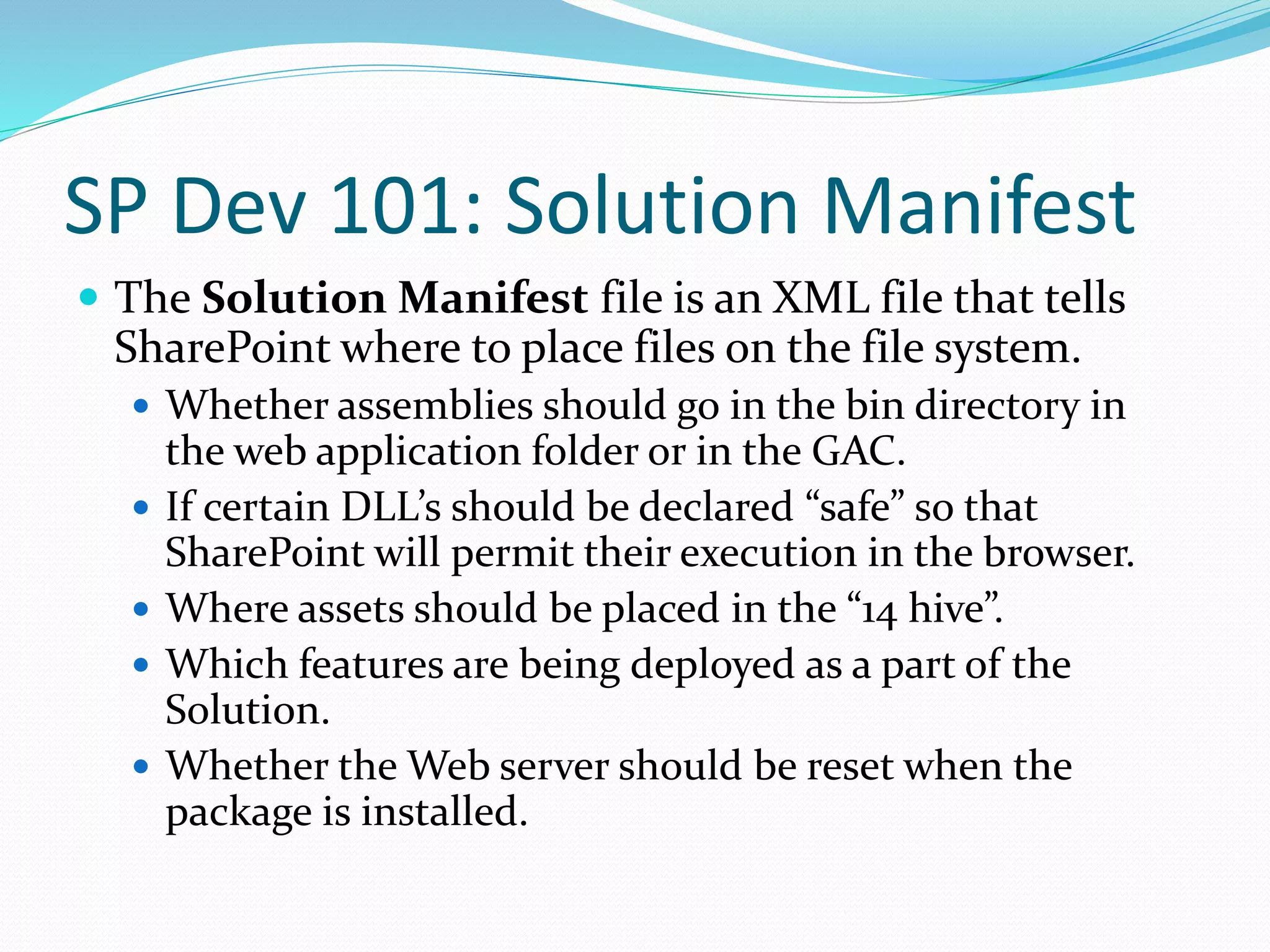
SP Dev 101: Solution Manifest
 The Solution Manifest file is an XML file that tells
SharePoint where to place files on the file system.
 Whether assemblies should go in the bin directory in
the web application folder or in the GAC.
 If certain DLL’s should be declared “safe” so that
SharePoint will permit their execution in the browser.
 Where assets should be placed in the “14 hive”.
 Which features are being deployed as a part of the
Solution.
 Whether the Web server should be reset when the
package is installed.
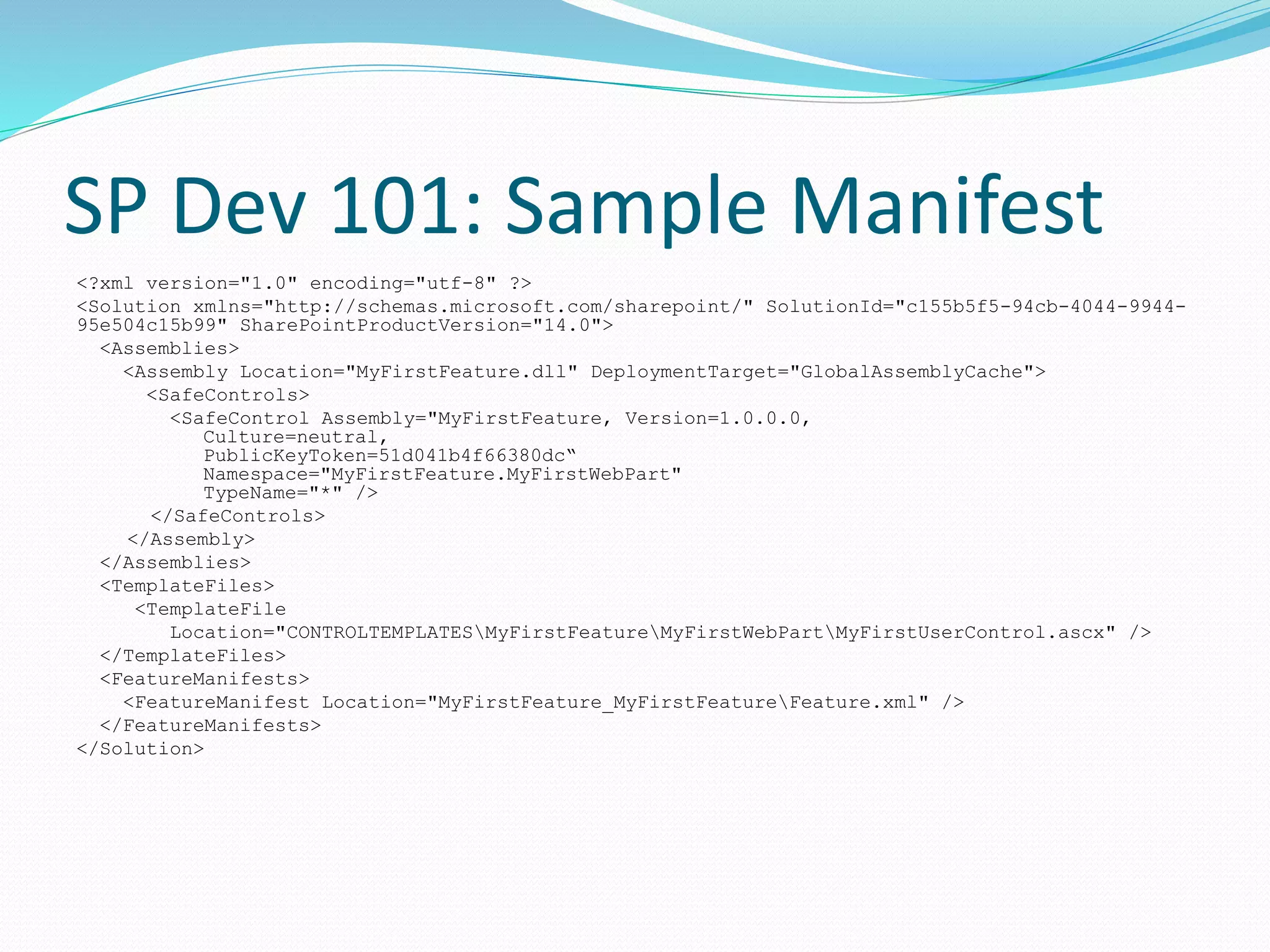
SP Dev 101: Sample Manifest
<?xml version="1.0" encoding="utf-8" ?>
<Solution xmlns="http://schemas.microsoft.com/sharepoint/" SolutionId="c155b5f5-94cb-4044-9944-
95e504c15b99" SharePointProductVersion="14.0">
<Assemblies>
<Assembly Location="MyFirstFeature.dll" DeploymentTarget="GlobalAssemblyCache">
<SafeControls>
<SafeControl Assembly="MyFirstFeature, Version=1.0.0.0,
Culture=neutral,
PublicKeyToken=51d041b4f66380dc“
Namespace="MyFirstFeature.MyFirstWebPart"
TypeName="*" />
</SafeControls>
</Assembly>
</Assemblies>
<TemplateFiles>
<TemplateFile
Location="CONTROLTEMPLATESMyFirstFeatureMyFirstWebPartMyFirstUserControl.ascx" />
</TemplateFiles>
<FeatureManifests>
<FeatureManifest Location="MyFirstFeature_MyFirstFeatureFeature.xml" />
</FeatureManifests>
</Solution>
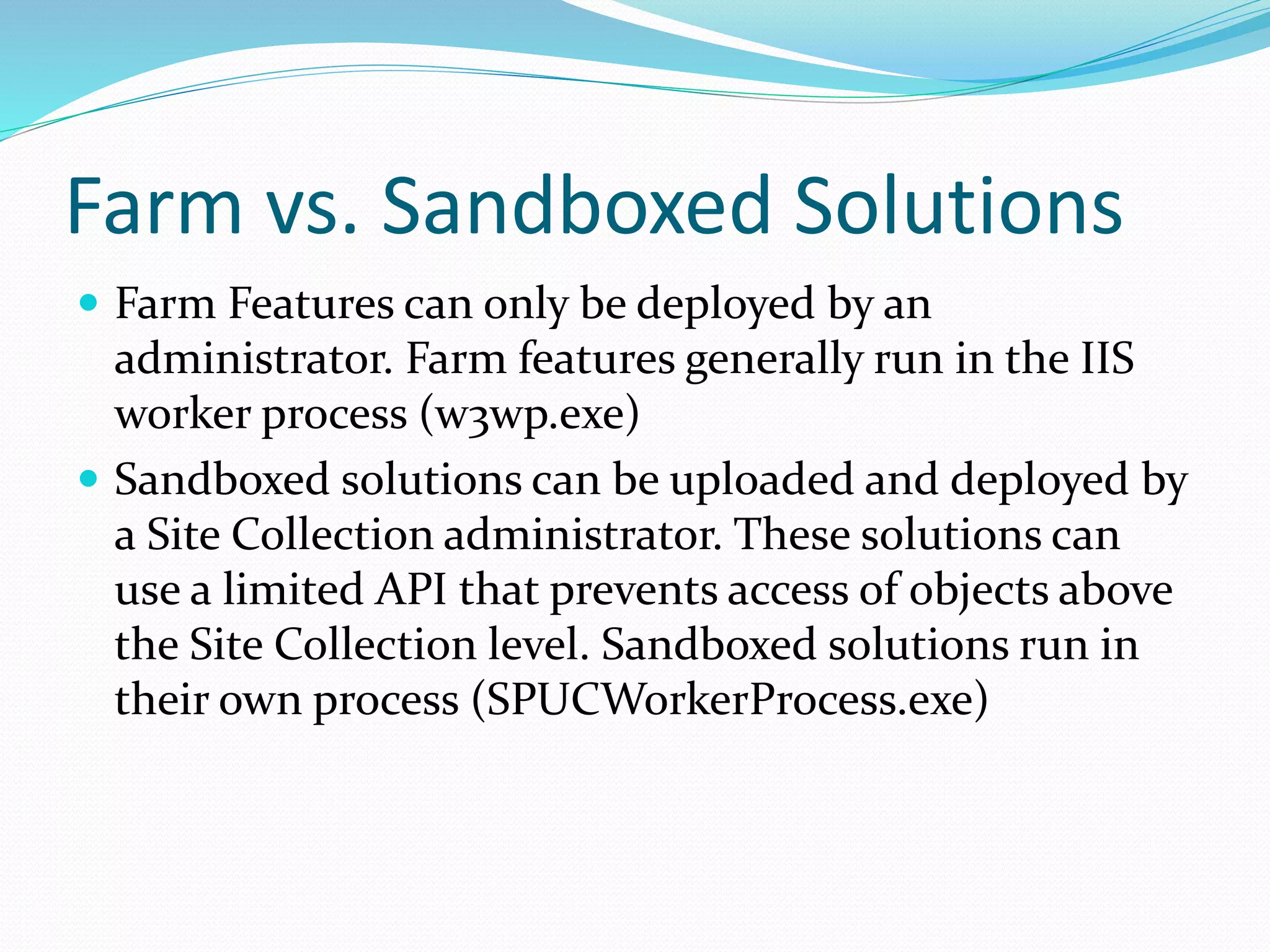
Farm vs. Sandboxed Solutions
 Farm Features can only be deployed by an
administrator. Farm features generally run in the IIS
worker process (w3wp.exe)
 Sandboxed solutions can be uploaded and deployed by
a Site Collection administrator. These solutions can
use a limited API that prevents access of objects above
the Site Collection level. Sandboxed solutions run in
their own process (SPUCWorkerProcess.exe)
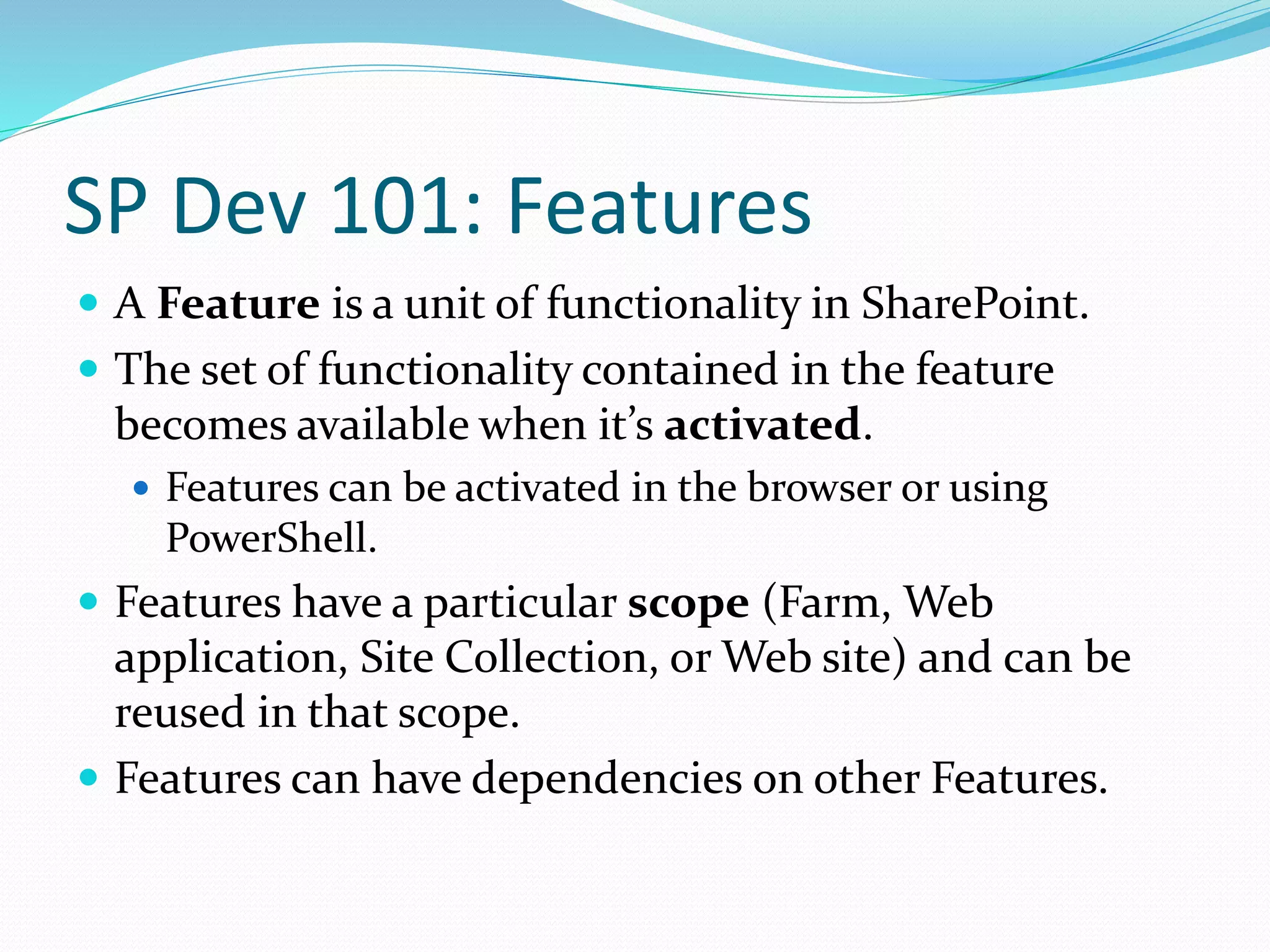
SP Dev 101: Features
 A Feature is a unit of functionality in SharePoint.
 The set of functionality contained in the feature
becomes available when it’s activated.
 Features can be activated in the browser or using
PowerShell.
 Features have a particular scope (Farm, Web
application, Site Collection, or Web site) and can be
reused in that scope.
 Features can have dependencies on other Features.
SP Dev 101: Feature Event Receivers
 Events are fired for the following 5 events in a Feature’s
“life”:
 Installed
 Activated
 Uninstalling
 Deactivating
 Upgrading
 Each of these has a corresponding event receiver.
 The “-ing” receivers hand the event before the event,
and the “-ed” receivers hand the event after the event.
Feature Upgrading
 New to SharePoint 2010, you can tell SharePoint to
carry out certain actions when upgrading a Feature to a
newer version of that Feature.
 Includes adding additional fields to a Content Type
 Executing particular code (making note of the fact that
the code will execute as the SharePoint System account.)
SP Dev 101: Feature Manifest
 The Feature Manifest is an XML file that tells
SharePoint which files on the file system are a part of
the Feature, as well as information about the Feature
itself, such as:
 Name
 Scope
 Activation Dependencies
 Upgrade actions
 Feature Event Receiver assembly and class
 Language Resource Files
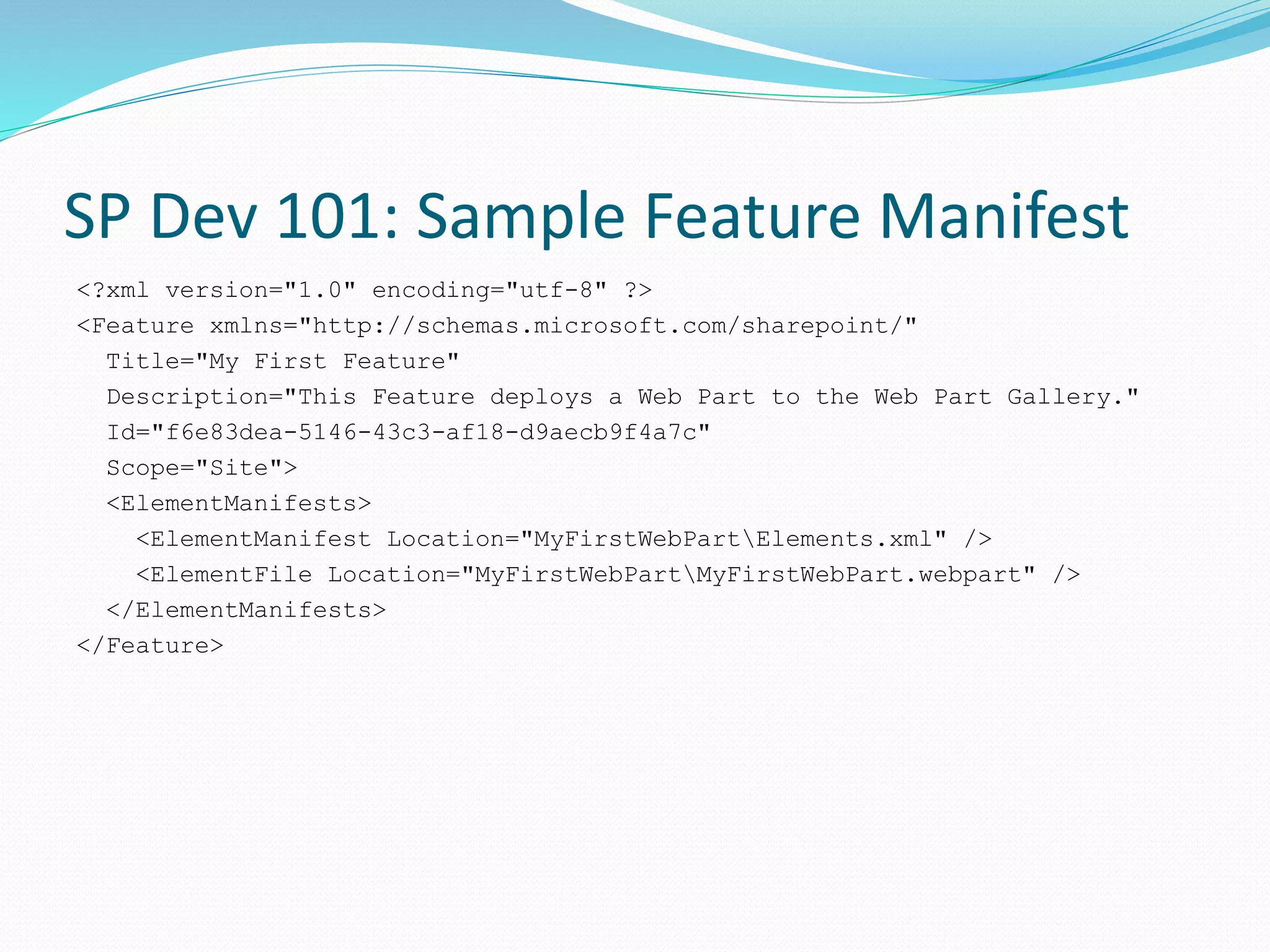
SP Dev 101: Sample Feature Manifest
<?xml version="1.0" encoding="utf-8" ?>
<Feature xmlns="http://schemas.microsoft.com/sharepoint/"
Title="My First Feature"
Description="This Feature deploys a Web Part to the Web Part Gallery."
Id="f6e83dea-5146-43c3-af18-d9aecb9f4a7c"
Scope="Site">
<ElementManifests>
<ElementManifest Location="MyFirstWebPartElements.xml" />
<ElementFile Location="MyFirstWebPartMyFirstWebPart.webpart" />
</ElementManifests>
</Feature>
SP Dev 101: Declarative vs. Imperative Programming
 Declarative: using XML configuration files to tell
SharePoint what to provision
 Field, Content Type, List Definition, List Instance,
Module, etc.
 Imperative: using the SharePoint API to execute
commands at a given point in time
 SPField, SPContentType, SPList, SPListItem, etc.
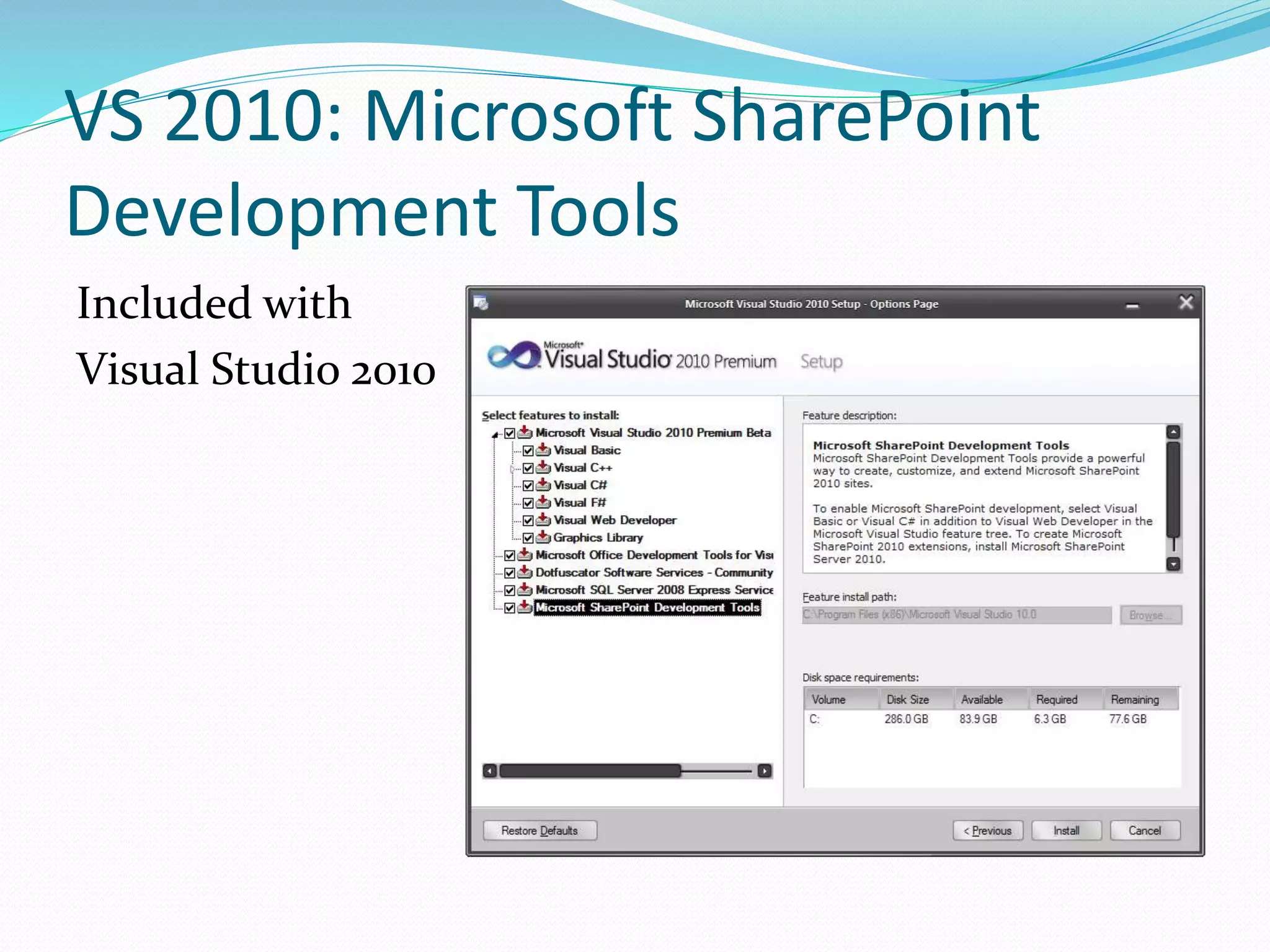
VS 2010: Microsoft SharePoint
Development Tools
Included with
Visual Studio 2010
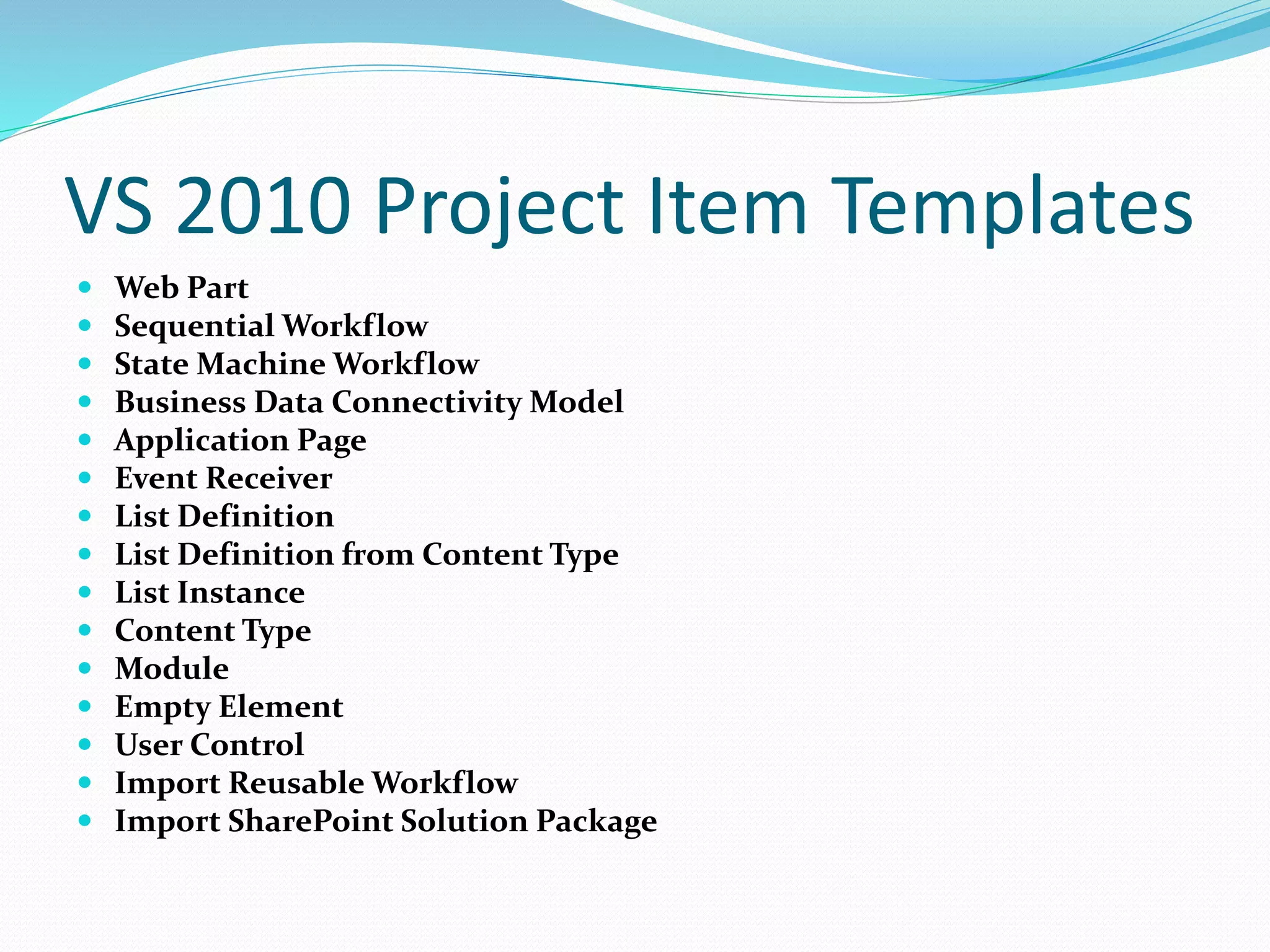
VS 2010 Project Item Templates
 Web Part
 Sequential Workflow
 State Machine Workflow
 Business Data Connectivity Model
 Application Page
 Event Receiver
 List Definition
 List Definition from Content Type
 List Instance
 Content Type
 Module
 Empty Element
 User Control
 Import Reusable Workflow
 Import SharePoint Solution Package
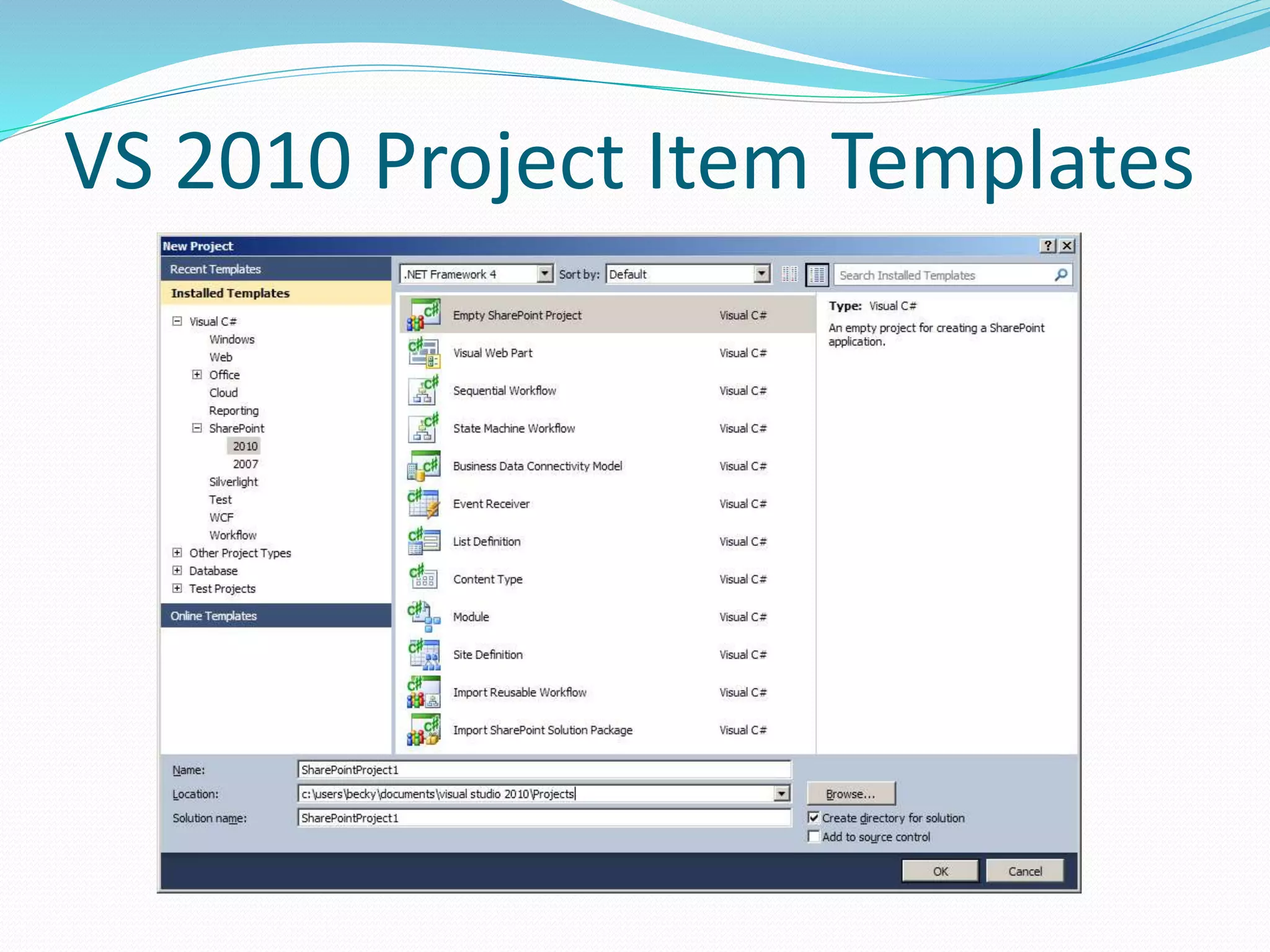
VS 2010 Project Item Templates
Demo: Creating a Feature and
Solution Package using Visual
Studio 2010

SharePoint 2010 Tools in Visual Studio 2010

  • 1.
  • 2.
    VS 2008 withSP2010 VS 2010 with SPS 2010  Solution Package framework has not changed from SharePoint 2007 to SharePoint 2010  You can develop a SharePoint 2010 solution package with Visual Studio 2008, it’s just a lot more work.  You can develop a SharePoint 2007 solution package with Visual Studio 2010, but you won’t be using the built-in tools. You’d use the same manual techniques you would in VS 2008.
  • 3.
    SP Dev 101:Solutions and Solution Packages  SharePoint has some assets which reside in the database, other assets on the file system (XML files, ASPX pages, DLL’s, etc.)  SharePoint is scalable, which means it has load balanced servers.  Assets that were deployed to one server need to be deployed to all load balanced servers.  Solution packages allow the systematic deployment and retraction of assets.  Solution packages are simply CAB files with a WSP extension.
  • 4.
    SP Dev 101:Solution Package Events  Solution Packages must first be added to the Solution Store so that SharePoint knows they’re available.  This can only be done via PowerShell.  You can add a solution package using the stsadm –o addsolution command.  From there, you can deploy a Solution Package, either through the browser or through PowerShell.  Packages are deployed globally (which means they are available in the whole farm) or to one or more Web applications.  Packages can be retracted, and then removed.
  • 5.
    SP Dev 101:Solution Manifest  The Solution Manifest file is an XML file that tells SharePoint where to place files on the file system.  Whether assemblies should go in the bin directory in the web application folder or in the GAC.  If certain DLL’s should be declared “safe” so that SharePoint will permit their execution in the browser.  Where assets should be placed in the “14 hive”.  Which features are being deployed as a part of the Solution.  Whether the Web server should be reset when the package is installed.
  • 6.
    SP Dev 101:Sample Manifest <?xml version="1.0" encoding="utf-8" ?> <Solution xmlns="http://schemas.microsoft.com/sharepoint/" SolutionId="c155b5f5-94cb-4044-9944- 95e504c15b99" SharePointProductVersion="14.0"> <Assemblies> <Assembly Location="MyFirstFeature.dll" DeploymentTarget="GlobalAssemblyCache"> <SafeControls> <SafeControl Assembly="MyFirstFeature, Version=1.0.0.0, Culture=neutral, PublicKeyToken=51d041b4f66380dc“ Namespace="MyFirstFeature.MyFirstWebPart" TypeName="*" /> </SafeControls> </Assembly> </Assemblies> <TemplateFiles> <TemplateFile Location="CONTROLTEMPLATESMyFirstFeatureMyFirstWebPartMyFirstUserControl.ascx" /> </TemplateFiles> <FeatureManifests> <FeatureManifest Location="MyFirstFeature_MyFirstFeatureFeature.xml" /> </FeatureManifests> </Solution>
  • 7.
    Farm vs. SandboxedSolutions  Farm Features can only be deployed by an administrator. Farm features generally run in the IIS worker process (w3wp.exe)  Sandboxed solutions can be uploaded and deployed by a Site Collection administrator. These solutions can use a limited API that prevents access of objects above the Site Collection level. Sandboxed solutions run in their own process (SPUCWorkerProcess.exe)
  • 8.
    SP Dev 101:Features  A Feature is a unit of functionality in SharePoint.  The set of functionality contained in the feature becomes available when it’s activated.  Features can be activated in the browser or using PowerShell.  Features have a particular scope (Farm, Web application, Site Collection, or Web site) and can be reused in that scope.  Features can have dependencies on other Features.
  • 9.
    SP Dev 101:Feature Event Receivers  Events are fired for the following 5 events in a Feature’s “life”:  Installed  Activated  Uninstalling  Deactivating  Upgrading  Each of these has a corresponding event receiver.  The “-ing” receivers hand the event before the event, and the “-ed” receivers hand the event after the event.
  • 10.
    Feature Upgrading  Newto SharePoint 2010, you can tell SharePoint to carry out certain actions when upgrading a Feature to a newer version of that Feature.  Includes adding additional fields to a Content Type  Executing particular code (making note of the fact that the code will execute as the SharePoint System account.)
  • 11.
    SP Dev 101:Feature Manifest  The Feature Manifest is an XML file that tells SharePoint which files on the file system are a part of the Feature, as well as information about the Feature itself, such as:  Name  Scope  Activation Dependencies  Upgrade actions  Feature Event Receiver assembly and class  Language Resource Files
  • 12.
    SP Dev 101:Sample Feature Manifest <?xml version="1.0" encoding="utf-8" ?> <Feature xmlns="http://schemas.microsoft.com/sharepoint/" Title="My First Feature" Description="This Feature deploys a Web Part to the Web Part Gallery." Id="f6e83dea-5146-43c3-af18-d9aecb9f4a7c" Scope="Site"> <ElementManifests> <ElementManifest Location="MyFirstWebPartElements.xml" /> <ElementFile Location="MyFirstWebPartMyFirstWebPart.webpart" /> </ElementManifests> </Feature>
  • 13.
    SP Dev 101:Declarative vs. Imperative Programming  Declarative: using XML configuration files to tell SharePoint what to provision  Field, Content Type, List Definition, List Instance, Module, etc.  Imperative: using the SharePoint API to execute commands at a given point in time  SPField, SPContentType, SPList, SPListItem, etc.
  • 14.
    VS 2010: MicrosoftSharePoint Development Tools Included with Visual Studio 2010
  • 15.
    VS 2010 ProjectItem Templates  Web Part  Sequential Workflow  State Machine Workflow  Business Data Connectivity Model  Application Page  Event Receiver  List Definition  List Definition from Content Type  List Instance  Content Type  Module  Empty Element  User Control  Import Reusable Workflow  Import SharePoint Solution Package
  • 16.
    VS 2010 ProjectItem Templates
  • 17.
    Demo: Creating aFeature and Solution Package using Visual Studio 2010