SharePoint TrainingBranding in SharePoint 2010
What is branding?In general, branding is the customization of a site to convey a business’s corporate identity, through use of color, style, and aesthetic.More specifically for SharePoint, branding involves a site’s look and feel, the overall user experience, and how site pages are laid out.
Branding SharePointThemesCascading Style Sheets (CSS)Master pagesPage layoutsJQuery and the Client Object Model
Themes apply a color palette across a siteThemes files can be exported from Office 2010 and imported into SharePointTheme colors can be specified via CSSThemes.pageTitle {    /* [ReplaceColor(themeColor:"Accent2")] */     color: #8A2A1C;}
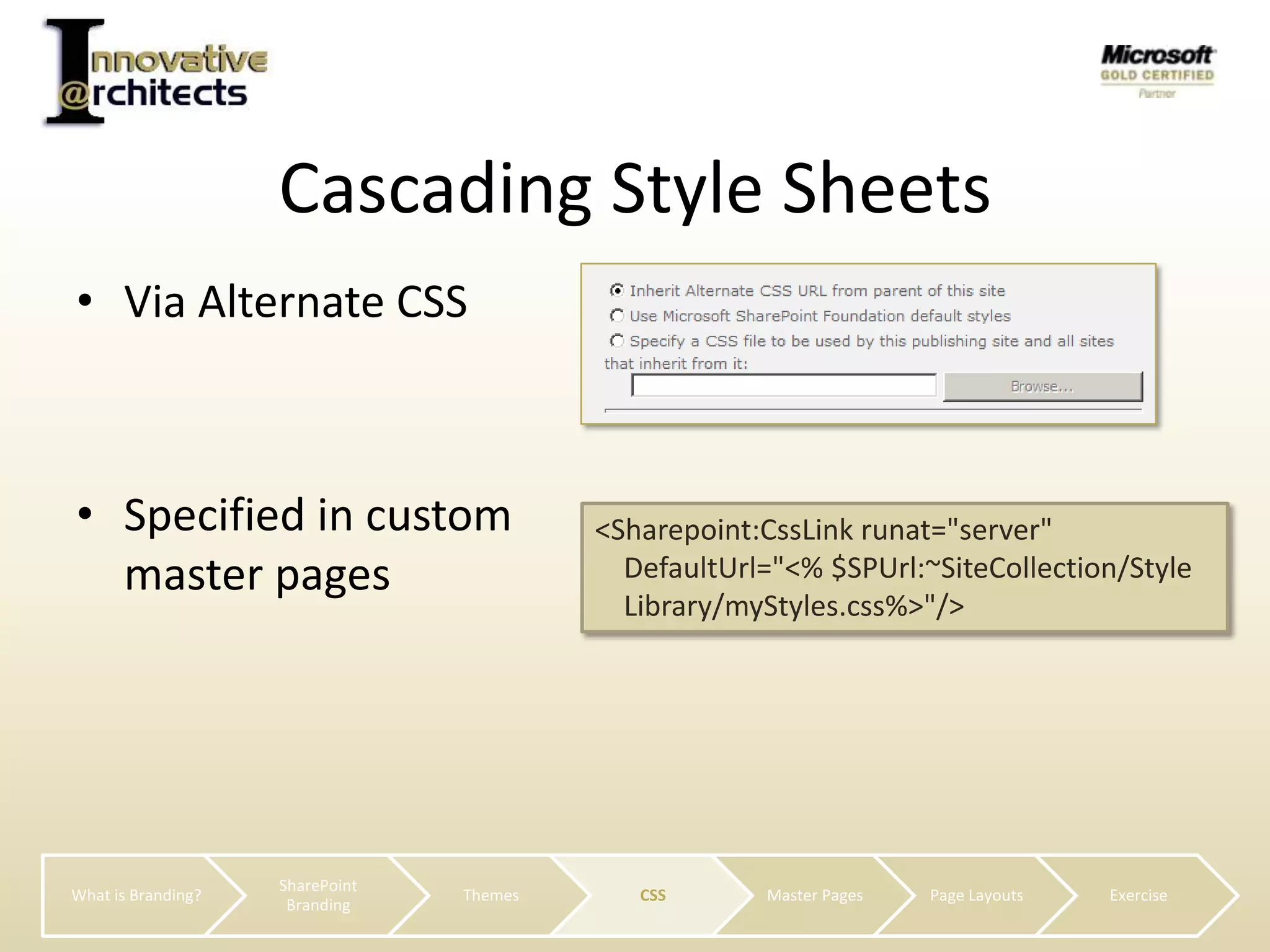
Via Alternate CSSSpecified in custom master pagesCascading Style Sheets<Sharepoint:CssLinkrunat="server" DefaultUrl="<% $SPUrl:~SiteCollection/Style    Library/myStyles.css%>"/>
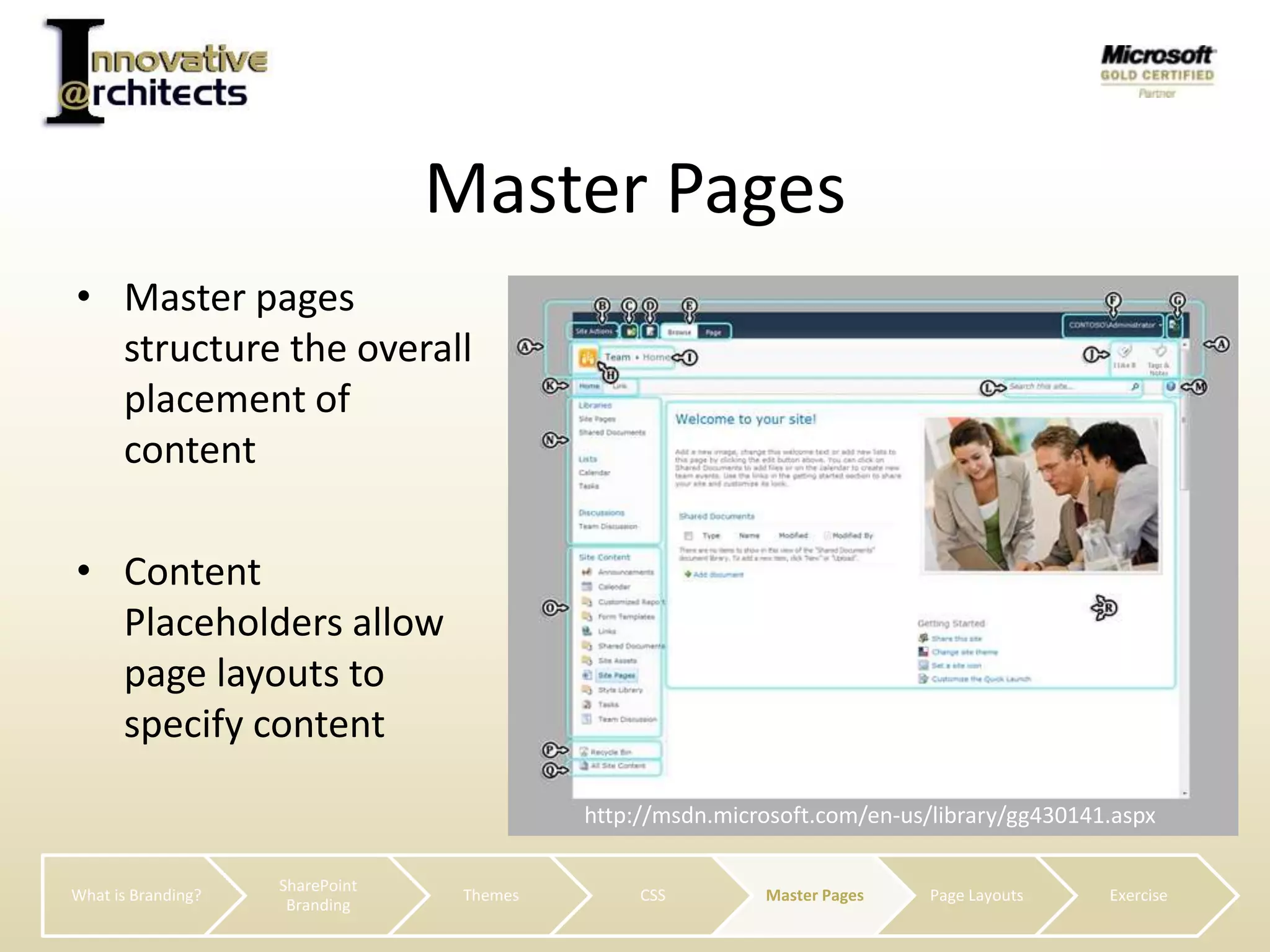
Master pages structure the overall placement of contentContent Placeholders allow page layouts to specify contentMaster Pageshttp://msdn.microsoft.com/en-us/library/gg430141.aspx
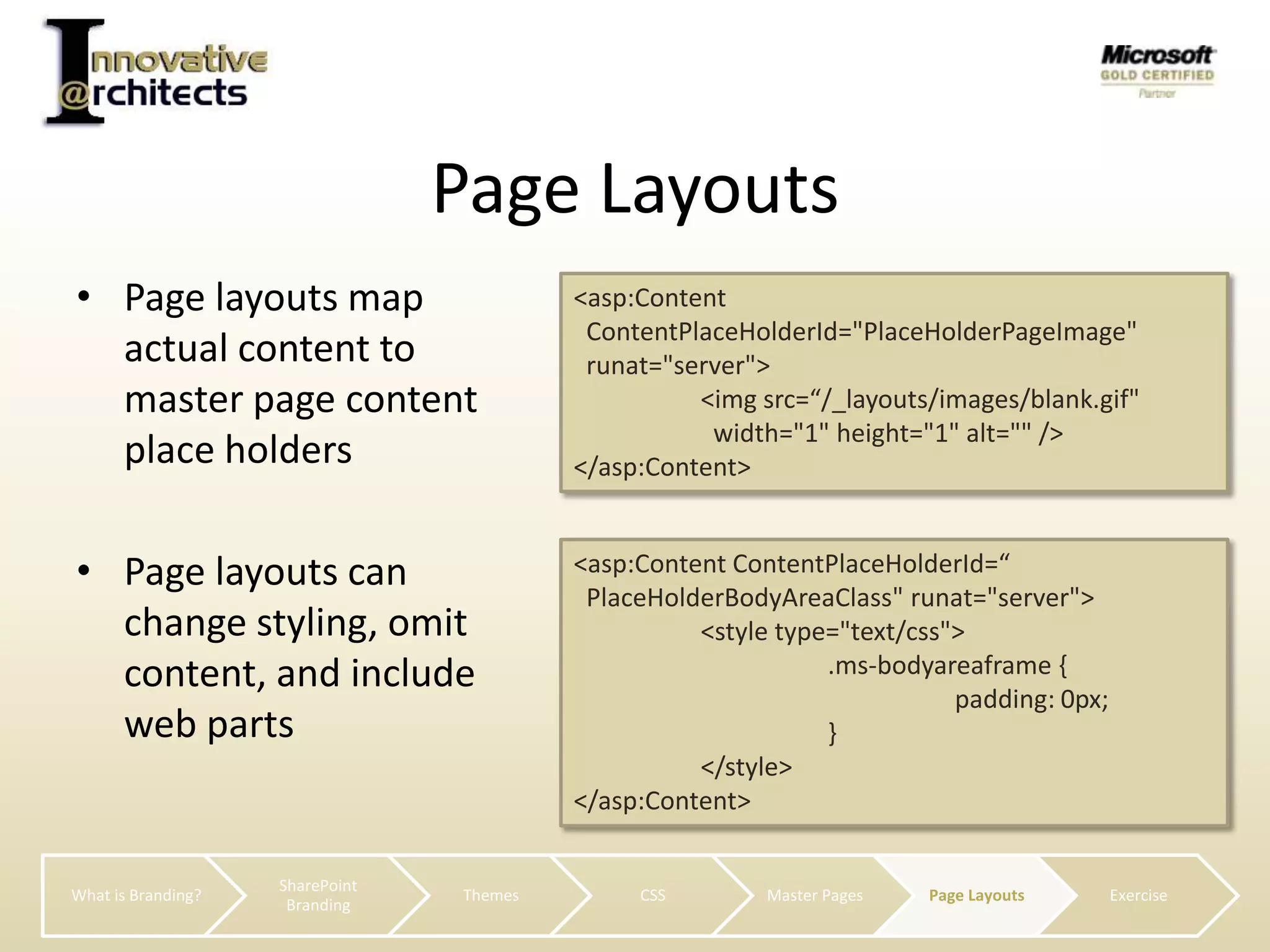
Page layouts map actual content to master page content place holdersPage layouts can change styling, omit content, and include web partsPage Layouts<asp:ContentContentPlaceHolderId="PlaceHolderPageImage" runat="server"><imgsrc=“/_layouts/images/blank.gif"   	  width="1" height="1" alt="" /></asp:Content><asp:ContentContentPlaceHolderId=“PlaceHolderBodyAreaClass" runat="server">	<style type="text/css">	 	.ms-bodyareaframe {		padding: 0px;		}	</style></asp:Content>
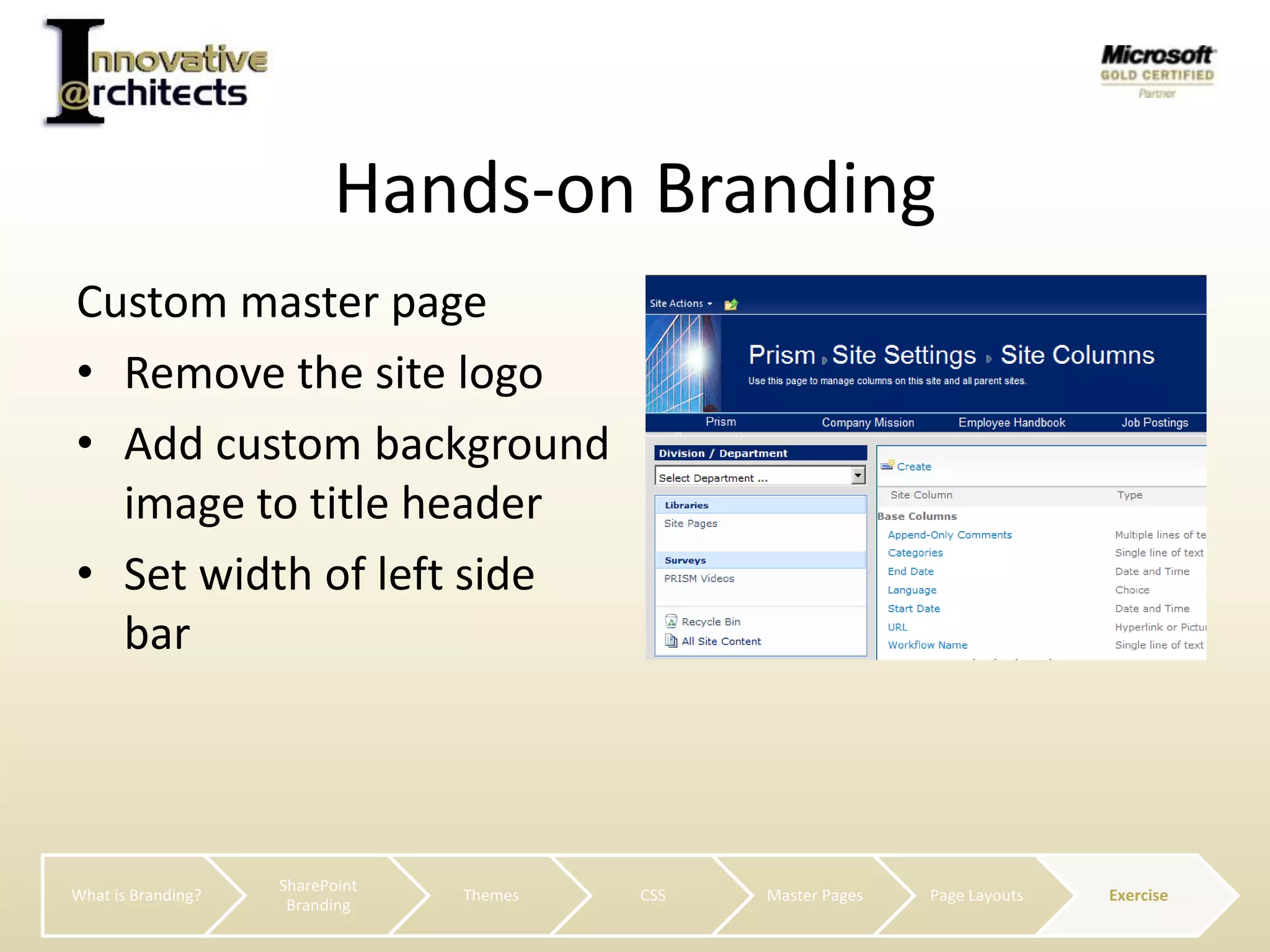
Custom master pageRemove the site logoAdd custom background image to title headerSet width of left side barHands-on Branding
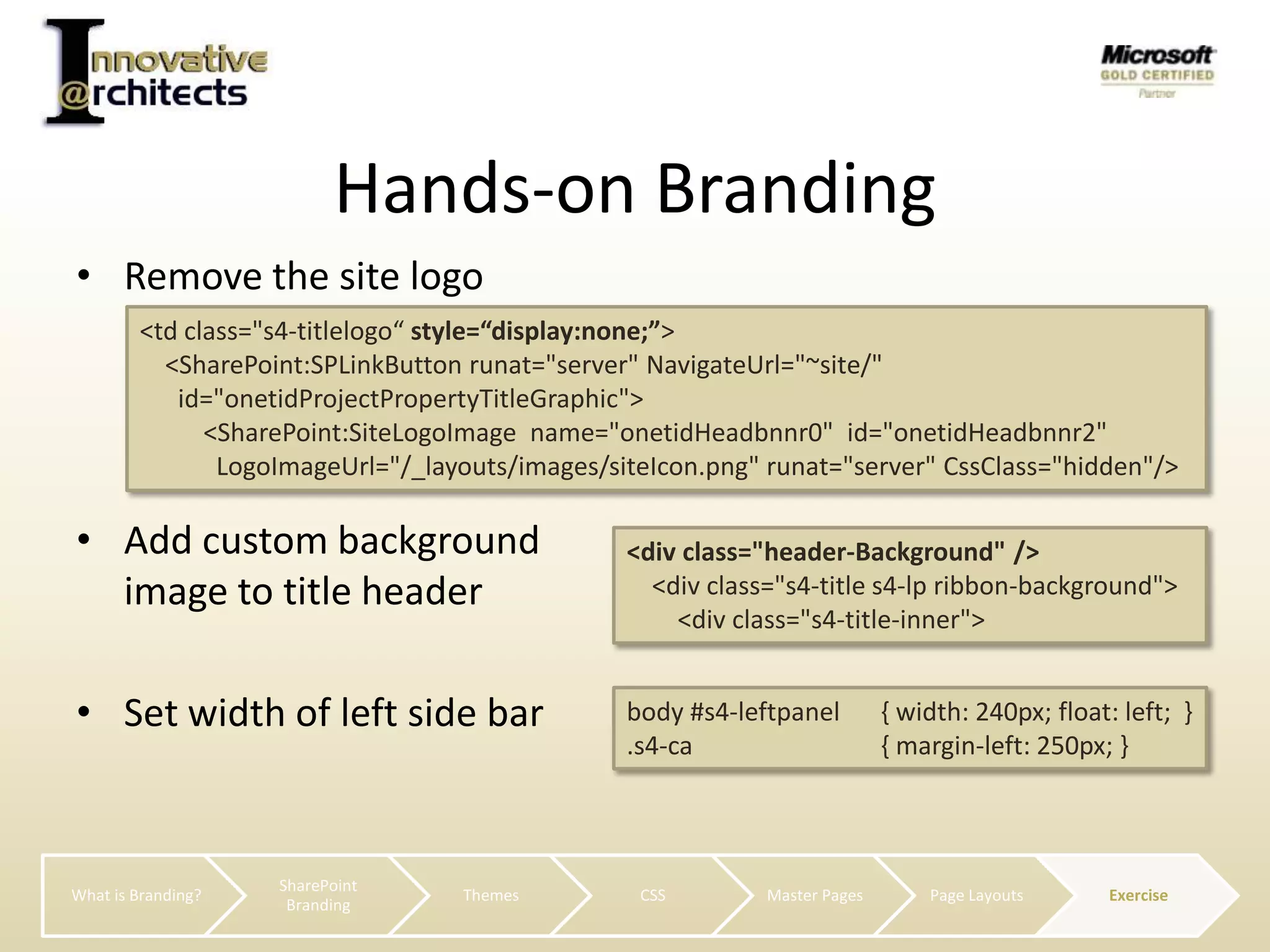
Remove the site logoSet width of left side barHands-on Branding<td class="s4-titlelogo“ style=“display:none;”>    <SharePoint:SPLinkButtonrunat="server" NavigateUrl="~site/"      id="onetidProjectPropertyTitleGraphic">          <SharePoint:SiteLogoImagename="onetidHeadbnnr0"  id="onetidHeadbnnr2" LogoImageUrl="/_layouts/images/siteIcon.png" runat="server" CssClass="hidden"/>Add custom background image to title header<div class="header-Background" />    <div class="s4-title s4-lp ribbon-background">       <div class="s4-title-inner">body #s4-leftpanel 	{ width: 240px; float: left;  }.s4-ca 		{ margin-left: 250px; }
Questions?

Share point training branding 2010

  • 1.
  • 2.
    What is branding?Ingeneral, branding is the customization of a site to convey a business’s corporate identity, through use of color, style, and aesthetic.More specifically for SharePoint, branding involves a site’s look and feel, the overall user experience, and how site pages are laid out.
  • 3.
    Branding SharePointThemesCascading StyleSheets (CSS)Master pagesPage layoutsJQuery and the Client Object Model
  • 4.
    Themes apply acolor palette across a siteThemes files can be exported from Office 2010 and imported into SharePointTheme colors can be specified via CSSThemes.pageTitle { /* [ReplaceColor(themeColor:"Accent2")] */ color: #8A2A1C;}
  • 5.
    Via Alternate CSSSpecifiedin custom master pagesCascading Style Sheets<Sharepoint:CssLinkrunat="server" DefaultUrl="<% $SPUrl:~SiteCollection/Style Library/myStyles.css%>"/>
  • 6.
    Master pages structurethe overall placement of contentContent Placeholders allow page layouts to specify contentMaster Pageshttp://msdn.microsoft.com/en-us/library/gg430141.aspx
  • 7.
    Page layouts mapactual content to master page content place holdersPage layouts can change styling, omit content, and include web partsPage Layouts<asp:ContentContentPlaceHolderId="PlaceHolderPageImage" runat="server"><imgsrc=“/_layouts/images/blank.gif" width="1" height="1" alt="" /></asp:Content><asp:ContentContentPlaceHolderId=“PlaceHolderBodyAreaClass" runat="server"> <style type="text/css"> .ms-bodyareaframe { padding: 0px; } </style></asp:Content>
  • 8.
    Custom master pageRemovethe site logoAdd custom background image to title headerSet width of left side barHands-on Branding
  • 9.
    Remove the sitelogoSet width of left side barHands-on Branding<td class="s4-titlelogo“ style=“display:none;”> <SharePoint:SPLinkButtonrunat="server" NavigateUrl="~site/" id="onetidProjectPropertyTitleGraphic"> <SharePoint:SiteLogoImagename="onetidHeadbnnr0" id="onetidHeadbnnr2" LogoImageUrl="/_layouts/images/siteIcon.png" runat="server" CssClass="hidden"/>Add custom background image to title header<div class="header-Background" /> <div class="s4-title s4-lp ribbon-background"> <div class="s4-title-inner">body #s4-leftpanel { width: 240px; float: left; }.s4-ca { margin-left: 250px; }
  • 10.